 Red Hat Summit
Este contenido no está disponible en el idioma seleccionado.
Chapter 2. Installing software in GNOME
You can install applications and other software packages using several methods in GNOME.
2.1. Prerequisites
- You have administrator permissions on the system.
2.2. The GNOME Software application
GNOME Software is an utility that enables you to install and update applications and software components in a graphical interface.
GNOME Software provides a catalog of graphical applications, which are the applications that include a *.desktop file. The available applications are grouped into multiple categories according to their purpose.
GNOME Software uses the PackageKit and Flatpak technologies as its back ends.
2.3. Installing an application using GNOME Software
This procedure installs a graphical application using the GNOME Software utility.
Procedure
- Launch the GNOME Software application.
Find the application that you want to install using any of the following methods:
Click the search button in the upper-left corner of the window and type the name of the application.
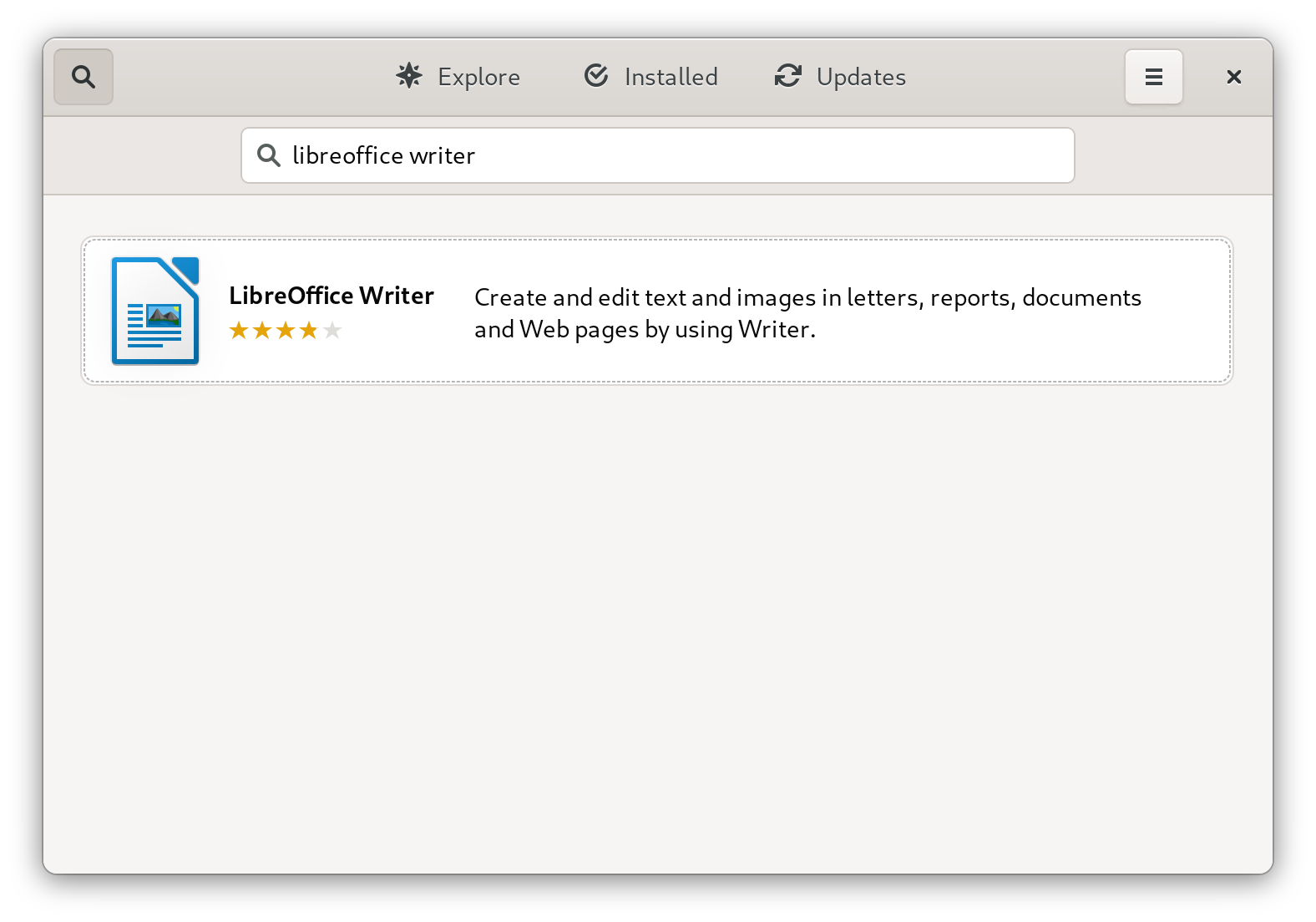
Browse the application categories in the Explore tab.

- Click the selected application.
Click .

2.4. Installing an application to open a file type
This procedure installs an application that can open a given file type.
Prerequisites
- You can access a file of the required file type in your file system.
Procedure
- Try opening a file that is associated with an application that is currently not installed on your system.
- GNOME automatically identifies the suitable application that can open the file, and offers to download the application.
2.5. Installing an RPM package file in GNOME
This procedure installs an RPM software package that you manually downloaded as a file.
Prerequisites
- You have downloaded the required RPM package.
Procedure
In the Files application, open the directory that stores the downloaded RPM package.
NoteBy default, downloaded files are stored in the
/home/user/Downloads/directory.- Double-click the RPM package file to install it.
2.6. Installing an application from the Activities Overview search
This procedure installs a graphical application from search results on the GNOME Activities Overview screen.
Procedure
- Open the Activities Overview screen.
Type the name of the required application in the search entry.
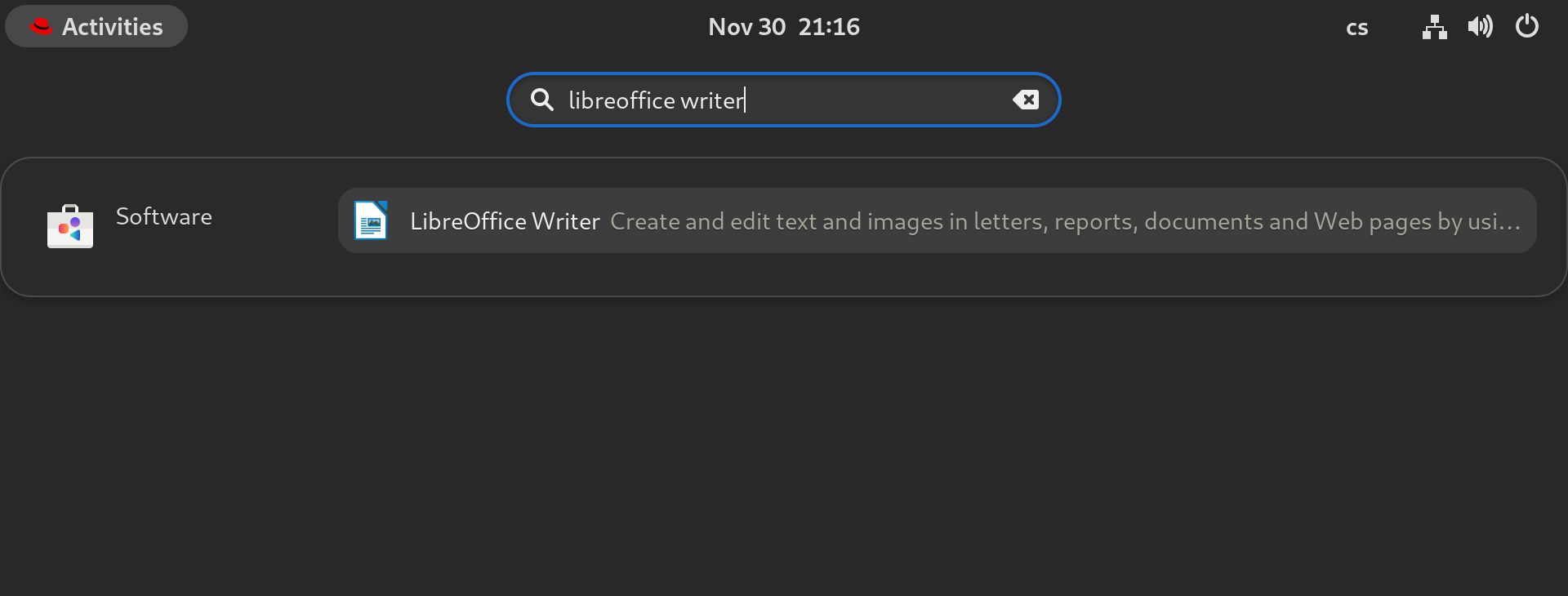
The search results display the application’s icon, name, and description.
Click the application’s icon to open the Software application.
- Click to finish the installation in Software.
Verification
- Click to launch the installed application.

'%20d='M201.5%20305.5c-13.8%200-24.9-11.1-24.9-24.6%200-13.8%2011.1-24.9%2024.9-24.9%2013.6%200%2024.6%2011.1%2024.6%2024.9%200%2013.6-11.1%2024.6-24.6%2024.6zM504%20256c0%20137-111%20248-248%20248S8%20393%208%20256%20119%208%20256%208s248%20111%20248%20248zm-132.3-41.2c-9.4%200-17.7%203.9-23.8%2010-22.4-15.5-52.6-25.5-86.1-26.6l17.4-78.3%2055.4%2012.5c0%2013.6%2011.1%2024.6%2024.6%2024.6%2013.8%200%2024.9-11.3%2024.9-24.9s-11.1-24.9-24.9-24.9c-9.7%200-18%205.8-22.1%2013.8l-61.2-13.6c-3-.8-6.1%201.4-6.9%204.4l-19.1%2086.4c-33.2%201.4-63.1%2011.3-85.5%2026.8-6.1-6.4-14.7-10.2-24.1-10.2-34.9%200-46.3%2046.9-14.4%2062.8-1.1%205-1.7%2010.2-1.7%2015.5%200%2052.6%2059.2%2095.2%20132%2095.2%2073.1%200%20132.3-42.6%20132.3-95.2%200-5.3-.6-10.8-1.9-15.8%2031.3-16%2019.8-62.5-14.9-62.5zM302.8%20331c-18.2%2018.2-76.1%2017.9-93.6%200-2.2-2.2-6.1-2.2-8.3%200-2.5%202.5-2.5%206.4%200%208.6%2022.8%2022.8%2087.3%2022.8%20110.2%200%202.5-2.2%202.5-6.1%200-8.6-2.2-2.2-6.1-2.2-8.3%200zm7.7-75c-13.6%200-24.6%2011.1-24.6%2024.9%200%2013.6%2011.1%2024.6%2024.6%2024.6%2013.8%200%2024.9-11.1%2024.9-24.6%200-13.8-11-24.9-24.9-24.9z'/%3e%3c/svg%3e)