 Red Hat Summit
Este contenido no está disponible en el idioma seleccionado.
Chapter 7. Enabling Chinese, Japanese, or Korean text input
If you write with Chinese, Japanese, or Korean characters, you can configure RHEL to input text in your language.
7.1. Input methods
Certain scripts, such as Chinese, Japanese, or Korean, require keyboard input to go through an Input Method Engine (IME) to enter native text.
An input method is a set of conversion rules between the text input and the selected script. An IME is a software that performs the input conversion specified by the input method.
To input text in these scripts, you must set up an IME. If you installed the system in your native language and selected your language at the GNOME Initial Setup screen, the input method for your language is enabled by default.
7.2. Available input method engines
The following input method engines (IMEs) are available on RHEL from the listed packages:
| Languages | Scripts | IME name | Package |
|---|---|---|---|
| Chinese | Simplified Chinese | Intelligent Pinyin |
|
| Chinese | Traditional Chinese | New Zhuyin |
|
| Japanese | Kanji, Hiragana, Katakana | Anthy |
|
| Korean | Hangul | Hangul |
|
| Other | Various | M17N |
|
7.3. Installing input method engines
This procedure installs input method engines (IMEs) that you can use to input Chinese, Japanese, and Korean text.
Procedure
Install all available input method packages:
# dnf install @input-methods
7.4. Switching the input method in GNOME
This procedure sets up the input method for your script, such as for Chinese, Japanese, or Korean scripts.
Prerequisites
- The input method packages are installed.
Procedure
Go to the system menu, which is accessible from the top-right screen corner, and click Settings.

- Select the Keyboard section.
In the Input Sources list, review the currently enabled input methods.
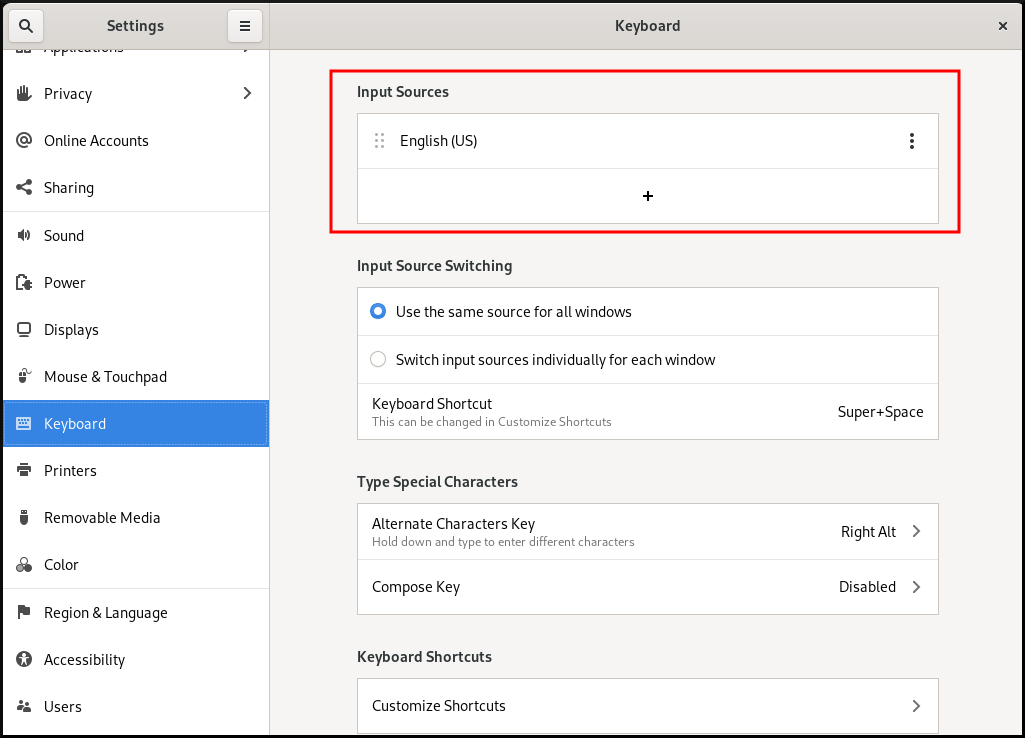
If your input method is missing:
Click the button under the Input Sources list.

Select your language.
 Note
NoteIf you cannot find your language in the menu, click the three dots icon (More…) at the end of the menu.
Select the input method that you want to use. A cog wheel icon marks all input methods to distinguish them from simple keyboard layouts.
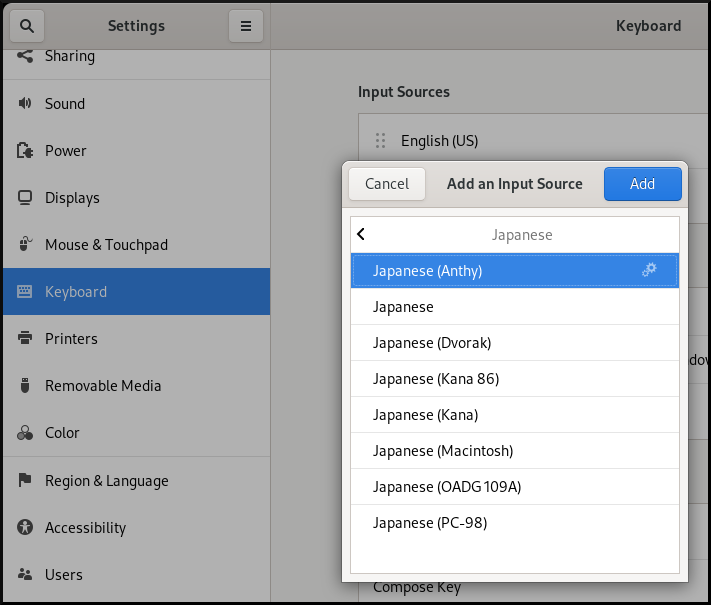
- Confirm your selection by clicking .
Switch the active input method using one of the following ways:
Click the input method indicator on the right side of the top panel and select your input method.

- Switch between the enabled input methods using the Super+Space keyboard shortcut.
Verification
- Open a text editor.
- Type text in your language.
- Verify that the text appears in your native script.

'%20d='M201.5%20305.5c-13.8%200-24.9-11.1-24.9-24.6%200-13.8%2011.1-24.9%2024.9-24.9%2013.6%200%2024.6%2011.1%2024.6%2024.9%200%2013.6-11.1%2024.6-24.6%2024.6zM504%20256c0%20137-111%20248-248%20248S8%20393%208%20256%20119%208%20256%208s248%20111%20248%20248zm-132.3-41.2c-9.4%200-17.7%203.9-23.8%2010-22.4-15.5-52.6-25.5-86.1-26.6l17.4-78.3%2055.4%2012.5c0%2013.6%2011.1%2024.6%2024.6%2024.6%2013.8%200%2024.9-11.3%2024.9-24.9s-11.1-24.9-24.9-24.9c-9.7%200-18%205.8-22.1%2013.8l-61.2-13.6c-3-.8-6.1%201.4-6.9%204.4l-19.1%2086.4c-33.2%201.4-63.1%2011.3-85.5%2026.8-6.1-6.4-14.7-10.2-24.1-10.2-34.9%200-46.3%2046.9-14.4%2062.8-1.1%205-1.7%2010.2-1.7%2015.5%200%2052.6%2059.2%2095.2%20132%2095.2%2073.1%200%20132.3-42.6%20132.3-95.2%200-5.3-.6-10.8-1.9-15.8%2031.3-16%2019.8-62.5-14.9-62.5zM302.8%20331c-18.2%2018.2-76.1%2017.9-93.6%200-2.2-2.2-6.1-2.2-8.3%200-2.5%202.5-2.5%206.4%200%208.6%2022.8%2022.8%2087.3%2022.8%20110.2%200%202.5-2.2%202.5-6.1%200-8.6-2.2-2.2-6.1-2.2-8.3%200zm7.7-75c-13.6%200-24.6%2011.1-24.6%2024.9%200%2013.6%2011.1%2024.6%2024.6%2024.6%2013.8%200%2024.9-11.1%2024.9-24.6%200-13.8-11-24.9-24.9-24.9z'/%3e%3c/svg%3e)