 Red Hat Summit
Este contenido no está disponible en el idioma seleccionado.
Chapter 3. Viewing and editing Rest DSL components
If your project’s Camel Context file contains Camel Rest DSL components, you can view a graphical representation of the components in the route editor’s REST tab and edit the components in the Source tab.
3.1. Viewing Rest DSL components
If your project’s Camel Context file contains Camel Rest DSL components, follow these steps to view the REST components:
- Open the Camel Context file in the route editor.
Click the REST tab to the view the Rest DSL components.
NoteFor this release, the REST tab provides a read-only graphical view of Camel Rest DSL components. All fields are greyed out and the
 and
and
 icons are disabled.
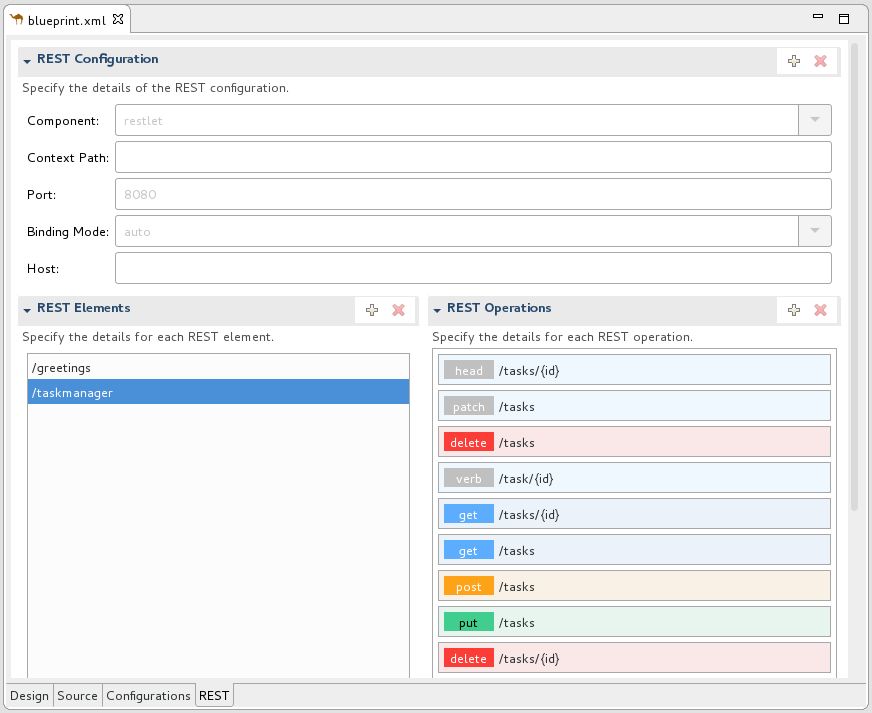
The REST Configuration section displays these configuration options:
- Component — The Camel component to use for the REST transport.
- Context Path — The leading context-path for the REST services. You can use this option for components, such as Servlet, where the web application is deployed using a context-path.
- Port — The port number that exposes the REST service.
- Binding Mode — The binding mode for JSON or XML format messages. Possible values are: off (the default), auto, json, xml, or json_xml.
- Host — The hostname to use for exposing the REST service.
-
Click a REST element to view its associated operations (for example,
GET,POST,PUT, andDELETE) in the REST Operations section. Click a REST element or a REST operation to view its properties in the Properties view.
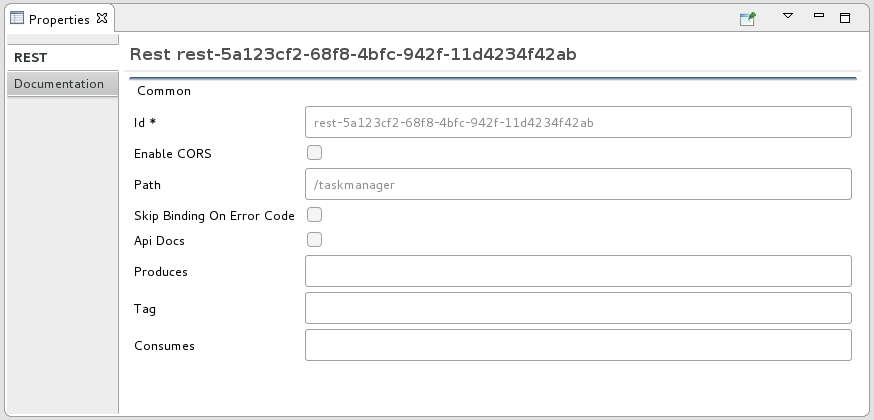
For information about the Camel Rest DSL, see the “Defining REST services” section of the Apache Camel Development Guide.
3.2. Editing Rest DSL components
To add, edit, or delete REST elements in your project’s Camel Context file:
- Open the Camel Context file in the route editor.
Click the route editor’s Source tab and then edit the code.
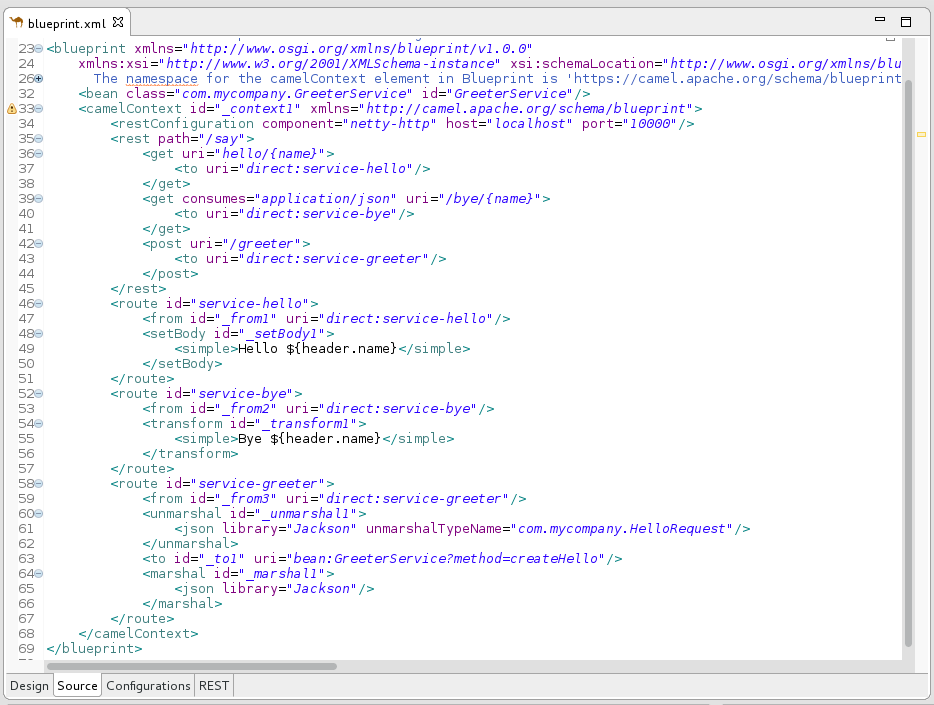
- Optionally, click the REST tab to see the changes in the graphical view.
-
To save your changes, select File
Save.

'%20d='M201.5%20305.5c-13.8%200-24.9-11.1-24.9-24.6%200-13.8%2011.1-24.9%2024.9-24.9%2013.6%200%2024.6%2011.1%2024.6%2024.9%200%2013.6-11.1%2024.6-24.6%2024.6zM504%20256c0%20137-111%20248-248%20248S8%20393%208%20256%20119%208%20256%208s248%20111%20248%20248zm-132.3-41.2c-9.4%200-17.7%203.9-23.8%2010-22.4-15.5-52.6-25.5-86.1-26.6l17.4-78.3%2055.4%2012.5c0%2013.6%2011.1%2024.6%2024.6%2024.6%2013.8%200%2024.9-11.3%2024.9-24.9s-11.1-24.9-24.9-24.9c-9.7%200-18%205.8-22.1%2013.8l-61.2-13.6c-3-.8-6.1%201.4-6.9%204.4l-19.1%2086.4c-33.2%201.4-63.1%2011.3-85.5%2026.8-6.1-6.4-14.7-10.2-24.1-10.2-34.9%200-46.3%2046.9-14.4%2062.8-1.1%205-1.7%2010.2-1.7%2015.5%200%2052.6%2059.2%2095.2%20132%2095.2%2073.1%200%20132.3-42.6%20132.3-95.2%200-5.3-.6-10.8-1.9-15.8%2031.3-16%2019.8-62.5-14.9-62.5zM302.8%20331c-18.2%2018.2-76.1%2017.9-93.6%200-2.2-2.2-6.1-2.2-8.3%200-2.5%202.5-2.5%206.4%200%208.6%2022.8%2022.8%2087.3%2022.8%20110.2%200%202.5-2.2%202.5-6.1%200-8.6-2.2-2.2-6.1-2.2-8.3%200zm7.7-75c-13.6%200-24.6%2011.1-24.6%2024.9%200%2013.6%2011.1%2024.6%2024.6%2024.6%2013.8%200%2024.9-11.1%2024.9-24.6%200-13.8-11-24.9-24.9-24.9z'/%3e%3c/svg%3e)