 Red Hat Summit
Ce contenu n'est pas disponible dans la langue sélectionnée.
Postinstallation configuration
Day 2 operations for OpenShift Container Platform
Abstract
Chapter 1. Postinstallation configuration overview
After installing OpenShift Container Platform, a cluster administrator can configure and customize the following components:
- Machine
- Bare metal
- Cluster
- Node
- Network
- Storage
- Users
- Alerts and notifications
1.1. Post-installation configuration tasks
You can perform the post-installation configuration tasks to configure your environment to meet your need.
The following lists details these configurations:
-
Configure operating system features: The Machine Config Operator (MCO) manages
MachineConfigobjects. By using the MCO, you can configure nodes and custom resources. Configure bare metal nodes: You can use the Bare Metal Operator (BMO) to manage bare metal hosts. The BMO can complete the following operations:
- Inspects hardware details of the host and report them to the bare metal host.
- Inspect firmware and configure BIOS settings.
- Provision hosts with a desired image.
- Clean disk contents for the host before or after provisioning the host.
Configure cluster features. You can modify the following features of an OpenShift Container Platform cluster:
- Image registry
- Networking configuration
- Image build behavior
- Identity provider
- The etcd configuration
- Machine set creation to handle the workloads
- Cloud provider credential management
Configuring a private cluster: By default, the installation program provisions OpenShift Container Platform by using a publicly accessible DNS and endpoints. To make your cluster accessible only from within an internal network, configure the following components to make them private:
- DNS
- Ingress Controller
- API server
Perform node operations: By default, OpenShift Container Platform uses Red Hat Enterprise Linux CoreOS (RHCOS) compute machines. You can perform the following node operations:
- Add and remove compute machines.
- Add and remove taints and tolerations.
- Configure the maximum number of pods per node.
- Enable Device Manager.
- Configure users: OAuth access tokens allow users to authenticate themselves to the API. You can configure OAuth to perform the following tasks:
- Specify an identity provider
- Use role-based access control to define and supply permissions to users
- Install an Operator from OperatorHub
- Configuring alert notifications: By default, firing alerts are displayed on the Alerting UI of the web console. You can also configure OpenShift Container Platform to send alert notifications to external systems.
Chapter 2. Configuring a private cluster
After you install an OpenShift Container Platform version 4.14 cluster, you can set some of its core components to be private.
2.1. About private clusters
By default, OpenShift Container Platform is provisioned using publicly-accessible DNS and endpoints. You can set the DNS, Ingress Controller, and API server to private after you deploy your private cluster.
If the cluster has any public subnets, load balancer services created by administrators might be publicly accessible. To ensure cluster security, verify that these services are explicitly annotated as private.
2.1.1. DNS
If you install OpenShift Container Platform on installer-provisioned infrastructure, the installation program creates records in a pre-existing public zone and, where possible, creates a private zone for the cluster’s own DNS resolution. In both the public zone and the private zone, the installation program or cluster creates DNS entries for *.apps, for the Ingress object, and api, for the API server.
The *.apps records in the public and private zone are identical, so when you delete the public zone, the private zone seamlessly provides all DNS resolution for the cluster.
2.1.2. Ingress Controller
Because the default Ingress object is created as public, the load balancer is internet-facing and in the public subnets.
The Ingress Operator generates a default certificate for an Ingress Controller to serve as a placeholder until you configure a custom default certificate. Do not use Operator-generated default certificates in production clusters. The Ingress Operator does not rotate its own signing certificate or the default certificates that it generates. Operator-generated default certificates are intended as placeholders for custom default certificates that you configure.
2.1.3. API server
By default, the installation program creates appropriate network load balancers for the API server to use for both internal and external traffic.
On Amazon Web Services (AWS), separate public and private load balancers are created. The load balancers are identical except that an additional port is available on the internal one for use within the cluster. Although the installation program automatically creates or destroys the load balancer based on API server requirements, the cluster does not manage or maintain them. As long as you preserve the cluster’s access to the API server, you can manually modify or move the load balancers. For the public load balancer, port 6443 is open and the health check is configured for HTTPS against the /readyz path.
On Google Cloud, a single load balancer is created to manage both internal and external API traffic, so you do not need to modify the load balancer.
On Microsoft Azure, both public and private load balancers are created. However, because of limitations in current implementation, you just retain both load balancers in a private cluster.
2.2. Configuring DNS records to be published in a private zone
For all OpenShift Container Platform clusters, whether public or private, DNS records are published in a public zone by default.
You can remove the public zone from the cluster DNS configuration to avoid exposing DNS records to the public. You might want to avoid exposing sensitive information, such as internal domain names, internal IP addresses, or the number of clusters at an organization, or you might simply have no need to publish records publicly. If all the clients that should be able to connect to services within the cluster use a private DNS service that has the DNS records from the private zone, then there is no need to have a public DNS record for the cluster.
After you deploy a cluster, you can modify its DNS to use only a private zone by modifying the DNS custom resource (CR). Modifying the DNS CR in this way means that any DNS records that are subsequently created are not published to public DNS servers, which keeps knowledge of the DNS records isolated to internal users. This can be done when you configure the cluster to be private, or if you never want DNS records to be publicly resolvable.
Alternatively, even in a private cluster, you might keep the public zone for DNS records because it allows clients to resolve DNS names for applications running on that cluster. For example, an organization can have machines that connect to the public internet and then establish VPN connections for certain private IP ranges in order to connect to private IP addresses. The DNS lookups from these machines use the public DNS to determine the private addresses of those services, and then connect to the private addresses over the VPN.
Procedure
Review the
DNSCR for your cluster by running the following command and observing the output:$ oc get dnses.config.openshift.io/cluster -o yamlExample output
apiVersion: config.openshift.io/v1 kind: DNS metadata: creationTimestamp: "2019-10-25T18:27:09Z" generation: 2 name: cluster resourceVersion: "37966" selfLink: /apis/config.openshift.io/v1/dnses/cluster uid: 0e714746-f755-11f9-9cb1-02ff55d8f976 spec: baseDomain: <base_domain> privateZone: tags: Name: <infrastructure_id>-int kubernetes.io/cluster/<infrastructure_id>: owned publicZone: id: Z2XXXXXXXXXXA4 status: {}Note that the
specsection contains both a private and a public zone.Patch the
DNSCR to remove the public zone by running the following command:$ oc patch dnses.config.openshift.io/cluster --type=merge --patch='{"spec": {"publicZone": null}}'Example output
dns.config.openshift.io/cluster patchedThe Ingress Operator consults the
DNSCR definition when it creates DNS records forIngressControllerobjects. If only private zones are specified, only private records are created.ImportantExisting DNS records are not modified when you remove the public zone. You must manually delete previously published public DNS records if you no longer want them to be published publicly.
Verification
Review the
DNSCR for your cluster and confirm that the public zone was removed, by running the following command and observing the output:$ oc get dnses.config.openshift.io/cluster -o yamlExample output
apiVersion: config.openshift.io/v1 kind: DNS metadata: creationTimestamp: "2019-10-25T18:27:09Z" generation: 2 name: cluster resourceVersion: "37966" selfLink: /apis/config.openshift.io/v1/dnses/cluster uid: 0e714746-f755-11f9-9cb1-02ff55d8f976 spec: baseDomain: <base_domain> privateZone: tags: Name: <infrastructure_id>-int kubernetes.io/cluster/<infrastructure_id>-wfpg4: owned status: {}
2.3. Setting the Ingress Controller to private
After you deploy a cluster, you can modify its Ingress Controller to use only a private zone.
Procedure
Modify the default Ingress Controller to use only an internal endpoint:
$ oc replace --force --wait --filename - <<EOF apiVersion: operator.openshift.io/v1 kind: IngressController metadata: namespace: openshift-ingress-operator name: default spec: endpointPublishingStrategy: type: LoadBalancerService loadBalancer: scope: Internal EOFExample output
ingresscontroller.operator.openshift.io "default" deleted ingresscontroller.operator.openshift.io/default replacedThe public DNS entry is removed, and the private zone entry is updated.
2.4. Restricting the API server to private
After you deploy a cluster to Amazon Web Services (AWS) or Microsoft Azure, you can reconfigure the API server to use only the private zone.
Prerequisites
-
Install the OpenShift CLI (
oc). -
Have access to the web console as a user with
adminprivileges.
Procedure
In the web portal or console for your cloud provider, take the following actions:
Locate and delete the appropriate load balancer component:
- For AWS, delete the external load balancer. The API DNS entry in the private zone already points to the internal load balancer, which uses an identical configuration, so you do not need to modify the internal load balancer.
-
For Azure, delete the
api-internalrule for the load balancer.
-
Delete the
api.$clustername.$yourdomainDNS entry in the public zone.
Remove the external load balancers:
ImportantYou can run the following steps only for an installer-provisioned infrastructure (IPI) cluster. For a user-provisioned infrastructure (UPI) cluster, you must manually remove or disable the external load balancers.
If your cluster uses a control plane machine set, delete the following lines in the control plane machine set custom resource:
providerSpec: value: loadBalancers: - name: lk4pj-ext1 type: network2 - name: lk4pj-int type: networkIf your cluster does not use a control plane machine set, you must delete the external load balancers from each control plane machine.
From your terminal, list the cluster machines by running the following command:
$ oc get machine -n openshift-machine-apiExample output
NAME STATE TYPE REGION ZONE AGE lk4pj-master-0 running m4.xlarge us-east-1 us-east-1a 17m lk4pj-master-1 running m4.xlarge us-east-1 us-east-1b 17m lk4pj-master-2 running m4.xlarge us-east-1 us-east-1a 17m lk4pj-worker-us-east-1a-5fzfj running m4.xlarge us-east-1 us-east-1a 15m lk4pj-worker-us-east-1a-vbghs running m4.xlarge us-east-1 us-east-1a 15m lk4pj-worker-us-east-1b-zgpzg running m4.xlarge us-east-1 us-east-1b 15mThe control plane machines contain
masterin the name.Remove the external load balancer from each control plane machine:
Edit a control plane machine object to by running the following command:
$ oc edit machines -n openshift-machine-api <control_plane_name>1 - 1
- Specify the name of the control plane machine object to modify.
Remove the lines that describe the external load balancer, which are marked in the following example:
providerSpec: value: loadBalancers: - name: lk4pj-ext1 type: network2 - name: lk4pj-int type: network- Save your changes and exit the object specification.
- Repeat this process for each of the control plane machines.
Chapter 3. Bare metal configuration
When deploying OpenShift Container Platform on bare metal hosts, there are times when you need to make changes to the host either before or after provisioning. This can include inspecting the host’s hardware, firmware, and firmware details. It can also include formatting disks or changing modifiable firmware settings.
3.1. About the Bare Metal Operator
Use the Bare Metal Operator (BMO) to provision, manage, and inspect bare-metal hosts in your cluster.
The BMO uses three resources to complete these tasks:
-
BareMetalHost -
HostFirmwareSettings -
FirmwareSchema
The BMO maintains an inventory of the physical hosts in the cluster by mapping each bare-metal host to an instance of the BareMetalHost custom resource definition. Each BareMetalHost resource features hardware, software, and firmware details. The BMO continually inspects the bare-metal hosts in the cluster to ensure each BareMetalHost resource accurately details the components of the corresponding host.
The BMO also uses the HostFirmwareSettings resource and the FirmwareSchema resource to detail firmware specifications for the bare-metal host.
The BMO interfaces with bare-metal hosts in the cluster by using the Ironic API service. The Ironic service uses the Baseboard Management Controller (BMC) on the host to interface with the machine.
Some common tasks you can complete by using the BMO include the following:
- Provision bare-metal hosts to the cluster with a specific image
- Format a host’s disk contents before provisioning or after deprovisioning
- Turn on or off a host
- Change firmware settings
- View the host’s hardware details
3.1.1. Bare Metal Operator architecture
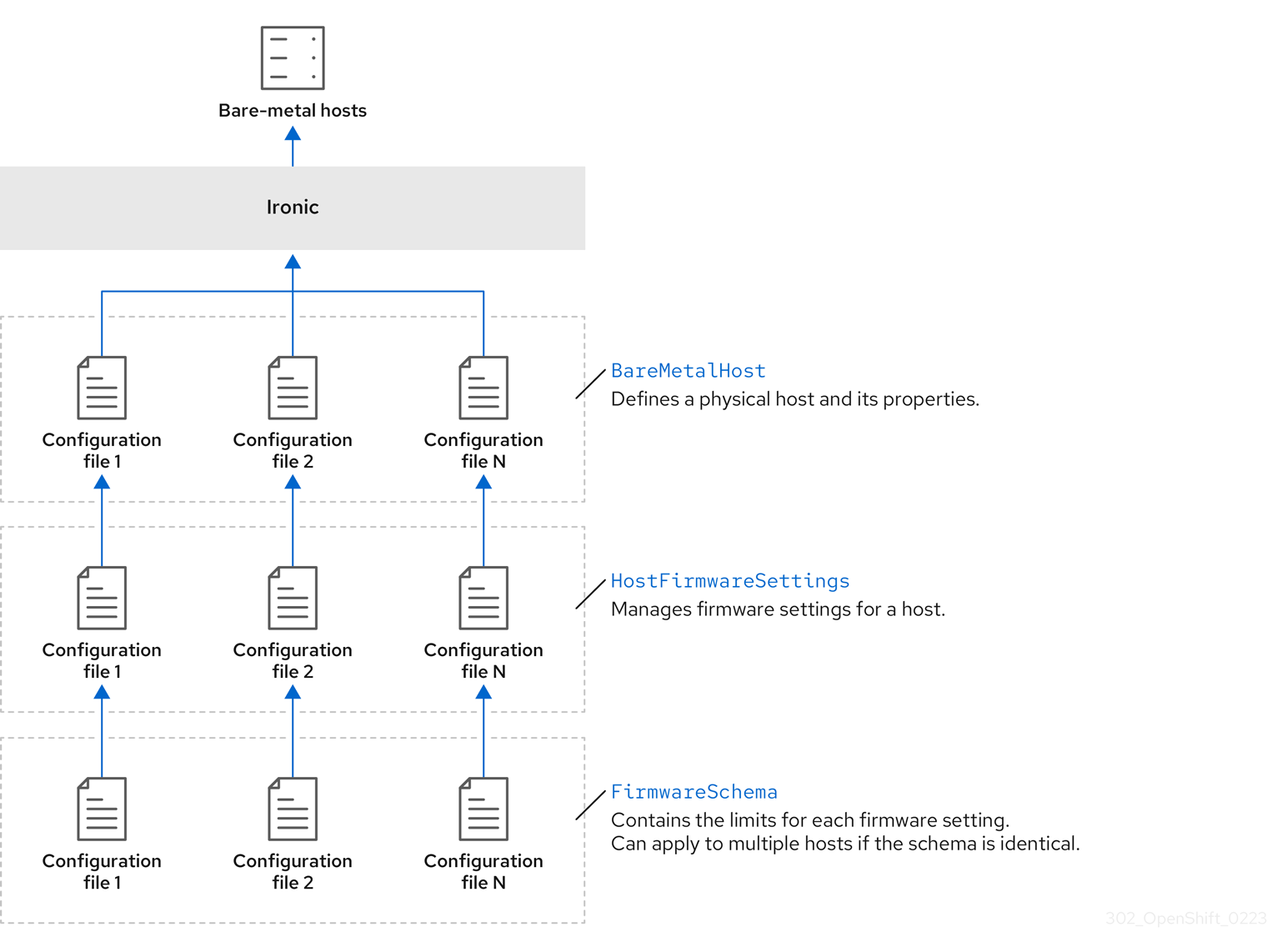
The Bare Metal Operator (BMO) uses three resources to provision, manage, and inspect bare-metal hosts in your cluster. The following diagram illustrates the architecture of these resources:
BareMetalHost
The BareMetalHost resource defines a physical host and its properties. When you provision a bare-metal host to the cluster, you must define a BareMetalHost resource for that host. For ongoing management of the host, you can inspect the information in the BareMetalHost or update this information.
The BareMetalHost resource features provisioning information such as the following:
- Deployment specifications such as the operating system boot image or the custom RAM disk
- Provisioning state
- Baseboard Management Controller (BMC) address
- Desired power state
The BareMetalHost resource features hardware information such as the following:
- Number of CPUs
- MAC address of a NIC
- Size of the host’s storage device
- Current power state
HostFirmwareSettings
You can use the HostFirmwareSettings resource to retrieve and manage the firmware settings for a host. When a host moves to the Available state, the Ironic service reads the host’s firmware settings and creates the HostFirmwareSettings resource. There is a one-to-one mapping between the BareMetalHost resource and the HostFirmwareSettings resource.
You can use the HostFirmwareSettings resource to inspect the firmware specifications for a host or to update a host’s firmware specifications.
You must adhere to the schema specific to the vendor firmware when you edit the spec field of the HostFirmwareSettings resource. This schema is defined in the read-only FirmwareSchema resource.
FirmwareSchema
Firmware settings vary among hardware vendors and host models. A FirmwareSchema resource is a read-only resource that contains the types and limits for each firmware setting on each host model. The data comes directly from the BMC by using the Ironic service. The FirmwareSchema resource enables you to identify valid values you can specify in the spec field of the HostFirmwareSettings resource.
A FirmwareSchema resource can apply to many BareMetalHost resources if the schema is the same.
3.2. About the BareMetalHost resource
Metal3 introduces the concept of the BareMetalHost resource, which defines a physical host and its properties. The BareMetalHost resource contains two sections:
-
The
BareMetalHostspec -
The
BareMetalHoststatus
3.2.1. The BareMetalHost spec
The spec section of the BareMetalHost resource defines the desired state of the host.
| Parameters | Description |
|---|---|
|
|
An interface to enable or disable automated cleaning during provisioning and de-provisioning. When set to |
|
The
|
|
| The MAC address of the NIC used for provisioning the host. |
|
|
The boot mode of the host. It defaults to |
|
|
A reference to another resource that is using the host. It could be empty if another resource is not currently using the host. For example, a |
|
| A human-provided string to help identify the host. |
|
| A boolean indicating whether the host provisioning and deprovisioning are managed externally. When set:
|
|
|
Contains information about the BIOS configuration of bare-metal hosts. Currently,
|
|
The
|
|
| A reference to the secret containing the network configuration data and its namespace, so that it can be attached to the host before the host boots to set up the network. |
|
|
A boolean indicating whether the host should be powered on ( |
| (Optional) Contains the information about the RAID configuration for bare-metal hosts. If not specified, it retains the current configuration. Note OpenShift Container Platform 4.14 supports hardware RAID for BMCs using the iRMC protocol only. OpenShift Container Platform 4.14 does not support software RAID on the installation drive. See the following configuration settings:
You can set the
If you receive an error message indicating that the driver does not support RAID, set the |
|
The
|
3.2.2. The BareMetalHost status
The BareMetalHost status represents the host’s current state, and includes tested credentials, current hardware details, and other information.
| Parameters | Description |
|---|---|
|
| A reference to the secret and its namespace holding the last set of baseboard management controller (BMC) credentials the system was able to validate as working. |
|
| Details of the last error reported by the provisioning backend, if any. |
|
| Indicates the class of problem that has caused the host to enter an error state. The error types are:
|
|
The
|
| Contains BIOS firmware information. For example, the hardware vendor and version. |
|
The
|
| The host’s amount of memory in Mebibytes (MiB). |
|
The
|
|
Contains information about the host’s |
|
| The timestamp of the last time the status of the host was updated. |
|
| The status of the server. The status is one of the following:
|
|
| Boolean indicating whether the host is powered on. |
|
The
|
|
| A reference to the secret and its namespace holding the last set of BMC credentials that were sent to the provisioning backend. |
3.3. Getting the BareMetalHost resource
The BareMetalHost resource contains the properties of a physical host. You must get the BareMetalHost resource for a physical host to review its properties.
Procedure
Get the list of
BareMetalHostresources:$ oc get bmh -n openshift-machine-api -o yamlNoteYou can use
baremetalhostas the long form ofbmhwithoc getcommand.Get the list of hosts:
$ oc get bmh -n openshift-machine-apiGet the
BareMetalHostresource for a specific host:$ oc get bmh <host_name> -n openshift-machine-api -o yamlWhere
<host_name>is the name of the host.Example output
apiVersion: metal3.io/v1alpha1 kind: BareMetalHost metadata: creationTimestamp: "2022-06-16T10:48:33Z" finalizers: - baremetalhost.metal3.io generation: 2 name: openshift-worker-0 namespace: openshift-machine-api resourceVersion: "30099" uid: 1513ae9b-e092-409d-be1b-ad08edeb1271 spec: automatedCleaningMode: metadata bmc: address: redfish://10.46.61.19:443/redfish/v1/Systems/1 credentialsName: openshift-worker-0-bmc-secret disableCertificateVerification: true bootMACAddress: 48:df:37:c7:f7:b0 bootMode: UEFI consumerRef: apiVersion: machine.openshift.io/v1beta1 kind: Machine name: ocp-edge-958fk-worker-0-nrfcg namespace: openshift-machine-api customDeploy: method: install_coreos online: true rootDeviceHints: deviceName: /dev/disk/by-id/scsi-<serial_number> userData: name: worker-user-data-managed namespace: openshift-machine-api status: errorCount: 0 errorMessage: "" goodCredentials: credentials: name: openshift-worker-0-bmc-secret namespace: openshift-machine-api credentialsVersion: "16120" hardware: cpu: arch: x86_64 clockMegahertz: 2300 count: 64 flags: - 3dnowprefetch - abm - acpi - adx - aes model: Intel(R) Xeon(R) Gold 5218 CPU @ 2.30GHz firmware: bios: date: 10/26/2020 vendor: HPE version: U30 hostname: openshift-worker-0 nics: - mac: 48:df:37:c7:f7:b3 model: 0x8086 0x1572 name: ens1f3 ramMebibytes: 262144 storage: - hctl: "0:0:0:0" model: VK000960GWTTB name: /dev/disk/by-id/scsi-<serial_number> sizeBytes: 960197124096 type: SSD vendor: ATA systemVendor: manufacturer: HPE productName: ProLiant DL380 Gen10 (868703-B21) serialNumber: CZ200606M3 lastUpdated: "2022-06-16T11:41:42Z" operationalStatus: OK poweredOn: true provisioning: ID: 217baa14-cfcf-4196-b764-744e184a3413 bootMode: UEFI customDeploy: method: install_coreos image: url: "" raid: hardwareRAIDVolumes: null softwareRAIDVolumes: [] rootDeviceHints: deviceName: /dev/disk/by-id/scsi-<serial_number> state: provisioned triedCredentials: credentials: name: openshift-worker-0-bmc-secret namespace: openshift-machine-api credentialsVersion: "16120"
3.4. About the HostFirmwareSettings resource
You can use the HostFirmwareSettings resource to retrieve and manage the BIOS settings for a host. When a host moves to the Available state, Ironic reads the host’s BIOS settings and creates the HostFirmwareSettings resource. The resource contains the complete BIOS configuration returned from the baseboard management controller (BMC). Whereas, the firmware field in the BareMetalHost resource returns three vendor-independent fields, the HostFirmwareSettings resource typically comprises many BIOS settings of vendor-specific fields per host.
The HostFirmwareSettings resource contains two sections:
-
The
HostFirmwareSettingsspec. -
The
HostFirmwareSettingsstatus.
3.4.1. The HostFirmwareSettings spec
The spec section of the HostFirmwareSettings resource defines the desired state of the host’s BIOS, and it is empty by default. Ironic uses the settings in the spec.settings section to update the baseboard management controller (BMC) when the host is in the Preparing state. Use the FirmwareSchema resource to ensure that you do not send invalid name/value pairs to hosts. See "About the FirmwareSchema resource" for additional details.
Example
spec:
settings:
ProcTurboMode: Disabled- 1
- In the foregoing example, the
spec.settingssection contains a name/value pair that will set theProcTurboModeBIOS setting toDisabled.
Integer parameters listed in the status section appear as strings. For example, "1". When setting integers in the spec.settings section, the values should be set as integers without quotes. For example, 1.
3.4.2. The HostFirmwareSettings status
The status represents the current state of the host’s BIOS.
| Parameters | Description |
|---|---|
|
The
|
|
The
|
|
The |
3.5. Getting the HostFirmwareSettings resource
The HostFirmwareSettings resource contains the vendor-specific BIOS properties of a physical host. You must get the HostFirmwareSettings resource for a physical host to review its BIOS properties.
Procedure
Get the detailed list of
HostFirmwareSettingsresources:$ oc get hfs -n openshift-machine-api -o yamlNoteYou can use
hostfirmwaresettingsas the long form ofhfswith theoc getcommand.Get the list of
HostFirmwareSettingsresources:$ oc get hfs -n openshift-machine-apiGet the
HostFirmwareSettingsresource for a particular host$ oc get hfs <host_name> -n openshift-machine-api -o yamlWhere
<host_name>is the name of the host.
3.6. Editing the HostFirmwareSettings resource
You can edit the HostFirmwareSettings of provisioned hosts.
You can only edit hosts when they are in the provisioned state, excluding read-only values. You cannot edit hosts in the externally provisioned state.
Procedure
Get the list of
HostFirmwareSettingsresources:$ oc get hfs -n openshift-machine-apiEdit a host’s
HostFirmwareSettingsresource:$ oc edit hfs <host_name> -n openshift-machine-apiWhere
<host_name>is the name of a provisioned host. TheHostFirmwareSettingsresource will open in the default editor for your terminal.Add name/value pairs to the
spec.settingssection:Example
spec: settings: name: value1 - 1
- Use the
FirmwareSchemaresource to identify the available settings for the host. You cannot set values that are read-only.
- Save the changes and exit the editor.
Get the host’s machine name:
$ oc get bmh <host_name> -n openshift-machine nameWhere
<host_name>is the name of the host. The machine name appears under theCONSUMERfield.Annotate the machine to delete it from the machineset:
$ oc annotate machine <machine_name> machine.openshift.io/delete-machine=true -n openshift-machine-apiWhere
<machine_name>is the name of the machine to delete.Get a list of nodes and count the number of worker nodes:
$ oc get nodesGet the machineset:
$ oc get machinesets -n openshift-machine-apiScale the machineset:
$ oc scale machineset <machineset_name> -n openshift-machine-api --replicas=<n-1>Where
<machineset_name>is the name of the machineset and<n-1>is the decremented number of worker nodes.When the host enters the
Availablestate, scale up the machineset to make theHostFirmwareSettingsresource changes take effect:$ oc scale machineset <machineset_name> -n openshift-machine-api --replicas=<n>Where
<machineset_name>is the name of the machineset and<n>is the number of worker nodes.
3.7. Verifying the HostFirmware Settings resource is valid
When the user edits the spec.settings section to make a change to the HostFirmwareSetting(HFS) resource, the Bare Metal Operator (BMO) validates the change against the FimwareSchema resource, which is a read-only resource. If the setting is invalid, the BMO will set the Type value of the status.Condition setting to False and also generate an event and store it in the HFS resource. Use the following procedure to verify that the resource is valid.
Procedure
Get a list of
HostFirmwareSettingresources:$ oc get hfs -n openshift-machine-apiVerify that the
HostFirmwareSettingsresource for a particular host is valid:$ oc describe hfs <host_name> -n openshift-machine-apiWhere
<host_name>is the name of the host.Example output
Events: Type Reason Age From Message ---- ------ ---- ---- ------- Normal ValidationFailed 2m49s metal3-hostfirmwaresettings-controller Invalid BIOS setting: Setting ProcTurboMode is invalid, unknown enumeration value - FooImportantIf the response returns
ValidationFailed, there is an error in the resource configuration and you must update the values to conform to theFirmwareSchemaresource.
3.8. About the FirmwareSchema resource
BIOS settings vary among hardware vendors and host models. A FirmwareSchema resource is a read-only resource that contains the types and limits for each BIOS setting on each host model. The data comes directly from the BMC through Ironic. The FirmwareSchema enables you to identify valid values you can specify in the spec field of the HostFirmwareSettings resource. The FirmwareSchema resource has a unique identifier derived from its settings and limits. Identical host models use the same FirmwareSchema identifier. It is likely that multiple instances of HostFirmwareSettings use the same FirmwareSchema.
| Parameters | Description |
|---|---|
|
The
|
3.9. Getting the FirmwareSchema resource
Each host model from each vendor has different BIOS settings. When editing the HostFirmwareSettings resource’s spec section, the name/value pairs you set must conform to that host’s firmware schema. To ensure you are setting valid name/value pairs, get the FirmwareSchema for the host and review it.
Procedure
To get a list of
FirmwareSchemaresource instances, execute the following:$ oc get firmwareschema -n openshift-machine-apiTo get a particular
FirmwareSchemainstance, execute:$ oc get firmwareschema <instance_name> -n openshift-machine-api -o yamlWhere
<instance_name>is the name of the schema instance stated in theHostFirmwareSettingsresource (see Table 3).
Chapter 4. Configuring multi-architecture compute machines on an OpenShift cluster
4.1. About clusters with multi-architecture compute machines
An OpenShift Container Platform cluster with multi-architecture compute machines is a cluster that supports compute machines with different architectures. Clusters with multi-architecture compute machines are available only on Amazon Web Services (AWS) or Microsoft Azure installer-provisioned infrastructures and bare metal, IBM Power®, and IBM Z® user-provisioned infrastructures with x86_64 control plane machines.
When there are nodes with multiple architectures in your cluster, the architecture of your image must be consistent with the architecture of the node. You need to ensure that the pod is assigned to the node with the appropriate architecture and that it matches the image architecture. For more information on assigning pods to nodes, see Assigning pods to nodes.
The Cluster Samples Operator is not supported on clusters with multi-architecture compute machines. Your cluster can be created without this capability. For more information, see Enabling cluster capabilities
For information on migrating your single-architecture cluster to a cluster that supports multi-architecture compute machines, see Migrating to a cluster with multi-architecture compute machines.
4.1.1. Configuring your cluster with multi-architecture compute machines
To create a cluster with multi-architecture compute machines for various platforms, you can use the documentation in the following sections:
- Creating a cluster with multi-architecture compute machines on Azure
- Creating a cluster with multi-architecture compute machines on AWS
- Creating a cluster with multi-architecture compute machines on Google Cloud
- Creating a cluster with multi-architecture compute machines on bare metal
- Creating a cluster with multi-architecture compute machines on IBM Z® and IBM® LinuxONE with z/VM
- Creating a cluster with multi-architecture compute machines on IBM Z® and IBM® LinuxONE with RHEL KVM
- Creating a cluster with multi-architecture compute machines on IBM Power®
Autoscaling from zero is currently not supported on Google Cloud.
4.2. Creating a cluster with multi-architecture compute machine on Azure
To deploy an Azure cluster with multi-architecture compute machines, you must first create a single-architecture Azure installer-provisioned cluster that uses the multi-architecture installer binary. For more information on Azure installations, see Installing a cluster on Azure with customizations. You can then add an ARM64 compute machine set to your cluster to create a cluster with multi-architecture compute machines.
The following procedures explain how to generate an ARM64 boot image and create an Azure compute machine set that uses the ARM64 boot image. This adds ARM64 compute nodes to your cluster and deploys the amount of ARM64 virtual machines (VM) that you need.
4.2.1. Verifying cluster compatibility
Before you can start adding compute nodes of different architectures to your cluster, you must verify that your cluster is multi-architecture compatible.
Prerequisites
-
You installed the OpenShift CLI (
oc)
Procedure
You can check that your cluster uses the architecture payload by running the following command:
$ oc adm release info -o jsonpath="{ .metadata.metadata}"
Verification
If you see the following output, then your cluster is using the multi-architecture payload:
{ "release.openshift.io/architecture": "multi", "url": "https://access.redhat.com/errata/<errata_version>" }You can then begin adding multi-arch compute nodes to your cluster.
If you see the following output, then your cluster is not using the multi-architecture payload:
{ "url": "https://access.redhat.com/errata/<errata_version>" }ImportantTo migrate your cluster so the cluster supports multi-architecture compute machines, follow the procedure in Migrating to a cluster with multi-architecture compute machines.
4.2.2. Creating an ARM64 boot image using the Azure image gallery
The following procedure describes how to manually generate an ARM64 boot image.
Prerequisites
-
You installed the Azure CLI (
az). - You created a single-architecture Azure installer-provisioned cluster with the multi-architecture installer binary.
Procedure
Log in to your Azure account:
$ az loginCreate a storage account and upload the
arm64virtual hard disk (VHD) to your storage account. The OpenShift Container Platform installation program creates a resource group, however, the boot image can also be uploaded to a custom named resource group:$ az storage account create -n ${STORAGE_ACCOUNT_NAME} -g ${RESOURCE_GROUP} -l westus --sku Standard_LRS1 - 1
- The
westusobject is an example region.
Create a storage container using the storage account you generated:
$ az storage container create -n ${CONTAINER_NAME} --account-name ${STORAGE_ACCOUNT_NAME}You must use the OpenShift Container Platform installation program JSON file to extract the URL and
aarch64VHD name:Extract the
URLfield and set it toRHCOS_VHD_ORIGIN_URLas the file name by running the following command:$ RHCOS_VHD_ORIGIN_URL=$(oc -n openshift-machine-config-operator get configmap/coreos-bootimages -o jsonpath='{.data.stream}' | jq -r '.architectures.aarch64."rhel-coreos-extensions"."azure-disk".url')Extract the
aarch64VHD name and set it toBLOB_NAMEas the file name by running the following command:$ BLOB_NAME=rhcos-$(oc -n openshift-machine-config-operator get configmap/coreos-bootimages -o jsonpath='{.data.stream}' | jq -r '.architectures.aarch64."rhel-coreos-extensions"."azure-disk".release')-azure.aarch64.vhd
Generate a shared access signature (SAS) token. Use this token to upload the RHCOS VHD to your storage container with the following commands:
$ end=`date -u -d "30 minutes" '+%Y-%m-%dT%H:%MZ'`$ sas=`az storage container generate-sas -n ${CONTAINER_NAME} --account-name ${STORAGE_ACCOUNT_NAME} --https-only --permissions dlrw --expiry $end -o tsv`Copy the RHCOS VHD into the storage container:
$ az storage blob copy start --account-name ${STORAGE_ACCOUNT_NAME} --sas-token "$sas" \ --source-uri "${RHCOS_VHD_ORIGIN_URL}" \ --destination-blob "${BLOB_NAME}" --destination-container ${CONTAINER_NAME}You can check the status of the copying process with the following command:
$ az storage blob show -c ${CONTAINER_NAME} -n ${BLOB_NAME} --account-name ${STORAGE_ACCOUNT_NAME} | jq .properties.copyExample output
{ "completionTime": null, "destinationSnapshot": null, "id": "1fd97630-03ca-489a-8c4e-cfe839c9627d", "incrementalCopy": null, "progress": "17179869696/17179869696", "source": "https://rhcos.blob.core.windows.net/imagebucket/rhcos-411.86.202207130959-0-azure.aarch64.vhd", "status": "success",1 "statusDescription": null }- 1
- If the status parameter displays the
successobject, the copying process is complete.
Create an image gallery using the following command:
$ az sig create --resource-group ${RESOURCE_GROUP} --gallery-name ${GALLERY_NAME}Use the image gallery to create an image definition. In the following example command,
rhcos-arm64is the name of the image definition.$ az sig image-definition create --resource-group ${RESOURCE_GROUP} --gallery-name ${GALLERY_NAME} --gallery-image-definition rhcos-arm64 --publisher RedHat --offer arm --sku arm64 --os-type linux --architecture Arm64 --hyper-v-generation V2To get the URL of the VHD and set it to
RHCOS_VHD_URLas the file name, run the following command:$ RHCOS_VHD_URL=$(az storage blob url --account-name ${STORAGE_ACCOUNT_NAME} -c ${CONTAINER_NAME} -n "${BLOB_NAME}" -o tsv)Use the
RHCOS_VHD_URLfile, your storage account, resource group, and image gallery to create an image version. In the following example,1.0.0is the image version.$ az sig image-version create --resource-group ${RESOURCE_GROUP} --gallery-name ${GALLERY_NAME} --gallery-image-definition rhcos-arm64 --gallery-image-version 1.0.0 --os-vhd-storage-account ${STORAGE_ACCOUNT_NAME} --os-vhd-uri ${RHCOS_VHD_URL}Your
arm64boot image is now generated. You can access the ID of your image with the following command:$ az sig image-version show -r $GALLERY_NAME -g $RESOURCE_GROUP -i rhcos-arm64 -e 1.0.0The following example image ID is used in the
recourseIDparameter of the compute machine set:Example
resourceID/resourceGroups/${RESOURCE_GROUP}/providers/Microsoft.Compute/galleries/${GALLERY_NAME}/images/rhcos-arm64/versions/1.0.0
4.2.3. Adding a multi-architecture compute machine set to your cluster
To add ARM64 compute nodes to your cluster, you must create an Azure compute machine set that uses the ARM64 boot image. To create your own custom compute machine set on Azure, see "Creating a compute machine set on Azure".
Prerequisites
-
You installed the OpenShift CLI (
oc).
Procedure
Create a compute machine set and modify the
resourceIDandvmSizeparameters with the following command. This compute machine set will control thearm64worker nodes in your cluster:$ oc create -f arm64-machine-set-0.yamlSample YAML compute machine set with
arm64boot imageapiVersion: machine.openshift.io/v1beta1 kind: MachineSet metadata: labels: machine.openshift.io/cluster-api-cluster: <infrastructure_id> machine.openshift.io/cluster-api-machine-role: worker machine.openshift.io/cluster-api-machine-type: worker name: <infrastructure_id>-arm64-machine-set-0 namespace: openshift-machine-api spec: replicas: 2 selector: matchLabels: machine.openshift.io/cluster-api-cluster: <infrastructure_id> machine.openshift.io/cluster-api-machineset: <infrastructure_id>-arm64-machine-set-0 template: metadata: labels: machine.openshift.io/cluster-api-cluster: <infrastructure_id> machine.openshift.io/cluster-api-machine-role: worker machine.openshift.io/cluster-api-machine-type: worker machine.openshift.io/cluster-api-machineset: <infrastructure_id>-arm64-machine-set-0 spec: lifecycleHooks: {} metadata: {} providerSpec: value: acceleratedNetworking: true apiVersion: machine.openshift.io/v1beta1 credentialsSecret: name: azure-cloud-credentials namespace: openshift-machine-api image: offer: "" publisher: "" resourceID: /resourceGroups/${RESOURCE_GROUP}/providers/Microsoft.Compute/galleries/${GALLERY_NAME}/images/rhcos-arm64/versions/1.0.01 sku: "" version: "" kind: AzureMachineProviderSpec location: <region> managedIdentity: <infrastructure_id>-identity networkResourceGroup: <infrastructure_id>-rg osDisk: diskSettings: {} diskSizeGB: 128 managedDisk: storageAccountType: Premium_LRS osType: Linux publicIP: false publicLoadBalancer: <infrastructure_id> resourceGroup: <infrastructure_id>-rg subnet: <infrastructure_id>-worker-subnet userDataSecret: name: worker-user-data vmSize: Standard_D4ps_v52 vnet: <infrastructure_id>-vnet zone: "<zone>"
Verification
Verify that the new ARM64 machines are running by entering the following command:
$ oc get machineset -n openshift-machine-apiExample output
NAME DESIRED CURRENT READY AVAILABLE AGE <infrastructure_id>-arm64-machine-set-0 2 2 2 2 10mYou can check that the nodes are ready and scheduable with the following command:
$ oc get nodes
4.3. Creating a cluster with multi-architecture compute machines on AWS
To create an AWS cluster with multi-architecture compute machines, you must first create a single-architecture AWS installer-provisioned cluster with the multi-architecture installer binary. For more information on AWS installations, refer to Installing a cluster on AWS with customizations. You can then add a ARM64 compute machine set to your AWS cluster.
4.3.1. Verifying cluster compatibility
Before you can start adding compute nodes of different architectures to your cluster, you must verify that your cluster is multi-architecture compatible.
Prerequisites
-
You installed the OpenShift CLI (
oc)
Procedure
You can check that your cluster uses the architecture payload by running the following command:
$ oc adm release info -o jsonpath="{ .metadata.metadata}"
Verification
If you see the following output, then your cluster is using the multi-architecture payload:
{ "release.openshift.io/architecture": "multi", "url": "https://access.redhat.com/errata/<errata_version>" }You can then begin adding multi-arch compute nodes to your cluster.
If you see the following output, then your cluster is not using the multi-architecture payload:
{ "url": "https://access.redhat.com/errata/<errata_version>" }ImportantTo migrate your cluster so the cluster supports multi-architecture compute machines, follow the procedure in Migrating to a cluster with multi-architecture compute machines.
4.3.2. Adding an ARM64 compute machine set to your cluster
To configure a cluster with multi-architecture compute machines, you must create a AWS ARM64 compute machine set. This adds ARM64 compute nodes to your cluster so that your cluster has multi-architecture compute machines.
Prerequisites
-
You installed the OpenShift CLI (
oc). - You used the installation program to create an AMD64 single-architecture AWS cluster with the multi-architecture installer binary.
Procedure
Create and modify a compute machine set, this will control the ARM64 compute nodes in your cluster.
$ oc create -f aws-arm64-machine-set-0.yamlSample YAML compute machine set to deploy an ARM64 compute node
apiVersion: machine.openshift.io/v1beta1 kind: MachineSet metadata: labels: machine.openshift.io/cluster-api-cluster: <infrastructure_id>1 name: <infrastructure_id>-aws-arm64-machine-set-02 namespace: openshift-machine-api spec: replicas: 1 selector: matchLabels: machine.openshift.io/cluster-api-cluster: <infrastructure_id>3 machine.openshift.io/cluster-api-machineset: <infrastructure_id>-<role>-<zone>4 template: metadata: labels: machine.openshift.io/cluster-api-cluster: <infrastructure_id> machine.openshift.io/cluster-api-machine-role: <role>5 machine.openshift.io/cluster-api-machine-type: <role>6 machine.openshift.io/cluster-api-machineset: <infrastructure_id>-<role>-<zone>7 spec: metadata: labels: node-role.kubernetes.io/<role>: "" providerSpec: value: ami: id: ami-02a574449d4f4d2808 apiVersion: awsproviderconfig.openshift.io/v1beta1 blockDevices: - ebs: iops: 0 volumeSize: 120 volumeType: gp2 credentialsSecret: name: aws-cloud-credentials deviceIndex: 0 iamInstanceProfile: id: <infrastructure_id>-worker-profile9 instanceType: m6g.xlarge10 kind: AWSMachineProviderConfig placement: availabilityZone: us-east-1a11 region: <region>12 securityGroups: - filters: - name: tag:Name values: - <infrastructure_id>-worker-sg13 subnet: filters: - name: tag:Name values: - <infrastructure_id>-private-<zone> tags: - name: kubernetes.io/cluster/<infrastructure_id>14 value: owned - name: <custom_tag_name> value: <custom_tag_value> userDataSecret: name: worker-user-data- 1 2 3 9 13 14
- Specify the infrastructure ID that is based on the cluster ID that you set when you provisioned the cluster. If you have the OpenShift CLI installed, you can obtain the infrastructure ID by running the following command:
$ oc get -o jsonpath=‘{.status.infrastructureName}{“\n”}’ infrastructure cluster - 4 7
- Specify the infrastructure ID, role node label, and zone.
- 5 6
- Specify the role node label to add.
- 8
- Specify an ARM64 supported Red Hat Enterprise Linux CoreOS (RHCOS) Amazon Machine Image (AMI) for your AWS zone for your OpenShift Container Platform nodes.
$ oc get configmap/coreos-bootimages \ -n openshift-machine-config-operator \ -o jsonpath='{.data.stream}' | jq \ -r '.architectures.<arch>.images.aws.regions."<region>".image' - 10
- Specify an ARM64 supported machine type. For more information, refer to "Tested instance types for AWS 64-bit ARM"
- 11
- Specify the zone, for example
us-east-1a. Ensure that the zone you select offers 64-bit ARM machines. - 12
- Specify the region, for example,
us-east-1. Ensure that the zone you select offers 64-bit ARM machines.
Verification
View the list of compute machine sets by entering the following command:
$ oc get machineset -n openshift-machine-apiYou can then see your created ARM64 machine set.
Example output
NAME DESIRED CURRENT READY AVAILABLE AGE <infrastructure_id>-aws-arm64-machine-set-0 2 2 2 2 10mYou can check that the nodes are ready and scheduable with the following command:
$ oc get nodes
4.4. Creating a cluster with multi-architecture compute machines on Google Cloud
To create a Google Cloud cluster with multi-architecture compute machines, you must first create a single-architecture Google Cloud installer-provisioned cluster with the multi-architecture installer binary. For more information on AWS installations, refer to Installing a cluster on Google Cloud with customizations. You can then add ARM64 compute machines sets to your Google Cloud cluster.
Secure booting is currently not supported on ARM64 machines for Google Cloud
4.4.1. Verifying cluster compatibility
Before you can start adding compute nodes of different architectures to your cluster, you must verify that your cluster is multi-architecture compatible.
Prerequisites
-
You installed the OpenShift CLI (
oc)
Procedure
You can check that your cluster uses the architecture payload by running the following command:
$ oc adm release info -o jsonpath="{ .metadata.metadata}"
Verification
If you see the following output, then your cluster is using the multi-architecture payload:
{ "release.openshift.io/architecture": "multi", "url": "https://access.redhat.com/errata/<errata_version>" }You can then begin adding multi-arch compute nodes to your cluster.
If you see the following output, then your cluster is not using the multi-architecture payload:
{ "url": "https://access.redhat.com/errata/<errata_version>" }ImportantTo migrate your cluster so the cluster supports multi-architecture compute machines, follow the procedure in Migrating to a cluster with multi-architecture compute machines.
4.4.2. Adding an ARM64 compute machine set to your Google Cloud cluster
To configure a cluster with multi-architecture compute machines, you must create a Google Cloud ARM64 compute machine set. This adds ARM64 compute nodes to your cluster.
Prerequisites
-
You installed the OpenShift CLI (
oc). - You used the installation program to create an AMD64 single-architecture AWS cluster with the multi-architecture installer binary.
Procedure
Create and modify a compute machine set, this controls the ARM64 compute nodes in your cluster:
$ oc create -f gcp-arm64-machine-set-0.yamlSample Google Cloud YAML compute machine set to deploy an ARM64 compute node
apiVersion: machine.openshift.io/v1beta1 kind: MachineSet metadata: labels: machine.openshift.io/cluster-api-cluster: <infrastructure_id>1 name: <infrastructure_id>-w-a namespace: openshift-machine-api spec: replicas: 1 selector: matchLabels: machine.openshift.io/cluster-api-cluster: <infrastructure_id> machine.openshift.io/cluster-api-machineset: <infrastructure_id>-w-a template: metadata: creationTimestamp: null labels: machine.openshift.io/cluster-api-cluster: <infrastructure_id> machine.openshift.io/cluster-api-machine-role: <role>2 machine.openshift.io/cluster-api-machine-type: <role> machine.openshift.io/cluster-api-machineset: <infrastructure_id>-w-a spec: metadata: labels: node-role.kubernetes.io/<role>: "" providerSpec: value: apiVersion: gcpprovider.openshift.io/v1beta1 canIPForward: false credentialsSecret: name: gcp-cloud-credentials deletionProtection: false disks: - autoDelete: true boot: true image: <path_to_image>3 labels: null sizeGb: 128 type: pd-ssd gcpMetadata:4 - key: <custom_metadata_key> value: <custom_metadata_value> kind: GCPMachineProviderSpec machineType: n1-standard-45 metadata: creationTimestamp: null networkInterfaces: - network: <infrastructure_id>-network subnetwork: <infrastructure_id>-worker-subnet projectID: <project_name>6 region: us-central17 serviceAccounts: - email: <infrastructure_id>-w@<project_name>.iam.gserviceaccount.com scopes: - https://www.googleapis.com/auth/cloud-platform tags: - <infrastructure_id>-worker userDataSecret: name: worker-user-data zone: us-central1-a- 1
- Specify the infrastructure ID that is based on the cluster ID that you set when you provisioned the cluster. You can obtain the infrastructure ID by running the following command:
$ oc get -o jsonpath='{.status.infrastructureName}{"\n"}' infrastructure cluster - 2
- Specify the role node label to add.
- 3
- Specify the path to the image that is used in current compute machine sets. You need the project and image name for your path to image.
To access the project and image name, run the following command:
$ oc get configmap/coreos-bootimages \ -n openshift-machine-config-operator \ -o jsonpath='{.data.stream}' | jq \ -r '.architectures.aarch64.images.gcp'Example output
"gcp": { "release": "415.92.202309142014-0", "project": "rhcos-cloud", "name": "rhcos-415-92-202309142014-0-gcp-aarch64" }Use the
projectandnameparameters from the output to create the path to image field in your machine set. The path to the image should follow the following format:$ projects/<project>/global/images/<image_name> - 4
- Optional: Specify custom metadata in the form of a
key:valuepair. For example use cases, see the Google Cloud documentation for setting custom metadata. - 5
- Specify an ARM64 supported machine type. For more information, refer to Tested instance types for Google Cloud on 64-bit ARM infrastructures in "Additional resources".
- 6
- Specify the name of the Google Cloud project that you use for your cluster.
- 7
- Specify the region, for example,
us-central1. Ensure that the zone you select offers 64-bit ARM machines.
Verification
View the list of compute machine sets by entering the following command:
$ oc get machineset -n openshift-machine-apiYou can then see your created ARM64 machine set.
Example output
NAME DESIRED CURRENT READY AVAILABLE AGE <infrastructure_id>-gcp-arm64-machine-set-0 2 2 2 2 10mYou can check that the nodes are ready and scheduable with the following command:
$ oc get nodes
Additional resources
4.5. Creating a cluster with multi-architecture compute machine on bare metal
To create a cluster with multi-architecture compute machines on bare metal, you must have an existing single-architecture bare metal cluster. For more information on bare metal installations, see Installing a user provisioned cluster on bare metal. You can then add 64-bit ARM compute machines to your OpenShift Container Platform cluster on bare metal.
Before you can add 64-bit ARM nodes to your bare metal cluster, you must upgrade your cluster to one that uses the multi-architecture payload. For more information on migrating to the multi-architecture payload, see Migrating to a cluster with multi-architecture compute machines.
The following procedures explain how to create a RHCOS compute machine using an ISO image or network PXE booting. This will allow you to add ARM64 nodes to your bare metal cluster and deploy a cluster with multi-architecture compute machines.
4.5.1. Verifying cluster compatibility
Before you can start adding compute nodes of different architectures to your cluster, you must verify that your cluster is multi-architecture compatible.
Prerequisites
-
You installed the OpenShift CLI (
oc)
Procedure
You can check that your cluster uses the architecture payload by running the following command:
$ oc adm release info -o jsonpath="{ .metadata.metadata}"
Verification
If you see the following output, then your cluster is using the multi-architecture payload:
{ "release.openshift.io/architecture": "multi", "url": "https://access.redhat.com/errata/<errata_version>" }You can then begin adding multi-arch compute nodes to your cluster.
If you see the following output, then your cluster is not using the multi-architecture payload:
{ "url": "https://access.redhat.com/errata/<errata_version>" }ImportantTo migrate your cluster so the cluster supports multi-architecture compute machines, follow the procedure in Migrating to a cluster with multi-architecture compute machines.
4.5.2. Creating RHCOS machines using an ISO image
You can create more Red Hat Enterprise Linux CoreOS (RHCOS) compute machines for your bare metal cluster by using an ISO image to create the machines.
Prerequisites
- Obtain the URL of the Ignition config file for the compute machines for your cluster. You uploaded this file to your HTTP server during installation.
-
You must have the OpenShift CLI (
oc) installed.
Procedure
Extract the Ignition config file from the cluster by running the following command:
$ oc extract -n openshift-machine-api secret/worker-user-data-managed --keys=userData --to=- > worker.ign-
Upload the
worker.ignIgnition config file you exported from your cluster to your HTTP server. Note the URLs of these files. You can validate that the ignition files are available on the URLs. The following example gets the Ignition config files for the compute node:
$ curl -k http://<HTTP_server>/worker.ignYou can access the ISO image for booting your new machine by running to following command:
RHCOS_VHD_ORIGIN_URL=$(oc -n openshift-machine-config-operator get configmap/coreos-bootimages -o jsonpath='{.data.stream}' | jq -r '.architectures.<architecture>.artifacts.metal.formats.iso.disk.location')Use the ISO file to install RHCOS on more compute machines. Use the same method that you used when you created machines before you installed the cluster:
- Burn the ISO image to a disk and boot it directly.
- Use ISO redirection with a LOM interface.
Boot the RHCOS ISO image without specifying any options, or interrupting the live boot sequence. Wait for the installer to boot into a shell prompt in the RHCOS live environment.
NoteYou can interrupt the RHCOS installation boot process to add kernel arguments. However, for this ISO procedure you must use the
coreos-installercommand as outlined in the following steps, instead of adding kernel arguments.Run the
coreos-installercommand and specify the options that meet your installation requirements. At a minimum, you must specify the URL that points to the Ignition config file for the node type, and the device that you are installing to:$ sudo coreos-installer install --ignition-url=http://<HTTP_server>/<node_type>.ign <device> --ignition-hash=sha512-<digest>1 2 - 1
- You must run the
coreos-installercommand by usingsudo, because thecoreuser does not have the required root privileges to perform the installation. - 2
- The
--ignition-hashoption is required when the Ignition config file is obtained through an HTTP URL to validate the authenticity of the Ignition config file on the cluster node.<digest>is the Ignition config file SHA512 digest obtained in a preceding step.
NoteIf you want to provide your Ignition config files through an HTTPS server that uses TLS, you can add the internal certificate authority (CA) to the system trust store before running
coreos-installer.The following example initializes a compute node installation to the
/dev/sdadevice. The Ignition config file for the compute node is obtained from an HTTP web server with the IP address 192.168.1.2:$ sudo coreos-installer install --ignition-url=http://192.168.1.2:80/installation_directory/worker.ign /dev/sda --ignition-hash=sha512-a5a2d43879223273c9b60af66b44202a1d1248fc01cf156c46d4a79f552b6bad47bc8cc78ddf0116e80c59d2ea9e32ba53bc807afbca581aa059311def2c3e3bMonitor the progress of the RHCOS installation on the console of the machine.
ImportantEnsure that the installation is successful on each node before commencing with the OpenShift Container Platform installation. Observing the installation process can also help to determine the cause of RHCOS installation issues that might arise.
- Continue to create more compute machines for your cluster.
4.5.3. Creating RHCOS machines by PXE or iPXE booting
You can create more Red Hat Enterprise Linux CoreOS (RHCOS) compute machines for your bare metal cluster by using PXE or iPXE booting.
Prerequisites
- Obtain the URL of the Ignition config file for the compute machines for your cluster. You uploaded this file to your HTTP server during installation.
-
Obtain the URLs of the RHCOS ISO image, compressed metal BIOS,
kernel, andinitramfsfiles that you uploaded to your HTTP server during cluster installation. - You have access to the PXE booting infrastructure that you used to create the machines for your OpenShift Container Platform cluster during installation. The machines must boot from their local disks after RHCOS is installed on them.
-
If you use UEFI, you have access to the
grub.conffile that you modified during OpenShift Container Platform installation.
Procedure
Confirm that your PXE or iPXE installation for the RHCOS images is correct.
For PXE:
DEFAULT pxeboot TIMEOUT 20 PROMPT 0 LABEL pxeboot KERNEL http://<HTTP_server>/rhcos-<version>-live-kernel-<architecture>1 APPEND initrd=http://<HTTP_server>/rhcos-<version>-live-initramfs.<architecture>.img coreos.inst.install_dev=/dev/sda coreos.inst.ignition_url=http://<HTTP_server>/worker.ign coreos.live.rootfs_url=http://<HTTP_server>/rhcos-<version>-live-rootfs.<architecture>.img2 - 1
- Specify the location of the live
kernelfile that you uploaded to your HTTP server. - 2
- Specify locations of the RHCOS files that you uploaded to your HTTP server. The
initrdparameter value is the location of the liveinitramfsfile, thecoreos.inst.ignition_urlparameter value is the location of the worker Ignition config file, and thecoreos.live.rootfs_urlparameter value is the location of the liverootfsfile. Thecoreos.inst.ignition_urlandcoreos.live.rootfs_urlparameters only support HTTP and HTTPS.
NoteThis configuration does not enable serial console access on machines with a graphical console. To configure a different console, add one or more
console=arguments to theAPPENDline. For example, addconsole=tty0 console=ttyS0to set the first PC serial port as the primary console and the graphical console as a secondary console. For more information, see How does one set up a serial terminal and/or console in Red Hat Enterprise Linux?.For iPXE (
x86_64+aarch64):kernel http://<HTTP_server>/rhcos-<version>-live-kernel-<architecture> initrd=main coreos.live.rootfs_url=http://<HTTP_server>/rhcos-<version>-live-rootfs.<architecture>.img coreos.inst.install_dev=/dev/sda coreos.inst.ignition_url=http://<HTTP_server>/worker.ign1 2 initrd --name main http://<HTTP_server>/rhcos-<version>-live-initramfs.<architecture>.img3 boot- 1
- Specify the locations of the RHCOS files that you uploaded to your HTTP server. The
kernelparameter value is the location of thekernelfile, theinitrd=mainargument is needed for booting on UEFI systems, thecoreos.live.rootfs_urlparameter value is the location of therootfsfile, and thecoreos.inst.ignition_urlparameter value is the location of the worker Ignition config file. - 2
- If you use multiple NICs, specify a single interface in the
ipoption. For example, to use DHCP on a NIC that is namedeno1, setip=eno1:dhcp. - 3
- Specify the location of the
initramfsfile that you uploaded to your HTTP server.
NoteThis configuration does not enable serial console access on machines with a graphical console To configure a different console, add one or more
console=arguments to thekernelline. For example, addconsole=tty0 console=ttyS0to set the first PC serial port as the primary console and the graphical console as a secondary console. For more information, see How does one set up a serial terminal and/or console in Red Hat Enterprise Linux? and "Enabling the serial console for PXE and ISO installation" in the "Advanced RHCOS installation configuration" section.NoteTo network boot the CoreOS
kernelonaarch64architecture, you need to use a version of iPXE build with theIMAGE_GZIPoption enabled. SeeIMAGE_GZIPoption in iPXE.For PXE (with UEFI and GRUB as second stage) on
aarch64:menuentry 'Install CoreOS' { linux rhcos-<version>-live-kernel-<architecture> coreos.live.rootfs_url=http://<HTTP_server>/rhcos-<version>-live-rootfs.<architecture>.img coreos.inst.install_dev=/dev/sda coreos.inst.ignition_url=http://<HTTP_server>/worker.ign1 2 initrd rhcos-<version>-live-initramfs.<architecture>.img3 }- 1
- Specify the locations of the RHCOS files that you uploaded to your HTTP/TFTP server. The
kernelparameter value is the location of thekernelfile on your TFTP server. Thecoreos.live.rootfs_urlparameter value is the location of therootfsfile, and thecoreos.inst.ignition_urlparameter value is the location of the worker Ignition config file on your HTTP Server. - 2
- If you use multiple NICs, specify a single interface in the
ipoption. For example, to use DHCP on a NIC that is namedeno1, setip=eno1:dhcp. - 3
- Specify the location of the
initramfsfile that you uploaded to your TFTP server.
- Use the PXE or iPXE infrastructure to create the required compute machines for your cluster.
4.5.4. Approving the certificate signing requests for your machines
When you add machines to a cluster, two pending certificate signing requests (CSRs) are generated for each machine that you added. You must confirm that these CSRs are approved or, if necessary, approve them yourself. The client requests must be approved first, followed by the server requests.
Prerequisites
- You added machines to your cluster.
Procedure
Confirm that the cluster recognizes the machines:
$ oc get nodesExample output
NAME STATUS ROLES AGE VERSION master-0 Ready master 63m v1.27.3 master-1 Ready master 63m v1.27.3 master-2 Ready master 64m v1.27.3The output lists all of the machines that you created.
NoteThe preceding output might not include the compute nodes, also known as worker nodes, until some CSRs are approved.
Review the pending CSRs and ensure that you see the client requests with the
PendingorApprovedstatus for each machine that you added to the cluster:$ oc get csrExample output
NAME AGE REQUESTOR CONDITION csr-8b2br 15m system:serviceaccount:openshift-machine-config-operator:node-bootstrapper Pending csr-8vnps 15m system:serviceaccount:openshift-machine-config-operator:node-bootstrapper Pending ...In this example, two machines are joining the cluster. You might see more approved CSRs in the list.
If the CSRs were not approved, after all of the pending CSRs for the machines you added are in
Pendingstatus, approve the CSRs for your cluster machines:NoteBecause the CSRs rotate automatically, approve your CSRs within an hour of adding the machines to the cluster. If you do not approve them within an hour, the certificates will rotate, and more than two certificates will be present for each node. You must approve all of these certificates. After the client CSR is approved, the Kubelet creates a secondary CSR for the serving certificate, which requires manual approval. Then, subsequent serving certificate renewal requests are automatically approved by the
machine-approverif the Kubelet requests a new certificate with identical parameters.NoteFor clusters running on platforms that are not machine API enabled, such as bare metal and other user-provisioned infrastructure, you must implement a method of automatically approving the kubelet serving certificate requests (CSRs). If a request is not approved, then the
oc exec,oc rsh, andoc logscommands cannot succeed, because a serving certificate is required when the API server connects to the kubelet. Any operation that contacts the Kubelet endpoint requires this certificate approval to be in place. The method must watch for new CSRs, confirm that the CSR was submitted by thenode-bootstrapperservice account in thesystem:nodeorsystem:admingroups, and confirm the identity of the node.To approve them individually, run the following command for each valid CSR:
$ oc adm certificate approve <csr_name>1 - 1
<csr_name>is the name of a CSR from the list of current CSRs.
To approve all pending CSRs, run the following command:
$ oc get csr -o go-template='{{range .items}}{{if not .status}}{{.metadata.name}}{{"\n"}}{{end}}{{end}}' | xargs --no-run-if-empty oc adm certificate approveNoteSome Operators might not become available until some CSRs are approved.
Now that your client requests are approved, you must review the server requests for each machine that you added to the cluster:
$ oc get csrExample output
NAME AGE REQUESTOR CONDITION csr-bfd72 5m26s system:node:ip-10-0-50-126.us-east-2.compute.internal Pending csr-c57lv 5m26s system:node:ip-10-0-95-157.us-east-2.compute.internal Pending ...If the remaining CSRs are not approved, and are in the
Pendingstatus, approve the CSRs for your cluster machines:To approve them individually, run the following command for each valid CSR:
$ oc adm certificate approve <csr_name>1 - 1
<csr_name>is the name of a CSR from the list of current CSRs.
To approve all pending CSRs, run the following command:
$ oc get csr -o go-template='{{range .items}}{{if not .status}}{{.metadata.name}}{{"\n"}}{{end}}{{end}}' | xargs oc adm certificate approve
After all client and server CSRs have been approved, the machines have the
Readystatus. Verify this by running the following command:$ oc get nodesExample output
NAME STATUS ROLES AGE VERSION master-0 Ready master 73m v1.27.3 master-1 Ready master 73m v1.27.3 master-2 Ready master 74m v1.27.3 worker-0 Ready worker 11m v1.27.3 worker-1 Ready worker 11m v1.27.3NoteIt can take a few minutes after approval of the server CSRs for the machines to transition to the
Readystatus.
Additional information
- For more information on CSRs, see Certificate Signing Requests.
4.6. Creating a cluster with multi-architecture compute machines on IBM Z and IBM LinuxONE with z/VM
To create a cluster with multi-architecture compute machines on IBM Z® and IBM® LinuxONE (s390x) with z/VM, you must have an existing single-architecture x86_64 cluster. You can then add s390x compute machines to your OpenShift Container Platform cluster.
Before you can add s390x nodes to your cluster, you must upgrade your cluster to one that uses the multi-architecture payload. For more information on migrating to the multi-architecture payload, see Migrating to a cluster with multi-architecture compute machines.
The following procedures explain how to create a RHCOS compute machine using a z/VM instance. This will allow you to add s390x nodes to your cluster and deploy a cluster with multi-architecture compute machines.
4.6.1. Verifying cluster compatibility
Before you can start adding compute nodes of different architectures to your cluster, you must verify that your cluster is multi-architecture compatible.
Prerequisites
-
You installed the OpenShift CLI (
oc)
Procedure
You can check that your cluster uses the architecture payload by running the following command:
$ oc adm release info -o jsonpath="{ .metadata.metadata}"
Verification
If you see the following output, then your cluster is using the multi-architecture payload:
{ "release.openshift.io/architecture": "multi", "url": "https://access.redhat.com/errata/<errata_version>" }You can then begin adding multi-arch compute nodes to your cluster.
If you see the following output, then your cluster is not using the multi-architecture payload:
{ "url": "https://access.redhat.com/errata/<errata_version>" }ImportantTo migrate your cluster so the cluster supports multi-architecture compute machines, follow the procedure in Migrating to a cluster with multi-architecture compute machines.
4.6.2. Creating RHCOS machines on IBM Z with z/VM
You can create more Red Hat Enterprise Linux CoreOS (RHCOS) compute machines running on IBM Z® with z/VM and attach them to your existing cluster.
Prerequisites
- You have a domain name server (DNS) that can perform hostname and reverse lookup for the nodes.
- You have an HTTP or HTTPS server running on your provisioning machine that is accessible to the machines you create.
Procedure
Disable UDP aggregation.
Currently, UDP aggregation is not supported on IBM Z® and is not automatically deactivated on multi-architecture compute clusters with an
x86_64control plane and additionals390xcompute machines. To ensure that the addtional compute nodes are added to the cluster correctly, you must manually disable UDP aggregation.Create a YAML file
udp-aggregation-config.yamlwith the following content:apiVersion: v1 kind: ConfigMap data: disable-udp-aggregation: "true" metadata: name: udp-aggregation-config namespace: openshift-network-operatorCreate the ConfigMap resource by running the following command:
$ oc create -f udp-aggregation-config.yaml
Extract the Ignition config file from the cluster by running the following command:
$ oc extract -n openshift-machine-api secret/worker-user-data-managed --keys=userData --to=- > worker.ign-
Upload the
worker.ignIgnition config file you exported from your cluster to your HTTP server. Note the URL of this file. You can validate that the Ignition file is available on the URL. The following example gets the Ignition config file for the compute node:
$ curl -k http://<HTTP_server>/worker.ignDownload the RHEL live
kernel,initramfs, androotfsfiles by running the following commands:$ curl -LO $(oc -n openshift-machine-config-operator get configmap/coreos-bootimages -o jsonpath='{.data.stream}' \ | jq -r '.architectures.s390x.artifacts.metal.formats.pxe.kernel.location')$ curl -LO $(oc -n openshift-machine-config-operator get configmap/coreos-bootimages -o jsonpath='{.data.stream}' \ | jq -r '.architectures.s390x.artifacts.metal.formats.pxe.initramfs.location')$ curl -LO $(oc -n openshift-machine-config-operator get configmap/coreos-bootimages -o jsonpath='{.data.stream}' \ | jq -r '.architectures.s390x.artifacts.metal.formats.pxe.rootfs.location')-
Move the downloaded RHEL live
kernel,initramfs, androotfsfiles to an HTTP or HTTPS server that is accessible from the z/VM guest you want to add. Create a parameter file for the z/VM guest. The following parameters are specific for the virtual machine:
Optional: To specify a static IP address, add an
ip=parameter with the following entries, with each separated by a colon:- The IP address for the machine.
- An empty string.
- The gateway.
- The netmask.
-
The machine host and domain name in the form
hostname.domainname. If you omit this value, RHCOS obtains the hostname through a reverse DNS lookup. - The network interface name. If you omit this value, RHCOS applies the IP configuration to all available interfaces.
-
The value
none.
-
For
coreos.inst.ignition_url=, specify the URL to theworker.ignfile. Only HTTP and HTTPS protocols are supported. -
For
coreos.live.rootfs_url=, specify the matching rootfs artifact for thekernelandinitramfsyou are booting. Only HTTP and HTTPS protocols are supported. For installations on DASD-type disks, complete the following tasks:
-
For
coreos.inst.install_dev=, specify/dev/dasda. -
Use
rd.dasd=to specify the DASD where RHCOS is to be installed. Leave all other parameters unchanged.
The following is an example parameter file,
additional-worker-dasd.parm:rd.neednet=1 \ console=ttysclp0 \ coreos.inst.install_dev=/dev/dasda \ coreos.live.rootfs_url=http://cl1.provide.example.com:8080/assets/rhcos-live-rootfs.s390x.img \ coreos.inst.ignition_url=http://cl1.provide.example.com:8080/ignition/worker.ign \ ip=172.18.78.2::172.18.78.1:255.255.255.0:::none nameserver=172.18.78.1 \ rd.znet=qeth,0.0.bdf0,0.0.bdf1,0.0.bdf2,layer2=1,portno=0 \ zfcp.allow_lun_scan=0 \ rd.dasd=0.0.3490Write all options in the parameter file as a single line and make sure that you have no newline characters.
-
For
For installations on FCP-type disks, complete the following tasks:
Use
rd.zfcp=<adapter>,<wwpn>,<lun>to specify the FCP disk where RHCOS is to be installed. For multipathing, repeat this step for each additional path.NoteWhen you install with multiple paths, you must enable multipathing directly after the installation, not at a later point in time, as this can cause problems.
Set the install device as:
coreos.inst.install_dev=/dev/sda.NoteIf additional LUNs are configured with NPIV, FCP requires
zfcp.allow_lun_scan=0. If you must enablezfcp.allow_lun_scan=1because you use a CSI driver, for example, you must configure your NPIV so that each node cannot access the boot partition of another node.Leave all other parameters unchanged.
ImportantAdditional postinstallation steps are required to fully enable multipathing. For more information, see “Enabling multipathing with kernel arguments on RHCOS" in Postinstallation machine configuration tasks.
The following is an example parameter file,
additional-worker-fcp.parmfor a worker node with multipathing:rd.neednet=1 \ console=ttysclp0 \ coreos.inst.install_dev=/dev/sda \ coreos.live.rootfs_url=http://cl1.provide.example.com:8080/assets/rhcos-live-rootfs.s390x.img \ coreos.inst.ignition_url=http://cl1.provide.example.com:8080/ignition/worker.ign \ ip=172.18.78.2::172.18.78.1:255.255.255.0:::none nameserver=172.18.78.1 \ rd.znet=qeth,0.0.bdf0,0.0.bdf1,0.0.bdf2,layer2=1,portno=0 \ zfcp.allow_lun_scan=0 \ rd.zfcp=0.0.1987,0x50050763070bc5e3,0x4008400B00000000 \ rd.zfcp=0.0.19C7,0x50050763070bc5e3,0x4008400B00000000 \ rd.zfcp=0.0.1987,0x50050763071bc5e3,0x4008400B00000000 \ rd.zfcp=0.0.19C7,0x50050763071bc5e3,0x4008400B00000000Write all options in the parameter file as a single line and make sure that you have no newline characters.
-
Transfer the
initramfs,kernel, parameter files, and RHCOS images to z/VM, for example, by using FTP. For details about how to transfer the files with FTP and boot from the virtual reader, see Installing under Z/VM. Punch the files to the virtual reader of the z/VM guest virtual machine.
See PUNCH in IBM® Documentation.
TipYou can use the CP PUNCH command or, if you use Linux, the vmur command to transfer files between two z/VM guest virtual machines.
- Log in to CMS on the bootstrap machine.
IPL the bootstrap machine from the reader by running the following command:
$ ipl cSee IPL in IBM® Documentation.
4.6.3. Approving the certificate signing requests for your machines
When you add machines to a cluster, two pending certificate signing requests (CSRs) are generated for each machine that you added. You must confirm that these CSRs are approved or, if necessary, approve them yourself. The client requests must be approved first, followed by the server requests.
Prerequisites
- You added machines to your cluster.
Procedure
Confirm that the cluster recognizes the machines:
$ oc get nodesExample output
NAME STATUS ROLES AGE VERSION master-0 Ready master 63m v1.27.3 master-1 Ready master 63m v1.27.3 master-2 Ready master 64m v1.27.3The output lists all of the machines that you created.
NoteThe preceding output might not include the compute nodes, also known as worker nodes, until some CSRs are approved.
Review the pending CSRs and ensure that you see the client requests with the
PendingorApprovedstatus for each machine that you added to the cluster:$ oc get csrExample output
NAME AGE REQUESTOR CONDITION csr-8b2br 15m system:serviceaccount:openshift-machine-config-operator:node-bootstrapper Pending csr-8vnps 15m system:serviceaccount:openshift-machine-config-operator:node-bootstrapper Pending ...In this example, two machines are joining the cluster. You might see more approved CSRs in the list.
If the CSRs were not approved, after all of the pending CSRs for the machines you added are in
Pendingstatus, approve the CSRs for your cluster machines:NoteBecause the CSRs rotate automatically, approve your CSRs within an hour of adding the machines to the cluster. If you do not approve them within an hour, the certificates will rotate, and more than two certificates will be present for each node. You must approve all of these certificates. After the client CSR is approved, the Kubelet creates a secondary CSR for the serving certificate, which requires manual approval. Then, subsequent serving certificate renewal requests are automatically approved by the
machine-approverif the Kubelet requests a new certificate with identical parameters.NoteFor clusters running on platforms that are not machine API enabled, such as bare metal and other user-provisioned infrastructure, you must implement a method of automatically approving the kubelet serving certificate requests (CSRs). If a request is not approved, then the
oc exec,oc rsh, andoc logscommands cannot succeed, because a serving certificate is required when the API server connects to the kubelet. Any operation that contacts the Kubelet endpoint requires this certificate approval to be in place. The method must watch for new CSRs, confirm that the CSR was submitted by thenode-bootstrapperservice account in thesystem:nodeorsystem:admingroups, and confirm the identity of the node.To approve them individually, run the following command for each valid CSR:
$ oc adm certificate approve <csr_name>1 - 1
<csr_name>is the name of a CSR from the list of current CSRs.
To approve all pending CSRs, run the following command:
$ oc get csr -o go-template='{{range .items}}{{if not .status}}{{.metadata.name}}{{"\n"}}{{end}}{{end}}' | xargs --no-run-if-empty oc adm certificate approveNoteSome Operators might not become available until some CSRs are approved.
Now that your client requests are approved, you must review the server requests for each machine that you added to the cluster:
$ oc get csrExample output
NAME AGE REQUESTOR CONDITION csr-bfd72 5m26s system:node:ip-10-0-50-126.us-east-2.compute.internal Pending csr-c57lv 5m26s system:node:ip-10-0-95-157.us-east-2.compute.internal Pending ...If the remaining CSRs are not approved, and are in the
Pendingstatus, approve the CSRs for your cluster machines:To approve them individually, run the following command for each valid CSR:
$ oc adm certificate approve <csr_name>1 - 1
<csr_name>is the name of a CSR from the list of current CSRs.
To approve all pending CSRs, run the following command:
$ oc get csr -o go-template='{{range .items}}{{if not .status}}{{.metadata.name}}{{"\n"}}{{end}}{{end}}' | xargs oc adm certificate approve
After all client and server CSRs have been approved, the machines have the
Readystatus. Verify this by running the following command:$ oc get nodesExample output
NAME STATUS ROLES AGE VERSION master-0 Ready master 73m v1.27.3 master-1 Ready master 73m v1.27.3 master-2 Ready master 74m v1.27.3 worker-0 Ready worker 11m v1.27.3 worker-1 Ready worker 11m v1.27.3NoteIt can take a few minutes after approval of the server CSRs for the machines to transition to the
Readystatus.
Additional information
- For more information on CSRs, see Certificate Signing Requests.
4.7. Creating a cluster with multi-architecture compute machines on IBM Z and IBM LinuxONE with RHEL KVM
To create a cluster with multi-architecture compute machines on IBM Z® and IBM® LinuxONE (s390x) with RHEL KVM, you must have an existing single-architecture x86_64 cluster. You can then add s390x compute machines to your OpenShift Container Platform cluster.
Before you can add s390x nodes to your cluster, you must upgrade your cluster to one that uses the multi-architecture payload. For more information on migrating to the multi-architecture payload, see Migrating to a cluster with multi-architecture compute machines.
The following procedures explain how to create a RHCOS compute machine using a RHEL KVM instance. This will allow you to add s390x nodes to your cluster and deploy a cluster with multi-architecture compute machines.
4.7.1. Verifying cluster compatibility
Before you can start adding compute nodes of different architectures to your cluster, you must verify that your cluster is multi-architecture compatible.
Prerequisites
-
You installed the OpenShift CLI (
oc)
Procedure
You can check that your cluster uses the architecture payload by running the following command:
$ oc adm release info -o jsonpath="{ .metadata.metadata}"
Verification
If you see the following output, then your cluster is using the multi-architecture payload:
{ "release.openshift.io/architecture": "multi", "url": "https://access.redhat.com/errata/<errata_version>" }You can then begin adding multi-arch compute nodes to your cluster.
If you see the following output, then your cluster is not using the multi-architecture payload:
{ "url": "https://access.redhat.com/errata/<errata_version>" }ImportantTo migrate your cluster so the cluster supports multi-architecture compute machines, follow the procedure in Migrating to a cluster with multi-architecture compute machines.
4.7.2. Creating RHCOS machines using virt-install
You can create more Red Hat Enterprise Linux CoreOS (RHCOS) compute machines for your cluster by using virt-install.
Prerequisites
- You have at least one LPAR running on RHEL 8.7 or later with KVM, referred to as RHEL KVM host in this procedure.
- The KVM/QEMU hypervisor is installed on the RHEL KVM host.
- You have a domain name server (DNS) that can perform hostname and reverse lookup for the nodes.
- An HTTP or HTTPS server is set up.
Procedure
Disable UDP aggregation.
Currently, UDP aggregation is not supported on IBM Z® and is not automatically deactivated on multi-architecture compute clusters with an
x86_64control plane and additionals390xcompute machines. To ensure that the addtional compute nodes are added to the cluster correctly, you must manually disable UDP aggregation.Create a YAML file
udp-aggregation-config.yamlwith the following content:apiVersion: v1 kind: ConfigMap data: disable-udp-aggregation: "true" metadata: name: udp-aggregation-config namespace: openshift-network-operatorCreate the ConfigMap resource by running the following command:
$ oc create -f udp-aggregation-config.yaml
Extract the Ignition config file from the cluster by running the following command:
$ oc extract -n openshift-machine-api secret/worker-user-data-managed --keys=userData --to=- > worker.ign-
Upload the
worker.ignIgnition config file you exported from your cluster to your HTTP server. Note the URL of this file. You can validate that the Ignition file is available on the URL. The following example gets the Ignition config file for the compute node:
$ curl -k http://<HTTP_server>/worker.ignDownload the RHEL live
kernel,initramfs, androotfsfiles by running the following commands:$ curl -LO $(oc -n openshift-machine-config-operator get configmap/coreos-bootimages -o jsonpath='{.data.stream}' \ | jq -r '.architectures.s390x.artifacts.metal.formats.pxe.kernel.location')$ curl -LO $(oc -n openshift-machine-config-operator get configmap/coreos-bootimages -o jsonpath='{.data.stream}' \ | jq -r '.architectures.s390x.artifacts.metal.formats.pxe.initramfs.location')$ curl -LO $(oc -n openshift-machine-config-operator get configmap/coreos-bootimages -o jsonpath='{.data.stream}' \ | jq -r '.architectures.s390x.artifacts.metal.formats.pxe.rootfs.location')-
Move the downloaded RHEL live
kernel,initramfsandrootfsfiles to an HTTP or HTTPS server before you launchvirt-install. Create the new KVM guest nodes using the RHEL
kernel,initramfs, and Ignition files; the new disk image; and adjusted parm line arguments.$ virt-install \ --connect qemu:///system \ --name <vm_name> \ --autostart \ --os-variant rhel9.2 \1 --cpu host \ --vcpus <vcpus> \ --memory <memory_mb> \ --disk <vm_name>.qcow2,size=<image_size> \ --network network=<virt_network_parm> \ --location <media_location>,kernel=<rhcos_kernel>,initrd=<rhcos_initrd> \2 --extra-args "rd.neednet=1" \ --extra-args "coreos.inst.install_dev=/dev/vda" \ --extra-args "coreos.inst.ignition_url=<worker_ign>" \3 --extra-args "coreos.live.rootfs_url=<rhcos_rootfs>" \4 --extra-args "ip=<ip>::<default_gateway>:<subnet_mask_length>:<hostname>::none:<MTU>" \5 --extra-args "nameserver=<dns>" \ --extra-args "console=ttysclp0" \ --noautoconsole \ --wait- 1
- For
os-variant, specify the RHEL version for the RHCOS compute machine.rhel9.2is the recommended version. To query the supported RHEL version of your operating system, run the following command:$ osinfo-query os -f short-idNoteThe
os-variantis case sensitive. - 2
- For
--location, specify the location of the kernel/initrd on the HTTP or HTTPS server. - 3
- For
coreos.inst.ignition_url=, specify theworker.ignIgnition file for the machine role. Only HTTP and HTTPS protocols are supported. - 4
- For
coreos.live.rootfs_url=, specify the matching rootfs artifact for thekernelandinitramfsyou are booting. Only HTTP and HTTPS protocols are supported. - 5
- Optional: For
hostname, specify the fully qualified hostname of the client machine.
NoteIf you are using HAProxy as a load balancer, update your HAProxy rules for
ingress-router-443andingress-router-80in the/etc/haproxy/haproxy.cfgconfiguration file.- Continue to create more compute machines for your cluster.
4.7.3. Approving the certificate signing requests for your machines
When you add machines to a cluster, two pending certificate signing requests (CSRs) are generated for each machine that you added. You must confirm that these CSRs are approved or, if necessary, approve them yourself. The client requests must be approved first, followed by the server requests.
Prerequisites
- You added machines to your cluster.
Procedure
Confirm that the cluster recognizes the machines:
$ oc get nodesExample output
NAME STATUS ROLES AGE VERSION master-0 Ready master 63m v1.27.3 master-1 Ready master 63m v1.27.3 master-2 Ready master 64m v1.27.3The output lists all of the machines that you created.
NoteThe preceding output might not include the compute nodes, also known as worker nodes, until some CSRs are approved.
Review the pending CSRs and ensure that you see the client requests with the
PendingorApprovedstatus for each machine that you added to the cluster:$ oc get csrExample output
NAME AGE REQUESTOR CONDITION csr-8b2br 15m system:serviceaccount:openshift-machine-config-operator:node-bootstrapper Pending csr-8vnps 15m system:serviceaccount:openshift-machine-config-operator:node-bootstrapper Pending ...In this example, two machines are joining the cluster. You might see more approved CSRs in the list.
If the CSRs were not approved, after all of the pending CSRs for the machines you added are in
Pendingstatus, approve the CSRs for your cluster machines:NoteBecause the CSRs rotate automatically, approve your CSRs within an hour of adding the machines to the cluster. If you do not approve them within an hour, the certificates will rotate, and more than two certificates will be present for each node. You must approve all of these certificates. After the client CSR is approved, the Kubelet creates a secondary CSR for the serving certificate, which requires manual approval. Then, subsequent serving certificate renewal requests are automatically approved by the
machine-approverif the Kubelet requests a new certificate with identical parameters.NoteFor clusters running on platforms that are not machine API enabled, such as bare metal and other user-provisioned infrastructure, you must implement a method of automatically approving the kubelet serving certificate requests (CSRs). If a request is not approved, then the
oc exec,oc rsh, andoc logscommands cannot succeed, because a serving certificate is required when the API server connects to the kubelet. Any operation that contacts the Kubelet endpoint requires this certificate approval to be in place. The method must watch for new CSRs, confirm that the CSR was submitted by thenode-bootstrapperservice account in thesystem:nodeorsystem:admingroups, and confirm the identity of the node.To approve them individually, run the following command for each valid CSR:
$ oc adm certificate approve <csr_name>1 - 1
<csr_name>is the name of a CSR from the list of current CSRs.
To approve all pending CSRs, run the following command:
$ oc get csr -o go-template='{{range .items}}{{if not .status}}{{.metadata.name}}{{"\n"}}{{end}}{{end}}' | xargs --no-run-if-empty oc adm certificate approveNoteSome Operators might not become available until some CSRs are approved.
Now that your client requests are approved, you must review the server requests for each machine that you added to the cluster:
$ oc get csrExample output
NAME AGE REQUESTOR CONDITION csr-bfd72 5m26s system:node:ip-10-0-50-126.us-east-2.compute.internal Pending csr-c57lv 5m26s system:node:ip-10-0-95-157.us-east-2.compute.internal Pending ...If the remaining CSRs are not approved, and are in the
Pendingstatus, approve the CSRs for your cluster machines:To approve them individually, run the following command for each valid CSR:
$ oc adm certificate approve <csr_name>1 - 1
<csr_name>is the name of a CSR from the list of current CSRs.
To approve all pending CSRs, run the following command:
$ oc get csr -o go-template='{{range .items}}{{if not .status}}{{.metadata.name}}{{"\n"}}{{end}}{{end}}' | xargs oc adm certificate approve
After all client and server CSRs have been approved, the machines have the
Readystatus. Verify this by running the following command:$ oc get nodesExample output
NAME STATUS ROLES AGE VERSION master-0 Ready master 73m v1.27.3 master-1 Ready master 73m v1.27.3 master-2 Ready master 74m v1.27.3 worker-0 Ready worker 11m v1.27.3 worker-1 Ready worker 11m v1.27.3NoteIt can take a few minutes after approval of the server CSRs for the machines to transition to the
Readystatus.
Additional information
- For more information on CSRs, see Certificate Signing Requests.
4.8. Creating a cluster with multi-architecture compute machines on IBM Power
To create a cluster with multi-architecture compute machines on IBM Power® (ppc64le), you must have an existing single-architecture (x86_64) cluster. You can then add ppc64le compute machines to your OpenShift Container Platform cluster.
Before you can add ppc64le nodes to your cluster, you must upgrade your cluster to one that uses the multi-architecture payload. For more information on migrating to the multi-architecture payload, see Migrating to a cluster with multi-architecture compute machines.
The following procedures explain how to create a RHCOS compute machine using an ISO image or network PXE booting. This will allow you to add ppc64le nodes to your cluster and deploy a cluster with multi-architecture compute machines.
4.8.1. Verifying cluster compatibility
Before you can start adding compute nodes of different architectures to your cluster, you must verify that your cluster is multi-architecture compatible.
Prerequisites
-
You installed the OpenShift CLI (
oc)
When using multiple architectures, hosts for OpenShift Container Platform nodes must share the same storage layer. If they do not have the same storage layer, use a storage provider such as nfs-provisioner.
You should limit the number of network hops between the compute and control plane as much as possible.
Procedure
You can check that your cluster uses the architecture payload by running the following command:
$ oc adm release info -o jsonpath="{ .metadata.metadata}"
Verification
If you see the following output, then your cluster is using the multi-architecture payload:
{ "release.openshift.io/architecture": "multi", "url": "https://access.redhat.com/errata/<errata_version>" }You can then begin adding multi-arch compute nodes to your cluster.
If you see the following output, then your cluster is not using the multi-architecture payload:
{ "url": "https://access.redhat.com/errata/<errata_version>" }ImportantTo migrate your cluster so the cluster supports multi-architecture compute machines, follow the procedure in Migrating to a cluster with multi-architecture compute machines.
4.8.2. Creating RHCOS machines using an ISO image
You can create more Red Hat Enterprise Linux CoreOS (RHCOS) compute machines for your cluster by using an ISO image to create the machines.
Prerequisites
- Obtain the URL of the Ignition config file for the compute machines for your cluster. You uploaded this file to your HTTP server during installation.
-
You must have the OpenShift CLI (
oc) installed.
Procedure
Extract the Ignition config file from the cluster by running the following command:
$ oc extract -n openshift-machine-api secret/worker-user-data-managed --keys=userData --to=- > worker.ign-
Upload the
worker.ignIgnition config file you exported from your cluster to your HTTP server. Note the URLs of these files. You can validate that the ignition files are available on the URLs. The following example gets the Ignition config files for the compute node:
$ curl -k http://<HTTP_server>/worker.ignYou can access the ISO image for booting your new machine by running to following command:
RHCOS_VHD_ORIGIN_URL=$(oc -n openshift-machine-config-operator get configmap/coreos-bootimages -o jsonpath='{.data.stream}' | jq -r '.architectures.<architecture>.artifacts.metal.formats.iso.disk.location')Use the ISO file to install RHCOS on more compute machines. Use the same method that you used when you created machines before you installed the cluster:
- Burn the ISO image to a disk and boot it directly.
- Use ISO redirection with a LOM interface.
Boot the RHCOS ISO image without specifying any options, or interrupting the live boot sequence. Wait for the installer to boot into a shell prompt in the RHCOS live environment.
NoteYou can interrupt the RHCOS installation boot process to add kernel arguments. However, for this ISO procedure you must use the
coreos-installercommand as outlined in the following steps, instead of adding kernel arguments.Run the
coreos-installercommand and specify the options that meet your installation requirements. At a minimum, you must specify the URL that points to the Ignition config file for the node type, and the device that you are installing to:$ sudo coreos-installer install --ignition-url=http://<HTTP_server>/<node_type>.ign <device> --ignition-hash=sha512-<digest>1 2 - 1
- You must run the
coreos-installercommand by usingsudo, because thecoreuser does not have the required root privileges to perform the installation. - 2
- The
--ignition-hashoption is required when the Ignition config file is obtained through an HTTP URL to validate the authenticity of the Ignition config file on the cluster node.<digest>is the Ignition config file SHA512 digest obtained in a preceding step.
NoteIf you want to provide your Ignition config files through an HTTPS server that uses TLS, you can add the internal certificate authority (CA) to the system trust store before running
coreos-installer.The following example initializes a compute node installation to the
/dev/sdadevice. The Ignition config file for the compute node is obtained from an HTTP web server with the IP address 192.168.1.2:$ sudo coreos-installer install --ignition-url=http://192.168.1.2:80/installation_directory/worker.ign /dev/sda --ignition-hash=sha512-a5a2d43879223273c9b60af66b44202a1d1248fc01cf156c46d4a79f552b6bad47bc8cc78ddf0116e80c59d2ea9e32ba53bc807afbca581aa059311def2c3e3bMonitor the progress of the RHCOS installation on the console of the machine.
ImportantEnsure that the installation is successful on each node before commencing with the OpenShift Container Platform installation. Observing the installation process can also help to determine the cause of RHCOS installation issues that might arise.
- Continue to create more compute machines for your cluster.
4.8.3. Creating RHCOS machines by PXE or iPXE booting
You can create more Red Hat Enterprise Linux CoreOS (RHCOS) compute machines for your bare metal cluster by using PXE or iPXE booting.
Prerequisites
- Obtain the URL of the Ignition config file for the compute machines for your cluster. You uploaded this file to your HTTP server during installation.
-
Obtain the URLs of the RHCOS ISO image, compressed metal BIOS,
kernel, andinitramfsfiles that you uploaded to your HTTP server during cluster installation. - You have access to the PXE booting infrastructure that you used to create the machines for your OpenShift Container Platform cluster during installation. The machines must boot from their local disks after RHCOS is installed on them.
-
If you use UEFI, you have access to the
grub.conffile that you modified during OpenShift Container Platform installation.
Procedure
Confirm that your PXE or iPXE installation for the RHCOS images is correct.
For PXE:
DEFAULT pxeboot TIMEOUT 20 PROMPT 0 LABEL pxeboot KERNEL http://<HTTP_server>/rhcos-<version>-live-kernel-<architecture>1 APPEND initrd=http://<HTTP_server>/rhcos-<version>-live-initramfs.<architecture>.img coreos.inst.install_dev=/dev/sda coreos.inst.ignition_url=http://<HTTP_server>/worker.ign coreos.live.rootfs_url=http://<HTTP_server>/rhcos-<version>-live-rootfs.<architecture>.img2 - 1
- Specify the location of the live
kernelfile that you uploaded to your HTTP server. - 2
- Specify locations of the RHCOS files that you uploaded to your HTTP server. The
initrdparameter value is the location of the liveinitramfsfile, thecoreos.inst.ignition_urlparameter value is the location of the worker Ignition config file, and thecoreos.live.rootfs_urlparameter value is the location of the liverootfsfile. Thecoreos.inst.ignition_urlandcoreos.live.rootfs_urlparameters only support HTTP and HTTPS.
NoteThis configuration does not enable serial console access on machines with a graphical console. To configure a different console, add one or more
console=arguments to theAPPENDline. For example, addconsole=tty0 console=ttyS0to set the first PC serial port as the primary console and the graphical console as a secondary console. For more information, see How does one set up a serial terminal and/or console in Red Hat Enterprise Linux?.For iPXE (
x86_64+ppc64le):kernel http://<HTTP_server>/rhcos-<version>-live-kernel-<architecture> initrd=main coreos.live.rootfs_url=http://<HTTP_server>/rhcos-<version>-live-rootfs.<architecture>.img coreos.inst.install_dev=/dev/sda coreos.inst.ignition_url=http://<HTTP_server>/worker.ign1 2 initrd --name main http://<HTTP_server>/rhcos-<version>-live-initramfs.<architecture>.img3 boot- 1
- Specify the locations of the RHCOS files that you uploaded to your HTTP server. The
kernelparameter value is the location of thekernelfile, theinitrd=mainargument is needed for booting on UEFI systems, thecoreos.live.rootfs_urlparameter value is the location of therootfsfile, and thecoreos.inst.ignition_urlparameter value is the location of the worker Ignition config file. - 2
- If you use multiple NICs, specify a single interface in the
ipoption. For example, to use DHCP on a NIC that is namedeno1, setip=eno1:dhcp. - 3
- Specify the location of the
initramfsfile that you uploaded to your HTTP server.
NoteThis configuration does not enable serial console access on machines with a graphical console To configure a different console, add one or more
console=arguments to thekernelline. For example, addconsole=tty0 console=ttyS0to set the first PC serial port as the primary console and the graphical console as a secondary console. For more information, see How does one set up a serial terminal and/or console in Red Hat Enterprise Linux? and "Enabling the serial console for PXE and ISO installation" in the "Advanced RHCOS installation configuration" section.NoteTo network boot the CoreOS
kernelonppc64learchitecture, you need to use a version of iPXE build with theIMAGE_GZIPoption enabled. SeeIMAGE_GZIPoption in iPXE.For PXE (with UEFI and GRUB as second stage) on
ppc64le:menuentry 'Install CoreOS' { linux rhcos-<version>-live-kernel-<architecture> coreos.live.rootfs_url=http://<HTTP_server>/rhcos-<version>-live-rootfs.<architecture>.img coreos.inst.install_dev=/dev/sda coreos.inst.ignition_url=http://<HTTP_server>/worker.ign1 2 initrd rhcos-<version>-live-initramfs.<architecture>.img3 }- 1
- Specify the locations of the RHCOS files that you uploaded to your HTTP/TFTP server. The
kernelparameter value is the location of thekernelfile on your TFTP server. Thecoreos.live.rootfs_urlparameter value is the location of therootfsfile, and thecoreos.inst.ignition_urlparameter value is the location of the worker Ignition config file on your HTTP Server. - 2
- If you use multiple NICs, specify a single interface in the
ipoption. For example, to use DHCP on a NIC that is namedeno1, setip=eno1:dhcp. - 3
- Specify the location of the
initramfsfile that you uploaded to your TFTP server.
- Use the PXE or iPXE infrastructure to create the required compute machines for your cluster.
4.8.4. Approving the certificate signing requests for your machines
When you add machines to a cluster, two pending certificate signing requests (CSRs) are generated for each machine that you added. You must confirm that these CSRs are approved or, if necessary, approve them yourself. The client requests must be approved first, followed by the server requests.
Prerequisites
- You added machines to your cluster.
Procedure
Confirm that the cluster recognizes the machines:
$ oc get nodesExample output
NAME STATUS ROLES AGE VERSION master-0 Ready master 63m v1.27.3 master-1 Ready master 63m v1.27.3 master-2 Ready master 64m v1.27.3The output lists all of the machines that you created.
NoteThe preceding output might not include the compute nodes, also known as worker nodes, until some CSRs are approved.
Review the pending CSRs and ensure that you see the client requests with the
PendingorApprovedstatus for each machine that you added to the cluster:$ oc get csrExample output
NAME AGE REQUESTOR CONDITION csr-8b2br 15m system:serviceaccount:openshift-machine-config-operator:node-bootstrapper Pending csr-8vnps 15m system:serviceaccount:openshift-machine-config-operator:node-bootstrapper Pending ...In this example, two machines are joining the cluster. You might see more approved CSRs in the list.
If the CSRs were not approved, after all of the pending CSRs for the machines you added are in
Pendingstatus, approve the CSRs for your cluster machines:NoteBecause the CSRs rotate automatically, approve your CSRs within an hour of adding the machines to the cluster. If you do not approve them within an hour, the certificates will rotate, and more than two certificates will be present for each node. You must approve all of these certificates. After the client CSR is approved, the Kubelet creates a secondary CSR for the serving certificate, which requires manual approval. Then, subsequent serving certificate renewal requests are automatically approved by the
machine-approverif the Kubelet requests a new certificate with identical parameters.NoteFor clusters running on platforms that are not machine API enabled, such as bare metal and other user-provisioned infrastructure, you must implement a method of automatically approving the kubelet serving certificate requests (CSRs). If a request is not approved, then the
oc exec,oc rsh, andoc logscommands cannot succeed, because a serving certificate is required when the API server connects to the kubelet. Any operation that contacts the Kubelet endpoint requires this certificate approval to be in place. The method must watch for new CSRs, confirm that the CSR was submitted by thenode-bootstrapperservice account in thesystem:nodeorsystem:admingroups, and confirm the identity of the node.To approve them individually, run the following command for each valid CSR:
$ oc adm certificate approve <csr_name>1 - 1
<csr_name>is the name of a CSR from the list of current CSRs.
To approve all pending CSRs, run the following command:
$ oc get csr -o go-template='{{range .items}}{{if not .status}}{{.metadata.name}}{{"\n"}}{{end}}{{end}}' | xargs --no-run-if-empty oc adm certificate approveNoteSome Operators might not become available until some CSRs are approved.
Now that your client requests are approved, you must review the server requests for each machine that you added to the cluster:
$ oc get csrExample output
NAME AGE REQUESTOR CONDITION csr-bfd72 5m26s system:node:ip-10-0-50-126.us-east-2.compute.internal Pending csr-c57lv 5m26s system:node:ip-10-0-95-157.us-east-2.compute.internal Pending ...If the remaining CSRs are not approved, and are in the
Pendingstatus, approve the CSRs for your cluster machines:To approve them individually, run the following command for each valid CSR:
$ oc adm certificate approve <csr_name>1 - 1
<csr_name>is the name of a CSR from the list of current CSRs.
To approve all pending CSRs, run the following command:
$ oc get csr -o go-template='{{range .items}}{{if not .status}}{{.metadata.name}}{{"\n"}}{{end}}{{end}}' | xargs oc adm certificate approve
After all client and server CSRs have been approved, the machines have the
Readystatus. Verify this by running the following command:$ oc get nodes -o wideNAME STATUS ROLES AGE VERSION INTERNAL-IP EXTERNAL-IP OS-IMAGE KERNEL-VERSION CONTAINER-RUNTIME worker-0-ppc64le Ready worker 42d v1.28.2+e3ba6d9 192.168.200.21 <none> Red Hat Enterprise Linux CoreOS 415.92.202309261919-0 (Plow) 5.14.0-284.34.1.el9_2.ppc64le cri-o://1.28.1-3.rhaos4.15.gitb36169e.el9 worker-1-ppc64le Ready worker 42d v1.28.2+e3ba6d9 192.168.200.20 <none> Red Hat Enterprise Linux CoreOS 415.92.202309261919-0 (Plow) 5.14.0-284.34.1.el9_2.ppc64le cri-o://1.28.1-3.rhaos4.15.gitb36169e.el9 master-0-x86 Ready control-plane,master 75d v1.28.2+e3ba6d9 10.248.0.38 10.248.0.38 Red Hat Enterprise Linux CoreOS 415.92.202309261919-0 (Plow) 5.14.0-284.34.1.el9_2.x86_64 cri-o://1.28.1-3.rhaos4.15.gitb36169e.el9 master-1-x86 Ready control-plane,master 75d v1.28.2+e3ba6d9 10.248.0.39 10.248.0.39 Red Hat Enterprise Linux CoreOS 415.92.202309261919-0 (Plow) 5.14.0-284.34.1.el9_2.x86_64 cri-o://1.28.1-3.rhaos4.15.gitb36169e.el9 master-2-x86 Ready control-plane,master 75d v1.28.2+e3ba6d9 10.248.0.40 10.248.0.40 Red Hat Enterprise Linux CoreOS 415.92.202309261919-0 (Plow) 5.14.0-284.34.1.el9_2.x86_64 cri-o://1.28.1-3.rhaos4.15.gitb36169e.el9 worker-0-x86 Ready worker 75d v1.28.2+e3ba6d9 10.248.0.43 10.248.0.43 Red Hat Enterprise Linux CoreOS 415.92.202309261919-0 (Plow) 5.14.0-284.34.1.el9_2.x86_64 cri-o://1.28.1-3.rhaos4.15.gitb36169e.el9 worker-1-x86 Ready worker 75d v1.28.2+e3ba6d9 10.248.0.44 10.248.0.44 Red Hat Enterprise Linux CoreOS 415.92.202309261919-0 (Plow) 5.14.0-284.34.1.el9_2.x86_64 cri-o://1.28.1-3.rhaos4.15.gitb36169e.el9NoteIt can take a few minutes after approval of the server CSRs for the machines to transition to the
Readystatus.
Additional information
- For more information on CSRs, see Certificate Signing Requests.
4.9. Managing your cluster with multi-architecture compute machines
4.9.1. Scheduling workloads on clusters with multi-architecture compute machines
Deploying a workload on a cluster with compute nodes of different architectures requires attention and monitoring of your cluster. There might be further actions you need to take in order to successfully place pods in the nodes of your cluster.
For more detailed information on node affinity, scheduling, taints and tolerlations, see the following documentatinon:
4.9.1.1. Sample multi-architecture node workload deployments
Before you schedule workloads on a cluster with compute nodes of different architectures, consider the following use cases:
- Using node affinity to schedule workloads on a node
You can allow a workload to be scheduled on only a set of nodes with architectures supported by its images, you can set the
spec.affinity.nodeAffinityfield in your pod’s template specification.Example deployment with the
nodeAffinityset to certain architecturesapiVersion: apps/v1 kind: Deployment metadata: # ... spec: # ... template: # ... spec: affinity: nodeAffinity: requiredDuringSchedulingIgnoredDuringExecution: nodeSelectorTerms: - matchExpressions: - key: kubernetes.io/arch operator: In values:1 - amd64 - arm64- 1
- Specify the supported architectures. Valid values include
amd64,arm64, or both values.
- Tainting every node for a specific architecture
You can taint a node to avoid workloads that are not compatible with its architecture to be scheduled on that node. In the case where your cluster is using a
MachineSetobject, you can add parameters to the.spec.template.spec.taintsfield to avoid workloads being scheduled on nodes with non-supported architectures.Before you can taint a node, you must scale down the
MachineSetobject or remove available machines. You can scale down the machine set by using one of following commands:$ oc scale --replicas=0 machineset <machineset> -n openshift-machine-apiOr:
$ oc edit machineset <machineset> -n openshift-machine-apiFor more information on scaling machine sets, see "Modifying a compute machine set".
Example
MachineSetwith a taint setapiVersion: machine.openshift.io/v1beta1 kind: MachineSet metadata: # ... spec: # ... template: # ... spec: # ... taints: - effect: NoSchedule key: multi-arch.openshift.io/arch value: arm64You can also set a taint on a specific node by running the following command:
$ oc adm taint nodes <node-name> multi-arch.openshift.io/arch=arm64:NoSchedule- Creating a default toleration
You can annotate a namespace so all of the workloads get the same default toleration by running the following command:
$ oc annotate namespace my-namespace \ 'scheduler.alpha.kubernetes.io/defaultTolerations'='[{"operator": "Exists", "effect": "NoSchedule", "key": "multi-arch.openshift.io/arch"}]'- Tolerating architecture taints in workloads
On a node with a defined taint, workloads will not be scheduled on that node. However, you can allow them to be scheduled by setting a toleration in the pod’s specification.
Example deployment with a toleration
apiVersion: apps/v1 kind: Deployment metadata: # ... spec: # ... template: # ... spec: tolerations: - key: "multi-arch.openshift.io/arch" value: "arm64" operator: "Equal" effect: "NoSchedule"This example deployment can also be allowed on nodes with the
multi-arch.openshift.io/arch=arm64taint specified.- Using node affinity with taints and tolerations
When a scheduler computes the set of nodes to schedule a pod, tolerations can broaden the set while node affinity restricts the set. If you set a taint to the nodes of a specific architecture, the following example toleration is required for scheduling pods.
Example deployment with a node affinity and toleration set.
apiVersion: apps/v1 kind: Deployment metadata: # ... spec: # ... template: # ... spec: affinity: nodeAffinity: requiredDuringSchedulingIgnoredDuringExecution: nodeSelectorTerms: - matchExpressions: - key: kubernetes.io/arch operator: In values: - amd64 - arm64 tolerations: - key: "multi-arch.openshift.io/arch" value: "arm64" operator: "Equal" effect: "NoSchedule"
Additional resources
4.9.2. Importing manifest lists in image streams on your multi-architecture compute machines
On an OpenShift Container Platform 4.14 cluster with multi-architecture compute machines, the image streams in the cluster do not import manifest lists automatically. You must manually change the default importMode option to the PreserveOriginal option in order to import the manifest list.
Prerequisites
-
You installed the OpenShift Container Platform CLI (
oc).
Procedure
The following example command shows how to patch the
ImageStreamcli-artifacts so that thecli-artifacts:latestimage stream tag is imported as a manifest list.$ oc patch is/cli-artifacts -n openshift -p '{"spec":{"tags":[{"name":"latest","importPolicy":{"importMode":"PreserveOriginal"}}]}}'
Verification
You can check that the manifest lists imported properly by inspecting the image stream tag. The following command will list the individual architecture manifests for a particular tag.
$ oc get istag cli-artifacts:latest -n openshift -oyamlIf the
dockerImageManifestsobject is present, then the manifest list import was successful.Example output of the
dockerImageManifestsobjectdockerImageManifests: - architecture: amd64 digest: sha256:16d4c96c52923a9968fbfa69425ec703aff711f1db822e4e9788bf5d2bee5d77 manifestSize: 1252 mediaType: application/vnd.docker.distribution.manifest.v2+json os: linux - architecture: arm64 digest: sha256:6ec8ad0d897bcdf727531f7d0b716931728999492709d19d8b09f0d90d57f626 manifestSize: 1252 mediaType: application/vnd.docker.distribution.manifest.v2+json os: linux - architecture: ppc64le digest: sha256:65949e3a80349cdc42acd8c5b34cde6ebc3241eae8daaeea458498fedb359a6a manifestSize: 1252 mediaType: application/vnd.docker.distribution.manifest.v2+json os: linux - architecture: s390x digest: sha256:75f4fa21224b5d5d511bea8f92dfa8e1c00231e5c81ab95e83c3013d245d1719 manifestSize: 1252 mediaType: application/vnd.docker.distribution.manifest.v2+json os: linux
Chapter 5. Postinstallation machine configuration tasks
There are times when you need to make changes to the operating systems running on OpenShift Container Platform nodes. This can include changing settings for network time service, adding kernel arguments, or configuring journaling in a specific way.
Aside from a few specialized features, most changes to operating systems on OpenShift Container Platform nodes can be done by creating what are referred to as MachineConfig objects that are managed by the Machine Config Operator.
Tasks in this section describe how to use features of the Machine Config Operator to configure operating system features on OpenShift Container Platform nodes.
NetworkManager stores new network configurations to /etc/NetworkManager/system-connections/ in a key file format.
Previously, NetworkManager stored new network configurations to /etc/sysconfig/network-scripts/ in the ifcfg format. Starting with RHEL 9.0, RHEL stores new network configurations at /etc/NetworkManager/system-connections/ in a key file format. The connections configurations stored to /etc/sysconfig/network-scripts/ in the old format still work uninterrupted. Modifications in existing profiles continue updating the older files.
5.1. About the Machine Config Operator
OpenShift Container Platform 4.14 integrates both operating system and cluster management. Because the cluster manages its own updates, including updates to Red Hat Enterprise Linux CoreOS (RHCOS) on cluster nodes, OpenShift Container Platform provides an opinionated lifecycle management experience that simplifies the orchestration of node upgrades.
OpenShift Container Platform employs three daemon sets and controllers to simplify node management. These daemon sets orchestrate operating system updates and configuration changes to the hosts by using standard Kubernetes-style constructs. They include:
-
The
machine-config-controller, which coordinates machine upgrades from the control plane. It monitors all of the cluster nodes and orchestrates their configuration updates. -
The
machine-config-daemondaemon set, which runs on each node in the cluster and updates a machine to configuration as defined by machine config and as instructed by the MachineConfigController. When the node detects a change, it drains off its pods, applies the update, and reboots. These changes come in the form of Ignition configuration files that apply the specified machine configuration and control kubelet configuration. The update itself is delivered in a container. This process is key to the success of managing OpenShift Container Platform and RHCOS updates together. -
The
machine-config-serverdaemon set, which provides the Ignition config files to control plane nodes as they join the cluster.
The machine configuration is a subset of the Ignition configuration. The machine-config-daemon reads the machine configuration to see if it needs to do an OSTree update or if it must apply a series of systemd kubelet file changes, configuration changes, or other changes to the operating system or OpenShift Container Platform configuration.
When you perform node management operations, you create or modify a KubeletConfig custom resource (CR).
When changes are made to a machine configuration, the Machine Config Operator (MCO) automatically reboots all corresponding nodes in order for the changes to take effect.
To prevent the nodes from automatically rebooting after machine configuration changes, before making the changes, you must pause the autoreboot process by setting the spec.paused field to true in the corresponding machine config pool. When paused, machine configuration changes are not applied until you set the spec.paused field to false and the nodes have rebooted into the new configuration.
When the MCO detects any of the following changes, it applies the update without draining or rebooting the node:
-
Changes to the SSH key in the
spec.config.passwd.users.sshAuthorizedKeysparameter of a machine config. -
Changes to the global pull secret or pull secret in the
openshift-confignamespace. -
Automatic rotation of the
/etc/kubernetes/kubelet-ca.crtcertificate authority (CA) by the Kubernetes API Server Operator.
-
Changes to the SSH key in the
When the MCO detects changes to the
/etc/containers/registries.conffile, such as editing anImageDigestMirrorSet,ImageTagMirrorSet, orImageContentSourcePolicyobject, it drains the corresponding nodes, applies the changes, and uncordons the nodes. The node drain does not happen for the following changes:-
The addition of a registry with the
pull-from-mirror = "digest-only"parameter set for each mirror. -
The addition of a mirror with the
pull-from-mirror = "digest-only"parameter set in a registry. -
The addition of items to the
unqualified-search-registrieslist.
-
The addition of a registry with the
There might be situations where the configuration on a node does not fully match what the currently-applied machine config specifies. This state is called configuration drift. The Machine Config Daemon (MCD) regularly checks the nodes for configuration drift. If the MCD detects configuration drift, the MCO marks the node degraded until an administrator corrects the node configuration. A degraded node is online and operational, but, it cannot be updated.
5.1.1. Machine Config overview
The Machine Config Operator (MCO) manages updates to systemd, CRI-O and Kubelet, the kernel, Network Manager and other system features. It also offers a MachineConfig CRD that can write configuration files onto the host (see machine-config-operator). Understanding what the MCO does and how it interacts with other components is critical to making advanced, system-level changes to an OpenShift Container Platform cluster. Here are some things you should know about the MCO, machine configs, and how they are used:
- Machine configs are processed alphabetically, in lexicographically increasing order, of their name. The render controller uses the first machine config in the list as the base and appends the rest to the base machine config.
- A machine config can make a specific change to a file or service on the operating system of each system representing a pool of OpenShift Container Platform nodes.
MCO applies changes to operating systems in pools of machines. All OpenShift Container Platform clusters start with worker and control plane node pools. By adding more role labels, you can configure custom pools of nodes. For example, you can set up a custom pool of worker nodes that includes particular hardware features needed by an application. However, examples in this section focus on changes to the default pool types.
ImportantA node can have multiple labels applied that indicate its type, such as
masterorworker, however it can be a member of only a single machine config pool.-
After a machine config change, the MCO updates the affected nodes alphabetically by zone, based on the
topology.kubernetes.io/zonelabel. If a zone has more than one node, the oldest nodes are updated first. For nodes that do not use zones, such as in bare metal deployments, the nodes are upgraded by age, with the oldest nodes updated first. The MCO updates the number of nodes as specified by themaxUnavailablefield on the machine configuration pool at a time. - Some machine configuration must be in place before OpenShift Container Platform is installed to disk. In most cases, this can be accomplished by creating a machine config that is injected directly into the OpenShift Container Platform installer process, instead of running as a postinstallation machine config. In other cases, you might need to do bare metal installation where you pass kernel arguments at OpenShift Container Platform installer startup, to do such things as setting per-node individual IP addresses or advanced disk partitioning.
- MCO manages items that are set in machine configs. Manual changes you do to your systems will not be overwritten by MCO, unless MCO is explicitly told to manage a conflicting file. In other words, MCO only makes specific updates you request, it does not claim control over the whole node.
- Manual changes to nodes are strongly discouraged. If you need to decommission a node and start a new one, those direct changes would be lost.
-
MCO is only supported for writing to files in
/etcand/vardirectories, although there are symbolic links to some directories that can be writeable by being symbolically linked to one of those areas. The/optand/usr/localdirectories are examples. - Ignition is the configuration format used in MachineConfigs. See the Ignition Configuration Specification v3.4.0 for details.
- Although Ignition config settings can be delivered directly at OpenShift Container Platform installation time, and are formatted in the same way that MCO delivers Ignition configs, MCO has no way of seeing what those original Ignition configs are. Therefore, you should wrap Ignition config settings into a machine config before deploying them.
-
When a file managed by MCO changes outside of MCO, the Machine Config Daemon (MCD) sets the node as
degraded. It will not overwrite the offending file, however, and should continue to operate in adegradedstate. -
A key reason for using a machine config is that it will be applied when you spin up new nodes for a pool in your OpenShift Container Platform cluster. The
machine-api-operatorprovisions a new machine and MCO configures it.
MCO uses Ignition as the configuration format. OpenShift Container Platform 4.6 moved from Ignition config specification version 2 to version 3.
5.1.1.1. What can you change with machine configs?
The kinds of components that MCO can change include:
config: Create Ignition config objects (see the Ignition configuration specification) to do things like modify files, systemd services, and other features on OpenShift Container Platform machines, including:
-
Configuration files: Create or overwrite files in the
/varor/etcdirectory. - systemd units: Create and set the status of a systemd service or add to an existing systemd service by dropping in additional settings.
users and groups: Change SSH keys in the passwd section postinstallation.
Important-
Changing SSH keys by using a machine config is supported only for the
coreuser. - Adding new users by using a machine config is not supported.
-
Changing SSH keys by using a machine config is supported only for the
-
Configuration files: Create or overwrite files in the
- kernelArguments: Add arguments to the kernel command line when OpenShift Container Platform nodes boot.
-
kernelType: Optionally identify a non-standard kernel to use instead of the standard kernel. Use
realtimeto use the RT kernel (for RAN). This is only supported on select platforms. - fips: Enable FIPS mode. FIPS should be set at installation-time setting and not a postinstallation procedure.
To enable FIPS mode for your cluster, you must run the installation program from a Red Hat Enterprise Linux (RHEL) computer configured to operate in FIPS mode. For more information about configuring FIPS mode on RHEL, see Installing the system in FIPS mode. When running Red Hat Enterprise Linux (RHEL) or Red Hat Enterprise Linux CoreOS (RHCOS) booted in FIPS mode, OpenShift Container Platform core components use the RHEL cryptographic libraries that have been submitted to NIST for FIPS 140-2/140-3 Validation on only the x86_64, ppc64le, and s390x architectures.
- extensions: Extend RHCOS features by adding selected pre-packaged software. For this feature, available extensions include usbguard and kernel modules.
-
Custom resources (for
ContainerRuntimeandKubelet): Outside of machine configs, MCO manages two special custom resources for modifying CRI-O container runtime settings (ContainerRuntimeCR) and the Kubelet service (KubeletCR).
The MCO is not the only Operator that can change operating system components on OpenShift Container Platform nodes. Other Operators can modify operating system-level features as well. One example is the Node Tuning Operator, which allows you to do node-level tuning through Tuned daemon profiles.
Tasks for the MCO configuration that can be done postinstallation are included in the following procedures. See descriptions of RHCOS bare metal installation for system configuration tasks that must be done during or before OpenShift Container Platform installation.
There might be situations where the configuration on a node does not fully match what the currently-applied machine config specifies. This state is called configuration drift. The Machine Config Daemon (MCD) regularly checks the nodes for configuration drift. If the MCD detects configuration drift, the MCO marks the node degraded until an administrator corrects the node configuration. A degraded node is online and operational, but, it cannot be updated. For more information on configuration drift, see Understanding configuration drift detection.
5.1.1.2. Project
See the openshift-machine-config-operator GitHub site for details.
5.1.2. Understanding the Machine Config Operator node drain behavior
When you use a machine config to change a system feature, such as adding new config files, modifying systemd units or kernel arguments, or updating SSH keys, the Machine Config Operator (MCO) applies those changes and ensures that each node is in the desired configuration state.
After you make the changes, the MCO generates a new rendered machine config. In the majority of cases, when applying the new rendered machine config, the Operator performs the following steps on each affected node until all of the affected nodes have the updated configuration:
- Cordon. The MCO marks the node as not schedulable for additional workloads.
- Drain. The MCO terminates all running workloads on the node, causing the workloads to be rescheduled onto other nodes.
- Apply. The MCO writes the new configuration to the nodes as needed.
- Reboot. The MCO restarts the node.
- Uncordon. The MCO marks the node as schedulable for workloads.
Throughout this process, the MCO maintains the required number of pods based on the MaxUnavailable value set in the machine config pool.
There are conditions which can prevent the MCO from draining a node. If the MCO fails to drain a node, the Operator will be unable to reboot the node, preventing any changes made to the node through a machine config. For more information and mitigation steps, see the MCCDrainError runbook.
If the MCO drains pods on the master node, note the following conditions:
- In single-node OpenShift clusters, the MCO skips the drain operation.
- The MCO does not drain static pods in order to prevent interference with services, such as etcd.
In certain cases the nodes are not drained. For more information, see "About the Machine Config Operator."
You can mitigate the disruption caused by drain and reboot cycles by disabling control plane reboots. For more information, see "Disabling the Machine Config Operator from automatically rebooting."
5.1.3. Understanding configuration drift detection
There might be situations when the on-disk state of a node differs from what is configured in the machine config. This is known as configuration drift. For example, a cluster admin might manually modify a file, a systemd unit file, or a file permission that was configured through a machine config. This causes configuration drift. Configuration drift can cause problems between nodes in a Machine Config Pool or when the machine configs are updated.
The Machine Config Operator (MCO) uses the Machine Config Daemon (MCD) to check nodes for configuration drift on a regular basis. If detected, the MCO sets the node and the machine config pool (MCP) to Degraded and reports the error. A degraded node is online and operational, but, it cannot be updated.
The MCD performs configuration drift detection upon each of the following conditions:
- When a node boots.
- After any of the files (Ignition files and systemd drop-in units) specified in the machine config are modified outside of the machine config.
Before a new machine config is applied.
NoteIf you apply a new machine config to the nodes, the MCD temporarily shuts down configuration drift detection. This shutdown is needed because the new machine config necessarily differs from the machine config on the nodes. After the new machine config is applied, the MCD restarts detecting configuration drift using the new machine config.
When performing configuration drift detection, the MCD validates that the file contents and permissions fully match what the currently-applied machine config specifies. Typically, the MCD detects configuration drift in less than a second after the detection is triggered.
If the MCD detects configuration drift, the MCD performs the following tasks:
- Emits an error to the console logs
- Emits a Kubernetes event
- Stops further detection on the node
-
Sets the node and MCP to
degraded
You can check if you have a degraded node by listing the MCPs:
$ oc get mcp worker
If you have a degraded MCP, the DEGRADEDMACHINECOUNT field is non-zero, similar to the following output:
Example output
NAME CONFIG UPDATED UPDATING DEGRADED MACHINECOUNT READYMACHINECOUNT UPDATEDMACHINECOUNT DEGRADEDMACHINECOUNT AGE
worker rendered-worker-404caf3180818d8ac1f50c32f14b57c3 False True True 2 1 1 1 5h51mYou can determine if the problem is caused by configuration drift by examining the machine config pool:
$ oc describe mcp workerExample output
...
Last Transition Time: 2021-12-20T18:54:00Z
Message: Node ci-ln-j4h8nkb-72292-pxqxz-worker-a-fjks4 is reporting: "content mismatch for file \"/etc/mco-test-file\""
Reason: 1 nodes are reporting degraded status on sync
Status: True
Type: NodeDegraded
...Or, if you know which node is degraded, examine that node:
$ oc describe node/ci-ln-j4h8nkb-72292-pxqxz-worker-a-fjks4Example output
...
Annotations: cloud.network.openshift.io/egress-ipconfig: [{"interface":"nic0","ifaddr":{"ipv4":"10.0.128.0/17"},"capacity":{"ip":10}}]
csi.volume.kubernetes.io/nodeid:
{"pd.csi.storage.gke.io":"projects/openshift-gce-devel-ci/zones/us-central1-a/instances/ci-ln-j4h8nkb-72292-pxqxz-worker-a-fjks4"}
machine.openshift.io/machine: openshift-machine-api/ci-ln-j4h8nkb-72292-pxqxz-worker-a-fjks4
machineconfiguration.openshift.io/controlPlaneTopology: HighlyAvailable
machineconfiguration.openshift.io/currentConfig: rendered-worker-67bd55d0b02b0f659aef33680693a9f9
machineconfiguration.openshift.io/desiredConfig: rendered-worker-67bd55d0b02b0f659aef33680693a9f9
machineconfiguration.openshift.io/reason: content mismatch for file "/etc/mco-test-file"
machineconfiguration.openshift.io/state: Degraded
...- 1
- The error message indicating that configuration drift was detected between the node and the listed machine config. Here the error message indicates that the contents of the
/etc/mco-test-file, which was added by the machine config, has changed outside of the machine config. - 2
- The state of the node is
Degraded.
You can correct configuration drift and return the node to the Ready state by performing one of the following remediations:
- Ensure that the contents and file permissions of the files on the node match what is configured in the machine config. You can manually rewrite the file contents or change the file permissions.
Generate a force file on the degraded node. The force file causes the MCD to bypass the usual configuration drift detection and reapplies the current machine config.
NoteGenerating a force file on a node causes that node to reboot.
5.1.4. Checking machine config pool status
To see the status of the Machine Config Operator (MCO), its sub-components, and the resources it manages, use the following oc commands:
Procedure
To see the number of MCO-managed nodes available on your cluster for each machine config pool (MCP), run the following command:
$ oc get machineconfigpoolExample output
NAME CONFIG UPDATED UPDATING DEGRADED MACHINECOUNT READYMACHINECOUNT UPDATEDMACHINECOUNT DEGRADEDMACHINECOUNT AGE master rendered-master-06c9c4… True False False 3 3 3 0 4h42m worker rendered-worker-f4b64… False True False 3 2 2 0 4h42mwhere:
- UPDATED
-
The
Truestatus indicates that the MCO has applied the current machine config to the nodes in that MCP. The current machine config is specified in theSTATUSfield in theoc get mcpoutput. TheFalsestatus indicates a node in the MCP is updating. - UPDATING
-
The
Truestatus indicates that the MCO is applying the desired machine config, as specified in theMachineConfigPoolcustom resource, to at least one of the nodes in that MCP. The desired machine config is the new, edited machine config. Nodes that are updating might not be available for scheduling. TheFalsestatus indicates that all nodes in the MCP are updated. - DEGRADED
-
A
Truestatus indicates the MCO is blocked from applying the current or desired machine config to at least one of the nodes in that MCP, or the configuration is failing. Nodes that are degraded might not be available for scheduling. AFalsestatus indicates that all nodes in the MCP are ready. - MACHINECOUNT
- Indicates the total number of machines in that MCP.
- READYMACHINECOUNT
-
Indicates the number of machines that are both running the current machine config and are ready for scheduling. This count is always less than or equal to the
UPDATEDMACHINECOUNTnumber. - UPDATEDMACHINECOUNT
- Indicates the total number of machines in that MCP that have the current machine config.
- DEGRADEDMACHINECOUNT
- Indicates the total number of machines in that MCP that are marked as degraded or unreconcilable.
In the previous output, there are three control plane (master) nodes and three worker nodes. The control plane MCP and the associated nodes are updated to the current machine config. The nodes in the worker MCP are being updated to the desired machine config. Two of the nodes in the worker MCP are updated and one is still updating, as indicated by the
UPDATEDMACHINECOUNTbeing2. There are no issues, as indicated by theDEGRADEDMACHINECOUNTbeing0andDEGRADEDbeingFalse.While the nodes in the MCP are updating, the machine config listed under
CONFIGis the current machine config, which the MCP is being updated from. When the update is complete, the listed machine config is the desired machine config, which the MCP was updated to.NoteIf a node is being cordoned, that node is not included in the
READYMACHINECOUNT, but is included in theMACHINECOUNT. Also, the MCP status is set toUPDATING. Because the node has the current machine config, it is counted in theUPDATEDMACHINECOUNTtotal:Example output
NAME CONFIG UPDATED UPDATING DEGRADED MACHINECOUNT READYMACHINECOUNT UPDATEDMACHINECOUNT DEGRADEDMACHINECOUNT AGE master rendered-master-06c9c4… True False False 3 3 3 0 4h42m worker rendered-worker-c1b41a… False True False 3 2 3 0 4h42mTo check the status of the nodes in an MCP by examining the
MachineConfigPoolcustom resource, run the following command: :$ oc describe mcp workerExample output
... Degraded Machine Count: 0 Machine Count: 3 Observed Generation: 2 Ready Machine Count: 3 Unavailable Machine Count: 0 Updated Machine Count: 3 Events: <none>NoteIf a node is being cordoned, the node is not included in the
Ready Machine Count. It is included in theUnavailable Machine Count:Example output
... Degraded Machine Count: 0 Machine Count: 3 Observed Generation: 2 Ready Machine Count: 2 Unavailable Machine Count: 1 Updated Machine Count: 3To see each existing
MachineConfigobject, run the following command:$ oc get machineconfigsExample output
NAME GENERATEDBYCONTROLLER IGNITIONVERSION AGE 00-master 2c9371fbb673b97a6fe8b1c52... 3.4.0 5h18m 00-worker 2c9371fbb673b97a6fe8b1c52... 3.4.0 5h18m 01-master-container-runtime 2c9371fbb673b97a6fe8b1c52... 3.4.0 5h18m 01-master-kubelet 2c9371fbb673b97a6fe8b1c52… 3.4.0 5h18m ... rendered-master-dde... 2c9371fbb673b97a6fe8b1c52... 3.4.0 5h18m rendered-worker-fde... 2c9371fbb673b97a6fe8b1c52... 3.4.0 5h18mNote that the
MachineConfigobjects listed asrenderedare not meant to be changed or deleted.To view the contents of a particular machine config (in this case,
01-master-kubelet), run the following command:$ oc describe machineconfigs 01-master-kubeletThe output from the command shows that this
MachineConfigobject contains both configuration files (cloud.confandkubelet.conf) and a systemd service (Kubernetes Kubelet):Example output
Name: 01-master-kubelet ... Spec: Config: Ignition: Version: 3.4.0 Storage: Files: Contents: Source: data:, Mode: 420 Overwrite: true Path: /etc/kubernetes/cloud.conf Contents: Source: data:,kind%3A%20KubeletConfiguration%0AapiVersion%3A%20kubelet.config.k8s.io%2Fv1beta1%0Aauthentication%3A%0A%20%20x509%3A%0A%20%20%20%20clientCAFile%3A%20%2Fetc%2Fkubernetes%2Fkubelet-ca.crt%0A%20%20anonymous... Mode: 420 Overwrite: true Path: /etc/kubernetes/kubelet.conf Systemd: Units: Contents: [Unit] Description=Kubernetes Kubelet Wants=rpc-statd.service network-online.target crio.service After=network-online.target crio.service ExecStart=/usr/bin/hyperkube \ kubelet \ --config=/etc/kubernetes/kubelet.conf \ ...
If something goes wrong with a machine config that you apply, you can always back out that change. For example, if you had run oc create -f ./myconfig.yaml to apply a machine config, you could remove that machine config by running the following command:
$ oc delete -f ./myconfig.yamlIf that was the only problem, the nodes in the affected pool should return to a non-degraded state. This actually causes the rendered configuration to roll back to its previously rendered state.
If you add your own machine configs to your cluster, you can use the commands shown in the previous example to check their status and the related status of the pool to which they are applied.
5.1.5. Viewing and interacting with certificates
The following certificates are handled in the cluster by the Machine Config Controller (MCC) and can be found in the ControllerConfig resource:
-
/etc/kubernetes/kubelet-ca.crt -
/etc/kubernetes/static-pod-resources/configmaps/cloud-config/ca-bundle.pem -
/etc/pki/ca-trust/source/anchors/openshift-config-user-ca-bundle.crt
The MCC also handles the image registry certificates and its associated user bundle certificate.
You can get information about the listed certificates, including the underyling bundle the certificate comes from, and the signing and subject data.
Prerequisites
-
This procedure contains optional steps that require that the
python-yqRPM package is installed.
Procedure
Get detailed certificate information by running the following command:
$ oc get controllerconfig/machine-config-controller -o yaml | yq -y '.status.controllerCertificates'Example output
- bundleFile: KubeAPIServerServingCAData notAfter: '2034-10-23T13:13:02Z' notBefore: '2024-10-25T13:13:02Z' signer: CN=admin-kubeconfig-signer,OU=openshift subject: CN=admin-kubeconfig-signer,OU=openshift - bundleFile: KubeAPIServerServingCAData notAfter: '2024-10-26T13:13:05Z' notBefore: '2024-10-25T13:27:14Z' signer: CN=kubelet-signer,OU=openshift subject: CN=kube-csr-signer_@1729862835 - bundleFile: KubeAPIServerServingCAData notAfter: '2024-10-26T13:13:05Z' notBefore: '2024-10-25T13:13:05Z' signer: CN=kubelet-signer,OU=openshift subject: CN=kubelet-signer,OU=openshift # ...Get a simpler version of the information found in the
ControllerConfigresource by checking the machine config pool status using the following command:$ oc get mcp master -o yaml | yq -y '.status.certExpirys'Example output
- bundle: KubeAPIServerServingCAData expiry: '2034-10-23T13:13:02Z' subject: CN=admin-kubeconfig-signer,OU=openshift - bundle: KubeAPIServerServingCAData expiry: '2024-10-26T13:13:05Z' subject: CN=kube-csr-signer_@1729862835 - bundle: KubeAPIServerServingCAData expiry: '2024-10-26T13:13:05Z' subject: CN=kubelet-signer,OU=openshift - bundle: KubeAPIServerServingCAData expiry: '2025-10-25T13:13:05Z' subject: CN=kube-apiserver-to-kubelet-signer,OU=openshift # ...This method is meant for OpenShift Container Platform applications that already consume machine config pool information.
Check which image registry certificates are on the nodes:
Log in to a node:
$ oc debug node/<node_name>Set
/hostas the root directory within the debug shell:sh-5.1# chroot /hostLook at the contents of the
/etc/docker/cert.ddirectory:sh-5.1# ls /etc/docker/certs.dExample output
image-registry.openshift-image-registry.svc.cluster.local:5000 image-registry.openshift-image-registry.svc:5000
5.2. Using MachineConfig objects to configure nodes
You can use the tasks in this section to create MachineConfig objects that modify files, systemd unit files, and other operating system features running on OpenShift Container Platform nodes. For more ideas on working with machine configs, see content related to updating SSH authorized keys, verifying image signatures, enabling SCTP, and configuring iSCSI initiatornames for OpenShift Container Platform.
OpenShift Container Platform supports Ignition specification version 3.4. You should base all new machine configs you create going forward on Ignition specification version 3.4. If you are upgrading your OpenShift Container Platform cluster, any existing machine configs with a previous Ignition specification will be translated automatically to specification version 3.4.
There might be situations where the configuration on a node does not fully match what the currently-applied machine config specifies. This state is called configuration drift. The Machine Config Daemon (MCD) regularly checks the nodes for configuration drift. If the MCD detects configuration drift, the MCO marks the node degraded until an administrator corrects the node configuration. A degraded node is online and operational, but, it cannot be updated. For more information on configuration drift, see Understanding configuration drift detection.
Use the following "Configuring chrony time service" procedure as a model for how to go about adding other configuration files to OpenShift Container Platform nodes.
5.2.1. Configuring chrony time service
You can set the time server and related settings used by the chrony time service (chronyd) by modifying the contents of the chrony.conf file and passing those contents to your nodes as a machine config.
Procedure
Create a Butane config including the contents of the
chrony.conffile. For example, to configure chrony on worker nodes, create a99-worker-chrony.bufile.NoteThe Butane version you specify in the config file should match the OpenShift Container Platform version and always ends in
0. For example,4.14.0. See "Creating machine configs with Butane" for information about Butane.variant: openshift version: 4.14.0 metadata: name: 99-worker-chrony1 labels: machineconfiguration.openshift.io/role: worker2 storage: files: - path: /etc/chrony.conf mode: 06443 overwrite: true contents: inline: | pool 0.rhel.pool.ntp.org iburst4 driftfile /var/lib/chrony/drift makestep 1.0 3 rtcsync logdir /var/log/chrony- 1 2
- On control plane nodes, substitute
masterforworkerin both of these locations. - 3
- Specify an octal value mode for the
modefield in the machine config file. After creating the file and applying the changes, themodeis converted to a decimal value. You can check the YAML file with the commandoc get mc <mc-name> -o yaml. - 4
- Specify any valid, reachable time source, such as the one provided by your DHCP server.
NoteFor all-machine to all-machine communication, the Network Time Protocol (NTP) on UDP is port
123. If an external NTP time server is configured, you must open UDP port123.Alternately, you can specify any of the following NTP servers:
1.rhel.pool.ntp.org,2.rhel.pool.ntp.org, or3.rhel.pool.ntp.org.Use Butane to generate a
MachineConfigobject file,99-worker-chrony.yaml, containing the configuration to be delivered to the nodes:$ butane 99-worker-chrony.bu -o 99-worker-chrony.yamlApply the configurations in one of two ways:
-
If the cluster is not running yet, after you generate manifest files, add the
MachineConfigobject file to the<installation_directory>/openshiftdirectory, and then continue to create the cluster. If the cluster is already running, apply the file:
$ oc apply -f ./99-worker-chrony.yaml
-
If the cluster is not running yet, after you generate manifest files, add the
5.2.2. Disabling the chrony time service
You can disable the chrony time service (chronyd) for nodes with a specific role by using a MachineConfig custom resource (CR).
Prerequisites
-
Install the OpenShift CLI (
oc). -
Log in as a user with
cluster-adminprivileges.
Procedure
Create the
MachineConfigCR that disableschronydfor the specified node role.Save the following YAML in the
disable-chronyd.yamlfile:apiVersion: machineconfiguration.openshift.io/v1 kind: MachineConfig metadata: labels: machineconfiguration.openshift.io/role: <node_role>1 name: disable-chronyd spec: config: ignition: version: 3.4.0 systemd: units: - contents: | [Unit] Description=NTP client/server Documentation=man:chronyd(8) man:chrony.conf(5) After=ntpdate.service sntp.service ntpd.service Conflicts=ntpd.service systemd-timesyncd.service ConditionCapability=CAP_SYS_TIME [Service] Type=forking PIDFile=/run/chrony/chronyd.pid EnvironmentFile=-/etc/sysconfig/chronyd ExecStart=/usr/sbin/chronyd $OPTIONS ExecStartPost=/usr/libexec/chrony-helper update-daemon PrivateTmp=yes ProtectHome=yes ProtectSystem=full [Install] WantedBy=multi-user.target enabled: false name: "chronyd.service"- 1
- Node role where you want to disable
chronyd, for example,master.
Create the
MachineConfigCR by running the following command:$ oc create -f disable-chronyd.yaml
5.2.3. Adding kernel arguments to nodes
In some special cases, you might want to add kernel arguments to a set of nodes in your cluster. This should only be done with caution and clear understanding of the implications of the arguments you set.
Improper use of kernel arguments can result in your systems becoming unbootable.
Examples of kernel arguments you could set include:
-
nosmt: Disables symmetric multithreading (SMT) in the kernel. Multithreading allows multiple logical threads for each CPU. You could consider
nosmtin multi-tenant environments to reduce risks from potential cross-thread attacks. By disabling SMT, you essentially choose security over performance. - systemd.unified_cgroup_hierarchy: Enables Linux control group version 2 (cgroup v2). cgroup v2 is the next version of the kernel control group and offers multiple improvements.
enforcing=0: Configures Security Enhanced Linux (SELinux) to run in permissive mode. In permissive mode, the system acts as if SELinux is enforcing the loaded security policy, including labeling objects and emitting access denial entries in the logs, but it does not actually deny any operations. While not supported for production systems, permissive mode can be helpful for debugging.
WarningDisabling SELinux on RHCOS in production is not supported. Once SELinux has been disabled on a node, it must be re-provisioned before re-inclusion in a production cluster.
See Kernel.org kernel parameters for a list and descriptions of kernel arguments.
In the following procedure, you create a MachineConfig object that identifies:
- A set of machines to which you want to add the kernel argument. In this case, machines with a worker role.
- Kernel arguments that are appended to the end of the existing kernel arguments.
- A label that indicates where in the list of machine configs the change is applied.
Prerequisites
- Have administrative privilege to a working OpenShift Container Platform cluster.
Procedure
List existing
MachineConfigobjects for your OpenShift Container Platform cluster to determine how to label your machine config:$ oc get MachineConfigExample output
NAME GENERATEDBYCONTROLLER IGNITIONVERSION AGE 00-master 52dd3ba6a9a527fc3ab42afac8d12b693534c8c9 3.4.0 33m 00-worker 52dd3ba6a9a527fc3ab42afac8d12b693534c8c9 3.4.0 33m 01-master-container-runtime 52dd3ba6a9a527fc3ab42afac8d12b693534c8c9 3.4.0 33m 01-master-kubelet 52dd3ba6a9a527fc3ab42afac8d12b693534c8c9 3.4.0 33m 01-worker-container-runtime 52dd3ba6a9a527fc3ab42afac8d12b693534c8c9 3.4.0 33m 01-worker-kubelet 52dd3ba6a9a527fc3ab42afac8d12b693534c8c9 3.4.0 33m 99-master-generated-registries 52dd3ba6a9a527fc3ab42afac8d12b693534c8c9 3.4.0 33m 99-master-ssh 3.2.0 40m 99-worker-generated-registries 52dd3ba6a9a527fc3ab42afac8d12b693534c8c9 3.4.0 33m 99-worker-ssh 3.2.0 40m rendered-master-23e785de7587df95a4b517e0647e5ab7 52dd3ba6a9a527fc3ab42afac8d12b693534c8c9 3.4.0 33m rendered-worker-5d596d9293ca3ea80c896a1191735bb1 52dd3ba6a9a527fc3ab42afac8d12b693534c8c9 3.4.0 33mCreate a
MachineConfigobject file that identifies the kernel argument (for example,05-worker-kernelarg-selinuxpermissive.yaml)apiVersion: machineconfiguration.openshift.io/v1 kind: MachineConfig metadata: labels: machineconfiguration.openshift.io/role: worker1 name: 05-worker-kernelarg-selinuxpermissive2 spec: kernelArguments: - enforcing=03 Create the new machine config:
$ oc create -f 05-worker-kernelarg-selinuxpermissive.yamlCheck the machine configs to see that the new one was added:
$ oc get MachineConfigExample output
NAME GENERATEDBYCONTROLLER IGNITIONVERSION AGE 00-master 52dd3ba6a9a527fc3ab42afac8d12b693534c8c9 3.4.0 33m 00-worker 52dd3ba6a9a527fc3ab42afac8d12b693534c8c9 3.4.0 33m 01-master-container-runtime 52dd3ba6a9a527fc3ab42afac8d12b693534c8c9 3.4.0 33m 01-master-kubelet 52dd3ba6a9a527fc3ab42afac8d12b693534c8c9 3.4.0 33m 01-worker-container-runtime 52dd3ba6a9a527fc3ab42afac8d12b693534c8c9 3.4.0 33m 01-worker-kubelet 52dd3ba6a9a527fc3ab42afac8d12b693534c8c9 3.4.0 33m 05-worker-kernelarg-selinuxpermissive 3.4.0 105s 99-master-generated-registries 52dd3ba6a9a527fc3ab42afac8d12b693534c8c9 3.4.0 33m 99-master-ssh 3.2.0 40m 99-worker-generated-registries 52dd3ba6a9a527fc3ab42afac8d12b693534c8c9 3.4.0 33m 99-worker-ssh 3.2.0 40m rendered-master-23e785de7587df95a4b517e0647e5ab7 52dd3ba6a9a527fc3ab42afac8d12b693534c8c9 3.4.0 33m rendered-worker-5d596d9293ca3ea80c896a1191735bb1 52dd3ba6a9a527fc3ab42afac8d12b693534c8c9 3.4.0 33mCheck the nodes:
$ oc get nodesExample output
NAME STATUS ROLES AGE VERSION ip-10-0-136-161.ec2.internal Ready worker 28m v1.27.3 ip-10-0-136-243.ec2.internal Ready master 34m v1.27.3 ip-10-0-141-105.ec2.internal Ready,SchedulingDisabled worker 28m v1.27.3 ip-10-0-142-249.ec2.internal Ready master 34m v1.27.3 ip-10-0-153-11.ec2.internal Ready worker 28m v1.27.3 ip-10-0-153-150.ec2.internal Ready master 34m v1.27.3You can see that scheduling on each worker node is disabled as the change is being applied.
Check that the kernel argument worked by going to one of the worker nodes and listing the kernel command-line arguments (in
/proc/cmdlineon the host):$ oc debug node/ip-10-0-141-105.ec2.internalExample output
Starting pod/ip-10-0-141-105ec2internal-debug ... To use host binaries, run `chroot /host` sh-4.2# cat /host/proc/cmdline BOOT_IMAGE=/ostree/rhcos-... console=tty0 console=ttyS0,115200n8 rootflags=defaults,prjquota rw root=UUID=fd0... ostree=/ostree/boot.0/rhcos/16... coreos.oem.id=qemu coreos.oem.id=ec2 ignition.platform.id=ec2 enforcing=0 sh-4.2# exitYou should see the
enforcing=0argument added to the other kernel arguments.
5.2.4. Enabling multipathing with kernel arguments on RHCOS
Red Hat Enterprise Linux CoreOS (RHCOS) supports multipathing on the primary disk, allowing stronger resilience to hardware failure to achieve higher host availability. Postinstallation support is available by activating multipathing via the machine config.
Enabling multipathing during installation is supported and recommended for nodes provisioned in OpenShift Container Platform. In setups where any I/O to non-optimized paths results in I/O system errors, you must enable multipathing at installation time. For more information about enabling multipathing during installation time, see "Enabling multipathing post installation" in the Installing on bare metal documentation.
On IBM Z® and IBM® LinuxONE, you can enable multipathing only if you configured your cluster for it during installation. For more information, see "Installing RHCOS and starting the OpenShift Container Platform bootstrap process" in Installing a cluster with z/VM on IBM Z® and IBM® LinuxONE.
When an OpenShift Container Platform cluster is installed or configured as a postinstallation activity on a single VIOS host with "vSCSI" storage on IBM Power® with multipath configured, the CoreOS nodes with multipath enabled fail to boot. This behavior is expected, as only one path is available to the node.
Prerequisites
- You have a running OpenShift Container Platform cluster.
- You are logged in to the cluster as a user with administrative privileges.
- You have confirmed that the disk is enabled for multipathing. Multipathing is only supported on hosts that are connected to a SAN via an HBA adapter.
Procedure
To enable multipathing postinstallation on control plane nodes:
Create a machine config file, such as
99-master-kargs-mpath.yaml, that instructs the cluster to add themasterlabel and that identifies the multipath kernel argument, for example:apiVersion: machineconfiguration.openshift.io/v1 kind: MachineConfig metadata: labels: machineconfiguration.openshift.io/role: "master" name: 99-master-kargs-mpath spec: kernelArguments: - 'rd.multipath=default' - 'root=/dev/disk/by-label/dm-mpath-root'
To enable multipathing postinstallation on worker nodes:
Create a machine config file, such as
99-worker-kargs-mpath.yaml, that instructs the cluster to add theworkerlabel and that identifies the multipath kernel argument, for example:apiVersion: machineconfiguration.openshift.io/v1 kind: MachineConfig metadata: labels: machineconfiguration.openshift.io/role: "worker" name: 99-worker-kargs-mpath spec: kernelArguments: - 'rd.multipath=default' - 'root=/dev/disk/by-label/dm-mpath-root'
Create the new machine config by using either the master or worker YAML file you previously created:
$ oc create -f ./99-worker-kargs-mpath.yamlCheck the machine configs to see that the new one was added:
$ oc get MachineConfigExample output
NAME GENERATEDBYCONTROLLER IGNITIONVERSION AGE 00-master 52dd3ba6a9a527fc3ab42afac8d12b693534c8c9 3.4.0 33m 00-worker 52dd3ba6a9a527fc3ab42afac8d12b693534c8c9 3.4.0 33m 01-master-container-runtime 52dd3ba6a9a527fc3ab42afac8d12b693534c8c9 3.4.0 33m 01-master-kubelet 52dd3ba6a9a527fc3ab42afac8d12b693534c8c9 3.4.0 33m 01-worker-container-runtime 52dd3ba6a9a527fc3ab42afac8d12b693534c8c9 3.4.0 33m 01-worker-kubelet 52dd3ba6a9a527fc3ab42afac8d12b693534c8c9 3.4.0 33m 99-master-generated-registries 52dd3ba6a9a527fc3ab42afac8d12b693534c8c9 3.4.0 33m 99-master-ssh 3.2.0 40m 99-worker-generated-registries 52dd3ba6a9a527fc3ab42afac8d12b693534c8c9 3.4.0 33m 99-worker-kargs-mpath 52dd3ba6a9a527fc3ab42afac8d12b693534c8c9 3.4.0 105s 99-worker-ssh 3.2.0 40m rendered-master-23e785de7587df95a4b517e0647e5ab7 52dd3ba6a9a527fc3ab42afac8d12b693534c8c9 3.4.0 33m rendered-worker-5d596d9293ca3ea80c896a1191735bb1 52dd3ba6a9a527fc3ab42afac8d12b693534c8c9 3.4.0 33mCheck the nodes:
$ oc get nodesExample output
NAME STATUS ROLES AGE VERSION ip-10-0-136-161.ec2.internal Ready worker 28m v1.27.3 ip-10-0-136-243.ec2.internal Ready master 34m v1.27.3 ip-10-0-141-105.ec2.internal Ready,SchedulingDisabled worker 28m v1.27.3 ip-10-0-142-249.ec2.internal Ready master 34m v1.27.3 ip-10-0-153-11.ec2.internal Ready worker 28m v1.27.3 ip-10-0-153-150.ec2.internal Ready master 34m v1.27.3You can see that scheduling on each worker node is disabled as the change is being applied.
Check that the kernel argument worked by going to one of the worker nodes and listing the kernel command-line arguments (in
/proc/cmdlineon the host):$ oc debug node/ip-10-0-141-105.ec2.internalExample output
Starting pod/ip-10-0-141-105ec2internal-debug ... To use host binaries, run `chroot /host` sh-4.2# cat /host/proc/cmdline ... rd.multipath=default root=/dev/disk/by-label/dm-mpath-root ... sh-4.2# exitYou should see the added kernel arguments.
5.2.5. Adding a real-time kernel to nodes
Some OpenShift Container Platform workloads require a high degree of determinism.While Linux is not a real-time operating system, the Linux real-time kernel includes a preemptive scheduler that provides the operating system with real-time characteristics.
If your OpenShift Container Platform workloads require these real-time characteristics, you can switch your machines to the Linux real-time kernel. For OpenShift Container Platform, 4.14 you can make this switch using a MachineConfig object. Although making the change is as simple as changing a machine config kernelType setting to realtime, there are a few other considerations before making the change:
- Currently, real-time kernel is supported only on worker nodes, and only for radio access network (RAN) use.
- The following procedure is fully supported with bare metal installations that use systems that are certified for Red Hat Enterprise Linux for Real Time 8.
- Real-time support in OpenShift Container Platform is limited to specific subscriptions.
- The following procedure is also supported for use with Google Cloud.
Prerequisites
- Have a running OpenShift Container Platform cluster (version 4.4 or later).
- Log in to the cluster as a user with administrative privileges.
Procedure
Create a machine config for the real-time kernel: Create a YAML file (for example,
99-worker-realtime.yaml) that contains aMachineConfigobject for therealtimekernel type. This example tells the cluster to use a real-time kernel for all worker nodes:$ cat << EOF > 99-worker-realtime.yaml apiVersion: machineconfiguration.openshift.io/v1 kind: MachineConfig metadata: labels: machineconfiguration.openshift.io/role: "worker" name: 99-worker-realtime spec: kernelType: realtime EOFAdd the machine config to the cluster. Type the following to add the machine config to the cluster:
$ oc create -f 99-worker-realtime.yamlCheck the real-time kernel: Once each impacted node reboots, log in to the cluster and run the following commands to make sure that the real-time kernel has replaced the regular kernel for the set of nodes you configured:
$ oc get nodesExample output
NAME STATUS ROLES AGE VERSION ip-10-0-143-147.us-east-2.compute.internal Ready worker 103m v1.27.3 ip-10-0-146-92.us-east-2.compute.internal Ready worker 101m v1.27.3 ip-10-0-169-2.us-east-2.compute.internal Ready worker 102m v1.27.3$ oc debug node/ip-10-0-143-147.us-east-2.compute.internalExample output
Starting pod/ip-10-0-143-147us-east-2computeinternal-debug ... To use host binaries, run `chroot /host` sh-4.4# uname -a Linux <worker_node> 4.18.0-147.3.1.rt24.96.el8_1.x86_64 #1 SMP PREEMPT RT Wed Nov 27 18:29:55 UTC 2019 x86_64 x86_64 x86_64 GNU/LinuxThe kernel name contains
rtand text “PREEMPT RT” indicates that this is a real-time kernel.To go back to the regular kernel, delete the
MachineConfigobject:$ oc delete -f 99-worker-realtime.yaml
5.2.6. Configuring journald settings
If you need to configure settings for the journald service on OpenShift Container Platform nodes, you can do that by modifying the appropriate configuration file and passing the file to the appropriate pool of nodes as a machine config.
This procedure describes how to modify journald rate limiting settings in the /etc/systemd/journald.conf file and apply them to worker nodes. See the journald.conf man page for information on how to use that file.
Prerequisites
- Have a running OpenShift Container Platform cluster.
- Log in to the cluster as a user with administrative privileges.
Procedure
Create a Butane config file,
40-worker-custom-journald.bu, that includes an/etc/systemd/journald.conffile with the required settings.NoteThe Butane version you specify in the config file should match the OpenShift Container Platform version and always ends in
0. For example,4.14.0. See "Creating machine configs with Butane" for information about Butane.variant: openshift version: 4.14.0 metadata: name: 40-worker-custom-journald labels: machineconfiguration.openshift.io/role: worker storage: files: - path: /etc/systemd/journald.conf mode: 0644 overwrite: true contents: inline: | # Disable rate limiting RateLimitInterval=1s RateLimitBurst=10000 Storage=volatile Compress=no MaxRetentionSec=30sUse Butane to generate a
MachineConfigobject file,40-worker-custom-journald.yaml, containing the configuration to be delivered to the worker nodes:$ butane 40-worker-custom-journald.bu -o 40-worker-custom-journald.yamlApply the machine config to the pool:
$ oc apply -f 40-worker-custom-journald.yamlCheck that the new machine config is applied and that the nodes are not in a degraded state. It might take a few minutes. The worker pool will show the updates in progress, as each node successfully has the new machine config applied:
$ oc get machineconfigpoolExample output
NAME CONFIG UPDATED UPDATING DEGRADED MACHINECOUNT READYMACHINECOUNT UPDATEDMACHINECOUNT DEGRADEDMACHINECOUNT AGE master rendered-master-35 True False False 3 3 3 0 34m worker rendered-worker-d8 False True False 3 1 1 0 34mTo check that the change was applied, you can log in to a worker node:
$ oc get node | grep workerExample output
ip-10-0-0-1.us-east-2.compute.internal Ready worker 39m v0.0.0-master+$Format:%h$$ oc debug node/ip-10-0-0-1.us-east-2.compute.internalExample output
Starting pod/ip-10-0-141-142us-east-2computeinternal-debug ... ... sh-4.2# chroot /host sh-4.4# cat /etc/systemd/journald.conf # Disable rate limiting RateLimitInterval=1s RateLimitBurst=10000 Storage=volatile Compress=no MaxRetentionSec=30s sh-4.4# exit
5.2.7. Adding extensions to RHCOS
RHCOS is a minimal container-oriented RHEL operating system, designed to provide a common set of capabilities to OpenShift Container Platform clusters across all platforms. While adding software packages to RHCOS systems is generally discouraged, the MCO provides an extensions feature you can use to add a minimal set of features to RHCOS nodes.
Currently, the following extensions are available:
-
usbguard: Adding the
usbguardextension protects RHCOS systems from attacks from intrusive USB devices. See USBGuard for details. -
kerberos: Adding the
kerberosextension provides a mechanism that allows both users and machines to identify themselves to the network to receive defined, limited access to the areas and services that an administrator has configured. See Using Kerberos for details, including how to set up a Kerberos client and mount a Kerberized NFS share.
The following procedure describes how to use a machine config to add one or more extensions to your RHCOS nodes.
Prerequisites
- Have a running OpenShift Container Platform cluster (version 4.6 or later).
- Log in to the cluster as a user with administrative privileges.
Procedure
Create a machine config for extensions: Create a YAML file (for example,
80-extensions.yaml) that contains aMachineConfigextensionsobject. This example tells the cluster to add theusbguardextension.$ cat << EOF > 80-extensions.yaml apiVersion: machineconfiguration.openshift.io/v1 kind: MachineConfig metadata: labels: machineconfiguration.openshift.io/role: worker name: 80-worker-extensions spec: config: ignition: version: 3.4.0 extensions: - usbguard EOFAdd the machine config to the cluster. Type the following to add the machine config to the cluster:
$ oc create -f 80-extensions.yamlThis sets all worker nodes to have rpm packages for
usbguardinstalled.Check that the extensions were applied:
$ oc get machineconfig 80-worker-extensionsExample output
NAME GENERATEDBYCONTROLLER IGNITIONVERSION AGE 80-worker-extensions 3.4.0 57sCheck that the new machine config is now applied and that the nodes are not in a degraded state. It may take a few minutes. The worker pool will show the updates in progress, as each machine successfully has the new machine config applied:
$ oc get machineconfigpoolExample output
NAME CONFIG UPDATED UPDATING DEGRADED MACHINECOUNT READYMACHINECOUNT UPDATEDMACHINECOUNT DEGRADEDMACHINECOUNT AGE master rendered-master-35 True False False 3 3 3 0 34m worker rendered-worker-d8 False True False 3 1 1 0 34mCheck the extensions. To check that the extension was applied, run:
$ oc get node | grep workerExample output
NAME STATUS ROLES AGE VERSION ip-10-0-169-2.us-east-2.compute.internal Ready worker 102m v1.27.3$ oc debug node/ip-10-0-169-2.us-east-2.compute.internalExample output
... To use host binaries, run `chroot /host` sh-4.4# chroot /host sh-4.4# rpm -q usbguard usbguard-0.7.4-4.el8.x86_64.rpm
5.2.8. Loading custom firmware blobs in the machine config manifest
Because the default location for firmware blobs in /usr/lib is read-only, you can locate a custom firmware blob by updating the search path. This enables you to load local firmware blobs in the machine config manifest when the blobs are not managed by RHCOS.
Procedure
Create a Butane config file,
98-worker-firmware-blob.bu, that updates the search path so that it is root-owned and writable to local storage. The following example places the custom blob file from your local workstation onto nodes under/var/lib/firmware.NoteThe Butane version you specify in the config file should match the OpenShift Container Platform version and always ends in
0. For example,4.14.0. See "Creating machine configs with Butane" for information about Butane.Butane config file for custom firmware blob
variant: openshift version: 4.14.0 metadata: labels: machineconfiguration.openshift.io/role: worker name: 98-worker-firmware-blob storage: files: - path: /var/lib/firmware/<package_name>1 contents: local: <package_name>2 mode: 06443 openshift: kernel_arguments: - 'firmware_class.path=/var/lib/firmware'4 - 1
- Sets the path on the node where the firmware package is copied to.
- 2
- Specifies a file with contents that are read from a local file directory on the system running Butane. The path of the local file is relative to a
files-dirdirectory, which must be specified by using the--files-diroption with Butane in the following step. - 3
- Sets the permissions for the file on the RHCOS node. It is recommended to set
0644permissions. - 4
- The
firmware_class.pathparameter customizes the kernel search path of where to look for the custom firmware blob that was copied from your local workstation onto the root file system of the node. This example uses/var/lib/firmwareas the customized path.
Run Butane to generate a
MachineConfigobject file that uses a copy of the firmware blob on your local workstation named98-worker-firmware-blob.yaml. The firmware blob contains the configuration to be delivered to the nodes. The following example uses the--files-diroption to specify the directory on your workstation where the local file or files are located:$ butane 98-worker-firmware-blob.bu -o 98-worker-firmware-blob.yaml --files-dir <directory_including_package_name>Apply the configurations to the nodes in one of two ways:
-
If the cluster is not running yet, after you generate manifest files, add the
MachineConfigobject file to the<installation_directory>/openshiftdirectory, and then continue to create the cluster. If the cluster is already running, apply the file:
$ oc apply -f 98-worker-firmware-blob.yamlA
MachineConfigobject YAML file is created for you to finish configuring your machines.
-
If the cluster is not running yet, after you generate manifest files, add the
-
Save the Butane config in case you need to update the
MachineConfigobject in the future.
5.2.9. Changing the core user password for node access
By default, Red Hat Enterprise Linux CoreOS (RHCOS) creates a user named core on the nodes in your cluster. You can use the core user to access the node through a cloud provider serial console or a bare metal baseboard controller manager (BMC). This can be helpful, for example, if a node is down and you cannot access that node by using SSH or the oc debug node command. However, by default, there is no password for this user, so you cannot log in without creating one.
You can create a password for the core user by using a machine config. The Machine Config Operator (MCO) assigns the password and injects the password into the /etc/shadow file, allowing you to log in with the core user. The MCO does not examine the password hash. As such, the MCO cannot report if there is a problem with the password.
- The password works only through a cloud provider serial console or a BMC. It does not work with SSH.
-
If you have a machine config that includes an
/etc/shadowfile or a systemd unit that sets a password, it takes precedence over the password hash.
You can change the password, if needed, by editing the machine config you used to create the password. Also, you can remove the password by deleting the machine config. Deleting the machine config does not remove the user account.
Procedure
Using a tool that is supported by your operating system, create a hashed password. For example, create a hashed password using
mkpasswdby running the following command:$ mkpasswd -m SHA-512 testpassExample output
$ $6$CBZwA6s6AVFOtiZe$aUKDWpthhJEyR3nnhM02NM1sKCpHn9XN.NPrJNQ3HYewioaorpwL3mKGLxvW0AOb4pJxqoqP4nFX77y0p00.8.Create a machine config file that contains the
coreusername and the hashed password:apiVersion: machineconfiguration.openshift.io/v1 kind: MachineConfig metadata: labels: machineconfiguration.openshift.io/role: worker name: set-core-user-password spec: config: ignition: version: 3.4.0 passwd: users: - name: core1 passwordHash: <password>2 Create the machine config by running the following command:
$ oc create -f <file-name>.yamlThe nodes do not reboot and should become available in a few moments. You can use the
oc get mcpto watch for the machine config pools to be updated, as shown in the following example:NAME CONFIG UPDATED UPDATING DEGRADED MACHINECOUNT READYMACHINECOUNT UPDATEDMACHINECOUNT DEGRADEDMACHINECOUNT AGE master rendered-master-d686a3ffc8fdec47280afec446fce8dd True False False 3 3 3 0 64m worker rendered-worker-4605605a5b1f9de1d061e9d350f251e5 False True False 3 0 0 0 64m
Verification
After the nodes return to the
UPDATED=Truestate, start a debug session for a node by running the following command:$ oc debug node/<node_name>Set
/hostas the root directory within the debug shell by running the following command:sh-4.4# chroot /hostCheck the contents of the
/etc/shadowfile:Example output
... core:$6$2sE/010goDuRSxxv$o18K52wor.wIwZp:19418:0:99999:7::: ...The hashed password is assigned to the
coreuser.
5.3. Configuring MCO-related custom resources
Besides managing MachineConfig objects, the MCO manages two custom resources (CRs): KubeletConfig and ContainerRuntimeConfig. Those CRs let you change node-level settings impacting how the Kubelet and CRI-O container runtime services behave.
5.3.1. Creating a KubeletConfig CR to edit kubelet parameters
The kubelet configuration is currently serialized as an Ignition configuration, so it can be directly edited. However, there is also a new kubelet-config-controller added to the Machine Config Controller (MCC). This lets you use a KubeletConfig custom resource (CR) to edit the kubelet parameters.
As the fields in the kubeletConfig object are passed directly to the kubelet from upstream Kubernetes, the kubelet validates those values directly. Invalid values in the kubeletConfig object might cause cluster nodes to become unavailable. For valid values, see the Kubernetes documentation.
Consider the following guidance:
-
Edit an existing
KubeletConfigCR to modify existing settings or add new settings, instead of creating a CR for each change. It is recommended that you create a CR only to modify a different machine config pool, or for changes that are intended to be temporary, so that you can revert the changes. -
Create one
KubeletConfigCR for each machine config pool with all the config changes you want for that pool. -
As needed, create multiple
KubeletConfigCRs with a limit of 10 per cluster. For the firstKubeletConfigCR, the Machine Config Operator (MCO) creates a machine config appended withkubelet. With each subsequent CR, the controller creates anotherkubeletmachine config with a numeric suffix. For example, if you have akubeletmachine config with a-2suffix, the nextkubeletmachine config is appended with-3.
If you are applying a kubelet or container runtime config to a custom machine config pool, the custom role in the machineConfigSelector must match the name of the custom machine config pool.
For example, because the following custom machine config pool is named infra, the custom role must also be infra:
apiVersion: machineconfiguration.openshift.io/v1
kind: MachineConfigPool
metadata:
name: infra
spec:
machineConfigSelector:
matchExpressions:
- {key: machineconfiguration.openshift.io/role, operator: In, values: [worker,infra]}
# ...
If you want to delete the machine configs, delete them in reverse order to avoid exceeding the limit. For example, you delete the kubelet-3 machine config before deleting the kubelet-2 machine config.
If you have a machine config with a kubelet-9 suffix, and you create another KubeletConfig CR, a new machine config is not created, even if there are fewer than 10 kubelet machine configs.
Example KubeletConfig CR
$ oc get kubeletconfigNAME AGE
set-kubelet-config 15mExample showing a KubeletConfig machine config
$ oc get mc | grep kubelet...
99-worker-generated-kubelet-1 b5c5119de007945b6fe6fb215db3b8e2ceb12511 3.4.0 26m
...The following procedure is an example to show how to configure the maximum number of pods per node, the maximum PIDs per node, and the maximum container log size size on the worker nodes.
Prerequisites
Obtain the label associated with the static
MachineConfigPoolCR for the type of node you want to configure. Perform one of the following steps:View the machine config pool:
$ oc describe machineconfigpool <name>For example:
$ oc describe machineconfigpool workerExample output
apiVersion: machineconfiguration.openshift.io/v1 kind: MachineConfigPool metadata: creationTimestamp: 2019-02-08T14:52:39Z generation: 1 labels: custom-kubelet: set-kubelet-config1 - 1
- If a label has been added it appears under
labels.
If the label is not present, add a key/value pair:
$ oc label machineconfigpool worker custom-kubelet=set-kubelet-config
Procedure
View the available machine configuration objects that you can select:
$ oc get machineconfigBy default, the two kubelet-related configs are
01-master-kubeletand01-worker-kubelet.Check the current value for the maximum pods per node:
$ oc describe node <node_name>For example:
$ oc describe node ci-ln-5grqprb-f76d1-ncnqq-worker-a-mdv94Look for
value: pods: <value>in theAllocatablestanza:Example output
Allocatable: attachable-volumes-aws-ebs: 25 cpu: 3500m hugepages-1Gi: 0 hugepages-2Mi: 0 memory: 15341844Ki pods: 250Configure the worker nodes as needed:
Create a YAML file similar to the following that contains the kubelet configuration:
ImportantKubelet configurations that target a specific machine config pool also affect any dependent pools. For example, creating a kubelet configuration for the pool containing worker nodes will also apply to any subset pools, including the pool containing infrastructure nodes. To avoid this, you must create a new machine config pool with a selection expression that only includes worker nodes, and have your kubelet configuration target this new pool.
apiVersion: machineconfiguration.openshift.io/v1 kind: KubeletConfig metadata: name: set-kubelet-config spec: machineConfigPoolSelector: matchLabels: custom-kubelet: set-kubelet-config1 kubeletConfig:2 podPidsLimit: 8192 containerLogMaxSize: 50Mi maxPods: 500-
Use
podPidsLimitto set the maximum number of PIDs in any pod. -
Use
containerLogMaxSizeto set the maximum size of the container log file before it is rotated. Use
maxPodsto set the maximum pods per node.NoteThe rate at which the kubelet talks to the API server depends on queries per second (QPS) and burst values. The default values,
50forkubeAPIQPSand100forkubeAPIBurst, are sufficient if there are limited pods running on each node. It is recommended to update the kubelet QPS and burst rates if there are enough CPU and memory resources on the node.apiVersion: machineconfiguration.openshift.io/v1 kind: KubeletConfig metadata: name: set-kubelet-config spec: machineConfigPoolSelector: matchLabels: custom-kubelet: set-kubelet-config kubeletConfig: maxPods: <pod_count> kubeAPIBurst: <burst_rate> kubeAPIQPS: <QPS>
-
Use
Update the machine config pool for workers with the label:
$ oc label machineconfigpool worker custom-kubelet=set-kubelet-configCreate the
KubeletConfigobject:$ oc create -f change-maxPods-cr.yaml
Verification
Verify that the
KubeletConfigobject is created:$ oc get kubeletconfigExample output
NAME AGE set-kubelet-config 15mDepending on the number of worker nodes in the cluster, wait for the worker nodes to be rebooted one by one. For a cluster with 3 worker nodes, this could take about 10 to 15 minutes.
Verify that the changes are applied to the node:
Check on a worker node that the
maxPodsvalue changed:$ oc describe node <node_name>Locate the
Allocatablestanza:... Allocatable: attachable-volumes-gce-pd: 127 cpu: 3500m ephemeral-storage: 123201474766 hugepages-1Gi: 0 hugepages-2Mi: 0 memory: 14225400Ki pods: 5001 ...- 1
- In this example, the
podsparameter should report the value you set in theKubeletConfigobject.
Verify the change in the
KubeletConfigobject:$ oc get kubeletconfigs set-kubelet-config -o yamlThis should show a status of
Trueandtype:Success, as shown in the following example:spec: kubeletConfig: containerLogMaxSize: 50Mi maxPods: 500 podPidsLimit: 8192 machineConfigPoolSelector: matchLabels: custom-kubelet: set-kubelet-config status: conditions: - lastTransitionTime: "2021-06-30T17:04:07Z" message: Success status: "True" type: Success
5.3.2. Creating a ContainerRuntimeConfig CR to edit CRI-O parameters
You can change some of the settings associated with the OpenShift Container Platform CRI-O runtime for the nodes associated with a specific machine config pool (MCP). Using a ContainerRuntimeConfig custom resource (CR), you set the configuration values and add a label to match the MCP. The MCO then rebuilds the crio.conf and storage.conf configuration files on the associated nodes with the updated values.
To revert the changes implemented by using a ContainerRuntimeConfig CR, you must delete the CR. Removing the label from the machine config pool does not revert the changes.
You can modify the following settings by using a ContainerRuntimeConfig CR:
-
Log level: The
logLevelparameter sets the CRI-Olog_levelparameter, which is the level of verbosity for log messages. The default isinfo(log_level = info). Other options includefatal,panic,error,warn,debug, andtrace. -
Overlay size: The
overlaySizeparameter sets the CRI-O Overlay storage driversizeparameter, which is the maximum size of a container image. -
Container runtime: The
defaultRuntimeparameter sets the container runtime to eitherruncorcrun. The default isrunc.
You should have one ContainerRuntimeConfig CR for each machine config pool with all the config changes you want for that pool. If you are applying the same content to all the pools, you only need one ContainerRuntimeConfig CR for all the pools.
You should edit an existing ContainerRuntimeConfig CR to modify existing settings or add new settings instead of creating a new CR for each change. It is recommended to create a new ContainerRuntimeConfig CR only to modify a different machine config pool, or for changes that are intended to be temporary so that you can revert the changes.
You can create multiple ContainerRuntimeConfig CRs, as needed, with a limit of 10 per cluster. For the first ContainerRuntimeConfig CR, the MCO creates a machine config appended with containerruntime. With each subsequent CR, the controller creates a new containerruntime machine config with a numeric suffix. For example, if you have a containerruntime machine config with a -2 suffix, the next containerruntime machine config is appended with -3.
If you want to delete the machine configs, you should delete them in reverse order to avoid exceeding the limit. For example, you should delete the containerruntime-3 machine config before deleting the containerruntime-2 machine config.
If you have a machine config with a containerruntime-9 suffix, and you create another ContainerRuntimeConfig CR, a new machine config is not created, even if there are fewer than 10 containerruntime machine configs.
Example showing multiple ContainerRuntimeConfig CRs
$ oc get ctrcfgExample output
NAME AGE
ctr-overlay 15m
ctr-level 5m45sExample showing multiple containerruntime machine configs
$ oc get mc | grep containerExample output
...
01-master-container-runtime b5c5119de007945b6fe6fb215db3b8e2ceb12511 3.4.0 57m
...
01-worker-container-runtime b5c5119de007945b6fe6fb215db3b8e2ceb12511 3.4.0 57m
...
99-worker-generated-containerruntime b5c5119de007945b6fe6fb215db3b8e2ceb12511 3.4.0 26m
99-worker-generated-containerruntime-1 b5c5119de007945b6fe6fb215db3b8e2ceb12511 3.4.0 17m
99-worker-generated-containerruntime-2 b5c5119de007945b6fe6fb215db3b8e2ceb12511 3.4.0 7m26s
...
The following example sets the log_level field to debug and sets the overlay size to 8 GB:
Example ContainerRuntimeConfig CR
apiVersion: machineconfiguration.openshift.io/v1
kind: ContainerRuntimeConfig
metadata:
name: overlay-size
spec:
machineConfigPoolSelector:
matchLabels:
pools.operator.machineconfiguration.openshift.io/worker: ''
containerRuntimeConfig:
logLevel: debug
overlaySize: 8G
defaultRuntime: "crun" - 1
- Specifies the machine config pool label. For a container runtime config, the role must match the name of the associated machine config pool.
- 2
- Optional: Specifies the level of verbosity for log messages.
- 3
- Optional: Specifies the maximum size of a container image.
- 4
- Optional: Specifies the container runtime to deploy to new containers. The default value is
runc.
Procedure
To change CRI-O settings using the ContainerRuntimeConfig CR:
Create a YAML file for the
ContainerRuntimeConfigCR:apiVersion: machineconfiguration.openshift.io/v1 kind: ContainerRuntimeConfig metadata: name: overlay-size spec: machineConfigPoolSelector: matchLabels: pools.operator.machineconfiguration.openshift.io/worker: ''1 containerRuntimeConfig:2 logLevel: debug overlaySize: 8GCreate the
ContainerRuntimeConfigCR:$ oc create -f <file_name>.yamlVerify that the CR is created:
$ oc get ContainerRuntimeConfigExample output
NAME AGE overlay-size 3m19sCheck that a new
containerruntimemachine config is created:$ oc get machineconfigs | grep containerrunExample output
99-worker-generated-containerruntime 2c9371fbb673b97a6fe8b1c52691999ed3a1bfc2 3.4.0 31sMonitor the machine config pool until all are shown as ready:
$ oc get mcp workerExample output
NAME CONFIG UPDATED UPDATING DEGRADED MACHINECOUNT READYMACHINECOUNT UPDATEDMACHINECOUNT DEGRADEDMACHINECOUNT AGE worker rendered-worker-169 False True False 3 1 1 0 9hVerify that the settings were applied in CRI-O:
Open an
oc debugsession to a node in the machine config pool and runchroot /host.$ oc debug node/<node_name>sh-4.4# chroot /hostVerify the changes in the
crio.conffile:sh-4.4# crio config | grep 'log_level'Example output
log_level = "debug"Verify the changes in the `storage.conf`file:
sh-4.4# head -n 7 /etc/containers/storage.confExample output
[storage] driver = "overlay" runroot = "/var/run/containers/storage" graphroot = "/var/lib/containers/storage" [storage.options] additionalimagestores = [] size = "8G"
5.3.3. Setting the default maximum container root partition size for Overlay with CRI-O
The root partition of each container shows all of the available disk space of the underlying host. Follow this guidance to set a maximum partition size for the root disk of all containers.
To configure the maximum Overlay size, as well as other CRI-O options like the log level, you can create the following ContainerRuntimeConfig custom resource definition (CRD):
apiVersion: machineconfiguration.openshift.io/v1
kind: ContainerRuntimeConfig
metadata:
name: overlay-size
spec:
machineConfigPoolSelector:
matchLabels:
custom-crio: overlay-size
containerRuntimeConfig:
logLevel: debug
overlaySize: 8GProcedure
Create the configuration object:
$ oc apply -f overlaysize.ymlTo apply the new CRI-O configuration to your worker nodes, edit the worker machine config pool:
$ oc edit machineconfigpool workerAdd the
custom-criolabel based on thematchLabelsname you set in theContainerRuntimeConfigCRD:apiVersion: machineconfiguration.openshift.io/v1 kind: MachineConfigPool metadata: creationTimestamp: "2020-07-09T15:46:34Z" generation: 3 labels: custom-crio: overlay-size machineconfiguration.openshift.io/mco-built-in: ""Save the changes, then view the machine configs:
$ oc get machineconfigsNew
99-worker-generated-containerruntimeandrendered-worker-xyzobjects are created:Example output
99-worker-generated-containerruntime 4173030d89fbf4a7a0976d1665491a4d9a6e54f1 3.4.0 7m42s rendered-worker-xyz 4173030d89fbf4a7a0976d1665491a4d9a6e54f1 3.4.0 7m36sAfter those objects are created, monitor the machine config pool for the changes to be applied:
$ oc get mcp workerThe worker nodes show
UPDATINGasTrue, as well as the number of machines, the number updated, and other details:Example output
NAME CONFIG UPDATED UPDATING DEGRADED MACHINECOUNT READYMACHINECOUNT UPDATEDMACHINECOUNT DEGRADEDMACHINECOUNT AGE worker rendered-worker-xyz False True False 3 2 2 0 20hWhen complete, the worker nodes transition back to
UPDATINGasFalse, and theUPDATEDMACHINECOUNTnumber matches theMACHINECOUNT:Example output
NAME CONFIG UPDATED UPDATING DEGRADED MACHINECOUNT READYMACHINECOUNT UPDATEDMACHINECOUNT DEGRADEDMACHINECOUNT AGE worker rendered-worker-xyz True False False 3 3 3 0 20hLooking at a worker machine, you see that the new 8 GB max size configuration is applied to all of the workers:
Example output
head -n 7 /etc/containers/storage.conf [storage] driver = "overlay" runroot = "/var/run/containers/storage" graphroot = "/var/lib/containers/storage" [storage.options] additionalimagestores = [] size = "8G"Looking inside a container, you see that the root partition is now 8 GB:
Example output
~ $ df -h Filesystem Size Used Available Use% Mounted on overlay 8.0G 8.0K 8.0G 0% /
5.3.4. Creating a drop-in file for the default capabilities of CRI-O
You can change some of the settings associated with the OpenShift Container Platform CRI-O runtime for the nodes associated with a specific machine config pool (MCP). By using a controller custom resource (CR), you set the configuration values and add a label to match the MCP. The Machine Config Operator (MCO) then rebuilds the crio.conf and default.conf configuration files on the associated nodes with the updated values.
Earlier versions of OpenShift Container Platform included specific machine configs by default. If you updated to a later version of OpenShift Container Platform, those machine configs were retained to ensure that clusters running on the same OpenShift Container Platform version have the same machine configs.
You can create multiple ContainerRuntimeConfig CRs, as needed, with a limit of 10 per cluster. For the first ContainerRuntimeConfig CR, the MCO creates a machine config appended with containerruntime. With each subsequent CR, the controller creates a containerruntime machine config with a numeric suffix. For example, if you have a containerruntime machine config with a -2 suffix, the next containerruntime machine config is appended with -3.
If you want to delete the machine configs, delete them in reverse order to avoid exceeding the limit. For example, delete the containerruntime-3 machine config before you delete the containerruntime-2 machine config.
If you have a machine config with a containerruntime-9 suffix and you create another ContainerRuntimeConfig CR, a new machine config is not created, even if there are fewer than 10 containerruntime machine configs.
Example of multiple ContainerRuntimeConfig CRs
$ oc get ctrcfgExample output
NAME AGE
ctr-overlay 15m
ctr-level 5m45sExample of multiple containerruntime related system configs
$ cat /proc/1/status | grep Cap$ capsh --decode=<decode_CapBnd_value> - 1
- Replace
<decode_CapBnd_value>with the specific value you want to decode.
Chapter 6. Postinstallation cluster tasks
After installing OpenShift Container Platform, you can further expand and customize your cluster to your requirements.
6.1. Available cluster customizations
You complete most of the cluster configuration and customization after you deploy your OpenShift Container Platform cluster. A number of configuration resources are available.
If you install your cluster on IBM Z®, not all features and functions are available.
You modify the configuration resources to configure the major features of the cluster, such as the image registry, networking configuration, image build behavior, and the identity provider.
For current documentation of the settings that you control by using these resources, use the oc explain command, for example oc explain builds --api-version=config.openshift.io/v1
6.1.1. Cluster configuration resources
All cluster configuration resources are globally scoped (not namespaced) and named cluster.
| Resource name | Description |
|---|---|
|
| Provides API server configuration such as certificates and certificate authorities. |
|
| Controls the identity provider and authentication configuration for the cluster. |
|
| Controls default and enforced configuration for all builds on the cluster. |
|
| Configures the behavior of the web console interface, including the logout behavior. |
|
| Enables FeatureGates so that you can use Tech Preview features. |
|
| Configures how specific image registries should be treated (allowed, disallowed, insecure, CA details). |
|
| Configuration details related to routing such as the default domain for routes. |
|
| Configures identity providers and other behavior related to internal OAuth server flows. |
|
| Configures how projects are created including the project template. |
|
| Defines proxies to be used by components needing external network access. Note: not all components currently consume this value. |
|
| Configures scheduler behavior such as profiles and default node selectors. |
6.1.2. Operator configuration resources
These configuration resources are cluster-scoped instances, named cluster, which control the behavior of a specific component as owned by a particular Operator.
| Resource name | Description |
|---|---|
|
| Controls console appearance such as branding customizations |
|
| Configures OpenShift image registry settings such as public routing, log levels, proxy settings, resource constraints, replica counts, and storage type. |
|
| Configures the Samples Operator to control which example image streams and templates are installed on the cluster. |
6.1.3. Additional configuration resources
These configuration resources represent a single instance of a particular component. In some cases, you can request multiple instances by creating multiple instances of the resource. In other cases, the Operator can use only a specific resource instance name in a specific namespace. Reference the component-specific documentation for details on how and when you can create additional resource instances.
| Resource name | Instance name | Namespace | Description |
|---|---|---|---|
|
|
|
| Controls the Alertmanager deployment parameters. |
|
|
|
| Configures Ingress Operator behavior such as domain, number of replicas, certificates, and controller placement. |
6.1.4. Informational Resources
You use these resources to retrieve information about the cluster. Some configurations might require you to edit these resources directly.
| Resource name | Instance name | Description |
|---|---|---|
|
|
|
In OpenShift Container Platform 4.14, you must not customize the |
|
|
| You cannot modify the DNS settings for your cluster. You can view the DNS Operator status. |
|
|
| Configuration details allowing the cluster to interact with its cloud provider. |
|
|
| You cannot modify your cluster networking after installation. To customize your network, follow the process to customize networking during installation. |
6.2. Adding worker nodes
After you deploy your OpenShift Container Platform cluster, you can add worker nodes to scale cluster resources. There are different ways you can add worker nodes depending on the installation method and the environment of your cluster.
6.2.1. Adding worker nodes to installer-provisioned infrastructure clusters
For installer-provisioned infrastructure clusters, you can manually or automatically scale the MachineSet object to match the number of available bare-metal hosts.
To add a bare-metal host, you must configure all network prerequisites, configure an associated baremetalhost object, then provision the worker node to the cluster. You can add a bare-metal host manually or by using the web console.
6.2.2. Adding worker nodes to user-provisioned infrastructure clusters
For user-provisioned infrastructure clusters, you can add worker nodes by using a RHEL or RHCOS ISO image and connecting it to your cluster using cluster Ignition config files. For RHEL worker nodes, the following example uses Ansible playbooks to add worker nodes to the cluster. For RHCOS worker nodes, the following example uses an ISO image and network booting to add worker nodes to the cluster.
6.2.3. Adding worker nodes to clusters managed by the Assisted Installer
For clusters managed by the Assisted Installer, you can add worker nodes by using the Red Hat OpenShift Cluster Manager console, the Assisted Installer REST API or you can manually add worker nodes using an ISO image and cluster Ignition config files.
6.2.4. Adding worker nodes to clusters managed by the multicluster engine for Kubernetes
For clusters managed by the multicluster engine for Kubernetes, you can add worker nodes by using the dedicated multicluster engine console.
6.3. Adjust worker nodes
If you incorrectly sized the worker nodes during deployment, adjust them by creating one or more new compute machine sets, scale them up, then scale the original compute machine set down before removing them.
6.3.1. Understanding the difference between compute machine sets and the machine config pool
MachineSet objects describe OpenShift Container Platform nodes with respect to the cloud or machine provider.
The MachineConfigPool object allows MachineConfigController components to define and provide the status of machines in the context of upgrades.
The MachineConfigPool object allows users to configure how upgrades are rolled out to the OpenShift Container Platform nodes in the machine config pool.
The NodeSelector object can be replaced with a reference to the MachineSet object.
6.3.2. Scaling a compute machine set manually
To add or remove an instance of a machine in a compute machine set, you can manually scale the compute machine set.
This guidance is relevant to fully automated, installer-provisioned infrastructure installations. Customized, user-provisioned infrastructure installations do not have compute machine sets.
Prerequisites
-
Install an OpenShift Container Platform cluster and the
occommand line. -
Log in to
ocas a user withcluster-adminpermission.
Procedure
View the compute machine sets that are in the cluster by running the following command:
$ oc get machinesets -n openshift-machine-apiThe compute machine sets are listed in the form of
<clusterid>-worker-<aws-region-az>.View the compute machines that are in the cluster by running the following command:
$ oc get machine -n openshift-machine-apiSet the annotation on the compute machine that you want to delete by running the following command:
$ oc annotate machine/<machine_name> -n openshift-machine-api machine.openshift.io/delete-machine="true"Scale the compute machine set by running one of the following commands:
$ oc scale --replicas=2 machineset <machineset> -n openshift-machine-apiOr:
$ oc edit machineset <machineset> -n openshift-machine-apiTipYou can alternatively apply the following YAML to scale the compute machine set:
apiVersion: machine.openshift.io/v1beta1 kind: MachineSet metadata: name: <machineset> namespace: openshift-machine-api spec: replicas: 2You can scale the compute machine set up or down. It takes several minutes for the new machines to be available.
ImportantBy default, the machine controller tries to drain the node that is backed by the machine until it succeeds. In some situations, such as with a misconfigured pod disruption budget, the drain operation might not be able to succeed. If the drain operation fails, the machine controller cannot proceed removing the machine.
You can skip draining the node by annotating
machine.openshift.io/exclude-node-drainingin a specific machine.
Verification
Verify the deletion of the intended machine by running the following command:
$ oc get machines
6.3.3. The compute machine set deletion policy
Random, Newest, and Oldest are the three supported deletion options. The default is Random, meaning that random machines are chosen and deleted when scaling compute machine sets down. The deletion policy can be set according to the use case by modifying the particular compute machine set:
spec:
deletePolicy: <delete_policy>
replicas: <desired_replica_count>
Specific machines can also be prioritized for deletion by adding the annotation machine.openshift.io/delete-machine=true to the machine of interest, regardless of the deletion policy.
By default, the OpenShift Container Platform router pods are deployed on workers. Because the router is required to access some cluster resources, including the web console, do not scale the worker compute machine set to 0 unless you first relocate the router pods.
Custom compute machine sets can be used for use cases requiring that services run on specific nodes and that those services are ignored by the controller when the worker compute machine sets are scaling down. This prevents service disruption.
6.3.4. Creating default cluster-wide node selectors
You can use default cluster-wide node selectors on pods together with labels on nodes to constrain all pods created in a cluster to specific nodes.
With cluster-wide node selectors, when you create a pod in that cluster, OpenShift Container Platform adds the default node selectors to the pod and schedules the pod on nodes with matching labels.
You configure cluster-wide node selectors by editing the Scheduler Operator custom resource (CR). You add labels to a node, a compute machine set, or a machine config. Adding the label to the compute machine set ensures that if the node or machine goes down, new nodes have the label. Labels added to a node or machine config do not persist if the node or machine goes down.
You can add additional key/value pairs to a pod. But you cannot add a different value for a default key.
Procedure
To add a default cluster-wide node selector:
Edit the Scheduler Operator CR to add the default cluster-wide node selectors:
$ oc edit scheduler clusterExample Scheduler Operator CR with a node selector
apiVersion: config.openshift.io/v1 kind: Scheduler metadata: name: cluster ... spec: defaultNodeSelector: type=user-node,region=east1 mastersSchedulable: false- 1
- Add a node selector with the appropriate
<key>:<value>pairs.
After making this change, wait for the pods in the
openshift-kube-apiserverproject to redeploy. This can take several minutes. The default cluster-wide node selector does not take effect until the pods redeploy.Add labels to a node by using a compute machine set or editing the node directly:
Use a compute machine set to add labels to nodes managed by the compute machine set when a node is created:
Run the following command to add labels to a
MachineSetobject:$ oc patch MachineSet <name> --type='json' -p='[{"op":"add","path":"/spec/template/spec/metadata/labels", "value":{"<key>"="<value>","<key>"="<value>"}}]' -n openshift-machine-api1 - 1
- Add a
<key>/<value>pair for each label.
For example:
$ oc patch MachineSet ci-ln-l8nry52-f76d1-hl7m7-worker-c --type='json' -p='[{"op":"add","path":"/spec/template/spec/metadata/labels", "value":{"type":"user-node","region":"east"}}]' -n openshift-machine-apiTipYou can alternatively apply the following YAML to add labels to a compute machine set:
apiVersion: machine.openshift.io/v1beta1 kind: MachineSet metadata: name: <machineset> namespace: openshift-machine-api spec: template: spec: metadata: labels: region: "east" type: "user-node"Verify that the labels are added to the
MachineSetobject by using theoc editcommand:For example:
$ oc edit MachineSet abc612-msrtw-worker-us-east-1c -n openshift-machine-apiExample
MachineSetobjectapiVersion: machine.openshift.io/v1beta1 kind: MachineSet ... spec: ... template: metadata: ... spec: metadata: labels: region: east type: user-node ...Redeploy the nodes associated with that compute machine set by scaling down to
0and scaling up the nodes:For example:
$ oc scale --replicas=0 MachineSet ci-ln-l8nry52-f76d1-hl7m7-worker-c -n openshift-machine-api$ oc scale --replicas=1 MachineSet ci-ln-l8nry52-f76d1-hl7m7-worker-c -n openshift-machine-apiWhen the nodes are ready and available, verify that the label is added to the nodes by using the
oc getcommand:$ oc get nodes -l <key>=<value>For example:
$ oc get nodes -l type=user-nodeExample output
NAME STATUS ROLES AGE VERSION ci-ln-l8nry52-f76d1-hl7m7-worker-c-vmqzp Ready worker 61s v1.27.3
Add labels directly to a node:
Edit the
Nodeobject for the node:$ oc label nodes <name> <key>=<value>For example, to label a node:
$ oc label nodes ci-ln-l8nry52-f76d1-hl7m7-worker-b-tgq49 type=user-node region=eastTipYou can alternatively apply the following YAML to add labels to a node:
kind: Node apiVersion: v1 metadata: name: <node_name> labels: type: "user-node" region: "east"Verify that the labels are added to the node using the
oc getcommand:$ oc get nodes -l <key>=<value>,<key>=<value>For example:
$ oc get nodes -l type=user-node,region=eastExample output
NAME STATUS ROLES AGE VERSION ci-ln-l8nry52-f76d1-hl7m7-worker-b-tgq49 Ready worker 17m v1.27.3
6.4. Improving cluster stability in high latency environments using worker latency profiles
If the cluster administrator has performed latency tests for platform verification, they can discover the need to adjust the operation of the cluster to ensure stability in cases of high latency. The cluster administrator need change only one parameter, recorded in a file, which controls four parameters affecting how supervisory processes read status and interpret the health of the cluster. Changing only the one parameter provides cluster tuning in an easy, supportable manner.
The Kubelet process provides the starting point for monitoring cluster health. The Kubelet sets status values for all nodes in the OpenShift Container Platform cluster. The Kubernetes Controller Manager (kube controller) reads the status values every 10 seconds, by default. If the kube controller cannot read a node status value, it loses contact with that node after a configured period. The default behavior is:
-
The node controller on the control plane updates the node health to
Unhealthyand marks the nodeReadycondition`Unknown`. - In response, the scheduler stops scheduling pods to that node.
-
The Node Lifecycle Controller adds a
node.kubernetes.io/unreachabletaint with aNoExecuteeffect to the node and schedules any pods on the node for eviction after five minutes, by default.
This behavior can cause problems if your network is prone to latency issues, especially if you have nodes at the network edge. In some cases, the Kubernetes Controller Manager might not receive an update from a healthy node due to network latency. The Kubelet evicts pods from the node even though the node is healthy.
To avoid this problem, you can use worker latency profiles to adjust the frequency that the Kubelet and the Kubernetes Controller Manager wait for status updates before taking action. These adjustments help to ensure that your cluster runs properly if network latency between the control plane and the worker nodes is not optimal.
These worker latency profiles contain three sets of parameters that are pre-defined with carefully tuned values to control the reaction of the cluster to increased latency. No need to experimentally find the best values manually.
You can configure worker latency profiles when installing a cluster or at any time you notice increased latency in your cluster network.
6.4.1. Understanding worker latency profiles
Worker latency profiles are four different categories of carefully-tuned parameters. The four parameters which implement these values are node-status-update-frequency, node-monitor-grace-period, default-not-ready-toleration-seconds and default-unreachable-toleration-seconds. These parameters can use values which allow you control the reaction of the cluster to latency issues without needing to determine the best values using manual methods.
Setting these parameters manually is not supported. Incorrect parameter settings adversely affect cluster stability.
All worker latency profiles configure the following parameters:
- node-status-update-frequency
- Specifies how often the kubelet posts node status to the API server.
- node-monitor-grace-period
-
Specifies the amount of time in seconds that the Kubernetes Controller Manager waits for an update from a kubelet before marking the node unhealthy and adding the
node.kubernetes.io/not-readyornode.kubernetes.io/unreachabletaint to the node. - default-not-ready-toleration-seconds
- Specifies the amount of time in seconds after marking a node unhealthy that the Kube API Server Operator waits before evicting pods from that node.
- default-unreachable-toleration-seconds
- Specifies the amount of time in seconds after marking a node unreachable that the Kube API Server Operator waits before evicting pods from that node.
The following Operators monitor the changes to the worker latency profiles and respond accordingly:
-
The Machine Config Operator (MCO) updates the
node-status-update-frequencyparameter on the worker nodes. -
The Kubernetes Controller Manager updates the
node-monitor-grace-periodparameter on the control plane nodes. -
The Kubernetes API Server Operator updates the
default-not-ready-toleration-secondsanddefault-unreachable-toleration-secondsparameters on the control plane nodes.
Although the default configuration works in most cases, OpenShift Container Platform offers two other worker latency profiles for situations where the network is experiencing higher latency than usual. The three worker latency profiles are described in the following sections:
- Default worker latency profile
With the
Defaultprofile, eachKubeletupdates it’s status every 10 seconds (node-status-update-frequency). TheKube Controller Managerchecks the statuses ofKubeletevery 5 seconds (node-monitor-grace-period).The Kubernetes Controller Manager waits 40 seconds for a status update from
Kubeletbefore considering theKubeletunhealthy. If no status is made available to the Kubernetes Controller Manager, it then marks the node with thenode.kubernetes.io/not-readyornode.kubernetes.io/unreachabletaint and evicts the pods on that node.If a pod on that node has the
NoExecutetaint, the pod is run according totolerationSeconds. If the pod has no taint, it will be evicted in 300 seconds (default-not-ready-toleration-secondsanddefault-unreachable-toleration-secondssettings of theKube API Server).Expand Profile Component Parameter Value Default
kubelet
node-status-update-frequency10s
Kubelet Controller Manager
node-monitor-grace-period40s
Kubernetes API Server Operator
default-not-ready-toleration-seconds300s
Kubernetes API Server Operator
default-unreachable-toleration-seconds300s
- Medium worker latency profile
Use the
MediumUpdateAverageReactionprofile if the network latency is slightly higher than usual.The
MediumUpdateAverageReactionprofile reduces the frequency of kubelet updates to 20 seconds and changes the period that the Kubernetes Controller Manager waits for those updates to 2 minutes. The pod eviction period for a pod on that node is reduced to 60 seconds. If the pod has thetolerationSecondsparameter, the eviction waits for the period specified by that parameter.The Kubernetes Controller Manager waits for 2 minutes to consider a node unhealthy. In another minute, the eviction process starts.
Expand Profile Component Parameter Value MediumUpdateAverageReaction
kubelet
node-status-update-frequency20s
Kubelet Controller Manager
node-monitor-grace-period2m
Kubernetes API Server Operator
default-not-ready-toleration-seconds60s
Kubernetes API Server Operator
default-unreachable-toleration-seconds60s
- Low worker latency profile
Use the
LowUpdateSlowReactionprofile if the network latency is extremely high.The
LowUpdateSlowReactionprofile reduces the frequency of kubelet updates to 1 minute and changes the period that the Kubernetes Controller Manager waits for those updates to 5 minutes. The pod eviction period for a pod on that node is reduced to 60 seconds. If the pod has thetolerationSecondsparameter, the eviction waits for the period specified by that parameter.The Kubernetes Controller Manager waits for 5 minutes to consider a node unhealthy. In another minute, the eviction process starts.
Expand Profile Component Parameter Value LowUpdateSlowReaction
kubelet
node-status-update-frequency1m
Kubelet Controller Manager
node-monitor-grace-period5m
Kubernetes API Server Operator
default-not-ready-toleration-seconds60s
Kubernetes API Server Operator
default-unreachable-toleration-seconds60s
The latency profiles do not support custom machine config pools, only the default worker machine config pools.
6.4.2. Using and changing worker latency profiles
To change a worker latency profile to deal with network latency, edit the node.config object to add the name of the profile. You can change the profile at any time as latency increases or decreases.
You must move one worker latency profile at a time. For example, you cannot move directly from the Default profile to the LowUpdateSlowReaction worker latency profile. You must move from the Default worker latency profile to the MediumUpdateAverageReaction profile first, then to LowUpdateSlowReaction. Similarly, when returning to the Default profile, you must move from the low profile to the medium profile first, then to Default.
You can also configure worker latency profiles upon installing an OpenShift Container Platform cluster.
Procedure
To move from the default worker latency profile:
Move to the medium worker latency profile:
Edit the
node.configobject:$ oc edit nodes.config/clusterAdd
spec.workerLatencyProfile: MediumUpdateAverageReaction:Example
node.configobjectapiVersion: config.openshift.io/v1 kind: Node metadata: annotations: include.release.openshift.io/ibm-cloud-managed: "true" include.release.openshift.io/self-managed-high-availability: "true" include.release.openshift.io/single-node-developer: "true" release.openshift.io/create-only: "true" creationTimestamp: "2022-07-08T16:02:51Z" generation: 1 name: cluster ownerReferences: - apiVersion: config.openshift.io/v1 kind: ClusterVersion name: version uid: 36282574-bf9f-409e-a6cd-3032939293eb resourceVersion: "1865" uid: 0c0f7a4c-4307-4187-b591-6155695ac85b spec: workerLatencyProfile: MediumUpdateAverageReaction1 # ...- 1
- Specifies the medium worker latency policy.
Scheduling on each worker node is disabled as the change is being applied.
Optional: Move to the low worker latency profile:
Edit the
node.configobject:$ oc edit nodes.config/clusterChange the
spec.workerLatencyProfilevalue toLowUpdateSlowReaction:Example
node.configobjectapiVersion: config.openshift.io/v1 kind: Node metadata: annotations: include.release.openshift.io/ibm-cloud-managed: "true" include.release.openshift.io/self-managed-high-availability: "true" include.release.openshift.io/single-node-developer: "true" release.openshift.io/create-only: "true" creationTimestamp: "2022-07-08T16:02:51Z" generation: 1 name: cluster ownerReferences: - apiVersion: config.openshift.io/v1 kind: ClusterVersion name: version uid: 36282574-bf9f-409e-a6cd-3032939293eb resourceVersion: "1865" uid: 0c0f7a4c-4307-4187-b591-6155695ac85b spec: workerLatencyProfile: LowUpdateSlowReaction1 # ...- 1
- Specifies use of the low worker latency policy.
Scheduling on each worker node is disabled as the change is being applied.
Verification
When all nodes return to the
Readycondition, you can use the following command to look in the Kubernetes Controller Manager to ensure it was applied:$ oc get KubeControllerManager -o yaml | grep -i workerlatency -A 5 -B 5Example output
# ... - lastTransitionTime: "2022-07-11T19:47:10Z" reason: ProfileUpdated status: "False" type: WorkerLatencyProfileProgressing - lastTransitionTime: "2022-07-11T19:47:10Z"1 message: all static pod revision(s) have updated latency profile reason: ProfileUpdated status: "True" type: WorkerLatencyProfileComplete - lastTransitionTime: "2022-07-11T19:20:11Z" reason: AsExpected status: "False" type: WorkerLatencyProfileDegraded - lastTransitionTime: "2022-07-11T19:20:36Z" status: "False" # ...- 1
- Specifies that the profile is applied and active.
To change the medium profile to default or change the default to medium, edit the node.config object and set the spec.workerLatencyProfile parameter to the appropriate value.
6.5. Managing control plane machines
Control plane machine sets provide management capabilities for control plane machines that are similar to what compute machine sets provide for compute machines. The availability and initial status of control plane machine sets on your cluster depend on your cloud provider and the version of OpenShift Container Platform that you installed. For more information, see Getting started with control plane machine sets.
6.6. Creating infrastructure machine sets for production environments
You can create a compute machine set to create machines that host only infrastructure components, such as the default router, the integrated container image registry, and components for cluster metrics and monitoring. These infrastructure machines are not counted toward the total number of subscriptions that are required to run the environment.
In a production deployment, it is recommended that you deploy at least three compute machine sets to hold infrastructure components. Both OpenShift Logging and Red Hat OpenShift Service Mesh deploy Elasticsearch, which requires three instances to be installed on different nodes. Each of these nodes can be deployed to different availability zones for high availability. A configuration like this requires three different compute machine sets, one for each availability zone. In global Azure regions that do not have multiple availability zones, you can use availability sets to ensure high availability.
For information on infrastructure nodes and which components can run on infrastructure nodes, see Creating infrastructure machine sets.
To create an infrastructure node, you can use a machine set, assign a label to the nodes, or use a machine config pool.
For sample machine sets that you can use with these procedures, see Creating machine sets for different clouds.
Applying a specific node selector to all infrastructure components causes OpenShift Container Platform to schedule those workloads on nodes with that label.
6.6.1. Creating a compute machine set
In addition to the compute machine sets created by the installation program, you can create your own to dynamically manage the machine compute resources for specific workloads of your choice.
Prerequisites
- Deploy an OpenShift Container Platform cluster.
-
Install the OpenShift CLI (
oc). -
Log in to
ocas a user withcluster-adminpermission.
Procedure
Create a new YAML file that contains the compute machine set custom resource (CR) sample and is named
<file_name>.yaml.Ensure that you set the
<clusterID>and<role>parameter values.Optional: If you are not sure which value to set for a specific field, you can check an existing compute machine set from your cluster.
To list the compute machine sets in your cluster, run the following command:
$ oc get machinesets -n openshift-machine-apiExample output
NAME DESIRED CURRENT READY AVAILABLE AGE agl030519-vplxk-worker-us-east-1a 1 1 1 1 55m agl030519-vplxk-worker-us-east-1b 1 1 1 1 55m agl030519-vplxk-worker-us-east-1c 1 1 1 1 55m agl030519-vplxk-worker-us-east-1d 0 0 55m agl030519-vplxk-worker-us-east-1e 0 0 55m agl030519-vplxk-worker-us-east-1f 0 0 55mTo view values of a specific compute machine set custom resource (CR), run the following command:
$ oc get machineset <machineset_name> \ -n openshift-machine-api -o yamlExample output
apiVersion: machine.openshift.io/v1beta1 kind: MachineSet metadata: labels: machine.openshift.io/cluster-api-cluster: <infrastructure_id>1 name: <infrastructure_id>-<role>2 namespace: openshift-machine-api spec: replicas: 1 selector: matchLabels: machine.openshift.io/cluster-api-cluster: <infrastructure_id> machine.openshift.io/cluster-api-machineset: <infrastructure_id>-<role> template: metadata: labels: machine.openshift.io/cluster-api-cluster: <infrastructure_id> machine.openshift.io/cluster-api-machine-role: <role> machine.openshift.io/cluster-api-machine-type: <role> machine.openshift.io/cluster-api-machineset: <infrastructure_id>-<role> spec: providerSpec:3 ...- 1
- The cluster infrastructure ID.
- 2
- A default node label.Note
For clusters that have user-provisioned infrastructure, a compute machine set can only create
workerandinfratype machines. - 3
- The values in the
<providerSpec>section of the compute machine set CR are platform-specific. For more information about<providerSpec>parameters in the CR, see the sample compute machine set CR configuration for your provider.
Create a
MachineSetCR by running the following command:$ oc create -f <file_name>.yaml
Verification
View the list of compute machine sets by running the following command:
$ oc get machineset -n openshift-machine-apiExample output
NAME DESIRED CURRENT READY AVAILABLE AGE agl030519-vplxk-infra-us-east-1a 1 1 1 1 11m agl030519-vplxk-worker-us-east-1a 1 1 1 1 55m agl030519-vplxk-worker-us-east-1b 1 1 1 1 55m agl030519-vplxk-worker-us-east-1c 1 1 1 1 55m agl030519-vplxk-worker-us-east-1d 0 0 55m agl030519-vplxk-worker-us-east-1e 0 0 55m agl030519-vplxk-worker-us-east-1f 0 0 55mWhen the new compute machine set is available, the
DESIREDandCURRENTvalues match. If the compute machine set is not available, wait a few minutes and run the command again.
6.6.2. Creating an infrastructure node
See Creating infrastructure machine sets for installer-provisioned infrastructure environments or for any cluster where the control plane nodes are managed by the machine API.
Requirements of the cluster dictate that infrastructure (infra) nodes, be provisioned. The installation program provisions only control plane and worker nodes. Worker nodes can be designated as infrastructure nodes through labeling. You can then use taints and tolerations to move appropriate workloads to the infrastructure nodes. For more information, see "Moving resources to infrastructure machine sets".
You can optionally create a default cluster-wide node selector. The default node selector is applied to pods created in all namespaces and creates an intersection with any existing node selectors on a pod, which additionally constrains the pod’s selector.
If the default node selector key conflicts with the key of a pod’s label, then the default node selector is not applied.
However, do not set a default node selector that might cause a pod to become unschedulable. For example, setting the default node selector to a specific node role, such as node-role.kubernetes.io/infra="", when a pod’s label is set to a different node role, such as node-role.kubernetes.io/master="", can cause the pod to become unschedulable. For this reason, use caution when setting the default node selector to specific node roles.
You can alternatively use a project node selector to avoid cluster-wide node selector key conflicts.
Procedure
Add a label to the worker nodes that you want to act as infrastructure nodes:
$ oc label node <node-name> node-role.kubernetes.io/infra=""Check to see if applicable nodes now have the
infrarole:$ oc get nodesOptional: Create a default cluster-wide node selector:
Edit the
Schedulerobject:$ oc edit scheduler clusterAdd the
defaultNodeSelectorfield with the appropriate node selector:apiVersion: config.openshift.io/v1 kind: Scheduler metadata: name: cluster spec: defaultNodeSelector: node-role.kubernetes.io/infra=""1 # ...- 1
- This example node selector deploys pods on infrastructure nodes by default.
- Save the file to apply the changes.
You can now move infrastructure resources to the new infrastructure nodes. Also, remove any workloads that you do not want, or that do not belong, on the new infrastructure node. See the list of workloads supported for use on infrastructure nodes in "OpenShift Container Platform infrastructure components".
6.6.3. Creating a machine config pool for infrastructure machines
If you need infrastructure machines to have dedicated configurations, you must create an infra pool.
Procedure
Add a label to the node you want to assign as the infra node with a specific label:
$ oc label node <node_name> <label>$ oc label node ci-ln-n8mqwr2-f76d1-xscn2-worker-c-6fmtx node-role.kubernetes.io/infra=Create a machine config pool that contains both the worker role and your custom role as machine config selector:
$ cat infra.mcp.yamlExample output
apiVersion: machineconfiguration.openshift.io/v1 kind: MachineConfigPool metadata: name: infra spec: machineConfigSelector: matchExpressions: - {key: machineconfiguration.openshift.io/role, operator: In, values: [worker,infra]}1 nodeSelector: matchLabels: node-role.kubernetes.io/infra: ""2 NoteCustom machine config pools inherit machine configs from the worker pool. Custom pools use any machine config targeted for the worker pool, but add the ability to also deploy changes that are targeted at only the custom pool. Because a custom pool inherits resources from the worker pool, any change to the worker pool also affects the custom pool.
After you have the YAML file, you can create the machine config pool:
$ oc create -f infra.mcp.yamlCheck the machine configs to ensure that the infrastructure configuration rendered successfully:
$ oc get machineconfigExample output
NAME GENERATEDBYCONTROLLER IGNITIONVERSION CREATED 00-master 365c1cfd14de5b0e3b85e0fc815b0060f36ab955 3.2.0 31d 00-worker 365c1cfd14de5b0e3b85e0fc815b0060f36ab955 3.2.0 31d 01-master-container-runtime 365c1cfd14de5b0e3b85e0fc815b0060f36ab955 3.2.0 31d 01-master-kubelet 365c1cfd14de5b0e3b85e0fc815b0060f36ab955 3.2.0 31d 01-worker-container-runtime 365c1cfd14de5b0e3b85e0fc815b0060f36ab955 3.2.0 31d 01-worker-kubelet 365c1cfd14de5b0e3b85e0fc815b0060f36ab955 3.2.0 31d 99-master-1ae2a1e0-a115-11e9-8f14-005056899d54-registries 365c1cfd14de5b0e3b85e0fc815b0060f36ab955 3.2.0 31d 99-master-ssh 3.2.0 31d 99-worker-1ae64748-a115-11e9-8f14-005056899d54-registries 365c1cfd14de5b0e3b85e0fc815b0060f36ab955 3.2.0 31d 99-worker-ssh 3.2.0 31d rendered-infra-4e48906dca84ee702959c71a53ee80e7 365c1cfd14de5b0e3b85e0fc815b0060f36ab955 3.2.0 23m rendered-master-072d4b2da7f88162636902b074e9e28e 5b6fb8349a29735e48446d435962dec4547d3090 3.2.0 31d rendered-master-3e88ec72aed3886dec061df60d16d1af 02c07496ba0417b3e12b78fb32baf6293d314f79 3.2.0 31d rendered-master-419bee7de96134963a15fdf9dd473b25 365c1cfd14de5b0e3b85e0fc815b0060f36ab955 3.2.0 17d rendered-master-53f5c91c7661708adce18739cc0f40fb 365c1cfd14de5b0e3b85e0fc815b0060f36ab955 3.2.0 13d rendered-master-a6a357ec18e5bce7f5ac426fc7c5ffcd 365c1cfd14de5b0e3b85e0fc815b0060f36ab955 3.2.0 7d3h rendered-master-dc7f874ec77fc4b969674204332da037 5b6fb8349a29735e48446d435962dec4547d3090 3.2.0 31d rendered-worker-1a75960c52ad18ff5dfa6674eb7e533d 5b6fb8349a29735e48446d435962dec4547d3090 3.2.0 31d rendered-worker-2640531be11ba43c61d72e82dc634ce6 5b6fb8349a29735e48446d435962dec4547d3090 3.2.0 31d rendered-worker-4e48906dca84ee702959c71a53ee80e7 365c1cfd14de5b0e3b85e0fc815b0060f36ab955 3.2.0 7d3h rendered-worker-4f110718fe88e5f349987854a1147755 365c1cfd14de5b0e3b85e0fc815b0060f36ab955 3.2.0 17d rendered-worker-afc758e194d6188677eb837842d3b379 02c07496ba0417b3e12b78fb32baf6293d314f79 3.2.0 31d rendered-worker-daa08cc1e8f5fcdeba24de60cd955cc3 365c1cfd14de5b0e3b85e0fc815b0060f36ab955 3.2.0 13dYou should see a new machine config, with the
rendered-infra-*prefix.Optional: To deploy changes to a custom pool, create a machine config that uses the custom pool name as the label, such as
infra. Note that this is not required and only shown for instructional purposes. In this manner, you can apply any custom configurations specific to only your infra nodes.NoteAfter you create the new machine config pool, the MCO generates a new rendered config for that pool, and associated nodes of that pool reboot to apply the new configuration.
Create a machine config:
$ cat infra.mc.yamlExample output
apiVersion: machineconfiguration.openshift.io/v1 kind: MachineConfig metadata: name: 51-infra labels: machineconfiguration.openshift.io/role: infra1 spec: config: ignition: version: 3.2.0 storage: files: - path: /etc/infratest mode: 0644 contents: source: data:,infra- 1
- Add the label you added to the node as a
nodeSelector.
Apply the machine config to the infra-labeled nodes:
$ oc create -f infra.mc.yaml
Confirm that your new machine config pool is available:
$ oc get mcpExample output
NAME CONFIG UPDATED UPDATING DEGRADED MACHINECOUNT READYMACHINECOUNT UPDATEDMACHINECOUNT DEGRADEDMACHINECOUNT AGE infra rendered-infra-60e35c2e99f42d976e084fa94da4d0fc True False False 1 1 1 0 4m20s master rendered-master-9360fdb895d4c131c7c4bebbae099c90 True False False 3 3 3 0 91m worker rendered-worker-60e35c2e99f42d976e084fa94da4d0fc True False False 2 2 2 0 91mIn this example, a worker node was changed to an infra node.
6.7. Assigning machine set resources to infrastructure nodes
After creating an infrastructure machine set, the worker and infra roles are applied to new infra nodes. Nodes with the infra role are not counted toward the total number of subscriptions that are required to run the environment, even when the worker role is also applied.
However, when an infra node is assigned the worker role, there is a chance that user workloads can get assigned inadvertently to the infra node. To avoid this, you can apply a taint to the infra node and tolerations for the pods that you want to control.
6.7.1. Binding infrastructure node workloads using taints and tolerations
If you have an infrastructure node that has the infra and worker roles assigned, you must configure the node so that user workloads are not assigned to it.
It is recommended that you preserve the dual infra,worker label that is created for infrastructure nodes and use taints and tolerations to manage nodes that user workloads are scheduled on. If you remove the worker label from the node, you must create a custom pool to manage it. A node with a label other than master or worker is not recognized by the MCO without a custom pool. Maintaining the worker label allows the node to be managed by the default worker machine config pool, if no custom pools that select the custom label exists. The infra label communicates to the cluster that it does not count toward the total number of subscriptions.
Prerequisites
-
Configure additional
MachineSetobjects in your OpenShift Container Platform cluster.
Procedure
Add a taint to the infrastructure node to prevent scheduling user workloads on it:
Determine if the node has the taint:
$ oc describe nodes <node_name>Sample output
oc describe node ci-ln-iyhx092-f76d1-nvdfm-worker-b-wln2l Name: ci-ln-iyhx092-f76d1-nvdfm-worker-b-wln2l Roles: worker ... Taints: node-role.kubernetes.io/infra=reserved:NoSchedule ...This example shows that the node has a taint. You can proceed with adding a toleration to your pod in the next step.
If you have not configured a taint to prevent scheduling user workloads on it:
$ oc adm taint nodes <node_name> <key>=<value>:<effect>For example:
$ oc adm taint nodes node1 node-role.kubernetes.io/infra=reserved:NoScheduleTipYou can alternatively edit the pod specification to add the taint:
apiVersion: v1 kind: Node metadata: name: node1 # ... spec: taints: - key: node-role.kubernetes.io/infra value: reserved effect: NoSchedule # ...These examples place a taint on
node1that has thenode-role.kubernetes.io/infrakey and theNoScheduletaint effect. Nodes with theNoScheduleeffect schedule only pods that tolerate the taint, but allow existing pods to remain scheduled on the node.If you added a
NoScheduletaint to the infrastructure node, any pods that are controlled by a daemon set on that node are marked asmisscheduled. You must either delete the pods or add a toleration to the pods as shown in the Red Hat Knowledgebase solution add toleration onmisscheduledDNS pods. Note that you cannot add a toleration to a daemon set object that is managed by an operator.NoteIf a descheduler is used, pods violating node taints could be evicted from the cluster.
Add tolerations to the pods that you want to schedule on the infrastructure node, such as the router, registry, and monitoring workloads. Referencing the previous examples, add the following tolerations to the
Podobject specification:apiVersion: v1 kind: Pod metadata: annotations: # ... spec: # ... tolerations: - key: node-role.kubernetes.io/infra1 value: reserved2 effect: NoSchedule3 operator: Equal4 This toleration matches the taint created by the
oc adm taintcommand. A pod with this toleration can be scheduled onto the infrastructure node.NoteMoving pods for an Operator installed via OLM to an infrastructure node is not always possible. The capability to move Operator pods depends on the configuration of each Operator.
- Schedule the pod to the infrastructure node by using a scheduler. See the documentation for "Controlling pod placement using the scheduler" for details.
- Remove any workloads that you do not want, or that do not belong, on the new infrastructure node. See the list of workloads supported for use on infrastructure nodes in "OpenShift Container Platform infrastructure components".
6.8. Moving resources to infrastructure machine sets
Some of the infrastructure resources are deployed in your cluster by default. You can move them to the infrastructure machine sets that you created.
6.8.1. Moving the router
You can deploy the router pod to a different compute machine set. By default, the pod is deployed to a worker node.
Prerequisites
- Configure additional compute machine sets in your OpenShift Container Platform cluster.
Procedure
View the
IngressControllercustom resource for the router Operator:$ oc get ingresscontroller default -n openshift-ingress-operator -o yamlThe command output resembles the following text:
apiVersion: operator.openshift.io/v1 kind: IngressController metadata: creationTimestamp: 2019-04-18T12:35:39Z finalizers: - ingresscontroller.operator.openshift.io/finalizer-ingresscontroller generation: 1 name: default namespace: openshift-ingress-operator resourceVersion: "11341" selfLink: /apis/operator.openshift.io/v1/namespaces/openshift-ingress-operator/ingresscontrollers/default uid: 79509e05-61d6-11e9-bc55-02ce4781844a spec: {} status: availableReplicas: 2 conditions: - lastTransitionTime: 2019-04-18T12:36:15Z status: "True" type: Available domain: apps.<cluster>.example.com endpointPublishingStrategy: type: LoadBalancerService selector: ingresscontroller.operator.openshift.io/deployment-ingresscontroller=defaultEdit the
ingresscontrollerresource and change thenodeSelectorto use theinfralabel:$ oc edit ingresscontroller default -n openshift-ingress-operatorapiVersion: operator.openshift.io/v1 kind: IngressController metadata: creationTimestamp: "2025-03-26T21:15:43Z" finalizers: - ingresscontroller.operator.openshift.io/finalizer-ingresscontroller generation: 1 name: default # ... spec: nodePlacement: nodeSelector:1 matchLabels: node-role.kubernetes.io/infra: "" tolerations: - effect: NoSchedule key: node-role.kubernetes.io/infra value: reserved # ...- 1
- Add a
nodeSelectorparameter with the appropriate value to the component you want to move. You can use anodeSelectorparameter in the format shown or use<key>: <value>pairs, based on the value specified for the node. If you added a taint to the infrastructure node, also add a matching toleration.
Confirm that the router pod is running on the
infranode.View the list of router pods and note the node name of the running pod:
$ oc get pod -n openshift-ingress -o wideExample output
NAME READY STATUS RESTARTS AGE IP NODE NOMINATED NODE READINESS GATES router-default-86798b4b5d-bdlvd 1/1 Running 0 28s 10.130.2.4 ip-10-0-217-226.ec2.internal <none> <none> router-default-955d875f4-255g8 0/1 Terminating 0 19h 10.129.2.4 ip-10-0-148-172.ec2.internal <none> <none>In this example, the running pod is on the
ip-10-0-217-226.ec2.internalnode.View the node status of the running pod:
$ oc get node <node_name>1 - 1
- Specify the
<node_name>that you obtained from the pod list.
Example output
NAME STATUS ROLES AGE VERSION ip-10-0-217-226.ec2.internal Ready infra,worker 17h v1.27.3Because the role list includes
infra, the pod is running on the correct node.
6.8.2. Moving the default registry
You configure the registry Operator to deploy its pods to different nodes.
Prerequisites
- Configure additional compute machine sets in your OpenShift Container Platform cluster.
Procedure
View the
config/instanceobject:$ oc get configs.imageregistry.operator.openshift.io/cluster -o yamlExample output
apiVersion: imageregistry.operator.openshift.io/v1 kind: Config metadata: creationTimestamp: 2019-02-05T13:52:05Z finalizers: - imageregistry.operator.openshift.io/finalizer generation: 1 name: cluster resourceVersion: "56174" selfLink: /apis/imageregistry.operator.openshift.io/v1/configs/cluster uid: 36fd3724-294d-11e9-a524-12ffeee2931b spec: httpSecret: d9a012ccd117b1e6616ceccb2c3bb66a5fed1b5e481623 logging: 2 managementState: Managed proxy: {} replicas: 1 requests: read: {} write: {} storage: s3: bucket: image-registry-us-east-1-c92e88cad85b48ec8b312344dff03c82-392c region: us-east-1 status: ...Edit the
config/instanceobject:$ oc edit configs.imageregistry.operator.openshift.io/clusterapiVersion: imageregistry.operator.openshift.io/v1 kind: Config metadata: name: cluster # ... spec: logLevel: Normal managementState: Managed nodeSelector:1 node-role.kubernetes.io/infra: "" tolerations: - effect: NoSchedule key: node-role.kubernetes.io/infra value: reserved- 1
- Add a
nodeSelectorparameter with the appropriate value to the component you want to move. You can use anodeSelectorparameter in the format shown or use<key>: <value>pairs, based on the value specified for the node. If you added a taint to the infrasructure node, also add a matching toleration.
Verify the registry pod has been moved to the infrastructure node.
Run the following command to identify the node where the registry pod is located:
$ oc get pods -o wide -n openshift-image-registryConfirm the node has the label you specified:
$ oc describe node <node_name>Review the command output and confirm that
node-role.kubernetes.io/infrais in theLABELSlist.
6.8.3. Moving the monitoring solution
The monitoring stack includes multiple components, including Prometheus, Thanos Querier, and Alertmanager. The Cluster Monitoring Operator manages this stack. To redeploy the monitoring stack to infrastructure nodes, you can create and apply a custom config map.
Prerequisites
-
You have access to the cluster as a user with the
cluster-admincluster role. -
You have created the
cluster-monitoring-configConfigMapobject. -
You have installed the OpenShift CLI (
oc).
Procedure
Edit the
cluster-monitoring-configconfig map and change thenodeSelectorto use theinfralabel:$ oc edit configmap cluster-monitoring-config -n openshift-monitoringapiVersion: v1 kind: ConfigMap metadata: name: cluster-monitoring-config namespace: openshift-monitoring data: config.yaml: |+ alertmanagerMain: nodeSelector:1 node-role.kubernetes.io/infra: "" tolerations: - key: node-role.kubernetes.io/infra value: reserved effect: NoSchedule prometheusK8s: nodeSelector: node-role.kubernetes.io/infra: "" tolerations: - key: node-role.kubernetes.io/infra value: reserved effect: NoSchedule prometheusOperator: nodeSelector: node-role.kubernetes.io/infra: "" tolerations: - key: node-role.kubernetes.io/infra value: reserved effect: NoSchedule k8sPrometheusAdapter: nodeSelector: node-role.kubernetes.io/infra: "" tolerations: - key: node-role.kubernetes.io/infra value: reserved effect: NoSchedule kubeStateMetrics: nodeSelector: node-role.kubernetes.io/infra: "" tolerations: - key: node-role.kubernetes.io/infra value: reserved effect: NoSchedule telemeterClient: nodeSelector: node-role.kubernetes.io/infra: "" tolerations: - key: node-role.kubernetes.io/infra value: reserved effect: NoSchedule openshiftStateMetrics: nodeSelector: node-role.kubernetes.io/infra: "" tolerations: - key: node-role.kubernetes.io/infra value: reserved effect: NoSchedule thanosQuerier: nodeSelector: node-role.kubernetes.io/infra: "" tolerations: - key: node-role.kubernetes.io/infra value: reserved effect: NoSchedule monitoringPlugin: nodeSelector: node-role.kubernetes.io/infra: "" tolerations: - key: node-role.kubernetes.io/infra value: reserved effect: NoSchedule- 1
- Add a
nodeSelectorparameter with the appropriate value to the component you want to move. You can use anodeSelectorparameter in the format shown or use<key>: <value>pairs, based on the value specified for the node. If you added a taint to the infrastructure node, also add a matching toleration.
Watch the monitoring pods move to the new machines:
$ watch 'oc get pod -n openshift-monitoring -o wide'If a component has not moved to the
infranode, delete the pod with this component:$ oc delete pod -n openshift-monitoring <pod>The component from the deleted pod is re-created on the
infranode.
6.8.4. Moving logging resources
For information about moving logging resources, see:
6.9. Applying autoscaling to your cluster
Applying autoscaling to an OpenShift Container Platform cluster involves deploying a cluster autoscaler and then deploying machine autoscalers for each machine type in your cluster.
For more information, see Applying autoscaling to an OpenShift Container Platform cluster.
6.10. Configuring Linux cgroup
As of OpenShift Container Platform 4.14, OpenShift Container Platform uses Linux control group version 2 (cgroup v2) in your cluster. If you are using cgroup v1 on OpenShift Container Platform 4.13 or earlier, migrating to OpenShift Container Platform 4.14 will not automatically update your cgroup configuration to version 2. A fresh installation of OpenShift Container Platform 4.14 will use cgroup v2 by default. However, you can enable Linux control group version 1 (cgroup v1) upon installation.
cgroup v2 is the current version of the Linux cgroup API. cgroup v2 offers several improvements over cgroup v1, including a unified hierarchy, safer sub-tree delegation, new features such as Pressure Stall Information, and enhanced resource management and isolation. However, cgroup v2 has different CPU, memory, and I/O management characteristics than cgroup v1. Therefore, some workloads might experience slight differences in memory or CPU usage on clusters that run cgroup v2.
You can change between cgroup v1 and cgroup v2, as needed. Enabling cgroup v1 in OpenShift Container Platform disables all cgroup v2 controllers and hierarchies in your cluster.
In Telco, clusters using PerformanceProfile for low latency, real-time, and Data Plane Development Kit (DPDK) workloads automatically revert to cgroups v1 due to the lack of cgroups v2 support. Enabling cgroup v2 is not supported if you are using PerformanceProfile.
Prerequisites
- You have a running OpenShift Container Platform cluster that uses version 4.12 or later.
- You are logged in to the cluster as a user with administrative privileges.
Procedure
Configure the wanted cgroup version on your nodes:
Edit the
node.configobject:$ oc edit nodes.config/clusterAdd
spec.cgroupMode: "v1":Example
node.configobjectapiVersion: config.openshift.io/v1 kind: Node metadata: annotations: include.release.openshift.io/ibm-cloud-managed: "true" include.release.openshift.io/self-managed-high-availability: "true" include.release.openshift.io/single-node-developer: "true" release.openshift.io/create-only: "true" creationTimestamp: "2022-07-08T16:02:51Z" generation: 1 name: cluster ownerReferences: - apiVersion: config.openshift.io/v1 kind: ClusterVersion name: version uid: 36282574-bf9f-409e-a6cd-3032939293eb resourceVersion: "1865" uid: 0c0f7a4c-4307-4187-b591-6155695ac85b spec: cgroupMode: "v1"1 ...- 1
- Enables cgroup v1.
Verification
Check the machine configs to see that the new machine configs were added:
$ oc get mcExample output
NAME GENERATEDBYCONTROLLER IGNITIONVERSION AGE 00-master 52dd3ba6a9a527fc3ab42afac8d12b693534c8c9 3.2.0 33m 00-worker 52dd3ba6a9a527fc3ab42afac8d12b693534c8c9 3.2.0 33m 01-master-container-runtime 52dd3ba6a9a527fc3ab42afac8d12b693534c8c9 3.2.0 33m 01-master-kubelet 52dd3ba6a9a527fc3ab42afac8d12b693534c8c9 3.2.0 33m 01-worker-container-runtime 52dd3ba6a9a527fc3ab42afac8d12b693534c8c9 3.2.0 33m 01-worker-kubelet 52dd3ba6a9a527fc3ab42afac8d12b693534c8c9 3.2.0 33m 97-master-generated-kubelet 52dd3ba6a9a527fc3ab42afac8d12b693534c8c9 3.2.0 33m 99-worker-generated-kubelet 52dd3ba6a9a527fc3ab42afac8d12b693534c8c9 3.2.0 33m 99-master-generated-registries 52dd3ba6a9a527fc3ab42afac8d12b693534c8c9 3.2.0 33m 99-master-ssh 3.2.0 40m 99-worker-generated-registries 52dd3ba6a9a527fc3ab42afac8d12b693534c8c9 3.2.0 33m 99-worker-ssh 3.2.0 40m rendered-master-23d4317815a5f854bd3553d689cfe2e9 52dd3ba6a9a527fc3ab42afac8d12b693534c8c9 3.2.0 10s1 rendered-master-23e785de7587df95a4b517e0647e5ab7 52dd3ba6a9a527fc3ab42afac8d12b693534c8c9 3.2.0 33m rendered-worker-5d596d9293ca3ea80c896a1191735bb1 52dd3ba6a9a527fc3ab42afac8d12b693534c8c9 3.2.0 33m rendered-worker-dcc7f1b92892d34db74d6832bcc9ccd4 52dd3ba6a9a527fc3ab42afac8d12b693534c8c9 3.2.0 10s- 1
- New machine configs are created, as expected.
Check that the new
kernelArgumentswere added to the new machine configs:$ oc describe mc <name>Example output for cgroup v1
apiVersion: machineconfiguration.openshift.io/v1 kind: MachineConfig metadata: labels: machineconfiguration.openshift.io/role: worker name: 05-worker-kernelarg-selinuxpermissive spec: kernelArguments: systemd.unified_cgroup_hierarchy=01 systemd.legacy_systemd_cgroup_controller=12 psi=13 Check the nodes to see that scheduling on the nodes is disabled. This indicates that the change is being applied:
$ oc get nodesExample output
NAME STATUS ROLES AGE VERSION ci-ln-fm1qnwt-72292-99kt6-master-0 Ready,SchedulingDisabled master 58m v1.27.3 ci-ln-fm1qnwt-72292-99kt6-master-1 Ready master 58m v1.27.3 ci-ln-fm1qnwt-72292-99kt6-master-2 Ready master 58m v1.27.3 ci-ln-fm1qnwt-72292-99kt6-worker-a-h5gt4 Ready,SchedulingDisabled worker 48m v1.27.3 ci-ln-fm1qnwt-72292-99kt6-worker-b-7vtmd Ready worker 48m v1.27.3 ci-ln-fm1qnwt-72292-99kt6-worker-c-rhzkv Ready worker 48m v1.27.3After a node returns to the
Readystate, start a debug session for that node:$ oc debug node/<node_name>Set
/hostas the root directory within the debug shell:sh-4.4# chroot /hostCheck that the
sys/fs/cgroup/cgroup2fsfile is present on your nodes. This file is created by cgroup v1:$ stat -c %T -f /sys/fs/cgroupExample output
cgroup2fs
6.11. Enabling Technology Preview features using FeatureGates
You can turn on a subset of the current Technology Preview features on for all nodes in the cluster by editing the FeatureGate custom resource (CR).
6.11.1. Understanding feature gates
You can use the FeatureGate custom resource (CR) to enable specific feature sets in your cluster. A feature set is a collection of OpenShift Container Platform features that are not enabled by default.
You can activate the following feature set by using the FeatureGate CR:
TechPreviewNoUpgrade. This feature set is a subset of the current Technology Preview features. This feature set allows you to enable these Technology Preview features on test clusters, where you can fully test them, while leaving the features disabled on production clusters.WarningEnabling the
TechPreviewNoUpgradefeature set on your cluster cannot be undone and prevents minor version updates. You should not enable this feature set on production clusters.The following Technology Preview features are enabled by this feature set:
-
External cloud providers. Enables support for external cloud providers for clusters on vSphere, AWS, Azure, and GCP. Support for OpenStack is GA. This is an internal feature that most users do not need to interact with. (
ExternalCloudProvider) -
Shared Resources CSI Driver in OpenShift Builds. Enables the Container Storage Interface (CSI). (
CSIDriverSharedResource) -
Swap memory on nodes. Enables swap memory use for OpenShift Container Platform workloads on a per-node basis. (
NodeSwap) -
OpenStack Machine API Provider. This gate has no effect and is planned to be removed from this feature set in a future release. (
MachineAPIProviderOpenStack) -
Insights Operator. Enables the
InsightsDataGatherCRD, which allows users to configure some Insights data gathering options. The feature set also enables theDataGatherCRD, which allows users to run Insights data gathering on-demand. (InsightsConfigAPI) -
Retroactive Default Storage Class. Enables OpenShift Container Platform to retroactively assign the default storage class to PVCs if there was no default storage class when the PVC was created.(
RetroactiveDefaultStorageClass) -
Dynamic Resource Allocation API. Enables a new API for requesting and sharing resources between pods and containers. This is an internal feature that most users do not need to interact with. (
DynamicResourceAllocation) -
Pod security admission enforcement. Enables the restricted enforcement mode for pod security admission. Instead of only logging a warning, pods are rejected if they violate pod security standards. (
OpenShiftPodSecurityAdmission) -
StatefulSet pod availability upgrading limits. Enables users to define the maximum number of statefulset pods unavailable during updates which reduces application downtime. (
MaxUnavailableStatefulSet) -
Admin Network Policy and Baseline Admin Network Policy. Enables
AdminNetworkPolicyandBaselineAdminNetworkPolicyresources, which are part of the Network Policy V2 API, in clusters running the OVN-Kubernetes CNI plugin. Cluster administrators can apply cluster-scoped policies and safeguards for an entire cluster before namespaces are created. Network administrators can secure clusters by enforcing network traffic controls that cannot be overridden by users. Network administrators can enforce optional baseline network traffic controls that can be overridden by users in the cluster, if necessary. Currently, these APIs support only expressing policies for intra-cluster traffic. (AdminNetworkPolicy) -
MatchConditionsis a list of conditions that must be met for a request to be sent to this webhook. Match conditions filter requests that have already been matched by the rules, namespaceSelector, and objectSelector. An empty list ofmatchConditionsmatches all requests. (admissionWebhookMatchConditions) -
Gateway API. To enable the OpenShift Container Platform Gateway API, set the value of the
enabledfield totruein thetechPreview.gatewayAPIspecification of theServiceMeshControlPlaneresource.(gateGatewayAPI) -
sigstoreImageVerification -
gcpLabelsTags -
vSphereStaticIPs -
routeExternalCertificate -
automatedEtcdBackup
-
External cloud providers. Enables support for external cloud providers for clusters on vSphere, AWS, Azure, and GCP. Support for OpenStack is GA. This is an internal feature that most users do not need to interact with. (
6.11.2. Enabling feature sets using the web console
You can use the OpenShift Container Platform web console to enable feature sets for all of the nodes in a cluster by editing the FeatureGate custom resource (CR).
Procedure
To enable feature sets:
- In the OpenShift Container Platform web console, switch to the Administration → Custom Resource Definitions page.
- On the Custom Resource Definitions page, click FeatureGate.
- On the Custom Resource Definition Details page, click the Instances tab.
- Click the cluster feature gate, then click the YAML tab.
Edit the cluster instance to add specific feature sets:
WarningEnabling the
TechPreviewNoUpgradefeature set on your cluster cannot be undone and prevents minor version updates. You should not enable this feature set on production clusters.Sample Feature Gate custom resource
apiVersion: config.openshift.io/v1 kind: FeatureGate metadata: name: cluster1 # ... spec: featureSet: TechPreviewNoUpgrade2 After you save the changes, new machine configs are created, the machine config pools are updated, and scheduling on each node is disabled while the change is being applied.
Verification
You can verify that the feature gates are enabled by looking at the kubelet.conf file on a node after the nodes return to the ready state.
- From the Administrator perspective in the web console, navigate to Compute → Nodes.
- Select a node.
- In the Node details page, click Terminal.
In the terminal window, change your root directory to
/host:sh-4.2# chroot /hostView the
kubelet.conffile:sh-4.2# cat /etc/kubernetes/kubelet.confSample output
# ... featureGates: InsightsOperatorPullingSCA: true, LegacyNodeRoleBehavior: false # ...The features that are listed as
trueare enabled on your cluster.NoteThe features listed vary depending upon the OpenShift Container Platform version.
6.11.3. Enabling feature sets using the CLI
You can use the OpenShift CLI (oc) to enable feature sets for all of the nodes in a cluster by editing the FeatureGate custom resource (CR).
Prerequisites
-
You have installed the OpenShift CLI (
oc).
Procedure
To enable feature sets:
Edit the
FeatureGateCR namedcluster:$ oc edit featuregate clusterWarningEnabling the
TechPreviewNoUpgradefeature set on your cluster cannot be undone and prevents minor version updates. You should not enable this feature set on production clusters.Sample FeatureGate custom resource
apiVersion: config.openshift.io/v1 kind: FeatureGate metadata: name: cluster1 # ... spec: featureSet: TechPreviewNoUpgrade2 After you save the changes, new machine configs are created, the machine config pools are updated, and scheduling on each node is disabled while the change is being applied.
Verification
You can verify that the feature gates are enabled by looking at the kubelet.conf file on a node after the nodes return to the ready state.
- From the Administrator perspective in the web console, navigate to Compute → Nodes.
- Select a node.
- In the Node details page, click Terminal.
In the terminal window, change your root directory to
/host:sh-4.2# chroot /hostView the
kubelet.conffile:sh-4.2# cat /etc/kubernetes/kubelet.confSample output
# ... featureGates: InsightsOperatorPullingSCA: true, LegacyNodeRoleBehavior: false # ...The features that are listed as
trueare enabled on your cluster.NoteThe features listed vary depending upon the OpenShift Container Platform version.
6.12. etcd tasks
Back up etcd, enable or disable etcd encryption, or defragment etcd data.
6.12.1. About etcd encryption
By default, etcd data is not encrypted in OpenShift Container Platform. You can enable etcd encryption for your cluster to provide an additional layer of data security. For example, it can help protect the loss of sensitive data if an etcd backup is exposed to the incorrect parties.
When you enable etcd encryption, the following OpenShift API server and Kubernetes API server resources are encrypted:
- Secrets
- Config maps
- Routes
- OAuth access tokens
- OAuth authorize tokens
When you enable etcd encryption, encryption keys are created. You must have these keys to restore from an etcd backup.
Etcd encryption only encrypts values, not keys. Resource types, namespaces, and object names are unencrypted.
If etcd encryption is enabled during a backup, the static_kuberesources_<datetimestamp>.tar.gz file contains the encryption keys for the etcd snapshot. For security reasons, store this file separately from the etcd snapshot. However, this file is required to restore a previous state of etcd from the respective etcd snapshot.
6.12.2. Supported encryption types
The following encryption types are supported for encrypting etcd data in OpenShift Container Platform:
- AES-CBC
- Uses AES-CBC with PKCS#7 padding and a 32 byte key to perform the encryption. The encryption keys are rotated weekly.
- AES-GCM
- Uses AES-GCM with a random nonce and a 32 byte key to perform the encryption. The encryption keys are rotated weekly.
6.12.3. Enabling etcd encryption
You can enable etcd encryption to encrypt sensitive resources in your cluster.
Do not back up etcd resources until the initial encryption process is completed. If the encryption process is not completed, the backup might be only partially encrypted.
After you enable etcd encryption, several changes can occur:
- The etcd encryption might affect the memory consumption of a few resources.
- You might notice a transient affect on backup performance because the leader must serve the backup.
- A disk I/O can affect the node that receives the backup state.
You can encrypt the etcd database in either AES-GCM or AES-CBC encryption.
To migrate your etcd database from one encryption type to the other, you can modify the API server’s spec.encryption.type field. Migration of the etcd data to the new encryption type occurs automatically.
Prerequisites
-
Access to the cluster as a user with the
cluster-adminrole.
Procedure
Modify the
APIServerobject:$ oc edit apiserverSet the
spec.encryption.typefield toaesgcmoraescbc:spec: encryption: type: aesgcm1 - 1
- Set to
aesgcmfor AES-GCM encryption oraescbcfor AES-CBC encryption.
Save the file to apply the changes.
The encryption process starts. It can take 20 minutes or longer for this process to complete, depending on the size of the etcd database.
Verify that etcd encryption was successful.
Review the
Encryptedstatus condition for the OpenShift API server to verify that its resources were successfully encrypted:$ oc get openshiftapiserver -o=jsonpath='{range .items[0].status.conditions[?(@.type=="Encrypted")]}{.reason}{"\n"}{.message}{"\n"}'The output shows
EncryptionCompletedupon successful encryption:EncryptionCompleted All resources encrypted: routes.route.openshift.ioIf the output shows
EncryptionInProgress, encryption is still in progress. Wait a few minutes and try again.Review the
Encryptedstatus condition for the Kubernetes API server to verify that its resources were successfully encrypted:$ oc get kubeapiserver -o=jsonpath='{range .items[0].status.conditions[?(@.type=="Encrypted")]}{.reason}{"\n"}{.message}{"\n"}'The output shows
EncryptionCompletedupon successful encryption:EncryptionCompleted All resources encrypted: secrets, configmapsIf the output shows
EncryptionInProgress, encryption is still in progress. Wait a few minutes and try again.Review the
Encryptedstatus condition for the OpenShift OAuth API server to verify that its resources were successfully encrypted:$ oc get authentication.operator.openshift.io -o=jsonpath='{range .items[0].status.conditions[?(@.type=="Encrypted")]}{.reason}{"\n"}{.message}{"\n"}'The output shows
EncryptionCompletedupon successful encryption:EncryptionCompleted All resources encrypted: oauthaccesstokens.oauth.openshift.io, oauthauthorizetokens.oauth.openshift.ioIf the output shows
EncryptionInProgress, encryption is still in progress. Wait a few minutes and try again.
6.12.4. Disabling etcd encryption
You can disable encryption of etcd data in your cluster.
Prerequisites
-
Access to the cluster as a user with the
cluster-adminrole.
Procedure
Modify the
APIServerobject:$ oc edit apiserverSet the
encryptionfield type toidentity:spec: encryption: type: identity1 - 1
- The
identitytype is the default value and means that no encryption is performed.
Save the file to apply the changes.
The decryption process starts. It can take 20 minutes or longer for this process to complete, depending on the size of your cluster.
Verify that etcd decryption was successful.
Review the
Encryptedstatus condition for the OpenShift API server to verify that its resources were successfully decrypted:$ oc get openshiftapiserver -o=jsonpath='{range .items[0].status.conditions[?(@.type=="Encrypted")]}{.reason}{"\n"}{.message}{"\n"}'The output shows
DecryptionCompletedupon successful decryption:DecryptionCompleted Encryption mode set to identity and everything is decryptedIf the output shows
DecryptionInProgress, decryption is still in progress. Wait a few minutes and try again.Review the
Encryptedstatus condition for the Kubernetes API server to verify that its resources were successfully decrypted:$ oc get kubeapiserver -o=jsonpath='{range .items[0].status.conditions[?(@.type=="Encrypted")]}{.reason}{"\n"}{.message}{"\n"}'The output shows
DecryptionCompletedupon successful decryption:DecryptionCompleted Encryption mode set to identity and everything is decryptedIf the output shows
DecryptionInProgress, decryption is still in progress. Wait a few minutes and try again.Review the
Encryptedstatus condition for the OpenShift OAuth API server to verify that its resources were successfully decrypted:$ oc get authentication.operator.openshift.io -o=jsonpath='{range .items[0].status.conditions[?(@.type=="Encrypted")]}{.reason}{"\n"}{.message}{"\n"}'The output shows
DecryptionCompletedupon successful decryption:DecryptionCompleted Encryption mode set to identity and everything is decryptedIf the output shows
DecryptionInProgress, decryption is still in progress. Wait a few minutes and try again.
6.12.5. Backing up etcd data
Follow these steps to back up etcd data by creating an etcd snapshot and backing up the resources for the static pods. This backup can be saved and used at a later time if you need to restore etcd.
Only save a backup from a single control plane host. Do not take a backup from each control plane host in the cluster.
Prerequisites
-
You have access to the cluster as a user with the
cluster-adminrole. You have checked whether the cluster-wide proxy is enabled.
TipYou can check whether the proxy is enabled by reviewing the output of
oc get proxy cluster -o yaml. The proxy is enabled if thehttpProxy,httpsProxy, andnoProxyfields have values set.
Procedure
Start a debug session as root for a control plane node:
$ oc debug --as-root node/<node_name>Change your root directory to
/hostin the debug shell:sh-4.4# chroot /hostIf the cluster-wide proxy is enabled, export the
NO_PROXY,HTTP_PROXY, andHTTPS_PROXYenvironment variables by running the following commands:$ export HTTP_PROXY=http://<your_proxy.example.com>:8080$ export HTTPS_PROXY=https://<your_proxy.example.com>:8080$ export NO_PROXY=<example.com>Run the
cluster-backup.shscript in the debug shell and pass in the location to save the backup to.TipThe
cluster-backup.shscript is maintained as a component of the etcd Cluster Operator and is a wrapper around theetcdctl snapshot savecommand.sh-4.4# /usr/local/bin/cluster-backup.sh /home/core/assets/backupExample script output
found latest kube-apiserver: /etc/kubernetes/static-pod-resources/kube-apiserver-pod-6 found latest kube-controller-manager: /etc/kubernetes/static-pod-resources/kube-controller-manager-pod-7 found latest kube-scheduler: /etc/kubernetes/static-pod-resources/kube-scheduler-pod-6 found latest etcd: /etc/kubernetes/static-pod-resources/etcd-pod-3 ede95fe6b88b87ba86a03c15e669fb4aa5bf0991c180d3c6895ce72eaade54a1 etcdctl version: 3.4.14 API version: 3.4 {"level":"info","ts":1624647639.0188997,"caller":"snapshot/v3_snapshot.go:119","msg":"created temporary db file","path":"/home/core/assets/backup/snapshot_2021-06-25_190035.db.part"} {"level":"info","ts":"2021-06-25T19:00:39.030Z","caller":"clientv3/maintenance.go:200","msg":"opened snapshot stream; downloading"} {"level":"info","ts":1624647639.0301006,"caller":"snapshot/v3_snapshot.go:127","msg":"fetching snapshot","endpoint":"https://10.0.0.5:2379"} {"level":"info","ts":"2021-06-25T19:00:40.215Z","caller":"clientv3/maintenance.go:208","msg":"completed snapshot read; closing"} {"level":"info","ts":1624647640.6032252,"caller":"snapshot/v3_snapshot.go:142","msg":"fetched snapshot","endpoint":"https://10.0.0.5:2379","size":"114 MB","took":1.584090459} {"level":"info","ts":1624647640.6047094,"caller":"snapshot/v3_snapshot.go:152","msg":"saved","path":"/home/core/assets/backup/snapshot_2021-06-25_190035.db"} Snapshot saved at /home/core/assets/backup/snapshot_2021-06-25_190035.db {"hash":3866667823,"revision":31407,"totalKey":12828,"totalSize":114446336} snapshot db and kube resources are successfully saved to /home/core/assets/backupIn this example, two files are created in the
/home/core/assets/backup/directory on the control plane host:-
snapshot_<datetimestamp>.db: This file is the etcd snapshot. Thecluster-backup.shscript confirms its validity. static_kuberesources_<datetimestamp>.tar.gz: This file contains the resources for the static pods. If etcd encryption is enabled, it also contains the encryption keys for the etcd snapshot.NoteIf etcd encryption is enabled, it is recommended to store this second file separately from the etcd snapshot for security reasons. However, this file is required to restore from the etcd snapshot.
Keep in mind that etcd encryption only encrypts values, not keys. This means that resource types, namespaces, and object names are unencrypted.
-
6.12.6. Defragmenting etcd data
For large and dense clusters, etcd can suffer from poor performance if the keyspace grows too large and exceeds the space quota. Periodically maintain and defragment etcd to free up space in the data store. Monitor Prometheus for etcd metrics and defragment it when required; otherwise, etcd can raise a cluster-wide alarm that puts the cluster into a maintenance mode that accepts only key reads and deletes.
Monitor these key metrics:
-
etcd_server_quota_backend_bytes, which is the current quota limit -
etcd_mvcc_db_total_size_in_use_in_bytes, which indicates the actual database usage after a history compaction -
etcd_mvcc_db_total_size_in_bytes, which shows the database size, including free space waiting for defragmentation
Defragment etcd data to reclaim disk space after events that cause disk fragmentation, such as etcd history compaction.
History compaction is performed automatically every five minutes and leaves gaps in the back-end database. This fragmented space is available for use by etcd, but is not available to the host file system. You must defragment etcd to make this space available to the host file system.
Defragmentation occurs automatically, but you can also trigger it manually.
Automatic defragmentation is good for most cases, because the etcd operator uses cluster information to determine the most efficient operation for the user.
6.12.6.1. Automatic defragmentation
The etcd Operator automatically defragments disks. No manual intervention is needed.
Verify that the defragmentation process is successful by viewing one of these logs:
- etcd logs
- cluster-etcd-operator pod
- operator status error log
Automatic defragmentation can cause leader election failure in various OpenShift core components, such as the Kubernetes controller manager, which triggers a restart of the failing component. The restart is harmless and either triggers failover to the next running instance or the component resumes work again after the restart.
Example log output for successful defragmentation
etcd member has been defragmented: <member_name>, memberID: <member_id>Example log output for unsuccessful defragmentation
failed defrag on member: <member_name>, memberID: <member_id>: <error_message>6.12.6.2. Manual defragmentation
A Prometheus alert indicates when you need to use manual defragmentation. The alert is displayed in two cases:
- When etcd uses more than 50% of its available space for more than 10 minutes
- When etcd is actively using less than 50% of its total database size for more than 10 minutes
You can also determine whether defragmentation is needed by checking the etcd database size in MB that will be freed by defragmentation with the PromQL expression: (etcd_mvcc_db_total_size_in_bytes - etcd_mvcc_db_total_size_in_use_in_bytes)/1024/1024
Defragmenting etcd is a blocking action. The etcd member will not respond until defragmentation is complete. For this reason, wait at least one minute between defragmentation actions on each of the pods to allow the cluster to recover.
Follow this procedure to defragment etcd data on each etcd member.
Prerequisites
-
You have access to the cluster as a user with the
cluster-adminrole.
Procedure
Determine which etcd member is the leader, because the leader should be defragmented last.
Get the list of etcd pods:
$ oc -n openshift-etcd get pods -l k8s-app=etcd -o wideExample output
etcd-ip-10-0-159-225.example.redhat.com 3/3 Running 0 175m 10.0.159.225 ip-10-0-159-225.example.redhat.com <none> <none> etcd-ip-10-0-191-37.example.redhat.com 3/3 Running 0 173m 10.0.191.37 ip-10-0-191-37.example.redhat.com <none> <none> etcd-ip-10-0-199-170.example.redhat.com 3/3 Running 0 176m 10.0.199.170 ip-10-0-199-170.example.redhat.com <none> <none>Choose a pod and run the following command to determine which etcd member is the leader:
$ oc rsh -n openshift-etcd etcd-ip-10-0-159-225.example.redhat.com etcdctl endpoint status --cluster -w tableExample output
Defaulting container name to etcdctl. Use 'oc describe pod/etcd-ip-10-0-159-225.example.redhat.com -n openshift-etcd' to see all of the containers in this pod. +---------------------------+------------------+---------+---------+-----------+------------+-----------+------------+--------------------+--------+ | ENDPOINT | ID | VERSION | DB SIZE | IS LEADER | IS LEARNER | RAFT TERM | RAFT INDEX | RAFT APPLIED INDEX | ERRORS | +---------------------------+------------------+---------+---------+-----------+------------+-----------+------------+--------------------+--------+ | https://10.0.191.37:2379 | 251cd44483d811c3 | 3.5.9 | 104 MB | false | false | 7 | 91624 | 91624 | | | https://10.0.159.225:2379 | 264c7c58ecbdabee | 3.5.9 | 104 MB | false | false | 7 | 91624 | 91624 | | | https://10.0.199.170:2379 | 9ac311f93915cc79 | 3.5.9 | 104 MB | true | false | 7 | 91624 | 91624 | | +---------------------------+------------------+---------+---------+-----------+------------+-----------+------------+--------------------+--------+Based on the
IS LEADERcolumn of this output, thehttps://10.0.199.170:2379endpoint is the leader. Matching this endpoint with the output of the previous step, the pod name of the leader isetcd-ip-10-0-199-170.example.redhat.com.
Defragment an etcd member.
Connect to the running etcd container, passing in the name of a pod that is not the leader:
$ oc rsh -n openshift-etcd etcd-ip-10-0-159-225.example.redhat.comUnset the
ETCDCTL_ENDPOINTSenvironment variable:sh-4.4# unset ETCDCTL_ENDPOINTSDefragment the etcd member:
sh-4.4# etcdctl --command-timeout=30s --endpoints=https://localhost:2379 defragExample output
Finished defragmenting etcd member[https://localhost:2379]If a timeout error occurs, increase the value for
--command-timeoutuntil the command succeeds.Verify that the database size was reduced:
sh-4.4# etcdctl endpoint status -w table --clusterExample output
+---------------------------+------------------+---------+---------+-----------+------------+-----------+------------+--------------------+--------+ | ENDPOINT | ID | VERSION | DB SIZE | IS LEADER | IS LEARNER | RAFT TERM | RAFT INDEX | RAFT APPLIED INDEX | ERRORS | +---------------------------+------------------+---------+---------+-----------+------------+-----------+------------+--------------------+--------+ | https://10.0.191.37:2379 | 251cd44483d811c3 | 3.5.9 | 104 MB | false | false | 7 | 91624 | 91624 | | | https://10.0.159.225:2379 | 264c7c58ecbdabee | 3.5.9 | 41 MB | false | false | 7 | 91624 | 91624 | |1 | https://10.0.199.170:2379 | 9ac311f93915cc79 | 3.5.9 | 104 MB | true | false | 7 | 91624 | 91624 | | +---------------------------+------------------+---------+---------+-----------+------------+-----------+------------+--------------------+--------+This example shows that the database size for this etcd member is now 41 MB as opposed to the starting size of 104 MB.
Repeat these steps to connect to each of the other etcd members and defragment them. Always defragment the leader last.
Wait at least one minute between defragmentation actions to allow the etcd pod to recover. Until the etcd pod recovers, the etcd member will not respond.
If any
NOSPACEalarms were triggered due to the space quota being exceeded, clear them.Check if there are any
NOSPACEalarms:sh-4.4# etcdctl alarm listExample output
memberID:12345678912345678912 alarm:NOSPACEClear the alarms:
sh-4.4# etcdctl alarm disarm
6.12.7. Restoring to a previous cluster state
You can use a saved etcd backup to restore a previous cluster state or restore a cluster that has lost the majority of control plane hosts.
If your cluster uses a control plane machine set, see "Recovering a degraded etcd Operator" in "Troubleshooting the control plane machine set" for an etcd recovery procedure.
When you restore your cluster, you must use an etcd backup that was taken from the same z-stream release. For example, an OpenShift Container Platform 4.7.2 cluster must use an etcd backup that was taken from 4.7.2.
Prerequisites
-
Access to the cluster as a user with the
cluster-adminrole through a certificate-basedkubeconfigfile, like the one that was used during installation. - A healthy control plane host to use as the recovery host.
- SSH access to control plane hosts.
-
A backup directory containing both the
etcdsnapshot and the resources for the static pods, which were from the same backup. The file names in the directory must be in the following formats:snapshot_<datetimestamp>.dbandstatic_kuberesources_<datetimestamp>.tar.gz.
For non-recovery control plane nodes, it is not required to establish SSH connectivity or to stop the static pods. You can delete and recreate other non-recovery, control plane machines, one by one.
Procedure
- Select a control plane host to use as the recovery host. This is the host that you will run the restore operation on.
Establish SSH connectivity to each of the control plane nodes, including the recovery host.
kube-apiserverbecomes inaccessible after the restore process starts, so you cannot access the control plane nodes. For this reason, it is recommended to establish SSH connectivity to each control plane host in a separate terminal.ImportantIf you do not complete this step, you will not be able to access the control plane hosts to complete the restore procedure, and you will be unable to recover your cluster from this state.
Copy the
etcdbackup directory to the recovery control plane host.This procedure assumes that you copied the
backupdirectory containing theetcdsnapshot and the resources for the static pods to the/home/core/directory of your recovery control plane host.Stop the static pods on any other control plane nodes.
NoteYou do not need to stop the static pods on the recovery host.
- Access a control plane host that is not the recovery host.
Move the existing etcd pod file out of the kubelet manifest directory by running:
$ sudo mv -v /etc/kubernetes/manifests/etcd-pod.yaml /tmpVerify that the
etcdpods are stopped by using:$ sudo crictl ps | grep etcd | egrep -v "operator|etcd-guard"If the output of this command is not empty, wait a few minutes and check again.
Move the existing
kube-apiserverfile out of the kubelet manifest directory by running:$ sudo mv -v /etc/kubernetes/manifests/kube-apiserver-pod.yaml /tmpVerify that the
kube-apiservercontainers are stopped by running:$ sudo crictl ps | grep kube-apiserver | egrep -v "operator|guard"If the output of this command is not empty, wait a few minutes and check again.
Move the existing
kube-controller-managerfile out of the kubelet manifest directory by using:$ sudo mv -v /etc/kubernetes/manifests/kube-controller-manager-pod.yaml /tmpVerify that the
kube-controller-managercontainers are stopped by running:$ sudo crictl ps | grep kube-controller-manager | egrep -v "operator|guard"If the output of this command is not empty, wait a few minutes and check again.
Move the existing
kube-schedulerfile out of the kubelet manifest directory by using:$ sudo mv -v /etc/kubernetes/manifests/kube-scheduler-pod.yaml /tmpVerify that the
kube-schedulercontainers are stopped by using:$ sudo crictl ps | grep kube-scheduler | egrep -v "operator|guard"If the output of this command is not empty, wait a few minutes and check again.
Move the
etcddata directory to a different location with the following example:$ sudo mv -v /var/lib/etcd/ /tmpIf the
/etc/kubernetes/manifests/keepalived.yamlfile exists and the node is deleted, follow these steps:Move the
/etc/kubernetes/manifests/keepalived.yamlfile out of the kubelet manifest directory:$ sudo mv -v /etc/kubernetes/manifests/keepalived.yaml /tmpVerify that any containers managed by the
keepaliveddaemon are stopped:$ sudo crictl ps --name keepalivedThe output of this command should be empty. If it is not empty, wait a few minutes and check again.
Check if the control plane has any Virtual IPs (VIPs) assigned to it:
$ ip -o address | egrep '<api_vip>|<ingress_vip>'For each reported VIP, run the following command to remove it:
$ sudo ip address del <reported_vip> dev <reported_vip_device>
- Repeat this step on each of the other control plane hosts that is not the recovery host.
- Access the recovery control plane host.
If the
keepaliveddaemon is in use, verify that the recovery control plane node owns the VIP:$ ip -o address | grep <api_vip>The address of the VIP is highlighted in the output if it exists. This command returns an empty string if the VIP is not set or configured incorrectly.
If the cluster-wide proxy is enabled, be sure that you have exported the
NO_PROXY,HTTP_PROXY, andHTTPS_PROXYenvironment variables.TipYou can check whether the proxy is enabled by reviewing the output of
oc get proxy cluster -o yaml. The proxy is enabled if thehttpProxy,httpsProxy, andnoProxyfields have values set.Run the restore script on the recovery control plane host and pass in the path to the
etcdbackup directory:$ sudo -E /usr/local/bin/cluster-restore.sh /home/core/assets/backupExample script output
...stopping kube-scheduler-pod.yaml ...stopping kube-controller-manager-pod.yaml ...stopping etcd-pod.yaml ...stopping kube-apiserver-pod.yaml Waiting for container etcd to stop .complete Waiting for container etcdctl to stop .............................complete Waiting for container etcd-metrics to stop complete Waiting for container kube-controller-manager to stop complete Waiting for container kube-apiserver to stop ..........................................................................................complete Waiting for container kube-scheduler to stop complete Moving etcd data-dir /var/lib/etcd/member to /var/lib/etcd-backup starting restore-etcd static pod starting kube-apiserver-pod.yaml static-pod-resources/kube-apiserver-pod-7/kube-apiserver-pod.yaml starting kube-controller-manager-pod.yaml static-pod-resources/kube-controller-manager-pod-7/kube-controller-manager-pod.yaml starting kube-scheduler-pod.yaml static-pod-resources/kube-scheduler-pod-8/kube-scheduler-pod.yamlThe cluster-restore.sh script must show that
etcd,kube-apiserver,kube-controller-manager, andkube-schedulerpods are stopped and then started at the end of the restore process.NoteThe restore process can cause nodes to enter the
NotReadystate if the node certificates were updated after the lastetcdbackup.Check the nodes to ensure they are in the
Readystate.Run the following command:
$ oc get nodes -wSample output
NAME STATUS ROLES AGE VERSION host-172-25-75-28 Ready master 3d20h v1.27.3 host-172-25-75-38 Ready infra,worker 3d20h v1.27.3 host-172-25-75-40 Ready master 3d20h v1.27.3 host-172-25-75-65 Ready master 3d20h v1.27.3 host-172-25-75-74 Ready infra,worker 3d20h v1.27.3 host-172-25-75-79 Ready worker 3d20h v1.27.3 host-172-25-75-86 Ready worker 3d20h v1.27.3 host-172-25-75-98 Ready infra,worker 3d20h v1.27.3It can take several minutes for all nodes to report their state.
If any nodes are in the
NotReadystate, log in to the nodes and remove all of the PEM files from the/var/lib/kubelet/pkidirectory on each node. You can SSH into the nodes or use the terminal window in the web console.$ ssh -i <ssh-key-path> core@<master-hostname>Sample
pkidirectorysh-4.4# pwd /var/lib/kubelet/pki sh-4.4# ls kubelet-client-2022-04-28-11-24-09.pem kubelet-server-2022-04-28-11-24-15.pem kubelet-client-current.pem kubelet-server-current.pem
Restart the kubelet service on all control plane hosts.
From the recovery host, run:
$ sudo systemctl restart kubelet.service- Repeat this step on all other control plane hosts.
Approve the pending Certificate Signing Requests (CSRs):
NoteClusters with no worker nodes, such as single-node clusters or clusters consisting of three schedulable control plane nodes, will not have any pending CSRs to approve. You can skip all the commands listed in this step.
Get the list of current CSRs by running:
$ oc get csrExample output
NAME AGE SIGNERNAME REQUESTOR CONDITION csr-2s94x 8m3s kubernetes.io/kubelet-serving system:node:<node_name> Pending1 csr-4bd6t 8m3s kubernetes.io/kubelet-serving system:node:<node_name> Pending2 csr-4hl85 13m kubernetes.io/kube-apiserver-client-kubelet system:serviceaccount:openshift-machine-config-operator:node-bootstrapper Pending3 csr-zhhhp 3m8s kubernetes.io/kube-apiserver-client-kubelet system:serviceaccount:openshift-machine-config-operator:node-bootstrapper Pending4 ...Review the details of a CSR to verify that it is valid by running:
$ oc describe csr <csr_name>1 - 1
<csr_name>is the name of a CSR from the list of current CSRs.
Approve each valid
node-bootstrapperCSR by running:$ oc adm certificate approve <csr_name>For user-provisioned installations, approve each valid kubelet service CSR by running:
$ oc adm certificate approve <csr_name>
Verify that the single member control plane has started successfully.
From the recovery host, verify that the
etcdcontainer is running by using:$ sudo crictl ps | grep etcd | egrep -v "operator|etcd-guard"Example output
3ad41b7908e32 36f86e2eeaaffe662df0d21041eb22b8198e0e58abeeae8c743c3e6e977e8009 About a minute ago Running etcd 0 7c05f8af362f0From the recovery host, verify that the
etcdpod is running by using:$ oc -n openshift-etcd get pods -l k8s-app=etcdExample output
NAME READY STATUS RESTARTS AGE etcd-ip-10-0-143-125.ec2.internal 1/1 Running 1 2m47sIf the status is
Pending, or the output lists more than one runningetcdpod, wait a few minutes and check again.
If you are using the
OVNKubernetesnetwork plugin, you must restartovnkube-controlplanepods.Delete all of the
ovnkube-controlplanepods by running:$ oc -n openshift-ovn-kubernetes delete pod -l app=ovnkube-control-planeVerify that all of the
ovnkube-controlplanepods were redeployed by using:$ oc -n openshift-ovn-kubernetes get pod -l app=ovnkube-control-plane
If you are using the OVN-Kubernetes network plugin, restart the Open Virtual Network (OVN) Kubernetes pods on all the nodes one by one. Use the following steps to restart OVN-Kubernetes pods on each node:
ImportantRestart OVN-Kubernetes pods in the following order:
- The recovery control plane host
- The other control plane hosts (if available)
- The other nodes
NoteValidating and mutating admission webhooks can reject pods. If you add any additional webhooks with the
failurePolicyset toFail, then they can reject pods and the restoration process can fail. You can avoid this by saving and deleting webhooks while restoring the cluster state. After the cluster state is restored successfully, you can enable the webhooks again.Alternatively, you can temporarily set the
failurePolicytoIgnorewhile restoring the cluster state. After the cluster state is restored successfully, you can set thefailurePolicytoFail.
Remove the northbound database (nbdb) and southbound database (sbdb). Access the recovery host and the remaining nodes by using a Secure Shell (SSH), and run the following command:
+
$ sudo rm -f /var/lib/ovn-ic/etc/*.dbRestart the OpenVSwitch services. Access the node by using Secure Shell (SSH) and run the following command:
$ sudo systemctl restart ovs-vswitchd ovsdb-serverDelete the
ovnkube-nodepod on the node by running the following command, replacing<node>with the name of the node that you are restarting:$ oc -n openshift-ovn-kubernetes delete pod -l app=ovnkube-node --field-selector=spec.nodeName==<node>Check the status of the OVN pods by running the following command:
$ oc get po -n openshift-ovn-kubernetesIf any OVN pods are in the
Terminatingstatus, delete the node that is running that OVN pod by running the following command. Replace<node>with the name of the node you are deleting:$ oc delete node <node>Use SSH to log in to the OVN pod node with the
Terminatingstatus by running the following command:$ ssh -i <ssh-key-path> core@<node>Move all PEM files from the
/var/lib/kubelet/pkidirectory by running the following command:$ sudo mv /var/lib/kubelet/pki/* /tmpRestart the kubelet service by running the following command:
$ sudo systemctl restart kubelet.serviceReturn to the recovery etcd machines by running the following command:
$ oc get csrExample output
NAME AGE SIGNERNAME REQUESTOR CONDITION csr-<uuid> 8m3s kubernetes.io/kubelet-serving system:node:<node_name> PendingApprove all new CSRs by running the following command, replacing
csr-<uuid>with the name of the CSR:oc adm certificate approve csr-<uuid>Verify that the node is back by running the following command:
$ oc get nodes
Verify that the
ovnkube-nodepod is running again with:$ oc -n openshift-ovn-kubernetes get pod -l app=ovnkube-node --field-selector=spec.nodeName==<node>NoteIt might take several minutes for the pods to restart.
Delete and re-create other non-recovery, control plane machines, one by one. After the machines are re-created, a new revision is forced and
etcdautomatically scales up.If you use a user-provisioned bare metal installation, you can re-create a control plane machine by using the same method that you used to originally create it. For more information, see "Installing a user-provisioned cluster on bare metal".
WarningDo not delete and re-create the machine for the recovery host.
If you are running installer-provisioned infrastructure, or you used the Machine API to create your machines, follow these steps:
WarningDo not delete and re-create the machine for the recovery host.
For bare metal installations on installer-provisioned infrastructure, control plane machines are not re-created. For more information, see "Replacing a bare-metal control plane node".
Obtain the machine for one of the lost control plane hosts.
In a terminal that has access to the cluster as a cluster-admin user, run the following command:
$ oc get machines -n openshift-machine-api -o wideExample output:
NAME PHASE TYPE REGION ZONE AGE NODE PROVIDERID STATE clustername-8qw5l-master-0 Running m4.xlarge us-east-1 us-east-1a 3h37m ip-10-0-131-183.ec2.internal aws:///us-east-1a/i-0ec2782f8287dfb7e stopped1 clustername-8qw5l-master-1 Running m4.xlarge us-east-1 us-east-1b 3h37m ip-10-0-143-125.ec2.internal aws:///us-east-1b/i-096c349b700a19631 running clustername-8qw5l-master-2 Running m4.xlarge us-east-1 us-east-1c 3h37m ip-10-0-154-194.ec2.internal aws:///us-east-1c/i-02626f1dba9ed5bba running clustername-8qw5l-worker-us-east-1a-wbtgd Running m4.large us-east-1 us-east-1a 3h28m ip-10-0-129-226.ec2.internal aws:///us-east-1a/i-010ef6279b4662ced running clustername-8qw5l-worker-us-east-1b-lrdxb Running m4.large us-east-1 us-east-1b 3h28m ip-10-0-144-248.ec2.internal aws:///us-east-1b/i-0cb45ac45a166173b running clustername-8qw5l-worker-us-east-1c-pkg26 Running m4.large us-east-1 us-east-1c 3h28m ip-10-0-170-181.ec2.internal aws:///us-east-1c/i-06861c00007751b0a running- 1
- This is the control plane machine for the lost control plane host,
ip-10-0-131-183.ec2.internal.
Delete the machine of the lost control plane host by running:
$ oc delete machine -n openshift-machine-api clustername-8qw5l-master-01 - 1
- Specify the name of the control plane machine for the lost control plane host.
A new machine is automatically provisioned after deleting the machine of the lost control plane host.
Verify that a new machine has been created by running:
$ oc get machines -n openshift-machine-api -o wideExample output:
NAME PHASE TYPE REGION ZONE AGE NODE PROVIDERID STATE clustername-8qw5l-master-1 Running m4.xlarge us-east-1 us-east-1b 3h37m ip-10-0-143-125.ec2.internal aws:///us-east-1b/i-096c349b700a19631 running clustername-8qw5l-master-2 Running m4.xlarge us-east-1 us-east-1c 3h37m ip-10-0-154-194.ec2.internal aws:///us-east-1c/i-02626f1dba9ed5bba running clustername-8qw5l-master-3 Provisioning m4.xlarge us-east-1 us-east-1a 85s ip-10-0-173-171.ec2.internal aws:///us-east-1a/i-015b0888fe17bc2c8 running1 clustername-8qw5l-worker-us-east-1a-wbtgd Running m4.large us-east-1 us-east-1a 3h28m ip-10-0-129-226.ec2.internal aws:///us-east-1a/i-010ef6279b4662ced running clustername-8qw5l-worker-us-east-1b-lrdxb Running m4.large us-east-1 us-east-1b 3h28m ip-10-0-144-248.ec2.internal aws:///us-east-1b/i-0cb45ac45a166173b running clustername-8qw5l-worker-us-east-1c-pkg26 Running m4.large us-east-1 us-east-1c 3h28m ip-10-0-170-181.ec2.internal aws:///us-east-1c/i-06861c00007751b0a running- 1
- The new machine,
clustername-8qw5l-master-3is being created and is ready after the phase changes fromProvisioningtoRunning.
It might take a few minutes for the new machine to be created. The
etcdcluster Operator will automatically sync when the machine or node returns to a healthy state.Repeat these steps for each lost control plane host that is not the recovery host.
Turn off the quorum guard by entering:
$ oc patch etcd/cluster --type=merge -p '{"spec": {"unsupportedConfigOverrides": {"useUnsupportedUnsafeNonHANonProductionUnstableEtcd": true}}}'This command ensures that you can successfully re-create secrets and roll out the static pods.
In a separate terminal window within the recovery host, export the recovery
kubeconfigfile by running:$ export KUBECONFIG=/etc/kubernetes/static-pod-resources/kube-apiserver-certs/secrets/node-kubeconfigs/localhost-recovery.kubeconfigForce
etcdredeployment.In the same terminal window where you exported the recovery
kubeconfigfile, run:$ oc patch etcd cluster -p='{"spec": {"forceRedeploymentReason": "recovery-'"$( date --rfc-3339=ns )"'"}}' --type=merge1 - 1
- The
forceRedeploymentReasonvalue must be unique, which is why a timestamp is appended.
When the
etcdcluster Operator performs a redeployment, the existing nodes are started with new pods similar to the initial bootstrap scale up.Turn the quorum guard back on by entering:
$ oc patch etcd/cluster --type=merge -p '{"spec": {"unsupportedConfigOverrides": null}}'You can verify that the
unsupportedConfigOverridessection is removed from the object by running:$ oc get etcd/cluster -oyamlVerify all nodes are updated to the latest revision.
In a terminal that has access to the cluster as a
cluster-adminuser, run:$ oc get etcd -o=jsonpath='{range .items[0].status.conditions[?(@.type=="NodeInstallerProgressing")]}{.reason}{"\n"}{.message}{"\n"}'Review the
NodeInstallerProgressingstatus condition foretcdto verify that all nodes are at the latest revision. The output showsAllNodesAtLatestRevisionupon successful update:AllNodesAtLatestRevision 3 nodes are at revision 71 - 1
- In this example, the latest revision number is
7.
If the output includes multiple revision numbers, such as
2 nodes are at revision 6; 1 nodes are at revision 7, this means that the update is still in progress. Wait a few minutes and try again.After
etcdis redeployed, force new rollouts for the control plane.kube-apiserverwill reinstall itself on the other nodes because the kubelet is connected to API servers using an internal load balancer.In a terminal that has access to the cluster as a
cluster-adminuser, run:
Force a new rollout for
kube-apiserver:$ oc patch kubeapiserver cluster -p='{"spec": {"forceRedeploymentReason": "recovery-'"$( date --rfc-3339=ns )"'"}}' --type=mergeVerify all nodes are updated to the latest revision.
$ oc get kubeapiserver -o=jsonpath='{range .items[0].status.conditions[?(@.type=="NodeInstallerProgressing")]}{.reason}{"\n"}{.message}{"\n"}'Review the
NodeInstallerProgressingstatus condition to verify that all nodes are at the latest revision. The output showsAllNodesAtLatestRevisionupon successful update:AllNodesAtLatestRevision 3 nodes are at revision 71 - 1
- In this example, the latest revision number is
7.
If the output includes multiple revision numbers, such as
2 nodes are at revision 6; 1 nodes are at revision 7, this means that the update is still in progress. Wait a few minutes and try again.Force a new rollout for the Kubernetes controller manager by running the following command:
$ oc patch kubecontrollermanager cluster -p='{"spec": {"forceRedeploymentReason": "recovery-'"$( date --rfc-3339=ns )"'"}}' --type=mergeVerify all nodes are updated to the latest revision by running:
$ oc get kubecontrollermanager -o=jsonpath='{range .items[0].status.conditions[?(@.type=="NodeInstallerProgressing")]}{.reason}{"\n"}{.message}{"\n"}'Review the
NodeInstallerProgressingstatus condition to verify that all nodes are at the latest revision. The output showsAllNodesAtLatestRevisionupon successful update:AllNodesAtLatestRevision 3 nodes are at revision 71 - 1
- In this example, the latest revision number is
7.
If the output includes multiple revision numbers, such as
2 nodes are at revision 6; 1 nodes are at revision 7, this means that the update is still in progress. Wait a few minutes and try again.Force a new rollout for the
kube-schedulerby running:$ oc patch kubescheduler cluster -p='{"spec": {"forceRedeploymentReason": "recovery-'"$( date --rfc-3339=ns )"'"}}' --type=mergeVerify all nodes are updated to the latest revision by using:
$ oc get kubescheduler -o=jsonpath='{range .items[0].status.conditions[?(@.type=="NodeInstallerProgressing")]}{.reason}{"\n"}{.message}{"\n"}'Review the
NodeInstallerProgressingstatus condition to verify that all nodes are at the latest revision. The output showsAllNodesAtLatestRevisionupon successful update:AllNodesAtLatestRevision 3 nodes are at revision 71 - 1
- In this example, the latest revision number is
7.
If the output includes multiple revision numbers, such as
2 nodes are at revision 6; 1 nodes are at revision 7, this means that the update is still in progress. Wait a few minutes and try again.Verify that all control plane hosts have started and joined the cluster.
In a terminal that has access to the cluster as a
cluster-adminuser, run the following command:$ oc -n openshift-etcd get pods -l k8s-app=etcdExample output
etcd-ip-10-0-143-125.ec2.internal 2/2 Running 0 9h etcd-ip-10-0-154-194.ec2.internal 2/2 Running 0 9h etcd-ip-10-0-173-171.ec2.internal 2/2 Running 0 9h
To ensure that all workloads return to normal operation following a recovery procedure, restart all control plane nodes.
On completion of the previous procedural steps, you might need to wait a few minutes for all services to return to their restored state. For example, authentication by using oc login might not immediately work until the OAuth server pods are restarted.
Consider using the system:admin kubeconfig file for immediate authentication. This method basis its authentication on SSL/TLS client certificates as against OAuth tokens. You can authenticate with this file by issuing the following command:
$ export KUBECONFIG=<installation_directory>/auth/kubeconfigIssue the following command to display your authenticated user name:
$ oc whoami6.12.8. Issues and workarounds for restoring a persistent storage state
If your OpenShift Container Platform cluster uses persistent storage of any form, a state of the cluster is typically stored outside etcd. It might be an Elasticsearch cluster running in a pod or a database running in a StatefulSet object. When you restore from an etcd backup, the status of the workloads in OpenShift Container Platform is also restored. However, if the etcd snapshot is old, the status might be invalid or outdated.
The contents of persistent volumes (PVs) are never part of the etcd snapshot. When you restore an OpenShift Container Platform cluster from an etcd snapshot, non-critical workloads might gain access to critical data, or vice-versa.
The following are some example scenarios that produce an out-of-date status:
- MySQL database is running in a pod backed up by a PV object. Restoring OpenShift Container Platform from an etcd snapshot does not bring back the volume on the storage provider, and does not produce a running MySQL pod, despite the pod repeatedly attempting to start. You must manually restore this pod by restoring the volume on the storage provider, and then editing the PV to point to the new volume.
- Pod P1 is using volume A, which is attached to node X. If the etcd snapshot is taken while another pod uses the same volume on node Y, then when the etcd restore is performed, pod P1 might not be able to start correctly due to the volume still being attached to node Y. OpenShift Container Platform is not aware of the attachment, and does not automatically detach it. When this occurs, the volume must be manually detached from node Y so that the volume can attach on node X, and then pod P1 can start.
- Cloud provider or storage provider credentials were updated after the etcd snapshot was taken. This causes any CSI drivers or Operators that depend on the those credentials to not work. You might have to manually update the credentials required by those drivers or Operators.
A device is removed or renamed from OpenShift Container Platform nodes after the etcd snapshot is taken. The Local Storage Operator creates symlinks for each PV that it manages from
/dev/disk/by-idor/devdirectories. This situation might cause the local PVs to refer to devices that no longer exist.To fix this problem, an administrator must:
- Manually remove the PVs with invalid devices.
- Remove symlinks from respective nodes.
-
Delete
LocalVolumeorLocalVolumeSetobjects (see Storage → Configuring persistent storage → Persistent storage using local volumes → Deleting the Local Storage Operator Resources).
6.13. Pod disruption budgets
Understand and configure pod disruption budgets.
6.13.1. Understanding how to use pod disruption budgets to specify the number of pods that must be up
A pod disruption budget allows the specification of safety constraints on pods during operations, such as draining a node for maintenance.
PodDisruptionBudget is an API object that specifies the minimum number or percentage of replicas that must be up at a time. Setting these in projects can be helpful during node maintenance (such as scaling a cluster down or a cluster upgrade) and is only honored on voluntary evictions (not on node failures).
A PodDisruptionBudget object’s configuration consists of the following key parts:
- A label selector, which is a label query over a set of pods.
An availability level, which specifies the minimum number of pods that must be available simultaneously, either:
-
minAvailableis the number of pods must always be available, even during a disruption. -
maxUnavailableis the number of pods can be unavailable during a disruption.
-
Available refers to the number of pods that has condition Ready=True. Ready=True refers to the pod that is able to serve requests and should be added to the load balancing pools of all matching services.
A maxUnavailable of 0% or 0 or a minAvailable of 100% or equal to the number of replicas is permitted but can block nodes from being drained.
The default setting for maxUnavailable is 1 for all the machine config pools in OpenShift Container Platform. It is recommended to not change this value and update one control plane node at a time. Do not change this value to 3 for the control plane pool.
You can check for pod disruption budgets across all projects with the following:
$ oc get poddisruptionbudget --all-namespacesExample output
NAMESPACE NAME MIN AVAILABLE MAX UNAVAILABLE ALLOWED DISRUPTIONS AGE
openshift-apiserver openshift-apiserver-pdb N/A 1 1 121m
openshift-cloud-controller-manager aws-cloud-controller-manager 1 N/A 1 125m
openshift-cloud-credential-operator pod-identity-webhook 1 N/A 1 117m
openshift-cluster-csi-drivers aws-ebs-csi-driver-controller-pdb N/A 1 1 121m
openshift-cluster-storage-operator csi-snapshot-controller-pdb N/A 1 1 122m
openshift-cluster-storage-operator csi-snapshot-webhook-pdb N/A 1 1 122m
openshift-console console N/A 1 1 116m
#...
The PodDisruptionBudget is considered healthy when there are at least minAvailable pods running in the system. Every pod above that limit can be evicted.
Depending on your pod priority and preemption settings, lower-priority pods might be removed despite their pod disruption budget requirements.
6.13.2. Specifying the number of pods that must be up with pod disruption budgets
You can use a PodDisruptionBudget object to specify the minimum number or percentage of replicas that must be up at a time.
Procedure
To configure a pod disruption budget:
Create a YAML file with the an object definition similar to the following:
apiVersion: policy/v11 kind: PodDisruptionBudget metadata: name: my-pdb spec: minAvailable: 22 selector:3 matchLabels: name: my-pod- 1
PodDisruptionBudgetis part of thepolicy/v1API group.- 2
- The minimum number of pods that must be available simultaneously. This can be either an integer or a string specifying a percentage, for example,
20%. - 3
- A label query over a set of resources. The result of
matchLabelsandmatchExpressionsare logically conjoined. Leave this parameter blank, for exampleselector {}, to select all pods in the project.
Or:
apiVersion: policy/v11 kind: PodDisruptionBudget metadata: name: my-pdb spec: maxUnavailable: 25%2 selector:3 matchLabels: name: my-pod- 1
PodDisruptionBudgetis part of thepolicy/v1API group.- 2
- The maximum number of pods that can be unavailable simultaneously. This can be either an integer or a string specifying a percentage, for example,
20%. - 3
- A label query over a set of resources. The result of
matchLabelsandmatchExpressionsare logically conjoined. Leave this parameter blank, for exampleselector {}, to select all pods in the project.
Run the following command to add the object to project:
$ oc create -f </path/to/file> -n <project_name>
6.13.3. Specifying the eviction policy for unhealthy pods
When you use pod disruption budgets (PDBs) to specify how many pods must be available simultaneously, you can also define the criteria for how unhealthy pods are considered for eviction.
You can choose one of the following policies:
- IfHealthyBudget
- Running pods that are not yet healthy can be evicted only if the guarded application is not disrupted.
- AlwaysAllow
Running pods that are not yet healthy can be evicted regardless of whether the criteria in the pod disruption budget is met. This policy can help evict malfunctioning applications, such as ones with pods stuck in the
CrashLoopBackOffstate or failing to report theReadystatus.NoteIt is recommended to set the
unhealthyPodEvictionPolicyfield toAlwaysAllowin thePodDisruptionBudgetobject to support the eviction of misbehaving applications during a node drain. The default behavior is to wait for the application pods to become healthy before the drain can proceed.
Procedure
Create a YAML file that defines a
PodDisruptionBudgetobject and specify the unhealthy pod eviction policy:Example
pod-disruption-budget.yamlfileapiVersion: policy/v1 kind: PodDisruptionBudget metadata: name: my-pdb spec: minAvailable: 2 selector: matchLabels: name: my-pod unhealthyPodEvictionPolicy: AlwaysAllow1 - 1
- Choose either
IfHealthyBudgetorAlwaysAllowas the unhealthy pod eviction policy. The default isIfHealthyBudgetwhen theunhealthyPodEvictionPolicyfield is empty.
Create the
PodDisruptionBudgetobject by running the following command:$ oc create -f pod-disruption-budget.yaml
With a PDB that has the AlwaysAllow unhealthy pod eviction policy set, you can now drain nodes and evict the pods for a malfunctioning application guarded by this PDB.
Chapter 7. Postinstallation node tasks
After installing OpenShift Container Platform, you can further expand and customize your cluster to your requirements through certain node tasks.
7.1. Adding RHEL compute machines to an OpenShift Container Platform cluster
Understand and work with RHEL compute nodes.
7.1.1. About adding RHEL compute nodes to a cluster
In OpenShift Container Platform 4.14, you have the option of using Red Hat Enterprise Linux (RHEL) machines as compute machines in your cluster if you use a user-provisioned or installer-provisioned infrastructure installation on the x86_64 architecture. You must use Red Hat Enterprise Linux CoreOS (RHCOS) machines for the control plane machines in your cluster.
If you choose to use RHEL compute machines in your cluster, you are responsible for all operating system life cycle management and maintenance. You must perform system updates, apply patches, and complete all other required tasks.
For installer-provisioned infrastructure clusters, you must manually add RHEL compute machines because automatic scaling in installer-provisioned infrastructure clusters adds Red Hat Enterprise Linux CoreOS (RHCOS) compute machines by default.
- Because removing OpenShift Container Platform from a machine in the cluster requires destroying the operating system, you must use dedicated hardware for any RHEL machines that you add to the cluster.
- Swap memory is disabled on all RHEL machines that you add to your OpenShift Container Platform cluster. You cannot enable swap memory on these machines.
7.1.2. System requirements for RHEL compute nodes
The Red Hat Enterprise Linux (RHEL) compute machine hosts in your OpenShift Container Platform environment must meet the following minimum hardware specifications and system-level requirements:
- You must have an active OpenShift Container Platform subscription on your Red Hat account. If you do not, contact your sales representative for more information.
- Production environments must provide compute machines to support your expected workloads. As a cluster administrator, you must calculate the expected workload and add about 10% for overhead. For production environments, allocate enough resources so that a node host failure does not affect your maximum capacity.
Each system must meet the following hardware requirements:
- Physical or virtual system, or an instance running on a public or private IaaS.
Base OS: RHEL 8.6 and later with "Minimal" installation option.
ImportantAdding RHEL 7 compute machines to an OpenShift Container Platform cluster is not supported.
If you have RHEL 7 compute machines that were previously supported in a past OpenShift Container Platform version, you cannot upgrade them to RHEL 8. You must deploy new RHEL 8 hosts, and the old RHEL 7 hosts should be removed. See the "Deleting nodes" section for more information.
For the most recent list of major functionality that has been deprecated or removed within OpenShift Container Platform, refer to the Deprecated and removed features section of the OpenShift Container Platform release notes.
- If you deployed OpenShift Container Platform in FIPS mode, you must enable FIPS on the RHEL machine before you boot it. See Installing a RHEL 8 system with FIPS mode enabled in the RHEL 8 documentation.
To enable FIPS mode for your cluster, you must run the installation program from a Red Hat Enterprise Linux (RHEL) computer configured to operate in FIPS mode. For more information about configuring FIPS mode on RHEL, see Installing the system in FIPS mode. When running Red Hat Enterprise Linux (RHEL) or Red Hat Enterprise Linux CoreOS (RHCOS) booted in FIPS mode, OpenShift Container Platform core components use the RHEL cryptographic libraries that have been submitted to NIST for FIPS 140-2/140-3 Validation on only the x86_64, ppc64le, and s390x architectures.
- NetworkManager 1.0 or later.
- 1 vCPU.
- Minimum 8 GB RAM.
-
Minimum 15 GB hard disk space for the file system containing
/var/. -
Minimum 1 GB hard disk space for the file system containing
/usr/local/bin/. Minimum 1 GB hard disk space for the file system containing its temporary directory. The temporary system directory is determined according to the rules defined in the tempfile module in the Python standard library.
-
Each system must meet any additional requirements for your system provider. For example, if you installed your cluster on VMware vSphere, your disks must be configured according to its storage guidelines and the
disk.enableUUID=TRUEattribute must be set. - Each system must be able to access the cluster’s API endpoints by using DNS-resolvable hostnames. Any network security access control that is in place must allow system access to the cluster’s API service endpoints.
-
Each system must meet any additional requirements for your system provider. For example, if you installed your cluster on VMware vSphere, your disks must be configured according to its storage guidelines and the
7.1.2.1. Certificate signing requests management
Because your cluster has limited access to automatic machine management when you use infrastructure that you provision, you must provide a mechanism for approving cluster certificate signing requests (CSRs) after installation. The kube-controller-manager only approves the kubelet client CSRs. The machine-approver cannot guarantee the validity of a serving certificate that is requested by using kubelet credentials because it cannot confirm that the correct machine issued the request. You must determine and implement a method of verifying the validity of the kubelet serving certificate requests and approving them.
7.1.3. Preparing the machine to run the playbook
Before you can add compute machines that use Red Hat Enterprise Linux (RHEL) as the operating system to an OpenShift Container Platform 4.14 cluster, you must prepare a RHEL 8 machine to run an Ansible playbook that adds the new node to the cluster. This machine is not part of the cluster but must be able to access it.
Prerequisites
-
Install the OpenShift CLI (
oc) on the machine that you run the playbook on. -
Log in as a user with
cluster-adminpermission.
Procedure
-
Ensure that the
kubeconfigfile for the cluster and the installation program that you used to install the cluster are on the RHEL 8 machine. One way to accomplish this is to use the same machine that you used to install the cluster. - Configure the machine to access all of the RHEL hosts that you plan to use as compute machines. You can use any method that your company allows, including a bastion with an SSH proxy or a VPN.
Configure a user on the machine that you run the playbook on that has SSH access to all of the RHEL hosts.
ImportantIf you use SSH key-based authentication, you must manage the key with an SSH agent.
If you have not already done so, register the machine with RHSM and attach a pool with an
OpenShiftsubscription to it:Register the machine with RHSM:
# subscription-manager register --username=<user_name> --password=<password>Pull the latest subscription data from RHSM:
# subscription-manager refreshList the available subscriptions:
# subscription-manager list --available --matches '*OpenShift*'In the output for the previous command, find the pool ID for an OpenShift Container Platform subscription and attach it:
# subscription-manager attach --pool=<pool_id>
Enable the repositories required by OpenShift Container Platform 4.14:
# subscription-manager repos \ --enable="rhel-8-for-x86_64-baseos-rpms" \ --enable="rhel-8-for-x86_64-appstream-rpms" \ --enable="rhocp-4.14-for-rhel-8-x86_64-rpms"Install the required packages, including
openshift-ansible:# yum install openshift-ansible openshift-clients jqThe
openshift-ansiblepackage provides installation program utilities and pulls in other packages that you require to add a RHEL compute node to your cluster, such as Ansible, playbooks, and related configuration files. Theopenshift-clientsprovides theocCLI, and thejqpackage improves the display of JSON output on your command line.
7.1.4. Preparing a RHEL compute node
Before you add a Red Hat Enterprise Linux (RHEL) machine to your OpenShift Container Platform cluster, you must register each host with Red Hat Subscription Manager (RHSM), attach an active OpenShift Container Platform subscription, and enable the required repositories.
On each host, register with RHSM:
# subscription-manager register --username=<user_name> --password=<password>Pull the latest subscription data from RHSM:
# subscription-manager refreshList the available subscriptions:
# subscription-manager list --available --matches '*OpenShift*'In the output for the previous command, find the pool ID for an OpenShift Container Platform subscription and attach it:
# subscription-manager attach --pool=<pool_id>Disable all yum repositories:
Disable all the enabled RHSM repositories:
# subscription-manager repos --disable="*"List the remaining yum repositories and note their names under
repo id, if any:# yum repolistUse
yum-config-managerto disable the remaining yum repositories:# yum-config-manager --disable <repo_id>Alternatively, disable all repositories:
# yum-config-manager --disable \*Note that this might take a few minutes if you have a large number of available repositories
Enable only the repositories required by OpenShift Container Platform 4.14:
# subscription-manager repos \ --enable="rhel-8-for-x86_64-baseos-rpms" \ --enable="rhel-8-for-x86_64-appstream-rpms" \ --enable="rhocp-4.14-for-rhel-8-x86_64-rpms" \ --enable="fast-datapath-for-rhel-8-x86_64-rpms"Stop and disable firewalld on the host:
# systemctl disable --now firewalld.serviceNoteYou must not enable firewalld later. If you do, you cannot access OpenShift Container Platform logs on the worker.
7.1.5. Adding a RHEL compute machine to your cluster
You can add compute machines that use Red Hat Enterprise Linux as the operating system to an OpenShift Container Platform 4.14 cluster.
Prerequisites
- You installed the required packages and performed the necessary configuration on the machine that you run the playbook on.
- You prepared the RHEL hosts for installation.
Procedure
Perform the following steps on the machine that you prepared to run the playbook:
Create an Ansible inventory file that is named
/<path>/inventory/hoststhat defines your compute machine hosts and required variables:[all:vars] ansible_user=root1 #ansible_become=True2 openshift_kubeconfig_path="~/.kube/config"3 [new_workers]4 mycluster-rhel8-0.example.com mycluster-rhel8-1.example.com- 1
- Specify the user name that runs the Ansible tasks on the remote compute machines.
- 2
- If you do not specify
rootfor theansible_user, you must setansible_becometoTrueand assign the user sudo permissions. - 3
- Specify the path and file name of the
kubeconfigfile for your cluster. - 4
- List each RHEL machine to add to your cluster. You must provide the fully-qualified domain name for each host. This name is the hostname that the cluster uses to access the machine, so set the correct public or private name to access the machine.
Navigate to the Ansible playbook directory:
$ cd /usr/share/ansible/openshift-ansibleRun the playbook:
$ ansible-playbook -i /<path>/inventory/hosts playbooks/scaleup.yml1 - 1
- For
<path>, specify the path to the Ansible inventory file that you created.
7.1.6. Required parameters for the Ansible hosts file
You must define the following parameters in the Ansible hosts file before you add Red Hat Enterprise Linux (RHEL) compute machines to your cluster.
| Parameter | Description | Values |
|---|---|---|
|
| The SSH user that allows SSH-based authentication without requiring a password. If you use SSH key-based authentication, then you must manage the key with an SSH agent. |
A user name on the system. The default value is |
|
|
If the values of |
|
|
|
Specifies a path and file name to a local directory that contains the | The path and name of the configuration file. |
7.1.7. Optional: Removing RHCOS compute machines from a cluster
After you add the Red Hat Enterprise Linux (RHEL) compute machines to your cluster, you can optionally remove the Red Hat Enterprise Linux CoreOS (RHCOS) compute machines to free up resources.
Prerequisites
- You have added RHEL compute machines to your cluster.
Procedure
View the list of machines and record the node names of the RHCOS compute machines:
$ oc get nodes -o wideFor each RHCOS compute machine, delete the node:
Mark the node as unschedulable by running the
oc adm cordoncommand:$ oc adm cordon <node_name>1 - 1
- Specify the node name of one of the RHCOS compute machines.
Drain all the pods from the node:
$ oc adm drain <node_name> --force --delete-emptydir-data --ignore-daemonsets1 - 1
- Specify the node name of the RHCOS compute machine that you isolated.
Delete the node:
$ oc delete nodes <node_name>1 - 1
- Specify the node name of the RHCOS compute machine that you drained.
Review the list of compute machines to ensure that only the RHEL nodes remain:
$ oc get nodes -o wide- Remove the RHCOS machines from the load balancer for your cluster’s compute machines. You can delete the virtual machines or reimage the physical hardware for the RHCOS compute machines.
7.2. Adding RHCOS compute machines to an OpenShift Container Platform cluster
You can add more Red Hat Enterprise Linux CoreOS (RHCOS) compute machines to your OpenShift Container Platform cluster on bare metal.
Before you add more compute machines to a cluster that you installed on bare metal infrastructure, you must create RHCOS machines for it to use. You can either use an ISO image or network PXE booting to create the machines.
7.2.1. Prerequisites
- You installed a cluster on bare metal.
- You have installation media and Red Hat Enterprise Linux CoreOS (RHCOS) images that you used to create your cluster. If you do not have these files, you must obtain them by following the instructions in the installation procedure.
7.2.2. Creating RHCOS machines using an ISO image
You can create more Red Hat Enterprise Linux CoreOS (RHCOS) compute machines for your bare metal cluster by using an ISO image to create the machines.
Prerequisites
- Obtain the URL of the Ignition config file for the compute machines for your cluster. You uploaded this file to your HTTP server during installation.
-
You must have the OpenShift CLI (
oc) installed.
Procedure
Extract the Ignition config file from the cluster by running the following command:
$ oc extract -n openshift-machine-api secret/worker-user-data-managed --keys=userData --to=- > worker.ign-
Upload the
worker.ignIgnition config file you exported from your cluster to your HTTP server. Note the URLs of these files. You can validate that the ignition files are available on the URLs. The following example gets the Ignition config files for the compute node:
$ curl -k http://<HTTP_server>/worker.ignYou can access the ISO image for booting your new machine by running to following command:
RHCOS_VHD_ORIGIN_URL=$(oc -n openshift-machine-config-operator get configmap/coreos-bootimages -o jsonpath='{.data.stream}' | jq -r '.architectures.<architecture>.artifacts.metal.formats.iso.disk.location')Use the ISO file to install RHCOS on more compute machines. Use the same method that you used when you created machines before you installed the cluster:
- Burn the ISO image to a disk and boot it directly.
- Use ISO redirection with a LOM interface.
Boot the RHCOS ISO image without specifying any options, or interrupting the live boot sequence. Wait for the installer to boot into a shell prompt in the RHCOS live environment.
NoteYou can interrupt the RHCOS installation boot process to add kernel arguments. However, for this ISO procedure you must use the
coreos-installercommand as outlined in the following steps, instead of adding kernel arguments.Run the
coreos-installercommand and specify the options that meet your installation requirements. At a minimum, you must specify the URL that points to the Ignition config file for the node type, and the device that you are installing to:$ sudo coreos-installer install --ignition-url=http://<HTTP_server>/<node_type>.ign <device> --ignition-hash=sha512-<digest>1 2 - 1
- You must run the
coreos-installercommand by usingsudo, because thecoreuser does not have the required root privileges to perform the installation. - 2
- The
--ignition-hashoption is required when the Ignition config file is obtained through an HTTP URL to validate the authenticity of the Ignition config file on the cluster node.<digest>is the Ignition config file SHA512 digest obtained in a preceding step.
NoteIf you want to provide your Ignition config files through an HTTPS server that uses TLS, you can add the internal certificate authority (CA) to the system trust store before running
coreos-installer.The following example initializes a compute node installation to the
/dev/sdadevice. The Ignition config file for the compute node is obtained from an HTTP web server with the IP address 192.168.1.2:$ sudo coreos-installer install --ignition-url=http://192.168.1.2:80/installation_directory/worker.ign /dev/sda --ignition-hash=sha512-a5a2d43879223273c9b60af66b44202a1d1248fc01cf156c46d4a79f552b6bad47bc8cc78ddf0116e80c59d2ea9e32ba53bc807afbca581aa059311def2c3e3bMonitor the progress of the RHCOS installation on the console of the machine.
ImportantEnsure that the installation is successful on each node before commencing with the OpenShift Container Platform installation. Observing the installation process can also help to determine the cause of RHCOS installation issues that might arise.
- Continue to create more compute machines for your cluster.
7.2.3. Creating RHCOS machines by PXE or iPXE booting
You can create more Red Hat Enterprise Linux CoreOS (RHCOS) compute machines for your bare metal cluster by using PXE or iPXE booting.
Prerequisites
- Obtain the URL of the Ignition config file for the compute machines for your cluster. You uploaded this file to your HTTP server during installation.
-
Obtain the URLs of the RHCOS ISO image, compressed metal BIOS,
kernel, andinitramfsfiles that you uploaded to your HTTP server during cluster installation. - You have access to the PXE booting infrastructure that you used to create the machines for your OpenShift Container Platform cluster during installation. The machines must boot from their local disks after RHCOS is installed on them.
-
If you use UEFI, you have access to the
grub.conffile that you modified during OpenShift Container Platform installation.
Procedure
Confirm that your PXE or iPXE installation for the RHCOS images is correct.
For PXE:
DEFAULT pxeboot TIMEOUT 20 PROMPT 0 LABEL pxeboot KERNEL http://<HTTP_server>/rhcos-<version>-live-kernel-<architecture>1 APPEND initrd=http://<HTTP_server>/rhcos-<version>-live-initramfs.<architecture>.img coreos.inst.install_dev=/dev/sda coreos.inst.ignition_url=http://<HTTP_server>/worker.ign coreos.live.rootfs_url=http://<HTTP_server>/rhcos-<version>-live-rootfs.<architecture>.img2 - 1
- Specify the location of the live
kernelfile that you uploaded to your HTTP server. - 2
- Specify locations of the RHCOS files that you uploaded to your HTTP server. The
initrdparameter value is the location of the liveinitramfsfile, thecoreos.inst.ignition_urlparameter value is the location of the worker Ignition config file, and thecoreos.live.rootfs_urlparameter value is the location of the liverootfsfile. Thecoreos.inst.ignition_urlandcoreos.live.rootfs_urlparameters only support HTTP and HTTPS.
NoteThis configuration does not enable serial console access on machines with a graphical console. To configure a different console, add one or more
console=arguments to theAPPENDline. For example, addconsole=tty0 console=ttyS0to set the first PC serial port as the primary console and the graphical console as a secondary console. For more information, see How does one set up a serial terminal and/or console in Red Hat Enterprise Linux?.For iPXE (
x86_64+aarch64):kernel http://<HTTP_server>/rhcos-<version>-live-kernel-<architecture> initrd=main coreos.live.rootfs_url=http://<HTTP_server>/rhcos-<version>-live-rootfs.<architecture>.img coreos.inst.install_dev=/dev/sda coreos.inst.ignition_url=http://<HTTP_server>/worker.ign1 2 initrd --name main http://<HTTP_server>/rhcos-<version>-live-initramfs.<architecture>.img3 boot- 1
- Specify the locations of the RHCOS files that you uploaded to your HTTP server. The
kernelparameter value is the location of thekernelfile, theinitrd=mainargument is needed for booting on UEFI systems, thecoreos.live.rootfs_urlparameter value is the location of therootfsfile, and thecoreos.inst.ignition_urlparameter value is the location of the worker Ignition config file. - 2
- If you use multiple NICs, specify a single interface in the
ipoption. For example, to use DHCP on a NIC that is namedeno1, setip=eno1:dhcp. - 3
- Specify the location of the
initramfsfile that you uploaded to your HTTP server.
NoteThis configuration does not enable serial console access on machines with a graphical console To configure a different console, add one or more
console=arguments to thekernelline. For example, addconsole=tty0 console=ttyS0to set the first PC serial port as the primary console and the graphical console as a secondary console. For more information, see How does one set up a serial terminal and/or console in Red Hat Enterprise Linux? and "Enabling the serial console for PXE and ISO installation" in the "Advanced RHCOS installation configuration" section.NoteTo network boot the CoreOS
kernelonaarch64architecture, you need to use a version of iPXE build with theIMAGE_GZIPoption enabled. SeeIMAGE_GZIPoption in iPXE.For PXE (with UEFI and GRUB as second stage) on
aarch64:menuentry 'Install CoreOS' { linux rhcos-<version>-live-kernel-<architecture> coreos.live.rootfs_url=http://<HTTP_server>/rhcos-<version>-live-rootfs.<architecture>.img coreos.inst.install_dev=/dev/sda coreos.inst.ignition_url=http://<HTTP_server>/worker.ign1 2 initrd rhcos-<version>-live-initramfs.<architecture>.img3 }- 1
- Specify the locations of the RHCOS files that you uploaded to your HTTP/TFTP server. The
kernelparameter value is the location of thekernelfile on your TFTP server. Thecoreos.live.rootfs_urlparameter value is the location of therootfsfile, and thecoreos.inst.ignition_urlparameter value is the location of the worker Ignition config file on your HTTP Server. - 2
- If you use multiple NICs, specify a single interface in the
ipoption. For example, to use DHCP on a NIC that is namedeno1, setip=eno1:dhcp. - 3
- Specify the location of the
initramfsfile that you uploaded to your TFTP server.
- Use the PXE or iPXE infrastructure to create the required compute machines for your cluster.
7.2.4. Approving the certificate signing requests for your machines
When you add machines to a cluster, two pending certificate signing requests (CSRs) are generated for each machine that you added. You must confirm that these CSRs are approved or, if necessary, approve them yourself. The client requests must be approved first, followed by the server requests.
Prerequisites
- You added machines to your cluster.
Procedure
Confirm that the cluster recognizes the machines:
$ oc get nodesExample output
NAME STATUS ROLES AGE VERSION master-0 Ready master 63m v1.27.3 master-1 Ready master 63m v1.27.3 master-2 Ready master 64m v1.27.3The output lists all of the machines that you created.
NoteThe preceding output might not include the compute nodes, also known as worker nodes, until some CSRs are approved.
Review the pending CSRs and ensure that you see the client requests with the
PendingorApprovedstatus for each machine that you added to the cluster:$ oc get csrExample output
NAME AGE REQUESTOR CONDITION csr-8b2br 15m system:serviceaccount:openshift-machine-config-operator:node-bootstrapper Pending csr-8vnps 15m system:serviceaccount:openshift-machine-config-operator:node-bootstrapper Pending ...In this example, two machines are joining the cluster. You might see more approved CSRs in the list.
If the CSRs were not approved, after all of the pending CSRs for the machines you added are in
Pendingstatus, approve the CSRs for your cluster machines:NoteBecause the CSRs rotate automatically, approve your CSRs within an hour of adding the machines to the cluster. If you do not approve them within an hour, the certificates will rotate, and more than two certificates will be present for each node. You must approve all of these certificates. After the client CSR is approved, the Kubelet creates a secondary CSR for the serving certificate, which requires manual approval. Then, subsequent serving certificate renewal requests are automatically approved by the
machine-approverif the Kubelet requests a new certificate with identical parameters.NoteFor clusters running on platforms that are not machine API enabled, such as bare metal and other user-provisioned infrastructure, you must implement a method of automatically approving the kubelet serving certificate requests (CSRs). If a request is not approved, then the
oc exec,oc rsh, andoc logscommands cannot succeed, because a serving certificate is required when the API server connects to the kubelet. Any operation that contacts the Kubelet endpoint requires this certificate approval to be in place. The method must watch for new CSRs, confirm that the CSR was submitted by thenode-bootstrapperservice account in thesystem:nodeorsystem:admingroups, and confirm the identity of the node.To approve them individually, run the following command for each valid CSR:
$ oc adm certificate approve <csr_name>1 - 1
<csr_name>is the name of a CSR from the list of current CSRs.
To approve all pending CSRs, run the following command:
$ oc get csr -o go-template='{{range .items}}{{if not .status}}{{.metadata.name}}{{"\n"}}{{end}}{{end}}' | xargs --no-run-if-empty oc adm certificate approveNoteSome Operators might not become available until some CSRs are approved.
Now that your client requests are approved, you must review the server requests for each machine that you added to the cluster:
$ oc get csrExample output
NAME AGE REQUESTOR CONDITION csr-bfd72 5m26s system:node:ip-10-0-50-126.us-east-2.compute.internal Pending csr-c57lv 5m26s system:node:ip-10-0-95-157.us-east-2.compute.internal Pending ...If the remaining CSRs are not approved, and are in the
Pendingstatus, approve the CSRs for your cluster machines:To approve them individually, run the following command for each valid CSR:
$ oc adm certificate approve <csr_name>1 - 1
<csr_name>is the name of a CSR from the list of current CSRs.
To approve all pending CSRs, run the following command:
$ oc get csr -o go-template='{{range .items}}{{if not .status}}{{.metadata.name}}{{"\n"}}{{end}}{{end}}' | xargs oc adm certificate approve
After all client and server CSRs have been approved, the machines have the
Readystatus. Verify this by running the following command:$ oc get nodesExample output
NAME STATUS ROLES AGE VERSION master-0 Ready master 73m v1.27.3 master-1 Ready master 73m v1.27.3 master-2 Ready master 74m v1.27.3 worker-0 Ready worker 11m v1.27.3 worker-1 Ready worker 11m v1.27.3NoteIt can take a few minutes after approval of the server CSRs for the machines to transition to the
Readystatus.
Additional information
- For more information on CSRs, see Certificate Signing Requests.
7.2.5. Adding a new RHCOS worker node with a custom /var partition in AWS
OpenShift Container Platform supports partitioning devices during installation by using machine configs that are processed during the bootstrap. However, if you use /var partitioning, the device name must be determined at installation and cannot be changed. You cannot add different instance types as nodes if they have a different device naming schema. For example, if you configured the /var partition with the default AWS device name for m4.large instances, dev/xvdb, you cannot directly add an AWS m5.large instance, as m5.large instances use a /dev/nvme1n1 device by default. The device might fail to partition due to the different naming schema.
The procedure in this section shows how to add a new Red Hat Enterprise Linux CoreOS (RHCOS) compute node with an instance that uses a different device name from what was configured at installation. You create a custom user data secret and configure a new compute machine set. These steps are specific to an AWS cluster. The principles apply to other cloud deployments also. However, the device naming schema is different for other deployments and should be determined on a per-case basis.
Procedure
On a command line, change to the
openshift-machine-apinamespace:$ oc project openshift-machine-apiCreate a new secret from the
worker-user-datasecret:Export the
userDatasection of the secret to a text file:$ oc get secret worker-user-data --template='{{index .data.userData | base64decode}}' | jq > userData.txtEdit the text file to add the
storage,filesystems, andsystemdstanzas for the partitions you want to use for the new node. You can specify any Ignition configuration parameters as needed.NoteDo not change the values in the
ignitionstanza.{ "ignition": { "config": { "merge": [ { "source": "https:...." } ] }, "security": { "tls": { "certificateAuthorities": [ { "source": "data:text/plain;charset=utf-8;base64,.....==" } ] } }, "version": "3.2.0" }, "storage": { "disks": [ { "device": "/dev/nvme1n1",1 "partitions": [ { "label": "var", "sizeMiB": 50000,2 "startMiB": 03 } ] } ], "filesystems": [ { "device": "/dev/disk/by-partlabel/var",4 "format": "xfs",5 "path": "/var"6 } ] }, "systemd": { "units": [7 { "contents": "[Unit]\nBefore=local-fs.target\n[Mount]\nWhere=/var\nWhat=/dev/disk/by-partlabel/var\nOptions=defaults,pquota\n[Install]\nWantedBy=local-fs.target\n", "enabled": true, "name": "var.mount" } ] } }- 1
- Specifies an absolute path to the AWS block device.
- 2
- Specifies the size of the data partition in Mebibytes.
- 3
- Specifies the start of the partition in Mebibytes. When adding a data partition to the boot disk, a minimum value of 25000 MB (Mebibytes) is recommended. The root file system is automatically resized to fill all available space up to the specified offset. If no value is specified, or if the specified value is smaller than the recommended minimum, the resulting root file system will be too small, and future reinstalls of RHCOS might overwrite the beginning of the data partition.
- 4
- Specifies an absolute path to the
/varpartition. - 5
- Specifies the filesystem format.
- 6
- Specifies the mount-point of the filesystem while Ignition is running relative to where the root filesystem will be mounted. This is not necessarily the same as where it should be mounted in the real root, but it is encouraged to make it the same.
- 7
- Defines a systemd mount unit that mounts the
/dev/disk/by-partlabel/vardevice to the/varpartition.
Extract the
disableTemplatingsection from thework-user-datasecret to a text file:$ oc get secret worker-user-data --template='{{index .data.disableTemplating | base64decode}}' | jq > disableTemplating.txtCreate the new user data secret file from the two text files. This user data secret passes the additional node partition information in the
userData.txtfile to the newly created node.$ oc create secret generic worker-user-data-x5 --from-file=userData=userData.txt --from-file=disableTemplating=disableTemplating.txt
Create a new compute machine set for the new node:
Create a new compute machine set YAML file, similar to the following, which is configured for AWS. Add the required partitions and the newly-created user data secret:
TipUse an existing compute machine set as a template and change the parameters as needed for the new node.
apiVersion: machine.openshift.io/v1beta1 kind: MachineSet metadata: labels: machine.openshift.io/cluster-api-cluster: auto-52-92tf4 name: worker-us-east-2-nvme1n11 namespace: openshift-machine-api spec: replicas: 1 selector: matchLabels: machine.openshift.io/cluster-api-cluster: auto-52-92tf4 machine.openshift.io/cluster-api-machineset: auto-52-92tf4-worker-us-east-2b template: metadata: labels: machine.openshift.io/cluster-api-cluster: auto-52-92tf4 machine.openshift.io/cluster-api-machine-role: worker machine.openshift.io/cluster-api-machine-type: worker machine.openshift.io/cluster-api-machineset: auto-52-92tf4-worker-us-east-2b spec: metadata: {} providerSpec: value: ami: id: ami-0c2dbd95931a apiVersion: awsproviderconfig.openshift.io/v1beta1 blockDevices: - DeviceName: /dev/nvme1n12 ebs: encrypted: true iops: 0 volumeSize: 120 volumeType: gp2 - DeviceName: /dev/nvme1n23 ebs: encrypted: true iops: 0 volumeSize: 50 volumeType: gp2 credentialsSecret: name: aws-cloud-credentials deviceIndex: 0 iamInstanceProfile: id: auto-52-92tf4-worker-profile instanceType: m6i.large kind: AWSMachineProviderConfig metadata: creationTimestamp: null placement: availabilityZone: us-east-2b region: us-east-2 securityGroups: - filters: - name: tag:Name values: - auto-52-92tf4-worker-sg subnet: id: subnet-07a90e5db1 tags: - name: kubernetes.io/cluster/auto-52-92tf4 value: owned userDataSecret: name: worker-user-data-x54 Create the compute machine set:
$ oc create -f <file-name>.yamlThe machines might take a few moments to become available.
Verify that the new partition and nodes are created:
Verify that the compute machine set is created:
$ oc get machinesetExample output
NAME DESIRED CURRENT READY AVAILABLE AGE ci-ln-2675bt2-76ef8-bdgsc-worker-us-east-1a 1 1 1 1 124m ci-ln-2675bt2-76ef8-bdgsc-worker-us-east-1b 2 2 2 2 124m worker-us-east-2-nvme1n1 1 1 1 1 2m35s1 - 1
- This is the new compute machine set.
Verify that the new node is created:
$ oc get nodesExample output
NAME STATUS ROLES AGE VERSION ip-10-0-128-78.ec2.internal Ready worker 117m v1.27.3 ip-10-0-146-113.ec2.internal Ready master 127m v1.27.3 ip-10-0-153-35.ec2.internal Ready worker 118m v1.27.3 ip-10-0-176-58.ec2.internal Ready master 126m v1.27.3 ip-10-0-217-135.ec2.internal Ready worker 2m57s v1.27.31 ip-10-0-225-248.ec2.internal Ready master 127m v1.27.3 ip-10-0-245-59.ec2.internal Ready worker 116m v1.27.3- 1
- This is new new node.
Verify that the custom
/varpartition is created on the new node:$ oc debug node/<node-name> -- chroot /host lsblkFor example:
$ oc debug node/ip-10-0-217-135.ec2.internal -- chroot /host lsblkExample output
NAME MAJ:MIN RM SIZE RO TYPE MOUNTPOINT nvme0n1 202:0 0 120G 0 disk |-nvme0n1p1 202:1 0 1M 0 part |-nvme0n1p2 202:2 0 127M 0 part |-nvme0n1p3 202:3 0 384M 0 part /boot `-nvme0n1p4 202:4 0 119.5G 0 part /sysroot nvme1n1 202:16 0 50G 0 disk `-nvme1n1p1 202:17 0 48.8G 0 part /var1 - 1
- The
nvme1n1device is mounted to the/varpartition.
7.3. Deploying machine health checks
Understand and deploy machine health checks.
You can use the advanced machine management and scaling capabilities only in clusters where the Machine API is operational. Clusters with user-provisioned infrastructure require additional validation and configuration to use the Machine API.
Clusters with the infrastructure platform type none cannot use the Machine API. This limitation applies even if the compute machines that are attached to the cluster are installed on a platform that supports the feature. This parameter cannot be changed after installation.
To view the platform type for your cluster, run the following command:
$ oc get infrastructure cluster -o jsonpath='{.status.platform}'7.3.1. About machine health checks
You can only apply a machine health check to machines that are managed by compute machine sets or control plane machine sets.
To monitor machine health, create a resource to define the configuration for a controller. Set a condition to check, such as staying in the NotReady status for five minutes or displaying a permanent condition in the node-problem-detector, and a label for the set of machines to monitor.
The controller that observes a MachineHealthCheck resource checks for the defined condition. If a machine fails the health check, the machine is automatically deleted and one is created to take its place. When a machine is deleted, you see a machine deleted event.
To limit disruptive impact of the machine deletion, the controller drains and deletes only one node at a time. If there are more unhealthy machines than the maxUnhealthy threshold allows for in the targeted pool of machines, remediation stops and therefore enables manual intervention.
Consider the timeouts carefully, accounting for workloads and requirements.
- Long timeouts can result in long periods of downtime for the workload on the unhealthy machine.
-
Too short timeouts can result in a remediation loop. For example, the timeout for checking the
NotReadystatus must be long enough to allow the machine to complete the startup process.
To stop the check, remove the resource.
7.3.1.1. Limitations when deploying machine health checks
There are limitations to consider before deploying a machine health check:
- Only machines owned by a machine set are remediated by a machine health check.
- If the node for a machine is removed from the cluster, a machine health check considers the machine to be unhealthy and remediates it immediately.
-
If the corresponding node for a machine does not join the cluster after the
nodeStartupTimeout, the machine is remediated. -
A machine is remediated immediately if the
Machineresource phase isFailed.
7.3.2. Sample MachineHealthCheck resource
The MachineHealthCheck resource for all cloud-based installation types, and other than bare metal, resembles the following YAML file:
apiVersion: machine.openshift.io/v1beta1
kind: MachineHealthCheck
metadata:
name: example
namespace: openshift-machine-api
spec:
selector:
matchLabels:
machine.openshift.io/cluster-api-machine-role: <role>
machine.openshift.io/cluster-api-machine-type: <role>
machine.openshift.io/cluster-api-machineset: <cluster_name>-<label>-<zone>
unhealthyConditions:
- type: "Ready"
timeout: "300s"
status: "False"
- type: "Ready"
timeout: "300s"
status: "Unknown"
maxUnhealthy: "40%"
nodeStartupTimeout: "10m" - 1
- Specify the name of the machine health check to deploy.
- 2 3
- Specify a label for the machine pool that you want to check.
- 4
- Specify the machine set to track in
<cluster_name>-<label>-<zone>format. For example,prod-node-us-east-1a. - 5 6
- Specify the timeout duration for a node condition. If a condition is met for the duration of the timeout, the machine will be remediated. Long timeouts can result in long periods of downtime for a workload on an unhealthy machine.
- 7
- Specify the amount of machines allowed to be concurrently remediated in the targeted pool. This can be set as a percentage or an integer. If the number of unhealthy machines exceeds the limit set by
maxUnhealthy, remediation is not performed. - 8
- Specify the timeout duration that a machine health check must wait for a node to join the cluster before a machine is determined to be unhealthy.
The matchLabels are examples only; you must map your machine groups based on your specific needs.
7.3.2.1. Short-circuiting machine health check remediation
Short-circuiting ensures that machine health checks remediate machines only when the cluster is healthy. Short-circuiting is configured through the maxUnhealthy field in the MachineHealthCheck resource.
If the user defines a value for the maxUnhealthy field, before remediating any machines, the MachineHealthCheck compares the value of maxUnhealthy with the number of machines within its target pool that it has determined to be unhealthy. Remediation is not performed if the number of unhealthy machines exceeds the maxUnhealthy limit.
If maxUnhealthy is not set, the value defaults to 100% and the machines are remediated regardless of the state of the cluster.
The appropriate maxUnhealthy value depends on the scale of the cluster you deploy and how many machines the MachineHealthCheck covers. For example, you can use the maxUnhealthy value to cover multiple compute machine sets across multiple availability zones so that if you lose an entire zone, your maxUnhealthy setting prevents further remediation within the cluster. In global Azure regions that do not have multiple availability zones, you can use availability sets to ensure high availability.
If you configure a MachineHealthCheck resource for the control plane, set the value of maxUnhealthy to 1.
This configuration ensures that the machine health check takes no action when multiple control plane machines appear to be unhealthy. Multiple unhealthy control plane machines can indicate that the etcd cluster is degraded or that a scaling operation to replace a failed machine is in progress.
If the etcd cluster is degraded, manual intervention might be required. If a scaling operation is in progress, the machine health check should allow it to finish.
The maxUnhealthy field can be set as either an integer or percentage. There are different remediation implementations depending on the maxUnhealthy value.
7.3.2.1.1. Setting maxUnhealthy by using an absolute value
If maxUnhealthy is set to 2:
- Remediation will be performed if 2 or fewer nodes are unhealthy
- Remediation will not be performed if 3 or more nodes are unhealthy
These values are independent of how many machines are being checked by the machine health check.
7.3.2.1.2. Setting maxUnhealthy by using percentages
If maxUnhealthy is set to 40% and there are 25 machines being checked:
- Remediation will be performed if 10 or fewer nodes are unhealthy
- Remediation will not be performed if 11 or more nodes are unhealthy
If maxUnhealthy is set to 40% and there are 6 machines being checked:
- Remediation will be performed if 2 or fewer nodes are unhealthy
- Remediation will not be performed if 3 or more nodes are unhealthy
The allowed number of machines is rounded down when the percentage of maxUnhealthy machines that are checked is not a whole number.
7.3.3. Creating a machine health check resource
You can create a MachineHealthCheck resource for machine sets in your cluster.
You can only apply a machine health check to machines that are managed by compute machine sets or control plane machine sets.
Prerequisites
-
Install the
occommand-line interface.
Procedure
-
Create a
healthcheck.ymlfile that contains the definition of your machine health check. Apply the
healthcheck.ymlfile to your cluster:$ oc apply -f healthcheck.yml
7.3.4. Scaling a compute machine set manually
To add or remove an instance of a machine in a compute machine set, you can manually scale the compute machine set.
This guidance is relevant to fully automated, installer-provisioned infrastructure installations. Customized, user-provisioned infrastructure installations do not have compute machine sets.
Prerequisites
-
Install an OpenShift Container Platform cluster and the
occommand line. -
Log in to
ocas a user withcluster-adminpermission.
Procedure
View the compute machine sets that are in the cluster by running the following command:
$ oc get machinesets -n openshift-machine-apiThe compute machine sets are listed in the form of
<clusterid>-worker-<aws-region-az>.View the compute machines that are in the cluster by running the following command:
$ oc get machine -n openshift-machine-apiSet the annotation on the compute machine that you want to delete by running the following command:
$ oc annotate machine/<machine_name> -n openshift-machine-api machine.openshift.io/delete-machine="true"Scale the compute machine set by running one of the following commands:
$ oc scale --replicas=2 machineset <machineset> -n openshift-machine-apiOr:
$ oc edit machineset <machineset> -n openshift-machine-apiTipYou can alternatively apply the following YAML to scale the compute machine set:
apiVersion: machine.openshift.io/v1beta1 kind: MachineSet metadata: name: <machineset> namespace: openshift-machine-api spec: replicas: 2You can scale the compute machine set up or down. It takes several minutes for the new machines to be available.
ImportantBy default, the machine controller tries to drain the node that is backed by the machine until it succeeds. In some situations, such as with a misconfigured pod disruption budget, the drain operation might not be able to succeed. If the drain operation fails, the machine controller cannot proceed removing the machine.
You can skip draining the node by annotating
machine.openshift.io/exclude-node-drainingin a specific machine.
Verification
Verify the deletion of the intended machine by running the following command:
$ oc get machines
7.3.5. Understanding the difference between compute machine sets and the machine config pool
MachineSet objects describe OpenShift Container Platform nodes with respect to the cloud or machine provider.
The MachineConfigPool object allows MachineConfigController components to define and provide the status of machines in the context of upgrades.
The MachineConfigPool object allows users to configure how upgrades are rolled out to the OpenShift Container Platform nodes in the machine config pool.
The NodeSelector object can be replaced with a reference to the MachineSet object.
7.4. Recommended node host practices
The OpenShift Container Platform node configuration file contains important options. For example, two parameters control the maximum number of pods that can be scheduled to a node: podsPerCore and maxPods.
When both options are in use, the lower of the two values limits the number of pods on a node. Exceeding these values can result in:
- Increased CPU utilization.
- Slow pod scheduling.
- Potential out-of-memory scenarios, depending on the amount of memory in the node.
- Exhausting the pool of IP addresses.
- Resource overcommitting, leading to poor user application performance.
In Kubernetes, a pod that is holding a single container actually uses two containers. The second container is used to set up networking prior to the actual container starting. Therefore, a system running 10 pods will actually have 20 containers running.
Disk IOPS throttling from the cloud provider might have an impact on CRI-O and kubelet. They might get overloaded when there are large number of I/O intensive pods running on the nodes. It is recommended that you monitor the disk I/O on the nodes and use volumes with sufficient throughput for the workload.
The podsPerCore parameter sets the number of pods the node can run based on the number of processor cores on the node. For example, if podsPerCore is set to 10 on a node with 4 processor cores, the maximum number of pods allowed on the node will be 40.
kubeletConfig:
podsPerCore: 10
Setting podsPerCore to 0 disables this limit. The default is 0. The value of the podsPerCore parameter cannot exceed the value of the maxPods parameter.
The maxPods parameter sets the number of pods the node can run to a fixed value, regardless of the properties of the node.
kubeletConfig:
maxPods: 2507.4.1. Creating a KubeletConfig CR to edit kubelet parameters
The kubelet configuration is currently serialized as an Ignition configuration, so it can be directly edited. However, there is also a new kubelet-config-controller added to the Machine Config Controller (MCC). This lets you use a KubeletConfig custom resource (CR) to edit the kubelet parameters.
As the fields in the kubeletConfig object are passed directly to the kubelet from upstream Kubernetes, the kubelet validates those values directly. Invalid values in the kubeletConfig object might cause cluster nodes to become unavailable. For valid values, see the Kubernetes documentation.
Consider the following guidance:
-
Edit an existing
KubeletConfigCR to modify existing settings or add new settings, instead of creating a CR for each change. It is recommended that you create a CR only to modify a different machine config pool, or for changes that are intended to be temporary, so that you can revert the changes. -
Create one
KubeletConfigCR for each machine config pool with all the config changes you want for that pool. -
As needed, create multiple
KubeletConfigCRs with a limit of 10 per cluster. For the firstKubeletConfigCR, the Machine Config Operator (MCO) creates a machine config appended withkubelet. With each subsequent CR, the controller creates anotherkubeletmachine config with a numeric suffix. For example, if you have akubeletmachine config with a-2suffix, the nextkubeletmachine config is appended with-3.
If you are applying a kubelet or container runtime config to a custom machine config pool, the custom role in the machineConfigSelector must match the name of the custom machine config pool.
For example, because the following custom machine config pool is named infra, the custom role must also be infra:
apiVersion: machineconfiguration.openshift.io/v1
kind: MachineConfigPool
metadata:
name: infra
spec:
machineConfigSelector:
matchExpressions:
- {key: machineconfiguration.openshift.io/role, operator: In, values: [worker,infra]}
# ...
If you want to delete the machine configs, delete them in reverse order to avoid exceeding the limit. For example, you delete the kubelet-3 machine config before deleting the kubelet-2 machine config.
If you have a machine config with a kubelet-9 suffix, and you create another KubeletConfig CR, a new machine config is not created, even if there are fewer than 10 kubelet machine configs.
Example KubeletConfig CR
$ oc get kubeletconfigNAME AGE
set-kubelet-config 15mExample showing a KubeletConfig machine config
$ oc get mc | grep kubelet...
99-worker-generated-kubelet-1 b5c5119de007945b6fe6fb215db3b8e2ceb12511 3.4.0 26m
...The following procedure is an example to show how to configure the maximum number of pods per node, the maximum PIDs per node, and the maximum container log size size on the worker nodes.
Prerequisites
Obtain the label associated with the static
MachineConfigPoolCR for the type of node you want to configure. Perform one of the following steps:View the machine config pool:
$ oc describe machineconfigpool <name>For example:
$ oc describe machineconfigpool workerExample output
apiVersion: machineconfiguration.openshift.io/v1 kind: MachineConfigPool metadata: creationTimestamp: 2019-02-08T14:52:39Z generation: 1 labels: custom-kubelet: set-kubelet-config1 - 1
- If a label has been added it appears under
labels.
If the label is not present, add a key/value pair:
$ oc label machineconfigpool worker custom-kubelet=set-kubelet-config
Procedure
View the available machine configuration objects that you can select:
$ oc get machineconfigBy default, the two kubelet-related configs are
01-master-kubeletand01-worker-kubelet.Check the current value for the maximum pods per node:
$ oc describe node <node_name>For example:
$ oc describe node ci-ln-5grqprb-f76d1-ncnqq-worker-a-mdv94Look for
value: pods: <value>in theAllocatablestanza:Example output
Allocatable: attachable-volumes-aws-ebs: 25 cpu: 3500m hugepages-1Gi: 0 hugepages-2Mi: 0 memory: 15341844Ki pods: 250Configure the worker nodes as needed:
Create a YAML file similar to the following that contains the kubelet configuration:
ImportantKubelet configurations that target a specific machine config pool also affect any dependent pools. For example, creating a kubelet configuration for the pool containing worker nodes will also apply to any subset pools, including the pool containing infrastructure nodes. To avoid this, you must create a new machine config pool with a selection expression that only includes worker nodes, and have your kubelet configuration target this new pool.
apiVersion: machineconfiguration.openshift.io/v1 kind: KubeletConfig metadata: name: set-kubelet-config spec: machineConfigPoolSelector: matchLabels: custom-kubelet: set-kubelet-config1 kubeletConfig:2 podPidsLimit: 8192 containerLogMaxSize: 50Mi maxPods: 500-
Use
podPidsLimitto set the maximum number of PIDs in any pod. -
Use
containerLogMaxSizeto set the maximum size of the container log file before it is rotated. Use
maxPodsto set the maximum pods per node.NoteThe rate at which the kubelet talks to the API server depends on queries per second (QPS) and burst values. The default values,
50forkubeAPIQPSand100forkubeAPIBurst, are sufficient if there are limited pods running on each node. It is recommended to update the kubelet QPS and burst rates if there are enough CPU and memory resources on the node.apiVersion: machineconfiguration.openshift.io/v1 kind: KubeletConfig metadata: name: set-kubelet-config spec: machineConfigPoolSelector: matchLabels: custom-kubelet: set-kubelet-config kubeletConfig: maxPods: <pod_count> kubeAPIBurst: <burst_rate> kubeAPIQPS: <QPS>
-
Use
Update the machine config pool for workers with the label:
$ oc label machineconfigpool worker custom-kubelet=set-kubelet-configCreate the
KubeletConfigobject:$ oc create -f change-maxPods-cr.yaml
Verification
Verify that the
KubeletConfigobject is created:$ oc get kubeletconfigExample output
NAME AGE set-kubelet-config 15mDepending on the number of worker nodes in the cluster, wait for the worker nodes to be rebooted one by one. For a cluster with 3 worker nodes, this could take about 10 to 15 minutes.
Verify that the changes are applied to the node:
Check on a worker node that the
maxPodsvalue changed:$ oc describe node <node_name>Locate the
Allocatablestanza:... Allocatable: attachable-volumes-gce-pd: 127 cpu: 3500m ephemeral-storage: 123201474766 hugepages-1Gi: 0 hugepages-2Mi: 0 memory: 14225400Ki pods: 5001 ...- 1
- In this example, the
podsparameter should report the value you set in theKubeletConfigobject.
Verify the change in the
KubeletConfigobject:$ oc get kubeletconfigs set-kubelet-config -o yamlThis should show a status of
Trueandtype:Success, as shown in the following example:spec: kubeletConfig: containerLogMaxSize: 50Mi maxPods: 500 podPidsLimit: 8192 machineConfigPoolSelector: matchLabels: custom-kubelet: set-kubelet-config status: conditions: - lastTransitionTime: "2021-06-30T17:04:07Z" message: Success status: "True" type: Success
7.4.3. Control plane node sizing
The control plane node resource requirements depend on the number and type of nodes and objects in the cluster. The following control plane node size recommendations are based on the results of a control plane density focused testing, or Cluster-density. This test creates the following objects across a given number of namespaces:
- 1 image stream
- 1 build
-
5 deployments, with 2 pod replicas in a
sleepstate, mounting 4 secrets, 4 config maps, and 1 downward API volume each - 5 services, each one pointing to the TCP/8080 and TCP/8443 ports of one of the previous deployments
- 1 route pointing to the first of the previous services
- 10 secrets containing 2048 random string characters
- 10 config maps containing 2048 random string characters
| Number of worker nodes | Cluster-density (namespaces) | CPU cores | Memory (GB) |
|---|---|---|---|
| 24 | 500 | 4 | 16 |
| 120 | 1000 | 8 | 32 |
| 252 | 4000 | 16, but 24 if using the OVN-Kubernetes network plug-in | 64, but 128 if using the OVN-Kubernetes network plug-in |
| 501, but untested with the OVN-Kubernetes network plug-in | 4000 | 16 | 96 |
The data from the table above is based on an OpenShift Container Platform running on top of AWS, using r5.4xlarge instances as control-plane nodes and m5.2xlarge instances as worker nodes.
On a large and dense cluster with three control plane nodes, the CPU and memory usage will spike up when one of the nodes is stopped, rebooted, or fails. The failures can be due to unexpected issues with power, network, underlying infrastructure, or intentional cases where the cluster is restarted after shutting it down to save costs. The remaining two control plane nodes must handle the load in order to be highly available, which leads to increase in the resource usage. This is also expected during upgrades because the control plane nodes are cordoned, drained, and rebooted serially to apply the operating system updates, as well as the control plane Operators update. To avoid cascading failures, keep the overall CPU and memory resource usage on the control plane nodes to at most 60% of all available capacity to handle the resource usage spikes. Increase the CPU and memory on the control plane nodes accordingly to avoid potential downtime due to lack of resources.
The node sizing varies depending on the number of nodes and object counts in the cluster. It also depends on whether the objects are actively being created on the cluster. During object creation, the control plane is more active in terms of resource usage compared to when the objects are in the running phase.
Operator Lifecycle Manager (OLM ) runs on the control plane nodes and its memory footprint depends on the number of namespaces and user installed operators that OLM needs to manage on the cluster. Control plane nodes need to be sized accordingly to avoid OOM kills. Following data points are based on the results from cluster maximums testing.
| Number of namespaces | OLM memory at idle state (GB) | OLM memory with 5 user operators installed (GB) |
|---|---|---|
| 500 | 0.823 | 1.7 |
| 1000 | 1.2 | 2.5 |
| 1500 | 1.7 | 3.2 |
| 2000 | 2 | 4.4 |
| 3000 | 2.7 | 5.6 |
| 4000 | 3.8 | 7.6 |
| 5000 | 4.2 | 9.02 |
| 6000 | 5.8 | 11.3 |
| 7000 | 6.6 | 12.9 |
| 8000 | 6.9 | 14.8 |
| 9000 | 8 | 17.7 |
| 10,000 | 9.9 | 21.6 |
You can modify the control plane node size in a running OpenShift Container Platform 4.14 cluster for the following configurations only:
- Clusters installed with a user-provisioned installation method.
- AWS clusters installed with an installer-provisioned infrastructure installation method.
- Clusters that use a control plane machine set to manage control plane machines.
For all other configurations, you must estimate your total node count and use the suggested control plane node size during installation.
The recommendations are based on the data points captured on OpenShift Container Platform clusters with OpenShift SDN as the network plugin.
In OpenShift Container Platform 4.14, half of a CPU core (500 millicore) is now reserved by the system by default compared to OpenShift Container Platform 3.11 and previous versions. The sizes are determined taking that into consideration.
7.4.4. Setting up CPU Manager
Procedure
Optional: Label a node:
# oc label node perf-node.example.com cpumanager=trueEdit the
MachineConfigPoolof the nodes where CPU Manager should be enabled. In this example, all workers have CPU Manager enabled:# oc edit machineconfigpool workerAdd a label to the worker machine config pool:
metadata: creationTimestamp: 2020-xx-xxx generation: 3 labels: custom-kubelet: cpumanager-enabledCreate a
KubeletConfig,cpumanager-kubeletconfig.yaml, custom resource (CR). Refer to the label created in the previous step to have the correct nodes updated with the new kubelet config. See themachineConfigPoolSelectorsection:apiVersion: machineconfiguration.openshift.io/v1 kind: KubeletConfig metadata: name: cpumanager-enabled spec: machineConfigPoolSelector: matchLabels: custom-kubelet: cpumanager-enabled kubeletConfig: cpuManagerPolicy: static1 cpuManagerReconcilePeriod: 5s2 - 1
- Specify a policy:
-
none. This policy explicitly enables the existing default CPU affinity scheme, providing no affinity beyond what the scheduler does automatically. This is the default policy. -
static. This policy allows containers in guaranteed pods with integer CPU requests. It also limits access to exclusive CPUs on the node. Ifstatic, you must use a lowercases.
-
- 2
- Optional. Specify the CPU Manager reconcile frequency. The default is
5s.
Create the dynamic kubelet config:
# oc create -f cpumanager-kubeletconfig.yamlThis adds the CPU Manager feature to the kubelet config and, if needed, the Machine Config Operator (MCO) reboots the node. To enable CPU Manager, a reboot is not needed.
Check for the merged kubelet config:
# oc get machineconfig 99-worker-XXXXXX-XXXXX-XXXX-XXXXX-kubelet -o json | grep ownerReference -A7Example output
"ownerReferences": [ { "apiVersion": "machineconfiguration.openshift.io/v1", "kind": "KubeletConfig", "name": "cpumanager-enabled", "uid": "7ed5616d-6b72-11e9-aae1-021e1ce18878" } ]Check the worker for the updated
kubelet.conf:# oc debug node/perf-node.example.com sh-4.2# cat /host/etc/kubernetes/kubelet.conf | grep cpuManagerExample output
cpuManagerPolicy: static1 cpuManagerReconcilePeriod: 5s2 Create a pod that requests a core or multiple cores. Both limits and requests must have their CPU value set to a whole integer. That is the number of cores that will be dedicated to this pod:
# cat cpumanager-pod.yamlExample output
apiVersion: v1 kind: Pod metadata: generateName: cpumanager- spec: containers: - name: cpumanager image: gcr.io/google_containers/pause:3.2 resources: requests: cpu: 1 memory: "1G" limits: cpu: 1 memory: "1G" nodeSelector: cpumanager: "true"Create the pod:
# oc create -f cpumanager-pod.yamlVerify that the pod is scheduled to the node that you labeled:
# oc describe pod cpumanagerExample output
Name: cpumanager-6cqz7 Namespace: default Priority: 0 PriorityClassName: <none> Node: perf-node.example.com/xxx.xx.xx.xxx ... Limits: cpu: 1 memory: 1G Requests: cpu: 1 memory: 1G ... QoS Class: Guaranteed Node-Selectors: cpumanager=trueVerify that the
cgroupsare set up correctly. Get the process ID (PID) of thepauseprocess:# ├─init.scope │ └─1 /usr/lib/systemd/systemd --switched-root --system --deserialize 17 └─kubepods.slice ├─kubepods-pod69c01f8e_6b74_11e9_ac0f_0a2b62178a22.slice │ ├─crio-b5437308f1a574c542bdf08563b865c0345c8f8c0b0a655612c.scope │ └─32706 /pausePods of quality of service (QoS) tier
Guaranteedare placed within thekubepods.slice. Pods of other QoS tiers end up in childcgroupsofkubepods:# cd /sys/fs/cgroup/cpuset/kubepods.slice/kubepods-pod69c01f8e_6b74_11e9_ac0f_0a2b62178a22.slice/crio-b5437308f1ad1a7db0574c542bdf08563b865c0345c86e9585f8c0b0a655612c.scope # for i in `ls cpuset.cpus tasks` ; do echo -n "$i "; cat $i ; doneExample output
cpuset.cpus 1 tasks 32706Check the allowed CPU list for the task:
# grep ^Cpus_allowed_list /proc/32706/statusExample output
Cpus_allowed_list: 1Verify that another pod (in this case, the pod in the
burstableQoS tier) on the system cannot run on the core allocated for theGuaranteedpod:# cat /sys/fs/cgroup/cpuset/kubepods.slice/kubepods-besteffort.slice/kubepods-besteffort-podc494a073_6b77_11e9_98c0_06bba5c387ea.slice/crio-c56982f57b75a2420947f0afc6cafe7534c5734efc34157525fa9abbf99e3849.scope/cpuset.cpus 0 # oc describe node perf-node.example.comExample output
... Capacity: attachable-volumes-aws-ebs: 39 cpu: 2 ephemeral-storage: 124768236Ki hugepages-1Gi: 0 hugepages-2Mi: 0 memory: 8162900Ki pods: 250 Allocatable: attachable-volumes-aws-ebs: 39 cpu: 1500m ephemeral-storage: 124768236Ki hugepages-1Gi: 0 hugepages-2Mi: 0 memory: 7548500Ki pods: 250 ------- ---- ------------ ---------- --------------- ------------- --- default cpumanager-6cqz7 1 (66%) 1 (66%) 1G (12%) 1G (12%) 29m Allocated resources: (Total limits may be over 100 percent, i.e., overcommitted.) Resource Requests Limits -------- -------- ------ cpu 1440m (96%) 1 (66%)This VM has two CPU cores. The
system-reservedsetting reserves 500 millicores, meaning that half of one core is subtracted from the total capacity of the node to arrive at theNode Allocatableamount. You can see thatAllocatable CPUis 1500 millicores. This means you can run one of the CPU Manager pods since each will take one whole core. A whole core is equivalent to 1000 millicores. If you try to schedule a second pod, the system will accept the pod, but it will never be scheduled:NAME READY STATUS RESTARTS AGE cpumanager-6cqz7 1/1 Running 0 33m cpumanager-7qc2t 0/1 Pending 0 11s
7.5. Huge pages
Understand and configure huge pages.
7.5.1. What huge pages do
Memory is managed in blocks known as pages. On most systems, a page is 4Ki. 1Mi of memory is equal to 256 pages; 1Gi of memory is 256,000 pages, and so on. CPUs have a built-in memory management unit that manages a list of these pages in hardware. The Translation Lookaside Buffer (TLB) is a small hardware cache of virtual-to-physical page mappings. If the virtual address passed in a hardware instruction can be found in the TLB, the mapping can be determined quickly. If not, a TLB miss occurs, and the system falls back to slower, software-based address translation, resulting in performance issues. Since the size of the TLB is fixed, the only way to reduce the chance of a TLB miss is to increase the page size.
A huge page is a memory page that is larger than 4Ki. On x86_64 architectures, there are two common huge page sizes: 2Mi and 1Gi. Sizes vary on other architectures. To use huge pages, code must be written so that applications are aware of them. Transparent Huge Pages (THP) attempt to automate the management of huge pages without application knowledge, but they have limitations. In particular, they are limited to 2Mi page sizes. THP can lead to performance degradation on nodes with high memory utilization or fragmentation due to defragmenting efforts of THP, which can lock memory pages. For this reason, some applications may be designed to (or recommend) usage of pre-allocated huge pages instead of THP.
7.5.2. How huge pages are consumed by apps
Nodes must pre-allocate huge pages in order for the node to report its huge page capacity. A node can only pre-allocate huge pages for a single size.
Huge pages can be consumed through container-level resource requirements using the resource name hugepages-<size>, where size is the most compact binary notation using integer values supported on a particular node. For example, if a node supports 2048KiB page sizes, it exposes a schedulable resource hugepages-2Mi. Unlike CPU or memory, huge pages do not support over-commitment.
apiVersion: v1
kind: Pod
metadata:
generateName: hugepages-volume-
spec:
containers:
- securityContext:
privileged: true
image: rhel7:latest
command:
- sleep
- inf
name: example
volumeMounts:
- mountPath: /dev/hugepages
name: hugepage
resources:
limits:
hugepages-2Mi: 100Mi
memory: "1Gi"
cpu: "1"
volumes:
- name: hugepage
emptyDir:
medium: HugePages- 1
- Specify the amount of memory for
hugepagesas the exact amount to be allocated. Do not specify this value as the amount of memory forhugepagesmultiplied by the size of the page. For example, given a huge page size of 2MB, if you want to use 100MB of huge-page-backed RAM for your application, then you would allocate 50 huge pages. OpenShift Container Platform handles the math for you. As in the above example, you can specify100MBdirectly.
Allocating huge pages of a specific size
Some platforms support multiple huge page sizes. To allocate huge pages of a specific size, precede the huge pages boot command parameters with a huge page size selection parameter hugepagesz=<size>. The <size> value must be specified in bytes with an optional scale suffix [kKmMgG]. The default huge page size can be defined with the default_hugepagesz=<size> boot parameter.
Huge page requirements
- Huge page requests must equal the limits. This is the default if limits are specified, but requests are not.
- Huge pages are isolated at a pod scope. Container isolation is planned in a future iteration.
-
EmptyDirvolumes backed by huge pages must not consume more huge page memory than the pod request. -
Applications that consume huge pages via
shmget()withSHM_HUGETLBmust run with a supplemental group that matches proc/sys/vm/hugetlb_shm_group.
7.5.3. Configuring huge pages at boot time
Nodes must pre-allocate huge pages used in an OpenShift Container Platform cluster. There are two ways of reserving huge pages: at boot time and at run time. Reserving at boot time increases the possibility of success because the memory has not yet been significantly fragmented. The Node Tuning Operator currently supports boot time allocation of huge pages on specific nodes.
Procedure
To minimize node reboots, the order of the steps below needs to be followed:
Label all nodes that need the same huge pages setting by a label.
$ oc label node <node_using_hugepages> node-role.kubernetes.io/worker-hp=Create a file with the following content and name it
hugepages-tuned-boottime.yaml:apiVersion: tuned.openshift.io/v1 kind: Tuned metadata: name: hugepages1 namespace: openshift-cluster-node-tuning-operator spec: profile:2 - data: | [main] summary=Boot time configuration for hugepages include=openshift-node [bootloader] cmdline_openshift_node_hugepages=hugepagesz=2M hugepages=503 name: openshift-node-hugepages recommend: - machineConfigLabels:4 machineconfiguration.openshift.io/role: "worker-hp" priority: 30 profile: openshift-node-hugepagesCreate the Tuned
hugepagesobject$ oc create -f hugepages-tuned-boottime.yamlCreate a file with the following content and name it
hugepages-mcp.yaml:apiVersion: machineconfiguration.openshift.io/v1 kind: MachineConfigPool metadata: name: worker-hp labels: worker-hp: "" spec: machineConfigSelector: matchExpressions: - {key: machineconfiguration.openshift.io/role, operator: In, values: [worker,worker-hp]} nodeSelector: matchLabels: node-role.kubernetes.io/worker-hp: ""Create the machine config pool:
$ oc create -f hugepages-mcp.yaml
Given enough non-fragmented memory, all the nodes in the worker-hp machine config pool should now have 50 2Mi huge pages allocated.
$ oc get node <node_using_hugepages> -o jsonpath="{.status.allocatable.hugepages-2Mi}"
100MiThe TuneD bootloader plugin only supports Red Hat Enterprise Linux CoreOS (RHCOS) worker nodes.
7.6. Understanding device plugins
The device plugin provides a consistent and portable solution to consume hardware devices across clusters. The device plugin provides support for these devices through an extension mechanism, which makes these devices available to Containers, provides health checks of these devices, and securely shares them.
OpenShift Container Platform supports the device plugin API, but the device plugin Containers are supported by individual vendors.
A device plugin is a gRPC service running on the nodes (external to the kubelet) that is responsible for managing specific hardware resources. Any device plugin must support following remote procedure calls (RPCs):
service DevicePlugin {
// GetDevicePluginOptions returns options to be communicated with Device
// Manager
rpc GetDevicePluginOptions(Empty) returns (DevicePluginOptions) {}
// ListAndWatch returns a stream of List of Devices
// Whenever a Device state change or a Device disappears, ListAndWatch
// returns the new list
rpc ListAndWatch(Empty) returns (stream ListAndWatchResponse) {}
// Allocate is called during container creation so that the Device
// Plug-in can run device specific operations and instruct Kubelet
// of the steps to make the Device available in the container
rpc Allocate(AllocateRequest) returns (AllocateResponse) {}
// PreStartcontainer is called, if indicated by Device Plug-in during
// registration phase, before each container start. Device plug-in
// can run device specific operations such as resetting the device
// before making devices available to the container
rpc PreStartcontainer(PreStartcontainerRequest) returns (PreStartcontainerResponse) {}
}7.6.1. Example device plugins
For easy device plugin reference implementation, there is a stub device plugin in the Device Manager code: vendor/k8s.io/kubernetes/pkg/kubelet/cm/deviceplugin/device_plugin_stub.go.
7.6.2. Methods for deploying a device plugin
- Daemon sets are the recommended approach for device plugin deployments.
- Upon start, the device plugin will try to create a UNIX domain socket at /var/lib/kubelet/device-plugin/ on the node to serve RPCs from Device Manager.
- Since device plugins must manage hardware resources, access to the host file system, as well as socket creation, they must be run in a privileged security context.
- More specific details regarding deployment steps can be found with each device plugin implementation.
7.6.3. Understanding the Device Manager
Device Manager provides a mechanism for advertising specialized node hardware resources with the help of plugins known as device plugins.
You can advertise specialized hardware without requiring any upstream code changes.
OpenShift Container Platform supports the device plugin API, but the device plugin Containers are supported by individual vendors.
Device Manager advertises devices as Extended Resources. User pods can consume devices, advertised by Device Manager, using the same Limit/Request mechanism, which is used for requesting any other Extended Resource.
Upon start, the device plugin registers itself with Device Manager invoking Register on the /var/lib/kubelet/device-plugins/kubelet.sock and starts a gRPC service at /var/lib/kubelet/device-plugins/<plugin>.sock for serving Device Manager requests.
Device Manager, while processing a new registration request, invokes ListAndWatch remote procedure call (RPC) at the device plugin service. In response, Device Manager gets a list of Device objects from the plugin over a gRPC stream. Device Manager will keep watching on the stream for new updates from the plugin. On the plugin side, the plugin will also keep the stream open and whenever there is a change in the state of any of the devices, a new device list is sent to the Device Manager over the same streaming connection.
While handling a new pod admission request, Kubelet passes requested Extended Resources to the Device Manager for device allocation. Device Manager checks in its database to verify if a corresponding plugin exists or not. If the plugin exists and there are free allocatable devices as well as per local cache, Allocate RPC is invoked at that particular device plugin.
Additionally, device plugins can also perform several other device-specific operations, such as driver installation, device initialization, and device resets. These functionalities vary from implementation to implementation.
7.6.4. Enabling Device Manager
Enable Device Manager to implement a device plugin to advertise specialized hardware without any upstream code changes.
Device Manager provides a mechanism for advertising specialized node hardware resources with the help of plugins known as device plugins.
Obtain the label associated with the static
MachineConfigPoolCRD for the type of node you want to configure by entering the following command. Perform one of the following steps:View the machine config:
# oc describe machineconfig <name>For example:
# oc describe machineconfig 00-workerExample output
Name: 00-worker Namespace: Labels: machineconfiguration.openshift.io/role=worker1 - 1
- Label required for the Device Manager.
Procedure
Create a custom resource (CR) for your configuration change.
Sample configuration for a Device Manager CR
apiVersion: machineconfiguration.openshift.io/v1 kind: KubeletConfig metadata: name: devicemgr1 spec: machineConfigPoolSelector: matchLabels: machineconfiguration.openshift.io: devicemgr2 kubeletConfig: feature-gates: - DevicePlugins=true3 Create the Device Manager:
$ oc create -f devicemgr.yamlExample output
kubeletconfig.machineconfiguration.openshift.io/devicemgr created- Ensure that Device Manager was actually enabled by confirming that /var/lib/kubelet/device-plugins/kubelet.sock is created on the node. This is the UNIX domain socket on which the Device Manager gRPC server listens for new plugin registrations. This sock file is created when the Kubelet is started only if Device Manager is enabled.
7.7. Taints and tolerations
Understand and work with taints and tolerations.
7.7.1. Understanding taints and tolerations
A taint allows a node to refuse a pod to be scheduled unless that pod has a matching toleration.
You apply taints to a node through the Node specification (NodeSpec) and apply tolerations to a pod through the Pod specification (PodSpec). When you apply a taint a node, the scheduler cannot place a pod on that node unless the pod can tolerate the taint.
Example taint in a node specification
apiVersion: v1
kind: Node
metadata:
name: my-node
#...
spec:
taints:
- effect: NoExecute
key: key1
value: value1
#...Example toleration in a Pod spec
apiVersion: v1
kind: Pod
metadata:
name: my-pod
#...
spec:
tolerations:
- key: "key1"
operator: "Equal"
value: "value1"
effect: "NoExecute"
tolerationSeconds: 3600
#...Taints and tolerations consist of a key, value, and effect.
| Parameter | Description | ||||||
|---|---|---|---|---|---|---|---|
|
|
The | ||||||
|
|
The | ||||||
|
| The effect is one of the following:
| ||||||
|
|
|
If you add a
NoScheduletaint to a control plane node, the node must have thenode-role.kubernetes.io/master=:NoScheduletaint, which is added by default.For example:
apiVersion: v1 kind: Node metadata: annotations: machine.openshift.io/machine: openshift-machine-api/ci-ln-62s7gtb-f76d1-v8jxv-master-0 machineconfiguration.openshift.io/currentConfig: rendered-master-cdc1ab7da414629332cc4c3926e6e59c name: my-node #... spec: taints: - effect: NoSchedule key: node-role.kubernetes.io/master #...
A toleration matches a taint:
If the
operatorparameter is set toEqual:-
the
keyparameters are the same; -
the
valueparameters are the same; -
the
effectparameters are the same.
-
the
If the
operatorparameter is set toExists:-
the
keyparameters are the same; -
the
effectparameters are the same.
-
the
The following taints are built into OpenShift Container Platform:
-
node.kubernetes.io/not-ready: The node is not ready. This corresponds to the node conditionReady=False. -
node.kubernetes.io/unreachable: The node is unreachable from the node controller. This corresponds to the node conditionReady=Unknown. -
node.kubernetes.io/memory-pressure: The node has memory pressure issues. This corresponds to the node conditionMemoryPressure=True. -
node.kubernetes.io/disk-pressure: The node has disk pressure issues. This corresponds to the node conditionDiskPressure=True. -
node.kubernetes.io/network-unavailable: The node network is unavailable. -
node.kubernetes.io/unschedulable: The node is unschedulable. -
node.cloudprovider.kubernetes.io/uninitialized: When the node controller is started with an external cloud provider, this taint is set on a node to mark it as unusable. After a controller from the cloud-controller-manager initializes this node, the kubelet removes this taint. node.kubernetes.io/pid-pressure: The node has pid pressure. This corresponds to the node conditionPIDPressure=True.ImportantOpenShift Container Platform does not set a default pid.available
evictionHard.
7.7.2. Adding taints and tolerations
You add tolerations to pods and taints to nodes to allow the node to control which pods should or should not be scheduled on them. For existing pods and nodes, you should add the toleration to the pod first, then add the taint to the node to avoid pods being removed from the node before you can add the toleration.
Procedure
Add a toleration to a pod by editing the
Podspec to include atolerationsstanza:Sample pod configuration file with an Equal operator
apiVersion: v1 kind: Pod metadata: name: my-pod #... spec: tolerations: - key: "key1"1 value: "value1" operator: "Equal" effect: "NoExecute" tolerationSeconds: 36002 #...For example:
Sample pod configuration file with an Exists operator
apiVersion: v1 kind: Pod metadata: name: my-pod #... spec: tolerations: - key: "key1" operator: "Exists"1 effect: "NoExecute" tolerationSeconds: 3600 #...- 1
- The
Existsoperator does not take avalue.
This example places a taint on
node1that has keykey1, valuevalue1, and taint effectNoExecute.Add a taint to a node by using the following command with the parameters described in the Taint and toleration components table:
$ oc adm taint nodes <node_name> <key>=<value>:<effect>For example:
$ oc adm taint nodes node1 key1=value1:NoExecuteThis command places a taint on
node1that has keykey1, valuevalue1, and effectNoExecute.NoteIf you add a
NoScheduletaint to a control plane node, the node must have thenode-role.kubernetes.io/master=:NoScheduletaint, which is added by default.For example:
apiVersion: v1 kind: Node metadata: annotations: machine.openshift.io/machine: openshift-machine-api/ci-ln-62s7gtb-f76d1-v8jxv-master-0 machineconfiguration.openshift.io/currentConfig: rendered-master-cdc1ab7da414629332cc4c3926e6e59c name: my-node #... spec: taints: - effect: NoSchedule key: node-role.kubernetes.io/master #...The tolerations on the pod match the taint on the node. A pod with either toleration can be scheduled onto
node1.
7.7.3. Adding taints and tolerations using a compute machine set
You can add taints to nodes using a compute machine set. All nodes associated with the MachineSet object are updated with the taint. Tolerations respond to taints added by a compute machine set in the same manner as taints added directly to the nodes.
Procedure
Add a toleration to a pod by editing the
Podspec to include atolerationsstanza:Sample pod configuration file with
EqualoperatorapiVersion: v1 kind: Pod metadata: name: my-pod #... spec: tolerations: - key: "key1"1 value: "value1" operator: "Equal" effect: "NoExecute" tolerationSeconds: 36002 #...For example:
Sample pod configuration file with
ExistsoperatorapiVersion: v1 kind: Pod metadata: name: my-pod #... spec: tolerations: - key: "key1" operator: "Exists" effect: "NoExecute" tolerationSeconds: 3600 #...Add the taint to the
MachineSetobject:Edit the
MachineSetYAML for the nodes you want to taint or you can create a newMachineSetobject:$ oc edit machineset <machineset>Add the taint to the
spec.template.specsection:Example taint in a compute machine set specification
apiVersion: machine.openshift.io/v1beta1 kind: MachineSet metadata: name: my-machineset #... spec: #... template: #... spec: taints: - effect: NoExecute key: key1 value: value1 #...This example places a taint that has the key
key1, valuevalue1, and taint effectNoExecuteon the nodes.Scale down the compute machine set to 0:
$ oc scale --replicas=0 machineset <machineset> -n openshift-machine-apiTipYou can alternatively apply the following YAML to scale the compute machine set:
apiVersion: machine.openshift.io/v1beta1 kind: MachineSet metadata: name: <machineset> namespace: openshift-machine-api spec: replicas: 0Wait for the machines to be removed.
Scale up the compute machine set as needed:
$ oc scale --replicas=2 machineset <machineset> -n openshift-machine-apiOr:
$ oc edit machineset <machineset> -n openshift-machine-apiWait for the machines to start. The taint is added to the nodes associated with the
MachineSetobject.
7.7.4. Binding a user to a node using taints and tolerations
If you want to dedicate a set of nodes for exclusive use by a particular set of users, add a toleration to their pods. Then, add a corresponding taint to those nodes. The pods with the tolerations are allowed to use the tainted nodes or any other nodes in the cluster.
If you want ensure the pods are scheduled to only those tainted nodes, also add a label to the same set of nodes and add a node affinity to the pods so that the pods can only be scheduled onto nodes with that label.
Procedure
To configure a node so that users can use only that node:
Add a corresponding taint to those nodes:
For example:
$ oc adm taint nodes node1 dedicated=groupName:NoScheduleTipYou can alternatively apply the following YAML to add the taint:
kind: Node apiVersion: v1 metadata: name: my-node #... spec: taints: - key: dedicated value: groupName effect: NoSchedule #...- Add a toleration to the pods by writing a custom admission controller.
7.7.5. Controlling nodes with special hardware using taints and tolerations
In a cluster where a small subset of nodes have specialized hardware, you can use taints and tolerations to keep pods that do not need the specialized hardware off of those nodes, leaving the nodes for pods that do need the specialized hardware. You can also require pods that need specialized hardware to use specific nodes.
You can achieve this by adding a toleration to pods that need the special hardware and tainting the nodes that have the specialized hardware.
Procedure
To ensure nodes with specialized hardware are reserved for specific pods:
Add a toleration to pods that need the special hardware.
For example:
apiVersion: v1 kind: Pod metadata: name: my-pod #... spec: tolerations: - key: "disktype" value: "ssd" operator: "Equal" effect: "NoSchedule" tolerationSeconds: 3600 #...Taint the nodes that have the specialized hardware using one of the following commands:
$ oc adm taint nodes <node-name> disktype=ssd:NoScheduleOr:
$ oc adm taint nodes <node-name> disktype=ssd:PreferNoScheduleTipYou can alternatively apply the following YAML to add the taint:
kind: Node apiVersion: v1 metadata: name: my_node #... spec: taints: - key: disktype value: ssd effect: PreferNoSchedule #...
7.7.6. Removing taints and tolerations
You can remove taints from nodes and tolerations from pods as needed. You should add the toleration to the pod first, then add the taint to the node to avoid pods being removed from the node before you can add the toleration.
Procedure
To remove taints and tolerations:
To remove a taint from a node:
$ oc adm taint nodes <node-name> <key>-For example:
$ oc adm taint nodes ip-10-0-132-248.ec2.internal key1-Example output
node/ip-10-0-132-248.ec2.internal untaintedTo remove a toleration from a pod, edit the
Podspec to remove the toleration:apiVersion: v1 kind: Pod metadata: name: my-pod #... spec: tolerations: - key: "key2" operator: "Exists" effect: "NoExecute" tolerationSeconds: 3600 #...
7.8. Topology Manager
Understand and work with Topology Manager.
7.8.1. Topology Manager policies
Topology Manager aligns Pod resources of all Quality of Service (QoS) classes by collecting topology hints from Hint Providers, such as CPU Manager and Device Manager, and using the collected hints to align the Pod resources.
Topology Manager supports four allocation policies, which you assign in the KubeletConfig custom resource (CR) named cpumanager-enabled:
nonepolicy- This is the default policy and does not perform any topology alignment.
best-effortpolicy-
For each container in a pod with the
best-efforttopology management policy, kubelet tries to align all the required resources on a NUMA node according to the preferred NUMA node affinity for that container. Even if the allocation is not possible due to insufficient resources, the Topology Manager still admits the pod but the allocation is shared with other NUMA nodes. restrictedpolicy-
For each container in a pod with the
restrictedtopology management policy, kubelet determines the theoretical minimum number of NUMA nodes that can fulfill the request. If the actual allocation requires more than the that number of NUMA nodes, the Topology Manager rejects the admission, placing the pod in aTerminatedstate. If the number of NUMA nodes can fulfill the request, the Topology Manager admits the pod and the pod starts running. single-numa-nodepolicy-
For each container in a pod with the
single-numa-nodetopology management policy, kubelet admits the pod if all the resources required by the pod can be allocated on the same NUMA node. If a single NUMA node affinity is not possible, the Topology Manager rejects the pod from the node. This results in a pod in aTerminatedstate with a pod admission failure.
7.8.2. Setting up Topology Manager
To use Topology Manager, you must configure an allocation policy in the KubeletConfig custom resource (CR) named cpumanager-enabled. This file might exist if you have set up CPU Manager. If the file does not exist, you can create the file.
Prerequisites
-
Configure the CPU Manager policy to be
static.
Procedure
To activate Topology Manager:
Configure the Topology Manager allocation policy in the custom resource.
$ oc edit KubeletConfig cpumanager-enabledapiVersion: machineconfiguration.openshift.io/v1 kind: KubeletConfig metadata: name: cpumanager-enabled spec: machineConfigPoolSelector: matchLabels: custom-kubelet: cpumanager-enabled kubeletConfig: cpuManagerPolicy: static1 cpuManagerReconcilePeriod: 5s topologyManagerPolicy: single-numa-node2
7.8.3. Pod interactions with Topology Manager policies
The example Pod specs illustrate pod interactions with Topology Manager.
The following pod runs in the BestEffort QoS class because no resource requests or limits are specified.
spec:
containers:
- name: nginx
image: nginx
The next pod runs in the Burstable QoS class because requests are less than limits.
spec:
containers:
- name: nginx
image: nginx
resources:
limits:
memory: "200Mi"
requests:
memory: "100Mi"
If the selected policy is anything other than none, Topology Manager would process all the pods and it enforces resource alignment only for the Guaranteed Qos Pod specification. When the Topology Manager policy is set to none, the relevant containers are pinned to any available CPU without considering NUMA affinity. This is the default behavior and it does not optimize for performance-sensitive workloads. Other values enable the use of topology awareness information from device plugins core resources, such as CPU and memory. The Topology Manager attempts to align the CPU, memory, and device allocations according to the topology of the node when the policy is set to other values than none. For more information about the available values, see Topology Manager policies.
The following example pod runs in the Guaranteed QoS class because requests are equal to limits.
spec:
containers:
- name: nginx
image: nginx
resources:
limits:
memory: "200Mi"
cpu: "2"
example.com/device: "1"
requests:
memory: "200Mi"
cpu: "2"
example.com/device: "1"Topology Manager would consider this pod. The Topology Manager would consult the Hint Providers, which are the CPU Manager, the Device Manager, and the Memory Manager, to get topology hints for the pod.
Topology Manager will use this information to store the best topology for this container. In the case of this pod, CPU Manager and Device Manager will use this stored information at the resource allocation stage.
7.9. Resource requests and overcommitment
For each compute resource, a container may specify a resource request and limit. Scheduling decisions are made based on the request to ensure that a node has enough capacity available to meet the requested value. If a container specifies limits, but omits requests, the requests are defaulted to the limits. A container is not able to exceed the specified limit on the node.
The enforcement of limits is dependent upon the compute resource type. If a container makes no request or limit, the container is scheduled to a node with no resource guarantees. In practice, the container is able to consume as much of the specified resource as is available with the lowest local priority. In low resource situations, containers that specify no resource requests are given the lowest quality of service.
Scheduling is based on resources requested, while quota and hard limits refer to resource limits, which can be set higher than requested resources. The difference between request and limit determines the level of overcommit; for instance, if a container is given a memory request of 1Gi and a memory limit of 2Gi, it is scheduled based on the 1Gi request being available on the node, but could use up to 2Gi; so it is 100% overcommitted.
7.10. Cluster-level overcommit using the Cluster Resource Override Operator
The Cluster Resource Override Operator is an admission webhook that allows you to control the level of overcommit and manage container density across all the nodes in your cluster. The Operator controls how nodes in specific projects can exceed defined memory and CPU limits.
The Operator modifies the ratio between the requests and limits that are set on developer containers. In conjunction with a per-project limit range that specifies limits and defaults, you can achieve the desired level of overcommit.
You must install the Cluster Resource Override Operator by using the OpenShift Container Platform console or CLI as shown in the following sections. After you deploy the Cluster Resource Override Operator, the Operator modifies all new pods in specific namespaces. The Operator does not edit pods that existed before you deployed the Operator.
During the installation, you create a ClusterResourceOverride custom resource (CR), where you set the level of overcommit, as shown in the following example:
apiVersion: operator.autoscaling.openshift.io/v1
kind: ClusterResourceOverride
metadata:
name: cluster
spec:
podResourceOverride:
spec:
memoryRequestToLimitPercent: 50
cpuRequestToLimitPercent: 25
limitCPUToMemoryPercent: 200
# ...- 1
- The name must be
cluster. - 2
- Optional. If a container memory limit has been specified or defaulted, the memory request is overridden to this percentage of the limit, between 1-100. The default is 50.
- 3
- Optional. If a container CPU limit has been specified or defaulted, the CPU request is overridden to this percentage of the limit, between 1-100. The default is 25.
- 4
- Optional. If a container memory limit has been specified or defaulted, the CPU limit is overridden to a percentage of the memory limit, if specified. Scaling 1Gi of RAM at 100 percent is equal to 1 CPU core. This is processed prior to overriding the CPU request (if configured). The default is 200.
The Cluster Resource Override Operator overrides have no effect if limits have not been set on containers. Create a LimitRange object with default limits per individual project or configure limits in Pod specs for the overrides to apply.
When configured, you can enable overrides on a per-project basis by applying the following label to the Namespace object for each project where you want the overrides to apply. For example, you can configure override so that infrastructure components are not subject to the overrides.
apiVersion: v1
kind: Namespace
metadata:
# ...
labels:
clusterresourceoverrides.admission.autoscaling.openshift.io/enabled: "true"
# ...
The Operator watches for the ClusterResourceOverride CR and ensures that the ClusterResourceOverride admission webhook is installed into the same namespace as the operator.
For example, a pod has the following resources limits:
apiVersion: v1
kind: Pod
metadata:
name: my-pod
namespace: my-namespace
# ...
spec:
containers:
- name: hello-openshift
image: openshift/hello-openshift
resources:
limits:
memory: "512Mi"
cpu: "2000m"
# ...
The Cluster Resource Override Operator intercepts the original pod request, then overrides the resources according to the configuration set in the ClusterResourceOverride object.
apiVersion: v1
kind: Pod
metadata:
name: my-pod
namespace: my-namespace
# ...
spec:
containers:
- image: openshift/hello-openshift
name: hello-openshift
resources:
limits:
cpu: "1"
memory: 512Mi
requests:
cpu: 250m
memory: 256Mi
# ...- 1
- The CPU limit has been overridden to
1because thelimitCPUToMemoryPercentparameter is set to200in theClusterResourceOverrideobject. As such, 200% of the memory limit, 512Mi in CPU terms, is 1 CPU core. - 2
- The CPU request is now
250mbecause thecpuRequestToLimitis set to25in theClusterResourceOverrideobject. As such, 25% of the 1 CPU core is 250m.
7.10.1. Installing the Cluster Resource Override Operator using the web console
You can use the OpenShift Container Platform web console to install the Cluster Resource Override Operator to help control overcommit in your cluster.
Prerequisites
-
The Cluster Resource Override Operator has no effect if limits have not been set on containers. You must specify default limits for a project using a
LimitRangeobject or configure limits inPodspecs for the overrides to apply.
Procedure
To install the Cluster Resource Override Operator using the OpenShift Container Platform web console:
In the OpenShift Container Platform web console, navigate to Home → Projects
- Click Create Project.
-
Specify
clusterresourceoverride-operatoras the name of the project. - Click Create.
Navigate to Operators → OperatorHub.
- Choose ClusterResourceOverride Operator from the list of available Operators and click Install.
- On the Install Operator page, make sure A specific Namespace on the cluster is selected for Installation Mode.
- Make sure clusterresourceoverride-operator is selected for Installed Namespace.
- Select an Update Channel and Approval Strategy.
- Click Install.
On the Installed Operators page, click ClusterResourceOverride.
- On the ClusterResourceOverride Operator details page, click Create ClusterResourceOverride.
On the Create ClusterResourceOverride page, click YAML view and edit the YAML template to set the overcommit values as needed:
apiVersion: operator.autoscaling.openshift.io/v1 kind: ClusterResourceOverride metadata: name: cluster1 spec: podResourceOverride: spec: memoryRequestToLimitPercent: 502 cpuRequestToLimitPercent: 253 limitCPUToMemoryPercent: 2004 # ...- 1
- The name must be
cluster. - 2
- Optional. Specify the percentage to override the container memory limit, if used, between 1-100. The default is 50.
- 3
- Optional. Specify the percentage to override the container CPU limit, if used, between 1-100. The default is 25.
- 4
- Optional. Specify the percentage to override the container memory limit, if used. Scaling 1Gi of RAM at 100 percent is equal to 1 CPU core. This is processed prior to overriding the CPU request, if configured. The default is 200.
- Click Create.
Check the current state of the admission webhook by checking the status of the cluster custom resource:
- On the ClusterResourceOverride Operator page, click cluster.
On the ClusterResourceOverride Details page, click YAML. The
mutatingWebhookConfigurationRefsection appears when the webhook is called.apiVersion: operator.autoscaling.openshift.io/v1 kind: ClusterResourceOverride metadata: annotations: kubectl.kubernetes.io/last-applied-configuration: | {"apiVersion":"operator.autoscaling.openshift.io/v1","kind":"ClusterResourceOverride","metadata":{"annotations":{},"name":"cluster"},"spec":{"podResourceOverride":{"spec":{"cpuRequestToLimitPercent":25,"limitCPUToMemoryPercent":200,"memoryRequestToLimitPercent":50}}}} creationTimestamp: "2019-12-18T22:35:02Z" generation: 1 name: cluster resourceVersion: "127622" selfLink: /apis/operator.autoscaling.openshift.io/v1/clusterresourceoverrides/cluster uid: 978fc959-1717-4bd1-97d0-ae00ee111e8d spec: podResourceOverride: spec: cpuRequestToLimitPercent: 25 limitCPUToMemoryPercent: 200 memoryRequestToLimitPercent: 50 status: # ... mutatingWebhookConfigurationRef:1 apiVersion: admissionregistration.k8s.io/v1 kind: MutatingWebhookConfiguration name: clusterresourceoverrides.admission.autoscaling.openshift.io resourceVersion: "127621" uid: 98b3b8ae-d5ce-462b-8ab5-a729ea8f38f3 # ...- 1
- Reference to the
ClusterResourceOverrideadmission webhook.
7.10.2. Installing the Cluster Resource Override Operator using the CLI
You can use the OpenShift Container Platform CLI to install the Cluster Resource Override Operator to help control overcommit in your cluster.
Prerequisites
-
The Cluster Resource Override Operator has no effect if limits have not been set on containers. You must specify default limits for a project using a
LimitRangeobject or configure limits inPodspecs for the overrides to apply.
Procedure
To install the Cluster Resource Override Operator using the CLI:
Create a namespace for the Cluster Resource Override Operator:
Create a
Namespaceobject YAML file (for example,cro-namespace.yaml) for the Cluster Resource Override Operator:apiVersion: v1 kind: Namespace metadata: name: clusterresourceoverride-operatorCreate the namespace:
$ oc create -f <file-name>.yamlFor example:
$ oc create -f cro-namespace.yaml
Create an Operator group:
Create an
OperatorGroupobject YAML file (for example, cro-og.yaml) for the Cluster Resource Override Operator:apiVersion: operators.coreos.com/v1 kind: OperatorGroup metadata: name: clusterresourceoverride-operator namespace: clusterresourceoverride-operator spec: targetNamespaces: - clusterresourceoverride-operatorCreate the Operator Group:
$ oc create -f <file-name>.yamlFor example:
$ oc create -f cro-og.yaml
Create a subscription:
Create a
Subscriptionobject YAML file (for example, cro-sub.yaml) for the Cluster Resource Override Operator:apiVersion: operators.coreos.com/v1alpha1 kind: Subscription metadata: name: clusterresourceoverride namespace: clusterresourceoverride-operator spec: channel: "stable" name: clusterresourceoverride source: redhat-operators sourceNamespace: openshift-marketplaceCreate the subscription:
$ oc create -f <file-name>.yamlFor example:
$ oc create -f cro-sub.yaml
Create a
ClusterResourceOverridecustom resource (CR) object in theclusterresourceoverride-operatornamespace:Change to the
clusterresourceoverride-operatornamespace.$ oc project clusterresourceoverride-operatorCreate a
ClusterResourceOverrideobject YAML file (for example, cro-cr.yaml) for the Cluster Resource Override Operator:apiVersion: operator.autoscaling.openshift.io/v1 kind: ClusterResourceOverride metadata: name: cluster1 spec: podResourceOverride: spec: memoryRequestToLimitPercent: 502 cpuRequestToLimitPercent: 253 limitCPUToMemoryPercent: 2004 - 1
- The name must be
cluster. - 2
- Optional. Specify the percentage to override the container memory limit, if used, between 1-100. The default is 50.
- 3
- Optional. Specify the percentage to override the container CPU limit, if used, between 1-100. The default is 25.
- 4
- Optional. Specify the percentage to override the container memory limit, if used. Scaling 1Gi of RAM at 100 percent is equal to 1 CPU core. This is processed prior to overriding the CPU request, if configured. The default is 200.
Create the
ClusterResourceOverrideobject:$ oc create -f <file-name>.yamlFor example:
$ oc create -f cro-cr.yaml
Verify the current state of the admission webhook by checking the status of the cluster custom resource.
$ oc get clusterresourceoverride cluster -n clusterresourceoverride-operator -o yamlThe
mutatingWebhookConfigurationRefsection appears when the webhook is called.Example output
apiVersion: operator.autoscaling.openshift.io/v1 kind: ClusterResourceOverride metadata: annotations: kubectl.kubernetes.io/last-applied-configuration: | {"apiVersion":"operator.autoscaling.openshift.io/v1","kind":"ClusterResourceOverride","metadata":{"annotations":{},"name":"cluster"},"spec":{"podResourceOverride":{"spec":{"cpuRequestToLimitPercent":25,"limitCPUToMemoryPercent":200,"memoryRequestToLimitPercent":50}}}} creationTimestamp: "2019-12-18T22:35:02Z" generation: 1 name: cluster resourceVersion: "127622" selfLink: /apis/operator.autoscaling.openshift.io/v1/clusterresourceoverrides/cluster uid: 978fc959-1717-4bd1-97d0-ae00ee111e8d spec: podResourceOverride: spec: cpuRequestToLimitPercent: 25 limitCPUToMemoryPercent: 200 memoryRequestToLimitPercent: 50 status: # ... mutatingWebhookConfigurationRef:1 apiVersion: admissionregistration.k8s.io/v1 kind: MutatingWebhookConfiguration name: clusterresourceoverrides.admission.autoscaling.openshift.io resourceVersion: "127621" uid: 98b3b8ae-d5ce-462b-8ab5-a729ea8f38f3 # ...- 1
- Reference to the
ClusterResourceOverrideadmission webhook.
7.10.3. Configuring cluster-level overcommit
The Cluster Resource Override Operator requires a ClusterResourceOverride custom resource (CR) and a label for each project where you want the Operator to control overcommit.
Prerequisites
-
The Cluster Resource Override Operator has no effect if limits have not been set on containers. You must specify default limits for a project using a
LimitRangeobject or configure limits inPodspecs for the overrides to apply.
Procedure
To modify cluster-level overcommit:
Edit the
ClusterResourceOverrideCR:apiVersion: operator.autoscaling.openshift.io/v1 kind: ClusterResourceOverride metadata: name: cluster spec: podResourceOverride: spec: memoryRequestToLimitPercent: 501 cpuRequestToLimitPercent: 252 limitCPUToMemoryPercent: 2003 # ...- 1
- Optional. Specify the percentage to override the container memory limit, if used, between 1-100. The default is 50.
- 2
- Optional. Specify the percentage to override the container CPU limit, if used, between 1-100. The default is 25.
- 3
- Optional. Specify the percentage to override the container memory limit, if used. Scaling 1Gi of RAM at 100 percent is equal to 1 CPU core. This is processed prior to overriding the CPU request, if configured. The default is 200.
Ensure the following label has been added to the Namespace object for each project where you want the Cluster Resource Override Operator to control overcommit:
apiVersion: v1 kind: Namespace metadata: # ... labels: clusterresourceoverrides.admission.autoscaling.openshift.io/enabled: "true"1 # ...- 1
- Add this label to each project.
7.11. Node-level overcommit
You can use various ways to control overcommit on specific nodes, such as quality of service (QOS) guarantees, CPU limits, or reserve resources. You can also disable overcommit for specific nodes and specific projects.
7.11.1. Understanding compute resources and containers
The node-enforced behavior for compute resources is specific to the resource type.
7.11.1.1. Understanding container CPU requests
A container is guaranteed the amount of CPU it requests and is additionally able to consume excess CPU available on the node, up to any limit specified by the container. If multiple containers are attempting to use excess CPU, CPU time is distributed based on the amount of CPU requested by each container.
For example, if one container requested 500m of CPU time and another container requested 250m of CPU time, then any extra CPU time available on the node is distributed among the containers in a 2:1 ratio. If a container specified a limit, it will be throttled not to use more CPU than the specified limit. CPU requests are enforced using the CFS shares support in the Linux kernel. By default, CPU limits are enforced using the CFS quota support in the Linux kernel over a 100ms measuring interval, though this can be disabled.
7.11.1.2. Understanding container memory requests
A container is guaranteed the amount of memory it requests. A container can use more memory than requested, but once it exceeds its requested amount, it could be terminated in a low memory situation on the node. If a container uses less memory than requested, it will not be terminated unless system tasks or daemons need more memory than was accounted for in the node’s resource reservation. If a container specifies a limit on memory, it is immediately terminated if it exceeds the limit amount.
7.11.2. Understanding overcommitment and quality of service classes
A node is overcommitted when it has a pod scheduled that makes no request, or when the sum of limits across all pods on that node exceeds available machine capacity.
In an overcommitted environment, it is possible that the pods on the node will attempt to use more compute resource than is available at any given point in time. When this occurs, the node must give priority to one pod over another. The facility used to make this decision is referred to as a Quality of Service (QoS) Class.
A pod is designated as one of three QoS classes with decreasing order of priority:
| Priority | Class Name | Description |
|---|---|---|
| 1 (highest) | Guaranteed | If limits and optionally requests are set (not equal to 0) for all resources and they are equal, then the pod is classified as Guaranteed. |
| 2 | Burstable | If requests and optionally limits are set (not equal to 0) for all resources, and they are not equal, then the pod is classified as Burstable. |
| 3 (lowest) | BestEffort | If requests and limits are not set for any of the resources, then the pod is classified as BestEffort. |
Memory is an incompressible resource, so in low memory situations, containers that have the lowest priority are terminated first:
- Guaranteed containers are considered top priority, and are guaranteed to only be terminated if they exceed their limits, or if the system is under memory pressure and there are no lower priority containers that can be evicted.
- Burstable containers under system memory pressure are more likely to be terminated once they exceed their requests and no other BestEffort containers exist.
- BestEffort containers are treated with the lowest priority. Processes in these containers are first to be terminated if the system runs out of memory.
7.11.2.1. Understanding how to reserve memory across quality of service tiers
You can use the qos-reserved parameter to specify a percentage of memory to be reserved by a pod in a particular QoS level. This feature attempts to reserve requested resources to exclude pods from lower OoS classes from using resources requested by pods in higher QoS classes.
OpenShift Container Platform uses the qos-reserved parameter as follows:
-
A value of
qos-reserved=memory=100%will prevent theBurstableandBestEffortQoS classes from consuming memory that was requested by a higher QoS class. This increases the risk of inducing OOM onBestEffortandBurstableworkloads in favor of increasing memory resource guarantees forGuaranteedandBurstableworkloads. -
A value of
qos-reserved=memory=50%will allow theBurstableandBestEffortQoS classes to consume half of the memory requested by a higher QoS class. -
A value of
qos-reserved=memory=0%will allow aBurstableandBestEffortQoS classes to consume up to the full node allocatable amount if available, but increases the risk that aGuaranteedworkload will not have access to requested memory. This condition effectively disables this feature.
7.11.3. Understanding swap memory and QOS
You can disable swap by default on your nodes to preserve quality of service (QOS) guarantees. Otherwise, physical resources on a node can oversubscribe, affecting the resource guarantees the Kubernetes scheduler makes during pod placement.
For example, if two guaranteed pods have reached their memory limit, each container could start using swap memory. Eventually, if there is not enough swap space, processes in the pods can be terminated due to the system being oversubscribed.
Failing to disable swap results in nodes not recognizing that they are experiencing MemoryPressure, resulting in pods not receiving the memory they made in their scheduling request. As a result, additional pods are placed on the node to further increase memory pressure, ultimately increasing your risk of experiencing a system out of memory (OOM) event.
If swap is enabled, any out-of-resource handling eviction thresholds for available memory will not work as expected. Take advantage of out-of-resource handling to allow pods to be evicted from a node when it is under memory pressure, and rescheduled on an alternative node that has no such pressure.
7.11.4. Understanding nodes overcommitment
In an overcommitted environment, it is important to properly configure your node to provide best system behavior.
When the node starts, it ensures that the kernel tunable flags for memory management are set properly. The kernel should never fail memory allocations unless it runs out of physical memory.
To ensure this behavior, OpenShift Container Platform configures the kernel to always overcommit memory by setting the vm.overcommit_memory parameter to 1, overriding the default operating system setting.
OpenShift Container Platform also configures the kernel not to panic when it runs out of memory by setting the vm.panic_on_oom parameter to 0. A setting of 0 instructs the kernel to call oom_killer in an Out of Memory (OOM) condition, which kills processes based on priority
You can view the current setting by running the following commands on your nodes:
$ sysctl -a |grep commitExample output
#...
vm.overcommit_memory = 0
#...$ sysctl -a |grep panicExample output
#...
vm.panic_on_oom = 0
#...The above flags should already be set on nodes, and no further action is required.
You can also perform the following configurations for each node:
- Disable or enforce CPU limits using CPU CFS quotas
- Reserve resources for system processes
- Reserve memory across quality of service tiers
7.11.5. Disabling or enforcing CPU limits using CPU CFS quotas
Nodes by default enforce specified CPU limits using the Completely Fair Scheduler (CFS) quota support in the Linux kernel.
If you disable CPU limit enforcement, it is important to understand the impact on your node:
- If a container has a CPU request, the request continues to be enforced by CFS shares in the Linux kernel.
- If a container does not have a CPU request, but does have a CPU limit, the CPU request defaults to the specified CPU limit, and is enforced by CFS shares in the Linux kernel.
- If a container has both a CPU request and limit, the CPU request is enforced by CFS shares in the Linux kernel, and the CPU limit has no impact on the node.
Prerequisites
Obtain the label associated with the static
MachineConfigPoolCRD for the type of node you want to configure by entering the following command:$ oc edit machineconfigpool <name>For example:
$ oc edit machineconfigpool workerExample output
apiVersion: machineconfiguration.openshift.io/v1 kind: MachineConfigPool metadata: creationTimestamp: "2022-11-16T15:34:25Z" generation: 4 labels: pools.operator.machineconfiguration.openshift.io/worker: ""1 name: worker- 1
- The label appears under Labels.
TipIf the label is not present, add a key/value pair such as:
$ oc label machineconfigpool worker custom-kubelet=small-pods
Procedure
Create a custom resource (CR) for your configuration change.
Sample configuration for a disabling CPU limits
apiVersion: machineconfiguration.openshift.io/v1 kind: KubeletConfig metadata: name: disable-cpu-units1 spec: machineConfigPoolSelector: matchLabels: pools.operator.machineconfiguration.openshift.io/worker: ""2 kubeletConfig: cpuCfsQuota: false3 Run the following command to create the CR:
$ oc create -f <file_name>.yaml
7.11.6. Reserving resources for system processes
To provide more reliable scheduling and minimize node resource overcommitment, each node can reserve a portion of its resources for use by system daemons that are required to run on your node for your cluster to function.
It is recommended that you reserve resources for incompressible resources such as memory.
Procedure
To explicitly reserve resources for non-pod processes, allocate node resources by specifying resources available for scheduling. For more details, see Allocating Resources for Nodes.
7.11.7. Disabling overcommitment for a node
When enabled, overcommitment can be disabled on each node.
Procedure
To disable overcommitment in a node run the following command on that node:
$ sysctl -w vm.overcommit_memory=07.12. Project-level limits
To help control overcommit, you can set per-project resource limit ranges, specifying memory and CPU limits and defaults for a project that overcommit cannot exceed.
For information on project-level resource limits, see Additional resources.
Alternatively, you can disable overcommitment for specific projects.
7.12.1. Disabling overcommitment for a project
When enabled, overcommitment can be disabled per-project. For example, you can allow infrastructure components to be configured independently of overcommitment.
Procedure
To disable overcommitment in a project:
- Create or edit the namespace object file.
Add the following annotation:
apiVersion: v1 kind: Namespace metadata: annotations: quota.openshift.io/cluster-resource-override-enabled: "false"1 # ...- 1
- Setting this annotation to
falsedisables overcommit for this namespace.
7.13. Freeing node resources using garbage collection
Understand and use garbage collection.
7.13.1. Understanding how terminated containers are removed through garbage collection
Container garbage collection removes terminated containers by using eviction thresholds.
When eviction thresholds are set for garbage collection, the node tries to keep any container for any pod accessible from the API. If the pod has been deleted, the containers will be as well. Containers are preserved as long the pod is not deleted and the eviction threshold is not reached. If the node is under disk pressure, it will remove containers and their logs will no longer be accessible using oc logs.
- eviction-soft - A soft eviction threshold pairs an eviction threshold with a required administrator-specified grace period.
- eviction-hard - A hard eviction threshold has no grace period, and if observed, OpenShift Container Platform takes immediate action.
The following table lists the eviction thresholds:
| Node condition | Eviction signal | Description |
|---|---|---|
| MemoryPressure |
| The available memory on the node. |
| DiskPressure |
|
The available disk space or inodes on the node root file system, |
For evictionHard you must specify all of these parameters. If you do not specify all parameters, only the specified parameters are applied and the garbage collection will not function properly.
If a node is oscillating above and below a soft eviction threshold, but not exceeding its associated grace period, the corresponding node would constantly oscillate between true and false. As a consequence, the scheduler could make poor scheduling decisions.
To protect against this oscillation, use the evictionpressure-transition-period flag to control how long OpenShift Container Platform must wait before transitioning out of a pressure condition. OpenShift Container Platform will not set an eviction threshold as being met for the specified pressure condition for the period specified before toggling the condition back to false.
Setting the evictionPressureTransitionPeriod parameter to 0 configures the default value of 5 minutes. You cannot set an eviction pressure transition period to zero seconds.
7.13.2. Understanding how images are removed through garbage collection
Image garbage collection removes images that are not referenced by any running pods.
OpenShift Container Platform determines which images to remove from a node based on the disk usage that is reported by cAdvisor.
The policy for image garbage collection is based on two conditions:
- The percent of disk usage (expressed as an integer) which triggers image garbage collection. The default is 85.
- The percent of disk usage (expressed as an integer) to which image garbage collection attempts to free. Default is 80.
For image garbage collection, you can modify any of the following variables using a custom resource.
| Setting | Description |
|---|---|
|
| The minimum age for an unused image before the image is removed by garbage collection. The default is 2m. |
|
|
The percent of disk usage, expressed as an integer, which triggers image garbage collection. The default is 85. This value must be greater than the |
|
|
The percent of disk usage, expressed as an integer, to which image garbage collection attempts to free. The default is 80. This value must be less than the |
Two lists of images are retrieved in each garbage collector run:
- A list of images currently running in at least one pod.
- A list of images available on a host.
As new containers are run, new images appear. All images are marked with a time stamp. If the image is running (the first list above) or is newly detected (the second list above), it is marked with the current time. The remaining images are already marked from the previous spins. All images are then sorted by the time stamp.
Once the collection starts, the oldest images get deleted first until the stopping criterion is met.
7.13.3. Configuring garbage collection for containers and images
As an administrator, you can configure how OpenShift Container Platform performs garbage collection by creating a kubeletConfig object for each machine config pool.
OpenShift Container Platform supports only one kubeletConfig object for each machine config pool.
You can configure any combination of the following:
- Soft eviction for containers
- Hard eviction for containers
- Eviction for images
Container garbage collection removes terminated containers. Image garbage collection removes images that are not referenced by any running pods.
Prerequisites
Obtain the label associated with the static
MachineConfigPoolCRD for the type of node you want to configure by entering the following command:$ oc edit machineconfigpool <name>For example:
$ oc edit machineconfigpool workerExample output
apiVersion: machineconfiguration.openshift.io/v1 kind: MachineConfigPool metadata: creationTimestamp: "2022-11-16T15:34:25Z" generation: 4 labels: pools.operator.machineconfiguration.openshift.io/worker: ""1 name: worker #...- 1
- The label appears under Labels.
TipIf the label is not present, add a key/value pair such as:
$ oc label machineconfigpool worker custom-kubelet=small-pods
Procedure
Create a custom resource (CR) for your configuration change.
ImportantIf there is one file system, or if
/var/lib/kubeletand/var/lib/containers/are in the same file system, the settings with the highest values trigger evictions, as those are met first. The file system triggers the eviction.Sample configuration for a container garbage collection CR:
apiVersion: machineconfiguration.openshift.io/v1 kind: KubeletConfig metadata: name: worker-kubeconfig1 spec: machineConfigPoolSelector: matchLabels: pools.operator.machineconfiguration.openshift.io/worker: ""2 kubeletConfig: evictionSoft:3 memory.available: "500Mi"4 nodefs.available: "10%" nodefs.inodesFree: "5%" imagefs.available: "15%" imagefs.inodesFree: "10%" evictionSoftGracePeriod:5 memory.available: "1m30s" nodefs.available: "1m30s" nodefs.inodesFree: "1m30s" imagefs.available: "1m30s" imagefs.inodesFree: "1m30s" evictionHard:6 memory.available: "200Mi" nodefs.available: "5%" nodefs.inodesFree: "4%" imagefs.available: "10%" imagefs.inodesFree: "5%" evictionPressureTransitionPeriod: 3m7 imageMinimumGCAge: 5m8 imageGCHighThresholdPercent: 809 imageGCLowThresholdPercent: 7510 #...- 1
- Name for the object.
- 2
- Specify the label from the machine config pool.
- 3
- For container garbage collection: Type of eviction:
evictionSoftorevictionHard. - 4
- For container garbage collection: Eviction thresholds based on a specific eviction trigger signal.
- 5
- For container garbage collection: Grace periods for the soft eviction. This parameter does not apply to
eviction-hard. - 6
- For container garbage collection: Eviction thresholds based on a specific eviction trigger signal. For
evictionHardyou must specify all of these parameters. If you do not specify all parameters, only the specified parameters are applied and the garbage collection will not function properly. - 7
- For container garbage collection: The duration to wait before transitioning out of an eviction pressure condition. Setting the
evictionPressureTransitionPeriodparameter to0configures the default value of 5 minutes. - 8
- For image garbage collection: The minimum age for an unused image before the image is removed by garbage collection.
- 9
- For image garbage collection: Image garbage collection is triggered at the specified percent of disk usage (expressed as an integer). This value must be greater than the
imageGCLowThresholdPercentvalue. - 10
- For image garbage collection: Image garbage collection attempts to free resources to the specified percent of disk usage (expressed as an integer). This value must be less than the
imageGCHighThresholdPercentvalue.
Run the following command to create the CR:
$ oc create -f <file_name>.yamlFor example:
$ oc create -f gc-container.yamlExample output
kubeletconfig.machineconfiguration.openshift.io/gc-container created
Verification
Verify that garbage collection is active by entering the following command. The Machine Config Pool you specified in the custom resource appears with
UPDATINGas 'true` until the change is fully implemented:$ oc get machineconfigpoolExample output
NAME CONFIG UPDATED UPDATING master rendered-master-546383f80705bd5aeaba93 True False worker rendered-worker-b4c51bb33ccaae6fc4a6a5 False True
7.14. Using the Node Tuning Operator
Understand and use the Node Tuning Operator.
The Node Tuning Operator helps you manage node-level tuning by orchestrating the TuneD daemon and achieves low latency performance by using the Performance Profile controller. The majority of high-performance applications require some level of kernel tuning. The Node Tuning Operator provides a unified management interface to users of node-level sysctls and more flexibility to add custom tuning specified by user needs.
The Operator manages the containerized TuneD daemon for OpenShift Container Platform as a Kubernetes daemon set. It ensures the custom tuning specification is passed to all containerized TuneD daemons running in the cluster in the format that the daemons understand. The daemons run on all nodes in the cluster, one per node.
Node-level settings applied by the containerized TuneD daemon are rolled back on an event that triggers a profile change or when the containerized TuneD daemon is terminated gracefully by receiving and handling a termination signal.
The Node Tuning Operator uses the Performance Profile controller to implement automatic tuning to achieve low latency performance for OpenShift Container Platform applications.
The cluster administrator configures a performance profile to define node-level settings such as the following:
- Updating the kernel to kernel-rt.
- Choosing CPUs for housekeeping.
- Choosing CPUs for running workloads.
Currently, disabling CPU load balancing is not supported by cgroup v2. As a result, you might not get the desired behavior from performance profiles if you have cgroup v2 enabled. Enabling cgroup v2 is not recommended if you are using performance profiles.
The Node Tuning Operator is part of a standard OpenShift Container Platform installation in version 4.1 and later.
In earlier versions of OpenShift Container Platform, the Performance Addon Operator was used to implement automatic tuning to achieve low latency performance for OpenShift applications. In OpenShift Container Platform 4.11 and later, this functionality is part of the Node Tuning Operator.
7.14.1. Accessing an example Node Tuning Operator specification
Use this process to access an example Node Tuning Operator specification.
Procedure
Run the following command to access an example Node Tuning Operator specification:
oc get tuned.tuned.openshift.io/default -o yaml -n openshift-cluster-node-tuning-operator
The default CR is meant for delivering standard node-level tuning for the OpenShift Container Platform platform and it can only be modified to set the Operator Management state. Any other custom changes to the default CR will be overwritten by the Operator. For custom tuning, create your own Tuned CRs. Newly created CRs will be combined with the default CR and custom tuning applied to OpenShift Container Platform nodes based on node or pod labels and profile priorities.
While in certain situations the support for pod labels can be a convenient way of automatically delivering required tuning, this practice is discouraged and strongly advised against, especially in large-scale clusters. The default Tuned CR ships without pod label matching. If a custom profile is created with pod label matching, then the functionality will be enabled at that time. The pod label functionality will be deprecated in future versions of the Node Tuning Operator.
7.14.2. Custom tuning specification
The custom resource (CR) for the Operator has two major sections. The first section, profile:, is a list of TuneD profiles and their names. The second, recommend:, defines the profile selection logic.
Multiple custom tuning specifications can co-exist as multiple CRs in the Operator’s namespace. The existence of new CRs or the deletion of old CRs is detected by the Operator. All existing custom tuning specifications are merged and appropriate objects for the containerized TuneD daemons are updated.
Management state
The Operator Management state is set by adjusting the default Tuned CR. By default, the Operator is in the Managed state and the spec.managementState field is not present in the default Tuned CR. Valid values for the Operator Management state are as follows:
- Managed: the Operator will update its operands as configuration resources are updated
- Unmanaged: the Operator will ignore changes to the configuration resources
- Removed: the Operator will remove its operands and resources the Operator provisioned
Profile data
The profile: section lists TuneD profiles and their names.
profile:
- name: tuned_profile_1
data: |
# TuneD profile specification
[main]
summary=Description of tuned_profile_1 profile
[sysctl]
net.ipv4.ip_forward=1
# ... other sysctl's or other TuneD daemon plugins supported by the containerized TuneD
# ...
- name: tuned_profile_n
data: |
# TuneD profile specification
[main]
summary=Description of tuned_profile_n profile
# tuned_profile_n profile settingsRecommended profiles
The profile: selection logic is defined by the recommend: section of the CR. The recommend: section is a list of items to recommend the profiles based on a selection criteria.
recommend:
<recommend-item-1>
# ...
<recommend-item-n>The individual items of the list:
- machineConfigLabels:
<mcLabels>
match:
<match>
priority: <priority>
profile: <tuned_profile_name>
operand:
debug: <bool>
tunedConfig:
reapply_sysctl: <bool> - 1
- Optional.
- 2
- A dictionary of key/value
MachineConfiglabels. The keys must be unique. - 3
- If omitted, profile match is assumed unless a profile with a higher priority matches first or
machineConfigLabelsis set. - 4
- An optional list.
- 5
- Profile ordering priority. Lower numbers mean higher priority (
0is the highest priority). - 6
- A TuneD profile to apply on a match. For example
tuned_profile_1. - 7
- Optional operand configuration.
- 8
- Turn debugging on or off for the TuneD daemon. Options are
truefor on orfalsefor off. The default isfalse. - 9
- Turn
reapply_sysctlfunctionality on or off for the TuneD daemon. Options aretruefor on andfalsefor off.
<match> is an optional list recursively defined as follows:
- label: <label_name>
value: <label_value>
type: <label_type>
<match>
If <match> is not omitted, all nested <match> sections must also evaluate to true. Otherwise, false is assumed and the profile with the respective <match> section will not be applied or recommended. Therefore, the nesting (child <match> sections) works as logical AND operator. Conversely, if any item of the <match> list matches, the entire <match> list evaluates to true. Therefore, the list acts as logical OR operator.
If machineConfigLabels is defined, machine config pool based matching is turned on for the given recommend: list item. <mcLabels> specifies the labels for a machine config. The machine config is created automatically to apply host settings, such as kernel boot parameters, for the profile <tuned_profile_name>. This involves finding all machine config pools with machine config selector matching <mcLabels> and setting the profile <tuned_profile_name> on all nodes that are assigned the found machine config pools. To target nodes that have both master and worker roles, you must use the master role.
The list items match and machineConfigLabels are connected by the logical OR operator. The match item is evaluated first in a short-circuit manner. Therefore, if it evaluates to true, the machineConfigLabels item is not considered.
When using machine config pool based matching, it is advised to group nodes with the same hardware configuration into the same machine config pool. Not following this practice might result in TuneD operands calculating conflicting kernel parameters for two or more nodes sharing the same machine config pool.
Example: Node or pod label based matching
- match:
- label: tuned.openshift.io/elasticsearch
match:
- label: node-role.kubernetes.io/master
- label: node-role.kubernetes.io/infra
type: pod
priority: 10
profile: openshift-control-plane-es
- match:
- label: node-role.kubernetes.io/master
- label: node-role.kubernetes.io/infra
priority: 20
profile: openshift-control-plane
- priority: 30
profile: openshift-node
The CR above is translated for the containerized TuneD daemon into its recommend.conf file based on the profile priorities. The profile with the highest priority (10) is openshift-control-plane-es and, therefore, it is considered first. The containerized TuneD daemon running on a given node looks to see if there is a pod running on the same node with the tuned.openshift.io/elasticsearch label set. If not, the entire <match> section evaluates as false. If there is such a pod with the label, in order for the <match> section to evaluate to true, the node label also needs to be node-role.kubernetes.io/master or node-role.kubernetes.io/infra.
If the labels for the profile with priority 10 matched, openshift-control-plane-es profile is applied and no other profile is considered. If the node/pod label combination did not match, the second highest priority profile (openshift-control-plane) is considered. This profile is applied if the containerized TuneD pod runs on a node with labels node-role.kubernetes.io/master or node-role.kubernetes.io/infra.
Finally, the profile openshift-node has the lowest priority of 30. It lacks the <match> section and, therefore, will always match. It acts as a profile catch-all to set openshift-node profile, if no other profile with higher priority matches on a given node.
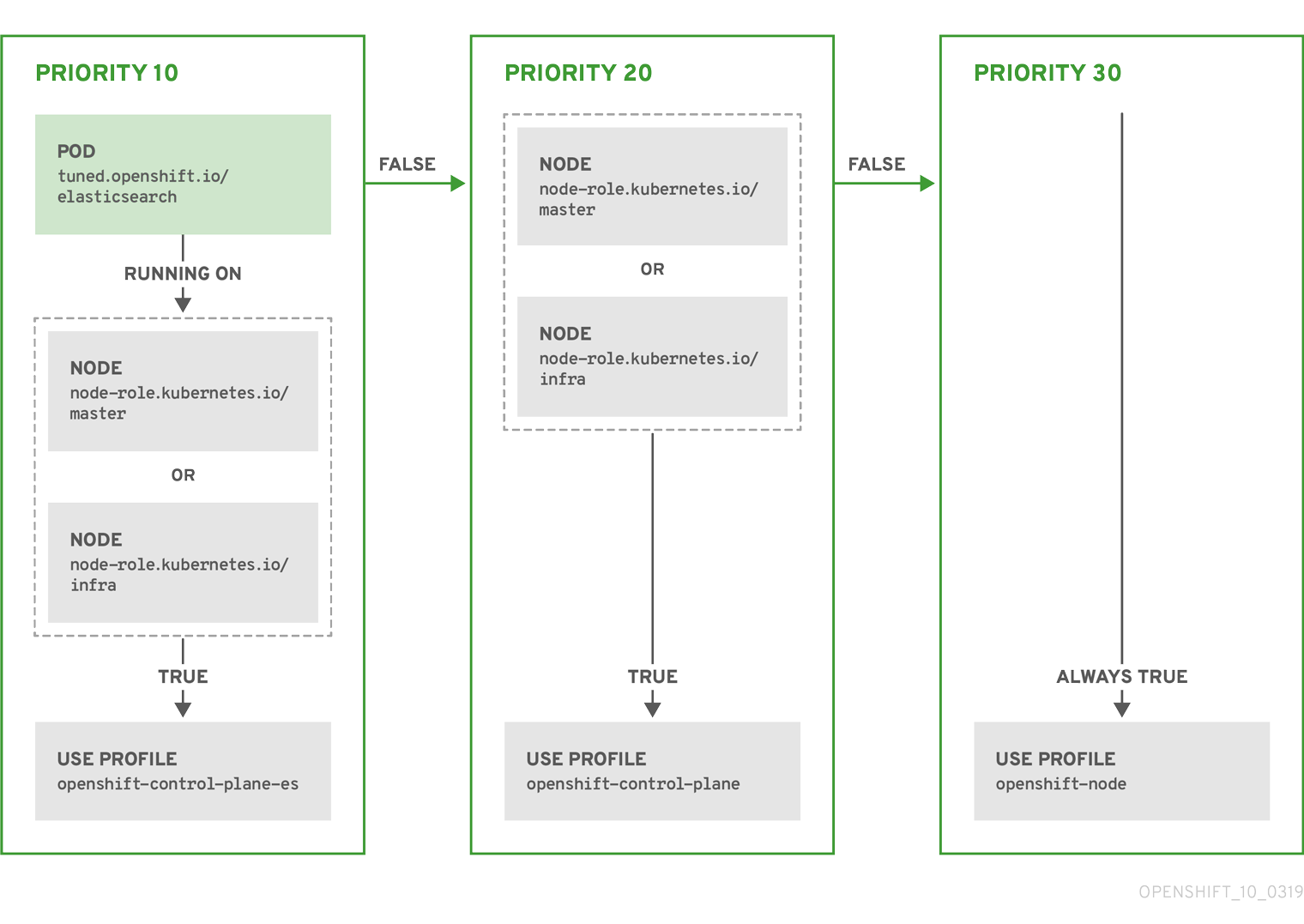
Example: Machine config pool based matching
apiVersion: tuned.openshift.io/v1
kind: Tuned
metadata:
name: openshift-node-custom
namespace: openshift-cluster-node-tuning-operator
spec:
profile:
- data: |
[main]
summary=Custom OpenShift node profile with an additional kernel parameter
include=openshift-node
[bootloader]
cmdline_openshift_node_custom=+skew_tick=1
name: openshift-node-custom
recommend:
- machineConfigLabels:
machineconfiguration.openshift.io/role: "worker-custom"
priority: 20
profile: openshift-node-customTo minimize node reboots, label the target nodes with a label the machine config pool’s node selector will match, then create the Tuned CR above and finally create the custom machine config pool itself.
Cloud provider-specific TuneD profiles
With this functionality, all Cloud provider-specific nodes can conveniently be assigned a TuneD profile specifically tailored to a given Cloud provider on a OpenShift Container Platform cluster. This can be accomplished without adding additional node labels or grouping nodes into machine config pools.
This functionality takes advantage of spec.providerID node object values in the form of <cloud-provider>://<cloud-provider-specific-id> and writes the file /var/lib/tuned/provider with the value <cloud-provider> in NTO operand containers. The content of this file is then used by TuneD to load provider-<cloud-provider> profile if such profile exists.
The openshift profile that both openshift-control-plane and openshift-node profiles inherit settings from is now updated to use this functionality through the use of conditional profile loading. Neither NTO nor TuneD currently include any Cloud provider-specific profiles. However, it is possible to create a custom profile provider-<cloud-provider> that will be applied to all Cloud provider-specific cluster nodes.
Example GCE Cloud provider profile
apiVersion: tuned.openshift.io/v1
kind: Tuned
metadata:
name: provider-gce
namespace: openshift-cluster-node-tuning-operator
spec:
profile:
- data: |
[main]
summary=GCE Cloud provider-specific profile
# Your tuning for GCE Cloud provider goes here.
name: provider-gce
Due to profile inheritance, any setting specified in the provider-<cloud-provider> profile will be overwritten by the openshift profile and its child profiles.
7.14.3. Default profiles set on a cluster
The following are the default profiles set on a cluster.
apiVersion: tuned.openshift.io/v1
kind: Tuned
metadata:
name: default
namespace: openshift-cluster-node-tuning-operator
spec:
profile:
- data: |
[main]
summary=Optimize systems running OpenShift (provider specific parent profile)
include=-provider-${f:exec:cat:/var/lib/tuned/provider},openshift
name: openshift
recommend:
- profile: openshift-control-plane
priority: 30
match:
- label: node-role.kubernetes.io/master
- label: node-role.kubernetes.io/infra
- profile: openshift-node
priority: 40
Starting with OpenShift Container Platform 4.9, all OpenShift TuneD profiles are shipped with the TuneD package. You can use the oc exec command to view the contents of these profiles:
$ oc exec $tuned_pod -n openshift-cluster-node-tuning-operator -- find /usr/lib/tuned/openshift{,-control-plane,-node} -name tuned.conf -exec grep -H ^ {} \;7.14.4. Supported TuneD daemon plugins
Excluding the [main] section, the following TuneD plugins are supported when using custom profiles defined in the profile: section of the Tuned CR:
- audio
- cpu
- disk
- eeepc_she
- modules
- mounts
- net
- scheduler
- scsi_host
- selinux
- sysctl
- sysfs
- usb
- video
- vm
- bootloader
There is some dynamic tuning functionality provided by some of these plugins that is not supported. The following TuneD plugins are currently not supported:
- script
- systemd
The TuneD bootloader plugin only supports Red Hat Enterprise Linux CoreOS (RHCOS) worker nodes.
Additional resources
7.15. Configuring the maximum number of pods per node
Two parameters control the maximum number of pods that can be scheduled to a node: podsPerCore and maxPods. If you use both options, the lower of the two limits the number of pods on a node.
For example, if podsPerCore is set to 10 on a node with 4 processor cores, the maximum number of pods allowed on the node will be 40.
Prerequisites
Obtain the label associated with the static
MachineConfigPoolCRD for the type of node you want to configure by entering the following command:$ oc edit machineconfigpool <name>For example:
$ oc edit machineconfigpool workerExample output
apiVersion: machineconfiguration.openshift.io/v1 kind: MachineConfigPool metadata: creationTimestamp: "2022-11-16T15:34:25Z" generation: 4 labels: pools.operator.machineconfiguration.openshift.io/worker: ""1 name: worker #...- 1
- The label appears under Labels.
TipIf the label is not present, add a key/value pair such as:
$ oc label machineconfigpool worker custom-kubelet=small-pods
Procedure
Create a custom resource (CR) for your configuration change.
Sample configuration for a
max-podsCRapiVersion: machineconfiguration.openshift.io/v1 kind: KubeletConfig metadata: name: set-max-pods1 spec: machineConfigPoolSelector: matchLabels: pools.operator.machineconfiguration.openshift.io/worker: ""2 kubeletConfig: podsPerCore: 103 maxPods: 2504 #...NoteSetting
podsPerCoreto0disables this limit.In the above example, the default value for
podsPerCoreis10and the default value formaxPodsis250. This means that unless the node has 25 cores or more, by default,podsPerCorewill be the limiting factor.Run the following command to create the CR:
$ oc create -f <file_name>.yaml
Verification
List the
MachineConfigPoolCRDs to see if the change is applied. TheUPDATINGcolumn reportsTrueif the change is picked up by the Machine Config Controller:$ oc get machineconfigpoolsExample output
NAME CONFIG UPDATED UPDATING DEGRADED master master-9cc2c72f205e103bb534 False False False worker worker-8cecd1236b33ee3f8a5e False True FalseOnce the change is complete, the
UPDATEDcolumn reportsTrue.$ oc get machineconfigpoolsExample output
NAME CONFIG UPDATED UPDATING DEGRADED master master-9cc2c72f205e103bb534 False True False worker worker-8cecd1236b33ee3f8a5e True False False
7.16. Machine scaling with static IP addresses
After you deployed your cluster to run nodes with static IP addresses, you can scale an instance of a machine or a machine set to use one of these static IP addresses.
7.16.1. Scaling machines to use static IP addresses
You can scale additional machine sets to use pre-defined static IP addresses on your cluster. For this configuration, you need to create a machine resource YAML file and then define static IP addresses in this file.
Static IP addresses for vSphere nodes is a Technology Preview feature only. Technology Preview features are not supported with Red Hat production service level agreements (SLAs) and might not be functionally complete. Red Hat does not recommend using them in production. These features provide early access to upcoming product features, enabling customers to test functionality and provide feedback during the development process.
For more information about the support scope of Red Hat Technology Preview features, see Technology Preview Features Support Scope.
Prerequisites
-
You included
featureSet:TechPreviewNoUpgradeas the initial entry in theinstall-config.yamlfile. - You deployed a cluster that runs at least one node with a configured static IP address.
Procedure
Create a machine resource YAML file and define static IP address network information in the
networkparameter.Example of a machine resource YAML file with static IP address information defined in the
networkparameter.apiVersion: machine.openshift.io/v1beta1 kind: Machine metadata: creationTimestamp: null labels: machine.openshift.io/cluster-api-cluster: <infrastructure_id> machine.openshift.io/cluster-api-machine-role: <role> machine.openshift.io/cluster-api-machine-type: <role> machine.openshift.io/cluster-api-machineset: <infrastructure_id>-<role> name: <infrastructure_id>-<role> namespace: openshift-machine-api spec: lifecycleHooks: {} metadata: {} providerSpec: value: apiVersion: machine.openshift.io/v1beta1 credentialsSecret: name: vsphere-cloud-credentials diskGiB: 120 kind: VSphereMachineProviderSpec memoryMiB: 8192 metadata: creationTimestamp: null network: devices: - gateway: 192.168.204.11 ipAddrs: - 192.168.204.8/242 nameservers:3 - 192.168.204.1 networkName: qe-segment-204 numCPUs: 4 numCoresPerSocket: 2 snapshot: "" template: <vm_template_name> userDataSecret: name: worker-user-data workspace: datacenter: <vcenter_datacenter_name> datastore: <vcenter_datastore_name> folder: <vcenter_vm_folder_path> resourcepool: <vsphere_resource_pool> server: <vcenter_server_ip> status: {}- 1
- The IP address for the default gateway for the network interface.
- 2
- Lists IPv4, IPv6, or both IP addresses that installation program passes to the network interface. Both IP families must use the same network interface for the default network.
- 3
- Lists a DNS nameserver. You can define up to 3 DNS nameservers. Consider defining more than one DNS nameserver to take advantage of DNS resolution if that one DNS nameserver becomes unreachable.
Create a
machinecustom resource (CR) by entering the following command in your terminal:$ oc create -f <file_name>.yaml
7.16.2. Machine set scaling of machines with configured static IP addresses
You can use a machine set to scale machines with configured static IP addresses.
Static IP addresses for vSphere nodes is a Technology Preview feature only. Technology Preview features are not supported with Red Hat production service level agreements (SLAs) and might not be functionally complete. Red Hat does not recommend using them in production. These features provide early access to upcoming product features, enabling customers to test functionality and provide feedback during the development process.
For more information about the support scope of Red Hat Technology Preview features, see Technology Preview Features Support Scope.
After you configure a machine set to request a static IP address for a machine, the machine controller creates an IPAddressClaim resource in the openshift-machine-api namespace. The external controller then creates an IPAddress resource and binds any static IP addresses to the IPAddressClaim resource.
Your organization might use numerous types of IP address management (IPAM) services. If you want to enable a particular IPAM service on OpenShift Container Platform, you might need to manually create the IPAddressClaim resource in a YAML definition and then bind a static IP address to this resource by entering the following command in your oc CLI:
$ oc create -f <ipaddressclaim_filename>
The following demonstrates an example of an IPAddressClaim resource:
kind: IPAddressClaim
metadata:
finalizers:
- machine.openshift.io/ip-claim-protection
name: cluster-dev-9n5wg-worker-0-m7529-claim-0-0
namespace: openshift-machine-api
spec:
poolRef:
apiGroup: ipamcontroller.example.io
kind: IPPool
name: static-ci-pool
status: {}
The machine controller updates the machine with a status of IPAddressClaimed to indicate that a static IP address has successfully bound to the IPAddressClaim resource. The machine controller applies the same status to a machine with multiple IPAddressClaim resources that each contain a bound static IP address.The machine controller then creates a virtual machine and applies static IP addresses to any nodes listed in the providerSpec of a machine’s configuration.
7.16.3. Using a machine set to scale machines with configured static IP addresses
You can use a machine set to scale machines with configured static IP addresses.
Static IP addresses for vSphere nodes is a Technology Preview feature only. Technology Preview features are not supported with Red Hat production service level agreements (SLAs) and might not be functionally complete. Red Hat does not recommend using them in production. These features provide early access to upcoming product features, enabling customers to test functionality and provide feedback during the development process.
For more information about the support scope of Red Hat Technology Preview features, see Technology Preview Features Support Scope.
The example in the procedure demonstrates the use of controllers for scaling machines in a machine set.
Prerequisites
-
You included
featureSet:TechPreviewNoUpgradeas the initial entry in theinstall-config.yamlfile. - You deployed a cluster that runs at least one node with a configured static IP address.
Procedure
Configure a machine set by specifying IP pool information in the
network.devices.addressesFromPoolsschema of the machine set’s YAML file:apiVersion: machine.openshift.io/v1beta1 kind: MachineSet metadata: annotations: machine.openshift.io/memoryMb: "8192" machine.openshift.io/vCPU: "4" labels: machine.openshift.io/cluster-api-cluster: <infrastructure_id> name: <infrastructure_id>-<role> namespace: openshift-machine-api spec: replicas: 0 selector: matchLabels: machine.openshift.io/cluster-api-cluster: <infrastructure_id> machine.openshift.io/cluster-api-machineset: <infrastructure_id>-<role> template: metadata: labels: ipam: "true" machine.openshift.io/cluster-api-cluster: <infrastructure_id> machine.openshift.io/cluster-api-machine-role: worker machine.openshift.io/cluster-api-machine-type: worker machine.openshift.io/cluster-api-machineset: <infrastructure_id>-<role> spec: lifecycleHooks: {} metadata: {} providerSpec: value: apiVersion: machine.openshift.io/v1beta1 credentialsSecret: name: vsphere-cloud-credentials diskGiB: 120 kind: VSphereMachineProviderSpec memoryMiB: 8192 metadata: {} network: devices: - addressesFromPools:1 - group: ipamcontroller.example.io name: static-ci-pool resource: IPPool nameservers: - "192.168.204.1"2 networkName: qe-segment-204 numCPUs: 4 numCoresPerSocket: 2 snapshot: "" template: rvanderp4-dev-9n5wg-rhcos-generated-region-generated-zone userDataSecret: name: worker-user-data workspace: datacenter: IBMCdatacenter datastore: /IBMCdatacenter/datastore/vsanDatastore folder: /IBMCdatacenter/vm/rvanderp4-dev-9n5wg resourcePool: /IBMCdatacenter/host/IBMCcluster//Resources server: vcenter.ibmc.devcluster.openshift.com- 1
- Specifies an IP pool, which lists a static IP address or a range of static IP addresses. The IP Pool can either be a reference to a custom resource definition (CRD) or a resource supported by the
IPAddressClaimsresource handler. The machine controller accesses static IP addresses listed in the machine set’s configuration and then allocates each address to each machine. - 2
- Lists a nameserver. You must specify a nameserver for nodes that receive static IP address, because the Dynamic Host Configuration Protocol (DHCP) network configuration does not support static IP addresses.
Scale the machine set by entering the following commands in your
ocCLI:$ oc scale --replicas=2 machineset <machineset> -n openshift-machine-apiOr:
$ oc edit machineset <machineset> -n openshift-machine-apiAfter each machine is scaled up, the machine controller creates an
IPAddressClaimresource.Optional: Check that the
IPAddressClaimresource exists in theopenshift-machine-apinamespace by entering the following command:$ oc get ipaddressclaims.ipam.cluster.x-k8s.io -n openshift-machine-apiExample
ocCLI output that lists two IP pools listed in theopenshift-machine-apinamespaceNAME POOL NAME POOL KIND cluster-dev-9n5wg-worker-0-m7529-claim-0-0 static-ci-pool IPPool cluster-dev-9n5wg-worker-0-wdqkt-claim-0-0 static-ci-pool IPPoolCreate an
IPAddressresource by entering the following command:$ oc create -f ipaddress.yamlThe following example shows an
IPAddressresource with defined network configuration information and one defined static IP address:apiVersion: ipam.cluster.x-k8s.io/v1alpha1 kind: IPAddress metadata: name: cluster-dev-9n5wg-worker-0-m7529-ipaddress-0-0 namespace: openshift-machine-api spec: address: 192.168.204.129 claimRef:1 name: cluster-dev-9n5wg-worker-0-m7529-claim-0-0 gateway: 192.168.204.1 poolRef:2 apiGroup: ipamcontroller.example.io kind: IPPool name: static-ci-pool prefix: 23NoteBy default, the external controller automatically scans any resources in the machine set for recognizable address pool types. When the external controller finds
kind: IPPooldefined in theIPAddressresource, the controller binds any static IP addresses to theIPAddressClaimresource.Update the
IPAddressClaimstatus with a reference to theIPAddressresource:$ oc --type=merge patch IPAddressClaim cluster-dev-9n5wg-worker-0-m7529-claim-0-0 -p='{"status":{"addressRef": {"name": "cluster-dev-9n5wg-worker-0-m7529-ipaddress-0-0"}}}' -n openshift-machine-api --subresource=status
Chapter 8. Postinstallation network configuration
After installing OpenShift Container Platform, you can further expand and customize your network to your requirements.
8.1. Using the Cluster Network Operator
You can use the Cluster Network Operator (CNO) to deploy and manage cluster network components on an OpenShift Container Platform cluster, including the Container Network Interface (CNI) network plugin selected for the cluster during installation. For more information, see Cluster Network Operator in OpenShift Container Platform.
8.2. Network configuration tasks
8.2.1. Creating default network policies for a new project
As a cluster administrator, you can modify the new project template to automatically include NetworkPolicy objects when you create a new project.
8.2.1.1. Modifying the template for new projects
As a cluster administrator, you can modify the default project template so that new projects are created using your custom requirements.
To create your own custom project template:
Prerequisites
-
You have access to an OpenShift Container Platform cluster using an account with
cluster-adminpermissions.
Procedure
-
Log in as a user with
cluster-adminprivileges. Generate the default project template:
$ oc adm create-bootstrap-project-template -o yaml > template.yaml-
Use a text editor to modify the generated
template.yamlfile by adding objects or modifying existing objects. The project template must be created in the
openshift-confignamespace. Load your modified template:$ oc create -f template.yaml -n openshift-configEdit the project configuration resource using the web console or CLI.
Using the web console:
- Navigate to the Administration → Cluster Settings page.
- Click Configuration to view all configuration resources.
- Find the entry for Project and click Edit YAML.
Using the CLI:
Edit the
project.config.openshift.io/clusterresource:$ oc edit project.config.openshift.io/cluster
Update the
specsection to include theprojectRequestTemplateandnameparameters, and set the name of your uploaded project template. The default name isproject-request.Project configuration resource with custom project template
apiVersion: config.openshift.io/v1 kind: Project metadata: # ... spec: projectRequestTemplate: name: <template_name> # ...- After you save your changes, create a new project to verify that your changes were successfully applied.
8.2.1.2. Adding network policies to the new project template
As a cluster administrator, you can add network policies to the default template for new projects. OpenShift Container Platform will automatically create all the NetworkPolicy objects specified in the template in the project.
Prerequisites
-
Your cluster uses a default CNI network plugin that supports
NetworkPolicyobjects, such as the OpenShift SDN network plugin withmode: NetworkPolicyset. This mode is the default for OpenShift SDN. -
You installed the OpenShift CLI (
oc). -
You must log in to the cluster with a user with
cluster-adminprivileges. - You must have created a custom default project template for new projects.
Procedure
Edit the default template for a new project by running the following command:
$ oc edit template <project_template> -n openshift-configReplace
<project_template>with the name of the default template that you configured for your cluster. The default template name isproject-request.In the template, add each
NetworkPolicyobject as an element to theobjectsparameter. Theobjectsparameter accepts a collection of one or more objects.In the following example, the
objectsparameter collection includes severalNetworkPolicyobjects.objects: - apiVersion: networking.k8s.io/v1 kind: NetworkPolicy metadata: name: allow-from-same-namespace spec: podSelector: {} ingress: - from: - podSelector: {} - apiVersion: networking.k8s.io/v1 kind: NetworkPolicy metadata: name: allow-from-openshift-ingress spec: ingress: - from: - namespaceSelector: matchLabels: policy-group.network.openshift.io/ingress: podSelector: {} policyTypes: - Ingress - apiVersion: networking.k8s.io/v1 kind: NetworkPolicy metadata: name: allow-from-kube-apiserver-operator spec: ingress: - from: - namespaceSelector: matchLabels: kubernetes.io/metadata.name: openshift-kube-apiserver-operator podSelector: matchLabels: app: kube-apiserver-operator policyTypes: - Ingress ...Optional: Create a new project to confirm that your network policy objects are created successfully by running the following commands:
Create a new project:
$ oc new-project <project>1 - 1
- Replace
<project>with the name for the project you are creating.
Confirm that the network policy objects in the new project template exist in the new project:
$ oc get networkpolicy NAME POD-SELECTOR AGE allow-from-openshift-ingress <none> 7s allow-from-same-namespace <none> 7s
Chapter 9. Configuring image streams and image registries
You can update the global pull secret for your cluster by either replacing the current pull secret or appending a new pull secret. The procedure is required when users use a separate registry to store images than the registry used during installation. For more information, see Using image pull secrets.
For information about images and configuring image streams or image registries, see the following documentation:
9.1. Configuring image streams for a disconnected cluster
After installing OpenShift Container Platform in a disconnected environment, configure the image streams for the Cluster Samples Operator and the must-gather image stream.
9.1.1. Cluster Samples Operator assistance for mirroring
During installation, OpenShift Container Platform creates a config map named imagestreamtag-to-image in the openshift-cluster-samples-operator namespace. The imagestreamtag-to-image config map contains an entry, the populating image, for each image stream tag.
The format of the key for each entry in the data field in the config map is <image_stream_name>_<image_stream_tag_name>.
During a disconnected installation of OpenShift Container Platform, the status of the Cluster Samples Operator is set to Removed. If you choose to change it to Managed, it installs samples.
The use of samples in a network-restricted or discontinued environment may require access to services external to your network. Some example services include: Github, Maven Central, npm, RubyGems, PyPi and others. There might be additional steps to take that allow the cluster samples operators’s objects to reach the services they require.
You can use this config map as a reference for which images need to be mirrored for your image streams to import.
-
While the Cluster Samples Operator is set to
Removed, you can create your mirrored registry, or determine which existing mirrored registry you want to use. - Mirror the samples you want to the mirrored registry using the new config map as your guide.
-
Add any of the image streams you did not mirror to the
skippedImagestreamslist of the Cluster Samples Operator configuration object. -
Set
samplesRegistryof the Cluster Samples Operator configuration object to the mirrored registry. -
Then set the Cluster Samples Operator to
Managedto install the image streams you have mirrored.
9.1.2. Using Cluster Samples Operator image streams with alternate or mirrored registries
Most image streams in the openshift namespace managed by the Cluster Samples Operator point to images located in the Red Hat registry at registry.redhat.io.
The cli, installer, must-gather, and tests image streams, while part of the install payload, are not managed by the Cluster Samples Operator. These are not addressed in this procedure.
The Cluster Samples Operator must be set to Managed in a disconnected environment. To install the image streams, you have a mirrored registry.
Prerequisites
-
Access to the cluster as a user with the
cluster-adminrole. - Create a pull secret for your mirror registry.
Procedure
Access the images of a specific image stream to mirror, for example:
$ oc get is <imagestream> -n openshift -o json | jq .spec.tags[].from.name | grep registry.redhat.ioMirror images from registry.redhat.io associated with any image streams you need
$ oc image mirror registry.redhat.io/rhscl/ruby-25-rhel7:latest ${MIRROR_ADDR}/rhscl/ruby-25-rhel7:latestCreate the cluster’s image configuration object:
$ oc create configmap registry-config --from-file=${MIRROR_ADDR_HOSTNAME}..5000=$path/ca.crt -n openshift-configAdd the required trusted CAs for the mirror in the cluster’s image configuration object:
$ oc patch image.config.openshift.io/cluster --patch '{"spec":{"additionalTrustedCA":{"name":"registry-config"}}}' --type=mergeUpdate the
samplesRegistryfield in the Cluster Samples Operator configuration object to contain thehostnameportion of the mirror location defined in the mirror configuration:$ oc edit configs.samples.operator.openshift.io -n openshift-cluster-samples-operatorNoteThis is required because the image stream import process does not use the mirror or search mechanism at this time.
Add any image streams that are not mirrored into the
skippedImagestreamsfield of the Cluster Samples Operator configuration object. Or if you do not want to support any of the sample image streams, set the Cluster Samples Operator toRemovedin the Cluster Samples Operator configuration object.NoteThe Cluster Samples Operator issues alerts if image stream imports are failing but the Cluster Samples Operator is either periodically retrying or does not appear to be retrying them.
Many of the templates in the
openshiftnamespace reference the image streams. So usingRemovedto purge both the image streams and templates will eliminate the possibility of attempts to use them if they are not functional because of any missing image streams.
9.1.3. Preparing your cluster to gather support data
Clusters using a restricted network must import the default must-gather image to gather debugging data for Red Hat support. The must-gather image is not imported by default, and clusters on a restricted network do not have access to the internet to pull the latest image from a remote repository.
Procedure
If you have not added your mirror registry’s trusted CA to your cluster’s image configuration object as part of the Cluster Samples Operator configuration, perform the following steps:
Create the cluster’s image configuration object:
$ oc create configmap registry-config --from-file=${MIRROR_ADDR_HOSTNAME}..5000=$path/ca.crt -n openshift-configAdd the required trusted CAs for the mirror in the cluster’s image configuration object:
$ oc patch image.config.openshift.io/cluster --patch '{"spec":{"additionalTrustedCA":{"name":"registry-config"}}}' --type=merge
Import the default must-gather image from your installation payload:
$ oc import-image is/must-gather -n openshift
When running the oc adm must-gather command, use the --image flag and point to the payload image, as in the following example:
$ oc adm must-gather --image=$(oc adm release info --image-for must-gather)9.2. Configuring periodic importing of Cluster Sample Operator image stream tags
You can ensure that you always have access to the latest versions of the Cluster Sample Operator images by periodically importing the image stream tags when new versions become available.
Procedure
Fetch all the imagestreams in the
openshiftnamespace by running the following command:oc get imagestreams -n openshiftFetch the tags for every imagestream in the
openshiftnamespace by running the following command:$ oc get is <image-stream-name> -o jsonpath="{range .spec.tags[*]}{.name}{'\t'}{.from.name}{'\n'}{end}" -n openshiftFor example:
$ oc get is ubi8-openjdk-17 -o jsonpath="{range .spec.tags[*]}{.name}{'\t'}{.from.name}{'\n'}{end}" -n openshiftExample output
1.11 registry.access.redhat.com/ubi8/openjdk-17:1.11 1.12 registry.access.redhat.com/ubi8/openjdk-17:1.12Schedule periodic importing of images for each tag present in the image stream by running the following command:
$ oc tag <repository/image> <image-stream-name:tag> --scheduled -n openshiftFor example:
$ oc tag registry.access.redhat.com/ubi8/openjdk-17:1.11 ubi8-openjdk-17:1.11 --scheduled -n openshift$ oc tag registry.access.redhat.com/ubi8/openjdk-17:1.12 ubi8-openjdk-17:1.12 --scheduled -n openshiftNoteUsing the
--scheduledflag is recommended to periodically re-import an image when working with an external container image registry. The--scheduledflag helps to ensure that you receive the latest versions and security updates. Additionally, this setting allows the import process to automatically retry if a temporary error initially prevents the image from being imported.By default, scheduled image imports occur every 15 minutes cluster-wide.
Verify the scheduling status of the periodic import by running the following command:
oc get imagestream <image-stream-name> -o jsonpath="{range .spec.tags[*]}Tag: {.name}{'\t'}Scheduled: {.importPolicy.scheduled}{'\n'}{end}" -n openshiftFor example:
oc get imagestream ubi8-openjdk-17 -o jsonpath="{range .spec.tags[*]}Tag: {.name}{'\t'}Scheduled: {.importPolicy.scheduled}{'\n'}{end}" -n openshiftExample output
Tag: 1.11 Scheduled: true Tag: 1.12 Scheduled: true
Chapter 10. Postinstallation storage configuration
After installing OpenShift Container Platform, you can further expand and customize your cluster to your requirements, including storage configuration.
By default, containers operate by using the ephemeral storage or transient local storage. The ephemeral storage has a lifetime limitation. To store the data for a long time, you must configure persistent storage. You can configure storage by using one of the following methods:
- Dynamic provisioning
- You can dynamically provision storage on-demand by defining and creating storage classes that control different levels of storage, including storage access.
- Static provisioning
- You can use Kubernetes persistent volumes to make existing storage available to a cluster. Static provisioning can support various device configurations and mount options.
10.1. Dynamic provisioning
Dynamic Provisioning allows you to create storage volumes on-demand, eliminating the need for cluster administrators to pre-provision storage. See Dynamic provisioning.
10.2. Recommended configurable storage technology
The following table summarizes the recommended and configurable storage technologies for the given OpenShift Container Platform cluster application.
| Storage type | Block | File | Object |
|---|---|---|---|
|
1
2 3 Prometheus is the underlying technology used for metrics. 4 This does not apply to physical disk, VM physical disk, VMDK, loopback over NFS, AWS EBS, and Azure Disk.
5 For metrics, using file storage with the 6 For logging, review the recommended storage solution in Configuring persistent storage for the log store section. Using NFS storage as a persistent volume or through NAS, such as Gluster, can corrupt the data. Hence, NFS is not supported for Elasticsearch storage and LokiStack log store in OpenShift Container Platform Logging. You must use one persistent volume type per log store. 7 Object storage is not consumed through OpenShift Container Platform’s PVs or PVCs. Apps must integrate with the object storage REST API. | |||
| ROX1 | Yes4 | Yes4 | Yes |
| RWX2 | No | Yes | Yes |
| Registry | Configurable | Configurable | Recommended |
| Scaled registry | Not configurable | Configurable | Recommended |
| Metrics3 | Recommended | Configurable5 | Not configurable |
| Elasticsearch Logging | Recommended | Configurable6 | Not supported6 |
| Loki Logging | Not configurable | Not configurable | Recommended |
| Apps | Recommended | Recommended | Not configurable7 |
A scaled registry is an OpenShift image registry where two or more pod replicas are running.
10.2.1. Specific application storage recommendations
Testing shows issues with using the NFS server on Red Hat Enterprise Linux (RHEL) as a storage backend for core services. This includes the OpenShift Container Registry and Quay, Prometheus for monitoring storage, and Elasticsearch for logging storage. Therefore, using RHEL NFS to back PVs used by core services is not recommended.
Other NFS implementations in the marketplace might not have these issues. Contact the individual NFS implementation vendor for more information on any testing that was possibly completed against these OpenShift Container Platform core components.
10.2.1.1. Registry
In a non-scaled/high-availability (HA) OpenShift image registry cluster deployment:
- The storage technology does not have to support RWX access mode.
- The storage technology must ensure read-after-write consistency.
- The preferred storage technology is object storage followed by block storage.
- File storage is not recommended for OpenShift image registry cluster deployment with production workloads.
10.2.1.2. Scaled registry
In a scaled/HA OpenShift image registry cluster deployment:
- The storage technology must support RWX access mode.
- The storage technology must ensure read-after-write consistency.
- The preferred storage technology is object storage.
- Red Hat OpenShift Data Foundation, Amazon Simple Storage Service (Amazon S3), Google Cloud Storage (GCS), Microsoft Azure Blob Storage, and OpenStack Swift are supported.
- Object storage should be S3 or Swift compliant.
- For non-cloud platforms, such as vSphere and bare metal installations, the only configurable technology is file storage.
- Block storage is not configurable.
- The use of Network File System (NFS) storage with OpenShift Container Platform is supported. However, the use of NFS storage with a scaled registry can cause known issues. For more information, see the Red Hat Knowledgebase solution, Is NFS supported for OpenShift cluster internal components in Production?.
10.2.1.3. Metrics
In an OpenShift Container Platform hosted metrics cluster deployment:
- The preferred storage technology is block storage.
- Object storage is not configurable.
It is not recommended to use file storage for a hosted metrics cluster deployment with production workloads.
10.2.1.4. Logging
In an OpenShift Container Platform hosted logging cluster deployment:
Loki Operator:
- The preferred storage technology is S3 compatible Object storage.
- Block storage is not configurable.
OpenShift Elasticsearch Operator:
- The preferred storage technology is block storage.
- Object storage is not supported.
As of logging version 5.4.3 the OpenShift Elasticsearch Operator is deprecated and is planned to be removed in a future release. Red Hat will provide bug fixes and support for this feature during the current release lifecycle, but this feature will no longer receive enhancements and will be removed. As an alternative to using the OpenShift Elasticsearch Operator to manage the default log storage, you can use the Loki Operator.
10.2.1.5. Applications
Application use cases vary from application to application, as described in the following examples:
- Storage technologies that support dynamic PV provisioning have low mount time latencies, and are not tied to nodes to support a healthy cluster.
- Application developers are responsible for knowing and understanding the storage requirements for their application, and how it works with the provided storage to ensure that issues do not occur when an application scales or interacts with the storage layer.
10.2.2. Other specific application storage recommendations
It is not recommended to use RAID configurations on Write intensive workloads, such as etcd. If you are running etcd with a RAID configuration, you might be at risk of encountering performance issues with your workloads.
- Red Hat OpenStack Platform (RHOSP) Cinder: RHOSP Cinder tends to be adept in ROX access mode use cases.
- Databases: Databases (RDBMSs, NoSQL DBs, etc.) tend to perform best with dedicated block storage.
- The etcd database must have enough storage and adequate performance capacity to enable a large cluster. Information about monitoring and benchmarking tools to establish ample storage and a high-performance environment is described in Recommended etcd practices.
10.3. Deploy Red Hat OpenShift Data Foundation
Red Hat OpenShift Data Foundation is a provider of agnostic persistent storage for OpenShift Container Platform supporting file, block, and object storage, either in-house or in hybrid clouds. As a Red Hat storage solution, Red Hat OpenShift Data Foundation is completely integrated with OpenShift Container Platform for deployment, management, and monitoring. For more information, see the Red Hat OpenShift Data Foundation documentation.
OpenShift Data Foundation on top of Red Hat Hyperconverged Infrastructure (RHHI) for Virtualization, which uses hyperconverged nodes that host virtual machines installed with OpenShift Container Platform, is not a supported configuration. For more information about supported platforms, see the Red Hat OpenShift Data Foundation Supportability and Interoperability Guide.
| If you are looking for Red Hat OpenShift Data Foundation information about… | See the following Red Hat OpenShift Data Foundation documentation: |
|---|---|
| What’s new, known issues, notable bug fixes, and Technology Previews | |
| Supported workloads, layouts, hardware and software requirements, sizing and scaling recommendations | |
| Instructions on deploying OpenShift Data Foundation to use an external Red Hat Ceph Storage cluster | |
| Instructions on deploying OpenShift Data Foundation to local storage on bare metal infrastructure | Deploying OpenShift Data Foundation 4.12 using bare metal infrastructure |
| Instructions on deploying OpenShift Data Foundation on Red Hat OpenShift Container Platform VMware vSphere clusters | |
| Instructions on deploying OpenShift Data Foundation using Amazon Web Services for local or cloud storage | Deploying OpenShift Data Foundation 4.12 using Amazon Web Services |
| Instructions on deploying and managing OpenShift Data Foundation on existing Red Hat OpenShift Container Platform Google Cloud clusters | Deploying and managing OpenShift Data Foundation 4.12 using Google Cloud |
| Instructions on deploying and managing OpenShift Data Foundation on existing Red Hat OpenShift Container Platform Azure clusters | Deploying and managing OpenShift Data Foundation 4.12 using Microsoft Azure |
| Instructions on deploying OpenShift Data Foundation to use local storage on IBM Power® infrastructure | |
| Instructions on deploying OpenShift Data Foundation to use local storage on IBM Z® infrastructure | Deploying OpenShift Data Foundation on IBM Z® infrastructure |
| Allocating storage to core services and hosted applications in Red Hat OpenShift Data Foundation, including snapshot and clone | |
| Managing storage resources across a hybrid cloud or multicloud environment using the Multicloud Object Gateway (NooBaa) | |
| Safely replacing storage devices for Red Hat OpenShift Data Foundation | |
| Safely replacing a node in a Red Hat OpenShift Data Foundation cluster | |
| Scaling operations in Red Hat OpenShift Data Foundation | |
| Monitoring a Red Hat OpenShift Data Foundation 4.12 cluster | |
| Resolve issues encountered during operations | |
| Migrating your OpenShift Container Platform cluster from version 3 to version 4 |
Chapter 11. Preparing for users
After installing OpenShift Container Platform, you can further expand and customize your cluster to your requirements, including taking steps to prepare for users.
11.1. Understanding identity provider configuration
The OpenShift Container Platform control plane includes a built-in OAuth server. Developers and administrators obtain OAuth access tokens to authenticate themselves to the API.
As an administrator, you can configure OAuth to specify an identity provider after you install your cluster.
11.1.1. About identity providers in OpenShift Container Platform
By default, only a kubeadmin user exists on your cluster. To specify an identity provider, you must create a custom resource (CR) that describes that identity provider and add it to the cluster.
OpenShift Container Platform user names containing /, :, and % are not supported.
11.1.2. Supported identity providers
You can configure the following types of identity providers:
| Identity provider | Description |
|---|---|
|
Configure the | |
|
Configure the | |
|
Configure the | |
|
Configure a | |
|
Configure a | |
|
Configure a | |
|
Configure a | |
|
Configure a | |
|
Configure an |
After you define an identity provider, you can use RBAC to define and apply permissions.
11.1.3. Identity provider parameters
The following parameters are common to all identity providers:
| Parameter | Description |
|---|---|
|
| The provider name is prefixed to provider user names to form an identity name. |
|
| Defines how new identities are mapped to users when they log in. Enter one of the following values:
|
When adding or changing identity providers, you can map identities from the new provider to existing users by setting the mappingMethod parameter to add.
11.1.4. Sample identity provider CR
The following custom resource (CR) shows the parameters and default values that you use to configure an identity provider. This example uses the htpasswd identity provider.
Sample identity provider CR
apiVersion: config.openshift.io/v1
kind: OAuth
metadata:
name: cluster
spec:
identityProviders:
- name: my_identity_provider
mappingMethod: claim
type: HTPasswd
htpasswd:
fileData:
name: htpass-secret 11.2. Using RBAC to define and apply permissions
Understand and apply role-based access control.
11.2.1. RBAC overview
Role-based access control (RBAC) objects determine whether a user is allowed to perform a given action within a project.
Cluster administrators can use the cluster roles and bindings to control who has various access levels to the OpenShift Container Platform platform itself and all projects.
Developers can use local roles and bindings to control who has access to their projects. Note that authorization is a separate step from authentication, which is more about determining the identity of who is taking the action.
Authorization is managed using:
| Authorization object | Description |
|---|---|
| Rules |
Sets of permitted verbs on a set of objects. For example, whether a user or service account can |
| Roles | Collections of rules. You can associate, or bind, users and groups to multiple roles. |
| Bindings | Associations between users and/or groups with a role. |
There are two levels of RBAC roles and bindings that control authorization:
| RBAC level | Description |
|---|---|
| Cluster RBAC | Roles and bindings that are applicable across all projects. Cluster roles exist cluster-wide, and cluster role bindings can reference only cluster roles. |
| Local RBAC | Roles and bindings that are scoped to a given project. While local roles exist only in a single project, local role bindings can reference both cluster and local roles. |
A cluster role binding is a binding that exists at the cluster level. A role binding exists at the project level. The cluster role view must be bound to a user using a local role binding for that user to view the project. Create local roles only if a cluster role does not provide the set of permissions needed for a particular situation.
This two-level hierarchy allows reuse across multiple projects through the cluster roles while allowing customization inside of individual projects through local roles.
During evaluation, both the cluster role bindings and the local role bindings are used. For example:
- Cluster-wide "allow" rules are checked.
- Locally-bound "allow" rules are checked.
- Deny by default.
11.2.1.1. Default cluster roles
OpenShift Container Platform includes a set of default cluster roles that you can bind to users and groups cluster-wide or locally.
It is not recommended to manually modify the default cluster roles. Modifications to these system roles can prevent a cluster from functioning properly.
| Default cluster role | Description |
|---|---|
|
|
A project manager. If used in a local binding, an |
|
| A user that can get basic information about projects and users. |
|
| A super-user that can perform any action in any project. When bound to a user with a local binding, they have full control over quota and every action on every resource in the project. |
|
| A user that can get basic cluster status information. |
|
| A user that can get or view most of the objects but cannot modify them. |
|
| A user that can modify most objects in a project but does not have the power to view or modify roles or bindings. |
|
| A user that can create their own projects. |
|
| A user who cannot make any modifications, but can see most objects in a project. They cannot view or modify roles or bindings. |
Be mindful of the difference between local and cluster bindings. For example, if you bind the cluster-admin role to a user by using a local role binding, it might appear that this user has the privileges of a cluster administrator. This is not the case. Binding the cluster-admin to a user in a project grants super administrator privileges for only that project to the user. That user has the permissions of the cluster role admin, plus a few additional permissions like the ability to edit rate limits, for that project. This binding can be confusing via the web console UI, which does not list cluster role bindings that are bound to true cluster administrators. However, it does list local role bindings that you can use to locally bind cluster-admin.
The relationships between cluster roles, local roles, cluster role bindings, local role bindings, users, groups and service accounts are illustrated below.
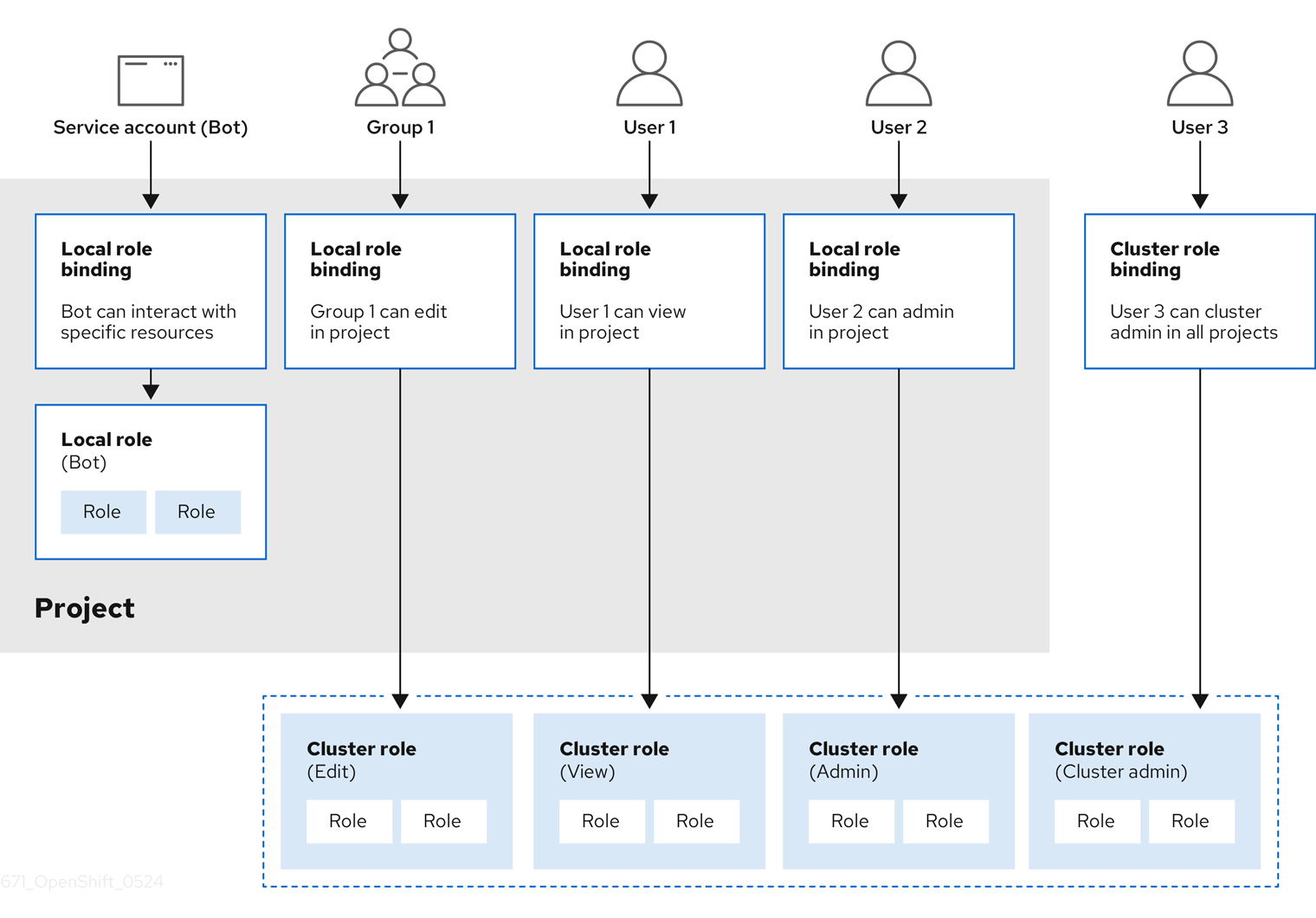
The get pods/exec, get pods/*, and get * rules grant execution privileges when they are applied to a role. Apply the principle of least privilege and assign only the minimal RBAC rights required for users and agents. For more information, see RBAC rules allow execution privileges.
11.2.1.2. Evaluating authorization
OpenShift Container Platform evaluates authorization by using:
- Identity
- The user name and list of groups that the user belongs to.
- Action
The action you perform. In most cases, this consists of:
- Project: The project you access. A project is a Kubernetes namespace with additional annotations that allows a community of users to organize and manage their content in isolation from other communities.
-
Verb : The action itself:
get,list,create,update,delete,deletecollection, orwatch. - Resource name: The API endpoint that you access.
- Bindings
- The full list of bindings, the associations between users or groups with a role.
OpenShift Container Platform evaluates authorization by using the following steps:
- The identity and the project-scoped action is used to find all bindings that apply to the user or their groups.
- Bindings are used to locate all the roles that apply.
- Roles are used to find all the rules that apply.
- The action is checked against each rule to find a match.
- If no matching rule is found, the action is then denied by default.
Remember that users and groups can be associated with, or bound to, multiple roles at the same time.
Project administrators can use the CLI to view local roles and bindings, including a matrix of the verbs and resources each are associated with.
The cluster role bound to the project administrator is limited in a project through a local binding. It is not bound cluster-wide like the cluster roles granted to the cluster-admin or system:admin.
Cluster roles are roles defined at the cluster level but can be bound either at the cluster level or at the project level.
11.2.1.2.1. Cluster role aggregation
The default admin, edit, view, and cluster-reader cluster roles support cluster role aggregation, where the cluster rules for each role are dynamically updated as new rules are created. This feature is relevant only if you extend the Kubernetes API by creating custom resources.
11.2.2. Projects and namespaces
A Kubernetes namespace provides a mechanism to scope resources in a cluster. The Kubernetes documentation has more information on namespaces.
Namespaces provide a unique scope for:
- Named resources to avoid basic naming collisions.
- Delegated management authority to trusted users.
- The ability to limit community resource consumption.
Most objects in the system are scoped by namespace, but some are excepted and have no namespace, including nodes and users.
A project is a Kubernetes namespace with additional annotations and is the central vehicle by which access to resources for regular users is managed. A project allows a community of users to organize and manage their content in isolation from other communities. Users must be given access to projects by administrators, or if allowed to create projects, automatically have access to their own projects.
Projects can have a separate name, displayName, and description.
-
The mandatory
nameis a unique identifier for the project and is most visible when using the CLI tools or API. The maximum name length is 63 characters. -
The optional
displayNameis how the project is displayed in the web console (defaults toname). -
The optional
descriptioncan be a more detailed description of the project and is also visible in the web console.
Each project scopes its own set of:
| Object | Description |
|---|---|
|
| Pods, services, replication controllers, etc. |
|
| Rules for which users can or cannot perform actions on objects. |
|
| Quotas for each kind of object that can be limited. |
|
| Service accounts act automatically with designated access to objects in the project. |
Cluster administrators can create projects and delegate administrative rights for the project to any member of the user community. Cluster administrators can also allow developers to create their own projects.
Developers and administrators can interact with projects by using the CLI or the web console.
11.2.3. Default projects
OpenShift Container Platform comes with a number of default projects, and projects starting with openshift- are the most essential to users. These projects host master components that run as pods and other infrastructure components. The pods created in these namespaces that have a critical pod annotation are considered critical, and the have guaranteed admission by kubelet. Pods created for master components in these namespaces are already marked as critical.
Do not run workloads in or share access to default projects. Default projects are reserved for running core cluster components.
The following default projects are considered highly privileged: default, kube-public, kube-system, openshift, openshift-infra, openshift-node, and other system-created projects that have the openshift.io/run-level label set to 0 or 1. Functionality that relies on admission plugins, such as pod security admission, security context constraints, cluster resource quotas, and image reference resolution, does not work in highly privileged projects.
11.2.4. Viewing cluster roles and bindings
You can use the oc CLI to view cluster roles and bindings by using the oc describe command.
Prerequisites
-
Install the
ocCLI. - Obtain permission to view the cluster roles and bindings.
Users with the cluster-admin default cluster role bound cluster-wide can perform any action on any resource, including viewing cluster roles and bindings.
Procedure
To view the cluster roles and their associated rule sets:
$ oc describe clusterrole.rbacExample output
Name: admin Labels: kubernetes.io/bootstrapping=rbac-defaults Annotations: rbac.authorization.kubernetes.io/autoupdate: true PolicyRule: Resources Non-Resource URLs Resource Names Verbs --------- ----------------- -------------- ----- .packages.apps.redhat.com [] [] [* create update patch delete get list watch] imagestreams [] [] [create delete deletecollection get list patch update watch create get list watch] imagestreams.image.openshift.io [] [] [create delete deletecollection get list patch update watch create get list watch] secrets [] [] [create delete deletecollection get list patch update watch get list watch create delete deletecollection patch update] buildconfigs/webhooks [] [] [create delete deletecollection get list patch update watch get list watch] buildconfigs [] [] [create delete deletecollection get list patch update watch get list watch] buildlogs [] [] [create delete deletecollection get list patch update watch get list watch] deploymentconfigs/scale [] [] [create delete deletecollection get list patch update watch get list watch] deploymentconfigs [] [] [create delete deletecollection get list patch update watch get list watch] imagestreamimages [] [] [create delete deletecollection get list patch update watch get list watch] imagestreammappings [] [] [create delete deletecollection get list patch update watch get list watch] imagestreamtags [] [] [create delete deletecollection get list patch update watch get list watch] processedtemplates [] [] [create delete deletecollection get list patch update watch get list watch] routes [] [] [create delete deletecollection get list patch update watch get list watch] templateconfigs [] [] [create delete deletecollection get list patch update watch get list watch] templateinstances [] [] [create delete deletecollection get list patch update watch get list watch] templates [] [] [create delete deletecollection get list patch update watch get list watch] deploymentconfigs.apps.openshift.io/scale [] [] [create delete deletecollection get list patch update watch get list watch] deploymentconfigs.apps.openshift.io [] [] [create delete deletecollection get list patch update watch get list watch] buildconfigs.build.openshift.io/webhooks [] [] [create delete deletecollection get list patch update watch get list watch] buildconfigs.build.openshift.io [] [] [create delete deletecollection get list patch update watch get list watch] buildlogs.build.openshift.io [] [] [create delete deletecollection get list patch update watch get list watch] imagestreamimages.image.openshift.io [] [] [create delete deletecollection get list patch update watch get list watch] imagestreammappings.image.openshift.io [] [] [create delete deletecollection get list patch update watch get list watch] imagestreamtags.image.openshift.io [] [] [create delete deletecollection get list patch update watch get list watch] routes.route.openshift.io [] [] [create delete deletecollection get list patch update watch get list watch] processedtemplates.template.openshift.io [] [] [create delete deletecollection get list patch update watch get list watch] templateconfigs.template.openshift.io [] [] [create delete deletecollection get list patch update watch get list watch] templateinstances.template.openshift.io [] [] [create delete deletecollection get list patch update watch get list watch] templates.template.openshift.io [] [] [create delete deletecollection get list patch update watch get list watch] serviceaccounts [] [] [create delete deletecollection get list patch update watch impersonate create delete deletecollection patch update get list watch] imagestreams/secrets [] [] [create delete deletecollection get list patch update watch] rolebindings [] [] [create delete deletecollection get list patch update watch] roles [] [] [create delete deletecollection get list patch update watch] rolebindings.authorization.openshift.io [] [] [create delete deletecollection get list patch update watch] roles.authorization.openshift.io [] [] [create delete deletecollection get list patch update watch] imagestreams.image.openshift.io/secrets [] [] [create delete deletecollection get list patch update watch] rolebindings.rbac.authorization.k8s.io [] [] [create delete deletecollection get list patch update watch] roles.rbac.authorization.k8s.io [] [] [create delete deletecollection get list patch update watch] networkpolicies.extensions [] [] [create delete deletecollection patch update create delete deletecollection get list patch update watch get list watch] networkpolicies.networking.k8s.io [] [] [create delete deletecollection patch update create delete deletecollection get list patch update watch get list watch] configmaps [] [] [create delete deletecollection patch update get list watch] endpoints [] [] [create delete deletecollection patch update get list watch] persistentvolumeclaims [] [] [create delete deletecollection patch update get list watch] pods [] [] [create delete deletecollection patch update get list watch] replicationcontrollers/scale [] [] [create delete deletecollection patch update get list watch] replicationcontrollers [] [] [create delete deletecollection patch update get list watch] services [] [] [create delete deletecollection patch update get list watch] daemonsets.apps [] [] [create delete deletecollection patch update get list watch] deployments.apps/scale [] [] [create delete deletecollection patch update get list watch] deployments.apps [] [] [create delete deletecollection patch update get list watch] replicasets.apps/scale [] [] [create delete deletecollection patch update get list watch] replicasets.apps [] [] [create delete deletecollection patch update get list watch] statefulsets.apps/scale [] [] [create delete deletecollection patch update get list watch] statefulsets.apps [] [] [create delete deletecollection patch update get list watch] horizontalpodautoscalers.autoscaling [] [] [create delete deletecollection patch update get list watch] cronjobs.batch [] [] [create delete deletecollection patch update get list watch] jobs.batch [] [] [create delete deletecollection patch update get list watch] daemonsets.extensions [] [] [create delete deletecollection patch update get list watch] deployments.extensions/scale [] [] [create delete deletecollection patch update get list watch] deployments.extensions [] [] [create delete deletecollection patch update get list watch] ingresses.extensions [] [] [create delete deletecollection patch update get list watch] replicasets.extensions/scale [] [] [create delete deletecollection patch update get list watch] replicasets.extensions [] [] [create delete deletecollection patch update get list watch] replicationcontrollers.extensions/scale [] [] [create delete deletecollection patch update get list watch] poddisruptionbudgets.policy [] [] [create delete deletecollection patch update get list watch] deployments.apps/rollback [] [] [create delete deletecollection patch update] deployments.extensions/rollback [] [] [create delete deletecollection patch update] catalogsources.operators.coreos.com [] [] [create update patch delete get list watch] clusterserviceversions.operators.coreos.com [] [] [create update patch delete get list watch] installplans.operators.coreos.com [] [] [create update patch delete get list watch] packagemanifests.operators.coreos.com [] [] [create update patch delete get list watch] subscriptions.operators.coreos.com [] [] [create update patch delete get list watch] buildconfigs/instantiate [] [] [create] buildconfigs/instantiatebinary [] [] [create] builds/clone [] [] [create] deploymentconfigrollbacks [] [] [create] deploymentconfigs/instantiate [] [] [create] deploymentconfigs/rollback [] [] [create] imagestreamimports [] [] [create] localresourceaccessreviews [] [] [create] localsubjectaccessreviews [] [] [create] podsecuritypolicyreviews [] [] [create] podsecuritypolicyselfsubjectreviews [] [] [create] podsecuritypolicysubjectreviews [] [] [create] resourceaccessreviews [] [] [create] routes/custom-host [] [] [create] subjectaccessreviews [] [] [create] subjectrulesreviews [] [] [create] deploymentconfigrollbacks.apps.openshift.io [] [] [create] deploymentconfigs.apps.openshift.io/instantiate [] [] [create] deploymentconfigs.apps.openshift.io/rollback [] [] [create] localsubjectaccessreviews.authorization.k8s.io [] [] [create] localresourceaccessreviews.authorization.openshift.io [] [] [create] localsubjectaccessreviews.authorization.openshift.io [] [] [create] resourceaccessreviews.authorization.openshift.io [] [] [create] subjectaccessreviews.authorization.openshift.io [] [] [create] subjectrulesreviews.authorization.openshift.io [] [] [create] buildconfigs.build.openshift.io/instantiate [] [] [create] buildconfigs.build.openshift.io/instantiatebinary [] [] [create] builds.build.openshift.io/clone [] [] [create] imagestreamimports.image.openshift.io [] [] [create] routes.route.openshift.io/custom-host [] [] [create] podsecuritypolicyreviews.security.openshift.io [] [] [create] podsecuritypolicyselfsubjectreviews.security.openshift.io [] [] [create] podsecuritypolicysubjectreviews.security.openshift.io [] [] [create] jenkins.build.openshift.io [] [] [edit view view admin edit view] builds [] [] [get create delete deletecollection get list patch update watch get list watch] builds.build.openshift.io [] [] [get create delete deletecollection get list patch update watch get list watch] projects [] [] [get delete get delete get patch update] projects.project.openshift.io [] [] [get delete get delete get patch update] namespaces [] [] [get get list watch] pods/attach [] [] [get list watch create delete deletecollection patch update] pods/exec [] [] [get list watch create delete deletecollection patch update] pods/portforward [] [] [get list watch create delete deletecollection patch update] pods/proxy [] [] [get list watch create delete deletecollection patch update] services/proxy [] [] [get list watch create delete deletecollection patch update] routes/status [] [] [get list watch update] routes.route.openshift.io/status [] [] [get list watch update] appliedclusterresourcequotas [] [] [get list watch] bindings [] [] [get list watch] builds/log [] [] [get list watch] deploymentconfigs/log [] [] [get list watch] deploymentconfigs/status [] [] [get list watch] events [] [] [get list watch] imagestreams/status [] [] [get list watch] limitranges [] [] [get list watch] namespaces/status [] [] [get list watch] pods/log [] [] [get list watch] pods/status [] [] [get list watch] replicationcontrollers/status [] [] [get list watch] resourcequotas/status [] [] [get list watch] resourcequotas [] [] [get list watch] resourcequotausages [] [] [get list watch] rolebindingrestrictions [] [] [get list watch] deploymentconfigs.apps.openshift.io/log [] [] [get list watch] deploymentconfigs.apps.openshift.io/status [] [] [get list watch] controllerrevisions.apps [] [] [get list watch] rolebindingrestrictions.authorization.openshift.io [] [] [get list watch] builds.build.openshift.io/log [] [] [get list watch] imagestreams.image.openshift.io/status [] [] [get list watch] appliedclusterresourcequotas.quota.openshift.io [] [] [get list watch] imagestreams/layers [] [] [get update get] imagestreams.image.openshift.io/layers [] [] [get update get] builds/details [] [] [update] builds.build.openshift.io/details [] [] [update] Name: basic-user Labels: <none> Annotations: openshift.io/description: A user that can get basic information about projects. rbac.authorization.kubernetes.io/autoupdate: true PolicyRule: Resources Non-Resource URLs Resource Names Verbs --------- ----------------- -------------- ----- selfsubjectrulesreviews [] [] [create] selfsubjectaccessreviews.authorization.k8s.io [] [] [create] selfsubjectrulesreviews.authorization.openshift.io [] [] [create] clusterroles.rbac.authorization.k8s.io [] [] [get list watch] clusterroles [] [] [get list] clusterroles.authorization.openshift.io [] [] [get list] storageclasses.storage.k8s.io [] [] [get list] users [] [~] [get] users.user.openshift.io [] [~] [get] projects [] [] [list watch] projects.project.openshift.io [] [] [list watch] projectrequests [] [] [list] projectrequests.project.openshift.io [] [] [list] Name: cluster-admin Labels: kubernetes.io/bootstrapping=rbac-defaults Annotations: rbac.authorization.kubernetes.io/autoupdate: true PolicyRule: Resources Non-Resource URLs Resource Names Verbs --------- ----------------- -------------- ----- *.* [] [] [*] [*] [] [*] ...To view the current set of cluster role bindings, which shows the users and groups that are bound to various roles:
$ oc describe clusterrolebinding.rbacExample output
Name: alertmanager-main Labels: <none> Annotations: <none> Role: Kind: ClusterRole Name: alertmanager-main Subjects: Kind Name Namespace ---- ---- --------- ServiceAccount alertmanager-main openshift-monitoring Name: basic-users Labels: <none> Annotations: rbac.authorization.kubernetes.io/autoupdate: true Role: Kind: ClusterRole Name: basic-user Subjects: Kind Name Namespace ---- ---- --------- Group system:authenticated Name: cloud-credential-operator-rolebinding Labels: <none> Annotations: <none> Role: Kind: ClusterRole Name: cloud-credential-operator-role Subjects: Kind Name Namespace ---- ---- --------- ServiceAccount default openshift-cloud-credential-operator Name: cluster-admin Labels: kubernetes.io/bootstrapping=rbac-defaults Annotations: rbac.authorization.kubernetes.io/autoupdate: true Role: Kind: ClusterRole Name: cluster-admin Subjects: Kind Name Namespace ---- ---- --------- Group system:masters Name: cluster-admins Labels: <none> Annotations: rbac.authorization.kubernetes.io/autoupdate: true Role: Kind: ClusterRole Name: cluster-admin Subjects: Kind Name Namespace ---- ---- --------- Group system:cluster-admins User system:admin Name: cluster-api-manager-rolebinding Labels: <none> Annotations: <none> Role: Kind: ClusterRole Name: cluster-api-manager-role Subjects: Kind Name Namespace ---- ---- --------- ServiceAccount default openshift-machine-api ...
11.2.5. Viewing local roles and bindings
You can use the oc CLI to view local roles and bindings by using the oc describe command.
Prerequisites
-
Install the
ocCLI. Obtain permission to view the local roles and bindings:
-
Users with the
cluster-admindefault cluster role bound cluster-wide can perform any action on any resource, including viewing local roles and bindings. -
Users with the
admindefault cluster role bound locally can view and manage roles and bindings in that project.
-
Users with the
Procedure
To view the current set of local role bindings, which show the users and groups that are bound to various roles for the current project:
$ oc describe rolebinding.rbacTo view the local role bindings for a different project, add the
-nflag to the command:$ oc describe rolebinding.rbac -n joe-projectExample output
Name: admin Labels: <none> Annotations: <none> Role: Kind: ClusterRole Name: admin Subjects: Kind Name Namespace ---- ---- --------- User kube:admin Name: system:deployers Labels: <none> Annotations: openshift.io/description: Allows deploymentconfigs in this namespace to rollout pods in this namespace. It is auto-managed by a controller; remove subjects to disa... Role: Kind: ClusterRole Name: system:deployer Subjects: Kind Name Namespace ---- ---- --------- ServiceAccount deployer joe-project Name: system:image-builders Labels: <none> Annotations: openshift.io/description: Allows builds in this namespace to push images to this namespace. It is auto-managed by a controller; remove subjects to disable. Role: Kind: ClusterRole Name: system:image-builder Subjects: Kind Name Namespace ---- ---- --------- ServiceAccount builder joe-project Name: system:image-pullers Labels: <none> Annotations: openshift.io/description: Allows all pods in this namespace to pull images from this namespace. It is auto-managed by a controller; remove subjects to disable. Role: Kind: ClusterRole Name: system:image-puller Subjects: Kind Name Namespace ---- ---- --------- Group system:serviceaccounts:joe-project
11.2.6. Adding roles to users
You can use the oc adm administrator CLI to manage the roles and bindings.
Binding, or adding, a role to users or groups gives the user or group the access that is granted by the role. You can add and remove roles to and from users and groups using oc adm policy commands.
You can bind any of the default cluster roles to local users or groups in your project.
Procedure
Add a role to a user in a specific project:
$ oc adm policy add-role-to-user <role> <user> -n <project>For example, you can add the
adminrole to thealiceuser injoeproject by running:$ oc adm policy add-role-to-user admin alice -n joeTipYou can alternatively apply the following YAML to add the role to the user:
apiVersion: rbac.authorization.k8s.io/v1 kind: RoleBinding metadata: name: admin-0 namespace: joe roleRef: apiGroup: rbac.authorization.k8s.io kind: ClusterRole name: admin subjects: - apiGroup: rbac.authorization.k8s.io kind: User name: aliceView the local role bindings and verify the addition in the output:
$ oc describe rolebinding.rbac -n <project>For example, to view the local role bindings for the
joeproject:$ oc describe rolebinding.rbac -n joeExample output
Name: admin Labels: <none> Annotations: <none> Role: Kind: ClusterRole Name: admin Subjects: Kind Name Namespace ---- ---- --------- User kube:admin Name: admin-0 Labels: <none> Annotations: <none> Role: Kind: ClusterRole Name: admin Subjects: Kind Name Namespace ---- ---- --------- User alice1 Name: system:deployers Labels: <none> Annotations: openshift.io/description: Allows deploymentconfigs in this namespace to rollout pods in this namespace. It is auto-managed by a controller; remove subjects to disa... Role: Kind: ClusterRole Name: system:deployer Subjects: Kind Name Namespace ---- ---- --------- ServiceAccount deployer joe Name: system:image-builders Labels: <none> Annotations: openshift.io/description: Allows builds in this namespace to push images to this namespace. It is auto-managed by a controller; remove subjects to disable. Role: Kind: ClusterRole Name: system:image-builder Subjects: Kind Name Namespace ---- ---- --------- ServiceAccount builder joe Name: system:image-pullers Labels: <none> Annotations: openshift.io/description: Allows all pods in this namespace to pull images from this namespace. It is auto-managed by a controller; remove subjects to disable. Role: Kind: ClusterRole Name: system:image-puller Subjects: Kind Name Namespace ---- ---- --------- Group system:serviceaccounts:joe- 1
- The
aliceuser has been added to theadminsRoleBinding.
11.2.7. Creating a local role
You can create a local role for a project and then bind it to a user.
Procedure
To create a local role for a project, run the following command:
$ oc create role <name> --verb=<verb> --resource=<resource> -n <project>In this command, specify:
-
<name>, the local role’s name -
<verb>, a comma-separated list of the verbs to apply to the role -
<resource>, the resources that the role applies to -
<project>, the project name
For example, to create a local role that allows a user to view pods in the
blueproject, run the following command:$ oc create role podview --verb=get --resource=pod -n blue-
To bind the new role to a user, run the following command:
$ oc adm policy add-role-to-user podview user2 --role-namespace=blue -n blue
11.2.8. Creating a cluster role
You can create a cluster role.
Procedure
To create a cluster role, run the following command:
$ oc create clusterrole <name> --verb=<verb> --resource=<resource>In this command, specify:
-
<name>, the local role’s name -
<verb>, a comma-separated list of the verbs to apply to the role -
<resource>, the resources that the role applies to
For example, to create a cluster role that allows a user to view pods, run the following command:
$ oc create clusterrole podviewonly --verb=get --resource=pod-
11.2.9. Local role binding commands
When you manage a user or group’s associated roles for local role bindings using the following operations, a project may be specified with the -n flag. If it is not specified, then the current project is used.
You can use the following commands for local RBAC management.
| Command | Description |
|---|---|
|
| Indicates which users can perform an action on a resource. |
|
| Binds a specified role to specified users in the current project. |
|
| Removes a given role from specified users in the current project. |
|
| Removes specified users and all of their roles in the current project. |
|
| Binds a given role to specified groups in the current project. |
|
| Removes a given role from specified groups in the current project. |
|
| Removes specified groups and all of their roles in the current project. |
11.2.10. Cluster role binding commands
You can also manage cluster role bindings using the following operations. The -n flag is not used for these operations because cluster role bindings use non-namespaced resources.
| Command | Description |
|---|---|
|
| Binds a given role to specified users for all projects in the cluster. |
|
| Removes a given role from specified users for all projects in the cluster. |
|
| Binds a given role to specified groups for all projects in the cluster. |
|
| Removes a given role from specified groups for all projects in the cluster. |
11.2.11. Creating a cluster admin
The cluster-admin role is required to perform administrator level tasks on the OpenShift Container Platform cluster, such as modifying cluster resources.
Prerequisites
- You must have created a user to define as the cluster admin.
Procedure
Define the user as a cluster admin:
$ oc adm policy add-cluster-role-to-user cluster-admin <user>
11.3. The kubeadmin user
OpenShift Container Platform creates a cluster administrator, kubeadmin, after the installation process completes.
This user has the cluster-admin role automatically applied and is treated as the root user for the cluster. The password is dynamically generated and unique to your OpenShift Container Platform environment. After installation completes the password is provided in the installation program’s output. For example:
INFO Install complete!
INFO Run 'export KUBECONFIG=<your working directory>/auth/kubeconfig' to manage the cluster with 'oc', the OpenShift CLI.
INFO The cluster is ready when 'oc login -u kubeadmin -p <provided>' succeeds (wait a few minutes).
INFO Access the OpenShift web-console here: https://console-openshift-console.apps.demo1.openshift4-beta-abcorp.com
INFO Login to the console with user: kubeadmin, password: <provided>11.3.1. Removing the kubeadmin user
After you define an identity provider and create a new cluster-admin user, you can remove the kubeadmin to improve cluster security.
If you follow this procedure before another user is a cluster-admin, then OpenShift Container Platform must be reinstalled. It is not possible to undo this command.
Prerequisites
- You must have configured at least one identity provider.
-
You must have added the
cluster-adminrole to a user. - You must be logged in as an administrator.
Procedure
Remove the
kubeadminsecrets:$ oc delete secrets kubeadmin -n kube-system
11.4. Populating OperatorHub from mirrored Operator catalogs
If you mirrored Operator catalogs for use with disconnected clusters, you can populate OperatorHub with the Operators from your mirrored catalogs. You can use the generated manifests from the mirroring process to create the required ImageContentSourcePolicy and CatalogSource objects.
11.4.1. Prerequisites
11.4.1.1. Creating the ImageContentSourcePolicy object
After mirroring Operator catalog content to your mirror registry, create the required ImageContentSourcePolicy (ICSP) object. The ICSP object configures nodes to translate between the image references stored in Operator manifests and the mirrored registry.
Procedure
On a host with access to the disconnected cluster, create the ICSP by running the following command to specify the
imageContentSourcePolicy.yamlfile in your manifests directory:$ oc create -f <path/to/manifests/dir>/imageContentSourcePolicy.yamlwhere
<path/to/manifests/dir>is the path to the manifests directory for your mirrored content.You can now create a
CatalogSourceobject to reference your mirrored index image and Operator content.
11.4.1.2. Adding a catalog source to a cluster
Adding a catalog source to an OpenShift Container Platform cluster enables the discovery and installation of Operators for users. Cluster administrators can create a CatalogSource object that references an index image. OperatorHub uses catalog sources to populate the user interface.
Alternatively, you can use the web console to manage catalog sources. From the Administration → Cluster Settings → Configuration → OperatorHub page, click the Sources tab, where you can create, update, delete, disable, and enable individual sources.
Prerequisites
- You built and pushed an index image to a registry.
-
You have access to the cluster as a user with the
cluster-adminrole.
Procedure
Create a
CatalogSourceobject that references your index image. If you used theoc adm catalog mirrorcommand to mirror your catalog to a target registry, you can use the generatedcatalogSource.yamlfile in your manifests directory as a starting point.Modify the following to your specifications and save it as a
catalogSource.yamlfile:apiVersion: operators.coreos.com/v1alpha1 kind: CatalogSource metadata: name: my-operator-catalog1 namespace: openshift-marketplace2 spec: sourceType: grpc grpcPodConfig: securityContextConfig: <security_mode>3 image: <registry>/<namespace>/redhat-operator-index:v4.144 displayName: My Operator Catalog publisher: <publisher_name>5 updateStrategy: registryPoll:6 interval: 30m- 1
- If you mirrored content to local files before uploading to a registry, remove any backslash (
/) characters from themetadata.namefield to avoid an "invalid resource name" error when you create the object. - 2
- If you want the catalog source to be available globally to users in all namespaces, specify the
openshift-marketplacenamespace. Otherwise, you can specify a different namespace for the catalog to be scoped and available only for that namespace. - 3
- Specify the value of
legacyorrestricted. If the field is not set, the default value islegacy. In a future OpenShift Container Platform release, it is planned that the default value will berestricted.NoteIf your catalog cannot run with
restrictedpermissions, it is recommended that you manually set this field tolegacy. - 4
- Specify your index image. If you specify a tag after the image name, for example
:v4.14, the catalog source pod uses an image pull policy ofAlways, meaning the pod always pulls the image prior to starting the container. If you specify a digest, for example@sha256:<id>, the image pull policy isIfNotPresent, meaning the pod pulls the image only if it does not already exist on the node. - 5
- Specify your name or an organization name publishing the catalog.
- 6
- Catalog sources can automatically check for new versions to keep up to date.
Use the file to create the
CatalogSourceobject:$ oc apply -f catalogSource.yaml
Verify the following resources are created successfully.
Check the pods:
$ oc get pods -n openshift-marketplaceExample output
NAME READY STATUS RESTARTS AGE my-operator-catalog-6njx6 1/1 Running 0 28s marketplace-operator-d9f549946-96sgr 1/1 Running 0 26hCheck the catalog source:
$ oc get catalogsource -n openshift-marketplaceExample output
NAME DISPLAY TYPE PUBLISHER AGE my-operator-catalog My Operator Catalog grpc 5sCheck the package manifest:
$ oc get packagemanifest -n openshift-marketplaceExample output
NAME CATALOG AGE jaeger-product My Operator Catalog 93s
You can now install the Operators from the OperatorHub page on your OpenShift Container Platform web console.
11.5. About Operator installation with OperatorHub
OperatorHub is a user interface for discovering Operators; it works in conjunction with Operator Lifecycle Manager (OLM), which installs and manages Operators on a cluster.
As a cluster administrator, you can install an Operator from OperatorHub by using the OpenShift Container Platform web console or CLI. Subscribing an Operator to one or more namespaces makes the Operator available to developers on your cluster.
During installation, you must determine the following initial settings for the Operator:
- Installation Mode
- Choose All namespaces on the cluster (default) to have the Operator installed on all namespaces or choose individual namespaces, if available, to only install the Operator on selected namespaces. This example chooses All namespaces… to make the Operator available to all users and projects.
- Update Channel
- If an Operator is available through multiple channels, you can choose which channel you want to subscribe to. For example, to deploy from the stable channel, if available, select it from the list.
- Approval Strategy
You can choose automatic or manual updates.
If you choose automatic updates for an installed Operator, when a new version of that Operator is available in the selected channel, Operator Lifecycle Manager (OLM) automatically upgrades the running instance of your Operator without human intervention.
If you select manual updates, when a newer version of an Operator is available, OLM creates an update request. As a cluster administrator, you must then manually approve that update request to have the Operator updated to the new version.
11.5.1. Installing from OperatorHub using the web console
You can install and subscribe to an Operator from OperatorHub by using the OpenShift Container Platform web console.
Prerequisites
-
Access to an OpenShift Container Platform cluster using an account with
cluster-adminpermissions.
Procedure
- Navigate in the web console to the Operators → OperatorHub page.
Scroll or type a keyword into the Filter by keyword box to find the Operator you want. For example, type
jaegerto find the Jaeger Operator.You can also filter options by Infrastructure Features. For example, select Disconnected if you want to see Operators that work in disconnected environments, also known as restricted network environments.
Select the Operator to display additional information.
NoteChoosing a Community Operator warns that Red Hat does not certify Community Operators; you must acknowledge the warning before continuing.
- Read the information about the Operator and click Install.
On the Install Operator page:
Select one of the following:
-
All namespaces on the cluster (default) installs the Operator in the default
openshift-operatorsnamespace to watch and be made available to all namespaces in the cluster. This option is not always available. - A specific namespace on the cluster allows you to choose a specific, single namespace in which to install the Operator. The Operator will only watch and be made available for use in this single namespace.
-
All namespaces on the cluster (default) installs the Operator in the default
If the cluster is in AWS STS mode, enter the Amazon Resource Name (ARN) of the AWS IAM role of your service account in the role ARN field.
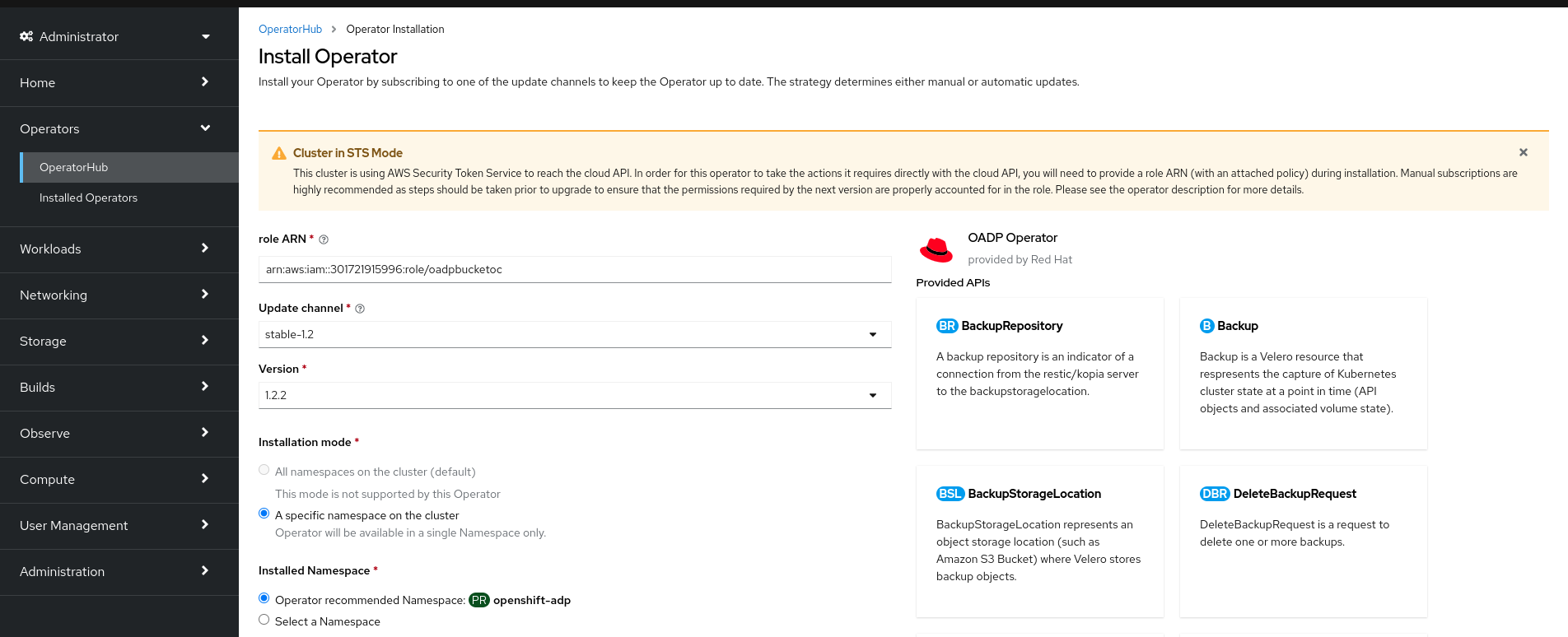
To create the role’s ARN, follow the procedure described in Preparing AWS account.
- If more than one update channel is available, select an Update channel.
Select Automatic or Manual approval strategy, as described earlier.
ImportantIf the web console shows that the cluster is in "STS mode", you must set Update approval to Manual.
Subscriptions with automatic update approvals are not recommended because there might be permission changes to make prior to updating. Subscriptions with manual update approvals ensure that administrators have the opportunity to verify the permissions of the later version and take any necessary steps prior to update.
Click Install to make the Operator available to the selected namespaces on this OpenShift Container Platform cluster.
If you selected a Manual approval strategy, the upgrade status of the subscription remains Upgrading until you review and approve the install plan.
After approving on the Install Plan page, the subscription upgrade status moves to Up to date.
- If you selected an Automatic approval strategy, the upgrade status should resolve to Up to date without intervention.
After the upgrade status of the subscription is Up to date, select Operators → Installed Operators to verify that the cluster service version (CSV) of the installed Operator eventually shows up. The Status should ultimately resolve to InstallSucceeded in the relevant namespace.
NoteFor the All namespaces… installation mode, the status resolves to InstallSucceeded in the
openshift-operatorsnamespace, but the status is Copied if you check in other namespaces.If it does not:
-
Check the logs in any pods in the
openshift-operatorsproject (or other relevant namespace if A specific namespace… installation mode was selected) on the Workloads → Pods page that are reporting issues to troubleshoot further.
-
Check the logs in any pods in the
11.5.2. Installing from OperatorHub by using the CLI
Instead of using the OpenShift Container Platform web console, you can install an Operator from OperatorHub by using the CLI. Use the oc command to create or update a Subscription object.
Prerequisites
-
Access to an OpenShift Container Platform cluster using an account with
cluster-adminpermissions. -
You have installed the OpenShift CLI (
oc).
Procedure
View the list of Operators available to the cluster from OperatorHub:
$ oc get packagemanifests -n openshift-marketplaceExample output
NAME CATALOG AGE 3scale-operator Red Hat Operators 91m advanced-cluster-management Red Hat Operators 91m amq7-cert-manager Red Hat Operators 91m ... couchbase-enterprise-certified Certified Operators 91m crunchy-postgres-operator Certified Operators 91m mongodb-enterprise Certified Operators 91m ... etcd Community Operators 91m jaeger Community Operators 91m kubefed Community Operators 91m ...Note the catalog for your desired Operator.
Inspect your desired Operator to verify its supported install modes and available channels:
$ oc describe packagemanifests <operator_name> -n openshift-marketplaceAn Operator group, defined by an
OperatorGroupobject, selects target namespaces in which to generate required RBAC access for all Operators in the same namespace as the Operator group.The namespace to which you subscribe the Operator must have an Operator group that matches the install mode of the Operator, either the
AllNamespacesorSingleNamespacemode. If the Operator you intend to install uses theAllNamespacesmode, theopenshift-operatorsnamespace already has the appropriateglobal-operatorsOperator group in place.However, if the Operator uses the
SingleNamespacemode and you do not already have an appropriate Operator group in place, you must create one.Note-
The web console version of this procedure handles the creation of the
OperatorGroupandSubscriptionobjects automatically behind the scenes for you when choosingSingleNamespacemode. - You can only have one Operator group per namespace. For more information, see "Operator groups".
Create an
OperatorGroupobject YAML file, for exampleoperatorgroup.yaml:Example
OperatorGroupobjectapiVersion: operators.coreos.com/v1 kind: OperatorGroup metadata: name: <operatorgroup_name> namespace: <namespace> spec: targetNamespaces: - <namespace>WarningOperator Lifecycle Manager (OLM) creates the following cluster roles for each Operator group:
-
<operatorgroup_name>-admin -
<operatorgroup_name>-edit -
<operatorgroup_name>-view
When you manually create an Operator group, you must specify a unique name that does not conflict with the existing cluster roles or other Operator groups on the cluster.
-
Create the
OperatorGroupobject:$ oc apply -f operatorgroup.yaml
-
The web console version of this procedure handles the creation of the
Create a
Subscriptionobject YAML file to subscribe a namespace to an Operator, for examplesub.yaml:Example
SubscriptionobjectapiVersion: operators.coreos.com/v1alpha1 kind: Subscription metadata: name: <subscription_name> namespace: openshift-operators1 spec: channel: <channel_name>2 name: <operator_name>3 source: redhat-operators4 sourceNamespace: openshift-marketplace5 config: env:6 - name: ARGS value: "-v=10" envFrom:7 - secretRef: name: license-secret volumes:8 - name: <volume_name> configMap: name: <configmap_name> volumeMounts:9 - mountPath: <directory_name> name: <volume_name> tolerations:10 - operator: "Exists" resources:11 requests: memory: "64Mi" cpu: "250m" limits: memory: "128Mi" cpu: "500m" nodeSelector:12 foo: bar- 1
- For default
AllNamespacesinstall mode usage, specify theopenshift-operatorsnamespace. Alternatively, you can specify a custom global namespace, if you have created one. Otherwise, specify the relevant single namespace forSingleNamespaceinstall mode usage. - 2
- Name of the channel to subscribe to.
- 3
- Name of the Operator to subscribe to.
- 4
- Name of the catalog source that provides the Operator.
- 5
- Namespace of the catalog source. Use
openshift-marketplacefor the default OperatorHub catalog sources. - 6
- The
envparameter defines a list of Environment Variables that must exist in all containers in the pod created by OLM. - 7
- The
envFromparameter defines a list of sources to populate Environment Variables in the container. - 8
- The
volumesparameter defines a list of Volumes that must exist on the pod created by OLM. - 9
- The
volumeMountsparameter defines a list of volume mounts that must exist in all containers in the pod created by OLM. If avolumeMountreferences avolumethat does not exist, OLM fails to deploy the Operator. - 10
- The
tolerationsparameter defines a list of Tolerations for the pod created by OLM. - 11
- The
resourcesparameter defines resource constraints for all the containers in the pod created by OLM. - 12
- The
nodeSelectorparameter defines aNodeSelectorfor the pod created by OLM.
If the cluster is in STS mode, include the following fields in the
Subscriptionobject:kind: Subscription # ... spec: installPlanApproval: Manual1 config: env: - name: ROLEARN value: "<role_arn>"2 - 1
- Subscriptions with automatic update approvals are not recommended because there might be permission changes to make prior to updating. Subscriptions with manual update approvals ensure that administrators have the opportunity to verify the permissions of the later version and take any necessary steps prior to update.
- 2
- Include the role ARN details.
Create the
Subscriptionobject:$ oc apply -f sub.yamlAt this point, OLM is now aware of the selected Operator. A cluster service version (CSV) for the Operator should appear in the target namespace, and APIs provided by the Operator should be available for creation.
Chapter 12. Changing the cloud provider credentials configuration
For supported configurations, you can change how OpenShift Container Platform authenticates with your cloud provider.
To determine which cloud credentials strategy your cluster uses, see Determining the Cloud Credential Operator mode.
12.1. Rotating or removing cloud provider credentials
After installing OpenShift Container Platform, some organizations require the rotation or removal of the cloud provider credentials that were used during the initial installation.
To allow the cluster to use the new credentials, you must update the secrets that the Cloud Credential Operator (CCO) uses to manage cloud provider credentials.
12.1.1. Rotating cloud provider credentials with the Cloud Credential Operator utility
The Cloud Credential Operator (CCO) utility ccoctl supports updating secrets for clusters installed on IBM Cloud®.
12.1.1.1. Rotating API keys
You can rotate API keys for your existing service IDs and update the corresponding secrets.
Prerequisites
-
You have configured the
ccoctlbinary. - You have existing service IDs in a live OpenShift Container Platform cluster installed.
Procedure
Use the
ccoctlutility to rotate your API keys for the service IDs and update the secrets:$ ccoctl <provider_name> refresh-keys \1 --kubeconfig <openshift_kubeconfig_file> \2 --credentials-requests-dir <path_to_credential_requests_directory> \3 --name <name>4 NoteIf your cluster uses Technology Preview features that are enabled by the
TechPreviewNoUpgradefeature set, you must include the--enable-tech-previewparameter.
12.1.2. Rotating cloud provider credentials manually
If your cloud provider credentials are changed for any reason, you must manually update the secret that the Cloud Credential Operator (CCO) uses to manage cloud provider credentials.
The process for rotating cloud credentials depends on the mode that the CCO is configured to use. After you rotate credentials for a cluster that is using mint mode, you must manually remove the component credentials that were created by the removed credential.
Prerequisites
Your cluster is installed on a platform that supports rotating cloud credentials manually with the CCO mode that you are using:
- For mint mode, Amazon Web Services (AWS) and Google Cloud are supported.
- For passthrough mode, Amazon Web Services (AWS), Microsoft Azure, Google Cloud, Red Hat OpenStack Platform (RHOSP), and VMware vSphere are supported.
- You have changed the credentials that are used to interface with your cloud provider.
- The new credentials have sufficient permissions for the mode CCO is configured to use in your cluster.
Procedure
- In the Administrator perspective of the web console, navigate to Workloads → Secrets.
In the table on the Secrets page, find the root secret for your cloud provider.
Expand Platform Secret name AWS
aws-credsAzure
azure-credentialsGoogle Cloud
gcp-credentialsRHOSP
openstack-credentialsVMware vSphere
vsphere-creds-
Click the Options menu
 in the same row as the secret and select Edit Secret.
- Record the contents of the Value field or fields. You can use this information to verify that the value is different after updating the credentials.
- Update the text in the Value field or fields with the new authentication information for your cloud provider, and then click Save.
If you are updating the credentials for a vSphere cluster that does not have the vSphere CSI Driver Operator enabled, you must force a rollout of the Kubernetes controller manager to apply the updated credentials.
NoteIf the vSphere CSI Driver Operator is enabled, this step is not required.
To apply the updated vSphere credentials, log in to the OpenShift Container Platform CLI as a user with the
cluster-adminrole and run the following command:$ oc patch kubecontrollermanager cluster \ -p='{"spec": {"forceRedeploymentReason": "recovery-'"$( date )"'"}}' \ --type=mergeWhile the credentials are rolling out, the status of the Kubernetes Controller Manager Operator reports
Progressing=true. To view the status, run the following command:$ oc get co kube-controller-managerIf the CCO for your cluster is configured to use mint mode, delete each component secret that is referenced by the individual
CredentialsRequestobjects.-
Log in to the OpenShift Container Platform CLI as a user with the
cluster-adminrole. Get the names and namespaces of all referenced component secrets:
$ oc -n openshift-cloud-credential-operator get CredentialsRequest \ -o json | jq -r '.items[] | select (.spec.providerSpec.kind=="<provider_spec>") | .spec.secretRef'where
<provider_spec>is the corresponding value for your cloud provider:-
AWS:
AWSProviderSpec -
Google Cloud:
GCPProviderSpec
Partial example output for AWS
{ "name": "ebs-cloud-credentials", "namespace": "openshift-cluster-csi-drivers" } { "name": "cloud-credential-operator-iam-ro-creds", "namespace": "openshift-cloud-credential-operator" }-
AWS:
Delete each of the referenced component secrets:
$ oc delete secret <secret_name> \1 -n <secret_namespace>2 Example deletion of an AWS secret
$ oc delete secret ebs-cloud-credentials -n openshift-cluster-csi-driversYou do not need to manually delete the credentials from your provider console. Deleting the referenced component secrets will cause the CCO to delete the existing credentials from the platform and create new ones.
-
Log in to the OpenShift Container Platform CLI as a user with the
Verification
To verify that the credentials have changed:
- In the Administrator perspective of the web console, navigate to Workloads → Secrets.
- Verify that the contents of the Value field or fields have changed.
12.1.3. Removing cloud provider credentials
For clusters that use the Cloud Credential Operator (CCO) in mint mode, the administrator-level credential is stored in the kube-system namespace. The CCO uses the admin credential to process the CredentialsRequest objects in the cluster and create users for components with limited permissions.
After installing an OpenShift Container Platform cluster with the CCO in mint mode, you can remove the administrator-level credential secret from the kube-system namespace in the cluster. The CCO only requires the administrator-level credential during changes that require reconciling new or modified CredentialsRequest custom resources, such as minor cluster version updates.
Before performing a minor version cluster update (for example, updating from OpenShift Container Platform 4.16 to 4.17), you must reinstate the credential secret with the administrator-level credential. If the credential is not present, the update might be blocked.
Prerequisites
- Your cluster is installed on a platform that supports removing cloud credentials from the CCO. Supported platforms are AWS and Google Cloud.
Procedure
- In the Administrator perspective of the web console, navigate to Workloads → Secrets.
In the table on the Secrets page, find the root secret for your cloud provider.
Expand Platform Secret name AWS
aws-credsGoogle Cloud
gcp-credentials-
Click the Options menu
in the same row as the secret and select Delete Secret.
12.2. Enabling token-based authentication
After installing an Microsoft Azure OpenShift Container Platform cluster, you can enable Microsoft Entra Workload ID to use short-term credentials.
12.2.1. Configuring the Cloud Credential Operator utility
To configure an existing cluster to create and manage cloud credentials from outside of the cluster, extract and prepare the Cloud Credential Operator utility (ccoctl) binary.
The ccoctl utility is a Linux binary that must run in a Linux environment.
Prerequisites
- You have access to an OpenShift Container Platform account with cluster administrator access.
-
You have installed the OpenShift CLI (
oc).
Procedure
Set a variable for the OpenShift Container Platform release image by running the following command:
$ RELEASE_IMAGE=$(oc get clusterversion -o jsonpath={..desired.image})Obtain the CCO container image from the OpenShift Container Platform release image by running the following command:
$ CCO_IMAGE=$(oc adm release info --image-for='cloud-credential-operator' $RELEASE_IMAGE -a ~/.pull-secret)NoteEnsure that the architecture of the
$RELEASE_IMAGEmatches the architecture of the environment in which you will use theccoctltool.Extract the
ccoctlbinary from the CCO container image within the OpenShift Container Platform release image by running the following command:$ oc image extract $CCO_IMAGE --file="/usr/bin/ccoctl" -a ~/.pull-secretChange the permissions to make
ccoctlexecutable by running the following command:$ chmod 775 ccoctl
Verification
To verify that
ccoctlis ready to use, display the help file. Use a relative file name when you run the command, for example:$ ./ccoctl.rhel9Example output
OpenShift credentials provisioning tool Usage: ccoctl [command] Available Commands: alibabacloud Manage credentials objects for alibaba cloud aws Manage credentials objects for AWS cloud azure Manage credentials objects for Azure gcp Manage credentials objects for Google cloud help Help about any command ibmcloud Manage credentials objects for IBM Cloud nutanix Manage credentials objects for Nutanix Flags: -h, --help help for ccoctl Use "ccoctl [command] --help" for more information about a command.
12.2.2. Enabling Microsoft Entra Workload ID on an existing cluster
If you did not configure your Microsoft Azure OpenShift Container Platform cluster to use Microsoft Entra Workload ID during installation, you can enable this authentication method on an existing cluster.
The process to enable Workload ID on an existing cluster is disruptive and takes a significant amount of time. Before proceeding, observe the following considerations:
- Read the following steps and ensure that you understand and accept the time requirement. The exact time requirement varies depending on the individual cluster, but it is likely to require at least one hour.
- During this process, you must refresh all service accounts and restart all pods on the cluster. These actions are disruptive to workloads. To mitigate this impact, you can temporarily halt these services and then redeploy them when the cluster is ready.
- After starting this process, do not attempt to update the cluster until it is complete. If an update is triggered, the process to enable Workload ID on an existing cluster fails.
Prerequisites
- You have installed an OpenShift Container Platform cluster on Microsoft Azure.
-
You have access to the cluster using an account with
cluster-adminpermissions. -
You have installed the OpenShift CLI (
oc). -
You have extracted and prepared the Cloud Credential Operator utility (
ccoctl) binary. -
You have access to your Azure account by using the Azure CLI (
az).
Procedure
-
Create an output directory for the manifests that the
ccoctlutility generates. This procedure uses./output_diras an example. Extract the service account public signing key for the cluster to the output directory by running the following command:
$ oc get configmap \ --namespace openshift-kube-apiserver bound-sa-token-signing-certs \ --output 'go-template={{index .data "service-account-001.pub"}}' > ./output_dir/serviceaccount-signer.public1 - 1
- This procedure uses a file named
serviceaccount-signer.publicas an example.
Use the extracted service account public signing key to create an OpenID Connect (OIDC) issuer and Azure blob storage container with OIDC configuration files by running the following command:
$ ./ccoctl azure create-oidc-issuer \ --name <azure_infra_name> \1 --output-dir ./output_dir \ --region <azure_region> \2 --subscription-id <azure_subscription_id> \3 --tenant-id <azure_tenant_id> \ --public-key-file ./output_dir/serviceaccount-signer.public4 - 1
- The value of the
nameparameter is used to create an Azure resource group. To use an existing Azure resource group instead of creating a new one, specify the--oidc-resource-group-nameargument with the existing group name as its value. - 2
- Specify the region of the existing cluster.
- 3
- Specify the subscription ID of the existing cluster.
- 4
- Specify the file that contains the service account public signing key for the cluster.
Verify that the configuration file for the Azure pod identity webhook was created by running the following command:
$ ll ./output_dir/manifestsExample output
total 8 -rw-------. 1 cloud-user cloud-user 193 May 22 02:29 azure-ad-pod-identity-webhook-config.yaml1 -rw-------. 1 cloud-user cloud-user 165 May 22 02:29 cluster-authentication-02-config.yaml- 1
- The file
azure-ad-pod-identity-webhook-config.yamlcontains the Azure pod identity webhook configuration.
Set an
OIDC_ISSUER_URLvariable with the OIDC issuer URL from the generated manifests in the output directory by running the following command:$ OIDC_ISSUER_URL=`awk '/serviceAccountIssuer/ { print $2 }' ./output_dir/manifests/cluster-authentication-02-config.yaml`Update the
spec.serviceAccountIssuerparameter of the clusterauthenticationconfiguration by running the following command:$ oc patch authentication cluster \ --type=merge \ -p "{\"spec\":{\"serviceAccountIssuer\":\"${OIDC_ISSUER_URL}\"}}"Monitor the configuration update progress by running the following command:
$ oc adm wait-for-stable-clusterThis process might take 15 minutes or longer. The following output indicates that the process is complete:
All clusteroperators are stableRestart all of the pods in the cluster by running the following command:
$ oc adm reboot-machine-config-pool mcp/worker mcp/masterRestarting a pod updates the
serviceAccountIssuerfield and refreshes the service account public signing key.Monitor the restart and update process by running the following command:
$ oc adm wait-for-node-reboot nodes --allThis process might take 15 minutes or longer. The following output indicates that the process is complete:
All nodes rebootedUpdate the Cloud Credential Operator
spec.credentialsModeparameter toManualby running the following command:$ oc patch cloudcredential cluster \ --type=merge \ --patch '{"spec":{"credentialsMode":"Manual"}}'Extract the list of
CredentialsRequestobjects from the OpenShift Container Platform release image by running the following command:$ oc adm release extract \ --credentials-requests \ --included \ --to <path_to_directory_for_credentials_requests> \ --registry-config ~/.pull-secretNoteThis command might take a few moments to run.
Set an
AZURE_INSTALL_RGvariable with the Azure resource group name by running the following command:$ AZURE_INSTALL_RG=`oc get infrastructure cluster -o jsonpath --template '{ .status.platformStatus.azure.resourceGroupName }'`Use the
ccoctlutility to create managed identities for allCredentialsRequestobjects by running the following command:NoteThe following command does not show all available options. For a complete list of options, including those that might be necessary for your specific use case, run
$ ccoctl azure create-managed-identities --help.$ ccoctl azure create-managed-identities \ --name <azure_infra_name> \ --output-dir ./output_dir \ --region <azure_region> \ --subscription-id <azure_subscription_id> \ --credentials-requests-dir <path_to_directory_for_credentials_requests> \ --issuer-url "${OIDC_ISSUER_URL}" \ --dnszone-resource-group-name <azure_dns_zone_resourcegroup_name> \1 --installation-resource-group-name "${AZURE_INSTALL_RG}" \ --network-resource-group-name <azure_resource_group>2 Apply the Azure pod identity webhook configuration for Workload ID by running the following command:
$ oc apply -f ./output_dir/manifests/azure-ad-pod-identity-webhook-config.yamlApply the secrets generated by the
ccoctlutility by running the following command:$ find ./output_dir/manifests -iname "openshift*yaml" -print0 | xargs -I {} -0 -t oc replace -f {}This process might take several minutes.
Restart all of the pods in the cluster by running the following command:
$ oc adm reboot-machine-config-pool mcp/worker mcp/masterRestarting a pod updates the
serviceAccountIssuerfield and refreshes the service account public signing key.Monitor the restart and update process by running the following command:
$ oc adm wait-for-node-reboot nodes --allThis process might take 15 minutes or longer. The following output indicates that the process is complete:
All nodes rebootedMonitor the configuration update progress by running the following command:
$ oc adm wait-for-stable-clusterThis process might take 15 minutes or longer. The following output indicates that the process is complete:
All clusteroperators are stableOptional: Remove the Azure root credentials secret by running the following command:
$ oc delete secret -n kube-system azure-credentials
/validating-an-installation.adoc
12.2.3. Verifying that a cluster uses short-term credentials
You can verify that a cluster uses short-term security credentials for individual components by checking the Cloud Credential Operator (CCO) configuration and other values in the cluster.
Prerequisites
-
You deployed an OpenShift Container Platform cluster using the Cloud Credential Operator utility (
ccoctl) to implement short-term credentials. -
You installed the OpenShift CLI (
oc). -
You are logged in as a user with
cluster-adminprivileges.
Procedure
Verify that the CCO is configured to operate in manual mode by running the following command:
$ oc get cloudcredentials cluster \ -o=jsonpath={.spec.credentialsMode}The following output confirms that the CCO is operating in manual mode:
Example output
ManualVerify that the cluster does not have
rootcredentials by running the following command:$ oc get secrets \ -n kube-system <secret_name>where
<secret_name>is the name of the root secret for your cloud provider.Expand Platform Secret name Amazon Web Services (AWS)
aws-credsMicrosoft Azure
azure-credentialsGoogle Cloud
gcp-credentialsAn error confirms that the root secret is not present on the cluster.
Example output for an AWS cluster
Error from server (NotFound): secrets "aws-creds" not foundVerify that the components are using short-term security credentials for individual components by running the following command:
$ oc get authentication cluster \ -o jsonpath \ --template='{ .spec.serviceAccountIssuer }'This command displays the value of the
.spec.serviceAccountIssuerparameter in the clusterAuthenticationobject. An output of a URL that is associated with your cloud provider indicates that the cluster is using manual mode with short-term credentials that are created and managed from outside of the cluster.Azure clusters: Verify that the components are assuming the Azure client ID that is specified in the secret manifests by running the following command:
$ oc get secrets \ -n openshift-image-registry installer-cloud-credentials \ -o jsonpath='{.data}'An output that contains the
azure_client_idandazure_federated_token_filefelids confirms that the components are assuming the Azure client ID.Azure clusters: Verify that the pod identity webhook is running by running the following command:
$ oc get pods \ -n openshift-cloud-credential-operatorExample output
NAME READY STATUS RESTARTS AGE cloud-credential-operator-59cf744f78-r8pbq 2/2 Running 2 71m pod-identity-webhook-548f977b4c-859lz 1/1 Running 1 70m
Chapter 13. Configuring alert notifications
In OpenShift Container Platform, an alert is fired when the conditions defined in an alerting rule are true. An alert provides a notification that a set of circumstances are apparent within a cluster. Firing alerts can be viewed in the Alerting UI in the OpenShift Container Platform web console by default. After an installation, you can configure OpenShift Container Platform to send alert notifications to external systems.
13.1. Sending notifications to external systems
In OpenShift Container Platform 4.14, firing alerts can be viewed in the Alerting UI. Alerts are not configured by default to be sent to any notification systems. You can configure OpenShift Container Platform to send alerts to the following receiver types:
- PagerDuty
- Webhook
- Slack
Routing alerts to receivers enables you to send timely notifications to the appropriate teams when failures occur. For example, critical alerts require immediate attention and are typically paged to an individual or a critical response team. Alerts that provide non-critical warning notifications might instead be routed to a ticketing system for non-immediate review.
Checking that alerting is operational by using the watchdog alert
OpenShift Container Platform monitoring includes a watchdog alert that fires continuously. Alertmanager repeatedly sends watchdog alert notifications to configured notification providers. The provider is usually configured to notify an administrator when it stops receiving the watchdog alert. This mechanism helps you quickly identify any communication issues between Alertmanager and the notification provider.
13.1.1. Configuring alert routing with the OpenShift Container Platform web console
You can configure alert routing through the OpenShift Container Platform web console to ensure that you learn about important issues with your cluster.
The OpenShift Container Platform web console provides fewer settings to configure alert routing than the alertmanager-main secret. To configure alert routing with the access to more configuration settings, see "Configuring alert routing for default platform alerts".
Prerequisites
-
You have access to the cluster as a user with the
cluster-admincluster role.
Procedure
In the Administrator perspective, go to Administration → Cluster Settings → Configuration → Alertmanager.
NoteAlternatively, you can go to the same page through the notification drawer. Select the bell icon at the top right of the OpenShift Container Platform web console and choose Configure in the AlertmanagerReceiverNotConfigured alert.
- Click Create Receiver in the Receivers section of the page.
- In the Create Receiver form, add a Receiver name and choose a Receiver type from the list.
Edit the receiver configuration:
For PagerDuty receivers:
- Choose an integration type and add a PagerDuty integration key.
- Add the URL of your PagerDuty installation.
- Click Show advanced configuration if you want to edit the client and incident details or the severity specification.
For webhook receivers:
- Add the endpoint to send HTTP POST requests to.
- Click Show advanced configuration if you want to edit the default option to send resolved alerts to the receiver.
For email receivers:
- Add the email address to send notifications to.
Add SMTP configuration details, including the address to send notifications from, the smarthost and port number used for sending emails, the hostname of the SMTP server, and authentication details.
ImportantAlertmanager requires an external SMTP server to send email alerts. To configure email alert receivers, ensure you have the necessary connection details for an external SMTP server.
- Select whether TLS is required.
- Click Show advanced configuration if you want to edit the default option not to send resolved alerts to the receiver or edit the body of email notifications configuration.
For Slack receivers:
- Add the URL of the Slack webhook.
- Add the Slack channel or user name to send notifications to.
- Select Show advanced configuration if you want to edit the default option not to send resolved alerts to the receiver or edit the icon and username configuration. You can also choose whether to find and link channel names and usernames.
By default, firing alerts with labels that match all of the selectors are sent to the receiver. If you want label values for firing alerts to be matched exactly before they are sent to the receiver, perform the following steps:
- Add routing label names and values in the Routing labels section of the form.
- Click Add label to add further routing labels.
- Click Create to create the receiver.
Chapter 14. Converting a connected cluster to a disconnected cluster
There might be some scenarios where you need to convert your OpenShift Container Platform cluster from a connected cluster to a disconnected cluster.
A disconnected cluster, also known as a restricted cluster, does not have an active connection to the internet. As such, you must mirror the contents of your registries and installation media. You can create this mirror registry on a host that can access both the internet and your closed network, or copy images to a device that you can move across network boundaries.
This topic describes the general process for converting an existing, connected cluster into a disconnected cluster.
14.1. About the mirror registry
You can mirror the images that are required for OpenShift Container Platform installation and subsequent product updates to a container mirror registry such as Red Hat Quay, JFrog Artifactory, Sonatype Nexus Repository, or Harbor. If you do not have access to a large-scale container registry, you can use the mirror registry for Red Hat OpenShift, a small-scale container registry included with OpenShift Container Platform subscriptions.
You can use any container registry that supports Docker v2-2, such as Red Hat Quay, the mirror registry for Red Hat OpenShift, Artifactory, Sonatype Nexus Repository, or Harbor. Regardless of your chosen registry, the procedure to mirror content from Red Hat hosted sites on the internet to an isolated image registry is the same. After you mirror the content, you configure each cluster to retrieve this content from your mirror registry.
The OpenShift image registry cannot be used as the target registry because it does not support pushing without a tag, which is required during the mirroring process.
If choosing a container registry that is not the mirror registry for Red Hat OpenShift, it must be reachable by every machine in the clusters that you provision. If the registry is unreachable, installation, updating, or normal operations such as workload relocation might fail. For that reason, you must run mirror registries in a highly available way, and the mirror registries must at least match the production availability of your OpenShift Container Platform clusters.
When you populate your mirror registry with OpenShift Container Platform images, you can follow two scenarios. If you have a host that can access both the internet and your mirror registry, but not your cluster nodes, you can directly mirror the content from that machine. This process is referred to as connected mirroring. If you have no such host, you must mirror the images to a file system and then bring that host or removable media into your restricted environment. This process is referred to as disconnected mirroring.
For mirrored registries, to view the source of pulled images, you must review the Trying to access log entry in the CRI-O logs. Other methods to view the image pull source, such as using the crictl images command on a node, show the non-mirrored image name, even though the image is pulled from the mirrored location.
Red Hat does not test third party registries with OpenShift Container Platform.
14.2. Prerequisites
-
The
occlient is installed. - A running cluster.
An installed mirror registry, which is a container image registry that supports Docker v2-2 in the location that will host the OpenShift Container Platform cluster, such as one of the following registries:
If you have an subscription to Red Hat Quay, see the documentation on deploying Red Hat Quay for proof-of-concept purposes or by using the Quay Operator.
- The mirror repository must be configured to share images. For example, a Red Hat Quay repository requires Organizations in order to share images.
- Access to the internet to obtain the necessary container images.
14.3. Preparing the cluster for mirroring
Before disconnecting your cluster, you must mirror, or copy, the images to a mirror registry that is reachable by every node in your disconnected cluster. In order to mirror the images, you must prepare your cluster by:
- Adding the mirror registry certificates to the list of trusted CAs on your host.
-
Creating a
.dockerconfigjsonfile that contains your image pull secret, which is from thecloud.openshift.comtoken.
Procedure
Configuring credentials that allow image mirroring:
Add the CA certificate for the mirror registry, in the simple PEM or DER file formats, to the list of trusted CAs. For example:
$ cp </path/to/cert.crt> /usr/share/pki/ca-trust-source/anchors/- where,
</path/to/cert.crt> - Specifies the path to the certificate on your local file system.
- where,
Update the CA trust. For example, in Linux:
$ update-ca-trustExtract the
.dockerconfigjsonfile from the global pull secret:$ oc extract secret/pull-secret -n openshift-config --confirm --to=.Example output
.dockerconfigjsonEdit the
.dockerconfigjsonfile to add your mirror registry and authentication credentials and save it as a new file:{"auths":{"<local_registry>": {"auth": "<credentials>","email": "you@example.com"}}},"<registry>:<port>/<namespace>/":{"auth":"<token>"}}}where:
<local_registry>- Specifies the registry domain name, and optionally the port, that your mirror registry uses to serve content.
auth- Specifies the base64-encoded user name and password for your mirror registry.
<registry>:<port>/<namespace>- Specifies the mirror registry details.
<token>Specifies the base64-encoded
username:passwordfor your mirror registry.For example:
$ {"auths":{"cloud.openshift.com":{"auth":"b3BlbnNoaWZ0Y3UjhGOVZPT0lOMEFaUjdPUzRGTA==","email":"user@example.com"}, "quay.io":{"auth":"b3BlbnNoaWZ0LXJlbGVhc2UtZGOVZPT0lOMEFaUGSTd4VGVGVUjdPUzRGTA==","email":"user@example.com"}, "registry.connect.redhat.com"{"auth":"NTE3MTMwNDB8dWhjLTFEZlN3VHkxOSTd4VGVGVU1MdTpleUpoYkdjaUailA==","email":"user@example.com"}, "registry.redhat.io":{"auth":"NTE3MTMwNDB8dWhjLTFEZlN3VH3BGSTd4VGVGVU1MdTpleUpoYkdjaU9fZw==","email":"user@example.com"}, "registry.svc.ci.openshift.org":{"auth":"dXNlcjpyWjAwWVFjSEJiT2RKVW1pSmg4dW92dGp1SXRxQ3RGN1pwajJhN1ZXeTRV"},"my-registry:5000/my-namespace/":{"auth":"dXNlcm5hbWU6cGFzc3dvcmQ="}}}
14.4. Mirroring the images
After the cluster is properly configured, you can mirror the images from your external repositories to the mirror repository.
Procedure
Mirror the Operator Lifecycle Manager (OLM) images:
$ oc adm catalog mirror registry.redhat.io/redhat/redhat-operator-index:v{product-version} <mirror_registry>:<port>/olm -a <reg_creds>where:
product-version-
Specifies the tag that corresponds to the version of OpenShift Container Platform to install, such as
4.8. mirror_registry-
Specifies the fully qualified domain name (FQDN) for the target registry and namespace to mirror the Operator content to, where
<namespace>is any existing namespace on the registry. reg_creds-
Specifies the location of your modified
.dockerconfigjsonfile.
For example:
$ oc adm catalog mirror registry.redhat.io/redhat/redhat-operator-index:v4.8 mirror.registry.com:443/olm -a ./.dockerconfigjson --index-filter-by-os='.*'Mirror the content for any other Red Hat-provided Operator:
$ oc adm catalog mirror <index_image> <mirror_registry>:<port>/<namespace> -a <reg_creds>where:
index_image- Specifies the index image for the catalog that you want to mirror.
mirror_registry-
Specifies the FQDN for the target registry and namespace to mirror the Operator content to, where
<namespace>is any existing namespace on the registry. reg_creds- Optional: Specifies the location of your registry credentials file, if required.
For example:
$ oc adm catalog mirror registry.redhat.io/redhat/community-operator-index:v4.8 mirror.registry.com:443/olm -a ./.dockerconfigjson --index-filter-by-os='.*'Mirror the OpenShift Container Platform image repository:
$ oc adm release mirror -a .dockerconfigjson --from=quay.io/openshift-release-dev/ocp-release:v<product-version>-<architecture> --to=<local_registry>/<local_repository> --to-release-image=<local_registry>/<local_repository>:v<product-version>-<architecture>where:
product-version-
Specifies the tag that corresponds to the version of OpenShift Container Platform to install, such as
4.8.15-x86_64. architecture-
Specifies the type of architecture for your server, such as
x86_64. local_registry- Specifies the registry domain name for your mirror repository.
local_repository-
Specifies the name of the repository to create in your registry, such as
ocp4/openshift4.
For example:
$ oc adm release mirror -a .dockerconfigjson --from=quay.io/openshift-release-dev/ocp-release:4.8.15-x86_64 --to=mirror.registry.com:443/ocp/release --to-release-image=mirror.registry.com:443/ocp/release:4.8.15-x86_64Example output
info: Mirroring 109 images to mirror.registry.com/ocp/release ... mirror.registry.com:443/ ocp/release manifests: sha256:086224cadce475029065a0efc5244923f43fb9bb3bb47637e0aaf1f32b9cad47 -> 4.8.15-x86_64-thanos sha256:0a214f12737cb1cfbec473cc301aa2c289d4837224c9603e99d1e90fc00328db -> 4.8.15-x86_64-kuryr-controller sha256:0cf5fd36ac4b95f9de506623b902118a90ff17a07b663aad5d57c425ca44038c -> 4.8.15-x86_64-pod sha256:0d1c356c26d6e5945a488ab2b050b75a8b838fc948a75c0fa13a9084974680cb -> 4.8.15-x86_64-kube-client-agent ….. sha256:66e37d2532607e6c91eedf23b9600b4db904ce68e92b43c43d5b417ca6c8e63c mirror.registry.com:443/ocp/release:4.5.41-multus-admission-controller sha256:d36efdbf8d5b2cbc4dcdbd64297107d88a31ef6b0ec4a39695915c10db4973f1 mirror.registry.com:443/ocp/release:4.5.41-cluster-kube-scheduler-operator sha256:bd1baa5c8239b23ecdf76819ddb63cd1cd6091119fecdbf1a0db1fb3760321a2 mirror.registry.com:443/ocp/release:4.5.41-aws-machine-controllers info: Mirroring completed in 2.02s (0B/s) Success Update image: mirror.registry.com:443/ocp/release:4.5.41-x86_64 Mirror prefix: mirror.registry.com:443/ocp/releaseMirror any other registries, as needed:
$ oc image mirror <online_registry>/my/image:latest <mirror_registry>
Additional information
- For more information about mirroring Operator catalogs, see Mirroring an Operator catalog.
-
For more information about the
oc adm catalog mirrorcommand, see the OpenShift CLI administrator command reference.
14.5. Configuring the cluster for the mirror registry
After creating and mirroring the images to the mirror registry, you must modify your cluster so that pods can pull images from the mirror registry.
You must:
- Add the mirror registry credentials to the global pull secret.
- Add the mirror registry server certificate to the cluster.
Create an
ImageContentSourcePolicycustom resource (ICSP), which associates the mirror registry with the source registry.Add mirror registry credential to the cluster global pull-secret:
$ oc set data secret/pull-secret -n openshift-config --from-file=.dockerconfigjson=<pull_secret_location>1 - 1
- Provide the path to the new pull secret file.
For example:
$ oc set data secret/pull-secret -n openshift-config --from-file=.dockerconfigjson=.mirrorsecretconfigjsonAdd the CA-signed mirror registry server certificate to the nodes in the cluster:
Create a config map that includes the server certificate for the mirror registry
$ oc create configmap <config_map_name> --from-file=<mirror_address_host>..<port>=$path/ca.crt -n openshift-configFor example:
S oc create configmap registry-config --from-file=mirror.registry.com..443=/root/certs/ca-chain.cert.pem -n openshift-configUse the config map to update the
image.config.openshift.io/clustercustom resource (CR). OpenShift Container Platform applies the changes to this CR to all nodes in the cluster:$ oc patch image.config.openshift.io/cluster --patch '{"spec":{"additionalTrustedCA":{"name":"<config_map_name>"}}}' --type=mergeFor example:
$ oc patch image.config.openshift.io/cluster --patch '{"spec":{"additionalTrustedCA":{"name":"registry-config"}}}' --type=merge
Create an ICSP to redirect container pull requests from the online registries to the mirror registry:
Create the
ImageContentSourcePolicycustom resource:apiVersion: operator.openshift.io/v1alpha1 kind: ImageContentSourcePolicy metadata: name: mirror-ocp spec: repositoryDigestMirrors: - mirrors: - mirror.registry.com:443/ocp/release1 source: quay.io/openshift-release-dev/ocp-release2 - mirrors: - mirror.registry.com:443/ocp/release source: quay.io/openshift-release-dev/ocp-v4.0-art-devCreate the ICSP object:
$ oc create -f registryrepomirror.yamlExample output
imagecontentsourcepolicy.operator.openshift.io/mirror-ocp createdOpenShift Container Platform applies the changes to this CR to all nodes in the cluster.
Verify that the credentials, CA, and ICSP for mirror registry were added:
Log into a node:
$ oc debug node/<node_name>Set
/hostas the root directory within the debug shell:sh-4.4# chroot /hostCheck the
config.jsonfile for the credentials:sh-4.4# cat /var/lib/kubelet/config.jsonExample output
{"auths":{"brew.registry.redhat.io":{"xx=="},"brewregistry.stage.redhat.io":{"auth":"xxx=="},"mirror.registry.com:443":{"auth":"xx="}}}1 - 1
- Ensure that the mirror registry and credentials are present.
Change to the
certs.ddirectorysh-4.4# cd /etc/docker/certs.d/List the certificates in the
certs.ddirectory:sh-4.4# lsExample output
image-registry.openshift-image-registry.svc.cluster.local:5000 image-registry.openshift-image-registry.svc:5000 mirror.registry.com:4431 - 1
- Ensure that the mirror registry is in the list.
Check that the ICSP added the mirror registry to the
registries.conffile:sh-4.4# cat /etc/containers/registries.confExample output
unqualified-search-registries = ["registry.access.redhat.com", "docker.io"] [[registry]] prefix = "" location = "quay.io/openshift-release-dev/ocp-release" mirror-by-digest-only = true [[registry.mirror]] location = "mirror.registry.com:443/ocp/release" [[registry]] prefix = "" location = "quay.io/openshift-release-dev/ocp-v4.0-art-dev" mirror-by-digest-only = true [[registry.mirror]] location = "mirror.registry.com:443/ocp/release"The
registry.mirrorparameters indicate that the mirror registry is searched before the original registry.Exit the node.
sh-4.4# exit
14.6. Ensure applications continue to work
Before disconnecting the cluster from the network, ensure that your cluster is working as expected and all of your applications are working as expected.
Procedure
Use the following commands to check the status of your cluster:
Ensure your pods are running:
$ oc get pods --all-namespacesExample output
NAMESPACE NAME READY STATUS RESTARTS AGE kube-system apiserver-watcher-ci-ln-47ltxtb-f76d1-mrffg-master-0 1/1 Running 0 39m kube-system apiserver-watcher-ci-ln-47ltxtb-f76d1-mrffg-master-1 1/1 Running 0 39m kube-system apiserver-watcher-ci-ln-47ltxtb-f76d1-mrffg-master-2 1/1 Running 0 39m openshift-apiserver-operator openshift-apiserver-operator-79c7c646fd-5rvr5 1/1 Running 3 45m openshift-apiserver apiserver-b944c4645-q694g 2/2 Running 0 29m openshift-apiserver apiserver-b944c4645-shdxb 2/2 Running 0 31m openshift-apiserver apiserver-b944c4645-x7rf2 2/2 Running 0 33m ...Ensure your nodes are in the READY status:
$ oc get nodesExample output
NAME STATUS ROLES AGE VERSION ci-ln-47ltxtb-f76d1-mrffg-master-0 Ready master 42m v1.27.3 ci-ln-47ltxtb-f76d1-mrffg-master-1 Ready master 42m v1.27.3 ci-ln-47ltxtb-f76d1-mrffg-master-2 Ready master 42m v1.27.3 ci-ln-47ltxtb-f76d1-mrffg-worker-a-gsxbz Ready worker 35m v1.27.3 ci-ln-47ltxtb-f76d1-mrffg-worker-b-5qqdx Ready worker 35m v1.27.3 ci-ln-47ltxtb-f76d1-mrffg-worker-c-rjkpq Ready worker 34m v1.27.3
14.7. Disconnect the cluster from the network
After mirroring all the required repositories and configuring your cluster to work as a disconnected cluster, you can disconnect the cluster from the network.
The Insights Operator is degraded when the cluster loses its Internet connection. You can avoid this problem by temporarily disabling the Insights Operator until you can restore it.
14.8. Restoring a degraded Insights Operator
Disconnecting the cluster from the network necessarily causes the cluster to lose the Internet connection. The Insights Operator becomes degraded because it requires access to Red Hat Insights.
This topic describes how to recover from a degraded Insights Operator.
Procedure
Edit your
.dockerconfigjsonfile to remove thecloud.openshift.comentry, for example:"cloud.openshift.com":{"auth":"<hash>","email":"user@example.com"}- Save the file.
Update the cluster secret with the edited
.dockerconfigjsonfile:$ oc set data secret/pull-secret -n openshift-config --from-file=.dockerconfigjson=./.dockerconfigjsonVerify that the Insights Operator is no longer degraded:
$ oc get co insightsExample output
NAME VERSION AVAILABLE PROGRESSING DEGRADED SINCE insights 4.5.41 True False False 3d
14.9. Restoring the network
If you want to reconnect a disconnected cluster and pull images from online registries, delete the cluster’s ImageContentSourcePolicy (ICSP) objects. Without the ICSP, pull requests to external registries are no longer redirected to the mirror registry.
Procedure
View the ICSP objects in your cluster:
$ oc get imagecontentsourcepolicyExample output
NAME AGE mirror-ocp 6d20h ocp4-index-0 6d18h qe45-index-0 6d15hDelete all the ICSP objects you created when disconnecting your cluster:
$ oc delete imagecontentsourcepolicy <icsp_name> <icsp_name> <icsp_name>For example:
$ oc delete imagecontentsourcepolicy mirror-ocp ocp4-index-0 qe45-index-0Example output
imagecontentsourcepolicy.operator.openshift.io "mirror-ocp" deleted imagecontentsourcepolicy.operator.openshift.io "ocp4-index-0" deleted imagecontentsourcepolicy.operator.openshift.io "qe45-index-0" deletedWait for all the nodes to restart and return to the READY status and verify that the
registries.conffile is pointing to the original registries and not the mirror registries:Log into a node:
$ oc debug node/<node_name>Set
/hostas the root directory within the debug shell:sh-4.4# chroot /hostExamine the
registries.conffile:sh-4.4# cat /etc/containers/registries.confExample output
unqualified-search-registries = ["registry.access.redhat.com", "docker.io"]1 - 1
- The
registryandregistry.mirrorentries created by the ICSPs you deleted are removed.
Chapter 15. Enabling cluster capabilities
Cluster administrators can enable cluster capabilities that were disabled prior to installation.
Cluster administrators cannot disable a cluster capability after it is enabled.
15.1. Viewing the cluster capabilities
As a cluster administrator, you can view the capabilities by using the clusterversion resource status.
Prerequisites
-
You have installed the OpenShift CLI (
oc).
Procedure
To view the status of the cluster capabilities, run the following command:
$ oc get clusterversion version -o jsonpath='{.spec.capabilities}{"\n"}{.status.capabilities}{"\n"}'Example output
{"additionalEnabledCapabilities":["openshift-samples"],"baselineCapabilitySet":"None"} {"enabledCapabilities":["openshift-samples"],"knownCapabilities":["CSISnapshot","Console","Insights","Storage","baremetal","marketplace","openshift-samples"]}
15.2. Enabling the cluster capabilities by setting baseline capability set
As a cluster administrator, you can enable the capabilities by setting baselineCapabilitySet.
Prerequisites
-
You have installed the OpenShift CLI (
oc).
Procedure
To set the
baselineCapabilitySet, run the following command:$ oc patch clusterversion version --type merge -p '{"spec":{"capabilities":{"baselineCapabilitySet":"vCurrent"}}}'1 - 1
- For
baselineCapabilitySetyou can specifyvCurrent,v4.14, orNone.
The following table describes the baselineCapabilitySet values.
| Value | Description |
|---|---|
|
| Specify this option when you want to automatically add new, default capabilities that are introduced in new releases. |
|
|
Specify this option when you want to enable the default capabilities for OpenShift Container Platform 4.11. By specifying |
|
|
Specify this option when you want to enable the default capabilities for OpenShift Container Platform 4.12. By specifying |
|
|
Specify this option when you want to enable the default capabilities for OpenShift Container Platform 4.13. By specifying |
|
|
Specify this option when you want to enable the default capabilities for OpenShift Container Platform 4.14. By specifying |
|
|
Specify when the other sets are too large, and you do not need any capabilities or want to fine-tune via |
15.3. Enabling the cluster capabilities by setting additional enabled capabilities
As a cluster administrator, you can enable the cluster capabilities by setting additionalEnabledCapabilities.
Prerequisites
-
You have installed the OpenShift CLI (
oc).
Procedure
View the additional enabled capabilities by running the following command:
$ oc get clusterversion version -o jsonpath='{.spec.capabilities.additionalEnabledCapabilities}{"\n"}'Example output
["openshift-samples"]To set the
additionalEnabledCapabilities, run the following command:$ oc patch clusterversion/version --type merge -p '{"spec":{"capabilities":{"additionalEnabledCapabilities":["openshift-samples", "marketplace"]}}}'
It is not possible to disable a capability which is already enabled in a cluster. The cluster version Operator (CVO) continues to reconcile the capability which is already enabled in the cluster.
If you try to disable a capability, then CVO shows the divergent spec:
$ oc get clusterversion version -o jsonpath='{.status.conditions[?(@.type=="ImplicitlyEnabledCapabilities")]}{"\n"}'Example output
{"lastTransitionTime":"2022-07-22T03:14:35Z","message":"The following capabilities could not be disabled: openshift-samples","reason":"CapabilitiesImplicitlyEnabled","status":"True","type":"ImplicitlyEnabledCapabilities"}
During the cluster upgrades, it is possible that a given capability could be implicitly enabled. If a resource was already running on the cluster before the upgrade, then any capabilities that is part of the resource will be enabled. For example, during a cluster upgrade, a resource that is already running on the cluster has been changed to be part of the marketplace capability by the system. Even if a cluster administrator does not explicitly enabled the marketplace capability, it is implicitly enabled by the system.
Chapter 16. Configuring additional devices in an IBM Z or IBM LinuxONE environment
After installing OpenShift Container Platform, you can configure additional devices for your cluster in an IBM Z® or IBM® LinuxONE environment, which is installed with z/VM. The following devices can be configured:
- Fibre Channel Protocol (FCP) host
- FCP LUN
- DASD
- qeth
You can configure devices by adding udev rules using the Machine Config Operator (MCO) or you can configure devices manually.
The procedures described here apply only to z/VM installations. If you have installed your cluster with RHEL KVM on IBM Z® or IBM® LinuxONE infrastructure, no additional configuration is needed inside the KVM guest after the devices were added to the KVM guests. However, both in z/VM and RHEL KVM environments the next steps to configure the Local Storage Operator and Kubernetes NMState Operator need to be applied.
16.1. Configuring additional devices using the Machine Config Operator (MCO)
Tasks in this section describe how to use features of the Machine Config Operator (MCO) to configure additional devices in an IBM Z® or IBM® LinuxONE environment. Configuring devices with the MCO is persistent but only allows specific configurations for compute nodes. MCO does not allow control plane nodes to have different configurations.
Prerequisites
- You are logged in to the cluster as a user with administrative privileges.
- The device must be available to the z/VM guest.
- The device is already attached.
-
The device is not included in the
cio_ignorelist, which can be set in the kernel parameters. You have created a
MachineConfigobject file with the following YAML:apiVersion: machineconfiguration.openshift.io/v1 kind: MachineConfigPool metadata: name: worker0 spec: machineConfigSelector: matchExpressions: - {key: machineconfiguration.openshift.io/role, operator: In, values: [worker,worker0]} nodeSelector: matchLabels: node-role.kubernetes.io/worker0: ""
16.1.1. Configuring a Fibre Channel Protocol (FCP) host
The following is an example of how to configure an FCP host adapter with N_Port Identifier Virtualization (NPIV) by adding a udev rule.
Procedure
Take the following sample udev rule
441-zfcp-host-0.0.8000.rules:ACTION=="add", SUBSYSTEM=="ccw", KERNEL=="0.0.8000", DRIVER=="zfcp", GOTO="cfg_zfcp_host_0.0.8000" ACTION=="add", SUBSYSTEM=="drivers", KERNEL=="zfcp", TEST=="[ccw/0.0.8000]", GOTO="cfg_zfcp_host_0.0.8000" GOTO="end_zfcp_host_0.0.8000" LABEL="cfg_zfcp_host_0.0.8000" ATTR{[ccw/0.0.8000]online}="1" LABEL="end_zfcp_host_0.0.8000"Convert the rule to Base64 encoded by running the following command:
$ base64 /path/to/file/Copy the following MCO sample profile into a YAML file:
apiVersion: machineconfiguration.openshift.io/v1 kind: MachineConfig metadata: labels: machineconfiguration.openshift.io/role: worker01 name: 99-worker0-devices spec: config: ignition: version: 3.2.0 storage: files: - contents: source: data:text/plain;base64,<encoded_base64_string>2 filesystem: root mode: 420 path: /etc/udev/rules.d/41-zfcp-host-0.0.8000.rules3
16.1.2. Configuring an FCP LUN
The following is an example of how to configure an FCP LUN by adding a udev rule. You can add new FCP LUNs or add additional paths to LUNs that are already configured with multipathing.
Procedure
Take the following sample udev rule
41-zfcp-lun-0.0.8000:0x500507680d760026:0x00bc000000000000.rules:ACTION=="add", SUBSYSTEMS=="ccw", KERNELS=="0.0.8000", GOTO="start_zfcp_lun_0.0.8207" GOTO="end_zfcp_lun_0.0.8000" LABEL="start_zfcp_lun_0.0.8000" SUBSYSTEM=="fc_remote_ports", ATTR{port_name}=="0x500507680d760026", GOTO="cfg_fc_0.0.8000_0x500507680d760026" GOTO="end_zfcp_lun_0.0.8000" LABEL="cfg_fc_0.0.8000_0x500507680d760026" ATTR{[ccw/0.0.8000]0x500507680d760026/unit_add}="0x00bc000000000000" GOTO="end_zfcp_lun_0.0.8000" LABEL="end_zfcp_lun_0.0.8000"Convert the rule to Base64 encoded by running the following command:
$ base64 /path/to/file/Copy the following MCO sample profile into a YAML file:
apiVersion: machineconfiguration.openshift.io/v1 kind: MachineConfig metadata: labels: machineconfiguration.openshift.io/role: worker01 name: 99-worker0-devices spec: config: ignition: version: 3.2.0 storage: files: - contents: source: data:text/plain;base64,<encoded_base64_string>2 filesystem: root mode: 420 path: /etc/udev/rules.d/41-zfcp-lun-0.0.8000:0x500507680d760026:0x00bc000000000000.rules3
16.1.3. Configuring DASD
The following is an example of how to configure a DASD device by adding a udev rule.
Procedure
Take the following sample udev rule
41-dasd-eckd-0.0.4444.rules:ACTION=="add", SUBSYSTEM=="ccw", KERNEL=="0.0.4444", DRIVER=="dasd-eckd", GOTO="cfg_dasd_eckd_0.0.4444" ACTION=="add", SUBSYSTEM=="drivers", KERNEL=="dasd-eckd", TEST=="[ccw/0.0.4444]", GOTO="cfg_dasd_eckd_0.0.4444" GOTO="end_dasd_eckd_0.0.4444" LABEL="cfg_dasd_eckd_0.0.4444" ATTR{[ccw/0.0.4444]online}="1" LABEL="end_dasd_eckd_0.0.4444"Convert the rule to Base64 encoded by running the following command:
$ base64 /path/to/file/Copy the following MCO sample profile into a YAML file:
apiVersion: machineconfiguration.openshift.io/v1 kind: MachineConfig metadata: labels: machineconfiguration.openshift.io/role: worker01 name: 99-worker0-devices spec: config: ignition: version: 3.2.0 storage: files: - contents: source: data:text/plain;base64,<encoded_base64_string>2 filesystem: root mode: 420 path: /etc/udev/rules.d/41-dasd-eckd-0.0.4444.rules3
16.1.4. Configuring qeth
The following is an example of how to configure a qeth device by adding a udev rule.
Procedure
Take the following sample udev rule
41-qeth-0.0.1000.rules:ACTION=="add", SUBSYSTEM=="drivers", KERNEL=="qeth", GOTO="group_qeth_0.0.1000" ACTION=="add", SUBSYSTEM=="ccw", KERNEL=="0.0.1000", DRIVER=="qeth", GOTO="group_qeth_0.0.1000" ACTION=="add", SUBSYSTEM=="ccw", KERNEL=="0.0.1001", DRIVER=="qeth", GOTO="group_qeth_0.0.1000" ACTION=="add", SUBSYSTEM=="ccw", KERNEL=="0.0.1002", DRIVER=="qeth", GOTO="group_qeth_0.0.1000" ACTION=="add", SUBSYSTEM=="ccwgroup", KERNEL=="0.0.1000", DRIVER=="qeth", GOTO="cfg_qeth_0.0.1000" GOTO="end_qeth_0.0.1000" LABEL="group_qeth_0.0.1000" TEST=="[ccwgroup/0.0.1000]", GOTO="end_qeth_0.0.1000" TEST!="[ccw/0.0.1000]", GOTO="end_qeth_0.0.1000" TEST!="[ccw/0.0.1001]", GOTO="end_qeth_0.0.1000" TEST!="[ccw/0.0.1002]", GOTO="end_qeth_0.0.1000" ATTR{[drivers/ccwgroup:qeth]group}="0.0.1000,0.0.1001,0.0.1002" GOTO="end_qeth_0.0.1000" LABEL="cfg_qeth_0.0.1000" ATTR{[ccwgroup/0.0.1000]online}="1" LABEL="end_qeth_0.0.1000"Convert the rule to Base64 encoded by running the following command:
$ base64 /path/to/file/Copy the following MCO sample profile into a YAML file:
apiVersion: machineconfiguration.openshift.io/v1 kind: MachineConfig metadata: labels: machineconfiguration.openshift.io/role: worker01 name: 99-worker0-devices spec: config: ignition: version: 3.2.0 storage: files: - contents: source: data:text/plain;base64,<encoded_base64_string>2 filesystem: root mode: 420 path: /etc/udev/rules.d/41-dasd-eckd-0.0.4444.rules3
16.2. Configuring additional devices manually
Tasks in this section describe how to manually configure additional devices in an IBM Z® or IBM® LinuxONE environment. This configuration method is persistent over node restarts but not OpenShift Container Platform native and you need to redo the steps if you replace the node.
Prerequisites
- You are logged in to the cluster as a user with administrative privileges.
- The device must be available to the node.
- In a z/VM environment, the device must be attached to the z/VM guest.
Procedure
Connect to the node via SSH by running the following command:
$ ssh <user>@<node_ip_address>You can also start a debug session to the node by running the following command:
$ oc debug node/<node_name>To enable the devices with the
chzdevcommand, enter the following command:$ sudo chzdev -e <device>
16.3. RoCE network Cards
RoCE (RDMA over Converged Ethernet) network cards do not need to be enabled and their interfaces can be configured with the Kubernetes NMState Operator whenever they are available in the node. For example, RoCE network cards are available if they are attached in a z/VM environment or passed through in a RHEL KVM environment.
16.4. Enabling multipathing for FCP LUNs
Tasks in this section describe how to manually configure additional devices in an IBM Z® or IBM® LinuxONE environment. This configuration method is persistent over node restarts but not OpenShift Container Platform native and you need to redo the steps if you replace the node.
On IBM Z® and IBM® LinuxONE, you can enable multipathing only if you configured your cluster for it during installation. For more information, see "Installing RHCOS and starting the OpenShift Container Platform bootstrap process" in Installing a cluster with z/VM on IBM Z® and IBM® LinuxONE.
Prerequisites
- You are logged in to the cluster as a user with administrative privileges.
- You have configured multiple paths to a LUN with either method explained above.
Procedure
Connect to the node via SSH by running the following command:
$ ssh <user>@<node_ip_address>You can also start a debug session to the node by running the following command:
$ oc debug node/<node_name>To enable multipathing, run the following command:
$ sudo /sbin/mpathconf --enableTo start the
multipathddaemon, run the following command:$ sudo multipathOptional: To format your multipath device with fdisk, run the following command:
$ sudo fdisk /dev/mapper/mpatha
Verification
To verify that the devices have been grouped, run the following command:
$ sudo multipath -llExample output
mpatha (20017380030290197) dm-1 IBM,2810XIV size=512G features='1 queue_if_no_path' hwhandler='1 alua' wp=rw -+- policy='service-time 0' prio=50 status=enabled |- 1:0:0:6 sde 68:16 active ready running |- 1:0:1:6 sdf 69:24 active ready running |- 0:0:0:6 sdg 8:80 active ready running `- 0:0:1:6 sdh 66:48 active ready running
Chapter 17. RHCOS image layering
Red Hat Enterprise Linux CoreOS (RHCOS) image layering allows you to easily extend the functionality of your base RHCOS image by layering additional images onto the base image. This layering does not modify the base RHCOS image. Instead, it creates a custom layered image that includes all RHCOS functionality and adds additional functionality to specific nodes in the cluster.
You create a custom layered image by using a Containerfile and applying it to nodes by using a MachineConfig object. The Machine Config Operator overrides the base RHCOS image, as specified by the osImageURL value in the associated machine config, and boots the new image. You can remove the custom layered image by deleting the machine config, The MCO reboots the nodes back to the base RHCOS image.
With RHCOS image layering, you can install RPMs into your base image, and your custom content will be booted alongside RHCOS. The Machine Config Operator (MCO) can roll out these custom layered images and monitor these custom containers in the same way it does for the default RHCOS image. RHCOS image layering gives you greater flexibility in how you manage your RHCOS nodes.
Installing realtime kernel and extensions RPMs as custom layered content is not recommended. This is because these RPMs can conflict with RPMs installed by using a machine config. If there is a conflict, the MCO enters a degraded state when it tries to install the machine config RPM. You need to remove the conflicting extension from your machine config before proceeding.
As soon as you apply the custom layered image to your cluster, you effectively take ownership of your custom layered images and those nodes. While Red Hat remains responsible for maintaining and updating the base RHCOS image on standard nodes, you are responsible for maintaining and updating images on nodes that use a custom layered image. You assume the responsibility for the package you applied with the custom layered image and any issues that might arise with the package.
To apply a custom layered image, you create a Containerfile that references an OpenShift Container Platform image and the RPM that you want to apply. You then push the resulting custom layered image to an image registry. In a non-production OpenShift Container Platform cluster, create a MachineConfig object for the targeted node pool that points to the new image.
Use the same base RHCOS image installed on the rest of your cluster. Use the oc adm release info --image-for rhel-coreos command to obtain the base image used in your cluster.
RHCOS image layering allows you to use the following types of images to create custom layered images:
OpenShift Container Platform Hotfixes. You can work with Customer Experience and Engagement (CEE) to obtain and apply Hotfix packages on top of your RHCOS image. In some instances, you might want a bug fix or enhancement before it is included in an official OpenShift Container Platform release. RHCOS image layering allows you to easily add the Hotfix before it is officially released and remove the Hotfix when the underlying RHCOS image incorporates the fix.
ImportantSome Hotfixes require a Red Hat Support Exception and are outside of the normal scope of OpenShift Container Platform support coverage or life cycle policies.
In the event you want a Hotfix, it will be provided to you based on Red Hat Hotfix policy. Apply it on top of the base image and test that new custom layered image in a non-production environment. When you are satisfied that the custom layered image is safe to use in production, you can roll it out on your own schedule to specific node pools. For any reason, you can easily roll back the custom layered image and return to using the default RHCOS.
Example Containerfile to apply a Hotfix
# Using a 4.12.0 image FROM quay.io/openshift-release-dev/ocp-v4.0-art-dev@sha256... #Install hotfix rpm RUN rpm-ostree override replace https://example.com/myrepo/haproxy-1.0.16-5.el8.src.rpm && \ rpm-ostree cleanup -m && \ ostree container commitRHEL packages. You can download Red Hat Enterprise Linux (RHEL) packages from the Red Hat Customer Portal, such as chrony, firewalld, and iputils.
Example Containerfile to apply the firewalld utility
FROM quay.io/openshift-release-dev/ocp-release@sha256... ADD configure-firewall-playbook.yml . RUN rpm-ostree install firewalld ansible && \ ansible-playbook configure-firewall-playbook.yml && \ rpm -e ansible && \ ostree container commitExample Containerfile to apply the libreswan utility
# Get RHCOS base image of target cluster `oc adm release info --image-for rhel-coreos` # hadolint ignore=DL3006 FROM quay.io/openshift-release-dev/ocp-v4.0-art-dev@sha256... # Install our config file COPY my-host-to-host.conf /etc/ipsec.d/ # RHEL entitled host is needed here to access RHEL packages # Install libreswan as extra RHEL package RUN rpm-ostree install libreswan && \ systemctl enable ipsec && \ ostree container commitBecause libreswan requires additional RHEL packages, the image must be built on an entitled RHEL host.
Third-party packages. You can download and install RPMs from third-party organizations, such as the following types of packages:
- Bleeding edge drivers and kernel enhancements to improve performance or add capabilities.
- Forensic client tools to investigate possible and actual break-ins.
- Security agents.
- Inventory agents that provide a coherent view of the entire cluster.
- SSH Key management packages.
Example Containerfile to apply a third-party package from EPEL
# Get RHCOS base image of target cluster `oc adm release info --image-for rhel-coreos` # hadolint ignore=DL3006 FROM quay.io/openshift-release-dev/ocp-v4.0-art-dev@sha256... # Install our config file COPY my-host-to-host.conf /etc/ipsec.d/ # RHEL entitled host is needed here to access RHEL packages # Install libreswan as extra RHEL package RUN rpm-ostree install libreswan && \ systemctl enable ipsec && \ ostree container commitExample Containerfile to apply a third-party package that has RHEL dependencies
# Get RHCOS base image of target cluster `oc adm release info --image-for rhel-coreos` # hadolint ignore=DL3006 FROM quay.io/openshift-release-dev/ocp-v4.0-art-dev@sha256... # Install our config file COPY my-host-to-host.conf /etc/ipsec.d/ # RHEL entitled host is needed here to access RHEL packages # Install libreswan as extra RHEL package RUN rpm-ostree install libreswan && \ systemctl enable ipsec && \ ostree container commitThis Containerfile installs the Linux fish program. Because fish requires additional RHEL packages, the image must be built on an entitled RHEL host.
After you create the machine config, the Machine Config Operator (MCO) performs the following steps:
- Renders a new machine config for the specified pool or pools.
- Performs cordon and drain operations on the nodes in the pool or pools.
- Writes the rest of the machine config parameters onto the nodes.
- Applies the custom layered image to the node.
- Reboots the node using the new image.
It is strongly recommended that you test your images outside of your production environment before rolling out to your cluster.
17.1. Applying a RHCOS custom layered image
You can easily configure Red Hat Enterprise Linux CoreOS (RHCOS) image layering on the nodes in specific machine config pools. The Machine Config Operator (MCO) reboots those nodes with the new custom layered image, overriding the base Red Hat Enterprise Linux CoreOS (RHCOS) image.
To apply a custom layered image to your cluster, you must have the custom layered image in a repository that your cluster can access. Then, create a MachineConfig object that points to the custom layered image. You need a separate MachineConfig object for each machine config pool that you want to configure.
When you configure a custom layered image, OpenShift Container Platform no longer automatically updates any node that uses the custom layered image. You become responsible for manually updating your nodes as appropriate. If you roll back the custom layer, OpenShift Container Platform will again automatically update the node. See the Additional resources section that follows for important information about updating nodes that use a custom layered image.
Prerequisites
You must create a custom layered image that is based on an OpenShift Container Platform image digest, not a tag.
NoteYou should use the same base RHCOS image that is installed on the rest of your cluster. Use the
oc adm release info --image-for rhel-coreoscommand to obtain the base image being used in your cluster.For example, the following Containerfile creates a custom layered image from an OpenShift Container Platform 4.14 image and overrides the kernel package with one from CentOS 9 Stream:
Example Containerfile for a custom layer image
# Using a 4.14.0 image FROM quay.io/openshift-release-dev/ocp-v4.0-art-dev@sha256...1 #Install hotfix rpm RUN rpm-ostree cliwrap install-to-root / && \2 rpm-ostree override replace http://mirror.stream.centos.org/9-stream/BaseOS/x86_64/os/Packages/kernel-{,core-,modules-,modules-core-,modules-extra-}5.14.0-295.el9.x86_64.rpm && \3 rpm-ostree cleanup -m && \ ostree container commitNoteInstructions on how to create a Containerfile are beyond the scope of this documentation.
-
Because the process for building a custom layered image is performed outside of the cluster, you must use the
--authfile /path/to/pull-secretoption with Podman or Buildah. Alternatively, to have the pull secret read by these tools automatically, you can add it to one of the default file locations:~/.docker/config.json,$XDG_RUNTIME_DIR/containers/auth.json,~/.docker/config.json, or~/.dockercfg. Refer to thecontainers-auth.jsonman page for more information. - You must push the custom layered image to a repository that your cluster can access.
Procedure
Create a machine config file.
Create a YAML file similar to the following:
apiVersion: machineconfiguration.openshift.io/v1 kind: MachineConfig metadata: labels: machineconfiguration.openshift.io/role: worker1 name: os-layer-custom spec: osImageURL: quay.io/my-registry/custom-image@sha256...2 Create the
MachineConfigobject:$ oc create -f <file_name>.yamlImportantIt is strongly recommended that you test your images outside of your production environment before rolling out to your cluster.
Verification
You can verify that the custom layered image is applied by performing any of the following checks:
Check that the worker machine config pool has rolled out with the new machine config:
Check that the new machine config is created:
$ oc get mcSample output
NAME GENERATEDBYCONTROLLER IGNITIONVERSION AGE 00-master 5bdb57489b720096ef912f738b46330a8f577803 3.4.0 95m 00-worker 5bdb57489b720096ef912f738b46330a8f577803 3.4.0 95m 01-master-container-runtime 5bdb57489b720096ef912f738b46330a8f577803 3.4.0 95m 01-master-kubelet 5bdb57489b720096ef912f738b46330a8f577803 3.4.0 95m 01-worker-container-runtime 5bdb57489b720096ef912f738b46330a8f577803 3.4.0 95m 01-worker-kubelet 5bdb57489b720096ef912f738b46330a8f577803 3.4.0 95m 99-master-generated-registries 5bdb57489b720096ef912f738b46330a8f577803 3.4.0 95m 99-master-ssh 3.2.0 98m 99-worker-generated-registries 5bdb57489b720096ef912f738b46330a8f577803 3.4.0 95m 99-worker-ssh 3.2.0 98m os-layer-custom 10s1 rendered-master-15961f1da260f7be141006404d17d39b 5bdb57489b720096ef912f738b46330a8f577803 3.4.0 95m rendered-worker-5aff604cb1381a4fe07feaf1595a797e 5bdb57489b720096ef912f738b46330a8f577803 3.4.0 95m rendered-worker-5de4837625b1cbc237de6b22bc0bc873 5bdb57489b720096ef912f738b46330a8f577803 3.4.0 4s2 Check that the
osImageURLvalue in the new machine config points to the expected image:$ oc describe mc rendered-worker-5de4837625b1cbc237de6b22bc0bc873Example output
Name: rendered-worker-5de4837625b1cbc237de6b22bc0bc873 Namespace: Labels: <none> Annotations: machineconfiguration.openshift.io/generated-by-controller-version: 5bdb57489b720096ef912f738b46330a8f577803 machineconfiguration.openshift.io/release-image-version: 4.14.0-ec.3 API Version: machineconfiguration.openshift.io/v1 Kind: MachineConfig ... Os Image URL: quay.io/my-registry/custom-image@sha256...Check that the associated machine config pool is updated with the new machine config:
$ oc get mcpSample output
NAME CONFIG UPDATED UPDATING DEGRADED MACHINECOUNT READYMACHINECOUNT UPDATEDMACHINECOUNT DEGRADEDMACHINECOUNT AGE master rendered-master-15961f1da260f7be141006404d17d39b True False False 3 3 3 0 39m worker rendered-worker-5de4837625b1cbc237de6b22bc0bc873 True False False 3 0 0 0 39m1 - 1
- When the
UPDATINGfield isTrue, the machine config pool is updating with the new machine config. In this case, you will not see the new machine config listed in the output. When the field becomesFalse, the worker machine config pool has rolled out to the new machine config.
Check the nodes to see that scheduling on the nodes is disabled. This indicates that the change is being applied:
$ oc get nodesExample output
NAME STATUS ROLES AGE VERSION ip-10-0-148-79.us-west-1.compute.internal Ready worker 32m v1.27.3 ip-10-0-155-125.us-west-1.compute.internal Ready,SchedulingDisabled worker 35m v1.27.3 ip-10-0-170-47.us-west-1.compute.internal Ready control-plane,master 42m v1.27.3 ip-10-0-174-77.us-west-1.compute.internal Ready control-plane,master 42m v1.27.3 ip-10-0-211-49.us-west-1.compute.internal Ready control-plane,master 42m v1.27.3 ip-10-0-218-151.us-west-1.compute.internal Ready worker 31m v1.27.3
When the node is back in the
Readystate, check that the node is using the custom layered image:Open an
oc debugsession to the node. For example:$ oc debug node/ip-10-0-155-125.us-west-1.compute.internalSet
/hostas the root directory within the debug shell:sh-4.4# chroot /hostRun the
rpm-ostree statuscommand to view that the custom layered image is in use:sh-4.4# sudo rpm-ostree statusExample output
State: idle Deployments: * ostree-unverified-registry:quay.io/my-registry/... Digest: sha256:...
Additional resources
17.2. Removing a RHCOS custom layered image
You can easily revert Red Hat Enterprise Linux CoreOS (RHCOS) image layering from the nodes in specific machine config pools. The Machine Config Operator (MCO) reboots those nodes with the cluster base Red Hat Enterprise Linux CoreOS (RHCOS) image, overriding the custom layered image.
To remove a Red Hat Enterprise Linux CoreOS (RHCOS) custom layered image from your cluster, you need to delete the machine config that applied the image.
Procedure
Delete the machine config that applied the custom layered image.
$ oc delete mc os-layer-customAfter deleting the machine config, the nodes reboot.
Verification
You can verify that the custom layered image is removed by performing any of the following checks:
Check that the worker machine config pool is updating with the previous machine config:
$ oc get mcpSample output
NAME CONFIG UPDATED UPDATING DEGRADED MACHINECOUNT READYMACHINECOUNT UPDATEDMACHINECOUNT DEGRADEDMACHINECOUNT AGE master rendered-master-6faecdfa1b25c114a58cf178fbaa45e2 True False False 3 3 3 0 39m worker rendered-worker-6b000dbc31aaee63c6a2d56d04cd4c1b False True False 3 0 0 0 39m1 - 1
- When the
UPDATINGfield isTrue, the machine config pool is updating with the previous machine config. When the field becomesFalse, the worker machine config pool has rolled out to the previous machine config.
Check the nodes to see that scheduling on the nodes is disabled. This indicates that the change is being applied:
$ oc get nodesExample output
NAME STATUS ROLES AGE VERSION ip-10-0-148-79.us-west-1.compute.internal Ready worker 32m v1.27.3 ip-10-0-155-125.us-west-1.compute.internal Ready,SchedulingDisabled worker 35m v1.27.3 ip-10-0-170-47.us-west-1.compute.internal Ready control-plane,master 42m v1.27.3 ip-10-0-174-77.us-west-1.compute.internal Ready control-plane,master 42m v1.27.3 ip-10-0-211-49.us-west-1.compute.internal Ready control-plane,master 42m v1.27.3 ip-10-0-218-151.us-west-1.compute.internal Ready worker 31m v1.27.3When the node is back in the
Readystate, check that the node is using the base image:Open an
oc debugsession to the node. For example:$ oc debug node/ip-10-0-155-125.us-west-1.compute.internalSet
/hostas the root directory within the debug shell:sh-4.4# chroot /hostRun the
rpm-ostree statuscommand to view that the custom layered image is in use:sh-4.4# sudo rpm-ostree statusExample output
State: idle Deployments: * ostree-unverified-registry:podman pull quay.io/openshift-release-dev/ocp-release@sha256:e2044c3cfebe0ff3a99fc207ac5efe6e07878ad59fd4ad5e41f88cb016dacd73 Digest: sha256:e2044c3cfebe0ff3a99fc207ac5efe6e07878ad59fd4ad5e41f88cb016dacd73
17.3. Updating with a RHCOS custom layered image
When you configure Red Hat Enterprise Linux CoreOS (RHCOS) image layering, OpenShift Container Platform no longer automatically updates the node pool that uses the custom layered image. You become responsible to manually update your nodes as appropriate.
To update a node that uses a custom layered image, follow these general steps:
- The cluster automatically upgrades to version x.y.z+1, except for the nodes that use the custom layered image.
- You could then create a new Containerfile that references the updated OpenShift Container Platform image and the RPM that you had previously applied.
- Create a new machine config that points to the updated custom layered image.
Updating a node with a custom layered image is not required. However, if that node gets too far behind the current OpenShift Container Platform version, you could experience unexpected results.
Chapter 18. AWS Local Zone tasks
After installing OpenShift Container Platform on Amazon Web Services (AWS), you can further configure AWS Local Zones and an edge compute pool, so that you can expand and customize your cluster to meet your needs.
18.1. Extend existing clusters to use AWS Local Zones
As a postinstallation task, you can extend an existing OpenShift Container Platform cluster on Amazon Web Services (AWS) to use AWS Local Zones.
Extending nodes to Local Zone locations comprises the following steps:
- Adjusting the cluster-network maximum transmission unit (MTU)
- Opting in the Local Zone group to AWS Local Zones
- Creating a subnet in the existing VPC for a Local Zone location
- Creating the machine set manifest, and then creating a node in each Local Zone location
Before you extend an existing OpenShift Container Platform cluster on AWS to use Local Zones, check that the existing VPC contains available Classless Inter-Domain Routing (CIDR) blocks. These blocks are needed for creating the subnets.
18.1.1. Edge compute pools and AWS Local Zones
Edge worker nodes are tainted worker nodes that run in AWS Local Zones locations.
When deploying a cluster that uses Local Zones, consider the following points:
- Amazon EC2 instances in the Local Zones are more expensive than Amazon EC2 instances in the Availability Zones.
- Latency between applications and end users is lower in Local Zones, and latency might vary by location. A latency impact exists for some workloads if, for example, ingress traffic is mixed between Local Zones and Availability Zones.
Generally, the maximum transmission unit (MTU) between an Amazon EC2 instance in a Local Zone and an Amazon EC2 instance in the Region is 1300. For more information, see How Local Zones work in the AWS documentation. The cluster network MTU must be always less than the EC2 MTU to account for the overhead. The specific overhead is determined by the network plugin, for example:
-
OVN-Kubernetes:
100 bytes -
OpenShift SDN:
50 bytes
The network plugin can provide additional features, like IPsec, that also must be decreased the MTU. For additional information, see the documentation.
OpenShift Container Platform 4.12 introduced a new compute pool, edge, that is designed for use in remote zones. The edge compute pool configuration is common between AWS Local Zones locations. Because of the type and size limitations of resources like EC2 and EBS on Local Zone resources, the default instance type can vary from the traditional worker pool.
The default Elastic Block Store (EBS) for Local Zone locations is gp2, which differs from the regular worker pool. The instance type used for each Local Zone on edge compute pool also might differ from worker pools, depending on the instance offerings on the zone.
The edge compute pool creates new labels that developers can use to deploy applications onto AWS Local Zones nodes. The new labels are:
-
node-role.kubernetes.io/edge='' -
machine.openshift.io/zone-type=local-zone -
machine.openshift.io/zone-group=$ZONE_GROUP_NAME
By default, the machine sets for the edge compute pool defines the taint of NoSchedule to prevent regular workloads from spreading on Local Zone instances. Users can only run user workloads if they define tolerations in the pod specification.
18.1.2. Changing the Cluster Network MTU to support AWS Local Zones subnets
You might need to change the maximum transmission unit (MTU) value for the cluster network so that your cluster infrastructure can support Local Zone subnets.
18.1.2.1. About the cluster MTU
During installation the maximum transmission unit (MTU) for the cluster network is detected automatically based on the MTU of the primary network interface of nodes in the cluster. You do not usually need to override the detected MTU.
You might want to change the MTU of the cluster network for several reasons:
- The MTU detected during cluster installation is not correct for your infrastructure.
- Your cluster infrastructure now requires a different MTU, such as from the addition of nodes that need a different MTU for optimal performance.
You can change the cluster MTU for only the OVN-Kubernetes and OpenShift SDN cluster network plugins.
18.1.2.1.1. Service interruption considerations
When you initiate an MTU change on your cluster the following effects might impact service availability:
- At least two rolling reboots are required to complete the migration to a new MTU. During this time, some nodes are not available as they restart.
- Specific applications deployed to the cluster with shorter timeout intervals than the absolute TCP timeout interval might experience disruption during the MTU change.
18.1.2.1.2. MTU value selection
When planning your MTU migration there are two related but distinct MTU values to consider.
- Hardware MTU: This MTU value is set based on the specifics of your network infrastructure.
Cluster network MTU: This MTU value is always less than your hardware MTU to account for the cluster network overlay overhead. The specific overhead is determined by your network plugin:
-
OVN-Kubernetes:
100bytes -
OpenShift SDN:
50bytes
-
OVN-Kubernetes:
If your cluster requires different MTU values for different nodes, you must subtract the overhead value for your network plugin from the lowest MTU value that is used by any node in your cluster. For example, if some nodes in your cluster have an MTU of 9001, and some have an MTU of 1500, you must set this value to 1400.
To avoid selecting an MTU value that is not acceptable by a node, verify the maximum MTU value (maxmtu) that is accepted by the network interface by using the ip -d link command.
18.1.2.1.3. How the migration process works
The following table summarizes the migration process by segmenting between the user-initiated steps in the process and the actions that the migration performs in response.
| User-initiated steps | OpenShift Container Platform activity |
|---|---|
| Set the following values in the Cluster Network Operator configuration:
| Cluster Network Operator (CNO): Confirms that each field is set to a valid value.
If the values provided are valid, the CNO writes out a new temporary configuration with the MTU for the cluster network set to the value of the Machine Config Operator (MCO): Performs a rolling reboot of each node in the cluster. |
| Reconfigure the MTU of the primary network interface for the nodes on the cluster. You can use a variety of methods to accomplish this, including:
| N/A |
|
Set the | Machine Config Operator (MCO): Performs a rolling reboot of each node in the cluster with the new MTU configuration. |
18.1.2.2. Changing the cluster MTU
As a cluster administrator, you can change the maximum transmission unit (MTU) for your cluster. The migration is disruptive and nodes in your cluster might be temporarily unavailable as the MTU update rolls out.
Prerequisites
-
You installed the OpenShift CLI (
oc). -
You are logged in to the cluster with a user with
cluster-adminprivileges. You identified the target MTU for your cluster. The correct MTU varies depending on the network plugin that your cluster uses:
-
OVN-Kubernetes: The cluster MTU must be set to
100less than the lowest hardware MTU value in your cluster. -
OpenShift SDN: The cluster MTU must be set to
50less than the lowest hardware MTU value in your cluster. lowest hardware MTU value in your cluster.
-
OVN-Kubernetes: The cluster MTU must be set to
- If your nodes are physical machines, ensure that the cluster network and the connected network switches support jumbo frames.
- If your nodes are virtual machines (VMs), ensure that the hypervisor and the connected network switches support jumbo frames.
Procedure
To increase or decrease the MTU for the cluster network complete the following procedure.
To obtain the current MTU for the cluster network, enter the following command:
$ oc describe network.config clusterExample output
... Status: Cluster Network: Cidr: 10.217.0.0/22 Host Prefix: 23 Cluster Network MTU: 1400 Network Type: OpenShiftSDN Service Network: 10.217.4.0/23 ...To begin the MTU migration, specify the migration configuration by entering the following command. The Machine Config Operator performs a rolling reboot of the nodes in the cluster in preparation for the MTU change.
$ oc patch Network.operator.openshift.io cluster --type=merge --patch \ '{"spec": { "migration": { "mtu": { "network": { "from": <overlay_from>, "to": <overlay_to> } , "machine": { "to" : <machine_to> } } } } }'where:
<overlay_from>- Specifies the current cluster network MTU value.
<overlay_to>-
Specifies the target MTU for the cluster network. This value is set relative to the value for
<machine_to>and for OVN-Kubernetes must be100less and for OpenShift SDN must be50less. <machine_to>- Specifies the MTU for the primary network interface on the underlying host network.
Example that increases the cluster MTU
$ oc patch Network.operator.openshift.io cluster --type=merge --patch \ '{"spec": { "migration": { "mtu": { "network": { "from": 1400, "to": 9000 } , "machine": { "to" : 9100} } } } }'As the MCO updates machines in each machine config pool, it reboots each node one by one. You must wait until all the nodes are updated. Check the machine config pool status by entering the following command:
$ oc get mcpA successfully updated node has the following status:
UPDATED=true,UPDATING=false,DEGRADED=false.NoteBy default, the MCO updates one machine per pool at a time, causing the total time the migration takes to increase with the size of the cluster.
Confirm the status of the new machine configuration on the hosts:
To list the machine configuration state and the name of the applied machine configuration, enter the following command:
$ oc describe node | egrep "hostname|machineconfig"Example output
kubernetes.io/hostname=master-0 machineconfiguration.openshift.io/currentConfig: rendered-master-c53e221d9d24e1c8bb6ee89dd3d8ad7b machineconfiguration.openshift.io/desiredConfig: rendered-master-c53e221d9d24e1c8bb6ee89dd3d8ad7b machineconfiguration.openshift.io/reason: machineconfiguration.openshift.io/state: DoneVerify that the following statements are true:
-
The value of
machineconfiguration.openshift.io/statefield isDone. -
The value of the
machineconfiguration.openshift.io/currentConfigfield is equal to the value of themachineconfiguration.openshift.io/desiredConfigfield.
-
The value of
To confirm that the machine config is correct, enter the following command:
$ oc get machineconfig <config_name> -o yaml | grep ExecStartwhere
<config_name>is the name of the machine config from themachineconfiguration.openshift.io/currentConfigfield.The machine config must include the following update to the systemd configuration:
ExecStart=/usr/local/bin/mtu-migration.sh
Legal Notice
Copyright © Red Hat
OpenShift documentation is licensed under the Apache License 2.0 (https://www.apache.org/licenses/LICENSE-2.0).
Modified versions must remove all Red Hat trademarks.
Portions adapted from https://github.com/kubernetes-incubator/service-catalog/ with modifications by Red Hat.
Red Hat, Red Hat Enterprise Linux, the Red Hat logo, the Shadowman logo, JBoss, OpenShift, Fedora, the Infinity logo, and RHCE are trademarks of Red Hat, Inc., registered in the United States and other countries.
Linux® is the registered trademark of Linus Torvalds in the United States and other countries.
Java® is a registered trademark of Oracle and/or its affiliates.
XFS® is a trademark of Silicon Graphics International Corp. or its subsidiaries in the United States and/or other countries.
MySQL® is a registered trademark of MySQL AB in the United States, the European Union and other countries.
Node.js® is an official trademark of the OpenJS Foundation.
The OpenStack® Word Mark and OpenStack logo are either registered trademarks/service marks or trademarks/service marks of the OpenStack Foundation, in the United States and other countries and are used with the OpenStack Foundation’s permission. We are not affiliated with, endorsed or sponsored by the OpenStack Foundation, or the OpenStack community.
All other trademarks are the property of their respective owners.

'%20d='M201.5%20305.5c-13.8%200-24.9-11.1-24.9-24.6%200-13.8%2011.1-24.9%2024.9-24.9%2013.6%200%2024.6%2011.1%2024.6%2024.9%200%2013.6-11.1%2024.6-24.6%2024.6zM504%20256c0%20137-111%20248-248%20248S8%20393%208%20256%20119%208%20256%208s248%20111%20248%20248zm-132.3-41.2c-9.4%200-17.7%203.9-23.8%2010-22.4-15.5-52.6-25.5-86.1-26.6l17.4-78.3%2055.4%2012.5c0%2013.6%2011.1%2024.6%2024.6%2024.6%2013.8%200%2024.9-11.3%2024.9-24.9s-11.1-24.9-24.9-24.9c-9.7%200-18%205.8-22.1%2013.8l-61.2-13.6c-3-.8-6.1%201.4-6.9%204.4l-19.1%2086.4c-33.2%201.4-63.1%2011.3-85.5%2026.8-6.1-6.4-14.7-10.2-24.1-10.2-34.9%200-46.3%2046.9-14.4%2062.8-1.1%205-1.7%2010.2-1.7%2015.5%200%2052.6%2059.2%2095.2%20132%2095.2%2073.1%200%20132.3-42.6%20132.3-95.2%200-5.3-.6-10.8-1.9-15.8%2031.3-16%2019.8-62.5-14.9-62.5zM302.8%20331c-18.2%2018.2-76.1%2017.9-93.6%200-2.2-2.2-6.1-2.2-8.3%200-2.5%202.5-2.5%206.4%200%208.6%2022.8%2022.8%2087.3%2022.8%20110.2%200%202.5-2.2%202.5-6.1%200-8.6-2.2-2.2-6.1-2.2-8.3%200zm7.7-75c-13.6%200-24.6%2011.1-24.6%2024.9%200%2013.6%2011.1%2024.6%2024.6%2024.6%2013.8%200%2024.9-11.1%2024.9-24.6%200-13.8-11-24.9-24.9-24.9z'/%3e%3c/svg%3e)