 Red Hat Summit
Ce contenu n'est pas disponible dans la langue sélectionnée.
4.2. Cloning a Virtual Machine
Before proceeding with cloning, shut down the virtual machine. You can clone the virtual machine using
virt-clone or virt-manager.
4.2.1. Cloning Guests with virt-clone
Copier lienLien copié sur presse-papiers!
You can use
virt-clone to clone virtual machines from the command line.
Note that you need root privileges for
virt-clone to complete successfully.
The
virt-clone command provides a number of options that can be passed on the command line. These include general options, storage configuration options, networking configuration options, and miscellaneous options. Only the --original is required. To see a complete list of options, enter the following command:
# virt-clone --help
The
virt-clone man page also documents each command option, important variables, and examples.
The following example shows how to clone a guest virtual machine called "demo" on the default connection, automatically generating a new name and disk clone path.
Example 4.1. Using virt-clone to clone a guest
# virt-clone --original demo --auto-clone
The following example shows how to clone a QEMU guest virtual machine called "demo" with multiple disks.
Example 4.2. Using virt-clone to clone a guest
# virt-clone --connect qemu:///system --original demo --name newdemo --file /var/lib/libvirt/images/newdemo.img --file /var/lib/libvirt/images/newdata.img4.2.2. Cloning Guests with virt-manager
Copier lienLien copié sur presse-papiers!
This procedure describes cloning a guest virtual machine using the virt-manager utility.
Procedure 4.2. Cloning a Virtual Machine with virt-manager
Open virt-manager
Start virt-manager. Launch the application from the menu and submenu. Alternatively, run thevirt-managercommand as root.Select the guest virtual machine you want to clone from the list of guest virtual machines in Virtual Machine Manager.Right-click the guest virtual machine you want to clone and select . The Clone Virtual Machine window opens.
Figure 4.1. Clone Virtual Machine window
Configure the clone
- To change the name of the clone, enter a new name for the clone.
- To change the networking configuration, click Details.Enter a new MAC address for the clone.Click OK.

Figure 4.2. Change MAC Address window
- For each disk in the cloned guest virtual machine, select one of the following options:
Clone this disk- The disk will be cloned for the cloned guest virtual machineShare disk with guest virtual machine name- The disk will be shared by the guest virtual machine that will be cloned and its cloneDetails- Opens the Change storage path window, which enables selecting a new path for the disk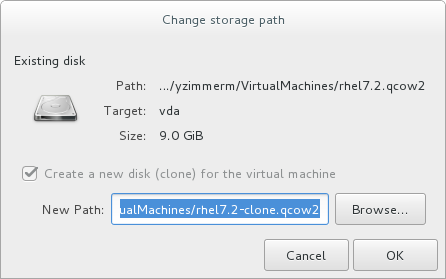
Figure 4.3. Change
storage pathwindow
Clone the guest virtual machine
Click Clone.

'%20d='M201.5%20305.5c-13.8%200-24.9-11.1-24.9-24.6%200-13.8%2011.1-24.9%2024.9-24.9%2013.6%200%2024.6%2011.1%2024.6%2024.9%200%2013.6-11.1%2024.6-24.6%2024.6zM504%20256c0%20137-111%20248-248%20248S8%20393%208%20256%20119%208%20256%208s248%20111%20248%20248zm-132.3-41.2c-9.4%200-17.7%203.9-23.8%2010-22.4-15.5-52.6-25.5-86.1-26.6l17.4-78.3%2055.4%2012.5c0%2013.6%2011.1%2024.6%2024.6%2024.6%2013.8%200%2024.9-11.3%2024.9-24.9s-11.1-24.9-24.9-24.9c-9.7%200-18%205.8-22.1%2013.8l-61.2-13.6c-3-.8-6.1%201.4-6.9%204.4l-19.1%2086.4c-33.2%201.4-63.1%2011.3-85.5%2026.8-6.1-6.4-14.7-10.2-24.1-10.2-34.9%200-46.3%2046.9-14.4%2062.8-1.1%205-1.7%2010.2-1.7%2015.5%200%2052.6%2059.2%2095.2%20132%2095.2%2073.1%200%20132.3-42.6%20132.3-95.2%200-5.3-.6-10.8-1.9-15.8%2031.3-16%2019.8-62.5-14.9-62.5zM302.8%20331c-18.2%2018.2-76.1%2017.9-93.6%200-2.2-2.2-6.1-2.2-8.3%200-2.5%202.5-2.5%206.4%200%208.6%2022.8%2022.8%2087.3%2022.8%20110.2%200%202.5-2.2%202.5-6.1%200-8.6-2.2-2.2-6.1-2.2-8.3%200zm7.7-75c-13.6%200-24.6%2011.1-24.6%2024.9%200%2013.6%2011.1%2024.6%2024.6%2024.6%2013.8%200%2024.9-11.1%2024.9-24.6%200-13.8-11-24.9-24.9-24.9z'/%3e%3c/svg%3e)