 Red Hat Summit
Ce contenu n'est pas disponible dans la langue sélectionnée.
Chapter 7. Subscriptions
7.1. Creating subscriptions
After you have created a channel and an event sink, you can create a subscription to enable event delivery. Subscriptions are created by configuring a Subscription object, which specifies the channel and the sink (also known as a subscriber) to deliver events to.
7.1.1. Creating a subscription
After you have created a channel and an event sink, you can create a subscription to enable event delivery. Using the OpenShift Container Platform web console provides a streamlined and intuitive user interface to create a subscription.
Prerequisites
- You have installed the OpenShift Serverless Operator, Knative Serving, and Knative Eventing on your OpenShift Container Platform cluster.
- You have logged in to the web console.
- You have created an event sink, such as a Knative service, and a channel.
- You have created a project or have access to a project with the appropriate roles and privileges to create applications and other workloads in OpenShift Container Platform.
Procedure
- Navigate to the Topology page.
Create a subscription using one of the following methods:
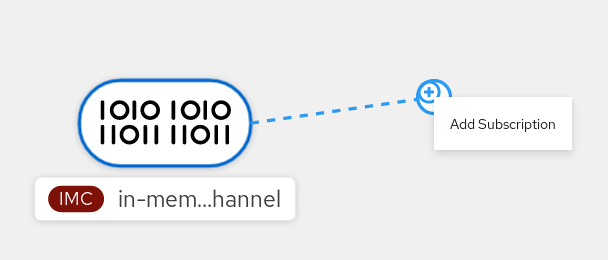
Hover over the channel that you want to create a subscription for, and drag the arrow. The Add Subscription option is displayed.
- Select your sink in the Subscriber list.
- Click Add.
- If the service is available in the Topology view under the same namespace or project as the channel, click the channel that you want to create a subscription for, and drag the arrow directly to a service to immediately create a subscription from the channel to that service.
Verification
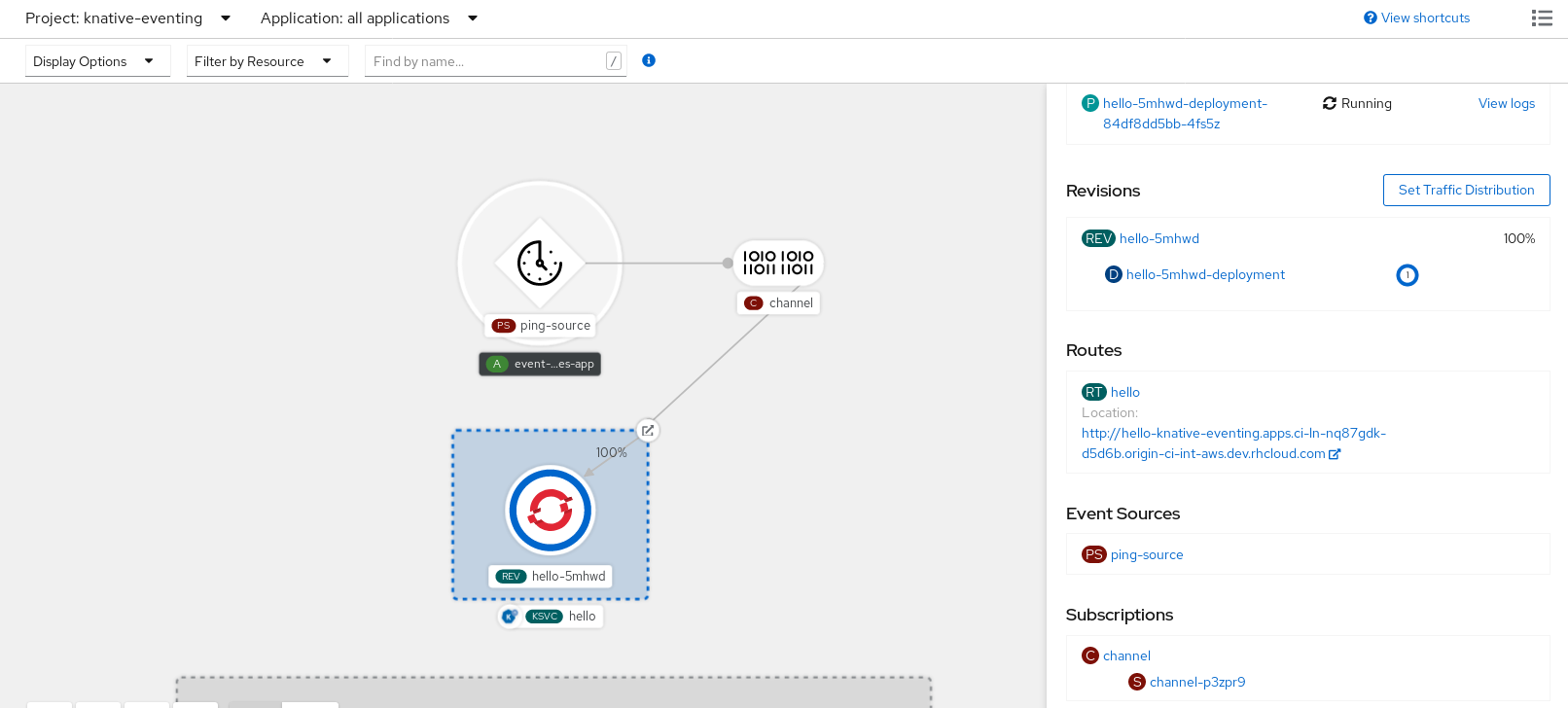
After you create the subscription, the Topology view shows it as a line that connects the channel to the service.
7.1.2. Creating a subscription by using YAML
After you create a channel and an event sink, create a subscription to deliver events. You can define Knative resources declaratively by using YAML files. To create a subscription, create a YAML file that defines a Subscription object, and then apply the file by using the oc apply command.
Prerequisites
- You have installed the OpenShift Serverless Operator and Knative Eventing on the cluster.
-
Install the OpenShift CLI (
oc). - You have created a project or have access to a project with the appropriate roles and permissions to create applications and other workloads in OpenShift Container Platform.
Procedure
Create a
Subscriptionobject:Create a YAML file and copy the following sample code into it:
apiVersion: messaging.knative.dev/v1 kind: Subscription metadata: name: my-subscription namespace: default spec: channel: apiVersion: messaging.knative.dev/v1 kind: Channel name: example-channel delivery: deadLetterSink: ref: apiVersion: serving.knative.dev/v1 kind: Service name: error-handler subscriber: ref: apiVersion: serving.knative.dev/v1 kind: Service name: event-display-
name: my-subscription: Name of the subscription. -
spec.channel: Configuration settings for the channel that the subscription connects to. -
spec.delivery: Configuration settings for event delivery. These settings define how the subscription handles events that the subscriber cannot receive. When you configure this option, the system sends failed events to thedeadLetterSink. The system drops the event, does not try redelivery, and logs an error. ThedeadLetterSinkvalue must be aDestination. -
spec.subscriber: Configuration settings for the subscriber. The subscriber is the event sink that receives events from the channel.
-
Apply the YAML file by running the following command:
$ oc apply -f <filename>
7.1.3. Creating a subscription by using the Knative CLI
After you have created a channel and an event sink, you can create a subscription to enable event delivery. Using the Knative (kn) CLI to create subscriptions provides a more streamlined and intuitive user interface than modifying YAML files directly. You can use the kn subscription create command with the appropriate flags to create a subscription.
Prerequisites
- You have installed the OpenShift Serverless Operator and Knative Eventing on your OpenShift Container Platform cluster.
-
You have installed the Knative (
kn) CLI. - You have created a project or have access to a project with the appropriate roles and permissions to create applications and other workloads in OpenShift Container Platform.
Procedure
Create a subscription to connect a sink to a channel:
$ kn subscription create <subscription_name> \
  --channel <group:version:kind>:<channel_name> \
  --sink <sink_prefix>:<sink_name> \
  --sink-dead-letter <sink_prefix>:<sink_name>
You get an output similar to the following example command:
$ kn subscription create mysubscription --channel mychannel --sink ksvc:event-displayYou get an output similar to the following example:
Subscription 'mysubscription' created in namespace 'default'.
Verification
To confirm that a subscription connects the channel to the event sink, or subscriber, list the existing subscriptions and inspect the output by running the following command:
$ kn subscription listYou get an output similar to the following example:
NAME            CHANNEL             SUBSCRIBER           REPLY   DEAD LETTER SINK   READY   REASON
mysubscription   Channel:mychannel   ksvc:event-display                              True
7.1.4. Deleting a subscription by using the kn CLI
Delete an existing subscription in Knative Eventing by using the kn CLI.
Prerequisites
- You have installed the OpenShift Serverless Operator and Knative Eventing on your OpenShift Container Platform cluster.
-
You have installed the Knative (
kn) CLI. - You have created a project or have access to a project with the appropriate roles and permissions to create applications and other workloads in OpenShift Container Platform.
- The subscription that you want to delete exists.
Procedure
Delete the subscription by running the following command:
$ kn subscription delete <subscription_name>Optional: Verify that the subscription no longer exists by running the following command:
$ kn subscription list
7.2. Managing subscriptions
You can manage subscriptions in Knative Eventing by describing, listing, and updating existing subscription resources by using the kn CLI.
7.2.1. Describing subscriptions by using the Knative CLI
You can use the kn subscription describe command to print information about a subscription in the terminal by using the Knative (kn) CLI. Using the Knative CLI to describe subscriptions provides a more streamlined and intuitive user interface than viewing YAML files directly.
Prerequisites
-
You have installed the Knative (
kn) CLI. - You have created a subscription in your cluster.
Procedure
Describe a subscription by running the following command:
$ kn subscription describe <subscription_name>You get an output similar to the following example:
Name:            my-subscription
Namespace:       default
Annotations:     messaging.knative.dev/creator=openshift-user, messaging.knative.dev/lastModifier=min ...
Age:             43s
Channel:         Channel:my-channel (messaging.knative.dev/v1)
Subscriber:
  URI:           http://edisplay.default.example.com
Reply:
  Name:          default
  Resource:      Broker (eventing.knative.dev/v1)
DeadLetterSink:
  Name:          my-sink
  Resource:      Service (serving.knative.dev/v1)

Conditions:
  OK TYPE                  AGE REASON
  ++ Ready                 43s
  ++ AddedToChannel        43s
  ++ ChannelReady          43s
  ++ ReferencesResolved    43s
7.2.2. Listing subscriptions by using the Knative CLI
You can use the kn subscription list command to list existing subscriptions on your cluster by using the Knative (kn) CLI. Using the Knative CLI to list subscriptions provides a streamlined and intuitive user interface.
Prerequisites
-
You have installed the Knative (
kn) CLI.
Procedure
List subscriptions on your cluster by running the following command:
$ kn subscription listYou get an output similar to the following example:
NAME             CHANNEL             SUBSCRIBER           REPLY   DEAD LETTER SINK   READY   REASON
mysubscription   Channel:mychannel   ksvc:event-display                              True
7.2.3. Updating subscriptions by using the Knative CLI
You can use the kn subscription update command and the appropriate flags to update a subscription from the terminal by using the Knative (kn) CLI. Using the Knative CLI to update subscriptions provides a more streamlined and intuitive user interface than updating YAML files directly.
Prerequisites
-
You have installed the Knative (
kn) CLI. - You have created a subscription.
Procedure
- Update a subscription by running the following command:
$ kn subscription update <subscription_name> \
  --sink <sink_prefix>:<sink_name> \
  --sink-dead-letter <sink_prefix>:<sink_name>
You can see the following example command for reference:
$ kn subscription update mysubscription --sink ksvc:event-display
'%20d='M201.5%20305.5c-13.8%200-24.9-11.1-24.9-24.6%200-13.8%2011.1-24.9%2024.9-24.9%2013.6%200%2024.6%2011.1%2024.6%2024.9%200%2013.6-11.1%2024.6-24.6%2024.6zM504%20256c0%20137-111%20248-248%20248S8%20393%208%20256%20119%208%20256%208s248%20111%20248%20248zm-132.3-41.2c-9.4%200-17.7%203.9-23.8%2010-22.4-15.5-52.6-25.5-86.1-26.6l17.4-78.3%2055.4%2012.5c0%2013.6%2011.1%2024.6%2024.6%2024.6%2013.8%200%2024.9-11.3%2024.9-24.9s-11.1-24.9-24.9-24.9c-9.7%200-18%205.8-22.1%2013.8l-61.2-13.6c-3-.8-6.1%201.4-6.9%204.4l-19.1%2086.4c-33.2%201.4-63.1%2011.3-85.5%2026.8-6.1-6.4-14.7-10.2-24.1-10.2-34.9%200-46.3%2046.9-14.4%2062.8-1.1%205-1.7%2010.2-1.7%2015.5%200%2052.6%2059.2%2095.2%20132%2095.2%2073.1%200%20132.3-42.6%20132.3-95.2%200-5.3-.6-10.8-1.9-15.8%2031.3-16%2019.8-62.5-14.9-62.5zM302.8%20331c-18.2%2018.2-76.1%2017.9-93.6%200-2.2-2.2-6.1-2.2-8.3%200-2.5%202.5-2.5%206.4%200%208.6%2022.8%2022.8%2087.3%2022.8%20110.2%200%202.5-2.2%202.5-6.1%200-8.6-2.2-2.2-6.1-2.2-8.3%200zm7.7-75c-13.6%200-24.6%2011.1-24.6%2024.9%200%2013.6%2011.1%2024.6%2024.6%2024.6%2013.8%200%2024.9-11.1%2024.9-24.6%200-13.8-11-24.9-24.9-24.9z'/%3e%3c/svg%3e)