 Red Hat Summit
Ce contenu n'est pas disponible dans la langue sélectionnée.
3.3. Life Cycle Environments
Application life cycles are divided into life cycle environments, which represent each stage of the application life cycle. Life cycle environments are linked to form an environment path. You can promote content along the environment path to the next life cycle environment when required. For example, if development ends on a particular version of an application, you can promote this version to the testing environment and start development on the next version.
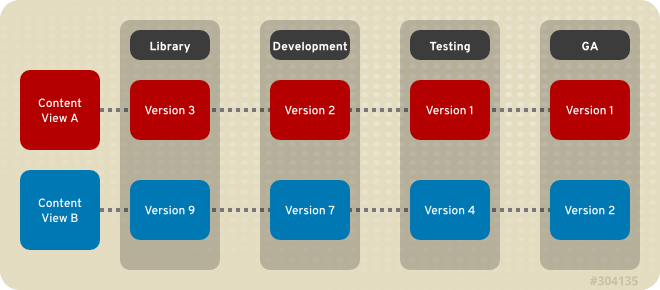
Figure 3.2. An Environment Path Containing Four Environments
3.3.1. Creating Life Cycle Environments
Copier lienLien copié sur presse-papiers!
This procedure describes how to create a life cycle environment in Red Hat Satellite.
Procedure 3.8. To Create a Life Cycle Environment:
- On the main menu, click
and then click New Environment Path. - Enter a name and label for the life cycle environment. The Description field is optional.
- Click Save to create the environment.
3.3.2. Promoting Content Views
Copier lienLien copié sur presse-papiers!
After you have created a content view and an environment path consisting of two or more life cycle environments, you can promote the content view from one environment to the next as required. This means that the most recent version of the content view that exists in a specified environment will be promoted, or copied, to the next environment in the life cycle environment path.
Procedure 3.9. To Promote a Content View:
- On the main menu, click
. - In the Name column, click the name of the content view that you want to promote.
- On the Versions tab, identify the latest version, and click .
- Identify the promotion path where you want to promote the content view, select the appropriate life cycle environment, and click .
Note
You can only promote content views to the next environment in the promotion path. You cannot skip environments. - After the promotion has completed, the Versions tab updates to display the new status of your content views.
3.3.3. Removing Life Cycle Environments
Copier lienLien copié sur presse-papiers!
This procedure describes how to remove a life cycle environment from Red Hat Satellite.
Procedure 3.10. To Remove a Life Cycle Environment:
- On the main menu, click
. - Click the name of the life cycle environment that you want to remove, and then click .
- In the confirmation dialog box, click to remove the environment.
Note
You can only delete the latest environment in an environment path. For example, if three environments exist in the order Library, Dev, and Prod, you need to delete Prod before you can delete . You cannot delete the Library environment.

'%20d='M201.5%20305.5c-13.8%200-24.9-11.1-24.9-24.6%200-13.8%2011.1-24.9%2024.9-24.9%2013.6%200%2024.6%2011.1%2024.6%2024.9%200%2013.6-11.1%2024.6-24.6%2024.6zM504%20256c0%20137-111%20248-248%20248S8%20393%208%20256%20119%208%20256%208s248%20111%20248%20248zm-132.3-41.2c-9.4%200-17.7%203.9-23.8%2010-22.4-15.5-52.6-25.5-86.1-26.6l17.4-78.3%2055.4%2012.5c0%2013.6%2011.1%2024.6%2024.6%2024.6%2013.8%200%2024.9-11.3%2024.9-24.9s-11.1-24.9-24.9-24.9c-9.7%200-18%205.8-22.1%2013.8l-61.2-13.6c-3-.8-6.1%201.4-6.9%204.4l-19.1%2086.4c-33.2%201.4-63.1%2011.3-85.5%2026.8-6.1-6.4-14.7-10.2-24.1-10.2-34.9%200-46.3%2046.9-14.4%2062.8-1.1%205-1.7%2010.2-1.7%2015.5%200%2052.6%2059.2%2095.2%20132%2095.2%2073.1%200%20132.3-42.6%20132.3-95.2%200-5.3-.6-10.8-1.9-15.8%2031.3-16%2019.8-62.5-14.9-62.5zM302.8%20331c-18.2%2018.2-76.1%2017.9-93.6%200-2.2-2.2-6.1-2.2-8.3%200-2.5%202.5-2.5%206.4%200%208.6%2022.8%2022.8%2087.3%2022.8%20110.2%200%202.5-2.2%202.5-6.1%200-8.6-2.2-2.2-6.1-2.2-8.3%200zm7.7-75c-13.6%200-24.6%2011.1-24.6%2024.9%200%2013.6%2011.1%2024.6%2024.6%2024.6%2013.8%200%2024.9-11.1%2024.9-24.6%200-13.8-11-24.9-24.9-24.9z'/%3e%3c/svg%3e)