 Red Hat Summit
Questo contenuto non è disponibile nella lingua selezionata.
Chapter 8. Customizing the Quickstart plugin
8.1. About Quickstarts
The Quickstart plugin provides guided onboarding for users of Red Hat Developer Hub. It displays a customizable drawer interface with interactive quickstart steps that help users get familiar with the platform.
If RBAC is not enabled, Quickstart is only accesible to users with administrator permissions.
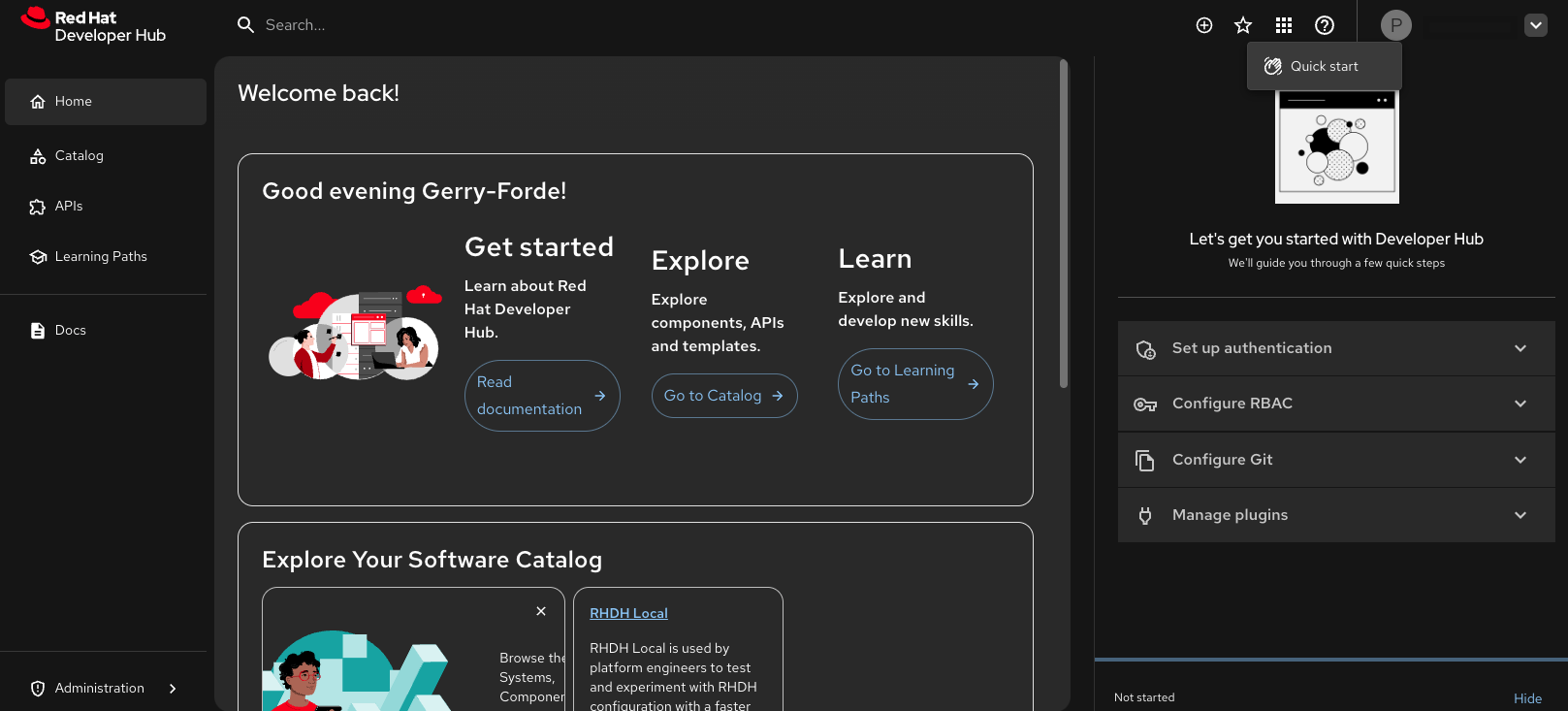
The Quickstart plugin is enabled by default and includes the following components:
- Set up authentication
- Set up secure login credentials to protect your account from unauthorized access.
- Configure RBAC
- Assign roles and permissions to control who can view, create, or edit resources, ensuring secure and efficient collaboration.
- Configure Git
- Connect your Git providers, such as GitHub to manage code, automate workflows, and integrate with platform features.
- Manage plugins
- Browse and install extensions to add features, connect with external tools, and customize your experience.
8.2. Manage user access to Quickstarts by using Role-Based Access Control (RBAC)
You can manage user access to Quickstarts by using RBAC to define user roles that use the following logic in your RBAC configuration:
If RBAC is enabled (
permission.enabled: true), the system determines user roles based on permissions, as follows:-
Users with
policy.entity.createpermission are assigned the admin role. - Users without this permission are assigned the developer role.
-
Users with
If RBAC is disabled (permission.enabled: false) or not configured, users are assumed to be platform engineers setting up Red Hat Developer Hub (RHDH) and are assigned the admin role.
The following two roles are supported for defining access to Quickstarts:
- admin
- Platform engineers, administrators, and users with elevated permissions
- developer
- Regular developers and users with standard permissions
The following behavior applies when you use RBAC to assign roles for your Quickstarts:
-
Quickstart items without a
rolesproperty default to the admin role. - Items can specify multiple roles, for example, admin and developer.
- Users see Quickstart items that match their assigned role.
Example configuring RBAC for a Quickstart in your app-config.yaml file
8.3. Customizing your Red Hat Developer Hub Quickstart
As an administrator, you can configure the Red Hat Developer Hub Quickstart plugin to create customized onboarding for your Developer Hub users.
Prerequisites
You must have administrator permissions.
Procedure
Update your
app-config.yamlwith the following code:Copy to Clipboard Copied! Toggle word wrap Toggle overflow where:
title- Enter the display title for the quickstart step.
description- Enter the brief description of what the step covers.
icon(Optional) Enter the icon identifier. You can use a full image URL, a valid SVG path, or one of the following common keys:
-
home -
group -
category -
extension -
school -
add -
list -
layers -
star -
favorite -
bookmarks -
queryStats -
chart -
business -
storefront -
folder -
cloud -
monitor -
feedback -
validate -
security -
help -
support -
quickstart -
notifications -
manageAccounts -
logout -
developerHub -
account -
admin -
roles: Optional: Enter an array of user roles that must see this quickstart item. Supported values:['admin', 'developer']. If not specified, defaults to['admin']. -
cta -
text: Optional: Enter the CTA button text. -
link: Optional: Enter the CTA target URL or route.
-
8.3.1. Disabling the Quickstart plugin
The Quickstart plugin is pre-loaded in Developer Hub with basic configuration properties, and enabled by default.
Procedure
To disable the Quickstart plugin, set the disabled property to
trueas shown in the following code:Copy to Clipboard Copied! Toggle word wrap Toggle overflow
8.4. Using Quickstart onboarding steps
You can use the Quickstart onboarding steps to learn more about the administrator features of RHDH.
Prerequisites
- (Optional) If RBAC is enabled, you must have administrator permissions to access to the Quickstart feature.
Procedure
To start a Quickstart step in Red Hat Developer Hub, complete the following steps:
-
In your RHDH navigation menu, click the Help (
?) icon. - In the dropdown menu, click Quick start.
- Select the Quickstart step that you would like to begin.
To close the Quickstart drawer, click Hide.
NoteYour overall progress is tracked and displayed as a progress bar and a progress percentage in the Quickstart footer.
8.5. Enabling Quickstart localization in RHDH
You can enable translation key support for Quickstart titles, descriptions, and CTAs, so that users can onboard in their preferred language. In Developer Hub, all existing and newly created Quickstart steps support localization using dedicated translation keys (titleKey, descriptionKey, cta.textKey).
If a translation key is present but the corresponding localized string is missing, the system defaults to the original text defined in the Quickstart configuration (title, description, text). If no translation key is defined at all, the original text is displayed.
Prerequisites
- You have enabled localization in your RHDH application.
Procedure
For all Quickstart steps (both existing and new) in your configuration file, you must define both the original text and the new localization keys. For example, in the
quickstartsection of your customapp-config.yamlfile, add thetitleKey,descriptionKey, andtextKeyvalues, as follows:app-config.yamlfragmentCopy to Clipboard Copied! Toggle word wrap Toggle overflow where:
title- (Mandatory) Fallback for the title.
titleKey- Key for the translated title.
description- (Mandatory) Fallback for the description.
descriptionKey- Key for the translated description.
text- (Mandatory) Fallback for the CTA text.
textKey- Key for the translated CTA text.
In your
dynamic-plugins.yamlfile, add thetranslationResourcessection to yourred-hat-developer-hub-backstage-plugin-quickstartconfiguration, as follows:app-config.yamlfragmentCopy to Clipboard Copied! Toggle word wrap Toggle overflow where:
- importName
- Enter the name used to reference the import.
- ref
- Reference to the resource definition.
In your translation file, map the keys from the first step to the localized strings for each supported language.
allTranslations.jsonfragmentCopy to Clipboard Copied! Toggle word wrap Toggle overflow

'%20d='M201.5%20305.5c-13.8%200-24.9-11.1-24.9-24.6%200-13.8%2011.1-24.9%2024.9-24.9%2013.6%200%2024.6%2011.1%2024.6%2024.9%200%2013.6-11.1%2024.6-24.6%2024.6zM504%20256c0%20137-111%20248-248%20248S8%20393%208%20256%20119%208%20256%208s248%20111%20248%20248zm-132.3-41.2c-9.4%200-17.7%203.9-23.8%2010-22.4-15.5-52.6-25.5-86.1-26.6l17.4-78.3%2055.4%2012.5c0%2013.6%2011.1%2024.6%2024.6%2024.6%2013.8%200%2024.9-11.3%2024.9-24.9s-11.1-24.9-24.9-24.9c-9.7%200-18%205.8-22.1%2013.8l-61.2-13.6c-3-.8-6.1%201.4-6.9%204.4l-19.1%2086.4c-33.2%201.4-63.1%2011.3-85.5%2026.8-6.1-6.4-14.7-10.2-24.1-10.2-34.9%200-46.3%2046.9-14.4%2062.8-1.1%205-1.7%2010.2-1.7%2015.5%200%2052.6%2059.2%2095.2%20132%2095.2%2073.1%200%20132.3-42.6%20132.3-95.2%200-5.3-.6-10.8-1.9-15.8%2031.3-16%2019.8-62.5-14.9-62.5zM302.8%20331c-18.2%2018.2-76.1%2017.9-93.6%200-2.2-2.2-6.1-2.2-8.3%200-2.5%202.5-2.5%206.4%200%208.6%2022.8%2022.8%2087.3%2022.8%20110.2%200%202.5-2.2%202.5-6.1%200-8.6-2.2-2.2-6.1-2.2-8.3%200zm7.7-75c-13.6%200-24.6%2011.1-24.6%2024.9%200%2013.6%2011.1%2024.6%2024.6%2024.6%2013.8%200%2024.9-11.1%2024.9-24.6%200-13.8-11-24.9-24.9-24.9z'/%3e%3c/svg%3e)