 Red Hat Summit
Questo contenuto non è disponibile nella lingua selezionata.
Chapter 14. Hardening the Dashboard service
The Dashboard service (horizon) gives users a self-service portal for provisioning their own resources within the limits set by administrators. Manage the security of the Dashboard service with the same sensitivity as the OpenStack APIs.
14.1. Debugging the Dashboard service
The default value for the DEBUG parameter is False. Keep the default value in your production environment. Change this setting only during investigation. When you change the value of the DEBUG parameter to True, Django can output stack straces to browser users that contain sensitive web server state information.
When the value of the DEBUG parameter is True, the ALLOWED_HOSTS settings are also disabled. For more information on configuring ALLOWED_HOSTS, see Configure ALLOWED_HOSTS.
14.2. Selecting a domain name
It is a best practice to deploy the Dashboard service (horizon) to a second level domain, as opposed to a shared domain on any level. Examples of each are provided below:
-
Second level domain:
https://example.com -
Shared subdomain:
https://example.public-url.com
Deploying the Dashboard service to a dedicated second level domain isolates cookies and security tokens from other domains, based on browsers' same-origin policy. When deployed on a subdomain, the security of the Dashboard service is equivalent to the least secure application deployed on the same second-level domain.
You can further mitigate this risk by avoiding a cookie-backed session store, and configuring HTTP Strict Transport Security (HSTS) (described in this guide).
Deploying the Dashboard service on a bare domain, like https://example/, is unsupported.
14.3. Configure ALLOWED_HOSTS
Horizon is built on the python Django web framework, which requires protection against security threats associated with misleading HTTP Host headers. To apply this protection, configure the ALLOWED_HOSTS setting to use the FQDN that is served by the OpenStack dashboard.
When you configure the ALLOWED_HOSTS setting, any HTTP request with a Host header that does not match the values in this list is denied, and an error is raised.
Procedure
Under
parameter_defaultsin your templates, set the value of theHorizonAllowedHostsparameter:parameter_defaults: HorizonAllowedHosts: <value>Replace
<value>with the FQDN that is served by the OpenStack dashboard.- Deploy the overcloud with the modified template, and all other templates required for your environment.
14.4. Cross Site Scripting (XSS)
The OpenStack Dashboard accepts the entire Unicode character set in most fields. Malicious actors can attempt to use this extensibility to test for cross-site scripting (XSS) vulnerabilities. The OpenStack Dashboard service (horizon) has tools that harden against XSS vulnerabilites. It is important to ensure the correct use of these tools in custom dashboards. When you perform an audit against custom dashboards, pay attention to the following:
-
The
mark_safefunction. -
is_safe- when used with custom template tags. -
The
safetemplate tag. - Anywhere auto escape is turned off, and any JavaScript which might evaluate improperly escaped data.
14.5. Cross Site Request Forgery (CSRF)
Dashboards that use multiple JavaScript instances should be audited for vulnerabilities such as inappropriate use of the @csrf_exempt decorator. Evaluate any dashboard that does not follow recommended security settings before lowering CORS (Cross Origin Resource Sharing) restrictions. Configure your web server to send a restrictive CORS header with each response. Allow only the dashboard domain and protocol, for example:Access-Control-Allow-Origin: https://example.com/. You should never allow the wild card origin.
14.6. Allow iframe embedding
The DISALLOW_IFRAME_EMBED setting disallows Dashboard from being embedded within an iframe. Legacy browsers can still be vulnerable to Cross-Frame Scripting (XFS) vulnerabilities, so this option adds extra security hardening for deployments that do not require iframes. The setting is set to True by default, however it can be disabled using an environment file, if needed.
Procedure
You can allow iframe embedding using the following parameter:
parameter_defaults: ControllerExtraConfig: horizon::disallow_iframe_embed: falseNoteThis setting should only be set to
Falseonce the potential security impacts are fully understood.
14.7. Using HTTPS encryption for Dashboard traffic
It is recommended you use HTTPS to encrypt Dashboard traffic. You can do this by configuring it to use a valid, trusted certificate from a recognized certificate authority (CA). Private organization-issued certificates are only appropriate when the root of trust is pre-installed in all user browsers.
Configure HTTP requests to the dashboard domain to redirect to the fully qualified HTTPS URL.
See Chapter 7, Enabling SSL/TLS on overcloud public endpoints. for more information.
14.8. HTTP Strict Transport Security (HSTS)
HTTP Strict Transport Security (HSTS) prevents browsers from making subsequent insecure connections after they have initially made a secure connection. If you have deployed your HTTP services on a public or an untrusted zone, HSTS is especially important.
You must also enable this setting for HAproxy.
Procedure
To enable the Strict-Transport-Security header in HAproxy, create a YAML file called
puppet-horizon-hsts.yamlin your~/templatesdirectory:parameter_defaults: ControllerExtraConfig: tripleo::haproxy::horizon::options: http-response: - 'replace-header Location http://(.*) https://\1' - 'set-header Strict-Transport-Security "max-age=300; includeSubDomains"'Rerun the the openstack deployment command with all of the templates originally used to create your cluster, appending the
puppet-horizon-hsts.yamlto the end:$ openstack overcloud deploy --templates \ ... -e /home/stack/templates/puppet-horizon-hsts.yaml
Verification
After the overcloud is deployed, use curl to check for strict transport security:
curl -s -D- <https://overcloud.mydomain.com> | grep -i strict-
Replace
<https://overcloud.mydomain.com>with the secure URL for your cloud.
Example output:
Fri Mar  7 16:14:54 CET 2025
strict-transport-security: max-age=300; includeSubDomains
14.9. Front-end caching
It is not recommended to use front-end caching tools with the Dashboard, as it renders dynamic content resulting directly from OpenStack API requests. As a result, front-end caching layers such as varnish can prevent the correct content from being displayed. The Dashboard uses Django, which serves static media directly served from the web service and already benefits from web host caching.
14.10. Session backend
For director-based deployments, the default session backend for horizon is django.contrib.sessions.backends.cache, which is combined with memcached. This approach is preferred to local-memory cache for performance reasons, is safer for highly-available and load balanced installs, and has the ability to share cache over multiple servers, while still treating it as a single cache.
You can review these settings in director’s horizon.yaml file:
          horizon::cache_backend: django.core.cache.backends.memcached.MemcachedCache
          horizon::django_session_engine: 'django.contrib.sessions.backends.cache'
14.11. Reviewing the secret key
The Dashboard depends on a shared SECRET_KEY setting for some security functions. The secret key should be a randomly generated string at least 64 characters long, which must be shared across all active dashboard instances. Compromise of this key might allow a remote attacker to execute arbitrary code. Rotating this key invalidates existing user sessions and caching. Do not commit this key to public repositories.
For director deployments, this setting is managed as the HorizonSecret value.
14.12. Configuring session cookies
The Dashboard session cookies can be open to interaction by browser technologies, such as JavaScript. For director deployments with TLS everywhere, you can harden this behavior using the HorizonSecureCookies setting.
Never configure CSRF or session cookies to use a wildcard domain with a leading dot.
14.13. Validating password complexity
The OpenStack Dashboard (horizon) can use a password validation check to enforce password complexity.
Procedure
Specify a regular expression for password validation, as well as help text to be displayed for failed tests. The following example requires users to create a password of between 8 to 18 characters in length:
    parameter_defaults:
      HorizonPasswordValidator: '^.{8,18}$'
      HorizonPasswordValidatorHelp: 'Password must be between 8 and 18 characters.'
Apply this change to your deployment. Save the settings as a file called
horizon_password.yaml, and then pass it to theovercloud deploycommand as follows. The<full environment>indicates that you must still include all of your original deployment parameters. For example:openstack overcloud deploy --templates \ -e <full environment> -e horizon_password.yaml
14.14. Enforce the administrator password check
The ENFORCE_PASSWORD_CHECK setting in Dashboard’s local_settings.py file displays an Admin Password field on the Change Password form, which helps verify that an administrator is initiating the password change.
This setting is set to True by default, however it can be disabled using an environment file, if needed.
This setting should only be set to False once the potential security impacts are fully understood.
Procedure
You can disable
ENFORCE_PASSWORD_CHECKusing an environment file:parameter_defaults: ControllerExtraConfig: horizon::enforce_password_check: false
14.15. Disable password reveal
The disable_password_reveal parameter is set to True by default, however it can be disabled using an environment file, if needed. The password reveal button allows a user at the Dashboard to view the password they are about to enter.
Procedure
Under the
ControllerExtraConfigparameter, includehorizon::disable_password_reveal: false.parameter_defaults: ControllerExtraConfig: horizon::disable_password_reveal: falseNoteThis setting should only be set to
Falseonce the potential security impacts are fully understood.- Save this to a heat environment file and include it with your deployment command.
14.16. Displaying a logon banner for the Dashboard
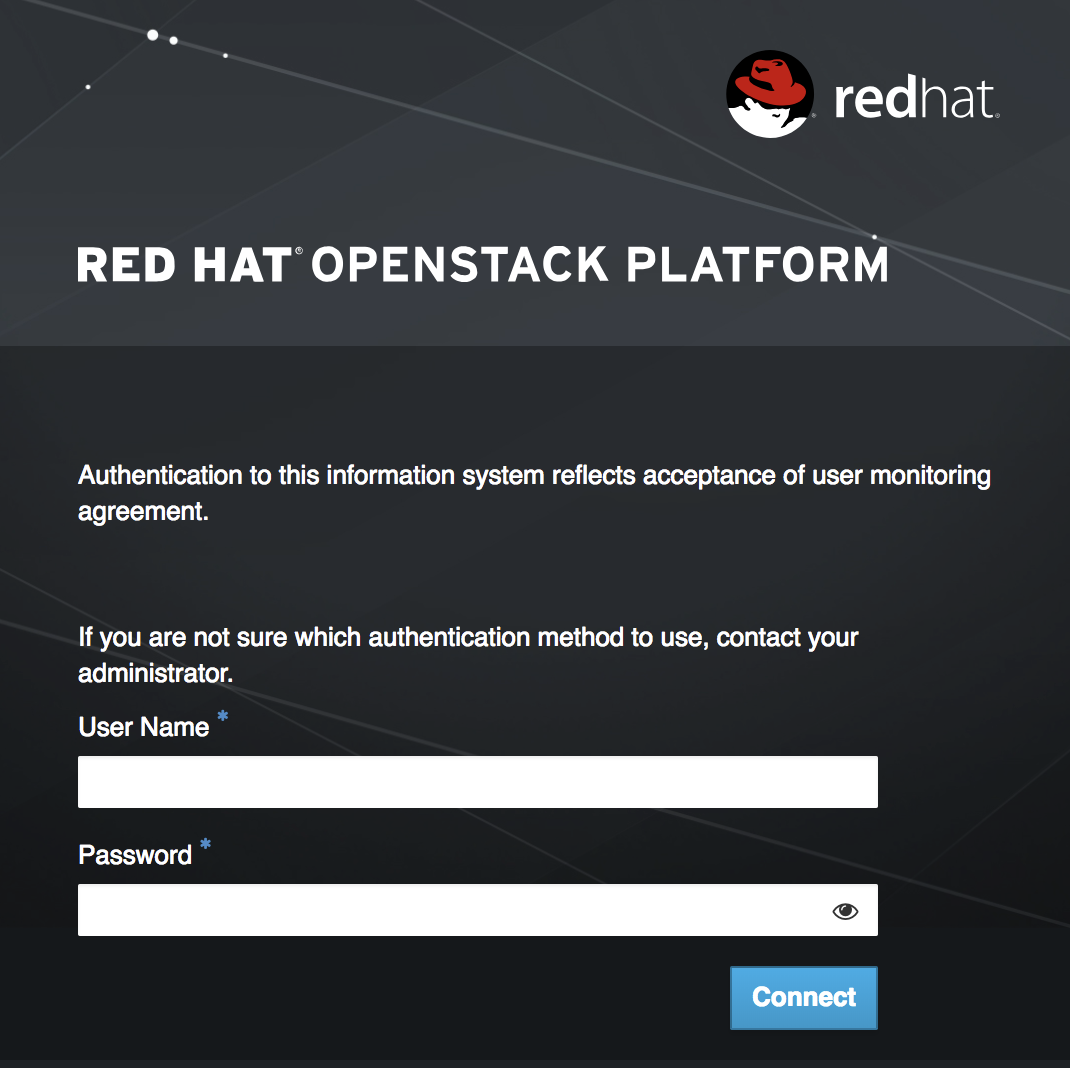
Regulated industries such as HIPAA, PCI-DSS, and the US Government require you to display a user logon banner. The Red Hat OpenStack Platform (RHOSP) dashboard (horizon) uses a default theme (RCUE), which is stored inside the horizon container.
Within the custom Dashboard container, you can create a logon banner by manually editing the /usr/share/openstack-dashboard/openstack_dashboard/themes/rcue/templates/auth/login.html file:
Procedure
Enter the required logon banner just before the
{% include 'auth/_login.html' %}section. HTML tags are allowed:<snip> <div class="container"> <div class="row-fluid"> <div class="span12"> <div id="brand"> <img src="../../static/themes/rcue/images/RHOSP-Login-Logo.svg"> </div><!--/#brand--> </div><!--/.span*--> <!-- Start of Logon Banner --> <p>Authentication to this information system reflects acceptance of user monitoring agreement.</p> <!-- End of Logon Banner --> {% include 'auth/_login.html' %} </div><!--/.row-fluid→ </div><!--/.container--> {% block js %} {% include "horizon/_scripts.html" %} {% endblock %} </body> </html>The above example produces a dashboard similar to the following:
Additional resources
14.17. Limiting the size of file uploads
You can optionally configure the dashboard to limit the size of file uploads; this setting might be a requirement for various security hardening policies.
LimitRequestBody - This value (in bytes) limits the maximum size of a file that you can transfer using the Dashboard, such as images and other large files.
This setting has not been formally tested by Red Hat. It is recommended that you thoroughly test the effect of this setting before deploying it to your production environment.
File uploads will fail if the value is too small.
For example, this setting limits each file upload to a maximum size of 10 GB (10737418240). You will need to adjust this value to suit your deployment.
/var/lib/config-data/puppet-generated/horizon/etc/httpd/conf/httpd.conf<Directory /> LimitRequestBody 10737418240 </Directory>/var/lib/config-data/puppet-generated/horizon/etc/httpd/conf.d/10-horizon_vhost.conf<Directory "/var/www"> LimitRequestBody 10737418240 </Directory>/var/lib/config-data/puppet-generated/horizon/etc/httpd/conf.d/15-horizon_ssl_vhost.conf<Directory "/var/www"> LimitRequestBody 10737418240 </Directory>
These configuration files are managed by Puppet, so any unmanaged changes are overwritten whenever you run the openstack overcloud deploy process.

'%20d='M201.5%20305.5c-13.8%200-24.9-11.1-24.9-24.6%200-13.8%2011.1-24.9%2024.9-24.9%2013.6%200%2024.6%2011.1%2024.6%2024.9%200%2013.6-11.1%2024.6-24.6%2024.6zM504%20256c0%20137-111%20248-248%20248S8%20393%208%20256%20119%208%20256%208s248%20111%20248%20248zm-132.3-41.2c-9.4%200-17.7%203.9-23.8%2010-22.4-15.5-52.6-25.5-86.1-26.6l17.4-78.3%2055.4%2012.5c0%2013.6%2011.1%2024.6%2024.6%2024.6%2013.8%200%2024.9-11.3%2024.9-24.9s-11.1-24.9-24.9-24.9c-9.7%200-18%205.8-22.1%2013.8l-61.2-13.6c-3-.8-6.1%201.4-6.9%204.4l-19.1%2086.4c-33.2%201.4-63.1%2011.3-85.5%2026.8-6.1-6.4-14.7-10.2-24.1-10.2-34.9%200-46.3%2046.9-14.4%2062.8-1.1%205-1.7%2010.2-1.7%2015.5%200%2052.6%2059.2%2095.2%20132%2095.2%2073.1%200%20132.3-42.6%20132.3-95.2%200-5.3-.6-10.8-1.9-15.8%2031.3-16%2019.8-62.5-14.9-62.5zM302.8%20331c-18.2%2018.2-76.1%2017.9-93.6%200-2.2-2.2-6.1-2.2-8.3%200-2.5%202.5-2.5%206.4%200%208.6%2022.8%2022.8%2087.3%2022.8%20110.2%200%202.5-2.2%202.5-6.1%200-8.6-2.2-2.2-6.1-2.2-8.3%200zm7.7-75c-13.6%200-24.6%2011.1-24.6%2024.9%200%2013.6%2011.1%2024.6%2024.6%2024.6%2013.8%200%2024.9-11.1%2024.9-24.6%200-13.8-11-24.9-24.9-24.9z'/%3e%3c/svg%3e)