 Red Hat Summit
このコンテンツは選択した言語では利用できません。
13.4. Save Copy of Model
The Save As... action performs a similar function as the Refactor > Rename action except the renamed model is a structural copy of the original model.
Note
Each model object maintains its own unique ID, so copying a model will result in a exact structural copy of your original model but with regenerated unique object IDs. Be aware that locating and copying your models via your local file system may result in runtime errors within Teiid Designer. Each model is expected to be unique and duplicate models are not permitted.
To create a duplicate model using Save As...:
- Open the model you wish to copy in a Model Editor by double-clicking the model in Model Explorer view or right-click and click Open action.
- Select the editor tab for the model you opened.
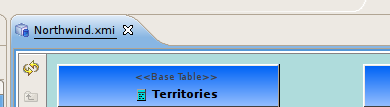
Figure 13.4. Select Editor Tab
- Click File > Save As... action to open the Save Model As dialog.
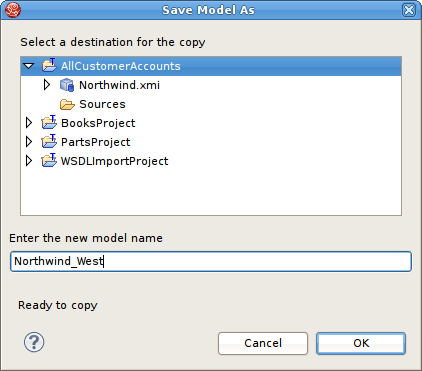
Figure 13.5. Save Model As Dialog
- Enter a unique model name in the new model name text field and click OK.
- If dependent models are detected, the Save Model As - Import References dialog is presented to give you the opportunity to change any of the dependent models imports to reference the new model or not.
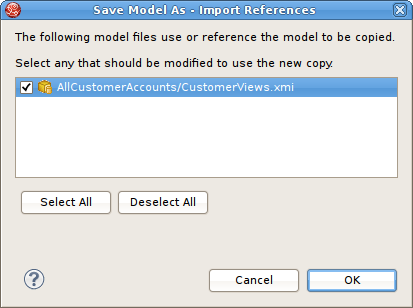
Figure 13.6. Save Model As Dialog

'%20d='M201.5%20305.5c-13.8%200-24.9-11.1-24.9-24.6%200-13.8%2011.1-24.9%2024.9-24.9%2013.6%200%2024.6%2011.1%2024.6%2024.9%200%2013.6-11.1%2024.6-24.6%2024.6zM504%20256c0%20137-111%20248-248%20248S8%20393%208%20256%20119%208%20256%208s248%20111%20248%20248zm-132.3-41.2c-9.4%200-17.7%203.9-23.8%2010-22.4-15.5-52.6-25.5-86.1-26.6l17.4-78.3%2055.4%2012.5c0%2013.6%2011.1%2024.6%2024.6%2024.6%2013.8%200%2024.9-11.3%2024.9-24.9s-11.1-24.9-24.9-24.9c-9.7%200-18%205.8-22.1%2013.8l-61.2-13.6c-3-.8-6.1%201.4-6.9%204.4l-19.1%2086.4c-33.2%201.4-63.1%2011.3-85.5%2026.8-6.1-6.4-14.7-10.2-24.1-10.2-34.9%200-46.3%2046.9-14.4%2062.8-1.1%205-1.7%2010.2-1.7%2015.5%200%2052.6%2059.2%2095.2%20132%2095.2%2073.1%200%20132.3-42.6%20132.3-95.2%200-5.3-.6-10.8-1.9-15.8%2031.3-16%2019.8-62.5-14.9-62.5zM302.8%20331c-18.2%2018.2-76.1%2017.9-93.6%200-2.2-2.2-6.1-2.2-8.3%200-2.5%202.5-2.5%206.4%200%208.6%2022.8%2022.8%2087.3%2022.8%20110.2%200%202.5-2.2%202.5-6.1%200-8.6-2.2-2.2-6.1-2.2-8.3%200zm7.7-75c-13.6%200-24.6%2011.1-24.6%2024.9%200%2013.6%2011.1%2024.6%2024.6%2024.6%2013.8%200%2024.9-11.1%2024.9-24.6%200-13.8-11-24.9-24.9-24.9z'/%3e%3c/svg%3e)