 Red Hat Summit
Getting started with Red Hat OpenShift Streams for Apache Kafka
Learn how to create and inspect a Kafka instance, create a service account to connect an application or service to the instance, and create a topic in the instance.
Getting started with Red Hat OpenShift Streams for Apache Kafka
Red Hat OpenShift Streams for Apache Kafka provides dedicated high-availability Apache Kafka clusters delivered as a service across your hybrid cloud environments, so you can process streamed data. The service provides a consistent experience across clouds, easily connects to other OpenShift workloads, and lets you provision Kafka instances in minutes.
To access a quick start that guides you through setup, please follow this link to the Red Hat Console.
Create a Kafka instance
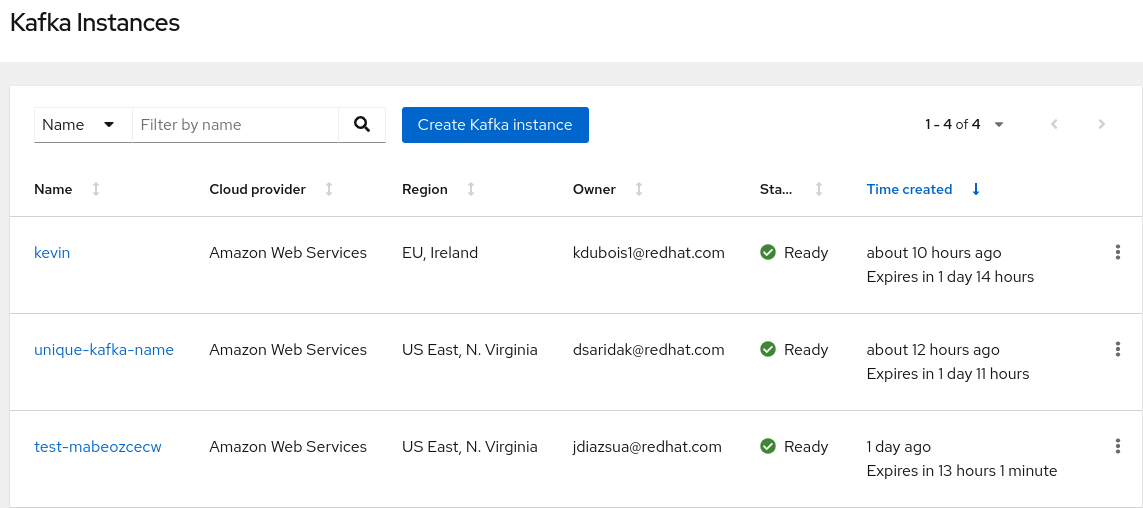
- In the OpenShift Streams for Apache Kafka web console, go to Streams for Apache Kafka > Kafka Instances and click Create Kafka instance.
- Enter a unique name for the Kafka instance, such as
my-first-kafka-instance. - From the Cloud region drop-down menu, select your region.
- The selection for availability zones is preconfigured as Single for a trial instance and Multi for a production instance.
- If you’ve purchased a subscription for OpenShift Streams for Apache Kafka, use the slider to select an instance size. Instances with more streaming units have more capacity.
- Click Create instance to start the creation process for your Kafka instance.
Create a service account to connect your instance
To connect your applications or services to a Kafka instance in Red Hat OpenShift Streams for Apache Kafka, you need to create a service account that’s associated with the instance.
- Ensure your Kafka instance is in the Ready state.
- In the Kafka Instances page of the web console, for the relevant Kafka instance that you want to connect to, select the options icon (three vertical dots) and click Connection.
- In the Connection page, copy the Bootstrap server endpoint to a secure location. This is the bootstrap server endpoint that you’ll need for connecting to this Kafka instance.
- Click Create service account to set up the account that you’ll use to access this Kafka instance.
- Enter a short description, such as
my-service-account, and click Create. - Copy the generated Client ID and Client secret values to a secure location. These are the credentials that you’ll use to connect to this Kafka instance.
- After you save the generated credentials to a secure location, select the confirmation check box in the credentials window and close the window.
What’s next?
Once your instance is created and connected to a service account, you can set permissions, create a Kafka topic, and more. For additional information on getting started with a Kafka instance, visit the quick start hub on console.

'%20d='M201.5%20305.5c-13.8%200-24.9-11.1-24.9-24.6%200-13.8%2011.1-24.9%2024.9-24.9%2013.6%200%2024.6%2011.1%2024.6%2024.9%200%2013.6-11.1%2024.6-24.6%2024.6zM504%20256c0%20137-111%20248-248%20248S8%20393%208%20256%20119%208%20256%208s248%20111%20248%20248zm-132.3-41.2c-9.4%200-17.7%203.9-23.8%2010-22.4-15.5-52.6-25.5-86.1-26.6l17.4-78.3%2055.4%2012.5c0%2013.6%2011.1%2024.6%2024.6%2024.6%2013.8%200%2024.9-11.3%2024.9-24.9s-11.1-24.9-24.9-24.9c-9.7%200-18%205.8-22.1%2013.8l-61.2-13.6c-3-.8-6.1%201.4-6.9%204.4l-19.1%2086.4c-33.2%201.4-63.1%2011.3-85.5%2026.8-6.1-6.4-14.7-10.2-24.1-10.2-34.9%200-46.3%2046.9-14.4%2062.8-1.1%205-1.7%2010.2-1.7%2015.5%200%2052.6%2059.2%2095.2%20132%2095.2%2073.1%200%20132.3-42.6%20132.3-95.2%200-5.3-.6-10.8-1.9-15.8%2031.3-16%2019.8-62.5-14.9-62.5zM302.8%20331c-18.2%2018.2-76.1%2017.9-93.6%200-2.2-2.2-6.1-2.2-8.3%200-2.5%202.5-2.5%206.4%200%208.6%2022.8%2022.8%2087.3%2022.8%20110.2%200%202.5-2.2%202.5-6.1%200-8.6-2.2-2.2-6.1-2.2-8.3%200zm7.7-75c-13.6%200-24.6%2011.1-24.6%2024.9%200%2013.6%2011.1%2024.6%2024.6%2024.6%2013.8%200%2024.9-11.1%2024.9-24.6%200-13.8-11-24.9-24.9-24.9z'/%3e%3c/svg%3e)