 Red Hat Summit
이 콘텐츠는 선택한 언어로 제공되지 않습니다.
Appendix B. Connecting with JConsole
B.1. Connect to JDG via JConsole
링크 복사링크가 클립보드에 복사되었습니다!
JConsole is a JMX GUI that allows a user to connect to a JVM, either local or remote, to monitor the JVM, its MBeans, and execute operations.
Procedure B.1. Add Management User to JBoss Data Grid
Before being able to connect to a remote JBoss Data Grid instance a user will need to be created; to add a user execute the following steps on the remote instance.
- Navigate to the
bindirectorycd $JDG_HOME/bin - Execute the
add-user.shscript../add-user.sh - Accept the default option of
ManagementUserby pressing return. - Accept the default option of
ManagementRealmby pressing return. - Enter the desired username. In this example
jmxadminwill be used. - Enter and confirm the password.
- Accept the default option of no groups by pressing return.
- Confirm that the desired user will be added to the
ManagementRealmby enteringyes. - Enter
noas this user will not be used for connections between processes. - The following image shows an example execution run.
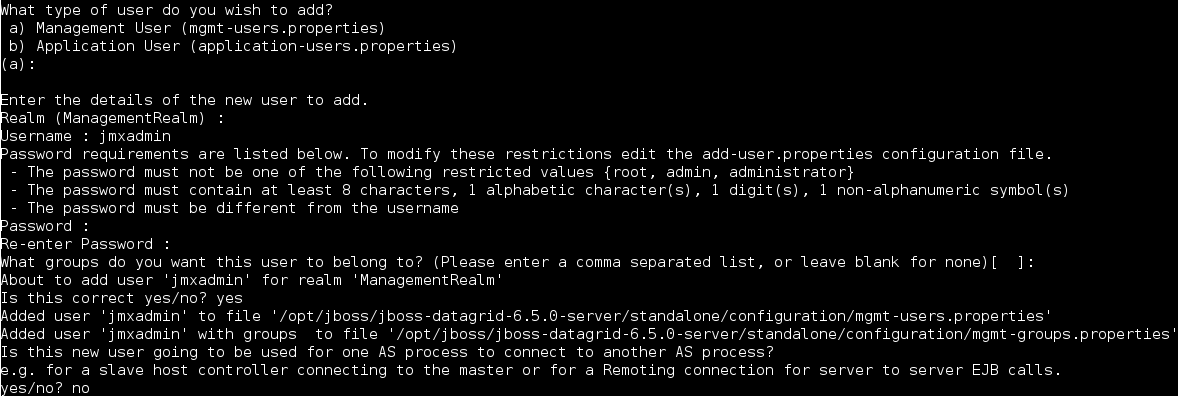
Figure B.1. Execution of add-user.sh
Binding the Management Interface
By default JBoss Data Grid will start with the management interface binding to 127.0.0.1. In order to connect remotely this interface must be bound to an IP address that is visible by the network. Either of the following options will correct this:
- Option 1: Runtime - By adjusting the
jboss.bind.address.managementproperty on startup a new IP address can be specified. In the following example JBoss Data Grid is starting with this bound to 192.168.122.5:./standalone.sh ... -Djboss.bind.address.management=192.168.122.5 - Option 2: Configuration - Adjust the
jboss.bind.address.managementin the configuration file. This is found in theinterfacessubsystem. A snippet of the configuration file, with the IP adjusted to 192.168.122.5, is provided below:<interfaces> <interface name="management"> <inet-address value="${jboss.bind.address.management:192.168.122.5}"/> </interface> [...] </interface>
Running JConsole
A jconsole.sh script is provided in the $JDG_HOME/bin directory. Executing this script will launch JConsole.
Procedure B.2. Connecting to a remote JBoss Data Grid instance using JConsole
- Execute the
$JDG_HOME/bin/jconsole.shscript. This will result in the following window appearing: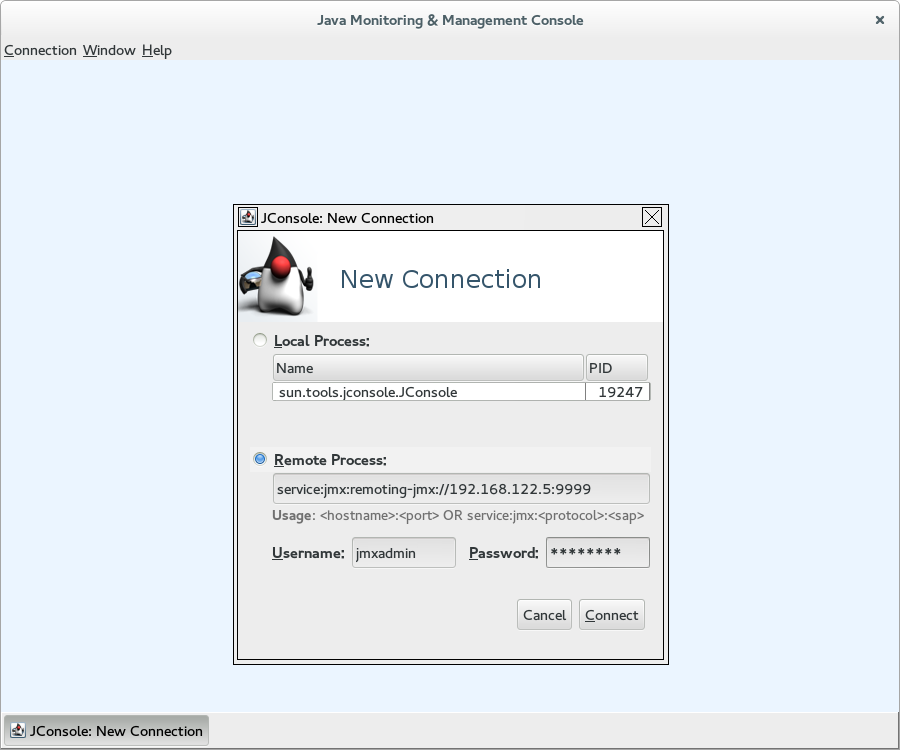
Figure B.2. JConsole
- Select
Remote Process. - Enter
service:jmx:remoting-jmx://$IP:9999in the text area. - Enter the username and password, created from the
add-user.shscript. - Click
Connectto initiate the connection. - Once connected ensure that the cache-related nodes may be viewed. The following screenshot shows such a node.

Figure B.3. JConsole: Showing a Cache

'%20d='M201.5%20305.5c-13.8%200-24.9-11.1-24.9-24.6%200-13.8%2011.1-24.9%2024.9-24.9%2013.6%200%2024.6%2011.1%2024.6%2024.9%200%2013.6-11.1%2024.6-24.6%2024.6zM504%20256c0%20137-111%20248-248%20248S8%20393%208%20256%20119%208%20256%208s248%20111%20248%20248zm-132.3-41.2c-9.4%200-17.7%203.9-23.8%2010-22.4-15.5-52.6-25.5-86.1-26.6l17.4-78.3%2055.4%2012.5c0%2013.6%2011.1%2024.6%2024.6%2024.6%2013.8%200%2024.9-11.3%2024.9-24.9s-11.1-24.9-24.9-24.9c-9.7%200-18%205.8-22.1%2013.8l-61.2-13.6c-3-.8-6.1%201.4-6.9%204.4l-19.1%2086.4c-33.2%201.4-63.1%2011.3-85.5%2026.8-6.1-6.4-14.7-10.2-24.1-10.2-34.9%200-46.3%2046.9-14.4%2062.8-1.1%205-1.7%2010.2-1.7%2015.5%200%2052.6%2059.2%2095.2%20132%2095.2%2073.1%200%20132.3-42.6%20132.3-95.2%200-5.3-.6-10.8-1.9-15.8%2031.3-16%2019.8-62.5-14.9-62.5zM302.8%20331c-18.2%2018.2-76.1%2017.9-93.6%200-2.2-2.2-6.1-2.2-8.3%200-2.5%202.5-2.5%206.4%200%208.6%2022.8%2022.8%2087.3%2022.8%20110.2%200%202.5-2.2%202.5-6.1%200-8.6-2.2-2.2-6.1-2.2-8.3%200zm7.7-75c-13.6%200-24.6%2011.1-24.6%2024.9%200%2013.6%2011.1%2024.6%2024.6%2024.6%2013.8%200%2024.9-11.1%2024.9-24.6%200-13.8-11-24.9-24.9-24.9z'/%3e%3c/svg%3e)