 Red Hat Summit
이 콘텐츠는 선택한 언어로 제공되지 않습니다.
3.2. Verify the Authenticity of the Download Site
Red Hat Customer Portal and Red Hat Network are both secure sites. This is indicated by the 'security padlock' icon in the browser status bar. Some web browsers also display the padlock icon in the address bar.
If the 'security padlock' is not visible, check the authenticity of the site by viewing the identity certificate.
Procedure 3.1. Checking Site Security with Firefox
- In the address bar, click the padlock icon.
- From the pop-up box, click .
- From the Page Info window, click .
- The certificate displays details such as who owns the site, who issued the certificate, when it was issued, when it expires and fingerprint verification strings.
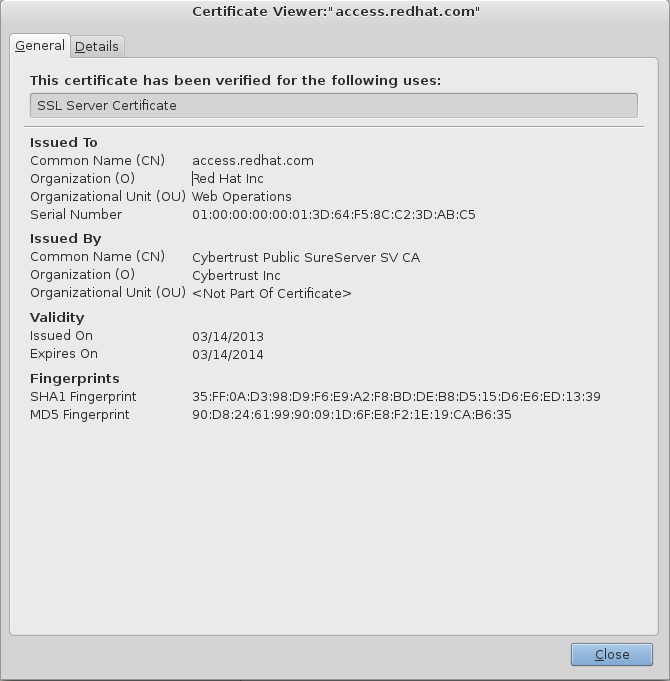
Figure 3.1. Example of the Red Hat Network SSL Certificate
If neither of the lock icons are present in your browser and a verified certificate cannot be found, you may not be connected to the correct site. If you are unable to reach the secure Red Hat Customer Portal site, contact Red Hat Support and report this problem.

'%20d='M201.5%20305.5c-13.8%200-24.9-11.1-24.9-24.6%200-13.8%2011.1-24.9%2024.9-24.9%2013.6%200%2024.6%2011.1%2024.6%2024.9%200%2013.6-11.1%2024.6-24.6%2024.6zM504%20256c0%20137-111%20248-248%20248S8%20393%208%20256%20119%208%20256%208s248%20111%20248%20248zm-132.3-41.2c-9.4%200-17.7%203.9-23.8%2010-22.4-15.5-52.6-25.5-86.1-26.6l17.4-78.3%2055.4%2012.5c0%2013.6%2011.1%2024.6%2024.6%2024.6%2013.8%200%2024.9-11.3%2024.9-24.9s-11.1-24.9-24.9-24.9c-9.7%200-18%205.8-22.1%2013.8l-61.2-13.6c-3-.8-6.1%201.4-6.9%204.4l-19.1%2086.4c-33.2%201.4-63.1%2011.3-85.5%2026.8-6.1-6.4-14.7-10.2-24.1-10.2-34.9%200-46.3%2046.9-14.4%2062.8-1.1%205-1.7%2010.2-1.7%2015.5%200%2052.6%2059.2%2095.2%20132%2095.2%2073.1%200%20132.3-42.6%20132.3-95.2%200-5.3-.6-10.8-1.9-15.8%2031.3-16%2019.8-62.5-14.9-62.5zM302.8%20331c-18.2%2018.2-76.1%2017.9-93.6%200-2.2-2.2-6.1-2.2-8.3%200-2.5%202.5-2.5%206.4%200%208.6%2022.8%2022.8%2087.3%2022.8%20110.2%200%202.5-2.2%202.5-6.1%200-8.6-2.2-2.2-6.1-2.2-8.3%200zm7.7-75c-13.6%200-24.6%2011.1-24.6%2024.9%200%2013.6%2011.1%2024.6%2024.6%2024.6%2013.8%200%2024.9-11.1%2024.9-24.6%200-13.8-11-24.9-24.9-24.9z'/%3e%3c/svg%3e)