 Red Hat Summit
이 콘텐츠는 선택한 언어로 제공되지 않습니다.
Chapter 3. Guided Rules
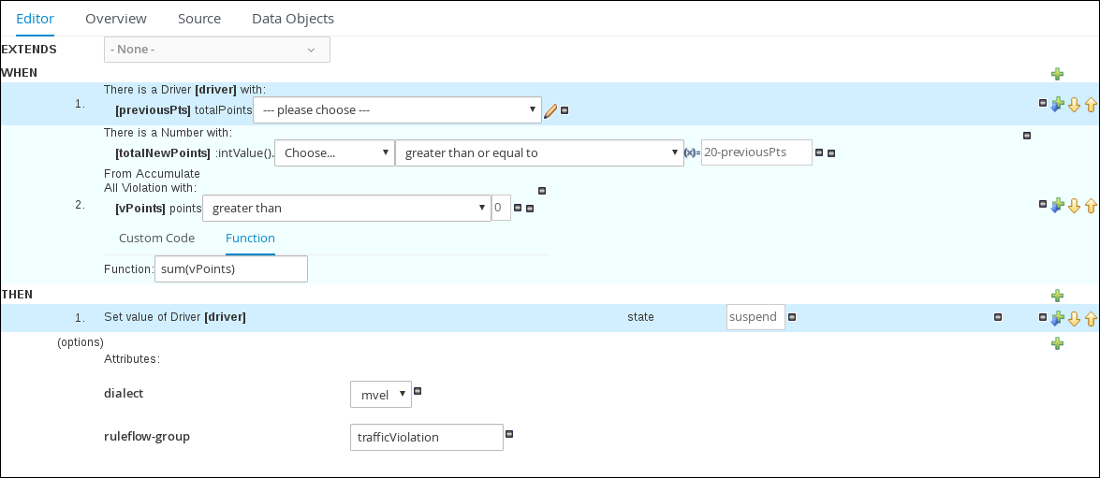
Guided Rules are business rules that you can create in a UI-based Guided Rules designer that leads you through the rule creation process. The rule designer provides fields and options for acceptable input based on the object model of the rule being edited. All data objects related to the rule must be in the same project package as the rule. Assets in the same package are imported by default. You can use the Data Objects tab of the rule designer to verify that all required data objects are listed or to import any other needed data objects.
Figure 3.1. The Guided Rule designer
3.1. Creating the Driver License Suspension rule
The Driver license suspension rule is created using the Guided Rule wizard and is comprised of various conditions and their resulting actions.
Prerequisite
Created both the Violation and Driver data objects.
Procedure
-
Log in to Decision Central. Click Menu
Design Projects, then Driver department traffic violations. Click Create New Asset
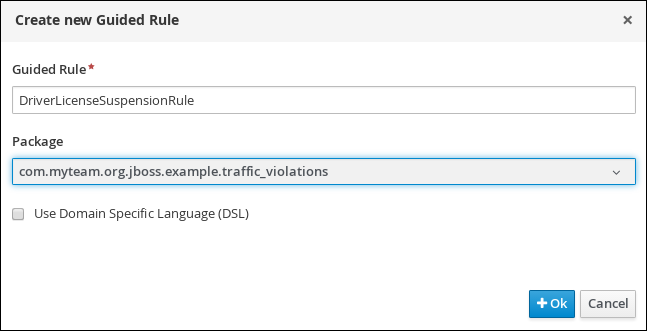
Guided Rule, then enter: -
Guided Rule:
DriverLicenseSuspensionRule -
Package:
com.myteam.driverdepartmenttrafficviolations
-
Guided Rule:
Click Ok to open the Guided Rule designer.
Figure 3.2. Create new Guided Rule window
3.2. Setting the Suspension rule conditions
The Suspension rule contains conditions that are used to determine the driver’s violation.
Prerequisite
You have created the Driver License Suspension rule
Procedure
Click
 next to the WHEN label to open the Add a condition to the rule window. . . Select Driver and click Ok.
Figure 3.3. Create new Guided Rule window
- Click the There is a Driver label to open the Modify constraints for Driver window.
-
Enter
driverin the Variable name field and click Set. - Click the There is a Driver[driver] and click Expression editor.
- Click [not bound] to open the Expression editor.
-
In the Bind the Expression to a new variable field, enter:
previousPtsand click Set. - From the Choose menu, select totalPoints.
-
Click
next to line 1 (the previousPts label) to open the Add a condition to the rule window.
- Select From Accumulate and click Ok.
- Click click to add pattern above the From Accumulate label and select Number from the choose fact type pull-down menu.
- Click There is a number label to open the Modify contraints for Driver window.
- Click Expression editor and select intValue() from the [not bound]: Choose menu.
- Click [not bound] to open the Expression editor.
-
In the Bind the Expression to a new variable field, enter:
totalNewPointsand click Set. - Click click to add pattern and select Violation from the choose fact type pull-down menu.
- Click All Violation with: to open the Modify contraints for Violation window and select points from the Add a restriction on a field pull-down menu.
- Click please choose next to the points label and select greater than.
-
Click
 , then click Literal value.
-
Click the points label to open the Add a field window and enter
vPointsand click Set. -
In the Function field, enter
sum(vPoints). -
Select greater than or equal to from the totalNewPoints
please choose pull-down menu. -
Click
, click New formula, and enter
20-previousPtsin the new field. - Click Save, then click Save to confirm your changes.
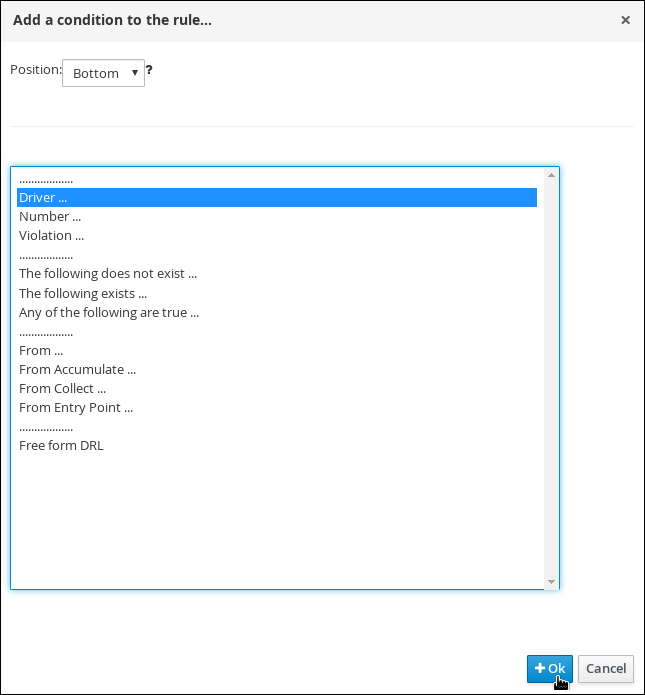
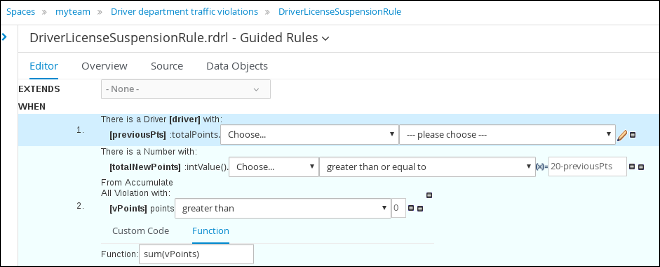
Figure 3.4. Suspension Rule conditions
3.3. Setting the Suspension rule actions
The Suspension rule actions determine a driver’s resulting penalties including points and fine amounts based on the Suspension rule conditions.
Prerequisite
You have created set the Suspension rule conditions
Procedure
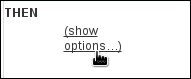
Click (show options…).
Figure 3.5. show options selection
-
Click
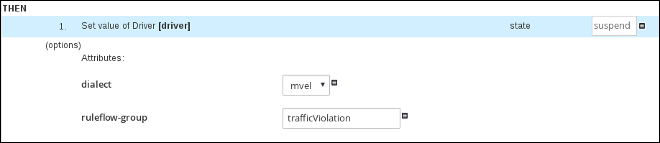
next to the THEN label and select Change field values of driver, then click Ok.
- Click the Set value of Driver [driver] field and select state from the Add field pull-down menu.
-
Click
next to state in the Set value of Driver [driver] section to open the Field value window.
Click Literal value and enter
suspendin the new field.Figure 3.6. New field
-
Click
next to the (options) label below the Set value of Driver [driver] section.
- From the Add an option to the rule window, select the ruleflow-group option from the Attribute pull-down menu.
-
Enter
trafficViolationin to the ruleflow-group field. Click Save, then click Save to confirm your changes.
Figure 3.7. Suspension rule actions


'%20d='M201.5%20305.5c-13.8%200-24.9-11.1-24.9-24.6%200-13.8%2011.1-24.9%2024.9-24.9%2013.6%200%2024.6%2011.1%2024.6%2024.9%200%2013.6-11.1%2024.6-24.6%2024.6zM504%20256c0%20137-111%20248-248%20248S8%20393%208%20256%20119%208%20256%208s248%20111%20248%20248zm-132.3-41.2c-9.4%200-17.7%203.9-23.8%2010-22.4-15.5-52.6-25.5-86.1-26.6l17.4-78.3%2055.4%2012.5c0%2013.6%2011.1%2024.6%2024.6%2024.6%2013.8%200%2024.9-11.3%2024.9-24.9s-11.1-24.9-24.9-24.9c-9.7%200-18%205.8-22.1%2013.8l-61.2-13.6c-3-.8-6.1%201.4-6.9%204.4l-19.1%2086.4c-33.2%201.4-63.1%2011.3-85.5%2026.8-6.1-6.4-14.7-10.2-24.1-10.2-34.9%200-46.3%2046.9-14.4%2062.8-1.1%205-1.7%2010.2-1.7%2015.5%200%2052.6%2059.2%2095.2%20132%2095.2%2073.1%200%20132.3-42.6%20132.3-95.2%200-5.3-.6-10.8-1.9-15.8%2031.3-16%2019.8-62.5-14.9-62.5zM302.8%20331c-18.2%2018.2-76.1%2017.9-93.6%200-2.2-2.2-6.1-2.2-8.3%200-2.5%202.5-2.5%206.4%200%208.6%2022.8%2022.8%2087.3%2022.8%20110.2%200%202.5-2.2%202.5-6.1%200-8.6-2.2-2.2-6.1-2.2-8.3%200zm7.7-75c-13.6%200-24.6%2011.1-24.6%2024.9%200%2013.6%2011.1%2024.6%2024.6%2024.6%2013.8%200%2024.9-11.1%2024.9-24.6%200-13.8-11-24.9-24.9-24.9z'/%3e%3c/svg%3e)