 Red Hat Summit
이 콘텐츠는 선택한 언어로 제공되지 않습니다.
6.9.5. Configure Group Role Assignment
Roles can be assigned to a user based on the user's membership of a user group.
Groups to be included or excluded from a role can be configured in the Management Console and the Management CLI. This topic only shows using the Management Console.
Only users in the
SuperUser or Administrator roles can perform this configuration.
The Group roles configuration in the management console can be found by following these steps:
- Login to the Management Console.
- Click on the tab.
- Expand the menu and select .
- Select the tab.
Procedure 6.13. Create a new role assignment for a group
- Login to the Management console
- Navigate to the tab of the Role Assignment section.
- Click the button at the top right of the user list. Add Group dialog appears.
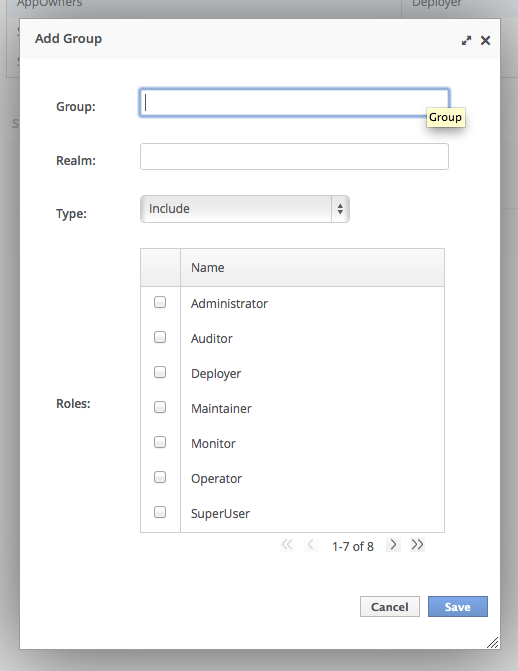
Figure 6.3. Add Group Dialog
- Specify the group name, and optionally the realm.
- Set the type menu to include or exclude.
- Click the checkbox of the roles to include or exclude. To check multiple items, hold down the Control key (Command key on OSX).
- Click to finish.When successful, the Add Group dialog closes, and the list of groups is updated to reflect the changes made. If unsuccessful a
Failed to save role assignmentmessage is displayed.
Procedure 6.14. Update a role assignment for a group
- Login to the Management console.
- Navigate to the tab of the Role Assignment section.
- Select the group from the list.
- Click Edit. The Selection view enters Edit mode.
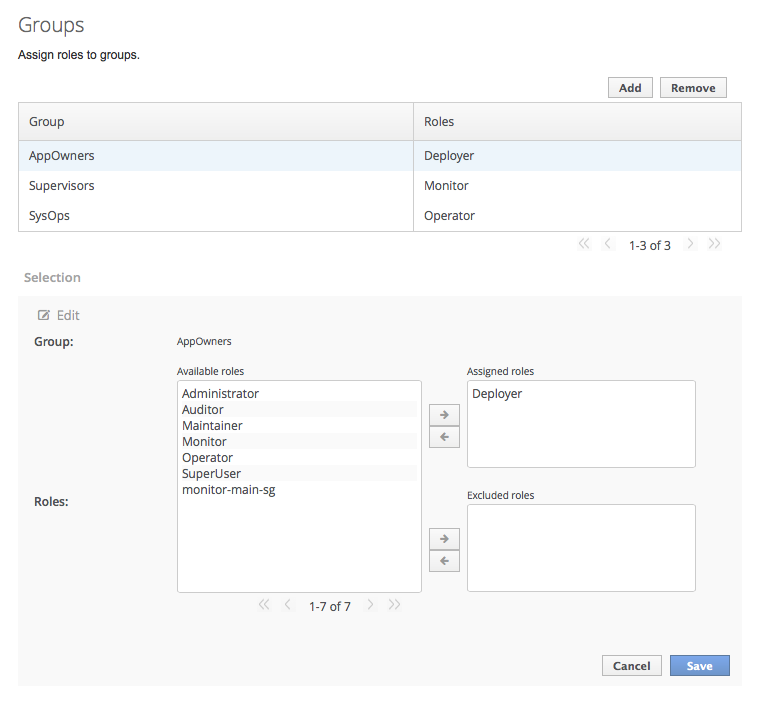
Figure 6.4. Selection View Edit Mode
Here you can add and remove assigned and excluded roles from the group:- To add assigned role, select the required role from the list of available roles on the left and click button with the right-facing arrow next to the assigned roles list. The role moves from the available list to the assigned list.
- To remove an assigned role, selected the required role from the assigned roles list on the right and click the button with the left-facing arrow next to the assigned roles list. The role moves from the assigned list to the available list.
- To add an excluded role, select the required role from the list of available roles on the left and click button with the right-facing arrow next to the excluded roles list. The role moves from the available list to the excluded list.
- To remove an excluded role, selected the required role from the excluded roles list on the right and click the button with the left-facing arrow next to the excluded roles list. The role moves from the excluded list to the available list.
- Click to finish.When successful, the edit view closes, and the list of groups is updated to reflect the changes made. If unsuccessful a message is displayed.
Procedure 6.15. Remove role assignment for a group
- Login to the Management console.
- Navigate to the tab of the section.
- Select the group from the list.
- Click . The Remove Role Assignment confirmation prompt appears.
- Click .When successful, the role will no longer appear in the list of group role assignments.Removing the group from the list of role assignments does not remove the user group from the system, nor does it guarantee that no roles will be assigned to members of that group. Each group member might still have a role assigned to them directly.

'%20d='M201.5%20305.5c-13.8%200-24.9-11.1-24.9-24.6%200-13.8%2011.1-24.9%2024.9-24.9%2013.6%200%2024.6%2011.1%2024.6%2024.9%200%2013.6-11.1%2024.6-24.6%2024.6zM504%20256c0%20137-111%20248-248%20248S8%20393%208%20256%20119%208%20256%208s248%20111%20248%20248zm-132.3-41.2c-9.4%200-17.7%203.9-23.8%2010-22.4-15.5-52.6-25.5-86.1-26.6l17.4-78.3%2055.4%2012.5c0%2013.6%2011.1%2024.6%2024.6%2024.6%2013.8%200%2024.9-11.3%2024.9-24.9s-11.1-24.9-24.9-24.9c-9.7%200-18%205.8-22.1%2013.8l-61.2-13.6c-3-.8-6.1%201.4-6.9%204.4l-19.1%2086.4c-33.2%201.4-63.1%2011.3-85.5%2026.8-6.1-6.4-14.7-10.2-24.1-10.2-34.9%200-46.3%2046.9-14.4%2062.8-1.1%205-1.7%2010.2-1.7%2015.5%200%2052.6%2059.2%2095.2%20132%2095.2%2073.1%200%20132.3-42.6%20132.3-95.2%200-5.3-.6-10.8-1.9-15.8%2031.3-16%2019.8-62.5-14.9-62.5zM302.8%20331c-18.2%2018.2-76.1%2017.9-93.6%200-2.2-2.2-6.1-2.2-8.3%200-2.5%202.5-2.5%206.4%200%208.6%2022.8%2022.8%2087.3%2022.8%20110.2%200%202.5-2.2%202.5-6.1%200-8.6-2.2-2.2-6.1-2.2-8.3%200zm7.7-75c-13.6%200-24.6%2011.1-24.6%2024.9%200%2013.6%2011.1%2024.6%2024.6%2024.6%2013.8%200%2024.9-11.1%2024.9-24.6%200-13.8-11-24.9-24.9-24.9z'/%3e%3c/svg%3e)