 Red Hat Summit
이 콘텐츠는 선택한 언어로 제공되지 않습니다.
Chapter 12. Rules in case management
Cases are data-driven, rather than following a sequential flow. The steps required to resolve a case rely on data, which is provided by people involved in the case, or the system can be configured to trigger further actions based on the data available. In the latter case, you can use business rules to decide what further actions are required for the case to continue or reach a resolution.
Data can be inserted into the case file at any point during the case. The process engine constantly monitors case file data, meaning that rules react to data that is contained in the case file. Using rules to monitor and respond to changes in the case file data provides a level of automation that drives cases forward.
12.1. Using rules to drive cases
Refer to the the case management IT Orders sample scenario in Business Central.
Suppose that the particular hardware specification provided by the supplier is incorrect or invalid. The supplier needs to provide a new, valid order so that the case can continue. Rather than wait for the manager to reject the invalid specification and create a new request for the supplier, you can create a business rule that will react immediately when the case data indicates that the provided specification is invalid. It can then create a new hardware specification request for the supplier.
The following procedure demonstrates how to create and use a business rule to execute the described scenario.
Prerequisites
- The IT Orders sample project is open in Business Central, but it is not deployed to the Process Server.
The
ServiceRegistryis part of thejbpm-services-apimodule, and must be available on the class path.NoteIf building the project outside of Business Central, the following dependencies must be added to the project:
-
org.jbpm:jbpm-services-api -
org.jbpm:jbpm-case-mgmt-api
-
Procedure
Create the following business rule file called
validate-document.drl:package defaultPackage; import java.util.Map; import java.util.HashMap; import org.jbpm.casemgmt.api.CaseService; import org.jbpm.casemgmt.api.model.instance.CaseFileInstance; import org.jbpm.document.Document; import org.jbpm.services.api.service.ServiceRegistry; rule "Invalid document name - reupload" when $caseData : CaseFileInstance() Document(name == "invalid.pdf") from $caseData.getData("hwSpec") then System.out.println("Hardware specification is invalid"); $caseData.remove("hwSpec"); update($caseData); CaseService caseService = (CaseService) ServiceRegistry.get().service(ServiceRegistry.CASE_SERVICE); caseService.triggerAdHocFragment($caseData.getCaseId(), "Prepare hardware spec", null); endThis business rule detects when a file named
invalid.pdfis uploaded to the case file. It then removes theinvalid.pdfdocument and creates a new instance of thePrepare hardware specuser task.- Click Build, then Deploy to deploy the IT Orders project.
-
Create a file called
invalid.pdfand save it locally. - Create a file called `valid-spec.pdf`and save it locally.
-
Open the IT Orders project in Business Central under Menu
Projects IT Orders. - Click Import Asset in the upper-right corner of the page.
Upload the
validate-document.drlfile to thedefaultpackage (src/main/resources).
The
validate-document.drlrule is shown in the rule editor. Click Save or close to exit the rule editor.-
Open the Showcase application by either clicking the Apps launcher (if it is installed), or go to
http://localhost:8080/rhpam-case-mgmt-showcase/jbpm-cm.html. Start a new case for the IT Orders project.
In this example, Aimee is the case
owner, Katy is themanager, and the supplier group issupplier.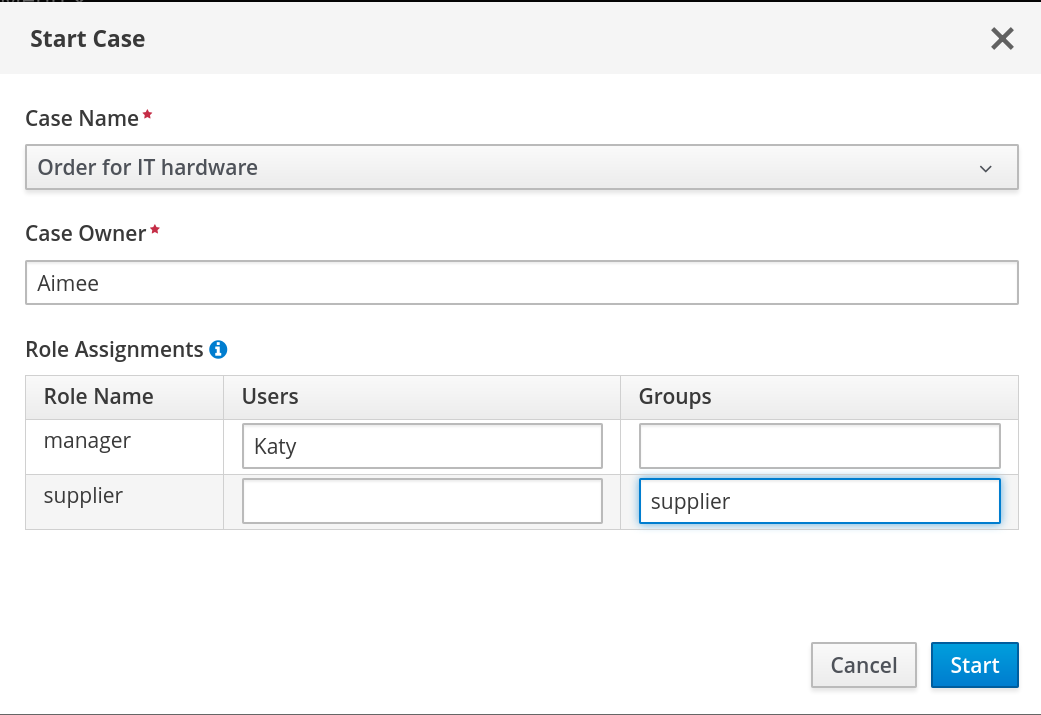
-
Log out of Business Central, and log back in as a user that belongs to the
suppliergroup. -
Go to Menu
Track Task Inbox. -
Open the
Prepare hardware spectask and click Claim. This assigns the task to the logged in user. Click Start and click
 to locate the
 invalid.pdfhardware specification file. Click to upload the file.

Click Complete.
Instead of the Task Inbox showing the
Prepare hardware specasComplete, it shows asReady.In Showcase, click Refresh in the upper-right corner. Notice that a
Prepare hardware taskappears in the Completed column and another appears in the In Progress column.
This is because the first
Prepare hardware spectask has been completed with the specification fileinvalid.pdf. As a result, the business rule causes the task and file to be discarded, and a new user task created.-
In the Business Central Task Inbox, repeat steps 12 and 13, but upload the
valid-spec.pdffile instead ofinvalid.pdf. -
Log out of Business Central and log back in again as
Katy. -
Go to Menu
Track Task Inbox. There are two Manager approvaltasks for Katy, one with theinvalid.pdfhardware specification file, the other with thevalid-spec.pdffile. Open, claim, and complete each task:
-
Check the
approvebox for the task that includes thevalid-spec.pdffile, then click Complete. -
Do not check the
approvebox on the task with theinvalid.pdffile, then click Complete.
-
Check the
-
Go to Menu
Manage Process Instances and open the Order for IT hardware process instance. Open the Diagram tab. Note that the process both
Order rejectedandPlace ordertasks as completed.
Similarly, the case details page in Showcase lists two
Manager approvaltasks in the Completed column.
Related information
- For information about how to configure the Apps launcher for Showcase, see Section 13.1, “Installing and logging in to the Showcase application”.

'%20d='M201.5%20305.5c-13.8%200-24.9-11.1-24.9-24.6%200-13.8%2011.1-24.9%2024.9-24.9%2013.6%200%2024.6%2011.1%2024.6%2024.9%200%2013.6-11.1%2024.6-24.6%2024.6zM504%20256c0%20137-111%20248-248%20248S8%20393%208%20256%20119%208%20256%208s248%20111%20248%20248zm-132.3-41.2c-9.4%200-17.7%203.9-23.8%2010-22.4-15.5-52.6-25.5-86.1-26.6l17.4-78.3%2055.4%2012.5c0%2013.6%2011.1%2024.6%2024.6%2024.6%2013.8%200%2024.9-11.3%2024.9-24.9s-11.1-24.9-24.9-24.9c-9.7%200-18%205.8-22.1%2013.8l-61.2-13.6c-3-.8-6.1%201.4-6.9%204.4l-19.1%2086.4c-33.2%201.4-63.1%2011.3-85.5%2026.8-6.1-6.4-14.7-10.2-24.1-10.2-34.9%200-46.3%2046.9-14.4%2062.8-1.1%205-1.7%2010.2-1.7%2015.5%200%2052.6%2059.2%2095.2%20132%2095.2%2073.1%200%20132.3-42.6%20132.3-95.2%200-5.3-.6-10.8-1.9-15.8%2031.3-16%2019.8-62.5-14.9-62.5zM302.8%20331c-18.2%2018.2-76.1%2017.9-93.6%200-2.2-2.2-6.1-2.2-8.3%200-2.5%202.5-2.5%206.4%200%208.6%2022.8%2022.8%2087.3%2022.8%20110.2%200%202.5-2.2%202.5-6.1%200-8.6-2.2-2.2-6.1-2.2-8.3%200zm7.7-75c-13.6%200-24.6%2011.1-24.6%2024.9%200%2013.6%2011.1%2024.6%2024.6%2024.6%2013.8%200%2024.9-11.1%2024.9-24.6%200-13.8-11-24.9-24.9-24.9z'/%3e%3c/svg%3e)