 Red Hat Summit
이 콘텐츠는 선택한 언어로 제공되지 않습니다.
Chapter 2. Creating users
You can create as many Business Central users as you require. User privileges and settings are controlled by the roles assigned to a user and the groups that a user belongs to. For this example, you must create two new users: Katy who will act as the pizza place employee, and Bill who will act as the customer placing the order. For more information on creating users, see the Creating users chapter of Installing and configuring Red Hat Process Automation Manager on Red Hat JBoss EAP.
Procedure
-
Click the gear icon
 in the upper-right corner, and click Users.
-
Click
 , enter
 Katy, and click Next. -
Click the Groups tab and click
 .
.
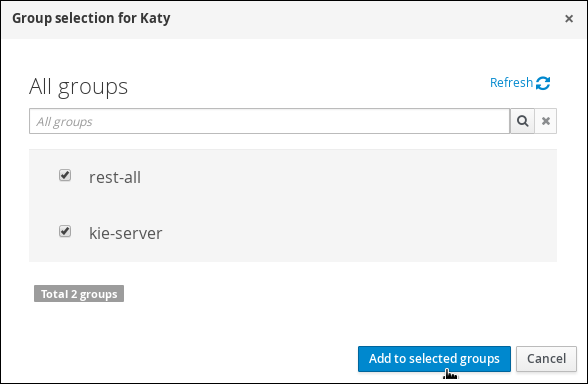
Select rest-all and kie-server in the Group selection for Katy window and click Add to selected groups.
Figure 2.1. Group selection for Katy
Click the Roles tab and click Add roles.
Figure 2.2. Add roles for Katy

- Select admin and user and click Add to selected roles.
-
Click Create to assign
Katyto the admin and user roles. -
Click Yes to set the password to
katyand click Change. -
Create another New user, enter
Bill, and click Next. -
Click the Groups tab and click
.
- Select rest-all and kie-server and click Add to selected groups.
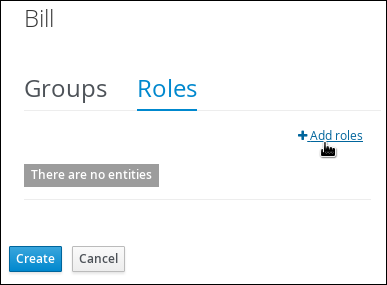
Click the Roles tab and click Add roles.
Figure 2.3. Add roles for Bill
- Select admin and user and click Add to selected roles.
-
Click Create to assign
Billto the admin and user roles. -
Click Yes to set the password to
billand click Change.
Each user must be assigned to at least one role to access Business Central.

'%20d='M201.5%20305.5c-13.8%200-24.9-11.1-24.9-24.6%200-13.8%2011.1-24.9%2024.9-24.9%2013.6%200%2024.6%2011.1%2024.6%2024.9%200%2013.6-11.1%2024.6-24.6%2024.6zM504%20256c0%20137-111%20248-248%20248S8%20393%208%20256%20119%208%20256%208s248%20111%20248%20248zm-132.3-41.2c-9.4%200-17.7%203.9-23.8%2010-22.4-15.5-52.6-25.5-86.1-26.6l17.4-78.3%2055.4%2012.5c0%2013.6%2011.1%2024.6%2024.6%2024.6%2013.8%200%2024.9-11.3%2024.9-24.9s-11.1-24.9-24.9-24.9c-9.7%200-18%205.8-22.1%2013.8l-61.2-13.6c-3-.8-6.1%201.4-6.9%204.4l-19.1%2086.4c-33.2%201.4-63.1%2011.3-85.5%2026.8-6.1-6.4-14.7-10.2-24.1-10.2-34.9%200-46.3%2046.9-14.4%2062.8-1.1%205-1.7%2010.2-1.7%2015.5%200%2052.6%2059.2%2095.2%20132%2095.2%2073.1%200%20132.3-42.6%20132.3-95.2%200-5.3-.6-10.8-1.9-15.8%2031.3-16%2019.8-62.5-14.9-62.5zM302.8%20331c-18.2%2018.2-76.1%2017.9-93.6%200-2.2-2.2-6.1-2.2-8.3%200-2.5%202.5-2.5%206.4%200%208.6%2022.8%2022.8%2087.3%2022.8%20110.2%200%202.5-2.2%202.5-6.1%200-8.6-2.2-2.2-6.1-2.2-8.3%200zm7.7-75c-13.6%200-24.6%2011.1-24.6%2024.9%200%2013.6%2011.1%2024.6%2024.6%2024.6%2013.8%200%2024.9-11.1%2024.9-24.6%200-13.8-11-24.9-24.9-24.9z'/%3e%3c/svg%3e)