 Red Hat Summit
이 콘텐츠는 선택한 언어로 제공되지 않습니다.
Chapter 1. User Administration
1.1. Adding, Deactivating, and Deleting User Accounts
링크 복사링크가 클립보드에 복사되었습니다!
Users can be managed through the Users tab at the top of the RHN Satellite navigation bar. From this tab, user permissions can be granted and edited.
Procedure 1.1. Adding Users
To add new users to the organization:
- In the Users tab, click Create new user to open the Create User page.
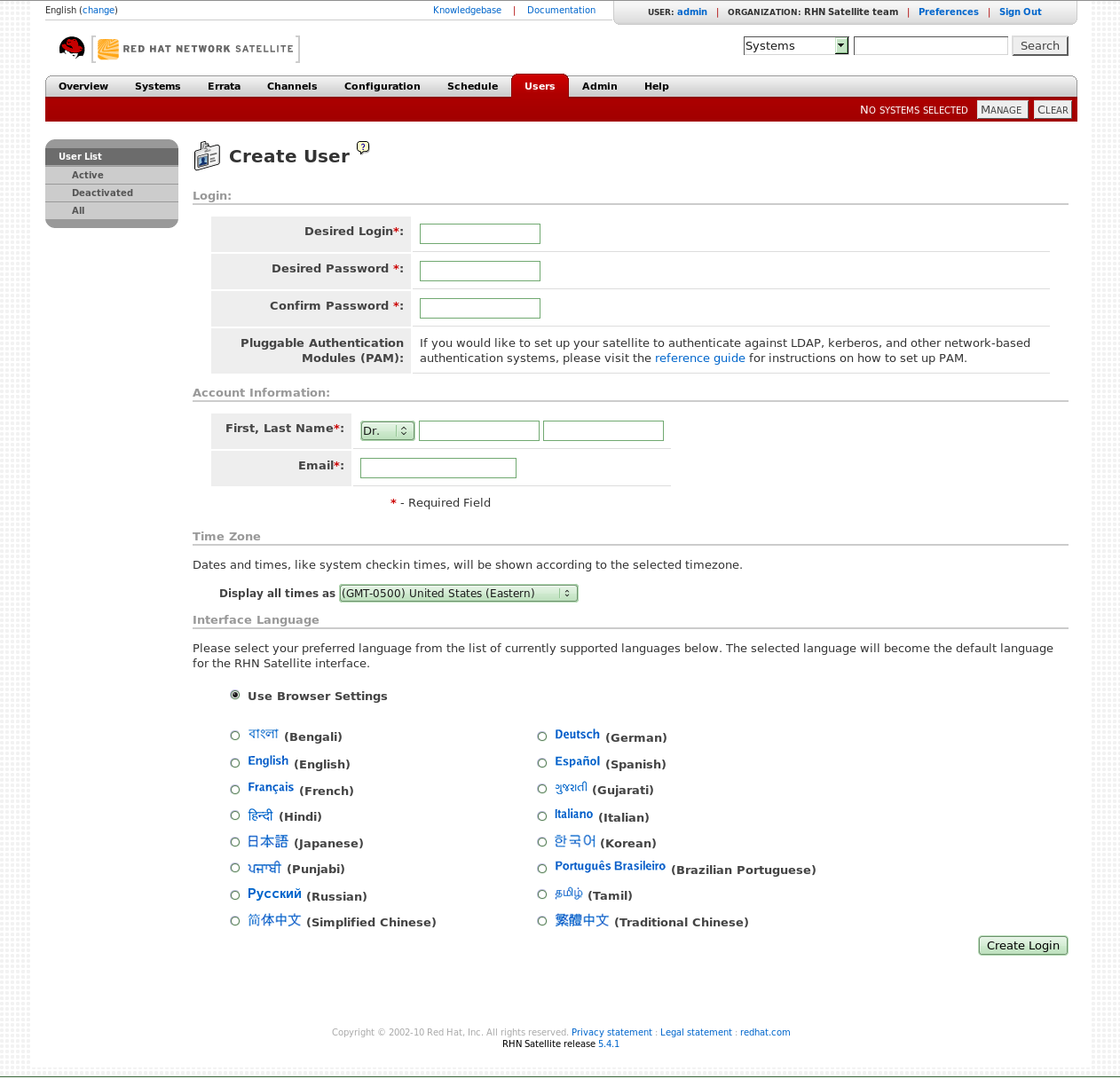
Figure 1.1. The Create User page
- In the Desired Login field, enter a name for the user. The login name must be at least five characters long.
- In the Desired Password field, enter a password for the user. Re-enter the same password to confirm.
- In the First, Last Name field, enter a first and last name for the user. Select a suitable prefix (for example: Mr, Miss, Mrs) from the drop-down menu.
- In the Email field, enter an email address for the user.
- In the Time Zone section, select an appropriate time zone.
- In the Interface Language section, select an appropriate language to be used in the RHN Satellite interface.
- Click to create the new user. An email will be sent to the user (using the address specified during creation) to inform them of the new account details.
- Once the account has been successfully created, you will be redirected to the User List page. To change permissions and set options for the new user, select their name from the displayed list to display the User Details page, and navigate to the appropriate tabs to make your changes.
Procedure 1.2. Deactivating Users
User accounts can be deactivated by administrators, or users can deactivate their own accounts. Deactivated user accounts are not able to be used to log in to the RHN Satellite interface, or schedule actions. Any actions that were scheduled before the account was deactivated will remain in the action queue until they are completed. Deactivated user accounts can be reactivated by administrators.
Administrator accounts can only be deactivated once the administrator role has been removed from the account.
To deactivate a user account:
- Select the user's name from the list in the Users tab, to display the User Details page.
- Check to see if the user is a Satellite administrator.If the user is a Satellite administrator, uncheck the box next to that role, and click .If the user is not a Satellite administrator, continue to the next step.
- Click Deactivate User.
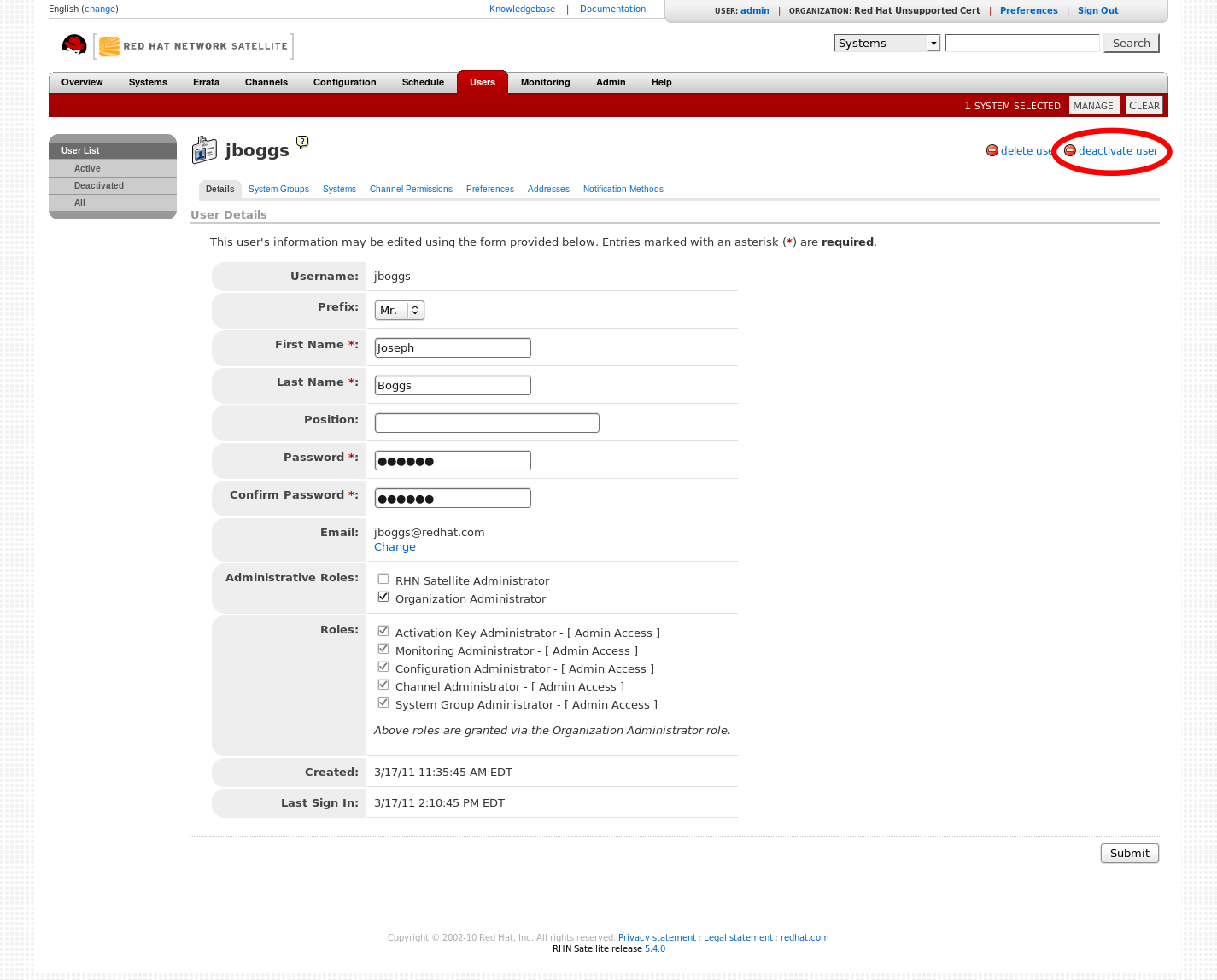
Figure 1.2. Deactivating users
You will be asked to confirm this action, by clicking it again. Check the details, and then click Deactivate User again to confirm. - Once the account has been successfully deactivated, the user's name will not appear in the Active Users list. Click the Deactivated link from the User List menu to view deactivated user accounts.
- To reactivate the user account, view the Deactivated list, check the box next to the user to be reactivate, and click .
Procedure 1.3. Deleting Users
User accounts can be deleted by administrators. Deleted accounts are not able to be used to log in to the RHN Satellite interface, or schedule actions. Deleted accounts cannot be reactivated.
Administrator accounts can only be deleted once the administrator role has been removed from the account.
Warning
Deleting accounts is irreversible; perform this action carefully. Consider deactivating the user account before deleting, in order to assess the effect deletion could have on RHN Satellite infrastructure.
To delete a user account:
- Select the user's name from the list in the Users tab, to display the User Details page.
- Check to see if the user is a Satellite administrator.If the user is a Satellite administrator, uncheck the box next to that role, and click .If the user is not a Satellite administrator, continue to the next step.
- Click Delete User.
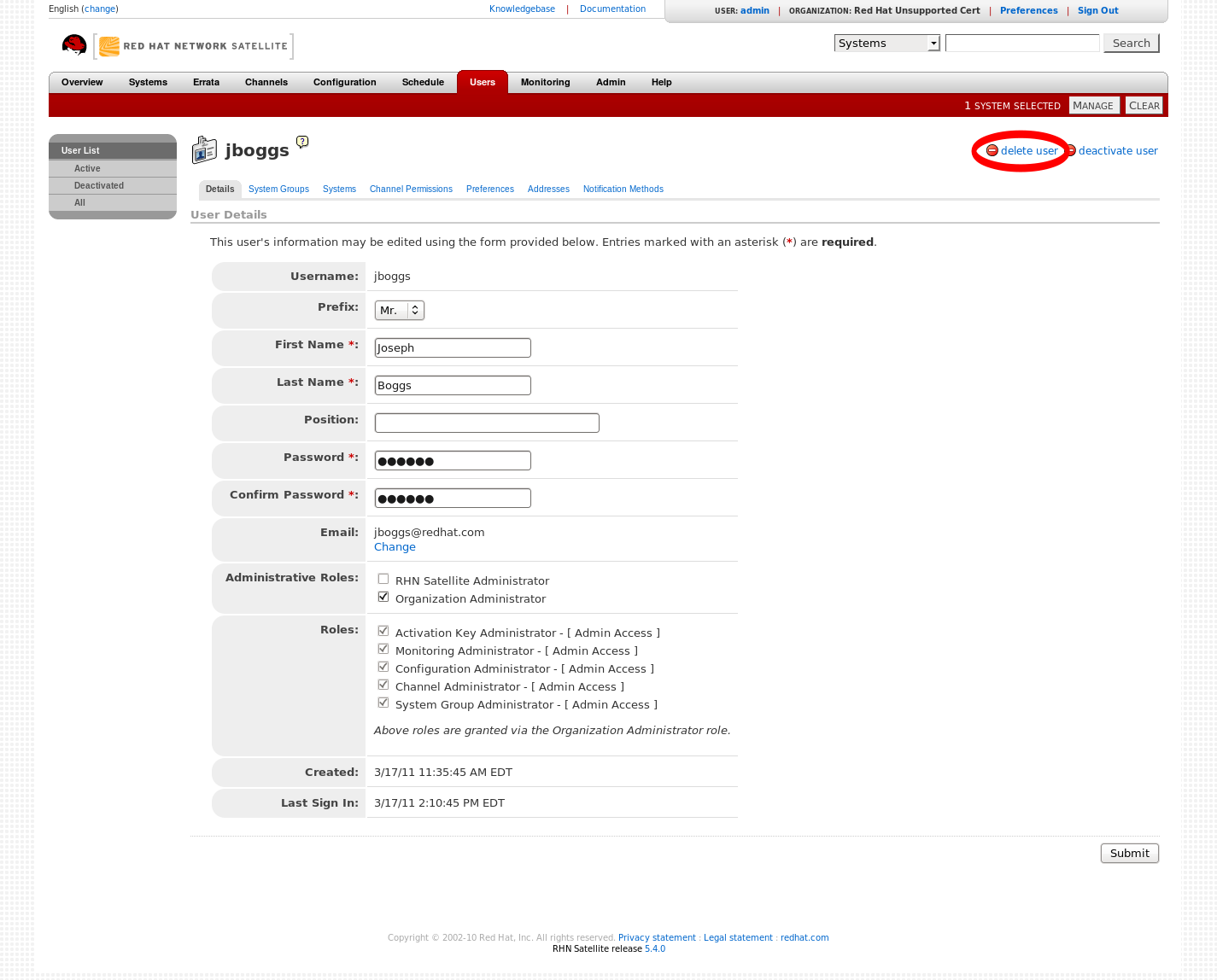
Figure 1.3. Deleting users
You will be asked to confirm this action, by clicking it again. Check the details, and then click Delete User again to confirm. - Once the account has been successfully deleted, the user's name will not appear in the Active Users list. This step is not reversible.

'%20d='M201.5%20305.5c-13.8%200-24.9-11.1-24.9-24.6%200-13.8%2011.1-24.9%2024.9-24.9%2013.6%200%2024.6%2011.1%2024.6%2024.9%200%2013.6-11.1%2024.6-24.6%2024.6zM504%20256c0%20137-111%20248-248%20248S8%20393%208%20256%20119%208%20256%208s248%20111%20248%20248zm-132.3-41.2c-9.4%200-17.7%203.9-23.8%2010-22.4-15.5-52.6-25.5-86.1-26.6l17.4-78.3%2055.4%2012.5c0%2013.6%2011.1%2024.6%2024.6%2024.6%2013.8%200%2024.9-11.3%2024.9-24.9s-11.1-24.9-24.9-24.9c-9.7%200-18%205.8-22.1%2013.8l-61.2-13.6c-3-.8-6.1%201.4-6.9%204.4l-19.1%2086.4c-33.2%201.4-63.1%2011.3-85.5%2026.8-6.1-6.4-14.7-10.2-24.1-10.2-34.9%200-46.3%2046.9-14.4%2062.8-1.1%205-1.7%2010.2-1.7%2015.5%200%2052.6%2059.2%2095.2%20132%2095.2%2073.1%200%20132.3-42.6%20132.3-95.2%200-5.3-.6-10.8-1.9-15.8%2031.3-16%2019.8-62.5-14.9-62.5zM302.8%20331c-18.2%2018.2-76.1%2017.9-93.6%200-2.2-2.2-6.1-2.2-8.3%200-2.5%202.5-2.5%206.4%200%208.6%2022.8%2022.8%2087.3%2022.8%20110.2%200%202.5-2.2%202.5-6.1%200-8.6-2.2-2.2-6.1-2.2-8.3%200zm7.7-75c-13.6%200-24.6%2011.1-24.6%2024.9%200%2013.6%2011.1%2024.6%2024.6%2024.6%2013.8%200%2024.9-11.1%2024.9-24.6%200-13.8-11-24.9-24.9-24.9z'/%3e%3c/svg%3e)