 Red Hat Summit
이 콘텐츠는 선택한 언어로 제공되지 않습니다.
Chapter 3. Configuring Organizations, Locations and Life Cycle Environments
Red Hat Satellite 6 takes a consolidated approach to Organization and Location management. System administrators define multiple Organizations and multiple Locations in a single Satellite server. For example, a company might have three Organizations (Finance, Marketing, and Sales) across three countries (United States, United Kingdom, and Japan). In this example, the Satellite server manages all Organizations across all geographical Locations, creating nine distinct contexts for managing systems. In addition, users can define specific locations and nest them to create a hierarchy. For example, Satellite administrators might divide the United States into specific cities, such as Boston, Phoenix, or San Francisco.
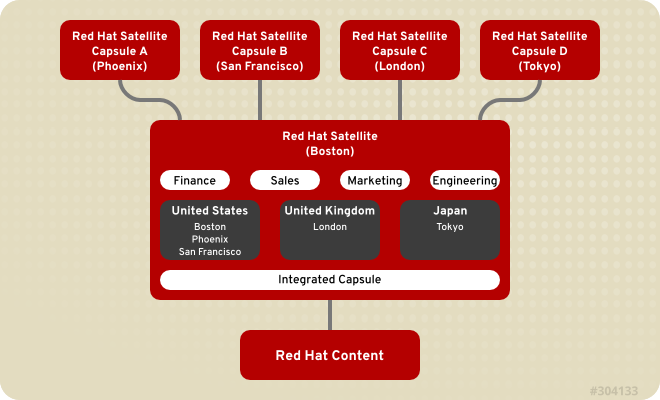
Figure 3.1. Example Topology for Red Hat Satellite 6
The main Satellite server retains the management function, while the content and configuration is synchronized between the main Satellite server and a Satellite Capsule assigned to certain locations.
3.1. Organizations
링크 복사링크가 클립보드에 복사되었습니다!
Organizations divide hosts into logical groups based on ownership, purpose, content, security level, or other divisions.
Multiple organizations can be viewed, created, and managed within the web interface. Software and host entitlements can be allocated across many organizations, and access to those organizations controlled.
Each organization must be created and used by a single Red Hat customer account, however each account can manage multiple organizations. Subscription manifests can only be imported into a single organization and Satellite will not upload a certificate that has already been uploaded into a different organization.
By default, Red Hat Satellite will have one organization already created, called
Default Organization, which can be modified to suit your own installation, or deleted.
Important
If a new user is not assigned a default organization their access will be limited. To grant the user systems rights, assign them a default organization and have them log out and log back in again.
3.1.1. Creating an Organization
링크 복사링크가 클립보드에 복사되었습니다!
These steps show how to create a new organization.
Procedure 3.1. Creating an Organization
- Click the
menu on the top right hand corner. - Click the button.
- Type in the name of the new organization in the Name field.
- Type in the label of the new organization in the Label field.
- Type in a description of the new organization in the Description field.
- Click the button.
- Select the hosts to assign to the new organization.
- Click the button to assign all hosts with no organization to the new organization.
- Click the button to manually select and assign the hosts with no organization.
- Click the button to skip assigning hosts.
Result:
A new organization is created.
3.1.2. Creating an Organization Debug Certificate
링크 복사링크가 클립보드에 복사되었습니다!
These steps show how to generate and download a debug certificate for an organization. Debug certificates unlock all content from an organization and are required for exporting provisioning templates.
Procedure 3.2. Creating a New Organization Debug Certificate
- Click the
menu on the upper right corner. - Select an existing organization from the list on the left.
- Click the button. This generates a debug certificate. Save the certificate in a secure location.
Note
Debug Certificates are automatically generated for provisioning template downloads if they do not already exist in the organization for which they are being downloaded.
Result:
Red Hat Satellite generates a debug certificate and saves it to a location of your choice.
3.1.3. Editing an Organization
링크 복사링크가 클립보드에 복사되었습니다!
Procedure 3.3. Editing an Organization
- Click the
menu on the top right hand corner. - Click the name of the organization to be edited.
- Select the resource to edit from the list on the left.
- Click the name of the desired items to add them to the Selected Items list.
- Click the button.
Result
The organization is updated and saved.
3.1.4. Removing an Organization
링크 복사링크가 클립보드에 복사되었습니다!
Procedure 3.4. Removing an Organization
- Click the
menu on the top right hand corner. - Select from the drop down menu to the right of the name of the organization you want to remove.
- An alert box appears:
Delete Organization Name? - Click the button.
Result
The organization is removed from Red Hat Satellite.

'%20d='M201.5%20305.5c-13.8%200-24.9-11.1-24.9-24.6%200-13.8%2011.1-24.9%2024.9-24.9%2013.6%200%2024.6%2011.1%2024.6%2024.9%200%2013.6-11.1%2024.6-24.6%2024.6zM504%20256c0%20137-111%20248-248%20248S8%20393%208%20256%20119%208%20256%208s248%20111%20248%20248zm-132.3-41.2c-9.4%200-17.7%203.9-23.8%2010-22.4-15.5-52.6-25.5-86.1-26.6l17.4-78.3%2055.4%2012.5c0%2013.6%2011.1%2024.6%2024.6%2024.6%2013.8%200%2024.9-11.3%2024.9-24.9s-11.1-24.9-24.9-24.9c-9.7%200-18%205.8-22.1%2013.8l-61.2-13.6c-3-.8-6.1%201.4-6.9%204.4l-19.1%2086.4c-33.2%201.4-63.1%2011.3-85.5%2026.8-6.1-6.4-14.7-10.2-24.1-10.2-34.9%200-46.3%2046.9-14.4%2062.8-1.1%205-1.7%2010.2-1.7%2015.5%200%2052.6%2059.2%2095.2%20132%2095.2%2073.1%200%20132.3-42.6%20132.3-95.2%200-5.3-.6-10.8-1.9-15.8%2031.3-16%2019.8-62.5-14.9-62.5zM302.8%20331c-18.2%2018.2-76.1%2017.9-93.6%200-2.2-2.2-6.1-2.2-8.3%200-2.5%202.5-2.5%206.4%200%208.6%2022.8%2022.8%2087.3%2022.8%20110.2%200%202.5-2.2%202.5-6.1%200-8.6-2.2-2.2-6.1-2.2-8.3%200zm7.7-75c-13.6%200-24.6%2011.1-24.6%2024.9%200%2013.6%2011.1%2024.6%2024.6%2024.6%2013.8%200%2024.9-11.1%2024.9-24.6%200-13.8-11-24.9-24.9-24.9z'/%3e%3c/svg%3e)