 Red Hat Summit
How to streamline cost management on Microsoft Azure Red Hat OpenShift
In this hands-on learning path created by Alireza Rahmani and Jerome Boutaud, you will learn how to use cost management for Red Hat® OpenShift® on Microsoft Azure Red Hat OpenShift to monitor and optimize workload costs.
This learning path is for operations teams or system administrators
Developers may want to check out Learn Kubernetes using the Developer Sandbox for Red Hat OpenShift on developers.redhat.com.
Installing and integrating Red Hat OpenShift Container Platform data into cost management
In this resource, we’ll begin the process of using cost management for Red Hat® OpenShift® by installing the OpenShift Cost Management Metrics Operator and integrating Red Hat OpenShift Container Platform (OCP) data into the tool.
What will you learn?
- Installing and configuring the Cost Management Metrics Operator
What do you need before starting?
Installing and integrating OCP data into cost management
In this resource, we’ll begin the process of using cost management for Red Hat OpenShift by installing the OpenShift Cost Management Metrics Operator and integrating Red Hat OpenShift Container Platform (OCP) data into the tool.
Confirm that your Azure Red Hat OpenShift cluster is ready from the Azure Portal.
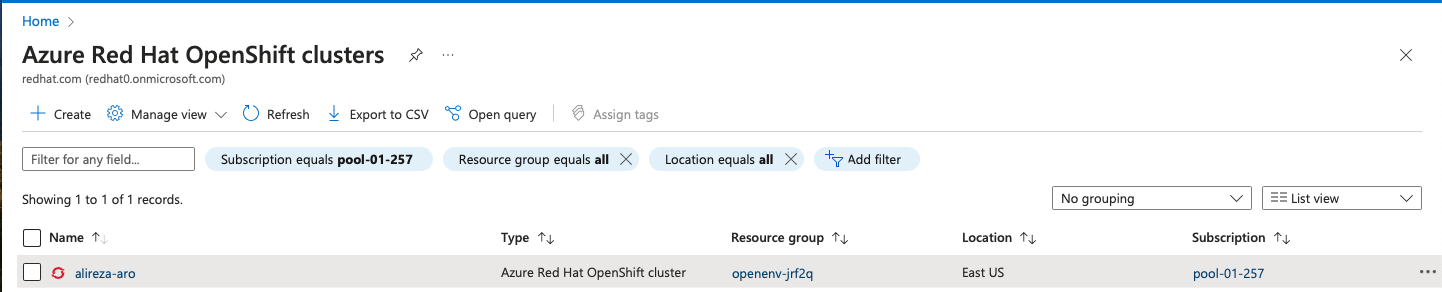
In the Azure Portal, your cluster should show that it's ready and available. Log in to the OpenShift Console.

Log in to the OpenShift Console with your Red Hat credentials. Click Administrator > Operators > OperatorHub and search for “Cost Management Metrics Operator.”
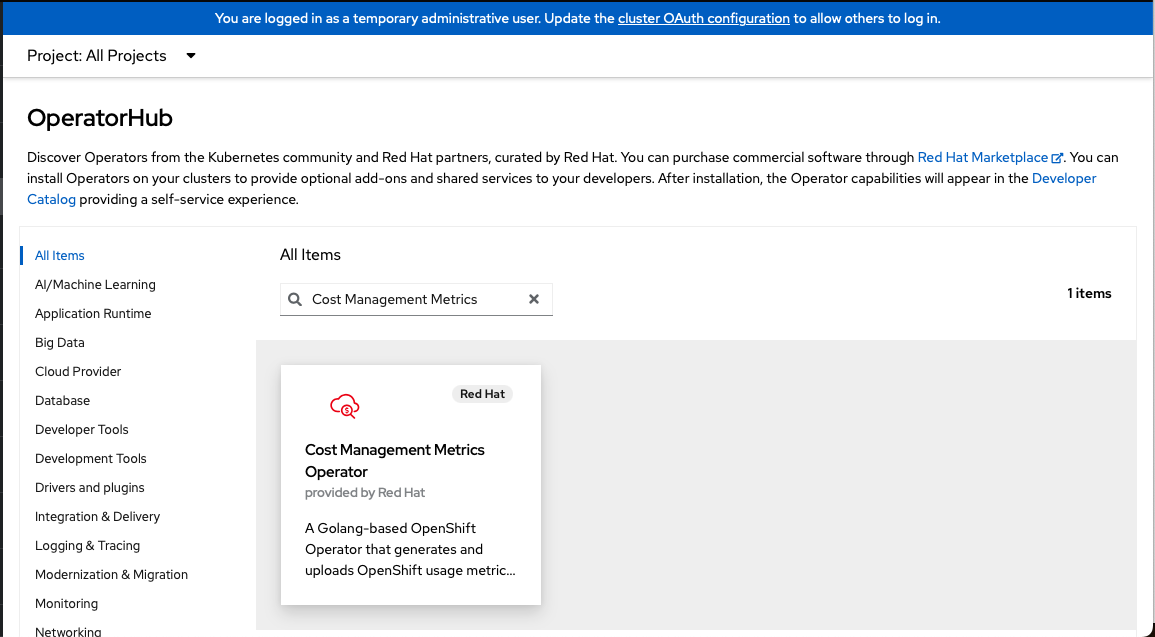
Search OperatorHub for the Cost Management Metrics operator. Click the Cost Management Metrics Operator and click Install.
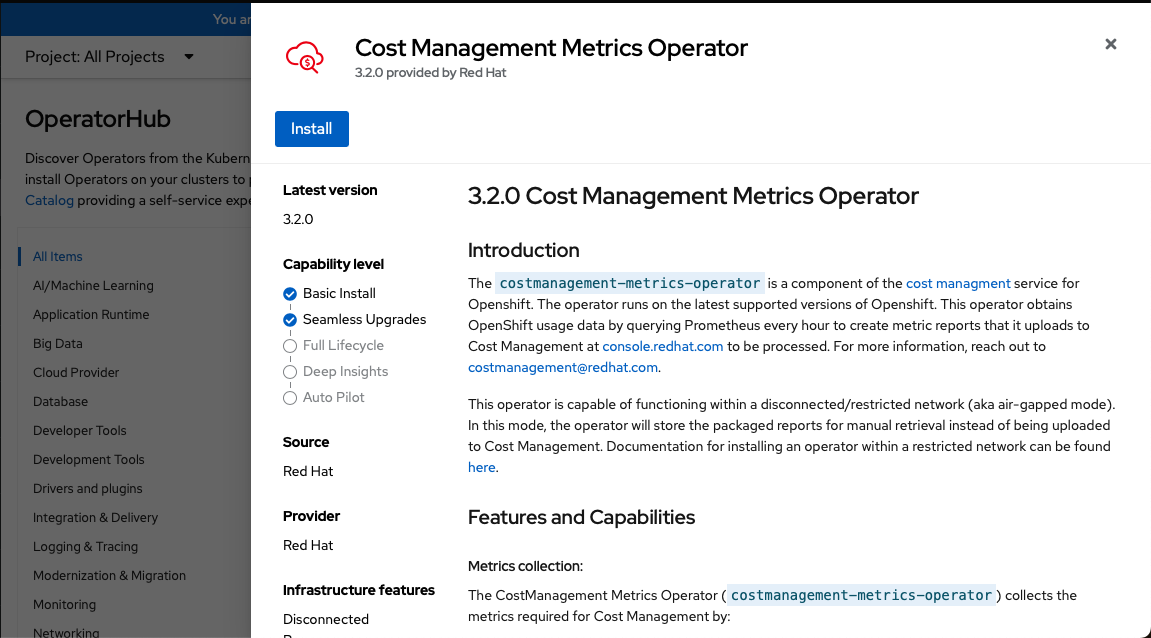
Install the Cost Management Metrics Operator from the OperatorHub. Under Installation mode, select “A specific namespace on the cluster.” Use the Operator-recommended namespace, costmanagement-metrics-operator, in the next section.
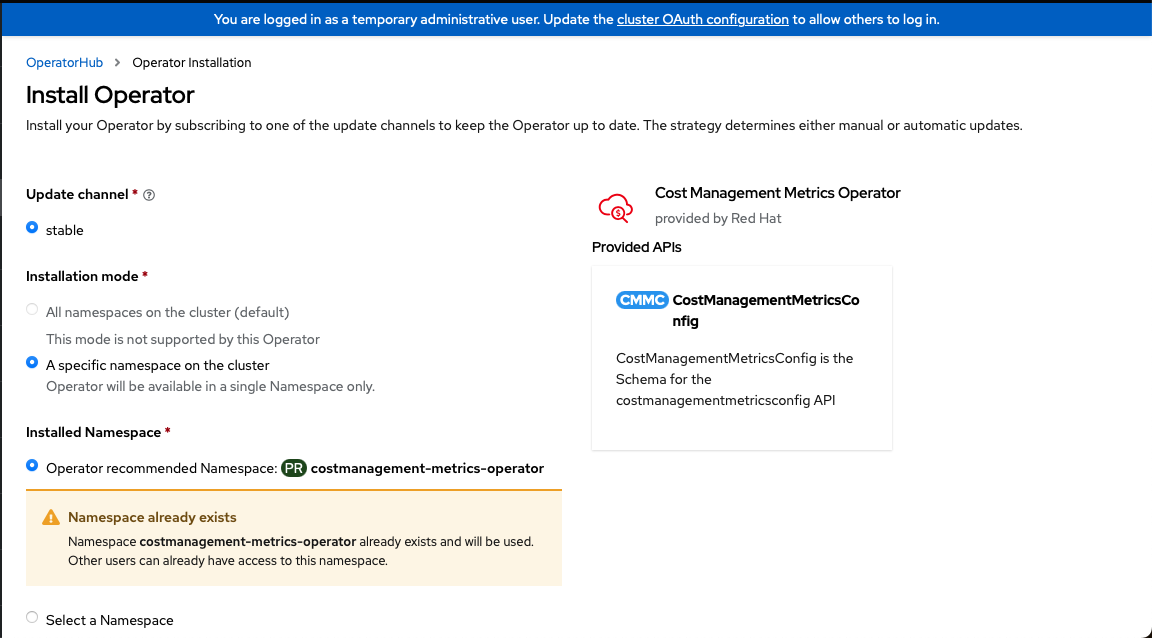
Define the namespace in the Cost Management Metrics Operator installation wizard. - Get your username and password for https://console.redhat.com/. We are going to create a secret and provide this information to the cost management operator.
Click Workloads > Secrets > Project: costmanagement-metrics-operator > Create Key/value secret.
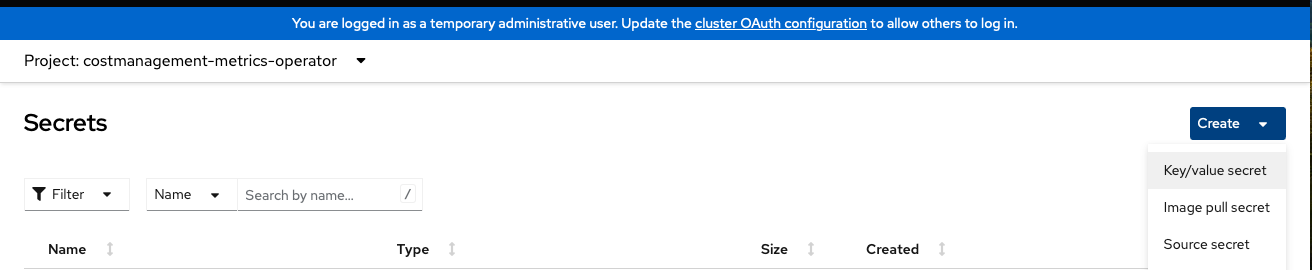
Create the key/value secret from the Secrets manager for your project. - Fill in the following information:
- Secret name: basic-auth-secret
- Key/Value username: XXX (choose your own)
password: XXX (choose your own)
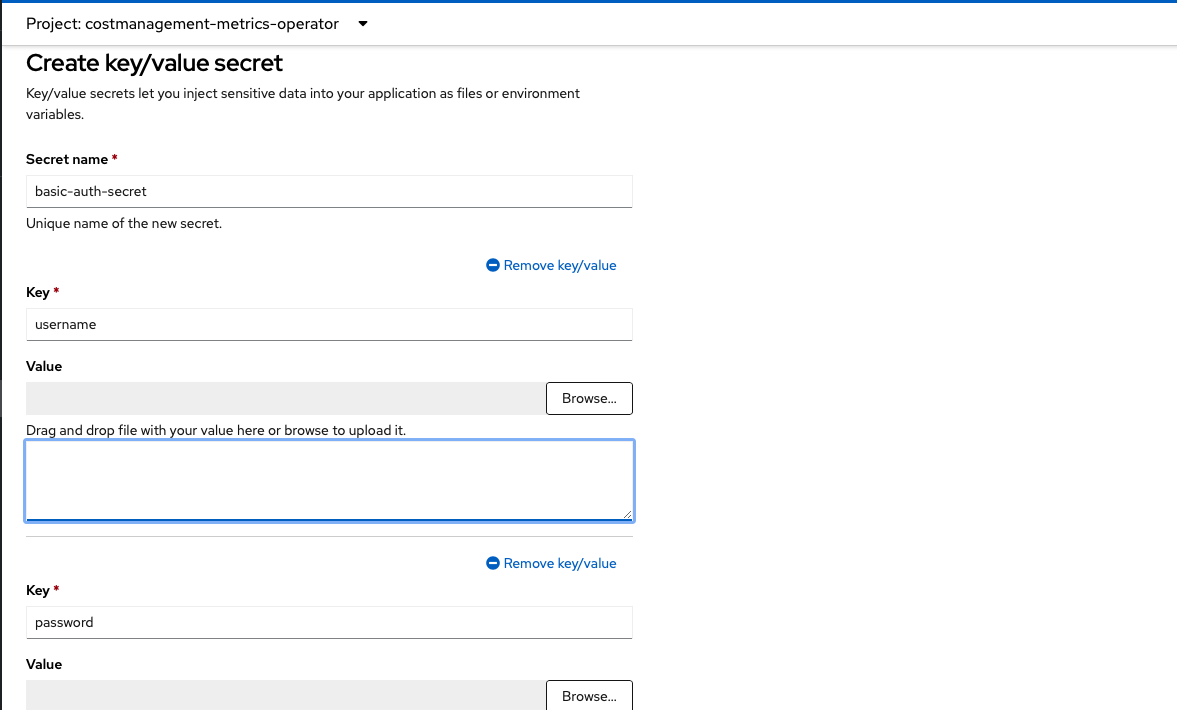
Define the secret name, key/value username, and password in the Key/Value Secret wizard. 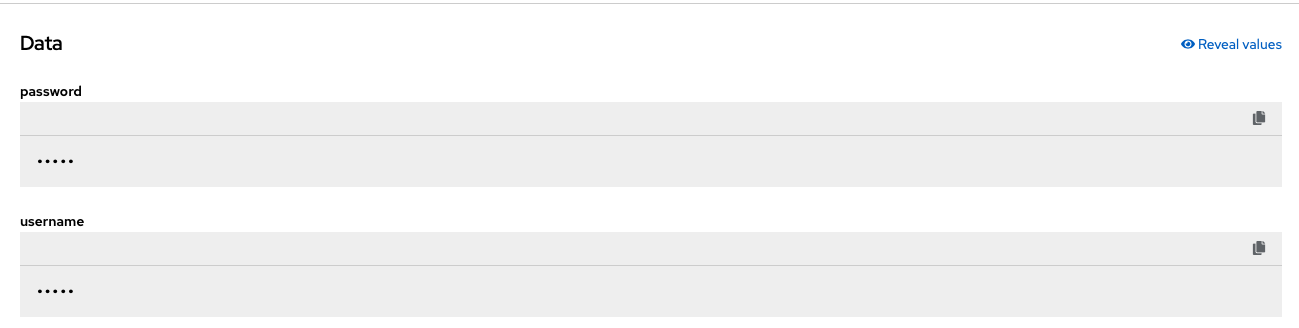
Your defined password and username will then be visible. 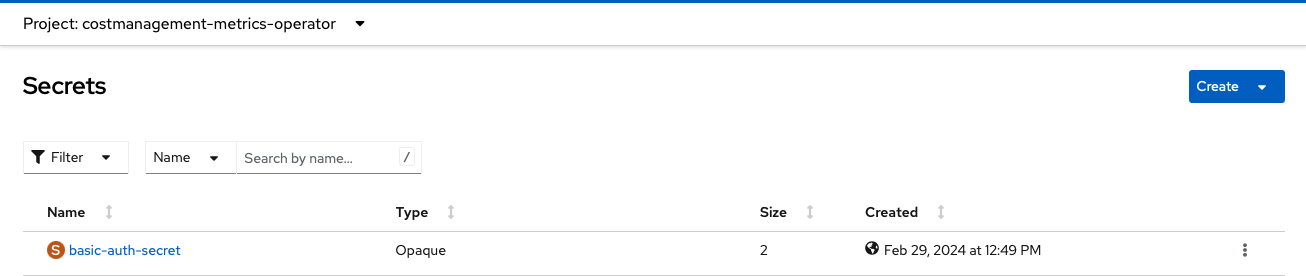
You will now see your secret in the Secrets manager. Click Administrator > Operators > Installed Operators and check the Cost Management Metrics Operator.
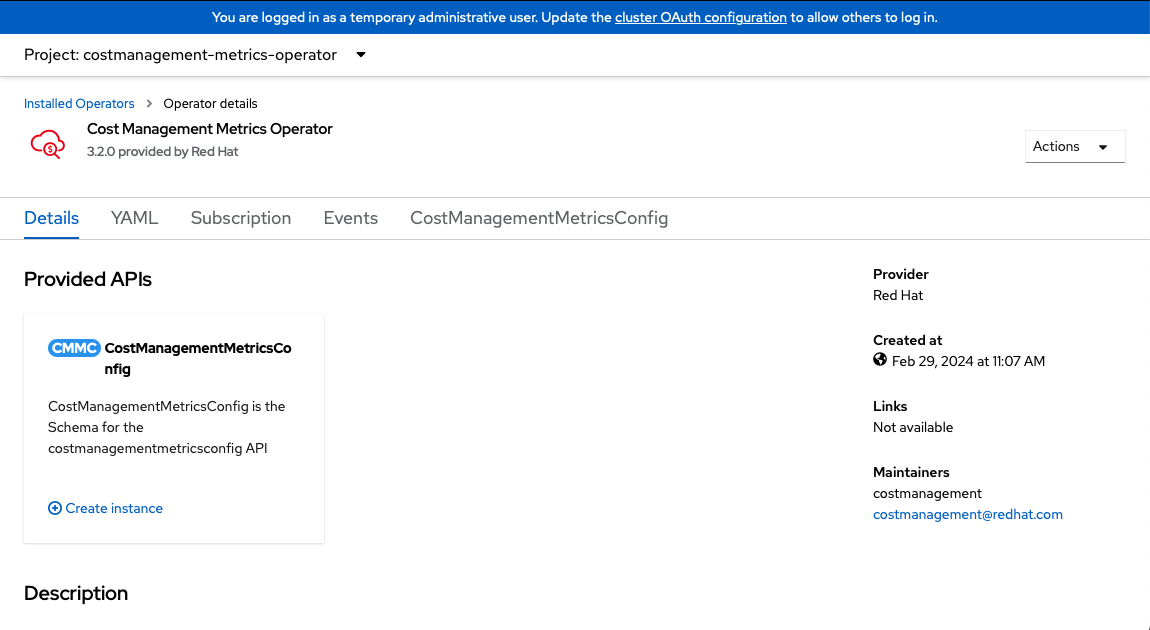
The installed Cost Management Metrics Operator will now show under Installed Operators.
Create the CostManagementMetricsConfig instance.
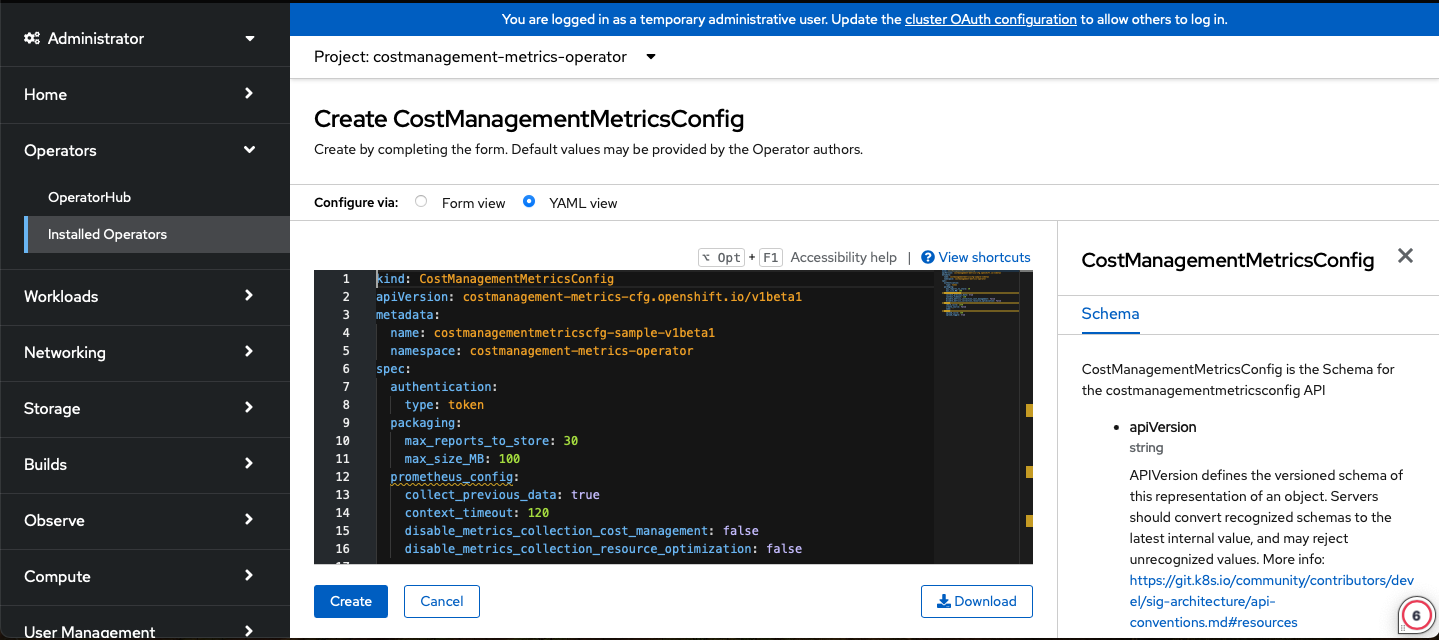
Create the CostManagementMetricsConfig instance in YAML view. - Update the following parameters:
source:
 create_source: false
 name: ‘’
source: create_source: true name: ‘cost-aro’ ##name should be uniquespec: authentication: type: tokenspec: authentication: secret_name: basic-auth-secret type: basic
You are now ready to integrate Microsoft Azure data into the cost management service.

'%20d='M201.5%20305.5c-13.8%200-24.9-11.1-24.9-24.6%200-13.8%2011.1-24.9%2024.9-24.9%2013.6%200%2024.6%2011.1%2024.6%2024.9%200%2013.6-11.1%2024.6-24.6%2024.6zM504%20256c0%20137-111%20248-248%20248S8%20393%208%20256%20119%208%20256%208s248%20111%20248%20248zm-132.3-41.2c-9.4%200-17.7%203.9-23.8%2010-22.4-15.5-52.6-25.5-86.1-26.6l17.4-78.3%2055.4%2012.5c0%2013.6%2011.1%2024.6%2024.6%2024.6%2013.8%200%2024.9-11.3%2024.9-24.9s-11.1-24.9-24.9-24.9c-9.7%200-18%205.8-22.1%2013.8l-61.2-13.6c-3-.8-6.1%201.4-6.9%204.4l-19.1%2086.4c-33.2%201.4-63.1%2011.3-85.5%2026.8-6.1-6.4-14.7-10.2-24.1-10.2-34.9%200-46.3%2046.9-14.4%2062.8-1.1%205-1.7%2010.2-1.7%2015.5%200%2052.6%2059.2%2095.2%20132%2095.2%2073.1%200%20132.3-42.6%20132.3-95.2%200-5.3-.6-10.8-1.9-15.8%2031.3-16%2019.8-62.5-14.9-62.5zM302.8%20331c-18.2%2018.2-76.1%2017.9-93.6%200-2.2-2.2-6.1-2.2-8.3%200-2.5%202.5-2.5%206.4%200%208.6%2022.8%2022.8%2087.3%2022.8%20110.2%200%202.5-2.2%202.5-6.1%200-8.6-2.2-2.2-6.1-2.2-8.3%200zm7.7-75c-13.6%200-24.6%2011.1-24.6%2024.9%200%2013.6%2011.1%2024.6%2024.6%2024.6%2013.8%200%2024.9-11.1%2024.9-24.6%200-13.8-11-24.9-24.9-24.9z'/%3e%3c/svg%3e)