 Red Hat Summit
How to run and deploy LLMs using Red Hat OpenShift AI on a Red Hat OpenShift Service on AWS cluster
Learn how to install the Red Hat® OpenShift® AI (RHOAI) operator and Jupyter notebook, create an Amazon S3 bucket, and run the LLM model on a Red Hat OpenShift Service on AWS (ROSA) cluster.
Disclaimer: this content is authored by Red Hat experts, but has not yet been tested on every supported configuration.
This learning path is for operations teams or system administrators.
Developers might want to check out how to create a natural language processing (NLP) application using Red Hat OpenShift AI on developers.redhat.com.
Installing Red Hat OpenShift AI and Jupyter notebook
Before beginning this resource, please ensure that you have completed and meet the prerequisite steps. You will need access to your Red Hat® OpenShift® Service on AWS (ROSA) cluster and to the cluster console in order to proceed.
What will you learn?
- Installing the Red Hat OpenShift AI (RHOAI) operator
- Installing Jupyter notebook
What do you need before starting?
- Red Hat account
- ROSA cluster
- Console access
How to install Red Hat OpenShift AI and Jupyter notebook
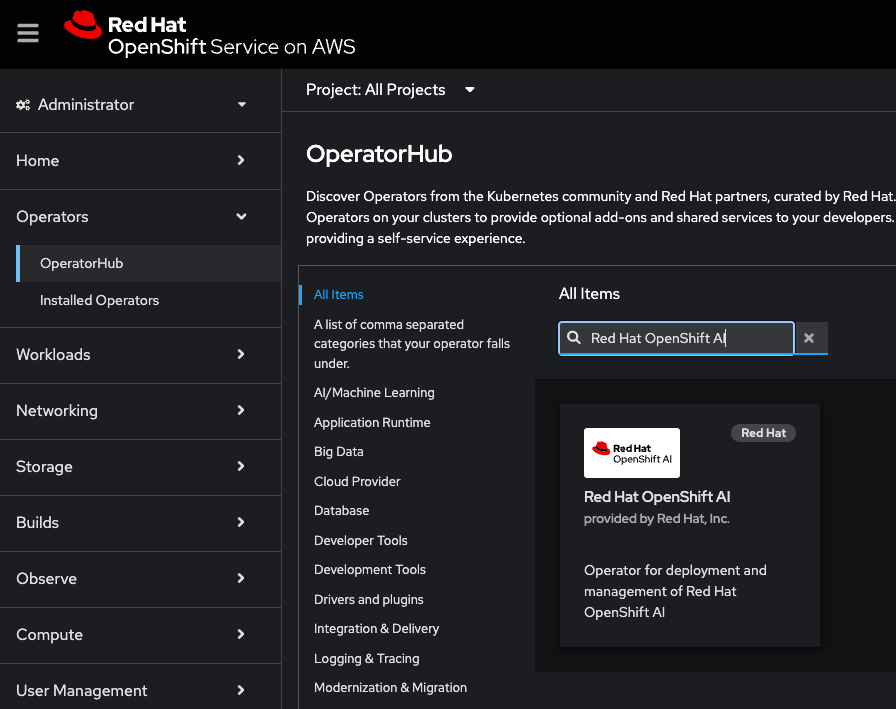
From your cluster console, go to OperatorHub under Operators from the left tab, and put “Red Hat OpenShift AI” into the search query to install the operator. Note: The most recent version of the operator at the time of writing is 2.9.0.
Choose the default option for the installation. The operator will be installed in the redhat-ods-operator namespace, which will be created automatically upon installation.
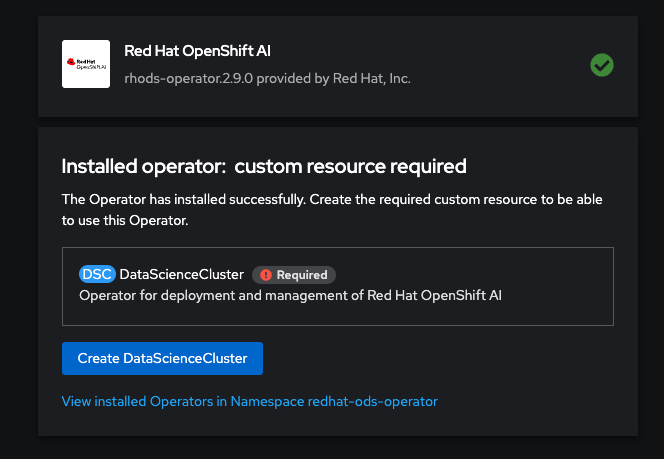
Afterward, create a DataScienceCluster (DSC) instance. Once again, choose the default option for the installation. The name of the DSC instance will be default-dsc.
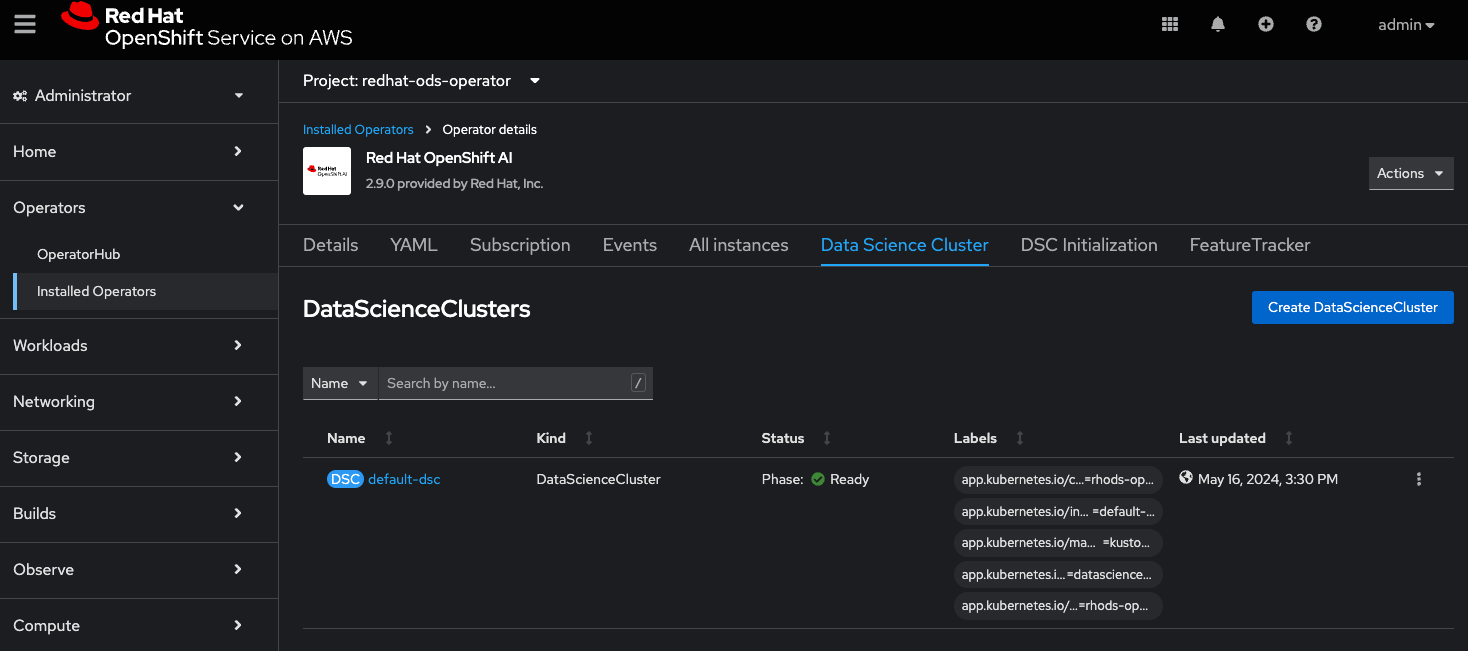
Below is what you should see once the instance is created:
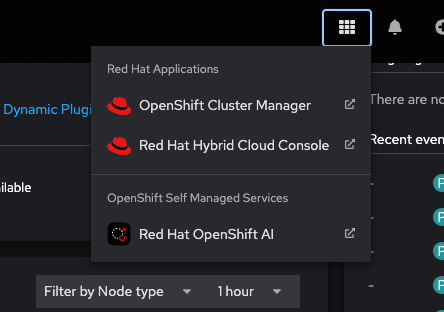
Next, go to your cluster console and click the 9-boxes icon on the upper right side (next to the bell/notification icon). Then, select Red Hat OpenShift AI to launch it in the next tab.
Once launched, go to the server page and on the left tab, look under Applications and select Enabled. And then launch Jupyter to see the notebook options available to install.
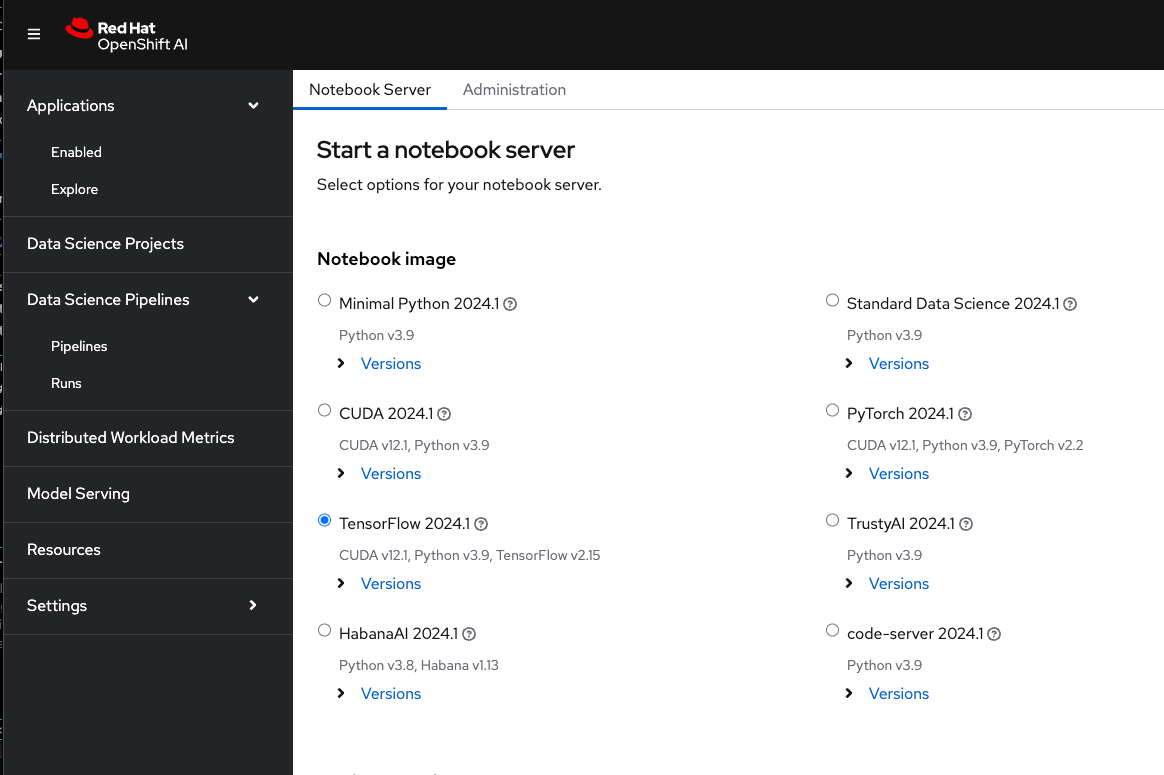
In this case, choose TensorFlow 2024.1. Leave the size of the container set to small, which is the default. Finally, click the Start server button at the bottom. Note that if the server failed to start, then you might want to scale up your worker nodes.
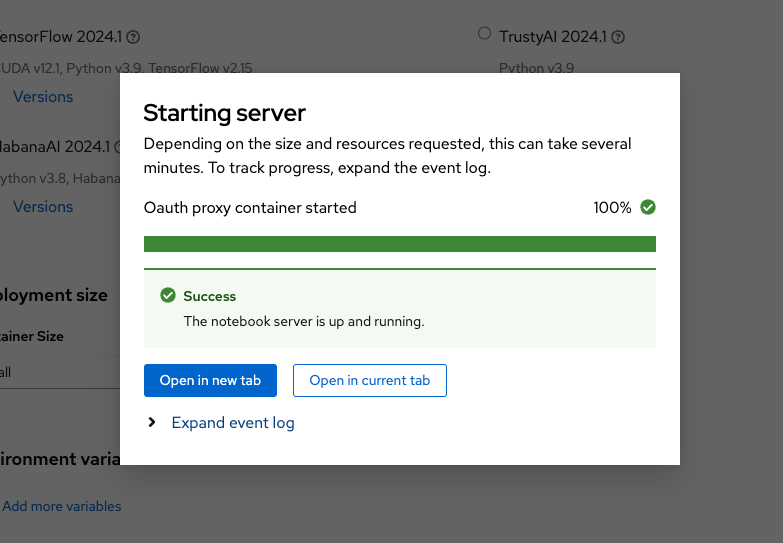
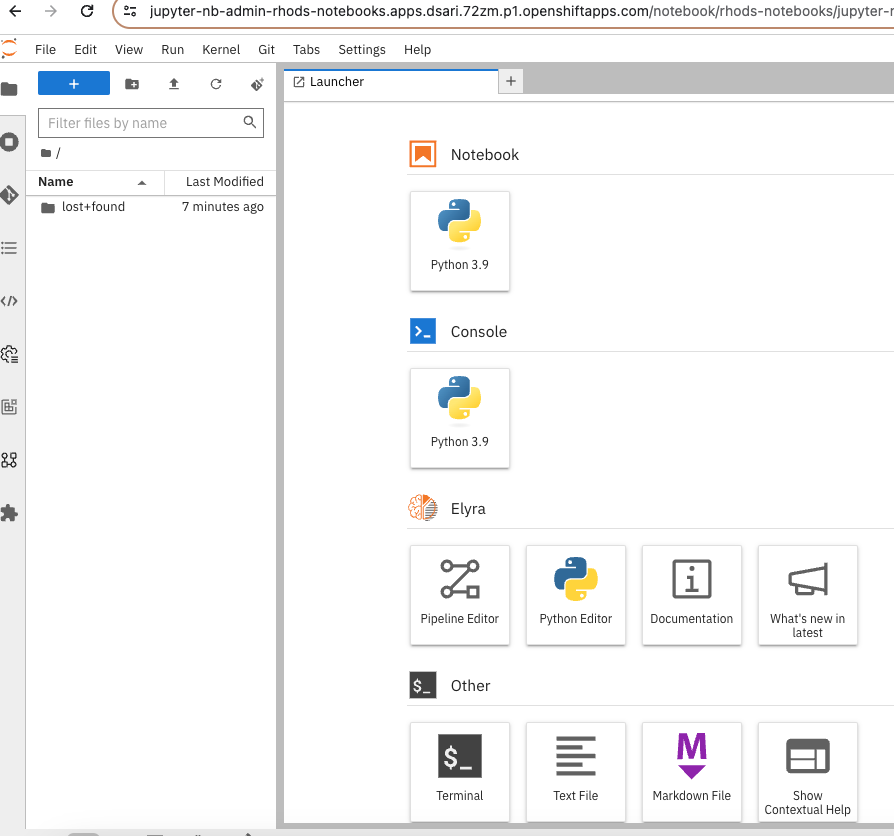
The server installation will take several minutes. Once installed, you'll see the main page of your Jupyter notebook (reference the below example).
To start the next section, select a Python 3.9 notebook in a new tab.
With that, you’re ready to move on to the next resource, where you’ll learn how to create and grant access to an Amazon S3 bucket.

'%20d='M201.5%20305.5c-13.8%200-24.9-11.1-24.9-24.6%200-13.8%2011.1-24.9%2024.9-24.9%2013.6%200%2024.6%2011.1%2024.6%2024.9%200%2013.6-11.1%2024.6-24.6%2024.6zM504%20256c0%20137-111%20248-248%20248S8%20393%208%20256%20119%208%20256%208s248%20111%20248%20248zm-132.3-41.2c-9.4%200-17.7%203.9-23.8%2010-22.4-15.5-52.6-25.5-86.1-26.6l17.4-78.3%2055.4%2012.5c0%2013.6%2011.1%2024.6%2024.6%2024.6%2013.8%200%2024.9-11.3%2024.9-24.9s-11.1-24.9-24.9-24.9c-9.7%200-18%205.8-22.1%2013.8l-61.2-13.6c-3-.8-6.1%201.4-6.9%204.4l-19.1%2086.4c-33.2%201.4-63.1%2011.3-85.5%2026.8-6.1-6.4-14.7-10.2-24.1-10.2-34.9%200-46.3%2046.9-14.4%2062.8-1.1%205-1.7%2010.2-1.7%2015.5%200%2052.6%2059.2%2095.2%20132%2095.2%2073.1%200%20132.3-42.6%20132.3-95.2%200-5.3-.6-10.8-1.9-15.8%2031.3-16%2019.8-62.5-14.9-62.5zM302.8%20331c-18.2%2018.2-76.1%2017.9-93.6%200-2.2-2.2-6.1-2.2-8.3%200-2.5%202.5-2.5%206.4%200%208.6%2022.8%2022.8%2087.3%2022.8%20110.2%200%202.5-2.2%202.5-6.1%200-8.6-2.2-2.2-6.1-2.2-8.3%200zm7.7-75c-13.6%200-24.6%2011.1-24.6%2024.9%200%2013.6%2011.1%2024.6%2024.6%2024.6%2013.8%200%2024.9-11.1%2024.9-24.6%200-13.8-11-24.9-24.9-24.9z'/%3e%3c/svg%3e)