 Red Hat Summit
Este conteúdo não está disponível no idioma selecionado.
Chapter 5. Configuring Microsoft Active Directory
Important
The domain details in this chapter differ from the domain details used in the rest of this guide.
To configure Active Directory to authenticate user through JBoss Negotiation you need to do the following:
- Create a server user account and configure it as a Service Principal Name (SPN) account: the user of the Service Principal Name account (SPN account) acts as a connection between the Kerberos server, the Active Directory and the JBoss web server.
- Generate a keytab file for the server user and export it to the application server. The application server uses the keytab to authenticate to KDC in AD.
Important
Make sure you are using an Active Directory domain controller. It is not possible to use a Windows machine with accounts managed locally.
Warning
Instructions in this guide apply to Windows 2003 and may differ from the instructions relevant for your Windows operating system.
5.1. User Account for the Application Server
Copiar o linkLink copiado para a área de transferência!
To configure an SPN account for the application server on the AD domain controller, you need Setspn and Ktpass. The command line utilities are part of Windows Server 2003 Support Tools and serve for mapping the server user name to the application server and its HTTP service.
The utilities are available on Microsoft web pages.
You need to create a regular user account for the server in the AD domain (make sure it is a user account, not a computer account) and map the account to the service account.
5.1.1. Creating Server User
Copiar o linkLink copiado para a área de transferência!
To create a new user for the server, do the following:
- Go to Start
- In the Active Directory Users and Computers window, go to
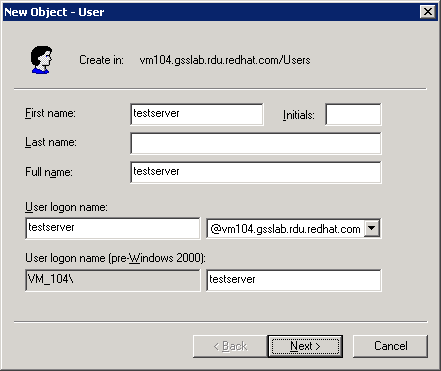
Figure 5.1. New User
- In the New User window, enter the user details and click Next. Figure 5.1, “New User” uses the server
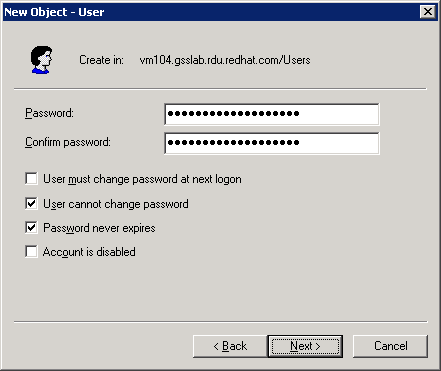
@vm104.gsslab.rdu.redhat.comand defines a user calledtestserver. - Enter the password for the user and select the User cannot change password and Password never expires.
Important
Make sure you have entered a valid password as changing the password later can invalidate the keytab file and break your JBoss installations.Figure 5.2. New User Password
- Click and .
Figure 5.3. New User Finish
- In the Active Directory Users and Computers window, right-click the user and click .
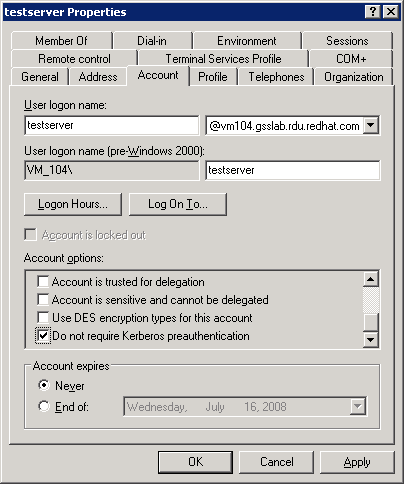
- In the user properties window, click the Account tab and make sure the Do not require Kerberos preauthentication and Use DES encryption types for this account are selected under Account Options.
Figure 5.4. User Properties

Now you need to create and export the keytab file for the created user.

'%20d='M201.5%20305.5c-13.8%200-24.9-11.1-24.9-24.6%200-13.8%2011.1-24.9%2024.9-24.9%2013.6%200%2024.6%2011.1%2024.6%2024.9%200%2013.6-11.1%2024.6-24.6%2024.6zM504%20256c0%20137-111%20248-248%20248S8%20393%208%20256%20119%208%20256%208s248%20111%20248%20248zm-132.3-41.2c-9.4%200-17.7%203.9-23.8%2010-22.4-15.5-52.6-25.5-86.1-26.6l17.4-78.3%2055.4%2012.5c0%2013.6%2011.1%2024.6%2024.6%2024.6%2013.8%200%2024.9-11.3%2024.9-24.9s-11.1-24.9-24.9-24.9c-9.7%200-18%205.8-22.1%2013.8l-61.2-13.6c-3-.8-6.1%201.4-6.9%204.4l-19.1%2086.4c-33.2%201.4-63.1%2011.3-85.5%2026.8-6.1-6.4-14.7-10.2-24.1-10.2-34.9%200-46.3%2046.9-14.4%2062.8-1.1%205-1.7%2010.2-1.7%2015.5%200%2052.6%2059.2%2095.2%20132%2095.2%2073.1%200%20132.3-42.6%20132.3-95.2%200-5.3-.6-10.8-1.9-15.8%2031.3-16%2019.8-62.5-14.9-62.5zM302.8%20331c-18.2%2018.2-76.1%2017.9-93.6%200-2.2-2.2-6.1-2.2-8.3%200-2.5%202.5-2.5%206.4%200%208.6%2022.8%2022.8%2087.3%2022.8%20110.2%200%202.5-2.2%202.5-6.1%200-8.6-2.2-2.2-6.1-2.2-8.3%200zm7.7-75c-13.6%200-24.6%2011.1-24.6%2024.9%200%2013.6%2011.1%2024.6%2024.6%2024.6%2013.8%200%2024.9-11.1%2024.9-24.6%200-13.8-11-24.9-24.9-24.9z'/%3e%3c/svg%3e)