 Red Hat Summit
Este conteúdo não está disponível no idioma selecionado.
Chapter 28. Setting up Red Hat Lightspeed Remediations
Automation controller supports integration with Red Hat Lightspeed.
When a host is registered with Red Hat Lightspeed, it is scanned continually for vulnerabilities and known configuration conflicts. Each problem identified can have an associated fix in the form of an Ansible Playbook.
Red Hat Lightspeed users create a maintenance plan to group the fixes and can create a playbook to mitigate the problems. Automation controller tracks the maintenance plan playbooks through a Red Hat Lightspeed project.
Authentication to Red Hat Lightspeed through Basic Authorization is backed by a special credential, which must first be established in automation controller.
To run a Red Hat Lightspeed maintenance plan, you need a Red Hat Lightspeed project and inventory.
28.1. Creating Red Hat Lightspeed credentials
To create a Red Hat Lightspeed credential, use the following procedure.
Prerequisites
- To use token-based authentication, you must create a Red Hat service account to generate a Client ID and Client secret.
- Assign this service account to the appropriate User Access group with necessary permissions.
To enable integration between Ansible Automation Platform and Red Hat Lightspeed, assign the service account the following permissions:
- inventory:hosts:read (included in the Inventory Hosts viewer role)
- patch:read (included in the Patch viewer role)
- remediations:remediation:read and playbook-dispatcher:run:read (included in the Remediations user role)
You might consider associating your service account with an existing user access group that already has the required permissions, or creating a new user access group.
In adherence to security guidelines, service accounts are not automatically included in the default access group. To grant access, you must manually add them to the appropriate user access groups.
If you are not an organization administrator, you can create a service account and then ask your administrator to add your account to the appropriate user access groups.
After you have created a service account and assigned it the appropriate permissions, you can create a new credential for use with Red Hat Lightspeed.
Procedure
-
From the navigation panel, select
. - Click .
Enter the appropriate details in the following fields:
- Name: Enter the name of the credential.
- Optional: Description: Enter a description for the credential.
-
Optional: Organization: Enter the name of the organization with which the credential is associated, or click the search
 icon and select it from the Select organization window.
Credential type: Enter Red Hat Lightspeed or select it from the list.
NoteUse the Username and Password fields for Basic authentication. You can leave these blank if using Client ID and Client secret.
- Client ID: Enter the client ID you received when you created your service account.
- Client secret: Enter the client secret you received when you created your service account.
Click .
You can now use this credential in an Red Hat Lightspeed-sourced inventory and Red Hat Lightspeed project.
Troubleshooting
- If you receive a project sync failure, see the steps in Remediating a Red Hat Lightspeed inventory and check your analytics logs.
- You must recreate existing credentials and reassociate them with existing projects and inventory sources to support token-based authentication.
28.2. Creating a Red Hat Lightspeed project
Create an automation controller project linked to Red Hat Lightspeed and retrieve remediation playbooks. This streamlines your efforts to address vulnerabilities and keep system configurations.
Procedure
-
From the navigation panel, select
. - Click .
Enter the appropriate details in the following fields. Note that the following fields require specific Red Hat Lightspeed related entries:
- Name: Enter the name for your Red Hat Lightspeed project.
- Optional: Description: Enter a description for the project.
-
Organization: Enter the name of the organization with which the credential is associated, or click the search
icon and select it from the Select organization window.
- Optional: Execution environment: The execution environment that is used for jobs that use this project.
- Source control type: Select Red Hat Lightspeed.
- Optional: Content signature validation credential: Enable content signing to verify that the content has remained secure when a project is synced.
-
Red Hat Lightspeed credential: This is pre-populated with the Red Hat Lightspeed credential you created before. If not, enter the credential, or click the search
icon and select it from the Select Red Hat Lightspeed Credential window.
Select the update options for this project from the Options field and provide any additional values, if applicable. For more information about each option click the tooltip
 icon next to each one.
Click .
All SCM and project synchronizations occur automatically the first time you save a new project. If you want them to be updated to what is current in Red Hat Lightspeed, manually update the SCM-based project by clicking the Update
 icon under the project’s available actions.
This process syncs your Red Hat Lightspeed project with your Red Hat Lightspeed account solution. Note that the status dot beside the name of the project updates once the sync has run.

28.3. Create a Red Hat Lightspeed inventory
The Red Hat Lightspeed playbook contains a hosts: line where the value is the hostname supplied to Red Hat Lightspeed, which can be different from the hostname supplied to automation controller.
28.4. Remediating a Red Hat Lightspeed inventory
Remediation of a Red Hat Lightspeed inventory enables automation controller to run Red Hat Lightspeed playbooks with a single click.
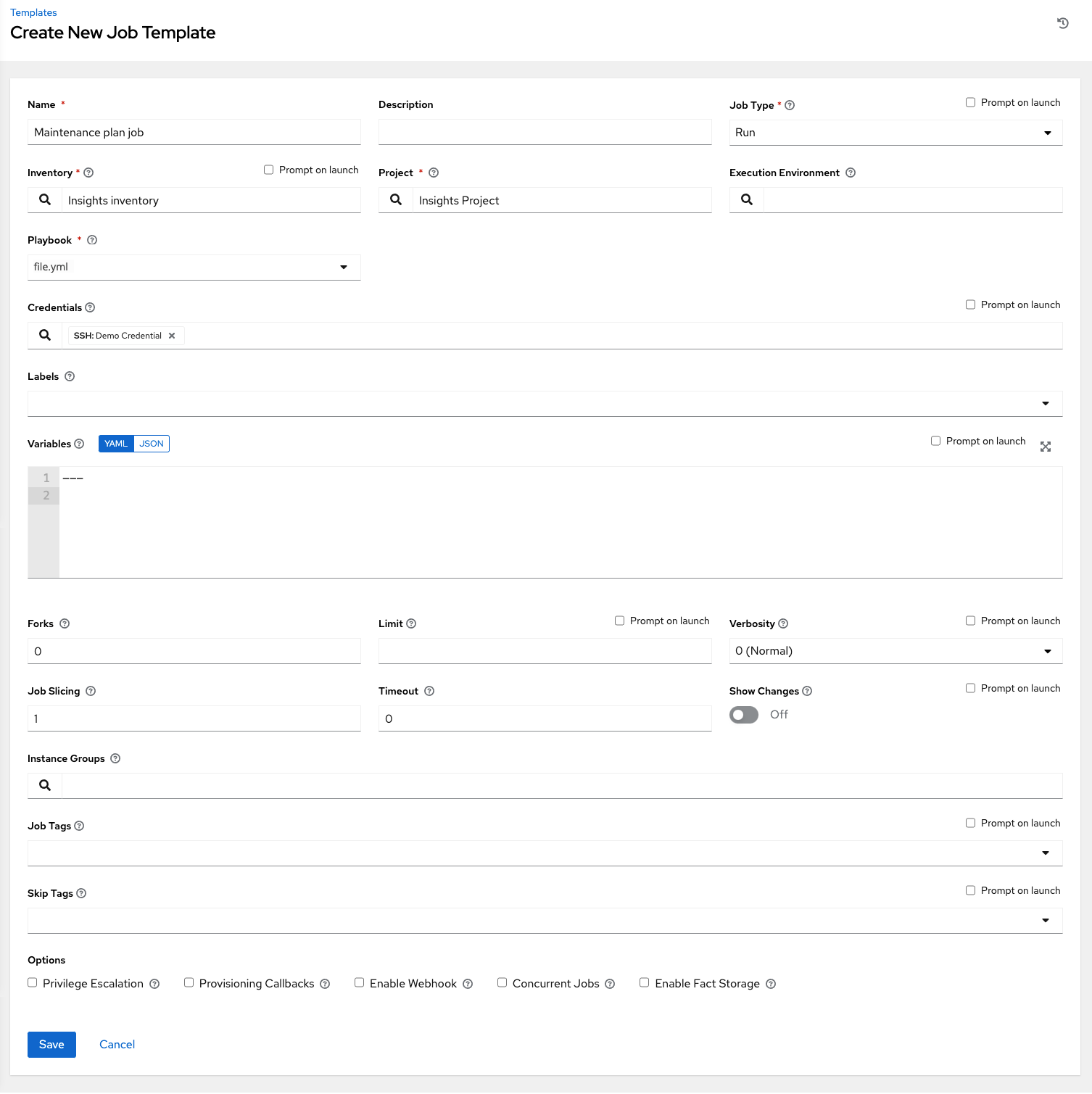
You can do this by creating a job template to run the Red Hat Lightspeed remediation.
Procedure
-
From the navigation menu, select
. - On the Templates list view, click and select from the list.
Enter the appropriate details in the following fields. Note that the following fields require specific Red Hat Lightspeed related entries:
- Name: Enter the name of your Maintenance Plan.
- Optional: Description: Enter a description for the job template.
- Job Type: If not already populated, select Run from the job type list.
- Inventory: Select the Red Hat Lightspeed inventory that you previously created.
- Project: Select the Red Hat Lightspeed project that you previously created.
- Optional: Execution Environment: The container image to be used for execution.
- Playbook: Select a playbook associated with the Maintenance Plan that you want to run from the playbook list.
-
Optional: Credentials: Enter the credential to use for this project or click the search (
 ) icon and select it from the pop-up window. The credential does not have to be a Red Hat Lightspeed credential.
Verbosity: Keep the default setting, or select the required verbosity from the list.
- Click .
-
Click the launch
 icon to launch the job template. * When complete, the job results in the Job Details page.

'%20d='M201.5%20305.5c-13.8%200-24.9-11.1-24.9-24.6%200-13.8%2011.1-24.9%2024.9-24.9%2013.6%200%2024.6%2011.1%2024.6%2024.9%200%2013.6-11.1%2024.6-24.6%2024.6zM504%20256c0%20137-111%20248-248%20248S8%20393%208%20256%20119%208%20256%208s248%20111%20248%20248zm-132.3-41.2c-9.4%200-17.7%203.9-23.8%2010-22.4-15.5-52.6-25.5-86.1-26.6l17.4-78.3%2055.4%2012.5c0%2013.6%2011.1%2024.6%2024.6%2024.6%2013.8%200%2024.9-11.3%2024.9-24.9s-11.1-24.9-24.9-24.9c-9.7%200-18%205.8-22.1%2013.8l-61.2-13.6c-3-.8-6.1%201.4-6.9%204.4l-19.1%2086.4c-33.2%201.4-63.1%2011.3-85.5%2026.8-6.1-6.4-14.7-10.2-24.1-10.2-34.9%200-46.3%2046.9-14.4%2062.8-1.1%205-1.7%2010.2-1.7%2015.5%200%2052.6%2059.2%2095.2%20132%2095.2%2073.1%200%20132.3-42.6%20132.3-95.2%200-5.3-.6-10.8-1.9-15.8%2031.3-16%2019.8-62.5-14.9-62.5zM302.8%20331c-18.2%2018.2-76.1%2017.9-93.6%200-2.2-2.2-6.1-2.2-8.3%200-2.5%202.5-2.5%206.4%200%208.6%2022.8%2022.8%2087.3%2022.8%20110.2%200%202.5-2.2%202.5-6.1%200-8.6-2.2-2.2-6.1-2.2-8.3%200zm7.7-75c-13.6%200-24.6%2011.1-24.6%2024.9%200%2013.6%2011.1%2024.6%2024.6%2024.6%2013.8%200%2024.9-11.1%2024.9-24.6%200-13.8-11-24.9-24.9-24.9z'/%3e%3c/svg%3e)