 Red Hat Summit
Este conteúdo não está disponível no idioma selecionado.
Chapter 13. Creating test scenario using the sample Mortgages project
This chapter illustrates creating and executing a test scenario from the sample Mortgages project shipped with Business Central using the test scenarios designer. The test scenario example in this chapter is based on the Pricing loans guided decision table from the Mortgages project.
Procedure
-
In Business Central, go to Menu
Design Projects and click Mortgages. -
If the project is not listed under Projects, from MySpace, click the three dots (
 ) in the upper-right corner of the page.
Click Try Samples
Mortgages OK. The Assets window appears.
-
Click Add Asset
Test Scenario. Enter
scenario_pricing_loansas the Test Scenario name and select the defaultmortgages.mortgagespackage from the Package drop-down list.The package you select must contain all the required rule assets.
- Select RULE as the Source type.
- Click Ok to create and open the test scenario in the test scenarios designer.
Expand Project Explorer and verify the following:
-
Applicant,Bankruptcy,IncomeSource, andLoanApplicationdata objects exist. -
Pricing loansguide decision table exists. - Verify that the new test scenario is listed under Test Scenario
-
After verifying that everything is in place, return to the Model tab of the test scenarios designer and define the GIVEN and EXPECT data for the scenario, based on the available data objects.
A blank test scenarios designer
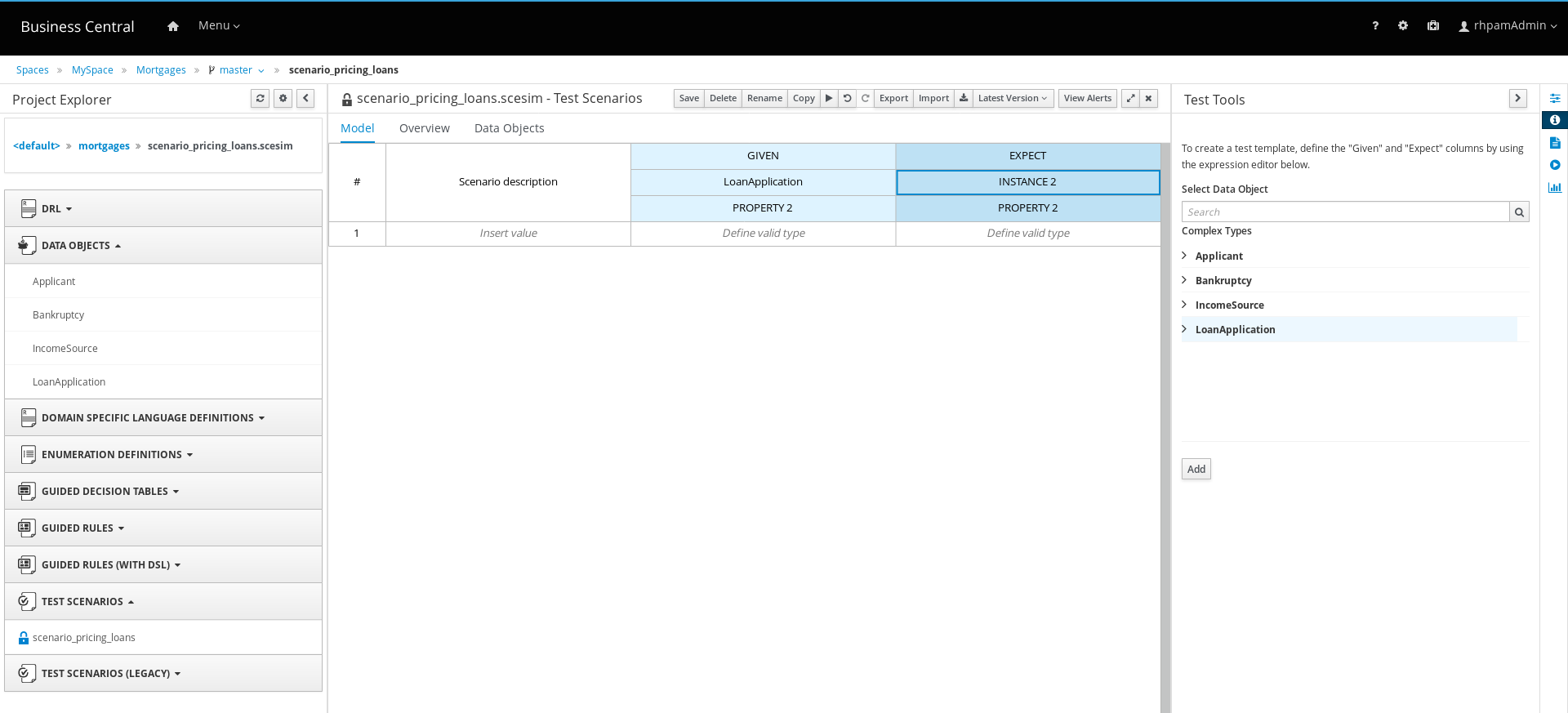
Define the GIVEN column details,
- Click the cell named INSTANCE 1 under the GIVEN column header.
- From Test Tools panel, select LoanApplication data object.
- Click Add.
- To create properties of the data object, right-click the property cell and select Insert column right or Insert column left as required. For this example, you need to create two more property cells under the GIVEN column.
Click the first property cell,
- From Test Tools panel, select and expand the LoanApplication data object.
- Click amount and then Add to map the data object field to the property cell.
Click the second property cell,
- From Test Tools panel, select and expand the LoanApplication data object.
- Click deposit and then Add.
Click the third property cell,
- From Test Tools panel, select and expand the LoanApplication data object.
- Click lengthYears and then Add.
- Right-click LoanApplication header cell and select Insert column right. A new GIVEN column to the right is created.
Click the new header cell,
- From Test Tools panel, select the IncomeSource data object.
- Click Add to map the data object to the header cell.
Click the property cell below IncomeSource,
- From Test Tools panel, select and expand the IncomeSource data object.
Click type and then Add to map the data object field to the property cell.
You have now defined all the GIVEN column cells.
Next, define the EXPECT column details,
- Click the cell named INSTANCE 2 under the EXPECT column header.
- From Test Tools panel, select LoanApplication data object.
- Click Add.
- To create properties of the data object, right-click the property cell and select Insert column right or Insert column left as required. Create two more property cells under the EXPECT column.
Click the first property cell,
- From Test Tools panel, select and expand the LoanApplication data object.
- Click approved and then Add to map the data object field to the property cell.
Click the second property cell,
- From Test Tools panel, select and expand the LoanApplication data object.
- Click insuranceCost and then Add.
Click the third property cell,
- From Test Tools panel, select and expand the LoanApplication data object.
- Click approvedRate and then Add.
Now for defining the test scenario, enter the following data in the first row:
-
Enter
Row 1 test scenarioas the Scenario Description,150000as the amount,19000as the deposit,30as the lenghtYears, andAssetas the type for the GIVEN column values. -
Enter
trueas approved,0as the insuranceCost and2as the approvedRate for the EXPECT column values.
-
Enter
Next enter the following data in the second row:
-
Enter
Row 2 test scenarioas the Scenario Description,100002as the amount,2999as the deposit,20as the lenghtYears, andJobas the type for the GIVEN column values. -
Enter
trueas approved,10as the insuranceCost and6as the approvedRate for the EXPECT column values.
-
Enter
- After you have defined all GIVEN, EXPECT, and other data for the scenario, click Save in the test scenarios designer to save your work.
Click Run Test in the upper-right corner to run the
.scesimfile.The test result is displayed in the Test Report panel. Click View Alerts to display messages from the Alerts section. If a test fails, refer to the messages in the Alerts section at the bottom of the window, review and correct all components in the scenario, and try again to validate the scenario until the scenario passes.
- Click Save in the test scenarios designer to save your work after you have made all necessary changes.

'%20d='M201.5%20305.5c-13.8%200-24.9-11.1-24.9-24.6%200-13.8%2011.1-24.9%2024.9-24.9%2013.6%200%2024.6%2011.1%2024.6%2024.9%200%2013.6-11.1%2024.6-24.6%2024.6zM504%20256c0%20137-111%20248-248%20248S8%20393%208%20256%20119%208%20256%208s248%20111%20248%20248zm-132.3-41.2c-9.4%200-17.7%203.9-23.8%2010-22.4-15.5-52.6-25.5-86.1-26.6l17.4-78.3%2055.4%2012.5c0%2013.6%2011.1%2024.6%2024.6%2024.6%2013.8%200%2024.9-11.3%2024.9-24.9s-11.1-24.9-24.9-24.9c-9.7%200-18%205.8-22.1%2013.8l-61.2-13.6c-3-.8-6.1%201.4-6.9%204.4l-19.1%2086.4c-33.2%201.4-63.1%2011.3-85.5%2026.8-6.1-6.4-14.7-10.2-24.1-10.2-34.9%200-46.3%2046.9-14.4%2062.8-1.1%205-1.7%2010.2-1.7%2015.5%200%2052.6%2059.2%2095.2%20132%2095.2%2073.1%200%20132.3-42.6%20132.3-95.2%200-5.3-.6-10.8-1.9-15.8%2031.3-16%2019.8-62.5-14.9-62.5zM302.8%20331c-18.2%2018.2-76.1%2017.9-93.6%200-2.2-2.2-6.1-2.2-8.3%200-2.5%202.5-2.5%206.4%200%208.6%2022.8%2022.8%2087.3%2022.8%20110.2%200%202.5-2.2%202.5-6.1%200-8.6-2.2-2.2-6.1-2.2-8.3%200zm7.7-75c-13.6%200-24.6%2011.1-24.6%2024.9%200%2013.6%2011.1%2024.6%2024.6%2024.6%2013.8%200%2024.9-11.1%2024.9-24.6%200-13.8-11-24.9-24.9-24.9z'/%3e%3c/svg%3e)