 Red Hat Summit
Este conteúdo não está disponível no idioma selecionado.
23.4. Starting a container
Overview
Copiar o linkLink copiado para a área de transferência!
When you create a container, it starts up automatically and continues to run until stopped by some event, planned or otherwise. You can manually restart a stopped container.
Procedure
Copiar o linkLink copiado para a área de transferência!
To start a container:
- If necessary, in Fabric Explorer, expand the tree of the fabric whose container you want to start.
- Select the container and right-click it to open the context menu.
- Click .NoteTo check whether the tooling started the container, click Containers in Fabric Explorer, and open the Properties view. You should see something similar to Figure 23.5, where
mycamelExamplewas started and provisioned successfully.Figure 23.5. Container status in Properties view
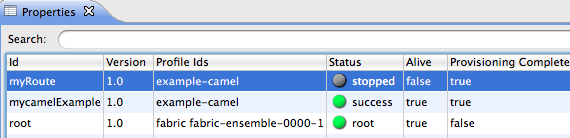 The status indicators in the Status column of the Properties view indicate the startup state of the container, as shown Table 23.1:
Expand Table 23.1. Container startup status Icon Meaning 
Container stopped 
Container started; analysis and provisioning in progress 
Container started and provisioned successfully 
Failure occurred during startup or provisioning
Related topics
Copiar o linkLink copiado para a área de transferência!
| Section 23.6, “Stopping a container” |

'%20d='M201.5%20305.5c-13.8%200-24.9-11.1-24.9-24.6%200-13.8%2011.1-24.9%2024.9-24.9%2013.6%200%2024.6%2011.1%2024.6%2024.9%200%2013.6-11.1%2024.6-24.6%2024.6zM504%20256c0%20137-111%20248-248%20248S8%20393%208%20256%20119%208%20256%208s248%20111%20248%20248zm-132.3-41.2c-9.4%200-17.7%203.9-23.8%2010-22.4-15.5-52.6-25.5-86.1-26.6l17.4-78.3%2055.4%2012.5c0%2013.6%2011.1%2024.6%2024.6%2024.6%2013.8%200%2024.9-11.3%2024.9-24.9s-11.1-24.9-24.9-24.9c-9.7%200-18%205.8-22.1%2013.8l-61.2-13.6c-3-.8-6.1%201.4-6.9%204.4l-19.1%2086.4c-33.2%201.4-63.1%2011.3-85.5%2026.8-6.1-6.4-14.7-10.2-24.1-10.2-34.9%200-46.3%2046.9-14.4%2062.8-1.1%205-1.7%2010.2-1.7%2015.5%200%2052.6%2059.2%2095.2%20132%2095.2%2073.1%200%20132.3-42.6%20132.3-95.2%200-5.3-.6-10.8-1.9-15.8%2031.3-16%2019.8-62.5-14.9-62.5zM302.8%20331c-18.2%2018.2-76.1%2017.9-93.6%200-2.2-2.2-6.1-2.2-8.3%200-2.5%202.5-2.5%206.4%200%208.6%2022.8%2022.8%2087.3%2022.8%20110.2%200%202.5-2.2%202.5-6.1%200-8.6-2.2-2.2-6.1-2.2-8.3%200zm7.7-75c-13.6%200-24.6%2011.1-24.6%2024.9%200%2013.6%2011.1%2024.6%2024.6%2024.6%2013.8%200%2024.9-11.1%2024.9-24.6%200-13.8-11-24.9-24.9-24.9z'/%3e%3c/svg%3e)