 Red Hat Summit
Este conteúdo não está disponível no idioma selecionado.
Chapter 7. Executing the pizzaPlace order process
Now that you have deployed the project, you can execute the project’s defined functionality. For this example, you will be acting as the customer (Bill) and fill out the pizza order form. The pizza place employee (Katy) will add the order price and send the order confirmation to your task inbox.
Prerequisites
- The Process Server is deployed and connected to the Red Hat Process Automation Manager. For more information, see Installing and configuring Red Hat Process Automation Manager on Red Hat JBoss EAP.
- You have deployed the pizzaPlace process. For more information, see Chapter 6, Deploying the pizzaPlace project.
Procedure
Log in to Business Central as the customer:
-
Username:
Bill -
Password:
bill
-
Username:
-
Click Menu
Manage Process Instances. - Click New Process Instance, select pizzaPlace.pizzaOrders from the Process definition menu, and click Start.
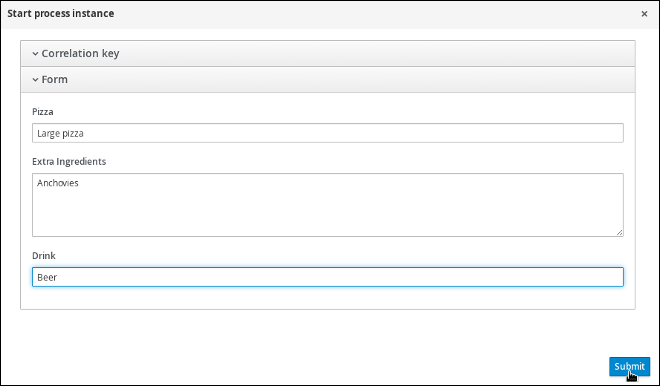
Type the following values:
-
Pizza:
Large pizza -
Extra Ingredients:
Anchovies Drink:
BeerFigure 7.1. Input the order information
-
Pizza:
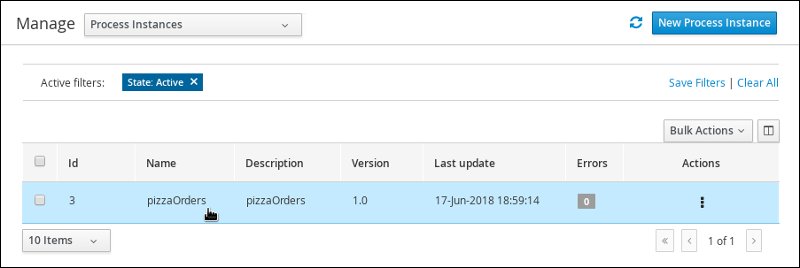
- Click Submit to start the process instance. After starting the process instance, the Manage Process Instances view opens.
Click anywhere in the pizzaOrders row to view the process details.
Figure 7.2. View the process details
Click the Diagram tab to view the process flow within the process diagram. The state of the process will be highlighted as it moves through each task.
Figure 7.3. View the process flow

Log out and log back in again to Business Central as the employee:
-
Username:
Katy -
Password:
katy
-
Username:
-
Click Menu
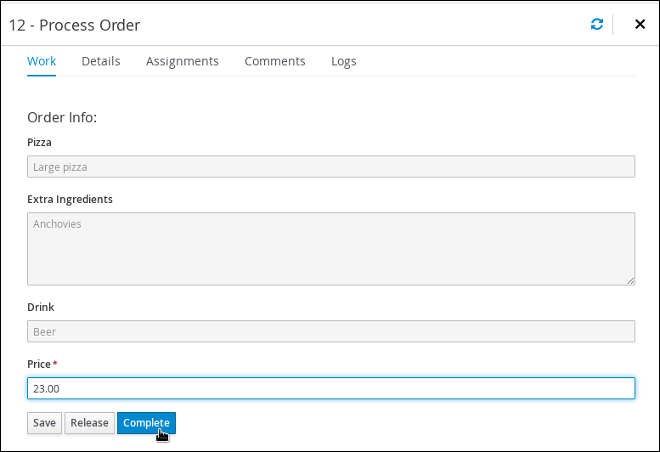
Track Task Inbox. This will take you to the order form. This is the form that the pizza place employee (Katy) will take ownership of and return an order confirmation containing the order price. - Click anywhere in the Task row to open the order form.
Click Start, type the order total in the Price field, and click Complete.
Figure 7.4. Adding the order total price
Log out and log back in again to Business Central as the customer:
-
Username:
Bill -
Password:
bill
-
Username:
-
Click Menu
Track Task Inbox. This will take you to the order confirmation form containing the order’s total price.

'%20d='M201.5%20305.5c-13.8%200-24.9-11.1-24.9-24.6%200-13.8%2011.1-24.9%2024.9-24.9%2013.6%200%2024.6%2011.1%2024.6%2024.9%200%2013.6-11.1%2024.6-24.6%2024.6zM504%20256c0%20137-111%20248-248%20248S8%20393%208%20256%20119%208%20256%208s248%20111%20248%20248zm-132.3-41.2c-9.4%200-17.7%203.9-23.8%2010-22.4-15.5-52.6-25.5-86.1-26.6l17.4-78.3%2055.4%2012.5c0%2013.6%2011.1%2024.6%2024.6%2024.6%2013.8%200%2024.9-11.3%2024.9-24.9s-11.1-24.9-24.9-24.9c-9.7%200-18%205.8-22.1%2013.8l-61.2-13.6c-3-.8-6.1%201.4-6.9%204.4l-19.1%2086.4c-33.2%201.4-63.1%2011.3-85.5%2026.8-6.1-6.4-14.7-10.2-24.1-10.2-34.9%200-46.3%2046.9-14.4%2062.8-1.1%205-1.7%2010.2-1.7%2015.5%200%2052.6%2059.2%2095.2%20132%2095.2%2073.1%200%20132.3-42.6%20132.3-95.2%200-5.3-.6-10.8-1.9-15.8%2031.3-16%2019.8-62.5-14.9-62.5zM302.8%20331c-18.2%2018.2-76.1%2017.9-93.6%200-2.2-2.2-6.1-2.2-8.3%200-2.5%202.5-2.5%206.4%200%208.6%2022.8%2022.8%2087.3%2022.8%20110.2%200%202.5-2.2%202.5-6.1%200-8.6-2.2-2.2-6.1-2.2-8.3%200zm7.7-75c-13.6%200-24.6%2011.1-24.6%2024.9%200%2013.6%2011.1%2024.6%2024.6%2024.6%2013.8%200%2024.9-11.1%2024.9-24.6%200-13.8-11-24.9-24.9-24.9z'/%3e%3c/svg%3e)