 红帽全球峰会
此内容没有您所选择的语言版本。
5.2. Configure Maven to Use the File System Repositories
The Red Hat JBoss DV Maven repository is available online, so it is not necessary to download and install it locally. However, if you prefer to install the JBoss EAP Maven repository locally, there are three ways to do it: on your local file system, on Apache Web Server, or with a Maven repository manager. This example covers the steps to download the JBoss EAP 6 Maven Repository to the local file system. This option can help you become familiar with using Maven for development but is not recommended for team production environments.
Procedure 5.1.
- Download the repository from this address: https://access.redhat.com/jbossnetwork/restricted/listSoftware.html?product=data.services.platform
- Click the button to download a
.zipfile containing the repository. - Unzip the file on the local file system into a directory of your choosing.
- Add entries for the unzipped repositories to Maven's
settings.xmlfile. The following code sample contains a profile with the repositories and an activation entry for the profile:<?xml version="1.0" encoding="UTF-8" standalone="no"?> <settings xmlns="http://maven.apache.org/SETTINGS/1.0.0" xmlns:xsi="http://www.w3.org/2001/XMLSchema-instance" xsi:schemaLocation="http://maven.apache.org/xsd/settings-1.0.0.xsd"> <localRepository/> <profiles> <!-- Profile with local repositories required by Data Virtualization --> <profile> <id>dv-local-repos</id> <repositories> <repository> <id>dv-6.1.0.GA-redhat-2-repository</id> <name>DV 6.1.0 GA Repository</name> <url>file://<!-- path to the repository -->/jboss-dv-6.1.0.redhat-3-maven-repository/maven-repository</url> <layout>default</layout> <releases> <enabled>true</enabled> <updatePolicy>never</updatePolicy> </releases> <snapshots> <enabled>false</enabled> <updatePolicy>never</updatePolicy> </snapshots> </repository> </repositories> <pluginRepositories> <pluginRepository> <id>dv-6.1.0.GA-redhat-2-repository</id> <name>DV 6.1.0 GA Repository</name> <url>file://<!-- path to the repository -->/jboss-dv-6.1.0.redhat-3-maven-repository/maven-repository</url> <layout>default</layout> <releases> <enabled>true</enabled> <updatePolicy>never</updatePolicy> </releases> <snapshots> <enabled>false</enabled> <updatePolicy>never</updatePolicy> </snapshots> </pluginRepository> </pluginRepositories> </profile> </profiles> <activeProfiles> <!-- Activation of the Data Virtualization profile --> <activeProfile>dv-local-repos</activeProfile> </activeProfiles> </settings>
The Maven repositories are downloaded, unzipped in a local file system, registered in Maven's settings.xml file, and ready to be used when performing Maven builds.
- Q: Why do I still see errors when building or deploying my applications?
- Q: Why is JBoss Developer Studio using my old Maven configuration?
When you build or deploy a project, it fails with one or both of the following errors:
[ERROR] Failed to execute goal on project PROJECT_NAMECould not find artifact ARTIFACT_NAME
Your cached local Maven repository might contain outdated artifacts.
To resolve the issue, delete the cached local repository – the ~/.m2/repository/ directory on Linux or the %SystemDrive%\Users\USERNAME\.m2\repository\ directory on Windows – and run mvn clean install -U. This will force Maven to download correct versions of required artifacts when performing the next build.
You have updated your Maven configuration, but this configuration is not reflected in JBoss Developer Studio.
If JBoss Developer Studio is running when you modify your Maven settings.xml file, this configuration will not be reflected in JBoss Developer Studio.
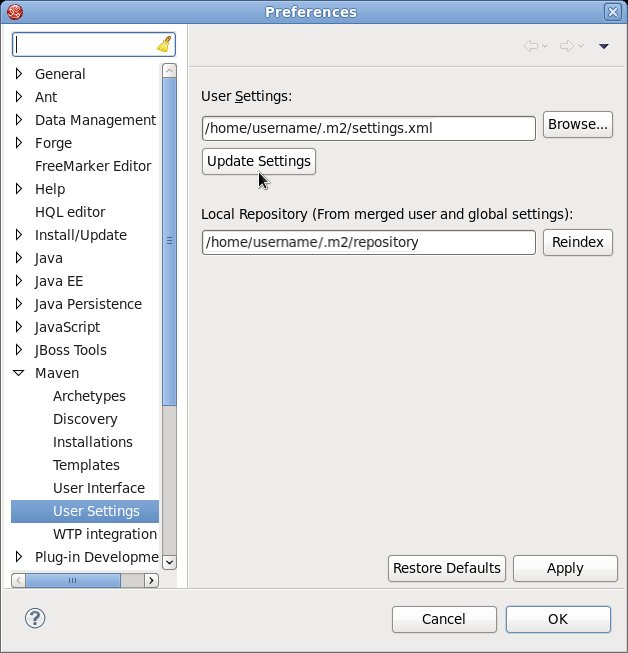
Figure 5.1. Update Maven User Settings

'%20d='M201.5%20305.5c-13.8%200-24.9-11.1-24.9-24.6%200-13.8%2011.1-24.9%2024.9-24.9%2013.6%200%2024.6%2011.1%2024.6%2024.9%200%2013.6-11.1%2024.6-24.6%2024.6zM504%20256c0%20137-111%20248-248%20248S8%20393%208%20256%20119%208%20256%208s248%20111%20248%20248zm-132.3-41.2c-9.4%200-17.7%203.9-23.8%2010-22.4-15.5-52.6-25.5-86.1-26.6l17.4-78.3%2055.4%2012.5c0%2013.6%2011.1%2024.6%2024.6%2024.6%2013.8%200%2024.9-11.3%2024.9-24.9s-11.1-24.9-24.9-24.9c-9.7%200-18%205.8-22.1%2013.8l-61.2-13.6c-3-.8-6.1%201.4-6.9%204.4l-19.1%2086.4c-33.2%201.4-63.1%2011.3-85.5%2026.8-6.1-6.4-14.7-10.2-24.1-10.2-34.9%200-46.3%2046.9-14.4%2062.8-1.1%205-1.7%2010.2-1.7%2015.5%200%2052.6%2059.2%2095.2%20132%2095.2%2073.1%200%20132.3-42.6%20132.3-95.2%200-5.3-.6-10.8-1.9-15.8%2031.3-16%2019.8-62.5-14.9-62.5zM302.8%20331c-18.2%2018.2-76.1%2017.9-93.6%200-2.2-2.2-6.1-2.2-8.3%200-2.5%202.5-2.5%206.4%200%208.6%2022.8%2022.8%2087.3%2022.8%20110.2%200%202.5-2.2%202.5-6.1%200-8.6-2.2-2.2-6.1-2.2-8.3%200zm7.7-75c-13.6%200-24.6%2011.1-24.6%2024.9%200%2013.6%2011.1%2024.6%2024.6%2024.6%2013.8%200%2024.9-11.1%2024.9-24.6%200-13.8-11-24.9-24.9-24.9z'/%3e%3c/svg%3e)