 红帽全球峰会
此内容没有您所选择的语言版本。
Chapter 3. Getting Started
After installing AMQ Console, you can log in and connect to the brokers and routers in your environment.
3.1. Accessing AMQ Console
You access AMQ Console through a single broker instance, regardless of how many brokers and routers are installed in your environment.
Procedure
Start the AMQ broker and router instances that you want to manage in AMQ Console.
For more information, see:
- Starting the Broker in Using AMQ Broker
- Starting the Router in Using AMQ Interconnect
Navigate to the web console address for the broker instance that you started.
The web console address is
http://HOST:PORT/console/login. If you are using the default address, navigate to http://localhost:8161/console/login.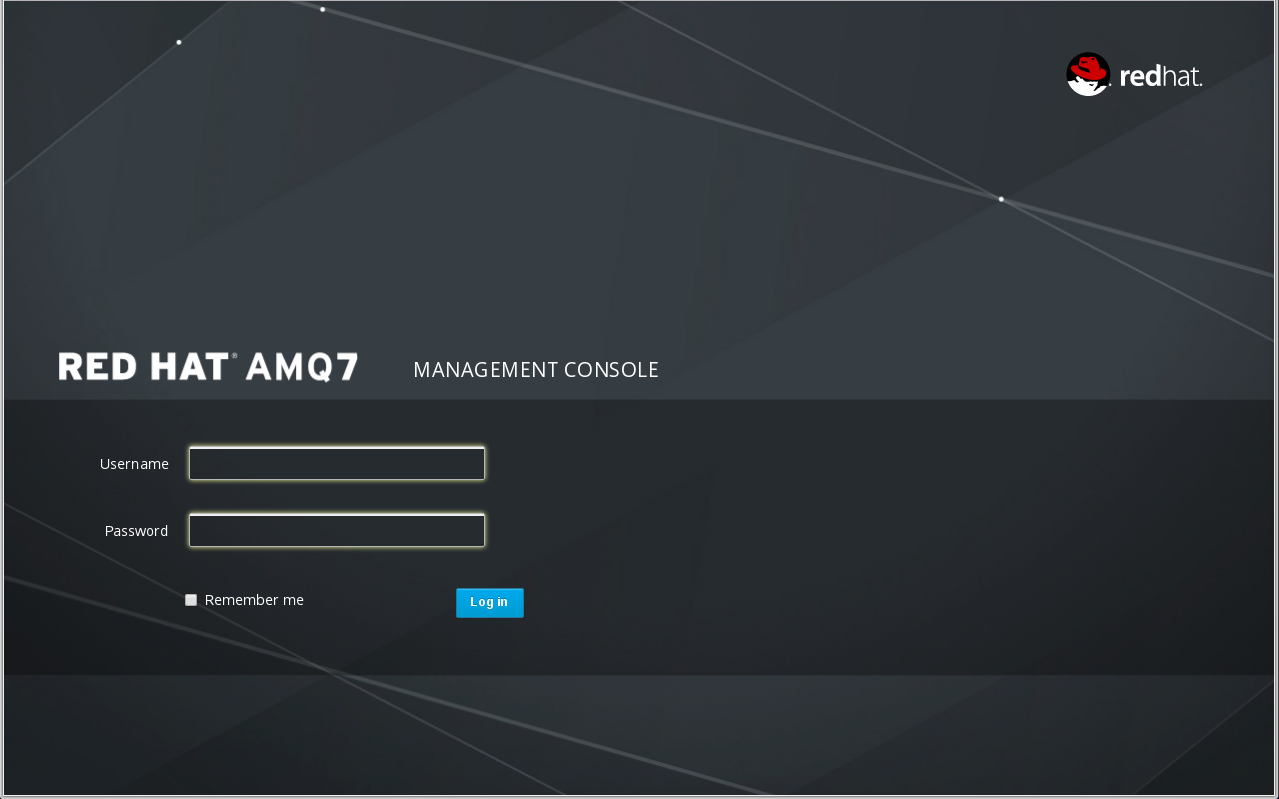
- Log in to AMQ Console using the default username and password that you created when you created the broker instance.
3.2. Connecting to Multiple Brokers
When you access AMQ Console, you are automatically connected to the broker through which you accessed AMQ Console. If you have additional brokers running in your environment, you must connect to them before you can manage them through AMQ Console.
Prerequisites
- At least one broker instance must be running.
Procedure
In AMQ Console, click the Connect tab.

In the Connection Settings section, complete the following fields:
Name- A name that describes the broker instance to which you are connecting.
Scheme-
If you have not configured AMQ Console security, choose
http. If you have configured security, choosehttps. Host-
The host name of the web server on the broker instance to which you want to connect. The host is defined in the broker instance’s
bootstrap.xmlconfiguration file, in the<web>element. The default host islocalhost. Port-
The port number on which to connect on the host. The port is defined in the broker instance’s
bootstrap.xmlconfiguration file, in the<web>element. The default port is8161.
Click Connect to remote server.
A new AMQ Console session appears in a new browser window.
3.3. Connecting to Routers
Before you can manage AMQ Interconnect from AMQ Console, you must first connect to a router running on your router network. After you connect to a router, you can access and manage any router on the network using the Dispatch Router page.
Prerequisites
- At least one AMQ Interconnect router must be running.
Procedure
In AMQ Console, click the Dispatch Router tab.
A connection page appears.
Enter the
AddressandPortof the router to which you want to connect, and then click Connect. Sethttp(boolean) toyesin the listener section of the broker configuration file to accept HTTP connections using AMQP over WebSockets. For more information about the broker configuration file, see the Configuration Reference section in the Using AMQ Interconnect guide.The
Overviewpage appears, showing a list of all routers running on your network.

'%20d='M201.5%20305.5c-13.8%200-24.9-11.1-24.9-24.6%200-13.8%2011.1-24.9%2024.9-24.9%2013.6%200%2024.6%2011.1%2024.6%2024.9%200%2013.6-11.1%2024.6-24.6%2024.6zM504%20256c0%20137-111%20248-248%20248S8%20393%208%20256%20119%208%20256%208s248%20111%20248%20248zm-132.3-41.2c-9.4%200-17.7%203.9-23.8%2010-22.4-15.5-52.6-25.5-86.1-26.6l17.4-78.3%2055.4%2012.5c0%2013.6%2011.1%2024.6%2024.6%2024.6%2013.8%200%2024.9-11.3%2024.9-24.9s-11.1-24.9-24.9-24.9c-9.7%200-18%205.8-22.1%2013.8l-61.2-13.6c-3-.8-6.1%201.4-6.9%204.4l-19.1%2086.4c-33.2%201.4-63.1%2011.3-85.5%2026.8-6.1-6.4-14.7-10.2-24.1-10.2-34.9%200-46.3%2046.9-14.4%2062.8-1.1%205-1.7%2010.2-1.7%2015.5%200%2052.6%2059.2%2095.2%20132%2095.2%2073.1%200%20132.3-42.6%20132.3-95.2%200-5.3-.6-10.8-1.9-15.8%2031.3-16%2019.8-62.5-14.9-62.5zM302.8%20331c-18.2%2018.2-76.1%2017.9-93.6%200-2.2-2.2-6.1-2.2-8.3%200-2.5%202.5-2.5%206.4%200%208.6%2022.8%2022.8%2087.3%2022.8%20110.2%200%202.5-2.2%202.5-6.1%200-8.6-2.2-2.2-6.1-2.2-8.3%200zm7.7-75c-13.6%200-24.6%2011.1-24.6%2024.9%200%2013.6%2011.1%2024.6%2024.6%2024.6%2013.8%200%2024.9-11.1%2024.9-24.6%200-13.8-11-24.9-24.9-24.9z'/%3e%3c/svg%3e)