 红帽全球峰会
此内容没有您所选择的语言版本。
Chapter 4. Installing Red Hat Development Suite
4.1. Installation Options
Red Hat Development Suite 1.3 includes the following installation options:
Windows-only Installers (Supported)
- An Installer that includes most of the required components and their dependencies for installation. Vagrant and VirtualBox are not included in the installer and have to be downloaded during the installation time.
- An Online Installer that is a 40 MB download and downloads the required components during the installation process.
macOS-only Installers (Technology Preview)
- An Installer that includes most of the required components and their dependencies for installation. Vagrant and VirtualBox are not included in the installer and have to be downloaded during the installation time.
- An Online Installer that is a 54 MB download and downloads the required components during the installation process.
4.2. Installation Prerequisites
4.2.1. General Prerequisites
The following are general prerequisites for Windows and macOS. Ensure that you refer to the Windows or macOS specific prerequisites after ensuring the general requirements are met.
- Sign Up for the Red Hat Developer Program: Join the program here: Red Hat Developer Program. After signing up, you must wait approximately fifteen minutes to allow the new account information to propagate to the Red Hat Subscription Management system.
- (Optional) Install Docker individually to use Docker for Windows: Red Hat Development Suite includes the Docker tooling, but to use the full version of Docker for Windows (Docker Machine or Boot2Docker), you must install Docker and test it before installing any Eclipse Docker tools. This is only applicable to using Docker out of JBoss Developer Studio, such as Docker for Windows or Docker for macOS.
4.2.2. Windows Prerequisites
Ensure that the following prerequisites are met when installing Development Suite on Windows (supported):
- Install Microsoft Visual C++ 2010 SP1 Redistributable Package (x86). Ensure that this package is downloaded and installed from Microsoft Visual C++ 2010 SP1 Redistributable Package (x86).
- Ensure that Virtualization is enabled in your machine’s BIOS settings. If Red Hat Development Suite is run on a new system, ensure that Virtualization is enabled in the BIOS settings. This is required to run VirtualBox and Vagrant. For further information, consult your system’s documentation for instructions to change BIOS settings.
- Ensure that you are logged in using an Administrator account. Red Hat Development Suite adds drivers and changes environment variables and therefore requires Administrator permissions. Do not run Red Hat Development Suite using a non-Administrator account with the Run as Administrator option because this not supply the required permissions.
4.2.3. macOS Prerequisites
Ensure that the following prerequisites are met when installing Development Suite on macOS (Technolgy Preview):
- Ensure that you are logged in as a user that has permission to administer the computer . Red Hat Development Suite adds drivers and changes environment variables and therefore requires administrator permissions.
- Ensure that Java SE 1.8.0 is installed: Download and install Java SE 1.8.0 Build 111 from the Oracle website: Java Download.
Ensure that Virtualization is enabled for your machine. In a terminal, run the
sysctl -a | grep machdep.cpu.featurescommand. The result will be a string of features, for example:machdep.cpu.features: FPU VME DE PSE TSC MSR PAE MCE CX8 APIC SEP MTRR PGE MCA CMOV PAT PSE36 CLFSH DS ACPI MMX FXSR SSE SSE2 SS HTT TM PBE SSE3 PCLMULQDQ DTES64 MON DSCPL *VMX* EST TM2 SSSE3 CX16 TPR PDCM SSE4.1 SSE4.2 x2APIC POPCNT AES PCID XSAVE OSXSAVE TSCTMR AVX1.0 RDRAND F16CIf the output includes
VMX, as highlighted in the example, the machine has Virtualization enabled.
4.3. Installing Red Hat Development Suite
To install Red Hat Development Suite:
- Log in and download Red Hat Development Suite from the Red Hat Developers Portal product download page at Red Hat Developers Download. Please note that macOS installers need to be unzipped before the next step. If using Safari browser to download, the macOS installer is automatically unzipped.
- Run the downloaded file installation file (Online or Bundled).
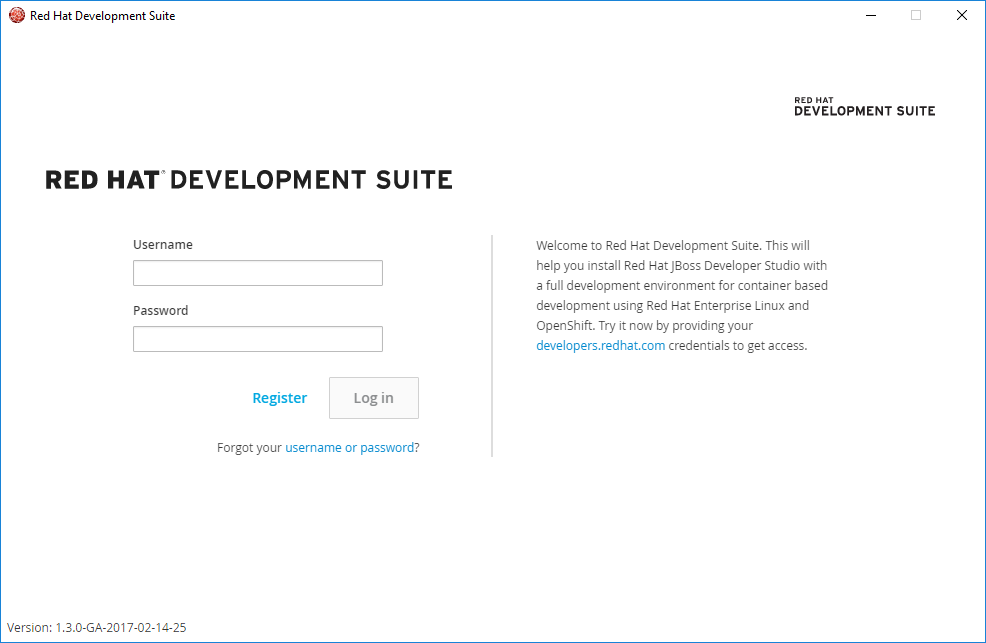
At the log in screen, enter your existing Red Hat Developer login credentials to log in.
Figure 4.1. Enter Your Login Credentials
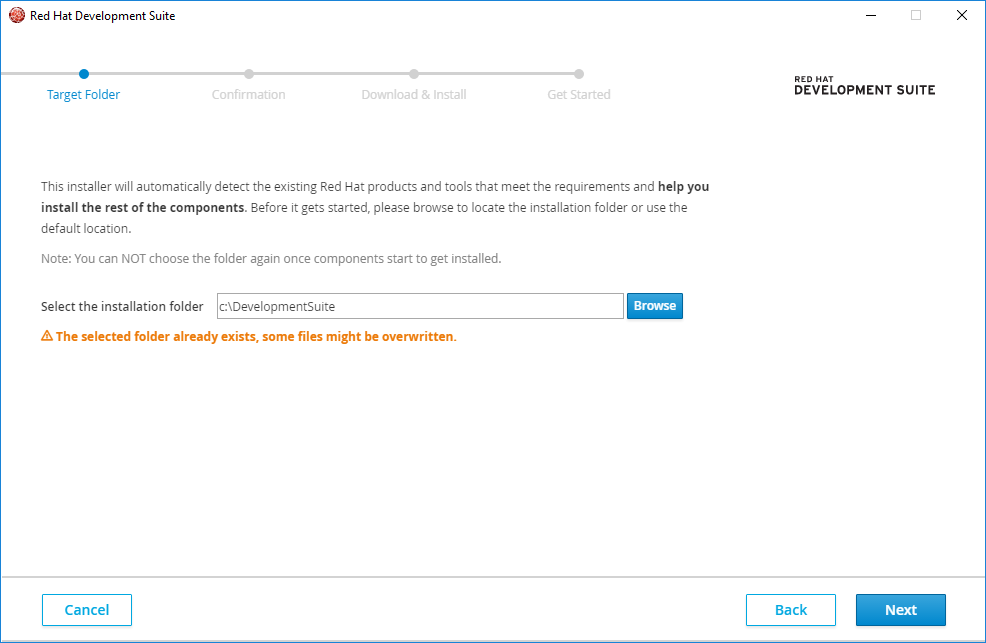
At the
Target Folderscreen, add a path to the target directory for the Red Hat Development Suite installation. The default path for Windows isc:\DevelopmentSuiteand the default path for macOS is/Applications/DevelopmentSuite.Figure 4.2. Set the Target Directory
If your Windows user has a space in the username, for example,
Example User, the installer displays an error. See Section 7.1, “Terms and Conditions Error” for troubleshooting information for this error.The
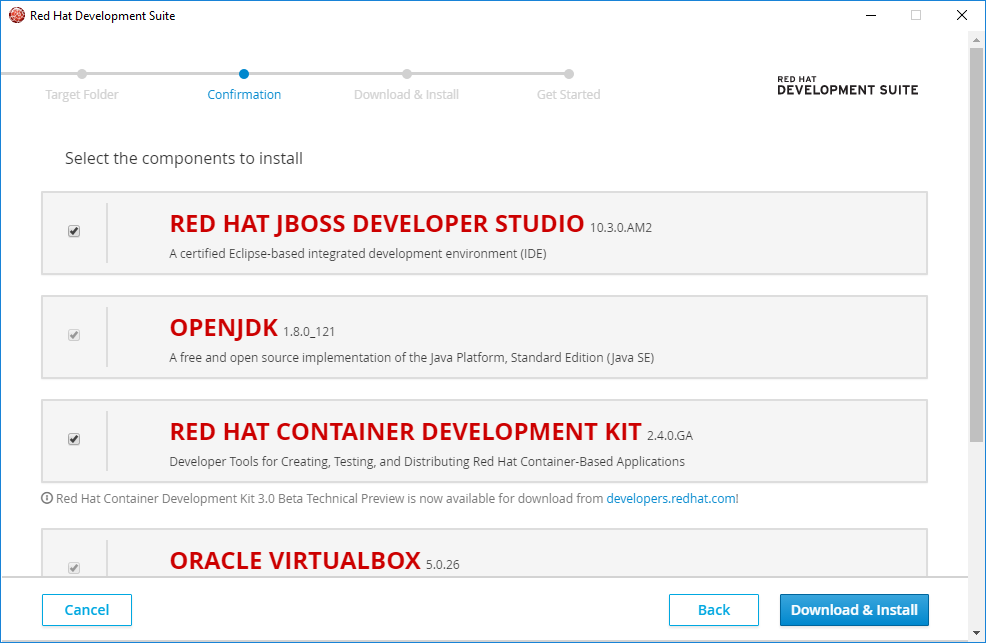
Confirmationscreen lists the components that Red Hat Development Suite downloads and installs. Red Hat Development Suite detects components based on thePATHenvironment variable. If none of the components are installed, no changes are required. If an older version of a component is detected, exit Red Hat Development Suite, uninstall the component, and then start Red Hat Development Suite.To Install Red Hat Development Suite:
- All required components are already selected by default.
- Click Download & Install to continue.
To only install Red Hat Container Development Kit:
- Deselect the Red Hat JBoss Developer Studio and OpenJDK. You must deselect JBoss Developer Studio before its dependency (OpenJDK) is available to select.
- Click Download & Install to continue.
To only install JBoss Developer Studio:
- Deselect the Red Hat Container Development Kit, Vagrant, Cygwin, and VirtualBox options. You must deselect the Container Development Kit option before its dependencies are available to select.
- Click Download & Install to continue.
To only install any of the dependencies (VirtualBox, Cygwin, Vagrant, OpenJDK):
- Deselect the Red Hat Container Development Kit and JBoss Developer Studio options.
- Select and deselect any of the other components as desired.
Click Download & Install to continue.
Figure 4.3. Download and Install the Components
- The Online installer then downloads the selected components and installs it. This process involves large file downloads and can take some time to complete. The Bundled installer includes the components and directly installs them.
When complete, Red Hat Development Suite indicates that the download and install were successful and provides a link to the Red Hat Container Development Kit Getting Started page. Depending on what you want to do next, you can either:
- Click the Open Red Hat JBoss Developer Studio button to start using the Red Hat Container Development Kit Server Adapter.
- Visit Red Hat Container Developement Kit to learn about using Red Hat Container Development Kit.
To run Red Hat Development Suite, click the Open Red Hat JBoss Developer Studio button:
- Set up a workspace folder, as prompted.
- Click the Servers tab to view the configured Red Hat Container Development Kit server adapter.
- Right-click the server and select Start to initiate the Red Hat Container Development Kit server.
- When prompted, enter your Red Hat Customer Portal credentials and click OK. The Console tab displays the details of the Red Hat Container Development Kit server.
- When prompted, read the details of the new SSL certificate for OpenShift and click Yes to accept it.
- Click the OpenShift Explorer tab to view the new OpenShift server and sample project.

'%20d='M201.5%20305.5c-13.8%200-24.9-11.1-24.9-24.6%200-13.8%2011.1-24.9%2024.9-24.9%2013.6%200%2024.6%2011.1%2024.6%2024.9%200%2013.6-11.1%2024.6-24.6%2024.6zM504%20256c0%20137-111%20248-248%20248S8%20393%208%20256%20119%208%20256%208s248%20111%20248%20248zm-132.3-41.2c-9.4%200-17.7%203.9-23.8%2010-22.4-15.5-52.6-25.5-86.1-26.6l17.4-78.3%2055.4%2012.5c0%2013.6%2011.1%2024.6%2024.6%2024.6%2013.8%200%2024.9-11.3%2024.9-24.9s-11.1-24.9-24.9-24.9c-9.7%200-18%205.8-22.1%2013.8l-61.2-13.6c-3-.8-6.1%201.4-6.9%204.4l-19.1%2086.4c-33.2%201.4-63.1%2011.3-85.5%2026.8-6.1-6.4-14.7-10.2-24.1-10.2-34.9%200-46.3%2046.9-14.4%2062.8-1.1%205-1.7%2010.2-1.7%2015.5%200%2052.6%2059.2%2095.2%20132%2095.2%2073.1%200%20132.3-42.6%20132.3-95.2%200-5.3-.6-10.8-1.9-15.8%2031.3-16%2019.8-62.5-14.9-62.5zM302.8%20331c-18.2%2018.2-76.1%2017.9-93.6%200-2.2-2.2-6.1-2.2-8.3%200-2.5%202.5-2.5%206.4%200%208.6%2022.8%2022.8%2087.3%2022.8%20110.2%200%202.5-2.2%202.5-6.1%200-8.6-2.2-2.2-6.1-2.2-8.3%200zm7.7-75c-13.6%200-24.6%2011.1-24.6%2024.9%200%2013.6%2011.1%2024.6%2024.6%2024.6%2013.8%200%2024.9-11.1%2024.9-24.6%200-13.8-11-24.9-24.9-24.9z'/%3e%3c/svg%3e)