 红帽全球峰会
此内容没有您所选择的语言版本。
27.7. Displaying guest details
You can use the Virtual Machine Monitor to view activity data information for any virtual machines on your system.
To view a virtual system's details:
- In the Virtual Machine Manager main window, highlight the virtual machine that you want to view.

Figure 27.8. Selecting a virtual machine to display
- From the Virtual Machine Manager Edit menu, select Machine Details (or click the Details button on the bottom of the Virtual Machine Manager main window).
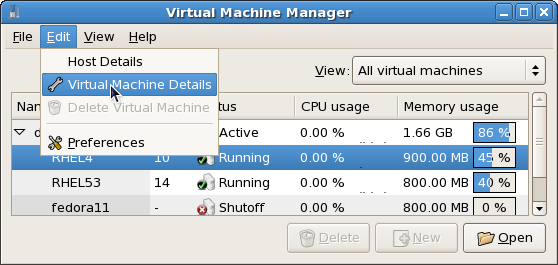
Figure 27.9. Displaying the overview window
On the Virtual Machine window, click the Overview tab.The Overview tab summarizes CPU and memory usage for the guest you specified.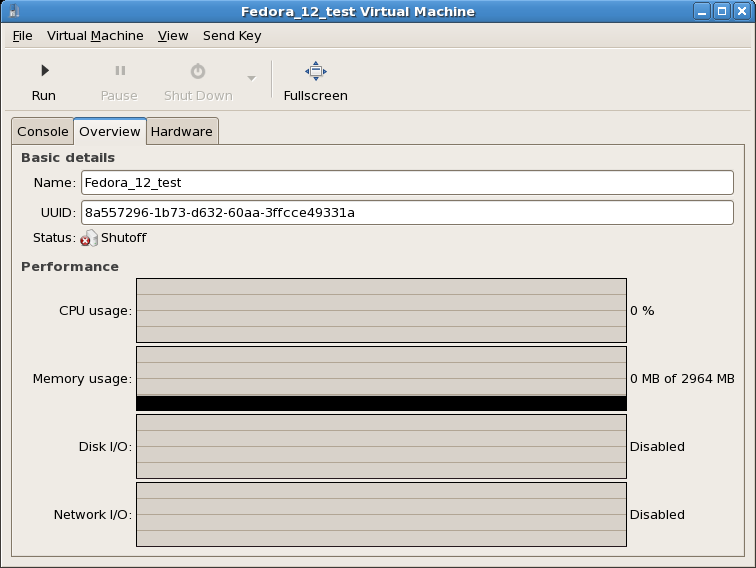
Figure 27.10. Displaying guest details overview
- On the Virtual Machine window, click the Hardwaretab.
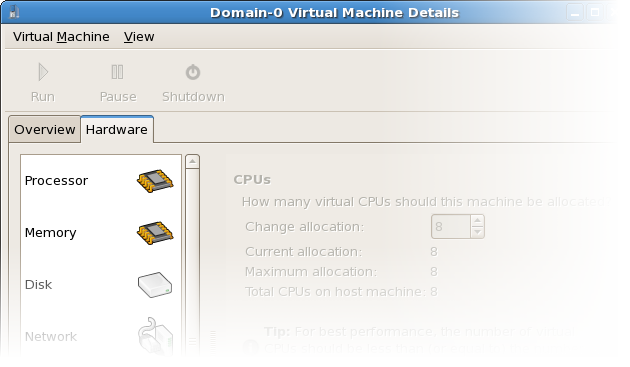
Figure 27.11. Displaying guest hardware details
- On the Hardware tab, click on Processor to view or change the current processor allocation.
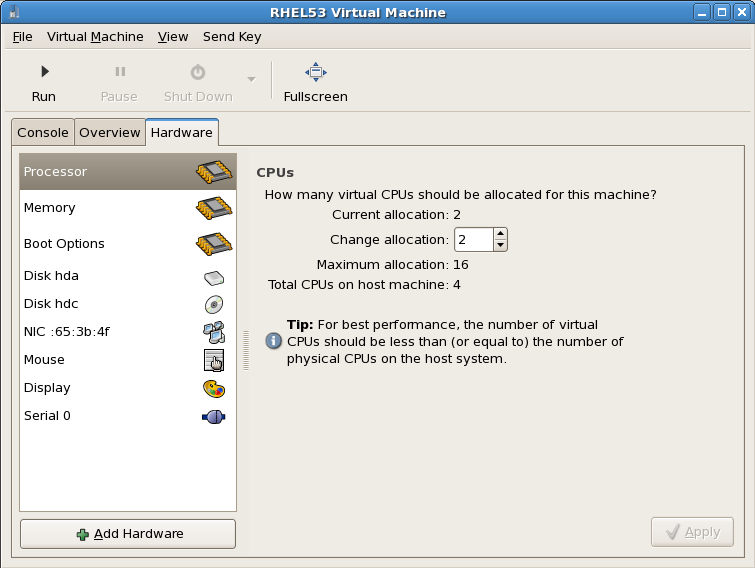
Figure 27.12. Processor allocation panel
- On the Hardware tab, click on Memory to view or change the current RAM memory allocation.
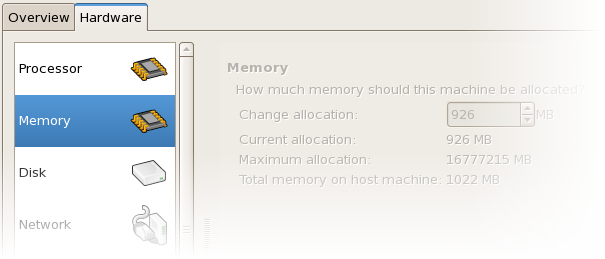
Figure 27.13. Displaying memory allocation
- On the Hardware tab, click on Disk to view or change the current hard disk configuration.
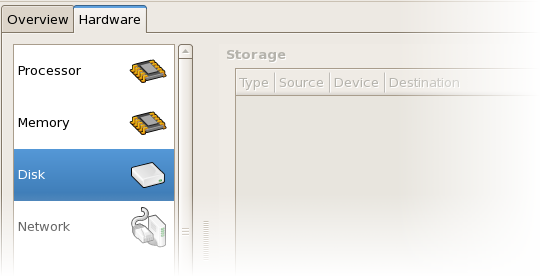
Figure 27.14. Displaying disk configuration
- On the Hardware tab, click on NIC to view or change the current network configuration.
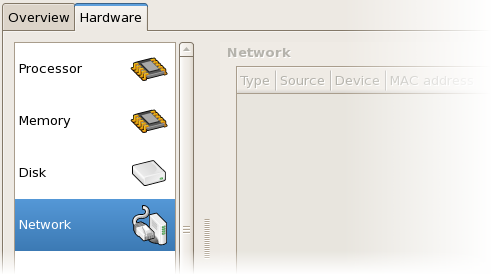
Figure 27.15. Displaying network configuration

'%20d='M201.5%20305.5c-13.8%200-24.9-11.1-24.9-24.6%200-13.8%2011.1-24.9%2024.9-24.9%2013.6%200%2024.6%2011.1%2024.6%2024.9%200%2013.6-11.1%2024.6-24.6%2024.6zM504%20256c0%20137-111%20248-248%20248S8%20393%208%20256%20119%208%20256%208s248%20111%20248%20248zm-132.3-41.2c-9.4%200-17.7%203.9-23.8%2010-22.4-15.5-52.6-25.5-86.1-26.6l17.4-78.3%2055.4%2012.5c0%2013.6%2011.1%2024.6%2024.6%2024.6%2013.8%200%2024.9-11.3%2024.9-24.9s-11.1-24.9-24.9-24.9c-9.7%200-18%205.8-22.1%2013.8l-61.2-13.6c-3-.8-6.1%201.4-6.9%204.4l-19.1%2086.4c-33.2%201.4-63.1%2011.3-85.5%2026.8-6.1-6.4-14.7-10.2-24.1-10.2-34.9%200-46.3%2046.9-14.4%2062.8-1.1%205-1.7%2010.2-1.7%2015.5%200%2052.6%2059.2%2095.2%20132%2095.2%2073.1%200%20132.3-42.6%20132.3-95.2%200-5.3-.6-10.8-1.9-15.8%2031.3-16%2019.8-62.5-14.9-62.5zM302.8%20331c-18.2%2018.2-76.1%2017.9-93.6%200-2.2-2.2-6.1-2.2-8.3%200-2.5%202.5-2.5%206.4%200%208.6%2022.8%2022.8%2087.3%2022.8%20110.2%200%202.5-2.2%202.5-6.1%200-8.6-2.2-2.2-6.1-2.2-8.3%200zm7.7-75c-13.6%200-24.6%2011.1-24.6%2024.9%200%2013.6%2011.1%2024.6%2024.6%2024.6%2013.8%200%2024.9-11.1%2024.9-24.6%200-13.8-11-24.9-24.9-24.9z'/%3e%3c/svg%3e)