 红帽全球峰会
此内容没有您所选择的语言版本。
18.2. Containers Page
Abstract
You view and manage containers in a fabric in the Containers page. You can view the list of containers, drill down to container details, and create containers.
Overview
复制链接链接已复制到粘贴板!
You access the Containers page from the Fabric perspective. If the Fabric perspective is not available, make sure that your fabric is available or create a new fabric.
The following image shows an example of the Containers page:
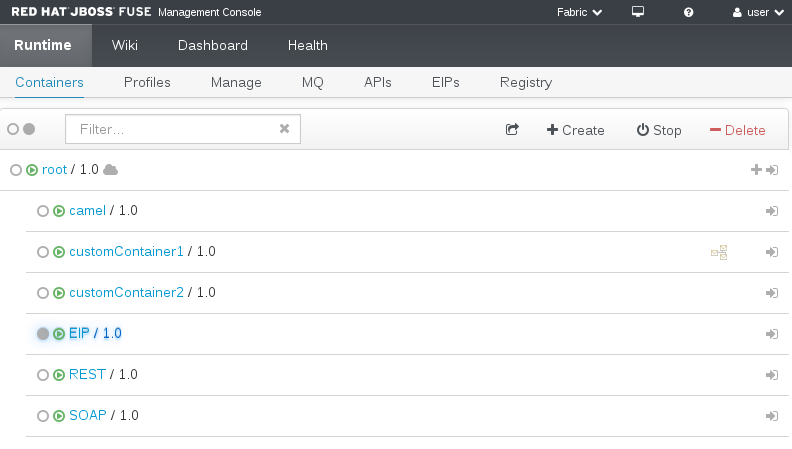
The Containers page contains the following sections:
- Action Bar
- Options to filter the container list, add the view to the dashboard, or create a new entity. When you select one or more containers, the Action Bar shows container options.
- Container List
- List of deployed containers. Click the name of the container to drill down to the Container Details page. You can also create a child container for a specific container directly from the container list.
Action Bar
复制链接链接已复制到粘贴板!
The Action Bar contains the following options:
- Select All / Select None
- Selects all containers in the list or clears all selections.
- Filter
- Filters the container list to show only containers that match a string that you enter in the text box. The container list refreshes as you type. To clear the filter, you click the X icon.
- Add to Dashboard
- Adds the current view to the dashboard. The view appears in the fabric dashboard.
- Create
- Opens the Create New Container page. The new container appears as a root container in the container list.
- Start / Stop
- Starts or stops the selected containers. Available when you select one or more containers.
- Delete
- Deletes the selected containers. Available when you select one or more containers.
- Migrate
- Updates the version of the selected containers. Available when you select one or more containers and if multiple versions exist in JBoss Fuse.
Container List
复制链接链接已复制到粘贴板!
The container list contains the following elements:
- Select
- Icon that you click to select a container from the list.
- Status
- Icon that shows the status of the container.
- Container Name
- Name of the container. You click the container name to drill down to the Container Details page.
- Version
- Version number of the associated profile.
- Cloud
- Icon that shows whether the container is a member of the ZooKeeper ensemble.
- JMX Domain
- JMX domain of the container, such as Apache ActiveMQ or Apache Camel.
- Create Child Container
- Icon that you click to open the Create New Container page and create a child container. The container appears under the selected container in the container list.
- Open in New Window
- Opens a new tab or window and shows the Container perspective for the selected container.

'%20d='M201.5%20305.5c-13.8%200-24.9-11.1-24.9-24.6%200-13.8%2011.1-24.9%2024.9-24.9%2013.6%200%2024.6%2011.1%2024.6%2024.9%200%2013.6-11.1%2024.6-24.6%2024.6zM504%20256c0%20137-111%20248-248%20248S8%20393%208%20256%20119%208%20256%208s248%20111%20248%20248zm-132.3-41.2c-9.4%200-17.7%203.9-23.8%2010-22.4-15.5-52.6-25.5-86.1-26.6l17.4-78.3%2055.4%2012.5c0%2013.6%2011.1%2024.6%2024.6%2024.6%2013.8%200%2024.9-11.3%2024.9-24.9s-11.1-24.9-24.9-24.9c-9.7%200-18%205.8-22.1%2013.8l-61.2-13.6c-3-.8-6.1%201.4-6.9%204.4l-19.1%2086.4c-33.2%201.4-63.1%2011.3-85.5%2026.8-6.1-6.4-14.7-10.2-24.1-10.2-34.9%200-46.3%2046.9-14.4%2062.8-1.1%205-1.7%2010.2-1.7%2015.5%200%2052.6%2059.2%2095.2%20132%2095.2%2073.1%200%20132.3-42.6%20132.3-95.2%200-5.3-.6-10.8-1.9-15.8%2031.3-16%2019.8-62.5-14.9-62.5zM302.8%20331c-18.2%2018.2-76.1%2017.9-93.6%200-2.2-2.2-6.1-2.2-8.3%200-2.5%202.5-2.5%206.4%200%208.6%2022.8%2022.8%2087.3%2022.8%20110.2%200%202.5-2.2%202.5-6.1%200-8.6-2.2-2.2-6.1-2.2-8.3%200zm7.7-75c-13.6%200-24.6%2011.1-24.6%2024.9%200%2013.6%2011.1%2024.6%2024.6%2024.6%2013.8%200%2024.9-11.1%2024.9-24.6%200-13.8-11-24.9-24.9-24.9z'/%3e%3c/svg%3e)