 红帽全球峰会
此内容没有您所选择的语言版本。
Chapter 2. Configuring Process Servers in Entando App Builder
In order to integrate your Red Hat Process Automation Manager data in Entando, you must first configure one or more Process Servers in Entando App Builder. The configured Process Servers must be the servers to which you deployed the projects that you created in Red Hat Process Automation Manager.
Prerequisites
- Red Hat Process Automation Manager 7.3 is installed. For installation options, see Planning a Red Hat Process Automation Manager installation.
- One or more Process Servers are running and contain deployed project data. For instructions, see Packaging and deploying a Red Hat Process Automation Manager project.
- Entando App Builder 5.0.3 is installed. For instructions, see Getting Started with Entando App Builder.
- You are logged in to the Entando Admin Console.
Procedure
-
In the Entando Admin Console, go to Integrations
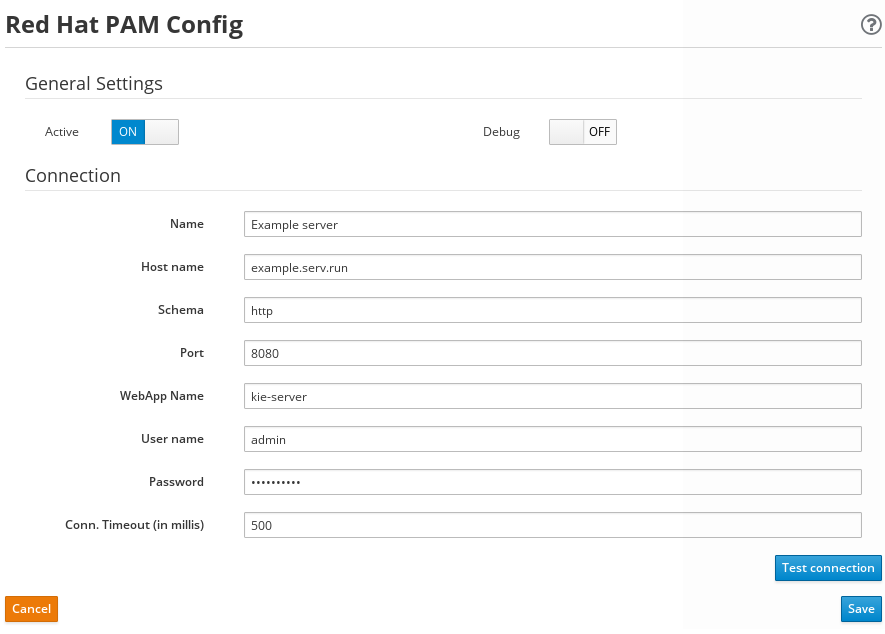
Components Red Hat PAM Config Add Configuration. Enter the Process Server information and login credentials.
Example configuration for a Process Server at
http://example.serv.run:8080/kie-server:-
Name:
Example server -
Host name:
example.serv.run -
Schema:
http -
Port:
8080 -
WebApp name:
kie-server -
User name / Password: User name and password of a user with the
kie-serverrole - Conn. Timeout (in millis): Optional, time permitted (in milliseconds) for establishing a connection to Process Server
Figure 2.1. Configure Process Server
-
Name:
- Toggle the Active setting to activate the server connection.
- Toggle the Debug setting to activate the debugging mechanism, if desired.
- Click Test connection to validate the Process Server configurations. If the connection is not successful, ensure that the configured Process Server is running and that all configuration details are correct.
- Click Save to finish. Continue adding any other relevant Process Servers.

'%20d='M201.5%20305.5c-13.8%200-24.9-11.1-24.9-24.6%200-13.8%2011.1-24.9%2024.9-24.9%2013.6%200%2024.6%2011.1%2024.6%2024.9%200%2013.6-11.1%2024.6-24.6%2024.6zM504%20256c0%20137-111%20248-248%20248S8%20393%208%20256%20119%208%20256%208s248%20111%20248%20248zm-132.3-41.2c-9.4%200-17.7%203.9-23.8%2010-22.4-15.5-52.6-25.5-86.1-26.6l17.4-78.3%2055.4%2012.5c0%2013.6%2011.1%2024.6%2024.6%2024.6%2013.8%200%2024.9-11.3%2024.9-24.9s-11.1-24.9-24.9-24.9c-9.7%200-18%205.8-22.1%2013.8l-61.2-13.6c-3-.8-6.1%201.4-6.9%204.4l-19.1%2086.4c-33.2%201.4-63.1%2011.3-85.5%2026.8-6.1-6.4-14.7-10.2-24.1-10.2-34.9%200-46.3%2046.9-14.4%2062.8-1.1%205-1.7%2010.2-1.7%2015.5%200%2052.6%2059.2%2095.2%20132%2095.2%2073.1%200%20132.3-42.6%20132.3-95.2%200-5.3-.6-10.8-1.9-15.8%2031.3-16%2019.8-62.5-14.9-62.5zM302.8%20331c-18.2%2018.2-76.1%2017.9-93.6%200-2.2-2.2-6.1-2.2-8.3%200-2.5%202.5-2.5%206.4%200%208.6%2022.8%2022.8%2087.3%2022.8%20110.2%200%202.5-2.2%202.5-6.1%200-8.6-2.2-2.2-6.1-2.2-8.3%200zm7.7-75c-13.6%200-24.6%2011.1-24.6%2024.9%200%2013.6%2011.1%2024.6%2024.6%2024.6%2013.8%200%2024.9-11.1%2024.9-24.6%200-13.8-11-24.9-24.9-24.9z'/%3e%3c/svg%3e)