 红帽全球峰会
此内容没有您所选择的语言版本。
Chapter 4. Deploying Red Hat Quay
This procedure:
- Installs the Red Hat Quay Setup Operator on OpenShift from the OperatorHub
- Deploys a Red Hat Quay cluster on OpenShift with the Setup Operator
You have the option of changing dozens of settings before deploying the Red Hat Quay Setup Operator. The Operator automates the entire start-up process, by-passing the Red Hat Quay config tool. You can choose to skip the Operator’s automated configuration and use the config tool directly.
Prerequisites
- An OpenShift 3.x or 4.x cluster
- Cluster-scope admin privilege to the OpenShift cluster
Procedure
You have two choices for deploying the Red Hat Quay Operator:
-
Advanced Setup: Go through the
Customizing your Red Hat Quay clustersection and change any setting you desire before running this procedure. - Standard Setup: Just step through the procedure as is to use all the default setting.
4.1. Install the Red Hat Quay Setup Operator
-
From the OpenShift console, select Operators
OperatorHub, then select the Red Hat Quay Operator. - Select Install. The Operator Subscription page appears.
Choose the following then select Subscribe:
- Installation Mode: Select a specific namespace to install to
- Update Channel: Choose the update channel (only one may be available)
- Approval Strategy: Choose to approve automatic or manual updates
4.2. Deploy a Red Hat Quay ecosystem
- See the Accessing Red Hat Quay article for information on getting credentials needed to obtain the quay container from Quay.io. Then put those credentials in a file. In this example, we create a config.json in the local directory.
Create a secret that includes your credentials, as follows:
$ oc create secret generic redhat-pull-secret \
    --from-file=".dockerconfigjson=config.json" --type='kubernetes.io/dockerconfigjson'
Create a custom resource file (in this example, named
quayecosystem_cr.yaml) or copy one from the quay-operator examples page. This example uses default settings:apiVersion: redhatcop.redhat.io/v1alpha1 kind: QuayEcosystem metadata: name: example-quayecosystem spec: quay: imagePullSecretName: redhat-pull-secret-
Go through the
Customizing your Red Hat Quay clustersection to choose configuration settings you want to change. Deploy the Quay ecosystem from your custom resource file as follows:
$ oc create -f quayecosystem_cr.yamlDeploying the custom resource automatically creates and configures the Red Hat Quay cluster, which includes the Red Hat Quay, PostgreSQL, and Redis services.
To check the status of your Red Hat Quay cluster, log in to your OpenShift web console, select Projects, then select the
quay-enterpriseproject to see the following: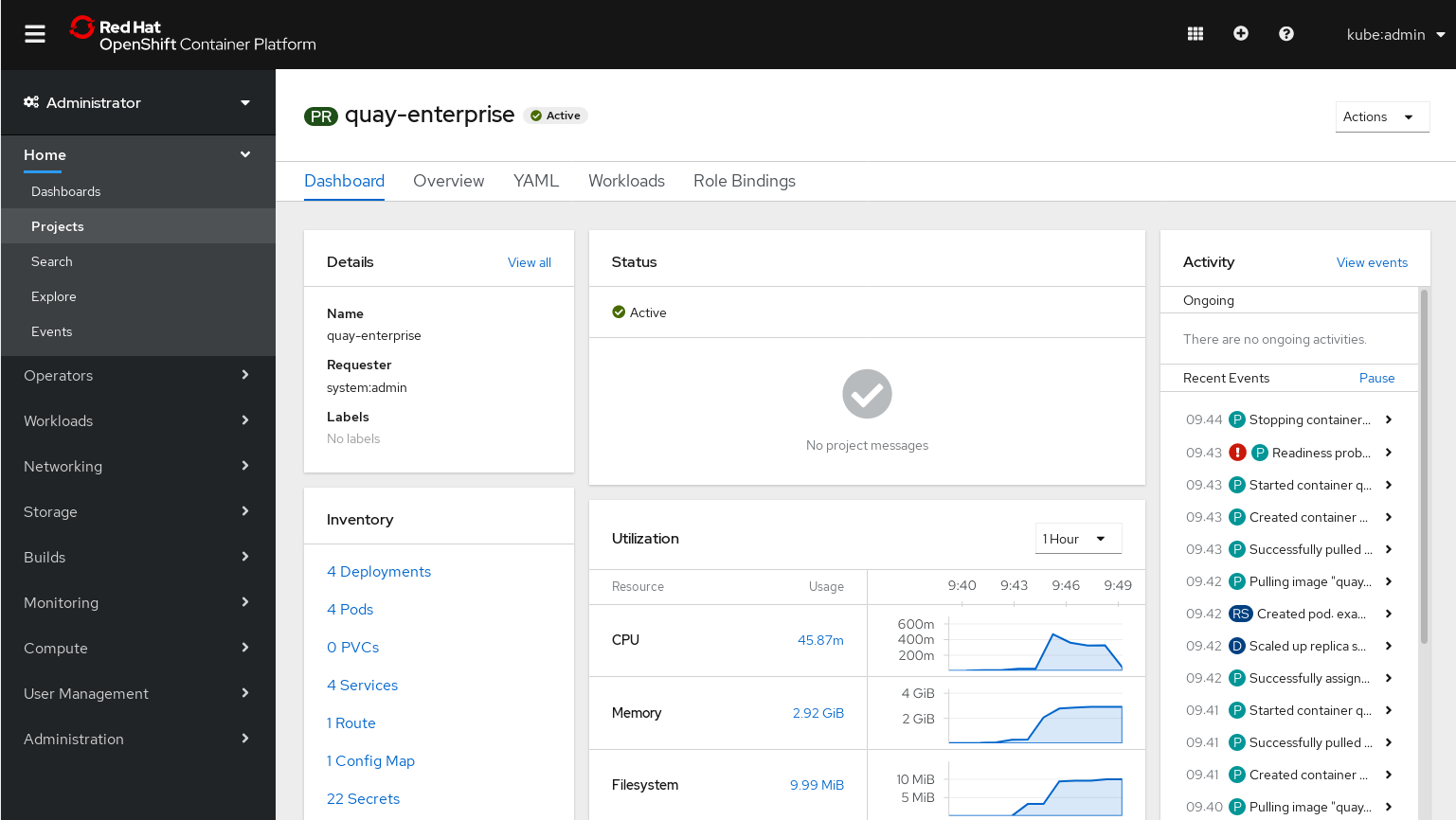
If Red Hat Quay is running, here is how to get started using your Red Hat Quay configuration:
Get the route to your new Red Hat Quay cluster as follows:
$ oc get route NAME HOST/PORT PATH SERVICES PORT TERMINATION WILDCARD example-quayecosystem-quay example-quayecosystem-quay-default.example.com example-quayecosystem-quay 8443 passthrough/Redirect None-
Using that route, log in with the superuser credentials (Username:
quayand Password:passwordor change credentials as described in the next section)
Additional resources
- For more details on the Red Hat Quay Setup Operator, see the upstream quay-operator project.

'%20d='M201.5%20305.5c-13.8%200-24.9-11.1-24.9-24.6%200-13.8%2011.1-24.9%2024.9-24.9%2013.6%200%2024.6%2011.1%2024.6%2024.9%200%2013.6-11.1%2024.6-24.6%2024.6zM504%20256c0%20137-111%20248-248%20248S8%20393%208%20256%20119%208%20256%208s248%20111%20248%20248zm-132.3-41.2c-9.4%200-17.7%203.9-23.8%2010-22.4-15.5-52.6-25.5-86.1-26.6l17.4-78.3%2055.4%2012.5c0%2013.6%2011.1%2024.6%2024.6%2024.6%2013.8%200%2024.9-11.3%2024.9-24.9s-11.1-24.9-24.9-24.9c-9.7%200-18%205.8-22.1%2013.8l-61.2-13.6c-3-.8-6.1%201.4-6.9%204.4l-19.1%2086.4c-33.2%201.4-63.1%2011.3-85.5%2026.8-6.1-6.4-14.7-10.2-24.1-10.2-34.9%200-46.3%2046.9-14.4%2062.8-1.1%205-1.7%2010.2-1.7%2015.5%200%2052.6%2059.2%2095.2%20132%2095.2%2073.1%200%20132.3-42.6%20132.3-95.2%200-5.3-.6-10.8-1.9-15.8%2031.3-16%2019.8-62.5-14.9-62.5zM302.8%20331c-18.2%2018.2-76.1%2017.9-93.6%200-2.2-2.2-6.1-2.2-8.3%200-2.5%202.5-2.5%206.4%200%208.6%2022.8%2022.8%2087.3%2022.8%20110.2%200%202.5-2.2%202.5-6.1%200-8.6-2.2-2.2-6.1-2.2-8.3%200zm7.7-75c-13.6%200-24.6%2011.1-24.6%2024.9%200%2013.6%2011.1%2024.6%2024.6%2024.6%2013.8%200%2024.9-11.1%2024.9-24.6%200-13.8-11-24.9-24.9-24.9z'/%3e%3c/svg%3e)