 Red Hat Summit
Dieser Inhalt ist in der von Ihnen ausgewählten Sprache nicht verfügbar.
Chapter 2. Process definitions and process instances in Business Central
After you have created, configured, and deployed your project that includes your business processes, you can view the list of all the process definitions in Menu
The process definition list shows all the available process definitions that are deployed into the platform. Click on any of the process definitions listed to show the corresponding process definition details. This displays information about the process definition, such as if there is a sub-process associated with it, or how many users and groups exist in the process definition. The Diagram tab in the process definition details page contains the BPMN2-based diagram of the process definition.
Within each selected process definition, you can start a new process instance for the process definition by clicking the New Process Instance button in the upper-right corner. Process instances that you start from the available process definitions are listed in Menu
You can also define the default pagination option for all users under the Manage drop-down menu (Process Definition, Process Instances, Tasks, Execution Errors, and Jobs) and in Menu
2.1. Starting a process instance from the process definitions page
You can start a process instance in Menu
Prerequisites
- A project with a process definition has been deployed in Business Central.
Procedure
-
In Business Central, go to Menu
Manage Process Definitions. - Select the process definition for which you want to start a new process instance from the list. The details page of the definition opens.
- Click the New Process Instance button in the upper-right corner to start a new process instance.
- Provide any required information for the process instance.
- Click Submit to create the process instance.
-
View the new process instance in Menu
Manage Process Instances.
2.2. Starting a process instance from the process instances page
You can create new process instances or view the list of all the running process instances in Menu
Prerequisites
- A project with a process definition has been deployed in Business Central.
Procedure
-
In Business Central, go to Menu
Manage Process Instances. - Click the New Process Instance button in the upper-right corner and select the process definition for which you want to start a new process instance from the drop-down list.
- Provide any information required to start a new process instance.
Click Start to create the process instance.
The new process instance appears in the Manage Process Instances list.
2.3. Process instance details
You can view all process instances under Menu
Figure 2.1. Features in the Manage Process Instances page
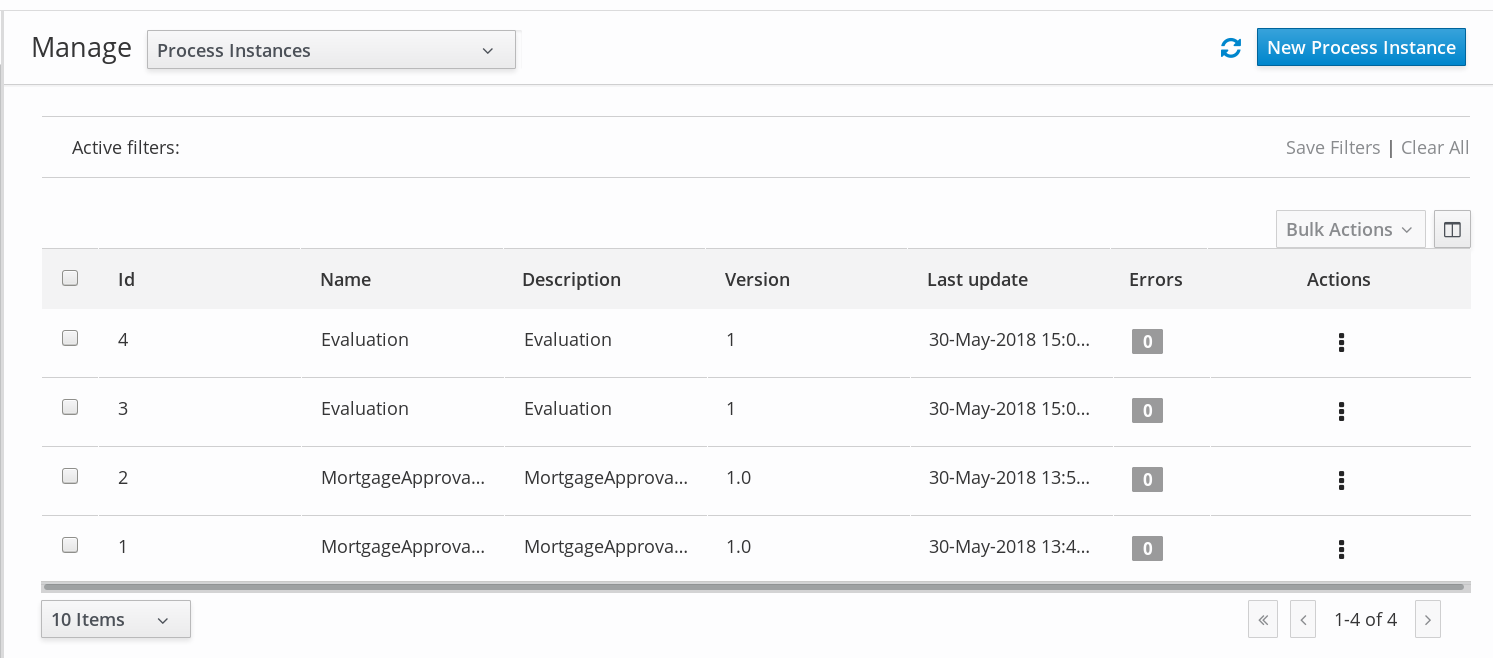
In order to view this information, you can click on any one of the process instances and view the corresponding details.
The process instance page provides several tabs with runtime information related to the process:
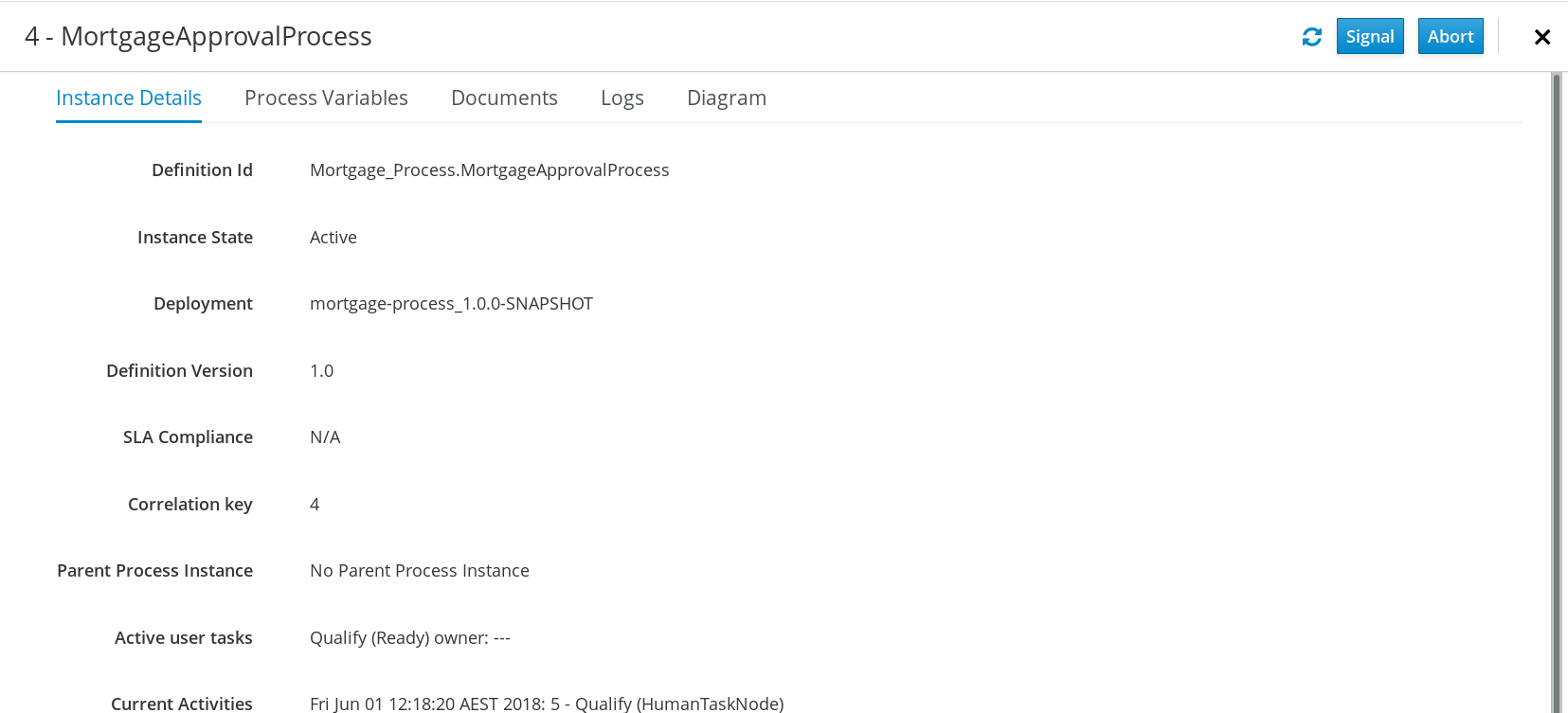
- The Instance Details tab: This gives you a quick overview about what is going on inside the process. It displays the current state of the instance and the current activity that is being executed.
- The Process Variables tab: This displays all of the process variables that are being manipulated by the instance, with the exception of the variables that contain documents. Additionally, you can edit the process variable value and view its history.
- The Documents tab: This displays process documents if the process contains a variable of the type org.jbpm.Document. This enables easy access, download, and manipulation of the attached documents.
- The Logs tab: This displays process instance logs for the respective end users. For more information, see Interacting with processes and tasks.
- The Diagram tab: This tracks the progress of the process instance through the BPMN2 diagram. The node or nodes of the process flow that are in progress are highlighted in red.
For information on user credentials and conditions to be met to access Intelligent Process Server run time data, see Planning a Red Hat Process Automation Manager installation.
2.4. Generating process documentation in Business Central
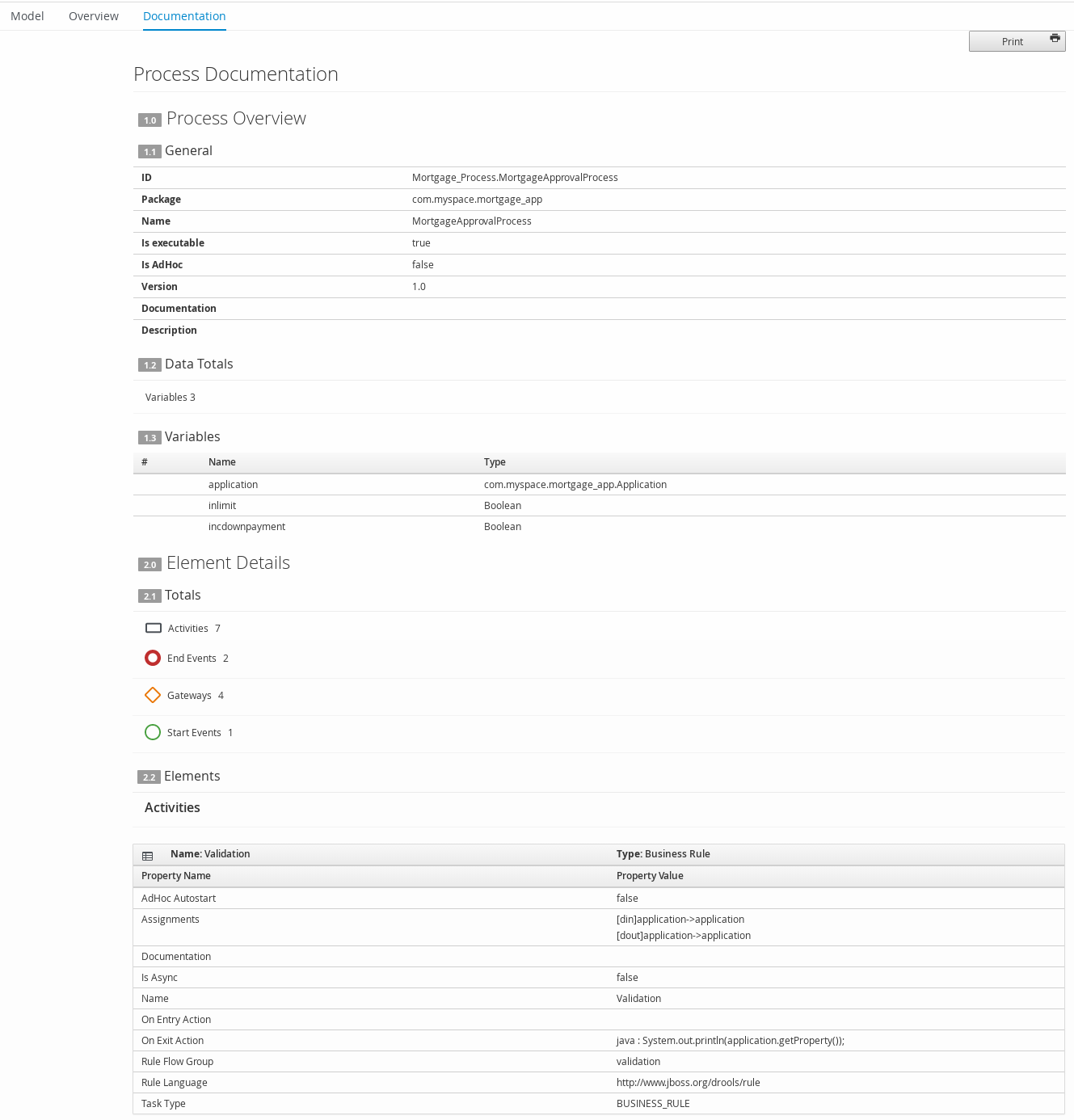
In the process designer in Business Central, you can view and print a report of a given process definition. The process documentation summarizes the components, data, and visual flow of the process in a format (PDF) that you can print and share more easily.
Procedure
- In Business Central, navigate to a project that contains a business process and select the process.
In the process designer, click the Documentation tab to view the summary of the process file, and click Print in the top-right corner of the window to print the PDF report.
Figure 2.2. Generate process documentation

'%20d='M201.5%20305.5c-13.8%200-24.9-11.1-24.9-24.6%200-13.8%2011.1-24.9%2024.9-24.9%2013.6%200%2024.6%2011.1%2024.6%2024.9%200%2013.6-11.1%2024.6-24.6%2024.6zM504%20256c0%20137-111%20248-248%20248S8%20393%208%20256%20119%208%20256%208s248%20111%20248%20248zm-132.3-41.2c-9.4%200-17.7%203.9-23.8%2010-22.4-15.5-52.6-25.5-86.1-26.6l17.4-78.3%2055.4%2012.5c0%2013.6%2011.1%2024.6%2024.6%2024.6%2013.8%200%2024.9-11.3%2024.9-24.9s-11.1-24.9-24.9-24.9c-9.7%200-18%205.8-22.1%2013.8l-61.2-13.6c-3-.8-6.1%201.4-6.9%204.4l-19.1%2086.4c-33.2%201.4-63.1%2011.3-85.5%2026.8-6.1-6.4-14.7-10.2-24.1-10.2-34.9%200-46.3%2046.9-14.4%2062.8-1.1%205-1.7%2010.2-1.7%2015.5%200%2052.6%2059.2%2095.2%20132%2095.2%2073.1%200%20132.3-42.6%20132.3-95.2%200-5.3-.6-10.8-1.9-15.8%2031.3-16%2019.8-62.5-14.9-62.5zM302.8%20331c-18.2%2018.2-76.1%2017.9-93.6%200-2.2-2.2-6.1-2.2-8.3%200-2.5%202.5-2.5%206.4%200%208.6%2022.8%2022.8%2087.3%2022.8%20110.2%200%202.5-2.2%202.5-6.1%200-8.6-2.2-2.2-6.1-2.2-8.3%200zm7.7-75c-13.6%200-24.6%2011.1-24.6%2024.9%200%2013.6%2011.1%2024.6%2024.6%2024.6%2013.8%200%2024.9-11.1%2024.9-24.6%200-13.8-11-24.9-24.9-24.9z'/%3e%3c/svg%3e)