 Red Hat Summit
CLI tools
Learning how to use the command-line tools for OpenShift Container Platform
Abstract
Chapter 1. OpenShift Container Platform CLI tools overview
A user performs a range of operations while working on OpenShift Container Platform such as the following:
- Managing clusters
- Building, deploying, and managing applications
- Managing deployment processes
- Developing Operators
- Creating and maintaining Operator catalogs
OpenShift Container Platform offers a set of command-line interface (CLI) tools that simplify these tasks by enabling users to perform various administration and development operations from the terminal. These tools expose simple commands to manage the applications, as well as interact with each component of the system.
1.1. List of CLI tools
The following set of CLI tools are available in OpenShift Container Platform:
- OpenShift CLI (oc): This is the most commonly used CLI tool by OpenShift Container Platform users. It helps both cluster administrators and developers to perform end-to-end operations across OpenShift Container Platform using the terminal. Unlike the web console, it allows the user to work directly with the project source code using command scripts.
-
Developer CLI (odo): The
odoCLI tool helps developers focus on their main goal of creating and maintaining applications on OpenShift Container Platform by abstracting away complex Kubernetes and OpenShift Container Platform concepts. It helps the developers to write, build, and debug applications on a cluster from the terminal without the need to administer the cluster. -
Knative CLI (kn): The Knative (
kn) CLI tool provides simple and intuitive terminal commands that can be used to interact with OpenShift Serverless components, such as Knative Serving and Eventing. -
Pipelines CLI (tkn): OpenShift Pipelines is a continuous integration and continuous delivery (CI/CD) solution in OpenShift Container Platform, which internally uses Tekton. The
tknCLI tool provides simple and intuitive commands to interact with OpenShift Pipelines using the terminal. -
opm CLI: The
opmCLI tool helps the Operator developers and cluster administrators to create and maintain the catalogs of Operators from the terminal. - Operator SDK: The Operator SDK, a component of the Operator Framework, provides a CLI tool that Operator developers can use to build, test, and deploy an Operator from the terminal. It simplifies the process of building Kubernetes-native applications, which can require deep, application-specific operational knowledge.
Chapter 2. OpenShift CLI (oc)
2.1. Getting started with the OpenShift CLI
2.1.1. About the OpenShift CLI
With the OpenShift command-line interface (CLI), the oc command, you can create applications and manage OpenShift Container Platform projects from a terminal. The OpenShift CLI is ideal in the following situations:
- Working directly with project source code
- Scripting OpenShift Container Platform operations
- Managing projects while restricted by bandwidth resources and the web console is unavailable
2.1.2. Installing the OpenShift CLI
You can install the OpenShift CLI (oc) either by downloading the binary or by using an RPM.
2.1.2.1. Installing the OpenShift CLI by downloading the binary
You can install the OpenShift CLI (oc) to interact with OpenShift Container Platform from a command-line interface. You can install oc on Linux, Windows, or macOS.
If you installed an earlier version of oc, you cannot use it to complete all of the commands in OpenShift Container Platform 4.8. Download and install the new version of oc.
Installing the OpenShift CLI on Linux
You can install the OpenShift CLI (oc) binary on Linux by using the following procedure.
Procedure
- Navigate to the OpenShift Container Platform downloads page on the Red Hat Customer Portal.
- Select the appropriate version in the Version drop-down menu.
- Click Download Now next to the OpenShift v4.8 Linux Client entry and save the file.
Unpack the archive:
$ tar xvzf <file>Place the
ocbinary in a directory that is on yourPATH.To check your
PATH, execute the following command:$ echo $PATH
After you install the OpenShift CLI, it is available using the oc command:
$ oc <command>Installing the OpenShift CLI on Windows
You can install the OpenShift CLI (oc) binary on Windows by using the following procedure.
Procedure
- Navigate to the OpenShift Container Platform downloads page on the Red Hat Customer Portal.
- Select the appropriate version in the Version drop-down menu.
- Click Download Now next to the OpenShift v4.8 Windows Client entry and save the file.
- Unzip the archive with a ZIP program.
Move the
ocbinary to a directory that is on yourPATH.To check your
PATH, open the command prompt and execute the following command:C:\> path
After you install the OpenShift CLI, it is available using the oc command:
C:\> oc <command>Installing the OpenShift CLI on macOS
You can install the OpenShift CLI (oc) binary on macOS by using the following procedure.
Procedure
- Navigate to the OpenShift Container Platform downloads page on the Red Hat Customer Portal.
- Select the appropriate version in the Version drop-down menu.
- Click Download Now next to the OpenShift v4.8 MacOSX Client entry and save the file.
- Unpack and unzip the archive.
Move the
ocbinary to a directory on your PATH.To check your
PATH, open a terminal and execute the following command:$ echo $PATH
After you install the OpenShift CLI, it is available using the oc command:
$ oc <command>2.1.2.2. Installing the OpenShift CLI by using the web console
You can install the OpenShift CLI (oc) to interact with OpenShift Container Platform from a web console. You can install oc on Linux, Windows, or macOS.
If you installed an earlier version of oc, you cannot use it to complete all of the commands in OpenShift Container Platform 4.8. Download and install the new version of oc.
2.1.2.2.1. Installing the OpenShift CLI on Linux using the web console
You can install the OpenShift CLI (oc) binary on Linux by using the following procedure.
Procedure
From the web console, click ?.
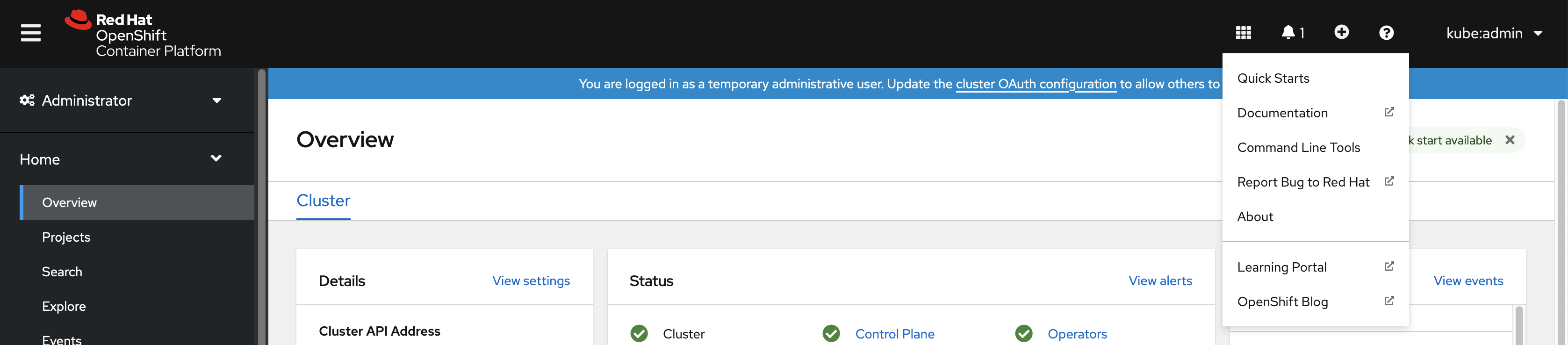
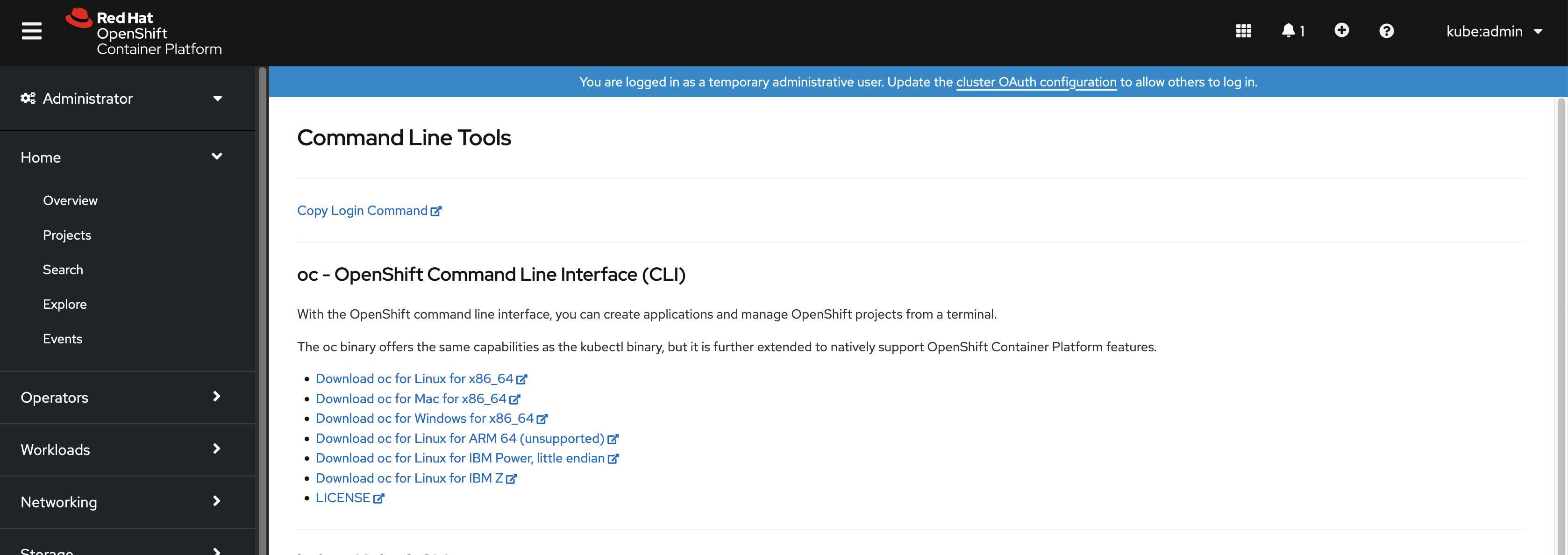
Click Command Line Tools.
-
Select appropriate
ocbinary for your Linux platform, and then click Download oc for Linux. - Save the file.
Unpack the archive.
$ tar xvzf <file>Move the
ocbinary to a directory that is on yourPATH.To check your
PATH, execute the following command:$ echo $PATH
After you install the OpenShift CLI, it is available using the oc command:
$ oc <command>2.1.2.2.2. Installing the OpenShift CLI on Windows using the web console
You can install the OpenShift CLI (oc) binary on Winndows by using the following procedure.
Procedure
From the web console, click ?.
Click Command Line Tools.
-
Select the
ocbinary for Windows platform, and then click Download oc for Windows for x86_64. - Save the file.
- Unzip the archive with a ZIP program.
Move the
ocbinary to a directory that is on yourPATH.To check your
PATH, open the command prompt and execute the following command:C:\> path
After you install the OpenShift CLI, it is available using the oc command:
C:\> oc <command>2.1.2.2.3. Installing the OpenShift CLI on macOS using the web console
You can install the OpenShift CLI (oc) binary on macOS by using the following procedure.
Procedure
From the web console, click ?.
Click Command Line Tools.
-
Select the
ocbinary for macOS platform, and then click Download oc for Mac for x86_64. - Save the file.
- Unpack and unzip the archive.
Move the
ocbinary to a directory on your PATH.To check your
PATH, open a terminal and execute the following command:$ echo $PATH
After you install the OpenShift CLI, it is available using the oc command:
$ oc <command>2.1.2.3. Installing the OpenShift CLI by using an RPM
For Red Hat Enterprise Linux (RHEL), you can install the OpenShift CLI (oc) as an RPM if you have an active OpenShift Container Platform subscription on your Red Hat account.
Prerequisites
- Must have root or sudo privileges.
Procedure
Register with Red Hat Subscription Manager:
# subscription-manager registerPull the latest subscription data:
# subscription-manager refreshList the available subscriptions:
# subscription-manager list --available --matches '*OpenShift*'In the output for the previous command, find the pool ID for an OpenShift Container Platform subscription and attach the subscription to the registered system:
# subscription-manager attach --pool=<pool_id>Enable the repositories required by OpenShift Container Platform 4.8.
For Red Hat Enterprise Linux 8:
# subscription-manager repos --enable="rhocp-4.8-for-rhel-8-x86_64-rpms"For Red Hat Enterprise Linux 7:
# subscription-manager repos --enable="rhel-7-server-ose-4.8-rpms"
Install the
openshift-clientspackage:# yum install openshift-clients
After you install the CLI, it is available using the oc command:
$ oc <command>2.1.2.4. Installing the OpenShift CLI by using Homebrew
For macOS, you can install the OpenShift CLI (oc) by using the Homebrew package manager.
Prerequisites
-
You must have Homebrew (
brew) installed.
Procedure
Run the following command to install the openshift-cli package:
$ brew install openshift-cli
2.1.3. Logging in to the OpenShift CLI
You can log in to the OpenShift CLI (oc) to access and manage your cluster.
Prerequisites
- You must have access to an OpenShift Container Platform cluster.
-
You must have installed the OpenShift CLI (
oc).
To access a cluster that is accessible only over an HTTP proxy server, you can set the HTTP_PROXY, HTTPS_PROXY and NO_PROXY variables. These environment variables are respected by the oc CLI so that all communication with the cluster goes through the HTTP proxy.
Authentication headers are sent only when using HTTPS transport.
Procedure
Enter the
oc logincommand and pass in a user name:$ oc login -u user1When prompted, enter the required information:
Example output
Server [https://localhost:8443]: https://openshift.example.com:64431 The server uses a certificate signed by an unknown authority. You can bypass the certificate check, but any data you send to the server could be intercepted by others. Use insecure connections? (y/n): y2 Authentication required for https://openshift.example.com:6443 (openshift) Username: user1 Password:3 Login successful. You don't have any projects. You can try to create a new project, by running oc new-project <projectname> Welcome! See 'oc help' to get started.
If you are logged in to the web console, you can generate an oc login command that includes your token and server information. You can use the command to log in to the OpenShift Container Platform CLI without the interactive prompts. To generate the command, select Copy login command from the username drop-down menu at the top right of the web console.
You can now create a project or issue other commands for managing your cluster.
2.1.4. Using the OpenShift CLI
Review the following sections to learn how to complete common tasks using the CLI.
2.1.4.1. Creating a project
Use the oc new-project command to create a new project.
$ oc new-project my-projectExample output
Now using project "my-project" on server "https://openshift.example.com:6443".2.1.4.2. Creating a new app
Use the oc new-app command to create a new application.
$ oc new-app https://github.com/sclorg/cakephp-exExample output
--> Found image 40de956 (9 days old) in imagestream "openshift/php" under tag "7.2" for "php"

...

    Run 'oc status' to view your app.
2.1.4.3. Viewing pods
Use the oc get pods command to view the pods for the current project.
When you run oc inside a pod and do not specify a namespace, the namespace of the pod is used by default.
$ oc get pods -o wideExample output
NAME                  READY   STATUS      RESTARTS   AGE     IP            NODE                           NOMINATED NODE
cakephp-ex-1-build    0/1     Completed   0          5m45s   10.131.0.10   ip-10-0-141-74.ec2.internal    <none>
cakephp-ex-1-deploy   0/1     Completed   0          3m44s   10.129.2.9    ip-10-0-147-65.ec2.internal    <none>
cakephp-ex-1-ktz97    1/1     Running     0          3m33s   10.128.2.11   ip-10-0-168-105.ec2.internal   <none>
2.1.4.4. Viewing pod logs
Use the oc logs command to view logs for a particular pod.
$ oc logs cakephp-ex-1-deployExample output
--> Scaling cakephp-ex-1 to 1
--> Success
2.1.4.5. Viewing the current project
Use the oc project command to view the current project.
$ oc projectExample output
Using project "my-project" on server "https://openshift.example.com:6443".2.1.4.6. Viewing the status for the current project
Use the oc status command to view information about the current project, such as services, deployments, and build configs.
$ oc statusExample output
In project my-project on server https://openshift.example.com:6443

svc/cakephp-ex - 172.30.236.80 ports 8080, 8443
  dc/cakephp-ex deploys istag/cakephp-ex:latest <-
    bc/cakephp-ex source builds https://github.com/sclorg/cakephp-ex on openshift/php:7.2
    deployment #1 deployed 2 minutes ago - 1 pod

3 infos identified, use 'oc status --suggest' to see details.
2.1.4.7. Listing supported API resources
Use the oc api-resources command to view the list of supported API resources on the server.
$ oc api-resourcesExample output
NAME                                  SHORTNAMES       APIGROUP                              NAMESPACED   KIND
bindings                                                                                     true         Binding
componentstatuses                     cs                                                     false        ComponentStatus
configmaps                            cm                                                     true         ConfigMap
...
2.1.5. Getting help
You can get help with CLI commands and OpenShift Container Platform resources in the following ways.
Use
oc helpto get a list and description of all available CLI commands:Example: Get general help for the CLI
$ oc helpExample output
OpenShift Client

This client helps you develop, build, deploy, and run your applications on any OpenShift or Kubernetes compatible
platform. It also includes the administrative commands for managing a cluster under the 'adm' subcommand.

Usage:
  oc [flags]

Basic Commands:
  login           Log in to a server
  new-project     Request a new project
  new-app         Create a new application

...
Use the
--helpflag to get help about a specific CLI command:Example: Get help for the
oc createcommand$ oc create --helpExample output
Create a resource by filename or stdin

JSON and YAML formats are accepted.

Usage:
  oc create -f FILENAME [flags]

...
Use the
oc explaincommand to view the description and fields for a particular resource:Example: View documentation for the
Podresource$ oc explain podsExample output
KIND:     Pod
VERSION:  v1

DESCRIPTION:
     Pod is a collection of containers that can run on a host. This resource is
     created by clients and scheduled onto hosts.

FIELDS:
   apiVersion	<string>
     APIVersion defines the versioned schema of this representation of an
     object. Servers should convert recognized schemas to the latest internal
     value, and may reject unrecognized values. More info:
     https://git.k8s.io/community/contributors/devel/api-conventions.md#resources

...
2.1.6. Logging out of the OpenShift CLI
You can log out the OpenShift CLI to end your current session.
Use the
oc logoutcommand.$ oc logoutExample output
Logged "user1" out on "https://openshift.example.com"
This deletes the saved authentication token from the server and removes it from your configuration file.
2.2. Configuring the OpenShift CLI
2.2.1. Enabling tab completion
You can enable tab completion for the Bash or Zsh shells.
2.2.1.1. Enabling tab completion for Bash
After you install the OpenShift CLI (oc), you can enable tab completion to automatically complete oc commands or suggest options when you press Tab. The following procedure enables tab completion for the Bash shell.
Prerequisites
-
You must have the OpenShift CLI (
oc) installed. -
You must have the package
bash-completioninstalled.
Procedure
Save the Bash completion code to a file:
$ oc completion bash > oc_bash_completionCopy the file to
/etc/bash_completion.d/:$ sudo cp oc_bash_completion /etc/bash_completion.d/You can also save the file to a local directory and source it from your
.bashrcfile instead.
Tab completion is enabled when you open a new terminal.
2.2.1.2. Enabling tab completion for Zsh
After you install the OpenShift CLI (oc), you can enable tab completion to automatically complete oc commands or suggest options when you press Tab. The following procedure enables tab completion for the Zsh shell.
Prerequisites
-
You must have the OpenShift CLI (
oc) installed.
Procedure
To add tab completion for
octo your.zshrcfile, run the following command:$ cat >>~/.zshrc<<EOF if [ $commands[oc] ]; then source <(oc completion zsh) compdef _oc oc fi EOF
Tab completion is enabled when you open a new terminal.
2.3. Managing CLI profiles
A CLI configuration file allows you to configure different profiles, or contexts, for use with the CLI tools overview. A context consists of user authentication and OpenShift Container Platform server information associated with a nickname.
2.3.1. About switches between CLI profiles
Contexts allow you to easily switch between multiple users across multiple OpenShift Container Platform servers, or clusters, when using CLI operations. Nicknames make managing CLI configurations easier by providing short-hand references to contexts, user credentials, and cluster details. After logging in with the CLI for the first time, OpenShift Container Platform creates a ~/.kube/config file if one does not already exist. As more authentication and connection details are provided to the CLI, either automatically during an oc login operation or by manually configuring CLI profiles, the updated information is stored in the configuration file:
CLI config file
apiVersion: v1
clusters:
- cluster:
    insecure-skip-tls-verify: true
    server: https://openshift1.example.com:8443
  name: openshift1.example.com:8443
- cluster:
    insecure-skip-tls-verify: true
    server: https://openshift2.example.com:8443
  name: openshift2.example.com:8443
contexts:
- context:
    cluster: openshift1.example.com:8443
    namespace: alice-project
    user: alice/openshift1.example.com:8443
  name: alice-project/openshift1.example.com:8443/alice
- context:
    cluster: openshift1.example.com:8443
    namespace: joe-project
    user: alice/openshift1.example.com:8443
  name: joe-project/openshift1/alice
current-context: joe-project/openshift1.example.com:8443/alice
kind: Config
preferences: {}
users:
- name: alice/openshift1.example.com:8443
  user:
token: xZHd2piv5_9vQrg-SKXRJ2Dsl9SceNJdhNTljEKTb8k- 1
- The
clusterssection defines connection details for OpenShift Container Platform clusters, including the address for their master server. In this example, one cluster is nicknamedopenshift1.example.com:8443and another is nicknamedopenshift2.example.com:8443. - 2
- This
contextssection defines two contexts: one nicknamedalice-project/openshift1.example.com:8443/alice, using thealice-projectproject,openshift1.example.com:8443cluster, andaliceuser, and another nicknamedjoe-project/openshift1.example.com:8443/alice, using thejoe-projectproject,openshift1.example.com:8443cluster andaliceuser. - 3
- The
current-contextparameter shows that thejoe-project/openshift1.example.com:8443/alicecontext is currently in use, allowing thealiceuser to work in thejoe-projectproject on theopenshift1.example.com:8443cluster. - 4
- The
userssection defines user credentials. In this example, the user nicknamealice/openshift1.example.com:8443uses an access token.
The CLI can support multiple configuration files which are loaded at runtime and merged together along with any override options specified from the command line. After you are logged in, you can use the oc status or oc project command to verify your current working environment:
Verify the current working environment
$ oc statusExample output
oc status
In project Joe's Project (joe-project)

service database (172.30.43.12:5434 -> 3306)
  database deploys docker.io/openshift/mysql-55-centos7:latest
    #1 deployed 25 minutes ago - 1 pod

service frontend (172.30.159.137:5432 -> 8080)
  frontend deploys origin-ruby-sample:latest <-
    builds https://github.com/openshift/ruby-hello-world with joe-project/ruby-20-centos7:latest
    #1 deployed 22 minutes ago - 2 pods

To see more information about a service or deployment, use 'oc describe service <name>' or 'oc describe dc <name>'.
You can use 'oc get all' to see lists of each of the types described in this example.
List the current project
$ oc projectExample output
Using project "joe-project" from context named "joe-project/openshift1.example.com:8443/alice" on server "https://openshift1.example.com:8443".
You can run the oc login command again and supply the required information during the interactive process, to log in using any other combination of user credentials and cluster details. A context is constructed based on the supplied information if one does not already exist. If you are already logged in and want to switch to another project the current user already has access to, use the oc project command and enter the name of the project:
$ oc project alice-projectExample output
Now using project "alice-project" on server "https://openshift1.example.com:8443".
At any time, you can use the oc config view command to view your current CLI configuration, as seen in the output. Additional CLI configuration commands are also available for more advanced usage.
If you have access to administrator credentials but are no longer logged in as the default system user system:admin, you can log back in as this user at any time as long as the credentials are still present in your CLI config file. The following command logs in and switches to the default project:
$ oc login -u system:admin -n default2.3.2. Manual configuration of CLI profiles
This section covers more advanced usage of CLI configurations. In most situations, you can use the oc login and oc project commands to log in and switch between contexts and projects.
If you want to manually configure your CLI config files, you can use the oc config command instead of directly modifying the files. The oc config command includes a number of helpful sub-commands for this purpose:
| Subcommand | Usage |
|---|---|
|
| Sets a cluster entry in the CLI config file. If the referenced cluster nickname already exists, the specified information is merged in. |
|
| Sets a context entry in the CLI config file. If the referenced context nickname already exists, the specified information is merged in. |
|
| Sets the current context using the specified context nickname. |
|
| Sets an individual value in the CLI config file.
The |
|
| Unsets individual values in the CLI config file.
The |
|
| Displays the merged CLI configuration currently in use. Displays the result of the specified CLI config file. |
Example usage
-
Log in as a user that uses an access token. This token is used by the
aliceuser:
$ oc login https://openshift1.example.com --token=ns7yVhuRNpDM9cgzfhhxQ7bM5s7N2ZVrkZepSRf4LC0- View the cluster entry automatically created:
$ oc config viewExample output
apiVersion: v1
clusters:
- cluster:
    insecure-skip-tls-verify: true
    server: https://openshift1.example.com
  name: openshift1-example-com
contexts:
- context:
    cluster: openshift1-example-com
    namespace: default
    user: alice/openshift1-example-com
  name: default/openshift1-example-com/alice
current-context: default/openshift1-example-com/alice
kind: Config
preferences: {}
users:
- name: alice/openshift1.example.com
  user:
token: ns7yVhuRNpDM9cgzfhhxQ7bM5s7N2ZVrkZepSRf4LC0- Update the current context to have users log in to the desired namespace:
$ oc config set-context `oc config current-context` --namespace=<project_name>- Examine the current context, to confirm that the changes are implemented:
$ oc whoami -cAll subsequent CLI operations uses the new context, unless otherwise specified by overriding CLI options or until the context is switched.
2.3.3. Load and merge rules
You can follow these rules, when issuing CLI operations for the loading and merging order for the CLI configuration:
CLI config files are retrieved from your workstation, using the following hierarchy and merge rules:
-
If the
--configoption is set, then only that file is loaded. The flag is set once and no merging takes place. -
If the
$KUBECONFIGenvironment variable is set, then it is used. The variable can be a list of paths, and if so the paths are merged together. When a value is modified, it is modified in the file that defines the stanza. When a value is created, it is created in the first file that exists. If no files in the chain exist, then it creates the last file in the list. -
Otherwise, the
~/.kube/configfile is used and no merging takes place.
-
If the
The context to use is determined based on the first match in the following flow:
-
The value of the
--contextoption. -
The
current-contextvalue from the CLI config file. - An empty value is allowed at this stage.
-
The value of the
The user and cluster to use is determined. At this point, you may or may not have a context; they are built based on the first match in the following flow, which is run once for the user and once for the cluster:
-
The value of the
--userfor user name and--clusteroption for cluster name. -
If the
--contextoption is present, then use the context’s value. - An empty value is allowed at this stage.
-
The value of the
The actual cluster information to use is determined. At this point, you may or may not have cluster information. Each piece of the cluster information is built based on the first match in the following flow:
The values of any of the following command line options:
-
--server, -
--api-version -
--certificate-authority -
--insecure-skip-tls-verify
-
- If cluster information and a value for the attribute is present, then use it.
- If you do not have a server location, then there is an error.
The actual user information to use is determined. Users are built using the same rules as clusters, except that you can only have one authentication technique per user; conflicting techniques cause the operation to fail. Command line options take precedence over config file values. Valid command line options are:
-
--auth-path -
--client-certificate -
--client-key -
--token
-
- For any information that is still missing, default values are used and prompts are given for additional information.
2.4. Extending the OpenShift CLI with plugins
You can write and install plugins to build on the default oc commands, allowing you to perform new and more complex tasks with the OpenShift Container Platform CLI.
2.4.1. Writing CLI plugins
You can write a plugin for the OpenShift Container Platform CLI in any programming language or script that allows you to write command-line commands. Note that you can not use a plugin to overwrite an existing oc command.
Procedure
This procedure creates a simple Bash plugin that prints a message to the terminal when the oc foo command is issued.
Create a file called
oc-foo.When naming your plugin file, keep the following in mind:
-
The file must begin with
oc-orkubectl-to be recognized as a plugin. -
The file name determines the command that invokes the plugin. For example, a plugin with the file name
oc-foo-barcan be invoked by a command ofoc foo bar. You can also use underscores if you want the command to contain dashes. For example, a plugin with the file nameoc-foo_barcan be invoked by a command ofoc foo-bar.
-
The file must begin with
Add the following contents to the file.
#!/bin/bash

# optional argument handling
if [[ "$1" == "version" ]]
then
    echo "1.0.0"
    exit 0
fi

# optional argument handling
if [[ "$1" == "config" ]]
then
    echo $KUBECONFIG
    exit 0
fi

echo "I am a plugin named kubectl-foo"
After you install this plugin for the OpenShift Container Platform CLI, it can be invoked using the oc foo command.
2.4.2. Installing and using CLI plugins
After you write a custom plugin for the OpenShift Container Platform CLI, you must install it to use the functionality that it provides.
Prerequisites
-
You must have the
ocCLI tool installed. -
You must have a CLI plugin file that begins with
oc-orkubectl-.
Procedure
If necessary, update the plugin file to be executable.
$ chmod +x <plugin_file>Place the file anywhere in your
PATH, such as/usr/local/bin/.$ sudo mv <plugin_file> /usr/local/bin/.Run
oc plugin listto make sure that the plugin is listed.$ oc plugin listExample output
The following compatible plugins are available:

/usr/local/bin/<plugin_file>
If your plugin is not listed here, verify that the file begins with
oc-orkubectl-, is executable, and is on yourPATH.Invoke the new command or option introduced by the plugin.
For example, if you built and installed the
kubectl-nsplugin from the Sample plugin repository, you can use the following command to view the current namespace.$ oc nsNote that the command to invoke the plugin depends on the plugin file name. For example, a plugin with the file name of
oc-foo-baris invoked by theoc foo barcommand.
2.5. OpenShift CLI developer command reference
This reference provides descriptions and example commands for OpenShift CLI (oc) developer commands. For administrator commands, see the OpenShift CLI administrator command reference.
Run oc help to list all commands or run oc <command> --help to get additional details for a specific command.
2.5.1. OpenShift CLI (oc) developer commands
2.5.1.1. oc annotate
Update the annotations on a resource
Example usage
  # Update pod 'foo' with the annotation 'description' and the value 'my frontend'.
  # If the same annotation is set multiple times, only the last value will be applied
  oc annotate pods foo description='my frontend'

  # Update a pod identified by type and name in "pod.json"
  oc annotate -f pod.json description='my frontend'

  # Update pod 'foo' with the annotation 'description' and the value 'my frontend running nginx', overwriting any existing value.
  oc annotate --overwrite pods foo description='my frontend running nginx'

  # Update all pods in the namespace
  oc annotate pods --all description='my frontend running nginx'

  # Update pod 'foo' only if the resource is unchanged from version 1.
  oc annotate pods foo description='my frontend running nginx' --resource-version=1

  # Update pod 'foo' by removing an annotation named 'description' if it exists.
  # Does not require the --overwrite flag.
  oc annotate pods foo description-
2.5.1.2. oc api-resources
Print the supported API resources on the server
Example usage
  # Print the supported API Resources
  oc api-resources

  # Print the supported API Resources with more information
  oc api-resources -o wide

  # Print the supported API Resources sorted by a column
  oc api-resources --sort-by=name

  # Print the supported namespaced resources
  oc api-resources --namespaced=true

  # Print the supported non-namespaced resources
  oc api-resources --namespaced=false

  # Print the supported API Resources with specific APIGroup
  oc api-resources --api-group=extensions
2.5.1.3. oc api-versions
Print the supported API versions on the server, in the form of "group/version"
Example usage
  # Print the supported API versions
  oc api-versions
2.5.1.4. oc apply
Apply a configuration to a resource by filename or stdin
Example usage
  # Apply the configuration in pod.json to a pod.
  oc apply -f ./pod.json

  # Apply resources from a directory containing kustomization.yaml - e.g. dir/kustomization.yaml.
  oc apply -k dir/

  # Apply the JSON passed into stdin to a pod.
  cat pod.json | oc apply -f -

  # Note: --prune is still in Alpha
  # Apply the configuration in manifest.yaml that matches label app=nginx and delete all the other resources that are not in the file and match label app=nginx.
  oc apply --prune -f manifest.yaml -l app=nginx

  # Apply the configuration in manifest.yaml and delete all the other configmaps that are not in the file.
  oc apply --prune -f manifest.yaml --all --prune-whitelist=core/v1/ConfigMap
2.5.1.5. oc apply edit-last-applied
Edit latest last-applied-configuration annotations of a resource/object
Example usage
  # Edit the last-applied-configuration annotations by type/name in YAML.
  oc apply edit-last-applied deployment/nginx

  # Edit the last-applied-configuration annotations by file in JSON.
  oc apply edit-last-applied -f deploy.yaml -o json
2.5.1.6. oc apply set-last-applied
Set the last-applied-configuration annotation on a live object to match the contents of a file.
Example usage
  # Set the last-applied-configuration of a resource to match the contents of a file.
  oc apply set-last-applied -f deploy.yaml

  # Execute set-last-applied against each configuration file in a directory.
  oc apply set-last-applied -f path/

  # Set the last-applied-configuration of a resource to match the contents of a file, will create the annotation if it does not already exist.
  oc apply set-last-applied -f deploy.yaml --create-annotation=true
2.5.1.7. oc apply view-last-applied
View latest last-applied-configuration annotations of a resource/object
Example usage
  # View the last-applied-configuration annotations by type/name in YAML.
  oc apply view-last-applied deployment/nginx

  # View the last-applied-configuration annotations by file in JSON
  oc apply view-last-applied -f deploy.yaml -o json
2.5.1.8. oc attach
Attach to a running container
Example usage
  # Get output from running pod mypod, use the oc.kubernetes.io/default-container annotation
  # for selecting the container to be attached or the first container in the pod will be chosen
  oc attach mypod

  # Get output from ruby-container from pod mypod
  oc attach mypod -c ruby-container

  # Switch to raw terminal mode, sends stdin to 'bash' in ruby-container from pod mypod
  # and sends stdout/stderr from 'bash' back to the client
  oc attach mypod -c ruby-container -i -t

  # Get output from the first pod of a ReplicaSet named nginx
  oc attach rs/nginx
2.5.1.9. oc auth can-i
Check whether an action is allowed
Example usage
  # Check to see if I can create pods in any namespace
  oc auth can-i create pods --all-namespaces

  # Check to see if I can list deployments in my current namespace
  oc auth can-i list deployments.apps

  # Check to see if I can do everything in my current namespace ("*" means all)
  oc auth can-i '*' '*'

  # Check to see if I can get the job named "bar" in namespace "foo"
  oc auth can-i list jobs.batch/bar -n foo

  # Check to see if I can read pod logs
  oc auth can-i get pods --subresource=log

  # Check to see if I can access the URL /logs/
  oc auth can-i get /logs/

  # List all allowed actions in namespace "foo"
  oc auth can-i --list --namespace=foo
2.5.1.10. oc auth reconcile
Reconciles rules for RBAC Role, RoleBinding, ClusterRole, and ClusterRoleBinding objects
Example usage
  # Reconcile rbac resources from a file
  oc auth reconcile -f my-rbac-rules.yaml
2.5.1.11. oc autoscale
Autoscale a deployment config, deployment, replica set, stateful set, or replication controller
Example usage
  # Auto scale a deployment "foo", with the number of pods between 2 and 10, no target CPU utilization specified so a default autoscaling policy will be used:
  oc autoscale deployment foo --min=2 --max=10

  # Auto scale a replication controller "foo", with the number of pods between 1 and 5, target CPU utilization at 80%:
  oc autoscale rc foo --max=5 --cpu-percent=80
2.5.1.12. oc cancel-build
Cancel running, pending, or new builds
Example usage
  # Cancel the build with the given name
  oc cancel-build ruby-build-2

  # Cancel the named build and print the build logs
  oc cancel-build ruby-build-2 --dump-logs

  # Cancel the named build and create a new one with the same parameters
  oc cancel-build ruby-build-2 --restart

  # Cancel multiple builds
  oc cancel-build ruby-build-1 ruby-build-2 ruby-build-3

  # Cancel all builds created from the 'ruby-build' build config that are in the 'new' state
  oc cancel-build bc/ruby-build --state=new
2.5.1.13. oc cluster-info
Display cluster info
Example usage
  # Print the address of the control plane and cluster services
  oc cluster-info
2.5.1.14. oc cluster-info dump
Dump lots of relevant info for debugging and diagnosis
Example usage
  # Dump current cluster state to stdout
  oc cluster-info dump

  # Dump current cluster state to /path/to/cluster-state
  oc cluster-info dump --output-directory=/path/to/cluster-state

  # Dump all namespaces to stdout
  oc cluster-info dump --all-namespaces

  # Dump a set of namespaces to /path/to/cluster-state
  oc cluster-info dump --namespaces default,kube-system --output-directory=/path/to/cluster-state
2.5.1.15. oc completion
Output shell completion code for the specified shell (bash or zsh)
Example usage
  # Installing bash completion on macOS using homebrew
  ## If running Bash 3.2 included with macOS
  brew install bash-completion
  ## or, if running Bash 4.1+
  brew install bash-completion@2
  ## If oc is installed via homebrew, this should start working immediately.
  ## If you've installed via other means, you may need add the completion to your completion directory
  oc completion bash > $(brew --prefix)/etc/bash_completion.d/oc


  # Installing bash completion on Linux
  ## If bash-completion is not installed on Linux, please install the 'bash-completion' package
  ## via your distribution's package manager.
  ## Load the oc completion code for bash into the current shell
  source <(oc completion bash)
  ## Write bash completion code to a file and source it from .bash_profile
  oc completion bash > ~/.kube/completion.bash.inc
  printf "
  # Kubectl shell completion
  source '$HOME/.kube/completion.bash.inc'
  " >> $HOME/.bash_profile
  source $HOME/.bash_profile

  # Load the oc completion code for zsh[1] into the current shell
  source <(oc completion zsh)
  # Set the oc completion code for zsh[1] to autoload on startup
  oc completion zsh > "${fpath[1]}/_oc"
2.5.1.16. oc config current-context
Displays the current-context
Example usage
  # Display the current-context
  oc config current-context
2.5.1.17. oc config delete-cluster
Delete the specified cluster from the kubeconfig
Example usage
  # Delete the minikube cluster
  oc config delete-cluster minikube
2.5.1.18. oc config delete-context
Delete the specified context from the kubeconfig
Example usage
  # Delete the context for the minikube cluster
  oc config delete-context minikube
2.5.1.19. oc config delete-user
Delete the specified user from the kubeconfig
Example usage
  # Delete the minikube user
  oc config delete-user minikube
2.5.1.20. oc config get-clusters
Display clusters defined in the kubeconfig
Example usage
  # List the clusters oc knows about
  oc config get-clusters
2.5.1.21. oc config get-contexts
Describe one or many contexts
Example usage
  # List all the contexts in your kubeconfig file
  oc config get-contexts

  # Describe one context in your kubeconfig file.
  oc config get-contexts my-context
2.5.1.22. oc config get-users
Display users defined in the kubeconfig
Example usage
  # List the users oc knows about
  oc config get-users
2.5.1.23. oc config rename-context
Renames a context from the kubeconfig file.
Example usage
  # Rename the context 'old-name' to 'new-name' in your kubeconfig file
  oc config rename-context old-name new-name
2.5.1.24. oc config set
Sets an individual value in a kubeconfig file
Example usage
  # Set server field on the my-cluster cluster to https://1.2.3.4
  oc config set clusters.my-cluster.server https://1.2.3.4

  # Set certificate-authority-data field on the my-cluster cluster.
  oc config set clusters.my-cluster.certificate-authority-data $(echo "cert_data_here" | base64 -i -)

  # Set cluster field in the my-context context to my-cluster.
  oc config set contexts.my-context.cluster my-cluster

  # Set client-key-data field in the cluster-admin user using --set-raw-bytes option.
  oc config set users.cluster-admin.client-key-data cert_data_here --set-raw-bytes=true
2.5.1.25. oc config set-cluster
Sets a cluster entry in kubeconfig
Example usage
  # Set only the server field on the e2e cluster entry without touching other values.
  oc config set-cluster e2e --server=https://1.2.3.4

  # Embed certificate authority data for the e2e cluster entry
  oc config set-cluster e2e --embed-certs --certificate-authority=~/.kube/e2e/kubernetes.ca.crt

  # Disable cert checking for the dev cluster entry
  oc config set-cluster e2e --insecure-skip-tls-verify=true

  # Set custom TLS server name to use for validation for the e2e cluster entry
  oc config set-cluster e2e --tls-server-name=my-cluster-name
2.5.1.26. oc config set-context
Sets a context entry in kubeconfig
Example usage
  # Set the user field on the gce context entry without touching other values
  oc config set-context gce --user=cluster-admin
2.5.1.27. oc config set-credentials
Sets a user entry in kubeconfig
Example usage
  # Set only the "client-key" field on the "cluster-admin"
  # entry, without touching other values:
  oc config set-credentials cluster-admin --client-key=~/.kube/admin.key

  # Set basic auth for the "cluster-admin" entry
  oc config set-credentials cluster-admin --username=admin --password=uXFGweU9l35qcif

  # Embed client certificate data in the "cluster-admin" entry
  oc config set-credentials cluster-admin --client-certificate=~/.kube/admin.crt --embed-certs=true

  # Enable the Google Compute Platform auth provider for the "cluster-admin" entry
  oc config set-credentials cluster-admin --auth-provider=gcp

  # Enable the OpenID Connect auth provider for the "cluster-admin" entry with additional args
  oc config set-credentials cluster-admin --auth-provider=oidc --auth-provider-arg=client-id=foo --auth-provider-arg=client-secret=bar

  # Remove the "client-secret" config value for the OpenID Connect auth provider for the "cluster-admin" entry
  oc config set-credentials cluster-admin --auth-provider=oidc --auth-provider-arg=client-secret-

  # Enable new exec auth plugin for the "cluster-admin" entry
  oc config set-credentials cluster-admin --exec-command=/path/to/the/executable --exec-api-version=client.authentication.k8s.io/v1beta1

  # Define new exec auth plugin args for the "cluster-admin" entry
  oc config set-credentials cluster-admin --exec-arg=arg1 --exec-arg=arg2

  # Create or update exec auth plugin environment variables for the "cluster-admin" entry
  oc config set-credentials cluster-admin --exec-env=key1=val1 --exec-env=key2=val2

  # Remove exec auth plugin environment variables for the "cluster-admin" entry
  oc config set-credentials cluster-admin --exec-env=var-to-remove-
2.5.1.28. oc config unset
Unsets an individual value in a kubeconfig file
Example usage
  # Unset the current-context.
  oc config unset current-context

  # Unset namespace in foo context.
  oc config unset contexts.foo.namespace
2.5.1.29. oc config use-context
Sets the current-context in a kubeconfig file
Example usage
  # Use the context for the minikube cluster
  oc config use-context minikube
2.5.1.30. oc config view
Display merged kubeconfig settings or a specified kubeconfig file
Example usage
  # Show merged kubeconfig settings.
  oc config view

  # Show merged kubeconfig settings and raw certificate data.
  oc config view --raw

  # Get the password for the e2e user
  oc config view -o jsonpath='{.users[?(@.name == "e2e")].user.password}'
2.5.1.31. oc cp
Copy files and directories to and from containers.
Example usage
  # !!!Important Note!!!
  # Requires that the 'tar' binary is present in your container
  # image.  If 'tar' is not present, 'oc cp' will fail.
  #
  # For advanced use cases, such as symlinks, wildcard expansion or
  # file mode preservation consider using 'oc exec'.

  # Copy /tmp/foo local file to /tmp/bar in a remote pod in namespace <some-namespace>
  tar cf - /tmp/foo | oc exec -i -n <some-namespace> <some-pod> -- tar xf - -C /tmp/bar

  # Copy /tmp/foo from a remote pod to /tmp/bar locally
  oc exec -n <some-namespace> <some-pod> -- tar cf - /tmp/foo | tar xf - -C /tmp/bar

  # Copy /tmp/foo_dir local directory to /tmp/bar_dir in a remote pod in the default namespace
  oc cp /tmp/foo_dir <some-pod>:/tmp/bar_dir

  # Copy /tmp/foo local file to /tmp/bar in a remote pod in a specific container
  oc cp /tmp/foo <some-pod>:/tmp/bar -c <specific-container>

  # Copy /tmp/foo local file to /tmp/bar in a remote pod in namespace <some-namespace>
  oc cp /tmp/foo <some-namespace>/<some-pod>:/tmp/bar

  # Copy /tmp/foo from a remote pod to /tmp/bar locally
  oc cp <some-namespace>/<some-pod>:/tmp/foo /tmp/bar
2.5.1.32. oc create
Create a resource from a file or from stdin.
Example usage
  # Create a pod using the data in pod.json.
  oc create -f ./pod.json

  # Create a pod based on the JSON passed into stdin.
  cat pod.json | oc create -f -

  # Edit the data in docker-registry.yaml in JSON then create the resource using the edited data.
  oc create -f docker-registry.yaml --edit -o json
2.5.1.33. oc create build
Create a new build
Example usage
  # Create a new build
  oc create build myapp
2.5.1.34. oc create clusterresourcequota
Create a cluster resource quota
Example usage
  # Create a cluster resource quota limited to 10 pods
  oc create clusterresourcequota limit-bob --project-annotation-selector=openshift.io/requester=user-bob --hard=pods=10
2.5.1.35. oc create clusterrole
Create a ClusterRole.
Example usage
  # Create a ClusterRole named "pod-reader" that allows user to perform "get", "watch" and "list" on pods
  oc create clusterrole pod-reader --verb=get,list,watch --resource=pods

  # Create a ClusterRole named "pod-reader" with ResourceName specified
  oc create clusterrole pod-reader --verb=get --resource=pods --resource-name=readablepod --resource-name=anotherpod

  # Create a ClusterRole named "foo" with API Group specified
  oc create clusterrole foo --verb=get,list,watch --resource=rs.extensions

  # Create a ClusterRole named "foo" with SubResource specified
  oc create clusterrole foo --verb=get,list,watch --resource=pods,pods/status

  # Create a ClusterRole name "foo" with NonResourceURL specified
  oc create clusterrole "foo" --verb=get --non-resource-url=/logs/*

  # Create a ClusterRole name "monitoring" with AggregationRule specified
  oc create clusterrole monitoring --aggregation-rule="rbac.example.com/aggregate-to-monitoring=true"
2.5.1.36. oc create clusterrolebinding
Create a ClusterRoleBinding for a particular ClusterRole
Example usage
  # Create a ClusterRoleBinding for user1, user2, and group1 using the cluster-admin ClusterRole
  oc create clusterrolebinding cluster-admin --clusterrole=cluster-admin --user=user1 --user=user2 --group=group1
2.5.1.37. oc create configmap
Create a configmap from a local file, directory or literal value
Example usage
  # Create a new configmap named my-config based on folder bar
  oc create configmap my-config --from-file=path/to/bar

  # Create a new configmap named my-config with specified keys instead of file basenames on disk
  oc create configmap my-config --from-file=key1=/path/to/bar/file1.txt --from-file=key2=/path/to/bar/file2.txt

  # Create a new configmap named my-config with key1=config1 and key2=config2
  oc create configmap my-config --from-literal=key1=config1 --from-literal=key2=config2

  # Create a new configmap named my-config from the key=value pairs in the file
  oc create configmap my-config --from-file=path/to/bar

  # Create a new configmap named my-config from an env file
  oc create configmap my-config --from-env-file=path/to/bar.env
2.5.1.38. oc create cronjob
Create a cronjob with the specified name.
Example usage
  # Create a cronjob
  oc create cronjob my-job --image=busybox --schedule="*/1 * * * *"

  # Create a cronjob with command
  oc create cronjob my-job --image=busybox --schedule="*/1 * * * *" -- date
2.5.1.39. oc create deployment
Create a deployment with the specified name.
Example usage
  # Create a deployment named my-dep that runs the busybox image.
  oc create deployment my-dep --image=busybox

  # Create a deployment with command
  oc create deployment my-dep --image=busybox -- date

  # Create a deployment named my-dep that runs the nginx image with 3 replicas.
  oc create deployment my-dep --image=nginx --replicas=3

  # Create a deployment named my-dep that runs the busybox image and expose port 5701.
  oc create deployment my-dep --image=busybox --port=5701
2.5.1.40. oc create deploymentconfig
Create a deployment config with default options that uses a given image
Example usage
  # Create an nginx deployment config named my-nginx
  oc create deploymentconfig my-nginx --image=nginx
2.5.1.41. oc create identity
Manually create an identity (only needed if automatic creation is disabled)
Example usage
  # Create an identity with identity provider "acme_ldap" and the identity provider username "adamjones"
  oc create identity acme_ldap:adamjones
2.5.1.42. oc create imagestream
Create a new empty image stream
Example usage
  # Create a new image stream
  oc create imagestream mysql
2.5.1.43. oc create imagestreamtag
Create a new image stream tag
Example usage
  # Create a new image stream tag based on an image in a remote registry
  oc create imagestreamtag mysql:latest --from-image=myregistry.local/mysql/mysql:5.0
2.5.1.44. oc create ingress
Create an ingress with the specified name.
Example usage
  # Create a single ingress called 'simple' that directs requests to foo.com/bar to svc
  # svc1:8080 with a tls secret "my-cert"
  oc create ingress simple --rule="foo.com/bar=svc1:8080,tls=my-cert"

  # Create a catch all ingress of "/path" pointing to service svc:port and Ingress Class as "otheringress"
  oc create ingress catch-all --class=otheringress --rule="/path=svc:port"

  # Create an ingress with two annotations: ingress.annotation1 and ingress.annotations2
  oc create ingress annotated --class=default --rule="foo.com/bar=svc:port" \
  --annotation ingress.annotation1=foo \
  --annotation ingress.annotation2=bla

  # Create an ingress with the same host and multiple paths
  oc create ingress multipath --class=default \
  --rule="foo.com/=svc:port" \
  --rule="foo.com/admin/=svcadmin:portadmin"

  # Create an ingress with multiple hosts and the pathType as Prefix
  oc create ingress ingress1 --class=default \
  --rule="foo.com/path*=svc:8080" \
  --rule="bar.com/admin*=svc2:http"

  # Create an ingress with TLS enabled using the default ingress certificate and different path types
  oc create ingress ingtls --class=default \
  --rule="foo.com/=svc:https,tls" \
  --rule="foo.com/path/subpath*=othersvc:8080"

  # Create an ingress with TLS enabled using a specific secret and pathType as Prefix
  oc create ingress ingsecret --class=default \
  --rule="foo.com/*=svc:8080,tls=secret1"

  # Create an ingress with a default backend
  oc create ingress ingdefault --class=default \
  --default-backend=defaultsvc:http \
  --rule="foo.com/*=svc:8080,tls=secret1"
2.5.1.45. oc create job
Create a job with the specified name.
Example usage
  # Create a job
  oc create job my-job --image=busybox

  # Create a job with command
  oc create job my-job --image=busybox -- date

  # Create a job from a CronJob named "a-cronjob"
  oc create job test-job --from=cronjob/a-cronjob
2.5.1.46. oc create namespace
Create a namespace with the specified name
Example usage
  # Create a new namespace named my-namespace
  oc create namespace my-namespace
2.5.1.47. oc create poddisruptionbudget
Create a pod disruption budget with the specified name.
Example usage
  # Create a pod disruption budget named my-pdb that will select all pods with the app=rails label
  # and require at least one of them being available at any point in time.
  oc create poddisruptionbudget my-pdb --selector=app=rails --min-available=1

  # Create a pod disruption budget named my-pdb that will select all pods with the app=nginx label
  # and require at least half of the pods selected to be available at any point in time.
  oc create pdb my-pdb --selector=app=nginx --min-available=50%
2.5.1.48. oc create priorityclass
Create a priorityclass with the specified name.
Example usage
  # Create a priorityclass named high-priority
  oc create priorityclass high-priority --value=1000 --description="high priority"

  # Create a priorityclass named default-priority that considered as the global default priority
  oc create priorityclass default-priority --value=1000 --global-default=true --description="default priority"

  # Create a priorityclass named high-priority that can not preempt pods with lower priority
  oc create priorityclass high-priority --value=1000 --description="high priority" --preemption-policy="Never"
2.5.1.49. oc create quota
Create a quota with the specified name.
Example usage
  # Create a new resourcequota named my-quota
  oc create quota my-quota --hard=cpu=1,memory=1G,pods=2,services=3,replicationcontrollers=2,resourcequotas=1,secrets=5,persistentvolumeclaims=10

  # Create a new resourcequota named best-effort
  oc create quota best-effort --hard=pods=100 --scopes=BestEffort
2.5.1.50. oc create role
Create a role with single rule.
Example usage
  # Create a Role named "pod-reader" that allows user to perform "get", "watch" and "list" on pods
  oc create role pod-reader --verb=get --verb=list --verb=watch --resource=pods

  # Create a Role named "pod-reader" with ResourceName specified
  oc create role pod-reader --verb=get --resource=pods --resource-name=readablepod --resource-name=anotherpod

  # Create a Role named "foo" with API Group specified
  oc create role foo --verb=get,list,watch --resource=rs.extensions

  # Create a Role named "foo" with SubResource specified
  oc create role foo --verb=get,list,watch --resource=pods,pods/status
2.5.1.51. oc create rolebinding
Create a RoleBinding for a particular Role or ClusterRole
Example usage
  # Create a RoleBinding for user1, user2, and group1 using the admin ClusterRole
  oc create rolebinding admin --clusterrole=admin --user=user1 --user=user2 --group=group1
2.5.1.52. oc create route edge
Create a route that uses edge TLS termination
Example usage
  # Create an edge route named "my-route" that exposes the frontend service
  oc create route edge my-route --service=frontend

  # Create an edge route that exposes the frontend service and specify a path
  # If the route name is omitted, the service name will be used
  oc create route edge --service=frontend --path /assets
2.5.1.53. oc create route passthrough
Create a route that uses passthrough TLS termination
Example usage
  # Create a passthrough route named "my-route" that exposes the frontend service
  oc create route passthrough my-route --service=frontend

  # Create a passthrough route that exposes the frontend service and specify
  # a host name. If the route name is omitted, the service name will be used
  oc create route passthrough --service=frontend --hostname=www.example.com
2.5.1.54. oc create route reencrypt
Create a route that uses reencrypt TLS termination
Example usage
  # Create a route named "my-route" that exposes the frontend service
  oc create route reencrypt my-route --service=frontend --dest-ca-cert cert.cert

  # Create a reencrypt route that exposes the frontend service, letting the
  # route name default to the service name and the destination CA certificate
  # default to the service CA
  oc create route reencrypt --service=frontend
2.5.1.55. oc create secret docker-registry
Create a secret for use with a Docker registry
Example usage
  # If you don't already have a .dockercfg file, you can create a dockercfg secret directly by using:
  oc create secret docker-registry my-secret --docker-server=DOCKER_REGISTRY_SERVER --docker-username=DOCKER_USER --docker-password=DOCKER_PASSWORD --docker-email=DOCKER_EMAIL

  # Create a new secret named my-secret from ~/.docker/config.json
  oc create secret docker-registry my-secret --from-file=.dockerconfigjson=path/to/.docker/config.json
2.5.1.56. oc create secret generic
Create a secret from a local file, directory or literal value
Example usage
  # Create a new secret named my-secret with keys for each file in folder bar
  oc create secret generic my-secret --from-file=path/to/bar

  # Create a new secret named my-secret with specified keys instead of names on disk
  oc create secret generic my-secret --from-file=ssh-privatekey=path/to/id_rsa --from-file=ssh-publickey=path/to/id_rsa.pub

  # Create a new secret named my-secret with key1=supersecret and key2=topsecret
  oc create secret generic my-secret --from-literal=key1=supersecret --from-literal=key2=topsecret

  # Create a new secret named my-secret using a combination of a file and a literal
  oc create secret generic my-secret --from-file=ssh-privatekey=path/to/id_rsa --from-literal=passphrase=topsecret

  # Create a new secret named my-secret from an env file
  oc create secret generic my-secret --from-env-file=path/to/bar.env
2.5.1.57. oc create secret tls
Create a TLS secret
Example usage
  # Create a new TLS secret named tls-secret with the given key pair:
  oc create secret tls tls-secret --cert=path/to/tls.cert --key=path/to/tls.key
2.5.1.58. oc create service clusterip
Create a ClusterIP service.
Example usage
  # Create a new ClusterIP service named my-cs
  oc create service clusterip my-cs --tcp=5678:8080

  # Create a new ClusterIP service named my-cs (in headless mode)
  oc create service clusterip my-cs --clusterip="None"
2.5.1.59. oc create service externalname
Create an ExternalName service.
Example usage
  # Create a new ExternalName service named my-ns
  oc create service externalname my-ns --external-name bar.com
2.5.1.60. oc create service loadbalancer
Create a LoadBalancer service.
Example usage
  # Create a new LoadBalancer service named my-lbs
  oc create service loadbalancer my-lbs --tcp=5678:8080
2.5.1.61. oc create service nodeport
Create a NodePort service.
Example usage
  # Create a new NodePort service named my-ns
  oc create service nodeport my-ns --tcp=5678:8080
2.5.1.62. oc create serviceaccount
Create a service account with the specified name
Example usage
  # Create a new service account named my-service-account
  oc create serviceaccount my-service-account
2.5.1.63. oc create user
Manually create a user (only needed if automatic creation is disabled)
Example usage
  # Create a user with the username "ajones" and the display name "Adam Jones"
  oc create user ajones --full-name="Adam Jones"
2.5.1.64. oc create useridentitymapping
Manually map an identity to a user
Example usage
  # Map the identity "acme_ldap:adamjones" to the user "ajones"
  oc create useridentitymapping acme_ldap:adamjones ajones
2.5.1.65. oc debug
Launch a new instance of a pod for debugging
Example usage
  # Start a shell session into a pod using the OpenShift tools image
  oc debug

  # Debug a currently running deployment by creating a new pod
  oc debug deploy/test

  # Debug a node as an administrator
  oc debug node/master-1

  # Launch a shell in a pod using the provided image stream tag
  oc debug istag/mysql:latest -n openshift

  # Test running a job as a non-root user
  oc debug job/test --as-user=1000000

  # Debug a specific failing container by running the env command in the 'second' container
  oc debug daemonset/test -c second -- /bin/env

  # See the pod that would be created to debug
  oc debug mypod-9xbc -o yaml

  # Debug a resource but launch the debug pod in another namespace
  # Note: Not all resources can be debugged using --to-namespace without modification. For example,
  # volumes and service accounts are namespace-dependent. Add '-o yaml' to output the debug pod definition
  # to disk.  If necessary, edit the definition then run 'oc debug -f -' or run without --to-namespace
  oc debug mypod-9xbc --to-namespace testns
2.5.1.66. oc delete
Delete resources by filenames, stdin, resources and names, or by resources and label selector
Example usage
  # Delete a pod using the type and name specified in pod.json.
  oc delete -f ./pod.json

  # Delete resources from a directory containing kustomization.yaml - e.g. dir/kustomization.yaml.
  oc delete -k dir

  # Delete a pod based on the type and name in the JSON passed into stdin.
  cat pod.json | oc delete -f -

  # Delete pods and services with same names "baz" and "foo"
  oc delete pod,service baz foo

  # Delete pods and services with label name=myLabel.
  oc delete pods,services -l name=myLabel

  # Delete a pod with minimal delay
  oc delete pod foo --now

  # Force delete a pod on a dead node
  oc delete pod foo --force

  # Delete all pods
  oc delete pods --all
2.5.1.67. oc describe
Show details of a specific resource or group of resources
Example usage
  # Describe a node
  oc describe nodes kubernetes-node-emt8.c.myproject.internal

  # Describe a pod
  oc describe pods/nginx

  # Describe a pod identified by type and name in "pod.json"
  oc describe -f pod.json

  # Describe all pods
  oc describe pods

  # Describe pods by label name=myLabel
  oc describe po -l name=myLabel

  # Describe all pods managed by the 'frontend' replication controller (rc-created pods
  # get the name of the rc as a prefix in the pod the name).
  oc describe pods frontend
2.5.1.68. oc diff
Diff live version against would-be applied version
Example usage
  # Diff resources included in pod.json.
  oc diff -f pod.json

  # Diff file read from stdin
  cat service.yaml | oc diff -f -
2.5.1.69. oc edit
Edit a resource on the server
Example usage
  # Edit the service named 'docker-registry':
  oc edit svc/docker-registry

  # Use an alternative editor
  KUBE_EDITOR="nano" oc edit svc/docker-registry

  # Edit the job 'myjob' in JSON using the v1 API format:
  oc edit job.v1.batch/myjob -o json

  # Edit the deployment 'mydeployment' in YAML and save the modified config in its annotation:
  oc edit deployment/mydeployment -o yaml --save-config
2.5.1.70. oc ex dockergc
Perform garbage collection to free space in docker storage
Example usage
  # Perform garbage collection with the default settings
  oc ex dockergc
2.5.1.71. oc exec
Execute a command in a container
Example usage
  # Get output from running 'date' command from pod mypod, using the first container by default
  oc exec mypod -- date

  # Get output from running 'date' command in ruby-container from pod mypod
  oc exec mypod -c ruby-container -- date

  # Switch to raw terminal mode, sends stdin to 'bash' in ruby-container from pod mypod
  # and sends stdout/stderr from 'bash' back to the client
  oc exec mypod -c ruby-container -i -t -- bash -il

  # List contents of /usr from the first container of pod mypod and sort by modification time.
  # If the command you want to execute in the pod has any flags in common (e.g. -i),
  # you must use two dashes (--) to separate your command's flags/arguments.
  # Also note, do not surround your command and its flags/arguments with quotes
  # unless that is how you would execute it normally (i.e., do ls -t /usr, not "ls -t /usr").
  oc exec mypod -i -t -- ls -t /usr

  # Get output from running 'date' command from the first pod of the deployment mydeployment, using the first container by default
  oc exec deploy/mydeployment -- date

  # Get output from running 'date' command from the first pod of the service myservice, using the first container by default
  oc exec svc/myservice -- date
2.5.1.72. oc explain
Documentation of resources
Example usage
  # Get the documentation of the resource and its fields
  oc explain pods

  # Get the documentation of a specific field of a resource
  oc explain pods.spec.containers
2.5.1.73. oc expose
Expose a replicated application as a service or route
Example usage
  # Create a route based on service nginx. The new route will reuse nginx's labels
  oc expose service nginx

  # Create a route and specify your own label and route name
  oc expose service nginx -l name=myroute --name=fromdowntown

  # Create a route and specify a host name
  oc expose service nginx --hostname=www.example.com

  # Create a route with a wildcard
  oc expose service nginx --hostname=x.example.com --wildcard-policy=Subdomain
  # This would be equivalent to *.example.com. NOTE: only hosts are matched by the wildcard; subdomains would not be included

  # Expose a deployment configuration as a service and use the specified port
  oc expose dc ruby-hello-world --port=8080

  # Expose a service as a route in the specified path
  oc expose service nginx --path=/nginx

  # Expose a service using different generators
  oc expose service nginx --name=exposed-svc --port=12201 --protocol="TCP" --generator="service/v2"
  oc expose service nginx --name=my-route --port=12201 --generator="route/v1"

  # Exposing a service using the "route/v1" generator (default) will create a new exposed route with the "--name" provided
  # (or the name of the service otherwise). You may not specify a "--protocol" or "--target-port" option when using this generator
2.5.1.74. oc extract
Extract secrets or config maps to disk
Example usage
  # Extract the secret "test" to the current directory
  oc extract secret/test

  # Extract the config map "nginx" to the /tmp directory
  oc extract configmap/nginx --to=/tmp

  # Extract the config map "nginx" to STDOUT
  oc extract configmap/nginx --to=-

  # Extract only the key "nginx.conf" from config map "nginx" to the /tmp directory
  oc extract configmap/nginx --to=/tmp --keys=nginx.conf
2.5.1.75. oc get
Display one or many resources
Example usage
  # List all pods in ps output format.
  oc get pods

  # List all pods in ps output format with more information (such as node name).
  oc get pods -o wide

  # List a single replication controller with specified NAME in ps output format.
  oc get replicationcontroller web

  # List deployments in JSON output format, in the "v1" version of the "apps" API group:
  oc get deployments.v1.apps -o json

  # List a single pod in JSON output format.
  oc get -o json pod web-pod-13je7

  # List a pod identified by type and name specified in "pod.yaml" in JSON output format.
  oc get -f pod.yaml -o json

  # List resources from a directory with kustomization.yaml - e.g. dir/kustomization.yaml.
  oc get -k dir/

  # Return only the phase value of the specified pod.
  oc get -o template pod/web-pod-13je7 --template={{.status.phase}}

  # List resource information in custom columns.
  oc get pod test-pod -o custom-columns=CONTAINER:.spec.containers[0].name,IMAGE:.spec.containers[0].image

  # List all replication controllers and services together in ps output format.
  oc get rc,services

  # List one or more resources by their type and names.
  oc get rc/web service/frontend pods/web-pod-13je7
2.5.1.76. oc idle
Idle scalable resources
Example usage
  # Idle the scalable controllers associated with the services listed in to-idle.txt
  $ oc idle --resource-names-file to-idle.txt
2.5.1.77. oc image append
Add layers to images and push them to a registry
Example usage
  # Remove the entrypoint on the mysql:latest image
  oc image append --from mysql:latest --to myregistry.com/myimage:latest --image '{"Entrypoint":null}'

  # Add a new layer to the image
  oc image append --from mysql:latest --to myregistry.com/myimage:latest layer.tar.gz

  # Add a new layer to the image and store the result on disk
  # This results in $(pwd)/v2/mysql/blobs,manifests
  oc image append --from mysql:latest --to file://mysql:local layer.tar.gz

  # Add a new layer to the image and store the result on disk in a designated directory
  # This will result in $(pwd)/mysql-local/v2/mysql/blobs,manifests
  oc image append --from mysql:latest --to file://mysql:local --dir mysql-local layer.tar.gz

  # Add a new layer to an image that is stored on disk (~/mysql-local/v2/image exists)
  oc image append --from-dir ~/mysql-local --to myregistry.com/myimage:latest layer.tar.gz

  # Add a new layer to an image that was mirrored to the current directory on disk ($(pwd)/v2/image exists)
  oc image append --from-dir v2 --to myregistry.com/myimage:latest layer.tar.gz

  # Add a new layer to a multi-architecture image for an os/arch that is different from the system's os/arch
  # Note: Wildcard filter is not supported with append. Pass a single os/arch to append
  oc image append --from docker.io/library/busybox:latest --filter-by-os=linux/s390x --to myregistry.com/myimage:latest layer.tar.gz
2.5.1.78. oc image extract
Copy files from an image to the file system
Example usage
  # Extract the busybox image into the current directory
  oc image extract docker.io/library/busybox:latest

  # Extract the busybox image into a designated directory (must exist)
  oc image extract docker.io/library/busybox:latest --path /:/tmp/busybox

  # Extract the busybox image into the current directory for linux/s390x platform
  # Note: Wildcard filter is not supported with extract. Pass a single os/arch to extract
  oc image extract docker.io/library/busybox:latest --filter-by-os=linux/s390x

  # Extract a single file from the image into the current directory
  oc image extract docker.io/library/centos:7 --path /bin/bash:.

  # Extract all .repo files from the image's /etc/yum.repos.d/ folder into the current directory
  oc image extract docker.io/library/centos:7 --path /etc/yum.repos.d/*.repo:.

  # Extract all .repo files from the image's /etc/yum.repos.d/ folder into a designated directory (must exist)
  # This results in /tmp/yum.repos.d/*.repo on local system
  oc image extract docker.io/library/centos:7 --path /etc/yum.repos.d/*.repo:/tmp/yum.repos.d

  # Extract an image stored on disk into the current directory ($(pwd)/v2/busybox/blobs,manifests exists)
  # --confirm is required because the current directory is not empty
  oc image extract file://busybox:local --confirm

  # Extract an image stored on disk in a directory other than $(pwd)/v2 into the current directory
  # --confirm is required because the current directory is not empty ($(pwd)/busybox-mirror-dir/v2/busybox exists)
  oc image extract file://busybox:local --dir busybox-mirror-dir --confirm

  # Extract an image stored on disk in a directory other than $(pwd)/v2 into a designated directory (must exist)
  oc image extract file://busybox:local --dir busybox-mirror-dir --path /:/tmp/busybox

  # Extract the last layer in the image
  oc image extract docker.io/library/centos:7[-1]

  # Extract the first three layers of the image
  oc image extract docker.io/library/centos:7[:3]

  # Extract the last three layers of the image
  oc image extract docker.io/library/centos:7[-3:]
2.5.1.79. oc image info
Display information about an image
Example usage
  # Show information about an image
  oc image info quay.io/openshift/cli:latest

  # Show information about images matching a wildcard
  oc image info quay.io/openshift/cli:4.*

  # Show information about a file mirrored to disk under DIR
  oc image info --dir=DIR file://library/busybox:latest

  # Select which image from a multi-OS image to show
  oc image info library/busybox:latest --filter-by-os=linux/arm64
2.5.1.80. oc image mirror
Mirror images from one repository to another
Example usage
  # Copy image to another tag
  oc image mirror myregistry.com/myimage:latest myregistry.com/myimage:stable

  # Copy image to another registry
  oc image mirror myregistry.com/myimage:latest docker.io/myrepository/myimage:stable

  # Copy all tags starting with mysql to the destination repository
  oc image mirror myregistry.com/myimage:mysql* docker.io/myrepository/myimage

  # Copy image to disk, creating a directory structure that can be served as a registry
  oc image mirror myregistry.com/myimage:latest file://myrepository/myimage:latest

  # Copy image to S3 (pull from <bucket>.s3.amazonaws.com/image:latest)
  oc image mirror myregistry.com/myimage:latest s3://s3.amazonaws.com/<region>/<bucket>/image:latest

  # Copy image to S3 without setting a tag (pull via @<digest>)
  oc image mirror myregistry.com/myimage:latest s3://s3.amazonaws.com/<region>/<bucket>/image

  # Copy image to multiple locations
  oc image mirror myregistry.com/myimage:latest docker.io/myrepository/myimage:stable \
  docker.io/myrepository/myimage:dev

  # Copy multiple images
  oc image mirror myregistry.com/myimage:latest=myregistry.com/other:test \
  myregistry.com/myimage:new=myregistry.com/other:target

  # Copy manifest list of a multi-architecture image, even if only a single image is found
  oc image mirror myregistry.com/myimage:latest=myregistry.com/other:test \
  --keep-manifest-list=true

  # Copy specific os/arch manifest of a multi-architecture image
  # Run 'oc image info myregistry.com/myimage:latest' to see available os/arch for multi-arch images
  # Note that with multi-arch images, this results in a new manifest list digest that includes only
  # the filtered manifests
  oc image mirror myregistry.com/myimage:latest=myregistry.com/other:test \
  --filter-by-os=os/arch

  # Copy all os/arch manifests of a multi-architecture image
  # Run 'oc image info myregistry.com/myimage:latest' to see list of os/arch manifests that will be mirrored
  oc image mirror myregistry.com/myimage:latest=myregistry.com/other:test \
  --keep-manifest-list=true

  # Note the above command is equivalent to
  oc image mirror myregistry.com/myimage:latest=myregistry.com/other:test \
  --filter-by-os=.*
2.5.1.81. oc import-image
Import images from a container image registry
Example usage
  # Import tag latest into a new image stream
  oc import-image mystream --from=registry.io/repo/image:latest --confirm

  # Update imported data for tag latest in an already existing image stream
  oc import-image mystream

  # Update imported data for tag stable in an already existing image stream
  oc import-image mystream:stable

  # Update imported data for all tags in an existing image stream
  oc import-image mystream --all

  # Import all tags into a new image stream
  oc import-image mystream --from=registry.io/repo/image --all --confirm

  # Import all tags into a new image stream using a custom timeout
  oc --request-timeout=5m import-image mystream --from=registry.io/repo/image --all --confirm
2.5.1.82. oc kustomize
Build a kustomization target from a directory or URL.
Example usage
  # Build the current working directory
  oc kustomize

  # Build some shared configuration directory
  oc kustomize /home/config/production

  # Build from github
  oc kustomize https://github.com/kubernetes-sigs/kustomize.git/examples/helloWorld?ref=v1.0.6
2.5.1.83. oc label
Update the labels on a resource
Example usage
  # Update pod 'foo' with the label 'unhealthy' and the value 'true'.
  oc label pods foo unhealthy=true

  # Update pod 'foo' with the label 'status' and the value 'unhealthy', overwriting any existing value.
  oc label --overwrite pods foo status=unhealthy

  # Update all pods in the namespace
  oc label pods --all status=unhealthy

  # Update a pod identified by the type and name in "pod.json"
  oc label -f pod.json status=unhealthy

  # Update pod 'foo' only if the resource is unchanged from version 1.
  oc label pods foo status=unhealthy --resource-version=1

  # Update pod 'foo' by removing a label named 'bar' if it exists.
  # Does not require the --overwrite flag.
  oc label pods foo bar-
2.5.1.84. oc login
Log in to a server
Example usage
  # Log in interactively
  oc login --username=myuser

  # Log in to the given server with the given certificate authority file
  oc login localhost:8443 --certificate-authority=/path/to/cert.crt

  # Log in to the given server with the given credentials (will not prompt interactively)
  oc login localhost:8443 --username=myuser --password=mypass
2.5.1.85. oc logout
End the current server session
Example usage
  # Log out
  oc logout
2.5.1.86. oc logs
Print the logs for a container in a pod
Example usage
  # Start streaming the logs of the most recent build of the openldap build config
  oc logs -f bc/openldap

  # Start streaming the logs of the latest deployment of the mysql deployment config
  oc logs -f dc/mysql

  # Get the logs of the first deployment for the mysql deployment config. Note that logs
  # from older deployments may not exist either because the deployment was successful
  # or due to deployment pruning or manual deletion of the deployment
  oc logs --version=1 dc/mysql

  # Return a snapshot of ruby-container logs from pod backend
  oc logs backend -c ruby-container

  # Start streaming of ruby-container logs from pod backend
  oc logs -f pod/backend -c ruby-container
2.5.1.87. oc new-app
Create a new application
Example usage
  # List all local templates and image streams that can be used to create an app
  oc new-app --list

  # Create an application based on the source code in the current git repository (with a public remote) and a Docker image
  oc new-app . --docker-image=registry/repo/langimage

  # Create an application myapp with Docker based build strategy expecting binary input
  oc new-app  --strategy=docker --binary --name myapp

  # Create a Ruby application based on the provided [image]~[source code] combination
  oc new-app centos/ruby-25-centos7~https://github.com/sclorg/ruby-ex.git

  # Use the public Docker Hub MySQL image to create an app. Generated artifacts will be labeled with db=mysql
  oc new-app mysql MYSQL_USER=user MYSQL_PASSWORD=pass MYSQL_DATABASE=testdb -l db=mysql

  # Use a MySQL image in a private registry to create an app and override application artifacts' names
  oc new-app --docker-image=myregistry.com/mycompany/mysql --name=private

  # Create an application from a remote repository using its beta4 branch
  oc new-app https://github.com/openshift/ruby-hello-world#beta4

  # Create an application based on a stored template, explicitly setting a parameter value
  oc new-app --template=ruby-helloworld-sample --param=MYSQL_USER=admin

  # Create an application from a remote repository and specify a context directory
  oc new-app https://github.com/youruser/yourgitrepo --context-dir=src/build

  # Create an application from a remote private repository and specify which existing secret to use
  oc new-app https://github.com/youruser/yourgitrepo --source-secret=yoursecret

  # Create an application based on a template file, explicitly setting a parameter value
  oc new-app --file=./example/myapp/template.json --param=MYSQL_USER=admin

  # Search all templates, image streams, and Docker images for the ones that match "ruby"
  oc new-app --search ruby

  # Search for "ruby", but only in stored templates (--template, --image-stream and --docker-image
  # can be used to filter search results)
  oc new-app --search --template=ruby

  # Search for "ruby" in stored templates and print the output as YAML
  oc new-app --search --template=ruby --output=yaml
2.5.1.88. oc new-build
Create a new build configuration
Example usage
  # Create a build config based on the source code in the current git repository (with a public
  # remote) and a Docker image
  oc new-build . --docker-image=repo/langimage

  # Create a NodeJS build config based on the provided [image]~[source code] combination
  oc new-build centos/nodejs-8-centos7~https://github.com/sclorg/nodejs-ex.git

  # Create a build config from a remote repository using its beta2 branch
  oc new-build https://github.com/openshift/ruby-hello-world#beta2

  # Create a build config using a Dockerfile specified as an argument
  oc new-build -D $'FROM centos:7\nRUN yum install -y httpd'

  # Create a build config from a remote repository and add custom environment variables
  oc new-build https://github.com/openshift/ruby-hello-world -e RACK_ENV=development

  # Create a build config from a remote private repository and specify which existing secret to use
  oc new-build https://github.com/youruser/yourgitrepo --source-secret=yoursecret

  # Create a build config from a remote repository and inject the npmrc into a build
  oc new-build https://github.com/openshift/ruby-hello-world --build-secret npmrc:.npmrc

  # Create a build config from a remote repository and inject environment data into a build
  oc new-build https://github.com/openshift/ruby-hello-world --build-config-map env:config

  # Create a build config that gets its input from a remote repository and another Docker image
  oc new-build https://github.com/openshift/ruby-hello-world --source-image=openshift/jenkins-1-centos7 --source-image-path=/var/lib/jenkins:tmp
2.5.1.89. oc new-project
Request a new project
Example usage
  # Create a new project with minimal information
  oc new-project web-team-dev

  # Create a new project with a display name and description
  oc new-project web-team-dev --display-name="Web Team Development" --description="Development project for the web team."
2.5.1.90. oc observe
Observe changes to resources and react to them (experimental)
Example usage
  # Observe changes to services
  oc observe services

  # Observe changes to services, including the clusterIP and invoke a script for each
  oc observe services --template '{ .spec.clusterIP }' -- register_dns.sh

  # Observe changes to services filtered by a label selector
  oc observe namespaces -l regist-dns=true --template '{ .spec.clusterIP }' -- register_dns.sh
2.5.1.91. oc patch
Update field(s) of a resource
Example usage
  # Partially update a node using a strategic merge patch. Specify the patch as JSON.
  oc patch node k8s-node-1 -p '{"spec":{"unschedulable":true}}'

  # Partially update a node using a strategic merge patch. Specify the patch as YAML.
  oc patch node k8s-node-1 -p $'spec:\n unschedulable: true'

  # Partially update a node identified by the type and name specified in "node.json" using strategic merge patch.
  oc patch -f node.json -p '{"spec":{"unschedulable":true}}'

  # Update a container's image; spec.containers[*].name is required because it's a merge key.
  oc patch pod valid-pod -p '{"spec":{"containers":[{"name":"kubernetes-serve-hostname","image":"new image"}]}}'

  # Update a container's image using a json patch with positional arrays.
  oc patch pod valid-pod --type='json' -p='[{"op": "replace", "path": "/spec/containers/0/image", "value":"new image"}]'
2.5.1.92. oc policy add-role-to-user
Add a role to users or service accounts for the current project
Example usage
  # Add the 'view' role to user1 for the current project
  oc policy add-role-to-user view user1

  # Add the 'edit' role to serviceaccount1 for the current project
  oc policy add-role-to-user edit -z serviceaccount1
2.5.1.93. oc policy scc-review
Check which service account can create a pod
Example usage
  # Check whether service accounts sa1 and sa2 can admit a pod with a template pod spec specified in my_resource.yaml
  # Service Account specified in myresource.yaml file is ignored
  oc policy scc-review -z sa1,sa2 -f my_resource.yaml

  # Check whether service accounts system:serviceaccount:bob:default can admit a pod with a template pod spec specified in my_resource.yaml
  oc policy scc-review -z system:serviceaccount:bob:default -f my_resource.yaml

  # Check whether the service account specified in my_resource_with_sa.yaml can admit the pod
  oc policy scc-review -f my_resource_with_sa.yaml

  # Check whether the default service account can admit the pod; default is taken since no service account is defined in myresource_with_no_sa.yaml
  oc policy scc-review -f myresource_with_no_sa.yaml
2.5.1.94. oc policy scc-subject-review
Check whether a user or a service account can create a pod
Example usage
  # Check whether user bob can create a pod specified in myresource.yaml
  oc policy scc-subject-review -u bob -f myresource.yaml

  # Check whether user bob who belongs to projectAdmin group can create a pod specified in myresource.yaml
  oc policy scc-subject-review -u bob -g projectAdmin -f myresource.yaml

  # Check whether a service account specified in the pod template spec in myresourcewithsa.yaml can create the pod
  oc policy scc-subject-review -f myresourcewithsa.yaml
2.5.1.95. oc port-forward
Forward one or more local ports to a pod
Example usage
  # Listen on ports 5000 and 6000 locally, forwarding data to/from ports 5000 and 6000 in the pod
  oc port-forward pod/mypod 5000 6000

  # Listen on ports 5000 and 6000 locally, forwarding data to/from ports 5000 and 6000 in a pod selected by the deployment
  oc port-forward deployment/mydeployment 5000 6000

  # Listen on port 8443 locally, forwarding to the targetPort of the service's port named "https" in a pod selected by the service
  oc port-forward service/myservice 8443:https

  # Listen on port 8888 locally, forwarding to 5000 in the pod
  oc port-forward pod/mypod 8888:5000

  # Listen on port 8888 on all addresses, forwarding to 5000 in the pod
  oc port-forward --address 0.0.0.0 pod/mypod 8888:5000

  # Listen on port 8888 on localhost and selected IP, forwarding to 5000 in the pod
  oc port-forward --address localhost,10.19.21.23 pod/mypod 8888:5000

  # Listen on a random port locally, forwarding to 5000 in the pod
  oc port-forward pod/mypod :5000
2.5.1.96. oc process
Process a template into list of resources
Example usage
  # Convert the template.json file into a resource list and pass to create
  oc process -f template.json | oc create -f -

  # Process a file locally instead of contacting the server
  oc process -f template.json --local -o yaml

  # Process template while passing a user-defined label
  oc process -f template.json -l name=mytemplate

  # Convert a stored template into a resource list
  oc process foo

  # Convert a stored template into a resource list by setting/overriding parameter values
  oc process foo PARM1=VALUE1 PARM2=VALUE2

  # Convert a template stored in different namespace into a resource list
  oc process openshift//foo

  # Convert template.json into a resource list
  cat template.json | oc process -f -
2.5.1.97. oc project
Switch to another project
Example usage
  # Switch to the 'myapp' project
  oc project myapp

  # Display the project currently in use
  oc project
2.5.1.98. oc projects
Display existing projects
Example usage
  # List all projects
  oc projects
2.5.1.99. oc proxy
Run a proxy to the Kubernetes API server
Example usage
  # To proxy all of the kubernetes api and nothing else.
  oc proxy --api-prefix=/

  # To proxy only part of the kubernetes api and also some static files.
  # You can get pods info with 'curl localhost:8001/api/v1/pods'
  oc proxy --www=/my/files --www-prefix=/static/ --api-prefix=/api/

  # To proxy the entire kubernetes api at a different root.
  # You can get pods info with 'curl localhost:8001/custom/api/v1/pods'
  oc proxy --api-prefix=/custom/

  # Run a proxy to kubernetes apiserver on port 8011, serving static content from ./local/www/
  oc proxy --port=8011 --www=./local/www/

  # Run a proxy to kubernetes apiserver on an arbitrary local port.
  # The chosen port for the server will be output to stdout.
  oc proxy --port=0

  # Run a proxy to kubernetes apiserver, changing the api prefix to k8s-api
  # This makes e.g. the pods api available at localhost:8001/k8s-api/v1/pods/
  oc proxy --api-prefix=/k8s-api
2.5.1.100. oc registry info
Print information about the integrated registry
Example usage
  # Display information about the integrated registry
  oc registry info
2.5.1.101. oc registry login
Log in to the integrated registry
Example usage
  # Log in to the integrated registry
  oc registry login

  # Log in as the default service account in the current namespace
  oc registry login -z default

  # Log in to different registry using BASIC auth credentials
  oc registry login --registry quay.io/myregistry --auth-basic=USER:PASS
2.5.1.102. oc replace
Replace a resource by filename or stdin
Example usage
  # Replace a pod using the data in pod.json.
  oc replace -f ./pod.json

  # Replace a pod based on the JSON passed into stdin.
  cat pod.json | oc replace -f -

  # Update a single-container pod's image version (tag) to v4
  oc get pod mypod -o yaml | sed 's/\(image: myimage\):.*$/\1:v4/' | oc replace -f -

  # Force replace, delete and then re-create the resource
  oc replace --force -f ./pod.json
2.5.1.103. oc rollback
Revert part of an application back to a previous deployment
Example usage
  # Perform a rollback to the last successfully completed deployment for a deployment config
  oc rollback frontend

  # See what a rollback to version 3 will look like, but do not perform the rollback
  oc rollback frontend --to-version=3 --dry-run

  # Perform a rollback to a specific deployment
  oc rollback frontend-2

  # Perform the rollback manually by piping the JSON of the new config back to oc
  oc rollback frontend -o json | oc replace dc/frontend -f -

  # Print the updated deployment configuration in JSON format instead of performing the rollback
  oc rollback frontend -o json
2.5.1.104. oc rollout cancel
Cancel the in-progress deployment
Example usage
  # Cancel the in-progress deployment based on 'nginx'
  oc rollout cancel dc/nginx
2.5.1.105. oc rollout history
View rollout history
Example usage
  # View the rollout history of a deployment
  oc rollout history dc/nginx

  # View the details of deployment revision 3
  oc rollout history dc/nginx --revision=3
2.5.1.106. oc rollout latest
Start a new rollout for a deployment config with the latest state from its triggers
Example usage
  # Start a new rollout based on the latest images defined in the image change triggers
  oc rollout latest dc/nginx

  # Print the rolled out deployment config
  oc rollout latest dc/nginx -o json
2.5.1.107. oc rollout pause
Mark the provided resource as paused
Example usage
  # Mark the nginx deployment as paused. Any current state of
  # the deployment will continue its function, new updates to the deployment will not
  # have an effect as long as the deployment is paused
  oc rollout pause dc/nginx
2.5.1.108. oc rollout restart
Restart a resource
Example usage
  # Restart a deployment
  oc rollout restart deployment/nginx

  # Restart a daemonset
  oc rollout restart daemonset/abc
2.5.1.109. oc rollout resume
Resume a paused resource
Example usage
  # Resume an already paused deployment
  oc rollout resume dc/nginx
2.5.1.110. oc rollout retry
Retry the latest failed rollout
Example usage
  # Retry the latest failed deployment based on 'frontend'
  # The deployer pod and any hook pods are deleted for the latest failed deployment
  oc rollout retry dc/frontend
2.5.1.111. oc rollout status
Show the status of the rollout
Example usage
  # Watch the status of the latest rollout
  oc rollout status dc/nginx
2.5.1.112. oc rollout undo
Undo a previous rollout
Example usage
  # Roll back to the previous deployment
  oc rollout undo dc/nginx

  # Roll back to deployment revision 3. The replication controller for that version must exist
  oc rollout undo dc/nginx --to-revision=3
2.5.1.113. oc rsh
Start a shell session in a container
Example usage
  # Open a shell session on the first container in pod 'foo'
  oc rsh foo

  # Open a shell session on the first container in pod 'foo' and namespace 'bar'
  # (Note that oc client specific arguments must come before the resource name and its arguments)
  oc rsh -n bar foo

  # Run the command 'cat /etc/resolv.conf' inside pod 'foo'
  oc rsh foo cat /etc/resolv.conf

  # See the configuration of your internal registry
  oc rsh dc/docker-registry cat config.yml

  # Open a shell session on the container named 'index' inside a pod of your job
  oc rsh -c index job/sheduled
2.5.1.114. oc rsync
Copy files between a local file system and a pod
Example usage
  # Synchronize a local directory with a pod directory
  oc rsync ./local/dir/ POD:/remote/dir

  # Synchronize a pod directory with a local directory
  oc rsync POD:/remote/dir/ ./local/dir
2.5.1.115. oc run
Run a particular image on the cluster
Example usage
  # Start a nginx pod.
  oc run nginx --image=nginx

  # Start a hazelcast pod and let the container expose port 5701.
  oc run hazelcast --image=hazelcast/hazelcast --port=5701

  # Start a hazelcast pod and set environment variables "DNS_DOMAIN=cluster" and "POD_NAMESPACE=default" in the container.
  oc run hazelcast --image=hazelcast/hazelcast --env="DNS_DOMAIN=cluster" --env="POD_NAMESPACE=default"

  # Start a hazelcast pod and set labels "app=hazelcast" and "env=prod" in the container.
  oc run hazelcast --image=hazelcast/hazelcast --labels="app=hazelcast,env=prod"

  # Dry run. Print the corresponding API objects without creating them.
  oc run nginx --image=nginx --dry-run=client

  # Start a nginx pod, but overload the spec with a partial set of values parsed from JSON.
  oc run nginx --image=nginx --overrides='{ "apiVersion": "v1", "spec": { ... } }'

  # Start a busybox pod and keep it in the foreground, don't restart it if it exits.
  oc run -i -t busybox --image=busybox --restart=Never

  # Start the nginx pod using the default command, but use custom arguments (arg1 .. argN) for that command.
  oc run nginx --image=nginx -- <arg1> <arg2> ... <argN>

  # Start the nginx pod using a different command and custom arguments.
  oc run nginx --image=nginx --command -- <cmd> <arg1> ... <argN>
2.5.1.116. oc scale
Set a new size for a Deployment, ReplicaSet or Replication Controller
Example usage
  # Scale a replicaset named 'foo' to 3.
  oc scale --replicas=3 rs/foo

  # Scale a resource identified by type and name specified in "foo.yaml" to 3.
  oc scale --replicas=3 -f foo.yaml

  # If the deployment named mysql's current size is 2, scale mysql to 3.
  oc scale --current-replicas=2 --replicas=3 deployment/mysql

  # Scale multiple replication controllers.
  oc scale --replicas=5 rc/foo rc/bar rc/baz

  # Scale statefulset named 'web' to 3.
  oc scale --replicas=3 statefulset/web
2.5.1.117. oc secrets link
Link secrets to a service account
Example usage
  # Add an image pull secret to a service account to automatically use it for pulling pod images
  oc secrets link serviceaccount-name pull-secret --for=pull

  # Add an image pull secret to a service account to automatically use it for both pulling and pushing build images
  oc secrets link builder builder-image-secret --for=pull,mount

  # If the cluster's serviceAccountConfig is operating with limitSecretReferences: True, secrets must be added to the pod's service account whitelist in order to be available to the pod
  oc secrets link pod-sa pod-secret
2.5.1.118. oc secrets unlink
Detach secrets from a service account
Example usage
  # Unlink a secret currently associated with a service account
  oc secrets unlink serviceaccount-name secret-name another-secret-name ...
2.5.1.119. oc serviceaccounts create-kubeconfig
Generate a kubeconfig file for a service account
Example usage
  # Create a kubeconfig file for service account 'default'
  oc serviceaccounts create-kubeconfig 'default' > default.kubeconfig
2.5.1.120. oc serviceaccounts get-token
Get a token assigned to a service account
Example usage
  # Get the service account token from service account 'default'
  oc serviceaccounts get-token 'default'
2.5.1.121. oc serviceaccounts new-token
Generate a new token for a service account
Example usage
  # Generate a new token for service account 'default'
  oc serviceaccounts new-token 'default'

  # Generate a new token for service account 'default' and apply
  # labels 'foo' and 'bar' to the new token for identification
  oc serviceaccounts new-token 'default' --labels foo=foo-value,bar=bar-value
2.5.1.122. oc set build-hook
Update a build hook on a build config
Example usage
  # Clear post-commit hook on a build config
  oc set build-hook bc/mybuild --post-commit --remove

  # Set the post-commit hook to execute a test suite using a new entrypoint
  oc set build-hook bc/mybuild --post-commit --command -- /bin/bash -c /var/lib/test-image.sh

  # Set the post-commit hook to execute a shell script
  oc set build-hook bc/mybuild --post-commit --script="/var/lib/test-image.sh param1 param2 && /var/lib/done.sh"
2.5.1.123. oc set build-secret
Update a build secret on a build config
Example usage
  # Clear the push secret on a build config
  oc set build-secret --push --remove bc/mybuild

  # Set the pull secret on a build config
  oc set build-secret --pull bc/mybuild mysecret

  # Set the push and pull secret on a build config
  oc set build-secret --push --pull bc/mybuild mysecret

  # Set the source secret on a set of build configs matching a selector
  oc set build-secret --source -l app=myapp gitsecret
2.5.1.124. oc set data
Update the data within a config map or secret
Example usage
  # Set the 'password' key of a secret
  oc set data secret/foo password=this_is_secret

  # Remove the 'password' key from a secret
  oc set data secret/foo password-

  # Update the 'haproxy.conf' key of a config map from a file on disk
  oc set data configmap/bar --from-file=../haproxy.conf

  # Update a secret with the contents of a directory, one key per file
  oc set data secret/foo --from-file=secret-dir
2.5.1.125. oc set deployment-hook
Update a deployment hook on a deployment config
Example usage
  # Clear pre and post hooks on a deployment config
  oc set deployment-hook dc/myapp --remove --pre --post

  # Set the pre deployment hook to execute a db migration command for an application
  # using the data volume from the application
  oc set deployment-hook dc/myapp --pre --volumes=data -- /var/lib/migrate-db.sh

  # Set a mid deployment hook along with additional environment variables
  oc set deployment-hook dc/myapp --mid --volumes=data -e VAR1=value1 -e VAR2=value2 -- /var/lib/prepare-deploy.sh
2.5.1.126. oc set env
Update environment variables on a pod template
Example usage
  # Update deployment config 'myapp' with a new environment variable
  oc set env dc/myapp STORAGE_DIR=/local

  # List the environment variables defined on a build config 'sample-build'
  oc set env bc/sample-build --list

  # List the environment variables defined on all pods
  oc set env pods --all --list

  # Output modified build config in YAML
  oc set env bc/sample-build STORAGE_DIR=/data -o yaml

  # Update all containers in all replication controllers in the project to have ENV=prod
  oc set env rc --all ENV=prod

  # Import environment from a secret
  oc set env --from=secret/mysecret dc/myapp

  # Import environment from a config map with a prefix
  oc set env --from=configmap/myconfigmap --prefix=MYSQL_ dc/myapp

  # Remove the environment variable ENV from container 'c1' in all deployment configs
  oc set env dc --all --containers="c1" ENV-

  # Remove the environment variable ENV from a deployment config definition on disk and
  # update the deployment config on the server
  oc set env -f dc.json ENV-

  # Set some of the local shell environment into a deployment config on the server
  oc set env | grep RAILS_ | oc env -e - dc/myapp
2.5.1.127. oc set image
Update image of a pod template
Example usage
  # Set a deployment configs's nginx container image to 'nginx:1.9.1', and its busybox container image to 'busybox'.
  oc set image dc/nginx busybox=busybox nginx=nginx:1.9.1

  # Set a deployment configs's app container image to the image referenced by the imagestream tag 'openshift/ruby:2.3'.
  oc set image dc/myapp app=openshift/ruby:2.3 --source=imagestreamtag

  # Update all deployments' and rc's nginx container's image to 'nginx:1.9.1'
  oc set image deployments,rc nginx=nginx:1.9.1 --all

  # Update image of all containers of daemonset abc to 'nginx:1.9.1'
  oc set image daemonset abc *=nginx:1.9.1

  # Print result (in yaml format) of updating nginx container image from local file, without hitting the server
  oc set image -f path/to/file.yaml nginx=nginx:1.9.1 --local -o yaml
2.5.1.128. oc set image-lookup
Change how images are resolved when deploying applications
Example usage
  # Print all of the image streams and whether they resolve local names
  oc set image-lookup

  # Use local name lookup on image stream mysql
  oc set image-lookup mysql

  # Force a deployment to use local name lookup
  oc set image-lookup deploy/mysql

  # Show the current status of the deployment lookup
  oc set image-lookup deploy/mysql --list

  # Disable local name lookup on image stream mysql
  oc set image-lookup mysql --enabled=false

  # Set local name lookup on all image streams
  oc set image-lookup --all
2.5.1.129. oc set probe
Update a probe on a pod template
Example usage
  # Clear both readiness and liveness probes off all containers
  oc set probe dc/myapp --remove --readiness --liveness

  # Set an exec action as a liveness probe to run 'echo ok'
  oc set probe dc/myapp --liveness -- echo ok

  # Set a readiness probe to try to open a TCP socket on 3306
  oc set probe rc/mysql --readiness --open-tcp=3306

  # Set an HTTP startup probe for port 8080 and path /healthz over HTTP on the pod IP
  oc probe dc/webapp --startup --get-url=http://:8080/healthz

  # Set an HTTP readiness probe for port 8080 and path /healthz over HTTP on the pod IP
  oc probe dc/webapp --readiness --get-url=http://:8080/healthz

  # Set an HTTP readiness probe over HTTPS on 127.0.0.1 for a hostNetwork pod
  oc set probe dc/router --readiness --get-url=https://127.0.0.1:1936/stats

  # Set only the initial-delay-seconds field on all deployments
  oc set probe dc --all --readiness --initial-delay-seconds=30
2.5.1.130. oc set resources
Update resource requests/limits on objects with pod templates
Example usage
  # Set a deployments nginx container CPU limits to "200m and memory to 512Mi"
  oc set resources deployment nginx -c=nginx --limits=cpu=200m,memory=512Mi

  # Set the resource request and limits for all containers in nginx
  oc set resources deployment nginx --limits=cpu=200m,memory=512Mi --requests=cpu=100m,memory=256Mi

  # Remove the resource requests for resources on containers in nginx
  oc set resources deployment nginx --limits=cpu=0,memory=0 --requests=cpu=0,memory=0

  # Print the result (in YAML format) of updating nginx container limits locally, without hitting the server
  oc set resources -f path/to/file.yaml --limits=cpu=200m,memory=512Mi --local -o yaml
2.5.1.131. oc set route-backends
Update the backends for a route
Example usage
  # Print the backends on the route 'web'
  oc set route-backends web

  # Set two backend services on route 'web' with 2/3rds of traffic going to 'a'
  oc set route-backends web a=2 b=1

  # Increase the traffic percentage going to b by 10%% relative to a
  oc set route-backends web --adjust b=+10%%

  # Set traffic percentage going to b to 10%% of the traffic going to a
  oc set route-backends web --adjust b=10%%

  # Set weight of b to 10
  oc set route-backends web --adjust b=10

  # Set the weight to all backends to zero
  oc set route-backends web --zero
2.5.1.132. oc set selector
Set the selector on a resource
Example usage
  # Set the labels and selector before creating a deployment/service pair.
  oc create service clusterip my-svc --clusterip="None" -o yaml --dry-run | oc set selector --local -f - 'environment=qa' -o yaml | oc create -f -
  oc create deployment my-dep -o yaml --dry-run | oc label --local -f - environment=qa -o yaml | oc create -f -
2.5.1.133. oc set serviceaccount
Update ServiceAccount of a resource
Example usage
  # Set deployment nginx-deployment's service account to serviceaccount1
  oc set serviceaccount deployment nginx-deployment serviceaccount1

  # Print the result (in YAML format) of updated nginx deployment with service account from a local file, without hitting the API server
  oc set sa -f nginx-deployment.yaml serviceaccount1 --local --dry-run -o yaml
2.5.1.134. oc set subject
Update User, Group or ServiceAccount in a RoleBinding/ClusterRoleBinding
Example usage
  # Update a cluster role binding for serviceaccount1
  oc set subject clusterrolebinding admin --serviceaccount=namespace:serviceaccount1

  # Update a role binding for user1, user2, and group1
  oc set subject rolebinding admin --user=user1 --user=user2 --group=group1

  # Print the result (in YAML format) of updating role binding subjects locally, without hitting the server
  oc create rolebinding admin --role=admin --user=admin -o yaml --dry-run | oc set subject --local -f - --user=foo -o yaml
2.5.1.135. oc set triggers
Update the triggers on one or more objects
Example usage
  # Print the triggers on the deployment config 'myapp'
  oc set triggers dc/myapp

  # Set all triggers to manual
  oc set triggers dc/myapp --manual

  # Enable all automatic triggers
  oc set triggers dc/myapp --auto

  # Reset the GitHub webhook on a build to a new, generated secret
  oc set triggers bc/webapp --from-github
  oc set triggers bc/webapp --from-webhook

  # Remove all triggers
  oc set triggers bc/webapp --remove-all

  # Stop triggering on config change
  oc set triggers dc/myapp --from-config --remove

  # Add an image trigger to a build config
  oc set triggers bc/webapp --from-image=namespace1/image:latest

  # Add an image trigger to a stateful set on the main container
  oc set triggers statefulset/db --from-image=namespace1/image:latest -c main
2.5.1.136. oc set volumes
Update volumes on a pod template
Example usage
  # List volumes defined on all deployment configs in the current project
  oc set volume dc --all

  # Add a new empty dir volume to deployment config (dc) 'myapp' mounted under
  # /var/lib/myapp
  oc set volume dc/myapp --add --mount-path=/var/lib/myapp

  # Use an existing persistent volume claim (pvc) to overwrite an existing volume 'v1'
  oc set volume dc/myapp --add --name=v1 -t pvc --claim-name=pvc1 --overwrite

  # Remove volume 'v1' from deployment config 'myapp'
  oc set volume dc/myapp --remove --name=v1

  # Create a new persistent volume claim that overwrites an existing volume 'v1'
  oc set volume dc/myapp --add --name=v1 -t pvc --claim-size=1G --overwrite

  # Change the mount point for volume 'v1' to /data
  oc set volume dc/myapp --add --name=v1 -m /data --overwrite

  # Modify the deployment config by removing volume mount "v1" from container "c1"
  # (and by removing the volume "v1" if no other containers have volume mounts that reference it)
  oc set volume dc/myapp --remove --name=v1 --containers=c1

  # Add new volume based on a more complex volume source (AWS EBS, GCE PD,
  # Ceph, Gluster, NFS, ISCSI, ...)
  oc set volume dc/myapp --add -m /data --source=<json-string>
2.5.1.137. oc start-build
Start a new build
Example usage
  # Starts build from build config "hello-world"
  oc start-build hello-world

  # Starts build from a previous build "hello-world-1"
  oc start-build --from-build=hello-world-1

  # Use the contents of a directory as build input
  oc start-build hello-world --from-dir=src/

  # Send the contents of a Git repository to the server from tag 'v2'
  oc start-build hello-world --from-repo=../hello-world --commit=v2

  # Start a new build for build config "hello-world" and watch the logs until the build
  # completes or fails
  oc start-build hello-world --follow

  # Start a new build for build config "hello-world" and wait until the build completes. It
  # exits with a non-zero return code if the build fails
  oc start-build hello-world --wait
2.5.1.138. oc status
Show an overview of the current project
Example usage
  # See an overview of the current project
  oc status

  # Export the overview of the current project in an svg file
  oc status -o dot | dot -T svg -o project.svg

  # See an overview of the current project including details for any identified issues
  oc status --suggest
2.5.1.139. oc tag
Tag existing images into image streams
Example usage
  # Tag the current image for the image stream 'openshift/ruby' and tag '2.0' into the image stream 'yourproject/ruby with tag 'tip'
  oc tag openshift/ruby:2.0 yourproject/ruby:tip

  # Tag a specific image
  oc tag openshift/ruby@sha256:6b646fa6bf5e5e4c7fa41056c27910e679c03ebe7f93e361e6515a9da7e258cc yourproject/ruby:tip

  # Tag an external container image
  oc tag --source=docker openshift/origin-control-plane:latest yourproject/ruby:tip

  # Tag an external container image and request pullthrough for it
  oc tag --source=docker openshift/origin-control-plane:latest yourproject/ruby:tip --reference-policy=local

  # Remove the specified spec tag from an image stream
  oc tag openshift/origin-control-plane:latest -d
2.5.1.140. oc version
Print the client and server version information
Example usage
  # Print the OpenShift client, kube-apiserver, and openshift-apiserver version information for the current context
  oc version

  # Print the OpenShift client, kube-apiserver, and openshift-apiserver version numbers for the current context
  oc version --short

  # Print the OpenShift client version information for the current context
  oc version --client
2.5.1.141. oc wait
Experimental: Wait for a specific condition on one or many resources.
Example usage
  # Wait for the pod "busybox1" to contain the status condition of type "Ready".
  oc wait --for=condition=Ready pod/busybox1

  # The default value of status condition is true, you can set false.
  oc wait --for=condition=Ready=false pod/busybox1

  # Wait for the pod "busybox1" to be deleted, with a timeout of 60s, after having issued the "delete" command.
  oc delete pod/busybox1
  oc wait --for=delete pod/busybox1 --timeout=60s
2.5.1.142. oc whoami
Return information about the current session
Example usage
  # Display the currently authenticated user
oc whoami2.6. OpenShift CLI administrator command reference
This reference provides descriptions and example commands for OpenShift CLI (oc) administrator commands. You must have cluster-admin or equivalent permissions to use these commands.
For developer commands, see the OpenShift CLI developer command reference.
Run oc adm -h to list all administrator commands or run oc <command> --help to get additional details for a specific command.
2.6.1. OpenShift CLI (oc) administrator commands
2.6.1.1. oc adm build-chain
Output the inputs and dependencies of your builds
Example usage
  # Build the dependency tree for the 'latest' tag in <image-stream>
  oc adm build-chain <image-stream>

  # Build the dependency tree for the 'v2' tag in dot format and visualize it via the dot utility
  oc adm build-chain <image-stream>:v2 -o dot | dot -T svg -o deps.svg

  # Build the dependency tree across all namespaces for the specified image stream tag found in the 'test' namespace
  oc adm build-chain <image-stream> -n test --all
2.6.1.2. oc adm catalog mirror
Mirror an operator-registry catalog
Example usage
  # Mirror an operator-registry image and its contents to a registry
  oc adm catalog mirror quay.io/my/image:latest myregistry.com

  # Mirror an operator-registry image and its contents to a particular namespace in a registry
  oc adm catalog mirror quay.io/my/image:latest myregistry.com/my-namespace

  # Mirror to an airgapped registry by first mirroring to files
  oc adm catalog mirror quay.io/my/image:latest file:///local/index
  oc adm catalog mirror file:///local/index/my/image:latest my-airgapped-registry.com

  # Configure a cluster to use a mirrored registry
  oc apply -f manifests/imageContentSourcePolicy.yaml

  # Edit the mirroring mappings and mirror with "oc image mirror" manually
  oc adm catalog mirror --manifests-only quay.io/my/image:latest myregistry.com
  oc image mirror -f manifests/mapping.txt

  # Delete all ImageContentSourcePolicies generated by oc adm catalog mirror
  oc delete imagecontentsourcepolicy -l operators.openshift.org/catalog=true
2.6.1.3. oc adm completion
Output shell completion code for the specified shell (bash or zsh)
Example usage
  # Installing bash completion on macOS using homebrew
  ## If running Bash 3.2 included with macOS
  brew install bash-completion
  ## or, if running Bash 4.1+
  brew install bash-completion@2
  ## If oc is installed via homebrew, this should start working immediately.
  ## If you've installed via other means, you may need add the completion to your completion directory
  oc completion bash > $(brew --prefix)/etc/bash_completion.d/oc


  # Installing bash completion on Linux
  ## If bash-completion is not installed on Linux, please install the 'bash-completion' package
  ## via your distribution's package manager.
  ## Load the oc completion code for bash into the current shell
  source <(oc completion bash)
  ## Write bash completion code to a file and source it from .bash_profile
  oc completion bash > ~/.kube/completion.bash.inc
  printf "
  # Kubectl shell completion
  source '$HOME/.kube/completion.bash.inc'
  " >> $HOME/.bash_profile
  source $HOME/.bash_profile

  # Load the oc completion code for zsh[1] into the current shell
  source <(oc completion zsh)
  # Set the oc completion code for zsh[1] to autoload on startup
  oc completion zsh > "${fpath[1]}/_oc"
2.6.1.4. oc adm config current-context
Displays the current-context
Example usage
  # Display the current-context
  oc config current-context
2.6.1.5. oc adm config delete-cluster
Delete the specified cluster from the kubeconfig
Example usage
  # Delete the minikube cluster
  oc config delete-cluster minikube
2.6.1.6. oc adm config delete-context
Delete the specified context from the kubeconfig
Example usage
  # Delete the context for the minikube cluster
  oc config delete-context minikube
2.6.1.7. oc adm config delete-user
Delete the specified user from the kubeconfig
Example usage
  # Delete the minikube user
  oc config delete-user minikube
2.6.1.8. oc adm config get-clusters
Display clusters defined in the kubeconfig
Example usage
  # List the clusters oc knows about
  oc config get-clusters
2.6.1.9. oc adm config get-contexts
Describe one or many contexts
Example usage
  # List all the contexts in your kubeconfig file
  oc config get-contexts

  # Describe one context in your kubeconfig file.
  oc config get-contexts my-context
2.6.1.10. oc adm config get-users
Display users defined in the kubeconfig
Example usage
  # List the users oc knows about
  oc config get-users
2.6.1.11. oc adm config rename-context
Renames a context from the kubeconfig file.
Example usage
  # Rename the context 'old-name' to 'new-name' in your kubeconfig file
  oc config rename-context old-name new-name
2.6.1.12. oc adm config set
Sets an individual value in a kubeconfig file
Example usage
  # Set server field on the my-cluster cluster to https://1.2.3.4
  oc config set clusters.my-cluster.server https://1.2.3.4

  # Set certificate-authority-data field on the my-cluster cluster.
  oc config set clusters.my-cluster.certificate-authority-data $(echo "cert_data_here" | base64 -i -)

  # Set cluster field in the my-context context to my-cluster.
  oc config set contexts.my-context.cluster my-cluster

  # Set client-key-data field in the cluster-admin user using --set-raw-bytes option.
  oc config set users.cluster-admin.client-key-data cert_data_here --set-raw-bytes=true
2.6.1.13. oc adm config set-cluster
Sets a cluster entry in kubeconfig
Example usage
  # Set only the server field on the e2e cluster entry without touching other values.
  oc config set-cluster e2e --server=https://1.2.3.4

  # Embed certificate authority data for the e2e cluster entry
  oc config set-cluster e2e --embed-certs --certificate-authority=~/.kube/e2e/kubernetes.ca.crt

  # Disable cert checking for the dev cluster entry
  oc config set-cluster e2e --insecure-skip-tls-verify=true

  # Set custom TLS server name to use for validation for the e2e cluster entry
  oc config set-cluster e2e --tls-server-name=my-cluster-name
2.6.1.14. oc adm config set-context
Sets a context entry in kubeconfig
Example usage
  # Set the user field on the gce context entry without touching other values
  oc config set-context gce --user=cluster-admin
2.6.1.15. oc adm config set-credentials
Sets a user entry in kubeconfig
Example usage
  # Set only the "client-key" field on the "cluster-admin"
  # entry, without touching other values:
  oc config set-credentials cluster-admin --client-key=~/.kube/admin.key

  # Set basic auth for the "cluster-admin" entry
  oc config set-credentials cluster-admin --username=admin --password=uXFGweU9l35qcif

  # Embed client certificate data in the "cluster-admin" entry
  oc config set-credentials cluster-admin --client-certificate=~/.kube/admin.crt --embed-certs=true

  # Enable the Google Compute Platform auth provider for the "cluster-admin" entry
  oc config set-credentials cluster-admin --auth-provider=gcp

  # Enable the OpenID Connect auth provider for the "cluster-admin" entry with additional args
  oc config set-credentials cluster-admin --auth-provider=oidc --auth-provider-arg=client-id=foo --auth-provider-arg=client-secret=bar

  # Remove the "client-secret" config value for the OpenID Connect auth provider for the "cluster-admin" entry
  oc config set-credentials cluster-admin --auth-provider=oidc --auth-provider-arg=client-secret-

  # Enable new exec auth plugin for the "cluster-admin" entry
  oc config set-credentials cluster-admin --exec-command=/path/to/the/executable --exec-api-version=client.authentication.k8s.io/v1beta1

  # Define new exec auth plugin args for the "cluster-admin" entry
  oc config set-credentials cluster-admin --exec-arg=arg1 --exec-arg=arg2

  # Create or update exec auth plugin environment variables for the "cluster-admin" entry
  oc config set-credentials cluster-admin --exec-env=key1=val1 --exec-env=key2=val2

  # Remove exec auth plugin environment variables for the "cluster-admin" entry
  oc config set-credentials cluster-admin --exec-env=var-to-remove-
2.6.1.16. oc adm config unset
Unsets an individual value in a kubeconfig file
Example usage
  # Unset the current-context.
  oc config unset current-context

  # Unset namespace in foo context.
  oc config unset contexts.foo.namespace
2.6.1.17. oc adm config use-context
Sets the current-context in a kubeconfig file
Example usage
  # Use the context for the minikube cluster
  oc config use-context minikube
2.6.1.18. oc adm config view
Display merged kubeconfig settings or a specified kubeconfig file
Example usage
  # Show merged kubeconfig settings.
  oc config view

  # Show merged kubeconfig settings and raw certificate data.
  oc config view --raw

  # Get the password for the e2e user
  oc config view -o jsonpath='{.users[?(@.name == "e2e")].user.password}'
2.6.1.19. oc adm cordon
Mark node as unschedulable
Example usage
  # Mark node "foo" as unschedulable.
  oc adm cordon foo
2.6.1.20. oc adm create-bootstrap-project-template
Create a bootstrap project template
Example usage
  # Output a bootstrap project template in YAML format to stdout
  oc adm create-bootstrap-project-template -o yaml
2.6.1.21. oc adm create-error-template
Create an error page template
Example usage
  # Output a template for the error page to stdout
  oc adm create-error-template
2.6.1.22. oc adm create-login-template
Create a login template
Example usage
  # Output a template for the login page to stdout
  oc adm create-login-template
2.6.1.23. oc adm create-provider-selection-template
Create a provider selection template
Example usage
  # Output a template for the provider selection page to stdout
  oc adm create-provider-selection-template
2.6.1.24. oc adm drain
Drain node in preparation for maintenance
Example usage
  # Drain node "foo", even if there are pods not managed by a ReplicationController, ReplicaSet, Job, DaemonSet or StatefulSet on it.
  $ oc adm drain foo --force

  # As above, but abort if there are pods not managed by a ReplicationController, ReplicaSet, Job, DaemonSet or StatefulSet, and use a grace period of 15 minutes.
  $ oc adm drain foo --grace-period=900
2.6.1.25. oc adm groups add-users
Add users to a group
Example usage
  # Add user1 and user2 to my-group
  oc adm groups add-users my-group user1 user2
2.6.1.26. oc adm groups new
Create a new group
Example usage
  # Add a group with no users
  oc adm groups new my-group

  # Add a group with two users
  oc adm groups new my-group user1 user2

  # Add a group with one user and shorter output
  oc adm groups new my-group user1 -o name
2.6.1.27. oc adm groups prune
Remove old OpenShift groups referencing missing records from an external provider
Example usage
  # Prune all orphaned groups
  oc adm groups prune --sync-config=/path/to/ldap-sync-config.yaml --confirm

  # Prune all orphaned groups except the ones from the blacklist file
  oc adm groups prune --blacklist=/path/to/blacklist.txt --sync-config=/path/to/ldap-sync-config.yaml --confirm

  # Prune all orphaned groups from a list of specific groups specified in a whitelist file
  oc adm groups prune --whitelist=/path/to/whitelist.txt --sync-config=/path/to/ldap-sync-config.yaml --confirm

  # Prune all orphaned groups from a list of specific groups specified in a whitelist
  oc adm groups prune groups/group_name groups/other_name --sync-config=/path/to/ldap-sync-config.yaml --confirm
2.6.1.28. oc adm groups remove-users
Remove users from a group
Example usage
  # Remove user1 and user2 from my-group
  oc adm groups remove-users my-group user1 user2
2.6.1.29. oc adm groups sync
Sync OpenShift groups with records from an external provider
Example usage
  # Sync all groups with an LDAP server
  oc adm groups sync --sync-config=/path/to/ldap-sync-config.yaml --confirm

  # Sync all groups except the ones from the blacklist file with an LDAP server
  oc adm groups sync --blacklist=/path/to/blacklist.txt --sync-config=/path/to/ldap-sync-config.yaml --confirm

  # Sync specific groups specified in a whitelist file with an LDAP server
  oc adm groups sync --whitelist=/path/to/whitelist.txt --sync-config=/path/to/sync-config.yaml --confirm

  # Sync all OpenShift groups that have been synced previously with an LDAP server
  oc adm groups sync --type=openshift --sync-config=/path/to/ldap-sync-config.yaml --confirm

  # Sync specific OpenShift groups if they have been synced previously with an LDAP server
  oc adm groups sync groups/group1 groups/group2 groups/group3 --sync-config=/path/to/sync-config.yaml --confirm
2.6.1.30. oc adm inspect
Collect debugging data for a given resource
Example usage
  # Collect debugging data for the "openshift-apiserver" clusteroperator
  oc adm inspect clusteroperator/openshift-apiserver

  # Collect debugging data for the "openshift-apiserver" and "kube-apiserver" clusteroperators
  oc adm inspect clusteroperator/openshift-apiserver clusteroperator/kube-apiserver

  # Collect debugging data for all clusteroperators
  oc adm inspect clusteroperator

  # Collect debugging data for all clusteroperators and clusterversions
  oc adm inspect clusteroperators,clusterversions
2.6.1.31. oc adm migrate template-instances
Update template instances to point to the latest group-version-kinds
Example usage
  # Perform a dry-run of updating all objects
  oc adm migrate template-instances

  # To actually perform the update, the confirm flag must be appended
  oc adm migrate template-instances --confirm
2.6.1.32. oc adm must-gather
Launch a new instance of a pod for gathering debug information
Example usage
  # Gather information using the default plug-in image and command, writing into ./must-gather.local.<rand>
  oc adm must-gather

  # Gather information with a specific local folder to copy to
  oc adm must-gather --dest-dir=/local/directory

  # Gather audit information
  oc adm must-gather -- /usr/bin/gather_audit_logs

  # Gather information using multiple plug-in images
  oc adm must-gather --image=quay.io/kubevirt/must-gather --image=quay.io/openshift/origin-must-gather

  # Gather information using a specific image stream plug-in
  oc adm must-gather --image-stream=openshift/must-gather:latest

  # Gather information using a specific image, command, and pod-dir
  oc adm must-gather --image=my/image:tag --source-dir=/pod/directory -- myspecial-command.sh
2.6.1.33. oc adm new-project
Create a new project
Example usage
  # Create a new project using a node selector
  oc adm new-project myproject --node-selector='type=user-node,region=east'
2.6.1.34. oc adm node-logs
Display and filter node logs
Example usage
  # Show kubelet logs from all masters
  oc adm node-logs --role master -u kubelet

  # See what logs are available in masters in /var/logs
  oc adm node-logs --role master --path=/

  # Display cron log file from all masters
  oc adm node-logs --role master --path=cron
2.6.1.35. oc adm pod-network isolate-projects
Isolate project network
Example usage
  # Provide isolation for project p1
  oc adm pod-network isolate-projects <p1>

  # Allow all projects with label name=top-secret to have their own isolated project network
  oc adm pod-network isolate-projects --selector='name=top-secret'
2.6.1.36. oc adm pod-network join-projects
Join project network
Example usage
# Allow project p2 to use project p1 network
oc adm pod-network join-projects --to=<p1> <p2>
# Allow all projects with label name=top-secret to use project p1 network
oc adm pod-network join-projects --to=<p1> --selector='name=top-secret'2.6.1.37. oc adm pod-network make-projects-global
Make project network global
Example usage
# Allow project p1 to access all pods in the cluster and vice versa
oc adm pod-network make-projects-global <p1>
# Allow all projects with label name=share to access all pods in the cluster and vice versa
oc adm pod-network make-projects-global --selector='name=share'2.6.1.38. oc adm policy add-role-to-user
Add a role to users or service accounts for the current project
Example usage
# Add the 'view' role to user1 for the current project
oc policy add-role-to-user view user1
# Add the 'edit' role to serviceaccount1 for the current project
oc policy add-role-to-user edit -z serviceaccount12.6.1.39. oc adm policy add-scc-to-group
Add a security context constraint to groups
Example usage
# Add the 'restricted' security context constraint to group1 and group2
oc adm policy add-scc-to-group restricted group1 group22.6.1.40. oc adm policy add-scc-to-user
Add a security context constraint to users or a service account
Example usage
# Add the 'restricted' security context constraint to user1 and user2
oc adm policy add-scc-to-user restricted user1 user2
# Add the 'privileged' security context constraint to serviceaccount1 in the current namespace
oc adm policy add-scc-to-user privileged -z serviceaccount12.6.1.41. oc adm policy scc-review
Check which service account can create a pod
Example usage
# Check whether service accounts sa1 and sa2 can admit a pod with a template pod spec specified in my_resource.yaml
# Service Account specified in myresource.yaml file is ignored
oc policy scc-review -z sa1,sa2 -f my_resource.yaml
# Check whether service accounts system:serviceaccount:bob:default can admit a pod with a template pod spec specified in my_resource.yaml
oc policy scc-review -z system:serviceaccount:bob:default -f my_resource.yaml
# Check whether the service account specified in my_resource_with_sa.yaml can admit the pod
oc policy scc-review -f my_resource_with_sa.yaml
# Check whether the default service account can admit the pod; default is taken since no service account is defined in myresource_with_no_sa.yaml
oc policy scc-review -f myresource_with_no_sa.yaml2.6.1.42. oc adm policy scc-subject-review
Check whether a user or a service account can create a pod
Example usage
# Check whether user bob can create a pod specified in myresource.yaml
oc policy scc-subject-review -u bob -f myresource.yaml
# Check whether user bob who belongs to projectAdmin group can create a pod specified in myresource.yaml
oc policy scc-subject-review -u bob -g projectAdmin -f myresource.yaml
# Check whether a service account specified in the pod template spec in myresourcewithsa.yaml can create the pod
oc policy scc-subject-review -f myresourcewithsa.yaml2.6.1.43. oc adm prune builds
Remove old completed and failed builds
Example usage
# Dry run deleting older completed and failed builds and also including
# all builds whose associated build config no longer exists
oc adm prune builds --orphans
# To actually perform the prune operation, the confirm flag must be appended
oc adm prune builds --orphans --confirm2.6.1.44. oc adm prune deployments
Remove old completed and failed deployment configs
Example usage
# Dry run deleting all but the last complete deployment for every deployment config
oc adm prune deployments --keep-complete=1
# To actually perform the prune operation, the confirm flag must be appended
oc adm prune deployments --keep-complete=1 --confirm2.6.1.45. oc adm prune groups
Remove old OpenShift groups referencing missing records from an external provider
Example usage
# Prune all orphaned groups
oc adm prune groups --sync-config=/path/to/ldap-sync-config.yaml --confirm
# Prune all orphaned groups except the ones from the blacklist file
oc adm prune groups --blacklist=/path/to/blacklist.txt --sync-config=/path/to/ldap-sync-config.yaml --confirm
# Prune all orphaned groups from a list of specific groups specified in a whitelist file
oc adm prune groups --whitelist=/path/to/whitelist.txt --sync-config=/path/to/ldap-sync-config.yaml --confirm
# Prune all orphaned groups from a list of specific groups specified in a whitelist
oc adm prune groups groups/group_name groups/other_name --sync-config=/path/to/ldap-sync-config.yaml --confirm2.6.1.46. oc adm prune images
Remove unreferenced images
Example usage
# See what the prune command would delete if only images and their referrers were more than an hour old
# and obsoleted by 3 newer revisions under the same tag were considered
oc adm prune images --keep-tag-revisions=3 --keep-younger-than=60m
# To actually perform the prune operation, the confirm flag must be appended
oc adm prune images --keep-tag-revisions=3 --keep-younger-than=60m --confirm
# See what the prune command would delete if we are interested in removing images
# exceeding currently set limit ranges ('openshift.io/Image')
oc adm prune images --prune-over-size-limit
# To actually perform the prune operation, the confirm flag must be appended
oc adm prune images --prune-over-size-limit --confirm
# Force the insecure http protocol with the particular registry host name
oc adm prune images --registry-url=http://registry.example.org --confirm
# Force a secure connection with a custom certificate authority to the particular registry host name
oc adm prune images --registry-url=registry.example.org --certificate-authority=/path/to/custom/ca.crt --confirm2.6.1.47. oc adm release extract
Extract the contents of an update payload to disk
Example usage
# Use git to check out the source code for the current cluster release to DIR
oc adm release extract --git=DIR
# Extract cloud credential requests for AWS
oc adm release extract --credentials-requests --cloud=aws2.6.1.48. oc adm release info
Display information about a release
Example usage
# Show information about the cluster's current release
oc adm release info
# Show the source code that comprises a release
oc adm release info 4.2.2 --commit-urls
# Show the source code difference between two releases
oc adm release info 4.2.0 4.2.2 --commits
# Show where the images referenced by the release are located
oc adm release info quay.io/openshift-release-dev/ocp-release:4.2.2 --pullspecs2.6.1.49. oc adm release mirror
Mirror a release to a different image registry location
Example usage
# Perform a dry run showing what would be mirrored, including the mirror objects
oc adm release mirror 4.3.0 --to myregistry.local/openshift/release \
--release-image-signature-to-dir /tmp/releases --dry-run
# Mirror a release into the current directory
oc adm release mirror 4.3.0 --to file://openshift/release \
--release-image-signature-to-dir /tmp/releases
# Mirror a release to another directory in the default location
oc adm release mirror 4.3.0 --to-dir /tmp/releases
# Upload a release from the current directory to another server
oc adm release mirror --from file://openshift/release --to myregistry.com/openshift/release \
--release-image-signature-to-dir /tmp/releases
# Mirror the 4.3.0 release to repository registry.example.com and apply signatures to connected cluster
oc adm release mirror --from=quay.io/openshift-release-dev/ocp-release:4.3.0-x86_64 \
--to=registry.example.com/your/repository --apply-release-image-signature2.6.1.50. oc adm release new
Create a new OpenShift release
Example usage
# Create a release from the latest origin images and push to a DockerHub repo
oc adm release new --from-image-stream=4.1 -n origin --to-image docker.io/mycompany/myrepo:latest
# Create a new release with updated metadata from a previous release
oc adm release new --from-release registry.svc.ci.openshift.org/origin/release:v4.1 --name 4.1.1 \
--previous 4.1.0 --metadata ... --to-image docker.io/mycompany/myrepo:latest
# Create a new release and override a single image
oc adm release new --from-release registry.svc.ci.openshift.org/origin/release:v4.1 \
cli=docker.io/mycompany/cli:latest --to-image docker.io/mycompany/myrepo:latest
# Run a verification pass to ensure the release can be reproduced
oc adm release new --from-release registry.svc.ci.openshift.org/origin/release:v4.12.6.1.51. oc adm taint
Update the taints on one or more nodes
Example usage
# Update node 'foo' with a taint with key 'dedicated' and value 'special-user' and effect 'NoSchedule'.
# If a taint with that key and effect already exists, its value is replaced as specified.
oc adm taint nodes foo dedicated=special-user:NoSchedule
# Remove from node 'foo' the taint with key 'dedicated' and effect 'NoSchedule' if one exists.
oc adm taint nodes foo dedicated:NoSchedule-
# Remove from node 'foo' all the taints with key 'dedicated'
oc adm taint nodes foo dedicated-
# Add a taint with key 'dedicated' on nodes having label mylabel=X
oc adm taint node -l myLabel=X dedicated=foo:PreferNoSchedule
# Add to node 'foo' a taint with key 'bar' and no value
oc adm taint nodes foo bar:NoSchedule2.6.1.52. oc adm top images
Show usage statistics for images
Example usage
# Show usage statistics for images
oc adm top images2.6.1.53. oc adm top imagestreams
Show usage statistics for image streams
Example usage
# Show usage statistics for image streams
oc adm top imagestreams2.6.1.54. oc adm top node
Display Resource (CPU/Memory) usage of nodes
Example usage
# Show metrics for all nodes
oc adm top node
# Show metrics for a given node
oc adm top node NODE_NAME2.6.1.55. oc adm top pod
Display Resource (CPU/Memory) usage of pods
Example usage
# Show metrics for all pods in the default namespace
oc adm top pod
# Show metrics for all pods in the given namespace
oc adm top pod --namespace=NAMESPACE
# Show metrics for a given pod and its containers
oc adm top pod POD_NAME --containers
# Show metrics for the pods defined by label name=myLabel
oc adm top pod -l name=myLabel2.6.1.56. oc adm uncordon
Mark node as schedulable
Example usage
# Mark node "foo" as schedulable.
$ oc adm uncordon foo2.6.1.57. oc adm verify-image-signature
Verify the image identity contained in the image signature
Example usage
# Verify the image signature and identity using the local GPG keychain
oc adm verify-image-signature sha256:c841e9b64e4579bd56c794bdd7c36e1c257110fd2404bebbb8b613e4935228c4 \
--expected-identity=registry.local:5000/foo/bar:v1
# Verify the image signature and identity using the local GPG keychain and save the status
oc adm verify-image-signature sha256:c841e9b64e4579bd56c794bdd7c36e1c257110fd2404bebbb8b613e4935228c4 \
--expected-identity=registry.local:5000/foo/bar:v1 --save
# Verify the image signature and identity via exposed registry route
oc adm verify-image-signature sha256:c841e9b64e4579bd56c794bdd7c36e1c257110fd2404bebbb8b613e4935228c4 \
--expected-identity=registry.local:5000/foo/bar:v1 \
--registry-url=docker-registry.foo.com
# Remove all signature verifications from the image
oc adm verify-image-signature sha256:c841e9b64e4579bd56c794bdd7c36e1c257110fd2404bebbb8b613e4935228c4 --remove-all2.7. Usage of oc and kubectl commands
The Kubernetes command-line interface (CLI), kubectl, can be used to run commands against a Kubernetes cluster. Because OpenShift Container Platform is a certified Kubernetes distribution, you can use the supported kubectl binaries that ship with OpenShift Container Platform, or you can gain extended functionality by using the oc binary.
2.7.1. The oc binary
The oc binary offers the same capabilities as the kubectl binary, but it extends to natively support additional OpenShift Container Platform features, including:
Full support for OpenShift Container Platform resources
Resources such as
DeploymentConfig,BuildConfig,Route,ImageStream, andImageStreamTagobjects are specific to OpenShift Container Platform distributions, and build upon standard Kubernetes primitives.Authentication
The
ocbinary offers a built-inlogincommand that allows authentication and enables you to work with OpenShift Container Platform projects, which map Kubernetes namespaces to authenticated users. See Understanding authentication for more information.Additional commands
The additional command
oc new-app, for example, makes it easier to get new applications started using existing source code or pre-built images. Similarly, the additional commandoc new-projectmakes it easier to start a project that you can switch to as your default.
If you installed an earlier version of the oc binary, you cannot use it to complete all of the commands in OpenShift Container Platform 4.8. If you want the latest features, you must download and install the latest version of the oc binary corresponding to your OpenShift Container Platform server version.
Non-security API changes will involve, at minimum, two minor releases (4.1 to 4.2 to 4.3, for example) to allow older oc binaries to update. Using new capabilities might require newer oc binaries. A 4.3 server might have additional capabilities that a 4.2 oc binary cannot use and a 4.3 oc binary might have additional capabilities that are unsupported by a 4.2 server.
|
X.Y ( |
X.Y+N footnote:versionpolicyn[Where N is a number greater than or equal to 1.] ( | |
| X.Y (Server) |
|
|
| X.Y+N footnote:versionpolicyn[] (Server) |
|
|
 Fully compatible.

oc client might be unable to access server features.

oc client might provide options and features that might not be compatible with the accessed server.
2.7.2. The kubectl binary
The kubectl binary is provided as a means to support existing workflows and scripts for new OpenShift Container Platform users coming from a standard Kubernetes environment, or for those who prefer to use the kubectl CLI. Existing users of kubectl can continue to use the binary to interact with Kubernetes primitives, with no changes required to the OpenShift Container Platform cluster.
You can install the supported kubectl binary by following the steps to Install the OpenShift CLI. The kubectl binary is included in the archive if you download the binary, or is installed when you install the CLI by using an RPM.
For more information, see the kubectl documentation.
Chapter 3. Developer CLI (odo)
3.1. odo release notes
3.1.1. Notable changes and improvements in odo version 2.5.0
-
Creates unique routes for each component, using
adler32hashing Supports additional fields in the devfile for assigning resources:
- cpuRequest
- cpuLimit
- memoryRequest
- memoryLimit
Adds the
--deployflag to theodo deletecommand, to remove components deployed using theodo deploycommand:$ odo delete --deploy-
Adds mapping support to the
odo linkcommand -
Supports ephemeral volumes using the
ephemeralfield involumecomponents -
Sets the default answer to
yeswhen asking for telemetry opt-in - Improves metrics by sending additional telemetry data to the devfile registry
-
Updates the bootstrap image to
registry.access.redhat.com/ocp-tools-4/odo-init-container-rhel8:1.1.11 - The upstream repository is available at https://github.com/redhat-developer/odo
3.1.2. Bug fixes
-
Previously,
odo deploywould fail if the.odo/envfile did not exist. The command now creates the.odo/envfile if required. -
Previously, interactive component creation using the
odo createcommand would fail if disconnect from the cluster. This issue is fixed in the latest release.
3.1.3. Getting support
For Product
If you find an error, encounter a bug, or have suggestions for improving the functionality of odo, file an issue in Bugzilla. Choose OpenShift Developer Tools and Services as a product type and odo as a component.
Provide as many details in the issue description as possible.
For Documentation
If you find an error or have suggestions for improving the documentation, file a Jira issue for the most relevant documentation component.
3.2. Understanding odo
Red Hat OpenShift Developer CLI (odo) is a tool for creating applications on OpenShift Container Platform and Kubernetes. With odo, you can develop, test, debug, and deploy microservices-based applications on a Kubernetes cluster without having a deep understanding of the platform.
odo follows a create and push workflow. As a user, when you create, the information (or manifest) is stored in a configuration file. When you push, the corresponding resources are created on the Kubernetes cluster. All of this configuration is stored in the Kubernetes API for seamless accessibility and functionality.
odo uses service and link commands to link components and services together. odo achieves this by creating and deploying services based on Kubernetes Operators in the cluster. Services can be created using any of the Operators available on the Operator Hub. After linking a service, odo injects the service configuration into the component. Your application can then use this configuration to communicate with the Operator-backed service.
3.2.1. odo key features
odo is designed to be a developer-friendly interface to Kubernetes, with the ability to:
- Quickly deploy applications on a Kubernetes cluster by creating a new manifest or using an existing one
- Use commands to easily create and update the manifest, without the need to understand and maintain Kubernetes configuration files
- Provide secure access to applications running on a Kubernetes cluster
- Add and remove additional storage for applications on a Kubernetes cluster
- Create Operator-backed services and link your application to them
-
Create a link between multiple microservices that are deployed as
odocomponents -
Remotely debug applications you deployed using
odoin your IDE -
Easily test applications deployed on Kubernetes using
odo
3.2.2. odo core concepts
odo abstracts Kubernetes concepts into terminology that is familiar to developers:
- Application
A typical application, developed with a cloud-native approach, that is used to perform a particular task.
Examples of applications include online video streaming, online shopping, and hotel reservation systems.
- Component
A set of Kubernetes resources that can run and be deployed separately. A cloud-native application is a collection of small, independent, loosely coupled components.
Examples of components include an API back-end, a web interface, and a payment back-end.
- Project
- A single unit containing your source code, tests, and libraries.
- Context
-
A directory that contains the source code, tests, libraries, and
odoconfig files for a single component. - URL
- A mechanism to expose a component for access from outside the cluster.
- Storage
- Persistent storage in the cluster. It persists the data across restarts and component rebuilds.
- Service
An external application that provides additional functionality to a component.
Examples of services include PostgreSQL, MySQL, Redis, and RabbitMQ.
In
odo, services are provisioned from the OpenShift Service Catalog and must be enabled within your cluster.- devfile
An open standard for defining containerized development environments that enables developer tools to simplify and accelerate workflows. For more information, see the documentation at https://devfile.io.
You can connect to publicly available devfile registries, or you can install a Secure Registry.
3.2.3. Listing components in odo
odo uses the portable devfile format to describe components and their related URLs, storage, and services. odo can connect to various devfile registries to download devfiles for different languages and frameworks. See the documentation for the odo registry command for more information on how to manage the registries used by odo to retrieve devfile information.
You can list all the devfiles available of the different registries with the odo catalog list components command.
Procedure
Log in to the cluster with
odo:$ odo login -u developer -p developerList the available
odocomponents:$ odo catalog list componentsExample output
Odo Devfile Components: NAME DESCRIPTION REGISTRY dotnet50 Stack with .NET 5.0 DefaultDevfileRegistry dotnet60 Stack with .NET 6.0 DefaultDevfileRegistry dotnetcore31 Stack with .NET Core 3.1 DefaultDevfileRegistry go Stack with the latest Go version DefaultDevfileRegistry java-maven Upstream Maven and OpenJDK 11 DefaultDevfileRegistry java-openliberty Java application Maven-built stack using the Open Liberty ru... DefaultDevfileRegistry java-openliberty-gradle Java application Gradle-built stack using the Open Liberty r... DefaultDevfileRegistry java-quarkus Quarkus with Java DefaultDevfileRegistry java-springboot Spring Boot® using Java DefaultDevfileRegistry java-vertx Upstream Vert.x using Java DefaultDevfileRegistry java-websphereliberty Java application Maven-built stack using the WebSphere Liber... DefaultDevfileRegistry java-websphereliberty-gradle Java application Gradle-built stack using the WebSphere Libe... DefaultDevfileRegistry java-wildfly Upstream WildFly DefaultDevfileRegistry java-wildfly-bootable-jar Java stack with WildFly in bootable Jar mode, OpenJDK 11 and... DefaultDevfileRegistry nodejs Stack with Node.js 14 DefaultDevfileRegistry nodejs-angular Stack with Angular 12 DefaultDevfileRegistry nodejs-nextjs Stack with Next.js 11 DefaultDevfileRegistry nodejs-nuxtjs Stack with Nuxt.js 2 DefaultDevfileRegistry nodejs-react Stack with React 17 DefaultDevfileRegistry nodejs-svelte Stack with Svelte 3 DefaultDevfileRegistry nodejs-vue Stack with Vue 3 DefaultDevfileRegistry php-laravel Stack with Laravel 8 DefaultDevfileRegistry python Python Stack with Python 3.7 DefaultDevfileRegistry python-django Python3.7 with Django DefaultDevfileRegistry
3.2.4. Telemetry in odo
odo collects information about how it is being used, including metrics on the operating system, RAM, CPU, number of cores, odo version, errors, success/failures, and how long odo commands take to complete.
You can modify your telemetry consent by using the odo preference command:
-
odo preference set ConsentTelemetry trueconsents to telemetry. -
odo preference unset ConsentTelemetrydisables telemetry. -
odo preference viewshows the current preferences.
3.3. Installing odo
You can install the odo CLI on Linux, Windows, or macOS by downloading a binary. You can also install the OpenShift VS Code extension, which uses both the odo and the oc binaries to interact with your OpenShift Container Platform cluster. For Red Hat Enterprise Linux (RHEL), you can install the odo CLI as an RPM.
Currently, odo does not support installation in a restricted network environment.
3.3.1. Installing odo on Linux
The odo CLI is available to download as a binary and as a tarball for multiple operating systems and architectures including:
| Operating System | Binary | Tarball |
|---|---|---|
| Linux | ||
| Linux on IBM Power | ||
| Linux on IBM Z and LinuxONE |
Procedure
Navigate to the content gateway and download the appropriate file for your operating system and architecture.
If you download the binary, rename it to
odo:$ curl -L https://developers.redhat.com/content-gateway/rest/mirror/pub/openshift-v4/clients/odo/latest/odo-linux-amd64 -o odoIf you download the tarball, extract the binary:
$ curl -L https://developers.redhat.com/content-gateway/rest/mirror/pub/openshift-v4/clients/odo/latest/odo-linux-amd64.tar.gz -o odo.tar.gz $ tar xvzf odo.tar.gz
Change the permissions on the binary:
$ chmod +x <filename>Place the
odobinary in a directory that is on yourPATH.To check your
PATH, execute the following command:$ echo $PATHVerify that
odois now available on your system:$ odo version
3.3.2. Installing odo on Windows
The odo CLI for Windows is available to download as a binary and as an archive.
| Operating System | Binary | Tarball |
|---|---|---|
| Windows |
Procedure
Navigate to the content gateway and download the appropriate file:
-
If you download the binary, rename it to
odo.exe. -
If you download the archive, unzip the binary with a ZIP program and then rename it to
odo.exe.
-
If you download the binary, rename it to
Move the
odo.exebinary to a directory that is on yourPATH.To check your
PATH, open the command prompt and execute the following command:C:\> pathVerify that
odois now available on your system:C:\> odo version
3.3.3. Installing odo on macOS
The odo CLI for macOS is available to download as a binary and as a tarball.
| Operating System | Binary | Tarball |
|---|---|---|
| macOS |
Procedure
Navigate to the content gateway and download the appropriate file:
If you download the binary, rename it to
odo:$ curl -L https://developers.redhat.com/content-gateway/rest/mirror/pub/openshift-v4/clients/odo/latest/odo-darwin-amd64 -o odoIf you download the tarball, extract the binary:
$ curl -L https://developers.redhat.com/content-gateway/rest/mirror/pub/openshift-v4/clients/odo/latest/odo-darwin-amd64.tar.gz -o odo.tar.gz $ tar xvzf odo.tar.gz
Change the permissions on the binary:
# chmod +x odoPlace the
odobinary in a directory that is on yourPATH.To check your
PATH, execute the following command:$ echo $PATHVerify that
odois now available on your system:$ odo version
3.3.4. Installing odo on VS Code
The OpenShift VS Code extension uses both odo and the oc binary to interact with your OpenShift Container Platform cluster. To work with these features, install the OpenShift VS Code extension on VS Code.
Prerequisites
- You have installed VS Code.
Procedure
- Open VS Code.
-
Launch VS Code Quick Open with
Ctrl+P. Enter the following command:
$ ext install redhat.vscode-openshift-connector
3.3.5. Installing odo on Red Hat Enterprise Linux (RHEL) using an RPM
For Red Hat Enterprise Linux (RHEL), you can install the odo CLI as an RPM.
Procedure
Register with Red Hat Subscription Manager:
# subscription-manager registerPull the latest subscription data:
# subscription-manager refreshList the available subscriptions:
# subscription-manager list --available --matches '*OpenShift Developer Tools and Services*'In the output of the previous command, find the
Pool IDfield for your OpenShift Container Platform subscription and attach the subscription to the registered system:# subscription-manager attach --pool=<pool_id>Enable the repositories required by
odo:# subscription-manager repos --enable="ocp-tools-4.9-for-rhel-8-x86_64-rpms"Install the
odopackage:# yum install odoVerify that
odois now available on your system:$ odo version
3.4. Configuring the odo CLI
You can find the global settings for odo in the preference.yaml file which is located by default in your $HOME/.odo directory.
You can set a different location for the preference.yaml file by exporting the GLOBALODOCONFIG variable.
3.4.1. Viewing the current configuration
You can view the current odo CLI configuration by using the following command:
$ odo preference viewExample output
PARAMETER CURRENT_VALUE
UpdateNotification
NamePrefix
Timeout
BuildTimeout
PushTimeout
Ephemeral
ConsentTelemetry true3.4.2. Setting a value
You can set a value for a preference key by using the following command:
$ odo preference set <key> <value>Preference keys are case-insensitive.
Example command
$ odo preference set updatenotification falseExample output
Global preference was successfully updated3.4.3. Unsetting a value
You can unset a value for a preference key by using the following command:
$ odo preference unset <key>
You can use the -f flag to skip the confirmation.
Example command
$ odo preference unset updatenotification
? Do you want to unset updatenotification in the preference (y/N) yExample output
Global preference was successfully updated3.4.4. Preference key table
The following table shows the available options for setting preference keys for the odo CLI:
| Preference key | Description | Default value |
|---|---|---|
|
|
Control whether a notification to update | True |
|
|
Set a default name prefix for an | Current directory name |
|
| Timeout for the Kubernetes server connection check. | 1 second |
|
| Timeout for waiting for a build of the git component to complete. | 300 seconds |
|
| Timeout for waiting for a component to start. | 240 seconds |
|
|
Controls whether | True |
|
|
Controls whether | False |
3.4.5. Ignoring files or patterns
You can configure a list of files or patterns to ignore by modifying the .odoignore file in the root directory of your application. This applies to both odo push and odo watch.
If the .odoignore file does not exist, the .gitignore file is used instead for ignoring specific files and folders.
To ignore .git files, any files with the .js extension, and the folder tests, add the following to either the .odoignore or the .gitignore file:
.git
*.js
tests/
The .odoignore file allows any glob expressions.
3.5. odo CLI reference
3.5.1. odo build-images
odo can build container images based on Dockerfiles, and push these images to their registries.
When running the odo build-images command, odo searches for all components in the devfile.yaml with the image type, for example:
components:
- image:
imageName: quay.io/myusername/myimage
dockerfile:
uri: ./Dockerfile
buildContext: ${PROJECTS_ROOT}
name: component-built-from-dockerfile- 1
- The
urifield indicates the relative path of the Dockerfile to use, relative to the directory containing thedevfile.yaml. The devfile specification indicates thaturicould also be an HTTP URL, but this case is not supported by odo yet. - 2
- The
buildContextindicates the directory used as build context. The default value is${PROJECTS_ROOT}.
For each image component, odo executes either podman or docker (the first one found, in this order), to build the image with the specified Dockerfile, build context, and arguments.
If the --push flag is passed to the command, the images are pushed to their registries after they are built.
3.5.2. odo catalog
odo uses different catalogs to deploy components and services.
3.5.2.1. Components
odo uses the portable devfile format to describe the components. It can connect to various devfile registries to download devfiles for different languages and frameworks. See odo registry for more information.
3.5.2.1.1. Listing components
To list all the devfiles available on the different registries, run the command:
$ odo catalog list componentsExample output
NAME DESCRIPTION REGISTRY
go Stack with the latest Go version DefaultDevfileRegistry
java-maven Upstream Maven and OpenJDK 11 DefaultDevfileRegistry
nodejs Stack with Node.js 14 DefaultDevfileRegistry
php-laravel Stack with Laravel 8 DefaultDevfileRegistry
python Python Stack with Python 3.7 DefaultDevfileRegistry
[...]3.5.2.1.2. Getting information about a component
To get more information about a specific component, run the command:
$ odo catalog describe componentFor example, run the command:
$ odo catalog describe component nodejsExample output
* Registry: DefaultDevfileRegistry
Starter Projects:
---
name: nodejs-starter
attributes: {}
description: ""
subdir: ""
projectsource:
sourcetype: ""
git:
gitlikeprojectsource:
commonprojectsource: {}
checkoutfrom: null
remotes:
origin: https://github.com/odo-devfiles/nodejs-ex.git
zip: null
custom: null
See odo create for more information on creating a project from a starter project.
3.5.2.2. Services
odo can deploy services with the help of Operators.
Only Operators deployed with the help of the Operator Lifecycle Manager are supported by odo.
3.5.2.2.1. Listing services
To list the available Operators and their associated services, run the command:
$ odo catalog list servicesExample output
Services available through Operators
NAME CRDs
postgresql-operator.v0.1.1 Backup, Database
redis-operator.v0.8.0 RedisCluster, Redis
In this example, two Operators are installed in the cluster. The postgresql-operator.v0.1.1 Operator deploys services related to PostgreSQL: Backup and Database. The redis-operator.v0.8.0 Operator deploys services related to Redis: RedisCluster and Redis.
To get a list of all the available Operators, odo fetches the ClusterServiceVersion (CSV) resources of the current namespace that are in a Succeeded phase. For Operators that support cluster-wide access, when a new namespace is created, these resources are automatically added to it. However, it may take some time before they are in the Succeeded phase, and odo may return an empty list until the resources are ready.
3.5.2.2.2. Searching services
To search for a specific service by a keyword, run the command:
$ odo catalog search serviceFor example, to retrieve the PostgreSQL services, run the command:
$ odo catalog search service postgresExample output
Services available through Operators
NAME CRDs
postgresql-operator.v0.1.1 Backup, DatabaseYou will see a list of Operators that contain the searched keyword in their name.
3.5.2.2.3. Getting information about a service
To get more information about a specific service, run the command:
$ odo catalog describe serviceFor example:
$ odo catalog describe service postgresql-operator.v0.1.1/DatabaseExample output
KIND: Database
VERSION: v1alpha1
DESCRIPTION:
Database is the Schema for the the Database Database API
FIELDS:
awsAccessKeyId (string)
AWS S3 accessKey/token ID
Key ID of AWS S3 storage. Default Value: nil Required to create the Secret
with the data to allow send the backup files to AWS S3 storage.
[...]
A service is represented in the cluster by a CustomResourceDefinition (CRD) resource. The previous command displays the details about the CRD such as kind, version, and the list of fields available to define an instance of this custom resource.
The list of fields is extracted from the OpenAPI schema included in the CRD. This information is optional in a CRD, and if it is not present, it is extracted from the ClusterServiceVersion (CSV) resource representing the service instead.
It is also possible to request the description of an Operator-backed service, without providing CRD type information. To describe the Redis Operator on a cluster, without CRD, run the following command:
$ odo catalog describe service redis-operator.v0.8.0Example output
NAME: redis-operator.v0.8.0
DESCRIPTION:
A Golang based redis operator that will make/oversee Redis
standalone/cluster mode setup on top of the Kubernetes. It can create a
redis cluster setup with best practices on Cloud as well as the Bare metal
environment. Also, it provides an in-built monitoring capability using
... (cut short for beverity)
Logging Operator is licensed under [Apache License, Version
2.0](https://github.com/OT-CONTAINER-KIT/redis-operator/blob/master/LICENSE)
CRDs:
NAME DESCRIPTION
RedisCluster Redis Cluster
Redis Redis3.5.3. odo create
odo uses a devfile to store the configuration of a component and to describe the component’s resources such as storage and services. The odo create command generates this file.
3.5.3.1. Creating a component
To create a devfile for an existing project, run the odo create command with the name and type of your component (for example, nodejs or go):
odo create nodejs mynodejs
In the example, nodejs is the type of the component and mynodejs is the name of the component that odo creates for you.
For a list of all the supported component types, run the command odo catalog list components.
If your source code exists outside the current directory, the --context flag can be used to specify the path. For example, if the source for the nodejs component is in a folder called node-backend relative to the current working directory, run the command:
odo create nodejs mynodejs --context ./node-backend
The --context flag supports relative and absolute paths.
To specify the project or app where your component will be deployed, use the --project and --app flags. For example, to create a component that is part of the myapp app inside the backend project, run the command:
odo create nodejs --app myapp --project backendIf these flags are not specified, they will default to the active app and project.
3.5.3.2. Starter projects
Use the starter projects if you do not have existing source code but want to get up and running quickly to experiment with devfiles and components. To use a starter project, add the --starter flag to the odo create command.
To get a list of available starter projects for a component type, run the odo catalog describe component command. For example, to get all available starter projects for the nodejs component type, run the command:
odo catalog describe component nodejs
Then specify the desired project using the --starter flag on the odo create command:
odo create nodejs --starter nodejs-starter
This will download the example template corresponding to the chosen component type, in this instance, nodejs. The template is downloaded to your current directory, or to the location specified by the --context flag. If a starter project has its own devfile, then this devfile will be preserved.
3.5.3.3. Using an existing devfile
If you want to create a new component from an existing devfile, you can do so by specifying the path to the devfile using the --devfile flag. For example, to create a component called mynodejs, based on a devfile from GitHub, use the following command:
odo create mynodejs --devfile https://raw.githubusercontent.com/odo-devfiles/registry/master/devfiles/nodejs/devfile.yaml3.5.3.4. Interactive creation
You can also run the odo create command interactively, to guide you through the steps needed to create a component:
$ odo create
? Which devfile component type do you wish to create go
? What do you wish to name the new devfile component go-api
? What project do you want the devfile component to be created in default
Devfile Object Validation
✓ Checking devfile existence [164258ns]
✓ Creating a devfile component from registry: DefaultDevfileRegistry [246051ns]
Validation
✓ Validating if devfile name is correct [92255ns]
? Do you want to download a starter project Yes
Starter Project
✓ Downloading starter project go-starter from https://github.com/devfile-samples/devfile-stack-go.git [429ms]
Please use odo push command to create the component with source deployed
You are prompted to choose the component type, name, and the project for the component. You can also choose whether or not to download a starter project. Once finished, a new devfile.yaml file is created in the working directory.
To deploy these resources to your cluster, run the command odo push.
3.5.4. odo delete
The odo delete command is useful for deleting resources that are managed by odo.
3.5.4.1. Deleting a component
To delete a devfile component, run the odo delete command:
$ odo deleteIf the component has been pushed to the cluster, the component is deleted from the cluster, along with its dependent storage, URL, secrets, and other resources. If the component has not been pushed, the command exits with an error stating that it could not find the resources on the cluster.
Use the -f or --force flag to avoid the confirmation questions.
3.5.4.2. Undeploying devfile Kubernetes components
To undeploy the devfile Kubernetes components, that have been deployed with odo deploy, execute the odo delete command with the --deploy flag:
$ odo delete --deploy
Use the -f or --force flag to avoid the confirmation questions.
3.5.4.3. Delete all
To delete all artifacts including the following items, run the odo delete command with the --all flag :
- devfile component
-
Devfile Kubernetes component that was deployed using the
odo deploycommand - Devfile
- Local configuration
$ odo delete --all3.5.4.4. Available flags
-f,--force- Use this flag to avoid the confirmation questions.
-w,--wait- Use this flag to wait for component deletion and any dependencies. This flag does not work when undeploying.
The documentation on Common Flags provides more information on the flags available for commands.
3.5.5. odo deploy
odo can be used to deploy components in a manner similar to how they would be deployed using a CI/CD system. First, odo builds the container images, and then it deploys the Kubernetes resources required to deploy the components.
When running the command odo deploy, odo searches for the default command of kind deploy in the devfile, and executes this command. The kind deploy is supported by the devfile format starting from version 2.2.0.
The deploy command is typically a composite command, composed of several apply commands:
-
A command referencing an
imagecomponent that, when applied, will build the image of the container to deploy, and then push it to its registry. - A command referencing a Kubernetes component that, when applied, will create a Kubernetes resource in the cluster.
With the following example devfile.yaml file, a container image is built using the Dockerfile present in the directory. The image is pushed to its registry and then a Kubernetes Deployment resource is created in the cluster, using this freshly built image.
schemaVersion: 2.2.0
[...]
variables:
CONTAINER_IMAGE: quay.io/phmartin/myimage
commands:
- id: build-image
apply:
component: outerloop-build
- id: deployk8s
apply:
component: outerloop-deploy
- id: deploy
composite:
commands:
- build-image
- deployk8s
group:
kind: deploy
isDefault: true
components:
- name: outerloop-build
image:
imageName: "{{CONTAINER_IMAGE}}"
dockerfile:
uri: ./Dockerfile
buildContext: ${PROJECTS_ROOT}
- name: outerloop-deploy
kubernetes:
inlined: |
kind: Deployment
apiVersion: apps/v1
metadata:
name: my-component
spec:
replicas: 1
selector:
matchLabels:
app: node-app
template:
metadata:
labels:
app: node-app
spec:
containers:
- name: main
image: {{CONTAINER_IMAGE}}3.5.6. odo link
The odo link command helps link an odo component to an Operator-backed service or another odo component. It does this by using the Service Binding Operator. Currently, odo makes use of the Service Binding library and not the Operator itself to achieve the desired functionality.
3.5.6.1. Various linking options
odo provides various options for linking a component with an Operator-backed service or another odo component. All these options (or flags) can be used whether you are linking a component to a service or to another component.
3.5.6.1.1. Default behavior
By default, the odo link command creates a directory named kubernetes/ in your component directory and stores the information (YAML manifests) about services and links there. When you use odo push, odo compares these manifests with the state of the resources on the Kubernetes cluster and decides whether it needs to create, modify or destroy resources to match what is specified by the user.
3.5.6.1.2. The --inlined flag
If you specify the --inlined flag to the odo link command, odo stores the link information inline in the devfile.yaml in the component directory, instead of creating a file under the kubernetes/ directory. The behavior of the --inlined flag is similar in both the odo link and odo service create commands. This flag is helpful if you want everything stored in a single devfile.yaml. You have to remember to use --inlined flag with each odo link and odo service create command that you execute for the component.
3.5.6.1.3. The --map flag
Sometimes, you might want to add more binding information to the component, in addition to what is available by default. For example, if you are linking the component with a service and would like to bind some information from the service’s spec (short for specification), you could use the --map flag. Note that odo does not do any validation against the spec of the service or component being linked. Using this flag is only recommended if you are comfortable using the Kubernetes YAML manifests.
3.5.6.1.4. The --bind-as-files flag
For all the linking options discussed so far, odo injects the binding information into the component as environment variables. If you would like to mount this information as files instead, you can use the --bind-as-files flag. This will make odo inject the binding information as files into the /bindings location within your component’s Pod. Compared to the environment variables scenario, when you use --bind-as-files, the files are named after the keys and the value of these keys is stored as the contents of these files.
3.5.6.2. Examples
3.5.6.2.1. Default odo link
In the following example, the backend component is linked with the PostgreSQL service using the default odo link command. For the backend component, make sure that your component and service are pushed to the cluster:
$ odo listSample output
APP NAME PROJECT TYPE STATE MANAGED BY ODO
app backend myproject spring Pushed Yes$ odo service listSample output
NAME MANAGED BY ODO STATE AGE
PostgresCluster/hippo Yes (backend) Pushed 59m41s
Now, run odo link to link the backend component with the PostgreSQL service:
$ odo link PostgresCluster/hippoExample output
✓ Successfully created link between component "backend" and service "PostgresCluster/hippo"
To apply the link, please use `odo push`
And then run odo push to actually create the link on the Kubernetes cluster.
After a successful odo push, you will see a few outcomes:
When you open the URL for the application deployed by backend component, it shows a list of
todoitems in the database. For example, in the output for theodo url listcommand, the path wheretodosare listed is included:$ odo url listSample output
Found the following URLs for component backend NAME STATE URL PORT SECURE KIND 8080-tcp Pushed http://8080-tcp.192.168.39.112.nip.io 8080 false ingressThe correct path for the URL would be http://8080-tcp.192.168.39.112.nip.io/api/v1/todos. The exact URL depends on your setup. Also note that there are no
todosin the database unless you add some, so the URL might just show an empty JSON object.You can see binding information related to the Postgres service injected into the backend component. This binding information is injected, by default, as environment variables. You can check it using the
odo describecommand from the backend component’s directory:$ odo describeExample output:
Component Name: backend Type: spring Environment Variables: · PROJECTS_ROOT=/projects · PROJECT_SOURCE=/projects · DEBUG_PORT=5858 Storage: · m2 of size 3Gi mounted to /home/user/.m2 URLs: · http://8080-tcp.192.168.39.112.nip.io exposed via 8080 Linked Services: · PostgresCluster/hippo Environment Variables: · POSTGRESCLUSTER_PGBOUNCER-EMPTY · POSTGRESCLUSTER_PGBOUNCER.INI · POSTGRESCLUSTER_ROOT.CRT · POSTGRESCLUSTER_VERIFIER · POSTGRESCLUSTER_ID_ECDSA · POSTGRESCLUSTER_PGBOUNCER-VERIFIER · POSTGRESCLUSTER_TLS.CRT · POSTGRESCLUSTER_PGBOUNCER-URI · POSTGRESCLUSTER_PATRONI.CRT-COMBINED · POSTGRESCLUSTER_USER · pgImage · pgVersion · POSTGRESCLUSTER_CLUSTERIP · POSTGRESCLUSTER_HOST · POSTGRESCLUSTER_PGBACKREST_REPO.CONF · POSTGRESCLUSTER_PGBOUNCER-USERS.TXT · POSTGRESCLUSTER_SSH_CONFIG · POSTGRESCLUSTER_TLS.KEY · POSTGRESCLUSTER_CONFIG-HASH · POSTGRESCLUSTER_PASSWORD · POSTGRESCLUSTER_PATRONI.CA-ROOTS · POSTGRESCLUSTER_DBNAME · POSTGRESCLUSTER_PGBOUNCER-PASSWORD · POSTGRESCLUSTER_SSHD_CONFIG · POSTGRESCLUSTER_PGBOUNCER-FRONTEND.KEY · POSTGRESCLUSTER_PGBACKREST_INSTANCE.CONF · POSTGRESCLUSTER_PGBOUNCER-FRONTEND.CA-ROOTS · POSTGRESCLUSTER_PGBOUNCER-HOST · POSTGRESCLUSTER_PORT · POSTGRESCLUSTER_ROOT.KEY · POSTGRESCLUSTER_SSH_KNOWN_HOSTS · POSTGRESCLUSTER_URI · POSTGRESCLUSTER_PATRONI.YAML · POSTGRESCLUSTER_DNS.CRT · POSTGRESCLUSTER_DNS.KEY · POSTGRESCLUSTER_ID_ECDSA.PUB · POSTGRESCLUSTER_PGBOUNCER-FRONTEND.CRT · POSTGRESCLUSTER_PGBOUNCER-PORT · POSTGRESCLUSTER_CA.CRTSome of these variables are used in the backend component’s
src/main/resources/application.propertiesfile so that the Java Spring Boot application can connect to the PostgreSQL database service.Lastly,
odohas created a directory calledkubernetes/in your backend component’s directory that contains the following files:$ ls kubernetes odo-service-backend-postgrescluster-hippo.yaml odo-service-hippo.yamlThese files contain the information (YAML manifests) for two resources:
-
odo-service-hippo.yaml- the Postgres service created usingodo service create --from-file ../postgrescluster.yamlcommand. -
odo-service-backend-postgrescluster-hippo.yaml- the link created usingodo linkcommand.
-
3.5.6.2.2. Using odo link with the --inlined flag
Using the --inlined flag with the odo link command has the same effect as an odo link command without the flag, in that it injects binding information. However, the subtle difference is that in the above case, there are two manifest files under kubernetes/ directory, one for the Postgres service and another for the link between the backend component and this service. However, when you pass the --inlined flag, odo does not create a file under the kubernetes/ directory to store the YAML manifest, but rather stores it inline in the devfile.yaml file.
To see this, unlink the component from the PostgreSQL service first:
$ odo unlink PostgresCluster/hippoExample output:
✓ Successfully unlinked component "backend" from service "PostgresCluster/hippo"
To apply the changes, please use `odo push`
To unlink them on the cluster, run odo push. Now if you inspect the kubernetes/ directory, you see only one file:
$ ls kubernetes
odo-service-hippo.yaml
Next, use the --inlined flag to create a link:
$ odo link PostgresCluster/hippo --inlinedExample output:
✓ Successfully created link between component "backend" and service "PostgresCluster/hippo"
To apply the link, please use `odo push`
You need to run odo push for the link to get created on the cluster, like the procedure that omits the --inlined flag. odo stores the configuration in devfile.yaml. In this file, you can see an entry like the following:
kubernetes:
inlined: |
apiVersion: binding.operators.coreos.com/v1alpha1
kind: ServiceBinding
metadata:
creationTimestamp: null
name: backend-postgrescluster-hippo
spec:
application:
group: apps
name: backend-app
resource: deployments
version: v1
bindAsFiles: false
detectBindingResources: true
services:
- group: postgres-operator.crunchydata.com
id: hippo
kind: PostgresCluster
name: hippo
version: v1beta1
status:
secret: ""
name: backend-postgrescluster-hippo
Now if you were to run odo unlink PostgresCluster/hippo, odo would first remove the link information from the devfile.yaml, and then a subsequent odo push would delete the link from the cluster.
3.5.6.2.3. Custom bindings
odo link accepts the flag --map which can inject custom binding information into the component. Such binding information will be fetched from the manifest of the resource that you are linking to your component. For example, in the context of the backend component and PostgreSQL service, you can inject information from the PostgreSQL service’s manifest postgrescluster.yaml file into the backend component.
If the name of your PostgresCluster service is hippo (or the output of odo service list, if your PostgresCluster service is named differently), when you want to inject the value of postgresVersion from that YAML definition into your backend component, run the command:
$ odo link PostgresCluster/hippo --map pgVersion='{{ .hippo.spec.postgresVersion }}'
Note that, if the name of your Postgres service is different from hippo, you will have to specify that in the above command in the place of .hippo in the value for pgVersion.
After a link operation, run odo push as usual. Upon successful completion of the push operation, you can run the following command from your backend component directory, to validate if the custom mapping got injected properly:
$ odo exec -- env | grep pgVersionExample output:
pgVersion=13
Since you might want to inject more than just one piece of custom binding information, odo link accepts multiple key-value pairs of mappings. The only constraint is that these should be specified as --map <key>=<value>. For example, if you want to also inject PostgreSQL image information along with the version, you could run:
$ odo link PostgresCluster/hippo --map pgVersion='{{ .hippo.spec.postgresVersion }}' --map pgImage='{{ .hippo.spec.image }}'
and then run odo push. To validate if both the mappings got injected correctly, run the following command:
$ odo exec -- env | grep -e "pgVersion\|pgImage"Example output:
pgVersion=13
pgImage=registry.developers.crunchydata.com/crunchydata/crunchy-postgres-ha:centos8-13.4-03.5.6.2.3.1. To inline or not?
You can accept the default behavior where odo link generate a manifests file for the link under kubernetes/ directory. Alternatively, you can use the --inlined flag if you prefer to store everything in a single devfile.yaml file.
3.5.6.3. Binding as files
Another helpful flag that odo link provides is --bind-as-files. When this flag is passed, the binding information is not injected into the component’s Pod as environment variables but is mounted as a filesystem.
Ensure that there are no existing links between the backend component and the PostgreSQL service. You could do this by running odo describe in the backend component’s directory and check if you see output similar to the following:
Linked Services:
· PostgresCluster/hippoUnlink the service from the component using:
$ odo unlink PostgresCluster/hippo
$ odo push3.5.6.4. --bind-as-files examples
3.5.6.4.1. Using the default odo link
By default, odo creates the manifest file under the kubernetes/ directory, for storing the link information. Link the backend component and PostgreSQL service using:
$ odo link PostgresCluster/hippo --bind-as-files
$ odo pushExample odo describe output:
$ odo describe
Component Name: backend
Type: spring
Environment Variables:
· PROJECTS_ROOT=/projects
· PROJECT_SOURCE=/projects
· DEBUG_PORT=5858
· SERVICE_BINDING_ROOT=/bindings
· SERVICE_BINDING_ROOT=/bindings
Storage:
· m2 of size 3Gi mounted to /home/user/.m2
URLs:
· http://8080-tcp.192.168.39.112.nip.io exposed via 8080
Linked Services:
· PostgresCluster/hippo
Files:
· /bindings/backend-postgrescluster-hippo/pgbackrest_instance.conf
· /bindings/backend-postgrescluster-hippo/user
· /bindings/backend-postgrescluster-hippo/ssh_known_hosts
· /bindings/backend-postgrescluster-hippo/clusterIP
· /bindings/backend-postgrescluster-hippo/password
· /bindings/backend-postgrescluster-hippo/patroni.yaml
· /bindings/backend-postgrescluster-hippo/pgbouncer-frontend.crt
· /bindings/backend-postgrescluster-hippo/pgbouncer-host
· /bindings/backend-postgrescluster-hippo/root.key
· /bindings/backend-postgrescluster-hippo/pgbouncer-frontend.key
· /bindings/backend-postgrescluster-hippo/pgbouncer.ini
· /bindings/backend-postgrescluster-hippo/uri
· /bindings/backend-postgrescluster-hippo/config-hash
· /bindings/backend-postgrescluster-hippo/pgbouncer-empty
· /bindings/backend-postgrescluster-hippo/port
· /bindings/backend-postgrescluster-hippo/dns.crt
· /bindings/backend-postgrescluster-hippo/pgbouncer-uri
· /bindings/backend-postgrescluster-hippo/root.crt
· /bindings/backend-postgrescluster-hippo/ssh_config
· /bindings/backend-postgrescluster-hippo/dns.key
· /bindings/backend-postgrescluster-hippo/host
· /bindings/backend-postgrescluster-hippo/patroni.crt-combined
· /bindings/backend-postgrescluster-hippo/pgbouncer-frontend.ca-roots
· /bindings/backend-postgrescluster-hippo/tls.key
· /bindings/backend-postgrescluster-hippo/verifier
· /bindings/backend-postgrescluster-hippo/ca.crt
· /bindings/backend-postgrescluster-hippo/dbname
· /bindings/backend-postgrescluster-hippo/patroni.ca-roots
· /bindings/backend-postgrescluster-hippo/pgbackrest_repo.conf
· /bindings/backend-postgrescluster-hippo/pgbouncer-port
· /bindings/backend-postgrescluster-hippo/pgbouncer-verifier
· /bindings/backend-postgrescluster-hippo/id_ecdsa
· /bindings/backend-postgrescluster-hippo/id_ecdsa.pub
· /bindings/backend-postgrescluster-hippo/pgbouncer-password
· /bindings/backend-postgrescluster-hippo/pgbouncer-users.txt
· /bindings/backend-postgrescluster-hippo/sshd_config
· /bindings/backend-postgrescluster-hippo/tls.crt
Everything that was an environment variable in the key=value format in the earlier odo describe output is now mounted as a file. Use the cat command to view the contents of some of these files:
Example command:
$ odo exec -- cat /bindings/backend-postgrescluster-hippo/passwordExample output:
q({JC:jn^mm/Bw}eu+j.GX{kExample command:
$ odo exec -- cat /bindings/backend-postgrescluster-hippo/userExample output:
hippoExample command:
$ odo exec -- cat /bindings/backend-postgrescluster-hippo/clusterIPExample output:
10.101.78.563.5.6.4.2. Using --inlined
The result of using --bind-as-files and --inlined together is similar to using odo link --inlined. The manifest of the link gets stored in the devfile.yaml, instead of being stored in a separate file under kubernetes/ directory. Other than that, the odo describe output would be the same as earlier.
3.5.6.4.3. Custom bindings
When you pass custom bindings while linking the backend component with the PostgreSQL service, these custom bindings are injected not as environment variables but are mounted as files. For example:
$ odo link PostgresCluster/hippo --map pgVersion='{{ .hippo.spec.postgresVersion }}' --map pgImage='{{ .hippo.spec.image }}' --bind-as-files
$ odo pushThese custom bindings get mounted as files instead of being injected as environment variables. To validate that this worked, run the following command:
Example command:
$ odo exec -- cat /bindings/backend-postgrescluster-hippo/pgVersionExample output:
13Example command:
$ odo exec -- cat /bindings/backend-postgrescluster-hippo/pgImageExample output:
registry.developers.crunchydata.com/crunchydata/crunchy-postgres-ha:centos8-13.4-03.5.7. odo registry
odo uses the portable devfile format to describe the components. odo can connect to various devfile registries, to download devfiles for different languages and frameworks.
You can connect to publicly available devfile registries, or you can install your own Secure Registry.
You can use the odo registry command to manage the registries that are used by odo to retrieve devfile information.
3.5.7.1. Listing the registries
To list the registries currently contacted by odo, run the command:
$ odo registry listExample output:
NAME URL SECURE
DefaultDevfileRegistry https://registry.devfile.io No
DefaultDevfileRegistry is the default registry used by odo; it is provided by the devfile.io project.
3.5.7.2. Adding a registry
To add a registry, run the command:
$ odo registry addExample output:
$ odo registry add StageRegistry https://registry.stage.devfile.io
New registry successfully added
If you are deploying your own Secure Registry, you can specify the personal access token to authenticate to the secure registry with the --token flag:
$ odo registry add MyRegistry https://myregistry.example.com --token <access_token>
New registry successfully added3.5.7.3. Deleting a registry
To delete a registry, run the command:
$ odo registry deleteExample output:
$ odo registry delete StageRegistry
? Are you sure you want to delete registry "StageRegistry" Yes
Successfully deleted registry
Use the --force (or -f) flag to force the deletion of the registry without confirmation.
3.5.7.4. Updating a registry
To update the URL or the personal access token of a registry already registered, run the command:
$ odo registry updateExample output:
$ odo registry update MyRegistry https://otherregistry.example.com --token <other_access_token>
? Are you sure you want to update registry "MyRegistry" Yes
Successfully updated registry
Use the --force (or -f) flag to force the update of the registry without confirmation.
3.5.8. odo service
odo can deploy services with the help of Operators.
The list of available Operators and services available for installation can be found using the odo catalog command.
Services are created in the context of a component, so run the odo create command before you deploy services.
A service is deployed using two steps:
- Define the service and store its definition in the devfile.
-
Deploy the defined service to the cluster, using the
odo pushcommand.
3.5.8.1. Creating a new service
To create a new service, run the command:
$ odo service create
For example, to create an instance of a Redis service named my-redis-service, you can run the following command:
Example output
$ odo catalog list services
Services available through Operators
NAME CRDs
redis-operator.v0.8.0 RedisCluster, Redis
$ odo service create redis-operator.v0.8.0/Redis my-redis-service
Successfully added service to the configuration; do 'odo push' to create service on the cluster
This command creates a Kubernetes manifest in the kubernetes/ directory, containing the definition of the service, and this file is referenced from the devfile.yaml file.
$ cat kubernetes/odo-service-my-redis-service.yamlExample output
apiVersion: redis.redis.opstreelabs.in/v1beta1
kind: Redis
metadata:
name: my-redis-service
spec:
kubernetesConfig:
image: quay.io/opstree/redis:v6.2.5
imagePullPolicy: IfNotPresent
resources:
limits:
cpu: 101m
memory: 128Mi
requests:
cpu: 101m
memory: 128Mi
serviceType: ClusterIP
redisExporter:
enabled: false
image: quay.io/opstree/redis-exporter:1.0
storage:
volumeClaimTemplate:
spec:
accessModes:
- ReadWriteOnce
resources:
requests:
storage: 1GiExample command
$ cat devfile.yamlExample output
[...]
components:
- kubernetes:
uri: kubernetes/odo-service-my-redis-service.yaml
name: my-redis-service
[...]
Note that the name of the created instance is optional. If you do not provide a name, it will be the lowercase name of the service. For example, the following command creates an instance of a Redis service named redis:
$ odo service create redis-operator.v0.8.0/Redis3.5.8.1.1. Inlining the manifest
By default, a new manifest is created in the kubernetes/ directory, referenced from the devfile.yaml file. It is possible to inline the manifest inside the devfile.yaml file using the --inlined flag:
$ odo service create redis-operator.v0.8.0/Redis my-redis-service --inlined
Successfully added service to the configuration; do 'odo push' to create service on the clusterExample command
$ cat devfile.yamlExample output
[...]
components:
- kubernetes:
inlined: |
apiVersion: redis.redis.opstreelabs.in/v1beta1
kind: Redis
metadata:
name: my-redis-service
spec:
kubernetesConfig:
image: quay.io/opstree/redis:v6.2.5
imagePullPolicy: IfNotPresent
resources:
limits:
cpu: 101m
memory: 128Mi
requests:
cpu: 101m
memory: 128Mi
serviceType: ClusterIP
redisExporter:
enabled: false
image: quay.io/opstree/redis-exporter:1.0
storage:
volumeClaimTemplate:
spec:
accessModes:
- ReadWriteOnce
resources:
requests:
storage: 1Gi
name: my-redis-service
[...]3.5.8.1.2. Configuring the service
Without specific customization, the service will be created with a default configuration. You can use either command-line arguments or a file to specify your own configuration.
3.5.8.1.2.1. Using command-line arguments
Use the --parameters (or -p) flag to specify your own configuration.
The following example configures the Redis service with three parameters:
$ odo service create redis-operator.v0.8.0/Redis my-redis-service \
-p kubernetesConfig.image=quay.io/opstree/redis:v6.2.5 \
-p kubernetesConfig.serviceType=ClusterIP \
-p redisExporter.image=quay.io/opstree/redis-exporter:1.0
Successfully added service to the configuration; do 'odo push' to create service on the clusterExample command
$ cat kubernetes/odo-service-my-redis-service.yamlExample output
apiVersion: redis.redis.opstreelabs.in/v1beta1
kind: Redis
metadata:
name: my-redis-service
spec:
kubernetesConfig:
image: quay.io/opstree/redis:v6.2.5
serviceType: ClusterIP
redisExporter:
image: quay.io/opstree/redis-exporter:1.0
You can obtain the possible parameters for a specific service using the odo catalog describe service command.
3.5.8.1.2.2. Using a file
Use a YAML manifest to configure your own specification. In the following example, the Redis service is configured with three parameters.
Create a manifest:
$ cat > my-redis.yaml <<EOF apiVersion: redis.redis.opstreelabs.in/v1beta1 kind: Redis metadata: name: my-redis-service spec: kubernetesConfig: image: quay.io/opstree/redis:v6.2.5 serviceType: ClusterIP redisExporter: image: quay.io/opstree/redis-exporter:1.0 EOFCreate the service from the manifest:
$ odo service create --from-file my-redis.yaml Successfully added service to the configuration; do 'odo push' to create service on the cluster
3.5.8.2. Deleting a service
To delete a service, run the command:
$ odo service deleteExample output
$ odo service list
NAME MANAGED BY ODO STATE AGE
Redis/my-redis-service Yes (api) Deleted locally 5m39s$ odo service delete Redis/my-redis-service
? Are you sure you want to delete Redis/my-redis-service Yes
Service "Redis/my-redis-service" has been successfully deleted; do 'odo push' to delete service from the cluster
Use the --force (or -f) flag to force the deletion of the service without confirmation.
3.5.8.3. Listing services
To list the services created for your component, run the command:
$ odo service listExample output
$ odo service list
NAME MANAGED BY ODO STATE AGE
Redis/my-redis-service-1 Yes (api) Not pushed
Redis/my-redis-service-2 Yes (api) Pushed 52s
Redis/my-redis-service-3 Yes (api) Deleted locally 1m22s
For each service, STATE indicates if the service has been pushed to the cluster using the odo push command, or if the service is still running on the cluster but removed from the devfile locally using the odo service delete command.
3.5.8.4. Getting information about a service
To get details of a service such as its kind, version, name, and list of configured parameters, run the command:
$ odo service describeExample output
$ odo service describe Redis/my-redis-service
Version: redis.redis.opstreelabs.in/v1beta1
Kind: Redis
Name: my-redis-service
Parameters:
NAME VALUE
kubernetesConfig.image quay.io/opstree/redis:v6.2.5
kubernetesConfig.serviceType ClusterIP
redisExporter.image quay.io/opstree/redis-exporter:1.03.5.9. odo storage
odo lets users manage storage volumes that are attached to the components. A storage volume can be either an ephemeral volume using an emptyDir Kubernetes volume, or a Persistent Volume Claim (PVC). A PVC allows users to claim a persistent volume (such as a GCE PersistentDisk or an iSCSI volume) without understanding the details of the particular cloud environment. The persistent storage volume can be used to persist data across restarts and rebuilds of the component.
3.5.9.1. Adding a storage volume
To add a storage volume to the cluster, run the command:
$ odo storage createExample output:
$ odo storage create store --path /data --size 1Gi
✓ Added storage store to nodejs-project-ufyy
$ odo storage create tempdir --path /tmp --size 2Gi --ephemeral
✓ Added storage tempdir to nodejs-project-ufyy
Please use `odo push` command to make the storage accessible to the component
In the above example, the first storage volume has been mounted to the /data path and has a size of 1Gi, and the second volume has been mounted to /tmp and is ephemeral.
3.5.9.2. Listing the storage volumes
To check the storage volumes currently used by the component, run the command:
$ odo storage listExample output:
$ odo storage list
The component 'nodejs-project-ufyy' has the following storage attached:
NAME SIZE PATH STATE
store 1Gi /data Not Pushed
tempdir 2Gi /tmp Not Pushed3.5.9.3. Deleting a storage volume
To delete a storage volume, run the command:
$ odo storage deleteExample output:
$ odo storage delete store -f
Deleted storage store from nodejs-project-ufyy
Please use `odo push` command to delete the storage from the cluster
In the above example, using the -f flag force deletes the storage without asking user permission.
3.5.9.4. Adding storage to specific container
If your devfile has multiple containers, you can specify which container you want the storage to attach to, using the --container flag in the odo storage create command.
The following example is an excerpt from a devfile with multiple containers :
components:
- name: nodejs1
container:
image: registry.access.redhat.com/ubi8/nodejs-12:1-36
memoryLimit: 1024Mi
endpoints:
- name: "3000-tcp"
targetPort: 3000
mountSources: true
- name: nodejs2
container:
image: registry.access.redhat.com/ubi8/nodejs-12:1-36
memoryLimit: 1024Mi
In the example, there are two containers,nodejs1 and nodejs2. To attach storage to the nodejs2 container, use the following command:
$ odo storage create --containerExample output:
$ odo storage create store --path /data --size 1Gi --container nodejs2
✓ Added storage store to nodejs-testing-xnfg
Please use `odo push` command to make the storage accessible to the component
You can list the storage resources, using the odo storage list command:
$ odo storage listExample output:
The component 'nodejs-testing-xnfg' has the following storage attached:
NAME SIZE PATH CONTAINER STATE
store 1Gi /data nodejs2 Not Pushed3.5.10. Common flags
The following flags are available with most odo commands:
| Command | Description |
|---|---|
|
| Set the context directory where the component is defined. |
|
| Set the project for the component. Defaults to the project defined in the local configuration. If none is available, then current project on the cluster. |
|
| Set the application of the component. Defaults to the application defined in the local configuration. If none is available, then app. |
|
|
Set the path to the |
|
| Use this flag to see the logs. |
|
| Use this flag to tell the command not to prompt the user for confirmation. |
|
| Set the verbosity level. See Logging in odo for more information. |
|
| Output the help for a command. |
Some flags might not be available for some commands. Run the command with the --help flag to get a list of all the available flags.
3.5.11. JSON output
The odo commands that output content generally accept a -o json flag to output this content in JSON format, suitable for other programs to parse this output more easily.
The output structure is similar to Kubernetes resources, with the kind, apiVersion, metadata, spec, and status fields.
List commands return a List resource, containing an items (or similar) field listing the items of the list, with each item also being similar to Kubernetes resources.
Delete commands return a Status resource; see the Status Kubernetes resource.
Other commands return a resource associated with the command, for example, Application, Storage, URL, and so on.
The full list of commands currently accepting the -o json flag is:
| Commands | Kind (version) | Kind (version) of list items | Complete content? |
|---|---|---|---|
| odo application describe | Application (odo.dev/v1alpha1) | n/a | no |
| odo application list | List (odo.dev/v1alpha1) | Application (odo.dev/v1alpha1) | ? |
| odo catalog list components | List (odo.dev/v1alpha1) | missing | yes |
| odo catalog list services | List (odo.dev/v1alpha1) | ClusterServiceVersion (operators.coreos.com/v1alpha1) | ? |
| odo catalog describe component | missing | n/a | yes |
| odo catalog describe service | CRDDescription (odo.dev/v1alpha1) | n/a | yes |
| odo component create | Component (odo.dev/v1alpha1) | n/a | yes |
| odo component describe | Component (odo.dev/v1alpha1) | n/a | yes |
| odo component list | List (odo.dev/v1alpha1) | Component (odo.dev/v1alpha1) | yes |
| odo config view | DevfileConfiguration (odo.dev/v1alpha1) | n/a | yes |
| odo debug info | OdoDebugInfo (odo.dev/v1alpha1) | n/a | yes |
| odo env view | EnvInfo (odo.dev/v1alpha1) | n/a | yes |
| odo preference view | PreferenceList (odo.dev/v1alpha1) | n/a | yes |
| odo project create | Project (odo.dev/v1alpha1) | n/a | yes |
| odo project delete | Status (v1) | n/a | yes |
| odo project get | Project (odo.dev/v1alpha1) | n/a | yes |
| odo project list | List (odo.dev/v1alpha1) | Project (odo.dev/v1alpha1) | yes |
| odo registry list | List (odo.dev/v1alpha1) | missing | yes |
| odo service create | Service | n/a | yes |
| odo service describe | Service | n/a | yes |
| odo service list | List (odo.dev/v1alpha1) | Service | yes |
| odo storage create | Storage (odo.dev/v1alpha1) | n/a | yes |
| odo storage delete | Status (v1) | n/a | yes |
| odo storage list | List (odo.dev/v1alpha1) | Storage (odo.dev/v1alpha1) | yes |
| odo url list | List (odo.dev/v1alpha1) | URL (odo.dev/v1alpha1) | yes |
Chapter 4. Knative CLI for use with OpenShift Serverless
The Knative (kn) CLI enables simple interaction with Knative components on OpenShift Container Platform.
4.1. Key features
The Knative (kn) CLI is designed to make serverless computing tasks simple and concise. Key features of the Knative CLI include:
- Deploy serverless applications from the command line.
- Manage features of Knative Serving, such as services, revisions, and traffic-splitting.
- Create and manage Knative Eventing components, such as event sources and triggers.
- Create sink bindings to connect existing Kubernetes applications and Knative services.
-
Extend the Knative CLI with flexible plugin architecture, similar to the
kubectlCLI. - Configure autoscaling parameters for Knative services.
- Scripted usage, such as waiting for the results of an operation, or deploying custom rollout and rollback strategies.
4.2. Installing the Knative CLI
Chapter 5. Pipelines CLI (tkn)
5.1. Installing tkn
Use the tkn CLI to manage Red Hat OpenShift Pipelines from a terminal. The following section describes how to install tkn on different platforms.
You can also find the URL to the latest binaries from the OpenShift Container Platform web console by clicking the ? icon in the upper-right corner and selecting Command Line Tools.
5.1.1. Installing Red Hat OpenShift Pipelines CLI (tkn) on Linux
For Linux distributions, you can download the CLI directly as a tar.gz archive.
Procedure
Download the relevant CLI.
Unpack the archive:
$ tar xvzf <file>-
Place the
tknbinary in a directory that is on yourPATH. To check your
PATH, run:$ echo $PATH
5.1.2. Installing Red Hat OpenShift Pipelines CLI (tkn) on Linux using an RPM
For Red Hat Enterprise Linux (RHEL) version 8, you can install the Red Hat OpenShift Pipelines CLI (tkn) as an RPM.
Prerequisites
- You have an active OpenShift Container Platform subscription on your Red Hat account.
- You have root or sudo privileges on your local system.
Procedure
Register with Red Hat Subscription Manager:
# subscription-manager registerPull the latest subscription data:
# subscription-manager refreshList the available subscriptions:
# subscription-manager list --available --matches '*pipelines*'In the output for the previous command, find the pool ID for your OpenShift Container Platform subscription and attach the subscription to the registered system:
# subscription-manager attach --pool=<pool_id>Enable the repositories required by Red Hat OpenShift Pipelines:
Linux (x86_64, amd64)
# subscription-manager repos --enable="pipelines-1.5-for-rhel-8-x86_64-rpms"Linux on IBM Z and LinuxONE (s390x)
# subscription-manager repos --enable="pipelines-1.5-for-rhel-8-s390x-rpms"Linux on IBM Power Systems (ppc64le)
# subscription-manager repos --enable="pipelines-1.5-for-rhel-8-ppc64le-rpms"
Install the
openshift-pipelines-clientpackage:# yum install openshift-pipelines-client
After you install the CLI, it is available using the tkn command:
$ tkn version5.1.3. Installing Red Hat OpenShift Pipelines CLI (tkn) on Windows
For Windows, the tkn CLI is provided as a zip archive.
Procedure
- Download the CLI.
- Unzip the archive with a ZIP program.
-
Add the location of your
tkn.exefile to yourPATHenvironment variable. To check your
PATH, open the command prompt and run the command:C:\> path
5.1.4. Installing Red Hat OpenShift Pipelines CLI (tkn) on macOS
For macOS, the tkn CLI is provided as a tar.gz archive.
Procedure
- Download the CLI.
- Unpack and unzip the archive.
-
Move the
tknbinary to a directory on your PATH. To check your
PATH, open a terminal window and run:$ echo $PATH
5.2. Configuring the OpenShift Pipelines tkn CLI
Configure the Red Hat OpenShift Pipelines tkn CLI to enable tab completion.
5.2.1. Enabling tab completion
After you install the tkn CLI, you can enable tab completion to automatically complete tkn commands or suggest options when you press Tab.
Prerequisites
-
You must have the
tknCLI tool installed. -
You must have
bash-completioninstalled on your local system.
Procedure
The following procedure enables tab completion for Bash.
Save the Bash completion code to a file:
$ tkn completion bash > tkn_bash_completionCopy the file to
/etc/bash_completion.d/:$ sudo cp tkn_bash_completion /etc/bash_completion.d/Alternatively, you can save the file to a local directory and source it from your
.bashrcfile instead.
Tab completion is enabled when you open a new terminal.
5.3. OpenShift Pipelines tkn reference
This section lists the basic tkn CLI commands.
5.3.1. Basic syntax
tkn [command or options] [arguments…]
5.3.2. Global options
--help, -h
5.3.3. Utility commands
5.3.3.1. tkn
Parent command for tkn CLI.
Example: Display all options
$ tkn5.3.3.2. completion [shell]
Print shell completion code which must be evaluated to provide interactive completion. Supported shells are bash and zsh.
Example: Completion code for bash shell
$ tkn completion bash5.3.3.3. version
Print version information of the tkn CLI.
Example: Check the tkn version
$ tkn version5.3.4. Pipelines management commands
5.3.4.1. pipeline
Manage pipelines.
Example: Display help
$ tkn pipeline --help5.3.4.2. pipeline delete
Delete a pipeline.
Example: Delete the mypipeline pipeline from a namespace
$ tkn pipeline delete mypipeline -n myspace5.3.4.3. pipeline describe
Describe a pipeline.
Example: Describe the mypipeline pipeline
$ tkn pipeline describe mypipeline5.3.4.4. pipeline list
Display a list of pipelines.
Example: Display a list of pipelines
$ tkn pipeline list5.3.4.5. pipeline logs
Display the logs for a specific pipeline.
Example: Stream the live logs for the mypipeline pipeline
$ tkn pipeline logs -f mypipeline5.3.4.6. pipeline start
Start a pipeline.
Example: Start the mypipeline pipeline
$ tkn pipeline start mypipeline5.3.5. Pipeline run commands
5.3.5.1. pipelinerun
Manage pipeline runs.
Example: Display help
$ tkn pipelinerun -h5.3.5.2. pipelinerun cancel
Cancel a pipeline run.
Example: Cancel the mypipelinerun pipeline run from a namespace
$ tkn pipelinerun cancel mypipelinerun -n myspace5.3.5.3. pipelinerun delete
Delete a pipeline run.
Example: Delete pipeline runs from a namespace
$ tkn pipelinerun delete mypipelinerun1 mypipelinerun2 -n myspaceExample: Delete all pipeline runs from a namespace, except the five most recently executed pipeline runs
$ tkn pipelinerun delete -n myspace --keep 5 - 1
- Replace
5with the number of most recently executed pipeline runs you want to retain.
5.3.5.4. pipelinerun describe
Describe a pipeline run.
Example: Describe the mypipelinerun pipeline run in a namespace
$ tkn pipelinerun describe mypipelinerun -n myspace5.3.5.5. pipelinerun list
List pipeline runs.
Example: Display a list of pipeline runs in a namespace
$ tkn pipelinerun list -n myspace5.3.5.6. pipelinerun logs
Display the logs of a pipeline run.
Example: Display the logs of the mypipelinerun pipeline run with all tasks and steps in a namespace
$ tkn pipelinerun logs mypipelinerun -a -n myspace5.3.6. Task management commands
5.3.6.1. task
Manage tasks.
Example: Display help
$ tkn task -h5.3.6.2. task delete
Delete a task.
Example: Delete mytask1 and mytask2 tasks from a namespace
$ tkn task delete mytask1 mytask2 -n myspace5.3.6.3. task describe
Describe a task.
Example: Describe the mytask task in a namespace
$ tkn task describe mytask -n myspace5.3.6.4. task list
List tasks.
Example: List all the tasks in a namespace
$ tkn task list -n myspace5.3.6.5. task logs
Display task logs.
Example: Display logs for the mytaskrun task run of the mytask task
$ tkn task logs mytask mytaskrun -n myspace5.3.6.6. task start
Start a task.
Example: Start the mytask task in a namespace
$ tkn task start mytask -s <ServiceAccountName> -n myspace5.3.7. Task run commands
5.3.7.1. taskrun
Manage task runs.
Example: Display help
$ tkn taskrun -h5.3.7.2. taskrun cancel
Cancel a task run.
Example: Cancel the mytaskrun task run from a namespace
$ tkn taskrun cancel mytaskrun -n myspace5.3.7.3. taskrun delete
Delete a TaskRun.
Example: Delete the mytaskrun1 and mytaskrun2 task runs from a namespace
$ tkn taskrun delete mytaskrun1 mytaskrun2 -n myspaceExample: Delete all but the five most recently executed task runs from a namespace
$ tkn taskrun delete -n myspace --keep 5 - 1
- Replace
5with the number of most recently executed task runs you want to retain.
5.3.7.4. taskrun describe
Describe a task run.
Example: Describe the mytaskrun task run in a namespace
$ tkn taskrun describe mytaskrun -n myspace5.3.7.5. taskrun list
List task runs.
Example: List all the task runs in a namespace
$ tkn taskrun list -n myspace5.3.7.6. taskrun logs
Display task run logs.
Example: Display live logs for the mytaskrun task run in a namespace
$ tkn taskrun logs -f mytaskrun -n myspace5.3.8. Condition management commands
5.3.8.1. condition
Manage Conditions.
Example: Display help
$ tkn condition --help5.3.8.2. condition delete
Delete a Condition.
Example: Delete the mycondition1 Condition from a namespace
$ tkn condition delete mycondition1 -n myspace5.3.8.3. condition describe
Describe a Condition.
Example: Describe the mycondition1 Condition in a namespace
$ tkn condition describe mycondition1 -n myspace5.3.8.4. condition list
List Conditions.
Example: List Conditions in a namespace
$ tkn condition list -n myspace5.3.9. Pipeline Resource management commands
5.3.9.1. resource
Manage Pipeline Resources.
Example: Display help
$ tkn resource -h5.3.9.2. resource create
Create a Pipeline Resource.
Example: Create a Pipeline Resource in a namespace
$ tkn resource create -n myspaceThis is an interactive command that asks for input on the name of the Resource, type of the Resource, and the values based on the type of the Resource.
5.3.9.3. resource delete
Delete a Pipeline Resource.
Example: Delete the myresource Pipeline Resource from a namespace
$ tkn resource delete myresource -n myspace5.3.9.4. resource describe
Describe a Pipeline Resource.
Example: Describe the myresource Pipeline Resource
$ tkn resource describe myresource -n myspace5.3.9.5. resource list
List Pipeline Resources.
Example: List all Pipeline Resources in a namespace
$ tkn resource list -n myspace5.3.10. ClusterTask management commands
5.3.10.1. clustertask
Manage ClusterTasks.
Example: Display help
$ tkn clustertask --help5.3.10.2. clustertask delete
Delete a ClusterTask resource in a cluster.
Example: Delete mytask1 and mytask2 ClusterTasks
$ tkn clustertask delete mytask1 mytask25.3.10.3. clustertask describe
Describe a ClusterTask.
Example: Describe the mytask ClusterTask
$ tkn clustertask describe mytask15.3.10.4. clustertask list
List ClusterTasks.
Example: List ClusterTasks
$ tkn clustertask list5.3.10.5. clustertask start
Start ClusterTasks.
Example: Start the mytask ClusterTask
$ tkn clustertask start mytask5.3.11. Trigger management commands
5.3.11.1. eventlistener
Manage EventListeners.
Example: Display help
$ tkn eventlistener -h5.3.11.2. eventlistener delete
Delete an EventListener.
Example: Delete mylistener1 and mylistener2 EventListeners in a namespace
$ tkn eventlistener delete mylistener1 mylistener2 -n myspace5.3.11.3. eventlistener describe
Describe an EventListener.
Example: Describe the mylistener EventListener in a namespace
$ tkn eventlistener describe mylistener -n myspace5.3.11.4. eventlistener list
List EventListeners.
Example: List all the EventListeners in a namespace
$ tkn eventlistener list -n myspace5.3.11.5. eventlistener logs
Display logs of an EventListener.
Example: Display the logs of the mylistener EventListener in a namespace
$ tkn eventlistener logs mylistener -n myspace5.3.11.6. triggerbinding
Manage TriggerBindings.
Example: Display TriggerBindings help
$ tkn triggerbinding -h5.3.11.7. triggerbinding delete
Delete a TriggerBinding.
Example: Delete mybinding1 and mybinding2 TriggerBindings in a namespace
$ tkn triggerbinding delete mybinding1 mybinding2 -n myspace5.3.11.8. triggerbinding describe
Describe a TriggerBinding.
Example: Describe the mybinding TriggerBinding in a namespace
$ tkn triggerbinding describe mybinding -n myspace5.3.11.9. triggerbinding list
List TriggerBindings.
Example: List all the TriggerBindings in a namespace
$ tkn triggerbinding list -n myspace5.3.11.10. triggertemplate
Manage TriggerTemplates.
Example: Display TriggerTemplate help
$ tkn triggertemplate -h5.3.11.11. triggertemplate delete
Delete a TriggerTemplate.
Example: Delete mytemplate1 and mytemplate2 TriggerTemplates in a namespace
$ tkn triggertemplate delete mytemplate1 mytemplate2 -n `myspace`5.3.11.12. triggertemplate describe
Describe a TriggerTemplate.
Example: Describe the mytemplate TriggerTemplate in a namespace
$ tkn triggertemplate describe mytemplate -n `myspace`5.3.11.13. triggertemplate list
List TriggerTemplates.
Example: List all the TriggerTemplates in a namespace
$ tkn triggertemplate list -n myspace5.3.11.14. clustertriggerbinding
Manage ClusterTriggerBindings.
Example: Display ClusterTriggerBindings help
$ tkn clustertriggerbinding -h5.3.11.15. clustertriggerbinding delete
Delete a ClusterTriggerBinding.
Example: Delete myclusterbinding1 and myclusterbinding2 ClusterTriggerBindings
$ tkn clustertriggerbinding delete myclusterbinding1 myclusterbinding25.3.11.16. clustertriggerbinding describe
Describe a ClusterTriggerBinding.
Example: Describe the myclusterbinding ClusterTriggerBinding
$ tkn clustertriggerbinding describe myclusterbinding5.3.11.17. clustertriggerbinding list
List ClusterTriggerBindings.
Example: List all ClusterTriggerBindings
$ tkn clustertriggerbinding list5.3.12. Hub interaction commands
Interact with Tekton Hub for resources such as tasks and pipelines.
5.3.12.1. hub
Interact with hub.
Example: Display help
$ tkn hub -hExample: Interact with a hub API server
$ tkn hub --api-server https://api.hub.tekton.dev
For each example, to get the corresponding sub-commands and flags, run tkn hub <command> --help.
5.3.12.2. hub downgrade
Downgrade an installed resource.
Example: Downgrade the mytask task in the mynamespace namespace to it’s older version
$ tkn hub downgrade task mytask --to version -n mynamespace5.3.12.3. hub get
Get a resource manifest by its name, kind, catalog, and version.
Example: Get the manifest for a specific version of the myresource pipeline or task from the tekton catalog
$ tkn hub get [pipeline | task] myresource --from tekton --version version5.3.12.4. hub info
Display information about a resource by its name, kind, catalog, and version.
Example: Display information about a specific version of the mytask task from the tekton catalog
$ tkn hub info task mytask --from tekton --version version5.3.12.5. hub install
Install a resource from a catalog by its kind, name, and version.
Example: Install a specific version of the mytask task from the tekton catalog in the mynamespace namespace
$ tkn hub install task mytask --from tekton --version version -n mynamespace5.3.12.6. hub reinstall
Reinstall a resource by its kind and name.
Example: Reinstall a specific version of the mytask task from the tekton catalog in the mynamespace namespace
$ tkn hub reinstall task mytask --from tekton --version version -n mynamespace5.3.12.7. hub search
Search a resource by a combination of name, kind, and tags.
Example: Search a resource with a tag cli
$ tkn hub search --tags cli5.3.12.8. hub upgrade
Upgrade an installed resource.
Example: Upgrade the installed mytask task in the mynamespace namespace to a new version
$ tkn hub upgrade task mytask --to version -n mynamespaceChapter 6. opm CLI
6.1. About opm
The opm CLI tool is provided by the Operator Framework for use with the Operator bundle format. This tool allows you to create and maintain catalogs of Operators from a list of bundles, called an index, that are similar to software repositories. The result is a container image, called an index image, which can be stored in a container registry and then installed on a cluster.
An index contains a database of pointers to Operator manifest content that can be queried through an included API that is served when the container image is run. On OpenShift Container Platform, Operator Lifecycle Manager (OLM) can use the index image as a catalog by referencing it in a CatalogSource object, which polls the image at regular intervals to enable frequent updates to installed Operators on the cluster.
Additional resources
- See Operator Framework packaging formats for more information about the bundle format.
- To create a bundle image using the Operator SDK, see Working with bundle images.
6.2. Installing opm
You can install the opm CLI tool on your Linux, macOS, or Windows workstation.
Prerequisites
For Linux, you must provide the following packages. RHEL 8 meets these requirements:
-
podmanversion 1.9.3+ (version 2.0+ recommended) -
glibcversion 2.28+
-
Procedure
- Navigate to the OpenShift mirror site and download the latest version of the tarball that matches your operating system.
Unpack the archive.
For Linux or macOS:
$ tar xvf <file>- For Windows, unzip the archive with a ZIP program.
Place the file anywhere in your
PATH.For Linux or macOS:
Check your
PATH:$ echo $PATHMove the file. For example:
$ sudo mv ./opm /usr/local/bin/
For Windows:
Check your
PATH:C:\> pathMove the file:
C:\> move opm.exe <directory>
Verification
After you install the
opmCLI, verify that it is available:$ opm versionExample output
Version: version.Version{OpmVersion:"v1.15.4-2-g6183dbb3", GitCommit:"6183dbb3567397e759f25752011834f86f47a3ea", BuildDate:"2021-02-13T04:16:08Z", GoOs:"linux", GoArch:"amd64"}
Chapter 7. Operator SDK
7.1. Installing the Operator SDK CLI
The Operator SDK provides a command-line interface (CLI) tool that Operator developers can use to build, test, and deploy an Operator. You can install the Operator SDK CLI on your workstation so that you are prepared to start authoring your own Operators.
See Developing Operators for full documentation on the Operator SDK.
OpenShift Container Platform 4.8 and later supports Operator SDK v1.8.0.
7.1.1. Installing the Operator SDK CLI
You can install the OpenShift SDK CLI tool on Linux.
Prerequisites
- Go v1.16+
-
dockerv17.03+,podmanv1.9.3+, orbuildahv1.7+
Procedure
- Navigate to the OpenShift mirror site.
-
From the
4.8.4directory, download the latest version of the tarball for Linux. Unpack the archive:
$ tar xvf operator-sdk-v1.8.0-ocp-linux-x86_64.tar.gzMake the file executable:
$ chmod +x operator-sdkMove the extracted
operator-sdkbinary to a directory that is on yourPATH.TipTo check your
PATH:$ echo $PATH$ sudo mv ./operator-sdk /usr/local/bin/operator-sdk
Verification
After you install the Operator SDK CLI, verify that it is available:
$ operator-sdk versionExample output
operator-sdk version: "v1.8.0-ocp", ...
7.2. Operator SDK CLI reference
The Operator SDK command-line interface (CLI) is a development kit designed to make writing Operators easier.
Operator SDK CLI syntax
$ operator-sdk <command> [<subcommand>] [<argument>] [<flags>]Operator authors with cluster administrator access to a Kubernetes-based cluster (such as OpenShift Container Platform) can use the Operator SDK CLI to develop their own Operators based on Go, Ansible, or Helm. Kubebuilder is embedded into the Operator SDK as the scaffolding solution for Go-based Operators, which means existing Kubebuilder projects can be used as is with the Operator SDK and continue to work.
See Developing Operators for full documentation on the Operator SDK.
7.2.1. bundle
The operator-sdk bundle command manages Operator bundle metadata.
7.2.1.1. validate
The bundle validate subcommand validates an Operator bundle.
| Flag | Description |
|---|---|
|
|
Help output for the |
|
|
Tool to pull and unpack bundle images. Only used when validating a bundle image. Available options are |
|
| List all optional validators available. When set, no validators are run. |
|
|
Label selector to select optional validators to run. When run with the |
7.2.2. cleanup
The operator-sdk cleanup command destroys and removes resources that were created for an Operator that was deployed with the run command.
| Flag | Description |
|---|---|
|
|
Help output for the |
|
|
Path to the |
|
| If present, namespace in which to run the CLI request. |
|
|
Time to wait for the command to complete before failing. The default value is |
7.2.3. completion
The operator-sdk completion command generates shell completions to make issuing CLI commands quicker and easier.
| Subcommand | Description |
|---|---|
|
| Generate bash completions. |
|
| Generate zsh completions. |
| Flag | Description |
|---|---|
|
| Usage help output. |
For example:
$ operator-sdk completion bashExample output
# bash completion for operator-sdk -*- shell-script -*-
...
# ex: ts=4 sw=4 et filetype=sh7.2.4. create
The operator-sdk create command is used to create, or scaffold, a Kubernetes API.
7.2.4.1. api
The create api subcommand scaffolds a Kubernetes API. The subcommand must be run in a project that was initialized with the init command.
| Flag | Description |
|---|---|
|
|
Help output for the |
7.2.5. generate
The operator-sdk generate command invokes a specific generator to generate code or manifests.
7.2.5.1. bundle
The generate bundle subcommand generates a set of bundle manifests, metadata, and a bundle.Dockerfile file for your Operator project.
Typically, you run the generate kustomize manifests subcommand first to generate the input Kustomize bases that are used by the generate bundle subcommand. However, you can use the make bundle command in an initialized project to automate running these commands in sequence.
| Flag | Description |
|---|---|
|
|
Comma-separated list of channels to which the bundle belongs. The default value is |
|
|
Root directory for |
|
| The default channel for the bundle. |
|
|
Root directory for Operator manifests, such as deployments and RBAC. This directory is different from the directory passed to the |
|
|
Help for |
|
|
Directory from which to read an existing bundle. This directory is the parent of your bundle |
|
|
Directory containing Kustomize bases and a |
|
| Generate bundle manifests. |
|
| Generate bundle metadata and Dockerfile. |
|
| Directory to write the bundle to. |
|
|
Overwrite the bundle metadata and Dockerfile if they exist. The default value is |
|
| Package name for the bundle. |
|
| Run in quiet mode. |
|
| Write bundle manifest to standard out. |
|
| Semantic version of the Operator in the generated bundle. Set only when creating a new bundle or upgrading the Operator. |
7.2.5.2. kustomize
The generate kustomize subcommand contains subcommands that generate Kustomize data for the Operator.
7.2.5.2.1. manifests
The generate kustomize manifests subcommand generates or regenerates Kustomize bases and a kustomization.yaml file in the config/manifests directory, which are used to build bundle manifests by other Operator SDK commands. This command interactively asks for UI metadata, an important component of manifest bases, by default unless a base already exists or you set the --interactive=false flag.
| Flag | Description |
|---|---|
|
| Root directory for API type definitions. |
|
|
Help for |
|
| Directory containing existing Kustomize files. |
|
|
When set to |
|
| Directory where to write Kustomize files. |
|
| Package name. |
|
| Run in quiet mode. |
7.2.6. init
The operator-sdk init command initializes an Operator project and generates, or scaffolds, a default project directory layout for the given plugin.
This command writes the following files:
- Boilerplate license file
-
PROJECTfile with the domain and repository -
Makefileto build the project -
go.modfile with project dependencies -
kustomization.yamlfile for customizing manifests - Patch file for customizing images for manager manifests
- Patch file for enabling Prometheus metrics
-
main.gofile to run
| Flag | Description |
|---|---|
|
|
Help output for the |
|
|
Name and optionally version of the plugin to initialize the project with. Available plugins are |
|
|
Project version. Available values are |
7.2.7. run
The operator-sdk run command provides options that can launch the Operator in various environments.
7.2.7.1. bundle
The run bundle subcommand deploys an Operator in the bundle format with Operator Lifecycle Manager (OLM).
| Flag | Description |
|---|---|
|
|
Index image in which to inject a bundle. The default image is |
|
|
Install mode supported by the cluster service version (CSV) of the Operator, for example |
|
|
Install timeout. The default value is |
|
|
Path to the |
|
| If present, namespace in which to run the CLI request. |
|
|
Help output for the |
7.2.7.2. bundle-upgrade
The run bundle-upgrade subcommand upgrades an Operator that was previously installed in the bundle format with Operator Lifecycle Manager (OLM).
| Flag | Description |
|---|---|
|
|
Upgrade timeout. The default value is |
|
|
Path to the |
|
| If present, namespace in which to run the CLI request. |
|
|
Help output for the |
7.2.8. scorecard
The operator-sdk scorecard command runs the scorecard tool to validate an Operator bundle and provide suggestions for improvements. The command takes one argument, either a bundle image or directory containing manifests and metadata. If the argument holds an image tag, the image must be present remotely.
| Flag | Description |
|---|---|
|
|
Path to scorecard configuration file. The default path is |
|
|
Help output for the |
|
|
Path to |
|
| List which tests are available to run. |
|
| Namespace in which to run the test images. |
|
|
Output format for results. Available values are |
|
| Label selector to determine which tests are run. |
|
|
Service account to use for tests. The default value is |
|
| Disable resource cleanup after tests are run. |
|
|
Seconds to wait for tests to complete, for example |
Legal Notice
Copyright © Red Hat
OpenShift documentation is licensed under the Apache License 2.0 (https://www.apache.org/licenses/LICENSE-2.0).
Modified versions must remove all Red Hat trademarks.
Portions adapted from https://github.com/kubernetes-incubator/service-catalog/ with modifications by Red Hat.
Red Hat, Red Hat Enterprise Linux, the Red Hat logo, the Shadowman logo, JBoss, OpenShift, Fedora, the Infinity logo, and RHCE are trademarks of Red Hat, Inc., registered in the United States and other countries.
Linux® is the registered trademark of Linus Torvalds in the United States and other countries.
Java® is a registered trademark of Oracle and/or its affiliates.
XFS® is a trademark of Silicon Graphics International Corp. or its subsidiaries in the United States and/or other countries.
MySQL® is a registered trademark of MySQL AB in the United States, the European Union and other countries.
Node.js® is an official trademark of the OpenJS Foundation.
The OpenStack® Word Mark and OpenStack logo are either registered trademarks/service marks or trademarks/service marks of the OpenStack Foundation, in the United States and other countries and are used with the OpenStack Foundation’s permission. We are not affiliated with, endorsed or sponsored by the OpenStack Foundation, or the OpenStack community.
All other trademarks are the property of their respective owners.

'%20d='M201.5%20305.5c-13.8%200-24.9-11.1-24.9-24.6%200-13.8%2011.1-24.9%2024.9-24.9%2013.6%200%2024.6%2011.1%2024.6%2024.9%200%2013.6-11.1%2024.6-24.6%2024.6zM504%20256c0%20137-111%20248-248%20248S8%20393%208%20256%20119%208%20256%208s248%20111%20248%20248zm-132.3-41.2c-9.4%200-17.7%203.9-23.8%2010-22.4-15.5-52.6-25.5-86.1-26.6l17.4-78.3%2055.4%2012.5c0%2013.6%2011.1%2024.6%2024.6%2024.6%2013.8%200%2024.9-11.3%2024.9-24.9s-11.1-24.9-24.9-24.9c-9.7%200-18%205.8-22.1%2013.8l-61.2-13.6c-3-.8-6.1%201.4-6.9%204.4l-19.1%2086.4c-33.2%201.4-63.1%2011.3-85.5%2026.8-6.1-6.4-14.7-10.2-24.1-10.2-34.9%200-46.3%2046.9-14.4%2062.8-1.1%205-1.7%2010.2-1.7%2015.5%200%2052.6%2059.2%2095.2%20132%2095.2%2073.1%200%20132.3-42.6%20132.3-95.2%200-5.3-.6-10.8-1.9-15.8%2031.3-16%2019.8-62.5-14.9-62.5zM302.8%20331c-18.2%2018.2-76.1%2017.9-93.6%200-2.2-2.2-6.1-2.2-8.3%200-2.5%202.5-2.5%206.4%200%208.6%2022.8%2022.8%2087.3%2022.8%20110.2%200%202.5-2.2%202.5-6.1%200-8.6-2.2-2.2-6.1-2.2-8.3%200zm7.7-75c-13.6%200-24.6%2011.1-24.6%2024.9%200%2013.6%2011.1%2024.6%2024.6%2024.6%2013.8%200%2024.9-11.1%2024.9-24.6%200-13.8-11-24.9-24.9-24.9z'/%3e%3c/svg%3e)