 Red Hat Summit
This documentation is for a release that is no longer maintained
See documentation for the latest supported version 3 or the latest supported version 4.Installing
Installing and configuring OpenShift Container Platform clusters
Abstract
Chapter 1. OpenShift Container Platform installation overview
1.1. OpenShift Container Platform installation overview
The OpenShift Container Platform installation program offers you flexibility. You can use the installation program to deploy a cluster on infrastructure that the installation program provisions and the cluster maintains or deploy a cluster on infrastructure that you prepare and maintain.
These two basic types of OpenShift Container Platform clusters are frequently called installer-provisioned infrastructure clusters and user-provisioned infrastructure clusters.
Both types of clusters have the following characteristics:
- Highly available infrastructure with no single points of failure is available by default
- Administrators maintain control over what updates are applied and when
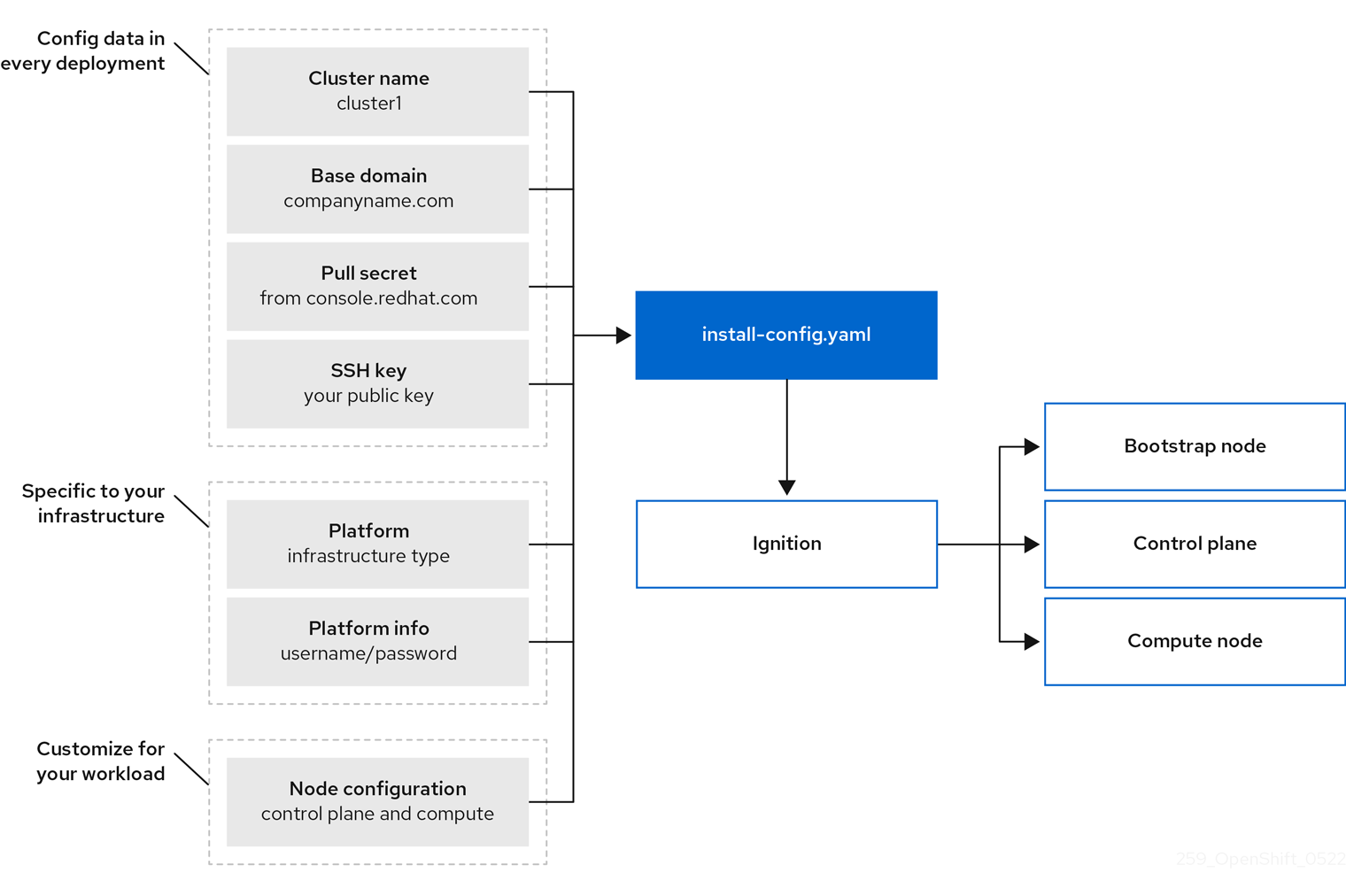
You use the same installation program to deploy both types of clusters. The main assets generated by the installation program are the Ignition config files for the bootstrap, master, and worker machines. With these three configurations and correctly configured infrastructure, you can start an OpenShift Container Platform cluster.
The OpenShift Container Platform installation program uses a set of targets and dependencies to manage cluster installation. The installation program has a set of targets that it must achieve, and each target has a set of dependencies. Because each target is only concerned with its own dependencies, the installation program can act to achieve multiple targets in parallel. The ultimate target is a running cluster. By meeting dependencies instead of running commands, the installation program is able to recognize and use existing components instead of running the commands to create them again.
The following diagram shows a subset of the installation targets and dependencies:
Figure 1.1. OpenShift Container Platform installation targets and dependencies
After installation, each cluster machine uses Red Hat Enterprise Linux CoreOS (RHCOS) as the operating system. RHCOS is the immutable container host version of Red Hat Enterprise Linux (RHEL) and features a RHEL kernel with SELinux enabled by default. It includes the kubelet, which is the Kubernetes node agent, and the CRI-O container runtime, which is optimized for Kubernetes.
Every control plane machine in an OpenShift Container Platform 4.9 cluster must use RHCOS, which includes a critical first-boot provisioning tool called Ignition. This tool enables the cluster to configure the machines. Operating system updates are delivered as an Atomic OSTree repository that is embedded in a container image that is rolled out across the cluster by an Operator. Actual operating system changes are made in-place on each machine as an atomic operation by using rpm-ostree. Together, these technologies enable OpenShift Container Platform to manage the operating system like it manages any other application on the cluster, via in-place upgrades that keep the entire platform up-to-date. These in-place updates can reduce the burden on operations teams.
If you use RHCOS as the operating system for all cluster machines, the cluster manages all aspects of its components and machines, including the operating system. Because of this, only the installation program and the Machine Config Operator can change machines. The installation program uses Ignition config files to set the exact state of each machine, and the Machine Config Operator completes more changes to the machines, such as the application of new certificates or keys, after installation.
1.1.1. Installation process
When you install an OpenShift Container Platform cluster, you download the installation program from the appropriate Infrastructure Provider page on the OpenShift Cluster Manager site. This site manages:
- REST API for accounts
- Registry tokens, which are the pull secrets that you use to obtain the required components
- Cluster registration, which associates the cluster identity to your Red Hat account to facilitate the gathering of usage metrics
In OpenShift Container Platform 4.9, the installation program is a Go binary file that performs a series of file transformations on a set of assets. The way you interact with the installation program differs depending on your installation type.
- For clusters with installer-provisioned infrastructure, you delegate the infrastructure bootstrapping and provisioning to the installation program instead of doing it yourself. The installation program creates all of the networking, machines, and operating systems that are required to support the cluster.
- If you provision and manage the infrastructure for your cluster, you must provide all of the cluster infrastructure and resources, including the bootstrap machine, networking, load balancing, storage, and individual cluster machines.
You use three sets of files during installation: an installation configuration file that is named install-config.yaml, Kubernetes manifests, and Ignition config files for your machine types.
It is possible to modify Kubernetes and the Ignition config files that control the underlying RHCOS operating system during installation. However, no validation is available to confirm the suitability of any modifications that you make to these objects. If you modify these objects, you might render your cluster non-functional. Because of this risk, modifying Kubernetes and Ignition config files is not supported unless you are following documented procedures or are instructed to do so by Red Hat support.
The installation configuration file is transformed into Kubernetes manifests, and then the manifests are wrapped into Ignition config files. The installation program uses these Ignition config files to create the cluster.
The installation configuration files are all pruned when you run the installation program, so be sure to back up all configuration files that you want to use again.
You cannot modify the parameters that you set during installation, but you can modify many cluster attributes after installation.
The installation process with installer-provisioned infrastructure
The default installation type uses installer-provisioned infrastructure. By default, the installation program acts as an installation wizard, prompting you for values that it cannot determine on its own and providing reasonable default values for the remaining parameters. You can also customize the installation process to support advanced infrastructure scenarios. The installation program provisions the underlying infrastructure for the cluster.
You can install either a standard cluster or a customized cluster. With a standard cluster, you provide minimum details that are required to install the cluster. With a customized cluster, you can specify more details about the platform, such as the number of machines that the control plane uses, the type of virtual machine that the cluster deploys, or the CIDR range for the Kubernetes service network.
If possible, use this feature to avoid having to provision and maintain the cluster infrastructure. In all other environments, you use the installation program to generate the assets that you require to provision your cluster infrastructure.
With installer-provisioned infrastructure clusters, OpenShift Container Platform manages all aspects of the cluster, including the operating system itself. Each machine boots with a configuration that references resources hosted in the cluster that it joins. This configuration allows the cluster to manage itself as updates are applied.
The installation process with user-provisioned infrastructure
You can also install OpenShift Container Platform on infrastructure that you provide. You use the installation program to generate the assets that you require to provision the cluster infrastructure, create the cluster infrastructure, and then deploy the cluster to the infrastructure that you provided.
If you do not use infrastructure that the installation program provisioned, you must manage and maintain the cluster resources yourself, including:
- The underlying infrastructure for the control plane and compute machines that make up the cluster
- Load balancers
- Cluster networking, including the DNS records and required subnets
- Storage for the cluster infrastructure and applications
If your cluster uses user-provisioned infrastructure, you have the option of adding RHEL compute machines to your cluster.
Installation process details
Because each machine in the cluster requires information about the cluster when it is provisioned, OpenShift Container Platform uses a temporary bootstrap machine during initial configuration to provide the required information to the permanent control plane. It boots by using an Ignition config file that describes how to create the cluster. The bootstrap machine creates the control plane machines that make up the control plane. The control plane machines then create the compute machines, which are also known as worker machines. The following figure illustrates this process:
Figure 1.2. Creating the bootstrap, control plane, and compute machines
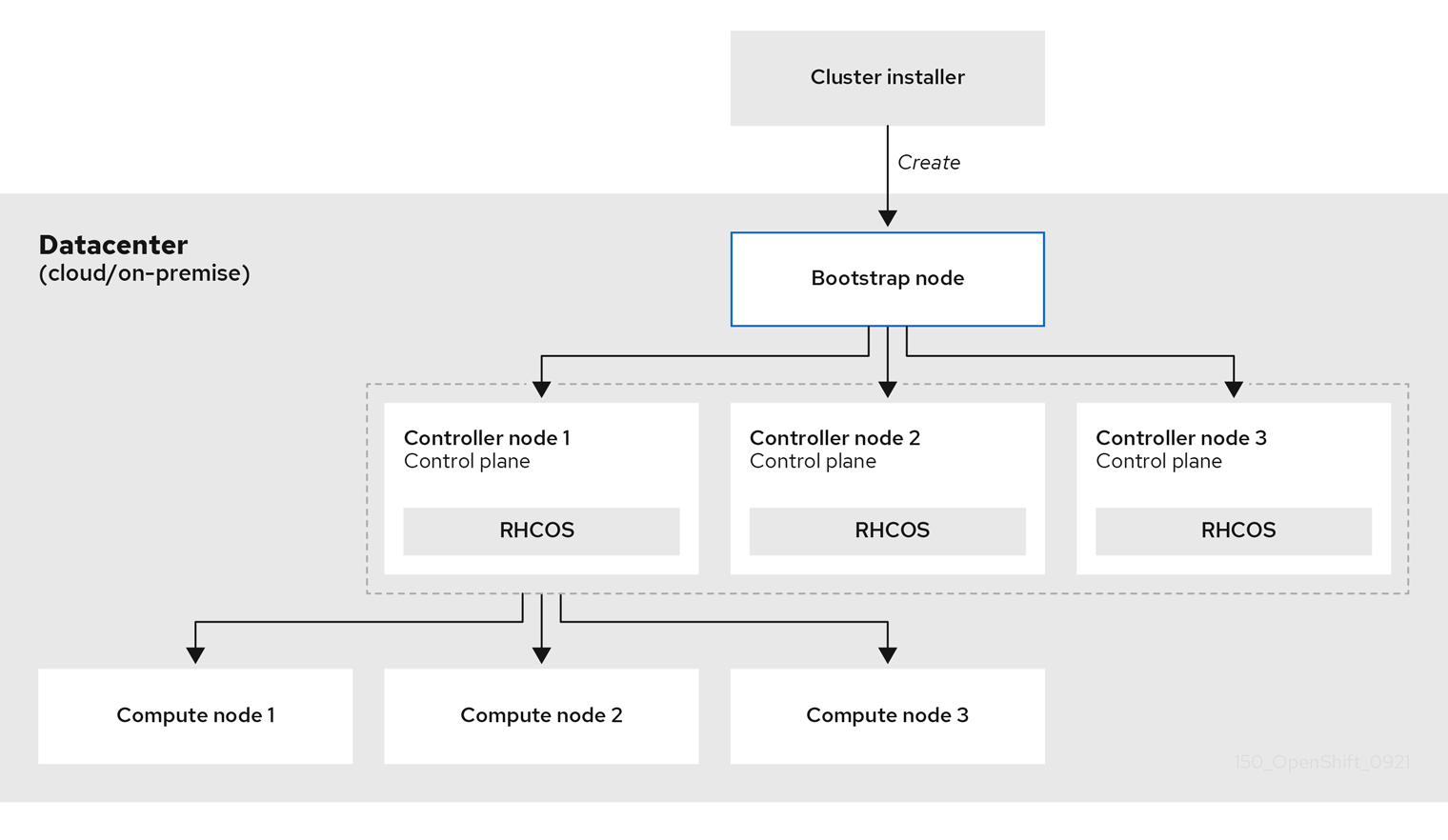
After the cluster machines initialize, the bootstrap machine is destroyed. All clusters use the bootstrap process to initialize the cluster, but if you provision the infrastructure for your cluster, you must complete many of the steps manually.
-
The Ignition config files that the installation program generates contain certificates that expire after 24 hours, which are then renewed at that time. If the cluster is shut down before renewing the certificates and the cluster is later restarted after the 24 hours have elapsed, the cluster automatically recovers the expired certificates. The exception is that you must manually approve the pending
node-bootstrappercertificate signing requests (CSRs) to recover kubelet certificates. See the documentation for Recovering from expired control plane certificates for more information. - It is recommended that you use Ignition config files within 12 hours after they are generated because the 24-hour certificate rotates from 16 to 22 hours after the cluster is installed. By using the Ignition config files within 12 hours, you can avoid installation failure if the certificate update runs during installation.
Bootstrapping a cluster involves the following steps:
- The bootstrap machine boots and starts hosting the remote resources required for the control plane machines to boot. (Requires manual intervention if you provision the infrastructure)
- The bootstrap machine starts a single-node etcd cluster and a temporary Kubernetes control plane.
- The control plane machines fetch the remote resources from the bootstrap machine and finish booting. (Requires manual intervention if you provision the infrastructure)
- The temporary control plane schedules the production control plane to the production control plane machines.
- The Cluster Version Operator (CVO) comes online and installs the etcd Operator. The etcd Operator scales up etcd on all control plane nodes.
- The temporary control plane shuts down and passes control to the production control plane.
- The bootstrap machine injects OpenShift Container Platform components into the production control plane.
- The installation program shuts down the bootstrap machine. (Requires manual intervention if you provision the infrastructure)
- The control plane sets up the compute nodes.
- The control plane installs additional services in the form of a set of Operators.
The result of this bootstrapping process is a running OpenShift Container Platform cluster. The cluster then downloads and configures remaining components needed for the day-to-day operation, including the creation of compute machines in supported environments.
1.1.2. Verifying node state after installation
The OpenShift Container Platform installation completes when the following installation health checks are successful:
- The provisioning host can access the OpenShift Container Platform web console.
- All control plane nodes are ready.
- All cluster Operators are available.
After the installation completes, the specific cluster Operators responsible for the worker nodes continuously attempt to provision all worker nodes. It can take some time before all worker nodes report as READY. For installations on bare metal, wait a minimum of 60 minutes before troubleshooting a worker node. For installations on all other platforms, wait a minimum of 40 minutes before troubleshooting a worker node. A DEGRADED state for the cluster Operators responsible for the worker nodes depends on the Operators' own resources and not on the state of the nodes.
After your installation completes, you can continue to monitor the condition of the nodes in your cluster using the following steps.
Prerequisites
- The installation program resolves successfully in the terminal.
Procedure
Show the status of all worker nodes:
oc get nodes
$ oc get nodesCopy to Clipboard Copied! Toggle word wrap Toggle overflow Example output
Copy to Clipboard Copied! Toggle word wrap Toggle overflow Show the phase of all worker machine nodes:
oc get machines -A
$ oc get machines -ACopy to Clipboard Copied! Toggle word wrap Toggle overflow Example output
Copy to Clipboard Copied! Toggle word wrap Toggle overflow
Installation scope
The scope of the OpenShift Container Platform installation program is intentionally narrow. It is designed for simplicity and ensured success. You can complete many more configuration tasks after installation completes.
1.2. Supported platforms for OpenShift Container Platform clusters
In OpenShift Container Platform 4.9, you can install a cluster that uses installer-provisioned infrastructure on the following platforms:
- Amazon Web Services (AWS)
- Google Cloud Platform (GCP)
- Microsoft Azure
Red Hat OpenStack Platform (RHOSP) versions 16.1 and 16.2
- The latest OpenShift Container Platform release supports both the latest RHOSP long-life release and intermediate release. For complete RHOSP release compatibility, see the OpenShift Container Platform on RHOSP support matrix.
- Red Hat Virtualization (RHV)
- VMware vSphere
- VMware Cloud (VMC) on AWS
- Bare metal
For these clusters, all machines, including the computer that you run the installation process on, must have direct internet access to pull images for platform containers and provide telemetry data to Red Hat.
After installation, the following changes are not supported:
- Mixing cloud provider platforms
- Mixing cloud provider components, such as using a persistent storage framework from a differing platform than what the cluster is installed on
In OpenShift Container Platform 4.9, you can install a cluster that uses user-provisioned infrastructure on the following platforms:
- AWS
- Azure
- Azure Stack Hub
- GCP
- RHOSP versions 16.1 and 16.2
- RHV
- VMware vSphere
- VMware Cloud on AWS
- Bare metal
- IBM Z or LinuxONE
- IBM Power
Depending on the supported cases for the platform, installations on user-provisioned infrastructure allow you to run machines with full internet access, place your cluster behind a proxy, or perform a restricted network installation. In a restricted network installation, you can download the images that are required to install a cluster, place them in a mirror registry, and use that data to install your cluster. While you require internet access to pull images for platform containers, with a restricted network installation on vSphere or bare metal infrastructure, your cluster machines do not require direct internet access.
The OpenShift Container Platform 4.x Tested Integrations page contains details about integration testing for different platforms.
Chapter 2. Selecting a cluster installation method and preparing it for users
Before you install OpenShift Container Platform, decide what kind of installation process to follow and make sure you that you have all of the required resources to prepare the cluster for users.
2.1. Selecting a cluster installation type
Before you install an OpenShift Container Platform cluster, you need to select the best installation instructions to follow. Think about your answers to the following questions to select the best option.
2.1.1. Do you want to install and manage an OpenShift Container Platform cluster yourself?
If you want to install and manage OpenShift Container Platform yourself, you can install it on the following platforms:
- Amazon Web Services (AWS)
- Microsoft Azure
- Microsoft Azure Stack Hub
- Google Cloud Platform (GCP)
- Red Hat OpenStack Platform (RHOSP)
- Red Hat Virtualization (RHV)
- IBM Z and LinuxONE
- IBM Z and LinuxONE for Red Hat Enterprise Linux (RHEL) KVM
- IBM Power
- VMware vSphere
- VMware Cloud (VMC) on AWS
- Bare metal or other platform agnostic infrastructure
You can deploy an OpenShift Container Platform 4 cluster to both on-premise hardware and to cloud hosting services, but all of the machines in a cluster must be in the same datacenter or cloud hosting service.
If you want to use OpenShift Container Platform but do not want to manage the cluster yourself, you have several managed service options. If you want a cluster that is fully managed by Red Hat, you can use OpenShift Dedicated or OpenShift Online. You can also use OpenShift as a managed service on Azure, AWS, IBM Cloud, or Google Cloud. For more information about managed services, see the OpenShift Products page. If you install an OpenShift Container Platform cluster with a cloud virtual machine as a virtual bare metal, the corresponding cloud-based storage is not supported.
2.1.2. Have you used OpenShift Container Platform 3 and want to use OpenShift Container Platform 4?
If you used OpenShift Container Platform 3 and want to try OpenShift Container Platform 4, you need to understand how different OpenShift Container Platform 4 is. OpenShift Container Platform 4 weaves the Operators that package, deploy, and manage Kubernetes applications and the operating system that the platform runs on, Red Hat Enterprise Linux CoreOS (RHCOS), together seamlessly. Instead of deploying machines and configuring their operating systems so that you can install OpenShift Container Platform on them, the RHCOS operating system is an integral part of the OpenShift Container Platform cluster. Deploying the operating system for the cluster machines as part of the installation process for OpenShift Container Platform. See Comparing OpenShift Container Platform 3 and OpenShift Container Platform 4.
Because you need to provision machines as part of the OpenShift Container Platform cluster installation process, you cannot upgrade an OpenShift Container Platform 3 cluster to OpenShift Container Platform 4. Instead, you must create a new OpenShift Container Platform 4 cluster and migrate your OpenShift Container Platform 3 workloads to them. For more information about migrating, see OpenShift Migration Best Practices. Because you must migrate to OpenShift Container Platform 4, you can use any type of production cluster installation process to create your new cluster.
2.1.3. Do you want to use existing components in your cluster?
Because the operating system is integral to OpenShift Container Platform, it is easier to let the installation program for OpenShift Container Platform stand up all of the infrastructure. These are called installer provisioned infrastructure installations. In this type of installation, you can provide some existing infrastructure to the cluster, but the installation program deploys all of the machines that your cluster initially needs.
You can deploy an installer-provisioned infrastructure cluster without specifying any customizations to the cluster or its underlying machines to AWS, Azure, GCP, or VMC on AWS. These installation methods are the fastest way to deploy a production-capable OpenShift Container Platform cluster.
If you need to perform basic configuration for your installer-provisioned infrastructure cluster, such as the instance type for the cluster machines, you can customize an installation for AWS, Azure, GCP, or VMC on AWS.
For installer-provisioned infrastructure installations, you can use an existing VPC in AWS, vNet in Azure, or VPC in GCP. You can also reuse part of your networking infrastructure so that your cluster in AWS, Azure, GCP, or VMC on AWS can coexist with existing IP address allocations in your environment and integrate with existing MTU and VXLAN configurations. If you have existing accounts and credentials on these clouds, you can re-use them, but you might need to modify the accounts to have the required permissions to install OpenShift Container Platform clusters on them.
You can use the installer-provisioned infrastructure method to create appropriate machine instances on your hardware for RHOSP, RHOSP with Kuryr, RHOSP on SR-IOV, RHV, vSphere, and bare metal. Additionally, for vSphere, VMC on AWS, you can also customize additional network parameters during installation.
If you want to reuse extensive cloud infrastructure, you can complete a user-provisioned infrastructure installation. With these installations, you manually deploy the machines that your cluster requires during the installation process. If you perform a user-provisioned infrastructure installation on AWS, Azure, Azure Stack Hub, GCP, or VMC on AWS, you can use the provided templates to help you stand up all of the required components. You can also reuse a shared VPC on GCP. Otherwise, you can use the provider-agnostic installation method to deploy a cluster into other clouds.
You can also complete a user-provisioned infrastructure installation on your existing hardware. If you use RHOSP, RHOSP on SR-IOV, RHV, IBM Z or LinuxONE, IBM Z or LinuxONE with RHEL KVM, IBM Power, or vSphere, use the specific installation instructions to deploy your cluster. If you use other supported hardware, follow the bare metal installation procedure. For some of these platforms, such as RHOSP, vSphere, VMC on AWS, and bare metal, you can also customize additional network parameters during installation.
2.1.4. Do you need extra security for your cluster?
If you use a user-provisioned installation method, you can configure a proxy for your cluster. The instructions are included in each installation procedure.
If you want to prevent your cluster on a public cloud from exposing endpoints externally, you can deploy a private cluster with installer-provisioned infrastructure on AWS, Azure, or GCP.
If you need to install your cluster that has limited access to the internet, such as a disconnected or restricted network cluster, you can mirror the installation packages and install the cluster from them. Follow detailed instructions for user provisioned infrastructure installations into restricted networks for AWS, GCP, IBM Z or LinuxONE, IBM Z or LinuxONE with RHEL KVM, IBM Power, vSphere, VMC on AWS, or bare metal. You can also install a cluster into a restricted network using installer-provisioned infrastructure by following detailed instructions for AWS, GCP, VMC on AWS, RHOSP, RHV, and vSphere.
If you need to deploy your cluster to an AWS GovCloud region, AWS China region, or Azure government region, you can configure those custom regions during an installer-provisioned infrastructure installation.
You can also configure the cluster machines to use FIPS Validated / Modules in Process cryptographic libraries during installation.
The use of FIPS Validated / Modules in Process cryptographic libraries is only supported on OpenShift Container Platform deployments on the x86_64 architecture.
2.2. Preparing your cluster for users after installation
Some configuration is not required to install the cluster but recommended before your users access the cluster. You can customize the cluster itself by customizing the Operators that make up your cluster and integrate you cluster with other required systems, such as an identity provider.
For a production cluster, you must configure the following integrations:
2.3. Preparing your cluster for workloads
Depending on your workload needs, you might need to take extra steps before you begin deploying applications. For example, after you prepare infrastructure to support your application build strategy, you might need to make provisions for low-latency workloads or to protect sensitive workloads. You can also configure monitoring for application workloads. If you plan to run Windows workloads, you must enable hybrid networking with OVN-Kubernetes during the installation process; hybrid networking cannot be enabled after your cluster is installed.
2.4. Supported installation methods for different platforms
You can perform different types of installations on different platforms.
Not all installation options are supported for all platforms, as shown in the following tables. A checkmark indicates that the option is supported and links to the relevant section.
| AWS | Azure | GCP | RHOSP | RHOSP on SR-IOV | RHV | Bare metal | vSphere | VMC | IBM Z | IBM Power | |
|---|---|---|---|---|---|---|---|---|---|---|---|
| Default | |||||||||||
| Custom | |||||||||||
| Network customization | |||||||||||
| Restricted network | |||||||||||
| Private clusters | |||||||||||
| Existing virtual private networks | |||||||||||
| Government regions | |||||||||||
| China regions |
| AWS | Azure | Azure Stack Hub | GCP | RHOSP | RHOSP on SR-IOV | RHV | Bare metal | vSphere | VMC | IBM Z | IBM Z with RHEL KVM | IBM Power | Platform agnostic | |
|---|---|---|---|---|---|---|---|---|---|---|---|---|---|---|
| Custom | ||||||||||||||
| Network customization | ||||||||||||||
| Restricted network | ||||||||||||||
| Shared VPC hosted outside of cluster project |
Chapter 3. Mirroring images for a disconnected installation
You can use the procedures in this section to ensure your clusters only use container images that satisfy your organizational controls on external content. Before you install a cluster on infrastructure that you provision in a restricted network, you must mirror the required container images into that environment. To mirror container images, you must have a registry for mirroring.
You must have access to the internet to obtain the necessary container images. In this procedure, you place your mirror registry on a mirror host that has access to both your network and the Internet. If you do not have access to a mirror host, use the Mirroring Operator catalogs for use with disconnected clusters procedure to copy images to a device you can move across network boundaries with.
3.1. Prerequisites
You must have a container image registry that supports Docker v2-2 in the location that will host the OpenShift Container Platform cluster, such as one of the following registries:
If you have an entitlement to Red Hat Quay, see the documentation on deploying Red Hat Quay for proof-of-concept purposes or by using the Quay Operator. If you need additional assistance selecting and installing a registry, contact your sales representative or Red Hat support.
- If you do not already have an existing solution for a container image registry, subscribers of OpenShift Container Platform are provided a mirror registry for Red Hat OpenShift. The mirror registry for Red Hat OpenShift is included with your subscription and is a small-scale container registry that can be used to mirror the required container images of OpenShift Container Platform in disconnected installations.
3.2. About the mirror registry
You can mirror the images that are required for OpenShift Container Platform installation and subsequent product updates to a container mirror registry such as Red Hat Quay, JFrog Artifactory, Sonatype Nexus Repository, or Harbor. If you do not have access to a large-scale container registry, you can use the mirror registry for Red Hat OpenShift, a small-scale container registry included with OpenShift Container Platform subscriptions.
You can use any container registry that supports Docker v2-2, such as Red Hat Quay, the mirror registry for Red Hat OpenShift, Artifactory, Sonatype Nexus Repository, or Harbor. Regardless of your chosen registry, the procedure to mirror content from Red Hat hosted sites on the internet to an isolated image registry is the same. After you mirror the content, you configure each cluster to retrieve this content from your mirror registry.
The internal registry of the OpenShift Container Platform cluster cannot be used as the target registry because it does not support pushing without a tag, which is required during the mirroring process.
If choosing a container registry that is not the mirror registry for Red Hat OpenShift, it must be reachable by every machine in the clusters that you provision. If the registry is unreachable, installation, updating, or normal operations such as workload relocation might fail. For that reason, you must run mirror registries in a highly available way, and the mirror registries must at least match the production availability of your OpenShift Container Platform clusters.
When you populate your mirror registry with OpenShift Container Platform images, you can follow two scenarios. If you have a host that can access both the internet and your mirror registry, but not your cluster nodes, you can directly mirror the content from that machine. This process is referred to as connected mirroring. If you have no such host, you must mirror the images to a file system and then bring that host or removable media into your restricted environment. This process is referred to as disconnected mirroring.
For mirrored registries, to view the source of pulled images, you must review the Trying to access log entry in the CRI-O logs. Other methods to view the image pull source, such as using the crictl images command on a node, show the non-mirrored image name, even though the image is pulled from the mirrored location.
Red Hat does not test third party registries with OpenShift Container Platform.
Additional information
For information on viewing the CRI-O logs to view the image source, see Viewing the image pull source.
3.3. Preparing your mirror host
Before you perform the mirror procedure, you must prepare the host to retrieve content and push it to the remote location.
3.3.1. Installing the OpenShift CLI by downloading the binary
You can install the OpenShift CLI (oc) to interact with OpenShift Container Platform from a command-line interface. You can install oc on Linux, Windows, or macOS.
If you installed an earlier version of oc, you cannot use it to complete all of the commands in OpenShift Container Platform 4.9. Download and install the new version of oc.
Installing the OpenShift CLI on Linux
You can install the OpenShift CLI (oc) binary on Linux by using the following procedure.
Procedure
- Navigate to the OpenShift Container Platform downloads page on the Red Hat Customer Portal.
- Select the appropriate version in the Version drop-down menu.
- Click Download Now next to the OpenShift v4.9 Linux Client entry and save the file.
Unpack the archive:
tar xvf <file>
$ tar xvf <file>Copy to Clipboard Copied! Toggle word wrap Toggle overflow Place the
ocbinary in a directory that is on yourPATH.To check your
PATH, execute the following command:echo $PATH
$ echo $PATHCopy to Clipboard Copied! Toggle word wrap Toggle overflow
After you install the OpenShift CLI, it is available using the oc command:
oc <command>
$ oc <command>Installing the OpenShift CLI on Windows
You can install the OpenShift CLI (oc) binary on Windows by using the following procedure.
Procedure
- Navigate to the OpenShift Container Platform downloads page on the Red Hat Customer Portal.
- Select the appropriate version in the Version drop-down menu.
- Click Download Now next to the OpenShift v4.9 Windows Client entry and save the file.
- Unzip the archive with a ZIP program.
Move the
ocbinary to a directory that is on yourPATH.To check your
PATH, open the command prompt and execute the following command:path
C:\> pathCopy to Clipboard Copied! Toggle word wrap Toggle overflow
After you install the OpenShift CLI, it is available using the oc command:
oc <command>
C:\> oc <command>Installing the OpenShift CLI on macOS
You can install the OpenShift CLI (oc) binary on macOS by using the following procedure.
Procedure
- Navigate to the OpenShift Container Platform downloads page on the Red Hat Customer Portal.
- Select the appropriate version in the Version drop-down menu.
- Click Download Now next to the OpenShift v4.9 MacOSX Client entry and save the file.
- Unpack and unzip the archive.
Move the
ocbinary to a directory on your PATH.To check your
PATH, open a terminal and execute the following command:echo $PATH
$ echo $PATHCopy to Clipboard Copied! Toggle word wrap Toggle overflow
After you install the OpenShift CLI, it is available using the oc command:
oc <command>
$ oc <command>3.4. Configuring credentials that allow images to be mirrored
Create a container image registry credentials file that allows mirroring images from Red Hat to your mirror.
Do not use this image registry credentials file as the pull secret when you install a cluster. If you provide this file when you install cluster, all of the machines in the cluster will have write access to your mirror registry.
This process requires that you have write access to a container image registry on the mirror registry and adds the credentials to a registry pull secret.
Prerequisites
- You configured a mirror registry to use in your disconnected environment.
- You identified an image repository location on your mirror registry to mirror images into.
- You provisioned a mirror registry account that allows images to be uploaded to that image repository.
Procedure
Complete the following steps on the installation host:
-
Download your
registry.redhat.iopull secret from the Red Hat OpenShift Cluster Manager and save it to a.jsonfile. Generate the base64-encoded user name and password or token for your mirror registry:
echo -n '<user_name>:<password>' | base64 -w0
$ echo -n '<user_name>:<password>' | base64 -w01 BGVtbYk3ZHAtqXs=Copy to Clipboard Copied! Toggle word wrap Toggle overflow - 1
- For
<user_name>and<password>, specify the user name and password that you configured for your registry.
Make a copy of your pull secret in JSON format:
cat ./pull-secret.text | jq . > <path>/<pull_secret_file_in_json>
$ cat ./pull-secret.text | jq . > <path>/<pull_secret_file_in_json>1 Copy to Clipboard Copied! Toggle word wrap Toggle overflow - 1
- Specify the path to the folder to store the pull secret in and a name for the JSON file that you create.
Save the file either as
~/.docker/config.jsonor$XDG_RUNTIME_DIR/containers/auth.json.The contents of the file resemble the following example:
Copy to Clipboard Copied! Toggle word wrap Toggle overflow Edit the new file and add a section that describes your registry to it:
Copy to Clipboard Copied! Toggle word wrap Toggle overflow The file resembles the following example:
Copy to Clipboard Copied! Toggle word wrap Toggle overflow
3.5. Mirror registry for Red Hat OpenShift
The mirror registry for Red Hat OpenShift is a small and streamlined container registry that you can use as a target for mirroring the required container images of OpenShift Container Platform for disconnected installations.
If you already have a container image registry, such as Red Hat Quay, you can skip these steps and go straight to Mirroring the OpenShift Container Platform image repository.
Prerequisites
- An OpenShift Container Platform subscription.
- Red Hat Enterprise Linux (RHEL) 8 with Podman 3.3 and OpenSSL installed.
- Fully qualified domain name for the Red Hat Quay service, which must resolve through a DNS server.
-
Passwordless
sudoaccess on the target host. - Key-based SSH connectivity on the target host. SSH keys are automatically generated for local installs. For remote hosts, you must generate your own SSH keys.
- 2 or more vCPUs.
- 8 GB of RAM.
About 9.6 GB for OpenShift Container Platform 4.9 Release images, or about 444 GB for OpenShift Container Platform 4.9 Release images and OpenShift Container Platform 4.9 Red Hat Operator images. Up to 1 TB per stream or more is suggested.
ImportantThese requirements are based on local testing results with only Release images and Operator images tested. Storage requirements can vary based on your organization’s needs. Some users might require more space, for example, when they mirror multiple z-streams. You can use standard Red Hat Quay functionality to remove unnecessary images and free up space.
3.5.1. Mirror registry for Red Hat OpenShift introduction
For disconnected deployments of OpenShift Container Platform, a container registry is required to carry out the installation of the clusters. To run a production-grade registry service on such a cluster, you must create a separate registry deployment to install the first cluster. The mirror registry for Red Hat OpenShift addresses this need and is included in every OpenShift subscription. It is available for download on the OpenShift console Downloads page.
The mirror registry for Red Hat OpenShift allows users to install a small-scale version of Red Hat Quay and its required components using the mirror-registry command line interface (CLI) tool. The mirror registry for Red Hat OpenShift is deployed automatically with pre-configured local storage and a local database. It also includes auto-generated user credentials and access permissions with a single set of inputs and no additional configuration choices to get started.
The mirror registry for Red Hat OpenShift provides a pre-determined network configuration and reports deployed component credentials and access URLs upon success. A limited set of optional configuration inputs like fully qualified domain name (FQDN) services, superuser name and password, and custom TLS certificates are also provided. This provides users with a container registry so that they can easily create an offline mirror of all OpenShift Container Platform release content when running OpenShift Container Platform in restricted network environments.
The mirror registry for Red Hat OpenShift is limited to hosting images that are required to install a disconnected OpenShift Container Platform cluster, such as Release images or Red Hat Operator images. It uses local storage on your Red Hat Enterprise Linux (RHEL) machine, and storage supported by RHEL is supported by the mirror registry for Red Hat OpenShift. Content built by customers should not be hosted by the mirror registry for Red Hat OpenShift.
Unlike Red Hat Quay, the mirror registry for Red Hat OpenShift is not a highly-available registry and only local file system storage is supported. Using the mirror registry for Red Hat OpenShift with more than one cluster is discouraged, because multiple clusters can create a single point of failure when updating your cluster fleet. It is advised to leverage the mirror registry for Red Hat OpenShift to install a cluster that can host a production-grade, highly-available registry such as Red Hat Quay, which can serve OpenShift Container Platform content to other clusters.
Use of the mirror registry for Red Hat OpenShift is optional if another container registry is already available in the install environment.
3.5.2. Mirroring on a local host with mirror registry for Red Hat OpenShift
This procedure explains how to install the mirror registry for Red Hat OpenShift on a local host using the mirror-registry installer tool. By doing so, users can create a local host registry running on port 443 for the purpose of storing a mirror of OpenShift Container Platform images.
Installing the mirror registry for Red Hat OpenShift using the mirror-registry CLI tool makes several changes to your machine. After installation, a /etc/quay-install directory is created, which has installation files, local storage, and the configuration bundle. Trusted SSH keys are generated in case the deployment target is the local host, and systemd files on the host machine are set up to ensure that container runtimes are persistent. Additionally, an initial user named init is created with an automatically generated password. All access credentials are printed at the end of the install routine.
Procedure
-
Download the
mirror-registry.tar.gzpackage for the latest version of the mirror registry for Red Hat OpenShift found on the OpenShift console Downloads page. Install the mirror registry for Red Hat OpenShift on your local host with your current user account by using the
mirror-registrytool. For a full list of available flags, see "mirror registry for Red Hat OpenShift flags".sudo ./mirror-registry install \ --quayHostname <host_example_com> \ --quayRoot <example_directory_name>
$ sudo ./mirror-registry install \ --quayHostname <host_example_com> \ --quayRoot <example_directory_name>Copy to Clipboard Copied! Toggle word wrap Toggle overflow Use the user name and password generated during installation to log into the registry by running the following command:
podman login --authfile pull-secret.txt \ -u init \ -p <password> \ <host_example_com>:8443> \ --tls-verify=false
$ podman login --authfile pull-secret.txt \ -u init \ -p <password> \ <host_example_com>:8443> \ --tls-verify=false1 Copy to Clipboard Copied! Toggle word wrap Toggle overflow - 1
- You can avoid running
--tls-verify=falseby configuring your system to trust the generated rootCA certificates. See "Using SSL to protect connections to Red Hat Quay" and "Configuring the system to trust the certificate authority" for more information.
NoteYou can also log in by accessing the UI at
https://<host.example.com>:8443after installation.You can mirror OpenShift Container Platform images after logging in. Depending on your needs, see either the "Mirroring the OpenShift Container Platform image repository" or the "Mirroring Operator catalogs for use with disconnected clusters" sections of this document.
NoteIf there are issues with images stored by the mirror registry for Red Hat OpenShift due to storage layer problems, you can remirror the OpenShift Container Platform images, or reinstall mirror registry on more stable storage.
3.5.3. Mirroring on a remote host with mirror registry for Red Hat OpenShift
This procedure explains how to install the mirror registry for Red Hat OpenShift on a remote host using the mirror-registry tool. By doing so, users can create a registry to hold a mirror of OpenShift Container Platform images.
Installing the mirror registry for Red Hat OpenShift using the mirror-registry CLI tool makes several changes to your machine. After installation, a /etc/quay-install directory is created, which has installation files, local storage, and the configuration bundle. Trusted SSH keys are generated in case the deployment target is the local host, and systemd files on the host machine are set up to ensure that container runtimes are persistent. Additionally, an initial user named init is created with an automatically generated password. All access credentials are printed at the end of the install routine.
Procedure
-
Download the
mirror-registry.tar.gzpackage for the latest version of the mirror registry for Red Hat OpenShift found on the OpenShift console Downloads page. Install the mirror registry for Red Hat OpenShift on your local host with your current user account by using the
mirror-registrytool. For a full list of available flags, see "mirror registry for Red Hat OpenShift flags".Copy to Clipboard Copied! Toggle word wrap Toggle overflow Use the user name and password generated during installation to log into the mirror registry by running the following command:
podman login --authfile pull-secret.txt \ -u init \ -p <password> \ <host_example_com>:8443> \ --tls-verify=false
$ podman login --authfile pull-secret.txt \ -u init \ -p <password> \ <host_example_com>:8443> \ --tls-verify=false1 Copy to Clipboard Copied! Toggle word wrap Toggle overflow - 1
- You can avoid running
--tls-verify=falseby configuring your system to trust the generated rootCA certificates. See "Using SSL to protect connections to Red Hat Quay" and "Configuring the system to trust the certificate authority" for more information.
NoteYou can also log in by accessing the UI at
https://<host.example.com>:8443after installation.You can mirror OpenShift Container Platform images after logging in. Depending on your needs, see either the "Mirroring the OpenShift Container Platform image repository" or the "Mirroring Operator catalogs for use with disconnected clusters" sections of this document.
NoteIf there are issues with images stored by the mirror registry for Red Hat OpenShift due to storage layer problems, you can remirror the OpenShift Container Platform images, or reinstall mirror registry on more stable storage.
3.6. Upgrading the mirror registry for Red Hat OpenShift
You can upgrade the mirror registry for Red Hat OpenShift from your local host by running the following command:
sudo ./mirror-registry upgrade
$ sudo ./mirror-registry upgradeCopy to Clipboard Copied! Toggle word wrap Toggle overflow Note-
Users who upgrade the mirror registry for Red Hat OpenShift with the
./mirror-registry upgradeflag must include the same credentials used when creating their mirror registry. For example, if you installed the mirror registry for Red Hat OpenShift with--quayHostname <host_example_com>and--quayRoot <example_directory_name>, you must include that string to properly upgrade the mirror registry.
-
Users who upgrade the mirror registry for Red Hat OpenShift with the
3.6.1. Uninstalling the mirror registry for Red Hat OpenShift
You can uninstall the mirror registry for Red Hat OpenShift from your local host by running the following command:
sudo ./mirror-registry uninstall -v \ --quayRoot <example_directory_name>
$ sudo ./mirror-registry uninstall -v \ --quayRoot <example_directory_name>Copy to Clipboard Copied! Toggle word wrap Toggle overflow Note-
Deleting the mirror registry for Red Hat OpenShift will prompt the user before deletion. You can use
--autoApproveto skip this prompt. -
Users who install the mirror registry for Red Hat OpenShift with the
--quayRootflag must include the--quayRootflag when uninstalling. For example, if you installed the mirror registry for Red Hat OpenShift with--quayRoot example_directory_name, you must include that string to properly uninstall the mirror registry.
-
Deleting the mirror registry for Red Hat OpenShift will prompt the user before deletion. You can use
3.6.2. Mirror registry for Red Hat OpenShift flags
The following flags are available for the mirror registry for Red Hat OpenShift:
| Flags | Description |
|---|---|
|
|
A boolean value that disables interactive prompts. If set to |
|
| The password of the init user created during Quay installation. Must be at least eight characters and contain no whitespace. |
|
|
Shows the username of the initial user. Defaults to |
|
|
The fully-qualified domain name of the mirror registry that clients will use to contact the registry. Equivalent to |
|
|
The directory where container image layer and configuration data is saved, including |
|
|
The path of your SSH identity key. Defaults to |
|
|
The path to the SSL/TLS public key / certificate. Defaults to |
|
|
Skips the check for the certificate hostname against the |
|
|
The path to the SSL/TLS private key used for HTTPS communication. Defaults to |
|
|
The hostname of the target you want to install Quay to. Defaults to |
|
|
The user on the target host which will be used for SSH. Defaults to |
|
| Shows debug logs and Ansible playbook outputs. |
|
| Shows the version for the mirror registry for Red Hat OpenShift. |
-
--quayHostnamemust be modified if the public DNS name of your system is different from the local hostname. -
--sslCheckSkipis used in cases when the mirror registry is set behind a proxy and the exposed hostname is different from the internal Quay hostname. It can also be used when users do not want the certificates to be validated against the provided Quay hostname during installation.
3.7. Mirroring the OpenShift Container Platform image repository
Mirror the OpenShift Container Platform image repository to your registry to use during cluster installation or upgrade.
Prerequisites
- Your mirror host has access to the internet.
- You configured a mirror registry to use in your restricted network and can access the certificate and credentials that you configured.
- You downloaded the pull secret from the Red Hat OpenShift Cluster Manager and modified it to include authentication to your mirror repository.
If you use self-signed certificates that do not set a Subject Alternative Name, you must precede the
occommands in this procedure withGODEBUG=x509ignoreCN=0. If you do not set this variable, theoccommands will fail with the following error:x509: certificate relies on legacy Common Name field, use SANs or temporarily enable Common Name matching with GODEBUG=x509ignoreCN=0
x509: certificate relies on legacy Common Name field, use SANs or temporarily enable Common Name matching with GODEBUG=x509ignoreCN=0Copy to Clipboard Copied! Toggle word wrap Toggle overflow
Procedure
Complete the following steps on the mirror host:
- Review the OpenShift Container Platform downloads page to determine the version of OpenShift Container Platform that you want to install and determine the corresponding tag on the Repository Tags page.
Set the required environment variables:
Export the release version:
OCP_RELEASE=<release_version>
$ OCP_RELEASE=<release_version>Copy to Clipboard Copied! Toggle word wrap Toggle overflow For
<release_version>, specify the tag that corresponds to the version of OpenShift Container Platform to install, such as4.5.4.Export the local registry name and host port:
LOCAL_REGISTRY='<local_registry_host_name>:<local_registry_host_port>'
$ LOCAL_REGISTRY='<local_registry_host_name>:<local_registry_host_port>'Copy to Clipboard Copied! Toggle word wrap Toggle overflow For
<local_registry_host_name>, specify the registry domain name for your mirror repository, and for<local_registry_host_port>, specify the port that it serves content on.Export the local repository name:
LOCAL_REPOSITORY='<local_repository_name>'
$ LOCAL_REPOSITORY='<local_repository_name>'Copy to Clipboard Copied! Toggle word wrap Toggle overflow For
<local_repository_name>, specify the name of the repository to create in your registry, such asocp4/openshift4.Export the name of the repository to mirror:
PRODUCT_REPO='openshift-release-dev'
$ PRODUCT_REPO='openshift-release-dev'Copy to Clipboard Copied! Toggle word wrap Toggle overflow For a production release, you must specify
openshift-release-dev.Export the path to your registry pull secret:
LOCAL_SECRET_JSON='<path_to_pull_secret>'
$ LOCAL_SECRET_JSON='<path_to_pull_secret>'Copy to Clipboard Copied! Toggle word wrap Toggle overflow For
<path_to_pull_secret>, specify the absolute path to and file name of the pull secret for your mirror registry that you created.Export the release mirror:
RELEASE_NAME="ocp-release"
$ RELEASE_NAME="ocp-release"Copy to Clipboard Copied! Toggle word wrap Toggle overflow For a production release, you must specify
ocp-release.Export the type of architecture for your server, such as
x86_64:ARCHITECTURE=<server_architecture>
$ ARCHITECTURE=<server_architecture>Copy to Clipboard Copied! Toggle word wrap Toggle overflow Export the path to the directory to host the mirrored images:
REMOVABLE_MEDIA_PATH=<path>
$ REMOVABLE_MEDIA_PATH=<path>1 Copy to Clipboard Copied! Toggle word wrap Toggle overflow - 1
- Specify the full path, including the initial forward slash (/) character.
Mirror the version images to the mirror registry:
If your mirror host does not have internet access, take the following actions:
- Connect the removable media to a system that is connected to the internet.
Review the images and configuration manifests to mirror:
oc adm release mirror -a ${LOCAL_SECRET_JSON} \ --from=quay.io/${PRODUCT_REPO}/${RELEASE_NAME}:${OCP_RELEASE}-${ARCHITECTURE} \ --to=${LOCAL_REGISTRY}/${LOCAL_REPOSITORY} \ --to-release-image=${LOCAL_REGISTRY}/${LOCAL_REPOSITORY}:${OCP_RELEASE}-${ARCHITECTURE} --dry-run$ oc adm release mirror -a ${LOCAL_SECRET_JSON} \ --from=quay.io/${PRODUCT_REPO}/${RELEASE_NAME}:${OCP_RELEASE}-${ARCHITECTURE} \ --to=${LOCAL_REGISTRY}/${LOCAL_REPOSITORY} \ --to-release-image=${LOCAL_REGISTRY}/${LOCAL_REPOSITORY}:${OCP_RELEASE}-${ARCHITECTURE} --dry-runCopy to Clipboard Copied! Toggle word wrap Toggle overflow -
Record the entire
imageContentSourcessection from the output of the previous command. The information about your mirrors is unique to your mirrored repository, and you must add theimageContentSourcessection to theinstall-config.yamlfile during installation. Mirror the images to a directory on the removable media:
oc adm release mirror -a ${LOCAL_SECRET_JSON} --to-dir=${REMOVABLE_MEDIA_PATH}/mirror quay.io/${PRODUCT_REPO}/${RELEASE_NAME}:${OCP_RELEASE}-${ARCHITECTURE}$ oc adm release mirror -a ${LOCAL_SECRET_JSON} --to-dir=${REMOVABLE_MEDIA_PATH}/mirror quay.io/${PRODUCT_REPO}/${RELEASE_NAME}:${OCP_RELEASE}-${ARCHITECTURE}Copy to Clipboard Copied! Toggle word wrap Toggle overflow Take the media to the restricted network environment and upload the images to the local container registry.
oc image mirror -a ${LOCAL_SECRET_JSON} --from-dir=${REMOVABLE_MEDIA_PATH}/mirror "file://openshift/release:${OCP_RELEASE}*" ${LOCAL_REGISTRY}/${LOCAL_REPOSITORY}$ oc image mirror -a ${LOCAL_SECRET_JSON} --from-dir=${REMOVABLE_MEDIA_PATH}/mirror "file://openshift/release:${OCP_RELEASE}*" ${LOCAL_REGISTRY}/${LOCAL_REPOSITORY}1 Copy to Clipboard Copied! Toggle word wrap Toggle overflow - 1
- For
REMOVABLE_MEDIA_PATH, you must use the same path that you specified when you mirrored the images.
If the local container registry is connected to the mirror host, take the following actions:
Directly push the release images to the local registry by using following command:
oc adm release mirror -a ${LOCAL_SECRET_JSON} \ --from=quay.io/${PRODUCT_REPO}/${RELEASE_NAME}:${OCP_RELEASE}-${ARCHITECTURE} \ --to=${LOCAL_REGISTRY}/${LOCAL_REPOSITORY} \ --to-release-image=${LOCAL_REGISTRY}/${LOCAL_REPOSITORY}:${OCP_RELEASE}-${ARCHITECTURE}$ oc adm release mirror -a ${LOCAL_SECRET_JSON} \ --from=quay.io/${PRODUCT_REPO}/${RELEASE_NAME}:${OCP_RELEASE}-${ARCHITECTURE} \ --to=${LOCAL_REGISTRY}/${LOCAL_REPOSITORY} \ --to-release-image=${LOCAL_REGISTRY}/${LOCAL_REPOSITORY}:${OCP_RELEASE}-${ARCHITECTURE}Copy to Clipboard Copied! Toggle word wrap Toggle overflow This command pulls the release information as a digest, and its output includes the
imageContentSourcesdata that you require when you install your cluster.Record the entire
imageContentSourcessection from the output of the previous command. The information about your mirrors is unique to your mirrored repository, and you must add theimageContentSourcessection to theinstall-config.yamlfile during installation.NoteThe image name gets patched to Quay.io during the mirroring process, and the podman images will show Quay.io in the registry on the bootstrap virtual machine.
To create the installation program that is based on the content that you mirrored, extract it and pin it to the release:
If your mirror host does not have internet access, run the following command:
oc adm release extract -a ${LOCAL_SECRET_JSON} --command=openshift-install "${LOCAL_REGISTRY}/${LOCAL_REPOSITORY}:${OCP_RELEASE}"$ oc adm release extract -a ${LOCAL_SECRET_JSON} --command=openshift-install "${LOCAL_REGISTRY}/${LOCAL_REPOSITORY}:${OCP_RELEASE}"Copy to Clipboard Copied! Toggle word wrap Toggle overflow If the local container registry is connected to the mirror host, run the following command:
oc adm release extract -a ${LOCAL_SECRET_JSON} --command=openshift-install "${LOCAL_REGISTRY}/${LOCAL_REPOSITORY}:${OCP_RELEASE}-${ARCHITECTURE}"$ oc adm release extract -a ${LOCAL_SECRET_JSON} --command=openshift-install "${LOCAL_REGISTRY}/${LOCAL_REPOSITORY}:${OCP_RELEASE}-${ARCHITECTURE}"Copy to Clipboard Copied! Toggle word wrap Toggle overflow ImportantTo ensure that you use the correct images for the version of OpenShift Container Platform that you selected, you must extract the installation program from the mirrored content.
You must perform this step on a machine with an active internet connection.
If you are in a disconnected environment, use the
--imageflag as part of must-gather and point to the payload image.
For clusters using installer-provisioned infrastructure, run the following command:
openshift-install
$ openshift-installCopy to Clipboard Copied! Toggle word wrap Toggle overflow
3.8. The Cluster Samples Operator in a disconnected environment
In a disconnected environment, you must take additional steps after you install a cluster to configure the Cluster Samples Operator. Review the following information in preparation.
3.8.1. Cluster Samples Operator assistance for mirroring
During installation, OpenShift Container Platform creates a config map named imagestreamtag-to-image in the openshift-cluster-samples-operator namespace. The imagestreamtag-to-image config map contains an entry, the populating image, for each image stream tag.
The format of the key for each entry in the data field in the config map is <image_stream_name>_<image_stream_tag_name>.
During a disconnected installation of OpenShift Container Platform, the status of the Cluster Samples Operator is set to Removed. If you choose to change it to Managed, it installs samples.
The use of samples in a network-restricted or discontinued environment may require access to services external to your network. Some example services include: Github, Maven Central, npm, RubyGems, PyPi and others. There might be additional steps to take that allow the cluster samples operators’s objects to reach the services they require.
You can use this config map as a reference for which images need to be mirrored for your image streams to import.
-
While the Cluster Samples Operator is set to
Removed, you can create your mirrored registry, or determine which existing mirrored registry you want to use. - Mirror the samples you want to the mirrored registry using the new config map as your guide.
-
Add any of the image streams you did not mirror to the
skippedImagestreamslist of the Cluster Samples Operator configuration object. -
Set
samplesRegistryof the Cluster Samples Operator configuration object to the mirrored registry. -
Then set the Cluster Samples Operator to
Managedto install the image streams you have mirrored.
3.9. Mirroring Operator catalogs for use with disconnected clusters
You can mirror the Operator contents of a Red Hat-provided catalog, or a custom catalog, into a container image registry using the oc adm catalog mirror command. The target registry must support Docker v2-2. For a cluster on a restricted network, this registry can be one that the cluster has network access to, such as a mirror registry created during a restricted network cluster installation.
The internal registry of the OpenShift Container Platform cluster cannot be used as the target registry because it does not support pushing without a tag, which is required during the mirroring process.
The oc adm catalog mirror command also automatically mirrors the index image that is specified during the mirroring process, whether it be a Red Hat-provided index image or your own custom-built index image, to the target registry. You can then use the mirrored index image to create a catalog source that allows Operator Lifecycle Manager (OLM) to load the mirrored catalog onto your OpenShift Container Platform cluster.
3.9.1. Prerequisites
Mirroring Operator catalogs for use with disconnected clusters has the following prerequisites:
- Workstation with unrestricted network access.
-
podmanversion 1.9.3 or later. If you want to filter, or prune, the default catalog and selectively mirror only a subset of Operators, see the following sections:
If you want to mirror a Red Hat-provided catalog, run the following command on your workstation with unrestricted network access to authenticate with
registry.redhat.io:podman login registry.redhat.io
$ podman login registry.redhat.ioCopy to Clipboard Copied! Toggle word wrap Toggle overflow - Access to a mirror registry that supports Docker v2-2.
-
On your mirror registry, decide which namespace to use for storing mirrored Operator content. For example, you might create an
olm-mirrornamespace. - If your mirror registry does not have internet access, connect removable media to your workstation with unrestricted network access.
If you are working with private registries, including
registry.redhat.io, set theREG_CREDSenvironment variable to the file path of your registry credentials for use in later steps. For example, for thepodmanCLI:REG_CREDS=${XDG_RUNTIME_DIR}/containers/auth.json$ REG_CREDS=${XDG_RUNTIME_DIR}/containers/auth.jsonCopy to Clipboard Copied! Toggle word wrap Toggle overflow
3.9.2. Extracting and mirroring catalog contents
The oc adm catalog mirror command extracts the contents of an index image to generate the manifests required for mirroring. The default behavior of the command generates manifests, then automatically mirrors all of the image content from the index image, as well as the index image itself, to your mirror registry.
Alternatively, if your mirror registry is on a completely disconnected, or airgapped, host, you can first mirror the content to removable media, move the media to the disconnected environment, then mirror the content from the media to the registry.
3.9.2.1. Mirroring catalog contents to registries on the same network
If your mirror registry is co-located on the same network as your workstation with unrestricted network access, take the following actions on your workstation.
Procedure
If your mirror registry requires authentication, run the following command to log in to the registry:
podman login <mirror_registry>
$ podman login <mirror_registry>Copy to Clipboard Copied! Toggle word wrap Toggle overflow Run the following command to extract and mirror the content to the mirror registry:
Copy to Clipboard Copied! Toggle word wrap Toggle overflow - 1
- Specify the index image for the catalog that you want to mirror. For example, this might be a pruned index image that you created previously, or one of the source index images for the default catalogs, such as
registry.redhat.io/redhat/redhat-operator-index:v4.9. - 2
- Specify the fully qualified domain name (FQDN) for the target registry and namespace to mirror the Operator contents to, where
<namespace>is any existing namespace on the registry. For example, you might create anolm-mirrornamespace to push all mirrored content to. - 3
- Optional: If required, specify the location of your registry credentials file.
{REG_CREDS}is required forregistry.redhat.io. - 4
- Optional: If you do not want to configure trust for the target registry, add the
--insecureflag. - 5
- Optional: Specify which platform and architecture of the index image to select when multiple variants are available. Images are passed as
'<platform>/<arch>[/<variant>]'. This does not apply to images referenced by the index. Valid values arelinux/amd64,linux/ppc64le,linux/s390x, and.* - 6
- Optional: Generate only the manifests required for mirroring, and do not actually mirror the image content to a registry. This option can be useful for reviewing what will be mirrored, and it allows you to make any changes to the mapping list if you require only a subset of packages. You can then use the
mapping.txtfile with theoc image mirrorcommand to mirror the modified list of images in a later step. This flag is intended for only advanced selective mirroring of content from the catalog; theopm index prunecommand, if you used it previously to prune the index image, is suitable for most catalog management use cases.
Example output
src image has index label for database path: /database/index.db using database path mapping: /database/index.db:/tmp/153048078 wrote database to /tmp/153048078 ... wrote mirroring manifests to manifests-redhat-operator-index-1614211642
src image has index label for database path: /database/index.db using database path mapping: /database/index.db:/tmp/153048078 wrote database to /tmp/1530480781 ... wrote mirroring manifests to manifests-redhat-operator-index-16142116422 Copy to Clipboard Copied! Toggle word wrap Toggle overflow NoteRed Hat Quay does not support nested repositories. As a result, running the
oc adm catalog mirrorcommand will fail with a401unauthorized error. As a workaround, you can use the--max-components=2option when running theoc adm catalog mirrorcommand to disable the creation of nested repositories. For more information on this workaround, see the Unauthorized error thrown while using catalog mirror command with Quay registry Knowledgebase Solution.
3.9.2.2. Mirroring catalog contents to airgapped registries
If your mirror registry is on a completely disconnected, or airgapped, host, take the following actions.
Procedure
Run the following command on your workstation with unrestricted network access to mirror the content to local files:
Copy to Clipboard Copied! Toggle word wrap Toggle overflow - 1
- Specify the index image for the catalog that you want to mirror. For example, this might be a pruned index image that you created previously, or one of the source index images for the default catalogs, such as
registry.redhat.io/redhat/redhat-operator-index:v4.9. - 2
- Specify the content to mirror to local files in your current directory.
- 3
- Optional: If required, specify the location of your registry credentials file.
- 4
- Optional: If you do not want to configure trust for the target registry, add the
--insecureflag. - 5
- Optional: Specify which platform and architecture of the index image to select when multiple variants are available. Images are specified as
'<platform>/<arch>[/<variant>]'. This does not apply to images referenced by the index. Valid values arelinux/amd64,linux/ppc64le,linux/s390x, and.*
Example output
Copy to Clipboard Copied! Toggle word wrap Toggle overflow This command creates a
v2/directory in your current directory.-
Copy the
v2/directory to removable media. - Physically remove the media and attach it to a host in the disconnected environment that has access to the mirror registry.
If your mirror registry requires authentication, run the following command on your host in the disconnected environment to log in to the registry:
podman login <mirror_registry>
$ podman login <mirror_registry>Copy to Clipboard Copied! Toggle word wrap Toggle overflow Run the following command from the parent directory containing the
v2/directory to upload the images from local files to the mirror registry:Copy to Clipboard Copied! Toggle word wrap Toggle overflow - 1
- Specify the
file://path from the previous command output. - 2
- Specify the fully qualified domain name (FQDN) for the target registry and namespace to mirror the Operator contents to, where
<namespace>is any existing namespace on the registry. For example, you might create anolm-mirrornamespace to push all mirrored content to. - 3
- Optional: If required, specify the location of your registry credentials file.
- 4
- Optional: If you do not want to configure trust for the target registry, add the
--insecureflag. - 5
- Optional: Specify which platform and architecture of the index image to select when multiple variants are available. Images are specified as
'<platform>/<arch>[/<variant>]'. This does not apply to images referenced by the index. Valid values arelinux/amd64,linux/ppc64le,linux/s390x, and.*
NoteRed Hat Quay does not support nested repositories. As a result, running the
oc adm catalog mirrorcommand will fail with a401unauthorized error. As a workaround, you can use the--max-components=2option when running theoc adm catalog mirrorcommand to disable the creation of nested repositories. For more information on this workaround, see the Unauthorized error thrown while using catalog mirror command with Quay registry Knowledgebase Solution.Run the
oc adm catalog mirrorcommand again. Use the newly mirrored index image as the source and the same mirror registry namespace used in the previous step as the target:Copy to Clipboard Copied! Toggle word wrap Toggle overflow - 1
- The
--manifests-onlyflag is required for this step so that the command does not copy all of the mirrored content again.
ImportantThis step is required because the image mappings in the
imageContentSourcePolicy.yamlfile generated during the previous step must be updated from local paths to valid mirror locations. Failure to do so will cause errors when you create theImageContentSourcePolicyobject in a later step.
After you mirror the catalog, you can continue with the remainder of your cluster installation. After your cluster installation has finished successfully, you must specify the manifests directory from this procedure to create the ImageContentSourcePolicy and CatalogSource objects. These objects are required to enable installation of Operators from OperatorHub.
3.9.3. Generated manifests
After mirroring Operator catalog content to your mirror registry, a manifests directory is generated in your current directory.
If you mirrored content to a registry on the same network, the directory name takes the following pattern:
manifests-<index_image_name>-<random_number>
manifests-<index_image_name>-<random_number>If you mirrored content to a registry on a disconnected host in the previous section, the directory name takes the following pattern:
manifests-index/<namespace>/<index_image_name>-<random_number>
manifests-index/<namespace>/<index_image_name>-<random_number>The manifests directory name is referenced in subsequent procedures.
The manifests directory contains the following files, some of which might require further modification:
The
catalogSource.yamlfile is a basic definition for aCatalogSourceobject that is pre-populated with your index image tag and other relevant metadata. This file can be used as is or modified to add the catalog source to your cluster.ImportantIf you mirrored the content to local files, you must modify your
catalogSource.yamlfile to remove any backslash (/) characters from themetadata.namefield. Otherwise, when you attempt to create the object, it fails with an "invalid resource name" error.The
imageContentSourcePolicy.yamlfile defines anImageContentSourcePolicyobject that can configure nodes to translate between the image references stored in Operator manifests and the mirrored registry.NoteIf your cluster uses an
ImageContentSourcePolicyobject to configure repository mirroring, you can use only global pull secrets for mirrored registries. You cannot add a pull secret to a project.The
mapping.txtfile contains all of the source images and where to map them in the target registry. This file is compatible with theoc image mirrorcommand and can be used to further customize the mirroring configuration.ImportantIf you used the
--manifests-onlyflag during the mirroring process and want to further trim the subset of packages to mirror, see the steps in the Mirroring a package manifest format catalog image procedure of the OpenShift Container Platform 4.7 documentation about modifying yourmapping.txtfile and using the file with theoc image mirrorcommand.
3.9.4. Post-installation requirements
After you mirror the catalog, you can continue with the remainder of your cluster installation. After your cluster installation has finished successfully, you must specify the manifests directory from this procedure to create the ImageContentSourcePolicy and CatalogSource objects. These objects are required to populate and enable installation of Operators from OperatorHub.
3.10. Next steps
- Install a cluster on infrastructure that you provision in your restricted network, such as on VMware vSphere, bare metal, or Amazon Web Services.
Chapter 4. Installing on AWS
4.1. Preparing to install on AWS
4.1.1. Prerequisites
- You reviewed details about the OpenShift Container Platform installation and update processes.
- You read the documentation on selecting a cluster installation method and preparing it for users.
4.1.2. Requirements for installing OpenShift Container Platform on AWS
Before installing OpenShift Container Platform on Amazon Web Services (AWS), you must create an AWS account. See Configuring an AWS account for details about configuring an account, account limits, account permissions, IAM user setup, and supported AWS regions.
If the cloud identity and access management (IAM) APIs are not accessible in your environment, or if you do not want to store an administrator-level credential secret in the kube-system namespace, see Manually creating IAM for AWS for other options, including configuring the Cloud Credential Operator (CCO) to use the Amazon Web Services Security Token Service (AWS STS).
4.1.3. Choosing a method to install OpenShift Container Platform on AWS
You can install OpenShift Container Platform on installer-provisioned or user-provisioned infrastructure. The default installation type uses installer-provisioned infrastructure, where the installation program provisions the underlying infrastructure for the cluster. You can also install OpenShift Container Platform on infrastructure that you provision. If you do not use infrastructure that the installation program provisions, you must manage and maintain the cluster resources yourself.
See Installation process for more information about installer-provisioned and user-provisioned installation processes.
4.1.3.1. Installing a cluster on installer-provisioned infrastructure
You can install a cluster on AWS infrastructure that is provisioned by the OpenShift Container Platform installation program, by using one of the following methods:
- Installing a cluster quickly on AWS: You can install OpenShift Container Platform on AWS infrastructure that is provisioned by the OpenShift Container Platform installation program. You can install a cluster quickly by using the default configuration options.
- Installing a customized cluster on AWS: You can install a customized cluster on AWS infrastructure that the installation program provisions. The installation program allows for some customization to be applied at the installation stage. Many other customization options are available post-installation.
- Installing a cluster on AWS with network customizations: You can customize your OpenShift Container Platform network configuration during installation, so that your cluster can coexist with your existing IP address allocations and adhere to your network requirements.
- Installing a cluster on AWS in a restricted network: You can install OpenShift Container Platform on AWS on installer-provisioned infrastructure by using an internal mirror of the installation release content. You can use this method to install a cluster that does not require an active internet connection to obtain the software components.
- Installing a cluster on an existing Virtual Private Cloud: You can install OpenShift Container Platform on an existing AWS Virtual Private Cloud (VPC). You can use this installation method if you have constraints set by the guidelines of your company, such as limits when creating new accounts or infrastructure.
- Installing a private cluster on an existing VPC: You can install a private cluster on an existing AWS VPC. You can use this method to deploy OpenShift Container Platform on an internal network that is not visible to the internet.
- Installing a cluster on AWS into a government or secret region: OpenShift Container Platform can be deployed into AWS regions that are specifically designed for US government agencies at the federal, state, and local level, as well as contractors, educational institutions, and other US customers that must run sensitive workloads in the cloud.
4.1.3.2. Installing a cluster on user-provisioned infrastructure
You can install a cluster on AWS infrastructure that you provision, by using one of the following methods:
- Installing a cluster on AWS infrastructure that you provide: You can install OpenShift Container Platform on AWS infrastructure that you provide. You can use the provided CloudFormation templates to create stacks of AWS resources that represent each of the components required for an OpenShift Container Platform installation.
- Installing a cluster on AWS in a restricted network with user-provisioned infrastructure: You can install OpenShift Container Platform on AWS infrastructure that you provide by using an internal mirror of the installation release content. You can use this method to install a cluster that does not require an active internet connection to obtain the software components. You can also use this installation method to ensure that your clusters only use container images that satisfy your organizational controls on external content. While you can install OpenShift Container Platform by using the mirrored content, your cluster still requires internet access to use the AWS APIs.
4.1.4. Next steps
4.2. Configuring an AWS account
Before you can install OpenShift Container Platform, you must configure an Amazon Web Services (AWS) account.
4.2.1. Configuring Route 53
To install OpenShift Container Platform, the Amazon Web Services (AWS) account you use must have a dedicated public hosted zone in your Route 53 service. This zone must be authoritative for the domain. The Route 53 service provides cluster DNS resolution and name lookup for external connections to the cluster.
Procedure
Identify your domain, or subdomain, and registrar. You can transfer an existing domain and registrar or obtain a new one through AWS or another source.
NoteIf you purchase a new domain through AWS, it takes time for the relevant DNS changes to propagate. For more information about purchasing domains through AWS, see Registering Domain Names Using Amazon Route 53 in the AWS documentation.
- If you are using an existing domain and registrar, migrate its DNS to AWS. See Making Amazon Route 53 the DNS Service for an Existing Domain in the AWS documentation.
Create a public hosted zone for your domain or subdomain. See Creating a Public Hosted Zone in the AWS documentation.
Use an appropriate root domain, such as
openshiftcorp.com, or subdomain, such asclusters.openshiftcorp.com.- Extract the new authoritative name servers from the hosted zone records. See Getting the Name Servers for a Public Hosted Zone in the AWS documentation.
- Update the registrar records for the AWS Route 53 name servers that your domain uses. For example, if you registered your domain to a Route 53 service in a different accounts, see the following topic in the AWS documentation: Adding or Changing Name Servers or Glue Records.
- If you are using a subdomain, add its delegation records to the parent domain. This gives Amazon Route 53 responsibility for the subdomain. Follow the delegation procedure outlined by the DNS provider of the parent domain. See Creating a subdomain that uses Amazon Route 53 as the DNS service without migrating the parent domain in the AWS documentation for an example high level procedure.
4.2.1.1. Ingress Operator endpoint configuration for AWS Route 53
If you install in either Amazon Web Services (AWS) GovCloud (US) US-West or US-East region, the Ingress Operator uses us-gov-west-1 region for Route53 and tagging API clients.
The Ingress Operator uses https://tagging.us-gov-west-1.amazonaws.com as the tagging API endpoint if a tagging custom endpoint is configured that includes the string 'us-gov-east-1'.
For more information on AWS GovCloud (US) endpoints, see the Service Endpoints in the AWS documentation about GovCloud (US).
Private, disconnected installations are not supported for AWS GovCloud when you install in the us-gov-east-1 region.
Example Route 53 configuration
- 1
- Route 53 defaults to
https://route53.us-gov.amazonaws.comfor both AWS GovCloud (US) regions. - 2
- Only the US-West region has endpoints for tagging. Omit this parameter if your cluster is in another region.
4.2.2. AWS account limits
The OpenShift Container Platform cluster uses a number of Amazon Web Services (AWS) components, and the default Service Limits affect your ability to install OpenShift Container Platform clusters. If you use certain cluster configurations, deploy your cluster in certain AWS regions, or run multiple clusters from your account, you might need to request additional resources for your AWS account.
The following table summarizes the AWS components whose limits can impact your ability to install and run OpenShift Container Platform clusters.
| Component | Number of clusters available by default | Default AWS limit | Description |
|---|---|---|---|
| Instance Limits | Varies | Varies | By default, each cluster creates the following instances:
These instance type counts are within a new account’s default limit. To deploy more worker nodes, enable autoscaling, deploy large workloads, or use a different instance type, review your account limits to ensure that your cluster can deploy the machines that you need.
In most regions, the bootstrap and worker machines uses an |
| Elastic IPs (EIPs) | 0 to 1 | 5 EIPs per account | To provision the cluster in a highly available configuration, the installation program creates a public and private subnet for each availability zone within a region. Each private subnet requires a NAT Gateway, and each NAT gateway requires a separate elastic IP. Review the AWS region map to determine how many availability zones are in each region. To take advantage of the default high availability, install the cluster in a region with at least three availability zones. To install a cluster in a region with more than five availability zones, you must increase the EIP limit. Important
To use the |
| Virtual Private Clouds (VPCs) | 5 | 5 VPCs per region | Each cluster creates its own VPC. |
| Elastic Load Balancing (ELB/NLB) | 3 | 20 per region |
By default, each cluster creates internal and external network load balancers for the master API server and a single classic elastic load balancer for the router. Deploying more Kubernetes |
| NAT Gateways | 5 | 5 per availability zone | The cluster deploys one NAT gateway in each availability zone. |
| Elastic Network Interfaces (ENIs) | At least 12 | 350 per region |
The default installation creates 21 ENIs and an ENI for each availability zone in your region. For example, the Additional ENIs are created for additional machines and elastic load balancers that are created by cluster usage and deployed workloads. |
| VPC Gateway | 20 | 20 per account | Each cluster creates a single VPC Gateway for S3 access. |
| S3 buckets | 99 | 100 buckets per account | Because the installation process creates a temporary bucket and the registry component in each cluster creates a bucket, you can create only 99 OpenShift Container Platform clusters per AWS account. |
| Security Groups | 250 | 2,500 per account | Each cluster creates 10 distinct security groups. |
4.2.3. Required AWS permissions for the IAM user
Your IAM user must have the permission tag:GetResources in the region us-east-1 to delete the base cluster resources. As part of the AWS API requirement, the OpenShift Container Platform installation program performs various actions in this region.
When you attach the AdministratorAccess policy to the IAM user that you create in Amazon Web Services (AWS), you grant that user all of the required permissions. To deploy all components of an OpenShift Container Platform cluster, the IAM user requires the following permissions:
Example 4.1. Required EC2 permissions for installation
-
ec2:AuthorizeSecurityGroupEgress -
ec2:AuthorizeSecurityGroupIngress -
ec2:CopyImage -
ec2:CreateNetworkInterface -
ec2:AttachNetworkInterface -
ec2:CreateSecurityGroup -
ec2:CreateTags -
ec2:CreateVolume -
ec2:DeleteSecurityGroup -
ec2:DeleteSnapshot -
ec2:DeleteTags -
ec2:DeregisterImage -
ec2:DescribeAccountAttributes -
ec2:DescribeAddresses -
ec2:DescribeAvailabilityZones -
ec2:DescribeDhcpOptions -
ec2:DescribeImages -
ec2:DescribeInstanceAttribute -
ec2:DescribeInstanceCreditSpecifications -
ec2:DescribeInstances -
ec2:DescribeInstanceTypes -
ec2:DescribeInternetGateways -
ec2:DescribeKeyPairs -
ec2:DescribeNatGateways -
ec2:DescribeNetworkAcls -
ec2:DescribeNetworkInterfaces -
ec2:DescribePrefixLists -
ec2:DescribeRegions -
ec2:DescribeRouteTables -
ec2:DescribeSecurityGroups -
ec2:DescribeSubnets -
ec2:DescribeTags -
ec2:DescribeVolumes -
ec2:DescribeVpcAttribute -
ec2:DescribeVpcClassicLink -
ec2:DescribeVpcClassicLinkDnsSupport -
ec2:DescribeVpcEndpoints -
ec2:DescribeVpcs -
ec2:GetEbsDefaultKmsKeyId -
ec2:ModifyInstanceAttribute -
ec2:ModifyNetworkInterfaceAttribute -
ec2:RevokeSecurityGroupEgress -
ec2:RevokeSecurityGroupIngress -
ec2:RunInstances -
ec2:TerminateInstances
Example 4.2. Required permissions for creating network resources during installation
-
ec2:AllocateAddress -
ec2:AssociateAddress -
ec2:AssociateDhcpOptions -
ec2:AssociateRouteTable -
ec2:AttachInternetGateway -
ec2:CreateDhcpOptions -
ec2:CreateInternetGateway -
ec2:CreateNatGateway -
ec2:CreateRoute -
ec2:CreateRouteTable -
ec2:CreateSubnet -
ec2:CreateVpc -
ec2:CreateVpcEndpoint -
ec2:ModifySubnetAttribute -
ec2:ModifyVpcAttribute
If you use an existing VPC, your account does not require these permissions for creating network resources.
Example 4.3. Required Elastic Load Balancing permissions (ELB) for installation
-
elasticloadbalancing:AddTags -
elasticloadbalancing:ApplySecurityGroupsToLoadBalancer -
elasticloadbalancing:AttachLoadBalancerToSubnets -
elasticloadbalancing:ConfigureHealthCheck -
elasticloadbalancing:CreateLoadBalancer -
elasticloadbalancing:CreateLoadBalancerListeners -
elasticloadbalancing:DeleteLoadBalancer -
elasticloadbalancing:DeregisterInstancesFromLoadBalancer -
elasticloadbalancing:DescribeInstanceHealth -
elasticloadbalancing:DescribeLoadBalancerAttributes -
elasticloadbalancing:DescribeLoadBalancers -
elasticloadbalancing:DescribeTags -
elasticloadbalancing:ModifyLoadBalancerAttributes -
elasticloadbalancing:RegisterInstancesWithLoadBalancer -
elasticloadbalancing:SetLoadBalancerPoliciesOfListener
Example 4.4. Required Elastic Load Balancing permissions (ELBv2) for installation
-
elasticloadbalancing:AddTags -
elasticloadbalancing:CreateListener -
elasticloadbalancing:CreateLoadBalancer -
elasticloadbalancing:CreateTargetGroup -
elasticloadbalancing:DeleteLoadBalancer -
elasticloadbalancing:DeregisterTargets -
elasticloadbalancing:DescribeListeners -
elasticloadbalancing:DescribeLoadBalancerAttributes -
elasticloadbalancing:DescribeLoadBalancers -
elasticloadbalancing:DescribeTargetGroupAttributes -
elasticloadbalancing:DescribeTargetHealth -
elasticloadbalancing:ModifyLoadBalancerAttributes -
elasticloadbalancing:ModifyTargetGroup -
elasticloadbalancing:ModifyTargetGroupAttributes -
elasticloadbalancing:RegisterTargets
Example 4.5. Required IAM permissions for installation
-
iam:AddRoleToInstanceProfile -
iam:CreateInstanceProfile -
iam:CreateRole -
iam:DeleteInstanceProfile -
iam:DeleteRole -
iam:DeleteRolePolicy -
iam:GetInstanceProfile -
iam:GetRole -
iam:GetRolePolicy -
iam:GetUser -
iam:ListInstanceProfilesForRole -
iam:ListRoles -
iam:ListUsers -
iam:PassRole -
iam:PutRolePolicy -
iam:RemoveRoleFromInstanceProfile -
iam:SimulatePrincipalPolicy -
iam:TagRole
If you have not created an elastic load balancer (ELB) in your AWS account, the IAM user also requires the iam:CreateServiceLinkedRole permission.
Example 4.6. Required Route 53 permissions for installation
-
route53:ChangeResourceRecordSets -
route53:ChangeTagsForResource -
route53:CreateHostedZone -
route53:DeleteHostedZone -
route53:GetChange -
route53:GetHostedZone -
route53:ListHostedZones -
route53:ListHostedZonesByName -
route53:ListResourceRecordSets -
route53:ListTagsForResource -
route53:UpdateHostedZoneComment
Example 4.7. Required S3 permissions for installation
-
s3:CreateBucket -
s3:DeleteBucket -
s3:GetAccelerateConfiguration -
s3:GetBucketAcl -
s3:GetBucketCors -
s3:GetBucketLocation -
s3:GetBucketLogging -
s3:GetBucketObjectLockConfiguration -
s3:GetBucketReplication -
s3:GetBucketRequestPayment -
s3:GetBucketTagging -
s3:GetBucketVersioning -
s3:GetBucketWebsite -
s3:GetEncryptionConfiguration -
s3:GetLifecycleConfiguration -
s3:GetReplicationConfiguration -
s3:ListBucket -
s3:PutBucketAcl -
s3:PutBucketTagging -
s3:PutEncryptionConfiguration
Example 4.8. S3 permissions that cluster Operators require
-
s3:DeleteObject -
s3:GetObject -
s3:GetObjectAcl -
s3:GetObjectTagging -
s3:GetObjectVersion -
s3:PutObject -
s3:PutObjectAcl -
s3:PutObjectTagging
Example 4.9. Required permissions to delete base cluster resources
-
autoscaling:DescribeAutoScalingGroups -
ec2:DeleteNetworkInterface -
ec2:DeleteVolume -
elasticloadbalancing:DeleteTargetGroup -
elasticloadbalancing:DescribeTargetGroups -
iam:DeleteAccessKey -
iam:DeleteUser -
iam:ListAttachedRolePolicies -
iam:ListInstanceProfiles -
iam:ListRolePolicies -
iam:ListUserPolicies -
s3:DeleteObject -
s3:ListBucketVersions -
tag:GetResources
Example 4.10. Required permissions to delete network resources
-
ec2:DeleteDhcpOptions -
ec2:DeleteInternetGateway -
ec2:DeleteNatGateway -
ec2:DeleteRoute -
ec2:DeleteRouteTable -
ec2:DeleteSubnet -
ec2:DeleteVpc -
ec2:DeleteVpcEndpoints -
ec2:DetachInternetGateway -
ec2:DisassociateRouteTable -
ec2:ReleaseAddress -
ec2:ReplaceRouteTableAssociation
If you use an existing VPC, your account does not require these permissions to delete network resources. Instead, your account only requires the tag:UntagResources permission to delete network resources.
Example 4.11. Required permissions to delete a cluster with shared instance roles
-
iam:UntagRole
Example 4.12. Additional IAM and S3 permissions that are required to create manifests
-
iam:DeleteAccessKey -
iam:DeleteUser -
iam:DeleteUserPolicy -
iam:GetUserPolicy -
iam:ListAccessKeys -
iam:PutUserPolicy -
iam:TagUser -
s3:PutBucketPublicAccessBlock -
s3:GetBucketPublicAccessBlock -
s3:PutLifecycleConfiguration -
s3:HeadBucket -
s3:ListBucketMultipartUploads -
s3:AbortMultipartUpload
If you are managing your cloud provider credentials with mint mode, the IAM user also requires the iam:CreateAccessKey and iam:CreateUser permissions.
Example 4.13. Optional permissions for instance and quota checks for installation
-
ec2:DescribeInstanceTypeOfferings -
servicequotas:ListAWSDefaultServiceQuotas
4.2.4. Creating an IAM user
Each Amazon Web Services (AWS) account contains a root user account that is based on the email address you used to create the account. This is a highly-privileged account, and it is recommended to use it for only initial account and billing configuration, creating an initial set of users, and securing the account.
Before you install OpenShift Container Platform, create a secondary IAM administrative user. As you complete the Creating an IAM User in Your AWS Account procedure in the AWS documentation, set the following options:
Procedure
-
Specify the IAM user name and select
Programmatic access. Attach the
AdministratorAccesspolicy to ensure that the account has sufficient permission to create the cluster. This policy provides the cluster with the ability to grant credentials to each OpenShift Container Platform component. The cluster grants the components only the credentials that they require.NoteWhile it is possible to create a policy that grants the all of the required AWS permissions and attach it to the user, this is not the preferred option. The cluster will not have the ability to grant additional credentials to individual components, so the same credentials are used by all components.
- Optional: Add metadata to the user by attaching tags.
-
Confirm that the user name that you specified is granted the
AdministratorAccesspolicy. Record the access key ID and secret access key values. You must use these values when you configure your local machine to run the installation program.
ImportantYou cannot use a temporary session token that you generated while using a multi-factor authentication device to authenticate to AWS when you deploy a cluster. The cluster continues to use your current AWS credentials to create AWS resources for the entire life of the cluster, so you must use key-based, long-lived credentials.
4.2.5. IAM Policies and AWS authentication
By default, the installation program creates instance profiles for the bootstrap, control plane, and compute instances with the necessary permissions for the cluster to operate.
However, you can create your own IAM roles and specify them as part of the installation process. You might need to specify your own roles to deploy the cluster or to manage the cluster after installation. For example:
- Your organization’s security policies require that you use a more restrictive set of permissions to install the cluster.
- After the installation, the cluster is configured with an Operator that requires access to additional services.
If you choose to specify your own IAM roles, you can take the following steps:
- Begin with the default policies and adapt as required. For more information, see "Default permissions for IAM instance profiles".
- Use the AWS Identity and Access Management Access Analyzer (IAM Access Analyzer) to create a policy template that is based on the cluster’s activity. For more information see, "Using AWS IAM Analyzer to create policy templates".
4.2.5.1. Default permissions for IAM instance profiles
By default, the installation program creates IAM instance profiles for the bootstrap, control plane and worker instances with the necessary permissions for the cluster to operate.
The following lists specify the default permissions for control plane and compute machines:
Example 4.14. Default IAM role permissions for control plane instance profiles
-
ec2:AttachVolume -
ec2:AuthorizeSecurityGroupIngress -
ec2:CreateSecurityGroup -
ec2:CreateTags -
ec2:CreateVolume -
ec2:DeleteSecurityGroup -
ec2:DeleteVolume -
ec2:Describe* -
ec2:DetachVolume -
ec2:ModifyInstanceAttribute -
ec2:ModifyVolume -
ec2:RevokeSecurityGroupIngress -
elasticloadbalancing:AddTags -
elasticloadbalancing:AttachLoadBalancerToSubnets -
elasticloadbalancing:ApplySecurityGroupsToLoadBalancer -
elasticloadbalancing:CreateListener -
elasticloadbalancing:CreateLoadBalancer -
elasticloadbalancing:CreateLoadBalancerPolicy -
elasticloadbalancing:CreateLoadBalancerListeners -
elasticloadbalancing:CreateTargetGroup -
elasticloadbalancing:ConfigureHealthCheck -
elasticloadbalancing:DeleteListener -
elasticloadbalancing:DeleteLoadBalancer -
elasticloadbalancing:DeleteLoadBalancerListeners -
elasticloadbalancing:DeleteTargetGroup -
elasticloadbalancing:DeregisterInstancesFromLoadBalancer -
elasticloadbalancing:DeregisterTargets -
elasticloadbalancing:Describe* -
elasticloadbalancing:DetachLoadBalancerFromSubnets -
elasticloadbalancing:ModifyListener -
elasticloadbalancing:ModifyLoadBalancerAttributes -
elasticloadbalancing:ModifyTargetGroup -
elasticloadbalancing:ModifyTargetGroupAttributes -
elasticloadbalancing:RegisterInstancesWithLoadBalancer -
elasticloadbalancing:RegisterTargets -
elasticloadbalancing:SetLoadBalancerPoliciesForBackendServer -
elasticloadbalancing:SetLoadBalancerPoliciesOfListener -
kms:DescribeKey
Example 4.15. Default IAM role permissions for compute instance profiles
-
ec2:DescribeInstances -
ec2:DescribeRegions
4.2.5.2. Specifying an existing IAM role
Instead of allowing the installation program to create IAM instance profiles with the default permissions, you can use the install-config.yaml file to specify an existing IAM role for control plane and compute instances.
Prerequisites
-
You have an existing
install-config.yamlfile.
Procedure
Update
compute.platform.aws.iamRolewith an existing role for the control plane machines.Sample
install-config.yamlfile with an IAM role for compute instancesCopy to Clipboard Copied! Toggle word wrap Toggle overflow Update
controlPlane.platform.aws.iamRolewith an existing role for the compute machines.Sample
install-config.yamlfile with an IAM role for control plane instancesCopy to Clipboard Copied! Toggle word wrap Toggle overflow - Save the file and reference it when installing the OpenShift Container Platform cluster.
4.2.5.3. Using AWS IAM Analyzer to create policy templates
The minimal set of permissions that the control plane and compute instance profiles require depends on how the cluster is configured for its daily operation.
One way to determine which permissions the cluster instances require is to use the AWS Identity and Access Management Access Analyzer (IAM Access Analyzer) to create a policy template:
- A policy template contains the permissions the cluster has used over a specified period of time.
- You can then use the template to create policies with fine-grained permissions.
Procedure
The overall process could be:
- Ensure that CloudTrail is enabled. CloudTrail records all of the actions and events in your AWS account, including the API calls that are required to create a policy template. For more information, see the AWS documentation for working with CloudTrail.
- Create an instance profile for control plane instances and an instance profile for compute instances. Be sure to assign each role a permissive policy, such as PowerUserAccess. For more information, see the AWS documentation for creating instance profile roles.
- Install the cluster in a development environment and configure it as required. Be sure to deploy all of applications the cluster will host in a production environment.
- Test the cluster thoroughly. Testing the cluster ensures that all of the required API calls are logged.
- Use the IAM Access Analyzer to create a policy template for each instance profile. For more information, see the AWS documentation for generating policies based on the CloudTrail logs.
- Create and add a fine-grained policy to each instance profile.
- Remove the permissive policy from each instance profile.
- Deploy a production cluster using the existing instance profiles with the new policies.
You can add IAM Conditions to your policy to make it more restrictive and compliant with your organization security requirements.
4.2.6. Supported AWS Marketplace regions
Installing an OpenShift Container Platform cluster using an AWS Marketplace image is available to customers who purchase the offer in North America.
While the offer must be purchased in North America, you can deploy the cluster to any of the following supported partitions:
- Public
- GovCloud
Deploying a OpenShift Container Platform cluster using an AWS Marketplace image is not supported for the AWS secret regions or China regions.
4.2.7. Supported AWS regions
You can deploy an OpenShift Container Platform cluster to the following regions.
Your IAM user must have the permission tag:GetResources in the region us-east-1 to delete the base cluster resources. As part of the AWS API requirement, the OpenShift Container Platform installation program performs various actions in this region.
4.2.7.1. AWS public regions
The following AWS public regions are supported:
-
af-south-1(Cape Town) -
ap-east-1(Hong Kong) -
ap-northeast-1(Tokyo) -
ap-northeast-2(Seoul) -
ap-northeast-3(Osaka) -
ap-south-1(Mumbai) -
ap-southeast-1(Singapore) -
ap-southeast-2(Sydney) -
ca-central-1(Central) -
eu-central-1(Frankfurt) -
eu-north-1(Stockholm) -
eu-south-1(Milan) -
eu-west-1(Ireland) -
eu-west-2(London) -
eu-west-3(Paris) -
me-south-1(Bahrain) -
sa-east-1(São Paulo) -
us-east-1(N. Virginia) -
us-east-2(Ohio) -
us-west-1(N. California) -
us-west-2(Oregon)
4.2.7.2. AWS GovCloud regions
The following AWS GovCloud regions are supported:
-
us-gov-west-1 -
us-gov-east-1
4.2.7.3. AWS C2S Secret region
The us-iso-east-1 region is supported.
4.2.7.4. AWS China regions
The following AWS China regions are supported:
-
cn-north-1(Beijing) -
cn-northwest-1(Ningxia)
4.2.8. Next steps
Install an OpenShift Container Platform cluster:
- Quickly install a cluster with default options on installer-provisioned infrastructure
- Install a cluster with cloud customizations on installer-provisioned infrastructure
- Install a cluster with network customizations on installer-provisioned infrastructure
- Installing a cluster on user-provisioned infrastructure in AWS by using CloudFormation templates
4.3. Manually creating IAM for AWS
In environments where the cloud identity and access management (IAM) APIs are not reachable, or the administrator prefers not to store an administrator-level credential secret in the cluster kube-system namespace, you can put the Cloud Credential Operator (CCO) into manual mode before you install the cluster.
4.3.1. Alternatives to storing administrator-level secrets in the kube-system project
The Cloud Credential Operator (CCO) manages cloud provider credentials as Kubernetes custom resource definitions (CRDs). You can configure the CCO to suit the security requirements of your organization by setting different values for the credentialsMode parameter in the install-config.yaml file.
If you prefer not to store an administrator-level credential secret in the cluster kube-system project, you can choose one of the following options when installing OpenShift Container Platform:
Use the Amazon Web Services Security Token Service:
You can use the CCO utility (
ccoctl) to configure the cluster to use the Amazon Web Services Security Token Service (AWS STS). When the CCO utility is used to configure the cluster for STS, it assigns IAM roles that provide short-term, limited-privilege security credentials to components.NoteThis credentials strategy is supported for only new OpenShift Container Platform clusters and must be configured during installation. You cannot reconfigure an existing cluster that uses a different credentials strategy to use this feature.
Manage cloud credentials manually:
You can set the
credentialsModeparameter for the CCO toManualto manage cloud credentials manually. Using manual mode allows each cluster component to have only the permissions it requires, without storing an administrator-level credential in the cluster. You can also use this mode if your environment does not have connectivity to the cloud provider public IAM endpoint. However, you must manually reconcile permissions with new release images for every upgrade. You must also manually supply credentials for every component that requests them.Remove the administrator-level credential secret after installing OpenShift Container Platform with mint mode:
If you are using the CCO with the
credentialsModeparameter set toMint, you can remove or rotate the administrator-level credential after installing OpenShift Container Platform. Mint mode is the default configuration for the CCO. This option requires the presence of the administrator-level credential during an installation. The administrator-level credential is used during the installation to mint other credentials with some permissions granted. The original credential secret is not stored in the cluster permanently.
Prior to a non z-stream upgrade, you must reinstate the credential secret with the administrator-level credential. If the credential is not present, the upgrade might be blocked.
- To learn how to rotate or remove the administrator-level credential secret after installing OpenShift Container Platform, see Rotating or removing cloud provider credentials.
- For a detailed description of all available CCO credential modes and their supported platforms, see About the Cloud Credential Operator.
4.3.2. Manually create IAM
The Cloud Credential Operator (CCO) can be put into manual mode prior to installation in environments where the cloud identity and access management (IAM) APIs are not reachable, or the administrator prefers not to store an administrator-level credential secret in the cluster kube-system namespace.
Procedure
Change to the directory that contains the installation program and create the
install-config.yamlfile by running the following command:openshift-install create install-config --dir <installation_directory>
$ openshift-install create install-config --dir <installation_directory>Copy to Clipboard Copied! Toggle word wrap Toggle overflow where
<installation_directory>is the directory in which the installation program creates files.Edit the
install-config.yamlconfiguration file so that it contains thecredentialsModeparameter set toManual.Example
install-config.yamlconfiguration fileCopy to Clipboard Copied! Toggle word wrap Toggle overflow - 1
- This line is added to set the
credentialsModeparameter toManual.
To generate the manifests, run the following command from the directory that contains the installation program:
openshift-install create manifests --dir <installation_directory>
$ openshift-install create manifests --dir <installation_directory>Copy to Clipboard Copied! Toggle word wrap Toggle overflow where
<installation_directory>is the directory in which the installation program creates files.From the directory that contains the installation program, obtain details of the OpenShift Container Platform release image that your
openshift-installbinary is built to use by running the following command:openshift-install version
$ openshift-install versionCopy to Clipboard Copied! Toggle word wrap Toggle overflow Example output
release image quay.io/openshift-release-dev/ocp-release:4.y.z-x86_64
release image quay.io/openshift-release-dev/ocp-release:4.y.z-x86_64Copy to Clipboard Copied! Toggle word wrap Toggle overflow Locate all
CredentialsRequestobjects in this release image that target the cloud you are deploying on by running the following command:oc adm release extract quay.io/openshift-release-dev/ocp-release:4.y.z-x86_64 \ --credentials-requests \ --cloud=aws
$ oc adm release extract quay.io/openshift-release-dev/ocp-release:4.y.z-x86_64 \ --credentials-requests \ --cloud=awsCopy to Clipboard Copied! Toggle word wrap Toggle overflow This command creates a YAML file for each
CredentialsRequestobject.Sample
CredentialsRequestobjectCopy to Clipboard Copied! Toggle word wrap Toggle overflow Create YAML files for secrets in the
openshift-installmanifests directory that you generated previously. The secrets must be stored using the namespace and secret name defined in thespec.secretReffor eachCredentialsRequestobject.Sample
CredentialsRequestobject with secretsCopy to Clipboard Copied! Toggle word wrap Toggle overflow Sample
SecretobjectCopy to Clipboard Copied! Toggle word wrap Toggle overflow
Before upgrading a cluster that uses manually maintained credentials, you must ensure that the CCO is in an upgradeable state. For details, see the "Upgrading clusters with manually maintained credentials" section of the installation content for your cloud provider.
4.3.3. Upgrading clusters with manually maintained credentials
The Cloud Credential Operator (CCO) Upgradable status for a cluster with manually maintained credentials is False by default.
-
For minor releases, for example, from 4.8 to 4.9, this status prevents you from upgrading until you have addressed any updated permissions and annotated the
CloudCredentialresource to indicate that the permissions are updated as needed for the next version. This annotation changes theUpgradablestatus toTrue. - For z-stream releases, for example, from 4.9.0 to 4.9.1, no permissions are added or changed, so the upgrade is not blocked.
Before upgrading a cluster with manually maintained credentials, you must create any new credentials for the release image that you are upgrading to. Additionally, you must review the required permissions for existing credentials and accommodate any new permissions requirements in the new release for those components.
Procedure
Extract and examine the
CredentialsRequestcustom resource for the new release.The "Manually creating IAM" section of the installation content for your cloud provider explains how to obtain and use the credentials required for your cloud.
Update the manually maintained credentials on your cluster:
-
Create new secrets for any
CredentialsRequestcustom resources that are added by the new release image. -
If the
CredentialsRequestcustom resources for any existing credentials that are stored in secrets have changed their permissions requirements, update the permissions as required.
-
Create new secrets for any
When all of the secrets are correct for the new release, indicate that the cluster is ready to upgrade:
-
Log in to the OpenShift Container Platform CLI as a user with the
cluster-adminrole. Edit the
CloudCredentialresource to add anupgradeable-toannotation within themetadatafield:oc edit cloudcredential cluster
$ oc edit cloudcredential clusterCopy to Clipboard Copied! Toggle word wrap Toggle overflow Text to add
... metadata: annotations: cloudcredential.openshift.io/upgradeable-to: <version_number> ...... metadata: annotations: cloudcredential.openshift.io/upgradeable-to: <version_number> ...Copy to Clipboard Copied! Toggle word wrap Toggle overflow Where
<version_number>is the version you are upgrading to, in the formatx.y.z. For example,4.8.2for OpenShift Container Platform 4.8.2.It may take several minutes after adding the annotation for the upgradeable status to change.
-
Log in to the OpenShift Container Platform CLI as a user with the
Verify that the CCO is upgradeable:
- In the Administrator perspective of the web console, navigate to Administration → Cluster Settings.
- To view the CCO status details, click cloud-credential in the Cluster Operators list.
-
If the Upgradeable status in the Conditions section is False, verify that the
upgradeable-toannotation is free of typographical errors.
When the Upgradeable status in the Conditions section is True, you can begin the OpenShift Container Platform upgrade.
:_content-type: CONCEPT
:_content-type: CONCEPT4.3.4. Mint mode
Mint mode is the default Cloud Credential Operator (CCO) credentials mode for OpenShift Container Platform. In this mode, the CCO uses the provided administrator-level cloud credential to run the cluster. Mint mode is supported for AWS and GCP.
In mint mode, the admin credential is stored in the kube-system namespace and then used by the CCO to process the CredentialsRequest objects in the cluster and create users for each with specific permissions.
The benefits of mint mode include:
- Each cluster component has only the permissions it requires
- Automatic, on-going reconciliation for cloud credentials, including additional credentials or permissions that might be required for upgrades
One drawback is that mint mode requires admin credential storage in a cluster kube-system secret.
4.3.5. Mint mode with removal or rotation of the administrator-level credential
Currently, this mode is only supported on AWS and GCP.
In this mode, a user installs OpenShift Container Platform with an administrator-level credential just like the normal mint mode. However, this process removes the administrator-level credential secret from the cluster post-installation.
The administrator can have the Cloud Credential Operator make its own request for a read-only credential that allows it to verify if all CredentialsRequest objects have their required permissions, thus the administrator-level credential is not required unless something needs to be changed. After the associated credential is removed, it can be deleted or deactivated on the underlying cloud, if desired.
Prior to a non z-stream upgrade, you must reinstate the credential secret with the administrator-level credential. If the credential is not present, the upgrade might be blocked.
The administrator-level credential is not stored in the cluster permanently.
Following these steps still requires the administrator-level credential in the cluster for brief periods of time. It also requires manually re-instating the secret with administrator-level credentials for each upgrade.
4.3.6. Next steps
Install an OpenShift Container Platform cluster:
- Installing a cluster quickly on AWS with default options on installer-provisioned infrastructure
- Install a cluster with cloud customizations on installer-provisioned infrastructure
- Install a cluster with network customizations on installer-provisioned infrastructure
- Installing a cluster on user-provisioned infrastructure in AWS by using CloudFormation templates
4.4. Installing a cluster quickly on AWS
In OpenShift Container Platform version 4.9, you can install a cluster on Amazon Web Services (AWS) that uses the default configuration options.
4.4.1. Prerequisites
- You reviewed details about the OpenShift Container Platform installation and update processes.
- You read the documentation on selecting a cluster installation method and preparing it for users.
You configured an AWS account to host the cluster.
ImportantIf you have an AWS profile stored on your computer, it must not use a temporary session token that you generated while using a multi-factor authentication device. The cluster continues to use your current AWS credentials to create AWS resources for the entire life of the cluster, so you must use key-based, long-lived credentials. To generate appropriate keys, see Managing Access Keys for IAM Users in the AWS documentation. You can supply the keys when you run the installation program.
- If you use a firewall, you configured it to allow the sites that your cluster requires access to.
-
If the cloud identity and access management (IAM) APIs are not accessible in your environment, or if you do not want to store an administrator-level credential secret in the
kube-systemnamespace, you can manually create and maintain IAM credentials. Manual mode can also be used in environments where the cloud IAM APIs are not reachable.
4.4.2. Internet access for OpenShift Container Platform
In OpenShift Container Platform 4.9, you require access to the internet to install your cluster.
You must have internet access to:
- Access OpenShift Cluster Manager to download the installation program and perform subscription management. If the cluster has internet access and you do not disable Telemetry, that service automatically entitles your cluster.
- Access Quay.io to obtain the packages that are required to install your cluster.
- Obtain the packages that are required to perform cluster updates.
If your cluster cannot have direct internet access, you can perform a restricted network installation on some types of infrastructure that you provision. During that process, you download the required content and use it to populate a mirror registry with the installation packages. With some installation types, the environment that you install your cluster in will not require internet access. Before you update the cluster, you update the content of the mirror registry.
4.4.3. Generating a key pair for cluster node SSH access
During an OpenShift Container Platform installation, you can provide an SSH public key to the installation program. The key is passed to the Red Hat Enterprise Linux CoreOS (RHCOS) nodes through their Ignition config files and is used to authenticate SSH access to the nodes. The key is added to the ~/.ssh/authorized_keys list for the core user on each node, which enables password-less authentication.
After the key is passed to the nodes, you can use the key pair to SSH in to the RHCOS nodes as the user core. To access the nodes through SSH, the private key identity must be managed by SSH for your local user.
If you want to SSH in to your cluster nodes to perform installation debugging or disaster recovery, you must provide the SSH public key during the installation process. The ./openshift-install gather command also requires the SSH public key to be in place on the cluster nodes.
Do not skip this procedure in production environments, where disaster recovery and debugging is required.
You must use a local key, not one that you configured with platform-specific approaches such as AWS key pairs.
Procedure
If you do not have an existing SSH key pair on your local machine to use for authentication onto your cluster nodes, create one. For example, on a computer that uses a Linux operating system, run the following command:
ssh-keygen -t ed25519 -N '' -f <path>/<file_name>
$ ssh-keygen -t ed25519 -N '' -f <path>/<file_name>1 Copy to Clipboard Copied! Toggle word wrap Toggle overflow - 1
- Specify the path and file name, such as
~/.ssh/id_ed25519, of the new SSH key. If you have an existing key pair, ensure your public key is in the your~/.sshdirectory.
NoteIf you plan to install an OpenShift Container Platform cluster that uses FIPS Validated / Modules in Process cryptographic libraries on the
x86_64architecture, do not create a key that uses theed25519algorithm. Instead, create a key that uses thersaorecdsaalgorithm.View the public SSH key:
cat <path>/<file_name>.pub
$ cat <path>/<file_name>.pubCopy to Clipboard Copied! Toggle word wrap Toggle overflow For example, run the following to view the
~/.ssh/id_ed25519.pubpublic key:cat ~/.ssh/id_ed25519.pub
$ cat ~/.ssh/id_ed25519.pubCopy to Clipboard Copied! Toggle word wrap Toggle overflow Add the SSH private key identity to the SSH agent for your local user, if it has not already been added. SSH agent management of the key is required for password-less SSH authentication onto your cluster nodes, or if you want to use the
./openshift-install gathercommand.NoteOn some distributions, default SSH private key identities such as
~/.ssh/id_rsaand~/.ssh/id_dsaare managed automatically.If the
ssh-agentprocess is not already running for your local user, start it as a background task:eval "$(ssh-agent -s)"
$ eval "$(ssh-agent -s)"Copy to Clipboard Copied! Toggle word wrap Toggle overflow Example output
Agent pid 31874
Agent pid 31874Copy to Clipboard Copied! Toggle word wrap Toggle overflow NoteIf your cluster is in FIPS mode, only use FIPS-compliant algorithms to generate the SSH key. The key must be either RSA or ECDSA.
Add your SSH private key to the
ssh-agent:ssh-add <path>/<file_name>
$ ssh-add <path>/<file_name>1 Copy to Clipboard Copied! Toggle word wrap Toggle overflow - 1
- Specify the path and file name for your SSH private key, such as
~/.ssh/id_ed25519
Example output
Identity added: /home/<you>/<path>/<file_name> (<computer_name>)
Identity added: /home/<you>/<path>/<file_name> (<computer_name>)Copy to Clipboard Copied! Toggle word wrap Toggle overflow
Next steps
- When you install OpenShift Container Platform, provide the SSH public key to the installation program.
4.4.4. Obtaining the installation program
Before you install OpenShift Container Platform, download the installation file on a local computer.
Prerequisites
- You have a computer that runs Linux or macOS, with 500 MB of local disk space
Procedure
- Access the Infrastructure Provider page on the OpenShift Cluster Manager site. If you have a Red Hat account, log in with your credentials. If you do not, create an account.
- Select your infrastructure provider.
Navigate to the page for your installation type, download the installation program for your operating system, and place the file in the directory where you will store the installation configuration files.
ImportantThe installation program creates several files on the computer that you use to install your cluster. You must keep the installation program and the files that the installation program creates after you finish installing the cluster. Both files are required to delete the cluster.
ImportantDeleting the files created by the installation program does not remove your cluster, even if the cluster failed during installation. To remove your cluster, complete the OpenShift Container Platform uninstallation procedures for your specific cloud provider.
Extract the installation program. For example, on a computer that uses a Linux operating system, run the following command:
tar -xvf openshift-install-linux.tar.gz
$ tar -xvf openshift-install-linux.tar.gzCopy to Clipboard Copied! Toggle word wrap Toggle overflow - Download your installation pull secret from the Red Hat OpenShift Cluster Manager. This pull secret allows you to authenticate with the services that are provided by the included authorities, including Quay.io, which serves the container images for OpenShift Container Platform components.
4.4.5. Deploying the cluster
You can install OpenShift Container Platform on a compatible cloud platform.
You can run the create cluster command of the installation program only once, during initial installation.
Prerequisites
- Configure an account with the cloud platform that hosts your cluster.
- Obtain the OpenShift Container Platform installation program and the pull secret for your cluster.
Procedure
Change to the directory that contains the installation program and initialize the cluster deployment:
./openshift-install create cluster --dir <installation_directory> \ --log-level=info$ ./openshift-install create cluster --dir <installation_directory> \1 --log-level=info2 Copy to Clipboard Copied! Toggle word wrap Toggle overflow ImportantSpecify an empty directory. Some installation assets, like bootstrap X.509 certificates have short expiration intervals, so you must not reuse an installation directory. If you want to reuse individual files from another cluster installation, you can copy them into your directory. However, the file names for the installation assets might change between releases. Use caution when copying installation files from an earlier OpenShift Container Platform version.
Provide values at the prompts:
Optional: Select an SSH key to use to access your cluster machines.
NoteFor production OpenShift Container Platform clusters on which you want to perform installation debugging or disaster recovery, specify an SSH key that your
ssh-agentprocess uses.- Select aws as the platform to target.
If you do not have an Amazon Web Services (AWS) profile stored on your computer, enter the AWS access key ID and secret access key for the user that you configured to run the installation program.
NoteThe AWS access key ID and secret access key are stored in
~/.aws/credentialsin the home directory of the current user on the installation host. You are prompted for the credentials by the installation program if the credentials for the exported profile are not present in the file. Any credentials that you provide to the installation program are stored in the file.- Select the AWS region to deploy the cluster to.
- Select the base domain for the Route 53 service that you configured for your cluster.
- Enter a descriptive name for your cluster.
- Paste the pull secret from the Red Hat OpenShift Cluster Manager.
NoteIf the cloud provider account that you configured on your host does not have sufficient permissions to deploy the cluster, the installation process stops, and the missing permissions are displayed.
When the cluster deployment completes, directions for accessing your cluster, including a link to its web console and credentials for the
kubeadminuser, display in your terminal.Example output
Copy to Clipboard Copied! Toggle word wrap Toggle overflow NoteThe cluster access and credential information also outputs to
<installation_directory>/.openshift_install.logwhen an installation succeeds.Important-
The Ignition config files that the installation program generates contain certificates that expire after 24 hours, which are then renewed at that time. If the cluster is shut down before renewing the certificates and the cluster is later restarted after the 24 hours have elapsed, the cluster automatically recovers the expired certificates. The exception is that you must manually approve the pending
node-bootstrappercertificate signing requests (CSRs) to recover kubelet certificates. See the documentation for Recovering from expired control plane certificates for more information. - It is recommended that you use Ignition config files within 12 hours after they are generated because the 24-hour certificate rotates from 16 to 22 hours after the cluster is installed. By using the Ignition config files within 12 hours, you can avoid installation failure if the certificate update runs during installation.
ImportantYou must not delete the installation program or the files that the installation program creates. Both are required to delete the cluster.
Optional: Remove or disable the
AdministratorAccesspolicy from the IAM account that you used to install the cluster.NoteThe elevated permissions provided by the
AdministratorAccesspolicy are required only during installation.
4.4.6. Installing the OpenShift CLI by downloading the binary
You can install the OpenShift CLI (oc) to interact with OpenShift Container Platform from a command-line interface. You can install oc on Linux, Windows, or macOS.
If you installed an earlier version of oc, you cannot use it to complete all of the commands in OpenShift Container Platform 4.9. Download and install the new version of oc.
Installing the OpenShift CLI on Linux
You can install the OpenShift CLI (oc) binary on Linux by using the following procedure.
Procedure
- Navigate to the OpenShift Container Platform downloads page on the Red Hat Customer Portal.
- Select the appropriate version in the Version drop-down menu.
- Click Download Now next to the OpenShift v4.9 Linux Client entry and save the file.
Unpack the archive:
tar xvf <file>
$ tar xvf <file>Copy to Clipboard Copied! Toggle word wrap Toggle overflow Place the
ocbinary in a directory that is on yourPATH.To check your
PATH, execute the following command:echo $PATH
$ echo $PATHCopy to Clipboard Copied! Toggle word wrap Toggle overflow
After you install the OpenShift CLI, it is available using the oc command:
oc <command>
$ oc <command>Installing the OpenShift CLI on Windows
You can install the OpenShift CLI (oc) binary on Windows by using the following procedure.
Procedure
- Navigate to the OpenShift Container Platform downloads page on the Red Hat Customer Portal.
- Select the appropriate version in the Version drop-down menu.
- Click Download Now next to the OpenShift v4.9 Windows Client entry and save the file.
- Unzip the archive with a ZIP program.
Move the
ocbinary to a directory that is on yourPATH.To check your
PATH, open the command prompt and execute the following command:path
C:\> pathCopy to Clipboard Copied! Toggle word wrap Toggle overflow
After you install the OpenShift CLI, it is available using the oc command:
oc <command>
C:\> oc <command>Installing the OpenShift CLI on macOS
You can install the OpenShift CLI (oc) binary on macOS by using the following procedure.
Procedure
- Navigate to the OpenShift Container Platform downloads page on the Red Hat Customer Portal.
- Select the appropriate version in the Version drop-down menu.
- Click Download Now next to the OpenShift v4.9 MacOSX Client entry and save the file.
- Unpack and unzip the archive.
Move the
ocbinary to a directory on your PATH.To check your
PATH, open a terminal and execute the following command:echo $PATH
$ echo $PATHCopy to Clipboard Copied! Toggle word wrap Toggle overflow
After you install the OpenShift CLI, it is available using the oc command:
oc <command>
$ oc <command>4.4.7. Logging in to the cluster by using the CLI
You can log in to your cluster as a default system user by exporting the cluster kubeconfig file. The kubeconfig file contains information about the cluster that is used by the CLI to connect a client to the correct cluster and API server. The file is specific to a cluster and is created during OpenShift Container Platform installation.
Prerequisites
- You deployed an OpenShift Container Platform cluster.
-
You installed the
ocCLI.
Procedure
Export the
kubeadmincredentials:export KUBECONFIG=<installation_directory>/auth/kubeconfig
$ export KUBECONFIG=<installation_directory>/auth/kubeconfig1 Copy to Clipboard Copied! Toggle word wrap Toggle overflow - 1
- For
<installation_directory>, specify the path to the directory that you stored the installation files in.
Verify you can run
occommands successfully using the exported configuration:oc whoami
$ oc whoamiCopy to Clipboard Copied! Toggle word wrap Toggle overflow Example output
system:admin
system:adminCopy to Clipboard Copied! Toggle word wrap Toggle overflow
4.4.8. Logging in to the cluster by using the web console
The kubeadmin user exists by default after an OpenShift Container Platform installation. You can log in to your cluster as the kubeadmin user by using the OpenShift Container Platform web console.
Prerequisites
- You have access to the installation host.
- You completed a cluster installation and all cluster Operators are available.
Procedure
Obtain the password for the
kubeadminuser from thekubeadmin-passwordfile on the installation host:cat <installation_directory>/auth/kubeadmin-password
$ cat <installation_directory>/auth/kubeadmin-passwordCopy to Clipboard Copied! Toggle word wrap Toggle overflow NoteAlternatively, you can obtain the
kubeadminpassword from the<installation_directory>/.openshift_install.loglog file on the installation host.List the OpenShift Container Platform web console route:
oc get routes -n openshift-console | grep 'console-openshift'
$ oc get routes -n openshift-console | grep 'console-openshift'Copy to Clipboard Copied! Toggle word wrap Toggle overflow NoteAlternatively, you can obtain the OpenShift Container Platform route from the
<installation_directory>/.openshift_install.loglog file on the installation host.Example output
console console-openshift-console.apps.<cluster_name>.<base_domain> console https reencrypt/Redirect None
console console-openshift-console.apps.<cluster_name>.<base_domain> console https reencrypt/Redirect NoneCopy to Clipboard Copied! Toggle word wrap Toggle overflow -
Navigate to the route detailed in the output of the preceding command in a web browser and log in as the
kubeadminuser.
4.4.9. Telemetry access for OpenShift Container Platform
In OpenShift Container Platform 4.9, the Telemetry service, which runs by default to provide metrics about cluster health and the success of updates, requires internet access. If your cluster is connected to the internet, Telemetry runs automatically, and your cluster is registered to OpenShift Cluster Manager.
After you confirm that your OpenShift Cluster Manager inventory is correct, either maintained automatically by Telemetry or manually by using OpenShift Cluster Manager, use subscription watch to track your OpenShift Container Platform subscriptions at the account or multi-cluster level.
4.4.10. Next steps
- Validating an installation.
- Customize your cluster.
- If necessary, you can opt out of remote health reporting.
- If necessary, you can remove cloud provider credentials.
4.5. Installing a cluster on AWS with customizations
In OpenShift Container Platform version 4.9, you can install a customized cluster on infrastructure that the installation program provisions on Amazon Web Services (AWS). To customize the installation, you modify parameters in the install-config.yaml file before you install the cluster.
The scope of the OpenShift Container Platform installation configurations is intentionally narrow. It is designed for simplicity and ensured success. You can complete many more OpenShift Container Platform configuration tasks after an installation completes.
4.5.1. Prerequisites
- You reviewed details about the OpenShift Container Platform installation and update processes.
- You read the documentation on selecting a cluster installation method and preparing it for users.
You configured an AWS account to host the cluster.
ImportantIf you have an AWS profile stored on your computer, it must not use a temporary session token that you generated while using a multi-factor authentication device. The cluster continues to use your current AWS credentials to create AWS resources for the entire life of the cluster, so you must use long-lived credentials. To generate appropriate keys, see Managing Access Keys for IAM Users in the AWS documentation. You can supply the keys when you run the installation program.
- If you use a firewall, you configured it to allow the sites that your cluster requires access to.
-
If the cloud identity and access management (IAM) APIs are not accessible in your environment, or if you do not want to store an administrator-level credential secret in the
kube-systemnamespace, you can manually create and maintain IAM credentials.
4.5.2. Internet access for OpenShift Container Platform
In OpenShift Container Platform 4.9, you require access to the internet to install your cluster.
You must have internet access to:
- Access OpenShift Cluster Manager to download the installation program and perform subscription management. If the cluster has internet access and you do not disable Telemetry, that service automatically entitles your cluster.
- Access Quay.io to obtain the packages that are required to install your cluster.
- Obtain the packages that are required to perform cluster updates.
If your cluster cannot have direct internet access, you can perform a restricted network installation on some types of infrastructure that you provision. During that process, you download the required content and use it to populate a mirror registry with the installation packages. With some installation types, the environment that you install your cluster in will not require internet access. Before you update the cluster, you update the content of the mirror registry.
4.5.3. Generating a key pair for cluster node SSH access
During an OpenShift Container Platform installation, you can provide an SSH public key to the installation program. The key is passed to the Red Hat Enterprise Linux CoreOS (RHCOS) nodes through their Ignition config files and is used to authenticate SSH access to the nodes. The key is added to the ~/.ssh/authorized_keys list for the core user on each node, which enables password-less authentication.
After the key is passed to the nodes, you can use the key pair to SSH in to the RHCOS nodes as the user core. To access the nodes through SSH, the private key identity must be managed by SSH for your local user.
If you want to SSH in to your cluster nodes to perform installation debugging or disaster recovery, you must provide the SSH public key during the installation process. The ./openshift-install gather command also requires the SSH public key to be in place on the cluster nodes.
Do not skip this procedure in production environments, where disaster recovery and debugging is required.
You must use a local key, not one that you configured with platform-specific approaches such as AWS key pairs.
Procedure
If you do not have an existing SSH key pair on your local machine to use for authentication onto your cluster nodes, create one. For example, on a computer that uses a Linux operating system, run the following command:
ssh-keygen -t ed25519 -N '' -f <path>/<file_name>
$ ssh-keygen -t ed25519 -N '' -f <path>/<file_name>1 Copy to Clipboard Copied! Toggle word wrap Toggle overflow - 1
- Specify the path and file name, such as
~/.ssh/id_ed25519, of the new SSH key. If you have an existing key pair, ensure your public key is in the your~/.sshdirectory.
NoteIf you plan to install an OpenShift Container Platform cluster that uses FIPS Validated / Modules in Process cryptographic libraries on the
x86_64architecture, do not create a key that uses theed25519algorithm. Instead, create a key that uses thersaorecdsaalgorithm.View the public SSH key:
cat <path>/<file_name>.pub
$ cat <path>/<file_name>.pubCopy to Clipboard Copied! Toggle word wrap Toggle overflow For example, run the following to view the
~/.ssh/id_ed25519.pubpublic key:cat ~/.ssh/id_ed25519.pub
$ cat ~/.ssh/id_ed25519.pubCopy to Clipboard Copied! Toggle word wrap Toggle overflow Add the SSH private key identity to the SSH agent for your local user, if it has not already been added. SSH agent management of the key is required for password-less SSH authentication onto your cluster nodes, or if you want to use the
./openshift-install gathercommand.NoteOn some distributions, default SSH private key identities such as
~/.ssh/id_rsaand~/.ssh/id_dsaare managed automatically.If the
ssh-agentprocess is not already running for your local user, start it as a background task:eval "$(ssh-agent -s)"
$ eval "$(ssh-agent -s)"Copy to Clipboard Copied! Toggle word wrap Toggle overflow Example output
Agent pid 31874
Agent pid 31874Copy to Clipboard Copied! Toggle word wrap Toggle overflow NoteIf your cluster is in FIPS mode, only use FIPS-compliant algorithms to generate the SSH key. The key must be either RSA or ECDSA.
Add your SSH private key to the
ssh-agent:ssh-add <path>/<file_name>
$ ssh-add <path>/<file_name>1 Copy to Clipboard Copied! Toggle word wrap Toggle overflow - 1
- Specify the path and file name for your SSH private key, such as
~/.ssh/id_ed25519
Example output
Identity added: /home/<you>/<path>/<file_name> (<computer_name>)
Identity added: /home/<you>/<path>/<file_name> (<computer_name>)Copy to Clipboard Copied! Toggle word wrap Toggle overflow
Next steps
- When you install OpenShift Container Platform, provide the SSH public key to the installation program.
4.5.4. Obtaining an AWS Marketplace image
If you are deploying an OpenShift Container Platform cluster using an AWS Marketplace image, you must first subscribe through AWS. Subscribing to the offer provides you with the AMI ID that the installation program uses to deploy worker nodes.
Deploying an OpenShift Container Platform cluster using an AWS Marketplace image is not supported in the secret regions or China regions.
Prerequisites
- You have an AWS account to purchase the offer. This account does not have to be the same account that is used to install the cluster.
Procedure
- Complete the OpenShift Container Platform subscription from the AWS Marketplace.
-
Record the AMI ID for your specific region. As part of the installation process, you must update the
install-config.yamlfile with this value before deploying the cluster.
Sample install-config.yaml file with AWS Marketplace worker nodes
4.5.5. Obtaining the installation program
Before you install OpenShift Container Platform, download the installation file on a local computer.
Prerequisites
- You have a computer that runs Linux or macOS, with 500 MB of local disk space
Procedure
- Access the Infrastructure Provider page on the OpenShift Cluster Manager site. If you have a Red Hat account, log in with your credentials. If you do not, create an account.
- Select your infrastructure provider.
Navigate to the page for your installation type, download the installation program for your operating system, and place the file in the directory where you will store the installation configuration files.
ImportantThe installation program creates several files on the computer that you use to install your cluster. You must keep the installation program and the files that the installation program creates after you finish installing the cluster. Both files are required to delete the cluster.
ImportantDeleting the files created by the installation program does not remove your cluster, even if the cluster failed during installation. To remove your cluster, complete the OpenShift Container Platform uninstallation procedures for your specific cloud provider.
Extract the installation program. For example, on a computer that uses a Linux operating system, run the following command:
tar -xvf openshift-install-linux.tar.gz
$ tar -xvf openshift-install-linux.tar.gzCopy to Clipboard Copied! Toggle word wrap Toggle overflow - Download your installation pull secret from the Red Hat OpenShift Cluster Manager. This pull secret allows you to authenticate with the services that are provided by the included authorities, including Quay.io, which serves the container images for OpenShift Container Platform components.
4.5.6. Creating the installation configuration file
You can customize the OpenShift Container Platform cluster you install on Amazon Web Services (AWS).
Prerequisites
- Obtain the OpenShift Container Platform installation program and the pull secret for your cluster.
- Obtain service principal permissions at the subscription level.
Procedure
Create the
install-config.yamlfile.Change to the directory that contains the installation program and run the following command:
./openshift-install create install-config --dir <installation_directory>
$ ./openshift-install create install-config --dir <installation_directory>1 Copy to Clipboard Copied! Toggle word wrap Toggle overflow - 1
- For
<installation_directory>, specify the directory name to store the files that the installation program creates.
ImportantSpecify an empty directory. Some installation assets, like bootstrap X.509 certificates have short expiration intervals, so you must not reuse an installation directory. If you want to reuse individual files from another cluster installation, you can copy them into your directory. However, the file names for the installation assets might change between releases. Use caution when copying installation files from an earlier OpenShift Container Platform version.
At the prompts, provide the configuration details for your cloud:
Optional: Select an SSH key to use to access your cluster machines.
NoteFor production OpenShift Container Platform clusters on which you want to perform installation debugging or disaster recovery, specify an SSH key that your
ssh-agentprocess uses.- Select AWS as the platform to target.
- If you do not have an Amazon Web Services (AWS) profile stored on your computer, enter the AWS access key ID and secret access key for the user that you configured to run the installation program.
- Select the AWS region to deploy the cluster to.
- Select the base domain for the Route 53 service that you configured for your cluster.
- Enter a descriptive name for your cluster.
- Paste the pull secret from the Red Hat OpenShift Cluster Manager.
-
Modify the
install-config.yamlfile. You can find more information about the available parameters in the "Installation configuration parameters" section. Back up the
install-config.yamlfile so that you can use it to install multiple clusters.ImportantThe
install-config.yamlfile is consumed during the installation process. If you want to reuse the file, you must back it up now.
4.5.6.1. Installation configuration parameters
Before you deploy an OpenShift Container Platform cluster, you provide parameter values to describe your account on the cloud platform that hosts your cluster and optionally customize your cluster’s platform. When you create the install-config.yaml installation configuration file, you provide values for the required parameters through the command line. If you customize your cluster, you can modify the install-config.yaml file to provide more details about the platform.
After installation, you cannot modify these parameters in the install-config.yaml file.
The openshift-install command does not validate field names for parameters. If an incorrect name is specified, the related file or object is not created, and no error is reported. Ensure that the field names for any parameters that are specified are correct.
4.5.6.1.1. Required configuration parameters
Required installation configuration parameters are described in the following table:
| Parameter | Description | Values |
|---|---|---|
|
|
The API version for the | String |
|
|
The base domain of your cloud provider. The base domain is used to create routes to your OpenShift Container Platform cluster components. The full DNS name for your cluster is a combination of the |
A fully-qualified domain or subdomain name, such as |
|
|
Kubernetes resource | Object |
|
|
The name of the cluster. DNS records for the cluster are all subdomains of |
String of lowercase letters, hyphens ( |
|
|
The configuration for the specific platform upon which to perform the installation: | Object |
|
| Get a pull secret from the Red Hat OpenShift Cluster Manager to authenticate downloading container images for OpenShift Container Platform components from services such as Quay.io. |
|
4.5.6.1.2. Network configuration parameters
You can customize your installation configuration based on the requirements of your existing network infrastructure. For example, you can expand the IP address block for the cluster network or provide different IP address blocks than the defaults.
Only IPv4 addresses are supported.
| Parameter | Description | Values |
|---|---|---|
|
| The configuration for the cluster network. | Object Note
You cannot modify parameters specified by the |
|
| The cluster network provider Container Network Interface (CNI) plugin to install. |
Either |
|
| The IP address blocks for pods.
The default value is If you specify multiple IP address blocks, the blocks must not overlap. | An array of objects. For example: networking:
clusterNetwork:
- cidr: 10.128.0.0/14
hostPrefix: 23
|
|
|
Required if you use An IPv4 network. |
An IP address block in Classless Inter-Domain Routing (CIDR) notation. The prefix length for an IPv4 block is between |
|
|
The subnet prefix length to assign to each individual node. For example, if | A subnet prefix.
The default value is |
|
|
The IP address block for services. The default value is The OpenShift SDN and OVN-Kubernetes network providers support only a single IP address block for the service network. | An array with an IP address block in CIDR format. For example: networking: serviceNetwork: - 172.30.0.0/16 |
|
| The IP address blocks for machines. If you specify multiple IP address blocks, the blocks must not overlap. | An array of objects. For example: networking: machineNetwork: - cidr: 10.0.0.0/16 |
|
|
Required if you use | An IP network block in CIDR notation.
For example, Note
Set the |
4.5.6.1.3. Optional configuration parameters
Optional installation configuration parameters are described in the following table:
| Parameter | Description | Values |
|---|---|---|
|
| A PEM-encoded X.509 certificate bundle that is added to the nodes' trusted certificate store. This trust bundle may also be used when a proxy has been configured. | String |
|
| The configuration for the machines that comprise the compute nodes. |
Array of |
|
|
Determines the instruction set architecture of the machines in the pool. Currently, heteregeneous clusters are not supported, so all pools must specify the same architecture. Valid values are | String |
|
|
Whether to enable or disable simultaneous multithreading, or Important If you disable simultaneous multithreading, ensure that your capacity planning accounts for the dramatically decreased machine performance. |
|
|
|
Required if you use |
|
|
|
Required if you use |
|
|
| The number of compute machines, which are also known as worker machines, to provision. |
A positive integer greater than or equal to |
|
| The configuration for the machines that comprise the control plane. |
Array of |
|
|
Determines the instruction set architecture of the machines in the pool. Currently, heterogeneous clusters are not supported, so all pools must specify the same architecture. Valid values are | String |
|
|
Whether to enable or disable simultaneous multithreading, or Important If you disable simultaneous multithreading, ensure that your capacity planning accounts for the dramatically decreased machine performance. |
|
|
|
Required if you use |
|
|
|
Required if you use |
|
|
| The number of control plane machines to provision. |
The only supported value is |
|
| The Cloud Credential Operator (CCO) mode. If no mode is specified, the CCO dynamically tries to determine the capabilities of the provided credentials, with a preference for mint mode on the platforms where multiple modes are supported. Note Not all CCO modes are supported for all cloud providers. For more information on CCO modes, see the Cloud Credential Operator entry in the Cluster Operators reference content. Note
If your AWS account has service control policies (SCP) enabled, you must configure the |
|
|
|
Enable or disable FIPS mode. The default is Important
The use of FIPS Validated / Modules in Process cryptographic libraries is only supported on OpenShift Container Platform deployments on the Note If you are using Azure File storage, you cannot enable FIPS mode. |
|
|
| Sources and repositories for the release-image content. |
Array of objects. Includes a |
|
|
Required if you use | String |
|
| Specify one or more repositories that may also contain the same images. | Array of strings |
|
| How to publish or expose the user-facing endpoints of your cluster, such as the Kubernetes API, OpenShift routes. |
|
|
| The SSH key or keys to authenticate access your cluster machines. Note
For production OpenShift Container Platform clusters on which you want to perform installation debugging or disaster recovery, specify an SSH key that your | One or more keys. For example: sshKey: <key1> <key2> <key3> |
4.5.6.1.4. Optional AWS configuration parameters
Optional AWS configuration parameters are described in the following table:
| Parameter | Description | Values |
|---|---|---|
|
| The AWS AMI used to boot compute machines for the cluster. This is required for regions that require a custom RHCOS AMI. | Any published or custom RHCOS AMI that belongs to the set AWS region. |
|
| A pre-existing AWS IAM role applied to the compute machine pool instance profiles. You can use these fields to match naming schemes and include predefined permissions boundaries for your IAM roles. If undefined, the installation program creates a new IAM role. | The name of a valid AWS IAM role. |
|
| The Input/Output Operations Per Second (IOPS) that is reserved for the root volume. |
Integer, for example |
|
| The size in GiB of the root volume. |
Integer, for example |
|
| The type of the root volume. |
Valid AWS EBS volume type, such as |
|
| The Amazon Resource Name (key ARN) of a KMS key. This is required to encrypt OS volumes of worker nodes with a specific KMS key. | Valid key ID or the key ARN. |
|
| The EC2 instance type for the compute machines. |
Valid AWS instance type, such as |
|
| The availability zones where the installation program creates machines for the compute machine pool. If you provide your own VPC, you must provide a subnet in that availability zone. |
A list of valid AWS availability zones, such as |
|
| The AWS region that the installation program creates compute resources in. |
Any valid AWS region, such as |
|
| The AWS AMI used to boot control plane machines for the cluster. This is required for regions that require a custom RHCOS AMI. | Any published or custom RHCOS AMI that belongs to the set AWS region. |
|
| A pre-existing AWS IAM role applied to the control plane machine pool instance profiles. You can use these fields to match naming schemes and include predefined permissions boundaries for your IAM roles. If undefined, the installation program creates a new IAM role. | The name of a valid AWS IAM role. |
|
| The Amazon Resource Name (key ARN) of a KMS key. This is required to encrypt OS volumes of control plane nodes with a specific KMS key. | Valid key ID and the key ARN. |
|
| The EC2 instance type for the control plane machines. |
Valid AWS instance type, such as |
|
| The availability zones where the installation program creates machines for the control plane machine pool. |
A list of valid AWS availability zones, such as |
|
| The AWS region that the installation program creates control plane resources in. |
Valid AWS region, such as |
|
| The AWS AMI used to boot all machines for the cluster. If set, the AMI must belong to the same region as the cluster. This is required for regions that require a custom RHCOS AMI. | Any published or custom RHCOS AMI that belongs to the set AWS region. |
|
| An existing Route 53 private hosted zone for the cluster. You can only use a pre-existing hosted zone when also supplying your own VPC. The hosted zone must already be associated with the user-provided VPC before installation. Also, the domain of the hosted zone must be the cluster domain or a parent of the cluster domain. If undefined, the installation program creates a new hosted zone. |
String, for example |
|
| The AWS service endpoint name. Custom endpoints are only required for cases where alternative AWS endpoints, like FIPS, must be used. Custom API endpoints can be specified for EC2, S3, IAM, Elastic Load Balancing, Tagging, Route 53, and STS AWS services. | Valid AWS service endpoint name. |
|
|
The AWS service endpoint URL. The URL must use the | Valid AWS service endpoint URL. |
|
| A map of keys and values that the installation program adds as tags to all resources that it creates. |
Any valid YAML map, such as key value pairs in the |
|
|
If you provide the VPC instead of allowing the installation program to create the VPC for you, specify the subnet for the cluster to use. The subnet must be part of the same | Valid subnet IDs. |
4.5.6.2. Minimum resource requirements for cluster installation
Each cluster machine must meet the following minimum requirements:
| Machine | Operating System | vCPU [1] | Virtual RAM | Storage | IOPS [2] |
|---|---|---|---|---|---|
| Bootstrap | RHCOS | 4 | 16 GB | 100 GB | 300 |
| Control plane | RHCOS | 4 | 16 GB | 100 GB | 300 |
| Compute | RHCOS, RHEL 7.9, or RHEL 8.4 [3] | 2 | 8 GB | 100 GB | 300 |
- One vCPU is equivalent to one physical core when simultaneous multithreading (SMT), or hyperthreading, is not enabled. When enabled, use the following formula to calculate the corresponding ratio: (threads per core × cores) × sockets = vCPUs.
- OpenShift Container Platform and Kubernetes are sensitive to disk performance, and faster storage is recommended, particularly for etcd on the control plane nodes which require a 10 ms p99 fsync duration. Note that on many cloud platforms, storage size and IOPS scale together, so you might need to over-allocate storage volume to obtain sufficient performance.
- As with all user-provisioned installations, if you choose to use RHEL compute machines in your cluster, you take responsibility for all operating system life cycle management and maintenance, including performing system updates, applying patches, and completing all other required tasks. Use of RHEL 7 compute machines is deprecated and planned for removal in a future release of OpenShift Container Platform 4.
4.5.6.3. Supported AWS machine types
The following Amazon Web Services (AWS) instance types are supported with OpenShift Container Platform.
Example 4.16. Instance types for machines
| Instance type | Bootstrap | Control plane | Compute |
|---|---|---|---|
|
| x | ||
|
| x | ||
|
| x | x | |
|
| x | x | |
|
| x | x | |
|
| x | x | |
|
| x | x | |
|
| x | ||
|
| x | x | |
|
| x | x | |
|
| x | x | |
|
| x | x | |
|
| x | x | |
|
| x | x | |
|
| x | ||
|
| x | x | |
|
| x | x | |
|
| x | x | |
|
| x | x | |
|
| x | x | |
|
| x | x | |
|
| x | x | |
|
| x | x | |
|
| x | x | |
|
| x | x | |
|
| x | x | |
|
| x | x | |
|
| x | x | |
|
| x | x | |
|
| x | ||
|
| x | x | |
|
| x | x | |
|
| x | x | |
|
| x | x | |
|
| x | x | |
|
| x | x | |
|
| x | ||
|
| x | x | |
|
| x | x | |
|
| x | x | |
|
| x | x | |
|
| x | x | |
|
| x | x | |
|
| x | ||
|
| x | x | |
|
| x | x | |
|
| x | x | |
|
| x | x | |
|
| x | x | |
|
| x | ||
|
| x | x | |
|
| x | x | |
|
| x | x | |
|
| x | x | |
|
| x | x | |
|
| x | x | |
|
| x | x | |
|
| x | ||
|
| x | x | |
|
| x | x | |
|
| x | x | |
|
| x | x | |
|
| x | x | |
|
| x | x | |
|
| x | x | |
|
| x | ||
|
| x | ||
|
| x | ||
|
| x | ||
|
| x | ||
|
| x |
4.5.6.4. Sample customized install-config.yaml file for AWS
You can customize the installation configuration file (install-config.yaml) to specify more details about your OpenShift Container Platform cluster’s platform or modify the values of the required parameters.
This sample YAML file is provided for reference only. You must obtain your install-config.yaml file by using the installation program and modify it.
- 1 10 11 16
- Required. The installation program prompts you for this value.
- 2
- Optional: Add this parameter to force the Cloud Credential Operator (CCO) to use the specified mode, instead of having the CCO dynamically try to determine the capabilities of the credentials. For details about CCO modes, see the Cloud Credential Operator entry in the Platform Operators reference content.
- 3 7
- If you do not provide these parameters and values, the installation program provides the default value.
- 4
- The
controlPlanesection is a single mapping, but thecomputesection is a sequence of mappings. To meet the requirements of the different data structures, the first line of thecomputesection must begin with a hyphen,-, and the first line of thecontrolPlanesection must not. Only one control plane pool is used. - 5 8
- Whether to enable or disable simultaneous multithreading, or
hyperthreading. By default, simultaneous multithreading is enabled to increase the performance of your machines' cores. You can disable it by setting the parameter value toDisabled. If you disable simultaneous multithreading in some cluster machines, you must disable it in all cluster machines.ImportantIf you disable simultaneous multithreading, ensure that your capacity planning accounts for the dramatically decreased machine performance. Use larger instance types, such as
m4.2xlargeorm5.2xlarge, for your machines if you disable simultaneous multithreading. - 6 9
- To configure faster storage for etcd, especially for larger clusters, set the storage type as
io1and setiopsto2000. - 12
- The ID of the AMI used to boot machines for the cluster. If set, the AMI must belong to the same region as the cluster.
- 13
- The AWS service endpoints. Custom endpoints are required when installing to an unknown AWS region. The endpoint URL must use the
httpsprotocol and the host must trust the certificate. - 14
- Whether to enable or disable FIPS mode. By default, FIPS mode is not enabled. If FIPS mode is enabled, the Red Hat Enterprise Linux CoreOS (RHCOS) machines that OpenShift Container Platform runs on bypass the default Kubernetes cryptography suite and use the cryptography modules that are provided with RHCOS instead.Important
The use of FIPS Validated / Modules in Process cryptographic libraries is only supported on OpenShift Container Platform deployments on the
x86_64architecture. - 15
- You can optionally provide the
sshKeyvalue that you use to access the machines in your cluster.NoteFor production OpenShift Container Platform clusters on which you want to perform installation debugging or disaster recovery, specify an SSH key that your
ssh-agentprocess uses.
4.5.6.5. Configuring the cluster-wide proxy during installation
Production environments can deny direct access to the internet and instead have an HTTP or HTTPS proxy available. You can configure a new OpenShift Container Platform cluster to use a proxy by configuring the proxy settings in the install-config.yaml file.
Prerequisites
-
You have an existing
install-config.yamlfile. You reviewed the sites that your cluster requires access to and determined whether any of them need to bypass the proxy. By default, all cluster egress traffic is proxied, including calls to hosting cloud provider APIs. You added sites to the
Proxyobject’sspec.noProxyfield to bypass the proxy if necessary.NoteThe
Proxyobjectstatus.noProxyfield is populated with the values of thenetworking.machineNetwork[].cidr,networking.clusterNetwork[].cidr, andnetworking.serviceNetwork[]fields from your installation configuration.For installations on Amazon Web Services (AWS), Google Cloud Platform (GCP), Microsoft Azure, and Red Hat OpenStack Platform (RHOSP), the
Proxyobjectstatus.noProxyfield is also populated with the instance metadata endpoint (169.254.169.254).-
You have added the
ec2.<region>.amazonaws.com,elasticloadbalancing.<region>.amazonaws.com, ands3.<region>.amazonaws.comendpoints to your VPC endpoint. These endpoints are required to complete requests from the nodes to the AWS EC2 API. Because the proxy works on the container level, not the node level, you must route these requests to the AWS EC2 API through the AWS private network. Adding the public IP address of the EC2 API to your allowlist in your proxy server is not sufficient.
Procedure
Edit your
install-config.yamlfile and add the proxy settings. For example:Copy to Clipboard Copied! Toggle word wrap Toggle overflow - 1
- A proxy URL to use for creating HTTP connections outside the cluster. The URL scheme must be
http. - 2
- A proxy URL to use for creating HTTPS connections outside the cluster.
- 3
- A comma-separated list of destination domain names, IP addresses, or other network CIDRs to exclude from proxying. Preface a domain with
.to match subdomains only. For example,.y.commatchesx.y.com, but noty.com. Use*to bypass the proxy for all destinations. - 4
- If provided, the installation program generates a config map that is named
user-ca-bundlein theopenshift-confignamespace to hold the additional CA certificates. If you provideadditionalTrustBundleand at least one proxy setting, theProxyobject is configured to reference theuser-ca-bundleconfig map in thetrustedCAfield. The Cluster Network Operator then creates atrusted-ca-bundleconfig map that merges the contents specified for thetrustedCAparameter with the RHCOS trust bundle. TheadditionalTrustBundlefield is required unless the proxy’s identity certificate is signed by an authority from the RHCOS trust bundle.
NoteThe installation program does not support the proxy
readinessEndpointsfield.- Save the file and reference it when installing OpenShift Container Platform.
The installation program creates a cluster-wide proxy that is named cluster that uses the proxy settings in the provided install-config.yaml file. If no proxy settings are provided, a cluster Proxy object is still created, but it will have a nil spec.
Only the Proxy object named cluster is supported, and no additional proxies can be created.
4.5.7. Deploying the cluster
You can install OpenShift Container Platform on a compatible cloud platform.
You can run the create cluster command of the installation program only once, during initial installation.
Prerequisites
- Configure an account with the cloud platform that hosts your cluster.
- Obtain the OpenShift Container Platform installation program and the pull secret for your cluster.
Procedure
Change to the directory that contains the installation program and initialize the cluster deployment:
./openshift-install create cluster --dir <installation_directory> \ --log-level=info$ ./openshift-install create cluster --dir <installation_directory> \1 --log-level=info2 Copy to Clipboard Copied! Toggle word wrap Toggle overflow NoteIf the cloud provider account that you configured on your host does not have sufficient permissions to deploy the cluster, the installation process stops, and the missing permissions are displayed.
When the cluster deployment completes, directions for accessing your cluster, including a link to its web console and credentials for the
kubeadminuser, display in your terminal.Example output
Copy to Clipboard Copied! Toggle word wrap Toggle overflow NoteThe cluster access and credential information also outputs to
<installation_directory>/.openshift_install.logwhen an installation succeeds.Important-
The Ignition config files that the installation program generates contain certificates that expire after 24 hours, which are then renewed at that time. If the cluster is shut down before renewing the certificates and the cluster is later restarted after the 24 hours have elapsed, the cluster automatically recovers the expired certificates. The exception is that you must manually approve the pending
node-bootstrappercertificate signing requests (CSRs) to recover kubelet certificates. See the documentation for Recovering from expired control plane certificates for more information. - It is recommended that you use Ignition config files within 12 hours after they are generated because the 24-hour certificate rotates from 16 to 22 hours after the cluster is installed. By using the Ignition config files within 12 hours, you can avoid installation failure if the certificate update runs during installation.
ImportantYou must not delete the installation program or the files that the installation program creates. Both are required to delete the cluster.
-
The Ignition config files that the installation program generates contain certificates that expire after 24 hours, which are then renewed at that time. If the cluster is shut down before renewing the certificates and the cluster is later restarted after the 24 hours have elapsed, the cluster automatically recovers the expired certificates. The exception is that you must manually approve the pending
Optional: Remove or disable the
AdministratorAccesspolicy from the IAM account that you used to install the cluster.NoteThe elevated permissions provided by the
AdministratorAccesspolicy are required only during installation.
4.5.8. Installing the OpenShift CLI by downloading the binary
You can install the OpenShift CLI (oc) to interact with OpenShift Container Platform from a command-line interface. You can install oc on Linux, Windows, or macOS.
If you installed an earlier version of oc, you cannot use it to complete all of the commands in OpenShift Container Platform 4.9. Download and install the new version of oc.
Installing the OpenShift CLI on Linux
You can install the OpenShift CLI (oc) binary on Linux by using the following procedure.
Procedure
- Navigate to the OpenShift Container Platform downloads page on the Red Hat Customer Portal.
- Select the appropriate version in the Version drop-down menu.
- Click Download Now next to the OpenShift v4.9 Linux Client entry and save the file.
Unpack the archive:
tar xvf <file>
$ tar xvf <file>Copy to Clipboard Copied! Toggle word wrap Toggle overflow Place the
ocbinary in a directory that is on yourPATH.To check your
PATH, execute the following command:echo $PATH
$ echo $PATHCopy to Clipboard Copied! Toggle word wrap Toggle overflow
After you install the OpenShift CLI, it is available using the oc command:
oc <command>
$ oc <command>Installing the OpenShift CLI on Windows
You can install the OpenShift CLI (oc) binary on Windows by using the following procedure.
Procedure
- Navigate to the OpenShift Container Platform downloads page on the Red Hat Customer Portal.
- Select the appropriate version in the Version drop-down menu.
- Click Download Now next to the OpenShift v4.9 Windows Client entry and save the file.
- Unzip the archive with a ZIP program.
Move the
ocbinary to a directory that is on yourPATH.To check your
PATH, open the command prompt and execute the following command:path
C:\> pathCopy to Clipboard Copied! Toggle word wrap Toggle overflow
After you install the OpenShift CLI, it is available using the oc command:
oc <command>
C:\> oc <command>Installing the OpenShift CLI on macOS
You can install the OpenShift CLI (oc) binary on macOS by using the following procedure.
Procedure
- Navigate to the OpenShift Container Platform downloads page on the Red Hat Customer Portal.
- Select the appropriate version in the Version drop-down menu.
- Click Download Now next to the OpenShift v4.9 MacOSX Client entry and save the file.
- Unpack and unzip the archive.
Move the
ocbinary to a directory on your PATH.To check your
PATH, open a terminal and execute the following command:echo $PATH
$ echo $PATHCopy to Clipboard Copied! Toggle word wrap Toggle overflow
After you install the OpenShift CLI, it is available using the oc command:
oc <command>
$ oc <command>4.5.9. Logging in to the cluster by using the CLI
You can log in to your cluster as a default system user by exporting the cluster kubeconfig file. The kubeconfig file contains information about the cluster that is used by the CLI to connect a client to the correct cluster and API server. The file is specific to a cluster and is created during OpenShift Container Platform installation.
Prerequisites
- You deployed an OpenShift Container Platform cluster.
-
You installed the
ocCLI.
Procedure
Export the
kubeadmincredentials:export KUBECONFIG=<installation_directory>/auth/kubeconfig
$ export KUBECONFIG=<installation_directory>/auth/kubeconfig1 Copy to Clipboard Copied! Toggle word wrap Toggle overflow - 1
- For
<installation_directory>, specify the path to the directory that you stored the installation files in.
Verify you can run
occommands successfully using the exported configuration:oc whoami
$ oc whoamiCopy to Clipboard Copied! Toggle word wrap Toggle overflow Example output
system:admin
system:adminCopy to Clipboard Copied! Toggle word wrap Toggle overflow
4.5.10. Logging in to the cluster by using the web console
The kubeadmin user exists by default after an OpenShift Container Platform installation. You can log in to your cluster as the kubeadmin user by using the OpenShift Container Platform web console.
Prerequisites
- You have access to the installation host.
- You completed a cluster installation and all cluster Operators are available.
Procedure
Obtain the password for the
kubeadminuser from thekubeadmin-passwordfile on the installation host:cat <installation_directory>/auth/kubeadmin-password
$ cat <installation_directory>/auth/kubeadmin-passwordCopy to Clipboard Copied! Toggle word wrap Toggle overflow NoteAlternatively, you can obtain the
kubeadminpassword from the<installation_directory>/.openshift_install.loglog file on the installation host.List the OpenShift Container Platform web console route:
oc get routes -n openshift-console | grep 'console-openshift'
$ oc get routes -n openshift-console | grep 'console-openshift'Copy to Clipboard Copied! Toggle word wrap Toggle overflow NoteAlternatively, you can obtain the OpenShift Container Platform route from the
<installation_directory>/.openshift_install.loglog file on the installation host.Example output
console console-openshift-console.apps.<cluster_name>.<base_domain> console https reencrypt/Redirect None
console console-openshift-console.apps.<cluster_name>.<base_domain> console https reencrypt/Redirect NoneCopy to Clipboard Copied! Toggle word wrap Toggle overflow -
Navigate to the route detailed in the output of the preceding command in a web browser and log in as the
kubeadminuser.
4.5.11. Telemetry access for OpenShift Container Platform
In OpenShift Container Platform 4.9, the Telemetry service, which runs by default to provide metrics about cluster health and the success of updates, requires internet access. If your cluster is connected to the internet, Telemetry runs automatically, and your cluster is registered to OpenShift Cluster Manager.
After you confirm that your OpenShift Cluster Manager inventory is correct, either maintained automatically by Telemetry or manually by using OpenShift Cluster Manager, use subscription watch to track your OpenShift Container Platform subscriptions at the account or multi-cluster level.
4.5.12. Next steps
- Validating an installation.
- Customize your cluster.
- If necessary, you can opt out of remote health reporting.
- If necessary, you can remove cloud provider credentials.
4.6. Installing a cluster on AWS with network customizations
In OpenShift Container Platform version 4.9, you can install a cluster on Amazon Web Services (AWS) with customized network configuration options. By customizing your network configuration, your cluster can coexist with existing IP address allocations in your environment and integrate with existing MTU and VXLAN configurations.
You must set most of the network configuration parameters during installation, and you can modify only kubeProxy configuration parameters in a running cluster.
4.6.1. Prerequisites
- You reviewed details about the OpenShift Container Platform installation and update processes.
- You read the documentation on selecting a cluster installation method and preparing it for users.
You configured an AWS account to host the cluster.
ImportantIf you have an AWS profile stored on your computer, it must not use a temporary session token that you generated while using a multi-factor authentication device. The cluster continues to use your current AWS credentials to create AWS resources for the entire life of the cluster, so you must use key-based, long-lived credentials. To generate appropriate keys, see Managing Access Keys for IAM Users in the AWS documentation. You can supply the keys when you run the installation program.
- If you use a firewall, you configured it to allow the sites that your cluster requires access to.
-
If the cloud identity and access management (IAM) APIs are not accessible in your environment, or if you do not want to store an administrator-level credential secret in the
kube-systemnamespace, you can manually create and maintain IAM credentials.
4.6.2. Internet access for OpenShift Container Platform
In OpenShift Container Platform 4.9, you require access to the internet to install your cluster.
You must have internet access to:
- Access OpenShift Cluster Manager to download the installation program and perform subscription management. If the cluster has internet access and you do not disable Telemetry, that service automatically entitles your cluster.
- Access Quay.io to obtain the packages that are required to install your cluster.
- Obtain the packages that are required to perform cluster updates.
If your cluster cannot have direct internet access, you can perform a restricted network installation on some types of infrastructure that you provision. During that process, you download the required content and use it to populate a mirror registry with the installation packages. With some installation types, the environment that you install your cluster in will not require internet access. Before you update the cluster, you update the content of the mirror registry.
4.6.3. Generating a key pair for cluster node SSH access
During an OpenShift Container Platform installation, you can provide an SSH public key to the installation program. The key is passed to the Red Hat Enterprise Linux CoreOS (RHCOS) nodes through their Ignition config files and is used to authenticate SSH access to the nodes. The key is added to the ~/.ssh/authorized_keys list for the core user on each node, which enables password-less authentication.
After the key is passed to the nodes, you can use the key pair to SSH in to the RHCOS nodes as the user core. To access the nodes through SSH, the private key identity must be managed by SSH for your local user.
If you want to SSH in to your cluster nodes to perform installation debugging or disaster recovery, you must provide the SSH public key during the installation process. The ./openshift-install gather command also requires the SSH public key to be in place on the cluster nodes.
Do not skip this procedure in production environments, where disaster recovery and debugging is required.
You must use a local key, not one that you configured with platform-specific approaches such as AWS key pairs.
Procedure
If you do not have an existing SSH key pair on your local machine to use for authentication onto your cluster nodes, create one. For example, on a computer that uses a Linux operating system, run the following command:
ssh-keygen -t ed25519 -N '' -f <path>/<file_name>
$ ssh-keygen -t ed25519 -N '' -f <path>/<file_name>1 Copy to Clipboard Copied! Toggle word wrap Toggle overflow - 1
- Specify the path and file name, such as
~/.ssh/id_ed25519, of the new SSH key. If you have an existing key pair, ensure your public key is in the your~/.sshdirectory.
NoteIf you plan to install an OpenShift Container Platform cluster that uses FIPS Validated / Modules in Process cryptographic libraries on the
x86_64architecture, do not create a key that uses theed25519algorithm. Instead, create a key that uses thersaorecdsaalgorithm.View the public SSH key:
cat <path>/<file_name>.pub
$ cat <path>/<file_name>.pubCopy to Clipboard Copied! Toggle word wrap Toggle overflow For example, run the following to view the
~/.ssh/id_ed25519.pubpublic key:cat ~/.ssh/id_ed25519.pub
$ cat ~/.ssh/id_ed25519.pubCopy to Clipboard Copied! Toggle word wrap Toggle overflow Add the SSH private key identity to the SSH agent for your local user, if it has not already been added. SSH agent management of the key is required for password-less SSH authentication onto your cluster nodes, or if you want to use the
./openshift-install gathercommand.NoteOn some distributions, default SSH private key identities such as
~/.ssh/id_rsaand~/.ssh/id_dsaare managed automatically.If the
ssh-agentprocess is not already running for your local user, start it as a background task:eval "$(ssh-agent -s)"
$ eval "$(ssh-agent -s)"Copy to Clipboard Copied! Toggle word wrap Toggle overflow Example output
Agent pid 31874
Agent pid 31874Copy to Clipboard Copied! Toggle word wrap Toggle overflow NoteIf your cluster is in FIPS mode, only use FIPS-compliant algorithms to generate the SSH key. The key must be either RSA or ECDSA.
Add your SSH private key to the
ssh-agent:ssh-add <path>/<file_name>
$ ssh-add <path>/<file_name>1 Copy to Clipboard Copied! Toggle word wrap Toggle overflow - 1
- Specify the path and file name for your SSH private key, such as
~/.ssh/id_ed25519
Example output
Identity added: /home/<you>/<path>/<file_name> (<computer_name>)
Identity added: /home/<you>/<path>/<file_name> (<computer_name>)Copy to Clipboard Copied! Toggle word wrap Toggle overflow
Next steps
- When you install OpenShift Container Platform, provide the SSH public key to the installation program.
4.6.4. Obtaining the installation program
Before you install OpenShift Container Platform, download the installation file on a local computer.
Prerequisites
- You have a computer that runs Linux or macOS, with 500 MB of local disk space
Procedure
- Access the Infrastructure Provider page on the OpenShift Cluster Manager site. If you have a Red Hat account, log in with your credentials. If you do not, create an account.
- Select your infrastructure provider.
Navigate to the page for your installation type, download the installation program for your operating system, and place the file in the directory where you will store the installation configuration files.
ImportantThe installation program creates several files on the computer that you use to install your cluster. You must keep the installation program and the files that the installation program creates after you finish installing the cluster. Both files are required to delete the cluster.
ImportantDeleting the files created by the installation program does not remove your cluster, even if the cluster failed during installation. To remove your cluster, complete the OpenShift Container Platform uninstallation procedures for your specific cloud provider.
Extract the installation program. For example, on a computer that uses a Linux operating system, run the following command:
tar -xvf openshift-install-linux.tar.gz
$ tar -xvf openshift-install-linux.tar.gzCopy to Clipboard Copied! Toggle word wrap Toggle overflow - Download your installation pull secret from the Red Hat OpenShift Cluster Manager. This pull secret allows you to authenticate with the services that are provided by the included authorities, including Quay.io, which serves the container images for OpenShift Container Platform components.
4.6.5. Network configuration phases
There are two phases prior to OpenShift Container Platform installation where you can customize the network configuration.
- Phase 1
You can customize the following network-related fields in the
install-config.yamlfile before you create the manifest files:-
networking.networkType -
networking.clusterNetwork -
networking.serviceNetwork networking.machineNetworkFor more information on these fields, refer to Installation configuration parameters.
NoteSet the
networking.machineNetworkto match the CIDR that the preferred NIC resides in.
-
- Phase 2
-
After creating the manifest files by running
openshift-install create manifests, you can define a customized Cluster Network Operator manifest with only the fields you want to modify. You can use the manifest to specify advanced network configuration.
You cannot override the values specified in phase 1 in the install-config.yaml file during phase 2. However, you can further customize the cluster network provider during phase 2.
4.6.6. Creating the installation configuration file
You can customize the OpenShift Container Platform cluster you install on Amazon Web Services (AWS).
Prerequisites
- Obtain the OpenShift Container Platform installation program and the pull secret for your cluster.
- Obtain service principal permissions at the subscription level.
Procedure
Create the
install-config.yamlfile.Change to the directory that contains the installation program and run the following command:
./openshift-install create install-config --dir <installation_directory>
$ ./openshift-install create install-config --dir <installation_directory>1 Copy to Clipboard Copied! Toggle word wrap Toggle overflow - 1
- For
<installation_directory>, specify the directory name to store the files that the installation program creates.
ImportantSpecify an empty directory. Some installation assets, like bootstrap X.509 certificates have short expiration intervals, so you must not reuse an installation directory. If you want to reuse individual files from another cluster installation, you can copy them into your directory. However, the file names for the installation assets might change between releases. Use caution when copying installation files from an earlier OpenShift Container Platform version.
At the prompts, provide the configuration details for your cloud:
Optional: Select an SSH key to use to access your cluster machines.
NoteFor production OpenShift Container Platform clusters on which you want to perform installation debugging or disaster recovery, specify an SSH key that your
ssh-agentprocess uses.- Select AWS as the platform to target.
- If you do not have an Amazon Web Services (AWS) profile stored on your computer, enter the AWS access key ID and secret access key for the user that you configured to run the installation program.
- Select the AWS region to deploy the cluster to.
- Select the base domain for the Route 53 service that you configured for your cluster.
- Enter a descriptive name for your cluster.
- Paste the pull secret from the Red Hat OpenShift Cluster Manager.
-
Modify the
install-config.yamlfile. You can find more information about the available parameters in the "Installation configuration parameters" section. Back up the
install-config.yamlfile so that you can use it to install multiple clusters.ImportantThe
install-config.yamlfile is consumed during the installation process. If you want to reuse the file, you must back it up now.
4.6.6.1. Installation configuration parameters
Before you deploy an OpenShift Container Platform cluster, you provide parameter values to describe your account on the cloud platform that hosts your cluster and optionally customize your cluster’s platform. When you create the install-config.yaml installation configuration file, you provide values for the required parameters through the command line. If you customize your cluster, you can modify the install-config.yaml file to provide more details about the platform.
After installation, you cannot modify these parameters in the install-config.yaml file.
The openshift-install command does not validate field names for parameters. If an incorrect name is specified, the related file or object is not created, and no error is reported. Ensure that the field names for any parameters that are specified are correct.
4.6.6.1.1. Required configuration parameters
Required installation configuration parameters are described in the following table:
| Parameter | Description | Values |
|---|---|---|
|
|
The API version for the | String |
|
|
The base domain of your cloud provider. The base domain is used to create routes to your OpenShift Container Platform cluster components. The full DNS name for your cluster is a combination of the |
A fully-qualified domain or subdomain name, such as |
|
|
Kubernetes resource | Object |
|
|
The name of the cluster. DNS records for the cluster are all subdomains of |
String of lowercase letters, hyphens ( |
|
|
The configuration for the specific platform upon which to perform the installation: | Object |
|
| Get a pull secret from the Red Hat OpenShift Cluster Manager to authenticate downloading container images for OpenShift Container Platform components from services such as Quay.io. |
|
4.6.6.1.2. Network configuration parameters
You can customize your installation configuration based on the requirements of your existing network infrastructure. For example, you can expand the IP address block for the cluster network or provide different IP address blocks than the defaults.
Only IPv4 addresses are supported.
| Parameter | Description | Values |
|---|---|---|
|
| The configuration for the cluster network. | Object Note
You cannot modify parameters specified by the |
|
| The cluster network provider Container Network Interface (CNI) plugin to install. |
Either |
|
| The IP address blocks for pods.
The default value is If you specify multiple IP address blocks, the blocks must not overlap. | An array of objects. For example: networking:
clusterNetwork:
- cidr: 10.128.0.0/14
hostPrefix: 23
|
|
|
Required if you use An IPv4 network. |
An IP address block in Classless Inter-Domain Routing (CIDR) notation. The prefix length for an IPv4 block is between |
|
|
The subnet prefix length to assign to each individual node. For example, if | A subnet prefix.
The default value is |
|
|
The IP address block for services. The default value is The OpenShift SDN and OVN-Kubernetes network providers support only a single IP address block for the service network. | An array with an IP address block in CIDR format. For example: networking: serviceNetwork: - 172.30.0.0/16 |
|
| The IP address blocks for machines. If you specify multiple IP address blocks, the blocks must not overlap. | An array of objects. For example: networking: machineNetwork: - cidr: 10.0.0.0/16 |
|
|
Required if you use | An IP network block in CIDR notation.
For example, Note
Set the |
4.6.6.1.3. Optional configuration parameters
Optional installation configuration parameters are described in the following table:
| Parameter | Description | Values |
|---|---|---|
|
| A PEM-encoded X.509 certificate bundle that is added to the nodes' trusted certificate store. This trust bundle may also be used when a proxy has been configured. | String |
|
| The configuration for the machines that comprise the compute nodes. |
Array of |
|
|
Determines the instruction set architecture of the machines in the pool. Currently, heteregeneous clusters are not supported, so all pools must specify the same architecture. Valid values are | String |
|
|
Whether to enable or disable simultaneous multithreading, or Important If you disable simultaneous multithreading, ensure that your capacity planning accounts for the dramatically decreased machine performance. |
|
|
|
Required if you use |
|
|
|
Required if you use |
|
|
| The number of compute machines, which are also known as worker machines, to provision. |
A positive integer greater than or equal to |
|
| The configuration for the machines that comprise the control plane. |
Array of |
|
|
Determines the instruction set architecture of the machines in the pool. Currently, heterogeneous clusters are not supported, so all pools must specify the same architecture. Valid values are | String |
|
|
Whether to enable or disable simultaneous multithreading, or Important If you disable simultaneous multithreading, ensure that your capacity planning accounts for the dramatically decreased machine performance. |
|
|
|
Required if you use |
|
|
|
Required if you use |
|
|
| The number of control plane machines to provision. |
The only supported value is |
|
| The Cloud Credential Operator (CCO) mode. If no mode is specified, the CCO dynamically tries to determine the capabilities of the provided credentials, with a preference for mint mode on the platforms where multiple modes are supported. Note Not all CCO modes are supported for all cloud providers. For more information on CCO modes, see the Cloud Credential Operator entry in the Cluster Operators reference content. Note
If your AWS account has service control policies (SCP) enabled, you must configure the |
|
|
|
Enable or disable FIPS mode. The default is Important
The use of FIPS Validated / Modules in Process cryptographic libraries is only supported on OpenShift Container Platform deployments on the Note If you are using Azure File storage, you cannot enable FIPS mode. |
|
|
| Sources and repositories for the release-image content. |
Array of objects. Includes a |
|
|
Required if you use | String |
|
| Specify one or more repositories that may also contain the same images. | Array of strings |
|
| How to publish or expose the user-facing endpoints of your cluster, such as the Kubernetes API, OpenShift routes. |
|
|
| The SSH key or keys to authenticate access your cluster machines. Note
For production OpenShift Container Platform clusters on which you want to perform installation debugging or disaster recovery, specify an SSH key that your | One or more keys. For example: sshKey: <key1> <key2> <key3> |
4.6.6.1.4. Optional AWS configuration parameters
Optional AWS configuration parameters are described in the following table:
| Parameter | Description | Values |
|---|---|---|
|
| The AWS AMI used to boot compute machines for the cluster. This is required for regions that require a custom RHCOS AMI. | Any published or custom RHCOS AMI that belongs to the set AWS region. |
|
| A pre-existing AWS IAM role applied to the compute machine pool instance profiles. You can use these fields to match naming schemes and include predefined permissions boundaries for your IAM roles. If undefined, the installation program creates a new IAM role. | The name of a valid AWS IAM role. |
|
| The Input/Output Operations Per Second (IOPS) that is reserved for the root volume. |
Integer, for example |
|
| The size in GiB of the root volume. |
Integer, for example |
|
| The type of the root volume. |
Valid AWS EBS volume type, such as |
|
| The Amazon Resource Name (key ARN) of a KMS key. This is required to encrypt OS volumes of worker nodes with a specific KMS key. | Valid key ID or the key ARN. |
|
| The EC2 instance type for the compute machines. |
Valid AWS instance type, such as |
|
| The availability zones where the installation program creates machines for the compute machine pool. If you provide your own VPC, you must provide a subnet in that availability zone. |
A list of valid AWS availability zones, such as |
|
| The AWS region that the installation program creates compute resources in. |
Any valid AWS region, such as |
|
| The AWS AMI used to boot control plane machines for the cluster. This is required for regions that require a custom RHCOS AMI. | Any published or custom RHCOS AMI that belongs to the set AWS region. |
|
| A pre-existing AWS IAM role applied to the control plane machine pool instance profiles. You can use these fields to match naming schemes and include predefined permissions boundaries for your IAM roles. If undefined, the installation program creates a new IAM role. | The name of a valid AWS IAM role. |
|
| The Amazon Resource Name (key ARN) of a KMS key. This is required to encrypt OS volumes of control plane nodes with a specific KMS key. | Valid key ID and the key ARN. |
|
| The EC2 instance type for the control plane machines. |
Valid AWS instance type, such as |
|
| The availability zones where the installation program creates machines for the control plane machine pool. |
A list of valid AWS availability zones, such as |
|
| The AWS region that the installation program creates control plane resources in. |
Valid AWS region, such as |
|
| The AWS AMI used to boot all machines for the cluster. If set, the AMI must belong to the same region as the cluster. This is required for regions that require a custom RHCOS AMI. | Any published or custom RHCOS AMI that belongs to the set AWS region. |
|
| An existing Route 53 private hosted zone for the cluster. You can only use a pre-existing hosted zone when also supplying your own VPC. The hosted zone must already be associated with the user-provided VPC before installation. Also, the domain of the hosted zone must be the cluster domain or a parent of the cluster domain. If undefined, the installation program creates a new hosted zone. |
String, for example |
|
| The AWS service endpoint name. Custom endpoints are only required for cases where alternative AWS endpoints, like FIPS, must be used. Custom API endpoints can be specified for EC2, S3, IAM, Elastic Load Balancing, Tagging, Route 53, and STS AWS services. | Valid AWS service endpoint name. |
|
|
The AWS service endpoint URL. The URL must use the | Valid AWS service endpoint URL. |
|
| A map of keys and values that the installation program adds as tags to all resources that it creates. |
Any valid YAML map, such as key value pairs in the |
|
|
If you provide the VPC instead of allowing the installation program to create the VPC for you, specify the subnet for the cluster to use. The subnet must be part of the same | Valid subnet IDs. |
4.6.6.2. Minimum resource requirements for cluster installation
Each cluster machine must meet the following minimum requirements:
| Machine | Operating System | vCPU [1] | Virtual RAM | Storage | IOPS [2] |
|---|---|---|---|---|---|
| Bootstrap | RHCOS | 4 | 16 GB | 100 GB | 300 |
| Control plane | RHCOS | 4 | 16 GB | 100 GB | 300 |
| Compute | RHCOS, RHEL 7.9, or RHEL 8.4 [3] | 2 | 8 GB | 100 GB | 300 |
- One vCPU is equivalent to one physical core when simultaneous multithreading (SMT), or hyperthreading, is not enabled. When enabled, use the following formula to calculate the corresponding ratio: (threads per core × cores) × sockets = vCPUs.
- OpenShift Container Platform and Kubernetes are sensitive to disk performance, and faster storage is recommended, particularly for etcd on the control plane nodes which require a 10 ms p99 fsync duration. Note that on many cloud platforms, storage size and IOPS scale together, so you might need to over-allocate storage volume to obtain sufficient performance.
- As with all user-provisioned installations, if you choose to use RHEL compute machines in your cluster, you take responsibility for all operating system life cycle management and maintenance, including performing system updates, applying patches, and completing all other required tasks. Use of RHEL 7 compute machines is deprecated and planned for removal in a future release of OpenShift Container Platform 4.
4.6.6.3. Supported AWS machine types
The following Amazon Web Services (AWS) instance types are supported with OpenShift Container Platform.
Example 4.17. Instance types for machines
| Instance type | Bootstrap | Control plane | Compute |
|---|---|---|---|
|
| x | ||
|
| x | ||
|
| x | x | |
|
| x | x | |
|
| x | x | |
|
| x | x | |
|
| x | x | |
|
| x | ||
|
| x | x | |
|
| x | x | |
|
| x | x | |
|
| x | x | |
|
| x | x | |
|
| x | x | |
|
| x | ||
|
| x | x | |
|
| x | x | |
|
| x | x | |
|
| x | x | |
|
| x | x | |
|
| x | x | |
|
| x | x | |
|
| x | x | |
|
| x | x | |
|
| x | x | |
|
| x | x | |
|
| x | x | |
|
| x | x | |
|
| x | x | |
|
| x | ||
|
| x | x | |
|
| x | x | |
|
| x | x | |
|
| x | x | |
|
| x | x | |
|
| x | x | |
|
| x | ||
|
| x | x | |
|
| x | x | |
|
| x | x | |
|
| x | x | |
|
| x | x | |
|
| x | x | |
|
| x | ||
|
| x | x | |
|
| x | x | |
|
| x | x | |
|
| x | x | |
|
| x | x | |
|
| x | ||
|
| x | x | |
|
| x | x | |
|
| x | x | |
|
| x | x | |
|
| x | x | |
|
| x | x | |
|
| x | x | |
|
| x | ||
|
| x | x | |
|
| x | x | |
|
| x | x | |
|
| x | x | |
|
| x | x | |
|
| x | x | |
|
| x | x | |
|
| x | ||
|
| x | ||
|
| x | ||
|
| x | ||
|
| x | ||
|
| x |
4.6.6.4. Sample customized install-config.yaml file for AWS
You can customize the installation configuration file (install-config.yaml) to specify more details about your OpenShift Container Platform cluster’s platform or modify the values of the required parameters.
This sample YAML file is provided for reference only. You must obtain your install-config.yaml file by using the installation program and modify it.
- 1 10 12 17
- Required. The installation program prompts you for this value.
- 2
- Optional: Add this parameter to force the Cloud Credential Operator (CCO) to use the specified mode, instead of having the CCO dynamically try to determine the capabilities of the credentials. For details about CCO modes, see the Cloud Credential Operator entry in the Platform Operators reference content.
- 3 7 11
- If you do not provide these parameters and values, the installation program provides the default value.
- 4
- The
controlPlanesection is a single mapping, but thecomputesection is a sequence of mappings. To meet the requirements of the different data structures, the first line of thecomputesection must begin with a hyphen,-, and the first line of thecontrolPlanesection must not. Only one control plane pool is used. - 5 8
- Whether to enable or disable simultaneous multithreading, or
hyperthreading. By default, simultaneous multithreading is enabled to increase the performance of your machines' cores. You can disable it by setting the parameter value toDisabled. If you disable simultaneous multithreading in some cluster machines, you must disable it in all cluster machines.ImportantIf you disable simultaneous multithreading, ensure that your capacity planning accounts for the dramatically decreased machine performance. Use larger instance types, such as
m4.2xlargeorm5.2xlarge, for your machines if you disable simultaneous multithreading. - 6 9
- To configure faster storage for etcd, especially for larger clusters, set the storage type as
io1and setiopsto2000. - 13
- The ID of the AMI used to boot machines for the cluster. If set, the AMI must belong to the same region as the cluster.
- 14
- The AWS service endpoints. Custom endpoints are required when installing to an unknown AWS region. The endpoint URL must use the
httpsprotocol and the host must trust the certificate. - 15
- Whether to enable or disable FIPS mode. By default, FIPS mode is not enabled. If FIPS mode is enabled, the Red Hat Enterprise Linux CoreOS (RHCOS) machines that OpenShift Container Platform runs on bypass the default Kubernetes cryptography suite and use the cryptography modules that are provided with RHCOS instead.Important
The use of FIPS Validated / Modules in Process cryptographic libraries is only supported on OpenShift Container Platform deployments on the
x86_64architecture. - 16
- You can optionally provide the
sshKeyvalue that you use to access the machines in your cluster.NoteFor production OpenShift Container Platform clusters on which you want to perform installation debugging or disaster recovery, specify an SSH key that your
ssh-agentprocess uses.
4.6.6.5. Configuring the cluster-wide proxy during installation
Production environments can deny direct access to the internet and instead have an HTTP or HTTPS proxy available. You can configure a new OpenShift Container Platform cluster to use a proxy by configuring the proxy settings in the install-config.yaml file.
Prerequisites
-
You have an existing
install-config.yamlfile. You reviewed the sites that your cluster requires access to and determined whether any of them need to bypass the proxy. By default, all cluster egress traffic is proxied, including calls to hosting cloud provider APIs. You added sites to the
Proxyobject’sspec.noProxyfield to bypass the proxy if necessary.NoteThe
Proxyobjectstatus.noProxyfield is populated with the values of thenetworking.machineNetwork[].cidr,networking.clusterNetwork[].cidr, andnetworking.serviceNetwork[]fields from your installation configuration.For installations on Amazon Web Services (AWS), Google Cloud Platform (GCP), Microsoft Azure, and Red Hat OpenStack Platform (RHOSP), the
Proxyobjectstatus.noProxyfield is also populated with the instance metadata endpoint (169.254.169.254).-
You have added the
ec2.<region>.amazonaws.com,elasticloadbalancing.<region>.amazonaws.com, ands3.<region>.amazonaws.comendpoints to your VPC endpoint. These endpoints are required to complete requests from the nodes to the AWS EC2 API. Because the proxy works on the container level, not the node level, you must route these requests to the AWS EC2 API through the AWS private network. Adding the public IP address of the EC2 API to your allowlist in your proxy server is not sufficient.
Procedure
Edit your
install-config.yamlfile and add the proxy settings. For example:Copy to Clipboard Copied! Toggle word wrap Toggle overflow - 1
- A proxy URL to use for creating HTTP connections outside the cluster. The URL scheme must be
http. - 2
- A proxy URL to use for creating HTTPS connections outside the cluster.
- 3
- A comma-separated list of destination domain names, IP addresses, or other network CIDRs to exclude from proxying. Preface a domain with
.to match subdomains only. For example,.y.commatchesx.y.com, but noty.com. Use*to bypass the proxy for all destinations. - 4
- If provided, the installation program generates a config map that is named
user-ca-bundlein theopenshift-confignamespace to hold the additional CA certificates. If you provideadditionalTrustBundleand at least one proxy setting, theProxyobject is configured to reference theuser-ca-bundleconfig map in thetrustedCAfield. The Cluster Network Operator then creates atrusted-ca-bundleconfig map that merges the contents specified for thetrustedCAparameter with the RHCOS trust bundle. TheadditionalTrustBundlefield is required unless the proxy’s identity certificate is signed by an authority from the RHCOS trust bundle.
NoteThe installation program does not support the proxy
readinessEndpointsfield.- Save the file and reference it when installing OpenShift Container Platform.
The installation program creates a cluster-wide proxy that is named cluster that uses the proxy settings in the provided install-config.yaml file. If no proxy settings are provided, a cluster Proxy object is still created, but it will have a nil spec.
Only the Proxy object named cluster is supported, and no additional proxies can be created.
4.6.7. Cluster Network Operator configuration
The configuration for the cluster network is specified as part of the Cluster Network Operator (CNO) configuration and stored in a custom resource (CR) object that is named cluster. The CR specifies the fields for the Network API in the operator.openshift.io API group.
The CNO configuration inherits the following fields during cluster installation from the Network API in the Network.config.openshift.io API group and these fields cannot be changed:
clusterNetwork- IP address pools from which pod IP addresses are allocated.
serviceNetwork- IP address pool for services.
defaultNetwork.type- Cluster network provider, such as OpenShift SDN or OVN-Kubernetes.
You can specify the cluster network provider configuration for your cluster by setting the fields for the defaultNetwork object in the CNO object named cluster.
4.6.7.1. Cluster Network Operator configuration object
The fields for the Cluster Network Operator (CNO) are described in the following table:
| Field | Type | Description |
|---|---|---|
|
|
|
The name of the CNO object. This name is always |
|
|
| A list specifying the blocks of IP addresses from which pod IP addresses are allocated and the subnet prefix length assigned to each individual node in the cluster. For example:
You can customize this field only in the |
|
|
| A block of IP addresses for services. The OpenShift SDN and OVN-Kubernetes Container Network Interface (CNI) network providers support only a single IP address block for the service network. For example: spec: serviceNetwork: - 172.30.0.0/14
You can customize this field only in the |
|
|
| Configures the Container Network Interface (CNI) cluster network provider for the cluster network. |
|
|
| The fields for this object specify the kube-proxy configuration. If you are using the OVN-Kubernetes cluster network provider, the kube-proxy configuration has no effect. |
defaultNetwork object configuration
The values for the defaultNetwork object are defined in the following table:
| Field | Type | Description |
|---|---|---|
|
|
|
Either Note OpenShift Container Platform uses the OpenShift SDN Container Network Interface (CNI) cluster network provider by default. |
|
|
| This object is only valid for the OpenShift SDN cluster network provider. |
|
|
| This object is only valid for the OVN-Kubernetes cluster network provider. |
Configuration for the OpenShift SDN CNI cluster network provider
The following table describes the configuration fields for the OpenShift SDN Container Network Interface (CNI) cluster network provider.
| Field | Type | Description |
|---|---|---|
|
|
|
Configures the network isolation mode for OpenShift SDN. The default value is
The values |
|
|
| The maximum transmission unit (MTU) for the VXLAN overlay network. This is detected automatically based on the MTU of the primary network interface. You do not normally need to override the detected MTU. If the auto-detected value is not what you expect it to be, confirm that the MTU on the primary network interface on your nodes is correct. You cannot use this option to change the MTU value of the primary network interface on the nodes.
If your cluster requires different MTU values for different nodes, you must set this value to This value cannot be changed after cluster installation. |
|
|
|
The port to use for all VXLAN packets. The default value is If you are running in a virtualized environment with existing nodes that are part of another VXLAN network, then you might be required to change this. For example, when running an OpenShift SDN overlay on top of VMware NSX-T, you must select an alternate port for the VXLAN, because both SDNs use the same default VXLAN port number.
On Amazon Web Services (AWS), you can select an alternate port for the VXLAN between port |
Example OpenShift SDN configuration
Configuration for the OVN-Kubernetes CNI cluster network provider
The following table describes the configuration fields for the OVN-Kubernetes CNI cluster network provider.
| Field | Type | Description |
|---|---|---|
|
|
| The maximum transmission unit (MTU) for the Geneve (Generic Network Virtualization Encapsulation) overlay network. This is detected automatically based on the MTU of the primary network interface. You do not normally need to override the detected MTU. If the auto-detected value is not what you expect it to be, confirm that the MTU on the primary network interface on your nodes is correct. You cannot use this option to change the MTU value of the primary network interface on the nodes.
If your cluster requires different MTU values for different nodes, you must set this value to This value cannot be changed after cluster installation. |
|
|
|
The port to use for all Geneve packets. The default value is |
|
|
| Specify an empty object to enable IPsec encryption. This value cannot be changed after cluster installation. |
|
|
| Specify a configuration object for customizing network policy audit logging. If unset, the defaults audit log settings are used. |
| Field | Type | Description |
|---|---|---|
|
| integer |
The maximum number of messages to generate every second per node. The default value is |
|
| integer |
The maximum size for the audit log in bytes. The default value is |
|
| string | One of the following additional audit log targets:
|
|
| string |
The syslog facility, such as |
Example OVN-Kubernetes configuration
kubeProxyConfig object configuration
The values for the kubeProxyConfig object are defined in the following table:
| Field | Type | Description |
|---|---|---|
|
|
|
The refresh period for Note
Because of performance improvements introduced in OpenShift Container Platform 4.3 and greater, adjusting the |
|
|
|
The minimum duration before refreshing kubeProxyConfig:
proxyArguments:
iptables-min-sync-period:
- 0s
|
4.6.8. Specifying advanced network configuration
You can use advanced network configuration for your cluster network provider to integrate your cluster into your existing network environment. You can specify advanced network configuration only before you install the cluster.
Customizing your network configuration by modifying the OpenShift Container Platform manifest files created by the installation program is not supported. Applying a manifest file that you create, as in the following procedure, is supported.
Prerequisites
-
You have created the
install-config.yamlfile and completed any modifications to it.
Procedure
Change to the directory that contains the installation program and create the manifests:
./openshift-install create manifests --dir <installation_directory>
$ ./openshift-install create manifests --dir <installation_directory>1 Copy to Clipboard Copied! Toggle word wrap Toggle overflow - 1
<installation_directory>specifies the name of the directory that contains theinstall-config.yamlfile for your cluster.
Create a stub manifest file for the advanced network configuration that is named
cluster-network-03-config.ymlin the<installation_directory>/manifests/directory:apiVersion: operator.openshift.io/v1 kind: Network metadata: name: cluster spec:
apiVersion: operator.openshift.io/v1 kind: Network metadata: name: cluster spec:Copy to Clipboard Copied! Toggle word wrap Toggle overflow Specify the advanced network configuration for your cluster in the
cluster-network-03-config.ymlfile, such as in the following examples:Specify a different VXLAN port for the OpenShift SDN network provider
Copy to Clipboard Copied! Toggle word wrap Toggle overflow Enable IPsec for the OVN-Kubernetes network provider
Copy to Clipboard Copied! Toggle word wrap Toggle overflow -
Optional: Back up the
manifests/cluster-network-03-config.ymlfile. The installation program consumes themanifests/directory when you create the Ignition config files.
For more information on using a Network Load Balancer (NLB) on AWS, see Configuring Ingress cluster traffic on AWS using a Network Load Balancer.
4.6.9. Configuring an Ingress Controller Network Load Balancer on a new AWS cluster
You can create an Ingress Controller backed by an AWS Network Load Balancer (NLB) on a new cluster.
Prerequisites
-
Create the
install-config.yamlfile and complete any modifications to it.
Procedure
Create an Ingress Controller backed by an AWS NLB on a new cluster.
Change to the directory that contains the installation program and create the manifests:
./openshift-install create manifests --dir <installation_directory>
$ ./openshift-install create manifests --dir <installation_directory>1 Copy to Clipboard Copied! Toggle word wrap Toggle overflow - 1
- For
<installation_directory>, specify the name of the directory that contains theinstall-config.yamlfile for your cluster.
Create a file that is named
cluster-ingress-default-ingresscontroller.yamlin the<installation_directory>/manifests/directory:touch <installation_directory>/manifests/cluster-ingress-default-ingresscontroller.yaml
$ touch <installation_directory>/manifests/cluster-ingress-default-ingresscontroller.yaml1 Copy to Clipboard Copied! Toggle word wrap Toggle overflow - 1
- For
<installation_directory>, specify the directory name that contains themanifests/directory for your cluster.
After creating the file, several network configuration files are in the
manifests/directory, as shown:ls <installation_directory>/manifests/cluster-ingress-default-ingresscontroller.yaml
$ ls <installation_directory>/manifests/cluster-ingress-default-ingresscontroller.yamlCopy to Clipboard Copied! Toggle word wrap Toggle overflow Example output
cluster-ingress-default-ingresscontroller.yaml
cluster-ingress-default-ingresscontroller.yamlCopy to Clipboard Copied! Toggle word wrap Toggle overflow Open the
cluster-ingress-default-ingresscontroller.yamlfile in an editor and enter a custom resource (CR) that describes the Operator configuration you want:Copy to Clipboard Copied! Toggle word wrap Toggle overflow -
Save the
cluster-ingress-default-ingresscontroller.yamlfile and quit the text editor. -
Optional: Back up the
manifests/cluster-ingress-default-ingresscontroller.yamlfile. The installation program deletes themanifests/directory when creating the cluster.
4.6.10. Configuring hybrid networking with OVN-Kubernetes
You can configure your cluster to use hybrid networking with OVN-Kubernetes. This allows a hybrid cluster that supports different node networking configurations. For example, this is necessary to run both Linux and Windows nodes in a cluster.
You must configure hybrid networking with OVN-Kubernetes during the installation of your cluster. You cannot switch to hybrid networking after the installation process.
Prerequisites
-
You defined
OVNKubernetesfor thenetworking.networkTypeparameter in theinstall-config.yamlfile. See the installation documentation for configuring OpenShift Container Platform network customizations on your chosen cloud provider for more information.
Procedure
Change to the directory that contains the installation program and create the manifests:
./openshift-install create manifests --dir <installation_directory>
$ ./openshift-install create manifests --dir <installation_directory>Copy to Clipboard Copied! Toggle word wrap Toggle overflow where:
<installation_directory>-
Specifies the name of the directory that contains the
install-config.yamlfile for your cluster.
Create a stub manifest file for the advanced network configuration that is named
cluster-network-03-config.ymlin the<installation_directory>/manifests/directory:Copy to Clipboard Copied! Toggle word wrap Toggle overflow where:
<installation_directory>-
Specifies the directory name that contains the
manifests/directory for your cluster.
Open the
cluster-network-03-config.ymlfile in an editor and configure OVN-Kubernetes with hybrid networking, such as in the following example:Specify a hybrid networking configuration
Copy to Clipboard Copied! Toggle word wrap Toggle overflow - 1
- Specify the CIDR configuration used for nodes on the additional overlay network. The
hybridClusterNetworkCIDR cannot overlap with theclusterNetworkCIDR. - 2
- Specify a custom VXLAN port for the additional overlay network. This is required for running Windows nodes in a cluster installed on vSphere, and must not be configured for any other cloud provider. The custom port can be any open port excluding the default
4789port. For more information on this requirement, see the Microsoft documentation on Pod-to-pod connectivity between hosts is broken.
NoteWindows Server Long-Term Servicing Channel (LTSC): Windows Server 2019 is not supported on clusters with a custom
hybridOverlayVXLANPortvalue because this Windows server version does not support selecting a custom VXLAN port.-
Save the
cluster-network-03-config.ymlfile and quit the text editor. -
Optional: Back up the
manifests/cluster-network-03-config.ymlfile. The installation program deletes themanifests/directory when creating the cluster.
For more information on using Linux and Windows nodes in the same cluster, see Understanding Windows container workloads.
4.6.11. Deploying the cluster
You can install OpenShift Container Platform on a compatible cloud platform.
You can run the create cluster command of the installation program only once, during initial installation.
Prerequisites
- Configure an account with the cloud platform that hosts your cluster.
- Obtain the OpenShift Container Platform installation program and the pull secret for your cluster.
Procedure
Change to the directory that contains the installation program and initialize the cluster deployment:
./openshift-install create cluster --dir <installation_directory> \ --log-level=info$ ./openshift-install create cluster --dir <installation_directory> \1 --log-level=info2 Copy to Clipboard Copied! Toggle word wrap Toggle overflow NoteIf the cloud provider account that you configured on your host does not have sufficient permissions to deploy the cluster, the installation process stops, and the missing permissions are displayed.
When the cluster deployment completes, directions for accessing your cluster, including a link to its web console and credentials for the
kubeadminuser, display in your terminal.Example output
Copy to Clipboard Copied! Toggle word wrap Toggle overflow NoteThe cluster access and credential information also outputs to
<installation_directory>/.openshift_install.logwhen an installation succeeds.Important-
The Ignition config files that the installation program generates contain certificates that expire after 24 hours, which are then renewed at that time. If the cluster is shut down before renewing the certificates and the cluster is later restarted after the 24 hours have elapsed, the cluster automatically recovers the expired certificates. The exception is that you must manually approve the pending
node-bootstrappercertificate signing requests (CSRs) to recover kubelet certificates. See the documentation for Recovering from expired control plane certificates for more information. - It is recommended that you use Ignition config files within 12 hours after they are generated because the 24-hour certificate rotates from 16 to 22 hours after the cluster is installed. By using the Ignition config files within 12 hours, you can avoid installation failure if the certificate update runs during installation.
ImportantYou must not delete the installation program or the files that the installation program creates. Both are required to delete the cluster.
-
The Ignition config files that the installation program generates contain certificates that expire after 24 hours, which are then renewed at that time. If the cluster is shut down before renewing the certificates and the cluster is later restarted after the 24 hours have elapsed, the cluster automatically recovers the expired certificates. The exception is that you must manually approve the pending
Optional: Remove or disable the
AdministratorAccesspolicy from the IAM account that you used to install the cluster.NoteThe elevated permissions provided by the
AdministratorAccesspolicy are required only during installation.
4.6.12. Installing the OpenShift CLI by downloading the binary
You can install the OpenShift CLI (oc) to interact with OpenShift Container Platform from a command-line interface. You can install oc on Linux, Windows, or macOS.
If you installed an earlier version of oc, you cannot use it to complete all of the commands in OpenShift Container Platform 4.9. Download and install the new version of oc.
Installing the OpenShift CLI on Linux
You can install the OpenShift CLI (oc) binary on Linux by using the following procedure.
Procedure
- Navigate to the OpenShift Container Platform downloads page on the Red Hat Customer Portal.
- Select the appropriate version in the Version drop-down menu.
- Click Download Now next to the OpenShift v4.9 Linux Client entry and save the file.
Unpack the archive:
tar xvf <file>
$ tar xvf <file>Copy to Clipboard Copied! Toggle word wrap Toggle overflow Place the
ocbinary in a directory that is on yourPATH.To check your
PATH, execute the following command:echo $PATH
$ echo $PATHCopy to Clipboard Copied! Toggle word wrap Toggle overflow
After you install the OpenShift CLI, it is available using the oc command:
oc <command>
$ oc <command>Installing the OpenShift CLI on Windows
You can install the OpenShift CLI (oc) binary on Windows by using the following procedure.
Procedure
- Navigate to the OpenShift Container Platform downloads page on the Red Hat Customer Portal.
- Select the appropriate version in the Version drop-down menu.
- Click Download Now next to the OpenShift v4.9 Windows Client entry and save the file.
- Unzip the archive with a ZIP program.
Move the
ocbinary to a directory that is on yourPATH.To check your
PATH, open the command prompt and execute the following command:path
C:\> pathCopy to Clipboard Copied! Toggle word wrap Toggle overflow
After you install the OpenShift CLI, it is available using the oc command:
oc <command>
C:\> oc <command>Installing the OpenShift CLI on macOS
You can install the OpenShift CLI (oc) binary on macOS by using the following procedure.
Procedure
- Navigate to the OpenShift Container Platform downloads page on the Red Hat Customer Portal.
- Select the appropriate version in the Version drop-down menu.
- Click Download Now next to the OpenShift v4.9 MacOSX Client entry and save the file.
- Unpack and unzip the archive.
Move the
ocbinary to a directory on your PATH.To check your
PATH, open a terminal and execute the following command:echo $PATH
$ echo $PATHCopy to Clipboard Copied! Toggle word wrap Toggle overflow
After you install the OpenShift CLI, it is available using the oc command:
oc <command>
$ oc <command>4.6.13. Logging in to the cluster by using the CLI
You can log in to your cluster as a default system user by exporting the cluster kubeconfig file. The kubeconfig file contains information about the cluster that is used by the CLI to connect a client to the correct cluster and API server. The file is specific to a cluster and is created during OpenShift Container Platform installation.
Prerequisites
- You deployed an OpenShift Container Platform cluster.
-
You installed the
ocCLI.
Procedure
Export the
kubeadmincredentials:export KUBECONFIG=<installation_directory>/auth/kubeconfig
$ export KUBECONFIG=<installation_directory>/auth/kubeconfig1 Copy to Clipboard Copied! Toggle word wrap Toggle overflow - 1
- For
<installation_directory>, specify the path to the directory that you stored the installation files in.
Verify you can run
occommands successfully using the exported configuration:oc whoami
$ oc whoamiCopy to Clipboard Copied! Toggle word wrap Toggle overflow Example output
system:admin
system:adminCopy to Clipboard Copied! Toggle word wrap Toggle overflow
4.6.14. Logging in to the cluster by using the web console
The kubeadmin user exists by default after an OpenShift Container Platform installation. You can log in to your cluster as the kubeadmin user by using the OpenShift Container Platform web console.
Prerequisites
- You have access to the installation host.
- You completed a cluster installation and all cluster Operators are available.
Procedure
Obtain the password for the
kubeadminuser from thekubeadmin-passwordfile on the installation host:cat <installation_directory>/auth/kubeadmin-password
$ cat <installation_directory>/auth/kubeadmin-passwordCopy to Clipboard Copied! Toggle word wrap Toggle overflow NoteAlternatively, you can obtain the
kubeadminpassword from the<installation_directory>/.openshift_install.loglog file on the installation host.List the OpenShift Container Platform web console route:
oc get routes -n openshift-console | grep 'console-openshift'
$ oc get routes -n openshift-console | grep 'console-openshift'Copy to Clipboard Copied! Toggle word wrap Toggle overflow NoteAlternatively, you can obtain the OpenShift Container Platform route from the
<installation_directory>/.openshift_install.loglog file on the installation host.Example output
console console-openshift-console.apps.<cluster_name>.<base_domain> console https reencrypt/Redirect None
console console-openshift-console.apps.<cluster_name>.<base_domain> console https reencrypt/Redirect NoneCopy to Clipboard Copied! Toggle word wrap Toggle overflow -
Navigate to the route detailed in the output of the preceding command in a web browser and log in as the
kubeadminuser.
4.6.15. Telemetry access for OpenShift Container Platform
In OpenShift Container Platform 4.9, the Telemetry service, which runs by default to provide metrics about cluster health and the success of updates, requires internet access. If your cluster is connected to the internet, Telemetry runs automatically, and your cluster is registered to OpenShift Cluster Manager.
After you confirm that your OpenShift Cluster Manager inventory is correct, either maintained automatically by Telemetry or manually by using OpenShift Cluster Manager, use subscription watch to track your OpenShift Container Platform subscriptions at the account or multi-cluster level.
4.6.16. Next steps
- Validating an installation.
- Customize your cluster.
- If necessary, you can opt out of remote health reporting.
- If necessary, you can remove cloud provider credentials.
4.7. Installing a cluster on AWS in a restricted network
In OpenShift Container Platform version 4.9, you can install a cluster on Amazon Web Services (AWS) in a restricted network by creating an internal mirror of the installation release content on an existing Amazon Virtual Private Cloud (VPC).
4.7.1. Prerequisites
- You reviewed details about the OpenShift Container Platform installation and update processes.
- You read the documentation on selecting a cluster installation method and preparing it for users.
You mirrored the images for a disconnected installation to your registry and obtained the
imageContentSourcesdata for your version of OpenShift Container Platform.ImportantBecause the installation media is on the mirror host, you can use that computer to complete all installation steps.
You have an existing VPC in AWS. When installing to a restricted network using installer-provisioned infrastructure, you cannot use the installer-provisioned VPC. You must use a user-provisioned VPC that satisfies one of the following requirements:
- Contains the mirror registry
- Has firewall rules or a peering connection to access the mirror registry hosted elsewhere
You configured an AWS account to host the cluster.
ImportantIf you have an AWS profile stored on your computer, it must not use a temporary session token that you generated while using a multi-factor authentication device. The cluster continues to use your current AWS credentials to create AWS resources for the entire life of the cluster, so you must use key-based, long-lived credentials. To generate appropriate keys, see Managing Access Keys for IAM Users in the AWS documentation. You can supply the keys when you run the installation program.
- You downloaded the AWS CLI and installed it on your computer. See Install the AWS CLI Using the Bundled Installer (Linux, macOS, or Unix) in the AWS documentation.
If you use a firewall and plan to use the Telemetry service, you configured the firewall to allow the sites that your cluster requires access to.
NoteIf you are configuring a proxy, be sure to also review this site list.
-
If the cloud identity and access management (IAM) APIs are not accessible in your environment, or if you do not want to store an administrator-level credential secret in the
kube-systemnamespace, you can manually create and maintain IAM credentials.
4.7.2. About installations in restricted networks
In OpenShift Container Platform 4.9, you can perform an installation that does not require an active connection to the internet to obtain software components. Restricted network installations can be completed using installer-provisioned infrastructure or user-provisioned infrastructure, depending on the cloud platform to which you are installing the cluster.
If you choose to perform a restricted network installation on a cloud platform, you still require access to its cloud APIs. Some cloud functions, like Amazon Web Service’s Route 53 DNS and IAM services, require internet access. Depending on your network, you might require less internet access for an installation on bare metal hardware or on VMware vSphere.
To complete a restricted network installation, you must create a registry that mirrors the contents of the OpenShift Container Platform registry and contains the installation media. You can create this registry on a mirror host, which can access both the internet and your closed network, or by using other methods that meet your restrictions.
4.7.2.1. Additional limits
Clusters in restricted networks have the following additional limitations and restrictions:
-
The
ClusterVersionstatus includes anUnable to retrieve available updateserror. - By default, you cannot use the contents of the Developer Catalog because you cannot access the required image stream tags.
4.7.3. About using a custom VPC
In OpenShift Container Platform 4.9, you can deploy a cluster into existing subnets in an existing Amazon Virtual Private Cloud (VPC) in Amazon Web Services (AWS). By deploying OpenShift Container Platform into an existing AWS VPC, you might be able to avoid limit constraints in new accounts or more easily abide by the operational constraints that your company’s guidelines set. If you cannot obtain the infrastructure creation permissions that are required to create the VPC yourself, use this installation option.
Because the installation program cannot know what other components are also in your existing subnets, it cannot choose subnet CIDRs and so forth on your behalf. You must configure networking for the subnets that you install your cluster to yourself.
4.7.3.1. Requirements for using your VPC
The installation program no longer creates the following components:
- Internet gateways
- NAT gateways
- Subnets
- Route tables
- VPCs
- VPC DHCP options
- VPC endpoints
The installation program requires that you use the cloud-provided DNS server. Using a custom DNS server is not supported and causes the installation to fail.
If you use a custom VPC, you must correctly configure it and its subnets for the installation program and the cluster to use. See Amazon VPC console wizard configurations and Work with VPCs and subnets in the AWS documentation for more information on creating and managing an AWS VPC.
The installation program cannot:
- Subdivide network ranges for the cluster to use.
- Set route tables for the subnets.
- Set VPC options like DHCP.
You must complete these tasks before you install the cluster. See VPC networking components and Route tables for your VPC for more information on configuring networking in an AWS VPC.
Your VPC must meet the following characteristics:
The VPC must not use the
kubernetes.io/cluster/.*: ownedtag.The installation program modifies your subnets to add the
kubernetes.io/cluster/.*: sharedtag, so your subnets must have at least one free tag slot available for it. See Tag Restrictions in the AWS documentation to confirm that the installation program can add a tag to each subnet that you specify.You must enable the
enableDnsSupportandenableDnsHostnamesattributes in your VPC, so that the cluster can use the Route 53 zones that are attached to the VPC to resolve cluster’s internal DNS records. See DNS Support in Your VPC in the AWS documentation.If you prefer to use your own Route 53 hosted private zone, you must associate the existing hosted zone with your VPC prior to installing a cluster. You can define your hosted zone using the
platform.aws.hostedZonefield in theinstall-config.yamlfile.- If you use a cluster with public access, you must create a public and a private subnet for each availability zone that your cluster uses. Each availability zone can contain no more than one public and one private subnet.
If you are working in a disconnected environment, you are unable to reach the public IP addresses for EC2 and ELB endpoints. To resolve this, you must create a VPC endpoint and attach it to the subnet that the clusters are using. The endpoints should be named as follows:
Government regions
-
ec2.<region>.amazonaws.com -
elasticloadbalancing.<region>.amazonaws.com -
s3.<region>.amazonaws.com
Top secret region
-
ec2.<region>.c2s.ic.gov -
elasticloadbalancing.<region>.c2s.ic.gov -
s3.<region>.c2s.ic.gov
Required VPC components
You must provide a suitable VPC and subnets that allow communication to your machines.
| Component | AWS type | Description | |
|---|---|---|---|
| VPC |
| You must provide a public VPC for the cluster to use. The VPC uses an endpoint that references the route tables for each subnet to improve communication with the registry that is hosted in S3. | |
| Public subnets |
| Your VPC must have public subnets for between 1 and 3 availability zones and associate them with appropriate Ingress rules. | |
| Internet gateway |
| You must have a public internet gateway, with public routes, attached to the VPC. In the provided templates, each public subnet has a NAT gateway with an EIP address. These NAT gateways allow cluster resources, like private subnet instances, to reach the internet and are not required for some restricted network or proxy scenarios. | |
| Network access control |
| You must allow the VPC to access the following ports: | |
| Port | Reason | ||
|
| Inbound HTTP traffic | ||
|
| Inbound HTTPS traffic | ||
|
| Inbound SSH traffic | ||
|
| Inbound ephemeral traffic | ||
|
| Outbound ephemeral traffic | ||
| Private subnets |
| Your VPC can have private subnets. The provided CloudFormation templates can create private subnets for between 1 and 3 availability zones. If you use private subnets, you must provide appropriate routes and tables for them. | |
4.7.3.2. VPC validation
To ensure that the subnets that you provide are suitable, the installation program confirms the following data:
- All the subnets that you specify exist.
- You provide private subnets.
- The subnet CIDRs belong to the machine CIDR that you specified.
- You provide subnets for each availability zone. Each availability zone contains no more than one public and one private subnet. If you use a private cluster, provide only a private subnet for each availability zone. Otherwise, provide exactly one public and private subnet for each availability zone.
- You provide a public subnet for each private subnet availability zone. Machines are not provisioned in availability zones that you do not provide private subnets for.
If you destroy a cluster that uses an existing VPC, the VPC is not deleted. When you remove the OpenShift Container Platform cluster from a VPC, the kubernetes.io/cluster/.*: shared tag is removed from the subnets that it used.
4.7.3.3. Division of permissions
Starting with OpenShift Container Platform 4.3, you do not need all of the permissions that are required for an installation program-provisioned infrastructure cluster to deploy a cluster. This change mimics the division of permissions that you might have at your company: some individuals can create different resource in your clouds than others. For example, you might be able to create application-specific items, like instances, buckets, and load balancers, but not networking-related components such as VPCs, subnets, or ingress rules.
The AWS credentials that you use when you create your cluster do not need the networking permissions that are required to make VPCs and core networking components within the VPC, such as subnets, routing tables, internet gateways, NAT, and VPN. You still need permission to make the application resources that the machines within the cluster require, such as ELBs, security groups, S3 buckets, and nodes.
4.7.3.4. Isolation between clusters
If you deploy OpenShift Container Platform to an existing network, the isolation of cluster services is reduced in the following ways:
- You can install multiple OpenShift Container Platform clusters in the same VPC.
- ICMP ingress is allowed from the entire network.
- TCP 22 ingress (SSH) is allowed to the entire network.
- Control plane TCP 6443 ingress (Kubernetes API) is allowed to the entire network.
- Control plane TCP 22623 ingress (MCS) is allowed to the entire network.
4.7.4. Internet access for OpenShift Container Platform
In OpenShift Container Platform 4.9, you require access to the internet to obtain the images that are necessary to install your cluster.
You must have internet access to:
- Access OpenShift Cluster Manager to download the installation program and perform subscription management. If the cluster has internet access and you do not disable Telemetry, that service automatically entitles your cluster.
- Access Quay.io to obtain the packages that are required to install your cluster.
- Obtain the packages that are required to perform cluster updates.
If your cluster cannot have direct internet access, you can perform a restricted network installation on some types of infrastructure that you provision. During that process, you download the required content and use it to populate a mirror registry with the installation packages. With some installation types, the environment that you install your cluster in will not require internet access. Before you update the cluster, you update the content of the mirror registry.
4.7.5. Generating a key pair for cluster node SSH access
During an OpenShift Container Platform installation, you can provide an SSH public key to the installation program. The key is passed to the Red Hat Enterprise Linux CoreOS (RHCOS) nodes through their Ignition config files and is used to authenticate SSH access to the nodes. The key is added to the ~/.ssh/authorized_keys list for the core user on each node, which enables password-less authentication.
After the key is passed to the nodes, you can use the key pair to SSH in to the RHCOS nodes as the user core. To access the nodes through SSH, the private key identity must be managed by SSH for your local user.
If you want to SSH in to your cluster nodes to perform installation debugging or disaster recovery, you must provide the SSH public key during the installation process. The ./openshift-install gather command also requires the SSH public key to be in place on the cluster nodes.
Do not skip this procedure in production environments, where disaster recovery and debugging is required.
You must use a local key, not one that you configured with platform-specific approaches such as AWS key pairs.
Procedure
If you do not have an existing SSH key pair on your local machine to use for authentication onto your cluster nodes, create one. For example, on a computer that uses a Linux operating system, run the following command:
ssh-keygen -t ed25519 -N '' -f <path>/<file_name>
$ ssh-keygen -t ed25519 -N '' -f <path>/<file_name>1 Copy to Clipboard Copied! Toggle word wrap Toggle overflow - 1
- Specify the path and file name, such as
~/.ssh/id_ed25519, of the new SSH key. If you have an existing key pair, ensure your public key is in the your~/.sshdirectory.
NoteIf you plan to install an OpenShift Container Platform cluster that uses FIPS Validated / Modules in Process cryptographic libraries on the
x86_64architecture, do not create a key that uses theed25519algorithm. Instead, create a key that uses thersaorecdsaalgorithm.View the public SSH key:
cat <path>/<file_name>.pub
$ cat <path>/<file_name>.pubCopy to Clipboard Copied! Toggle word wrap Toggle overflow For example, run the following to view the
~/.ssh/id_ed25519.pubpublic key:cat ~/.ssh/id_ed25519.pub
$ cat ~/.ssh/id_ed25519.pubCopy to Clipboard Copied! Toggle word wrap Toggle overflow Add the SSH private key identity to the SSH agent for your local user, if it has not already been added. SSH agent management of the key is required for password-less SSH authentication onto your cluster nodes, or if you want to use the
./openshift-install gathercommand.NoteOn some distributions, default SSH private key identities such as
~/.ssh/id_rsaand~/.ssh/id_dsaare managed automatically.If the
ssh-agentprocess is not already running for your local user, start it as a background task:eval "$(ssh-agent -s)"
$ eval "$(ssh-agent -s)"Copy to Clipboard Copied! Toggle word wrap Toggle overflow Example output
Agent pid 31874
Agent pid 31874Copy to Clipboard Copied! Toggle word wrap Toggle overflow NoteIf your cluster is in FIPS mode, only use FIPS-compliant algorithms to generate the SSH key. The key must be either RSA or ECDSA.
Add your SSH private key to the
ssh-agent:ssh-add <path>/<file_name>
$ ssh-add <path>/<file_name>1 Copy to Clipboard Copied! Toggle word wrap Toggle overflow - 1
- Specify the path and file name for your SSH private key, such as
~/.ssh/id_ed25519
Example output
Identity added: /home/<you>/<path>/<file_name> (<computer_name>)
Identity added: /home/<you>/<path>/<file_name> (<computer_name>)Copy to Clipboard Copied! Toggle word wrap Toggle overflow
Next steps
- When you install OpenShift Container Platform, provide the SSH public key to the installation program.
4.7.6. Creating the installation configuration file
You can customize the OpenShift Container Platform cluster you install on Amazon Web Services (AWS).
Prerequisites
- Obtain the OpenShift Container Platform installation program and the pull secret for your cluster. For a restricted network installation, these files are on your mirror host.
-
Have the
imageContentSourcesvalues that were generated during mirror registry creation. - Obtain the contents of the certificate for your mirror registry.
- Obtain service principal permissions at the subscription level.
Procedure
Create the
install-config.yamlfile.Change to the directory that contains the installation program and run the following command:
./openshift-install create install-config --dir <installation_directory>
$ ./openshift-install create install-config --dir <installation_directory>1 Copy to Clipboard Copied! Toggle word wrap Toggle overflow - 1
- For
<installation_directory>, specify the directory name to store the files that the installation program creates.
ImportantSpecify an empty directory. Some installation assets, like bootstrap X.509 certificates have short expiration intervals, so you must not reuse an installation directory. If you want to reuse individual files from another cluster installation, you can copy them into your directory. However, the file names for the installation assets might change between releases. Use caution when copying installation files from an earlier OpenShift Container Platform version.
At the prompts, provide the configuration details for your cloud:
Optional: Select an SSH key to use to access your cluster machines.
NoteFor production OpenShift Container Platform clusters on which you want to perform installation debugging or disaster recovery, specify an SSH key that your
ssh-agentprocess uses.- Select AWS as the platform to target.
- If you do not have an Amazon Web Services (AWS) profile stored on your computer, enter the AWS access key ID and secret access key for the user that you configured to run the installation program.
- Select the AWS region to deploy the cluster to.
- Select the base domain for the Route 53 service that you configured for your cluster.
- Enter a descriptive name for your cluster.
- Paste the pull secret from the Red Hat OpenShift Cluster Manager.
Edit the
install-config.yamlfile to provide the additional information that is required for an installation in a restricted network.Update the
pullSecretvalue to contain the authentication information for your registry:pullSecret: '{"auths":{"<mirror_host_name>:5000": {"auth": "<credentials>","email": "you@example.com"}}}'pullSecret: '{"auths":{"<mirror_host_name>:5000": {"auth": "<credentials>","email": "you@example.com"}}}'Copy to Clipboard Copied! Toggle word wrap Toggle overflow For
<mirror_host_name>, specify the registry domain name that you specified in the certificate for your mirror registry, and for<credentials>, specify the base64-encoded user name and password for your mirror registry.Add the
additionalTrustBundleparameter and value.additionalTrustBundle: | -----BEGIN CERTIFICATE----- ZZZZZZZZZZZZZZZZZZZZZZZZZZZZZZZZZZZZZZZZZZZZZZZZZZZZZZZZZZZZZZZZ -----END CERTIFICATE-----
additionalTrustBundle: | -----BEGIN CERTIFICATE----- ZZZZZZZZZZZZZZZZZZZZZZZZZZZZZZZZZZZZZZZZZZZZZZZZZZZZZZZZZZZZZZZZ -----END CERTIFICATE-----Copy to Clipboard Copied! Toggle word wrap Toggle overflow The value must be the contents of the certificate file that you used for your mirror registry, which can be an existing, trusted certificate authority or the self-signed certificate that you generated for the mirror registry.
Define the subnets for the VPC to install the cluster in:
subnets: - subnet-1 - subnet-2 - subnet-3
subnets: - subnet-1 - subnet-2 - subnet-3Copy to Clipboard Copied! Toggle word wrap Toggle overflow Add the image content resources, which look like this excerpt:
Copy to Clipboard Copied! Toggle word wrap Toggle overflow To complete these values, use the
imageContentSourcesthat you recorded during mirror registry creation.
-
Make any other modifications to the
install-config.yamlfile that you require. You can find more information about the available parameters in the Installation configuration parameters section. Back up the
install-config.yamlfile so that you can use it to install multiple clusters.ImportantThe
install-config.yamlfile is consumed during the installation process. If you want to reuse the file, you must back it up now.
4.7.6.1. Installation configuration parameters
Before you deploy an OpenShift Container Platform cluster, you provide parameter values to describe your account on the cloud platform that hosts your cluster and optionally customize your cluster’s platform. When you create the install-config.yaml installation configuration file, you provide values for the required parameters through the command line. If you customize your cluster, you can modify the install-config.yaml file to provide more details about the platform.
After installation, you cannot modify these parameters in the install-config.yaml file.
The openshift-install command does not validate field names for parameters. If an incorrect name is specified, the related file or object is not created, and no error is reported. Ensure that the field names for any parameters that are specified are correct.
4.7.6.1.1. Required configuration parameters
Required installation configuration parameters are described in the following table:
| Parameter | Description | Values |
|---|---|---|
|
|
The API version for the | String |
|
|
The base domain of your cloud provider. The base domain is used to create routes to your OpenShift Container Platform cluster components. The full DNS name for your cluster is a combination of the |
A fully-qualified domain or subdomain name, such as |
|
|
Kubernetes resource | Object |
|
|
The name of the cluster. DNS records for the cluster are all subdomains of |
String of lowercase letters, hyphens ( |
|
|
The configuration for the specific platform upon which to perform the installation: | Object |
|
| Get a pull secret from the Red Hat OpenShift Cluster Manager to authenticate downloading container images for OpenShift Container Platform components from services such as Quay.io. |
|
4.7.6.1.2. Network configuration parameters
You can customize your installation configuration based on the requirements of your existing network infrastructure. For example, you can expand the IP address block for the cluster network or provide different IP address blocks than the defaults.
Only IPv4 addresses are supported.
| Parameter | Description | Values |
|---|---|---|
|
| The configuration for the cluster network. | Object Note
You cannot modify parameters specified by the |
|
| The cluster network provider Container Network Interface (CNI) plugin to install. |
Either |
|
| The IP address blocks for pods.
The default value is If you specify multiple IP address blocks, the blocks must not overlap. | An array of objects. For example: networking:
clusterNetwork:
- cidr: 10.128.0.0/14
hostPrefix: 23
|
|
|
Required if you use An IPv4 network. |
An IP address block in Classless Inter-Domain Routing (CIDR) notation. The prefix length for an IPv4 block is between |
|
|
The subnet prefix length to assign to each individual node. For example, if | A subnet prefix.
The default value is |
|
|
The IP address block for services. The default value is The OpenShift SDN and OVN-Kubernetes network providers support only a single IP address block for the service network. | An array with an IP address block in CIDR format. For example: networking: serviceNetwork: - 172.30.0.0/16 |
|
| The IP address blocks for machines. If you specify multiple IP address blocks, the blocks must not overlap. | An array of objects. For example: networking: machineNetwork: - cidr: 10.0.0.0/16 |
|
|
Required if you use | An IP network block in CIDR notation.
For example, Note
Set the |
4.7.6.1.3. Optional configuration parameters
Optional installation configuration parameters are described in the following table:
| Parameter | Description | Values |
|---|---|---|
|
| A PEM-encoded X.509 certificate bundle that is added to the nodes' trusted certificate store. This trust bundle may also be used when a proxy has been configured. | String |
|
| The configuration for the machines that comprise the compute nodes. |
Array of |
|
|
Determines the instruction set architecture of the machines in the pool. Currently, heteregeneous clusters are not supported, so all pools must specify the same architecture. Valid values are | String |
|
|
Whether to enable or disable simultaneous multithreading, or Important If you disable simultaneous multithreading, ensure that your capacity planning accounts for the dramatically decreased machine performance. |
|
|
|
Required if you use |
|
|
|
Required if you use |
|
|
| The number of compute machines, which are also known as worker machines, to provision. |
A positive integer greater than or equal to |
|
| The configuration for the machines that comprise the control plane. |
Array of |
|
|
Determines the instruction set architecture of the machines in the pool. Currently, heterogeneous clusters are not supported, so all pools must specify the same architecture. Valid values are | String |
|
|
Whether to enable or disable simultaneous multithreading, or Important If you disable simultaneous multithreading, ensure that your capacity planning accounts for the dramatically decreased machine performance. |
|
|
|
Required if you use |
|
|
|
Required if you use |
|
|
| The number of control plane machines to provision. |
The only supported value is |
|
| The Cloud Credential Operator (CCO) mode. If no mode is specified, the CCO dynamically tries to determine the capabilities of the provided credentials, with a preference for mint mode on the platforms where multiple modes are supported. Note Not all CCO modes are supported for all cloud providers. For more information on CCO modes, see the Cloud Credential Operator entry in the Cluster Operators reference content. Note
If your AWS account has service control policies (SCP) enabled, you must configure the |
|
|
|
Enable or disable FIPS mode. The default is Important
The use of FIPS Validated / Modules in Process cryptographic libraries is only supported on OpenShift Container Platform deployments on the Note If you are using Azure File storage, you cannot enable FIPS mode. |
|
|
| Sources and repositories for the release-image content. |
Array of objects. Includes a |
|
|
Required if you use | String |
|
| Specify one or more repositories that may also contain the same images. | Array of strings |
|
| How to publish or expose the user-facing endpoints of your cluster, such as the Kubernetes API, OpenShift routes. |
|
|
| The SSH key or keys to authenticate access your cluster machines. Note
For production OpenShift Container Platform clusters on which you want to perform installation debugging or disaster recovery, specify an SSH key that your | One or more keys. For example: sshKey: <key1> <key2> <key3> |
4.7.6.1.4. Optional AWS configuration parameters
Optional AWS configuration parameters are described in the following table:
| Parameter | Description | Values |
|---|---|---|
|
| The AWS AMI used to boot compute machines for the cluster. This is required for regions that require a custom RHCOS AMI. | Any published or custom RHCOS AMI that belongs to the set AWS region. |
|
| A pre-existing AWS IAM role applied to the compute machine pool instance profiles. You can use these fields to match naming schemes and include predefined permissions boundaries for your IAM roles. If undefined, the installation program creates a new IAM role. | The name of a valid AWS IAM role. |
|
| The Input/Output Operations Per Second (IOPS) that is reserved for the root volume. |
Integer, for example |
|
| The size in GiB of the root volume. |
Integer, for example |
|
| The type of the root volume. |
Valid AWS EBS volume type, such as |
|
| The Amazon Resource Name (key ARN) of a KMS key. This is required to encrypt OS volumes of worker nodes with a specific KMS key. | Valid key ID or the key ARN. |
|
| The EC2 instance type for the compute machines. |
Valid AWS instance type, such as |
|
| The availability zones where the installation program creates machines for the compute machine pool. If you provide your own VPC, you must provide a subnet in that availability zone. |
A list of valid AWS availability zones, such as |
|
| The AWS region that the installation program creates compute resources in. |
Any valid AWS region, such as |
|
| The AWS AMI used to boot control plane machines for the cluster. This is required for regions that require a custom RHCOS AMI. | Any published or custom RHCOS AMI that belongs to the set AWS region. |
|
| A pre-existing AWS IAM role applied to the control plane machine pool instance profiles. You can use these fields to match naming schemes and include predefined permissions boundaries for your IAM roles. If undefined, the installation program creates a new IAM role. | The name of a valid AWS IAM role. |
|
| The Amazon Resource Name (key ARN) of a KMS key. This is required to encrypt OS volumes of control plane nodes with a specific KMS key. | Valid key ID and the key ARN. |
|
| The EC2 instance type for the control plane machines. |
Valid AWS instance type, such as |
|
| The availability zones where the installation program creates machines for the control plane machine pool. |
A list of valid AWS availability zones, such as |
|
| The AWS region that the installation program creates control plane resources in. |
Valid AWS region, such as |
|
| The AWS AMI used to boot all machines for the cluster. If set, the AMI must belong to the same region as the cluster. This is required for regions that require a custom RHCOS AMI. | Any published or custom RHCOS AMI that belongs to the set AWS region. |
|
| An existing Route 53 private hosted zone for the cluster. You can only use a pre-existing hosted zone when also supplying your own VPC. The hosted zone must already be associated with the user-provided VPC before installation. Also, the domain of the hosted zone must be the cluster domain or a parent of the cluster domain. If undefined, the installation program creates a new hosted zone. |
String, for example |
|
| The AWS service endpoint name. Custom endpoints are only required for cases where alternative AWS endpoints, like FIPS, must be used. Custom API endpoints can be specified for EC2, S3, IAM, Elastic Load Balancing, Tagging, Route 53, and STS AWS services. | Valid AWS service endpoint name. |
|
|
The AWS service endpoint URL. The URL must use the | Valid AWS service endpoint URL. |
|
| A map of keys and values that the installation program adds as tags to all resources that it creates. |
Any valid YAML map, such as key value pairs in the |
|
|
If you provide the VPC instead of allowing the installation program to create the VPC for you, specify the subnet for the cluster to use. The subnet must be part of the same | Valid subnet IDs. |
4.7.6.2. Minimum resource requirements for cluster installation
Each cluster machine must meet the following minimum requirements:
| Machine | Operating System | vCPU [1] | Virtual RAM | Storage | IOPS [2] |
|---|---|---|---|---|---|
| Bootstrap | RHCOS | 4 | 16 GB | 100 GB | 300 |
| Control plane | RHCOS | 4 | 16 GB | 100 GB | 300 |
| Compute | RHCOS, RHEL 7.9, or RHEL 8.4 [3] | 2 | 8 GB | 100 GB | 300 |
- One vCPU is equivalent to one physical core when simultaneous multithreading (SMT), or hyperthreading, is not enabled. When enabled, use the following formula to calculate the corresponding ratio: (threads per core × cores) × sockets = vCPUs.
- OpenShift Container Platform and Kubernetes are sensitive to disk performance, and faster storage is recommended, particularly for etcd on the control plane nodes which require a 10 ms p99 fsync duration. Note that on many cloud platforms, storage size and IOPS scale together, so you might need to over-allocate storage volume to obtain sufficient performance.
- As with all user-provisioned installations, if you choose to use RHEL compute machines in your cluster, you take responsibility for all operating system life cycle management and maintenance, including performing system updates, applying patches, and completing all other required tasks. Use of RHEL 7 compute machines is deprecated and planned for removal in a future release of OpenShift Container Platform 4.
4.7.6.3. Sample customized install-config.yaml file for AWS
You can customize the installation configuration file (install-config.yaml) to specify more details about your OpenShift Container Platform cluster’s platform or modify the values of the required parameters.
This sample YAML file is provided for reference only. You must obtain your install-config.yaml file by using the installation program and modify it.
- 1 10 11
- Required. The installation program prompts you for this value.
- 2
- Optional: Add this parameter to force the Cloud Credential Operator (CCO) to use the specified mode, instead of having the CCO dynamically try to determine the capabilities of the credentials. For details about CCO modes, see the Cloud Credential Operator entry in the Platform Operators reference content.
- 3 7
- If you do not provide these parameters and values, the installation program provides the default value.
- 4
- The
controlPlanesection is a single mapping, but thecomputesection is a sequence of mappings. To meet the requirements of the different data structures, the first line of thecomputesection must begin with a hyphen,-, and the first line of thecontrolPlanesection must not. Only one control plane pool is used. - 5 8
- Whether to enable or disable simultaneous multithreading, or
hyperthreading. By default, simultaneous multithreading is enabled to increase the performance of your machines' cores. You can disable it by setting the parameter value toDisabled. If you disable simultaneous multithreading in some cluster machines, you must disable it in all cluster machines.ImportantIf you disable simultaneous multithreading, ensure that your capacity planning accounts for the dramatically decreased machine performance. Use larger instance types, such as
m4.2xlargeorm5.2xlarge, for your machines if you disable simultaneous multithreading. - 6 9
- To configure faster storage for etcd, especially for larger clusters, set the storage type as
io1and setiopsto2000. - 12
- If you provide your own VPC, specify subnets for each availability zone that your cluster uses.
- 13
- The ID of the AMI used to boot machines for the cluster. If set, the AMI must belong to the same region as the cluster.
- 14
- The AWS service endpoints. Custom endpoints are required when installing to an unknown AWS region. The endpoint URL must use the
httpsprotocol and the host must trust the certificate. - 15
- The ID of your existing Route 53 private hosted zone. Providing an existing hosted zone requires that you supply your own VPC and the hosted zone is already associated with the VPC prior to installing your cluster. If undefined, the installation program creates a new hosted zone.
- 16
- Whether to enable or disable FIPS mode. By default, FIPS mode is not enabled. If FIPS mode is enabled, the Red Hat Enterprise Linux CoreOS (RHCOS) machines that OpenShift Container Platform runs on bypass the default Kubernetes cryptography suite and use the cryptography modules that are provided with RHCOS instead.Important
The use of FIPS Validated / Modules in Process cryptographic libraries is only supported on OpenShift Container Platform deployments on the
x86_64architecture. - 17
- You can optionally provide the
sshKeyvalue that you use to access the machines in your cluster.NoteFor production OpenShift Container Platform clusters on which you want to perform installation debugging or disaster recovery, specify an SSH key that your
ssh-agentprocess uses. - 18
- For
<local_registry>, specify the registry domain name, and optionally the port, that your mirror registry uses to serve content. For exampleregistry.example.comorregistry.example.com:5000. For<credentials>, specify the base64-encoded user name and password for your mirror registry. - 19
- Provide the contents of the certificate file that you used for your mirror registry.
- 20
- Provide the
imageContentSourcessection from the output of the command to mirror the repository.
4.7.6.4. Configuring the cluster-wide proxy during installation
Production environments can deny direct access to the internet and instead have an HTTP or HTTPS proxy available. You can configure a new OpenShift Container Platform cluster to use a proxy by configuring the proxy settings in the install-config.yaml file.
Prerequisites
-
You have an existing
install-config.yamlfile. You reviewed the sites that your cluster requires access to and determined whether any of them need to bypass the proxy. By default, all cluster egress traffic is proxied, including calls to hosting cloud provider APIs. You added sites to the
Proxyobject’sspec.noProxyfield to bypass the proxy if necessary.NoteThe
Proxyobjectstatus.noProxyfield is populated with the values of thenetworking.machineNetwork[].cidr,networking.clusterNetwork[].cidr, andnetworking.serviceNetwork[]fields from your installation configuration.For installations on Amazon Web Services (AWS), Google Cloud Platform (GCP), Microsoft Azure, and Red Hat OpenStack Platform (RHOSP), the
Proxyobjectstatus.noProxyfield is also populated with the instance metadata endpoint (169.254.169.254).-
You have added the
ec2.<region>.amazonaws.com,elasticloadbalancing.<region>.amazonaws.com, ands3.<region>.amazonaws.comendpoints to your VPC endpoint. These endpoints are required to complete requests from the nodes to the AWS EC2 API. Because the proxy works on the container level, not the node level, you must route these requests to the AWS EC2 API through the AWS private network. Adding the public IP address of the EC2 API to your allowlist in your proxy server is not sufficient.
Procedure
Edit your
install-config.yamlfile and add the proxy settings. For example:Copy to Clipboard Copied! Toggle word wrap Toggle overflow - 1
- A proxy URL to use for creating HTTP connections outside the cluster. The URL scheme must be
http. - 2
- A proxy URL to use for creating HTTPS connections outside the cluster.
- 3
- A comma-separated list of destination domain names, IP addresses, or other network CIDRs to exclude from proxying. Preface a domain with
.to match subdomains only. For example,.y.commatchesx.y.com, but noty.com. Use*to bypass the proxy for all destinations. - 4
- If provided, the installation program generates a config map that is named
user-ca-bundlein theopenshift-confignamespace to hold the additional CA certificates. If you provideadditionalTrustBundleand at least one proxy setting, theProxyobject is configured to reference theuser-ca-bundleconfig map in thetrustedCAfield. The Cluster Network Operator then creates atrusted-ca-bundleconfig map that merges the contents specified for thetrustedCAparameter with the RHCOS trust bundle. TheadditionalTrustBundlefield is required unless the proxy’s identity certificate is signed by an authority from the RHCOS trust bundle.
NoteThe installation program does not support the proxy
readinessEndpointsfield.- Save the file and reference it when installing OpenShift Container Platform.
The installation program creates a cluster-wide proxy that is named cluster that uses the proxy settings in the provided install-config.yaml file. If no proxy settings are provided, a cluster Proxy object is still created, but it will have a nil spec.
Only the Proxy object named cluster is supported, and no additional proxies can be created.
4.7.7. Deploying the cluster
You can install OpenShift Container Platform on a compatible cloud platform.
You can run the create cluster command of the installation program only once, during initial installation.
Prerequisites
- Configure an account with the cloud platform that hosts your cluster.
- Obtain the OpenShift Container Platform installation program and the pull secret for your cluster.
Procedure
Change to the directory that contains the installation program and initialize the cluster deployment:
./openshift-install create cluster --dir <installation_directory> \ --log-level=info$ ./openshift-install create cluster --dir <installation_directory> \1 --log-level=info2 Copy to Clipboard Copied! Toggle word wrap Toggle overflow NoteIf the cloud provider account that you configured on your host does not have sufficient permissions to deploy the cluster, the installation process stops, and the missing permissions are displayed.
When the cluster deployment completes, directions for accessing your cluster, including a link to its web console and credentials for the
kubeadminuser, display in your terminal.Example output
Copy to Clipboard Copied! Toggle word wrap Toggle overflow NoteThe cluster access and credential information also outputs to
<installation_directory>/.openshift_install.logwhen an installation succeeds.Important-
The Ignition config files that the installation program generates contain certificates that expire after 24 hours, which are then renewed at that time. If the cluster is shut down before renewing the certificates and the cluster is later restarted after the 24 hours have elapsed, the cluster automatically recovers the expired certificates. The exception is that you must manually approve the pending
node-bootstrappercertificate signing requests (CSRs) to recover kubelet certificates. See the documentation for Recovering from expired control plane certificates for more information. - It is recommended that you use Ignition config files within 12 hours after they are generated because the 24-hour certificate rotates from 16 to 22 hours after the cluster is installed. By using the Ignition config files within 12 hours, you can avoid installation failure if the certificate update runs during installation.
ImportantYou must not delete the installation program or the files that the installation program creates. Both are required to delete the cluster.
-
The Ignition config files that the installation program generates contain certificates that expire after 24 hours, which are then renewed at that time. If the cluster is shut down before renewing the certificates and the cluster is later restarted after the 24 hours have elapsed, the cluster automatically recovers the expired certificates. The exception is that you must manually approve the pending
Optional: Remove or disable the
AdministratorAccesspolicy from the IAM account that you used to install the cluster.NoteThe elevated permissions provided by the
AdministratorAccesspolicy are required only during installation.
4.7.8. Installing the OpenShift CLI by downloading the binary
You can install the OpenShift CLI (oc) to interact with OpenShift Container Platform from a command-line interface. You can install oc on Linux, Windows, or macOS.
If you installed an earlier version of oc, you cannot use it to complete all of the commands in OpenShift Container Platform 4.9. Download and install the new version of oc.
Installing the OpenShift CLI on Linux
You can install the OpenShift CLI (oc) binary on Linux by using the following procedure.
Procedure
- Navigate to the OpenShift Container Platform downloads page on the Red Hat Customer Portal.
- Select the appropriate version in the Version drop-down menu.
- Click Download Now next to the OpenShift v4.9 Linux Client entry and save the file.
Unpack the archive:
tar xvf <file>
$ tar xvf <file>Copy to Clipboard Copied! Toggle word wrap Toggle overflow Place the
ocbinary in a directory that is on yourPATH.To check your
PATH, execute the following command:echo $PATH
$ echo $PATHCopy to Clipboard Copied! Toggle word wrap Toggle overflow
After you install the OpenShift CLI, it is available using the oc command:
oc <command>
$ oc <command>Installing the OpenShift CLI on Windows
You can install the OpenShift CLI (oc) binary on Windows by using the following procedure.
Procedure
- Navigate to the OpenShift Container Platform downloads page on the Red Hat Customer Portal.
- Select the appropriate version in the Version drop-down menu.
- Click Download Now next to the OpenShift v4.9 Windows Client entry and save the file.
- Unzip the archive with a ZIP program.
Move the
ocbinary to a directory that is on yourPATH.To check your
PATH, open the command prompt and execute the following command:path
C:\> pathCopy to Clipboard Copied! Toggle word wrap Toggle overflow
After you install the OpenShift CLI, it is available using the oc command:
oc <command>
C:\> oc <command>Installing the OpenShift CLI on macOS
You can install the OpenShift CLI (oc) binary on macOS by using the following procedure.
Procedure
- Navigate to the OpenShift Container Platform downloads page on the Red Hat Customer Portal.
- Select the appropriate version in the Version drop-down menu.
- Click Download Now next to the OpenShift v4.9 MacOSX Client entry and save the file.
- Unpack and unzip the archive.
Move the
ocbinary to a directory on your PATH.To check your
PATH, open a terminal and execute the following command:echo $PATH
$ echo $PATHCopy to Clipboard Copied! Toggle word wrap Toggle overflow
After you install the OpenShift CLI, it is available using the oc command:
oc <command>
$ oc <command>4.7.9. Logging in to the cluster by using the CLI
You can log in to your cluster as a default system user by exporting the cluster kubeconfig file. The kubeconfig file contains information about the cluster that is used by the CLI to connect a client to the correct cluster and API server. The file is specific to a cluster and is created during OpenShift Container Platform installation.
Prerequisites
- You deployed an OpenShift Container Platform cluster.
-
You installed the
ocCLI.
Procedure
Export the
kubeadmincredentials:export KUBECONFIG=<installation_directory>/auth/kubeconfig
$ export KUBECONFIG=<installation_directory>/auth/kubeconfig1 Copy to Clipboard Copied! Toggle word wrap Toggle overflow - 1
- For
<installation_directory>, specify the path to the directory that you stored the installation files in.
Verify you can run
occommands successfully using the exported configuration:oc whoami
$ oc whoamiCopy to Clipboard Copied! Toggle word wrap Toggle overflow Example output
system:admin
system:adminCopy to Clipboard Copied! Toggle word wrap Toggle overflow
4.7.10. Disabling the default OperatorHub sources
Operator catalogs that source content provided by Red Hat and community projects are configured for OperatorHub by default during an OpenShift Container Platform installation. In a restricted network environment, you must disable the default catalogs as a cluster administrator.
Procedure
Disable the sources for the default catalogs by adding
disableAllDefaultSources: trueto theOperatorHubobject:oc patch OperatorHub cluster --type json \ -p '[{"op": "add", "path": "/spec/disableAllDefaultSources", "value": true}]'$ oc patch OperatorHub cluster --type json \ -p '[{"op": "add", "path": "/spec/disableAllDefaultSources", "value": true}]'Copy to Clipboard Copied! Toggle word wrap Toggle overflow
Alternatively, you can use the web console to manage catalog sources. From the Administration → Cluster Settings → Configuration → OperatorHub page, click the Sources tab, where you can create, delete, disable, and enable individual sources.
4.7.11. Telemetry access for OpenShift Container Platform
In OpenShift Container Platform 4.9, the Telemetry service, which runs by default to provide metrics about cluster health and the success of updates, requires internet access. If your cluster is connected to the internet, Telemetry runs automatically, and your cluster is registered to OpenShift Cluster Manager.
After you confirm that your OpenShift Cluster Manager inventory is correct, either maintained automatically by Telemetry or manually by using OpenShift Cluster Manager, use subscription watch to track your OpenShift Container Platform subscriptions at the account or multi-cluster level.
4.7.12. Next steps
- Validate an installation.
- Customize your cluster.
-
Configure image streams for the Cluster Samples Operator and the
must-gathertool. - Learn how to use Operator Lifecycle Manager (OLM) on restricted networks.
- If the mirror registry that you used to install your cluster has a trusted CA, add it to the cluster by configuring additional trust stores.
- If necessary, you can opt out of remote health reporting.
4.8. Installing a cluster on AWS into an existing VPC
In OpenShift Container Platform version 4.9, you can install a cluster into an existing Amazon Virtual Private Cloud (VPC) on Amazon Web Services (AWS). The installation program provisions the rest of the required infrastructure, which you can further customize. To customize the installation, you modify parameters in the install-config.yaml file before you install the cluster.
4.8.1. Prerequisites
- You reviewed details about the OpenShift Container Platform installation and update processes.
- You read the documentation on selecting a cluster installation method and preparing it for users.
You configured an AWS account to host the cluster.
ImportantIf you have an AWS profile stored on your computer, it must not use a temporary session token that you generated while using a multi-factor authentication device. The cluster continues to use your current AWS credentials to create AWS resources for the entire life of the cluster, so you must use long-lived credentials. To generate appropriate keys, see Managing Access Keys for IAM Users in the AWS documentation. You can supply the keys when you run the installation program.
- If you use a firewall, you configured it to allow the sites that your cluster requires access to.
-
If the cloud identity and access management (IAM) APIs are not accessible in your environment, or if you do not want to store an administrator-level credential secret in the
kube-systemnamespace, you can manually create and maintain IAM credentials.
4.8.2. About using a custom VPC
In OpenShift Container Platform 4.9, you can deploy a cluster into existing subnets in an existing Amazon Virtual Private Cloud (VPC) in Amazon Web Services (AWS). By deploying OpenShift Container Platform into an existing AWS VPC, you might be able to avoid limit constraints in new accounts or more easily abide by the operational constraints that your company’s guidelines set. If you cannot obtain the infrastructure creation permissions that are required to create the VPC yourself, use this installation option.
Because the installation program cannot know what other components are also in your existing subnets, it cannot choose subnet CIDRs and so forth on your behalf. You must configure networking for the subnets that you install your cluster to yourself.
4.8.2.1. Requirements for using your VPC
The installation program no longer creates the following components:
- Internet gateways
- NAT gateways
- Subnets
- Route tables
- VPCs
- VPC DHCP options
- VPC endpoints
The installation program requires that you use the cloud-provided DNS server. Using a custom DNS server is not supported and causes the installation to fail.
If you use a custom VPC, you must correctly configure it and its subnets for the installation program and the cluster to use. See Amazon VPC console wizard configurations and Work with VPCs and subnets in the AWS documentation for more information on creating and managing an AWS VPC.
The installation program cannot:
- Subdivide network ranges for the cluster to use.
- Set route tables for the subnets.
- Set VPC options like DHCP.
You must complete these tasks before you install the cluster. See VPC networking components and Route tables for your VPC for more information on configuring networking in an AWS VPC.
Your VPC must meet the following characteristics:
Create a public and private subnet for each availability zone that your cluster uses. Each availability zone can contain no more than one public and one private subnet. For an example of this type of configuration, see VPC with public and private subnets (NAT) in the AWS documentation.
Record each subnet ID. Completing the installation requires that you enter these values in the
platformsection of theinstall-config.yamlfile. See Finding a subnet ID in the AWS documentation.-
The VPC’s CIDR block must contain the
Networking.MachineCIDRrange, which is the IP address pool for cluster machines. The subnet CIDR blocks must belong to the machine CIDR that you specify. The VPC must have a public internet gateway attached to it. For each availability zone:
- The public subnet requires a route to the internet gateway.
- The public subnet requires a NAT gateway with an EIP address.
- The private subnet requires a route to the NAT gateway in public subnet.
The VPC must not use the
kubernetes.io/cluster/.*: ownedtag.The installation program modifies your subnets to add the
kubernetes.io/cluster/.*: sharedtag, so your subnets must have at least one free tag slot available for it. See Tag Restrictions in the AWS documentation to confirm that the installation program can add a tag to each subnet that you specify.You must enable the
enableDnsSupportandenableDnsHostnamesattributes in your VPC, so that the cluster can use the Route 53 zones that are attached to the VPC to resolve cluster’s internal DNS records. See DNS Support in Your VPC in the AWS documentation.If you prefer to use your own Route 53 hosted private zone, you must associate the existing hosted zone with your VPC prior to installing a cluster. You can define your hosted zone using the
platform.aws.hostedZonefield in theinstall-config.yamlfile.
If you are working in a disconnected environment, you are unable to reach the public IP addresses for EC2 and ELB endpoints. To resolve this, you must create a VPC endpoint and attach it to the subnet that the clusters are using. The endpoints should be named as follows:
Government regions
-
ec2.<region>.amazonaws.com -
elasticloadbalancing.<region>.amazonaws.com -
s3.<region>.amazonaws.com
Top secret region
-
ec2.<region>.c2s.ic.gov -
elasticloadbalancing.<region>.c2s.ic.gov -
s3.<region>.c2s.ic.gov
Required VPC components
You must provide a suitable VPC and subnets that allow communication to your machines.
| Component | AWS type | Description | |
|---|---|---|---|
| VPC |
| You must provide a public VPC for the cluster to use. The VPC uses an endpoint that references the route tables for each subnet to improve communication with the registry that is hosted in S3. | |
| Public subnets |
| Your VPC must have public subnets for between 1 and 3 availability zones and associate them with appropriate Ingress rules. | |
| Internet gateway |
| You must have a public internet gateway, with public routes, attached to the VPC. In the provided templates, each public subnet has a NAT gateway with an EIP address. These NAT gateways allow cluster resources, like private subnet instances, to reach the internet and are not required for some restricted network or proxy scenarios. | |
| Network access control |
| You must allow the VPC to access the following ports: | |
| Port | Reason | ||
|
| Inbound HTTP traffic | ||
|
| Inbound HTTPS traffic | ||
|
| Inbound SSH traffic | ||
|
| Inbound ephemeral traffic | ||
|
| Outbound ephemeral traffic | ||
| Private subnets |
| Your VPC can have private subnets. The provided CloudFormation templates can create private subnets for between 1 and 3 availability zones. If you use private subnets, you must provide appropriate routes and tables for them. | |
4.8.2.2. VPC validation
To ensure that the subnets that you provide are suitable, the installation program confirms the following data:
- All the subnets that you specify exist.
- You provide private subnets.
- The subnet CIDRs belong to the machine CIDR that you specified.
- You provide subnets for each availability zone. Each availability zone contains no more than one public and one private subnet. If you use a private cluster, provide only a private subnet for each availability zone. Otherwise, provide exactly one public and private subnet for each availability zone.
- You provide a public subnet for each private subnet availability zone. Machines are not provisioned in availability zones that you do not provide private subnets for.
If you destroy a cluster that uses an existing VPC, the VPC is not deleted. When you remove the OpenShift Container Platform cluster from a VPC, the kubernetes.io/cluster/.*: shared tag is removed from the subnets that it used.
4.8.2.3. Division of permissions
Starting with OpenShift Container Platform 4.3, you do not need all of the permissions that are required for an installation program-provisioned infrastructure cluster to deploy a cluster. This change mimics the division of permissions that you might have at your company: some individuals can create different resource in your clouds than others. For example, you might be able to create application-specific items, like instances, buckets, and load balancers, but not networking-related components such as VPCs, subnets, or ingress rules.
The AWS credentials that you use when you create your cluster do not need the networking permissions that are required to make VPCs and core networking components within the VPC, such as subnets, routing tables, internet gateways, NAT, and VPN. You still need permission to make the application resources that the machines within the cluster require, such as ELBs, security groups, S3 buckets, and nodes.
4.8.2.4. Isolation between clusters
If you deploy OpenShift Container Platform to an existing network, the isolation of cluster services is reduced in the following ways:
- You can install multiple OpenShift Container Platform clusters in the same VPC.
- ICMP ingress is allowed from the entire network.
- TCP 22 ingress (SSH) is allowed to the entire network.
- Control plane TCP 6443 ingress (Kubernetes API) is allowed to the entire network.
- Control plane TCP 22623 ingress (MCS) is allowed to the entire network.
4.8.3. Internet access for OpenShift Container Platform
In OpenShift Container Platform 4.9, you require access to the internet to install your cluster.
You must have internet access to:
- Access OpenShift Cluster Manager to download the installation program and perform subscription management. If the cluster has internet access and you do not disable Telemetry, that service automatically entitles your cluster.
- Access Quay.io to obtain the packages that are required to install your cluster.
- Obtain the packages that are required to perform cluster updates.
If your cluster cannot have direct internet access, you can perform a restricted network installation on some types of infrastructure that you provision. During that process, you download the required content and use it to populate a mirror registry with the installation packages. With some installation types, the environment that you install your cluster in will not require internet access. Before you update the cluster, you update the content of the mirror registry.
4.8.4. Generating a key pair for cluster node SSH access
During an OpenShift Container Platform installation, you can provide an SSH public key to the installation program. The key is passed to the Red Hat Enterprise Linux CoreOS (RHCOS) nodes through their Ignition config files and is used to authenticate SSH access to the nodes. The key is added to the ~/.ssh/authorized_keys list for the core user on each node, which enables password-less authentication.
After the key is passed to the nodes, you can use the key pair to SSH in to the RHCOS nodes as the user core. To access the nodes through SSH, the private key identity must be managed by SSH for your local user.
If you want to SSH in to your cluster nodes to perform installation debugging or disaster recovery, you must provide the SSH public key during the installation process. The ./openshift-install gather command also requires the SSH public key to be in place on the cluster nodes.
Do not skip this procedure in production environments, where disaster recovery and debugging is required.
You must use a local key, not one that you configured with platform-specific approaches such as AWS key pairs.
Procedure
If you do not have an existing SSH key pair on your local machine to use for authentication onto your cluster nodes, create one. For example, on a computer that uses a Linux operating system, run the following command:
ssh-keygen -t ed25519 -N '' -f <path>/<file_name>
$ ssh-keygen -t ed25519 -N '' -f <path>/<file_name>1 Copy to Clipboard Copied! Toggle word wrap Toggle overflow - 1
- Specify the path and file name, such as
~/.ssh/id_ed25519, of the new SSH key. If you have an existing key pair, ensure your public key is in the your~/.sshdirectory.
NoteIf you plan to install an OpenShift Container Platform cluster that uses FIPS Validated / Modules in Process cryptographic libraries on the
x86_64architecture, do not create a key that uses theed25519algorithm. Instead, create a key that uses thersaorecdsaalgorithm.View the public SSH key:
cat <path>/<file_name>.pub
$ cat <path>/<file_name>.pubCopy to Clipboard Copied! Toggle word wrap Toggle overflow For example, run the following to view the
~/.ssh/id_ed25519.pubpublic key:cat ~/.ssh/id_ed25519.pub
$ cat ~/.ssh/id_ed25519.pubCopy to Clipboard Copied! Toggle word wrap Toggle overflow Add the SSH private key identity to the SSH agent for your local user, if it has not already been added. SSH agent management of the key is required for password-less SSH authentication onto your cluster nodes, or if you want to use the
./openshift-install gathercommand.NoteOn some distributions, default SSH private key identities such as
~/.ssh/id_rsaand~/.ssh/id_dsaare managed automatically.If the
ssh-agentprocess is not already running for your local user, start it as a background task:eval "$(ssh-agent -s)"
$ eval "$(ssh-agent -s)"Copy to Clipboard Copied! Toggle word wrap Toggle overflow Example output
Agent pid 31874
Agent pid 31874Copy to Clipboard Copied! Toggle word wrap Toggle overflow NoteIf your cluster is in FIPS mode, only use FIPS-compliant algorithms to generate the SSH key. The key must be either RSA or ECDSA.
Add your SSH private key to the
ssh-agent:ssh-add <path>/<file_name>
$ ssh-add <path>/<file_name>1 Copy to Clipboard Copied! Toggle word wrap Toggle overflow - 1
- Specify the path and file name for your SSH private key, such as
~/.ssh/id_ed25519
Example output
Identity added: /home/<you>/<path>/<file_name> (<computer_name>)
Identity added: /home/<you>/<path>/<file_name> (<computer_name>)Copy to Clipboard Copied! Toggle word wrap Toggle overflow
Next steps
- When you install OpenShift Container Platform, provide the SSH public key to the installation program.
4.8.5. Obtaining the installation program
Before you install OpenShift Container Platform, download the installation file on a local computer.
Prerequisites
- You have a computer that runs Linux or macOS, with 500 MB of local disk space
Procedure
- Access the Infrastructure Provider page on the OpenShift Cluster Manager site. If you have a Red Hat account, log in with your credentials. If you do not, create an account.
- Select your infrastructure provider.
Navigate to the page for your installation type, download the installation program for your operating system, and place the file in the directory where you will store the installation configuration files.
ImportantThe installation program creates several files on the computer that you use to install your cluster. You must keep the installation program and the files that the installation program creates after you finish installing the cluster. Both files are required to delete the cluster.
ImportantDeleting the files created by the installation program does not remove your cluster, even if the cluster failed during installation. To remove your cluster, complete the OpenShift Container Platform uninstallation procedures for your specific cloud provider.
Extract the installation program. For example, on a computer that uses a Linux operating system, run the following command:
tar -xvf openshift-install-linux.tar.gz
$ tar -xvf openshift-install-linux.tar.gzCopy to Clipboard Copied! Toggle word wrap Toggle overflow - Download your installation pull secret from the Red Hat OpenShift Cluster Manager. This pull secret allows you to authenticate with the services that are provided by the included authorities, including Quay.io, which serves the container images for OpenShift Container Platform components.
4.8.6. Creating the installation configuration file
You can customize the OpenShift Container Platform cluster you install on Amazon Web Services (AWS).
Prerequisites
- Obtain the OpenShift Container Platform installation program and the pull secret for your cluster.
- Obtain service principal permissions at the subscription level.
Procedure
Create the
install-config.yamlfile.Change to the directory that contains the installation program and run the following command:
./openshift-install create install-config --dir <installation_directory>
$ ./openshift-install create install-config --dir <installation_directory>1 Copy to Clipboard Copied! Toggle word wrap Toggle overflow - 1
- For
<installation_directory>, specify the directory name to store the files that the installation program creates.
ImportantSpecify an empty directory. Some installation assets, like bootstrap X.509 certificates have short expiration intervals, so you must not reuse an installation directory. If you want to reuse individual files from another cluster installation, you can copy them into your directory. However, the file names for the installation assets might change between releases. Use caution when copying installation files from an earlier OpenShift Container Platform version.
At the prompts, provide the configuration details for your cloud:
Optional: Select an SSH key to use to access your cluster machines.
NoteFor production OpenShift Container Platform clusters on which you want to perform installation debugging or disaster recovery, specify an SSH key that your
ssh-agentprocess uses.- Select AWS as the platform to target.
- If you do not have an Amazon Web Services (AWS) profile stored on your computer, enter the AWS access key ID and secret access key for the user that you configured to run the installation program.
- Select the AWS region to deploy the cluster to.
- Select the base domain for the Route 53 service that you configured for your cluster.
- Enter a descriptive name for your cluster.
- Paste the pull secret from the Red Hat OpenShift Cluster Manager.
-
Modify the
install-config.yamlfile. You can find more information about the available parameters in the "Installation configuration parameters" section. Back up the
install-config.yamlfile so that you can use it to install multiple clusters.ImportantThe
install-config.yamlfile is consumed during the installation process. If you want to reuse the file, you must back it up now.
4.8.6.1. Installation configuration parameters
Before you deploy an OpenShift Container Platform cluster, you provide parameter values to describe your account on the cloud platform that hosts your cluster and optionally customize your cluster’s platform. When you create the install-config.yaml installation configuration file, you provide values for the required parameters through the command line. If you customize your cluster, you can modify the install-config.yaml file to provide more details about the platform.
After installation, you cannot modify these parameters in the install-config.yaml file.
The openshift-install command does not validate field names for parameters. If an incorrect name is specified, the related file or object is not created, and no error is reported. Ensure that the field names for any parameters that are specified are correct.
4.8.6.1.1. Required configuration parameters
Required installation configuration parameters are described in the following table:
| Parameter | Description | Values |
|---|---|---|
|
|
The API version for the | String |
|
|
The base domain of your cloud provider. The base domain is used to create routes to your OpenShift Container Platform cluster components. The full DNS name for your cluster is a combination of the |
A fully-qualified domain or subdomain name, such as |
|
|
Kubernetes resource | Object |
|
|
The name of the cluster. DNS records for the cluster are all subdomains of |
String of lowercase letters, hyphens ( |
|
|
The configuration for the specific platform upon which to perform the installation: | Object |
|
| Get a pull secret from the Red Hat OpenShift Cluster Manager to authenticate downloading container images for OpenShift Container Platform components from services such as Quay.io. |
|
4.8.6.1.2. Network configuration parameters
You can customize your installation configuration based on the requirements of your existing network infrastructure. For example, you can expand the IP address block for the cluster network or provide different IP address blocks than the defaults.
Only IPv4 addresses are supported.
| Parameter | Description | Values |
|---|---|---|
|
| The configuration for the cluster network. | Object Note
You cannot modify parameters specified by the |
|
| The cluster network provider Container Network Interface (CNI) plugin to install. |
Either |
|
| The IP address blocks for pods.
The default value is If you specify multiple IP address blocks, the blocks must not overlap. | An array of objects. For example: networking:
clusterNetwork:
- cidr: 10.128.0.0/14
hostPrefix: 23
|
|
|
Required if you use An IPv4 network. |
An IP address block in Classless Inter-Domain Routing (CIDR) notation. The prefix length for an IPv4 block is between |
|
|
The subnet prefix length to assign to each individual node. For example, if | A subnet prefix.
The default value is |
|
|
The IP address block for services. The default value is The OpenShift SDN and OVN-Kubernetes network providers support only a single IP address block for the service network. | An array with an IP address block in CIDR format. For example: networking: serviceNetwork: - 172.30.0.0/16 |
|
| The IP address blocks for machines. If you specify multiple IP address blocks, the blocks must not overlap. | An array of objects. For example: networking: machineNetwork: - cidr: 10.0.0.0/16 |
|
|
Required if you use | An IP network block in CIDR notation.
For example, Note
Set the |
4.8.6.1.3. Optional configuration parameters
Optional installation configuration parameters are described in the following table:
| Parameter | Description | Values |
|---|---|---|
|
| A PEM-encoded X.509 certificate bundle that is added to the nodes' trusted certificate store. This trust bundle may also be used when a proxy has been configured. | String |
|
| The configuration for the machines that comprise the compute nodes. |
Array of |
|
|
Determines the instruction set architecture of the machines in the pool. Currently, heteregeneous clusters are not supported, so all pools must specify the same architecture. Valid values are | String |
|
|
Whether to enable or disable simultaneous multithreading, or Important If you disable simultaneous multithreading, ensure that your capacity planning accounts for the dramatically decreased machine performance. |
|
|
|
Required if you use |
|
|
|
Required if you use |
|
|
| The number of compute machines, which are also known as worker machines, to provision. |
A positive integer greater than or equal to |
|
| The configuration for the machines that comprise the control plane. |
Array of |
|
|
Determines the instruction set architecture of the machines in the pool. Currently, heterogeneous clusters are not supported, so all pools must specify the same architecture. Valid values are | String |
|
|
Whether to enable or disable simultaneous multithreading, or Important If you disable simultaneous multithreading, ensure that your capacity planning accounts for the dramatically decreased machine performance. |
|
|
|
Required if you use |
|
|
|
Required if you use |
|
|
| The number of control plane machines to provision. |
The only supported value is |
|
| The Cloud Credential Operator (CCO) mode. If no mode is specified, the CCO dynamically tries to determine the capabilities of the provided credentials, with a preference for mint mode on the platforms where multiple modes are supported. Note Not all CCO modes are supported for all cloud providers. For more information on CCO modes, see the Cloud Credential Operator entry in the Cluster Operators reference content. Note
If your AWS account has service control policies (SCP) enabled, you must configure the |
|
|
|
Enable or disable FIPS mode. The default is Important
The use of FIPS Validated / Modules in Process cryptographic libraries is only supported on OpenShift Container Platform deployments on the Note If you are using Azure File storage, you cannot enable FIPS mode. |
|
|
| Sources and repositories for the release-image content. |
Array of objects. Includes a |
|
|
Required if you use | String |
|
| Specify one or more repositories that may also contain the same images. | Array of strings |
|
| How to publish or expose the user-facing endpoints of your cluster, such as the Kubernetes API, OpenShift routes. |
|
|
| The SSH key or keys to authenticate access your cluster machines. Note
For production OpenShift Container Platform clusters on which you want to perform installation debugging or disaster recovery, specify an SSH key that your | One or more keys. For example: sshKey: <key1> <key2> <key3> |
4.8.6.1.4. Optional AWS configuration parameters
Optional AWS configuration parameters are described in the following table:
| Parameter | Description | Values |
|---|---|---|
|
| The AWS AMI used to boot compute machines for the cluster. This is required for regions that require a custom RHCOS AMI. | Any published or custom RHCOS AMI that belongs to the set AWS region. |
|
| A pre-existing AWS IAM role applied to the compute machine pool instance profiles. You can use these fields to match naming schemes and include predefined permissions boundaries for your IAM roles. If undefined, the installation program creates a new IAM role. | The name of a valid AWS IAM role. |
|
| The Input/Output Operations Per Second (IOPS) that is reserved for the root volume. |
Integer, for example |
|
| The size in GiB of the root volume. |
Integer, for example |
|
| The type of the root volume. |
Valid AWS EBS volume type, such as |
|
| The Amazon Resource Name (key ARN) of a KMS key. This is required to encrypt OS volumes of worker nodes with a specific KMS key. | Valid key ID or the key ARN. |
|
| The EC2 instance type for the compute machines. |
Valid AWS instance type, such as |
|
| The availability zones where the installation program creates machines for the compute machine pool. If you provide your own VPC, you must provide a subnet in that availability zone. |
A list of valid AWS availability zones, such as |
|
| The AWS region that the installation program creates compute resources in. |
Any valid AWS region, such as |
|
| The AWS AMI used to boot control plane machines for the cluster. This is required for regions that require a custom RHCOS AMI. | Any published or custom RHCOS AMI that belongs to the set AWS region. |
|
| A pre-existing AWS IAM role applied to the control plane machine pool instance profiles. You can use these fields to match naming schemes and include predefined permissions boundaries for your IAM roles. If undefined, the installation program creates a new IAM role. | The name of a valid AWS IAM role. |
|
| The Amazon Resource Name (key ARN) of a KMS key. This is required to encrypt OS volumes of control plane nodes with a specific KMS key. | Valid key ID and the key ARN. |
|
| The EC2 instance type for the control plane machines. |
Valid AWS instance type, such as |
|
| The availability zones where the installation program creates machines for the control plane machine pool. |
A list of valid AWS availability zones, such as |
|
| The AWS region that the installation program creates control plane resources in. |
Valid AWS region, such as |
|
| The AWS AMI used to boot all machines for the cluster. If set, the AMI must belong to the same region as the cluster. This is required for regions that require a custom RHCOS AMI. | Any published or custom RHCOS AMI that belongs to the set AWS region. |
|
| An existing Route 53 private hosted zone for the cluster. You can only use a pre-existing hosted zone when also supplying your own VPC. The hosted zone must already be associated with the user-provided VPC before installation. Also, the domain of the hosted zone must be the cluster domain or a parent of the cluster domain. If undefined, the installation program creates a new hosted zone. |
String, for example |
|
| The AWS service endpoint name. Custom endpoints are only required for cases where alternative AWS endpoints, like FIPS, must be used. Custom API endpoints can be specified for EC2, S3, IAM, Elastic Load Balancing, Tagging, Route 53, and STS AWS services. | Valid AWS service endpoint name. |
|
|
The AWS service endpoint URL. The URL must use the | Valid AWS service endpoint URL. |
|
| A map of keys and values that the installation program adds as tags to all resources that it creates. |
Any valid YAML map, such as key value pairs in the |
|
|
If you provide the VPC instead of allowing the installation program to create the VPC for you, specify the subnet for the cluster to use. The subnet must be part of the same | Valid subnet IDs. |
4.8.6.2. Minimum resource requirements for cluster installation
Each cluster machine must meet the following minimum requirements:
| Machine | Operating System | vCPU [1] | Virtual RAM | Storage | IOPS [2] |
|---|---|---|---|---|---|
| Bootstrap | RHCOS | 4 | 16 GB | 100 GB | 300 |
| Control plane | RHCOS | 4 | 16 GB | 100 GB | 300 |
| Compute | RHCOS, RHEL 7.9, or RHEL 8.4 [3] | 2 | 8 GB | 100 GB | 300 |
- One vCPU is equivalent to one physical core when simultaneous multithreading (SMT), or hyperthreading, is not enabled. When enabled, use the following formula to calculate the corresponding ratio: (threads per core × cores) × sockets = vCPUs.
- OpenShift Container Platform and Kubernetes are sensitive to disk performance, and faster storage is recommended, particularly for etcd on the control plane nodes which require a 10 ms p99 fsync duration. Note that on many cloud platforms, storage size and IOPS scale together, so you might need to over-allocate storage volume to obtain sufficient performance.
- As with all user-provisioned installations, if you choose to use RHEL compute machines in your cluster, you take responsibility for all operating system life cycle management and maintenance, including performing system updates, applying patches, and completing all other required tasks. Use of RHEL 7 compute machines is deprecated and planned for removal in a future release of OpenShift Container Platform 4.
4.8.6.3. Supported AWS machine types
The following Amazon Web Services (AWS) instance types are supported with OpenShift Container Platform.
Example 4.18. Instance types for machines
| Instance type | Bootstrap | Control plane | Compute |
|---|---|---|---|
|
| x | ||
|
| x | ||
|
| x | x | |
|
| x | x | |
|
| x | x | |
|
| x | x | |
|
| x | x | |
|
| x | ||
|
| x | x | |
|
| x | x | |
|
| x | x | |
|
| x | x | |
|
| x | x | |
|
| x | x | |
|
| x | ||
|
| x | x | |
|
| x | x | |
|
| x | x | |
|
| x | x | |
|
| x | x | |
|
| x | x | |
|
| x | x | |
|
| x | x | |
|
| x | x | |
|
| x | x | |
|
| x | x | |
|
| x | x | |
|
| x | x | |
|
| x | x | |
|
| x | ||
|
| x | x | |
|
| x | x | |
|
| x | x | |
|
| x | x | |
|
| x | x | |
|
| x | x | |
|
| x | ||
|
| x | x | |
|
| x | x | |
|
| x | x | |
|
| x | x | |
|
| x | x | |
|
| x | x | |
|
| x | ||
|
| x | x | |
|
| x | x | |
|
| x | x | |
|
| x | x | |
|
| x | x | |
|
| x | ||
|
| x | x | |
|
| x | x | |
|
| x | x | |
|
| x | x | |
|
| x | x | |
|
| x | x | |
|
| x | x | |
|
| x | ||
|
| x | x | |
|
| x | x | |
|
| x | x | |
|
| x | x | |
|
| x | x | |
|
| x | x | |
|
| x | x | |
|
| x | ||
|
| x | ||
|
| x | ||
|
| x | ||
|
| x | ||
|
| x |
4.8.6.4. Sample customized install-config.yaml file for AWS
You can customize the installation configuration file (install-config.yaml) to specify more details about your OpenShift Container Platform cluster’s platform or modify the values of the required parameters.
This sample YAML file is provided for reference only. You must obtain your install-config.yaml file by using the installation program and modify it.
- 1 10 11 18
- Required. The installation program prompts you for this value.
- 2
- Optional: Add this parameter to force the Cloud Credential Operator (CCO) to use the specified mode, instead of having the CCO dynamically try to determine the capabilities of the credentials. For details about CCO modes, see the Cloud Credential Operator entry in the Platform Operators reference content.
- 3 7
- If you do not provide these parameters and values, the installation program provides the default value.
- 4
- The
controlPlanesection is a single mapping, but thecomputesection is a sequence of mappings. To meet the requirements of the different data structures, the first line of thecomputesection must begin with a hyphen,-, and the first line of thecontrolPlanesection must not. Only one control plane pool is used. - 5 8
- Whether to enable or disable simultaneous multithreading, or
hyperthreading. By default, simultaneous multithreading is enabled to increase the performance of your machines' cores. You can disable it by setting the parameter value toDisabled. If you disable simultaneous multithreading in some cluster machines, you must disable it in all cluster machines.ImportantIf you disable simultaneous multithreading, ensure that your capacity planning accounts for the dramatically decreased machine performance. Use larger instance types, such as
m4.2xlargeorm5.2xlarge, for your machines if you disable simultaneous multithreading. - 6 9
- To configure faster storage for etcd, especially for larger clusters, set the storage type as
io1and setiopsto2000. - 12
- If you provide your own VPC, specify subnets for each availability zone that your cluster uses.
- 13
- The ID of the AMI used to boot machines for the cluster. If set, the AMI must belong to the same region as the cluster.
- 14
- The AWS service endpoints. Custom endpoints are required when installing to an unknown AWS region. The endpoint URL must use the
httpsprotocol and the host must trust the certificate. - 15
- The ID of your existing Route 53 private hosted zone. Providing an existing hosted zone requires that you supply your own VPC and the hosted zone is already associated with the VPC prior to installing your cluster. If undefined, the installation program creates a new hosted zone.
- 16
- Whether to enable or disable FIPS mode. By default, FIPS mode is not enabled. If FIPS mode is enabled, the Red Hat Enterprise Linux CoreOS (RHCOS) machines that OpenShift Container Platform runs on bypass the default Kubernetes cryptography suite and use the cryptography modules that are provided with RHCOS instead.Important
The use of FIPS Validated / Modules in Process cryptographic libraries is only supported on OpenShift Container Platform deployments on the
x86_64architecture. - 17
- You can optionally provide the
sshKeyvalue that you use to access the machines in your cluster.NoteFor production OpenShift Container Platform clusters on which you want to perform installation debugging or disaster recovery, specify an SSH key that your
ssh-agentprocess uses.
4.8.6.5. Configuring the cluster-wide proxy during installation
Production environments can deny direct access to the internet and instead have an HTTP or HTTPS proxy available. You can configure a new OpenShift Container Platform cluster to use a proxy by configuring the proxy settings in the install-config.yaml file.
Prerequisites
-
You have an existing
install-config.yamlfile. You reviewed the sites that your cluster requires access to and determined whether any of them need to bypass the proxy. By default, all cluster egress traffic is proxied, including calls to hosting cloud provider APIs. You added sites to the
Proxyobject’sspec.noProxyfield to bypass the proxy if necessary.NoteThe
Proxyobjectstatus.noProxyfield is populated with the values of thenetworking.machineNetwork[].cidr,networking.clusterNetwork[].cidr, andnetworking.serviceNetwork[]fields from your installation configuration.For installations on Amazon Web Services (AWS), Google Cloud Platform (GCP), Microsoft Azure, and Red Hat OpenStack Platform (RHOSP), the
Proxyobjectstatus.noProxyfield is also populated with the instance metadata endpoint (169.254.169.254).-
You have added the
ec2.<region>.amazonaws.com,elasticloadbalancing.<region>.amazonaws.com, ands3.<region>.amazonaws.comendpoints to your VPC endpoint. These endpoints are required to complete requests from the nodes to the AWS EC2 API. Because the proxy works on the container level, not the node level, you must route these requests to the AWS EC2 API through the AWS private network. Adding the public IP address of the EC2 API to your allowlist in your proxy server is not sufficient.
Procedure
Edit your
install-config.yamlfile and add the proxy settings. For example:Copy to Clipboard Copied! Toggle word wrap Toggle overflow - 1
- A proxy URL to use for creating HTTP connections outside the cluster. The URL scheme must be
http. - 2
- A proxy URL to use for creating HTTPS connections outside the cluster.
- 3
- A comma-separated list of destination domain names, IP addresses, or other network CIDRs to exclude from proxying. Preface a domain with
.to match subdomains only. For example,.y.commatchesx.y.com, but noty.com. Use*to bypass the proxy for all destinations. - 4
- If provided, the installation program generates a config map that is named
user-ca-bundlein theopenshift-confignamespace to hold the additional CA certificates. If you provideadditionalTrustBundleand at least one proxy setting, theProxyobject is configured to reference theuser-ca-bundleconfig map in thetrustedCAfield. The Cluster Network Operator then creates atrusted-ca-bundleconfig map that merges the contents specified for thetrustedCAparameter with the RHCOS trust bundle. TheadditionalTrustBundlefield is required unless the proxy’s identity certificate is signed by an authority from the RHCOS trust bundle.
NoteThe installation program does not support the proxy
readinessEndpointsfield.- Save the file and reference it when installing OpenShift Container Platform.
The installation program creates a cluster-wide proxy that is named cluster that uses the proxy settings in the provided install-config.yaml file. If no proxy settings are provided, a cluster Proxy object is still created, but it will have a nil spec.
Only the Proxy object named cluster is supported, and no additional proxies can be created.
4.8.7. Deploying the cluster
You can install OpenShift Container Platform on a compatible cloud platform.
You can run the create cluster command of the installation program only once, during initial installation.
Prerequisites
- Configure an account with the cloud platform that hosts your cluster.
- Obtain the OpenShift Container Platform installation program and the pull secret for your cluster.
Procedure
Change to the directory that contains the installation program and initialize the cluster deployment:
./openshift-install create cluster --dir <installation_directory> \ --log-level=info$ ./openshift-install create cluster --dir <installation_directory> \1 --log-level=info2 Copy to Clipboard Copied! Toggle word wrap Toggle overflow NoteIf the cloud provider account that you configured on your host does not have sufficient permissions to deploy the cluster, the installation process stops, and the missing permissions are displayed.
When the cluster deployment completes, directions for accessing your cluster, including a link to its web console and credentials for the
kubeadminuser, display in your terminal.Example output
Copy to Clipboard Copied! Toggle word wrap Toggle overflow NoteThe cluster access and credential information also outputs to
<installation_directory>/.openshift_install.logwhen an installation succeeds.Important-
The Ignition config files that the installation program generates contain certificates that expire after 24 hours, which are then renewed at that time. If the cluster is shut down before renewing the certificates and the cluster is later restarted after the 24 hours have elapsed, the cluster automatically recovers the expired certificates. The exception is that you must manually approve the pending
node-bootstrappercertificate signing requests (CSRs) to recover kubelet certificates. See the documentation for Recovering from expired control plane certificates for more information. - It is recommended that you use Ignition config files within 12 hours after they are generated because the 24-hour certificate rotates from 16 to 22 hours after the cluster is installed. By using the Ignition config files within 12 hours, you can avoid installation failure if the certificate update runs during installation.
ImportantYou must not delete the installation program or the files that the installation program creates. Both are required to delete the cluster.
-
The Ignition config files that the installation program generates contain certificates that expire after 24 hours, which are then renewed at that time. If the cluster is shut down before renewing the certificates and the cluster is later restarted after the 24 hours have elapsed, the cluster automatically recovers the expired certificates. The exception is that you must manually approve the pending
Optional: Remove or disable the
AdministratorAccesspolicy from the IAM account that you used to install the cluster.NoteThe elevated permissions provided by the
AdministratorAccesspolicy are required only during installation.
4.8.8. Installing the OpenShift CLI by downloading the binary
You can install the OpenShift CLI (oc) to interact with OpenShift Container Platform from a command-line interface. You can install oc on Linux, Windows, or macOS.
If you installed an earlier version of oc, you cannot use it to complete all of the commands in OpenShift Container Platform 4.9. Download and install the new version of oc.
Installing the OpenShift CLI on Linux
You can install the OpenShift CLI (oc) binary on Linux by using the following procedure.
Procedure
- Navigate to the OpenShift Container Platform downloads page on the Red Hat Customer Portal.
- Select the appropriate version in the Version drop-down menu.
- Click Download Now next to the OpenShift v4.9 Linux Client entry and save the file.
Unpack the archive:
tar xvf <file>
$ tar xvf <file>Copy to Clipboard Copied! Toggle word wrap Toggle overflow Place the
ocbinary in a directory that is on yourPATH.To check your
PATH, execute the following command:echo $PATH
$ echo $PATHCopy to Clipboard Copied! Toggle word wrap Toggle overflow
After you install the OpenShift CLI, it is available using the oc command:
oc <command>
$ oc <command>Installing the OpenShift CLI on Windows
You can install the OpenShift CLI (oc) binary on Windows by using the following procedure.
Procedure
- Navigate to the OpenShift Container Platform downloads page on the Red Hat Customer Portal.
- Select the appropriate version in the Version drop-down menu.
- Click Download Now next to the OpenShift v4.9 Windows Client entry and save the file.
- Unzip the archive with a ZIP program.
Move the
ocbinary to a directory that is on yourPATH.To check your
PATH, open the command prompt and execute the following command:path
C:\> pathCopy to Clipboard Copied! Toggle word wrap Toggle overflow
After you install the OpenShift CLI, it is available using the oc command:
oc <command>
C:\> oc <command>Installing the OpenShift CLI on macOS
You can install the OpenShift CLI (oc) binary on macOS by using the following procedure.
Procedure
- Navigate to the OpenShift Container Platform downloads page on the Red Hat Customer Portal.
- Select the appropriate version in the Version drop-down menu.
- Click Download Now next to the OpenShift v4.9 MacOSX Client entry and save the file.
- Unpack and unzip the archive.
Move the
ocbinary to a directory on your PATH.To check your
PATH, open a terminal and execute the following command:echo $PATH
$ echo $PATHCopy to Clipboard Copied! Toggle word wrap Toggle overflow
After you install the OpenShift CLI, it is available using the oc command:
oc <command>
$ oc <command>4.8.9. Logging in to the cluster by using the CLI
You can log in to your cluster as a default system user by exporting the cluster kubeconfig file. The kubeconfig file contains information about the cluster that is used by the CLI to connect a client to the correct cluster and API server. The file is specific to a cluster and is created during OpenShift Container Platform installation.
Prerequisites
- You deployed an OpenShift Container Platform cluster.
-
You installed the
ocCLI.
Procedure
Export the
kubeadmincredentials:export KUBECONFIG=<installation_directory>/auth/kubeconfig
$ export KUBECONFIG=<installation_directory>/auth/kubeconfig1 Copy to Clipboard Copied! Toggle word wrap Toggle overflow - 1
- For
<installation_directory>, specify the path to the directory that you stored the installation files in.
Verify you can run
occommands successfully using the exported configuration:oc whoami
$ oc whoamiCopy to Clipboard Copied! Toggle word wrap Toggle overflow Example output
system:admin
system:adminCopy to Clipboard Copied! Toggle word wrap Toggle overflow
4.8.10. Logging in to the cluster by using the web console
The kubeadmin user exists by default after an OpenShift Container Platform installation. You can log in to your cluster as the kubeadmin user by using the OpenShift Container Platform web console.
Prerequisites
- You have access to the installation host.
- You completed a cluster installation and all cluster Operators are available.
Procedure
Obtain the password for the
kubeadminuser from thekubeadmin-passwordfile on the installation host:cat <installation_directory>/auth/kubeadmin-password
$ cat <installation_directory>/auth/kubeadmin-passwordCopy to Clipboard Copied! Toggle word wrap Toggle overflow NoteAlternatively, you can obtain the
kubeadminpassword from the<installation_directory>/.openshift_install.loglog file on the installation host.List the OpenShift Container Platform web console route:
oc get routes -n openshift-console | grep 'console-openshift'
$ oc get routes -n openshift-console | grep 'console-openshift'Copy to Clipboard Copied! Toggle word wrap Toggle overflow NoteAlternatively, you can obtain the OpenShift Container Platform route from the
<installation_directory>/.openshift_install.loglog file on the installation host.Example output
console console-openshift-console.apps.<cluster_name>.<base_domain> console https reencrypt/Redirect None
console console-openshift-console.apps.<cluster_name>.<base_domain> console https reencrypt/Redirect NoneCopy to Clipboard Copied! Toggle word wrap Toggle overflow -
Navigate to the route detailed in the output of the preceding command in a web browser and log in as the
kubeadminuser.
4.8.11. Telemetry access for OpenShift Container Platform
In OpenShift Container Platform 4.9, the Telemetry service, which runs by default to provide metrics about cluster health and the success of updates, requires internet access. If your cluster is connected to the internet, Telemetry runs automatically, and your cluster is registered to OpenShift Cluster Manager.
After you confirm that your OpenShift Cluster Manager inventory is correct, either maintained automatically by Telemetry or manually by using OpenShift Cluster Manager, use subscription watch to track your OpenShift Container Platform subscriptions at the account or multi-cluster level.
4.8.12. Next steps
- Validating an installation.
- Customize your cluster.
- If necessary, you can opt out of remote health reporting.
- If necessary, you can remove cloud provider credentials.
4.9. Installing a private cluster on AWS
In OpenShift Container Platform version 4.9, you can install a private cluster into an existing VPC on Amazon Web Services (AWS). The installation program provisions the rest of the required infrastructure, which you can further customize. To customize the installation, you modify parameters in the install-config.yaml file before you install the cluster.
4.9.1. Prerequisites
- You reviewed details about the OpenShift Container Platform installation and update processes.
- You read the documentation on selecting a cluster installation method and preparing it for users.
You configured an AWS account to host the cluster.
ImportantIf you have an AWS profile stored on your computer, it must not use a temporary session token that you generated while using a multi-factor authentication device. The cluster continues to use your current AWS credentials to create AWS resources for the entire life of the cluster, so you must use long-lived credentials. To generate appropriate keys, see Managing Access Keys for IAM Users in the AWS documentation. You can supply the keys when you run the installation program.
- If you use a firewall, you configured it to allow the sites that your cluster requires access to.
-
If the cloud identity and access management (IAM) APIs are not accessible in your environment, or if you do not want to store an administrator-level credential secret in the
kube-systemnamespace, you can manually create and maintain IAM credentials.
4.9.2. Private clusters
You can deploy a private OpenShift Container Platform cluster that does not expose external endpoints. Private clusters are accessible from only an internal network and are not visible to the internet.
By default, OpenShift Container Platform is provisioned to use publicly-accessible DNS and endpoints. A private cluster sets the DNS, Ingress Controller, and API server to private when you deploy your cluster. This means that the cluster resources are only accessible from your internal network and are not visible to the internet.
If the cluster has any public subnets, load balancer services created by administrators might be publicly accessible. To ensure cluster security, verify that these services are explicitly annotated as private.
To deploy a private cluster, you must:
- Use existing networking that meets your requirements. Your cluster resources might be shared between other clusters on the network.
Deploy from a machine that has access to:
- The API services for the cloud to which you provision.
- The hosts on the network that you provision.
- The internet to obtain installation media.
You can use any machine that meets these access requirements and follows your company’s guidelines. For example, this machine can be a bastion host on your cloud network or a machine that has access to the network through a VPN.
4.9.2.1. Private clusters in AWS
To create a private cluster on Amazon Web Services (AWS), you must provide an existing private VPC and subnets to host the cluster. The installation program must also be able to resolve the DNS records that the cluster requires. The installation program configures the Ingress Operator and API server for access from only the private network.
The cluster still requires access to internet to access the AWS APIs.
The following items are not required or created when you install a private cluster:
- Public subnets
- Public load balancers, which support public ingress
-
A public Route 53 zone that matches the
baseDomainfor the cluster
The installation program does use the baseDomain that you specify to create a private Route 53 zone and the required records for the cluster. The cluster is configured so that the Operators do not create public records for the cluster and all cluster machines are placed in the private subnets that you specify.
4.9.2.1.1. Limitations
The ability to add public functionality to a private cluster is limited.
- You cannot make the Kubernetes API endpoints public after installation without taking additional actions, including creating public subnets in the VPC for each availability zone in use, creating a public load balancer, and configuring the control plane security groups to allow traffic from the internet on 6443 (Kubernetes API port).
-
If you use a public Service type load balancer, you must tag a public subnet in each availability zone with
kubernetes.io/cluster/<cluster-infra-id>: sharedso that AWS can use them to create public load balancers.
4.9.3. About using a custom VPC
In OpenShift Container Platform 4.9, you can deploy a cluster into existing subnets in an existing Amazon Virtual Private Cloud (VPC) in Amazon Web Services (AWS). By deploying OpenShift Container Platform into an existing AWS VPC, you might be able to avoid limit constraints in new accounts or more easily abide by the operational constraints that your company’s guidelines set. If you cannot obtain the infrastructure creation permissions that are required to create the VPC yourself, use this installation option.
Because the installation program cannot know what other components are also in your existing subnets, it cannot choose subnet CIDRs and so forth on your behalf. You must configure networking for the subnets that you install your cluster to yourself.
4.9.3.1. Requirements for using your VPC
The installation program no longer creates the following components:
- Internet gateways
- NAT gateways
- Subnets
- Route tables
- VPCs
- VPC DHCP options
- VPC endpoints
The installation program requires that you use the cloud-provided DNS server. Using a custom DNS server is not supported and causes the installation to fail.
If you use a custom VPC, you must correctly configure it and its subnets for the installation program and the cluster to use. See Amazon VPC console wizard configurations and Work with VPCs and subnets in the AWS documentation for more information on creating and managing an AWS VPC.
The installation program cannot:
- Subdivide network ranges for the cluster to use.
- Set route tables for the subnets.
- Set VPC options like DHCP.
You must complete these tasks before you install the cluster. See VPC networking components and Route tables for your VPC for more information on configuring networking in an AWS VPC.
Your VPC must meet the following characteristics:
The VPC must not use the
kubernetes.io/cluster/.*: ownedtag.The installation program modifies your subnets to add the
kubernetes.io/cluster/.*: sharedtag, so your subnets must have at least one free tag slot available for it. See Tag Restrictions in the AWS documentation to confirm that the installation program can add a tag to each subnet that you specify.You must enable the
enableDnsSupportandenableDnsHostnamesattributes in your VPC, so that the cluster can use the Route 53 zones that are attached to the VPC to resolve cluster’s internal DNS records. See DNS Support in Your VPC in the AWS documentation.If you prefer to use your own Route 53 hosted private zone, you must associate the existing hosted zone with your VPC prior to installing a cluster. You can define your hosted zone using the
platform.aws.hostedZonefield in theinstall-config.yamlfile.- If you use a cluster with public access, you must create a public and a private subnet for each availability zone that your cluster uses. Each availability zone can contain no more than one public and one private subnet.
If you are working in a disconnected environment, you are unable to reach the public IP addresses for EC2 and ELB endpoints. To resolve this, you must create a VPC endpoint and attach it to the subnet that the clusters are using. The endpoints should be named as follows:
Government regions
-
ec2.<region>.amazonaws.com -
elasticloadbalancing.<region>.amazonaws.com -
s3.<region>.amazonaws.com
Top secret region
-
ec2.<region>.c2s.ic.gov -
elasticloadbalancing.<region>.c2s.ic.gov -
s3.<region>.c2s.ic.gov
Required VPC components
You must provide a suitable VPC and subnets that allow communication to your machines.
| Component | AWS type | Description | |
|---|---|---|---|
| VPC |
| You must provide a public VPC for the cluster to use. The VPC uses an endpoint that references the route tables for each subnet to improve communication with the registry that is hosted in S3. | |
| Public subnets |
| Your VPC must have public subnets for between 1 and 3 availability zones and associate them with appropriate Ingress rules. | |
| Internet gateway |
| You must have a public internet gateway, with public routes, attached to the VPC. In the provided templates, each public subnet has a NAT gateway with an EIP address. These NAT gateways allow cluster resources, like private subnet instances, to reach the internet and are not required for some restricted network or proxy scenarios. | |
| Network access control |
| You must allow the VPC to access the following ports: | |
| Port | Reason | ||
|
| Inbound HTTP traffic | ||
|
| Inbound HTTPS traffic | ||
|
| Inbound SSH traffic | ||
|
| Inbound ephemeral traffic | ||
|
| Outbound ephemeral traffic | ||
| Private subnets |
| Your VPC can have private subnets. The provided CloudFormation templates can create private subnets for between 1 and 3 availability zones. If you use private subnets, you must provide appropriate routes and tables for them. | |
4.9.3.2. VPC validation
To ensure that the subnets that you provide are suitable, the installation program confirms the following data:
- All the subnets that you specify exist.
- You provide private subnets.
- The subnet CIDRs belong to the machine CIDR that you specified.
- You provide subnets for each availability zone. Each availability zone contains no more than one public and one private subnet. If you use a private cluster, provide only a private subnet for each availability zone. Otherwise, provide exactly one public and private subnet for each availability zone.
- You provide a public subnet for each private subnet availability zone. Machines are not provisioned in availability zones that you do not provide private subnets for.
If you destroy a cluster that uses an existing VPC, the VPC is not deleted. When you remove the OpenShift Container Platform cluster from a VPC, the kubernetes.io/cluster/.*: shared tag is removed from the subnets that it used.
4.9.3.3. Division of permissions
Starting with OpenShift Container Platform 4.3, you do not need all of the permissions that are required for an installation program-provisioned infrastructure cluster to deploy a cluster. This change mimics the division of permissions that you might have at your company: some individuals can create different resource in your clouds than others. For example, you might be able to create application-specific items, like instances, buckets, and load balancers, but not networking-related components such as VPCs, subnets, or ingress rules.
The AWS credentials that you use when you create your cluster do not need the networking permissions that are required to make VPCs and core networking components within the VPC, such as subnets, routing tables, internet gateways, NAT, and VPN. You still need permission to make the application resources that the machines within the cluster require, such as ELBs, security groups, S3 buckets, and nodes.
4.9.3.4. Isolation between clusters
If you deploy OpenShift Container Platform to an existing network, the isolation of cluster services is reduced in the following ways:
- You can install multiple OpenShift Container Platform clusters in the same VPC.
- ICMP ingress is allowed from the entire network.
- TCP 22 ingress (SSH) is allowed to the entire network.
- Control plane TCP 6443 ingress (Kubernetes API) is allowed to the entire network.
- Control plane TCP 22623 ingress (MCS) is allowed to the entire network.
4.9.4. Internet access for OpenShift Container Platform
In OpenShift Container Platform 4.9, you require access to the internet to install your cluster.
You must have internet access to:
- Access OpenShift Cluster Manager to download the installation program and perform subscription management. If the cluster has internet access and you do not disable Telemetry, that service automatically entitles your cluster.
- Access Quay.io to obtain the packages that are required to install your cluster.
- Obtain the packages that are required to perform cluster updates.
If your cluster cannot have direct internet access, you can perform a restricted network installation on some types of infrastructure that you provision. During that process, you download the required content and use it to populate a mirror registry with the installation packages. With some installation types, the environment that you install your cluster in will not require internet access. Before you update the cluster, you update the content of the mirror registry.
4.9.5. Generating a key pair for cluster node SSH access
During an OpenShift Container Platform installation, you can provide an SSH public key to the installation program. The key is passed to the Red Hat Enterprise Linux CoreOS (RHCOS) nodes through their Ignition config files and is used to authenticate SSH access to the nodes. The key is added to the ~/.ssh/authorized_keys list for the core user on each node, which enables password-less authentication.
After the key is passed to the nodes, you can use the key pair to SSH in to the RHCOS nodes as the user core. To access the nodes through SSH, the private key identity must be managed by SSH for your local user.
If you want to SSH in to your cluster nodes to perform installation debugging or disaster recovery, you must provide the SSH public key during the installation process. The ./openshift-install gather command also requires the SSH public key to be in place on the cluster nodes.
Do not skip this procedure in production environments, where disaster recovery and debugging is required.
You must use a local key, not one that you configured with platform-specific approaches such as AWS key pairs.
Procedure
If you do not have an existing SSH key pair on your local machine to use for authentication onto your cluster nodes, create one. For example, on a computer that uses a Linux operating system, run the following command:
ssh-keygen -t ed25519 -N '' -f <path>/<file_name>
$ ssh-keygen -t ed25519 -N '' -f <path>/<file_name>1 Copy to Clipboard Copied! Toggle word wrap Toggle overflow - 1
- Specify the path and file name, such as
~/.ssh/id_ed25519, of the new SSH key. If you have an existing key pair, ensure your public key is in the your~/.sshdirectory.
NoteIf you plan to install an OpenShift Container Platform cluster that uses FIPS Validated / Modules in Process cryptographic libraries on the
x86_64architecture, do not create a key that uses theed25519algorithm. Instead, create a key that uses thersaorecdsaalgorithm.View the public SSH key:
cat <path>/<file_name>.pub
$ cat <path>/<file_name>.pubCopy to Clipboard Copied! Toggle word wrap Toggle overflow For example, run the following to view the
~/.ssh/id_ed25519.pubpublic key:cat ~/.ssh/id_ed25519.pub
$ cat ~/.ssh/id_ed25519.pubCopy to Clipboard Copied! Toggle word wrap Toggle overflow Add the SSH private key identity to the SSH agent for your local user, if it has not already been added. SSH agent management of the key is required for password-less SSH authentication onto your cluster nodes, or if you want to use the
./openshift-install gathercommand.NoteOn some distributions, default SSH private key identities such as
~/.ssh/id_rsaand~/.ssh/id_dsaare managed automatically.If the
ssh-agentprocess is not already running for your local user, start it as a background task:eval "$(ssh-agent -s)"
$ eval "$(ssh-agent -s)"Copy to Clipboard Copied! Toggle word wrap Toggle overflow Example output
Agent pid 31874
Agent pid 31874Copy to Clipboard Copied! Toggle word wrap Toggle overflow NoteIf your cluster is in FIPS mode, only use FIPS-compliant algorithms to generate the SSH key. The key must be either RSA or ECDSA.
Add your SSH private key to the
ssh-agent:ssh-add <path>/<file_name>
$ ssh-add <path>/<file_name>1 Copy to Clipboard Copied! Toggle word wrap Toggle overflow - 1
- Specify the path and file name for your SSH private key, such as
~/.ssh/id_ed25519
Example output
Identity added: /home/<you>/<path>/<file_name> (<computer_name>)
Identity added: /home/<you>/<path>/<file_name> (<computer_name>)Copy to Clipboard Copied! Toggle word wrap Toggle overflow
Next steps
- When you install OpenShift Container Platform, provide the SSH public key to the installation program.
4.9.6. Obtaining the installation program
Before you install OpenShift Container Platform, download the installation file on a local computer.
Prerequisites
- You have a computer that runs Linux or macOS, with 500 MB of local disk space
Procedure
- Access the Infrastructure Provider page on the OpenShift Cluster Manager site. If you have a Red Hat account, log in with your credentials. If you do not, create an account.
- Select your infrastructure provider.
Navigate to the page for your installation type, download the installation program for your operating system, and place the file in the directory where you will store the installation configuration files.
ImportantThe installation program creates several files on the computer that you use to install your cluster. You must keep the installation program and the files that the installation program creates after you finish installing the cluster. Both files are required to delete the cluster.
ImportantDeleting the files created by the installation program does not remove your cluster, even if the cluster failed during installation. To remove your cluster, complete the OpenShift Container Platform uninstallation procedures for your specific cloud provider.
Extract the installation program. For example, on a computer that uses a Linux operating system, run the following command:
tar -xvf openshift-install-linux.tar.gz
$ tar -xvf openshift-install-linux.tar.gzCopy to Clipboard Copied! Toggle word wrap Toggle overflow - Download your installation pull secret from the Red Hat OpenShift Cluster Manager. This pull secret allows you to authenticate with the services that are provided by the included authorities, including Quay.io, which serves the container images for OpenShift Container Platform components.
4.9.7. Manually creating the installation configuration file
For installations of a private OpenShift Container Platform cluster that are only accessible from an internal network and are not visible to the internet, you must manually generate your installation configuration file.
Prerequisites
- You have an SSH public key on your local machine to provide to the installation program. The key will be used for SSH authentication onto your cluster nodes for debugging and disaster recovery.
- You have obtained the OpenShift Container Platform installation program and the pull secret for your cluster.
Procedure
Create an installation directory to store your required installation assets in:
mkdir <installation_directory>
$ mkdir <installation_directory>Copy to Clipboard Copied! Toggle word wrap Toggle overflow ImportantYou must create a directory. Some installation assets, like bootstrap X.509 certificates have short expiration intervals, so you must not reuse an installation directory. If you want to reuse individual files from another cluster installation, you can copy them into your directory. However, the file names for the installation assets might change between releases. Use caution when copying installation files from an earlier OpenShift Container Platform version.
Customize the sample
install-config.yamlfile template that is provided and save it in the<installation_directory>.NoteYou must name this configuration file
install-config.yaml.NoteFor some platform types, you can alternatively run
./openshift-install create install-config --dir <installation_directory>to generate aninstall-config.yamlfile. You can provide details about your cluster configuration at the prompts.Back up the
install-config.yamlfile so that you can use it to install multiple clusters.ImportantThe
install-config.yamlfile is consumed during the next step of the installation process. You must back it up now.
4.9.7.1. Installation configuration parameters
Before you deploy an OpenShift Container Platform cluster, you provide parameter values to describe your account on the cloud platform that hosts your cluster and optionally customize your cluster’s platform. When you create the install-config.yaml installation configuration file, you provide values for the required parameters through the command line. If you customize your cluster, you can modify the install-config.yaml file to provide more details about the platform.
After installation, you cannot modify these parameters in the install-config.yaml file.
The openshift-install command does not validate field names for parameters. If an incorrect name is specified, the related file or object is not created, and no error is reported. Ensure that the field names for any parameters that are specified are correct.
4.9.7.1.1. Required configuration parameters
Required installation configuration parameters are described in the following table:
| Parameter | Description | Values |
|---|---|---|
|
|
The API version for the | String |
|
|
The base domain of your cloud provider. The base domain is used to create routes to your OpenShift Container Platform cluster components. The full DNS name for your cluster is a combination of the |
A fully-qualified domain or subdomain name, such as |
|
|
Kubernetes resource | Object |
|
|
The name of the cluster. DNS records for the cluster are all subdomains of |
String of lowercase letters, hyphens ( |
|
|
The configuration for the specific platform upon which to perform the installation: | Object |
|
| Get a pull secret from the Red Hat OpenShift Cluster Manager to authenticate downloading container images for OpenShift Container Platform components from services such as Quay.io. |
|
4.9.7.1.2. Network configuration parameters
You can customize your installation configuration based on the requirements of your existing network infrastructure. For example, you can expand the IP address block for the cluster network or provide different IP address blocks than the defaults.
Only IPv4 addresses are supported.
| Parameter | Description | Values |
|---|---|---|
|
| The configuration for the cluster network. | Object Note
You cannot modify parameters specified by the |
|
| The cluster network provider Container Network Interface (CNI) plugin to install. |
Either |
|
| The IP address blocks for pods.
The default value is If you specify multiple IP address blocks, the blocks must not overlap. | An array of objects. For example: networking:
clusterNetwork:
- cidr: 10.128.0.0/14
hostPrefix: 23
|
|
|
Required if you use An IPv4 network. |
An IP address block in Classless Inter-Domain Routing (CIDR) notation. The prefix length for an IPv4 block is between |
|
|
The subnet prefix length to assign to each individual node. For example, if | A subnet prefix.
The default value is |
|
|
The IP address block for services. The default value is The OpenShift SDN and OVN-Kubernetes network providers support only a single IP address block for the service network. | An array with an IP address block in CIDR format. For example: networking: serviceNetwork: - 172.30.0.0/16 |
|
| The IP address blocks for machines. If you specify multiple IP address blocks, the blocks must not overlap. | An array of objects. For example: networking: machineNetwork: - cidr: 10.0.0.0/16 |
|
|
Required if you use | An IP network block in CIDR notation.
For example, Note
Set the |
4.9.7.1.3. Optional configuration parameters
Optional installation configuration parameters are described in the following table:
| Parameter | Description | Values |
|---|---|---|
|
| A PEM-encoded X.509 certificate bundle that is added to the nodes' trusted certificate store. This trust bundle may also be used when a proxy has been configured. | String |
|
| The configuration for the machines that comprise the compute nodes. |
Array of |
|
|
Determines the instruction set architecture of the machines in the pool. Currently, heteregeneous clusters are not supported, so all pools must specify the same architecture. Valid values are | String |
|
|
Whether to enable or disable simultaneous multithreading, or Important If you disable simultaneous multithreading, ensure that your capacity planning accounts for the dramatically decreased machine performance. |
|
|
|
Required if you use |
|
|
|
Required if you use |
|
|
| The number of compute machines, which are also known as worker machines, to provision. |
A positive integer greater than or equal to |
|
| The configuration for the machines that comprise the control plane. |
Array of |
|
|
Determines the instruction set architecture of the machines in the pool. Currently, heterogeneous clusters are not supported, so all pools must specify the same architecture. Valid values are | String |
|
|
Whether to enable or disable simultaneous multithreading, or Important If you disable simultaneous multithreading, ensure that your capacity planning accounts for the dramatically decreased machine performance. |
|
|
|
Required if you use |
|
|
|
Required if you use |
|
|
| The number of control plane machines to provision. |
The only supported value is |
|
| The Cloud Credential Operator (CCO) mode. If no mode is specified, the CCO dynamically tries to determine the capabilities of the provided credentials, with a preference for mint mode on the platforms where multiple modes are supported. Note Not all CCO modes are supported for all cloud providers. For more information on CCO modes, see the Cloud Credential Operator entry in the Cluster Operators reference content. Note
If your AWS account has service control policies (SCP) enabled, you must configure the |
|
|
|
Enable or disable FIPS mode. The default is Important
The use of FIPS Validated / Modules in Process cryptographic libraries is only supported on OpenShift Container Platform deployments on the Note If you are using Azure File storage, you cannot enable FIPS mode. |
|
|
| Sources and repositories for the release-image content. |
Array of objects. Includes a |
|
|
Required if you use | String |
|
| Specify one or more repositories that may also contain the same images. | Array of strings |
|
| How to publish or expose the user-facing endpoints of your cluster, such as the Kubernetes API, OpenShift routes. |
|
|
| The SSH key or keys to authenticate access your cluster machines. Note
For production OpenShift Container Platform clusters on which you want to perform installation debugging or disaster recovery, specify an SSH key that your | One or more keys. For example: sshKey: <key1> <key2> <key3> |
4.9.7.1.4. Optional AWS configuration parameters
Optional AWS configuration parameters are described in the following table:
| Parameter | Description | Values |
|---|---|---|
|
| The AWS AMI used to boot compute machines for the cluster. This is required for regions that require a custom RHCOS AMI. | Any published or custom RHCOS AMI that belongs to the set AWS region. |
|
| A pre-existing AWS IAM role applied to the compute machine pool instance profiles. You can use these fields to match naming schemes and include predefined permissions boundaries for your IAM roles. If undefined, the installation program creates a new IAM role. | The name of a valid AWS IAM role. |
|
| The Input/Output Operations Per Second (IOPS) that is reserved for the root volume. |
Integer, for example |
|
| The size in GiB of the root volume. |
Integer, for example |
|
| The type of the root volume. |
Valid AWS EBS volume type, such as |
|
| The Amazon Resource Name (key ARN) of a KMS key. This is required to encrypt OS volumes of worker nodes with a specific KMS key. | Valid key ID or the key ARN. |
|
| The EC2 instance type for the compute machines. |
Valid AWS instance type, such as |
|
| The availability zones where the installation program creates machines for the compute machine pool. If you provide your own VPC, you must provide a subnet in that availability zone. |
A list of valid AWS availability zones, such as |
|
| The AWS region that the installation program creates compute resources in. |
Any valid AWS region, such as |
|
| The AWS AMI used to boot control plane machines for the cluster. This is required for regions that require a custom RHCOS AMI. | Any published or custom RHCOS AMI that belongs to the set AWS region. |
|
| A pre-existing AWS IAM role applied to the control plane machine pool instance profiles. You can use these fields to match naming schemes and include predefined permissions boundaries for your IAM roles. If undefined, the installation program creates a new IAM role. | The name of a valid AWS IAM role. |
|
| The Amazon Resource Name (key ARN) of a KMS key. This is required to encrypt OS volumes of control plane nodes with a specific KMS key. | Valid key ID and the key ARN. |
|
| The EC2 instance type for the control plane machines. |
Valid AWS instance type, such as |
|
| The availability zones where the installation program creates machines for the control plane machine pool. |
A list of valid AWS availability zones, such as |
|
| The AWS region that the installation program creates control plane resources in. |
Valid AWS region, such as |
|
| The AWS AMI used to boot all machines for the cluster. If set, the AMI must belong to the same region as the cluster. This is required for regions that require a custom RHCOS AMI. | Any published or custom RHCOS AMI that belongs to the set AWS region. |
|
| An existing Route 53 private hosted zone for the cluster. You can only use a pre-existing hosted zone when also supplying your own VPC. The hosted zone must already be associated with the user-provided VPC before installation. Also, the domain of the hosted zone must be the cluster domain or a parent of the cluster domain. If undefined, the installation program creates a new hosted zone. |
String, for example |
|
| The AWS service endpoint name. Custom endpoints are only required for cases where alternative AWS endpoints, like FIPS, must be used. Custom API endpoints can be specified for EC2, S3, IAM, Elastic Load Balancing, Tagging, Route 53, and STS AWS services. | Valid AWS service endpoint name. |
|
|
The AWS service endpoint URL. The URL must use the | Valid AWS service endpoint URL. |
|
| A map of keys and values that the installation program adds as tags to all resources that it creates. |
Any valid YAML map, such as key value pairs in the |
|
|
If you provide the VPC instead of allowing the installation program to create the VPC for you, specify the subnet for the cluster to use. The subnet must be part of the same | Valid subnet IDs. |
4.9.7.2. Minimum resource requirements for cluster installation
Each cluster machine must meet the following minimum requirements:
| Machine | Operating System | vCPU [1] | Virtual RAM | Storage | IOPS [2] |
|---|---|---|---|---|---|
| Bootstrap | RHCOS | 4 | 16 GB | 100 GB | 300 |
| Control plane | RHCOS | 4 | 16 GB | 100 GB | 300 |
| Compute | RHCOS, RHEL 7.9, or RHEL 8.4 [3] | 2 | 8 GB | 100 GB | 300 |
- One vCPU is equivalent to one physical core when simultaneous multithreading (SMT), or hyperthreading, is not enabled. When enabled, use the following formula to calculate the corresponding ratio: (threads per core × cores) × sockets = vCPUs.
- OpenShift Container Platform and Kubernetes are sensitive to disk performance, and faster storage is recommended, particularly for etcd on the control plane nodes which require a 10 ms p99 fsync duration. Note that on many cloud platforms, storage size and IOPS scale together, so you might need to over-allocate storage volume to obtain sufficient performance.
- As with all user-provisioned installations, if you choose to use RHEL compute machines in your cluster, you take responsibility for all operating system life cycle management and maintenance, including performing system updates, applying patches, and completing all other required tasks. Use of RHEL 7 compute machines is deprecated and planned for removal in a future release of OpenShift Container Platform 4.
4.9.7.3. Supported AWS machine types
The following Amazon Web Services (AWS) instance types are supported with OpenShift Container Platform.
Example 4.19. Instance types for machines
| Instance type | Bootstrap | Control plane | Compute |
|---|---|---|---|
|
| x | ||
|
| x | ||
|
| x | x | |
|
| x | x | |
|
| x | x | |
|
| x | x | |
|
| x | x | |
|
| x | ||
|
| x | x | |
|
| x | x | |
|
| x | x | |
|
| x | x | |
|
| x | x | |
|
| x | x | |
|
| x | ||
|
| x | x | |
|
| x | x | |
|
| x | x | |
|
| x | x | |
|
| x | x | |
|
| x | x | |
|
| x | x | |
|
| x | x | |
|
| x | x | |
|
| x | x | |
|
| x | x | |
|
| x | x | |
|
| x | x | |
|
| x | x | |
|
| x | ||
|
| x | x | |
|
| x | x | |
|
| x | x | |
|
| x | x | |
|
| x | x | |
|
| x | x | |
|
| x | ||
|
| x | x | |
|
| x | x | |
|
| x | x | |
|
| x | x | |
|
| x | x | |
|
| x | x | |
|
| x | ||
|
| x | x | |
|
| x | x | |
|
| x | x | |
|
| x | x | |
|
| x | x | |
|
| x | ||
|
| x | x | |
|
| x | x | |
|
| x | x | |
|
| x | x | |
|
| x | x | |
|
| x | x | |
|
| x | x | |
|
| x | ||
|
| x | x | |
|
| x | x | |
|
| x | x | |
|
| x | x | |
|
| x | x | |
|
| x | x | |
|
| x | x | |
|
| x | ||
|
| x | ||
|
| x | ||
|
| x | ||
|
| x | ||
|
| x |
4.9.7.4. Sample customized install-config.yaml file for AWS
You can customize the installation configuration file (install-config.yaml) to specify more details about your OpenShift Container Platform cluster’s platform or modify the values of the required parameters.
This sample YAML file is provided for reference only. You must obtain your install-config.yaml file by using the installation program and modify it.
- 1 10 11 19
- Required. The installation program prompts you for this value.
- 2
- Optional: Add this parameter to force the Cloud Credential Operator (CCO) to use the specified mode, instead of having the CCO dynamically try to determine the capabilities of the credentials. For details about CCO modes, see the Cloud Credential Operator entry in the Platform Operators reference content.
- 3 7
- If you do not provide these parameters and values, the installation program provides the default value.
- 4
- The
controlPlanesection is a single mapping, but thecomputesection is a sequence of mappings. To meet the requirements of the different data structures, the first line of thecomputesection must begin with a hyphen,-, and the first line of thecontrolPlanesection must not. Only one control plane pool is used. - 5 8
- Whether to enable or disable simultaneous multithreading, or
hyperthreading. By default, simultaneous multithreading is enabled to increase the performance of your machines' cores. You can disable it by setting the parameter value toDisabled. If you disable simultaneous multithreading in some cluster machines, you must disable it in all cluster machines.ImportantIf you disable simultaneous multithreading, ensure that your capacity planning accounts for the dramatically decreased machine performance. Use larger instance types, such as
m4.2xlargeorm5.2xlarge, for your machines if you disable simultaneous multithreading. - 6 9
- To configure faster storage for etcd, especially for larger clusters, set the storage type as
io1and setiopsto2000. - 12
- If you provide your own VPC, specify subnets for each availability zone that your cluster uses.
- 13
- The ID of the AMI used to boot machines for the cluster. If set, the AMI must belong to the same region as the cluster.
- 14
- The AWS service endpoints. Custom endpoints are required when installing to an unknown AWS region. The endpoint URL must use the
httpsprotocol and the host must trust the certificate. - 15
- The ID of your existing Route 53 private hosted zone. Providing an existing hosted zone requires that you supply your own VPC and the hosted zone is already associated with the VPC prior to installing your cluster. If undefined, the installation program creates a new hosted zone.
- 16
- Whether to enable or disable FIPS mode. By default, FIPS mode is not enabled. If FIPS mode is enabled, the Red Hat Enterprise Linux CoreOS (RHCOS) machines that OpenShift Container Platform runs on bypass the default Kubernetes cryptography suite and use the cryptography modules that are provided with RHCOS instead.Important
The use of FIPS Validated / Modules in Process cryptographic libraries is only supported on OpenShift Container Platform deployments on the
x86_64architecture. - 17
- You can optionally provide the
sshKeyvalue that you use to access the machines in your cluster.NoteFor production OpenShift Container Platform clusters on which you want to perform installation debugging or disaster recovery, specify an SSH key that your
ssh-agentprocess uses. - 18
- How to publish the user-facing endpoints of your cluster. Set
publishtoInternalto deploy a private cluster, which cannot be accessed from the internet. The default value isExternal.
4.9.7.5. Configuring the cluster-wide proxy during installation
Production environments can deny direct access to the internet and instead have an HTTP or HTTPS proxy available. You can configure a new OpenShift Container Platform cluster to use a proxy by configuring the proxy settings in the install-config.yaml file.
Prerequisites
-
You have an existing
install-config.yamlfile. You reviewed the sites that your cluster requires access to and determined whether any of them need to bypass the proxy. By default, all cluster egress traffic is proxied, including calls to hosting cloud provider APIs. You added sites to the
Proxyobject’sspec.noProxyfield to bypass the proxy if necessary.NoteThe
Proxyobjectstatus.noProxyfield is populated with the values of thenetworking.machineNetwork[].cidr,networking.clusterNetwork[].cidr, andnetworking.serviceNetwork[]fields from your installation configuration.For installations on Amazon Web Services (AWS), Google Cloud Platform (GCP), Microsoft Azure, and Red Hat OpenStack Platform (RHOSP), the
Proxyobjectstatus.noProxyfield is also populated with the instance metadata endpoint (169.254.169.254).-
You have added the
ec2.<region>.amazonaws.com,elasticloadbalancing.<region>.amazonaws.com, ands3.<region>.amazonaws.comendpoints to your VPC endpoint. These endpoints are required to complete requests from the nodes to the AWS EC2 API. Because the proxy works on the container level, not the node level, you must route these requests to the AWS EC2 API through the AWS private network. Adding the public IP address of the EC2 API to your allowlist in your proxy server is not sufficient.
Procedure
Edit your
install-config.yamlfile and add the proxy settings. For example:Copy to Clipboard Copied! Toggle word wrap Toggle overflow - 1
- A proxy URL to use for creating HTTP connections outside the cluster. The URL scheme must be
http. - 2
- A proxy URL to use for creating HTTPS connections outside the cluster.
- 3
- A comma-separated list of destination domain names, IP addresses, or other network CIDRs to exclude from proxying. Preface a domain with
.to match subdomains only. For example,.y.commatchesx.y.com, but noty.com. Use*to bypass the proxy for all destinations. - 4
- If provided, the installation program generates a config map that is named
user-ca-bundlein theopenshift-confignamespace to hold the additional CA certificates. If you provideadditionalTrustBundleand at least one proxy setting, theProxyobject is configured to reference theuser-ca-bundleconfig map in thetrustedCAfield. The Cluster Network Operator then creates atrusted-ca-bundleconfig map that merges the contents specified for thetrustedCAparameter with the RHCOS trust bundle. TheadditionalTrustBundlefield is required unless the proxy’s identity certificate is signed by an authority from the RHCOS trust bundle.
NoteThe installation program does not support the proxy
readinessEndpointsfield.- Save the file and reference it when installing OpenShift Container Platform.
The installation program creates a cluster-wide proxy that is named cluster that uses the proxy settings in the provided install-config.yaml file. If no proxy settings are provided, a cluster Proxy object is still created, but it will have a nil spec.
Only the Proxy object named cluster is supported, and no additional proxies can be created.
4.9.8. Deploying the cluster
You can install OpenShift Container Platform on a compatible cloud platform.
You can run the create cluster command of the installation program only once, during initial installation.
Prerequisites
- Configure an account with the cloud platform that hosts your cluster.
- Obtain the OpenShift Container Platform installation program and the pull secret for your cluster.
Procedure
Change to the directory that contains the installation program and initialize the cluster deployment:
./openshift-install create cluster --dir <installation_directory> \ --log-level=info$ ./openshift-install create cluster --dir <installation_directory> \1 --log-level=info2 Copy to Clipboard Copied! Toggle word wrap Toggle overflow NoteIf the cloud provider account that you configured on your host does not have sufficient permissions to deploy the cluster, the installation process stops, and the missing permissions are displayed.
When the cluster deployment completes, directions for accessing your cluster, including a link to its web console and credentials for the
kubeadminuser, display in your terminal.Example output
Copy to Clipboard Copied! Toggle word wrap Toggle overflow NoteThe cluster access and credential information also outputs to
<installation_directory>/.openshift_install.logwhen an installation succeeds.Important-
The Ignition config files that the installation program generates contain certificates that expire after 24 hours, which are then renewed at that time. If the cluster is shut down before renewing the certificates and the cluster is later restarted after the 24 hours have elapsed, the cluster automatically recovers the expired certificates. The exception is that you must manually approve the pending
node-bootstrappercertificate signing requests (CSRs) to recover kubelet certificates. See the documentation for Recovering from expired control plane certificates for more information. - It is recommended that you use Ignition config files within 12 hours after they are generated because the 24-hour certificate rotates from 16 to 22 hours after the cluster is installed. By using the Ignition config files within 12 hours, you can avoid installation failure if the certificate update runs during installation.
ImportantYou must not delete the installation program or the files that the installation program creates. Both are required to delete the cluster.
-
The Ignition config files that the installation program generates contain certificates that expire after 24 hours, which are then renewed at that time. If the cluster is shut down before renewing the certificates and the cluster is later restarted after the 24 hours have elapsed, the cluster automatically recovers the expired certificates. The exception is that you must manually approve the pending
4.9.9. Installing the OpenShift CLI by downloading the binary
You can install the OpenShift CLI (oc) to interact with OpenShift Container Platform from a command-line interface. You can install oc on Linux, Windows, or macOS.
If you installed an earlier version of oc, you cannot use it to complete all of the commands in OpenShift Container Platform 4.9. Download and install the new version of oc.
Installing the OpenShift CLI on Linux
You can install the OpenShift CLI (oc) binary on Linux by using the following procedure.
Procedure
- Navigate to the OpenShift Container Platform downloads page on the Red Hat Customer Portal.
- Select the appropriate version in the Version drop-down menu.
- Click Download Now next to the OpenShift v4.9 Linux Client entry and save the file.
Unpack the archive:
tar xvf <file>
$ tar xvf <file>Copy to Clipboard Copied! Toggle word wrap Toggle overflow Place the
ocbinary in a directory that is on yourPATH.To check your
PATH, execute the following command:echo $PATH
$ echo $PATHCopy to Clipboard Copied! Toggle word wrap Toggle overflow
After you install the OpenShift CLI, it is available using the oc command:
oc <command>
$ oc <command>Installing the OpenShift CLI on Windows
You can install the OpenShift CLI (oc) binary on Windows by using the following procedure.
Procedure
- Navigate to the OpenShift Container Platform downloads page on the Red Hat Customer Portal.
- Select the appropriate version in the Version drop-down menu.
- Click Download Now next to the OpenShift v4.9 Windows Client entry and save the file.
- Unzip the archive with a ZIP program.
Move the
ocbinary to a directory that is on yourPATH.To check your
PATH, open the command prompt and execute the following command:path
C:\> pathCopy to Clipboard Copied! Toggle word wrap Toggle overflow
After you install the OpenShift CLI, it is available using the oc command:
oc <command>
C:\> oc <command>Installing the OpenShift CLI on macOS
You can install the OpenShift CLI (oc) binary on macOS by using the following procedure.
Procedure
- Navigate to the OpenShift Container Platform downloads page on the Red Hat Customer Portal.
- Select the appropriate version in the Version drop-down menu.
- Click Download Now next to the OpenShift v4.9 MacOSX Client entry and save the file.
- Unpack and unzip the archive.
Move the
ocbinary to a directory on your PATH.To check your
PATH, open a terminal and execute the following command:echo $PATH
$ echo $PATHCopy to Clipboard Copied! Toggle word wrap Toggle overflow
After you install the OpenShift CLI, it is available using the oc command:
oc <command>
$ oc <command>4.9.10. Logging in to the cluster by using the CLI
You can log in to your cluster as a default system user by exporting the cluster kubeconfig file. The kubeconfig file contains information about the cluster that is used by the CLI to connect a client to the correct cluster and API server. The file is specific to a cluster and is created during OpenShift Container Platform installation.
Prerequisites
- You deployed an OpenShift Container Platform cluster.
-
You installed the
ocCLI.
Procedure
Export the
kubeadmincredentials:export KUBECONFIG=<installation_directory>/auth/kubeconfig
$ export KUBECONFIG=<installation_directory>/auth/kubeconfig1 Copy to Clipboard Copied! Toggle word wrap Toggle overflow - 1
- For
<installation_directory>, specify the path to the directory that you stored the installation files in.
Verify you can run
occommands successfully using the exported configuration:oc whoami
$ oc whoamiCopy to Clipboard Copied! Toggle word wrap Toggle overflow Example output
system:admin
system:adminCopy to Clipboard Copied! Toggle word wrap Toggle overflow
4.9.11. Logging in to the cluster by using the web console
The kubeadmin user exists by default after an OpenShift Container Platform installation. You can log in to your cluster as the kubeadmin user by using the OpenShift Container Platform web console.
Prerequisites
- You have access to the installation host.
- You completed a cluster installation and all cluster Operators are available.
Procedure
Obtain the password for the
kubeadminuser from thekubeadmin-passwordfile on the installation host:cat <installation_directory>/auth/kubeadmin-password
$ cat <installation_directory>/auth/kubeadmin-passwordCopy to Clipboard Copied! Toggle word wrap Toggle overflow NoteAlternatively, you can obtain the
kubeadminpassword from the<installation_directory>/.openshift_install.loglog file on the installation host.List the OpenShift Container Platform web console route:
oc get routes -n openshift-console | grep 'console-openshift'
$ oc get routes -n openshift-console | grep 'console-openshift'Copy to Clipboard Copied! Toggle word wrap Toggle overflow NoteAlternatively, you can obtain the OpenShift Container Platform route from the
<installation_directory>/.openshift_install.loglog file on the installation host.Example output
console console-openshift-console.apps.<cluster_name>.<base_domain> console https reencrypt/Redirect None
console console-openshift-console.apps.<cluster_name>.<base_domain> console https reencrypt/Redirect NoneCopy to Clipboard Copied! Toggle word wrap Toggle overflow -
Navigate to the route detailed in the output of the preceding command in a web browser and log in as the
kubeadminuser.
4.9.12. Telemetry access for OpenShift Container Platform
In OpenShift Container Platform 4.9, the Telemetry service, which runs by default to provide metrics about cluster health and the success of updates, requires internet access. If your cluster is connected to the internet, Telemetry runs automatically, and your cluster is registered to OpenShift Cluster Manager.
After you confirm that your OpenShift Cluster Manager inventory is correct, either maintained automatically by Telemetry or manually by using OpenShift Cluster Manager, use subscription watch to track your OpenShift Container Platform subscriptions at the account or multi-cluster level.
4.9.13. Next steps
- Validating an installation.
- Customize your cluster.
- If necessary, you can opt out of remote health reporting.
- If necessary, you can remove cloud provider credentials.
4.10. Installing a cluster on AWS into a government or secret region
In OpenShift Container Platform version 4.9, you can install a cluster on Amazon Web Services (AWS) into a government or secret region. To configure the region, modify parameters in the install-config.yaml file before you install the cluster.
4.10.1. Prerequisites
- You reviewed details about the OpenShift Container Platform installation and update processes.
- You read the documentation on selecting a cluster installation method and preparing it for users.
You configured an AWS account to host the cluster.
ImportantIf you have an AWS profile stored on your computer, it must not use a temporary session token that you generated while using a multi-factor authentication device. The cluster continues to use your current AWS credentials to create AWS resources for the entire life of the cluster, so you must use long-lived credentials. To generate appropriate keys, see Managing Access Keys for IAM Users in the AWS documentation. You can supply the keys when you run the installation program.
- If you use a firewall, you configured it to allow the sites that your cluster requires access to.
-
If the cloud identity and access management (IAM) APIs are not accessible in your environment, or if you do not want to store an administrator-level credential secret in the
kube-systemnamespace, you can manually create and maintain IAM credentials.
4.10.2. AWS government and secret regions
OpenShift Container Platform supports deploying a cluster to AWS GovCloud (US) regions and the AWS Commercial Cloud Services (C2S) Top Secret Region. These regions are specifically designed for US government agencies at the federal, state, and local level, as well as contractors, educational institutions, and other US customers that must run sensitive workloads in the cloud.
These regions do not have published Red Hat Enterprise Linux CoreOS (RHCOS) Amazon Machine Images (AMI) to select, so you must upload a custom AMI that belongs to that region.
The following AWS GovCloud partitions are supported:
-
us-gov-west-1 -
us-gov-east-1
The following AWS Top Secret Region partition is supported:
-
us-iso-east-1
The maximum supported MTU in an AWS Top Secret Region is not the same as AWS commercial. For more information about configuring MTU during installation, see the Cluster Network Operator configuration object section in Installing a cluster on AWS with network customizations.
4.10.3. Installation requirments
Red Hat does not publish a Red Hat Enterprise Linux CoreOS (RHCOS) Amzaon Machine Image for the AWS government or secret regions.
Before you can install the cluster, you must:
- Upload a custom RHCOS AMI.
-
Manually create the installation configuration file (
install-config.yaml). - Specify the AWS region, and the accompanying custom AMI, in the installation configuration file.
You cannot use the OpenShift Container Platform installation program to create the installation configuration file. The installer does not list an AWS region without native support for an RHCOS AMI.
If you are deploying to the C2S Top Secret Region, you must also define a custom CA certificate in the additionalTrustBundle field of the install-config.yaml file because the AWS API requires a custom CA trust bundle. To allow the installation program to access the AWS API, the CA certificates must also be defined on the machine that runs the installation program. You must add the CA bundle to the trust store on the machine, use the AWS_CA_BUNDLE environment variable, or define the CA bundle in the ca_bundle field of the AWS config file.
4.10.4. Private clusters
You can deploy a private OpenShift Container Platform cluster that does not expose external endpoints. Private clusters are accessible from only an internal network and are not visible to the internet.
Public zones are not supported in Route 53 in AWS GovCloud or Top Secret Regions. Therefore, clusters must be private if they are deployed to an AWS government or secret region.
By default, OpenShift Container Platform is provisioned to use publicly-accessible DNS and endpoints. A private cluster sets the DNS, Ingress Controller, and API server to private when you deploy your cluster. This means that the cluster resources are only accessible from your internal network and are not visible to the internet.
If the cluster has any public subnets, load balancer services created by administrators might be publicly accessible. To ensure cluster security, verify that these services are explicitly annotated as private.
To deploy a private cluster, you must:
- Use existing networking that meets your requirements. Your cluster resources might be shared between other clusters on the network.
Deploy from a machine that has access to:
- The API services for the cloud to which you provision.
- The hosts on the network that you provision.
- The internet to obtain installation media.
You can use any machine that meets these access requirements and follows your company’s guidelines. For example, this machine can be a bastion host on your cloud network or a machine that has access to the network through a VPN.
4.10.4.1. Private clusters in AWS
To create a private cluster on Amazon Web Services (AWS), you must provide an existing private VPC and subnets to host the cluster. The installation program must also be able to resolve the DNS records that the cluster requires. The installation program configures the Ingress Operator and API server for access from only the private network.
The cluster still requires access to internet to access the AWS APIs.
The following items are not required or created when you install a private cluster:
- Public subnets
- Public load balancers, which support public ingress
-
A public Route 53 zone that matches the
baseDomainfor the cluster
The installation program does use the baseDomain that you specify to create a private Route 53 zone and the required records for the cluster. The cluster is configured so that the Operators do not create public records for the cluster and all cluster machines are placed in the private subnets that you specify.
4.10.4.1.1. Limitations
The ability to add public functionality to a private cluster is limited.
- You cannot make the Kubernetes API endpoints public after installation without taking additional actions, including creating public subnets in the VPC for each availability zone in use, creating a public load balancer, and configuring the control plane security groups to allow traffic from the internet on 6443 (Kubernetes API port).
-
If you use a public Service type load balancer, you must tag a public subnet in each availability zone with
kubernetes.io/cluster/<cluster-infra-id>: sharedso that AWS can use them to create public load balancers.
4.10.5. About using a custom VPC
In OpenShift Container Platform 4.9, you can deploy a cluster into existing subnets in an existing Amazon Virtual Private Cloud (VPC) in Amazon Web Services (AWS). By deploying OpenShift Container Platform into an existing AWS VPC, you might be able to avoid limit constraints in new accounts or more easily abide by the operational constraints that your company’s guidelines set. If you cannot obtain the infrastructure creation permissions that are required to create the VPC yourself, use this installation option.
Because the installation program cannot know what other components are also in your existing subnets, it cannot choose subnet CIDRs and so forth on your behalf. You must configure networking for the subnets that you install your cluster to yourself.
4.10.5.1. Requirements for using your VPC
The installation program no longer creates the following components:
- Internet gateways
- NAT gateways
- Subnets
- Route tables
- VPCs
- VPC DHCP options
- VPC endpoints
The installation program requires that you use the cloud-provided DNS server. Using a custom DNS server is not supported and causes the installation to fail.
If you use a custom VPC, you must correctly configure it and its subnets for the installation program and the cluster to use. See Amazon VPC console wizard configurations and Work with VPCs and subnets in the AWS documentation for more information on creating and managing an AWS VPC.
The installation program cannot:
- Subdivide network ranges for the cluster to use.
- Set route tables for the subnets.
- Set VPC options like DHCP.
You must complete these tasks before you install the cluster. See VPC networking components and Route tables for your VPC for more information on configuring networking in an AWS VPC.
Your VPC must meet the following characteristics:
The VPC must not use the
kubernetes.io/cluster/.*: ownedtag.The installation program modifies your subnets to add the
kubernetes.io/cluster/.*: sharedtag, so your subnets must have at least one free tag slot available for it. See Tag Restrictions in the AWS documentation to confirm that the installation program can add a tag to each subnet that you specify.You must enable the
enableDnsSupportandenableDnsHostnamesattributes in your VPC, so that the cluster can use the Route 53 zones that are attached to the VPC to resolve cluster’s internal DNS records. See DNS Support in Your VPC in the AWS documentation.If you prefer to use your own Route 53 hosted private zone, you must associate the existing hosted zone with your VPC prior to installing a cluster. You can define your hosted zone using the
platform.aws.hostedZonefield in theinstall-config.yamlfile.- If you use a cluster with public access, you must create a public and a private subnet for each availability zone that your cluster uses. Each availability zone can contain no more than one public and one private subnet.
If you are working in a disconnected environment, you are unable to reach the public IP addresses for EC2 and ELB endpoints. To resolve this, you must create a VPC endpoint and attach it to the subnet that the clusters are using. The endpoints should be named as follows:
Government regions
-
ec2.<region>.amazonaws.com -
elasticloadbalancing.<region>.amazonaws.com -
s3.<region>.amazonaws.com
Top secret region
-
ec2.<region>.c2s.ic.gov -
elasticloadbalancing.<region>.c2s.ic.gov -
s3.<region>.c2s.ic.gov
Required VPC components
You must provide a suitable VPC and subnets that allow communication to your machines.
| Component | AWS type | Description | |
|---|---|---|---|
| VPC |
| You must provide a public VPC for the cluster to use. The VPC uses an endpoint that references the route tables for each subnet to improve communication with the registry that is hosted in S3. | |
| Public subnets |
| Your VPC must have public subnets for between 1 and 3 availability zones and associate them with appropriate Ingress rules. | |
| Internet gateway |
| You must have a public internet gateway, with public routes, attached to the VPC. In the provided templates, each public subnet has a NAT gateway with an EIP address. These NAT gateways allow cluster resources, like private subnet instances, to reach the internet and are not required for some restricted network or proxy scenarios. | |
| Network access control |
| You must allow the VPC to access the following ports: | |
| Port | Reason | ||
|
| Inbound HTTP traffic | ||
|
| Inbound HTTPS traffic | ||
|
| Inbound SSH traffic | ||
|
| Inbound ephemeral traffic | ||
|
| Outbound ephemeral traffic | ||
| Private subnets |
| Your VPC can have private subnets. The provided CloudFormation templates can create private subnets for between 1 and 3 availability zones. If you use private subnets, you must provide appropriate routes and tables for them. | |
4.10.5.2. VPC validation
To ensure that the subnets that you provide are suitable, the installation program confirms the following data:
- All the subnets that you specify exist.
- You provide private subnets.
- The subnet CIDRs belong to the machine CIDR that you specified.
- You provide subnets for each availability zone. Each availability zone contains no more than one public and one private subnet. If you use a private cluster, provide only a private subnet for each availability zone. Otherwise, provide exactly one public and private subnet for each availability zone.
- You provide a public subnet for each private subnet availability zone. Machines are not provisioned in availability zones that you do not provide private subnets for.
If you destroy a cluster that uses an existing VPC, the VPC is not deleted. When you remove the OpenShift Container Platform cluster from a VPC, the kubernetes.io/cluster/.*: shared tag is removed from the subnets that it used.
4.10.5.3. Division of permissions
Starting with OpenShift Container Platform 4.3, you do not need all of the permissions that are required for an installation program-provisioned infrastructure cluster to deploy a cluster. This change mimics the division of permissions that you might have at your company: some individuals can create different resource in your clouds than others. For example, you might be able to create application-specific items, like instances, buckets, and load balancers, but not networking-related components such as VPCs, subnets, or ingress rules.
The AWS credentials that you use when you create your cluster do not need the networking permissions that are required to make VPCs and core networking components within the VPC, such as subnets, routing tables, internet gateways, NAT, and VPN. You still need permission to make the application resources that the machines within the cluster require, such as ELBs, security groups, S3 buckets, and nodes.
4.10.5.4. Isolation between clusters
If you deploy OpenShift Container Platform to an existing network, the isolation of cluster services is reduced in the following ways:
- You can install multiple OpenShift Container Platform clusters in the same VPC.
- ICMP ingress is allowed from the entire network.
- TCP 22 ingress (SSH) is allowed to the entire network.
- Control plane TCP 6443 ingress (Kubernetes API) is allowed to the entire network.
- Control plane TCP 22623 ingress (MCS) is allowed to the entire network.
4.10.6. Internet access for OpenShift Container Platform
In OpenShift Container Platform 4.9, you require access to the internet to install your cluster.
You must have internet access to:
- Access OpenShift Cluster Manager to download the installation program and perform subscription management. If the cluster has internet access and you do not disable Telemetry, that service automatically entitles your cluster.
- Access Quay.io to obtain the packages that are required to install your cluster.
- Obtain the packages that are required to perform cluster updates.
If your cluster cannot have direct internet access, you can perform a restricted network installation on some types of infrastructure that you provision. During that process, you download the required content and use it to populate a mirror registry with the installation packages. With some installation types, the environment that you install your cluster in will not require internet access. Before you update the cluster, you update the content of the mirror registry.
4.10.7. Generating a key pair for cluster node SSH access
During an OpenShift Container Platform installation, you can provide an SSH public key to the installation program. The key is passed to the Red Hat Enterprise Linux CoreOS (RHCOS) nodes through their Ignition config files and is used to authenticate SSH access to the nodes. The key is added to the ~/.ssh/authorized_keys list for the core user on each node, which enables password-less authentication.
After the key is passed to the nodes, you can use the key pair to SSH in to the RHCOS nodes as the user core. To access the nodes through SSH, the private key identity must be managed by SSH for your local user.
If you want to SSH in to your cluster nodes to perform installation debugging or disaster recovery, you must provide the SSH public key during the installation process. The ./openshift-install gather command also requires the SSH public key to be in place on the cluster nodes.
Do not skip this procedure in production environments, where disaster recovery and debugging is required.
You must use a local key, not one that you configured with platform-specific approaches such as AWS key pairs.
Procedure
If you do not have an existing SSH key pair on your local machine to use for authentication onto your cluster nodes, create one. For example, on a computer that uses a Linux operating system, run the following command:
ssh-keygen -t ed25519 -N '' -f <path>/<file_name>
$ ssh-keygen -t ed25519 -N '' -f <path>/<file_name>1 Copy to Clipboard Copied! Toggle word wrap Toggle overflow - 1
- Specify the path and file name, such as
~/.ssh/id_ed25519, of the new SSH key. If you have an existing key pair, ensure your public key is in the your~/.sshdirectory.
NoteIf you plan to install an OpenShift Container Platform cluster that uses FIPS Validated / Modules in Process cryptographic libraries on the
x86_64architecture, do not create a key that uses theed25519algorithm. Instead, create a key that uses thersaorecdsaalgorithm.View the public SSH key:
cat <path>/<file_name>.pub
$ cat <path>/<file_name>.pubCopy to Clipboard Copied! Toggle word wrap Toggle overflow For example, run the following to view the
~/.ssh/id_ed25519.pubpublic key:cat ~/.ssh/id_ed25519.pub
$ cat ~/.ssh/id_ed25519.pubCopy to Clipboard Copied! Toggle word wrap Toggle overflow Add the SSH private key identity to the SSH agent for your local user, if it has not already been added. SSH agent management of the key is required for password-less SSH authentication onto your cluster nodes, or if you want to use the
./openshift-install gathercommand.NoteOn some distributions, default SSH private key identities such as
~/.ssh/id_rsaand~/.ssh/id_dsaare managed automatically.If the
ssh-agentprocess is not already running for your local user, start it as a background task:eval "$(ssh-agent -s)"
$ eval "$(ssh-agent -s)"Copy to Clipboard Copied! Toggle word wrap Toggle overflow Example output
Agent pid 31874
Agent pid 31874Copy to Clipboard Copied! Toggle word wrap Toggle overflow NoteIf your cluster is in FIPS mode, only use FIPS-compliant algorithms to generate the SSH key. The key must be either RSA or ECDSA.
Add your SSH private key to the
ssh-agent:ssh-add <path>/<file_name>
$ ssh-add <path>/<file_name>1 Copy to Clipboard Copied! Toggle word wrap Toggle overflow - 1
- Specify the path and file name for your SSH private key, such as
~/.ssh/id_ed25519
Example output
Identity added: /home/<you>/<path>/<file_name> (<computer_name>)
Identity added: /home/<you>/<path>/<file_name> (<computer_name>)Copy to Clipboard Copied! Toggle word wrap Toggle overflow
Next steps
- When you install OpenShift Container Platform, provide the SSH public key to the installation program.
4.10.8. Uploading a custom RHCOS AMI in AWS
If you are deploying to a custom Amazon Web Services (AWS) region, you must upload a custom Red Hat Enterprise Linux CoreOS (RHCOS) Amazon Machine Image (AMI) that belongs to that region.
Prerequisites
- You configured an AWS account.
- You created an Amazon S3 bucket with the required IAM service role.
- You uploaded your RHCOS VMDK file to Amazon S3. The RHCOS VMDK file must be the highest version that is less than or equal to the OpenShift Container Platform version you are installing.
- You downloaded the AWS CLI and installed it on your computer. See Install the AWS CLI Using the Bundled Installer.
Procedure
Export your AWS profile as an environment variable:
export AWS_PROFILE=<aws_profile>
$ export AWS_PROFILE=<aws_profile>1 Copy to Clipboard Copied! Toggle word wrap Toggle overflow - 1
- The AWS profile name that holds your AWS credentials, like
govcloud.
Export the region to associate with your custom AMI as an environment variable:
export AWS_DEFAULT_REGION=<aws_region>
$ export AWS_DEFAULT_REGION=<aws_region>1 Copy to Clipboard Copied! Toggle word wrap Toggle overflow - 1
- The AWS region, like
us-gov-east-1.
Export the version of RHCOS you uploaded to Amazon S3 as an environment variable:
export RHCOS_VERSION=<version>
$ export RHCOS_VERSION=<version>1 Copy to Clipboard Copied! Toggle word wrap Toggle overflow - 1
- The RHCOS VMDK version, like
4.9.0.
Export the Amazon S3 bucket name as an environment variable:
export VMIMPORT_BUCKET_NAME=<s3_bucket_name>
$ export VMIMPORT_BUCKET_NAME=<s3_bucket_name>Copy to Clipboard Copied! Toggle word wrap Toggle overflow Create the
containers.jsonfile and define your RHCOS VMDK file:Copy to Clipboard Copied! Toggle word wrap Toggle overflow Import the RHCOS disk as an Amazon EBS snapshot:
aws ec2 import-snapshot --region ${AWS_DEFAULT_REGION} \ --description "<description>" \ --disk-container "file://<file_path>/containers.json"$ aws ec2 import-snapshot --region ${AWS_DEFAULT_REGION} \ --description "<description>" \1 --disk-container "file://<file_path>/containers.json"2 Copy to Clipboard Copied! Toggle word wrap Toggle overflow Check the status of the image import:
watch -n 5 aws ec2 describe-import-snapshot-tasks --region ${AWS_DEFAULT_REGION}$ watch -n 5 aws ec2 describe-import-snapshot-tasks --region ${AWS_DEFAULT_REGION}Copy to Clipboard Copied! Toggle word wrap Toggle overflow Example output
Copy to Clipboard Copied! Toggle word wrap Toggle overflow Copy the
SnapshotIdto register the image.Create a custom RHCOS AMI from the RHCOS snapshot:
Copy to Clipboard Copied! Toggle word wrap Toggle overflow
To learn more about these APIs, see the AWS documentation for importing snapshots and creating EBS-backed AMIs.
4.10.9. Obtaining an AWS Marketplace image
If you are deploying an OpenShift Container Platform cluster using an AWS Marketplace image, you must first subscribe through AWS. Subscribing to the offer provides you with the AMI ID that the installation program uses to deploy worker nodes.
Deploying an OpenShift Container Platform cluster using an AWS Marketplace image is not supported in the secret regions or China regions.
Prerequisites
- You have an AWS account to purchase the offer. This account does not have to be the same account that is used to install the cluster.
Procedure
- Complete the OpenShift Container Platform subscription from the AWS Marketplace.
-
Record the AMI ID for your specific region. As part of the installation process, you must update the
install-config.yamlfile with this value before deploying the cluster.
Sample install-config.yaml file with AWS Marketplace worker nodes
4.10.10. Obtaining the installation program
Before you install OpenShift Container Platform, download the installation file on a local computer.
Prerequisites
- You have a computer that runs Linux or macOS, with 500 MB of local disk space
Procedure
- Access the Infrastructure Provider page on the OpenShift Cluster Manager site. If you have a Red Hat account, log in with your credentials. If you do not, create an account.
- Select your infrastructure provider.
Navigate to the page for your installation type, download the installation program for your operating system, and place the file in the directory where you will store the installation configuration files.
ImportantThe installation program creates several files on the computer that you use to install your cluster. You must keep the installation program and the files that the installation program creates after you finish installing the cluster. Both files are required to delete the cluster.
ImportantDeleting the files created by the installation program does not remove your cluster, even if the cluster failed during installation. To remove your cluster, complete the OpenShift Container Platform uninstallation procedures for your specific cloud provider.
Extract the installation program. For example, on a computer that uses a Linux operating system, run the following command:
tar -xvf openshift-install-linux.tar.gz
$ tar -xvf openshift-install-linux.tar.gzCopy to Clipboard Copied! Toggle word wrap Toggle overflow - Download your installation pull secret from the Red Hat OpenShift Cluster Manager. This pull secret allows you to authenticate with the services that are provided by the included authorities, including Quay.io, which serves the container images for OpenShift Container Platform components.
4.10.11. Manually creating the installation configuration file
When installing OpenShift Container Platform on Amazon Web Services (AWS) into a region requiring a custom Red Hat Enterprise Linux CoreOS (RHCOS) AMI, you must manually generate your installation configuration file.
Prerequisites
- You have uploaded a custom RHCOS AMI.
- You have an SSH public key on your local machine to provide to the installation program. The key will be used for SSH authentication onto your cluster nodes for debugging and disaster recovery.
- You have obtained the OpenShift Container Platform installation program and the pull secret for your cluster.
Procedure
Create an installation directory to store your required installation assets in:
mkdir <installation_directory>
$ mkdir <installation_directory>Copy to Clipboard Copied! Toggle word wrap Toggle overflow ImportantYou must create a directory. Some installation assets, like bootstrap X.509 certificates have short expiration intervals, so you must not reuse an installation directory. If you want to reuse individual files from another cluster installation, you can copy them into your directory. However, the file names for the installation assets might change between releases. Use caution when copying installation files from an earlier OpenShift Container Platform version.
Customize the sample
install-config.yamlfile template that is provided and save it in the<installation_directory>.NoteYou must name this configuration file
install-config.yaml.Back up the
install-config.yamlfile so that you can use it to install multiple clusters.ImportantThe
install-config.yamlfile is consumed during the next step of the installation process. You must back it up now.
4.10.11.1. Installation configuration parameters
Before you deploy an OpenShift Container Platform cluster, you provide parameter values to describe your account on the cloud platform that hosts your cluster and optionally customize your cluster’s platform. When you create the install-config.yaml installation configuration file, you provide values for the required parameters through the command line. If you customize your cluster, you can modify the install-config.yaml file to provide more details about the platform.
After installation, you cannot modify these parameters in the install-config.yaml file.
The openshift-install command does not validate field names for parameters. If an incorrect name is specified, the related file or object is not created, and no error is reported. Ensure that the field names for any parameters that are specified are correct.
4.10.11.1.1. Required configuration parameters
Required installation configuration parameters are described in the following table:
| Parameter | Description | Values |
|---|---|---|
|
|
The API version for the | String |
|
|
The base domain of your cloud provider. The base domain is used to create routes to your OpenShift Container Platform cluster components. The full DNS name for your cluster is a combination of the |
A fully-qualified domain or subdomain name, such as |
|
|
Kubernetes resource | Object |
|
|
The name of the cluster. DNS records for the cluster are all subdomains of |
String of lowercase letters, hyphens ( |
|
|
The configuration for the specific platform upon which to perform the installation: | Object |
|
| Get a pull secret from the Red Hat OpenShift Cluster Manager to authenticate downloading container images for OpenShift Container Platform components from services such as Quay.io. |
|
4.10.11.1.2. Network configuration parameters
You can customize your installation configuration based on the requirements of your existing network infrastructure. For example, you can expand the IP address block for the cluster network or provide different IP address blocks than the defaults.
Only IPv4 addresses are supported.
| Parameter | Description | Values |
|---|---|---|
|
| The configuration for the cluster network. | Object Note
You cannot modify parameters specified by the |
|
| The cluster network provider Container Network Interface (CNI) plugin to install. |
Either |
|
| The IP address blocks for pods.
The default value is If you specify multiple IP address blocks, the blocks must not overlap. | An array of objects. For example: networking:
clusterNetwork:
- cidr: 10.128.0.0/14
hostPrefix: 23
|
|
|
Required if you use An IPv4 network. |
An IP address block in Classless Inter-Domain Routing (CIDR) notation. The prefix length for an IPv4 block is between |
|
|
The subnet prefix length to assign to each individual node. For example, if | A subnet prefix.
The default value is |
|
|
The IP address block for services. The default value is The OpenShift SDN and OVN-Kubernetes network providers support only a single IP address block for the service network. | An array with an IP address block in CIDR format. For example: networking: serviceNetwork: - 172.30.0.0/16 |
|
| The IP address blocks for machines. If you specify multiple IP address blocks, the blocks must not overlap. | An array of objects. For example: networking: machineNetwork: - cidr: 10.0.0.0/16 |
|
|
Required if you use | An IP network block in CIDR notation.
For example, Note
Set the |
4.10.11.1.3. Optional configuration parameters
Optional installation configuration parameters are described in the following table:
| Parameter | Description | Values |
|---|---|---|
|
| A PEM-encoded X.509 certificate bundle that is added to the nodes' trusted certificate store. This trust bundle may also be used when a proxy has been configured. | String |
|
| The configuration for the machines that comprise the compute nodes. |
Array of |
|
|
Determines the instruction set architecture of the machines in the pool. Currently, heteregeneous clusters are not supported, so all pools must specify the same architecture. Valid values are | String |
|
|
Whether to enable or disable simultaneous multithreading, or Important If you disable simultaneous multithreading, ensure that your capacity planning accounts for the dramatically decreased machine performance. |
|
|
|
Required if you use |
|
|
|
Required if you use |
|
|
| The number of compute machines, which are also known as worker machines, to provision. |
A positive integer greater than or equal to |
|
| The configuration for the machines that comprise the control plane. |
Array of |
|
|
Determines the instruction set architecture of the machines in the pool. Currently, heterogeneous clusters are not supported, so all pools must specify the same architecture. Valid values are | String |
|
|
Whether to enable or disable simultaneous multithreading, or Important If you disable simultaneous multithreading, ensure that your capacity planning accounts for the dramatically decreased machine performance. |
|
|
|
Required if you use |
|
|
|
Required if you use |
|
|
| The number of control plane machines to provision. |
The only supported value is |
|
| The Cloud Credential Operator (CCO) mode. If no mode is specified, the CCO dynamically tries to determine the capabilities of the provided credentials, with a preference for mint mode on the platforms where multiple modes are supported. Note Not all CCO modes are supported for all cloud providers. For more information on CCO modes, see the Cloud Credential Operator entry in the Cluster Operators reference content. Note
If your AWS account has service control policies (SCP) enabled, you must configure the |
|
|
|
Enable or disable FIPS mode. The default is Important
The use of FIPS Validated / Modules in Process cryptographic libraries is only supported on OpenShift Container Platform deployments on the Note If you are using Azure File storage, you cannot enable FIPS mode. |
|
|
| Sources and repositories for the release-image content. |
Array of objects. Includes a |
|
|
Required if you use | String |
|
| Specify one or more repositories that may also contain the same images. | Array of strings |
|
| How to publish or expose the user-facing endpoints of your cluster, such as the Kubernetes API, OpenShift routes. |
|
|
| The SSH key or keys to authenticate access your cluster machines. Note
For production OpenShift Container Platform clusters on which you want to perform installation debugging or disaster recovery, specify an SSH key that your | One or more keys. For example: sshKey: <key1> <key2> <key3> |
4.10.11.1.4. Optional AWS configuration parameters
Optional AWS configuration parameters are described in the following table:
| Parameter | Description | Values |
|---|---|---|
|
| The AWS AMI used to boot compute machines for the cluster. This is required for regions that require a custom RHCOS AMI. | Any published or custom RHCOS AMI that belongs to the set AWS region. |
|
| A pre-existing AWS IAM role applied to the compute machine pool instance profiles. You can use these fields to match naming schemes and include predefined permissions boundaries for your IAM roles. If undefined, the installation program creates a new IAM role. | The name of a valid AWS IAM role. |
|
| The Input/Output Operations Per Second (IOPS) that is reserved for the root volume. |
Integer, for example |
|
| The size in GiB of the root volume. |
Integer, for example |
|
| The type of the root volume. |
Valid AWS EBS volume type, such as |
|
| The Amazon Resource Name (key ARN) of a KMS key. This is required to encrypt OS volumes of worker nodes with a specific KMS key. | Valid key ID or the key ARN. |
|
| The EC2 instance type for the compute machines. |
Valid AWS instance type, such as |
|
| The availability zones where the installation program creates machines for the compute machine pool. If you provide your own VPC, you must provide a subnet in that availability zone. |
A list of valid AWS availability zones, such as |
|
| The AWS region that the installation program creates compute resources in. |
Any valid AWS region, such as |
|
| The AWS AMI used to boot control plane machines for the cluster. This is required for regions that require a custom RHCOS AMI. | Any published or custom RHCOS AMI that belongs to the set AWS region. |
|
| A pre-existing AWS IAM role applied to the control plane machine pool instance profiles. You can use these fields to match naming schemes and include predefined permissions boundaries for your IAM roles. If undefined, the installation program creates a new IAM role. | The name of a valid AWS IAM role. |
|
| The Amazon Resource Name (key ARN) of a KMS key. This is required to encrypt OS volumes of control plane nodes with a specific KMS key. | Valid key ID and the key ARN. |
|
| The EC2 instance type for the control plane machines. |
Valid AWS instance type, such as |
|
| The availability zones where the installation program creates machines for the control plane machine pool. |
A list of valid AWS availability zones, such as |
|
| The AWS region that the installation program creates control plane resources in. |
Valid AWS region, such as |
|
| The AWS AMI used to boot all machines for the cluster. If set, the AMI must belong to the same region as the cluster. This is required for regions that require a custom RHCOS AMI. | Any published or custom RHCOS AMI that belongs to the set AWS region. |
|
| An existing Route 53 private hosted zone for the cluster. You can only use a pre-existing hosted zone when also supplying your own VPC. The hosted zone must already be associated with the user-provided VPC before installation. Also, the domain of the hosted zone must be the cluster domain or a parent of the cluster domain. If undefined, the installation program creates a new hosted zone. |
String, for example |
|
| The AWS service endpoint name. Custom endpoints are only required for cases where alternative AWS endpoints, like FIPS, must be used. Custom API endpoints can be specified for EC2, S3, IAM, Elastic Load Balancing, Tagging, Route 53, and STS AWS services. | Valid AWS service endpoint name. |
|
|
The AWS service endpoint URL. The URL must use the | Valid AWS service endpoint URL. |
|
| A map of keys and values that the installation program adds as tags to all resources that it creates. |
Any valid YAML map, such as key value pairs in the |
|
|
If you provide the VPC instead of allowing the installation program to create the VPC for you, specify the subnet for the cluster to use. The subnet must be part of the same | Valid subnet IDs. |
4.10.11.2. Minimum resource requirements for cluster installation
Each cluster machine must meet the following minimum requirements:
| Machine | Operating System | vCPU [1] | Virtual RAM | Storage | IOPS [2] |
|---|---|---|---|---|---|
| Bootstrap | RHCOS | 4 | 16 GB | 100 GB | 300 |
| Control plane | RHCOS | 4 | 16 GB | 100 GB | 300 |
| Compute | RHCOS, RHEL 7.9, or RHEL 8.4 [3] | 2 | 8 GB | 100 GB | 300 |
- One vCPU is equivalent to one physical core when simultaneous multithreading (SMT), or hyperthreading, is not enabled. When enabled, use the following formula to calculate the corresponding ratio: (threads per core × cores) × sockets = vCPUs.
- OpenShift Container Platform and Kubernetes are sensitive to disk performance, and faster storage is recommended, particularly for etcd on the control plane nodes which require a 10 ms p99 fsync duration. Note that on many cloud platforms, storage size and IOPS scale together, so you might need to over-allocate storage volume to obtain sufficient performance.
- As with all user-provisioned installations, if you choose to use RHEL compute machines in your cluster, you take responsibility for all operating system life cycle management and maintenance, including performing system updates, applying patches, and completing all other required tasks. Use of RHEL 7 compute machines is deprecated and planned for removal in a future release of OpenShift Container Platform 4.
4.10.11.3. Supported AWS machine types
The following Amazon Web Services (AWS) instance types are supported with OpenShift Container Platform.
Example 4.20. Instance types for machines
| Instance type | Bootstrap | Control plane | Compute |
|---|---|---|---|
|
| x | ||
|
| x | ||
|
| x | x | |
|
| x | x | |
|
| x | x | |
|
| x | x | |
|
| x | x | |
|
| x | ||
|
| x | x | |
|
| x | x | |
|
| x | x | |
|
| x | x | |
|
| x | x | |
|
| x | x | |
|
| x | ||
|
| x | x | |
|
| x | x | |
|
| x | x | |
|
| x | x | |
|
| x | x | |
|
| x | x | |
|
| x | x | |
|
| x | x | |
|
| x | x | |
|
| x | x | |
|
| x | x | |
|
| x | x | |
|
| x | x | |
|
| x | x | |
|
| x | ||
|
| x | x | |
|
| x | x | |
|
| x | x | |
|
| x | x | |
|
| x | x | |
|
| x | x | |
|
| x | ||
|
| x | x | |
|
| x | x | |
|
| x | x | |
|
| x | x | |
|
| x | x | |
|
| x | x | |
|
| x | ||
|
| x | x | |
|
| x | x | |
|
| x | x | |
|
| x | x | |
|
| x | x | |
|
| x | ||
|
| x | x | |
|
| x | x | |
|
| x | x | |
|
| x | x | |
|
| x | x | |
|
| x | x | |
|
| x | x | |
|
| x | ||
|
| x | x | |
|
| x | x | |
|
| x | x | |
|
| x | x | |
|
| x | x | |
|
| x | x | |
|
| x | x | |
|
| x | ||
|
| x | ||
|
| x | ||
|
| x | ||
|
| x | ||
|
| x |
4.10.11.4. Sample customized install-config.yaml file for AWS
You can customize the installation configuration file (install-config.yaml) to specify more details about your OpenShift Container Platform cluster’s platform or modify the values of the required parameters.
This sample YAML file is provided for reference only. Use it as a resource to enter parameter values into the installation configuration file that you created manually.
- 1 10 11 13 20
- Required.
- 2
- Optional: Add this parameter to force the Cloud Credential Operator (CCO) to use the specified mode, instead of having the CCO dynamically try to determine the capabilities of the credentials. For details about CCO modes, see the Cloud Credential Operator entry in the Platform Operators reference content.
- 3 7
- If you do not provide these parameters and values, the installation program provides the default value.
- 4
- The
controlPlanesection is a single mapping, but thecomputesection is a sequence of mappings. To meet the requirements of the different data structures, the first line of thecomputesection must begin with a hyphen,-, and the first line of thecontrolPlanesection must not. Only one control plane pool is used. - 5 8
- Whether to enable or disable simultaneous multithreading, or
hyperthreading. By default, simultaneous multithreading is enabled to increase the performance of your machines' cores. You can disable it by setting the parameter value toDisabled. If you disable simultaneous multithreading in some cluster machines, you must disable it in all cluster machines.ImportantIf you disable simultaneous multithreading, ensure that your capacity planning accounts for the dramatically decreased machine performance. Use larger instance types, such as
m4.2xlargeorm5.2xlarge, for your machines if you disable simultaneous multithreading. - 6 9
- To configure faster storage for etcd, especially for larger clusters, set the storage type as
io1and setiopsto2000. - 12
- If you provide your own VPC, specify subnets for each availability zone that your cluster uses.
- 14
- The ID of the AMI used to boot machines for the cluster. If set, the AMI must belong to the same region as the cluster.
- 15
- The AWS service endpoints. Custom endpoints are required when installing to an unknown AWS region. The endpoint URL must use the
httpsprotocol and the host must trust the certificate. - 16
- The ID of your existing Route 53 private hosted zone. Providing an existing hosted zone requires that you supply your own VPC and the hosted zone is already associated with the VPC prior to installing your cluster. If undefined, the installation program creates a new hosted zone.
- 17
- Whether to enable or disable FIPS mode. By default, FIPS mode is not enabled. If FIPS mode is enabled, the Red Hat Enterprise Linux CoreOS (RHCOS) machines that OpenShift Container Platform runs on bypass the default Kubernetes cryptography suite and use the cryptography modules that are provided with RHCOS instead.Important
The use of FIPS Validated / Modules in Process cryptographic libraries is only supported on OpenShift Container Platform deployments on the
x86_64architecture. - 18
- You can optionally provide the
sshKeyvalue that you use to access the machines in your cluster.NoteFor production OpenShift Container Platform clusters on which you want to perform installation debugging or disaster recovery, specify an SSH key that your
ssh-agentprocess uses. - 19
- How to publish the user-facing endpoints of your cluster. Set
publishtoInternalto deploy a private cluster, which cannot be accessed from the internet. The default value isExternal. - 21
- The custom CA certificate. This is required when deploying to the AWS C2S Top Secret Region because the AWS API requires a custom CA trust bundle.
4.10.11.5. Configuring the cluster-wide proxy during installation
Production environments can deny direct access to the internet and instead have an HTTP or HTTPS proxy available. You can configure a new OpenShift Container Platform cluster to use a proxy by configuring the proxy settings in the install-config.yaml file.
Prerequisites
-
You have an existing
install-config.yamlfile. You reviewed the sites that your cluster requires access to and determined whether any of them need to bypass the proxy. By default, all cluster egress traffic is proxied, including calls to hosting cloud provider APIs. You added sites to the
Proxyobject’sspec.noProxyfield to bypass the proxy if necessary.NoteThe
Proxyobjectstatus.noProxyfield is populated with the values of thenetworking.machineNetwork[].cidr,networking.clusterNetwork[].cidr, andnetworking.serviceNetwork[]fields from your installation configuration.For installations on Amazon Web Services (AWS), Google Cloud Platform (GCP), Microsoft Azure, and Red Hat OpenStack Platform (RHOSP), the
Proxyobjectstatus.noProxyfield is also populated with the instance metadata endpoint (169.254.169.254).-
You have added the
ec2.<region>.amazonaws.com,elasticloadbalancing.<region>.amazonaws.com, ands3.<region>.amazonaws.comendpoints to your VPC endpoint. These endpoints are required to complete requests from the nodes to the AWS EC2 API. Because the proxy works on the container level, not the node level, you must route these requests to the AWS EC2 API through the AWS private network. Adding the public IP address of the EC2 API to your allowlist in your proxy server is not sufficient.
Procedure
Edit your
install-config.yamlfile and add the proxy settings. For example:Copy to Clipboard Copied! Toggle word wrap Toggle overflow - 1
- A proxy URL to use for creating HTTP connections outside the cluster. The URL scheme must be
http. - 2
- A proxy URL to use for creating HTTPS connections outside the cluster.
- 3
- A comma-separated list of destination domain names, IP addresses, or other network CIDRs to exclude from proxying. Preface a domain with
.to match subdomains only. For example,.y.commatchesx.y.com, but noty.com. Use*to bypass the proxy for all destinations. - 4
- If provided, the installation program generates a config map that is named
user-ca-bundlein theopenshift-confignamespace to hold the additional CA certificates. If you provideadditionalTrustBundleand at least one proxy setting, theProxyobject is configured to reference theuser-ca-bundleconfig map in thetrustedCAfield. The Cluster Network Operator then creates atrusted-ca-bundleconfig map that merges the contents specified for thetrustedCAparameter with the RHCOS trust bundle. TheadditionalTrustBundlefield is required unless the proxy’s identity certificate is signed by an authority from the RHCOS trust bundle.
NoteThe installation program does not support the proxy
readinessEndpointsfield.- Save the file and reference it when installing OpenShift Container Platform.
The installation program creates a cluster-wide proxy that is named cluster that uses the proxy settings in the provided install-config.yaml file. If no proxy settings are provided, a cluster Proxy object is still created, but it will have a nil spec.
Only the Proxy object named cluster is supported, and no additional proxies can be created.
4.10.12. Deploying the cluster
You can install OpenShift Container Platform on a compatible cloud platform.
You can run the create cluster command of the installation program only once, during initial installation.
Prerequisites
- Configure an account with the cloud platform that hosts your cluster.
- Obtain the OpenShift Container Platform installation program and the pull secret for your cluster.
Procedure
Change to the directory that contains the installation program and initialize the cluster deployment:
./openshift-install create cluster --dir <installation_directory> \ --log-level=info$ ./openshift-install create cluster --dir <installation_directory> \1 --log-level=info2 Copy to Clipboard Copied! Toggle word wrap Toggle overflow NoteIf the cloud provider account that you configured on your host does not have sufficient permissions to deploy the cluster, the installation process stops, and the missing permissions are displayed.
When the cluster deployment completes, directions for accessing your cluster, including a link to its web console and credentials for the
kubeadminuser, display in your terminal.Example output
Copy to Clipboard Copied! Toggle word wrap Toggle overflow NoteThe cluster access and credential information also outputs to
<installation_directory>/.openshift_install.logwhen an installation succeeds.Important-
The Ignition config files that the installation program generates contain certificates that expire after 24 hours, which are then renewed at that time. If the cluster is shut down before renewing the certificates and the cluster is later restarted after the 24 hours have elapsed, the cluster automatically recovers the expired certificates. The exception is that you must manually approve the pending
node-bootstrappercertificate signing requests (CSRs) to recover kubelet certificates. See the documentation for Recovering from expired control plane certificates for more information. - It is recommended that you use Ignition config files within 12 hours after they are generated because the 24-hour certificate rotates from 16 to 22 hours after the cluster is installed. By using the Ignition config files within 12 hours, you can avoid installation failure if the certificate update runs during installation.
ImportantYou must not delete the installation program or the files that the installation program creates. Both are required to delete the cluster.
-
The Ignition config files that the installation program generates contain certificates that expire after 24 hours, which are then renewed at that time. If the cluster is shut down before renewing the certificates and the cluster is later restarted after the 24 hours have elapsed, the cluster automatically recovers the expired certificates. The exception is that you must manually approve the pending
Optional: Remove or disable the
AdministratorAccesspolicy from the IAM account that you used to install the cluster.NoteThe elevated permissions provided by the
AdministratorAccesspolicy are required only during installation.
4.10.13. Installing the OpenShift CLI by downloading the binary
You can install the OpenShift CLI (oc) to interact with OpenShift Container Platform from a command-line interface. You can install oc on Linux, Windows, or macOS.
If you installed an earlier version of oc, you cannot use it to complete all of the commands in OpenShift Container Platform 4.9. Download and install the new version of oc.
Installing the OpenShift CLI on Linux
You can install the OpenShift CLI (oc) binary on Linux by using the following procedure.
Procedure
- Navigate to the OpenShift Container Platform downloads page on the Red Hat Customer Portal.
- Select the appropriate version in the Version drop-down menu.
- Click Download Now next to the OpenShift v4.9 Linux Client entry and save the file.
Unpack the archive:
tar xvf <file>
$ tar xvf <file>Copy to Clipboard Copied! Toggle word wrap Toggle overflow Place the
ocbinary in a directory that is on yourPATH.To check your
PATH, execute the following command:echo $PATH
$ echo $PATHCopy to Clipboard Copied! Toggle word wrap Toggle overflow
After you install the OpenShift CLI, it is available using the oc command:
oc <command>
$ oc <command>Installing the OpenShift CLI on Windows
You can install the OpenShift CLI (oc) binary on Windows by using the following procedure.
Procedure
- Navigate to the OpenShift Container Platform downloads page on the Red Hat Customer Portal.
- Select the appropriate version in the Version drop-down menu.
- Click Download Now next to the OpenShift v4.9 Windows Client entry and save the file.
- Unzip the archive with a ZIP program.
Move the
ocbinary to a directory that is on yourPATH.To check your
PATH, open the command prompt and execute the following command:path
C:\> pathCopy to Clipboard Copied! Toggle word wrap Toggle overflow
After you install the OpenShift CLI, it is available using the oc command:
oc <command>
C:\> oc <command>Installing the OpenShift CLI on macOS
You can install the OpenShift CLI (oc) binary on macOS by using the following procedure.
Procedure
- Navigate to the OpenShift Container Platform downloads page on the Red Hat Customer Portal.
- Select the appropriate version in the Version drop-down menu.
- Click Download Now next to the OpenShift v4.9 MacOSX Client entry and save the file.
- Unpack and unzip the archive.
Move the
ocbinary to a directory on your PATH.To check your
PATH, open a terminal and execute the following command:echo $PATH
$ echo $PATHCopy to Clipboard Copied! Toggle word wrap Toggle overflow
After you install the OpenShift CLI, it is available using the oc command:
oc <command>
$ oc <command>4.10.14. Logging in to the cluster by using the CLI
You can log in to your cluster as a default system user by exporting the cluster kubeconfig file. The kubeconfig file contains information about the cluster that is used by the CLI to connect a client to the correct cluster and API server. The file is specific to a cluster and is created during OpenShift Container Platform installation.
Prerequisites
- You deployed an OpenShift Container Platform cluster.
-
You installed the
ocCLI.
Procedure
Export the
kubeadmincredentials:export KUBECONFIG=<installation_directory>/auth/kubeconfig
$ export KUBECONFIG=<installation_directory>/auth/kubeconfig1 Copy to Clipboard Copied! Toggle word wrap Toggle overflow - 1
- For
<installation_directory>, specify the path to the directory that you stored the installation files in.
Verify you can run
occommands successfully using the exported configuration:oc whoami
$ oc whoamiCopy to Clipboard Copied! Toggle word wrap Toggle overflow Example output
system:admin
system:adminCopy to Clipboard Copied! Toggle word wrap Toggle overflow
4.10.15. Logging in to the cluster by using the web console
The kubeadmin user exists by default after an OpenShift Container Platform installation. You can log in to your cluster as the kubeadmin user by using the OpenShift Container Platform web console.
Prerequisites
- You have access to the installation host.
- You completed a cluster installation and all cluster Operators are available.
Procedure
Obtain the password for the
kubeadminuser from thekubeadmin-passwordfile on the installation host:cat <installation_directory>/auth/kubeadmin-password
$ cat <installation_directory>/auth/kubeadmin-passwordCopy to Clipboard Copied! Toggle word wrap Toggle overflow NoteAlternatively, you can obtain the
kubeadminpassword from the<installation_directory>/.openshift_install.loglog file on the installation host.List the OpenShift Container Platform web console route:
oc get routes -n openshift-console | grep 'console-openshift'
$ oc get routes -n openshift-console | grep 'console-openshift'Copy to Clipboard Copied! Toggle word wrap Toggle overflow NoteAlternatively, you can obtain the OpenShift Container Platform route from the
<installation_directory>/.openshift_install.loglog file on the installation host.Example output
console console-openshift-console.apps.<cluster_name>.<base_domain> console https reencrypt/Redirect None
console console-openshift-console.apps.<cluster_name>.<base_domain> console https reencrypt/Redirect NoneCopy to Clipboard Copied! Toggle word wrap Toggle overflow -
Navigate to the route detailed in the output of the preceding command in a web browser and log in as the
kubeadminuser.
4.10.16. Telemetry access for OpenShift Container Platform
In OpenShift Container Platform 4.9, the Telemetry service, which runs by default to provide metrics about cluster health and the success of updates, requires internet access. If your cluster is connected to the internet, Telemetry runs automatically, and your cluster is registered to OpenShift Cluster Manager.
After you confirm that your OpenShift Cluster Manager inventory is correct, either maintained automatically by Telemetry or manually by using OpenShift Cluster Manager, use subscription watch to track your OpenShift Container Platform subscriptions at the account or multi-cluster level.
4.10.17. Next steps
- Validating an installation.
- Customize your cluster.
- If necessary, you can opt out of remote health reporting.
- If necessary, you can remove cloud provider credentials.
4.11. Installing a cluster on AWS China
In OpenShift Container Platform version 4.9, you can install a cluster to the following Amazon Web Services (AWS) China regions:
-
cn-north-1(Beijing) -
cn-northwest-1(Ningxia)
4.11.1. Prerequisites
- You have an Internet Content Provider (ICP) license.
- You reviewed details about the OpenShift Container Platform installation and update processes.
- You read the documentation on selecting a cluster installation method and preparing it for users.
- You configured an AWS account to host the cluster.
- If you use a firewall, you configured it to allow the sites that your cluster requires access to.
-
If the cloud identity and access management (IAM) APIs are not accessible in your environment, or if you do not want to store an administrator-level credential secret in the
kube-systemnamespace, you can manually create and maintain IAM credentials.
If you have an AWS profile stored on your computer, it must not use a temporary session token that you generated while using a multi-factor authentication device. The cluster continues to use your current AWS credentials to create AWS resources for the entire life of the cluster, so you must use long-lived credentials. To generate appropriate keys, see Managing Access Keys for IAM Users in the AWS documentation. You can supply the keys when you run the installation program.
4.11.2. Installation requirments
Red Hat does not publish a Red Hat Enterprise Linux CoreOS (RHCOS) Amazon Machine Image (AMI) for the AWS China regions.
Before you can install the cluster, you must:
- Upload a custom RHCOS AMI.
-
Manually create the installation configuration file (
install-config.yaml). - Specify the AWS region, and the accompanying custom AMI, in the installation configuration file.
You cannot use the OpenShift Container Platform installation program to create the installation configuration file. The installer does not list an AWS region without native support for an RHCOS AMI.
4.11.3. Internet access for OpenShift Container Platform
In OpenShift Container Platform 4.9, you require access to the internet to install your cluster.
You must have internet access to:
- Access OpenShift Cluster Manager to download the installation program and perform subscription management. If the cluster has internet access and you do not disable Telemetry, that service automatically entitles your cluster.
- Access Quay.io to obtain the packages that are required to install your cluster.
- Obtain the packages that are required to perform cluster updates.
If your cluster cannot have direct internet access, you can perform a restricted network installation on some types of infrastructure that you provision. During that process, you download the required content and use it to populate a mirror registry with the installation packages. With some installation types, the environment that you install your cluster in will not require internet access. Before you update the cluster, you update the content of the mirror registry.
4.11.4. Private clusters
You can deploy a private OpenShift Container Platform cluster that does not expose external endpoints. Private clusters are accessible from only an internal network and are not visible to the internet.
By default, OpenShift Container Platform is provisioned to use publicly-accessible DNS and endpoints. A private cluster sets the DNS, Ingress Controller, and API server to private when you deploy your cluster. This means that the cluster resources are only accessible from your internal network and are not visible to the internet.
If the cluster has any public subnets, load balancer services created by administrators might be publicly accessible. To ensure cluster security, verify that these services are explicitly annotated as private.
To deploy a private cluster, you must:
- Use existing networking that meets your requirements. Your cluster resources might be shared between other clusters on the network.
Deploy from a machine that has access to:
- The API services for the cloud to which you provision.
- The hosts on the network that you provision.
- The internet to obtain installation media.
You can use any machine that meets these access requirements and follows your company’s guidelines. For example, this machine can be a bastion host on your cloud network.
AWS China does not support a VPN connection between the VPC and your network. For more information about the Amazon VPC service in the Beijing and Ningxia regions, see Amazon Virtual Private Cloud in the AWS China documentation.
4.11.4.1. Private clusters in AWS
To create a private cluster on Amazon Web Services (AWS), you must provide an existing private VPC and subnets to host the cluster. The installation program must also be able to resolve the DNS records that the cluster requires. The installation program configures the Ingress Operator and API server for access from only the private network.
The cluster still requires access to internet to access the AWS APIs.
The following items are not required or created when you install a private cluster:
- Public subnets
- Public load balancers, which support public ingress
-
A public Route 53 zone that matches the
baseDomainfor the cluster
The installation program does use the baseDomain that you specify to create a private Route 53 zone and the required records for the cluster. The cluster is configured so that the Operators do not create public records for the cluster and all cluster machines are placed in the private subnets that you specify.
4.11.4.1.1. Limitations
The ability to add public functionality to a private cluster is limited.
- You cannot make the Kubernetes API endpoints public after installation without taking additional actions, including creating public subnets in the VPC for each availability zone in use, creating a public load balancer, and configuring the control plane security groups to allow traffic from the internet on 6443 (Kubernetes API port).
-
If you use a public Service type load balancer, you must tag a public subnet in each availability zone with
kubernetes.io/cluster/<cluster-infra-id>: sharedso that AWS can use them to create public load balancers.
4.11.5. About using a custom VPC
In OpenShift Container Platform 4.9, you can deploy a cluster into existing subnets in an existing Amazon Virtual Private Cloud (VPC) in Amazon Web Services (AWS). By deploying OpenShift Container Platform into an existing AWS VPC, you might be able to avoid limit constraints in new accounts or more easily abide by the operational constraints that your company’s guidelines set. If you cannot obtain the infrastructure creation permissions that are required to create the VPC yourself, use this installation option.
Because the installation program cannot know what other components are also in your existing subnets, it cannot choose subnet CIDRs and so forth on your behalf. You must configure networking for the subnets that you install your cluster to yourself.
4.11.5.1. Requirements for using your VPC
The installation program no longer creates the following components:
- Internet gateways
- NAT gateways
- Subnets
- Route tables
- VPCs
- VPC DHCP options
- VPC endpoints
The installation program requires that you use the cloud-provided DNS server. Using a custom DNS server is not supported and causes the installation to fail.
If you use a custom VPC, you must correctly configure it and its subnets for the installation program and the cluster to use. See Amazon VPC console wizard configurations and Work with VPCs and subnets in the AWS documentation for more information on creating and managing an AWS VPC.
The installation program cannot:
- Subdivide network ranges for the cluster to use.
- Set route tables for the subnets.
- Set VPC options like DHCP.
You must complete these tasks before you install the cluster. See VPC networking components and Route tables for your VPC for more information on configuring networking in an AWS VPC.
Your VPC must meet the following characteristics:
The VPC must not use the
kubernetes.io/cluster/.*: ownedtag.The installation program modifies your subnets to add the
kubernetes.io/cluster/.*: sharedtag, so your subnets must have at least one free tag slot available for it. See Tag Restrictions in the AWS documentation to confirm that the installation program can add a tag to each subnet that you specify.You must enable the
enableDnsSupportandenableDnsHostnamesattributes in your VPC, so that the cluster can use the Route 53 zones that are attached to the VPC to resolve cluster’s internal DNS records. See DNS Support in Your VPC in the AWS documentation.If you prefer to use your own Route 53 hosted private zone, you must associate the existing hosted zone with your VPC prior to installing a cluster. You can define your hosted zone using the
platform.aws.hostedZonefield in theinstall-config.yamlfile.- If you use a cluster with public access, you must create a public and a private subnet for each availability zone that your cluster uses. Each availability zone can contain no more than one public and one private subnet.
If you are working in a disconnected environment, you are unable to reach the public IP addresses for EC2 and ELB endpoints. To resolve this, you must create a VPC endpoint and attach it to the subnet that the clusters are using. The endpoints should be named as follows:
-
ec2.<region>.amazonaws.com.cn -
elasticloadbalancing.<region>.amazonaws.com -
s3.<region>.amazonaws.com
Required VPC components
You must provide a suitable VPC and subnets that allow communication to your machines.
| Component | AWS type | Description | |
|---|---|---|---|
| VPC |
| You must provide a public VPC for the cluster to use. The VPC uses an endpoint that references the route tables for each subnet to improve communication with the registry that is hosted in S3. | |
| Public subnets |
| Your VPC must have public subnets for between 1 and 3 availability zones and associate them with appropriate Ingress rules. | |
| Internet gateway |
| You must have a public internet gateway, with public routes, attached to the VPC. In the provided templates, each public subnet has a NAT gateway with an EIP address. These NAT gateways allow cluster resources, like private subnet instances, to reach the internet and are not required for some restricted network or proxy scenarios. | |
| Network access control |
| You must allow the VPC to access the following ports: | |
| Port | Reason | ||
|
| Inbound HTTP traffic | ||
|
| Inbound HTTPS traffic | ||
|
| Inbound SSH traffic | ||
|
| Inbound ephemeral traffic | ||
|
| Outbound ephemeral traffic | ||
| Private subnets |
| Your VPC can have private subnets. The provided CloudFormation templates can create private subnets for between 1 and 3 availability zones. If you use private subnets, you must provide appropriate routes and tables for them. | |
4.11.5.2. VPC validation
To ensure that the subnets that you provide are suitable, the installation program confirms the following data:
- All the subnets that you specify exist.
- You provide private subnets.
- The subnet CIDRs belong to the machine CIDR that you specified.
- You provide subnets for each availability zone. Each availability zone contains no more than one public and one private subnet. If you use a private cluster, provide only a private subnet for each availability zone. Otherwise, provide exactly one public and private subnet for each availability zone.
- You provide a public subnet for each private subnet availability zone. Machines are not provisioned in availability zones that you do not provide private subnets for.
If you destroy a cluster that uses an existing VPC, the VPC is not deleted. When you remove the OpenShift Container Platform cluster from a VPC, the kubernetes.io/cluster/.*: shared tag is removed from the subnets that it used.
4.11.5.3. Division of permissions
Starting with OpenShift Container Platform 4.3, you do not need all of the permissions that are required for an installation program-provisioned infrastructure cluster to deploy a cluster. This change mimics the division of permissions that you might have at your company: some individuals can create different resource in your clouds than others. For example, you might be able to create application-specific items, like instances, buckets, and load balancers, but not networking-related components such as VPCs, subnets, or ingress rules.
The AWS credentials that you use when you create your cluster do not need the networking permissions that are required to make VPCs and core networking components within the VPC, such as subnets, routing tables, internet gateways, NAT, and VPN. You still need permission to make the application resources that the machines within the cluster require, such as ELBs, security groups, S3 buckets, and nodes.
4.11.5.4. Isolation between clusters
If you deploy OpenShift Container Platform to an existing network, the isolation of cluster services is reduced in the following ways:
- You can install multiple OpenShift Container Platform clusters in the same VPC.
- ICMP ingress is allowed from the entire network.
- TCP 22 ingress (SSH) is allowed to the entire network.
- Control plane TCP 6443 ingress (Kubernetes API) is allowed to the entire network.
- Control plane TCP 22623 ingress (MCS) is allowed to the entire network.
4.11.6. Generating a key pair for cluster node SSH access
During an OpenShift Container Platform installation, you can provide an SSH public key to the installation program. The key is passed to the Red Hat Enterprise Linux CoreOS (RHCOS) nodes through their Ignition config files and is used to authenticate SSH access to the nodes. The key is added to the ~/.ssh/authorized_keys list for the core user on each node, which enables password-less authentication.
After the key is passed to the nodes, you can use the key pair to SSH in to the RHCOS nodes as the user core. To access the nodes through SSH, the private key identity must be managed by SSH for your local user.
If you want to SSH in to your cluster nodes to perform installation debugging or disaster recovery, you must provide the SSH public key during the installation process. The ./openshift-install gather command also requires the SSH public key to be in place on the cluster nodes.
Do not skip this procedure in production environments, where disaster recovery and debugging is required.
You must use a local key, not one that you configured with platform-specific approaches such as AWS key pairs.
Procedure
If you do not have an existing SSH key pair on your local machine to use for authentication onto your cluster nodes, create one. For example, on a computer that uses a Linux operating system, run the following command:
ssh-keygen -t ed25519 -N '' -f <path>/<file_name>
$ ssh-keygen -t ed25519 -N '' -f <path>/<file_name>1 Copy to Clipboard Copied! Toggle word wrap Toggle overflow - 1
- Specify the path and file name, such as
~/.ssh/id_ed25519, of the new SSH key. If you have an existing key pair, ensure your public key is in the your~/.sshdirectory.
NoteIf you plan to install an OpenShift Container Platform cluster that uses FIPS Validated / Modules in Process cryptographic libraries on the
x86_64architecture, do not create a key that uses theed25519algorithm. Instead, create a key that uses thersaorecdsaalgorithm.View the public SSH key:
cat <path>/<file_name>.pub
$ cat <path>/<file_name>.pubCopy to Clipboard Copied! Toggle word wrap Toggle overflow For example, run the following to view the
~/.ssh/id_ed25519.pubpublic key:cat ~/.ssh/id_ed25519.pub
$ cat ~/.ssh/id_ed25519.pubCopy to Clipboard Copied! Toggle word wrap Toggle overflow Add the SSH private key identity to the SSH agent for your local user, if it has not already been added. SSH agent management of the key is required for password-less SSH authentication onto your cluster nodes, or if you want to use the
./openshift-install gathercommand.NoteOn some distributions, default SSH private key identities such as
~/.ssh/id_rsaand~/.ssh/id_dsaare managed automatically.If the
ssh-agentprocess is not already running for your local user, start it as a background task:eval "$(ssh-agent -s)"
$ eval "$(ssh-agent -s)"Copy to Clipboard Copied! Toggle word wrap Toggle overflow Example output
Agent pid 31874
Agent pid 31874Copy to Clipboard Copied! Toggle word wrap Toggle overflow NoteIf your cluster is in FIPS mode, only use FIPS-compliant algorithms to generate the SSH key. The key must be either RSA or ECDSA.
Add your SSH private key to the
ssh-agent:ssh-add <path>/<file_name>
$ ssh-add <path>/<file_name>1 Copy to Clipboard Copied! Toggle word wrap Toggle overflow - 1
- Specify the path and file name for your SSH private key, such as
~/.ssh/id_ed25519
Example output
Identity added: /home/<you>/<path>/<file_name> (<computer_name>)
Identity added: /home/<you>/<path>/<file_name> (<computer_name>)Copy to Clipboard Copied! Toggle word wrap Toggle overflow
Next steps
- When you install OpenShift Container Platform, provide the SSH public key to the installation program.
4.11.7. Uploading a custom RHCOS AMI in AWS
If you are deploying to a custom Amazon Web Services (AWS) region, you must upload a custom Red Hat Enterprise Linux CoreOS (RHCOS) Amazon Machine Image (AMI) that belongs to that region.
Prerequisites
- You configured an AWS account.
- You created an Amazon S3 bucket with the required IAM service role.
- You uploaded your RHCOS VMDK file to Amazon S3. The RHCOS VMDK file must be the highest version that is less than or equal to the OpenShift Container Platform version you are installing.
- You downloaded the AWS CLI and installed it on your computer. See Install the AWS CLI Using the Bundled Installer.
Procedure
Export your AWS profile as an environment variable:
export AWS_PROFILE=<aws_profile>
$ export AWS_PROFILE=<aws_profile>1 Copy to Clipboard Copied! Toggle word wrap Toggle overflow - 1
- The AWS profile name that holds your AWS credentials, like
beijingadmin.
Export the region to associate with your custom AMI as an environment variable:
export AWS_DEFAULT_REGION=<aws_region>
$ export AWS_DEFAULT_REGION=<aws_region>1 Copy to Clipboard Copied! Toggle word wrap Toggle overflow - 1
- The AWS region, like
cn-north-1.
Export the version of RHCOS you uploaded to Amazon S3 as an environment variable:
export RHCOS_VERSION=<version>
$ export RHCOS_VERSION=<version>1 Copy to Clipboard Copied! Toggle word wrap Toggle overflow - 1
- The RHCOS VMDK version, like
4.9.0.
Export the Amazon S3 bucket name as an environment variable:
export VMIMPORT_BUCKET_NAME=<s3_bucket_name>
$ export VMIMPORT_BUCKET_NAME=<s3_bucket_name>Copy to Clipboard Copied! Toggle word wrap Toggle overflow Create the
containers.jsonfile and define your RHCOS VMDK file:Copy to Clipboard Copied! Toggle word wrap Toggle overflow Import the RHCOS disk as an Amazon EBS snapshot:
aws ec2 import-snapshot --region ${AWS_DEFAULT_REGION} \ --description "<description>" \ --disk-container "file://<file_path>/containers.json"$ aws ec2 import-snapshot --region ${AWS_DEFAULT_REGION} \ --description "<description>" \1 --disk-container "file://<file_path>/containers.json"2 Copy to Clipboard Copied! Toggle word wrap Toggle overflow Check the status of the image import:
watch -n 5 aws ec2 describe-import-snapshot-tasks --region ${AWS_DEFAULT_REGION}$ watch -n 5 aws ec2 describe-import-snapshot-tasks --region ${AWS_DEFAULT_REGION}Copy to Clipboard Copied! Toggle word wrap Toggle overflow Example output
Copy to Clipboard Copied! Toggle word wrap Toggle overflow Copy the
SnapshotIdto register the image.Create a custom RHCOS AMI from the RHCOS snapshot:
Copy to Clipboard Copied! Toggle word wrap Toggle overflow
To learn more about these APIs, see the AWS documentation for importing snapshots and creating EBS-backed AMIs.
4.11.8. Obtaining the installation program
Before you install OpenShift Container Platform, download the installation file on a local computer.
Prerequisites
- You have a computer that runs Linux or macOS, with 500 MB of local disk space
Procedure
- Access the Infrastructure Provider page on the OpenShift Cluster Manager site. If you have a Red Hat account, log in with your credentials. If you do not, create an account.
- Select your infrastructure provider.
Navigate to the page for your installation type, download the installation program for your operating system, and place the file in the directory where you will store the installation configuration files.
ImportantThe installation program creates several files on the computer that you use to install your cluster. You must keep the installation program and the files that the installation program creates after you finish installing the cluster. Both files are required to delete the cluster.
ImportantDeleting the files created by the installation program does not remove your cluster, even if the cluster failed during installation. To remove your cluster, complete the OpenShift Container Platform uninstallation procedures for your specific cloud provider.
Extract the installation program. For example, on a computer that uses a Linux operating system, run the following command:
tar -xvf openshift-install-linux.tar.gz
$ tar -xvf openshift-install-linux.tar.gzCopy to Clipboard Copied! Toggle word wrap Toggle overflow - Download your installation pull secret from the Red Hat OpenShift Cluster Manager. This pull secret allows you to authenticate with the services that are provided by the included authorities, including Quay.io, which serves the container images for OpenShift Container Platform components.
4.11.9. Manually creating the installation configuration file
When installing OpenShift Container Platform on Amazon Web Services (AWS) into a region requiring a custom Red Hat Enterprise Linux CoreOS (RHCOS) AMI, you must manually generate your installation configuration file.
Prerequisites
- You have uploaded a custom RHCOS AMI.
- You have an SSH public key on your local machine to provide to the installation program. The key will be used for SSH authentication onto your cluster nodes for debugging and disaster recovery.
- You have obtained the OpenShift Container Platform installation program and the pull secret for your cluster.
Procedure
Create an installation directory to store your required installation assets in:
mkdir <installation_directory>
$ mkdir <installation_directory>Copy to Clipboard Copied! Toggle word wrap Toggle overflow ImportantYou must create a directory. Some installation assets, like bootstrap X.509 certificates have short expiration intervals, so you must not reuse an installation directory. If you want to reuse individual files from another cluster installation, you can copy them into your directory. However, the file names for the installation assets might change between releases. Use caution when copying installation files from an earlier OpenShift Container Platform version.
Customize the sample
install-config.yamlfile template that is provided and save it in the<installation_directory>.NoteYou must name this configuration file
install-config.yaml.Back up the
install-config.yamlfile so that you can use it to install multiple clusters.ImportantThe
install-config.yamlfile is consumed during the next step of the installation process. You must back it up now.
4.11.9.1. Installation configuration parameters
Before you deploy an OpenShift Container Platform cluster, you provide parameter values to describe your account on the cloud platform that hosts your cluster and optionally customize your cluster’s platform. When you create the install-config.yaml installation configuration file, you provide values for the required parameters through the command line. If you customize your cluster, you can modify the install-config.yaml file to provide more details about the platform.
After installation, you cannot modify these parameters in the install-config.yaml file.
The openshift-install command does not validate field names for parameters. If an incorrect name is specified, the related file or object is not created, and no error is reported. Ensure that the field names for any parameters that are specified are correct.
4.11.9.1.1. Required configuration parameters
Required installation configuration parameters are described in the following table:
| Parameter | Description | Values |
|---|---|---|
|
|
The API version for the | String |
|
|
The base domain of your cloud provider. The base domain is used to create routes to your OpenShift Container Platform cluster components. The full DNS name for your cluster is a combination of the |
A fully-qualified domain or subdomain name, such as |
|
|
Kubernetes resource | Object |
|
|
The name of the cluster. DNS records for the cluster are all subdomains of |
String of lowercase letters, hyphens ( |
|
|
The configuration for the specific platform upon which to perform the installation: | Object |
|
| Get a pull secret from the Red Hat OpenShift Cluster Manager to authenticate downloading container images for OpenShift Container Platform components from services such as Quay.io. |
|
4.11.9.1.2. Network configuration parameters
You can customize your installation configuration based on the requirements of your existing network infrastructure. For example, you can expand the IP address block for the cluster network or provide different IP address blocks than the defaults.
Only IPv4 addresses are supported.
| Parameter | Description | Values |
|---|---|---|
|
| The configuration for the cluster network. | Object Note
You cannot modify parameters specified by the |
|
| The cluster network provider Container Network Interface (CNI) plugin to install. |
Either |
|
| The IP address blocks for pods.
The default value is If you specify multiple IP address blocks, the blocks must not overlap. | An array of objects. For example: networking:
clusterNetwork:
- cidr: 10.128.0.0/14
hostPrefix: 23
|
|
|
Required if you use An IPv4 network. |
An IP address block in Classless Inter-Domain Routing (CIDR) notation. The prefix length for an IPv4 block is between |
|
|
The subnet prefix length to assign to each individual node. For example, if | A subnet prefix.
The default value is |
|
|
The IP address block for services. The default value is The OpenShift SDN and OVN-Kubernetes network providers support only a single IP address block for the service network. | An array with an IP address block in CIDR format. For example: networking: serviceNetwork: - 172.30.0.0/16 |
|
| The IP address blocks for machines. If you specify multiple IP address blocks, the blocks must not overlap. | An array of objects. For example: networking: machineNetwork: - cidr: 10.0.0.0/16 |
|
|
Required if you use | An IP network block in CIDR notation.
For example, Note
Set the |
4.11.9.1.3. Optional configuration parameters
Optional installation configuration parameters are described in the following table:
| Parameter | Description | Values |
|---|---|---|
|
| A PEM-encoded X.509 certificate bundle that is added to the nodes' trusted certificate store. This trust bundle may also be used when a proxy has been configured. | String |
|
| The configuration for the machines that comprise the compute nodes. |
Array of |
|
|
Determines the instruction set architecture of the machines in the pool. Currently, heteregeneous clusters are not supported, so all pools must specify the same architecture. Valid values are | String |
|
|
Whether to enable or disable simultaneous multithreading, or Important If you disable simultaneous multithreading, ensure that your capacity planning accounts for the dramatically decreased machine performance. |
|
|
|
Required if you use |
|
|
|
Required if you use |
|
|
| The number of compute machines, which are also known as worker machines, to provision. |
A positive integer greater than or equal to |
|
| The configuration for the machines that comprise the control plane. |
Array of |
|
|
Determines the instruction set architecture of the machines in the pool. Currently, heterogeneous clusters are not supported, so all pools must specify the same architecture. Valid values are | String |
|
|
Whether to enable or disable simultaneous multithreading, or Important If you disable simultaneous multithreading, ensure that your capacity planning accounts for the dramatically decreased machine performance. |
|
|
|
Required if you use |
|
|
|
Required if you use |
|
|
| The number of control plane machines to provision. |
The only supported value is |
|
| The Cloud Credential Operator (CCO) mode. If no mode is specified, the CCO dynamically tries to determine the capabilities of the provided credentials, with a preference for mint mode on the platforms where multiple modes are supported. Note Not all CCO modes are supported for all cloud providers. For more information on CCO modes, see the Cloud Credential Operator entry in the Cluster Operators reference content. Note
If your AWS account has service control policies (SCP) enabled, you must configure the |
|
|
|
Enable or disable FIPS mode. The default is Important
The use of FIPS Validated / Modules in Process cryptographic libraries is only supported on OpenShift Container Platform deployments on the Note If you are using Azure File storage, you cannot enable FIPS mode. |
|
|
| Sources and repositories for the release-image content. |
Array of objects. Includes a |
|
|
Required if you use | String |
|
| Specify one or more repositories that may also contain the same images. | Array of strings |
|
| How to publish or expose the user-facing endpoints of your cluster, such as the Kubernetes API, OpenShift routes. |
Setting this field to |
|
| The SSH key or keys to authenticate access your cluster machines. Note
For production OpenShift Container Platform clusters on which you want to perform installation debugging or disaster recovery, specify an SSH key that your | One or more keys. For example: sshKey: <key1> <key2> <key3> |
4.11.9.2. Sample customized install-config.yaml file for AWS
You can customize the installation configuration file (install-config.yaml) to specify more details about your OpenShift Container Platform cluster’s platform or modify the values of the required parameters.
This sample YAML file is provided for reference only. Use it as a resource to enter parameter values into the installation configuration file that you created manually.
- 1 10 11 13 20
- Required.
- 2
- Optional: Add this parameter to force the Cloud Credential Operator (CCO) to use the specified mode, instead of having the CCO dynamically try to determine the capabilities of the credentials. For details about CCO modes, see the Cloud Credential Operator entry in the Platform Operators reference content.
- 3 7
- If you do not provide these parameters and values, the installation program provides the default value.
- 4
- The
controlPlanesection is a single mapping, but thecomputesection is a sequence of mappings. To meet the requirements of the different data structures, the first line of thecomputesection must begin with a hyphen,-, and the first line of thecontrolPlanesection must not. Only one control plane pool is used. - 5 8
- Whether to enable or disable simultaneous multithreading, or
hyperthreading. By default, simultaneous multithreading is enabled to increase the performance of your machines' cores. You can disable it by setting the parameter value toDisabled. If you disable simultaneous multithreading in some cluster machines, you must disable it in all cluster machines.ImportantIf you disable simultaneous multithreading, ensure that your capacity planning accounts for the dramatically decreased machine performance. Use larger instance types, such as
m4.2xlargeorm5.2xlarge, for your machines if you disable simultaneous multithreading. - 6 9
- To configure faster storage for etcd, especially for larger clusters, set the storage type as
io1and setiopsto2000. - 12
- If you provide your own VPC, specify subnets for each availability zone that your cluster uses.
- 14
- The ID of the AMI used to boot machines for the cluster. If set, the AMI must belong to the same region as the cluster.
- 15
- The AWS service endpoints. Custom endpoints are required when installing to an unknown AWS region. The endpoint URL must use the
httpsprotocol and the host must trust the certificate. - 16
- The ID of your existing Route 53 private hosted zone. Providing an existing hosted zone requires that you supply your own VPC and the hosted zone is already associated with the VPC prior to installing your cluster. If undefined, the installation program creates a new hosted zone.
- 17
- Whether to enable or disable FIPS mode. By default, FIPS mode is not enabled. If FIPS mode is enabled, the Red Hat Enterprise Linux CoreOS (RHCOS) machines that OpenShift Container Platform runs on bypass the default Kubernetes cryptography suite and use the cryptography modules that are provided with RHCOS instead.Important
The use of FIPS Validated / Modules in Process cryptographic libraries is only supported on OpenShift Container Platform deployments on the
x86_64architecture. - 18
- You can optionally provide the
sshKeyvalue that you use to access the machines in your cluster.NoteFor production OpenShift Container Platform clusters on which you want to perform installation debugging or disaster recovery, specify an SSH key that your
ssh-agentprocess uses. - 19
- How to publish the user-facing endpoints of your cluster. Set
publishtoInternalto deploy a private cluster, which cannot be accessed from the internet. The default value isExternal.
4.11.9.3. Minimum resource requirements for cluster installation
Each cluster machine must meet the following minimum requirements:
| Machine | Operating System | vCPU [1] | Virtual RAM | Storage | IOPS [2] |
|---|---|---|---|---|---|
| Bootstrap | RHCOS | 4 | 16 GB | 100 GB | 300 |
| Control plane | RHCOS | 4 | 16 GB | 100 GB | 300 |
| Compute | RHCOS, RHEL 7.9, or RHEL 8.4 [3] | 2 | 8 GB | 100 GB | 300 |
- One vCPU is equivalent to one physical core when simultaneous multithreading (SMT), or hyperthreading, is not enabled. When enabled, use the following formula to calculate the corresponding ratio: (threads per core × cores) × sockets = vCPUs.
- OpenShift Container Platform and Kubernetes are sensitive to disk performance, and faster storage is recommended, particularly for etcd on the control plane nodes which require a 10 ms p99 fsync duration. Note that on many cloud platforms, storage size and IOPS scale together, so you might need to over-allocate storage volume to obtain sufficient performance.
- As with all user-provisioned installations, if you choose to use RHEL compute machines in your cluster, you take responsibility for all operating system life cycle management and maintenance, including performing system updates, applying patches, and completing all other required tasks. Use of RHEL 7 compute machines is deprecated and planned for removal in a future release of OpenShift Container Platform 4.
4.11.9.4. Supported AWS machine types
The following Amazon Web Services (AWS) instance types are supported with OpenShift Container Platform.
Example 4.21. Instance types for machines
| Instance type | Bootstrap | Control plane | Compute |
|---|---|---|---|
|
| x | ||
|
| x | ||
|
| x | x | |
|
| x | x | |
|
| x | x | |
|
| x | x | |
|
| x | x | |
|
| x | ||
|
| x | x | |
|
| x | x | |
|
| x | x | |
|
| x | x | |
|
| x | x | |
|
| x | x | |
|
| x | ||
|
| x | x | |
|
| x | x | |
|
| x | x | |
|
| x | x | |
|
| x | x | |
|
| x | x | |
|
| x | x | |
|
| x | x | |
|
| x | x | |
|
| x | x | |
|
| x | x | |
|
| x | x | |
|
| x | x | |
|
| x | x | |
|
| x | ||
|
| x | x | |
|
| x | x | |
|
| x | x | |
|
| x | x | |
|
| x | x | |
|
| x | x | |
|
| x | ||
|
| x | x | |
|
| x | x | |
|
| x | x | |
|
| x | x | |
|
| x | x | |
|
| x | x | |
|
| x | ||
|
| x | x | |
|
| x | x | |
|
| x | x | |
|
| x | x | |
|
| x | x | |
|
| x | ||
|
| x | x | |
|
| x | x | |
|
| x | x | |
|
| x | x | |
|
| x | x | |
|
| x | x | |
|
| x | x | |
|
| x | ||
|
| x | x | |
|
| x | x | |
|
| x | x | |
|
| x | x | |
|
| x | x | |
|
| x | x | |
|
| x | x | |
|
| x | ||
|
| x | ||
|
| x | ||
|
| x | ||
|
| x | ||
|
| x |
4.11.9.5. Configuring the cluster-wide proxy during installation
Production environments can deny direct access to the internet and instead have an HTTP or HTTPS proxy available. You can configure a new OpenShift Container Platform cluster to use a proxy by configuring the proxy settings in the install-config.yaml file.
Prerequisites
-
You have an existing
install-config.yamlfile. You reviewed the sites that your cluster requires access to and determined whether any of them need to bypass the proxy. By default, all cluster egress traffic is proxied, including calls to hosting cloud provider APIs. You added sites to the
Proxyobject’sspec.noProxyfield to bypass the proxy if necessary.NoteThe
Proxyobjectstatus.noProxyfield is populated with the values of thenetworking.machineNetwork[].cidr,networking.clusterNetwork[].cidr, andnetworking.serviceNetwork[]fields from your installation configuration.For installations on Amazon Web Services (AWS), Google Cloud Platform (GCP), Microsoft Azure, and Red Hat OpenStack Platform (RHOSP), the
Proxyobjectstatus.noProxyfield is also populated with the instance metadata endpoint (169.254.169.254).-
You have added the
ec2.<region>.amazonaws.com.cn,elasticloadbalancing.<region>.amazonaws.com, ands3.<region>.amazonaws.comendpoints to your VPC endpoint. These endpoints are required to complete requests from the nodes to the AWS EC2 API. Because the proxy works on the container level, not the node level, you must route these requests to the AWS EC2 API through the AWS private network. Adding the public IP address of the EC2 API to your allowlist in your proxy server is not sufficient.
Procedure
Edit your
install-config.yamlfile and add the proxy settings. For example:Copy to Clipboard Copied! Toggle word wrap Toggle overflow - 1
- A proxy URL to use for creating HTTP connections outside the cluster. The URL scheme must be
http. - 2
- A proxy URL to use for creating HTTPS connections outside the cluster.
- 3
- A comma-separated list of destination domain names, IP addresses, or other network CIDRs to exclude from proxying. Preface a domain with
.to match subdomains only. For example,.y.commatchesx.y.com, but noty.com. Use*to bypass the proxy for all destinations. - 4
- If provided, the installation program generates a config map that is named
user-ca-bundlein theopenshift-confignamespace to hold the additional CA certificates. If you provideadditionalTrustBundleand at least one proxy setting, theProxyobject is configured to reference theuser-ca-bundleconfig map in thetrustedCAfield. The Cluster Network Operator then creates atrusted-ca-bundleconfig map that merges the contents specified for thetrustedCAparameter with the RHCOS trust bundle. TheadditionalTrustBundlefield is required unless the proxy’s identity certificate is signed by an authority from the RHCOS trust bundle.
NoteThe installation program does not support the proxy
readinessEndpointsfield.- Save the file and reference it when installing OpenShift Container Platform.
The installation program creates a cluster-wide proxy that is named cluster that uses the proxy settings in the provided install-config.yaml file. If no proxy settings are provided, a cluster Proxy object is still created, but it will have a nil spec.
Only the Proxy object named cluster is supported, and no additional proxies can be created.
4.11.10. Deploying the cluster
You can install OpenShift Container Platform on a compatible cloud platform.
You can run the create cluster command of the installation program only once, during initial installation.
Prerequisites
- Configure an account with the cloud platform that hosts your cluster.
- Obtain the OpenShift Container Platform installation program and the pull secret for your cluster.
Procedure
Change to the directory that contains the installation program and initialize the cluster deployment:
./openshift-install create cluster --dir <installation_directory> \ --log-level=info$ ./openshift-install create cluster --dir <installation_directory> \1 --log-level=info2 Copy to Clipboard Copied! Toggle word wrap Toggle overflow NoteIf the cloud provider account that you configured on your host does not have sufficient permissions to deploy the cluster, the installation process stops, and the missing permissions are displayed.
When the cluster deployment completes, directions for accessing your cluster, including a link to its web console and credentials for the
kubeadminuser, display in your terminal.Example output
Copy to Clipboard Copied! Toggle word wrap Toggle overflow NoteThe cluster access and credential information also outputs to
<installation_directory>/.openshift_install.logwhen an installation succeeds.Important-
The Ignition config files that the installation program generates contain certificates that expire after 24 hours, which are then renewed at that time. If the cluster is shut down before renewing the certificates and the cluster is later restarted after the 24 hours have elapsed, the cluster automatically recovers the expired certificates. The exception is that you must manually approve the pending
node-bootstrappercertificate signing requests (CSRs) to recover kubelet certificates. See the documentation for Recovering from expired control plane certificates for more information. - It is recommended that you use Ignition config files within 12 hours after they are generated because the 24-hour certificate rotates from 16 to 22 hours after the cluster is installed. By using the Ignition config files within 12 hours, you can avoid installation failure if the certificate update runs during installation.
ImportantYou must not delete the installation program or the files that the installation program creates. Both are required to delete the cluster.
-
The Ignition config files that the installation program generates contain certificates that expire after 24 hours, which are then renewed at that time. If the cluster is shut down before renewing the certificates and the cluster is later restarted after the 24 hours have elapsed, the cluster automatically recovers the expired certificates. The exception is that you must manually approve the pending
Optional: Remove or disable the
AdministratorAccesspolicy from the IAM account that you used to install the cluster.NoteThe elevated permissions provided by the
AdministratorAccesspolicy are required only during installation.
4.11.11. Installing the OpenShift CLI by downloading the binary
You can install the OpenShift CLI (oc) to interact with OpenShift Container Platform from a command-line interface. You can install oc on Linux, Windows, or macOS.
If you installed an earlier version of oc, you cannot use it to complete all of the commands in OpenShift Container Platform 4.9. Download and install the new version of oc.
Installing the OpenShift CLI on Linux
You can install the OpenShift CLI (oc) binary on Linux by using the following procedure.
Procedure
- Navigate to the OpenShift Container Platform downloads page on the Red Hat Customer Portal.
- Select the appropriate version in the Version drop-down menu.
- Click Download Now next to the OpenShift v4.9 Linux Client entry and save the file.
Unpack the archive:
tar xvf <file>
$ tar xvf <file>Copy to Clipboard Copied! Toggle word wrap Toggle overflow Place the
ocbinary in a directory that is on yourPATH.To check your
PATH, execute the following command:echo $PATH
$ echo $PATHCopy to Clipboard Copied! Toggle word wrap Toggle overflow
After you install the OpenShift CLI, it is available using the oc command:
oc <command>
$ oc <command>Installing the OpenShift CLI on Windows
You can install the OpenShift CLI (oc) binary on Windows by using the following procedure.
Procedure
- Navigate to the OpenShift Container Platform downloads page on the Red Hat Customer Portal.
- Select the appropriate version in the Version drop-down menu.
- Click Download Now next to the OpenShift v4.9 Windows Client entry and save the file.
- Unzip the archive with a ZIP program.
Move the
ocbinary to a directory that is on yourPATH.To check your
PATH, open the command prompt and execute the following command:path
C:\> pathCopy to Clipboard Copied! Toggle word wrap Toggle overflow
After you install the OpenShift CLI, it is available using the oc command:
oc <command>
C:\> oc <command>Installing the OpenShift CLI on macOS
You can install the OpenShift CLI (oc) binary on macOS by using the following procedure.
Procedure
- Navigate to the OpenShift Container Platform downloads page on the Red Hat Customer Portal.
- Select the appropriate version in the Version drop-down menu.
- Click Download Now next to the OpenShift v4.9 MacOSX Client entry and save the file.
- Unpack and unzip the archive.
Move the
ocbinary to a directory on your PATH.To check your
PATH, open a terminal and execute the following command:echo $PATH
$ echo $PATHCopy to Clipboard Copied! Toggle word wrap Toggle overflow
After you install the OpenShift CLI, it is available using the oc command:
oc <command>
$ oc <command>4.11.12. Logging in to the cluster by using the CLI
You can log in to your cluster as a default system user by exporting the cluster kubeconfig file. The kubeconfig file contains information about the cluster that is used by the CLI to connect a client to the correct cluster and API server. The file is specific to a cluster and is created during OpenShift Container Platform installation.
Prerequisites
- You deployed an OpenShift Container Platform cluster.
-
You installed the
ocCLI.
Procedure
Export the
kubeadmincredentials:export KUBECONFIG=<installation_directory>/auth/kubeconfig
$ export KUBECONFIG=<installation_directory>/auth/kubeconfig1 Copy to Clipboard Copied! Toggle word wrap Toggle overflow - 1
- For
<installation_directory>, specify the path to the directory that you stored the installation files in.
Verify you can run
occommands successfully using the exported configuration:oc whoami
$ oc whoamiCopy to Clipboard Copied! Toggle word wrap Toggle overflow Example output
system:admin
system:adminCopy to Clipboard Copied! Toggle word wrap Toggle overflow
4.11.13. Logging in to the cluster by using the web console
The kubeadmin user exists by default after an OpenShift Container Platform installation. You can log in to your cluster as the kubeadmin user by using the OpenShift Container Platform web console.
Prerequisites
- You have access to the installation host.
- You completed a cluster installation and all cluster Operators are available.
Procedure
Obtain the password for the
kubeadminuser from thekubeadmin-passwordfile on the installation host:cat <installation_directory>/auth/kubeadmin-password
$ cat <installation_directory>/auth/kubeadmin-passwordCopy to Clipboard Copied! Toggle word wrap Toggle overflow NoteAlternatively, you can obtain the
kubeadminpassword from the<installation_directory>/.openshift_install.loglog file on the installation host.List the OpenShift Container Platform web console route:
oc get routes -n openshift-console | grep 'console-openshift'
$ oc get routes -n openshift-console | grep 'console-openshift'Copy to Clipboard Copied! Toggle word wrap Toggle overflow NoteAlternatively, you can obtain the OpenShift Container Platform route from the
<installation_directory>/.openshift_install.loglog file on the installation host.Example output
console console-openshift-console.apps.<cluster_name>.<base_domain> console https reencrypt/Redirect None
console console-openshift-console.apps.<cluster_name>.<base_domain> console https reencrypt/Redirect NoneCopy to Clipboard Copied! Toggle word wrap Toggle overflow -
Navigate to the route detailed in the output of the preceding command in a web browser and log in as the
kubeadminuser.
4.11.14. Telemetry access for OpenShift Container Platform
In OpenShift Container Platform 4.9, the Telemetry service, which runs by default to provide metrics about cluster health and the success of updates, requires internet access. If your cluster is connected to the internet, Telemetry runs automatically, and your cluster is registered to OpenShift Cluster Manager.
After you confirm that your OpenShift Cluster Manager inventory is correct, either maintained automatically by Telemetry or manually by using OpenShift Cluster Manager, use subscription watch to track your OpenShift Container Platform subscriptions at the account or multi-cluster level.
4.11.15. Next steps
- Validating an installation.
- Customize your cluster.
- If necessary, you can opt out of remote health reporting.
- If necessary, you can remove cloud provider credentials.
4.12. Installing a cluster on user-provisioned infrastructure in AWS by using CloudFormation templates
In OpenShift Container Platform version 4.9, you can install a cluster on Amazon Web Services (AWS) that uses infrastructure that you provide.
One way to create this infrastructure is to use the provided CloudFormation templates. You can modify the templates to customize your infrastructure or use the information that they contain to create AWS objects according to your company’s policies.
The steps for performing a user-provisioned infrastructure installation are provided as an example only. Installing a cluster with infrastructure you provide requires knowledge of the cloud provider and the installation process of OpenShift Container Platform. Several CloudFormation templates are provided to assist in completing these steps or to help model your own. You are also free to create the required resources through other methods; the templates are just an example.
4.12.1. Prerequisites
- You reviewed details about the OpenShift Container Platform installation and update processes.
- You read the documentation on selecting a cluster installation method and preparing it for users.
You configured an AWS account to host the cluster.
ImportantIf you have an AWS profile stored on your computer, it must not use a temporary session token that you generated while using a multi-factor authentication device. The cluster continues to use your current AWS credentials to create AWS resources for the entire life of the cluster, so you must use key-based, long-lived credentials. To generate appropriate keys, see Managing Access Keys for IAM Users in the AWS documentation. You can supply the keys when you run the installation program.
- You downloaded the AWS CLI and installed it on your computer. See Install the AWS CLI Using the Bundled Installer (Linux, macOS, or UNIX) in the AWS documentation.
If you use a firewall, you configured it to allow the sites that your cluster requires access to.
NoteBe sure to also review this site list if you are configuring a proxy.
-
If the cloud identity and access management (IAM) APIs are not accessible in your environment, or if you do not want to store an administrator-level credential secret in the
kube-systemnamespace, you can manually create and maintain IAM credentials.
4.12.2. Internet access for OpenShift Container Platform
In OpenShift Container Platform 4.9, you require access to the internet to install your cluster.
You must have internet access to:
- Access OpenShift Cluster Manager to download the installation program and perform subscription management. If the cluster has internet access and you do not disable Telemetry, that service automatically entitles your cluster.
- Access Quay.io to obtain the packages that are required to install your cluster.
- Obtain the packages that are required to perform cluster updates.
If your cluster cannot have direct internet access, you can perform a restricted network installation on some types of infrastructure that you provision. During that process, you download the required content and use it to populate a mirror registry with the installation packages. With some installation types, the environment that you install your cluster in will not require internet access. Before you update the cluster, you update the content of the mirror registry.
4.12.3. Requirements for a cluster with user-provisioned infrastructure
For a cluster that contains user-provisioned infrastructure, you must deploy all of the required machines.
This section describes the requirements for deploying OpenShift Container Platform on user-provisioned infrastructure.
4.12.3.1. Required machines for cluster installation
The smallest OpenShift Container Platform clusters require the following hosts:
| Hosts | Description |
|---|---|
| One temporary bootstrap machine | The cluster requires the bootstrap machine to deploy the OpenShift Container Platform cluster on the three control plane machines. You can remove the bootstrap machine after you install the cluster. |
| Three control plane machines | The control plane machines run the Kubernetes and OpenShift Container Platform services that form the control plane. |
| At least two compute machines, which are also known as worker machines. | The workloads requested by OpenShift Container Platform users run on the compute machines. |
To maintain high availability of your cluster, use separate physical hosts for these cluster machines.
The bootstrap and control plane machines must use Red Hat Enterprise Linux CoreOS (RHCOS) as the operating system. However, the compute machines can choose between Red Hat Enterprise Linux CoreOS (RHCOS), Red Hat Enterprise Linux (RHEL) 7.9, or RHEL 8.4.
Note that RHCOS is based on Red Hat Enterprise Linux (RHEL) 8 and inherits all of its hardware certifications and requirements. See Red Hat Enterprise Linux technology capabilities and limits.
4.12.3.2. Minimum resource requirements for cluster installation
Each cluster machine must meet the following minimum requirements:
| Machine | Operating System | vCPU [1] | Virtual RAM | Storage | IOPS [2] |
|---|---|---|---|---|---|
| Bootstrap | RHCOS | 4 | 16 GB | 100 GB | 300 |
| Control plane | RHCOS | 4 | 16 GB | 100 GB | 300 |
| Compute | RHCOS, RHEL 7.9, or RHEL 8.4 [3] | 2 | 8 GB | 100 GB | 300 |
- One vCPU is equivalent to one physical core when simultaneous multithreading (SMT), or hyperthreading, is not enabled. When enabled, use the following formula to calculate the corresponding ratio: (threads per core × cores) × sockets = vCPUs.
- OpenShift Container Platform and Kubernetes are sensitive to disk performance, and faster storage is recommended, particularly for etcd on the control plane nodes which require a 10 ms p99 fsync duration. Note that on many cloud platforms, storage size and IOPS scale together, so you might need to over-allocate storage volume to obtain sufficient performance.
- As with all user-provisioned installations, if you choose to use RHEL compute machines in your cluster, you take responsibility for all operating system life cycle management and maintenance, including performing system updates, applying patches, and completing all other required tasks. Use of RHEL 7 compute machines is deprecated and planned for removal in a future release of OpenShift Container Platform 4.
4.12.3.3. Certificate signing requests management
Because your cluster has limited access to automatic machine management when you use infrastructure that you provision, you must provide a mechanism for approving cluster certificate signing requests (CSRs) after installation. The kube-controller-manager only approves the kubelet client CSRs. The machine-approver cannot guarantee the validity of a serving certificate that is requested by using kubelet credentials because it cannot confirm that the correct machine issued the request. You must determine and implement a method of verifying the validity of the kubelet serving certificate requests and approving them.
4.12.3.4. Supported AWS machine types
The following Amazon Web Services (AWS) instance types are supported with OpenShift Container Platform.
Example 4.22. Instance types for machines
| Instance type | Bootstrap | Control plane | Compute |
|---|---|---|---|
|
| x | ||
|
| x | ||
|
| x | x | |
|
| x | x | |
|
| x | x | |
|
| x | x | |
|
| x | x | |
|
| x | ||
|
| x | x | |
|
| x | x | |
|
| x | x | |
|
| x | x | |
|
| x | x | |
|
| x | x | |
|
| x | ||
|
| x | x | |
|
| x | x | |
|
| x | x | |
|
| x | x | |
|
| x | x | |
|
| x | x | |
|
| x | x | |
|
| x | x | |
|
| x | x | |
|
| x | x | |
|
| x | x | |
|
| x | x | |
|
| x | x | |
|
| x | x | |
|
| x | ||
|
| x | x | |
|
| x | x | |
|
| x | x | |
|
| x | x | |
|
| x | x | |
|
| x | x | |
|
| x | ||
|
| x | x | |
|
| x | x | |
|
| x | x | |
|
| x | x | |
|
| x | x | |
|
| x | x | |
|
| x | ||
|
| x | x | |
|
| x | x | |
|
| x | x | |
|
| x | x | |
|
| x | x | |
|
| x | ||
|
| x | x | |
|
| x | x | |
|
| x | x | |
|
| x | x | |
|
| x | x | |
|
| x | x | |
|
| x | x | |
|
| x | ||
|
| x | x | |
|
| x | x | |
|
| x | x | |
|
| x | x | |
|
| x | x | |
|
| x | x | |
|
| x | x | |
|
| x | ||
|
| x | ||
|
| x | ||
|
| x | ||
|
| x | ||
|
| x |
4.12.4. Required AWS infrastructure components
To install OpenShift Container Platform on user-provisioned infrastructure in Amazon Web Services (AWS), you must manually create both the machines and their supporting infrastructure.
For more information about the integration testing for different platforms, see the OpenShift Container Platform 4.x Tested Integrations page.
By using the provided CloudFormation templates, you can create stacks of AWS resources that represent the following components:
- An AWS Virtual Private Cloud (VPC)
- Networking and load balancing components
- Security groups and roles
- An OpenShift Container Platform bootstrap node
- OpenShift Container Platform control plane nodes
- An OpenShift Container Platform compute node
Alternatively, you can manually create the components or you can reuse existing infrastructure that meets the cluster requirements. Review the CloudFormation templates for more details about how the components interrelate.
4.12.4.1. Other infrastructure components
- A VPC
- DNS entries
- Load balancers (classic or network) and listeners
- A public and a private Route 53 zone
- Security groups
- IAM roles
- S3 buckets
If you are working in a disconnected environment or use a proxy, you cannot reach the public IP addresses for EC2 and ELB endpoints. To reach these endpoints, you must create a VPC endpoint and attach it to the subnet that the clusters are using. Create the following endpoints:
-
ec2.<region>.amazonaws.com -
elasticloadbalancing.<region>.amazonaws.com -
s3.<region>.amazonaws.com
Required VPC components
You must provide a suitable VPC and subnets that allow communication to your machines.
| Component | AWS type | Description | |
|---|---|---|---|
| VPC |
| You must provide a public VPC for the cluster to use. The VPC uses an endpoint that references the route tables for each subnet to improve communication with the registry that is hosted in S3. | |
| Public subnets |
| Your VPC must have public subnets for between 1 and 3 availability zones and associate them with appropriate Ingress rules. | |
| Internet gateway |
| You must have a public internet gateway, with public routes, attached to the VPC. In the provided templates, each public subnet has a NAT gateway with an EIP address. These NAT gateways allow cluster resources, like private subnet instances, to reach the internet and are not required for some restricted network or proxy scenarios. | |
| Network access control |
| You must allow the VPC to access the following ports: | |
| Port | Reason | ||
|
| Inbound HTTP traffic | ||
|
| Inbound HTTPS traffic | ||
|
| Inbound SSH traffic | ||
|
| Inbound ephemeral traffic | ||
|
| Outbound ephemeral traffic | ||
| Private subnets |
| Your VPC can have private subnets. The provided CloudFormation templates can create private subnets for between 1 and 3 availability zones. If you use private subnets, you must provide appropriate routes and tables for them. | |
Required DNS and load balancing components
Your DNS and load balancer configuration needs to use a public hosted zone and can use a private hosted zone similar to the one that the installation program uses if it provisions the cluster’s infrastructure. You must create a DNS entry that resolves to your load balancer. An entry for api.<cluster_name>.<domain> must point to the external load balancer, and an entry for api-int.<cluster_name>.<domain> must point to the internal load balancer.
The cluster also requires load balancers and listeners for port 6443, which are required for the Kubernetes API and its extensions, and port 22623, which are required for the Ignition config files for new machines. The targets will be the control plane nodes. Port 6443 must be accessible to both clients external to the cluster and nodes within the cluster. Port 22623 must be accessible to nodes within the cluster.
| Component | AWS type | Description |
|---|---|---|
| DNS |
| The hosted zone for your internal DNS. |
| etcd record sets |
| The registration records for etcd for your control plane machines. |
| Public load balancer |
| The load balancer for your public subnets. |
| External API server record |
| Alias records for the external API server. |
| External listener |
| A listener on port 6443 for the external load balancer. |
| External target group |
| The target group for the external load balancer. |
| Private load balancer |
| The load balancer for your private subnets. |
| Internal API server record |
| Alias records for the internal API server. |
| Internal listener |
| A listener on port 22623 for the internal load balancer. |
| Internal target group |
| The target group for the internal load balancer. |
| Internal listener |
| A listener on port 6443 for the internal load balancer. |
| Internal target group |
| The target group for the internal load balancer. |
Security groups
The control plane and worker machines require access to the following ports:
| Group | Type | IP Protocol | Port range |
|---|---|---|---|
|
|
|
|
|
|
|
| ||
|
|
| ||
|
|
| ||
|
|
|
|
|
|
|
| ||
|
|
|
|
|
|
|
|
Control plane Ingress
The control plane machines require the following Ingress groups. Each Ingress group is a AWS::EC2::SecurityGroupIngress resource.
| Ingress group | Description | IP protocol | Port range |
|---|---|---|---|
|
| etcd |
|
|
|
| Vxlan packets |
|
|
|
| Vxlan packets |
|
|
|
| Internal cluster communication and Kubernetes proxy metrics |
|
|
|
| Internal cluster communication |
|
|
|
| Kubernetes kubelet, scheduler and controller manager |
|
|
|
| Kubernetes kubelet, scheduler and controller manager |
|
|
|
| Kubernetes Ingress services |
|
|
|
| Kubernetes Ingress services |
|
|
|
| Geneve packets |
|
|
|
| Geneve packets |
|
|
|
| IPsec IKE packets |
|
|
|
| IPsec IKE packets |
|
|
|
| IPsec NAT-T packets |
|
|
|
| IPsec NAT-T packets |
|
|
|
| IPsec ESP packets |
|
|
|
| IPsec ESP packets |
|
|
|
| Internal cluster communication |
|
|
|
| Internal cluster communication |
|
|
|
| Kubernetes Ingress services |
|
|
|
| Kubernetes Ingress services |
|
|
Worker Ingress
The worker machines require the following Ingress groups. Each Ingress group is a AWS::EC2::SecurityGroupIngress resource.
| Ingress group | Description | IP protocol | Port range |
|---|---|---|---|
|
| Vxlan packets |
|
|
|
| Vxlan packets |
|
|
|
| Internal cluster communication |
|
|
|
| Internal cluster communication |
|
|
|
| Kubernetes kubelet, scheduler, and controller manager |
|
|
|
| Kubernetes kubelet, scheduler, and controller manager |
|
|
|
| Kubernetes Ingress services |
|
|
|
| Kubernetes Ingress services |
|
|
|
| Geneve packets |
|
|
|
| Geneve packets |
|
|
|
| IPsec IKE packets |
|
|
|
| IPsec IKE packets |
|
|
|
| IPsec NAT-T packets |
|
|
|
| IPsec NAT-T packets |
|
|
|
| IPsec ESP packets |
|
|
|
| IPsec ESP packets |
|
|
|
| Internal cluster communication |
|
|
|
| Internal cluster communication |
|
|
|
| Kubernetes Ingress services |
|
|
|
| Kubernetes Ingress services |
|
|
Roles and instance profiles
You must grant the machines permissions in AWS. The provided CloudFormation templates grant the machines Allow permissions for the following AWS::IAM::Role objects and provide a AWS::IAM::InstanceProfile for each set of roles. If you do not use the templates, you can grant the machines the following broad permissions or the following individual permissions.
| Role | Effect | Action | Resource |
|---|---|---|---|
| Master |
|
|
|
|
|
|
| |
|
|
|
| |
|
|
|
| |
| Worker |
|
|
|
| Bootstrap |
|
|
|
|
|
|
| |
|
|
|
|
4.12.4.2. Cluster machines
You need AWS::EC2::Instance objects for the following machines:
- A bootstrap machine. This machine is required during installation, but you can remove it after your cluster deploys.
- Three control plane machines. The control plane machines are not governed by a machine set.
- Compute machines. You must create at least two compute machines, which are also known as worker machines, during installation. These machines are not governed by a machine set.
4.12.4.3. Required AWS permissions for the IAM user
Your IAM user must have the permission tag:GetResources in the region us-east-1 to delete the base cluster resources. As part of the AWS API requirement, the OpenShift Container Platform installation program performs various actions in this region.
When you attach the AdministratorAccess policy to the IAM user that you create in Amazon Web Services (AWS), you grant that user all of the required permissions. To deploy all components of an OpenShift Container Platform cluster, the IAM user requires the following permissions:
Example 4.23. Required EC2 permissions for installation
-
ec2:AuthorizeSecurityGroupEgress -
ec2:AuthorizeSecurityGroupIngress -
ec2:CopyImage -
ec2:CreateNetworkInterface -
ec2:AttachNetworkInterface -
ec2:CreateSecurityGroup -
ec2:CreateTags -
ec2:CreateVolume -
ec2:DeleteSecurityGroup -
ec2:DeleteSnapshot -
ec2:DeleteTags -
ec2:DeregisterImage -
ec2:DescribeAccountAttributes -
ec2:DescribeAddresses -
ec2:DescribeAvailabilityZones -
ec2:DescribeDhcpOptions -
ec2:DescribeImages -
ec2:DescribeInstanceAttribute -
ec2:DescribeInstanceCreditSpecifications -
ec2:DescribeInstances -
ec2:DescribeInstanceTypes -
ec2:DescribeInternetGateways -
ec2:DescribeKeyPairs -
ec2:DescribeNatGateways -
ec2:DescribeNetworkAcls -
ec2:DescribeNetworkInterfaces -
ec2:DescribePrefixLists -
ec2:DescribeRegions -
ec2:DescribeRouteTables -
ec2:DescribeSecurityGroups -
ec2:DescribeSubnets -
ec2:DescribeTags -
ec2:DescribeVolumes -
ec2:DescribeVpcAttribute -
ec2:DescribeVpcClassicLink -
ec2:DescribeVpcClassicLinkDnsSupport -
ec2:DescribeVpcEndpoints -
ec2:DescribeVpcs -
ec2:GetEbsDefaultKmsKeyId -
ec2:ModifyInstanceAttribute -
ec2:ModifyNetworkInterfaceAttribute -
ec2:RevokeSecurityGroupEgress -
ec2:RevokeSecurityGroupIngress -
ec2:RunInstances -
ec2:TerminateInstances
Example 4.24. Required permissions for creating network resources during installation
-
ec2:AllocateAddress -
ec2:AssociateAddress -
ec2:AssociateDhcpOptions -
ec2:AssociateRouteTable -
ec2:AttachInternetGateway -
ec2:CreateDhcpOptions -
ec2:CreateInternetGateway -
ec2:CreateNatGateway -
ec2:CreateRoute -
ec2:CreateRouteTable -
ec2:CreateSubnet -
ec2:CreateVpc -
ec2:CreateVpcEndpoint -
ec2:ModifySubnetAttribute -
ec2:ModifyVpcAttribute
If you use an existing VPC, your account does not require these permissions for creating network resources.
Example 4.25. Required Elastic Load Balancing permissions (ELB) for installation
-
elasticloadbalancing:AddTags -
elasticloadbalancing:ApplySecurityGroupsToLoadBalancer -
elasticloadbalancing:AttachLoadBalancerToSubnets -
elasticloadbalancing:ConfigureHealthCheck -
elasticloadbalancing:CreateLoadBalancer -
elasticloadbalancing:CreateLoadBalancerListeners -
elasticloadbalancing:DeleteLoadBalancer -
elasticloadbalancing:DeregisterInstancesFromLoadBalancer -
elasticloadbalancing:DescribeInstanceHealth -
elasticloadbalancing:DescribeLoadBalancerAttributes -
elasticloadbalancing:DescribeLoadBalancers -
elasticloadbalancing:DescribeTags -
elasticloadbalancing:ModifyLoadBalancerAttributes -
elasticloadbalancing:RegisterInstancesWithLoadBalancer -
elasticloadbalancing:SetLoadBalancerPoliciesOfListener
Example 4.26. Required Elastic Load Balancing permissions (ELBv2) for installation
-
elasticloadbalancing:AddTags -
elasticloadbalancing:CreateListener -
elasticloadbalancing:CreateLoadBalancer -
elasticloadbalancing:CreateTargetGroup -
elasticloadbalancing:DeleteLoadBalancer -
elasticloadbalancing:DeregisterTargets -
elasticloadbalancing:DescribeListeners -
elasticloadbalancing:DescribeLoadBalancerAttributes -
elasticloadbalancing:DescribeLoadBalancers -
elasticloadbalancing:DescribeTargetGroupAttributes -
elasticloadbalancing:DescribeTargetHealth -
elasticloadbalancing:ModifyLoadBalancerAttributes -
elasticloadbalancing:ModifyTargetGroup -
elasticloadbalancing:ModifyTargetGroupAttributes -
elasticloadbalancing:RegisterTargets
Example 4.27. Required IAM permissions for installation
-
iam:AddRoleToInstanceProfile -
iam:CreateInstanceProfile -
iam:CreateRole -
iam:DeleteInstanceProfile -
iam:DeleteRole -
iam:DeleteRolePolicy -
iam:GetInstanceProfile -
iam:GetRole -
iam:GetRolePolicy -
iam:GetUser -
iam:ListInstanceProfilesForRole -
iam:ListRoles -
iam:ListUsers -
iam:PassRole -
iam:PutRolePolicy -
iam:RemoveRoleFromInstanceProfile -
iam:SimulatePrincipalPolicy -
iam:TagRole
If you have not created an elastic load balancer (ELB) in your AWS account, the IAM user also requires the iam:CreateServiceLinkedRole permission.
Example 4.28. Required Route 53 permissions for installation
-
route53:ChangeResourceRecordSets -
route53:ChangeTagsForResource -
route53:CreateHostedZone -
route53:DeleteHostedZone -
route53:GetChange -
route53:GetHostedZone -
route53:ListHostedZones -
route53:ListHostedZonesByName -
route53:ListResourceRecordSets -
route53:ListTagsForResource -
route53:UpdateHostedZoneComment
Example 4.29. Required S3 permissions for installation
-
s3:CreateBucket -
s3:DeleteBucket -
s3:GetAccelerateConfiguration -
s3:GetBucketAcl -
s3:GetBucketCors -
s3:GetBucketLocation -
s3:GetBucketLogging -
s3:GetBucketObjectLockConfiguration -
s3:GetBucketReplication -
s3:GetBucketRequestPayment -
s3:GetBucketTagging -
s3:GetBucketVersioning -
s3:GetBucketWebsite -
s3:GetEncryptionConfiguration -
s3:GetLifecycleConfiguration -
s3:GetReplicationConfiguration -
s3:ListBucket -
s3:PutBucketAcl -
s3:PutBucketTagging -
s3:PutEncryptionConfiguration
Example 4.30. S3 permissions that cluster Operators require
-
s3:DeleteObject -
s3:GetObject -
s3:GetObjectAcl -
s3:GetObjectTagging -
s3:GetObjectVersion -
s3:PutObject -
s3:PutObjectAcl -
s3:PutObjectTagging
Example 4.31. Required permissions to delete base cluster resources
-
autoscaling:DescribeAutoScalingGroups -
ec2:DeleteNetworkInterface -
ec2:DeleteVolume -
elasticloadbalancing:DeleteTargetGroup -
elasticloadbalancing:DescribeTargetGroups -
iam:DeleteAccessKey -
iam:DeleteUser -
iam:ListAttachedRolePolicies -
iam:ListInstanceProfiles -
iam:ListRolePolicies -
iam:ListUserPolicies -
s3:DeleteObject -
s3:ListBucketVersions -
tag:GetResources
Example 4.32. Required permissions to delete network resources
-
ec2:DeleteDhcpOptions -
ec2:DeleteInternetGateway -
ec2:DeleteNatGateway -
ec2:DeleteRoute -
ec2:DeleteRouteTable -
ec2:DeleteSubnet -
ec2:DeleteVpc -
ec2:DeleteVpcEndpoints -
ec2:DetachInternetGateway -
ec2:DisassociateRouteTable -
ec2:ReleaseAddress -
ec2:ReplaceRouteTableAssociation
If you use an existing VPC, your account does not require these permissions to delete network resources. Instead, your account only requires the tag:UntagResources permission to delete network resources.
Example 4.33. Required permissions to delete a cluster with shared instance roles
-
iam:UntagRole
Example 4.34. Additional IAM and S3 permissions that are required to create manifests
-
iam:DeleteAccessKey -
iam:DeleteUser -
iam:DeleteUserPolicy -
iam:GetUserPolicy -
iam:ListAccessKeys -
iam:PutUserPolicy -
iam:TagUser -
s3:PutBucketPublicAccessBlock -
s3:GetBucketPublicAccessBlock -
s3:PutLifecycleConfiguration -
s3:HeadBucket -
s3:ListBucketMultipartUploads -
s3:AbortMultipartUpload
If you are managing your cloud provider credentials with mint mode, the IAM user also requires the iam:CreateAccessKey and iam:CreateUser permissions.
Example 4.35. Optional permissions for instance and quota checks for installation
-
ec2:DescribeInstanceTypeOfferings -
servicequotas:ListAWSDefaultServiceQuotas
4.12.5. Obtaining an AWS Marketplace image
If you are deploying an OpenShift Container Platform cluster using an AWS Marketplace image, you must first subscribe through AWS. Subscribing to the offer provides you with the AMI ID that the installation program uses to deploy worker nodes.
Deploying an OpenShift Container Platform cluster using an AWS Marketplace image is not supported in the secret regions or China regions.
Prerequisites
- You have an AWS account to purchase the offer. This account does not have to be the same account that is used to install the cluster.
Procedure
- Complete the OpenShift Container Platform subscription from the AWS Marketplace.
-
Record the AMI ID for your specific region. If you use the CloudFormation template to deploy your worker nodes, you must update the
worker0.type.properties.ImageIDparameter with this value.
4.12.6. Obtaining the installation program
Before you install OpenShift Container Platform, download the installation file on a local computer.
Prerequisites
- You have a computer that runs Linux or macOS, with 500 MB of local disk space
Procedure
- Access the Infrastructure Provider page on the OpenShift Cluster Manager site. If you have a Red Hat account, log in with your credentials. If you do not, create an account.
- Select your infrastructure provider.
Navigate to the page for your installation type, download the installation program for your operating system, and place the file in the directory where you will store the installation configuration files.
ImportantThe installation program creates several files on the computer that you use to install your cluster. You must keep the installation program and the files that the installation program creates after you finish installing the cluster. Both files are required to delete the cluster.
ImportantDeleting the files created by the installation program does not remove your cluster, even if the cluster failed during installation. To remove your cluster, complete the OpenShift Container Platform uninstallation procedures for your specific cloud provider.
Extract the installation program. For example, on a computer that uses a Linux operating system, run the following command:
tar -xvf openshift-install-linux.tar.gz
$ tar -xvf openshift-install-linux.tar.gzCopy to Clipboard Copied! Toggle word wrap Toggle overflow - Download your installation pull secret from the Red Hat OpenShift Cluster Manager. This pull secret allows you to authenticate with the services that are provided by the included authorities, including Quay.io, which serves the container images for OpenShift Container Platform components.
4.12.7. Generating a key pair for cluster node SSH access
During an OpenShift Container Platform installation, you can provide an SSH public key to the installation program. The key is passed to the Red Hat Enterprise Linux CoreOS (RHCOS) nodes through their Ignition config files and is used to authenticate SSH access to the nodes. The key is added to the ~/.ssh/authorized_keys list for the core user on each node, which enables password-less authentication.
After the key is passed to the nodes, you can use the key pair to SSH in to the RHCOS nodes as the user core. To access the nodes through SSH, the private key identity must be managed by SSH for your local user.
If you want to SSH in to your cluster nodes to perform installation debugging or disaster recovery, you must provide the SSH public key during the installation process. The ./openshift-install gather command also requires the SSH public key to be in place on the cluster nodes.
Do not skip this procedure in production environments, where disaster recovery and debugging is required.
You must use a local key, not one that you configured with platform-specific approaches such as AWS key pairs.
Procedure
If you do not have an existing SSH key pair on your local machine to use for authentication onto your cluster nodes, create one. For example, on a computer that uses a Linux operating system, run the following command:
ssh-keygen -t ed25519 -N '' -f <path>/<file_name>
$ ssh-keygen -t ed25519 -N '' -f <path>/<file_name>1 Copy to Clipboard Copied! Toggle word wrap Toggle overflow - 1
- Specify the path and file name, such as
~/.ssh/id_ed25519, of the new SSH key. If you have an existing key pair, ensure your public key is in the your~/.sshdirectory.
NoteIf you plan to install an OpenShift Container Platform cluster that uses FIPS Validated / Modules in Process cryptographic libraries on the
x86_64architecture, do not create a key that uses theed25519algorithm. Instead, create a key that uses thersaorecdsaalgorithm.View the public SSH key:
cat <path>/<file_name>.pub
$ cat <path>/<file_name>.pubCopy to Clipboard Copied! Toggle word wrap Toggle overflow For example, run the following to view the
~/.ssh/id_ed25519.pubpublic key:cat ~/.ssh/id_ed25519.pub
$ cat ~/.ssh/id_ed25519.pubCopy to Clipboard Copied! Toggle word wrap Toggle overflow Add the SSH private key identity to the SSH agent for your local user, if it has not already been added. SSH agent management of the key is required for password-less SSH authentication onto your cluster nodes, or if you want to use the
./openshift-install gathercommand.NoteOn some distributions, default SSH private key identities such as
~/.ssh/id_rsaand~/.ssh/id_dsaare managed automatically.If the
ssh-agentprocess is not already running for your local user, start it as a background task:eval "$(ssh-agent -s)"
$ eval "$(ssh-agent -s)"Copy to Clipboard Copied! Toggle word wrap Toggle overflow Example output
Agent pid 31874
Agent pid 31874Copy to Clipboard Copied! Toggle word wrap Toggle overflow NoteIf your cluster is in FIPS mode, only use FIPS-compliant algorithms to generate the SSH key. The key must be either RSA or ECDSA.
Add your SSH private key to the
ssh-agent:ssh-add <path>/<file_name>
$ ssh-add <path>/<file_name>1 Copy to Clipboard Copied! Toggle word wrap Toggle overflow - 1
- Specify the path and file name for your SSH private key, such as
~/.ssh/id_ed25519
Example output
Identity added: /home/<you>/<path>/<file_name> (<computer_name>)
Identity added: /home/<you>/<path>/<file_name> (<computer_name>)Copy to Clipboard Copied! Toggle word wrap Toggle overflow
Next steps
- When you install OpenShift Container Platform, provide the SSH public key to the installation program. If you install a cluster on infrastructure that you provision, you must provide the key to the installation program.
4.12.8. Creating the installation files for AWS
To install OpenShift Container Platform on Amazon Web Services (AWS) using user-provisioned infrastructure, you must generate the files that the installation program needs to deploy your cluster and modify them so that the cluster creates only the machines that it will use. You generate and customize the install-config.yaml file, Kubernetes manifests, and Ignition config files. You also have the option to first set up a separate var partition during the preparation phases of installation.
4.12.8.1. Optional: Creating a separate /var partition
It is recommended that disk partitioning for OpenShift Container Platform be left to the installer. However, there are cases where you might want to create separate partitions in a part of the filesystem that you expect to grow.
OpenShift Container Platform supports the addition of a single partition to attach storage to either the /var partition or a subdirectory of /var. For example:
-
/var/lib/containers: Holds container-related content that can grow as more images and containers are added to a system. -
/var/lib/etcd: Holds data that you might want to keep separate for purposes such as performance optimization of etcd storage. -
/var: Holds data that you might want to keep separate for purposes such as auditing.
Storing the contents of a /var directory separately makes it easier to grow storage for those areas as needed and reinstall OpenShift Container Platform at a later date and keep that data intact. With this method, you will not have to pull all your containers again, nor will you have to copy massive log files when you update systems.
Because /var must be in place before a fresh installation of Red Hat Enterprise Linux CoreOS (RHCOS), the following procedure sets up the separate /var partition by creating a machine config manifest that is inserted during the openshift-install preparation phases of an OpenShift Container Platform installation.
If you follow the steps to create a separate /var partition in this procedure, it is not necessary to create the Kubernetes manifest and Ignition config files again as described later in this section.
Procedure
Create a directory to hold the OpenShift Container Platform installation files:
mkdir $HOME/clusterconfig
$ mkdir $HOME/clusterconfigCopy to Clipboard Copied! Toggle word wrap Toggle overflow Run
openshift-installto create a set of files in themanifestandopenshiftsubdirectories. Answer the system questions as you are prompted:openshift-install create manifests --dir $HOME/clusterconfig
$ openshift-install create manifests --dir $HOME/clusterconfigCopy to Clipboard Copied! Toggle word wrap Toggle overflow Example output
? SSH Public Key ... INFO Credentials loaded from the "myprofile" profile in file "/home/myuser/.aws/credentials" INFO Consuming Install Config from target directory INFO Manifests created in: $HOME/clusterconfig/manifests and $HOME/clusterconfig/openshift
? SSH Public Key ... INFO Credentials loaded from the "myprofile" profile in file "/home/myuser/.aws/credentials" INFO Consuming Install Config from target directory INFO Manifests created in: $HOME/clusterconfig/manifests and $HOME/clusterconfig/openshiftCopy to Clipboard Copied! Toggle word wrap Toggle overflow Optional: Confirm that the installation program created manifests in the
clusterconfig/openshiftdirectory:ls $HOME/clusterconfig/openshift/
$ ls $HOME/clusterconfig/openshift/Copy to Clipboard Copied! Toggle word wrap Toggle overflow Example output
99_kubeadmin-password-secret.yaml 99_openshift-cluster-api_master-machines-0.yaml 99_openshift-cluster-api_master-machines-1.yaml 99_openshift-cluster-api_master-machines-2.yaml ...
99_kubeadmin-password-secret.yaml 99_openshift-cluster-api_master-machines-0.yaml 99_openshift-cluster-api_master-machines-1.yaml 99_openshift-cluster-api_master-machines-2.yaml ...Copy to Clipboard Copied! Toggle word wrap Toggle overflow Create a Butane config that configures the additional partition. For example, name the file
$HOME/clusterconfig/98-var-partition.bu, change the disk device name to the name of the storage device on theworkersystems, and set the storage size as appropriate. This example places the/vardirectory on a separate partition:Copy to Clipboard Copied! Toggle word wrap Toggle overflow - 1
- The storage device name of the disk that you want to partition.
- 2
- When adding a data partition to the boot disk, a minimum value of 25000 MiB (Mebibytes) is recommended. The root file system is automatically resized to fill all available space up to the specified offset. If no value is specified, or if the specified value is smaller than the recommended minimum, the resulting root file system will be too small, and future reinstalls of RHCOS might overwrite the beginning of the data partition.
- 3
- The size of the data partition in mebibytes.
- 4
- The
prjquotamount option must be enabled for filesystems used for container storage.
NoteWhen creating a separate
/varpartition, you cannot use different instance types for worker nodes, if the different instance types do not have the same device name.Create a manifest from the Butane config and save it to the
clusterconfig/openshiftdirectory. For example, run the following command:butane $HOME/clusterconfig/98-var-partition.bu -o $HOME/clusterconfig/openshift/98-var-partition.yaml
$ butane $HOME/clusterconfig/98-var-partition.bu -o $HOME/clusterconfig/openshift/98-var-partition.yamlCopy to Clipboard Copied! Toggle word wrap Toggle overflow Run
openshift-installagain to create Ignition configs from a set of files in themanifestandopenshiftsubdirectories:openshift-install create ignition-configs --dir $HOME/clusterconfig ls $HOME/clusterconfig/
$ openshift-install create ignition-configs --dir $HOME/clusterconfig $ ls $HOME/clusterconfig/ auth bootstrap.ign master.ign metadata.json worker.ignCopy to Clipboard Copied! Toggle word wrap Toggle overflow
Now you can use the Ignition config files as input to the installation procedures to install Red Hat Enterprise Linux CoreOS (RHCOS) systems.
4.12.8.2. Creating the installation configuration file
Generate and customize the installation configuration file that the installation program needs to deploy your cluster.
Prerequisites
- You obtained the OpenShift Container Platform installation program for user-provisioned infrastructure and the pull secret for your cluster.
-
You checked that you are deploying your cluster to a region with an accompanying Red Hat Enterprise Linux CoreOS (RHCOS) AMI published by Red Hat. If you are deploying to a region that requires a custom AMI, such as an AWS GovCloud region, you must create the
install-config.yamlfile manually.
Procedure
Create the
install-config.yamlfile.Change to the directory that contains the installation program and run the following command:
./openshift-install create install-config --dir <installation_directory>
$ ./openshift-install create install-config --dir <installation_directory>1 Copy to Clipboard Copied! Toggle word wrap Toggle overflow - 1
- For
<installation_directory>, specify the directory name to store the files that the installation program creates.
ImportantSpecify an empty directory. Some installation assets, like bootstrap X.509 certificates have short expiration intervals, so you must not reuse an installation directory. If you want to reuse individual files from another cluster installation, you can copy them into your directory. However, the file names for the installation assets might change between releases. Use caution when copying installation files from an earlier OpenShift Container Platform version.
At the prompts, provide the configuration details for your cloud:
Optional: Select an SSH key to use to access your cluster machines.
NoteFor production OpenShift Container Platform clusters on which you want to perform installation debugging or disaster recovery, specify an SSH key that your
ssh-agentprocess uses.- Select aws as the platform to target.
If you do not have an AWS profile stored on your computer, enter the AWS access key ID and secret access key for the user that you configured to run the installation program.
NoteThe AWS access key ID and secret access key are stored in
~/.aws/credentialsin the home directory of the current user on the installation host. You are prompted for the credentials by the installation program if the credentials for the exported profile are not present in the file. Any credentials that you provide to the installation program are stored in the file.- Select the AWS region to deploy the cluster to.
- Select the base domain for the Route 53 service that you configured for your cluster.
- Enter a descriptive name for your cluster.
- Paste the pull secret from the Red Hat OpenShift Cluster Manager.
Optional: Back up the
install-config.yamlfile.ImportantThe
install-config.yamlfile is consumed during the installation process. If you want to reuse the file, you must back it up now.
4.12.8.3. Configuring the cluster-wide proxy during installation
Production environments can deny direct access to the internet and instead have an HTTP or HTTPS proxy available. You can configure a new OpenShift Container Platform cluster to use a proxy by configuring the proxy settings in the install-config.yaml file.
Prerequisites
-
You have an existing
install-config.yamlfile. You reviewed the sites that your cluster requires access to and determined whether any of them need to bypass the proxy. By default, all cluster egress traffic is proxied, including calls to hosting cloud provider APIs. You added sites to the
Proxyobject’sspec.noProxyfield to bypass the proxy if necessary.NoteThe
Proxyobjectstatus.noProxyfield is populated with the values of thenetworking.machineNetwork[].cidr,networking.clusterNetwork[].cidr, andnetworking.serviceNetwork[]fields from your installation configuration.For installations on Amazon Web Services (AWS), Google Cloud Platform (GCP), Microsoft Azure, and Red Hat OpenStack Platform (RHOSP), the
Proxyobjectstatus.noProxyfield is also populated with the instance metadata endpoint (169.254.169.254).-
You have added the
ec2.<region>.amazonaws.com,elasticloadbalancing.<region>.amazonaws.com, ands3.<region>.amazonaws.comendpoints to your VPC endpoint. These endpoints are required to complete requests from the nodes to the AWS EC2 API. Because the proxy works on the container level, not the node level, you must route these requests to the AWS EC2 API through the AWS private network. Adding the public IP address of the EC2 API to your allowlist in your proxy server is not sufficient.
Procedure
Edit your
install-config.yamlfile and add the proxy settings. For example:Copy to Clipboard Copied! Toggle word wrap Toggle overflow - 1
- A proxy URL to use for creating HTTP connections outside the cluster. The URL scheme must be
http. - 2
- A proxy URL to use for creating HTTPS connections outside the cluster.
- 3
- A comma-separated list of destination domain names, IP addresses, or other network CIDRs to exclude from proxying. Preface a domain with
.to match subdomains only. For example,.y.commatchesx.y.com, but noty.com. Use*to bypass the proxy for all destinations. - 4
- If provided, the installation program generates a config map that is named
user-ca-bundlein theopenshift-confignamespace to hold the additional CA certificates. If you provideadditionalTrustBundleand at least one proxy setting, theProxyobject is configured to reference theuser-ca-bundleconfig map in thetrustedCAfield. The Cluster Network Operator then creates atrusted-ca-bundleconfig map that merges the contents specified for thetrustedCAparameter with the RHCOS trust bundle. TheadditionalTrustBundlefield is required unless the proxy’s identity certificate is signed by an authority from the RHCOS trust bundle.
NoteThe installation program does not support the proxy
readinessEndpointsfield.- Save the file and reference it when installing OpenShift Container Platform.
The installation program creates a cluster-wide proxy that is named cluster that uses the proxy settings in the provided install-config.yaml file. If no proxy settings are provided, a cluster Proxy object is still created, but it will have a nil spec.
Only the Proxy object named cluster is supported, and no additional proxies can be created.
4.12.8.4. Creating the Kubernetes manifest and Ignition config files
Because you must modify some cluster definition files and manually start the cluster machines, you must generate the Kubernetes manifest and Ignition config files that the cluster needs to configure the machines.
The installation configuration file transforms into the Kubernetes manifests. The manifests wrap into the Ignition configuration files, which are later used to configure the cluster machines.
-
The Ignition config files that the OpenShift Container Platform installation program generates contain certificates that expire after 24 hours, which are then renewed at that time. If the cluster is shut down before renewing the certificates and the cluster is later restarted after the 24 hours have elapsed, the cluster automatically recovers the expired certificates. The exception is that you must manually approve the pending
node-bootstrappercertificate signing requests (CSRs) to recover kubelet certificates. See the documentation for Recovering from expired control plane certificates for more information. - It is recommended that you use Ignition config files within 12 hours after they are generated because the 24-hour certificate rotates from 16 to 22 hours after the cluster is installed. By using the Ignition config files within 12 hours, you can avoid installation failure if the certificate update runs during installation.
Prerequisites
- You obtained the OpenShift Container Platform installation program.
-
You created the
install-config.yamlinstallation configuration file.
Procedure
Change to the directory that contains the OpenShift Container Platform installation program and generate the Kubernetes manifests for the cluster:
./openshift-install create manifests --dir <installation_directory>
$ ./openshift-install create manifests --dir <installation_directory>1 Copy to Clipboard Copied! Toggle word wrap Toggle overflow - 1
- For
<installation_directory>, specify the installation directory that contains theinstall-config.yamlfile you created.
Remove the Kubernetes manifest files that define the control plane machines:
rm -f <installation_directory>/openshift/99_openshift-cluster-api_master-machines-*.yaml
$ rm -f <installation_directory>/openshift/99_openshift-cluster-api_master-machines-*.yamlCopy to Clipboard Copied! Toggle word wrap Toggle overflow By removing these files, you prevent the cluster from automatically generating control plane machines.
Remove the Kubernetes manifest files that define the worker machines:
rm -f <installation_directory>/openshift/99_openshift-cluster-api_worker-machineset-*.yaml
$ rm -f <installation_directory>/openshift/99_openshift-cluster-api_worker-machineset-*.yamlCopy to Clipboard Copied! Toggle word wrap Toggle overflow Because you create and manage the worker machines yourself, you do not need to initialize these machines.
Check that the
mastersSchedulableparameter in the<installation_directory>/manifests/cluster-scheduler-02-config.ymlKubernetes manifest file is set tofalse. This setting prevents pods from being scheduled on the control plane machines:-
Open the
<installation_directory>/manifests/cluster-scheduler-02-config.ymlfile. -
Locate the
mastersSchedulableparameter and ensure that it is set tofalse. - Save and exit the file.
-
Open the
Optional: If you do not want the Ingress Operator to create DNS records on your behalf, remove the
privateZoneandpublicZonesections from the<installation_directory>/manifests/cluster-dns-02-config.ymlDNS configuration file:Copy to Clipboard Copied! Toggle word wrap Toggle overflow If you do so, you must add ingress DNS records manually in a later step.
To create the Ignition configuration files, run the following command from the directory that contains the installation program:
./openshift-install create ignition-configs --dir <installation_directory>
$ ./openshift-install create ignition-configs --dir <installation_directory>1 Copy to Clipboard Copied! Toggle word wrap Toggle overflow - 1
- For
<installation_directory>, specify the same installation directory.
Ignition config files are created for the bootstrap, control plane, and compute nodes in the installation directory. The
kubeadmin-passwordandkubeconfigfiles are created in the./<installation_directory>/authdirectory:Copy to Clipboard Copied! Toggle word wrap Toggle overflow
4.12.9. Extracting the infrastructure name
The Ignition config files contain a unique cluster identifier that you can use to uniquely identify your cluster in Amazon Web Services (AWS). The infrastructure name is also used to locate the appropriate AWS resources during an OpenShift Container Platform installation. The provided CloudFormation templates contain references to this infrastructure name, so you must extract it.
Prerequisites
- You obtained the OpenShift Container Platform installation program and the pull secret for your cluster.
- You generated the Ignition config files for your cluster.
-
You installed the
jqpackage.
Procedure
To extract and view the infrastructure name from the Ignition config file metadata, run the following command:
jq -r .infraID <installation_directory>/metadata.json
$ jq -r .infraID <installation_directory>/metadata.json1 Copy to Clipboard Copied! Toggle word wrap Toggle overflow - 1
- For
<installation_directory>, specify the path to the directory that you stored the installation files in.
Example output
openshift-vw9j6
openshift-vw9j61 Copy to Clipboard Copied! Toggle word wrap Toggle overflow - 1
- The output of this command is your cluster name and a random string.
4.12.10. Creating a VPC in AWS
You must create a Virtual Private Cloud (VPC) in Amazon Web Services (AWS) for your OpenShift Container Platform cluster to use. You can customize the VPC to meet your requirements, including VPN and route tables.
You can use the provided CloudFormation template and a custom parameter file to create a stack of AWS resources that represent the VPC.
If you do not use the provided CloudFormation template to create your AWS infrastructure, you must review the provided information and manually create the infrastructure. If your cluster does not initialize correctly, you might have to contact Red Hat support with your installation logs.
Prerequisites
- You configured an AWS account.
-
You added your AWS keys and region to your local AWS profile by running
aws configure. - You generated the Ignition config files for your cluster.
Procedure
Create a JSON file that contains the parameter values that the template requires:
Copy to Clipboard Copied! Toggle word wrap Toggle overflow - Copy the template from the CloudFormation template for the VPC section of this topic and save it as a YAML file on your computer. This template describes the VPC that your cluster requires.
Launch the CloudFormation template to create a stack of AWS resources that represent the VPC:
ImportantYou must enter the command on a single line.
aws cloudformation create-stack --stack-name <name>
$ aws cloudformation create-stack --stack-name <name>1 --template-body file://<template>.yaml2 --parameters file://<parameters>.json3 Copy to Clipboard Copied! Toggle word wrap Toggle overflow - 1
<name>is the name for the CloudFormation stack, such ascluster-vpc. You need the name of this stack if you remove the cluster.- 2
<template>is the relative path to and name of the CloudFormation template YAML file that you saved.- 3
<parameters>is the relative path to and name of the CloudFormation parameters JSON file.
Example output
arn:aws:cloudformation:us-east-1:269333783861:stack/cluster-vpc/dbedae40-2fd3-11eb-820e-12a48460849f
arn:aws:cloudformation:us-east-1:269333783861:stack/cluster-vpc/dbedae40-2fd3-11eb-820e-12a48460849fCopy to Clipboard Copied! Toggle word wrap Toggle overflow Confirm that the template components exist:
aws cloudformation describe-stacks --stack-name <name>
$ aws cloudformation describe-stacks --stack-name <name>Copy to Clipboard Copied! Toggle word wrap Toggle overflow After the
StackStatusdisplaysCREATE_COMPLETE, the output displays values for the following parameters. You must provide these parameter values to the other CloudFormation templates that you run to create your cluster:VpcIdThe ID of your VPC.
PublicSubnetIdsThe IDs of the new public subnets.
PrivateSubnetIdsThe IDs of the new private subnets.
4.12.10.1. CloudFormation template for the VPC
You can use the following CloudFormation template to deploy the VPC that you need for your OpenShift Container Platform cluster.
Example 4.36. CloudFormation template for the VPC
4.12.11. Creating networking and load balancing components in AWS
You must configure networking and classic or network load balancing in Amazon Web Services (AWS) that your OpenShift Container Platform cluster can use.
You can use the provided CloudFormation template and a custom parameter file to create a stack of AWS resources. The stack represents the networking and load balancing components that your OpenShift Container Platform cluster requires. The template also creates a hosted zone and subnet tags.
You can run the template multiple times within a single Virtual Private Cloud (VPC).
If you do not use the provided CloudFormation template to create your AWS infrastructure, you must review the provided information and manually create the infrastructure. If your cluster does not initialize correctly, you might have to contact Red Hat support with your installation logs.
Prerequisites
- You configured an AWS account.
-
You added your AWS keys and region to your local AWS profile by running
aws configure. - You generated the Ignition config files for your cluster.
- You created and configured a VPC and associated subnets in AWS.
Procedure
Obtain the hosted zone ID for the Route 53 base domain that you specified in the
install-config.yamlfile for your cluster. You can obtain details about your hosted zone by running the following command:aws route53 list-hosted-zones-by-name --dns-name <route53_domain>
$ aws route53 list-hosted-zones-by-name --dns-name <route53_domain>1 Copy to Clipboard Copied! Toggle word wrap Toggle overflow - 1
- For the
<route53_domain>, specify the Route 53 base domain that you used when you generated theinstall-config.yamlfile for the cluster.
Example output
mycluster.example.com. False 100 HOSTEDZONES 65F8F38E-2268-B835-E15C-AB55336FCBFA /hostedzone/Z21IXYZABCZ2A4 mycluster.example.com. 10
mycluster.example.com. False 100 HOSTEDZONES 65F8F38E-2268-B835-E15C-AB55336FCBFA /hostedzone/Z21IXYZABCZ2A4 mycluster.example.com. 10Copy to Clipboard Copied! Toggle word wrap Toggle overflow In the example output, the hosted zone ID is
Z21IXYZABCZ2A4.Create a JSON file that contains the parameter values that the template requires:
Copy to Clipboard Copied! Toggle word wrap Toggle overflow - 1
- A short, representative cluster name to use for hostnames, etc.
- 2
- Specify the cluster name that you used when you generated the
install-config.yamlfile for the cluster. - 3
- The name for your cluster infrastructure that is encoded in your Ignition config files for the cluster.
- 4
- Specify the infrastructure name that you extracted from the Ignition config file metadata, which has the format
<cluster-name>-<random-string>. - 5
- The Route 53 public zone ID to register the targets with.
- 6
- Specify the Route 53 public zone ID, which as a format similar to
Z21IXYZABCZ2A4. You can obtain this value from the AWS console. - 7
- The Route 53 zone to register the targets with.
- 8
- Specify the Route 53 base domain that you used when you generated the
install-config.yamlfile for the cluster. Do not include the trailing period (.) that is displayed in the AWS console. - 9
- The public subnets that you created for your VPC.
- 10
- Specify the
PublicSubnetIdsvalue from the output of the CloudFormation template for the VPC. - 11
- The private subnets that you created for your VPC.
- 12
- Specify the
PrivateSubnetIdsvalue from the output of the CloudFormation template for the VPC. - 13
- The VPC that you created for the cluster.
- 14
- Specify the
VpcIdvalue from the output of the CloudFormation template for the VPC.
Copy the template from the CloudFormation template for the network and load balancers section of this topic and save it as a YAML file on your computer. This template describes the networking and load balancing objects that your cluster requires.
ImportantIf you are deploying your cluster to an AWS government or secret region, you must update the
InternalApiServerRecordin the CloudFormation template to useCNAMErecords. Records of typeALIASare not supported for AWS government regions.Launch the CloudFormation template to create a stack of AWS resources that provide the networking and load balancing components:
ImportantYou must enter the command on a single line.
aws cloudformation create-stack --stack-name <name>
$ aws cloudformation create-stack --stack-name <name>1 --template-body file://<template>.yaml2 --parameters file://<parameters>.json3 --capabilities CAPABILITY_NAMED_IAM4 Copy to Clipboard Copied! Toggle word wrap Toggle overflow - 1
<name>is the name for the CloudFormation stack, such ascluster-dns. You need the name of this stack if you remove the cluster.- 2
<template>is the relative path to and name of the CloudFormation template YAML file that you saved.- 3
<parameters>is the relative path to and name of the CloudFormation parameters JSON file.- 4
- You must explicitly declare the
CAPABILITY_NAMED_IAMcapability because the provided template creates someAWS::IAM::Roleresources.
Example output
arn:aws:cloudformation:us-east-1:269333783861:stack/cluster-dns/cd3e5de0-2fd4-11eb-5cf0-12be5c33a183
arn:aws:cloudformation:us-east-1:269333783861:stack/cluster-dns/cd3e5de0-2fd4-11eb-5cf0-12be5c33a183Copy to Clipboard Copied! Toggle word wrap Toggle overflow Confirm that the template components exist:
aws cloudformation describe-stacks --stack-name <name>
$ aws cloudformation describe-stacks --stack-name <name>Copy to Clipboard Copied! Toggle word wrap Toggle overflow After the
StackStatusdisplaysCREATE_COMPLETE, the output displays values for the following parameters. You must provide these parameter values to the other CloudFormation templates that you run to create your cluster:PrivateHostedZoneIdHosted zone ID for the private DNS.
ExternalApiLoadBalancerNameFull name of the external API load balancer.
InternalApiLoadBalancerNameFull name of the internal API load balancer.
ApiServerDnsNameFull hostname of the API server.
RegisterNlbIpTargetsLambdaLambda ARN useful to help register/deregister IP targets for these load balancers.
ExternalApiTargetGroupArnARN of external API target group.
InternalApiTargetGroupArnARN of internal API target group.
InternalServiceTargetGroupArnARN of internal service target group.
4.12.11.1. CloudFormation template for the network and load balancers
You can use the following CloudFormation template to deploy the networking objects and load balancers that you need for your OpenShift Container Platform cluster.
Example 4.37. CloudFormation template for the network and load balancers
If you are deploying your cluster to an AWS government or secret region, you must update the InternalApiServerRecord to use CNAME records. Records of type ALIAS are not supported for AWS government regions. For example:
Type: CNAME TTL: 10 ResourceRecords: - !GetAtt IntApiElb.DNSName
Type: CNAME
TTL: 10
ResourceRecords:
- !GetAtt IntApiElb.DNSName4.12.12. Creating security group and roles in AWS
You must create security groups and roles in Amazon Web Services (AWS) for your OpenShift Container Platform cluster to use.
You can use the provided CloudFormation template and a custom parameter file to create a stack of AWS resources. The stack represents the security groups and roles that your OpenShift Container Platform cluster requires.
If you do not use the provided CloudFormation template to create your AWS infrastructure, you must review the provided information and manually create the infrastructure. If your cluster does not initialize correctly, you might have to contact Red Hat support with your installation logs.
Prerequisites
- You configured an AWS account.
-
You added your AWS keys and region to your local AWS profile by running
aws configure. - You generated the Ignition config files for your cluster.
- You created and configured a VPC and associated subnets in AWS.
Procedure
Create a JSON file that contains the parameter values that the template requires:
Copy to Clipboard Copied! Toggle word wrap Toggle overflow - 1
- The name for your cluster infrastructure that is encoded in your Ignition config files for the cluster.
- 2
- Specify the infrastructure name that you extracted from the Ignition config file metadata, which has the format
<cluster-name>-<random-string>. - 3
- The CIDR block for the VPC.
- 4
- Specify the CIDR block parameter that you used for the VPC that you defined in the form
x.x.x.x/16-24. - 5
- The private subnets that you created for your VPC.
- 6
- Specify the
PrivateSubnetIdsvalue from the output of the CloudFormation template for the VPC. - 7
- The VPC that you created for the cluster.
- 8
- Specify the
VpcIdvalue from the output of the CloudFormation template for the VPC.
- Copy the template from the CloudFormation template for security objects section of this topic and save it as a YAML file on your computer. This template describes the security groups and roles that your cluster requires.
Launch the CloudFormation template to create a stack of AWS resources that represent the security groups and roles:
ImportantYou must enter the command on a single line.
aws cloudformation create-stack --stack-name <name>
$ aws cloudformation create-stack --stack-name <name>1 --template-body file://<template>.yaml2 --parameters file://<parameters>.json3 --capabilities CAPABILITY_NAMED_IAM4 Copy to Clipboard Copied! Toggle word wrap Toggle overflow - 1
<name>is the name for the CloudFormation stack, such ascluster-sec. You need the name of this stack if you remove the cluster.- 2
<template>is the relative path to and name of the CloudFormation template YAML file that you saved.- 3
<parameters>is the relative path to and name of the CloudFormation parameters JSON file.- 4
- You must explicitly declare the
CAPABILITY_NAMED_IAMcapability because the provided template creates someAWS::IAM::RoleandAWS::IAM::InstanceProfileresources.
Example output
arn:aws:cloudformation:us-east-1:269333783861:stack/cluster-sec/03bd4210-2ed7-11eb-6d7a-13fc0b61e9db
arn:aws:cloudformation:us-east-1:269333783861:stack/cluster-sec/03bd4210-2ed7-11eb-6d7a-13fc0b61e9dbCopy to Clipboard Copied! Toggle word wrap Toggle overflow Confirm that the template components exist:
aws cloudformation describe-stacks --stack-name <name>
$ aws cloudformation describe-stacks --stack-name <name>Copy to Clipboard Copied! Toggle word wrap Toggle overflow After the
StackStatusdisplaysCREATE_COMPLETE, the output displays values for the following parameters. You must provide these parameter values to the other CloudFormation templates that you run to create your cluster:MasterSecurityGroupIdMaster Security Group ID
WorkerSecurityGroupIdWorker Security Group ID
MasterInstanceProfileMaster IAM Instance Profile
WorkerInstanceProfileWorker IAM Instance Profile
4.12.12.1. CloudFormation template for security objects
You can use the following CloudFormation template to deploy the security objects that you need for your OpenShift Container Platform cluster.
Example 4.38. CloudFormation template for security objects
4.12.13. Accessing RHCOS AMIs with stream metadata
In OpenShift Container Platform, stream metadata provides standardized metadata about RHCOS in the JSON format and injects the metadata into the cluster. Stream metadata is a stable format that supports multiple architectures and is intended to be self-documenting for maintaining automation.
You can use the coreos print-stream-json sub-command of openshift-install to access information about the boot images in the stream metadata format. This command provides a method for printing stream metadata in a scriptable, machine-readable format.
For user-provisioned installations, the openshift-install binary contains references to the version of RHCOS boot images that are tested for use with OpenShift Container Platform, such as the AWS AMI.
Procedure
To parse the stream metadata, use one of the following methods:
-
From a Go program, use the official
stream-metadata-golibrary at https://github.com/coreos/stream-metadata-go. You can also view example code in the library. - From another programming language, such as Python or Ruby, use the JSON library of your preferred programming language.
From a command-line utility that handles JSON data, such as
jq:Print the current
x86_64AMI for an AWS region, such asus-west-1:openshift-install coreos print-stream-json | jq -r '.architectures.x86_64.images.aws.regions["us-west-1"].image'
$ openshift-install coreos print-stream-json | jq -r '.architectures.x86_64.images.aws.regions["us-west-1"].image'Copy to Clipboard Copied! Toggle word wrap Toggle overflow Example output
ami-0d3e625f84626bbda
ami-0d3e625f84626bbdaCopy to Clipboard Copied! Toggle word wrap Toggle overflow The output of this command is the AWS AMI ID for the
us-west-1region. The AMI must belong to the same region as the cluster.
4.12.14. RHCOS AMIs for the AWS infrastructure
Red Hat provides Red Hat Enterprise Linux CoreOS (RHCOS) AMIs that are valid for the various AWS regions that you can manually specify for your OpenShift Container Platform nodes.
By importing your own AMI, you can also install to regions that do not have a published RHCOS AMI.
| AWS zone | AWS AMI |
|---|---|
|
|
|
|
|
|
|
|
|
|
|
|
|
|
|
|
|
|
|
|
|
|
|
|
|
|
|
|
|
|
|
|
|
|
|
|
|
|
|
|
|
|
|
|
|
|
|
|
|
|
|
|
|
|
|
|
|
|
|
|
|
|
|
4.12.14.1. AWS regions without a published RHCOS AMI
You can deploy an OpenShift Container Platform cluster to Amazon Web Services (AWS) regions without native support for a Red Hat Enterprise Linux CoreOS (RHCOS) Amazon Machine Image (AMI) or the AWS software development kit (SDK). If a published AMI is not available for an AWS region, you can upload a custom AMI prior to installing the cluster.
If you are deploying to a region not supported by the AWS SDK and you do not specify a custom AMI, the installation program copies the us-east-1 AMI to the user account automatically. Then the installation program creates the control plane machines with encrypted EBS volumes using the default or user-specified Key Management Service (KMS) key. This allows the AMI to follow the same process workflow as published RHCOS AMIs.
A region without native support for an RHCOS AMI is not available to select from the terminal during cluster creation because it is not published. However, you can install to this region by configuring the custom AMI in the install-config.yaml file.
4.12.14.2. Uploading a custom RHCOS AMI in AWS
If you are deploying to a custom Amazon Web Services (AWS) region, you must upload a custom Red Hat Enterprise Linux CoreOS (RHCOS) Amazon Machine Image (AMI) that belongs to that region.
Prerequisites
- You configured an AWS account.
- You created an Amazon S3 bucket with the required IAM service role.
- You uploaded your RHCOS VMDK file to Amazon S3. The RHCOS VMDK file must be the highest version that is less than or equal to the OpenShift Container Platform version you are installing.
- You downloaded the AWS CLI and installed it on your computer. See Install the AWS CLI Using the Bundled Installer.
Procedure
Export your AWS profile as an environment variable:
export AWS_PROFILE=<aws_profile>
$ export AWS_PROFILE=<aws_profile>1 Copy to Clipboard Copied! Toggle word wrap Toggle overflow Export the region to associate with your custom AMI as an environment variable:
export AWS_DEFAULT_REGION=<aws_region>
$ export AWS_DEFAULT_REGION=<aws_region>1 Copy to Clipboard Copied! Toggle word wrap Toggle overflow Export the version of RHCOS you uploaded to Amazon S3 as an environment variable:
export RHCOS_VERSION=<version>
$ export RHCOS_VERSION=<version>1 Copy to Clipboard Copied! Toggle word wrap Toggle overflow Export the Amazon S3 bucket name as an environment variable:
export VMIMPORT_BUCKET_NAME=<s3_bucket_name>
$ export VMIMPORT_BUCKET_NAME=<s3_bucket_name>Copy to Clipboard Copied! Toggle word wrap Toggle overflow Create the
containers.jsonfile and define your RHCOS VMDK file:Copy to Clipboard Copied! Toggle word wrap Toggle overflow Import the RHCOS disk as an Amazon EBS snapshot:
aws ec2 import-snapshot --region ${AWS_DEFAULT_REGION} \ --description "<description>" \ --disk-container "file://<file_path>/containers.json"$ aws ec2 import-snapshot --region ${AWS_DEFAULT_REGION} \ --description "<description>" \1 --disk-container "file://<file_path>/containers.json"2 Copy to Clipboard Copied! Toggle word wrap Toggle overflow Check the status of the image import:
watch -n 5 aws ec2 describe-import-snapshot-tasks --region ${AWS_DEFAULT_REGION}$ watch -n 5 aws ec2 describe-import-snapshot-tasks --region ${AWS_DEFAULT_REGION}Copy to Clipboard Copied! Toggle word wrap Toggle overflow Example output
Copy to Clipboard Copied! Toggle word wrap Toggle overflow Copy the
SnapshotIdto register the image.Create a custom RHCOS AMI from the RHCOS snapshot:
Copy to Clipboard Copied! Toggle word wrap Toggle overflow
To learn more about these APIs, see the AWS documentation for importing snapshots and creating EBS-backed AMIs.
4.12.15. Creating the bootstrap node in AWS
You must create the bootstrap node in Amazon Web Services (AWS) to use during OpenShift Container Platform cluster initialization.
You can use the provided CloudFormation template and a custom parameter file to create a stack of AWS resources. The stack represents the bootstrap node that your OpenShift Container Platform installation requires.
If you do not use the provided CloudFormation template to create your bootstrap node, you must review the provided information and manually create the infrastructure. If your cluster does not initialize correctly, you might have to contact Red Hat support with your installation logs.
Prerequisites
- You configured an AWS account.
-
You added your AWS keys and region to your local AWS profile by running
aws configure. - You generated the Ignition config files for your cluster.
- You created and configured a VPC and associated subnets in AWS.
- You created and configured DNS, load balancers, and listeners in AWS.
- You created the security groups and roles required for your cluster in AWS.
Procedure
Provide a location to serve the
bootstrap.ignIgnition config file to your cluster. This file is located in your installation directory. One way to do this is to create an S3 bucket in your cluster’s region and upload the Ignition config file to it.ImportantThe provided CloudFormation Template assumes that the Ignition config files for your cluster are served from an S3 bucket. If you choose to serve the files from another location, you must modify the templates.
ImportantIf you are deploying to a region that has endpoints that differ from the AWS SDK, or you are providing your own custom endpoints, you must use a presigned URL for your S3 bucket instead of the
s3://schema.NoteThe bootstrap Ignition config file does contain secrets, like X.509 keys. The following steps provide basic security for the S3 bucket. To provide additional security, you can enable an S3 bucket policy to allow only certain users, such as the OpenShift IAM user, to access objects that the bucket contains. You can avoid S3 entirely and serve your bootstrap Ignition config file from any address that the bootstrap machine can reach.
Create the bucket:
aws s3 mb s3://<cluster-name>-infra
$ aws s3 mb s3://<cluster-name>-infra1 Copy to Clipboard Copied! Toggle word wrap Toggle overflow - 1
<cluster-name>-infrais the bucket name. When creating theinstall-config.yamlfile, replace<cluster-name>with the name specified for the cluster.
Upload the
bootstrap.ignIgnition config file to the bucket:aws s3 cp <installation_directory>/bootstrap.ign s3://<cluster-name>-infra/bootstrap.ign
$ aws s3 cp <installation_directory>/bootstrap.ign s3://<cluster-name>-infra/bootstrap.ign1 Copy to Clipboard Copied! Toggle word wrap Toggle overflow - 1
- For
<installation_directory>, specify the path to the directory that you stored the installation files in.
Verify that the file uploaded:
aws s3 ls s3://<cluster-name>-infra/
$ aws s3 ls s3://<cluster-name>-infra/Copy to Clipboard Copied! Toggle word wrap Toggle overflow Example output
2019-04-03 16:15:16 314878 bootstrap.ign
2019-04-03 16:15:16 314878 bootstrap.ignCopy to Clipboard Copied! Toggle word wrap Toggle overflow
Create a JSON file that contains the parameter values that the template requires:
Copy to Clipboard Copied! Toggle word wrap Toggle overflow - 1
- The name for your cluster infrastructure that is encoded in your Ignition config files for the cluster.
- 2
- Specify the infrastructure name that you extracted from the Ignition config file metadata, which has the format
<cluster-name>-<random-string>. - 3
- Current Red Hat Enterprise Linux CoreOS (RHCOS) AMI to use for the bootstrap node.
- 4
- Specify a valid
AWS::EC2::Image::Idvalue. - 5
- CIDR block to allow SSH access to the bootstrap node.
- 6
- Specify a CIDR block in the format
x.x.x.x/16-24. - 7
- The public subnet that is associated with your VPC to launch the bootstrap node into.
- 8
- Specify the
PublicSubnetIdsvalue from the output of the CloudFormation template for the VPC. - 9
- The master security group ID (for registering temporary rules)
- 10
- Specify the
MasterSecurityGroupIdvalue from the output of the CloudFormation template for the security group and roles. - 11
- The VPC created resources will belong to.
- 12
- Specify the
VpcIdvalue from the output of the CloudFormation template for the VPC. - 13
- Location to fetch bootstrap Ignition config file from.
- 14
- Specify the S3 bucket and file name in the form
s3://<bucket_name>/bootstrap.ign. - 15
- Whether or not to register a network load balancer (NLB).
- 16
- Specify
yesorno. If you specifyyes, you must provide a Lambda Amazon Resource Name (ARN) value. - 17
- The ARN for NLB IP target registration lambda group.
- 18
- Specify the
RegisterNlbIpTargetsLambdavalue from the output of the CloudFormation template for DNS and load balancing. Usearn:aws-us-govif deploying the cluster to an AWS GovCloud region. - 19
- The ARN for external API load balancer target group.
- 20
- Specify the
ExternalApiTargetGroupArnvalue from the output of the CloudFormation template for DNS and load balancing. Usearn:aws-us-govif deploying the cluster to an AWS GovCloud region. - 21
- The ARN for internal API load balancer target group.
- 22
- Specify the
InternalApiTargetGroupArnvalue from the output of the CloudFormation template for DNS and load balancing. Usearn:aws-us-govif deploying the cluster to an AWS GovCloud region. - 23
- The ARN for internal service load balancer target group.
- 24
- Specify the
InternalServiceTargetGroupArnvalue from the output of the CloudFormation template for DNS and load balancing. Usearn:aws-us-govif deploying the cluster to an AWS GovCloud region.
- Copy the template from the CloudFormation template for the bootstrap machine section of this topic and save it as a YAML file on your computer. This template describes the bootstrap machine that your cluster requires.
Launch the CloudFormation template to create a stack of AWS resources that represent the bootstrap node:
ImportantYou must enter the command on a single line.
aws cloudformation create-stack --stack-name <name>
$ aws cloudformation create-stack --stack-name <name>1 --template-body file://<template>.yaml2 --parameters file://<parameters>.json3 --capabilities CAPABILITY_NAMED_IAM4 Copy to Clipboard Copied! Toggle word wrap Toggle overflow - 1
<name>is the name for the CloudFormation stack, such ascluster-bootstrap. You need the name of this stack if you remove the cluster.- 2
<template>is the relative path to and name of the CloudFormation template YAML file that you saved.- 3
<parameters>is the relative path to and name of the CloudFormation parameters JSON file.- 4
- You must explicitly declare the
CAPABILITY_NAMED_IAMcapability because the provided template creates someAWS::IAM::RoleandAWS::IAM::InstanceProfileresources.
Example output
arn:aws:cloudformation:us-east-1:269333783861:stack/cluster-bootstrap/12944486-2add-11eb-9dee-12dace8e3a83
arn:aws:cloudformation:us-east-1:269333783861:stack/cluster-bootstrap/12944486-2add-11eb-9dee-12dace8e3a83Copy to Clipboard Copied! Toggle word wrap Toggle overflow Confirm that the template components exist:
aws cloudformation describe-stacks --stack-name <name>
$ aws cloudformation describe-stacks --stack-name <name>Copy to Clipboard Copied! Toggle word wrap Toggle overflow After the
StackStatusdisplaysCREATE_COMPLETE, the output displays values for the following parameters. You must provide these parameter values to the other CloudFormation templates that you run to create your cluster:BootstrapInstanceIdThe bootstrap Instance ID.
BootstrapPublicIpThe bootstrap node public IP address.
BootstrapPrivateIpThe bootstrap node private IP address.
4.12.15.1. CloudFormation template for the bootstrap machine
You can use the following CloudFormation template to deploy the bootstrap machine that you need for your OpenShift Container Platform cluster.
Example 4.39. CloudFormation template for the bootstrap machine
4.12.16. Creating the control plane machines in AWS
You must create the control plane machines in Amazon Web Services (AWS) that your cluster will use.
You can use the provided CloudFormation template and a custom parameter file to create a stack of AWS resources that represent the control plane nodes.
The CloudFormation template creates a stack that represents three control plane nodes.
If you do not use the provided CloudFormation template to create your control plane nodes, you must review the provided information and manually create the infrastructure. If your cluster does not initialize correctly, you might have to contact Red Hat support with your installation logs.
Prerequisites
- You configured an AWS account.
-
You added your AWS keys and region to your local AWS profile by running
aws configure. - You generated the Ignition config files for your cluster.
- You created and configured a VPC and associated subnets in AWS.
- You created and configured DNS, load balancers, and listeners in AWS.
- You created the security groups and roles required for your cluster in AWS.
- You created the bootstrap machine.
Procedure
Create a JSON file that contains the parameter values that the template requires:
Copy to Clipboard Copied! Toggle word wrap Toggle overflow - 1
- The name for your cluster infrastructure that is encoded in your Ignition config files for the cluster.
- 2
- Specify the infrastructure name that you extracted from the Ignition config file metadata, which has the format
<cluster-name>-<random-string>. - 3
- CurrentRed Hat Enterprise Linux CoreOS (RHCOS) AMI to use for the control plane machines.
- 4
- Specify an
AWS::EC2::Image::Idvalue. - 5
- Whether or not to perform DNS etcd registration.
- 6
- Specify
yesorno. If you specifyyes, you must provide hosted zone information. - 7
- The Route 53 private zone ID to register the etcd targets with.
- 8
- Specify the
PrivateHostedZoneIdvalue from the output of the CloudFormation template for DNS and load balancing. - 9
- The Route 53 zone to register the targets with.
- 10
- Specify
<cluster_name>.<domain_name>where<domain_name>is the Route 53 base domain that you used when you generatedinstall-config.yamlfile for the cluster. Do not include the trailing period (.) that is displayed in the AWS console. - 11 13 15
- A subnet, preferably private, to launch the control plane machines on.
- 12 14 16
- Specify a subnet from the
PrivateSubnetsvalue from the output of the CloudFormation template for DNS and load balancing. - 17
- The master security group ID to associate with control plane nodes.
- 18
- Specify the
MasterSecurityGroupIdvalue from the output of the CloudFormation template for the security group and roles. - 19
- The location to fetch control plane Ignition config file from.
- 20
- Specify the generated Ignition config file location,
https://api-int.<cluster_name>.<domain_name>:22623/config/master. - 21
- The base64 encoded certificate authority string to use.
- 22
- Specify the value from the
master.ignfile that is in the installation directory. This value is the long string with the formatdata:text/plain;charset=utf-8;base64,ABC…xYz==. - 23
- The IAM profile to associate with control plane nodes.
- 24
- Specify the
MasterInstanceProfileparameter value from the output of the CloudFormation template for the security group and roles. - 25
- The type of AWS instance to use for the control plane machines.
- 26
- Allowed values:
-
m4.xlarge -
m4.2xlarge -
m4.4xlarge -
m4.10xlarge -
m4.16xlarge -
m5.xlarge -
m5.2xlarge -
m5.4xlarge -
m5.8xlarge -
m5.12xlarge -
m5.16xlarge -
m5a.xlarge -
m5a.2xlarge -
m5a.4xlarge -
m5a.8xlarge -
m5a.12xlarge -
m5a.16xlarge -
c4.2xlarge -
c4.4xlarge -
c4.8xlarge -
c5.2xlarge -
c5.4xlarge -
c5.9xlarge -
c5.12xlarge -
c5.18xlarge -
c5.24xlarge -
c5a.2xlarge -
c5a.4xlarge -
c5a.8xlarge -
c5a.12xlarge -
c5a.16xlarge -
c5a.24xlarge -
r4.xlarge -
r4.2xlarge -
r4.4xlarge -
r4.8xlarge -
r4.16xlarge -
r5.xlarge -
r5.2xlarge -
r5.4xlarge -
r5.8xlarge -
r5.12xlarge -
r5.16xlarge -
r5.24xlarge -
r5a.xlarge -
r5a.2xlarge -
r5a.4xlarge -
r5a.8xlarge -
r5a.12xlarge -
r5a.16xlarge -
r5a.24xlarge
-
- 27
- Whether or not to register a network load balancer (NLB).
- 28
- Specify
yesorno. If you specifyyes, you must provide a Lambda Amazon Resource Name (ARN) value. - 29
- The ARN for NLB IP target registration lambda group.
- 30
- Specify the
RegisterNlbIpTargetsLambdavalue from the output of the CloudFormation template for DNS and load balancing. Usearn:aws-us-govif deploying the cluster to an AWS GovCloud region. - 31
- The ARN for external API load balancer target group.
- 32
- Specify the
ExternalApiTargetGroupArnvalue from the output of the CloudFormation template for DNS and load balancing. Usearn:aws-us-govif deploying the cluster to an AWS GovCloud region. - 33
- The ARN for internal API load balancer target group.
- 34
- Specify the
InternalApiTargetGroupArnvalue from the output of the CloudFormation template for DNS and load balancing. Usearn:aws-us-govif deploying the cluster to an AWS GovCloud region. - 35
- The ARN for internal service load balancer target group.
- 36
- Specify the
InternalServiceTargetGroupArnvalue from the output of the CloudFormation template for DNS and load balancing. Usearn:aws-us-govif deploying the cluster to an AWS GovCloud region.
- Copy the template from the CloudFormation template for control plane machines section of this topic and save it as a YAML file on your computer. This template describes the control plane machines that your cluster requires.
-
If you specified an
m5instance type as the value forMasterInstanceType, add that instance type to theMasterInstanceType.AllowedValuesparameter in the CloudFormation template. Launch the CloudFormation template to create a stack of AWS resources that represent the control plane nodes:
ImportantYou must enter the command on a single line.
aws cloudformation create-stack --stack-name <name>
$ aws cloudformation create-stack --stack-name <name>1 --template-body file://<template>.yaml2 --parameters file://<parameters>.json3 Copy to Clipboard Copied! Toggle word wrap Toggle overflow - 1
<name>is the name for the CloudFormation stack, such ascluster-control-plane. You need the name of this stack if you remove the cluster.- 2
<template>is the relative path to and name of the CloudFormation template YAML file that you saved.- 3
<parameters>is the relative path to and name of the CloudFormation parameters JSON file.
Example output
arn:aws:cloudformation:us-east-1:269333783861:stack/cluster-control-plane/21c7e2b0-2ee2-11eb-c6f6-0aa34627df4b
arn:aws:cloudformation:us-east-1:269333783861:stack/cluster-control-plane/21c7e2b0-2ee2-11eb-c6f6-0aa34627df4bCopy to Clipboard Copied! Toggle word wrap Toggle overflow NoteThe CloudFormation template creates a stack that represents three control plane nodes.
Confirm that the template components exist:
aws cloudformation describe-stacks --stack-name <name>
$ aws cloudformation describe-stacks --stack-name <name>Copy to Clipboard Copied! Toggle word wrap Toggle overflow
4.12.16.1. CloudFormation template for control plane machines
You can use the following CloudFormation template to deploy the control plane machines that you need for your OpenShift Container Platform cluster.
Example 4.40. CloudFormation template for control plane machines
4.12.17. Creating the worker nodes in AWS
You can create worker nodes in Amazon Web Services (AWS) for your cluster to use.
You can use the provided CloudFormation template and a custom parameter file to create a stack of AWS resources that represent a worker node.
The CloudFormation template creates a stack that represents one worker node. You must create a stack for each worker node.
If you do not use the provided CloudFormation template to create your worker nodes, you must review the provided information and manually create the infrastructure. If your cluster does not initialize correctly, you might have to contact Red Hat support with your installation logs.
Prerequisites
- You configured an AWS account.
-
You added your AWS keys and region to your local AWS profile by running
aws configure. - You generated the Ignition config files for your cluster.
- You created and configured a VPC and associated subnets in AWS.
- You created and configured DNS, load balancers, and listeners in AWS.
- You created the security groups and roles required for your cluster in AWS.
- You created the bootstrap machine.
- You created the control plane machines.
Procedure
Create a JSON file that contains the parameter values that the CloudFormation template requires:
Copy to Clipboard Copied! Toggle word wrap Toggle overflow - 1
- The name for your cluster infrastructure that is encoded in your Ignition config files for the cluster.
- 2
- Specify the infrastructure name that you extracted from the Ignition config file metadata, which has the format
<cluster-name>-<random-string>. - 3
- Current Red Hat Enterprise Linux CoreOS (RHCOS) AMI to use for the worker nodes.
- 4
- Specify an
AWS::EC2::Image::Idvalue. - 5
- A subnet, preferably private, to start the worker nodes on.
- 6
- Specify a subnet from the
PrivateSubnetsvalue from the output of the CloudFormation template for DNS and load balancing. - 7
- The worker security group ID to associate with worker nodes.
- 8
- Specify the
WorkerSecurityGroupIdvalue from the output of the CloudFormation template for the security group and roles. - 9
- The location to fetch the bootstrap Ignition config file from.
- 10
- Specify the generated Ignition config location,
https://api-int.<cluster_name>.<domain_name>:22623/config/worker. - 11
- Base64 encoded certificate authority string to use.
- 12
- Specify the value from the
worker.ignfile that is in the installation directory. This value is the long string with the formatdata:text/plain;charset=utf-8;base64,ABC…xYz==. - 13
- The IAM profile to associate with worker nodes.
- 14
- Specify the
WorkerInstanceProfileparameter value from the output of the CloudFormation template for the security group and roles. - 15
- The type of AWS instance to use for the control plane machines.
- 16
- Allowed values:
-
m4.large -
m4.xlarge -
m4.2xlarge -
m4.4xlarge -
m4.10xlarge -
m4.16xlarge -
m5.large -
m5.xlarge -
m5.2xlarge -
m5.4xlarge -
m5.8xlarge -
m5.12xlarge -
m5.16xlarge -
m5a.large -
m5a.xlarge -
m5a.2xlarge -
m5a.4xlarge -
m5a.8xlarge -
m5a.12xlarge -
m5a.16xlarge -
c4.large -
c4.xlarge -
c4.2xlarge -
c4.4xlarge -
c4.8xlarge -
c5.large -
c5.xlarge -
c5.2xlarge -
c5.4xlarge -
c5.9xlarge -
c5.12xlarge -
c5.18xlarge -
c5.24xlarge -
c5a.large -
c5a.xlarge -
c5a.2xlarge -
c5a.4xlarge -
c5a.8xlarge -
c5a.12xlarge -
c5a.16xlarge -
c5a.24xlarge -
r4.large -
r4.xlarge -
r4.2xlarge -
r4.4xlarge -
r4.8xlarge -
r4.16xlarge -
r5.large -
r5.xlarge -
r5.2xlarge -
r5.4xlarge -
r5.8xlarge -
r5.12xlarge -
r5.16xlarge -
r5.24xlarge -
r5a.large -
r5a.xlarge -
r5a.2xlarge -
r5a.4xlarge -
r5a.8xlarge -
r5a.12xlarge -
r5a.16xlarge -
r5a.24xlarge -
t3.large -
t3.xlarge -
t3.2xlarge -
t3a.large -
t3a.xlarge -
t3a.2xlarge
-
- Copy the template from the CloudFormation template for worker machines section of this topic and save it as a YAML file on your computer. This template describes the networking objects and load balancers that your cluster requires.
-
Optional: If you specified an
m5instance type as the value forWorkerInstanceType, add that instance type to theWorkerInstanceType.AllowedValuesparameter in the CloudFormation template. -
Optional: If you are deploying with an AWS Marketplace image, update the
Worker0.type.properties.ImageIDparameter with the AMI ID that you obtained from your subscription. Use the CloudFormation template to create a stack of AWS resources that represent a worker node:
ImportantYou must enter the command on a single line.
aws cloudformation create-stack --stack-name <name>
$ aws cloudformation create-stack --stack-name <name>1 --template-body file://<template>.yaml \2 --parameters file://<parameters>.json3 Copy to Clipboard Copied! Toggle word wrap Toggle overflow - 1
<name>is the name for the CloudFormation stack, such ascluster-worker-1. You need the name of this stack if you remove the cluster.- 2
<template>is the relative path to and name of the CloudFormation template YAML file that you saved.- 3
<parameters>is the relative path to and name of the CloudFormation parameters JSON file.
Example output
arn:aws:cloudformation:us-east-1:269333783861:stack/cluster-worker-1/729ee301-1c2a-11eb-348f-sd9888c65b59
arn:aws:cloudformation:us-east-1:269333783861:stack/cluster-worker-1/729ee301-1c2a-11eb-348f-sd9888c65b59Copy to Clipboard Copied! Toggle word wrap Toggle overflow NoteThe CloudFormation template creates a stack that represents one worker node.
Confirm that the template components exist:
aws cloudformation describe-stacks --stack-name <name>
$ aws cloudformation describe-stacks --stack-name <name>Copy to Clipboard Copied! Toggle word wrap Toggle overflow Continue to create worker stacks until you have created enough worker machines for your cluster. You can create additional worker stacks by referencing the same template and parameter files and specifying a different stack name.
ImportantYou must create at least two worker machines, so you must create at least two stacks that use this CloudFormation template.
4.12.17.1. CloudFormation template for worker machines
You can use the following CloudFormation template to deploy the worker machines that you need for your OpenShift Container Platform cluster.
Example 4.41. CloudFormation template for worker machines
4.12.18. Initializing the bootstrap sequence on AWS with user-provisioned infrastructure
After you create all of the required infrastructure in Amazon Web Services (AWS), you can start the bootstrap sequence that initializes the OpenShift Container Platform control plane.
Prerequisites
- You configured an AWS account.
-
You added your AWS keys and region to your local AWS profile by running
aws configure. - You generated the Ignition config files for your cluster.
- You created and configured a VPC and associated subnets in AWS.
- You created and configured DNS, load balancers, and listeners in AWS.
- You created the security groups and roles required for your cluster in AWS.
- You created the bootstrap machine.
- You created the control plane machines.
- You created the worker nodes.
Procedure
Change to the directory that contains the installation program and start the bootstrap process that initializes the OpenShift Container Platform control plane:
./openshift-install wait-for bootstrap-complete --dir <installation_directory> \ --log-level=info$ ./openshift-install wait-for bootstrap-complete --dir <installation_directory> \1 --log-level=info2 Copy to Clipboard Copied! Toggle word wrap Toggle overflow Example output
INFO Waiting up to 20m0s for the Kubernetes API at https://api.mycluster.example.com:6443... INFO API v1.22.1 up INFO Waiting up to 30m0s for bootstrapping to complete... INFO It is now safe to remove the bootstrap resources INFO Time elapsed: 1s
INFO Waiting up to 20m0s for the Kubernetes API at https://api.mycluster.example.com:6443... INFO API v1.22.1 up INFO Waiting up to 30m0s for bootstrapping to complete... INFO It is now safe to remove the bootstrap resources INFO Time elapsed: 1sCopy to Clipboard Copied! Toggle word wrap Toggle overflow If the command exits without a
FATALwarning, your OpenShift Container Platform control plane has initialized.NoteAfter the control plane initializes, it sets up the compute nodes and installs additional services in the form of Operators.
4.12.19. Installing the OpenShift CLI by downloading the binary
You can install the OpenShift CLI (oc) to interact with OpenShift Container Platform from a command-line interface. You can install oc on Linux, Windows, or macOS.
If you installed an earlier version of oc, you cannot use it to complete all of the commands in OpenShift Container Platform 4.9. Download and install the new version of oc.
Installing the OpenShift CLI on Linux
You can install the OpenShift CLI (oc) binary on Linux by using the following procedure.
Procedure
- Navigate to the OpenShift Container Platform downloads page on the Red Hat Customer Portal.
- Select the appropriate version in the Version drop-down menu.
- Click Download Now next to the OpenShift v4.9 Linux Client entry and save the file.
Unpack the archive:
tar xvf <file>
$ tar xvf <file>Copy to Clipboard Copied! Toggle word wrap Toggle overflow Place the
ocbinary in a directory that is on yourPATH.To check your
PATH, execute the following command:echo $PATH
$ echo $PATHCopy to Clipboard Copied! Toggle word wrap Toggle overflow
After you install the OpenShift CLI, it is available using the oc command:
oc <command>
$ oc <command>Installing the OpenShift CLI on Windows
You can install the OpenShift CLI (oc) binary on Windows by using the following procedure.
Procedure
- Navigate to the OpenShift Container Platform downloads page on the Red Hat Customer Portal.
- Select the appropriate version in the Version drop-down menu.
- Click Download Now next to the OpenShift v4.9 Windows Client entry and save the file.
- Unzip the archive with a ZIP program.
Move the
ocbinary to a directory that is on yourPATH.To check your
PATH, open the command prompt and execute the following command:path
C:\> pathCopy to Clipboard Copied! Toggle word wrap Toggle overflow
After you install the OpenShift CLI, it is available using the oc command:
oc <command>
C:\> oc <command>Installing the OpenShift CLI on macOS
You can install the OpenShift CLI (oc) binary on macOS by using the following procedure.
Procedure
- Navigate to the OpenShift Container Platform downloads page on the Red Hat Customer Portal.
- Select the appropriate version in the Version drop-down menu.
- Click Download Now next to the OpenShift v4.9 MacOSX Client entry and save the file.
- Unpack and unzip the archive.
Move the
ocbinary to a directory on your PATH.To check your
PATH, open a terminal and execute the following command:echo $PATH
$ echo $PATHCopy to Clipboard Copied! Toggle word wrap Toggle overflow
After you install the OpenShift CLI, it is available using the oc command:
oc <command>
$ oc <command>4.12.20. Logging in to the cluster by using the CLI
You can log in to your cluster as a default system user by exporting the cluster kubeconfig file. The kubeconfig file contains information about the cluster that is used by the CLI to connect a client to the correct cluster and API server. The file is specific to a cluster and is created during OpenShift Container Platform installation.
Prerequisites
- You deployed an OpenShift Container Platform cluster.
-
You installed the
ocCLI.
Procedure
Export the
kubeadmincredentials:export KUBECONFIG=<installation_directory>/auth/kubeconfig
$ export KUBECONFIG=<installation_directory>/auth/kubeconfig1 Copy to Clipboard Copied! Toggle word wrap Toggle overflow - 1
- For
<installation_directory>, specify the path to the directory that you stored the installation files in.
Verify you can run
occommands successfully using the exported configuration:oc whoami
$ oc whoamiCopy to Clipboard Copied! Toggle word wrap Toggle overflow Example output
system:admin
system:adminCopy to Clipboard Copied! Toggle word wrap Toggle overflow
4.12.21. Approving the certificate signing requests for your machines
When you add machines to a cluster, two pending certificate signing requests (CSRs) are generated for each machine that you added. You must confirm that these CSRs are approved or, if necessary, approve them yourself. The client requests must be approved first, followed by the server requests.
Prerequisites
- You added machines to your cluster.
Procedure
Confirm that the cluster recognizes the machines:
oc get nodes
$ oc get nodesCopy to Clipboard Copied! Toggle word wrap Toggle overflow Example output
NAME STATUS ROLES AGE VERSION master-0 Ready master 63m v1.22.1 master-1 Ready master 63m v1.22.1 master-2 Ready master 64m v1.22.1
NAME STATUS ROLES AGE VERSION master-0 Ready master 63m v1.22.1 master-1 Ready master 63m v1.22.1 master-2 Ready master 64m v1.22.1Copy to Clipboard Copied! Toggle word wrap Toggle overflow The output lists all of the machines that you created.
NoteThe preceding output might not include the compute nodes, also known as worker nodes, until some CSRs are approved.
Review the pending CSRs and ensure that you see the client requests with the
PendingorApprovedstatus for each machine that you added to the cluster:oc get csr
$ oc get csrCopy to Clipboard Copied! Toggle word wrap Toggle overflow Example output
NAME AGE REQUESTOR CONDITION csr-8b2br 15m system:serviceaccount:openshift-machine-config-operator:node-bootstrapper Pending csr-8vnps 15m system:serviceaccount:openshift-machine-config-operator:node-bootstrapper Pending ...
NAME AGE REQUESTOR CONDITION csr-8b2br 15m system:serviceaccount:openshift-machine-config-operator:node-bootstrapper Pending csr-8vnps 15m system:serviceaccount:openshift-machine-config-operator:node-bootstrapper Pending ...Copy to Clipboard Copied! Toggle word wrap Toggle overflow In this example, two machines are joining the cluster. You might see more approved CSRs in the list.
If the CSRs were not approved, after all of the pending CSRs for the machines you added are in
Pendingstatus, approve the CSRs for your cluster machines:NoteBecause the CSRs rotate automatically, approve your CSRs within an hour of adding the machines to the cluster. If you do not approve them within an hour, the certificates will rotate, and more than two certificates will be present for each node. You must approve all of these certificates. After the client CSR is approved, the Kubelet creates a secondary CSR for the serving certificate, which requires manual approval. Then, subsequent serving certificate renewal requests are automatically approved by the
machine-approverif the Kubelet requests a new certificate with identical parameters.NoteFor clusters running on platforms that are not machine API enabled, such as bare metal and other user-provisioned infrastructure, you must implement a method of automatically approving the kubelet serving certificate requests (CSRs). If a request is not approved, then the
oc exec,oc rsh, andoc logscommands cannot succeed, because a serving certificate is required when the API server connects to the kubelet. Any operation that contacts the Kubelet endpoint requires this certificate approval to be in place. The method must watch for new CSRs, confirm that the CSR was submitted by thenode-bootstrapperservice account in thesystem:nodeorsystem:admingroups, and confirm the identity of the node.To approve them individually, run the following command for each valid CSR:
oc adm certificate approve <csr_name>
$ oc adm certificate approve <csr_name>1 Copy to Clipboard Copied! Toggle word wrap Toggle overflow - 1
<csr_name>is the name of a CSR from the list of current CSRs.
To approve all pending CSRs, run the following command:
oc get csr -o go-template='{{range .items}}{{if not .status}}{{.metadata.name}}{{"\n"}}{{end}}{{end}}' | xargs --no-run-if-empty oc adm certificate approve$ oc get csr -o go-template='{{range .items}}{{if not .status}}{{.metadata.name}}{{"\n"}}{{end}}{{end}}' | xargs --no-run-if-empty oc adm certificate approveCopy to Clipboard Copied! Toggle word wrap Toggle overflow NoteSome Operators might not become available until some CSRs are approved.
Now that your client requests are approved, you must review the server requests for each machine that you added to the cluster:
oc get csr
$ oc get csrCopy to Clipboard Copied! Toggle word wrap Toggle overflow Example output
NAME AGE REQUESTOR CONDITION csr-bfd72 5m26s system:node:ip-10-0-50-126.us-east-2.compute.internal Pending csr-c57lv 5m26s system:node:ip-10-0-95-157.us-east-2.compute.internal Pending ...
NAME AGE REQUESTOR CONDITION csr-bfd72 5m26s system:node:ip-10-0-50-126.us-east-2.compute.internal Pending csr-c57lv 5m26s system:node:ip-10-0-95-157.us-east-2.compute.internal Pending ...Copy to Clipboard Copied! Toggle word wrap Toggle overflow If the remaining CSRs are not approved, and are in the
Pendingstatus, approve the CSRs for your cluster machines:To approve them individually, run the following command for each valid CSR:
oc adm certificate approve <csr_name>
$ oc adm certificate approve <csr_name>1 Copy to Clipboard Copied! Toggle word wrap Toggle overflow - 1
<csr_name>is the name of a CSR from the list of current CSRs.
To approve all pending CSRs, run the following command:
oc get csr -o go-template='{{range .items}}{{if not .status}}{{.metadata.name}}{{"\n"}}{{end}}{{end}}' | xargs oc adm certificate approve$ oc get csr -o go-template='{{range .items}}{{if not .status}}{{.metadata.name}}{{"\n"}}{{end}}{{end}}' | xargs oc adm certificate approveCopy to Clipboard Copied! Toggle word wrap Toggle overflow
After all client and server CSRs have been approved, the machines have the
Readystatus. Verify this by running the following command:oc get nodes
$ oc get nodesCopy to Clipboard Copied! Toggle word wrap Toggle overflow Example output
Copy to Clipboard Copied! Toggle word wrap Toggle overflow NoteIt can take a few minutes after approval of the server CSRs for the machines to transition to the
Readystatus.
Additional information
- For more information on CSRs, see Certificate Signing Requests.
4.12.22. Initial Operator configuration
After the control plane initializes, you must immediately configure some Operators so that they all become available.
Prerequisites
- Your control plane has initialized.
Procedure
Watch the cluster components come online:
watch -n5 oc get clusteroperators
$ watch -n5 oc get clusteroperatorsCopy to Clipboard Copied! Toggle word wrap Toggle overflow Example output
Copy to Clipboard Copied! Toggle word wrap Toggle overflow - Configure the Operators that are not available.
4.12.22.1. Image registry storage configuration
Amazon Web Services provides default storage, which means the Image Registry Operator is available after installation. However, if the Registry Operator cannot create an S3 bucket and automatically configure storage, you must manually configure registry storage.
Instructions are shown for configuring a persistent volume, which is required for production clusters. Where applicable, instructions are shown for configuring an empty directory as the storage location, which is available for only non-production clusters.
Additional instructions are provided for allowing the image registry to use block storage types by using the Recreate rollout strategy during upgrades.
You can configure registry storage for user-provisioned infrastructure in AWS to deploy OpenShift Container Platform to hidden regions. See Configuring the registry for AWS user-provisioned infrastructure for more information.
4.12.22.1.1. Configuring registry storage for AWS with user-provisioned infrastructure
During installation, your cloud credentials are sufficient to create an Amazon S3 bucket and the Registry Operator will automatically configure storage.
If the Registry Operator cannot create an S3 bucket and automatically configure storage, you can create an S3 bucket and configure storage with the following procedure.
Prerequisites
- You have a cluster on AWS with user-provisioned infrastructure.
For Amazon S3 storage, the secret is expected to contain two keys:
-
REGISTRY_STORAGE_S3_ACCESSKEY -
REGISTRY_STORAGE_S3_SECRETKEY
-
Procedure
Use the following procedure if the Registry Operator cannot create an S3 bucket and automatically configure storage.
- Set up a Bucket Lifecycle Policy to abort incomplete multipart uploads that are one day old.
Fill in the storage configuration in
configs.imageregistry.operator.openshift.io/cluster:oc edit configs.imageregistry.operator.openshift.io/cluster
$ oc edit configs.imageregistry.operator.openshift.io/clusterCopy to Clipboard Copied! Toggle word wrap Toggle overflow Example configuration
storage: s3: bucket: <bucket-name> region: <region-name>storage: s3: bucket: <bucket-name> region: <region-name>Copy to Clipboard Copied! Toggle word wrap Toggle overflow
To secure your registry images in AWS, block public access to the S3 bucket.
4.12.22.1.2. Configuring storage for the image registry in non-production clusters
You must configure storage for the Image Registry Operator. For non-production clusters, you can set the image registry to an empty directory. If you do so, all images are lost if you restart the registry.
Procedure
To set the image registry storage to an empty directory:
oc patch configs.imageregistry.operator.openshift.io cluster --type merge --patch '{"spec":{"storage":{"emptyDir":{}}}}'$ oc patch configs.imageregistry.operator.openshift.io cluster --type merge --patch '{"spec":{"storage":{"emptyDir":{}}}}'Copy to Clipboard Copied! Toggle word wrap Toggle overflow WarningConfigure this option for only non-production clusters.
If you run this command before the Image Registry Operator initializes its components, the
oc patchcommand fails with the following error:Error from server (NotFound): configs.imageregistry.operator.openshift.io "cluster" not found
Error from server (NotFound): configs.imageregistry.operator.openshift.io "cluster" not foundCopy to Clipboard Copied! Toggle word wrap Toggle overflow Wait a few minutes and run the command again.
4.12.23. Deleting the bootstrap resources
After you complete the initial Operator configuration for the cluster, remove the bootstrap resources from Amazon Web Services (AWS).
Prerequisites
- You completed the initial Operator configuration for your cluster.
Procedure
Delete the bootstrap resources. If you used the CloudFormation template, delete its stack:
Delete the stack by using the AWS CLI:
aws cloudformation delete-stack --stack-name <name>
$ aws cloudformation delete-stack --stack-name <name>1 Copy to Clipboard Copied! Toggle word wrap Toggle overflow - 1
<name>is the name of your bootstrap stack.
- Delete the stack by using the AWS CloudFormation console.
4.12.24. Creating the Ingress DNS Records
If you removed the DNS Zone configuration, manually create DNS records that point to the Ingress load balancer. You can create either a wildcard record or specific records. While the following procedure uses A records, you can use other record types that you require, such as CNAME or alias.
Prerequisites
- You deployed an OpenShift Container Platform cluster on Amazon Web Services (AWS) that uses infrastructure that you provisioned.
-
You installed the OpenShift CLI (
oc). -
You installed the
jqpackage. - You downloaded the AWS CLI and installed it on your computer. See Install the AWS CLI Using the Bundled Installer (Linux, macOS, or Unix).
Procedure
Determine the routes to create.
-
To create a wildcard record, use
*.apps.<cluster_name>.<domain_name>, where<cluster_name>is your cluster name, and<domain_name>is the Route 53 base domain for your OpenShift Container Platform cluster. To create specific records, you must create a record for each route that your cluster uses, as shown in the output of the following command:
oc get --all-namespaces -o jsonpath='{range .items[*]}{range .status.ingress[*]}{.host}{"\n"}{end}{end}' routes$ oc get --all-namespaces -o jsonpath='{range .items[*]}{range .status.ingress[*]}{.host}{"\n"}{end}{end}' routesCopy to Clipboard Copied! Toggle word wrap Toggle overflow Example output
Copy to Clipboard Copied! Toggle word wrap Toggle overflow
-
To create a wildcard record, use
Retrieve the Ingress Operator load balancer status and note the value of the external IP address that it uses, which is shown in the
EXTERNAL-IPcolumn:oc -n openshift-ingress get service router-default
$ oc -n openshift-ingress get service router-defaultCopy to Clipboard Copied! Toggle word wrap Toggle overflow Example output
NAME TYPE CLUSTER-IP EXTERNAL-IP PORT(S) AGE router-default LoadBalancer 172.30.62.215 ab3...28.us-east-2.elb.amazonaws.com 80:31499/TCP,443:30693/TCP 5m
NAME TYPE CLUSTER-IP EXTERNAL-IP PORT(S) AGE router-default LoadBalancer 172.30.62.215 ab3...28.us-east-2.elb.amazonaws.com 80:31499/TCP,443:30693/TCP 5mCopy to Clipboard Copied! Toggle word wrap Toggle overflow Locate the hosted zone ID for the load balancer:
aws elb describe-load-balancers | jq -r '.LoadBalancerDescriptions[] | select(.DNSName == "<external_ip>").CanonicalHostedZoneNameID'
$ aws elb describe-load-balancers | jq -r '.LoadBalancerDescriptions[] | select(.DNSName == "<external_ip>").CanonicalHostedZoneNameID'1 Copy to Clipboard Copied! Toggle word wrap Toggle overflow - 1
- For
<external_ip>, specify the value of the external IP address of the Ingress Operator load balancer that you obtained.
Example output
Z3AADJGX6KTTL2
Z3AADJGX6KTTL2Copy to Clipboard Copied! Toggle word wrap Toggle overflow The output of this command is the load balancer hosted zone ID.
Obtain the public hosted zone ID for your cluster’s domain:
aws route53 list-hosted-zones-by-name \ --dns-name "<domain_name>" \ --query 'HostedZones[? Config.PrivateZone != `true` && Name == `<domain_name>.`].Id'$ aws route53 list-hosted-zones-by-name \ --dns-name "<domain_name>" \1 --query 'HostedZones[? Config.PrivateZone != `true` && Name == `<domain_name>.`].Id'2 --output textCopy to Clipboard Copied! Toggle word wrap Toggle overflow Example output
/hostedzone/Z3URY6TWQ91KVV
/hostedzone/Z3URY6TWQ91KVVCopy to Clipboard Copied! Toggle word wrap Toggle overflow The public hosted zone ID for your domain is shown in the command output. In this example, it is
Z3URY6TWQ91KVV.Add the alias records to your private zone:
Copy to Clipboard Copied! Toggle word wrap Toggle overflow - 1
- For
<private_hosted_zone_id>, specify the value from the output of the CloudFormation template for DNS and load balancing. - 2
- For
<cluster_domain>, specify the domain or subdomain that you use with your OpenShift Container Platform cluster. - 3
- For
<hosted_zone_id>, specify the public hosted zone ID for the load balancer that you obtained. - 4
- For
<external_ip>, specify the value of the external IP address of the Ingress Operator load balancer. Ensure that you include the trailing period (.) in this parameter value.
Add the records to your public zone:
Copy to Clipboard Copied! Toggle word wrap Toggle overflow - 1
- For
<public_hosted_zone_id>, specify the public hosted zone for your domain. - 2
- For
<cluster_domain>, specify the domain or subdomain that you use with your OpenShift Container Platform cluster. - 3
- For
<hosted_zone_id>, specify the public hosted zone ID for the load balancer that you obtained. - 4
- For
<external_ip>, specify the value of the external IP address of the Ingress Operator load balancer. Ensure that you include the trailing period (.) in this parameter value.
4.12.25. Completing an AWS installation on user-provisioned infrastructure
After you start the OpenShift Container Platform installation on Amazon Web Service (AWS) user-provisioned infrastructure, monitor the deployment to completion.
Prerequisites
- You removed the bootstrap node for an OpenShift Container Platform cluster on user-provisioned AWS infrastructure.
-
You installed the
ocCLI.
Procedure
From the directory that contains the installation program, complete the cluster installation:
./openshift-install --dir <installation_directory> wait-for install-complete
$ ./openshift-install --dir <installation_directory> wait-for install-complete1 Copy to Clipboard Copied! Toggle word wrap Toggle overflow - 1
- For
<installation_directory>, specify the path to the directory that you stored the installation files in.
Example output
Copy to Clipboard Copied! Toggle word wrap Toggle overflow Important-
The Ignition config files that the installation program generates contain certificates that expire after 24 hours, which are then renewed at that time. If the cluster is shut down before renewing the certificates and the cluster is later restarted after the 24 hours have elapsed, the cluster automatically recovers the expired certificates. The exception is that you must manually approve the pending
node-bootstrappercertificate signing requests (CSRs) to recover kubelet certificates. See the documentation for Recovering from expired control plane certificates for more information. - It is recommended that you use Ignition config files within 12 hours after they are generated because the 24-hour certificate rotates from 16 to 22 hours after the cluster is installed. By using the Ignition config files within 12 hours, you can avoid installation failure if the certificate update runs during installation.
4.12.26. Logging in to the cluster by using the web console
The kubeadmin user exists by default after an OpenShift Container Platform installation. You can log in to your cluster as the kubeadmin user by using the OpenShift Container Platform web console.
Prerequisites
- You have access to the installation host.
- You completed a cluster installation and all cluster Operators are available.
Procedure
Obtain the password for the
kubeadminuser from thekubeadmin-passwordfile on the installation host:cat <installation_directory>/auth/kubeadmin-password
$ cat <installation_directory>/auth/kubeadmin-passwordCopy to Clipboard Copied! Toggle word wrap Toggle overflow NoteAlternatively, you can obtain the
kubeadminpassword from the<installation_directory>/.openshift_install.loglog file on the installation host.List the OpenShift Container Platform web console route:
oc get routes -n openshift-console | grep 'console-openshift'
$ oc get routes -n openshift-console | grep 'console-openshift'Copy to Clipboard Copied! Toggle word wrap Toggle overflow NoteAlternatively, you can obtain the OpenShift Container Platform route from the
<installation_directory>/.openshift_install.loglog file on the installation host.Example output
console console-openshift-console.apps.<cluster_name>.<base_domain> console https reencrypt/Redirect None
console console-openshift-console.apps.<cluster_name>.<base_domain> console https reencrypt/Redirect NoneCopy to Clipboard Copied! Toggle word wrap Toggle overflow -
Navigate to the route detailed in the output of the preceding command in a web browser and log in as the
kubeadminuser.
4.12.27. Telemetry access for OpenShift Container Platform
In OpenShift Container Platform 4.9, the Telemetry service, which runs by default to provide metrics about cluster health and the success of updates, requires internet access. If your cluster is connected to the internet, Telemetry runs automatically, and your cluster is registered to OpenShift Cluster Manager.
After you confirm that your OpenShift Cluster Manager inventory is correct, either maintained automatically by Telemetry or manually by using OpenShift Cluster Manager, use subscription watch to track your OpenShift Container Platform subscriptions at the account or multi-cluster level.
4.12.29. Next steps
- Validating an installation.
- Customize your cluster.
- If necessary, you can opt out of remote health reporting.
- If necessary, you can remove cloud provider credentials.
4.13. Installing a cluster on AWS in a restricted network with user-provisioned infrastructure
In OpenShift Container Platform version 4.9, you can install a cluster on Amazon Web Services (AWS) using infrastructure that you provide and an internal mirror of the installation release content.
While you can install an OpenShift Container Platform cluster by using mirrored installation release content, your cluster still requires internet access to use the AWS APIs.
One way to create this infrastructure is to use the provided CloudFormation templates. You can modify the templates to customize your infrastructure or use the information that they contain to create AWS objects according to your company’s policies.
The steps for performing a user-provisioned infrastructure installation are provided as an example only. Installing a cluster with infrastructure you provide requires knowledge of the cloud provider and the installation process of OpenShift Container Platform. Several CloudFormation templates are provided to assist in completing these steps or to help model your own. You are also free to create the required resources through other methods; the templates are just an example.
4.13.1. Prerequisites
- You reviewed details about the OpenShift Container Platform installation and update processes.
- You read the documentation on selecting a cluster installation method and preparing it for users.
You created a mirror registry on your mirror host and obtained the
imageContentSourcesdata for your version of OpenShift Container Platform.ImportantBecause the installation media is on the mirror host, you can use that computer to complete all installation steps.
You configured an AWS account to host the cluster.
ImportantIf you have an AWS profile stored on your computer, it must not use a temporary session token that you generated while using a multi-factor authentication device. The cluster continues to use your current AWS credentials to create AWS resources for the entire life of the cluster, so you must use key-based, long-lived credentials. To generate appropriate keys, see Managing Access Keys for IAM Users in the AWS documentation. You can supply the keys when you run the installation program.
- You downloaded the AWS CLI and installed it on your computer. See Install the AWS CLI Using the Bundled Installer (Linux, macOS, or Unix) in the AWS documentation.
If you use a firewall and plan to use the Telemetry service, you configured the firewall to allow the sites that your cluster requires access to.
NoteBe sure to also review this site list if you are configuring a proxy.
-
If the cloud identity and access management (IAM) APIs are not accessible in your environment, or if you do not want to store an administrator-level credential secret in the
kube-systemnamespace, you can manually create and maintain IAM credentials.
4.13.2. About installations in restricted networks
In OpenShift Container Platform 4.9, you can perform an installation that does not require an active connection to the internet to obtain software components. Restricted network installations can be completed using installer-provisioned infrastructure or user-provisioned infrastructure, depending on the cloud platform to which you are installing the cluster.
If you choose to perform a restricted network installation on a cloud platform, you still require access to its cloud APIs. Some cloud functions, like Amazon Web Service’s Route 53 DNS and IAM services, require internet access. Depending on your network, you might require less internet access for an installation on bare metal hardware or on VMware vSphere.
To complete a restricted network installation, you must create a registry that mirrors the contents of the OpenShift Container Platform registry and contains the installation media. You can create this registry on a mirror host, which can access both the internet and your closed network, or by using other methods that meet your restrictions.
Because of the complexity of the configuration for user-provisioned installations, consider completing a standard user-provisioned infrastructure installation before you attempt a restricted network installation using user-provisioned infrastructure. Completing this test installation might make it easier to isolate and troubleshoot any issues that might arise during your installation in a restricted network.
4.13.2.1. Additional limits
Clusters in restricted networks have the following additional limitations and restrictions:
-
The
ClusterVersionstatus includes anUnable to retrieve available updateserror. - By default, you cannot use the contents of the Developer Catalog because you cannot access the required image stream tags.
4.13.3. Internet access for OpenShift Container Platform
In OpenShift Container Platform 4.9, you require access to the internet to obtain the images that are necessary to install your cluster.
You must have internet access to:
- Access OpenShift Cluster Manager to download the installation program and perform subscription management. If the cluster has internet access and you do not disable Telemetry, that service automatically entitles your cluster.
- Access Quay.io to obtain the packages that are required to install your cluster.
- Obtain the packages that are required to perform cluster updates.
If your cluster cannot have direct internet access, you can perform a restricted network installation on some types of infrastructure that you provision. During that process, you download the required content and use it to populate a mirror registry with the installation packages. With some installation types, the environment that you install your cluster in will not require internet access. Before you update the cluster, you update the content of the mirror registry.
4.13.4. Requirements for a cluster with user-provisioned infrastructure
For a cluster that contains user-provisioned infrastructure, you must deploy all of the required machines.
This section describes the requirements for deploying OpenShift Container Platform on user-provisioned infrastructure.
4.13.4.1. Required machines for cluster installation
The smallest OpenShift Container Platform clusters require the following hosts:
| Hosts | Description |
|---|---|
| One temporary bootstrap machine | The cluster requires the bootstrap machine to deploy the OpenShift Container Platform cluster on the three control plane machines. You can remove the bootstrap machine after you install the cluster. |
| Three control plane machines | The control plane machines run the Kubernetes and OpenShift Container Platform services that form the control plane. |
| At least two compute machines, which are also known as worker machines. | The workloads requested by OpenShift Container Platform users run on the compute machines. |
To maintain high availability of your cluster, use separate physical hosts for these cluster machines.
The bootstrap and control plane machines must use Red Hat Enterprise Linux CoreOS (RHCOS) as the operating system. However, the compute machines can choose between Red Hat Enterprise Linux CoreOS (RHCOS), Red Hat Enterprise Linux (RHEL) 7.9, or RHEL 8.4.
Note that RHCOS is based on Red Hat Enterprise Linux (RHEL) 8 and inherits all of its hardware certifications and requirements. See Red Hat Enterprise Linux technology capabilities and limits.
4.13.4.2. Minimum resource requirements for cluster installation
Each cluster machine must meet the following minimum requirements:
| Machine | Operating System | vCPU [1] | Virtual RAM | Storage | IOPS [2] |
|---|---|---|---|---|---|
| Bootstrap | RHCOS | 4 | 16 GB | 100 GB | 300 |
| Control plane | RHCOS | 4 | 16 GB | 100 GB | 300 |
| Compute | RHCOS, RHEL 7.9, or RHEL 8.4 [3] | 2 | 8 GB | 100 GB | 300 |
- One vCPU is equivalent to one physical core when simultaneous multithreading (SMT), or hyperthreading, is not enabled. When enabled, use the following formula to calculate the corresponding ratio: (threads per core × cores) × sockets = vCPUs.
- OpenShift Container Platform and Kubernetes are sensitive to disk performance, and faster storage is recommended, particularly for etcd on the control plane nodes which require a 10 ms p99 fsync duration. Note that on many cloud platforms, storage size and IOPS scale together, so you might need to over-allocate storage volume to obtain sufficient performance.
- As with all user-provisioned installations, if you choose to use RHEL compute machines in your cluster, you take responsibility for all operating system life cycle management and maintenance, including performing system updates, applying patches, and completing all other required tasks. Use of RHEL 7 compute machines is deprecated and planned for removal in a future release of OpenShift Container Platform 4.
4.13.4.3. Certificate signing requests management
Because your cluster has limited access to automatic machine management when you use infrastructure that you provision, you must provide a mechanism for approving cluster certificate signing requests (CSRs) after installation. The kube-controller-manager only approves the kubelet client CSRs. The machine-approver cannot guarantee the validity of a serving certificate that is requested by using kubelet credentials because it cannot confirm that the correct machine issued the request. You must determine and implement a method of verifying the validity of the kubelet serving certificate requests and approving them.
4.13.4.4. Supported AWS machine types
The following Amazon Web Services (AWS) instance types are supported with OpenShift Container Platform.
Example 4.42. Instance types for machines
| Instance type | Bootstrap | Control plane | Compute |
|---|---|---|---|
|
| x | ||
|
| x | ||
|
| x | x | |
|
| x | x | |
|
| x | x | |
|
| x | x | |
|
| x | x | |
|
| x | ||
|
| x | x | |
|
| x | x | |
|
| x | x | |
|
| x | x | |
|
| x | x | |
|
| x | x | |
|
| x | ||
|
| x | x | |
|
| x | x | |
|
| x | x | |
|
| x | x | |
|
| x | x | |
|
| x | x | |
|
| x | x | |
|
| x | x | |
|
| x | x | |
|
| x | x | |
|
| x | x | |
|
| x | x | |
|
| x | x | |
|
| x | x | |
|
| x | ||
|
| x | x | |
|
| x | x | |
|
| x | x | |
|
| x | x | |
|
| x | x | |
|
| x | x | |
|
| x | ||
|
| x | x | |
|
| x | x | |
|
| x | x | |
|
| x | x | |
|
| x | x | |
|
| x | x | |
|
| x | ||
|
| x | x | |
|
| x | x | |
|
| x | x | |
|
| x | x | |
|
| x | x | |
|
| x | ||
|
| x | x | |
|
| x | x | |
|
| x | x | |
|
| x | x | |
|
| x | x | |
|
| x | x | |
|
| x | x | |
|
| x | ||
|
| x | x | |
|
| x | x | |
|
| x | x | |
|
| x | x | |
|
| x | x | |
|
| x | x | |
|
| x | x | |
|
| x | ||
|
| x | ||
|
| x | ||
|
| x | ||
|
| x | ||
|
| x |
4.13.5. Required AWS infrastructure components
To install OpenShift Container Platform on user-provisioned infrastructure in Amazon Web Services (AWS), you must manually create both the machines and their supporting infrastructure.
For more information about the integration testing for different platforms, see the OpenShift Container Platform 4.x Tested Integrations page.
By using the provided CloudFormation templates, you can create stacks of AWS resources that represent the following components:
- An AWS Virtual Private Cloud (VPC)
- Networking and load balancing components
- Security groups and roles
- An OpenShift Container Platform bootstrap node
- OpenShift Container Platform control plane nodes
- An OpenShift Container Platform compute node
Alternatively, you can manually create the components or you can reuse existing infrastructure that meets the cluster requirements. Review the CloudFormation templates for more details about how the components interrelate.
4.13.5.1. Other infrastructure components
- A VPC
- DNS entries
- Load balancers (classic or network) and listeners
- A public and a private Route 53 zone
- Security groups
- IAM roles
- S3 buckets
If you are working in a disconnected environment or use a proxy, you cannot reach the public IP addresses for EC2 and ELB endpoints. To reach these endpoints, you must create a VPC endpoint and attach it to the subnet that the clusters are using. Create the following endpoints:
-
ec2.<region>.amazonaws.com -
elasticloadbalancing.<region>.amazonaws.com -
s3.<region>.amazonaws.com
Required VPC components
You must provide a suitable VPC and subnets that allow communication to your machines.
| Component | AWS type | Description | |
|---|---|---|---|
| VPC |
| You must provide a public VPC for the cluster to use. The VPC uses an endpoint that references the route tables for each subnet to improve communication with the registry that is hosted in S3. | |
| Public subnets |
| Your VPC must have public subnets for between 1 and 3 availability zones and associate them with appropriate Ingress rules. | |
| Internet gateway |
| You must have a public internet gateway, with public routes, attached to the VPC. In the provided templates, each public subnet has a NAT gateway with an EIP address. These NAT gateways allow cluster resources, like private subnet instances, to reach the internet and are not required for some restricted network or proxy scenarios. | |
| Network access control |
| You must allow the VPC to access the following ports: | |
| Port | Reason | ||
|
| Inbound HTTP traffic | ||
|
| Inbound HTTPS traffic | ||
|
| Inbound SSH traffic | ||
|
| Inbound ephemeral traffic | ||
|
| Outbound ephemeral traffic | ||
| Private subnets |
| Your VPC can have private subnets. The provided CloudFormation templates can create private subnets for between 1 and 3 availability zones. If you use private subnets, you must provide appropriate routes and tables for them. | |
Required DNS and load balancing components
Your DNS and load balancer configuration needs to use a public hosted zone and can use a private hosted zone similar to the one that the installation program uses if it provisions the cluster’s infrastructure. You must create a DNS entry that resolves to your load balancer. An entry for api.<cluster_name>.<domain> must point to the external load balancer, and an entry for api-int.<cluster_name>.<domain> must point to the internal load balancer.
The cluster also requires load balancers and listeners for port 6443, which are required for the Kubernetes API and its extensions, and port 22623, which are required for the Ignition config files for new machines. The targets will be the control plane nodes. Port 6443 must be accessible to both clients external to the cluster and nodes within the cluster. Port 22623 must be accessible to nodes within the cluster.
| Component | AWS type | Description |
|---|---|---|
| DNS |
| The hosted zone for your internal DNS. |
| etcd record sets |
| The registration records for etcd for your control plane machines. |
| Public load balancer |
| The load balancer for your public subnets. |
| External API server record |
| Alias records for the external API server. |
| External listener |
| A listener on port 6443 for the external load balancer. |
| External target group |
| The target group for the external load balancer. |
| Private load balancer |
| The load balancer for your private subnets. |
| Internal API server record |
| Alias records for the internal API server. |
| Internal listener |
| A listener on port 22623 for the internal load balancer. |
| Internal target group |
| The target group for the internal load balancer. |
| Internal listener |
| A listener on port 6443 for the internal load balancer. |
| Internal target group |
| The target group for the internal load balancer. |
Security groups
The control plane and worker machines require access to the following ports:
| Group | Type | IP Protocol | Port range |
|---|---|---|---|
|
|
|
|
|
|
|
| ||
|
|
| ||
|
|
| ||
|
|
|
|
|
|
|
| ||
|
|
|
|
|
|
|
|
Control plane Ingress
The control plane machines require the following Ingress groups. Each Ingress group is a AWS::EC2::SecurityGroupIngress resource.
| Ingress group | Description | IP protocol | Port range |
|---|---|---|---|
|
| etcd |
|
|
|
| Vxlan packets |
|
|
|
| Vxlan packets |
|
|
|
| Internal cluster communication and Kubernetes proxy metrics |
|
|
|
| Internal cluster communication |
|
|
|
| Kubernetes kubelet, scheduler and controller manager |
|
|
|
| Kubernetes kubelet, scheduler and controller manager |
|
|
|
| Kubernetes Ingress services |
|
|
|
| Kubernetes Ingress services |
|
|
|
| Geneve packets |
|
|
|
| Geneve packets |
|
|
|
| IPsec IKE packets |
|
|
|
| IPsec IKE packets |
|
|
|
| IPsec NAT-T packets |
|
|
|
| IPsec NAT-T packets |
|
|
|
| IPsec ESP packets |
|
|
|
| IPsec ESP packets |
|
|
|
| Internal cluster communication |
|
|
|
| Internal cluster communication |
|
|
|
| Kubernetes Ingress services |
|
|
|
| Kubernetes Ingress services |
|
|
Worker Ingress
The worker machines require the following Ingress groups. Each Ingress group is a AWS::EC2::SecurityGroupIngress resource.
| Ingress group | Description | IP protocol | Port range |
|---|---|---|---|
|
| Vxlan packets |
|
|
|
| Vxlan packets |
|
|
|
| Internal cluster communication |
|
|
|
| Internal cluster communication |
|
|
|
| Kubernetes kubelet, scheduler, and controller manager |
|
|
|
| Kubernetes kubelet, scheduler, and controller manager |
|
|
|
| Kubernetes Ingress services |
|
|
|
| Kubernetes Ingress services |
|
|
|
| Geneve packets |
|
|
|
| Geneve packets |
|
|
|
| IPsec IKE packets |
|
|
|
| IPsec IKE packets |
|
|
|
| IPsec NAT-T packets |
|
|
|
| IPsec NAT-T packets |
|
|
|
| IPsec ESP packets |
|
|
|
| IPsec ESP packets |
|
|
|
| Internal cluster communication |
|
|
|
| Internal cluster communication |
|
|
|
| Kubernetes Ingress services |
|
|
|
| Kubernetes Ingress services |
|
|
Roles and instance profiles
You must grant the machines permissions in AWS. The provided CloudFormation templates grant the machines Allow permissions for the following AWS::IAM::Role objects and provide a AWS::IAM::InstanceProfile for each set of roles. If you do not use the templates, you can grant the machines the following broad permissions or the following individual permissions.
| Role | Effect | Action | Resource |
|---|---|---|---|
| Master |
|
|
|
|
|
|
| |
|
|
|
| |
|
|
|
| |
| Worker |
|
|
|
| Bootstrap |
|
|
|
|
|
|
| |
|
|
|
|
4.13.5.2. Cluster machines
You need AWS::EC2::Instance objects for the following machines:
- A bootstrap machine. This machine is required during installation, but you can remove it after your cluster deploys.
- Three control plane machines. The control plane machines are not governed by a machine set.
- Compute machines. You must create at least two compute machines, which are also known as worker machines, during installation. These machines are not governed by a machine set.
4.13.5.3. Required AWS permissions for the IAM user
Your IAM user must have the permission tag:GetResources in the region us-east-1 to delete the base cluster resources. As part of the AWS API requirement, the OpenShift Container Platform installation program performs various actions in this region.
When you attach the AdministratorAccess policy to the IAM user that you create in Amazon Web Services (AWS), you grant that user all of the required permissions. To deploy all components of an OpenShift Container Platform cluster, the IAM user requires the following permissions:
Example 4.43. Required EC2 permissions for installation
-
ec2:AuthorizeSecurityGroupEgress -
ec2:AuthorizeSecurityGroupIngress -
ec2:CopyImage -
ec2:CreateNetworkInterface -
ec2:AttachNetworkInterface -
ec2:CreateSecurityGroup -
ec2:CreateTags -
ec2:CreateVolume -
ec2:DeleteSecurityGroup -
ec2:DeleteSnapshot -
ec2:DeleteTags -
ec2:DeregisterImage -
ec2:DescribeAccountAttributes -
ec2:DescribeAddresses -
ec2:DescribeAvailabilityZones -
ec2:DescribeDhcpOptions -
ec2:DescribeImages -
ec2:DescribeInstanceAttribute -
ec2:DescribeInstanceCreditSpecifications -
ec2:DescribeInstances -
ec2:DescribeInstanceTypes -
ec2:DescribeInternetGateways -
ec2:DescribeKeyPairs -
ec2:DescribeNatGateways -
ec2:DescribeNetworkAcls -
ec2:DescribeNetworkInterfaces -
ec2:DescribePrefixLists -
ec2:DescribeRegions -
ec2:DescribeRouteTables -
ec2:DescribeSecurityGroups -
ec2:DescribeSubnets -
ec2:DescribeTags -
ec2:DescribeVolumes -
ec2:DescribeVpcAttribute -
ec2:DescribeVpcClassicLink -
ec2:DescribeVpcClassicLinkDnsSupport -
ec2:DescribeVpcEndpoints -
ec2:DescribeVpcs -
ec2:GetEbsDefaultKmsKeyId -
ec2:ModifyInstanceAttribute -
ec2:ModifyNetworkInterfaceAttribute -
ec2:RevokeSecurityGroupEgress -
ec2:RevokeSecurityGroupIngress -
ec2:RunInstances -
ec2:TerminateInstances
Example 4.44. Required permissions for creating network resources during installation
-
ec2:AllocateAddress -
ec2:AssociateAddress -
ec2:AssociateDhcpOptions -
ec2:AssociateRouteTable -
ec2:AttachInternetGateway -
ec2:CreateDhcpOptions -
ec2:CreateInternetGateway -
ec2:CreateNatGateway -
ec2:CreateRoute -
ec2:CreateRouteTable -
ec2:CreateSubnet -
ec2:CreateVpc -
ec2:CreateVpcEndpoint -
ec2:ModifySubnetAttribute -
ec2:ModifyVpcAttribute
If you use an existing VPC, your account does not require these permissions for creating network resources.
Example 4.45. Required Elastic Load Balancing permissions (ELB) for installation
-
elasticloadbalancing:AddTags -
elasticloadbalancing:ApplySecurityGroupsToLoadBalancer -
elasticloadbalancing:AttachLoadBalancerToSubnets -
elasticloadbalancing:ConfigureHealthCheck -
elasticloadbalancing:CreateLoadBalancer -
elasticloadbalancing:CreateLoadBalancerListeners -
elasticloadbalancing:DeleteLoadBalancer -
elasticloadbalancing:DeregisterInstancesFromLoadBalancer -
elasticloadbalancing:DescribeInstanceHealth -
elasticloadbalancing:DescribeLoadBalancerAttributes -
elasticloadbalancing:DescribeLoadBalancers -
elasticloadbalancing:DescribeTags -
elasticloadbalancing:ModifyLoadBalancerAttributes -
elasticloadbalancing:RegisterInstancesWithLoadBalancer -
elasticloadbalancing:SetLoadBalancerPoliciesOfListener
Example 4.46. Required Elastic Load Balancing permissions (ELBv2) for installation
-
elasticloadbalancing:AddTags -
elasticloadbalancing:CreateListener -
elasticloadbalancing:CreateLoadBalancer -
elasticloadbalancing:CreateTargetGroup -
elasticloadbalancing:DeleteLoadBalancer -
elasticloadbalancing:DeregisterTargets -
elasticloadbalancing:DescribeListeners -
elasticloadbalancing:DescribeLoadBalancerAttributes -
elasticloadbalancing:DescribeLoadBalancers -
elasticloadbalancing:DescribeTargetGroupAttributes -
elasticloadbalancing:DescribeTargetHealth -
elasticloadbalancing:ModifyLoadBalancerAttributes -
elasticloadbalancing:ModifyTargetGroup -
elasticloadbalancing:ModifyTargetGroupAttributes -
elasticloadbalancing:RegisterTargets
Example 4.47. Required IAM permissions for installation
-
iam:AddRoleToInstanceProfile -
iam:CreateInstanceProfile -
iam:CreateRole -
iam:DeleteInstanceProfile -
iam:DeleteRole -
iam:DeleteRolePolicy -
iam:GetInstanceProfile -
iam:GetRole -
iam:GetRolePolicy -
iam:GetUser -
iam:ListInstanceProfilesForRole -
iam:ListRoles -
iam:ListUsers -
iam:PassRole -
iam:PutRolePolicy -
iam:RemoveRoleFromInstanceProfile -
iam:SimulatePrincipalPolicy -
iam:TagRole
If you have not created an elastic load balancer (ELB) in your AWS account, the IAM user also requires the iam:CreateServiceLinkedRole permission.
Example 4.48. Required Route 53 permissions for installation
-
route53:ChangeResourceRecordSets -
route53:ChangeTagsForResource -
route53:CreateHostedZone -
route53:DeleteHostedZone -
route53:GetChange -
route53:GetHostedZone -
route53:ListHostedZones -
route53:ListHostedZonesByName -
route53:ListResourceRecordSets -
route53:ListTagsForResource -
route53:UpdateHostedZoneComment
Example 4.49. Required S3 permissions for installation
-
s3:CreateBucket -
s3:DeleteBucket -
s3:GetAccelerateConfiguration -
s3:GetBucketAcl -
s3:GetBucketCors -
s3:GetBucketLocation -
s3:GetBucketLogging -
s3:GetBucketObjectLockConfiguration -
s3:GetBucketReplication -
s3:GetBucketRequestPayment -
s3:GetBucketTagging -
s3:GetBucketVersioning -
s3:GetBucketWebsite -
s3:GetEncryptionConfiguration -
s3:GetLifecycleConfiguration -
s3:GetReplicationConfiguration -
s3:ListBucket -
s3:PutBucketAcl -
s3:PutBucketTagging -
s3:PutEncryptionConfiguration
Example 4.50. S3 permissions that cluster Operators require
-
s3:DeleteObject -
s3:GetObject -
s3:GetObjectAcl -
s3:GetObjectTagging -
s3:GetObjectVersion -
s3:PutObject -
s3:PutObjectAcl -
s3:PutObjectTagging
Example 4.51. Required permissions to delete base cluster resources
-
autoscaling:DescribeAutoScalingGroups -
ec2:DeleteNetworkInterface -
ec2:DeleteVolume -
elasticloadbalancing:DeleteTargetGroup -
elasticloadbalancing:DescribeTargetGroups -
iam:DeleteAccessKey -
iam:DeleteUser -
iam:ListAttachedRolePolicies -
iam:ListInstanceProfiles -
iam:ListRolePolicies -
iam:ListUserPolicies -
s3:DeleteObject -
s3:ListBucketVersions -
tag:GetResources
Example 4.52. Required permissions to delete network resources
-
ec2:DeleteDhcpOptions -
ec2:DeleteInternetGateway -
ec2:DeleteNatGateway -
ec2:DeleteRoute -
ec2:DeleteRouteTable -
ec2:DeleteSubnet -
ec2:DeleteVpc -
ec2:DeleteVpcEndpoints -
ec2:DetachInternetGateway -
ec2:DisassociateRouteTable -
ec2:ReleaseAddress -
ec2:ReplaceRouteTableAssociation
If you use an existing VPC, your account does not require these permissions to delete network resources. Instead, your account only requires the tag:UntagResources permission to delete network resources.
Example 4.53. Required permissions to delete a cluster with shared instance roles
-
iam:UntagRole
Example 4.54. Additional IAM and S3 permissions that are required to create manifests
-
iam:DeleteAccessKey -
iam:DeleteUser -
iam:DeleteUserPolicy -
iam:GetUserPolicy -
iam:ListAccessKeys -
iam:PutUserPolicy -
iam:TagUser -
s3:PutBucketPublicAccessBlock -
s3:GetBucketPublicAccessBlock -
s3:PutLifecycleConfiguration -
s3:HeadBucket -
s3:ListBucketMultipartUploads -
s3:AbortMultipartUpload
If you are managing your cloud provider credentials with mint mode, the IAM user also requires the iam:CreateAccessKey and iam:CreateUser permissions.
Example 4.55. Optional permissions for instance and quota checks for installation
-
ec2:DescribeInstanceTypeOfferings -
servicequotas:ListAWSDefaultServiceQuotas
4.13.6. Generating a key pair for cluster node SSH access
During an OpenShift Container Platform installation, you can provide an SSH public key to the installation program. The key is passed to the Red Hat Enterprise Linux CoreOS (RHCOS) nodes through their Ignition config files and is used to authenticate SSH access to the nodes. The key is added to the ~/.ssh/authorized_keys list for the core user on each node, which enables password-less authentication.
After the key is passed to the nodes, you can use the key pair to SSH in to the RHCOS nodes as the user core. To access the nodes through SSH, the private key identity must be managed by SSH for your local user.
If you want to SSH in to your cluster nodes to perform installation debugging or disaster recovery, you must provide the SSH public key during the installation process. The ./openshift-install gather command also requires the SSH public key to be in place on the cluster nodes.
Do not skip this procedure in production environments, where disaster recovery and debugging is required.
You must use a local key, not one that you configured with platform-specific approaches such as AWS key pairs.
Procedure
If you do not have an existing SSH key pair on your local machine to use for authentication onto your cluster nodes, create one. For example, on a computer that uses a Linux operating system, run the following command:
ssh-keygen -t ed25519 -N '' -f <path>/<file_name>
$ ssh-keygen -t ed25519 -N '' -f <path>/<file_name>1 Copy to Clipboard Copied! Toggle word wrap Toggle overflow - 1
- Specify the path and file name, such as
~/.ssh/id_ed25519, of the new SSH key. If you have an existing key pair, ensure your public key is in the your~/.sshdirectory.
NoteIf you plan to install an OpenShift Container Platform cluster that uses FIPS Validated / Modules in Process cryptographic libraries on the
x86_64architecture, do not create a key that uses theed25519algorithm. Instead, create a key that uses thersaorecdsaalgorithm.View the public SSH key:
cat <path>/<file_name>.pub
$ cat <path>/<file_name>.pubCopy to Clipboard Copied! Toggle word wrap Toggle overflow For example, run the following to view the
~/.ssh/id_ed25519.pubpublic key:cat ~/.ssh/id_ed25519.pub
$ cat ~/.ssh/id_ed25519.pubCopy to Clipboard Copied! Toggle word wrap Toggle overflow Add the SSH private key identity to the SSH agent for your local user, if it has not already been added. SSH agent management of the key is required for password-less SSH authentication onto your cluster nodes, or if you want to use the
./openshift-install gathercommand.NoteOn some distributions, default SSH private key identities such as
~/.ssh/id_rsaand~/.ssh/id_dsaare managed automatically.If the
ssh-agentprocess is not already running for your local user, start it as a background task:eval "$(ssh-agent -s)"
$ eval "$(ssh-agent -s)"Copy to Clipboard Copied! Toggle word wrap Toggle overflow Example output
Agent pid 31874
Agent pid 31874Copy to Clipboard Copied! Toggle word wrap Toggle overflow NoteIf your cluster is in FIPS mode, only use FIPS-compliant algorithms to generate the SSH key. The key must be either RSA or ECDSA.
Add your SSH private key to the
ssh-agent:ssh-add <path>/<file_name>
$ ssh-add <path>/<file_name>1 Copy to Clipboard Copied! Toggle word wrap Toggle overflow - 1
- Specify the path and file name for your SSH private key, such as
~/.ssh/id_ed25519
Example output
Identity added: /home/<you>/<path>/<file_name> (<computer_name>)
Identity added: /home/<you>/<path>/<file_name> (<computer_name>)Copy to Clipboard Copied! Toggle word wrap Toggle overflow
Next steps
- When you install OpenShift Container Platform, provide the SSH public key to the installation program. If you install a cluster on infrastructure that you provision, you must provide the key to the installation program.
4.13.7. Creating the installation files for AWS
To install OpenShift Container Platform on Amazon Web Services (AWS) using user-provisioned infrastructure, you must generate the files that the installation program needs to deploy your cluster and modify them so that the cluster creates only the machines that it will use. You generate and customize the install-config.yaml file, Kubernetes manifests, and Ignition config files. You also have the option to first set up a separate var partition during the preparation phases of installation.
4.13.7.1. Optional: Creating a separate /var partition
It is recommended that disk partitioning for OpenShift Container Platform be left to the installer. However, there are cases where you might want to create separate partitions in a part of the filesystem that you expect to grow.
OpenShift Container Platform supports the addition of a single partition to attach storage to either the /var partition or a subdirectory of /var. For example:
-
/var/lib/containers: Holds container-related content that can grow as more images and containers are added to a system. -
/var/lib/etcd: Holds data that you might want to keep separate for purposes such as performance optimization of etcd storage. -
/var: Holds data that you might want to keep separate for purposes such as auditing.
Storing the contents of a /var directory separately makes it easier to grow storage for those areas as needed and reinstall OpenShift Container Platform at a later date and keep that data intact. With this method, you will not have to pull all your containers again, nor will you have to copy massive log files when you update systems.
Because /var must be in place before a fresh installation of Red Hat Enterprise Linux CoreOS (RHCOS), the following procedure sets up the separate /var partition by creating a machine config manifest that is inserted during the openshift-install preparation phases of an OpenShift Container Platform installation.
If you follow the steps to create a separate /var partition in this procedure, it is not necessary to create the Kubernetes manifest and Ignition config files again as described later in this section.
Procedure
Create a directory to hold the OpenShift Container Platform installation files:
mkdir $HOME/clusterconfig
$ mkdir $HOME/clusterconfigCopy to Clipboard Copied! Toggle word wrap Toggle overflow Run
openshift-installto create a set of files in themanifestandopenshiftsubdirectories. Answer the system questions as you are prompted:openshift-install create manifests --dir $HOME/clusterconfig
$ openshift-install create manifests --dir $HOME/clusterconfigCopy to Clipboard Copied! Toggle word wrap Toggle overflow Example output
? SSH Public Key ... INFO Credentials loaded from the "myprofile" profile in file "/home/myuser/.aws/credentials" INFO Consuming Install Config from target directory INFO Manifests created in: $HOME/clusterconfig/manifests and $HOME/clusterconfig/openshift
? SSH Public Key ... INFO Credentials loaded from the "myprofile" profile in file "/home/myuser/.aws/credentials" INFO Consuming Install Config from target directory INFO Manifests created in: $HOME/clusterconfig/manifests and $HOME/clusterconfig/openshiftCopy to Clipboard Copied! Toggle word wrap Toggle overflow Optional: Confirm that the installation program created manifests in the
clusterconfig/openshiftdirectory:ls $HOME/clusterconfig/openshift/
$ ls $HOME/clusterconfig/openshift/Copy to Clipboard Copied! Toggle word wrap Toggle overflow Example output
99_kubeadmin-password-secret.yaml 99_openshift-cluster-api_master-machines-0.yaml 99_openshift-cluster-api_master-machines-1.yaml 99_openshift-cluster-api_master-machines-2.yaml ...
99_kubeadmin-password-secret.yaml 99_openshift-cluster-api_master-machines-0.yaml 99_openshift-cluster-api_master-machines-1.yaml 99_openshift-cluster-api_master-machines-2.yaml ...Copy to Clipboard Copied! Toggle word wrap Toggle overflow Create a Butane config that configures the additional partition. For example, name the file
$HOME/clusterconfig/98-var-partition.bu, change the disk device name to the name of the storage device on theworkersystems, and set the storage size as appropriate. This example places the/vardirectory on a separate partition:Copy to Clipboard Copied! Toggle word wrap Toggle overflow - 1
- The storage device name of the disk that you want to partition.
- 2
- When adding a data partition to the boot disk, a minimum value of 25000 MiB (Mebibytes) is recommended. The root file system is automatically resized to fill all available space up to the specified offset. If no value is specified, or if the specified value is smaller than the recommended minimum, the resulting root file system will be too small, and future reinstalls of RHCOS might overwrite the beginning of the data partition.
- 3
- The size of the data partition in mebibytes.
- 4
- The
prjquotamount option must be enabled for filesystems used for container storage.
NoteWhen creating a separate
/varpartition, you cannot use different instance types for worker nodes, if the different instance types do not have the same device name.Create a manifest from the Butane config and save it to the
clusterconfig/openshiftdirectory. For example, run the following command:butane $HOME/clusterconfig/98-var-partition.bu -o $HOME/clusterconfig/openshift/98-var-partition.yaml
$ butane $HOME/clusterconfig/98-var-partition.bu -o $HOME/clusterconfig/openshift/98-var-partition.yamlCopy to Clipboard Copied! Toggle word wrap Toggle overflow Run
openshift-installagain to create Ignition configs from a set of files in themanifestandopenshiftsubdirectories:openshift-install create ignition-configs --dir $HOME/clusterconfig ls $HOME/clusterconfig/
$ openshift-install create ignition-configs --dir $HOME/clusterconfig $ ls $HOME/clusterconfig/ auth bootstrap.ign master.ign metadata.json worker.ignCopy to Clipboard Copied! Toggle word wrap Toggle overflow
Now you can use the Ignition config files as input to the installation procedures to install Red Hat Enterprise Linux CoreOS (RHCOS) systems.
4.13.7.2. Creating the installation configuration file
Generate and customize the installation configuration file that the installation program needs to deploy your cluster.
Prerequisites
- You obtained the OpenShift Container Platform installation program for user-provisioned infrastructure and the pull secret for your cluster. For a restricted network installation, these files are on your mirror host.
-
You checked that you are deploying your cluster to a region with an accompanying Red Hat Enterprise Linux CoreOS (RHCOS) AMI published by Red Hat. If you are deploying to a region that requires a custom AMI, such as an AWS GovCloud region, you must create the
install-config.yamlfile manually.
Procedure
Create the
install-config.yamlfile.Change to the directory that contains the installation program and run the following command:
./openshift-install create install-config --dir <installation_directory>
$ ./openshift-install create install-config --dir <installation_directory>1 Copy to Clipboard Copied! Toggle word wrap Toggle overflow - 1
- For
<installation_directory>, specify the directory name to store the files that the installation program creates.
ImportantSpecify an empty directory. Some installation assets, like bootstrap X.509 certificates have short expiration intervals, so you must not reuse an installation directory. If you want to reuse individual files from another cluster installation, you can copy them into your directory. However, the file names for the installation assets might change between releases. Use caution when copying installation files from an earlier OpenShift Container Platform version.
At the prompts, provide the configuration details for your cloud:
Optional: Select an SSH key to use to access your cluster machines.
NoteFor production OpenShift Container Platform clusters on which you want to perform installation debugging or disaster recovery, specify an SSH key that your
ssh-agentprocess uses.- Select aws as the platform to target.
If you do not have an AWS profile stored on your computer, enter the AWS access key ID and secret access key for the user that you configured to run the installation program.
NoteThe AWS access key ID and secret access key are stored in
~/.aws/credentialsin the home directory of the current user on the installation host. You are prompted for the credentials by the installation program if the credentials for the exported profile are not present in the file. Any credentials that you provide to the installation program are stored in the file.- Select the AWS region to deploy the cluster to.
- Select the base domain for the Route 53 service that you configured for your cluster.
- Enter a descriptive name for your cluster.
- Paste the pull secret from the Red Hat OpenShift Cluster Manager.
Edit the
install-config.yamlfile to provide the additional information that is required for an installation in a restricted network.Update the
pullSecretvalue to contain the authentication information for your registry:pullSecret: '{"auths":{"<local_registry>": {"auth": "<credentials>","email": "you@example.com"}}}'pullSecret: '{"auths":{"<local_registry>": {"auth": "<credentials>","email": "you@example.com"}}}'Copy to Clipboard Copied! Toggle word wrap Toggle overflow For
<local_registry>, specify the registry domain name, and optionally the port, that your mirror registry uses to serve content. For exampleregistry.example.comorregistry.example.com:5000. For<credentials>, specify the base64-encoded user name and password for your mirror registry.Add the
additionalTrustBundleparameter and value. The value must be the contents of the certificate file that you used for your mirror registry, which can be an existing, trusted certificate authority or the self-signed certificate that you generated for the mirror registry.additionalTrustBundle: | -----BEGIN CERTIFICATE----- ZZZZZZZZZZZZZZZZZZZZZZZZZZZZZZZZZZZZZZZZZZZZZZZZZZZZZZZZZZZZZZZZ -----END CERTIFICATE-----
additionalTrustBundle: | -----BEGIN CERTIFICATE----- ZZZZZZZZZZZZZZZZZZZZZZZZZZZZZZZZZZZZZZZZZZZZZZZZZZZZZZZZZZZZZZZZ -----END CERTIFICATE-----Copy to Clipboard Copied! Toggle word wrap Toggle overflow Add the image content resources:
Copy to Clipboard Copied! Toggle word wrap Toggle overflow Use the
imageContentSourcessection from the output of the command to mirror the repository or the values that you used when you mirrored the content from the media that you brought into your restricted network.Optional: Set the publishing strategy to
Internal:publish: Internal
publish: InternalCopy to Clipboard Copied! Toggle word wrap Toggle overflow By setting this option, you create an internal Ingress Controller and a private load balancer.
Optional: Back up the
install-config.yamlfile.ImportantThe
install-config.yamlfile is consumed during the installation process. If you want to reuse the file, you must back it up now.
4.13.7.3. Configuring the cluster-wide proxy during installation
Production environments can deny direct access to the internet and instead have an HTTP or HTTPS proxy available. You can configure a new OpenShift Container Platform cluster to use a proxy by configuring the proxy settings in the install-config.yaml file.
Prerequisites
-
You have an existing
install-config.yamlfile. You reviewed the sites that your cluster requires access to and determined whether any of them need to bypass the proxy. By default, all cluster egress traffic is proxied, including calls to hosting cloud provider APIs. You added sites to the
Proxyobject’sspec.noProxyfield to bypass the proxy if necessary.NoteThe
Proxyobjectstatus.noProxyfield is populated with the values of thenetworking.machineNetwork[].cidr,networking.clusterNetwork[].cidr, andnetworking.serviceNetwork[]fields from your installation configuration.For installations on Amazon Web Services (AWS), Google Cloud Platform (GCP), Microsoft Azure, and Red Hat OpenStack Platform (RHOSP), the
Proxyobjectstatus.noProxyfield is also populated with the instance metadata endpoint (169.254.169.254).-
You have added the
ec2.<region>.amazonaws.com,elasticloadbalancing.<region>.amazonaws.com, ands3.<region>.amazonaws.comendpoints to your VPC endpoint. These endpoints are required to complete requests from the nodes to the AWS EC2 API. Because the proxy works on the container level, not the node level, you must route these requests to the AWS EC2 API through the AWS private network. Adding the public IP address of the EC2 API to your allowlist in your proxy server is not sufficient.
Procedure
Edit your
install-config.yamlfile and add the proxy settings. For example:Copy to Clipboard Copied! Toggle word wrap Toggle overflow - 1
- A proxy URL to use for creating HTTP connections outside the cluster. The URL scheme must be
http. - 2
- A proxy URL to use for creating HTTPS connections outside the cluster.
- 3
- A comma-separated list of destination domain names, IP addresses, or other network CIDRs to exclude from proxying. Preface a domain with
.to match subdomains only. For example,.y.commatchesx.y.com, but noty.com. Use*to bypass the proxy for all destinations. - 4
- If provided, the installation program generates a config map that is named
user-ca-bundlein theopenshift-confignamespace to hold the additional CA certificates. If you provideadditionalTrustBundleand at least one proxy setting, theProxyobject is configured to reference theuser-ca-bundleconfig map in thetrustedCAfield. The Cluster Network Operator then creates atrusted-ca-bundleconfig map that merges the contents specified for thetrustedCAparameter with the RHCOS trust bundle. TheadditionalTrustBundlefield is required unless the proxy’s identity certificate is signed by an authority from the RHCOS trust bundle.
NoteThe installation program does not support the proxy
readinessEndpointsfield.- Save the file and reference it when installing OpenShift Container Platform.
The installation program creates a cluster-wide proxy that is named cluster that uses the proxy settings in the provided install-config.yaml file. If no proxy settings are provided, a cluster Proxy object is still created, but it will have a nil spec.
Only the Proxy object named cluster is supported, and no additional proxies can be created.
4.13.7.4. Creating the Kubernetes manifest and Ignition config files
Because you must modify some cluster definition files and manually start the cluster machines, you must generate the Kubernetes manifest and Ignition config files that the cluster needs to configure the machines.
The installation configuration file transforms into the Kubernetes manifests. The manifests wrap into the Ignition configuration files, which are later used to configure the cluster machines.
-
The Ignition config files that the OpenShift Container Platform installation program generates contain certificates that expire after 24 hours, which are then renewed at that time. If the cluster is shut down before renewing the certificates and the cluster is later restarted after the 24 hours have elapsed, the cluster automatically recovers the expired certificates. The exception is that you must manually approve the pending
node-bootstrappercertificate signing requests (CSRs) to recover kubelet certificates. See the documentation for Recovering from expired control plane certificates for more information. - It is recommended that you use Ignition config files within 12 hours after they are generated because the 24-hour certificate rotates from 16 to 22 hours after the cluster is installed. By using the Ignition config files within 12 hours, you can avoid installation failure if the certificate update runs during installation.
Prerequisites
- You obtained the OpenShift Container Platform installation program. For a restricted network installation, these files are on your mirror host.
-
You created the
install-config.yamlinstallation configuration file.
Procedure
Change to the directory that contains the OpenShift Container Platform installation program and generate the Kubernetes manifests for the cluster:
./openshift-install create manifests --dir <installation_directory>
$ ./openshift-install create manifests --dir <installation_directory>1 Copy to Clipboard Copied! Toggle word wrap Toggle overflow - 1
- For
<installation_directory>, specify the installation directory that contains theinstall-config.yamlfile you created.
Remove the Kubernetes manifest files that define the control plane machines:
rm -f <installation_directory>/openshift/99_openshift-cluster-api_master-machines-*.yaml
$ rm -f <installation_directory>/openshift/99_openshift-cluster-api_master-machines-*.yamlCopy to Clipboard Copied! Toggle word wrap Toggle overflow By removing these files, you prevent the cluster from automatically generating control plane machines.
Remove the Kubernetes manifest files that define the worker machines:
rm -f <installation_directory>/openshift/99_openshift-cluster-api_worker-machineset-*.yaml
$ rm -f <installation_directory>/openshift/99_openshift-cluster-api_worker-machineset-*.yamlCopy to Clipboard Copied! Toggle word wrap Toggle overflow Because you create and manage the worker machines yourself, you do not need to initialize these machines.
Check that the
mastersSchedulableparameter in the<installation_directory>/manifests/cluster-scheduler-02-config.ymlKubernetes manifest file is set tofalse. This setting prevents pods from being scheduled on the control plane machines:-
Open the
<installation_directory>/manifests/cluster-scheduler-02-config.ymlfile. -
Locate the
mastersSchedulableparameter and ensure that it is set tofalse. - Save and exit the file.
-
Open the
Optional: If you do not want the Ingress Operator to create DNS records on your behalf, remove the
privateZoneandpublicZonesections from the<installation_directory>/manifests/cluster-dns-02-config.ymlDNS configuration file:Copy to Clipboard Copied! Toggle word wrap Toggle overflow If you do so, you must add ingress DNS records manually in a later step.
To create the Ignition configuration files, run the following command from the directory that contains the installation program:
./openshift-install create ignition-configs --dir <installation_directory>
$ ./openshift-install create ignition-configs --dir <installation_directory>1 Copy to Clipboard Copied! Toggle word wrap Toggle overflow - 1
- For
<installation_directory>, specify the same installation directory.
Ignition config files are created for the bootstrap, control plane, and compute nodes in the installation directory. The
kubeadmin-passwordandkubeconfigfiles are created in the./<installation_directory>/authdirectory:Copy to Clipboard Copied! Toggle word wrap Toggle overflow
4.13.8. Extracting the infrastructure name
The Ignition config files contain a unique cluster identifier that you can use to uniquely identify your cluster in Amazon Web Services (AWS). The infrastructure name is also used to locate the appropriate AWS resources during an OpenShift Container Platform installation. The provided CloudFormation templates contain references to this infrastructure name, so you must extract it.
Prerequisites
- You obtained the OpenShift Container Platform installation program and the pull secret for your cluster.
- You generated the Ignition config files for your cluster.
-
You installed the
jqpackage.
Procedure
To extract and view the infrastructure name from the Ignition config file metadata, run the following command:
jq -r .infraID <installation_directory>/metadata.json
$ jq -r .infraID <installation_directory>/metadata.json1 Copy to Clipboard Copied! Toggle word wrap Toggle overflow - 1
- For
<installation_directory>, specify the path to the directory that you stored the installation files in.
Example output
openshift-vw9j6
openshift-vw9j61 Copy to Clipboard Copied! Toggle word wrap Toggle overflow - 1
- The output of this command is your cluster name and a random string.
4.13.9. Creating a VPC in AWS
You must create a Virtual Private Cloud (VPC) in Amazon Web Services (AWS) for your OpenShift Container Platform cluster to use. You can customize the VPC to meet your requirements, including VPN and route tables.
You can use the provided CloudFormation template and a custom parameter file to create a stack of AWS resources that represent the VPC.
If you do not use the provided CloudFormation template to create your AWS infrastructure, you must review the provided information and manually create the infrastructure. If your cluster does not initialize correctly, you might have to contact Red Hat support with your installation logs.
Prerequisites
- You configured an AWS account.
-
You added your AWS keys and region to your local AWS profile by running
aws configure. - You generated the Ignition config files for your cluster.
Procedure
Create a JSON file that contains the parameter values that the template requires:
Copy to Clipboard Copied! Toggle word wrap Toggle overflow - Copy the template from the CloudFormation template for the VPC section of this topic and save it as a YAML file on your computer. This template describes the VPC that your cluster requires.
Launch the CloudFormation template to create a stack of AWS resources that represent the VPC:
ImportantYou must enter the command on a single line.
aws cloudformation create-stack --stack-name <name>
$ aws cloudformation create-stack --stack-name <name>1 --template-body file://<template>.yaml2 --parameters file://<parameters>.json3 Copy to Clipboard Copied! Toggle word wrap Toggle overflow - 1
<name>is the name for the CloudFormation stack, such ascluster-vpc. You need the name of this stack if you remove the cluster.- 2
<template>is the relative path to and name of the CloudFormation template YAML file that you saved.- 3
<parameters>is the relative path to and name of the CloudFormation parameters JSON file.
Example output
arn:aws:cloudformation:us-east-1:269333783861:stack/cluster-vpc/dbedae40-2fd3-11eb-820e-12a48460849f
arn:aws:cloudformation:us-east-1:269333783861:stack/cluster-vpc/dbedae40-2fd3-11eb-820e-12a48460849fCopy to Clipboard Copied! Toggle word wrap Toggle overflow Confirm that the template components exist:
aws cloudformation describe-stacks --stack-name <name>
$ aws cloudformation describe-stacks --stack-name <name>Copy to Clipboard Copied! Toggle word wrap Toggle overflow After the
StackStatusdisplaysCREATE_COMPLETE, the output displays values for the following parameters. You must provide these parameter values to the other CloudFormation templates that you run to create your cluster:VpcIdThe ID of your VPC.
PublicSubnetIdsThe IDs of the new public subnets.
PrivateSubnetIdsThe IDs of the new private subnets.
4.13.9.1. CloudFormation template for the VPC
You can use the following CloudFormation template to deploy the VPC that you need for your OpenShift Container Platform cluster.
Example 4.56. CloudFormation template for the VPC
4.13.10. Creating networking and load balancing components in AWS
You must configure networking and classic or network load balancing in Amazon Web Services (AWS) that your OpenShift Container Platform cluster can use.
You can use the provided CloudFormation template and a custom parameter file to create a stack of AWS resources. The stack represents the networking and load balancing components that your OpenShift Container Platform cluster requires. The template also creates a hosted zone and subnet tags.
You can run the template multiple times within a single Virtual Private Cloud (VPC).
If you do not use the provided CloudFormation template to create your AWS infrastructure, you must review the provided information and manually create the infrastructure. If your cluster does not initialize correctly, you might have to contact Red Hat support with your installation logs.
Prerequisites
- You configured an AWS account.
-
You added your AWS keys and region to your local AWS profile by running
aws configure. - You generated the Ignition config files for your cluster.
- You created and configured a VPC and associated subnets in AWS.
Procedure
Obtain the hosted zone ID for the Route 53 base domain that you specified in the
install-config.yamlfile for your cluster. You can obtain details about your hosted zone by running the following command:aws route53 list-hosted-zones-by-name --dns-name <route53_domain>
$ aws route53 list-hosted-zones-by-name --dns-name <route53_domain>1 Copy to Clipboard Copied! Toggle word wrap Toggle overflow - 1
- For the
<route53_domain>, specify the Route 53 base domain that you used when you generated theinstall-config.yamlfile for the cluster.
Example output
mycluster.example.com. False 100 HOSTEDZONES 65F8F38E-2268-B835-E15C-AB55336FCBFA /hostedzone/Z21IXYZABCZ2A4 mycluster.example.com. 10
mycluster.example.com. False 100 HOSTEDZONES 65F8F38E-2268-B835-E15C-AB55336FCBFA /hostedzone/Z21IXYZABCZ2A4 mycluster.example.com. 10Copy to Clipboard Copied! Toggle word wrap Toggle overflow In the example output, the hosted zone ID is
Z21IXYZABCZ2A4.Create a JSON file that contains the parameter values that the template requires:
Copy to Clipboard Copied! Toggle word wrap Toggle overflow - 1
- A short, representative cluster name to use for hostnames, etc.
- 2
- Specify the cluster name that you used when you generated the
install-config.yamlfile for the cluster. - 3
- The name for your cluster infrastructure that is encoded in your Ignition config files for the cluster.
- 4
- Specify the infrastructure name that you extracted from the Ignition config file metadata, which has the format
<cluster-name>-<random-string>. - 5
- The Route 53 public zone ID to register the targets with.
- 6
- Specify the Route 53 public zone ID, which as a format similar to
Z21IXYZABCZ2A4. You can obtain this value from the AWS console. - 7
- The Route 53 zone to register the targets with.
- 8
- Specify the Route 53 base domain that you used when you generated the
install-config.yamlfile for the cluster. Do not include the trailing period (.) that is displayed in the AWS console. - 9
- The public subnets that you created for your VPC.
- 10
- Specify the
PublicSubnetIdsvalue from the output of the CloudFormation template for the VPC. - 11
- The private subnets that you created for your VPC.
- 12
- Specify the
PrivateSubnetIdsvalue from the output of the CloudFormation template for the VPC. - 13
- The VPC that you created for the cluster.
- 14
- Specify the
VpcIdvalue from the output of the CloudFormation template for the VPC.
Copy the template from the CloudFormation template for the network and load balancers section of this topic and save it as a YAML file on your computer. This template describes the networking and load balancing objects that your cluster requires.
ImportantIf you are deploying your cluster to an AWS government or secret region, you must update the
InternalApiServerRecordin the CloudFormation template to useCNAMErecords. Records of typeALIASare not supported for AWS government regions.Launch the CloudFormation template to create a stack of AWS resources that provide the networking and load balancing components:
ImportantYou must enter the command on a single line.
aws cloudformation create-stack --stack-name <name>
$ aws cloudformation create-stack --stack-name <name>1 --template-body file://<template>.yaml2 --parameters file://<parameters>.json3 --capabilities CAPABILITY_NAMED_IAM4 Copy to Clipboard Copied! Toggle word wrap Toggle overflow - 1
<name>is the name for the CloudFormation stack, such ascluster-dns. You need the name of this stack if you remove the cluster.- 2
<template>is the relative path to and name of the CloudFormation template YAML file that you saved.- 3
<parameters>is the relative path to and name of the CloudFormation parameters JSON file.- 4
- You must explicitly declare the
CAPABILITY_NAMED_IAMcapability because the provided template creates someAWS::IAM::Roleresources.
Example output
arn:aws:cloudformation:us-east-1:269333783861:stack/cluster-dns/cd3e5de0-2fd4-11eb-5cf0-12be5c33a183
arn:aws:cloudformation:us-east-1:269333783861:stack/cluster-dns/cd3e5de0-2fd4-11eb-5cf0-12be5c33a183Copy to Clipboard Copied! Toggle word wrap Toggle overflow Confirm that the template components exist:
aws cloudformation describe-stacks --stack-name <name>
$ aws cloudformation describe-stacks --stack-name <name>Copy to Clipboard Copied! Toggle word wrap Toggle overflow After the
StackStatusdisplaysCREATE_COMPLETE, the output displays values for the following parameters. You must provide these parameter values to the other CloudFormation templates that you run to create your cluster:PrivateHostedZoneIdHosted zone ID for the private DNS.
ExternalApiLoadBalancerNameFull name of the external API load balancer.
InternalApiLoadBalancerNameFull name of the internal API load balancer.
ApiServerDnsNameFull hostname of the API server.
RegisterNlbIpTargetsLambdaLambda ARN useful to help register/deregister IP targets for these load balancers.
ExternalApiTargetGroupArnARN of external API target group.
InternalApiTargetGroupArnARN of internal API target group.
InternalServiceTargetGroupArnARN of internal service target group.
4.13.10.1. CloudFormation template for the network and load balancers
You can use the following CloudFormation template to deploy the networking objects and load balancers that you need for your OpenShift Container Platform cluster.
Example 4.57. CloudFormation template for the network and load balancers
If you are deploying your cluster to an AWS government or secret region, you must update the InternalApiServerRecord to use CNAME records. Records of type ALIAS are not supported for AWS government regions. For example:
Type: CNAME TTL: 10 ResourceRecords: - !GetAtt IntApiElb.DNSName
Type: CNAME
TTL: 10
ResourceRecords:
- !GetAtt IntApiElb.DNSName4.13.11. Creating security group and roles in AWS
You must create security groups and roles in Amazon Web Services (AWS) for your OpenShift Container Platform cluster to use.
You can use the provided CloudFormation template and a custom parameter file to create a stack of AWS resources. The stack represents the security groups and roles that your OpenShift Container Platform cluster requires.
If you do not use the provided CloudFormation template to create your AWS infrastructure, you must review the provided information and manually create the infrastructure. If your cluster does not initialize correctly, you might have to contact Red Hat support with your installation logs.
Prerequisites
- You configured an AWS account.
-
You added your AWS keys and region to your local AWS profile by running
aws configure. - You generated the Ignition config files for your cluster.
- You created and configured a VPC and associated subnets in AWS.
Procedure
Create a JSON file that contains the parameter values that the template requires:
Copy to Clipboard Copied! Toggle word wrap Toggle overflow - 1
- The name for your cluster infrastructure that is encoded in your Ignition config files for the cluster.
- 2
- Specify the infrastructure name that you extracted from the Ignition config file metadata, which has the format
<cluster-name>-<random-string>. - 3
- The CIDR block for the VPC.
- 4
- Specify the CIDR block parameter that you used for the VPC that you defined in the form
x.x.x.x/16-24. - 5
- The private subnets that you created for your VPC.
- 6
- Specify the
PrivateSubnetIdsvalue from the output of the CloudFormation template for the VPC. - 7
- The VPC that you created for the cluster.
- 8
- Specify the
VpcIdvalue from the output of the CloudFormation template for the VPC.
- Copy the template from the CloudFormation template for security objects section of this topic and save it as a YAML file on your computer. This template describes the security groups and roles that your cluster requires.
Launch the CloudFormation template to create a stack of AWS resources that represent the security groups and roles:
ImportantYou must enter the command on a single line.
aws cloudformation create-stack --stack-name <name>
$ aws cloudformation create-stack --stack-name <name>1 --template-body file://<template>.yaml2 --parameters file://<parameters>.json3 --capabilities CAPABILITY_NAMED_IAM4 Copy to Clipboard Copied! Toggle word wrap Toggle overflow - 1
<name>is the name for the CloudFormation stack, such ascluster-sec. You need the name of this stack if you remove the cluster.- 2
<template>is the relative path to and name of the CloudFormation template YAML file that you saved.- 3
<parameters>is the relative path to and name of the CloudFormation parameters JSON file.- 4
- You must explicitly declare the
CAPABILITY_NAMED_IAMcapability because the provided template creates someAWS::IAM::RoleandAWS::IAM::InstanceProfileresources.
Example output
arn:aws:cloudformation:us-east-1:269333783861:stack/cluster-sec/03bd4210-2ed7-11eb-6d7a-13fc0b61e9db
arn:aws:cloudformation:us-east-1:269333783861:stack/cluster-sec/03bd4210-2ed7-11eb-6d7a-13fc0b61e9dbCopy to Clipboard Copied! Toggle word wrap Toggle overflow Confirm that the template components exist:
aws cloudformation describe-stacks --stack-name <name>
$ aws cloudformation describe-stacks --stack-name <name>Copy to Clipboard Copied! Toggle word wrap Toggle overflow After the
StackStatusdisplaysCREATE_COMPLETE, the output displays values for the following parameters. You must provide these parameter values to the other CloudFormation templates that you run to create your cluster:MasterSecurityGroupIdMaster Security Group ID
WorkerSecurityGroupIdWorker Security Group ID
MasterInstanceProfileMaster IAM Instance Profile
WorkerInstanceProfileWorker IAM Instance Profile
4.13.11.1. CloudFormation template for security objects
You can use the following CloudFormation template to deploy the security objects that you need for your OpenShift Container Platform cluster.
Example 4.58. CloudFormation template for security objects
4.13.12. Accessing RHCOS AMIs with stream metadata
In OpenShift Container Platform, stream metadata provides standardized metadata about RHCOS in the JSON format and injects the metadata into the cluster. Stream metadata is a stable format that supports multiple architectures and is intended to be self-documenting for maintaining automation.
You can use the coreos print-stream-json sub-command of openshift-install to access information about the boot images in the stream metadata format. This command provides a method for printing stream metadata in a scriptable, machine-readable format.
For user-provisioned installations, the openshift-install binary contains references to the version of RHCOS boot images that are tested for use with OpenShift Container Platform, such as the AWS AMI.
Procedure
To parse the stream metadata, use one of the following methods:
-
From a Go program, use the official
stream-metadata-golibrary at https://github.com/coreos/stream-metadata-go. You can also view example code in the library. - From another programming language, such as Python or Ruby, use the JSON library of your preferred programming language.
From a command-line utility that handles JSON data, such as
jq:Print the current
x86_64AMI for an AWS region, such asus-west-1:openshift-install coreos print-stream-json | jq -r '.architectures.x86_64.images.aws.regions["us-west-1"].image'
$ openshift-install coreos print-stream-json | jq -r '.architectures.x86_64.images.aws.regions["us-west-1"].image'Copy to Clipboard Copied! Toggle word wrap Toggle overflow Example output
ami-0d3e625f84626bbda
ami-0d3e625f84626bbdaCopy to Clipboard Copied! Toggle word wrap Toggle overflow The output of this command is the AWS AMI ID for the
us-west-1region. The AMI must belong to the same region as the cluster.
4.13.13. RHCOS AMIs for the AWS infrastructure
Red Hat provides Red Hat Enterprise Linux CoreOS (RHCOS) AMIs that are valid for the various AWS regions that you can manually specify for your OpenShift Container Platform nodes.
By importing your own AMI, you can also install to regions that do not have a published RHCOS AMI.
| AWS zone | AWS AMI |
|---|---|
|
|
|
|
|
|
|
|
|
|
|
|
|
|
|
|
|
|
|
|
|
|
|
|
|
|
|
|
|
|
|
|
|
|
|
|
|
|
|
|
|
|
|
|
|
|
|
|
|
|
|
|
|
|
|
|
|
|
|
|
|
|
|
4.13.14. Creating the bootstrap node in AWS
You must create the bootstrap node in Amazon Web Services (AWS) to use during OpenShift Container Platform cluster initialization.
You can use the provided CloudFormation template and a custom parameter file to create a stack of AWS resources. The stack represents the bootstrap node that your OpenShift Container Platform installation requires.
If you do not use the provided CloudFormation template to create your bootstrap node, you must review the provided information and manually create the infrastructure. If your cluster does not initialize correctly, you might have to contact Red Hat support with your installation logs.
Prerequisites
- You configured an AWS account.
-
You added your AWS keys and region to your local AWS profile by running
aws configure. - You generated the Ignition config files for your cluster.
- You created and configured a VPC and associated subnets in AWS.
- You created and configured DNS, load balancers, and listeners in AWS.
- You created the security groups and roles required for your cluster in AWS.
Procedure
Provide a location to serve the
bootstrap.ignIgnition config file to your cluster. This file is located in your installation directory. One way to do this is to create an S3 bucket in your cluster’s region and upload the Ignition config file to it.ImportantThe provided CloudFormation Template assumes that the Ignition config files for your cluster are served from an S3 bucket. If you choose to serve the files from another location, you must modify the templates.
ImportantIf you are deploying to a region that has endpoints that differ from the AWS SDK, or you are providing your own custom endpoints, you must use a presigned URL for your S3 bucket instead of the
s3://schema.NoteThe bootstrap Ignition config file does contain secrets, like X.509 keys. The following steps provide basic security for the S3 bucket. To provide additional security, you can enable an S3 bucket policy to allow only certain users, such as the OpenShift IAM user, to access objects that the bucket contains. You can avoid S3 entirely and serve your bootstrap Ignition config file from any address that the bootstrap machine can reach.
Create the bucket:
aws s3 mb s3://<cluster-name>-infra
$ aws s3 mb s3://<cluster-name>-infra1 Copy to Clipboard Copied! Toggle word wrap Toggle overflow - 1
<cluster-name>-infrais the bucket name. When creating theinstall-config.yamlfile, replace<cluster-name>with the name specified for the cluster.
Upload the
bootstrap.ignIgnition config file to the bucket:aws s3 cp <installation_directory>/bootstrap.ign s3://<cluster-name>-infra/bootstrap.ign
$ aws s3 cp <installation_directory>/bootstrap.ign s3://<cluster-name>-infra/bootstrap.ign1 Copy to Clipboard Copied! Toggle word wrap Toggle overflow - 1
- For
<installation_directory>, specify the path to the directory that you stored the installation files in.
Verify that the file uploaded:
aws s3 ls s3://<cluster-name>-infra/
$ aws s3 ls s3://<cluster-name>-infra/Copy to Clipboard Copied! Toggle word wrap Toggle overflow Example output
2019-04-03 16:15:16 314878 bootstrap.ign
2019-04-03 16:15:16 314878 bootstrap.ignCopy to Clipboard Copied! Toggle word wrap Toggle overflow
Create a JSON file that contains the parameter values that the template requires:
Copy to Clipboard Copied! Toggle word wrap Toggle overflow - 1
- The name for your cluster infrastructure that is encoded in your Ignition config files for the cluster.
- 2
- Specify the infrastructure name that you extracted from the Ignition config file metadata, which has the format
<cluster-name>-<random-string>. - 3
- Current Red Hat Enterprise Linux CoreOS (RHCOS) AMI to use for the bootstrap node.
- 4
- Specify a valid
AWS::EC2::Image::Idvalue. - 5
- CIDR block to allow SSH access to the bootstrap node.
- 6
- Specify a CIDR block in the format
x.x.x.x/16-24. - 7
- The public subnet that is associated with your VPC to launch the bootstrap node into.
- 8
- Specify the
PublicSubnetIdsvalue from the output of the CloudFormation template for the VPC. - 9
- The master security group ID (for registering temporary rules)
- 10
- Specify the
MasterSecurityGroupIdvalue from the output of the CloudFormation template for the security group and roles. - 11
- The VPC created resources will belong to.
- 12
- Specify the
VpcIdvalue from the output of the CloudFormation template for the VPC. - 13
- Location to fetch bootstrap Ignition config file from.
- 14
- Specify the S3 bucket and file name in the form
s3://<bucket_name>/bootstrap.ign. - 15
- Whether or not to register a network load balancer (NLB).
- 16
- Specify
yesorno. If you specifyyes, you must provide a Lambda Amazon Resource Name (ARN) value. - 17
- The ARN for NLB IP target registration lambda group.
- 18
- Specify the
RegisterNlbIpTargetsLambdavalue from the output of the CloudFormation template for DNS and load balancing. Usearn:aws-us-govif deploying the cluster to an AWS GovCloud region. - 19
- The ARN for external API load balancer target group.
- 20
- Specify the
ExternalApiTargetGroupArnvalue from the output of the CloudFormation template for DNS and load balancing. Usearn:aws-us-govif deploying the cluster to an AWS GovCloud region. - 21
- The ARN for internal API load balancer target group.
- 22
- Specify the
InternalApiTargetGroupArnvalue from the output of the CloudFormation template for DNS and load balancing. Usearn:aws-us-govif deploying the cluster to an AWS GovCloud region. - 23
- The ARN for internal service load balancer target group.
- 24
- Specify the
InternalServiceTargetGroupArnvalue from the output of the CloudFormation template for DNS and load balancing. Usearn:aws-us-govif deploying the cluster to an AWS GovCloud region.
- Copy the template from the CloudFormation template for the bootstrap machine section of this topic and save it as a YAML file on your computer. This template describes the bootstrap machine that your cluster requires.
Launch the CloudFormation template to create a stack of AWS resources that represent the bootstrap node:
ImportantYou must enter the command on a single line.
aws cloudformation create-stack --stack-name <name>
$ aws cloudformation create-stack --stack-name <name>1 --template-body file://<template>.yaml2 --parameters file://<parameters>.json3 --capabilities CAPABILITY_NAMED_IAM4 Copy to Clipboard Copied! Toggle word wrap Toggle overflow - 1
<name>is the name for the CloudFormation stack, such ascluster-bootstrap. You need the name of this stack if you remove the cluster.- 2
<template>is the relative path to and name of the CloudFormation template YAML file that you saved.- 3
<parameters>is the relative path to and name of the CloudFormation parameters JSON file.- 4
- You must explicitly declare the
CAPABILITY_NAMED_IAMcapability because the provided template creates someAWS::IAM::RoleandAWS::IAM::InstanceProfileresources.
Example output
arn:aws:cloudformation:us-east-1:269333783861:stack/cluster-bootstrap/12944486-2add-11eb-9dee-12dace8e3a83
arn:aws:cloudformation:us-east-1:269333783861:stack/cluster-bootstrap/12944486-2add-11eb-9dee-12dace8e3a83Copy to Clipboard Copied! Toggle word wrap Toggle overflow Confirm that the template components exist:
aws cloudformation describe-stacks --stack-name <name>
$ aws cloudformation describe-stacks --stack-name <name>Copy to Clipboard Copied! Toggle word wrap Toggle overflow After the
StackStatusdisplaysCREATE_COMPLETE, the output displays values for the following parameters. You must provide these parameter values to the other CloudFormation templates that you run to create your cluster:BootstrapInstanceIdThe bootstrap Instance ID.
BootstrapPublicIpThe bootstrap node public IP address.
BootstrapPrivateIpThe bootstrap node private IP address.
4.13.14.1. CloudFormation template for the bootstrap machine
You can use the following CloudFormation template to deploy the bootstrap machine that you need for your OpenShift Container Platform cluster.
Example 4.59. CloudFormation template for the bootstrap machine
4.13.15. Creating the control plane machines in AWS
You must create the control plane machines in Amazon Web Services (AWS) that your cluster will use.
You can use the provided CloudFormation template and a custom parameter file to create a stack of AWS resources that represent the control plane nodes.
The CloudFormation template creates a stack that represents three control plane nodes.
If you do not use the provided CloudFormation template to create your control plane nodes, you must review the provided information and manually create the infrastructure. If your cluster does not initialize correctly, you might have to contact Red Hat support with your installation logs.
Prerequisites
- You configured an AWS account.
-
You added your AWS keys and region to your local AWS profile by running
aws configure. - You generated the Ignition config files for your cluster.
- You created and configured a VPC and associated subnets in AWS.
- You created and configured DNS, load balancers, and listeners in AWS.
- You created the security groups and roles required for your cluster in AWS.
- You created the bootstrap machine.
Procedure
Create a JSON file that contains the parameter values that the template requires:
Copy to Clipboard Copied! Toggle word wrap Toggle overflow - 1
- The name for your cluster infrastructure that is encoded in your Ignition config files for the cluster.
- 2
- Specify the infrastructure name that you extracted from the Ignition config file metadata, which has the format
<cluster-name>-<random-string>. - 3
- CurrentRed Hat Enterprise Linux CoreOS (RHCOS) AMI to use for the control plane machines.
- 4
- Specify an
AWS::EC2::Image::Idvalue. - 5
- Whether or not to perform DNS etcd registration.
- 6
- Specify
yesorno. If you specifyyes, you must provide hosted zone information. - 7
- The Route 53 private zone ID to register the etcd targets with.
- 8
- Specify the
PrivateHostedZoneIdvalue from the output of the CloudFormation template for DNS and load balancing. - 9
- The Route 53 zone to register the targets with.
- 10
- Specify
<cluster_name>.<domain_name>where<domain_name>is the Route 53 base domain that you used when you generatedinstall-config.yamlfile for the cluster. Do not include the trailing period (.) that is displayed in the AWS console. - 11 13 15
- A subnet, preferably private, to launch the control plane machines on.
- 12 14 16
- Specify a subnet from the
PrivateSubnetsvalue from the output of the CloudFormation template for DNS and load balancing. - 17
- The master security group ID to associate with control plane nodes.
- 18
- Specify the
MasterSecurityGroupIdvalue from the output of the CloudFormation template for the security group and roles. - 19
- The location to fetch control plane Ignition config file from.
- 20
- Specify the generated Ignition config file location,
https://api-int.<cluster_name>.<domain_name>:22623/config/master. - 21
- The base64 encoded certificate authority string to use.
- 22
- Specify the value from the
master.ignfile that is in the installation directory. This value is the long string with the formatdata:text/plain;charset=utf-8;base64,ABC…xYz==. - 23
- The IAM profile to associate with control plane nodes.
- 24
- Specify the
MasterInstanceProfileparameter value from the output of the CloudFormation template for the security group and roles. - 25
- The type of AWS instance to use for the control plane machines.
- 26
- Allowed values:
-
m4.xlarge -
m4.2xlarge -
m4.4xlarge -
m4.10xlarge -
m4.16xlarge -
m5.xlarge -
m5.2xlarge -
m5.4xlarge -
m5.8xlarge -
m5.12xlarge -
m5.16xlarge -
m5a.xlarge -
m5a.2xlarge -
m5a.4xlarge -
m5a.8xlarge -
m5a.12xlarge -
m5a.16xlarge -
c4.2xlarge -
c4.4xlarge -
c4.8xlarge -
c5.2xlarge -
c5.4xlarge -
c5.9xlarge -
c5.12xlarge -
c5.18xlarge -
c5.24xlarge -
c5a.2xlarge -
c5a.4xlarge -
c5a.8xlarge -
c5a.12xlarge -
c5a.16xlarge -
c5a.24xlarge -
r4.xlarge -
r4.2xlarge -
r4.4xlarge -
r4.8xlarge -
r4.16xlarge -
r5.xlarge -
r5.2xlarge -
r5.4xlarge -
r5.8xlarge -
r5.12xlarge -
r5.16xlarge -
r5.24xlarge -
r5a.xlarge -
r5a.2xlarge -
r5a.4xlarge -
r5a.8xlarge -
r5a.12xlarge -
r5a.16xlarge -
r5a.24xlarge
-
- 27
- Whether or not to register a network load balancer (NLB).
- 28
- Specify
yesorno. If you specifyyes, you must provide a Lambda Amazon Resource Name (ARN) value. - 29
- The ARN for NLB IP target registration lambda group.
- 30
- Specify the
RegisterNlbIpTargetsLambdavalue from the output of the CloudFormation template for DNS and load balancing. Usearn:aws-us-govif deploying the cluster to an AWS GovCloud region. - 31
- The ARN for external API load balancer target group.
- 32
- Specify the
ExternalApiTargetGroupArnvalue from the output of the CloudFormation template for DNS and load balancing. Usearn:aws-us-govif deploying the cluster to an AWS GovCloud region. - 33
- The ARN for internal API load balancer target group.
- 34
- Specify the
InternalApiTargetGroupArnvalue from the output of the CloudFormation template for DNS and load balancing. Usearn:aws-us-govif deploying the cluster to an AWS GovCloud region. - 35
- The ARN for internal service load balancer target group.
- 36
- Specify the
InternalServiceTargetGroupArnvalue from the output of the CloudFormation template for DNS and load balancing. Usearn:aws-us-govif deploying the cluster to an AWS GovCloud region.
- Copy the template from the CloudFormation template for control plane machines section of this topic and save it as a YAML file on your computer. This template describes the control plane machines that your cluster requires.
-
If you specified an
m5instance type as the value forMasterInstanceType, add that instance type to theMasterInstanceType.AllowedValuesparameter in the CloudFormation template. Launch the CloudFormation template to create a stack of AWS resources that represent the control plane nodes:
ImportantYou must enter the command on a single line.
aws cloudformation create-stack --stack-name <name>
$ aws cloudformation create-stack --stack-name <name>1 --template-body file://<template>.yaml2 --parameters file://<parameters>.json3 Copy to Clipboard Copied! Toggle word wrap Toggle overflow - 1
<name>is the name for the CloudFormation stack, such ascluster-control-plane. You need the name of this stack if you remove the cluster.- 2
<template>is the relative path to and name of the CloudFormation template YAML file that you saved.- 3
<parameters>is the relative path to and name of the CloudFormation parameters JSON file.
Example output
arn:aws:cloudformation:us-east-1:269333783861:stack/cluster-control-plane/21c7e2b0-2ee2-11eb-c6f6-0aa34627df4b
arn:aws:cloudformation:us-east-1:269333783861:stack/cluster-control-plane/21c7e2b0-2ee2-11eb-c6f6-0aa34627df4bCopy to Clipboard Copied! Toggle word wrap Toggle overflow NoteThe CloudFormation template creates a stack that represents three control plane nodes.
Confirm that the template components exist:
aws cloudformation describe-stacks --stack-name <name>
$ aws cloudformation describe-stacks --stack-name <name>Copy to Clipboard Copied! Toggle word wrap Toggle overflow
4.13.15.1. CloudFormation template for control plane machines
You can use the following CloudFormation template to deploy the control plane machines that you need for your OpenShift Container Platform cluster.
Example 4.60. CloudFormation template for control plane machines
4.13.16. Creating the worker nodes in AWS
You can create worker nodes in Amazon Web Services (AWS) for your cluster to use.
You can use the provided CloudFormation template and a custom parameter file to create a stack of AWS resources that represent a worker node.
The CloudFormation template creates a stack that represents one worker node. You must create a stack for each worker node.
If you do not use the provided CloudFormation template to create your worker nodes, you must review the provided information and manually create the infrastructure. If your cluster does not initialize correctly, you might have to contact Red Hat support with your installation logs.
Prerequisites
- You configured an AWS account.
-
You added your AWS keys and region to your local AWS profile by running
aws configure. - You generated the Ignition config files for your cluster.
- You created and configured a VPC and associated subnets in AWS.
- You created and configured DNS, load balancers, and listeners in AWS.
- You created the security groups and roles required for your cluster in AWS.
- You created the bootstrap machine.
- You created the control plane machines.
Procedure
Create a JSON file that contains the parameter values that the CloudFormation template requires:
Copy to Clipboard Copied! Toggle word wrap Toggle overflow - 1
- The name for your cluster infrastructure that is encoded in your Ignition config files for the cluster.
- 2
- Specify the infrastructure name that you extracted from the Ignition config file metadata, which has the format
<cluster-name>-<random-string>. - 3
- Current Red Hat Enterprise Linux CoreOS (RHCOS) AMI to use for the worker nodes.
- 4
- Specify an
AWS::EC2::Image::Idvalue. - 5
- A subnet, preferably private, to start the worker nodes on.
- 6
- Specify a subnet from the
PrivateSubnetsvalue from the output of the CloudFormation template for DNS and load balancing. - 7
- The worker security group ID to associate with worker nodes.
- 8
- Specify the
WorkerSecurityGroupIdvalue from the output of the CloudFormation template for the security group and roles. - 9
- The location to fetch the bootstrap Ignition config file from.
- 10
- Specify the generated Ignition config location,
https://api-int.<cluster_name>.<domain_name>:22623/config/worker. - 11
- Base64 encoded certificate authority string to use.
- 12
- Specify the value from the
worker.ignfile that is in the installation directory. This value is the long string with the formatdata:text/plain;charset=utf-8;base64,ABC…xYz==. - 13
- The IAM profile to associate with worker nodes.
- 14
- Specify the
WorkerInstanceProfileparameter value from the output of the CloudFormation template for the security group and roles. - 15
- The type of AWS instance to use for the control plane machines.
- 16
- Allowed values:
-
m4.large -
m4.xlarge -
m4.2xlarge -
m4.4xlarge -
m4.10xlarge -
m4.16xlarge -
m5.large -
m5.xlarge -
m5.2xlarge -
m5.4xlarge -
m5.8xlarge -
m5.12xlarge -
m5.16xlarge -
m5a.large -
m5a.xlarge -
m5a.2xlarge -
m5a.4xlarge -
m5a.8xlarge -
m5a.12xlarge -
m5a.16xlarge -
c4.large -
c4.xlarge -
c4.2xlarge -
c4.4xlarge -
c4.8xlarge -
c5.large -
c5.xlarge -
c5.2xlarge -
c5.4xlarge -
c5.9xlarge -
c5.12xlarge -
c5.18xlarge -
c5.24xlarge -
c5a.large -
c5a.xlarge -
c5a.2xlarge -
c5a.4xlarge -
c5a.8xlarge -
c5a.12xlarge -
c5a.16xlarge -
c5a.24xlarge -
r4.large -
r4.xlarge -
r4.2xlarge -
r4.4xlarge -
r4.8xlarge -
r4.16xlarge -
r5.large -
r5.xlarge -
r5.2xlarge -
r5.4xlarge -
r5.8xlarge -
r5.12xlarge -
r5.16xlarge -
r5.24xlarge -
r5a.large -
r5a.xlarge -
r5a.2xlarge -
r5a.4xlarge -
r5a.8xlarge -
r5a.12xlarge -
r5a.16xlarge -
r5a.24xlarge -
t3.large -
t3.xlarge -
t3.2xlarge -
t3a.large -
t3a.xlarge -
t3a.2xlarge
-
- Copy the template from the CloudFormation template for worker machines section of this topic and save it as a YAML file on your computer. This template describes the networking objects and load balancers that your cluster requires.
-
Optional: If you specified an
m5instance type as the value forWorkerInstanceType, add that instance type to theWorkerInstanceType.AllowedValuesparameter in the CloudFormation template. -
Optional: If you are deploying with an AWS Marketplace image, update the
Worker0.type.properties.ImageIDparameter with the AMI ID that you obtained from your subscription. Use the CloudFormation template to create a stack of AWS resources that represent a worker node:
ImportantYou must enter the command on a single line.
aws cloudformation create-stack --stack-name <name>
$ aws cloudformation create-stack --stack-name <name>1 --template-body file://<template>.yaml \2 --parameters file://<parameters>.json3 Copy to Clipboard Copied! Toggle word wrap Toggle overflow - 1
<name>is the name for the CloudFormation stack, such ascluster-worker-1. You need the name of this stack if you remove the cluster.- 2
<template>is the relative path to and name of the CloudFormation template YAML file that you saved.- 3
<parameters>is the relative path to and name of the CloudFormation parameters JSON file.
Example output
arn:aws:cloudformation:us-east-1:269333783861:stack/cluster-worker-1/729ee301-1c2a-11eb-348f-sd9888c65b59
arn:aws:cloudformation:us-east-1:269333783861:stack/cluster-worker-1/729ee301-1c2a-11eb-348f-sd9888c65b59Copy to Clipboard Copied! Toggle word wrap Toggle overflow NoteThe CloudFormation template creates a stack that represents one worker node.
Confirm that the template components exist:
aws cloudformation describe-stacks --stack-name <name>
$ aws cloudformation describe-stacks --stack-name <name>Copy to Clipboard Copied! Toggle word wrap Toggle overflow Continue to create worker stacks until you have created enough worker machines for your cluster. You can create additional worker stacks by referencing the same template and parameter files and specifying a different stack name.
ImportantYou must create at least two worker machines, so you must create at least two stacks that use this CloudFormation template.
4.13.16.1. CloudFormation template for worker machines
You can use the following CloudFormation template to deploy the worker machines that you need for your OpenShift Container Platform cluster.
Example 4.61. CloudFormation template for worker machines
4.13.17. Initializing the bootstrap sequence on AWS with user-provisioned infrastructure
After you create all of the required infrastructure in Amazon Web Services (AWS), you can start the bootstrap sequence that initializes the OpenShift Container Platform control plane.
Prerequisites
- You configured an AWS account.
-
You added your AWS keys and region to your local AWS profile by running
aws configure. - You generated the Ignition config files for your cluster.
- You created and configured a VPC and associated subnets in AWS.
- You created and configured DNS, load balancers, and listeners in AWS.
- You created the security groups and roles required for your cluster in AWS.
- You created the bootstrap machine.
- You created the control plane machines.
- You created the worker nodes.
Procedure
Change to the directory that contains the installation program and start the bootstrap process that initializes the OpenShift Container Platform control plane:
./openshift-install wait-for bootstrap-complete --dir <installation_directory> \ --log-level=info$ ./openshift-install wait-for bootstrap-complete --dir <installation_directory> \1 --log-level=info2 Copy to Clipboard Copied! Toggle word wrap Toggle overflow Example output
INFO Waiting up to 20m0s for the Kubernetes API at https://api.mycluster.example.com:6443... INFO API v1.22.1 up INFO Waiting up to 30m0s for bootstrapping to complete... INFO It is now safe to remove the bootstrap resources INFO Time elapsed: 1s
INFO Waiting up to 20m0s for the Kubernetes API at https://api.mycluster.example.com:6443... INFO API v1.22.1 up INFO Waiting up to 30m0s for bootstrapping to complete... INFO It is now safe to remove the bootstrap resources INFO Time elapsed: 1sCopy to Clipboard Copied! Toggle word wrap Toggle overflow If the command exits without a
FATALwarning, your OpenShift Container Platform control plane has initialized.NoteAfter the control plane initializes, it sets up the compute nodes and installs additional services in the form of Operators.
4.13.18. Logging in to the cluster by using the CLI
You can log in to your cluster as a default system user by exporting the cluster kubeconfig file. The kubeconfig file contains information about the cluster that is used by the CLI to connect a client to the correct cluster and API server. The file is specific to a cluster and is created during OpenShift Container Platform installation.
Prerequisites
- You deployed an OpenShift Container Platform cluster.
-
You installed the
ocCLI.
Procedure
Export the
kubeadmincredentials:export KUBECONFIG=<installation_directory>/auth/kubeconfig
$ export KUBECONFIG=<installation_directory>/auth/kubeconfig1 Copy to Clipboard Copied! Toggle word wrap Toggle overflow - 1
- For
<installation_directory>, specify the path to the directory that you stored the installation files in.
Verify you can run
occommands successfully using the exported configuration:oc whoami
$ oc whoamiCopy to Clipboard Copied! Toggle word wrap Toggle overflow Example output
system:admin
system:adminCopy to Clipboard Copied! Toggle word wrap Toggle overflow
4.13.19. Approving the certificate signing requests for your machines
When you add machines to a cluster, two pending certificate signing requests (CSRs) are generated for each machine that you added. You must confirm that these CSRs are approved or, if necessary, approve them yourself. The client requests must be approved first, followed by the server requests.
Prerequisites
- You added machines to your cluster.
Procedure
Confirm that the cluster recognizes the machines:
oc get nodes
$ oc get nodesCopy to Clipboard Copied! Toggle word wrap Toggle overflow Example output
NAME STATUS ROLES AGE VERSION master-0 Ready master 63m v1.22.1 master-1 Ready master 63m v1.22.1 master-2 Ready master 64m v1.22.1
NAME STATUS ROLES AGE VERSION master-0 Ready master 63m v1.22.1 master-1 Ready master 63m v1.22.1 master-2 Ready master 64m v1.22.1Copy to Clipboard Copied! Toggle word wrap Toggle overflow The output lists all of the machines that you created.
NoteThe preceding output might not include the compute nodes, also known as worker nodes, until some CSRs are approved.
Review the pending CSRs and ensure that you see the client requests with the
PendingorApprovedstatus for each machine that you added to the cluster:oc get csr
$ oc get csrCopy to Clipboard Copied! Toggle word wrap Toggle overflow Example output
NAME AGE REQUESTOR CONDITION csr-8b2br 15m system:serviceaccount:openshift-machine-config-operator:node-bootstrapper Pending csr-8vnps 15m system:serviceaccount:openshift-machine-config-operator:node-bootstrapper Pending ...
NAME AGE REQUESTOR CONDITION csr-8b2br 15m system:serviceaccount:openshift-machine-config-operator:node-bootstrapper Pending csr-8vnps 15m system:serviceaccount:openshift-machine-config-operator:node-bootstrapper Pending ...Copy to Clipboard Copied! Toggle word wrap Toggle overflow In this example, two machines are joining the cluster. You might see more approved CSRs in the list.
If the CSRs were not approved, after all of the pending CSRs for the machines you added are in
Pendingstatus, approve the CSRs for your cluster machines:NoteBecause the CSRs rotate automatically, approve your CSRs within an hour of adding the machines to the cluster. If you do not approve them within an hour, the certificates will rotate, and more than two certificates will be present for each node. You must approve all of these certificates. After the client CSR is approved, the Kubelet creates a secondary CSR for the serving certificate, which requires manual approval. Then, subsequent serving certificate renewal requests are automatically approved by the
machine-approverif the Kubelet requests a new certificate with identical parameters.NoteFor clusters running on platforms that are not machine API enabled, such as bare metal and other user-provisioned infrastructure, you must implement a method of automatically approving the kubelet serving certificate requests (CSRs). If a request is not approved, then the
oc exec,oc rsh, andoc logscommands cannot succeed, because a serving certificate is required when the API server connects to the kubelet. Any operation that contacts the Kubelet endpoint requires this certificate approval to be in place. The method must watch for new CSRs, confirm that the CSR was submitted by thenode-bootstrapperservice account in thesystem:nodeorsystem:admingroups, and confirm the identity of the node.To approve them individually, run the following command for each valid CSR:
oc adm certificate approve <csr_name>
$ oc adm certificate approve <csr_name>1 Copy to Clipboard Copied! Toggle word wrap Toggle overflow - 1
<csr_name>is the name of a CSR from the list of current CSRs.
To approve all pending CSRs, run the following command:
oc get csr -o go-template='{{range .items}}{{if not .status}}{{.metadata.name}}{{"\n"}}{{end}}{{end}}' | xargs --no-run-if-empty oc adm certificate approve$ oc get csr -o go-template='{{range .items}}{{if not .status}}{{.metadata.name}}{{"\n"}}{{end}}{{end}}' | xargs --no-run-if-empty oc adm certificate approveCopy to Clipboard Copied! Toggle word wrap Toggle overflow NoteSome Operators might not become available until some CSRs are approved.
Now that your client requests are approved, you must review the server requests for each machine that you added to the cluster:
oc get csr
$ oc get csrCopy to Clipboard Copied! Toggle word wrap Toggle overflow Example output
NAME AGE REQUESTOR CONDITION csr-bfd72 5m26s system:node:ip-10-0-50-126.us-east-2.compute.internal Pending csr-c57lv 5m26s system:node:ip-10-0-95-157.us-east-2.compute.internal Pending ...
NAME AGE REQUESTOR CONDITION csr-bfd72 5m26s system:node:ip-10-0-50-126.us-east-2.compute.internal Pending csr-c57lv 5m26s system:node:ip-10-0-95-157.us-east-2.compute.internal Pending ...Copy to Clipboard Copied! Toggle word wrap Toggle overflow If the remaining CSRs are not approved, and are in the
Pendingstatus, approve the CSRs for your cluster machines:To approve them individually, run the following command for each valid CSR:
oc adm certificate approve <csr_name>
$ oc adm certificate approve <csr_name>1 Copy to Clipboard Copied! Toggle word wrap Toggle overflow - 1
<csr_name>is the name of a CSR from the list of current CSRs.
To approve all pending CSRs, run the following command:
oc get csr -o go-template='{{range .items}}{{if not .status}}{{.metadata.name}}{{"\n"}}{{end}}{{end}}' | xargs oc adm certificate approve$ oc get csr -o go-template='{{range .items}}{{if not .status}}{{.metadata.name}}{{"\n"}}{{end}}{{end}}' | xargs oc adm certificate approveCopy to Clipboard Copied! Toggle word wrap Toggle overflow
After all client and server CSRs have been approved, the machines have the
Readystatus. Verify this by running the following command:oc get nodes
$ oc get nodesCopy to Clipboard Copied! Toggle word wrap Toggle overflow Example output
Copy to Clipboard Copied! Toggle word wrap Toggle overflow NoteIt can take a few minutes after approval of the server CSRs for the machines to transition to the
Readystatus.
Additional information
- For more information on CSRs, see Certificate Signing Requests.
4.13.20. Initial Operator configuration
After the control plane initializes, you must immediately configure some Operators so that they all become available.
Prerequisites
- Your control plane has initialized.
Procedure
Watch the cluster components come online:
watch -n5 oc get clusteroperators
$ watch -n5 oc get clusteroperatorsCopy to Clipboard Copied! Toggle word wrap Toggle overflow Example output
Copy to Clipboard Copied! Toggle word wrap Toggle overflow - Configure the Operators that are not available.
4.13.20.1. Disabling the default OperatorHub sources
Operator catalogs that source content provided by Red Hat and community projects are configured for OperatorHub by default during an OpenShift Container Platform installation. In a restricted network environment, you must disable the default catalogs as a cluster administrator.
Procedure
Disable the sources for the default catalogs by adding
disableAllDefaultSources: trueto theOperatorHubobject:oc patch OperatorHub cluster --type json \ -p '[{"op": "add", "path": "/spec/disableAllDefaultSources", "value": true}]'$ oc patch OperatorHub cluster --type json \ -p '[{"op": "add", "path": "/spec/disableAllDefaultSources", "value": true}]'Copy to Clipboard Copied! Toggle word wrap Toggle overflow
Alternatively, you can use the web console to manage catalog sources. From the Administration → Cluster Settings → Configuration → OperatorHub page, click the Sources tab, where you can create, delete, disable, and enable individual sources.
4.13.20.2. Image registry storage configuration
Amazon Web Services provides default storage, which means the Image Registry Operator is available after installation. However, if the Registry Operator cannot create an S3 bucket and automatically configure storage, you must manually configure registry storage.
Instructions are shown for configuring a persistent volume, which is required for production clusters. Where applicable, instructions are shown for configuring an empty directory as the storage location, which is available for only non-production clusters.
Additional instructions are provided for allowing the image registry to use block storage types by using the Recreate rollout strategy during upgrades.
4.13.20.2.1. Configuring registry storage for AWS with user-provisioned infrastructure
During installation, your cloud credentials are sufficient to create an Amazon S3 bucket and the Registry Operator will automatically configure storage.
If the Registry Operator cannot create an S3 bucket and automatically configure storage, you can create an S3 bucket and configure storage with the following procedure.
Prerequisites
- You have a cluster on AWS with user-provisioned infrastructure.
For Amazon S3 storage, the secret is expected to contain two keys:
-
REGISTRY_STORAGE_S3_ACCESSKEY -
REGISTRY_STORAGE_S3_SECRETKEY
-
Procedure
Use the following procedure if the Registry Operator cannot create an S3 bucket and automatically configure storage.
- Set up a Bucket Lifecycle Policy to abort incomplete multipart uploads that are one day old.
Fill in the storage configuration in
configs.imageregistry.operator.openshift.io/cluster:oc edit configs.imageregistry.operator.openshift.io/cluster
$ oc edit configs.imageregistry.operator.openshift.io/clusterCopy to Clipboard Copied! Toggle word wrap Toggle overflow Example configuration
storage: s3: bucket: <bucket-name> region: <region-name>storage: s3: bucket: <bucket-name> region: <region-name>Copy to Clipboard Copied! Toggle word wrap Toggle overflow
To secure your registry images in AWS, block public access to the S3 bucket.
4.13.20.2.2. Configuring storage for the image registry in non-production clusters
You must configure storage for the Image Registry Operator. For non-production clusters, you can set the image registry to an empty directory. If you do so, all images are lost if you restart the registry.
Procedure
To set the image registry storage to an empty directory:
oc patch configs.imageregistry.operator.openshift.io cluster --type merge --patch '{"spec":{"storage":{"emptyDir":{}}}}'$ oc patch configs.imageregistry.operator.openshift.io cluster --type merge --patch '{"spec":{"storage":{"emptyDir":{}}}}'Copy to Clipboard Copied! Toggle word wrap Toggle overflow WarningConfigure this option for only non-production clusters.
If you run this command before the Image Registry Operator initializes its components, the
oc patchcommand fails with the following error:Error from server (NotFound): configs.imageregistry.operator.openshift.io "cluster" not found
Error from server (NotFound): configs.imageregistry.operator.openshift.io "cluster" not foundCopy to Clipboard Copied! Toggle word wrap Toggle overflow Wait a few minutes and run the command again.
4.13.21. Deleting the bootstrap resources
After you complete the initial Operator configuration for the cluster, remove the bootstrap resources from Amazon Web Services (AWS).
Prerequisites
- You completed the initial Operator configuration for your cluster.
Procedure
Delete the bootstrap resources. If you used the CloudFormation template, delete its stack:
Delete the stack by using the AWS CLI:
aws cloudformation delete-stack --stack-name <name>
$ aws cloudformation delete-stack --stack-name <name>1 Copy to Clipboard Copied! Toggle word wrap Toggle overflow - 1
<name>is the name of your bootstrap stack.
- Delete the stack by using the AWS CloudFormation console.
4.13.22. Creating the Ingress DNS Records
If you removed the DNS Zone configuration, manually create DNS records that point to the Ingress load balancer. You can create either a wildcard record or specific records. While the following procedure uses A records, you can use other record types that you require, such as CNAME or alias.
Prerequisites
- You deployed an OpenShift Container Platform cluster on Amazon Web Services (AWS) that uses infrastructure that you provisioned.
-
You installed the OpenShift CLI (
oc). -
You installed the
jqpackage. - You downloaded the AWS CLI and installed it on your computer. See Install the AWS CLI Using the Bundled Installer (Linux, macOS, or Unix).
Procedure
Determine the routes to create.
-
To create a wildcard record, use
*.apps.<cluster_name>.<domain_name>, where<cluster_name>is your cluster name, and<domain_name>is the Route 53 base domain for your OpenShift Container Platform cluster. To create specific records, you must create a record for each route that your cluster uses, as shown in the output of the following command:
oc get --all-namespaces -o jsonpath='{range .items[*]}{range .status.ingress[*]}{.host}{"\n"}{end}{end}' routes$ oc get --all-namespaces -o jsonpath='{range .items[*]}{range .status.ingress[*]}{.host}{"\n"}{end}{end}' routesCopy to Clipboard Copied! Toggle word wrap Toggle overflow Example output
Copy to Clipboard Copied! Toggle word wrap Toggle overflow
-
To create a wildcard record, use
Retrieve the Ingress Operator load balancer status and note the value of the external IP address that it uses, which is shown in the
EXTERNAL-IPcolumn:oc -n openshift-ingress get service router-default
$ oc -n openshift-ingress get service router-defaultCopy to Clipboard Copied! Toggle word wrap Toggle overflow Example output
NAME TYPE CLUSTER-IP EXTERNAL-IP PORT(S) AGE router-default LoadBalancer 172.30.62.215 ab3...28.us-east-2.elb.amazonaws.com 80:31499/TCP,443:30693/TCP 5m
NAME TYPE CLUSTER-IP EXTERNAL-IP PORT(S) AGE router-default LoadBalancer 172.30.62.215 ab3...28.us-east-2.elb.amazonaws.com 80:31499/TCP,443:30693/TCP 5mCopy to Clipboard Copied! Toggle word wrap Toggle overflow Locate the hosted zone ID for the load balancer:
aws elb describe-load-balancers | jq -r '.LoadBalancerDescriptions[] | select(.DNSName == "<external_ip>").CanonicalHostedZoneNameID'
$ aws elb describe-load-balancers | jq -r '.LoadBalancerDescriptions[] | select(.DNSName == "<external_ip>").CanonicalHostedZoneNameID'1 Copy to Clipboard Copied! Toggle word wrap Toggle overflow - 1
- For
<external_ip>, specify the value of the external IP address of the Ingress Operator load balancer that you obtained.
Example output
Z3AADJGX6KTTL2
Z3AADJGX6KTTL2Copy to Clipboard Copied! Toggle word wrap Toggle overflow The output of this command is the load balancer hosted zone ID.
Obtain the public hosted zone ID for your cluster’s domain:
aws route53 list-hosted-zones-by-name \ --dns-name "<domain_name>" \ --query 'HostedZones[? Config.PrivateZone != `true` && Name == `<domain_name>.`].Id'$ aws route53 list-hosted-zones-by-name \ --dns-name "<domain_name>" \1 --query 'HostedZones[? Config.PrivateZone != `true` && Name == `<domain_name>.`].Id'2 --output textCopy to Clipboard Copied! Toggle word wrap Toggle overflow Example output
/hostedzone/Z3URY6TWQ91KVV
/hostedzone/Z3URY6TWQ91KVVCopy to Clipboard Copied! Toggle word wrap Toggle overflow The public hosted zone ID for your domain is shown in the command output. In this example, it is
Z3URY6TWQ91KVV.Add the alias records to your private zone:
Copy to Clipboard Copied! Toggle word wrap Toggle overflow - 1
- For
<private_hosted_zone_id>, specify the value from the output of the CloudFormation template for DNS and load balancing. - 2
- For
<cluster_domain>, specify the domain or subdomain that you use with your OpenShift Container Platform cluster. - 3
- For
<hosted_zone_id>, specify the public hosted zone ID for the load balancer that you obtained. - 4
- For
<external_ip>, specify the value of the external IP address of the Ingress Operator load balancer. Ensure that you include the trailing period (.) in this parameter value.
Add the records to your public zone:
Copy to Clipboard Copied! Toggle word wrap Toggle overflow - 1
- For
<public_hosted_zone_id>, specify the public hosted zone for your domain. - 2
- For
<cluster_domain>, specify the domain or subdomain that you use with your OpenShift Container Platform cluster. - 3
- For
<hosted_zone_id>, specify the public hosted zone ID for the load balancer that you obtained. - 4
- For
<external_ip>, specify the value of the external IP address of the Ingress Operator load balancer. Ensure that you include the trailing period (.) in this parameter value.
4.13.23. Completing an AWS installation on user-provisioned infrastructure
After you start the OpenShift Container Platform installation on Amazon Web Service (AWS) user-provisioned infrastructure, monitor the deployment to completion.
Prerequisites
- You removed the bootstrap node for an OpenShift Container Platform cluster on user-provisioned AWS infrastructure.
-
You installed the
ocCLI.
Procedure
From the directory that contains the installation program, complete the cluster installation:
./openshift-install --dir <installation_directory> wait-for install-complete
$ ./openshift-install --dir <installation_directory> wait-for install-complete1 Copy to Clipboard Copied! Toggle word wrap Toggle overflow - 1
- For
<installation_directory>, specify the path to the directory that you stored the installation files in.
Example output
Copy to Clipboard Copied! Toggle word wrap Toggle overflow Important-
The Ignition config files that the installation program generates contain certificates that expire after 24 hours, which are then renewed at that time. If the cluster is shut down before renewing the certificates and the cluster is later restarted after the 24 hours have elapsed, the cluster automatically recovers the expired certificates. The exception is that you must manually approve the pending
node-bootstrappercertificate signing requests (CSRs) to recover kubelet certificates. See the documentation for Recovering from expired control plane certificates for more information. - It is recommended that you use Ignition config files within 12 hours after they are generated because the 24-hour certificate rotates from 16 to 22 hours after the cluster is installed. By using the Ignition config files within 12 hours, you can avoid installation failure if the certificate update runs during installation.
- Register your cluster on the Cluster registration page.
4.13.24. Logging in to the cluster by using the web console
The kubeadmin user exists by default after an OpenShift Container Platform installation. You can log in to your cluster as the kubeadmin user by using the OpenShift Container Platform web console.
Prerequisites
- You have access to the installation host.
- You completed a cluster installation and all cluster Operators are available.
Procedure
Obtain the password for the
kubeadminuser from thekubeadmin-passwordfile on the installation host:cat <installation_directory>/auth/kubeadmin-password
$ cat <installation_directory>/auth/kubeadmin-passwordCopy to Clipboard Copied! Toggle word wrap Toggle overflow NoteAlternatively, you can obtain the
kubeadminpassword from the<installation_directory>/.openshift_install.loglog file on the installation host.List the OpenShift Container Platform web console route:
oc get routes -n openshift-console | grep 'console-openshift'
$ oc get routes -n openshift-console | grep 'console-openshift'Copy to Clipboard Copied! Toggle word wrap Toggle overflow NoteAlternatively, you can obtain the OpenShift Container Platform route from the
<installation_directory>/.openshift_install.loglog file on the installation host.Example output
console console-openshift-console.apps.<cluster_name>.<base_domain> console https reencrypt/Redirect None
console console-openshift-console.apps.<cluster_name>.<base_domain> console https reencrypt/Redirect NoneCopy to Clipboard Copied! Toggle word wrap Toggle overflow -
Navigate to the route detailed in the output of the preceding command in a web browser and log in as the
kubeadminuser.
4.13.25. Telemetry access for OpenShift Container Platform
In OpenShift Container Platform 4.9, the Telemetry service, which runs by default to provide metrics about cluster health and the success of updates, requires internet access. If your cluster is connected to the internet, Telemetry runs automatically, and your cluster is registered to OpenShift Cluster Manager.
After you confirm that your OpenShift Cluster Manager inventory is correct, either maintained automatically by Telemetry or manually by using OpenShift Cluster Manager, use subscription watch to track your OpenShift Container Platform subscriptions at the account or multi-cluster level.
4.13.27. Next steps
- Validate an installation.
- Customize your cluster.
-
Configure image streams for the Cluster Samples Operator and the
must-gathertool. - Learn how to use Operator Lifecycle Manager (OLM) on restricted networks.
- If the mirror registry that you used to install your cluster has a trusted CA, add it to the cluster by configuring additional trust stores.
- If necessary, you can opt out of remote health reporting.
- If necessary, you can remove cloud provider credentials.
4.14. Uninstalling a cluster on AWS
You can remove a cluster that you deployed to Amazon Web Services (AWS).
4.14.1. Removing a cluster that uses installer-provisioned infrastructure
You can remove a cluster that uses installer-provisioned infrastructure from your cloud.
After uninstallation, check your cloud provider for any resources not removed properly, especially with User Provisioned Infrastructure (UPI) clusters. There might be resources that the installer did not create or that the installer is unable to access.
Prerequisites
- Have a copy of the installation program that you used to deploy the cluster.
- Have the files that the installation program generated when you created your cluster.
Procedure
From the directory that contains the installation program on the computer that you used to install the cluster, run the following command:
./openshift-install destroy cluster \ --dir <installation_directory> --log-level info
$ ./openshift-install destroy cluster \ --dir <installation_directory> --log-level info1 2 Copy to Clipboard Copied! Toggle word wrap Toggle overflow NoteYou must specify the directory that contains the cluster definition files for your cluster. The installation program requires the
metadata.jsonfile in this directory to delete the cluster.-
Optional: Delete the
<installation_directory>directory and the OpenShift Container Platform installation program.
4.14.2. Deleting AWS resources with the Cloud Credential Operator utility
To clean up resources after uninstalling an OpenShift Container Platform cluster with the Cloud Credential Operator (CCO) in manual mode with STS, you can use the CCO utility (ccoctl) to remove the AWS resources that ccoctl created during installation.
Prerequisites
-
Extract and prepare the
ccoctlbinary. - Install an OpenShift Container Platform cluster with the CCO in manual mode with STS.
Procedure
Delete the AWS resources that
ccoctlcreated:ccoctl aws delete --name=<name> --region=<aws_region>
$ ccoctl aws delete --name=<name> --region=<aws_region>Copy to Clipboard Copied! Toggle word wrap Toggle overflow where:
-
<name>matches the name used to originally create and tag the cloud resources. <aws-region>is the AWS region in which cloud resources will be deleted.Example output:
Copy to Clipboard Copied! Toggle word wrap Toggle overflow
-
Verification
You can verify that the resources are deleted by querying AWS. For more information, refer to AWS documentation.
Chapter 5. Installing on Azure
5.1. Preparing to install on Azure
5.1.1. Prerequisites
- You reviewed details about the OpenShift Container Platform installation and update processes.
- You read the documentation on selecting a cluster installation method and preparing it for users.
5.1.2. Requirements for installing OpenShift Container Platform on Azure
Before installing OpenShift Container Platform on Microsoft Azure, you must configure an Azure account. See Configuring an Azure account for details about account configuration, account limits, public DNS zone configuration, required roles, creating service principals, and supported Azure regions.
If the cloud identity and access management (IAM) APIs are not accessible in your environment, or if you do not want to store an administrator-level credential secret in the kube-system namespace, see Manually creating IAM for Azure for other options.
5.1.3. Choosing a method to install OpenShift Container Platform on Azure
You can install OpenShift Container Platform on installer-provisioned or user-provisioned infrastructure. The default installation type uses installer-provisioned infrastructure, where the installation program provisions the underlying infrastructure for the cluster. You can also install OpenShift Container Platform on infrastructure that you provision. If you do not use infrastructure that the installation program provisions, you must manage and maintain the cluster resources yourself.
See Installation process for more information about installer-provisioned and user-provisioned installation processes.
5.1.3.1. Installing a cluster on installer-provisioned infrastructure
You can install a cluster on Azure infrastructure that is provisioned by the OpenShift Container Platform installation program, by using one of the following methods:
- Installing a cluster quickly on Azure: You can install OpenShift Container Platform on Azure infrastructure that is provisioned by the OpenShift Container Platform installation program. You can install a cluster quickly by using the default configuration options.
- Installing a customized cluster on Azure: You can install a customized cluster on Azure infrastructure that the installation program provisions. The installation program allows for some customization to be applied at the installation stage. Many other customization options are available post-installation.
- Installing a cluster on Azure with network customizations: You can customize your OpenShift Container Platform network configuration during installation, so that your cluster can coexist with your existing IP address allocations and adhere to your network requirements.
- Installing a cluster on Azure into an existing VNet: You can install OpenShift Container Platform on an existing Azure Virtual Network (VNet) on Azure. You can use this installation method if you have constraints set by the guidelines of your company, such as limits when creating new accounts or infrastructure.
- Installing a private cluster on Azure: You can install a private cluster into an existing Azure Virtual Network (VNet) on Azure. You can use this method to deploy OpenShift Container Platform on an internal network that is not visible to the internet.
- Installing a cluster on Azure into a government region: OpenShift Container Platform can be deployed into Microsoft Azure Government (MAG) regions that are specifically designed for US government agencies at the federal, state, and local level, as well as contractors, educational institutions, and other US customers that must run sensitive workloads on Azure.
5.1.3.2. Installing a cluster on user-provisioned infrastructure
You can install a cluster on Azure infrastructure that you provision, by using the following method:
- Installing a cluster on Azure using ARM templates: You can install OpenShift Container Platform on Azure by using infrastructure that you provide. You can use the provided Azure Resource Manager (ARM) templates to assist with an installation.
5.1.4. Next steps
5.2. Configuring an Azure account
Before you can install OpenShift Container Platform, you must configure a Microsoft Azure account.
All Azure resources that are available through public endpoints are subject to resource name restrictions, and you cannot create resources that use certain terms. For a list of terms that Azure restricts, see Resolve reserved resource name errors in the Azure documentation.
5.2.1. Azure account limits
The OpenShift Container Platform cluster uses a number of Microsoft Azure components, and the default Azure subscription and service limits, quotas, and constraints affect your ability to install OpenShift Container Platform clusters.
Default limits vary by offer category types, such as Free Trial and Pay-As-You-Go, and by series, such as Dv2, F, and G. For example, the default for Enterprise Agreement subscriptions is 350 cores.
Check the limits for your subscription type and if necessary, increase quota limits for your account before you install a default cluster on Azure.
The following table summarizes the Azure components whose limits can impact your ability to install and run OpenShift Container Platform clusters.
| Component | Number of components required by default | Default Azure limit | Description | ||||||
|---|---|---|---|---|---|---|---|---|---|
| vCPU | 40 | 20 per region | A default cluster requires 40 vCPUs, so you must increase the account limit. By default, each cluster creates the following instances:
Because the bootstrap machine uses To deploy more worker nodes, enable autoscaling, deploy large workloads, or use a different instance type, you must further increase the vCPU limit for your account to ensure that your cluster can deploy the machines that you require. By default, the installation program distributes control plane and compute machines across all availability zones within a region. To ensure high availability for your cluster, select a region with at least three availability zones. If your region contains fewer than three availability zones, the installation program places more than one control plane machine in the available zones. | ||||||
| OS Disk | 7 |
VM OS disk must be able to sustain a tested and recommended minimum throughput of 5000 IOPS / 200MBps for control plane machines. This throughput can be provided by having a minimum of 1 TiB Premium SSD (P30). In Azure, disk performance is directly dependent on SSD disk sizes, so to achieve the throughput supported by
Host caching must be set to | |||||||
| VNet | 1 | 1000 per region | Each default cluster requires one Virtual Network (VNet), which contains two subnets. | ||||||
| Network interfaces | 7 | 65,536 per region | Each default cluster requires seven network interfaces. If you create more machines or your deployed workloads create load balancers, your cluster uses more network interfaces. | ||||||
| Network security groups | 2 | 5000 | Each cluster creates network security groups for each subnet in the VNet. The default cluster creates network security groups for the control plane and for the compute node subnets:
| ||||||
| Network load balancers | 3 | 1000 per region | Each cluster creates the following load balancers:
If your applications create more Kubernetes | ||||||
| Public IP addresses | 3 | Each of the two public load balancers uses a public IP address. The bootstrap machine also uses a public IP address so that you can SSH into the machine to troubleshoot issues during installation. The IP address for the bootstrap node is used only during installation. | |||||||
| Private IP addresses | 7 | The internal load balancer, each of the three control plane machines, and each of the three worker machines each use a private IP address. | |||||||
| Spot VM vCPUs (optional) | 0 If you configure spot VMs, your cluster must have two spot VM vCPUs for every compute node. | 20 per region | This is an optional component. To use spot VMs, you must increase the Azure default limit to at least twice the number of compute nodes in your cluster. Note Using spot VMs for control plane nodes is not recommended. |
5.2.2. Configuring a public DNS zone in Azure
To install OpenShift Container Platform, the Microsoft Azure account you use must have a dedicated public hosted DNS zone in your account. This zone must be authoritative for the domain. This service provides cluster DNS resolution and name lookup for external connections to the cluster.
Procedure
Identify your domain, or subdomain, and registrar. You can transfer an existing domain and registrar or obtain a new one through Azure or another source.
NoteFor more information about purchasing domains through Azure, see Buy a custom domain name for Azure App Service in the Azure documentation.
- If you are using an existing domain and registrar, migrate its DNS to Azure. See Migrate an active DNS name to Azure App Service in the Azure documentation.
Configure DNS for your domain. Follow the steps in the Tutorial: Host your domain in Azure DNS in the Azure documentation to create a public hosted zone for your domain or subdomain, extract the new authoritative name servers, and update the registrar records for the name servers that your domain uses.
Use an appropriate root domain, such as
openshiftcorp.com, or subdomain, such asclusters.openshiftcorp.com.- If you use a subdomain, follow your company’s procedures to add its delegation records to the parent domain.
5.2.3. Increasing Azure account limits
To increase an account limit, file a support request on the Azure portal.
You can increase only one type of quota per support request.
Procedure
- From the Azure portal, click Help + support in the lower left corner.
Click New support request and then select the required values:
- From the Issue type list, select Service and subscription limits (quotas).
- From the Subscription list, select the subscription to modify.
- From the Quota type list, select the quota to increase. For example, select Compute-VM (cores-vCPUs) subscription limit increases to increase the number of vCPUs, which is required to install a cluster.
- Click Next: Solutions.
On the Problem Details page, provide the required information for your quota increase:
- Click Provide details and provide the required details in the Quota details window.
- In the SUPPORT METHOD and CONTACT INFO sections, provide the issue severity and your contact details.
- Click Next: Review + create and then click Create.
5.2.4. Required Azure roles
OpenShift Container Platform needs a service principal so it can manage Microsoft Azure resources. Before you can create a service principal, your Azure account subscription must have the following roles:
-
User Access Administrator -
Contributor
To set roles on the Azure portal, see the Manage access to Azure resources using RBAC and the Azure portal in the Azure documentation.
5.2.5. Creating a service principal
Because OpenShift Container Platform and its installation program create Microsoft Azure resources by using the Azure Resource Manager, you must create a service principal to represent it.
Prerequisites
- Install or update the Azure CLI.
- Your Azure account has the required roles for the subscription that you use.
Procedure
Log in to the Azure CLI:
az login
$ az loginCopy to Clipboard Copied! Toggle word wrap Toggle overflow If your Azure account uses subscriptions, ensure that you are using the right subscription:
View the list of available accounts and record the
tenantIdvalue for the subscription you want to use for your cluster:az account list --refresh
$ az account list --refreshCopy to Clipboard Copied! Toggle word wrap Toggle overflow Example output
Copy to Clipboard Copied! Toggle word wrap Toggle overflow View your active account details and confirm that the
tenantIdvalue matches the subscription you want to use:az account show
$ az account showCopy to Clipboard Copied! Toggle word wrap Toggle overflow Example output
Copy to Clipboard Copied! Toggle word wrap Toggle overflow - 1
- Ensure that the value of the
tenantIdparameter is the correct subscription ID.
If you are not using the right subscription, change the active subscription:
az account set -s <subscription_id>
$ az account set -s <subscription_id>1 Copy to Clipboard Copied! Toggle word wrap Toggle overflow - 1
- Specify the subscription ID.
Verify the subscription ID update:
az account show
$ az account showCopy to Clipboard Copied! Toggle word wrap Toggle overflow Example output
Copy to Clipboard Copied! Toggle word wrap Toggle overflow
-
Record the
tenantIdandidparameter values from the output. You need these values during the OpenShift Container Platform installation. Create the service principal for your account:
az ad sp create-for-rbac --role Contributor --name <service_principal> \ --scopes /subscriptions/<subscription_id>
$ az ad sp create-for-rbac --role Contributor --name <service_principal> \1 --scopes /subscriptions/<subscription_id>2 --years <years>3 Copy to Clipboard Copied! Toggle word wrap Toggle overflow Example output
Copy to Clipboard Copied! Toggle word wrap Toggle overflow -
Record the values of the
appIdandpasswordparameters from the previous output. You need these values during OpenShift Container Platform installation. Assign the
User Access Administratorrole by running the following command:az role assignment create --role "User Access Administrator" \ --assignee-object-id $(az ad sp show --id <appId> --query id -o tsv)
$ az role assignment create --role "User Access Administrator" \ --assignee-object-id $(az ad sp show --id <appId> --query id -o tsv)1 Copy to Clipboard Copied! Toggle word wrap Toggle overflow - 1
- Specify the
appIdparameter value for your service principal.
5.2.6. Supported Azure Marketplace regions
Installing a cluster by using the Azure Marketplace image is available to customers who purchase the offer in North America and EMEA.
While the offer must be purchased in North America or EMEA, you can deploy the cluster to any of the Azure public partitions that OpenShift Container Platform supports.
Deploying a cluster by using the Azure Marketplace image is not supported for the Azure Government regions.
5.2.7. Supported Azure regions
The installation program dynamically generates the list of available Microsoft Azure regions based on your subscription.
Supported Azure public regions
-
australiacentral(Australia Central) -
australiaeast(Australia East) -
australiasoutheast(Australia South East) -
brazilsouth(Brazil South) -
canadacentral(Canada Central) -
canadaeast(Canada East) -
centralindia(Central India) -
centralus(Central US) -
eastasia(East Asia) -
eastus(East US) -
eastus2(East US 2) -
francecentral(France Central) -
germanywestcentral(Germany West Central) -
japaneast(Japan East) -
japanwest(Japan West) -
koreacentral(Korea Central) -
koreasouth(Korea South) -
northcentralus(North Central US) -
northeurope(North Europe) -
norwayeast(Norway East) -
qatarcentral(Qatar Central) -
southafricanorth(South Africa North) -
southcentralus(South Central US) -
southeastasia(Southeast Asia) -
southindia(South India) -
switzerlandnorth(Switzerland North) -
uaenorth(UAE North) -
uksouth(UK South) -
ukwest(UK West) -
westcentralus(West Central US) -
westeurope(West Europe) -
westindia(West India) -
westus(West US) -
westus2(West US 2)
Supported Azure Government regions
Support for the following Microsoft Azure Government (MAG) regions was added in OpenShift Container Platform version 4.6:
-
usgovtexas(US Gov Texas) -
usgovvirginia(US Gov Virginia)
You can reference all available MAG regions in the Azure documentation. Other provided MAG regions are expected to work with OpenShift Container Platform, but have not been tested.
5.2.8. Next steps
- Install an OpenShift Container Platform cluster on Azure. You can install a customized cluster or quickly install a cluster with default options.
5.3. Manually creating IAM for Azure
In environments where the cloud identity and access management (IAM) APIs are not reachable, or the administrator prefers not to store an administrator-level credential secret in the cluster kube-system namespace, you can put the Cloud Credential Operator (CCO) into manual mode before you install the cluster.
5.3.1. Alternatives to storing administrator-level secrets in the kube-system project
The Cloud Credential Operator (CCO) manages cloud provider credentials as Kubernetes custom resource definitions (CRDs). You can configure the CCO to suit the security requirements of your organization by setting different values for the credentialsMode parameter in the install-config.yaml file.
If you prefer not to store an administrator-level credential secret in the cluster kube-system project, you can set the credentialsMode parameter for the CCO to Manual when installing OpenShift Container Platform and manage your cloud credentials manually.
Using manual mode allows each cluster component to have only the permissions it requires, without storing an administrator-level credential in the cluster. You can also use this mode if your environment does not have connectivity to the cloud provider public IAM endpoint. However, you must manually reconcile permissions with new release images for every upgrade. You must also manually supply credentials for every component that requests them.
5.3.2. Manually create IAM
The Cloud Credential Operator (CCO) can be put into manual mode prior to installation in environments where the cloud identity and access management (IAM) APIs are not reachable, or the administrator prefers not to store an administrator-level credential secret in the cluster kube-system namespace.
Procedure
Change to the directory that contains the installation program and create the
install-config.yamlfile by running the following command:openshift-install create install-config --dir <installation_directory>
$ openshift-install create install-config --dir <installation_directory>Copy to Clipboard Copied! Toggle word wrap Toggle overflow where
<installation_directory>is the directory in which the installation program creates files.Edit the
install-config.yamlconfiguration file so that it contains thecredentialsModeparameter set toManual.Example
install-config.yamlconfiguration fileCopy to Clipboard Copied! Toggle word wrap Toggle overflow - 1
- This line is added to set the
credentialsModeparameter toManual.
To generate the manifests, run the following command from the directory that contains the installation program:
openshift-install create manifests --dir <installation_directory>
$ openshift-install create manifests --dir <installation_directory>Copy to Clipboard Copied! Toggle word wrap Toggle overflow where
<installation_directory>is the directory in which the installation program creates files.From the directory that contains the installation program, obtain details of the OpenShift Container Platform release image that your
openshift-installbinary is built to use by running the following command:openshift-install version
$ openshift-install versionCopy to Clipboard Copied! Toggle word wrap Toggle overflow Example output
release image quay.io/openshift-release-dev/ocp-release:4.y.z-x86_64
release image quay.io/openshift-release-dev/ocp-release:4.y.z-x86_64Copy to Clipboard Copied! Toggle word wrap Toggle overflow Locate all
CredentialsRequestobjects in this release image that target the cloud you are deploying on by running the following command:oc adm release extract quay.io/openshift-release-dev/ocp-release:4.y.z-x86_64 \ --credentials-requests \ --cloud=azure
$ oc adm release extract quay.io/openshift-release-dev/ocp-release:4.y.z-x86_64 \ --credentials-requests \ --cloud=azureCopy to Clipboard Copied! Toggle word wrap Toggle overflow This command creates a YAML file for each
CredentialsRequestobject.Sample
CredentialsRequestobjectCopy to Clipboard Copied! Toggle word wrap Toggle overflow Create YAML files for secrets in the
openshift-installmanifests directory that you generated previously. The secrets must be stored using the namespace and secret name defined in thespec.secretReffor eachCredentialsRequestobject.Sample
CredentialsRequestobject with secretsCopy to Clipboard Copied! Toggle word wrap Toggle overflow Sample
SecretobjectCopy to Clipboard Copied! Toggle word wrap Toggle overflow
Before upgrading a cluster that uses manually maintained credentials, you must ensure that the CCO is in an upgradeable state. For details, see the "Upgrading clusters with manually maintained credentials" section of the installation content for your cloud provider.
5.3.3. Upgrading clusters with manually maintained credentials
The Cloud Credential Operator (CCO) Upgradable status for a cluster with manually maintained credentials is False by default.
-
For minor releases, for example, from 4.8 to 4.9, this status prevents you from upgrading until you have addressed any updated permissions and annotated the
CloudCredentialresource to indicate that the permissions are updated as needed for the next version. This annotation changes theUpgradablestatus toTrue. - For z-stream releases, for example, from 4.9.0 to 4.9.1, no permissions are added or changed, so the upgrade is not blocked.
Before upgrading a cluster with manually maintained credentials, you must create any new credentials for the release image that you are upgrading to. Additionally, you must review the required permissions for existing credentials and accommodate any new permissions requirements in the new release for those components.
Procedure
Extract and examine the
CredentialsRequestcustom resource for the new release.The "Manually creating IAM" section of the installation content for your cloud provider explains how to obtain and use the credentials required for your cloud.
Update the manually maintained credentials on your cluster:
-
Create new secrets for any
CredentialsRequestcustom resources that are added by the new release image. -
If the
CredentialsRequestcustom resources for any existing credentials that are stored in secrets have changed their permissions requirements, update the permissions as required.
-
Create new secrets for any
When all of the secrets are correct for the new release, indicate that the cluster is ready to upgrade:
-
Log in to the OpenShift Container Platform CLI as a user with the
cluster-adminrole. Edit the
CloudCredentialresource to add anupgradeable-toannotation within themetadatafield:oc edit cloudcredential cluster
$ oc edit cloudcredential clusterCopy to Clipboard Copied! Toggle word wrap Toggle overflow Text to add
... metadata: annotations: cloudcredential.openshift.io/upgradeable-to: <version_number> ...... metadata: annotations: cloudcredential.openshift.io/upgradeable-to: <version_number> ...Copy to Clipboard Copied! Toggle word wrap Toggle overflow Where
<version_number>is the version you are upgrading to, in the formatx.y.z. For example,4.8.2for OpenShift Container Platform 4.8.2.It may take several minutes after adding the annotation for the upgradeable status to change.
-
Log in to the OpenShift Container Platform CLI as a user with the
Verify that the CCO is upgradeable:
- In the Administrator perspective of the web console, navigate to Administration → Cluster Settings.
- To view the CCO status details, click cloud-credential in the Cluster Operators list.
-
If the Upgradeable status in the Conditions section is False, verify that the
upgradeable-toannotation is free of typographical errors.
When the Upgradeable status in the Conditions section is True, you can begin the OpenShift Container Platform upgrade.
5.3.4. Next steps
Install an OpenShift Container Platform cluster:
- Installing a cluster quickly on Azure with default options on installer-provisioned infrastructure
- Install a cluster with cloud customizations on installer-provisioned infrastructure
- Install a cluster with network customizations on installer-provisioned infrastructure
5.4. Installing a cluster quickly on Azure
In OpenShift Container Platform version 4.9, you can install a cluster on Microsoft Azure that uses the default configuration options.
5.4.1. Prerequisites
- You reviewed details about the OpenShift Container Platform installation and update processes.
- You read the documentation on selecting a cluster installation method and preparing it for users.
- You configured an Azure account to host the cluster and determined the tested and validated region to deploy the cluster to.
- If you use a firewall, you configured it to allow the sites that your cluster requires access to.
-
If the cloud identity and access management (IAM) APIs are not accessible in your environment, or if you do not want to store an administrator-level credential secret in the
kube-systemnamespace, you can manually create and maintain IAM credentials.
5.4.2. Internet access for OpenShift Container Platform
In OpenShift Container Platform 4.9, you require access to the internet to install your cluster.
You must have internet access to:
- Access OpenShift Cluster Manager to download the installation program and perform subscription management. If the cluster has internet access and you do not disable Telemetry, that service automatically entitles your cluster.
- Access Quay.io to obtain the packages that are required to install your cluster.
- Obtain the packages that are required to perform cluster updates.
If your cluster cannot have direct internet access, you can perform a restricted network installation on some types of infrastructure that you provision. During that process, you download the required content and use it to populate a mirror registry with the installation packages. With some installation types, the environment that you install your cluster in will not require internet access. Before you update the cluster, you update the content of the mirror registry.
5.4.3. Generating a key pair for cluster node SSH access
During an OpenShift Container Platform installation, you can provide an SSH public key to the installation program. The key is passed to the Red Hat Enterprise Linux CoreOS (RHCOS) nodes through their Ignition config files and is used to authenticate SSH access to the nodes. The key is added to the ~/.ssh/authorized_keys list for the core user on each node, which enables password-less authentication.
After the key is passed to the nodes, you can use the key pair to SSH in to the RHCOS nodes as the user core. To access the nodes through SSH, the private key identity must be managed by SSH for your local user.
If you want to SSH in to your cluster nodes to perform installation debugging or disaster recovery, you must provide the SSH public key during the installation process. The ./openshift-install gather command also requires the SSH public key to be in place on the cluster nodes.
Do not skip this procedure in production environments, where disaster recovery and debugging is required.
You must use a local key, not one that you configured with platform-specific approaches such as AWS key pairs.
Procedure
If you do not have an existing SSH key pair on your local machine to use for authentication onto your cluster nodes, create one. For example, on a computer that uses a Linux operating system, run the following command:
ssh-keygen -t ed25519 -N '' -f <path>/<file_name>
$ ssh-keygen -t ed25519 -N '' -f <path>/<file_name>1 Copy to Clipboard Copied! Toggle word wrap Toggle overflow - 1
- Specify the path and file name, such as
~/.ssh/id_ed25519, of the new SSH key. If you have an existing key pair, ensure your public key is in the your~/.sshdirectory.
NoteIf you plan to install an OpenShift Container Platform cluster that uses FIPS Validated / Modules in Process cryptographic libraries on the
x86_64architecture, do not create a key that uses theed25519algorithm. Instead, create a key that uses thersaorecdsaalgorithm.View the public SSH key:
cat <path>/<file_name>.pub
$ cat <path>/<file_name>.pubCopy to Clipboard Copied! Toggle word wrap Toggle overflow For example, run the following to view the
~/.ssh/id_ed25519.pubpublic key:cat ~/.ssh/id_ed25519.pub
$ cat ~/.ssh/id_ed25519.pubCopy to Clipboard Copied! Toggle word wrap Toggle overflow Add the SSH private key identity to the SSH agent for your local user, if it has not already been added. SSH agent management of the key is required for password-less SSH authentication onto your cluster nodes, or if you want to use the
./openshift-install gathercommand.NoteOn some distributions, default SSH private key identities such as
~/.ssh/id_rsaand~/.ssh/id_dsaare managed automatically.If the
ssh-agentprocess is not already running for your local user, start it as a background task:eval "$(ssh-agent -s)"
$ eval "$(ssh-agent -s)"Copy to Clipboard Copied! Toggle word wrap Toggle overflow Example output
Agent pid 31874
Agent pid 31874Copy to Clipboard Copied! Toggle word wrap Toggle overflow NoteIf your cluster is in FIPS mode, only use FIPS-compliant algorithms to generate the SSH key. The key must be either RSA or ECDSA.
Add your SSH private key to the
ssh-agent:ssh-add <path>/<file_name>
$ ssh-add <path>/<file_name>1 Copy to Clipboard Copied! Toggle word wrap Toggle overflow - 1
- Specify the path and file name for your SSH private key, such as
~/.ssh/id_ed25519
Example output
Identity added: /home/<you>/<path>/<file_name> (<computer_name>)
Identity added: /home/<you>/<path>/<file_name> (<computer_name>)Copy to Clipboard Copied! Toggle word wrap Toggle overflow
Next steps
- When you install OpenShift Container Platform, provide the SSH public key to the installation program.
5.4.4. Obtaining the installation program
Before you install OpenShift Container Platform, download the installation file on a local computer.
Prerequisites
- You have a computer that runs Linux or macOS, with 500 MB of local disk space
Procedure
- Access the Infrastructure Provider page on the OpenShift Cluster Manager site. If you have a Red Hat account, log in with your credentials. If you do not, create an account.
- Select your infrastructure provider.
Navigate to the page for your installation type, download the installation program for your operating system, and place the file in the directory where you will store the installation configuration files.
ImportantThe installation program creates several files on the computer that you use to install your cluster. You must keep the installation program and the files that the installation program creates after you finish installing the cluster. Both files are required to delete the cluster.
ImportantDeleting the files created by the installation program does not remove your cluster, even if the cluster failed during installation. To remove your cluster, complete the OpenShift Container Platform uninstallation procedures for your specific cloud provider.
Extract the installation program. For example, on a computer that uses a Linux operating system, run the following command:
tar -xvf openshift-install-linux.tar.gz
$ tar -xvf openshift-install-linux.tar.gzCopy to Clipboard Copied! Toggle word wrap Toggle overflow - Download your installation pull secret from the Red Hat OpenShift Cluster Manager. This pull secret allows you to authenticate with the services that are provided by the included authorities, including Quay.io, which serves the container images for OpenShift Container Platform components.
5.4.5. Deploying the cluster
You can install OpenShift Container Platform on a compatible cloud platform.
You can run the create cluster command of the installation program only once, during initial installation.
Prerequisites
- Configure an account with the cloud platform that hosts your cluster.
- Obtain the OpenShift Container Platform installation program and the pull secret for your cluster.
Procedure
Change to the directory that contains the installation program and initialize the cluster deployment:
./openshift-install create cluster --dir <installation_directory> \ --log-level=info$ ./openshift-install create cluster --dir <installation_directory> \1 --log-level=info2 Copy to Clipboard Copied! Toggle word wrap Toggle overflow ImportantSpecify an empty directory. Some installation assets, like bootstrap X.509 certificates have short expiration intervals, so you must not reuse an installation directory. If you want to reuse individual files from another cluster installation, you can copy them into your directory. However, the file names for the installation assets might change between releases. Use caution when copying installation files from an earlier OpenShift Container Platform version.
Provide values at the prompts:
Optional: Select an SSH key to use to access your cluster machines.
NoteFor production OpenShift Container Platform clusters on which you want to perform installation debugging or disaster recovery, specify an SSH key that your
ssh-agentprocess uses.- Select azure as the platform to target.
If you do not have a Microsoft Azure profile stored on your computer, specify the following Azure parameter values for your subscription and service principal:
-
azure subscription id: The subscription ID to use for the cluster. Specify the
idvalue in your account output. -
azure tenant id: The tenant ID. Specify the
tenantIdvalue in your account output. -
azure service principal client id: The value of the
appIdparameter for the service principal. -
azure service principal client secret: The value of the
passwordparameter for the service principal.
-
azure subscription id: The subscription ID to use for the cluster. Specify the
- Select the region to deploy the cluster to.
- Select the base domain to deploy the cluster to. The base domain corresponds to the Azure DNS Zone that you created for your cluster.
Enter a descriptive name for your cluster.
ImportantAll Azure resources that are available through public endpoints are subject to resource name restrictions, and you cannot create resources that use certain terms. For a list of terms that Azure restricts, see Resolve reserved resource name errors in the Azure documentation.
- Paste the pull secret from the Red Hat OpenShift Cluster Manager.
NoteIf the cloud provider account that you configured on your host does not have sufficient permissions to deploy the cluster, the installation process stops, and the missing permissions are displayed.
When the cluster deployment completes, directions for accessing your cluster, including a link to its web console and credentials for the
kubeadminuser, display in your terminal.Example output
Copy to Clipboard Copied! Toggle word wrap Toggle overflow NoteThe cluster access and credential information also outputs to
<installation_directory>/.openshift_install.logwhen an installation succeeds.Important-
The Ignition config files that the installation program generates contain certificates that expire after 24 hours, which are then renewed at that time. If the cluster is shut down before renewing the certificates and the cluster is later restarted after the 24 hours have elapsed, the cluster automatically recovers the expired certificates. The exception is that you must manually approve the pending
node-bootstrappercertificate signing requests (CSRs) to recover kubelet certificates. See the documentation for Recovering from expired control plane certificates for more information. - It is recommended that you use Ignition config files within 12 hours after they are generated because the 24-hour certificate rotates from 16 to 22 hours after the cluster is installed. By using the Ignition config files within 12 hours, you can avoid installation failure if the certificate update runs during installation.
ImportantYou must not delete the installation program or the files that the installation program creates. Both are required to delete the cluster.
5.4.6. Installing the OpenShift CLI by downloading the binary
You can install the OpenShift CLI (oc) to interact with OpenShift Container Platform from a command-line interface. You can install oc on Linux, Windows, or macOS.
If you installed an earlier version of oc, you cannot use it to complete all of the commands in OpenShift Container Platform 4.9. Download and install the new version of oc.
Installing the OpenShift CLI on Linux
You can install the OpenShift CLI (oc) binary on Linux by using the following procedure.
Procedure
- Navigate to the OpenShift Container Platform downloads page on the Red Hat Customer Portal.
- Select the appropriate version in the Version drop-down menu.
- Click Download Now next to the OpenShift v4.9 Linux Client entry and save the file.
Unpack the archive:
tar xvf <file>
$ tar xvf <file>Copy to Clipboard Copied! Toggle word wrap Toggle overflow Place the
ocbinary in a directory that is on yourPATH.To check your
PATH, execute the following command:echo $PATH
$ echo $PATHCopy to Clipboard Copied! Toggle word wrap Toggle overflow
After you install the OpenShift CLI, it is available using the oc command:
oc <command>
$ oc <command>Installing the OpenShift CLI on Windows
You can install the OpenShift CLI (oc) binary on Windows by using the following procedure.
Procedure
- Navigate to the OpenShift Container Platform downloads page on the Red Hat Customer Portal.
- Select the appropriate version in the Version drop-down menu.
- Click Download Now next to the OpenShift v4.9 Windows Client entry and save the file.
- Unzip the archive with a ZIP program.
Move the
ocbinary to a directory that is on yourPATH.To check your
PATH, open the command prompt and execute the following command:path
C:\> pathCopy to Clipboard Copied! Toggle word wrap Toggle overflow
After you install the OpenShift CLI, it is available using the oc command:
oc <command>
C:\> oc <command>Installing the OpenShift CLI on macOS
You can install the OpenShift CLI (oc) binary on macOS by using the following procedure.
Procedure
- Navigate to the OpenShift Container Platform downloads page on the Red Hat Customer Portal.
- Select the appropriate version in the Version drop-down menu.
- Click Download Now next to the OpenShift v4.9 MacOSX Client entry and save the file.
- Unpack and unzip the archive.
Move the
ocbinary to a directory on your PATH.To check your
PATH, open a terminal and execute the following command:echo $PATH
$ echo $PATHCopy to Clipboard Copied! Toggle word wrap Toggle overflow
After you install the OpenShift CLI, it is available using the oc command:
oc <command>
$ oc <command>5.4.7. Logging in to the cluster by using the CLI
You can log in to your cluster as a default system user by exporting the cluster kubeconfig file. The kubeconfig file contains information about the cluster that is used by the CLI to connect a client to the correct cluster and API server. The file is specific to a cluster and is created during OpenShift Container Platform installation.
Prerequisites
- You deployed an OpenShift Container Platform cluster.
-
You installed the
ocCLI.
Procedure
Export the
kubeadmincredentials:export KUBECONFIG=<installation_directory>/auth/kubeconfig
$ export KUBECONFIG=<installation_directory>/auth/kubeconfig1 Copy to Clipboard Copied! Toggle word wrap Toggle overflow - 1
- For
<installation_directory>, specify the path to the directory that you stored the installation files in.
Verify you can run
occommands successfully using the exported configuration:oc whoami
$ oc whoamiCopy to Clipboard Copied! Toggle word wrap Toggle overflow Example output
system:admin
system:adminCopy to Clipboard Copied! Toggle word wrap Toggle overflow
5.4.8. Telemetry access for OpenShift Container Platform
In OpenShift Container Platform 4.9, the Telemetry service, which runs by default to provide metrics about cluster health and the success of updates, requires internet access. If your cluster is connected to the internet, Telemetry runs automatically, and your cluster is registered to OpenShift Cluster Manager.
After you confirm that your OpenShift Cluster Manager inventory is correct, either maintained automatically by Telemetry or manually by using OpenShift Cluster Manager, use subscription watch to track your OpenShift Container Platform subscriptions at the account or multi-cluster level.
5.4.9. Next steps
- Customize your cluster.
- If necessary, you can opt out of remote health reporting.
5.5. Installing a cluster on Azure with customizations
In OpenShift Container Platform version 4.9, you can install a customized cluster on infrastructure that the installation program provisions on Microsoft Azure. To customize the installation, you modify parameters in the install-config.yaml file before you install the cluster.
5.5.1. Prerequisites
- You reviewed details about the OpenShift Container Platform installation and update processes.
- You read the documentation on selecting a cluster installation method and preparing it for users.
- You configured an Azure account to host the cluster and determined the tested and validated region to deploy the cluster to.
- If you use a firewall, you configured it to allow the sites that your cluster requires access to.
-
If the cloud identity and access management (IAM) APIs are not accessible in your environment, or if you do not want to store an administrator-level credential secret in the
kube-systemnamespace, you can manually create and maintain IAM credentials.
5.5.2. Internet access for OpenShift Container Platform
In OpenShift Container Platform 4.9, you require access to the internet to install your cluster.
You must have internet access to:
- Access OpenShift Cluster Manager to download the installation program and perform subscription management. If the cluster has internet access and you do not disable Telemetry, that service automatically entitles your cluster.
- Access Quay.io to obtain the packages that are required to install your cluster.
- Obtain the packages that are required to perform cluster updates.
If your cluster cannot have direct internet access, you can perform a restricted network installation on some types of infrastructure that you provision. During that process, you download the required content and use it to populate a mirror registry with the installation packages. With some installation types, the environment that you install your cluster in will not require internet access. Before you update the cluster, you update the content of the mirror registry.
5.5.3. Generating a key pair for cluster node SSH access
During an OpenShift Container Platform installation, you can provide an SSH public key to the installation program. The key is passed to the Red Hat Enterprise Linux CoreOS (RHCOS) nodes through their Ignition config files and is used to authenticate SSH access to the nodes. The key is added to the ~/.ssh/authorized_keys list for the core user on each node, which enables password-less authentication.
After the key is passed to the nodes, you can use the key pair to SSH in to the RHCOS nodes as the user core. To access the nodes through SSH, the private key identity must be managed by SSH for your local user.
If you want to SSH in to your cluster nodes to perform installation debugging or disaster recovery, you must provide the SSH public key during the installation process. The ./openshift-install gather command also requires the SSH public key to be in place on the cluster nodes.
Do not skip this procedure in production environments, where disaster recovery and debugging is required.
You must use a local key, not one that you configured with platform-specific approaches such as AWS key pairs.
Procedure
If you do not have an existing SSH key pair on your local machine to use for authentication onto your cluster nodes, create one. For example, on a computer that uses a Linux operating system, run the following command:
ssh-keygen -t ed25519 -N '' -f <path>/<file_name>
$ ssh-keygen -t ed25519 -N '' -f <path>/<file_name>1 Copy to Clipboard Copied! Toggle word wrap Toggle overflow - 1
- Specify the path and file name, such as
~/.ssh/id_ed25519, of the new SSH key. If you have an existing key pair, ensure your public key is in the your~/.sshdirectory.
NoteIf you plan to install an OpenShift Container Platform cluster that uses FIPS Validated / Modules in Process cryptographic libraries on the
x86_64architecture, do not create a key that uses theed25519algorithm. Instead, create a key that uses thersaorecdsaalgorithm.View the public SSH key:
cat <path>/<file_name>.pub
$ cat <path>/<file_name>.pubCopy to Clipboard Copied! Toggle word wrap Toggle overflow For example, run the following to view the
~/.ssh/id_ed25519.pubpublic key:cat ~/.ssh/id_ed25519.pub
$ cat ~/.ssh/id_ed25519.pubCopy to Clipboard Copied! Toggle word wrap Toggle overflow Add the SSH private key identity to the SSH agent for your local user, if it has not already been added. SSH agent management of the key is required for password-less SSH authentication onto your cluster nodes, or if you want to use the
./openshift-install gathercommand.NoteOn some distributions, default SSH private key identities such as
~/.ssh/id_rsaand~/.ssh/id_dsaare managed automatically.If the
ssh-agentprocess is not already running for your local user, start it as a background task:eval "$(ssh-agent -s)"
$ eval "$(ssh-agent -s)"Copy to Clipboard Copied! Toggle word wrap Toggle overflow Example output
Agent pid 31874
Agent pid 31874Copy to Clipboard Copied! Toggle word wrap Toggle overflow NoteIf your cluster is in FIPS mode, only use FIPS-compliant algorithms to generate the SSH key. The key must be either RSA or ECDSA.
Add your SSH private key to the
ssh-agent:ssh-add <path>/<file_name>
$ ssh-add <path>/<file_name>1 Copy to Clipboard Copied! Toggle word wrap Toggle overflow - 1
- Specify the path and file name for your SSH private key, such as
~/.ssh/id_ed25519
Example output
Identity added: /home/<you>/<path>/<file_name> (<computer_name>)
Identity added: /home/<you>/<path>/<file_name> (<computer_name>)Copy to Clipboard Copied! Toggle word wrap Toggle overflow
Next steps
- When you install OpenShift Container Platform, provide the SSH public key to the installation program.
5.5.4. Selecting an Azure Marketplace image
If you are deploying an OpenShift Container Platform cluster using the Azure Marketplace offering, you must first obtain the Azure Marketplace image. The installation program uses this image to deploy worker nodes. When obtaining your image, consider the following:
-
While the images are the same, the Azure Marketplace publisher is different depending on your region. If you are located in North America, specify
redhatas the publisher. If you are located in EMEA, specifyredhat-limitedas the publisher. -
The offer includes a
rh-ocp-workerSKU and arh-ocp-worker-gen1SKU. Therh-ocp-workerSKU represents a Hyper-V generation version 2 VM image. The default instance types used in OpenShift Container Platform are version 2 compatible. If you are going to use an instance type that is only version 1 compatible, use the image associated with therh-ocp-worker-gen1SKU. Therh-ocp-worker-gen1SKU represents a Hyper-V version 1 VM image.
Prerequisites
-
You have installed the Azure CLI client
(az). - Your Azure account is entitled for the offer and you have logged into this account with the Azure CLI client.
Procedure
Display all of the available OpenShift Container Platform images by running one of the following commands:
North America:
az vm image list --all --offer rh-ocp-worker --publisher redhat -o table
$ az vm image list --all --offer rh-ocp-worker --publisher redhat -o tableCopy to Clipboard Copied! Toggle word wrap Toggle overflow Example output
Offer Publisher Sku Urn Version ------------- -------------- ------------------ -------------------------------------------------------------- -------------- rh-ocp-worker RedHat rh-ocp-worker RedHat:rh-ocp-worker:rh-ocpworker:4.8.2021122100 4.8.2021122100 rh-ocp-worker RedHat rh-ocp-worker-gen1 RedHat:rh-ocp-worker:rh-ocp-worker-gen1:4.8.2021122100 4.8.2021122100
Offer Publisher Sku Urn Version ------------- -------------- ------------------ -------------------------------------------------------------- -------------- rh-ocp-worker RedHat rh-ocp-worker RedHat:rh-ocp-worker:rh-ocpworker:4.8.2021122100 4.8.2021122100 rh-ocp-worker RedHat rh-ocp-worker-gen1 RedHat:rh-ocp-worker:rh-ocp-worker-gen1:4.8.2021122100 4.8.2021122100Copy to Clipboard Copied! Toggle word wrap Toggle overflow EMEA:
az vm image list --all --offer rh-ocp-worker --publisher redhat-limited -o table
$ az vm image list --all --offer rh-ocp-worker --publisher redhat-limited -o tableCopy to Clipboard Copied! Toggle word wrap Toggle overflow Example output
Offer Publisher Sku Urn Version ------------- -------------- ------------------ -------------------------------------------------------------- -------------- rh-ocp-worker redhat-limited rh-ocp-worker redhat-limited:rh-ocp-worker:rh-ocp-worker:4.8.2021122100 4.8.2021122100 rh-ocp-worker redhat-limited rh-ocp-worker-gen1 redhat-limited:rh-ocp-worker:rh-ocp-worker-gen1:4.8.2021122100 4.8.2021122100
Offer Publisher Sku Urn Version ------------- -------------- ------------------ -------------------------------------------------------------- -------------- rh-ocp-worker redhat-limited rh-ocp-worker redhat-limited:rh-ocp-worker:rh-ocp-worker:4.8.2021122100 4.8.2021122100 rh-ocp-worker redhat-limited rh-ocp-worker-gen1 redhat-limited:rh-ocp-worker:rh-ocp-worker-gen1:4.8.2021122100 4.8.2021122100Copy to Clipboard Copied! Toggle word wrap Toggle overflow
NoteRegardless of the version of OpenShift Container Platform you are installing, the correct version of the Azure Marketplace image to use is 4.8.x. If required, as part of the installation process, your VMs are automatically upgraded.
Inspect the image for your offer by running one of the following commands:
North America:
az vm image show --urn redhat:rh-ocp-worker:rh-ocp-worker:<version>
$ az vm image show --urn redhat:rh-ocp-worker:rh-ocp-worker:<version>Copy to Clipboard Copied! Toggle word wrap Toggle overflow EMEA:
az vm image show --urn redhat-limited:rh-ocp-worker:rh-ocp-worker:<version>
$ az vm image show --urn redhat-limited:rh-ocp-worker:rh-ocp-worker:<version>Copy to Clipboard Copied! Toggle word wrap Toggle overflow
Review the terms of the offer by running one of the following commands:
North America:
az vm image terms show --urn redhat:rh-ocp-worker:rh-ocp-worker:<version>
$ az vm image terms show --urn redhat:rh-ocp-worker:rh-ocp-worker:<version>Copy to Clipboard Copied! Toggle word wrap Toggle overflow EMEA:
az vm image terms show --urn redhat-limited:rh-ocp-worker:rh-ocp-worker:<version>
$ az vm image terms show --urn redhat-limited:rh-ocp-worker:rh-ocp-worker:<version>Copy to Clipboard Copied! Toggle word wrap Toggle overflow
Accept the terms of the offering by running one of the following commands:
North America:
az vm image terms accept --urn redhat:rh-ocp-worker:rh-ocp-worker:<version>
$ az vm image terms accept --urn redhat:rh-ocp-worker:rh-ocp-worker:<version>Copy to Clipboard Copied! Toggle word wrap Toggle overflow EMEA:
az vm image terms accept --urn redhat-limited:rh-ocp-worker:rh-ocp-worker:<version>
$ az vm image terms accept --urn redhat-limited:rh-ocp-worker:rh-ocp-worker:<version>Copy to Clipboard Copied! Toggle word wrap Toggle overflow
-
Record the image details of your offer. You must update the
99_openshift-cluster-api_worker-machineset-[0-2].yamlfiles in the section titled "Updating Manifests for Marketplace Installation" before completing the installation.
5.5.5. Obtaining the installation program
Before you install OpenShift Container Platform, download the installation file on a local computer.
Prerequisites
- You have a computer that runs Linux or macOS, with 500 MB of local disk space
Procedure
- Access the Infrastructure Provider page on the OpenShift Cluster Manager site. If you have a Red Hat account, log in with your credentials. If you do not, create an account.
- Select your infrastructure provider.
Navigate to the page for your installation type, download the installation program for your operating system, and place the file in the directory where you will store the installation configuration files.
ImportantThe installation program creates several files on the computer that you use to install your cluster. You must keep the installation program and the files that the installation program creates after you finish installing the cluster. Both files are required to delete the cluster.
ImportantDeleting the files created by the installation program does not remove your cluster, even if the cluster failed during installation. To remove your cluster, complete the OpenShift Container Platform uninstallation procedures for your specific cloud provider.
Extract the installation program. For example, on a computer that uses a Linux operating system, run the following command:
tar -xvf openshift-install-linux.tar.gz
$ tar -xvf openshift-install-linux.tar.gzCopy to Clipboard Copied! Toggle word wrap Toggle overflow - Download your installation pull secret from the Red Hat OpenShift Cluster Manager. This pull secret allows you to authenticate with the services that are provided by the included authorities, including Quay.io, which serves the container images for OpenShift Container Platform components.
5.5.6. Creating the installation configuration file
You can customize the OpenShift Container Platform cluster you install on Microsoft Azure.
Prerequisites
- Obtain the OpenShift Container Platform installation program and the pull secret for your cluster.
- Obtain service principal permissions at the subscription level.
Procedure
Create the
install-config.yamlfile.Change to the directory that contains the installation program and run the following command:
./openshift-install create install-config --dir <installation_directory>
$ ./openshift-install create install-config --dir <installation_directory>1 Copy to Clipboard Copied! Toggle word wrap Toggle overflow - 1
- For
<installation_directory>, specify the directory name to store the files that the installation program creates.
ImportantSpecify an empty directory. Some installation assets, like bootstrap X.509 certificates have short expiration intervals, so you must not reuse an installation directory. If you want to reuse individual files from another cluster installation, you can copy them into your directory. However, the file names for the installation assets might change between releases. Use caution when copying installation files from an earlier OpenShift Container Platform version.
At the prompts, provide the configuration details for your cloud:
Optional: Select an SSH key to use to access your cluster machines.
NoteFor production OpenShift Container Platform clusters on which you want to perform installation debugging or disaster recovery, specify an SSH key that your
ssh-agentprocess uses.- Select azure as the platform to target.
If you do not have a Microsoft Azure profile stored on your computer, specify the following Azure parameter values for your subscription and service principal:
-
azure subscription id: The subscription ID to use for the cluster. Specify the
idvalue in your account output. -
azure tenant id: The tenant ID. Specify the
tenantIdvalue in your account output. -
azure service principal client id: The value of the
appIdparameter for the service principal. -
azure service principal client secret: The value of the
passwordparameter for the service principal.
-
azure subscription id: The subscription ID to use for the cluster. Specify the
- Select the region to deploy the cluster to.
- Select the base domain to deploy the cluster to. The base domain corresponds to the Azure DNS Zone that you created for your cluster.
Enter a descriptive name for your cluster.
ImportantAll Azure resources that are available through public endpoints are subject to resource name restrictions, and you cannot create resources that use certain terms. For a list of terms that Azure restricts, see Resolve reserved resource name errors in the Azure documentation.
- Paste the pull secret from the Red Hat OpenShift Cluster Manager.
-
Modify the
install-config.yamlfile. You can find more information about the available parameters in the "Installation configuration parameters" section. Back up the
install-config.yamlfile so that you can use it to install multiple clusters.ImportantThe
install-config.yamlfile is consumed during the installation process. If you want to reuse the file, you must back it up now.
5.5.6.1. Installation configuration parameters
Before you deploy an OpenShift Container Platform cluster, you provide parameter values to describe your account on the cloud platform that hosts your cluster and optionally customize your cluster’s platform. When you create the install-config.yaml installation configuration file, you provide values for the required parameters through the command line. If you customize your cluster, you can modify the install-config.yaml file to provide more details about the platform.
After installation, you cannot modify these parameters in the install-config.yaml file.
The openshift-install command does not validate field names for parameters. If an incorrect name is specified, the related file or object is not created, and no error is reported. Ensure that the field names for any parameters that are specified are correct.
5.5.6.1.1. Required configuration parameters
Required installation configuration parameters are described in the following table:
| Parameter | Description | Values |
|---|---|---|
|
|
The API version for the | String |
|
|
The base domain of your cloud provider. The base domain is used to create routes to your OpenShift Container Platform cluster components. The full DNS name for your cluster is a combination of the |
A fully-qualified domain or subdomain name, such as |
|
|
Kubernetes resource | Object |
|
|
The name of the cluster. DNS records for the cluster are all subdomains of |
String of lowercase letters, hyphens ( |
|
|
The configuration for the specific platform upon which to perform the installation: | Object |
|
| Get a pull secret from the Red Hat OpenShift Cluster Manager to authenticate downloading container images for OpenShift Container Platform components from services such as Quay.io. |
|
5.5.6.1.2. Network configuration parameters
You can customize your installation configuration based on the requirements of your existing network infrastructure. For example, you can expand the IP address block for the cluster network or provide different IP address blocks than the defaults.
Only IPv4 addresses are supported.
| Parameter | Description | Values |
|---|---|---|
|
| The configuration for the cluster network. | Object Note
You cannot modify parameters specified by the |
|
| The cluster network provider Container Network Interface (CNI) plugin to install. |
Either |
|
| The IP address blocks for pods.
The default value is If you specify multiple IP address blocks, the blocks must not overlap. | An array of objects. For example: networking:
clusterNetwork:
- cidr: 10.128.0.0/14
hostPrefix: 23
|
|
|
Required if you use An IPv4 network. |
An IP address block in Classless Inter-Domain Routing (CIDR) notation. The prefix length for an IPv4 block is between |
|
|
The subnet prefix length to assign to each individual node. For example, if | A subnet prefix.
The default value is |
|
|
The IP address block for services. The default value is The OpenShift SDN and OVN-Kubernetes network providers support only a single IP address block for the service network. | An array with an IP address block in CIDR format. For example: networking: serviceNetwork: - 172.30.0.0/16 |
|
| The IP address blocks for machines. If you specify multiple IP address blocks, the blocks must not overlap. | An array of objects. For example: networking: machineNetwork: - cidr: 10.0.0.0/16 |
|
|
Required if you use | An IP network block in CIDR notation.
For example, Note
Set the |
5.5.6.1.3. Optional configuration parameters
Optional installation configuration parameters are described in the following table:
| Parameter | Description | Values |
|---|---|---|
|
| A PEM-encoded X.509 certificate bundle that is added to the nodes' trusted certificate store. This trust bundle may also be used when a proxy has been configured. | String |
|
| The configuration for the machines that comprise the compute nodes. |
Array of |
|
|
Determines the instruction set architecture of the machines in the pool. Currently, heteregeneous clusters are not supported, so all pools must specify the same architecture. Valid values are | String |
|
|
Whether to enable or disable simultaneous multithreading, or Important If you disable simultaneous multithreading, ensure that your capacity planning accounts for the dramatically decreased machine performance. |
|
|
|
Required if you use |
|
|
|
Required if you use |
|
|
| The number of compute machines, which are also known as worker machines, to provision. |
A positive integer greater than or equal to |
|
| The configuration for the machines that comprise the control plane. |
Array of |
|
|
Determines the instruction set architecture of the machines in the pool. Currently, heterogeneous clusters are not supported, so all pools must specify the same architecture. Valid values are | String |
|
|
Whether to enable or disable simultaneous multithreading, or Important If you disable simultaneous multithreading, ensure that your capacity planning accounts for the dramatically decreased machine performance. |
|
|
|
Required if you use |
|
|
|
Required if you use |
|
|
| The number of control plane machines to provision. |
The only supported value is |
|
| The Cloud Credential Operator (CCO) mode. If no mode is specified, the CCO dynamically tries to determine the capabilities of the provided credentials, with a preference for mint mode on the platforms where multiple modes are supported. Note Not all CCO modes are supported for all cloud providers. For more information on CCO modes, see the Cloud Credential Operator entry in the Cluster Operators reference content. Note
If your AWS account has service control policies (SCP) enabled, you must configure the |
|
|
|
Enable or disable FIPS mode. The default is Important
The use of FIPS Validated / Modules in Process cryptographic libraries is only supported on OpenShift Container Platform deployments on the Note If you are using Azure File storage, you cannot enable FIPS mode. |
|
|
| Sources and repositories for the release-image content. |
Array of objects. Includes a |
|
|
Required if you use | String |
|
| Specify one or more repositories that may also contain the same images. | Array of strings |
|
| How to publish or expose the user-facing endpoints of your cluster, such as the Kubernetes API, OpenShift routes. |
|
|
| The SSH key or keys to authenticate access your cluster machines. Note
For production OpenShift Container Platform clusters on which you want to perform installation debugging or disaster recovery, specify an SSH key that your | One or more keys. For example: sshKey: <key1> <key2> <key3> |
5.5.6.1.4. Additional Azure configuration parameters
Additional Azure configuration parameters are described in the following table:
| Parameter | Description | Values |
|---|---|---|
|
| The Azure disk size for the VM. |
Integer that represents the size of the disk in GB. The default is |
|
| Defines the type of disk. |
|
|
| The Azure disk size for the VM. |
Integer that represents the size of the disk in GB. The default is |
|
| Defines the type of disk. |
|
|
| The name of the resource group that contains the DNS zone for your base domain. |
String, for example |
|
| The name of an already existing resource group to install your cluster to. This resource group must be empty and only used for this specific cluster; the cluster components assume ownership of all resources in the resource group. If you limit the service principal scope of the installation program to this resource group, you must ensure all other resources used by the installation program in your environment have the necessary permissions, such as the public DNS zone and virtual network. Destroying the cluster using the installation program deletes this resource group. |
String, for example |
|
| The outbound routing strategy used to connect your cluster to the internet. If you are using user-defined routing, you must have pre-existing networking available where the outbound routing has already been configured prior to installing a cluster. The installation program is not responsible for configuring user-defined routing. |
|
|
| The name of the Azure region that hosts your cluster. |
Any valid region name, such as |
|
| List of availability zones to place machines in. For high availability, specify at least two zones. |
List of zones, for example |
|
|
The name of the resource group that contains the existing VNet that you want to deploy your cluster to. This name cannot be the same as the | String. |
|
| The name of the existing VNet that you want to deploy your cluster to. | String. |
|
| The name of the existing subnet in your VNet that you want to deploy your control plane machines to. |
Valid CIDR, for example |
|
| The name of the existing subnet in your VNet that you want to deploy your compute machines to. |
Valid CIDR, for example |
|
|
The name of the Azure cloud environment that is used to configure the Azure SDK with the appropriate Azure API endpoints. If empty, the default value |
Any valid cloud environment, such as |
You cannot customize Azure Availability Zones or Use tags to organize your Azure resources with an Azure cluster.
5.5.6.2. Minimum resource requirements for cluster installation
Each cluster machine must meet the following minimum requirements:
| Machine | Operating System | vCPU [1] | Virtual RAM | Storage | IOPS [2] |
|---|---|---|---|---|---|
| Bootstrap | RHCOS | 4 | 16 GB | 100 GB | 300 |
| Control plane | RHCOS | 4 | 16 GB | 100 GB | 300 |
| Compute | RHCOS, RHEL 7.9, or RHEL 8.4 [3] | 2 | 8 GB | 100 GB | 300 |
- One vCPU is equivalent to one physical core when simultaneous multithreading (SMT), or hyperthreading, is not enabled. When enabled, use the following formula to calculate the corresponding ratio: (threads per core × cores) × sockets = vCPUs.
- OpenShift Container Platform and Kubernetes are sensitive to disk performance, and faster storage is recommended, particularly for etcd on the control plane nodes which require a 10 ms p99 fsync duration. Note that on many cloud platforms, storage size and IOPS scale together, so you might need to over-allocate storage volume to obtain sufficient performance.
- As with all user-provisioned installations, if you choose to use RHEL compute machines in your cluster, you take responsibility for all operating system life cycle management and maintenance, including performing system updates, applying patches, and completing all other required tasks. Use of RHEL 7 compute machines is deprecated and planned for removal in a future release of OpenShift Container Platform 4.
You are required to use Azure virtual machines with premiumIO set to true. The machines must also have the hyperVGeneration property contain V1.
5.5.6.3. Sample customized install-config.yaml file for Azure
You can customize the install-config.yaml file to specify more details about your OpenShift Container Platform cluster’s platform or modify the values of the required parameters.
This sample YAML file is provided for reference only. You must obtain your install-config.yaml file by using the installation program and modify it.
- 1 10 12 14
- Required. The installation program prompts you for this value.
- 2 6
- If you do not provide these parameters and values, the installation program provides the default value.
- 3 7
- The
controlPlanesection is a single mapping, but thecomputesection is a sequence of mappings. To meet the requirements of the different data structures, the first line of thecomputesection must begin with a hyphen,-, and the first line of thecontrolPlanesection must not. Only one control plane pool is used. - 4
- Whether to enable or disable simultaneous multithreading, or
hyperthreading. By default, simultaneous multithreading is enabled to increase the performance of your machines' cores. You can disable it by setting the parameter value toDisabled. If you disable simultaneous multithreading in some cluster machines, you must disable it in all cluster machines.ImportantIf you disable simultaneous multithreading, ensure that your capacity planning accounts for the dramatically decreased machine performance. Use larger virtual machine types, such as
Standard_D8s_v3, for your machines if you disable simultaneous multithreading. - 5 8
- You can specify the size of the disk to use in GB. Minimum recommendation for control plane nodes is 1024 GB.
- 9
- Specify a list of zones to deploy your machines to. For high availability, specify at least two zones.
- 11
- Specify the name of the resource group that contains the DNS zone for your base domain.
- 13
- Specify the name of an already existing resource group to install your cluster to. If undefined, a new resource group is created for the cluster.
- 15
- Whether to enable or disable FIPS mode. By default, FIPS mode is not enabled. If FIPS mode is enabled, the Red Hat Enterprise Linux CoreOS (RHCOS) machines that OpenShift Container Platform runs on bypass the default Kubernetes cryptography suite and use the cryptography modules that are provided with RHCOS instead.Important
The use of FIPS Validated / Modules in Process cryptographic libraries is only supported on OpenShift Container Platform deployments on the
x86_64architecture. - 16
- You can optionally provide the
sshKeyvalue that you use to access the machines in your cluster.NoteFor production OpenShift Container Platform clusters on which you want to perform installation debugging or disaster recovery, specify an SSH key that your
ssh-agentprocess uses.
5.5.6.4. Configuring the cluster-wide proxy during installation
Production environments can deny direct access to the internet and instead have an HTTP or HTTPS proxy available. You can configure a new OpenShift Container Platform cluster to use a proxy by configuring the proxy settings in the install-config.yaml file.
Prerequisites
-
You have an existing
install-config.yamlfile. You reviewed the sites that your cluster requires access to and determined whether any of them need to bypass the proxy. By default, all cluster egress traffic is proxied, including calls to hosting cloud provider APIs. You added sites to the
Proxyobject’sspec.noProxyfield to bypass the proxy if necessary.NoteThe
Proxyobjectstatus.noProxyfield is populated with the values of thenetworking.machineNetwork[].cidr,networking.clusterNetwork[].cidr, andnetworking.serviceNetwork[]fields from your installation configuration.For installations on Amazon Web Services (AWS), Google Cloud Platform (GCP), Microsoft Azure, and Red Hat OpenStack Platform (RHOSP), the
Proxyobjectstatus.noProxyfield is also populated with the instance metadata endpoint (169.254.169.254).
Procedure
Edit your
install-config.yamlfile and add the proxy settings. For example:Copy to Clipboard Copied! Toggle word wrap Toggle overflow - 1
- A proxy URL to use for creating HTTP connections outside the cluster. The URL scheme must be
http. - 2
- A proxy URL to use for creating HTTPS connections outside the cluster.
- 3
- A comma-separated list of destination domain names, IP addresses, or other network CIDRs to exclude from proxying. Preface a domain with
.to match subdomains only. For example,.y.commatchesx.y.com, but noty.com. Use*to bypass the proxy for all destinations. - 4
- If provided, the installation program generates a config map that is named
user-ca-bundlein theopenshift-confignamespace to hold the additional CA certificates. If you provideadditionalTrustBundleand at least one proxy setting, theProxyobject is configured to reference theuser-ca-bundleconfig map in thetrustedCAfield. The Cluster Network Operator then creates atrusted-ca-bundleconfig map that merges the contents specified for thetrustedCAparameter with the RHCOS trust bundle. TheadditionalTrustBundlefield is required unless the proxy’s identity certificate is signed by an authority from the RHCOS trust bundle.
NoteThe installation program does not support the proxy
readinessEndpointsfield.- Save the file and reference it when installing OpenShift Container Platform.
The installation program creates a cluster-wide proxy that is named cluster that uses the proxy settings in the provided install-config.yaml file. If no proxy settings are provided, a cluster Proxy object is still created, but it will have a nil spec.
Only the Proxy object named cluster is supported, and no additional proxies can be created.
5.5.7. Updating manifests for Marketplace installation
If you selected a Marketplace image for installation, you must create and modify the manifests to use the Marketplace image.
Prerequisites
-
You have created the
install-config.yamlfile and completed any modifications to it.
Procedure
Change to the directory that contains the installation program and create the manifests by running the following command:
openshift-install create manifests --dir <installation_dir>
$ openshift-install create manifests --dir <installation_dir>Copy to Clipboard Copied! Toggle word wrap Toggle overflow Edit the
.spec.template.spec.providerSpec.value.imageproperty of the compute machine set definitions, replacing theoffer,publisher,sku, andversionvalues with the details gathered in the section titled "Selecting an Azure Marketplace image". These are the three files that must be updated:-
<installation_dir>/openshift/99_openshift-cluster-api_worker-machineset-0.yaml -
<installation_dir>/openshift/99_openshift-cluster-api_worker-machineset-1.yaml -
<installation_dir>/openshift/99_openshift-cluster-api_worker-machineset-2.yaml
-
-
In each file, replace the value of the
.spec.template.spec.providerSpec.value.image.resourceIDproperty with an empty value (""). -
In each file, set the
typeproperty toMarketplaceWithPlan. Using the first machine set file as an example, the
.spec.template.spec.providerSpec.value.imagesection must look like the following example:Copy to Clipboard Copied! Toggle word wrap Toggle overflow
5.5.8. Deploying the cluster
You can install OpenShift Container Platform on a compatible cloud platform.
You can run the create cluster command of the installation program only once, during initial installation.
Prerequisites
- Configure an account with the cloud platform that hosts your cluster.
- Obtain the OpenShift Container Platform installation program and the pull secret for your cluster.
Procedure
Change to the directory that contains the installation program and initialize the cluster deployment:
./openshift-install create cluster --dir <installation_directory> \ --log-level=info$ ./openshift-install create cluster --dir <installation_directory> \1 --log-level=info2 Copy to Clipboard Copied! Toggle word wrap Toggle overflow NoteIf the cloud provider account that you configured on your host does not have sufficient permissions to deploy the cluster, the installation process stops, and the missing permissions are displayed.
When the cluster deployment completes, directions for accessing your cluster, including a link to its web console and credentials for the
kubeadminuser, display in your terminal.Example output
Copy to Clipboard Copied! Toggle word wrap Toggle overflow NoteThe cluster access and credential information also outputs to
<installation_directory>/.openshift_install.logwhen an installation succeeds.Important-
The Ignition config files that the installation program generates contain certificates that expire after 24 hours, which are then renewed at that time. If the cluster is shut down before renewing the certificates and the cluster is later restarted after the 24 hours have elapsed, the cluster automatically recovers the expired certificates. The exception is that you must manually approve the pending
node-bootstrappercertificate signing requests (CSRs) to recover kubelet certificates. See the documentation for Recovering from expired control plane certificates for more information. - It is recommended that you use Ignition config files within 12 hours after they are generated because the 24-hour certificate rotates from 16 to 22 hours after the cluster is installed. By using the Ignition config files within 12 hours, you can avoid installation failure if the certificate update runs during installation.
ImportantYou must not delete the installation program or the files that the installation program creates. Both are required to delete the cluster.
-
The Ignition config files that the installation program generates contain certificates that expire after 24 hours, which are then renewed at that time. If the cluster is shut down before renewing the certificates and the cluster is later restarted after the 24 hours have elapsed, the cluster automatically recovers the expired certificates. The exception is that you must manually approve the pending
5.5.9. Installing the OpenShift CLI by downloading the binary
You can install the OpenShift CLI (oc) to interact with OpenShift Container Platform from a command-line interface. You can install oc on Linux, Windows, or macOS.
If you installed an earlier version of oc, you cannot use it to complete all of the commands in OpenShift Container Platform 4.9. Download and install the new version of oc.
Installing the OpenShift CLI on Linux
You can install the OpenShift CLI (oc) binary on Linux by using the following procedure.
Procedure
- Navigate to the OpenShift Container Platform downloads page on the Red Hat Customer Portal.
- Select the appropriate version in the Version drop-down menu.
- Click Download Now next to the OpenShift v4.9 Linux Client entry and save the file.
Unpack the archive:
tar xvf <file>
$ tar xvf <file>Copy to Clipboard Copied! Toggle word wrap Toggle overflow Place the
ocbinary in a directory that is on yourPATH.To check your
PATH, execute the following command:echo $PATH
$ echo $PATHCopy to Clipboard Copied! Toggle word wrap Toggle overflow
After you install the OpenShift CLI, it is available using the oc command:
oc <command>
$ oc <command>Installing the OpenShift CLI on Windows
You can install the OpenShift CLI (oc) binary on Windows by using the following procedure.
Procedure
- Navigate to the OpenShift Container Platform downloads page on the Red Hat Customer Portal.
- Select the appropriate version in the Version drop-down menu.
- Click Download Now next to the OpenShift v4.9 Windows Client entry and save the file.
- Unzip the archive with a ZIP program.
Move the
ocbinary to a directory that is on yourPATH.To check your
PATH, open the command prompt and execute the following command:path
C:\> pathCopy to Clipboard Copied! Toggle word wrap Toggle overflow
After you install the OpenShift CLI, it is available using the oc command:
oc <command>
C:\> oc <command>Installing the OpenShift CLI on macOS
You can install the OpenShift CLI (oc) binary on macOS by using the following procedure.
Procedure
- Navigate to the OpenShift Container Platform downloads page on the Red Hat Customer Portal.
- Select the appropriate version in the Version drop-down menu.
- Click Download Now next to the OpenShift v4.9 MacOSX Client entry and save the file.
- Unpack and unzip the archive.
Move the
ocbinary to a directory on your PATH.To check your
PATH, open a terminal and execute the following command:echo $PATH
$ echo $PATHCopy to Clipboard Copied! Toggle word wrap Toggle overflow
After you install the OpenShift CLI, it is available using the oc command:
oc <command>
$ oc <command>5.5.10. Logging in to the cluster by using the CLI
You can log in to your cluster as a default system user by exporting the cluster kubeconfig file. The kubeconfig file contains information about the cluster that is used by the CLI to connect a client to the correct cluster and API server. The file is specific to a cluster and is created during OpenShift Container Platform installation.
Prerequisites
- You deployed an OpenShift Container Platform cluster.
-
You installed the
ocCLI.
Procedure
Export the
kubeadmincredentials:export KUBECONFIG=<installation_directory>/auth/kubeconfig
$ export KUBECONFIG=<installation_directory>/auth/kubeconfig1 Copy to Clipboard Copied! Toggle word wrap Toggle overflow - 1
- For
<installation_directory>, specify the path to the directory that you stored the installation files in.
Verify you can run
occommands successfully using the exported configuration:oc whoami
$ oc whoamiCopy to Clipboard Copied! Toggle word wrap Toggle overflow Example output
system:admin
system:adminCopy to Clipboard Copied! Toggle word wrap Toggle overflow
5.5.11. Telemetry access for OpenShift Container Platform
In OpenShift Container Platform 4.9, the Telemetry service, which runs by default to provide metrics about cluster health and the success of updates, requires internet access. If your cluster is connected to the internet, Telemetry runs automatically, and your cluster is registered to OpenShift Cluster Manager.
After you confirm that your OpenShift Cluster Manager inventory is correct, either maintained automatically by Telemetry or manually by using OpenShift Cluster Manager, use subscription watch to track your OpenShift Container Platform subscriptions at the account or multi-cluster level.
5.5.12. Next steps
- Customize your cluster.
- If necessary, you can opt out of remote health reporting.
5.6. Installing a cluster on Azure with network customizations
In OpenShift Container Platform version 4.9, you can install a cluster with a customized network configuration on infrastructure that the installation program provisions on Microsoft Azure. By customizing your network configuration, your cluster can coexist with existing IP address allocations in your environment and integrate with existing MTU and VXLAN configurations.
You must set most of the network configuration parameters during installation, and you can modify only kubeProxy configuration parameters in a running cluster.
5.6.1. Prerequisites
- You reviewed details about the OpenShift Container Platform installation and update processes.
- You read the documentation on selecting a cluster installation method and preparing it for users.
- You configured an Azure account to host the cluster and determined the tested and validated region to deploy the cluster to.
- If you use a firewall, you configured it to allow the sites that your cluster requires access to.
-
If the cloud identity and access management (IAM) APIs are not accessible in your environment, or if you do not want to store an administrator-level credential secret in the
kube-systemnamespace, you can manually create and maintain IAM credentials. Manual mode can also be used in environments where the cloud IAM APIs are not reachable.
5.6.2. Internet access for OpenShift Container Platform
In OpenShift Container Platform 4.9, you require access to the internet to install your cluster.
You must have internet access to:
- Access OpenShift Cluster Manager to download the installation program and perform subscription management. If the cluster has internet access and you do not disable Telemetry, that service automatically entitles your cluster.
- Access Quay.io to obtain the packages that are required to install your cluster.
- Obtain the packages that are required to perform cluster updates.
If your cluster cannot have direct internet access, you can perform a restricted network installation on some types of infrastructure that you provision. During that process, you download the required content and use it to populate a mirror registry with the installation packages. With some installation types, the environment that you install your cluster in will not require internet access. Before you update the cluster, you update the content of the mirror registry.
5.6.3. Generating a key pair for cluster node SSH access
During an OpenShift Container Platform installation, you can provide an SSH public key to the installation program. The key is passed to the Red Hat Enterprise Linux CoreOS (RHCOS) nodes through their Ignition config files and is used to authenticate SSH access to the nodes. The key is added to the ~/.ssh/authorized_keys list for the core user on each node, which enables password-less authentication.
After the key is passed to the nodes, you can use the key pair to SSH in to the RHCOS nodes as the user core. To access the nodes through SSH, the private key identity must be managed by SSH for your local user.
If you want to SSH in to your cluster nodes to perform installation debugging or disaster recovery, you must provide the SSH public key during the installation process. The ./openshift-install gather command also requires the SSH public key to be in place on the cluster nodes.
Do not skip this procedure in production environments, where disaster recovery and debugging is required.
You must use a local key, not one that you configured with platform-specific approaches such as AWS key pairs.
Procedure
If you do not have an existing SSH key pair on your local machine to use for authentication onto your cluster nodes, create one. For example, on a computer that uses a Linux operating system, run the following command:
ssh-keygen -t ed25519 -N '' -f <path>/<file_name>
$ ssh-keygen -t ed25519 -N '' -f <path>/<file_name>1 Copy to Clipboard Copied! Toggle word wrap Toggle overflow - 1
- Specify the path and file name, such as
~/.ssh/id_ed25519, of the new SSH key. If you have an existing key pair, ensure your public key is in the your~/.sshdirectory.
NoteIf you plan to install an OpenShift Container Platform cluster that uses FIPS Validated / Modules in Process cryptographic libraries on the
x86_64architecture, do not create a key that uses theed25519algorithm. Instead, create a key that uses thersaorecdsaalgorithm.View the public SSH key:
cat <path>/<file_name>.pub
$ cat <path>/<file_name>.pubCopy to Clipboard Copied! Toggle word wrap Toggle overflow For example, run the following to view the
~/.ssh/id_ed25519.pubpublic key:cat ~/.ssh/id_ed25519.pub
$ cat ~/.ssh/id_ed25519.pubCopy to Clipboard Copied! Toggle word wrap Toggle overflow Add the SSH private key identity to the SSH agent for your local user, if it has not already been added. SSH agent management of the key is required for password-less SSH authentication onto your cluster nodes, or if you want to use the
./openshift-install gathercommand.NoteOn some distributions, default SSH private key identities such as
~/.ssh/id_rsaand~/.ssh/id_dsaare managed automatically.If the
ssh-agentprocess is not already running for your local user, start it as a background task:eval "$(ssh-agent -s)"
$ eval "$(ssh-agent -s)"Copy to Clipboard Copied! Toggle word wrap Toggle overflow Example output
Agent pid 31874
Agent pid 31874Copy to Clipboard Copied! Toggle word wrap Toggle overflow NoteIf your cluster is in FIPS mode, only use FIPS-compliant algorithms to generate the SSH key. The key must be either RSA or ECDSA.
Add your SSH private key to the
ssh-agent:ssh-add <path>/<file_name>
$ ssh-add <path>/<file_name>1 Copy to Clipboard Copied! Toggle word wrap Toggle overflow - 1
- Specify the path and file name for your SSH private key, such as
~/.ssh/id_ed25519
Example output
Identity added: /home/<you>/<path>/<file_name> (<computer_name>)
Identity added: /home/<you>/<path>/<file_name> (<computer_name>)Copy to Clipboard Copied! Toggle word wrap Toggle overflow
Next steps
- When you install OpenShift Container Platform, provide the SSH public key to the installation program.
5.6.4. Obtaining the installation program
Before you install OpenShift Container Platform, download the installation file on a local computer.
Prerequisites
- You have a computer that runs Linux or macOS, with 500 MB of local disk space
Procedure
- Access the Infrastructure Provider page on the OpenShift Cluster Manager site. If you have a Red Hat account, log in with your credentials. If you do not, create an account.
- Select your infrastructure provider.
Navigate to the page for your installation type, download the installation program for your operating system, and place the file in the directory where you will store the installation configuration files.
ImportantThe installation program creates several files on the computer that you use to install your cluster. You must keep the installation program and the files that the installation program creates after you finish installing the cluster. Both files are required to delete the cluster.
ImportantDeleting the files created by the installation program does not remove your cluster, even if the cluster failed during installation. To remove your cluster, complete the OpenShift Container Platform uninstallation procedures for your specific cloud provider.
Extract the installation program. For example, on a computer that uses a Linux operating system, run the following command:
tar -xvf openshift-install-linux.tar.gz
$ tar -xvf openshift-install-linux.tar.gzCopy to Clipboard Copied! Toggle word wrap Toggle overflow - Download your installation pull secret from the Red Hat OpenShift Cluster Manager. This pull secret allows you to authenticate with the services that are provided by the included authorities, including Quay.io, which serves the container images for OpenShift Container Platform components.
5.6.5. Creating the installation configuration file
You can customize the OpenShift Container Platform cluster you install on Microsoft Azure.
Prerequisites
- Obtain the OpenShift Container Platform installation program and the pull secret for your cluster.
- Obtain service principal permissions at the subscription level.
Procedure
Create the
install-config.yamlfile.Change to the directory that contains the installation program and run the following command:
./openshift-install create install-config --dir <installation_directory>
$ ./openshift-install create install-config --dir <installation_directory>1 Copy to Clipboard Copied! Toggle word wrap Toggle overflow - 1
- For
<installation_directory>, specify the directory name to store the files that the installation program creates.
ImportantSpecify an empty directory. Some installation assets, like bootstrap X.509 certificates have short expiration intervals, so you must not reuse an installation directory. If you want to reuse individual files from another cluster installation, you can copy them into your directory. However, the file names for the installation assets might change between releases. Use caution when copying installation files from an earlier OpenShift Container Platform version.
At the prompts, provide the configuration details for your cloud:
Optional: Select an SSH key to use to access your cluster machines.
NoteFor production OpenShift Container Platform clusters on which you want to perform installation debugging or disaster recovery, specify an SSH key that your
ssh-agentprocess uses.- Select azure as the platform to target.
If you do not have a Microsoft Azure profile stored on your computer, specify the following Azure parameter values for your subscription and service principal:
-
azure subscription id: The subscription ID to use for the cluster. Specify the
idvalue in your account output. -
azure tenant id: The tenant ID. Specify the
tenantIdvalue in your account output. -
azure service principal client id: The value of the
appIdparameter for the service principal. -
azure service principal client secret: The value of the
passwordparameter for the service principal.
-
azure subscription id: The subscription ID to use for the cluster. Specify the
- Select the region to deploy the cluster to.
- Select the base domain to deploy the cluster to. The base domain corresponds to the Azure DNS Zone that you created for your cluster.
Enter a descriptive name for your cluster.
ImportantAll Azure resources that are available through public endpoints are subject to resource name restrictions, and you cannot create resources that use certain terms. For a list of terms that Azure restricts, see Resolve reserved resource name errors in the Azure documentation.
- Paste the pull secret from the Red Hat OpenShift Cluster Manager.
-
Modify the
install-config.yamlfile. You can find more information about the available parameters in the "Installation configuration parameters" section. Back up the
install-config.yamlfile so that you can use it to install multiple clusters.ImportantThe
install-config.yamlfile is consumed during the installation process. If you want to reuse the file, you must back it up now.
5.6.5.1. Installation configuration parameters
Before you deploy an OpenShift Container Platform cluster, you provide parameter values to describe your account on the cloud platform that hosts your cluster and optionally customize your cluster’s platform. When you create the install-config.yaml installation configuration file, you provide values for the required parameters through the command line. If you customize your cluster, you can modify the install-config.yaml file to provide more details about the platform.
After installation, you cannot modify these parameters in the install-config.yaml file.
The openshift-install command does not validate field names for parameters. If an incorrect name is specified, the related file or object is not created, and no error is reported. Ensure that the field names for any parameters that are specified are correct.
5.6.5.1.1. Required configuration parameters
Required installation configuration parameters are described in the following table:
| Parameter | Description | Values |
|---|---|---|
|
|
The API version for the | String |
|
|
The base domain of your cloud provider. The base domain is used to create routes to your OpenShift Container Platform cluster components. The full DNS name for your cluster is a combination of the |
A fully-qualified domain or subdomain name, such as |
|
|
Kubernetes resource | Object |
|
|
The name of the cluster. DNS records for the cluster are all subdomains of |
String of lowercase letters, hyphens ( |
|
|
The configuration for the specific platform upon which to perform the installation: | Object |
|
| Get a pull secret from the Red Hat OpenShift Cluster Manager to authenticate downloading container images for OpenShift Container Platform components from services such as Quay.io. |
|
5.6.5.1.2. Network configuration parameters
You can customize your installation configuration based on the requirements of your existing network infrastructure. For example, you can expand the IP address block for the cluster network or provide different IP address blocks than the defaults.
Only IPv4 addresses are supported.
| Parameter | Description | Values |
|---|---|---|
|
| The configuration for the cluster network. | Object Note
You cannot modify parameters specified by the |
|
| The cluster network provider Container Network Interface (CNI) plugin to install. |
Either |
|
| The IP address blocks for pods.
The default value is If you specify multiple IP address blocks, the blocks must not overlap. | An array of objects. For example: networking:
clusterNetwork:
- cidr: 10.128.0.0/14
hostPrefix: 23
|
|
|
Required if you use An IPv4 network. |
An IP address block in Classless Inter-Domain Routing (CIDR) notation. The prefix length for an IPv4 block is between |
|
|
The subnet prefix length to assign to each individual node. For example, if | A subnet prefix.
The default value is |
|
|
The IP address block for services. The default value is The OpenShift SDN and OVN-Kubernetes network providers support only a single IP address block for the service network. | An array with an IP address block in CIDR format. For example: networking: serviceNetwork: - 172.30.0.0/16 |
|
| The IP address blocks for machines. If you specify multiple IP address blocks, the blocks must not overlap. | An array of objects. For example: networking: machineNetwork: - cidr: 10.0.0.0/16 |
|
|
Required if you use | An IP network block in CIDR notation.
For example, Note
Set the |
5.6.5.1.3. Optional configuration parameters
Optional installation configuration parameters are described in the following table:
| Parameter | Description | Values |
|---|---|---|
|
| A PEM-encoded X.509 certificate bundle that is added to the nodes' trusted certificate store. This trust bundle may also be used when a proxy has been configured. | String |
|
| The configuration for the machines that comprise the compute nodes. |
Array of |
|
|
Determines the instruction set architecture of the machines in the pool. Currently, heteregeneous clusters are not supported, so all pools must specify the same architecture. Valid values are | String |
|
|
Whether to enable or disable simultaneous multithreading, or Important If you disable simultaneous multithreading, ensure that your capacity planning accounts for the dramatically decreased machine performance. |
|
|
|
Required if you use |
|
|
|
Required if you use |
|
|
| The number of compute machines, which are also known as worker machines, to provision. |
A positive integer greater than or equal to |
|
| The configuration for the machines that comprise the control plane. |
Array of |
|
|
Determines the instruction set architecture of the machines in the pool. Currently, heterogeneous clusters are not supported, so all pools must specify the same architecture. Valid values are | String |
|
|
Whether to enable or disable simultaneous multithreading, or Important If you disable simultaneous multithreading, ensure that your capacity planning accounts for the dramatically decreased machine performance. |
|
|
|
Required if you use |
|
|
|
Required if you use |
|
|
| The number of control plane machines to provision. |
The only supported value is |
|
| The Cloud Credential Operator (CCO) mode. If no mode is specified, the CCO dynamically tries to determine the capabilities of the provided credentials, with a preference for mint mode on the platforms where multiple modes are supported. Note Not all CCO modes are supported for all cloud providers. For more information on CCO modes, see the Cloud Credential Operator entry in the Cluster Operators reference content. Note
If your AWS account has service control policies (SCP) enabled, you must configure the |
|
|
|
Enable or disable FIPS mode. The default is Important
The use of FIPS Validated / Modules in Process cryptographic libraries is only supported on OpenShift Container Platform deployments on the Note If you are using Azure File storage, you cannot enable FIPS mode. |
|
|
| Sources and repositories for the release-image content. |
Array of objects. Includes a |
|
|
Required if you use | String |
|
| Specify one or more repositories that may also contain the same images. | Array of strings |
|
| How to publish or expose the user-facing endpoints of your cluster, such as the Kubernetes API, OpenShift routes. |
|
|
| The SSH key or keys to authenticate access your cluster machines. Note
For production OpenShift Container Platform clusters on which you want to perform installation debugging or disaster recovery, specify an SSH key that your | One or more keys. For example: sshKey: <key1> <key2> <key3> |
5.6.5.1.4. Additional Azure configuration parameters
Additional Azure configuration parameters are described in the following table:
| Parameter | Description | Values |
|---|---|---|
|
| The Azure disk size for the VM. |
Integer that represents the size of the disk in GB. The default is |
|
| Defines the type of disk. |
|
|
| The Azure disk size for the VM. |
Integer that represents the size of the disk in GB. The default is |
|
| Defines the type of disk. |
|
|
| The name of the resource group that contains the DNS zone for your base domain. |
String, for example |
|
| The name of an already existing resource group to install your cluster to. This resource group must be empty and only used for this specific cluster; the cluster components assume ownership of all resources in the resource group. If you limit the service principal scope of the installation program to this resource group, you must ensure all other resources used by the installation program in your environment have the necessary permissions, such as the public DNS zone and virtual network. Destroying the cluster using the installation program deletes this resource group. |
String, for example |
|
| The outbound routing strategy used to connect your cluster to the internet. If you are using user-defined routing, you must have pre-existing networking available where the outbound routing has already been configured prior to installing a cluster. The installation program is not responsible for configuring user-defined routing. |
|
|
| The name of the Azure region that hosts your cluster. |
Any valid region name, such as |
|
| List of availability zones to place machines in. For high availability, specify at least two zones. |
List of zones, for example |
|
|
The name of the resource group that contains the existing VNet that you want to deploy your cluster to. This name cannot be the same as the | String. |
|
| The name of the existing VNet that you want to deploy your cluster to. | String. |
|
| The name of the existing subnet in your VNet that you want to deploy your control plane machines to. |
Valid CIDR, for example |
|
| The name of the existing subnet in your VNet that you want to deploy your compute machines to. |
Valid CIDR, for example |
|
|
The name of the Azure cloud environment that is used to configure the Azure SDK with the appropriate Azure API endpoints. If empty, the default value |
Any valid cloud environment, such as |
You cannot customize Azure Availability Zones or Use tags to organize your Azure resources with an Azure cluster.
5.6.5.2. Minimum resource requirements for cluster installation
Each cluster machine must meet the following minimum requirements:
| Machine | Operating System | vCPU [1] | Virtual RAM | Storage | IOPS [2] |
|---|---|---|---|---|---|
| Bootstrap | RHCOS | 4 | 16 GB | 100 GB | 300 |
| Control plane | RHCOS | 4 | 16 GB | 100 GB | 300 |
| Compute | RHCOS, RHEL 7.9, or RHEL 8.4 [3] | 2 | 8 GB | 100 GB | 300 |
- One vCPU is equivalent to one physical core when simultaneous multithreading (SMT), or hyperthreading, is not enabled. When enabled, use the following formula to calculate the corresponding ratio: (threads per core × cores) × sockets = vCPUs.
- OpenShift Container Platform and Kubernetes are sensitive to disk performance, and faster storage is recommended, particularly for etcd on the control plane nodes which require a 10 ms p99 fsync duration. Note that on many cloud platforms, storage size and IOPS scale together, so you might need to over-allocate storage volume to obtain sufficient performance.
- As with all user-provisioned installations, if you choose to use RHEL compute machines in your cluster, you take responsibility for all operating system life cycle management and maintenance, including performing system updates, applying patches, and completing all other required tasks. Use of RHEL 7 compute machines is deprecated and planned for removal in a future release of OpenShift Container Platform 4.
You are required to use Azure virtual machines with premiumIO set to true. The machines must also have the hyperVGeneration property contain V1.
5.6.5.3. Sample customized install-config.yaml file for Azure
You can customize the install-config.yaml file to specify more details about your OpenShift Container Platform cluster’s platform or modify the values of the required parameters.
This sample YAML file is provided for reference only. You must obtain your install-config.yaml file by using the installation program and modify it.
- 1 10 13 15
- Required. The installation program prompts you for this value.
- 2 6 11
- If you do not provide these parameters and values, the installation program provides the default value.
- 3 7
- The
controlPlanesection is a single mapping, but thecomputesection is a sequence of mappings. To meet the requirements of the different data structures, the first line of thecomputesection must begin with a hyphen,-, and the first line of thecontrolPlanesection must not. Only one control plane pool is used. - 4
- Whether to enable or disable simultaneous multithreading, or
hyperthreading. By default, simultaneous multithreading is enabled to increase the performance of your machines' cores. You can disable it by setting the parameter value toDisabled. If you disable simultaneous multithreading in some cluster machines, you must disable it in all cluster machines.ImportantIf you disable simultaneous multithreading, ensure that your capacity planning accounts for the dramatically decreased machine performance. Use larger virtual machine types, such as
Standard_D8s_v3, for your machines if you disable simultaneous multithreading. - 5 8
- You can specify the size of the disk to use in GB. Minimum recommendation for control plane nodes is 1024 GB.
- 9
- Specify a list of zones to deploy your machines to. For high availability, specify at least two zones.
- 12
- Specify the name of the resource group that contains the DNS zone for your base domain.
- 14
- Specify the name of an already existing resource group to install your cluster to. If undefined, a new resource group is created for the cluster.
- 16
- Whether to enable or disable FIPS mode. By default, FIPS mode is not enabled. If FIPS mode is enabled, the Red Hat Enterprise Linux CoreOS (RHCOS) machines that OpenShift Container Platform runs on bypass the default Kubernetes cryptography suite and use the cryptography modules that are provided with RHCOS instead.Important
The use of FIPS Validated / Modules in Process cryptographic libraries is only supported on OpenShift Container Platform deployments on the
x86_64architecture. - 17
- You can optionally provide the
sshKeyvalue that you use to access the machines in your cluster.NoteFor production OpenShift Container Platform clusters on which you want to perform installation debugging or disaster recovery, specify an SSH key that your
ssh-agentprocess uses.
5.6.5.4. Configuring the cluster-wide proxy during installation
Production environments can deny direct access to the internet and instead have an HTTP or HTTPS proxy available. You can configure a new OpenShift Container Platform cluster to use a proxy by configuring the proxy settings in the install-config.yaml file.
Prerequisites
-
You have an existing
install-config.yamlfile. You reviewed the sites that your cluster requires access to and determined whether any of them need to bypass the proxy. By default, all cluster egress traffic is proxied, including calls to hosting cloud provider APIs. You added sites to the
Proxyobject’sspec.noProxyfield to bypass the proxy if necessary.NoteThe
Proxyobjectstatus.noProxyfield is populated with the values of thenetworking.machineNetwork[].cidr,networking.clusterNetwork[].cidr, andnetworking.serviceNetwork[]fields from your installation configuration.For installations on Amazon Web Services (AWS), Google Cloud Platform (GCP), Microsoft Azure, and Red Hat OpenStack Platform (RHOSP), the
Proxyobjectstatus.noProxyfield is also populated with the instance metadata endpoint (169.254.169.254).
Procedure
Edit your
install-config.yamlfile and add the proxy settings. For example:Copy to Clipboard Copied! Toggle word wrap Toggle overflow - 1
- A proxy URL to use for creating HTTP connections outside the cluster. The URL scheme must be
http. - 2
- A proxy URL to use for creating HTTPS connections outside the cluster.
- 3
- A comma-separated list of destination domain names, IP addresses, or other network CIDRs to exclude from proxying. Preface a domain with
.to match subdomains only. For example,.y.commatchesx.y.com, but noty.com. Use*to bypass the proxy for all destinations. - 4
- If provided, the installation program generates a config map that is named
user-ca-bundlein theopenshift-confignamespace to hold the additional CA certificates. If you provideadditionalTrustBundleand at least one proxy setting, theProxyobject is configured to reference theuser-ca-bundleconfig map in thetrustedCAfield. The Cluster Network Operator then creates atrusted-ca-bundleconfig map that merges the contents specified for thetrustedCAparameter with the RHCOS trust bundle. TheadditionalTrustBundlefield is required unless the proxy’s identity certificate is signed by an authority from the RHCOS trust bundle.
NoteThe installation program does not support the proxy
readinessEndpointsfield.- Save the file and reference it when installing OpenShift Container Platform.
The installation program creates a cluster-wide proxy that is named cluster that uses the proxy settings in the provided install-config.yaml file. If no proxy settings are provided, a cluster Proxy object is still created, but it will have a nil spec.
Only the Proxy object named cluster is supported, and no additional proxies can be created.
5.6.6. Network configuration phases
There are two phases prior to OpenShift Container Platform installation where you can customize the network configuration.
- Phase 1
You can customize the following network-related fields in the
install-config.yamlfile before you create the manifest files:-
networking.networkType -
networking.clusterNetwork -
networking.serviceNetwork networking.machineNetworkFor more information on these fields, refer to Installation configuration parameters.
NoteSet the
networking.machineNetworkto match the CIDR that the preferred NIC resides in.
-
- Phase 2
-
After creating the manifest files by running
openshift-install create manifests, you can define a customized Cluster Network Operator manifest with only the fields you want to modify. You can use the manifest to specify advanced network configuration.
You cannot override the values specified in phase 1 in the install-config.yaml file during phase 2. However, you can further customize the cluster network provider during phase 2.
5.6.7. Specifying advanced network configuration
You can use advanced network configuration for your cluster network provider to integrate your cluster into your existing network environment. You can specify advanced network configuration only before you install the cluster.
Customizing your network configuration by modifying the OpenShift Container Platform manifest files created by the installation program is not supported. Applying a manifest file that you create, as in the following procedure, is supported.
Prerequisites
-
You have created the
install-config.yamlfile and completed any modifications to it.
Procedure
Change to the directory that contains the installation program and create the manifests:
./openshift-install create manifests --dir <installation_directory>
$ ./openshift-install create manifests --dir <installation_directory>1 Copy to Clipboard Copied! Toggle word wrap Toggle overflow - 1
<installation_directory>specifies the name of the directory that contains theinstall-config.yamlfile for your cluster.
Create a stub manifest file for the advanced network configuration that is named
cluster-network-03-config.ymlin the<installation_directory>/manifests/directory:apiVersion: operator.openshift.io/v1 kind: Network metadata: name: cluster spec:
apiVersion: operator.openshift.io/v1 kind: Network metadata: name: cluster spec:Copy to Clipboard Copied! Toggle word wrap Toggle overflow Specify the advanced network configuration for your cluster in the
cluster-network-03-config.ymlfile, such as in the following examples:Specify a different VXLAN port for the OpenShift SDN network provider
Copy to Clipboard Copied! Toggle word wrap Toggle overflow Enable IPsec for the OVN-Kubernetes network provider
Copy to Clipboard Copied! Toggle word wrap Toggle overflow -
Optional: Back up the
manifests/cluster-network-03-config.ymlfile. The installation program consumes themanifests/directory when you create the Ignition config files.
5.6.8. Cluster Network Operator configuration
The configuration for the cluster network is specified as part of the Cluster Network Operator (CNO) configuration and stored in a custom resource (CR) object that is named cluster. The CR specifies the fields for the Network API in the operator.openshift.io API group.
The CNO configuration inherits the following fields during cluster installation from the Network API in the Network.config.openshift.io API group and these fields cannot be changed:
clusterNetwork- IP address pools from which pod IP addresses are allocated.
serviceNetwork- IP address pool for services.
defaultNetwork.type- Cluster network provider, such as OpenShift SDN or OVN-Kubernetes.
You can specify the cluster network provider configuration for your cluster by setting the fields for the defaultNetwork object in the CNO object named cluster.
5.6.8.1. Cluster Network Operator configuration object
The fields for the Cluster Network Operator (CNO) are described in the following table:
| Field | Type | Description |
|---|---|---|
|
|
|
The name of the CNO object. This name is always |
|
|
| A list specifying the blocks of IP addresses from which pod IP addresses are allocated and the subnet prefix length assigned to each individual node in the cluster. For example:
You can customize this field only in the |
|
|
| A block of IP addresses for services. The OpenShift SDN and OVN-Kubernetes Container Network Interface (CNI) network providers support only a single IP address block for the service network. For example: spec: serviceNetwork: - 172.30.0.0/14
You can customize this field only in the |
|
|
| Configures the Container Network Interface (CNI) cluster network provider for the cluster network. |
|
|
| The fields for this object specify the kube-proxy configuration. If you are using the OVN-Kubernetes cluster network provider, the kube-proxy configuration has no effect. |
defaultNetwork object configuration
The values for the defaultNetwork object are defined in the following table:
| Field | Type | Description |
|---|---|---|
|
|
|
Either Note OpenShift Container Platform uses the OpenShift SDN Container Network Interface (CNI) cluster network provider by default. |
|
|
| This object is only valid for the OpenShift SDN cluster network provider. |
|
|
| This object is only valid for the OVN-Kubernetes cluster network provider. |
Configuration for the OpenShift SDN CNI cluster network provider
The following table describes the configuration fields for the OpenShift SDN Container Network Interface (CNI) cluster network provider.
| Field | Type | Description |
|---|---|---|
|
|
|
Configures the network isolation mode for OpenShift SDN. The default value is
The values |
|
|
| The maximum transmission unit (MTU) for the VXLAN overlay network. This is detected automatically based on the MTU of the primary network interface. You do not normally need to override the detected MTU. If the auto-detected value is not what you expect it to be, confirm that the MTU on the primary network interface on your nodes is correct. You cannot use this option to change the MTU value of the primary network interface on the nodes.
If your cluster requires different MTU values for different nodes, you must set this value to This value cannot be changed after cluster installation. |
|
|
|
The port to use for all VXLAN packets. The default value is If you are running in a virtualized environment with existing nodes that are part of another VXLAN network, then you might be required to change this. For example, when running an OpenShift SDN overlay on top of VMware NSX-T, you must select an alternate port for the VXLAN, because both SDNs use the same default VXLAN port number.
On Amazon Web Services (AWS), you can select an alternate port for the VXLAN between port |
Example OpenShift SDN configuration
Configuration for the OVN-Kubernetes CNI cluster network provider
The following table describes the configuration fields for the OVN-Kubernetes CNI cluster network provider.
| Field | Type | Description |
|---|---|---|
|
|
| The maximum transmission unit (MTU) for the Geneve (Generic Network Virtualization Encapsulation) overlay network. This is detected automatically based on the MTU of the primary network interface. You do not normally need to override the detected MTU. If the auto-detected value is not what you expect it to be, confirm that the MTU on the primary network interface on your nodes is correct. You cannot use this option to change the MTU value of the primary network interface on the nodes.
If your cluster requires different MTU values for different nodes, you must set this value to This value cannot be changed after cluster installation. |
|
|
|
The port to use for all Geneve packets. The default value is |
|
|
| Specify an empty object to enable IPsec encryption. This value cannot be changed after cluster installation. |
|
|
| Specify a configuration object for customizing network policy audit logging. If unset, the defaults audit log settings are used. |
| Field | Type | Description |
|---|---|---|
|
| integer |
The maximum number of messages to generate every second per node. The default value is |
|
| integer |
The maximum size for the audit log in bytes. The default value is |
|
| string | One of the following additional audit log targets:
|
|
| string |
The syslog facility, such as |
Example OVN-Kubernetes configuration
kubeProxyConfig object configuration
The values for the kubeProxyConfig object are defined in the following table:
| Field | Type | Description |
|---|---|---|
|
|
|
The refresh period for Note
Because of performance improvements introduced in OpenShift Container Platform 4.3 and greater, adjusting the |
|
|
|
The minimum duration before refreshing kubeProxyConfig:
proxyArguments:
iptables-min-sync-period:
- 0s
|
5.6.9. Configuring hybrid networking with OVN-Kubernetes
You can configure your cluster to use hybrid networking with OVN-Kubernetes. This allows a hybrid cluster that supports different node networking configurations. For example, this is necessary to run both Linux and Windows nodes in a cluster.
You must configure hybrid networking with OVN-Kubernetes during the installation of your cluster. You cannot switch to hybrid networking after the installation process.
Prerequisites
-
You defined
OVNKubernetesfor thenetworking.networkTypeparameter in theinstall-config.yamlfile. See the installation documentation for configuring OpenShift Container Platform network customizations on your chosen cloud provider for more information.
Procedure
Change to the directory that contains the installation program and create the manifests:
./openshift-install create manifests --dir <installation_directory>
$ ./openshift-install create manifests --dir <installation_directory>Copy to Clipboard Copied! Toggle word wrap Toggle overflow where:
<installation_directory>-
Specifies the name of the directory that contains the
install-config.yamlfile for your cluster.
Create a stub manifest file for the advanced network configuration that is named
cluster-network-03-config.ymlin the<installation_directory>/manifests/directory:Copy to Clipboard Copied! Toggle word wrap Toggle overflow where:
<installation_directory>-
Specifies the directory name that contains the
manifests/directory for your cluster.
Open the
cluster-network-03-config.ymlfile in an editor and configure OVN-Kubernetes with hybrid networking, such as in the following example:Specify a hybrid networking configuration
Copy to Clipboard Copied! Toggle word wrap Toggle overflow - 1
- Specify the CIDR configuration used for nodes on the additional overlay network. The
hybridClusterNetworkCIDR cannot overlap with theclusterNetworkCIDR. - 2
- Specify a custom VXLAN port for the additional overlay network. This is required for running Windows nodes in a cluster installed on vSphere, and must not be configured for any other cloud provider. The custom port can be any open port excluding the default
4789port. For more information on this requirement, see the Microsoft documentation on Pod-to-pod connectivity between hosts is broken.
NoteWindows Server Long-Term Servicing Channel (LTSC): Windows Server 2019 is not supported on clusters with a custom
hybridOverlayVXLANPortvalue because this Windows server version does not support selecting a custom VXLAN port.-
Save the
cluster-network-03-config.ymlfile and quit the text editor. -
Optional: Back up the
manifests/cluster-network-03-config.ymlfile. The installation program deletes themanifests/directory when creating the cluster.
For more information on using Linux and Windows nodes in the same cluster, see Understanding Windows container workloads.
5.6.10. Deploying the cluster
You can install OpenShift Container Platform on a compatible cloud platform.
You can run the create cluster command of the installation program only once, during initial installation.
Prerequisites
- Configure an account with the cloud platform that hosts your cluster.
- Obtain the OpenShift Container Platform installation program and the pull secret for your cluster.
Procedure
Change to the directory that contains the installation program and initialize the cluster deployment:
./openshift-install create cluster --dir <installation_directory> \ --log-level=info$ ./openshift-install create cluster --dir <installation_directory> \1 --log-level=info2 Copy to Clipboard Copied! Toggle word wrap Toggle overflow NoteIf the cloud provider account that you configured on your host does not have sufficient permissions to deploy the cluster, the installation process stops, and the missing permissions are displayed.
When the cluster deployment completes, directions for accessing your cluster, including a link to its web console and credentials for the
kubeadminuser, display in your terminal.Example output
Copy to Clipboard Copied! Toggle word wrap Toggle overflow NoteThe cluster access and credential information also outputs to
<installation_directory>/.openshift_install.logwhen an installation succeeds.Important-
The Ignition config files that the installation program generates contain certificates that expire after 24 hours, which are then renewed at that time. If the cluster is shut down before renewing the certificates and the cluster is later restarted after the 24 hours have elapsed, the cluster automatically recovers the expired certificates. The exception is that you must manually approve the pending
node-bootstrappercertificate signing requests (CSRs) to recover kubelet certificates. See the documentation for Recovering from expired control plane certificates for more information. - It is recommended that you use Ignition config files within 12 hours after they are generated because the 24-hour certificate rotates from 16 to 22 hours after the cluster is installed. By using the Ignition config files within 12 hours, you can avoid installation failure if the certificate update runs during installation.
ImportantYou must not delete the installation program or the files that the installation program creates. Both are required to delete the cluster.
-
The Ignition config files that the installation program generates contain certificates that expire after 24 hours, which are then renewed at that time. If the cluster is shut down before renewing the certificates and the cluster is later restarted after the 24 hours have elapsed, the cluster automatically recovers the expired certificates. The exception is that you must manually approve the pending
5.6.11. Installing the OpenShift CLI by downloading the binary
You can install the OpenShift CLI (oc) to interact with OpenShift Container Platform from a command-line interface. You can install oc on Linux, Windows, or macOS.
If you installed an earlier version of oc, you cannot use it to complete all of the commands in OpenShift Container Platform 4.9. Download and install the new version of oc.
Installing the OpenShift CLI on Linux
You can install the OpenShift CLI (oc) binary on Linux by using the following procedure.
Procedure
- Navigate to the OpenShift Container Platform downloads page on the Red Hat Customer Portal.
- Select the appropriate version in the Version drop-down menu.
- Click Download Now next to the OpenShift v4.9 Linux Client entry and save the file.
Unpack the archive:
tar xvf <file>
$ tar xvf <file>Copy to Clipboard Copied! Toggle word wrap Toggle overflow Place the
ocbinary in a directory that is on yourPATH.To check your
PATH, execute the following command:echo $PATH
$ echo $PATHCopy to Clipboard Copied! Toggle word wrap Toggle overflow
After you install the OpenShift CLI, it is available using the oc command:
oc <command>
$ oc <command>Installing the OpenShift CLI on Windows
You can install the OpenShift CLI (oc) binary on Windows by using the following procedure.
Procedure
- Navigate to the OpenShift Container Platform downloads page on the Red Hat Customer Portal.
- Select the appropriate version in the Version drop-down menu.
- Click Download Now next to the OpenShift v4.9 Windows Client entry and save the file.
- Unzip the archive with a ZIP program.
Move the
ocbinary to a directory that is on yourPATH.To check your
PATH, open the command prompt and execute the following command:path
C:\> pathCopy to Clipboard Copied! Toggle word wrap Toggle overflow
After you install the OpenShift CLI, it is available using the oc command:
oc <command>
C:\> oc <command>Installing the OpenShift CLI on macOS
You can install the OpenShift CLI (oc) binary on macOS by using the following procedure.
Procedure
- Navigate to the OpenShift Container Platform downloads page on the Red Hat Customer Portal.
- Select the appropriate version in the Version drop-down menu.
- Click Download Now next to the OpenShift v4.9 MacOSX Client entry and save the file.
- Unpack and unzip the archive.
Move the
ocbinary to a directory on your PATH.To check your
PATH, open a terminal and execute the following command:echo $PATH
$ echo $PATHCopy to Clipboard Copied! Toggle word wrap Toggle overflow
After you install the OpenShift CLI, it is available using the oc command:
oc <command>
$ oc <command>5.6.12. Logging in to the cluster by using the CLI
You can log in to your cluster as a default system user by exporting the cluster kubeconfig file. The kubeconfig file contains information about the cluster that is used by the CLI to connect a client to the correct cluster and API server. The file is specific to a cluster and is created during OpenShift Container Platform installation.
Prerequisites
- You deployed an OpenShift Container Platform cluster.
-
You installed the
ocCLI.
Procedure
Export the
kubeadmincredentials:export KUBECONFIG=<installation_directory>/auth/kubeconfig
$ export KUBECONFIG=<installation_directory>/auth/kubeconfig1 Copy to Clipboard Copied! Toggle word wrap Toggle overflow - 1
- For
<installation_directory>, specify the path to the directory that you stored the installation files in.
Verify you can run
occommands successfully using the exported configuration:oc whoami
$ oc whoamiCopy to Clipboard Copied! Toggle word wrap Toggle overflow Example output
system:admin
system:adminCopy to Clipboard Copied! Toggle word wrap Toggle overflow
5.6.13. Telemetry access for OpenShift Container Platform
In OpenShift Container Platform 4.9, the Telemetry service, which runs by default to provide metrics about cluster health and the success of updates, requires internet access. If your cluster is connected to the internet, Telemetry runs automatically, and your cluster is registered to OpenShift Cluster Manager.
After you confirm that your OpenShift Cluster Manager inventory is correct, either maintained automatically by Telemetry or manually by using OpenShift Cluster Manager, use subscription watch to track your OpenShift Container Platform subscriptions at the account or multi-cluster level.
5.6.14. Next steps
- Customize your cluster.
- If necessary, you can opt out of remote health reporting.
5.7. Installing a cluster on Azure into an existing VNet
In OpenShift Container Platform version 4.9, you can install a cluster into an existing Azure Virtual Network (VNet) on Microsoft Azure. The installation program provisions the rest of the required infrastructure, which you can further customize. To customize the installation, you modify parameters in the install-config.yaml file before you install the cluster.
5.7.1. Prerequisites
- You reviewed details about the OpenShift Container Platform installation and update processes.
- You read the documentation on selecting a cluster installation method and preparing it for users.
- You configured an Azure account to host the cluster and determined the tested and validated region to deploy the cluster to.
- If you use a firewall, you configured it to allow the sites that your cluster requires access to.
-
If the cloud identity and access management (IAM) APIs are not accessible in your environment, or if you do not want to store an administrator-level credential secret in the
kube-systemnamespace, you can manually create and maintain IAM credentials.
5.7.2. About reusing a VNet for your OpenShift Container Platform cluster
In OpenShift Container Platform 4.9, you can deploy a cluster into an existing Azure Virtual Network (VNet) in Microsoft Azure. If you do, you must also use existing subnets within the VNet and routing rules.
By deploying OpenShift Container Platform into an existing Azure VNet, you might be able to avoid service limit constraints in new accounts or more easily abide by the operational constraints that your company’s guidelines set. This is a good option to use if you cannot obtain the infrastructure creation permissions that are required to create the VNet.
5.7.2.1. Requirements for using your VNet
When you deploy a cluster by using an existing VNet, you must perform additional network configuration before you install the cluster. In installer-provisioned infrastructure clusters, the installer usually creates the following components, but it does not create them when you install into an existing VNet:
- Subnets
- Route tables
- VNets
- Network Security Groups
The installation program requires that you use the cloud-provided DNS server. Using a custom DNS server is not supported and causes the installation to fail.
If you use a custom VNet, you must correctly configure it and its subnets for the installation program and the cluster to use. The installation program cannot subdivide network ranges for the cluster to use, set route tables for the subnets, or set VNet options like DHCP, so you must do so before you install the cluster.
The cluster must be able to access the resource group that contains the existing VNet and subnets. While all of the resources that the cluster creates are placed in a separate resource group that it creates, some network resources are used from a separate group. Some cluster Operators must be able to access resources in both resource groups. For example, the Machine API controller attaches NICS for the virtual machines that it creates to subnets from the networking resource group.
Your VNet must meet the following characteristics:
-
The VNet’s CIDR block must contain the
Networking.MachineCIDRrange, which is the IP address pool for cluster machines. - The VNet and its subnets must belong to the same resource group, and the subnets must be configured to use Azure-assigned DHCP IP addresses instead of static IP addresses.
You must provide two subnets within your VNet, one for the control plane machines and one for the compute machines. Because Azure distributes machines in different availability zones within the region that you specify, your cluster will have high availability by default.
To ensure that the subnets that you provide are suitable, the installation program confirms the following data:
- All the specified subnets exist.
- There are two private subnets, one for the control plane machines and one for the compute machines.
- The subnet CIDRs belong to the machine CIDR that you specified. Machines are not provisioned in availability zones that you do not provide private subnets for. If required, the installation program creates public load balancers that manage the control plane and worker nodes, and Azure allocates a public IP address to them.
If you destroy a cluster that uses an existing VNet, the VNet is not deleted.
5.7.2.1.1. Network security group requirements
The network security groups for the subnets that host the compute and control plane machines require specific access to ensure that the cluster communication is correct. You must create rules to allow access to the required cluster communication ports.
The network security group rules must be in place before you install the cluster. If you attempt to install a cluster without the required access, the installation program cannot reach the Azure APIs, and installation fails.
| Port | Description | Control plane | Compute |
|---|---|---|---|
|
| Allows HTTP traffic | x | |
|
| Allows HTTPS traffic | x | |
|
| Allows communication to the control plane machines | x | |
|
| Allows internal communication to the machine config server for provisioning machines | x |
Currently, there is no supported way to block or restrict the machine config server endpoint. The machine config server must be exposed to the network so that newly-provisioned machines, which have no existing configuration or state, are able to fetch their configuration. In this model, the root of trust is the certificate signing requests (CSR) endpoint, which is where the kubelet sends its certificate signing request for approval to join the cluster. Because of this, machine configs should not be used to distribute sensitive information, such as secrets and certificates.
To ensure that the machine config server endpoints, ports 22623 and 22624, are secured in bare metal scenarios, customers must configure proper network policies.
Because cluster components do not modify the user-provided network security groups, which the Kubernetes controllers update, a pseudo-network security group is created for the Kubernetes controller to modify without impacting the rest of the environment.
Additional resources
5.7.2.2. Division of permissions
Starting with OpenShift Container Platform 4.3, you do not need all of the permissions that are required for an installation program-provisioned infrastructure cluster to deploy a cluster. This change mimics the division of permissions that you might have at your company: some individuals can create different resources in your clouds than others. For example, you might be able to create application-specific items, like instances, storage, and load balancers, but not networking-related components such as VNets, subnet, or ingress rules.
The Azure credentials that you use when you create your cluster do not need the networking permissions that are required to make VNets and core networking components within the VNet, such as subnets, routing tables, internet gateways, NAT, and VPN. You still need permission to make the application resources that the machines within the cluster require, such as load balancers, security groups, storage accounts, and nodes.
5.7.2.3. Isolation between clusters
Because the cluster is unable to modify network security groups in an existing subnet, there is no way to isolate clusters from each other on the VNet.
5.7.3. Internet access for OpenShift Container Platform
In OpenShift Container Platform 4.9, you require access to the internet to install your cluster.
You must have internet access to:
- Access OpenShift Cluster Manager to download the installation program and perform subscription management. If the cluster has internet access and you do not disable Telemetry, that service automatically entitles your cluster.
- Access Quay.io to obtain the packages that are required to install your cluster.
- Obtain the packages that are required to perform cluster updates.
If your cluster cannot have direct internet access, you can perform a restricted network installation on some types of infrastructure that you provision. During that process, you download the required content and use it to populate a mirror registry with the installation packages. With some installation types, the environment that you install your cluster in will not require internet access. Before you update the cluster, you update the content of the mirror registry.
5.7.4. Generating a key pair for cluster node SSH access
During an OpenShift Container Platform installation, you can provide an SSH public key to the installation program. The key is passed to the Red Hat Enterprise Linux CoreOS (RHCOS) nodes through their Ignition config files and is used to authenticate SSH access to the nodes. The key is added to the ~/.ssh/authorized_keys list for the core user on each node, which enables password-less authentication.
After the key is passed to the nodes, you can use the key pair to SSH in to the RHCOS nodes as the user core. To access the nodes through SSH, the private key identity must be managed by SSH for your local user.
If you want to SSH in to your cluster nodes to perform installation debugging or disaster recovery, you must provide the SSH public key during the installation process. The ./openshift-install gather command also requires the SSH public key to be in place on the cluster nodes.
Do not skip this procedure in production environments, where disaster recovery and debugging is required.
You must use a local key, not one that you configured with platform-specific approaches such as AWS key pairs.
Procedure
If you do not have an existing SSH key pair on your local machine to use for authentication onto your cluster nodes, create one. For example, on a computer that uses a Linux operating system, run the following command:
ssh-keygen -t ed25519 -N '' -f <path>/<file_name>
$ ssh-keygen -t ed25519 -N '' -f <path>/<file_name>1 Copy to Clipboard Copied! Toggle word wrap Toggle overflow - 1
- Specify the path and file name, such as
~/.ssh/id_ed25519, of the new SSH key. If you have an existing key pair, ensure your public key is in the your~/.sshdirectory.
NoteIf you plan to install an OpenShift Container Platform cluster that uses FIPS Validated / Modules in Process cryptographic libraries on the
x86_64architecture, do not create a key that uses theed25519algorithm. Instead, create a key that uses thersaorecdsaalgorithm.View the public SSH key:
cat <path>/<file_name>.pub
$ cat <path>/<file_name>.pubCopy to Clipboard Copied! Toggle word wrap Toggle overflow For example, run the following to view the
~/.ssh/id_ed25519.pubpublic key:cat ~/.ssh/id_ed25519.pub
$ cat ~/.ssh/id_ed25519.pubCopy to Clipboard Copied! Toggle word wrap Toggle overflow Add the SSH private key identity to the SSH agent for your local user, if it has not already been added. SSH agent management of the key is required for password-less SSH authentication onto your cluster nodes, or if you want to use the
./openshift-install gathercommand.NoteOn some distributions, default SSH private key identities such as
~/.ssh/id_rsaand~/.ssh/id_dsaare managed automatically.If the
ssh-agentprocess is not already running for your local user, start it as a background task:eval "$(ssh-agent -s)"
$ eval "$(ssh-agent -s)"Copy to Clipboard Copied! Toggle word wrap Toggle overflow Example output
Agent pid 31874
Agent pid 31874Copy to Clipboard Copied! Toggle word wrap Toggle overflow NoteIf your cluster is in FIPS mode, only use FIPS-compliant algorithms to generate the SSH key. The key must be either RSA or ECDSA.
Add your SSH private key to the
ssh-agent:ssh-add <path>/<file_name>
$ ssh-add <path>/<file_name>1 Copy to Clipboard Copied! Toggle word wrap Toggle overflow - 1
- Specify the path and file name for your SSH private key, such as
~/.ssh/id_ed25519
Example output
Identity added: /home/<you>/<path>/<file_name> (<computer_name>)
Identity added: /home/<you>/<path>/<file_name> (<computer_name>)Copy to Clipboard Copied! Toggle word wrap Toggle overflow
Next steps
- When you install OpenShift Container Platform, provide the SSH public key to the installation program.
5.7.5. Obtaining the installation program
Before you install OpenShift Container Platform, download the installation file on a local computer.
Prerequisites
- You have a computer that runs Linux or macOS, with 500 MB of local disk space
Procedure
- Access the Infrastructure Provider page on the OpenShift Cluster Manager site. If you have a Red Hat account, log in with your credentials. If you do not, create an account.
- Select your infrastructure provider.
Navigate to the page for your installation type, download the installation program for your operating system, and place the file in the directory where you will store the installation configuration files.
ImportantThe installation program creates several files on the computer that you use to install your cluster. You must keep the installation program and the files that the installation program creates after you finish installing the cluster. Both files are required to delete the cluster.
ImportantDeleting the files created by the installation program does not remove your cluster, even if the cluster failed during installation. To remove your cluster, complete the OpenShift Container Platform uninstallation procedures for your specific cloud provider.
Extract the installation program. For example, on a computer that uses a Linux operating system, run the following command:
tar -xvf openshift-install-linux.tar.gz
$ tar -xvf openshift-install-linux.tar.gzCopy to Clipboard Copied! Toggle word wrap Toggle overflow - Download your installation pull secret from the Red Hat OpenShift Cluster Manager. This pull secret allows you to authenticate with the services that are provided by the included authorities, including Quay.io, which serves the container images for OpenShift Container Platform components.
5.7.6. Creating the installation configuration file
You can customize the OpenShift Container Platform cluster you install on Microsoft Azure.
Prerequisites
- Obtain the OpenShift Container Platform installation program and the pull secret for your cluster.
- Obtain service principal permissions at the subscription level.
Procedure
Create the
install-config.yamlfile.Change to the directory that contains the installation program and run the following command:
./openshift-install create install-config --dir <installation_directory>
$ ./openshift-install create install-config --dir <installation_directory>1 Copy to Clipboard Copied! Toggle word wrap Toggle overflow - 1
- For
<installation_directory>, specify the directory name to store the files that the installation program creates.
ImportantSpecify an empty directory. Some installation assets, like bootstrap X.509 certificates have short expiration intervals, so you must not reuse an installation directory. If you want to reuse individual files from another cluster installation, you can copy them into your directory. However, the file names for the installation assets might change between releases. Use caution when copying installation files from an earlier OpenShift Container Platform version.
At the prompts, provide the configuration details for your cloud:
Optional: Select an SSH key to use to access your cluster machines.
NoteFor production OpenShift Container Platform clusters on which you want to perform installation debugging or disaster recovery, specify an SSH key that your
ssh-agentprocess uses.- Select azure as the platform to target.
If you do not have a Microsoft Azure profile stored on your computer, specify the following Azure parameter values for your subscription and service principal:
-
azure subscription id: The subscription ID to use for the cluster. Specify the
idvalue in your account output. -
azure tenant id: The tenant ID. Specify the
tenantIdvalue in your account output. -
azure service principal client id: The value of the
appIdparameter for the service principal. -
azure service principal client secret: The value of the
passwordparameter for the service principal.
-
azure subscription id: The subscription ID to use for the cluster. Specify the
- Select the region to deploy the cluster to.
- Select the base domain to deploy the cluster to. The base domain corresponds to the Azure DNS Zone that you created for your cluster.
Enter a descriptive name for your cluster.
ImportantAll Azure resources that are available through public endpoints are subject to resource name restrictions, and you cannot create resources that use certain terms. For a list of terms that Azure restricts, see Resolve reserved resource name errors in the Azure documentation.
- Paste the pull secret from the Red Hat OpenShift Cluster Manager.
-
Modify the
install-config.yamlfile. You can find more information about the available parameters in the "Installation configuration parameters" section. Back up the
install-config.yamlfile so that you can use it to install multiple clusters.ImportantThe
install-config.yamlfile is consumed during the installation process. If you want to reuse the file, you must back it up now.
5.7.6.1. Installation configuration parameters
Before you deploy an OpenShift Container Platform cluster, you provide parameter values to describe your account on the cloud platform that hosts your cluster and optionally customize your cluster’s platform. When you create the install-config.yaml installation configuration file, you provide values for the required parameters through the command line. If you customize your cluster, you can modify the install-config.yaml file to provide more details about the platform.
After installation, you cannot modify these parameters in the install-config.yaml file.
The openshift-install command does not validate field names for parameters. If an incorrect name is specified, the related file or object is not created, and no error is reported. Ensure that the field names for any parameters that are specified are correct.
5.7.6.1.1. Required configuration parameters
Required installation configuration parameters are described in the following table:
| Parameter | Description | Values |
|---|---|---|
|
|
The API version for the | String |
|
|
The base domain of your cloud provider. The base domain is used to create routes to your OpenShift Container Platform cluster components. The full DNS name for your cluster is a combination of the |
A fully-qualified domain or subdomain name, such as |
|
|
Kubernetes resource | Object |
|
|
The name of the cluster. DNS records for the cluster are all subdomains of |
String of lowercase letters, hyphens ( |
|
|
The configuration for the specific platform upon which to perform the installation: | Object |
|
| Get a pull secret from the Red Hat OpenShift Cluster Manager to authenticate downloading container images for OpenShift Container Platform components from services such as Quay.io. |
|
5.7.6.1.2. Network configuration parameters
You can customize your installation configuration based on the requirements of your existing network infrastructure. For example, you can expand the IP address block for the cluster network or provide different IP address blocks than the defaults.
Only IPv4 addresses are supported.
| Parameter | Description | Values |
|---|---|---|
|
| The configuration for the cluster network. | Object Note
You cannot modify parameters specified by the |
|
| The cluster network provider Container Network Interface (CNI) plugin to install. |
Either |
|
| The IP address blocks for pods.
The default value is If you specify multiple IP address blocks, the blocks must not overlap. | An array of objects. For example: networking:
clusterNetwork:
- cidr: 10.128.0.0/14
hostPrefix: 23
|
|
|
Required if you use An IPv4 network. |
An IP address block in Classless Inter-Domain Routing (CIDR) notation. The prefix length for an IPv4 block is between |
|
|
The subnet prefix length to assign to each individual node. For example, if | A subnet prefix.
The default value is |
|
|
The IP address block for services. The default value is The OpenShift SDN and OVN-Kubernetes network providers support only a single IP address block for the service network. | An array with an IP address block in CIDR format. For example: networking: serviceNetwork: - 172.30.0.0/16 |
|
| The IP address blocks for machines. If you specify multiple IP address blocks, the blocks must not overlap. | An array of objects. For example: networking: machineNetwork: - cidr: 10.0.0.0/16 |
|
|
Required if you use | An IP network block in CIDR notation.
For example, Note
Set the |
5.7.6.1.3. Optional configuration parameters
Optional installation configuration parameters are described in the following table:
| Parameter | Description | Values |
|---|---|---|
|
| A PEM-encoded X.509 certificate bundle that is added to the nodes' trusted certificate store. This trust bundle may also be used when a proxy has been configured. | String |
|
| The configuration for the machines that comprise the compute nodes. |
Array of |
|
|
Determines the instruction set architecture of the machines in the pool. Currently, heteregeneous clusters are not supported, so all pools must specify the same architecture. Valid values are | String |
|
|
Whether to enable or disable simultaneous multithreading, or Important If you disable simultaneous multithreading, ensure that your capacity planning accounts for the dramatically decreased machine performance. |
|
|
|
Required if you use |
|
|
|
Required if you use |
|
|
| The number of compute machines, which are also known as worker machines, to provision. |
A positive integer greater than or equal to |
|
| The configuration for the machines that comprise the control plane. |
Array of |
|
|
Determines the instruction set architecture of the machines in the pool. Currently, heterogeneous clusters are not supported, so all pools must specify the same architecture. Valid values are | String |
|
|
Whether to enable or disable simultaneous multithreading, or Important If you disable simultaneous multithreading, ensure that your capacity planning accounts for the dramatically decreased machine performance. |
|
|
|
Required if you use |
|
|
|
Required if you use |
|
|
| The number of control plane machines to provision. |
The only supported value is |
|
| The Cloud Credential Operator (CCO) mode. If no mode is specified, the CCO dynamically tries to determine the capabilities of the provided credentials, with a preference for mint mode on the platforms where multiple modes are supported. Note Not all CCO modes are supported for all cloud providers. For more information on CCO modes, see the Cloud Credential Operator entry in the Cluster Operators reference content. Note
If your AWS account has service control policies (SCP) enabled, you must configure the |
|
|
|
Enable or disable FIPS mode. The default is Important
The use of FIPS Validated / Modules in Process cryptographic libraries is only supported on OpenShift Container Platform deployments on the Note If you are using Azure File storage, you cannot enable FIPS mode. |
|
|
| Sources and repositories for the release-image content. |
Array of objects. Includes a |
|
|
Required if you use | String |
|
| Specify one or more repositories that may also contain the same images. | Array of strings |
|
| How to publish or expose the user-facing endpoints of your cluster, such as the Kubernetes API, OpenShift routes. |
|
|
| The SSH key or keys to authenticate access your cluster machines. Note
For production OpenShift Container Platform clusters on which you want to perform installation debugging or disaster recovery, specify an SSH key that your | One or more keys. For example: sshKey: <key1> <key2> <key3> |
5.7.6.1.4. Additional Azure configuration parameters
Additional Azure configuration parameters are described in the following table:
| Parameter | Description | Values |
|---|---|---|
|
| The Azure disk size for the VM. |
Integer that represents the size of the disk in GB. The default is |
|
| Defines the type of disk. |
|
|
| The Azure disk size for the VM. |
Integer that represents the size of the disk in GB. The default is |
|
| Defines the type of disk. |
|
|
| The name of the resource group that contains the DNS zone for your base domain. |
String, for example |
|
| The name of an already existing resource group to install your cluster to. This resource group must be empty and only used for this specific cluster; the cluster components assume ownership of all resources in the resource group. If you limit the service principal scope of the installation program to this resource group, you must ensure all other resources used by the installation program in your environment have the necessary permissions, such as the public DNS zone and virtual network. Destroying the cluster using the installation program deletes this resource group. |
String, for example |
|
| The outbound routing strategy used to connect your cluster to the internet. If you are using user-defined routing, you must have pre-existing networking available where the outbound routing has already been configured prior to installing a cluster. The installation program is not responsible for configuring user-defined routing. |
|
|
| The name of the Azure region that hosts your cluster. |
Any valid region name, such as |
|
| List of availability zones to place machines in. For high availability, specify at least two zones. |
List of zones, for example |
|
|
The name of the resource group that contains the existing VNet that you want to deploy your cluster to. This name cannot be the same as the | String. |
|
| The name of the existing VNet that you want to deploy your cluster to. | String. |
|
| The name of the existing subnet in your VNet that you want to deploy your control plane machines to. |
Valid CIDR, for example |
|
| The name of the existing subnet in your VNet that you want to deploy your compute machines to. |
Valid CIDR, for example |
|
|
The name of the Azure cloud environment that is used to configure the Azure SDK with the appropriate Azure API endpoints. If empty, the default value |
Any valid cloud environment, such as |
You cannot customize Azure Availability Zones or Use tags to organize your Azure resources with an Azure cluster.
5.7.6.2. Minimum resource requirements for cluster installation
Each cluster machine must meet the following minimum requirements:
| Machine | Operating System | vCPU [1] | Virtual RAM | Storage | IOPS [2] |
|---|---|---|---|---|---|
| Bootstrap | RHCOS | 4 | 16 GB | 100 GB | 300 |
| Control plane | RHCOS | 4 | 16 GB | 100 GB | 300 |
| Compute | RHCOS, RHEL 7.9, or RHEL 8.4 [3] | 2 | 8 GB | 100 GB | 300 |
- One vCPU is equivalent to one physical core when simultaneous multithreading (SMT), or hyperthreading, is not enabled. When enabled, use the following formula to calculate the corresponding ratio: (threads per core × cores) × sockets = vCPUs.
- OpenShift Container Platform and Kubernetes are sensitive to disk performance, and faster storage is recommended, particularly for etcd on the control plane nodes which require a 10 ms p99 fsync duration. Note that on many cloud platforms, storage size and IOPS scale together, so you might need to over-allocate storage volume to obtain sufficient performance.
- As with all user-provisioned installations, if you choose to use RHEL compute machines in your cluster, you take responsibility for all operating system life cycle management and maintenance, including performing system updates, applying patches, and completing all other required tasks. Use of RHEL 7 compute machines is deprecated and planned for removal in a future release of OpenShift Container Platform 4.
You are required to use Azure virtual machines with premiumIO set to true. The machines must also have the hyperVGeneration property contain V1.
5.7.6.3. Sample customized install-config.yaml file for Azure
You can customize the install-config.yaml file to specify more details about your OpenShift Container Platform cluster’s platform or modify the values of the required parameters.
This sample YAML file is provided for reference only. You must obtain your install-config.yaml file by using the installation program and modify it.
- 1 10 12 18
- Required. The installation program prompts you for this value.
- 2 6
- If you do not provide these parameters and values, the installation program provides the default value.
- 3 7
- The
controlPlanesection is a single mapping, but thecomputesection is a sequence of mappings. To meet the requirements of the different data structures, the first line of thecomputesection must begin with a hyphen,-, and the first line of thecontrolPlanesection must not. Only one control plane pool is used. - 4
- Whether to enable or disable simultaneous multithreading, or
hyperthreading. By default, simultaneous multithreading is enabled to increase the performance of your machines' cores. You can disable it by setting the parameter value toDisabled. If you disable simultaneous multithreading in some cluster machines, you must disable it in all cluster machines.ImportantIf you disable simultaneous multithreading, ensure that your capacity planning accounts for the dramatically decreased machine performance. Use larger virtual machine types, such as
Standard_D8s_v3, for your machines if you disable simultaneous multithreading. - 5 8
- You can specify the size of the disk to use in GB. Minimum recommendation for control plane nodes is 1024 GB.
- 9
- Specify a list of zones to deploy your machines to. For high availability, specify at least two zones.
- 11
- Specify the name of the resource group that contains the DNS zone for your base domain.
- 13
- Specify the name of an already existing resource group to install your cluster to. If undefined, a new resource group is created for the cluster.
- 14
- If you use an existing VNet, specify the name of the resource group that contains it.
- 15
- If you use an existing VNet, specify its name.
- 16
- If you use an existing VNet, specify the name of the subnet to host the control plane machines.
- 17
- If you use an existing VNet, specify the name of the subnet to host the compute machines.
- 19
- Whether to enable or disable FIPS mode. By default, FIPS mode is not enabled. If FIPS mode is enabled, the Red Hat Enterprise Linux CoreOS (RHCOS) machines that OpenShift Container Platform runs on bypass the default Kubernetes cryptography suite and use the cryptography modules that are provided with RHCOS instead.Important
The use of FIPS Validated / Modules in Process cryptographic libraries is only supported on OpenShift Container Platform deployments on the
x86_64architecture. - 20
- You can optionally provide the
sshKeyvalue that you use to access the machines in your cluster.NoteFor production OpenShift Container Platform clusters on which you want to perform installation debugging or disaster recovery, specify an SSH key that your
ssh-agentprocess uses.
5.7.6.4. Configuring the cluster-wide proxy during installation
Production environments can deny direct access to the internet and instead have an HTTP or HTTPS proxy available. You can configure a new OpenShift Container Platform cluster to use a proxy by configuring the proxy settings in the install-config.yaml file.
Prerequisites
-
You have an existing
install-config.yamlfile. You reviewed the sites that your cluster requires access to and determined whether any of them need to bypass the proxy. By default, all cluster egress traffic is proxied, including calls to hosting cloud provider APIs. You added sites to the
Proxyobject’sspec.noProxyfield to bypass the proxy if necessary.NoteThe
Proxyobjectstatus.noProxyfield is populated with the values of thenetworking.machineNetwork[].cidr,networking.clusterNetwork[].cidr, andnetworking.serviceNetwork[]fields from your installation configuration.For installations on Amazon Web Services (AWS), Google Cloud Platform (GCP), Microsoft Azure, and Red Hat OpenStack Platform (RHOSP), the
Proxyobjectstatus.noProxyfield is also populated with the instance metadata endpoint (169.254.169.254).
Procedure
Edit your
install-config.yamlfile and add the proxy settings. For example:Copy to Clipboard Copied! Toggle word wrap Toggle overflow - 1
- A proxy URL to use for creating HTTP connections outside the cluster. The URL scheme must be
http. - 2
- A proxy URL to use for creating HTTPS connections outside the cluster.
- 3
- A comma-separated list of destination domain names, IP addresses, or other network CIDRs to exclude from proxying. Preface a domain with
.to match subdomains only. For example,.y.commatchesx.y.com, but noty.com. Use*to bypass the proxy for all destinations. - 4
- If provided, the installation program generates a config map that is named
user-ca-bundlein theopenshift-confignamespace to hold the additional CA certificates. If you provideadditionalTrustBundleand at least one proxy setting, theProxyobject is configured to reference theuser-ca-bundleconfig map in thetrustedCAfield. The Cluster Network Operator then creates atrusted-ca-bundleconfig map that merges the contents specified for thetrustedCAparameter with the RHCOS trust bundle. TheadditionalTrustBundlefield is required unless the proxy’s identity certificate is signed by an authority from the RHCOS trust bundle.
NoteThe installation program does not support the proxy
readinessEndpointsfield.- Save the file and reference it when installing OpenShift Container Platform.
The installation program creates a cluster-wide proxy that is named cluster that uses the proxy settings in the provided install-config.yaml file. If no proxy settings are provided, a cluster Proxy object is still created, but it will have a nil spec.
Only the Proxy object named cluster is supported, and no additional proxies can be created.
5.7.7. Deploying the cluster
You can install OpenShift Container Platform on a compatible cloud platform.
You can run the create cluster command of the installation program only once, during initial installation.
Prerequisites
- Configure an account with the cloud platform that hosts your cluster.
- Obtain the OpenShift Container Platform installation program and the pull secret for your cluster.
Procedure
Change to the directory that contains the installation program and initialize the cluster deployment:
./openshift-install create cluster --dir <installation_directory> \ --log-level=info$ ./openshift-install create cluster --dir <installation_directory> \1 --log-level=info2 Copy to Clipboard Copied! Toggle word wrap Toggle overflow NoteIf the cloud provider account that you configured on your host does not have sufficient permissions to deploy the cluster, the installation process stops, and the missing permissions are displayed.
When the cluster deployment completes, directions for accessing your cluster, including a link to its web console and credentials for the
kubeadminuser, display in your terminal.Example output
Copy to Clipboard Copied! Toggle word wrap Toggle overflow NoteThe cluster access and credential information also outputs to
<installation_directory>/.openshift_install.logwhen an installation succeeds.Important-
The Ignition config files that the installation program generates contain certificates that expire after 24 hours, which are then renewed at that time. If the cluster is shut down before renewing the certificates and the cluster is later restarted after the 24 hours have elapsed, the cluster automatically recovers the expired certificates. The exception is that you must manually approve the pending
node-bootstrappercertificate signing requests (CSRs) to recover kubelet certificates. See the documentation for Recovering from expired control plane certificates for more information. - It is recommended that you use Ignition config files within 12 hours after they are generated because the 24-hour certificate rotates from 16 to 22 hours after the cluster is installed. By using the Ignition config files within 12 hours, you can avoid installation failure if the certificate update runs during installation.
ImportantYou must not delete the installation program or the files that the installation program creates. Both are required to delete the cluster.
-
The Ignition config files that the installation program generates contain certificates that expire after 24 hours, which are then renewed at that time. If the cluster is shut down before renewing the certificates and the cluster is later restarted after the 24 hours have elapsed, the cluster automatically recovers the expired certificates. The exception is that you must manually approve the pending
5.7.8. Installing the OpenShift CLI by downloading the binary
You can install the OpenShift CLI (oc) to interact with OpenShift Container Platform from a command-line interface. You can install oc on Linux, Windows, or macOS.
If you installed an earlier version of oc, you cannot use it to complete all of the commands in OpenShift Container Platform 4.9. Download and install the new version of oc.
Installing the OpenShift CLI on Linux
You can install the OpenShift CLI (oc) binary on Linux by using the following procedure.
Procedure
- Navigate to the OpenShift Container Platform downloads page on the Red Hat Customer Portal.
- Select the appropriate version in the Version drop-down menu.
- Click Download Now next to the OpenShift v4.9 Linux Client entry and save the file.
Unpack the archive:
tar xvf <file>
$ tar xvf <file>Copy to Clipboard Copied! Toggle word wrap Toggle overflow Place the
ocbinary in a directory that is on yourPATH.To check your
PATH, execute the following command:echo $PATH
$ echo $PATHCopy to Clipboard Copied! Toggle word wrap Toggle overflow
After you install the OpenShift CLI, it is available using the oc command:
oc <command>
$ oc <command>Installing the OpenShift CLI on Windows
You can install the OpenShift CLI (oc) binary on Windows by using the following procedure.
Procedure
- Navigate to the OpenShift Container Platform downloads page on the Red Hat Customer Portal.
- Select the appropriate version in the Version drop-down menu.
- Click Download Now next to the OpenShift v4.9 Windows Client entry and save the file.
- Unzip the archive with a ZIP program.
Move the
ocbinary to a directory that is on yourPATH.To check your
PATH, open the command prompt and execute the following command:path
C:\> pathCopy to Clipboard Copied! Toggle word wrap Toggle overflow
After you install the OpenShift CLI, it is available using the oc command:
oc <command>
C:\> oc <command>Installing the OpenShift CLI on macOS
You can install the OpenShift CLI (oc) binary on macOS by using the following procedure.
Procedure
- Navigate to the OpenShift Container Platform downloads page on the Red Hat Customer Portal.
- Select the appropriate version in the Version drop-down menu.
- Click Download Now next to the OpenShift v4.9 MacOSX Client entry and save the file.
- Unpack and unzip the archive.
Move the
ocbinary to a directory on your PATH.To check your
PATH, open a terminal and execute the following command:echo $PATH
$ echo $PATHCopy to Clipboard Copied! Toggle word wrap Toggle overflow
After you install the OpenShift CLI, it is available using the oc command:
oc <command>
$ oc <command>5.7.9. Logging in to the cluster by using the CLI
You can log in to your cluster as a default system user by exporting the cluster kubeconfig file. The kubeconfig file contains information about the cluster that is used by the CLI to connect a client to the correct cluster and API server. The file is specific to a cluster and is created during OpenShift Container Platform installation.
Prerequisites
- You deployed an OpenShift Container Platform cluster.
-
You installed the
ocCLI.
Procedure
Export the
kubeadmincredentials:export KUBECONFIG=<installation_directory>/auth/kubeconfig
$ export KUBECONFIG=<installation_directory>/auth/kubeconfig1 Copy to Clipboard Copied! Toggle word wrap Toggle overflow - 1
- For
<installation_directory>, specify the path to the directory that you stored the installation files in.
Verify you can run
occommands successfully using the exported configuration:oc whoami
$ oc whoamiCopy to Clipboard Copied! Toggle word wrap Toggle overflow Example output
system:admin
system:adminCopy to Clipboard Copied! Toggle word wrap Toggle overflow
5.7.10. Telemetry access for OpenShift Container Platform
In OpenShift Container Platform 4.9, the Telemetry service, which runs by default to provide metrics about cluster health and the success of updates, requires internet access. If your cluster is connected to the internet, Telemetry runs automatically, and your cluster is registered to OpenShift Cluster Manager.
After you confirm that your OpenShift Cluster Manager inventory is correct, either maintained automatically by Telemetry or manually by using OpenShift Cluster Manager, use subscription watch to track your OpenShift Container Platform subscriptions at the account or multi-cluster level.
5.7.11. Next steps
- Customize your cluster.
- If necessary, you can opt out of remote health reporting.
5.8. Installing a private cluster on Azure
In OpenShift Container Platform version 4.9, you can install a private cluster into an existing Azure Virtual Network (VNet) on Microsoft Azure. The installation program provisions the rest of the required infrastructure, which you can further customize. To customize the installation, you modify parameters in the install-config.yaml file before you install the cluster.
5.8.1. Prerequisites
- You reviewed details about the OpenShift Container Platform installation and update processes.
- You read the documentation on selecting a cluster installation method and preparing it for users.
- You configured an Azure account to host the cluster and determined the tested and validated region to deploy the cluster to.
- If you use a firewall, you configured it to allow the sites that your cluster requires access to.
-
If the cloud identity and access management (IAM) APIs are not accessible in your environment, or if you do not want to store an administrator-level credential secret in the
kube-systemnamespace, you can manually create and maintain IAM credentials.
5.8.2. Private clusters
You can deploy a private OpenShift Container Platform cluster that does not expose external endpoints. Private clusters are accessible from only an internal network and are not visible to the internet.
By default, OpenShift Container Platform is provisioned to use publicly-accessible DNS and endpoints. A private cluster sets the DNS, Ingress Controller, and API server to private when you deploy your cluster. This means that the cluster resources are only accessible from your internal network and are not visible to the internet.
If the cluster has any public subnets, load balancer services created by administrators might be publicly accessible. To ensure cluster security, verify that these services are explicitly annotated as private.
To deploy a private cluster, you must:
- Use existing networking that meets your requirements. Your cluster resources might be shared between other clusters on the network.
Deploy from a machine that has access to:
- The API services for the cloud to which you provision.
- The hosts on the network that you provision.
- The internet to obtain installation media.
You can use any machine that meets these access requirements and follows your company’s guidelines. For example, this machine can be a bastion host on your cloud network or a machine that has access to the network through a VPN.
5.8.2.1. Private clusters in Azure
To create a private cluster on Microsoft Azure, you must provide an existing private VNet and subnets to host the cluster. The installation program must also be able to resolve the DNS records that the cluster requires. The installation program configures the Ingress Operator and API server for only internal traffic.
Depending how your network connects to the private VNET, you might need to use a DNS forwarder to resolve the cluster’s private DNS records. The cluster’s machines use 168.63.129.16 internally for DNS resolution. For more information, see What is Azure Private DNS? and What is IP address 168.63.129.16? in the Azure documentation.
The cluster still requires access to internet to access the Azure APIs.
The following items are not required or created when you install a private cluster:
-
A
BaseDomainResourceGroup, since the cluster does not create public records - Public IP addresses
- Public DNS records
Public endpoints
The cluster is configured so that the Operators do not create public records for the cluster and all cluster machines are placed in the private subnets that you specify.
The cluster is configured so that the Operators do not create public records for the cluster and all cluster machines are placed in the private subnets that you specify.Copy to Clipboard Copied! Toggle word wrap Toggle overflow
5.8.2.1.1. Limitations
Private clusters on Azure are subject to only the limitations that are associated with the use of an existing VNet.
5.8.2.2. User-defined outbound routing
In OpenShift Container Platform, you can choose your own outbound routing for a cluster to connect to the internet. This allows you to skip the creation of public IP addresses and the public load balancer.
You can configure user-defined routing by modifying parameters in the install-config.yaml file before installing your cluster. A pre-existing VNet is required to use outbound routing when installing a cluster; the installation program is not responsible for configuring this.
When configuring a cluster to use user-defined routing, the installation program does not create the following resources:
- Outbound rules for access to the internet.
- Public IPs for the public load balancer.
- Kubernetes Service object to add the cluster machines to the public load balancer for outbound requests.
You must ensure the following items are available before setting user-defined routing:
- Egress to the internet is possible to pull container images, unless using an internal registry mirror.
- The cluster can access Azure APIs.
- Various allowlist endpoints are configured. You can reference these endpoints in the Configuring your firewall section.
There are several pre-existing networking setups that are supported for internet access using user-defined routing.
Private cluster with network address translation
You can use Azure VNET network address translation (NAT) to provide outbound internet access for the subnets in your cluster. You can reference Create a NAT gateway using Azure CLI in the Azure documentation for configuration instructions.
When using a VNet setup with Azure NAT and user-defined routing configured, you can create a private cluster with no public endpoints.
Private cluster with Azure Firewall
You can use Azure Firewall to provide outbound routing for the VNet used to install the cluster. You can learn more about providing user-defined routing with Azure Firewall in the Azure documentation.
When using a VNet setup with Azure Firewall and user-defined routing configured, you can create a private cluster with no public endpoints.
Private cluster with a proxy configuration
You can use a proxy with user-defined routing to allow egress to the internet. You must ensure that cluster Operators do not access Azure APIs using a proxy; Operators must have access to Azure APIs outside of the proxy.
When using the default route table for subnets, with 0.0.0.0/0 populated automatically by Azure, all Azure API requests are routed over Azure’s internal network even though the IP addresses are public. As long as the Network Security Group rules allow egress to Azure API endpoints, proxies with user-defined routing configured allow you to create private clusters with no public endpoints.
Private cluster with no internet access
You can install a private network that restricts all access to the internet, except the Azure API. This is accomplished by mirroring the release image registry locally. Your cluster must have access to the following:
- An internal registry mirror that allows for pulling container images
- Access to Azure APIs
With these requirements available, you can use user-defined routing to create private clusters with no public endpoints.
5.8.3. About reusing a VNet for your OpenShift Container Platform cluster
In OpenShift Container Platform 4.9, you can deploy a cluster into an existing Azure Virtual Network (VNet) in Microsoft Azure. If you do, you must also use existing subnets within the VNet and routing rules.
By deploying OpenShift Container Platform into an existing Azure VNet, you might be able to avoid service limit constraints in new accounts or more easily abide by the operational constraints that your company’s guidelines set. This is a good option to use if you cannot obtain the infrastructure creation permissions that are required to create the VNet.
5.8.3.1. Requirements for using your VNet
When you deploy a cluster by using an existing VNet, you must perform additional network configuration before you install the cluster. In installer-provisioned infrastructure clusters, the installer usually creates the following components, but it does not create them when you install into an existing VNet:
- Subnets
- Route tables
- VNets
- Network Security Groups
The installation program requires that you use the cloud-provided DNS server. Using a custom DNS server is not supported and causes the installation to fail.
If you use a custom VNet, you must correctly configure it and its subnets for the installation program and the cluster to use. The installation program cannot subdivide network ranges for the cluster to use, set route tables for the subnets, or set VNet options like DHCP, so you must do so before you install the cluster.
The cluster must be able to access the resource group that contains the existing VNet and subnets. While all of the resources that the cluster creates are placed in a separate resource group that it creates, some network resources are used from a separate group. Some cluster Operators must be able to access resources in both resource groups. For example, the Machine API controller attaches NICS for the virtual machines that it creates to subnets from the networking resource group.
Your VNet must meet the following characteristics:
-
The VNet’s CIDR block must contain the
Networking.MachineCIDRrange, which is the IP address pool for cluster machines. - The VNet and its subnets must belong to the same resource group, and the subnets must be configured to use Azure-assigned DHCP IP addresses instead of static IP addresses.
You must provide two subnets within your VNet, one for the control plane machines and one for the compute machines. Because Azure distributes machines in different availability zones within the region that you specify, your cluster will have high availability by default.
To ensure that the subnets that you provide are suitable, the installation program confirms the following data:
- All the specified subnets exist.
- There are two private subnets, one for the control plane machines and one for the compute machines.
- The subnet CIDRs belong to the machine CIDR that you specified. Machines are not provisioned in availability zones that you do not provide private subnets for.
If you destroy a cluster that uses an existing VNet, the VNet is not deleted.
5.8.3.1.1. Network security group requirements
The network security groups for the subnets that host the compute and control plane machines require specific access to ensure that the cluster communication is correct. You must create rules to allow access to the required cluster communication ports.
The network security group rules must be in place before you install the cluster. If you attempt to install a cluster without the required access, the installation program cannot reach the Azure APIs, and installation fails.
| Port | Description | Control plane | Compute |
|---|---|---|---|
|
| Allows HTTP traffic | x | |
|
| Allows HTTPS traffic | x | |
|
| Allows communication to the control plane machines | x | |
|
| Allows internal communication to the machine config server for provisioning machines | x |
Currently, there is no supported way to block or restrict the machine config server endpoint. The machine config server must be exposed to the network so that newly-provisioned machines, which have no existing configuration or state, are able to fetch their configuration. In this model, the root of trust is the certificate signing requests (CSR) endpoint, which is where the kubelet sends its certificate signing request for approval to join the cluster. Because of this, machine configs should not be used to distribute sensitive information, such as secrets and certificates.
To ensure that the machine config server endpoints, ports 22623 and 22624, are secured in bare metal scenarios, customers must configure proper network policies.
Because cluster components do not modify the user-provided network security groups, which the Kubernetes controllers update, a pseudo-network security group is created for the Kubernetes controller to modify without impacting the rest of the environment.
Additional resources
5.8.3.2. Division of permissions
Starting with OpenShift Container Platform 4.3, you do not need all of the permissions that are required for an installation program-provisioned infrastructure cluster to deploy a cluster. This change mimics the division of permissions that you might have at your company: some individuals can create different resources in your clouds than others. For example, you might be able to create application-specific items, like instances, storage, and load balancers, but not networking-related components such as VNets, subnet, or ingress rules.
The Azure credentials that you use when you create your cluster do not need the networking permissions that are required to make VNets and core networking components within the VNet, such as subnets, routing tables, internet gateways, NAT, and VPN. You still need permission to make the application resources that the machines within the cluster require, such as load balancers, security groups, storage accounts, and nodes.
5.8.3.3. Isolation between clusters
Because the cluster is unable to modify network security groups in an existing subnet, there is no way to isolate clusters from each other on the VNet.
5.8.4. Internet access for OpenShift Container Platform
In OpenShift Container Platform 4.9, you require access to the internet to install your cluster.
You must have internet access to:
- Access OpenShift Cluster Manager to download the installation program and perform subscription management. If the cluster has internet access and you do not disable Telemetry, that service automatically entitles your cluster.
- Access Quay.io to obtain the packages that are required to install your cluster.
- Obtain the packages that are required to perform cluster updates.
If your cluster cannot have direct internet access, you can perform a restricted network installation on some types of infrastructure that you provision. During that process, you download the required content and use it to populate a mirror registry with the installation packages. With some installation types, the environment that you install your cluster in will not require internet access. Before you update the cluster, you update the content of the mirror registry.
5.8.5. Generating a key pair for cluster node SSH access
During an OpenShift Container Platform installation, you can provide an SSH public key to the installation program. The key is passed to the Red Hat Enterprise Linux CoreOS (RHCOS) nodes through their Ignition config files and is used to authenticate SSH access to the nodes. The key is added to the ~/.ssh/authorized_keys list for the core user on each node, which enables password-less authentication.
After the key is passed to the nodes, you can use the key pair to SSH in to the RHCOS nodes as the user core. To access the nodes through SSH, the private key identity must be managed by SSH for your local user.
If you want to SSH in to your cluster nodes to perform installation debugging or disaster recovery, you must provide the SSH public key during the installation process. The ./openshift-install gather command also requires the SSH public key to be in place on the cluster nodes.
Do not skip this procedure in production environments, where disaster recovery and debugging is required.
You must use a local key, not one that you configured with platform-specific approaches such as AWS key pairs.
Procedure
If you do not have an existing SSH key pair on your local machine to use for authentication onto your cluster nodes, create one. For example, on a computer that uses a Linux operating system, run the following command:
ssh-keygen -t ed25519 -N '' -f <path>/<file_name>
$ ssh-keygen -t ed25519 -N '' -f <path>/<file_name>1 Copy to Clipboard Copied! Toggle word wrap Toggle overflow - 1
- Specify the path and file name, such as
~/.ssh/id_ed25519, of the new SSH key. If you have an existing key pair, ensure your public key is in the your~/.sshdirectory.
NoteIf you plan to install an OpenShift Container Platform cluster that uses FIPS Validated / Modules in Process cryptographic libraries on the
x86_64architecture, do not create a key that uses theed25519algorithm. Instead, create a key that uses thersaorecdsaalgorithm.View the public SSH key:
cat <path>/<file_name>.pub
$ cat <path>/<file_name>.pubCopy to Clipboard Copied! Toggle word wrap Toggle overflow For example, run the following to view the
~/.ssh/id_ed25519.pubpublic key:cat ~/.ssh/id_ed25519.pub
$ cat ~/.ssh/id_ed25519.pubCopy to Clipboard Copied! Toggle word wrap Toggle overflow Add the SSH private key identity to the SSH agent for your local user, if it has not already been added. SSH agent management of the key is required for password-less SSH authentication onto your cluster nodes, or if you want to use the
./openshift-install gathercommand.NoteOn some distributions, default SSH private key identities such as
~/.ssh/id_rsaand~/.ssh/id_dsaare managed automatically.If the
ssh-agentprocess is not already running for your local user, start it as a background task:eval "$(ssh-agent -s)"
$ eval "$(ssh-agent -s)"Copy to Clipboard Copied! Toggle word wrap Toggle overflow Example output
Agent pid 31874
Agent pid 31874Copy to Clipboard Copied! Toggle word wrap Toggle overflow NoteIf your cluster is in FIPS mode, only use FIPS-compliant algorithms to generate the SSH key. The key must be either RSA or ECDSA.
Add your SSH private key to the
ssh-agent:ssh-add <path>/<file_name>
$ ssh-add <path>/<file_name>1 Copy to Clipboard Copied! Toggle word wrap Toggle overflow - 1
- Specify the path and file name for your SSH private key, such as
~/.ssh/id_ed25519
Example output
Identity added: /home/<you>/<path>/<file_name> (<computer_name>)
Identity added: /home/<you>/<path>/<file_name> (<computer_name>)Copy to Clipboard Copied! Toggle word wrap Toggle overflow
Next steps
- When you install OpenShift Container Platform, provide the SSH public key to the installation program.
5.8.6. Obtaining the installation program
Before you install OpenShift Container Platform, download the installation file on a local computer.
Prerequisites
- You have a computer that runs Linux or macOS, with 500 MB of local disk space
Procedure
- Access the Infrastructure Provider page on the OpenShift Cluster Manager site. If you have a Red Hat account, log in with your credentials. If you do not, create an account.
- Select your infrastructure provider.
Navigate to the page for your installation type, download the installation program for your operating system, and place the file in the directory where you will store the installation configuration files.
ImportantThe installation program creates several files on the computer that you use to install your cluster. You must keep the installation program and the files that the installation program creates after you finish installing the cluster. Both files are required to delete the cluster.
ImportantDeleting the files created by the installation program does not remove your cluster, even if the cluster failed during installation. To remove your cluster, complete the OpenShift Container Platform uninstallation procedures for your specific cloud provider.
Extract the installation program. For example, on a computer that uses a Linux operating system, run the following command:
tar -xvf openshift-install-linux.tar.gz
$ tar -xvf openshift-install-linux.tar.gzCopy to Clipboard Copied! Toggle word wrap Toggle overflow - Download your installation pull secret from the Red Hat OpenShift Cluster Manager. This pull secret allows you to authenticate with the services that are provided by the included authorities, including Quay.io, which serves the container images for OpenShift Container Platform components.
5.8.7. Manually creating the installation configuration file
For installations of a private OpenShift Container Platform cluster that are only accessible from an internal network and are not visible to the internet, you must manually generate your installation configuration file.
Prerequisites
- You have an SSH public key on your local machine to provide to the installation program. The key will be used for SSH authentication onto your cluster nodes for debugging and disaster recovery.
- You have obtained the OpenShift Container Platform installation program and the pull secret for your cluster.
Procedure
Create an installation directory to store your required installation assets in:
mkdir <installation_directory>
$ mkdir <installation_directory>Copy to Clipboard Copied! Toggle word wrap Toggle overflow ImportantYou must create a directory. Some installation assets, like bootstrap X.509 certificates have short expiration intervals, so you must not reuse an installation directory. If you want to reuse individual files from another cluster installation, you can copy them into your directory. However, the file names for the installation assets might change between releases. Use caution when copying installation files from an earlier OpenShift Container Platform version.
Customize the sample
install-config.yamlfile template that is provided and save it in the<installation_directory>.NoteYou must name this configuration file
install-config.yaml.NoteFor some platform types, you can alternatively run
./openshift-install create install-config --dir <installation_directory>to generate aninstall-config.yamlfile. You can provide details about your cluster configuration at the prompts.Back up the
install-config.yamlfile so that you can use it to install multiple clusters.ImportantThe
install-config.yamlfile is consumed during the next step of the installation process. You must back it up now.
5.8.7.1. Installation configuration parameters
Before you deploy an OpenShift Container Platform cluster, you provide parameter values to describe your account on the cloud platform that hosts your cluster and optionally customize your cluster’s platform. When you create the install-config.yaml installation configuration file, you provide values for the required parameters through the command line. If you customize your cluster, you can modify the install-config.yaml file to provide more details about the platform.
After installation, you cannot modify these parameters in the install-config.yaml file.
The openshift-install command does not validate field names for parameters. If an incorrect name is specified, the related file or object is not created, and no error is reported. Ensure that the field names for any parameters that are specified are correct.
5.8.7.1.1. Required configuration parameters
Required installation configuration parameters are described in the following table:
| Parameter | Description | Values |
|---|---|---|
|
|
The API version for the | String |
|
|
The base domain of your cloud provider. The base domain is used to create routes to your OpenShift Container Platform cluster components. The full DNS name for your cluster is a combination of the |
A fully-qualified domain or subdomain name, such as |
|
|
Kubernetes resource | Object |
|
|
The name of the cluster. DNS records for the cluster are all subdomains of |
String of lowercase letters, hyphens ( |
|
|
The configuration for the specific platform upon which to perform the installation: | Object |
|
| Get a pull secret from the Red Hat OpenShift Cluster Manager to authenticate downloading container images for OpenShift Container Platform components from services such as Quay.io. |
|
5.8.7.1.2. Network configuration parameters
You can customize your installation configuration based on the requirements of your existing network infrastructure. For example, you can expand the IP address block for the cluster network or provide different IP address blocks than the defaults.
Only IPv4 addresses are supported.
| Parameter | Description | Values |
|---|---|---|
|
| The configuration for the cluster network. | Object Note
You cannot modify parameters specified by the |
|
| The cluster network provider Container Network Interface (CNI) plugin to install. |
Either |
|
| The IP address blocks for pods.
The default value is If you specify multiple IP address blocks, the blocks must not overlap. | An array of objects. For example: networking:
clusterNetwork:
- cidr: 10.128.0.0/14
hostPrefix: 23
|
|
|
Required if you use An IPv4 network. |
An IP address block in Classless Inter-Domain Routing (CIDR) notation. The prefix length for an IPv4 block is between |
|
|
The subnet prefix length to assign to each individual node. For example, if | A subnet prefix.
The default value is |
|
|
The IP address block for services. The default value is The OpenShift SDN and OVN-Kubernetes network providers support only a single IP address block for the service network. | An array with an IP address block in CIDR format. For example: networking: serviceNetwork: - 172.30.0.0/16 |
|
| The IP address blocks for machines. If you specify multiple IP address blocks, the blocks must not overlap. | An array of objects. For example: networking: machineNetwork: - cidr: 10.0.0.0/16 |
|
|
Required if you use | An IP network block in CIDR notation.
For example, Note
Set the |
5.8.7.1.3. Optional configuration parameters
Optional installation configuration parameters are described in the following table:
| Parameter | Description | Values |
|---|---|---|
|
| A PEM-encoded X.509 certificate bundle that is added to the nodes' trusted certificate store. This trust bundle may also be used when a proxy has been configured. | String |
|
| The configuration for the machines that comprise the compute nodes. |
Array of |
|
|
Determines the instruction set architecture of the machines in the pool. Currently, heteregeneous clusters are not supported, so all pools must specify the same architecture. Valid values are | String |
|
|
Whether to enable or disable simultaneous multithreading, or Important If you disable simultaneous multithreading, ensure that your capacity planning accounts for the dramatically decreased machine performance. |
|
|
|
Required if you use |
|
|
|
Required if you use |
|
|
| The number of compute machines, which are also known as worker machines, to provision. |
A positive integer greater than or equal to |
|
| The configuration for the machines that comprise the control plane. |
Array of |
|
|
Determines the instruction set architecture of the machines in the pool. Currently, heterogeneous clusters are not supported, so all pools must specify the same architecture. Valid values are | String |
|
|
Whether to enable or disable simultaneous multithreading, or Important If you disable simultaneous multithreading, ensure that your capacity planning accounts for the dramatically decreased machine performance. |
|
|
|
Required if you use |
|
|
|
Required if you use |
|
|
| The number of control plane machines to provision. |
The only supported value is |
|
| The Cloud Credential Operator (CCO) mode. If no mode is specified, the CCO dynamically tries to determine the capabilities of the provided credentials, with a preference for mint mode on the platforms where multiple modes are supported. Note Not all CCO modes are supported for all cloud providers. For more information on CCO modes, see the Cloud Credential Operator entry in the Cluster Operators reference content. Note
If your AWS account has service control policies (SCP) enabled, you must configure the |
|
|
|
Enable or disable FIPS mode. The default is Important
The use of FIPS Validated / Modules in Process cryptographic libraries is only supported on OpenShift Container Platform deployments on the Note If you are using Azure File storage, you cannot enable FIPS mode. |
|
|
| Sources and repositories for the release-image content. |
Array of objects. Includes a |
|
|
Required if you use | String |
|
| Specify one or more repositories that may also contain the same images. | Array of strings |
|
| How to publish or expose the user-facing endpoints of your cluster, such as the Kubernetes API, OpenShift routes. |
|
|
| The SSH key or keys to authenticate access your cluster machines. Note
For production OpenShift Container Platform clusters on which you want to perform installation debugging or disaster recovery, specify an SSH key that your | One or more keys. For example: sshKey: <key1> <key2> <key3> |
5.8.7.1.4. Additional Azure configuration parameters
Additional Azure configuration parameters are described in the following table:
| Parameter | Description | Values |
|---|---|---|
|
| The Azure disk size for the VM. |
Integer that represents the size of the disk in GB. The default is |
|
| Defines the type of disk. |
|
|
| The Azure disk size for the VM. |
Integer that represents the size of the disk in GB. The default is |
|
| Defines the type of disk. |
|
|
| The name of the resource group that contains the DNS zone for your base domain. |
String, for example |
|
| The name of an already existing resource group to install your cluster to. This resource group must be empty and only used for this specific cluster; the cluster components assume ownership of all resources in the resource group. If you limit the service principal scope of the installation program to this resource group, you must ensure all other resources used by the installation program in your environment have the necessary permissions, such as the public DNS zone and virtual network. Destroying the cluster using the installation program deletes this resource group. |
String, for example |
|
| The outbound routing strategy used to connect your cluster to the internet. If you are using user-defined routing, you must have pre-existing networking available where the outbound routing has already been configured prior to installing a cluster. The installation program is not responsible for configuring user-defined routing. |
|
|
| The name of the Azure region that hosts your cluster. |
Any valid region name, such as |
|
| List of availability zones to place machines in. For high availability, specify at least two zones. |
List of zones, for example |
|
|
The name of the resource group that contains the existing VNet that you want to deploy your cluster to. This name cannot be the same as the | String. |
|
| The name of the existing VNet that you want to deploy your cluster to. | String. |
|
| The name of the existing subnet in your VNet that you want to deploy your control plane machines to. |
Valid CIDR, for example |
|
| The name of the existing subnet in your VNet that you want to deploy your compute machines to. |
Valid CIDR, for example |
|
|
The name of the Azure cloud environment that is used to configure the Azure SDK with the appropriate Azure API endpoints. If empty, the default value |
Any valid cloud environment, such as |
You cannot customize Azure Availability Zones or Use tags to organize your Azure resources with an Azure cluster.
5.8.7.2. Minimum resource requirements for cluster installation
Each cluster machine must meet the following minimum requirements:
| Machine | Operating System | vCPU [1] | Virtual RAM | Storage | IOPS [2] |
|---|---|---|---|---|---|
| Bootstrap | RHCOS | 4 | 16 GB | 100 GB | 300 |
| Control plane | RHCOS | 4 | 16 GB | 100 GB | 300 |
| Compute | RHCOS, RHEL 7.9, or RHEL 8.4 [3] | 2 | 8 GB | 100 GB | 300 |
- One vCPU is equivalent to one physical core when simultaneous multithreading (SMT), or hyperthreading, is not enabled. When enabled, use the following formula to calculate the corresponding ratio: (threads per core × cores) × sockets = vCPUs.
- OpenShift Container Platform and Kubernetes are sensitive to disk performance, and faster storage is recommended, particularly for etcd on the control plane nodes which require a 10 ms p99 fsync duration. Note that on many cloud platforms, storage size and IOPS scale together, so you might need to over-allocate storage volume to obtain sufficient performance.
- As with all user-provisioned installations, if you choose to use RHEL compute machines in your cluster, you take responsibility for all operating system life cycle management and maintenance, including performing system updates, applying patches, and completing all other required tasks. Use of RHEL 7 compute machines is deprecated and planned for removal in a future release of OpenShift Container Platform 4.
You are required to use Azure virtual machines with premiumIO set to true. The machines must also have the hyperVGeneration property contain V1.
5.8.7.3. Sample customized install-config.yaml file for Azure
You can customize the install-config.yaml file to specify more details about your OpenShift Container Platform cluster’s platform or modify the values of the required parameters.
This sample YAML file is provided for reference only. You must obtain your install-config.yaml file by using the installation program and modify it.
- 1 10 12 19
- Required. The installation program prompts you for this value.
- 2 6
- If you do not provide these parameters and values, the installation program provides the default value.
- 3 7
- The
controlPlanesection is a single mapping, but thecomputesection is a sequence of mappings. To meet the requirements of the different data structures, the first line of thecomputesection must begin with a hyphen,-, and the first line of thecontrolPlanesection must not. Only one control plane pool is used. - 4
- Whether to enable or disable simultaneous multithreading, or
hyperthreading. By default, simultaneous multithreading is enabled to increase the performance of your machines' cores. You can disable it by setting the parameter value toDisabled. If you disable simultaneous multithreading in some cluster machines, you must disable it in all cluster machines.ImportantIf you disable simultaneous multithreading, ensure that your capacity planning accounts for the dramatically decreased machine performance. Use larger virtual machine types, such as
Standard_D8s_v3, for your machines if you disable simultaneous multithreading. - 5 8
- You can specify the size of the disk to use in GB. Minimum recommendation for control plane nodes is 1024 GB.
- 9
- Specify a list of zones to deploy your machines to. For high availability, specify at least two zones.
- 11
- Specify the name of the resource group that contains the DNS zone for your base domain.
- 13
- Specify the name of an already existing resource group to install your cluster to. If undefined, a new resource group is created for the cluster.
- 14
- If you use an existing VNet, specify the name of the resource group that contains it.
- 15
- If you use an existing VNet, specify its name.
- 16
- If you use an existing VNet, specify the name of the subnet to host the control plane machines.
- 17
- If you use an existing VNet, specify the name of the subnet to host the compute machines.
- 18
- You can customize your own outbound routing. Configuring user-defined routing prevents exposing external endpoints in your cluster. User-defined routing for egress requires deploying your cluster to an existing VNet.
- 20
- Whether to enable or disable FIPS mode. By default, FIPS mode is not enabled. If FIPS mode is enabled, the Red Hat Enterprise Linux CoreOS (RHCOS) machines that OpenShift Container Platform runs on bypass the default Kubernetes cryptography suite and use the cryptography modules that are provided with RHCOS instead.Important
The use of FIPS Validated / Modules in Process cryptographic libraries is only supported on OpenShift Container Platform deployments on the
x86_64architecture. - 21
- You can optionally provide the
sshKeyvalue that you use to access the machines in your cluster.NoteFor production OpenShift Container Platform clusters on which you want to perform installation debugging or disaster recovery, specify an SSH key that your
ssh-agentprocess uses. - 22
- How to publish the user-facing endpoints of your cluster. Set
publishtoInternalto deploy a private cluster, which cannot be accessed from the internet. The default value isExternal.
5.8.7.4. Configuring the cluster-wide proxy during installation
Production environments can deny direct access to the internet and instead have an HTTP or HTTPS proxy available. You can configure a new OpenShift Container Platform cluster to use a proxy by configuring the proxy settings in the install-config.yaml file.
Prerequisites
-
You have an existing
install-config.yamlfile. You reviewed the sites that your cluster requires access to and determined whether any of them need to bypass the proxy. By default, all cluster egress traffic is proxied, including calls to hosting cloud provider APIs. You added sites to the
Proxyobject’sspec.noProxyfield to bypass the proxy if necessary.NoteThe
Proxyobjectstatus.noProxyfield is populated with the values of thenetworking.machineNetwork[].cidr,networking.clusterNetwork[].cidr, andnetworking.serviceNetwork[]fields from your installation configuration.For installations on Amazon Web Services (AWS), Google Cloud Platform (GCP), Microsoft Azure, and Red Hat OpenStack Platform (RHOSP), the
Proxyobjectstatus.noProxyfield is also populated with the instance metadata endpoint (169.254.169.254).
Procedure
Edit your
install-config.yamlfile and add the proxy settings. For example:Copy to Clipboard Copied! Toggle word wrap Toggle overflow - 1
- A proxy URL to use for creating HTTP connections outside the cluster. The URL scheme must be
http. - 2
- A proxy URL to use for creating HTTPS connections outside the cluster.
- 3
- A comma-separated list of destination domain names, IP addresses, or other network CIDRs to exclude from proxying. Preface a domain with
.to match subdomains only. For example,.y.commatchesx.y.com, but noty.com. Use*to bypass the proxy for all destinations. - 4
- If provided, the installation program generates a config map that is named
user-ca-bundlein theopenshift-confignamespace to hold the additional CA certificates. If you provideadditionalTrustBundleand at least one proxy setting, theProxyobject is configured to reference theuser-ca-bundleconfig map in thetrustedCAfield. The Cluster Network Operator then creates atrusted-ca-bundleconfig map that merges the contents specified for thetrustedCAparameter with the RHCOS trust bundle. TheadditionalTrustBundlefield is required unless the proxy’s identity certificate is signed by an authority from the RHCOS trust bundle.
NoteThe installation program does not support the proxy
readinessEndpointsfield.- Save the file and reference it when installing OpenShift Container Platform.
The installation program creates a cluster-wide proxy that is named cluster that uses the proxy settings in the provided install-config.yaml file. If no proxy settings are provided, a cluster Proxy object is still created, but it will have a nil spec.
Only the Proxy object named cluster is supported, and no additional proxies can be created.
5.8.8. Deploying the cluster
You can install OpenShift Container Platform on a compatible cloud platform.
You can run the create cluster command of the installation program only once, during initial installation.
Prerequisites
- Configure an account with the cloud platform that hosts your cluster.
- Obtain the OpenShift Container Platform installation program and the pull secret for your cluster.
Procedure
Change to the directory that contains the installation program and initialize the cluster deployment:
./openshift-install create cluster --dir <installation_directory> \ --log-level=info$ ./openshift-install create cluster --dir <installation_directory> \1 --log-level=info2 Copy to Clipboard Copied! Toggle word wrap Toggle overflow NoteIf the cloud provider account that you configured on your host does not have sufficient permissions to deploy the cluster, the installation process stops, and the missing permissions are displayed.
When the cluster deployment completes, directions for accessing your cluster, including a link to its web console and credentials for the
kubeadminuser, display in your terminal.Example output
Copy to Clipboard Copied! Toggle word wrap Toggle overflow NoteThe cluster access and credential information also outputs to
<installation_directory>/.openshift_install.logwhen an installation succeeds.Important-
The Ignition config files that the installation program generates contain certificates that expire after 24 hours, which are then renewed at that time. If the cluster is shut down before renewing the certificates and the cluster is later restarted after the 24 hours have elapsed, the cluster automatically recovers the expired certificates. The exception is that you must manually approve the pending
node-bootstrappercertificate signing requests (CSRs) to recover kubelet certificates. See the documentation for Recovering from expired control plane certificates for more information. - It is recommended that you use Ignition config files within 12 hours after they are generated because the 24-hour certificate rotates from 16 to 22 hours after the cluster is installed. By using the Ignition config files within 12 hours, you can avoid installation failure if the certificate update runs during installation.
ImportantYou must not delete the installation program or the files that the installation program creates. Both are required to delete the cluster.
-
The Ignition config files that the installation program generates contain certificates that expire after 24 hours, which are then renewed at that time. If the cluster is shut down before renewing the certificates and the cluster is later restarted after the 24 hours have elapsed, the cluster automatically recovers the expired certificates. The exception is that you must manually approve the pending
5.8.9. Installing the OpenShift CLI by downloading the binary
You can install the OpenShift CLI (oc) to interact with OpenShift Container Platform from a command-line interface. You can install oc on Linux, Windows, or macOS.
If you installed an earlier version of oc, you cannot use it to complete all of the commands in OpenShift Container Platform 4.9. Download and install the new version of oc.
Installing the OpenShift CLI on Linux
You can install the OpenShift CLI (oc) binary on Linux by using the following procedure.
Procedure
- Navigate to the OpenShift Container Platform downloads page on the Red Hat Customer Portal.
- Select the appropriate version in the Version drop-down menu.
- Click Download Now next to the OpenShift v4.9 Linux Client entry and save the file.
Unpack the archive:
tar xvf <file>
$ tar xvf <file>Copy to Clipboard Copied! Toggle word wrap Toggle overflow Place the
ocbinary in a directory that is on yourPATH.To check your
PATH, execute the following command:echo $PATH
$ echo $PATHCopy to Clipboard Copied! Toggle word wrap Toggle overflow
After you install the OpenShift CLI, it is available using the oc command:
oc <command>
$ oc <command>Installing the OpenShift CLI on Windows
You can install the OpenShift CLI (oc) binary on Windows by using the following procedure.
Procedure
- Navigate to the OpenShift Container Platform downloads page on the Red Hat Customer Portal.
- Select the appropriate version in the Version drop-down menu.
- Click Download Now next to the OpenShift v4.9 Windows Client entry and save the file.
- Unzip the archive with a ZIP program.
Move the
ocbinary to a directory that is on yourPATH.To check your
PATH, open the command prompt and execute the following command:path
C:\> pathCopy to Clipboard Copied! Toggle word wrap Toggle overflow
After you install the OpenShift CLI, it is available using the oc command:
oc <command>
C:\> oc <command>Installing the OpenShift CLI on macOS
You can install the OpenShift CLI (oc) binary on macOS by using the following procedure.
Procedure
- Navigate to the OpenShift Container Platform downloads page on the Red Hat Customer Portal.
- Select the appropriate version in the Version drop-down menu.
- Click Download Now next to the OpenShift v4.9 MacOSX Client entry and save the file.
- Unpack and unzip the archive.
Move the
ocbinary to a directory on your PATH.To check your
PATH, open a terminal and execute the following command:echo $PATH
$ echo $PATHCopy to Clipboard Copied! Toggle word wrap Toggle overflow
After you install the OpenShift CLI, it is available using the oc command:
oc <command>
$ oc <command>5.8.10. Logging in to the cluster by using the CLI
You can log in to your cluster as a default system user by exporting the cluster kubeconfig file. The kubeconfig file contains information about the cluster that is used by the CLI to connect a client to the correct cluster and API server. The file is specific to a cluster and is created during OpenShift Container Platform installation.
Prerequisites
- You deployed an OpenShift Container Platform cluster.
-
You installed the
ocCLI.
Procedure
Export the
kubeadmincredentials:export KUBECONFIG=<installation_directory>/auth/kubeconfig
$ export KUBECONFIG=<installation_directory>/auth/kubeconfig1 Copy to Clipboard Copied! Toggle word wrap Toggle overflow - 1
- For
<installation_directory>, specify the path to the directory that you stored the installation files in.
Verify you can run
occommands successfully using the exported configuration:oc whoami
$ oc whoamiCopy to Clipboard Copied! Toggle word wrap Toggle overflow Example output
system:admin
system:adminCopy to Clipboard Copied! Toggle word wrap Toggle overflow
5.8.11. Telemetry access for OpenShift Container Platform
In OpenShift Container Platform 4.9, the Telemetry service, which runs by default to provide metrics about cluster health and the success of updates, requires internet access. If your cluster is connected to the internet, Telemetry runs automatically, and your cluster is registered to OpenShift Cluster Manager.
After you confirm that your OpenShift Cluster Manager inventory is correct, either maintained automatically by Telemetry or manually by using OpenShift Cluster Manager, use subscription watch to track your OpenShift Container Platform subscriptions at the account or multi-cluster level.
5.8.12. Next steps
- Customize your cluster.
- If necessary, you can opt out of remote health reporting.
5.9. Installing a cluster on Azure into a government region
In OpenShift Container Platform version 4.9, you can install a cluster on Microsoft Azure into a government region. To configure the government region, you modify parameters in the install-config.yaml file before you install the cluster.
5.9.1. Prerequisites
- You reviewed details about the OpenShift Container Platform installation and update processes.
- You read the documentation on selecting a cluster installation method and preparing it for users.
- You configured an Azure account to host the cluster and determined the tested and validated government region to deploy the cluster to.
- If you use a firewall, you configured it to allow the sites that your cluster requires access to.
-
If the cloud identity and access management (IAM) APIs are not accessible in your environment, or if you do not want to store an administrator-level credential secret in the
kube-systemnamespace, you can manually create and maintain IAM credentials.
5.9.2. Azure government regions
OpenShift Container Platform supports deploying a cluster to Microsoft Azure Government (MAG) regions. MAG is specifically designed for US government agencies at the federal, state, and local level, as well as contractors, educational institutions, and other US customers that must run sensitive workloads on Azure. MAG is composed of government-only data center regions, all granted an Impact Level 5 Provisional Authorization.
Installing to a MAG region requires manually configuring the Azure Government dedicated cloud instance and region in the install-config.yaml file. You must also update your service principal to reference the appropriate government environment.
The Azure government region cannot be selected using the guided terminal prompts from the installation program. You must define the region manually in the install-config.yaml file. Remember to also set the dedicated cloud instance, like AzureUSGovernmentCloud, based on the region specified.
5.9.3. Private clusters
You can deploy a private OpenShift Container Platform cluster that does not expose external endpoints. Private clusters are accessible from only an internal network and are not visible to the internet.
By default, OpenShift Container Platform is provisioned to use publicly-accessible DNS and endpoints. A private cluster sets the DNS, Ingress Controller, and API server to private when you deploy your cluster. This means that the cluster resources are only accessible from your internal network and are not visible to the internet.
If the cluster has any public subnets, load balancer services created by administrators might be publicly accessible. To ensure cluster security, verify that these services are explicitly annotated as private.
To deploy a private cluster, you must:
- Use existing networking that meets your requirements. Your cluster resources might be shared between other clusters on the network.
Deploy from a machine that has access to:
- The API services for the cloud to which you provision.
- The hosts on the network that you provision.
- The internet to obtain installation media.
You can use any machine that meets these access requirements and follows your company’s guidelines. For example, this machine can be a bastion host on your cloud network or a machine that has access to the network through a VPN.
5.9.3.1. Private clusters in Azure
To create a private cluster on Microsoft Azure, you must provide an existing private VNet and subnets to host the cluster. The installation program must also be able to resolve the DNS records that the cluster requires. The installation program configures the Ingress Operator and API server for only internal traffic.
Depending how your network connects to the private VNET, you might need to use a DNS forwarder to resolve the cluster’s private DNS records. The cluster’s machines use 168.63.129.16 internally for DNS resolution. For more information, see What is Azure Private DNS? and What is IP address 168.63.129.16? in the Azure documentation.
The cluster still requires access to internet to access the Azure APIs.
The following items are not required or created when you install a private cluster:
-
A
BaseDomainResourceGroup, since the cluster does not create public records - Public IP addresses
- Public DNS records
Public endpoints
The cluster is configured so that the Operators do not create public records for the cluster and all cluster machines are placed in the private subnets that you specify.
The cluster is configured so that the Operators do not create public records for the cluster and all cluster machines are placed in the private subnets that you specify.Copy to Clipboard Copied! Toggle word wrap Toggle overflow
5.9.3.1.1. Limitations
Private clusters on Azure are subject to only the limitations that are associated with the use of an existing VNet.
5.9.3.2. User-defined outbound routing
In OpenShift Container Platform, you can choose your own outbound routing for a cluster to connect to the internet. This allows you to skip the creation of public IP addresses and the public load balancer.
You can configure user-defined routing by modifying parameters in the install-config.yaml file before installing your cluster. A pre-existing VNet is required to use outbound routing when installing a cluster; the installation program is not responsible for configuring this.
When configuring a cluster to use user-defined routing, the installation program does not create the following resources:
- Outbound rules for access to the internet.
- Public IPs for the public load balancer.
- Kubernetes Service object to add the cluster machines to the public load balancer for outbound requests.
You must ensure the following items are available before setting user-defined routing:
- Egress to the internet is possible to pull container images, unless using an internal registry mirror.
- The cluster can access Azure APIs.
- Various allowlist endpoints are configured. You can reference these endpoints in the Configuring your firewall section.
There are several pre-existing networking setups that are supported for internet access using user-defined routing.
Private cluster with network address translation
You can use Azure VNET network address translation (NAT) to provide outbound internet access for the subnets in your cluster. You can reference Create a NAT gateway using Azure CLI in the Azure documentation for configuration instructions.
When using a VNet setup with Azure NAT and user-defined routing configured, you can create a private cluster with no public endpoints.
Private cluster with Azure Firewall
You can use Azure Firewall to provide outbound routing for the VNet used to install the cluster. You can learn more about providing user-defined routing with Azure Firewall in the Azure documentation.
When using a VNet setup with Azure Firewall and user-defined routing configured, you can create a private cluster with no public endpoints.
Private cluster with a proxy configuration
You can use a proxy with user-defined routing to allow egress to the internet. You must ensure that cluster Operators do not access Azure APIs using a proxy; Operators must have access to Azure APIs outside of the proxy.
When using the default route table for subnets, with 0.0.0.0/0 populated automatically by Azure, all Azure API requests are routed over Azure’s internal network even though the IP addresses are public. As long as the Network Security Group rules allow egress to Azure API endpoints, proxies with user-defined routing configured allow you to create private clusters with no public endpoints.
Private cluster with no internet access
You can install a private network that restricts all access to the internet, except the Azure API. This is accomplished by mirroring the release image registry locally. Your cluster must have access to the following:
- An internal registry mirror that allows for pulling container images
- Access to Azure APIs
With these requirements available, you can use user-defined routing to create private clusters with no public endpoints.
5.9.4. About reusing a VNet for your OpenShift Container Platform cluster
In OpenShift Container Platform 4.9, you can deploy a cluster into an existing Azure Virtual Network (VNet) in Microsoft Azure. If you do, you must also use existing subnets within the VNet and routing rules.
By deploying OpenShift Container Platform into an existing Azure VNet, you might be able to avoid service limit constraints in new accounts or more easily abide by the operational constraints that your company’s guidelines set. This is a good option to use if you cannot obtain the infrastructure creation permissions that are required to create the VNet.
5.9.4.1. Requirements for using your VNet
When you deploy a cluster by using an existing VNet, you must perform additional network configuration before you install the cluster. In installer-provisioned infrastructure clusters, the installer usually creates the following components, but it does not create them when you install into an existing VNet:
- Subnets
- Route tables
- VNets
- Network Security Groups
The installation program requires that you use the cloud-provided DNS server. Using a custom DNS server is not supported and causes the installation to fail.
If you use a custom VNet, you must correctly configure it and its subnets for the installation program and the cluster to use. The installation program cannot subdivide network ranges for the cluster to use, set route tables for the subnets, or set VNet options like DHCP, so you must do so before you install the cluster.
The cluster must be able to access the resource group that contains the existing VNet and subnets. While all of the resources that the cluster creates are placed in a separate resource group that it creates, some network resources are used from a separate group. Some cluster Operators must be able to access resources in both resource groups. For example, the Machine API controller attaches NICS for the virtual machines that it creates to subnets from the networking resource group.
Your VNet must meet the following characteristics:
-
The VNet’s CIDR block must contain the
Networking.MachineCIDRrange, which is the IP address pool for cluster machines. - The VNet and its subnets must belong to the same resource group, and the subnets must be configured to use Azure-assigned DHCP IP addresses instead of static IP addresses.
You must provide two subnets within your VNet, one for the control plane machines and one for the compute machines. Because Azure distributes machines in different availability zones within the region that you specify, your cluster will have high availability by default.
To ensure that the subnets that you provide are suitable, the installation program confirms the following data:
- All the specified subnets exist.
- There are two private subnets, one for the control plane machines and one for the compute machines.
- The subnet CIDRs belong to the machine CIDR that you specified. Machines are not provisioned in availability zones that you do not provide private subnets for. If required, the installation program creates public load balancers that manage the control plane and worker nodes, and Azure allocates a public IP address to them.
If you destroy a cluster that uses an existing VNet, the VNet is not deleted.
5.9.4.1.1. Network security group requirements
The network security groups for the subnets that host the compute and control plane machines require specific access to ensure that the cluster communication is correct. You must create rules to allow access to the required cluster communication ports.
The network security group rules must be in place before you install the cluster. If you attempt to install a cluster without the required access, the installation program cannot reach the Azure APIs, and installation fails.
| Port | Description | Control plane | Compute |
|---|---|---|---|
|
| Allows HTTP traffic | x | |
|
| Allows HTTPS traffic | x | |
|
| Allows communication to the control plane machines | x | |
|
| Allows internal communication to the machine config server for provisioning machines | x |
Currently, there is no supported way to block or restrict the machine config server endpoint. The machine config server must be exposed to the network so that newly-provisioned machines, which have no existing configuration or state, are able to fetch their configuration. In this model, the root of trust is the certificate signing requests (CSR) endpoint, which is where the kubelet sends its certificate signing request for approval to join the cluster. Because of this, machine configs should not be used to distribute sensitive information, such as secrets and certificates.
To ensure that the machine config server endpoints, ports 22623 and 22624, are secured in bare metal scenarios, customers must configure proper network policies.
Because cluster components do not modify the user-provided network security groups, which the Kubernetes controllers update, a pseudo-network security group is created for the Kubernetes controller to modify without impacting the rest of the environment.
Additional resources
5.9.4.2. Division of permissions
Starting with OpenShift Container Platform 4.3, you do not need all of the permissions that are required for an installation program-provisioned infrastructure cluster to deploy a cluster. This change mimics the division of permissions that you might have at your company: some individuals can create different resources in your clouds than others. For example, you might be able to create application-specific items, like instances, storage, and load balancers, but not networking-related components such as VNets, subnet, or ingress rules.
The Azure credentials that you use when you create your cluster do not need the networking permissions that are required to make VNets and core networking components within the VNet, such as subnets, routing tables, internet gateways, NAT, and VPN. You still need permission to make the application resources that the machines within the cluster require, such as load balancers, security groups, storage accounts, and nodes.
5.9.4.3. Isolation between clusters
Because the cluster is unable to modify network security groups in an existing subnet, there is no way to isolate clusters from each other on the VNet.
5.9.5. Internet access for OpenShift Container Platform
In OpenShift Container Platform 4.9, you require access to the internet to install your cluster.
You must have internet access to:
- Access OpenShift Cluster Manager to download the installation program and perform subscription management. If the cluster has internet access and you do not disable Telemetry, that service automatically entitles your cluster.
- Access Quay.io to obtain the packages that are required to install your cluster.
- Obtain the packages that are required to perform cluster updates.
If your cluster cannot have direct internet access, you can perform a restricted network installation on some types of infrastructure that you provision. During that process, you download the required content and use it to populate a mirror registry with the installation packages. With some installation types, the environment that you install your cluster in will not require internet access. Before you update the cluster, you update the content of the mirror registry.
5.9.6. Generating a key pair for cluster node SSH access
During an OpenShift Container Platform installation, you can provide an SSH public key to the installation program. The key is passed to the Red Hat Enterprise Linux CoreOS (RHCOS) nodes through their Ignition config files and is used to authenticate SSH access to the nodes. The key is added to the ~/.ssh/authorized_keys list for the core user on each node, which enables password-less authentication.
After the key is passed to the nodes, you can use the key pair to SSH in to the RHCOS nodes as the user core. To access the nodes through SSH, the private key identity must be managed by SSH for your local user.
If you want to SSH in to your cluster nodes to perform installation debugging or disaster recovery, you must provide the SSH public key during the installation process. The ./openshift-install gather command also requires the SSH public key to be in place on the cluster nodes.
Do not skip this procedure in production environments, where disaster recovery and debugging is required.
You must use a local key, not one that you configured with platform-specific approaches such as AWS key pairs.
Procedure
If you do not have an existing SSH key pair on your local machine to use for authentication onto your cluster nodes, create one. For example, on a computer that uses a Linux operating system, run the following command:
ssh-keygen -t ed25519 -N '' -f <path>/<file_name>
$ ssh-keygen -t ed25519 -N '' -f <path>/<file_name>1 Copy to Clipboard Copied! Toggle word wrap Toggle overflow - 1
- Specify the path and file name, such as
~/.ssh/id_ed25519, of the new SSH key. If you have an existing key pair, ensure your public key is in the your~/.sshdirectory.
NoteIf you plan to install an OpenShift Container Platform cluster that uses FIPS Validated / Modules in Process cryptographic libraries on the
x86_64architecture, do not create a key that uses theed25519algorithm. Instead, create a key that uses thersaorecdsaalgorithm.View the public SSH key:
cat <path>/<file_name>.pub
$ cat <path>/<file_name>.pubCopy to Clipboard Copied! Toggle word wrap Toggle overflow For example, run the following to view the
~/.ssh/id_ed25519.pubpublic key:cat ~/.ssh/id_ed25519.pub
$ cat ~/.ssh/id_ed25519.pubCopy to Clipboard Copied! Toggle word wrap Toggle overflow Add the SSH private key identity to the SSH agent for your local user, if it has not already been added. SSH agent management of the key is required for password-less SSH authentication onto your cluster nodes, or if you want to use the
./openshift-install gathercommand.NoteOn some distributions, default SSH private key identities such as
~/.ssh/id_rsaand~/.ssh/id_dsaare managed automatically.If the
ssh-agentprocess is not already running for your local user, start it as a background task:eval "$(ssh-agent -s)"
$ eval "$(ssh-agent -s)"Copy to Clipboard Copied! Toggle word wrap Toggle overflow Example output
Agent pid 31874
Agent pid 31874Copy to Clipboard Copied! Toggle word wrap Toggle overflow NoteIf your cluster is in FIPS mode, only use FIPS-compliant algorithms to generate the SSH key. The key must be either RSA or ECDSA.
Add your SSH private key to the
ssh-agent:ssh-add <path>/<file_name>
$ ssh-add <path>/<file_name>1 Copy to Clipboard Copied! Toggle word wrap Toggle overflow - 1
- Specify the path and file name for your SSH private key, such as
~/.ssh/id_ed25519
Example output
Identity added: /home/<you>/<path>/<file_name> (<computer_name>)
Identity added: /home/<you>/<path>/<file_name> (<computer_name>)Copy to Clipboard Copied! Toggle word wrap Toggle overflow
Next steps
- When you install OpenShift Container Platform, provide the SSH public key to the installation program.
5.9.7. Obtaining the installation program
Before you install OpenShift Container Platform, download the installation file on a local computer.
Prerequisites
- You have a computer that runs Linux or macOS, with 500 MB of local disk space
Procedure
- Access the Infrastructure Provider page on the OpenShift Cluster Manager site. If you have a Red Hat account, log in with your credentials. If you do not, create an account.
- Select your infrastructure provider.
Navigate to the page for your installation type, download the installation program for your operating system, and place the file in the directory where you will store the installation configuration files.
ImportantThe installation program creates several files on the computer that you use to install your cluster. You must keep the installation program and the files that the installation program creates after you finish installing the cluster. Both files are required to delete the cluster.
ImportantDeleting the files created by the installation program does not remove your cluster, even if the cluster failed during installation. To remove your cluster, complete the OpenShift Container Platform uninstallation procedures for your specific cloud provider.
Extract the installation program. For example, on a computer that uses a Linux operating system, run the following command:
tar -xvf openshift-install-linux.tar.gz
$ tar -xvf openshift-install-linux.tar.gzCopy to Clipboard Copied! Toggle word wrap Toggle overflow - Download your installation pull secret from the Red Hat OpenShift Cluster Manager. This pull secret allows you to authenticate with the services that are provided by the included authorities, including Quay.io, which serves the container images for OpenShift Container Platform components.
5.9.8. Manually creating the installation configuration file
When installing OpenShift Container Platform on Microsoft Azure into a government region, you must manually generate your installation configuration file.
Prerequisites
- You have an SSH public key on your local machine to provide to the installation program. The key will be used for SSH authentication onto your cluster nodes for debugging and disaster recovery.
- You have obtained the OpenShift Container Platform installation program and the pull secret for your cluster.
Procedure
Create an installation directory to store your required installation assets in:
mkdir <installation_directory>
$ mkdir <installation_directory>Copy to Clipboard Copied! Toggle word wrap Toggle overflow ImportantYou must create a directory. Some installation assets, like bootstrap X.509 certificates have short expiration intervals, so you must not reuse an installation directory. If you want to reuse individual files from another cluster installation, you can copy them into your directory. However, the file names for the installation assets might change between releases. Use caution when copying installation files from an earlier OpenShift Container Platform version.
Customize the sample
install-config.yamlfile template that is provided and save it in the<installation_directory>.NoteYou must name this configuration file
install-config.yaml.NoteFor some platform types, you can alternatively run
./openshift-install create install-config --dir <installation_directory>to generate aninstall-config.yamlfile. You can provide details about your cluster configuration at the prompts.Back up the
install-config.yamlfile so that you can use it to install multiple clusters.ImportantThe
install-config.yamlfile is consumed during the next step of the installation process. You must back it up now.
5.9.8.1. Installation configuration parameters
Before you deploy an OpenShift Container Platform cluster, you provide parameter values to describe your account on the cloud platform that hosts your cluster and optionally customize your cluster’s platform. When you create the install-config.yaml installation configuration file, you provide values for the required parameters through the command line. If you customize your cluster, you can modify the install-config.yaml file to provide more details about the platform.
After installation, you cannot modify these parameters in the install-config.yaml file.
The openshift-install command does not validate field names for parameters. If an incorrect name is specified, the related file or object is not created, and no error is reported. Ensure that the field names for any parameters that are specified are correct.
5.9.8.1.1. Required configuration parameters
Required installation configuration parameters are described in the following table:
| Parameter | Description | Values |
|---|---|---|
|
|
The API version for the | String |
|
|
The base domain of your cloud provider. The base domain is used to create routes to your OpenShift Container Platform cluster components. The full DNS name for your cluster is a combination of the |
A fully-qualified domain or subdomain name, such as |
|
|
Kubernetes resource | Object |
|
|
The name of the cluster. DNS records for the cluster are all subdomains of |
String of lowercase letters, hyphens ( |
|
|
The configuration for the specific platform upon which to perform the installation: | Object |
|
| Get a pull secret from the Red Hat OpenShift Cluster Manager to authenticate downloading container images for OpenShift Container Platform components from services such as Quay.io. |
|
5.9.8.1.2. Network configuration parameters
You can customize your installation configuration based on the requirements of your existing network infrastructure. For example, you can expand the IP address block for the cluster network or provide different IP address blocks than the defaults.
Only IPv4 addresses are supported.
| Parameter | Description | Values |
|---|---|---|
|
| The configuration for the cluster network. | Object Note
You cannot modify parameters specified by the |
|
| The cluster network provider Container Network Interface (CNI) plugin to install. |
Either |
|
| The IP address blocks for pods.
The default value is If you specify multiple IP address blocks, the blocks must not overlap. | An array of objects. For example: networking:
clusterNetwork:
- cidr: 10.128.0.0/14
hostPrefix: 23
|
|
|
Required if you use An IPv4 network. |
An IP address block in Classless Inter-Domain Routing (CIDR) notation. The prefix length for an IPv4 block is between |
|
|
The subnet prefix length to assign to each individual node. For example, if | A subnet prefix.
The default value is |
|
|
The IP address block for services. The default value is The OpenShift SDN and OVN-Kubernetes network providers support only a single IP address block for the service network. | An array with an IP address block in CIDR format. For example: networking: serviceNetwork: - 172.30.0.0/16 |
|
| The IP address blocks for machines. If you specify multiple IP address blocks, the blocks must not overlap. | An array of objects. For example: networking: machineNetwork: - cidr: 10.0.0.0/16 |
|
|
Required if you use | An IP network block in CIDR notation.
For example, Note
Set the |
5.9.8.1.3. Optional configuration parameters
Optional installation configuration parameters are described in the following table:
| Parameter | Description | Values |
|---|---|---|
|
| A PEM-encoded X.509 certificate bundle that is added to the nodes' trusted certificate store. This trust bundle may also be used when a proxy has been configured. | String |
|
| The configuration for the machines that comprise the compute nodes. |
Array of |
|
|
Determines the instruction set architecture of the machines in the pool. Currently, heteregeneous clusters are not supported, so all pools must specify the same architecture. Valid values are | String |
|
|
Whether to enable or disable simultaneous multithreading, or Important If you disable simultaneous multithreading, ensure that your capacity planning accounts for the dramatically decreased machine performance. |
|
|
|
Required if you use |
|
|
|
Required if you use |
|
|
| The number of compute machines, which are also known as worker machines, to provision. |
A positive integer greater than or equal to |
|
| The configuration for the machines that comprise the control plane. |
Array of |
|
|
Determines the instruction set architecture of the machines in the pool. Currently, heterogeneous clusters are not supported, so all pools must specify the same architecture. Valid values are | String |
|
|
Whether to enable or disable simultaneous multithreading, or Important If you disable simultaneous multithreading, ensure that your capacity planning accounts for the dramatically decreased machine performance. |
|
|
|
Required if you use |
|
|
|
Required if you use |
|
|
| The number of control plane machines to provision. |
The only supported value is |
|
| The Cloud Credential Operator (CCO) mode. If no mode is specified, the CCO dynamically tries to determine the capabilities of the provided credentials, with a preference for mint mode on the platforms where multiple modes are supported. Note Not all CCO modes are supported for all cloud providers. For more information on CCO modes, see the Cloud Credential Operator entry in the Cluster Operators reference content. Note
If your AWS account has service control policies (SCP) enabled, you must configure the |
|
|
|
Enable or disable FIPS mode. The default is Important
The use of FIPS Validated / Modules in Process cryptographic libraries is only supported on OpenShift Container Platform deployments on the Note If you are using Azure File storage, you cannot enable FIPS mode. |
|
|
| Sources and repositories for the release-image content. |
Array of objects. Includes a |
|
|
Required if you use | String |
|
| Specify one or more repositories that may also contain the same images. | Array of strings |
|
| How to publish or expose the user-facing endpoints of your cluster, such as the Kubernetes API, OpenShift routes. |
|
|
| The SSH key or keys to authenticate access your cluster machines. Note
For production OpenShift Container Platform clusters on which you want to perform installation debugging or disaster recovery, specify an SSH key that your | One or more keys. For example: sshKey: <key1> <key2> <key3> |
5.9.8.1.4. Additional Azure configuration parameters
Additional Azure configuration parameters are described in the following table:
| Parameter | Description | Values |
|---|---|---|
|
| The Azure disk size for the VM. |
Integer that represents the size of the disk in GB. The default is |
|
| Defines the type of disk. |
|
|
| The Azure disk size for the VM. |
Integer that represents the size of the disk in GB. The default is |
|
| Defines the type of disk. |
|
|
| The name of the resource group that contains the DNS zone for your base domain. |
String, for example |
|
| The name of an already existing resource group to install your cluster to. This resource group must be empty and only used for this specific cluster; the cluster components assume ownership of all resources in the resource group. If you limit the service principal scope of the installation program to this resource group, you must ensure all other resources used by the installation program in your environment have the necessary permissions, such as the public DNS zone and virtual network. Destroying the cluster using the installation program deletes this resource group. |
String, for example |
|
| The outbound routing strategy used to connect your cluster to the internet. If you are using user-defined routing, you must have pre-existing networking available where the outbound routing has already been configured prior to installing a cluster. The installation program is not responsible for configuring user-defined routing. |
|
|
| The name of the Azure region that hosts your cluster. |
Any valid region name, such as |
|
| List of availability zones to place machines in. For high availability, specify at least two zones. |
List of zones, for example |
|
|
The name of the resource group that contains the existing VNet that you want to deploy your cluster to. This name cannot be the same as the | String. |
|
| The name of the existing VNet that you want to deploy your cluster to. | String. |
|
| The name of the existing subnet in your VNet that you want to deploy your control plane machines to. |
Valid CIDR, for example |
|
| The name of the existing subnet in your VNet that you want to deploy your compute machines to. |
Valid CIDR, for example |
|
|
The name of the Azure cloud environment that is used to configure the Azure SDK with the appropriate Azure API endpoints. If empty, the default value |
Any valid cloud environment, such as |
You cannot customize Azure Availability Zones or Use tags to organize your Azure resources with an Azure cluster.
5.9.8.2. Minimum resource requirements for cluster installation
Each cluster machine must meet the following minimum requirements:
| Machine | Operating System | vCPU [1] | Virtual RAM | Storage | IOPS [2] |
|---|---|---|---|---|---|
| Bootstrap | RHCOS | 4 | 16 GB | 100 GB | 300 |
| Control plane | RHCOS | 4 | 16 GB | 100 GB | 300 |
| Compute | RHCOS, RHEL 7.9, or RHEL 8.4 [3] | 2 | 8 GB | 100 GB | 300 |
- One vCPU is equivalent to one physical core when simultaneous multithreading (SMT), or hyperthreading, is not enabled. When enabled, use the following formula to calculate the corresponding ratio: (threads per core × cores) × sockets = vCPUs.
- OpenShift Container Platform and Kubernetes are sensitive to disk performance, and faster storage is recommended, particularly for etcd on the control plane nodes which require a 10 ms p99 fsync duration. Note that on many cloud platforms, storage size and IOPS scale together, so you might need to over-allocate storage volume to obtain sufficient performance.
- As with all user-provisioned installations, if you choose to use RHEL compute machines in your cluster, you take responsibility for all operating system life cycle management and maintenance, including performing system updates, applying patches, and completing all other required tasks. Use of RHEL 7 compute machines is deprecated and planned for removal in a future release of OpenShift Container Platform 4.
You are required to use Azure virtual machines with premiumIO set to true. The machines must also have the hyperVGeneration property contain V1.
5.9.8.3. Sample customized install-config.yaml file for Azure
You can customize the install-config.yaml file to specify more details about your OpenShift Container Platform cluster’s platform or modify the values of the required parameters.
This sample YAML file is provided for reference only. You must obtain your install-config.yaml file by using the installation program and modify it.
- 1 10 19
- Required.
- 2 6
- If you do not provide these parameters and values, the installation program provides the default value.
- 3 7
- The
controlPlanesection is a single mapping, but thecomputesection is a sequence of mappings. To meet the requirements of the different data structures, the first line of thecomputesection must begin with a hyphen,-, and the first line of thecontrolPlanesection must not. Only one control plane pool is used. - 4
- Whether to enable or disable simultaneous multithreading, or
hyperthreading. By default, simultaneous multithreading is enabled to increase the performance of your machines' cores. You can disable it by setting the parameter value toDisabled. If you disable simultaneous multithreading in some cluster machines, you must disable it in all cluster machines.ImportantIf you disable simultaneous multithreading, ensure that your capacity planning accounts for the dramatically decreased machine performance. Use larger virtual machine types, such as
Standard_D8s_v3, for your machines if you disable simultaneous multithreading. - 5 8
- You can specify the size of the disk to use in GB. Minimum recommendation for control plane nodes is 1024 GB.
- 9
- Specify a list of zones to deploy your machines to. For high availability, specify at least two zones.
- 11
- Specify the name of the resource group that contains the DNS zone for your base domain.
- 12
- Specify the name of an already existing resource group to install your cluster to. If undefined, a new resource group is created for the cluster.
- 13
- If you use an existing VNet, specify the name of the resource group that contains it.
- 14
- If you use an existing VNet, specify its name.
- 15
- If you use an existing VNet, specify the name of the subnet to host the control plane machines.
- 16
- If you use an existing VNet, specify the name of the subnet to host the compute machines.
- 17
- You can customize your own outbound routing. Configuring user-defined routing prevents exposing external endpoints in your cluster. User-defined routing for egress requires deploying your cluster to an existing VNet.
- 18
- Specify the name of the Azure cloud environment to deploy your cluster to. Set
AzureUSGovernmentCloudto deploy to a Microsoft Azure Government (MAG) region. The default value isAzurePublicCloud. - 20
- Whether to enable or disable FIPS mode. By default, FIPS mode is not enabled. If FIPS mode is enabled, the Red Hat Enterprise Linux CoreOS (RHCOS) machines that OpenShift Container Platform runs on bypass the default Kubernetes cryptography suite and use the cryptography modules that are provided with RHCOS instead.Important
The use of FIPS Validated / Modules in Process cryptographic libraries is only supported on OpenShift Container Platform deployments on the
x86_64architecture. - 21
- You can optionally provide the
sshKeyvalue that you use to access the machines in your cluster.NoteFor production OpenShift Container Platform clusters on which you want to perform installation debugging or disaster recovery, specify an SSH key that your
ssh-agentprocess uses. - 22
- How to publish the user-facing endpoints of your cluster. Set
publishtoInternalto deploy a private cluster, which cannot be accessed from the internet. The default value isExternal.
5.9.8.4. Configuring the cluster-wide proxy during installation
Production environments can deny direct access to the internet and instead have an HTTP or HTTPS proxy available. You can configure a new OpenShift Container Platform cluster to use a proxy by configuring the proxy settings in the install-config.yaml file.
Prerequisites
-
You have an existing
install-config.yamlfile. You reviewed the sites that your cluster requires access to and determined whether any of them need to bypass the proxy. By default, all cluster egress traffic is proxied, including calls to hosting cloud provider APIs. You added sites to the
Proxyobject’sspec.noProxyfield to bypass the proxy if necessary.NoteThe
Proxyobjectstatus.noProxyfield is populated with the values of thenetworking.machineNetwork[].cidr,networking.clusterNetwork[].cidr, andnetworking.serviceNetwork[]fields from your installation configuration.For installations on Amazon Web Services (AWS), Google Cloud Platform (GCP), Microsoft Azure, and Red Hat OpenStack Platform (RHOSP), the
Proxyobjectstatus.noProxyfield is also populated with the instance metadata endpoint (169.254.169.254).
Procedure
Edit your
install-config.yamlfile and add the proxy settings. For example:Copy to Clipboard Copied! Toggle word wrap Toggle overflow - 1
- A proxy URL to use for creating HTTP connections outside the cluster. The URL scheme must be
http. - 2
- A proxy URL to use for creating HTTPS connections outside the cluster.
- 3
- A comma-separated list of destination domain names, IP addresses, or other network CIDRs to exclude from proxying. Preface a domain with
.to match subdomains only. For example,.y.commatchesx.y.com, but noty.com. Use*to bypass the proxy for all destinations. - 4
- If provided, the installation program generates a config map that is named
user-ca-bundlein theopenshift-confignamespace to hold the additional CA certificates. If you provideadditionalTrustBundleand at least one proxy setting, theProxyobject is configured to reference theuser-ca-bundleconfig map in thetrustedCAfield. The Cluster Network Operator then creates atrusted-ca-bundleconfig map that merges the contents specified for thetrustedCAparameter with the RHCOS trust bundle. TheadditionalTrustBundlefield is required unless the proxy’s identity certificate is signed by an authority from the RHCOS trust bundle.
NoteThe installation program does not support the proxy
readinessEndpointsfield.- Save the file and reference it when installing OpenShift Container Platform.
The installation program creates a cluster-wide proxy that is named cluster that uses the proxy settings in the provided install-config.yaml file. If no proxy settings are provided, a cluster Proxy object is still created, but it will have a nil spec.
Only the Proxy object named cluster is supported, and no additional proxies can be created.
5.9.9. Deploying the cluster
You can install OpenShift Container Platform on a compatible cloud platform.
You can run the create cluster command of the installation program only once, during initial installation.
Prerequisites
- Configure an account with the cloud platform that hosts your cluster.
- Obtain the OpenShift Container Platform installation program and the pull secret for your cluster.
Procedure
Change to the directory that contains the installation program and initialize the cluster deployment:
./openshift-install create cluster --dir <installation_directory> \ --log-level=info$ ./openshift-install create cluster --dir <installation_directory> \1 --log-level=info2 Copy to Clipboard Copied! Toggle word wrap Toggle overflow NoteIf the cloud provider account that you configured on your host does not have sufficient permissions to deploy the cluster, the installation process stops, and the missing permissions are displayed.
When the cluster deployment completes, directions for accessing your cluster, including a link to its web console and credentials for the
kubeadminuser, display in your terminal.Example output
Copy to Clipboard Copied! Toggle word wrap Toggle overflow NoteThe cluster access and credential information also outputs to
<installation_directory>/.openshift_install.logwhen an installation succeeds.Important-
The Ignition config files that the installation program generates contain certificates that expire after 24 hours, which are then renewed at that time. If the cluster is shut down before renewing the certificates and the cluster is later restarted after the 24 hours have elapsed, the cluster automatically recovers the expired certificates. The exception is that you must manually approve the pending
node-bootstrappercertificate signing requests (CSRs) to recover kubelet certificates. See the documentation for Recovering from expired control plane certificates for more information. - It is recommended that you use Ignition config files within 12 hours after they are generated because the 24-hour certificate rotates from 16 to 22 hours after the cluster is installed. By using the Ignition config files within 12 hours, you can avoid installation failure if the certificate update runs during installation.
ImportantYou must not delete the installation program or the files that the installation program creates. Both are required to delete the cluster.
-
The Ignition config files that the installation program generates contain certificates that expire after 24 hours, which are then renewed at that time. If the cluster is shut down before renewing the certificates and the cluster is later restarted after the 24 hours have elapsed, the cluster automatically recovers the expired certificates. The exception is that you must manually approve the pending
5.9.10. Installing the OpenShift CLI by downloading the binary
You can install the OpenShift CLI (oc) to interact with OpenShift Container Platform from a command-line interface. You can install oc on Linux, Windows, or macOS.
If you installed an earlier version of oc, you cannot use it to complete all of the commands in OpenShift Container Platform 4.9. Download and install the new version of oc.
Installing the OpenShift CLI on Linux
You can install the OpenShift CLI (oc) binary on Linux by using the following procedure.
Procedure
- Navigate to the OpenShift Container Platform downloads page on the Red Hat Customer Portal.
- Select the appropriate version in the Version drop-down menu.
- Click Download Now next to the OpenShift v4.9 Linux Client entry and save the file.
Unpack the archive:
tar xvf <file>
$ tar xvf <file>Copy to Clipboard Copied! Toggle word wrap Toggle overflow Place the
ocbinary in a directory that is on yourPATH.To check your
PATH, execute the following command:echo $PATH
$ echo $PATHCopy to Clipboard Copied! Toggle word wrap Toggle overflow
After you install the OpenShift CLI, it is available using the oc command:
oc <command>
$ oc <command>Installing the OpenShift CLI on Windows
You can install the OpenShift CLI (oc) binary on Windows by using the following procedure.
Procedure
- Navigate to the OpenShift Container Platform downloads page on the Red Hat Customer Portal.
- Select the appropriate version in the Version drop-down menu.
- Click Download Now next to the OpenShift v4.9 Windows Client entry and save the file.
- Unzip the archive with a ZIP program.
Move the
ocbinary to a directory that is on yourPATH.To check your
PATH, open the command prompt and execute the following command:path
C:\> pathCopy to Clipboard Copied! Toggle word wrap Toggle overflow
After you install the OpenShift CLI, it is available using the oc command:
oc <command>
C:\> oc <command>Installing the OpenShift CLI on macOS
You can install the OpenShift CLI (oc) binary on macOS by using the following procedure.
Procedure
- Navigate to the OpenShift Container Platform downloads page on the Red Hat Customer Portal.
- Select the appropriate version in the Version drop-down menu.
- Click Download Now next to the OpenShift v4.9 MacOSX Client entry and save the file.
- Unpack and unzip the archive.
Move the
ocbinary to a directory on your PATH.To check your
PATH, open a terminal and execute the following command:echo $PATH
$ echo $PATHCopy to Clipboard Copied! Toggle word wrap Toggle overflow
After you install the OpenShift CLI, it is available using the oc command:
oc <command>
$ oc <command>5.9.11. Logging in to the cluster by using the CLI
You can log in to your cluster as a default system user by exporting the cluster kubeconfig file. The kubeconfig file contains information about the cluster that is used by the CLI to connect a client to the correct cluster and API server. The file is specific to a cluster and is created during OpenShift Container Platform installation.
Prerequisites
- You deployed an OpenShift Container Platform cluster.
-
You installed the
ocCLI.
Procedure
Export the
kubeadmincredentials:export KUBECONFIG=<installation_directory>/auth/kubeconfig
$ export KUBECONFIG=<installation_directory>/auth/kubeconfig1 Copy to Clipboard Copied! Toggle word wrap Toggle overflow - 1
- For
<installation_directory>, specify the path to the directory that you stored the installation files in.
Verify you can run
occommands successfully using the exported configuration:oc whoami
$ oc whoamiCopy to Clipboard Copied! Toggle word wrap Toggle overflow Example output
system:admin
system:adminCopy to Clipboard Copied! Toggle word wrap Toggle overflow
5.9.12. Telemetry access for OpenShift Container Platform
In OpenShift Container Platform 4.9, the Telemetry service, which runs by default to provide metrics about cluster health and the success of updates, requires internet access. If your cluster is connected to the internet, Telemetry runs automatically, and your cluster is registered to OpenShift Cluster Manager.
After you confirm that your OpenShift Cluster Manager inventory is correct, either maintained automatically by Telemetry or manually by using OpenShift Cluster Manager, use subscription watch to track your OpenShift Container Platform subscriptions at the account or multi-cluster level.
5.9.13. Next steps
- Customize your cluster.
- If necessary, you can opt out of remote health reporting.
5.10. Installing a cluster on Azure using ARM templates
In OpenShift Container Platform version 4.9, you can install a cluster on Microsoft Azure by using infrastructure that you provide.
Several Azure Resource Manager (ARM) templates are provided to assist in completing these steps or to help model your own.
The steps for performing a user-provisioned infrastructure installation are provided as an example only. Installing a cluster with infrastructure you provide requires knowledge of the cloud provider and the installation process of OpenShift Container Platform. Several ARM templates are provided to assist in completing these steps or to help model your own. You are also free to create the required resources through other methods; the templates are just an example.
5.10.1. Prerequisites
- You reviewed details about the OpenShift Container Platform installation and update processes.
- You read the documentation on selecting a cluster installation method and preparing it for users.
- You configured an Azure account to host the cluster.
-
You downloaded the Azure CLI and installed it on your computer. See Install the Azure CLI in the Azure documentation. The documentation below was last tested using version
2.38.0of the Azure CLI. Azure CLI commands might perform differently based on the version you use. - If you use a firewall and plan to use the Telemetry service, you configured the firewall to allow the sites that your cluster requires access to.
If the cloud identity and access management (IAM) APIs are not accessible in your environment, or if you do not want to store an administrator-level credential secret in the
kube-systemnamespace, you can manually create and maintain IAM credentials.NoteBe sure to also review this site list if you are configuring a proxy.
5.10.2. Internet access for OpenShift Container Platform
In OpenShift Container Platform 4.9, you require access to the internet to install your cluster.
You must have internet access to:
- Access OpenShift Cluster Manager to download the installation program and perform subscription management. If the cluster has internet access and you do not disable Telemetry, that service automatically entitles your cluster.
- Access Quay.io to obtain the packages that are required to install your cluster.
- Obtain the packages that are required to perform cluster updates.
If your cluster cannot have direct internet access, you can perform a restricted network installation on some types of infrastructure that you provision. During that process, you download the required content and use it to populate a mirror registry with the installation packages. With some installation types, the environment that you install your cluster in will not require internet access. Before you update the cluster, you update the content of the mirror registry.
5.10.3. Configuring your Azure project
Before you can install OpenShift Container Platform, you must configure an Azure project to host it.
All Azure resources that are available through public endpoints are subject to resource name restrictions, and you cannot create resources that use certain terms. For a list of terms that Azure restricts, see Resolve reserved resource name errors in the Azure documentation.
5.10.3.1. Azure account limits
The OpenShift Container Platform cluster uses a number of Microsoft Azure components, and the default Azure subscription and service limits, quotas, and constraints affect your ability to install OpenShift Container Platform clusters.
Default limits vary by offer category types, such as Free Trial and Pay-As-You-Go, and by series, such as Dv2, F, and G. For example, the default for Enterprise Agreement subscriptions is 350 cores.
Check the limits for your subscription type and if necessary, increase quota limits for your account before you install a default cluster on Azure.
The following table summarizes the Azure components whose limits can impact your ability to install and run OpenShift Container Platform clusters.
| Component | Number of components required by default | Default Azure limit | Description | ||||||
|---|---|---|---|---|---|---|---|---|---|
| vCPU | 40 | 20 per region | A default cluster requires 40 vCPUs, so you must increase the account limit. By default, each cluster creates the following instances:
Because the bootstrap machine uses To deploy more worker nodes, enable autoscaling, deploy large workloads, or use a different instance type, you must further increase the vCPU limit for your account to ensure that your cluster can deploy the machines that you require. By default, the installation program distributes control plane and compute machines across all availability zones within a region. To ensure high availability for your cluster, select a region with at least three availability zones. If your region contains fewer than three availability zones, the installation program places more than one control plane machine in the available zones. | ||||||
| OS Disk | 7 |
VM OS disk must be able to sustain a tested and recommended minimum throughput of 5000 IOPS / 200MBps for control plane machines. This throughput can be provided by having a minimum of 1 TiB Premium SSD (P30). In Azure, disk performance is directly dependent on SSD disk sizes, so to achieve the throughput supported by
Host caching must be set to | |||||||
| VNet | 1 | 1000 per region | Each default cluster requires one Virtual Network (VNet), which contains two subnets. | ||||||
| Network interfaces | 7 | 65,536 per region | Each default cluster requires seven network interfaces. If you create more machines or your deployed workloads create load balancers, your cluster uses more network interfaces. | ||||||
| Network security groups | 2 | 5000 | Each cluster creates network security groups for each subnet in the VNet. The default cluster creates network security groups for the control plane and for the compute node subnets:
| ||||||
| Network load balancers | 3 | 1000 per region | Each cluster creates the following load balancers:
If your applications create more Kubernetes | ||||||
| Public IP addresses | 3 | Each of the two public load balancers uses a public IP address. The bootstrap machine also uses a public IP address so that you can SSH into the machine to troubleshoot issues during installation. The IP address for the bootstrap node is used only during installation. | |||||||
| Private IP addresses | 7 | The internal load balancer, each of the three control plane machines, and each of the three worker machines each use a private IP address. | |||||||
| Spot VM vCPUs (optional) | 0 If you configure spot VMs, your cluster must have two spot VM vCPUs for every compute node. | 20 per region | This is an optional component. To use spot VMs, you must increase the Azure default limit to at least twice the number of compute nodes in your cluster. Note Using spot VMs for control plane nodes is not recommended. |
5.10.3.2. Configuring a public DNS zone in Azure
To install OpenShift Container Platform, the Microsoft Azure account you use must have a dedicated public hosted DNS zone in your account. This zone must be authoritative for the domain. This service provides cluster DNS resolution and name lookup for external connections to the cluster.
Procedure
Identify your domain, or subdomain, and registrar. You can transfer an existing domain and registrar or obtain a new one through Azure or another source.
NoteFor more information about purchasing domains through Azure, see Buy a custom domain name for Azure App Service in the Azure documentation.
- If you are using an existing domain and registrar, migrate its DNS to Azure. See Migrate an active DNS name to Azure App Service in the Azure documentation.
Configure DNS for your domain. Follow the steps in the Tutorial: Host your domain in Azure DNS in the Azure documentation to create a public hosted zone for your domain or subdomain, extract the new authoritative name servers, and update the registrar records for the name servers that your domain uses.
Use an appropriate root domain, such as
openshiftcorp.com, or subdomain, such asclusters.openshiftcorp.com.- If you use a subdomain, follow your company’s procedures to add its delegation records to the parent domain.
You can view Azure’s DNS solution by visiting this example for creating DNS zones.
5.10.3.3. Increasing Azure account limits
To increase an account limit, file a support request on the Azure portal.
You can increase only one type of quota per support request.
Procedure
- From the Azure portal, click Help + support in the lower left corner.
Click New support request and then select the required values:
- From the Issue type list, select Service and subscription limits (quotas).
- From the Subscription list, select the subscription to modify.
- From the Quota type list, select the quota to increase. For example, select Compute-VM (cores-vCPUs) subscription limit increases to increase the number of vCPUs, which is required to install a cluster.
- Click Next: Solutions.
On the Problem Details page, provide the required information for your quota increase:
- Click Provide details and provide the required details in the Quota details window.
- In the SUPPORT METHOD and CONTACT INFO sections, provide the issue severity and your contact details.
- Click Next: Review + create and then click Create.
5.10.3.4. Certificate signing requests management
Because your cluster has limited access to automatic machine management when you use infrastructure that you provision, you must provide a mechanism for approving cluster certificate signing requests (CSRs) after installation. The kube-controller-manager only approves the kubelet client CSRs. The machine-approver cannot guarantee the validity of a serving certificate that is requested by using kubelet credentials because it cannot confirm that the correct machine issued the request. You must determine and implement a method of verifying the validity of the kubelet serving certificate requests and approving them.
5.10.3.5. Required Azure roles
OpenShift Container Platform needs a service principal so it can manage Microsoft Azure resources. Before you can create a service principal, your Azure account subscription must have the following roles:
-
User Access Administrator -
Contributor
To set roles on the Azure portal, see the Manage access to Azure resources using RBAC and the Azure portal in the Azure documentation.
5.10.3.6. Creating a service principal
Because OpenShift Container Platform and its installation program create Microsoft Azure resources by using the Azure Resource Manager, you must create a service principal to represent it.
Prerequisites
- Install or update the Azure CLI.
- Your Azure account has the required roles for the subscription that you use.
Procedure
Log in to the Azure CLI:
az login
$ az loginCopy to Clipboard Copied! Toggle word wrap Toggle overflow If your Azure account uses subscriptions, ensure that you are using the right subscription:
View the list of available accounts and record the
tenantIdvalue for the subscription you want to use for your cluster:az account list --refresh
$ az account list --refreshCopy to Clipboard Copied! Toggle word wrap Toggle overflow Example output
Copy to Clipboard Copied! Toggle word wrap Toggle overflow View your active account details and confirm that the
tenantIdvalue matches the subscription you want to use:az account show
$ az account showCopy to Clipboard Copied! Toggle word wrap Toggle overflow Example output
Copy to Clipboard Copied! Toggle word wrap Toggle overflow - 1
- Ensure that the value of the
tenantIdparameter is the correct subscription ID.
If you are not using the right subscription, change the active subscription:
az account set -s <subscription_id>
$ az account set -s <subscription_id>1 Copy to Clipboard Copied! Toggle word wrap Toggle overflow - 1
- Specify the subscription ID.
Verify the subscription ID update:
az account show
$ az account showCopy to Clipboard Copied! Toggle word wrap Toggle overflow Example output
Copy to Clipboard Copied! Toggle word wrap Toggle overflow
-
Record the
tenantIdandidparameter values from the output. You need these values during the OpenShift Container Platform installation. Create the service principal for your account:
az ad sp create-for-rbac --role Contributor --name <service_principal> \ --scopes /subscriptions/<subscription_id>
$ az ad sp create-for-rbac --role Contributor --name <service_principal> \1 --scopes /subscriptions/<subscription_id>2 --years <years>3 Copy to Clipboard Copied! Toggle word wrap Toggle overflow Example output
Copy to Clipboard Copied! Toggle word wrap Toggle overflow -
Record the values of the
appIdandpasswordparameters from the previous output. You need these values during OpenShift Container Platform installation. Assign the
User Access Administratorrole by running the following command:az role assignment create --role "User Access Administrator" \ --assignee-object-id $(az ad sp show --id <appId> --query id -o tsv)
$ az role assignment create --role "User Access Administrator" \ --assignee-object-id $(az ad sp show --id <appId> --query id -o tsv)1 Copy to Clipboard Copied! Toggle word wrap Toggle overflow - 1
- Specify the
appIdparameter value for your service principal.
5.10.3.7. Supported Azure regions
The installation program dynamically generates the list of available Microsoft Azure regions based on your subscription.
Supported Azure public regions
-
australiacentral(Australia Central) -
australiaeast(Australia East) -
australiasoutheast(Australia South East) -
brazilsouth(Brazil South) -
canadacentral(Canada Central) -
canadaeast(Canada East) -
centralindia(Central India) -
centralus(Central US) -
eastasia(East Asia) -
eastus(East US) -
eastus2(East US 2) -
francecentral(France Central) -
germanywestcentral(Germany West Central) -
japaneast(Japan East) -
japanwest(Japan West) -
koreacentral(Korea Central) -
koreasouth(Korea South) -
northcentralus(North Central US) -
northeurope(North Europe) -
norwayeast(Norway East) -
qatarcentral(Qatar Central) -
southafricanorth(South Africa North) -
southcentralus(South Central US) -
southeastasia(Southeast Asia) -
southindia(South India) -
switzerlandnorth(Switzerland North) -
uaenorth(UAE North) -
uksouth(UK South) -
ukwest(UK West) -
westcentralus(West Central US) -
westeurope(West Europe) -
westindia(West India) -
westus(West US) -
westus2(West US 2)
Supported Azure Government regions
Support for the following Microsoft Azure Government (MAG) regions was added in OpenShift Container Platform version 4.6:
-
usgovtexas(US Gov Texas) -
usgovvirginia(US Gov Virginia)
You can reference all available MAG regions in the Azure documentation. Other provided MAG regions are expected to work with OpenShift Container Platform, but have not been tested.
5.10.4. Requirements for a cluster with user-provisioned infrastructure
For a cluster that contains user-provisioned infrastructure, you must deploy all of the required machines.
This section describes the requirements for deploying OpenShift Container Platform on user-provisioned infrastructure.
5.10.4.1. Required machines for cluster installation
The smallest OpenShift Container Platform clusters require the following hosts:
| Hosts | Description |
|---|---|
| One temporary bootstrap machine | The cluster requires the bootstrap machine to deploy the OpenShift Container Platform cluster on the three control plane machines. You can remove the bootstrap machine after you install the cluster. |
| Three control plane machines | The control plane machines run the Kubernetes and OpenShift Container Platform services that form the control plane. |
| At least two compute machines, which are also known as worker machines. | The workloads requested by OpenShift Container Platform users run on the compute machines. |
To maintain high availability of your cluster, use separate physical hosts for these cluster machines.
The bootstrap and control plane machines must use Red Hat Enterprise Linux CoreOS (RHCOS) as the operating system. However, the compute machines can choose between Red Hat Enterprise Linux CoreOS (RHCOS), Red Hat Enterprise Linux (RHEL) 7.9, or RHEL 8.4.
Note that RHCOS is based on Red Hat Enterprise Linux (RHEL) 8 and inherits all of its hardware certifications and requirements. See Red Hat Enterprise Linux technology capabilities and limits.
5.10.4.2. Minimum resource requirements for cluster installation
Each cluster machine must meet the following minimum requirements:
| Machine | Operating System | vCPU [1] | Virtual RAM | Storage | IOPS [2] |
|---|---|---|---|---|---|
| Bootstrap | RHCOS | 4 | 16 GB | 100 GB | 300 |
| Control plane | RHCOS | 4 | 16 GB | 100 GB | 300 |
| Compute | RHCOS, RHEL 7.9, or RHEL 8.4 [3] | 2 | 8 GB | 100 GB | 300 |
- One vCPU is equivalent to one physical core when simultaneous multithreading (SMT), or hyperthreading, is not enabled. When enabled, use the following formula to calculate the corresponding ratio: (threads per core × cores) × sockets = vCPUs.
- OpenShift Container Platform and Kubernetes are sensitive to disk performance, and faster storage is recommended, particularly for etcd on the control plane nodes which require a 10 ms p99 fsync duration. Note that on many cloud platforms, storage size and IOPS scale together, so you might need to over-allocate storage volume to obtain sufficient performance.
- As with all user-provisioned installations, if you choose to use RHEL compute machines in your cluster, you take responsibility for all operating system life cycle management and maintenance, including performing system updates, applying patches, and completing all other required tasks. Use of RHEL 7 compute machines is deprecated and planned for removal in a future release of OpenShift Container Platform 4.
You are required to use Azure virtual machines with premiumIO set to true. The machines must also have the hyperVGeneration property contain V1.
5.10.5. Selecting an Azure Marketplace image
If you are deploying an OpenShift Container Platform cluster using the Azure Marketplace offering, you must first obtain the Azure Marketplace image. The installation program uses this image to deploy worker nodes. When obtaining your image, consider the following:
-
While the images are the same, the Azure Marketplace publisher is different depending on your region. If you are located in North America, specify
redhatas the publisher. If you are located in EMEA, specifyredhat-limitedas the publisher. -
The offer includes a
rh-ocp-workerSKU and arh-ocp-worker-gen1SKU. Therh-ocp-workerSKU represents a Hyper-V generation version 2 VM image. The default instance types used in OpenShift Container Platform are version 2 compatible. If you are going to use an instance type that is only version 1 compatible, use the image associated with therh-ocp-worker-gen1SKU. Therh-ocp-worker-gen1SKU represents a Hyper-V version 1 VM image.
Prerequisites
-
You have installed the Azure CLI client
(az). - Your Azure account is entitled for the offer and you have logged into this account with the Azure CLI client.
Procedure
Display all of the available OpenShift Container Platform images by running one of the following commands:
North America:
az vm image list --all --offer rh-ocp-worker --publisher redhat -o table
$ az vm image list --all --offer rh-ocp-worker --publisher redhat -o tableCopy to Clipboard Copied! Toggle word wrap Toggle overflow Example output
Offer Publisher Sku Urn Version ------------- -------------- ------------------ -------------------------------------------------------------- -------------- rh-ocp-worker RedHat rh-ocp-worker RedHat:rh-ocp-worker:rh-ocpworker:4.8.2021122100 4.8.2021122100 rh-ocp-worker RedHat rh-ocp-worker-gen1 RedHat:rh-ocp-worker:rh-ocp-worker-gen1:4.8.2021122100 4.8.2021122100
Offer Publisher Sku Urn Version ------------- -------------- ------------------ -------------------------------------------------------------- -------------- rh-ocp-worker RedHat rh-ocp-worker RedHat:rh-ocp-worker:rh-ocpworker:4.8.2021122100 4.8.2021122100 rh-ocp-worker RedHat rh-ocp-worker-gen1 RedHat:rh-ocp-worker:rh-ocp-worker-gen1:4.8.2021122100 4.8.2021122100Copy to Clipboard Copied! Toggle word wrap Toggle overflow EMEA:
az vm image list --all --offer rh-ocp-worker --publisher redhat-limited -o table
$ az vm image list --all --offer rh-ocp-worker --publisher redhat-limited -o tableCopy to Clipboard Copied! Toggle word wrap Toggle overflow Example output
Offer Publisher Sku Urn Version ------------- -------------- ------------------ -------------------------------------------------------------- -------------- rh-ocp-worker redhat-limited rh-ocp-worker redhat-limited:rh-ocp-worker:rh-ocp-worker:4.8.2021122100 4.8.2021122100 rh-ocp-worker redhat-limited rh-ocp-worker-gen1 redhat-limited:rh-ocp-worker:rh-ocp-worker-gen1:4.8.2021122100 4.8.2021122100
Offer Publisher Sku Urn Version ------------- -------------- ------------------ -------------------------------------------------------------- -------------- rh-ocp-worker redhat-limited rh-ocp-worker redhat-limited:rh-ocp-worker:rh-ocp-worker:4.8.2021122100 4.8.2021122100 rh-ocp-worker redhat-limited rh-ocp-worker-gen1 redhat-limited:rh-ocp-worker:rh-ocp-worker-gen1:4.8.2021122100 4.8.2021122100Copy to Clipboard Copied! Toggle word wrap Toggle overflow
NoteRegardless of the version of OpenShift Container Platform you are installing, the correct version of the Azure Marketplace image to use is 4.8.x. If required, as part of the installation process, your VMs are automatically upgraded.
Inspect the image for your offer by running one of the following commands:
North America:
az vm image show --urn redhat:rh-ocp-worker:rh-ocp-worker:<version>
$ az vm image show --urn redhat:rh-ocp-worker:rh-ocp-worker:<version>Copy to Clipboard Copied! Toggle word wrap Toggle overflow EMEA:
az vm image show --urn redhat-limited:rh-ocp-worker:rh-ocp-worker:<version>
$ az vm image show --urn redhat-limited:rh-ocp-worker:rh-ocp-worker:<version>Copy to Clipboard Copied! Toggle word wrap Toggle overflow
Review the terms of the offer by running one of the following commands:
North America:
az vm image terms show --urn redhat:rh-ocp-worker:rh-ocp-worker:<version>
$ az vm image terms show --urn redhat:rh-ocp-worker:rh-ocp-worker:<version>Copy to Clipboard Copied! Toggle word wrap Toggle overflow EMEA:
az vm image terms show --urn redhat-limited:rh-ocp-worker:rh-ocp-worker:<version>
$ az vm image terms show --urn redhat-limited:rh-ocp-worker:rh-ocp-worker:<version>Copy to Clipboard Copied! Toggle word wrap Toggle overflow
Accept the terms of the offering by running one of the following commands:
North America:
az vm image terms accept --urn redhat:rh-ocp-worker:rh-ocp-worker:<version>
$ az vm image terms accept --urn redhat:rh-ocp-worker:rh-ocp-worker:<version>Copy to Clipboard Copied! Toggle word wrap Toggle overflow EMEA:
az vm image terms accept --urn redhat-limited:rh-ocp-worker:rh-ocp-worker:<version>
$ az vm image terms accept --urn redhat-limited:rh-ocp-worker:rh-ocp-worker:<version>Copy to Clipboard Copied! Toggle word wrap Toggle overflow
-
Record the image details of your offer and use them to update the
06_workers.jsonAzure Resource Manager (ARM) template. -
Update the
storageProfile.imageReferencefield by deleting theidparameter and adding theoffer,publisher,sku, andversionparameters by using the values from your offer. You can find a sample template in the "Creating additional worker machines in Azure" section.
5.10.6. Obtaining the installation program
Before you install OpenShift Container Platform, download the installation file on a local computer.
Prerequisites
- You have a computer that runs Linux or macOS, with 500 MB of local disk space
Procedure
- Access the Infrastructure Provider page on the OpenShift Cluster Manager site. If you have a Red Hat account, log in with your credentials. If you do not, create an account.
- Select your infrastructure provider.
Navigate to the page for your installation type, download the installation program for your operating system, and place the file in the directory where you will store the installation configuration files.
ImportantThe installation program creates several files on the computer that you use to install your cluster. You must keep the installation program and the files that the installation program creates after you finish installing the cluster. Both files are required to delete the cluster.
ImportantDeleting the files created by the installation program does not remove your cluster, even if the cluster failed during installation. To remove your cluster, complete the OpenShift Container Platform uninstallation procedures for your specific cloud provider.
Extract the installation program. For example, on a computer that uses a Linux operating system, run the following command:
tar -xvf openshift-install-linux.tar.gz
$ tar -xvf openshift-install-linux.tar.gzCopy to Clipboard Copied! Toggle word wrap Toggle overflow - Download your installation pull secret from the Red Hat OpenShift Cluster Manager. This pull secret allows you to authenticate with the services that are provided by the included authorities, including Quay.io, which serves the container images for OpenShift Container Platform components.
5.10.7. Generating a key pair for cluster node SSH access
During an OpenShift Container Platform installation, you can provide an SSH public key to the installation program. The key is passed to the Red Hat Enterprise Linux CoreOS (RHCOS) nodes through their Ignition config files and is used to authenticate SSH access to the nodes. The key is added to the ~/.ssh/authorized_keys list for the core user on each node, which enables password-less authentication.
After the key is passed to the nodes, you can use the key pair to SSH in to the RHCOS nodes as the user core. To access the nodes through SSH, the private key identity must be managed by SSH for your local user.
If you want to SSH in to your cluster nodes to perform installation debugging or disaster recovery, you must provide the SSH public key during the installation process. The ./openshift-install gather command also requires the SSH public key to be in place on the cluster nodes.
Do not skip this procedure in production environments, where disaster recovery and debugging is required.
You must use a local key, not one that you configured with platform-specific approaches such as AWS key pairs.
Procedure
If you do not have an existing SSH key pair on your local machine to use for authentication onto your cluster nodes, create one. For example, on a computer that uses a Linux operating system, run the following command:
ssh-keygen -t ed25519 -N '' -f <path>/<file_name>
$ ssh-keygen -t ed25519 -N '' -f <path>/<file_name>1 Copy to Clipboard Copied! Toggle word wrap Toggle overflow - 1
- Specify the path and file name, such as
~/.ssh/id_ed25519, of the new SSH key. If you have an existing key pair, ensure your public key is in the your~/.sshdirectory.
NoteIf you plan to install an OpenShift Container Platform cluster that uses FIPS Validated / Modules in Process cryptographic libraries on the
x86_64architecture, do not create a key that uses theed25519algorithm. Instead, create a key that uses thersaorecdsaalgorithm.View the public SSH key:
cat <path>/<file_name>.pub
$ cat <path>/<file_name>.pubCopy to Clipboard Copied! Toggle word wrap Toggle overflow For example, run the following to view the
~/.ssh/id_ed25519.pubpublic key:cat ~/.ssh/id_ed25519.pub
$ cat ~/.ssh/id_ed25519.pubCopy to Clipboard Copied! Toggle word wrap Toggle overflow Add the SSH private key identity to the SSH agent for your local user, if it has not already been added. SSH agent management of the key is required for password-less SSH authentication onto your cluster nodes, or if you want to use the
./openshift-install gathercommand.NoteOn some distributions, default SSH private key identities such as
~/.ssh/id_rsaand~/.ssh/id_dsaare managed automatically.If the
ssh-agentprocess is not already running for your local user, start it as a background task:eval "$(ssh-agent -s)"
$ eval "$(ssh-agent -s)"Copy to Clipboard Copied! Toggle word wrap Toggle overflow Example output
Agent pid 31874
Agent pid 31874Copy to Clipboard Copied! Toggle word wrap Toggle overflow NoteIf your cluster is in FIPS mode, only use FIPS-compliant algorithms to generate the SSH key. The key must be either RSA or ECDSA.
Add your SSH private key to the
ssh-agent:ssh-add <path>/<file_name>
$ ssh-add <path>/<file_name>1 Copy to Clipboard Copied! Toggle word wrap Toggle overflow - 1
- Specify the path and file name for your SSH private key, such as
~/.ssh/id_ed25519
Example output
Identity added: /home/<you>/<path>/<file_name> (<computer_name>)
Identity added: /home/<you>/<path>/<file_name> (<computer_name>)Copy to Clipboard Copied! Toggle word wrap Toggle overflow
Next steps
- When you install OpenShift Container Platform, provide the SSH public key to the installation program. If you install a cluster on infrastructure that you provision, you must provide the key to the installation program.
5.10.8. Creating the installation files for Azure
To install OpenShift Container Platform on Microsoft Azure using user-provisioned infrastructure, you must generate the files that the installation program needs to deploy your cluster and modify them so that the cluster creates only the machines that it will use. You generate and customize the install-config.yaml file, Kubernetes manifests, and Ignition config files. You also have the option to first set up a separate var partition during the preparation phases of installation.
5.10.8.1. Optional: Creating a separate /var partition
It is recommended that disk partitioning for OpenShift Container Platform be left to the installer. However, there are cases where you might want to create separate partitions in a part of the filesystem that you expect to grow.
OpenShift Container Platform supports the addition of a single partition to attach storage to either the /var partition or a subdirectory of /var. For example:
-
/var/lib/containers: Holds container-related content that can grow as more images and containers are added to a system. -
/var/lib/etcd: Holds data that you might want to keep separate for purposes such as performance optimization of etcd storage. -
/var: Holds data that you might want to keep separate for purposes such as auditing.
Storing the contents of a /var directory separately makes it easier to grow storage for those areas as needed and reinstall OpenShift Container Platform at a later date and keep that data intact. With this method, you will not have to pull all your containers again, nor will you have to copy massive log files when you update systems.
Because /var must be in place before a fresh installation of Red Hat Enterprise Linux CoreOS (RHCOS), the following procedure sets up the separate /var partition by creating a machine config manifest that is inserted during the openshift-install preparation phases of an OpenShift Container Platform installation.
If you follow the steps to create a separate /var partition in this procedure, it is not necessary to create the Kubernetes manifest and Ignition config files again as described later in this section.
Procedure
Create a directory to hold the OpenShift Container Platform installation files:
mkdir $HOME/clusterconfig
$ mkdir $HOME/clusterconfigCopy to Clipboard Copied! Toggle word wrap Toggle overflow Run
openshift-installto create a set of files in themanifestandopenshiftsubdirectories. Answer the system questions as you are prompted:openshift-install create manifests --dir $HOME/clusterconfig
$ openshift-install create manifests --dir $HOME/clusterconfigCopy to Clipboard Copied! Toggle word wrap Toggle overflow Example output
? SSH Public Key ... INFO Credentials loaded from the "myprofile" profile in file "/home/myuser/.aws/credentials" INFO Consuming Install Config from target directory INFO Manifests created in: $HOME/clusterconfig/manifests and $HOME/clusterconfig/openshift
? SSH Public Key ... INFO Credentials loaded from the "myprofile" profile in file "/home/myuser/.aws/credentials" INFO Consuming Install Config from target directory INFO Manifests created in: $HOME/clusterconfig/manifests and $HOME/clusterconfig/openshiftCopy to Clipboard Copied! Toggle word wrap Toggle overflow Optional: Confirm that the installation program created manifests in the
clusterconfig/openshiftdirectory:ls $HOME/clusterconfig/openshift/
$ ls $HOME/clusterconfig/openshift/Copy to Clipboard Copied! Toggle word wrap Toggle overflow Example output
99_kubeadmin-password-secret.yaml 99_openshift-cluster-api_master-machines-0.yaml 99_openshift-cluster-api_master-machines-1.yaml 99_openshift-cluster-api_master-machines-2.yaml ...
99_kubeadmin-password-secret.yaml 99_openshift-cluster-api_master-machines-0.yaml 99_openshift-cluster-api_master-machines-1.yaml 99_openshift-cluster-api_master-machines-2.yaml ...Copy to Clipboard Copied! Toggle word wrap Toggle overflow Create a Butane config that configures the additional partition. For example, name the file
$HOME/clusterconfig/98-var-partition.bu, change the disk device name to the name of the storage device on theworkersystems, and set the storage size as appropriate. This example places the/vardirectory on a separate partition:Copy to Clipboard Copied! Toggle word wrap Toggle overflow - 1
- The storage device name of the disk that you want to partition.
- 2
- When adding a data partition to the boot disk, a minimum value of 25000 MiB (Mebibytes) is recommended. The root file system is automatically resized to fill all available space up to the specified offset. If no value is specified, or if the specified value is smaller than the recommended minimum, the resulting root file system will be too small, and future reinstalls of RHCOS might overwrite the beginning of the data partition.
- 3
- The size of the data partition in mebibytes.
- 4
- The
prjquotamount option must be enabled for filesystems used for container storage.
NoteWhen creating a separate
/varpartition, you cannot use different instance types for worker nodes, if the different instance types do not have the same device name.Create a manifest from the Butane config and save it to the
clusterconfig/openshiftdirectory. For example, run the following command:butane $HOME/clusterconfig/98-var-partition.bu -o $HOME/clusterconfig/openshift/98-var-partition.yaml
$ butane $HOME/clusterconfig/98-var-partition.bu -o $HOME/clusterconfig/openshift/98-var-partition.yamlCopy to Clipboard Copied! Toggle word wrap Toggle overflow Run
openshift-installagain to create Ignition configs from a set of files in themanifestandopenshiftsubdirectories:openshift-install create ignition-configs --dir $HOME/clusterconfig ls $HOME/clusterconfig/
$ openshift-install create ignition-configs --dir $HOME/clusterconfig $ ls $HOME/clusterconfig/ auth bootstrap.ign master.ign metadata.json worker.ignCopy to Clipboard Copied! Toggle word wrap Toggle overflow
Now you can use the Ignition config files as input to the installation procedures to install Red Hat Enterprise Linux CoreOS (RHCOS) systems.
5.10.8.2. Creating the installation configuration file
You can customize the OpenShift Container Platform cluster you install on Microsoft Azure.
Prerequisites
- Obtain the OpenShift Container Platform installation program and the pull secret for your cluster.
- Obtain service principal permissions at the subscription level.
Procedure
Create the
install-config.yamlfile.Change to the directory that contains the installation program and run the following command:
./openshift-install create install-config --dir <installation_directory>
$ ./openshift-install create install-config --dir <installation_directory>1 Copy to Clipboard Copied! Toggle word wrap Toggle overflow - 1
- For
<installation_directory>, specify the directory name to store the files that the installation program creates.
ImportantSpecify an empty directory. Some installation assets, like bootstrap X.509 certificates have short expiration intervals, so you must not reuse an installation directory. If you want to reuse individual files from another cluster installation, you can copy them into your directory. However, the file names for the installation assets might change between releases. Use caution when copying installation files from an earlier OpenShift Container Platform version.
At the prompts, provide the configuration details for your cloud:
Optional: Select an SSH key to use to access your cluster machines.
NoteFor production OpenShift Container Platform clusters on which you want to perform installation debugging or disaster recovery, specify an SSH key that your
ssh-agentprocess uses.- Select azure as the platform to target.
If you do not have a Microsoft Azure profile stored on your computer, specify the following Azure parameter values for your subscription and service principal:
-
azure subscription id: The subscription ID to use for the cluster. Specify the
idvalue in your account output. -
azure tenant id: The tenant ID. Specify the
tenantIdvalue in your account output. -
azure service principal client id: The value of the
appIdparameter for the service principal. -
azure service principal client secret: The value of the
passwordparameter for the service principal.
-
azure subscription id: The subscription ID to use for the cluster. Specify the
- Select the region to deploy the cluster to.
- Select the base domain to deploy the cluster to. The base domain corresponds to the Azure DNS Zone that you created for your cluster.
Enter a descriptive name for your cluster.
ImportantAll Azure resources that are available through public endpoints are subject to resource name restrictions, and you cannot create resources that use certain terms. For a list of terms that Azure restricts, see Resolve reserved resource name errors in the Azure documentation.
- Paste the pull secret from the Red Hat OpenShift Cluster Manager.
Optional: If you do not want the cluster to provision compute machines, empty the compute pool by editing the resulting
install-config.yamlfile to setreplicasto0for thecomputepool:compute: - hyperthreading: Enabled name: worker platform: {} replicas: 0compute: - hyperthreading: Enabled name: worker platform: {} replicas: 01 Copy to Clipboard Copied! Toggle word wrap Toggle overflow - 1
- Set to
0.
-
Modify the
install-config.yamlfile. You can find more information about the available parameters in the "Installation configuration parameters" section. Back up the
install-config.yamlfile so that you can use it to install multiple clusters.ImportantThe
install-config.yamlfile is consumed during the installation process. If you want to reuse the file, you must back it up now.
5.10.8.3. Configuring the cluster-wide proxy during installation
Production environments can deny direct access to the internet and instead have an HTTP or HTTPS proxy available. You can configure a new OpenShift Container Platform cluster to use a proxy by configuring the proxy settings in the install-config.yaml file.
Prerequisites
-
You have an existing
install-config.yamlfile. You reviewed the sites that your cluster requires access to and determined whether any of them need to bypass the proxy. By default, all cluster egress traffic is proxied, including calls to hosting cloud provider APIs. You added sites to the
Proxyobject’sspec.noProxyfield to bypass the proxy if necessary.NoteThe
Proxyobjectstatus.noProxyfield is populated with the values of thenetworking.machineNetwork[].cidr,networking.clusterNetwork[].cidr, andnetworking.serviceNetwork[]fields from your installation configuration.For installations on Amazon Web Services (AWS), Google Cloud Platform (GCP), Microsoft Azure, and Red Hat OpenStack Platform (RHOSP), the
Proxyobjectstatus.noProxyfield is also populated with the instance metadata endpoint (169.254.169.254).
Procedure
Edit your
install-config.yamlfile and add the proxy settings. For example:Copy to Clipboard Copied! Toggle word wrap Toggle overflow - 1
- A proxy URL to use for creating HTTP connections outside the cluster. The URL scheme must be
http. - 2
- A proxy URL to use for creating HTTPS connections outside the cluster.
- 3
- A comma-separated list of destination domain names, IP addresses, or other network CIDRs to exclude from proxying. Preface a domain with
.to match subdomains only. For example,.y.commatchesx.y.com, but noty.com. Use*to bypass the proxy for all destinations. - 4
- If provided, the installation program generates a config map that is named
user-ca-bundlein theopenshift-confignamespace to hold the additional CA certificates. If you provideadditionalTrustBundleand at least one proxy setting, theProxyobject is configured to reference theuser-ca-bundleconfig map in thetrustedCAfield. The Cluster Network Operator then creates atrusted-ca-bundleconfig map that merges the contents specified for thetrustedCAparameter with the RHCOS trust bundle. TheadditionalTrustBundlefield is required unless the proxy’s identity certificate is signed by an authority from the RHCOS trust bundle.
NoteThe installation program does not support the proxy
readinessEndpointsfield.- Save the file and reference it when installing OpenShift Container Platform.
The installation program creates a cluster-wide proxy that is named cluster that uses the proxy settings in the provided install-config.yaml file. If no proxy settings are provided, a cluster Proxy object is still created, but it will have a nil spec.
Only the Proxy object named cluster is supported, and no additional proxies can be created.
5.10.8.4. Exporting common variables for ARM templates
You must export a common set of variables that are used with the provided Azure Resource Manager (ARM) templates used to assist in completing a user-provided infrastructure install on Microsoft Azure.
Specific ARM templates can also require additional exported variables, which are detailed in their related procedures.
Prerequisites
- Obtain the OpenShift Container Platform installation program and the pull secret for your cluster.
Procedure
Export common variables found in the
install-config.yamlto be used by the provided ARM templates:export CLUSTER_NAME=<cluster_name> export AZURE_REGION=<azure_region> export SSH_KEY=<ssh_key> export BASE_DOMAIN=<base_domain> export BASE_DOMAIN_RESOURCE_GROUP=<base_domain_resource_group>
$ export CLUSTER_NAME=<cluster_name>1 $ export AZURE_REGION=<azure_region>2 $ export SSH_KEY=<ssh_key>3 $ export BASE_DOMAIN=<base_domain>4 $ export BASE_DOMAIN_RESOURCE_GROUP=<base_domain_resource_group>5 Copy to Clipboard Copied! Toggle word wrap Toggle overflow - 1
- The value of the
.metadata.nameattribute from theinstall-config.yamlfile. - 2
- The region to deploy the cluster into, for example
centralus. This is the value of the.platform.azure.regionattribute from theinstall-config.yamlfile. - 3
- The SSH RSA public key file as a string. You must enclose the SSH key in quotes since it contains spaces. This is the value of the
.sshKeyattribute from theinstall-config.yamlfile. - 4
- The base domain to deploy the cluster to. The base domain corresponds to the public DNS zone that you created for your cluster. This is the value of the
.baseDomainattribute from theinstall-config.yamlfile. - 5
- The resource group where the public DNS zone exists. This is the value of the
.platform.azure.baseDomainResourceGroupNameattribute from theinstall-config.yamlfile.
For example:
export CLUSTER_NAME=test-cluster export AZURE_REGION=centralus export SSH_KEY="ssh-rsa xxx/xxx/xxx= user@email.com" export BASE_DOMAIN=example.com export BASE_DOMAIN_RESOURCE_GROUP=ocp-cluster
$ export CLUSTER_NAME=test-cluster $ export AZURE_REGION=centralus $ export SSH_KEY="ssh-rsa xxx/xxx/xxx= user@email.com" $ export BASE_DOMAIN=example.com $ export BASE_DOMAIN_RESOURCE_GROUP=ocp-clusterCopy to Clipboard Copied! Toggle word wrap Toggle overflow Export the kubeadmin credentials:
export KUBECONFIG=<installation_directory>/auth/kubeconfig
$ export KUBECONFIG=<installation_directory>/auth/kubeconfig1 Copy to Clipboard Copied! Toggle word wrap Toggle overflow - 1
- For
<installation_directory>, specify the path to the directory that you stored the installation files in.
5.10.8.5. Creating the Kubernetes manifest and Ignition config files
Because you must modify some cluster definition files and manually start the cluster machines, you must generate the Kubernetes manifest and Ignition config files that the cluster needs to configure the machines.
The installation configuration file transforms into the Kubernetes manifests. The manifests wrap into the Ignition configuration files, which are later used to configure the cluster machines.
-
The Ignition config files that the OpenShift Container Platform installation program generates contain certificates that expire after 24 hours, which are then renewed at that time. If the cluster is shut down before renewing the certificates and the cluster is later restarted after the 24 hours have elapsed, the cluster automatically recovers the expired certificates. The exception is that you must manually approve the pending
node-bootstrappercertificate signing requests (CSRs) to recover kubelet certificates. See the documentation for Recovering from expired control plane certificates for more information. - It is recommended that you use Ignition config files within 12 hours after they are generated because the 24-hour certificate rotates from 16 to 22 hours after the cluster is installed. By using the Ignition config files within 12 hours, you can avoid installation failure if the certificate update runs during installation.
Prerequisites
- You obtained the OpenShift Container Platform installation program.
-
You created the
install-config.yamlinstallation configuration file.
Procedure
Change to the directory that contains the OpenShift Container Platform installation program and generate the Kubernetes manifests for the cluster:
./openshift-install create manifests --dir <installation_directory>
$ ./openshift-install create manifests --dir <installation_directory>1 Copy to Clipboard Copied! Toggle word wrap Toggle overflow - 1
- For
<installation_directory>, specify the installation directory that contains theinstall-config.yamlfile you created.
Remove the Kubernetes manifest files that define the control plane machines:
rm -f <installation_directory>/openshift/99_openshift-cluster-api_master-machines-*.yaml
$ rm -f <installation_directory>/openshift/99_openshift-cluster-api_master-machines-*.yamlCopy to Clipboard Copied! Toggle word wrap Toggle overflow By removing these files, you prevent the cluster from automatically generating control plane machines.
Remove the Kubernetes manifest files that define the worker machines:
rm -f <installation_directory>/openshift/99_openshift-cluster-api_worker-machineset-*.yaml
$ rm -f <installation_directory>/openshift/99_openshift-cluster-api_worker-machineset-*.yamlCopy to Clipboard Copied! Toggle word wrap Toggle overflow Because you create and manage the worker machines yourself, you do not need to initialize these machines.
Check that the
mastersSchedulableparameter in the<installation_directory>/manifests/cluster-scheduler-02-config.ymlKubernetes manifest file is set tofalse. This setting prevents pods from being scheduled on the control plane machines:-
Open the
<installation_directory>/manifests/cluster-scheduler-02-config.ymlfile. -
Locate the
mastersSchedulableparameter and ensure that it is set tofalse. - Save and exit the file.
-
Open the
Optional: If you do not want the Ingress Operator to create DNS records on your behalf, remove the
privateZoneandpublicZonesections from the<installation_directory>/manifests/cluster-dns-02-config.ymlDNS configuration file:Copy to Clipboard Copied! Toggle word wrap Toggle overflow If you do so, you must add ingress DNS records manually in a later step.
When configuring Azure on user-provisioned infrastructure, you must export some common variables defined in the manifest files to use later in the Azure Resource Manager (ARM) templates:
Export the infrastructure ID by using the following command:
export INFRA_ID=<infra_id>
$ export INFRA_ID=<infra_id>1 Copy to Clipboard Copied! Toggle word wrap Toggle overflow - 1
- The OpenShift Container Platform cluster has been assigned an identifier (
INFRA_ID) in the form of<cluster_name>-<random_string>. This will be used as the base name for most resources created using the provided ARM templates. This is the value of the.status.infrastructureNameattribute from themanifests/cluster-infrastructure-02-config.ymlfile.
Export the resource group by using the following command:
export RESOURCE_GROUP=<resource_group>
$ export RESOURCE_GROUP=<resource_group>1 Copy to Clipboard Copied! Toggle word wrap Toggle overflow - 1
- All resources created in this Azure deployment exists as part of a resource group. The resource group name is also based on the
INFRA_ID, in the form of<cluster_name>-<random_string>-rg. This is the value of the.status.platformStatus.azure.resourceGroupNameattribute from themanifests/cluster-infrastructure-02-config.ymlfile.
To create the Ignition configuration files, run the following command from the directory that contains the installation program:
./openshift-install create ignition-configs --dir <installation_directory>
$ ./openshift-install create ignition-configs --dir <installation_directory>1 Copy to Clipboard Copied! Toggle word wrap Toggle overflow - 1
- For
<installation_directory>, specify the same installation directory.
Ignition config files are created for the bootstrap, control plane, and compute nodes in the installation directory. The
kubeadmin-passwordandkubeconfigfiles are created in the./<installation_directory>/authdirectory:Copy to Clipboard Copied! Toggle word wrap Toggle overflow
5.10.9. Creating the Azure resource group
You must create a Microsoft Azure resource group and an identity for that resource group. These are both used during the installation of your OpenShift Container Platform cluster on Azure.
Prerequisites
- Configure an Azure account.
- Generate the Ignition config files for your cluster.
Procedure
Create the resource group in a supported Azure region:
az group create --name ${RESOURCE_GROUP} --location ${AZURE_REGION}$ az group create --name ${RESOURCE_GROUP} --location ${AZURE_REGION}Copy to Clipboard Copied! Toggle word wrap Toggle overflow Create an Azure identity for the resource group:
az identity create -g ${RESOURCE_GROUP} -n ${INFRA_ID}-identity$ az identity create -g ${RESOURCE_GROUP} -n ${INFRA_ID}-identityCopy to Clipboard Copied! Toggle word wrap Toggle overflow This is used to grant the required access to Operators in your cluster. For example, this allows the Ingress Operator to create a public IP and its load balancer. You must assign the Azure identity to a role.
Grant the Contributor role to the Azure identity:
Export the following variables required by the Azure role assignment:
export PRINCIPAL_ID=`az identity show -g ${RESOURCE_GROUP} -n ${INFRA_ID}-identity --query principalId --out tsv`$ export PRINCIPAL_ID=`az identity show -g ${RESOURCE_GROUP} -n ${INFRA_ID}-identity --query principalId --out tsv`Copy to Clipboard Copied! Toggle word wrap Toggle overflow export RESOURCE_GROUP_ID=`az group show -g ${RESOURCE_GROUP} --query id --out tsv`$ export RESOURCE_GROUP_ID=`az group show -g ${RESOURCE_GROUP} --query id --out tsv`Copy to Clipboard Copied! Toggle word wrap Toggle overflow Assign the Contributor role to the identity:
az role assignment create --assignee "${PRINCIPAL_ID}" --role 'Contributor' --scope "${RESOURCE_GROUP_ID}"$ az role assignment create --assignee "${PRINCIPAL_ID}" --role 'Contributor' --scope "${RESOURCE_GROUP_ID}"Copy to Clipboard Copied! Toggle word wrap Toggle overflow
5.10.10. Uploading the RHCOS cluster image and bootstrap Ignition config file
The Azure client does not support deployments based on files existing locally; therefore, you must copy and store the RHCOS virtual hard disk (VHD) cluster image and bootstrap Ignition config file in a storage container so they are accessible during deployment.
Prerequisites
- Configure an Azure account.
- Generate the Ignition config files for your cluster.
Procedure
Create an Azure storage account to store the VHD cluster image:
az storage account create -g ${RESOURCE_GROUP} --location ${AZURE_REGION} --name ${CLUSTER_NAME}sa --kind Storage --sku Standard_LRS$ az storage account create -g ${RESOURCE_GROUP} --location ${AZURE_REGION} --name ${CLUSTER_NAME}sa --kind Storage --sku Standard_LRSCopy to Clipboard Copied! Toggle word wrap Toggle overflow WarningThe Azure storage account name must be between 3 and 24 characters in length and use numbers and lower-case letters only. If your
CLUSTER_NAMEvariable does not follow these restrictions, you must manually define the Azure storage account name. For more information on Azure storage account name restrictions, see Resolve errors for storage account names in the Azure documentation.Export the storage account key as an environment variable:
export ACCOUNT_KEY=`az storage account keys list -g ${RESOURCE_GROUP} --account-name ${CLUSTER_NAME}sa --query "[0].value" -o tsv`$ export ACCOUNT_KEY=`az storage account keys list -g ${RESOURCE_GROUP} --account-name ${CLUSTER_NAME}sa --query "[0].value" -o tsv`Copy to Clipboard Copied! Toggle word wrap Toggle overflow Choose the RHCOS version to use and export the URL of its VHD to an environment variable:
export VHD_URL=`curl -s https://raw.githubusercontent.com/openshift/installer/release-4.9/data/data/rhcos.json | jq -r .azure.url`
$ export VHD_URL=`curl -s https://raw.githubusercontent.com/openshift/installer/release-4.9/data/data/rhcos.json | jq -r .azure.url`Copy to Clipboard Copied! Toggle word wrap Toggle overflow ImportantThe RHCOS images might not change with every release of OpenShift Container Platform. You must specify an image with the highest version that is less than or equal to the OpenShift Container Platform version that you install. Use the image version that matches your OpenShift Container Platform version if it is available.
Create the storage container for the VHD:
az storage container create --name vhd --account-name ${CLUSTER_NAME}sa --account-key ${ACCOUNT_KEY}$ az storage container create --name vhd --account-name ${CLUSTER_NAME}sa --account-key ${ACCOUNT_KEY}Copy to Clipboard Copied! Toggle word wrap Toggle overflow Copy the chosen VHD to a blob:
az storage blob copy start --account-name ${CLUSTER_NAME}sa --account-key ${ACCOUNT_KEY} --destination-blob "rhcos.vhd" --destination-container vhd --source-uri "${VHD_URL}"$ az storage blob copy start --account-name ${CLUSTER_NAME}sa --account-key ${ACCOUNT_KEY} --destination-blob "rhcos.vhd" --destination-container vhd --source-uri "${VHD_URL}"Copy to Clipboard Copied! Toggle word wrap Toggle overflow Create a blob storage container and upload the generated
bootstrap.ignfile:az storage container create --name files --account-name ${CLUSTER_NAME}sa --account-key ${ACCOUNT_KEY} --public-access blob$ az storage container create --name files --account-name ${CLUSTER_NAME}sa --account-key ${ACCOUNT_KEY} --public-access blobCopy to Clipboard Copied! Toggle word wrap Toggle overflow az storage blob upload --account-name ${CLUSTER_NAME}sa --account-key ${ACCOUNT_KEY} -c "files" -f "<installation_directory>/bootstrap.ign" -n "bootstrap.ign"$ az storage blob upload --account-name ${CLUSTER_NAME}sa --account-key ${ACCOUNT_KEY} -c "files" -f "<installation_directory>/bootstrap.ign" -n "bootstrap.ign"Copy to Clipboard Copied! Toggle word wrap Toggle overflow
5.10.11. Example for creating DNS zones
DNS records are required for clusters that use user-provisioned infrastructure. You should choose the DNS strategy that fits your scenario.
For this example, Azure’s DNS solution is used, so you will create a new public DNS zone for external (internet) visibility and a private DNS zone for internal cluster resolution.
The public DNS zone is not required to exist in the same resource group as the cluster deployment and might already exist in your organization for the desired base domain. If that is the case, you can skip creating the public DNS zone; be sure the installation config you generated earlier reflects that scenario.
Prerequisites
- Configure an Azure account.
- Generate the Ignition config files for your cluster.
Procedure
Create the new public DNS zone in the resource group exported in the
BASE_DOMAIN_RESOURCE_GROUPenvironment variable:az network dns zone create -g ${BASE_DOMAIN_RESOURCE_GROUP} -n ${CLUSTER_NAME}.${BASE_DOMAIN}$ az network dns zone create -g ${BASE_DOMAIN_RESOURCE_GROUP} -n ${CLUSTER_NAME}.${BASE_DOMAIN}Copy to Clipboard Copied! Toggle word wrap Toggle overflow You can skip this step if you are using a public DNS zone that already exists.
Create the private DNS zone in the same resource group as the rest of this deployment:
az network private-dns zone create -g ${RESOURCE_GROUP} -n ${CLUSTER_NAME}.${BASE_DOMAIN}$ az network private-dns zone create -g ${RESOURCE_GROUP} -n ${CLUSTER_NAME}.${BASE_DOMAIN}Copy to Clipboard Copied! Toggle word wrap Toggle overflow
You can learn more about configuring a public DNS zone in Azure by visiting that section.
5.10.12. Creating a VNet in Azure
You must create a virtual network (VNet) in Microsoft Azure for your OpenShift Container Platform cluster to use. You can customize the VNet to meet your requirements. One way to create the VNet is to modify the provided Azure Resource Manager (ARM) template.
If you do not use the provided ARM template to create your Azure infrastructure, you must review the provided information and manually create the infrastructure. If your cluster does not initialize correctly, you might have to contact Red Hat support with your installation logs.
Prerequisites
- Configure an Azure account.
- Generate the Ignition config files for your cluster.
Procedure
-
Copy the template from the ARM template for the VNet section of this topic and save it as
01_vnet.jsonin your cluster’s installation directory. This template describes the VNet that your cluster requires. Create the deployment by using the
azCLI:az deployment group create -g ${RESOURCE_GROUP} \ --template-file "<installation_directory>/01_vnet.json" \ --parameters baseName="${INFRA_ID}"$ az deployment group create -g ${RESOURCE_GROUP} \ --template-file "<installation_directory>/01_vnet.json" \ --parameters baseName="${INFRA_ID}"1 Copy to Clipboard Copied! Toggle word wrap Toggle overflow - 1
- The base name to be used in resource names; this is usually the cluster’s infrastructure ID.
Link the VNet template to the private DNS zone:
az network private-dns link vnet create -g ${RESOURCE_GROUP} -z ${CLUSTER_NAME}.${BASE_DOMAIN} -n ${INFRA_ID}-network-link -v "${INFRA_ID}-vnet" -e false$ az network private-dns link vnet create -g ${RESOURCE_GROUP} -z ${CLUSTER_NAME}.${BASE_DOMAIN} -n ${INFRA_ID}-network-link -v "${INFRA_ID}-vnet" -e falseCopy to Clipboard Copied! Toggle word wrap Toggle overflow
5.10.12.1. ARM template for the VNet
You can use the following Azure Resource Manager (ARM) template to deploy the VNet that you need for your OpenShift Container Platform cluster:
Example 5.1. 01_vnet.json ARM template
5.10.13. Deploying the RHCOS cluster image for the Azure infrastructure
You must use a valid Red Hat Enterprise Linux CoreOS (RHCOS) image for Microsoft Azure for your OpenShift Container Platform nodes.
Prerequisites
- Configure an Azure account.
- Generate the Ignition config files for your cluster.
- Store the RHCOS virtual hard disk (VHD) cluster image in an Azure storage container.
- Store the bootstrap Ignition config file in an Azure storage container.
Procedure
-
Copy the template from the ARM template for image storage section of this topic and save it as
02_storage.jsonin your cluster’s installation directory. This template describes the image storage that your cluster requires. Export the RHCOS VHD blob URL as a variable:
export VHD_BLOB_URL=`az storage blob url --account-name ${CLUSTER_NAME}sa --account-key ${ACCOUNT_KEY} -c vhd -n "rhcos.vhd" -o tsv`$ export VHD_BLOB_URL=`az storage blob url --account-name ${CLUSTER_NAME}sa --account-key ${ACCOUNT_KEY} -c vhd -n "rhcos.vhd" -o tsv`Copy to Clipboard Copied! Toggle word wrap Toggle overflow Deploy the cluster image:
az deployment group create -g ${RESOURCE_GROUP} \ --template-file "<installation_directory>/02_storage.json" \ --parameters vhdBlobURL="${VHD_BLOB_URL}" \ --parameters baseName="${INFRA_ID}"$ az deployment group create -g ${RESOURCE_GROUP} \ --template-file "<installation_directory>/02_storage.json" \ --parameters vhdBlobURL="${VHD_BLOB_URL}" \1 --parameters baseName="${INFRA_ID}"2 Copy to Clipboard Copied! Toggle word wrap Toggle overflow
5.10.13.1. ARM template for image storage
You can use the following Azure Resource Manager (ARM) template to deploy the stored Red Hat Enterprise Linux CoreOS (RHCOS) image that you need for your OpenShift Container Platform cluster:
Example 5.2. 02_storage.json ARM template
5.10.14. Networking requirements for user-provisioned infrastructure
All the Red Hat Enterprise Linux CoreOS (RHCOS) machines require networking to be configured in initramfs during boot to fetch their Ignition config files.
5.10.14.1. Network connectivity requirements
You must configure the network connectivity between machines to allow OpenShift Container Platform cluster components to communicate. Each machine must be able to resolve the hostnames of all other machines in the cluster.
This section provides details about the ports that are required.
In connected OpenShift Container Platform environments, all nodes are required to have internet access to pull images for platform containers and provide telemetry data to Red Hat.
| Protocol | Port | Description |
|---|---|---|
| ICMP | N/A | Network reachability tests |
| TCP |
| Metrics |
|
|
Host level services, including the node exporter on ports | |
|
| The default ports that Kubernetes reserves | |
|
| openshift-sdn | |
| UDP |
| VXLAN and Geneve |
|
| VXLAN and Geneve | |
|
|
Host level services, including the node exporter on ports | |
|
| IPsec IKE packets | |
|
| IPsec NAT-T packets | |
| TCP/UDP |
| Kubernetes node port |
| ESP | N/A | IPsec Encapsulating Security Payload (ESP) |
| Protocol | Port | Description |
|---|---|---|
| TCP |
| Kubernetes API |
| Protocol | Port | Description |
|---|---|---|
| TCP |
| etcd server and peer ports |
5.10.15. Creating networking and load balancing components in Azure
You must configure networking and load balancing in Microsoft Azure for your OpenShift Container Platform cluster to use. One way to create these components is to modify the provided Azure Resource Manager (ARM) template.
If you do not use the provided ARM template to create your Azure infrastructure, you must review the provided information and manually create the infrastructure. If your cluster does not initialize correctly, you might have to contact Red Hat support with your installation logs.
Prerequisites
- Configure an Azure account.
- Generate the Ignition config files for your cluster.
- Create and configure a VNet and associated subnets in Azure.
Procedure
-
Copy the template from the ARM template for the network and load balancers section of this topic and save it as
03_infra.jsonin your cluster’s installation directory. This template describes the networking and load balancing objects that your cluster requires. Create the deployment by using the
azCLI:az deployment group create -g ${RESOURCE_GROUP} \ --template-file "<installation_directory>/03_infra.json" \ --parameters privateDNSZoneName="${CLUSTER_NAME}.${BASE_DOMAIN}" \ --parameters baseName="${INFRA_ID}"$ az deployment group create -g ${RESOURCE_GROUP} \ --template-file "<installation_directory>/03_infra.json" \ --parameters privateDNSZoneName="${CLUSTER_NAME}.${BASE_DOMAIN}" \1 --parameters baseName="${INFRA_ID}"2 Copy to Clipboard Copied! Toggle word wrap Toggle overflow Create an
apiDNS record in the public zone for the API public load balancer. The${BASE_DOMAIN_RESOURCE_GROUP}variable must point to the resource group where the public DNS zone exists.Export the following variable:
export PUBLIC_IP=`az network public-ip list -g ${RESOURCE_GROUP} --query "[?name=='${INFRA_ID}-master-pip'] | [0].ipAddress" -o tsv`$ export PUBLIC_IP=`az network public-ip list -g ${RESOURCE_GROUP} --query "[?name=='${INFRA_ID}-master-pip'] | [0].ipAddress" -o tsv`Copy to Clipboard Copied! Toggle word wrap Toggle overflow Create the
apiDNS record in a new public zone:az network dns record-set a add-record -g ${BASE_DOMAIN_RESOURCE_GROUP} -z ${CLUSTER_NAME}.${BASE_DOMAIN} -n api -a ${PUBLIC_IP} --ttl 60$ az network dns record-set a add-record -g ${BASE_DOMAIN_RESOURCE_GROUP} -z ${CLUSTER_NAME}.${BASE_DOMAIN} -n api -a ${PUBLIC_IP} --ttl 60Copy to Clipboard Copied! Toggle word wrap Toggle overflow If you are adding the cluster to an existing public zone, you can create the
apiDNS record in it instead:az network dns record-set a add-record -g ${BASE_DOMAIN_RESOURCE_GROUP} -z ${BASE_DOMAIN} -n api.${CLUSTER_NAME} -a ${PUBLIC_IP} --ttl 60$ az network dns record-set a add-record -g ${BASE_DOMAIN_RESOURCE_GROUP} -z ${BASE_DOMAIN} -n api.${CLUSTER_NAME} -a ${PUBLIC_IP} --ttl 60Copy to Clipboard Copied! Toggle word wrap Toggle overflow
5.10.15.1. ARM template for the network and load balancers
You can use the following Azure Resource Manager (ARM) template to deploy the networking objects and load balancers that you need for your OpenShift Container Platform cluster:
Example 5.3. 03_infra.json ARM template
5.10.16. Creating the bootstrap machine in Azure
You must create the bootstrap machine in Microsoft Azure to use during OpenShift Container Platform cluster initialization. One way to create this machine is to modify the provided Azure Resource Manager (ARM) template.
If you do not use the provided ARM template to create your bootstrap machine, you must review the provided information and manually create the infrastructure. If your cluster does not initialize correctly, you might have to contact Red Hat support with your installation logs.
Prerequisites
- Configure an Azure account.
- Generate the Ignition config files for your cluster.
- Create and configure a VNet and associated subnets in Azure.
- Create and configure networking and load balancers in Azure.
- Create control plane and compute roles.
Procedure
-
Copy the template from the ARM template for the bootstrap machine section of this topic and save it as
04_bootstrap.jsonin your cluster’s installation directory. This template describes the bootstrap machine that your cluster requires. Export the bootstrap URL variable:
export BOOTSTRAP_URL=`az storage blob url --account-name ${CLUSTER_NAME}sa --account-key ${ACCOUNT_KEY} -c "files" -n "bootstrap.ign" -o tsv`$ export BOOTSTRAP_URL=`az storage blob url --account-name ${CLUSTER_NAME}sa --account-key ${ACCOUNT_KEY} -c "files" -n "bootstrap.ign" -o tsv`Copy to Clipboard Copied! Toggle word wrap Toggle overflow Export the bootstrap ignition variable:
export BOOTSTRAP_IGNITION=`jq -rcnM --arg v "3.2.0" --arg url ${BOOTSTRAP_URL} '{ignition:{version:$v,config:{replace:{source:$url}}}}' | base64 | tr -d '\n'`$ export BOOTSTRAP_IGNITION=`jq -rcnM --arg v "3.2.0" --arg url ${BOOTSTRAP_URL} '{ignition:{version:$v,config:{replace:{source:$url}}}}' | base64 | tr -d '\n'`Copy to Clipboard Copied! Toggle word wrap Toggle overflow Create the deployment by using the
azCLI:az deployment group create -g ${RESOURCE_GROUP} \ --template-file "<installation_directory>/04_bootstrap.json" \ --parameters bootstrapIgnition="${BOOTSTRAP_IGNITION}" \ --parameters sshKeyData="${SSH_KEY}" \ --parameters baseName="${INFRA_ID}"$ az deployment group create -g ${RESOURCE_GROUP} \ --template-file "<installation_directory>/04_bootstrap.json" \ --parameters bootstrapIgnition="${BOOTSTRAP_IGNITION}" \1 --parameters sshKeyData="${SSH_KEY}" \2 --parameters baseName="${INFRA_ID}"3 Copy to Clipboard Copied! Toggle word wrap Toggle overflow
5.10.16.1. ARM template for the bootstrap machine
You can use the following Azure Resource Manager (ARM) template to deploy the bootstrap machine that you need for your OpenShift Container Platform cluster:
Example 5.4. 04_bootstrap.json ARM template
5.10.17. Creating the control plane machines in Azure
You must create the control plane machines in Microsoft Azure for your cluster to use. One way to create these machines is to modify the provided Azure Resource Manager (ARM) template.
If you do not use the provided ARM template to create your control plane machines, you must review the provided information and manually create the infrastructure. If your cluster does not initialize correctly, you might have to contact Red Hat support with your installation logs.
Prerequisites
- Configure an Azure account.
- Generate the Ignition config files for your cluster.
- Create and configure a VNet and associated subnets in Azure.
- Create and configure networking and load balancers in Azure.
- Create control plane and compute roles.
- Create the bootstrap machine.
Procedure
-
Copy the template from the ARM template for control plane machines section of this topic and save it as
05_masters.jsonin your cluster’s installation directory. This template describes the control plane machines that your cluster requires. Export the following variable needed by the control plane machine deployment:
export MASTER_IGNITION=`cat <installation_directory>/master.ign | base64 | tr -d '\n'`
$ export MASTER_IGNITION=`cat <installation_directory>/master.ign | base64 | tr -d '\n'`Copy to Clipboard Copied! Toggle word wrap Toggle overflow Create the deployment by using the
azCLI:Copy to Clipboard Copied! Toggle word wrap Toggle overflow
5.10.17.1. ARM template for control plane machines
You can use the following Azure Resource Manager (ARM) template to deploy the control plane machines that you need for your OpenShift Container Platform cluster:
Example 5.5. 05_masters.json ARM template
5.10.18. Wait for bootstrap completion and remove bootstrap resources in Azure
After you create all of the required infrastructure in Microsoft Azure, wait for the bootstrap process to complete on the machines that you provisioned by using the Ignition config files that you generated with the installation program.
Prerequisites
- Configure an Azure account.
- Generate the Ignition config files for your cluster.
- Create and configure a VNet and associated subnets in Azure.
- Create and configure networking and load balancers in Azure.
- Create control plane and compute roles.
- Create the bootstrap machine.
- Create the control plane machines.
Procedure
Change to the directory that contains the installation program and run the following command:
./openshift-install wait-for bootstrap-complete --dir <installation_directory> \ --log-level info$ ./openshift-install wait-for bootstrap-complete --dir <installation_directory> \1 --log-level info2 Copy to Clipboard Copied! Toggle word wrap Toggle overflow If the command exits without a
FATALwarning, your production control plane has initialized.Delete the bootstrap resources:
Copy to Clipboard Copied! Toggle word wrap Toggle overflow
If you do not delete the bootstrap server, installation may not succeed due to API traffic being routed to the bootstrap server.
5.10.19. Creating additional worker machines in Azure
You can create worker machines in Microsoft Azure for your cluster to use by launching individual instances discretely or by automated processes outside the cluster, such as auto scaling groups. You can also take advantage of the built-in cluster scaling mechanisms and the machine API in OpenShift Container Platform.
In this example, you manually launch one instance by using the Azure Resource Manager (ARM) template. Additional instances can be launched by including additional resources of type 06_workers.json in the file.
If you do not use the provided ARM template to create your worker machines, you must review the provided information and manually create the infrastructure. If your cluster does not initialize correctly, you might have to contact Red Hat support with your installation logs.
Prerequisites
- Configure an Azure account.
- Generate the Ignition config files for your cluster.
- Create and configure a VNet and associated subnets in Azure.
- Create and configure networking and load balancers in Azure.
- Create control plane and compute roles.
- Create the bootstrap machine.
- Create the control plane machines.
Procedure
-
Copy the template from the ARM template for worker machines section of this topic and save it as
06_workers.jsonin your cluster’s installation directory. This template describes the worker machines that your cluster requires. Export the following variable needed by the worker machine deployment:
export WORKER_IGNITION=`cat <installation_directory>/worker.ign | base64 | tr -d '\n'`
$ export WORKER_IGNITION=`cat <installation_directory>/worker.ign | base64 | tr -d '\n'`Copy to Clipboard Copied! Toggle word wrap Toggle overflow Create the deployment by using the
azCLI:az deployment group create -g ${RESOURCE_GROUP} \ --template-file "<installation_directory>/06_workers.json" \ --parameters workerIgnition="${WORKER_IGNITION}" \ --parameters sshKeyData="${SSH_KEY}" \ --parameters baseName="${INFRA_ID}"$ az deployment group create -g ${RESOURCE_GROUP} \ --template-file "<installation_directory>/06_workers.json" \ --parameters workerIgnition="${WORKER_IGNITION}" \1 --parameters sshKeyData="${SSH_KEY}" \2 --parameters baseName="${INFRA_ID}"3 Copy to Clipboard Copied! Toggle word wrap Toggle overflow
5.10.19.1. ARM template for worker machines
You can use the following Azure Resource Manager (ARM) template to deploy the worker machines that you need for your OpenShift Container Platform cluster:
Example 5.6. 06_workers.json ARM template
5.10.20. Installing the OpenShift CLI by downloading the binary
You can install the OpenShift CLI (oc) to interact with OpenShift Container Platform from a command-line interface. You can install oc on Linux, Windows, or macOS.
If you installed an earlier version of oc, you cannot use it to complete all of the commands in OpenShift Container Platform 4.9. Download and install the new version of oc.
Installing the OpenShift CLI on Linux
You can install the OpenShift CLI (oc) binary on Linux by using the following procedure.
Procedure
- Navigate to the OpenShift Container Platform downloads page on the Red Hat Customer Portal.
- Select the appropriate version in the Version drop-down menu.
- Click Download Now next to the OpenShift v4.9 Linux Client entry and save the file.
Unpack the archive:
tar xvf <file>
$ tar xvf <file>Copy to Clipboard Copied! Toggle word wrap Toggle overflow Place the
ocbinary in a directory that is on yourPATH.To check your
PATH, execute the following command:echo $PATH
$ echo $PATHCopy to Clipboard Copied! Toggle word wrap Toggle overflow
After you install the OpenShift CLI, it is available using the oc command:
oc <command>
$ oc <command>Installing the OpenShift CLI on Windows
You can install the OpenShift CLI (oc) binary on Windows by using the following procedure.
Procedure
- Navigate to the OpenShift Container Platform downloads page on the Red Hat Customer Portal.
- Select the appropriate version in the Version drop-down menu.
- Click Download Now next to the OpenShift v4.9 Windows Client entry and save the file.
- Unzip the archive with a ZIP program.
Move the
ocbinary to a directory that is on yourPATH.To check your
PATH, open the command prompt and execute the following command:path
C:\> pathCopy to Clipboard Copied! Toggle word wrap Toggle overflow
After you install the OpenShift CLI, it is available using the oc command:
oc <command>
C:\> oc <command>Installing the OpenShift CLI on macOS
You can install the OpenShift CLI (oc) binary on macOS by using the following procedure.
Procedure
- Navigate to the OpenShift Container Platform downloads page on the Red Hat Customer Portal.
- Select the appropriate version in the Version drop-down menu.
- Click Download Now next to the OpenShift v4.9 MacOSX Client entry and save the file.
- Unpack and unzip the archive.
Move the
ocbinary to a directory on your PATH.To check your
PATH, open a terminal and execute the following command:echo $PATH
$ echo $PATHCopy to Clipboard Copied! Toggle word wrap Toggle overflow
After you install the OpenShift CLI, it is available using the oc command:
oc <command>
$ oc <command>5.10.21. Logging in to the cluster by using the CLI
You can log in to your cluster as a default system user by exporting the cluster kubeconfig file. The kubeconfig file contains information about the cluster that is used by the CLI to connect a client to the correct cluster and API server. The file is specific to a cluster and is created during OpenShift Container Platform installation.
Prerequisites
- You deployed an OpenShift Container Platform cluster.
-
You installed the
ocCLI.
Procedure
Export the
kubeadmincredentials:export KUBECONFIG=<installation_directory>/auth/kubeconfig
$ export KUBECONFIG=<installation_directory>/auth/kubeconfig1 Copy to Clipboard Copied! Toggle word wrap Toggle overflow - 1
- For
<installation_directory>, specify the path to the directory that you stored the installation files in.
Verify you can run
occommands successfully using the exported configuration:oc whoami
$ oc whoamiCopy to Clipboard Copied! Toggle word wrap Toggle overflow Example output
system:admin
system:adminCopy to Clipboard Copied! Toggle word wrap Toggle overflow
5.10.22. Approving the certificate signing requests for your machines
When you add machines to a cluster, two pending certificate signing requests (CSRs) are generated for each machine that you added. You must confirm that these CSRs are approved or, if necessary, approve them yourself. The client requests must be approved first, followed by the server requests.
Prerequisites
- You added machines to your cluster.
Procedure
Confirm that the cluster recognizes the machines:
oc get nodes
$ oc get nodesCopy to Clipboard Copied! Toggle word wrap Toggle overflow Example output
NAME STATUS ROLES AGE VERSION master-0 Ready master 63m v1.22.1 master-1 Ready master 63m v1.22.1 master-2 Ready master 64m v1.22.1
NAME STATUS ROLES AGE VERSION master-0 Ready master 63m v1.22.1 master-1 Ready master 63m v1.22.1 master-2 Ready master 64m v1.22.1Copy to Clipboard Copied! Toggle word wrap Toggle overflow The output lists all of the machines that you created.
NoteThe preceding output might not include the compute nodes, also known as worker nodes, until some CSRs are approved.
Review the pending CSRs and ensure that you see the client requests with the
PendingorApprovedstatus for each machine that you added to the cluster:oc get csr
$ oc get csrCopy to Clipboard Copied! Toggle word wrap Toggle overflow Example output
NAME AGE REQUESTOR CONDITION csr-8b2br 15m system:serviceaccount:openshift-machine-config-operator:node-bootstrapper Pending csr-8vnps 15m system:serviceaccount:openshift-machine-config-operator:node-bootstrapper Pending ...
NAME AGE REQUESTOR CONDITION csr-8b2br 15m system:serviceaccount:openshift-machine-config-operator:node-bootstrapper Pending csr-8vnps 15m system:serviceaccount:openshift-machine-config-operator:node-bootstrapper Pending ...Copy to Clipboard Copied! Toggle word wrap Toggle overflow In this example, two machines are joining the cluster. You might see more approved CSRs in the list.
If the CSRs were not approved, after all of the pending CSRs for the machines you added are in
Pendingstatus, approve the CSRs for your cluster machines:NoteBecause the CSRs rotate automatically, approve your CSRs within an hour of adding the machines to the cluster. If you do not approve them within an hour, the certificates will rotate, and more than two certificates will be present for each node. You must approve all of these certificates. After the client CSR is approved, the Kubelet creates a secondary CSR for the serving certificate, which requires manual approval. Then, subsequent serving certificate renewal requests are automatically approved by the
machine-approverif the Kubelet requests a new certificate with identical parameters.NoteFor clusters running on platforms that are not machine API enabled, such as bare metal and other user-provisioned infrastructure, you must implement a method of automatically approving the kubelet serving certificate requests (CSRs). If a request is not approved, then the
oc exec,oc rsh, andoc logscommands cannot succeed, because a serving certificate is required when the API server connects to the kubelet. Any operation that contacts the Kubelet endpoint requires this certificate approval to be in place. The method must watch for new CSRs, confirm that the CSR was submitted by thenode-bootstrapperservice account in thesystem:nodeorsystem:admingroups, and confirm the identity of the node.To approve them individually, run the following command for each valid CSR:
oc adm certificate approve <csr_name>
$ oc adm certificate approve <csr_name>1 Copy to Clipboard Copied! Toggle word wrap Toggle overflow - 1
<csr_name>is the name of a CSR from the list of current CSRs.
To approve all pending CSRs, run the following command:
oc get csr -o go-template='{{range .items}}{{if not .status}}{{.metadata.name}}{{"\n"}}{{end}}{{end}}' | xargs --no-run-if-empty oc adm certificate approve$ oc get csr -o go-template='{{range .items}}{{if not .status}}{{.metadata.name}}{{"\n"}}{{end}}{{end}}' | xargs --no-run-if-empty oc adm certificate approveCopy to Clipboard Copied! Toggle word wrap Toggle overflow NoteSome Operators might not become available until some CSRs are approved.
Now that your client requests are approved, you must review the server requests for each machine that you added to the cluster:
oc get csr
$ oc get csrCopy to Clipboard Copied! Toggle word wrap Toggle overflow Example output
NAME AGE REQUESTOR CONDITION csr-bfd72 5m26s system:node:ip-10-0-50-126.us-east-2.compute.internal Pending csr-c57lv 5m26s system:node:ip-10-0-95-157.us-east-2.compute.internal Pending ...
NAME AGE REQUESTOR CONDITION csr-bfd72 5m26s system:node:ip-10-0-50-126.us-east-2.compute.internal Pending csr-c57lv 5m26s system:node:ip-10-0-95-157.us-east-2.compute.internal Pending ...Copy to Clipboard Copied! Toggle word wrap Toggle overflow If the remaining CSRs are not approved, and are in the
Pendingstatus, approve the CSRs for your cluster machines:To approve them individually, run the following command for each valid CSR:
oc adm certificate approve <csr_name>
$ oc adm certificate approve <csr_name>1 Copy to Clipboard Copied! Toggle word wrap Toggle overflow - 1
<csr_name>is the name of a CSR from the list of current CSRs.
To approve all pending CSRs, run the following command:
oc get csr -o go-template='{{range .items}}{{if not .status}}{{.metadata.name}}{{"\n"}}{{end}}{{end}}' | xargs oc adm certificate approve$ oc get csr -o go-template='{{range .items}}{{if not .status}}{{.metadata.name}}{{"\n"}}{{end}}{{end}}' | xargs oc adm certificate approveCopy to Clipboard Copied! Toggle word wrap Toggle overflow
After all client and server CSRs have been approved, the machines have the
Readystatus. Verify this by running the following command:oc get nodes
$ oc get nodesCopy to Clipboard Copied! Toggle word wrap Toggle overflow Example output
Copy to Clipboard Copied! Toggle word wrap Toggle overflow NoteIt can take a few minutes after approval of the server CSRs for the machines to transition to the
Readystatus.
Additional information
- For more information on CSRs, see Certificate Signing Requests.
5.10.23. Adding the Ingress DNS records
If you removed the DNS Zone configuration when creating Kubernetes manifests and generating Ignition configs, you must manually create DNS records that point at the Ingress load balancer. You can create either a wildcard *.apps.{baseDomain}. or specific records. You can use A, CNAME, and other records per your requirements.
Prerequisites
- You deployed an OpenShift Container Platform cluster on Microsoft Azure by using infrastructure that you provisioned.
-
Install the OpenShift CLI (
oc). - Install or update the Azure CLI.
Procedure
Confirm the Ingress router has created a load balancer and populated the
EXTERNAL-IPfield:oc -n openshift-ingress get service router-default
$ oc -n openshift-ingress get service router-defaultCopy to Clipboard Copied! Toggle word wrap Toggle overflow Example output
NAME TYPE CLUSTER-IP EXTERNAL-IP PORT(S) AGE router-default LoadBalancer 172.30.20.10 35.130.120.110 80:32288/TCP,443:31215/TCP 20
NAME TYPE CLUSTER-IP EXTERNAL-IP PORT(S) AGE router-default LoadBalancer 172.30.20.10 35.130.120.110 80:32288/TCP,443:31215/TCP 20Copy to Clipboard Copied! Toggle word wrap Toggle overflow Export the Ingress router IP as a variable:
export PUBLIC_IP_ROUTER=`oc -n openshift-ingress get service router-default --no-headers | awk '{print $4}'`$ export PUBLIC_IP_ROUTER=`oc -n openshift-ingress get service router-default --no-headers | awk '{print $4}'`Copy to Clipboard Copied! Toggle word wrap Toggle overflow Add a
*.appsrecord to the public DNS zone.If you are adding this cluster to a new public zone, run:
az network dns record-set a add-record -g ${BASE_DOMAIN_RESOURCE_GROUP} -z ${CLUSTER_NAME}.${BASE_DOMAIN} -n *.apps -a ${PUBLIC_IP_ROUTER} --ttl 300$ az network dns record-set a add-record -g ${BASE_DOMAIN_RESOURCE_GROUP} -z ${CLUSTER_NAME}.${BASE_DOMAIN} -n *.apps -a ${PUBLIC_IP_ROUTER} --ttl 300Copy to Clipboard Copied! Toggle word wrap Toggle overflow If you are adding this cluster to an already existing public zone, run:
az network dns record-set a add-record -g ${BASE_DOMAIN_RESOURCE_GROUP} -z ${BASE_DOMAIN} -n *.apps.${CLUSTER_NAME} -a ${PUBLIC_IP_ROUTER} --ttl 300$ az network dns record-set a add-record -g ${BASE_DOMAIN_RESOURCE_GROUP} -z ${BASE_DOMAIN} -n *.apps.${CLUSTER_NAME} -a ${PUBLIC_IP_ROUTER} --ttl 300Copy to Clipboard Copied! Toggle word wrap Toggle overflow
Add a
*.appsrecord to the private DNS zone:Create a
*.appsrecord by using the following command:az network private-dns record-set a create -g ${RESOURCE_GROUP} -z ${CLUSTER_NAME}.${BASE_DOMAIN} -n *.apps --ttl 300$ az network private-dns record-set a create -g ${RESOURCE_GROUP} -z ${CLUSTER_NAME}.${BASE_DOMAIN} -n *.apps --ttl 300Copy to Clipboard Copied! Toggle word wrap Toggle overflow Add the
*.appsrecord to the private DNS zone by using the following command:az network private-dns record-set a add-record -g ${RESOURCE_GROUP} -z ${CLUSTER_NAME}.${BASE_DOMAIN} -n *.apps -a ${PUBLIC_IP_ROUTER}$ az network private-dns record-set a add-record -g ${RESOURCE_GROUP} -z ${CLUSTER_NAME}.${BASE_DOMAIN} -n *.apps -a ${PUBLIC_IP_ROUTER}Copy to Clipboard Copied! Toggle word wrap Toggle overflow
If you prefer to add explicit domains instead of using a wildcard, you can create entries for each of the cluster’s current routes:
oc get --all-namespaces -o jsonpath='{range .items[*]}{range .status.ingress[*]}{.host}{"\n"}{end}{end}' routes
$ oc get --all-namespaces -o jsonpath='{range .items[*]}{range .status.ingress[*]}{.host}{"\n"}{end}{end}' routesExample output
5.10.24. Completing an Azure installation on user-provisioned infrastructure
After you start the OpenShift Container Platform installation on Microsoft Azure user-provisioned infrastructure, you can monitor the cluster events until the cluster is ready.
Prerequisites
- Deploy the bootstrap machine for an OpenShift Container Platform cluster on user-provisioned Azure infrastructure.
-
Install the
ocCLI and log in.
Procedure
Complete the cluster installation:
./openshift-install --dir <installation_directory> wait-for install-complete
$ ./openshift-install --dir <installation_directory> wait-for install-complete1 Copy to Clipboard Copied! Toggle word wrap Toggle overflow Example output
INFO Waiting up to 30m0s for the cluster to initialize...
INFO Waiting up to 30m0s for the cluster to initialize...Copy to Clipboard Copied! Toggle word wrap Toggle overflow - 1
- For
<installation_directory>, specify the path to the directory that you stored the installation files in.
Important-
The Ignition config files that the installation program generates contain certificates that expire after 24 hours, which are then renewed at that time. If the cluster is shut down before renewing the certificates and the cluster is later restarted after the 24 hours have elapsed, the cluster automatically recovers the expired certificates. The exception is that you must manually approve the pending
node-bootstrappercertificate signing requests (CSRs) to recover kubelet certificates. See the documentation for Recovering from expired control plane certificates for more information. - It is recommended that you use Ignition config files within 12 hours after they are generated because the 24-hour certificate rotates from 16 to 22 hours after the cluster is installed. By using the Ignition config files within 12 hours, you can avoid installation failure if the certificate update runs during installation.
5.10.25. Telemetry access for OpenShift Container Platform
In OpenShift Container Platform 4.9, the Telemetry service, which runs by default to provide metrics about cluster health and the success of updates, requires internet access. If your cluster is connected to the internet, Telemetry runs automatically, and your cluster is registered to OpenShift Cluster Manager.
After you confirm that your OpenShift Cluster Manager inventory is correct, either maintained automatically by Telemetry or manually by using OpenShift Cluster Manager, use subscription watch to track your OpenShift Container Platform subscriptions at the account or multi-cluster level.
5.11. Uninstalling a cluster on Azure
You can remove a cluster that you deployed to Microsoft Azure.
5.11.1. Removing a cluster that uses installer-provisioned infrastructure
You can remove a cluster that uses installer-provisioned infrastructure from your cloud.
After uninstallation, check your cloud provider for any resources not removed properly, especially with User Provisioned Infrastructure (UPI) clusters. There might be resources that the installer did not create or that the installer is unable to access.
Prerequisites
- Have a copy of the installation program that you used to deploy the cluster.
- Have the files that the installation program generated when you created your cluster.
While you can uninstall the cluster using the copy of the installation program that was used to deploy it, using OpenShift Container Platform version 4.13 or later is recommended.
The removal of service principals is dependent on the Microsoft Azure AD Graph API. Using version 4.13 or later of the installation program ensures that service principals are removed without the need for manual intervention, if and when Microsoft decides to retire the Azure AD Graph API.
Procedure
From the directory that contains the installation program on the computer that you used to install the cluster, run the following command:
./openshift-install destroy cluster \ --dir <installation_directory> --log-level info
$ ./openshift-install destroy cluster \ --dir <installation_directory> --log-level info1 2 Copy to Clipboard Copied! Toggle word wrap Toggle overflow NoteYou must specify the directory that contains the cluster definition files for your cluster. The installation program requires the
metadata.jsonfile in this directory to delete the cluster.-
Optional: Delete the
<installation_directory>directory and the OpenShift Container Platform installation program.
Chapter 6. Installing on Azure Stack Hub
6.1. Preparing to install on Azure Stack Hub
6.1.1. Prerequisites
- You reviewed details about the OpenShift Container Platform installation and update processes.
- You read the documentation on selecting a cluster installation method and preparing it for users.
- You have installed Azure Stack Hub version 2008 or later.
6.1.2. Requirements for installing OpenShift Container Platform on Azure Stack Hub
Before installing OpenShift Container Platform on Microsoft Azure Stack Hub, you must configure an Azure account. See Configuring an Azure Stack Hub account for details about account configuration, account limits, DNS zone configuration, required roles, and creating service principals.
You must manually manage your cloud credentials when installing a cluster to Azure Stack Hub. Do this by configuring the Cloud Credential Operator (CCO) for manual mode before you install the cluster. For more information, see Manually creating IAM for Azure.
6.1.3. Choosing a method to install OpenShift Container Platform on Azure Stack Hub
You can install OpenShift Container Platform on Azure Stack Hub using user-provisioned infrastructure. This means you must manage and maintain the cluster resources yourself. Installing OpenShift Container Platform on Azure Stack Hub using an installation program that automatically provisions the cluster infrastructure is not supported at this time.
See Installation process for more information about installer-provisioned and user-provisioned installation processes.
6.1.3.1. Installing a cluster on user-provisioned infrastructure
You can install a cluster on Azure Stack Hub infrastructure that you provision, by using the following method:
- Installing a cluster on Azure Stack Hub using ARM templates: You can install OpenShift Container Platform on Azure Stack Hub by using infrastructure that you provide. You can use the provided Azure Resource Manager (ARM) templates to assist with an installation.
6.1.4. Next steps
6.2. Configuring an Azure Stack Hub account
Before you can install OpenShift Container Platform, you must configure a Microsoft Azure account.
All Azure resources that are available through public endpoints are subject to resource name restrictions, and you cannot create resources that use certain terms. For a list of terms that Azure restricts, see Resolve reserved resource name errors in the Azure documentation.
6.2.1. Azure Stack Hub account limits
The OpenShift Container Platform cluster uses a number of Microsoft Azure Stack Hub components, and the default Quota types in Azure Stack Hub affect your ability to install OpenShift Container Platform clusters.
The following table summarizes the Azure Stack Hub components whose limits can impact your ability to install and run OpenShift Container Platform clusters.
| Component | Number of components required by default | Description | ||||||
|---|---|---|---|---|---|---|---|---|
| vCPU | 56 | A default cluster requires 56 vCPUs, so you must increase the account limit. By default, each cluster creates the following instances:
Because the bootstrap, control plane, and worker machines use To deploy more worker nodes, enable autoscaling, deploy large workloads, or use a different instance type, you must further increase the vCPU limit for your account to ensure that your cluster can deploy the machines that you require. | ||||||
| OS Disk | 7 |
VM OS disk must be able to sustain a tested and recommended minimum throughput of 5000 IOPS / 200MBps for control plane machines. This throughput can be provided by having a minimum of 1 TiB Premium SSD (P30). In Azure Stack Hub, disk performance is directly dependent on SSD disk sizes, so to achieve the throughput supported by
Host caching must be set to | ||||||
| VNet | 1 | Each default cluster requires one Virtual Network (VNet), which contains two subnets. | ||||||
| Network interfaces | 7 | Each default cluster requires seven network interfaces. If you create more machines or your deployed workloads create load balancers, your cluster uses more network interfaces. | ||||||
| Network security groups | 2 | Each cluster creates network security groups for each subnet in the VNet. The default cluster creates network security groups for the control plane and for the compute node subnets:
| ||||||
| Network load balancers | 3 | Each cluster creates the following load balancers:
If your applications create more Kubernetes | ||||||
| Public IP addresses | 2 | The public load balancer uses a public IP address. The bootstrap machine also uses a public IP address so that you can SSH into the machine to troubleshoot issues during installation. The IP address for the bootstrap node is used only during installation. | ||||||
| Private IP addresses | 7 | The internal load balancer, each of the three control plane machines, and each of the three worker machines each use a private IP address. |
6.2.2. Configuring a DNS zone in Azure Stack Hub
To successfully install OpenShift Container Platform on Azure Stack Hub, you must create DNS records in an Azure Stack Hub DNS zone. The DNS zone must be authoritative for the domain. To delegate a registrar’s DNS zone to Azure Stack Hub, see Microsoft’s documentation for Azure Stack Hub datacenter DNS integration.
6.2.3. Required Azure Stack Hub roles
Your Microsoft Azure Stack Hub account must have the following roles for the subscription that you use:
-
Owner
To set roles on the Azure portal, see the Manage access to resources in Azure Stack Hub with role-based access control in the Microsoft documentation.
6.2.4. Creating a service principal
Because OpenShift Container Platform and its installation program create Microsoft Azure resources by using the Azure Resource Manager, you must create a service principal to represent it.
Prerequisites
- Install or update the Azure CLI.
- Your Azure account has the required roles for the subscription that you use.
Procedure
Register your environment:
az cloud register -n AzureStackCloud --endpoint-resource-manager <endpoint>
$ az cloud register -n AzureStackCloud --endpoint-resource-manager <endpoint>1 Copy to Clipboard Copied! Toggle word wrap Toggle overflow - 1
- Specify the Azure Resource Manager endpoint, `https://management.<region>.<fqdn>/`.
See the Microsoft documentation for details.
Set the active environment:
az cloud set -n AzureStackCloud
$ az cloud set -n AzureStackCloudCopy to Clipboard Copied! Toggle word wrap Toggle overflow Update your environment configuration to use the specific API version for Azure Stack Hub:
az cloud update --profile 2019-03-01-hybrid
$ az cloud update --profile 2019-03-01-hybridCopy to Clipboard Copied! Toggle word wrap Toggle overflow Log in to the Azure CLI:
az login
$ az loginCopy to Clipboard Copied! Toggle word wrap Toggle overflow If you are in a multitenant environment, you must also supply the tenant ID.
If your Azure account uses subscriptions, ensure that you are using the right subscription:
View the list of available accounts and record the
tenantIdvalue for the subscription you want to use for your cluster:az account list --refresh
$ az account list --refreshCopy to Clipboard Copied! Toggle word wrap Toggle overflow Example output
Copy to Clipboard Copied! Toggle word wrap Toggle overflow View your active account details and confirm that the
tenantIdvalue matches the subscription you want to use:az account show
$ az account showCopy to Clipboard Copied! Toggle word wrap Toggle overflow Example output
Copy to Clipboard Copied! Toggle word wrap Toggle overflow - 1
- Ensure that the value of the
tenantIdparameter is the correct subscription ID.
If you are not using the right subscription, change the active subscription:
az account set -s <subscription_id>
$ az account set -s <subscription_id>1 Copy to Clipboard Copied! Toggle word wrap Toggle overflow - 1
- Specify the subscription ID.
Verify the subscription ID update:
az account show
$ az account showCopy to Clipboard Copied! Toggle word wrap Toggle overflow Example output
Copy to Clipboard Copied! Toggle word wrap Toggle overflow
-
Record the
tenantIdandidparameter values from the output. You need these values during the OpenShift Container Platform installation. Create the service principal for your account:
az ad sp create-for-rbac --role Contributor --name <service_principal> \ --scopes /subscriptions/<subscription_id>
$ az ad sp create-for-rbac --role Contributor --name <service_principal> \1 --scopes /subscriptions/<subscription_id>2 --years <years>3 Copy to Clipboard Copied! Toggle word wrap Toggle overflow Example output
Copy to Clipboard Copied! Toggle word wrap Toggle overflow -
Record the values of the
appIdandpasswordparameters from the previous output. You need these values during OpenShift Container Platform installation.
6.2.5. Next steps
- Configure your Azure Stack Hub credentials by following Manually creating IAM for Azure Stack Hub.
- Install an OpenShift Container Platform cluster on Azure Stack Hub with user-provisioned infrastructure by following Installing a cluster on Azure Stack Hub using ARM templates.
6.3. Manually creating IAM for Azure Stack Hub
In environments where the cloud identity and access management (IAM) APIs are not reachable, you must put the Cloud Credential Operator (CCO) into manual mode before you install the cluster.
6.3.1. Alternatives to storing administrator-level secrets in the kube-system project
The Cloud Credential Operator (CCO) manages cloud provider credentials as Kubernetes custom resource definitions (CRDs). You can configure the CCO to suit the security requirements of your organization by setting different values for the credentialsMode parameter in the install-config.yaml file.
6.3.2. Manually create IAM
The Cloud Credential Operator (CCO) only supports your cloud provider in manual mode. As a result, you must specify the identity and access management (IAM) secrets for your cloud provider.
Procedure
Change to the directory that contains the installation program and create the
install-config.yamlfile by running the following command:openshift-install create install-config --dir <installation_directory>
$ openshift-install create install-config --dir <installation_directory>Copy to Clipboard Copied! Toggle word wrap Toggle overflow where
<installation_directory>is the directory in which the installation program creates files.Edit the
install-config.yamlconfiguration file so that it contains thecredentialsModeparameter set toManual.Example
install-config.yamlconfiguration fileCopy to Clipboard Copied! Toggle word wrap Toggle overflow - 1
- This line is added to set the
credentialsModeparameter toManual.
To generate the manifests, run the following command from the directory that contains the installation program:
openshift-install create manifests --dir <installation_directory>
$ openshift-install create manifests --dir <installation_directory>Copy to Clipboard Copied! Toggle word wrap Toggle overflow where
<installation_directory>is the directory in which the installation program creates files.From the directory that contains the installation program, obtain details of the OpenShift Container Platform release image that your
openshift-installbinary is built to use by running the following command:openshift-install version
$ openshift-install versionCopy to Clipboard Copied! Toggle word wrap Toggle overflow Example output
release image quay.io/openshift-release-dev/ocp-release:4.y.z-x86_64
release image quay.io/openshift-release-dev/ocp-release:4.y.z-x86_64Copy to Clipboard Copied! Toggle word wrap Toggle overflow Locate all
CredentialsRequestobjects in this release image that target the cloud you are deploying on by running the following command:oc adm release extract quay.io/openshift-release-dev/ocp-release:4.y.z-x86_64 \ --credentials-requests \ --cloud=azure
$ oc adm release extract quay.io/openshift-release-dev/ocp-release:4.y.z-x86_64 \ --credentials-requests \ --cloud=azureCopy to Clipboard Copied! Toggle word wrap Toggle overflow This command creates a YAML file for each
CredentialsRequestobject.Sample
CredentialsRequestobjectCopy to Clipboard Copied! Toggle word wrap Toggle overflow Create YAML files for secrets in the
openshift-installmanifests directory that you generated previously. The secrets must be stored using the namespace and secret name defined in thespec.secretReffor eachCredentialsRequestobject.Sample
CredentialsRequestobject with secretsCopy to Clipboard Copied! Toggle word wrap Toggle overflow Sample
SecretobjectCopy to Clipboard Copied! Toggle word wrap Toggle overflow
Before upgrading a cluster that uses manually maintained credentials, you must ensure that the CCO is in an upgradeable state. For details, see the "Upgrading clusters with manually maintained credentials" section of the installation content for your cloud provider.
6.3.3. Upgrading clusters with manually maintained credentials
The Cloud Credential Operator (CCO) Upgradable status for a cluster with manually maintained credentials is False by default.
-
For minor releases, for example, from 4.8 to 4.9, this status prevents you from upgrading until you have addressed any updated permissions and annotated the
CloudCredentialresource to indicate that the permissions are updated as needed for the next version. This annotation changes theUpgradablestatus toTrue. - For z-stream releases, for example, from 4.9.0 to 4.9.1, no permissions are added or changed, so the upgrade is not blocked.
Before upgrading a cluster with manually maintained credentials, you must create any new credentials for the release image that you are upgrading to. Additionally, you must review the required permissions for existing credentials and accommodate any new permissions requirements in the new release for those components.
Procedure
Extract and examine the
CredentialsRequestcustom resource for the new release.The "Manually creating IAM" section of the installation content for your cloud provider explains how to obtain and use the credentials required for your cloud.
Update the manually maintained credentials on your cluster:
-
Create new secrets for any
CredentialsRequestcustom resources that are added by the new release image. -
If the
CredentialsRequestcustom resources for any existing credentials that are stored in secrets have changed their permissions requirements, update the permissions as required.
-
Create new secrets for any
When all of the secrets are correct for the new release, indicate that the cluster is ready to upgrade:
-
Log in to the OpenShift Container Platform CLI as a user with the
cluster-adminrole. Edit the
CloudCredentialresource to add anupgradeable-toannotation within themetadatafield:oc edit cloudcredential cluster
$ oc edit cloudcredential clusterCopy to Clipboard Copied! Toggle word wrap Toggle overflow Text to add
... metadata: annotations: cloudcredential.openshift.io/upgradeable-to: <version_number> ...... metadata: annotations: cloudcredential.openshift.io/upgradeable-to: <version_number> ...Copy to Clipboard Copied! Toggle word wrap Toggle overflow Where
<version_number>is the version you are upgrading to, in the formatx.y.z. For example,4.8.2for OpenShift Container Platform 4.8.2.It may take several minutes after adding the annotation for the upgradeable status to change.
-
Log in to the OpenShift Container Platform CLI as a user with the
Verify that the CCO is upgradeable:
- In the Administrator perspective of the web console, navigate to Administration → Cluster Settings.
- To view the CCO status details, click cloud-credential in the Cluster Operators list.
-
If the Upgradeable status in the Conditions section is False, verify that the
upgradeable-toannotation is free of typographical errors.
When the Upgradeable status in the Conditions section is True, you can begin the OpenShift Container Platform upgrade.
6.3.4. Next steps
- Install an OpenShift Container Platform cluster on Azure Stack Hub with user-provisioned infrastructure by following Installing a cluster on Azure Stack Hub using ARM templates.
6.4. Installing a cluster on Azure Stack Hub using ARM templates
In OpenShift Container Platform version 4.9, you can install a cluster on Microsoft Azure Stack Hub by using infrastructure that you provide.
Several Azure Resource Manager (ARM) templates are provided to assist in completing these steps or to help model your own.
The steps for performing a user-provisioned infrastructure installation are provided as an example only. Installing a cluster with infrastructure you provide requires knowledge of the cloud provider and the installation process of OpenShift Container Platform. Several ARM templates are provided to assist in completing these steps or to help model your own. You are also free to create the required resources through other methods; the templates are just an example.
6.4.1. Prerequisites
- You reviewed details about the OpenShift Container Platform installation and update processes.
- You read the documentation on selecting a cluster installation method and preparing it for users.
- You configured an Azure Stack Hub account to host the cluster.
-
You downloaded the Azure CLI and installed it on your computer. See Install the Azure CLI in the Azure documentation. The documentation below was tested using version
2.28.0of the Azure CLI. Azure CLI commands might perform differently based on the version you use. If you use a firewall and plan to use the Telemetry service, you configured the firewall to allow the sites that your cluster requires access to.
NoteBe sure to also review this site list if you are configuring a proxy.
6.4.2. Internet access for OpenShift Container Platform
In OpenShift Container Platform 4.9, you require access to the internet to install your cluster.
You must have internet access to:
- Access OpenShift Cluster Manager to download the installation program and perform subscription management. If the cluster has internet access and you do not disable Telemetry, that service automatically entitles your cluster.
- Access Quay.io to obtain the packages that are required to install your cluster.
- Obtain the packages that are required to perform cluster updates.
If your cluster cannot have direct internet access, you can perform a restricted network installation on some types of infrastructure that you provision. During that process, you download the required content and use it to populate a mirror registry with the installation packages. With some installation types, the environment that you install your cluster in will not require internet access. Before you update the cluster, you update the content of the mirror registry.
6.4.3. Configuring your Azure Stack Hub project
Before you can install OpenShift Container Platform, you must configure an Azure project to host it.
All Azure Stack Hub resources that are available through public endpoints are subject to resource name restrictions, and you cannot create resources that use certain terms. For a list of terms that Azure Stack Hub restricts, see Resolve reserved resource name errors in the Azure documentation.
6.4.3.1. Azure Stack Hub account limits
The OpenShift Container Platform cluster uses a number of Microsoft Azure Stack Hub components, and the default Quota types in Azure Stack Hub affect your ability to install OpenShift Container Platform clusters.
The following table summarizes the Azure Stack Hub components whose limits can impact your ability to install and run OpenShift Container Platform clusters.
| Component | Number of components required by default | Description | ||||||
|---|---|---|---|---|---|---|---|---|
| vCPU | 56 | A default cluster requires 56 vCPUs, so you must increase the account limit. By default, each cluster creates the following instances:
Because the bootstrap, control plane, and worker machines use To deploy more worker nodes, enable autoscaling, deploy large workloads, or use a different instance type, you must further increase the vCPU limit for your account to ensure that your cluster can deploy the machines that you require. | ||||||
| OS Disk | 7 |
VM OS disk must be able to sustain a tested and recommended minimum throughput of 5000 IOPS / 200MBps for control plane machines. This throughput can be provided by having a minimum of 1 TiB Premium SSD (P30). In Azure Stack Hub, disk performance is directly dependent on SSD disk sizes, so to achieve the throughput supported by
Host caching must be set to | ||||||
| VNet | 1 | Each default cluster requires one Virtual Network (VNet), which contains two subnets. | ||||||
| Network interfaces | 7 | Each default cluster requires seven network interfaces. If you create more machines or your deployed workloads create load balancers, your cluster uses more network interfaces. | ||||||
| Network security groups | 2 | Each cluster creates network security groups for each subnet in the VNet. The default cluster creates network security groups for the control plane and for the compute node subnets:
| ||||||
| Network load balancers | 3 | Each cluster creates the following load balancers:
If your applications create more Kubernetes | ||||||
| Public IP addresses | 2 | The public load balancer uses a public IP address. The bootstrap machine also uses a public IP address so that you can SSH into the machine to troubleshoot issues during installation. The IP address for the bootstrap node is used only during installation. | ||||||
| Private IP addresses | 7 | The internal load balancer, each of the three control plane machines, and each of the three worker machines each use a private IP address. |
6.4.3.2. Configuring a DNS zone in Azure Stack Hub
To successfully install OpenShift Container Platform on Azure Stack Hub, you must create DNS records in an Azure Stack Hub DNS zone. The DNS zone must be authoritative for the domain. To delegate a registrar’s DNS zone to Azure Stack Hub, see Microsoft’s documentation for Azure Stack Hub datacenter DNS integration.
You can view Azure’s DNS solution by visiting this example for creating DNS zones.
6.4.3.3. Certificate signing requests management
Because your cluster has limited access to automatic machine management when you use infrastructure that you provision, you must provide a mechanism for approving cluster certificate signing requests (CSRs) after installation. The kube-controller-manager only approves the kubelet client CSRs. The machine-approver cannot guarantee the validity of a serving certificate that is requested by using kubelet credentials because it cannot confirm that the correct machine issued the request. You must determine and implement a method of verifying the validity of the kubelet serving certificate requests and approving them.
6.4.3.4. Required Azure Stack Hub roles
Your Microsoft Azure Stack Hub account must have the following roles for the subscription that you use:
-
Owner
To set roles on the Azure portal, see the Manage access to resources in Azure Stack Hub with role-based access control in the Microsoft documentation.
6.4.3.5. Creating a service principal
Because OpenShift Container Platform and its installation program create Microsoft Azure resources by using the Azure Resource Manager, you must create a service principal to represent it.
Prerequisites
- Install or update the Azure CLI.
- Your Azure account has the required roles for the subscription that you use.
Procedure
Register your environment:
az cloud register -n AzureStackCloud --endpoint-resource-manager <endpoint>
$ az cloud register -n AzureStackCloud --endpoint-resource-manager <endpoint>1 Copy to Clipboard Copied! Toggle word wrap Toggle overflow - 1
- Specify the Azure Resource Manager endpoint, `https://management.<region>.<fqdn>/`.
See the Microsoft documentation for details.
Set the active environment:
az cloud set -n AzureStackCloud
$ az cloud set -n AzureStackCloudCopy to Clipboard Copied! Toggle word wrap Toggle overflow Update your environment configuration to use the specific API version for Azure Stack Hub:
az cloud update --profile 2019-03-01-hybrid
$ az cloud update --profile 2019-03-01-hybridCopy to Clipboard Copied! Toggle word wrap Toggle overflow Log in to the Azure CLI:
az login
$ az loginCopy to Clipboard Copied! Toggle word wrap Toggle overflow If you are in a multitenant environment, you must also supply the tenant ID.
If your Azure account uses subscriptions, ensure that you are using the right subscription:
View the list of available accounts and record the
tenantIdvalue for the subscription you want to use for your cluster:az account list --refresh
$ az account list --refreshCopy to Clipboard Copied! Toggle word wrap Toggle overflow Example output
Copy to Clipboard Copied! Toggle word wrap Toggle overflow View your active account details and confirm that the
tenantIdvalue matches the subscription you want to use:az account show
$ az account showCopy to Clipboard Copied! Toggle word wrap Toggle overflow Example output
Copy to Clipboard Copied! Toggle word wrap Toggle overflow - 1
- Ensure that the value of the
tenantIdparameter is the correct subscription ID.
If you are not using the right subscription, change the active subscription:
az account set -s <subscription_id>
$ az account set -s <subscription_id>1 Copy to Clipboard Copied! Toggle word wrap Toggle overflow - 1
- Specify the subscription ID.
Verify the subscription ID update:
az account show
$ az account showCopy to Clipboard Copied! Toggle word wrap Toggle overflow Example output
Copy to Clipboard Copied! Toggle word wrap Toggle overflow
-
Record the
tenantIdandidparameter values from the output. You need these values during the OpenShift Container Platform installation. Create the service principal for your account:
az ad sp create-for-rbac --role Contributor --name <service_principal> \ --scopes /subscriptions/<subscription_id>
$ az ad sp create-for-rbac --role Contributor --name <service_principal> \1 --scopes /subscriptions/<subscription_id>2 --years <years>3 Copy to Clipboard Copied! Toggle word wrap Toggle overflow Example output
Copy to Clipboard Copied! Toggle word wrap Toggle overflow -
Record the values of the
appIdandpasswordparameters from the previous output. You need these values during OpenShift Container Platform installation.
6.4.4. Obtaining the installation program
Before you install OpenShift Container Platform, download the installation file on a local computer.
Prerequisites
- You have a computer that runs Linux or macOS, with 500 MB of local disk space
Procedure
- Access the Infrastructure Provider page on the OpenShift Cluster Manager site. If you have a Red Hat account, log in with your credentials. If you do not, create an account.
- Select Azure as the cloud provider if you are installing your cluster on Azure Stack Hub.
Navigate to the page for your installation type, download the installation program for your operating system, and place the file in the directory where you will store the installation configuration files.
ImportantThe installation program creates several files on the computer that you use to install your cluster. You must keep the installation program and the files that the installation program creates after you finish installing the cluster. Both files are required to delete the cluster.
ImportantDeleting the files created by the installation program does not remove your cluster, even if the cluster failed during installation. To remove your cluster, complete the OpenShift Container Platform uninstallation procedures for your specific cloud provider.
Extract the installation program. For example, on a computer that uses a Linux operating system, run the following command:
tar -xvf openshift-install-linux.tar.gz
$ tar -xvf openshift-install-linux.tar.gzCopy to Clipboard Copied! Toggle word wrap Toggle overflow - Download your installation pull secret from the Red Hat OpenShift Cluster Manager. This pull secret allows you to authenticate with the services that are provided by the included authorities, including Quay.io, which serves the container images for OpenShift Container Platform components.
6.4.5. Generating a key pair for cluster node SSH access
During an OpenShift Container Platform installation, you can provide an SSH public key to the installation program. The key is passed to the Red Hat Enterprise Linux CoreOS (RHCOS) nodes through their Ignition config files and is used to authenticate SSH access to the nodes. The key is added to the ~/.ssh/authorized_keys list for the core user on each node, which enables password-less authentication.
After the key is passed to the nodes, you can use the key pair to SSH in to the RHCOS nodes as the user core. To access the nodes through SSH, the private key identity must be managed by SSH for your local user.
If you want to SSH in to your cluster nodes to perform installation debugging or disaster recovery, you must provide the SSH public key during the installation process. The ./openshift-install gather command also requires the SSH public key to be in place on the cluster nodes.
Do not skip this procedure in production environments, where disaster recovery and debugging is required.
You must use a local key, not one that you configured with platform-specific approaches such as AWS key pairs.
Procedure
If you do not have an existing SSH key pair on your local machine to use for authentication onto your cluster nodes, create one. For example, on a computer that uses a Linux operating system, run the following command:
ssh-keygen -t ed25519 -N '' -f <path>/<file_name>
$ ssh-keygen -t ed25519 -N '' -f <path>/<file_name>1 Copy to Clipboard Copied! Toggle word wrap Toggle overflow - 1
- Specify the path and file name, such as
~/.ssh/id_ed25519, of the new SSH key. If you have an existing key pair, ensure your public key is in the your~/.sshdirectory.
NoteIf you plan to install an OpenShift Container Platform cluster that uses FIPS Validated / Modules in Process cryptographic libraries on the
x86_64architecture, do not create a key that uses theed25519algorithm. Instead, create a key that uses thersaorecdsaalgorithm.View the public SSH key:
cat <path>/<file_name>.pub
$ cat <path>/<file_name>.pubCopy to Clipboard Copied! Toggle word wrap Toggle overflow For example, run the following to view the
~/.ssh/id_ed25519.pubpublic key:cat ~/.ssh/id_ed25519.pub
$ cat ~/.ssh/id_ed25519.pubCopy to Clipboard Copied! Toggle word wrap Toggle overflow Add the SSH private key identity to the SSH agent for your local user, if it has not already been added. SSH agent management of the key is required for password-less SSH authentication onto your cluster nodes, or if you want to use the
./openshift-install gathercommand.NoteOn some distributions, default SSH private key identities such as
~/.ssh/id_rsaand~/.ssh/id_dsaare managed automatically.If the
ssh-agentprocess is not already running for your local user, start it as a background task:eval "$(ssh-agent -s)"
$ eval "$(ssh-agent -s)"Copy to Clipboard Copied! Toggle word wrap Toggle overflow Example output
Agent pid 31874
Agent pid 31874Copy to Clipboard Copied! Toggle word wrap Toggle overflow NoteIf your cluster is in FIPS mode, only use FIPS-compliant algorithms to generate the SSH key. The key must be either RSA or ECDSA.
Add your SSH private key to the
ssh-agent:ssh-add <path>/<file_name>
$ ssh-add <path>/<file_name>1 Copy to Clipboard Copied! Toggle word wrap Toggle overflow - 1
- Specify the path and file name for your SSH private key, such as
~/.ssh/id_ed25519
Example output
Identity added: /home/<you>/<path>/<file_name> (<computer_name>)
Identity added: /home/<you>/<path>/<file_name> (<computer_name>)Copy to Clipboard Copied! Toggle word wrap Toggle overflow
Next steps
- When you install OpenShift Container Platform, provide the SSH public key to the installation program.
6.4.6. Creating the installation files for Azure Stack Hub
To install OpenShift Container Platform on Microsoft Azure Stack Hub using user-provisioned infrastructure, you must generate the files that the installation program needs to deploy your cluster and modify them so that the cluster creates only the machines that it will use. You manually create the install-config.yaml file, and then generate and customize the Kubernetes manifests and Ignition config files. You also have the option to first set up a separate var partition during the preparation phases of installation.
6.4.6.1. Manually creating the installation configuration file
Prerequisites
- You have an SSH public key on your local machine to provide to the installation program. The key will be used for SSH authentication onto your cluster nodes for debugging and disaster recovery.
- You have obtained the OpenShift Container Platform installation program and the pull secret for your cluster.
Procedure
Create an installation directory to store your required installation assets in:
mkdir <installation_directory>
$ mkdir <installation_directory>Copy to Clipboard Copied! Toggle word wrap Toggle overflow ImportantYou must create a directory. Some installation assets, like bootstrap X.509 certificates have short expiration intervals, so you must not reuse an installation directory. If you want to reuse individual files from another cluster installation, you can copy them into your directory. However, the file names for the installation assets might change between releases. Use caution when copying installation files from an earlier OpenShift Container Platform version.
Customize the sample
install-config.yamlfile template that is provided and save it in the<installation_directory>.NoteYou must name this configuration file
install-config.yaml.Make the following modifications for Azure Stack Hub:
Set the
replicasparameter to0for thecomputepool:compute: - hyperthreading: Enabled name: worker platform: {} replicas: 0compute: - hyperthreading: Enabled name: worker platform: {} replicas: 01 Copy to Clipboard Copied! Toggle word wrap Toggle overflow - 1
- Set to
0.
The compute machines will be provisioned manually later.
Update the
platform.azuresection of theinstall-config.yamlfile to configure your Azure Stack Hub configuration:Copy to Clipboard Copied! Toggle word wrap Toggle overflow - 1
- Specify the Azure Resource Manager endpoint of your Azure Stack Hub environment, like
https://management.local.azurestack.external. - 2
- Specify the name of the resource group that contains the DNS zone for your base domain.
- 3
- Specify the Azure Stack Hub environment, which is used to configure the Azure SDK with the appropriate Azure API endpoints.
- 4
- Specify the name of your Azure Stack Hub region.
Back up the
install-config.yamlfile so that you can use it to install multiple clusters.ImportantThe
install-config.yamlfile is consumed during the next step of the installation process. You must back it up now.
6.4.6.2. Sample customized install-config.yaml file for Azure Stack Hub
You can customize the install-config.yaml file to specify more details about your OpenShift Container Platform cluster’s platform or modify the values of the required parameters.
This sample YAML file is provided for reference only. Use it as a resource to enter parameter values into the installation configuration file that you created manually.
- 1 2
- The
controlPlanesection is a single mapping, but the compute section is a sequence of mappings. To meet the requirements of the different data structures, the first line of thecomputesection must begin with a hyphen,-, and the first line of thecontrolPlanesection must not. Only one control plane pool is used. - 3
- Specify the name of the cluster.
- 4
- Specify the Azure Resource Manager endpoint that your Azure Stack Hub operator provides.
- 5
- Specify the name of the resource group that contains the DNS zone for your base domain.
- 6
- Specify the name of your Azure Stack Hub local region.
- 7
- Specify the name of an already existing resource group to install your cluster to. If undefined, a new resource group is created for the cluster.
- 8
- Specify the Azure Stack Hub environment as your target platform.
- 9
- Specify the pull secret required to authenticate your cluster.
- 10
- Whether to enable or disable FIPS mode. By default, FIPS mode is not enabled. If FIPS mode is enabled, the Red Hat Enterprise Linux CoreOS (RHCOS) machines that OpenShift Container Platform runs on bypass the default Kubernetes cryptography suite and use the cryptography modules that are provided with RHCOS instead.Important
The use of FIPS Validated / Modules in Process cryptographic libraries is only supported on OpenShift Container Platform deployments on the
x86_64architecture. - 11
- If your Azure Stack Hub environment uses an internal certificate authority (CA), add the necessary certificate bundle in
.pemformat. - 12
- You can optionally provide the
sshKeyvalue that you use to access the machines in your cluster.NoteFor production OpenShift Container Platform clusters on which you want to perform installation debugging or disaster recovery, specify an SSH key that your
ssh-agentprocess uses.
6.4.6.3. Configuring the cluster-wide proxy during installation
Production environments can deny direct access to the internet and instead have an HTTP or HTTPS proxy available. You can configure a new OpenShift Container Platform cluster to use a proxy by configuring the proxy settings in the install-config.yaml file.
Prerequisites
-
You have an existing
install-config.yamlfile. You reviewed the sites that your cluster requires access to and determined whether any of them need to bypass the proxy. By default, all cluster egress traffic is proxied, including calls to hosting cloud provider APIs. You added sites to the
Proxyobject’sspec.noProxyfield to bypass the proxy if necessary.NoteThe
Proxyobjectstatus.noProxyfield is populated with the values of thenetworking.machineNetwork[].cidr,networking.clusterNetwork[].cidr, andnetworking.serviceNetwork[]fields from your installation configuration.For installations on Amazon Web Services (AWS), Google Cloud Platform (GCP), Microsoft Azure, and Red Hat OpenStack Platform (RHOSP), the
Proxyobjectstatus.noProxyfield is also populated with the instance metadata endpoint (169.254.169.254).
Procedure
Edit your
install-config.yamlfile and add the proxy settings. For example:Copy to Clipboard Copied! Toggle word wrap Toggle overflow - 1
- A proxy URL to use for creating HTTP connections outside the cluster. The URL scheme must be
http. - 2
- A proxy URL to use for creating HTTPS connections outside the cluster.
- 3
- A comma-separated list of destination domain names, IP addresses, or other network CIDRs to exclude from proxying. Preface a domain with
.to match subdomains only. For example,.y.commatchesx.y.com, but noty.com. Use*to bypass the proxy for all destinations. - 4
- If provided, the installation program generates a config map that is named
user-ca-bundlein theopenshift-confignamespace to hold the additional CA certificates. If you provideadditionalTrustBundleand at least one proxy setting, theProxyobject is configured to reference theuser-ca-bundleconfig map in thetrustedCAfield. The Cluster Network Operator then creates atrusted-ca-bundleconfig map that merges the contents specified for thetrustedCAparameter with the RHCOS trust bundle. TheadditionalTrustBundlefield is required unless the proxy’s identity certificate is signed by an authority from the RHCOS trust bundle.
NoteThe installation program does not support the proxy
readinessEndpointsfield.- Save the file and reference it when installing OpenShift Container Platform.
The installation program creates a cluster-wide proxy that is named cluster that uses the proxy settings in the provided install-config.yaml file. If no proxy settings are provided, a cluster Proxy object is still created, but it will have a nil spec.
Only the Proxy object named cluster is supported, and no additional proxies can be created.
6.4.6.4. Exporting common variables for ARM templates
You must export a common set of variables that are used with the provided Azure Resource Manager (ARM) templates used to assist in completing a user-provided infrastructure install on Microsoft Azure Stack Hub.
Specific ARM templates can also require additional exported variables, which are detailed in their related procedures.
Prerequisites
- Obtain the OpenShift Container Platform installation program and the pull secret for your cluster.
Procedure
Export common variables found in the
install-config.yamlto be used by the provided ARM templates:export CLUSTER_NAME=<cluster_name> export AZURE_REGION=<azure_region> export SSH_KEY=<ssh_key> export BASE_DOMAIN=<base_domain> export BASE_DOMAIN_RESOURCE_GROUP=<base_domain_resource_group>
$ export CLUSTER_NAME=<cluster_name>1 $ export AZURE_REGION=<azure_region>2 $ export SSH_KEY=<ssh_key>3 $ export BASE_DOMAIN=<base_domain>4 $ export BASE_DOMAIN_RESOURCE_GROUP=<base_domain_resource_group>5 Copy to Clipboard Copied! Toggle word wrap Toggle overflow - 1
- The value of the
.metadata.nameattribute from theinstall-config.yamlfile. - 2
- The region to deploy the cluster into. This is the value of the
.platform.azure.regionattribute from theinstall-config.yamlfile. - 3
- The SSH RSA public key file as a string. You must enclose the SSH key in quotes since it contains spaces. This is the value of the
.sshKeyattribute from theinstall-config.yamlfile. - 4
- The base domain to deploy the cluster to. The base domain corresponds to the DNS zone that you created for your cluster. This is the value of the
.baseDomainattribute from theinstall-config.yamlfile. - 5
- The resource group where the DNS zone exists. This is the value of the
.platform.azure.baseDomainResourceGroupNameattribute from theinstall-config.yamlfile.
For example:
export CLUSTER_NAME=test-cluster export AZURE_REGION=centralus export SSH_KEY="ssh-rsa xxx/xxx/xxx= user@email.com" export BASE_DOMAIN=example.com export BASE_DOMAIN_RESOURCE_GROUP=ocp-cluster
$ export CLUSTER_NAME=test-cluster $ export AZURE_REGION=centralus $ export SSH_KEY="ssh-rsa xxx/xxx/xxx= user@email.com" $ export BASE_DOMAIN=example.com $ export BASE_DOMAIN_RESOURCE_GROUP=ocp-clusterCopy to Clipboard Copied! Toggle word wrap Toggle overflow Export the kubeadmin credentials:
export KUBECONFIG=<installation_directory>/auth/kubeconfig
$ export KUBECONFIG=<installation_directory>/auth/kubeconfig1 Copy to Clipboard Copied! Toggle word wrap Toggle overflow - 1
- For
<installation_directory>, specify the path to the directory that you stored the installation files in.
6.4.6.5. Creating the Kubernetes manifest and Ignition config files
Because you must modify some cluster definition files and manually start the cluster machines, you must generate the Kubernetes manifest and Ignition config files that the cluster needs to configure the machines.
The installation configuration file transforms into the Kubernetes manifests. The manifests wrap into the Ignition configuration files, which are later used to configure the cluster machines.
-
The Ignition config files that the OpenShift Container Platform installation program generates contain certificates that expire after 24 hours, which are then renewed at that time. If the cluster is shut down before renewing the certificates and the cluster is later restarted after the 24 hours have elapsed, the cluster automatically recovers the expired certificates. The exception is that you must manually approve the pending
node-bootstrappercertificate signing requests (CSRs) to recover kubelet certificates. See the documentation for Recovering from expired control plane certificates for more information. - It is recommended that you use Ignition config files within 12 hours after they are generated because the 24-hour certificate rotates from 16 to 22 hours after the cluster is installed. By using the Ignition config files within 12 hours, you can avoid installation failure if the certificate update runs during installation.
Prerequisites
- You obtained the OpenShift Container Platform installation program.
-
You created the
install-config.yamlinstallation configuration file.
Procedure
Change to the directory that contains the OpenShift Container Platform installation program and generate the Kubernetes manifests for the cluster:
./openshift-install create manifests --dir <installation_directory>
$ ./openshift-install create manifests --dir <installation_directory>1 Copy to Clipboard Copied! Toggle word wrap Toggle overflow - 1
- For
<installation_directory>, specify the installation directory that contains theinstall-config.yamlfile you created.
Remove the Kubernetes manifest files that define the control plane machines:
rm -f <installation_directory>/openshift/99_openshift-cluster-api_master-machines-*.yaml
$ rm -f <installation_directory>/openshift/99_openshift-cluster-api_master-machines-*.yamlCopy to Clipboard Copied! Toggle word wrap Toggle overflow By removing these files, you prevent the cluster from automatically generating control plane machines.
Remove the Kubernetes manifest files that define the worker machines:
rm -f <installation_directory>/openshift/99_openshift-cluster-api_worker-machineset-*.yaml
$ rm -f <installation_directory>/openshift/99_openshift-cluster-api_worker-machineset-*.yamlCopy to Clipboard Copied! Toggle word wrap Toggle overflow Because you create and manage the worker machines yourself, you do not need to initialize these machines.
Check that the
mastersSchedulableparameter in the<installation_directory>/manifests/cluster-scheduler-02-config.ymlKubernetes manifest file is set tofalse. This setting prevents pods from being scheduled on the control plane machines:-
Open the
<installation_directory>/manifests/cluster-scheduler-02-config.ymlfile. -
Locate the
mastersSchedulableparameter and ensure that it is set tofalse. - Save and exit the file.
-
Open the
Optional: If you do not want the Ingress Operator to create DNS records on your behalf, remove the
privateZoneandpublicZonesections from the<installation_directory>/manifests/cluster-dns-02-config.ymlDNS configuration file:Copy to Clipboard Copied! Toggle word wrap Toggle overflow If you do so, you must add ingress DNS records manually in a later step.
Optional: If your Azure Stack Hub environment uses an internal certificate authority (CA), you must update the
.spec.trustedCA.namefield in the<installation_directory>/manifests/cluster-proxy-01-config.yamlfile to useuser-ca-bundle:... spec: trustedCA: name: user-ca-bundle ...... spec: trustedCA: name: user-ca-bundle ...Copy to Clipboard Copied! Toggle word wrap Toggle overflow Later, you must update your bootstrap ignition to include the CA.
When configuring Azure on user-provisioned infrastructure, you must export some common variables defined in the manifest files to use later in the Azure Resource Manager (ARM) templates:
Export the infrastructure ID by using the following command:
export INFRA_ID=<infra_id>
$ export INFRA_ID=<infra_id>1 Copy to Clipboard Copied! Toggle word wrap Toggle overflow - 1
- The OpenShift Container Platform cluster has been assigned an identifier (
INFRA_ID) in the form of<cluster_name>-<random_string>. This will be used as the base name for most resources created using the provided ARM templates. This is the value of the.status.infrastructureNameattribute from themanifests/cluster-infrastructure-02-config.ymlfile.
Export the resource group by using the following command:
export RESOURCE_GROUP=<resource_group>
$ export RESOURCE_GROUP=<resource_group>1 Copy to Clipboard Copied! Toggle word wrap Toggle overflow - 1
- All resources created in this Azure deployment exists as part of a resource group. The resource group name is also based on the
INFRA_ID, in the form of<cluster_name>-<random_string>-rg. This is the value of the.status.platformStatus.azure.resourceGroupNameattribute from themanifests/cluster-infrastructure-02-config.ymlfile.
Manually create your cloud credentials.
From the directory that contains the installation program, obtain details of the OpenShift Container Platform release image that your
openshift-installbinary is built to use:openshift-install version
$ openshift-install versionCopy to Clipboard Copied! Toggle word wrap Toggle overflow Example output
release image quay.io/openshift-release-dev/ocp-release:4.y.z-x86_64
release image quay.io/openshift-release-dev/ocp-release:4.y.z-x86_64Copy to Clipboard Copied! Toggle word wrap Toggle overflow Locate all
CredentialsRequestobjects in this release image that target the cloud you are deploying on:oc adm release extract quay.io/openshift-release-dev/ocp-release:4.y.z-x86_64 --credentials-requests --cloud=azure
$ oc adm release extract quay.io/openshift-release-dev/ocp-release:4.y.z-x86_64 --credentials-requests --cloud=azureCopy to Clipboard Copied! Toggle word wrap Toggle overflow This command creates a YAML file for each
CredentialsRequestobject.Sample
CredentialsRequestobjectCopy to Clipboard Copied! Toggle word wrap Toggle overflow -
Create YAML files for secrets in the
openshift-installmanifests directory that you generated previously. The secrets must be stored using the namespace and secret name defined in thespec.secretReffor eachCredentialsRequestobject. The format for the secret data varies for each cloud provider. Create a
cco-configmap.yamlfile in the manifests directory with the Cloud Config Operator (CCO) disabled:Sample
ConfigMapobjectCopy to Clipboard Copied! Toggle word wrap Toggle overflow
To create the Ignition configuration files, run the following command from the directory that contains the installation program:
./openshift-install create ignition-configs --dir <installation_directory>
$ ./openshift-install create ignition-configs --dir <installation_directory>1 Copy to Clipboard Copied! Toggle word wrap Toggle overflow - 1
- For
<installation_directory>, specify the same installation directory.
Ignition config files are created for the bootstrap, control plane, and compute nodes in the installation directory. The
kubeadmin-passwordandkubeconfigfiles are created in the./<installation_directory>/authdirectory:Copy to Clipboard Copied! Toggle word wrap Toggle overflow
6.4.6.6. Optional: Creating a separate /var partition
It is recommended that disk partitioning for OpenShift Container Platform be left to the installer. However, there are cases where you might want to create separate partitions in a part of the filesystem that you expect to grow.
OpenShift Container Platform supports the addition of a single partition to attach storage to either the /var partition or a subdirectory of /var. For example:
-
/var/lib/containers: Holds container-related content that can grow as more images and containers are added to a system. -
/var/lib/etcd: Holds data that you might want to keep separate for purposes such as performance optimization of etcd storage. -
/var: Holds data that you might want to keep separate for purposes such as auditing.
Storing the contents of a /var directory separately makes it easier to grow storage for those areas as needed and reinstall OpenShift Container Platform at a later date and keep that data intact. With this method, you will not have to pull all your containers again, nor will you have to copy massive log files when you update systems.
Because /var must be in place before a fresh installation of Red Hat Enterprise Linux CoreOS (RHCOS), the following procedure sets up the separate /var partition by creating a machine config manifest that is inserted during the openshift-install preparation phases of an OpenShift Container Platform installation.
If you follow the steps to create a separate /var partition in this procedure, it is not necessary to create the Kubernetes manifest and Ignition config files again as described later in this section.
Procedure
Create a directory to hold the OpenShift Container Platform installation files:
mkdir $HOME/clusterconfig
$ mkdir $HOME/clusterconfigCopy to Clipboard Copied! Toggle word wrap Toggle overflow Run
openshift-installto create a set of files in themanifestandopenshiftsubdirectories. Answer the system questions as you are prompted:openshift-install create manifests --dir $HOME/clusterconfig
$ openshift-install create manifests --dir $HOME/clusterconfigCopy to Clipboard Copied! Toggle word wrap Toggle overflow Example output
? SSH Public Key ... INFO Credentials loaded from the "myprofile" profile in file "/home/myuser/.aws/credentials" INFO Consuming Install Config from target directory INFO Manifests created in: $HOME/clusterconfig/manifests and $HOME/clusterconfig/openshift
? SSH Public Key ... INFO Credentials loaded from the "myprofile" profile in file "/home/myuser/.aws/credentials" INFO Consuming Install Config from target directory INFO Manifests created in: $HOME/clusterconfig/manifests and $HOME/clusterconfig/openshiftCopy to Clipboard Copied! Toggle word wrap Toggle overflow Optional: Confirm that the installation program created manifests in the
clusterconfig/openshiftdirectory:ls $HOME/clusterconfig/openshift/
$ ls $HOME/clusterconfig/openshift/Copy to Clipboard Copied! Toggle word wrap Toggle overflow Example output
99_kubeadmin-password-secret.yaml 99_openshift-cluster-api_master-machines-0.yaml 99_openshift-cluster-api_master-machines-1.yaml 99_openshift-cluster-api_master-machines-2.yaml ...
99_kubeadmin-password-secret.yaml 99_openshift-cluster-api_master-machines-0.yaml 99_openshift-cluster-api_master-machines-1.yaml 99_openshift-cluster-api_master-machines-2.yaml ...Copy to Clipboard Copied! Toggle word wrap Toggle overflow Create a Butane config that configures the additional partition. For example, name the file
$HOME/clusterconfig/98-var-partition.bu, change the disk device name to the name of the storage device on theworkersystems, and set the storage size as appropriate. This example places the/vardirectory on a separate partition:Copy to Clipboard Copied! Toggle word wrap Toggle overflow - 1
- The storage device name of the disk that you want to partition.
- 2
- When adding a data partition to the boot disk, a minimum value of 25000 MiB (Mebibytes) is recommended. The root file system is automatically resized to fill all available space up to the specified offset. If no value is specified, or if the specified value is smaller than the recommended minimum, the resulting root file system will be too small, and future reinstalls of RHCOS might overwrite the beginning of the data partition.
- 3
- The size of the data partition in mebibytes.
- 4
- The
prjquotamount option must be enabled for filesystems used for container storage.
NoteWhen creating a separate
/varpartition, you cannot use different instance types for worker nodes, if the different instance types do not have the same device name.Create a manifest from the Butane config and save it to the
clusterconfig/openshiftdirectory. For example, run the following command:butane $HOME/clusterconfig/98-var-partition.bu -o $HOME/clusterconfig/openshift/98-var-partition.yaml
$ butane $HOME/clusterconfig/98-var-partition.bu -o $HOME/clusterconfig/openshift/98-var-partition.yamlCopy to Clipboard Copied! Toggle word wrap Toggle overflow Run
openshift-installagain to create Ignition configs from a set of files in themanifestandopenshiftsubdirectories:openshift-install create ignition-configs --dir $HOME/clusterconfig ls $HOME/clusterconfig/
$ openshift-install create ignition-configs --dir $HOME/clusterconfig $ ls $HOME/clusterconfig/ auth bootstrap.ign master.ign metadata.json worker.ignCopy to Clipboard Copied! Toggle word wrap Toggle overflow
Now you can use the Ignition config files as input to the installation procedures to install Red Hat Enterprise Linux CoreOS (RHCOS) systems.
6.4.7. Creating the Azure resource group
You must create a Microsoft Azure resource group. This is used during the installation of your OpenShift Container Platform cluster on Azure Stack Hub.
Prerequisites
- Configure an Azure account.
- Generate the Ignition config files for your cluster.
Procedure
Create the resource group in a supported Azure region:
az group create --name ${RESOURCE_GROUP} --location ${AZURE_REGION}$ az group create --name ${RESOURCE_GROUP} --location ${AZURE_REGION}Copy to Clipboard Copied! Toggle word wrap Toggle overflow
6.4.8. Uploading the RHCOS cluster image and bootstrap Ignition config file
The Azure client does not support deployments based on files existing locally; therefore, you must copy and store the RHCOS virtual hard disk (VHD) cluster image and bootstrap Ignition config file in a storage container so they are accessible during deployment.
Prerequisites
- Configure an Azure account.
- Generate the Ignition config files for your cluster.
Procedure
Create an Azure storage account to store the VHD cluster image:
az storage account create -g ${RESOURCE_GROUP} --location ${AZURE_REGION} --name ${CLUSTER_NAME}sa --kind Storage --sku Standard_LRS$ az storage account create -g ${RESOURCE_GROUP} --location ${AZURE_REGION} --name ${CLUSTER_NAME}sa --kind Storage --sku Standard_LRSCopy to Clipboard Copied! Toggle word wrap Toggle overflow WarningThe Azure storage account name must be between 3 and 24 characters in length and use numbers and lower-case letters only. If your
CLUSTER_NAMEvariable does not follow these restrictions, you must manually define the Azure storage account name. For more information on Azure storage account name restrictions, see Resolve errors for storage account names in the Azure documentation.Export the storage account key as an environment variable:
export ACCOUNT_KEY=`az storage account keys list -g ${RESOURCE_GROUP} --account-name ${CLUSTER_NAME}sa --query "[0].value" -o tsv`$ export ACCOUNT_KEY=`az storage account keys list -g ${RESOURCE_GROUP} --account-name ${CLUSTER_NAME}sa --query "[0].value" -o tsv`Copy to Clipboard Copied! Toggle word wrap Toggle overflow Choose the RHCOS version to use and export the URL of its VHD to an environment variable:
export COMPRESSED_VHD_URL=`curl -s https://raw.githubusercontent.com/openshift/installer/release-4.9/data/data/rhcos-amd64.json | jq -r '(.baseURI + .images.azurestack.path)'`
$ export COMPRESSED_VHD_URL=`curl -s https://raw.githubusercontent.com/openshift/installer/release-4.9/data/data/rhcos-amd64.json | jq -r '(.baseURI + .images.azurestack.path)'`Copy to Clipboard Copied! Toggle word wrap Toggle overflow ImportantThe RHCOS images might not change with every release of OpenShift Container Platform. You must specify an image with the highest version that is less than or equal to the OpenShift Container Platform version that you install. Use the image version that matches your OpenShift Container Platform version if it is available.
Create the storage container for the VHD:
az storage container create --name vhd --account-name ${CLUSTER_NAME}sa --account-key ${ACCOUNT_KEY}$ az storage container create --name vhd --account-name ${CLUSTER_NAME}sa --account-key ${ACCOUNT_KEY}Copy to Clipboard Copied! Toggle word wrap Toggle overflow Download the compressed RHCOS VHD file locally:
curl -O -L ${COMPRESSED_VHD_URL}$ curl -O -L ${COMPRESSED_VHD_URL}Copy to Clipboard Copied! Toggle word wrap Toggle overflow Decompress the VHD file.
NoteThe decompressed VHD file is approximately 16 GB, so be sure that your host system has 16 GB of free space available. The VHD file can be deleted once you have uploaded it.
Copy the chosen VHD to a blob:
az storage blob upload --account-name ${CLUSTER_NAME}sa --account-key ${ACCOUNT_KEY} -c vhd -n "rhcos.vhd" -f rhcos-<rhcos_version>-azurestack.x86_64.vhd$ az storage blob upload --account-name ${CLUSTER_NAME}sa --account-key ${ACCOUNT_KEY} -c vhd -n "rhcos.vhd" -f rhcos-<rhcos_version>-azurestack.x86_64.vhdCopy to Clipboard Copied! Toggle word wrap Toggle overflow Create a blob storage container and upload the generated
bootstrap.ignfile:az storage container create --name files --account-name ${CLUSTER_NAME}sa --account-key ${ACCOUNT_KEY} --public-access blob$ az storage container create --name files --account-name ${CLUSTER_NAME}sa --account-key ${ACCOUNT_KEY} --public-access blobCopy to Clipboard Copied! Toggle word wrap Toggle overflow az storage blob upload --account-name ${CLUSTER_NAME}sa --account-key ${ACCOUNT_KEY} -c "files" -f "<installation_directory>/bootstrap.ign" -n "bootstrap.ign"$ az storage blob upload --account-name ${CLUSTER_NAME}sa --account-key ${ACCOUNT_KEY} -c "files" -f "<installation_directory>/bootstrap.ign" -n "bootstrap.ign"Copy to Clipboard Copied! Toggle word wrap Toggle overflow
6.4.9. Example for creating DNS zones
DNS records are required for clusters that use user-provisioned infrastructure. You should choose the DNS strategy that fits your scenario.
For this example, Azure Stack Hub’s datacenter DNS integration is used, so you will create a DNS zone.
The DNS zone is not required to exist in the same resource group as the cluster deployment and might already exist in your organization for the desired base domain. If that is the case, you can skip creating the DNS zone; be sure the installation config you generated earlier reflects that scenario.
Prerequisites
- Configure an Azure account.
- Generate the Ignition config files for your cluster.
Procedure
Create the new DNS zone in the resource group exported in the
BASE_DOMAIN_RESOURCE_GROUPenvironment variable:az network dns zone create -g ${BASE_DOMAIN_RESOURCE_GROUP} -n ${CLUSTER_NAME}.${BASE_DOMAIN}$ az network dns zone create -g ${BASE_DOMAIN_RESOURCE_GROUP} -n ${CLUSTER_NAME}.${BASE_DOMAIN}Copy to Clipboard Copied! Toggle word wrap Toggle overflow You can skip this step if you are using a DNS zone that already exists.
You can learn more about configuring a DNS zone in Azure Stack Hub by visiting that section.
6.4.10. Creating a VNet in Azure Stack Hub
You must create a virtual network (VNet) in Microsoft Azure Stack Hub for your OpenShift Container Platform cluster to use. You can customize the VNet to meet your requirements. One way to create the VNet is to modify the provided Azure Resource Manager (ARM) template.
If you do not use the provided ARM template to create your Azure Stack Hub infrastructure, you must review the provided information and manually create the infrastructure. If your cluster does not initialize correctly, you might have to contact Red Hat support with your installation logs.
Prerequisites
- Configure an Azure account.
- Generate the Ignition config files for your cluster.
Procedure
-
Copy the template from the ARM template for the VNet section of this topic and save it as
01_vnet.jsonin your cluster’s installation directory. This template describes the VNet that your cluster requires. Create the deployment by using the
azCLI:az deployment group create -g ${RESOURCE_GROUP} \ --template-file "<installation_directory>/01_vnet.json" \ --parameters baseName="${INFRA_ID}"$ az deployment group create -g ${RESOURCE_GROUP} \ --template-file "<installation_directory>/01_vnet.json" \ --parameters baseName="${INFRA_ID}"1 Copy to Clipboard Copied! Toggle word wrap Toggle overflow - 1
- The base name to be used in resource names; this is usually the cluster’s infrastructure ID.
6.4.10.1. ARM template for the VNet
You can use the following Azure Resource Manager (ARM) template to deploy the VNet that you need for your OpenShift Container Platform cluster:
Example 6.1. 01_vnet.json ARM template
link:https://raw.githubusercontent.com/openshift/installer/release-4.9/upi/azurestack/01_vnet.json[]
link:https://raw.githubusercontent.com/openshift/installer/release-4.9/upi/azurestack/01_vnet.json[]6.4.11. Deploying the RHCOS cluster image for the Azure Stack Hub infrastructure
You must use a valid Red Hat Enterprise Linux CoreOS (RHCOS) image for Microsoft Azure Stack Hub for your OpenShift Container Platform nodes.
Prerequisites
- Configure an Azure account.
- Generate the Ignition config files for your cluster.
- Store the RHCOS virtual hard disk (VHD) cluster image in an Azure storage container.
- Store the bootstrap Ignition config file in an Azure storage container.
Procedure
-
Copy the template from the ARM template for image storage section of this topic and save it as
02_storage.jsonin your cluster’s installation directory. This template describes the image storage that your cluster requires. Export the RHCOS VHD blob URL as a variable:
export VHD_BLOB_URL=`az storage blob url --account-name ${CLUSTER_NAME}sa --account-key ${ACCOUNT_KEY} -c vhd -n "rhcos.vhd" -o tsv`$ export VHD_BLOB_URL=`az storage blob url --account-name ${CLUSTER_NAME}sa --account-key ${ACCOUNT_KEY} -c vhd -n "rhcos.vhd" -o tsv`Copy to Clipboard Copied! Toggle word wrap Toggle overflow Deploy the cluster image:
az deployment group create -g ${RESOURCE_GROUP} \ --template-file "<installation_directory>/02_storage.json" \ --parameters vhdBlobURL="${VHD_BLOB_URL}" \ --parameters baseName="${INFRA_ID}"$ az deployment group create -g ${RESOURCE_GROUP} \ --template-file "<installation_directory>/02_storage.json" \ --parameters vhdBlobURL="${VHD_BLOB_URL}" \1 --parameters baseName="${INFRA_ID}"2 Copy to Clipboard Copied! Toggle word wrap Toggle overflow
6.4.11.1. ARM template for image storage
You can use the following Azure Resource Manager (ARM) template to deploy the stored Red Hat Enterprise Linux CoreOS (RHCOS) image that you need for your OpenShift Container Platform cluster:
Example 6.2. 02_storage.json ARM template
link:https://raw.githubusercontent.com/openshift/installer/release-4.9/upi/azurestack/02_storage.json[]
link:https://raw.githubusercontent.com/openshift/installer/release-4.9/upi/azurestack/02_storage.json[]6.4.12. Networking requirements for user-provisioned infrastructure
All the Red Hat Enterprise Linux CoreOS (RHCOS) machines require networking to be configured in initramfs during boot to fetch their Ignition config files.
6.4.12.1. Network connectivity requirements
You must configure the network connectivity between machines to allow OpenShift Container Platform cluster components to communicate. Each machine must be able to resolve the hostnames of all other machines in the cluster.
This section provides details about the ports that are required.
In connected OpenShift Container Platform environments, all nodes are required to have internet access to pull images for platform containers and provide telemetry data to Red Hat.
| Protocol | Port | Description |
|---|---|---|
| ICMP | N/A | Network reachability tests |
| TCP |
| Metrics |
|
|
Host level services, including the node exporter on ports | |
|
| The default ports that Kubernetes reserves | |
|
| openshift-sdn | |
| UDP |
| VXLAN and Geneve |
|
| VXLAN and Geneve | |
|
|
Host level services, including the node exporter on ports | |
|
| IPsec IKE packets | |
|
| IPsec NAT-T packets | |
| TCP/UDP |
| Kubernetes node port |
| ESP | N/A | IPsec Encapsulating Security Payload (ESP) |
| Protocol | Port | Description |
|---|---|---|
| TCP |
| Kubernetes API |
| Protocol | Port | Description |
|---|---|---|
| TCP |
| etcd server and peer ports |
6.4.13. Creating networking and load balancing components in Azure Stack Hub
You must configure networking and load balancing in Microsoft Azure Stack Hub for your OpenShift Container Platform cluster to use. One way to create these components is to modify the provided Azure Resource Manager (ARM) template.
Load balancing requires the following DNS records:
-
An
apiDNS record for the API public load balancer in the DNS zone. -
An
api-intDNS record for the API internal load balancer in the DNS zone.
If you do not use the provided ARM template to create your Azure Stack Hub infrastructure, you must review the provided information and manually create the infrastructure. If your cluster does not initialize correctly, you might have to contact Red Hat support with your installation logs.
Prerequisites
- Configure an Azure account.
- Generate the Ignition config files for your cluster.
- Create and configure a VNet and associated subnets in Azure Stack Hub.
Procedure
-
Copy the template from the ARM template for the network and load balancers section of this topic and save it as
03_infra.jsonin your cluster’s installation directory. This template describes the networking and load balancing objects that your cluster requires. Create the deployment by using the
azCLI:az deployment group create -g ${RESOURCE_GROUP} \ --template-file "<installation_directory>/03_infra.json" \ --parameters baseName="${INFRA_ID}"$ az deployment group create -g ${RESOURCE_GROUP} \ --template-file "<installation_directory>/03_infra.json" \ --parameters baseName="${INFRA_ID}"1 Copy to Clipboard Copied! Toggle word wrap Toggle overflow - 1
- The base name to be used in resource names; this is usually the cluster’s infrastructure ID.
Create an
apiDNS record and anapi-intDNS record. When creating the API DNS records, the${BASE_DOMAIN_RESOURCE_GROUP}variable must point to the resource group where the DNS zone exists.Export the following variable:
export PUBLIC_IP=`az network public-ip list -g ${RESOURCE_GROUP} --query "[?name=='${INFRA_ID}-master-pip'] | [0].ipAddress" -o tsv`$ export PUBLIC_IP=`az network public-ip list -g ${RESOURCE_GROUP} --query "[?name=='${INFRA_ID}-master-pip'] | [0].ipAddress" -o tsv`Copy to Clipboard Copied! Toggle word wrap Toggle overflow Export the following variable:
export PRIVATE_IP=`az network lb frontend-ip show -g "$RESOURCE_GROUP" --lb-name "${INFRA_ID}-internal" -n internal-lb-ip --query "privateIpAddress" -o tsv`$ export PRIVATE_IP=`az network lb frontend-ip show -g "$RESOURCE_GROUP" --lb-name "${INFRA_ID}-internal" -n internal-lb-ip --query "privateIpAddress" -o tsv`Copy to Clipboard Copied! Toggle word wrap Toggle overflow Create the
apiDNS record in a new DNS zone:az network dns record-set a add-record -g ${BASE_DOMAIN_RESOURCE_GROUP} -z ${CLUSTER_NAME}.${BASE_DOMAIN} -n api -a ${PUBLIC_IP} --ttl 60$ az network dns record-set a add-record -g ${BASE_DOMAIN_RESOURCE_GROUP} -z ${CLUSTER_NAME}.${BASE_DOMAIN} -n api -a ${PUBLIC_IP} --ttl 60Copy to Clipboard Copied! Toggle word wrap Toggle overflow If you are adding the cluster to an existing DNS zone, you can create the
apiDNS record in it instead:az network dns record-set a add-record -g ${BASE_DOMAIN_RESOURCE_GROUP} -z ${BASE_DOMAIN} -n api.${CLUSTER_NAME} -a ${PUBLIC_IP} --ttl 60$ az network dns record-set a add-record -g ${BASE_DOMAIN_RESOURCE_GROUP} -z ${BASE_DOMAIN} -n api.${CLUSTER_NAME} -a ${PUBLIC_IP} --ttl 60Copy to Clipboard Copied! Toggle word wrap Toggle overflow Create the
api-intDNS record in a new DNS zone:az network dns record-set a add-record -g ${BASE_DOMAIN_RESOURCE_GROUP} -z "${CLUSTER_NAME}.${BASE_DOMAIN}" -n api-int -a ${PRIVATE_IP} --ttl 60$ az network dns record-set a add-record -g ${BASE_DOMAIN_RESOURCE_GROUP} -z "${CLUSTER_NAME}.${BASE_DOMAIN}" -n api-int -a ${PRIVATE_IP} --ttl 60Copy to Clipboard Copied! Toggle word wrap Toggle overflow If you are adding the cluster to an existing DNS zone, you can create the
api-intDNS record in it instead:az network dns record-set a add-record -g ${BASE_DOMAIN_RESOURCE_GROUP} -z ${BASE_DOMAIN} -n api-int.${CLUSTER_NAME} -a ${PRIVATE_IP} --ttl 60$ az network dns record-set a add-record -g ${BASE_DOMAIN_RESOURCE_GROUP} -z ${BASE_DOMAIN} -n api-int.${CLUSTER_NAME} -a ${PRIVATE_IP} --ttl 60Copy to Clipboard Copied! Toggle word wrap Toggle overflow
6.4.13.1. ARM template for the network and load balancers
You can use the following Azure Resource Manager (ARM) template to deploy the networking objects and load balancers that you need for your OpenShift Container Platform cluster:
Example 6.3. 03_infra.json ARM template
link:https://raw.githubusercontent.com/openshift/installer/release-4.9/upi/azurestack/03_infra.json[]
link:https://raw.githubusercontent.com/openshift/installer/release-4.9/upi/azurestack/03_infra.json[]6.4.14. Creating the bootstrap machine in Azure Stack Hub
You must create the bootstrap machine in Microsoft Azure Stack Hub to use during OpenShift Container Platform cluster initialization. One way to create this machine is to modify the provided Azure Resource Manager (ARM) template.
If you do not use the provided ARM template to create your bootstrap machine, you must review the provided information and manually create the infrastructure. If your cluster does not initialize correctly, you might have to contact Red Hat support with your installation logs.
Prerequisites
- Configure an Azure account.
- Generate the Ignition config files for your cluster.
- Create and configure a VNet and associated subnets in Azure Stack Hub.
- Create and configure networking and load balancers in Azure Stack Hub.
- Create control plane and compute roles.
Procedure
-
Copy the template from the ARM template for the bootstrap machine section of this topic and save it as
04_bootstrap.jsonin your cluster’s installation directory. This template describes the bootstrap machine that your cluster requires. Export the bootstrap URL variable:
export BOOTSTRAP_URL=`az storage blob url --account-name ${CLUSTER_NAME}sa --account-key ${ACCOUNT_KEY} -c "files" -n "bootstrap.ign" -o tsv`$ export BOOTSTRAP_URL=`az storage blob url --account-name ${CLUSTER_NAME}sa --account-key ${ACCOUNT_KEY} -c "files" -n "bootstrap.ign" -o tsv`Copy to Clipboard Copied! Toggle word wrap Toggle overflow Export the bootstrap ignition variable:
If your environment uses a public certificate authority (CA), run this command:
export BOOTSTRAP_IGNITION=`jq -rcnM --arg v "3.2.0" --arg url ${BOOTSTRAP_URL} '{ignition:{version:$v,config:{replace:{source:$url}}}}' | base64 | tr -d '\n'`$ export BOOTSTRAP_IGNITION=`jq -rcnM --arg v "3.2.0" --arg url ${BOOTSTRAP_URL} '{ignition:{version:$v,config:{replace:{source:$url}}}}' | base64 | tr -d '\n'`Copy to Clipboard Copied! Toggle word wrap Toggle overflow If your environment uses an internal CA, you must add your PEM encoded bundle to the bootstrap ignition stub so that your bootstrap virtual machine can pull the bootstrap ignition from the storage account. Run the following commands, which assume your CA is in a file called
CA.pem:export CA="data:text/plain;charset=utf-8;base64,$(cat CA.pem |base64 |tr -d '\n')"
$ export CA="data:text/plain;charset=utf-8;base64,$(cat CA.pem |base64 |tr -d '\n')"Copy to Clipboard Copied! Toggle word wrap Toggle overflow export BOOTSTRAP_IGNITION=`jq -rcnM --arg v "3.2.0" --arg url "$BOOTSTRAP_URL" --arg cert "$CA" '{ignition:{version:$v,security:{tls:{certificateAuthorities:[{source:$cert}]}},config:{replace:{source:$url}}}}' | base64 | tr -d '\n'`$ export BOOTSTRAP_IGNITION=`jq -rcnM --arg v "3.2.0" --arg url "$BOOTSTRAP_URL" --arg cert "$CA" '{ignition:{version:$v,security:{tls:{certificateAuthorities:[{source:$cert}]}},config:{replace:{source:$url}}}}' | base64 | tr -d '\n'`Copy to Clipboard Copied! Toggle word wrap Toggle overflow
Create the deployment by using the
azCLI:Copy to Clipboard Copied! Toggle word wrap Toggle overflow
6.4.14.1. ARM template for the bootstrap machine
You can use the following Azure Resource Manager (ARM) template to deploy the bootstrap machine that you need for your OpenShift Container Platform cluster:
Example 6.4. 04_bootstrap.json ARM template
link:https://raw.githubusercontent.com/openshift/installer/release-4.9/upi/azurestack/04_bootstrap.json[]
link:https://raw.githubusercontent.com/openshift/installer/release-4.9/upi/azurestack/04_bootstrap.json[]6.4.15. Creating the control plane machines in Azure Stack Hub
You must create the control plane machines in Microsoft Azure Stack Hub for your cluster to use. One way to create these machines is to modify the provided Azure Resource Manager (ARM) template.
If you do not use the provided ARM template to create your control plane machines, you must review the provided information and manually create the infrastructure. If your cluster does not initialize correctly, you might have to contact Red Hat support with your installation logs.
Prerequisites
- Configure an Azure account.
- Generate the Ignition config files for your cluster.
- Create and configure a VNet and associated subnets in Azure Stack Hub.
- Create and configure networking and load balancers in Azure Stack Hub.
- Create control plane and compute roles.
- Create the bootstrap machine.
Procedure
-
Copy the template from the ARM template for control plane machines section of this topic and save it as
05_masters.jsonin your cluster’s installation directory. This template describes the control plane machines that your cluster requires. Export the following variable needed by the control plane machine deployment:
export MASTER_IGNITION=`cat <installation_directory>/master.ign | base64 | tr -d '\n'`
$ export MASTER_IGNITION=`cat <installation_directory>/master.ign | base64 | tr -d '\n'`Copy to Clipboard Copied! Toggle word wrap Toggle overflow Create the deployment by using the
azCLI:Copy to Clipboard Copied! Toggle word wrap Toggle overflow
6.4.15.1. ARM template for control plane machines
You can use the following Azure Resource Manager (ARM) template to deploy the control plane machines that you need for your OpenShift Container Platform cluster:
Example 6.5. 05_masters.json ARM template
link:https://raw.githubusercontent.com/openshift/installer/release-4.9/upi/azurestack/05_masters.json[]
link:https://raw.githubusercontent.com/openshift/installer/release-4.9/upi/azurestack/05_masters.json[]6.4.16. Wait for bootstrap completion and remove bootstrap resources in Azure Stack Hub
After you create all of the required infrastructure in Microsoft Azure Stack Hub, wait for the bootstrap process to complete on the machines that you provisioned by using the Ignition config files that you generated with the installation program.
Prerequisites
- Configure an Azure account.
- Generate the Ignition config files for your cluster.
- Create and configure a VNet and associated subnets in Azure Stack Hub.
- Create and configure networking and load balancers in Azure Stack Hub.
- Create control plane and compute roles.
- Create the bootstrap machine.
- Create the control plane machines.
Procedure
Change to the directory that contains the installation program and run the following command:
./openshift-install wait-for bootstrap-complete --dir <installation_directory> \ --log-level info$ ./openshift-install wait-for bootstrap-complete --dir <installation_directory> \1 --log-level info2 Copy to Clipboard Copied! Toggle word wrap Toggle overflow If the command exits without a
FATALwarning, your production control plane has initialized.Delete the bootstrap resources:
Copy to Clipboard Copied! Toggle word wrap Toggle overflow
If you do not delete the bootstrap server, installation may not succeed due to API traffic being routed to the bootstrap server.
6.4.17. Creating additional worker machines in Azure Stack Hub
You can create worker machines in Microsoft Azure Stack Hub for your cluster to use by launching individual instances discretely or by automated processes outside the cluster, such as auto scaling groups. You can also take advantage of the built-in cluster scaling mechanisms and the machine API in OpenShift Container Platform.
In this example, you manually launch one instance by using the Azure Resource Manager (ARM) template. Additional instances can be launched by including additional resources of type 06_workers.json in the file.
If you do not use the provided ARM template to create your worker machines, you must review the provided information and manually create the infrastructure. If your cluster does not initialize correctly, you might have to contact Red Hat support with your installation logs.
Prerequisites
- Configure an Azure account.
- Generate the Ignition config files for your cluster.
- Create and configure a VNet and associated subnets in Azure Stack Hub.
- Create and configure networking and load balancers in Azure Stack Hub.
- Create control plane and compute roles.
- Create the bootstrap machine.
- Create the control plane machines.
Procedure
-
Copy the template from the ARM template for worker machines section of this topic and save it as
06_workers.jsonin your cluster’s installation directory. This template describes the worker machines that your cluster requires. Export the following variable needed by the worker machine deployment:
export WORKER_IGNITION=`cat <installation_directory>/worker.ign | base64 | tr -d '\n'`
$ export WORKER_IGNITION=`cat <installation_directory>/worker.ign | base64 | tr -d '\n'`Copy to Clipboard Copied! Toggle word wrap Toggle overflow Create the deployment by using the
azCLI:Copy to Clipboard Copied! Toggle word wrap Toggle overflow
6.4.17.1. ARM template for worker machines
You can use the following Azure Resource Manager (ARM) template to deploy the worker machines that you need for your OpenShift Container Platform cluster:
Example 6.6. 06_workers.json ARM template
link:https://raw.githubusercontent.com/openshift/installer/release-4.9/upi/azurestack/06_workers.json[]
link:https://raw.githubusercontent.com/openshift/installer/release-4.9/upi/azurestack/06_workers.json[]6.4.18. Installing the OpenShift CLI by downloading the binary
You can install the OpenShift CLI (oc) to interact with OpenShift Container Platform from a command-line interface. You can install oc on Linux, Windows, or macOS.
If you installed an earlier version of oc, you cannot use it to complete all of the commands in OpenShift Container Platform 4.9. Download and install the new version of oc.
Installing the OpenShift CLI on Linux
You can install the OpenShift CLI (oc) binary on Linux by using the following procedure.
Procedure
- Navigate to the OpenShift Container Platform downloads page on the Red Hat Customer Portal.
- Select the appropriate version in the Version drop-down menu.
- Click Download Now next to the OpenShift v4.9 Linux Client entry and save the file.
Unpack the archive:
tar xvf <file>
$ tar xvf <file>Copy to Clipboard Copied! Toggle word wrap Toggle overflow Place the
ocbinary in a directory that is on yourPATH.To check your
PATH, execute the following command:echo $PATH
$ echo $PATHCopy to Clipboard Copied! Toggle word wrap Toggle overflow
After you install the OpenShift CLI, it is available using the oc command:
oc <command>
$ oc <command>Installing the OpenShift CLI on Windows
You can install the OpenShift CLI (oc) binary on Windows by using the following procedure.
Procedure
- Navigate to the OpenShift Container Platform downloads page on the Red Hat Customer Portal.
- Select the appropriate version in the Version drop-down menu.
- Click Download Now next to the OpenShift v4.9 Windows Client entry and save the file.
- Unzip the archive with a ZIP program.
Move the
ocbinary to a directory that is on yourPATH.To check your
PATH, open the command prompt and execute the following command:path
C:\> pathCopy to Clipboard Copied! Toggle word wrap Toggle overflow
After you install the OpenShift CLI, it is available using the oc command:
oc <command>
C:\> oc <command>Installing the OpenShift CLI on macOS
You can install the OpenShift CLI (oc) binary on macOS by using the following procedure.
Procedure
- Navigate to the OpenShift Container Platform downloads page on the Red Hat Customer Portal.
- Select the appropriate version in the Version drop-down menu.
- Click Download Now next to the OpenShift v4.9 MacOSX Client entry and save the file.
- Unpack and unzip the archive.
Move the
ocbinary to a directory on your PATH.To check your
PATH, open a terminal and execute the following command:echo $PATH
$ echo $PATHCopy to Clipboard Copied! Toggle word wrap Toggle overflow
After you install the OpenShift CLI, it is available using the oc command:
oc <command>
$ oc <command>6.4.19. Logging in to the cluster by using the CLI
You can log in to your cluster as a default system user by exporting the cluster kubeconfig file. The kubeconfig file contains information about the cluster that is used by the CLI to connect a client to the correct cluster and API server. The file is specific to a cluster and is created during OpenShift Container Platform installation.
Prerequisites
- You deployed an OpenShift Container Platform cluster.
-
You installed the
ocCLI.
Procedure
Export the
kubeadmincredentials:export KUBECONFIG=<installation_directory>/auth/kubeconfig
$ export KUBECONFIG=<installation_directory>/auth/kubeconfig1 Copy to Clipboard Copied! Toggle word wrap Toggle overflow - 1
- For
<installation_directory>, specify the path to the directory that you stored the installation files in.
Verify you can run
occommands successfully using the exported configuration:oc whoami
$ oc whoamiCopy to Clipboard Copied! Toggle word wrap Toggle overflow Example output
system:admin
system:adminCopy to Clipboard Copied! Toggle word wrap Toggle overflow
6.4.20. Approving the certificate signing requests for your machines
When you add machines to a cluster, two pending certificate signing requests (CSRs) are generated for each machine that you added. You must confirm that these CSRs are approved or, if necessary, approve them yourself. The client requests must be approved first, followed by the server requests.
Prerequisites
- You added machines to your cluster.
Procedure
Confirm that the cluster recognizes the machines:
oc get nodes
$ oc get nodesCopy to Clipboard Copied! Toggle word wrap Toggle overflow Example output
NAME STATUS ROLES AGE VERSION master-0 Ready master 63m v1.22.1 master-1 Ready master 63m v1.22.1 master-2 Ready master 64m v1.22.1
NAME STATUS ROLES AGE VERSION master-0 Ready master 63m v1.22.1 master-1 Ready master 63m v1.22.1 master-2 Ready master 64m v1.22.1Copy to Clipboard Copied! Toggle word wrap Toggle overflow The output lists all of the machines that you created.
NoteThe preceding output might not include the compute nodes, also known as worker nodes, until some CSRs are approved.
Review the pending CSRs and ensure that you see the client requests with the
PendingorApprovedstatus for each machine that you added to the cluster:oc get csr
$ oc get csrCopy to Clipboard Copied! Toggle word wrap Toggle overflow Example output
NAME AGE REQUESTOR CONDITION csr-8b2br 15m system:serviceaccount:openshift-machine-config-operator:node-bootstrapper Pending csr-8vnps 15m system:serviceaccount:openshift-machine-config-operator:node-bootstrapper Pending ...
NAME AGE REQUESTOR CONDITION csr-8b2br 15m system:serviceaccount:openshift-machine-config-operator:node-bootstrapper Pending csr-8vnps 15m system:serviceaccount:openshift-machine-config-operator:node-bootstrapper Pending ...Copy to Clipboard Copied! Toggle word wrap Toggle overflow In this example, two machines are joining the cluster. You might see more approved CSRs in the list.
If the CSRs were not approved, after all of the pending CSRs for the machines you added are in
Pendingstatus, approve the CSRs for your cluster machines:NoteBecause the CSRs rotate automatically, approve your CSRs within an hour of adding the machines to the cluster. If you do not approve them within an hour, the certificates will rotate, and more than two certificates will be present for each node. You must approve all of these certificates. After the client CSR is approved, the Kubelet creates a secondary CSR for the serving certificate, which requires manual approval. Then, subsequent serving certificate renewal requests are automatically approved by the
machine-approverif the Kubelet requests a new certificate with identical parameters.NoteFor clusters running on platforms that are not machine API enabled, such as bare metal and other user-provisioned infrastructure, you must implement a method of automatically approving the kubelet serving certificate requests (CSRs). If a request is not approved, then the
oc exec,oc rsh, andoc logscommands cannot succeed, because a serving certificate is required when the API server connects to the kubelet. Any operation that contacts the Kubelet endpoint requires this certificate approval to be in place. The method must watch for new CSRs, confirm that the CSR was submitted by thenode-bootstrapperservice account in thesystem:nodeorsystem:admingroups, and confirm the identity of the node.To approve them individually, run the following command for each valid CSR:
oc adm certificate approve <csr_name>
$ oc adm certificate approve <csr_name>1 Copy to Clipboard Copied! Toggle word wrap Toggle overflow - 1
<csr_name>is the name of a CSR from the list of current CSRs.
To approve all pending CSRs, run the following command:
oc get csr -o go-template='{{range .items}}{{if not .status}}{{.metadata.name}}{{"\n"}}{{end}}{{end}}' | xargs --no-run-if-empty oc adm certificate approve$ oc get csr -o go-template='{{range .items}}{{if not .status}}{{.metadata.name}}{{"\n"}}{{end}}{{end}}' | xargs --no-run-if-empty oc adm certificate approveCopy to Clipboard Copied! Toggle word wrap Toggle overflow NoteSome Operators might not become available until some CSRs are approved.
Now that your client requests are approved, you must review the server requests for each machine that you added to the cluster:
oc get csr
$ oc get csrCopy to Clipboard Copied! Toggle word wrap Toggle overflow Example output
NAME AGE REQUESTOR CONDITION csr-bfd72 5m26s system:node:ip-10-0-50-126.us-east-2.compute.internal Pending csr-c57lv 5m26s system:node:ip-10-0-95-157.us-east-2.compute.internal Pending ...
NAME AGE REQUESTOR CONDITION csr-bfd72 5m26s system:node:ip-10-0-50-126.us-east-2.compute.internal Pending csr-c57lv 5m26s system:node:ip-10-0-95-157.us-east-2.compute.internal Pending ...Copy to Clipboard Copied! Toggle word wrap Toggle overflow If the remaining CSRs are not approved, and are in the
Pendingstatus, approve the CSRs for your cluster machines:To approve them individually, run the following command for each valid CSR:
oc adm certificate approve <csr_name>
$ oc adm certificate approve <csr_name>1 Copy to Clipboard Copied! Toggle word wrap Toggle overflow - 1
<csr_name>is the name of a CSR from the list of current CSRs.
To approve all pending CSRs, run the following command:
oc get csr -o go-template='{{range .items}}{{if not .status}}{{.metadata.name}}{{"\n"}}{{end}}{{end}}' | xargs oc adm certificate approve$ oc get csr -o go-template='{{range .items}}{{if not .status}}{{.metadata.name}}{{"\n"}}{{end}}{{end}}' | xargs oc adm certificate approveCopy to Clipboard Copied! Toggle word wrap Toggle overflow
After all client and server CSRs have been approved, the machines have the
Readystatus. Verify this by running the following command:oc get nodes
$ oc get nodesCopy to Clipboard Copied! Toggle word wrap Toggle overflow Example output
Copy to Clipboard Copied! Toggle word wrap Toggle overflow NoteIt can take a few minutes after approval of the server CSRs for the machines to transition to the
Readystatus.
Additional information
- For more information on CSRs, see Certificate Signing Requests.
6.4.21. Adding the Ingress DNS records
If you removed the DNS Zone configuration when creating Kubernetes manifests and generating Ignition configs, you must manually create DNS records that point at the Ingress load balancer. You can create either a wildcard *.apps.{baseDomain}. or specific records. You can use A, CNAME, and other records per your requirements.
Prerequisites
- You deployed an OpenShift Container Platform cluster on Microsoft Azure Stack Hub by using infrastructure that you provisioned.
-
Install the OpenShift CLI (
oc). - Install or update the Azure CLI.
Procedure
Confirm the Ingress router has created a load balancer and populated the
EXTERNAL-IPfield:oc -n openshift-ingress get service router-default
$ oc -n openshift-ingress get service router-defaultCopy to Clipboard Copied! Toggle word wrap Toggle overflow Example output
NAME TYPE CLUSTER-IP EXTERNAL-IP PORT(S) AGE router-default LoadBalancer 172.30.20.10 35.130.120.110 80:32288/TCP,443:31215/TCP 20
NAME TYPE CLUSTER-IP EXTERNAL-IP PORT(S) AGE router-default LoadBalancer 172.30.20.10 35.130.120.110 80:32288/TCP,443:31215/TCP 20Copy to Clipboard Copied! Toggle word wrap Toggle overflow Export the Ingress router IP as a variable:
export PUBLIC_IP_ROUTER=`oc -n openshift-ingress get service router-default --no-headers | awk '{print $4}'`$ export PUBLIC_IP_ROUTER=`oc -n openshift-ingress get service router-default --no-headers | awk '{print $4}'`Copy to Clipboard Copied! Toggle word wrap Toggle overflow Add a
*.appsrecord to the DNS zone.If you are adding this cluster to a new DNS zone, run:
az network dns record-set a add-record -g ${BASE_DOMAIN_RESOURCE_GROUP} -z ${CLUSTER_NAME}.${BASE_DOMAIN} -n *.apps -a ${PUBLIC_IP_ROUTER} --ttl 300$ az network dns record-set a add-record -g ${BASE_DOMAIN_RESOURCE_GROUP} -z ${CLUSTER_NAME}.${BASE_DOMAIN} -n *.apps -a ${PUBLIC_IP_ROUTER} --ttl 300Copy to Clipboard Copied! Toggle word wrap Toggle overflow If you are adding this cluster to an already existing DNS zone, run:
az network dns record-set a add-record -g ${BASE_DOMAIN_RESOURCE_GROUP} -z ${BASE_DOMAIN} -n *.apps.${CLUSTER_NAME} -a ${PUBLIC_IP_ROUTER} --ttl 300$ az network dns record-set a add-record -g ${BASE_DOMAIN_RESOURCE_GROUP} -z ${BASE_DOMAIN} -n *.apps.${CLUSTER_NAME} -a ${PUBLIC_IP_ROUTER} --ttl 300Copy to Clipboard Copied! Toggle word wrap Toggle overflow
If you prefer to add explicit domains instead of using a wildcard, you can create entries for each of the cluster’s current routes:
oc get --all-namespaces -o jsonpath='{range .items[*]}{range .status.ingress[*]}{.host}{"\n"}{end}{end}' routes
$ oc get --all-namespaces -o jsonpath='{range .items[*]}{range .status.ingress[*]}{.host}{"\n"}{end}{end}' routesExample output
6.4.22. Completing an Azure Stack Hub installation on user-provisioned infrastructure
After you start the OpenShift Container Platform installation on Microsoft Azure Stack Hub user-provisioned infrastructure, you can monitor the cluster events until the cluster is ready.
Prerequisites
- Deploy the bootstrap machine for an OpenShift Container Platform cluster on user-provisioned Azure Stack Hub infrastructure.
-
Install the
ocCLI and log in.
Procedure
Complete the cluster installation:
./openshift-install --dir <installation_directory> wait-for install-complete
$ ./openshift-install --dir <installation_directory> wait-for install-complete1 Copy to Clipboard Copied! Toggle word wrap Toggle overflow Example output
INFO Waiting up to 30m0s for the cluster to initialize...
INFO Waiting up to 30m0s for the cluster to initialize...Copy to Clipboard Copied! Toggle word wrap Toggle overflow - 1
- For
<installation_directory>, specify the path to the directory that you stored the installation files in.
Important-
The Ignition config files that the installation program generates contain certificates that expire after 24 hours, which are then renewed at that time. If the cluster is shut down before renewing the certificates and the cluster is later restarted after the 24 hours have elapsed, the cluster automatically recovers the expired certificates. The exception is that you must manually approve the pending
node-bootstrappercertificate signing requests (CSRs) to recover kubelet certificates. See the documentation for Recovering from expired control plane certificates for more information. - It is recommended that you use Ignition config files within 12 hours after they are generated because the 24-hour certificate rotates from 16 to 22 hours after the cluster is installed. By using the Ignition config files within 12 hours, you can avoid installation failure if the certificate update runs during installation.
Chapter 7. Installing on GCP
7.1. Preparing to install on GCP
7.1.1. Prerequisites
- You reviewed details about the OpenShift Container Platform installation and update processes.
- You read the documentation on selecting a cluster installation method and preparing it for users.
7.1.2. Requirements for installing OpenShift Container Platform on GCP
Before installing OpenShift Container Platform on Google Cloud Platform (GCP), you must create a service account and configure a GCP project. See Configuring a GCP project for details about creating a project, enabling API services, configuring DNS, GCP account limits, and supported GCP regions.
If the cloud identity and access management (IAM) APIs are not accessible in your environment, or if you do not want to store an administrator-level credential secret in the kube-system namespace, see Manually creating IAM for GCP for other options.
7.1.3. Choosing a method to install OpenShift Container Platform on GCP
You can install OpenShift Container Platform on installer-provisioned or user-provisioned infrastructure. The default installation type uses installer-provisioned infrastructure, where the installation program provisions the underlying infrastructure for the cluster. You can also install OpenShift Container Platform on infrastructure that you provision. If you do not use infrastructure that the installation program provisions, you must manage and maintain the cluster resources yourself.
See Installation process for more information about installer-provisioned and user-provisioned installation processes.
7.1.3.1. Installing a cluster on installer-provisioned infrastructure
You can install a cluster on GCP infrastructure that is provisioned by the OpenShift Container Platform installation program, by using one of the following methods:
- Installing a cluster quickly on GCP: You can install OpenShift Container Platform on GCP infrastructure that is provisioned by the OpenShift Container Platform installation program. You can install a cluster quickly by using the default configuration options.
- Installing a customized cluster on GCP: You can install a customized cluster on GCP infrastructure that the installation program provisions. The installation program allows for some customization to be applied at the installation stage. Many other customization options are available post-installation.
- Installing a cluster on GCP with network customizations: You can customize your OpenShift Container Platform network configuration during installation, so that your cluster can coexist with your existing IP address allocations and adhere to your network requirements.
- Installing a cluster on GCP in a restricted network: You can install OpenShift Container Platform on GCP on installer-provisioned infrastructure by using an internal mirror of the installation release content. You can use this method to install a cluster that does not require an active internet connection to obtain the software components. While you can install OpenShift Container Platform by using the mirrored content, your cluster still requires internet access to use the GCP APIs.
- Installing a cluster into an existing Virtual Private Cloud: You can install OpenShift Container Platform on an existing GCP Virtual Private Cloud (VPC). You can use this installation method if you have constraints set by the guidelines of your company, such as limits on creating new accounts or infrastructure.
- Installing a private cluster on an existing VPC: You can install a private cluster on an existing GCP VPC. You can use this method to deploy OpenShift Container Platform on an internal network that is not visible to the internet.
7.1.3.2. Installing a cluster on user-provisioned infrastructure
You can install a cluster on GCP infrastructure that you provision, by using one of the following methods:
- Installing a cluster on GCP with user-provisioned infrastructure: You can install OpenShift Container Platform on GCP infrastructure that you provide. You can use the provided Deployment Manager templates to assist with the installation.
- Installing a cluster with shared VPC on user-provisioned infrastructure in GCP: You can use the provided Deployment Manager templates to create GCP resources in a shared VPC infrastructure.
- Installing a cluster on GCP in a restricted network with user-provisioned infrastructure: You can install OpenShift Container Platform on GCP in a restricted network with user-provisioned infrastructure. By creating an internal mirror of the installation release content, you can install a cluster that does not require an active internet connection to obtain the software components. You can also use this installation method to ensure that your clusters only use container images that satisfy your organizational controls on external content.
7.1.4. Next steps
7.2. Configuring a GCP project
Before you can install OpenShift Container Platform, you must configure a Google Cloud Platform (GCP) project to host it.
7.2.1. Creating a GCP project
To install OpenShift Container Platform, you must create a project in your Google Cloud Platform (GCP) account to host the cluster.
Procedure
Create a project to host your OpenShift Container Platform cluster. See Creating and Managing Projects in the GCP documentation.
ImportantYour GCP project must use the Premium Network Service Tier if you are using installer-provisioned infrastructure. The Standard Network Service Tier is not supported for clusters installed using the installation program. The installation program configures internal load balancing for the
api-int.<cluster_name>.<base_domain>URL; the Premium Tier is required for internal load balancing.
7.2.2. Enabling API services in GCP
Your Google Cloud Platform (GCP) project requires access to several API services to complete OpenShift Container Platform installation.
Prerequisites
- You created a project to host your cluster.
Procedure
Enable the following required API services in the project that hosts your cluster. See Enabling services in the GCP documentation.
Expand Table 7.1. Required API services API service Console service name Compute Engine API
compute.googleapis.comGoogle Cloud APIs
cloudapis.googleapis.comCloud Resource Manager API
cloudresourcemanager.googleapis.comGoogle DNS API
dns.googleapis.comIAM Service Account Credentials API
iamcredentials.googleapis.comIdentity and Access Management (IAM) API
iam.googleapis.comService Management API
servicemanagement.googleapis.comService Usage API
serviceusage.googleapis.comGoogle Cloud Storage JSON API
storage-api.googleapis.comCloud Storage
storage-component.googleapis.com
7.2.3. Configuring DNS for GCP
To install OpenShift Container Platform, the Google Cloud Platform (GCP) account you use must have a dedicated public hosted zone in the same project that you host the OpenShift Container Platform cluster. This zone must be authoritative for the domain. The DNS service provides cluster DNS resolution and name lookup for external connections to the cluster.
Procedure
Identify your domain, or subdomain, and registrar. You can transfer an existing domain and registrar or obtain a new one through GCP or another source.
NoteIf you purchase a new domain, it can take time for the relevant DNS changes to propagate. For more information about purchasing domains through Google, see Google Domains.
Create a public hosted zone for your domain or subdomain in your GCP project. See Creating public zones in the GCP documentation.
Use an appropriate root domain, such as
openshiftcorp.com, or subdomain, such asclusters.openshiftcorp.com.Extract the new authoritative name servers from the hosted zone records. See Look up your Cloud DNS name servers in the GCP documentation.
You typically have four name servers.
- Update the registrar records for the name servers that your domain uses. For example, if you registered your domain to Google Domains, see the following topic in the Google Domains Help: How to switch to custom name servers.
- If you migrated your root domain to Google Cloud DNS, migrate your DNS records. See Migrating to Cloud DNS in the GCP documentation.
- If you use a subdomain, follow your company’s procedures to add its delegation records to the parent domain. This process might include a request to your company’s IT department or the division that controls the root domain and DNS services for your company.
7.2.4. GCP account limits
The OpenShift Container Platform cluster uses a number of Google Cloud Platform (GCP) components, but the default Quotas do not affect your ability to install a default OpenShift Container Platform cluster.
A default cluster, which contains three compute and three control plane machines, uses the following resources. Note that some resources are required only during the bootstrap process and are removed after the cluster deploys.
| Service | Component | Location | Total resources required | Resources removed after bootstrap |
|---|---|---|---|---|
| Service account | IAM | Global | 5 | 0 |
| Firewall rules | Compute | Global | 11 | 1 |
| Forwarding rules | Compute | Global | 2 | 0 |
| In-use global IP addresses | Compute | Global | 4 | 1 |
| Health checks | Compute | Global | 3 | 0 |
| Images | Compute | Global | 1 | 0 |
| Networks | Compute | Global | 2 | 0 |
| Static IP addresses | Compute | Region | 4 | 1 |
| Routers | Compute | Global | 1 | 0 |
| Routes | Compute | Global | 2 | 0 |
| Subnetworks | Compute | Global | 2 | 0 |
| Target pools | Compute | Global | 3 | 0 |
| CPUs | Compute | Region | 28 | 4 |
| Persistent disk SSD (GB) | Compute | Region | 896 | 128 |
If any of the quotas are insufficient during installation, the installation program displays an error that states both which quota was exceeded and the region.
Be sure to consider your actual cluster size, planned cluster growth, and any usage from other clusters that are associated with your account. The CPU, static IP addresses, and persistent disk SSD (storage) quotas are the ones that are most likely to be insufficient.
If you plan to deploy your cluster in one of the following regions, you will exceed the maximum storage quota and are likely to exceed the CPU quota limit:
-
asia-east2 -
asia-northeast2 -
asia-south1 -
australia-southeast1 -
europe-north1 -
europe-west2 -
europe-west3 -
europe-west6 -
northamerica-northeast1 -
southamerica-east1 -
us-west2
You can increase resource quotas from the GCP console, but you might need to file a support ticket. Be sure to plan your cluster size early so that you can allow time to resolve the support ticket before you install your OpenShift Container Platform cluster.
7.2.5. Creating a service account in GCP
OpenShift Container Platform requires a Google Cloud Platform (GCP) service account that provides authentication and authorization to access data in the Google APIs. If you do not have an existing IAM service account that contains the required roles in your project, you must create one.
Prerequisites
- You created a project to host your cluster.
Procedure
- Create a service account in the project that you use to host your OpenShift Container Platform cluster. See Creating a service account in the GCP documentation.
Grant the service account the appropriate permissions. You can either grant the individual permissions that follow or assign the
Ownerrole to it. See Granting roles to a service account for specific resources.NoteWhile making the service account an owner of the project is the easiest way to gain the required permissions, it means that service account has complete control over the project. You must determine if the risk that comes from offering that power is acceptable.
Create the service account key in JSON format. See Creating service account keys in the GCP documentation.
The service account key is required to create a cluster.
7.2.5.1. Required GCP permissions
When you attach the Owner role to the service account that you create, you grant that service account all permissions, including those that are required to install OpenShift Container Platform. To deploy an OpenShift Container Platform cluster, the service account requires the following permissions. If you deploy your cluster into an existing VPC, the service account does not require certain networking permissions, which are noted in the following lists:
Required roles for the installation program
- Compute Admin
- Security Admin
- Service Account Admin
- Service Account User
- Storage Admin
Required roles for creating network resources during installation
- DNS Administrator
Optional roles
For the cluster to create new limited credentials for its Operators, add the following role:
- Service Account Key Admin
The roles are applied to the service accounts that the control plane and compute machines use:
| Account | Roles |
|---|---|
| Control Plane |
|
|
| |
|
| |
|
| |
|
| |
| Compute |
|
|
|
7.2.6. Supported GCP regions
You can deploy an OpenShift Container Platform cluster to the following Google Cloud Platform (GCP) regions:
-
asia-east1(Changhua County, Taiwan) -
asia-east2(Hong Kong) -
asia-northeast1(Tokyo, Japan) -
asia-northeast2(Osaka, Japan) -
asia-northeast3(Seoul, South Korea) -
asia-south1(Mumbai, India) -
asia-southeast1(Jurong West, Singapore) -
asia-southeast2(Jakarta, Indonesia) -
australia-southeast1(Sydney, Australia) -
europe-central2(Warsaw, Poland) -
europe-north1(Hamina, Finland) -
europe-west1(St. Ghislain, Belgium) -
europe-west2(London, England, UK) -
europe-west3(Frankfurt, Germany) -
europe-west4(Eemshaven, Netherlands) -
europe-west6(Zürich, Switzerland) -
northamerica-northeast1(Montréal, Québec, Canada) -
southamerica-east1(São Paulo, Brazil) -
us-central1(Council Bluffs, Iowa, USA) -
us-east1(Moncks Corner, South Carolina, USA) -
us-east4(Ashburn, Northern Virginia, USA) -
us-west1(The Dalles, Oregon, USA) -
us-west2(Los Angeles, California, USA) -
us-west3(Salt Lake City, Utah, USA) -
us-west4(Las Vegas, Nevada, USA)
7.2.7. Next steps
- Install an OpenShift Container Platform cluster on GCP. You can install a customized cluster or quickly install a cluster with default options.
7.3. Manually creating IAM for GCP
In environments where the cloud identity and access management (IAM) APIs are not reachable, or the administrator prefers not to store an administrator-level credential secret in the cluster kube-system namespace, you can put the Cloud Credential Operator (CCO) into manual mode before you install the cluster.
7.3.1. Alternatives to storing administrator-level secrets in the kube-system project
The Cloud Credential Operator (CCO) manages cloud provider credentials as Kubernetes custom resource definitions (CRDs). You can configure the CCO to suit the security requirements of your organization by setting different values for the credentialsMode parameter in the install-config.yaml file.
If you prefer not to store an administrator-level credential secret in the cluster kube-system project, you can choose one of the following options when installing OpenShift Container Platform:
Manage cloud credentials manually:
You can set the
credentialsModeparameter for the CCO toManualto manage cloud credentials manually. Using manual mode allows each cluster component to have only the permissions it requires, without storing an administrator-level credential in the cluster. You can also use this mode if your environment does not have connectivity to the cloud provider public IAM endpoint. However, you must manually reconcile permissions with new release images for every upgrade. You must also manually supply credentials for every component that requests them.Remove the administrator-level credential secret after installing OpenShift Container Platform with mint mode:
If you are using the CCO with the
credentialsModeparameter set toMint, you can remove or rotate the administrator-level credential after installing OpenShift Container Platform. Mint mode is the default configuration for the CCO. This option requires the presence of the administrator-level credential during an installation. The administrator-level credential is used during the installation to mint other credentials with some permissions granted. The original credential secret is not stored in the cluster permanently.
Prior to a non z-stream upgrade, you must reinstate the credential secret with the administrator-level credential. If the credential is not present, the upgrade might be blocked.
For a detailed description of all available CCO credential modes and their supported platforms, see About the Cloud Credential Operator.
7.3.2. Manually create IAM
The Cloud Credential Operator (CCO) can be put into manual mode prior to installation in environments where the cloud identity and access management (IAM) APIs are not reachable, or the administrator prefers not to store an administrator-level credential secret in the cluster kube-system namespace.
Procedure
Change to the directory that contains the installation program and create the
install-config.yamlfile by running the following command:openshift-install create install-config --dir <installation_directory>
$ openshift-install create install-config --dir <installation_directory>Copy to Clipboard Copied! Toggle word wrap Toggle overflow where
<installation_directory>is the directory in which the installation program creates files.Edit the
install-config.yamlconfiguration file so that it contains thecredentialsModeparameter set toManual.Example
install-config.yamlconfiguration fileCopy to Clipboard Copied! Toggle word wrap Toggle overflow - 1
- This line is added to set the
credentialsModeparameter toManual.
To generate the manifests, run the following command from the directory that contains the installation program:
openshift-install create manifests --dir <installation_directory>
$ openshift-install create manifests --dir <installation_directory>Copy to Clipboard Copied! Toggle word wrap Toggle overflow where
<installation_directory>is the directory in which the installation program creates files.From the directory that contains the installation program, obtain details of the OpenShift Container Platform release image that your
openshift-installbinary is built to use by running the following command:openshift-install version
$ openshift-install versionCopy to Clipboard Copied! Toggle word wrap Toggle overflow Example output
release image quay.io/openshift-release-dev/ocp-release:4.y.z-x86_64
release image quay.io/openshift-release-dev/ocp-release:4.y.z-x86_64Copy to Clipboard Copied! Toggle word wrap Toggle overflow Locate all
CredentialsRequestobjects in this release image that target the cloud you are deploying on by running the following command:oc adm release extract quay.io/openshift-release-dev/ocp-release:4.y.z-x86_64 \ --credentials-requests \ --cloud=gcp
$ oc adm release extract quay.io/openshift-release-dev/ocp-release:4.y.z-x86_64 \ --credentials-requests \ --cloud=gcpCopy to Clipboard Copied! Toggle word wrap Toggle overflow This command creates a YAML file for each
CredentialsRequestobject.Sample
CredentialsRequestobjectCopy to Clipboard Copied! Toggle word wrap Toggle overflow Create YAML files for secrets in the
openshift-installmanifests directory that you generated previously. The secrets must be stored using the namespace and secret name defined in thespec.secretReffor eachCredentialsRequestobject.Sample
CredentialsRequestobject with secretsCopy to Clipboard Copied! Toggle word wrap Toggle overflow Sample
SecretobjectCopy to Clipboard Copied! Toggle word wrap Toggle overflow
Before upgrading a cluster that uses manually maintained credentials, you must ensure that the CCO is in an upgradeable state. For details, see the "Upgrading clusters with manually maintained credentials" section of the installation content for your cloud provider.
7.3.3. Upgrading clusters with manually maintained credentials
The Cloud Credential Operator (CCO) Upgradable status for a cluster with manually maintained credentials is False by default.
-
For minor releases, for example, from 4.8 to 4.9, this status prevents you from upgrading until you have addressed any updated permissions and annotated the
CloudCredentialresource to indicate that the permissions are updated as needed for the next version. This annotation changes theUpgradablestatus toTrue. - For z-stream releases, for example, from 4.9.0 to 4.9.1, no permissions are added or changed, so the upgrade is not blocked.
Before upgrading a cluster with manually maintained credentials, you must create any new credentials for the release image that you are upgrading to. Additionally, you must review the required permissions for existing credentials and accommodate any new permissions requirements in the new release for those components.
Procedure
Extract and examine the
CredentialsRequestcustom resource for the new release.The "Manually creating IAM" section of the installation content for your cloud provider explains how to obtain and use the credentials required for your cloud.
Update the manually maintained credentials on your cluster:
-
Create new secrets for any
CredentialsRequestcustom resources that are added by the new release image. -
If the
CredentialsRequestcustom resources for any existing credentials that are stored in secrets have changed their permissions requirements, update the permissions as required.
-
Create new secrets for any
When all of the secrets are correct for the new release, indicate that the cluster is ready to upgrade:
-
Log in to the OpenShift Container Platform CLI as a user with the
cluster-adminrole. Edit the
CloudCredentialresource to add anupgradeable-toannotation within themetadatafield:oc edit cloudcredential cluster
$ oc edit cloudcredential clusterCopy to Clipboard Copied! Toggle word wrap Toggle overflow Text to add
... metadata: annotations: cloudcredential.openshift.io/upgradeable-to: <version_number> ...... metadata: annotations: cloudcredential.openshift.io/upgradeable-to: <version_number> ...Copy to Clipboard Copied! Toggle word wrap Toggle overflow Where
<version_number>is the version you are upgrading to, in the formatx.y.z. For example,4.8.2for OpenShift Container Platform 4.8.2.It may take several minutes after adding the annotation for the upgradeable status to change.
-
Log in to the OpenShift Container Platform CLI as a user with the
Verify that the CCO is upgradeable:
- In the Administrator perspective of the web console, navigate to Administration → Cluster Settings.
- To view the CCO status details, click cloud-credential in the Cluster Operators list.
-
If the Upgradeable status in the Conditions section is False, verify that the
upgradeable-toannotation is free of typographical errors.
When the Upgradeable status in the Conditions section is True, you can begin the OpenShift Container Platform upgrade.
:_content-type: CONCEPT
:_content-type: CONCEPT7.3.4. Mint mode
Mint mode is the default Cloud Credential Operator (CCO) credentials mode for OpenShift Container Platform. In this mode, the CCO uses the provided administrator-level cloud credential to run the cluster. Mint mode is supported for AWS and GCP.
In mint mode, the admin credential is stored in the kube-system namespace and then used by the CCO to process the CredentialsRequest objects in the cluster and create users for each with specific permissions.
The benefits of mint mode include:
- Each cluster component has only the permissions it requires
- Automatic, on-going reconciliation for cloud credentials, including additional credentials or permissions that might be required for upgrades
One drawback is that mint mode requires admin credential storage in a cluster kube-system secret.
7.3.5. Mint mode with removal or rotation of the administrator-level credential
Currently, this mode is only supported on AWS and GCP.
In this mode, a user installs OpenShift Container Platform with an administrator-level credential just like the normal mint mode. However, this process removes the administrator-level credential secret from the cluster post-installation.
The administrator can have the Cloud Credential Operator make its own request for a read-only credential that allows it to verify if all CredentialsRequest objects have their required permissions, thus the administrator-level credential is not required unless something needs to be changed. After the associated credential is removed, it can be deleted or deactivated on the underlying cloud, if desired.
Prior to a non z-stream upgrade, you must reinstate the credential secret with the administrator-level credential. If the credential is not present, the upgrade might be blocked.
The administrator-level credential is not stored in the cluster permanently.
Following these steps still requires the administrator-level credential in the cluster for brief periods of time. It also requires manually re-instating the secret with administrator-level credentials for each upgrade.
7.3.6. Next steps
Install an OpenShift Container Platform cluster:
- Installing a cluster quickly on GCP with default options on installer-provisioned infrastructure
- Install a cluster with cloud customizations on installer-provisioned infrastructure
- Install a cluster with network customizations on installer-provisioned infrastructure
7.4. Installing a cluster quickly on GCP
In OpenShift Container Platform version 4.9, you can install a cluster on Google Cloud Platform (GCP) that uses the default configuration options.
7.4.1. Prerequisites
- You reviewed details about the OpenShift Container Platform installation and update processes.
- You read the documentation on selecting a cluster installation method and preparing it for users.
- You configured a GCP project to host the cluster.
- If you use a firewall, you configured it to allow the sites that your cluster requires access to.
-
If the cloud identity and access management (IAM) APIs are not accessible in your environment, or if you do not want to store an administrator-level credential secret in the
kube-systemnamespace, you can manually create and maintain IAM credentials.
7.4.2. Internet access for OpenShift Container Platform
In OpenShift Container Platform 4.9, you require access to the internet to install your cluster.
You must have internet access to:
- Access OpenShift Cluster Manager to download the installation program and perform subscription management. If the cluster has internet access and you do not disable Telemetry, that service automatically entitles your cluster.
- Access Quay.io to obtain the packages that are required to install your cluster.
- Obtain the packages that are required to perform cluster updates.
If your cluster cannot have direct internet access, you can perform a restricted network installation on some types of infrastructure that you provision. During that process, you download the required content and use it to populate a mirror registry with the installation packages. With some installation types, the environment that you install your cluster in will not require internet access. Before you update the cluster, you update the content of the mirror registry.
7.4.3. Generating a key pair for cluster node SSH access
During an OpenShift Container Platform installation, you can provide an SSH public key to the installation program. The key is passed to the Red Hat Enterprise Linux CoreOS (RHCOS) nodes through their Ignition config files and is used to authenticate SSH access to the nodes. The key is added to the ~/.ssh/authorized_keys list for the core user on each node, which enables password-less authentication.
After the key is passed to the nodes, you can use the key pair to SSH in to the RHCOS nodes as the user core. To access the nodes through SSH, the private key identity must be managed by SSH for your local user.
If you want to SSH in to your cluster nodes to perform installation debugging or disaster recovery, you must provide the SSH public key during the installation process. The ./openshift-install gather command also requires the SSH public key to be in place on the cluster nodes.
Do not skip this procedure in production environments, where disaster recovery and debugging is required.
You must use a local key, not one that you configured with platform-specific approaches such as AWS key pairs.
Procedure
If you do not have an existing SSH key pair on your local machine to use for authentication onto your cluster nodes, create one. For example, on a computer that uses a Linux operating system, run the following command:
ssh-keygen -t ed25519 -N '' -f <path>/<file_name>
$ ssh-keygen -t ed25519 -N '' -f <path>/<file_name>1 Copy to Clipboard Copied! Toggle word wrap Toggle overflow - 1
- Specify the path and file name, such as
~/.ssh/id_ed25519, of the new SSH key. If you have an existing key pair, ensure your public key is in the your~/.sshdirectory.
NoteIf you plan to install an OpenShift Container Platform cluster that uses FIPS Validated / Modules in Process cryptographic libraries on the
x86_64architecture, do not create a key that uses theed25519algorithm. Instead, create a key that uses thersaorecdsaalgorithm.View the public SSH key:
cat <path>/<file_name>.pub
$ cat <path>/<file_name>.pubCopy to Clipboard Copied! Toggle word wrap Toggle overflow For example, run the following to view the
~/.ssh/id_ed25519.pubpublic key:cat ~/.ssh/id_ed25519.pub
$ cat ~/.ssh/id_ed25519.pubCopy to Clipboard Copied! Toggle word wrap Toggle overflow Add the SSH private key identity to the SSH agent for your local user, if it has not already been added. SSH agent management of the key is required for password-less SSH authentication onto your cluster nodes, or if you want to use the
./openshift-install gathercommand.NoteOn some distributions, default SSH private key identities such as
~/.ssh/id_rsaand~/.ssh/id_dsaare managed automatically.If the
ssh-agentprocess is not already running for your local user, start it as a background task:eval "$(ssh-agent -s)"
$ eval "$(ssh-agent -s)"Copy to Clipboard Copied! Toggle word wrap Toggle overflow Example output
Agent pid 31874
Agent pid 31874Copy to Clipboard Copied! Toggle word wrap Toggle overflow NoteIf your cluster is in FIPS mode, only use FIPS-compliant algorithms to generate the SSH key. The key must be either RSA or ECDSA.
Add your SSH private key to the
ssh-agent:ssh-add <path>/<file_name>
$ ssh-add <path>/<file_name>1 Copy to Clipboard Copied! Toggle word wrap Toggle overflow - 1
- Specify the path and file name for your SSH private key, such as
~/.ssh/id_ed25519
Example output
Identity added: /home/<you>/<path>/<file_name> (<computer_name>)
Identity added: /home/<you>/<path>/<file_name> (<computer_name>)Copy to Clipboard Copied! Toggle word wrap Toggle overflow Set the
GOOGLE_APPLICATION_CREDENTIALSenvironment variable to the full path to your service account private key file.export GOOGLE_APPLICATION_CREDENTIALS="<your_service_account_file>"
$ export GOOGLE_APPLICATION_CREDENTIALS="<your_service_account_file>"Copy to Clipboard Copied! Toggle word wrap Toggle overflow Verify that the credentials were applied.
gcloud auth list
$ gcloud auth listCopy to Clipboard Copied! Toggle word wrap Toggle overflow
Next steps
- When you install OpenShift Container Platform, provide the SSH public key to the installation program.
7.4.4. Obtaining the installation program
Before you install OpenShift Container Platform, download the installation file on a local computer.
Prerequisites
- You have a computer that runs Linux or macOS, with 500 MB of local disk space
Procedure
- Access the Infrastructure Provider page on the OpenShift Cluster Manager site. If you have a Red Hat account, log in with your credentials. If you do not, create an account.
- Select your infrastructure provider.
Navigate to the page for your installation type, download the installation program for your operating system, and place the file in the directory where you will store the installation configuration files.
ImportantThe installation program creates several files on the computer that you use to install your cluster. You must keep the installation program and the files that the installation program creates after you finish installing the cluster. Both files are required to delete the cluster.
ImportantDeleting the files created by the installation program does not remove your cluster, even if the cluster failed during installation. To remove your cluster, complete the OpenShift Container Platform uninstallation procedures for your specific cloud provider.
Extract the installation program. For example, on a computer that uses a Linux operating system, run the following command:
tar -xvf openshift-install-linux.tar.gz
$ tar -xvf openshift-install-linux.tar.gzCopy to Clipboard Copied! Toggle word wrap Toggle overflow - Download your installation pull secret from the Red Hat OpenShift Cluster Manager. This pull secret allows you to authenticate with the services that are provided by the included authorities, including Quay.io, which serves the container images for OpenShift Container Platform components.
7.4.5. Deploying the cluster
You can install OpenShift Container Platform on a compatible cloud platform.
You can run the create cluster command of the installation program only once, during initial installation.
Prerequisites
- Configure an account with the cloud platform that hosts your cluster.
- Obtain the OpenShift Container Platform installation program and the pull secret for your cluster.
Procedure
Remove any existing GCP credentials that do not use the service account key for the GCP account that you configured for your cluster and that are stored in the following locations:
-
The
GOOGLE_CREDENTIALS,GOOGLE_CLOUD_KEYFILE_JSON, orGCLOUD_KEYFILE_JSONenvironment variables -
The
~/.gcp/osServiceAccount.jsonfile -
The
gcloud clidefault credentials
-
The
Change to the directory that contains the installation program and initialize the cluster deployment:
./openshift-install create cluster --dir <installation_directory> \ --log-level=info$ ./openshift-install create cluster --dir <installation_directory> \1 --log-level=info2 Copy to Clipboard Copied! Toggle word wrap Toggle overflow ImportantSpecify an empty directory. Some installation assets, like bootstrap X.509 certificates have short expiration intervals, so you must not reuse an installation directory. If you want to reuse individual files from another cluster installation, you can copy them into your directory. However, the file names for the installation assets might change between releases. Use caution when copying installation files from an earlier OpenShift Container Platform version.
Provide values at the prompts:
Optional: Select an SSH key to use to access your cluster machines.
NoteFor production OpenShift Container Platform clusters on which you want to perform installation debugging or disaster recovery, specify an SSH key that your
ssh-agentprocess uses.- Select gcp as the platform to target.
- If you have not configured the service account key for your GCP account on your computer, you must obtain it from GCP and paste the contents of the file or enter the absolute path to the file.
- Select the project ID to provision the cluster in. The default value is specified by the service account that you configured.
- Select the region to deploy the cluster to.
- Select the base domain to deploy the cluster to. The base domain corresponds to the public DNS zone that you created for your cluster.
- Enter a descriptive name for your cluster. If you provide a name that is longer than 6 characters, only the first 6 characters will be used in the infrastructure ID that is generated from the cluster name.
- Paste the pull secret from the Red Hat OpenShift Cluster Manager.
NoteIf the cloud provider account that you configured on your host does not have sufficient permissions to deploy the cluster, the installation process stops, and the missing permissions are displayed.
When the cluster deployment completes, directions for accessing your cluster, including a link to its web console and credentials for the
kubeadminuser, display in your terminal.Example output
Copy to Clipboard Copied! Toggle word wrap Toggle overflow NoteThe cluster access and credential information also outputs to
<installation_directory>/.openshift_install.logwhen an installation succeeds.Important-
The Ignition config files that the installation program generates contain certificates that expire after 24 hours, which are then renewed at that time. If the cluster is shut down before renewing the certificates and the cluster is later restarted after the 24 hours have elapsed, the cluster automatically recovers the expired certificates. The exception is that you must manually approve the pending
node-bootstrappercertificate signing requests (CSRs) to recover kubelet certificates. See the documentation for Recovering from expired control plane certificates for more information. - It is recommended that you use Ignition config files within 12 hours after they are generated because the 24-hour certificate rotates from 16 to 22 hours after the cluster is installed. By using the Ignition config files within 12 hours, you can avoid installation failure if the certificate update runs during installation.
ImportantYou must not delete the installation program or the files that the installation program creates. Both are required to delete the cluster.
Optional: You can reduce the number of permissions for the service account that you used to install the cluster.
-
If you assigned the
Ownerrole to your service account, you can remove that role and replace it with theViewerrole. -
If you included the
Service Account Key Adminrole, you can remove it.
-
If you assigned the
7.4.6. Installing the OpenShift CLI by downloading the binary
You can install the OpenShift CLI (oc) to interact with OpenShift Container Platform from a command-line interface. You can install oc on Linux, Windows, or macOS.
If you installed an earlier version of oc, you cannot use it to complete all of the commands in OpenShift Container Platform 4.9. Download and install the new version of oc.
Installing the OpenShift CLI on Linux
You can install the OpenShift CLI (oc) binary on Linux by using the following procedure.
Procedure
- Navigate to the OpenShift Container Platform downloads page on the Red Hat Customer Portal.
- Select the appropriate version in the Version drop-down menu.
- Click Download Now next to the OpenShift v4.9 Linux Client entry and save the file.
Unpack the archive:
tar xvf <file>
$ tar xvf <file>Copy to Clipboard Copied! Toggle word wrap Toggle overflow Place the
ocbinary in a directory that is on yourPATH.To check your
PATH, execute the following command:echo $PATH
$ echo $PATHCopy to Clipboard Copied! Toggle word wrap Toggle overflow
After you install the OpenShift CLI, it is available using the oc command:
oc <command>
$ oc <command>Installing the OpenShift CLI on Windows
You can install the OpenShift CLI (oc) binary on Windows by using the following procedure.
Procedure
- Navigate to the OpenShift Container Platform downloads page on the Red Hat Customer Portal.
- Select the appropriate version in the Version drop-down menu.
- Click Download Now next to the OpenShift v4.9 Windows Client entry and save the file.
- Unzip the archive with a ZIP program.
Move the
ocbinary to a directory that is on yourPATH.To check your
PATH, open the command prompt and execute the following command:path
C:\> pathCopy to Clipboard Copied! Toggle word wrap Toggle overflow
After you install the OpenShift CLI, it is available using the oc command:
oc <command>
C:\> oc <command>Installing the OpenShift CLI on macOS
You can install the OpenShift CLI (oc) binary on macOS by using the following procedure.
Procedure
- Navigate to the OpenShift Container Platform downloads page on the Red Hat Customer Portal.
- Select the appropriate version in the Version drop-down menu.
- Click Download Now next to the OpenShift v4.9 MacOSX Client entry and save the file.
- Unpack and unzip the archive.
Move the
ocbinary to a directory on your PATH.To check your
PATH, open a terminal and execute the following command:echo $PATH
$ echo $PATHCopy to Clipboard Copied! Toggle word wrap Toggle overflow
After you install the OpenShift CLI, it is available using the oc command:
oc <command>
$ oc <command>7.4.7. Logging in to the cluster by using the CLI
You can log in to your cluster as a default system user by exporting the cluster kubeconfig file. The kubeconfig file contains information about the cluster that is used by the CLI to connect a client to the correct cluster and API server. The file is specific to a cluster and is created during OpenShift Container Platform installation.
Prerequisites
- You deployed an OpenShift Container Platform cluster.
-
You installed the
ocCLI.
Procedure
Export the
kubeadmincredentials:export KUBECONFIG=<installation_directory>/auth/kubeconfig
$ export KUBECONFIG=<installation_directory>/auth/kubeconfig1 Copy to Clipboard Copied! Toggle word wrap Toggle overflow - 1
- For
<installation_directory>, specify the path to the directory that you stored the installation files in.
Verify you can run
occommands successfully using the exported configuration:oc whoami
$ oc whoamiCopy to Clipboard Copied! Toggle word wrap Toggle overflow Example output
system:admin
system:adminCopy to Clipboard Copied! Toggle word wrap Toggle overflow
7.4.8. Telemetry access for OpenShift Container Platform
In OpenShift Container Platform 4.9, the Telemetry service, which runs by default to provide metrics about cluster health and the success of updates, requires internet access. If your cluster is connected to the internet, Telemetry runs automatically, and your cluster is registered to OpenShift Cluster Manager.
After you confirm that your OpenShift Cluster Manager inventory is correct, either maintained automatically by Telemetry or manually by using OpenShift Cluster Manager, use subscription watch to track your OpenShift Container Platform subscriptions at the account or multi-cluster level.
7.4.9. Next steps
- Customize your cluster.
- If necessary, you can opt out of remote health reporting.
7.5. Installing a cluster on GCP with customizations
In OpenShift Container Platform version 4.9, you can install a customized cluster on infrastructure that the installation program provisions on Google Cloud Platform (GCP). To customize the installation, you modify parameters in the install-config.yaml file before you install the cluster.
7.5.1. Prerequisites
- You reviewed details about the OpenShift Container Platform installation and update processes.
- You read the documentation on selecting a cluster installation method and preparing it for users.
- You configured a GCP project to host the cluster.
- If you use a firewall, you configured it to allow the sites that your cluster requires access to.
-
If the cloud identity and access management (IAM) APIs are not accessible in your environment, or if you do not want to store an administrator-level credential secret in the
kube-systemnamespace, you can manually create and maintain IAM credentials.
7.5.2. Internet access for OpenShift Container Platform
In OpenShift Container Platform 4.9, you require access to the internet to install your cluster.
You must have internet access to:
- Access OpenShift Cluster Manager to download the installation program and perform subscription management. If the cluster has internet access and you do not disable Telemetry, that service automatically entitles your cluster.
- Access Quay.io to obtain the packages that are required to install your cluster.
- Obtain the packages that are required to perform cluster updates.
If your cluster cannot have direct internet access, you can perform a restricted network installation on some types of infrastructure that you provision. During that process, you download the required content and use it to populate a mirror registry with the installation packages. With some installation types, the environment that you install your cluster in will not require internet access. Before you update the cluster, you update the content of the mirror registry.
7.5.3. Generating a key pair for cluster node SSH access
During an OpenShift Container Platform installation, you can provide an SSH public key to the installation program. The key is passed to the Red Hat Enterprise Linux CoreOS (RHCOS) nodes through their Ignition config files and is used to authenticate SSH access to the nodes. The key is added to the ~/.ssh/authorized_keys list for the core user on each node, which enables password-less authentication.
After the key is passed to the nodes, you can use the key pair to SSH in to the RHCOS nodes as the user core. To access the nodes through SSH, the private key identity must be managed by SSH for your local user.
If you want to SSH in to your cluster nodes to perform installation debugging or disaster recovery, you must provide the SSH public key during the installation process. The ./openshift-install gather command also requires the SSH public key to be in place on the cluster nodes.
Do not skip this procedure in production environments, where disaster recovery and debugging is required.
You must use a local key, not one that you configured with platform-specific approaches such as AWS key pairs.
Procedure
If you do not have an existing SSH key pair on your local machine to use for authentication onto your cluster nodes, create one. For example, on a computer that uses a Linux operating system, run the following command:
ssh-keygen -t ed25519 -N '' -f <path>/<file_name>
$ ssh-keygen -t ed25519 -N '' -f <path>/<file_name>1 Copy to Clipboard Copied! Toggle word wrap Toggle overflow - 1
- Specify the path and file name, such as
~/.ssh/id_ed25519, of the new SSH key. If you have an existing key pair, ensure your public key is in the your~/.sshdirectory.
NoteIf you plan to install an OpenShift Container Platform cluster that uses FIPS Validated / Modules in Process cryptographic libraries on the
x86_64architecture, do not create a key that uses theed25519algorithm. Instead, create a key that uses thersaorecdsaalgorithm.View the public SSH key:
cat <path>/<file_name>.pub
$ cat <path>/<file_name>.pubCopy to Clipboard Copied! Toggle word wrap Toggle overflow For example, run the following to view the
~/.ssh/id_ed25519.pubpublic key:cat ~/.ssh/id_ed25519.pub
$ cat ~/.ssh/id_ed25519.pubCopy to Clipboard Copied! Toggle word wrap Toggle overflow Add the SSH private key identity to the SSH agent for your local user, if it has not already been added. SSH agent management of the key is required for password-less SSH authentication onto your cluster nodes, or if you want to use the
./openshift-install gathercommand.NoteOn some distributions, default SSH private key identities such as
~/.ssh/id_rsaand~/.ssh/id_dsaare managed automatically.If the
ssh-agentprocess is not already running for your local user, start it as a background task:eval "$(ssh-agent -s)"
$ eval "$(ssh-agent -s)"Copy to Clipboard Copied! Toggle word wrap Toggle overflow Example output
Agent pid 31874
Agent pid 31874Copy to Clipboard Copied! Toggle word wrap Toggle overflow NoteIf your cluster is in FIPS mode, only use FIPS-compliant algorithms to generate the SSH key. The key must be either RSA or ECDSA.
Add your SSH private key to the
ssh-agent:ssh-add <path>/<file_name>
$ ssh-add <path>/<file_name>1 Copy to Clipboard Copied! Toggle word wrap Toggle overflow - 1
- Specify the path and file name for your SSH private key, such as
~/.ssh/id_ed25519
Example output
Identity added: /home/<you>/<path>/<file_name> (<computer_name>)
Identity added: /home/<you>/<path>/<file_name> (<computer_name>)Copy to Clipboard Copied! Toggle word wrap Toggle overflow Set the
GOOGLE_APPLICATION_CREDENTIALSenvironment variable to the full path to your service account private key file.export GOOGLE_APPLICATION_CREDENTIALS="<your_service_account_file>"
$ export GOOGLE_APPLICATION_CREDENTIALS="<your_service_account_file>"Copy to Clipboard Copied! Toggle word wrap Toggle overflow Verify that the credentials were applied.
gcloud auth list
$ gcloud auth listCopy to Clipboard Copied! Toggle word wrap Toggle overflow
Next steps
- When you install OpenShift Container Platform, provide the SSH public key to the installation program.
7.5.4. Obtaining the installation program
Before you install OpenShift Container Platform, download the installation file on a local computer.
Prerequisites
- You have a computer that runs Linux or macOS, with 500 MB of local disk space
Procedure
- Access the Infrastructure Provider page on the OpenShift Cluster Manager site. If you have a Red Hat account, log in with your credentials. If you do not, create an account.
- Select your infrastructure provider.
Navigate to the page for your installation type, download the installation program for your operating system, and place the file in the directory where you will store the installation configuration files.
ImportantThe installation program creates several files on the computer that you use to install your cluster. You must keep the installation program and the files that the installation program creates after you finish installing the cluster. Both files are required to delete the cluster.
ImportantDeleting the files created by the installation program does not remove your cluster, even if the cluster failed during installation. To remove your cluster, complete the OpenShift Container Platform uninstallation procedures for your specific cloud provider.
Extract the installation program. For example, on a computer that uses a Linux operating system, run the following command:
tar -xvf openshift-install-linux.tar.gz
$ tar -xvf openshift-install-linux.tar.gzCopy to Clipboard Copied! Toggle word wrap Toggle overflow - Download your installation pull secret from the Red Hat OpenShift Cluster Manager. This pull secret allows you to authenticate with the services that are provided by the included authorities, including Quay.io, which serves the container images for OpenShift Container Platform components.
7.5.5. Creating the installation configuration file
You can customize the OpenShift Container Platform cluster you install on Google Cloud Platform (GCP).
Prerequisites
- Obtain the OpenShift Container Platform installation program and the pull secret for your cluster.
- Obtain service principal permissions at the subscription level.
Procedure
Create the
install-config.yamlfile.Change to the directory that contains the installation program and run the following command:
./openshift-install create install-config --dir <installation_directory>
$ ./openshift-install create install-config --dir <installation_directory>1 Copy to Clipboard Copied! Toggle word wrap Toggle overflow - 1
- For
<installation_directory>, specify the directory name to store the files that the installation program creates.
ImportantSpecify an empty directory. Some installation assets, like bootstrap X.509 certificates have short expiration intervals, so you must not reuse an installation directory. If you want to reuse individual files from another cluster installation, you can copy them into your directory. However, the file names for the installation assets might change between releases. Use caution when copying installation files from an earlier OpenShift Container Platform version.
At the prompts, provide the configuration details for your cloud:
Optional: Select an SSH key to use to access your cluster machines.
NoteFor production OpenShift Container Platform clusters on which you want to perform installation debugging or disaster recovery, specify an SSH key that your
ssh-agentprocess uses.- Select gcp as the platform to target.
- If you have not configured the service account key for your GCP account on your computer, you must obtain it from GCP and paste the contents of the file or enter the absolute path to the file.
- Select the project ID to provision the cluster in. The default value is specified by the service account that you configured.
- Select the region to deploy the cluster to.
- Select the base domain to deploy the cluster to. The base domain corresponds to the public DNS zone that you created for your cluster.
- Enter a descriptive name for your cluster.
- Paste the pull secret from the Red Hat OpenShift Cluster Manager.
-
Modify the
install-config.yamlfile. You can find more information about the available parameters in the "Installation configuration parameters" section. Back up the
install-config.yamlfile so that you can use it to install multiple clusters.ImportantThe
install-config.yamlfile is consumed during the installation process. If you want to reuse the file, you must back it up now.
7.5.5.1. Installation configuration parameters
Before you deploy an OpenShift Container Platform cluster, you provide parameter values to describe your account on the cloud platform that hosts your cluster and optionally customize your cluster’s platform. When you create the install-config.yaml installation configuration file, you provide values for the required parameters through the command line. If you customize your cluster, you can modify the install-config.yaml file to provide more details about the platform.
After installation, you cannot modify these parameters in the install-config.yaml file.
The openshift-install command does not validate field names for parameters. If an incorrect name is specified, the related file or object is not created, and no error is reported. Ensure that the field names for any parameters that are specified are correct.
7.5.5.1.1. Required configuration parameters
Required installation configuration parameters are described in the following table:
| Parameter | Description | Values |
|---|---|---|
|
|
The API version for the | String |
|
|
The base domain of your cloud provider. The base domain is used to create routes to your OpenShift Container Platform cluster components. The full DNS name for your cluster is a combination of the |
A fully-qualified domain or subdomain name, such as |
|
|
Kubernetes resource | Object |
|
|
The name of the cluster. DNS records for the cluster are all subdomains of |
String of lowercase letters, hyphens ( |
|
|
The configuration for the specific platform upon which to perform the installation: | Object |
|
| Get a pull secret from the Red Hat OpenShift Cluster Manager to authenticate downloading container images for OpenShift Container Platform components from services such as Quay.io. |
|
7.5.5.1.2. Network configuration parameters
You can customize your installation configuration based on the requirements of your existing network infrastructure. For example, you can expand the IP address block for the cluster network or provide different IP address blocks than the defaults.
Only IPv4 addresses are supported.
| Parameter | Description | Values |
|---|---|---|
|
| The configuration for the cluster network. | Object Note
You cannot modify parameters specified by the |
|
| The cluster network provider Container Network Interface (CNI) plugin to install. |
Either |
|
| The IP address blocks for pods.
The default value is If you specify multiple IP address blocks, the blocks must not overlap. | An array of objects. For example: networking:
clusterNetwork:
- cidr: 10.128.0.0/14
hostPrefix: 23
|
|
|
Required if you use An IPv4 network. |
An IP address block in Classless Inter-Domain Routing (CIDR) notation. The prefix length for an IPv4 block is between |
|
|
The subnet prefix length to assign to each individual node. For example, if | A subnet prefix.
The default value is |
|
|
The IP address block for services. The default value is The OpenShift SDN and OVN-Kubernetes network providers support only a single IP address block for the service network. | An array with an IP address block in CIDR format. For example: networking: serviceNetwork: - 172.30.0.0/16 |
|
| The IP address blocks for machines. If you specify multiple IP address blocks, the blocks must not overlap. | An array of objects. For example: networking: machineNetwork: - cidr: 10.0.0.0/16 |
|
|
Required if you use | An IP network block in CIDR notation.
For example, Note
Set the |
7.5.5.1.3. Optional configuration parameters
Optional installation configuration parameters are described in the following table:
| Parameter | Description | Values |
|---|---|---|
|
| A PEM-encoded X.509 certificate bundle that is added to the nodes' trusted certificate store. This trust bundle may also be used when a proxy has been configured. | String |
|
| The configuration for the machines that comprise the compute nodes. |
Array of |
|
|
Determines the instruction set architecture of the machines in the pool. Currently, heteregeneous clusters are not supported, so all pools must specify the same architecture. Valid values are | String |
|
|
Whether to enable or disable simultaneous multithreading, or Important If you disable simultaneous multithreading, ensure that your capacity planning accounts for the dramatically decreased machine performance. |
|
|
|
Required if you use |
|
|
|
Required if you use |
|
|
| The number of compute machines, which are also known as worker machines, to provision. |
A positive integer greater than or equal to |
|
| The configuration for the machines that comprise the control plane. |
Array of |
|
|
Determines the instruction set architecture of the machines in the pool. Currently, heterogeneous clusters are not supported, so all pools must specify the same architecture. Valid values are | String |
|
|
Whether to enable or disable simultaneous multithreading, or Important If you disable simultaneous multithreading, ensure that your capacity planning accounts for the dramatically decreased machine performance. |
|
|
|
Required if you use |
|
|
|
Required if you use |
|
|
| The number of control plane machines to provision. |
The only supported value is |
|
|
The Cloud Credential Operator (CCO) mode. If no mode is specified, the CCO dynamically tries to determine the capabilities of the provided credentials, with a preference for mint mode on the platforms where multiple modes are supported. If you are installing on GCP into a shared virtual private cloud (VPC), Note Not all CCO modes are supported for all cloud providers. For more information on CCO modes, see the Cloud Credential Operator entry in the Cluster Operators reference content. Note
If your AWS account has service control policies (SCP) enabled, you must configure the |
|
|
|
Enable or disable FIPS mode. The default is Important
The use of FIPS Validated / Modules in Process cryptographic libraries is only supported on OpenShift Container Platform deployments on the Note If you are using Azure File storage, you cannot enable FIPS mode. |
|
|
| Sources and repositories for the release-image content. |
Array of objects. Includes a |
|
|
Required if you use | String |
|
| Specify one or more repositories that may also contain the same images. | Array of strings |
|
| How to publish or expose the user-facing endpoints of your cluster, such as the Kubernetes API, OpenShift routes. |
|
|
| The SSH key or keys to authenticate access your cluster machines. Note
For production OpenShift Container Platform clusters on which you want to perform installation debugging or disaster recovery, specify an SSH key that your | One or more keys. For example: sshKey: <key1> <key2> <key3> |
7.5.5.1.4. Additional Google Cloud Platform (GCP) configuration parameters
Additional GCP configuration parameters are described in the following table:
| Parameter | Description | Values |
|---|---|---|
|
| The name of the existing VPC that you want to deploy your cluster to. | String. |
|
| The name of the GCP region that hosts your cluster. |
Any valid region name, such as |
|
| The GCP machine type. | The GCP machine type. |
|
| The availability zones where the installation program creates machines for the specified MachinePool. |
A list of valid GCP availability zones, such as |
|
| The name of the existing subnet in your VPC that you want to deploy your control plane machines to. | The subnet name. |
|
| The name of the existing subnet in your VPC that you want to deploy your compute machines to. | The subnet name. |
|
| A list of license URLs that must be applied to the compute images. Important
The | Any license available with the license API, such as the license to enable nested virtualization. You cannot use this parameter with a mechanism that generates pre-built images. Using a license URL forces the installer to copy the source image before use. |
|
| The size of the disk in gigabytes (GB). | Any size between 16 GB and 65536 GB. |
|
| The type of disk. |
Either the default |
|
| The name of the customer managed encryption key to be used for control plane machine disk encryption. | The encryption key name. |
|
| For control plane machines, the name of the KMS key ring to which the KMS key belongs. | The KMS key ring name. |
|
| For control plane machines, the GCP location in which the key ring exists. For more information on KMS locations, see Google’s documentation on Cloud KMS locations. | The GCP location for the key ring. |
|
| For control plane machines, the ID of the project in which the KMS key ring exists. This value defaults to the VM project ID if not set. | The GCP project ID. |
|
| The name of the customer managed encryption key to be used for compute machine disk encryption. | The encryption key name. |
|
| For compute machines, the name of the KMS key ring to which the KMS key belongs. | The KMS key ring name. |
|
| For compute machines, the GCP location in which the key ring exists. For more information on KMS locations, see Google’s documentation on Cloud KMS locations. | The GCP location for the key ring. |
|
| For compute machines, the ID of the project in which the KMS key ring exists. This value defaults to the VM project ID if not set. | The GCP project ID. |
7.5.5.2. Minimum resource requirements for cluster installation
Each cluster machine must meet the following minimum requirements:
| Machine | Operating System | vCPU [1] | Virtual RAM | Storage | IOPS [2] |
|---|---|---|---|---|---|
| Bootstrap | RHCOS | 4 | 16 GB | 100 GB | 300 |
| Control plane | RHCOS | 4 | 16 GB | 100 GB | 300 |
| Compute | RHCOS, RHEL 7.9, or RHEL 8.4 [3] | 2 | 8 GB | 100 GB | 300 |
- One vCPU is equivalent to one physical core when simultaneous multithreading (SMT), or hyperthreading, is not enabled. When enabled, use the following formula to calculate the corresponding ratio: (threads per core × cores) × sockets = vCPUs.
- OpenShift Container Platform and Kubernetes are sensitive to disk performance, and faster storage is recommended, particularly for etcd on the control plane nodes which require a 10 ms p99 fsync duration. Note that on many cloud platforms, storage size and IOPS scale together, so you might need to over-allocate storage volume to obtain sufficient performance.
- As with all user-provisioned installations, if you choose to use RHEL compute machines in your cluster, you take responsibility for all operating system life cycle management and maintenance, including performing system updates, applying patches, and completing all other required tasks. Use of RHEL 7 compute machines is deprecated and planned for removal in a future release of OpenShift Container Platform 4.
7.5.5.3. Using custom machine types
Using a custom machine type to install a OpenShift Container Platform cluster is supported.
Consider the following when using a custom machine type:
- Similar to predefined instance types, custom machine types must meet the minimum resource requirements for control plane and compute machines. For more information, see "Minimum resource requirements for cluster installation".
The name of the custom machine type must adhere to the following syntax:
custom-<number_of_cpus>-<amount_of_memory_in_mb>For example,
custom-6-20480.
As part of the installation process, you specify the custom machine type in the install-config.yaml file.
Sample install-config.yaml file with a custom machine type
7.5.5.4. Sample customized install-config.yaml file for GCP
You can customize the install-config.yaml file to specify more details about your OpenShift Container Platform cluster’s platform or modify the values of the required parameters.
This sample YAML file is provided for reference only. You must obtain your install-config.yaml file by using the installation program and modify it.
- 1 10 11 12 13
- Required. The installation program prompts you for this value.
- 2 6
- If you do not provide these parameters and values, the installation program provides the default value.
- 3 7
- The
controlPlanesection is a single mapping, but thecomputesection is a sequence of mappings. To meet the requirements of the different data structures, the first line of thecomputesection must begin with a hyphen,-, and the first line of thecontrolPlanesection must not. Only one control plane pool is used. - 4 8
- Whether to enable or disable simultaneous multithreading, or
hyperthreading. By default, simultaneous multithreading is enabled to increase the performance of your machines' cores. You can disable it by setting the parameter value toDisabled. If you disable simultaneous multithreading in some cluster machines, you must disable it in all cluster machines.ImportantIf you disable simultaneous multithreading, ensure that your capacity planning accounts for the dramatically decreased machine performance. Use larger machine types, such as
n1-standard-8, for your machines if you disable simultaneous multithreading. - 5 9
- Optional: The custom encryption key section to encrypt both virtual machines and persistent volumes. Your default compute service account must have the permissions granted to use your KMS key and have the correct IAM role assigned. The default service account name follows the
service-<project_number>@compute-system.iam.gserviceaccount.compattern. For more information on granting the correct permissions for your service account, see "Machine management" → "Creating machine sets" → "Creating a machine set on GCP". - 14
- Whether to enable or disable FIPS mode. By default, FIPS mode is not enabled. If FIPS mode is enabled, the Red Hat Enterprise Linux CoreOS (RHCOS) machines that OpenShift Container Platform runs on bypass the default Kubernetes cryptography suite and use the cryptography modules that are provided with RHCOS instead.Important
The use of FIPS Validated / Modules in Process cryptographic libraries is only supported on OpenShift Container Platform deployments on the
x86_64architecture. - 15
- You can optionally provide the
sshKeyvalue that you use to access the machines in your cluster.NoteFor production OpenShift Container Platform clusters on which you want to perform installation debugging or disaster recovery, specify an SSH key that your
ssh-agentprocess uses.
7.5.5.5. Configuring the cluster-wide proxy during installation
Production environments can deny direct access to the internet and instead have an HTTP or HTTPS proxy available. You can configure a new OpenShift Container Platform cluster to use a proxy by configuring the proxy settings in the install-config.yaml file.
Prerequisites
-
You have an existing
install-config.yamlfile. You reviewed the sites that your cluster requires access to and determined whether any of them need to bypass the proxy. By default, all cluster egress traffic is proxied, including calls to hosting cloud provider APIs. You added sites to the
Proxyobject’sspec.noProxyfield to bypass the proxy if necessary.NoteThe
Proxyobjectstatus.noProxyfield is populated with the values of thenetworking.machineNetwork[].cidr,networking.clusterNetwork[].cidr, andnetworking.serviceNetwork[]fields from your installation configuration.For installations on Amazon Web Services (AWS), Google Cloud Platform (GCP), Microsoft Azure, and Red Hat OpenStack Platform (RHOSP), the
Proxyobjectstatus.noProxyfield is also populated with the instance metadata endpoint (169.254.169.254).
Procedure
Edit your
install-config.yamlfile and add the proxy settings. For example:Copy to Clipboard Copied! Toggle word wrap Toggle overflow - 1
- A proxy URL to use for creating HTTP connections outside the cluster. The URL scheme must be
http. - 2
- A proxy URL to use for creating HTTPS connections outside the cluster.
- 3
- A comma-separated list of destination domain names, IP addresses, or other network CIDRs to exclude from proxying. Preface a domain with
.to match subdomains only. For example,.y.commatchesx.y.com, but noty.com. Use*to bypass the proxy for all destinations. - 4
- If provided, the installation program generates a config map that is named
user-ca-bundlein theopenshift-confignamespace to hold the additional CA certificates. If you provideadditionalTrustBundleand at least one proxy setting, theProxyobject is configured to reference theuser-ca-bundleconfig map in thetrustedCAfield. The Cluster Network Operator then creates atrusted-ca-bundleconfig map that merges the contents specified for thetrustedCAparameter with the RHCOS trust bundle. TheadditionalTrustBundlefield is required unless the proxy’s identity certificate is signed by an authority from the RHCOS trust bundle.
NoteThe installation program does not support the proxy
readinessEndpointsfield.- Save the file and reference it when installing OpenShift Container Platform.
The installation program creates a cluster-wide proxy that is named cluster that uses the proxy settings in the provided install-config.yaml file. If no proxy settings are provided, a cluster Proxy object is still created, but it will have a nil spec.
Only the Proxy object named cluster is supported, and no additional proxies can be created.
7.5.6. Using a GCP Marketplace image
If you want to deploy an OpenShift Container Platform cluster using a GCP Marketplace image, you must create the manifests and edit the compute machine set definitions to specify the GCP Marketplace image.
Prerequisites
- You have the OpenShift Container Platform installation program and the pull secret for your cluster.
Procedure
Generate the installation manifests by running the following command:
openshift-install create manifests --dir <installation_dir>
$ openshift-install create manifests --dir <installation_dir>Copy to Clipboard Copied! Toggle word wrap Toggle overflow Locate the following files:
-
<installation_dir>/openshift/99_openshift-cluster-api_worker-machineset-0.yaml -
<installation_dir>/openshift/99_openshift-cluster-api_worker-machineset-1.yaml -
<installation_dir>/openshift/99_openshift-cluster-api_worker-machineset-2.yaml
-
In each file, edit the
.spec.template.spec.providerSpec.value.disks[0].imageproperty to reference the offer to use:- OpenShift Container Platform
-
projects/redhat-marketplace-public/global/images/redhat-coreos-ocp-48-x86-64-202210040145 - OpenShift Platform Plus
-
projects/redhat-marketplace-public/global/images/redhat-coreos-opp-48-x86-64-202206140145 - OpenShift Kubernetes Engine
-
projects/redhat-marketplace-public/global/images/redhat-coreos-oke-48-x86-64-202206140145
Example compute machine set with the GCP Marketplace image
7.5.7. Deploying the cluster
You can install OpenShift Container Platform on a compatible cloud platform.
You can run the create cluster command of the installation program only once, during initial installation.
Prerequisites
- Configure an account with the cloud platform that hosts your cluster.
- Obtain the OpenShift Container Platform installation program and the pull secret for your cluster.
Procedure
Remove any existing GCP credentials that do not use the service account key for the GCP account that you configured for your cluster and that are stored in the following locations:
-
The
GOOGLE_CREDENTIALS,GOOGLE_CLOUD_KEYFILE_JSON, orGCLOUD_KEYFILE_JSONenvironment variables -
The
~/.gcp/osServiceAccount.jsonfile -
The
gcloud clidefault credentials
-
The
Change to the directory that contains the installation program and initialize the cluster deployment:
./openshift-install create cluster --dir <installation_directory> \ --log-level=info$ ./openshift-install create cluster --dir <installation_directory> \1 --log-level=info2 Copy to Clipboard Copied! Toggle word wrap Toggle overflow NoteIf the cloud provider account that you configured on your host does not have sufficient permissions to deploy the cluster, the installation process stops, and the missing permissions are displayed.
When the cluster deployment completes, directions for accessing your cluster, including a link to its web console and credentials for the
kubeadminuser, display in your terminal.Example output
Copy to Clipboard Copied! Toggle word wrap Toggle overflow NoteThe cluster access and credential information also outputs to
<installation_directory>/.openshift_install.logwhen an installation succeeds.Important-
The Ignition config files that the installation program generates contain certificates that expire after 24 hours, which are then renewed at that time. If the cluster is shut down before renewing the certificates and the cluster is later restarted after the 24 hours have elapsed, the cluster automatically recovers the expired certificates. The exception is that you must manually approve the pending
node-bootstrappercertificate signing requests (CSRs) to recover kubelet certificates. See the documentation for Recovering from expired control plane certificates for more information. - It is recommended that you use Ignition config files within 12 hours after they are generated because the 24-hour certificate rotates from 16 to 22 hours after the cluster is installed. By using the Ignition config files within 12 hours, you can avoid installation failure if the certificate update runs during installation.
ImportantYou must not delete the installation program or the files that the installation program creates. Both are required to delete the cluster.
-
The Ignition config files that the installation program generates contain certificates that expire after 24 hours, which are then renewed at that time. If the cluster is shut down before renewing the certificates and the cluster is later restarted after the 24 hours have elapsed, the cluster automatically recovers the expired certificates. The exception is that you must manually approve the pending
Optional: You can reduce the number of permissions for the service account that you used to install the cluster.
-
If you assigned the
Ownerrole to your service account, you can remove that role and replace it with theViewerrole. -
If you included the
Service Account Key Adminrole, you can remove it.
-
If you assigned the
7.5.8. Installing the OpenShift CLI by downloading the binary
You can install the OpenShift CLI (oc) to interact with OpenShift Container Platform from a command-line interface. You can install oc on Linux, Windows, or macOS.
If you installed an earlier version of oc, you cannot use it to complete all of the commands in OpenShift Container Platform 4.9. Download and install the new version of oc.
Installing the OpenShift CLI on Linux
You can install the OpenShift CLI (oc) binary on Linux by using the following procedure.
Procedure
- Navigate to the OpenShift Container Platform downloads page on the Red Hat Customer Portal.
- Select the appropriate version in the Version drop-down menu.
- Click Download Now next to the OpenShift v4.9 Linux Client entry and save the file.
Unpack the archive:
tar xvf <file>
$ tar xvf <file>Copy to Clipboard Copied! Toggle word wrap Toggle overflow Place the
ocbinary in a directory that is on yourPATH.To check your
PATH, execute the following command:echo $PATH
$ echo $PATHCopy to Clipboard Copied! Toggle word wrap Toggle overflow
After you install the OpenShift CLI, it is available using the oc command:
oc <command>
$ oc <command>Installing the OpenShift CLI on Windows
You can install the OpenShift CLI (oc) binary on Windows by using the following procedure.
Procedure
- Navigate to the OpenShift Container Platform downloads page on the Red Hat Customer Portal.
- Select the appropriate version in the Version drop-down menu.
- Click Download Now next to the OpenShift v4.9 Windows Client entry and save the file.
- Unzip the archive with a ZIP program.
Move the
ocbinary to a directory that is on yourPATH.To check your
PATH, open the command prompt and execute the following command:path
C:\> pathCopy to Clipboard Copied! Toggle word wrap Toggle overflow
After you install the OpenShift CLI, it is available using the oc command:
oc <command>
C:\> oc <command>Installing the OpenShift CLI on macOS
You can install the OpenShift CLI (oc) binary on macOS by using the following procedure.
Procedure
- Navigate to the OpenShift Container Platform downloads page on the Red Hat Customer Portal.
- Select the appropriate version in the Version drop-down menu.
- Click Download Now next to the OpenShift v4.9 MacOSX Client entry and save the file.
- Unpack and unzip the archive.
Move the
ocbinary to a directory on your PATH.To check your
PATH, open a terminal and execute the following command:echo $PATH
$ echo $PATHCopy to Clipboard Copied! Toggle word wrap Toggle overflow
After you install the OpenShift CLI, it is available using the oc command:
oc <command>
$ oc <command>7.5.9. Logging in to the cluster by using the CLI
You can log in to your cluster as a default system user by exporting the cluster kubeconfig file. The kubeconfig file contains information about the cluster that is used by the CLI to connect a client to the correct cluster and API server. The file is specific to a cluster and is created during OpenShift Container Platform installation.
Prerequisites
- You deployed an OpenShift Container Platform cluster.
-
You installed the
ocCLI.
Procedure
Export the
kubeadmincredentials:export KUBECONFIG=<installation_directory>/auth/kubeconfig
$ export KUBECONFIG=<installation_directory>/auth/kubeconfig1 Copy to Clipboard Copied! Toggle word wrap Toggle overflow - 1
- For
<installation_directory>, specify the path to the directory that you stored the installation files in.
Verify you can run
occommands successfully using the exported configuration:oc whoami
$ oc whoamiCopy to Clipboard Copied! Toggle word wrap Toggle overflow Example output
system:admin
system:adminCopy to Clipboard Copied! Toggle word wrap Toggle overflow
7.5.10. Telemetry access for OpenShift Container Platform
In OpenShift Container Platform 4.9, the Telemetry service, which runs by default to provide metrics about cluster health and the success of updates, requires internet access. If your cluster is connected to the internet, Telemetry runs automatically, and your cluster is registered to OpenShift Cluster Manager.
After you confirm that your OpenShift Cluster Manager inventory is correct, either maintained automatically by Telemetry or manually by using OpenShift Cluster Manager, use subscription watch to track your OpenShift Container Platform subscriptions at the account or multi-cluster level.
7.5.11. Next steps
- Customize your cluster.
- If necessary, you can opt out of remote health reporting.
7.6. Installing a cluster on GCP with network customizations
In OpenShift Container Platform version 4.9, you can install a cluster with a customized network configuration on infrastructure that the installation program provisions on Google Cloud Platform (GCP). By customizing your network configuration, your cluster can coexist with existing IP address allocations in your environment and integrate with existing MTU and VXLAN configurations. To customize the installation, you modify parameters in the install-config.yaml file before you install the cluster.
You must set most of the network configuration parameters during installation, and you can modify only kubeProxy configuration parameters in a running cluster.
7.6.1. Prerequisites
- You reviewed details about the OpenShift Container Platform installation and update processes.
- You read the documentation on selecting a cluster installation method and preparing it for users.
- You configured a GCP project to host the cluster.
- If you use a firewall, you configured it to allow the sites that your cluster requires access to.
-
If the cloud identity and access management (IAM) APIs are not accessible in your environment, or if you do not want to store an administrator-level credential secret in the
kube-systemnamespace, you can manually create and maintain IAM credentials.
7.6.2. Internet access for OpenShift Container Platform
In OpenShift Container Platform 4.9, you require access to the internet to install your cluster.
You must have internet access to:
- Access OpenShift Cluster Manager to download the installation program and perform subscription management. If the cluster has internet access and you do not disable Telemetry, that service automatically entitles your cluster.
- Access Quay.io to obtain the packages that are required to install your cluster.
- Obtain the packages that are required to perform cluster updates.
If your cluster cannot have direct internet access, you can perform a restricted network installation on some types of infrastructure that you provision. During that process, you download the required content and use it to populate a mirror registry with the installation packages. With some installation types, the environment that you install your cluster in will not require internet access. Before you update the cluster, you update the content of the mirror registry.
7.6.3. Generating a key pair for cluster node SSH access
During an OpenShift Container Platform installation, you can provide an SSH public key to the installation program. The key is passed to the Red Hat Enterprise Linux CoreOS (RHCOS) nodes through their Ignition config files and is used to authenticate SSH access to the nodes. The key is added to the ~/.ssh/authorized_keys list for the core user on each node, which enables password-less authentication.
After the key is passed to the nodes, you can use the key pair to SSH in to the RHCOS nodes as the user core. To access the nodes through SSH, the private key identity must be managed by SSH for your local user.
If you want to SSH in to your cluster nodes to perform installation debugging or disaster recovery, you must provide the SSH public key during the installation process. The ./openshift-install gather command also requires the SSH public key to be in place on the cluster nodes.
Do not skip this procedure in production environments, where disaster recovery and debugging is required.
You must use a local key, not one that you configured with platform-specific approaches such as AWS key pairs.
Procedure
If you do not have an existing SSH key pair on your local machine to use for authentication onto your cluster nodes, create one. For example, on a computer that uses a Linux operating system, run the following command:
ssh-keygen -t ed25519 -N '' -f <path>/<file_name>
$ ssh-keygen -t ed25519 -N '' -f <path>/<file_name>1 Copy to Clipboard Copied! Toggle word wrap Toggle overflow - 1
- Specify the path and file name, such as
~/.ssh/id_ed25519, of the new SSH key. If you have an existing key pair, ensure your public key is in the your~/.sshdirectory.
NoteIf you plan to install an OpenShift Container Platform cluster that uses FIPS Validated / Modules in Process cryptographic libraries on the
x86_64architecture, do not create a key that uses theed25519algorithm. Instead, create a key that uses thersaorecdsaalgorithm.View the public SSH key:
cat <path>/<file_name>.pub
$ cat <path>/<file_name>.pubCopy to Clipboard Copied! Toggle word wrap Toggle overflow For example, run the following to view the
~/.ssh/id_ed25519.pubpublic key:cat ~/.ssh/id_ed25519.pub
$ cat ~/.ssh/id_ed25519.pubCopy to Clipboard Copied! Toggle word wrap Toggle overflow Add the SSH private key identity to the SSH agent for your local user, if it has not already been added. SSH agent management of the key is required for password-less SSH authentication onto your cluster nodes, or if you want to use the
./openshift-install gathercommand.NoteOn some distributions, default SSH private key identities such as
~/.ssh/id_rsaand~/.ssh/id_dsaare managed automatically.If the
ssh-agentprocess is not already running for your local user, start it as a background task:eval "$(ssh-agent -s)"
$ eval "$(ssh-agent -s)"Copy to Clipboard Copied! Toggle word wrap Toggle overflow Example output
Agent pid 31874
Agent pid 31874Copy to Clipboard Copied! Toggle word wrap Toggle overflow NoteIf your cluster is in FIPS mode, only use FIPS-compliant algorithms to generate the SSH key. The key must be either RSA or ECDSA.
Add your SSH private key to the
ssh-agent:ssh-add <path>/<file_name>
$ ssh-add <path>/<file_name>1 Copy to Clipboard Copied! Toggle word wrap Toggle overflow - 1
- Specify the path and file name for your SSH private key, such as
~/.ssh/id_ed25519
Example output
Identity added: /home/<you>/<path>/<file_name> (<computer_name>)
Identity added: /home/<you>/<path>/<file_name> (<computer_name>)Copy to Clipboard Copied! Toggle word wrap Toggle overflow Set the
GOOGLE_APPLICATION_CREDENTIALSenvironment variable to the full path to your service account private key file.export GOOGLE_APPLICATION_CREDENTIALS="<your_service_account_file>"
$ export GOOGLE_APPLICATION_CREDENTIALS="<your_service_account_file>"Copy to Clipboard Copied! Toggle word wrap Toggle overflow Verify that the credentials were applied.
gcloud auth list
$ gcloud auth listCopy to Clipboard Copied! Toggle word wrap Toggle overflow
Next steps
- When you install OpenShift Container Platform, provide the SSH public key to the installation program.
7.6.4. Obtaining the installation program
Before you install OpenShift Container Platform, download the installation file on a local computer.
Prerequisites
- You have a computer that runs Linux or macOS, with 500 MB of local disk space
Procedure
- Access the Infrastructure Provider page on the OpenShift Cluster Manager site. If you have a Red Hat account, log in with your credentials. If you do not, create an account.
- Select your infrastructure provider.
Navigate to the page for your installation type, download the installation program for your operating system, and place the file in the directory where you will store the installation configuration files.
ImportantThe installation program creates several files on the computer that you use to install your cluster. You must keep the installation program and the files that the installation program creates after you finish installing the cluster. Both files are required to delete the cluster.
ImportantDeleting the files created by the installation program does not remove your cluster, even if the cluster failed during installation. To remove your cluster, complete the OpenShift Container Platform uninstallation procedures for your specific cloud provider.
Extract the installation program. For example, on a computer that uses a Linux operating system, run the following command:
tar -xvf openshift-install-linux.tar.gz
$ tar -xvf openshift-install-linux.tar.gzCopy to Clipboard Copied! Toggle word wrap Toggle overflow - Download your installation pull secret from the Red Hat OpenShift Cluster Manager. This pull secret allows you to authenticate with the services that are provided by the included authorities, including Quay.io, which serves the container images for OpenShift Container Platform components.
7.6.5. Creating the installation configuration file
You can customize the OpenShift Container Platform cluster you install on Google Cloud Platform (GCP).
Prerequisites
- Obtain the OpenShift Container Platform installation program and the pull secret for your cluster.
- Obtain service principal permissions at the subscription level.
Procedure
Create the
install-config.yamlfile.Change to the directory that contains the installation program and run the following command:
./openshift-install create install-config --dir <installation_directory>
$ ./openshift-install create install-config --dir <installation_directory>1 Copy to Clipboard Copied! Toggle word wrap Toggle overflow - 1
- For
<installation_directory>, specify the directory name to store the files that the installation program creates.
ImportantSpecify an empty directory. Some installation assets, like bootstrap X.509 certificates have short expiration intervals, so you must not reuse an installation directory. If you want to reuse individual files from another cluster installation, you can copy them into your directory. However, the file names for the installation assets might change between releases. Use caution when copying installation files from an earlier OpenShift Container Platform version.
At the prompts, provide the configuration details for your cloud:
Optional: Select an SSH key to use to access your cluster machines.
NoteFor production OpenShift Container Platform clusters on which you want to perform installation debugging or disaster recovery, specify an SSH key that your
ssh-agentprocess uses.- Select gcp as the platform to target.
- If you have not configured the service account key for your GCP account on your computer, you must obtain it from GCP and paste the contents of the file or enter the absolute path to the file.
- Select the project ID to provision the cluster in. The default value is specified by the service account that you configured.
- Select the region to deploy the cluster to.
- Select the base domain to deploy the cluster to. The base domain corresponds to the public DNS zone that you created for your cluster.
- Enter a descriptive name for your cluster.
- Paste the pull secret from the Red Hat OpenShift Cluster Manager.
-
Modify the
install-config.yamlfile. You can find more information about the available parameters in the "Installation configuration parameters" section. Back up the
install-config.yamlfile so that you can use it to install multiple clusters.ImportantThe
install-config.yamlfile is consumed during the installation process. If you want to reuse the file, you must back it up now.
7.6.5.1. Installation configuration parameters
Before you deploy an OpenShift Container Platform cluster, you provide parameter values to describe your account on the cloud platform that hosts your cluster and optionally customize your cluster’s platform. When you create the install-config.yaml installation configuration file, you provide values for the required parameters through the command line. If you customize your cluster, you can modify the install-config.yaml file to provide more details about the platform.
After installation, you cannot modify these parameters in the install-config.yaml file.
The openshift-install command does not validate field names for parameters. If an incorrect name is specified, the related file or object is not created, and no error is reported. Ensure that the field names for any parameters that are specified are correct.
7.6.5.1.1. Required configuration parameters
Required installation configuration parameters are described in the following table:
| Parameter | Description | Values |
|---|---|---|
|
|
The API version for the | String |
|
|
The base domain of your cloud provider. The base domain is used to create routes to your OpenShift Container Platform cluster components. The full DNS name for your cluster is a combination of the |
A fully-qualified domain or subdomain name, such as |
|
|
Kubernetes resource | Object |
|
|
The name of the cluster. DNS records for the cluster are all subdomains of |
String of lowercase letters, hyphens ( |
|
|
The configuration for the specific platform upon which to perform the installation: | Object |
|
| Get a pull secret from the Red Hat OpenShift Cluster Manager to authenticate downloading container images for OpenShift Container Platform components from services such as Quay.io. |
|
7.6.5.1.2. Network configuration parameters
You can customize your installation configuration based on the requirements of your existing network infrastructure. For example, you can expand the IP address block for the cluster network or provide different IP address blocks than the defaults.
Only IPv4 addresses are supported.
| Parameter | Description | Values |
|---|---|---|
|
| The configuration for the cluster network. | Object Note
You cannot modify parameters specified by the |
|
| The cluster network provider Container Network Interface (CNI) plugin to install. |
Either |
|
| The IP address blocks for pods.
The default value is If you specify multiple IP address blocks, the blocks must not overlap. | An array of objects. For example: networking:
clusterNetwork:
- cidr: 10.128.0.0/14
hostPrefix: 23
|
|
|
Required if you use An IPv4 network. |
An IP address block in Classless Inter-Domain Routing (CIDR) notation. The prefix length for an IPv4 block is between |
|
|
The subnet prefix length to assign to each individual node. For example, if | A subnet prefix.
The default value is |
|
|
The IP address block for services. The default value is The OpenShift SDN and OVN-Kubernetes network providers support only a single IP address block for the service network. | An array with an IP address block in CIDR format. For example: networking: serviceNetwork: - 172.30.0.0/16 |
|
| The IP address blocks for machines. If you specify multiple IP address blocks, the blocks must not overlap. | An array of objects. For example: networking: machineNetwork: - cidr: 10.0.0.0/16 |
|
|
Required if you use | An IP network block in CIDR notation.
For example, Note
Set the |
7.6.5.1.3. Optional configuration parameters
Optional installation configuration parameters are described in the following table:
| Parameter | Description | Values |
|---|---|---|
|
| A PEM-encoded X.509 certificate bundle that is added to the nodes' trusted certificate store. This trust bundle may also be used when a proxy has been configured. | String |
|
| The configuration for the machines that comprise the compute nodes. |
Array of |
|
|
Determines the instruction set architecture of the machines in the pool. Currently, heteregeneous clusters are not supported, so all pools must specify the same architecture. Valid values are | String |
|
|
Whether to enable or disable simultaneous multithreading, or Important If you disable simultaneous multithreading, ensure that your capacity planning accounts for the dramatically decreased machine performance. |
|
|
|
Required if you use |
|
|
|
Required if you use |
|
|
| The number of compute machines, which are also known as worker machines, to provision. |
A positive integer greater than or equal to |
|
| The configuration for the machines that comprise the control plane. |
Array of |
|
|
Determines the instruction set architecture of the machines in the pool. Currently, heterogeneous clusters are not supported, so all pools must specify the same architecture. Valid values are | String |
|
|
Whether to enable or disable simultaneous multithreading, or Important If you disable simultaneous multithreading, ensure that your capacity planning accounts for the dramatically decreased machine performance. |
|
|
|
Required if you use |
|
|
|
Required if you use |
|
|
| The number of control plane machines to provision. |
The only supported value is |
|
|
The Cloud Credential Operator (CCO) mode. If no mode is specified, the CCO dynamically tries to determine the capabilities of the provided credentials, with a preference for mint mode on the platforms where multiple modes are supported. If you are installing on GCP into a shared virtual private cloud (VPC), Note Not all CCO modes are supported for all cloud providers. For more information on CCO modes, see the Cloud Credential Operator entry in the Cluster Operators reference content. Note
If your AWS account has service control policies (SCP) enabled, you must configure the |
|
|
|
Enable or disable FIPS mode. The default is Important
The use of FIPS Validated / Modules in Process cryptographic libraries is only supported on OpenShift Container Platform deployments on the Note If you are using Azure File storage, you cannot enable FIPS mode. |
|
|
| Sources and repositories for the release-image content. |
Array of objects. Includes a |
|
|
Required if you use | String |
|
| Specify one or more repositories that may also contain the same images. | Array of strings |
|
| How to publish or expose the user-facing endpoints of your cluster, such as the Kubernetes API, OpenShift routes. |
|
|
| The SSH key or keys to authenticate access your cluster machines. Note
For production OpenShift Container Platform clusters on which you want to perform installation debugging or disaster recovery, specify an SSH key that your | One or more keys. For example: sshKey: <key1> <key2> <key3> |
7.6.5.1.4. Additional Google Cloud Platform (GCP) configuration parameters
Additional GCP configuration parameters are described in the following table:
| Parameter | Description | Values |
|---|---|---|
|
| The name of the existing VPC that you want to deploy your cluster to. | String. |
|
| The name of the GCP region that hosts your cluster. |
Any valid region name, such as |
|
| The GCP machine type. | The GCP machine type. |
|
| The availability zones where the installation program creates machines for the specified MachinePool. |
A list of valid GCP availability zones, such as |
|
| The name of the existing subnet in your VPC that you want to deploy your control plane machines to. | The subnet name. |
|
| The name of the existing subnet in your VPC that you want to deploy your compute machines to. | The subnet name. |
|
| A list of license URLs that must be applied to the compute images. Important
The | Any license available with the license API, such as the license to enable nested virtualization. You cannot use this parameter with a mechanism that generates pre-built images. Using a license URL forces the installer to copy the source image before use. |
|
| The size of the disk in gigabytes (GB). | Any size between 16 GB and 65536 GB. |
|
| The type of disk. |
Either the default |
|
| The name of the customer managed encryption key to be used for control plane machine disk encryption. | The encryption key name. |
|
| For control plane machines, the name of the KMS key ring to which the KMS key belongs. | The KMS key ring name. |
|
| For control plane machines, the GCP location in which the key ring exists. For more information on KMS locations, see Google’s documentation on Cloud KMS locations. | The GCP location for the key ring. |
|
| For control plane machines, the ID of the project in which the KMS key ring exists. This value defaults to the VM project ID if not set. | The GCP project ID. |
|
| The name of the customer managed encryption key to be used for compute machine disk encryption. | The encryption key name. |
|
| For compute machines, the name of the KMS key ring to which the KMS key belongs. | The KMS key ring name. |
|
| For compute machines, the GCP location in which the key ring exists. For more information on KMS locations, see Google’s documentation on Cloud KMS locations. | The GCP location for the key ring. |
|
| For compute machines, the ID of the project in which the KMS key ring exists. This value defaults to the VM project ID if not set. | The GCP project ID. |
7.6.5.2. Minimum resource requirements for cluster installation
Each cluster machine must meet the following minimum requirements:
| Machine | Operating System | vCPU [1] | Virtual RAM | Storage | IOPS [2] |
|---|---|---|---|---|---|
| Bootstrap | RHCOS | 4 | 16 GB | 100 GB | 300 |
| Control plane | RHCOS | 4 | 16 GB | 100 GB | 300 |
| Compute | RHCOS, RHEL 7.9, or RHEL 8.4 [3] | 2 | 8 GB | 100 GB | 300 |
- One vCPU is equivalent to one physical core when simultaneous multithreading (SMT), or hyperthreading, is not enabled. When enabled, use the following formula to calculate the corresponding ratio: (threads per core × cores) × sockets = vCPUs.
- OpenShift Container Platform and Kubernetes are sensitive to disk performance, and faster storage is recommended, particularly for etcd on the control plane nodes which require a 10 ms p99 fsync duration. Note that on many cloud platforms, storage size and IOPS scale together, so you might need to over-allocate storage volume to obtain sufficient performance.
- As with all user-provisioned installations, if you choose to use RHEL compute machines in your cluster, you take responsibility for all operating system life cycle management and maintenance, including performing system updates, applying patches, and completing all other required tasks. Use of RHEL 7 compute machines is deprecated and planned for removal in a future release of OpenShift Container Platform 4.
7.6.5.3. Using custom machine types
Using a custom machine type to install a OpenShift Container Platform cluster is supported.
Consider the following when using a custom machine type:
- Similar to predefined instance types, custom machine types must meet the minimum resource requirements for control plane and compute machines. For more information, see "Minimum resource requirements for cluster installation".
The name of the custom machine type must adhere to the following syntax:
custom-<number_of_cpus>-<amount_of_memory_in_mb>For example,
custom-6-20480.
As part of the installation process, you specify the custom machine type in the install-config.yaml file.
Sample install-config.yaml file with a custom machine type
7.6.5.4. Sample customized install-config.yaml file for GCP
You can customize the install-config.yaml file to specify more details about your OpenShift Container Platform cluster’s platform or modify the values of the required parameters.
This sample YAML file is provided for reference only. You must obtain your install-config.yaml file by using the installation program and modify it.
- 1 10 12 13 14
- Required. The installation program prompts you for this value.
- 2 6 11
- If you do not provide these parameters and values, the installation program provides the default value.
- 3 7
- The
controlPlanesection is a single mapping, but thecomputesection is a sequence of mappings. To meet the requirements of the different data structures, the first line of thecomputesection must begin with a hyphen,-, and the first line of thecontrolPlanesection must not. Only one control plane pool is used. - 4 8
- Whether to enable or disable simultaneous multithreading, or
hyperthreading. By default, simultaneous multithreading is enabled to increase the performance of your machines' cores. You can disable it by setting the parameter value toDisabled. If you disable simultaneous multithreading in some cluster machines, you must disable it in all cluster machines.ImportantIf you disable simultaneous multithreading, ensure that your capacity planning accounts for the dramatically decreased machine performance. Use larger machine types, such as
n1-standard-8, for your machines if you disable simultaneous multithreading. - 5 9
- Optional: The custom encryption key section to encrypt both virtual machines and persistent volumes. Your default compute service account must have the permissions granted to use your KMS key and have the correct IAM role assigned. The default service account name follows the
service-<project_number>@compute-system.iam.gserviceaccount.compattern. For more information on granting the correct permissions for your service account, see "Machine management" → "Creating machine sets" → "Creating a machine set on GCP". - 15
- Whether to enable or disable FIPS mode. By default, FIPS mode is not enabled. If FIPS mode is enabled, the Red Hat Enterprise Linux CoreOS (RHCOS) machines that OpenShift Container Platform runs on bypass the default Kubernetes cryptography suite and use the cryptography modules that are provided with RHCOS instead.Important
The use of FIPS Validated / Modules in Process cryptographic libraries is only supported on OpenShift Container Platform deployments on the
x86_64architecture. - 16
- You can optionally provide the
sshKeyvalue that you use to access the machines in your cluster.NoteFor production OpenShift Container Platform clusters on which you want to perform installation debugging or disaster recovery, specify an SSH key that your
ssh-agentprocess uses.
7.6.7. Network configuration phases
There are two phases prior to OpenShift Container Platform installation where you can customize the network configuration.
- Phase 1
You can customize the following network-related fields in the
install-config.yamlfile before you create the manifest files:-
networking.networkType -
networking.clusterNetwork -
networking.serviceNetwork networking.machineNetworkFor more information on these fields, refer to Installation configuration parameters.
NoteSet the
networking.machineNetworkto match the CIDR that the preferred NIC resides in.
-
- Phase 2
-
After creating the manifest files by running
openshift-install create manifests, you can define a customized Cluster Network Operator manifest with only the fields you want to modify. You can use the manifest to specify advanced network configuration.
You cannot override the values specified in phase 1 in the install-config.yaml file during phase 2. However, you can further customize the cluster network provider during phase 2.
7.6.8. Specifying advanced network configuration
You can use advanced network configuration for your cluster network provider to integrate your cluster into your existing network environment. You can specify advanced network configuration only before you install the cluster.
Customizing your network configuration by modifying the OpenShift Container Platform manifest files created by the installation program is not supported. Applying a manifest file that you create, as in the following procedure, is supported.
Prerequisites
-
You have created the
install-config.yamlfile and completed any modifications to it.
Procedure
Change to the directory that contains the installation program and create the manifests:
./openshift-install create manifests --dir <installation_directory>
$ ./openshift-install create manifests --dir <installation_directory>1 Copy to Clipboard Copied! Toggle word wrap Toggle overflow - 1
<installation_directory>specifies the name of the directory that contains theinstall-config.yamlfile for your cluster.
Create a stub manifest file for the advanced network configuration that is named
cluster-network-03-config.ymlin the<installation_directory>/manifests/directory:apiVersion: operator.openshift.io/v1 kind: Network metadata: name: cluster spec:
apiVersion: operator.openshift.io/v1 kind: Network metadata: name: cluster spec:Copy to Clipboard Copied! Toggle word wrap Toggle overflow Specify the advanced network configuration for your cluster in the
cluster-network-03-config.ymlfile, such as in the following examples:Specify a different VXLAN port for the OpenShift SDN network provider
Copy to Clipboard Copied! Toggle word wrap Toggle overflow Enable IPsec for the OVN-Kubernetes network provider
Copy to Clipboard Copied! Toggle word wrap Toggle overflow -
Optional: Back up the
manifests/cluster-network-03-config.ymlfile. The installation program consumes themanifests/directory when you create the Ignition config files.
7.6.9. Cluster Network Operator configuration
The configuration for the cluster network is specified as part of the Cluster Network Operator (CNO) configuration and stored in a custom resource (CR) object that is named cluster. The CR specifies the fields for the Network API in the operator.openshift.io API group.
The CNO configuration inherits the following fields during cluster installation from the Network API in the Network.config.openshift.io API group and these fields cannot be changed:
clusterNetwork- IP address pools from which pod IP addresses are allocated.
serviceNetwork- IP address pool for services.
defaultNetwork.type- Cluster network provider, such as OpenShift SDN or OVN-Kubernetes.
You can specify the cluster network provider configuration for your cluster by setting the fields for the defaultNetwork object in the CNO object named cluster.
7.6.9.1. Cluster Network Operator configuration object
The fields for the Cluster Network Operator (CNO) are described in the following table:
| Field | Type | Description |
|---|---|---|
|
|
|
The name of the CNO object. This name is always |
|
|
| A list specifying the blocks of IP addresses from which pod IP addresses are allocated and the subnet prefix length assigned to each individual node in the cluster. For example:
You can customize this field only in the |
|
|
| A block of IP addresses for services. The OpenShift SDN and OVN-Kubernetes Container Network Interface (CNI) network providers support only a single IP address block for the service network. For example: spec: serviceNetwork: - 172.30.0.0/14
You can customize this field only in the |
|
|
| Configures the Container Network Interface (CNI) cluster network provider for the cluster network. |
|
|
| The fields for this object specify the kube-proxy configuration. If you are using the OVN-Kubernetes cluster network provider, the kube-proxy configuration has no effect. |
defaultNetwork object configuration
The values for the defaultNetwork object are defined in the following table:
| Field | Type | Description |
|---|---|---|
|
|
|
Either Note OpenShift Container Platform uses the OpenShift SDN Container Network Interface (CNI) cluster network provider by default. |
|
|
| This object is only valid for the OpenShift SDN cluster network provider. |
|
|
| This object is only valid for the OVN-Kubernetes cluster network provider. |
Configuration for the OpenShift SDN CNI cluster network provider
The following table describes the configuration fields for the OpenShift SDN Container Network Interface (CNI) cluster network provider.
| Field | Type | Description |
|---|---|---|
|
|
|
Configures the network isolation mode for OpenShift SDN. The default value is
The values |
|
|
| The maximum transmission unit (MTU) for the VXLAN overlay network. This is detected automatically based on the MTU of the primary network interface. You do not normally need to override the detected MTU. If the auto-detected value is not what you expect it to be, confirm that the MTU on the primary network interface on your nodes is correct. You cannot use this option to change the MTU value of the primary network interface on the nodes.
If your cluster requires different MTU values for different nodes, you must set this value to This value cannot be changed after cluster installation. |
|
|
|
The port to use for all VXLAN packets. The default value is If you are running in a virtualized environment with existing nodes that are part of another VXLAN network, then you might be required to change this. For example, when running an OpenShift SDN overlay on top of VMware NSX-T, you must select an alternate port for the VXLAN, because both SDNs use the same default VXLAN port number.
On Amazon Web Services (AWS), you can select an alternate port for the VXLAN between port |
Example OpenShift SDN configuration
Configuration for the OVN-Kubernetes CNI cluster network provider
The following table describes the configuration fields for the OVN-Kubernetes CNI cluster network provider.
| Field | Type | Description |
|---|---|---|
|
|
| The maximum transmission unit (MTU) for the Geneve (Generic Network Virtualization Encapsulation) overlay network. This is detected automatically based on the MTU of the primary network interface. You do not normally need to override the detected MTU. If the auto-detected value is not what you expect it to be, confirm that the MTU on the primary network interface on your nodes is correct. You cannot use this option to change the MTU value of the primary network interface on the nodes.
If your cluster requires different MTU values for different nodes, you must set this value to This value cannot be changed after cluster installation. |
|
|
|
The port to use for all Geneve packets. The default value is |
|
|
| Specify an empty object to enable IPsec encryption. This value cannot be changed after cluster installation. |
|
|
| Specify a configuration object for customizing network policy audit logging. If unset, the defaults audit log settings are used. |
| Field | Type | Description |
|---|---|---|
|
| integer |
The maximum number of messages to generate every second per node. The default value is |
|
| integer |
The maximum size for the audit log in bytes. The default value is |
|
| string | One of the following additional audit log targets:
|
|
| string |
The syslog facility, such as |
Example OVN-Kubernetes configuration
kubeProxyConfig object configuration
The values for the kubeProxyConfig object are defined in the following table:
| Field | Type | Description |
|---|---|---|
|
|
|
The refresh period for Note
Because of performance improvements introduced in OpenShift Container Platform 4.3 and greater, adjusting the |
|
|
|
The minimum duration before refreshing kubeProxyConfig:
proxyArguments:
iptables-min-sync-period:
- 0s
|
7.6.10. Deploying the cluster
You can install OpenShift Container Platform on a compatible cloud platform.
You can run the create cluster command of the installation program only once, during initial installation.
Prerequisites
- Configure an account with the cloud platform that hosts your cluster.
- Obtain the OpenShift Container Platform installation program and the pull secret for your cluster.
Procedure
Change to the directory that contains the installation program and initialize the cluster deployment:
./openshift-install create cluster --dir <installation_directory> \ --log-level=info$ ./openshift-install create cluster --dir <installation_directory> \1 --log-level=info2 Copy to Clipboard Copied! Toggle word wrap Toggle overflow NoteIf the cloud provider account that you configured on your host does not have sufficient permissions to deploy the cluster, the installation process stops, and the missing permissions are displayed.
When the cluster deployment completes, directions for accessing your cluster, including a link to its web console and credentials for the
kubeadminuser, display in your terminal.Example output
Copy to Clipboard Copied! Toggle word wrap Toggle overflow NoteThe cluster access and credential information also outputs to
<installation_directory>/.openshift_install.logwhen an installation succeeds.Important-
The Ignition config files that the installation program generates contain certificates that expire after 24 hours, which are then renewed at that time. If the cluster is shut down before renewing the certificates and the cluster is later restarted after the 24 hours have elapsed, the cluster automatically recovers the expired certificates. The exception is that you must manually approve the pending
node-bootstrappercertificate signing requests (CSRs) to recover kubelet certificates. See the documentation for Recovering from expired control plane certificates for more information. - It is recommended that you use Ignition config files within 12 hours after they are generated because the 24-hour certificate rotates from 16 to 22 hours after the cluster is installed. By using the Ignition config files within 12 hours, you can avoid installation failure if the certificate update runs during installation.
ImportantYou must not delete the installation program or the files that the installation program creates. Both are required to delete the cluster.
-
The Ignition config files that the installation program generates contain certificates that expire after 24 hours, which are then renewed at that time. If the cluster is shut down before renewing the certificates and the cluster is later restarted after the 24 hours have elapsed, the cluster automatically recovers the expired certificates. The exception is that you must manually approve the pending
7.6.11. Installing the OpenShift CLI by downloading the binary
You can install the OpenShift CLI (oc) to interact with OpenShift Container Platform from a command-line interface. You can install oc on Linux, Windows, or macOS.
If you installed an earlier version of oc, you cannot use it to complete all of the commands in OpenShift Container Platform 4.9. Download and install the new version of oc.
Installing the OpenShift CLI on Linux
You can install the OpenShift CLI (oc) binary on Linux by using the following procedure.
Procedure
- Navigate to the OpenShift Container Platform downloads page on the Red Hat Customer Portal.
- Select the appropriate version in the Version drop-down menu.
- Click Download Now next to the OpenShift v4.9 Linux Client entry and save the file.
Unpack the archive:
tar xvf <file>
$ tar xvf <file>Copy to Clipboard Copied! Toggle word wrap Toggle overflow Place the
ocbinary in a directory that is on yourPATH.To check your
PATH, execute the following command:echo $PATH
$ echo $PATHCopy to Clipboard Copied! Toggle word wrap Toggle overflow
After you install the OpenShift CLI, it is available using the oc command:
oc <command>
$ oc <command>Installing the OpenShift CLI on Windows
You can install the OpenShift CLI (oc) binary on Windows by using the following procedure.
Procedure
- Navigate to the OpenShift Container Platform downloads page on the Red Hat Customer Portal.
- Select the appropriate version in the Version drop-down menu.
- Click Download Now next to the OpenShift v4.9 Windows Client entry and save the file.
- Unzip the archive with a ZIP program.
Move the
ocbinary to a directory that is on yourPATH.To check your
PATH, open the command prompt and execute the following command:path
C:\> pathCopy to Clipboard Copied! Toggle word wrap Toggle overflow
After you install the OpenShift CLI, it is available using the oc command:
oc <command>
C:\> oc <command>Installing the OpenShift CLI on macOS
You can install the OpenShift CLI (oc) binary on macOS by using the following procedure.
Procedure
- Navigate to the OpenShift Container Platform downloads page on the Red Hat Customer Portal.
- Select the appropriate version in the Version drop-down menu.
- Click Download Now next to the OpenShift v4.9 MacOSX Client entry and save the file.
- Unpack and unzip the archive.
Move the
ocbinary to a directory on your PATH.To check your
PATH, open a terminal and execute the following command:echo $PATH
$ echo $PATHCopy to Clipboard Copied! Toggle word wrap Toggle overflow
After you install the OpenShift CLI, it is available using the oc command:
oc <command>
$ oc <command>7.6.12. Logging in to the cluster by using the CLI
You can log in to your cluster as a default system user by exporting the cluster kubeconfig file. The kubeconfig file contains information about the cluster that is used by the CLI to connect a client to the correct cluster and API server. The file is specific to a cluster and is created during OpenShift Container Platform installation.
Prerequisites
- You deployed an OpenShift Container Platform cluster.
-
You installed the
ocCLI.
Procedure
Export the
kubeadmincredentials:export KUBECONFIG=<installation_directory>/auth/kubeconfig
$ export KUBECONFIG=<installation_directory>/auth/kubeconfig1 Copy to Clipboard Copied! Toggle word wrap Toggle overflow - 1
- For
<installation_directory>, specify the path to the directory that you stored the installation files in.
Verify you can run
occommands successfully using the exported configuration:oc whoami
$ oc whoamiCopy to Clipboard Copied! Toggle word wrap Toggle overflow Example output
system:admin
system:adminCopy to Clipboard Copied! Toggle word wrap Toggle overflow
7.6.13. Telemetry access for OpenShift Container Platform
In OpenShift Container Platform 4.9, the Telemetry service, which runs by default to provide metrics about cluster health and the success of updates, requires internet access. If your cluster is connected to the internet, Telemetry runs automatically, and your cluster is registered to OpenShift Cluster Manager.
After you confirm that your OpenShift Cluster Manager inventory is correct, either maintained automatically by Telemetry or manually by using OpenShift Cluster Manager, use subscription watch to track your OpenShift Container Platform subscriptions at the account or multi-cluster level.
7.6.14. Next steps
- Customize your cluster.
- If necessary, you can opt out of remote health reporting.
7.7. Installing a cluster on GCP in a restricted network
In OpenShift Container Platform 4.9, you can install a cluster on Google Cloud Platform (GCP) in a restricted network by creating an internal mirror of the installation release content on an existing Google Virtual Private Cloud (VPC).
You can install an OpenShift Container Platform cluster by using mirrored installation release content, but your cluster will require internet access to use the GCP APIs.
7.7.1. Prerequisites
- You reviewed details about the OpenShift Container Platform installation and update processes.
- You read the documentation on selecting a cluster installation method and preparing it for users.
You mirrored the images for a disconnected installation to your registry and obtained the
imageContentSourcesdata for your version of OpenShift Container Platform.ImportantBecause the installation media is on the mirror host, you can use that computer to complete all installation steps.
You have an existing VPC in GCP. While installing a cluster in a restricted network that uses installer-provisioned infrastructure, you cannot use the installer-provisioned VPC. You must use a user-provisioned VPC that satisfies one of the following requirements:
- Contains the mirror registry
- Has firewall rules or a peering connection to access the mirror registry hosted elsewhere
-
If you use a firewall, you configured it to allow the sites that your cluster requires access to. While you might need to grant access to more sites, you must grant access to
*.googleapis.comandaccounts.google.com. -
If the cloud identity and access management (IAM) APIs are not accessible in your environment, or if you do not want to store an administrator-level credential secret in the
kube-systemnamespace, you can manually create and maintain IAM credentials.
7.7.2. About installations in restricted networks
In OpenShift Container Platform 4.9, you can perform an installation that does not require an active connection to the internet to obtain software components. Restricted network installations can be completed using installer-provisioned infrastructure or user-provisioned infrastructure, depending on the cloud platform to which you are installing the cluster.
If you choose to perform a restricted network installation on a cloud platform, you still require access to its cloud APIs. Some cloud functions, like Amazon Web Service’s Route 53 DNS and IAM services, require internet access. Depending on your network, you might require less internet access for an installation on bare metal hardware or on VMware vSphere.
To complete a restricted network installation, you must create a registry that mirrors the contents of the OpenShift Container Platform registry and contains the installation media. You can create this registry on a mirror host, which can access both the internet and your closed network, or by using other methods that meet your restrictions.
7.7.2.1. Additional limits
Clusters in restricted networks have the following additional limitations and restrictions:
-
The
ClusterVersionstatus includes anUnable to retrieve available updateserror. - By default, you cannot use the contents of the Developer Catalog because you cannot access the required image stream tags.
7.7.3. Internet access for OpenShift Container Platform
In OpenShift Container Platform 4.9, you require access to the internet to obtain the images that are necessary to install your cluster.
You must have internet access to:
- Access OpenShift Cluster Manager to download the installation program and perform subscription management. If the cluster has internet access and you do not disable Telemetry, that service automatically entitles your cluster.
- Access Quay.io to obtain the packages that are required to install your cluster.
- Obtain the packages that are required to perform cluster updates.
If your cluster cannot have direct internet access, you can perform a restricted network installation on some types of infrastructure that you provision. During that process, you download the required content and use it to populate a mirror registry with the installation packages. With some installation types, the environment that you install your cluster in will not require internet access. Before you update the cluster, you update the content of the mirror registry.
7.7.4. Generating a key pair for cluster node SSH access
During an OpenShift Container Platform installation, you can provide an SSH public key to the installation program. The key is passed to the Red Hat Enterprise Linux CoreOS (RHCOS) nodes through their Ignition config files and is used to authenticate SSH access to the nodes. The key is added to the ~/.ssh/authorized_keys list for the core user on each node, which enables password-less authentication.
After the key is passed to the nodes, you can use the key pair to SSH in to the RHCOS nodes as the user core. To access the nodes through SSH, the private key identity must be managed by SSH for your local user.
If you want to SSH in to your cluster nodes to perform installation debugging or disaster recovery, you must provide the SSH public key during the installation process. The ./openshift-install gather command also requires the SSH public key to be in place on the cluster nodes.
Do not skip this procedure in production environments, where disaster recovery and debugging is required.
You must use a local key, not one that you configured with platform-specific approaches such as AWS key pairs.
Procedure
If you do not have an existing SSH key pair on your local machine to use for authentication onto your cluster nodes, create one. For example, on a computer that uses a Linux operating system, run the following command:
ssh-keygen -t ed25519 -N '' -f <path>/<file_name>
$ ssh-keygen -t ed25519 -N '' -f <path>/<file_name>1 Copy to Clipboard Copied! Toggle word wrap Toggle overflow - 1
- Specify the path and file name, such as
~/.ssh/id_ed25519, of the new SSH key. If you have an existing key pair, ensure your public key is in the your~/.sshdirectory.
NoteIf you plan to install an OpenShift Container Platform cluster that uses FIPS Validated / Modules in Process cryptographic libraries on the
x86_64architecture, do not create a key that uses theed25519algorithm. Instead, create a key that uses thersaorecdsaalgorithm.View the public SSH key:
cat <path>/<file_name>.pub
$ cat <path>/<file_name>.pubCopy to Clipboard Copied! Toggle word wrap Toggle overflow For example, run the following to view the
~/.ssh/id_ed25519.pubpublic key:cat ~/.ssh/id_ed25519.pub
$ cat ~/.ssh/id_ed25519.pubCopy to Clipboard Copied! Toggle word wrap Toggle overflow Add the SSH private key identity to the SSH agent for your local user, if it has not already been added. SSH agent management of the key is required for password-less SSH authentication onto your cluster nodes, or if you want to use the
./openshift-install gathercommand.NoteOn some distributions, default SSH private key identities such as
~/.ssh/id_rsaand~/.ssh/id_dsaare managed automatically.If the
ssh-agentprocess is not already running for your local user, start it as a background task:eval "$(ssh-agent -s)"
$ eval "$(ssh-agent -s)"Copy to Clipboard Copied! Toggle word wrap Toggle overflow Example output
Agent pid 31874
Agent pid 31874Copy to Clipboard Copied! Toggle word wrap Toggle overflow NoteIf your cluster is in FIPS mode, only use FIPS-compliant algorithms to generate the SSH key. The key must be either RSA or ECDSA.
Add your SSH private key to the
ssh-agent:ssh-add <path>/<file_name>
$ ssh-add <path>/<file_name>1 Copy to Clipboard Copied! Toggle word wrap Toggle overflow - 1
- Specify the path and file name for your SSH private key, such as
~/.ssh/id_ed25519
Example output
Identity added: /home/<you>/<path>/<file_name> (<computer_name>)
Identity added: /home/<you>/<path>/<file_name> (<computer_name>)Copy to Clipboard Copied! Toggle word wrap Toggle overflow Set the
GOOGLE_APPLICATION_CREDENTIALSenvironment variable to the full path to your service account private key file.export GOOGLE_APPLICATION_CREDENTIALS="<your_service_account_file>"
$ export GOOGLE_APPLICATION_CREDENTIALS="<your_service_account_file>"Copy to Clipboard Copied! Toggle word wrap Toggle overflow Verify that the credentials were applied.
gcloud auth list
$ gcloud auth listCopy to Clipboard Copied! Toggle word wrap Toggle overflow
Next steps
- When you install OpenShift Container Platform, provide the SSH public key to the installation program.
7.7.5. Creating the installation configuration file
You can customize the OpenShift Container Platform cluster you install on Google Cloud Platform (GCP).
Prerequisites
- Obtain the OpenShift Container Platform installation program and the pull secret for your cluster. For a restricted network installation, these files are on your mirror host.
-
Have the
imageContentSourcesvalues that were generated during mirror registry creation. - Obtain the contents of the certificate for your mirror registry.
- Obtain service principal permissions at the subscription level.
Procedure
Create the
install-config.yamlfile.Change to the directory that contains the installation program and run the following command:
./openshift-install create install-config --dir <installation_directory>
$ ./openshift-install create install-config --dir <installation_directory>1 Copy to Clipboard Copied! Toggle word wrap Toggle overflow - 1
- For
<installation_directory>, specify the directory name to store the files that the installation program creates.
ImportantSpecify an empty directory. Some installation assets, like bootstrap X.509 certificates have short expiration intervals, so you must not reuse an installation directory. If you want to reuse individual files from another cluster installation, you can copy them into your directory. However, the file names for the installation assets might change between releases. Use caution when copying installation files from an earlier OpenShift Container Platform version.
At the prompts, provide the configuration details for your cloud:
Optional: Select an SSH key to use to access your cluster machines.
NoteFor production OpenShift Container Platform clusters on which you want to perform installation debugging or disaster recovery, specify an SSH key that your
ssh-agentprocess uses.- Select gcp as the platform to target.
- If you have not configured the service account key for your GCP account on your computer, you must obtain it from GCP and paste the contents of the file or enter the absolute path to the file.
- Select the project ID to provision the cluster in. The default value is specified by the service account that you configured.
- Select the region to deploy the cluster to.
- Select the base domain to deploy the cluster to. The base domain corresponds to the public DNS zone that you created for your cluster.
- Enter a descriptive name for your cluster.
- Paste the pull secret from the Red Hat OpenShift Cluster Manager.
Edit the
install-config.yamlfile to provide the additional information that is required for an installation in a restricted network.Update the
pullSecretvalue to contain the authentication information for your registry:pullSecret: '{"auths":{"<mirror_host_name>:5000": {"auth": "<credentials>","email": "you@example.com"}}}'pullSecret: '{"auths":{"<mirror_host_name>:5000": {"auth": "<credentials>","email": "you@example.com"}}}'Copy to Clipboard Copied! Toggle word wrap Toggle overflow For
<mirror_host_name>, specify the registry domain name that you specified in the certificate for your mirror registry, and for<credentials>, specify the base64-encoded user name and password for your mirror registry.Add the
additionalTrustBundleparameter and value.additionalTrustBundle: | -----BEGIN CERTIFICATE----- ZZZZZZZZZZZZZZZZZZZZZZZZZZZZZZZZZZZZZZZZZZZZZZZZZZZZZZZZZZZZZZZZ -----END CERTIFICATE-----
additionalTrustBundle: | -----BEGIN CERTIFICATE----- ZZZZZZZZZZZZZZZZZZZZZZZZZZZZZZZZZZZZZZZZZZZZZZZZZZZZZZZZZZZZZZZZ -----END CERTIFICATE-----Copy to Clipboard Copied! Toggle word wrap Toggle overflow The value must be the contents of the certificate file that you used for your mirror registry, which can be an existing, trusted certificate authority or the self-signed certificate that you generated for the mirror registry.
Define the network and subnets for the VPC to install the cluster in under the parent
platform.gcpfield:network: <existing_vpc> controlPlaneSubnet: <control_plane_subnet> computeSubnet: <compute_subnet>
network: <existing_vpc> controlPlaneSubnet: <control_plane_subnet> computeSubnet: <compute_subnet>Copy to Clipboard Copied! Toggle word wrap Toggle overflow For
platform.gcp.network, specify the name for the existing Google VPC. Forplatform.gcp.controlPlaneSubnetandplatform.gcp.computeSubnet, specify the existing subnets to deploy the control plane machines and compute machines, respectively.Add the image content resources, which look like this excerpt:
Copy to Clipboard Copied! Toggle word wrap Toggle overflow To complete these values, use the
imageContentSourcesthat you recorded during mirror registry creation.
-
Make any other modifications to the
install-config.yamlfile that you require. You can find more information about the available parameters in the Installation configuration parameters section. Back up the
install-config.yamlfile so that you can use it to install multiple clusters.ImportantThe
install-config.yamlfile is consumed during the installation process. If you want to reuse the file, you must back it up now.
7.7.5.1. Installation configuration parameters
Before you deploy an OpenShift Container Platform cluster, you provide parameter values to describe your account on the cloud platform that hosts your cluster and optionally customize your cluster’s platform. When you create the install-config.yaml installation configuration file, you provide values for the required parameters through the command line. If you customize your cluster, you can modify the install-config.yaml file to provide more details about the platform.
After installation, you cannot modify these parameters in the install-config.yaml file.
The openshift-install command does not validate field names for parameters. If an incorrect name is specified, the related file or object is not created, and no error is reported. Ensure that the field names for any parameters that are specified are correct.
7.7.5.1.1. Required configuration parameters
Required installation configuration parameters are described in the following table:
| Parameter | Description | Values |
|---|---|---|
|
|
The API version for the | String |
|
|
The base domain of your cloud provider. The base domain is used to create routes to your OpenShift Container Platform cluster components. The full DNS name for your cluster is a combination of the |
A fully-qualified domain or subdomain name, such as |
|
|
Kubernetes resource | Object |
|
|
The name of the cluster. DNS records for the cluster are all subdomains of |
String of lowercase letters, hyphens ( |
|
|
The configuration for the specific platform upon which to perform the installation: | Object |
|
| Get a pull secret from the Red Hat OpenShift Cluster Manager to authenticate downloading container images for OpenShift Container Platform components from services such as Quay.io. |
|
7.7.5.1.2. Network configuration parameters
You can customize your installation configuration based on the requirements of your existing network infrastructure. For example, you can expand the IP address block for the cluster network or provide different IP address blocks than the defaults.
Only IPv4 addresses are supported.
| Parameter | Description | Values |
|---|---|---|
|
| The configuration for the cluster network. | Object Note
You cannot modify parameters specified by the |
|
| The cluster network provider Container Network Interface (CNI) plugin to install. |
Either |
|
| The IP address blocks for pods.
The default value is If you specify multiple IP address blocks, the blocks must not overlap. | An array of objects. For example: networking:
clusterNetwork:
- cidr: 10.128.0.0/14
hostPrefix: 23
|
|
|
Required if you use An IPv4 network. |
An IP address block in Classless Inter-Domain Routing (CIDR) notation. The prefix length for an IPv4 block is between |
|
|
The subnet prefix length to assign to each individual node. For example, if | A subnet prefix.
The default value is |
|
|
The IP address block for services. The default value is The OpenShift SDN and OVN-Kubernetes network providers support only a single IP address block for the service network. | An array with an IP address block in CIDR format. For example: networking: serviceNetwork: - 172.30.0.0/16 |
|
| The IP address blocks for machines. If you specify multiple IP address blocks, the blocks must not overlap. | An array of objects. For example: networking: machineNetwork: - cidr: 10.0.0.0/16 |
|
|
Required if you use | An IP network block in CIDR notation.
For example, Note
Set the |
7.7.5.1.3. Optional configuration parameters
Optional installation configuration parameters are described in the following table:
| Parameter | Description | Values |
|---|---|---|
|
| A PEM-encoded X.509 certificate bundle that is added to the nodes' trusted certificate store. This trust bundle may also be used when a proxy has been configured. | String |
|
| The configuration for the machines that comprise the compute nodes. |
Array of |
|
|
Determines the instruction set architecture of the machines in the pool. Currently, heteregeneous clusters are not supported, so all pools must specify the same architecture. Valid values are | String |
|
|
Whether to enable or disable simultaneous multithreading, or Important If you disable simultaneous multithreading, ensure that your capacity planning accounts for the dramatically decreased machine performance. |
|
|
|
Required if you use |
|
|
|
Required if you use |
|
|
| The number of compute machines, which are also known as worker machines, to provision. |
A positive integer greater than or equal to |
|
| The configuration for the machines that comprise the control plane. |
Array of |
|
|
Determines the instruction set architecture of the machines in the pool. Currently, heterogeneous clusters are not supported, so all pools must specify the same architecture. Valid values are | String |
|
|
Whether to enable or disable simultaneous multithreading, or Important If you disable simultaneous multithreading, ensure that your capacity planning accounts for the dramatically decreased machine performance. |
|
|
|
Required if you use |
|
|
|
Required if you use |
|
|
| The number of control plane machines to provision. |
The only supported value is |
|
|
The Cloud Credential Operator (CCO) mode. If no mode is specified, the CCO dynamically tries to determine the capabilities of the provided credentials, with a preference for mint mode on the platforms where multiple modes are supported. If you are installing on GCP into a shared virtual private cloud (VPC), Note Not all CCO modes are supported for all cloud providers. For more information on CCO modes, see the Cloud Credential Operator entry in the Cluster Operators reference content. Note
If your AWS account has service control policies (SCP) enabled, you must configure the |
|
|
|
Enable or disable FIPS mode. The default is Important
The use of FIPS Validated / Modules in Process cryptographic libraries is only supported on OpenShift Container Platform deployments on the Note If you are using Azure File storage, you cannot enable FIPS mode. |
|
|
| Sources and repositories for the release-image content. |
Array of objects. Includes a |
|
|
Required if you use | String |
|
| Specify one or more repositories that may also contain the same images. | Array of strings |
|
| How to publish or expose the user-facing endpoints of your cluster, such as the Kubernetes API, OpenShift routes. |
|
|
| The SSH key or keys to authenticate access your cluster machines. Note
For production OpenShift Container Platform clusters on which you want to perform installation debugging or disaster recovery, specify an SSH key that your | One or more keys. For example: sshKey: <key1> <key2> <key3> |
7.7.5.1.4. Additional Google Cloud Platform (GCP) configuration parameters
Additional GCP configuration parameters are described in the following table:
| Parameter | Description | Values |
|---|---|---|
|
| The name of the existing VPC that you want to deploy your cluster to. | String. |
|
| The name of the GCP region that hosts your cluster. |
Any valid region name, such as |
|
| The GCP machine type. | The GCP machine type. |
|
| The availability zones where the installation program creates machines for the specified MachinePool. |
A list of valid GCP availability zones, such as |
|
| The name of the existing subnet in your VPC that you want to deploy your control plane machines to. | The subnet name. |
|
| The name of the existing subnet in your VPC that you want to deploy your compute machines to. | The subnet name. |
|
| A list of license URLs that must be applied to the compute images. Important
The | Any license available with the license API, such as the license to enable nested virtualization. You cannot use this parameter with a mechanism that generates pre-built images. Using a license URL forces the installer to copy the source image before use. |
|
| The size of the disk in gigabytes (GB). | Any size between 16 GB and 65536 GB. |
|
| The type of disk. |
Either the default |
|
| The name of the customer managed encryption key to be used for control plane machine disk encryption. | The encryption key name. |
|
| For control plane machines, the name of the KMS key ring to which the KMS key belongs. | The KMS key ring name. |
|
| For control plane machines, the GCP location in which the key ring exists. For more information on KMS locations, see Google’s documentation on Cloud KMS locations. | The GCP location for the key ring. |
|
| For control plane machines, the ID of the project in which the KMS key ring exists. This value defaults to the VM project ID if not set. | The GCP project ID. |
|
| The name of the customer managed encryption key to be used for compute machine disk encryption. | The encryption key name. |
|
| For compute machines, the name of the KMS key ring to which the KMS key belongs. | The KMS key ring name. |
|
| For compute machines, the GCP location in which the key ring exists. For more information on KMS locations, see Google’s documentation on Cloud KMS locations. | The GCP location for the key ring. |
|
| For compute machines, the ID of the project in which the KMS key ring exists. This value defaults to the VM project ID if not set. | The GCP project ID. |
7.7.5.2. Minimum resource requirements for cluster installation
Each cluster machine must meet the following minimum requirements:
| Machine | Operating System | vCPU [1] | Virtual RAM | Storage | IOPS [2] |
|---|---|---|---|---|---|
| Bootstrap | RHCOS | 4 | 16 GB | 100 GB | 300 |
| Control plane | RHCOS | 4 | 16 GB | 100 GB | 300 |
| Compute | RHCOS, RHEL 7.9, or RHEL 8.4 [3] | 2 | 8 GB | 100 GB | 300 |
- One vCPU is equivalent to one physical core when simultaneous multithreading (SMT), or hyperthreading, is not enabled. When enabled, use the following formula to calculate the corresponding ratio: (threads per core × cores) × sockets = vCPUs.
- OpenShift Container Platform and Kubernetes are sensitive to disk performance, and faster storage is recommended, particularly for etcd on the control plane nodes which require a 10 ms p99 fsync duration. Note that on many cloud platforms, storage size and IOPS scale together, so you might need to over-allocate storage volume to obtain sufficient performance.
- As with all user-provisioned installations, if you choose to use RHEL compute machines in your cluster, you take responsibility for all operating system life cycle management and maintenance, including performing system updates, applying patches, and completing all other required tasks. Use of RHEL 7 compute machines is deprecated and planned for removal in a future release of OpenShift Container Platform 4.
7.7.5.3. Using custom machine types
Using a custom machine type to install a OpenShift Container Platform cluster is supported.
Consider the following when using a custom machine type:
- Similar to predefined instance types, custom machine types must meet the minimum resource requirements for control plane and compute machines. For more information, see "Minimum resource requirements for cluster installation".
The name of the custom machine type must adhere to the following syntax:
custom-<number_of_cpus>-<amount_of_memory_in_mb>For example,
custom-6-20480.
As part of the installation process, you specify the custom machine type in the install-config.yaml file.
Sample install-config.yaml file with a custom machine type
7.7.5.4. Sample customized install-config.yaml file for GCP
You can customize the install-config.yaml file to specify more details about your OpenShift Container Platform cluster’s platform or modify the values of the required parameters.
This sample YAML file is provided for reference only. You must obtain your install-config.yaml file by using the installation program and modify it.
- 1 10 11 12
- Required. The installation program prompts you for this value.
- 2 6
- If you do not provide these parameters and values, the installation program provides the default value.
- 3 7
- The
controlPlanesection is a single mapping, but thecomputesection is a sequence of mappings. To meet the requirements of the different data structures, the first line of thecomputesection must begin with a hyphen,-, and the first line of thecontrolPlanesection must not. Only one control plane pool is used. - 4 8
- Whether to enable or disable simultaneous multithreading, or
hyperthreading. By default, simultaneous multithreading is enabled to increase the performance of your machines' cores. You can disable it by setting the parameter value toDisabled. If you disable simultaneous multithreading in some cluster machines, you must disable it in all cluster machines.ImportantIf you disable simultaneous multithreading, ensure that your capacity planning accounts for the dramatically decreased machine performance. Use larger machine types, such as
n1-standard-8, for your machines if you disable simultaneous multithreading. - 5 9
- Optional: The custom encryption key section to encrypt both virtual machines and persistent volumes. Your default compute service account must have the permissions granted to use your KMS key and have the correct IAM role assigned. The default service account name follows the
service-<project_number>@compute-system.iam.gserviceaccount.compattern. For more information on granting the correct permissions for your service account, see "Machine management" → "Creating machine sets" → "Creating a machine set on GCP". - 13
- Specify the name of an existing VPC.
- 14
- Specify the name of the existing subnet to deploy the control plane machines to. The subnet must belong to the VPC that you specified.
- 15
- Specify the name of the existing subnet to deploy the compute machines to. The subnet must belong to the VPC that you specified.
- 16
- For
<local_registry>, specify the registry domain name, and optionally the port, that your mirror registry uses to serve content. For example,registry.example.comorregistry.example.com:5000. For<credentials>, specify the base64-encoded user name and password for your mirror registry. - 17
- Whether to enable or disable FIPS mode. By default, FIPS mode is not enabled. If FIPS mode is enabled, the Red Hat Enterprise Linux CoreOS (RHCOS) machines that OpenShift Container Platform runs on bypass the default Kubernetes cryptography suite and use the cryptography modules that are provided with RHCOS instead.Important
The use of FIPS Validated / Modules in Process cryptographic libraries is only supported on OpenShift Container Platform deployments on the
x86_64architecture. - 18
- You can optionally provide the
sshKeyvalue that you use to access the machines in your cluster.NoteFor production OpenShift Container Platform clusters on which you want to perform installation debugging or disaster recovery, specify an SSH key that your
ssh-agentprocess uses. - 19
- Provide the contents of the certificate file that you used for your mirror registry.
- 20
- Provide the
imageContentSourcessection from the output of the command to mirror the repository.
7.7.5.5. Create an Ingress Controller with global access on GCP
You can create an Ingress Controller that has global access to a Google Cloud Platform (GCP) cluster. Global access is only available to Ingress Controllers using internal load balancers.
Prerequisites
-
You created the
install-config.yamland complete any modifications to it.
Procedure
Create an Ingress Controller with global access on a new GCP cluster.
Change to the directory that contains the installation program and create a manifest file:
./openshift-install create manifests --dir <installation_directory>
$ ./openshift-install create manifests --dir <installation_directory>1 Copy to Clipboard Copied! Toggle word wrap Toggle overflow - 1
- For
<installation_directory>, specify the name of the directory that contains theinstall-config.yamlfile for your cluster.
Create a file that is named
cluster-ingress-default-ingresscontroller.yamlin the<installation_directory>/manifests/directory:touch <installation_directory>/manifests/cluster-ingress-default-ingresscontroller.yaml
$ touch <installation_directory>/manifests/cluster-ingress-default-ingresscontroller.yaml1 Copy to Clipboard Copied! Toggle word wrap Toggle overflow - 1
- For
<installation_directory>, specify the directory name that contains themanifests/directory for your cluster.
After creating the file, several network configuration files are in the
manifests/directory, as shown:ls <installation_directory>/manifests/cluster-ingress-default-ingresscontroller.yaml
$ ls <installation_directory>/manifests/cluster-ingress-default-ingresscontroller.yamlCopy to Clipboard Copied! Toggle word wrap Toggle overflow Example output
cluster-ingress-default-ingresscontroller.yaml
cluster-ingress-default-ingresscontroller.yamlCopy to Clipboard Copied! Toggle word wrap Toggle overflow Open the
cluster-ingress-default-ingresscontroller.yamlfile in an editor and enter a custom resource (CR) that describes the Operator configuration you want:Sample
clientAccessconfiguration toGlobalCopy to Clipboard Copied! Toggle word wrap Toggle overflow
7.7.5.6. Configuring the cluster-wide proxy during installation
Production environments can deny direct access to the internet and instead have an HTTP or HTTPS proxy available. You can configure a new OpenShift Container Platform cluster to use a proxy by configuring the proxy settings in the install-config.yaml file.
Prerequisites
-
You have an existing
install-config.yamlfile. You reviewed the sites that your cluster requires access to and determined whether any of them need to bypass the proxy. By default, all cluster egress traffic is proxied, including calls to hosting cloud provider APIs. You added sites to the
Proxyobject’sspec.noProxyfield to bypass the proxy if necessary.NoteThe
Proxyobjectstatus.noProxyfield is populated with the values of thenetworking.machineNetwork[].cidr,networking.clusterNetwork[].cidr, andnetworking.serviceNetwork[]fields from your installation configuration.For installations on Amazon Web Services (AWS), Google Cloud Platform (GCP), Microsoft Azure, and Red Hat OpenStack Platform (RHOSP), the
Proxyobjectstatus.noProxyfield is also populated with the instance metadata endpoint (169.254.169.254).
Procedure
Edit your
install-config.yamlfile and add the proxy settings. For example:Copy to Clipboard Copied! Toggle word wrap Toggle overflow - 1
- A proxy URL to use for creating HTTP connections outside the cluster. The URL scheme must be
http. - 2
- A proxy URL to use for creating HTTPS connections outside the cluster.
- 3
- A comma-separated list of destination domain names, IP addresses, or other network CIDRs to exclude from proxying. Preface a domain with
.to match subdomains only. For example,.y.commatchesx.y.com, but noty.com. Use*to bypass the proxy for all destinations. - 4
- If provided, the installation program generates a config map that is named
user-ca-bundlein theopenshift-confignamespace to hold the additional CA certificates. If you provideadditionalTrustBundleand at least one proxy setting, theProxyobject is configured to reference theuser-ca-bundleconfig map in thetrustedCAfield. The Cluster Network Operator then creates atrusted-ca-bundleconfig map that merges the contents specified for thetrustedCAparameter with the RHCOS trust bundle. TheadditionalTrustBundlefield is required unless the proxy’s identity certificate is signed by an authority from the RHCOS trust bundle.
NoteThe installation program does not support the proxy
readinessEndpointsfield.- Save the file and reference it when installing OpenShift Container Platform.
The installation program creates a cluster-wide proxy that is named cluster that uses the proxy settings in the provided install-config.yaml file. If no proxy settings are provided, a cluster Proxy object is still created, but it will have a nil spec.
Only the Proxy object named cluster is supported, and no additional proxies can be created.
7.7.6. Deploying the cluster
You can install OpenShift Container Platform on a compatible cloud platform.
You can run the create cluster command of the installation program only once, during initial installation.
Prerequisites
- Configure an account with the cloud platform that hosts your cluster.
- Obtain the OpenShift Container Platform installation program and the pull secret for your cluster.
Procedure
Remove any existing GCP credentials that do not use the service account key for the GCP account that you configured for your cluster and that are stored in the following locations:
-
The
GOOGLE_CREDENTIALS,GOOGLE_CLOUD_KEYFILE_JSON, orGCLOUD_KEYFILE_JSONenvironment variables -
The
~/.gcp/osServiceAccount.jsonfile -
The
gcloud clidefault credentials
-
The
Change to the directory that contains the installation program and initialize the cluster deployment:
./openshift-install create cluster --dir <installation_directory> \ --log-level=info$ ./openshift-install create cluster --dir <installation_directory> \1 --log-level=info2 Copy to Clipboard Copied! Toggle word wrap Toggle overflow NoteIf the cloud provider account that you configured on your host does not have sufficient permissions to deploy the cluster, the installation process stops, and the missing permissions are displayed.
When the cluster deployment completes, directions for accessing your cluster, including a link to its web console and credentials for the
kubeadminuser, display in your terminal.Example output
Copy to Clipboard Copied! Toggle word wrap Toggle overflow NoteThe cluster access and credential information also outputs to
<installation_directory>/.openshift_install.logwhen an installation succeeds.Important-
The Ignition config files that the installation program generates contain certificates that expire after 24 hours, which are then renewed at that time. If the cluster is shut down before renewing the certificates and the cluster is later restarted after the 24 hours have elapsed, the cluster automatically recovers the expired certificates. The exception is that you must manually approve the pending
node-bootstrappercertificate signing requests (CSRs) to recover kubelet certificates. See the documentation for Recovering from expired control plane certificates for more information. - It is recommended that you use Ignition config files within 12 hours after they are generated because the 24-hour certificate rotates from 16 to 22 hours after the cluster is installed. By using the Ignition config files within 12 hours, you can avoid installation failure if the certificate update runs during installation.
ImportantYou must not delete the installation program or the files that the installation program creates. Both are required to delete the cluster.
-
The Ignition config files that the installation program generates contain certificates that expire after 24 hours, which are then renewed at that time. If the cluster is shut down before renewing the certificates and the cluster is later restarted after the 24 hours have elapsed, the cluster automatically recovers the expired certificates. The exception is that you must manually approve the pending
Optional: You can reduce the number of permissions for the service account that you used to install the cluster.
-
If you assigned the
Ownerrole to your service account, you can remove that role and replace it with theViewerrole. -
If you included the
Service Account Key Adminrole, you can remove it.
-
If you assigned the
7.7.7. Installing the OpenShift CLI by downloading the binary
You can install the OpenShift CLI (oc) to interact with OpenShift Container Platform from a command-line interface. You can install oc on Linux, Windows, or macOS.
If you installed an earlier version of oc, you cannot use it to complete all of the commands in OpenShift Container Platform 4.9. Download and install the new version of oc.
Installing the OpenShift CLI on Linux
You can install the OpenShift CLI (oc) binary on Linux by using the following procedure.
Procedure
- Navigate to the OpenShift Container Platform downloads page on the Red Hat Customer Portal.
- Select the appropriate version in the Version drop-down menu.
- Click Download Now next to the OpenShift v4.9 Linux Client entry and save the file.
Unpack the archive:
tar xvf <file>
$ tar xvf <file>Copy to Clipboard Copied! Toggle word wrap Toggle overflow Place the
ocbinary in a directory that is on yourPATH.To check your
PATH, execute the following command:echo $PATH
$ echo $PATHCopy to Clipboard Copied! Toggle word wrap Toggle overflow
After you install the OpenShift CLI, it is available using the oc command:
oc <command>
$ oc <command>Installing the OpenShift CLI on Windows
You can install the OpenShift CLI (oc) binary on Windows by using the following procedure.
Procedure
- Navigate to the OpenShift Container Platform downloads page on the Red Hat Customer Portal.
- Select the appropriate version in the Version drop-down menu.
- Click Download Now next to the OpenShift v4.9 Windows Client entry and save the file.
- Unzip the archive with a ZIP program.
Move the
ocbinary to a directory that is on yourPATH.To check your
PATH, open the command prompt and execute the following command:path
C:\> pathCopy to Clipboard Copied! Toggle word wrap Toggle overflow
After you install the OpenShift CLI, it is available using the oc command:
oc <command>
C:\> oc <command>Installing the OpenShift CLI on macOS
You can install the OpenShift CLI (oc) binary on macOS by using the following procedure.
Procedure
- Navigate to the OpenShift Container Platform downloads page on the Red Hat Customer Portal.
- Select the appropriate version in the Version drop-down menu.
- Click Download Now next to the OpenShift v4.9 MacOSX Client entry and save the file.
- Unpack and unzip the archive.
Move the
ocbinary to a directory on your PATH.To check your
PATH, open a terminal and execute the following command:echo $PATH
$ echo $PATHCopy to Clipboard Copied! Toggle word wrap Toggle overflow
After you install the OpenShift CLI, it is available using the oc command:
oc <command>
$ oc <command>7.7.8. Logging in to the cluster by using the CLI
You can log in to your cluster as a default system user by exporting the cluster kubeconfig file. The kubeconfig file contains information about the cluster that is used by the CLI to connect a client to the correct cluster and API server. The file is specific to a cluster and is created during OpenShift Container Platform installation.
Prerequisites
- You deployed an OpenShift Container Platform cluster.
-
You installed the
ocCLI.
Procedure
Export the
kubeadmincredentials:export KUBECONFIG=<installation_directory>/auth/kubeconfig
$ export KUBECONFIG=<installation_directory>/auth/kubeconfig1 Copy to Clipboard Copied! Toggle word wrap Toggle overflow - 1
- For
<installation_directory>, specify the path to the directory that you stored the installation files in.
Verify you can run
occommands successfully using the exported configuration:oc whoami
$ oc whoamiCopy to Clipboard Copied! Toggle word wrap Toggle overflow Example output
system:admin
system:adminCopy to Clipboard Copied! Toggle word wrap Toggle overflow
7.7.9. Disabling the default OperatorHub sources
Operator catalogs that source content provided by Red Hat and community projects are configured for OperatorHub by default during an OpenShift Container Platform installation. In a restricted network environment, you must disable the default catalogs as a cluster administrator.
Procedure
Disable the sources for the default catalogs by adding
disableAllDefaultSources: trueto theOperatorHubobject:oc patch OperatorHub cluster --type json \ -p '[{"op": "add", "path": "/spec/disableAllDefaultSources", "value": true}]'$ oc patch OperatorHub cluster --type json \ -p '[{"op": "add", "path": "/spec/disableAllDefaultSources", "value": true}]'Copy to Clipboard Copied! Toggle word wrap Toggle overflow
Alternatively, you can use the web console to manage catalog sources. From the Administration → Cluster Settings → Configuration → OperatorHub page, click the Sources tab, where you can create, delete, disable, and enable individual sources.
7.7.10. Telemetry access for OpenShift Container Platform
In OpenShift Container Platform 4.9, the Telemetry service, which runs by default to provide metrics about cluster health and the success of updates, requires internet access. If your cluster is connected to the internet, Telemetry runs automatically, and your cluster is registered to OpenShift Cluster Manager.
After you confirm that your OpenShift Cluster Manager inventory is correct, either maintained automatically by Telemetry or manually by using OpenShift Cluster Manager, use subscription watch to track your OpenShift Container Platform subscriptions at the account or multi-cluster level.
7.7.11. Next steps
- Validate an installation.
- Customize your cluster.
-
Configure image streams for the Cluster Samples Operator and the
must-gathertool. - Learn how to use Operator Lifecycle Manager (OLM) on restricted networks.
- If the mirror registry that you used to install your cluster has a trusted CA, add it to the cluster by configuring additional trust stores.
- If necessary, you can opt out of remote health reporting.
7.8. Installing a cluster on GCP into an existing VPC
In OpenShift Container Platform version 4.9, you can install a cluster into an existing Virtual Private Cloud (VPC) on Google Cloud Platform (GCP). The installation program provisions the rest of the required infrastructure, which you can further customize. To customize the installation, you modify parameters in the install-config.yaml file before you install the cluster.
7.8.1. Prerequisites
- You reviewed details about the OpenShift Container Platform installation and update processes.
- You read the documentation on selecting a cluster installation method and preparing it for users.
- You configured a GCP project to host the cluster.
- If you use a firewall, you configured it to allow the sites that your cluster requires access to.
-
If the cloud identity and access management (IAM) APIs are not accessible in your environment, or if you do not want to store an administrator-level credential secret in the
kube-systemnamespace, you can manually create and maintain IAM credentials.
7.8.2. About using a custom VPC
In OpenShift Container Platform 4.9, you can deploy a cluster into existing subnets in an existing Virtual Private Cloud (VPC) in Google Cloud Platform (GCP). By deploying OpenShift Container Platform into an existing GCP VPC, you might be able to avoid limit constraints in new accounts or more easily abide by the operational constraints that your company’s guidelines set. If you cannot obtain the infrastructure creation permissions that are required to create the VPC yourself, use this installation option. You must configure networking for the subnets.
7.8.2.1. Requirements for using your VPC
The union of the VPC CIDR block and the machine network CIDR must be non-empty. The subnets must be within the machine network.
The installation program does not create the following components:
- NAT gateways
- Subnets
- Route tables
- VPC network
The installation program requires that you use the cloud-provided DNS server. Using a custom DNS server is not supported and causes the installation to fail.
7.8.2.2. VPC validation
To ensure that the subnets that you provide are suitable, the installation program confirms the following data:
- All the subnets that you specify exist.
- You provide one subnet for control-plane machines and one subnet for compute machines.
- The subnet’s CIDRs belong to the machine CIDR that you specified.
7.8.2.3. Division of permissions
Some individuals can create different resource in your clouds than others. For example, you might be able to create application-specific items, like instances, buckets, and load balancers, but not networking-related components such as VPCs, subnets, or ingress rules.
7.8.2.4. Isolation between clusters
If you deploy OpenShift Container Platform to an existing network, the isolation of cluster services is reduced in the following ways:
- You can install multiple OpenShift Container Platform clusters in the same VPC.
- ICMP ingress is allowed to the entire network.
- TCP 22 ingress (SSH) is allowed to the entire network.
- Control plane TCP 6443 ingress (Kubernetes API) is allowed to the entire network.
- Control plane TCP 22623 ingress (MCS) is allowed to the entire network.
7.8.3. Internet access for OpenShift Container Platform
In OpenShift Container Platform 4.9, you require access to the internet to install your cluster.
You must have internet access to:
- Access OpenShift Cluster Manager to download the installation program and perform subscription management. If the cluster has internet access and you do not disable Telemetry, that service automatically entitles your cluster.
- Access Quay.io to obtain the packages that are required to install your cluster.
- Obtain the packages that are required to perform cluster updates.
If your cluster cannot have direct internet access, you can perform a restricted network installation on some types of infrastructure that you provision. During that process, you download the required content and use it to populate a mirror registry with the installation packages. With some installation types, the environment that you install your cluster in will not require internet access. Before you update the cluster, you update the content of the mirror registry.
7.8.4. Generating a key pair for cluster node SSH access
During an OpenShift Container Platform installation, you can provide an SSH public key to the installation program. The key is passed to the Red Hat Enterprise Linux CoreOS (RHCOS) nodes through their Ignition config files and is used to authenticate SSH access to the nodes. The key is added to the ~/.ssh/authorized_keys list for the core user on each node, which enables password-less authentication.
After the key is passed to the nodes, you can use the key pair to SSH in to the RHCOS nodes as the user core. To access the nodes through SSH, the private key identity must be managed by SSH for your local user.
If you want to SSH in to your cluster nodes to perform installation debugging or disaster recovery, you must provide the SSH public key during the installation process. The ./openshift-install gather command also requires the SSH public key to be in place on the cluster nodes.
Do not skip this procedure in production environments, where disaster recovery and debugging is required.
You must use a local key, not one that you configured with platform-specific approaches such as AWS key pairs.
Procedure
If you do not have an existing SSH key pair on your local machine to use for authentication onto your cluster nodes, create one. For example, on a computer that uses a Linux operating system, run the following command:
ssh-keygen -t ed25519 -N '' -f <path>/<file_name>
$ ssh-keygen -t ed25519 -N '' -f <path>/<file_name>1 Copy to Clipboard Copied! Toggle word wrap Toggle overflow - 1
- Specify the path and file name, such as
~/.ssh/id_ed25519, of the new SSH key. If you have an existing key pair, ensure your public key is in the your~/.sshdirectory.
NoteIf you plan to install an OpenShift Container Platform cluster that uses FIPS Validated / Modules in Process cryptographic libraries on the
x86_64architecture, do not create a key that uses theed25519algorithm. Instead, create a key that uses thersaorecdsaalgorithm.View the public SSH key:
cat <path>/<file_name>.pub
$ cat <path>/<file_name>.pubCopy to Clipboard Copied! Toggle word wrap Toggle overflow For example, run the following to view the
~/.ssh/id_ed25519.pubpublic key:cat ~/.ssh/id_ed25519.pub
$ cat ~/.ssh/id_ed25519.pubCopy to Clipboard Copied! Toggle word wrap Toggle overflow Add the SSH private key identity to the SSH agent for your local user, if it has not already been added. SSH agent management of the key is required for password-less SSH authentication onto your cluster nodes, or if you want to use the
./openshift-install gathercommand.NoteOn some distributions, default SSH private key identities such as
~/.ssh/id_rsaand~/.ssh/id_dsaare managed automatically.If the
ssh-agentprocess is not already running for your local user, start it as a background task:eval "$(ssh-agent -s)"
$ eval "$(ssh-agent -s)"Copy to Clipboard Copied! Toggle word wrap Toggle overflow Example output
Agent pid 31874
Agent pid 31874Copy to Clipboard Copied! Toggle word wrap Toggle overflow NoteIf your cluster is in FIPS mode, only use FIPS-compliant algorithms to generate the SSH key. The key must be either RSA or ECDSA.
Add your SSH private key to the
ssh-agent:ssh-add <path>/<file_name>
$ ssh-add <path>/<file_name>1 Copy to Clipboard Copied! Toggle word wrap Toggle overflow - 1
- Specify the path and file name for your SSH private key, such as
~/.ssh/id_ed25519
Example output
Identity added: /home/<you>/<path>/<file_name> (<computer_name>)
Identity added: /home/<you>/<path>/<file_name> (<computer_name>)Copy to Clipboard Copied! Toggle word wrap Toggle overflow Set the
GOOGLE_APPLICATION_CREDENTIALSenvironment variable to the full path to your service account private key file.export GOOGLE_APPLICATION_CREDENTIALS="<your_service_account_file>"
$ export GOOGLE_APPLICATION_CREDENTIALS="<your_service_account_file>"Copy to Clipboard Copied! Toggle word wrap Toggle overflow Verify that the credentials were applied.
gcloud auth list
$ gcloud auth listCopy to Clipboard Copied! Toggle word wrap Toggle overflow
Next steps
- When you install OpenShift Container Platform, provide the SSH public key to the installation program.
7.8.5. Obtaining the installation program
Before you install OpenShift Container Platform, download the installation file on a local computer.
Prerequisites
- You have a computer that runs Linux or macOS, with 500 MB of local disk space
Procedure
- Access the Infrastructure Provider page on the OpenShift Cluster Manager site. If you have a Red Hat account, log in with your credentials. If you do not, create an account.
- Select your infrastructure provider.
Navigate to the page for your installation type, download the installation program for your operating system, and place the file in the directory where you will store the installation configuration files.
ImportantThe installation program creates several files on the computer that you use to install your cluster. You must keep the installation program and the files that the installation program creates after you finish installing the cluster. Both files are required to delete the cluster.
ImportantDeleting the files created by the installation program does not remove your cluster, even if the cluster failed during installation. To remove your cluster, complete the OpenShift Container Platform uninstallation procedures for your specific cloud provider.
Extract the installation program. For example, on a computer that uses a Linux operating system, run the following command:
tar -xvf openshift-install-linux.tar.gz
$ tar -xvf openshift-install-linux.tar.gzCopy to Clipboard Copied! Toggle word wrap Toggle overflow - Download your installation pull secret from the Red Hat OpenShift Cluster Manager. This pull secret allows you to authenticate with the services that are provided by the included authorities, including Quay.io, which serves the container images for OpenShift Container Platform components.
7.8.6. Creating the installation configuration file
You can customize the OpenShift Container Platform cluster you install on Google Cloud Platform (GCP).
Prerequisites
- Obtain the OpenShift Container Platform installation program and the pull secret for your cluster.
- Obtain service principal permissions at the subscription level.
Procedure
Create the
install-config.yamlfile.Change to the directory that contains the installation program and run the following command:
./openshift-install create install-config --dir <installation_directory>
$ ./openshift-install create install-config --dir <installation_directory>1 Copy to Clipboard Copied! Toggle word wrap Toggle overflow - 1
- For
<installation_directory>, specify the directory name to store the files that the installation program creates.
ImportantSpecify an empty directory. Some installation assets, like bootstrap X.509 certificates have short expiration intervals, so you must not reuse an installation directory. If you want to reuse individual files from another cluster installation, you can copy them into your directory. However, the file names for the installation assets might change between releases. Use caution when copying installation files from an earlier OpenShift Container Platform version.
At the prompts, provide the configuration details for your cloud:
Optional: Select an SSH key to use to access your cluster machines.
NoteFor production OpenShift Container Platform clusters on which you want to perform installation debugging or disaster recovery, specify an SSH key that your
ssh-agentprocess uses.- Select gcp as the platform to target.
- If you have not configured the service account key for your GCP account on your computer, you must obtain it from GCP and paste the contents of the file or enter the absolute path to the file.
- Select the project ID to provision the cluster in. The default value is specified by the service account that you configured.
- Select the region to deploy the cluster to.
- Select the base domain to deploy the cluster to. The base domain corresponds to the public DNS zone that you created for your cluster.
- Enter a descriptive name for your cluster.
- Paste the pull secret from the Red Hat OpenShift Cluster Manager.
-
Modify the
install-config.yamlfile. You can find more information about the available parameters in the "Installation configuration parameters" section. Back up the
install-config.yamlfile so that you can use it to install multiple clusters.ImportantThe
install-config.yamlfile is consumed during the installation process. If you want to reuse the file, you must back it up now.
7.8.6.1. Installation configuration parameters
Before you deploy an OpenShift Container Platform cluster, you provide parameter values to describe your account on the cloud platform that hosts your cluster and optionally customize your cluster’s platform. When you create the install-config.yaml installation configuration file, you provide values for the required parameters through the command line. If you customize your cluster, you can modify the install-config.yaml file to provide more details about the platform.
After installation, you cannot modify these parameters in the install-config.yaml file.
The openshift-install command does not validate field names for parameters. If an incorrect name is specified, the related file or object is not created, and no error is reported. Ensure that the field names for any parameters that are specified are correct.
7.8.6.1.1. Required configuration parameters
Required installation configuration parameters are described in the following table:
| Parameter | Description | Values |
|---|---|---|
|
|
The API version for the | String |
|
|
The base domain of your cloud provider. The base domain is used to create routes to your OpenShift Container Platform cluster components. The full DNS name for your cluster is a combination of the |
A fully-qualified domain or subdomain name, such as |
|
|
Kubernetes resource | Object |
|
|
The name of the cluster. DNS records for the cluster are all subdomains of |
String of lowercase letters, hyphens ( |
|
|
The configuration for the specific platform upon which to perform the installation: | Object |
|
| Get a pull secret from the Red Hat OpenShift Cluster Manager to authenticate downloading container images for OpenShift Container Platform components from services such as Quay.io. |
|
7.8.6.1.2. Network configuration parameters
You can customize your installation configuration based on the requirements of your existing network infrastructure. For example, you can expand the IP address block for the cluster network or provide different IP address blocks than the defaults.
Only IPv4 addresses are supported.
| Parameter | Description | Values |
|---|---|---|
|
| The configuration for the cluster network. | Object Note
You cannot modify parameters specified by the |
|
| The cluster network provider Container Network Interface (CNI) plugin to install. |
Either |
|
| The IP address blocks for pods.
The default value is If you specify multiple IP address blocks, the blocks must not overlap. | An array of objects. For example: networking:
clusterNetwork:
- cidr: 10.128.0.0/14
hostPrefix: 23
|
|
|
Required if you use An IPv4 network. |
An IP address block in Classless Inter-Domain Routing (CIDR) notation. The prefix length for an IPv4 block is between |
|
|
The subnet prefix length to assign to each individual node. For example, if | A subnet prefix.
The default value is |
|
|
The IP address block for services. The default value is The OpenShift SDN and OVN-Kubernetes network providers support only a single IP address block for the service network. | An array with an IP address block in CIDR format. For example: networking: serviceNetwork: - 172.30.0.0/16 |
|
| The IP address blocks for machines. If you specify multiple IP address blocks, the blocks must not overlap. | An array of objects. For example: networking: machineNetwork: - cidr: 10.0.0.0/16 |
|
|
Required if you use | An IP network block in CIDR notation.
For example, Note
Set the |
7.8.6.1.3. Optional configuration parameters
Optional installation configuration parameters are described in the following table:
| Parameter | Description | Values |
|---|---|---|
|
| A PEM-encoded X.509 certificate bundle that is added to the nodes' trusted certificate store. This trust bundle may also be used when a proxy has been configured. | String |
|
| The configuration for the machines that comprise the compute nodes. |
Array of |
|
|
Determines the instruction set architecture of the machines in the pool. Currently, heteregeneous clusters are not supported, so all pools must specify the same architecture. Valid values are | String |
|
|
Whether to enable or disable simultaneous multithreading, or Important If you disable simultaneous multithreading, ensure that your capacity planning accounts for the dramatically decreased machine performance. |
|
|
|
Required if you use |
|
|
|
Required if you use |
|
|
| The number of compute machines, which are also known as worker machines, to provision. |
A positive integer greater than or equal to |
|
| The configuration for the machines that comprise the control plane. |
Array of |
|
|
Determines the instruction set architecture of the machines in the pool. Currently, heterogeneous clusters are not supported, so all pools must specify the same architecture. Valid values are | String |
|
|
Whether to enable or disable simultaneous multithreading, or Important If you disable simultaneous multithreading, ensure that your capacity planning accounts for the dramatically decreased machine performance. |
|
|
|
Required if you use |
|
|
|
Required if you use |
|
|
| The number of control plane machines to provision. |
The only supported value is |
|
|
The Cloud Credential Operator (CCO) mode. If no mode is specified, the CCO dynamically tries to determine the capabilities of the provided credentials, with a preference for mint mode on the platforms where multiple modes are supported. If you are installing on GCP into a shared virtual private cloud (VPC), Note Not all CCO modes are supported for all cloud providers. For more information on CCO modes, see the Cloud Credential Operator entry in the Cluster Operators reference content. Note
If your AWS account has service control policies (SCP) enabled, you must configure the |
|
|
|
Enable or disable FIPS mode. The default is Important
The use of FIPS Validated / Modules in Process cryptographic libraries is only supported on OpenShift Container Platform deployments on the Note If you are using Azure File storage, you cannot enable FIPS mode. |
|
|
| Sources and repositories for the release-image content. |
Array of objects. Includes a |
|
|
Required if you use | String |
|
| Specify one or more repositories that may also contain the same images. | Array of strings |
|
| How to publish or expose the user-facing endpoints of your cluster, such as the Kubernetes API, OpenShift routes. |
|
|
| The SSH key or keys to authenticate access your cluster machines. Note
For production OpenShift Container Platform clusters on which you want to perform installation debugging or disaster recovery, specify an SSH key that your | One or more keys. For example: sshKey: <key1> <key2> <key3> |
7.8.6.1.4. Additional Google Cloud Platform (GCP) configuration parameters
Additional GCP configuration parameters are described in the following table:
| Parameter | Description | Values |
|---|---|---|
|
| The name of the existing VPC that you want to deploy your cluster to. | String. |
|
| The name of the GCP region that hosts your cluster. |
Any valid region name, such as |
|
| The GCP machine type. | The GCP machine type. |
|
| The availability zones where the installation program creates machines for the specified MachinePool. |
A list of valid GCP availability zones, such as |
|
| The name of the existing subnet in your VPC that you want to deploy your control plane machines to. | The subnet name. |
|
| The name of the existing subnet in your VPC that you want to deploy your compute machines to. | The subnet name. |
|
| A list of license URLs that must be applied to the compute images. Important
The | Any license available with the license API, such as the license to enable nested virtualization. You cannot use this parameter with a mechanism that generates pre-built images. Using a license URL forces the installer to copy the source image before use. |
|
| The size of the disk in gigabytes (GB). | Any size between 16 GB and 65536 GB. |
|
| The type of disk. |
Either the default |
|
| The name of the customer managed encryption key to be used for control plane machine disk encryption. | The encryption key name. |
|
| For control plane machines, the name of the KMS key ring to which the KMS key belongs. | The KMS key ring name. |
|
| For control plane machines, the GCP location in which the key ring exists. For more information on KMS locations, see Google’s documentation on Cloud KMS locations. | The GCP location for the key ring. |
|
| For control plane machines, the ID of the project in which the KMS key ring exists. This value defaults to the VM project ID if not set. | The GCP project ID. |
|
| The name of the customer managed encryption key to be used for compute machine disk encryption. | The encryption key name. |
|
| For compute machines, the name of the KMS key ring to which the KMS key belongs. | The KMS key ring name. |
|
| For compute machines, the GCP location in which the key ring exists. For more information on KMS locations, see Google’s documentation on Cloud KMS locations. | The GCP location for the key ring. |
|
| For compute machines, the ID of the project in which the KMS key ring exists. This value defaults to the VM project ID if not set. | The GCP project ID. |
7.8.6.2. Minimum resource requirements for cluster installation
Each cluster machine must meet the following minimum requirements:
| Machine | Operating System | vCPU [1] | Virtual RAM | Storage | IOPS [2] |
|---|---|---|---|---|---|
| Bootstrap | RHCOS | 4 | 16 GB | 100 GB | 300 |
| Control plane | RHCOS | 4 | 16 GB | 100 GB | 300 |
| Compute | RHCOS, RHEL 7.9, or RHEL 8.4 [3] | 2 | 8 GB | 100 GB | 300 |
- One vCPU is equivalent to one physical core when simultaneous multithreading (SMT), or hyperthreading, is not enabled. When enabled, use the following formula to calculate the corresponding ratio: (threads per core × cores) × sockets = vCPUs.
- OpenShift Container Platform and Kubernetes are sensitive to disk performance, and faster storage is recommended, particularly for etcd on the control plane nodes which require a 10 ms p99 fsync duration. Note that on many cloud platforms, storage size and IOPS scale together, so you might need to over-allocate storage volume to obtain sufficient performance.
- As with all user-provisioned installations, if you choose to use RHEL compute machines in your cluster, you take responsibility for all operating system life cycle management and maintenance, including performing system updates, applying patches, and completing all other required tasks. Use of RHEL 7 compute machines is deprecated and planned for removal in a future release of OpenShift Container Platform 4.
7.8.6.3. Using custom machine types
Using a custom machine type to install a OpenShift Container Platform cluster is supported.
Consider the following when using a custom machine type:
- Similar to predefined instance types, custom machine types must meet the minimum resource requirements for control plane and compute machines. For more information, see "Minimum resource requirements for cluster installation".
The name of the custom machine type must adhere to the following syntax:
custom-<number_of_cpus>-<amount_of_memory_in_mb>For example,
custom-6-20480.
As part of the installation process, you specify the custom machine type in the install-config.yaml file.
Sample install-config.yaml file with a custom machine type
7.8.6.4. Sample customized install-config.yaml file for GCP
You can customize the install-config.yaml file to specify more details about your OpenShift Container Platform cluster’s platform or modify the values of the required parameters.
This sample YAML file is provided for reference only. You must obtain your install-config.yaml file by using the installation program and modify it.
- 1 10 11 12 16
- Required. The installation program prompts you for this value.
- 2 6
- If you do not provide these parameters and values, the installation program provides the default value.
- 3 7
- The
controlPlanesection is a single mapping, but thecomputesection is a sequence of mappings. To meet the requirements of the different data structures, the first line of thecomputesection must begin with a hyphen,-, and the first line of thecontrolPlanesection must not. Only one control plane pool is used. - 4 8
- Whether to enable or disable simultaneous multithreading, or
hyperthreading. By default, simultaneous multithreading is enabled to increase the performance of your machines' cores. You can disable it by setting the parameter value toDisabled. If you disable simultaneous multithreading in some cluster machines, you must disable it in all cluster machines.ImportantIf you disable simultaneous multithreading, ensure that your capacity planning accounts for the dramatically decreased machine performance. Use larger machine types, such as
n1-standard-8, for your machines if you disable simultaneous multithreading. - 5 9
- Optional: The custom encryption key section to encrypt both virtual machines and persistent volumes. Your default compute service account must have the permissions granted to use your KMS key and have the correct IAM role assigned. The default service account name follows the
service-<project_number>@compute-system.iam.gserviceaccount.compattern. For more information on granting the correct permissions for your service account, see "Machine management" → "Creating machine sets" → "Creating a machine set on GCP". - 13
- Specify the name of an existing VPC.
- 14
- Specify the name of the existing subnet to deploy the control plane machines to. The subnet must belong to the VPC that you specified.
- 15
- Specify the name of the existing subnet to deploy the compute machines to. The subnet must belong to the VPC that you specified.
- 17
- Whether to enable or disable FIPS mode. By default, FIPS mode is not enabled. If FIPS mode is enabled, the Red Hat Enterprise Linux CoreOS (RHCOS) machines that OpenShift Container Platform runs on bypass the default Kubernetes cryptography suite and use the cryptography modules that are provided with RHCOS instead.Important
The use of FIPS Validated / Modules in Process cryptographic libraries is only supported on OpenShift Container Platform deployments on the
x86_64architecture. - 18
- You can optionally provide the
sshKeyvalue that you use to access the machines in your cluster.NoteFor production OpenShift Container Platform clusters on which you want to perform installation debugging or disaster recovery, specify an SSH key that your
ssh-agentprocess uses.
7.8.6.5. Create an Ingress Controller with global access on GCP
You can create an Ingress Controller that has global access to a Google Cloud Platform (GCP) cluster. Global access is only available to Ingress Controllers using internal load balancers.
Prerequisites
-
You created the
install-config.yamland complete any modifications to it.
Procedure
Create an Ingress Controller with global access on a new GCP cluster.
Change to the directory that contains the installation program and create a manifest file:
./openshift-install create manifests --dir <installation_directory>
$ ./openshift-install create manifests --dir <installation_directory>1 Copy to Clipboard Copied! Toggle word wrap Toggle overflow - 1
- For
<installation_directory>, specify the name of the directory that contains theinstall-config.yamlfile for your cluster.
Create a file that is named
cluster-ingress-default-ingresscontroller.yamlin the<installation_directory>/manifests/directory:touch <installation_directory>/manifests/cluster-ingress-default-ingresscontroller.yaml
$ touch <installation_directory>/manifests/cluster-ingress-default-ingresscontroller.yaml1 Copy to Clipboard Copied! Toggle word wrap Toggle overflow - 1
- For
<installation_directory>, specify the directory name that contains themanifests/directory for your cluster.
After creating the file, several network configuration files are in the
manifests/directory, as shown:ls <installation_directory>/manifests/cluster-ingress-default-ingresscontroller.yaml
$ ls <installation_directory>/manifests/cluster-ingress-default-ingresscontroller.yamlCopy to Clipboard Copied! Toggle word wrap Toggle overflow Example output
cluster-ingress-default-ingresscontroller.yaml
cluster-ingress-default-ingresscontroller.yamlCopy to Clipboard Copied! Toggle word wrap Toggle overflow Open the
cluster-ingress-default-ingresscontroller.yamlfile in an editor and enter a custom resource (CR) that describes the Operator configuration you want:Sample
clientAccessconfiguration toGlobalCopy to Clipboard Copied! Toggle word wrap Toggle overflow
7.8.8. Deploying the cluster
You can install OpenShift Container Platform on a compatible cloud platform.
You can run the create cluster command of the installation program only once, during initial installation.
Prerequisites
- Configure an account with the cloud platform that hosts your cluster.
- Obtain the OpenShift Container Platform installation program and the pull secret for your cluster.
Procedure
Remove any existing GCP credentials that do not use the service account key for the GCP account that you configured for your cluster and that are stored in the following locations:
-
The
GOOGLE_CREDENTIALS,GOOGLE_CLOUD_KEYFILE_JSON, orGCLOUD_KEYFILE_JSONenvironment variables -
The
~/.gcp/osServiceAccount.jsonfile -
The
gcloud clidefault credentials
-
The
Change to the directory that contains the installation program and initialize the cluster deployment:
./openshift-install create cluster --dir <installation_directory> \ --log-level=info$ ./openshift-install create cluster --dir <installation_directory> \1 --log-level=info2 Copy to Clipboard Copied! Toggle word wrap Toggle overflow NoteIf the cloud provider account that you configured on your host does not have sufficient permissions to deploy the cluster, the installation process stops, and the missing permissions are displayed.
When the cluster deployment completes, directions for accessing your cluster, including a link to its web console and credentials for the
kubeadminuser, display in your terminal.Example output
Copy to Clipboard Copied! Toggle word wrap Toggle overflow NoteThe cluster access and credential information also outputs to
<installation_directory>/.openshift_install.logwhen an installation succeeds.Important-
The Ignition config files that the installation program generates contain certificates that expire after 24 hours, which are then renewed at that time. If the cluster is shut down before renewing the certificates and the cluster is later restarted after the 24 hours have elapsed, the cluster automatically recovers the expired certificates. The exception is that you must manually approve the pending
node-bootstrappercertificate signing requests (CSRs) to recover kubelet certificates. See the documentation for Recovering from expired control plane certificates for more information. - It is recommended that you use Ignition config files within 12 hours after they are generated because the 24-hour certificate rotates from 16 to 22 hours after the cluster is installed. By using the Ignition config files within 12 hours, you can avoid installation failure if the certificate update runs during installation.
ImportantYou must not delete the installation program or the files that the installation program creates. Both are required to delete the cluster.
-
The Ignition config files that the installation program generates contain certificates that expire after 24 hours, which are then renewed at that time. If the cluster is shut down before renewing the certificates and the cluster is later restarted after the 24 hours have elapsed, the cluster automatically recovers the expired certificates. The exception is that you must manually approve the pending
Optional: You can reduce the number of permissions for the service account that you used to install the cluster.
-
If you assigned the
Ownerrole to your service account, you can remove that role and replace it with theViewerrole. -
If you included the
Service Account Key Adminrole, you can remove it.
-
If you assigned the
7.8.9. Installing the OpenShift CLI by downloading the binary
You can install the OpenShift CLI (oc) to interact with OpenShift Container Platform from a command-line interface. You can install oc on Linux, Windows, or macOS.
If you installed an earlier version of oc, you cannot use it to complete all of the commands in OpenShift Container Platform 4.9. Download and install the new version of oc.
Installing the OpenShift CLI on Linux
You can install the OpenShift CLI (oc) binary on Linux by using the following procedure.
Procedure
- Navigate to the OpenShift Container Platform downloads page on the Red Hat Customer Portal.
- Select the appropriate version in the Version drop-down menu.
- Click Download Now next to the OpenShift v4.9 Linux Client entry and save the file.
Unpack the archive:
tar xvf <file>
$ tar xvf <file>Copy to Clipboard Copied! Toggle word wrap Toggle overflow Place the
ocbinary in a directory that is on yourPATH.To check your
PATH, execute the following command:echo $PATH
$ echo $PATHCopy to Clipboard Copied! Toggle word wrap Toggle overflow
After you install the OpenShift CLI, it is available using the oc command:
oc <command>
$ oc <command>Installing the OpenShift CLI on Windows
You can install the OpenShift CLI (oc) binary on Windows by using the following procedure.
Procedure
- Navigate to the OpenShift Container Platform downloads page on the Red Hat Customer Portal.
- Select the appropriate version in the Version drop-down menu.
- Click Download Now next to the OpenShift v4.9 Windows Client entry and save the file.
- Unzip the archive with a ZIP program.
Move the
ocbinary to a directory that is on yourPATH.To check your
PATH, open the command prompt and execute the following command:path
C:\> pathCopy to Clipboard Copied! Toggle word wrap Toggle overflow
After you install the OpenShift CLI, it is available using the oc command:
oc <command>
C:\> oc <command>Installing the OpenShift CLI on macOS
You can install the OpenShift CLI (oc) binary on macOS by using the following procedure.
Procedure
- Navigate to the OpenShift Container Platform downloads page on the Red Hat Customer Portal.
- Select the appropriate version in the Version drop-down menu.
- Click Download Now next to the OpenShift v4.9 MacOSX Client entry and save the file.
- Unpack and unzip the archive.
Move the
ocbinary to a directory on your PATH.To check your
PATH, open a terminal and execute the following command:echo $PATH
$ echo $PATHCopy to Clipboard Copied! Toggle word wrap Toggle overflow
After you install the OpenShift CLI, it is available using the oc command:
oc <command>
$ oc <command>7.8.10. Logging in to the cluster by using the CLI
You can log in to your cluster as a default system user by exporting the cluster kubeconfig file. The kubeconfig file contains information about the cluster that is used by the CLI to connect a client to the correct cluster and API server. The file is specific to a cluster and is created during OpenShift Container Platform installation.
Prerequisites
- You deployed an OpenShift Container Platform cluster.
-
You installed the
ocCLI.
Procedure
Export the
kubeadmincredentials:export KUBECONFIG=<installation_directory>/auth/kubeconfig
$ export KUBECONFIG=<installation_directory>/auth/kubeconfig1 Copy to Clipboard Copied! Toggle word wrap Toggle overflow - 1
- For
<installation_directory>, specify the path to the directory that you stored the installation files in.
Verify you can run
occommands successfully using the exported configuration:oc whoami
$ oc whoamiCopy to Clipboard Copied! Toggle word wrap Toggle overflow Example output
system:admin
system:adminCopy to Clipboard Copied! Toggle word wrap Toggle overflow
7.8.11. Telemetry access for OpenShift Container Platform
In OpenShift Container Platform 4.9, the Telemetry service, which runs by default to provide metrics about cluster health and the success of updates, requires internet access. If your cluster is connected to the internet, Telemetry runs automatically, and your cluster is registered to OpenShift Cluster Manager.
After you confirm that your OpenShift Cluster Manager inventory is correct, either maintained automatically by Telemetry or manually by using OpenShift Cluster Manager, use subscription watch to track your OpenShift Container Platform subscriptions at the account or multi-cluster level.
7.8.12. Next steps
- Customize your cluster.
- If necessary, you can opt out of remote health reporting.
7.9. Installing a private cluster on GCP
In OpenShift Container Platform version 4.9, you can install a private cluster into an existing VPC on Google Cloud Platform (GCP). The installation program provisions the rest of the required infrastructure, which you can further customize. To customize the installation, you modify parameters in the install-config.yaml file before you install the cluster.
7.9.1. Prerequisites
- You reviewed details about the OpenShift Container Platform installation and update processes.
- You read the documentation on selecting a cluster installation method and preparing it for users.
- You configured a GCP project to host the cluster.
- If you use a firewall, you configured it to allow the sites that your cluster requires access to.
-
If the cloud identity and access management (IAM) APIs are not accessible in your environment, or if you do not want to store an administrator-level credential secret in the
kube-systemnamespace, you can manually create and maintain IAM credentials.
7.9.2. Private clusters
You can deploy a private OpenShift Container Platform cluster that does not expose external endpoints. Private clusters are accessible from only an internal network and are not visible to the internet.
By default, OpenShift Container Platform is provisioned to use publicly-accessible DNS and endpoints. A private cluster sets the DNS, Ingress Controller, and API server to private when you deploy your cluster. This means that the cluster resources are only accessible from your internal network and are not visible to the internet.
If the cluster has any public subnets, load balancer services created by administrators might be publicly accessible. To ensure cluster security, verify that these services are explicitly annotated as private.
To deploy a private cluster, you must:
- Use existing networking that meets your requirements. Your cluster resources might be shared between other clusters on the network.
Deploy from a machine that has access to:
- The API services for the cloud to which you provision.
- The hosts on the network that you provision.
- The internet to obtain installation media.
You can use any machine that meets these access requirements and follows your company’s guidelines. For example, this machine can be a bastion host on your cloud network or a machine that has access to the network through a VPN.
7.9.2.1. Private clusters in GCP
To create a private cluster on Google Cloud Platform (GCP), you must provide an existing private VPC and subnets to host the cluster. The installation program must also be able to resolve the DNS records that the cluster requires. The installation program configures the Ingress Operator and API server for only internal traffic.
The cluster still requires access to internet to access the GCP APIs.
The following items are not required or created when you install a private cluster:
- Public subnets
- Public network load balancers, which support public ingress
-
A public DNS zone that matches the
baseDomainfor the cluster
The installation program does use the baseDomain that you specify to create a private DNS zone and the required records for the cluster. The cluster is configured so that the Operators do not create public records for the cluster and all cluster machines are placed in the private subnets that you specify.
Because it is not possible to limit access to external load balancers based on source tags, the private cluster uses only internal load balancers to allow access to internal instances.
The internal load balancer relies on instance groups rather than the target pools that the network load balancers use. The installation program creates instance groups for each zone, even if there is no instance in that group.
- The cluster IP address is internal only.
- One forwarding rule manages both the Kubernetes API and machine config server ports.
- The backend service is comprised of each zone’s instance group and, while it exists, the bootstrap instance group.
- The firewall uses a single rule that is based on only internal source ranges.
7.9.2.1.1. Limitations
No health check for the Machine config server, /healthz, runs because of a difference in load balancer functionality. Two internal load balancers cannot share a single IP address, but two network load balancers can share a single external IP address. Instead, the health of an instance is determined entirely by the /readyz check on port 6443.
7.9.3. About using a custom VPC
In OpenShift Container Platform 4.9, you can deploy a cluster into an existing VPC in Google Cloud Platform (GCP). If you do, you must also use existing subnets within the VPC and routing rules.
By deploying OpenShift Container Platform into an existing GCP VPC, you might be able to avoid limit constraints in new accounts or more easily abide by the operational constraints that your company’s guidelines set. This is a good option to use if you cannot obtain the infrastructure creation permissions that are required to create the VPC yourself.
7.9.3.1. Requirements for using your VPC
The installation program will no longer create the following components:
- VPC
- Subnets
- Cloud router
- Cloud NAT
- NAT IP addresses
If you use a custom VPC, you must correctly configure it and its subnets for the installation program and the cluster to use. The installation program cannot subdivide network ranges for the cluster to use, set route tables for the subnets, or set VPC options like DHCP, so you must do so before you install the cluster.
Your VPC and subnets must meet the following characteristics:
- The VPC must be in the same GCP project that you deploy the OpenShift Container Platform cluster to.
- To allow access to the internet from the control plane and compute machines, you must configure cloud NAT on the subnets to allow egress to it. These machines do not have a public address. Even if you do not require access to the internet, you must allow egress to the VPC network to obtain the installation program and images. Because multiple cloud NATs cannot be configured on the shared subnets, the installation program cannot configure it.
To ensure that the subnets that you provide are suitable, the installation program confirms the following data:
- All the subnets that you specify exist and belong to the VPC that you specified.
- The subnet CIDRs belong to the machine CIDR.
- You must provide a subnet to deploy the cluster control plane and compute machines to. You can use the same subnet for both machine types.
If you destroy a cluster that uses an existing VPC, the VPC is not deleted.
7.9.3.2. Division of permissions
Starting with OpenShift Container Platform 4.3, you do not need all of the permissions that are required for an installation program-provisioned infrastructure cluster to deploy a cluster. This change mimics the division of permissions that you might have at your company: some individuals can create different resources in your clouds than others. For example, you might be able to create application-specific items, like instances, buckets, and load balancers, but not networking-related components such as VPCs, subnets, or Ingress rules.
The GCP credentials that you use when you create your cluster do not need the networking permissions that are required to make VPCs and core networking components within the VPC, such as subnets, routing tables, internet gateways, NAT, and VPN. You still need permission to make the application resources that the machines within the cluster require, such as load balancers, security groups, storage, and nodes.
7.9.3.3. Isolation between clusters
If you deploy OpenShift Container Platform to an existing network, the isolation of cluster services is preserved by firewall rules that reference the machines in your cluster by the cluster’s infrastructure ID. Only traffic within the cluster is allowed.
If you deploy multiple clusters to the same VPC, the following components might share access between clusters:
- The API, which is globally available with an external publishing strategy or available throughout the network in an internal publishing strategy
- Debugging tools, such as ports on VM instances that are open to the machine CIDR for SSH and ICMP access
7.9.4. Internet access for OpenShift Container Platform
In OpenShift Container Platform 4.9, you require access to the internet to install your cluster.
You must have internet access to:
- Access OpenShift Cluster Manager to download the installation program and perform subscription management. If the cluster has internet access and you do not disable Telemetry, that service automatically entitles your cluster.
- Access Quay.io to obtain the packages that are required to install your cluster.
- Obtain the packages that are required to perform cluster updates.
If your cluster cannot have direct internet access, you can perform a restricted network installation on some types of infrastructure that you provision. During that process, you download the required content and use it to populate a mirror registry with the installation packages. With some installation types, the environment that you install your cluster in will not require internet access. Before you update the cluster, you update the content of the mirror registry.
7.9.5. Generating a key pair for cluster node SSH access
During an OpenShift Container Platform installation, you can provide an SSH public key to the installation program. The key is passed to the Red Hat Enterprise Linux CoreOS (RHCOS) nodes through their Ignition config files and is used to authenticate SSH access to the nodes. The key is added to the ~/.ssh/authorized_keys list for the core user on each node, which enables password-less authentication.
After the key is passed to the nodes, you can use the key pair to SSH in to the RHCOS nodes as the user core. To access the nodes through SSH, the private key identity must be managed by SSH for your local user.
If you want to SSH in to your cluster nodes to perform installation debugging or disaster recovery, you must provide the SSH public key during the installation process. The ./openshift-install gather command also requires the SSH public key to be in place on the cluster nodes.
Do not skip this procedure in production environments, where disaster recovery and debugging is required.
You must use a local key, not one that you configured with platform-specific approaches such as AWS key pairs.
Procedure
If you do not have an existing SSH key pair on your local machine to use for authentication onto your cluster nodes, create one. For example, on a computer that uses a Linux operating system, run the following command:
ssh-keygen -t ed25519 -N '' -f <path>/<file_name>
$ ssh-keygen -t ed25519 -N '' -f <path>/<file_name>1 Copy to Clipboard Copied! Toggle word wrap Toggle overflow - 1
- Specify the path and file name, such as
~/.ssh/id_ed25519, of the new SSH key. If you have an existing key pair, ensure your public key is in the your~/.sshdirectory.
NoteIf you plan to install an OpenShift Container Platform cluster that uses FIPS Validated / Modules in Process cryptographic libraries on the
x86_64architecture, do not create a key that uses theed25519algorithm. Instead, create a key that uses thersaorecdsaalgorithm.View the public SSH key:
cat <path>/<file_name>.pub
$ cat <path>/<file_name>.pubCopy to Clipboard Copied! Toggle word wrap Toggle overflow For example, run the following to view the
~/.ssh/id_ed25519.pubpublic key:cat ~/.ssh/id_ed25519.pub
$ cat ~/.ssh/id_ed25519.pubCopy to Clipboard Copied! Toggle word wrap Toggle overflow Add the SSH private key identity to the SSH agent for your local user, if it has not already been added. SSH agent management of the key is required for password-less SSH authentication onto your cluster nodes, or if you want to use the
./openshift-install gathercommand.NoteOn some distributions, default SSH private key identities such as
~/.ssh/id_rsaand~/.ssh/id_dsaare managed automatically.If the
ssh-agentprocess is not already running for your local user, start it as a background task:eval "$(ssh-agent -s)"
$ eval "$(ssh-agent -s)"Copy to Clipboard Copied! Toggle word wrap Toggle overflow Example output
Agent pid 31874
Agent pid 31874Copy to Clipboard Copied! Toggle word wrap Toggle overflow NoteIf your cluster is in FIPS mode, only use FIPS-compliant algorithms to generate the SSH key. The key must be either RSA or ECDSA.
Add your SSH private key to the
ssh-agent:ssh-add <path>/<file_name>
$ ssh-add <path>/<file_name>1 Copy to Clipboard Copied! Toggle word wrap Toggle overflow - 1
- Specify the path and file name for your SSH private key, such as
~/.ssh/id_ed25519
Example output
Identity added: /home/<you>/<path>/<file_name> (<computer_name>)
Identity added: /home/<you>/<path>/<file_name> (<computer_name>)Copy to Clipboard Copied! Toggle word wrap Toggle overflow Set the
GOOGLE_APPLICATION_CREDENTIALSenvironment variable to the full path to your service account private key file.export GOOGLE_APPLICATION_CREDENTIALS="<your_service_account_file>"
$ export GOOGLE_APPLICATION_CREDENTIALS="<your_service_account_file>"Copy to Clipboard Copied! Toggle word wrap Toggle overflow Verify that the credentials were applied.
gcloud auth list
$ gcloud auth listCopy to Clipboard Copied! Toggle word wrap Toggle overflow
Next steps
- When you install OpenShift Container Platform, provide the SSH public key to the installation program.
7.9.6. Obtaining the installation program
Before you install OpenShift Container Platform, download the installation file on a local computer.
Prerequisites
- You have a computer that runs Linux or macOS, with 500 MB of local disk space
Procedure
- Access the Infrastructure Provider page on the OpenShift Cluster Manager site. If you have a Red Hat account, log in with your credentials. If you do not, create an account.
- Select your infrastructure provider.
Navigate to the page for your installation type, download the installation program for your operating system, and place the file in the directory where you will store the installation configuration files.
ImportantThe installation program creates several files on the computer that you use to install your cluster. You must keep the installation program and the files that the installation program creates after you finish installing the cluster. Both files are required to delete the cluster.
ImportantDeleting the files created by the installation program does not remove your cluster, even if the cluster failed during installation. To remove your cluster, complete the OpenShift Container Platform uninstallation procedures for your specific cloud provider.
Extract the installation program. For example, on a computer that uses a Linux operating system, run the following command:
tar -xvf openshift-install-linux.tar.gz
$ tar -xvf openshift-install-linux.tar.gzCopy to Clipboard Copied! Toggle word wrap Toggle overflow - Download your installation pull secret from the Red Hat OpenShift Cluster Manager. This pull secret allows you to authenticate with the services that are provided by the included authorities, including Quay.io, which serves the container images for OpenShift Container Platform components.
7.9.7. Manually creating the installation configuration file
For installations of a private OpenShift Container Platform cluster that are only accessible from an internal network and are not visible to the internet, you must manually generate your installation configuration file.
Prerequisites
- You have an SSH public key on your local machine to provide to the installation program. The key will be used for SSH authentication onto your cluster nodes for debugging and disaster recovery.
- You have obtained the OpenShift Container Platform installation program and the pull secret for your cluster.
Procedure
Create an installation directory to store your required installation assets in:
mkdir <installation_directory>
$ mkdir <installation_directory>Copy to Clipboard Copied! Toggle word wrap Toggle overflow ImportantYou must create a directory. Some installation assets, like bootstrap X.509 certificates have short expiration intervals, so you must not reuse an installation directory. If you want to reuse individual files from another cluster installation, you can copy them into your directory. However, the file names for the installation assets might change between releases. Use caution when copying installation files from an earlier OpenShift Container Platform version.
Customize the sample
install-config.yamlfile template that is provided and save it in the<installation_directory>.NoteYou must name this configuration file
install-config.yaml.NoteFor some platform types, you can alternatively run
./openshift-install create install-config --dir <installation_directory>to generate aninstall-config.yamlfile. You can provide details about your cluster configuration at the prompts.Back up the
install-config.yamlfile so that you can use it to install multiple clusters.ImportantThe
install-config.yamlfile is consumed during the next step of the installation process. You must back it up now.
7.9.7.1. Installation configuration parameters
Before you deploy an OpenShift Container Platform cluster, you provide parameter values to describe your account on the cloud platform that hosts your cluster and optionally customize your cluster’s platform. When you create the install-config.yaml installation configuration file, you provide values for the required parameters through the command line. If you customize your cluster, you can modify the install-config.yaml file to provide more details about the platform.
After installation, you cannot modify these parameters in the install-config.yaml file.
The openshift-install command does not validate field names for parameters. If an incorrect name is specified, the related file or object is not created, and no error is reported. Ensure that the field names for any parameters that are specified are correct.
7.9.7.1.1. Required configuration parameters
Required installation configuration parameters are described in the following table:
| Parameter | Description | Values |
|---|---|---|
|
|
The API version for the | String |
|
|
The base domain of your cloud provider. The base domain is used to create routes to your OpenShift Container Platform cluster components. The full DNS name for your cluster is a combination of the |
A fully-qualified domain or subdomain name, such as |
|
|
Kubernetes resource | Object |
|
|
The name of the cluster. DNS records for the cluster are all subdomains of |
String of lowercase letters, hyphens ( |
|
|
The configuration for the specific platform upon which to perform the installation: | Object |
|
| Get a pull secret from the Red Hat OpenShift Cluster Manager to authenticate downloading container images for OpenShift Container Platform components from services such as Quay.io. |
|
7.9.7.1.2. Network configuration parameters
You can customize your installation configuration based on the requirements of your existing network infrastructure. For example, you can expand the IP address block for the cluster network or provide different IP address blocks than the defaults.
Only IPv4 addresses are supported.
| Parameter | Description | Values |
|---|---|---|
|
| The configuration for the cluster network. | Object Note
You cannot modify parameters specified by the |
|
| The cluster network provider Container Network Interface (CNI) plugin to install. |
Either |
|
| The IP address blocks for pods.
The default value is If you specify multiple IP address blocks, the blocks must not overlap. | An array of objects. For example: networking:
clusterNetwork:
- cidr: 10.128.0.0/14
hostPrefix: 23
|
|
|
Required if you use An IPv4 network. |
An IP address block in Classless Inter-Domain Routing (CIDR) notation. The prefix length for an IPv4 block is between |
|
|
The subnet prefix length to assign to each individual node. For example, if | A subnet prefix.
The default value is |
|
|
The IP address block for services. The default value is The OpenShift SDN and OVN-Kubernetes network providers support only a single IP address block for the service network. | An array with an IP address block in CIDR format. For example: networking: serviceNetwork: - 172.30.0.0/16 |
|
| The IP address blocks for machines. If you specify multiple IP address blocks, the blocks must not overlap. | An array of objects. For example: networking: machineNetwork: - cidr: 10.0.0.0/16 |
|
|
Required if you use | An IP network block in CIDR notation.
For example, Note
Set the |
7.9.7.1.3. Optional configuration parameters
Optional installation configuration parameters are described in the following table:
| Parameter | Description | Values |
|---|---|---|
|
| A PEM-encoded X.509 certificate bundle that is added to the nodes' trusted certificate store. This trust bundle may also be used when a proxy has been configured. | String |
|
| The configuration for the machines that comprise the compute nodes. |
Array of |
|
|
Determines the instruction set architecture of the machines in the pool. Currently, heteregeneous clusters are not supported, so all pools must specify the same architecture. Valid values are | String |
|
|
Whether to enable or disable simultaneous multithreading, or Important If you disable simultaneous multithreading, ensure that your capacity planning accounts for the dramatically decreased machine performance. |
|
|
|
Required if you use |
|
|
|
Required if you use |
|
|
| The number of compute machines, which are also known as worker machines, to provision. |
A positive integer greater than or equal to |
|
| The configuration for the machines that comprise the control plane. |
Array of |
|
|
Determines the instruction set architecture of the machines in the pool. Currently, heterogeneous clusters are not supported, so all pools must specify the same architecture. Valid values are | String |
|
|
Whether to enable or disable simultaneous multithreading, or Important If you disable simultaneous multithreading, ensure that your capacity planning accounts for the dramatically decreased machine performance. |
|
|
|
Required if you use |
|
|
|
Required if you use |
|
|
| The number of control plane machines to provision. |
The only supported value is |
|
|
The Cloud Credential Operator (CCO) mode. If no mode is specified, the CCO dynamically tries to determine the capabilities of the provided credentials, with a preference for mint mode on the platforms where multiple modes are supported. If you are installing on GCP into a shared virtual private cloud (VPC), Note Not all CCO modes are supported for all cloud providers. For more information on CCO modes, see the Cloud Credential Operator entry in the Cluster Operators reference content. Note
If your AWS account has service control policies (SCP) enabled, you must configure the |
|
|
|
Enable or disable FIPS mode. The default is Important
The use of FIPS Validated / Modules in Process cryptographic libraries is only supported on OpenShift Container Platform deployments on the Note If you are using Azure File storage, you cannot enable FIPS mode. |
|
|
| Sources and repositories for the release-image content. |
Array of objects. Includes a |
|
|
Required if you use | String |
|
| Specify one or more repositories that may also contain the same images. | Array of strings |
|
| How to publish or expose the user-facing endpoints of your cluster, such as the Kubernetes API, OpenShift routes. |
|
|
| The SSH key or keys to authenticate access your cluster machines. Note
For production OpenShift Container Platform clusters on which you want to perform installation debugging or disaster recovery, specify an SSH key that your | One or more keys. For example: sshKey: <key1> <key2> <key3> |
7.9.7.1.4. Additional Google Cloud Platform (GCP) configuration parameters
Additional GCP configuration parameters are described in the following table:
| Parameter | Description | Values |
|---|---|---|
|
| The name of the existing VPC that you want to deploy your cluster to. | String. |
|
| The name of the GCP region that hosts your cluster. |
Any valid region name, such as |
|
| The GCP machine type. | The GCP machine type. |
|
| The availability zones where the installation program creates machines for the specified MachinePool. |
A list of valid GCP availability zones, such as |
|
| The name of the existing subnet in your VPC that you want to deploy your control plane machines to. | The subnet name. |
|
| The name of the existing subnet in your VPC that you want to deploy your compute machines to. | The subnet name. |
|
| A list of license URLs that must be applied to the compute images. Important
The | Any license available with the license API, such as the license to enable nested virtualization. You cannot use this parameter with a mechanism that generates pre-built images. Using a license URL forces the installer to copy the source image before use. |
|
| The size of the disk in gigabytes (GB). | Any size between 16 GB and 65536 GB. |
|
| The type of disk. |
Either the default |
|
| The name of the customer managed encryption key to be used for control plane machine disk encryption. | The encryption key name. |
|
| For control plane machines, the name of the KMS key ring to which the KMS key belongs. | The KMS key ring name. |
|
| For control plane machines, the GCP location in which the key ring exists. For more information on KMS locations, see Google’s documentation on Cloud KMS locations. | The GCP location for the key ring. |
|
| For control plane machines, the ID of the project in which the KMS key ring exists. This value defaults to the VM project ID if not set. | The GCP project ID. |
|
| The name of the customer managed encryption key to be used for compute machine disk encryption. | The encryption key name. |
|
| For compute machines, the name of the KMS key ring to which the KMS key belongs. | The KMS key ring name. |
|
| For compute machines, the GCP location in which the key ring exists. For more information on KMS locations, see Google’s documentation on Cloud KMS locations. | The GCP location for the key ring. |
|
| For compute machines, the ID of the project in which the KMS key ring exists. This value defaults to the VM project ID if not set. | The GCP project ID. |
7.9.7.2. Minimum resource requirements for cluster installation
Each cluster machine must meet the following minimum requirements:
| Machine | Operating System | vCPU [1] | Virtual RAM | Storage | IOPS [2] |
|---|---|---|---|---|---|
| Bootstrap | RHCOS | 4 | 16 GB | 100 GB | 300 |
| Control plane | RHCOS | 4 | 16 GB | 100 GB | 300 |
| Compute | RHCOS, RHEL 7.9, or RHEL 8.4 [3] | 2 | 8 GB | 100 GB | 300 |
- One vCPU is equivalent to one physical core when simultaneous multithreading (SMT), or hyperthreading, is not enabled. When enabled, use the following formula to calculate the corresponding ratio: (threads per core × cores) × sockets = vCPUs.
- OpenShift Container Platform and Kubernetes are sensitive to disk performance, and faster storage is recommended, particularly for etcd on the control plane nodes which require a 10 ms p99 fsync duration. Note that on many cloud platforms, storage size and IOPS scale together, so you might need to over-allocate storage volume to obtain sufficient performance.
- As with all user-provisioned installations, if you choose to use RHEL compute machines in your cluster, you take responsibility for all operating system life cycle management and maintenance, including performing system updates, applying patches, and completing all other required tasks. Use of RHEL 7 compute machines is deprecated and planned for removal in a future release of OpenShift Container Platform 4.
7.9.7.3. Using custom machine types
Using a custom machine type to install a OpenShift Container Platform cluster is supported.
Consider the following when using a custom machine type:
- Similar to predefined instance types, custom machine types must meet the minimum resource requirements for control plane and compute machines. For more information, see "Minimum resource requirements for cluster installation".
The name of the custom machine type must adhere to the following syntax:
custom-<number_of_cpus>-<amount_of_memory_in_mb>For example,
custom-6-20480.
As part of the installation process, you specify the custom machine type in the install-config.yaml file.
Sample install-config.yaml file with a custom machine type
7.9.7.4. Sample customized install-config.yaml file for GCP
You can customize the install-config.yaml file to specify more details about your OpenShift Container Platform cluster’s platform or modify the values of the required parameters.
This sample YAML file is provided for reference only. You must obtain your install-config.yaml file by using the installation program and modify it.
- 1 10 11 12 16
- Required. The installation program prompts you for this value.
- 2 6
- If you do not provide these parameters and values, the installation program provides the default value.
- 3 7
- The
controlPlanesection is a single mapping, but thecomputesection is a sequence of mappings. To meet the requirements of the different data structures, the first line of thecomputesection must begin with a hyphen,-, and the first line of thecontrolPlanesection must not. Only one control plane pool is used. - 4 8
- Whether to enable or disable simultaneous multithreading, or
hyperthreading. By default, simultaneous multithreading is enabled to increase the performance of your machines' cores. You can disable it by setting the parameter value toDisabled. If you disable simultaneous multithreading in some cluster machines, you must disable it in all cluster machines.ImportantIf you disable simultaneous multithreading, ensure that your capacity planning accounts for the dramatically decreased machine performance. Use larger machine types, such as
n1-standard-8, for your machines if you disable simultaneous multithreading. - 5 9
- Optional: The custom encryption key section to encrypt both virtual machines and persistent volumes. Your default compute service account must have the permissions granted to use your KMS key and have the correct IAM role assigned. The default service account name follows the
service-<project_number>@compute-system.iam.gserviceaccount.compattern. For more information on granting the correct permissions for your service account, see "Machine management" → "Creating machine sets" → "Creating a machine set on GCP". - 13
- Specify the name of an existing VPC.
- 14
- Specify the name of the existing subnet to deploy the control plane machines to. The subnet must belong to the VPC that you specified.
- 15
- Specify the name of the existing subnet to deploy the compute machines to. The subnet must belong to the VPC that you specified.
- 17
- Whether to enable or disable FIPS mode. By default, FIPS mode is not enabled. If FIPS mode is enabled, the Red Hat Enterprise Linux CoreOS (RHCOS) machines that OpenShift Container Platform runs on bypass the default Kubernetes cryptography suite and use the cryptography modules that are provided with RHCOS instead.Important
The use of FIPS Validated / Modules in Process cryptographic libraries is only supported on OpenShift Container Platform deployments on the
x86_64architecture. - 18
- You can optionally provide the
sshKeyvalue that you use to access the machines in your cluster.NoteFor production OpenShift Container Platform clusters on which you want to perform installation debugging or disaster recovery, specify an SSH key that your
ssh-agentprocess uses. - 19
- How to publish the user-facing endpoints of your cluster. Set
publishtoInternalto deploy a private cluster, which cannot be accessed from the internet. The default value isExternal.
7.9.7.5. Create an Ingress Controller with global access on GCP
You can create an Ingress Controller that has global access to a Google Cloud Platform (GCP) cluster. Global access is only available to Ingress Controllers using internal load balancers.
Prerequisites
-
You created the
install-config.yamland complete any modifications to it.
Procedure
Create an Ingress Controller with global access on a new GCP cluster.
Change to the directory that contains the installation program and create a manifest file:
./openshift-install create manifests --dir <installation_directory>
$ ./openshift-install create manifests --dir <installation_directory>1 Copy to Clipboard Copied! Toggle word wrap Toggle overflow - 1
- For
<installation_directory>, specify the name of the directory that contains theinstall-config.yamlfile for your cluster.
Create a file that is named
cluster-ingress-default-ingresscontroller.yamlin the<installation_directory>/manifests/directory:touch <installation_directory>/manifests/cluster-ingress-default-ingresscontroller.yaml
$ touch <installation_directory>/manifests/cluster-ingress-default-ingresscontroller.yaml1 Copy to Clipboard Copied! Toggle word wrap Toggle overflow - 1
- For
<installation_directory>, specify the directory name that contains themanifests/directory for your cluster.
After creating the file, several network configuration files are in the
manifests/directory, as shown:ls <installation_directory>/manifests/cluster-ingress-default-ingresscontroller.yaml
$ ls <installation_directory>/manifests/cluster-ingress-default-ingresscontroller.yamlCopy to Clipboard Copied! Toggle word wrap Toggle overflow Example output
cluster-ingress-default-ingresscontroller.yaml
cluster-ingress-default-ingresscontroller.yamlCopy to Clipboard Copied! Toggle word wrap Toggle overflow Open the
cluster-ingress-default-ingresscontroller.yamlfile in an editor and enter a custom resource (CR) that describes the Operator configuration you want:Sample
clientAccessconfiguration toGlobalCopy to Clipboard Copied! Toggle word wrap Toggle overflow
7.9.9. Deploying the cluster
You can install OpenShift Container Platform on a compatible cloud platform.
You can run the create cluster command of the installation program only once, during initial installation.
Prerequisites
- Configure an account with the cloud platform that hosts your cluster.
- Obtain the OpenShift Container Platform installation program and the pull secret for your cluster.
Procedure
Change to the directory that contains the installation program and initialize the cluster deployment:
./openshift-install create cluster --dir <installation_directory> \ --log-level=info$ ./openshift-install create cluster --dir <installation_directory> \1 --log-level=info2 Copy to Clipboard Copied! Toggle word wrap Toggle overflow NoteIf the cloud provider account that you configured on your host does not have sufficient permissions to deploy the cluster, the installation process stops, and the missing permissions are displayed.
When the cluster deployment completes, directions for accessing your cluster, including a link to its web console and credentials for the
kubeadminuser, display in your terminal.Example output
Copy to Clipboard Copied! Toggle word wrap Toggle overflow NoteThe cluster access and credential information also outputs to
<installation_directory>/.openshift_install.logwhen an installation succeeds.Important-
The Ignition config files that the installation program generates contain certificates that expire after 24 hours, which are then renewed at that time. If the cluster is shut down before renewing the certificates and the cluster is later restarted after the 24 hours have elapsed, the cluster automatically recovers the expired certificates. The exception is that you must manually approve the pending
node-bootstrappercertificate signing requests (CSRs) to recover kubelet certificates. See the documentation for Recovering from expired control plane certificates for more information. - It is recommended that you use Ignition config files within 12 hours after they are generated because the 24-hour certificate rotates from 16 to 22 hours after the cluster is installed. By using the Ignition config files within 12 hours, you can avoid installation failure if the certificate update runs during installation.
ImportantYou must not delete the installation program or the files that the installation program creates. Both are required to delete the cluster.
-
The Ignition config files that the installation program generates contain certificates that expire after 24 hours, which are then renewed at that time. If the cluster is shut down before renewing the certificates and the cluster is later restarted after the 24 hours have elapsed, the cluster automatically recovers the expired certificates. The exception is that you must manually approve the pending
7.9.10. Installing the OpenShift CLI by downloading the binary
You can install the OpenShift CLI (oc) to interact with OpenShift Container Platform from a command-line interface. You can install oc on Linux, Windows, or macOS.
If you installed an earlier version of oc, you cannot use it to complete all of the commands in OpenShift Container Platform 4.9. Download and install the new version of oc.
Installing the OpenShift CLI on Linux
You can install the OpenShift CLI (oc) binary on Linux by using the following procedure.
Procedure
- Navigate to the OpenShift Container Platform downloads page on the Red Hat Customer Portal.
- Select the appropriate version in the Version drop-down menu.
- Click Download Now next to the OpenShift v4.9 Linux Client entry and save the file.
Unpack the archive:
tar xvf <file>
$ tar xvf <file>Copy to Clipboard Copied! Toggle word wrap Toggle overflow Place the
ocbinary in a directory that is on yourPATH.To check your
PATH, execute the following command:echo $PATH
$ echo $PATHCopy to Clipboard Copied! Toggle word wrap Toggle overflow
After you install the OpenShift CLI, it is available using the oc command:
oc <command>
$ oc <command>Installing the OpenShift CLI on Windows
You can install the OpenShift CLI (oc) binary on Windows by using the following procedure.
Procedure
- Navigate to the OpenShift Container Platform downloads page on the Red Hat Customer Portal.
- Select the appropriate version in the Version drop-down menu.
- Click Download Now next to the OpenShift v4.9 Windows Client entry and save the file.
- Unzip the archive with a ZIP program.
Move the
ocbinary to a directory that is on yourPATH.To check your
PATH, open the command prompt and execute the following command:path
C:\> pathCopy to Clipboard Copied! Toggle word wrap Toggle overflow
After you install the OpenShift CLI, it is available using the oc command:
oc <command>
C:\> oc <command>Installing the OpenShift CLI on macOS
You can install the OpenShift CLI (oc) binary on macOS by using the following procedure.
Procedure
- Navigate to the OpenShift Container Platform downloads page on the Red Hat Customer Portal.
- Select the appropriate version in the Version drop-down menu.
- Click Download Now next to the OpenShift v4.9 MacOSX Client entry and save the file.
- Unpack and unzip the archive.
Move the
ocbinary to a directory on your PATH.To check your
PATH, open a terminal and execute the following command:echo $PATH
$ echo $PATHCopy to Clipboard Copied! Toggle word wrap Toggle overflow
After you install the OpenShift CLI, it is available using the oc command:
oc <command>
$ oc <command>7.9.11. Logging in to the cluster by using the CLI
You can log in to your cluster as a default system user by exporting the cluster kubeconfig file. The kubeconfig file contains information about the cluster that is used by the CLI to connect a client to the correct cluster and API server. The file is specific to a cluster and is created during OpenShift Container Platform installation.
Prerequisites
- You deployed an OpenShift Container Platform cluster.
-
You installed the
ocCLI.
Procedure
Export the
kubeadmincredentials:export KUBECONFIG=<installation_directory>/auth/kubeconfig
$ export KUBECONFIG=<installation_directory>/auth/kubeconfig1 Copy to Clipboard Copied! Toggle word wrap Toggle overflow - 1
- For
<installation_directory>, specify the path to the directory that you stored the installation files in.
Verify you can run
occommands successfully using the exported configuration:oc whoami
$ oc whoamiCopy to Clipboard Copied! Toggle word wrap Toggle overflow Example output
system:admin
system:adminCopy to Clipboard Copied! Toggle word wrap Toggle overflow
7.9.12. Telemetry access for OpenShift Container Platform
In OpenShift Container Platform 4.9, the Telemetry service, which runs by default to provide metrics about cluster health and the success of updates, requires internet access. If your cluster is connected to the internet, Telemetry runs automatically, and your cluster is registered to OpenShift Cluster Manager.
After you confirm that your OpenShift Cluster Manager inventory is correct, either maintained automatically by Telemetry or manually by using OpenShift Cluster Manager, use subscription watch to track your OpenShift Container Platform subscriptions at the account or multi-cluster level.
7.9.13. Next steps
- Customize your cluster.
- If necessary, you can opt out of remote health reporting.
7.10. Installing a cluster on user-provisioned infrastructure in GCP by using Deployment Manager templates
In OpenShift Container Platform version 4.9, you can install a cluster on Google Cloud Platform (GCP) that uses infrastructure that you provide.
The steps for performing a user-provided infrastructure install are outlined here. Several Deployment Manager templates are provided to assist in completing these steps or to help model your own. You are also free to create the required resources through other methods.
The steps for performing a user-provisioned infrastructure installation are provided as an example only. Installing a cluster with infrastructure you provide requires knowledge of the cloud provider and the installation process of OpenShift Container Platform. Several Deployment Manager templates are provided to assist in completing these steps or to help model your own. You are also free to create the required resources through other methods; the templates are just an example.
7.10.1. Prerequisites
- You reviewed details about the OpenShift Container Platform installation and update processes.
- You read the documentation on selecting a cluster installation method and preparing it for users.
- If you use a firewall and plan to use the Telemetry service, you configured the firewall to allow the sites that your cluster requires access to.
If the cloud identity and access management (IAM) APIs are not accessible in your environment, or if you do not want to store an administrator-level credential secret in the
kube-systemnamespace, you can manually create and maintain IAM credentials.NoteBe sure to also review this site list if you are configuring a proxy.
7.10.2. Certificate signing requests management
Because your cluster has limited access to automatic machine management when you use infrastructure that you provision, you must provide a mechanism for approving cluster certificate signing requests (CSRs) after installation. The kube-controller-manager only approves the kubelet client CSRs. The machine-approver cannot guarantee the validity of a serving certificate that is requested by using kubelet credentials because it cannot confirm that the correct machine issued the request. You must determine and implement a method of verifying the validity of the kubelet serving certificate requests and approving them.
7.10.3. Internet access for OpenShift Container Platform
In OpenShift Container Platform 4.9, you require access to the internet to install your cluster.
You must have internet access to:
- Access OpenShift Cluster Manager to download the installation program and perform subscription management. If the cluster has internet access and you do not disable Telemetry, that service automatically entitles your cluster.
- Access Quay.io to obtain the packages that are required to install your cluster.
- Obtain the packages that are required to perform cluster updates.
If your cluster cannot have direct internet access, you can perform a restricted network installation on some types of infrastructure that you provision. During that process, you download the required content and use it to populate a mirror registry with the installation packages. With some installation types, the environment that you install your cluster in will not require internet access. Before you update the cluster, you update the content of the mirror registry.
7.10.4. Configuring your GCP project
Before you can install OpenShift Container Platform, you must configure a Google Cloud Platform (GCP) project to host it.
7.10.4.1. Creating a GCP project
To install OpenShift Container Platform, you must create a project in your Google Cloud Platform (GCP) account to host the cluster.
Procedure
Create a project to host your OpenShift Container Platform cluster. See Creating and Managing Projects in the GCP documentation.
ImportantYour GCP project must use the Premium Network Service Tier if you are using installer-provisioned infrastructure. The Standard Network Service Tier is not supported for clusters installed using the installation program. The installation program configures internal load balancing for the
api-int.<cluster_name>.<base_domain>URL; the Premium Tier is required for internal load balancing.
7.10.4.2. Enabling API services in GCP
Your Google Cloud Platform (GCP) project requires access to several API services to complete OpenShift Container Platform installation.
Prerequisites
- You created a project to host your cluster.
Procedure
Enable the following required API services in the project that hosts your cluster. See Enabling services in the GCP documentation.
Expand Table 7.35. Required API services API service Console service name Cloud Deployment Manager V2 API
deploymentmanager.googleapis.comCompute Engine API
compute.googleapis.comGoogle Cloud APIs
cloudapis.googleapis.comCloud Resource Manager API
cloudresourcemanager.googleapis.comGoogle DNS API
dns.googleapis.comIAM Service Account Credentials API
iamcredentials.googleapis.comIdentity and Access Management (IAM) API
iam.googleapis.comService Management API
servicemanagement.googleapis.comService Usage API
serviceusage.googleapis.comGoogle Cloud Storage JSON API
storage-api.googleapis.comCloud Storage
storage-component.googleapis.com
7.10.4.3. Configuring DNS for GCP
To install OpenShift Container Platform, the Google Cloud Platform (GCP) account you use must have a dedicated public hosted zone in the same project that you host the OpenShift Container Platform cluster. This zone must be authoritative for the domain. The DNS service provides cluster DNS resolution and name lookup for external connections to the cluster.
Procedure
Identify your domain, or subdomain, and registrar. You can transfer an existing domain and registrar or obtain a new one through GCP or another source.
NoteIf you purchase a new domain, it can take time for the relevant DNS changes to propagate. For more information about purchasing domains through Google, see Google Domains.
Create a public hosted zone for your domain or subdomain in your GCP project. See Creating public zones in the GCP documentation.
Use an appropriate root domain, such as
openshiftcorp.com, or subdomain, such asclusters.openshiftcorp.com.Extract the new authoritative name servers from the hosted zone records. See Look up your Cloud DNS name servers in the GCP documentation.
You typically have four name servers.
- Update the registrar records for the name servers that your domain uses. For example, if you registered your domain to Google Domains, see the following topic in the Google Domains Help: How to switch to custom name servers.
- If you migrated your root domain to Google Cloud DNS, migrate your DNS records. See Migrating to Cloud DNS in the GCP documentation.
- If you use a subdomain, follow your company’s procedures to add its delegation records to the parent domain. This process might include a request to your company’s IT department or the division that controls the root domain and DNS services for your company.
7.10.4.4. GCP account limits
The OpenShift Container Platform cluster uses a number of Google Cloud Platform (GCP) components, but the default Quotas do not affect your ability to install a default OpenShift Container Platform cluster.
A default cluster, which contains three compute and three control plane machines, uses the following resources. Note that some resources are required only during the bootstrap process and are removed after the cluster deploys.
| Service | Component | Location | Total resources required | Resources removed after bootstrap |
|---|---|---|---|---|
| Service account | IAM | Global | 5 | 0 |
| Firewall rules | Networking | Global | 11 | 1 |
| Forwarding rules | Compute | Global | 2 | 0 |
| Health checks | Compute | Global | 2 | 0 |
| Images | Compute | Global | 1 | 0 |
| Networks | Networking | Global | 1 | 0 |
| Routers | Networking | Global | 1 | 0 |
| Routes | Networking | Global | 2 | 0 |
| Subnetworks | Compute | Global | 2 | 0 |
| Target pools | Networking | Global | 2 | 0 |
If any of the quotas are insufficient during installation, the installation program displays an error that states both which quota was exceeded and the region.
Be sure to consider your actual cluster size, planned cluster growth, and any usage from other clusters that are associated with your account. The CPU, static IP addresses, and persistent disk SSD (storage) quotas are the ones that are most likely to be insufficient.
If you plan to deploy your cluster in one of the following regions, you will exceed the maximum storage quota and are likely to exceed the CPU quota limit:
-
asia-east2 -
asia-northeast2 -
asia-south1 -
australia-southeast1 -
europe-north1 -
europe-west2 -
europe-west3 -
europe-west6 -
northamerica-northeast1 -
southamerica-east1 -
us-west2
You can increase resource quotas from the GCP console, but you might need to file a support ticket. Be sure to plan your cluster size early so that you can allow time to resolve the support ticket before you install your OpenShift Container Platform cluster.
7.10.4.5. Creating a service account in GCP
OpenShift Container Platform requires a Google Cloud Platform (GCP) service account that provides authentication and authorization to access data in the Google APIs. If you do not have an existing IAM service account that contains the required roles in your project, you must create one.
Prerequisites
- You created a project to host your cluster.
Procedure
- Create a service account in the project that you use to host your OpenShift Container Platform cluster. See Creating a service account in the GCP documentation.
Grant the service account the appropriate permissions. You can either grant the individual permissions that follow or assign the
Ownerrole to it. See Granting roles to a service account for specific resources.NoteWhile making the service account an owner of the project is the easiest way to gain the required permissions, it means that service account has complete control over the project. You must determine if the risk that comes from offering that power is acceptable.
Create the service account key in JSON format. See Creating service account keys in the GCP documentation.
The service account key is required to create a cluster.
7.10.4.5.1. Required GCP permissions
When you attach the Owner role to the service account that you create, you grant that service account all permissions, including those that are required to install OpenShift Container Platform. To deploy an OpenShift Container Platform cluster, the service account requires the following permissions. If you deploy your cluster into an existing VPC, the service account does not require certain networking permissions, which are noted in the following lists:
Required roles for the installation program
- Compute Admin
- Security Admin
- Service Account Admin
- Service Account User
- Storage Admin
Required roles for creating network resources during installation
- DNS Administrator
Required roles for user-provisioned GCP infrastructure
- Deployment Manager Editor
- Service Account Key Admin
Optional roles
For the cluster to create new limited credentials for its Operators, add the following role:
- Service Account Key Admin
The roles are applied to the service accounts that the control plane and compute machines use:
| Account | Roles |
|---|---|
| Control Plane |
|
|
| |
|
| |
|
| |
|
| |
| Compute |
|
|
|
7.10.4.6. Supported GCP regions
You can deploy an OpenShift Container Platform cluster to the following Google Cloud Platform (GCP) regions:
-
asia-east1(Changhua County, Taiwan) -
asia-east2(Hong Kong) -
asia-northeast1(Tokyo, Japan) -
asia-northeast2(Osaka, Japan) -
asia-northeast3(Seoul, South Korea) -
asia-south1(Mumbai, India) -
asia-southeast1(Jurong West, Singapore) -
asia-southeast2(Jakarta, Indonesia) -
australia-southeast1(Sydney, Australia) -
europe-central2(Warsaw, Poland) -
europe-north1(Hamina, Finland) -
europe-west1(St. Ghislain, Belgium) -
europe-west2(London, England, UK) -
europe-west3(Frankfurt, Germany) -
europe-west4(Eemshaven, Netherlands) -
europe-west6(Zürich, Switzerland) -
northamerica-northeast1(Montréal, Québec, Canada) -
southamerica-east1(São Paulo, Brazil) -
us-central1(Council Bluffs, Iowa, USA) -
us-east1(Moncks Corner, South Carolina, USA) -
us-east4(Ashburn, Northern Virginia, USA) -
us-west1(The Dalles, Oregon, USA) -
us-west2(Los Angeles, California, USA) -
us-west3(Salt Lake City, Utah, USA) -
us-west4(Las Vegas, Nevada, USA)
7.10.4.7. Installing and configuring CLI tools for GCP
To install OpenShift Container Platform on Google Cloud Platform (GCP) using user-provisioned infrastructure, you must install and configure the CLI tools for GCP.
Prerequisites
- You created a project to host your cluster.
- You created a service account and granted it the required permissions.
Procedure
Install the following binaries in
$PATH:-
gcloud -
gsutil
See Install the latest Cloud SDK version in the GCP documentation.
-
Authenticate using the
gcloudtool with your configured service account.See Authorizing with a service account in the GCP documentation.
7.10.5. Requirements for a cluster with user-provisioned infrastructure
For a cluster that contains user-provisioned infrastructure, you must deploy all of the required machines.
This section describes the requirements for deploying OpenShift Container Platform on user-provisioned infrastructure.
7.10.5.1. Required machines for cluster installation
The smallest OpenShift Container Platform clusters require the following hosts:
| Hosts | Description |
|---|---|
| One temporary bootstrap machine | The cluster requires the bootstrap machine to deploy the OpenShift Container Platform cluster on the three control plane machines. You can remove the bootstrap machine after you install the cluster. |
| Three control plane machines | The control plane machines run the Kubernetes and OpenShift Container Platform services that form the control plane. |
| At least two compute machines, which are also known as worker machines. | The workloads requested by OpenShift Container Platform users run on the compute machines. |
To maintain high availability of your cluster, use separate physical hosts for these cluster machines.
The bootstrap and control plane machines must use Red Hat Enterprise Linux CoreOS (RHCOS) as the operating system. However, the compute machines can choose between Red Hat Enterprise Linux CoreOS (RHCOS), Red Hat Enterprise Linux (RHEL) 7.9, or RHEL 8.4.
Note that RHCOS is based on Red Hat Enterprise Linux (RHEL) 8 and inherits all of its hardware certifications and requirements. See Red Hat Enterprise Linux technology capabilities and limits.
7.10.5.2. Minimum resource requirements for cluster installation
Each cluster machine must meet the following minimum requirements:
| Machine | Operating System | vCPU [1] | Virtual RAM | Storage | IOPS [2] |
|---|---|---|---|---|---|
| Bootstrap | RHCOS | 4 | 16 GB | 100 GB | 300 |
| Control plane | RHCOS | 4 | 16 GB | 100 GB | 300 |
| Compute | RHCOS, RHEL 7.9, or RHEL 8.4 [3] | 2 | 8 GB | 100 GB | 300 |
- One vCPU is equivalent to one physical core when simultaneous multithreading (SMT), or hyperthreading, is not enabled. When enabled, use the following formula to calculate the corresponding ratio: (threads per core × cores) × sockets = vCPUs.
- OpenShift Container Platform and Kubernetes are sensitive to disk performance, and faster storage is recommended, particularly for etcd on the control plane nodes which require a 10 ms p99 fsync duration. Note that on many cloud platforms, storage size and IOPS scale together, so you might need to over-allocate storage volume to obtain sufficient performance.
- As with all user-provisioned installations, if you choose to use RHEL compute machines in your cluster, you take responsibility for all operating system life cycle management and maintenance, including performing system updates, applying patches, and completing all other required tasks. Use of RHEL 7 compute machines is deprecated and planned for removal in a future release of OpenShift Container Platform 4.
7.10.5.3. Using custom machine types
Using a custom machine type to install a OpenShift Container Platform cluster is supported.
Consider the following when using a custom machine type:
- Similar to predefined instance types, custom machine types must meet the minimum resource requirements for control plane and compute machines. For more information, see "Minimum resource requirements for cluster installation".
The name of the custom machine type must adhere to the following syntax:
custom-<number_of_cpus>-<amount_of_memory_in_mb>For example,
custom-6-20480.
7.10.6. Creating the installation files for GCP
To install OpenShift Container Platform on Google Cloud Platform (GCP) using user-provisioned infrastructure, you must generate the files that the installation program needs to deploy your cluster and modify them so that the cluster creates only the machines that it will use. You generate and customize the install-config.yaml file, Kubernetes manifests, and Ignition config files. You also have the option to first set up a separate var partition during the preparation phases of installation.
7.10.6.1. Optional: Creating a separate /var partition
It is recommended that disk partitioning for OpenShift Container Platform be left to the installer. However, there are cases where you might want to create separate partitions in a part of the filesystem that you expect to grow.
OpenShift Container Platform supports the addition of a single partition to attach storage to either the /var partition or a subdirectory of /var. For example:
-
/var/lib/containers: Holds container-related content that can grow as more images and containers are added to a system. -
/var/lib/etcd: Holds data that you might want to keep separate for purposes such as performance optimization of etcd storage. -
/var: Holds data that you might want to keep separate for purposes such as auditing.
Storing the contents of a /var directory separately makes it easier to grow storage for those areas as needed and reinstall OpenShift Container Platform at a later date and keep that data intact. With this method, you will not have to pull all your containers again, nor will you have to copy massive log files when you update systems.
Because /var must be in place before a fresh installation of Red Hat Enterprise Linux CoreOS (RHCOS), the following procedure sets up the separate /var partition by creating a machine config manifest that is inserted during the openshift-install preparation phases of an OpenShift Container Platform installation.
If you follow the steps to create a separate /var partition in this procedure, it is not necessary to create the Kubernetes manifest and Ignition config files again as described later in this section.
Procedure
Create a directory to hold the OpenShift Container Platform installation files:
mkdir $HOME/clusterconfig
$ mkdir $HOME/clusterconfigCopy to Clipboard Copied! Toggle word wrap Toggle overflow Run
openshift-installto create a set of files in themanifestandopenshiftsubdirectories. Answer the system questions as you are prompted:openshift-install create manifests --dir $HOME/clusterconfig
$ openshift-install create manifests --dir $HOME/clusterconfigCopy to Clipboard Copied! Toggle word wrap Toggle overflow Example output
? SSH Public Key ... INFO Credentials loaded from the "myprofile" profile in file "/home/myuser/.aws/credentials" INFO Consuming Install Config from target directory INFO Manifests created in: $HOME/clusterconfig/manifests and $HOME/clusterconfig/openshift
? SSH Public Key ... INFO Credentials loaded from the "myprofile" profile in file "/home/myuser/.aws/credentials" INFO Consuming Install Config from target directory INFO Manifests created in: $HOME/clusterconfig/manifests and $HOME/clusterconfig/openshiftCopy to Clipboard Copied! Toggle word wrap Toggle overflow Optional: Confirm that the installation program created manifests in the
clusterconfig/openshiftdirectory:ls $HOME/clusterconfig/openshift/
$ ls $HOME/clusterconfig/openshift/Copy to Clipboard Copied! Toggle word wrap Toggle overflow Example output
99_kubeadmin-password-secret.yaml 99_openshift-cluster-api_master-machines-0.yaml 99_openshift-cluster-api_master-machines-1.yaml 99_openshift-cluster-api_master-machines-2.yaml ...
99_kubeadmin-password-secret.yaml 99_openshift-cluster-api_master-machines-0.yaml 99_openshift-cluster-api_master-machines-1.yaml 99_openshift-cluster-api_master-machines-2.yaml ...Copy to Clipboard Copied! Toggle word wrap Toggle overflow Create a Butane config that configures the additional partition. For example, name the file
$HOME/clusterconfig/98-var-partition.bu, change the disk device name to the name of the storage device on theworkersystems, and set the storage size as appropriate. This example places the/vardirectory on a separate partition:Copy to Clipboard Copied! Toggle word wrap Toggle overflow - 1
- The storage device name of the disk that you want to partition.
- 2
- When adding a data partition to the boot disk, a minimum value of 25000 MiB (Mebibytes) is recommended. The root file system is automatically resized to fill all available space up to the specified offset. If no value is specified, or if the specified value is smaller than the recommended minimum, the resulting root file system will be too small, and future reinstalls of RHCOS might overwrite the beginning of the data partition.
- 3
- The size of the data partition in mebibytes.
- 4
- The
prjquotamount option must be enabled for filesystems used for container storage.
NoteWhen creating a separate
/varpartition, you cannot use different instance types for worker nodes, if the different instance types do not have the same device name.Create a manifest from the Butane config and save it to the
clusterconfig/openshiftdirectory. For example, run the following command:butane $HOME/clusterconfig/98-var-partition.bu -o $HOME/clusterconfig/openshift/98-var-partition.yaml
$ butane $HOME/clusterconfig/98-var-partition.bu -o $HOME/clusterconfig/openshift/98-var-partition.yamlCopy to Clipboard Copied! Toggle word wrap Toggle overflow Run
openshift-installagain to create Ignition configs from a set of files in themanifestandopenshiftsubdirectories:openshift-install create ignition-configs --dir $HOME/clusterconfig ls $HOME/clusterconfig/
$ openshift-install create ignition-configs --dir $HOME/clusterconfig $ ls $HOME/clusterconfig/ auth bootstrap.ign master.ign metadata.json worker.ignCopy to Clipboard Copied! Toggle word wrap Toggle overflow
Now you can use the Ignition config files as input to the installation procedures to install Red Hat Enterprise Linux CoreOS (RHCOS) systems.
7.10.6.2. Creating the installation configuration file
You can customize the OpenShift Container Platform cluster you install on Google Cloud Platform (GCP).
Prerequisites
- Obtain the OpenShift Container Platform installation program and the pull secret for your cluster.
- Obtain service principal permissions at the subscription level.
Procedure
Create the
install-config.yamlfile.Change to the directory that contains the installation program and run the following command:
./openshift-install create install-config --dir <installation_directory>
$ ./openshift-install create install-config --dir <installation_directory>1 Copy to Clipboard Copied! Toggle word wrap Toggle overflow - 1
- For
<installation_directory>, specify the directory name to store the files that the installation program creates.
ImportantSpecify an empty directory. Some installation assets, like bootstrap X.509 certificates have short expiration intervals, so you must not reuse an installation directory. If you want to reuse individual files from another cluster installation, you can copy them into your directory. However, the file names for the installation assets might change between releases. Use caution when copying installation files from an earlier OpenShift Container Platform version.
At the prompts, provide the configuration details for your cloud:
Optional: Select an SSH key to use to access your cluster machines.
NoteFor production OpenShift Container Platform clusters on which you want to perform installation debugging or disaster recovery, specify an SSH key that your
ssh-agentprocess uses.- Select gcp as the platform to target.
- If you have not configured the service account key for your GCP account on your computer, you must obtain it from GCP and paste the contents of the file or enter the absolute path to the file.
- Select the project ID to provision the cluster in. The default value is specified by the service account that you configured.
- Select the region to deploy the cluster to.
- Select the base domain to deploy the cluster to. The base domain corresponds to the public DNS zone that you created for your cluster.
- Enter a descriptive name for your cluster.
- Paste the pull secret from the Red Hat OpenShift Cluster Manager.
Optional: If you do not want the cluster to provision compute machines, empty the compute pool by editing the resulting
install-config.yamlfile to setreplicasto0for thecomputepool:compute: - hyperthreading: Enabled name: worker platform: {} replicas: 0compute: - hyperthreading: Enabled name: worker platform: {} replicas: 01 Copy to Clipboard Copied! Toggle word wrap Toggle overflow - 1
- Set to
0.
-
Modify the
install-config.yamlfile. You can find more information about the available parameters in the "Installation configuration parameters" section. Back up the
install-config.yamlfile so that you can use it to install multiple clusters.ImportantThe
install-config.yamlfile is consumed during the installation process. If you want to reuse the file, you must back it up now.
7.10.6.3. Configuring the cluster-wide proxy during installation
Production environments can deny direct access to the internet and instead have an HTTP or HTTPS proxy available. You can configure a new OpenShift Container Platform cluster to use a proxy by configuring the proxy settings in the install-config.yaml file.
Prerequisites
-
You have an existing
install-config.yamlfile. You reviewed the sites that your cluster requires access to and determined whether any of them need to bypass the proxy. By default, all cluster egress traffic is proxied, including calls to hosting cloud provider APIs. You added sites to the
Proxyobject’sspec.noProxyfield to bypass the proxy if necessary.NoteThe
Proxyobjectstatus.noProxyfield is populated with the values of thenetworking.machineNetwork[].cidr,networking.clusterNetwork[].cidr, andnetworking.serviceNetwork[]fields from your installation configuration.For installations on Amazon Web Services (AWS), Google Cloud Platform (GCP), Microsoft Azure, and Red Hat OpenStack Platform (RHOSP), the
Proxyobjectstatus.noProxyfield is also populated with the instance metadata endpoint (169.254.169.254).
Procedure
Edit your
install-config.yamlfile and add the proxy settings. For example:Copy to Clipboard Copied! Toggle word wrap Toggle overflow - 1
- A proxy URL to use for creating HTTP connections outside the cluster. The URL scheme must be
http. - 2
- A proxy URL to use for creating HTTPS connections outside the cluster.
- 3
- A comma-separated list of destination domain names, IP addresses, or other network CIDRs to exclude from proxying. Preface a domain with
.to match subdomains only. For example,.y.commatchesx.y.com, but noty.com. Use*to bypass the proxy for all destinations. - 4
- If provided, the installation program generates a config map that is named
user-ca-bundlein theopenshift-confignamespace to hold the additional CA certificates. If you provideadditionalTrustBundleand at least one proxy setting, theProxyobject is configured to reference theuser-ca-bundleconfig map in thetrustedCAfield. The Cluster Network Operator then creates atrusted-ca-bundleconfig map that merges the contents specified for thetrustedCAparameter with the RHCOS trust bundle. TheadditionalTrustBundlefield is required unless the proxy’s identity certificate is signed by an authority from the RHCOS trust bundle.
NoteThe installation program does not support the proxy
readinessEndpointsfield.- Save the file and reference it when installing OpenShift Container Platform.
The installation program creates a cluster-wide proxy that is named cluster that uses the proxy settings in the provided install-config.yaml file. If no proxy settings are provided, a cluster Proxy object is still created, but it will have a nil spec.
Only the Proxy object named cluster is supported, and no additional proxies can be created.
7.10.6.4. Creating the Kubernetes manifest and Ignition config files
Because you must modify some cluster definition files and manually start the cluster machines, you must generate the Kubernetes manifest and Ignition config files that the cluster needs to configure the machines.
The installation configuration file transforms into the Kubernetes manifests. The manifests wrap into the Ignition configuration files, which are later used to configure the cluster machines.
-
The Ignition config files that the OpenShift Container Platform installation program generates contain certificates that expire after 24 hours, which are then renewed at that time. If the cluster is shut down before renewing the certificates and the cluster is later restarted after the 24 hours have elapsed, the cluster automatically recovers the expired certificates. The exception is that you must manually approve the pending
node-bootstrappercertificate signing requests (CSRs) to recover kubelet certificates. See the documentation for Recovering from expired control plane certificates for more information. - It is recommended that you use Ignition config files within 12 hours after they are generated because the 24-hour certificate rotates from 16 to 22 hours after the cluster is installed. By using the Ignition config files within 12 hours, you can avoid installation failure if the certificate update runs during installation.
Prerequisites
- You obtained the OpenShift Container Platform installation program.
-
You created the
install-config.yamlinstallation configuration file.
Procedure
Change to the directory that contains the OpenShift Container Platform installation program and generate the Kubernetes manifests for the cluster:
./openshift-install create manifests --dir <installation_directory>
$ ./openshift-install create manifests --dir <installation_directory>1 Copy to Clipboard Copied! Toggle word wrap Toggle overflow - 1
- For
<installation_directory>, specify the installation directory that contains theinstall-config.yamlfile you created.
Remove the Kubernetes manifest files that define the control plane machines:
rm -f <installation_directory>/openshift/99_openshift-cluster-api_master-machines-*.yaml
$ rm -f <installation_directory>/openshift/99_openshift-cluster-api_master-machines-*.yamlCopy to Clipboard Copied! Toggle word wrap Toggle overflow By removing these files, you prevent the cluster from automatically generating control plane machines.
Optional: If you do not want the cluster to provision compute machines, remove the Kubernetes manifest files that define the worker machines:
rm -f <installation_directory>/openshift/99_openshift-cluster-api_worker-machineset-*.yaml
$ rm -f <installation_directory>/openshift/99_openshift-cluster-api_worker-machineset-*.yamlCopy to Clipboard Copied! Toggle word wrap Toggle overflow Because you create and manage the worker machines yourself, you do not need to initialize these machines.
Check that the
mastersSchedulableparameter in the<installation_directory>/manifests/cluster-scheduler-02-config.ymlKubernetes manifest file is set tofalse. This setting prevents pods from being scheduled on the control plane machines:-
Open the
<installation_directory>/manifests/cluster-scheduler-02-config.ymlfile. -
Locate the
mastersSchedulableparameter and ensure that it is set tofalse. - Save and exit the file.
-
Open the
Optional: If you do not want the Ingress Operator to create DNS records on your behalf, remove the
privateZoneandpublicZonesections from the<installation_directory>/manifests/cluster-dns-02-config.ymlDNS configuration file:Copy to Clipboard Copied! Toggle word wrap Toggle overflow If you do so, you must add ingress DNS records manually in a later step.
To create the Ignition configuration files, run the following command from the directory that contains the installation program:
./openshift-install create ignition-configs --dir <installation_directory>
$ ./openshift-install create ignition-configs --dir <installation_directory>1 Copy to Clipboard Copied! Toggle word wrap Toggle overflow - 1
- For
<installation_directory>, specify the same installation directory.
Ignition config files are created for the bootstrap, control plane, and compute nodes in the installation directory. The
kubeadmin-passwordandkubeconfigfiles are created in the./<installation_directory>/authdirectory:Copy to Clipboard Copied! Toggle word wrap Toggle overflow
7.10.7. Exporting common variables
7.10.7.1. Extracting the infrastructure name
The Ignition config files contain a unique cluster identifier that you can use to uniquely identify your cluster in Google Cloud Platform (GCP). The infrastructure name is also used to locate the appropriate GCP resources during an OpenShift Container Platform installation. The provided Deployment Manager templates contain references to this infrastructure name, so you must extract it.
Prerequisites
- You obtained the OpenShift Container Platform installation program and the pull secret for your cluster.
- You generated the Ignition config files for your cluster.
-
You installed the
jqpackage.
Procedure
To extract and view the infrastructure name from the Ignition config file metadata, run the following command:
jq -r .infraID <installation_directory>/metadata.json
$ jq -r .infraID <installation_directory>/metadata.json1 Copy to Clipboard Copied! Toggle word wrap Toggle overflow - 1
- For
<installation_directory>, specify the path to the directory that you stored the installation files in.
Example output
openshift-vw9j6
openshift-vw9j61 Copy to Clipboard Copied! Toggle word wrap Toggle overflow - 1
- The output of this command is your cluster name and a random string.
7.10.7.2. Exporting common variables for Deployment Manager templates
You must export a common set of variables that are used with the provided Deployment Manager templates used to assist in completing a user-provided infrastructure install on Google Cloud Platform (GCP).
Specific Deployment Manager templates can also require additional exported variables, which are detailed in their related procedures.
Prerequisites
- Obtain the OpenShift Container Platform installation program and the pull secret for your cluster.
- Generate the Ignition config files for your cluster.
-
Install the
jqpackage.
Procedure
Export the following common variables to be used by the provided Deployment Manager templates:
Copy to Clipboard Copied! Toggle word wrap Toggle overflow - 1
- For
<installation_directory>, specify the path to the directory that you stored the installation files in.
7.10.8. Creating a VPC in GCP
You must create a VPC in Google Cloud Platform (GCP) for your OpenShift Container Platform cluster to use. You can customize the VPC to meet your requirements. One way to create the VPC is to modify the provided Deployment Manager template.
If you do not use the provided Deployment Manager template to create your GCP infrastructure, you must review the provided information and manually create the infrastructure. If your cluster does not initialize correctly, you might have to contact Red Hat support with your installation logs.
Prerequisites
- Configure a GCP account.
- Generate the Ignition config files for your cluster.
Procedure
-
Copy the template from the Deployment Manager template for the VPC section of this topic and save it as
01_vpc.pyon your computer. This template describes the VPC that your cluster requires. Create a
01_vpc.yamlresource definition file:Copy to Clipboard Copied! Toggle word wrap Toggle overflow - 1
infra_idis theINFRA_IDinfrastructure name from the extraction step.- 2
regionis the region to deploy the cluster into, for exampleus-central1.- 3
master_subnet_cidris the CIDR for the master subnet, for example10.0.0.0/17.- 4
worker_subnet_cidris the CIDR for the worker subnet, for example10.0.128.0/17.
Create the deployment by using the
gcloudCLI:gcloud deployment-manager deployments create ${INFRA_ID}-vpc --config 01_vpc.yaml$ gcloud deployment-manager deployments create ${INFRA_ID}-vpc --config 01_vpc.yamlCopy to Clipboard Copied! Toggle word wrap Toggle overflow
7.10.8.1. Deployment Manager template for the VPC
You can use the following Deployment Manager template to deploy the VPC that you need for your OpenShift Container Platform cluster:
Example 7.1. 01_vpc.py Deployment Manager template
7.10.9. Networking requirements for user-provisioned infrastructure
All the Red Hat Enterprise Linux CoreOS (RHCOS) machines require networking to be configured in initramfs during boot to fetch their Ignition config files.
7.10.9.1. Setting the cluster node hostnames through DHCP
On Red Hat Enterprise Linux CoreOS (RHCOS) machines, the hostname is set through NetworkManager. By default, the machines obtain their hostname through DHCP. If the hostname is not provided by DHCP, set statically through kernel arguments, or another method, it is obtained through a reverse DNS lookup. Reverse DNS lookup occurs after the network has been initialized on a node and can take time to resolve. Other system services can start prior to this and detect the hostname as localhost or similar. You can avoid this by using DHCP to provide the hostname for each cluster node.
Additionally, setting the hostnames through DHCP can bypass any manual DNS record name configuration errors in environments that have a DNS split-horizon implementation.
7.10.9.2. Network connectivity requirements
You must configure the network connectivity between machines to allow OpenShift Container Platform cluster components to communicate. Each machine must be able to resolve the hostnames of all other machines in the cluster.
This section provides details about the ports that are required.
In connected OpenShift Container Platform environments, all nodes are required to have internet access to pull images for platform containers and provide telemetry data to Red Hat.
| Protocol | Port | Description |
|---|---|---|
| ICMP | N/A | Network reachability tests |
| TCP |
| Metrics |
|
|
Host level services, including the node exporter on ports | |
|
| The default ports that Kubernetes reserves | |
|
| openshift-sdn | |
| UDP |
| VXLAN and Geneve |
|
| VXLAN and Geneve | |
|
|
Host level services, including the node exporter on ports | |
|
| IPsec IKE packets | |
|
| IPsec NAT-T packets | |
| TCP/UDP |
| Kubernetes node port |
| ESP | N/A | IPsec Encapsulating Security Payload (ESP) |
| Protocol | Port | Description |
|---|---|---|
| TCP |
| Kubernetes API |
| Protocol | Port | Description |
|---|---|---|
| TCP |
| etcd server and peer ports |
7.10.10. Creating load balancers in GCP
You must configure load balancers in Google Cloud Platform (GCP) for your OpenShift Container Platform cluster to use. One way to create these components is to modify the provided Deployment Manager template.
If you do not use the provided Deployment Manager template to create your GCP infrastructure, you must review the provided information and manually create the infrastructure. If your cluster does not initialize correctly, you might have to contact Red Hat support with your installation logs.
Prerequisites
- Configure a GCP account.
- Generate the Ignition config files for your cluster.
- Create and configure a VPC and associated subnets in GCP.
Procedure
-
Copy the template from the Deployment Manager template for the internal load balancer section of this topic and save it as
02_lb_int.pyon your computer. This template describes the internal load balancing objects that your cluster requires. -
For an external cluster, also copy the template from the Deployment Manager template for the external load balancer section of this topic and save it as
02_lb_ext.pyon your computer. This template describes the external load balancing objects that your cluster requires. Export the variables that the deployment template uses:
Export the cluster network location:
export CLUSTER_NETWORK=(`gcloud compute networks describe ${INFRA_ID}-network --format json | jq -r .selfLink`)$ export CLUSTER_NETWORK=(`gcloud compute networks describe ${INFRA_ID}-network --format json | jq -r .selfLink`)Copy to Clipboard Copied! Toggle word wrap Toggle overflow Export the control plane subnet location:
export CONTROL_SUBNET=(`gcloud compute networks subnets describe ${INFRA_ID}-master-subnet --region=${REGION} --format json | jq -r .selfLink`)$ export CONTROL_SUBNET=(`gcloud compute networks subnets describe ${INFRA_ID}-master-subnet --region=${REGION} --format json | jq -r .selfLink`)Copy to Clipboard Copied! Toggle word wrap Toggle overflow Export the three zones that the cluster uses:
export ZONE_0=(`gcloud compute regions describe ${REGION} --format=json | jq -r .zones[0] | cut -d "/" -f9`)$ export ZONE_0=(`gcloud compute regions describe ${REGION} --format=json | jq -r .zones[0] | cut -d "/" -f9`)Copy to Clipboard Copied! Toggle word wrap Toggle overflow export ZONE_1=(`gcloud compute regions describe ${REGION} --format=json | jq -r .zones[1] | cut -d "/" -f9`)$ export ZONE_1=(`gcloud compute regions describe ${REGION} --format=json | jq -r .zones[1] | cut -d "/" -f9`)Copy to Clipboard Copied! Toggle word wrap Toggle overflow export ZONE_2=(`gcloud compute regions describe ${REGION} --format=json | jq -r .zones[2] | cut -d "/" -f9`)$ export ZONE_2=(`gcloud compute regions describe ${REGION} --format=json | jq -r .zones[2] | cut -d "/" -f9`)Copy to Clipboard Copied! Toggle word wrap Toggle overflow
Create a
02_infra.yamlresource definition file:Copy to Clipboard Copied! Toggle word wrap Toggle overflow - 1 2
- Required only when deploying an external cluster.
- 3
infra_idis theINFRA_IDinfrastructure name from the extraction step.- 4
regionis the region to deploy the cluster into, for exampleus-central1.- 5
control_subnetis the URI to the control subnet.- 6
zonesare the zones to deploy the control plane instances into, likeus-east1-b,us-east1-c, andus-east1-d.
Create the deployment by using the
gcloudCLI:gcloud deployment-manager deployments create ${INFRA_ID}-infra --config 02_infra.yaml$ gcloud deployment-manager deployments create ${INFRA_ID}-infra --config 02_infra.yamlCopy to Clipboard Copied! Toggle word wrap Toggle overflow Export the cluster IP address:
export CLUSTER_IP=(`gcloud compute addresses describe ${INFRA_ID}-cluster-ip --region=${REGION} --format json | jq -r .address`)$ export CLUSTER_IP=(`gcloud compute addresses describe ${INFRA_ID}-cluster-ip --region=${REGION} --format json | jq -r .address`)Copy to Clipboard Copied! Toggle word wrap Toggle overflow For an external cluster, also export the cluster public IP address:
export CLUSTER_PUBLIC_IP=(`gcloud compute addresses describe ${INFRA_ID}-cluster-public-ip --region=${REGION} --format json | jq -r .address`)$ export CLUSTER_PUBLIC_IP=(`gcloud compute addresses describe ${INFRA_ID}-cluster-public-ip --region=${REGION} --format json | jq -r .address`)Copy to Clipboard Copied! Toggle word wrap Toggle overflow
7.10.10.1. Deployment Manager template for the external load balancer
You can use the following Deployment Manager template to deploy the external load balancer that you need for your OpenShift Container Platform cluster:
Example 7.2. 02_lb_ext.py Deployment Manager template
7.10.10.2. Deployment Manager template for the internal load balancer
You can use the following Deployment Manager template to deploy the internal load balancer that you need for your OpenShift Container Platform cluster:
Example 7.3. 02_lb_int.py Deployment Manager template
You will need this template in addition to the 02_lb_ext.py template when you create an external cluster.
7.10.11. Creating a private DNS zone in GCP
You must configure a private DNS zone in Google Cloud Platform (GCP) for your OpenShift Container Platform cluster to use. One way to create this component is to modify the provided Deployment Manager template.
If you do not use the provided Deployment Manager template to create your GCP infrastructure, you must review the provided information and manually create the infrastructure. If your cluster does not initialize correctly, you might have to contact Red Hat support with your installation logs.
Prerequisites
- Configure a GCP account.
- Generate the Ignition config files for your cluster.
- Create and configure a VPC and associated subnets in GCP.
Procedure
-
Copy the template from the Deployment Manager template for the private DNS section of this topic and save it as
02_dns.pyon your computer. This template describes the private DNS objects that your cluster requires. Create a
02_dns.yamlresource definition file:Copy to Clipboard Copied! Toggle word wrap Toggle overflow Create the deployment by using the
gcloudCLI:gcloud deployment-manager deployments create ${INFRA_ID}-dns --config 02_dns.yaml$ gcloud deployment-manager deployments create ${INFRA_ID}-dns --config 02_dns.yamlCopy to Clipboard Copied! Toggle word wrap Toggle overflow The templates do not create DNS entries due to limitations of Deployment Manager, so you must create them manually:
Add the internal DNS entries:
if [ -f transaction.yaml ]; then rm transaction.yaml; fi gcloud dns record-sets transaction start --zone ${INFRA_ID}-private-zone gcloud dns record-sets transaction add ${CLUSTER_IP} --name api.${CLUSTER_NAME}.${BASE_DOMAIN}. --ttl 60 --type A --zone ${INFRA_ID}-private-zone gcloud dns record-sets transaction add ${CLUSTER_IP} --name api-int.${CLUSTER_NAME}.${BASE_DOMAIN}. --ttl 60 --type A --zone ${INFRA_ID}-private-zone gcloud dns record-sets transaction execute --zone ${INFRA_ID}-private-zone$ if [ -f transaction.yaml ]; then rm transaction.yaml; fi $ gcloud dns record-sets transaction start --zone ${INFRA_ID}-private-zone $ gcloud dns record-sets transaction add ${CLUSTER_IP} --name api.${CLUSTER_NAME}.${BASE_DOMAIN}. --ttl 60 --type A --zone ${INFRA_ID}-private-zone $ gcloud dns record-sets transaction add ${CLUSTER_IP} --name api-int.${CLUSTER_NAME}.${BASE_DOMAIN}. --ttl 60 --type A --zone ${INFRA_ID}-private-zone $ gcloud dns record-sets transaction execute --zone ${INFRA_ID}-private-zoneCopy to Clipboard Copied! Toggle word wrap Toggle overflow For an external cluster, also add the external DNS entries:
if [ -f transaction.yaml ]; then rm transaction.yaml; fi gcloud dns record-sets transaction start --zone ${BASE_DOMAIN_ZONE_NAME} gcloud dns record-sets transaction add ${CLUSTER_PUBLIC_IP} --name api.${CLUSTER_NAME}.${BASE_DOMAIN}. --ttl 60 --type A --zone ${BASE_DOMAIN_ZONE_NAME} gcloud dns record-sets transaction execute --zone ${BASE_DOMAIN_ZONE_NAME}$ if [ -f transaction.yaml ]; then rm transaction.yaml; fi $ gcloud dns record-sets transaction start --zone ${BASE_DOMAIN_ZONE_NAME} $ gcloud dns record-sets transaction add ${CLUSTER_PUBLIC_IP} --name api.${CLUSTER_NAME}.${BASE_DOMAIN}. --ttl 60 --type A --zone ${BASE_DOMAIN_ZONE_NAME} $ gcloud dns record-sets transaction execute --zone ${BASE_DOMAIN_ZONE_NAME}Copy to Clipboard Copied! Toggle word wrap Toggle overflow
7.10.11.1. Deployment Manager template for the private DNS
You can use the following Deployment Manager template to deploy the private DNS that you need for your OpenShift Container Platform cluster:
Example 7.4. 02_dns.py Deployment Manager template
7.10.12. Creating firewall rules in GCP
You must create firewall rules in Google Cloud Platform (GCP) for your OpenShift Container Platform cluster to use. One way to create these components is to modify the provided Deployment Manager template.
If you do not use the provided Deployment Manager template to create your GCP infrastructure, you must review the provided information and manually create the infrastructure. If your cluster does not initialize correctly, you might have to contact Red Hat support with your installation logs.
Prerequisites
- Configure a GCP account.
- Generate the Ignition config files for your cluster.
- Create and configure a VPC and associated subnets in GCP.
Procedure
-
Copy the template from the Deployment Manager template for firewall rules section of this topic and save it as
03_firewall.pyon your computer. This template describes the security groups that your cluster requires. Create a
03_firewall.yamlresource definition file:Copy to Clipboard Copied! Toggle word wrap Toggle overflow - 1
allowed_external_cidris the CIDR range that can access the cluster API and SSH to the bootstrap host. For an internal cluster, set this value to${NETWORK_CIDR}.- 2
infra_idis theINFRA_IDinfrastructure name from the extraction step.- 3
cluster_networkis theselfLinkURL to the cluster network.- 4
network_cidris the CIDR of the VPC network, for example10.0.0.0/16.
Create the deployment by using the
gcloudCLI:gcloud deployment-manager deployments create ${INFRA_ID}-firewall --config 03_firewall.yaml$ gcloud deployment-manager deployments create ${INFRA_ID}-firewall --config 03_firewall.yamlCopy to Clipboard Copied! Toggle word wrap Toggle overflow
7.10.12.1. Deployment Manager template for firewall rules
You can use the following Deployment Manager template to deploy the firewall rues that you need for your OpenShift Container Platform cluster:
Example 7.5. 03_firewall.py Deployment Manager template
7.10.14. Creating the RHCOS cluster image for the GCP infrastructure
You must use a valid Red Hat Enterprise Linux CoreOS (RHCOS) image for Google Cloud Platform (GCP) for your OpenShift Container Platform nodes.
Procedure
Obtain the RHCOS image from the RHCOS image mirror page.
ImportantThe RHCOS images might not change with every release of OpenShift Container Platform. You must download an image with the highest version that is less than or equal to the OpenShift Container Platform version that you install. Use the image version that matches your OpenShift Container Platform version if it is available.
The file name contains the OpenShift Container Platform version number in the format
rhcos-<version>-<arch>-gcp.<arch>.tar.gz.Create the Google storage bucket:
gsutil mb gs://<bucket_name>
$ gsutil mb gs://<bucket_name>Copy to Clipboard Copied! Toggle word wrap Toggle overflow Upload the RHCOS image to the Google storage bucket:
gsutil cp <downloaded_image_file_path>/rhcos-<version>-x86_64-gcp.x86_64.tar.gz gs://<bucket_name>
$ gsutil cp <downloaded_image_file_path>/rhcos-<version>-x86_64-gcp.x86_64.tar.gz gs://<bucket_name>Copy to Clipboard Copied! Toggle word wrap Toggle overflow Export the uploaded RHCOS image location as a variable:
export IMAGE_SOURCE=gs://<bucket_name>/rhcos-<version>-x86_64-gcp.x86_64.tar.gz
$ export IMAGE_SOURCE=gs://<bucket_name>/rhcos-<version>-x86_64-gcp.x86_64.tar.gzCopy to Clipboard Copied! Toggle word wrap Toggle overflow Create the cluster image:
gcloud compute images create "${INFRA_ID}-rhcos-image" \ --source-uri="${IMAGE_SOURCE}"$ gcloud compute images create "${INFRA_ID}-rhcos-image" \ --source-uri="${IMAGE_SOURCE}"Copy to Clipboard Copied! Toggle word wrap Toggle overflow
7.10.15. Creating the bootstrap machine in GCP
You must create the bootstrap machine in Google Cloud Platform (GCP) to use during OpenShift Container Platform cluster initialization. One way to create this machine is to modify the provided Deployment Manager template.
If you do not use the provided Deployment Manager template to create your bootstrap machine, you must review the provided information and manually create the infrastructure. If your cluster does not initialize correctly, you might have to contact Red Hat support with your installation logs.
Prerequisites
- Configure a GCP account.
- Generate the Ignition config files for your cluster.
- Create and configure a VPC and associated subnets in GCP.
- Create and configure networking and load balancers in GCP.
- Create control plane and compute roles.
- Ensure pyOpenSSL is installed.
Procedure
-
Copy the template from the Deployment Manager template for the bootstrap machine section of this topic and save it as
04_bootstrap.pyon your computer. This template describes the bootstrap machine that your cluster requires. Export the location of the Red Hat Enterprise Linux CoreOS (RHCOS) image that the installation program requires:
export CLUSTER_IMAGE=(`gcloud compute images describe ${INFRA_ID}-rhcos-image --format json | jq -r .selfLink`)$ export CLUSTER_IMAGE=(`gcloud compute images describe ${INFRA_ID}-rhcos-image --format json | jq -r .selfLink`)Copy to Clipboard Copied! Toggle word wrap Toggle overflow Create a bucket and upload the
bootstrap.ignfile:gsutil mb gs://${INFRA_ID}-bootstrap-ignition gsutil cp <installation_directory>/bootstrap.ign gs://${INFRA_ID}-bootstrap-ignition/$ gsutil mb gs://${INFRA_ID}-bootstrap-ignition $ gsutil cp <installation_directory>/bootstrap.ign gs://${INFRA_ID}-bootstrap-ignition/Copy to Clipboard Copied! Toggle word wrap Toggle overflow Create a signed URL for the bootstrap instance to use to access the Ignition config. Export the URL from the output as a variable:
export BOOTSTRAP_IGN=`gsutil signurl -d 1h service-account-key.json gs://${INFRA_ID}-bootstrap-ignition/bootstrap.ign | grep "^gs:" | awk '{print $5}'`$ export BOOTSTRAP_IGN=`gsutil signurl -d 1h service-account-key.json gs://${INFRA_ID}-bootstrap-ignition/bootstrap.ign | grep "^gs:" | awk '{print $5}'`Copy to Clipboard Copied! Toggle word wrap Toggle overflow Create a
04_bootstrap.yamlresource definition file:Copy to Clipboard Copied! Toggle word wrap Toggle overflow - 1
infra_idis theINFRA_IDinfrastructure name from the extraction step.- 2
regionis the region to deploy the cluster into, for exampleus-central1.- 3
zoneis the zone to deploy the bootstrap instance into, for exampleus-central1-b.- 4
cluster_networkis theselfLinkURL to the cluster network.- 5
control_subnetis theselfLinkURL to the control subnet.- 6
imageis theselfLinkURL to the RHCOS image.- 7
machine_typeis the machine type of the instance, for examplen1-standard-4.- 8
root_volume_sizeis the boot disk size for the bootstrap machine.- 9
bootstrap_ignis the URL output when creating a signed URL.
Create the deployment by using the
gcloudCLI:gcloud deployment-manager deployments create ${INFRA_ID}-bootstrap --config 04_bootstrap.yaml$ gcloud deployment-manager deployments create ${INFRA_ID}-bootstrap --config 04_bootstrap.yamlCopy to Clipboard Copied! Toggle word wrap Toggle overflow The templates do not manage load balancer membership due to limitations of Deployment Manager, so you must add the bootstrap machine manually.
Add the bootstrap instance to the internal load balancer instance group:
gcloud compute instance-groups unmanaged add-instances \ ${INFRA_ID}-bootstrap-instance-group --zone=${ZONE_0} --instances=${INFRA_ID}-bootstrap$ gcloud compute instance-groups unmanaged add-instances \ ${INFRA_ID}-bootstrap-instance-group --zone=${ZONE_0} --instances=${INFRA_ID}-bootstrapCopy to Clipboard Copied! Toggle word wrap Toggle overflow Add the bootstrap instance group to the internal load balancer backend service:
gcloud compute backend-services add-backend \ ${INFRA_ID}-api-internal-backend-service --region=${REGION} --instance-group=${INFRA_ID}-bootstrap-instance-group --instance-group-zone=${ZONE_0}$ gcloud compute backend-services add-backend \ ${INFRA_ID}-api-internal-backend-service --region=${REGION} --instance-group=${INFRA_ID}-bootstrap-instance-group --instance-group-zone=${ZONE_0}Copy to Clipboard Copied! Toggle word wrap Toggle overflow
7.10.15.1. Deployment Manager template for the bootstrap machine
You can use the following Deployment Manager template to deploy the bootstrap machine that you need for your OpenShift Container Platform cluster:
Example 7.7. 04_bootstrap.py Deployment Manager template
7.10.16. Creating the control plane machines in GCP
You must create the control plane machines in Google Cloud Platform (GCP) for your cluster to use. One way to create these machines is to modify the provided Deployment Manager template.
If you do not use the provided Deployment Manager template to create your control plane machines, you must review the provided information and manually create the infrastructure. If your cluster does not initialize correctly, you might have to contact Red Hat support with your installation logs.
Prerequisites
- Configure a GCP account.
- Generate the Ignition config files for your cluster.
- Create and configure a VPC and associated subnets in GCP.
- Create and configure networking and load balancers in GCP.
- Create control plane and compute roles.
- Create the bootstrap machine.
Procedure
-
Copy the template from the Deployment Manager template for control plane machines section of this topic and save it as
05_control_plane.pyon your computer. This template describes the control plane machines that your cluster requires. Export the following variable required by the resource definition:
export MASTER_IGNITION=`cat <installation_directory>/master.ign`
$ export MASTER_IGNITION=`cat <installation_directory>/master.ign`Copy to Clipboard Copied! Toggle word wrap Toggle overflow Create a
05_control_plane.yamlresource definition file:Copy to Clipboard Copied! Toggle word wrap Toggle overflow - 1
infra_idis theINFRA_IDinfrastructure name from the extraction step.- 2
zonesare the zones to deploy the control plane instances into, for exampleus-central1-a,us-central1-b, andus-central1-c.- 3
control_subnetis theselfLinkURL to the control subnet.- 4
imageis theselfLinkURL to the RHCOS image.- 5
machine_typeis the machine type of the instance, for examplen1-standard-4.- 6
service_account_emailis the email address for the master service account that you created.- 7
ignitionis the contents of themaster.ignfile.
Create the deployment by using the
gcloudCLI:gcloud deployment-manager deployments create ${INFRA_ID}-control-plane --config 05_control_plane.yaml$ gcloud deployment-manager deployments create ${INFRA_ID}-control-plane --config 05_control_plane.yamlCopy to Clipboard Copied! Toggle word wrap Toggle overflow The templates do not manage load balancer membership due to limitations of Deployment Manager, so you must add the control plane machines manually.
Run the following commands to add the control plane machines to the appropriate instance groups:
gcloud compute instance-groups unmanaged add-instances ${INFRA_ID}-master-${ZONE_0}-instance-group --zone=${ZONE_0} --instances=${INFRA_ID}-master-0 gcloud compute instance-groups unmanaged add-instances ${INFRA_ID}-master-${ZONE_1}-instance-group --zone=${ZONE_1} --instances=${INFRA_ID}-master-1 gcloud compute instance-groups unmanaged add-instances ${INFRA_ID}-master-${ZONE_2}-instance-group --zone=${ZONE_2} --instances=${INFRA_ID}-master-2$ gcloud compute instance-groups unmanaged add-instances ${INFRA_ID}-master-${ZONE_0}-instance-group --zone=${ZONE_0} --instances=${INFRA_ID}-master-0 $ gcloud compute instance-groups unmanaged add-instances ${INFRA_ID}-master-${ZONE_1}-instance-group --zone=${ZONE_1} --instances=${INFRA_ID}-master-1 $ gcloud compute instance-groups unmanaged add-instances ${INFRA_ID}-master-${ZONE_2}-instance-group --zone=${ZONE_2} --instances=${INFRA_ID}-master-2Copy to Clipboard Copied! Toggle word wrap Toggle overflow For an external cluster, you must also run the following commands to add the control plane machines to the target pools:
gcloud compute target-pools add-instances ${INFRA_ID}-api-target-pool --instances-zone="${ZONE_0}" --instances=${INFRA_ID}-master-0 gcloud compute target-pools add-instances ${INFRA_ID}-api-target-pool --instances-zone="${ZONE_1}" --instances=${INFRA_ID}-master-1 gcloud compute target-pools add-instances ${INFRA_ID}-api-target-pool --instances-zone="${ZONE_2}" --instances=${INFRA_ID}-master-2$ gcloud compute target-pools add-instances ${INFRA_ID}-api-target-pool --instances-zone="${ZONE_0}" --instances=${INFRA_ID}-master-0 $ gcloud compute target-pools add-instances ${INFRA_ID}-api-target-pool --instances-zone="${ZONE_1}" --instances=${INFRA_ID}-master-1 $ gcloud compute target-pools add-instances ${INFRA_ID}-api-target-pool --instances-zone="${ZONE_2}" --instances=${INFRA_ID}-master-2Copy to Clipboard Copied! Toggle word wrap Toggle overflow
7.10.16.1. Deployment Manager template for control plane machines
You can use the following Deployment Manager template to deploy the control plane machines that you need for your OpenShift Container Platform cluster:
Example 7.8. 05_control_plane.py Deployment Manager template
7.10.17. Wait for bootstrap completion and remove bootstrap resources in GCP
After you create all of the required infrastructure in Google Cloud Platform (GCP), wait for the bootstrap process to complete on the machines that you provisioned by using the Ignition config files that you generated with the installation program.
Prerequisites
- Configure a GCP account.
- Generate the Ignition config files for your cluster.
- Create and configure a VPC and associated subnets in GCP.
- Create and configure networking and load balancers in GCP.
- Create control plane and compute roles.
- Create the bootstrap machine.
- Create the control plane machines.
Procedure
Change to the directory that contains the installation program and run the following command:
./openshift-install wait-for bootstrap-complete --dir <installation_directory> \ --log-level info$ ./openshift-install wait-for bootstrap-complete --dir <installation_directory> \1 --log-level info2 Copy to Clipboard Copied! Toggle word wrap Toggle overflow If the command exits without a
FATALwarning, your production control plane has initialized.Delete the bootstrap resources:
gcloud compute backend-services remove-backend ${INFRA_ID}-api-internal-backend-service --region=${REGION} --instance-group=${INFRA_ID}-bootstrap-instance-group --instance-group-zone=${ZONE_0} gsutil rm gs://${INFRA_ID}-bootstrap-ignition/bootstrap.ign gsutil rb gs://${INFRA_ID}-bootstrap-ignition gcloud deployment-manager deployments delete ${INFRA_ID}-bootstrap$ gcloud compute backend-services remove-backend ${INFRA_ID}-api-internal-backend-service --region=${REGION} --instance-group=${INFRA_ID}-bootstrap-instance-group --instance-group-zone=${ZONE_0} $ gsutil rm gs://${INFRA_ID}-bootstrap-ignition/bootstrap.ign $ gsutil rb gs://${INFRA_ID}-bootstrap-ignition $ gcloud deployment-manager deployments delete ${INFRA_ID}-bootstrapCopy to Clipboard Copied! Toggle word wrap Toggle overflow
7.10.18. Creating additional worker machines in GCP
You can create worker machines in Google Cloud Platform (GCP) for your cluster to use by launching individual instances discretely or by automated processes outside the cluster, such as auto scaling groups. You can also take advantage of the built-in cluster scaling mechanisms and the machine API in OpenShift Container Platform.
In this example, you manually launch one instance by using the Deployment Manager template. Additional instances can be launched by including additional resources of type 06_worker.py in the file.
If you do not use the provided Deployment Manager template to create your worker machines, you must review the provided information and manually create the infrastructure. If your cluster does not initialize correctly, you might have to contact Red Hat support with your installation logs.
Prerequisites
- Configure a GCP account.
- Generate the Ignition config files for your cluster.
- Create and configure a VPC and associated subnets in GCP.
- Create and configure networking and load balancers in GCP.
- Create control plane and compute roles.
- Create the bootstrap machine.
- Create the control plane machines.
Procedure
-
Copy the template from the Deployment Manager template for worker machines section of this topic and save it as
06_worker.pyon your computer. This template describes the worker machines that your cluster requires. Export the variables that the resource definition uses.
Export the subnet that hosts the compute machines:
export COMPUTE_SUBNET=(`gcloud compute networks subnets describe ${INFRA_ID}-worker-subnet --region=${REGION} --format json | jq -r .selfLink`)$ export COMPUTE_SUBNET=(`gcloud compute networks subnets describe ${INFRA_ID}-worker-subnet --region=${REGION} --format json | jq -r .selfLink`)Copy to Clipboard Copied! Toggle word wrap Toggle overflow Export the email address for your service account:
export WORKER_SERVICE_ACCOUNT=(`gcloud iam service-accounts list --filter "email~^${INFRA_ID}-w@${PROJECT_NAME}." --format json | jq -r '.[0].email'`)$ export WORKER_SERVICE_ACCOUNT=(`gcloud iam service-accounts list --filter "email~^${INFRA_ID}-w@${PROJECT_NAME}." --format json | jq -r '.[0].email'`)Copy to Clipboard Copied! Toggle word wrap Toggle overflow Export the location of the compute machine Ignition config file:
export WORKER_IGNITION=`cat <installation_directory>/worker.ign`
$ export WORKER_IGNITION=`cat <installation_directory>/worker.ign`Copy to Clipboard Copied! Toggle word wrap Toggle overflow
Create a
06_worker.yamlresource definition file:Copy to Clipboard Copied! Toggle word wrap Toggle overflow - 1
nameis the name of the worker machine, for exampleworker-0.- 2 9
infra_idis theINFRA_IDinfrastructure name from the extraction step.- 3 10
zoneis the zone to deploy the worker machine into, for exampleus-central1-a.- 4 11
compute_subnetis theselfLinkURL to the compute subnet.- 5 12
imageis theselfLinkURL to the RHCOS image. 1- 6 13
machine_typeis the machine type of the instance, for examplen1-standard-4.- 7 14
service_account_emailis the email address for the worker service account that you created.- 8 15
ignitionis the contents of theworker.ignfile.
-
Optional: If you want to launch additional instances, include additional resources of type
06_worker.pyin your06_worker.yamlresource definition file. Create the deployment by using the
gcloudCLI:gcloud deployment-manager deployments create ${INFRA_ID}-worker --config 06_worker.yaml$ gcloud deployment-manager deployments create ${INFRA_ID}-worker --config 06_worker.yamlCopy to Clipboard Copied! Toggle word wrap Toggle overflow
To use a GCP Marketplace image, specify the offer to use:
-
OpenShift Container Platform:
https://www.googleapis.com/compute/v1/projects/redhat-marketplace-public/global/images/redhat-coreos-ocp-48-x86-64-202210040145 -
OpenShift Platform Plus:
https://www.googleapis.com/compute/v1/projects/redhat-marketplace-public/global/images/redhat-coreos-opp-48-x86-64-202206140145 -
OpenShift Kubernetes Engine:
https://www.googleapis.com/compute/v1/projects/redhat-marketplace-public/global/images/redhat-coreos-oke-48-x86-64-202206140145
-
OpenShift Container Platform:
7.10.18.1. Deployment Manager template for worker machines
You can use the following Deployment Manager template to deploy the worker machines that you need for your OpenShift Container Platform cluster:
Example 7.9. 06_worker.py Deployment Manager template
7.10.19. Installing the OpenShift CLI by downloading the binary
You can install the OpenShift CLI (oc) to interact with OpenShift Container Platform from a command-line interface. You can install oc on Linux, Windows, or macOS.
If you installed an earlier version of oc, you cannot use it to complete all of the commands in OpenShift Container Platform 4.9. Download and install the new version of oc.
Installing the OpenShift CLI on Linux
You can install the OpenShift CLI (oc) binary on Linux by using the following procedure.
Procedure
- Navigate to the OpenShift Container Platform downloads page on the Red Hat Customer Portal.
- Select the appropriate version in the Version drop-down menu.
- Click Download Now next to the OpenShift v4.9 Linux Client entry and save the file.
Unpack the archive:
tar xvf <file>
$ tar xvf <file>Copy to Clipboard Copied! Toggle word wrap Toggle overflow Place the
ocbinary in a directory that is on yourPATH.To check your
PATH, execute the following command:echo $PATH
$ echo $PATHCopy to Clipboard Copied! Toggle word wrap Toggle overflow
After you install the OpenShift CLI, it is available using the oc command:
oc <command>
$ oc <command>Installing the OpenShift CLI on Windows
You can install the OpenShift CLI (oc) binary on Windows by using the following procedure.
Procedure
- Navigate to the OpenShift Container Platform downloads page on the Red Hat Customer Portal.
- Select the appropriate version in the Version drop-down menu.
- Click Download Now next to the OpenShift v4.9 Windows Client entry and save the file.
- Unzip the archive with a ZIP program.
Move the
ocbinary to a directory that is on yourPATH.To check your
PATH, open the command prompt and execute the following command:path
C:\> pathCopy to Clipboard Copied! Toggle word wrap Toggle overflow
After you install the OpenShift CLI, it is available using the oc command:
oc <command>
C:\> oc <command>Installing the OpenShift CLI on macOS
You can install the OpenShift CLI (oc) binary on macOS by using the following procedure.
Procedure
- Navigate to the OpenShift Container Platform downloads page on the Red Hat Customer Portal.
- Select the appropriate version in the Version drop-down menu.
- Click Download Now next to the OpenShift v4.9 MacOSX Client entry and save the file.
- Unpack and unzip the archive.
Move the
ocbinary to a directory on your PATH.To check your
PATH, open a terminal and execute the following command:echo $PATH
$ echo $PATHCopy to Clipboard Copied! Toggle word wrap Toggle overflow
After you install the OpenShift CLI, it is available using the oc command:
oc <command>
$ oc <command>7.10.20. Logging in to the cluster by using the CLI
You can log in to your cluster as a default system user by exporting the cluster kubeconfig file. The kubeconfig file contains information about the cluster that is used by the CLI to connect a client to the correct cluster and API server. The file is specific to a cluster and is created during OpenShift Container Platform installation.
Prerequisites
- You deployed an OpenShift Container Platform cluster.
-
You installed the
ocCLI.
Procedure
Export the
kubeadmincredentials:export KUBECONFIG=<installation_directory>/auth/kubeconfig
$ export KUBECONFIG=<installation_directory>/auth/kubeconfig1 Copy to Clipboard Copied! Toggle word wrap Toggle overflow - 1
- For
<installation_directory>, specify the path to the directory that you stored the installation files in.
Verify you can run
occommands successfully using the exported configuration:oc whoami
$ oc whoamiCopy to Clipboard Copied! Toggle word wrap Toggle overflow Example output
system:admin
system:adminCopy to Clipboard Copied! Toggle word wrap Toggle overflow
7.10.21. Approving the certificate signing requests for your machines
When you add machines to a cluster, two pending certificate signing requests (CSRs) are generated for each machine that you added. You must confirm that these CSRs are approved or, if necessary, approve them yourself. The client requests must be approved first, followed by the server requests.
Prerequisites
- You added machines to your cluster.
Procedure
Confirm that the cluster recognizes the machines:
oc get nodes
$ oc get nodesCopy to Clipboard Copied! Toggle word wrap Toggle overflow Example output
NAME STATUS ROLES AGE VERSION master-0 Ready master 63m v1.22.1 master-1 Ready master 63m v1.22.1 master-2 Ready master 64m v1.22.1
NAME STATUS ROLES AGE VERSION master-0 Ready master 63m v1.22.1 master-1 Ready master 63m v1.22.1 master-2 Ready master 64m v1.22.1Copy to Clipboard Copied! Toggle word wrap Toggle overflow The output lists all of the machines that you created.
NoteThe preceding output might not include the compute nodes, also known as worker nodes, until some CSRs are approved.
Review the pending CSRs and ensure that you see the client requests with the
PendingorApprovedstatus for each machine that you added to the cluster:oc get csr
$ oc get csrCopy to Clipboard Copied! Toggle word wrap Toggle overflow Example output
NAME AGE REQUESTOR CONDITION csr-8b2br 15m system:serviceaccount:openshift-machine-config-operator:node-bootstrapper Pending csr-8vnps 15m system:serviceaccount:openshift-machine-config-operator:node-bootstrapper Pending ...
NAME AGE REQUESTOR CONDITION csr-8b2br 15m system:serviceaccount:openshift-machine-config-operator:node-bootstrapper Pending csr-8vnps 15m system:serviceaccount:openshift-machine-config-operator:node-bootstrapper Pending ...Copy to Clipboard Copied! Toggle word wrap Toggle overflow In this example, two machines are joining the cluster. You might see more approved CSRs in the list.
If the CSRs were not approved, after all of the pending CSRs for the machines you added are in
Pendingstatus, approve the CSRs for your cluster machines:NoteBecause the CSRs rotate automatically, approve your CSRs within an hour of adding the machines to the cluster. If you do not approve them within an hour, the certificates will rotate, and more than two certificates will be present for each node. You must approve all of these certificates. After the client CSR is approved, the Kubelet creates a secondary CSR for the serving certificate, which requires manual approval. Then, subsequent serving certificate renewal requests are automatically approved by the
machine-approverif the Kubelet requests a new certificate with identical parameters.NoteFor clusters running on platforms that are not machine API enabled, such as bare metal and other user-provisioned infrastructure, you must implement a method of automatically approving the kubelet serving certificate requests (CSRs). If a request is not approved, then the
oc exec,oc rsh, andoc logscommands cannot succeed, because a serving certificate is required when the API server connects to the kubelet. Any operation that contacts the Kubelet endpoint requires this certificate approval to be in place. The method must watch for new CSRs, confirm that the CSR was submitted by thenode-bootstrapperservice account in thesystem:nodeorsystem:admingroups, and confirm the identity of the node.To approve them individually, run the following command for each valid CSR:
oc adm certificate approve <csr_name>
$ oc adm certificate approve <csr_name>1 Copy to Clipboard Copied! Toggle word wrap Toggle overflow - 1
<csr_name>is the name of a CSR from the list of current CSRs.
To approve all pending CSRs, run the following command:
oc get csr -o go-template='{{range .items}}{{if not .status}}{{.metadata.name}}{{"\n"}}{{end}}{{end}}' | xargs --no-run-if-empty oc adm certificate approve$ oc get csr -o go-template='{{range .items}}{{if not .status}}{{.metadata.name}}{{"\n"}}{{end}}{{end}}' | xargs --no-run-if-empty oc adm certificate approveCopy to Clipboard Copied! Toggle word wrap Toggle overflow NoteSome Operators might not become available until some CSRs are approved.
Now that your client requests are approved, you must review the server requests for each machine that you added to the cluster:
oc get csr
$ oc get csrCopy to Clipboard Copied! Toggle word wrap Toggle overflow Example output
NAME AGE REQUESTOR CONDITION csr-bfd72 5m26s system:node:ip-10-0-50-126.us-east-2.compute.internal Pending csr-c57lv 5m26s system:node:ip-10-0-95-157.us-east-2.compute.internal Pending ...
NAME AGE REQUESTOR CONDITION csr-bfd72 5m26s system:node:ip-10-0-50-126.us-east-2.compute.internal Pending csr-c57lv 5m26s system:node:ip-10-0-95-157.us-east-2.compute.internal Pending ...Copy to Clipboard Copied! Toggle word wrap Toggle overflow If the remaining CSRs are not approved, and are in the
Pendingstatus, approve the CSRs for your cluster machines:To approve them individually, run the following command for each valid CSR:
oc adm certificate approve <csr_name>
$ oc adm certificate approve <csr_name>1 Copy to Clipboard Copied! Toggle word wrap Toggle overflow - 1
<csr_name>is the name of a CSR from the list of current CSRs.
To approve all pending CSRs, run the following command:
oc get csr -o go-template='{{range .items}}{{if not .status}}{{.metadata.name}}{{"\n"}}{{end}}{{end}}' | xargs oc adm certificate approve$ oc get csr -o go-template='{{range .items}}{{if not .status}}{{.metadata.name}}{{"\n"}}{{end}}{{end}}' | xargs oc adm certificate approveCopy to Clipboard Copied! Toggle word wrap Toggle overflow
After all client and server CSRs have been approved, the machines have the
Readystatus. Verify this by running the following command:oc get nodes
$ oc get nodesCopy to Clipboard Copied! Toggle word wrap Toggle overflow Example output
Copy to Clipboard Copied! Toggle word wrap Toggle overflow NoteIt can take a few minutes after approval of the server CSRs for the machines to transition to the
Readystatus.
Additional information
- For more information on CSRs, see Certificate Signing Requests.
7.10.22. Optional: Adding the ingress DNS records
If you removed the DNS zone configuration when creating Kubernetes manifests and generating Ignition configs, you must manually create DNS records that point at the ingress load balancer. You can create either a wildcard *.apps.{baseDomain}. or specific records. You can use A, CNAME, and other records per your requirements.
Prerequisites
- Configure a GCP account.
- Remove the DNS Zone configuration when creating Kubernetes manifests and generating Ignition configs.
- Create and configure a VPC and associated subnets in GCP.
- Create and configure networking and load balancers in GCP.
- Create control plane and compute roles.
- Create the bootstrap machine.
- Create the control plane machines.
- Create the worker machines.
Procedure
Wait for the Ingress router to create a load balancer and populate the
EXTERNAL-IPfield:oc -n openshift-ingress get service router-default
$ oc -n openshift-ingress get service router-defaultCopy to Clipboard Copied! Toggle word wrap Toggle overflow Example output
NAME TYPE CLUSTER-IP EXTERNAL-IP PORT(S) AGE router-default LoadBalancer 172.30.18.154 35.233.157.184 80:32288/TCP,443:31215/TCP 98
NAME TYPE CLUSTER-IP EXTERNAL-IP PORT(S) AGE router-default LoadBalancer 172.30.18.154 35.233.157.184 80:32288/TCP,443:31215/TCP 98Copy to Clipboard Copied! Toggle word wrap Toggle overflow Add the A record to your zones:
To use A records:
Export the variable for the router IP address:
export ROUTER_IP=`oc -n openshift-ingress get service router-default --no-headers | awk '{print $4}'`$ export ROUTER_IP=`oc -n openshift-ingress get service router-default --no-headers | awk '{print $4}'`Copy to Clipboard Copied! Toggle word wrap Toggle overflow Add the A record to the private zones:
if [ -f transaction.yaml ]; then rm transaction.yaml; fi gcloud dns record-sets transaction start --zone ${INFRA_ID}-private-zone gcloud dns record-sets transaction add ${ROUTER_IP} --name \*.apps.${CLUSTER_NAME}.${BASE_DOMAIN}. --ttl 300 --type A --zone ${INFRA_ID}-private-zone gcloud dns record-sets transaction execute --zone ${INFRA_ID}-private-zone$ if [ -f transaction.yaml ]; then rm transaction.yaml; fi $ gcloud dns record-sets transaction start --zone ${INFRA_ID}-private-zone $ gcloud dns record-sets transaction add ${ROUTER_IP} --name \*.apps.${CLUSTER_NAME}.${BASE_DOMAIN}. --ttl 300 --type A --zone ${INFRA_ID}-private-zone $ gcloud dns record-sets transaction execute --zone ${INFRA_ID}-private-zoneCopy to Clipboard Copied! Toggle word wrap Toggle overflow For an external cluster, also add the A record to the public zones:
if [ -f transaction.yaml ]; then rm transaction.yaml; fi gcloud dns record-sets transaction start --zone ${BASE_DOMAIN_ZONE_NAME} gcloud dns record-sets transaction add ${ROUTER_IP} --name \*.apps.${CLUSTER_NAME}.${BASE_DOMAIN}. --ttl 300 --type A --zone ${BASE_DOMAIN_ZONE_NAME} gcloud dns record-sets transaction execute --zone ${BASE_DOMAIN_ZONE_NAME}$ if [ -f transaction.yaml ]; then rm transaction.yaml; fi $ gcloud dns record-sets transaction start --zone ${BASE_DOMAIN_ZONE_NAME} $ gcloud dns record-sets transaction add ${ROUTER_IP} --name \*.apps.${CLUSTER_NAME}.${BASE_DOMAIN}. --ttl 300 --type A --zone ${BASE_DOMAIN_ZONE_NAME} $ gcloud dns record-sets transaction execute --zone ${BASE_DOMAIN_ZONE_NAME}Copy to Clipboard Copied! Toggle word wrap Toggle overflow
To add explicit domains instead of using a wildcard, create entries for each of the cluster’s current routes:
oc get --all-namespaces -o jsonpath='{range .items[*]}{range .status.ingress[*]}{.host}{"\n"}{end}{end}' routes$ oc get --all-namespaces -o jsonpath='{range .items[*]}{range .status.ingress[*]}{.host}{"\n"}{end}{end}' routesCopy to Clipboard Copied! Toggle word wrap Toggle overflow Example output
Copy to Clipboard Copied! Toggle word wrap Toggle overflow
7.10.23. Completing a GCP installation on user-provisioned infrastructure
After you start the OpenShift Container Platform installation on Google Cloud Platform (GCP) user-provisioned infrastructure, you can monitor the cluster events until the cluster is ready.
Prerequisites
- Deploy the bootstrap machine for an OpenShift Container Platform cluster on user-provisioned GCP infrastructure.
-
Install the
ocCLI and log in.
Procedure
Complete the cluster installation:
./openshift-install --dir <installation_directory> wait-for install-complete
$ ./openshift-install --dir <installation_directory> wait-for install-complete1 Copy to Clipboard Copied! Toggle word wrap Toggle overflow Example output
INFO Waiting up to 30m0s for the cluster to initialize...
INFO Waiting up to 30m0s for the cluster to initialize...Copy to Clipboard Copied! Toggle word wrap Toggle overflow - 1
- For
<installation_directory>, specify the path to the directory that you stored the installation files in.
Important-
The Ignition config files that the installation program generates contain certificates that expire after 24 hours, which are then renewed at that time. If the cluster is shut down before renewing the certificates and the cluster is later restarted after the 24 hours have elapsed, the cluster automatically recovers the expired certificates. The exception is that you must manually approve the pending
node-bootstrappercertificate signing requests (CSRs) to recover kubelet certificates. See the documentation for Recovering from expired control plane certificates for more information. - It is recommended that you use Ignition config files within 12 hours after they are generated because the 24-hour certificate rotates from 16 to 22 hours after the cluster is installed. By using the Ignition config files within 12 hours, you can avoid installation failure if the certificate update runs during installation.
Observe the running state of your cluster.
Run the following command to view the current cluster version and status:
oc get clusterversion
$ oc get clusterversionCopy to Clipboard Copied! Toggle word wrap Toggle overflow Example output
NAME VERSION AVAILABLE PROGRESSING SINCE STATUS version False True 24m Working towards 4.5.4: 99% complete
NAME VERSION AVAILABLE PROGRESSING SINCE STATUS version False True 24m Working towards 4.5.4: 99% completeCopy to Clipboard Copied! Toggle word wrap Toggle overflow Run the following command to view the Operators managed on the control plane by the Cluster Version Operator (CVO):
oc get clusteroperators
$ oc get clusteroperatorsCopy to Clipboard Copied! Toggle word wrap Toggle overflow Example output
Copy to Clipboard Copied! Toggle word wrap Toggle overflow Run the following command to view your cluster pods:
oc get pods --all-namespaces
$ oc get pods --all-namespacesCopy to Clipboard Copied! Toggle word wrap Toggle overflow Example output
Copy to Clipboard Copied! Toggle word wrap Toggle overflow
When the current cluster version is
AVAILABLE, the installation is complete.
7.10.24. Telemetry access for OpenShift Container Platform
In OpenShift Container Platform 4.9, the Telemetry service, which runs by default to provide metrics about cluster health and the success of updates, requires internet access. If your cluster is connected to the internet, Telemetry runs automatically, and your cluster is registered to OpenShift Cluster Manager.
After you confirm that your OpenShift Cluster Manager inventory is correct, either maintained automatically by Telemetry or manually by using OpenShift Cluster Manager, use subscription watch to track your OpenShift Container Platform subscriptions at the account or multi-cluster level.
7.10.25. Next steps
7.11. Installing a cluster into a shared VPC on GCP using Deployment Manager templates
In OpenShift Container Platform version 4.9, you can install a cluster into a shared Virtual Private Cloud (VPC) on Google Cloud Platform (GCP) that uses infrastructure that you provide. In this context, a cluster installed into a shared VPC is a cluster that is configured to use a VPC from a project different from where the cluster is being deployed.
A shared VPC enables an organization to connect resources from multiple projects to a common VPC network. You can communicate within the organization securely and efficiently by using internal IPs from that network. For more information about shared VPC, see Shared VPC overview in the GCP documentation.
The steps for performing a user-provided infrastructure installation into a shared VPC are outlined here. Several Deployment Manager templates are provided to assist in completing these steps or to help model your own. You are also free to create the required resources through other methods.
The steps for performing a user-provisioned infrastructure installation are provided as an example only. Installing a cluster with infrastructure you provide requires knowledge of the cloud provider and the installation process of OpenShift Container Platform. Several Deployment Manager templates are provided to assist in completing these steps or to help model your own. You are also free to create the required resources through other methods; the templates are just an example.
7.11.1. Prerequisites
- You reviewed details about the OpenShift Container Platform installation and update processes.
- You read the documentation on selecting a cluster installation method and preparing it for users.
- If you use a firewall and plan to use the Telemetry service, you configured the firewall to allow the sites that your cluster requires access to.
If the cloud identity and access management (IAM) APIs are not accessible in your environment, or if you do not want to store an administrator-level credential secret in the
kube-systemnamespace, you can manually create and maintain IAM credentials.NoteBe sure to also review this site list if you are configuring a proxy.
7.11.2. Certificate signing requests management
Because your cluster has limited access to automatic machine management when you use infrastructure that you provision, you must provide a mechanism for approving cluster certificate signing requests (CSRs) after installation. The kube-controller-manager only approves the kubelet client CSRs. The machine-approver cannot guarantee the validity of a serving certificate that is requested by using kubelet credentials because it cannot confirm that the correct machine issued the request. You must determine and implement a method of verifying the validity of the kubelet serving certificate requests and approving them.
7.11.3. Internet access for OpenShift Container Platform
In OpenShift Container Platform 4.9, you require access to the internet to install your cluster.
You must have internet access to:
- Access OpenShift Cluster Manager to download the installation program and perform subscription management. If the cluster has internet access and you do not disable Telemetry, that service automatically entitles your cluster.
- Access Quay.io to obtain the packages that are required to install your cluster.
- Obtain the packages that are required to perform cluster updates.
If your cluster cannot have direct internet access, you can perform a restricted network installation on some types of infrastructure that you provision. During that process, you download the required content and use it to populate a mirror registry with the installation packages. With some installation types, the environment that you install your cluster in will not require internet access. Before you update the cluster, you update the content of the mirror registry.
7.11.4. Configuring the GCP project that hosts your cluster
Before you can install OpenShift Container Platform, you must configure a Google Cloud Platform (GCP) project to host it.
7.11.4.1. Creating a GCP project
To install OpenShift Container Platform, you must create a project in your Google Cloud Platform (GCP) account to host the cluster.
Procedure
Create a project to host your OpenShift Container Platform cluster. See Creating and Managing Projects in the GCP documentation.
ImportantYour GCP project must use the Premium Network Service Tier if you are using installer-provisioned infrastructure. The Standard Network Service Tier is not supported for clusters installed using the installation program. The installation program configures internal load balancing for the
api-int.<cluster_name>.<base_domain>URL; the Premium Tier is required for internal load balancing.
7.11.4.2. Enabling API services in GCP
Your Google Cloud Platform (GCP) project requires access to several API services to complete OpenShift Container Platform installation.
Prerequisites
- You created a project to host your cluster.
Procedure
Enable the following required API services in the project that hosts your cluster. See Enabling services in the GCP documentation.
Expand Table 7.43. Required API services API service Console service name Cloud Deployment Manager V2 API
deploymentmanager.googleapis.comCompute Engine API
compute.googleapis.comGoogle Cloud APIs
cloudapis.googleapis.comCloud Resource Manager API
cloudresourcemanager.googleapis.comGoogle DNS API
dns.googleapis.comIAM Service Account Credentials API
iamcredentials.googleapis.comIdentity and Access Management (IAM) API
iam.googleapis.comService Management API
servicemanagement.googleapis.comService Usage API
serviceusage.googleapis.comGoogle Cloud Storage JSON API
storage-api.googleapis.comCloud Storage
storage-component.googleapis.com
7.11.4.3. GCP account limits
The OpenShift Container Platform cluster uses a number of Google Cloud Platform (GCP) components, but the default Quotas do not affect your ability to install a default OpenShift Container Platform cluster.
A default cluster, which contains three compute and three control plane machines, uses the following resources. Note that some resources are required only during the bootstrap process and are removed after the cluster deploys.
| Service | Component | Location | Total resources required | Resources removed after bootstrap |
|---|---|---|---|---|
| Service account | IAM | Global | 5 | 0 |
| Firewall rules | Networking | Global | 11 | 1 |
| Forwarding rules | Compute | Global | 2 | 0 |
| Health checks | Compute | Global | 2 | 0 |
| Images | Compute | Global | 1 | 0 |
| Networks | Networking | Global | 1 | 0 |
| Routers | Networking | Global | 1 | 0 |
| Routes | Networking | Global | 2 | 0 |
| Subnetworks | Compute | Global | 2 | 0 |
| Target pools | Networking | Global | 2 | 0 |
If any of the quotas are insufficient during installation, the installation program displays an error that states both which quota was exceeded and the region.
Be sure to consider your actual cluster size, planned cluster growth, and any usage from other clusters that are associated with your account. The CPU, static IP addresses, and persistent disk SSD (storage) quotas are the ones that are most likely to be insufficient.
If you plan to deploy your cluster in one of the following regions, you will exceed the maximum storage quota and are likely to exceed the CPU quota limit:
-
asia-east2 -
asia-northeast2 -
asia-south1 -
australia-southeast1 -
europe-north1 -
europe-west2 -
europe-west3 -
europe-west6 -
northamerica-northeast1 -
southamerica-east1 -
us-west2
You can increase resource quotas from the GCP console, but you might need to file a support ticket. Be sure to plan your cluster size early so that you can allow time to resolve the support ticket before you install your OpenShift Container Platform cluster.
7.11.4.4. Creating a service account in GCP
OpenShift Container Platform requires a Google Cloud Platform (GCP) service account that provides authentication and authorization to access data in the Google APIs. If you do not have an existing IAM service account that contains the required roles in your project, you must create one.
Prerequisites
- You created a project to host your cluster.
Procedure
- Create a service account in the project that you use to host your OpenShift Container Platform cluster. See Creating a service account in the GCP documentation.
Grant the service account the appropriate permissions. You can either grant the individual permissions that follow or assign the
Ownerrole to it. See Granting roles to a service account for specific resources.NoteWhile making the service account an owner of the project is the easiest way to gain the required permissions, it means that service account has complete control over the project. You must determine if the risk that comes from offering that power is acceptable.
Create the service account key in JSON format. See Creating service account keys in the GCP documentation.
The service account key is required to create a cluster.
7.11.4.4.1. Required GCP permissions
When you attach the Owner role to the service account that you create, you grant that service account all permissions, including those that are required to install OpenShift Container Platform. To deploy an OpenShift Container Platform cluster, the service account requires the following permissions. If you deploy your cluster into an existing VPC, the service account does not require certain networking permissions, which are noted in the following lists:
Required roles for the installation program
- Compute Admin
- Security Admin
- Service Account Admin
- Service Account User
- Storage Admin
Required roles for creating network resources during installation
- DNS Administrator
Required roles for user-provisioned GCP infrastructure
- Deployment Manager Editor
- Service Account Key Admin
Optional roles
For the cluster to create new limited credentials for its Operators, add the following role:
- Service Account Key Admin
The roles are applied to the service accounts that the control plane and compute machines use:
| Account | Roles |
|---|---|
| Control Plane |
|
|
| |
|
| |
|
| |
|
| |
| Compute |
|
|
|
7.11.4.5. Supported GCP regions
You can deploy an OpenShift Container Platform cluster to the following Google Cloud Platform (GCP) regions:
-
asia-east1(Changhua County, Taiwan) -
asia-east2(Hong Kong) -
asia-northeast1(Tokyo, Japan) -
asia-northeast2(Osaka, Japan) -
asia-northeast3(Seoul, South Korea) -
asia-south1(Mumbai, India) -
asia-southeast1(Jurong West, Singapore) -
asia-southeast2(Jakarta, Indonesia) -
australia-southeast1(Sydney, Australia) -
europe-central2(Warsaw, Poland) -
europe-north1(Hamina, Finland) -
europe-west1(St. Ghislain, Belgium) -
europe-west2(London, England, UK) -
europe-west3(Frankfurt, Germany) -
europe-west4(Eemshaven, Netherlands) -
europe-west6(Zürich, Switzerland) -
northamerica-northeast1(Montréal, Québec, Canada) -
southamerica-east1(São Paulo, Brazil) -
us-central1(Council Bluffs, Iowa, USA) -
us-east1(Moncks Corner, South Carolina, USA) -
us-east4(Ashburn, Northern Virginia, USA) -
us-west1(The Dalles, Oregon, USA) -
us-west2(Los Angeles, California, USA) -
us-west3(Salt Lake City, Utah, USA) -
us-west4(Las Vegas, Nevada, USA)
7.11.4.6. Installing and configuring CLI tools for GCP
To install OpenShift Container Platform on Google Cloud Platform (GCP) using user-provisioned infrastructure, you must install and configure the CLI tools for GCP.
Prerequisites
- You created a project to host your cluster.
- You created a service account and granted it the required permissions.
Procedure
Install the following binaries in
$PATH:-
gcloud -
gsutil
See Install the latest Cloud SDK version in the GCP documentation.
-
Authenticate using the
gcloudtool with your configured service account.See Authorizing with a service account in the GCP documentation.
7.11.5. Requirements for a cluster with user-provisioned infrastructure
For a cluster that contains user-provisioned infrastructure, you must deploy all of the required machines.
This section describes the requirements for deploying OpenShift Container Platform on user-provisioned infrastructure.
7.11.5.1. Required machines for cluster installation
The smallest OpenShift Container Platform clusters require the following hosts:
| Hosts | Description |
|---|---|
| One temporary bootstrap machine | The cluster requires the bootstrap machine to deploy the OpenShift Container Platform cluster on the three control plane machines. You can remove the bootstrap machine after you install the cluster. |
| Three control plane machines | The control plane machines run the Kubernetes and OpenShift Container Platform services that form the control plane. |
| At least two compute machines, which are also known as worker machines. | The workloads requested by OpenShift Container Platform users run on the compute machines. |
To maintain high availability of your cluster, use separate physical hosts for these cluster machines.
The bootstrap and control plane machines must use Red Hat Enterprise Linux CoreOS (RHCOS) as the operating system. However, the compute machines can choose between Red Hat Enterprise Linux CoreOS (RHCOS), Red Hat Enterprise Linux (RHEL) 7.9, or RHEL 8.4.
Note that RHCOS is based on Red Hat Enterprise Linux (RHEL) 8 and inherits all of its hardware certifications and requirements. See Red Hat Enterprise Linux technology capabilities and limits.
7.11.5.2. Minimum resource requirements for cluster installation
Each cluster machine must meet the following minimum requirements:
| Machine | Operating System | vCPU [1] | Virtual RAM | Storage | IOPS [2] |
|---|---|---|---|---|---|
| Bootstrap | RHCOS | 4 | 16 GB | 100 GB | 300 |
| Control plane | RHCOS | 4 | 16 GB | 100 GB | 300 |
| Compute | RHCOS, RHEL 7.9, or RHEL 8.4 [3] | 2 | 8 GB | 100 GB | 300 |
- One vCPU is equivalent to one physical core when simultaneous multithreading (SMT), or hyperthreading, is not enabled. When enabled, use the following formula to calculate the corresponding ratio: (threads per core × cores) × sockets = vCPUs.
- OpenShift Container Platform and Kubernetes are sensitive to disk performance, and faster storage is recommended, particularly for etcd on the control plane nodes which require a 10 ms p99 fsync duration. Note that on many cloud platforms, storage size and IOPS scale together, so you might need to over-allocate storage volume to obtain sufficient performance.
- As with all user-provisioned installations, if you choose to use RHEL compute machines in your cluster, you take responsibility for all operating system life cycle management and maintenance, including performing system updates, applying patches, and completing all other required tasks. Use of RHEL 7 compute machines is deprecated and planned for removal in a future release of OpenShift Container Platform 4.
7.11.5.3. Using custom machine types
Using a custom machine type to install a OpenShift Container Platform cluster is supported.
Consider the following when using a custom machine type:
- Similar to predefined instance types, custom machine types must meet the minimum resource requirements for control plane and compute machines. For more information, see "Minimum resource requirements for cluster installation".
The name of the custom machine type must adhere to the following syntax:
custom-<number_of_cpus>-<amount_of_memory_in_mb>For example,
custom-6-20480.
7.11.6. Configuring the GCP project that hosts your shared VPC network
If you use a shared Virtual Private Cloud (VPC) to host your OpenShift Container Platform cluster in Google Cloud Platform (GCP), you must configure the project that hosts it.
If you already have a project that hosts the shared VPC network, review this section to ensure that the project meets all of the requirements to install an OpenShift Container Platform cluster.
Procedure
- Create a project to host the shared VPC for your OpenShift Container Platform cluster. See Creating and Managing Projects in the GCP documentation.
- Create a service account in the project that hosts your shared VPC. See Creating a service account in the GCP documentation.
Grant the service account the appropriate permissions. You can either grant the individual permissions that follow or assign the
Ownerrole to it. See Granting roles to a service account for specific resources.NoteWhile making the service account an owner of the project is the easiest way to gain the required permissions, it means that service account has complete control over the project. You must determine if the risk that comes from offering that power is acceptable.
The service account for the project that hosts the shared VPC network requires the following roles:
- Compute Network User
- Compute Security Admin
- Deployment Manager Editor
- DNS Administrator
- Security Admin
- Network Management Admin
7.11.6.1. Configuring DNS for GCP
To install OpenShift Container Platform, the Google Cloud Platform (GCP) account you use must have a dedicated public hosted zone in the project that hosts the shared VPC that you install the cluster into. This zone must be authoritative for the domain. The DNS service provides cluster DNS resolution and name lookup for external connections to the cluster.
Procedure
Identify your domain, or subdomain, and registrar. You can transfer an existing domain and registrar or obtain a new one through GCP or another source.
NoteIf you purchase a new domain, it can take time for the relevant DNS changes to propagate. For more information about purchasing domains through Google, see Google Domains.
Create a public hosted zone for your domain or subdomain in your GCP project. See Creating public zones in the GCP documentation.
Use an appropriate root domain, such as
openshiftcorp.com, or subdomain, such asclusters.openshiftcorp.com.Extract the new authoritative name servers from the hosted zone records. See Look up your Cloud DNS name servers in the GCP documentation.
You typically have four name servers.
- Update the registrar records for the name servers that your domain uses. For example, if you registered your domain to Google Domains, see the following topic in the Google Domains Help: How to switch to custom name servers.
- If you migrated your root domain to Google Cloud DNS, migrate your DNS records. See Migrating to Cloud DNS in the GCP documentation.
- If you use a subdomain, follow your company’s procedures to add its delegation records to the parent domain. This process might include a request to your company’s IT department or the division that controls the root domain and DNS services for your company.
7.11.6.2. Creating a VPC in GCP
You must create a VPC in Google Cloud Platform (GCP) for your OpenShift Container Platform cluster to use. You can customize the VPC to meet your requirements. One way to create the VPC is to modify the provided Deployment Manager template.
If you do not use the provided Deployment Manager template to create your GCP infrastructure, you must review the provided information and manually create the infrastructure. If your cluster does not initialize correctly, you might have to contact Red Hat support with your installation logs.
Prerequisites
- Configure a GCP account.
Procedure
-
Copy the template from the Deployment Manager template for the VPC section of this topic and save it as
01_vpc.pyon your computer. This template describes the VPC that your cluster requires. Export the following variables required by the resource definition:
Export the control plane CIDR:
export MASTER_SUBNET_CIDR='10.0.0.0/17'
$ export MASTER_SUBNET_CIDR='10.0.0.0/17'Copy to Clipboard Copied! Toggle word wrap Toggle overflow Export the compute CIDR:
export WORKER_SUBNET_CIDR='10.0.128.0/17'
$ export WORKER_SUBNET_CIDR='10.0.128.0/17'Copy to Clipboard Copied! Toggle word wrap Toggle overflow Export the region to deploy the VPC network and cluster to:
export REGION='<region>'
$ export REGION='<region>'Copy to Clipboard Copied! Toggle word wrap Toggle overflow
Export the variable for the ID of the project that hosts the shared VPC:
export HOST_PROJECT=<host_project>
$ export HOST_PROJECT=<host_project>Copy to Clipboard Copied! Toggle word wrap Toggle overflow Export the variable for the email of the service account that belongs to host project:
export HOST_PROJECT_ACCOUNT=<host_service_account_email>
$ export HOST_PROJECT_ACCOUNT=<host_service_account_email>Copy to Clipboard Copied! Toggle word wrap Toggle overflow Create a
01_vpc.yamlresource definition file:Copy to Clipboard Copied! Toggle word wrap Toggle overflow Create the deployment by using the
gcloudCLI:gcloud deployment-manager deployments create <vpc_deployment_name> --config 01_vpc.yaml --project ${HOST_PROJECT} --account ${HOST_PROJECT_ACCOUNT}$ gcloud deployment-manager deployments create <vpc_deployment_name> --config 01_vpc.yaml --project ${HOST_PROJECT} --account ${HOST_PROJECT_ACCOUNT}1 Copy to Clipboard Copied! Toggle word wrap Toggle overflow - 1
- For
<vpc_deployment_name>, specify the name of the VPC to deploy.
Export the VPC variable that other components require:
Export the name of the host project network:
export HOST_PROJECT_NETWORK=<vpc_network>
$ export HOST_PROJECT_NETWORK=<vpc_network>Copy to Clipboard Copied! Toggle word wrap Toggle overflow Export the name of the host project control plane subnet:
export HOST_PROJECT_CONTROL_SUBNET=<control_plane_subnet>
$ export HOST_PROJECT_CONTROL_SUBNET=<control_plane_subnet>Copy to Clipboard Copied! Toggle word wrap Toggle overflow Export the name of the host project compute subnet:
export HOST_PROJECT_COMPUTE_SUBNET=<compute_subnet>
$ export HOST_PROJECT_COMPUTE_SUBNET=<compute_subnet>Copy to Clipboard Copied! Toggle word wrap Toggle overflow
- Set up the shared VPC. See Setting up Shared VPC in the GCP documentation.
7.11.6.2.1. Deployment Manager template for the VPC
You can use the following Deployment Manager template to deploy the VPC that you need for your OpenShift Container Platform cluster:
Example 7.10. 01_vpc.py Deployment Manager template
7.11.7. Creating the installation files for GCP
To install OpenShift Container Platform on Google Cloud Platform (GCP) using user-provisioned infrastructure, you must generate the files that the installation program needs to deploy your cluster and modify them so that the cluster creates only the machines that it will use. You generate and customize the install-config.yaml file, Kubernetes manifests, and Ignition config files. You also have the option to first set up a separate var partition during the preparation phases of installation.
7.11.7.1. Manually creating the installation configuration file
For user-provisioned installations of OpenShift Container Platform, you manually generate your installation configuration file.
Prerequisites
- You have an SSH public key on your local machine to provide to the installation program. The key will be used for SSH authentication onto your cluster nodes for debugging and disaster recovery.
- You have obtained the OpenShift Container Platform installation program and the pull secret for your cluster.
Procedure
Create an installation directory to store your required installation assets in:
mkdir <installation_directory>
$ mkdir <installation_directory>Copy to Clipboard Copied! Toggle word wrap Toggle overflow ImportantYou must create a directory. Some installation assets, like bootstrap X.509 certificates have short expiration intervals, so you must not reuse an installation directory. If you want to reuse individual files from another cluster installation, you can copy them into your directory. However, the file names for the installation assets might change between releases. Use caution when copying installation files from an earlier OpenShift Container Platform version.
Customize the sample
install-config.yamlfile template that is provided and save it in the<installation_directory>.NoteYou must name this configuration file
install-config.yaml.NoteFor some platform types, you can alternatively run
./openshift-install create install-config --dir <installation_directory>to generate aninstall-config.yamlfile. You can provide details about your cluster configuration at the prompts.Back up the
install-config.yamlfile so that you can use it to install multiple clusters.ImportantThe
install-config.yamlfile is consumed during the next step of the installation process. You must back it up now.
7.11.7.3. Configuring the cluster-wide proxy during installation
Production environments can deny direct access to the internet and instead have an HTTP or HTTPS proxy available. You can configure a new OpenShift Container Platform cluster to use a proxy by configuring the proxy settings in the install-config.yaml file.
Prerequisites
-
You have an existing
install-config.yamlfile. You reviewed the sites that your cluster requires access to and determined whether any of them need to bypass the proxy. By default, all cluster egress traffic is proxied, including calls to hosting cloud provider APIs. You added sites to the
Proxyobject’sspec.noProxyfield to bypass the proxy if necessary.NoteThe
Proxyobjectstatus.noProxyfield is populated with the values of thenetworking.machineNetwork[].cidr,networking.clusterNetwork[].cidr, andnetworking.serviceNetwork[]fields from your installation configuration.For installations on Amazon Web Services (AWS), Google Cloud Platform (GCP), Microsoft Azure, and Red Hat OpenStack Platform (RHOSP), the
Proxyobjectstatus.noProxyfield is also populated with the instance metadata endpoint (169.254.169.254).
Procedure
Edit your
install-config.yamlfile and add the proxy settings. For example:Copy to Clipboard Copied! Toggle word wrap Toggle overflow - 1
- A proxy URL to use for creating HTTP connections outside the cluster. The URL scheme must be
http. - 2
- A proxy URL to use for creating HTTPS connections outside the cluster.
- 3
- A comma-separated list of destination domain names, IP addresses, or other network CIDRs to exclude from proxying. Preface a domain with
.to match subdomains only. For example,.y.commatchesx.y.com, but noty.com. Use*to bypass the proxy for all destinations. - 4
- If provided, the installation program generates a config map that is named
user-ca-bundlein theopenshift-confignamespace to hold the additional CA certificates. If you provideadditionalTrustBundleand at least one proxy setting, theProxyobject is configured to reference theuser-ca-bundleconfig map in thetrustedCAfield. The Cluster Network Operator then creates atrusted-ca-bundleconfig map that merges the contents specified for thetrustedCAparameter with the RHCOS trust bundle. TheadditionalTrustBundlefield is required unless the proxy’s identity certificate is signed by an authority from the RHCOS trust bundle.
NoteThe installation program does not support the proxy
readinessEndpointsfield.- Save the file and reference it when installing OpenShift Container Platform.
The installation program creates a cluster-wide proxy that is named cluster that uses the proxy settings in the provided install-config.yaml file. If no proxy settings are provided, a cluster Proxy object is still created, but it will have a nil spec.
Only the Proxy object named cluster is supported, and no additional proxies can be created.
7.11.7.4. Creating the Kubernetes manifest and Ignition config files
Because you must modify some cluster definition files and manually start the cluster machines, you must generate the Kubernetes manifest and Ignition config files that the cluster needs to configure the machines.
The installation configuration file transforms into the Kubernetes manifests. The manifests wrap into the Ignition configuration files, which are later used to configure the cluster machines.
-
The Ignition config files that the OpenShift Container Platform installation program generates contain certificates that expire after 24 hours, which are then renewed at that time. If the cluster is shut down before renewing the certificates and the cluster is later restarted after the 24 hours have elapsed, the cluster automatically recovers the expired certificates. The exception is that you must manually approve the pending
node-bootstrappercertificate signing requests (CSRs) to recover kubelet certificates. See the documentation for Recovering from expired control plane certificates for more information. - It is recommended that you use Ignition config files within 12 hours after they are generated because the 24-hour certificate rotates from 16 to 22 hours after the cluster is installed. By using the Ignition config files within 12 hours, you can avoid installation failure if the certificate update runs during installation.
Prerequisites
- You obtained the OpenShift Container Platform installation program.
-
You created the
install-config.yamlinstallation configuration file.
Procedure
Change to the directory that contains the OpenShift Container Platform installation program and generate the Kubernetes manifests for the cluster:
./openshift-install create manifests --dir <installation_directory>
$ ./openshift-install create manifests --dir <installation_directory>1 Copy to Clipboard Copied! Toggle word wrap Toggle overflow - 1
- For
<installation_directory>, specify the installation directory that contains theinstall-config.yamlfile you created.
Remove the Kubernetes manifest files that define the control plane machines:
rm -f <installation_directory>/openshift/99_openshift-cluster-api_master-machines-*.yaml
$ rm -f <installation_directory>/openshift/99_openshift-cluster-api_master-machines-*.yamlCopy to Clipboard Copied! Toggle word wrap Toggle overflow By removing these files, you prevent the cluster from automatically generating control plane machines.
Remove the Kubernetes manifest files that define the worker machines:
rm -f <installation_directory>/openshift/99_openshift-cluster-api_worker-machineset-*.yaml
$ rm -f <installation_directory>/openshift/99_openshift-cluster-api_worker-machineset-*.yamlCopy to Clipboard Copied! Toggle word wrap Toggle overflow Because you create and manage the worker machines yourself, you do not need to initialize these machines.
Check that the
mastersSchedulableparameter in the<installation_directory>/manifests/cluster-scheduler-02-config.ymlKubernetes manifest file is set tofalse. This setting prevents pods from being scheduled on the control plane machines:-
Open the
<installation_directory>/manifests/cluster-scheduler-02-config.ymlfile. -
Locate the
mastersSchedulableparameter and ensure that it is set tofalse. - Save and exit the file.
-
Open the
Remove the
privateZonesections from the<installation_directory>/manifests/cluster-dns-02-config.ymlDNS configuration file:Copy to Clipboard Copied! Toggle word wrap Toggle overflow - 1
- Remove this section completely.
Configure the cloud provider for your VPC.
-
Open the
<installation_directory>/manifests/cloud-provider-config.yamlfile. -
Add the
network-project-idparameter and set its value to the ID of project that hosts the shared VPC network. -
Add the
network-nameparameter and set its value to the name of the shared VPC network that hosts the OpenShift Container Platform cluster. -
Replace the value of the
subnetwork-nameparameter with the value of the shared VPC subnet that hosts your compute machines.
The contents of the
<installation_directory>/manifests/cloud-provider-config.yamlresemble the following example:Copy to Clipboard Copied! Toggle word wrap Toggle overflow -
Open the
If you deploy a cluster that is not on a private network, open the
<installation_directory>/manifests/cluster-ingress-default-ingresscontroller.yamlfile and replace the value of thescopeparameter withExternal. The contents of the file resemble the following example:Copy to Clipboard Copied! Toggle word wrap Toggle overflow To create the Ignition configuration files, run the following command from the directory that contains the installation program:
./openshift-install create ignition-configs --dir <installation_directory>
$ ./openshift-install create ignition-configs --dir <installation_directory>1 Copy to Clipboard Copied! Toggle word wrap Toggle overflow - 1
- For
<installation_directory>, specify the same installation directory.
Ignition config files are created for the bootstrap, control plane, and compute nodes in the installation directory. The
kubeadmin-passwordandkubeconfigfiles are created in the./<installation_directory>/authdirectory:Copy to Clipboard Copied! Toggle word wrap Toggle overflow
7.11.8. Exporting common variables
7.11.8.1. Extracting the infrastructure name
The Ignition config files contain a unique cluster identifier that you can use to uniquely identify your cluster in Google Cloud Platform (GCP). The infrastructure name is also used to locate the appropriate GCP resources during an OpenShift Container Platform installation. The provided Deployment Manager templates contain references to this infrastructure name, so you must extract it.
Prerequisites
- You obtained the OpenShift Container Platform installation program and the pull secret for your cluster.
- You generated the Ignition config files for your cluster.
-
You installed the
jqpackage.
Procedure
To extract and view the infrastructure name from the Ignition config file metadata, run the following command:
jq -r .infraID <installation_directory>/metadata.json
$ jq -r .infraID <installation_directory>/metadata.json1 Copy to Clipboard Copied! Toggle word wrap Toggle overflow - 1
- For
<installation_directory>, specify the path to the directory that you stored the installation files in.
Example output
openshift-vw9j6
openshift-vw9j61 Copy to Clipboard Copied! Toggle word wrap Toggle overflow - 1
- The output of this command is your cluster name and a random string.
7.11.8.2. Exporting common variables for Deployment Manager templates
You must export a common set of variables that are used with the provided Deployment Manager templates used to assist in completing a user-provided infrastructure install on Google Cloud Platform (GCP).
Specific Deployment Manager templates can also require additional exported variables, which are detailed in their related procedures.
Prerequisites
- Obtain the OpenShift Container Platform installation program and the pull secret for your cluster.
- Generate the Ignition config files for your cluster.
-
Install the
jqpackage.
Procedure
- Export the following common variables to be used by the provided Deployment Manager templates:
7.11.9. Networking requirements for user-provisioned infrastructure
All the Red Hat Enterprise Linux CoreOS (RHCOS) machines require networking to be configured in initramfs during boot to fetch their Ignition config files.
7.11.9.1. Setting the cluster node hostnames through DHCP
On Red Hat Enterprise Linux CoreOS (RHCOS) machines, the hostname is set through NetworkManager. By default, the machines obtain their hostname through DHCP. If the hostname is not provided by DHCP, set statically through kernel arguments, or another method, it is obtained through a reverse DNS lookup. Reverse DNS lookup occurs after the network has been initialized on a node and can take time to resolve. Other system services can start prior to this and detect the hostname as localhost or similar. You can avoid this by using DHCP to provide the hostname for each cluster node.
Additionally, setting the hostnames through DHCP can bypass any manual DNS record name configuration errors in environments that have a DNS split-horizon implementation.
7.11.9.2. Network connectivity requirements
You must configure the network connectivity between machines to allow OpenShift Container Platform cluster components to communicate. Each machine must be able to resolve the hostnames of all other machines in the cluster.
This section provides details about the ports that are required.
In connected OpenShift Container Platform environments, all nodes are required to have internet access to pull images for platform containers and provide telemetry data to Red Hat.
| Protocol | Port | Description |
|---|---|---|
| ICMP | N/A | Network reachability tests |
| TCP |
| Metrics |
|
|
Host level services, including the node exporter on ports | |
|
| The default ports that Kubernetes reserves | |
|
| openshift-sdn | |
| UDP |
| VXLAN and Geneve |
|
| VXLAN and Geneve | |
|
|
Host level services, including the node exporter on ports | |
|
| IPsec IKE packets | |
|
| IPsec NAT-T packets | |
| TCP/UDP |
| Kubernetes node port |
| ESP | N/A | IPsec Encapsulating Security Payload (ESP) |
| Protocol | Port | Description |
|---|---|---|
| TCP |
| Kubernetes API |
| Protocol | Port | Description |
|---|---|---|
| TCP |
| etcd server and peer ports |
7.11.10. Creating load balancers in GCP
You must configure load balancers in Google Cloud Platform (GCP) for your OpenShift Container Platform cluster to use. One way to create these components is to modify the provided Deployment Manager template.
If you do not use the provided Deployment Manager template to create your GCP infrastructure, you must review the provided information and manually create the infrastructure. If your cluster does not initialize correctly, you might have to contact Red Hat support with your installation logs.
Prerequisites
- Configure a GCP account.
- Generate the Ignition config files for your cluster.
- Create and configure a VPC and associated subnets in GCP.
Procedure
-
Copy the template from the Deployment Manager template for the internal load balancer section of this topic and save it as
02_lb_int.pyon your computer. This template describes the internal load balancing objects that your cluster requires. -
For an external cluster, also copy the template from the Deployment Manager template for the external load balancer section of this topic and save it as
02_lb_ext.pyon your computer. This template describes the external load balancing objects that your cluster requires. Export the variables that the deployment template uses:
Export the cluster network location:
export CLUSTER_NETWORK=(`gcloud compute networks describe ${HOST_PROJECT_NETWORK} --project ${HOST_PROJECT} --account ${HOST_PROJECT_ACCOUNT} --format json | jq -r .selfLink`)$ export CLUSTER_NETWORK=(`gcloud compute networks describe ${HOST_PROJECT_NETWORK} --project ${HOST_PROJECT} --account ${HOST_PROJECT_ACCOUNT} --format json | jq -r .selfLink`)Copy to Clipboard Copied! Toggle word wrap Toggle overflow Export the control plane subnet location:
export CONTROL_SUBNET=(`gcloud compute networks subnets describe ${HOST_PROJECT_CONTROL_SUBNET} --region=${REGION} --project ${HOST_PROJECT} --account ${HOST_PROJECT_ACCOUNT} --format json | jq -r .selfLink`)$ export CONTROL_SUBNET=(`gcloud compute networks subnets describe ${HOST_PROJECT_CONTROL_SUBNET} --region=${REGION} --project ${HOST_PROJECT} --account ${HOST_PROJECT_ACCOUNT} --format json | jq -r .selfLink`)Copy to Clipboard Copied! Toggle word wrap Toggle overflow Export the three zones that the cluster uses:
export ZONE_0=(`gcloud compute regions describe ${REGION} --format=json | jq -r .zones[0] | cut -d "/" -f9`)$ export ZONE_0=(`gcloud compute regions describe ${REGION} --format=json | jq -r .zones[0] | cut -d "/" -f9`)Copy to Clipboard Copied! Toggle word wrap Toggle overflow export ZONE_1=(`gcloud compute regions describe ${REGION} --format=json | jq -r .zones[1] | cut -d "/" -f9`)$ export ZONE_1=(`gcloud compute regions describe ${REGION} --format=json | jq -r .zones[1] | cut -d "/" -f9`)Copy to Clipboard Copied! Toggle word wrap Toggle overflow export ZONE_2=(`gcloud compute regions describe ${REGION} --format=json | jq -r .zones[2] | cut -d "/" -f9`)$ export ZONE_2=(`gcloud compute regions describe ${REGION} --format=json | jq -r .zones[2] | cut -d "/" -f9`)Copy to Clipboard Copied! Toggle word wrap Toggle overflow
Create a
02_infra.yamlresource definition file:Copy to Clipboard Copied! Toggle word wrap Toggle overflow - 1 2
- Required only when deploying an external cluster.
- 3
infra_idis theINFRA_IDinfrastructure name from the extraction step.- 4
regionis the region to deploy the cluster into, for exampleus-central1.- 5
control_subnetis the URI to the control subnet.- 6
zonesare the zones to deploy the control plane instances into, likeus-east1-b,us-east1-c, andus-east1-d.
Create the deployment by using the
gcloudCLI:gcloud deployment-manager deployments create ${INFRA_ID}-infra --config 02_infra.yaml$ gcloud deployment-manager deployments create ${INFRA_ID}-infra --config 02_infra.yamlCopy to Clipboard Copied! Toggle word wrap Toggle overflow Export the cluster IP address:
export CLUSTER_IP=(`gcloud compute addresses describe ${INFRA_ID}-cluster-ip --region=${REGION} --format json | jq -r .address`)$ export CLUSTER_IP=(`gcloud compute addresses describe ${INFRA_ID}-cluster-ip --region=${REGION} --format json | jq -r .address`)Copy to Clipboard Copied! Toggle word wrap Toggle overflow For an external cluster, also export the cluster public IP address:
export CLUSTER_PUBLIC_IP=(`gcloud compute addresses describe ${INFRA_ID}-cluster-public-ip --region=${REGION} --format json | jq -r .address`)$ export CLUSTER_PUBLIC_IP=(`gcloud compute addresses describe ${INFRA_ID}-cluster-public-ip --region=${REGION} --format json | jq -r .address`)Copy to Clipboard Copied! Toggle word wrap Toggle overflow
7.11.10.1. Deployment Manager template for the external load balancer
You can use the following Deployment Manager template to deploy the external load balancer that you need for your OpenShift Container Platform cluster:
Example 7.11. 02_lb_ext.py Deployment Manager template
7.11.10.2. Deployment Manager template for the internal load balancer
You can use the following Deployment Manager template to deploy the internal load balancer that you need for your OpenShift Container Platform cluster:
Example 7.12. 02_lb_int.py Deployment Manager template
You will need this template in addition to the 02_lb_ext.py template when you create an external cluster.
7.11.11. Creating a private DNS zone in GCP
You must configure a private DNS zone in Google Cloud Platform (GCP) for your OpenShift Container Platform cluster to use. One way to create this component is to modify the provided Deployment Manager template.
If you do not use the provided Deployment Manager template to create your GCP infrastructure, you must review the provided information and manually create the infrastructure. If your cluster does not initialize correctly, you might have to contact Red Hat support with your installation logs.
Prerequisites
- Configure a GCP account.
- Generate the Ignition config files for your cluster.
- Create and configure a VPC and associated subnets in GCP.
Procedure
-
Copy the template from the Deployment Manager template for the private DNS section of this topic and save it as
02_dns.pyon your computer. This template describes the private DNS objects that your cluster requires. Create a
02_dns.yamlresource definition file:Copy to Clipboard Copied! Toggle word wrap Toggle overflow Create the deployment by using the
gcloudCLI:gcloud deployment-manager deployments create ${INFRA_ID}-dns --config 02_dns.yaml --project ${HOST_PROJECT} --account ${HOST_PROJECT_ACCOUNT}$ gcloud deployment-manager deployments create ${INFRA_ID}-dns --config 02_dns.yaml --project ${HOST_PROJECT} --account ${HOST_PROJECT_ACCOUNT}Copy to Clipboard Copied! Toggle word wrap Toggle overflow The templates do not create DNS entries due to limitations of Deployment Manager, so you must create them manually:
Add the internal DNS entries:
if [ -f transaction.yaml ]; then rm transaction.yaml; fi gcloud dns record-sets transaction start --zone ${INFRA_ID}-private-zone --project ${HOST_PROJECT} --account ${HOST_PROJECT_ACCOUNT} gcloud dns record-sets transaction add ${CLUSTER_IP} --name api.${CLUSTER_NAME}.${BASE_DOMAIN}. --ttl 60 --type A --zone ${INFRA_ID}-private-zone --project ${HOST_PROJECT} --account ${HOST_PROJECT_ACCOUNT} gcloud dns record-sets transaction add ${CLUSTER_IP} --name api-int.${CLUSTER_NAME}.${BASE_DOMAIN}. --ttl 60 --type A --zone ${INFRA_ID}-private-zone --project ${HOST_PROJECT} --account ${HOST_PROJECT_ACCOUNT} gcloud dns record-sets transaction execute --zone ${INFRA_ID}-private-zone --project ${HOST_PROJECT} --account ${HOST_PROJECT_ACCOUNT}$ if [ -f transaction.yaml ]; then rm transaction.yaml; fi $ gcloud dns record-sets transaction start --zone ${INFRA_ID}-private-zone --project ${HOST_PROJECT} --account ${HOST_PROJECT_ACCOUNT} $ gcloud dns record-sets transaction add ${CLUSTER_IP} --name api.${CLUSTER_NAME}.${BASE_DOMAIN}. --ttl 60 --type A --zone ${INFRA_ID}-private-zone --project ${HOST_PROJECT} --account ${HOST_PROJECT_ACCOUNT} $ gcloud dns record-sets transaction add ${CLUSTER_IP} --name api-int.${CLUSTER_NAME}.${BASE_DOMAIN}. --ttl 60 --type A --zone ${INFRA_ID}-private-zone --project ${HOST_PROJECT} --account ${HOST_PROJECT_ACCOUNT} $ gcloud dns record-sets transaction execute --zone ${INFRA_ID}-private-zone --project ${HOST_PROJECT} --account ${HOST_PROJECT_ACCOUNT}Copy to Clipboard Copied! Toggle word wrap Toggle overflow For an external cluster, also add the external DNS entries:
if [ -f transaction.yaml ]; then rm transaction.yaml; fi gcloud --account=${HOST_PROJECT_ACCOUNT} --project=${HOST_PROJECT} dns record-sets transaction start --zone ${BASE_DOMAIN_ZONE_NAME} gcloud --account=${HOST_PROJECT_ACCOUNT} --project=${HOST_PROJECT} dns record-sets transaction add ${CLUSTER_PUBLIC_IP} --name api.${CLUSTER_NAME}.${BASE_DOMAIN}. --ttl 60 --type A --zone ${BASE_DOMAIN_ZONE_NAME} gcloud --account=${HOST_PROJECT_ACCOUNT} --project=${HOST_PROJECT} dns record-sets transaction execute --zone ${BASE_DOMAIN_ZONE_NAME}$ if [ -f transaction.yaml ]; then rm transaction.yaml; fi $ gcloud --account=${HOST_PROJECT_ACCOUNT} --project=${HOST_PROJECT} dns record-sets transaction start --zone ${BASE_DOMAIN_ZONE_NAME} $ gcloud --account=${HOST_PROJECT_ACCOUNT} --project=${HOST_PROJECT} dns record-sets transaction add ${CLUSTER_PUBLIC_IP} --name api.${CLUSTER_NAME}.${BASE_DOMAIN}. --ttl 60 --type A --zone ${BASE_DOMAIN_ZONE_NAME} $ gcloud --account=${HOST_PROJECT_ACCOUNT} --project=${HOST_PROJECT} dns record-sets transaction execute --zone ${BASE_DOMAIN_ZONE_NAME}Copy to Clipboard Copied! Toggle word wrap Toggle overflow
7.11.11.1. Deployment Manager template for the private DNS
You can use the following Deployment Manager template to deploy the private DNS that you need for your OpenShift Container Platform cluster:
Example 7.13. 02_dns.py Deployment Manager template
7.11.12. Creating firewall rules in GCP
You must create firewall rules in Google Cloud Platform (GCP) for your OpenShift Container Platform cluster to use. One way to create these components is to modify the provided Deployment Manager template.
If you do not use the provided Deployment Manager template to create your GCP infrastructure, you must review the provided information and manually create the infrastructure. If your cluster does not initialize correctly, you might have to contact Red Hat support with your installation logs.
Prerequisites
- Configure a GCP account.
- Generate the Ignition config files for your cluster.
- Create and configure a VPC and associated subnets in GCP.
Procedure
-
Copy the template from the Deployment Manager template for firewall rules section of this topic and save it as
03_firewall.pyon your computer. This template describes the security groups that your cluster requires. Create a
03_firewall.yamlresource definition file:Copy to Clipboard Copied! Toggle word wrap Toggle overflow - 1
allowed_external_cidris the CIDR range that can access the cluster API and SSH to the bootstrap host. For an internal cluster, set this value to${NETWORK_CIDR}.- 2
infra_idis theINFRA_IDinfrastructure name from the extraction step.- 3
cluster_networkis theselfLinkURL to the cluster network.- 4
network_cidris the CIDR of the VPC network, for example10.0.0.0/16.
Create the deployment by using the
gcloudCLI:gcloud deployment-manager deployments create ${INFRA_ID}-firewall --config 03_firewall.yaml --project ${HOST_PROJECT} --account ${HOST_PROJECT_ACCOUNT}$ gcloud deployment-manager deployments create ${INFRA_ID}-firewall --config 03_firewall.yaml --project ${HOST_PROJECT} --account ${HOST_PROJECT_ACCOUNT}Copy to Clipboard Copied! Toggle word wrap Toggle overflow
7.11.12.1. Deployment Manager template for firewall rules
You can use the following Deployment Manager template to deploy the firewall rues that you need for your OpenShift Container Platform cluster:
Example 7.14. 03_firewall.py Deployment Manager template
7.11.14. Creating the RHCOS cluster image for the GCP infrastructure
You must use a valid Red Hat Enterprise Linux CoreOS (RHCOS) image for Google Cloud Platform (GCP) for your OpenShift Container Platform nodes.
Procedure
Obtain the RHCOS image from the RHCOS image mirror page.
ImportantThe RHCOS images might not change with every release of OpenShift Container Platform. You must download an image with the highest version that is less than or equal to the OpenShift Container Platform version that you install. Use the image version that matches your OpenShift Container Platform version if it is available.
The file name contains the OpenShift Container Platform version number in the format
rhcos-<version>-<arch>-gcp.<arch>.tar.gz.Create the Google storage bucket:
gsutil mb gs://<bucket_name>
$ gsutil mb gs://<bucket_name>Copy to Clipboard Copied! Toggle word wrap Toggle overflow Upload the RHCOS image to the Google storage bucket:
gsutil cp <downloaded_image_file_path>/rhcos-<version>-x86_64-gcp.x86_64.tar.gz gs://<bucket_name>
$ gsutil cp <downloaded_image_file_path>/rhcos-<version>-x86_64-gcp.x86_64.tar.gz gs://<bucket_name>Copy to Clipboard Copied! Toggle word wrap Toggle overflow Export the uploaded RHCOS image location as a variable:
export IMAGE_SOURCE=gs://<bucket_name>/rhcos-<version>-x86_64-gcp.x86_64.tar.gz
$ export IMAGE_SOURCE=gs://<bucket_name>/rhcos-<version>-x86_64-gcp.x86_64.tar.gzCopy to Clipboard Copied! Toggle word wrap Toggle overflow Create the cluster image:
gcloud compute images create "${INFRA_ID}-rhcos-image" \ --source-uri="${IMAGE_SOURCE}"$ gcloud compute images create "${INFRA_ID}-rhcos-image" \ --source-uri="${IMAGE_SOURCE}"Copy to Clipboard Copied! Toggle word wrap Toggle overflow
7.11.15. Creating the bootstrap machine in GCP
You must create the bootstrap machine in Google Cloud Platform (GCP) to use during OpenShift Container Platform cluster initialization. One way to create this machine is to modify the provided Deployment Manager template.
If you do not use the provided Deployment Manager template to create your bootstrap machine, you must review the provided information and manually create the infrastructure. If your cluster does not initialize correctly, you might have to contact Red Hat support with your installation logs.
Prerequisites
- Configure a GCP account.
- Generate the Ignition config files for your cluster.
- Create and configure a VPC and associated subnets in GCP.
- Create and configure networking and load balancers in GCP.
- Create control plane and compute roles.
- Ensure pyOpenSSL is installed.
Procedure
-
Copy the template from the Deployment Manager template for the bootstrap machine section of this topic and save it as
04_bootstrap.pyon your computer. This template describes the bootstrap machine that your cluster requires. Export the location of the Red Hat Enterprise Linux CoreOS (RHCOS) image that the installation program requires:
export CLUSTER_IMAGE=(`gcloud compute images describe ${INFRA_ID}-rhcos-image --format json | jq -r .selfLink`)$ export CLUSTER_IMAGE=(`gcloud compute images describe ${INFRA_ID}-rhcos-image --format json | jq -r .selfLink`)Copy to Clipboard Copied! Toggle word wrap Toggle overflow Create a bucket and upload the
bootstrap.ignfile:gsutil mb gs://${INFRA_ID}-bootstrap-ignition gsutil cp <installation_directory>/bootstrap.ign gs://${INFRA_ID}-bootstrap-ignition/$ gsutil mb gs://${INFRA_ID}-bootstrap-ignition $ gsutil cp <installation_directory>/bootstrap.ign gs://${INFRA_ID}-bootstrap-ignition/Copy to Clipboard Copied! Toggle word wrap Toggle overflow Create a signed URL for the bootstrap instance to use to access the Ignition config. Export the URL from the output as a variable:
export BOOTSTRAP_IGN=`gsutil signurl -d 1h service-account-key.json gs://${INFRA_ID}-bootstrap-ignition/bootstrap.ign | grep "^gs:" | awk '{print $5}'`$ export BOOTSTRAP_IGN=`gsutil signurl -d 1h service-account-key.json gs://${INFRA_ID}-bootstrap-ignition/bootstrap.ign | grep "^gs:" | awk '{print $5}'`Copy to Clipboard Copied! Toggle word wrap Toggle overflow Create a
04_bootstrap.yamlresource definition file:Copy to Clipboard Copied! Toggle word wrap Toggle overflow - 1
infra_idis theINFRA_IDinfrastructure name from the extraction step.- 2
regionis the region to deploy the cluster into, for exampleus-central1.- 3
zoneis the zone to deploy the bootstrap instance into, for exampleus-central1-b.- 4
cluster_networkis theselfLinkURL to the cluster network.- 5
control_subnetis theselfLinkURL to the control subnet.- 6
imageis theselfLinkURL to the RHCOS image.- 7
machine_typeis the machine type of the instance, for examplen1-standard-4.- 8
root_volume_sizeis the boot disk size for the bootstrap machine.- 9
bootstrap_ignis the URL output when creating a signed URL.
Create the deployment by using the
gcloudCLI:gcloud deployment-manager deployments create ${INFRA_ID}-bootstrap --config 04_bootstrap.yaml$ gcloud deployment-manager deployments create ${INFRA_ID}-bootstrap --config 04_bootstrap.yamlCopy to Clipboard Copied! Toggle word wrap Toggle overflow Add the bootstrap instance to the internal load balancer instance group:
gcloud compute instance-groups unmanaged add-instances ${INFRA_ID}-bootstrap-instance-group --zone=${ZONE_0} --instances=${INFRA_ID}-bootstrap$ gcloud compute instance-groups unmanaged add-instances ${INFRA_ID}-bootstrap-instance-group --zone=${ZONE_0} --instances=${INFRA_ID}-bootstrapCopy to Clipboard Copied! Toggle word wrap Toggle overflow Add the bootstrap instance group to the internal load balancer backend service:
gcloud compute backend-services add-backend ${INFRA_ID}-api-internal-backend-service --region=${REGION} --instance-group=${INFRA_ID}-bootstrap-instance-group --instance-group-zone=${ZONE_0}$ gcloud compute backend-services add-backend ${INFRA_ID}-api-internal-backend-service --region=${REGION} --instance-group=${INFRA_ID}-bootstrap-instance-group --instance-group-zone=${ZONE_0}Copy to Clipboard Copied! Toggle word wrap Toggle overflow
7.11.15.1. Deployment Manager template for the bootstrap machine
You can use the following Deployment Manager template to deploy the bootstrap machine that you need for your OpenShift Container Platform cluster:
Example 7.16. 04_bootstrap.py Deployment Manager template
7.11.16. Creating the control plane machines in GCP
You must create the control plane machines in Google Cloud Platform (GCP) for your cluster to use. One way to create these machines is to modify the provided Deployment Manager template.
If you do not use the provided Deployment Manager template to create your control plane machines, you must review the provided information and manually create the infrastructure. If your cluster does not initialize correctly, you might have to contact Red Hat support with your installation logs.
Prerequisites
- Configure a GCP account.
- Generate the Ignition config files for your cluster.
- Create and configure a VPC and associated subnets in GCP.
- Create and configure networking and load balancers in GCP.
- Create control plane and compute roles.
- Create the bootstrap machine.
Procedure
-
Copy the template from the Deployment Manager template for control plane machines section of this topic and save it as
05_control_plane.pyon your computer. This template describes the control plane machines that your cluster requires. Export the following variable required by the resource definition:
export MASTER_IGNITION=`cat <installation_directory>/master.ign`
$ export MASTER_IGNITION=`cat <installation_directory>/master.ign`Copy to Clipboard Copied! Toggle word wrap Toggle overflow Create a
05_control_plane.yamlresource definition file:Copy to Clipboard Copied! Toggle word wrap Toggle overflow - 1
infra_idis theINFRA_IDinfrastructure name from the extraction step.- 2
zonesare the zones to deploy the control plane instances into, for exampleus-central1-a,us-central1-b, andus-central1-c.- 3
control_subnetis theselfLinkURL to the control subnet.- 4
imageis theselfLinkURL to the RHCOS image.- 5
machine_typeis the machine type of the instance, for examplen1-standard-4.- 6
service_account_emailis the email address for the master service account that you created.- 7
ignitionis the contents of themaster.ignfile.
Create the deployment by using the
gcloudCLI:gcloud deployment-manager deployments create ${INFRA_ID}-control-plane --config 05_control_plane.yaml$ gcloud deployment-manager deployments create ${INFRA_ID}-control-plane --config 05_control_plane.yamlCopy to Clipboard Copied! Toggle word wrap Toggle overflow The templates do not manage load balancer membership due to limitations of Deployment Manager, so you must add the control plane machines manually.
Run the following commands to add the control plane machines to the appropriate instance groups:
gcloud compute instance-groups unmanaged add-instances ${INFRA_ID}-master-${ZONE_0}-instance-group --zone=${ZONE_0} --instances=${INFRA_ID}-master-0 gcloud compute instance-groups unmanaged add-instances ${INFRA_ID}-master-${ZONE_1}-instance-group --zone=${ZONE_1} --instances=${INFRA_ID}-master-1 gcloud compute instance-groups unmanaged add-instances ${INFRA_ID}-master-${ZONE_2}-instance-group --zone=${ZONE_2} --instances=${INFRA_ID}-master-2$ gcloud compute instance-groups unmanaged add-instances ${INFRA_ID}-master-${ZONE_0}-instance-group --zone=${ZONE_0} --instances=${INFRA_ID}-master-0 $ gcloud compute instance-groups unmanaged add-instances ${INFRA_ID}-master-${ZONE_1}-instance-group --zone=${ZONE_1} --instances=${INFRA_ID}-master-1 $ gcloud compute instance-groups unmanaged add-instances ${INFRA_ID}-master-${ZONE_2}-instance-group --zone=${ZONE_2} --instances=${INFRA_ID}-master-2Copy to Clipboard Copied! Toggle word wrap Toggle overflow For an external cluster, you must also run the following commands to add the control plane machines to the target pools:
gcloud compute target-pools add-instances ${INFRA_ID}-api-target-pool --instances-zone="${ZONE_0}" --instances=${INFRA_ID}-master-0 gcloud compute target-pools add-instances ${INFRA_ID}-api-target-pool --instances-zone="${ZONE_1}" --instances=${INFRA_ID}-master-1 gcloud compute target-pools add-instances ${INFRA_ID}-api-target-pool --instances-zone="${ZONE_2}" --instances=${INFRA_ID}-master-2$ gcloud compute target-pools add-instances ${INFRA_ID}-api-target-pool --instances-zone="${ZONE_0}" --instances=${INFRA_ID}-master-0 $ gcloud compute target-pools add-instances ${INFRA_ID}-api-target-pool --instances-zone="${ZONE_1}" --instances=${INFRA_ID}-master-1 $ gcloud compute target-pools add-instances ${INFRA_ID}-api-target-pool --instances-zone="${ZONE_2}" --instances=${INFRA_ID}-master-2Copy to Clipboard Copied! Toggle word wrap Toggle overflow
7.11.16.1. Deployment Manager template for control plane machines
You can use the following Deployment Manager template to deploy the control plane machines that you need for your OpenShift Container Platform cluster:
Example 7.17. 05_control_plane.py Deployment Manager template
7.11.17. Wait for bootstrap completion and remove bootstrap resources in GCP
After you create all of the required infrastructure in Google Cloud Platform (GCP), wait for the bootstrap process to complete on the machines that you provisioned by using the Ignition config files that you generated with the installation program.
Prerequisites
- Configure a GCP account.
- Generate the Ignition config files for your cluster.
- Create and configure a VPC and associated subnets in GCP.
- Create and configure networking and load balancers in GCP.
- Create control plane and compute roles.
- Create the bootstrap machine.
- Create the control plane machines.
Procedure
Change to the directory that contains the installation program and run the following command:
./openshift-install wait-for bootstrap-complete --dir <installation_directory> \ --log-level info$ ./openshift-install wait-for bootstrap-complete --dir <installation_directory> \1 --log-level info2 Copy to Clipboard Copied! Toggle word wrap Toggle overflow If the command exits without a
FATALwarning, your production control plane has initialized.Delete the bootstrap resources:
gcloud compute backend-services remove-backend ${INFRA_ID}-api-internal-backend-service --region=${REGION} --instance-group=${INFRA_ID}-bootstrap-instance-group --instance-group-zone=${ZONE_0} gsutil rm gs://${INFRA_ID}-bootstrap-ignition/bootstrap.ign gsutil rb gs://${INFRA_ID}-bootstrap-ignition gcloud deployment-manager deployments delete ${INFRA_ID}-bootstrap$ gcloud compute backend-services remove-backend ${INFRA_ID}-api-internal-backend-service --region=${REGION} --instance-group=${INFRA_ID}-bootstrap-instance-group --instance-group-zone=${ZONE_0} $ gsutil rm gs://${INFRA_ID}-bootstrap-ignition/bootstrap.ign $ gsutil rb gs://${INFRA_ID}-bootstrap-ignition $ gcloud deployment-manager deployments delete ${INFRA_ID}-bootstrapCopy to Clipboard Copied! Toggle word wrap Toggle overflow
7.11.18. Creating additional worker machines in GCP
You can create worker machines in Google Cloud Platform (GCP) for your cluster to use by launching individual instances discretely or by automated processes outside the cluster, such as auto scaling groups. You can also take advantage of the built-in cluster scaling mechanisms and the machine API in OpenShift Container Platform.
In this example, you manually launch one instance by using the Deployment Manager template. Additional instances can be launched by including additional resources of type 06_worker.py in the file.
If you do not use the provided Deployment Manager template to create your worker machines, you must review the provided information and manually create the infrastructure. If your cluster does not initialize correctly, you might have to contact Red Hat support with your installation logs.
Prerequisites
- Configure a GCP account.
- Generate the Ignition config files for your cluster.
- Create and configure a VPC and associated subnets in GCP.
- Create and configure networking and load balancers in GCP.
- Create control plane and compute roles.
- Create the bootstrap machine.
- Create the control plane machines.
Procedure
-
Copy the template from the Deployment Manager template for worker machines section of this topic and save it as
06_worker.pyon your computer. This template describes the worker machines that your cluster requires. Export the variables that the resource definition uses.
Export the subnet that hosts the compute machines:
export COMPUTE_SUBNET=(`gcloud compute networks subnets describe ${HOST_PROJECT_COMPUTE_SUBNET} --region=${REGION} --project ${HOST_PROJECT} --account ${HOST_PROJECT_ACCOUNT} --format json | jq -r .selfLink`)$ export COMPUTE_SUBNET=(`gcloud compute networks subnets describe ${HOST_PROJECT_COMPUTE_SUBNET} --region=${REGION} --project ${HOST_PROJECT} --account ${HOST_PROJECT_ACCOUNT} --format json | jq -r .selfLink`)Copy to Clipboard Copied! Toggle word wrap Toggle overflow Export the email address for your service account:
export WORKER_SERVICE_ACCOUNT=(`gcloud iam service-accounts list --filter "email~^${INFRA_ID}-w@${PROJECT_NAME}." --format json | jq -r '.[0].email'`)$ export WORKER_SERVICE_ACCOUNT=(`gcloud iam service-accounts list --filter "email~^${INFRA_ID}-w@${PROJECT_NAME}." --format json | jq -r '.[0].email'`)Copy to Clipboard Copied! Toggle word wrap Toggle overflow Export the location of the compute machine Ignition config file:
export WORKER_IGNITION=`cat <installation_directory>/worker.ign`
$ export WORKER_IGNITION=`cat <installation_directory>/worker.ign`Copy to Clipboard Copied! Toggle word wrap Toggle overflow
Create a
06_worker.yamlresource definition file:Copy to Clipboard Copied! Toggle word wrap Toggle overflow - 1
nameis the name of the worker machine, for exampleworker-0.- 2 9
infra_idis theINFRA_IDinfrastructure name from the extraction step.- 3 10
zoneis the zone to deploy the worker machine into, for exampleus-central1-a.- 4 11
compute_subnetis theselfLinkURL to the compute subnet.- 5 12
imageis theselfLinkURL to the RHCOS image. 1- 6 13
machine_typeis the machine type of the instance, for examplen1-standard-4.- 7 14
service_account_emailis the email address for the worker service account that you created.- 8 15
ignitionis the contents of theworker.ignfile.
-
Optional: If you want to launch additional instances, include additional resources of type
06_worker.pyin your06_worker.yamlresource definition file. Create the deployment by using the
gcloudCLI:gcloud deployment-manager deployments create ${INFRA_ID}-worker --config 06_worker.yaml$ gcloud deployment-manager deployments create ${INFRA_ID}-worker --config 06_worker.yamlCopy to Clipboard Copied! Toggle word wrap Toggle overflow
To use a GCP Marketplace image, specify the offer to use:
-
OpenShift Container Platform:
https://www.googleapis.com/compute/v1/projects/redhat-marketplace-public/global/images/redhat-coreos-ocp-48-x86-64-202210040145 -
OpenShift Platform Plus:
https://www.googleapis.com/compute/v1/projects/redhat-marketplace-public/global/images/redhat-coreos-opp-48-x86-64-202206140145 -
OpenShift Kubernetes Engine:
https://www.googleapis.com/compute/v1/projects/redhat-marketplace-public/global/images/redhat-coreos-oke-48-x86-64-202206140145
-
OpenShift Container Platform:
7.11.18.1. Deployment Manager template for worker machines
You can use the following Deployment Manager template to deploy the worker machines that you need for your OpenShift Container Platform cluster:
Example 7.18. 06_worker.py Deployment Manager template
7.11.19. Installing the OpenShift CLI by downloading the binary
You can install the OpenShift CLI (oc) to interact with OpenShift Container Platform from a command-line interface. You can install oc on Linux, Windows, or macOS.
If you installed an earlier version of oc, you cannot use it to complete all of the commands in OpenShift Container Platform 4.9. Download and install the new version of oc.
Installing the OpenShift CLI on Linux
You can install the OpenShift CLI (oc) binary on Linux by using the following procedure.
Procedure
- Navigate to the OpenShift Container Platform downloads page on the Red Hat Customer Portal.
- Select the appropriate version in the Version drop-down menu.
- Click Download Now next to the OpenShift v4.9 Linux Client entry and save the file.
Unpack the archive:
tar xvf <file>
$ tar xvf <file>Copy to Clipboard Copied! Toggle word wrap Toggle overflow Place the
ocbinary in a directory that is on yourPATH.To check your
PATH, execute the following command:echo $PATH
$ echo $PATHCopy to Clipboard Copied! Toggle word wrap Toggle overflow
After you install the OpenShift CLI, it is available using the oc command:
oc <command>
$ oc <command>Installing the OpenShift CLI on Windows
You can install the OpenShift CLI (oc) binary on Windows by using the following procedure.
Procedure
- Navigate to the OpenShift Container Platform downloads page on the Red Hat Customer Portal.
- Select the appropriate version in the Version drop-down menu.
- Click Download Now next to the OpenShift v4.9 Windows Client entry and save the file.
- Unzip the archive with a ZIP program.
Move the
ocbinary to a directory that is on yourPATH.To check your
PATH, open the command prompt and execute the following command:path
C:\> pathCopy to Clipboard Copied! Toggle word wrap Toggle overflow
After you install the OpenShift CLI, it is available using the oc command:
oc <command>
C:\> oc <command>Installing the OpenShift CLI on macOS
You can install the OpenShift CLI (oc) binary on macOS by using the following procedure.
Procedure
- Navigate to the OpenShift Container Platform downloads page on the Red Hat Customer Portal.
- Select the appropriate version in the Version drop-down menu.
- Click Download Now next to the OpenShift v4.9 MacOSX Client entry and save the file.
- Unpack and unzip the archive.
Move the
ocbinary to a directory on your PATH.To check your
PATH, open a terminal and execute the following command:echo $PATH
$ echo $PATHCopy to Clipboard Copied! Toggle word wrap Toggle overflow
After you install the OpenShift CLI, it is available using the oc command:
oc <command>
$ oc <command>7.11.20. Logging in to the cluster by using the CLI
You can log in to your cluster as a default system user by exporting the cluster kubeconfig file. The kubeconfig file contains information about the cluster that is used by the CLI to connect a client to the correct cluster and API server. The file is specific to a cluster and is created during OpenShift Container Platform installation.
Prerequisites
- You deployed an OpenShift Container Platform cluster.
-
You installed the
ocCLI.
Procedure
Export the
kubeadmincredentials:export KUBECONFIG=<installation_directory>/auth/kubeconfig
$ export KUBECONFIG=<installation_directory>/auth/kubeconfig1 Copy to Clipboard Copied! Toggle word wrap Toggle overflow - 1
- For
<installation_directory>, specify the path to the directory that you stored the installation files in.
Verify you can run
occommands successfully using the exported configuration:oc whoami
$ oc whoamiCopy to Clipboard Copied! Toggle word wrap Toggle overflow Example output
system:admin
system:adminCopy to Clipboard Copied! Toggle word wrap Toggle overflow
7.11.21. Approving the certificate signing requests for your machines
When you add machines to a cluster, two pending certificate signing requests (CSRs) are generated for each machine that you added. You must confirm that these CSRs are approved or, if necessary, approve them yourself. The client requests must be approved first, followed by the server requests.
Prerequisites
- You added machines to your cluster.
Procedure
Confirm that the cluster recognizes the machines:
oc get nodes
$ oc get nodesCopy to Clipboard Copied! Toggle word wrap Toggle overflow Example output
NAME STATUS ROLES AGE VERSION master-0 Ready master 63m v1.22.1 master-1 Ready master 63m v1.22.1 master-2 Ready master 64m v1.22.1
NAME STATUS ROLES AGE VERSION master-0 Ready master 63m v1.22.1 master-1 Ready master 63m v1.22.1 master-2 Ready master 64m v1.22.1Copy to Clipboard Copied! Toggle word wrap Toggle overflow The output lists all of the machines that you created.
NoteThe preceding output might not include the compute nodes, also known as worker nodes, until some CSRs are approved.
Review the pending CSRs and ensure that you see the client requests with the
PendingorApprovedstatus for each machine that you added to the cluster:oc get csr
$ oc get csrCopy to Clipboard Copied! Toggle word wrap Toggle overflow Example output
NAME AGE REQUESTOR CONDITION csr-8b2br 15m system:serviceaccount:openshift-machine-config-operator:node-bootstrapper Pending csr-8vnps 15m system:serviceaccount:openshift-machine-config-operator:node-bootstrapper Pending ...
NAME AGE REQUESTOR CONDITION csr-8b2br 15m system:serviceaccount:openshift-machine-config-operator:node-bootstrapper Pending csr-8vnps 15m system:serviceaccount:openshift-machine-config-operator:node-bootstrapper Pending ...Copy to Clipboard Copied! Toggle word wrap Toggle overflow In this example, two machines are joining the cluster. You might see more approved CSRs in the list.
If the CSRs were not approved, after all of the pending CSRs for the machines you added are in
Pendingstatus, approve the CSRs for your cluster machines:NoteBecause the CSRs rotate automatically, approve your CSRs within an hour of adding the machines to the cluster. If you do not approve them within an hour, the certificates will rotate, and more than two certificates will be present for each node. You must approve all of these certificates. After the client CSR is approved, the Kubelet creates a secondary CSR for the serving certificate, which requires manual approval. Then, subsequent serving certificate renewal requests are automatically approved by the
machine-approverif the Kubelet requests a new certificate with identical parameters.NoteFor clusters running on platforms that are not machine API enabled, such as bare metal and other user-provisioned infrastructure, you must implement a method of automatically approving the kubelet serving certificate requests (CSRs). If a request is not approved, then the
oc exec,oc rsh, andoc logscommands cannot succeed, because a serving certificate is required when the API server connects to the kubelet. Any operation that contacts the Kubelet endpoint requires this certificate approval to be in place. The method must watch for new CSRs, confirm that the CSR was submitted by thenode-bootstrapperservice account in thesystem:nodeorsystem:admingroups, and confirm the identity of the node.To approve them individually, run the following command for each valid CSR:
oc adm certificate approve <csr_name>
$ oc adm certificate approve <csr_name>1 Copy to Clipboard Copied! Toggle word wrap Toggle overflow - 1
<csr_name>is the name of a CSR from the list of current CSRs.
To approve all pending CSRs, run the following command:
oc get csr -o go-template='{{range .items}}{{if not .status}}{{.metadata.name}}{{"\n"}}{{end}}{{end}}' | xargs --no-run-if-empty oc adm certificate approve$ oc get csr -o go-template='{{range .items}}{{if not .status}}{{.metadata.name}}{{"\n"}}{{end}}{{end}}' | xargs --no-run-if-empty oc adm certificate approveCopy to Clipboard Copied! Toggle word wrap Toggle overflow NoteSome Operators might not become available until some CSRs are approved.
Now that your client requests are approved, you must review the server requests for each machine that you added to the cluster:
oc get csr
$ oc get csrCopy to Clipboard Copied! Toggle word wrap Toggle overflow Example output
NAME AGE REQUESTOR CONDITION csr-bfd72 5m26s system:node:ip-10-0-50-126.us-east-2.compute.internal Pending csr-c57lv 5m26s system:node:ip-10-0-95-157.us-east-2.compute.internal Pending ...
NAME AGE REQUESTOR CONDITION csr-bfd72 5m26s system:node:ip-10-0-50-126.us-east-2.compute.internal Pending csr-c57lv 5m26s system:node:ip-10-0-95-157.us-east-2.compute.internal Pending ...Copy to Clipboard Copied! Toggle word wrap Toggle overflow If the remaining CSRs are not approved, and are in the
Pendingstatus, approve the CSRs for your cluster machines:To approve them individually, run the following command for each valid CSR:
oc adm certificate approve <csr_name>
$ oc adm certificate approve <csr_name>1 Copy to Clipboard Copied! Toggle word wrap Toggle overflow - 1
<csr_name>is the name of a CSR from the list of current CSRs.
To approve all pending CSRs, run the following command:
oc get csr -o go-template='{{range .items}}{{if not .status}}{{.metadata.name}}{{"\n"}}{{end}}{{end}}' | xargs oc adm certificate approve$ oc get csr -o go-template='{{range .items}}{{if not .status}}{{.metadata.name}}{{"\n"}}{{end}}{{end}}' | xargs oc adm certificate approveCopy to Clipboard Copied! Toggle word wrap Toggle overflow
After all client and server CSRs have been approved, the machines have the
Readystatus. Verify this by running the following command:oc get nodes
$ oc get nodesCopy to Clipboard Copied! Toggle word wrap Toggle overflow Example output
Copy to Clipboard Copied! Toggle word wrap Toggle overflow NoteIt can take a few minutes after approval of the server CSRs for the machines to transition to the
Readystatus.
Additional information
- For more information on CSRs, see Certificate Signing Requests.
7.11.22. Adding the ingress DNS records
DNS zone configuration is removed when creating Kubernetes manifests and generating Ignition configs. You must manually create DNS records that point at the ingress load balancer. You can create either a wildcard *.apps.{baseDomain}. or specific records. You can use A, CNAME, and other records per your requirements.
Prerequisites
- Configure a GCP account.
- Remove the DNS Zone configuration when creating Kubernetes manifests and generating Ignition configs.
- Create and configure a VPC and associated subnets in GCP.
- Create and configure networking and load balancers in GCP.
- Create control plane and compute roles.
- Create the bootstrap machine.
- Create the control plane machines.
- Create the worker machines.
Procedure
Wait for the Ingress router to create a load balancer and populate the
EXTERNAL-IPfield:oc -n openshift-ingress get service router-default
$ oc -n openshift-ingress get service router-defaultCopy to Clipboard Copied! Toggle word wrap Toggle overflow Example output
NAME TYPE CLUSTER-IP EXTERNAL-IP PORT(S) AGE router-default LoadBalancer 172.30.18.154 35.233.157.184 80:32288/TCP,443:31215/TCP 98
NAME TYPE CLUSTER-IP EXTERNAL-IP PORT(S) AGE router-default LoadBalancer 172.30.18.154 35.233.157.184 80:32288/TCP,443:31215/TCP 98Copy to Clipboard Copied! Toggle word wrap Toggle overflow Add the A record to your zones:
To use A records:
Export the variable for the router IP address:
export ROUTER_IP=`oc -n openshift-ingress get service router-default --no-headers | awk '{print $4}'`$ export ROUTER_IP=`oc -n openshift-ingress get service router-default --no-headers | awk '{print $4}'`Copy to Clipboard Copied! Toggle word wrap Toggle overflow Add the A record to the private zones:
if [ -f transaction.yaml ]; then rm transaction.yaml; fi gcloud dns record-sets transaction start --zone ${INFRA_ID}-private-zone --project ${HOST_PROJECT} --account ${HOST_PROJECT_ACCOUNT} gcloud dns record-sets transaction add ${ROUTER_IP} --name \*.apps.${CLUSTER_NAME}.${BASE_DOMAIN}. --ttl 300 --type A --zone ${INFRA_ID}-private-zone --project ${HOST_PROJECT} --account ${HOST_PROJECT_ACCOUNT} gcloud dns record-sets transaction execute --zone ${INFRA_ID}-private-zone --project ${HOST_PROJECT} --account ${HOST_PROJECT_ACCOUNT}$ if [ -f transaction.yaml ]; then rm transaction.yaml; fi $ gcloud dns record-sets transaction start --zone ${INFRA_ID}-private-zone --project ${HOST_PROJECT} --account ${HOST_PROJECT_ACCOUNT} $ gcloud dns record-sets transaction add ${ROUTER_IP} --name \*.apps.${CLUSTER_NAME}.${BASE_DOMAIN}. --ttl 300 --type A --zone ${INFRA_ID}-private-zone --project ${HOST_PROJECT} --account ${HOST_PROJECT_ACCOUNT} $ gcloud dns record-sets transaction execute --zone ${INFRA_ID}-private-zone --project ${HOST_PROJECT} --account ${HOST_PROJECT_ACCOUNT}Copy to Clipboard Copied! Toggle word wrap Toggle overflow For an external cluster, also add the A record to the public zones:
if [ -f transaction.yaml ]; then rm transaction.yaml; fi gcloud dns record-sets transaction start --zone ${BASE_DOMAIN_ZONE_NAME} --project ${HOST_PROJECT} --account ${HOST_PROJECT_ACCOUNT} gcloud dns record-sets transaction add ${ROUTER_IP} --name \*.apps.${CLUSTER_NAME}.${BASE_DOMAIN}. --ttl 300 --type A --zone ${BASE_DOMAIN_ZONE_NAME} --project ${HOST_PROJECT} --account ${HOST_PROJECT_ACCOUNT} gcloud dns record-sets transaction execute --zone ${BASE_DOMAIN_ZONE_NAME} --project ${HOST_PROJECT} --account ${HOST_PROJECT_ACCOUNT}$ if [ -f transaction.yaml ]; then rm transaction.yaml; fi $ gcloud dns record-sets transaction start --zone ${BASE_DOMAIN_ZONE_NAME} --project ${HOST_PROJECT} --account ${HOST_PROJECT_ACCOUNT} $ gcloud dns record-sets transaction add ${ROUTER_IP} --name \*.apps.${CLUSTER_NAME}.${BASE_DOMAIN}. --ttl 300 --type A --zone ${BASE_DOMAIN_ZONE_NAME} --project ${HOST_PROJECT} --account ${HOST_PROJECT_ACCOUNT} $ gcloud dns record-sets transaction execute --zone ${BASE_DOMAIN_ZONE_NAME} --project ${HOST_PROJECT} --account ${HOST_PROJECT_ACCOUNT}Copy to Clipboard Copied! Toggle word wrap Toggle overflow
To add explicit domains instead of using a wildcard, create entries for each of the cluster’s current routes:
oc get --all-namespaces -o jsonpath='{range .items[*]}{range .status.ingress[*]}{.host}{"\n"}{end}{end}' routes$ oc get --all-namespaces -o jsonpath='{range .items[*]}{range .status.ingress[*]}{.host}{"\n"}{end}{end}' routesCopy to Clipboard Copied! Toggle word wrap Toggle overflow Example output
Copy to Clipboard Copied! Toggle word wrap Toggle overflow
7.11.23. Adding ingress firewall rules
The cluster requires several firewall rules. If you do not use a shared VPC, these rules are created by the ingress controller via the GCP cloud provider. When you use a shared VPC, you can either create cluster-wide firewall rules for all services now or create each rule based on events, when the cluster requests access. By creating each rule when the cluster requests access, you know exactly which firewall rules are required. By creating cluster-wide firewall rules, you can apply the same rule set across multiple clusters.
If you choose to create each rule based on events, you must create firewall rules after you provision the cluster and during the life of the cluster when the console notifies you that rules are missing. Events that are similar to the following event are displayed, and you must add the firewall rules that are required:
oc get events -n openshift-ingress --field-selector="reason=LoadBalancerManualChange"
$ oc get events -n openshift-ingress --field-selector="reason=LoadBalancerManualChange"Example output
Firewall change required by security admin: `gcloud compute firewall-rules create k8s-fw-a26e631036a3f46cba28f8df67266d55 --network example-network --description "{\"kubernetes.io/service-name\":\"openshift-ingress/router-default\", \"kubernetes.io/service-ip\":\"35.237.236.234\"}\" --allow tcp:443,tcp:80 --source-ranges 0.0.0.0/0 --target-tags exampl-fqzq7-master,exampl-fqzq7-worker --project example-project`
Firewall change required by security admin: `gcloud compute firewall-rules create k8s-fw-a26e631036a3f46cba28f8df67266d55 --network example-network --description "{\"kubernetes.io/service-name\":\"openshift-ingress/router-default\", \"kubernetes.io/service-ip\":\"35.237.236.234\"}\" --allow tcp:443,tcp:80 --source-ranges 0.0.0.0/0 --target-tags exampl-fqzq7-master,exampl-fqzq7-worker --project example-project`If you encounter issues when creating these rule-based events, you can configure the cluster-wide firewall rules while your cluster is running.
7.11.24. Completing a GCP installation on user-provisioned infrastructure
After you start the OpenShift Container Platform installation on Google Cloud Platform (GCP) user-provisioned infrastructure, you can monitor the cluster events until the cluster is ready.
Prerequisites
- Deploy the bootstrap machine for an OpenShift Container Platform cluster on user-provisioned GCP infrastructure.
-
Install the
ocCLI and log in.
Procedure
Complete the cluster installation:
./openshift-install --dir <installation_directory> wait-for install-complete
$ ./openshift-install --dir <installation_directory> wait-for install-complete1 Copy to Clipboard Copied! Toggle word wrap Toggle overflow Example output
INFO Waiting up to 30m0s for the cluster to initialize...
INFO Waiting up to 30m0s for the cluster to initialize...Copy to Clipboard Copied! Toggle word wrap Toggle overflow - 1
- For
<installation_directory>, specify the path to the directory that you stored the installation files in.
Important-
The Ignition config files that the installation program generates contain certificates that expire after 24 hours, which are then renewed at that time. If the cluster is shut down before renewing the certificates and the cluster is later restarted after the 24 hours have elapsed, the cluster automatically recovers the expired certificates. The exception is that you must manually approve the pending
node-bootstrappercertificate signing requests (CSRs) to recover kubelet certificates. See the documentation for Recovering from expired control plane certificates for more information. - It is recommended that you use Ignition config files within 12 hours after they are generated because the 24-hour certificate rotates from 16 to 22 hours after the cluster is installed. By using the Ignition config files within 12 hours, you can avoid installation failure if the certificate update runs during installation.
Observe the running state of your cluster.
Run the following command to view the current cluster version and status:
oc get clusterversion
$ oc get clusterversionCopy to Clipboard Copied! Toggle word wrap Toggle overflow Example output
NAME VERSION AVAILABLE PROGRESSING SINCE STATUS version False True 24m Working towards 4.5.4: 99% complete
NAME VERSION AVAILABLE PROGRESSING SINCE STATUS version False True 24m Working towards 4.5.4: 99% completeCopy to Clipboard Copied! Toggle word wrap Toggle overflow Run the following command to view the Operators managed on the control plane by the Cluster Version Operator (CVO):
oc get clusteroperators
$ oc get clusteroperatorsCopy to Clipboard Copied! Toggle word wrap Toggle overflow Example output
Copy to Clipboard Copied! Toggle word wrap Toggle overflow Run the following command to view your cluster pods:
oc get pods --all-namespaces
$ oc get pods --all-namespacesCopy to Clipboard Copied! Toggle word wrap Toggle overflow Example output
Copy to Clipboard Copied! Toggle word wrap Toggle overflow
When the current cluster version is
AVAILABLE, the installation is complete.
7.11.25. Telemetry access for OpenShift Container Platform
In OpenShift Container Platform 4.9, the Telemetry service, which runs by default to provide metrics about cluster health and the success of updates, requires internet access. If your cluster is connected to the internet, Telemetry runs automatically, and your cluster is registered to OpenShift Cluster Manager.
After you confirm that your OpenShift Cluster Manager inventory is correct, either maintained automatically by Telemetry or manually by using OpenShift Cluster Manager, use subscription watch to track your OpenShift Container Platform subscriptions at the account or multi-cluster level.
7.11.26. Next steps
- Customize your cluster.
- If necessary, you can opt out of remote health reporting.
7.12. Installing a cluster on GCP in a restricted network with user-provisioned infrastructure
In OpenShift Container Platform version 4.9, you can install a cluster on Google Cloud Platform (GCP) that uses infrastructure that you provide and an internal mirror of the installation release content.
While you can install an OpenShift Container Platform cluster by using mirrored installation release content, your cluster still requires internet access to use the GCP APIs.
The steps for performing a user-provided infrastructure install are outlined here. Several Deployment Manager templates are provided to assist in completing these steps or to help model your own. You are also free to create the required resources through other methods.
The steps for performing a user-provisioned infrastructure installation are provided as an example only. Installing a cluster with infrastructure you provide requires knowledge of the cloud provider and the installation process of OpenShift Container Platform. Several Deployment Manager templates are provided to assist in completing these steps or to help model your own. You are also free to create the required resources through other methods; the templates are just an example.
7.12.1. Prerequisites
- You reviewed details about the OpenShift Container Platform installation and update processes.
- You read the documentation on selecting a cluster installation method and preparing it for users.
You created a registry on your mirror host and obtained the
imageContentSourcesdata for your version of OpenShift Container Platform.ImportantBecause the installation media is on the mirror host, you can use that computer to complete all installation steps.
-
If you use a firewall, you configured it to allow the sites that your cluster requires access to. While you might need to grant access to more sites, you must grant access to
*.googleapis.comandaccounts.google.com. -
If the cloud identity and access management (IAM) APIs are not accessible in your environment, or if you do not want to store an administrator-level credential secret in the
kube-systemnamespace, you can manually create and maintain IAM credentials.
7.12.2. About installations in restricted networks
In OpenShift Container Platform 4.9, you can perform an installation that does not require an active connection to the internet to obtain software components. Restricted network installations can be completed using installer-provisioned infrastructure or user-provisioned infrastructure, depending on the cloud platform to which you are installing the cluster.
If you choose to perform a restricted network installation on a cloud platform, you still require access to its cloud APIs. Some cloud functions, like Amazon Web Service’s Route 53 DNS and IAM services, require internet access. Depending on your network, you might require less internet access for an installation on bare metal hardware or on VMware vSphere.
To complete a restricted network installation, you must create a registry that mirrors the contents of the OpenShift Container Platform registry and contains the installation media. You can create this registry on a mirror host, which can access both the internet and your closed network, or by using other methods that meet your restrictions.
Because of the complexity of the configuration for user-provisioned installations, consider completing a standard user-provisioned infrastructure installation before you attempt a restricted network installation using user-provisioned infrastructure. Completing this test installation might make it easier to isolate and troubleshoot any issues that might arise during your installation in a restricted network.
7.12.2.1. Additional limits
Clusters in restricted networks have the following additional limitations and restrictions:
-
The
ClusterVersionstatus includes anUnable to retrieve available updateserror. - By default, you cannot use the contents of the Developer Catalog because you cannot access the required image stream tags.
7.12.3. Internet access for OpenShift Container Platform
In OpenShift Container Platform 4.9, you require access to the internet to obtain the images that are necessary to install your cluster.
You must have internet access to:
- Access OpenShift Cluster Manager to download the installation program and perform subscription management. If the cluster has internet access and you do not disable Telemetry, that service automatically entitles your cluster.
- Access Quay.io to obtain the packages that are required to install your cluster.
- Obtain the packages that are required to perform cluster updates.
If your cluster cannot have direct internet access, you can perform a restricted network installation on some types of infrastructure that you provision. During that process, you download the required content and use it to populate a mirror registry with the installation packages. With some installation types, the environment that you install your cluster in will not require internet access. Before you update the cluster, you update the content of the mirror registry.
7.12.4. Configuring your GCP project
Before you can install OpenShift Container Platform, you must configure a Google Cloud Platform (GCP) project to host it.
7.12.4.1. Creating a GCP project
To install OpenShift Container Platform, you must create a project in your Google Cloud Platform (GCP) account to host the cluster.
Procedure
Create a project to host your OpenShift Container Platform cluster. See Creating and Managing Projects in the GCP documentation.
ImportantYour GCP project must use the Premium Network Service Tier if you are using installer-provisioned infrastructure. The Standard Network Service Tier is not supported for clusters installed using the installation program. The installation program configures internal load balancing for the
api-int.<cluster_name>.<base_domain>URL; the Premium Tier is required for internal load balancing.
7.12.4.2. Enabling API services in GCP
Your Google Cloud Platform (GCP) project requires access to several API services to complete OpenShift Container Platform installation.
Prerequisites
- You created a project to host your cluster.
Procedure
Enable the following required API services in the project that hosts your cluster. See Enabling services in the GCP documentation.
Expand Table 7.51. Required API services API service Console service name Compute Engine API
compute.googleapis.comGoogle Cloud APIs
cloudapis.googleapis.comCloud Resource Manager API
cloudresourcemanager.googleapis.comGoogle DNS API
dns.googleapis.comIAM Service Account Credentials API
iamcredentials.googleapis.comIdentity and Access Management (IAM) API
iam.googleapis.comService Management API
servicemanagement.googleapis.comService Usage API
serviceusage.googleapis.comGoogle Cloud Storage JSON API
storage-api.googleapis.comCloud Storage
storage-component.googleapis.com
7.12.4.3. Configuring DNS for GCP
To install OpenShift Container Platform, the Google Cloud Platform (GCP) account you use must have a dedicated public hosted zone in the same project that you host the OpenShift Container Platform cluster. This zone must be authoritative for the domain. The DNS service provides cluster DNS resolution and name lookup for external connections to the cluster.
Procedure
Identify your domain, or subdomain, and registrar. You can transfer an existing domain and registrar or obtain a new one through GCP or another source.
NoteIf you purchase a new domain, it can take time for the relevant DNS changes to propagate. For more information about purchasing domains through Google, see Google Domains.
Create a public hosted zone for your domain or subdomain in your GCP project. See Creating public zones in the GCP documentation.
Use an appropriate root domain, such as
openshiftcorp.com, or subdomain, such asclusters.openshiftcorp.com.Extract the new authoritative name servers from the hosted zone records. See Look up your Cloud DNS name servers in the GCP documentation.
You typically have four name servers.
- Update the registrar records for the name servers that your domain uses. For example, if you registered your domain to Google Domains, see the following topic in the Google Domains Help: How to switch to custom name servers.
- If you migrated your root domain to Google Cloud DNS, migrate your DNS records. See Migrating to Cloud DNS in the GCP documentation.
- If you use a subdomain, follow your company’s procedures to add its delegation records to the parent domain. This process might include a request to your company’s IT department or the division that controls the root domain and DNS services for your company.
7.12.4.4. GCP account limits
The OpenShift Container Platform cluster uses a number of Google Cloud Platform (GCP) components, but the default Quotas do not affect your ability to install a default OpenShift Container Platform cluster.
A default cluster, which contains three compute and three control plane machines, uses the following resources. Note that some resources are required only during the bootstrap process and are removed after the cluster deploys.
| Service | Component | Location | Total resources required | Resources removed after bootstrap |
|---|---|---|---|---|
| Service account | IAM | Global | 5 | 0 |
| Firewall rules | Networking | Global | 11 | 1 |
| Forwarding rules | Compute | Global | 2 | 0 |
| Health checks | Compute | Global | 2 | 0 |
| Images | Compute | Global | 1 | 0 |
| Networks | Networking | Global | 1 | 0 |
| Routers | Networking | Global | 1 | 0 |
| Routes | Networking | Global | 2 | 0 |
| Subnetworks | Compute | Global | 2 | 0 |
| Target pools | Networking | Global | 2 | 0 |
If any of the quotas are insufficient during installation, the installation program displays an error that states both which quota was exceeded and the region.
Be sure to consider your actual cluster size, planned cluster growth, and any usage from other clusters that are associated with your account. The CPU, static IP addresses, and persistent disk SSD (storage) quotas are the ones that are most likely to be insufficient.
If you plan to deploy your cluster in one of the following regions, you will exceed the maximum storage quota and are likely to exceed the CPU quota limit:
-
asia-east2 -
asia-northeast2 -
asia-south1 -
australia-southeast1 -
europe-north1 -
europe-west2 -
europe-west3 -
europe-west6 -
northamerica-northeast1 -
southamerica-east1 -
us-west2
You can increase resource quotas from the GCP console, but you might need to file a support ticket. Be sure to plan your cluster size early so that you can allow time to resolve the support ticket before you install your OpenShift Container Platform cluster.
7.12.4.5. Creating a service account in GCP
OpenShift Container Platform requires a Google Cloud Platform (GCP) service account that provides authentication and authorization to access data in the Google APIs. If you do not have an existing IAM service account that contains the required roles in your project, you must create one.
Prerequisites
- You created a project to host your cluster.
Procedure
- Create a service account in the project that you use to host your OpenShift Container Platform cluster. See Creating a service account in the GCP documentation.
Grant the service account the appropriate permissions. You can either grant the individual permissions that follow or assign the
Ownerrole to it. See Granting roles to a service account for specific resources.NoteWhile making the service account an owner of the project is the easiest way to gain the required permissions, it means that service account has complete control over the project. You must determine if the risk that comes from offering that power is acceptable.
Create the service account key in JSON format. See Creating service account keys in the GCP documentation.
The service account key is required to create a cluster.
7.12.4.5.1. Required GCP permissions
When you attach the Owner role to the service account that you create, you grant that service account all permissions, including those that are required to install OpenShift Container Platform. To deploy an OpenShift Container Platform cluster, the service account requires the following permissions. If you deploy your cluster into an existing VPC, the service account does not require certain networking permissions, which are noted in the following lists:
Required roles for the installation program
- Compute Admin
- Security Admin
- Service Account Admin
- Service Account User
- Storage Admin
Required roles for creating network resources during installation
- DNS Administrator
Required roles for user-provisioned GCP infrastructure
- Deployment Manager Editor
- Service Account Key Admin
Optional roles
For the cluster to create new limited credentials for its Operators, add the following role:
- Service Account Key Admin
The roles are applied to the service accounts that the control plane and compute machines use:
| Account | Roles |
|---|---|
| Control Plane |
|
|
| |
|
| |
|
| |
|
| |
| Compute |
|
|
|
7.12.4.6. Supported GCP regions
You can deploy an OpenShift Container Platform cluster to the following Google Cloud Platform (GCP) regions:
-
asia-east1(Changhua County, Taiwan) -
asia-east2(Hong Kong) -
asia-northeast1(Tokyo, Japan) -
asia-northeast2(Osaka, Japan) -
asia-northeast3(Seoul, South Korea) -
asia-south1(Mumbai, India) -
asia-southeast1(Jurong West, Singapore) -
asia-southeast2(Jakarta, Indonesia) -
australia-southeast1(Sydney, Australia) -
europe-central2(Warsaw, Poland) -
europe-north1(Hamina, Finland) -
europe-west1(St. Ghislain, Belgium) -
europe-west2(London, England, UK) -
europe-west3(Frankfurt, Germany) -
europe-west4(Eemshaven, Netherlands) -
europe-west6(Zürich, Switzerland) -
northamerica-northeast1(Montréal, Québec, Canada) -
southamerica-east1(São Paulo, Brazil) -
us-central1(Council Bluffs, Iowa, USA) -
us-east1(Moncks Corner, South Carolina, USA) -
us-east4(Ashburn, Northern Virginia, USA) -
us-west1(The Dalles, Oregon, USA) -
us-west2(Los Angeles, California, USA) -
us-west3(Salt Lake City, Utah, USA) -
us-west4(Las Vegas, Nevada, USA)
7.12.4.7. Installing and configuring CLI tools for GCP
To install OpenShift Container Platform on Google Cloud Platform (GCP) using user-provisioned infrastructure, you must install and configure the CLI tools for GCP.
Prerequisites
- You created a project to host your cluster.
- You created a service account and granted it the required permissions.
Procedure
Install the following binaries in
$PATH:-
gcloud -
gsutil
See Install the latest Cloud SDK version in the GCP documentation.
-
Authenticate using the
gcloudtool with your configured service account.See Authorizing with a service account in the GCP documentation.
7.12.5. Requirements for a cluster with user-provisioned infrastructure
For a cluster that contains user-provisioned infrastructure, you must deploy all of the required machines.
This section describes the requirements for deploying OpenShift Container Platform on user-provisioned infrastructure.
7.12.5.1. Required machines for cluster installation
The smallest OpenShift Container Platform clusters require the following hosts:
| Hosts | Description |
|---|---|
| One temporary bootstrap machine | The cluster requires the bootstrap machine to deploy the OpenShift Container Platform cluster on the three control plane machines. You can remove the bootstrap machine after you install the cluster. |
| Three control plane machines | The control plane machines run the Kubernetes and OpenShift Container Platform services that form the control plane. |
| At least two compute machines, which are also known as worker machines. | The workloads requested by OpenShift Container Platform users run on the compute machines. |
To maintain high availability of your cluster, use separate physical hosts for these cluster machines.
The bootstrap and control plane machines must use Red Hat Enterprise Linux CoreOS (RHCOS) as the operating system. However, the compute machines can choose between Red Hat Enterprise Linux CoreOS (RHCOS), Red Hat Enterprise Linux (RHEL) 7.9, or RHEL 8.4.
Note that RHCOS is based on Red Hat Enterprise Linux (RHEL) 8 and inherits all of its hardware certifications and requirements. See Red Hat Enterprise Linux technology capabilities and limits.
7.12.5.2. Minimum resource requirements for cluster installation
Each cluster machine must meet the following minimum requirements:
| Machine | Operating System | vCPU [1] | Virtual RAM | Storage | IOPS [2] |
|---|---|---|---|---|---|
| Bootstrap | RHCOS | 4 | 16 GB | 100 GB | 300 |
| Control plane | RHCOS | 4 | 16 GB | 100 GB | 300 |
| Compute | RHCOS, RHEL 7.9, or RHEL 8.4 [3] | 2 | 8 GB | 100 GB | 300 |
- One vCPU is equivalent to one physical core when simultaneous multithreading (SMT), or hyperthreading, is not enabled. When enabled, use the following formula to calculate the corresponding ratio: (threads per core × cores) × sockets = vCPUs.
- OpenShift Container Platform and Kubernetes are sensitive to disk performance, and faster storage is recommended, particularly for etcd on the control plane nodes which require a 10 ms p99 fsync duration. Note that on many cloud platforms, storage size and IOPS scale together, so you might need to over-allocate storage volume to obtain sufficient performance.
- As with all user-provisioned installations, if you choose to use RHEL compute machines in your cluster, you take responsibility for all operating system life cycle management and maintenance, including performing system updates, applying patches, and completing all other required tasks. Use of RHEL 7 compute machines is deprecated and planned for removal in a future release of OpenShift Container Platform 4.
7.12.5.3. Using custom machine types
Using a custom machine type to install a OpenShift Container Platform cluster is supported.
Consider the following when using a custom machine type:
- Similar to predefined instance types, custom machine types must meet the minimum resource requirements for control plane and compute machines. For more information, see "Minimum resource requirements for cluster installation".
The name of the custom machine type must adhere to the following syntax:
custom-<number_of_cpus>-<amount_of_memory_in_mb>For example,
custom-6-20480.
7.12.6. Creating the installation files for GCP
To install OpenShift Container Platform on Google Cloud Platform (GCP) using user-provisioned infrastructure, you must generate the files that the installation program needs to deploy your cluster and modify them so that the cluster creates only the machines that it will use. You generate and customize the install-config.yaml file, Kubernetes manifests, and Ignition config files. You also have the option to first set up a separate var partition during the preparation phases of installation.
7.12.6.1. Optional: Creating a separate /var partition
It is recommended that disk partitioning for OpenShift Container Platform be left to the installer. However, there are cases where you might want to create separate partitions in a part of the filesystem that you expect to grow.
OpenShift Container Platform supports the addition of a single partition to attach storage to either the /var partition or a subdirectory of /var. For example:
-
/var/lib/containers: Holds container-related content that can grow as more images and containers are added to a system. -
/var/lib/etcd: Holds data that you might want to keep separate for purposes such as performance optimization of etcd storage. -
/var: Holds data that you might want to keep separate for purposes such as auditing.
Storing the contents of a /var directory separately makes it easier to grow storage for those areas as needed and reinstall OpenShift Container Platform at a later date and keep that data intact. With this method, you will not have to pull all your containers again, nor will you have to copy massive log files when you update systems.
Because /var must be in place before a fresh installation of Red Hat Enterprise Linux CoreOS (RHCOS), the following procedure sets up the separate /var partition by creating a machine config manifest that is inserted during the openshift-install preparation phases of an OpenShift Container Platform installation.
If you follow the steps to create a separate /var partition in this procedure, it is not necessary to create the Kubernetes manifest and Ignition config files again as described later in this section.
Procedure
Create a directory to hold the OpenShift Container Platform installation files:
mkdir $HOME/clusterconfig
$ mkdir $HOME/clusterconfigCopy to Clipboard Copied! Toggle word wrap Toggle overflow Run
openshift-installto create a set of files in themanifestandopenshiftsubdirectories. Answer the system questions as you are prompted:openshift-install create manifests --dir $HOME/clusterconfig
$ openshift-install create manifests --dir $HOME/clusterconfigCopy to Clipboard Copied! Toggle word wrap Toggle overflow Example output
? SSH Public Key ... INFO Credentials loaded from the "myprofile" profile in file "/home/myuser/.aws/credentials" INFO Consuming Install Config from target directory INFO Manifests created in: $HOME/clusterconfig/manifests and $HOME/clusterconfig/openshift
? SSH Public Key ... INFO Credentials loaded from the "myprofile" profile in file "/home/myuser/.aws/credentials" INFO Consuming Install Config from target directory INFO Manifests created in: $HOME/clusterconfig/manifests and $HOME/clusterconfig/openshiftCopy to Clipboard Copied! Toggle word wrap Toggle overflow Optional: Confirm that the installation program created manifests in the
clusterconfig/openshiftdirectory:ls $HOME/clusterconfig/openshift/
$ ls $HOME/clusterconfig/openshift/Copy to Clipboard Copied! Toggle word wrap Toggle overflow Example output
99_kubeadmin-password-secret.yaml 99_openshift-cluster-api_master-machines-0.yaml 99_openshift-cluster-api_master-machines-1.yaml 99_openshift-cluster-api_master-machines-2.yaml ...
99_kubeadmin-password-secret.yaml 99_openshift-cluster-api_master-machines-0.yaml 99_openshift-cluster-api_master-machines-1.yaml 99_openshift-cluster-api_master-machines-2.yaml ...Copy to Clipboard Copied! Toggle word wrap Toggle overflow Create a Butane config that configures the additional partition. For example, name the file
$HOME/clusterconfig/98-var-partition.bu, change the disk device name to the name of the storage device on theworkersystems, and set the storage size as appropriate. This example places the/vardirectory on a separate partition:Copy to Clipboard Copied! Toggle word wrap Toggle overflow - 1
- The storage device name of the disk that you want to partition.
- 2
- When adding a data partition to the boot disk, a minimum value of 25000 MiB (Mebibytes) is recommended. The root file system is automatically resized to fill all available space up to the specified offset. If no value is specified, or if the specified value is smaller than the recommended minimum, the resulting root file system will be too small, and future reinstalls of RHCOS might overwrite the beginning of the data partition.
- 3
- The size of the data partition in mebibytes.
- 4
- The
prjquotamount option must be enabled for filesystems used for container storage.
NoteWhen creating a separate
/varpartition, you cannot use different instance types for worker nodes, if the different instance types do not have the same device name.Create a manifest from the Butane config and save it to the
clusterconfig/openshiftdirectory. For example, run the following command:butane $HOME/clusterconfig/98-var-partition.bu -o $HOME/clusterconfig/openshift/98-var-partition.yaml
$ butane $HOME/clusterconfig/98-var-partition.bu -o $HOME/clusterconfig/openshift/98-var-partition.yamlCopy to Clipboard Copied! Toggle word wrap Toggle overflow Run
openshift-installagain to create Ignition configs from a set of files in themanifestandopenshiftsubdirectories:openshift-install create ignition-configs --dir $HOME/clusterconfig ls $HOME/clusterconfig/
$ openshift-install create ignition-configs --dir $HOME/clusterconfig $ ls $HOME/clusterconfig/ auth bootstrap.ign master.ign metadata.json worker.ignCopy to Clipboard Copied! Toggle word wrap Toggle overflow
Now you can use the Ignition config files as input to the installation procedures to install Red Hat Enterprise Linux CoreOS (RHCOS) systems.
7.12.6.2. Creating the installation configuration file
You can customize the OpenShift Container Platform cluster you install on Google Cloud Platform (GCP).
Prerequisites
- Obtain the OpenShift Container Platform installation program and the pull secret for your cluster. For a restricted network installation, these files are on your mirror host.
-
Have the
imageContentSourcesvalues that were generated during mirror registry creation. - Obtain the contents of the certificate for your mirror registry.
- Obtain service principal permissions at the subscription level.
Procedure
Create the
install-config.yamlfile.Change to the directory that contains the installation program and run the following command:
./openshift-install create install-config --dir <installation_directory>
$ ./openshift-install create install-config --dir <installation_directory>1 Copy to Clipboard Copied! Toggle word wrap Toggle overflow - 1
- For
<installation_directory>, specify the directory name to store the files that the installation program creates.
ImportantSpecify an empty directory. Some installation assets, like bootstrap X.509 certificates have short expiration intervals, so you must not reuse an installation directory. If you want to reuse individual files from another cluster installation, you can copy them into your directory. However, the file names for the installation assets might change between releases. Use caution when copying installation files from an earlier OpenShift Container Platform version.
At the prompts, provide the configuration details for your cloud:
Optional: Select an SSH key to use to access your cluster machines.
NoteFor production OpenShift Container Platform clusters on which you want to perform installation debugging or disaster recovery, specify an SSH key that your
ssh-agentprocess uses.- Select gcp as the platform to target.
- If you have not configured the service account key for your GCP account on your computer, you must obtain it from GCP and paste the contents of the file or enter the absolute path to the file.
- Select the project ID to provision the cluster in. The default value is specified by the service account that you configured.
- Select the region to deploy the cluster to.
- Select the base domain to deploy the cluster to. The base domain corresponds to the public DNS zone that you created for your cluster.
- Enter a descriptive name for your cluster.
- Paste the pull secret from the Red Hat OpenShift Cluster Manager.
Edit the
install-config.yamlfile to provide the additional information that is required for an installation in a restricted network.Update the
pullSecretvalue to contain the authentication information for your registry:pullSecret: '{"auths":{"<mirror_host_name>:5000": {"auth": "<credentials>","email": "you@example.com"}}}'pullSecret: '{"auths":{"<mirror_host_name>:5000": {"auth": "<credentials>","email": "you@example.com"}}}'Copy to Clipboard Copied! Toggle word wrap Toggle overflow For
<mirror_host_name>, specify the registry domain name that you specified in the certificate for your mirror registry, and for<credentials>, specify the base64-encoded user name and password for your mirror registry.Add the
additionalTrustBundleparameter and value.additionalTrustBundle: | -----BEGIN CERTIFICATE----- ZZZZZZZZZZZZZZZZZZZZZZZZZZZZZZZZZZZZZZZZZZZZZZZZZZZZZZZZZZZZZZZZ -----END CERTIFICATE-----
additionalTrustBundle: | -----BEGIN CERTIFICATE----- ZZZZZZZZZZZZZZZZZZZZZZZZZZZZZZZZZZZZZZZZZZZZZZZZZZZZZZZZZZZZZZZZ -----END CERTIFICATE-----Copy to Clipboard Copied! Toggle word wrap Toggle overflow The value must be the contents of the certificate file that you used for your mirror registry, which can be an existing, trusted certificate authority or the self-signed certificate that you generated for the mirror registry.
Define the network and subnets for the VPC to install the cluster in under the parent
platform.gcpfield:network: <existing_vpc> controlPlaneSubnet: <control_plane_subnet> computeSubnet: <compute_subnet>
network: <existing_vpc> controlPlaneSubnet: <control_plane_subnet> computeSubnet: <compute_subnet>Copy to Clipboard Copied! Toggle word wrap Toggle overflow For
platform.gcp.network, specify the name for the existing Google VPC. Forplatform.gcp.controlPlaneSubnetandplatform.gcp.computeSubnet, specify the existing subnets to deploy the control plane machines and compute machines, respectively.Add the image content resources, which look like this excerpt:
Copy to Clipboard Copied! Toggle word wrap Toggle overflow To complete these values, use the
imageContentSourcesthat you recorded during mirror registry creation.
-
Make any other modifications to the
install-config.yamlfile that you require. You can find more information about the available parameters in the Installation configuration parameters section. Back up the
install-config.yamlfile so that you can use it to install multiple clusters.ImportantThe
install-config.yamlfile is consumed during the installation process. If you want to reuse the file, you must back it up now.
7.12.6.3. Configuring the cluster-wide proxy during installation
Production environments can deny direct access to the internet and instead have an HTTP or HTTPS proxy available. You can configure a new OpenShift Container Platform cluster to use a proxy by configuring the proxy settings in the install-config.yaml file.
Prerequisites
-
You have an existing
install-config.yamlfile. You reviewed the sites that your cluster requires access to and determined whether any of them need to bypass the proxy. By default, all cluster egress traffic is proxied, including calls to hosting cloud provider APIs. You added sites to the
Proxyobject’sspec.noProxyfield to bypass the proxy if necessary.NoteThe
Proxyobjectstatus.noProxyfield is populated with the values of thenetworking.machineNetwork[].cidr,networking.clusterNetwork[].cidr, andnetworking.serviceNetwork[]fields from your installation configuration.For installations on Amazon Web Services (AWS), Google Cloud Platform (GCP), Microsoft Azure, and Red Hat OpenStack Platform (RHOSP), the
Proxyobjectstatus.noProxyfield is also populated with the instance metadata endpoint (169.254.169.254).
Procedure
Edit your
install-config.yamlfile and add the proxy settings. For example:Copy to Clipboard Copied! Toggle word wrap Toggle overflow - 1
- A proxy URL to use for creating HTTP connections outside the cluster. The URL scheme must be
http. - 2
- A proxy URL to use for creating HTTPS connections outside the cluster.
- 3
- A comma-separated list of destination domain names, IP addresses, or other network CIDRs to exclude from proxying. Preface a domain with
.to match subdomains only. For example,.y.commatchesx.y.com, but noty.com. Use*to bypass the proxy for all destinations. - 4
- If provided, the installation program generates a config map that is named
user-ca-bundlein theopenshift-confignamespace to hold the additional CA certificates. If you provideadditionalTrustBundleand at least one proxy setting, theProxyobject is configured to reference theuser-ca-bundleconfig map in thetrustedCAfield. The Cluster Network Operator then creates atrusted-ca-bundleconfig map that merges the contents specified for thetrustedCAparameter with the RHCOS trust bundle. TheadditionalTrustBundlefield is required unless the proxy’s identity certificate is signed by an authority from the RHCOS trust bundle.
NoteThe installation program does not support the proxy
readinessEndpointsfield.- Save the file and reference it when installing OpenShift Container Platform.
The installation program creates a cluster-wide proxy that is named cluster that uses the proxy settings in the provided install-config.yaml file. If no proxy settings are provided, a cluster Proxy object is still created, but it will have a nil spec.
Only the Proxy object named cluster is supported, and no additional proxies can be created.
7.12.6.4. Creating the Kubernetes manifest and Ignition config files
Because you must modify some cluster definition files and manually start the cluster machines, you must generate the Kubernetes manifest and Ignition config files that the cluster needs to configure the machines.
The installation configuration file transforms into the Kubernetes manifests. The manifests wrap into the Ignition configuration files, which are later used to configure the cluster machines.
-
The Ignition config files that the OpenShift Container Platform installation program generates contain certificates that expire after 24 hours, which are then renewed at that time. If the cluster is shut down before renewing the certificates and the cluster is later restarted after the 24 hours have elapsed, the cluster automatically recovers the expired certificates. The exception is that you must manually approve the pending
node-bootstrappercertificate signing requests (CSRs) to recover kubelet certificates. See the documentation for Recovering from expired control plane certificates for more information. - It is recommended that you use Ignition config files within 12 hours after they are generated because the 24-hour certificate rotates from 16 to 22 hours after the cluster is installed. By using the Ignition config files within 12 hours, you can avoid installation failure if the certificate update runs during installation.
Prerequisites
- You obtained the OpenShift Container Platform installation program. For a restricted network installation, these files are on your mirror host.
-
You created the
install-config.yamlinstallation configuration file.
Procedure
Change to the directory that contains the OpenShift Container Platform installation program and generate the Kubernetes manifests for the cluster:
./openshift-install create manifests --dir <installation_directory>
$ ./openshift-install create manifests --dir <installation_directory>1 Copy to Clipboard Copied! Toggle word wrap Toggle overflow - 1
- For
<installation_directory>, specify the installation directory that contains theinstall-config.yamlfile you created.
Remove the Kubernetes manifest files that define the control plane machines:
rm -f <installation_directory>/openshift/99_openshift-cluster-api_master-machines-*.yaml
$ rm -f <installation_directory>/openshift/99_openshift-cluster-api_master-machines-*.yamlCopy to Clipboard Copied! Toggle word wrap Toggle overflow By removing these files, you prevent the cluster from automatically generating control plane machines.
Optional: If you do not want the cluster to provision compute machines, remove the Kubernetes manifest files that define the worker machines:
rm -f <installation_directory>/openshift/99_openshift-cluster-api_worker-machineset-*.yaml
$ rm -f <installation_directory>/openshift/99_openshift-cluster-api_worker-machineset-*.yamlCopy to Clipboard Copied! Toggle word wrap Toggle overflow Because you create and manage the worker machines yourself, you do not need to initialize these machines.
Check that the
mastersSchedulableparameter in the<installation_directory>/manifests/cluster-scheduler-02-config.ymlKubernetes manifest file is set tofalse. This setting prevents pods from being scheduled on the control plane machines:-
Open the
<installation_directory>/manifests/cluster-scheduler-02-config.ymlfile. -
Locate the
mastersSchedulableparameter and ensure that it is set tofalse. - Save and exit the file.
-
Open the
Optional: If you do not want the Ingress Operator to create DNS records on your behalf, remove the
privateZoneandpublicZonesections from the<installation_directory>/manifests/cluster-dns-02-config.ymlDNS configuration file:Copy to Clipboard Copied! Toggle word wrap Toggle overflow If you do so, you must add ingress DNS records manually in a later step.
To create the Ignition configuration files, run the following command from the directory that contains the installation program:
./openshift-install create ignition-configs --dir <installation_directory>
$ ./openshift-install create ignition-configs --dir <installation_directory>1 Copy to Clipboard Copied! Toggle word wrap Toggle overflow - 1
- For
<installation_directory>, specify the same installation directory.
Ignition config files are created for the bootstrap, control plane, and compute nodes in the installation directory. The
kubeadmin-passwordandkubeconfigfiles are created in the./<installation_directory>/authdirectory:Copy to Clipboard Copied! Toggle word wrap Toggle overflow
7.12.7. Exporting common variables
7.12.7.1. Extracting the infrastructure name
The Ignition config files contain a unique cluster identifier that you can use to uniquely identify your cluster in Google Cloud Platform (GCP). The infrastructure name is also used to locate the appropriate GCP resources during an OpenShift Container Platform installation. The provided Deployment Manager templates contain references to this infrastructure name, so you must extract it.
Prerequisites
- You obtained the OpenShift Container Platform installation program and the pull secret for your cluster.
- You generated the Ignition config files for your cluster.
-
You installed the
jqpackage.
Procedure
To extract and view the infrastructure name from the Ignition config file metadata, run the following command:
jq -r .infraID <installation_directory>/metadata.json
$ jq -r .infraID <installation_directory>/metadata.json1 Copy to Clipboard Copied! Toggle word wrap Toggle overflow - 1
- For
<installation_directory>, specify the path to the directory that you stored the installation files in.
Example output
openshift-vw9j6
openshift-vw9j61 Copy to Clipboard Copied! Toggle word wrap Toggle overflow - 1
- The output of this command is your cluster name and a random string.
7.12.7.2. Exporting common variables for Deployment Manager templates
You must export a common set of variables that are used with the provided Deployment Manager templates used to assist in completing a user-provided infrastructure install on Google Cloud Platform (GCP).
Specific Deployment Manager templates can also require additional exported variables, which are detailed in their related procedures.
Prerequisites
- Obtain the OpenShift Container Platform installation program and the pull secret for your cluster.
- Generate the Ignition config files for your cluster.
-
Install the
jqpackage.
Procedure
Export the following common variables to be used by the provided Deployment Manager templates:
Copy to Clipboard Copied! Toggle word wrap Toggle overflow - 1
- For
<installation_directory>, specify the path to the directory that you stored the installation files in.
7.12.8. Creating a VPC in GCP
You must create a VPC in Google Cloud Platform (GCP) for your OpenShift Container Platform cluster to use. You can customize the VPC to meet your requirements. One way to create the VPC is to modify the provided Deployment Manager template.
If you do not use the provided Deployment Manager template to create your GCP infrastructure, you must review the provided information and manually create the infrastructure. If your cluster does not initialize correctly, you might have to contact Red Hat support with your installation logs.
Prerequisites
- Configure a GCP account.
- Generate the Ignition config files for your cluster.
Procedure
-
Copy the template from the Deployment Manager template for the VPC section of this topic and save it as
01_vpc.pyon your computer. This template describes the VPC that your cluster requires. Create a
01_vpc.yamlresource definition file:Copy to Clipboard Copied! Toggle word wrap Toggle overflow - 1
infra_idis theINFRA_IDinfrastructure name from the extraction step.- 2
regionis the region to deploy the cluster into, for exampleus-central1.- 3
master_subnet_cidris the CIDR for the master subnet, for example10.0.0.0/17.- 4
worker_subnet_cidris the CIDR for the worker subnet, for example10.0.128.0/17.
Create the deployment by using the
gcloudCLI:gcloud deployment-manager deployments create ${INFRA_ID}-vpc --config 01_vpc.yaml$ gcloud deployment-manager deployments create ${INFRA_ID}-vpc --config 01_vpc.yamlCopy to Clipboard Copied! Toggle word wrap Toggle overflow
7.12.8.1. Deployment Manager template for the VPC
You can use the following Deployment Manager template to deploy the VPC that you need for your OpenShift Container Platform cluster:
Example 7.19. 01_vpc.py Deployment Manager template
7.12.9. Networking requirements for user-provisioned infrastructure
All the Red Hat Enterprise Linux CoreOS (RHCOS) machines require networking to be configured in initramfs during boot to fetch their Ignition config files.
7.12.9.1. Setting the cluster node hostnames through DHCP
On Red Hat Enterprise Linux CoreOS (RHCOS) machines, the hostname is set through NetworkManager. By default, the machines obtain their hostname through DHCP. If the hostname is not provided by DHCP, set statically through kernel arguments, or another method, it is obtained through a reverse DNS lookup. Reverse DNS lookup occurs after the network has been initialized on a node and can take time to resolve. Other system services can start prior to this and detect the hostname as localhost or similar. You can avoid this by using DHCP to provide the hostname for each cluster node.
Additionally, setting the hostnames through DHCP can bypass any manual DNS record name configuration errors in environments that have a DNS split-horizon implementation.
7.12.9.2. Network connectivity requirements
You must configure the network connectivity between machines to allow OpenShift Container Platform cluster components to communicate. Each machine must be able to resolve the hostnames of all other machines in the cluster.
This section provides details about the ports that are required.
| Protocol | Port | Description |
|---|---|---|
| ICMP | N/A | Network reachability tests |
| TCP |
| Metrics |
|
|
Host level services, including the node exporter on ports | |
|
| The default ports that Kubernetes reserves | |
|
| openshift-sdn | |
| UDP |
| VXLAN and Geneve |
|
| VXLAN and Geneve | |
|
|
Host level services, including the node exporter on ports | |
|
| IPsec IKE packets | |
|
| IPsec NAT-T packets | |
| TCP/UDP |
| Kubernetes node port |
| ESP | N/A | IPsec Encapsulating Security Payload (ESP) |
| Protocol | Port | Description |
|---|---|---|
| TCP |
| Kubernetes API |
| Protocol | Port | Description |
|---|---|---|
| TCP |
| etcd server and peer ports |
7.12.10. Creating load balancers in GCP
You must configure load balancers in Google Cloud Platform (GCP) for your OpenShift Container Platform cluster to use. One way to create these components is to modify the provided Deployment Manager template.
If you do not use the provided Deployment Manager template to create your GCP infrastructure, you must review the provided information and manually create the infrastructure. If your cluster does not initialize correctly, you might have to contact Red Hat support with your installation logs.
Prerequisites
- Configure a GCP account.
- Generate the Ignition config files for your cluster.
- Create and configure a VPC and associated subnets in GCP.
Procedure
-
Copy the template from the Deployment Manager template for the internal load balancer section of this topic and save it as
02_lb_int.pyon your computer. This template describes the internal load balancing objects that your cluster requires. -
For an external cluster, also copy the template from the Deployment Manager template for the external load balancer section of this topic and save it as
02_lb_ext.pyon your computer. This template describes the external load balancing objects that your cluster requires. Export the variables that the deployment template uses:
Export the cluster network location:
export CLUSTER_NETWORK=(`gcloud compute networks describe ${INFRA_ID}-network --format json | jq -r .selfLink`)$ export CLUSTER_NETWORK=(`gcloud compute networks describe ${INFRA_ID}-network --format json | jq -r .selfLink`)Copy to Clipboard Copied! Toggle word wrap Toggle overflow Export the control plane subnet location:
export CONTROL_SUBNET=(`gcloud compute networks subnets describe ${INFRA_ID}-master-subnet --region=${REGION} --format json | jq -r .selfLink`)$ export CONTROL_SUBNET=(`gcloud compute networks subnets describe ${INFRA_ID}-master-subnet --region=${REGION} --format json | jq -r .selfLink`)Copy to Clipboard Copied! Toggle word wrap Toggle overflow Export the three zones that the cluster uses:
export ZONE_0=(`gcloud compute regions describe ${REGION} --format=json | jq -r .zones[0] | cut -d "/" -f9`)$ export ZONE_0=(`gcloud compute regions describe ${REGION} --format=json | jq -r .zones[0] | cut -d "/" -f9`)Copy to Clipboard Copied! Toggle word wrap Toggle overflow export ZONE_1=(`gcloud compute regions describe ${REGION} --format=json | jq -r .zones[1] | cut -d "/" -f9`)$ export ZONE_1=(`gcloud compute regions describe ${REGION} --format=json | jq -r .zones[1] | cut -d "/" -f9`)Copy to Clipboard Copied! Toggle word wrap Toggle overflow export ZONE_2=(`gcloud compute regions describe ${REGION} --format=json | jq -r .zones[2] | cut -d "/" -f9`)$ export ZONE_2=(`gcloud compute regions describe ${REGION} --format=json | jq -r .zones[2] | cut -d "/" -f9`)Copy to Clipboard Copied! Toggle word wrap Toggle overflow
Create a
02_infra.yamlresource definition file:Copy to Clipboard Copied! Toggle word wrap Toggle overflow - 1 2
- Required only when deploying an external cluster.
- 3
infra_idis theINFRA_IDinfrastructure name from the extraction step.- 4
regionis the region to deploy the cluster into, for exampleus-central1.- 5
control_subnetis the URI to the control subnet.- 6
zonesare the zones to deploy the control plane instances into, likeus-east1-b,us-east1-c, andus-east1-d.
Create the deployment by using the
gcloudCLI:gcloud deployment-manager deployments create ${INFRA_ID}-infra --config 02_infra.yaml$ gcloud deployment-manager deployments create ${INFRA_ID}-infra --config 02_infra.yamlCopy to Clipboard Copied! Toggle word wrap Toggle overflow Export the cluster IP address:
export CLUSTER_IP=(`gcloud compute addresses describe ${INFRA_ID}-cluster-ip --region=${REGION} --format json | jq -r .address`)$ export CLUSTER_IP=(`gcloud compute addresses describe ${INFRA_ID}-cluster-ip --region=${REGION} --format json | jq -r .address`)Copy to Clipboard Copied! Toggle word wrap Toggle overflow For an external cluster, also export the cluster public IP address:
export CLUSTER_PUBLIC_IP=(`gcloud compute addresses describe ${INFRA_ID}-cluster-public-ip --region=${REGION} --format json | jq -r .address`)$ export CLUSTER_PUBLIC_IP=(`gcloud compute addresses describe ${INFRA_ID}-cluster-public-ip --region=${REGION} --format json | jq -r .address`)Copy to Clipboard Copied! Toggle word wrap Toggle overflow
7.12.10.1. Deployment Manager template for the external load balancer
You can use the following Deployment Manager template to deploy the external load balancer that you need for your OpenShift Container Platform cluster:
Example 7.20. 02_lb_ext.py Deployment Manager template
7.12.10.2. Deployment Manager template for the internal load balancer
You can use the following Deployment Manager template to deploy the internal load balancer that you need for your OpenShift Container Platform cluster:
Example 7.21. 02_lb_int.py Deployment Manager template
You will need this template in addition to the 02_lb_ext.py template when you create an external cluster.
7.12.11. Creating a private DNS zone in GCP
You must configure a private DNS zone in Google Cloud Platform (GCP) for your OpenShift Container Platform cluster to use. One way to create this component is to modify the provided Deployment Manager template.
If you do not use the provided Deployment Manager template to create your GCP infrastructure, you must review the provided information and manually create the infrastructure. If your cluster does not initialize correctly, you might have to contact Red Hat support with your installation logs.
Prerequisites
- Configure a GCP account.
- Generate the Ignition config files for your cluster.
- Create and configure a VPC and associated subnets in GCP.
Procedure
-
Copy the template from the Deployment Manager template for the private DNS section of this topic and save it as
02_dns.pyon your computer. This template describes the private DNS objects that your cluster requires. Create a
02_dns.yamlresource definition file:Copy to Clipboard Copied! Toggle word wrap Toggle overflow Create the deployment by using the
gcloudCLI:gcloud deployment-manager deployments create ${INFRA_ID}-dns --config 02_dns.yaml$ gcloud deployment-manager deployments create ${INFRA_ID}-dns --config 02_dns.yamlCopy to Clipboard Copied! Toggle word wrap Toggle overflow The templates do not create DNS entries due to limitations of Deployment Manager, so you must create them manually:
Add the internal DNS entries:
if [ -f transaction.yaml ]; then rm transaction.yaml; fi gcloud dns record-sets transaction start --zone ${INFRA_ID}-private-zone gcloud dns record-sets transaction add ${CLUSTER_IP} --name api.${CLUSTER_NAME}.${BASE_DOMAIN}. --ttl 60 --type A --zone ${INFRA_ID}-private-zone gcloud dns record-sets transaction add ${CLUSTER_IP} --name api-int.${CLUSTER_NAME}.${BASE_DOMAIN}. --ttl 60 --type A --zone ${INFRA_ID}-private-zone gcloud dns record-sets transaction execute --zone ${INFRA_ID}-private-zone$ if [ -f transaction.yaml ]; then rm transaction.yaml; fi $ gcloud dns record-sets transaction start --zone ${INFRA_ID}-private-zone $ gcloud dns record-sets transaction add ${CLUSTER_IP} --name api.${CLUSTER_NAME}.${BASE_DOMAIN}. --ttl 60 --type A --zone ${INFRA_ID}-private-zone $ gcloud dns record-sets transaction add ${CLUSTER_IP} --name api-int.${CLUSTER_NAME}.${BASE_DOMAIN}. --ttl 60 --type A --zone ${INFRA_ID}-private-zone $ gcloud dns record-sets transaction execute --zone ${INFRA_ID}-private-zoneCopy to Clipboard Copied! Toggle word wrap Toggle overflow For an external cluster, also add the external DNS entries:
if [ -f transaction.yaml ]; then rm transaction.yaml; fi gcloud dns record-sets transaction start --zone ${BASE_DOMAIN_ZONE_NAME} gcloud dns record-sets transaction add ${CLUSTER_PUBLIC_IP} --name api.${CLUSTER_NAME}.${BASE_DOMAIN}. --ttl 60 --type A --zone ${BASE_DOMAIN_ZONE_NAME} gcloud dns record-sets transaction execute --zone ${BASE_DOMAIN_ZONE_NAME}$ if [ -f transaction.yaml ]; then rm transaction.yaml; fi $ gcloud dns record-sets transaction start --zone ${BASE_DOMAIN_ZONE_NAME} $ gcloud dns record-sets transaction add ${CLUSTER_PUBLIC_IP} --name api.${CLUSTER_NAME}.${BASE_DOMAIN}. --ttl 60 --type A --zone ${BASE_DOMAIN_ZONE_NAME} $ gcloud dns record-sets transaction execute --zone ${BASE_DOMAIN_ZONE_NAME}Copy to Clipboard Copied! Toggle word wrap Toggle overflow
7.12.11.1. Deployment Manager template for the private DNS
You can use the following Deployment Manager template to deploy the private DNS that you need for your OpenShift Container Platform cluster:
Example 7.22. 02_dns.py Deployment Manager template
7.12.12. Creating firewall rules in GCP
You must create firewall rules in Google Cloud Platform (GCP) for your OpenShift Container Platform cluster to use. One way to create these components is to modify the provided Deployment Manager template.
If you do not use the provided Deployment Manager template to create your GCP infrastructure, you must review the provided information and manually create the infrastructure. If your cluster does not initialize correctly, you might have to contact Red Hat support with your installation logs.
Prerequisites
- Configure a GCP account.
- Generate the Ignition config files for your cluster.
- Create and configure a VPC and associated subnets in GCP.
Procedure
-
Copy the template from the Deployment Manager template for firewall rules section of this topic and save it as
03_firewall.pyon your computer. This template describes the security groups that your cluster requires. Create a
03_firewall.yamlresource definition file:Copy to Clipboard Copied! Toggle word wrap Toggle overflow - 1
allowed_external_cidris the CIDR range that can access the cluster API and SSH to the bootstrap host. For an internal cluster, set this value to${NETWORK_CIDR}.- 2
infra_idis theINFRA_IDinfrastructure name from the extraction step.- 3
cluster_networkis theselfLinkURL to the cluster network.- 4
network_cidris the CIDR of the VPC network, for example10.0.0.0/16.
Create the deployment by using the
gcloudCLI:gcloud deployment-manager deployments create ${INFRA_ID}-firewall --config 03_firewall.yaml$ gcloud deployment-manager deployments create ${INFRA_ID}-firewall --config 03_firewall.yamlCopy to Clipboard Copied! Toggle word wrap Toggle overflow
7.12.12.1. Deployment Manager template for firewall rules
You can use the following Deployment Manager template to deploy the firewall rues that you need for your OpenShift Container Platform cluster:
Example 7.23. 03_firewall.py Deployment Manager template
7.12.14. Creating the RHCOS cluster image for the GCP infrastructure
You must use a valid Red Hat Enterprise Linux CoreOS (RHCOS) image for Google Cloud Platform (GCP) for your OpenShift Container Platform nodes.
Procedure
Obtain the RHCOS image from the RHCOS image mirror page.
ImportantThe RHCOS images might not change with every release of OpenShift Container Platform. You must download an image with the highest version that is less than or equal to the OpenShift Container Platform version that you install. Use the image version that matches your OpenShift Container Platform version if it is available.
The file name contains the OpenShift Container Platform version number in the format
rhcos-<version>-<arch>-gcp.<arch>.tar.gz.Create the Google storage bucket:
gsutil mb gs://<bucket_name>
$ gsutil mb gs://<bucket_name>Copy to Clipboard Copied! Toggle word wrap Toggle overflow Upload the RHCOS image to the Google storage bucket:
gsutil cp <downloaded_image_file_path>/rhcos-<version>-x86_64-gcp.x86_64.tar.gz gs://<bucket_name>
$ gsutil cp <downloaded_image_file_path>/rhcos-<version>-x86_64-gcp.x86_64.tar.gz gs://<bucket_name>Copy to Clipboard Copied! Toggle word wrap Toggle overflow Export the uploaded RHCOS image location as a variable:
export IMAGE_SOURCE=gs://<bucket_name>/rhcos-<version>-x86_64-gcp.x86_64.tar.gz
$ export IMAGE_SOURCE=gs://<bucket_name>/rhcos-<version>-x86_64-gcp.x86_64.tar.gzCopy to Clipboard Copied! Toggle word wrap Toggle overflow Create the cluster image:
gcloud compute images create "${INFRA_ID}-rhcos-image" \ --source-uri="${IMAGE_SOURCE}"$ gcloud compute images create "${INFRA_ID}-rhcos-image" \ --source-uri="${IMAGE_SOURCE}"Copy to Clipboard Copied! Toggle word wrap Toggle overflow
7.12.15. Creating the bootstrap machine in GCP
You must create the bootstrap machine in Google Cloud Platform (GCP) to use during OpenShift Container Platform cluster initialization. One way to create this machine is to modify the provided Deployment Manager template.
If you do not use the provided Deployment Manager template to create your bootstrap machine, you must review the provided information and manually create the infrastructure. If your cluster does not initialize correctly, you might have to contact Red Hat support with your installation logs.
Prerequisites
- Configure a GCP account.
- Generate the Ignition config files for your cluster.
- Create and configure a VPC and associated subnets in GCP.
- Create and configure networking and load balancers in GCP.
- Create control plane and compute roles.
- Ensure pyOpenSSL is installed.
Procedure
-
Copy the template from the Deployment Manager template for the bootstrap machine section of this topic and save it as
04_bootstrap.pyon your computer. This template describes the bootstrap machine that your cluster requires. Export the location of the Red Hat Enterprise Linux CoreOS (RHCOS) image that the installation program requires:
export CLUSTER_IMAGE=(`gcloud compute images describe ${INFRA_ID}-rhcos-image --format json | jq -r .selfLink`)$ export CLUSTER_IMAGE=(`gcloud compute images describe ${INFRA_ID}-rhcos-image --format json | jq -r .selfLink`)Copy to Clipboard Copied! Toggle word wrap Toggle overflow Create a bucket and upload the
bootstrap.ignfile:gsutil mb gs://${INFRA_ID}-bootstrap-ignition gsutil cp <installation_directory>/bootstrap.ign gs://${INFRA_ID}-bootstrap-ignition/$ gsutil mb gs://${INFRA_ID}-bootstrap-ignition $ gsutil cp <installation_directory>/bootstrap.ign gs://${INFRA_ID}-bootstrap-ignition/Copy to Clipboard Copied! Toggle word wrap Toggle overflow Create a signed URL for the bootstrap instance to use to access the Ignition config. Export the URL from the output as a variable:
export BOOTSTRAP_IGN=`gsutil signurl -d 1h service-account-key.json gs://${INFRA_ID}-bootstrap-ignition/bootstrap.ign | grep "^gs:" | awk '{print $5}'`$ export BOOTSTRAP_IGN=`gsutil signurl -d 1h service-account-key.json gs://${INFRA_ID}-bootstrap-ignition/bootstrap.ign | grep "^gs:" | awk '{print $5}'`Copy to Clipboard Copied! Toggle word wrap Toggle overflow Create a
04_bootstrap.yamlresource definition file:Copy to Clipboard Copied! Toggle word wrap Toggle overflow - 1
infra_idis theINFRA_IDinfrastructure name from the extraction step.- 2
regionis the region to deploy the cluster into, for exampleus-central1.- 3
zoneis the zone to deploy the bootstrap instance into, for exampleus-central1-b.- 4
cluster_networkis theselfLinkURL to the cluster network.- 5
control_subnetis theselfLinkURL to the control subnet.- 6
imageis theselfLinkURL to the RHCOS image.- 7
machine_typeis the machine type of the instance, for examplen1-standard-4.- 8
root_volume_sizeis the boot disk size for the bootstrap machine.- 9
bootstrap_ignis the URL output when creating a signed URL.
Create the deployment by using the
gcloudCLI:gcloud deployment-manager deployments create ${INFRA_ID}-bootstrap --config 04_bootstrap.yaml$ gcloud deployment-manager deployments create ${INFRA_ID}-bootstrap --config 04_bootstrap.yamlCopy to Clipboard Copied! Toggle word wrap Toggle overflow The templates do not manage load balancer membership due to limitations of Deployment Manager, so you must add the bootstrap machine manually.
Add the bootstrap instance to the internal load balancer instance group:
gcloud compute instance-groups unmanaged add-instances \ ${INFRA_ID}-bootstrap-instance-group --zone=${ZONE_0} --instances=${INFRA_ID}-bootstrap$ gcloud compute instance-groups unmanaged add-instances \ ${INFRA_ID}-bootstrap-instance-group --zone=${ZONE_0} --instances=${INFRA_ID}-bootstrapCopy to Clipboard Copied! Toggle word wrap Toggle overflow Add the bootstrap instance group to the internal load balancer backend service:
gcloud compute backend-services add-backend \ ${INFRA_ID}-api-internal-backend-service --region=${REGION} --instance-group=${INFRA_ID}-bootstrap-instance-group --instance-group-zone=${ZONE_0}$ gcloud compute backend-services add-backend \ ${INFRA_ID}-api-internal-backend-service --region=${REGION} --instance-group=${INFRA_ID}-bootstrap-instance-group --instance-group-zone=${ZONE_0}Copy to Clipboard Copied! Toggle word wrap Toggle overflow
7.12.15.1. Deployment Manager template for the bootstrap machine
You can use the following Deployment Manager template to deploy the bootstrap machine that you need for your OpenShift Container Platform cluster:
Example 7.25. 04_bootstrap.py Deployment Manager template
7.12.16. Creating the control plane machines in GCP
You must create the control plane machines in Google Cloud Platform (GCP) for your cluster to use. One way to create these machines is to modify the provided Deployment Manager template.
If you do not use the provided Deployment Manager template to create your control plane machines, you must review the provided information and manually create the infrastructure. If your cluster does not initialize correctly, you might have to contact Red Hat support with your installation logs.
Prerequisites
- Configure a GCP account.
- Generate the Ignition config files for your cluster.
- Create and configure a VPC and associated subnets in GCP.
- Create and configure networking and load balancers in GCP.
- Create control plane and compute roles.
- Create the bootstrap machine.
Procedure
-
Copy the template from the Deployment Manager template for control plane machines section of this topic and save it as
05_control_plane.pyon your computer. This template describes the control plane machines that your cluster requires. Export the following variable required by the resource definition:
export MASTER_IGNITION=`cat <installation_directory>/master.ign`
$ export MASTER_IGNITION=`cat <installation_directory>/master.ign`Copy to Clipboard Copied! Toggle word wrap Toggle overflow Create a
05_control_plane.yamlresource definition file:Copy to Clipboard Copied! Toggle word wrap Toggle overflow - 1
infra_idis theINFRA_IDinfrastructure name from the extraction step.- 2
zonesare the zones to deploy the control plane instances into, for exampleus-central1-a,us-central1-b, andus-central1-c.- 3
control_subnetis theselfLinkURL to the control subnet.- 4
imageis theselfLinkURL to the RHCOS image.- 5
machine_typeis the machine type of the instance, for examplen1-standard-4.- 6
service_account_emailis the email address for the master service account that you created.- 7
ignitionis the contents of themaster.ignfile.
Create the deployment by using the
gcloudCLI:gcloud deployment-manager deployments create ${INFRA_ID}-control-plane --config 05_control_plane.yaml$ gcloud deployment-manager deployments create ${INFRA_ID}-control-plane --config 05_control_plane.yamlCopy to Clipboard Copied! Toggle word wrap Toggle overflow The templates do not manage load balancer membership due to limitations of Deployment Manager, so you must add the control plane machines manually.
Run the following commands to add the control plane machines to the appropriate instance groups:
gcloud compute instance-groups unmanaged add-instances ${INFRA_ID}-master-${ZONE_0}-instance-group --zone=${ZONE_0} --instances=${INFRA_ID}-master-0 gcloud compute instance-groups unmanaged add-instances ${INFRA_ID}-master-${ZONE_1}-instance-group --zone=${ZONE_1} --instances=${INFRA_ID}-master-1 gcloud compute instance-groups unmanaged add-instances ${INFRA_ID}-master-${ZONE_2}-instance-group --zone=${ZONE_2} --instances=${INFRA_ID}-master-2$ gcloud compute instance-groups unmanaged add-instances ${INFRA_ID}-master-${ZONE_0}-instance-group --zone=${ZONE_0} --instances=${INFRA_ID}-master-0 $ gcloud compute instance-groups unmanaged add-instances ${INFRA_ID}-master-${ZONE_1}-instance-group --zone=${ZONE_1} --instances=${INFRA_ID}-master-1 $ gcloud compute instance-groups unmanaged add-instances ${INFRA_ID}-master-${ZONE_2}-instance-group --zone=${ZONE_2} --instances=${INFRA_ID}-master-2Copy to Clipboard Copied! Toggle word wrap Toggle overflow For an external cluster, you must also run the following commands to add the control plane machines to the target pools:
gcloud compute target-pools add-instances ${INFRA_ID}-api-target-pool --instances-zone="${ZONE_0}" --instances=${INFRA_ID}-master-0 gcloud compute target-pools add-instances ${INFRA_ID}-api-target-pool --instances-zone="${ZONE_1}" --instances=${INFRA_ID}-master-1 gcloud compute target-pools add-instances ${INFRA_ID}-api-target-pool --instances-zone="${ZONE_2}" --instances=${INFRA_ID}-master-2$ gcloud compute target-pools add-instances ${INFRA_ID}-api-target-pool --instances-zone="${ZONE_0}" --instances=${INFRA_ID}-master-0 $ gcloud compute target-pools add-instances ${INFRA_ID}-api-target-pool --instances-zone="${ZONE_1}" --instances=${INFRA_ID}-master-1 $ gcloud compute target-pools add-instances ${INFRA_ID}-api-target-pool --instances-zone="${ZONE_2}" --instances=${INFRA_ID}-master-2Copy to Clipboard Copied! Toggle word wrap Toggle overflow
7.12.16.1. Deployment Manager template for control plane machines
You can use the following Deployment Manager template to deploy the control plane machines that you need for your OpenShift Container Platform cluster:
Example 7.26. 05_control_plane.py Deployment Manager template
7.12.17. Wait for bootstrap completion and remove bootstrap resources in GCP
After you create all of the required infrastructure in Google Cloud Platform (GCP), wait for the bootstrap process to complete on the machines that you provisioned by using the Ignition config files that you generated with the installation program.
Prerequisites
- Configure a GCP account.
- Generate the Ignition config files for your cluster.
- Create and configure a VPC and associated subnets in GCP.
- Create and configure networking and load balancers in GCP.
- Create control plane and compute roles.
- Create the bootstrap machine.
- Create the control plane machines.
Procedure
Change to the directory that contains the installation program and run the following command:
./openshift-install wait-for bootstrap-complete --dir <installation_directory> \ --log-level info$ ./openshift-install wait-for bootstrap-complete --dir <installation_directory> \1 --log-level info2 Copy to Clipboard Copied! Toggle word wrap Toggle overflow If the command exits without a
FATALwarning, your production control plane has initialized.Delete the bootstrap resources:
gcloud compute backend-services remove-backend ${INFRA_ID}-api-internal-backend-service --region=${REGION} --instance-group=${INFRA_ID}-bootstrap-instance-group --instance-group-zone=${ZONE_0} gsutil rm gs://${INFRA_ID}-bootstrap-ignition/bootstrap.ign gsutil rb gs://${INFRA_ID}-bootstrap-ignition gcloud deployment-manager deployments delete ${INFRA_ID}-bootstrap$ gcloud compute backend-services remove-backend ${INFRA_ID}-api-internal-backend-service --region=${REGION} --instance-group=${INFRA_ID}-bootstrap-instance-group --instance-group-zone=${ZONE_0} $ gsutil rm gs://${INFRA_ID}-bootstrap-ignition/bootstrap.ign $ gsutil rb gs://${INFRA_ID}-bootstrap-ignition $ gcloud deployment-manager deployments delete ${INFRA_ID}-bootstrapCopy to Clipboard Copied! Toggle word wrap Toggle overflow
7.12.18. Creating additional worker machines in GCP
You can create worker machines in Google Cloud Platform (GCP) for your cluster to use by launching individual instances discretely or by automated processes outside the cluster, such as auto scaling groups. You can also take advantage of the built-in cluster scaling mechanisms and the machine API in OpenShift Container Platform.
In this example, you manually launch one instance by using the Deployment Manager template. Additional instances can be launched by including additional resources of type 06_worker.py in the file.
If you do not use the provided Deployment Manager template to create your worker machines, you must review the provided information and manually create the infrastructure. If your cluster does not initialize correctly, you might have to contact Red Hat support with your installation logs.
Prerequisites
- Configure a GCP account.
- Generate the Ignition config files for your cluster.
- Create and configure a VPC and associated subnets in GCP.
- Create and configure networking and load balancers in GCP.
- Create control plane and compute roles.
- Create the bootstrap machine.
- Create the control plane machines.
Procedure
-
Copy the template from the Deployment Manager template for worker machines section of this topic and save it as
06_worker.pyon your computer. This template describes the worker machines that your cluster requires. Export the variables that the resource definition uses.
Export the subnet that hosts the compute machines:
export COMPUTE_SUBNET=(`gcloud compute networks subnets describe ${INFRA_ID}-worker-subnet --region=${REGION} --format json | jq -r .selfLink`)$ export COMPUTE_SUBNET=(`gcloud compute networks subnets describe ${INFRA_ID}-worker-subnet --region=${REGION} --format json | jq -r .selfLink`)Copy to Clipboard Copied! Toggle word wrap Toggle overflow Export the email address for your service account:
export WORKER_SERVICE_ACCOUNT=(`gcloud iam service-accounts list --filter "email~^${INFRA_ID}-w@${PROJECT_NAME}." --format json | jq -r '.[0].email'`)$ export WORKER_SERVICE_ACCOUNT=(`gcloud iam service-accounts list --filter "email~^${INFRA_ID}-w@${PROJECT_NAME}." --format json | jq -r '.[0].email'`)Copy to Clipboard Copied! Toggle word wrap Toggle overflow Export the location of the compute machine Ignition config file:
export WORKER_IGNITION=`cat <installation_directory>/worker.ign`
$ export WORKER_IGNITION=`cat <installation_directory>/worker.ign`Copy to Clipboard Copied! Toggle word wrap Toggle overflow
Create a
06_worker.yamlresource definition file:Copy to Clipboard Copied! Toggle word wrap Toggle overflow - 1
nameis the name of the worker machine, for exampleworker-0.- 2 9
infra_idis theINFRA_IDinfrastructure name from the extraction step.- 3 10
zoneis the zone to deploy the worker machine into, for exampleus-central1-a.- 4 11
compute_subnetis theselfLinkURL to the compute subnet.- 5 12
imageis theselfLinkURL to the RHCOS image. 1- 6 13
machine_typeis the machine type of the instance, for examplen1-standard-4.- 7 14
service_account_emailis the email address for the worker service account that you created.- 8 15
ignitionis the contents of theworker.ignfile.
-
Optional: If you want to launch additional instances, include additional resources of type
06_worker.pyin your06_worker.yamlresource definition file. Create the deployment by using the
gcloudCLI:gcloud deployment-manager deployments create ${INFRA_ID}-worker --config 06_worker.yaml$ gcloud deployment-manager deployments create ${INFRA_ID}-worker --config 06_worker.yamlCopy to Clipboard Copied! Toggle word wrap Toggle overflow
To use a GCP Marketplace image, specify the offer to use:
-
OpenShift Container Platform:
https://www.googleapis.com/compute/v1/projects/redhat-marketplace-public/global/images/redhat-coreos-ocp-48-x86-64-202210040145 -
OpenShift Platform Plus:
https://www.googleapis.com/compute/v1/projects/redhat-marketplace-public/global/images/redhat-coreos-opp-48-x86-64-202206140145 -
OpenShift Kubernetes Engine:
https://www.googleapis.com/compute/v1/projects/redhat-marketplace-public/global/images/redhat-coreos-oke-48-x86-64-202206140145
-
OpenShift Container Platform:
7.12.18.1. Deployment Manager template for worker machines
You can use the following Deployment Manager template to deploy the worker machines that you need for your OpenShift Container Platform cluster:
Example 7.27. 06_worker.py Deployment Manager template
7.12.19. Logging in to the cluster by using the CLI
You can log in to your cluster as a default system user by exporting the cluster kubeconfig file. The kubeconfig file contains information about the cluster that is used by the CLI to connect a client to the correct cluster and API server. The file is specific to a cluster and is created during OpenShift Container Platform installation.
Prerequisites
- You deployed an OpenShift Container Platform cluster.
-
You installed the
ocCLI.
Procedure
Export the
kubeadmincredentials:export KUBECONFIG=<installation_directory>/auth/kubeconfig
$ export KUBECONFIG=<installation_directory>/auth/kubeconfig1 Copy to Clipboard Copied! Toggle word wrap Toggle overflow - 1
- For
<installation_directory>, specify the path to the directory that you stored the installation files in.
Verify you can run
occommands successfully using the exported configuration:oc whoami
$ oc whoamiCopy to Clipboard Copied! Toggle word wrap Toggle overflow Example output
system:admin
system:adminCopy to Clipboard Copied! Toggle word wrap Toggle overflow
7.12.20. Disabling the default OperatorHub sources
Operator catalogs that source content provided by Red Hat and community projects are configured for OperatorHub by default during an OpenShift Container Platform installation. In a restricted network environment, you must disable the default catalogs as a cluster administrator.
Procedure
Disable the sources for the default catalogs by adding
disableAllDefaultSources: trueto theOperatorHubobject:oc patch OperatorHub cluster --type json \ -p '[{"op": "add", "path": "/spec/disableAllDefaultSources", "value": true}]'$ oc patch OperatorHub cluster --type json \ -p '[{"op": "add", "path": "/spec/disableAllDefaultSources", "value": true}]'Copy to Clipboard Copied! Toggle word wrap Toggle overflow
Alternatively, you can use the web console to manage catalog sources. From the Administration → Cluster Settings → Configuration → OperatorHub page, click the Sources tab, where you can create, delete, disable, and enable individual sources.
7.12.21. Approving the certificate signing requests for your machines
When you add machines to a cluster, two pending certificate signing requests (CSRs) are generated for each machine that you added. You must confirm that these CSRs are approved or, if necessary, approve them yourself. The client requests must be approved first, followed by the server requests.
Prerequisites
- You added machines to your cluster.
Procedure
Confirm that the cluster recognizes the machines:
oc get nodes
$ oc get nodesCopy to Clipboard Copied! Toggle word wrap Toggle overflow Example output
NAME STATUS ROLES AGE VERSION master-0 Ready master 63m v1.22.1 master-1 Ready master 63m v1.22.1 master-2 Ready master 64m v1.22.1
NAME STATUS ROLES AGE VERSION master-0 Ready master 63m v1.22.1 master-1 Ready master 63m v1.22.1 master-2 Ready master 64m v1.22.1Copy to Clipboard Copied! Toggle word wrap Toggle overflow The output lists all of the machines that you created.
NoteThe preceding output might not include the compute nodes, also known as worker nodes, until some CSRs are approved.
Review the pending CSRs and ensure that you see the client requests with the
PendingorApprovedstatus for each machine that you added to the cluster:oc get csr
$ oc get csrCopy to Clipboard Copied! Toggle word wrap Toggle overflow Example output
NAME AGE REQUESTOR CONDITION csr-8b2br 15m system:serviceaccount:openshift-machine-config-operator:node-bootstrapper Pending csr-8vnps 15m system:serviceaccount:openshift-machine-config-operator:node-bootstrapper Pending ...
NAME AGE REQUESTOR CONDITION csr-8b2br 15m system:serviceaccount:openshift-machine-config-operator:node-bootstrapper Pending csr-8vnps 15m system:serviceaccount:openshift-machine-config-operator:node-bootstrapper Pending ...Copy to Clipboard Copied! Toggle word wrap Toggle overflow In this example, two machines are joining the cluster. You might see more approved CSRs in the list.
If the CSRs were not approved, after all of the pending CSRs for the machines you added are in
Pendingstatus, approve the CSRs for your cluster machines:NoteBecause the CSRs rotate automatically, approve your CSRs within an hour of adding the machines to the cluster. If you do not approve them within an hour, the certificates will rotate, and more than two certificates will be present for each node. You must approve all of these certificates. After the client CSR is approved, the Kubelet creates a secondary CSR for the serving certificate, which requires manual approval. Then, subsequent serving certificate renewal requests are automatically approved by the
machine-approverif the Kubelet requests a new certificate with identical parameters.NoteFor clusters running on platforms that are not machine API enabled, such as bare metal and other user-provisioned infrastructure, you must implement a method of automatically approving the kubelet serving certificate requests (CSRs). If a request is not approved, then the
oc exec,oc rsh, andoc logscommands cannot succeed, because a serving certificate is required when the API server connects to the kubelet. Any operation that contacts the Kubelet endpoint requires this certificate approval to be in place. The method must watch for new CSRs, confirm that the CSR was submitted by thenode-bootstrapperservice account in thesystem:nodeorsystem:admingroups, and confirm the identity of the node.To approve them individually, run the following command for each valid CSR:
oc adm certificate approve <csr_name>
$ oc adm certificate approve <csr_name>1 Copy to Clipboard Copied! Toggle word wrap Toggle overflow - 1
<csr_name>is the name of a CSR from the list of current CSRs.
To approve all pending CSRs, run the following command:
oc get csr -o go-template='{{range .items}}{{if not .status}}{{.metadata.name}}{{"\n"}}{{end}}{{end}}' | xargs --no-run-if-empty oc adm certificate approve$ oc get csr -o go-template='{{range .items}}{{if not .status}}{{.metadata.name}}{{"\n"}}{{end}}{{end}}' | xargs --no-run-if-empty oc adm certificate approveCopy to Clipboard Copied! Toggle word wrap Toggle overflow NoteSome Operators might not become available until some CSRs are approved.
Now that your client requests are approved, you must review the server requests for each machine that you added to the cluster:
oc get csr
$ oc get csrCopy to Clipboard Copied! Toggle word wrap Toggle overflow Example output
NAME AGE REQUESTOR CONDITION csr-bfd72 5m26s system:node:ip-10-0-50-126.us-east-2.compute.internal Pending csr-c57lv 5m26s system:node:ip-10-0-95-157.us-east-2.compute.internal Pending ...
NAME AGE REQUESTOR CONDITION csr-bfd72 5m26s system:node:ip-10-0-50-126.us-east-2.compute.internal Pending csr-c57lv 5m26s system:node:ip-10-0-95-157.us-east-2.compute.internal Pending ...Copy to Clipboard Copied! Toggle word wrap Toggle overflow If the remaining CSRs are not approved, and are in the
Pendingstatus, approve the CSRs for your cluster machines:To approve them individually, run the following command for each valid CSR:
oc adm certificate approve <csr_name>
$ oc adm certificate approve <csr_name>1 Copy to Clipboard Copied! Toggle word wrap Toggle overflow - 1
<csr_name>is the name of a CSR from the list of current CSRs.
To approve all pending CSRs, run the following command:
oc get csr -o go-template='{{range .items}}{{if not .status}}{{.metadata.name}}{{"\n"}}{{end}}{{end}}' | xargs oc adm certificate approve$ oc get csr -o go-template='{{range .items}}{{if not .status}}{{.metadata.name}}{{"\n"}}{{end}}{{end}}' | xargs oc adm certificate approveCopy to Clipboard Copied! Toggle word wrap Toggle overflow
After all client and server CSRs have been approved, the machines have the
Readystatus. Verify this by running the following command:oc get nodes
$ oc get nodesCopy to Clipboard Copied! Toggle word wrap Toggle overflow Example output
Copy to Clipboard Copied! Toggle word wrap Toggle overflow NoteIt can take a few minutes after approval of the server CSRs for the machines to transition to the
Readystatus.
Additional information
- For more information on CSRs, see Certificate Signing Requests.
7.12.22. Optional: Adding the ingress DNS records
If you removed the DNS zone configuration when creating Kubernetes manifests and generating Ignition configs, you must manually create DNS records that point at the ingress load balancer. You can create either a wildcard *.apps.{baseDomain}. or specific records. You can use A, CNAME, and other records per your requirements.
Prerequisites
- Configure a GCP account.
- Remove the DNS Zone configuration when creating Kubernetes manifests and generating Ignition configs.
- Create and configure a VPC and associated subnets in GCP.
- Create and configure networking and load balancers in GCP.
- Create control plane and compute roles.
- Create the bootstrap machine.
- Create the control plane machines.
- Create the worker machines.
Procedure
Wait for the Ingress router to create a load balancer and populate the
EXTERNAL-IPfield:oc -n openshift-ingress get service router-default
$ oc -n openshift-ingress get service router-defaultCopy to Clipboard Copied! Toggle word wrap Toggle overflow Example output
NAME TYPE CLUSTER-IP EXTERNAL-IP PORT(S) AGE router-default LoadBalancer 172.30.18.154 35.233.157.184 80:32288/TCP,443:31215/TCP 98
NAME TYPE CLUSTER-IP EXTERNAL-IP PORT(S) AGE router-default LoadBalancer 172.30.18.154 35.233.157.184 80:32288/TCP,443:31215/TCP 98Copy to Clipboard Copied! Toggle word wrap Toggle overflow Add the A record to your zones:
To use A records:
Export the variable for the router IP address:
export ROUTER_IP=`oc -n openshift-ingress get service router-default --no-headers | awk '{print $4}'`$ export ROUTER_IP=`oc -n openshift-ingress get service router-default --no-headers | awk '{print $4}'`Copy to Clipboard Copied! Toggle word wrap Toggle overflow Add the A record to the private zones:
if [ -f transaction.yaml ]; then rm transaction.yaml; fi gcloud dns record-sets transaction start --zone ${INFRA_ID}-private-zone gcloud dns record-sets transaction add ${ROUTER_IP} --name \*.apps.${CLUSTER_NAME}.${BASE_DOMAIN}. --ttl 300 --type A --zone ${INFRA_ID}-private-zone gcloud dns record-sets transaction execute --zone ${INFRA_ID}-private-zone$ if [ -f transaction.yaml ]; then rm transaction.yaml; fi $ gcloud dns record-sets transaction start --zone ${INFRA_ID}-private-zone $ gcloud dns record-sets transaction add ${ROUTER_IP} --name \*.apps.${CLUSTER_NAME}.${BASE_DOMAIN}. --ttl 300 --type A --zone ${INFRA_ID}-private-zone $ gcloud dns record-sets transaction execute --zone ${INFRA_ID}-private-zoneCopy to Clipboard Copied! Toggle word wrap Toggle overflow For an external cluster, also add the A record to the public zones:
if [ -f transaction.yaml ]; then rm transaction.yaml; fi gcloud dns record-sets transaction start --zone ${BASE_DOMAIN_ZONE_NAME} gcloud dns record-sets transaction add ${ROUTER_IP} --name \*.apps.${CLUSTER_NAME}.${BASE_DOMAIN}. --ttl 300 --type A --zone ${BASE_DOMAIN_ZONE_NAME} gcloud dns record-sets transaction execute --zone ${BASE_DOMAIN_ZONE_NAME}$ if [ -f transaction.yaml ]; then rm transaction.yaml; fi $ gcloud dns record-sets transaction start --zone ${BASE_DOMAIN_ZONE_NAME} $ gcloud dns record-sets transaction add ${ROUTER_IP} --name \*.apps.${CLUSTER_NAME}.${BASE_DOMAIN}. --ttl 300 --type A --zone ${BASE_DOMAIN_ZONE_NAME} $ gcloud dns record-sets transaction execute --zone ${BASE_DOMAIN_ZONE_NAME}Copy to Clipboard Copied! Toggle word wrap Toggle overflow
To add explicit domains instead of using a wildcard, create entries for each of the cluster’s current routes:
oc get --all-namespaces -o jsonpath='{range .items[*]}{range .status.ingress[*]}{.host}{"\n"}{end}{end}' routes$ oc get --all-namespaces -o jsonpath='{range .items[*]}{range .status.ingress[*]}{.host}{"\n"}{end}{end}' routesCopy to Clipboard Copied! Toggle word wrap Toggle overflow Example output
Copy to Clipboard Copied! Toggle word wrap Toggle overflow
7.12.23. Completing a GCP installation on user-provisioned infrastructure
After you start the OpenShift Container Platform installation on Google Cloud Platform (GCP) user-provisioned infrastructure, you can monitor the cluster events until the cluster is ready.
Prerequisites
- Deploy the bootstrap machine for an OpenShift Container Platform cluster on user-provisioned GCP infrastructure.
-
Install the
ocCLI and log in.
Procedure
Complete the cluster installation:
./openshift-install --dir <installation_directory> wait-for install-complete
$ ./openshift-install --dir <installation_directory> wait-for install-complete1 Copy to Clipboard Copied! Toggle word wrap Toggle overflow Example output
INFO Waiting up to 30m0s for the cluster to initialize...
INFO Waiting up to 30m0s for the cluster to initialize...Copy to Clipboard Copied! Toggle word wrap Toggle overflow - 1
- For
<installation_directory>, specify the path to the directory that you stored the installation files in.
Important-
The Ignition config files that the installation program generates contain certificates that expire after 24 hours, which are then renewed at that time. If the cluster is shut down before renewing the certificates and the cluster is later restarted after the 24 hours have elapsed, the cluster automatically recovers the expired certificates. The exception is that you must manually approve the pending
node-bootstrappercertificate signing requests (CSRs) to recover kubelet certificates. See the documentation for Recovering from expired control plane certificates for more information. - It is recommended that you use Ignition config files within 12 hours after they are generated because the 24-hour certificate rotates from 16 to 22 hours after the cluster is installed. By using the Ignition config files within 12 hours, you can avoid installation failure if the certificate update runs during installation.
Observe the running state of your cluster.
Run the following command to view the current cluster version and status:
oc get clusterversion
$ oc get clusterversionCopy to Clipboard Copied! Toggle word wrap Toggle overflow Example output
NAME VERSION AVAILABLE PROGRESSING SINCE STATUS version False True 24m Working towards 4.5.4: 99% complete
NAME VERSION AVAILABLE PROGRESSING SINCE STATUS version False True 24m Working towards 4.5.4: 99% completeCopy to Clipboard Copied! Toggle word wrap Toggle overflow Run the following command to view the Operators managed on the control plane by the Cluster Version Operator (CVO):
oc get clusteroperators
$ oc get clusteroperatorsCopy to Clipboard Copied! Toggle word wrap Toggle overflow Example output
Copy to Clipboard Copied! Toggle word wrap Toggle overflow Run the following command to view your cluster pods:
oc get pods --all-namespaces
$ oc get pods --all-namespacesCopy to Clipboard Copied! Toggle word wrap Toggle overflow Example output
Copy to Clipboard Copied! Toggle word wrap Toggle overflow
When the current cluster version is
AVAILABLE, the installation is complete.
7.12.24. Telemetry access for OpenShift Container Platform
In OpenShift Container Platform 4.9, the Telemetry service, which runs by default to provide metrics about cluster health and the success of updates, requires internet access. If your cluster is connected to the internet, Telemetry runs automatically, and your cluster is registered to OpenShift Cluster Manager.
After you confirm that your OpenShift Cluster Manager inventory is correct, either maintained automatically by Telemetry or manually by using OpenShift Cluster Manager, use subscription watch to track your OpenShift Container Platform subscriptions at the account or multi-cluster level.
7.12.25. Next steps
- Customize your cluster.
-
Configure image streams for the Cluster Samples Operator and the
must-gathertool. - Learn how to use Operator Lifecycle Manager (OLM) on restricted networks.
- If the mirror registry that you used to install your cluster has a trusted CA, add it to the cluster by configuring additional trust stores.
- If necessary, you can opt out of remote health reporting.
7.13. Uninstalling a cluster on GCP
You can remove a cluster that you deployed to Google Cloud Platform (GCP).
7.13.1. Removing a cluster that uses installer-provisioned infrastructure
You can remove a cluster that uses installer-provisioned infrastructure from your cloud.
After uninstallation, check your cloud provider for any resources not removed properly, especially with User Provisioned Infrastructure (UPI) clusters. There might be resources that the installer did not create or that the installer is unable to access. For example, some Google Cloud resources require IAM permissions in shared VPC host projects, or there might be unused health checks that must be deleted.
Prerequisites
- Have a copy of the installation program that you used to deploy the cluster.
- Have the files that the installation program generated when you created your cluster.
Procedure
From the directory that contains the installation program on the computer that you used to install the cluster, run the following command:
./openshift-install destroy cluster \ --dir <installation_directory> --log-level info
$ ./openshift-install destroy cluster \ --dir <installation_directory> --log-level info1 2 Copy to Clipboard Copied! Toggle word wrap Toggle overflow NoteYou must specify the directory that contains the cluster definition files for your cluster. The installation program requires the
metadata.jsonfile in this directory to delete the cluster.-
Optional: Delete the
<installation_directory>directory and the OpenShift Container Platform installation program.
Chapter 8. Installing on bare metal
8.1. Preparing for bare metal cluster installation
8.1.1. Prerequisites
- You reviewed details about the OpenShift Container Platform installation and update processes.
- You have read the documentation on selecting a cluster installation method and preparing it for users.
8.1.2. Planning a bare metal cluster for OpenShift Virtualization
If you will use OpenShift Virtualization, it is important to be aware of several requirements before you install your bare metal cluster.
If you want to use live migration features, you must have multiple worker nodes at the time of cluster installation. This is because live migration requires the cluster-level high availability (HA) flag to be set to true. The HA flag is set when a cluster is installed and cannot be changed afterwards. If there are fewer than two worker nodes defined when you install your cluster, the HA flag is set to false for the life of the cluster.
NoteYou can install OpenShift Virtualization on a single-node cluster, but single-node OpenShift does not support high availability.
- Live migration requires shared storage. Storage for OpenShift Virtualization must support and use the ReadWriteMany (RWX) access mode.
- If you plan to use Single Root I/O Virtualization (SR-IOV), ensure that your network interface controllers (NICs) are supported by OpenShift Container Platform.
8.1.3. Choosing a method to install OpenShift Container Platform on bare metal
You can install OpenShift Container Platform on installer-provisioned or user-provisioned infrastructure. The default installation type uses installer-provisioned infrastructure, where the installation program provisions the underlying infrastructure for the cluster. You can also install OpenShift Container Platform on infrastructure that you provision. If you do not use infrastructure that the installation program provisions, you must manage and maintain the cluster resources yourself.
See Installation process for more information about installer-provisioned and user-provisioned installation processes.
8.1.3.1. Installing a cluster on installer-provisioned infrastructure
You can install a cluster on bare metal infrastructure that is provisioned by the OpenShift Container Platform installation program, by using the following method:
- Installing an installer-provisioned cluster on bare metal: You can install OpenShift Container Platform on bare metal by using installer provisioning.
8.1.3.2. Installing a cluster on user-provisioned infrastructure
You can install a cluster on bare metal infrastructure that you provision, by using one of the following methods:
- Installing a user-provisioned cluster on bare metal: You can install OpenShift Container Platform on bare metal infrastructure that you provision. For a cluster that contains user-provisioned infrastructure, you must deploy all of the required machines.
- Installing a user-provisioned bare metal cluster with network customizations: You can install a bare metal cluster on user-provisioned infrastructure with network-customizations. By customizing your network configuration, your cluster can coexist with existing IP address allocations in your environment and integrate with existing MTU and VXLAN configurations. Most of the network customizations must be applied at the installation stage.
- Installing a user-provisioned bare metal cluster on a restricted network: You can install a user-provisioned bare metal cluster on a restricted or disconnected network by using a mirror registry. You can also use this installation method to ensure that your clusters only use container images that satisfy your organizational controls on external content.
8.2. Installing a user-provisioned cluster on bare metal
In OpenShift Container Platform 4.9, you can install a cluster on bare metal infrastructure that you provision.
While you might be able to follow this procedure to deploy a cluster on virtualized or cloud environments, you must be aware of additional considerations for non-bare metal platforms. Review the information in the guidelines for deploying OpenShift Container Platform on non-tested platforms before you attempt to install an OpenShift Container Platform cluster in such an environment.
8.2.1. Prerequisites
- You reviewed details about the OpenShift Container Platform installation and update processes.
- You read the documentation on selecting a cluster installation method and preparing it for users.
If you use a firewall, you configured it to allow the sites that your cluster requires access to.
NoteBe sure to also review this site list if you are configuring a proxy.
8.2.2. Internet access for OpenShift Container Platform
In OpenShift Container Platform 4.9, you require access to the internet to install your cluster.
You must have internet access to:
- Access OpenShift Cluster Manager to download the installation program and perform subscription management. If the cluster has internet access and you do not disable Telemetry, that service automatically entitles your cluster.
- Access Quay.io to obtain the packages that are required to install your cluster.
- Obtain the packages that are required to perform cluster updates.
If your cluster cannot have direct internet access, you can perform a restricted network installation on some types of infrastructure that you provision. During that process, you download the required content and use it to populate a mirror registry with the installation packages. With some installation types, the environment that you install your cluster in will not require internet access. Before you update the cluster, you update the content of the mirror registry.
8.2.3. Requirements for a cluster with user-provisioned infrastructure
For a cluster that contains user-provisioned infrastructure, you must deploy all of the required machines.
This section describes the requirements for deploying OpenShift Container Platform on user-provisioned infrastructure.
8.2.3.1. Required machines for cluster installation
The smallest OpenShift Container Platform clusters require the following hosts:
| Hosts | Description |
|---|---|
| One temporary bootstrap machine | The cluster requires the bootstrap machine to deploy the OpenShift Container Platform cluster on the three control plane machines. You can remove the bootstrap machine after you install the cluster. |
| Three control plane machines | The control plane machines run the Kubernetes and OpenShift Container Platform services that form the control plane. |
| At least two compute machines, which are also known as worker machines. | The workloads requested by OpenShift Container Platform users run on the compute machines. |
As an exception, you can run zero compute machines in a bare metal cluster that consists of three control plane machines only. This provides smaller, more resource efficient clusters for cluster administrators and developers to use for testing, development, and production. Running one compute machine is not supported.
To maintain high availability of your cluster, use separate physical hosts for these cluster machines.
The bootstrap and control plane machines must use Red Hat Enterprise Linux CoreOS (RHCOS) as the operating system. However, the compute machines can choose between Red Hat Enterprise Linux CoreOS (RHCOS), Red Hat Enterprise Linux (RHEL) 7.9, or RHEL 8.4.
Note that RHCOS is based on Red Hat Enterprise Linux (RHEL) 8 and inherits all of its hardware certifications and requirements. See Red Hat Enterprise Linux technology capabilities and limits.
8.2.3.2. Minimum resource requirements for cluster installation
Each cluster machine must meet the following minimum requirements:
| Machine | Operating System | CPU [1] | RAM | Storage | IOPS [2] |
|---|---|---|---|---|---|
| Bootstrap | RHCOS | 4 | 16 GB | 100 GB | 300 |
| Control plane | RHCOS | 4 | 16 GB | 100 GB | 300 |
| Compute | RHCOS, RHEL 7.9, or RHEL 8.4 [3] | 2 | 8 GB | 100 GB | 300 |
- One CPU is equivalent to one physical core when simultaneous multithreading (SMT), or hyperthreading, is not enabled. When enabled, use the following formula to calculate the corresponding ratio: (threads per core × cores) × sockets = CPUs.
- OpenShift Container Platform and Kubernetes are sensitive to disk performance, and faster storage is recommended, particularly for etcd on the control plane nodes which require a 10 ms p99 fsync duration. Note that on many cloud platforms, storage size and IOPS scale together, so you might need to over-allocate storage volume to obtain sufficient performance.
- As with all user-provisioned installations, if you choose to use RHEL compute machines in your cluster, you take responsibility for all operating system life cycle management and maintenance, including performing system updates, applying patches, and completing all other required tasks. Use of RHEL 7 compute machines is deprecated and planned for removal in a future release of OpenShift Container Platform 4.
8.2.3.3. Certificate signing requests management
Because your cluster has limited access to automatic machine management when you use infrastructure that you provision, you must provide a mechanism for approving cluster certificate signing requests (CSRs) after installation. The kube-controller-manager only approves the kubelet client CSRs. The machine-approver cannot guarantee the validity of a serving certificate that is requested by using kubelet credentials because it cannot confirm that the correct machine issued the request. You must determine and implement a method of verifying the validity of the kubelet serving certificate requests and approving them.
8.2.3.4. Networking requirements for user-provisioned infrastructure
All the Red Hat Enterprise Linux CoreOS (RHCOS) machines require networking to be configured in initramfs during boot to fetch their Ignition config files.
During the initial boot, the machines require an IP address configuration that is set either through a DHCP server or statically by providing the required boot options. After a network connection is established, the machines download their Ignition config files from an HTTP or HTTPS server. The Ignition config files are then used to set the exact state of each machine. The Machine Config Operator completes more changes to the machines, such as the application of new certificates or keys, after installation.
It is recommended to use a DHCP server for long-term management of the cluster machines. Ensure that the DHCP server is configured to provide persistent IP addresses, DNS server information, and hostnames to the cluster machines.
If a DHCP service is not available for your user-provisioned infrastructure, you can instead provide the IP networking configuration and the address of the DNS server to the nodes at RHCOS install time. These can be passed as boot arguments if you are installing from an ISO image. See the Installing RHCOS and starting the OpenShift Container Platform bootstrap process section for more information about static IP provisioning and advanced networking options.
The Kubernetes API server must be able to resolve the node names of the cluster machines. If the API servers and worker nodes are in different zones, you can configure a default DNS search zone to allow the API server to resolve the node names. Another supported approach is to always refer to hosts by their fully-qualified domain names in both the node objects and all DNS requests.
8.2.3.4.1. Setting the cluster node hostnames through DHCP
On Red Hat Enterprise Linux CoreOS (RHCOS) machines, the hostname is set through NetworkManager. By default, the machines obtain their hostname through DHCP. If the hostname is not provided by DHCP, set statically through kernel arguments, or another method, it is obtained through a reverse DNS lookup. Reverse DNS lookup occurs after the network has been initialized on a node and can take time to resolve. Other system services can start prior to this and detect the hostname as localhost or similar. You can avoid this by using DHCP to provide the hostname for each cluster node.
Additionally, setting the hostnames through DHCP can bypass any manual DNS record name configuration errors in environments that have a DNS split-horizon implementation.
8.2.3.4.2. Network connectivity requirements
You must configure the network connectivity between machines to allow OpenShift Container Platform cluster components to communicate. Each machine must be able to resolve the hostnames of all other machines in the cluster.
This section provides details about the ports that are required.
In connected OpenShift Container Platform environments, all nodes are required to have internet access to pull images for platform containers and provide telemetry data to Red Hat.
| Protocol | Port | Description |
|---|---|---|
| ICMP | N/A | Network reachability tests |
| TCP |
| Metrics |
|
|
Host level services, including the node exporter on ports | |
|
| The default ports that Kubernetes reserves | |
|
| openshift-sdn | |
| UDP |
| VXLAN and Geneve |
|
| VXLAN and Geneve | |
|
|
Host level services, including the node exporter on ports | |
|
| IPsec IKE packets | |
|
| IPsec NAT-T packets | |
| TCP/UDP |
| Kubernetes node port |
| ESP | N/A | IPsec Encapsulating Security Payload (ESP) |
| Protocol | Port | Description |
|---|---|---|
| TCP |
| Kubernetes API |
| Protocol | Port | Description |
|---|---|---|
| TCP |
| etcd server and peer ports |
NTP configuration for user-provisioned infrastructure
OpenShift Container Platform clusters are configured to use a public Network Time Protocol (NTP) server by default. If you want to use a local enterprise NTP server, or if your cluster is being deployed in a disconnected network, you can configure the cluster to use a specific time server. For more information, see the documentation for Configuring chrony time service.
If a DHCP server provides NTP server information, the chrony time service on the Red Hat Enterprise Linux CoreOS (RHCOS) machines read the information and can sync the clock with the NTP servers.
8.2.3.5. User-provisioned DNS requirements
In OpenShift Container Platform deployments, DNS name resolution is required for the following components:
- The Kubernetes API
- The OpenShift Container Platform application wildcard
- The bootstrap, control plane, and compute machines
Reverse DNS resolution is also required for the Kubernetes API, the bootstrap machine, the control plane machines, and the compute machines.
DNS A/AAAA or CNAME records are used for name resolution and PTR records are used for reverse name resolution. The reverse records are important because Red Hat Enterprise Linux CoreOS (RHCOS) uses the reverse records to set the hostnames for all the nodes, unless the hostnames are provided by DHCP. Additionally, the reverse records are used to generate the certificate signing requests (CSR) that OpenShift Container Platform needs to operate.
It is recommended to use a DHCP server to provide the hostnames to each cluster node. See the DHCP recommendations for user-provisioned infrastructure section for more information.
The following DNS records are required for a user-provisioned OpenShift Container Platform cluster and they must be in place before installation. In each record, <cluster_name> is the cluster name and <base_domain> is the base domain that you specify in the install-config.yaml file. A complete DNS record takes the form: <component>.<cluster_name>.<base_domain>..
| Component | Record | Description |
|---|---|---|
| Kubernetes API |
| A DNS A/AAAA or CNAME record, and a DNS PTR record, to identify the API load balancer. These records must be resolvable by both clients external to the cluster and from all the nodes within the cluster. |
|
| A DNS A/AAAA or CNAME record, and a DNS PTR record, to internally identify the API load balancer. These records must be resolvable from all the nodes within the cluster. Important The API server must be able to resolve the worker nodes by the hostnames that are recorded in Kubernetes. If the API server cannot resolve the node names, then proxied API calls can fail, and you cannot retrieve logs from pods. | |
| Routes |
| A wildcard DNS A/AAAA or CNAME record that refers to the application ingress load balancer. The application ingress load balancer targets the machines that run the Ingress Controller pods. The Ingress Controller pods run on the compute machines by default. These records must be resolvable by both clients external to the cluster and from all the nodes within the cluster.
For example, |
| Bootstrap machine |
| A DNS A/AAAA or CNAME record, and a DNS PTR record, to identify the bootstrap machine. These records must be resolvable by the nodes within the cluster. |
| Control plane machines |
| DNS A/AAAA or CNAME records and DNS PTR records to identify each machine for the control plane nodes. These records must be resolvable by the nodes within the cluster. |
| Compute machines |
| DNS A/AAAA or CNAME records and DNS PTR records to identify each machine for the worker nodes. These records must be resolvable by the nodes within the cluster. |
In OpenShift Container Platform 4.4 and later, you do not need to specify etcd host and SRV records in your DNS configuration.
You can use the dig command to verify name and reverse name resolution. See the section on Validating DNS resolution for user-provisioned infrastructure for detailed validation steps.
8.2.3.5.1. Example DNS configuration for user-provisioned clusters
This section provides A and PTR record configuration samples that meet the DNS requirements for deploying OpenShift Container Platform on user-provisioned infrastructure. The samples are not meant to provide advice for choosing one DNS solution over another.
In the examples, the cluster name is ocp4 and the base domain is example.com.
Example DNS A record configuration for a user-provisioned cluster
The following example is a BIND zone file that shows sample A records for name resolution in a user-provisioned cluster.
Example 8.1. Sample DNS zone database
- 1
- Provides name resolution for the Kubernetes API. The record refers to the IP address of the API load balancer.
- 2
- Provides name resolution for the Kubernetes API. The record refers to the IP address of the API load balancer and is used for internal cluster communications.
- 3
- Provides name resolution for the wildcard routes. The record refers to the IP address of the application ingress load balancer. The application ingress load balancer targets the machines that run the Ingress Controller pods. The Ingress Controller pods run on the compute machines by default.Note
In the example, the same load balancer is used for the Kubernetes API and application ingress traffic. In production scenarios, you can deploy the API and application ingress load balancers separately so that you can scale the load balancer infrastructure for each in isolation.
- 4
- Provides name resolution for the bootstrap machine.
- 5 6 7
- Provides name resolution for the control plane machines.
- 8 9
- Provides name resolution for the compute machines.
Example DNS PTR record configuration for a user-provisioned cluster
The following example BIND zone file shows sample PTR records for reverse name resolution in a user-provisioned cluster.
Example 8.2. Sample DNS zone database for reverse records
- 1
- Provides reverse DNS resolution for the Kubernetes API. The PTR record refers to the record name of the API load balancer.
- 2
- Provides reverse DNS resolution for the Kubernetes API. The PTR record refers to the record name of the API load balancer and is used for internal cluster communications.
- 3
- Provides reverse DNS resolution for the bootstrap machine.
- 4 5 6
- Provides reverse DNS resolution for the control plane machines.
- 7 8
- Provides reverse DNS resolution for the compute machines.
A PTR record is not required for the OpenShift Container Platform application wildcard.
8.2.3.6. Load balancing requirements for user-provisioned infrastructure
Before you install OpenShift Container Platform, you must provision the API and application ingress load balancing infrastructure. In production scenarios, you can deploy the API and application ingress load balancers separately so that you can scale the load balancer infrastructure for each in isolation.
If you want to deploy the API and application ingress load balancers with a Red Hat Enterprise Linux (RHEL) instance, you must purchase the RHEL subscription separately.
The load balancing infrastructure must meet the following requirements:
API load balancer: Provides a common endpoint for users, both human and machine, to interact with and configure the platform. Configure the following conditions:
- Layer 4 load balancing only. This can be referred to as Raw TCP, SSL Passthrough, or SSL Bridge mode. If you use SSL Bridge mode, you must enable Server Name Indication (SNI) for the API routes.
- A stateless load balancing algorithm. The options vary based on the load balancer implementation.
NoteSession persistence is not required for the API load balancer to function properly.
Configure the following ports on both the front and back of the load balancers:
Expand Table 8.7. API load balancer Port Back-end machines (pool members) Internal External Description 6443Bootstrap and control plane. You remove the bootstrap machine from the load balancer after the bootstrap machine initializes the cluster control plane. You must configure the
/readyzendpoint for the API server health check probe.X
X
Kubernetes API server
22623Bootstrap and control plane. You remove the bootstrap machine from the load balancer after the bootstrap machine initializes the cluster control plane.
X
Machine config server
NoteThe load balancer must be configured to take a maximum of 30 seconds from the time the API server turns off the
/readyzendpoint to the removal of the API server instance from the pool. Within the time frame after/readyzreturns an error or becomes healthy, the endpoint must have been removed or added. Probing every 5 or 10 seconds, with two successful requests to become healthy and three to become unhealthy, are well-tested values.Application ingress load balancer: Provides an ingress point for application traffic flowing in from outside the cluster. Configure the following conditions:
- Layer 4 load balancing only. This can be referred to as Raw TCP, SSL Passthrough, or SSL Bridge mode. If you use SSL Bridge mode, you must enable Server Name Indication (SNI) for the ingress routes.
- A connection-based or session-based persistence is recommended, based on the options available and types of applications that will be hosted on the platform.
TipIf the true IP address of the client can be seen by the application ingress load balancer, enabling source IP-based session persistence can improve performance for applications that use end-to-end TLS encryption.
Configure the following ports on both the front and back of the load balancers:
Expand Table 8.8. Application ingress load balancer Port Back-end machines (pool members) Internal External Description 443The machines that run the Ingress Controller pods, compute, or worker, by default.
X
X
HTTPS traffic
80The machines that run the Ingress Controller pods, compute, or worker, by default.
X
X
HTTP traffic
1936The worker nodes that run the Ingress Controller pods, by default. You must configure the
/healthz/readyendpoint for the ingress health check probe.X
X
HTTP traffic
If you are deploying a three-node cluster with zero compute nodes, the Ingress Controller pods run on the control plane nodes. In three-node cluster deployments, you must configure your application ingress load balancer to route HTTP and HTTPS traffic to the control plane nodes.
A working configuration for the Ingress router is required for an OpenShift Container Platform cluster. You must configure the Ingress router after the control plane initializes.
8.2.3.6.1. Example load balancer configuration for user-provisioned clusters
This section provides an example API and application ingress load balancer configuration that meets the load balancing requirements for user-provisioned clusters. The sample is an /etc/haproxy/haproxy.cfg configuration for an HAProxy load balancer. The example is not meant to provide advice for choosing one load balancing solution over another.
In the example, the same load balancer is used for the Kubernetes API and application ingress traffic. In production scenarios you can deploy the API and application ingress load balancers separately so that you can scale the load balancer infrastructure for each in isolation.
Example 8.3. Sample API and application ingress load balancer configuration
- 1
- In the example, the cluster name is
ocp4. - 2
- Port
6443handles the Kubernetes API traffic and points to the control plane machines. - 3 5
- The bootstrap entries must be in place before the OpenShift Container Platform cluster installation and they must be removed after the bootstrap process is complete.
- 4
- Port
22623handles the machine config server traffic and points to the control plane machines. - 6
- Port
443handles the HTTPS traffic and points to the machines that run the Ingress Controller pods. The Ingress Controller pods run on the compute machines by default. - 7
- Port
80handles the HTTP traffic and points to the machines that run the Ingress Controller pods. The Ingress Controller pods run on the compute machines by default.NoteIf you are deploying a three-node cluster with zero compute nodes, the Ingress Controller pods run on the control plane nodes. In three-node cluster deployments, you must configure your application ingress load balancer to route HTTP and HTTPS traffic to the control plane nodes.
If you are using HAProxy as a load balancer, you can check that the haproxy process is listening on ports 6443, 22623, 443, and 80 by running netstat -nltupe on the HAProxy node.
If you are using HAProxy as a load balancer and SELinux is set to enforcing, you must ensure that the HAProxy service can bind to the configured TCP port by running setsebool -P haproxy_connect_any=1.
8.2.4. Preparing the user-provisioned infrastructure
Before you install OpenShift Container Platform on user-provisioned infrastructure, you must prepare the underlying infrastructure.
This section provides details about the high-level steps required to set up your cluster infrastructure in preparation for an OpenShift Container Platform installation. This includes configuring IP networking and network connectivity for your cluster nodes, enabling the required ports through your firewall, and setting up the required DNS and load balancing infrastructure.
After preparation, your cluster infrastructure must meet the requirements outlined in the Requirements for a cluster with user-provisioned infrastructure section.
Prerequisites
- You have reviewed the OpenShift Container Platform 4.x Tested Integrations page.
- You have reviewed the infrastructure requirements detailed in the Requirements for a cluster with user-provisioned infrastructure section.
Procedure
If you are using DHCP to provide the IP networking configuration to your cluster nodes, configure your DHCP service.
- Add persistent IP addresses for the nodes to your DHCP server configuration. In your configuration, match the MAC address of the relevant network interface to the intended IP address for each node.
When you use DHCP to configure IP addressing for the cluster machines, the machines also obtain the DNS server information through DHCP. Define the persistent DNS server address that is used by the cluster nodes through your DHCP server configuration.
NoteIf you are not using a DHCP service, you must provide the IP networking configuration and the address of the DNS server to the nodes at RHCOS install time. These can be passed as boot arguments if you are installing from an ISO image. See the Installing RHCOS and starting the OpenShift Container Platform bootstrap process section for more information about static IP provisioning and advanced networking options.
Define the hostnames of your cluster nodes in your DHCP server configuration. See the Setting the cluster node hostnames through DHCP section for details about hostname considerations.
NoteIf you are not using a DHCP service, the cluster nodes obtain their hostname through a reverse DNS lookup.
- Ensure that your network infrastructure provides the required network connectivity between the cluster components. See the Networking requirements for user-provisioned infrastructure section for details about the requirements.
- Configure your firewall to enable the ports required for the OpenShift Container Platform cluster components to communicate. See Networking requirements for user-provisioned infrastructure section for details about the ports that are required.
Setup the required DNS infrastructure for your cluster.
- Configure DNS name resolution for the Kubernetes API, the application wildcard, the bootstrap machine, the control plane machines, and the compute machines.
Configure reverse DNS resolution for the Kubernetes API, the bootstrap machine, the control plane machines, and the compute machines.
See the User-provisioned DNS requirements section for more information about the OpenShift Container Platform DNS requirements.
Validate your DNS configuration.
- From your installation node, run DNS lookups against the record names of the Kubernetes API, the wildcard routes, and the cluster nodes. Validate that the IP addresses in the responses correspond to the correct components.
From your installation node, run reverse DNS lookups against the IP addresses of the load balancer and the cluster nodes. Validate that the record names in the responses correspond to the correct components.
See the Validating DNS resolution for user-provisioned infrastructure section for detailed DNS validation steps.
- Provision the required API and application ingress load balancing infrastructure. See the Load balancing requirements for user-provisioned infrastructure section for more information about the requirements.
Some load balancing solutions require the DNS name resolution for the cluster nodes to be in place before the load balancing is initialized.
8.2.5. Validating DNS resolution for user-provisioned infrastructure
You can validate your DNS configuration before installing OpenShift Container Platform on user-provisioned infrastructure.
The validation steps detailed in this section must succeed before you install your cluster.
Prerequisites
- You have configured the required DNS records for your user-provisioned infrastructure.
Procedure
From your installation node, run DNS lookups against the record names of the Kubernetes API, the wildcard routes, and the cluster nodes. Validate that the IP addresses contained in the responses correspond to the correct components.
Perform a lookup against the Kubernetes API record name. Check that the result points to the IP address of the API load balancer:
dig +noall +answer @<nameserver_ip> api.<cluster_name>.<base_domain>
$ dig +noall +answer @<nameserver_ip> api.<cluster_name>.<base_domain>1 Copy to Clipboard Copied! Toggle word wrap Toggle overflow - 1
- Replace
<nameserver_ip>with the IP address of the nameserver,<cluster_name>with your cluster name, and<base_domain>with your base domain name.
Example output
api.ocp4.example.com. 0 IN A 192.168.1.5
api.ocp4.example.com. 0 IN A 192.168.1.5Copy to Clipboard Copied! Toggle word wrap Toggle overflow Perform a lookup against the Kubernetes internal API record name. Check that the result points to the IP address of the API load balancer:
dig +noall +answer @<nameserver_ip> api-int.<cluster_name>.<base_domain>
$ dig +noall +answer @<nameserver_ip> api-int.<cluster_name>.<base_domain>Copy to Clipboard Copied! Toggle word wrap Toggle overflow Example output
api-int.ocp4.example.com. 0 IN A 192.168.1.5
api-int.ocp4.example.com. 0 IN A 192.168.1.5Copy to Clipboard Copied! Toggle word wrap Toggle overflow Test an example
*.apps.<cluster_name>.<base_domain>DNS wildcard lookup. All of the application wildcard lookups must resolve to the IP address of the application ingress load balancer:dig +noall +answer @<nameserver_ip> random.apps.<cluster_name>.<base_domain>
$ dig +noall +answer @<nameserver_ip> random.apps.<cluster_name>.<base_domain>Copy to Clipboard Copied! Toggle word wrap Toggle overflow Example output
random.apps.ocp4.example.com. 0 IN A 192.168.1.5
random.apps.ocp4.example.com. 0 IN A 192.168.1.5Copy to Clipboard Copied! Toggle word wrap Toggle overflow NoteIn the example outputs, the same load balancer is used for the Kubernetes API and application ingress traffic. In production scenarios, you can deploy the API and application ingress load balancers separately so that you can scale the load balancer infrastructure for each in isolation.
You can replace
randomwith another wildcard value. For example, you can query the route to the OpenShift Container Platform console:dig +noall +answer @<nameserver_ip> console-openshift-console.apps.<cluster_name>.<base_domain>
$ dig +noall +answer @<nameserver_ip> console-openshift-console.apps.<cluster_name>.<base_domain>Copy to Clipboard Copied! Toggle word wrap Toggle overflow Example output
console-openshift-console.apps.ocp4.example.com. 0 IN A 192.168.1.5
console-openshift-console.apps.ocp4.example.com. 0 IN A 192.168.1.5Copy to Clipboard Copied! Toggle word wrap Toggle overflow Run a lookup against the bootstrap DNS record name. Check that the result points to the IP address of the bootstrap node:
dig +noall +answer @<nameserver_ip> bootstrap.<cluster_name>.<base_domain>
$ dig +noall +answer @<nameserver_ip> bootstrap.<cluster_name>.<base_domain>Copy to Clipboard Copied! Toggle word wrap Toggle overflow Example output
bootstrap.ocp4.example.com. 0 IN A 192.168.1.96
bootstrap.ocp4.example.com. 0 IN A 192.168.1.96Copy to Clipboard Copied! Toggle word wrap Toggle overflow - Use this method to perform lookups against the DNS record names for the control plane and compute nodes. Check that the results correspond to the IP addresses of each node.
From your installation node, run reverse DNS lookups against the IP addresses of the load balancer and the cluster nodes. Validate that the record names contained in the responses correspond to the correct components.
Perform a reverse lookup against the IP address of the API load balancer. Check that the response includes the record names for the Kubernetes API and the Kubernetes internal API:
dig +noall +answer @<nameserver_ip> -x 192.168.1.5
$ dig +noall +answer @<nameserver_ip> -x 192.168.1.5Copy to Clipboard Copied! Toggle word wrap Toggle overflow Example output
5.1.168.192.in-addr.arpa. 0 IN PTR api-int.ocp4.example.com. 5.1.168.192.in-addr.arpa. 0 IN PTR api.ocp4.example.com.
5.1.168.192.in-addr.arpa. 0 IN PTR api-int.ocp4.example.com.1 5.1.168.192.in-addr.arpa. 0 IN PTR api.ocp4.example.com.2 Copy to Clipboard Copied! Toggle word wrap Toggle overflow NoteA PTR record is not required for the OpenShift Container Platform application wildcard. No validation step is needed for reverse DNS resolution against the IP address of the application ingress load balancer.
Perform a reverse lookup against the IP address of the bootstrap node. Check that the result points to the DNS record name of the bootstrap node:
dig +noall +answer @<nameserver_ip> -x 192.168.1.96
$ dig +noall +answer @<nameserver_ip> -x 192.168.1.96Copy to Clipboard Copied! Toggle word wrap Toggle overflow Example output
96.1.168.192.in-addr.arpa. 0 IN PTR bootstrap.ocp4.example.com.
96.1.168.192.in-addr.arpa. 0 IN PTR bootstrap.ocp4.example.com.Copy to Clipboard Copied! Toggle word wrap Toggle overflow - Use this method to perform reverse lookups against the IP addresses for the control plane and compute nodes. Check that the results correspond to the DNS record names of each node.
8.2.6. Generating a key pair for cluster node SSH access
During an OpenShift Container Platform installation, you can provide an SSH public key to the installation program. The key is passed to the Red Hat Enterprise Linux CoreOS (RHCOS) nodes through their Ignition config files and is used to authenticate SSH access to the nodes. The key is added to the ~/.ssh/authorized_keys list for the core user on each node, which enables password-less authentication.
After the key is passed to the nodes, you can use the key pair to SSH in to the RHCOS nodes as the user core. To access the nodes through SSH, the private key identity must be managed by SSH for your local user.
If you want to SSH in to your cluster nodes to perform installation debugging or disaster recovery, you must provide the SSH public key during the installation process. The ./openshift-install gather command also requires the SSH public key to be in place on the cluster nodes.
Do not skip this procedure in production environments, where disaster recovery and debugging is required.
You must use a local key, not one that you configured with platform-specific approaches such as AWS key pairs.
Procedure
If you do not have an existing SSH key pair on your local machine to use for authentication onto your cluster nodes, create one. For example, on a computer that uses a Linux operating system, run the following command:
ssh-keygen -t ed25519 -N '' -f <path>/<file_name>
$ ssh-keygen -t ed25519 -N '' -f <path>/<file_name>1 Copy to Clipboard Copied! Toggle word wrap Toggle overflow - 1
- Specify the path and file name, such as
~/.ssh/id_ed25519, of the new SSH key. If you have an existing key pair, ensure your public key is in the your~/.sshdirectory.
NoteIf you plan to install an OpenShift Container Platform cluster that uses FIPS Validated / Modules in Process cryptographic libraries on the
x86_64architecture, do not create a key that uses theed25519algorithm. Instead, create a key that uses thersaorecdsaalgorithm.View the public SSH key:
cat <path>/<file_name>.pub
$ cat <path>/<file_name>.pubCopy to Clipboard Copied! Toggle word wrap Toggle overflow For example, run the following to view the
~/.ssh/id_ed25519.pubpublic key:cat ~/.ssh/id_ed25519.pub
$ cat ~/.ssh/id_ed25519.pubCopy to Clipboard Copied! Toggle word wrap Toggle overflow Add the SSH private key identity to the SSH agent for your local user, if it has not already been added. SSH agent management of the key is required for password-less SSH authentication onto your cluster nodes, or if you want to use the
./openshift-install gathercommand.NoteOn some distributions, default SSH private key identities such as
~/.ssh/id_rsaand~/.ssh/id_dsaare managed automatically.If the
ssh-agentprocess is not already running for your local user, start it as a background task:eval "$(ssh-agent -s)"
$ eval "$(ssh-agent -s)"Copy to Clipboard Copied! Toggle word wrap Toggle overflow Example output
Agent pid 31874
Agent pid 31874Copy to Clipboard Copied! Toggle word wrap Toggle overflow NoteIf your cluster is in FIPS mode, only use FIPS-compliant algorithms to generate the SSH key. The key must be either RSA or ECDSA.
Add your SSH private key to the
ssh-agent:ssh-add <path>/<file_name>
$ ssh-add <path>/<file_name>1 Copy to Clipboard Copied! Toggle word wrap Toggle overflow - 1
- Specify the path and file name for your SSH private key, such as
~/.ssh/id_ed25519
Example output
Identity added: /home/<you>/<path>/<file_name> (<computer_name>)
Identity added: /home/<you>/<path>/<file_name> (<computer_name>)Copy to Clipboard Copied! Toggle word wrap Toggle overflow
Next steps
- When you install OpenShift Container Platform, provide the SSH public key to the installation program. If you install a cluster on infrastructure that you provision, you must provide the key to the installation program.
8.2.7. Obtaining the installation program
Before you install OpenShift Container Platform, download the installation file on a local computer.
Prerequisites
- You have a computer that runs Linux or macOS, with 500 MB of local disk space
Procedure
- Access the Infrastructure Provider page on the OpenShift Cluster Manager site. If you have a Red Hat account, log in with your credentials. If you do not, create an account.
- Select your infrastructure provider.
Navigate to the page for your installation type, download the installation program for your operating system, and place the file in the directory where you will store the installation configuration files.
ImportantThe installation program creates several files on the computer that you use to install your cluster. You must keep the installation program and the files that the installation program creates after you finish installing the cluster. Both files are required to delete the cluster.
ImportantDeleting the files created by the installation program does not remove your cluster, even if the cluster failed during installation. To remove your cluster, complete the OpenShift Container Platform uninstallation procedures for your specific cloud provider.
Extract the installation program. For example, on a computer that uses a Linux operating system, run the following command:
tar -xvf openshift-install-linux.tar.gz
$ tar -xvf openshift-install-linux.tar.gzCopy to Clipboard Copied! Toggle word wrap Toggle overflow - Download your installation pull secret from the Red Hat OpenShift Cluster Manager. This pull secret allows you to authenticate with the services that are provided by the included authorities, including Quay.io, which serves the container images for OpenShift Container Platform components.
8.2.8. Installing the OpenShift CLI by downloading the binary
You can install the OpenShift CLI (oc) to interact with OpenShift Container Platform from a command-line interface. You can install oc on Linux, Windows, or macOS.
If you installed an earlier version of oc, you cannot use it to complete all of the commands in OpenShift Container Platform 4.9. Download and install the new version of oc.
Installing the OpenShift CLI on Linux
You can install the OpenShift CLI (oc) binary on Linux by using the following procedure.
Procedure
- Navigate to the OpenShift Container Platform downloads page on the Red Hat Customer Portal.
- Select the appropriate version in the Version drop-down menu.
- Click Download Now next to the OpenShift v4.9 Linux Client entry and save the file.
Unpack the archive:
tar xvf <file>
$ tar xvf <file>Copy to Clipboard Copied! Toggle word wrap Toggle overflow Place the
ocbinary in a directory that is on yourPATH.To check your
PATH, execute the following command:echo $PATH
$ echo $PATHCopy to Clipboard Copied! Toggle word wrap Toggle overflow
After you install the OpenShift CLI, it is available using the oc command:
oc <command>
$ oc <command>Installing the OpenShift CLI on Windows
You can install the OpenShift CLI (oc) binary on Windows by using the following procedure.
Procedure
- Navigate to the OpenShift Container Platform downloads page on the Red Hat Customer Portal.
- Select the appropriate version in the Version drop-down menu.
- Click Download Now next to the OpenShift v4.9 Windows Client entry and save the file.
- Unzip the archive with a ZIP program.
Move the
ocbinary to a directory that is on yourPATH.To check your
PATH, open the command prompt and execute the following command:path
C:\> pathCopy to Clipboard Copied! Toggle word wrap Toggle overflow
After you install the OpenShift CLI, it is available using the oc command:
oc <command>
C:\> oc <command>Installing the OpenShift CLI on macOS
You can install the OpenShift CLI (oc) binary on macOS by using the following procedure.
Procedure
- Navigate to the OpenShift Container Platform downloads page on the Red Hat Customer Portal.
- Select the appropriate version in the Version drop-down menu.
- Click Download Now next to the OpenShift v4.9 MacOSX Client entry and save the file.
- Unpack and unzip the archive.
Move the
ocbinary to a directory on your PATH.To check your
PATH, open a terminal and execute the following command:echo $PATH
$ echo $PATHCopy to Clipboard Copied! Toggle word wrap Toggle overflow
After you install the OpenShift CLI, it is available using the oc command:
oc <command>
$ oc <command>8.2.9. Manually creating the installation configuration file
For user-provisioned installations of OpenShift Container Platform, you manually generate your installation configuration file.
Prerequisites
- You have an SSH public key on your local machine to provide to the installation program. The key will be used for SSH authentication onto your cluster nodes for debugging and disaster recovery.
- You have obtained the OpenShift Container Platform installation program and the pull secret for your cluster.
Procedure
Create an installation directory to store your required installation assets in:
mkdir <installation_directory>
$ mkdir <installation_directory>Copy to Clipboard Copied! Toggle word wrap Toggle overflow ImportantYou must create a directory. Some installation assets, like bootstrap X.509 certificates have short expiration intervals, so you must not reuse an installation directory. If you want to reuse individual files from another cluster installation, you can copy them into your directory. However, the file names for the installation assets might change between releases. Use caution when copying installation files from an earlier OpenShift Container Platform version.
Customize the sample
install-config.yamlfile template that is provided and save it in the<installation_directory>.NoteYou must name this configuration file
install-config.yaml.NoteFor some platform types, you can alternatively run
./openshift-install create install-config --dir <installation_directory>to generate aninstall-config.yamlfile. You can provide details about your cluster configuration at the prompts.Back up the
install-config.yamlfile so that you can use it to install multiple clusters.ImportantThe
install-config.yamlfile is consumed during the next step of the installation process. You must back it up now.
8.2.9.1. Installation configuration parameters
Before you deploy an OpenShift Container Platform cluster, you provide a customized install-config.yaml installation configuration file that describes the details for your environment.
After installation, you cannot modify these parameters in the install-config.yaml file.
The openshift-install command does not validate field names for parameters. If an incorrect name is specified, the related file or object is not created, and no error is reported. Ensure that the field names for any parameters that are specified are correct.
8.2.9.1.1. Required configuration parameters
Required installation configuration parameters are described in the following table:
| Parameter | Description | Values |
|---|---|---|
|
|
The API version for the | String |
|
|
The base domain of your cloud provider. The base domain is used to create routes to your OpenShift Container Platform cluster components. The full DNS name for your cluster is a combination of the |
A fully-qualified domain or subdomain name, such as |
|
|
Kubernetes resource | Object |
|
|
The name of the cluster. DNS records for the cluster are all subdomains of |
String of lowercase letters and hyphens ( |
|
|
The configuration for the specific platform upon which to perform the installation: | Object |
|
| Get a pull secret from the Red Hat OpenShift Cluster Manager to authenticate downloading container images for OpenShift Container Platform components from services such as Quay.io. |
|
8.2.9.1.2. Network configuration parameters
You can customize your installation configuration based on the requirements of your existing network infrastructure. For example, you can expand the IP address block for the cluster network or provide different IP address blocks than the defaults.
Only IPv4 addresses are supported.
| Parameter | Description | Values |
|---|---|---|
|
| The configuration for the cluster network. | Object Note
You cannot modify parameters specified by the |
|
| The cluster network provider Container Network Interface (CNI) plugin to install. |
Either |
|
| The IP address blocks for pods.
The default value is If you specify multiple IP address blocks, the blocks must not overlap. | An array of objects. For example: networking:
clusterNetwork:
- cidr: 10.128.0.0/14
hostPrefix: 23
|
|
|
Required if you use An IPv4 network. |
An IP address block in Classless Inter-Domain Routing (CIDR) notation. The prefix length for an IPv4 block is between |
|
|
The subnet prefix length to assign to each individual node. For example, if | A subnet prefix.
The default value is |
|
|
The IP address block for services. The default value is The OpenShift SDN and OVN-Kubernetes network providers support only a single IP address block for the service network. | An array with an IP address block in CIDR format. For example: networking: serviceNetwork: - 172.30.0.0/16 |
|
| The IP address blocks for machines. If you specify multiple IP address blocks, the blocks must not overlap. | An array of objects. For example: networking: machineNetwork: - cidr: 10.0.0.0/16 |
|
|
Required if you use | An IP network block in CIDR notation.
For example, Note
Set the |
8.2.9.1.3. Optional configuration parameters
Optional installation configuration parameters are described in the following table:
| Parameter | Description | Values |
|---|---|---|
|
| A PEM-encoded X.509 certificate bundle that is added to the nodes' trusted certificate store. This trust bundle may also be used when a proxy has been configured. | String |
|
| The configuration for the machines that comprise the compute nodes. |
Array of |
|
|
Determines the instruction set architecture of the machines in the pool. Currently, heteregeneous clusters are not supported, so all pools must specify the same architecture. Valid values are | String |
|
|
Whether to enable or disable simultaneous multithreading, or Important If you disable simultaneous multithreading, ensure that your capacity planning accounts for the dramatically decreased machine performance. |
|
|
|
Required if you use |
|
|
|
Required if you use |
|
|
| The number of compute machines, which are also known as worker machines, to provision. |
A positive integer greater than or equal to |
|
| The configuration for the machines that comprise the control plane. |
Array of |
|
|
Determines the instruction set architecture of the machines in the pool. Currently, heterogeneous clusters are not supported, so all pools must specify the same architecture. Valid values are | String |
|
|
Whether to enable or disable simultaneous multithreading, or Important If you disable simultaneous multithreading, ensure that your capacity planning accounts for the dramatically decreased machine performance. |
|
|
|
Required if you use |
|
|
|
Required if you use |
|
|
| The number of control plane machines to provision. |
The only supported value is |
|
| The Cloud Credential Operator (CCO) mode. If no mode is specified, the CCO dynamically tries to determine the capabilities of the provided credentials, with a preference for mint mode on the platforms where multiple modes are supported. Note Not all CCO modes are supported for all cloud providers. For more information on CCO modes, see the Cloud Credential Operator entry in the Cluster Operators reference content. Note
If your AWS account has service control policies (SCP) enabled, you must configure the |
|
|
|
Enable or disable FIPS mode. The default is Important
The use of FIPS Validated / Modules in Process cryptographic libraries is only supported on OpenShift Container Platform deployments on the Note If you are using Azure File storage, you cannot enable FIPS mode. |
|
|
| Sources and repositories for the release-image content. |
Array of objects. Includes a |
|
|
Required if you use | String |
|
| Specify one or more repositories that may also contain the same images. | Array of strings |
|
| How to publish or expose the user-facing endpoints of your cluster, such as the Kubernetes API, OpenShift routes. |
Setting this field to |
|
| The SSH key or keys to authenticate access your cluster machines. Note
For production OpenShift Container Platform clusters on which you want to perform installation debugging or disaster recovery, specify an SSH key that your | One or more keys. For example: sshKey: <key1> <key2> <key3> |
8.2.9.2. Sample install-config.yaml file for bare metal
You can customize the install-config.yaml file to specify more details about your OpenShift Container Platform cluster’s platform or modify the values of the required parameters.
- 1
- The base domain of the cluster. All DNS records must be sub-domains of this base and include the cluster name.
- 2 5
- The
controlPlanesection is a single mapping, but thecomputesection is a sequence of mappings. To meet the requirements of the different data structures, the first line of thecomputesection must begin with a hyphen,-, and the first line of thecontrolPlanesection must not. Only one control plane pool is used. - 3 6
- Specifies whether to enable or disable simultaneous multithreading (SMT), or hyperthreading. By default, SMT is enabled to increase the performance of the cores in your machines. You can disable it by setting the parameter value to
Disabled. If you disable SMT, you must disable it in all cluster machines; this includes both control plane and compute machines.NoteSimultaneous multithreading (SMT) is enabled by default. If SMT is not enabled in your BIOS settings, the
hyperthreadingparameter has no effect.ImportantIf you disable
hyperthreading, whether in the BIOS or in theinstall-config.yamlfile, ensure that your capacity planning accounts for the dramatically decreased machine performance. - 4
- You must set this value to
0when you install OpenShift Container Platform on user-provisioned infrastructure. In installer-provisioned installations, the parameter controls the number of compute machines that the cluster creates and manages for you. In user-provisioned installations, you must manually deploy the compute machines before you finish installing the cluster.NoteIf you are installing a three-node cluster, do not deploy any compute machines when you install the Red Hat Enterprise Linux CoreOS (RHCOS) machines.
- 7
- The number of control plane machines that you add to the cluster. Because the cluster uses these values as the number of etcd endpoints in the cluster, the value must match the number of control plane machines that you deploy.
- 8
- The cluster name that you specified in your DNS records.
- 9
- A block of IP addresses from which pod IP addresses are allocated. This block must not overlap with existing physical networks. These IP addresses are used for the pod network. If you need to access the pods from an external network, you must configure load balancers and routers to manage the traffic.Note
Class E CIDR range is reserved for a future use. To use the Class E CIDR range, you must ensure your networking environment accepts the IP addresses within the Class E CIDR range.
- 10
- The subnet prefix length to assign to each individual node. For example, if
hostPrefixis set to23, then each node is assigned a/23subnet out of the givencidr, which allows for 510 (2^(32 - 23) - 2) pod IP addresses. If you are required to provide access to nodes from an external network, configure load balancers and routers to manage the traffic. - 11
- The IP address pool to use for service IP addresses. You can enter only one IP address pool. This block must not overlap with existing physical networks. If you need to access the services from an external network, configure load balancers and routers to manage the traffic.
- 12
- You must set the platform to
none. You cannot provide additional platform configuration variables for your platform.ImportantClusters that are installed with the platform type
noneare unable to use some features, such as managing compute machines with the Machine API. This limitation applies even if the compute machines that are attached to the cluster are installed on a platform that would normally support the feature. This parameter cannot be changed after installation. - 13
- Whether to enable or disable FIPS mode. By default, FIPS mode is not enabled. If FIPS mode is enabled, the Red Hat Enterprise Linux CoreOS (RHCOS) machines that OpenShift Container Platform runs on bypass the default Kubernetes cryptography suite and use the cryptography modules that are provided with RHCOS instead.Important
The use of FIPS Validated / Modules in Process cryptographic libraries is only supported on OpenShift Container Platform deployments on the
x86_64architecture. - 14
- The pull secret from the Red Hat OpenShift Cluster Manager. This pull secret allows you to authenticate with the services that are provided by the included authorities, including Quay.io, which serves the container images for OpenShift Container Platform components.
- 15
- The SSH public key for the
coreuser in Red Hat Enterprise Linux CoreOS (RHCOS).NoteFor production OpenShift Container Platform clusters on which you want to perform installation debugging or disaster recovery, specify an SSH key that your
ssh-agentprocess uses.
8.2.9.3. Configuring the cluster-wide proxy during installation
Production environments can deny direct access to the internet and instead have an HTTP or HTTPS proxy available. You can configure a new OpenShift Container Platform cluster to use a proxy by configuring the proxy settings in the install-config.yaml file.
For bare metal installations, if you do not assign node IP addresses from the range that is specified in the networking.machineNetwork[].cidr field in the install-config.yaml file, you must include them in the proxy.noProxy field.
Prerequisites
-
You have an existing
install-config.yamlfile. You reviewed the sites that your cluster requires access to and determined whether any of them need to bypass the proxy. By default, all cluster egress traffic is proxied, including calls to hosting cloud provider APIs. You added sites to the
Proxyobject’sspec.noProxyfield to bypass the proxy if necessary.NoteThe
Proxyobjectstatus.noProxyfield is populated with the values of thenetworking.machineNetwork[].cidr,networking.clusterNetwork[].cidr, andnetworking.serviceNetwork[]fields from your installation configuration.For installations on Amazon Web Services (AWS), Google Cloud Platform (GCP), Microsoft Azure, and Red Hat OpenStack Platform (RHOSP), the
Proxyobjectstatus.noProxyfield is also populated with the instance metadata endpoint (169.254.169.254).
Procedure
Edit your
install-config.yamlfile and add the proxy settings. For example:Copy to Clipboard Copied! Toggle word wrap Toggle overflow - 1
- A proxy URL to use for creating HTTP connections outside the cluster. The URL scheme must be
http. - 2
- A proxy URL to use for creating HTTPS connections outside the cluster.
- 3
- A comma-separated list of destination domain names, IP addresses, or other network CIDRs to exclude from proxying. Preface a domain with
.to match subdomains only. For example,.y.commatchesx.y.com, but noty.com. Use*to bypass the proxy for all destinations. - 4
- If provided, the installation program generates a config map that is named
user-ca-bundlein theopenshift-confignamespace to hold the additional CA certificates. If you provideadditionalTrustBundleand at least one proxy setting, theProxyobject is configured to reference theuser-ca-bundleconfig map in thetrustedCAfield. The Cluster Network Operator then creates atrusted-ca-bundleconfig map that merges the contents specified for thetrustedCAparameter with the RHCOS trust bundle. TheadditionalTrustBundlefield is required unless the proxy’s identity certificate is signed by an authority from the RHCOS trust bundle.
NoteThe installation program does not support the proxy
readinessEndpointsfield.- Save the file and reference it when installing OpenShift Container Platform.
The installation program creates a cluster-wide proxy that is named cluster that uses the proxy settings in the provided install-config.yaml file. If no proxy settings are provided, a cluster Proxy object is still created, but it will have a nil spec.
Only the Proxy object named cluster is supported, and no additional proxies can be created.
8.2.9.4. Configuring a three-node cluster
You can optionally deploy zero compute machines in a bare metal cluster that consists of three control plane machines only. This provides smaller, more resource efficient clusters for cluster administrators and developers to use for testing, development, and production.
In three-node OpenShift Container Platform environments, the three control plane machines are schedulable, which means that your application workloads are scheduled to run on them.
Prerequisites
-
You have an existing
install-config.yamlfile.
Procedure
Ensure that the number of compute replicas is set to
0in yourinstall-config.yamlfile, as shown in the followingcomputestanza:compute: - name: worker platform: {} replicas: 0compute: - name: worker platform: {} replicas: 0Copy to Clipboard Copied! Toggle word wrap Toggle overflow NoteYou must set the value of the
replicasparameter for the compute machines to0when you install OpenShift Container Platform on user-provisioned infrastructure, regardless of the number of compute machines you are deploying. In installer-provisioned installations, the parameter controls the number of compute machines that the cluster creates and manages for you. This does not apply to user-provisioned installations, where the compute machines are deployed manually.
For three-node cluster installations, follow these next steps:
- If you are deploying a three-node cluster with zero compute nodes, the Ingress Controller pods run on the control plane nodes. In three-node cluster deployments, you must configure your application ingress load balancer to route HTTP and HTTPS traffic to the control plane nodes. See the Load balancing requirements for user-provisioned infrastructure section for more information.
-
When you create the Kubernetes manifest files in the following procedure, ensure that the
mastersSchedulableparameter in the<installation_directory>/manifests/cluster-scheduler-02-config.ymlfile is set totrue. This enables your application workloads to run on the control plane nodes. - Do not deploy any compute nodes when you create the Red Hat Enterprise Linux CoreOS (RHCOS) machines.
8.2.10. Creating the Kubernetes manifest and Ignition config files
Because you must modify some cluster definition files and manually start the cluster machines, you must generate the Kubernetes manifest and Ignition config files that the cluster needs to configure the machines.
The installation configuration file transforms into the Kubernetes manifests. The manifests wrap into the Ignition configuration files, which are later used to configure the cluster machines.
-
The Ignition config files that the OpenShift Container Platform installation program generates contain certificates that expire after 24 hours, which are then renewed at that time. If the cluster is shut down before renewing the certificates and the cluster is later restarted after the 24 hours have elapsed, the cluster automatically recovers the expired certificates. The exception is that you must manually approve the pending
node-bootstrappercertificate signing requests (CSRs) to recover kubelet certificates. See the documentation for Recovering from expired control plane certificates for more information. - It is recommended that you use Ignition config files within 12 hours after they are generated because the 24-hour certificate rotates from 16 to 22 hours after the cluster is installed. By using the Ignition config files within 12 hours, you can avoid installation failure if the certificate update runs during installation.
Prerequisites
- You obtained the OpenShift Container Platform installation program.
-
You created the
install-config.yamlinstallation configuration file.
Procedure
Change to the directory that contains the OpenShift Container Platform installation program and generate the Kubernetes manifests for the cluster:
./openshift-install create manifests --dir <installation_directory>
$ ./openshift-install create manifests --dir <installation_directory>1 Copy to Clipboard Copied! Toggle word wrap Toggle overflow - 1
- For
<installation_directory>, specify the installation directory that contains theinstall-config.yamlfile you created.
WarningIf you are installing a three-node cluster, skip the following step to allow the control plane nodes to be schedulable.
ImportantWhen you configure control plane nodes from the default unschedulable to schedulable, additional subscriptions are required. This is because control plane nodes then become worker nodes.
Check that the
mastersSchedulableparameter in the<installation_directory>/manifests/cluster-scheduler-02-config.ymlKubernetes manifest file is set tofalse. This setting prevents pods from being scheduled on the control plane machines:-
Open the
<installation_directory>/manifests/cluster-scheduler-02-config.ymlfile. -
Locate the
mastersSchedulableparameter and ensure that it is set tofalse. - Save and exit the file.
-
Open the
To create the Ignition configuration files, run the following command from the directory that contains the installation program:
./openshift-install create ignition-configs --dir <installation_directory>
$ ./openshift-install create ignition-configs --dir <installation_directory>1 Copy to Clipboard Copied! Toggle word wrap Toggle overflow - 1
- For
<installation_directory>, specify the same installation directory.
Ignition config files are created for the bootstrap, control plane, and compute nodes in the installation directory. The
kubeadmin-passwordandkubeconfigfiles are created in the./<installation_directory>/authdirectory:Copy to Clipboard Copied! Toggle word wrap Toggle overflow
8.2.11. Installing RHCOS and starting the OpenShift Container Platform bootstrap process
To install OpenShift Container Platform on bare metal infrastructure that you provision, you must install Red Hat Enterprise Linux CoreOS (RHCOS) on the machines. When you install RHCOS, you must provide the Ignition config file that was generated by the OpenShift Container Platform installation program for the type of machine you are installing. If you have configured suitable networking, DNS, and load balancing infrastructure, the OpenShift Container Platform bootstrap process begins automatically after the RHCOS machines have rebooted.
To install RHCOS on the machines, follow either the steps to use an ISO image or network PXE booting.
The compute node deployment steps included in this installation document are RHCOS-specific. If you choose instead to deploy RHEL-based compute nodes, you take responsibility for all operating system life cycle management and maintenance, including performing system updates, applying patches, and completing all other required tasks. Use of RHEL 7 compute machines is deprecated and planned for removal in a future release of OpenShift Container Platform 4.
You can configure RHCOS during ISO and PXE installations by using the following methods:
-
Kernel arguments: You can use kernel arguments to provide installation-specific information. For example, you can specify the locations of the RHCOS installation files that you uploaded to your HTTP server and the location of the Ignition config file for the type of node you are installing. For a PXE installation, you can use the
APPENDparameter to pass the arguments to the kernel of the live installer. For an ISO installation, you can interrupt the live installation boot process to add the kernel arguments. In both installation cases, you can use specialcoreos.inst.*arguments to direct the live installer, as well as standard installation boot arguments for turning standard kernel services on or off. -
Ignition configs: OpenShift Container Platform Ignition config files (
*.ign) are specific to the type of node you are installing. You pass the location of a bootstrap, control plane, or compute node Ignition config file during the RHCOS installation so that it takes effect on first boot. In special cases, you can create a separate, limited Ignition config to pass to the live system. That Ignition config could do a certain set of tasks, such as reporting success to a provisioning system after completing installation. This special Ignition config is consumed by thecoreos-installerto be applied on first boot of the installed system. Do not provide the standard control plane and compute node Ignition configs to the live ISO directly. -
coreos-installer: You can boot the live ISO installer to a shell prompt, which allows you to prepare the permanent system in a variety of ways before first boot. In particular, you can run thecoreos-installercommand to identify various artifacts to include, work with disk partitions, and set up networking. In some cases, you can configure features on the live system and copy them to the installed system.
Whether to use an ISO or PXE install depends on your situation. A PXE install requires an available DHCP service and more preparation, but can make the installation process more automated. An ISO install is a more manual process and can be inconvenient if you are setting up more than a few machines.
As of OpenShift Container Platform 4.6, the RHCOS ISO and other installation artifacts provide support for installation on disks with 4K sectors.
8.2.11.1. Installing RHCOS by using an ISO image
You can use an ISO image to install RHCOS on the machines.
Prerequisites
- You have created the Ignition config files for your cluster.
- You have configured suitable network, DNS and load balancing infrastructure.
- You have an HTTP server that can be accessed from your computer, and from the machines that you create.
- You have reviewed the Advanced RHCOS installation configuration section for different ways to configure features, such as networking and disk partitioning.
Procedure
Obtain the SHA512 digest for each of your Ignition config files. For example, you can use the following on a system running Linux to get the SHA512 digest for your
bootstrap.ignIgnition config file:sha512sum <installation_directory>/bootstrap.ign
$ sha512sum <installation_directory>/bootstrap.ignCopy to Clipboard Copied! Toggle word wrap Toggle overflow The digests are provided to the
coreos-installerin a later step to validate the authenticity of the Ignition config files on the cluster nodes.Upload the bootstrap, control plane, and compute node Ignition config files that the installation program created to your HTTP server. Note the URLs of these files.
ImportantYou can add or change configuration settings in your Ignition configs before saving them to your HTTP server. If you plan to add more compute machines to your cluster after you finish installation, do not delete these files.
From the installation host, validate that the Ignition config files are available on the URLs. The following example gets the Ignition config file for the bootstrap node:
curl -k http://<HTTP_server>/bootstrap.ign
$ curl -k http://<HTTP_server>/bootstrap.ign1 Copy to Clipboard Copied! Toggle word wrap Toggle overflow Example output
% Total % Received % Xferd Average Speed Time Time Time Current Dload Upload Total Spent Left Speed 0 0 0 0 0 0 0 0 --:--:-- --:--:-- --:--:-- 0{"ignition":{"version":"3.2.0"},"passwd":{"users":[{"name":"core","sshAuthorizedKeys":["ssh-rsa...% Total % Received % Xferd Average Speed Time Time Time Current Dload Upload Total Spent Left Speed 0 0 0 0 0 0 0 0 --:--:-- --:--:-- --:--:-- 0{"ignition":{"version":"3.2.0"},"passwd":{"users":[{"name":"core","sshAuthorizedKeys":["ssh-rsa...Copy to Clipboard Copied! Toggle word wrap Toggle overflow Replace
bootstrap.ignwithmaster.ignorworker.ignin the command to validate that the Ignition config files for the control plane and compute nodes are also available.Although it is possible to obtain the RHCOS images that are required for your preferred method of installing operating system instances from the RHCOS image mirror page, the recommended way to obtain the correct version of your RHCOS images are from the output of
openshift-installcommand:openshift-install coreos print-stream-json | grep '\.iso[^.]'
$ openshift-install coreos print-stream-json | grep '\.iso[^.]'Copy to Clipboard Copied! Toggle word wrap Toggle overflow Example output
"location": "<url>/art/storage/releases/rhcos-4.9-aarch64/<release>/aarch64/rhcos-<release>-live.aarch64.iso", "location": "<url>/art/storage/releases/rhcos-4.9-ppc64le/<release>/ppc64le/rhcos-<release>-live.ppc64le.iso", "location": "<url>/art/storage/releases/rhcos-4.9-s390x/<release>/s390x/rhcos-<release>-live.s390x.iso", "location": "<url>/art/storage/releases/rhcos-4.9/<release>/x86_64/rhcos-<release>-live.x86_64.iso",
"location": "<url>/art/storage/releases/rhcos-4.9-aarch64/<release>/aarch64/rhcos-<release>-live.aarch64.iso", "location": "<url>/art/storage/releases/rhcos-4.9-ppc64le/<release>/ppc64le/rhcos-<release>-live.ppc64le.iso", "location": "<url>/art/storage/releases/rhcos-4.9-s390x/<release>/s390x/rhcos-<release>-live.s390x.iso", "location": "<url>/art/storage/releases/rhcos-4.9/<release>/x86_64/rhcos-<release>-live.x86_64.iso",Copy to Clipboard Copied! Toggle word wrap Toggle overflow ImportantThe RHCOS images might not change with every release of OpenShift Container Platform. You must download images with the highest version that is less than or equal to the OpenShift Container Platform version that you install. Use the image versions that match your OpenShift Container Platform version if they are available. Use only ISO images for this procedure. RHCOS qcow2 images are not supported for this installation type.
ISO file names resemble the following example:
rhcos-<version>-live.<architecture>.isoUse the ISO to start the RHCOS installation. Use one of the following installation options:
- Burn the ISO image to a disk and boot it directly.
- Use ISO redirection by using a lights-out management (LOM) interface.
Boot the RHCOS ISO image without specifying any options or interrupting the live boot sequence. Wait for the installer to boot into a shell prompt in the RHCOS live environment.
NoteIt is possible to interrupt the RHCOS installation boot process to add kernel arguments. However, for this ISO procedure you should use the
coreos-installercommand as outlined in the following steps, instead of adding kernel arguments.Run the
coreos-installercommand and specify the options that meet your installation requirements. At a minimum, you must specify the URL that points to the Ignition config file for the node type, and the device that you are installing to:sudo coreos-installer install --ignition-url=http://<HTTP_server>/<node_type>.ign <device> --ignition-hash=sha512-<digest>
$ sudo coreos-installer install --ignition-url=http://<HTTP_server>/<node_type>.ign <device> --ignition-hash=sha512-<digest>1 2 Copy to Clipboard Copied! Toggle word wrap Toggle overflow - 1 1
- You must run the
coreos-installercommand by usingsudo, because thecoreuser does not have the required root privileges to perform the installation. - 2
- The
--ignition-hashoption is required when the Ignition config file is obtained through an HTTP URL to validate the authenticity of the Ignition config file on the cluster node.<digest>is the Ignition config file SHA512 digest obtained in a preceding step.
NoteIf you want to provide your Ignition config files through an HTTPS server that uses TLS, you can add the internal certificate authority (CA) to the system trust store before running
coreos-installer.The following example initializes a bootstrap node installation to the
/dev/sdadevice. The Ignition config file for the bootstrap node is obtained from an HTTP web server with the IP address 192.168.1.2:sudo coreos-installer install --ignition-url=http://192.168.1.2:80/installation_directory/bootstrap.ign /dev/sda --ignition-hash=sha512-a5a2d43879223273c9b60af66b44202a1d1248fc01cf156c46d4a79f552b6bad47bc8cc78ddf0116e80c59d2ea9e32ba53bc807afbca581aa059311def2c3e3b
$ sudo coreos-installer install --ignition-url=http://192.168.1.2:80/installation_directory/bootstrap.ign /dev/sda --ignition-hash=sha512-a5a2d43879223273c9b60af66b44202a1d1248fc01cf156c46d4a79f552b6bad47bc8cc78ddf0116e80c59d2ea9e32ba53bc807afbca581aa059311def2c3e3bCopy to Clipboard Copied! Toggle word wrap Toggle overflow Monitor the progress of the RHCOS installation on the console of the machine.
ImportantBe sure that the installation is successful on each node before commencing with the OpenShift Container Platform installation. Observing the installation process can also help to determine the cause of RHCOS installation issues that might arise.
- After RHCOS installs, you must reboot the system. During the system reboot, it applies the Ignition config file that you specified.
Continue to create the other machines for your cluster.
ImportantYou must create the bootstrap and control plane machines at this time. If the control plane machines are not made schedulable, also create at least two compute machines before you install OpenShift Container Platform.
If the required network, DNS, and load balancer infrastructure are in place, the OpenShift Container Platform bootstrap process begins automatically after the RHCOS nodes have rebooted.
NoteRHCOS nodes do not include a default password for the
coreuser. You can access the nodes by runningssh core@<node>.<cluster_name>.<base_domain>as a user with access to the SSH private key that is paired to the public key that you specified in yourinstall_config.yamlfile. OpenShift Container Platform 4 cluster nodes running RHCOS are immutable and rely on Operators to apply cluster changes. Accessing cluster nodes by using SSH is not recommended. However, when investigating installation issues, if the OpenShift Container Platform API is not available, or the kubelet is not properly functioning on a target node, SSH access might be required for debugging or disaster recovery.
8.2.11.2. Installing RHCOS by using PXE or iPXE booting
You can use PXE or iPXE booting to install RHCOS on the machines.
Prerequisites
- You have created the Ignition config files for your cluster.
- You have configured suitable network, DNS and load balancing infrastructure.
- You have configured suitable PXE or iPXE infrastructure.
- You have an HTTP server that can be accessed from your computer, and from the machines that you create.
- You have reviewed the Advanced RHCOS installation configuration section for different ways to configure features, such as networking and disk partitioning.
Procedure
Upload the bootstrap, control plane, and compute node Ignition config files that the installation program created to your HTTP server. Note the URLs of these files.
ImportantYou can add or change configuration settings in your Ignition configs before saving them to your HTTP server. If you plan to add more compute machines to your cluster after you finish installation, do not delete these files.
From the installation host, validate that the Ignition config files are available on the URLs. The following example gets the Ignition config file for the bootstrap node:
curl -k http://<HTTP_server>/bootstrap.ign
$ curl -k http://<HTTP_server>/bootstrap.ign1 Copy to Clipboard Copied! Toggle word wrap Toggle overflow Example output
% Total % Received % Xferd Average Speed Time Time Time Current Dload Upload Total Spent Left Speed 0 0 0 0 0 0 0 0 --:--:-- --:--:-- --:--:-- 0{"ignition":{"version":"3.2.0"},"passwd":{"users":[{"name":"core","sshAuthorizedKeys":["ssh-rsa...% Total % Received % Xferd Average Speed Time Time Time Current Dload Upload Total Spent Left Speed 0 0 0 0 0 0 0 0 --:--:-- --:--:-- --:--:-- 0{"ignition":{"version":"3.2.0"},"passwd":{"users":[{"name":"core","sshAuthorizedKeys":["ssh-rsa...Copy to Clipboard Copied! Toggle word wrap Toggle overflow Replace
bootstrap.ignwithmaster.ignorworker.ignin the command to validate that the Ignition config files for the control plane and compute nodes are also available.Although it is possible to obtain the RHCOS
kernel,initramfsandrootfsfiles that are required for your preferred method of installing operating system instances from the RHCOS image mirror page, the recommended way to obtain the correct version of your RHCOS files are from the output ofopenshift-installcommand:openshift-install coreos print-stream-json | grep -Eo '"https.*(kernel-|initramfs.|rootfs.)\w+(\.img)?"'
$ openshift-install coreos print-stream-json | grep -Eo '"https.*(kernel-|initramfs.|rootfs.)\w+(\.img)?"'Copy to Clipboard Copied! Toggle word wrap Toggle overflow Example output
Copy to Clipboard Copied! Toggle word wrap Toggle overflow ImportantThe RHCOS artifacts might not change with every release of OpenShift Container Platform. You must download images with the highest version that is less than or equal to the OpenShift Container Platform version that you install. Only use the appropriate
kernel,initramfs, androotfsartifacts described below for this procedure. RHCOS QCOW2 images are not supported for this installation type.The file names contain the OpenShift Container Platform version number. They resemble the following examples:
-
kernel:rhcos-<version>-live-kernel-<architecture> -
initramfs:rhcos-<version>-live-initramfs.<architecture>.img -
rootfs:rhcos-<version>-live-rootfs.<architecture>.img
-
Upload the
rootfs,kernel, andinitramfsfiles to your HTTP server.ImportantIf you plan to add more compute machines to your cluster after you finish installation, do not delete these files.
- Configure the network boot infrastructure so that the machines boot from their local disks after RHCOS is installed on them.
Configure PXE or iPXE installation for the RHCOS images and begin the installation.
Modify one of the following example menu entries for your environment and verify that the image and Ignition files are properly accessible:
For PXE:
Copy to Clipboard Copied! Toggle word wrap Toggle overflow - 1 1
- Specify the location of the live
kernelfile that you uploaded to your HTTP server. The URL must be HTTP, TFTP, or FTP; HTTPS and NFS are not supported. - 2
- If you use multiple NICs, specify a single interface in the
ipoption. For example, to use DHCP on a NIC that is namedeno1, setip=eno1:dhcp. - 3
- Specify the locations of the RHCOS files that you uploaded to your HTTP server. The
initrdparameter value is the location of theinitramfsfile, thecoreos.live.rootfs_urlparameter value is the location of therootfsfile, and thecoreos.inst.ignition_urlparameter value is the location of the bootstrap Ignition config file. You can also add more kernel arguments to theAPPENDline to configure networking or other boot options.
NoteThis configuration does not enable serial console access on machines with a graphical console. To configure a different console, add one or more
console=arguments to theAPPENDline. For example, addconsole=tty0 console=ttyS0to set the first PC serial port as the primary console and the graphical console as a secondary console. For more information, see How does one set up a serial terminal and/or console in Red Hat Enterprise Linux?.For iPXE:
kernel http://<HTTP_server>/rhcos-<version>-live-kernel-<architecture> initrd=main coreos.live.rootfs_url=http://<HTTP_server>/rhcos-<version>-live-rootfs.<architecture>.img coreos.inst.install_dev=/dev/sda coreos.inst.ignition_url=http://<HTTP_server>/bootstrap.ign initrd --name main http://<HTTP_server>/rhcos-<version>-live-initramfs.<architecture>.img boot
kernel http://<HTTP_server>/rhcos-<version>-live-kernel-<architecture> initrd=main coreos.live.rootfs_url=http://<HTTP_server>/rhcos-<version>-live-rootfs.<architecture>.img coreos.inst.install_dev=/dev/sda coreos.inst.ignition_url=http://<HTTP_server>/bootstrap.ign1 2 initrd --name main http://<HTTP_server>/rhcos-<version>-live-initramfs.<architecture>.img3 bootCopy to Clipboard Copied! Toggle word wrap Toggle overflow - 1
- Specify the locations of the RHCOS files that you uploaded to your HTTP server. The
kernelparameter value is the location of thekernelfile, theinitrd=mainargument is needed for booting on UEFI systems, thecoreos.live.rootfs_urlparameter value is the location of therootfsfile, and thecoreos.inst.ignition_urlparameter value is the location of the bootstrap Ignition config file. - 2
- If you use multiple NICs, specify a single interface in the
ipoption. For example, to use DHCP on a NIC that is namedeno1, setip=eno1:dhcp. - 3
- Specify the location of the
initramfsfile that you uploaded to your HTTP server.
NoteThis configuration does not enable serial console access on machines with a graphical console. To configure a different console, add one or more
console=arguments to thekernelline. For example, addconsole=tty0 console=ttyS0to set the first PC serial port as the primary console and the graphical console as a secondary console. For more information, see How does one set up a serial terminal and/or console in Red Hat Enterprise Linux?.
Monitor the progress of the RHCOS installation on the console of the machine.
ImportantBe sure that the installation is successful on each node before commencing with the OpenShift Container Platform installation. Observing the installation process can also help to determine the cause of RHCOS installation issues that might arise.
- After RHCOS installs, the system reboots. During reboot, the system applies the Ignition config file that you specified.
Continue to create the machines for your cluster.
ImportantYou must create the bootstrap and control plane machines at this time. If the control plane machines are not made schedulable, also create at least two compute machines before you install the cluster.
If the required network, DNS, and load balancer infrastructure are in place, the OpenShift Container Platform bootstrap process begins automatically after the RHCOS nodes have rebooted.
NoteRHCOS nodes do not include a default password for the
coreuser. You can access the nodes by runningssh core@<node>.<cluster_name>.<base_domain>as a user with access to the SSH private key that is paired to the public key that you specified in yourinstall_config.yamlfile. OpenShift Container Platform 4 cluster nodes running RHCOS are immutable and rely on Operators to apply cluster changes. Accessing cluster nodes by using SSH is not recommended. However, when investigating installation issues, if the OpenShift Container Platform API is not available, or the kubelet is not properly functioning on a target node, SSH access might be required for debugging or disaster recovery.
8.2.11.3. Advanced RHCOS installation configuration
A key benefit for manually provisioning the Red Hat Enterprise Linux CoreOS (RHCOS) nodes for OpenShift Container Platform is to be able to do configuration that is not available through default OpenShift Container Platform installation methods. This section describes some of the configurations that you can do using techniques that include:
- Passing kernel arguments to the live installer
-
Running
coreos-installermanually from the live system - Embedding Ignition configs in an ISO
The advanced configuration topics for manual Red Hat Enterprise Linux CoreOS (RHCOS) installations detailed in this section relate to disk partitioning, networking, and using Ignition configs in different ways.
8.2.11.3.1. Using advanced networking options for PXE and ISO installations
Networking for OpenShift Container Platform nodes uses DHCP by default to gather all necessary configuration settings. To set up static IP addresses or configure special settings, such as bonding, you can do one of the following:
- Pass special kernel parameters when you boot the live installer.
- Use a machine config to copy networking files to the installed system.
- Configure networking from a live installer shell prompt, then copy those settings to the installed system so that they take effect when the installed system first boots.
To configure a PXE or iPXE installation, use one of the following options:
- See the "Advanced RHCOS installation reference" tables.
- Use a machine config to copy networking files to the installed system.
To configure an ISO installation, use the following procedure.
Procedure
- Boot the ISO installer.
-
From the live system shell prompt, configure networking for the live system using available RHEL tools, such as
nmcliornmtui. Run the
coreos-installercommand to install the system, adding the--copy-networkoption to copy networking configuration. For example:sudo coreos-installer install --copy-network \ --ignition-url=http://host/worker.ign /dev/sda$ sudo coreos-installer install --copy-network \ --ignition-url=http://host/worker.ign /dev/sdaCopy to Clipboard Copied! Toggle word wrap Toggle overflow ImportantThe
--copy-networkoption only copies networking configuration found under/etc/NetworkManager/system-connections. In particular, it does not copy the system hostname.- Reboot into the installed system.
8.2.11.3.2. Disk partitioning
The disk partitions are created on OpenShift Container Platform cluster nodes during the Red Hat Enterprise Linux CoreOS (RHCOS) installation. Each RHCOS node of a particular architecture uses the same partition layout, unless the default partitioning configuration is overridden. During the RHCOS installation, the size of the root file system is increased to use the remaining available space on the target device.
There are two cases where you might want to override the default partitioning when installing RHCOS on an OpenShift Container Platform cluster node:
Creating separate partitions: For greenfield installations on an empty disk, you might want to add separate storage to a partition. This is officially supported for mounting
/varor a subdirectory of/var, such as/var/lib/etcd, on a separate partition, but not both.ImportantFor disk sizes larger than 100GB, and especially disk sizes larger than 1TB, create a separate
/varpartition. See "Creating a separate/varpartition" and this Red Hat Knowledgebase article for more information.ImportantKubernetes supports only two file system partitions. If you add more than one partition to the original configuration, Kubernetes cannot monitor all of them.
-
Retaining existing partitions: For a brownfield installation where you are reinstalling OpenShift Container Platform on an existing node and want to retain data partitions installed from your previous operating system, there are both boot arguments and options to
coreos-installerthat allow you to retain existing data partitions.
The use of custom partitions could result in those partitions not being monitored by OpenShift Container Platform or alerted on. If you are overriding the default partitioning, see Understanding OpenShift File System Monitoring (eviction conditions) for more information about how OpenShift Container Platform monitors your host file systems.
8.2.11.3.2.1. Creating a separate /var partition
In general, you should use the default disk partitioning that is created during the RHCOS installation. However, there are cases where you might want to create a separate partition for a directory that you expect to grow.
OpenShift Container Platform supports the addition of a single partition to attach storage to either the /var directory or a subdirectory of /var. For example:
-
/var/lib/containers: Holds container-related content that can grow as more images and containers are added to a system. -
/var/lib/etcd: Holds data that you might want to keep separate for purposes such as performance optimization of etcd storage. /var: Holds data that you might want to keep separate for purposes such as auditing.ImportantFor disk sizes larger than 100GB, and especially larger than 1TB, create a separate
/varpartition.
Storing the contents of a /var directory separately makes it easier to grow storage for those areas as needed and reinstall OpenShift Container Platform at a later date and keep that data intact. With this method, you will not have to pull all your containers again, nor will you have to copy massive log files when you update systems.
The use of a separate partition for the /var directory or a subdirectory of /var also prevents data growth in the partitioned directory from filling up the root file system.
The following procedure sets up a separate /var partition by adding a machine config manifest that is wrapped into the Ignition config file for a node type during the preparation phase of an installation.
Procedure
On your installation host, change to the directory that contains the OpenShift Container Platform installation program and generate the Kubernetes manifests for the cluster:
openshift-install create manifests --dir <installation_directory>
$ openshift-install create manifests --dir <installation_directory>Copy to Clipboard Copied! Toggle word wrap Toggle overflow Create a Butane config that configures the additional partition. For example, name the file
$HOME/clusterconfig/98-var-partition.bu, change the disk device name to the name of the storage device on theworkersystems, and set the storage size as appropriate. This example places the/vardirectory on a separate partition:Copy to Clipboard Copied! Toggle word wrap Toggle overflow - 1
- The storage device name of the disk that you want to partition.
- 2
- When adding a data partition to the boot disk, a minimum offset value of 25000 mebibytes is recommended. The root file system is automatically resized to fill all available space up to the specified offset. If no offset value is specified, or if the specified value is smaller than the recommended minimum, the resulting root file system will be too small, and future reinstalls of RHCOS might overwrite the beginning of the data partition.
- 3
- The size of the data partition in mebibytes.
- 4
- The
prjquotamount option must be enabled for filesystems used for container storage.
NoteWhen creating a separate
/varpartition, you cannot use different instance types for compute nodes, if the different instance types do not have the same device name.Create a manifest from the Butane config and save it to the
clusterconfig/openshiftdirectory. For example, run the following command:butane $HOME/clusterconfig/98-var-partition.bu -o $HOME/clusterconfig/openshift/98-var-partition.yaml
$ butane $HOME/clusterconfig/98-var-partition.bu -o $HOME/clusterconfig/openshift/98-var-partition.yamlCopy to Clipboard Copied! Toggle word wrap Toggle overflow Create the Ignition config files:
openshift-install create ignition-configs --dir <installation_directory>
$ openshift-install create ignition-configs --dir <installation_directory>1 Copy to Clipboard Copied! Toggle word wrap Toggle overflow - 1
- For
<installation_directory>, specify the same installation directory.
Ignition config files are created for the bootstrap, control plane, and compute nodes in the installation directory:
Copy to Clipboard Copied! Toggle word wrap Toggle overflow The files in the
<installation_directory>/manifestand<installation_directory>/openshiftdirectories are wrapped into the Ignition config files, including the file that contains the98-var-partitioncustomMachineConfigobject.
Next steps
- You can apply the custom disk partitioning by referencing the Ignition config files during the RHCOS installations.
8.2.11.3.2.2. Retaining existing partitions
For an ISO installation, you can add options to the coreos-installer command that cause the installer to maintain one or more existing partitions. For a PXE installation, you can add coreos.inst.* options to the APPEND parameter to preserve partitions.
Saved partitions might be data partitions from an existing OpenShift Container Platform system. You can identify the disk partitions you want to keep either by partition label or by number.
If you save existing partitions, and those partitions do not leave enough space for RHCOS, the installation will fail without damaging the saved partitions.
Retaining existing partitions during an ISO installation
This example preserves any partition in which the partition label begins with data (data*):
coreos-installer install --ignition-url http://10.0.2.2:8080/user.ign \
--save-partlabel 'data*' /dev/sda
# coreos-installer install --ignition-url http://10.0.2.2:8080/user.ign \
--save-partlabel 'data*' /dev/sda
The following example illustrates running the coreos-installer in a way that preserves the sixth (6) partition on the disk:
coreos-installer install --ignition-url http://10.0.2.2:8080/user.ign \
--save-partindex 6 /dev/sda
# coreos-installer install --ignition-url http://10.0.2.2:8080/user.ign \
--save-partindex 6 /dev/sdaThis example preserves partitions 5 and higher:
coreos-installer install --ignition-url http://10.0.2.2:8080/user.ign
# coreos-installer install --ignition-url http://10.0.2.2:8080/user.ign
--save-partindex 5- /dev/sda
In the previous examples where partition saving is used, coreos-installer recreates the partition immediately.
Retaining existing partitions during a PXE installation
This APPEND option preserves any partition in which the partition label begins with 'data' ('data*'):
coreos.inst.save_partlabel=data*
coreos.inst.save_partlabel=data*
This APPEND option preserves partitions 5 and higher:
coreos.inst.save_partindex=5-
coreos.inst.save_partindex=5-
This APPEND option preserves partition 6:
coreos.inst.save_partindex=6
coreos.inst.save_partindex=68.2.11.3.3. Identifying Ignition configs
When doing an RHCOS manual installation, there are two types of Ignition configs that you can provide, with different reasons for providing each one:
Permanent install Ignition config: Every manual RHCOS installation needs to pass one of the Ignition config files generated by
openshift-installer, such asbootstrap.ign,master.ignandworker.ign, to carry out the installation.ImportantIt is not recommended to modify these Ignition config files directly. You can update the manifest files that are wrapped into the Ignition config files, as outlined in examples in the preceding sections.
For PXE installations, you pass the Ignition configs on the
APPENDline using thecoreos.inst.ignition_url=option. For ISO installations, after the ISO boots to the shell prompt, you identify the Ignition config on thecoreos-installercommand line with the--ignition-url=option. In both cases, only HTTP and HTTPS protocols are supported.Live install Ignition config: This type must be created manually and should be avoided if possible, as it is not supported by Red Hat. With this method, the Ignition config passes to the live install medium, runs immediately upon booting, and performs setup tasks before and/or after the RHCOS system installs to disk. This method should only be used for performing tasks that must be done once and not applied again later, such as with advanced partitioning that cannot be done using a machine config.
For PXE or ISO boots, you can create the Ignition config and
APPENDtheignition.config.url=option to identify the location of the Ignition config. You also need to appendignition.firstboot ignition.platform.id=metalor theignition.config.urloption will be ignored.
8.2.11.3.3.1. Embedding a live install Ignition config in the RHCOS ISO
You can embed a live install Ignition config directly in an RHCOS ISO image. When the ISO image is booted, the embedded config will be applied automatically.
Procedure
-
Download the
coreos-installerbinary from the following image mirror page: https://mirror.openshift.com/pub/openshift-v4/clients/coreos-installer/latest/. Retrieve the RHCOS ISO image and the Ignition config file, and copy them into an accessible directory, such as
/mnt:cp rhcos-<version>-live.x86_64.iso bootstrap.ign /mnt/ chmod 644 /mnt/rhcos-<version>-live.x86_64.iso
# cp rhcos-<version>-live.x86_64.iso bootstrap.ign /mnt/ # chmod 644 /mnt/rhcos-<version>-live.x86_64.isoCopy to Clipboard Copied! Toggle word wrap Toggle overflow Run the following command to embed the Ignition config into the ISO:
./coreos-installer iso ignition embed -i /mnt/bootstrap.ign \ /mnt/rhcos-<version>-live.x86_64.iso# ./coreos-installer iso ignition embed -i /mnt/bootstrap.ign \ /mnt/rhcos-<version>-live.x86_64.isoCopy to Clipboard Copied! Toggle word wrap Toggle overflow You can now use that ISO to install RHCOS using the specified live install Ignition config.
ImportantUsing
coreos-installer iso ignition embedto embed a file generated byopenshift-installer, such asbootstrap.ign,master.ignandworker.ign, is unsupported and not recommended.To show the contents of the embedded Ignition config and direct it into a file, run:
./coreos-installer iso ignition show /mnt/rhcos-<version>-live.x86_64.iso > mybootstrap.ign
# ./coreos-installer iso ignition show /mnt/rhcos-<version>-live.x86_64.iso > mybootstrap.ignCopy to Clipboard Copied! Toggle word wrap Toggle overflow diff -s bootstrap.ign mybootstrap.ign
# diff -s bootstrap.ign mybootstrap.ignCopy to Clipboard Copied! Toggle word wrap Toggle overflow Example output
Files bootstrap.ign and mybootstrap.ign are identical
Files bootstrap.ign and mybootstrap.ign are identicalCopy to Clipboard Copied! Toggle word wrap Toggle overflow To remove the Ignition config and return the ISO to its pristine state so you can reuse it, run:
./coreos-installer iso ignition remove /mnt/rhcos-<version>-live.x86_64.iso
# ./coreos-installer iso ignition remove /mnt/rhcos-<version>-live.x86_64.isoCopy to Clipboard Copied! Toggle word wrap Toggle overflow You can now embed another Ignition config into the ISO or use the ISO in its pristine state.
8.2.11.3.4. Advanced RHCOS installation reference
This section illustrates the networking configuration and other advanced options that allow you to modify the Red Hat Enterprise Linux CoreOS (RHCOS) manual installation process. The following tables describe the kernel arguments and command-line options you can use with the RHCOS live installer and the coreos-installer command.
8.2.11.3.4.1. Networking and bonding options for ISO installations
If you install RHCOS from an ISO image, you can add kernel arguments manually when you boot the image to configure networking for a node. If no networking arguments are specified, DHCP is activated in the initramfs when RHCOS detects that networking is required to fetch the Ignition config file.
When adding networking arguments manually, you must also add the rd.neednet=1 kernel argument to bring the network up in the initramfs.
The following table provides examples for configuring networking and bonding on your RHCOS nodes for ISO installations. The examples describe how to use the ip=, nameserver=, and bond= kernel arguments.
Ordering is important when adding the kernel arguments: ip=, nameserver=, and then bond=.
The networking options are passed to the dracut tool during system boot. For more information about the networking options supported by dracut, see the dracut.cmdline manual page.
The following information provides examples for configuring networking on your RHCOS nodes for ISO installations. The examples describe how to use the ip= and nameserver= kernel arguments.
Ordering is important when adding the kernel arguments: ip= and nameserver=.
The networking options are passed to the dracut tool during system boot. For more information about the networking options supported by dracut, see the dracut.cmdline manual page.
The following examples are the networking options for ISO installation.
To configure an IP address, either use DHCP (ip=dhcp) or set an individual static IP address (ip=<host_ip>). If setting a static IP, you must then identify the DNS server IP address (nameserver=<dns_ip>) on each node. The following example sets:
-
The node’s IP address to
10.10.10.2 -
The gateway address to
10.10.10.254 -
The netmask to
255.255.255.0 -
The hostname to
core0.example.com -
The DNS server address to
4.4.4.41 -
The auto-configuration value to
none. No auto-configuration is required when IP networking is configured statically.
ip=10.10.10.2::10.10.10.254:255.255.255.0:core0.example.com:enp1s0:none nameserver=4.4.4.41
ip=10.10.10.2::10.10.10.254:255.255.255.0:core0.example.com:enp1s0:none
nameserver=4.4.4.41When you use DHCP to configure IP addressing for the RHCOS machines, the machines also obtain the DNS server information through DHCP. For DHCP-based deployments, you can define the DNS server address that is used by the RHCOS nodes through your DHCP server configuration.
You can configure an IP address without assigning a static hostname. If a static hostname is not set by the user, it will be picked up and automatically set by a reverse DNS lookup. To configure an IP address without a static hostname refer to the following example:
-
The node’s IP address to
10.10.10.2 -
The gateway address to
10.10.10.254 -
The netmask to
255.255.255.0 -
The DNS server address to
4.4.4.41 -
The auto-configuration value to
none. No auto-configuration is required when IP networking is configured statically.
ip=10.10.10.2::10.10.10.254:255.255.255.0::enp1s0:none nameserver=4.4.4.41
ip=10.10.10.2::10.10.10.254:255.255.255.0::enp1s0:none
nameserver=4.4.4.41
You can specify multiple network interfaces by setting multiple ip= entries.
ip=10.10.10.2::10.10.10.254:255.255.255.0:core0.example.com:enp1s0:none ip=10.10.10.3::10.10.10.254:255.255.255.0:core0.example.com:enp2s0:none
ip=10.10.10.2::10.10.10.254:255.255.255.0:core0.example.com:enp1s0:none
ip=10.10.10.3::10.10.10.254:255.255.255.0:core0.example.com:enp2s0:none
Optional: You can configure routes to additional networks by setting an rd.route= value.
When you configure one or multiple networks, one default gateway is required. If the additional network gateway is different from the primary network gateway, the default gateway must be the primary network gateway.
Run the following command to configure the default gateway:
ip=::10.10.10.254::::
ip=::10.10.10.254::::Copy to Clipboard Copied! Toggle word wrap Toggle overflow Enter the following command to configure the route for the additional network:
rd.route=20.20.20.0/24:20.20.20.254:enp2s0
rd.route=20.20.20.0/24:20.20.20.254:enp2s0Copy to Clipboard Copied! Toggle word wrap Toggle overflow
You can disable DHCP on a single interface, such as when there are two or more network interfaces and only one interface is being used. In the example, the enp1s0 interface has a static networking configuration and DHCP is disabled for enp2s0, which is not used:
ip=10.10.10.2::10.10.10.254:255.255.255.0:core0.example.com:enp1s0:none ip=::::core0.example.com:enp2s0:none
ip=10.10.10.2::10.10.10.254:255.255.255.0:core0.example.com:enp1s0:none
ip=::::core0.example.com:enp2s0:noneYou can combine DHCP and static IP configurations on systems with multiple network interfaces, for example:
ip=enp1s0:dhcp ip=10.10.10.2::10.10.10.254:255.255.255.0:core0.example.com:enp2s0:none
ip=enp1s0:dhcp
ip=10.10.10.2::10.10.10.254:255.255.255.0:core0.example.com:enp2s0:none
Optional: You can configure VLANs on individual interfaces by using the vlan= parameter.
To configure a VLAN on a network interface and use a static IP address, run the following command:
ip=10.10.10.2::10.10.10.254:255.255.255.0:core0.example.com:enp2s0.100:none vlan=enp2s0.100:enp2s0
ip=10.10.10.2::10.10.10.254:255.255.255.0:core0.example.com:enp2s0.100:none vlan=enp2s0.100:enp2s0Copy to Clipboard Copied! Toggle word wrap Toggle overflow To configure a VLAN on a network interface and to use DHCP, run the following command:
ip=enp2s0.100:dhcp vlan=enp2s0.100:enp2s0
ip=enp2s0.100:dhcp vlan=enp2s0.100:enp2s0Copy to Clipboard Copied! Toggle word wrap Toggle overflow
You can provide multiple DNS servers by adding a nameserver= entry for each server, for example:
nameserver=1.1.1.1 nameserver=8.8.8.8
nameserver=1.1.1.1
nameserver=8.8.8.8
Optional: You can bond multiple network interfaces to a single interface by using the bond= option. Refer to the following examples:
The syntax for configuring a bonded interface is:
bond=name[:network_interfaces][:options]name is the bonding device name (
bond0), network_interfaces represents a comma-separated list of physical (ethernet) interfaces (em1,em2), and options is a comma-separated list of bonding options. Entermodinfo bondingto see available options.-
When you create a bonded interface using
bond=, you must specify how the IP address is assigned and other information for the bonded interface. To configure the bonded interface to use DHCP, set the bond’s IP address to
dhcp. For example:bond=bond0:em1,em2:mode=active-backup ip=bond0:dhcp
bond=bond0:em1,em2:mode=active-backup ip=bond0:dhcpCopy to Clipboard Copied! Toggle word wrap Toggle overflow To configure the bonded interface to use a static IP address, enter the specific IP address you want and related information. For example:
bond=bond0:em1,em2:mode=active-backup ip=10.10.10.2::10.10.10.254:255.255.255.0:core0.example.com:bond0:none
bond=bond0:em1,em2:mode=active-backup ip=10.10.10.2::10.10.10.254:255.255.255.0:core0.example.com:bond0:noneCopy to Clipboard Copied! Toggle word wrap Toggle overflow
Optional: You can configure VLANs on bonded interfaces by using the vlan= parameter and to use DHCP, for example:
ip=bond0.100:dhcp bond=bond0:em1,em2:mode=active-backup vlan=bond0.100:bond0
ip=bond0.100:dhcp
bond=bond0:em1,em2:mode=active-backup
vlan=bond0.100:bond0Use the following example to configure the bonded interface with a VLAN and to use a static IP address:
ip=10.10.10.2::10.10.10.254:255.255.255.0:core0.example.com:bond0.100:none bond=bond0:em1,em2:mode=active-backup vlan=bond0.100:bond0
ip=10.10.10.2::10.10.10.254:255.255.255.0:core0.example.com:bond0.100:none
bond=bond0:em1,em2:mode=active-backup
vlan=bond0.100:bond0
Optional: You can use a network teaming as an alternative to bonding by using the team= parameter:
The syntax for configuring a team interface is:
team=name[:network_interfaces]name is the team device name (
team0) and network_interfaces represents a comma-separated list of physical (ethernet) interfaces (em1, em2).
Teaming is planned to be deprecated when RHCOS switches to an upcoming version of RHEL. For more information, see this Red Hat Knowledgebase Article.
Use the following example to configure a network team:
team=team0:em1,em2 ip=team0:dhcp
team=team0:em1,em2
ip=team0:dhcp8.2.11.3.4.2. coreos-installer options for ISO installations
You can install RHCOS by running coreos-installer install <options> <device> at the command prompt, after booting into the RHCOS live environment from an ISO image.
The following table shows the subcommands, options, and arguments you can pass to the coreos-installer command.
| coreos-installer install subcommand | |
| Subcommand | Description |
|
| Embed an Ignition config in an ISO image. |
| coreos-installer install subcommand options | |
| Option | Description |
|
| Specify the image URL manually. |
|
| Specify a local image file manually. Used for debugging. |
|
| Embed an Ignition config from a file. |
|
| Embed an Ignition config from a URL. |
|
|
Digest |
|
| Override the Ignition platform ID for the installed system. |
|
| Append a default kernel argument to the installed system. |
|
| Delete a default kernel argument from the installed system. |
|
| Copy the network configuration from the install environment. Important
The |
|
|
For use with |
|
| Save partitions with this label glob. |
|
| Save partitions with this number or range. |
|
| Skip signature verification. |
|
| Allow Ignition URL without HTTPS or hash. |
|
|
Target CPU architecture. Default is |
|
| Do not clear partition table on error. |
|
| Print help information. |
| coreos-install install subcommand argument | |
| Argument | Description |
|
| The destination device. |
| coreos-installer ISO Ignition subcommands | |
| Subcommand | Description |
|
| Embed an Ignition config in an ISO image. |
|
| Show the embedded Ignition config from an ISO image. |
|
| Remove the embedded Ignition config from an ISO image. |
| coreos-installer ISO Ignition subcommand options | |
| Option | Description |
|
| Overwrite an existing Ignition config. |
|
|
The Ignition config to be used. Default is |
|
| Write the ISO to a new output file. |
|
| Print help information. |
| coreos-installer PXE Ignition subcommands | |
| Subcommand | Description |
| Note that not all of these options are accepted by all subcommands. | |
|
| Wrap an Ignition config in an image. |
|
| Show the wrapped Ignition config in an image. |
| coreos-installer PXE Ignition subcommand options | |
| Option | Description |
| Note that not all of these options are accepted by all subcommands. | |
|
|
The Ignition config to be used. Default is |
|
| Write the ISO to a new output file. |
|
| Print help information. |
8.2.11.3.4.3. coreos.inst boot options for ISO or PXE installations
You can automatically invoke coreos-installer options at boot time by passing coreos.inst boot arguments to the RHCOS live installer. These are provided in addition to the standard boot arguments.
-
For ISO installations, the
coreos.instoptions can be added by interrupting the automatic boot at the bootloader menu. You can interrupt the automatic boot by pressingTABwhile the RHEL CoreOS (Live) menu option is highlighted. -
For PXE or iPXE installations, the
coreos.instoptions must be added to theAPPENDline before the RHCOS live installer is booted.
The following table shows the RHCOS live installer coreos.inst boot options for ISO and PXE installations.
| Argument | Description |
|---|---|
|
|
Required. The block device on the system to install to. It is recommended to use the full path, such as |
|
| Optional: The URL of the Ignition config to embed into the installed system. If no URL is specified, no Ignition config is embedded. Only HTTP and HTTPS protocols are supported. |
|
| Optional: Comma-separated labels of partitions to preserve during the install. Glob-style wildcards are permitted. The specified partitions do not need to exist. |
|
|
Optional: Comma-separated indexes of partitions to preserve during the install. Ranges |
|
|
Optional: Permits the OS image that is specified by |
|
| Optional: Download and install the specified RHCOS image.
|
|
| Optional: The system will not reboot after installing. After the install finishes, you will receive a prompt that allows you to inspect what is happening during installation. This argument should not be used in production environments and is intended for debugging purposes only. |
|
|
Optional: The Ignition platform ID of the platform the RHCOS image is being installed on. Default is |
|
|
Optional: The URL of the Ignition config for the live boot. For example, this can be used to customize how |
8.2.11.4. Enabling multipathing with kernel arguments on RHCOS
RHCOS supports multipathing on the primary disk, allowing stronger resilience to hardware failure to achieve higher host availability.
You can enable multipathing at installation time for nodes that were provisioned in OpenShift Container Platform 4.8 or later. While post-installation support is available by activating multipathing via the machine config, enabling multipathing during installation is recommended.
In setups where any I/O to non-optimized paths results in I/O system errors, you must enable multipathing at installation time.
On IBM Z and LinuxONE, you can enable multipathing only if you configured your cluster for it during installation. For more information, see "Installing RHCOS and starting the OpenShift Container Platform bootstrap process" in Installing a cluster with z/VM on IBM Z and LinuxONE.
The following procedure enables multipath at installation time and appends kernel arguments to the coreos-installer install command so that the installed system itself will use multipath beginning from the first boot.
Prerequisites
You have a running OpenShift Container Platform cluster that uses version 4.8 or later.
NoteOpenShift Container Platform does not support enabling multipathing as a day-2 activity on nodes that have been upgraded from 4.6 or earlier.
- You are logged in to the cluster as a user with administrative privileges.
Procedure
To enable multipath and start the
multipathddaemon, run the following command:mpathconf --enable && systemctl start multipathd.service
$ mpathconf --enable && systemctl start multipathd.serviceCopy to Clipboard Copied! Toggle word wrap Toggle overflow -
Optional: If booting the PXE or ISO, you can instead enable multipath by adding
rd.multipath=defaultfrom the kernel command line.
-
Optional: If booting the PXE or ISO, you can instead enable multipath by adding
Append the kernel arguments by invoking the
coreos-installerprogram:If there is only one multipath device connected to the machine, it should be available at path
/dev/mapper/mpatha. For example:coreos-installer install /dev/mapper/mpatha \ --append-karg rd.multipath=default \ --append-karg root=/dev/disk/by-label/dm-mpath-root \ --append-karg rw
$ coreos-installer install /dev/mapper/mpatha \1 --append-karg rd.multipath=default \ --append-karg root=/dev/disk/by-label/dm-mpath-root \ --append-karg rwCopy to Clipboard Copied! Toggle word wrap Toggle overflow - 1
- Indicates the path of the single multipathed device.
If there are multiple multipath devices connected to the machine, or to be more explicit, instead of using
/dev/mapper/mpatha, it is recommended to use the World Wide Name (WWN) symlink available in/dev/disk/by-id. For example:coreos-installer install /dev/disk/by-id/wwn-<wwn_ID> \ --append-karg rd.multipath=default \ --append-karg root=/dev/disk/by-label/dm-mpath-root \ --append-karg rw
$ coreos-installer install /dev/disk/by-id/wwn-<wwn_ID> \1 --append-karg rd.multipath=default \ --append-karg root=/dev/disk/by-label/dm-mpath-root \ --append-karg rwCopy to Clipboard Copied! Toggle word wrap Toggle overflow - 1
- Indicates the WWN ID of the target multipathed device. For example,
0xx194e957fcedb4841.
This symlink can also be used as the
coreos.inst.install_devkernel argument when using specialcoreos.inst.*arguments to direct the live installer. For more information, see "Installing RHCOS and starting the OpenShift Container Platform bootstrap process".
Check that the kernel arguments worked by going to one of the worker nodes and listing the kernel command line arguments (in
/proc/cmdlineon the host):oc debug node/ip-10-0-141-105.ec2.internal
$ oc debug node/ip-10-0-141-105.ec2.internalCopy to Clipboard Copied! Toggle word wrap Toggle overflow Example output
Copy to Clipboard Copied! Toggle word wrap Toggle overflow You should see the added kernel arguments.
8.2.11.5. Updating the bootloader using bootupd
To update the bootloader by using bootupd, you must either install bootupd on RHCOS machines manually or provide a machine config with the enabled systemd unit. Unlike grubby or other bootloader tools, bootupd does not manage kernel space configuration such as passing kernel arguments.
After you have installed bootupd, you can manage it remotely from the OpenShift Container Platform cluster.
It is recommended that you use bootupd only on bare metal or virtualized hypervisor installations, such as for protection against the BootHole vulnerability.
Manual install method
You can manually install bootupd by using the bootctl command-line tool.
Inspect the system status:
bootupctl status
# bootupctl statusCopy to Clipboard Copied! Toggle word wrap Toggle overflow Example output
Component EFI Installed: grub2-efi-x64-1:2.04-31.fc33.x86_64,shim-x64-15-8.x86_64 Update: At latest version
Component EFI Installed: grub2-efi-x64-1:2.04-31.fc33.x86_64,shim-x64-15-8.x86_64 Update: At latest versionCopy to Clipboard Copied! Toggle word wrap Toggle overflow
RHCOS images created without
bootupdinstalled on them require an explicit adoption phase.If the system status is
Adoptable, perform the adoption:bootupctl adopt-and-update
# bootupctl adopt-and-updateCopy to Clipboard Copied! Toggle word wrap Toggle overflow Example output
Updated: grub2-efi-x64-1:2.04-31.fc33.x86_64,shim-x64-15-8.x86_64
Updated: grub2-efi-x64-1:2.04-31.fc33.x86_64,shim-x64-15-8.x86_64Copy to Clipboard Copied! Toggle word wrap Toggle overflow If an update is available, apply the update so that the changes take effect on the next reboot:
bootupctl update
# bootupctl updateCopy to Clipboard Copied! Toggle word wrap Toggle overflow Example output
Updated: grub2-efi-x64-1:2.04-31.fc33.x86_64,shim-x64-15-8.x86_64
Updated: grub2-efi-x64-1:2.04-31.fc33.x86_64,shim-x64-15-8.x86_64Copy to Clipboard Copied! Toggle word wrap Toggle overflow
Machine config method
Another way to enable bootupd is by providing a machine config.
Provide a machine config file with the enabled
systemdunit, as shown in the following example:Example output
Copy to Clipboard Copied! Toggle word wrap Toggle overflow
8.2.12. Waiting for the bootstrap process to complete
The OpenShift Container Platform bootstrap process begins after the cluster nodes first boot into the persistent RHCOS environment that has been installed to disk. The configuration information provided through the Ignition config files is used to initialize the bootstrap process and install OpenShift Container Platform on the machines. You must wait for the bootstrap process to complete.
Prerequisites
- You have created the Ignition config files for your cluster.
- You have configured suitable network, DNS and load balancing infrastructure.
- You have obtained the installation program and generated the Ignition config files for your cluster.
- You installed RHCOS on your cluster machines and provided the Ignition config files that the OpenShift Container Platform installation program generated.
- Your machines have direct internet access or have an HTTP or HTTPS proxy available.
Procedure
Monitor the bootstrap process:
./openshift-install --dir <installation_directory> wait-for bootstrap-complete \ --log-level=info$ ./openshift-install --dir <installation_directory> wait-for bootstrap-complete \1 --log-level=info2 Copy to Clipboard Copied! Toggle word wrap Toggle overflow Example output
INFO Waiting up to 30m0s for the Kubernetes API at https://api.test.example.com:6443... INFO API v1.22.1 up INFO Waiting up to 30m0s for bootstrapping to complete... INFO It is now safe to remove the bootstrap resources
INFO Waiting up to 30m0s for the Kubernetes API at https://api.test.example.com:6443... INFO API v1.22.1 up INFO Waiting up to 30m0s for bootstrapping to complete... INFO It is now safe to remove the bootstrap resourcesCopy to Clipboard Copied! Toggle word wrap Toggle overflow The command succeeds when the Kubernetes API server signals that it has been bootstrapped on the control plane machines.
After bootstrap process is complete, remove the bootstrap machine from the load balancer.
ImportantYou must remove the bootstrap machine from the load balancer at this point. You can also remove or reformat the bootstrap machine itself.
8.2.13. Logging in to the cluster by using the CLI
You can log in to your cluster as a default system user by exporting the cluster kubeconfig file. The kubeconfig file contains information about the cluster that is used by the CLI to connect a client to the correct cluster and API server. The file is specific to a cluster and is created during OpenShift Container Platform installation.
Prerequisites
- You deployed an OpenShift Container Platform cluster.
-
You installed the
ocCLI.
Procedure
Export the
kubeadmincredentials:export KUBECONFIG=<installation_directory>/auth/kubeconfig
$ export KUBECONFIG=<installation_directory>/auth/kubeconfig1 Copy to Clipboard Copied! Toggle word wrap Toggle overflow - 1
- For
<installation_directory>, specify the path to the directory that you stored the installation files in.
Verify you can run
occommands successfully using the exported configuration:oc whoami
$ oc whoamiCopy to Clipboard Copied! Toggle word wrap Toggle overflow Example output
system:admin
system:adminCopy to Clipboard Copied! Toggle word wrap Toggle overflow
8.2.14. Approving the certificate signing requests for your machines
When you add machines to a cluster, two pending certificate signing requests (CSRs) are generated for each machine that you added. You must confirm that these CSRs are approved or, if necessary, approve them yourself. The client requests must be approved first, followed by the server requests.
Prerequisites
- You added machines to your cluster.
Procedure
Confirm that the cluster recognizes the machines:
oc get nodes
$ oc get nodesCopy to Clipboard Copied! Toggle word wrap Toggle overflow Example output
NAME STATUS ROLES AGE VERSION master-0 Ready master 63m v1.22.1 master-1 Ready master 63m v1.22.1 master-2 Ready master 64m v1.22.1
NAME STATUS ROLES AGE VERSION master-0 Ready master 63m v1.22.1 master-1 Ready master 63m v1.22.1 master-2 Ready master 64m v1.22.1Copy to Clipboard Copied! Toggle word wrap Toggle overflow The output lists all of the machines that you created.
NoteThe preceding output might not include the compute nodes, also known as worker nodes, until some CSRs are approved.
Review the pending CSRs and ensure that you see the client requests with the
PendingorApprovedstatus for each machine that you added to the cluster:oc get csr
$ oc get csrCopy to Clipboard Copied! Toggle word wrap Toggle overflow Example output
NAME AGE REQUESTOR CONDITION csr-8b2br 15m system:serviceaccount:openshift-machine-config-operator:node-bootstrapper Pending csr-8vnps 15m system:serviceaccount:openshift-machine-config-operator:node-bootstrapper Pending ...
NAME AGE REQUESTOR CONDITION csr-8b2br 15m system:serviceaccount:openshift-machine-config-operator:node-bootstrapper Pending csr-8vnps 15m system:serviceaccount:openshift-machine-config-operator:node-bootstrapper Pending ...Copy to Clipboard Copied! Toggle word wrap Toggle overflow In this example, two machines are joining the cluster. You might see more approved CSRs in the list.
If the CSRs were not approved, after all of the pending CSRs for the machines you added are in
Pendingstatus, approve the CSRs for your cluster machines:NoteBecause the CSRs rotate automatically, approve your CSRs within an hour of adding the machines to the cluster. If you do not approve them within an hour, the certificates will rotate, and more than two certificates will be present for each node. You must approve all of these certificates. After the client CSR is approved, the Kubelet creates a secondary CSR for the serving certificate, which requires manual approval. Then, subsequent serving certificate renewal requests are automatically approved by the
machine-approverif the Kubelet requests a new certificate with identical parameters.NoteFor clusters running on platforms that are not machine API enabled, such as bare metal and other user-provisioned infrastructure, you must implement a method of automatically approving the kubelet serving certificate requests (CSRs). If a request is not approved, then the
oc exec,oc rsh, andoc logscommands cannot succeed, because a serving certificate is required when the API server connects to the kubelet. Any operation that contacts the Kubelet endpoint requires this certificate approval to be in place. The method must watch for new CSRs, confirm that the CSR was submitted by thenode-bootstrapperservice account in thesystem:nodeorsystem:admingroups, and confirm the identity of the node.To approve them individually, run the following command for each valid CSR:
oc adm certificate approve <csr_name>
$ oc adm certificate approve <csr_name>1 Copy to Clipboard Copied! Toggle word wrap Toggle overflow - 1
<csr_name>is the name of a CSR from the list of current CSRs.
To approve all pending CSRs, run the following command:
oc get csr -o go-template='{{range .items}}{{if not .status}}{{.metadata.name}}{{"\n"}}{{end}}{{end}}' | xargs --no-run-if-empty oc adm certificate approve$ oc get csr -o go-template='{{range .items}}{{if not .status}}{{.metadata.name}}{{"\n"}}{{end}}{{end}}' | xargs --no-run-if-empty oc adm certificate approveCopy to Clipboard Copied! Toggle word wrap Toggle overflow NoteSome Operators might not become available until some CSRs are approved.
Now that your client requests are approved, you must review the server requests for each machine that you added to the cluster:
oc get csr
$ oc get csrCopy to Clipboard Copied! Toggle word wrap Toggle overflow Example output
NAME AGE REQUESTOR CONDITION csr-bfd72 5m26s system:node:ip-10-0-50-126.us-east-2.compute.internal Pending csr-c57lv 5m26s system:node:ip-10-0-95-157.us-east-2.compute.internal Pending ...
NAME AGE REQUESTOR CONDITION csr-bfd72 5m26s system:node:ip-10-0-50-126.us-east-2.compute.internal Pending csr-c57lv 5m26s system:node:ip-10-0-95-157.us-east-2.compute.internal Pending ...Copy to Clipboard Copied! Toggle word wrap Toggle overflow If the remaining CSRs are not approved, and are in the
Pendingstatus, approve the CSRs for your cluster machines:To approve them individually, run the following command for each valid CSR:
oc adm certificate approve <csr_name>
$ oc adm certificate approve <csr_name>1 Copy to Clipboard Copied! Toggle word wrap Toggle overflow - 1
<csr_name>is the name of a CSR from the list of current CSRs.
To approve all pending CSRs, run the following command:
oc get csr -o go-template='{{range .items}}{{if not .status}}{{.metadata.name}}{{"\n"}}{{end}}{{end}}' | xargs oc adm certificate approve$ oc get csr -o go-template='{{range .items}}{{if not .status}}{{.metadata.name}}{{"\n"}}{{end}}{{end}}' | xargs oc adm certificate approveCopy to Clipboard Copied! Toggle word wrap Toggle overflow
After all client and server CSRs have been approved, the machines have the
Readystatus. Verify this by running the following command:oc get nodes
$ oc get nodesCopy to Clipboard Copied! Toggle word wrap Toggle overflow Example output
Copy to Clipboard Copied! Toggle word wrap Toggle overflow NoteIt can take a few minutes after approval of the server CSRs for the machines to transition to the
Readystatus.
Additional information
- For more information on CSRs, see Certificate Signing Requests.
8.2.15. Initial Operator configuration
After the control plane initializes, you must immediately configure some Operators so that they all become available.
Prerequisites
- Your control plane has initialized.
Procedure
Watch the cluster components come online:
watch -n5 oc get clusteroperators
$ watch -n5 oc get clusteroperatorsCopy to Clipboard Copied! Toggle word wrap Toggle overflow Example output
Copy to Clipboard Copied! Toggle word wrap Toggle overflow - Configure the Operators that are not available.
8.2.15.1. Image registry removed during installation
On platforms that do not provide shareable object storage, the OpenShift Image Registry Operator bootstraps itself as Removed. This allows openshift-installer to complete installations on these platform types.
After installation, you must edit the Image Registry Operator configuration to switch the managementState from Removed to Managed.
The Prometheus console provides an ImageRegistryRemoved alert, for example:
"Image Registry has been removed. ImageStreamTags, BuildConfigs and DeploymentConfigs which reference ImageStreamTags may not work as expected. Please configure storage and update the config to Managed state by editing configs.imageregistry.operator.openshift.io."
8.2.15.2. Image registry storage configuration
The Image Registry Operator is not initially available for platforms that do not provide default storage. After installation, you must configure your registry to use storage so that the Registry Operator is made available.
Instructions are shown for configuring a persistent volume, which is required for production clusters. Where applicable, instructions are shown for configuring an empty directory as the storage location, which is available for only non-production clusters.
Additional instructions are provided for allowing the image registry to use block storage types by using the Recreate rollout strategy during upgrades.
8.2.15.2.1. Configuring registry storage for bare metal and other manual installations
As a cluster administrator, following installation you must configure your registry to use storage.
Prerequisites
-
You have access to the cluster as a user with the
cluster-adminrole. - You have a cluster that uses manually-provisioned Red Hat Enterprise Linux CoreOS (RHCOS) nodes, such as bare metal.
You have provisioned persistent storage for your cluster, such as Red Hat OpenShift Container Storage.
ImportantOpenShift Container Platform supports
ReadWriteOnceaccess for image registry storage when you have only one replica.ReadWriteOnceaccess also requires that the registry uses theRecreaterollout strategy. To deploy an image registry that supports high availability with two or more replicas,ReadWriteManyaccess is required.- Must have 100Gi capacity.
Procedure
To configure your registry to use storage, change the
spec.storage.pvcin theconfigs.imageregistry/clusterresource.NoteWhen using shared storage, review your security settings to prevent outside access.
Verify that you do not have a registry pod:
oc get pod -n openshift-image-registry -l docker-registry=default
$ oc get pod -n openshift-image-registry -l docker-registry=defaultCopy to Clipboard Copied! Toggle word wrap Toggle overflow Example output
No resourses found in openshift-image-registry namespace
No resourses found in openshift-image-registry namespaceCopy to Clipboard Copied! Toggle word wrap Toggle overflow NoteIf you do have a registry pod in your output, you do not need to continue with this procedure.
Check the registry configuration:
oc edit configs.imageregistry.operator.openshift.io
$ oc edit configs.imageregistry.operator.openshift.ioCopy to Clipboard Copied! Toggle word wrap Toggle overflow Example output
storage: pvc: claim:storage: pvc: claim:Copy to Clipboard Copied! Toggle word wrap Toggle overflow Leave the
claimfield blank to allow the automatic creation of animage-registry-storagePVC.Check the
clusteroperatorstatus:oc get clusteroperator image-registry
$ oc get clusteroperator image-registryCopy to Clipboard Copied! Toggle word wrap Toggle overflow Example output
NAME VERSION AVAILABLE PROGRESSING DEGRADED SINCE MESSAGE image-registry 4.9 True False False 6h50m
NAME VERSION AVAILABLE PROGRESSING DEGRADED SINCE MESSAGE image-registry 4.9 True False False 6h50mCopy to Clipboard Copied! Toggle word wrap Toggle overflow Ensure that your registry is set to managed to enable building and pushing of images.
Run:
oc edit configs.imageregistry/cluster
$ oc edit configs.imageregistry/clusterCopy to Clipboard Copied! Toggle word wrap Toggle overflow Then, change the line
managementState: Removed
managementState: RemovedCopy to Clipboard Copied! Toggle word wrap Toggle overflow to
managementState: Managed
managementState: ManagedCopy to Clipboard Copied! Toggle word wrap Toggle overflow
8.2.15.2.2. Configuring storage for the image registry in non-production clusters
You must configure storage for the Image Registry Operator. For non-production clusters, you can set the image registry to an empty directory. If you do so, all images are lost if you restart the registry.
Procedure
To set the image registry storage to an empty directory:
oc patch configs.imageregistry.operator.openshift.io cluster --type merge --patch '{"spec":{"storage":{"emptyDir":{}}}}'$ oc patch configs.imageregistry.operator.openshift.io cluster --type merge --patch '{"spec":{"storage":{"emptyDir":{}}}}'Copy to Clipboard Copied! Toggle word wrap Toggle overflow WarningConfigure this option for only non-production clusters.
If you run this command before the Image Registry Operator initializes its components, the
oc patchcommand fails with the following error:Error from server (NotFound): configs.imageregistry.operator.openshift.io "cluster" not found
Error from server (NotFound): configs.imageregistry.operator.openshift.io "cluster" not foundCopy to Clipboard Copied! Toggle word wrap Toggle overflow Wait a few minutes and run the command again.
8.2.15.2.3. Configuring block registry storage
To allow the image registry to use block storage types during upgrades as a cluster administrator, you can use the Recreate rollout strategy.
Block storage volumes are supported but not recommended for use with the image registry on production clusters. An installation where the registry is configured on block storage is not highly available because the registry cannot have more than one replica.
Procedure
To set the image registry storage as a block storage type, patch the registry so that it uses the
Recreaterollout strategy and runs with only one (1) replica:oc patch config.imageregistry.operator.openshift.io/cluster --type=merge -p '{"spec":{"rolloutStrategy":"Recreate","replicas":1}}'$ oc patch config.imageregistry.operator.openshift.io/cluster --type=merge -p '{"spec":{"rolloutStrategy":"Recreate","replicas":1}}'Copy to Clipboard Copied! Toggle word wrap Toggle overflow - Provision the PV for the block storage device, and create a PVC for that volume. The requested block volume uses the ReadWriteOnce (RWO) access mode.
- Edit the registry configuration so that it references the correct PVC.
8.2.16. Completing installation on user-provisioned infrastructure
After you complete the Operator configuration, you can finish installing the cluster on infrastructure that you provide.
Prerequisites
- Your control plane has initialized.
- You have completed the initial Operator configuration.
Procedure
Confirm that all the cluster components are online with the following command:
watch -n5 oc get clusteroperators
$ watch -n5 oc get clusteroperatorsCopy to Clipboard Copied! Toggle word wrap Toggle overflow Example output
Copy to Clipboard Copied! Toggle word wrap Toggle overflow Alternatively, the following command notifies you when all of the clusters are available. It also retrieves and displays credentials:
./openshift-install --dir <installation_directory> wait-for install-complete
$ ./openshift-install --dir <installation_directory> wait-for install-complete1 Copy to Clipboard Copied! Toggle word wrap Toggle overflow - 1
- For
<installation_directory>, specify the path to the directory that you stored the installation files in.
Example output
INFO Waiting up to 30m0s for the cluster to initialize...
INFO Waiting up to 30m0s for the cluster to initialize...Copy to Clipboard Copied! Toggle word wrap Toggle overflow The command succeeds when the Cluster Version Operator finishes deploying the OpenShift Container Platform cluster from Kubernetes API server.
Important-
The Ignition config files that the installation program generates contain certificates that expire after 24 hours, which are then renewed at that time. If the cluster is shut down before renewing the certificates and the cluster is later restarted after the 24 hours have elapsed, the cluster automatically recovers the expired certificates. The exception is that you must manually approve the pending
node-bootstrappercertificate signing requests (CSRs) to recover kubelet certificates. See the documentation for Recovering from expired control plane certificates for more information. - It is recommended that you use Ignition config files within 12 hours after they are generated because the 24-hour certificate rotates from 16 to 22 hours after the cluster is installed. By using the Ignition config files within 12 hours, you can avoid installation failure if the certificate update runs during installation.
Confirm that the Kubernetes API server is communicating with the pods.
To view a list of all pods, use the following command:
oc get pods --all-namespaces
$ oc get pods --all-namespacesCopy to Clipboard Copied! Toggle word wrap Toggle overflow Example output
Copy to Clipboard Copied! Toggle word wrap Toggle overflow View the logs for a pod that is listed in the output of the previous command by using the following command:
oc logs <pod_name> -n <namespace>
$ oc logs <pod_name> -n <namespace>1 Copy to Clipboard Copied! Toggle word wrap Toggle overflow - 1
- Specify the pod name and namespace, as shown in the output of the previous command.
If the pod logs display, the Kubernetes API server can communicate with the cluster machines.
For an installation with Fibre Channel Protocol (FCP), additional steps are required to enable multipathing. Do not enable multipathing during installation.
See "Enabling multipathing with kernel arguments on RHCOS" in the Post-installation machine configuration tasks documentation for more information.
8.2.17. Telemetry access for OpenShift Container Platform
In OpenShift Container Platform 4.9, the Telemetry service, which runs by default to provide metrics about cluster health and the success of updates, requires internet access. If your cluster is connected to the internet, Telemetry runs automatically, and your cluster is registered to OpenShift Cluster Manager.
After you confirm that your OpenShift Cluster Manager inventory is correct, either maintained automatically by Telemetry or manually by using OpenShift Cluster Manager, use subscription watch to track your OpenShift Container Platform subscriptions at the account or multi-cluster level.
8.2.18. Next steps
8.3. Installing a user-provisioned bare metal cluster with network customizations
In OpenShift Container Platform 4.9, you can install a cluster on bare metal infrastructure that you provision with customized network configuration options. By customizing your network configuration, your cluster can coexist with existing IP address allocations in your environment and integrate with existing MTU and VXLAN configurations.
When you customize OpenShift Container Platform networking, you must set most of the network configuration parameters during installation. You can modify only kubeProxy network configuration parameters in a running cluster.
8.3.1. Prerequisites
- You reviewed details about the OpenShift Container Platform installation and update processes.
- You read the documentation on selecting a cluster installation method and preparing it for users.
- If you use a firewall and plan to use the Telemetry service, you configured the firewall to allow the sites that your cluster requires access to.
8.3.2. Internet access for OpenShift Container Platform
In OpenShift Container Platform 4.9, you require access to the internet to install your cluster.
You must have internet access to:
- Access OpenShift Cluster Manager to download the installation program and perform subscription management. If the cluster has internet access and you do not disable Telemetry, that service automatically entitles your cluster.
- Access Quay.io to obtain the packages that are required to install your cluster.
- Obtain the packages that are required to perform cluster updates.
If your cluster cannot have direct internet access, you can perform a restricted network installation on some types of infrastructure that you provision. During that process, you download the required content and use it to populate a mirror registry with the installation packages. With some installation types, the environment that you install your cluster in will not require internet access. Before you update the cluster, you update the content of the mirror registry.
8.3.3. Requirements for a cluster with user-provisioned infrastructure
For a cluster that contains user-provisioned infrastructure, you must deploy all of the required machines.
This section describes the requirements for deploying OpenShift Container Platform on user-provisioned infrastructure.
8.3.3.1. Required machines for cluster installation
The smallest OpenShift Container Platform clusters require the following hosts:
| Hosts | Description |
|---|---|
| One temporary bootstrap machine | The cluster requires the bootstrap machine to deploy the OpenShift Container Platform cluster on the three control plane machines. You can remove the bootstrap machine after you install the cluster. |
| Three control plane machines | The control plane machines run the Kubernetes and OpenShift Container Platform services that form the control plane. |
| At least two compute machines, which are also known as worker machines. | The workloads requested by OpenShift Container Platform users run on the compute machines. |
As an exception, you can run zero compute machines in a bare metal cluster that consists of three control plane machines only. This provides smaller, more resource efficient clusters for cluster administrators and developers to use for testing, development, and production. Running one compute machine is not supported.
To maintain high availability of your cluster, use separate physical hosts for these cluster machines.
The bootstrap and control plane machines must use Red Hat Enterprise Linux CoreOS (RHCOS) as the operating system. However, the compute machines can choose between Red Hat Enterprise Linux CoreOS (RHCOS), Red Hat Enterprise Linux (RHEL) 7.9, or RHEL 8.4.
Note that RHCOS is based on Red Hat Enterprise Linux (RHEL) 8 and inherits all of its hardware certifications and requirements. See Red Hat Enterprise Linux technology capabilities and limits.
8.3.3.2. Minimum resource requirements for cluster installation
Each cluster machine must meet the following minimum requirements:
| Machine | Operating System | CPU [1] | RAM | Storage | IOPS [2] |
|---|---|---|---|---|---|
| Bootstrap | RHCOS | 4 | 16 GB | 100 GB | 300 |
| Control plane | RHCOS | 4 | 16 GB | 100 GB | 300 |
| Compute | RHCOS, RHEL 7.9, or RHEL 8.4 [3] | 2 | 8 GB | 100 GB | 300 |
- One CPU is equivalent to one physical core when simultaneous multithreading (SMT), or hyperthreading, is not enabled. When enabled, use the following formula to calculate the corresponding ratio: (threads per core × cores) × sockets = CPUs.
- OpenShift Container Platform and Kubernetes are sensitive to disk performance, and faster storage is recommended, particularly for etcd on the control plane nodes which require a 10 ms p99 fsync duration. Note that on many cloud platforms, storage size and IOPS scale together, so you might need to over-allocate storage volume to obtain sufficient performance.
- As with all user-provisioned installations, if you choose to use RHEL compute machines in your cluster, you take responsibility for all operating system life cycle management and maintenance, including performing system updates, applying patches, and completing all other required tasks. Use of RHEL 7 compute machines is deprecated and planned for removal in a future release of OpenShift Container Platform 4.
8.3.3.3. Certificate signing requests management
Because your cluster has limited access to automatic machine management when you use infrastructure that you provision, you must provide a mechanism for approving cluster certificate signing requests (CSRs) after installation. The kube-controller-manager only approves the kubelet client CSRs. The machine-approver cannot guarantee the validity of a serving certificate that is requested by using kubelet credentials because it cannot confirm that the correct machine issued the request. You must determine and implement a method of verifying the validity of the kubelet serving certificate requests and approving them.
8.3.3.4. Networking requirements for user-provisioned infrastructure
All the Red Hat Enterprise Linux CoreOS (RHCOS) machines require networking to be configured in initramfs during boot to fetch their Ignition config files.
During the initial boot, the machines require an IP address configuration that is set either through a DHCP server or statically by providing the required boot options. After a network connection is established, the machines download their Ignition config files from an HTTP or HTTPS server. The Ignition config files are then used to set the exact state of each machine. The Machine Config Operator completes more changes to the machines, such as the application of new certificates or keys, after installation.
It is recommended to use a DHCP server for long-term management of the cluster machines. Ensure that the DHCP server is configured to provide persistent IP addresses, DNS server information, and hostnames to the cluster machines.
If a DHCP service is not available for your user-provisioned infrastructure, you can instead provide the IP networking configuration and the address of the DNS server to the nodes at RHCOS install time. These can be passed as boot arguments if you are installing from an ISO image. See the Installing RHCOS and starting the OpenShift Container Platform bootstrap process section for more information about static IP provisioning and advanced networking options.
The Kubernetes API server must be able to resolve the node names of the cluster machines. If the API servers and worker nodes are in different zones, you can configure a default DNS search zone to allow the API server to resolve the node names. Another supported approach is to always refer to hosts by their fully-qualified domain names in both the node objects and all DNS requests.
8.3.3.4.1. Setting the cluster node hostnames through DHCP
On Red Hat Enterprise Linux CoreOS (RHCOS) machines, the hostname is set through NetworkManager. By default, the machines obtain their hostname through DHCP. If the hostname is not provided by DHCP, set statically through kernel arguments, or another method, it is obtained through a reverse DNS lookup. Reverse DNS lookup occurs after the network has been initialized on a node and can take time to resolve. Other system services can start prior to this and detect the hostname as localhost or similar. You can avoid this by using DHCP to provide the hostname for each cluster node.
Additionally, setting the hostnames through DHCP can bypass any manual DNS record name configuration errors in environments that have a DNS split-horizon implementation.
8.3.3.4.2. Network connectivity requirements
You must configure the network connectivity between machines to allow OpenShift Container Platform cluster components to communicate. Each machine must be able to resolve the hostnames of all other machines in the cluster.
This section provides details about the ports that are required.
In connected OpenShift Container Platform environments, all nodes are required to have internet access to pull images for platform containers and provide telemetry data to Red Hat.
| Protocol | Port | Description |
|---|---|---|
| ICMP | N/A | Network reachability tests |
| TCP |
| Metrics |
|
|
Host level services, including the node exporter on ports | |
|
| The default ports that Kubernetes reserves | |
|
| openshift-sdn | |
| UDP |
| VXLAN and Geneve |
|
| VXLAN and Geneve | |
|
|
Host level services, including the node exporter on ports | |
|
| IPsec IKE packets | |
|
| IPsec NAT-T packets | |
| TCP/UDP |
| Kubernetes node port |
| ESP | N/A | IPsec Encapsulating Security Payload (ESP) |
| Protocol | Port | Description |
|---|---|---|
| TCP |
| Kubernetes API |
| Protocol | Port | Description |
|---|---|---|
| TCP |
| etcd server and peer ports |
NTP configuration for user-provisioned infrastructure
OpenShift Container Platform clusters are configured to use a public Network Time Protocol (NTP) server by default. If you want to use a local enterprise NTP server, or if your cluster is being deployed in a disconnected network, you can configure the cluster to use a specific time server. For more information, see the documentation for Configuring chrony time service.
If a DHCP server provides NTP server information, the chrony time service on the Red Hat Enterprise Linux CoreOS (RHCOS) machines read the information and can sync the clock with the NTP servers.
8.3.3.5. User-provisioned DNS requirements
In OpenShift Container Platform deployments, DNS name resolution is required for the following components:
- The Kubernetes API
- The OpenShift Container Platform application wildcard
- The bootstrap, control plane, and compute machines
Reverse DNS resolution is also required for the Kubernetes API, the bootstrap machine, the control plane machines, and the compute machines.
DNS A/AAAA or CNAME records are used for name resolution and PTR records are used for reverse name resolution. The reverse records are important because Red Hat Enterprise Linux CoreOS (RHCOS) uses the reverse records to set the hostnames for all the nodes, unless the hostnames are provided by DHCP. Additionally, the reverse records are used to generate the certificate signing requests (CSR) that OpenShift Container Platform needs to operate.
It is recommended to use a DHCP server to provide the hostnames to each cluster node. See the DHCP recommendations for user-provisioned infrastructure section for more information.
The following DNS records are required for a user-provisioned OpenShift Container Platform cluster and they must be in place before installation. In each record, <cluster_name> is the cluster name and <base_domain> is the base domain that you specify in the install-config.yaml file. A complete DNS record takes the form: <component>.<cluster_name>.<base_domain>..
| Component | Record | Description |
|---|---|---|
| Kubernetes API |
| A DNS A/AAAA or CNAME record, and a DNS PTR record, to identify the API load balancer. These records must be resolvable by both clients external to the cluster and from all the nodes within the cluster. |
|
| A DNS A/AAAA or CNAME record, and a DNS PTR record, to internally identify the API load balancer. These records must be resolvable from all the nodes within the cluster. Important The API server must be able to resolve the worker nodes by the hostnames that are recorded in Kubernetes. If the API server cannot resolve the node names, then proxied API calls can fail, and you cannot retrieve logs from pods. | |
| Routes |
| A wildcard DNS A/AAAA or CNAME record that refers to the application ingress load balancer. The application ingress load balancer targets the machines that run the Ingress Controller pods. The Ingress Controller pods run on the compute machines by default. These records must be resolvable by both clients external to the cluster and from all the nodes within the cluster.
For example, |
| Bootstrap machine |
| A DNS A/AAAA or CNAME record, and a DNS PTR record, to identify the bootstrap machine. These records must be resolvable by the nodes within the cluster. |
| Control plane machines |
| DNS A/AAAA or CNAME records and DNS PTR records to identify each machine for the control plane nodes. These records must be resolvable by the nodes within the cluster. |
| Compute machines |
| DNS A/AAAA or CNAME records and DNS PTR records to identify each machine for the worker nodes. These records must be resolvable by the nodes within the cluster. |
In OpenShift Container Platform 4.4 and later, you do not need to specify etcd host and SRV records in your DNS configuration.
You can use the dig command to verify name and reverse name resolution. See the section on Validating DNS resolution for user-provisioned infrastructure for detailed validation steps.
8.3.3.5.1. Example DNS configuration for user-provisioned clusters
This section provides A and PTR record configuration samples that meet the DNS requirements for deploying OpenShift Container Platform on user-provisioned infrastructure. The samples are not meant to provide advice for choosing one DNS solution over another.
In the examples, the cluster name is ocp4 and the base domain is example.com.
Example DNS A record configuration for a user-provisioned cluster
The following example is a BIND zone file that shows sample A records for name resolution in a user-provisioned cluster.
Example 8.4. Sample DNS zone database
- 1
- Provides name resolution for the Kubernetes API. The record refers to the IP address of the API load balancer.
- 2
- Provides name resolution for the Kubernetes API. The record refers to the IP address of the API load balancer and is used for internal cluster communications.
- 3
- Provides name resolution for the wildcard routes. The record refers to the IP address of the application ingress load balancer. The application ingress load balancer targets the machines that run the Ingress Controller pods. The Ingress Controller pods run on the compute machines by default.Note
In the example, the same load balancer is used for the Kubernetes API and application ingress traffic. In production scenarios, you can deploy the API and application ingress load balancers separately so that you can scale the load balancer infrastructure for each in isolation.
- 4
- Provides name resolution for the bootstrap machine.
- 5 6 7
- Provides name resolution for the control plane machines.
- 8 9
- Provides name resolution for the compute machines.
Example DNS PTR record configuration for a user-provisioned cluster
The following example BIND zone file shows sample PTR records for reverse name resolution in a user-provisioned cluster.
Example 8.5. Sample DNS zone database for reverse records
- 1
- Provides reverse DNS resolution for the Kubernetes API. The PTR record refers to the record name of the API load balancer.
- 2
- Provides reverse DNS resolution for the Kubernetes API. The PTR record refers to the record name of the API load balancer and is used for internal cluster communications.
- 3
- Provides reverse DNS resolution for the bootstrap machine.
- 4 5 6
- Provides reverse DNS resolution for the control plane machines.
- 7 8
- Provides reverse DNS resolution for the compute machines.
A PTR record is not required for the OpenShift Container Platform application wildcard.
8.3.3.6. Load balancing requirements for user-provisioned infrastructure
Before you install OpenShift Container Platform, you must provision the API and application ingress load balancing infrastructure. In production scenarios, you can deploy the API and application ingress load balancers separately so that you can scale the load balancer infrastructure for each in isolation.
If you want to deploy the API and application ingress load balancers with a Red Hat Enterprise Linux (RHEL) instance, you must purchase the RHEL subscription separately.
The load balancing infrastructure must meet the following requirements:
API load balancer: Provides a common endpoint for users, both human and machine, to interact with and configure the platform. Configure the following conditions:
- Layer 4 load balancing only. This can be referred to as Raw TCP, SSL Passthrough, or SSL Bridge mode. If you use SSL Bridge mode, you must enable Server Name Indication (SNI) for the API routes.
- A stateless load balancing algorithm. The options vary based on the load balancer implementation.
NoteSession persistence is not required for the API load balancer to function properly.
Configure the following ports on both the front and back of the load balancers:
Expand Table 8.20. API load balancer Port Back-end machines (pool members) Internal External Description 6443Bootstrap and control plane. You remove the bootstrap machine from the load balancer after the bootstrap machine initializes the cluster control plane. You must configure the
/readyzendpoint for the API server health check probe.X
X
Kubernetes API server
22623Bootstrap and control plane. You remove the bootstrap machine from the load balancer after the bootstrap machine initializes the cluster control plane.
X
Machine config server
NoteThe load balancer must be configured to take a maximum of 30 seconds from the time the API server turns off the
/readyzendpoint to the removal of the API server instance from the pool. Within the time frame after/readyzreturns an error or becomes healthy, the endpoint must have been removed or added. Probing every 5 or 10 seconds, with two successful requests to become healthy and three to become unhealthy, are well-tested values.Application ingress load balancer: Provides an ingress point for application traffic flowing in from outside the cluster. Configure the following conditions:
- Layer 4 load balancing only. This can be referred to as Raw TCP, SSL Passthrough, or SSL Bridge mode. If you use SSL Bridge mode, you must enable Server Name Indication (SNI) for the ingress routes.
- A connection-based or session-based persistence is recommended, based on the options available and types of applications that will be hosted on the platform.
TipIf the true IP address of the client can be seen by the application ingress load balancer, enabling source IP-based session persistence can improve performance for applications that use end-to-end TLS encryption.
Configure the following ports on both the front and back of the load balancers:
Expand Table 8.21. Application ingress load balancer Port Back-end machines (pool members) Internal External Description 443The machines that run the Ingress Controller pods, compute, or worker, by default.
X
X
HTTPS traffic
80The machines that run the Ingress Controller pods, compute, or worker, by default.
X
X
HTTP traffic
1936The worker nodes that run the Ingress Controller pods, by default. You must configure the
/healthz/readyendpoint for the ingress health check probe.X
X
HTTP traffic
If you are deploying a three-node cluster with zero compute nodes, the Ingress Controller pods run on the control plane nodes. In three-node cluster deployments, you must configure your application ingress load balancer to route HTTP and HTTPS traffic to the control plane nodes.
A working configuration for the Ingress router is required for an OpenShift Container Platform cluster. You must configure the Ingress router after the control plane initializes.
8.3.3.6.1. Example load balancer configuration for user-provisioned clusters
This section provides an example API and application ingress load balancer configuration that meets the load balancing requirements for user-provisioned clusters. The sample is an /etc/haproxy/haproxy.cfg configuration for an HAProxy load balancer. The example is not meant to provide advice for choosing one load balancing solution over another.
In the example, the same load balancer is used for the Kubernetes API and application ingress traffic. In production scenarios you can deploy the API and application ingress load balancers separately so that you can scale the load balancer infrastructure for each in isolation.
Example 8.6. Sample API and application ingress load balancer configuration
- 1
- In the example, the cluster name is
ocp4. - 2
- Port
6443handles the Kubernetes API traffic and points to the control plane machines. - 3 5
- The bootstrap entries must be in place before the OpenShift Container Platform cluster installation and they must be removed after the bootstrap process is complete.
- 4
- Port
22623handles the machine config server traffic and points to the control plane machines. - 6
- Port
443handles the HTTPS traffic and points to the machines that run the Ingress Controller pods. The Ingress Controller pods run on the compute machines by default. - 7
- Port
80handles the HTTP traffic and points to the machines that run the Ingress Controller pods. The Ingress Controller pods run on the compute machines by default.NoteIf you are deploying a three-node cluster with zero compute nodes, the Ingress Controller pods run on the control plane nodes. In three-node cluster deployments, you must configure your application ingress load balancer to route HTTP and HTTPS traffic to the control plane nodes.
If you are using HAProxy as a load balancer, you can check that the haproxy process is listening on ports 6443, 22623, 443, and 80 by running netstat -nltupe on the HAProxy node.
If you are using HAProxy as a load balancer and SELinux is set to enforcing, you must ensure that the HAProxy service can bind to the configured TCP port by running setsebool -P haproxy_connect_any=1.
8.3.4. Preparing the user-provisioned infrastructure
Before you install OpenShift Container Platform on user-provisioned infrastructure, you must prepare the underlying infrastructure.
This section provides details about the high-level steps required to set up your cluster infrastructure in preparation for an OpenShift Container Platform installation. This includes configuring IP networking and network connectivity for your cluster nodes, enabling the required ports through your firewall, and setting up the required DNS and load balancing infrastructure.
After preparation, your cluster infrastructure must meet the requirements outlined in the Requirements for a cluster with user-provisioned infrastructure section.
Prerequisites
- You have reviewed the OpenShift Container Platform 4.x Tested Integrations page.
- You have reviewed the infrastructure requirements detailed in the Requirements for a cluster with user-provisioned infrastructure section.
Procedure
If you are using DHCP to provide the IP networking configuration to your cluster nodes, configure your DHCP service.
- Add persistent IP addresses for the nodes to your DHCP server configuration. In your configuration, match the MAC address of the relevant network interface to the intended IP address for each node.
When you use DHCP to configure IP addressing for the cluster machines, the machines also obtain the DNS server information through DHCP. Define the persistent DNS server address that is used by the cluster nodes through your DHCP server configuration.
NoteIf you are not using a DHCP service, you must provide the IP networking configuration and the address of the DNS server to the nodes at RHCOS install time. These can be passed as boot arguments if you are installing from an ISO image. See the Installing RHCOS and starting the OpenShift Container Platform bootstrap process section for more information about static IP provisioning and advanced networking options.
Define the hostnames of your cluster nodes in your DHCP server configuration. See the Setting the cluster node hostnames through DHCP section for details about hostname considerations.
NoteIf you are not using a DHCP service, the cluster nodes obtain their hostname through a reverse DNS lookup.
- Ensure that your network infrastructure provides the required network connectivity between the cluster components. See the Networking requirements for user-provisioned infrastructure section for details about the requirements.
- Configure your firewall to enable the ports required for the OpenShift Container Platform cluster components to communicate. See Networking requirements for user-provisioned infrastructure section for details about the ports that are required.
Setup the required DNS infrastructure for your cluster.
- Configure DNS name resolution for the Kubernetes API, the application wildcard, the bootstrap machine, the control plane machines, and the compute machines.
Configure reverse DNS resolution for the Kubernetes API, the bootstrap machine, the control plane machines, and the compute machines.
See the User-provisioned DNS requirements section for more information about the OpenShift Container Platform DNS requirements.
Validate your DNS configuration.
- From your installation node, run DNS lookups against the record names of the Kubernetes API, the wildcard routes, and the cluster nodes. Validate that the IP addresses in the responses correspond to the correct components.
From your installation node, run reverse DNS lookups against the IP addresses of the load balancer and the cluster nodes. Validate that the record names in the responses correspond to the correct components.
See the Validating DNS resolution for user-provisioned infrastructure section for detailed DNS validation steps.
- Provision the required API and application ingress load balancing infrastructure. See the Load balancing requirements for user-provisioned infrastructure section for more information about the requirements.
Some load balancing solutions require the DNS name resolution for the cluster nodes to be in place before the load balancing is initialized.
8.3.5. Validating DNS resolution for user-provisioned infrastructure
You can validate your DNS configuration before installing OpenShift Container Platform on user-provisioned infrastructure.
The validation steps detailed in this section must succeed before you install your cluster.
Prerequisites
- You have configured the required DNS records for your user-provisioned infrastructure.
Procedure
From your installation node, run DNS lookups against the record names of the Kubernetes API, the wildcard routes, and the cluster nodes. Validate that the IP addresses contained in the responses correspond to the correct components.
Perform a lookup against the Kubernetes API record name. Check that the result points to the IP address of the API load balancer:
dig +noall +answer @<nameserver_ip> api.<cluster_name>.<base_domain>
$ dig +noall +answer @<nameserver_ip> api.<cluster_name>.<base_domain>1 Copy to Clipboard Copied! Toggle word wrap Toggle overflow - 1
- Replace
<nameserver_ip>with the IP address of the nameserver,<cluster_name>with your cluster name, and<base_domain>with your base domain name.
Example output
api.ocp4.example.com. 0 IN A 192.168.1.5
api.ocp4.example.com. 0 IN A 192.168.1.5Copy to Clipboard Copied! Toggle word wrap Toggle overflow Perform a lookup against the Kubernetes internal API record name. Check that the result points to the IP address of the API load balancer:
dig +noall +answer @<nameserver_ip> api-int.<cluster_name>.<base_domain>
$ dig +noall +answer @<nameserver_ip> api-int.<cluster_name>.<base_domain>Copy to Clipboard Copied! Toggle word wrap Toggle overflow Example output
api-int.ocp4.example.com. 0 IN A 192.168.1.5
api-int.ocp4.example.com. 0 IN A 192.168.1.5Copy to Clipboard Copied! Toggle word wrap Toggle overflow Test an example
*.apps.<cluster_name>.<base_domain>DNS wildcard lookup. All of the application wildcard lookups must resolve to the IP address of the application ingress load balancer:dig +noall +answer @<nameserver_ip> random.apps.<cluster_name>.<base_domain>
$ dig +noall +answer @<nameserver_ip> random.apps.<cluster_name>.<base_domain>Copy to Clipboard Copied! Toggle word wrap Toggle overflow Example output
random.apps.ocp4.example.com. 0 IN A 192.168.1.5
random.apps.ocp4.example.com. 0 IN A 192.168.1.5Copy to Clipboard Copied! Toggle word wrap Toggle overflow NoteIn the example outputs, the same load balancer is used for the Kubernetes API and application ingress traffic. In production scenarios, you can deploy the API and application ingress load balancers separately so that you can scale the load balancer infrastructure for each in isolation.
You can replace
randomwith another wildcard value. For example, you can query the route to the OpenShift Container Platform console:dig +noall +answer @<nameserver_ip> console-openshift-console.apps.<cluster_name>.<base_domain>
$ dig +noall +answer @<nameserver_ip> console-openshift-console.apps.<cluster_name>.<base_domain>Copy to Clipboard Copied! Toggle word wrap Toggle overflow Example output
console-openshift-console.apps.ocp4.example.com. 0 IN A 192.168.1.5
console-openshift-console.apps.ocp4.example.com. 0 IN A 192.168.1.5Copy to Clipboard Copied! Toggle word wrap Toggle overflow Run a lookup against the bootstrap DNS record name. Check that the result points to the IP address of the bootstrap node:
dig +noall +answer @<nameserver_ip> bootstrap.<cluster_name>.<base_domain>
$ dig +noall +answer @<nameserver_ip> bootstrap.<cluster_name>.<base_domain>Copy to Clipboard Copied! Toggle word wrap Toggle overflow Example output
bootstrap.ocp4.example.com. 0 IN A 192.168.1.96
bootstrap.ocp4.example.com. 0 IN A 192.168.1.96Copy to Clipboard Copied! Toggle word wrap Toggle overflow - Use this method to perform lookups against the DNS record names for the control plane and compute nodes. Check that the results correspond to the IP addresses of each node.
From your installation node, run reverse DNS lookups against the IP addresses of the load balancer and the cluster nodes. Validate that the record names contained in the responses correspond to the correct components.
Perform a reverse lookup against the IP address of the API load balancer. Check that the response includes the record names for the Kubernetes API and the Kubernetes internal API:
dig +noall +answer @<nameserver_ip> -x 192.168.1.5
$ dig +noall +answer @<nameserver_ip> -x 192.168.1.5Copy to Clipboard Copied! Toggle word wrap Toggle overflow Example output
5.1.168.192.in-addr.arpa. 0 IN PTR api-int.ocp4.example.com. 5.1.168.192.in-addr.arpa. 0 IN PTR api.ocp4.example.com.
5.1.168.192.in-addr.arpa. 0 IN PTR api-int.ocp4.example.com.1 5.1.168.192.in-addr.arpa. 0 IN PTR api.ocp4.example.com.2 Copy to Clipboard Copied! Toggle word wrap Toggle overflow NoteA PTR record is not required for the OpenShift Container Platform application wildcard. No validation step is needed for reverse DNS resolution against the IP address of the application ingress load balancer.
Perform a reverse lookup against the IP address of the bootstrap node. Check that the result points to the DNS record name of the bootstrap node:
dig +noall +answer @<nameserver_ip> -x 192.168.1.96
$ dig +noall +answer @<nameserver_ip> -x 192.168.1.96Copy to Clipboard Copied! Toggle word wrap Toggle overflow Example output
96.1.168.192.in-addr.arpa. 0 IN PTR bootstrap.ocp4.example.com.
96.1.168.192.in-addr.arpa. 0 IN PTR bootstrap.ocp4.example.com.Copy to Clipboard Copied! Toggle word wrap Toggle overflow - Use this method to perform reverse lookups against the IP addresses for the control plane and compute nodes. Check that the results correspond to the DNS record names of each node.
8.3.6. Generating a key pair for cluster node SSH access
During an OpenShift Container Platform installation, you can provide an SSH public key to the installation program. The key is passed to the Red Hat Enterprise Linux CoreOS (RHCOS) nodes through their Ignition config files and is used to authenticate SSH access to the nodes. The key is added to the ~/.ssh/authorized_keys list for the core user on each node, which enables password-less authentication.
After the key is passed to the nodes, you can use the key pair to SSH in to the RHCOS nodes as the user core. To access the nodes through SSH, the private key identity must be managed by SSH for your local user.
If you want to SSH in to your cluster nodes to perform installation debugging or disaster recovery, you must provide the SSH public key during the installation process. The ./openshift-install gather command also requires the SSH public key to be in place on the cluster nodes.
Do not skip this procedure in production environments, where disaster recovery and debugging is required.
You must use a local key, not one that you configured with platform-specific approaches such as AWS key pairs.
Procedure
If you do not have an existing SSH key pair on your local machine to use for authentication onto your cluster nodes, create one. For example, on a computer that uses a Linux operating system, run the following command:
ssh-keygen -t ed25519 -N '' -f <path>/<file_name>
$ ssh-keygen -t ed25519 -N '' -f <path>/<file_name>1 Copy to Clipboard Copied! Toggle word wrap Toggle overflow - 1
- Specify the path and file name, such as
~/.ssh/id_ed25519, of the new SSH key. If you have an existing key pair, ensure your public key is in the your~/.sshdirectory.
NoteIf you plan to install an OpenShift Container Platform cluster that uses FIPS Validated / Modules in Process cryptographic libraries on the
x86_64architecture, do not create a key that uses theed25519algorithm. Instead, create a key that uses thersaorecdsaalgorithm.View the public SSH key:
cat <path>/<file_name>.pub
$ cat <path>/<file_name>.pubCopy to Clipboard Copied! Toggle word wrap Toggle overflow For example, run the following to view the
~/.ssh/id_ed25519.pubpublic key:cat ~/.ssh/id_ed25519.pub
$ cat ~/.ssh/id_ed25519.pubCopy to Clipboard Copied! Toggle word wrap Toggle overflow Add the SSH private key identity to the SSH agent for your local user, if it has not already been added. SSH agent management of the key is required for password-less SSH authentication onto your cluster nodes, or if you want to use the
./openshift-install gathercommand.NoteOn some distributions, default SSH private key identities such as
~/.ssh/id_rsaand~/.ssh/id_dsaare managed automatically.If the
ssh-agentprocess is not already running for your local user, start it as a background task:eval "$(ssh-agent -s)"
$ eval "$(ssh-agent -s)"Copy to Clipboard Copied! Toggle word wrap Toggle overflow Example output
Agent pid 31874
Agent pid 31874Copy to Clipboard Copied! Toggle word wrap Toggle overflow NoteIf your cluster is in FIPS mode, only use FIPS-compliant algorithms to generate the SSH key. The key must be either RSA or ECDSA.
Add your SSH private key to the
ssh-agent:ssh-add <path>/<file_name>
$ ssh-add <path>/<file_name>1 Copy to Clipboard Copied! Toggle word wrap Toggle overflow - 1
- Specify the path and file name for your SSH private key, such as
~/.ssh/id_ed25519
Example output
Identity added: /home/<you>/<path>/<file_name> (<computer_name>)
Identity added: /home/<you>/<path>/<file_name> (<computer_name>)Copy to Clipboard Copied! Toggle word wrap Toggle overflow
Next steps
- When you install OpenShift Container Platform, provide the SSH public key to the installation program.
8.3.7. Obtaining the installation program
Before you install OpenShift Container Platform, download the installation file on a local computer.
Prerequisites
- You have a computer that runs Linux or macOS, with 500 MB of local disk space
Procedure
- Access the Infrastructure Provider page on the OpenShift Cluster Manager site. If you have a Red Hat account, log in with your credentials. If you do not, create an account.
- Select your infrastructure provider.
Navigate to the page for your installation type, download the installation program for your operating system, and place the file in the directory where you will store the installation configuration files.
ImportantThe installation program creates several files on the computer that you use to install your cluster. You must keep the installation program and the files that the installation program creates after you finish installing the cluster. Both files are required to delete the cluster.
ImportantDeleting the files created by the installation program does not remove your cluster, even if the cluster failed during installation. To remove your cluster, complete the OpenShift Container Platform uninstallation procedures for your specific cloud provider.
Extract the installation program. For example, on a computer that uses a Linux operating system, run the following command:
tar -xvf openshift-install-linux.tar.gz
$ tar -xvf openshift-install-linux.tar.gzCopy to Clipboard Copied! Toggle word wrap Toggle overflow - Download your installation pull secret from the Red Hat OpenShift Cluster Manager. This pull secret allows you to authenticate with the services that are provided by the included authorities, including Quay.io, which serves the container images for OpenShift Container Platform components.
8.3.8. Installing the OpenShift CLI by downloading the binary
You can install the OpenShift CLI (oc) to interact with OpenShift Container Platform from a command-line interface. You can install oc on Linux, Windows, or macOS.
If you installed an earlier version of oc, you cannot use it to complete all of the commands in OpenShift Container Platform 4.9. Download and install the new version of oc.
Installing the OpenShift CLI on Linux
You can install the OpenShift CLI (oc) binary on Linux by using the following procedure.
Procedure
- Navigate to the OpenShift Container Platform downloads page on the Red Hat Customer Portal.
- Select the appropriate version in the Version drop-down menu.
- Click Download Now next to the OpenShift v4.9 Linux Client entry and save the file.
Unpack the archive:
tar xvf <file>
$ tar xvf <file>Copy to Clipboard Copied! Toggle word wrap Toggle overflow Place the
ocbinary in a directory that is on yourPATH.To check your
PATH, execute the following command:echo $PATH
$ echo $PATHCopy to Clipboard Copied! Toggle word wrap Toggle overflow
After you install the OpenShift CLI, it is available using the oc command:
oc <command>
$ oc <command>Installing the OpenShift CLI on Windows
You can install the OpenShift CLI (oc) binary on Windows by using the following procedure.
Procedure
- Navigate to the OpenShift Container Platform downloads page on the Red Hat Customer Portal.
- Select the appropriate version in the Version drop-down menu.
- Click Download Now next to the OpenShift v4.9 Windows Client entry and save the file.
- Unzip the archive with a ZIP program.
Move the
ocbinary to a directory that is on yourPATH.To check your
PATH, open the command prompt and execute the following command:path
C:\> pathCopy to Clipboard Copied! Toggle word wrap Toggle overflow
After you install the OpenShift CLI, it is available using the oc command:
oc <command>
C:\> oc <command>Installing the OpenShift CLI on macOS
You can install the OpenShift CLI (oc) binary on macOS by using the following procedure.
Procedure
- Navigate to the OpenShift Container Platform downloads page on the Red Hat Customer Portal.
- Select the appropriate version in the Version drop-down menu.
- Click Download Now next to the OpenShift v4.9 MacOSX Client entry and save the file.
- Unpack and unzip the archive.
Move the
ocbinary to a directory on your PATH.To check your
PATH, open a terminal and execute the following command:echo $PATH
$ echo $PATHCopy to Clipboard Copied! Toggle word wrap Toggle overflow
After you install the OpenShift CLI, it is available using the oc command:
oc <command>
$ oc <command>8.3.9. Manually creating the installation configuration file
For user-provisioned installations of OpenShift Container Platform, you manually generate your installation configuration file.
Prerequisites
- You have an SSH public key on your local machine to provide to the installation program. The key will be used for SSH authentication onto your cluster nodes for debugging and disaster recovery.
- You have obtained the OpenShift Container Platform installation program and the pull secret for your cluster.
Procedure
Create an installation directory to store your required installation assets in:
mkdir <installation_directory>
$ mkdir <installation_directory>Copy to Clipboard Copied! Toggle word wrap Toggle overflow ImportantYou must create a directory. Some installation assets, like bootstrap X.509 certificates have short expiration intervals, so you must not reuse an installation directory. If you want to reuse individual files from another cluster installation, you can copy them into your directory. However, the file names for the installation assets might change between releases. Use caution when copying installation files from an earlier OpenShift Container Platform version.
Customize the sample
install-config.yamlfile template that is provided and save it in the<installation_directory>.NoteYou must name this configuration file
install-config.yaml.NoteFor some platform types, you can alternatively run
./openshift-install create install-config --dir <installation_directory>to generate aninstall-config.yamlfile. You can provide details about your cluster configuration at the prompts.Back up the
install-config.yamlfile so that you can use it to install multiple clusters.ImportantThe
install-config.yamlfile is consumed during the next step of the installation process. You must back it up now.
8.3.9.1. Installation configuration parameters
Before you deploy an OpenShift Container Platform cluster, you provide a customized install-config.yaml installation configuration file that describes the details for your environment.
After installation, you cannot modify these parameters in the install-config.yaml file.
The openshift-install command does not validate field names for parameters. If an incorrect name is specified, the related file or object is not created, and no error is reported. Ensure that the field names for any parameters that are specified are correct.
8.3.9.1.1. Required configuration parameters
Required installation configuration parameters are described in the following table:
| Parameter | Description | Values |
|---|---|---|
|
|
The API version for the | String |
|
|
The base domain of your cloud provider. The base domain is used to create routes to your OpenShift Container Platform cluster components. The full DNS name for your cluster is a combination of the |
A fully-qualified domain or subdomain name, such as |
|
|
Kubernetes resource | Object |
|
|
The name of the cluster. DNS records for the cluster are all subdomains of |
String of lowercase letters and hyphens ( |
|
|
The configuration for the specific platform upon which to perform the installation: | Object |
|
| Get a pull secret from the Red Hat OpenShift Cluster Manager to authenticate downloading container images for OpenShift Container Platform components from services such as Quay.io. |
|
8.3.9.1.2. Network configuration parameters
You can customize your installation configuration based on the requirements of your existing network infrastructure. For example, you can expand the IP address block for the cluster network or provide different IP address blocks than the defaults.
Only IPv4 addresses are supported.
| Parameter | Description | Values |
|---|---|---|
|
| The configuration for the cluster network. | Object Note
You cannot modify parameters specified by the |
|
| The cluster network provider Container Network Interface (CNI) plugin to install. |
Either |
|
| The IP address blocks for pods.
The default value is If you specify multiple IP address blocks, the blocks must not overlap. | An array of objects. For example: networking:
clusterNetwork:
- cidr: 10.128.0.0/14
hostPrefix: 23
|
|
|
Required if you use An IPv4 network. |
An IP address block in Classless Inter-Domain Routing (CIDR) notation. The prefix length for an IPv4 block is between |
|
|
The subnet prefix length to assign to each individual node. For example, if | A subnet prefix.
The default value is |
|
|
The IP address block for services. The default value is The OpenShift SDN and OVN-Kubernetes network providers support only a single IP address block for the service network. | An array with an IP address block in CIDR format. For example: networking: serviceNetwork: - 172.30.0.0/16 |
|
| The IP address blocks for machines. If you specify multiple IP address blocks, the blocks must not overlap. | An array of objects. For example: networking: machineNetwork: - cidr: 10.0.0.0/16 |
|
|
Required if you use | An IP network block in CIDR notation.
For example, Note
Set the |
8.3.9.1.3. Optional configuration parameters
Optional installation configuration parameters are described in the following table:
| Parameter | Description | Values |
|---|---|---|
|
| A PEM-encoded X.509 certificate bundle that is added to the nodes' trusted certificate store. This trust bundle may also be used when a proxy has been configured. | String |
|
| The configuration for the machines that comprise the compute nodes. |
Array of |
|
|
Determines the instruction set architecture of the machines in the pool. Currently, heteregeneous clusters are not supported, so all pools must specify the same architecture. Valid values are | String |
|
|
Whether to enable or disable simultaneous multithreading, or Important If you disable simultaneous multithreading, ensure that your capacity planning accounts for the dramatically decreased machine performance. |
|
|
|
Required if you use |
|
|
|
Required if you use |
|
|
| The number of compute machines, which are also known as worker machines, to provision. |
A positive integer greater than or equal to |
|
| The configuration for the machines that comprise the control plane. |
Array of |
|
|
Determines the instruction set architecture of the machines in the pool. Currently, heterogeneous clusters are not supported, so all pools must specify the same architecture. Valid values are | String |
|
|
Whether to enable or disable simultaneous multithreading, or Important If you disable simultaneous multithreading, ensure that your capacity planning accounts for the dramatically decreased machine performance. |
|
|
|
Required if you use |
|
|
|
Required if you use |
|
|
| The number of control plane machines to provision. |
The only supported value is |
|
| The Cloud Credential Operator (CCO) mode. If no mode is specified, the CCO dynamically tries to determine the capabilities of the provided credentials, with a preference for mint mode on the platforms where multiple modes are supported. Note Not all CCO modes are supported for all cloud providers. For more information on CCO modes, see the Cloud Credential Operator entry in the Cluster Operators reference content. Note
If your AWS account has service control policies (SCP) enabled, you must configure the |
|
|
|
Enable or disable FIPS mode. The default is Important
The use of FIPS Validated / Modules in Process cryptographic libraries is only supported on OpenShift Container Platform deployments on the Note If you are using Azure File storage, you cannot enable FIPS mode. |
|
|
| Sources and repositories for the release-image content. |
Array of objects. Includes a |
|
|
Required if you use | String |
|
| Specify one or more repositories that may also contain the same images. | Array of strings |
|
| How to publish or expose the user-facing endpoints of your cluster, such as the Kubernetes API, OpenShift routes. |
Setting this field to |
|
| The SSH key or keys to authenticate access your cluster machines. Note
For production OpenShift Container Platform clusters on which you want to perform installation debugging or disaster recovery, specify an SSH key that your | One or more keys. For example: sshKey: <key1> <key2> <key3> |
8.3.9.2. Sample install-config.yaml file for bare metal
You can customize the install-config.yaml file to specify more details about your OpenShift Container Platform cluster’s platform or modify the values of the required parameters.
- 1
- The base domain of the cluster. All DNS records must be sub-domains of this base and include the cluster name.
- 2 5
- The
controlPlanesection is a single mapping, but thecomputesection is a sequence of mappings. To meet the requirements of the different data structures, the first line of thecomputesection must begin with a hyphen,-, and the first line of thecontrolPlanesection must not. Only one control plane pool is used. - 3 6
- Specifies whether to enable or disable simultaneous multithreading (SMT), or hyperthreading. By default, SMT is enabled to increase the performance of the cores in your machines. You can disable it by setting the parameter value to
Disabled. If you disable SMT, you must disable it in all cluster machines; this includes both control plane and compute machines.NoteSimultaneous multithreading (SMT) is enabled by default. If SMT is not enabled in your BIOS settings, the
hyperthreadingparameter has no effect.ImportantIf you disable
hyperthreading, whether in the BIOS or in theinstall-config.yamlfile, ensure that your capacity planning accounts for the dramatically decreased machine performance. - 4
- You must set this value to
0when you install OpenShift Container Platform on user-provisioned infrastructure. In installer-provisioned installations, the parameter controls the number of compute machines that the cluster creates and manages for you. In user-provisioned installations, you must manually deploy the compute machines before you finish installing the cluster.NoteIf you are installing a three-node cluster, do not deploy any compute machines when you install the Red Hat Enterprise Linux CoreOS (RHCOS) machines.
- 7
- The number of control plane machines that you add to the cluster. Because the cluster uses these values as the number of etcd endpoints in the cluster, the value must match the number of control plane machines that you deploy.
- 8
- The cluster name that you specified in your DNS records.
- 9
- A block of IP addresses from which pod IP addresses are allocated. This block must not overlap with existing physical networks. These IP addresses are used for the pod network. If you need to access the pods from an external network, you must configure load balancers and routers to manage the traffic.Note
Class E CIDR range is reserved for a future use. To use the Class E CIDR range, you must ensure your networking environment accepts the IP addresses within the Class E CIDR range.
- 10
- The subnet prefix length to assign to each individual node. For example, if
hostPrefixis set to23, then each node is assigned a/23subnet out of the givencidr, which allows for 510 (2^(32 - 23) - 2) pod IP addresses. If you are required to provide access to nodes from an external network, configure load balancers and routers to manage the traffic. - 11
- The IP address pool to use for service IP addresses. You can enter only one IP address pool. This block must not overlap with existing physical networks. If you need to access the services from an external network, configure load balancers and routers to manage the traffic.
- 12
- You must set the platform to
none. You cannot provide additional platform configuration variables for your platform.ImportantClusters that are installed with the platform type
noneare unable to use some features, such as managing compute machines with the Machine API. This limitation applies even if the compute machines that are attached to the cluster are installed on a platform that would normally support the feature. This parameter cannot be changed after installation. - 13
- Whether to enable or disable FIPS mode. By default, FIPS mode is not enabled. If FIPS mode is enabled, the Red Hat Enterprise Linux CoreOS (RHCOS) machines that OpenShift Container Platform runs on bypass the default Kubernetes cryptography suite and use the cryptography modules that are provided with RHCOS instead.Important
The use of FIPS Validated / Modules in Process cryptographic libraries is only supported on OpenShift Container Platform deployments on the
x86_64architecture. - 14
- The pull secret from the Red Hat OpenShift Cluster Manager. This pull secret allows you to authenticate with the services that are provided by the included authorities, including Quay.io, which serves the container images for OpenShift Container Platform components.
- 15
- The SSH public key for the
coreuser in Red Hat Enterprise Linux CoreOS (RHCOS).NoteFor production OpenShift Container Platform clusters on which you want to perform installation debugging or disaster recovery, specify an SSH key that your
ssh-agentprocess uses.
8.3.10. Network configuration phases
There are two phases prior to OpenShift Container Platform installation where you can customize the network configuration.
- Phase 1
You can customize the following network-related fields in the
install-config.yamlfile before you create the manifest files:-
networking.networkType -
networking.clusterNetwork -
networking.serviceNetwork networking.machineNetworkFor more information on these fields, refer to Installation configuration parameters.
NoteSet the
networking.machineNetworkto match the CIDR that the preferred NIC resides in.
-
- Phase 2
-
After creating the manifest files by running
openshift-install create manifests, you can define a customized Cluster Network Operator manifest with only the fields you want to modify. You can use the manifest to specify advanced network configuration.
You cannot override the values specified in phase 1 in the install-config.yaml file during phase 2. However, you can further customize the cluster network provider during phase 2.
8.3.11. Specifying advanced network configuration
You can use advanced network configuration for your cluster network provider to integrate your cluster into your existing network environment. You can specify advanced network configuration only before you install the cluster.
Customizing your network configuration by modifying the OpenShift Container Platform manifest files created by the installation program is not supported. Applying a manifest file that you create, as in the following procedure, is supported.
Prerequisites
-
You have created the
install-config.yamlfile and completed any modifications to it.
Procedure
Change to the directory that contains the installation program and create the manifests:
./openshift-install create manifests --dir <installation_directory>
$ ./openshift-install create manifests --dir <installation_directory>1 Copy to Clipboard Copied! Toggle word wrap Toggle overflow - 1
<installation_directory>specifies the name of the directory that contains theinstall-config.yamlfile for your cluster.
Create a stub manifest file for the advanced network configuration that is named
cluster-network-03-config.ymlin the<installation_directory>/manifests/directory:apiVersion: operator.openshift.io/v1 kind: Network metadata: name: cluster spec:
apiVersion: operator.openshift.io/v1 kind: Network metadata: name: cluster spec:Copy to Clipboard Copied! Toggle word wrap Toggle overflow Specify the advanced network configuration for your cluster in the
cluster-network-03-config.ymlfile, such as in the following examples:Specify a different VXLAN port for the OpenShift SDN network provider
Copy to Clipboard Copied! Toggle word wrap Toggle overflow Enable IPsec for the OVN-Kubernetes network provider
Copy to Clipboard Copied! Toggle word wrap Toggle overflow -
Optional: Back up the
manifests/cluster-network-03-config.ymlfile. The installation program consumes themanifests/directory when you create the Ignition config files.
8.3.12. Cluster Network Operator configuration
The configuration for the cluster network is specified as part of the Cluster Network Operator (CNO) configuration and stored in a custom resource (CR) object that is named cluster. The CR specifies the fields for the Network API in the operator.openshift.io API group.
The CNO configuration inherits the following fields during cluster installation from the Network API in the Network.config.openshift.io API group and these fields cannot be changed:
clusterNetwork- IP address pools from which pod IP addresses are allocated.
serviceNetwork- IP address pool for services.
defaultNetwork.type- Cluster network provider, such as OpenShift SDN or OVN-Kubernetes.
You can specify the cluster network provider configuration for your cluster by setting the fields for the defaultNetwork object in the CNO object named cluster.
8.3.12.1. Cluster Network Operator configuration object
The fields for the Cluster Network Operator (CNO) are described in the following table:
| Field | Type | Description |
|---|---|---|
|
|
|
The name of the CNO object. This name is always |
|
|
| A list specifying the blocks of IP addresses from which pod IP addresses are allocated and the subnet prefix length assigned to each individual node in the cluster. For example:
You can customize this field only in the |
|
|
| A block of IP addresses for services. The OpenShift SDN and OVN-Kubernetes Container Network Interface (CNI) network providers support only a single IP address block for the service network. For example: spec: serviceNetwork: - 172.30.0.0/14
You can customize this field only in the |
|
|
| Configures the Container Network Interface (CNI) cluster network provider for the cluster network. |
|
|
| The fields for this object specify the kube-proxy configuration. If you are using the OVN-Kubernetes cluster network provider, the kube-proxy configuration has no effect. |
defaultNetwork object configuration
The values for the defaultNetwork object are defined in the following table:
| Field | Type | Description |
|---|---|---|
|
|
|
Either Note OpenShift Container Platform uses the OpenShift SDN Container Network Interface (CNI) cluster network provider by default. |
|
|
| This object is only valid for the OpenShift SDN cluster network provider. |
|
|
| This object is only valid for the OVN-Kubernetes cluster network provider. |
Configuration for the OpenShift SDN CNI cluster network provider
The following table describes the configuration fields for the OpenShift SDN Container Network Interface (CNI) cluster network provider.
| Field | Type | Description |
|---|---|---|
|
|
|
Configures the network isolation mode for OpenShift SDN. The default value is
The values |
|
|
| The maximum transmission unit (MTU) for the VXLAN overlay network. This is detected automatically based on the MTU of the primary network interface. You do not normally need to override the detected MTU. If the auto-detected value is not what you expect it to be, confirm that the MTU on the primary network interface on your nodes is correct. You cannot use this option to change the MTU value of the primary network interface on the nodes.
If your cluster requires different MTU values for different nodes, you must set this value to This value cannot be changed after cluster installation. |
|
|
|
The port to use for all VXLAN packets. The default value is If you are running in a virtualized environment with existing nodes that are part of another VXLAN network, then you might be required to change this. For example, when running an OpenShift SDN overlay on top of VMware NSX-T, you must select an alternate port for the VXLAN, because both SDNs use the same default VXLAN port number.
On Amazon Web Services (AWS), you can select an alternate port for the VXLAN between port |
Example OpenShift SDN configuration
Configuration for the OVN-Kubernetes CNI cluster network provider
The following table describes the configuration fields for the OVN-Kubernetes CNI cluster network provider.
| Field | Type | Description |
|---|---|---|
|
|
| The maximum transmission unit (MTU) for the Geneve (Generic Network Virtualization Encapsulation) overlay network. This is detected automatically based on the MTU of the primary network interface. You do not normally need to override the detected MTU. If the auto-detected value is not what you expect it to be, confirm that the MTU on the primary network interface on your nodes is correct. You cannot use this option to change the MTU value of the primary network interface on the nodes.
If your cluster requires different MTU values for different nodes, you must set this value to This value cannot be changed after cluster installation. |
|
|
|
The port to use for all Geneve packets. The default value is |
|
|
| Specify an empty object to enable IPsec encryption. This value cannot be changed after cluster installation. |
|
|
| Specify a configuration object for customizing network policy audit logging. If unset, the defaults audit log settings are used. |
| Field | Type | Description |
|---|---|---|
|
| integer |
The maximum number of messages to generate every second per node. The default value is |
|
| integer |
The maximum size for the audit log in bytes. The default value is |
|
| string | One of the following additional audit log targets:
|
|
| string |
The syslog facility, such as |
Example OVN-Kubernetes configuration
kubeProxyConfig object configuration
The values for the kubeProxyConfig object are defined in the following table:
| Field | Type | Description |
|---|---|---|
|
|
|
The refresh period for Note
Because of performance improvements introduced in OpenShift Container Platform 4.3 and greater, adjusting the |
|
|
|
The minimum duration before refreshing kubeProxyConfig:
proxyArguments:
iptables-min-sync-period:
- 0s
|
8.3.13. Creating the Ignition config files
Because you must manually start the cluster machines, you must generate the Ignition config files that the cluster needs to make its machines.
-
The Ignition config files that the installation program generates contain certificates that expire after 24 hours, which are then renewed at that time. If the cluster is shut down before renewing the certificates and the cluster is later restarted after the 24 hours have elapsed, the cluster automatically recovers the expired certificates. The exception is that you must manually approve the pending
node-bootstrappercertificate signing requests (CSRs) to recover kubelet certificates. See the documentation for Recovering from expired control plane certificates for more information. - It is recommended that you use Ignition config files within 12 hours after they are generated because the 24-hour certificate rotates from 16 to 22 hours after the cluster is installed. By using the Ignition config files within 12 hours, you can avoid installation failure if the certificate update runs during installation.
Prerequisites
- Obtain the OpenShift Container Platform installation program and the pull secret for your cluster.
Procedure
Obtain the Ignition config files:
./openshift-install create ignition-configs --dir <installation_directory>
$ ./openshift-install create ignition-configs --dir <installation_directory>1 Copy to Clipboard Copied! Toggle word wrap Toggle overflow - 1
- For
<installation_directory>, specify the directory name to store the files that the installation program creates.
ImportantIf you created an
install-config.yamlfile, specify the directory that contains it. Otherwise, specify an empty directory. Some installation assets, like bootstrap X.509 certificates have short expiration intervals, so you must not reuse an installation directory. If you want to reuse individual files from another cluster installation, you can copy them into your directory. However, the file names for the installation assets might change between releases. Use caution when copying installation files from an earlier OpenShift Container Platform version.The following files are generated in the directory:
Copy to Clipboard Copied! Toggle word wrap Toggle overflow
8.3.14. Installing RHCOS and starting the OpenShift Container Platform bootstrap process
To install OpenShift Container Platform on bare metal infrastructure that you provision, you must install Red Hat Enterprise Linux CoreOS (RHCOS) on the machines. When you install RHCOS, you must provide the Ignition config file that was generated by the OpenShift Container Platform installation program for the type of machine you are installing. If you have configured suitable networking, DNS, and load balancing infrastructure, the OpenShift Container Platform bootstrap process begins automatically after the RHCOS machines have rebooted.
To install RHCOS on the machines, follow either the steps to use an ISO image or network PXE booting.
The compute node deployment steps included in this installation document are RHCOS-specific. If you choose instead to deploy RHEL-based compute nodes, you take responsibility for all operating system life cycle management and maintenance, including performing system updates, applying patches, and completing all other required tasks. Use of RHEL 7 compute machines is deprecated and planned for removal in a future release of OpenShift Container Platform 4.
You can configure RHCOS during ISO and PXE installations by using the following methods:
-
Kernel arguments: You can use kernel arguments to provide installation-specific information. For example, you can specify the locations of the RHCOS installation files that you uploaded to your HTTP server and the location of the Ignition config file for the type of node you are installing. For a PXE installation, you can use the
APPENDparameter to pass the arguments to the kernel of the live installer. For an ISO installation, you can interrupt the live installation boot process to add the kernel arguments. In both installation cases, you can use specialcoreos.inst.*arguments to direct the live installer, as well as standard installation boot arguments for turning standard kernel services on or off. -
Ignition configs: OpenShift Container Platform Ignition config files (
*.ign) are specific to the type of node you are installing. You pass the location of a bootstrap, control plane, or compute node Ignition config file during the RHCOS installation so that it takes effect on first boot. In special cases, you can create a separate, limited Ignition config to pass to the live system. That Ignition config could do a certain set of tasks, such as reporting success to a provisioning system after completing installation. This special Ignition config is consumed by thecoreos-installerto be applied on first boot of the installed system. Do not provide the standard control plane and compute node Ignition configs to the live ISO directly. -
coreos-installer: You can boot the live ISO installer to a shell prompt, which allows you to prepare the permanent system in a variety of ways before first boot. In particular, you can run thecoreos-installercommand to identify various artifacts to include, work with disk partitions, and set up networking. In some cases, you can configure features on the live system and copy them to the installed system.
Whether to use an ISO or PXE install depends on your situation. A PXE install requires an available DHCP service and more preparation, but can make the installation process more automated. An ISO install is a more manual process and can be inconvenient if you are setting up more than a few machines.
As of OpenShift Container Platform 4.6, the RHCOS ISO and other installation artifacts provide support for installation on disks with 4K sectors.
8.3.14.1. Installing RHCOS by using an ISO image
You can use an ISO image to install RHCOS on the machines.
Prerequisites
- You have created the Ignition config files for your cluster.
- You have configured suitable network, DNS and load balancing infrastructure.
- You have an HTTP server that can be accessed from your computer, and from the machines that you create.
- You have reviewed the Advanced RHCOS installation configuration section for different ways to configure features, such as networking and disk partitioning.
Procedure
Obtain the SHA512 digest for each of your Ignition config files. For example, you can use the following on a system running Linux to get the SHA512 digest for your
bootstrap.ignIgnition config file:sha512sum <installation_directory>/bootstrap.ign
$ sha512sum <installation_directory>/bootstrap.ignCopy to Clipboard Copied! Toggle word wrap Toggle overflow The digests are provided to the
coreos-installerin a later step to validate the authenticity of the Ignition config files on the cluster nodes.Upload the bootstrap, control plane, and compute node Ignition config files that the installation program created to your HTTP server. Note the URLs of these files.
ImportantYou can add or change configuration settings in your Ignition configs before saving them to your HTTP server. If you plan to add more compute machines to your cluster after you finish installation, do not delete these files.
From the installation host, validate that the Ignition config files are available on the URLs. The following example gets the Ignition config file for the bootstrap node:
curl -k http://<HTTP_server>/bootstrap.ign
$ curl -k http://<HTTP_server>/bootstrap.ign1 Copy to Clipboard Copied! Toggle word wrap Toggle overflow Example output
% Total % Received % Xferd Average Speed Time Time Time Current Dload Upload Total Spent Left Speed 0 0 0 0 0 0 0 0 --:--:-- --:--:-- --:--:-- 0{"ignition":{"version":"3.2.0"},"passwd":{"users":[{"name":"core","sshAuthorizedKeys":["ssh-rsa...% Total % Received % Xferd Average Speed Time Time Time Current Dload Upload Total Spent Left Speed 0 0 0 0 0 0 0 0 --:--:-- --:--:-- --:--:-- 0{"ignition":{"version":"3.2.0"},"passwd":{"users":[{"name":"core","sshAuthorizedKeys":["ssh-rsa...Copy to Clipboard Copied! Toggle word wrap Toggle overflow Replace
bootstrap.ignwithmaster.ignorworker.ignin the command to validate that the Ignition config files for the control plane and compute nodes are also available.Although it is possible to obtain the RHCOS images that are required for your preferred method of installing operating system instances from the RHCOS image mirror page, the recommended way to obtain the correct version of your RHCOS images are from the output of
openshift-installcommand:openshift-install coreos print-stream-json | grep '\.iso[^.]'
$ openshift-install coreos print-stream-json | grep '\.iso[^.]'Copy to Clipboard Copied! Toggle word wrap Toggle overflow Example output
"location": "<url>/art/storage/releases/rhcos-4.9-aarch64/<release>/aarch64/rhcos-<release>-live.aarch64.iso", "location": "<url>/art/storage/releases/rhcos-4.9-ppc64le/<release>/ppc64le/rhcos-<release>-live.ppc64le.iso", "location": "<url>/art/storage/releases/rhcos-4.9-s390x/<release>/s390x/rhcos-<release>-live.s390x.iso", "location": "<url>/art/storage/releases/rhcos-4.9/<release>/x86_64/rhcos-<release>-live.x86_64.iso",
"location": "<url>/art/storage/releases/rhcos-4.9-aarch64/<release>/aarch64/rhcos-<release>-live.aarch64.iso", "location": "<url>/art/storage/releases/rhcos-4.9-ppc64le/<release>/ppc64le/rhcos-<release>-live.ppc64le.iso", "location": "<url>/art/storage/releases/rhcos-4.9-s390x/<release>/s390x/rhcos-<release>-live.s390x.iso", "location": "<url>/art/storage/releases/rhcos-4.9/<release>/x86_64/rhcos-<release>-live.x86_64.iso",Copy to Clipboard Copied! Toggle word wrap Toggle overflow ImportantThe RHCOS images might not change with every release of OpenShift Container Platform. You must download images with the highest version that is less than or equal to the OpenShift Container Platform version that you install. Use the image versions that match your OpenShift Container Platform version if they are available. Use only ISO images for this procedure. RHCOS qcow2 images are not supported for this installation type.
ISO file names resemble the following example:
rhcos-<version>-live.<architecture>.isoUse the ISO to start the RHCOS installation. Use one of the following installation options:
- Burn the ISO image to a disk and boot it directly.
- Use ISO redirection by using a lights-out management (LOM) interface.
Boot the RHCOS ISO image without specifying any options or interrupting the live boot sequence. Wait for the installer to boot into a shell prompt in the RHCOS live environment.
NoteIt is possible to interrupt the RHCOS installation boot process to add kernel arguments. However, for this ISO procedure you should use the
coreos-installercommand as outlined in the following steps, instead of adding kernel arguments.Run the
coreos-installercommand and specify the options that meet your installation requirements. At a minimum, you must specify the URL that points to the Ignition config file for the node type, and the device that you are installing to:sudo coreos-installer install --ignition-url=http://<HTTP_server>/<node_type>.ign <device> --ignition-hash=sha512-<digest>
$ sudo coreos-installer install --ignition-url=http://<HTTP_server>/<node_type>.ign <device> --ignition-hash=sha512-<digest>1 2 Copy to Clipboard Copied! Toggle word wrap Toggle overflow - 1 1
- You must run the
coreos-installercommand by usingsudo, because thecoreuser does not have the required root privileges to perform the installation. - 2
- The
--ignition-hashoption is required when the Ignition config file is obtained through an HTTP URL to validate the authenticity of the Ignition config file on the cluster node.<digest>is the Ignition config file SHA512 digest obtained in a preceding step.
NoteIf you want to provide your Ignition config files through an HTTPS server that uses TLS, you can add the internal certificate authority (CA) to the system trust store before running
coreos-installer.The following example initializes a bootstrap node installation to the
/dev/sdadevice. The Ignition config file for the bootstrap node is obtained from an HTTP web server with the IP address 192.168.1.2:sudo coreos-installer install --ignition-url=http://192.168.1.2:80/installation_directory/bootstrap.ign /dev/sda --ignition-hash=sha512-a5a2d43879223273c9b60af66b44202a1d1248fc01cf156c46d4a79f552b6bad47bc8cc78ddf0116e80c59d2ea9e32ba53bc807afbca581aa059311def2c3e3b
$ sudo coreos-installer install --ignition-url=http://192.168.1.2:80/installation_directory/bootstrap.ign /dev/sda --ignition-hash=sha512-a5a2d43879223273c9b60af66b44202a1d1248fc01cf156c46d4a79f552b6bad47bc8cc78ddf0116e80c59d2ea9e32ba53bc807afbca581aa059311def2c3e3bCopy to Clipboard Copied! Toggle word wrap Toggle overflow Monitor the progress of the RHCOS installation on the console of the machine.
ImportantBe sure that the installation is successful on each node before commencing with the OpenShift Container Platform installation. Observing the installation process can also help to determine the cause of RHCOS installation issues that might arise.
- After RHCOS installs, you must reboot the system. During the system reboot, it applies the Ignition config file that you specified.
Continue to create the other machines for your cluster.
ImportantYou must create the bootstrap and control plane machines at this time. If the control plane machines are not made schedulable, also create at least two compute machines before you install OpenShift Container Platform.
If the required network, DNS, and load balancer infrastructure are in place, the OpenShift Container Platform bootstrap process begins automatically after the RHCOS nodes have rebooted.
NoteRHCOS nodes do not include a default password for the
coreuser. You can access the nodes by runningssh core@<node>.<cluster_name>.<base_domain>as a user with access to the SSH private key that is paired to the public key that you specified in yourinstall_config.yamlfile. OpenShift Container Platform 4 cluster nodes running RHCOS are immutable and rely on Operators to apply cluster changes. Accessing cluster nodes by using SSH is not recommended. However, when investigating installation issues, if the OpenShift Container Platform API is not available, or the kubelet is not properly functioning on a target node, SSH access might be required for debugging or disaster recovery.
8.3.14.2. Installing RHCOS by using PXE or iPXE booting
You can use PXE or iPXE booting to install RHCOS on the machines.
Prerequisites
- You have created the Ignition config files for your cluster.
- You have configured suitable network, DNS and load balancing infrastructure.
- You have configured suitable PXE or iPXE infrastructure.
- You have an HTTP server that can be accessed from your computer, and from the machines that you create.
- You have reviewed the Advanced RHCOS installation configuration section for different ways to configure features, such as networking and disk partitioning.
Procedure
Upload the bootstrap, control plane, and compute node Ignition config files that the installation program created to your HTTP server. Note the URLs of these files.
ImportantYou can add or change configuration settings in your Ignition configs before saving them to your HTTP server. If you plan to add more compute machines to your cluster after you finish installation, do not delete these files.
From the installation host, validate that the Ignition config files are available on the URLs. The following example gets the Ignition config file for the bootstrap node:
curl -k http://<HTTP_server>/bootstrap.ign
$ curl -k http://<HTTP_server>/bootstrap.ign1 Copy to Clipboard Copied! Toggle word wrap Toggle overflow Example output
% Total % Received % Xferd Average Speed Time Time Time Current Dload Upload Total Spent Left Speed 0 0 0 0 0 0 0 0 --:--:-- --:--:-- --:--:-- 0{"ignition":{"version":"3.2.0"},"passwd":{"users":[{"name":"core","sshAuthorizedKeys":["ssh-rsa...% Total % Received % Xferd Average Speed Time Time Time Current Dload Upload Total Spent Left Speed 0 0 0 0 0 0 0 0 --:--:-- --:--:-- --:--:-- 0{"ignition":{"version":"3.2.0"},"passwd":{"users":[{"name":"core","sshAuthorizedKeys":["ssh-rsa...Copy to Clipboard Copied! Toggle word wrap Toggle overflow Replace
bootstrap.ignwithmaster.ignorworker.ignin the command to validate that the Ignition config files for the control plane and compute nodes are also available.Although it is possible to obtain the RHCOS
kernel,initramfsandrootfsfiles that are required for your preferred method of installing operating system instances from the RHCOS image mirror page, the recommended way to obtain the correct version of your RHCOS files are from the output ofopenshift-installcommand:openshift-install coreos print-stream-json | grep -Eo '"https.*(kernel-|initramfs.|rootfs.)\w+(\.img)?"'
$ openshift-install coreos print-stream-json | grep -Eo '"https.*(kernel-|initramfs.|rootfs.)\w+(\.img)?"'Copy to Clipboard Copied! Toggle word wrap Toggle overflow Example output
Copy to Clipboard Copied! Toggle word wrap Toggle overflow ImportantThe RHCOS artifacts might not change with every release of OpenShift Container Platform. You must download images with the highest version that is less than or equal to the OpenShift Container Platform version that you install. Only use the appropriate
kernel,initramfs, androotfsartifacts described below for this procedure. RHCOS QCOW2 images are not supported for this installation type.The file names contain the OpenShift Container Platform version number. They resemble the following examples:
-
kernel:rhcos-<version>-live-kernel-<architecture> -
initramfs:rhcos-<version>-live-initramfs.<architecture>.img -
rootfs:rhcos-<version>-live-rootfs.<architecture>.img
-
Upload the
rootfs,kernel, andinitramfsfiles to your HTTP server.ImportantIf you plan to add more compute machines to your cluster after you finish installation, do not delete these files.
- Configure the network boot infrastructure so that the machines boot from their local disks after RHCOS is installed on them.
Configure PXE or iPXE installation for the RHCOS images and begin the installation.
Modify one of the following example menu entries for your environment and verify that the image and Ignition files are properly accessible:
For PXE:
Copy to Clipboard Copied! Toggle word wrap Toggle overflow - 1 1
- Specify the location of the live
kernelfile that you uploaded to your HTTP server. The URL must be HTTP, TFTP, or FTP; HTTPS and NFS are not supported. - 2
- If you use multiple NICs, specify a single interface in the
ipoption. For example, to use DHCP on a NIC that is namedeno1, setip=eno1:dhcp. - 3
- Specify the locations of the RHCOS files that you uploaded to your HTTP server. The
initrdparameter value is the location of theinitramfsfile, thecoreos.live.rootfs_urlparameter value is the location of therootfsfile, and thecoreos.inst.ignition_urlparameter value is the location of the bootstrap Ignition config file. You can also add more kernel arguments to theAPPENDline to configure networking or other boot options.
NoteThis configuration does not enable serial console access on machines with a graphical console. To configure a different console, add one or more
console=arguments to theAPPENDline. For example, addconsole=tty0 console=ttyS0to set the first PC serial port as the primary console and the graphical console as a secondary console. For more information, see How does one set up a serial terminal and/or console in Red Hat Enterprise Linux?.For iPXE:
kernel http://<HTTP_server>/rhcos-<version>-live-kernel-<architecture> initrd=main coreos.live.rootfs_url=http://<HTTP_server>/rhcos-<version>-live-rootfs.<architecture>.img coreos.inst.install_dev=/dev/sda coreos.inst.ignition_url=http://<HTTP_server>/bootstrap.ign initrd --name main http://<HTTP_server>/rhcos-<version>-live-initramfs.<architecture>.img boot
kernel http://<HTTP_server>/rhcos-<version>-live-kernel-<architecture> initrd=main coreos.live.rootfs_url=http://<HTTP_server>/rhcos-<version>-live-rootfs.<architecture>.img coreos.inst.install_dev=/dev/sda coreos.inst.ignition_url=http://<HTTP_server>/bootstrap.ign1 2 initrd --name main http://<HTTP_server>/rhcos-<version>-live-initramfs.<architecture>.img3 bootCopy to Clipboard Copied! Toggle word wrap Toggle overflow - 1
- Specify the locations of the RHCOS files that you uploaded to your HTTP server. The
kernelparameter value is the location of thekernelfile, theinitrd=mainargument is needed for booting on UEFI systems, thecoreos.live.rootfs_urlparameter value is the location of therootfsfile, and thecoreos.inst.ignition_urlparameter value is the location of the bootstrap Ignition config file. - 2
- If you use multiple NICs, specify a single interface in the
ipoption. For example, to use DHCP on a NIC that is namedeno1, setip=eno1:dhcp. - 3
- Specify the location of the
initramfsfile that you uploaded to your HTTP server.
NoteThis configuration does not enable serial console access on machines with a graphical console. To configure a different console, add one or more
console=arguments to thekernelline. For example, addconsole=tty0 console=ttyS0to set the first PC serial port as the primary console and the graphical console as a secondary console. For more information, see How does one set up a serial terminal and/or console in Red Hat Enterprise Linux?.
Monitor the progress of the RHCOS installation on the console of the machine.
ImportantBe sure that the installation is successful on each node before commencing with the OpenShift Container Platform installation. Observing the installation process can also help to determine the cause of RHCOS installation issues that might arise.
- After RHCOS installs, the system reboots. During reboot, the system applies the Ignition config file that you specified.
Continue to create the machines for your cluster.
ImportantYou must create the bootstrap and control plane machines at this time. If the control plane machines are not made schedulable, also create at least two compute machines before you install the cluster.
If the required network, DNS, and load balancer infrastructure are in place, the OpenShift Container Platform bootstrap process begins automatically after the RHCOS nodes have rebooted.
NoteRHCOS nodes do not include a default password for the
coreuser. You can access the nodes by runningssh core@<node>.<cluster_name>.<base_domain>as a user with access to the SSH private key that is paired to the public key that you specified in yourinstall_config.yamlfile. OpenShift Container Platform 4 cluster nodes running RHCOS are immutable and rely on Operators to apply cluster changes. Accessing cluster nodes by using SSH is not recommended. However, when investigating installation issues, if the OpenShift Container Platform API is not available, or the kubelet is not properly functioning on a target node, SSH access might be required for debugging or disaster recovery.
8.3.14.3. Advanced RHCOS installation configuration
A key benefit for manually provisioning the Red Hat Enterprise Linux CoreOS (RHCOS) nodes for OpenShift Container Platform is to be able to do configuration that is not available through default OpenShift Container Platform installation methods. This section describes some of the configurations that you can do using techniques that include:
- Passing kernel arguments to the live installer
-
Running
coreos-installermanually from the live system - Embedding Ignition configs in an ISO
The advanced configuration topics for manual Red Hat Enterprise Linux CoreOS (RHCOS) installations detailed in this section relate to disk partitioning, networking, and using Ignition configs in different ways.
8.3.14.3.1. Using advanced networking options for PXE and ISO installations
Networking for OpenShift Container Platform nodes uses DHCP by default to gather all necessary configuration settings. To set up static IP addresses or configure special settings, such as bonding, you can do one of the following:
- Pass special kernel parameters when you boot the live installer.
- Use a machine config to copy networking files to the installed system.
- Configure networking from a live installer shell prompt, then copy those settings to the installed system so that they take effect when the installed system first boots.
To configure a PXE or iPXE installation, use one of the following options:
- See the "Advanced RHCOS installation reference" tables.
- Use a machine config to copy networking files to the installed system.
To configure an ISO installation, use the following procedure.
Procedure
- Boot the ISO installer.
-
From the live system shell prompt, configure networking for the live system using available RHEL tools, such as
nmcliornmtui. Run the
coreos-installercommand to install the system, adding the--copy-networkoption to copy networking configuration. For example:sudo coreos-installer install --copy-network \ --ignition-url=http://host/worker.ign /dev/sda$ sudo coreos-installer install --copy-network \ --ignition-url=http://host/worker.ign /dev/sdaCopy to Clipboard Copied! Toggle word wrap Toggle overflow ImportantThe
--copy-networkoption only copies networking configuration found under/etc/NetworkManager/system-connections. In particular, it does not copy the system hostname.- Reboot into the installed system.
8.3.14.3.2. Disk partitioning
The disk partitions are created on OpenShift Container Platform cluster nodes during the Red Hat Enterprise Linux CoreOS (RHCOS) installation. Each RHCOS node of a particular architecture uses the same partition layout, unless the default partitioning configuration is overridden. During the RHCOS installation, the size of the root file system is increased to use the remaining available space on the target device.
There are two cases where you might want to override the default partitioning when installing RHCOS on an OpenShift Container Platform cluster node:
Creating separate partitions: For greenfield installations on an empty disk, you might want to add separate storage to a partition. This is officially supported for mounting
/varor a subdirectory of/var, such as/var/lib/etcd, on a separate partition, but not both.ImportantFor disk sizes larger than 100GB, and especially disk sizes larger than 1TB, create a separate
/varpartition. See "Creating a separate/varpartition" and this Red Hat Knowledgebase article for more information.ImportantKubernetes supports only two file system partitions. If you add more than one partition to the original configuration, Kubernetes cannot monitor all of them.
-
Retaining existing partitions: For a brownfield installation where you are reinstalling OpenShift Container Platform on an existing node and want to retain data partitions installed from your previous operating system, there are both boot arguments and options to
coreos-installerthat allow you to retain existing data partitions.
The use of custom partitions could result in those partitions not being monitored by OpenShift Container Platform or alerted on. If you are overriding the default partitioning, see Understanding OpenShift File System Monitoring (eviction conditions) for more information about how OpenShift Container Platform monitors your host file systems.
8.3.14.3.2.1. Creating a separate /var partition
In general, you should use the default disk partitioning that is created during the RHCOS installation. However, there are cases where you might want to create a separate partition for a directory that you expect to grow.
OpenShift Container Platform supports the addition of a single partition to attach storage to either the /var directory or a subdirectory of /var. For example:
-
/var/lib/containers: Holds container-related content that can grow as more images and containers are added to a system. -
/var/lib/etcd: Holds data that you might want to keep separate for purposes such as performance optimization of etcd storage. /var: Holds data that you might want to keep separate for purposes such as auditing.ImportantFor disk sizes larger than 100GB, and especially larger than 1TB, create a separate
/varpartition.
Storing the contents of a /var directory separately makes it easier to grow storage for those areas as needed and reinstall OpenShift Container Platform at a later date and keep that data intact. With this method, you will not have to pull all your containers again, nor will you have to copy massive log files when you update systems.
The use of a separate partition for the /var directory or a subdirectory of /var also prevents data growth in the partitioned directory from filling up the root file system.
The following procedure sets up a separate /var partition by adding a machine config manifest that is wrapped into the Ignition config file for a node type during the preparation phase of an installation.
Procedure
On your installation host, change to the directory that contains the OpenShift Container Platform installation program and generate the Kubernetes manifests for the cluster:
openshift-install create manifests --dir <installation_directory>
$ openshift-install create manifests --dir <installation_directory>Copy to Clipboard Copied! Toggle word wrap Toggle overflow Create a Butane config that configures the additional partition. For example, name the file
$HOME/clusterconfig/98-var-partition.bu, change the disk device name to the name of the storage device on theworkersystems, and set the storage size as appropriate. This example places the/vardirectory on a separate partition:Copy to Clipboard Copied! Toggle word wrap Toggle overflow - 1
- The storage device name of the disk that you want to partition.
- 2
- When adding a data partition to the boot disk, a minimum offset value of 25000 mebibytes is recommended. The root file system is automatically resized to fill all available space up to the specified offset. If no offset value is specified, or if the specified value is smaller than the recommended minimum, the resulting root file system will be too small, and future reinstalls of RHCOS might overwrite the beginning of the data partition.
- 3
- The size of the data partition in mebibytes.
- 4
- The
prjquotamount option must be enabled for filesystems used for container storage.
NoteWhen creating a separate
/varpartition, you cannot use different instance types for compute nodes, if the different instance types do not have the same device name.Create a manifest from the Butane config and save it to the
clusterconfig/openshiftdirectory. For example, run the following command:butane $HOME/clusterconfig/98-var-partition.bu -o $HOME/clusterconfig/openshift/98-var-partition.yaml
$ butane $HOME/clusterconfig/98-var-partition.bu -o $HOME/clusterconfig/openshift/98-var-partition.yamlCopy to Clipboard Copied! Toggle word wrap Toggle overflow Create the Ignition config files:
openshift-install create ignition-configs --dir <installation_directory>
$ openshift-install create ignition-configs --dir <installation_directory>1 Copy to Clipboard Copied! Toggle word wrap Toggle overflow - 1
- For
<installation_directory>, specify the same installation directory.
Ignition config files are created for the bootstrap, control plane, and compute nodes in the installation directory:
Copy to Clipboard Copied! Toggle word wrap Toggle overflow The files in the
<installation_directory>/manifestand<installation_directory>/openshiftdirectories are wrapped into the Ignition config files, including the file that contains the98-var-partitioncustomMachineConfigobject.
Next steps
- You can apply the custom disk partitioning by referencing the Ignition config files during the RHCOS installations.
8.3.14.3.2.2. Retaining existing partitions
For an ISO installation, you can add options to the coreos-installer command that cause the installer to maintain one or more existing partitions. For a PXE installation, you can add coreos.inst.* options to the APPEND parameter to preserve partitions.
Saved partitions might be data partitions from an existing OpenShift Container Platform system. You can identify the disk partitions you want to keep either by partition label or by number.
If you save existing partitions, and those partitions do not leave enough space for RHCOS, the installation will fail without damaging the saved partitions.
Retaining existing partitions during an ISO installation
This example preserves any partition in which the partition label begins with data (data*):
coreos-installer install --ignition-url http://10.0.2.2:8080/user.ign \
--save-partlabel 'data*' /dev/sda
# coreos-installer install --ignition-url http://10.0.2.2:8080/user.ign \
--save-partlabel 'data*' /dev/sda
The following example illustrates running the coreos-installer in a way that preserves the sixth (6) partition on the disk:
coreos-installer install --ignition-url http://10.0.2.2:8080/user.ign \
--save-partindex 6 /dev/sda
# coreos-installer install --ignition-url http://10.0.2.2:8080/user.ign \
--save-partindex 6 /dev/sdaThis example preserves partitions 5 and higher:
coreos-installer install --ignition-url http://10.0.2.2:8080/user.ign
# coreos-installer install --ignition-url http://10.0.2.2:8080/user.ign
--save-partindex 5- /dev/sda
In the previous examples where partition saving is used, coreos-installer recreates the partition immediately.
Retaining existing partitions during a PXE installation
This APPEND option preserves any partition in which the partition label begins with 'data' ('data*'):
coreos.inst.save_partlabel=data*
coreos.inst.save_partlabel=data*
This APPEND option preserves partitions 5 and higher:
coreos.inst.save_partindex=5-
coreos.inst.save_partindex=5-
This APPEND option preserves partition 6:
coreos.inst.save_partindex=6
coreos.inst.save_partindex=68.3.14.3.3. Identifying Ignition configs
When doing an RHCOS manual installation, there are two types of Ignition configs that you can provide, with different reasons for providing each one:
Permanent install Ignition config: Every manual RHCOS installation needs to pass one of the Ignition config files generated by
openshift-installer, such asbootstrap.ign,master.ignandworker.ign, to carry out the installation.ImportantIt is not recommended to modify these Ignition config files directly. You can update the manifest files that are wrapped into the Ignition config files, as outlined in examples in the preceding sections.
For PXE installations, you pass the Ignition configs on the
APPENDline using thecoreos.inst.ignition_url=option. For ISO installations, after the ISO boots to the shell prompt, you identify the Ignition config on thecoreos-installercommand line with the--ignition-url=option. In both cases, only HTTP and HTTPS protocols are supported.Live install Ignition config: This type must be created manually and should be avoided if possible, as it is not supported by Red Hat. With this method, the Ignition config passes to the live install medium, runs immediately upon booting, and performs setup tasks before and/or after the RHCOS system installs to disk. This method should only be used for performing tasks that must be done once and not applied again later, such as with advanced partitioning that cannot be done using a machine config.
For PXE or ISO boots, you can create the Ignition config and
APPENDtheignition.config.url=option to identify the location of the Ignition config. You also need to appendignition.firstboot ignition.platform.id=metalor theignition.config.urloption will be ignored.
8.3.14.3.3.1. Embedding a live install Ignition config in the RHCOS ISO
You can embed a live install Ignition config directly in an RHCOS ISO image. When the ISO image is booted, the embedded config will be applied automatically.
Procedure
-
Download the
coreos-installerbinary from the following image mirror page: https://mirror.openshift.com/pub/openshift-v4/clients/coreos-installer/latest/. Retrieve the RHCOS ISO image and the Ignition config file, and copy them into an accessible directory, such as
/mnt:cp rhcos-<version>-live.x86_64.iso bootstrap.ign /mnt/ chmod 644 /mnt/rhcos-<version>-live.x86_64.iso
# cp rhcos-<version>-live.x86_64.iso bootstrap.ign /mnt/ # chmod 644 /mnt/rhcos-<version>-live.x86_64.isoCopy to Clipboard Copied! Toggle word wrap Toggle overflow Run the following command to embed the Ignition config into the ISO:
./coreos-installer iso ignition embed -i /mnt/bootstrap.ign \ /mnt/rhcos-<version>-live.x86_64.iso# ./coreos-installer iso ignition embed -i /mnt/bootstrap.ign \ /mnt/rhcos-<version>-live.x86_64.isoCopy to Clipboard Copied! Toggle word wrap Toggle overflow You can now use that ISO to install RHCOS using the specified live install Ignition config.
ImportantUsing
coreos-installer iso ignition embedto embed a file generated byopenshift-installer, such asbootstrap.ign,master.ignandworker.ign, is unsupported and not recommended.To show the contents of the embedded Ignition config and direct it into a file, run:
./coreos-installer iso ignition show /mnt/rhcos-<version>-live.x86_64.iso > mybootstrap.ign
# ./coreos-installer iso ignition show /mnt/rhcos-<version>-live.x86_64.iso > mybootstrap.ignCopy to Clipboard Copied! Toggle word wrap Toggle overflow diff -s bootstrap.ign mybootstrap.ign
# diff -s bootstrap.ign mybootstrap.ignCopy to Clipboard Copied! Toggle word wrap Toggle overflow Example output
Files bootstrap.ign and mybootstrap.ign are identical
Files bootstrap.ign and mybootstrap.ign are identicalCopy to Clipboard Copied! Toggle word wrap Toggle overflow To remove the Ignition config and return the ISO to its pristine state so you can reuse it, run:
./coreos-installer iso ignition remove /mnt/rhcos-<version>-live.x86_64.iso
# ./coreos-installer iso ignition remove /mnt/rhcos-<version>-live.x86_64.isoCopy to Clipboard Copied! Toggle word wrap Toggle overflow You can now embed another Ignition config into the ISO or use the ISO in its pristine state.
8.3.14.3.4. Advanced RHCOS installation reference
This section illustrates the networking configuration and other advanced options that allow you to modify the Red Hat Enterprise Linux CoreOS (RHCOS) manual installation process. The following tables describe the kernel arguments and command-line options you can use with the RHCOS live installer and the coreos-installer command.
8.3.14.3.4.1. Networking and bonding options for ISO installations
If you install RHCOS from an ISO image, you can add kernel arguments manually when you boot the image to configure networking for a node. If no networking arguments are specified, DHCP is activated in the initramfs when RHCOS detects that networking is required to fetch the Ignition config file.
When adding networking arguments manually, you must also add the rd.neednet=1 kernel argument to bring the network up in the initramfs.
The following table provides examples for configuring networking and bonding on your RHCOS nodes for ISO installations. The examples describe how to use the ip=, nameserver=, and bond= kernel arguments.
Ordering is important when adding the kernel arguments: ip=, nameserver=, and then bond=.
The networking options are passed to the dracut tool during system boot. For more information about the networking options supported by dracut, see the dracut.cmdline manual page.
The following information provides examples for configuring networking on your RHCOS nodes for ISO installations. The examples describe how to use the ip= and nameserver= kernel arguments.
Ordering is important when adding the kernel arguments: ip= and nameserver=.
The networking options are passed to the dracut tool during system boot. For more information about the networking options supported by dracut, see the dracut.cmdline manual page.
The following examples are the networking options for ISO installation.
To configure an IP address, either use DHCP (ip=dhcp) or set an individual static IP address (ip=<host_ip>). If setting a static IP, you must then identify the DNS server IP address (nameserver=<dns_ip>) on each node. The following example sets:
-
The node’s IP address to
10.10.10.2 -
The gateway address to
10.10.10.254 -
The netmask to
255.255.255.0 -
The hostname to
core0.example.com -
The DNS server address to
4.4.4.41 -
The auto-configuration value to
none. No auto-configuration is required when IP networking is configured statically.
ip=10.10.10.2::10.10.10.254:255.255.255.0:core0.example.com:enp1s0:none nameserver=4.4.4.41
ip=10.10.10.2::10.10.10.254:255.255.255.0:core0.example.com:enp1s0:none
nameserver=4.4.4.41When you use DHCP to configure IP addressing for the RHCOS machines, the machines also obtain the DNS server information through DHCP. For DHCP-based deployments, you can define the DNS server address that is used by the RHCOS nodes through your DHCP server configuration.
You can configure an IP address without assigning a static hostname. If a static hostname is not set by the user, it will be picked up and automatically set by a reverse DNS lookup. To configure an IP address without a static hostname refer to the following example:
-
The node’s IP address to
10.10.10.2 -
The gateway address to
10.10.10.254 -
The netmask to
255.255.255.0 -
The DNS server address to
4.4.4.41 -
The auto-configuration value to
none. No auto-configuration is required when IP networking is configured statically.
ip=10.10.10.2::10.10.10.254:255.255.255.0::enp1s0:none nameserver=4.4.4.41
ip=10.10.10.2::10.10.10.254:255.255.255.0::enp1s0:none
nameserver=4.4.4.41
You can specify multiple network interfaces by setting multiple ip= entries.
ip=10.10.10.2::10.10.10.254:255.255.255.0:core0.example.com:enp1s0:none ip=10.10.10.3::10.10.10.254:255.255.255.0:core0.example.com:enp2s0:none
ip=10.10.10.2::10.10.10.254:255.255.255.0:core0.example.com:enp1s0:none
ip=10.10.10.3::10.10.10.254:255.255.255.0:core0.example.com:enp2s0:none
Optional: You can configure routes to additional networks by setting an rd.route= value.
When you configure one or multiple networks, one default gateway is required. If the additional network gateway is different from the primary network gateway, the default gateway must be the primary network gateway.
Run the following command to configure the default gateway:
ip=::10.10.10.254::::
ip=::10.10.10.254::::Copy to Clipboard Copied! Toggle word wrap Toggle overflow Enter the following command to configure the route for the additional network:
rd.route=20.20.20.0/24:20.20.20.254:enp2s0
rd.route=20.20.20.0/24:20.20.20.254:enp2s0Copy to Clipboard Copied! Toggle word wrap Toggle overflow
You can disable DHCP on a single interface, such as when there are two or more network interfaces and only one interface is being used. In the example, the enp1s0 interface has a static networking configuration and DHCP is disabled for enp2s0, which is not used:
ip=10.10.10.2::10.10.10.254:255.255.255.0:core0.example.com:enp1s0:none ip=::::core0.example.com:enp2s0:none
ip=10.10.10.2::10.10.10.254:255.255.255.0:core0.example.com:enp1s0:none
ip=::::core0.example.com:enp2s0:noneYou can combine DHCP and static IP configurations on systems with multiple network interfaces, for example:
ip=enp1s0:dhcp ip=10.10.10.2::10.10.10.254:255.255.255.0:core0.example.com:enp2s0:none
ip=enp1s0:dhcp
ip=10.10.10.2::10.10.10.254:255.255.255.0:core0.example.com:enp2s0:none
Optional: You can configure VLANs on individual interfaces by using the vlan= parameter.
To configure a VLAN on a network interface and use a static IP address, run the following command:
ip=10.10.10.2::10.10.10.254:255.255.255.0:core0.example.com:enp2s0.100:none vlan=enp2s0.100:enp2s0
ip=10.10.10.2::10.10.10.254:255.255.255.0:core0.example.com:enp2s0.100:none vlan=enp2s0.100:enp2s0Copy to Clipboard Copied! Toggle word wrap Toggle overflow To configure a VLAN on a network interface and to use DHCP, run the following command:
ip=enp2s0.100:dhcp vlan=enp2s0.100:enp2s0
ip=enp2s0.100:dhcp vlan=enp2s0.100:enp2s0Copy to Clipboard Copied! Toggle word wrap Toggle overflow
You can provide multiple DNS servers by adding a nameserver= entry for each server, for example:
nameserver=1.1.1.1 nameserver=8.8.8.8
nameserver=1.1.1.1
nameserver=8.8.8.8
Optional: You can bond multiple network interfaces to a single interface by using the bond= option. Refer to the following examples:
The syntax for configuring a bonded interface is:
bond=name[:network_interfaces][:options]name is the bonding device name (
bond0), network_interfaces represents a comma-separated list of physical (ethernet) interfaces (em1,em2), and options is a comma-separated list of bonding options. Entermodinfo bondingto see available options.-
When you create a bonded interface using
bond=, you must specify how the IP address is assigned and other information for the bonded interface. To configure the bonded interface to use DHCP, set the bond’s IP address to
dhcp. For example:bond=bond0:em1,em2:mode=active-backup ip=bond0:dhcp
bond=bond0:em1,em2:mode=active-backup ip=bond0:dhcpCopy to Clipboard Copied! Toggle word wrap Toggle overflow To configure the bonded interface to use a static IP address, enter the specific IP address you want and related information. For example:
bond=bond0:em1,em2:mode=active-backup ip=10.10.10.2::10.10.10.254:255.255.255.0:core0.example.com:bond0:none
bond=bond0:em1,em2:mode=active-backup ip=10.10.10.2::10.10.10.254:255.255.255.0:core0.example.com:bond0:noneCopy to Clipboard Copied! Toggle word wrap Toggle overflow
Optional: You can configure VLANs on bonded interfaces by using the vlan= parameter and to use DHCP, for example:
ip=bond0.100:dhcp bond=bond0:em1,em2:mode=active-backup vlan=bond0.100:bond0
ip=bond0.100:dhcp
bond=bond0:em1,em2:mode=active-backup
vlan=bond0.100:bond0Use the following example to configure the bonded interface with a VLAN and to use a static IP address:
ip=10.10.10.2::10.10.10.254:255.255.255.0:core0.example.com:bond0.100:none bond=bond0:em1,em2:mode=active-backup vlan=bond0.100:bond0
ip=10.10.10.2::10.10.10.254:255.255.255.0:core0.example.com:bond0.100:none
bond=bond0:em1,em2:mode=active-backup
vlan=bond0.100:bond0
Optional: You can use a network teaming as an alternative to bonding by using the team= parameter:
The syntax for configuring a team interface is:
team=name[:network_interfaces]name is the team device name (
team0) and network_interfaces represents a comma-separated list of physical (ethernet) interfaces (em1, em2).
Teaming is planned to be deprecated when RHCOS switches to an upcoming version of RHEL. For more information, see this Red Hat Knowledgebase Article.
Use the following example to configure a network team:
team=team0:em1,em2 ip=team0:dhcp
team=team0:em1,em2
ip=team0:dhcp8.3.14.3.4.2. coreos-installer options for ISO installations
You can install RHCOS by running coreos-installer install <options> <device> at the command prompt, after booting into the RHCOS live environment from an ISO image.
The following table shows the subcommands, options, and arguments you can pass to the coreos-installer command.
| coreos-installer install subcommand | |
| Subcommand | Description |
|
| Embed an Ignition config in an ISO image. |
| coreos-installer install subcommand options | |
| Option | Description |
|
| Specify the image URL manually. |
|
| Specify a local image file manually. Used for debugging. |
|
| Embed an Ignition config from a file. |
|
| Embed an Ignition config from a URL. |
|
|
Digest |
|
| Override the Ignition platform ID for the installed system. |
|
| Append a default kernel argument to the installed system. |
|
| Delete a default kernel argument from the installed system. |
|
| Copy the network configuration from the install environment. Important
The |
|
|
For use with |
|
| Save partitions with this label glob. |
|
| Save partitions with this number or range. |
|
| Skip signature verification. |
|
| Allow Ignition URL without HTTPS or hash. |
|
|
Target CPU architecture. Default is |
|
| Do not clear partition table on error. |
|
| Print help information. |
| coreos-install install subcommand argument | |
| Argument | Description |
|
| The destination device. |
| coreos-installer ISO Ignition subcommands | |
| Subcommand | Description |
|
| Embed an Ignition config in an ISO image. |
|
| Show the embedded Ignition config from an ISO image. |
|
| Remove the embedded Ignition config from an ISO image. |
| coreos-installer ISO Ignition subcommand options | |
| Option | Description |
|
| Overwrite an existing Ignition config. |
|
|
The Ignition config to be used. Default is |
|
| Write the ISO to a new output file. |
|
| Print help information. |
| coreos-installer PXE Ignition subcommands | |
| Subcommand | Description |
| Note that not all of these options are accepted by all subcommands. | |
|
| Wrap an Ignition config in an image. |
|
| Show the wrapped Ignition config in an image. |
| coreos-installer PXE Ignition subcommand options | |
| Option | Description |
| Note that not all of these options are accepted by all subcommands. | |
|
|
The Ignition config to be used. Default is |
|
| Write the ISO to a new output file. |
|
| Print help information. |
8.3.14.3.4.3. coreos.inst boot options for ISO or PXE installations
You can automatically invoke coreos-installer options at boot time by passing coreos.inst boot arguments to the RHCOS live installer. These are provided in addition to the standard boot arguments.
-
For ISO installations, the
coreos.instoptions can be added by interrupting the automatic boot at the bootloader menu. You can interrupt the automatic boot by pressingTABwhile the RHEL CoreOS (Live) menu option is highlighted. -
For PXE or iPXE installations, the
coreos.instoptions must be added to theAPPENDline before the RHCOS live installer is booted.
The following table shows the RHCOS live installer coreos.inst boot options for ISO and PXE installations.
| Argument | Description |
|---|---|
|
|
Required. The block device on the system to install to. It is recommended to use the full path, such as |
|
| Optional: The URL of the Ignition config to embed into the installed system. If no URL is specified, no Ignition config is embedded. Only HTTP and HTTPS protocols are supported. |
|
| Optional: Comma-separated labels of partitions to preserve during the install. Glob-style wildcards are permitted. The specified partitions do not need to exist. |
|
|
Optional: Comma-separated indexes of partitions to preserve during the install. Ranges |
|
|
Optional: Permits the OS image that is specified by |
|
| Optional: Download and install the specified RHCOS image.
|
|
| Optional: The system will not reboot after installing. After the install finishes, you will receive a prompt that allows you to inspect what is happening during installation. This argument should not be used in production environments and is intended for debugging purposes only. |
|
|
Optional: The Ignition platform ID of the platform the RHCOS image is being installed on. Default is |
|
|
Optional: The URL of the Ignition config for the live boot. For example, this can be used to customize how |
8.3.14.4. Enabling multipathing with kernel arguments on RHCOS
RHCOS supports multipathing on the primary disk, allowing stronger resilience to hardware failure to achieve higher host availability.
You can enable multipathing at installation time for nodes that were provisioned in OpenShift Container Platform 4.8 or later. While post-installation support is available by activating multipathing via the machine config, enabling multipathing during installation is recommended.
In setups where any I/O to non-optimized paths results in I/O system errors, you must enable multipathing at installation time.
On IBM Z and LinuxONE, you can enable multipathing only if you configured your cluster for it during installation. For more information, see "Installing RHCOS and starting the OpenShift Container Platform bootstrap process" in Installing a cluster with z/VM on IBM Z and LinuxONE.
The following procedure enables multipath at installation time and appends kernel arguments to the coreos-installer install command so that the installed system itself will use multipath beginning from the first boot.
Prerequisites
You have a running OpenShift Container Platform cluster that uses version 4.8 or later.
NoteOpenShift Container Platform does not support enabling multipathing as a day-2 activity on nodes that have been upgraded from 4.6 or earlier.
- You are logged in to the cluster as a user with administrative privileges.
Procedure
To enable multipath and start the
multipathddaemon, run the following command:mpathconf --enable && systemctl start multipathd.service
$ mpathconf --enable && systemctl start multipathd.serviceCopy to Clipboard Copied! Toggle word wrap Toggle overflow -
Optional: If booting the PXE or ISO, you can instead enable multipath by adding
rd.multipath=defaultfrom the kernel command line.
-
Optional: If booting the PXE or ISO, you can instead enable multipath by adding
Append the kernel arguments by invoking the
coreos-installerprogram:If there is only one multipath device connected to the machine, it should be available at path
/dev/mapper/mpatha. For example:coreos-installer install /dev/mapper/mpatha \ --append-karg rd.multipath=default \ --append-karg root=/dev/disk/by-label/dm-mpath-root \ --append-karg rw
$ coreos-installer install /dev/mapper/mpatha \1 --append-karg rd.multipath=default \ --append-karg root=/dev/disk/by-label/dm-mpath-root \ --append-karg rwCopy to Clipboard Copied! Toggle word wrap Toggle overflow - 1
- Indicates the path of the single multipathed device.
If there are multiple multipath devices connected to the machine, or to be more explicit, instead of using
/dev/mapper/mpatha, it is recommended to use the World Wide Name (WWN) symlink available in/dev/disk/by-id. For example:coreos-installer install /dev/disk/by-id/wwn-<wwn_ID> \ --append-karg rd.multipath=default \ --append-karg root=/dev/disk/by-label/dm-mpath-root \ --append-karg rw
$ coreos-installer install /dev/disk/by-id/wwn-<wwn_ID> \1 --append-karg rd.multipath=default \ --append-karg root=/dev/disk/by-label/dm-mpath-root \ --append-karg rwCopy to Clipboard Copied! Toggle word wrap Toggle overflow - 1
- Indicates the WWN ID of the target multipathed device. For example,
0xx194e957fcedb4841.
This symlink can also be used as the
coreos.inst.install_devkernel argument when using specialcoreos.inst.*arguments to direct the live installer. For more information, see "Installing RHCOS and starting the OpenShift Container Platform bootstrap process".
Check that the kernel arguments worked by going to one of the worker nodes and listing the kernel command line arguments (in
/proc/cmdlineon the host):oc debug node/ip-10-0-141-105.ec2.internal
$ oc debug node/ip-10-0-141-105.ec2.internalCopy to Clipboard Copied! Toggle word wrap Toggle overflow Example output
Copy to Clipboard Copied! Toggle word wrap Toggle overflow You should see the added kernel arguments.
8.3.14.5. Updating the bootloader using bootupd
To update the bootloader by using bootupd, you must either install bootupd on RHCOS machines manually or provide a machine config with the enabled systemd unit. Unlike grubby or other bootloader tools, bootupd does not manage kernel space configuration such as passing kernel arguments.
After you have installed bootupd, you can manage it remotely from the OpenShift Container Platform cluster.
It is recommended that you use bootupd only on bare metal or virtualized hypervisor installations, such as for protection against the BootHole vulnerability.
Manual install method
You can manually install bootupd by using the bootctl command-line tool.
Inspect the system status:
bootupctl status
# bootupctl statusCopy to Clipboard Copied! Toggle word wrap Toggle overflow Example output
Component EFI Installed: grub2-efi-x64-1:2.04-31.fc33.x86_64,shim-x64-15-8.x86_64 Update: At latest version
Component EFI Installed: grub2-efi-x64-1:2.04-31.fc33.x86_64,shim-x64-15-8.x86_64 Update: At latest versionCopy to Clipboard Copied! Toggle word wrap Toggle overflow
RHCOS images created without
bootupdinstalled on them require an explicit adoption phase.If the system status is
Adoptable, perform the adoption:bootupctl adopt-and-update
# bootupctl adopt-and-updateCopy to Clipboard Copied! Toggle word wrap Toggle overflow Example output
Updated: grub2-efi-x64-1:2.04-31.fc33.x86_64,shim-x64-15-8.x86_64
Updated: grub2-efi-x64-1:2.04-31.fc33.x86_64,shim-x64-15-8.x86_64Copy to Clipboard Copied! Toggle word wrap Toggle overflow If an update is available, apply the update so that the changes take effect on the next reboot:
bootupctl update
# bootupctl updateCopy to Clipboard Copied! Toggle word wrap Toggle overflow Example output
Updated: grub2-efi-x64-1:2.04-31.fc33.x86_64,shim-x64-15-8.x86_64
Updated: grub2-efi-x64-1:2.04-31.fc33.x86_64,shim-x64-15-8.x86_64Copy to Clipboard Copied! Toggle word wrap Toggle overflow
Machine config method
Another way to enable bootupd is by providing a machine config.
Provide a machine config file with the enabled
systemdunit, as shown in the following example:Example output
Copy to Clipboard Copied! Toggle word wrap Toggle overflow
8.3.15. Waiting for the bootstrap process to complete
The OpenShift Container Platform bootstrap process begins after the cluster nodes first boot into the persistent RHCOS environment that has been installed to disk. The configuration information provided through the Ignition config files is used to initialize the bootstrap process and install OpenShift Container Platform on the machines. You must wait for the bootstrap process to complete.
Prerequisites
- You have created the Ignition config files for your cluster.
- You have configured suitable network, DNS and load balancing infrastructure.
- You have obtained the installation program and generated the Ignition config files for your cluster.
- You installed RHCOS on your cluster machines and provided the Ignition config files that the OpenShift Container Platform installation program generated.
- Your machines have direct internet access or have an HTTP or HTTPS proxy available.
Procedure
Monitor the bootstrap process:
./openshift-install --dir <installation_directory> wait-for bootstrap-complete \ --log-level=info$ ./openshift-install --dir <installation_directory> wait-for bootstrap-complete \1 --log-level=info2 Copy to Clipboard Copied! Toggle word wrap Toggle overflow Example output
INFO Waiting up to 30m0s for the Kubernetes API at https://api.test.example.com:6443... INFO API v1.22.1 up INFO Waiting up to 30m0s for bootstrapping to complete... INFO It is now safe to remove the bootstrap resources
INFO Waiting up to 30m0s for the Kubernetes API at https://api.test.example.com:6443... INFO API v1.22.1 up INFO Waiting up to 30m0s for bootstrapping to complete... INFO It is now safe to remove the bootstrap resourcesCopy to Clipboard Copied! Toggle word wrap Toggle overflow The command succeeds when the Kubernetes API server signals that it has been bootstrapped on the control plane machines.
After bootstrap process is complete, remove the bootstrap machine from the load balancer.
ImportantYou must remove the bootstrap machine from the load balancer at this point. You can also remove or reformat the bootstrap machine itself.
8.3.16. Logging in to the cluster by using the CLI
You can log in to your cluster as a default system user by exporting the cluster kubeconfig file. The kubeconfig file contains information about the cluster that is used by the CLI to connect a client to the correct cluster and API server. The file is specific to a cluster and is created during OpenShift Container Platform installation.
Prerequisites
- You deployed an OpenShift Container Platform cluster.
-
You installed the
ocCLI.
Procedure
Export the
kubeadmincredentials:export KUBECONFIG=<installation_directory>/auth/kubeconfig
$ export KUBECONFIG=<installation_directory>/auth/kubeconfig1 Copy to Clipboard Copied! Toggle word wrap Toggle overflow - 1
- For
<installation_directory>, specify the path to the directory that you stored the installation files in.
Verify you can run
occommands successfully using the exported configuration:oc whoami
$ oc whoamiCopy to Clipboard Copied! Toggle word wrap Toggle overflow Example output
system:admin
system:adminCopy to Clipboard Copied! Toggle word wrap Toggle overflow
8.3.17. Approving the certificate signing requests for your machines
When you add machines to a cluster, two pending certificate signing requests (CSRs) are generated for each machine that you added. You must confirm that these CSRs are approved or, if necessary, approve them yourself. The client requests must be approved first, followed by the server requests.
Prerequisites
- You added machines to your cluster.
Procedure
Confirm that the cluster recognizes the machines:
oc get nodes
$ oc get nodesCopy to Clipboard Copied! Toggle word wrap Toggle overflow Example output
NAME STATUS ROLES AGE VERSION master-0 Ready master 63m v1.22.1 master-1 Ready master 63m v1.22.1 master-2 Ready master 64m v1.22.1
NAME STATUS ROLES AGE VERSION master-0 Ready master 63m v1.22.1 master-1 Ready master 63m v1.22.1 master-2 Ready master 64m v1.22.1Copy to Clipboard Copied! Toggle word wrap Toggle overflow The output lists all of the machines that you created.
NoteThe preceding output might not include the compute nodes, also known as worker nodes, until some CSRs are approved.
Review the pending CSRs and ensure that you see the client requests with the
PendingorApprovedstatus for each machine that you added to the cluster:oc get csr
$ oc get csrCopy to Clipboard Copied! Toggle word wrap Toggle overflow Example output
NAME AGE REQUESTOR CONDITION csr-8b2br 15m system:serviceaccount:openshift-machine-config-operator:node-bootstrapper Pending csr-8vnps 15m system:serviceaccount:openshift-machine-config-operator:node-bootstrapper Pending ...
NAME AGE REQUESTOR CONDITION csr-8b2br 15m system:serviceaccount:openshift-machine-config-operator:node-bootstrapper Pending csr-8vnps 15m system:serviceaccount:openshift-machine-config-operator:node-bootstrapper Pending ...Copy to Clipboard Copied! Toggle word wrap Toggle overflow In this example, two machines are joining the cluster. You might see more approved CSRs in the list.
If the CSRs were not approved, after all of the pending CSRs for the machines you added are in
Pendingstatus, approve the CSRs for your cluster machines:NoteBecause the CSRs rotate automatically, approve your CSRs within an hour of adding the machines to the cluster. If you do not approve them within an hour, the certificates will rotate, and more than two certificates will be present for each node. You must approve all of these certificates. After the client CSR is approved, the Kubelet creates a secondary CSR for the serving certificate, which requires manual approval. Then, subsequent serving certificate renewal requests are automatically approved by the
machine-approverif the Kubelet requests a new certificate with identical parameters.NoteFor clusters running on platforms that are not machine API enabled, such as bare metal and other user-provisioned infrastructure, you must implement a method of automatically approving the kubelet serving certificate requests (CSRs). If a request is not approved, then the
oc exec,oc rsh, andoc logscommands cannot succeed, because a serving certificate is required when the API server connects to the kubelet. Any operation that contacts the Kubelet endpoint requires this certificate approval to be in place. The method must watch for new CSRs, confirm that the CSR was submitted by thenode-bootstrapperservice account in thesystem:nodeorsystem:admingroups, and confirm the identity of the node.To approve them individually, run the following command for each valid CSR:
oc adm certificate approve <csr_name>
$ oc adm certificate approve <csr_name>1 Copy to Clipboard Copied! Toggle word wrap Toggle overflow - 1
<csr_name>is the name of a CSR from the list of current CSRs.
To approve all pending CSRs, run the following command:
oc get csr -o go-template='{{range .items}}{{if not .status}}{{.metadata.name}}{{"\n"}}{{end}}{{end}}' | xargs --no-run-if-empty oc adm certificate approve$ oc get csr -o go-template='{{range .items}}{{if not .status}}{{.metadata.name}}{{"\n"}}{{end}}{{end}}' | xargs --no-run-if-empty oc adm certificate approveCopy to Clipboard Copied! Toggle word wrap Toggle overflow NoteSome Operators might not become available until some CSRs are approved.
Now that your client requests are approved, you must review the server requests for each machine that you added to the cluster:
oc get csr
$ oc get csrCopy to Clipboard Copied! Toggle word wrap Toggle overflow Example output
NAME AGE REQUESTOR CONDITION csr-bfd72 5m26s system:node:ip-10-0-50-126.us-east-2.compute.internal Pending csr-c57lv 5m26s system:node:ip-10-0-95-157.us-east-2.compute.internal Pending ...
NAME AGE REQUESTOR CONDITION csr-bfd72 5m26s system:node:ip-10-0-50-126.us-east-2.compute.internal Pending csr-c57lv 5m26s system:node:ip-10-0-95-157.us-east-2.compute.internal Pending ...Copy to Clipboard Copied! Toggle word wrap Toggle overflow If the remaining CSRs are not approved, and are in the
Pendingstatus, approve the CSRs for your cluster machines:To approve them individually, run the following command for each valid CSR:
oc adm certificate approve <csr_name>
$ oc adm certificate approve <csr_name>1 Copy to Clipboard Copied! Toggle word wrap Toggle overflow - 1
<csr_name>is the name of a CSR from the list of current CSRs.
To approve all pending CSRs, run the following command:
oc get csr -o go-template='{{range .items}}{{if not .status}}{{.metadata.name}}{{"\n"}}{{end}}{{end}}' | xargs oc adm certificate approve$ oc get csr -o go-template='{{range .items}}{{if not .status}}{{.metadata.name}}{{"\n"}}{{end}}{{end}}' | xargs oc adm certificate approveCopy to Clipboard Copied! Toggle word wrap Toggle overflow
After all client and server CSRs have been approved, the machines have the
Readystatus. Verify this by running the following command:oc get nodes
$ oc get nodesCopy to Clipboard Copied! Toggle word wrap Toggle overflow Example output
Copy to Clipboard Copied! Toggle word wrap Toggle overflow NoteIt can take a few minutes after approval of the server CSRs for the machines to transition to the
Readystatus.
Additional information
- For more information on CSRs, see Certificate Signing Requests.
8.3.18. Initial Operator configuration
After the control plane initializes, you must immediately configure some Operators so that they all become available.
Prerequisites
- Your control plane has initialized.
Procedure
Watch the cluster components come online:
watch -n5 oc get clusteroperators
$ watch -n5 oc get clusteroperatorsCopy to Clipboard Copied! Toggle word wrap Toggle overflow Example output
Copy to Clipboard Copied! Toggle word wrap Toggle overflow - Configure the Operators that are not available.
8.3.18.1. Image registry removed during installation
On platforms that do not provide shareable object storage, the OpenShift Image Registry Operator bootstraps itself as Removed. This allows openshift-installer to complete installations on these platform types.
After installation, you must edit the Image Registry Operator configuration to switch the managementState from Removed to Managed.
The Prometheus console provides an ImageRegistryRemoved alert, for example:
"Image Registry has been removed. ImageStreamTags, BuildConfigs and DeploymentConfigs which reference ImageStreamTags may not work as expected. Please configure storage and update the config to Managed state by editing configs.imageregistry.operator.openshift.io."
8.3.18.2. Image registry storage configuration
The Image Registry Operator is not initially available for platforms that do not provide default storage. After installation, you must configure your registry to use storage so that the Registry Operator is made available.
Instructions are shown for configuring a persistent volume, which is required for production clusters. Where applicable, instructions are shown for configuring an empty directory as the storage location, which is available for only non-production clusters.
Additional instructions are provided for allowing the image registry to use block storage types by using the Recreate rollout strategy during upgrades.
8.3.18.3. Configuring block registry storage
To allow the image registry to use block storage types during upgrades as a cluster administrator, you can use the Recreate rollout strategy.
Block storage volumes are supported but not recommended for use with the image registry on production clusters. An installation where the registry is configured on block storage is not highly available because the registry cannot have more than one replica.
Procedure
To set the image registry storage as a block storage type, patch the registry so that it uses the
Recreaterollout strategy and runs with only one (1) replica:oc patch config.imageregistry.operator.openshift.io/cluster --type=merge -p '{"spec":{"rolloutStrategy":"Recreate","replicas":1}}'$ oc patch config.imageregistry.operator.openshift.io/cluster --type=merge -p '{"spec":{"rolloutStrategy":"Recreate","replicas":1}}'Copy to Clipboard Copied! Toggle word wrap Toggle overflow - Provision the PV for the block storage device, and create a PVC for that volume. The requested block volume uses the ReadWriteOnce (RWO) access mode.
- Edit the registry configuration so that it references the correct PVC.
8.3.19. Completing installation on user-provisioned infrastructure
After you complete the Operator configuration, you can finish installing the cluster on infrastructure that you provide.
Prerequisites
- Your control plane has initialized.
- You have completed the initial Operator configuration.
Procedure
Confirm that all the cluster components are online with the following command:
watch -n5 oc get clusteroperators
$ watch -n5 oc get clusteroperatorsCopy to Clipboard Copied! Toggle word wrap Toggle overflow Example output
Copy to Clipboard Copied! Toggle word wrap Toggle overflow Alternatively, the following command notifies you when all of the clusters are available. It also retrieves and displays credentials:
./openshift-install --dir <installation_directory> wait-for install-complete
$ ./openshift-install --dir <installation_directory> wait-for install-complete1 Copy to Clipboard Copied! Toggle word wrap Toggle overflow - 1
- For
<installation_directory>, specify the path to the directory that you stored the installation files in.
Example output
INFO Waiting up to 30m0s for the cluster to initialize...
INFO Waiting up to 30m0s for the cluster to initialize...Copy to Clipboard Copied! Toggle word wrap Toggle overflow The command succeeds when the Cluster Version Operator finishes deploying the OpenShift Container Platform cluster from Kubernetes API server.
Important-
The Ignition config files that the installation program generates contain certificates that expire after 24 hours, which are then renewed at that time. If the cluster is shut down before renewing the certificates and the cluster is later restarted after the 24 hours have elapsed, the cluster automatically recovers the expired certificates. The exception is that you must manually approve the pending
node-bootstrappercertificate signing requests (CSRs) to recover kubelet certificates. See the documentation for Recovering from expired control plane certificates for more information. - It is recommended that you use Ignition config files within 12 hours after they are generated because the 24-hour certificate rotates from 16 to 22 hours after the cluster is installed. By using the Ignition config files within 12 hours, you can avoid installation failure if the certificate update runs during installation.
Confirm that the Kubernetes API server is communicating with the pods.
To view a list of all pods, use the following command:
oc get pods --all-namespaces
$ oc get pods --all-namespacesCopy to Clipboard Copied! Toggle word wrap Toggle overflow Example output
Copy to Clipboard Copied! Toggle word wrap Toggle overflow View the logs for a pod that is listed in the output of the previous command by using the following command:
oc logs <pod_name> -n <namespace>
$ oc logs <pod_name> -n <namespace>1 Copy to Clipboard Copied! Toggle word wrap Toggle overflow - 1
- Specify the pod name and namespace, as shown in the output of the previous command.
If the pod logs display, the Kubernetes API server can communicate with the cluster machines.
For an installation with Fibre Channel Protocol (FCP), additional steps are required to enable multipathing. Do not enable multipathing during installation.
See "Enabling multipathing with kernel arguments on RHCOS" in the Post-installation machine configuration tasks documentation for more information.
8.3.20. Telemetry access for OpenShift Container Platform
In OpenShift Container Platform 4.9, the Telemetry service, which runs by default to provide metrics about cluster health and the success of updates, requires internet access. If your cluster is connected to the internet, Telemetry runs automatically, and your cluster is registered to OpenShift Cluster Manager.
After you confirm that your OpenShift Cluster Manager inventory is correct, either maintained automatically by Telemetry or manually by using OpenShift Cluster Manager, use subscription watch to track your OpenShift Container Platform subscriptions at the account or multi-cluster level.
8.3.21. Next steps
8.4. Installing a user-provisioned bare metal cluster on a restricted network
In OpenShift Container Platform 4.9, you can install a cluster on bare metal infrastructure that you provision in a restricted network.
While you might be able to follow this procedure to deploy a cluster on virtualized or cloud environments, you must be aware of additional considerations for non-bare metal platforms. Review the information in the guidelines for deploying OpenShift Container Platform on non-tested platforms before you attempt to install an OpenShift Container Platform cluster in such an environment.
8.4.1. Prerequisites
- You reviewed details about the OpenShift Container Platform installation and update processes.
- You read the documentation on selecting a cluster installation method and preparing it for users.
You created a registry on your mirror host and obtained the
imageContentSourcesdata for your version of OpenShift Container Platform.ImportantBecause the installation media is on the mirror host, you can use that computer to complete all installation steps.
- You provisioned persistent storage for your cluster. To deploy a private image registry, your storage must provide ReadWriteMany access modes.
If you use a firewall and plan to use the Telemetry service, you configured the firewall to allow the sites that your cluster requires access to.
NoteBe sure to also review this site list if you are configuring a proxy.
8.4.2. About installations in restricted networks
In OpenShift Container Platform 4.9, you can perform an installation that does not require an active connection to the internet to obtain software components. Restricted network installations can be completed using installer-provisioned infrastructure or user-provisioned infrastructure, depending on the cloud platform to which you are installing the cluster.
If you choose to perform a restricted network installation on a cloud platform, you still require access to its cloud APIs. Some cloud functions, like Amazon Web Service’s Route 53 DNS and IAM services, require internet access. Depending on your network, you might require less internet access for an installation on bare metal hardware or on VMware vSphere.
To complete a restricted network installation, you must create a registry that mirrors the contents of the OpenShift Container Platform registry and contains the installation media. You can create this registry on a mirror host, which can access both the internet and your closed network, or by using other methods that meet your restrictions.
Because of the complexity of the configuration for user-provisioned installations, consider completing a standard user-provisioned infrastructure installation before you attempt a restricted network installation using user-provisioned infrastructure. Completing this test installation might make it easier to isolate and troubleshoot any issues that might arise during your installation in a restricted network.
8.4.2.1. Additional limits
Clusters in restricted networks have the following additional limitations and restrictions:
-
The
ClusterVersionstatus includes anUnable to retrieve available updateserror. - By default, you cannot use the contents of the Developer Catalog because you cannot access the required image stream tags.
8.4.3. Internet access for OpenShift Container Platform
In OpenShift Container Platform 4.9, you require access to the internet to obtain the images that are necessary to install your cluster.
You must have internet access to:
- Access OpenShift Cluster Manager to download the installation program and perform subscription management. If the cluster has internet access and you do not disable Telemetry, that service automatically entitles your cluster.
- Access Quay.io to obtain the packages that are required to install your cluster.
- Obtain the packages that are required to perform cluster updates.
If your cluster cannot have direct internet access, you can perform a restricted network installation on some types of infrastructure that you provision. During that process, you download the required content and use it to populate a mirror registry with the installation packages. With some installation types, the environment that you install your cluster in will not require internet access. Before you update the cluster, you update the content of the mirror registry.
8.4.4. Requirements for a cluster with user-provisioned infrastructure
For a cluster that contains user-provisioned infrastructure, you must deploy all of the required machines.
This section describes the requirements for deploying OpenShift Container Platform on user-provisioned infrastructure.
8.4.4.1. Required machines for cluster installation
The smallest OpenShift Container Platform clusters require the following hosts:
| Hosts | Description |
|---|---|
| One temporary bootstrap machine | The cluster requires the bootstrap machine to deploy the OpenShift Container Platform cluster on the three control plane machines. You can remove the bootstrap machine after you install the cluster. |
| Three control plane machines | The control plane machines run the Kubernetes and OpenShift Container Platform services that form the control plane. |
| At least two compute machines, which are also known as worker machines. | The workloads requested by OpenShift Container Platform users run on the compute machines. |
As an exception, you can run zero compute machines in a bare metal cluster that consists of three control plane machines only. This provides smaller, more resource efficient clusters for cluster administrators and developers to use for testing, development, and production. Running one compute machine is not supported.
To maintain high availability of your cluster, use separate physical hosts for these cluster machines.
The bootstrap and control plane machines must use Red Hat Enterprise Linux CoreOS (RHCOS) as the operating system. However, the compute machines can choose between Red Hat Enterprise Linux CoreOS (RHCOS), Red Hat Enterprise Linux (RHEL) 7.9, or RHEL 8.4.
Note that RHCOS is based on Red Hat Enterprise Linux (RHEL) 8 and inherits all of its hardware certifications and requirements. See Red Hat Enterprise Linux technology capabilities and limits.
8.4.4.2. Minimum resource requirements for cluster installation
Each cluster machine must meet the following minimum requirements:
| Machine | Operating System | CPU [1] | RAM | Storage | IOPS [2] |
|---|---|---|---|---|---|
| Bootstrap | RHCOS | 4 | 16 GB | 100 GB | 300 |
| Control plane | RHCOS | 4 | 16 GB | 100 GB | 300 |
| Compute | RHCOS, RHEL 7.9, or RHEL 8.4 [3] | 2 | 8 GB | 100 GB | 300 |
- One CPU is equivalent to one physical core when simultaneous multithreading (SMT), or hyperthreading, is not enabled. When enabled, use the following formula to calculate the corresponding ratio: (threads per core × cores) × sockets = CPUs.
- OpenShift Container Platform and Kubernetes are sensitive to disk performance, and faster storage is recommended, particularly for etcd on the control plane nodes which require a 10 ms p99 fsync duration. Note that on many cloud platforms, storage size and IOPS scale together, so you might need to over-allocate storage volume to obtain sufficient performance.
- As with all user-provisioned installations, if you choose to use RHEL compute machines in your cluster, you take responsibility for all operating system life cycle management and maintenance, including performing system updates, applying patches, and completing all other required tasks. Use of RHEL 7 compute machines is deprecated and planned for removal in a future release of OpenShift Container Platform 4.
8.4.4.3. Certificate signing requests management
Because your cluster has limited access to automatic machine management when you use infrastructure that you provision, you must provide a mechanism for approving cluster certificate signing requests (CSRs) after installation. The kube-controller-manager only approves the kubelet client CSRs. The machine-approver cannot guarantee the validity of a serving certificate that is requested by using kubelet credentials because it cannot confirm that the correct machine issued the request. You must determine and implement a method of verifying the validity of the kubelet serving certificate requests and approving them.
8.4.4.4. Networking requirements for user-provisioned infrastructure
All the Red Hat Enterprise Linux CoreOS (RHCOS) machines require networking to be configured in initramfs during boot to fetch their Ignition config files.
During the initial boot, the machines require an IP address configuration that is set either through a DHCP server or statically by providing the required boot options. After a network connection is established, the machines download their Ignition config files from an HTTP or HTTPS server. The Ignition config files are then used to set the exact state of each machine. The Machine Config Operator completes more changes to the machines, such as the application of new certificates or keys, after installation.
It is recommended to use a DHCP server for long-term management of the cluster machines. Ensure that the DHCP server is configured to provide persistent IP addresses, DNS server information, and hostnames to the cluster machines.
If a DHCP service is not available for your user-provisioned infrastructure, you can instead provide the IP networking configuration and the address of the DNS server to the nodes at RHCOS install time. These can be passed as boot arguments if you are installing from an ISO image. See the Installing RHCOS and starting the OpenShift Container Platform bootstrap process section for more information about static IP provisioning and advanced networking options.
The Kubernetes API server must be able to resolve the node names of the cluster machines. If the API servers and worker nodes are in different zones, you can configure a default DNS search zone to allow the API server to resolve the node names. Another supported approach is to always refer to hosts by their fully-qualified domain names in both the node objects and all DNS requests.
8.4.4.4.1. Setting the cluster node hostnames through DHCP
On Red Hat Enterprise Linux CoreOS (RHCOS) machines, the hostname is set through NetworkManager. By default, the machines obtain their hostname through DHCP. If the hostname is not provided by DHCP, set statically through kernel arguments, or another method, it is obtained through a reverse DNS lookup. Reverse DNS lookup occurs after the network has been initialized on a node and can take time to resolve. Other system services can start prior to this and detect the hostname as localhost or similar. You can avoid this by using DHCP to provide the hostname for each cluster node.
Additionally, setting the hostnames through DHCP can bypass any manual DNS record name configuration errors in environments that have a DNS split-horizon implementation.
8.4.4.4.2. Network connectivity requirements
You must configure the network connectivity between machines to allow OpenShift Container Platform cluster components to communicate. Each machine must be able to resolve the hostnames of all other machines in the cluster.
This section provides details about the ports that are required.
| Protocol | Port | Description |
|---|---|---|
| ICMP | N/A | Network reachability tests |
| TCP |
| Metrics |
|
|
Host level services, including the node exporter on ports | |
|
| The default ports that Kubernetes reserves | |
|
| openshift-sdn | |
| UDP |
| VXLAN and Geneve |
|
| VXLAN and Geneve | |
|
|
Host level services, including the node exporter on ports | |
|
| IPsec IKE packets | |
|
| IPsec NAT-T packets | |
| TCP/UDP |
| Kubernetes node port |
| ESP | N/A | IPsec Encapsulating Security Payload (ESP) |
| Protocol | Port | Description |
|---|---|---|
| TCP |
| Kubernetes API |
| Protocol | Port | Description |
|---|---|---|
| TCP |
| etcd server and peer ports |
NTP configuration for user-provisioned infrastructure
OpenShift Container Platform clusters are configured to use a public Network Time Protocol (NTP) server by default. If you want to use a local enterprise NTP server, or if your cluster is being deployed in a disconnected network, you can configure the cluster to use a specific time server. For more information, see the documentation for Configuring chrony time service.
If a DHCP server provides NTP server information, the chrony time service on the Red Hat Enterprise Linux CoreOS (RHCOS) machines read the information and can sync the clock with the NTP servers.
8.4.4.5. User-provisioned DNS requirements
In OpenShift Container Platform deployments, DNS name resolution is required for the following components:
- The Kubernetes API
- The OpenShift Container Platform application wildcard
- The bootstrap, control plane, and compute machines
Reverse DNS resolution is also required for the Kubernetes API, the bootstrap machine, the control plane machines, and the compute machines.
DNS A/AAAA or CNAME records are used for name resolution and PTR records are used for reverse name resolution. The reverse records are important because Red Hat Enterprise Linux CoreOS (RHCOS) uses the reverse records to set the hostnames for all the nodes, unless the hostnames are provided by DHCP. Additionally, the reverse records are used to generate the certificate signing requests (CSR) that OpenShift Container Platform needs to operate.
It is recommended to use a DHCP server to provide the hostnames to each cluster node. See the DHCP recommendations for user-provisioned infrastructure section for more information.
The following DNS records are required for a user-provisioned OpenShift Container Platform cluster and they must be in place before installation. In each record, <cluster_name> is the cluster name and <base_domain> is the base domain that you specify in the install-config.yaml file. A complete DNS record takes the form: <component>.<cluster_name>.<base_domain>..
| Component | Record | Description |
|---|---|---|
| Kubernetes API |
| A DNS A/AAAA or CNAME record, and a DNS PTR record, to identify the API load balancer. These records must be resolvable by both clients external to the cluster and from all the nodes within the cluster. |
|
| A DNS A/AAAA or CNAME record, and a DNS PTR record, to internally identify the API load balancer. These records must be resolvable from all the nodes within the cluster. Important The API server must be able to resolve the worker nodes by the hostnames that are recorded in Kubernetes. If the API server cannot resolve the node names, then proxied API calls can fail, and you cannot retrieve logs from pods. | |
| Routes |
| A wildcard DNS A/AAAA or CNAME record that refers to the application ingress load balancer. The application ingress load balancer targets the machines that run the Ingress Controller pods. The Ingress Controller pods run on the compute machines by default. These records must be resolvable by both clients external to the cluster and from all the nodes within the cluster.
For example, |
| Bootstrap machine |
| A DNS A/AAAA or CNAME record, and a DNS PTR record, to identify the bootstrap machine. These records must be resolvable by the nodes within the cluster. |
| Control plane machines |
| DNS A/AAAA or CNAME records and DNS PTR records to identify each machine for the control plane nodes. These records must be resolvable by the nodes within the cluster. |
| Compute machines |
| DNS A/AAAA or CNAME records and DNS PTR records to identify each machine for the worker nodes. These records must be resolvable by the nodes within the cluster. |
In OpenShift Container Platform 4.4 and later, you do not need to specify etcd host and SRV records in your DNS configuration.
You can use the dig command to verify name and reverse name resolution. See the section on Validating DNS resolution for user-provisioned infrastructure for detailed validation steps.
8.4.4.5.1. Example DNS configuration for user-provisioned clusters
This section provides A and PTR record configuration samples that meet the DNS requirements for deploying OpenShift Container Platform on user-provisioned infrastructure. The samples are not meant to provide advice for choosing one DNS solution over another.
In the examples, the cluster name is ocp4 and the base domain is example.com.
Example DNS A record configuration for a user-provisioned cluster
The following example is a BIND zone file that shows sample A records for name resolution in a user-provisioned cluster.
Example 8.7. Sample DNS zone database
- 1
- Provides name resolution for the Kubernetes API. The record refers to the IP address of the API load balancer.
- 2
- Provides name resolution for the Kubernetes API. The record refers to the IP address of the API load balancer and is used for internal cluster communications.
- 3
- Provides name resolution for the wildcard routes. The record refers to the IP address of the application ingress load balancer. The application ingress load balancer targets the machines that run the Ingress Controller pods. The Ingress Controller pods run on the compute machines by default.Note
In the example, the same load balancer is used for the Kubernetes API and application ingress traffic. In production scenarios, you can deploy the API and application ingress load balancers separately so that you can scale the load balancer infrastructure for each in isolation.
- 4
- Provides name resolution for the bootstrap machine.
- 5 6 7
- Provides name resolution for the control plane machines.
- 8 9
- Provides name resolution for the compute machines.
Example DNS PTR record configuration for a user-provisioned cluster
The following example BIND zone file shows sample PTR records for reverse name resolution in a user-provisioned cluster.
Example 8.8. Sample DNS zone database for reverse records
- 1
- Provides reverse DNS resolution for the Kubernetes API. The PTR record refers to the record name of the API load balancer.
- 2
- Provides reverse DNS resolution for the Kubernetes API. The PTR record refers to the record name of the API load balancer and is used for internal cluster communications.
- 3
- Provides reverse DNS resolution for the bootstrap machine.
- 4 5 6
- Provides reverse DNS resolution for the control plane machines.
- 7 8
- Provides reverse DNS resolution for the compute machines.
A PTR record is not required for the OpenShift Container Platform application wildcard.
8.4.4.6. Load balancing requirements for user-provisioned infrastructure
Before you install OpenShift Container Platform, you must provision the API and application ingress load balancing infrastructure. In production scenarios, you can deploy the API and application ingress load balancers separately so that you can scale the load balancer infrastructure for each in isolation.
If you want to deploy the API and application ingress load balancers with a Red Hat Enterprise Linux (RHEL) instance, you must purchase the RHEL subscription separately.
The load balancing infrastructure must meet the following requirements:
API load balancer: Provides a common endpoint for users, both human and machine, to interact with and configure the platform. Configure the following conditions:
- Layer 4 load balancing only. This can be referred to as Raw TCP, SSL Passthrough, or SSL Bridge mode. If you use SSL Bridge mode, you must enable Server Name Indication (SNI) for the API routes.
- A stateless load balancing algorithm. The options vary based on the load balancer implementation.
NoteSession persistence is not required for the API load balancer to function properly.
Configure the following ports on both the front and back of the load balancers:
Expand Table 8.39. API load balancer Port Back-end machines (pool members) Internal External Description 6443Bootstrap and control plane. You remove the bootstrap machine from the load balancer after the bootstrap machine initializes the cluster control plane. You must configure the
/readyzendpoint for the API server health check probe.X
X
Kubernetes API server
22623Bootstrap and control plane. You remove the bootstrap machine from the load balancer after the bootstrap machine initializes the cluster control plane.
X
Machine config server
NoteThe load balancer must be configured to take a maximum of 30 seconds from the time the API server turns off the
/readyzendpoint to the removal of the API server instance from the pool. Within the time frame after/readyzreturns an error or becomes healthy, the endpoint must have been removed or added. Probing every 5 or 10 seconds, with two successful requests to become healthy and three to become unhealthy, are well-tested values.Application ingress load balancer: Provides an ingress point for application traffic flowing in from outside the cluster. Configure the following conditions:
- Layer 4 load balancing only. This can be referred to as Raw TCP, SSL Passthrough, or SSL Bridge mode. If you use SSL Bridge mode, you must enable Server Name Indication (SNI) for the ingress routes.
- A connection-based or session-based persistence is recommended, based on the options available and types of applications that will be hosted on the platform.
TipIf the true IP address of the client can be seen by the application ingress load balancer, enabling source IP-based session persistence can improve performance for applications that use end-to-end TLS encryption.
Configure the following ports on both the front and back of the load balancers:
Expand Table 8.40. Application ingress load balancer Port Back-end machines (pool members) Internal External Description 443The machines that run the Ingress Controller pods, compute, or worker, by default.
X
X
HTTPS traffic
80The machines that run the Ingress Controller pods, compute, or worker, by default.
X
X
HTTP traffic
1936The worker nodes that run the Ingress Controller pods, by default. You must configure the
/healthz/readyendpoint for the ingress health check probe.X
X
HTTP traffic
If you are deploying a three-node cluster with zero compute nodes, the Ingress Controller pods run on the control plane nodes. In three-node cluster deployments, you must configure your application ingress load balancer to route HTTP and HTTPS traffic to the control plane nodes.
A working configuration for the Ingress router is required for an OpenShift Container Platform cluster. You must configure the Ingress router after the control plane initializes.
8.4.4.6.1. Example load balancer configuration for user-provisioned clusters
This section provides an example API and application ingress load balancer configuration that meets the load balancing requirements for user-provisioned clusters. The sample is an /etc/haproxy/haproxy.cfg configuration for an HAProxy load balancer. The example is not meant to provide advice for choosing one load balancing solution over another.
In the example, the same load balancer is used for the Kubernetes API and application ingress traffic. In production scenarios you can deploy the API and application ingress load balancers separately so that you can scale the load balancer infrastructure for each in isolation.
Example 8.9. Sample API and application ingress load balancer configuration
- 1
- In the example, the cluster name is
ocp4. - 2
- Port
6443handles the Kubernetes API traffic and points to the control plane machines. - 3 5
- The bootstrap entries must be in place before the OpenShift Container Platform cluster installation and they must be removed after the bootstrap process is complete.
- 4
- Port
22623handles the machine config server traffic and points to the control plane machines. - 6
- Port
443handles the HTTPS traffic and points to the machines that run the Ingress Controller pods. The Ingress Controller pods run on the compute machines by default. - 7
- Port
80handles the HTTP traffic and points to the machines that run the Ingress Controller pods. The Ingress Controller pods run on the compute machines by default.NoteIf you are deploying a three-node cluster with zero compute nodes, the Ingress Controller pods run on the control plane nodes. In three-node cluster deployments, you must configure your application ingress load balancer to route HTTP and HTTPS traffic to the control plane nodes.
If you are using HAProxy as a load balancer, you can check that the haproxy process is listening on ports 6443, 22623, 443, and 80 by running netstat -nltupe on the HAProxy node.
If you are using HAProxy as a load balancer and SELinux is set to enforcing, you must ensure that the HAProxy service can bind to the configured TCP port by running setsebool -P haproxy_connect_any=1.
8.4.5. Preparing the user-provisioned infrastructure
Before you install OpenShift Container Platform on user-provisioned infrastructure, you must prepare the underlying infrastructure.
This section provides details about the high-level steps required to set up your cluster infrastructure in preparation for an OpenShift Container Platform installation. This includes configuring IP networking and network connectivity for your cluster nodes, enabling the required ports through your firewall, and setting up the required DNS and load balancing infrastructure.
After preparation, your cluster infrastructure must meet the requirements outlined in the Requirements for a cluster with user-provisioned infrastructure section.
Prerequisites
- You have reviewed the OpenShift Container Platform 4.x Tested Integrations page.
- You have reviewed the infrastructure requirements detailed in the Requirements for a cluster with user-provisioned infrastructure section.
Procedure
If you are using DHCP to provide the IP networking configuration to your cluster nodes, configure your DHCP service.
- Add persistent IP addresses for the nodes to your DHCP server configuration. In your configuration, match the MAC address of the relevant network interface to the intended IP address for each node.
When you use DHCP to configure IP addressing for the cluster machines, the machines also obtain the DNS server information through DHCP. Define the persistent DNS server address that is used by the cluster nodes through your DHCP server configuration.
NoteIf you are not using a DHCP service, you must provide the IP networking configuration and the address of the DNS server to the nodes at RHCOS install time. These can be passed as boot arguments if you are installing from an ISO image. See the Installing RHCOS and starting the OpenShift Container Platform bootstrap process section for more information about static IP provisioning and advanced networking options.
Define the hostnames of your cluster nodes in your DHCP server configuration. See the Setting the cluster node hostnames through DHCP section for details about hostname considerations.
NoteIf you are not using a DHCP service, the cluster nodes obtain their hostname through a reverse DNS lookup.
- Ensure that your network infrastructure provides the required network connectivity between the cluster components. See the Networking requirements for user-provisioned infrastructure section for details about the requirements.
- Configure your firewall to enable the ports required for the OpenShift Container Platform cluster components to communicate. See Networking requirements for user-provisioned infrastructure section for details about the ports that are required.
Setup the required DNS infrastructure for your cluster.
- Configure DNS name resolution for the Kubernetes API, the application wildcard, the bootstrap machine, the control plane machines, and the compute machines.
Configure reverse DNS resolution for the Kubernetes API, the bootstrap machine, the control plane machines, and the compute machines.
See the User-provisioned DNS requirements section for more information about the OpenShift Container Platform DNS requirements.
Validate your DNS configuration.
- From your installation node, run DNS lookups against the record names of the Kubernetes API, the wildcard routes, and the cluster nodes. Validate that the IP addresses in the responses correspond to the correct components.
From your installation node, run reverse DNS lookups against the IP addresses of the load balancer and the cluster nodes. Validate that the record names in the responses correspond to the correct components.
See the Validating DNS resolution for user-provisioned infrastructure section for detailed DNS validation steps.
- Provision the required API and application ingress load balancing infrastructure. See the Load balancing requirements for user-provisioned infrastructure section for more information about the requirements.
Some load balancing solutions require the DNS name resolution for the cluster nodes to be in place before the load balancing is initialized.
8.4.6. Validating DNS resolution for user-provisioned infrastructure
You can validate your DNS configuration before installing OpenShift Container Platform on user-provisioned infrastructure.
The validation steps detailed in this section must succeed before you install your cluster.
Prerequisites
- You have configured the required DNS records for your user-provisioned infrastructure.
Procedure
From your installation node, run DNS lookups against the record names of the Kubernetes API, the wildcard routes, and the cluster nodes. Validate that the IP addresses contained in the responses correspond to the correct components.
Perform a lookup against the Kubernetes API record name. Check that the result points to the IP address of the API load balancer:
dig +noall +answer @<nameserver_ip> api.<cluster_name>.<base_domain>
$ dig +noall +answer @<nameserver_ip> api.<cluster_name>.<base_domain>1 Copy to Clipboard Copied! Toggle word wrap Toggle overflow - 1
- Replace
<nameserver_ip>with the IP address of the nameserver,<cluster_name>with your cluster name, and<base_domain>with your base domain name.
Example output
api.ocp4.example.com. 0 IN A 192.168.1.5
api.ocp4.example.com. 0 IN A 192.168.1.5Copy to Clipboard Copied! Toggle word wrap Toggle overflow Perform a lookup against the Kubernetes internal API record name. Check that the result points to the IP address of the API load balancer:
dig +noall +answer @<nameserver_ip> api-int.<cluster_name>.<base_domain>
$ dig +noall +answer @<nameserver_ip> api-int.<cluster_name>.<base_domain>Copy to Clipboard Copied! Toggle word wrap Toggle overflow Example output
api-int.ocp4.example.com. 0 IN A 192.168.1.5
api-int.ocp4.example.com. 0 IN A 192.168.1.5Copy to Clipboard Copied! Toggle word wrap Toggle overflow Test an example
*.apps.<cluster_name>.<base_domain>DNS wildcard lookup. All of the application wildcard lookups must resolve to the IP address of the application ingress load balancer:dig +noall +answer @<nameserver_ip> random.apps.<cluster_name>.<base_domain>
$ dig +noall +answer @<nameserver_ip> random.apps.<cluster_name>.<base_domain>Copy to Clipboard Copied! Toggle word wrap Toggle overflow Example output
random.apps.ocp4.example.com. 0 IN A 192.168.1.5
random.apps.ocp4.example.com. 0 IN A 192.168.1.5Copy to Clipboard Copied! Toggle word wrap Toggle overflow NoteIn the example outputs, the same load balancer is used for the Kubernetes API and application ingress traffic. In production scenarios, you can deploy the API and application ingress load balancers separately so that you can scale the load balancer infrastructure for each in isolation.
You can replace
randomwith another wildcard value. For example, you can query the route to the OpenShift Container Platform console:dig +noall +answer @<nameserver_ip> console-openshift-console.apps.<cluster_name>.<base_domain>
$ dig +noall +answer @<nameserver_ip> console-openshift-console.apps.<cluster_name>.<base_domain>Copy to Clipboard Copied! Toggle word wrap Toggle overflow Example output
console-openshift-console.apps.ocp4.example.com. 0 IN A 192.168.1.5
console-openshift-console.apps.ocp4.example.com. 0 IN A 192.168.1.5Copy to Clipboard Copied! Toggle word wrap Toggle overflow Run a lookup against the bootstrap DNS record name. Check that the result points to the IP address of the bootstrap node:
dig +noall +answer @<nameserver_ip> bootstrap.<cluster_name>.<base_domain>
$ dig +noall +answer @<nameserver_ip> bootstrap.<cluster_name>.<base_domain>Copy to Clipboard Copied! Toggle word wrap Toggle overflow Example output
bootstrap.ocp4.example.com. 0 IN A 192.168.1.96
bootstrap.ocp4.example.com. 0 IN A 192.168.1.96Copy to Clipboard Copied! Toggle word wrap Toggle overflow - Use this method to perform lookups against the DNS record names for the control plane and compute nodes. Check that the results correspond to the IP addresses of each node.
From your installation node, run reverse DNS lookups against the IP addresses of the load balancer and the cluster nodes. Validate that the record names contained in the responses correspond to the correct components.
Perform a reverse lookup against the IP address of the API load balancer. Check that the response includes the record names for the Kubernetes API and the Kubernetes internal API:
dig +noall +answer @<nameserver_ip> -x 192.168.1.5
$ dig +noall +answer @<nameserver_ip> -x 192.168.1.5Copy to Clipboard Copied! Toggle word wrap Toggle overflow Example output
5.1.168.192.in-addr.arpa. 0 IN PTR api-int.ocp4.example.com. 5.1.168.192.in-addr.arpa. 0 IN PTR api.ocp4.example.com.
5.1.168.192.in-addr.arpa. 0 IN PTR api-int.ocp4.example.com.1 5.1.168.192.in-addr.arpa. 0 IN PTR api.ocp4.example.com.2 Copy to Clipboard Copied! Toggle word wrap Toggle overflow NoteA PTR record is not required for the OpenShift Container Platform application wildcard. No validation step is needed for reverse DNS resolution against the IP address of the application ingress load balancer.
Perform a reverse lookup against the IP address of the bootstrap node. Check that the result points to the DNS record name of the bootstrap node:
dig +noall +answer @<nameserver_ip> -x 192.168.1.96
$ dig +noall +answer @<nameserver_ip> -x 192.168.1.96Copy to Clipboard Copied! Toggle word wrap Toggle overflow Example output
96.1.168.192.in-addr.arpa. 0 IN PTR bootstrap.ocp4.example.com.
96.1.168.192.in-addr.arpa. 0 IN PTR bootstrap.ocp4.example.com.Copy to Clipboard Copied! Toggle word wrap Toggle overflow - Use this method to perform reverse lookups against the IP addresses for the control plane and compute nodes. Check that the results correspond to the DNS record names of each node.
8.4.7. Generating a key pair for cluster node SSH access
During an OpenShift Container Platform installation, you can provide an SSH public key to the installation program. The key is passed to the Red Hat Enterprise Linux CoreOS (RHCOS) nodes through their Ignition config files and is used to authenticate SSH access to the nodes. The key is added to the ~/.ssh/authorized_keys list for the core user on each node, which enables password-less authentication.
After the key is passed to the nodes, you can use the key pair to SSH in to the RHCOS nodes as the user core. To access the nodes through SSH, the private key identity must be managed by SSH for your local user.
If you want to SSH in to your cluster nodes to perform installation debugging or disaster recovery, you must provide the SSH public key during the installation process. The ./openshift-install gather command also requires the SSH public key to be in place on the cluster nodes.
Do not skip this procedure in production environments, where disaster recovery and debugging is required.
You must use a local key, not one that you configured with platform-specific approaches such as AWS key pairs.
Procedure
If you do not have an existing SSH key pair on your local machine to use for authentication onto your cluster nodes, create one. For example, on a computer that uses a Linux operating system, run the following command:
ssh-keygen -t ed25519 -N '' -f <path>/<file_name>
$ ssh-keygen -t ed25519 -N '' -f <path>/<file_name>1 Copy to Clipboard Copied! Toggle word wrap Toggle overflow - 1
- Specify the path and file name, such as
~/.ssh/id_ed25519, of the new SSH key. If you have an existing key pair, ensure your public key is in the your~/.sshdirectory.
NoteIf you plan to install an OpenShift Container Platform cluster that uses FIPS Validated / Modules in Process cryptographic libraries on the
x86_64architecture, do not create a key that uses theed25519algorithm. Instead, create a key that uses thersaorecdsaalgorithm.View the public SSH key:
cat <path>/<file_name>.pub
$ cat <path>/<file_name>.pubCopy to Clipboard Copied! Toggle word wrap Toggle overflow For example, run the following to view the
~/.ssh/id_ed25519.pubpublic key:cat ~/.ssh/id_ed25519.pub
$ cat ~/.ssh/id_ed25519.pubCopy to Clipboard Copied! Toggle word wrap Toggle overflow Add the SSH private key identity to the SSH agent for your local user, if it has not already been added. SSH agent management of the key is required for password-less SSH authentication onto your cluster nodes, or if you want to use the
./openshift-install gathercommand.NoteOn some distributions, default SSH private key identities such as
~/.ssh/id_rsaand~/.ssh/id_dsaare managed automatically.If the
ssh-agentprocess is not already running for your local user, start it as a background task:eval "$(ssh-agent -s)"
$ eval "$(ssh-agent -s)"Copy to Clipboard Copied! Toggle word wrap Toggle overflow Example output
Agent pid 31874
Agent pid 31874Copy to Clipboard Copied! Toggle word wrap Toggle overflow NoteIf your cluster is in FIPS mode, only use FIPS-compliant algorithms to generate the SSH key. The key must be either RSA or ECDSA.
Add your SSH private key to the
ssh-agent:ssh-add <path>/<file_name>
$ ssh-add <path>/<file_name>1 Copy to Clipboard Copied! Toggle word wrap Toggle overflow - 1
- Specify the path and file name for your SSH private key, such as
~/.ssh/id_ed25519
Example output
Identity added: /home/<you>/<path>/<file_name> (<computer_name>)
Identity added: /home/<you>/<path>/<file_name> (<computer_name>)Copy to Clipboard Copied! Toggle word wrap Toggle overflow
Next steps
- When you install OpenShift Container Platform, provide the SSH public key to the installation program. If you install a cluster on infrastructure that you provision, you must provide the key to the installation program.
8.4.8. Manually creating the installation configuration file
For user-provisioned installations of OpenShift Container Platform, you manually generate your installation configuration file.
Prerequisites
- You have an SSH public key on your local machine to provide to the installation program. The key will be used for SSH authentication onto your cluster nodes for debugging and disaster recovery.
- You have obtained the OpenShift Container Platform installation program and the pull secret for your cluster.
-
Obtain the
imageContentSourcessection from the output of the command to mirror the repository. - Obtain the contents of the certificate for your mirror registry.
Procedure
Create an installation directory to store your required installation assets in:
mkdir <installation_directory>
$ mkdir <installation_directory>Copy to Clipboard Copied! Toggle word wrap Toggle overflow ImportantYou must create a directory. Some installation assets, like bootstrap X.509 certificates have short expiration intervals, so you must not reuse an installation directory. If you want to reuse individual files from another cluster installation, you can copy them into your directory. However, the file names for the installation assets might change between releases. Use caution when copying installation files from an earlier OpenShift Container Platform version.
Customize the sample
install-config.yamlfile template that is provided and save it in the<installation_directory>.NoteYou must name this configuration file
install-config.yaml.-
Unless you use a registry that RHCOS trusts by default, such as
docker.io, you must provide the contents of the certificate for your mirror repository in theadditionalTrustBundlesection. In most cases, you must provide the certificate for your mirror. You must include the
imageContentSourcessection from the output of the command to mirror the repository.NoteFor some platform types, you can alternatively run
./openshift-install create install-config --dir <installation_directory>to generate aninstall-config.yamlfile. You can provide details about your cluster configuration at the prompts.
-
Unless you use a registry that RHCOS trusts by default, such as
Back up the
install-config.yamlfile so that you can use it to install multiple clusters.ImportantThe
install-config.yamlfile is consumed during the next step of the installation process. You must back it up now.
8.4.8.1. Installation configuration parameters
Before you deploy an OpenShift Container Platform cluster, you provide a customized install-config.yaml installation configuration file that describes the details for your environment.
After installation, you cannot modify these parameters in the install-config.yaml file.
The openshift-install command does not validate field names for parameters. If an incorrect name is specified, the related file or object is not created, and no error is reported. Ensure that the field names for any parameters that are specified are correct.
8.4.8.1.1. Required configuration parameters
Required installation configuration parameters are described in the following table:
| Parameter | Description | Values |
|---|---|---|
|
|
The API version for the | String |
|
|
The base domain of your cloud provider. The base domain is used to create routes to your OpenShift Container Platform cluster components. The full DNS name for your cluster is a combination of the |
A fully-qualified domain or subdomain name, such as |
|
|
Kubernetes resource | Object |
|
|
The name of the cluster. DNS records for the cluster are all subdomains of |
String of lowercase letters and hyphens ( |
|
|
The configuration for the specific platform upon which to perform the installation: | Object |
|
| Get a pull secret from the Red Hat OpenShift Cluster Manager to authenticate downloading container images for OpenShift Container Platform components from services such as Quay.io. |
|
8.4.8.1.2. Network configuration parameters
You can customize your installation configuration based on the requirements of your existing network infrastructure. For example, you can expand the IP address block for the cluster network or provide different IP address blocks than the defaults.
Only IPv4 addresses are supported.
| Parameter | Description | Values |
|---|---|---|
|
| The configuration for the cluster network. | Object Note
You cannot modify parameters specified by the |
|
| The cluster network provider Container Network Interface (CNI) plugin to install. |
Either |
|
| The IP address blocks for pods.
The default value is If you specify multiple IP address blocks, the blocks must not overlap. | An array of objects. For example: networking:
clusterNetwork:
- cidr: 10.128.0.0/14
hostPrefix: 23
|
|
|
Required if you use An IPv4 network. |
An IP address block in Classless Inter-Domain Routing (CIDR) notation. The prefix length for an IPv4 block is between |
|
|
The subnet prefix length to assign to each individual node. For example, if | A subnet prefix.
The default value is |
|
|
The IP address block for services. The default value is The OpenShift SDN and OVN-Kubernetes network providers support only a single IP address block for the service network. | An array with an IP address block in CIDR format. For example: networking: serviceNetwork: - 172.30.0.0/16 |
|
| The IP address blocks for machines. If you specify multiple IP address blocks, the blocks must not overlap. | An array of objects. For example: networking: machineNetwork: - cidr: 10.0.0.0/16 |
|
|
Required if you use | An IP network block in CIDR notation.
For example, Note
Set the |
8.4.8.1.3. Optional configuration parameters
Optional installation configuration parameters are described in the following table:
| Parameter | Description | Values |
|---|---|---|
|
| A PEM-encoded X.509 certificate bundle that is added to the nodes' trusted certificate store. This trust bundle may also be used when a proxy has been configured. | String |
|
| The configuration for the machines that comprise the compute nodes. |
Array of |
|
|
Determines the instruction set architecture of the machines in the pool. Currently, heteregeneous clusters are not supported, so all pools must specify the same architecture. Valid values are | String |
|
|
Whether to enable or disable simultaneous multithreading, or Important If you disable simultaneous multithreading, ensure that your capacity planning accounts for the dramatically decreased machine performance. |
|
|
|
Required if you use |
|
|
|
Required if you use |
|
|
| The number of compute machines, which are also known as worker machines, to provision. |
A positive integer greater than or equal to |
|
| The configuration for the machines that comprise the control plane. |
Array of |
|
|
Determines the instruction set architecture of the machines in the pool. Currently, heterogeneous clusters are not supported, so all pools must specify the same architecture. Valid values are | String |
|
|
Whether to enable or disable simultaneous multithreading, or Important If you disable simultaneous multithreading, ensure that your capacity planning accounts for the dramatically decreased machine performance. |
|
|
|
Required if you use |
|
|
|
Required if you use |
|
|
| The number of control plane machines to provision. |
The only supported value is |
|
| The Cloud Credential Operator (CCO) mode. If no mode is specified, the CCO dynamically tries to determine the capabilities of the provided credentials, with a preference for mint mode on the platforms where multiple modes are supported. Note Not all CCO modes are supported for all cloud providers. For more information on CCO modes, see the Cloud Credential Operator entry in the Cluster Operators reference content. Note
If your AWS account has service control policies (SCP) enabled, you must configure the |
|
|
|
Enable or disable FIPS mode. The default is Important
The use of FIPS Validated / Modules in Process cryptographic libraries is only supported on OpenShift Container Platform deployments on the Note If you are using Azure File storage, you cannot enable FIPS mode. |
|
|
| Sources and repositories for the release-image content. |
Array of objects. Includes a |
|
|
Required if you use | String |
|
| Specify one or more repositories that may also contain the same images. | Array of strings |
|
| How to publish or expose the user-facing endpoints of your cluster, such as the Kubernetes API, OpenShift routes. |
Setting this field to |
|
| The SSH key or keys to authenticate access your cluster machines. Note
For production OpenShift Container Platform clusters on which you want to perform installation debugging or disaster recovery, specify an SSH key that your | One or more keys. For example: sshKey: <key1> <key2> <key3> |
8.4.8.2. Sample install-config.yaml file for bare metal
You can customize the install-config.yaml file to specify more details about your OpenShift Container Platform cluster’s platform or modify the values of the required parameters.
- 1
- The base domain of the cluster. All DNS records must be sub-domains of this base and include the cluster name.
- 2 5
- The
controlPlanesection is a single mapping, but thecomputesection is a sequence of mappings. To meet the requirements of the different data structures, the first line of thecomputesection must begin with a hyphen,-, and the first line of thecontrolPlanesection must not. Only one control plane pool is used. - 3 6
- Specifies whether to enable or disable simultaneous multithreading (SMT), or hyperthreading. By default, SMT is enabled to increase the performance of the cores in your machines. You can disable it by setting the parameter value to
Disabled. If you disable SMT, you must disable it in all cluster machines; this includes both control plane and compute machines.NoteSimultaneous multithreading (SMT) is enabled by default. If SMT is not enabled in your BIOS settings, the
hyperthreadingparameter has no effect.ImportantIf you disable
hyperthreading, whether in the BIOS or in theinstall-config.yamlfile, ensure that your capacity planning accounts for the dramatically decreased machine performance. - 4
- You must set this value to
0when you install OpenShift Container Platform on user-provisioned infrastructure. In installer-provisioned installations, the parameter controls the number of compute machines that the cluster creates and manages for you. In user-provisioned installations, you must manually deploy the compute machines before you finish installing the cluster.NoteIf you are installing a three-node cluster, do not deploy any compute machines when you install the Red Hat Enterprise Linux CoreOS (RHCOS) machines.
- 7
- The number of control plane machines that you add to the cluster. Because the cluster uses these values as the number of etcd endpoints in the cluster, the value must match the number of control plane machines that you deploy.
- 8
- The cluster name that you specified in your DNS records.
- 9
- A block of IP addresses from which pod IP addresses are allocated. This block must not overlap with existing physical networks. These IP addresses are used for the pod network. If you need to access the pods from an external network, you must configure load balancers and routers to manage the traffic.Note
Class E CIDR range is reserved for a future use. To use the Class E CIDR range, you must ensure your networking environment accepts the IP addresses within the Class E CIDR range.
- 10
- The subnet prefix length to assign to each individual node. For example, if
hostPrefixis set to23, then each node is assigned a/23subnet out of the givencidr, which allows for 510 (2^(32 - 23) - 2) pod IP addresses. If you are required to provide access to nodes from an external network, configure load balancers and routers to manage the traffic. - 11
- The IP address pool to use for service IP addresses. You can enter only one IP address pool. This block must not overlap with existing physical networks. If you need to access the services from an external network, configure load balancers and routers to manage the traffic.
- 12
- You must set the platform to
none. You cannot provide additional platform configuration variables for your platform.ImportantClusters that are installed with the platform type
noneare unable to use some features, such as managing compute machines with the Machine API. This limitation applies even if the compute machines that are attached to the cluster are installed on a platform that would normally support the feature. This parameter cannot be changed after installation. - 13
- Whether to enable or disable FIPS mode. By default, FIPS mode is not enabled. If FIPS mode is enabled, the Red Hat Enterprise Linux CoreOS (RHCOS) machines that OpenShift Container Platform runs on bypass the default Kubernetes cryptography suite and use the cryptography modules that are provided with RHCOS instead.Important
The use of FIPS Validated / Modules in Process cryptographic libraries is only supported on OpenShift Container Platform deployments on the
x86_64architecture. - 14
- For
<local_registry>, specify the registry domain name, and optionally the port, that your mirror registry uses to serve content. For example,registry.example.comorregistry.example.com:5000. For<credentials>, specify the base64-encoded user name and password for your mirror registry. - 15
- The SSH public key for the
coreuser in Red Hat Enterprise Linux CoreOS (RHCOS).NoteFor production OpenShift Container Platform clusters on which you want to perform installation debugging or disaster recovery, specify an SSH key that your
ssh-agentprocess uses. - 16
- Provide the contents of the certificate file that you used for your mirror registry.
- 17
- Provide the
imageContentSourcessection from the output of the command to mirror the repository.
8.4.8.3. Configuring the cluster-wide proxy during installation
Production environments can deny direct access to the internet and instead have an HTTP or HTTPS proxy available. You can configure a new OpenShift Container Platform cluster to use a proxy by configuring the proxy settings in the install-config.yaml file.
For bare metal installations, if you do not assign node IP addresses from the range that is specified in the networking.machineNetwork[].cidr field in the install-config.yaml file, you must include them in the proxy.noProxy field.
Prerequisites
-
You have an existing
install-config.yamlfile. You reviewed the sites that your cluster requires access to and determined whether any of them need to bypass the proxy. By default, all cluster egress traffic is proxied, including calls to hosting cloud provider APIs. You added sites to the
Proxyobject’sspec.noProxyfield to bypass the proxy if necessary.NoteThe
Proxyobjectstatus.noProxyfield is populated with the values of thenetworking.machineNetwork[].cidr,networking.clusterNetwork[].cidr, andnetworking.serviceNetwork[]fields from your installation configuration.For installations on Amazon Web Services (AWS), Google Cloud Platform (GCP), Microsoft Azure, and Red Hat OpenStack Platform (RHOSP), the
Proxyobjectstatus.noProxyfield is also populated with the instance metadata endpoint (169.254.169.254).
Procedure
Edit your
install-config.yamlfile and add the proxy settings. For example:Copy to Clipboard Copied! Toggle word wrap Toggle overflow - 1
- A proxy URL to use for creating HTTP connections outside the cluster. The URL scheme must be
http. - 2
- A proxy URL to use for creating HTTPS connections outside the cluster.
- 3
- A comma-separated list of destination domain names, IP addresses, or other network CIDRs to exclude from proxying. Preface a domain with
.to match subdomains only. For example,.y.commatchesx.y.com, but noty.com. Use*to bypass the proxy for all destinations. - 4
- If provided, the installation program generates a config map that is named
user-ca-bundlein theopenshift-confignamespace to hold the additional CA certificates. If you provideadditionalTrustBundleand at least one proxy setting, theProxyobject is configured to reference theuser-ca-bundleconfig map in thetrustedCAfield. The Cluster Network Operator then creates atrusted-ca-bundleconfig map that merges the contents specified for thetrustedCAparameter with the RHCOS trust bundle. TheadditionalTrustBundlefield is required unless the proxy’s identity certificate is signed by an authority from the RHCOS trust bundle.
NoteThe installation program does not support the proxy
readinessEndpointsfield.- Save the file and reference it when installing OpenShift Container Platform.
The installation program creates a cluster-wide proxy that is named cluster that uses the proxy settings in the provided install-config.yaml file. If no proxy settings are provided, a cluster Proxy object is still created, but it will have a nil spec.
Only the Proxy object named cluster is supported, and no additional proxies can be created.
8.4.8.4. Configuring a three-node cluster
You can optionally deploy zero compute machines in a bare metal cluster that consists of three control plane machines only. This provides smaller, more resource efficient clusters for cluster administrators and developers to use for testing, development, and production.
In three-node OpenShift Container Platform environments, the three control plane machines are schedulable, which means that your application workloads are scheduled to run on them.
Prerequisites
-
You have an existing
install-config.yamlfile.
Procedure
Ensure that the number of compute replicas is set to
0in yourinstall-config.yamlfile, as shown in the followingcomputestanza:compute: - name: worker platform: {} replicas: 0compute: - name: worker platform: {} replicas: 0Copy to Clipboard Copied! Toggle word wrap Toggle overflow NoteYou must set the value of the
replicasparameter for the compute machines to0when you install OpenShift Container Platform on user-provisioned infrastructure, regardless of the number of compute machines you are deploying. In installer-provisioned installations, the parameter controls the number of compute machines that the cluster creates and manages for you. This does not apply to user-provisioned installations, where the compute machines are deployed manually.
For three-node cluster installations, follow these next steps:
- If you are deploying a three-node cluster with zero compute nodes, the Ingress Controller pods run on the control plane nodes. In three-node cluster deployments, you must configure your application ingress load balancer to route HTTP and HTTPS traffic to the control plane nodes. See the Load balancing requirements for user-provisioned infrastructure section for more information.
-
When you create the Kubernetes manifest files in the following procedure, ensure that the
mastersSchedulableparameter in the<installation_directory>/manifests/cluster-scheduler-02-config.ymlfile is set totrue. This enables your application workloads to run on the control plane nodes. - Do not deploy any compute nodes when you create the Red Hat Enterprise Linux CoreOS (RHCOS) machines.
8.4.9. Creating the Kubernetes manifest and Ignition config files
Because you must modify some cluster definition files and manually start the cluster machines, you must generate the Kubernetes manifest and Ignition config files that the cluster needs to configure the machines.
The installation configuration file transforms into the Kubernetes manifests. The manifests wrap into the Ignition configuration files, which are later used to configure the cluster machines.
-
The Ignition config files that the OpenShift Container Platform installation program generates contain certificates that expire after 24 hours, which are then renewed at that time. If the cluster is shut down before renewing the certificates and the cluster is later restarted after the 24 hours have elapsed, the cluster automatically recovers the expired certificates. The exception is that you must manually approve the pending
node-bootstrappercertificate signing requests (CSRs) to recover kubelet certificates. See the documentation for Recovering from expired control plane certificates for more information. - It is recommended that you use Ignition config files within 12 hours after they are generated because the 24-hour certificate rotates from 16 to 22 hours after the cluster is installed. By using the Ignition config files within 12 hours, you can avoid installation failure if the certificate update runs during installation.
Prerequisites
- You obtained the OpenShift Container Platform installation program. For a restricted network installation, these files are on your mirror host.
-
You created the
install-config.yamlinstallation configuration file.
Procedure
Change to the directory that contains the OpenShift Container Platform installation program and generate the Kubernetes manifests for the cluster:
./openshift-install create manifests --dir <installation_directory>
$ ./openshift-install create manifests --dir <installation_directory>1 Copy to Clipboard Copied! Toggle word wrap Toggle overflow - 1
- For
<installation_directory>, specify the installation directory that contains theinstall-config.yamlfile you created.
WarningIf you are installing a three-node cluster, skip the following step to allow the control plane nodes to be schedulable.
ImportantWhen you configure control plane nodes from the default unschedulable to schedulable, additional subscriptions are required. This is because control plane nodes then become worker nodes.
Check that the
mastersSchedulableparameter in the<installation_directory>/manifests/cluster-scheduler-02-config.ymlKubernetes manifest file is set tofalse. This setting prevents pods from being scheduled on the control plane machines:-
Open the
<installation_directory>/manifests/cluster-scheduler-02-config.ymlfile. -
Locate the
mastersSchedulableparameter and ensure that it is set tofalse. - Save and exit the file.
-
Open the
To create the Ignition configuration files, run the following command from the directory that contains the installation program:
./openshift-install create ignition-configs --dir <installation_directory>
$ ./openshift-install create ignition-configs --dir <installation_directory>1 Copy to Clipboard Copied! Toggle word wrap Toggle overflow - 1
- For
<installation_directory>, specify the same installation directory.
Ignition config files are created for the bootstrap, control plane, and compute nodes in the installation directory. The
kubeadmin-passwordandkubeconfigfiles are created in the./<installation_directory>/authdirectory:Copy to Clipboard Copied! Toggle word wrap Toggle overflow
8.4.10. Configuring chrony time service
You must set the time server and related settings used by the chrony time service (chronyd) by modifying the contents of the chrony.conf file and passing those contents to your nodes as a machine config.
Procedure
Create a Butane config including the contents of the
chrony.conffile. For example, to configure chrony on worker nodes, create a99-worker-chrony.bufile.NoteSee "Creating machine configs with Butane" for information about Butane.
Copy to Clipboard Copied! Toggle word wrap Toggle overflow - 1 2
- On control plane nodes, substitute
masterforworkerin both of these locations. - 3
- Specify an octal value mode for the
modefield in the machine config file. After creating the file and applying the changes, themodeis converted to a decimal value. You can check the YAML file with the commandoc get mc <mc-name> -o yaml. - 4
- Specify any valid, reachable time source, such as the one provided by your DHCP server.
Use Butane to generate a
MachineConfigobject file,99-worker-chrony.yaml, containing the configuration to be delivered to the nodes:butane 99-worker-chrony.bu -o 99-worker-chrony.yaml
$ butane 99-worker-chrony.bu -o 99-worker-chrony.yamlCopy to Clipboard Copied! Toggle word wrap Toggle overflow Apply the configurations in one of two ways:
-
If the cluster is not running yet, after you generate manifest files, add the
MachineConfigobject file to the<installation_directory>/openshiftdirectory, and then continue to create the cluster. If the cluster is already running, apply the file:
oc apply -f ./99-worker-chrony.yaml
$ oc apply -f ./99-worker-chrony.yamlCopy to Clipboard Copied! Toggle word wrap Toggle overflow
-
If the cluster is not running yet, after you generate manifest files, add the
8.4.11. Installing RHCOS and starting the OpenShift Container Platform bootstrap process
To install OpenShift Container Platform on bare metal infrastructure that you provision, you must install Red Hat Enterprise Linux CoreOS (RHCOS) on the machines. When you install RHCOS, you must provide the Ignition config file that was generated by the OpenShift Container Platform installation program for the type of machine you are installing. If you have configured suitable networking, DNS, and load balancing infrastructure, the OpenShift Container Platform bootstrap process begins automatically after the RHCOS machines have rebooted.
To install RHCOS on the machines, follow either the steps to use an ISO image or network PXE booting.
The compute node deployment steps included in this installation document are RHCOS-specific. If you choose instead to deploy RHEL-based compute nodes, you take responsibility for all operating system life cycle management and maintenance, including performing system updates, applying patches, and completing all other required tasks. Use of RHEL 7 compute machines is deprecated and planned for removal in a future release of OpenShift Container Platform 4.
You can configure RHCOS during ISO and PXE installations by using the following methods:
-
Kernel arguments: You can use kernel arguments to provide installation-specific information. For example, you can specify the locations of the RHCOS installation files that you uploaded to your HTTP server and the location of the Ignition config file for the type of node you are installing. For a PXE installation, you can use the
APPENDparameter to pass the arguments to the kernel of the live installer. For an ISO installation, you can interrupt the live installation boot process to add the kernel arguments. In both installation cases, you can use specialcoreos.inst.*arguments to direct the live installer, as well as standard installation boot arguments for turning standard kernel services on or off. -
Ignition configs: OpenShift Container Platform Ignition config files (
*.ign) are specific to the type of node you are installing. You pass the location of a bootstrap, control plane, or compute node Ignition config file during the RHCOS installation so that it takes effect on first boot. In special cases, you can create a separate, limited Ignition config to pass to the live system. That Ignition config could do a certain set of tasks, such as reporting success to a provisioning system after completing installation. This special Ignition config is consumed by thecoreos-installerto be applied on first boot of the installed system. Do not provide the standard control plane and compute node Ignition configs to the live ISO directly. -
coreos-installer: You can boot the live ISO installer to a shell prompt, which allows you to prepare the permanent system in a variety of ways before first boot. In particular, you can run thecoreos-installercommand to identify various artifacts to include, work with disk partitions, and set up networking. In some cases, you can configure features on the live system and copy them to the installed system.
Whether to use an ISO or PXE install depends on your situation. A PXE install requires an available DHCP service and more preparation, but can make the installation process more automated. An ISO install is a more manual process and can be inconvenient if you are setting up more than a few machines.
As of OpenShift Container Platform 4.6, the RHCOS ISO and other installation artifacts provide support for installation on disks with 4K sectors.
8.4.11.1. Installing RHCOS by using an ISO image
You can use an ISO image to install RHCOS on the machines.
Prerequisites
- You have created the Ignition config files for your cluster.
- You have configured suitable network, DNS and load balancing infrastructure.
- You have an HTTP server that can be accessed from your computer, and from the machines that you create.
- You have reviewed the Advanced RHCOS installation configuration section for different ways to configure features, such as networking and disk partitioning.
Procedure
Obtain the SHA512 digest for each of your Ignition config files. For example, you can use the following on a system running Linux to get the SHA512 digest for your
bootstrap.ignIgnition config file:sha512sum <installation_directory>/bootstrap.ign
$ sha512sum <installation_directory>/bootstrap.ignCopy to Clipboard Copied! Toggle word wrap Toggle overflow The digests are provided to the
coreos-installerin a later step to validate the authenticity of the Ignition config files on the cluster nodes.Upload the bootstrap, control plane, and compute node Ignition config files that the installation program created to your HTTP server. Note the URLs of these files.
ImportantYou can add or change configuration settings in your Ignition configs before saving them to your HTTP server. If you plan to add more compute machines to your cluster after you finish installation, do not delete these files.
From the installation host, validate that the Ignition config files are available on the URLs. The following example gets the Ignition config file for the bootstrap node:
curl -k http://<HTTP_server>/bootstrap.ign
$ curl -k http://<HTTP_server>/bootstrap.ign1 Copy to Clipboard Copied! Toggle word wrap Toggle overflow Example output
% Total % Received % Xferd Average Speed Time Time Time Current Dload Upload Total Spent Left Speed 0 0 0 0 0 0 0 0 --:--:-- --:--:-- --:--:-- 0{"ignition":{"version":"3.2.0"},"passwd":{"users":[{"name":"core","sshAuthorizedKeys":["ssh-rsa...% Total % Received % Xferd Average Speed Time Time Time Current Dload Upload Total Spent Left Speed 0 0 0 0 0 0 0 0 --:--:-- --:--:-- --:--:-- 0{"ignition":{"version":"3.2.0"},"passwd":{"users":[{"name":"core","sshAuthorizedKeys":["ssh-rsa...Copy to Clipboard Copied! Toggle word wrap Toggle overflow Replace
bootstrap.ignwithmaster.ignorworker.ignin the command to validate that the Ignition config files for the control plane and compute nodes are also available.Although it is possible to obtain the RHCOS images that are required for your preferred method of installing operating system instances from the RHCOS image mirror page, the recommended way to obtain the correct version of your RHCOS images are from the output of
openshift-installcommand:openshift-install coreos print-stream-json | grep '\.iso[^.]'
$ openshift-install coreos print-stream-json | grep '\.iso[^.]'Copy to Clipboard Copied! Toggle word wrap Toggle overflow Example output
"location": "<url>/art/storage/releases/rhcos-4.9-aarch64/<release>/aarch64/rhcos-<release>-live.aarch64.iso", "location": "<url>/art/storage/releases/rhcos-4.9-ppc64le/<release>/ppc64le/rhcos-<release>-live.ppc64le.iso", "location": "<url>/art/storage/releases/rhcos-4.9-s390x/<release>/s390x/rhcos-<release>-live.s390x.iso", "location": "<url>/art/storage/releases/rhcos-4.9/<release>/x86_64/rhcos-<release>-live.x86_64.iso",
"location": "<url>/art/storage/releases/rhcos-4.9-aarch64/<release>/aarch64/rhcos-<release>-live.aarch64.iso", "location": "<url>/art/storage/releases/rhcos-4.9-ppc64le/<release>/ppc64le/rhcos-<release>-live.ppc64le.iso", "location": "<url>/art/storage/releases/rhcos-4.9-s390x/<release>/s390x/rhcos-<release>-live.s390x.iso", "location": "<url>/art/storage/releases/rhcos-4.9/<release>/x86_64/rhcos-<release>-live.x86_64.iso",Copy to Clipboard Copied! Toggle word wrap Toggle overflow ImportantThe RHCOS images might not change with every release of OpenShift Container Platform. You must download images with the highest version that is less than or equal to the OpenShift Container Platform version that you install. Use the image versions that match your OpenShift Container Platform version if they are available. Use only ISO images for this procedure. RHCOS qcow2 images are not supported for this installation type.
ISO file names resemble the following example:
rhcos-<version>-live.<architecture>.isoUse the ISO to start the RHCOS installation. Use one of the following installation options:
- Burn the ISO image to a disk and boot it directly.
- Use ISO redirection by using a lights-out management (LOM) interface.
Boot the RHCOS ISO image without specifying any options or interrupting the live boot sequence. Wait for the installer to boot into a shell prompt in the RHCOS live environment.
NoteIt is possible to interrupt the RHCOS installation boot process to add kernel arguments. However, for this ISO procedure you should use the
coreos-installercommand as outlined in the following steps, instead of adding kernel arguments.Run the
coreos-installercommand and specify the options that meet your installation requirements. At a minimum, you must specify the URL that points to the Ignition config file for the node type, and the device that you are installing to:sudo coreos-installer install --ignition-url=http://<HTTP_server>/<node_type>.ign <device> --ignition-hash=sha512-<digest>
$ sudo coreos-installer install --ignition-url=http://<HTTP_server>/<node_type>.ign <device> --ignition-hash=sha512-<digest>1 2 Copy to Clipboard Copied! Toggle word wrap Toggle overflow - 1 1
- You must run the
coreos-installercommand by usingsudo, because thecoreuser does not have the required root privileges to perform the installation. - 2
- The
--ignition-hashoption is required when the Ignition config file is obtained through an HTTP URL to validate the authenticity of the Ignition config file on the cluster node.<digest>is the Ignition config file SHA512 digest obtained in a preceding step.
NoteIf you want to provide your Ignition config files through an HTTPS server that uses TLS, you can add the internal certificate authority (CA) to the system trust store before running
coreos-installer.The following example initializes a bootstrap node installation to the
/dev/sdadevice. The Ignition config file for the bootstrap node is obtained from an HTTP web server with the IP address 192.168.1.2:sudo coreos-installer install --ignition-url=http://192.168.1.2:80/installation_directory/bootstrap.ign /dev/sda --ignition-hash=sha512-a5a2d43879223273c9b60af66b44202a1d1248fc01cf156c46d4a79f552b6bad47bc8cc78ddf0116e80c59d2ea9e32ba53bc807afbca581aa059311def2c3e3b
$ sudo coreos-installer install --ignition-url=http://192.168.1.2:80/installation_directory/bootstrap.ign /dev/sda --ignition-hash=sha512-a5a2d43879223273c9b60af66b44202a1d1248fc01cf156c46d4a79f552b6bad47bc8cc78ddf0116e80c59d2ea9e32ba53bc807afbca581aa059311def2c3e3bCopy to Clipboard Copied! Toggle word wrap Toggle overflow Monitor the progress of the RHCOS installation on the console of the machine.
ImportantBe sure that the installation is successful on each node before commencing with the OpenShift Container Platform installation. Observing the installation process can also help to determine the cause of RHCOS installation issues that might arise.
- After RHCOS installs, you must reboot the system. During the system reboot, it applies the Ignition config file that you specified.
Continue to create the other machines for your cluster.
ImportantYou must create the bootstrap and control plane machines at this time. If the control plane machines are not made schedulable, also create at least two compute machines before you install OpenShift Container Platform.
If the required network, DNS, and load balancer infrastructure are in place, the OpenShift Container Platform bootstrap process begins automatically after the RHCOS nodes have rebooted.
NoteRHCOS nodes do not include a default password for the
coreuser. You can access the nodes by runningssh core@<node>.<cluster_name>.<base_domain>as a user with access to the SSH private key that is paired to the public key that you specified in yourinstall_config.yamlfile. OpenShift Container Platform 4 cluster nodes running RHCOS are immutable and rely on Operators to apply cluster changes. Accessing cluster nodes by using SSH is not recommended. However, when investigating installation issues, if the OpenShift Container Platform API is not available, or the kubelet is not properly functioning on a target node, SSH access might be required for debugging or disaster recovery.
8.4.11.2. Installing RHCOS by using PXE or iPXE booting
You can use PXE or iPXE booting to install RHCOS on the machines.
Prerequisites
- You have created the Ignition config files for your cluster.
- You have configured suitable network, DNS and load balancing infrastructure.
- You have configured suitable PXE or iPXE infrastructure.
- You have an HTTP server that can be accessed from your computer, and from the machines that you create.
- You have reviewed the Advanced RHCOS installation configuration section for different ways to configure features, such as networking and disk partitioning.
Procedure
Upload the bootstrap, control plane, and compute node Ignition config files that the installation program created to your HTTP server. Note the URLs of these files.
ImportantYou can add or change configuration settings in your Ignition configs before saving them to your HTTP server. If you plan to add more compute machines to your cluster after you finish installation, do not delete these files.
From the installation host, validate that the Ignition config files are available on the URLs. The following example gets the Ignition config file for the bootstrap node:
curl -k http://<HTTP_server>/bootstrap.ign
$ curl -k http://<HTTP_server>/bootstrap.ign1 Copy to Clipboard Copied! Toggle word wrap Toggle overflow Example output
% Total % Received % Xferd Average Speed Time Time Time Current Dload Upload Total Spent Left Speed 0 0 0 0 0 0 0 0 --:--:-- --:--:-- --:--:-- 0{"ignition":{"version":"3.2.0"},"passwd":{"users":[{"name":"core","sshAuthorizedKeys":["ssh-rsa...% Total % Received % Xferd Average Speed Time Time Time Current Dload Upload Total Spent Left Speed 0 0 0 0 0 0 0 0 --:--:-- --:--:-- --:--:-- 0{"ignition":{"version":"3.2.0"},"passwd":{"users":[{"name":"core","sshAuthorizedKeys":["ssh-rsa...Copy to Clipboard Copied! Toggle word wrap Toggle overflow Replace
bootstrap.ignwithmaster.ignorworker.ignin the command to validate that the Ignition config files for the control plane and compute nodes are also available.Although it is possible to obtain the RHCOS
kernel,initramfsandrootfsfiles that are required for your preferred method of installing operating system instances from the RHCOS image mirror page, the recommended way to obtain the correct version of your RHCOS files are from the output ofopenshift-installcommand:openshift-install coreos print-stream-json | grep -Eo '"https.*(kernel-|initramfs.|rootfs.)\w+(\.img)?"'
$ openshift-install coreos print-stream-json | grep -Eo '"https.*(kernel-|initramfs.|rootfs.)\w+(\.img)?"'Copy to Clipboard Copied! Toggle word wrap Toggle overflow Example output
Copy to Clipboard Copied! Toggle word wrap Toggle overflow ImportantThe RHCOS artifacts might not change with every release of OpenShift Container Platform. You must download images with the highest version that is less than or equal to the OpenShift Container Platform version that you install. Only use the appropriate
kernel,initramfs, androotfsartifacts described below for this procedure. RHCOS QCOW2 images are not supported for this installation type.The file names contain the OpenShift Container Platform version number. They resemble the following examples:
-
kernel:rhcos-<version>-live-kernel-<architecture> -
initramfs:rhcos-<version>-live-initramfs.<architecture>.img -
rootfs:rhcos-<version>-live-rootfs.<architecture>.img
-
Upload the
rootfs,kernel, andinitramfsfiles to your HTTP server.ImportantIf you plan to add more compute machines to your cluster after you finish installation, do not delete these files.
- Configure the network boot infrastructure so that the machines boot from their local disks after RHCOS is installed on them.
Configure PXE or iPXE installation for the RHCOS images and begin the installation.
Modify one of the following example menu entries for your environment and verify that the image and Ignition files are properly accessible:
For PXE:
Copy to Clipboard Copied! Toggle word wrap Toggle overflow - 1 1
- Specify the location of the live
kernelfile that you uploaded to your HTTP server. The URL must be HTTP, TFTP, or FTP; HTTPS and NFS are not supported. - 2
- If you use multiple NICs, specify a single interface in the
ipoption. For example, to use DHCP on a NIC that is namedeno1, setip=eno1:dhcp. - 3
- Specify the locations of the RHCOS files that you uploaded to your HTTP server. The
initrdparameter value is the location of theinitramfsfile, thecoreos.live.rootfs_urlparameter value is the location of therootfsfile, and thecoreos.inst.ignition_urlparameter value is the location of the bootstrap Ignition config file. You can also add more kernel arguments to theAPPENDline to configure networking or other boot options.
NoteThis configuration does not enable serial console access on machines with a graphical console. To configure a different console, add one or more
console=arguments to theAPPENDline. For example, addconsole=tty0 console=ttyS0to set the first PC serial port as the primary console and the graphical console as a secondary console. For more information, see How does one set up a serial terminal and/or console in Red Hat Enterprise Linux?.For iPXE:
kernel http://<HTTP_server>/rhcos-<version>-live-kernel-<architecture> initrd=main coreos.live.rootfs_url=http://<HTTP_server>/rhcos-<version>-live-rootfs.<architecture>.img coreos.inst.install_dev=/dev/sda coreos.inst.ignition_url=http://<HTTP_server>/bootstrap.ign initrd --name main http://<HTTP_server>/rhcos-<version>-live-initramfs.<architecture>.img boot
kernel http://<HTTP_server>/rhcos-<version>-live-kernel-<architecture> initrd=main coreos.live.rootfs_url=http://<HTTP_server>/rhcos-<version>-live-rootfs.<architecture>.img coreos.inst.install_dev=/dev/sda coreos.inst.ignition_url=http://<HTTP_server>/bootstrap.ign1 2 initrd --name main http://<HTTP_server>/rhcos-<version>-live-initramfs.<architecture>.img3 bootCopy to Clipboard Copied! Toggle word wrap Toggle overflow - 1
- Specify the locations of the RHCOS files that you uploaded to your HTTP server. The
kernelparameter value is the location of thekernelfile, theinitrd=mainargument is needed for booting on UEFI systems, thecoreos.live.rootfs_urlparameter value is the location of therootfsfile, and thecoreos.inst.ignition_urlparameter value is the location of the bootstrap Ignition config file. - 2
- If you use multiple NICs, specify a single interface in the
ipoption. For example, to use DHCP on a NIC that is namedeno1, setip=eno1:dhcp. - 3
- Specify the location of the
initramfsfile that you uploaded to your HTTP server.
NoteThis configuration does not enable serial console access on machines with a graphical console. To configure a different console, add one or more
console=arguments to thekernelline. For example, addconsole=tty0 console=ttyS0to set the first PC serial port as the primary console and the graphical console as a secondary console. For more information, see How does one set up a serial terminal and/or console in Red Hat Enterprise Linux?.
Monitor the progress of the RHCOS installation on the console of the machine.
ImportantBe sure that the installation is successful on each node before commencing with the OpenShift Container Platform installation. Observing the installation process can also help to determine the cause of RHCOS installation issues that might arise.
- After RHCOS installs, the system reboots. During reboot, the system applies the Ignition config file that you specified.
Continue to create the machines for your cluster.
ImportantYou must create the bootstrap and control plane machines at this time. If the control plane machines are not made schedulable, also create at least two compute machines before you install the cluster.
If the required network, DNS, and load balancer infrastructure are in place, the OpenShift Container Platform bootstrap process begins automatically after the RHCOS nodes have rebooted.
NoteRHCOS nodes do not include a default password for the
coreuser. You can access the nodes by runningssh core@<node>.<cluster_name>.<base_domain>as a user with access to the SSH private key that is paired to the public key that you specified in yourinstall_config.yamlfile. OpenShift Container Platform 4 cluster nodes running RHCOS are immutable and rely on Operators to apply cluster changes. Accessing cluster nodes by using SSH is not recommended. However, when investigating installation issues, if the OpenShift Container Platform API is not available, or the kubelet is not properly functioning on a target node, SSH access might be required for debugging or disaster recovery.
8.4.11.3. Advanced RHCOS installation configuration
A key benefit for manually provisioning the Red Hat Enterprise Linux CoreOS (RHCOS) nodes for OpenShift Container Platform is to be able to do configuration that is not available through default OpenShift Container Platform installation methods. This section describes some of the configurations that you can do using techniques that include:
- Passing kernel arguments to the live installer
-
Running
coreos-installermanually from the live system - Embedding Ignition configs in an ISO
The advanced configuration topics for manual Red Hat Enterprise Linux CoreOS (RHCOS) installations detailed in this section relate to disk partitioning, networking, and using Ignition configs in different ways.
8.4.11.3.1. Using advanced networking options for PXE and ISO installations
Networking for OpenShift Container Platform nodes uses DHCP by default to gather all necessary configuration settings. To set up static IP addresses or configure special settings, such as bonding, you can do one of the following:
- Pass special kernel parameters when you boot the live installer.
- Use a machine config to copy networking files to the installed system.
- Configure networking from a live installer shell prompt, then copy those settings to the installed system so that they take effect when the installed system first boots.
To configure a PXE or iPXE installation, use one of the following options:
- See the "Advanced RHCOS installation reference" tables.
- Use a machine config to copy networking files to the installed system.
To configure an ISO installation, use the following procedure.
Procedure
- Boot the ISO installer.
-
From the live system shell prompt, configure networking for the live system using available RHEL tools, such as
nmcliornmtui. Run the
coreos-installercommand to install the system, adding the--copy-networkoption to copy networking configuration. For example:sudo coreos-installer install --copy-network \ --ignition-url=http://host/worker.ign /dev/sda$ sudo coreos-installer install --copy-network \ --ignition-url=http://host/worker.ign /dev/sdaCopy to Clipboard Copied! Toggle word wrap Toggle overflow ImportantThe
--copy-networkoption only copies networking configuration found under/etc/NetworkManager/system-connections. In particular, it does not copy the system hostname.- Reboot into the installed system.
8.4.11.3.2. Disk partitioning
The disk partitions are created on OpenShift Container Platform cluster nodes during the Red Hat Enterprise Linux CoreOS (RHCOS) installation. Each RHCOS node of a particular architecture uses the same partition layout, unless the default partitioning configuration is overridden. During the RHCOS installation, the size of the root file system is increased to use the remaining available space on the target device.
There are two cases where you might want to override the default partitioning when installing RHCOS on an OpenShift Container Platform cluster node:
Creating separate partitions: For greenfield installations on an empty disk, you might want to add separate storage to a partition. This is officially supported for mounting
/varor a subdirectory of/var, such as/var/lib/etcd, on a separate partition, but not both.ImportantFor disk sizes larger than 100GB, and especially disk sizes larger than 1TB, create a separate
/varpartition. See "Creating a separate/varpartition" and this Red Hat Knowledgebase article for more information.ImportantKubernetes supports only two file system partitions. If you add more than one partition to the original configuration, Kubernetes cannot monitor all of them.
-
Retaining existing partitions: For a brownfield installation where you are reinstalling OpenShift Container Platform on an existing node and want to retain data partitions installed from your previous operating system, there are both boot arguments and options to
coreos-installerthat allow you to retain existing data partitions.
The use of custom partitions could result in those partitions not being monitored by OpenShift Container Platform or alerted on. If you are overriding the default partitioning, see Understanding OpenShift File System Monitoring (eviction conditions) for more information about how OpenShift Container Platform monitors your host file systems.
8.4.11.3.2.1. Creating a separate /var partition
In general, you should use the default disk partitioning that is created during the RHCOS installation. However, there are cases where you might want to create a separate partition for a directory that you expect to grow.
OpenShift Container Platform supports the addition of a single partition to attach storage to either the /var directory or a subdirectory of /var. For example:
-
/var/lib/containers: Holds container-related content that can grow as more images and containers are added to a system. -
/var/lib/etcd: Holds data that you might want to keep separate for purposes such as performance optimization of etcd storage. /var: Holds data that you might want to keep separate for purposes such as auditing.ImportantFor disk sizes larger than 100GB, and especially larger than 1TB, create a separate
/varpartition.
Storing the contents of a /var directory separately makes it easier to grow storage for those areas as needed and reinstall OpenShift Container Platform at a later date and keep that data intact. With this method, you will not have to pull all your containers again, nor will you have to copy massive log files when you update systems.
The use of a separate partition for the /var directory or a subdirectory of /var also prevents data growth in the partitioned directory from filling up the root file system.
The following procedure sets up a separate /var partition by adding a machine config manifest that is wrapped into the Ignition config file for a node type during the preparation phase of an installation.
Procedure
On your installation host, change to the directory that contains the OpenShift Container Platform installation program and generate the Kubernetes manifests for the cluster:
openshift-install create manifests --dir <installation_directory>
$ openshift-install create manifests --dir <installation_directory>Copy to Clipboard Copied! Toggle word wrap Toggle overflow Create a Butane config that configures the additional partition. For example, name the file
$HOME/clusterconfig/98-var-partition.bu, change the disk device name to the name of the storage device on theworkersystems, and set the storage size as appropriate. This example places the/vardirectory on a separate partition:Copy to Clipboard Copied! Toggle word wrap Toggle overflow - 1
- The storage device name of the disk that you want to partition.
- 2
- When adding a data partition to the boot disk, a minimum offset value of 25000 mebibytes is recommended. The root file system is automatically resized to fill all available space up to the specified offset. If no offset value is specified, or if the specified value is smaller than the recommended minimum, the resulting root file system will be too small, and future reinstalls of RHCOS might overwrite the beginning of the data partition.
- 3
- The size of the data partition in mebibytes.
- 4
- The
prjquotamount option must be enabled for filesystems used for container storage.
NoteWhen creating a separate
/varpartition, you cannot use different instance types for compute nodes, if the different instance types do not have the same device name.Create a manifest from the Butane config and save it to the
clusterconfig/openshiftdirectory. For example, run the following command:butane $HOME/clusterconfig/98-var-partition.bu -o $HOME/clusterconfig/openshift/98-var-partition.yaml
$ butane $HOME/clusterconfig/98-var-partition.bu -o $HOME/clusterconfig/openshift/98-var-partition.yamlCopy to Clipboard Copied! Toggle word wrap Toggle overflow Create the Ignition config files:
openshift-install create ignition-configs --dir <installation_directory>
$ openshift-install create ignition-configs --dir <installation_directory>1 Copy to Clipboard Copied! Toggle word wrap Toggle overflow - 1
- For
<installation_directory>, specify the same installation directory.
Ignition config files are created for the bootstrap, control plane, and compute nodes in the installation directory:
Copy to Clipboard Copied! Toggle word wrap Toggle overflow The files in the
<installation_directory>/manifestand<installation_directory>/openshiftdirectories are wrapped into the Ignition config files, including the file that contains the98-var-partitioncustomMachineConfigobject.
Next steps
- You can apply the custom disk partitioning by referencing the Ignition config files during the RHCOS installations.
8.4.11.3.2.2. Retaining existing partitions
For an ISO installation, you can add options to the coreos-installer command that cause the installer to maintain one or more existing partitions. For a PXE installation, you can add coreos.inst.* options to the APPEND parameter to preserve partitions.
Saved partitions might be data partitions from an existing OpenShift Container Platform system. You can identify the disk partitions you want to keep either by partition label or by number.
If you save existing partitions, and those partitions do not leave enough space for RHCOS, the installation will fail without damaging the saved partitions.
Retaining existing partitions during an ISO installation
This example preserves any partition in which the partition label begins with data (data*):
coreos-installer install --ignition-url http://10.0.2.2:8080/user.ign \
--save-partlabel 'data*' /dev/sda
# coreos-installer install --ignition-url http://10.0.2.2:8080/user.ign \
--save-partlabel 'data*' /dev/sda
The following example illustrates running the coreos-installer in a way that preserves the sixth (6) partition on the disk:
coreos-installer install --ignition-url http://10.0.2.2:8080/user.ign \
--save-partindex 6 /dev/sda
# coreos-installer install --ignition-url http://10.0.2.2:8080/user.ign \
--save-partindex 6 /dev/sdaThis example preserves partitions 5 and higher:
coreos-installer install --ignition-url http://10.0.2.2:8080/user.ign
# coreos-installer install --ignition-url http://10.0.2.2:8080/user.ign
--save-partindex 5- /dev/sda
In the previous examples where partition saving is used, coreos-installer recreates the partition immediately.
Retaining existing partitions during a PXE installation
This APPEND option preserves any partition in which the partition label begins with 'data' ('data*'):
coreos.inst.save_partlabel=data*
coreos.inst.save_partlabel=data*
This APPEND option preserves partitions 5 and higher:
coreos.inst.save_partindex=5-
coreos.inst.save_partindex=5-
This APPEND option preserves partition 6:
coreos.inst.save_partindex=6
coreos.inst.save_partindex=68.4.11.3.3. Identifying Ignition configs
When doing an RHCOS manual installation, there are two types of Ignition configs that you can provide, with different reasons for providing each one:
Permanent install Ignition config: Every manual RHCOS installation needs to pass one of the Ignition config files generated by
openshift-installer, such asbootstrap.ign,master.ignandworker.ign, to carry out the installation.ImportantIt is not recommended to modify these Ignition config files directly. You can update the manifest files that are wrapped into the Ignition config files, as outlined in examples in the preceding sections.
For PXE installations, you pass the Ignition configs on the
APPENDline using thecoreos.inst.ignition_url=option. For ISO installations, after the ISO boots to the shell prompt, you identify the Ignition config on thecoreos-installercommand line with the--ignition-url=option. In both cases, only HTTP and HTTPS protocols are supported.Live install Ignition config: This type must be created manually and should be avoided if possible, as it is not supported by Red Hat. With this method, the Ignition config passes to the live install medium, runs immediately upon booting, and performs setup tasks before and/or after the RHCOS system installs to disk. This method should only be used for performing tasks that must be done once and not applied again later, such as with advanced partitioning that cannot be done using a machine config.
For PXE or ISO boots, you can create the Ignition config and
APPENDtheignition.config.url=option to identify the location of the Ignition config. You also need to appendignition.firstboot ignition.platform.id=metalor theignition.config.urloption will be ignored.
8.4.11.3.3.1. Embedding a live install Ignition config in the RHCOS ISO
You can embed a live install Ignition config directly in an RHCOS ISO image. When the ISO image is booted, the embedded config will be applied automatically.
Procedure
-
Download the
coreos-installerbinary from the following image mirror page: https://mirror.openshift.com/pub/openshift-v4/clients/coreos-installer/latest/. Retrieve the RHCOS ISO image and the Ignition config file, and copy them into an accessible directory, such as
/mnt:cp rhcos-<version>-live.x86_64.iso bootstrap.ign /mnt/ chmod 644 /mnt/rhcos-<version>-live.x86_64.iso
# cp rhcos-<version>-live.x86_64.iso bootstrap.ign /mnt/ # chmod 644 /mnt/rhcos-<version>-live.x86_64.isoCopy to Clipboard Copied! Toggle word wrap Toggle overflow Run the following command to embed the Ignition config into the ISO:
./coreos-installer iso ignition embed -i /mnt/bootstrap.ign \ /mnt/rhcos-<version>-live.x86_64.iso# ./coreos-installer iso ignition embed -i /mnt/bootstrap.ign \ /mnt/rhcos-<version>-live.x86_64.isoCopy to Clipboard Copied! Toggle word wrap Toggle overflow You can now use that ISO to install RHCOS using the specified live install Ignition config.
ImportantUsing
coreos-installer iso ignition embedto embed a file generated byopenshift-installer, such asbootstrap.ign,master.ignandworker.ign, is unsupported and not recommended.To show the contents of the embedded Ignition config and direct it into a file, run:
./coreos-installer iso ignition show /mnt/rhcos-<version>-live.x86_64.iso > mybootstrap.ign
# ./coreos-installer iso ignition show /mnt/rhcos-<version>-live.x86_64.iso > mybootstrap.ignCopy to Clipboard Copied! Toggle word wrap Toggle overflow diff -s bootstrap.ign mybootstrap.ign
# diff -s bootstrap.ign mybootstrap.ignCopy to Clipboard Copied! Toggle word wrap Toggle overflow Example output
Files bootstrap.ign and mybootstrap.ign are identical
Files bootstrap.ign and mybootstrap.ign are identicalCopy to Clipboard Copied! Toggle word wrap Toggle overflow To remove the Ignition config and return the ISO to its pristine state so you can reuse it, run:
./coreos-installer iso ignition remove /mnt/rhcos-<version>-live.x86_64.iso
# ./coreos-installer iso ignition remove /mnt/rhcos-<version>-live.x86_64.isoCopy to Clipboard Copied! Toggle word wrap Toggle overflow You can now embed another Ignition config into the ISO or use the ISO in its pristine state.
8.4.11.3.4. Advanced RHCOS installation reference
This section illustrates the networking configuration and other advanced options that allow you to modify the Red Hat Enterprise Linux CoreOS (RHCOS) manual installation process. The following tables describe the kernel arguments and command-line options you can use with the RHCOS live installer and the coreos-installer command.
8.4.11.3.4.1. Networking and bonding options for ISO installations
If you install RHCOS from an ISO image, you can add kernel arguments manually when you boot the image to configure networking for a node. If no networking arguments are specified, DHCP is activated in the initramfs when RHCOS detects that networking is required to fetch the Ignition config file.
When adding networking arguments manually, you must also add the rd.neednet=1 kernel argument to bring the network up in the initramfs.
The following table provides examples for configuring networking and bonding on your RHCOS nodes for ISO installations. The examples describe how to use the ip=, nameserver=, and bond= kernel arguments.
Ordering is important when adding the kernel arguments: ip=, nameserver=, and then bond=.
The networking options are passed to the dracut tool during system boot. For more information about the networking options supported by dracut, see the dracut.cmdline manual page.
The following information provides examples for configuring networking on your RHCOS nodes for ISO installations. The examples describe how to use the ip= and nameserver= kernel arguments.
Ordering is important when adding the kernel arguments: ip= and nameserver=.
The networking options are passed to the dracut tool during system boot. For more information about the networking options supported by dracut, see the dracut.cmdline manual page.
The following examples are the networking options for ISO installation.
To configure an IP address, either use DHCP (ip=dhcp) or set an individual static IP address (ip=<host_ip>). If setting a static IP, you must then identify the DNS server IP address (nameserver=<dns_ip>) on each node. The following example sets:
-
The node’s IP address to
10.10.10.2 -
The gateway address to
10.10.10.254 -
The netmask to
255.255.255.0 -
The hostname to
core0.example.com -
The DNS server address to
4.4.4.41 -
The auto-configuration value to
none. No auto-configuration is required when IP networking is configured statically.
ip=10.10.10.2::10.10.10.254:255.255.255.0:core0.example.com:enp1s0:none nameserver=4.4.4.41
ip=10.10.10.2::10.10.10.254:255.255.255.0:core0.example.com:enp1s0:none
nameserver=4.4.4.41When you use DHCP to configure IP addressing for the RHCOS machines, the machines also obtain the DNS server information through DHCP. For DHCP-based deployments, you can define the DNS server address that is used by the RHCOS nodes through your DHCP server configuration.
You can configure an IP address without assigning a static hostname. If a static hostname is not set by the user, it will be picked up and automatically set by a reverse DNS lookup. To configure an IP address without a static hostname refer to the following example:
-
The node’s IP address to
10.10.10.2 -
The gateway address to
10.10.10.254 -
The netmask to
255.255.255.0 -
The DNS server address to
4.4.4.41 -
The auto-configuration value to
none. No auto-configuration is required when IP networking is configured statically.
ip=10.10.10.2::10.10.10.254:255.255.255.0::enp1s0:none nameserver=4.4.4.41
ip=10.10.10.2::10.10.10.254:255.255.255.0::enp1s0:none
nameserver=4.4.4.41
You can specify multiple network interfaces by setting multiple ip= entries.
ip=10.10.10.2::10.10.10.254:255.255.255.0:core0.example.com:enp1s0:none ip=10.10.10.3::10.10.10.254:255.255.255.0:core0.example.com:enp2s0:none
ip=10.10.10.2::10.10.10.254:255.255.255.0:core0.example.com:enp1s0:none
ip=10.10.10.3::10.10.10.254:255.255.255.0:core0.example.com:enp2s0:none
Optional: You can configure routes to additional networks by setting an rd.route= value.
When you configure one or multiple networks, one default gateway is required. If the additional network gateway is different from the primary network gateway, the default gateway must be the primary network gateway.
Run the following command to configure the default gateway:
ip=::10.10.10.254::::
ip=::10.10.10.254::::Copy to Clipboard Copied! Toggle word wrap Toggle overflow Enter the following command to configure the route for the additional network:
rd.route=20.20.20.0/24:20.20.20.254:enp2s0
rd.route=20.20.20.0/24:20.20.20.254:enp2s0Copy to Clipboard Copied! Toggle word wrap Toggle overflow
You can disable DHCP on a single interface, such as when there are two or more network interfaces and only one interface is being used. In the example, the enp1s0 interface has a static networking configuration and DHCP is disabled for enp2s0, which is not used:
ip=10.10.10.2::10.10.10.254:255.255.255.0:core0.example.com:enp1s0:none ip=::::core0.example.com:enp2s0:none
ip=10.10.10.2::10.10.10.254:255.255.255.0:core0.example.com:enp1s0:none
ip=::::core0.example.com:enp2s0:noneYou can combine DHCP and static IP configurations on systems with multiple network interfaces, for example:
ip=enp1s0:dhcp ip=10.10.10.2::10.10.10.254:255.255.255.0:core0.example.com:enp2s0:none
ip=enp1s0:dhcp
ip=10.10.10.2::10.10.10.254:255.255.255.0:core0.example.com:enp2s0:none
Optional: You can configure VLANs on individual interfaces by using the vlan= parameter.
To configure a VLAN on a network interface and use a static IP address, run the following command:
ip=10.10.10.2::10.10.10.254:255.255.255.0:core0.example.com:enp2s0.100:none vlan=enp2s0.100:enp2s0
ip=10.10.10.2::10.10.10.254:255.255.255.0:core0.example.com:enp2s0.100:none vlan=enp2s0.100:enp2s0Copy to Clipboard Copied! Toggle word wrap Toggle overflow To configure a VLAN on a network interface and to use DHCP, run the following command:
ip=enp2s0.100:dhcp vlan=enp2s0.100:enp2s0
ip=enp2s0.100:dhcp vlan=enp2s0.100:enp2s0Copy to Clipboard Copied! Toggle word wrap Toggle overflow
You can provide multiple DNS servers by adding a nameserver= entry for each server, for example:
nameserver=1.1.1.1 nameserver=8.8.8.8
nameserver=1.1.1.1
nameserver=8.8.8.8
Optional: You can bond multiple network interfaces to a single interface by using the bond= option. Refer to the following examples:
The syntax for configuring a bonded interface is:
bond=name[:network_interfaces][:options]name is the bonding device name (
bond0), network_interfaces represents a comma-separated list of physical (ethernet) interfaces (em1,em2), and options is a comma-separated list of bonding options. Entermodinfo bondingto see available options.-
When you create a bonded interface using
bond=, you must specify how the IP address is assigned and other information for the bonded interface. To configure the bonded interface to use DHCP, set the bond’s IP address to
dhcp. For example:bond=bond0:em1,em2:mode=active-backup ip=bond0:dhcp
bond=bond0:em1,em2:mode=active-backup ip=bond0:dhcpCopy to Clipboard Copied! Toggle word wrap Toggle overflow To configure the bonded interface to use a static IP address, enter the specific IP address you want and related information. For example:
bond=bond0:em1,em2:mode=active-backup ip=10.10.10.2::10.10.10.254:255.255.255.0:core0.example.com:bond0:none
bond=bond0:em1,em2:mode=active-backup ip=10.10.10.2::10.10.10.254:255.255.255.0:core0.example.com:bond0:noneCopy to Clipboard Copied! Toggle word wrap Toggle overflow
Optional: You can configure VLANs on bonded interfaces by using the vlan= parameter and to use DHCP, for example:
ip=bond0.100:dhcp bond=bond0:em1,em2:mode=active-backup vlan=bond0.100:bond0
ip=bond0.100:dhcp
bond=bond0:em1,em2:mode=active-backup
vlan=bond0.100:bond0Use the following example to configure the bonded interface with a VLAN and to use a static IP address:
ip=10.10.10.2::10.10.10.254:255.255.255.0:core0.example.com:bond0.100:none bond=bond0:em1,em2:mode=active-backup vlan=bond0.100:bond0
ip=10.10.10.2::10.10.10.254:255.255.255.0:core0.example.com:bond0.100:none
bond=bond0:em1,em2:mode=active-backup
vlan=bond0.100:bond0
Optional: You can use a network teaming as an alternative to bonding by using the team= parameter:
The syntax for configuring a team interface is:
team=name[:network_interfaces]name is the team device name (
team0) and network_interfaces represents a comma-separated list of physical (ethernet) interfaces (em1, em2).
Teaming is planned to be deprecated when RHCOS switches to an upcoming version of RHEL. For more information, see this Red Hat Knowledgebase Article.
Use the following example to configure a network team:
team=team0:em1,em2 ip=team0:dhcp
team=team0:em1,em2
ip=team0:dhcp8.4.11.3.4.2. coreos-installer options for ISO installations
You can install RHCOS by running coreos-installer install <options> <device> at the command prompt, after booting into the RHCOS live environment from an ISO image.
The following table shows the subcommands, options, and arguments you can pass to the coreos-installer command.
| coreos-installer install subcommand | |
| Subcommand | Description |
|
| Embed an Ignition config in an ISO image. |
| coreos-installer install subcommand options | |
| Option | Description |
|
| Specify the image URL manually. |
|
| Specify a local image file manually. Used for debugging. |
|
| Embed an Ignition config from a file. |
|
| Embed an Ignition config from a URL. |
|
|
Digest |
|
| Override the Ignition platform ID for the installed system. |
|
| Append a default kernel argument to the installed system. |
|
| Delete a default kernel argument from the installed system. |
|
| Copy the network configuration from the install environment. Important
The |
|
|
For use with |
|
| Save partitions with this label glob. |
|
| Save partitions with this number or range. |
|
| Skip signature verification. |
|
| Allow Ignition URL without HTTPS or hash. |
|
|
Target CPU architecture. Default is |
|
| Do not clear partition table on error. |
|
| Print help information. |
| coreos-install install subcommand argument | |
| Argument | Description |
|
| The destination device. |
| coreos-installer ISO Ignition subcommands | |
| Subcommand | Description |
|
| Embed an Ignition config in an ISO image. |
|
| Show the embedded Ignition config from an ISO image. |
|
| Remove the embedded Ignition config from an ISO image. |
| coreos-installer ISO Ignition subcommand options | |
| Option | Description |
|
| Overwrite an existing Ignition config. |
|
|
The Ignition config to be used. Default is |
|
| Write the ISO to a new output file. |
|
| Print help information. |
| coreos-installer PXE Ignition subcommands | |
| Subcommand | Description |
| Note that not all of these options are accepted by all subcommands. | |
|
| Wrap an Ignition config in an image. |
|
| Show the wrapped Ignition config in an image. |
| coreos-installer PXE Ignition subcommand options | |
| Option | Description |
| Note that not all of these options are accepted by all subcommands. | |
|
|
The Ignition config to be used. Default is |
|
| Write the ISO to a new output file. |
|
| Print help information. |
8.4.11.3.4.3. coreos.inst boot options for ISO or PXE installations
You can automatically invoke coreos-installer options at boot time by passing coreos.inst boot arguments to the RHCOS live installer. These are provided in addition to the standard boot arguments.
-
For ISO installations, the
coreos.instoptions can be added by interrupting the automatic boot at the bootloader menu. You can interrupt the automatic boot by pressingTABwhile the RHEL CoreOS (Live) menu option is highlighted. -
For PXE or iPXE installations, the
coreos.instoptions must be added to theAPPENDline before the RHCOS live installer is booted.
The following table shows the RHCOS live installer coreos.inst boot options for ISO and PXE installations.
| Argument | Description |
|---|---|
|
|
Required. The block device on the system to install to. It is recommended to use the full path, such as |
|
| Optional: The URL of the Ignition config to embed into the installed system. If no URL is specified, no Ignition config is embedded. Only HTTP and HTTPS protocols are supported. |
|
| Optional: Comma-separated labels of partitions to preserve during the install. Glob-style wildcards are permitted. The specified partitions do not need to exist. |
|
|
Optional: Comma-separated indexes of partitions to preserve during the install. Ranges |
|
|
Optional: Permits the OS image that is specified by |
|
| Optional: Download and install the specified RHCOS image.
|
|
| Optional: The system will not reboot after installing. After the install finishes, you will receive a prompt that allows you to inspect what is happening during installation. This argument should not be used in production environments and is intended for debugging purposes only. |
|
|
Optional: The Ignition platform ID of the platform the RHCOS image is being installed on. Default is |
|
|
Optional: The URL of the Ignition config for the live boot. For example, this can be used to customize how |
8.4.11.4. Enabling multipathing with kernel arguments on RHCOS
RHCOS supports multipathing on the primary disk, allowing stronger resilience to hardware failure to achieve higher host availability.
You can enable multipathing at installation time for nodes that were provisioned in OpenShift Container Platform 4.8 or later. While post-installation support is available by activating multipathing via the machine config, enabling multipathing during installation is recommended.
In setups where any I/O to non-optimized paths results in I/O system errors, you must enable multipathing at installation time.
On IBM Z and LinuxONE, you can enable multipathing only if you configured your cluster for it during installation. For more information, see "Installing RHCOS and starting the OpenShift Container Platform bootstrap process" in Installing a cluster with z/VM on IBM Z and LinuxONE.
The following procedure enables multipath at installation time and appends kernel arguments to the coreos-installer install command so that the installed system itself will use multipath beginning from the first boot.
Prerequisites
You have a running OpenShift Container Platform cluster that uses version 4.8 or later.
NoteOpenShift Container Platform does not support enabling multipathing as a day-2 activity on nodes that have been upgraded from 4.6 or earlier.
- You are logged in to the cluster as a user with administrative privileges.
Procedure
To enable multipath and start the
multipathddaemon, run the following command:mpathconf --enable && systemctl start multipathd.service
$ mpathconf --enable && systemctl start multipathd.serviceCopy to Clipboard Copied! Toggle word wrap Toggle overflow -
Optional: If booting the PXE or ISO, you can instead enable multipath by adding
rd.multipath=defaultfrom the kernel command line.
-
Optional: If booting the PXE or ISO, you can instead enable multipath by adding
Append the kernel arguments by invoking the
coreos-installerprogram:If there is only one multipath device connected to the machine, it should be available at path
/dev/mapper/mpatha. For example:coreos-installer install /dev/mapper/mpatha \ --append-karg rd.multipath=default \ --append-karg root=/dev/disk/by-label/dm-mpath-root \ --append-karg rw
$ coreos-installer install /dev/mapper/mpatha \1 --append-karg rd.multipath=default \ --append-karg root=/dev/disk/by-label/dm-mpath-root \ --append-karg rwCopy to Clipboard Copied! Toggle word wrap Toggle overflow - 1
- Indicates the path of the single multipathed device.
If there are multiple multipath devices connected to the machine, or to be more explicit, instead of using
/dev/mapper/mpatha, it is recommended to use the World Wide Name (WWN) symlink available in/dev/disk/by-id. For example:coreos-installer install /dev/disk/by-id/wwn-<wwn_ID> \ --append-karg rd.multipath=default \ --append-karg root=/dev/disk/by-label/dm-mpath-root \ --append-karg rw
$ coreos-installer install /dev/disk/by-id/wwn-<wwn_ID> \1 --append-karg rd.multipath=default \ --append-karg root=/dev/disk/by-label/dm-mpath-root \ --append-karg rwCopy to Clipboard Copied! Toggle word wrap Toggle overflow - 1
- Indicates the WWN ID of the target multipathed device. For example,
0xx194e957fcedb4841.
This symlink can also be used as the
coreos.inst.install_devkernel argument when using specialcoreos.inst.*arguments to direct the live installer. For more information, see "Installing RHCOS and starting the OpenShift Container Platform bootstrap process".
Check that the kernel arguments worked by going to one of the worker nodes and listing the kernel command line arguments (in
/proc/cmdlineon the host):oc debug node/ip-10-0-141-105.ec2.internal
$ oc debug node/ip-10-0-141-105.ec2.internalCopy to Clipboard Copied! Toggle word wrap Toggle overflow Example output
Copy to Clipboard Copied! Toggle word wrap Toggle overflow You should see the added kernel arguments.
8.4.11.5. Updating the bootloader using bootupd
To update the bootloader by using bootupd, you must either install bootupd on RHCOS machines manually or provide a machine config with the enabled systemd unit. Unlike grubby or other bootloader tools, bootupd does not manage kernel space configuration such as passing kernel arguments.
After you have installed bootupd, you can manage it remotely from the OpenShift Container Platform cluster.
It is recommended that you use bootupd only on bare metal or virtualized hypervisor installations, such as for protection against the BootHole vulnerability.
Manual install method
You can manually install bootupd by using the bootctl command-line tool.
Inspect the system status:
bootupctl status
# bootupctl statusCopy to Clipboard Copied! Toggle word wrap Toggle overflow Example output
Component EFI Installed: grub2-efi-x64-1:2.04-31.fc33.x86_64,shim-x64-15-8.x86_64 Update: At latest version
Component EFI Installed: grub2-efi-x64-1:2.04-31.fc33.x86_64,shim-x64-15-8.x86_64 Update: At latest versionCopy to Clipboard Copied! Toggle word wrap Toggle overflow
RHCOS images created without
bootupdinstalled on them require an explicit adoption phase.If the system status is
Adoptable, perform the adoption:bootupctl adopt-and-update
# bootupctl adopt-and-updateCopy to Clipboard Copied! Toggle word wrap Toggle overflow Example output
Updated: grub2-efi-x64-1:2.04-31.fc33.x86_64,shim-x64-15-8.x86_64
Updated: grub2-efi-x64-1:2.04-31.fc33.x86_64,shim-x64-15-8.x86_64Copy to Clipboard Copied! Toggle word wrap Toggle overflow If an update is available, apply the update so that the changes take effect on the next reboot:
bootupctl update
# bootupctl updateCopy to Clipboard Copied! Toggle word wrap Toggle overflow Example output
Updated: grub2-efi-x64-1:2.04-31.fc33.x86_64,shim-x64-15-8.x86_64
Updated: grub2-efi-x64-1:2.04-31.fc33.x86_64,shim-x64-15-8.x86_64Copy to Clipboard Copied! Toggle word wrap Toggle overflow
Machine config method
Another way to enable bootupd is by providing a machine config.
Provide a machine config file with the enabled
systemdunit, as shown in the following example:Example output
Copy to Clipboard Copied! Toggle word wrap Toggle overflow
8.4.12. Waiting for the bootstrap process to complete
The OpenShift Container Platform bootstrap process begins after the cluster nodes first boot into the persistent RHCOS environment that has been installed to disk. The configuration information provided through the Ignition config files is used to initialize the bootstrap process and install OpenShift Container Platform on the machines. You must wait for the bootstrap process to complete.
Prerequisites
- You have created the Ignition config files for your cluster.
- You have configured suitable network, DNS and load balancing infrastructure.
- You have obtained the installation program and generated the Ignition config files for your cluster.
- You installed RHCOS on your cluster machines and provided the Ignition config files that the OpenShift Container Platform installation program generated.
Procedure
Monitor the bootstrap process:
./openshift-install --dir <installation_directory> wait-for bootstrap-complete \ --log-level=info$ ./openshift-install --dir <installation_directory> wait-for bootstrap-complete \1 --log-level=info2 Copy to Clipboard Copied! Toggle word wrap Toggle overflow Example output
INFO Waiting up to 30m0s for the Kubernetes API at https://api.test.example.com:6443... INFO API v1.22.1 up INFO Waiting up to 30m0s for bootstrapping to complete... INFO It is now safe to remove the bootstrap resources
INFO Waiting up to 30m0s for the Kubernetes API at https://api.test.example.com:6443... INFO API v1.22.1 up INFO Waiting up to 30m0s for bootstrapping to complete... INFO It is now safe to remove the bootstrap resourcesCopy to Clipboard Copied! Toggle word wrap Toggle overflow The command succeeds when the Kubernetes API server signals that it has been bootstrapped on the control plane machines.
After bootstrap process is complete, remove the bootstrap machine from the load balancer.
ImportantYou must remove the bootstrap machine from the load balancer at this point. You can also remove or reformat the bootstrap machine itself.
8.4.13. Logging in to the cluster by using the CLI
You can log in to your cluster as a default system user by exporting the cluster kubeconfig file. The kubeconfig file contains information about the cluster that is used by the CLI to connect a client to the correct cluster and API server. The file is specific to a cluster and is created during OpenShift Container Platform installation.
Prerequisites
- You deployed an OpenShift Container Platform cluster.
-
You installed the
ocCLI.
Procedure
Export the
kubeadmincredentials:export KUBECONFIG=<installation_directory>/auth/kubeconfig
$ export KUBECONFIG=<installation_directory>/auth/kubeconfig1 Copy to Clipboard Copied! Toggle word wrap Toggle overflow - 1
- For
<installation_directory>, specify the path to the directory that you stored the installation files in.
Verify you can run
occommands successfully using the exported configuration:oc whoami
$ oc whoamiCopy to Clipboard Copied! Toggle word wrap Toggle overflow Example output
system:admin
system:adminCopy to Clipboard Copied! Toggle word wrap Toggle overflow
8.4.14. Approving the certificate signing requests for your machines
When you add machines to a cluster, two pending certificate signing requests (CSRs) are generated for each machine that you added. You must confirm that these CSRs are approved or, if necessary, approve them yourself. The client requests must be approved first, followed by the server requests.
Prerequisites
- You added machines to your cluster.
Procedure
Confirm that the cluster recognizes the machines:
oc get nodes
$ oc get nodesCopy to Clipboard Copied! Toggle word wrap Toggle overflow Example output
NAME STATUS ROLES AGE VERSION master-0 Ready master 63m v1.22.1 master-1 Ready master 63m v1.22.1 master-2 Ready master 64m v1.22.1
NAME STATUS ROLES AGE VERSION master-0 Ready master 63m v1.22.1 master-1 Ready master 63m v1.22.1 master-2 Ready master 64m v1.22.1Copy to Clipboard Copied! Toggle word wrap Toggle overflow The output lists all of the machines that you created.
NoteThe preceding output might not include the compute nodes, also known as worker nodes, until some CSRs are approved.
Review the pending CSRs and ensure that you see the client requests with the
PendingorApprovedstatus for each machine that you added to the cluster:oc get csr
$ oc get csrCopy to Clipboard Copied! Toggle word wrap Toggle overflow Example output
NAME AGE REQUESTOR CONDITION csr-8b2br 15m system:serviceaccount:openshift-machine-config-operator:node-bootstrapper Pending csr-8vnps 15m system:serviceaccount:openshift-machine-config-operator:node-bootstrapper Pending ...
NAME AGE REQUESTOR CONDITION csr-8b2br 15m system:serviceaccount:openshift-machine-config-operator:node-bootstrapper Pending csr-8vnps 15m system:serviceaccount:openshift-machine-config-operator:node-bootstrapper Pending ...Copy to Clipboard Copied! Toggle word wrap Toggle overflow In this example, two machines are joining the cluster. You might see more approved CSRs in the list.
If the CSRs were not approved, after all of the pending CSRs for the machines you added are in
Pendingstatus, approve the CSRs for your cluster machines:NoteBecause the CSRs rotate automatically, approve your CSRs within an hour of adding the machines to the cluster. If you do not approve them within an hour, the certificates will rotate, and more than two certificates will be present for each node. You must approve all of these certificates. After the client CSR is approved, the Kubelet creates a secondary CSR for the serving certificate, which requires manual approval. Then, subsequent serving certificate renewal requests are automatically approved by the
machine-approverif the Kubelet requests a new certificate with identical parameters.NoteFor clusters running on platforms that are not machine API enabled, such as bare metal and other user-provisioned infrastructure, you must implement a method of automatically approving the kubelet serving certificate requests (CSRs). If a request is not approved, then the
oc exec,oc rsh, andoc logscommands cannot succeed, because a serving certificate is required when the API server connects to the kubelet. Any operation that contacts the Kubelet endpoint requires this certificate approval to be in place. The method must watch for new CSRs, confirm that the CSR was submitted by thenode-bootstrapperservice account in thesystem:nodeorsystem:admingroups, and confirm the identity of the node.To approve them individually, run the following command for each valid CSR:
oc adm certificate approve <csr_name>
$ oc adm certificate approve <csr_name>1 Copy to Clipboard Copied! Toggle word wrap Toggle overflow - 1
<csr_name>is the name of a CSR from the list of current CSRs.
To approve all pending CSRs, run the following command:
oc get csr -o go-template='{{range .items}}{{if not .status}}{{.metadata.name}}{{"\n"}}{{end}}{{end}}' | xargs --no-run-if-empty oc adm certificate approve$ oc get csr -o go-template='{{range .items}}{{if not .status}}{{.metadata.name}}{{"\n"}}{{end}}{{end}}' | xargs --no-run-if-empty oc adm certificate approveCopy to Clipboard Copied! Toggle word wrap Toggle overflow NoteSome Operators might not become available until some CSRs are approved.
Now that your client requests are approved, you must review the server requests for each machine that you added to the cluster:
oc get csr
$ oc get csrCopy to Clipboard Copied! Toggle word wrap Toggle overflow Example output
NAME AGE REQUESTOR CONDITION csr-bfd72 5m26s system:node:ip-10-0-50-126.us-east-2.compute.internal Pending csr-c57lv 5m26s system:node:ip-10-0-95-157.us-east-2.compute.internal Pending ...
NAME AGE REQUESTOR CONDITION csr-bfd72 5m26s system:node:ip-10-0-50-126.us-east-2.compute.internal Pending csr-c57lv 5m26s system:node:ip-10-0-95-157.us-east-2.compute.internal Pending ...Copy to Clipboard Copied! Toggle word wrap Toggle overflow If the remaining CSRs are not approved, and are in the
Pendingstatus, approve the CSRs for your cluster machines:To approve them individually, run the following command for each valid CSR:
oc adm certificate approve <csr_name>
$ oc adm certificate approve <csr_name>1 Copy to Clipboard Copied! Toggle word wrap Toggle overflow - 1
<csr_name>is the name of a CSR from the list of current CSRs.
To approve all pending CSRs, run the following command:
oc get csr -o go-template='{{range .items}}{{if not .status}}{{.metadata.name}}{{"\n"}}{{end}}{{end}}' | xargs oc adm certificate approve$ oc get csr -o go-template='{{range .items}}{{if not .status}}{{.metadata.name}}{{"\n"}}{{end}}{{end}}' | xargs oc adm certificate approveCopy to Clipboard Copied! Toggle word wrap Toggle overflow
After all client and server CSRs have been approved, the machines have the
Readystatus. Verify this by running the following command:oc get nodes
$ oc get nodesCopy to Clipboard Copied! Toggle word wrap Toggle overflow Example output
Copy to Clipboard Copied! Toggle word wrap Toggle overflow NoteIt can take a few minutes after approval of the server CSRs for the machines to transition to the
Readystatus.
Additional information
- For more information on CSRs, see Certificate Signing Requests.
8.4.15. Initial Operator configuration
After the control plane initializes, you must immediately configure some Operators so that they all become available.
Prerequisites
- Your control plane has initialized.
Procedure
Watch the cluster components come online:
watch -n5 oc get clusteroperators
$ watch -n5 oc get clusteroperatorsCopy to Clipboard Copied! Toggle word wrap Toggle overflow Example output
Copy to Clipboard Copied! Toggle word wrap Toggle overflow - Configure the Operators that are not available.
8.4.15.1. Disabling the default OperatorHub sources
Operator catalogs that source content provided by Red Hat and community projects are configured for OperatorHub by default during an OpenShift Container Platform installation. In a restricted network environment, you must disable the default catalogs as a cluster administrator.
Procedure
Disable the sources for the default catalogs by adding
disableAllDefaultSources: trueto theOperatorHubobject:oc patch OperatorHub cluster --type json \ -p '[{"op": "add", "path": "/spec/disableAllDefaultSources", "value": true}]'$ oc patch OperatorHub cluster --type json \ -p '[{"op": "add", "path": "/spec/disableAllDefaultSources", "value": true}]'Copy to Clipboard Copied! Toggle word wrap Toggle overflow
Alternatively, you can use the web console to manage catalog sources. From the Administration → Cluster Settings → Configuration → OperatorHub page, click the Sources tab, where you can create, delete, disable, and enable individual sources.
8.4.15.2. Image registry storage configuration
The Image Registry Operator is not initially available for platforms that do not provide default storage. After installation, you must configure your registry to use storage so that the Registry Operator is made available.
Instructions are shown for configuring a persistent volume, which is required for production clusters. Where applicable, instructions are shown for configuring an empty directory as the storage location, which is available for only non-production clusters.
Additional instructions are provided for allowing the image registry to use block storage types by using the Recreate rollout strategy during upgrades.
8.4.15.2.1. Changing the image registry’s management state
To start the image registry, you must change the Image Registry Operator configuration’s managementState from Removed to Managed.
Procedure
Change
managementStateImage Registry Operator configuration fromRemovedtoManaged. For example:oc patch configs.imageregistry.operator.openshift.io cluster --type merge --patch '{"spec":{"managementState":"Managed"}}'$ oc patch configs.imageregistry.operator.openshift.io cluster --type merge --patch '{"spec":{"managementState":"Managed"}}'Copy to Clipboard Copied! Toggle word wrap Toggle overflow
8.4.15.2.2. Configuring registry storage for bare metal and other manual installations
As a cluster administrator, following installation you must configure your registry to use storage.
Prerequisites
-
You have access to the cluster as a user with the
cluster-adminrole. - You have a cluster that uses manually-provisioned Red Hat Enterprise Linux CoreOS (RHCOS) nodes, such as bare metal.
You have provisioned persistent storage for your cluster, such as Red Hat OpenShift Container Storage.
ImportantOpenShift Container Platform supports
ReadWriteOnceaccess for image registry storage when you have only one replica.ReadWriteOnceaccess also requires that the registry uses theRecreaterollout strategy. To deploy an image registry that supports high availability with two or more replicas,ReadWriteManyaccess is required.- Must have 100Gi capacity.
Procedure
To configure your registry to use storage, change the
spec.storage.pvcin theconfigs.imageregistry/clusterresource.NoteWhen using shared storage, review your security settings to prevent outside access.
Verify that you do not have a registry pod:
oc get pod -n openshift-image-registry -l docker-registry=default
$ oc get pod -n openshift-image-registry -l docker-registry=defaultCopy to Clipboard Copied! Toggle word wrap Toggle overflow Example output
No resourses found in openshift-image-registry namespace
No resourses found in openshift-image-registry namespaceCopy to Clipboard Copied! Toggle word wrap Toggle overflow NoteIf you do have a registry pod in your output, you do not need to continue with this procedure.
Check the registry configuration:
oc edit configs.imageregistry.operator.openshift.io
$ oc edit configs.imageregistry.operator.openshift.ioCopy to Clipboard Copied! Toggle word wrap Toggle overflow Example output
storage: pvc: claim:storage: pvc: claim:Copy to Clipboard Copied! Toggle word wrap Toggle overflow Leave the
claimfield blank to allow the automatic creation of animage-registry-storagePVC.Check the
clusteroperatorstatus:oc get clusteroperator image-registry
$ oc get clusteroperator image-registryCopy to Clipboard Copied! Toggle word wrap Toggle overflow Example output
NAME VERSION AVAILABLE PROGRESSING DEGRADED SINCE MESSAGE image-registry 4.9 True False False 6h50m
NAME VERSION AVAILABLE PROGRESSING DEGRADED SINCE MESSAGE image-registry 4.9 True False False 6h50mCopy to Clipboard Copied! Toggle word wrap Toggle overflow Ensure that your registry is set to managed to enable building and pushing of images.
Run:
oc edit configs.imageregistry/cluster
$ oc edit configs.imageregistry/clusterCopy to Clipboard Copied! Toggle word wrap Toggle overflow Then, change the line
managementState: Removed
managementState: RemovedCopy to Clipboard Copied! Toggle word wrap Toggle overflow to
managementState: Managed
managementState: ManagedCopy to Clipboard Copied! Toggle word wrap Toggle overflow
8.4.15.2.3. Configuring storage for the image registry in non-production clusters
You must configure storage for the Image Registry Operator. For non-production clusters, you can set the image registry to an empty directory. If you do so, all images are lost if you restart the registry.
Procedure
To set the image registry storage to an empty directory:
oc patch configs.imageregistry.operator.openshift.io cluster --type merge --patch '{"spec":{"storage":{"emptyDir":{}}}}'$ oc patch configs.imageregistry.operator.openshift.io cluster --type merge --patch '{"spec":{"storage":{"emptyDir":{}}}}'Copy to Clipboard Copied! Toggle word wrap Toggle overflow WarningConfigure this option for only non-production clusters.
If you run this command before the Image Registry Operator initializes its components, the
oc patchcommand fails with the following error:Error from server (NotFound): configs.imageregistry.operator.openshift.io "cluster" not found
Error from server (NotFound): configs.imageregistry.operator.openshift.io "cluster" not foundCopy to Clipboard Copied! Toggle word wrap Toggle overflow Wait a few minutes and run the command again.
8.4.15.2.4. Configuring block registry storage
To allow the image registry to use block storage types during upgrades as a cluster administrator, you can use the Recreate rollout strategy.
Block storage volumes are supported but not recommended for use with the image registry on production clusters. An installation where the registry is configured on block storage is not highly available because the registry cannot have more than one replica.
Procedure
To set the image registry storage as a block storage type, patch the registry so that it uses the
Recreaterollout strategy and runs with only one (1) replica:oc patch config.imageregistry.operator.openshift.io/cluster --type=merge -p '{"spec":{"rolloutStrategy":"Recreate","replicas":1}}'$ oc patch config.imageregistry.operator.openshift.io/cluster --type=merge -p '{"spec":{"rolloutStrategy":"Recreate","replicas":1}}'Copy to Clipboard Copied! Toggle word wrap Toggle overflow - Provision the PV for the block storage device, and create a PVC for that volume. The requested block volume uses the ReadWriteOnce (RWO) access mode.
- Edit the registry configuration so that it references the correct PVC.
8.4.16. Completing installation on user-provisioned infrastructure
After you complete the Operator configuration, you can finish installing the cluster on infrastructure that you provide.
Prerequisites
- Your control plane has initialized.
- You have completed the initial Operator configuration.
Procedure
Confirm that all the cluster components are online with the following command:
watch -n5 oc get clusteroperators
$ watch -n5 oc get clusteroperatorsCopy to Clipboard Copied! Toggle word wrap Toggle overflow Example output
Copy to Clipboard Copied! Toggle word wrap Toggle overflow Alternatively, the following command notifies you when all of the clusters are available. It also retrieves and displays credentials:
./openshift-install --dir <installation_directory> wait-for install-complete
$ ./openshift-install --dir <installation_directory> wait-for install-complete1 Copy to Clipboard Copied! Toggle word wrap Toggle overflow - 1
- For
<installation_directory>, specify the path to the directory that you stored the installation files in.
Example output
INFO Waiting up to 30m0s for the cluster to initialize...
INFO Waiting up to 30m0s for the cluster to initialize...Copy to Clipboard Copied! Toggle word wrap Toggle overflow The command succeeds when the Cluster Version Operator finishes deploying the OpenShift Container Platform cluster from Kubernetes API server.
Important-
The Ignition config files that the installation program generates contain certificates that expire after 24 hours, which are then renewed at that time. If the cluster is shut down before renewing the certificates and the cluster is later restarted after the 24 hours have elapsed, the cluster automatically recovers the expired certificates. The exception is that you must manually approve the pending
node-bootstrappercertificate signing requests (CSRs) to recover kubelet certificates. See the documentation for Recovering from expired control plane certificates for more information. - It is recommended that you use Ignition config files within 12 hours after they are generated because the 24-hour certificate rotates from 16 to 22 hours after the cluster is installed. By using the Ignition config files within 12 hours, you can avoid installation failure if the certificate update runs during installation.
Confirm that the Kubernetes API server is communicating with the pods.
To view a list of all pods, use the following command:
oc get pods --all-namespaces
$ oc get pods --all-namespacesCopy to Clipboard Copied! Toggle word wrap Toggle overflow Example output
Copy to Clipboard Copied! Toggle word wrap Toggle overflow View the logs for a pod that is listed in the output of the previous command by using the following command:
oc logs <pod_name> -n <namespace>
$ oc logs <pod_name> -n <namespace>1 Copy to Clipboard Copied! Toggle word wrap Toggle overflow - 1
- Specify the pod name and namespace, as shown in the output of the previous command.
If the pod logs display, the Kubernetes API server can communicate with the cluster machines.
For an installation with Fibre Channel Protocol (FCP), additional steps are required to enable multipathing. Do not enable multipathing during installation.
See "Enabling multipathing with kernel arguments on RHCOS" in the Post-installation machine configuration tasks documentation for more information.
- Register your cluster on the Cluster registration page.
8.4.17. Telemetry access for OpenShift Container Platform
In OpenShift Container Platform 4.9, the Telemetry service, which runs by default to provide metrics about cluster health and the success of updates, requires internet access. If your cluster is connected to the internet, Telemetry runs automatically, and your cluster is registered to OpenShift Cluster Manager.
After you confirm that your OpenShift Cluster Manager inventory is correct, either maintained automatically by Telemetry or manually by using OpenShift Cluster Manager, use subscription watch to track your OpenShift Container Platform subscriptions at the account or multi-cluster level.
8.4.18. Next steps
- Validating an installation.
- Customize your cluster.
-
Configure image streams for the Cluster Samples Operator and the
must-gathertool. - Learn how to use Operator Lifecycle Manager (OLM) on restricted networks.
- If the mirror registry that you used to install your cluster has a trusted CA, add it to the cluster by configuring additional trust stores.
- If necessary, you can opt out of remote health reporting.
Chapter 9. Installing on a single node
9.1. Preparing to install on a single node
9.1.1. Prerequisites
- You reviewed details about the OpenShift Container Platform installation and update processes.
- You have read the documentation on selecting a cluster installation method and preparing it for users.
9.1.2. About OpenShift on a single node
You can create a single-node cluster with standard installation methods. OpenShift Container Platform on a single node is a specialized installation that requires the creation of a special ignition configuration ISO. The primary use case is for edge computing workloads, including intermittent connectivity, portable clouds, and 5G radio access networks (RAN) close to a base station. The major tradeoff with an installation on a single node is the lack of high availability.
The use of OpenShiftSDN with single-node OpenShift is deprecated. OVN-Kubernetes is the default networking solution for single-node OpenShift deployments.
9.1.3. Requirements for installing OpenShift on a single node
Installing OpenShift Container Platform on a single node alleviates some of the requirements for high availability and large scale clusters. However, you must address the following requirements:
- Administration host: You must have a computer to prepare the ISO, to create the USB boot drive, and to monitor the installation.
-
Bare metal installation: Installing OpenShift Container Platform on a single node on bare metal requires that you specify the
platform.none: {}parameter in theinstall-config.yamlconfiguration file. Production-grade server: Installing OpenShift Container Platform on a single node requires a server with sufficient resources to run OpenShift Container Platform services and a production workload.
Expand Table 9.1. Minimum resource requirements Profile vCPU Memory Storage Minimum
8 vCPU cores
32GB of RAM
120GB
NoteOne vCPU is equivalent to one physical core when simultaneous multithreading (SMT), or hyperthreading, is not enabled. When enabled, use the following formula to calculate the corresponding ratio:
(threads per core × cores) × sockets = vCPUs
The server must have a Baseboard Management Controller (BMC) when booting with virtual media.
Networking: The server must have access to the internet or access to a local registry if it is not connected to a routable network. The server must have a DHCP reservation or a static IP address for the Kubernetes API, Ingress route, and cluster node domain names. You must configure the DNS to resolve the IP address to each of the following fully qualified domain names (FQDN):
Expand Table 9.2. Required DNS records Usage FQDN Description Kubernetes API
api.<cluster_name>.<base_domain>Add a DNS A/AAAA or CNAME record. This record must be resolvable by clients external to the cluster.
Internal API
api-int.<cluster_name>.<base_domain>Add a DNS A/AAAA or CNAME record when creating the ISO manually. This record must be resolvable by nodes within the cluster.
Ingress route
*.apps.<cluster_name>.<base_domain>Add a wildcard DNS A/AAAA or CNAME record that targets the node. This record must be resolvable by clients external to the cluster.
Without persistent IP addresses, communications between the
apiserverandetcdmight fail.
9.2. Installing OpenShift on a single node
9.2.1. Generating the discovery ISO with the Assisted Installer
Installing OpenShift Container Platform on a single node requires a discovery ISO, which the Assisted Installer (AI) can generate with the cluster name, base domain, Secure Shell (SSH) public key, and pull secret.
Procedure
- On the administration node, open a browser and navigate to Install OpenShift with the Assisted Installer.
- Click Create Cluster to create a new cluster.
- In the Cluster name field, enter a name for the cluster.
In the Base domain field, enter a base domain. For example:
example.com
example.comCopy to Clipboard Copied! Toggle word wrap Toggle overflow All DNS records must be subdomains of this base domain and include the cluster name. You cannot change the base domain after cluster installation. For example:
<cluster-name>.example.com
<cluster-name>.example.comCopy to Clipboard Copied! Toggle word wrap Toggle overflow - Select Install single node OpenShift (SNO).
- Read the 4.9 release notes, which outline some of the limitations for installing OpenShift Container Platform on a single node.
- Select the OpenShift Container Platform version.
- Optional: Edit the pull secret.
- Click Next.
- Click Generate Discovery ISO.
- Select Full image file to boot with a USB drive or PXE. Select Minimal image file to boot with virtual media.
- Add SSH public key of the administration node to the Public key field.
- Click Generate Discovery ISO.
- Download the discovery ISO.
- Make a note of the discovery ISO URL for installing with virtual media.
9.2.2. Generating the discovery ISO manually
Installing OpenShift Container Platform on a single node requires a discovery ISO, which you can generate with the following procedure.
Procedure
Download the OpenShift Container Platform client (
oc) and make it available for use by entering the following command:curl -k https://mirror.openshift.com/pub/openshift-v4/clients/ocp/latest/openshift-client-linux.tar.gz > oc.tar.gz
$ curl -k https://mirror.openshift.com/pub/openshift-v4/clients/ocp/latest/openshift-client-linux.tar.gz > oc.tar.gzCopy to Clipboard Copied! Toggle word wrap Toggle overflow tar zxf oc.tar.gz
$ tar zxf oc.tar.gzCopy to Clipboard Copied! Toggle word wrap Toggle overflow chmod +x oc
$ chmod +x ocCopy to Clipboard Copied! Toggle word wrap Toggle overflow Set the OpenShift Container Platform version:
OCP_VERSION=<ocp_version>
$ OCP_VERSION=<ocp_version>1 Copy to Clipboard Copied! Toggle word wrap Toggle overflow - 1
- Replace
<ocp_version>with the current version. For example.latest-4.9
Download the OpenShift Container Platform installer and make it available for use by entering the following commands:
curl -k https://mirror.openshift.com/pub/openshift-v4/clients/ocp/$OCP_VERSION/openshift-install-linux.tar.gz > openshift-install-linux.tar.gz
$ curl -k https://mirror.openshift.com/pub/openshift-v4/clients/ocp/$OCP_VERSION/openshift-install-linux.tar.gz > openshift-install-linux.tar.gzCopy to Clipboard Copied! Toggle word wrap Toggle overflow tar zxvf openshift-install-linux.tar.gz
$ tar zxvf openshift-install-linux.tar.gzCopy to Clipboard Copied! Toggle word wrap Toggle overflow chmod +x openshift-install
$ chmod +x openshift-installCopy to Clipboard Copied! Toggle word wrap Toggle overflow Retrieve the RHCOS ISO URL:
ISO_URL=$(./openshift-install coreos print-stream-json | grep location | grep x86_64 | grep iso | cut -d\" -f4)
$ ISO_URL=$(./openshift-install coreos print-stream-json | grep location | grep x86_64 | grep iso | cut -d\" -f4)Copy to Clipboard Copied! Toggle word wrap Toggle overflow Download the RHCOS ISO:
curl -L $ISO_URL > rhcos-live.x86_64.iso
$ curl -L $ISO_URL > rhcos-live.x86_64.isoCopy to Clipboard Copied! Toggle word wrap Toggle overflow Prepare the
install-config.yamlfile:Copy to Clipboard Copied! Toggle word wrap Toggle overflow - 1
- Add the cluster domain name.
- 2
- Set the
computereplicas to0. This makes the control plane node schedulable. - 3
- Set the
controlPlanereplicas to1. In conjunction with the previouscomputesetting, this setting ensures the cluster runs on a single node. - 4
- Set the
metadataname to the cluster name. - 5
- Set the
clusterNetworkCIDR. - 6
- Set the
clusterNetworkhost prefix. Pods receive their IP addresses from this pool. - 7
- Set the
serviceNetworkCIDR. Services receive their IP addresses from this pool. - 8
- Set the path to the installation disk drive.
- 9
- Copy the pull secret from the Red Hat OpenShift Cluster Manager. In step 1, click Download pull secret and add the contents to this configuration setting.
- 10
- Add the public SSH key from the administration host so that you can log in to the cluster after installation.
Generate OpenShift Container Platform assets:
mkdir ocp
$ mkdir ocpCopy to Clipboard Copied! Toggle word wrap Toggle overflow cp install-config.yaml ocp
$ cp install-config.yaml ocpCopy to Clipboard Copied! Toggle word wrap Toggle overflow ./openshift-install --dir=ocp create single-node-ignition-config
$ ./openshift-install --dir=ocp create single-node-ignition-configCopy to Clipboard Copied! Toggle word wrap Toggle overflow Embed the ignition data into the RHCOS ISO:
alias coreos-installer='podman run --privileged --pull always --rm \ -v /dev:/dev -v /run/udev:/run/udev -v $PWD:/data \ -w /data quay.io/coreos/coreos-installer:release'$ alias coreos-installer='podman run --privileged --pull always --rm \ -v /dev:/dev -v /run/udev:/run/udev -v $PWD:/data \ -w /data quay.io/coreos/coreos-installer:release'Copy to Clipboard Copied! Toggle word wrap Toggle overflow cp ocp/bootstrap-in-place-for-live-iso.ign iso.ign
$ cp ocp/bootstrap-in-place-for-live-iso.ign iso.ignCopy to Clipboard Copied! Toggle word wrap Toggle overflow coreos-installer iso ignition embed -fi iso.ign rhcos-live.x86_64.iso
$ coreos-installer iso ignition embed -fi iso.ign rhcos-live.x86_64.isoCopy to Clipboard Copied! Toggle word wrap Toggle overflow
9.2.3. Installing with USB media
Installing with USB media involves creating a bootable USB drive with the discovery ISO on the administration node. Booting the server with the USB drive prepares the node for a single node installation.
Procedure
- On the administration node, insert a USB drive into a USB port.
Create a bootable USB drive:
dd if=<path-to-iso> of=<path/to/usb> status=progress
# dd if=<path-to-iso> of=<path/to/usb> status=progressCopy to Clipboard Copied! Toggle word wrap Toggle overflow For example:
dd if=discovery_image_sno.iso of=/dev/sdb status=progress
# dd if=discovery_image_sno.iso of=/dev/sdb status=progressCopy to Clipboard Copied! Toggle word wrap Toggle overflow After the ISO is copied to the USB drive, you can use the USB drive to install OpenShift Container Platform.
- On the server, insert the USB drive into a USB port.
- Reboot the server and enter the BIOS settings upon reboot.
- Change boot drive order to make the USB drive boot first.
- Save and exit the BIOS settings. The server will boot with the discovery image.
9.2.4. Monitoring the installation with the Assisted Installer
If you created the ISO using the Assisted Installer, use this procedure to monitor the installation.
Procedure
- On the administration host, return to the browser and refresh the page. If necessary, reload the Install OpenShift with the Assisted Installer page and select the cluster name.
- Click Next until you reach step 3, Networking.
- Select a subnet from the available subnets.
- Keep Use the same host discovery SSH key checked. You can change the SSH public key, if necessary.
- Click Next to proceed to the Review and Create step.
- Click Install cluster.
- Monitor the installation’s progress. Watch the cluster events. After the installation process finishes writing the discovery image to the server’s drive, the server will restart. Remove the USB drive and reset the BIOS to boot to the server’s local media rather than the USB drive.
The server will restart several times, deploying the control plane.
9.2.5. Monitoring the installation manually
If you created the ISO manually, use this procedure to monitor the installation.
Procedure
Monitor the installation:
./openshift-install --dir=ocp wait-for install-complete
$ ./openshift-install --dir=ocp wait-for install-completeCopy to Clipboard Copied! Toggle word wrap Toggle overflow The server will restart several times while deploying the control plane.
Optional: After the installation is complete, check the environment:
export KUBECONFIG=ocp/auth/kubeconfig
$ export KUBECONFIG=ocp/auth/kubeconfigCopy to Clipboard Copied! Toggle word wrap Toggle overflow oc get nodes
$ oc get nodesCopy to Clipboard Copied! Toggle word wrap Toggle overflow oc get clusterversion
$ oc get clusterversionCopy to Clipboard Copied! Toggle word wrap Toggle overflow
Chapter 10. Deploying installer-provisioned clusters on bare metal
10.1. Overview
Installer-provisioned installation on bare metal nodes deploys and configures the infrastructure that a OpenShift Container Platform cluster runs on. This guide provides a methodology to achieving a successful installer-provisioned bare-metal installation. The following diagram illustrates the installation environment in phase 1 of deployment:
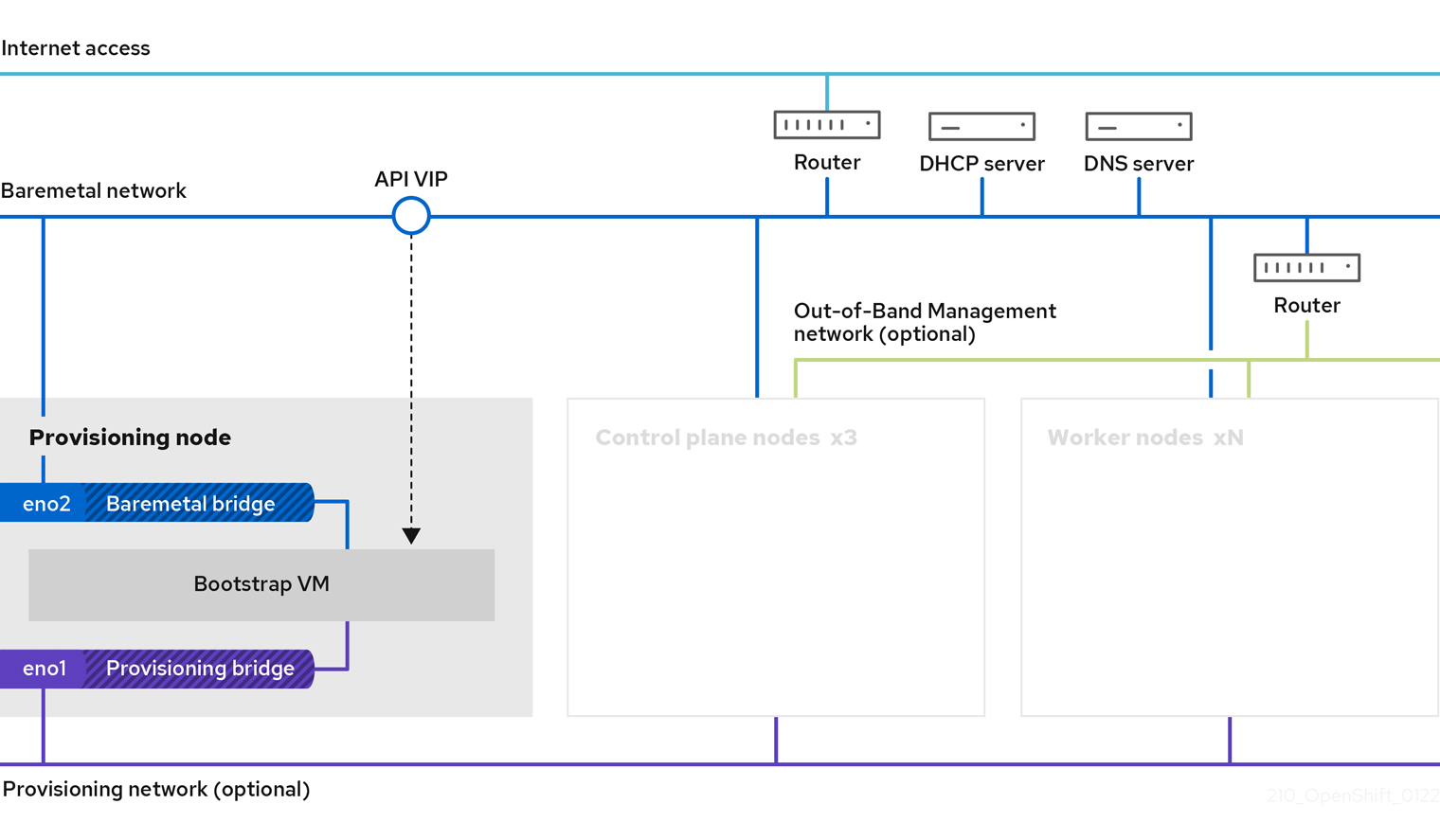
The provisioning node can be removed after the installation.
- Provisioner: A physical machine that runs the installation program and hosts the bootstrap VM that deploys the controller of a new OpenShift Container Platform cluster.
- Bootstrap VM: A virtual machine used in the process of deploying an OpenShift Container Platform cluster.
-
Network bridges: The bootstrap VM connects to the bare metal network and to the provisioning network, if present, via network bridges,
eno1andeno2.
In phase 2 of the deployment, the provisioner destroys the bootstrap VM automatically and moves the virtual IP addresses (VIPs) to the appropriate nodes. The API VIP moves to the control plane nodes and the Ingress VIP moves to the worker nodes.
The following diagram illustrates phase 2 of deployment:
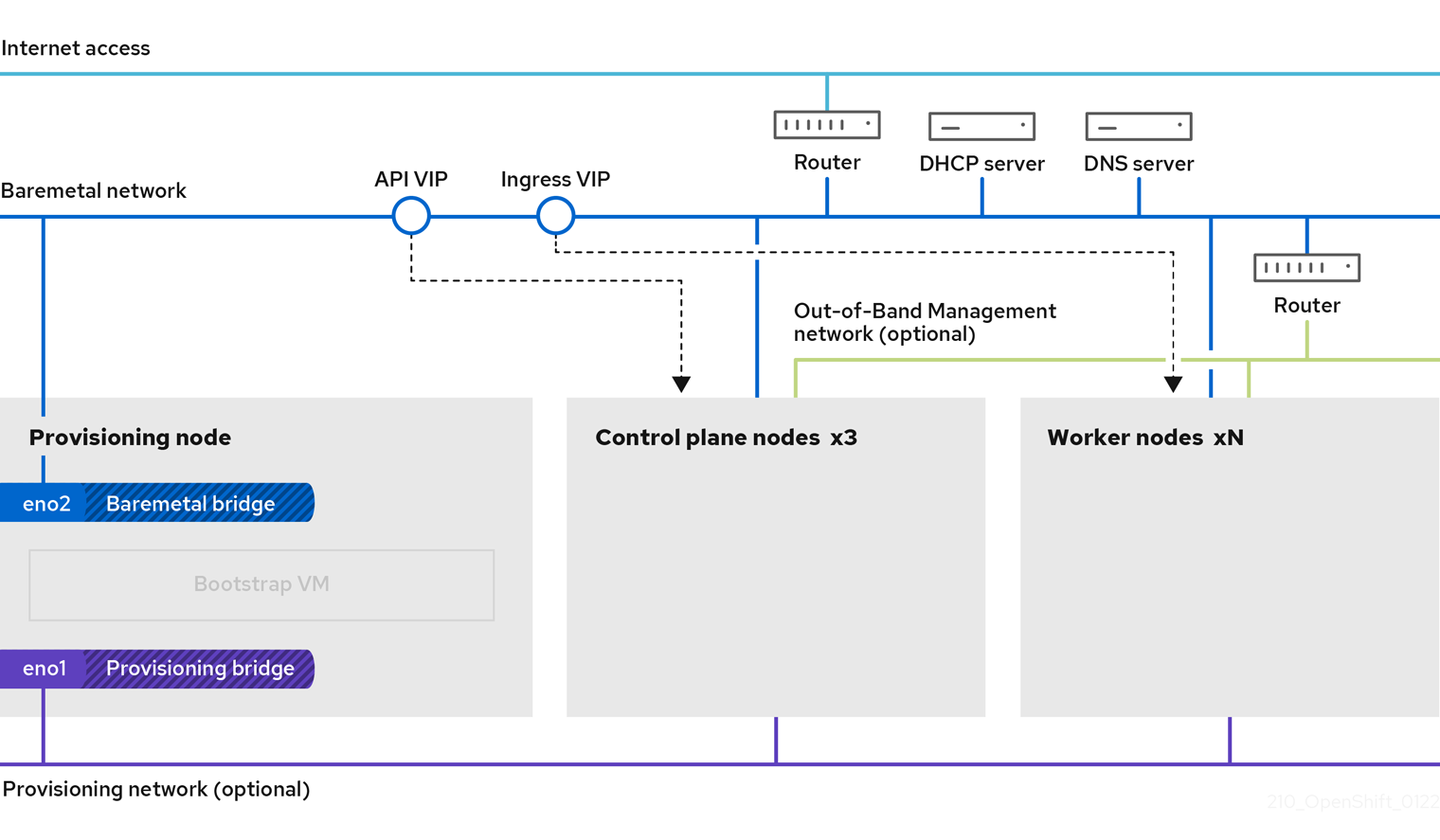
The provisioning network is optional, but it is required for PXE booting. If you deploy without a provisioning network, you must use a virtual media BMC addressing option such as redfish-virtualmedia or idrac-virtualmedia.
10.2. Prerequisites
Installer-provisioned installation of OpenShift Container Platform requires:
- One provisioner node with Red Hat Enterprise Linux (RHEL) 8.x installed. The provisioning node can be removed after installation.
- Three control plane nodes.
- Baseboard Management Controller (BMC) access to each node.
At least one network:
- One required routable network
- One optional network for provisioning nodes; and,
- One optional management network.
Before starting an installer-provisioned installation of OpenShift Container Platform, ensure the hardware environment meets the following requirements.
10.2.1. Node requirements
Installer-provisioned installation involves a number of hardware node requirements:
-
CPU architecture: All nodes must use
x86_64CPU architecture. - Similar nodes: Red Hat recommends nodes have an identical configuration per role. That is, Red Hat recommends nodes be the same brand and model with the same CPU, memory, and storage configuration.
-
Baseboard Management Controller: The
provisionernode must be able to access the baseboard management controller (BMC) of each OpenShift Container Platform cluster node. You may use IPMI, Redfish, or a proprietary protocol. -
Latest generation: Nodes must be of the most recent generation. Installer-provisioned installation relies on BMC protocols, which must be compatible across nodes. Additionally, RHEL 8 ships with the most recent drivers for RAID controllers. Ensure that the nodes are recent enough to support RHEL 8 for the
provisionernode and RHCOS 8 for the control plane and worker nodes. - Registry node: (Optional) If setting up a disconnected mirrored registry, it is recommended the registry reside in its own node.
-
Provisioner node: Installer-provisioned installation requires one
provisionernode. - Control plane: Installer-provisioned installation requires three control plane nodes for high availability. You can deploy an OpenShift Container Platform cluster with only three control plane nodes, making the control plane nodes schedulable as worker nodes. Smaller clusters are more resource efficient for administrators and developers during development, production, and testing.
Worker nodes: While not required, a typical production cluster has two or more worker nodes.
ImportantDo not deploy a cluster with only one worker node, because the cluster will deploy with routers and ingress traffic in a degraded state.
-
Network interfaces: Each node must have at least one network interface for the routable
baremetalnetwork. Each node must have one network interface for aprovisioningnetwork when using theprovisioningnetwork for deployment. Using theprovisioningnetwork is the default configuration. Unified Extensible Firmware Interface (UEFI): Installer-provisioned installation requires UEFI boot on all OpenShift Container Platform nodes when using IPv6 addressing on the
provisioningnetwork. In addition, UEFI Device PXE Settings must be set to use the IPv6 protocol on theprovisioningnetwork NIC, but omitting theprovisioningnetwork removes this requirement.ImportantWhen starting the installation from virtual media such as an ISO image, delete all old UEFI boot table entries. If the boot table includes entries that are not generic entries provided by the firmware, the installation might fail.
Secure Boot: Many production scenarios require nodes with Secure Boot enabled to verify the node only boots with trusted software, such as UEFI firmware drivers, EFI applications, and the operating system. You may deploy with Secure Boot manually or managed.
- Manually: To deploy an OpenShift Container Platform cluster with Secure Boot manually, you must enable UEFI boot mode and Secure Boot on each control plane node and each worker node. Red Hat supports Secure Boot with manually enabled UEFI and Secure Boot only when installer-provisioned installations use Redfish virtual media. See "Configuring nodes for Secure Boot manually" in the "Configuring nodes" section for additional details.
Managed: To deploy an OpenShift Container Platform cluster with managed Secure Boot, you must set the
bootModevalue toUEFISecureBootin theinstall-config.yamlfile. Red Hat only supports installer-provisioned installation with managed Secure Boot on 10th generation HPE hardware and 13th generation Dell hardware running firmware version2.75.75.75or greater. Deploying with managed Secure Boot does not require Redfish virtual media. See "Configuring managed Secure Boot" in the "Setting up the environment for an OpenShift installation" section for details.NoteRed Hat does not support Secure Boot with self-generated keys.
10.2.2. Planning a bare metal cluster for OpenShift Virtualization
If you will use OpenShift Virtualization, it is important to be aware of several requirements before you install your bare metal cluster.
If you want to use live migration features, you must have multiple worker nodes at the time of cluster installation. This is because live migration requires the cluster-level high availability (HA) flag to be set to true. The HA flag is set when a cluster is installed and cannot be changed afterwards. If there are fewer than two worker nodes defined when you install your cluster, the HA flag is set to false for the life of the cluster.
NoteYou can install OpenShift Virtualization on a single-node cluster, but single-node OpenShift does not support high availability.
- Live migration requires shared storage. Storage for OpenShift Virtualization must support and use the ReadWriteMany (RWX) access mode.
- If you plan to use Single Root I/O Virtualization (SR-IOV), ensure that your network interface controllers (NICs) are supported by OpenShift Container Platform.
10.2.3. Firmware requirements for installing with virtual media
The installer for installer-provisioned OpenShift Container Platform clusters validates the hardware and firmware compatibility with Redfish virtual media. The following table lists the minimum firmware versions tested and verified to work for installer-provisioned OpenShift Container Platform clusters deployed by using Redfish virtual media.
| Hardware | Model | Management | Firmware versions |
|---|---|---|---|
| HP | 10th Generation | iLO5 | 2.63 or later |
| Dell | 14th Generation | iDRAC 9 | v4.20.20.20 - v4.40.00.00 only |
| 13th Generation | iDRAC 8 | v2.75.75.75 or later |
Red Hat does not test every combination of firmware, hardware, or other third-party components. For further information about third-party support, see Red Hat third-party support policy.
See the hardware documentation for the nodes or contact the hardware vendor for information about updating the firmware.
For HP servers, Redfish virtual media is not supported on 9th generation systems running iLO4, because Ironic does not support iLO4 with virtual media.
For Dell servers, ensure the OpenShift Container Platform cluster nodes have AutoAttach Enabled through the iDRAC console. The menu path is: Configuration → Virtual Media → Attach Mode → AutoAttach . With iDRAC 9 firmware version 04.40.00.00, the Virtual Console plugin defaults to eHTML5, which causes problems with the InsertVirtualMedia workflow. Set the plug-in to HTML5 to avoid this issue. The menu path is: Configuration → Virtual console → Plug-in Type → HTML5 .
The installer will not initiate installation on a node if the node firmware is below the foregoing versions when installing with virtual media.
10.2.4. Network requirements
Installer-provisioned installation of OpenShift Container Platform involves several network requirements. First, installer-provisioned installation involves an optional non-routable provisioning network for provisioning the operating system on each bare metal node. Second, installer-provisioned installation involves a routable baremetal network.
10.2.4.1. Increase the network MTU
Before deploying OpenShift Container Platform, increase the network maximum transmission unit (MTU) to 1500 or more. If the MTU is lower than 1500, the Ironic image that is used to boot the node might fail to communicate with the Ironic inspector pod, and inspection will fail. If this occurs, installation stops because the nodes are not available for installation.
10.2.4.2. Configuring NICs
OpenShift Container Platform deploys with two networks:
provisioning: Theprovisioningnetwork is an optional non-routable network used for provisioning the underlying operating system on each node that is a part of the OpenShift Container Platform cluster. The network interface for theprovisioningnetwork on each cluster node must have the BIOS or UEFI configured to PXE boot.The
provisioningNetworkInterfaceconfiguration setting specifies theprovisioningnetwork NIC name on the control plane nodes, which must be identical on the control plane nodes. ThebootMACAddressconfiguration setting provides a means to specify a particular NIC on each node for theprovisioningnetwork.The
provisioningnetwork is optional, but it is required for PXE booting. If you deploy without aprovisioningnetwork, you must use a virtual media BMC addressing option such asredfish-virtualmediaoridrac-virtualmedia.-
baremetal: Thebaremetalnetwork is a routable network. You can use any NIC to interface with thebaremetalnetwork provided the NIC is not configured to use theprovisioningnetwork.
When using a VLAN, each NIC must be on a separate VLAN corresponding to the appropriate network.
10.2.4.3. DNS requirements
Clients access the OpenShift Container Platform cluster nodes over the baremetal network. A network administrator must configure a subdomain or subzone where the canonical name extension is the cluster name.
<cluster_name>.<base_domain>
<cluster_name>.<base_domain>For example:
test-cluster.example.com
test-cluster.example.comOpenShift Container Platform includes functionality that uses cluster membership information to generate A/AAAA records. This resolves the node names to their IP addresses. After the nodes are registered with the API, the cluster can disperse node information without using CoreDNS-mDNS. This eliminates the network traffic associated with multicast DNS.
In OpenShift Container Platform deployments, DNS name resolution is required for the following components:
- The Kubernetes API
- The OpenShift Container Platform application wildcard ingress API
A/AAAA records are used for name resolution and PTR records are used for reverse name resolution. Red Hat Enterprise Linux CoreOS (RHCOS) uses the reverse records or DHCP to set the hostnames for all the nodes.
Installer-provisioned installation includes functionality that uses cluster membership information to generate A/AAAA records. This resolves the node names to their IP addresses. In each record, <cluster_name> is the cluster name and <base_domain> is the base domain that you specify in the install-config.yaml file. A complete DNS record takes the form: <component>.<cluster_name>.<base_domain>..
| Component | Record | Description |
|---|---|---|
| Kubernetes API |
| An A/AAAA record, and a PTR record, identify the API load balancer. These records must be resolvable by both clients external to the cluster and from all the nodes within the cluster. |
| Routes |
| The wildcard A/AAAA record refers to the application ingress load balancer. The application ingress load balancer targets the nodes that run the Ingress Controller pods. The Ingress Controller pods run on the worker nodes by default. These records must be resolvable by both clients external to the cluster and from all the nodes within the cluster.
For example, |
You can use the dig command to verify DNS resolution.
10.2.4.4. Dynamic Host Configuration Protocol (DHCP) requirements
By default, installer-provisioned installation deploys ironic-dnsmasq with DHCP enabled for the provisioning network. No other DHCP servers should be running on the provisioning network when the provisioningNetwork configuration setting is set to managed, which is the default value. If you have a DHCP server running on the provisioning network, you must set the provisioningNetwork configuration setting to unmanaged in the install-config.yaml file.
Network administrators must reserve IP addresses for each node in the OpenShift Container Platform cluster for the baremetal network on an external DHCP server.
10.2.4.5. Reserving IP addresses for nodes with the DHCP server
For the baremetal network, a network administrator must reserve a number of IP addresses, including:
Two unique virtual IP addresses.
- One virtual IP address for the API endpoint.
- One virtual IP address for the wildcard ingress endpoint.
- One IP address for the provisioner node.
- One IP address for each control plane (master) node.
- One IP address for each worker node, if applicable.
Some administrators prefer to use static IP addresses so that each node’s IP address remains constant in the absence of a DHCP server. To use static IP addresses in the OpenShift Container Platform cluster, reserve the IP addresses with an infinite lease. During deployment, the installer will reconfigure the NICs from DHCP assigned addresses to static IP addresses. NICs with DHCP leases that are not infinite will remain configured to use DHCP.
Setting IP addresses with an infinite lease is incompatible with network configuration deployed by using the Machine Config Operator.
Your DHCP server must provide a DHCP expiration time of 4294967295 seconds to properly set an infinite lease as specified by rfc2131. If a lesser value is returned for the DHCP infinite lease time, the node reports an error and a permanent IP is not set for the node. In RHEL 8, dhcpd does not provide infinite leases. If you want to use the provisioner node to serve dynamic IP addresses with infinite lease times, use dnsmasq rather than dhcpd.
External load balancing services and the control plane nodes must run on the same L2 network, and on the same VLAN when using VLANs to route traffic between the load balancing services and the control plane nodes.
Do not change a worker node’s IP address manually after deployment. To change the IP address of a worker node after deployment, you must mark the worker node unschedulable, evacuate the pods, delete the node, and recreate it with the new IP address. See "Working with nodes" for additional details. To change the IP address of a control plane node after deployment, contact support.
The storage interface requires a DHCP reservation.
The following table provides an exemplary embodiment of fully qualified domain names. The API and Nameserver addresses begin with canonical name extensions. The hostnames of the control plane and worker nodes are exemplary, so you can use any host naming convention you prefer.
| Usage | Host Name | IP |
|---|---|---|
| API |
|
|
| Ingress LB (apps) |
|
|
| Provisioner node |
|
|
| Master-0 |
|
|
| Master-1 |
|
|
| Master-2 |
|
|
| Worker-0 |
|
|
| Worker-1 |
|
|
| Worker-n |
|
|
If you do not create DHCP reservations, the installer requires reverse DNS resolution to set the hostnames for the Kubernetes API node, the provisioner node, the control plane nodes, and the worker nodes.
10.2.4.6. Network Time Protocol (NTP)
Each OpenShift Container Platform node in the cluster must have access to an NTP server. OpenShift Container Platform nodes use NTP to synchronize their clocks. For example, cluster nodes use SSL certificates that require validation, which might fail if the date and time between the nodes are not in sync.
Define a consistent clock date and time format in each cluster node’s BIOS settings, or installation might fail.
You can reconfigure the control plane nodes to act as NTP servers on disconnected clusters, and reconfigure worker nodes to retrieve time from the control plane nodes.
10.2.4.7. State-driven network configuration requirements (Technology Preview)
OpenShift Container Platform supports additional post-installation state-driven network configuration on the secondary network interfaces of cluster nodes using kubernetes-nmstate. For example, system administrators might configure a secondary network interface on cluster nodes after installation for a storage network.
Configuration must occur before scheduling pods.
State-driven network configuration requires installing kubernetes-nmstate, and also requires Network Manager running on the cluster nodes. See OpenShift Virtualization > Kubernetes NMState (Tech Preview) for additional details.
10.2.4.8. Port access for the out-of-band management IP address
The out-of-band management IP address is on a separate network from the node. To ensure that the out-of-band management can communicate with the provisioning node during installation, the out-of-band management IP address must be granted access to port 80 on the bootstrap host and port 6180 on the OpenShift Container Platform control plane hosts.
10.2.5. Configuring nodes
Configuring nodes when using the provisioning network
Each node in the cluster requires the following configuration for proper installation.
A mismatch between nodes will cause an installation failure.
While the cluster nodes can contain more than two NICs, the installation process only focuses on the first two NICs. In the following table, NIC1 is a non-routable network (provisioning) that is only used for the installation of the OpenShift Container Platform cluster.
| NIC | Network | VLAN |
|---|---|---|
| NIC1 |
|
|
| NIC2 |
|
|
The Red Hat Enterprise Linux (RHEL) 8.x installation process on the provisioner node might vary. To install Red Hat Enterprise Linux (RHEL) 8.x using a local Satellite server or a PXE server, PXE-enable NIC2.
| PXE | Boot order |
|---|---|
|
NIC1 PXE-enabled | 1 |
|
NIC2 | 2 |
Ensure PXE is disabled on all other NICs.
Configure the control plane and worker nodes as follows:
| PXE | Boot order |
|---|---|
| NIC1 PXE-enabled (provisioning network) | 1 |
Configuring nodes without the provisioning network
The installation process requires one NIC:
| NIC | Network | VLAN |
|---|---|---|
| NICx |
|
|
NICx is a routable network (baremetal) that is used for the installation of the OpenShift Container Platform cluster, and routable to the internet.
The provisioning network is optional, but it is required for PXE booting. If you deploy without a provisioning network, you must use a virtual media BMC addressing option such as redfish-virtualmedia or idrac-virtualmedia.
Configuring nodes for Secure Boot manually
Secure Boot prevents a node from booting unless it verifies the node is using only trusted software, such as UEFI firmware drivers, EFI applications, and the operating system.
Red Hat only supports manually configured Secure Boot when deploying with Redfish virtual media.
To enable Secure Boot manually, refer to the hardware guide for the node and execute the following:
Procedure
- Boot the node and enter the BIOS menu.
- Set the node’s boot mode to UEFI Enabled.
- Enable Secure Boot.
Red Hat does not support Secure Boot with self-generated keys.
Configuring the Compatibility Support Module for Fujitsu iRMC
The Compatibility Support Module (CSM) configuration provides support for legacy BIOS backward compatibility with UEFI systems. You must configure the CSM when you deploy a cluster with Fujitsu iRMC, otherwise the installation might fail.
For information about configuring the CSM for your specific node type, refer to the hardware guide for the node.
Prerequisites
- Ensure that you have disabled Secure Boot Control. You can disable the feature under Security → Secure Boot Configuration → Secure Boot Control.
Procedure
- Boot the node and select the BIOS menu.
- Under the Advanced tab, select CSM Configuration from the list.
Enable the Launch CSM option and set the following values:
Expand Item Value Boot option filter
UEFI and Legacy
Launch PXE OpROM Policy
UEFI only
Launch Storage OpROM policy
UEFI only
Other PCI device ROM priority
UEFI only
10.2.6. Out-of-band management
Nodes will typically have an additional NIC used by the Baseboard Management Controllers (BMCs). These BMCs must be accessible from the provisioner node.
Each node must be accessible via out-of-band management. When using an out-of-band management network, the provisioner node requires access to the out-of-band management network for a successful OpenShift Container Platform 4 installation.
The out-of-band management setup is out of scope for this document. We recommend setting up a separate management network for out-of-band management. However, using the provisioning network or the baremetal network are valid options.
10.2.7. Required data for installation
Prior to the installation of the OpenShift Container Platform cluster, gather the following information from all cluster nodes:
Out-of-band management IP
Examples
- Dell (iDRAC) IP
- HP (iLO) IP
- Fujitsu (iRMC) IP
When using the provisioning network
-
NIC (
provisioning) MAC address -
NIC (
baremetal) MAC address
When omitting the provisioning network
-
NIC (
baremetal) MAC address
10.2.8. Validation checklist for nodes
When using the provisioning network
-
❏ NIC1 VLAN is configured for the
provisioningnetwork. -
❏ NIC1 for the
provisioningnetwork is PXE-enabled on the provisioner, control plane (master), and worker nodes. -
❏ NIC2 VLAN is configured for the
baremetalnetwork. - ❏ PXE has been disabled on all other NICs.
- ❏ DNS is configured with API and Ingress endpoints.
- ❏ Control plane and worker nodes are configured.
- ❏ All nodes accessible via out-of-band management.
- ❏ (Optional) A separate management network has been created.
- ❏ Required data for installation.
When omitting the provisioning network
-
❏ NIC1 VLAN is configured for the
baremetalnetwork. - ❏ DNS is configured with API and Ingress endpoints.
- ❏ Control plane and worker nodes are configured.
- ❏ All nodes accessible via out-of-band management.
- ❏ (Optional) A separate management network has been created.
- ❏ Required data for installation.
10.3. Setting up the environment for an OpenShift installation
10.3.1. Installing RHEL on the provisioner node
With the networking configuration complete, the next step is to install RHEL 8.x on the provisioner node. The installer uses the provisioner node as the orchestrator while installing the OpenShift Container Platform cluster. For the purposes of this document, installing RHEL on the provisioner node is out of scope. However, options include but are not limited to using a RHEL Satellite server, PXE, or installation media.
10.3.2. Preparing the provisioner node for OpenShift Container Platform installation
Perform the following steps to prepare the environment.
Procedure
-
Log in to the provisioner node via
ssh. Create a non-root user (
kni) and provide that user withsudoprivileges:useradd kni passwd kni echo "kni ALL=(root) NOPASSWD:ALL" | tee -a /etc/sudoers.d/kni chmod 0440 /etc/sudoers.d/kni
# useradd kni # passwd kni # echo "kni ALL=(root) NOPASSWD:ALL" | tee -a /etc/sudoers.d/kni # chmod 0440 /etc/sudoers.d/kniCopy to Clipboard Copied! Toggle word wrap Toggle overflow Create an
sshkey for the new user:su - kni -c "ssh-keygen -t ed25519 -f /home/kni/.ssh/id_rsa -N ''"
# su - kni -c "ssh-keygen -t ed25519 -f /home/kni/.ssh/id_rsa -N ''"Copy to Clipboard Copied! Toggle word wrap Toggle overflow Log in as the new user on the provisioner node:
su - kni
# su - kni $Copy to Clipboard Copied! Toggle word wrap Toggle overflow Use Red Hat Subscription Manager to register the provisioner node:
sudo subscription-manager register --username=<user> --password=<pass> --auto-attach sudo subscription-manager repos --enable=rhel-8-for-x86_64-appstream-rpms --enable=rhel-8-for-x86_64-baseos-rpms
$ sudo subscription-manager register --username=<user> --password=<pass> --auto-attach $ sudo subscription-manager repos --enable=rhel-8-for-x86_64-appstream-rpms --enable=rhel-8-for-x86_64-baseos-rpmsCopy to Clipboard Copied! Toggle word wrap Toggle overflow NoteFor more information about Red Hat Subscription Manager, see Using and Configuring Red Hat Subscription Manager.
Install the following packages:
sudo dnf install -y libvirt qemu-kvm mkisofs python3-devel jq ipmitool
$ sudo dnf install -y libvirt qemu-kvm mkisofs python3-devel jq ipmitoolCopy to Clipboard Copied! Toggle word wrap Toggle overflow Modify the user to add the
libvirtgroup to the newly created user:sudo usermod --append --groups libvirt <user>
$ sudo usermod --append --groups libvirt <user>Copy to Clipboard Copied! Toggle word wrap Toggle overflow Restart
firewalldand enable thehttpservice:sudo systemctl start firewalld sudo firewall-cmd --zone=public --add-service=http --permanent sudo firewall-cmd --reload
$ sudo systemctl start firewalld $ sudo firewall-cmd --zone=public --add-service=http --permanent $ sudo firewall-cmd --reloadCopy to Clipboard Copied! Toggle word wrap Toggle overflow Start and enable the
libvirtdservice:sudo systemctl enable libvirtd --now
$ sudo systemctl enable libvirtd --nowCopy to Clipboard Copied! Toggle word wrap Toggle overflow Create the
defaultstorage pool and start it:sudo virsh pool-define-as --name default --type dir --target /var/lib/libvirt/images sudo virsh pool-start default sudo virsh pool-autostart default
$ sudo virsh pool-define-as --name default --type dir --target /var/lib/libvirt/images $ sudo virsh pool-start default $ sudo virsh pool-autostart defaultCopy to Clipboard Copied! Toggle word wrap Toggle overflow Configure networking.
NoteYou can also configure networking from the web console.
Export the
baremetalnetwork NIC name:export PUB_CONN=<baremetal_nic_name>
$ export PUB_CONN=<baremetal_nic_name>Copy to Clipboard Copied! Toggle word wrap Toggle overflow Configure the
baremetalnetwork:Copy to Clipboard Copied! Toggle word wrap Toggle overflow If you are deploying with a
provisioningnetwork, export theprovisioningnetwork NIC name:export PROV_CONN=<prov_nic_name>
$ export PROV_CONN=<prov_nic_name>Copy to Clipboard Copied! Toggle word wrap Toggle overflow If you are deploying with a
provisioningnetwork, configure theprovisioningnetwork:Copy to Clipboard Copied! Toggle word wrap Toggle overflow NoteThe
sshconnection might disconnect after executing these steps.The IPv6 address can be any address as long as it is not routable via the
baremetalnetwork.Ensure that UEFI is enabled and UEFI PXE settings are set to the IPv6 protocol when using IPv6 addressing.
Configure the IPv4 address on the
provisioningnetwork connection.nmcli connection modify provisioning ipv4.addresses 172.22.0.254/24 ipv4.method manual
$ nmcli connection modify provisioning ipv4.addresses 172.22.0.254/24 ipv4.method manualCopy to Clipboard Copied! Toggle word wrap Toggle overflow sshback into theprovisionernode (if required).ssh kni@provisioner.<cluster-name>.<domain>
# ssh kni@provisioner.<cluster-name>.<domain>Copy to Clipboard Copied! Toggle word wrap Toggle overflow Verify the connection bridges have been properly created.
sudo nmcli con show
$ sudo nmcli con showCopy to Clipboard Copied! Toggle word wrap Toggle overflow Copy to Clipboard Copied! Toggle word wrap Toggle overflow Create a
pull-secret.txtfile.vim pull-secret.txt
$ vim pull-secret.txtCopy to Clipboard Copied! Toggle word wrap Toggle overflow In a web browser, navigate to Install OpenShift on Bare Metal with installer-provisioned infrastructure, and scroll down to the Downloads section. Click Copy pull secret. Paste the contents into the
pull-secret.txtfile and save the contents in thekniuser’s home directory.
10.3.3. Retrieving the OpenShift Container Platform installer
Use the stable-4.x version of the installer to deploy the generally available stable version of OpenShift Container Platform:
export VERSION=stable-4.9
$ export VERSION=stable-4.9
export RELEASE_IMAGE=$(curl -s https://mirror.openshift.com/pub/openshift-v4/clients/ocp/$VERSION/release.txt | grep 'Pull From: quay.io' | awk -F ' ' '{print $3}')10.3.4. Extracting the OpenShift Container Platform installer
After retrieving the installer, the next step is to extract it.
Procedure
Set the environment variables:
export cmd=openshift-baremetal-install export pullsecret_file=~/pull-secret.txt export extract_dir=$(pwd)
$ export cmd=openshift-baremetal-install $ export pullsecret_file=~/pull-secret.txt $ export extract_dir=$(pwd)Copy to Clipboard Copied! Toggle word wrap Toggle overflow Get the
ocbinary:curl -s https://mirror.openshift.com/pub/openshift-v4/clients/ocp/$VERSION/openshift-client-linux.tar.gz | tar zxvf - oc
$ curl -s https://mirror.openshift.com/pub/openshift-v4/clients/ocp/$VERSION/openshift-client-linux.tar.gz | tar zxvf - ocCopy to Clipboard Copied! Toggle word wrap Toggle overflow Extract the installer:
sudo cp oc /usr/local/bin oc adm release extract --registry-config "${pullsecret_file}" --command=$cmd --to "${extract_dir}" ${RELEASE_IMAGE} sudo cp openshift-baremetal-install /usr/local/bin$ sudo cp oc /usr/local/bin $ oc adm release extract --registry-config "${pullsecret_file}" --command=$cmd --to "${extract_dir}" ${RELEASE_IMAGE} $ sudo cp openshift-baremetal-install /usr/local/binCopy to Clipboard Copied! Toggle word wrap Toggle overflow
10.3.5. Creating an RHCOS images cache (optional)
To employ image caching, you must download two images: the Red Hat Enterprise Linux CoreOS (RHCOS) image used by the bootstrap VM and the RHCOS image used by the installer to provision the different nodes. Image caching is optional, but especially useful when running the installer on a network with limited bandwidth.
If you are running the installer on a network with limited bandwidth and the RHCOS images download takes more than 15 to 20 minutes, the installer will timeout. Caching images on a web server will help in such scenarios.
Install a container that contains the images.
Procedure
Install
podman:sudo dnf install -y podman
$ sudo dnf install -y podmanCopy to Clipboard Copied! Toggle word wrap Toggle overflow Open firewall port
8080to be used for RHCOS image caching:sudo firewall-cmd --add-port=8080/tcp --zone=public --permanent
$ sudo firewall-cmd --add-port=8080/tcp --zone=public --permanentCopy to Clipboard Copied! Toggle word wrap Toggle overflow sudo firewall-cmd --reload
$ sudo firewall-cmd --reloadCopy to Clipboard Copied! Toggle word wrap Toggle overflow Create a directory to store the
bootstraposimageandclusterosimage:mkdir /home/kni/rhcos_image_cache
$ mkdir /home/kni/rhcos_image_cacheCopy to Clipboard Copied! Toggle word wrap Toggle overflow Set the appropriate SELinux context for the newly created directory:
sudo semanage fcontext -a -t httpd_sys_content_t "/home/kni/rhcos_image_cache(/.*)?"
$ sudo semanage fcontext -a -t httpd_sys_content_t "/home/kni/rhcos_image_cache(/.*)?"Copy to Clipboard Copied! Toggle word wrap Toggle overflow sudo restorecon -Rv /home/kni/rhcos_image_cache/
$ sudo restorecon -Rv /home/kni/rhcos_image_cache/Copy to Clipboard Copied! Toggle word wrap Toggle overflow Get the URI for the RHCOS image that the installation program will deploy on the bootstrap VM:
export RHCOS_QEMU_URI=$(/usr/local/bin/openshift-baremetal-install coreos print-stream-json | jq -r --arg ARCH "$(arch)" '.architectures[$ARCH].artifacts.qemu.formats["qcow2.gz"].disk.location')
$ export RHCOS_QEMU_URI=$(/usr/local/bin/openshift-baremetal-install coreos print-stream-json | jq -r --arg ARCH "$(arch)" '.architectures[$ARCH].artifacts.qemu.formats["qcow2.gz"].disk.location')Copy to Clipboard Copied! Toggle word wrap Toggle overflow Get the name of the image that the installation program will deploy on the bootstrap VM:
export export RHCOS_QEMU_NAME=${RHCOS_QEMU_URI##*/}$ export export RHCOS_QEMU_NAME=${RHCOS_QEMU_URI##*/}Copy to Clipboard Copied! Toggle word wrap Toggle overflow Get the SHA hash for the RHCOS image that will be deployed on the nodes:
export RHCOS_QEMU_UNCOMPRESSED_SHA256=$(/usr/local/bin/openshift-baremetal-install coreos print-stream-json | jq -r --arg ARCH "$(arch)" '.architectures[$ARCH].artifacts.qemu.formats["qcow2.gz"].disk["uncompressed-sha256"]')
$ export RHCOS_QEMU_UNCOMPRESSED_SHA256=$(/usr/local/bin/openshift-baremetal-install coreos print-stream-json | jq -r --arg ARCH "$(arch)" '.architectures[$ARCH].artifacts.qemu.formats["qcow2.gz"].disk["uncompressed-sha256"]')Copy to Clipboard Copied! Toggle word wrap Toggle overflow Get the URI for the image that the installation program will deploy on the cluster nodes:
export RHCOS_OPENSTACK_URI=$(/usr/local/bin/openshift-baremetal-install coreos print-stream-json | jq -r --arg ARCH "$(arch)" '.architectures[$ARCH].artifacts.openstack.formats["qcow2.gz"].disk.location')
$ export RHCOS_OPENSTACK_URI=$(/usr/local/bin/openshift-baremetal-install coreos print-stream-json | jq -r --arg ARCH "$(arch)" '.architectures[$ARCH].artifacts.openstack.formats["qcow2.gz"].disk.location')Copy to Clipboard Copied! Toggle word wrap Toggle overflow Get the name of the image that the installation program will deploy on the cluster nodes:
export RHCOS_OPENSTACK_NAME=${RHCOS_OPENSTACK_URI##*/}$ export RHCOS_OPENSTACK_NAME=${RHCOS_OPENSTACK_URI##*/}Copy to Clipboard Copied! Toggle word wrap Toggle overflow Get the SHA hash for the image that the installation program will deploy on the cluster nodes:
export RHCOS_OPENSTACK_UNCOMPRESSED_SHA256=$(/usr/local/bin/openshift-baremetal-install coreos print-stream-json | jq -r --arg ARCH "$(arch)" '.architectures[$ARCH].artifacts.openstack.formats["qcow2.gz"].disk["uncompressed-sha256"]')
$ export RHCOS_OPENSTACK_UNCOMPRESSED_SHA256=$(/usr/local/bin/openshift-baremetal-install coreos print-stream-json | jq -r --arg ARCH "$(arch)" '.architectures[$ARCH].artifacts.openstack.formats["qcow2.gz"].disk["uncompressed-sha256"]')Copy to Clipboard Copied! Toggle word wrap Toggle overflow Download the images and place them in the
/home/kni/rhcos_image_cachedirectory:curl -L ${RHCOS_QEMU_URI} -o /home/kni/rhcos_image_cache/${RHCOS_QEMU_NAME}$ curl -L ${RHCOS_QEMU_URI} -o /home/kni/rhcos_image_cache/${RHCOS_QEMU_NAME}Copy to Clipboard Copied! Toggle word wrap Toggle overflow curl -L ${RHCOS_OPENSTACK_URI} -o /home/kni/rhcos_image_cache/${RHCOS_OPENSTACK_NAME}$ curl -L ${RHCOS_OPENSTACK_URI} -o /home/kni/rhcos_image_cache/${RHCOS_OPENSTACK_NAME}Copy to Clipboard Copied! Toggle word wrap Toggle overflow Confirm SELinux type is of
httpd_sys_content_tfor the newly created files:ls -Z /home/kni/rhcos_image_cache
$ ls -Z /home/kni/rhcos_image_cacheCopy to Clipboard Copied! Toggle word wrap Toggle overflow Create the pod:
podman run -d --name rhcos_image_cache \ -v /home/kni/rhcos_image_cache:/var/www/html \ -p 8080:8080/tcp \ quay.io/centos7/httpd-24-centos7:latest
$ podman run -d --name rhcos_image_cache \ -v /home/kni/rhcos_image_cache:/var/www/html \ -p 8080:8080/tcp \ quay.io/centos7/httpd-24-centos7:latestCopy to Clipboard Copied! Toggle word wrap Toggle overflow The above command creates a caching webserver with the name
rhcos_image_cache, which serves the images for deployment. The first image${RHCOS_PATH}${RHCOS_QEMU_URI}?sha256=${RHCOS_QEMU_SHA_UNCOMPRESSED}is thebootstrapOSImageand the second image${RHCOS_PATH}${RHCOS_OPENSTACK_URI}?sha256=${RHCOS_OPENSTACK_SHA_COMPRESSED}is theclusterOSImagein theinstall-config.yamlfile.Generate the
bootstrapOSImageandclusterOSImageconfiguration:export BAREMETAL_IP=$(ip addr show dev baremetal | awk '/inet /{print $2}' | cut -d"/" -f1)$ export BAREMETAL_IP=$(ip addr show dev baremetal | awk '/inet /{print $2}' | cut -d"/" -f1)Copy to Clipboard Copied! Toggle word wrap Toggle overflow export BOOTSTRAP_OS_IMAGE="http://${BAREMETAL_IP}:8080/${RHCOS_QEMU_NAME}?sha256=${RHCOS_QEMU_UNCOMPRESSED_SHA256}"$ export BOOTSTRAP_OS_IMAGE="http://${BAREMETAL_IP}:8080/${RHCOS_QEMU_NAME}?sha256=${RHCOS_QEMU_UNCOMPRESSED_SHA256}"Copy to Clipboard Copied! Toggle word wrap Toggle overflow export CLUSTER_OS_IMAGE="http://${BAREMETAL_IP}:8080/${RHCOS_OPENSTACK_NAME}?sha256=${RHCOS_OPENSTACK_UNCOMPRESSED_SHA256}"$ export CLUSTER_OS_IMAGE="http://${BAREMETAL_IP}:8080/${RHCOS_OPENSTACK_NAME}?sha256=${RHCOS_OPENSTACK_UNCOMPRESSED_SHA256}"Copy to Clipboard Copied! Toggle word wrap Toggle overflow echo " bootstrapOSImage=${BOOTSTRAP_OS_IMAGE}"$ echo " bootstrapOSImage=${BOOTSTRAP_OS_IMAGE}"Copy to Clipboard Copied! Toggle word wrap Toggle overflow echo " clusterOSImage=${CLUSTER_OS_IMAGE}"$ echo " clusterOSImage=${CLUSTER_OS_IMAGE}"Copy to Clipboard Copied! Toggle word wrap Toggle overflow Add the required configuration to the
install-config.yamlfile underplatform.baremetal:platform: baremetal: bootstrapOSImage: <bootstrap_os_image> clusterOSImage: <cluster_os_image>platform: baremetal: bootstrapOSImage: <bootstrap_os_image>1 clusterOSImage: <cluster_os_image>2 Copy to Clipboard Copied! Toggle word wrap Toggle overflow See the "Configuration files" section for additional details.
10.3.6. Configuration files
10.3.6.1. Configuring the install-config.yaml file
The install-config.yaml file requires some additional details. Most of the information is teaching the installer and the resulting cluster enough about the available hardware so that it is able to fully manage it.
Configure
install-config.yaml. Change the appropriate variables to match the environment, includingpullSecretandsshKey.Copy to Clipboard Copied! Toggle word wrap Toggle overflow - 1
- Scale the worker machines based on the number of worker nodes that are part of the OpenShift Container Platform cluster. Valid options for the
replicasvalue are0and integers greater than or equal to2. Set the number of replicas to0to deploy a three-node cluster, which contains only three control plane machines. A three-node cluster is a smaller, more resource-efficient cluster that can be used for testing, development, and production. You cannot install the cluster with only one worker. - 2 4 6 8
- See the BMC addressing sections for more options.
- 3 5 7 9
- Set the path to the installation disk drive, for example,
/dev/disk/by-id/wwn-0x64cd98f04fde100024684cf3034da5c2.
Create a directory to store cluster configs.
mkdir ~/clusterconfigs cp install-config.yaml ~/clusterconfigs
$ mkdir ~/clusterconfigs $ cp install-config.yaml ~/clusterconfigsCopy to Clipboard Copied! Toggle word wrap Toggle overflow Ensure all bare metal nodes are powered off prior to installing the OpenShift Container Platform cluster.
ipmitool -I lanplus -U <user> -P <password> -H <management-server-ip> power off
$ ipmitool -I lanplus -U <user> -P <password> -H <management-server-ip> power offCopy to Clipboard Copied! Toggle word wrap Toggle overflow Remove old bootstrap resources if any are left over from a previous deployment attempt.
Copy to Clipboard Copied! Toggle word wrap Toggle overflow
10.3.6.2. Setting proxy settings within the install-config.yaml file (optional)
To deploy an OpenShift Container Platform cluster using a proxy, make the following changes to the install-config.yaml file.
The following is an example of noProxy with values.
noProxy: .example.com,172.22.0.0/24,10.10.0.0/24
noProxy: .example.com,172.22.0.0/24,10.10.0.0/24With a proxy enabled, set the appropriate values of the proxy in the corresponding key/value pair.
Key considerations:
-
If the proxy does not have an HTTPS proxy, change the value of
httpsProxyfromhttps://tohttp://. -
If using a provisioning network, include it in the
noProxysetting, otherwise the installer will fail. -
Set all of the proxy settings as environment variables within the provisioner node. For example,
HTTP_PROXY,HTTPS_PROXY, andNO_PROXY.
When provisioning with IPv6, you cannot define a CIDR address block in the noProxy settings. You must define each address separately.
10.3.6.3. Modifying the install-config.yaml file for no provisioning network (optional)
To deploy an OpenShift Container Platform cluster without a provisioning network, make the following changes to the install-config.yaml file.
platform:
baremetal:
apiVIP: <api_VIP>
ingressVIP: <ingress_VIP>
provisioningNetwork: "Disabled"
platform:
baremetal:
apiVIP: <api_VIP>
ingressVIP: <ingress_VIP>
provisioningNetwork: "Disabled" - 1
- Add the
provisioningNetworkconfiguration setting, if needed, and set it toDisabled.
The provisioning network is required for PXE booting. If you deploy without a provisioning network, you must use a virtual media BMC addressing option such as redfish-virtualmedia or idrac-virtualmedia. See "Redfish virtual media for HPE iLO" in the "BMC addressing for HPE iLO" section or "Redfish virtual media for Dell iDRAC" in the "BMC addressing for Dell iDRAC" section for additional details.
10.3.6.4. Modifying the install-config.yaml file for dual-stack network (optional)
To deploy an OpenShift Container Platform cluster with dual-stack networking, edit the machineNetwork, clusterNetwork, and serviceNetwork configuration settings in the install-config.yaml file. Each setting must have two CIDR entries each. Ensure the first CIDR entry is the IPv4 setting and the second CIDR entry is the IPv6 setting.
The API VIP IP address and the Ingress VIP address must be of the primary IP address family when using dual-stack networking. Currently, Red Hat does not support dual-stack VIPs or dual-stack networking with IPv6 as the primary IP address family. However, Red Hat does support dual-stack networking with IPv4 as the primary IP address family. Therefore, the IPv4 entries must go before the IPv6 entries.
10.3.6.5. Configuring managed Secure Boot in the install-config.yaml file (optional)
You can enable managed Secure Boot when deploying an installer-provisioned cluster using Redfish BMC addressing, such as redfish, redfish-virtualmedia, or idrac-virtualmedia. To enable managed Secure Boot, add the bootMode configuration setting to each node:
Example
- 1
- Ensure the
bmc.addresssetting usesredfish,redfish-virtualmedia, oridrac-virtualmediaas the protocol. See "BMC addressing for HPE iLO" or "BMC addressing for Dell iDRAC" for additional details. - 2
- The
bootModesetting isUEFIby default. Change it toUEFISecureBootto enable managed Secure Boot.
See "Configuring nodes" in the "Prerequisites" to ensure the nodes can support managed Secure Boot. If the nodes do not support managed Secure Boot, see "Configuring nodes for Secure Boot manually" in the "Configuring nodes" section. Configuring Secure Boot manually requires Redfish virtual media.
Red Hat does not support Secure Boot with IPMI, because IPMI does not provide Secure Boot management facilities.
10.3.6.6. Additional install-config parameters
See the following tables for the required parameters, the hosts parameter, and the bmc parameter for the install-config.yaml file.
| Parameters | Default | Description |
|---|---|---|
|
|
The domain name for the cluster. For example, | |
|
|
|
The boot mode for a node. Options are |
|
|
The | |
|
|
The | |
metadata:
name:
|
The name to be given to the OpenShift Container Platform cluster. For example, | |
networking:
machineNetwork:
- cidr:
|
The public CIDR (Classless Inter-Domain Routing) of the external network. For example, | |
compute: - name: worker | The OpenShift Container Platform cluster requires a name be provided for worker (or compute) nodes even if there are zero nodes. | |
compute:
replicas: 2
| Replicas sets the number of worker (or compute) nodes in the OpenShift Container Platform cluster. | |
controlPlane:
name: master
| The OpenShift Container Platform cluster requires a name for control plane (master) nodes. | |
controlPlane:
replicas: 3
| Replicas sets the number of control plane (master) nodes included as part of the OpenShift Container Platform cluster. | |
|
|
The name of the network interface on nodes connected to the | |
|
| The default configuration used for machine pools without a platform configuration. | |
|
| (Optional) The virtual IP address for Kubernetes API communication.
This setting must either be provided in the | |
|
|
|
|
|
| (Optional) The virtual IP address for ingress traffic.
This setting must either be provided in the |
| Parameters | Default | Description |
|---|---|---|
|
|
|
Defines the IP range for nodes on the |
|
|
|
The CIDR for the network to use for provisioning. This option is required when not using the default address range on the |
|
|
The third IP address of the |
The IP address within the cluster where the provisioning services run. Defaults to the third IP address of the |
|
|
The second IP address of the |
The IP address on the bootstrap VM where the provisioning services run while the installer is deploying the control plane (master) nodes. Defaults to the second IP address of the |
|
|
|
The name of the |
|
|
|
The name of the |
|
| The default configuration used for machine pools without a platform configuration. | |
|
|
A URL to override the default operating system image for the bootstrap node. The URL must contain a SHA-256 hash of the image. For example: | |
|
|
A URL to override the default operating system for cluster nodes. The URL must include a SHA-256 hash of the image. For example, | |
|
|
The
| |
|
| Set this parameter to the appropriate HTTP proxy used within your environment. | |
|
| Set this parameter to the appropriate HTTPS proxy used within your environment. | |
|
| Set this parameter to the appropriate list of exclusions for proxy usage within your environment. |
Hosts
The hosts parameter is a list of separate bare metal assets used to build the cluster.
| Name | Default | Description |
|---|---|---|
|
|
The name of the | |
|
|
The role of the bare metal node. Either | |
|
| Connection details for the baseboard management controller. See the BMC addressing section for additional details. | |
|
|
The MAC address of the NIC that the host uses for the Note
You must provide a valid MAC address from the host if you disabled the |
10.3.6.7. BMC addressing
Most vendors support Baseboard Management Controller (BMC) addressing with the Intelligent Platform Management Interface (IPMI). IPMI does not encrypt communications. It is suitable for use within a data center over a secured or dedicated management network. Check with your vendor to see if they support Redfish network boot. Redfish delivers simple and secure management for converged, hybrid IT and the Software Defined Data Center (SDDC). Redfish is human readable and machine capable, and leverages common internet and web services standards to expose information directly to the modern tool chain. If your hardware does not support Redfish network boot, use IPMI.
IPMI
Hosts using IPMI use the ipmi://<out-of-band-ip>:<port> address format, which defaults to port 623 if not specified. The following example demonstrates an IPMI configuration within the install-config.yaml file.
The provisioning network is required when PXE booting using IPMI for BMC addressing. It is not possible to PXE boot hosts without a provisioning network. If you deploy without a provisioning network, you must use a virtual media BMC addressing option such as redfish-virtualmedia or idrac-virtualmedia. See "Redfish virtual media for HPE iLO" in the "BMC addressing for HPE iLO" section or "Redfish virtual media for Dell iDRAC" in the "BMC addressing for Dell iDRAC" section for additional details.
Redfish network boot
To enable Redfish, use redfish:// or redfish+http:// to disable TLS. The installer requires both the hostname or the IP address and the path to the system ID. The following example demonstrates a Redfish configuration within the install-config.yaml file.
While it is recommended to have a certificate of authority for the out-of-band management addresses, you must include disableCertificateVerification: True in the bmc configuration if using self-signed certificates. The following example demonstrates a Redfish configuration using the disableCertificateVerification: True configuration parameter within the install-config.yaml file.
10.3.6.8. BMC addressing for Dell iDRAC
The address field for each bmc entry is a URL for connecting to the OpenShift Container Platform cluster nodes, including the type of controller in the URL scheme and its location on the network.
- 1
- The
addressconfiguration setting specifies the protocol.
For Dell hardware, Red Hat supports integrated Dell Remote Access Controller (iDRAC) virtual media, Redfish network boot, and IPMI.
BMC address formats for Dell iDRAC
| Protocol | Address Format |
|---|---|
| iDRAC virtual media |
|
| Redfish network boot |
|
| IPMI |
|
Use idrac-virtualmedia as the protocol for Redfish virtual media. redfish-virtualmedia will not work on Dell hardware. Dell’s idrac-virtualmedia uses the Redfish standard with Dell’s OEM extensions.
See the following sections for additional details.
Redfish virtual media for Dell iDRAC
For Redfish virtual media on Dell servers, use idrac-virtualmedia:// in the address setting. Using redfish-virtualmedia:// will not work.
The following example demonstrates using iDRAC virtual media within the install-config.yaml file.
While it is recommended to have a certificate of authority for the out-of-band management addresses, you must include disableCertificateVerification: True in the bmc configuration if using self-signed certificates. The following example demonstrates a Redfish configuration using the disableCertificateVerification: True configuration parameter within the install-config.yaml file.
Currently, Redfish is only supported on Dell with iDRAC firmware versions 4.20.20.20 through 04.40.00.00 for installer-provisioned installations on bare metal deployments. There is a known issue with version 04.40.00.00. With iDRAC 9 firmware version 04.40.00.00, the Virtual Console plugin defaults to eHTML5, which causes problems with the InsertVirtualMedia workflow. Set the plugin to HTML5 to avoid this issue. The menu path is: Configuration → Virtual console → Plug-in Type → HTML5 .
Ensure the OpenShift Container Platform cluster nodes have AutoAttach Enabled through the iDRAC console. The menu path is: Configuration → Virtual Media → Attach Mode → AutoAttach .
Use idrac-virtualmedia:// as the protocol for Redfish virtual media. Using redfish-virtualmedia:// will not work on Dell hardware, because the idrac-virtualmedia:// protocol corresponds to the idrac hardware type and the Redfish protocol in Ironic. Dell’s idrac-virtualmedia:// protocol uses the Redfish standard with Dell’s OEM extensions. Ironic also supports the idrac type with the WSMAN protocol. Therefore, you must specify idrac-virtualmedia:// to avoid unexpected behavior when electing to use Redfish with virtual media on Dell hardware.
Redfish network boot for iDRAC
To enable Redfish, use redfish:// or redfish+http:// to disable transport layer security (TLS). The installer requires both the hostname or the IP address and the path to the system ID. The following example demonstrates a Redfish configuration within the install-config.yaml file.
While it is recommended to have a certificate of authority for the out-of-band management addresses, you must include disableCertificateVerification: True in the bmc configuration if using self-signed certificates. The following example demonstrates a Redfish configuration using the disableCertificateVerification: True configuration parameter within the install-config.yaml file.
Currently, Redfish is only supported on Dell hardware with iDRAC firmware versions 4.20.20.20 through 04.40.00.00 for installer-provisioned installations on bare metal deployments. There is a known issue with version 04.40.00.00. With iDRAC 9 firmware version 04.40.00.00, the Virtual Console plugin defaults to eHTML5, which causes problems with the InsertVirtualMedia workflow. Set the plugin to HTML5 to avoid this issue. The menu path is: Configuration → Virtual console → Plug-in Type → HTML5 .
Ensure the OpenShift Container Platform cluster nodes have AutoAttach Enabled through the iDRAC console. The menu path is: Configuration → Virtual Media → Attach Mode → AutoAttach .
The redfish:// URL protocol corresponds to the redfish hardware type in Ironic.
10.3.6.9. BMC addressing for HPE iLO
The address field for each bmc entry is a URL for connecting to the OpenShift Container Platform cluster nodes, including the type of controller in the URL scheme and its location on the network.
- 1
- The
addressconfiguration setting specifies the protocol.
For HPE integrated Lights Out (iLO), Red Hat supports Redfish virtual media, Redfish network boot, and IPMI.
| Protocol | Address Format |
|---|---|
| Redfish virtual media |
|
| Redfish network boot |
|
| IPMI |
|
See the following sections for additional details.
Redfish virtual media for HPE iLO
To enable Redfish virtual media for HPE servers, use redfish-virtualmedia:// in the address setting. The following example demonstrates using Redfish virtual media within the install-config.yaml file.
While it is recommended to have a certificate of authority for the out-of-band management addresses, you must include disableCertificateVerification: True in the bmc configuration if using self-signed certificates. The following example demonstrates a Redfish configuration using the disableCertificateVerification: True configuration parameter within the install-config.yaml file.
Redfish virtual media is not supported on 9th generation systems running iLO4, because Ironic does not support iLO4 with virtual media.
Redfish network boot for HPE iLO
To enable Redfish, use redfish:// or redfish+http:// to disable TLS. The installer requires both the hostname or the IP address and the path to the system ID. The following example demonstrates a Redfish configuration within the install-config.yaml file.
While it is recommended to have a certificate of authority for the out-of-band management addresses, you must include disableCertificateVerification: True in the bmc configuration if using self-signed certificates. The following example demonstrates a Redfish configuration using the disableCertificateVerification: True configuration parameter within the install-config.yaml file.
10.3.6.10. BMC addressing for Fujitsu iRMC
The address field for each bmc entry is a URL for connecting to the OpenShift Container Platform cluster nodes, including the type of controller in the URL scheme and its location on the network.
- 1
- The
addressconfiguration setting specifies the protocol.
For Fujitsu hardware, Red Hat supports integrated Remote Management Controller (iRMC) and IPMI.
| Protocol | Address Format |
|---|---|
| iRMC |
|
| IPMI |
|
iRMC
Fujitsu nodes can use irmc://<out-of-band-ip> and defaults to port 443. The following example demonstrates an iRMC configuration within the install-config.yaml file.
Currently Fujitsu supports iRMC S5 firmware version 3.05P and above for installer-provisioned installation on bare metal.
10.3.6.11. Root device hints
The rootDeviceHints parameter enables the installer to provision the Red Hat Enterprise Linux CoreOS (RHCOS) image to a particular device. The installer examines the devices in the order it discovers them, and compares the discovered values with the hint values. The installer uses the first discovered device that matches the hint value. The configuration can combine multiple hints, but a device must match all hints for the installer to select it.
| Subfield | Description |
|---|---|
|
|
A string containing a Linux device name like |
|
|
A string containing a SCSI bus address like |
|
| A string containing a vendor-specific device identifier. The hint can be a substring of the actual value. |
|
| A string containing the name of the vendor or manufacturer of the device. The hint can be a sub-string of the actual value. |
|
| A string containing the device serial number. The hint must match the actual value exactly. |
|
| An integer representing the minimum size of the device in gigabytes. |
|
| A string containing the unique storage identifier. The hint must match the actual value exactly. |
|
| A string containing the unique storage identifier with the vendor extension appended. The hint must match the actual value exactly. |
|
| A string containing the unique vendor storage identifier. The hint must match the actual value exactly. |
|
| A boolean indicating whether the device should be a rotating disk (true) or not (false). |
Example usage
10.3.6.12. Creating the OpenShift Container Platform manifests
Create the OpenShift Container Platform manifests.
./openshift-baremetal-install --dir ~/clusterconfigs create manifests
$ ./openshift-baremetal-install --dir ~/clusterconfigs create manifestsCopy to Clipboard Copied! Toggle word wrap Toggle overflow INFO Consuming Install Config from target directory WARNING Making control-plane schedulable by setting MastersSchedulable to true for Scheduler cluster settings WARNING Discarding the OpenShift Manifest that was provided in the target directory because its dependencies are dirty and it needs to be regenerated
INFO Consuming Install Config from target directory WARNING Making control-plane schedulable by setting MastersSchedulable to true for Scheduler cluster settings WARNING Discarding the OpenShift Manifest that was provided in the target directory because its dependencies are dirty and it needs to be regeneratedCopy to Clipboard Copied! Toggle word wrap Toggle overflow
10.3.6.13. Configuring NTP for disconnected clusters (optional)
OpenShift Container Platform installs the chrony Network Time Protocol (NTP) service on the cluster nodes.
OpenShift Container Platform nodes must agree on a date and time to run properly. When worker nodes retrieve the date and time from the NTP servers on the control plane nodes, it enables the installation and operation of clusters that are not connected to a routable network and thereby do not have access to a higher stratum NTP server.
Procedure
Create a Butane config,
99-master-chrony-conf-override.bu, including the contents of thechrony.conffile for the control plane nodes.NoteSee "Creating machine configs with Butane" for information about Butane.
Butane config example
Copy to Clipboard Copied! Toggle word wrap Toggle overflow - 1
- You must replace
<cluster-name>with the name of the cluster and replace<domain>with the fully qualified domain name.
Use Butane to generate a
MachineConfigobject file,99-master-chrony-conf-override.yaml, containing the configuration to be delivered to the control plane nodes:butane 99-master-chrony-conf-override.bu -o 99-master-chrony-conf-override.yaml
$ butane 99-master-chrony-conf-override.bu -o 99-master-chrony-conf-override.yamlCopy to Clipboard Copied! Toggle word wrap Toggle overflow Create a Butane config,
99-worker-chrony-conf-override.bu, including the contents of thechrony.conffile for the worker nodes that references the NTP servers on the control plane nodes.Butane config example
Copy to Clipboard Copied! Toggle word wrap Toggle overflow - 1
- You must replace
<cluster-name>with the name of the cluster and replace<domain>with the fully qualified domain name.
Use Butane to generate a
MachineConfigobject file,99-worker-chrony-conf-override.yaml, containing the configuration to be delivered to the worker nodes:butane 99-worker-chrony-conf-override.bu -o 99-worker-chrony-conf-override.yaml
$ butane 99-worker-chrony-conf-override.bu -o 99-worker-chrony-conf-override.yamlCopy to Clipboard Copied! Toggle word wrap Toggle overflow
10.3.6.14. (Optional) Configure network components to run on the control plane
You can configure networking components to run exclusively on the control plane nodes. By default, OpenShift Container Platform allows any node in the machine config pool to host the ingressVIP virtual IP address. However, some environments deploy worker nodes in separate subnets from the control plane nodes. When deploying remote workers in separate subnets, you must place the ingressVIP virtual IP address exclusively with the control plane nodes.
Procedure
Change to the directory storing the
install-config.yamlfile:cd ~/clusterconfigs
$ cd ~/clusterconfigsCopy to Clipboard Copied! Toggle word wrap Toggle overflow Switch to the
manifestssubdirectory:cd manifests
$ cd manifestsCopy to Clipboard Copied! Toggle word wrap Toggle overflow Create a file named
cluster-network-avoid-workers-99-config.yaml:touch cluster-network-avoid-workers-99-config.yaml
$ touch cluster-network-avoid-workers-99-config.yamlCopy to Clipboard Copied! Toggle word wrap Toggle overflow Open the
cluster-network-avoid-workers-99-config.yamlfile in an editor and enter a custom resource (CR) that describes the Operator configuration:Copy to Clipboard Copied! Toggle word wrap Toggle overflow This manifest places the
ingressVIPvirtual IP address on the control plane nodes. Additionally, this manifest deploys the following processes on the control plane nodes only:-
openshift-ingress-operator -
keepalived
-
-
Save the
cluster-network-avoid-workers-99-config.yamlfile. Create a
manifests/cluster-ingress-default-ingresscontroller.yamlfile:Copy to Clipboard Copied! Toggle word wrap Toggle overflow -
Consider backing up the
manifestsdirectory. The installer deletes themanifests/directory when creating the cluster. Modify the
cluster-scheduler-02-config.ymlmanifest to make the control plane nodes schedulable by setting themastersSchedulablefield totrue. Control plane nodes are not schedulable by default. For example:sed -i "s;mastersSchedulable: false;mastersSchedulable: true;g" clusterconfigs/manifests/cluster-scheduler-02-config.yml
$ sed -i "s;mastersSchedulable: false;mastersSchedulable: true;g" clusterconfigs/manifests/cluster-scheduler-02-config.ymlCopy to Clipboard Copied! Toggle word wrap Toggle overflow NoteIf control plane nodes are not schedulable after completing this procedure, deploying the cluster will fail.
10.3.6.15. Configuring BIOS for worker node
The following procedure configures BIOS for the worker node during the installation process.
Procedure
- Create manifests.
Modify the BMH file corresponding to the worker:
vim clusterconfigs/openshift/99_openshift-cluster-api_hosts-3.yaml
$ vim clusterconfigs/openshift/99_openshift-cluster-api_hosts-3.yamlCopy to Clipboard Copied! Toggle word wrap Toggle overflow Add the BIOS configuration to the
specsection of the BMH file:spec: firmware: simultaneousMultithreadingEnabled: true sriovEnabled: true virtualizationEnabled: truespec: firmware: simultaneousMultithreadingEnabled: true sriovEnabled: true virtualizationEnabled: trueCopy to Clipboard Copied! Toggle word wrap Toggle overflow Note-
Red Hat supports three BIOS configurations. See the BMH documentation for details. Only servers with bmc type
irmcare supported. Other types of servers are currently not supported.
-
Red Hat supports three BIOS configurations. See the BMH documentation for details. Only servers with bmc type
- Create cluster.
10.3.7. Creating a disconnected registry (optional)
In some cases, you might want to install an OpenShift Container Platform cluster using a local copy of the installation registry. This could be for enhancing network efficiency because the cluster nodes are on a network that does not have access to the internet.
A local, or mirrored, copy of the registry requires the following:
- A certificate for the registry node. This can be a self-signed certificate.
- A web server that a container on a system will serve.
- An updated pull secret that contains the certificate and local repository information.
Creating a disconnected registry on a registry node is optional. The subsequent sections indicate that they are optional since they are steps you need to execute only when creating a disconnected registry on a registry node. You should execute all of the subsequent sub-sections labeled "(optional)" when creating a disconnected registry on a registry node.
10.3.7.1. Preparing the registry node to host the mirrored registry (optional)
Make the following changes to the registry node.
Procedure
Open the firewall port on the registry node.
sudo firewall-cmd --add-port=5000/tcp --zone=libvirt --permanent sudo firewall-cmd --add-port=5000/tcp --zone=public --permanent sudo firewall-cmd --reload
$ sudo firewall-cmd --add-port=5000/tcp --zone=libvirt --permanent $ sudo firewall-cmd --add-port=5000/tcp --zone=public --permanent $ sudo firewall-cmd --reloadCopy to Clipboard Copied! Toggle word wrap Toggle overflow Install the required packages for the registry node.
sudo yum -y install python3 podman httpd httpd-tools jq
$ sudo yum -y install python3 podman httpd httpd-tools jqCopy to Clipboard Copied! Toggle word wrap Toggle overflow Create the directory structure where the repository information will be held.
sudo mkdir -p /opt/registry/{auth,certs,data}$ sudo mkdir -p /opt/registry/{auth,certs,data}Copy to Clipboard Copied! Toggle word wrap Toggle overflow
10.3.7.2. Generating the self-signed certificate (optional)
Generate a self-signed certificate for the registry node and put it in the /opt/registry/certs directory.
Procedure
Adjust the certificate information as appropriate.
Copy to Clipboard Copied! Toggle word wrap Toggle overflow NoteWhen replacing
<Country Name>, ensure that it only contains two letters. For example,US.Update the registry node’s
ca-trustwith the new certificate.sudo cp /opt/registry/certs/domain.crt /etc/pki/ca-trust/source/anchors/ sudo update-ca-trust extract
$ sudo cp /opt/registry/certs/domain.crt /etc/pki/ca-trust/source/anchors/ $ sudo update-ca-trust extractCopy to Clipboard Copied! Toggle word wrap Toggle overflow
10.3.7.3. Creating the registry podman container (optional)
The registry container uses the /opt/registry directory for certificates, authentication files, and to store its data files.
The registry container uses httpd and needs an htpasswd file for authentication.
Procedure
Create an
htpasswdfile in/opt/registry/authfor the container to use.htpasswd -bBc /opt/registry/auth/htpasswd <user> <passwd>
$ htpasswd -bBc /opt/registry/auth/htpasswd <user> <passwd>Copy to Clipboard Copied! Toggle word wrap Toggle overflow Replace
<user>with the user name and<passwd>with the password.Create and start the registry container.
Copy to Clipboard Copied! Toggle word wrap Toggle overflow podman start ocpdiscon-registry
$ podman start ocpdiscon-registryCopy to Clipboard Copied! Toggle word wrap Toggle overflow
10.3.7.4. Copy and update the pull-secret (optional)
Copy the pull secret file from the provisioner node to the registry node and modify it to include the authentication information for the new registry node.
Procedure
Copy the
pull-secret.txtfile.scp kni@provisioner:/home/kni/pull-secret.txt pull-secret.txt
$ scp kni@provisioner:/home/kni/pull-secret.txt pull-secret.txtCopy to Clipboard Copied! Toggle word wrap Toggle overflow Update the
host_fqdnenvironment variable with the fully qualified domain name of the registry node.host_fqdn=$( hostname --long )
$ host_fqdn=$( hostname --long )Copy to Clipboard Copied! Toggle word wrap Toggle overflow Update the
b64authenvironment variable with the base64 encoding of thehttpcredentials used to create thehtpasswdfile.b64auth=$( echo -n '<username>:<passwd>' | openssl base64 )
$ b64auth=$( echo -n '<username>:<passwd>' | openssl base64 )Copy to Clipboard Copied! Toggle word wrap Toggle overflow Replace
<username>with the user name and<passwd>with the password.Set the
AUTHSTRINGenvironment variable to use thebase64authorization string. The$USERvariable is an environment variable containing the name of the current user.AUTHSTRING="{\"$host_fqdn:5000\": {\"auth\": \"$b64auth\",\"email\": \"$USER@redhat.com\"}}"$ AUTHSTRING="{\"$host_fqdn:5000\": {\"auth\": \"$b64auth\",\"email\": \"$USER@redhat.com\"}}"Copy to Clipboard Copied! Toggle word wrap Toggle overflow Update the
pull-secret.txtfile.jq ".auths += $AUTHSTRING" < pull-secret.txt > pull-secret-update.txt
$ jq ".auths += $AUTHSTRING" < pull-secret.txt > pull-secret-update.txtCopy to Clipboard Copied! Toggle word wrap Toggle overflow
10.3.7.5. Mirroring the repository (optional)
Procedure
Copy the
ocbinary from the provisioner node to the registry node.sudo scp kni@provisioner:/usr/local/bin/oc /usr/local/bin
$ sudo scp kni@provisioner:/usr/local/bin/oc /usr/local/binCopy to Clipboard Copied! Toggle word wrap Toggle overflow Set the required environment variables.
Set the release version:
VERSION=<release_version>
$ VERSION=<release_version>Copy to Clipboard Copied! Toggle word wrap Toggle overflow For
<release_version>, specify the tag that corresponds to the version of OpenShift Container Platform to install, such as4.9.Set the local registry name and host port:
LOCAL_REG='<local_registry_host_name>:<local_registry_host_port>'
$ LOCAL_REG='<local_registry_host_name>:<local_registry_host_port>'Copy to Clipboard Copied! Toggle word wrap Toggle overflow For
<local_registry_host_name>, specify the registry domain name for your mirror repository, and for<local_registry_host_port>, specify the port that it serves content on.Set the local repository name:
LOCAL_REPO='<local_repository_name>'
$ LOCAL_REPO='<local_repository_name>'Copy to Clipboard Copied! Toggle word wrap Toggle overflow For
<local_repository_name>, specify the name of the repository to create in your registry, such asocp4/openshift4.
Mirror the remote install images to the local repository.
/usr/local/bin/oc adm release mirror \ -a pull-secret-update.txt \ --from=$UPSTREAM_REPO \ --to-release-image=$LOCAL_REG/$LOCAL_REPO:${VERSION} \ --to=$LOCAL_REG/$LOCAL_REPO$ /usr/local/bin/oc adm release mirror \ -a pull-secret-update.txt \ --from=$UPSTREAM_REPO \ --to-release-image=$LOCAL_REG/$LOCAL_REPO:${VERSION} \ --to=$LOCAL_REG/$LOCAL_REPOCopy to Clipboard Copied! Toggle word wrap Toggle overflow
10.3.7.6. Modify the install-config.yaml file to use the disconnected registry (optional)
On the provisioner node, the install-config.yaml file should use the newly created pull-secret from the pull-secret-update.txt file. The install-config.yaml file must also contain the disconnected registry node’s certificate and registry information.
Procedure
Add the disconnected registry node’s certificate to the
install-config.yamlfile. The certificate should follow the"additionalTrustBundle: |"line and be properly indented, usually by two spaces.echo "additionalTrustBundle: |" >> install-config.yaml sed -e 's/^/ /' /opt/registry/certs/domain.crt >> install-config.yaml
$ echo "additionalTrustBundle: |" >> install-config.yaml $ sed -e 's/^/ /' /opt/registry/certs/domain.crt >> install-config.yamlCopy to Clipboard Copied! Toggle word wrap Toggle overflow Add the mirror information for the registry to the
install-config.yamlfile.Copy to Clipboard Copied! Toggle word wrap Toggle overflow NoteReplace
registry.example.comwith the registry’s fully qualified domain name.
10.3.8. Deploying routers on worker nodes
During installation, the installer deploys router pods on worker nodes. By default, the installer installs two router pods. If the initial cluster has only one worker node, or if a deployed cluster requires additional routers to handle external traffic loads destined for services within the OpenShift Container Platform cluster, you can create a yaml file to set an appropriate number of router replicas.
By default, the installer deploys two routers. If the cluster has at least two worker nodes, you can skip this section.
If the cluster has no worker nodes, the installer deploys the two routers on the control plane nodes by default. If the cluster has no worker nodes, you can skip this section.
Procedure
Create a
router-replicas.yamlfile.Copy to Clipboard Copied! Toggle word wrap Toggle overflow NoteReplace
<num-of-router-pods>with an appropriate value. If working with just one worker node, setreplicas:to1. If working with more than 3 worker nodes, you can increasereplicas:from the default value2as appropriate.Save and copy the
router-replicas.yamlfile to theclusterconfigs/openshiftdirectory.cp ~/router-replicas.yaml clusterconfigs/openshift/99_router-replicas.yaml
cp ~/router-replicas.yaml clusterconfigs/openshift/99_router-replicas.yamlCopy to Clipboard Copied! Toggle word wrap Toggle overflow
10.3.9. Validation checklist for installation
- ❏ OpenShift Container Platform installer has been retrieved.
- ❏ OpenShift Container Platform installer has been extracted.
-
❏ Required parameters for the
install-config.yamlhave been configured. -
❏ The
hostsparameter for theinstall-config.yamlhas been configured. -
❏ The
bmcparameter for theinstall-config.yamlhas been configured. -
❏ Conventions for the values configured in the
bmcaddressfield have been applied. - ❏ Created a disconnected registry (optional).
- ❏ (optional) Validate disconnected registry settings if in use.
- ❏ (optional) Deployed routers on worker nodes.
10.3.10. Deploying the cluster via the OpenShift Container Platform installer
Run the OpenShift Container Platform installer:
./openshift-baremetal-install --dir ~/clusterconfigs --log-level debug create cluster
$ ./openshift-baremetal-install --dir ~/clusterconfigs --log-level debug create cluster10.3.11. Following the installation
During the deployment process, you can check the installation’s overall status by issuing the tail command to the .openshift_install.log log file in the install directory folder.
tail -f /path/to/install-dir/.openshift_install.log
$ tail -f /path/to/install-dir/.openshift_install.log10.3.12. Verifying static IP address configuration
If the DHCP reservation for a cluster node specifies an infinite lease, after the installer successfully provisions the node, the dispatcher script checks the node’s network configuration. If the script determines that the network configuration contains an infinite DHCP lease, it creates a new connection using the IP address of the DHCP lease as a static IP address.
The dispatcher script might run on successfully provisioned nodes while the provisioning of other nodes in the cluster is ongoing.
Verify the network configuration is working properly.
Procedure
- Check the network interface configuration on the node.
- Turn off the DHCP server and reboot the OpenShift Container Platform node and ensure that the network configuration works properly.
10.4. Installer-provisioned post-installation configuration
After successfully deploying an installer-provisioned cluster, consider the following post-installation procedures.
10.4.1. Configuring NTP for disconnected clusters (optional)
OpenShift Container Platform installs the chrony Network Time Protocol (NTP) service on the cluster nodes. Use the following procedure to configure NTP servers on the control plane nodes and configure worker nodes as NTP clients of the control plane nodes after a successful deployment.
OpenShift Container Platform nodes must agree on a date and time to run properly. When worker nodes retrieve the date and time from the NTP servers on the control plane nodes, it enables the installation and operation of clusters that are not connected to a routable network and thereby do not have access to a higher stratum NTP server.
Procedure
Create a Butane config,
99-master-chrony-conf-override.bu, including the contents of thechrony.conffile for the control plane nodes.NoteSee "Creating machine configs with Butane" for information about Butane.
Butane config example
Copy to Clipboard Copied! Toggle word wrap Toggle overflow - 1
- You must replace
<cluster-name>with the name of the cluster and replace<domain>with the fully qualified domain name.
Use Butane to generate a
MachineConfigobject file,99-master-chrony-conf-override.yaml, containing the configuration to be delivered to the control plane nodes:butane 99-master-chrony-conf-override.bu -o 99-master-chrony-conf-override.yaml
$ butane 99-master-chrony-conf-override.bu -o 99-master-chrony-conf-override.yamlCopy to Clipboard Copied! Toggle word wrap Toggle overflow Create a Butane config,
99-worker-chrony-conf-override.bu, including the contents of thechrony.conffile for the worker nodes that references the NTP servers on the control plane nodes.Butane config example
Copy to Clipboard Copied! Toggle word wrap Toggle overflow - 1
- You must replace
<cluster-name>with the name of the cluster and replace<domain>with the fully qualified domain name.
Use Butane to generate a
MachineConfigobject file,99-worker-chrony-conf-override.yaml, containing the configuration to be delivered to the worker nodes:butane 99-worker-chrony-conf-override.bu -o 99-worker-chrony-conf-override.yaml
$ butane 99-worker-chrony-conf-override.bu -o 99-worker-chrony-conf-override.yamlCopy to Clipboard Copied! Toggle word wrap Toggle overflow Apply the
99-master-chrony-conf-override.yamlpolicy to the control plane nodes.oc apply -f 99-master-chrony-conf-override.yaml
$ oc apply -f 99-master-chrony-conf-override.yamlCopy to Clipboard Copied! Toggle word wrap Toggle overflow Example output
machineconfig.machineconfiguration.openshift.io/99-master-chrony-conf-override created
machineconfig.machineconfiguration.openshift.io/99-master-chrony-conf-override createdCopy to Clipboard Copied! Toggle word wrap Toggle overflow Apply the
99-worker-chrony-conf-override.yamlpolicy to the worker nodes.oc apply -f 99-worker-chrony-conf-override.yaml
$ oc apply -f 99-worker-chrony-conf-override.yamlCopy to Clipboard Copied! Toggle word wrap Toggle overflow Example output
machineconfig.machineconfiguration.openshift.io/99-worker-chrony-conf-override created
machineconfig.machineconfiguration.openshift.io/99-worker-chrony-conf-override createdCopy to Clipboard Copied! Toggle word wrap Toggle overflow Check the status of the applied NTP settings.
oc describe machineconfigpool
$ oc describe machineconfigpoolCopy to Clipboard Copied! Toggle word wrap Toggle overflow
10.4.2. Enabling a provisioning network after installation
The assisted installer and installer-provisioned installation for bare metal clusters provide the ability to deploy a cluster without a provisioning network. This capability is for scenarios such as proof-of-concept clusters or deploying exclusively with Redfish virtual media when each node’s baseboard management controller is routable via the baremetal network.
You can enable a provisioning network after installation using the Cluster Baremetal Operator (CBO).
Prerequisites
- A dedicated physical network must exist, connected to all worker and control plane nodes.
- You must isolate the native, untagged physical network.
-
The network cannot have a DHCP server when the
provisioningNetworkconfiguration setting is set toManaged. -
You can omit the
provisioningInterfacesetting in OpenShift Container Platform 4.9 to use thebootMACAddressconfiguration setting.
Procedure
-
When setting the
provisioningInterfacesetting, first identify the provisioning interface name for the cluster nodes. For example,eth0oreno1. -
Enable the Preboot eXecution Environment (PXE) on the
provisioningnetwork interface of the cluster nodes. Retrieve the current state of the
provisioningnetwork and save it to a provisioning custom resource (CR) file:oc get provisioning -o yaml > enable-provisioning-nw.yaml
$ oc get provisioning -o yaml > enable-provisioning-nw.yamlCopy to Clipboard Copied! Toggle word wrap Toggle overflow Modify the provisioning CR file:
vim ~/enable-provisioning-nw.yaml
$ vim ~/enable-provisioning-nw.yamlCopy to Clipboard Copied! Toggle word wrap Toggle overflow Scroll down to the
provisioningNetworkconfiguration setting and change it fromDisabledtoManaged. Then, add theprovisioningOSDownloadURL,provisioningIP,provisioningNetworkCIDR,provisioningDHCPRange,provisioningInterface, andwatchAllNameSpacesconfiguration settings after theprovisioningNetworksetting. Provide appropriate values for each setting.Copy to Clipboard Copied! Toggle word wrap Toggle overflow - 1
- The
provisioningNetworkis one ofManaged,Unmanaged, orDisabled. When set toManaged, Metal3 manages the provisioning network and the CBO deploys the Metal3 pod with a configured DHCP server. When set toUnmanaged, the system administrator configures the DHCP server manually. - 2
- The
provisioningOSDownloadURLis a valid HTTPS URL with a valid sha256 checksum that enables the Metal3 pod to download a qcow2 operating system image ending in.qcow2.gzor.qcow2.xz. This field is required whether the provisioning network isManaged,Unmanaged, orDisabled. For example:http://192.168.0.1/images/rhcos-<version>.x86_64.qcow2.gz?sha256=<sha>. - 3
- The
provisioningIPis the static IP address that the DHCP server and ironic use to provision the network. This static IP address must be within theprovisioningsubnet, and outside of the DHCP range. If you configure this setting, it must have a valid IP address even if theprovisioningnetwork isDisabled. The static IP address is bound to the metal3 pod. If the metal3 pod fails and moves to another server, the static IP address also moves to the new server. - 4
- The Classless Inter-Domain Routing (CIDR) address. If you configure this setting, it must have a valid CIDR address even if the
provisioningnetwork isDisabled. For example:192.168.0.1/24. - 5
- The DHCP range. This setting is only applicable to a
Managedprovisioning network. Omit this configuration setting if theprovisioningnetwork isDisabled. For example:192.168.0.64, 192.168.0.253. - 6
- The NIC name for the
provisioninginterface on cluster nodes. TheprovisioningInterfacesetting is only applicable toManagedandUnmanagedprovisioning networks. Omit theprovisioningInterfaceconfiguration setting if theprovisioningnetwork isDisabled. Omit theprovisioningInterfaceconfiguration setting to use thebootMACAddressconfiguration setting instead. - 7
- Set this setting to
trueif you want metal3 to watch namespaces other than the defaultopenshift-machine-apinamespace. The default value isfalse.
- Save the changes to the provisioning CR file.
Apply the provisioning CR file to the cluster:
oc apply -f enable-provisioning-nw.yaml
$ oc apply -f enable-provisioning-nw.yamlCopy to Clipboard Copied! Toggle word wrap Toggle overflow
10.4.3. Configuring an external load balancer
You can configure an OpenShift Container Platform cluster to use an external load balancer in place of the default load balancer.
Prerequisites
- On your load balancer, TCP over ports 6443, 443, and 80 must be available to any users of your system.
- Load balance the API port, 6443, between each of the control plane nodes.
- Load balance the application ports, 443 and 80, between all of the compute nodes.
- On your load balancer, port 22623, which is used to serve ignition startup configurations to nodes, is not exposed outside of the cluster.
Your load balancer must be able to access every machine in your cluster. Methods to allow this access include:
- Attaching the load balancer to the cluster’s machine subnet.
- Attaching floating IP addresses to machines that use the load balancer.
External load balancing services and the control plane nodes must run on the same L2 network, and on the same VLAN when using VLANs to route traffic between the load balancing services and the control plane nodes.
Procedure
Enable access to the cluster from your load balancer on ports 6443, 443, and 80.
As an example, note this HAProxy configuration:
A section of a sample HAProxy configuration
Copy to Clipboard Copied! Toggle word wrap Toggle overflow Add records to your DNS server for the cluster API and apps over the load balancer. For example:
<load_balancer_ip_address> api.<cluster_name>.<base_domain> <load_balancer_ip_address> apps.<cluster_name>.<base_domain>
<load_balancer_ip_address> api.<cluster_name>.<base_domain> <load_balancer_ip_address> apps.<cluster_name>.<base_domain>Copy to Clipboard Copied! Toggle word wrap Toggle overflow From a command line, use
curlto verify that the external load balancer and DNS configuration are operational.Verify that the cluster API is accessible:
curl https://<loadbalancer_ip_address>:6443/version --insecure
$ curl https://<loadbalancer_ip_address>:6443/version --insecureCopy to Clipboard Copied! Toggle word wrap Toggle overflow If the configuration is correct, you receive a JSON object in response:
Copy to Clipboard Copied! Toggle word wrap Toggle overflow Verify that cluster applications are accessible:
NoteYou can also verify application accessibility by opening the OpenShift Container Platform console in a web browser.
curl http://console-openshift-console.apps.<cluster_name>.<base_domain> -I -L --insecure
$ curl http://console-openshift-console.apps.<cluster_name>.<base_domain> -I -L --insecureCopy to Clipboard Copied! Toggle word wrap Toggle overflow If the configuration is correct, you receive an HTTP response:
Copy to Clipboard Copied! Toggle word wrap Toggle overflow
10.5. Expanding the cluster
After deploying an installer-provisioned OpenShift Container Platform cluster, you can use the following procedures to expand the number of worker nodes. Ensure that each prospective worker node meets the prerequisites.
Expanding the cluster using RedFish Virtual Media involves meeting minimum firmware requirements. See Firmware requirements for installing with virtual media in the Prerequisites section for additional details when expanding the cluster using RedFish Virtual Media.
10.5.1. Preparing the bare metal node
Expanding the cluster requires a DHCP server. Each node must have a DHCP reservation.
Some administrators prefer to use static IP addresses so that each node’s IP address remains constant in the absence of a DHCP server. To use static IP addresses in the OpenShift Container Platform cluster, reserve the IP addresses in the DHCP server with an infinite lease. After the installer provisions the node successfully, the dispatcher script will check the node’s network configuration. If the dispatcher script finds that the network configuration contains a DHCP infinite lease, it will recreate the connection as a static IP connection using the IP address from the DHCP infinite lease. NICs without DHCP infinite leases will remain unmodified.
Setting IP addresses with an infinite lease is incompatible with network configuration deployed by using the Machine Config Operator.
Preparing the bare metal node requires executing the following procedure from the provisioner node.
Procedure
Get the
ocbinary, if needed. It should already exist on the provisioner node.curl -s https://mirror.openshift.com/pub/openshift-v4/clients/ocp/$VERSION/openshift-client-linux-$VERSION.tar.gz | tar zxvf - oc
$ curl -s https://mirror.openshift.com/pub/openshift-v4/clients/ocp/$VERSION/openshift-client-linux-$VERSION.tar.gz | tar zxvf - ocCopy to Clipboard Copied! Toggle word wrap Toggle overflow sudo cp oc /usr/local/bin
$ sudo cp oc /usr/local/binCopy to Clipboard Copied! Toggle word wrap Toggle overflow - Power off the bare metal node by using the baseboard management controller, and ensure it is off.
Retrieve the user name and password of the bare metal node’s baseboard management controller. Then, create
base64strings from the user name and password:echo -ne "root" | base64
$ echo -ne "root" | base64Copy to Clipboard Copied! Toggle word wrap Toggle overflow echo -ne "password" | base64
$ echo -ne "password" | base64Copy to Clipboard Copied! Toggle word wrap Toggle overflow Create a configuration file for the bare metal node.
vim bmh.yaml
$ vim bmh.yamlCopy to Clipboard Copied! Toggle word wrap Toggle overflow Copy to Clipboard Copied! Toggle word wrap Toggle overflow Replace
<num>for the worker number of the bare metal node in the twonamefields and thecredentialsNamefield. Replace<base64-of-uid>with thebase64string of the user name. Replace<base64-of-pwd>with thebase64string of the password. Replace<NIC1-mac-address>with the MAC address of the bare metal node’s first NIC.See the BMC addressing section for additional BMC configuration options. Replace
<protocol>with the BMC protocol, such as IPMI, RedFish, or others. Replace<bmc-ip>with the IP address of the bare metal node’s baseboard management controller.NoteIf the MAC address of an existing bare metal node matches the MAC address of a bare metal host that you are attempting to provision, then the Ironic installation will fail. If the host enrollment, inspection, cleaning, or other Ironic steps fail, the Bare Metal Operator retries the installation continuously. See Diagnosing a host duplicate MAC address for more information.
Create the bare metal node.
oc -n openshift-machine-api create -f bmh.yaml
$ oc -n openshift-machine-api create -f bmh.yamlCopy to Clipboard Copied! Toggle word wrap Toggle overflow secret/openshift-worker-<num>-bmc-secret created baremetalhost.metal3.io/openshift-worker-<num> created
secret/openshift-worker-<num>-bmc-secret created baremetalhost.metal3.io/openshift-worker-<num> createdCopy to Clipboard Copied! Toggle word wrap Toggle overflow Where
<num>will be the worker number.Power up and inspect the bare metal node.
oc -n openshift-machine-api get bmh openshift-worker-<num>
$ oc -n openshift-machine-api get bmh openshift-worker-<num>Copy to Clipboard Copied! Toggle word wrap Toggle overflow Where
<num>is the worker node number.NAME STATE CONSUMER ONLINE ERROR openshift-worker-<num> ready true
NAME STATE CONSUMER ONLINE ERROR openshift-worker-<num> ready trueCopy to Clipboard Copied! Toggle word wrap Toggle overflow
10.5.2. Replacing a bare-metal control plane node
Use the following procedure to replace an installer-provisioned OpenShift Container Platform control plane node.
If you reuse the BareMetalHost object definition from an existing control plane host, do not leave the externallyProvisioned field set to true.
Existing control plane BareMetalHost objects may have the externallyProvisioned flag set to true if they were provisioned by the OpenShift Container Platform installation program.
Prerequisites
-
You have access to the cluster as a user with the
cluster-adminrole. You have taken an etcd backup.
ImportantTake an etcd backup before performing this procedure so that you can restore your cluster if you encounter any issues. For more information about taking an etcd backup, see the Additional resources section.
Procedure
Ensure that the Bare Metal Operator is available:
oc get clusteroperator baremetal
$ oc get clusteroperator baremetalCopy to Clipboard Copied! Toggle word wrap Toggle overflow Example output
NAME VERSION AVAILABLE PROGRESSING DEGRADED SINCE MESSAGE baremetal 4.9.0 True False False 3d15h
NAME VERSION AVAILABLE PROGRESSING DEGRADED SINCE MESSAGE baremetal 4.9.0 True False False 3d15hCopy to Clipboard Copied! Toggle word wrap Toggle overflow Remove the old
BareMetalHostandMachineobjects:oc delete bmh -n openshift-machine-api <host_name> oc delete machine -n openshift-machine-api <machine_name>
$ oc delete bmh -n openshift-machine-api <host_name> $ oc delete machine -n openshift-machine-api <machine_name>Copy to Clipboard Copied! Toggle word wrap Toggle overflow Replace
<host_name>with the name of the host and<machine_name>with the name of the machine. The machine name appears under theCONSUMERfield.After you remove the
BareMetalHostandMachineobjects, then the machine controller automatically deletes theNodeobject.Create the new
BareMetalHostobject and the secret to store the BMC credentials:Copy to Clipboard Copied! Toggle word wrap Toggle overflow - 1 4 6
- Replace
<num>for the control plane number of the bare metal node in thenamefields and thecredentialsNamefield. - 2
- Replace
<base64_of_uid>with thebase64string of the user name. - 3
- Replace
<base64_of_pwd>with thebase64string of the password. - 5
- Replace
<protocol>with the BMC protocol, such asredfish,redfish-virtualmedia,idrac-virtualmedia, or others. Replace<bmc_ip>with the IP address of the bare metal node’s baseboard management controller. For additional BMC configuration options, see "BMC addressing" in the Additional resources section. - 7
- Replace
<NIC1_mac_address>with the MAC address of the bare metal node’s first NIC.
After the inspection is complete, the
BareMetalHostobject is created and available to be provisioned.View available
BareMetalHostobjects:oc get bmh -n openshift-machine-api
$ oc get bmh -n openshift-machine-apiCopy to Clipboard Copied! Toggle word wrap Toggle overflow Example output
Copy to Clipboard Copied! Toggle word wrap Toggle overflow There are no
MachineSetobjects for control plane nodes, so you must create aMachineobject instead. You can copy theproviderSpecfrom another control planeMachineobject.Create a
Machineobject:Copy to Clipboard Copied! Toggle word wrap Toggle overflow To view the
BareMetalHostobjects, run the following command:oc get bmh -A
$ oc get bmh -ACopy to Clipboard Copied! Toggle word wrap Toggle overflow Example output
Copy to Clipboard Copied! Toggle word wrap Toggle overflow After the RHCOS installation, verify that the
BareMetalHostis added to the cluster:oc get nodes
$ oc get nodesCopy to Clipboard Copied! Toggle word wrap Toggle overflow Example output
Copy to Clipboard Copied! Toggle word wrap Toggle overflow NoteAfter replacement of the new control plane node, the etcd pod running in the new node is in
crashloopbackstatus. See "Replacing an unhealthy etcd member" in the Additional resources section for more information.
10.5.3. Preparing to deploy with Virtual Media on the baremetal network
If the provisioning network is enabled and you want to expand the cluster using Virtual Media on the baremetal network, use the following procedure.
Prerequisites
-
There is an existing cluster with a
baremetalnetwork and aprovisioningnetwork.
Procedure
Edit the
provisioningcustom resource (CR) to enable deploying with Virtual Media on thebaremetalnetwork:oc edit provisioning
oc edit provisioningCopy to Clipboard Copied! Toggle word wrap Toggle overflow Copy to Clipboard Copied! Toggle word wrap Toggle overflow - 1
- Add
virtualMediaViaExternalNetwork: trueto theprovisioningCR.
Edit the machineset to use the API VIP address:
oc edit machineset
oc edit machinesetCopy to Clipboard Copied! Toggle word wrap Toggle overflow Copy to Clipboard Copied! Toggle word wrap Toggle overflow
10.5.4. Diagnosing a duplicate MAC address when provisioning a new host in the cluster
If the MAC address of an existing bare-metal node in the cluster matches the MAC address of a bare-metal host you are attempting to add to the cluster, the Bare Metal Operator associates the host with the existing node. If the host enrollment, inspection, cleaning, or other Ironic steps fail, the Bare Metal Operator retries the installation continuously. A registration error is displayed for the failed bare-metal host.
You can diagnose a duplicate MAC address by examining the bare-metal hosts that are running in the openshift-machine-api namespace.
Prerequisites
- Install an OpenShift Container Platform cluster on bare metal.
-
Install the OpenShift Container Platform CLI
oc. -
Log in as a user with
cluster-adminprivileges.
Procedure
To determine whether a bare-metal host that fails provisioning has the same MAC address as an existing node, do the following:
Get the bare-metal hosts running in the
openshift-machine-apinamespace:oc get bmh -n openshift-machine-api
$ oc get bmh -n openshift-machine-apiCopy to Clipboard Copied! Toggle word wrap Toggle overflow Example output
Copy to Clipboard Copied! Toggle word wrap Toggle overflow To see more detailed information about the status of the failing host, run the following command replacing
<bare_metal_host_name>with the name of the host:oc get -n openshift-machine-api bmh <bare_metal_host_name> -o yaml
$ oc get -n openshift-machine-api bmh <bare_metal_host_name> -o yamlCopy to Clipboard Copied! Toggle word wrap Toggle overflow Example output
Copy to Clipboard Copied! Toggle word wrap Toggle overflow
10.5.5. Provisioning the bare metal node
Provisioning the bare metal node requires executing the following procedure from the provisioner node.
Procedure
Ensure the
STATEisreadybefore provisioning the bare metal node.oc -n openshift-machine-api get bmh openshift-worker-<num>
$ oc -n openshift-machine-api get bmh openshift-worker-<num>Copy to Clipboard Copied! Toggle word wrap Toggle overflow Where
<num>is the worker node number.NAME STATE CONSUMER ONLINE ERROR openshift-worker-<num> ready true
NAME STATE CONSUMER ONLINE ERROR openshift-worker-<num> ready trueCopy to Clipboard Copied! Toggle word wrap Toggle overflow Get a count of the number of worker nodes.
oc get nodes
$ oc get nodesCopy to Clipboard Copied! Toggle word wrap Toggle overflow Copy to Clipboard Copied! Toggle word wrap Toggle overflow Get the machine set.
oc get machinesets -n openshift-machine-api
$ oc get machinesets -n openshift-machine-apiCopy to Clipboard Copied! Toggle word wrap Toggle overflow NAME DESIRED CURRENT READY AVAILABLE AGE ... openshift-worker-0.example.com 1 1 1 1 55m openshift-worker-1.example.com 1 1 1 1 55m
NAME DESIRED CURRENT READY AVAILABLE AGE ... openshift-worker-0.example.com 1 1 1 1 55m openshift-worker-1.example.com 1 1 1 1 55mCopy to Clipboard Copied! Toggle word wrap Toggle overflow Increase the number of worker nodes by one.
oc scale --replicas=<num> machineset <machineset> -n openshift-machine-api
$ oc scale --replicas=<num> machineset <machineset> -n openshift-machine-apiCopy to Clipboard Copied! Toggle word wrap Toggle overflow Replace
<num>with the new number of worker nodes. Replace<machineset>with the name of the machine set from the previous step.Check the status of the bare metal node.
oc -n openshift-machine-api get bmh openshift-worker-<num>
$ oc -n openshift-machine-api get bmh openshift-worker-<num>Copy to Clipboard Copied! Toggle word wrap Toggle overflow Where
<num>is the worker node number. The STATE changes fromreadytoprovisioning.NAME STATE CONSUMER ONLINE ERROR openshift-worker-<num> provisioning openshift-worker-<num>-65tjz true
NAME STATE CONSUMER ONLINE ERROR openshift-worker-<num> provisioning openshift-worker-<num>-65tjz trueCopy to Clipboard Copied! Toggle word wrap Toggle overflow The
provisioningstatus remains until the OpenShift Container Platform cluster provisions the node. This can take 30 minutes or more. After the node is provisioned, the state will change toprovisioned.NAME STATE CONSUMER ONLINE ERROR openshift-worker-<num> provisioning openshift-worker-<num>-65tjz true
NAME STATE CONSUMER ONLINE ERROR openshift-worker-<num> provisioning openshift-worker-<num>-65tjz trueCopy to Clipboard Copied! Toggle word wrap Toggle overflow After provisioning completes, ensure the bare metal node is ready.
oc get nodes
$ oc get nodesCopy to Clipboard Copied! Toggle word wrap Toggle overflow Copy to Clipboard Copied! Toggle word wrap Toggle overflow You can also check the kubelet.
ssh openshift-worker-<num>
$ ssh openshift-worker-<num>Copy to Clipboard Copied! Toggle word wrap Toggle overflow [kni@openshift-worker-<num>]$ journalctl -fu kubelet
[kni@openshift-worker-<num>]$ journalctl -fu kubeletCopy to Clipboard Copied! Toggle word wrap Toggle overflow
10.6. Troubleshooting
10.6.1. Troubleshooting the installer workflow
Prior to troubleshooting the installation environment, it is critical to understand the overall flow of the installer-provisioned installation on bare metal. The diagrams below provide a troubleshooting flow with a step-by-step breakdown for the environment.
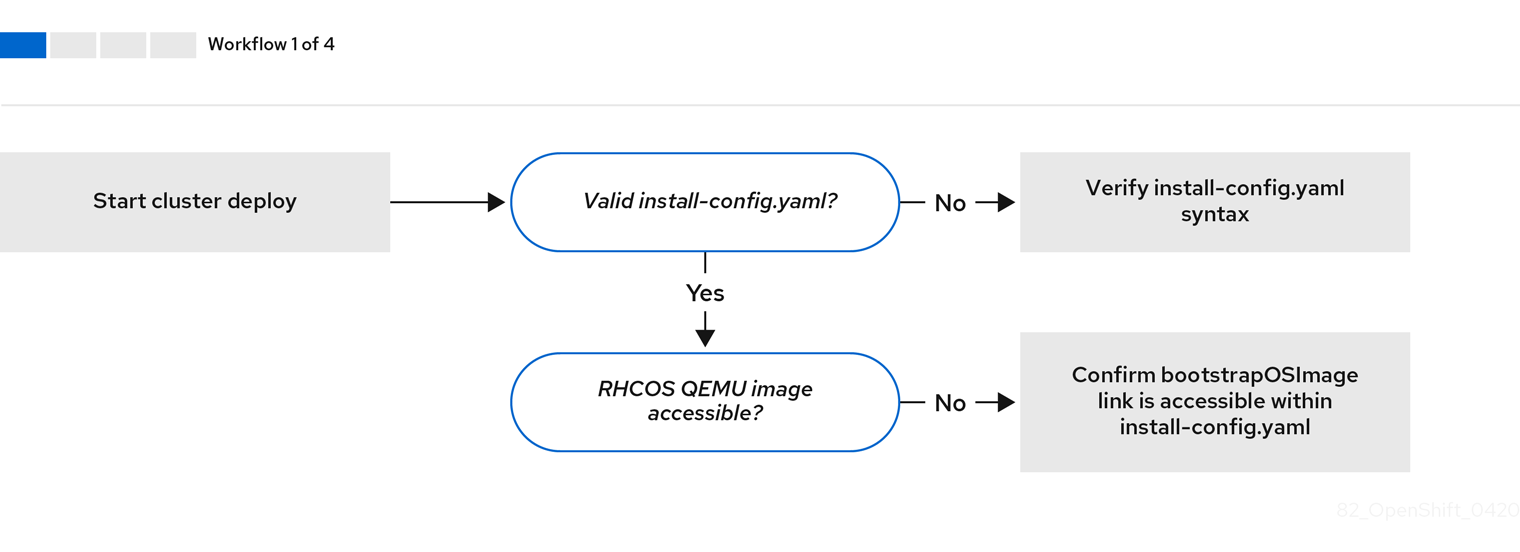
Workflow 1 of 4 illustrates a troubleshooting workflow when the install-config.yaml file has errors or the Red Hat Enterprise Linux CoreOS (RHCOS) images are inaccessible. Troubleshooting suggestions can be found at Troubleshooting install-config.yaml.
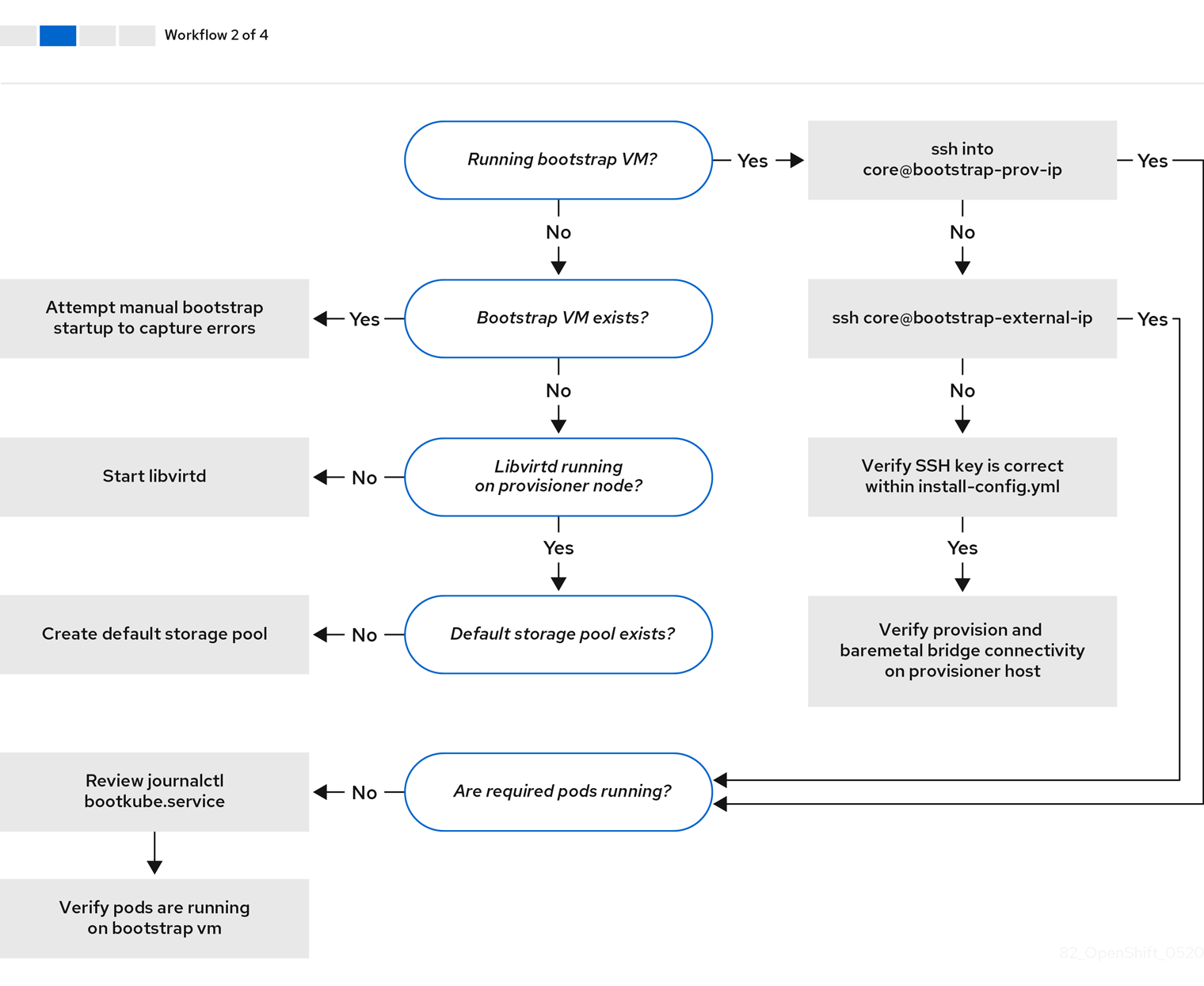
Workflow 2 of 4 illustrates a troubleshooting workflow for bootstrap VM issues, bootstrap VMs that cannot boot up the cluster nodes, and inspecting logs. When installing an OpenShift Container Platform cluster without the provisioning network, this workflow does not apply.
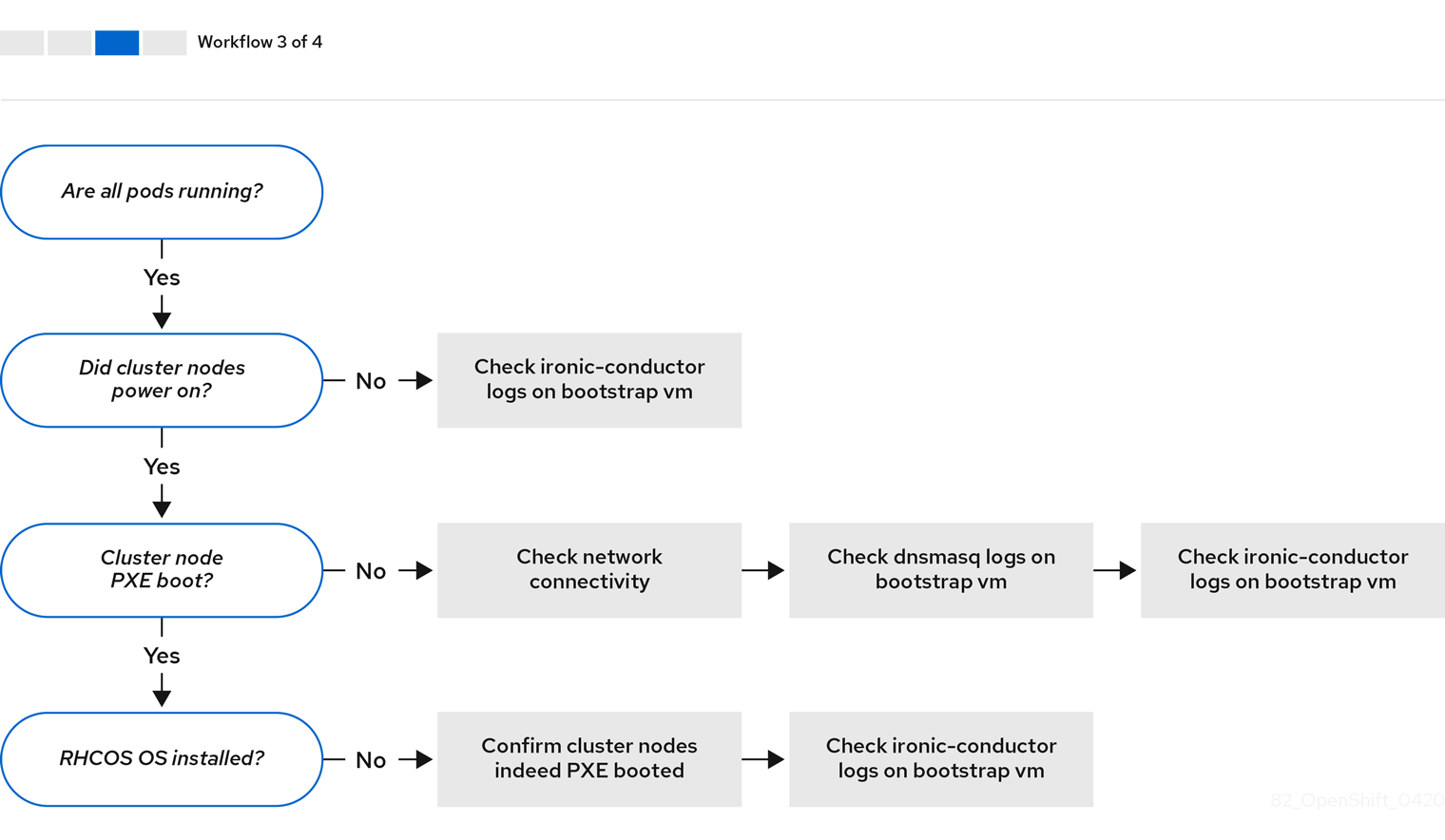
Workflow 3 of 4 illustrates a troubleshooting workflow for cluster nodes that will not PXE boot. If installing using RedFish Virtual Media, each node must meet minimum firmware requirements for the installer to deploy the node. See Firmware requirements for installing with virtual media in the Prerequisites section for additional details.
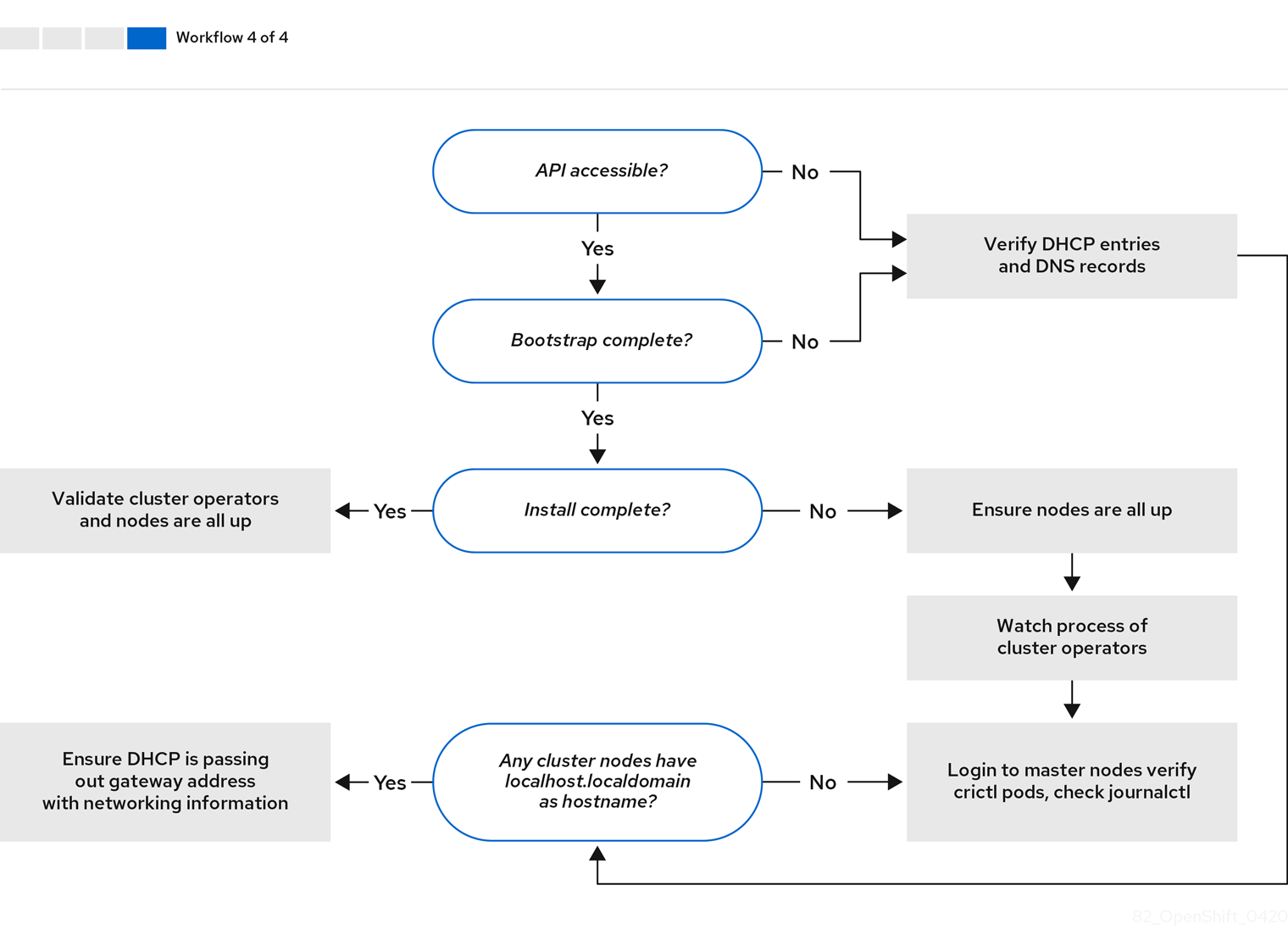
Workflow 4 of 4 illustrates a troubleshooting workflow from a non-accessible API to a validated installation.
10.6.2. Troubleshooting install-config.yaml
The install-config.yaml configuration file represents all of the nodes that are part of the OpenShift Container Platform cluster. The file contains the necessary options consisting of but not limited to apiVersion, baseDomain, imageContentSources and virtual IP addresses. If errors occur early in the deployment of the OpenShift Container Platform cluster, the errors are likely in the install-config.yaml configuration file.
Procedure
- Use the guidelines in YAML-tips.
- Verify the YAML syntax is correct using syntax-check.
Verify the Red Hat Enterprise Linux CoreOS (RHCOS) QEMU images are properly defined and accessible via the URL provided in the
install-config.yaml. For example:curl -s -o /dev/null -I -w "%{http_code}\n" http://webserver.example.com:8080/rhcos-44.81.202004250133-0-qemu.x86_64.qcow2.gz?sha256=7d884b46ee54fe87bbc3893bf2aa99af3b2d31f2e19ab5529c60636fbd0f1ce7$ curl -s -o /dev/null -I -w "%{http_code}\n" http://webserver.example.com:8080/rhcos-44.81.202004250133-0-qemu.x86_64.qcow2.gz?sha256=7d884b46ee54fe87bbc3893bf2aa99af3b2d31f2e19ab5529c60636fbd0f1ce7Copy to Clipboard Copied! Toggle word wrap Toggle overflow If the output is
200, there is a valid response from the webserver storing the bootstrap VM image.
10.6.3. Bootstrap VM issues
The OpenShift Container Platform installation program spawns a bootstrap node virtual machine, which handles provisioning the OpenShift Container Platform cluster nodes.
Procedure
About 10 to 15 minutes after triggering the installation program, check to ensure the bootstrap VM is operational using the
virshcommand:sudo virsh list
$ sudo virsh listCopy to Clipboard Copied! Toggle word wrap Toggle overflow Id Name State -------------------------------------------- 12 openshift-xf6fq-bootstrap running
Id Name State -------------------------------------------- 12 openshift-xf6fq-bootstrap runningCopy to Clipboard Copied! Toggle word wrap Toggle overflow NoteThe name of the bootstrap VM is always the cluster name followed by a random set of characters and ending in the word "bootstrap."
If the bootstrap VM is not running after 10-15 minutes, troubleshoot why it is not running. Possible issues include:
Verify
libvirtdis running on the system:systemctl status libvirtd
$ systemctl status libvirtdCopy to Clipboard Copied! Toggle word wrap Toggle overflow Copy to Clipboard Copied! Toggle word wrap Toggle overflow If the bootstrap VM is operational, log in to it.
Use the
virsh consolecommand to find the IP address of the bootstrap VM:sudo virsh console example.com
$ sudo virsh console example.comCopy to Clipboard Copied! Toggle word wrap Toggle overflow Copy to Clipboard Copied! Toggle word wrap Toggle overflow ImportantWhen deploying an OpenShift Container Platform cluster without the
provisioningnetwork, you must use a public IP address and not a private IP address like172.22.0.2.After you obtain the IP address, log in to the bootstrap VM using the
sshcommand:NoteIn the console output of the previous step, you can use the IPv6 IP address provided by
ens3or the IPv4 IP provided byens4.ssh core@172.22.0.2
$ ssh core@172.22.0.2Copy to Clipboard Copied! Toggle word wrap Toggle overflow
If you are not successful logging in to the bootstrap VM, you have likely encountered one of the following scenarios:
-
You cannot reach the
172.22.0.0/24network. Verify the network connectivity between the provisioner and theprovisioningnetwork bridge. This issue might occur if you are using aprovisioningnetwork. ` -
You cannot reach the bootstrap VM through the public network. When attempting to SSH via
baremetalnetwork, verify connectivity on theprovisionerhost specifically around thebaremetalnetwork bridge. -
You encountered
Permission denied (publickey,password,keyboard-interactive). When attempting to access the bootstrap VM, aPermission deniederror might occur. Verify that the SSH key for the user attempting to log into the VM is set within theinstall-config.yamlfile.
10.6.3.1. Bootstrap VM cannot boot up the cluster nodes
During the deployment, it is possible for the bootstrap VM to fail to boot the cluster nodes, which prevents the VM from provisioning the nodes with the RHCOS image. This scenario can arise due to:
-
A problem with the
install-config.yamlfile. - Issues with out-of-band network access when using the baremetal network.
To verify the issue, there are three containers related to ironic:
-
ironic-api -
ironic-conductor -
ironic-inspector
Procedure
Log in to the bootstrap VM:
ssh core@172.22.0.2
$ ssh core@172.22.0.2Copy to Clipboard Copied! Toggle word wrap Toggle overflow To check the container logs, execute the following:
sudo podman logs -f <container-name>
[core@localhost ~]$ sudo podman logs -f <container-name>Copy to Clipboard Copied! Toggle word wrap Toggle overflow Replace
<container-name>with one ofironic-api,ironic-conductor, orironic-inspector. If you encounter an issue where the control plane nodes are not booting up via PXE, check theironic-conductorpod. Theironic-conductorpod contains the most detail about the attempt to boot the cluster nodes, because it attempts to log in to the node over IPMI.
Potential reason
The cluster nodes might be in the ON state when deployment started.
Solution
Power off the OpenShift Container Platform cluster nodes before you begin the installation over IPMI:
ipmitool -I lanplus -U root -P <password> -H <out-of-band-ip> power off
$ ipmitool -I lanplus -U root -P <password> -H <out-of-band-ip> power off10.6.3.2. Inspecting logs
When experiencing issues downloading or accessing the RHCOS images, first verify that the URL is correct in the install-config.yaml configuration file.
Example of internal webserver hosting RHCOS images
bootstrapOSImage: http://<ip:port>/rhcos-43.81.202001142154.0-qemu.x86_64.qcow2.gz?sha256=9d999f55ff1d44f7ed7c106508e5deecd04dc3c06095d34d36bf1cd127837e0c clusterOSImage: http://<ip:port>/rhcos-43.81.202001142154.0-openstack.x86_64.qcow2.gz?sha256=a1bda656fa0892f7b936fdc6b6a6086bddaed5dafacedcd7a1e811abb78fe3b0
bootstrapOSImage: http://<ip:port>/rhcos-43.81.202001142154.0-qemu.x86_64.qcow2.gz?sha256=9d999f55ff1d44f7ed7c106508e5deecd04dc3c06095d34d36bf1cd127837e0c
clusterOSImage: http://<ip:port>/rhcos-43.81.202001142154.0-openstack.x86_64.qcow2.gz?sha256=a1bda656fa0892f7b936fdc6b6a6086bddaed5dafacedcd7a1e811abb78fe3b0
The ipa-downloader and coreos-downloader containers download resources from a webserver or the external quay.io registry, whichever the install-config.yaml configuration file specifies. Verify the following two containers are up and running and inspect their logs as needed:
-
ipa-downloader -
coreos-downloader
Procedure
Log in to the bootstrap VM:
ssh core@172.22.0.2
$ ssh core@172.22.0.2Copy to Clipboard Copied! Toggle word wrap Toggle overflow Check the status of the
ipa-downloaderandcoreos-downloadercontainers within the bootstrap VM:sudo podman logs -f ipa-downloader
[core@localhost ~]$ sudo podman logs -f ipa-downloaderCopy to Clipboard Copied! Toggle word wrap Toggle overflow sudo podman logs -f coreos-downloader
[core@localhost ~]$ sudo podman logs -f coreos-downloaderCopy to Clipboard Copied! Toggle word wrap Toggle overflow If the bootstrap VM cannot access the URL to the images, use the
curlcommand to verify that the VM can access the images.To inspect the
bootkubelogs that indicate if all the containers launched during the deployment phase, execute the following:journalctl -xe
[core@localhost ~]$ journalctl -xeCopy to Clipboard Copied! Toggle word wrap Toggle overflow journalctl -b -f -u bootkube.service
[core@localhost ~]$ journalctl -b -f -u bootkube.serviceCopy to Clipboard Copied! Toggle word wrap Toggle overflow Verify all the pods, including
dnsmasq,mariadb,httpd, andironic, are running:sudo podman ps
[core@localhost ~]$ sudo podman psCopy to Clipboard Copied! Toggle word wrap Toggle overflow If there are issues with the pods, check the logs of the containers with issues. To check the log of the
ironic-api, execute the following:sudo podman logs <ironic-api>
[core@localhost ~]$ sudo podman logs <ironic-api>Copy to Clipboard Copied! Toggle word wrap Toggle overflow
10.6.4. Cluster nodes will not PXE boot
When OpenShift Container Platform cluster nodes will not PXE boot, execute the following checks on the cluster nodes that will not PXE boot. This procedure does not apply when installing an OpenShift Container Platform cluster without the provisioning network.
Procedure
-
Check the network connectivity to the
provisioningnetwork. -
Ensure PXE is enabled on the NIC for the
provisioningnetwork and PXE is disabled for all other NICs. Verify that the
install-config.yamlconfiguration file has the proper hardware profile and boot MAC address for the NIC connected to theprovisioningnetwork. For example:control plane node settings
bootMACAddress: 24:6E:96:1B:96:90 # MAC of bootable provisioning NIC hardwareProfile: default #control plane node settings
bootMACAddress: 24:6E:96:1B:96:90 # MAC of bootable provisioning NIC hardwareProfile: default #control plane node settingsCopy to Clipboard Copied! Toggle word wrap Toggle overflow Worker node settings
bootMACAddress: 24:6E:96:1B:96:90 # MAC of bootable provisioning NIC hardwareProfile: unknown #worker node settings
bootMACAddress: 24:6E:96:1B:96:90 # MAC of bootable provisioning NIC hardwareProfile: unknown #worker node settingsCopy to Clipboard Copied! Toggle word wrap Toggle overflow
10.6.5. The API is not accessible
When the cluster is running and clients cannot access the API, domain name resolution issues might impede access to the API.
Procedure
Hostname Resolution: Check the cluster nodes to ensure they have a fully qualified domain name, and not just
localhost.localdomain. For example:hostname
$ hostnameCopy to Clipboard Copied! Toggle word wrap Toggle overflow If a hostname is not set, set the correct hostname. For example:
hostnamectl set-hostname <hostname>
$ hostnamectl set-hostname <hostname>Copy to Clipboard Copied! Toggle word wrap Toggle overflow Incorrect Name Resolution: Ensure that each node has the correct name resolution in the DNS server using
digandnslookup. For example:dig api.<cluster-name>.example.com
$ dig api.<cluster-name>.example.comCopy to Clipboard Copied! Toggle word wrap Toggle overflow Copy to Clipboard Copied! Toggle word wrap Toggle overflow The output in the foregoing example indicates that the appropriate IP address for the
api.<cluster-name>.example.comVIP is10.19.13.86. This IP address should reside on thebaremetalnetwork.
10.6.6. Cleaning up previous installations
In the event of a previous failed deployment, remove the artifacts from the failed attempt before attempting to deploy OpenShift Container Platform again.
Procedure
Power off all bare metal nodes prior to installing the OpenShift Container Platform cluster:
ipmitool -I lanplus -U <user> -P <password> -H <management-server-ip> power off
$ ipmitool -I lanplus -U <user> -P <password> -H <management-server-ip> power offCopy to Clipboard Copied! Toggle word wrap Toggle overflow Remove all old bootstrap resources if any are left over from a previous deployment attempt:
Copy to Clipboard Copied! Toggle word wrap Toggle overflow Remove the following from the
clusterconfigsdirectory to prevent Terraform from failing:rm -rf ~/clusterconfigs/auth ~/clusterconfigs/terraform* ~/clusterconfigs/tls ~/clusterconfigs/metadata.json
$ rm -rf ~/clusterconfigs/auth ~/clusterconfigs/terraform* ~/clusterconfigs/tls ~/clusterconfigs/metadata.jsonCopy to Clipboard Copied! Toggle word wrap Toggle overflow
10.6.7. Issues with creating the registry
When creating a disconnected registry, you might encounter a "User Not Authorized" error when attempting to mirror the registry. This error might occur if you fail to append the new authentication to the existing pull-secret.txt file.
Procedure
Check to ensure authentication is successful:
/usr/local/bin/oc adm release mirror \ -a pull-secret-update.json
$ /usr/local/bin/oc adm release mirror \ -a pull-secret-update.json --from=$UPSTREAM_REPO \ --to-release-image=$LOCAL_REG/$LOCAL_REPO:${VERSION} \ --to=$LOCAL_REG/$LOCAL_REPOCopy to Clipboard Copied! Toggle word wrap Toggle overflow NoteExample output of the variables used to mirror the install images:
UPSTREAM_REPO=${RELEASE_IMAGE} LOCAL_REG=<registry_FQDN>:<registry_port> LOCAL_REPO='ocp4/openshift4'UPSTREAM_REPO=${RELEASE_IMAGE} LOCAL_REG=<registry_FQDN>:<registry_port> LOCAL_REPO='ocp4/openshift4'Copy to Clipboard Copied! Toggle word wrap Toggle overflow The values of
RELEASE_IMAGEandVERSIONwere set during the Retrieving OpenShift Installer step of the Setting up the environment for an OpenShift installation section.After mirroring the registry, confirm that you can access it in your disconnected environment:
curl -k -u <user>:<password> https://registry.example.com:<registry-port>/v2/_catalog
$ curl -k -u <user>:<password> https://registry.example.com:<registry-port>/v2/_catalog {"repositories":["<Repo-Name>"]}Copy to Clipboard Copied! Toggle word wrap Toggle overflow
10.6.8. Miscellaneous issues
10.6.8.1. Addressing the runtime network not ready error
After the deployment of a cluster you might receive the following error:
`runtime network not ready: NetworkReady=false reason:NetworkPluginNotReady message:Network plugin returns error: Missing CNI default network`
`runtime network not ready: NetworkReady=false reason:NetworkPluginNotReady message:Network plugin returns error: Missing CNI default network`
The Cluster Network Operator is responsible for deploying the networking components in response to a special object created by the installer. It runs very early in the installation process, after the control plane (master) nodes have come up, but before the bootstrap control plane has been torn down. It can be indicative of more subtle installer issues, such as long delays in bringing up control plane (master) nodes or issues with apiserver communication.
Procedure
Inspect the pods in the
openshift-network-operatornamespace:oc get all -n openshift-network-operator
$ oc get all -n openshift-network-operatorCopy to Clipboard Copied! Toggle word wrap Toggle overflow NAME READY STATUS RESTARTS AGE pod/network-operator-69dfd7b577-bg89v 0/1 ContainerCreating 0 149m
NAME READY STATUS RESTARTS AGE pod/network-operator-69dfd7b577-bg89v 0/1 ContainerCreating 0 149mCopy to Clipboard Copied! Toggle word wrap Toggle overflow On the
provisionernode, determine that the network configuration exists:kubectl get network.config.openshift.io cluster -oyaml
$ kubectl get network.config.openshift.io cluster -oyamlCopy to Clipboard Copied! Toggle word wrap Toggle overflow Copy to Clipboard Copied! Toggle word wrap Toggle overflow If it does not exist, the installer did not create it. To determine why the installer did not create it, execute the following:
openshift-install create manifests
$ openshift-install create manifestsCopy to Clipboard Copied! Toggle word wrap Toggle overflow Check that the
network-operatoris running:kubectl -n openshift-network-operator get pods
$ kubectl -n openshift-network-operator get podsCopy to Clipboard Copied! Toggle word wrap Toggle overflow Retrieve the logs:
kubectl -n openshift-network-operator logs -l "name=network-operator"
$ kubectl -n openshift-network-operator logs -l "name=network-operator"Copy to Clipboard Copied! Toggle word wrap Toggle overflow On high availability clusters with three or more control plane (master) nodes, the Operator will perform leader election and all other Operators will sleep. For additional details, see Troubleshooting.
10.6.8.2. Cluster nodes not getting the correct IPv6 address over DHCP
If the cluster nodes are not getting the correct IPv6 address over DHCP, check the following:
- Ensure the reserved IPv6 addresses reside outside the DHCP range.
In the IP address reservation on the DHCP server, ensure the reservation specifies the correct DHCP Unique Identifier (DUID). For example:
This is a dnsmasq dhcp reservation, 'id:00:03:00:01' is the client id and '18:db:f2:8c:d5:9f' is the MAC Address for the NIC
# This is a dnsmasq dhcp reservation, 'id:00:03:00:01' is the client id and '18:db:f2:8c:d5:9f' is the MAC Address for the NIC id:00:03:00:01:18:db:f2:8c:d5:9f,openshift-master-1,[2620:52:0:1302::6]Copy to Clipboard Copied! Toggle word wrap Toggle overflow - Ensure that route announcements are working.
- Ensure that the DHCP server is listening on the required interfaces serving the IP address ranges.
10.6.8.3. Cluster nodes not getting the correct hostname over DHCP
During IPv6 deployment, cluster nodes must get their hostname over DHCP. Sometimes the NetworkManager does not assign the hostname immediately. A control plane (master) node might report an error such as:
Failed Units: 2 NetworkManager-wait-online.service nodeip-configuration.service
Failed Units: 2
NetworkManager-wait-online.service
nodeip-configuration.service
This error indicates that the cluster node likely booted without first receiving a hostname from the DHCP server, which causes kubelet to boot with a localhost.localdomain hostname. To address the error, force the node to renew the hostname.
Procedure
Retrieve the
hostname:hostname
[core@master-X ~]$ hostnameCopy to Clipboard Copied! Toggle word wrap Toggle overflow If the hostname is
localhost, proceed with the following steps.NoteWhere
Xis the control plane node number.Force the cluster node to renew the DHCP lease:
sudo nmcli con up "<bare-metal-nic>"
[core@master-X ~]$ sudo nmcli con up "<bare-metal-nic>"Copy to Clipboard Copied! Toggle word wrap Toggle overflow Replace
<bare-metal-nic>with the wired connection corresponding to thebaremetalnetwork.Check
hostnameagain:hostname
[core@master-X ~]$ hostnameCopy to Clipboard Copied! Toggle word wrap Toggle overflow If the hostname is still
localhost.localdomain, restartNetworkManager:sudo systemctl restart NetworkManager
[core@master-X ~]$ sudo systemctl restart NetworkManagerCopy to Clipboard Copied! Toggle word wrap Toggle overflow -
If the hostname is still
localhost.localdomain, wait a few minutes and check again. If the hostname remainslocalhost.localdomain, repeat the previous steps. Restart the
nodeip-configurationservice:sudo systemctl restart nodeip-configuration.service
[core@master-X ~]$ sudo systemctl restart nodeip-configuration.serviceCopy to Clipboard Copied! Toggle word wrap Toggle overflow This service will reconfigure the
kubeletservice with the correct hostname references.Reload the unit files definition since the kubelet changed in the previous step:
sudo systemctl daemon-reload
[core@master-X ~]$ sudo systemctl daemon-reloadCopy to Clipboard Copied! Toggle word wrap Toggle overflow Restart the
kubeletservice:sudo systemctl restart kubelet.service
[core@master-X ~]$ sudo systemctl restart kubelet.serviceCopy to Clipboard Copied! Toggle word wrap Toggle overflow Ensure
kubeletbooted with the correct hostname:sudo journalctl -fu kubelet.service
[core@master-X ~]$ sudo journalctl -fu kubelet.serviceCopy to Clipboard Copied! Toggle word wrap Toggle overflow
If the cluster node is not getting the correct hostname over DHCP after the cluster is up and running, such as during a reboot, the cluster will have a pending csr. Do not approve a csr, or other issues might arise.
Addressing a csr
Get CSRs on the cluster:
oc get csr
$ oc get csrCopy to Clipboard Copied! Toggle word wrap Toggle overflow Verify if a pending
csrcontainsSubject Name: localhost.localdomain:oc get csr <pending_csr> -o jsonpath='{.spec.request}' | base64 --decode | openssl req -noout -text$ oc get csr <pending_csr> -o jsonpath='{.spec.request}' | base64 --decode | openssl req -noout -textCopy to Clipboard Copied! Toggle word wrap Toggle overflow Remove any
csrthat containsSubject Name: localhost.localdomain:oc delete csr <wrong_csr>
$ oc delete csr <wrong_csr>Copy to Clipboard Copied! Toggle word wrap Toggle overflow
10.6.8.4. Routes do not reach endpoints
During the installation process, it is possible to encounter a Virtual Router Redundancy Protocol (VRRP) conflict. This conflict might occur if a previously used OpenShift Container Platform node that was once part of a cluster deployment using a specific cluster name is still running but not part of the current OpenShift Container Platform cluster deployment using that same cluster name. For example, a cluster was deployed using the cluster name openshift, deploying three control plane (master) nodes and three worker nodes. Later, a separate install uses the same cluster name openshift, but this redeployment only installed three control plane (master) nodes, leaving the three worker nodes from a previous deployment in an ON state. This might cause a Virtual Router Identifier (VRID) conflict and a VRRP conflict.
Get the route:
oc get route oauth-openshift
$ oc get route oauth-openshiftCopy to Clipboard Copied! Toggle word wrap Toggle overflow Check the service endpoint:
oc get svc oauth-openshift
$ oc get svc oauth-openshiftCopy to Clipboard Copied! Toggle word wrap Toggle overflow NAME TYPE CLUSTER-IP EXTERNAL-IP PORT(S) AGE oauth-openshift ClusterIP 172.30.19.162 <none> 443/TCP 59m
NAME TYPE CLUSTER-IP EXTERNAL-IP PORT(S) AGE oauth-openshift ClusterIP 172.30.19.162 <none> 443/TCP 59mCopy to Clipboard Copied! Toggle word wrap Toggle overflow Attempt to reach the service from a control plane (master) node:
curl -k https://172.30.19.162
[core@master0 ~]$ curl -k https://172.30.19.162Copy to Clipboard Copied! Toggle word wrap Toggle overflow Copy to Clipboard Copied! Toggle word wrap Toggle overflow Identify the
authentication-operatorerrors from theprovisionernode:oc logs deployment/authentication-operator -n openshift-authentication-operator
$ oc logs deployment/authentication-operator -n openshift-authentication-operatorCopy to Clipboard Copied! Toggle word wrap Toggle overflow Event(v1.ObjectReference{Kind:"Deployment", Namespace:"openshift-authentication-operator", Name:"authentication-operator", UID:"225c5bd5-b368-439b-9155-5fd3c0459d98", APIVersion:"apps/v1", ResourceVersion:"", FieldPath:""}): type: 'Normal' reason: 'OperatorStatusChanged' Status for clusteroperator/authentication changed: Degraded message changed from "IngressStateEndpointsDegraded: All 2 endpoints for oauth-server are reporting"Event(v1.ObjectReference{Kind:"Deployment", Namespace:"openshift-authentication-operator", Name:"authentication-operator", UID:"225c5bd5-b368-439b-9155-5fd3c0459d98", APIVersion:"apps/v1", ResourceVersion:"", FieldPath:""}): type: 'Normal' reason: 'OperatorStatusChanged' Status for clusteroperator/authentication changed: Degraded message changed from "IngressStateEndpointsDegraded: All 2 endpoints for oauth-server are reporting"Copy to Clipboard Copied! Toggle word wrap Toggle overflow
Solution
- Ensure that the cluster name for every deployment is unique, ensuring no conflict.
- Turn off all the rogue nodes which are not part of the cluster deployment that are using the same cluster name. Otherwise, the authentication pod of the OpenShift Container Platform cluster might never start successfully.
10.6.8.5. Failed Ignition during Firstboot
During the Firstboot, the Ignition configuration may fail.
Procedure
Connect to the node where the Ignition configuration failed:
Failed Units: 1 machine-config-daemon-firstboot.service
Failed Units: 1 machine-config-daemon-firstboot.serviceCopy to Clipboard Copied! Toggle word wrap Toggle overflow Restart the
machine-config-daemon-firstbootservice:sudo systemctl restart machine-config-daemon-firstboot.service
[core@worker-X ~]$ sudo systemctl restart machine-config-daemon-firstboot.serviceCopy to Clipboard Copied! Toggle word wrap Toggle overflow
10.6.8.6. NTP out of sync
The deployment of OpenShift Container Platform clusters depends on NTP synchronized clocks among the cluster nodes. Without synchronized clocks, the deployment may fail due to clock drift if the time difference is greater than two seconds.
Procedure
Check for differences in the
AGEof the cluster nodes. For example:oc get nodes
$ oc get nodesCopy to Clipboard Copied! Toggle word wrap Toggle overflow NAME STATUS ROLES AGE VERSION master-0.cloud.example.com Ready master 145m v1.22.1 master-1.cloud.example.com Ready master 135m v1.22.1 master-2.cloud.example.com Ready master 145m v1.22.1 worker-2.cloud.example.com Ready worker 100m v1.22.1
NAME STATUS ROLES AGE VERSION master-0.cloud.example.com Ready master 145m v1.22.1 master-1.cloud.example.com Ready master 135m v1.22.1 master-2.cloud.example.com Ready master 145m v1.22.1 worker-2.cloud.example.com Ready worker 100m v1.22.1Copy to Clipboard Copied! Toggle word wrap Toggle overflow Check for inconsistent timing delays due to clock drift. For example:
oc get bmh -n openshift-machine-api
$ oc get bmh -n openshift-machine-apiCopy to Clipboard Copied! Toggle word wrap Toggle overflow master-1 error registering master-1 ipmi://<out-of-band-ip>
master-1 error registering master-1 ipmi://<out-of-band-ip>Copy to Clipboard Copied! Toggle word wrap Toggle overflow sudo timedatectl
$ sudo timedatectlCopy to Clipboard Copied! Toggle word wrap Toggle overflow Copy to Clipboard Copied! Toggle word wrap Toggle overflow
Addressing clock drift in existing clusters
Create a Butane config file including the contents of the
chrony.conffile to be delivered to the nodes. In the following example, create99-master-chrony.buto add the file to the control plane nodes. You can modify the file for worker nodes or repeat this procedure for the worker role.NoteSee "Creating machine configs with Butane" for information about Butane.
Copy to Clipboard Copied! Toggle word wrap Toggle overflow - 1
- Replace
<NTP-server>with the IP address of the NTP server.
Use Butane to generate a
MachineConfigobject file,99-master-chrony.yaml, containing the configuration to be delivered to the nodes:butane 99-master-chrony.bu -o 99-master-chrony.yaml
$ butane 99-master-chrony.bu -o 99-master-chrony.yamlCopy to Clipboard Copied! Toggle word wrap Toggle overflow Apply the
MachineConfigobject file:oc apply -f 99-master-chrony.yaml
$ oc apply -f 99-master-chrony.yamlCopy to Clipboard Copied! Toggle word wrap Toggle overflow Ensure the
System clock synchronizedvalue is yes:sudo timedatectl
$ sudo timedatectlCopy to Clipboard Copied! Toggle word wrap Toggle overflow Copy to Clipboard Copied! Toggle word wrap Toggle overflow To setup clock synchronization prior to deployment, generate the manifest files and add this file to the
openshiftdirectory. For example:cp chrony-masters.yaml ~/clusterconfigs/openshift/99_masters-chrony-configuration.yaml
$ cp chrony-masters.yaml ~/clusterconfigs/openshift/99_masters-chrony-configuration.yamlCopy to Clipboard Copied! Toggle word wrap Toggle overflow Then, continue to create the cluster.
10.6.9. Reviewing the installation
After installation, ensure the installer deployed the nodes and pods successfully.
Procedure
When the OpenShift Container Platform cluster nodes are installed appropriately, the following
Readystate is seen within theSTATUScolumn:oc get nodes
$ oc get nodesCopy to Clipboard Copied! Toggle word wrap Toggle overflow NAME STATUS ROLES AGE VERSION master-0.example.com Ready master,worker 4h v1.22.1 master-1.example.com Ready master,worker 4h v1.22.1 master-2.example.com Ready master,worker 4h v1.22.1
NAME STATUS ROLES AGE VERSION master-0.example.com Ready master,worker 4h v1.22.1 master-1.example.com Ready master,worker 4h v1.22.1 master-2.example.com Ready master,worker 4h v1.22.1Copy to Clipboard Copied! Toggle word wrap Toggle overflow Confirm the installer deployed all pods successfully. The following command removes any pods that are still running or have completed as part of the output.
oc get pods --all-namespaces | grep -iv running | grep -iv complete
$ oc get pods --all-namespaces | grep -iv running | grep -iv completeCopy to Clipboard Copied! Toggle word wrap Toggle overflow
Chapter 11. Deploying installer-provisioned clusters on IBM Cloud
11.1. Prerequisites
You can use installer-provisioned installation to install OpenShift Container Platform on IBM Cloud® nodes. This document describes the prerequisites and procedures when installing OpenShift Container Platform on IBM Cloud nodes.
Red Hat supports IPMI and PXE on the provisioning network only. Red Hat has not tested Red Fish, virtual media, or other complementary technologies such as Secure Boot on IBM Cloud deployments. The provisioning network is required.
Installer-provisioned installation of OpenShift Container Platform requires:
- One provisioner node with Red Hat Enterprise Linux CoreOS (RHCOS) 8.x installed
- Three control plane nodes
- One routable network
- One network for provisioning nodes
Before starting an installer-provisioned installation of OpenShift Container Platform on IBM Cloud, address the following prerequisites and requirements.
11.1.1. Setting up IBM Cloud infrastructure
To deploy an OpenShift Container Platform cluster on IBM Cloud®, you must first provision the IBM Cloud nodes.
Red Hat supports IPMI and PXE on the provisioning network only. Red Hat has not tested Red Fish, virtual media, or other complementary technologies such as Secure Boot on IBM Cloud deployments. The provisioning network is required.
You can customize IBM Cloud nodes using the IBM Cloud API. When creating IBM Cloud nodes, you must consider the following requirements.
Use one data center per cluster
All nodes in the OpenShift Container Platform cluster must run in the same IBM Cloud data center.
Create public and private VLANs
Create all nodes with a single public VLAN and a single private VLAN.
Ensure subnets have sufficient IP addresses
IBM Cloud public VLAN subnets use a /28 prefix by default, which provides 16 IP addresses. That is sufficient for a cluster consisting of three control plane nodes, four worker nodes, and two IP addresses for the API VIP and Ingress VIP on the baremetal network. For larger clusters, you might need a smaller prefix.
IBM Cloud private VLAN subnets use a /26 prefix by default, which provides 64 IP addresses. IBM Cloud will use private network IP addresses to access the Baseboard Management Controller (BMC) of each node. OpenShift Container Platform creates an additional subnet for the provisioning network. Network traffic for the provisioning network subnet routes through the private VLAN. For larger clusters, you might need a smaller prefix.
| IP addresses | Prefix |
|---|---|
| 32 |
|
| 64 |
|
| 128 |
|
| 256 |
|
Configuring NICs
OpenShift Container Platform deploys with two networks:
-
provisioning: Theprovisioningnetwork is a non-routable network used for provisioning the underlying operating system on each node that is a part of the OpenShift Container Platform cluster. -
baremetal: Thebaremetalnetwork is a routable network. You can use any NIC order to interface with thebaremetalnetwork, provided it is not the NIC specified in theprovisioningNetworkInterfaceconfiguration setting or the NIC associated to a node’sbootMACAddressconfiguration setting for theprovisioningnetwork.
While the cluster nodes can contain more than two NICs, the installation process only focuses on the first two NICs. For example:
| NIC | Network | VLAN |
|---|---|---|
| NIC1 |
| <provisioning_vlan> |
| NIC2 |
| <baremetal_vlan> |
In the previous example, NIC1 on all control plane and worker nodes connects to the non-routable network (provisioning) that is only used for the installation of the OpenShift Container Platform cluster. NIC2 on all control plane and worker nodes connects to the routable baremetal network.
| PXE | Boot order |
|---|---|
|
NIC1 PXE-enabled | 1 |
|
NIC2 | 2 |
Ensure PXE is enabled on the NIC used for the provisioning network and is disabled on all other NICs.
Configuring canonical names
Clients access the OpenShift Container Platform cluster nodes over the baremetal network. Configure IBM Cloud subdomains or subzones where the canonical name extension is the cluster name.
<cluster_name>.<domain>
<cluster_name>.<domain>For example:
test-cluster.example.com
test-cluster.example.comCreating DNS entries
You must create DNS A record entries resolving to unused IP addresses on the public subnet for the following:
| Usage | Host Name | IP |
|---|---|---|
| API | api.<cluster_name>.<domain> | <ip> |
| Ingress LB (apps) | *.apps.<cluster_name>.<domain> | <ip> |
Control plane and worker nodes already have DNS entries after provisioning.
The following table provides an example of fully qualified domain names. The API and Nameserver addresses begin with canonical name extensions. The host names of the control plane and worker nodes are examples, so you can use any host naming convention you prefer.
| Usage | Host Name | IP |
|---|---|---|
| API | api.<cluster_name>.<domain> | <ip> |
| Ingress LB (apps) | *.apps.<cluster_name>.<domain> | <ip> |
| Provisioner node | provisioner.<cluster_name>.<domain> | <ip> |
| Master-0 | openshift-master-0.<cluster_name>.<domain> | <ip> |
| Master-1 | openshift-master-1.<cluster_name>.<domain> | <ip> |
| Master-2 | openshift-master-2.<cluster_name>.<domain> | <ip> |
| Worker-0 | openshift-worker-0.<cluster_name>.<domain> | <ip> |
| Worker-1 | openshift-worker-1.<cluster_name>.<domain> | <ip> |
| Worker-n | openshift-worker-n.<cluster_name>.<domain> | <ip> |
OpenShift Container Platform includes functionality that uses cluster membership information to generate A records. This resolves the node names to their IP addresses. After the nodes are registered with the API, the cluster can disperse node information without using CoreDNS-mDNS. This eliminates the network traffic associated with multicast DNS.
After provisioning the IBM Cloud nodes, you must create a DNS entry for the api.<cluster_name>.<domain> domain name on the external DNS because removing CoreDNS causes the local entry to disappear. Failure to create a DNS record for the api.<cluster_name>.<domain> domain name in the external DNS server prevents worker nodes from joining the cluster.
Network Time Protocol (NTP)
Each OpenShift Container Platform node in the cluster must have access to an NTP server. OpenShift Container Platform nodes use NTP to synchronize their clocks. For example, cluster nodes use SSL certificates that require validation, which might fail if the date and time between the nodes are not in sync.
Define a consistent clock date and time format in each cluster node’s BIOS settings, or installation might fail.
Configure a DHCP server
IBM Cloud does not run DHCP on the public or private VLANs. After provisioning IBM Cloud nodes, you must set up a DHCP server for the public VLAN, which corresponds to OpenShift Container Platform’s baremetal network.
The IP addresses allocated to each node do not need to match the IP addresses allocated by the IBM Cloud provisioning system.
See the "Configuring the public subnet" section for details.
Ensure BMC access privileges
The "Remote management" page for each node on the dashboard contains the node’s intelligent platform management interface (IPMI) credentials. The default IPMI privileges prevent the user from making certain boot target changes. You must change the privilege level to OPERATOR so that Ironic can make those changes.
In the install-config.yaml file, add the privilegelevel parameter to the URLs used to configure each BMC. See the "Configuring the install-config.yaml file" section for additional details. For example:
ipmi://<IP>:<port>?privilegelevel=OPERATOR
ipmi://<IP>:<port>?privilegelevel=OPERATOR
Alternatively, contact IBM Cloud support and request that they increase the IPMI privileges to ADMINISTRATOR for each node.
Create bare metal servers
Create bare metal servers in the IBM Cloud dashboard by navigating to Create resource → Bare Metal Server.
Alternatively, you can create bare metal servers with the ibmcloud CLI utility. For example:
See Installing the stand-alone IBM Cloud CLI for details on installing the IBM Cloud CLI.
IBM Cloud servers might take 3-5 hours to become available.
11.2. Setting up the environment for an OpenShift Container Platform installation
11.2.1. Preparing the provisioner node for OpenShift Container Platform installation on IBM Cloud
Perform the following steps to prepare the provisioner node.
Procedure
-
Log in to the provisioner node via
ssh. Create a non-root user (
kni) and provide that user withsudoprivileges:useradd kni
# useradd kniCopy to Clipboard Copied! Toggle word wrap Toggle overflow passwd kni
# passwd kniCopy to Clipboard Copied! Toggle word wrap Toggle overflow echo "kni ALL=(root) NOPASSWD:ALL" | tee -a /etc/sudoers.d/kni
# echo "kni ALL=(root) NOPASSWD:ALL" | tee -a /etc/sudoers.d/kniCopy to Clipboard Copied! Toggle word wrap Toggle overflow chmod 0440 /etc/sudoers.d/kni
# chmod 0440 /etc/sudoers.d/kniCopy to Clipboard Copied! Toggle word wrap Toggle overflow Create an
sshkey for the new user:su - kni -c "ssh-keygen -f /home/kni/.ssh/id_rsa -N ''"
# su - kni -c "ssh-keygen -f /home/kni/.ssh/id_rsa -N ''"Copy to Clipboard Copied! Toggle word wrap Toggle overflow Log in as the new user on the provisioner node:
su - kni
# su - kniCopy to Clipboard Copied! Toggle word wrap Toggle overflow Use Red Hat Subscription Manager to register the provisioner node:
sudo subscription-manager register --username=<user> --password=<pass> --auto-attach
$ sudo subscription-manager register --username=<user> --password=<pass> --auto-attachCopy to Clipboard Copied! Toggle word wrap Toggle overflow sudo subscription-manager repos --enable=rhel-8-for-x86_64-appstream-rpms \ --enable=rhel-8-for-x86_64-baseos-rpms$ sudo subscription-manager repos --enable=rhel-8-for-x86_64-appstream-rpms \ --enable=rhel-8-for-x86_64-baseos-rpmsCopy to Clipboard Copied! Toggle word wrap Toggle overflow NoteFor more information about Red Hat Subscription Manager, see Using and Configuring Red Hat Subscription Manager.
Install the following packages:
sudo dnf install -y libvirt qemu-kvm mkisofs python3-devel jq ipmitool
$ sudo dnf install -y libvirt qemu-kvm mkisofs python3-devel jq ipmitoolCopy to Clipboard Copied! Toggle word wrap Toggle overflow Modify the user to add the
libvirtgroup to the newly created user:sudo usermod --append --groups libvirt kni
$ sudo usermod --append --groups libvirt kniCopy to Clipboard Copied! Toggle word wrap Toggle overflow Start
firewalld:sudo systemctl start firewalld
$ sudo systemctl start firewalldCopy to Clipboard Copied! Toggle word wrap Toggle overflow Enable
firewalld:sudo systemctl enable firewalld
$ sudo systemctl enable firewalldCopy to Clipboard Copied! Toggle word wrap Toggle overflow Start the
httpservice:sudo firewall-cmd --zone=public --add-service=http --permanent
$ sudo firewall-cmd --zone=public --add-service=http --permanentCopy to Clipboard Copied! Toggle word wrap Toggle overflow sudo firewall-cmd --reload
$ sudo firewall-cmd --reloadCopy to Clipboard Copied! Toggle word wrap Toggle overflow Start and enable the
libvirtdservice:sudo systemctl enable libvirtd --now
$ sudo systemctl enable libvirtd --nowCopy to Clipboard Copied! Toggle word wrap Toggle overflow Set the ID of the provisioner node:
PRVN_HOST_ID=<ID>
$ PRVN_HOST_ID=<ID>Copy to Clipboard Copied! Toggle word wrap Toggle overflow You can view the ID with the following
ibmcloudcommand:ibmcloud sl hardware list
$ ibmcloud sl hardware listCopy to Clipboard Copied! Toggle word wrap Toggle overflow Set the ID of the public subnet:
PUBLICSUBNETID=<ID>
$ PUBLICSUBNETID=<ID>Copy to Clipboard Copied! Toggle word wrap Toggle overflow You can view the ID with the following
ibmcloudcommand:ibmcloud sl subnet list
$ ibmcloud sl subnet listCopy to Clipboard Copied! Toggle word wrap Toggle overflow Set the ID of the private subnet:
PRIVSUBNETID=<ID>
$ PRIVSUBNETID=<ID>Copy to Clipboard Copied! Toggle word wrap Toggle overflow You can view the ID with the following
ibmcloudcommand:ibmcloud sl subnet list
$ ibmcloud sl subnet listCopy to Clipboard Copied! Toggle word wrap Toggle overflow Set the provisioner node public IP address:
PRVN_PUB_IP=$(ibmcloud sl hardware detail $PRVN_HOST_ID --output JSON | jq .primaryIpAddress -r)
$ PRVN_PUB_IP=$(ibmcloud sl hardware detail $PRVN_HOST_ID --output JSON | jq .primaryIpAddress -r)Copy to Clipboard Copied! Toggle word wrap Toggle overflow Set the CIDR for the public network:
PUBLICCIDR=$(ibmcloud sl subnet detail $PUBLICSUBNETID --output JSON | jq .cidr)
$ PUBLICCIDR=$(ibmcloud sl subnet detail $PUBLICSUBNETID --output JSON | jq .cidr)Copy to Clipboard Copied! Toggle word wrap Toggle overflow Set the IP address and CIDR for the public network:
PUB_IP_CIDR=$PRVN_PUB_IP/$PUBLICCIDR
$ PUB_IP_CIDR=$PRVN_PUB_IP/$PUBLICCIDRCopy to Clipboard Copied! Toggle word wrap Toggle overflow Set the gateway for the public network:
PUB_GATEWAY=$(ibmcloud sl subnet detail $PUBLICSUBNETID --output JSON | jq .gateway -r)
$ PUB_GATEWAY=$(ibmcloud sl subnet detail $PUBLICSUBNETID --output JSON | jq .gateway -r)Copy to Clipboard Copied! Toggle word wrap Toggle overflow Set the private IP address of the provisioner node:
PRVN_PRIV_IP=$(ibmcloud sl hardware detail $PRVN_HOST_ID --output JSON | \ jq .primaryBackendIpAddress -r)$ PRVN_PRIV_IP=$(ibmcloud sl hardware detail $PRVN_HOST_ID --output JSON | \ jq .primaryBackendIpAddress -r)Copy to Clipboard Copied! Toggle word wrap Toggle overflow Set the CIDR for the private network:
PRIVCIDR=$(ibmcloud sl subnet detail $PRIVSUBNETID --output JSON | jq .cidr)
$ PRIVCIDR=$(ibmcloud sl subnet detail $PRIVSUBNETID --output JSON | jq .cidr)Copy to Clipboard Copied! Toggle word wrap Toggle overflow Set the IP address and CIDR for the private network:
PRIV_IP_CIDR=$PRVN_PRIV_IP/$PRIVCIDR
$ PRIV_IP_CIDR=$PRVN_PRIV_IP/$PRIVCIDRCopy to Clipboard Copied! Toggle word wrap Toggle overflow Set the gateway for the private network:
PRIV_GATEWAY=$(ibmcloud sl subnet detail $PRIVSUBNETID --output JSON | jq .gateway -r)
$ PRIV_GATEWAY=$(ibmcloud sl subnet detail $PRIVSUBNETID --output JSON | jq .gateway -r)Copy to Clipboard Copied! Toggle word wrap Toggle overflow Set up the bridges for the
baremetalandprovisioningnetworks:Copy to Clipboard Copied! Toggle word wrap Toggle overflow NoteFor
eth1andeth2, substitute the appropriate interface name, as needed.If required, SSH back into the
provisionernode:ssh kni@provisioner.<cluster-name>.<domain>
# ssh kni@provisioner.<cluster-name>.<domain>Copy to Clipboard Copied! Toggle word wrap Toggle overflow Verify the connection bridges have been properly created:
sudo nmcli con show
$ sudo nmcli con showCopy to Clipboard Copied! Toggle word wrap Toggle overflow Example output
Copy to Clipboard Copied! Toggle word wrap Toggle overflow Create a
pull-secret.txtfile:vim pull-secret.txt
$ vim pull-secret.txtCopy to Clipboard Copied! Toggle word wrap Toggle overflow In a web browser, navigate to Install on Bare Metal with user-provisioned infrastructure. In step 1, click Download pull secret. Paste the contents into the
pull-secret.txtfile and save the contents in thekniuser’s home directory.
11.2.2. Configuring the public subnet
All of the OpenShift Container Platform cluster nodes must be on the public subnet. IBM Cloud® does not provide a DHCP server on the subnet. Set it up separately on the provisioner node.
You must reset the BASH variables defined when preparing the provisioner node. Rebooting the provisioner node after preparing it will delete the BASH variables previously set.
Procedure
Install
dnsmasq:sudo dnf install dnsmasq
$ sudo dnf install dnsmasqCopy to Clipboard Copied! Toggle word wrap Toggle overflow Open the
dnsmasqconfiguration file:sudo vi /etc/dnsmasq.conf
$ sudo vi /etc/dnsmasq.confCopy to Clipboard Copied! Toggle word wrap Toggle overflow Add the following configuration to the
dnsmasqconfiguration file:Copy to Clipboard Copied! Toggle word wrap Toggle overflow - 1
- Set the DHCP range. Replace both instances of
<ip_addr>with one unused IP address from the public subnet so that thedhcp-rangefor thebaremetalnetwork begins and ends with the same the IP address. Replace<pub_cidr>with the CIDR of the public subnet. - 2
- Set the DHCP option. Replace
<pub_gateway>with the IP address of the gateway for thebaremetalnetwork. Replace<prvn_priv_ip>with the IP address of the provisioner node’s private IP address on theprovisioningnetwork. Replace<prvn_pub_ip>with the IP address of the provisioner node’s public IP address on thebaremetalnetwork.
To retrieve the value for
<pub_cidr>, execute:ibmcloud sl subnet detail <publicsubnetid> --output JSON | jq .cidr
$ ibmcloud sl subnet detail <publicsubnetid> --output JSON | jq .cidrCopy to Clipboard Copied! Toggle word wrap Toggle overflow Replace
<publicsubnetid>with the ID of the public subnet.To retrieve the value for
<pub_gateway>, execute:ibmcloud sl subnet detail <publicsubnetid> --output JSON | jq .gateway -r
$ ibmcloud sl subnet detail <publicsubnetid> --output JSON | jq .gateway -rCopy to Clipboard Copied! Toggle word wrap Toggle overflow Replace
<publicsubnetid>with the ID of the public subnet.To retrieve the value for
<prvn_priv_ip>, execute:ibmcloud sl hardware detail <id> --output JSON | \ jq .primaryBackendIpAddress -r$ ibmcloud sl hardware detail <id> --output JSON | \ jq .primaryBackendIpAddress -rCopy to Clipboard Copied! Toggle word wrap Toggle overflow Replace
<id>with the ID of the provisioner node.To retrieve the value for
<prvn_pub_ip>, execute:ibmcloud sl hardware detail <id> --output JSON | jq .primaryIpAddress -r
$ ibmcloud sl hardware detail <id> --output JSON | jq .primaryIpAddress -rCopy to Clipboard Copied! Toggle word wrap Toggle overflow Replace
<id>with the ID of the provisioner node.Obtain the list of hardware for the cluster:
ibmcloud sl hardware list
$ ibmcloud sl hardware listCopy to Clipboard Copied! Toggle word wrap Toggle overflow Obtain the MAC addresses and IP addresses for each node:
ibmcloud sl hardware detail <id> --output JSON | \ jq '.networkComponents[] | \ "\(.primaryIpAddress) \(.macAddress)"' | grep -v null
$ ibmcloud sl hardware detail <id> --output JSON | \ jq '.networkComponents[] | \ "\(.primaryIpAddress) \(.macAddress)"' | grep -v nullCopy to Clipboard Copied! Toggle word wrap Toggle overflow Replace
<id>with the ID of the node.Example output
"10.196.130.144 00:e0:ed:6a:ca:b4" "141.125.65.215 00:e0:ed:6a:ca:b5"
"10.196.130.144 00:e0:ed:6a:ca:b4" "141.125.65.215 00:e0:ed:6a:ca:b5"Copy to Clipboard Copied! Toggle word wrap Toggle overflow Make a note of the MAC address and IP address of the public network. Make a separate note of the MAC address of the private network, which you will use later in the
install-config.yamlfile. Repeat this procedure for each node until you have all the public MAC and IP addresses for the publicbaremetalnetwork, and the MAC addresses of the privateprovisioningnetwork.Add the MAC and IP address pair of the public
baremetalnetwork for each node into thednsmasq.hostsfilefile:sudo vim /var/lib/dnsmasq/dnsmasq.hostsfile
$ sudo vim /var/lib/dnsmasq/dnsmasq.hostsfileCopy to Clipboard Copied! Toggle word wrap Toggle overflow Example input
Copy to Clipboard Copied! Toggle word wrap Toggle overflow Replace
<mac>,<ip>with the public MAC address and public IP address of the corresponding node name.Start
dnsmasq:sudo systemctl start dnsmasq
$ sudo systemctl start dnsmasqCopy to Clipboard Copied! Toggle word wrap Toggle overflow Enable
dnsmasqso that it starts when booting the node:sudo systemctl enable dnsmasq
$ sudo systemctl enable dnsmasqCopy to Clipboard Copied! Toggle word wrap Toggle overflow Verify
dnsmasqis running:sudo systemctl status dnsmasq
$ sudo systemctl status dnsmasqCopy to Clipboard Copied! Toggle word wrap Toggle overflow Example output
Copy to Clipboard Copied! Toggle word wrap Toggle overflow Open ports
53and67with UDP protocol:sudo firewall-cmd --add-port 53/udp --permanent
$ sudo firewall-cmd --add-port 53/udp --permanentCopy to Clipboard Copied! Toggle word wrap Toggle overflow sudo firewall-cmd --add-port 67/udp --permanent
$ sudo firewall-cmd --add-port 67/udp --permanentCopy to Clipboard Copied! Toggle word wrap Toggle overflow Add
provisioningto the external zone with masquerade:sudo firewall-cmd --change-zone=provisioning --zone=external --permanent
$ sudo firewall-cmd --change-zone=provisioning --zone=external --permanentCopy to Clipboard Copied! Toggle word wrap Toggle overflow This step ensures network address translation for IPMI calls to the management subnet.
Reload the
firewalldconfiguration:sudo firewall-cmd --reload
$ sudo firewall-cmd --reloadCopy to Clipboard Copied! Toggle word wrap Toggle overflow
11.2.3. Retrieving the OpenShift Container Platform installer
Use the stable-4.x version of the installer to deploy the generally available stable version of OpenShift Container Platform:
export VERSION=stable-4.9
$ export VERSION=stable-4.9
export RELEASE_IMAGE=$(curl -s https://mirror.openshift.com/pub/openshift-v4/clients/ocp/$VERSION/release.txt | grep 'Pull From: quay.io' | awk -F ' ' '{print $3}')11.2.4. Extracting the OpenShift Container Platform installer
After retrieving the installer, the next step is to extract it.
Procedure
Set the environment variables:
export cmd=openshift-baremetal-install export pullsecret_file=~/pull-secret.txt export extract_dir=$(pwd)
$ export cmd=openshift-baremetal-install $ export pullsecret_file=~/pull-secret.txt $ export extract_dir=$(pwd)Copy to Clipboard Copied! Toggle word wrap Toggle overflow Get the
ocbinary:curl -s https://mirror.openshift.com/pub/openshift-v4/clients/ocp/$VERSION/openshift-client-linux.tar.gz | tar zxvf - oc
$ curl -s https://mirror.openshift.com/pub/openshift-v4/clients/ocp/$VERSION/openshift-client-linux.tar.gz | tar zxvf - ocCopy to Clipboard Copied! Toggle word wrap Toggle overflow Extract the installer:
sudo cp oc /usr/local/bin oc adm release extract --registry-config "${pullsecret_file}" --command=$cmd --to "${extract_dir}" ${RELEASE_IMAGE} sudo cp openshift-baremetal-install /usr/local/bin$ sudo cp oc /usr/local/bin $ oc adm release extract --registry-config "${pullsecret_file}" --command=$cmd --to "${extract_dir}" ${RELEASE_IMAGE} $ sudo cp openshift-baremetal-install /usr/local/binCopy to Clipboard Copied! Toggle word wrap Toggle overflow
11.2.5. Configuring the install-config.yaml file
The install-config.yaml file requires some additional details. Most of the information is teaching the installer and the resulting cluster enough about the available IBM Cloud® hardware so that it is able to fully manage it. The material difference between installing on bare metal and installing on IBM Cloud is that you must explicitly set the privilege level for IPMI in the BMC section of the install-config.yaml file.
Procedure
Configure
install-config.yaml. Change the appropriate variables to match the environment, includingpullSecretandsshKey.Copy to Clipboard Copied! Toggle word wrap Toggle overflow NoteYou can use the
ibmcloudcommand-line utility to retrieve the password.ibmcloud sl hardware detail <id> --output JSON | \ jq '"(.networkManagementIpAddress) (.remoteManagementAccounts[0].password)"'
$ ibmcloud sl hardware detail <id> --output JSON | \ jq '"(.networkManagementIpAddress) (.remoteManagementAccounts[0].password)"'Copy to Clipboard Copied! Toggle word wrap Toggle overflow Replace
<id>with the ID of the node.Create a directory to store the cluster configuration:
mkdir ~/clusterconfigs
$ mkdir ~/clusterconfigsCopy to Clipboard Copied! Toggle word wrap Toggle overflow Copy the
install-config.yamlfile into the directory:cp install-config.yaml ~/clusterconfig
$ cp install-config.yaml ~/clusterconfigCopy to Clipboard Copied! Toggle word wrap Toggle overflow Ensure all bare metal nodes are powered off prior to installing the OpenShift Container Platform cluster:
ipmitool -I lanplus -U <user> -P <password> -H <management_server_ip> power off
$ ipmitool -I lanplus -U <user> -P <password> -H <management_server_ip> power offCopy to Clipboard Copied! Toggle word wrap Toggle overflow Remove old bootstrap resources if any are left over from a previous deployment attempt:
Copy to Clipboard Copied! Toggle word wrap Toggle overflow
11.2.6. Additional install-config parameters
See the following tables for the required parameters, the hosts parameter, and the bmc parameter for the install-config.yaml file.
| Parameters | Default | Description |
|---|---|---|
|
|
The domain name for the cluster. For example, | |
|
|
|
The boot mode for a node. Options are |
|
|
The | |
|
|
The | |
metadata:
name:
|
The name to be given to the OpenShift Container Platform cluster. For example, | |
networking:
machineNetwork:
- cidr:
|
The public CIDR (Classless Inter-Domain Routing) of the external network. For example, | |
compute: - name: worker | The OpenShift Container Platform cluster requires a name be provided for worker (or compute) nodes even if there are zero nodes. | |
compute:
replicas: 2
| Replicas sets the number of worker (or compute) nodes in the OpenShift Container Platform cluster. | |
controlPlane:
name: master
| The OpenShift Container Platform cluster requires a name for control plane (master) nodes. | |
controlPlane:
replicas: 3
| Replicas sets the number of control plane (master) nodes included as part of the OpenShift Container Platform cluster. | |
|
|
The name of the network interface on nodes connected to the | |
|
| The default configuration used for machine pools without a platform configuration. | |
|
| (Optional) The virtual IP address for Kubernetes API communication.
This setting must either be provided in the | |
|
|
|
|
|
| (Optional) The virtual IP address for ingress traffic.
This setting must either be provided in the |
| Parameters | Default | Description |
|---|---|---|
|
|
|
Defines the IP range for nodes on the |
|
|
|
The CIDR for the network to use for provisioning. This option is required when not using the default address range on the |
|
|
The third IP address of the |
The IP address within the cluster where the provisioning services run. Defaults to the third IP address of the |
|
|
The second IP address of the |
The IP address on the bootstrap VM where the provisioning services run while the installer is deploying the control plane (master) nodes. Defaults to the second IP address of the |
|
|
|
The name of the |
|
|
|
The name of the |
|
| The default configuration used for machine pools without a platform configuration. | |
|
|
A URL to override the default operating system image for the bootstrap node. The URL must contain a SHA-256 hash of the image. For example: | |
|
|
A URL to override the default operating system for cluster nodes. The URL must include a SHA-256 hash of the image. For example, | |
|
|
The
| |
|
| Set this parameter to the appropriate HTTP proxy used within your environment. | |
|
| Set this parameter to the appropriate HTTPS proxy used within your environment. | |
|
| Set this parameter to the appropriate list of exclusions for proxy usage within your environment. |
Hosts
The hosts parameter is a list of separate bare metal assets used to build the cluster.
| Name | Default | Description |
|---|---|---|
|
|
The name of the | |
|
|
The role of the bare metal node. Either | |
|
| Connection details for the baseboard management controller. See the BMC addressing section for additional details. | |
|
|
The MAC address of the NIC that the host uses for the Note
You must provide a valid MAC address from the host if you disabled the |
11.2.7. Root device hints
The rootDeviceHints parameter enables the installer to provision the Red Hat Enterprise Linux CoreOS (RHCOS) image to a particular device. The installer examines the devices in the order it discovers them, and compares the discovered values with the hint values. The installer uses the first discovered device that matches the hint value. The configuration can combine multiple hints, but a device must match all hints for the installer to select it.
| Subfield | Description |
|---|---|
|
|
A string containing a Linux device name like |
|
|
A string containing a SCSI bus address like |
|
| A string containing a vendor-specific device identifier. The hint can be a substring of the actual value. |
|
| A string containing the name of the vendor or manufacturer of the device. The hint can be a sub-string of the actual value. |
|
| A string containing the device serial number. The hint must match the actual value exactly. |
|
| An integer representing the minimum size of the device in gigabytes. |
|
| A string containing the unique storage identifier. The hint must match the actual value exactly. |
|
| A string containing the unique storage identifier with the vendor extension appended. The hint must match the actual value exactly. |
|
| A string containing the unique vendor storage identifier. The hint must match the actual value exactly. |
|
| A boolean indicating whether the device should be a rotating disk (true) or not (false). |
Example usage
11.2.8. Creating the OpenShift Container Platform manifests
Create the OpenShift Container Platform manifests.
./openshift-baremetal-install --dir ~/clusterconfigs create manifests
$ ./openshift-baremetal-install --dir ~/clusterconfigs create manifestsCopy to Clipboard Copied! Toggle word wrap Toggle overflow INFO Consuming Install Config from target directory WARNING Making control-plane schedulable by setting MastersSchedulable to true for Scheduler cluster settings WARNING Discarding the OpenShift Manifest that was provided in the target directory because its dependencies are dirty and it needs to be regenerated
INFO Consuming Install Config from target directory WARNING Making control-plane schedulable by setting MastersSchedulable to true for Scheduler cluster settings WARNING Discarding the OpenShift Manifest that was provided in the target directory because its dependencies are dirty and it needs to be regeneratedCopy to Clipboard Copied! Toggle word wrap Toggle overflow
11.2.9. Deploying the cluster via the OpenShift Container Platform installer
Run the OpenShift Container Platform installer:
./openshift-baremetal-install --dir ~/clusterconfigs --log-level debug create cluster
$ ./openshift-baremetal-install --dir ~/clusterconfigs --log-level debug create cluster11.2.10. Following the installation
During the deployment process, you can check the installation’s overall status by issuing the tail command to the .openshift_install.log log file in the install directory folder.
tail -f /path/to/install-dir/.openshift_install.log
$ tail -f /path/to/install-dir/.openshift_install.logChapter 12. Installing with z/VM on IBM Z and LinuxONE
12.1. Preparing to install with z/VM on IBM Z and LinuxONE
12.1.1. Prerequisites
- You reviewed details about the OpenShift Container Platform installation and update processes.
- You read the documentation on selecting a cluster installation method and preparing it for users.
12.1.2. Choosing a method to install OpenShift Container Platform with z/VM on IBM Z or LinuxONE
You can install a cluster with z/VM on IBM Z or LinuxONE infrastructure that you provision, by using one of the following methods:
- Installing a cluster with z/VM on IBM Z and LinuxONE: You can install OpenShift Container Platform with z/VM on IBM Z or LinuxONE infrastructure that you provision.
- Installing a cluster with z/VM on IBM Z and LinuxONE in a restricted network: You can install OpenShift Container Platform with z/VM on IBM Z or LinuxONE infrastructure that you provision in a restricted or disconnected network, by using an internal mirror of the installation release content. You can use this method to install a cluster that does not require an active internet connection to obtain the software components. You can also use this installation method to ensure that your clusters only use container images that satisfy your organizational controls on external content.
12.2. Installing a cluster with z/VM on IBM Z and LinuxONE
In OpenShift Container Platform version 4.9, you can install a cluster on IBM Z or LinuxONE infrastructure that you provision.
While this document refers only to IBM Z, all information in it also applies to LinuxONE.
Additional considerations exist for non-bare metal platforms. Review the information in the guidelines for deploying OpenShift Container Platform on non-tested platforms before you install an OpenShift Container Platform cluster.
12.2.1. Prerequisites
- You reviewed details about the OpenShift Container Platform installation and update processes.
- You read the documentation on selecting a cluster installation method and preparing it for users.
- Before you begin the installation process, you must clean the installation directory. This ensures that the required installation files are created and updated during the installation process.
-
You provisioned persistent storage using NFS for your cluster. To deploy a private image registry, your storage must provide
ReadWriteManyaccess modes. - If you use a firewall, you configured it to allow the sites that your cluster requires access to.
Be sure to also review this site list if you are configuring a proxy.
12.2.2. Internet access for OpenShift Container Platform
In OpenShift Container Platform 4.9, you require access to the internet to install your cluster.
You must have internet access to:
- Access OpenShift Cluster Manager to download the installation program and perform subscription management. If the cluster has internet access and you do not disable Telemetry, that service automatically entitles your cluster.
- Access Quay.io to obtain the packages that are required to install your cluster.
- Obtain the packages that are required to perform cluster updates.
If your cluster cannot have direct internet access, you can perform a restricted network installation on some types of infrastructure that you provision. During that process, you download the required content and use it to populate a mirror registry with the installation packages. With some installation types, the environment that you install your cluster in will not require internet access. Before you update the cluster, you update the content of the mirror registry.
12.2.3. Requirements for a cluster with user-provisioned infrastructure
For a cluster that contains user-provisioned infrastructure, you must deploy all of the required machines.
This section describes the requirements for deploying OpenShift Container Platform on user-provisioned infrastructure.
12.2.3.1. Required machines for cluster installation
The smallest OpenShift Container Platform clusters require the following hosts:
| Hosts | Description |
|---|---|
| One temporary bootstrap machine | The cluster requires the bootstrap machine to deploy the OpenShift Container Platform cluster on the three control plane machines. You can remove the bootstrap machine after you install the cluster. |
| Three control plane machines | The control plane machines run the Kubernetes and OpenShift Container Platform services that form the control plane. |
| At least two compute machines, which are also known as worker machines. | The workloads requested by OpenShift Container Platform users run on the compute machines. |
To improve high availability of your cluster, distribute the control plane machines over different z/VM instances on at least two physical machines.
The bootstrap and control plane machines must use Red Hat Enterprise Linux CoreOS (RHCOS) as the operating system. However, the compute machines can choose between Red Hat Enterprise Linux CoreOS (RHCOS), Red Hat Enterprise Linux (RHEL) 7.9, or RHEL 8.4.
Note that RHCOS is based on Red Hat Enterprise Linux (RHEL) 8 and inherits all of its hardware certifications and requirements. See Red Hat Enterprise Linux technology capabilities and limits.
12.2.3.2. Minimum resource requirements for cluster installation
Each cluster machine must meet the following minimum requirements:
| Machine | Operating System | vCPU [1] | Virtual RAM | Storage | IOPS |
|---|---|---|---|---|---|
| Bootstrap | RHCOS | 4 | 16 GB | 100 GB | N/A |
| Control plane | RHCOS | 4 | 16 GB | 100 GB | N/A |
| Compute | RHCOS | 2 | 8 GB | 100 GB | N/A |
- One physical core (IFL) provides two logical cores (threads) when SMT-2 is enabled. The hypervisor can provide two or more vCPUs.
12.2.3.3. Minimum IBM Z system environment
You can install OpenShift Container Platform version 4.9 on the following IBM hardware:
- IBM z15 (all models), IBM z14 (all models), IBM z13, and IBM z13s
- LinuxONE, any version
Hardware requirements
- The equivalent of 6 IFLs, which are SMT2 enabled, for each cluster.
-
At least one network connection to both connect to the
LoadBalancerservice and to serve data for traffic outside the cluster.
You can use dedicated or shared IFLs to assign sufficient compute resources. Resource sharing is one of the key strengths of IBM Z. However, you must adjust capacity correctly on each hypervisor layer and ensure sufficient resources for every OpenShift Container Platform cluster.
Since the overall performance of the cluster can be impacted, the LPARs that are used to setup the OpenShift Container Platform clusters must provide sufficient compute capacity. In this context, LPAR weight management, entitlements, and CPU shares on the hypervisor level play an important role.
Operating system requirements
- One instance of z/VM 7.1 or later
On your z/VM instance, set up:
- 3 guest virtual machines for OpenShift Container Platform control plane machines
- 2 guest virtual machines for OpenShift Container Platform compute machines
- 1 guest virtual machine for the temporary OpenShift Container Platform bootstrap machine
IBM Z network connectivity requirements
To install on IBM Z under z/VM, you require a single z/VM virtual NIC in layer 2 mode. You also need:
- A direct-attached OSA or RoCE network adapter
- A z/VM VSwitch set up. For a preferred setup, use OSA link aggregation.
Disk storage for the z/VM guest virtual machines
- FICON attached disk storage (DASDs). These can be z/VM minidisks, fullpack minidisks, or dedicated DASDs, all of which must be formatted as CDL, which is the default. To reach the minimum required DASD size for Red Hat Enterprise Linux CoreOS (RHCOS) installations, you need extended address volumes (EAV). If available, use HyperPAV to ensure optimal performance.
- FCP attached disk storage
Storage / Main Memory
- 16 GB for OpenShift Container Platform control plane machines
- 8 GB for OpenShift Container Platform compute machines
- 16 GB for the temporary OpenShift Container Platform bootstrap machine
12.2.3.4. Preferred IBM Z system environment
Hardware requirements
- Three LPARS that each have the equivalent of six IFLs, which are SMT2 enabled, for each cluster.
-
Two network connections to both connect to the
LoadBalancerservice and to serve data for traffic outside the cluster. - HiperSockets, which are attached to a node either directly as a device or by bridging with one z/VM VSWITCH to be transparent to the z/VM guest. To directly connect HiperSockets to a node, you must set up a gateway to the external network via a RHEL 8 guest to bridge to the HiperSockets network.
Operating system requirements
- Two or three instances of z/VM 7.1 or later for high availability
On your z/VM instances, set up:
- Three guest virtual machines for OpenShift Container Platform control plane machines, one per z/VM instance.
- At least six guest virtual machines for OpenShift Container Platform compute machines, distributed across the z/VM instances.
- One guest virtual machine for the temporary OpenShift Container Platform bootstrap machine.
-
To ensure the availability of integral components in an overcommitted environment, increase the priority of the control plane by using the CP command
SET SHARE. Do the same for infrastructure nodes, if they exist. See SET SHARE in IBM Documentation.
IBM Z network connectivity requirements
To install on IBM Z under z/VM, you require a single z/VM virtual NIC in layer 2 mode. You also need:
- A direct-attached OSA or RoCE network adapter
- A z/VM VSwitch set up. For a preferred setup, use OSA link aggregation.
Disk storage for the z/VM guest virtual machines
- FICON attached disk storage (DASDs). These can be z/VM minidisks, fullpack minidisks, or dedicated DASDs, all of which must be formatted as CDL, which is the default. To reach the minimum required DASD size for Red Hat Enterprise Linux CoreOS (RHCOS) installations, you need extended address volumes (EAV). If available, use HyperPAV and High Performance FICON (zHPF) to ensure optimal performance.
- FCP attached disk storage
Storage / Main Memory
- 16 GB for OpenShift Container Platform control plane machines
- 8 GB for OpenShift Container Platform compute machines
- 16 GB for the temporary OpenShift Container Platform bootstrap machine
12.2.3.5. Certificate signing requests management
Because your cluster has limited access to automatic machine management when you use infrastructure that you provision, you must provide a mechanism for approving cluster certificate signing requests (CSRs) after installation. The kube-controller-manager only approves the kubelet client CSRs. The machine-approver cannot guarantee the validity of a serving certificate that is requested by using kubelet credentials because it cannot confirm that the correct machine issued the request. You must determine and implement a method of verifying the validity of the kubelet serving certificate requests and approving them.
12.2.3.6. Networking requirements for user-provisioned infrastructure
All the Red Hat Enterprise Linux CoreOS (RHCOS) machines require networking to be configured in initramfs during boot to fetch their Ignition config files.
During the initial boot, the machines require an HTTP or HTTPS server to establish a network connection to download their Ignition config files.
The machines are configured with static IP addresses. No DHCP server is required. Ensure that the machines have persistent IP addresses and hostnames.
The Kubernetes API server must be able to resolve the node names of the cluster machines. If the API servers and worker nodes are in different zones, you can configure a default DNS search zone to allow the API server to resolve the node names. Another supported approach is to always refer to hosts by their fully-qualified domain names in both the node objects and all DNS requests.
12.2.3.6.1. Network connectivity requirements
You must configure the network connectivity between machines to allow OpenShift Container Platform cluster components to communicate. Each machine must be able to resolve the hostnames of all other machines in the cluster.
This section provides details about the ports that are required.
In connected OpenShift Container Platform environments, all nodes are required to have internet access to pull images for platform containers and provide telemetry data to Red Hat.
| Protocol | Port | Description |
|---|---|---|
| ICMP | N/A | Network reachability tests |
| TCP |
| Metrics |
|
|
Host level services, including the node exporter on ports | |
|
| The default ports that Kubernetes reserves | |
|
| openshift-sdn | |
| UDP |
| VXLAN and Geneve |
|
| VXLAN and Geneve | |
|
|
Host level services, including the node exporter on ports | |
|
| IPsec IKE packets | |
|
| IPsec NAT-T packets | |
| TCP/UDP |
| Kubernetes node port |
| ESP | N/A | IPsec Encapsulating Security Payload (ESP) |
| Protocol | Port | Description |
|---|---|---|
| TCP |
| Kubernetes API |
| Protocol | Port | Description |
|---|---|---|
| TCP |
| etcd server and peer ports |
NTP configuration for user-provisioned infrastructure
OpenShift Container Platform clusters are configured to use a public Network Time Protocol (NTP) server by default. If you want to use a local enterprise NTP server, or if your cluster is being deployed in a disconnected network, you can configure the cluster to use a specific time server. For more information, see the documentation for Configuring chrony time service.
12.2.3.7. User-provisioned DNS requirements
In OpenShift Container Platform deployments, DNS name resolution is required for the following components:
- The Kubernetes API
- The OpenShift Container Platform application wildcard
- The bootstrap, control plane, and compute machines
Reverse DNS resolution is also required for the Kubernetes API, the bootstrap machine, the control plane machines, and the compute machines.
DNS A/AAAA or CNAME records are used for name resolution and PTR records are used for reverse name resolution. The reverse records are important because Red Hat Enterprise Linux CoreOS (RHCOS) uses the reverse records to set the hostnames for all the nodes, unless the hostnames are provided by DHCP. Additionally, the reverse records are used to generate the certificate signing requests (CSR) that OpenShift Container Platform needs to operate.
The following DNS records are required for a user-provisioned OpenShift Container Platform cluster and they must be in place before installation. In each record, <cluster_name> is the cluster name and <base_domain> is the base domain that you specify in the install-config.yaml file. A complete DNS record takes the form: <component>.<cluster_name>.<base_domain>..
| Component | Record | Description |
|---|---|---|
| Kubernetes API |
| A DNS A/AAAA or CNAME record, and a DNS PTR record, to identify the API load balancer. These records must be resolvable by both clients external to the cluster and from all the nodes within the cluster. |
|
| A DNS A/AAAA or CNAME record, and a DNS PTR record, to internally identify the API load balancer. These records must be resolvable from all the nodes within the cluster. Important The API server must be able to resolve the worker nodes by the hostnames that are recorded in Kubernetes. If the API server cannot resolve the node names, then proxied API calls can fail, and you cannot retrieve logs from pods. | |
| Routes |
| A wildcard DNS A/AAAA or CNAME record that refers to the application ingress load balancer. The application ingress load balancer targets the machines that run the Ingress Controller pods. The Ingress Controller pods run on the compute machines by default. These records must be resolvable by both clients external to the cluster and from all the nodes within the cluster.
For example, |
| Bootstrap machine |
| A DNS A/AAAA or CNAME record, and a DNS PTR record, to identify the bootstrap machine. These records must be resolvable by the nodes within the cluster. |
| Control plane machines |
| DNS A/AAAA or CNAME records and DNS PTR records to identify each machine for the control plane nodes. These records must be resolvable by the nodes within the cluster. |
| Compute machines |
| DNS A/AAAA or CNAME records and DNS PTR records to identify each machine for the worker nodes. These records must be resolvable by the nodes within the cluster. |
In OpenShift Container Platform 4.4 and later, you do not need to specify etcd host and SRV records in your DNS configuration.
You can use the dig command to verify name and reverse name resolution. See the section on Validating DNS resolution for user-provisioned infrastructure for detailed validation steps.
12.2.3.7.1. Example DNS configuration for user-provisioned clusters
This section provides A and PTR record configuration samples that meet the DNS requirements for deploying OpenShift Container Platform on user-provisioned infrastructure. The samples are not meant to provide advice for choosing one DNS solution over another.
In the examples, the cluster name is ocp4 and the base domain is example.com.
Example DNS A record configuration for a user-provisioned cluster
The following example is a BIND zone file that shows sample A records for name resolution in a user-provisioned cluster.
Example 12.1. Sample DNS zone database
- 1
- Provides name resolution for the Kubernetes API. The record refers to the IP address of the API load balancer.
- 2
- Provides name resolution for the Kubernetes API. The record refers to the IP address of the API load balancer and is used for internal cluster communications.
- 3
- Provides name resolution for the wildcard routes. The record refers to the IP address of the application ingress load balancer. The application ingress load balancer targets the machines that run the Ingress Controller pods. The Ingress Controller pods run on the compute machines by default.Note
In the example, the same load balancer is used for the Kubernetes API and application ingress traffic. In production scenarios, you can deploy the API and application ingress load balancers separately so that you can scale the load balancer infrastructure for each in isolation.
- 4
- Provides name resolution for the bootstrap machine.
- 5 6 7
- Provides name resolution for the control plane machines.
- 8 9
- Provides name resolution for the compute machines.
Example DNS PTR record configuration for a user-provisioned cluster
The following example BIND zone file shows sample PTR records for reverse name resolution in a user-provisioned cluster.
Example 12.2. Sample DNS zone database for reverse records
- 1
- Provides reverse DNS resolution for the Kubernetes API. The PTR record refers to the record name of the API load balancer.
- 2
- Provides reverse DNS resolution for the Kubernetes API. The PTR record refers to the record name of the API load balancer and is used for internal cluster communications.
- 3
- Provides reverse DNS resolution for the bootstrap machine.
- 4 5 6
- Provides reverse DNS resolution for the control plane machines.
- 7 8
- Provides reverse DNS resolution for the compute machines.
A PTR record is not required for the OpenShift Container Platform application wildcard.
12.2.3.8. Load balancing requirements for user-provisioned infrastructure
Before you install OpenShift Container Platform, you must provision the API and application ingress load balancing infrastructure. In production scenarios, you can deploy the API and application ingress load balancers separately so that you can scale the load balancer infrastructure for each in isolation.
If you want to deploy the API and application ingress load balancers with a Red Hat Enterprise Linux (RHEL) instance, you must purchase the RHEL subscription separately.
The load balancing infrastructure must meet the following requirements:
API load balancer: Provides a common endpoint for users, both human and machine, to interact with and configure the platform. Configure the following conditions:
- Layer 4 load balancing only. This can be referred to as Raw TCP, SSL Passthrough, or SSL Bridge mode. If you use SSL Bridge mode, you must enable Server Name Indication (SNI) for the API routes.
- A stateless load balancing algorithm. The options vary based on the load balancer implementation.
NoteSession persistence is not required for the API load balancer to function properly.
Configure the following ports on both the front and back of the load balancers:
Expand Table 12.7. API load balancer Port Back-end machines (pool members) Internal External Description 6443Bootstrap and control plane. You remove the bootstrap machine from the load balancer after the bootstrap machine initializes the cluster control plane. You must configure the
/readyzendpoint for the API server health check probe.X
X
Kubernetes API server
22623Bootstrap and control plane. You remove the bootstrap machine from the load balancer after the bootstrap machine initializes the cluster control plane.
X
Machine config server
NoteThe load balancer must be configured to take a maximum of 30 seconds from the time the API server turns off the
/readyzendpoint to the removal of the API server instance from the pool. Within the time frame after/readyzreturns an error or becomes healthy, the endpoint must have been removed or added. Probing every 5 or 10 seconds, with two successful requests to become healthy and three to become unhealthy, are well-tested values.Application ingress load balancer: Provides an ingress point for application traffic flowing in from outside the cluster. Configure the following conditions:
- Layer 4 load balancing only. This can be referred to as Raw TCP, SSL Passthrough, or SSL Bridge mode. If you use SSL Bridge mode, you must enable Server Name Indication (SNI) for the ingress routes.
- A connection-based or session-based persistence is recommended, based on the options available and types of applications that will be hosted on the platform.
TipIf the true IP address of the client can be seen by the application ingress load balancer, enabling source IP-based session persistence can improve performance for applications that use end-to-end TLS encryption.
Configure the following ports on both the front and back of the load balancers:
Expand Table 12.8. Application ingress load balancer Port Back-end machines (pool members) Internal External Description 443The machines that run the Ingress Controller pods, compute, or worker, by default.
X
X
HTTPS traffic
80The machines that run the Ingress Controller pods, compute, or worker, by default.
X
X
HTTP traffic
1936The worker nodes that run the Ingress Controller pods, by default. You must configure the
/healthz/readyendpoint for the ingress health check probe.X
X
HTTP traffic
If you are deploying a three-node cluster with zero compute nodes, the Ingress Controller pods run on the control plane nodes. In three-node cluster deployments, you must configure your application ingress load balancer to route HTTP and HTTPS traffic to the control plane nodes.
A working configuration for the Ingress router is required for an OpenShift Container Platform cluster. You must configure the Ingress router after the control plane initializes.
12.2.3.8.1. Example load balancer configuration for user-provisioned clusters
This section provides an example API and application ingress load balancer configuration that meets the load balancing requirements for user-provisioned clusters. The sample is an /etc/haproxy/haproxy.cfg configuration for an HAProxy load balancer. The example is not meant to provide advice for choosing one load balancing solution over another.
In the example, the same load balancer is used for the Kubernetes API and application ingress traffic. In production scenarios you can deploy the API and application ingress load balancers separately so that you can scale the load balancer infrastructure for each in isolation.
Example 12.3. Sample API and application ingress load balancer configuration
- 1
- In the example, the cluster name is
ocp4. - 2
- Port
6443handles the Kubernetes API traffic and points to the control plane machines. - 3 5
- The bootstrap entries must be in place before the OpenShift Container Platform cluster installation and they must be removed after the bootstrap process is complete.
- 4
- Port
22623handles the machine config server traffic and points to the control plane machines. - 6
- Port
443handles the HTTPS traffic and points to the machines that run the Ingress Controller pods. The Ingress Controller pods run on the compute machines by default. - 7
- Port
80handles the HTTP traffic and points to the machines that run the Ingress Controller pods. The Ingress Controller pods run on the compute machines by default.NoteIf you are deploying a three-node cluster with zero compute nodes, the Ingress Controller pods run on the control plane nodes. In three-node cluster deployments, you must configure your application ingress load balancer to route HTTP and HTTPS traffic to the control plane nodes.
If you are using HAProxy as a load balancer, you can check that the haproxy process is listening on ports 6443, 22623, 443, and 80 by running netstat -nltupe on the HAProxy node.
If you are using HAProxy as a load balancer and SELinux is set to enforcing, you must ensure that the HAProxy service can bind to the configured TCP port by running setsebool -P haproxy_connect_any=1.
12.2.4. Preparing the user-provisioned infrastructure
Before you install OpenShift Container Platform on user-provisioned infrastructure, you must prepare the underlying infrastructure.
This section provides details about the high-level steps required to set up your cluster infrastructure in preparation for an OpenShift Container Platform installation. This includes configuring IP networking and network connectivity for your cluster nodes, preparing a web server for the Ignition files, enabling the required ports through your firewall, and setting up the required DNS and load balancing infrastructure.
After preparation, your cluster infrastructure must meet the requirements outlined in the Requirements for a cluster with user-provisioned infrastructure section.
Prerequisites
- You have reviewed the OpenShift Container Platform 4.x Tested Integrations page.
- You have reviewed the infrastructure requirements detailed in the Requirements for a cluster with user-provisioned infrastructure section.
Procedure
- Set up static IP addresses.
- Set up an HTTP or HTTPS server to provide Ignition files to the cluster nodes.
- Ensure that your network infrastructure provides the required network connectivity between the cluster components. See the Networking requirements for user-provisioned infrastructure section for details about the requirements.
- Configure your firewall to enable the ports required for the OpenShift Container Platform cluster components to communicate. See Networking requirements for user-provisioned infrastructure section for details about the ports that are required.
Setup the required DNS infrastructure for your cluster.
- Configure DNS name resolution for the Kubernetes API, the application wildcard, the bootstrap machine, the control plane machines, and the compute machines.
Configure reverse DNS resolution for the Kubernetes API, the bootstrap machine, the control plane machines, and the compute machines.
See the User-provisioned DNS requirements section for more information about the OpenShift Container Platform DNS requirements.
Validate your DNS configuration.
- From your installation node, run DNS lookups against the record names of the Kubernetes API, the wildcard routes, and the cluster nodes. Validate that the IP addresses in the responses correspond to the correct components.
From your installation node, run reverse DNS lookups against the IP addresses of the load balancer and the cluster nodes. Validate that the record names in the responses correspond to the correct components.
See the Validating DNS resolution for user-provisioned infrastructure section for detailed DNS validation steps.
- Provision the required API and application ingress load balancing infrastructure. See the Load balancing requirements for user-provisioned infrastructure section for more information about the requirements.
Some load balancing solutions require the DNS name resolution for the cluster nodes to be in place before the load balancing is initialized.
12.2.5. Validating DNS resolution for user-provisioned infrastructure
You can validate your DNS configuration before installing OpenShift Container Platform on user-provisioned infrastructure.
The validation steps detailed in this section must succeed before you install your cluster.
Prerequisites
- You have configured the required DNS records for your user-provisioned infrastructure.
Procedure
From your installation node, run DNS lookups against the record names of the Kubernetes API, the wildcard routes, and the cluster nodes. Validate that the IP addresses contained in the responses correspond to the correct components.
Perform a lookup against the Kubernetes API record name. Check that the result points to the IP address of the API load balancer:
dig +noall +answer @<nameserver_ip> api.<cluster_name>.<base_domain>
$ dig +noall +answer @<nameserver_ip> api.<cluster_name>.<base_domain>1 Copy to Clipboard Copied! Toggle word wrap Toggle overflow - 1
- Replace
<nameserver_ip>with the IP address of the nameserver,<cluster_name>with your cluster name, and<base_domain>with your base domain name.
Example output
api.ocp4.example.com. 0 IN A 192.168.1.5
api.ocp4.example.com. 0 IN A 192.168.1.5Copy to Clipboard Copied! Toggle word wrap Toggle overflow Perform a lookup against the Kubernetes internal API record name. Check that the result points to the IP address of the API load balancer:
dig +noall +answer @<nameserver_ip> api-int.<cluster_name>.<base_domain>
$ dig +noall +answer @<nameserver_ip> api-int.<cluster_name>.<base_domain>Copy to Clipboard Copied! Toggle word wrap Toggle overflow Example output
api-int.ocp4.example.com. 0 IN A 192.168.1.5
api-int.ocp4.example.com. 0 IN A 192.168.1.5Copy to Clipboard Copied! Toggle word wrap Toggle overflow Test an example
*.apps.<cluster_name>.<base_domain>DNS wildcard lookup. All of the application wildcard lookups must resolve to the IP address of the application ingress load balancer:dig +noall +answer @<nameserver_ip> random.apps.<cluster_name>.<base_domain>
$ dig +noall +answer @<nameserver_ip> random.apps.<cluster_name>.<base_domain>Copy to Clipboard Copied! Toggle word wrap Toggle overflow Example output
random.apps.ocp4.example.com. 0 IN A 192.168.1.5
random.apps.ocp4.example.com. 0 IN A 192.168.1.5Copy to Clipboard Copied! Toggle word wrap Toggle overflow NoteIn the example outputs, the same load balancer is used for the Kubernetes API and application ingress traffic. In production scenarios, you can deploy the API and application ingress load balancers separately so that you can scale the load balancer infrastructure for each in isolation.
You can replace
randomwith another wildcard value. For example, you can query the route to the OpenShift Container Platform console:dig +noall +answer @<nameserver_ip> console-openshift-console.apps.<cluster_name>.<base_domain>
$ dig +noall +answer @<nameserver_ip> console-openshift-console.apps.<cluster_name>.<base_domain>Copy to Clipboard Copied! Toggle word wrap Toggle overflow Example output
console-openshift-console.apps.ocp4.example.com. 0 IN A 192.168.1.5
console-openshift-console.apps.ocp4.example.com. 0 IN A 192.168.1.5Copy to Clipboard Copied! Toggle word wrap Toggle overflow Run a lookup against the bootstrap DNS record name. Check that the result points to the IP address of the bootstrap node:
dig +noall +answer @<nameserver_ip> bootstrap.<cluster_name>.<base_domain>
$ dig +noall +answer @<nameserver_ip> bootstrap.<cluster_name>.<base_domain>Copy to Clipboard Copied! Toggle word wrap Toggle overflow Example output
bootstrap.ocp4.example.com. 0 IN A 192.168.1.96
bootstrap.ocp4.example.com. 0 IN A 192.168.1.96Copy to Clipboard Copied! Toggle word wrap Toggle overflow - Use this method to perform lookups against the DNS record names for the control plane and compute nodes. Check that the results correspond to the IP addresses of each node.
From your installation node, run reverse DNS lookups against the IP addresses of the load balancer and the cluster nodes. Validate that the record names contained in the responses correspond to the correct components.
Perform a reverse lookup against the IP address of the API load balancer. Check that the response includes the record names for the Kubernetes API and the Kubernetes internal API:
dig +noall +answer @<nameserver_ip> -x 192.168.1.5
$ dig +noall +answer @<nameserver_ip> -x 192.168.1.5Copy to Clipboard Copied! Toggle word wrap Toggle overflow Example output
5.1.168.192.in-addr.arpa. 0 IN PTR api-int.ocp4.example.com. 5.1.168.192.in-addr.arpa. 0 IN PTR api.ocp4.example.com.
5.1.168.192.in-addr.arpa. 0 IN PTR api-int.ocp4.example.com.1 5.1.168.192.in-addr.arpa. 0 IN PTR api.ocp4.example.com.2 Copy to Clipboard Copied! Toggle word wrap Toggle overflow NoteA PTR record is not required for the OpenShift Container Platform application wildcard. No validation step is needed for reverse DNS resolution against the IP address of the application ingress load balancer.
Perform a reverse lookup against the IP address of the bootstrap node. Check that the result points to the DNS record name of the bootstrap node:
dig +noall +answer @<nameserver_ip> -x 192.168.1.96
$ dig +noall +answer @<nameserver_ip> -x 192.168.1.96Copy to Clipboard Copied! Toggle word wrap Toggle overflow Example output
96.1.168.192.in-addr.arpa. 0 IN PTR bootstrap.ocp4.example.com.
96.1.168.192.in-addr.arpa. 0 IN PTR bootstrap.ocp4.example.com.Copy to Clipboard Copied! Toggle word wrap Toggle overflow - Use this method to perform reverse lookups against the IP addresses for the control plane and compute nodes. Check that the results correspond to the DNS record names of each node.
12.2.6. Generating a key pair for cluster node SSH access
During an OpenShift Container Platform installation, you can provide an SSH public key to the installation program. The key is passed to the Red Hat Enterprise Linux CoreOS (RHCOS) nodes through their Ignition config files and is used to authenticate SSH access to the nodes. The key is added to the ~/.ssh/authorized_keys list for the core user on each node, which enables password-less authentication.
After the key is passed to the nodes, you can use the key pair to SSH in to the RHCOS nodes as the user core. To access the nodes through SSH, the private key identity must be managed by SSH for your local user.
If you want to SSH in to your cluster nodes to perform installation debugging or disaster recovery, you must provide the SSH public key during the installation process. The ./openshift-install gather command also requires the SSH public key to be in place on the cluster nodes.
Do not skip this procedure in production environments, where disaster recovery and debugging is required.
Procedure
If you do not have an existing SSH key pair on your local machine to use for authentication onto your cluster nodes, create one. For example, on a computer that uses a Linux operating system, run the following command:
ssh-keygen -t ed25519 -N '' -f <path>/<file_name>
$ ssh-keygen -t ed25519 -N '' -f <path>/<file_name>1 Copy to Clipboard Copied! Toggle word wrap Toggle overflow - 1
- Specify the path and file name, such as
~/.ssh/id_ed25519, of the new SSH key. If you have an existing key pair, ensure your public key is in the your~/.sshdirectory.
NoteIf you plan to install an OpenShift Container Platform cluster that uses FIPS Validated / Modules in Process cryptographic libraries on the
x86_64architecture, do not create a key that uses theed25519algorithm. Instead, create a key that uses thersaorecdsaalgorithm.View the public SSH key:
cat <path>/<file_name>.pub
$ cat <path>/<file_name>.pubCopy to Clipboard Copied! Toggle word wrap Toggle overflow For example, run the following to view the
~/.ssh/id_ed25519.pubpublic key:cat ~/.ssh/id_ed25519.pub
$ cat ~/.ssh/id_ed25519.pubCopy to Clipboard Copied! Toggle word wrap Toggle overflow Add the SSH private key identity to the SSH agent for your local user, if it has not already been added. SSH agent management of the key is required for password-less SSH authentication onto your cluster nodes, or if you want to use the
./openshift-install gathercommand.NoteOn some distributions, default SSH private key identities such as
~/.ssh/id_rsaand~/.ssh/id_dsaare managed automatically.If the
ssh-agentprocess is not already running for your local user, start it as a background task:eval "$(ssh-agent -s)"
$ eval "$(ssh-agent -s)"Copy to Clipboard Copied! Toggle word wrap Toggle overflow Example output
Agent pid 31874
Agent pid 31874Copy to Clipboard Copied! Toggle word wrap Toggle overflow NoteIf your cluster is in FIPS mode, only use FIPS-compliant algorithms to generate the SSH key. The key must be either RSA or ECDSA.
Add your SSH private key to the
ssh-agent:ssh-add <path>/<file_name>
$ ssh-add <path>/<file_name>1 Copy to Clipboard Copied! Toggle word wrap Toggle overflow - 1
- Specify the path and file name for your SSH private key, such as
~/.ssh/id_ed25519
Example output
Identity added: /home/<you>/<path>/<file_name> (<computer_name>)
Identity added: /home/<you>/<path>/<file_name> (<computer_name>)Copy to Clipboard Copied! Toggle word wrap Toggle overflow
Next steps
- When you install OpenShift Container Platform, provide the SSH public key to the installation program.
12.2.7. Obtaining the installation program
Before you install OpenShift Container Platform, download the installation file on your provisioning machine.
Prerequisites
- You have a machine that runs Linux, for example Red Hat Enterprise Linux 8, with 500 MB of local disk space
Procedure
- Access the Infrastructure Provider page on the OpenShift Cluster Manager site. If you have a Red Hat account, log in with your credentials. If you do not, create an account.
- Select your infrastructure provider.
Navigate to the page for your installation type, download the installation program for your operating system, and place the file in the directory where you will store the installation configuration files.
ImportantThe installation program creates several files on the computer that you use to install your cluster. You must keep the installation program and the files that the installation program creates after you finish installing the cluster. Both files are required to delete the cluster.
ImportantDeleting the files created by the installation program does not remove your cluster, even if the cluster failed during installation. To remove your cluster, complete the OpenShift Container Platform uninstallation procedures for your specific cloud provider.
Extract the installation program. For example, on a computer that uses a Linux operating system, run the following command:
tar -xvf openshift-install-linux.tar.gz
$ tar -xvf openshift-install-linux.tar.gzCopy to Clipboard Copied! Toggle word wrap Toggle overflow - Download your installation pull secret from the Red Hat OpenShift Cluster Manager. This pull secret allows you to authenticate with the services that are provided by the included authorities, including Quay.io, which serves the container images for OpenShift Container Platform components.
12.2.8. Installing the OpenShift CLI by downloading the binary
You can install the OpenShift CLI (oc) to interact with OpenShift Container Platform from a command-line interface. You can install oc on Linux, Windows, or macOS.
If you installed an earlier version of oc, you cannot use it to complete all of the commands in OpenShift Container Platform 4.9. Download and install the new version of oc.
Installing the OpenShift CLI on Linux
You can install the OpenShift CLI (oc) binary on Linux by using the following procedure.
Procedure
- Navigate to the OpenShift Container Platform downloads page on the Red Hat Customer Portal.
- Select the appropriate version in the Version drop-down menu.
- Click Download Now next to the OpenShift v4.9 Linux Client entry and save the file.
Unpack the archive:
tar xvf <file>
$ tar xvf <file>Copy to Clipboard Copied! Toggle word wrap Toggle overflow Place the
ocbinary in a directory that is on yourPATH.To check your
PATH, execute the following command:echo $PATH
$ echo $PATHCopy to Clipboard Copied! Toggle word wrap Toggle overflow
After you install the OpenShift CLI, it is available using the oc command:
oc <command>
$ oc <command>Installing the OpenShift CLI on Windows
You can install the OpenShift CLI (oc) binary on Windows by using the following procedure.
Procedure
- Navigate to the OpenShift Container Platform downloads page on the Red Hat Customer Portal.
- Select the appropriate version in the Version drop-down menu.
- Click Download Now next to the OpenShift v4.9 Windows Client entry and save the file.
- Unzip the archive with a ZIP program.
Move the
ocbinary to a directory that is on yourPATH.To check your
PATH, open the command prompt and execute the following command:path
C:\> pathCopy to Clipboard Copied! Toggle word wrap Toggle overflow
After you install the OpenShift CLI, it is available using the oc command:
oc <command>
C:\> oc <command>Installing the OpenShift CLI on macOS
You can install the OpenShift CLI (oc) binary on macOS by using the following procedure.
Procedure
- Navigate to the OpenShift Container Platform downloads page on the Red Hat Customer Portal.
- Select the appropriate version in the Version drop-down menu.
- Click Download Now next to the OpenShift v4.9 MacOSX Client entry and save the file.
- Unpack and unzip the archive.
Move the
ocbinary to a directory on your PATH.To check your
PATH, open a terminal and execute the following command:echo $PATH
$ echo $PATHCopy to Clipboard Copied! Toggle word wrap Toggle overflow
After you install the OpenShift CLI, it is available using the oc command:
oc <command>
$ oc <command>12.2.9. Manually creating the installation configuration file
For user-provisioned installations of OpenShift Container Platform, you manually generate your installation configuration file.
Prerequisites
- You have an SSH public key on your local machine to provide to the installation program. The key will be used for SSH authentication onto your cluster nodes for debugging and disaster recovery.
- You have obtained the OpenShift Container Platform installation program and the pull secret for your cluster.
Procedure
Create an installation directory to store your required installation assets in:
mkdir <installation_directory>
$ mkdir <installation_directory>Copy to Clipboard Copied! Toggle word wrap Toggle overflow ImportantYou must create a directory. Some installation assets, like bootstrap X.509 certificates have short expiration intervals, so you must not reuse an installation directory. If you want to reuse individual files from another cluster installation, you can copy them into your directory. However, the file names for the installation assets might change between releases. Use caution when copying installation files from an earlier OpenShift Container Platform version.
Customize the sample
install-config.yamlfile template that is provided and save it in the<installation_directory>.NoteYou must name this configuration file
install-config.yaml.NoteFor some platform types, you can alternatively run
./openshift-install create install-config --dir <installation_directory>to generate aninstall-config.yamlfile. You can provide details about your cluster configuration at the prompts.Back up the
install-config.yamlfile so that you can use it to install multiple clusters.ImportantThe
install-config.yamlfile is consumed during the next step of the installation process. You must back it up now.
12.2.9.1. Installation configuration parameters
Before you deploy an OpenShift Container Platform cluster, you provide a customized install-config.yaml installation configuration file that describes the details for your environment.
After installation, you cannot modify these parameters in the install-config.yaml file.
The openshift-install command does not validate field names for parameters. If an incorrect name is specified, the related file or object is not created, and no error is reported. Ensure that the field names for any parameters that are specified are correct.
12.2.9.1.1. Required configuration parameters
Required installation configuration parameters are described in the following table:
| Parameter | Description | Values |
|---|---|---|
|
|
The API version for the | String |
|
|
The base domain of your cloud provider. The base domain is used to create routes to your OpenShift Container Platform cluster components. The full DNS name for your cluster is a combination of the |
A fully-qualified domain or subdomain name, such as |
|
|
Kubernetes resource | Object |
|
|
The name of the cluster. DNS records for the cluster are all subdomains of |
String of lowercase letters, hyphens ( |
|
|
The configuration for the specific platform upon which to perform the installation: | Object |
|
| Get a pull secret from the Red Hat OpenShift Cluster Manager to authenticate downloading container images for OpenShift Container Platform components from services such as Quay.io. |
|
12.2.9.1.2. Network configuration parameters
You can customize your installation configuration based on the requirements of your existing network infrastructure. For example, you can expand the IP address block for the cluster network or provide different IP address blocks than the defaults.
Only IPv4 addresses are supported.
| Parameter | Description | Values |
|---|---|---|
|
| The configuration for the cluster network. | Object Note
You cannot modify parameters specified by the |
|
| The cluster network provider Container Network Interface (CNI) plugin to install. |
Either |
|
| The IP address blocks for pods.
The default value is If you specify multiple IP address blocks, the blocks must not overlap. | An array of objects. For example: networking:
clusterNetwork:
- cidr: 10.128.0.0/14
hostPrefix: 23
|
|
|
Required if you use An IPv4 network. |
An IP address block in Classless Inter-Domain Routing (CIDR) notation. The prefix length for an IPv4 block is between |
|
|
The subnet prefix length to assign to each individual node. For example, if | A subnet prefix.
The default value is |
|
|
The IP address block for services. The default value is The OpenShift SDN and OVN-Kubernetes network providers support only a single IP address block for the service network. | An array with an IP address block in CIDR format. For example: networking: serviceNetwork: - 172.30.0.0/16 |
|
| The IP address blocks for machines. If you specify multiple IP address blocks, the blocks must not overlap.
If you specify multiple IP kernel arguments, the | An array of objects. For example: networking: machineNetwork: - cidr: 10.0.0.0/16 |
|
|
Required if you use | An IP network block in CIDR notation.
For example, Note
Set the |
12.2.9.1.3. Optional configuration parameters
Optional installation configuration parameters are described in the following table:
| Parameter | Description | Values |
|---|---|---|
|
| A PEM-encoded X.509 certificate bundle that is added to the nodes' trusted certificate store. This trust bundle may also be used when a proxy has been configured. | String |
|
| The configuration for the machines that comprise the compute nodes. |
Array of |
|
|
Determines the instruction set architecture of the machines in the pool. Currently, heteregeneous clusters are not supported, so all pools must specify the same architecture. Valid values are | String |
|
|
Whether to enable or disable simultaneous multithreading, or Important If you disable simultaneous multithreading, ensure that your capacity planning accounts for the dramatically decreased machine performance. |
|
|
|
Required if you use |
|
|
|
Required if you use |
|
|
| The number of compute machines, which are also known as worker machines, to provision. |
A positive integer greater than or equal to |
|
| The configuration for the machines that comprise the control plane. |
Array of |
|
|
Determines the instruction set architecture of the machines in the pool. Currently, heterogeneous clusters are not supported, so all pools must specify the same architecture. Valid values are | String |
|
|
Whether to enable or disable simultaneous multithreading, or Important If you disable simultaneous multithreading, ensure that your capacity planning accounts for the dramatically decreased machine performance. |
|
|
|
Required if you use |
|
|
|
Required if you use |
|
|
| The number of control plane machines to provision. |
The only supported value is |
|
| The Cloud Credential Operator (CCO) mode. If no mode is specified, the CCO dynamically tries to determine the capabilities of the provided credentials, with a preference for mint mode on the platforms where multiple modes are supported. Note Not all CCO modes are supported for all cloud providers. For more information on CCO modes, see the Cloud Credential Operator entry in the Cluster Operators reference content. Note
If your AWS account has service control policies (SCP) enabled, you must configure the |
|
|
|
Enable or disable FIPS mode. The default is Important
The use of FIPS Validated / Modules in Process cryptographic libraries is only supported on OpenShift Container Platform deployments on the Note If you are using Azure File storage, you cannot enable FIPS mode. |
|
|
| Sources and repositories for the release-image content. |
Array of objects. Includes a |
|
|
Required if you use | String |
|
| Specify one or more repositories that may also contain the same images. | Array of strings |
|
| How to publish or expose the user-facing endpoints of your cluster, such as the Kubernetes API, OpenShift routes. |
Setting this field to |
|
| The SSH key or keys to authenticate access your cluster machines. Note
For production OpenShift Container Platform clusters on which you want to perform installation debugging or disaster recovery, specify an SSH key that your | One or more keys. For example: sshKey: <key1> <key2> <key3> |
12.2.9.2. Sample install-config.yaml file for IBM Z
You can customize the install-config.yaml file to specify more details about your OpenShift Container Platform cluster’s platform or modify the values of the required parameters.
- 1
- The base domain of the cluster. All DNS records must be sub-domains of this base and include the cluster name.
- 2 5
- The
controlPlanesection is a single mapping, but thecomputesection is a sequence of mappings. To meet the requirements of the different data structures, the first line of thecomputesection must begin with a hyphen,-, and the first line of thecontrolPlanesection must not. Only one control plane pool is used. - 3 6
- Specifies whether to enable or disable simultaneous multithreading (SMT), or hyperthreading. By default, SMT is enabled to increase the performance of the cores in your machines. You can disable it by setting the parameter value to
Disabled. If you disable SMT, you must disable it in all cluster machines; this includes both control plane and compute machines.NoteSimultaneous multithreading (SMT) is enabled by default. If SMT is not available on your OpenShift Container Platform nodes, the
hyperthreadingparameter has no effect.ImportantIf you disable
hyperthreading, whether on your OpenShift Container Platform nodes or in theinstall-config.yamlfile, ensure that your capacity planning accounts for the dramatically decreased machine performance. - 4
- You must set this value to
0when you install OpenShift Container Platform on user-provisioned infrastructure. In installer-provisioned installations, the parameter controls the number of compute machines that the cluster creates and manages for you. In user-provisioned installations, you must manually deploy the compute machines before you finish installing the cluster.NoteIf you are installing a three-node cluster, do not deploy any compute machines when you install the Red Hat Enterprise Linux CoreOS (RHCOS) machines.
- 7
- The number of control plane machines that you add to the cluster. Because the cluster uses these values as the number of etcd endpoints in the cluster, the value must match the number of control plane machines that you deploy.
- 8
- The cluster name that you specified in your DNS records.
- 9
- A block of IP addresses from which pod IP addresses are allocated. This block must not overlap with existing physical networks. These IP addresses are used for the pod network. If you need to access the pods from an external network, you must configure load balancers and routers to manage the traffic.Note
Class E CIDR range is reserved for a future use. To use the Class E CIDR range, you must ensure your networking environment accepts the IP addresses within the Class E CIDR range.
- 10
- The subnet prefix length to assign to each individual node. For example, if
hostPrefixis set to23, then each node is assigned a/23subnet out of the givencidr, which allows for 510 (2^(32 - 23) - 2) pod IP addresses. If you are required to provide access to nodes from an external network, configure load balancers and routers to manage the traffic. - 11
- The IP address pool to use for service IP addresses. You can enter only one IP address pool. This block must not overlap with existing physical networks. If you need to access the services from an external network, configure load balancers and routers to manage the traffic.
- 12
- You must set the platform to
none. You cannot provide additional platform configuration variables for IBM Z infrastructure.ImportantClusters that are installed with the platform type
noneare unable to use some features, such as managing compute machines with the Machine API. This limitation applies even if the compute machines that are attached to the cluster are installed on a platform that would normally support the feature. This parameter cannot be changed after installation. - 13
- Whether to enable or disable FIPS mode. By default, FIPS mode is not enabled. If FIPS mode is enabled, the Red Hat Enterprise Linux CoreOS (RHCOS) machines that OpenShift Container Platform runs on bypass the default Kubernetes cryptography suite and use the cryptography modules that are provided with RHCOS instead.Important
The use of FIPS Validated / Modules in Process cryptographic libraries is only supported on OpenShift Container Platform deployments on the
x86_64architecture. - 14
- The pull secret from the Red Hat OpenShift Cluster Manager. This pull secret allows you to authenticate with the services that are provided by the included authorities, including Quay.io, which serves the container images for OpenShift Container Platform components.
- 15
- The SSH public key for the
coreuser in Red Hat Enterprise Linux CoreOS (RHCOS).NoteFor production OpenShift Container Platform clusters on which you want to perform installation debugging or disaster recovery, specify an SSH key that your
ssh-agentprocess uses.
12.2.9.3. Configuring the cluster-wide proxy during installation
Production environments can deny direct access to the internet and instead have an HTTP or HTTPS proxy available. You can configure a new OpenShift Container Platform cluster to use a proxy by configuring the proxy settings in the install-config.yaml file.
Prerequisites
-
You have an existing
install-config.yamlfile. You reviewed the sites that your cluster requires access to and determined whether any of them need to bypass the proxy. By default, all cluster egress traffic is proxied, including calls to hosting cloud provider APIs. You added sites to the
Proxyobject’sspec.noProxyfield to bypass the proxy if necessary.NoteThe
Proxyobjectstatus.noProxyfield is populated with the values of thenetworking.machineNetwork[].cidr,networking.clusterNetwork[].cidr, andnetworking.serviceNetwork[]fields from your installation configuration.For installations on Amazon Web Services (AWS), Google Cloud Platform (GCP), Microsoft Azure, and Red Hat OpenStack Platform (RHOSP), the
Proxyobjectstatus.noProxyfield is also populated with the instance metadata endpoint (169.254.169.254).
Procedure
Edit your
install-config.yamlfile and add the proxy settings. For example:Copy to Clipboard Copied! Toggle word wrap Toggle overflow - 1
- A proxy URL to use for creating HTTP connections outside the cluster. The URL scheme must be
http. - 2
- A proxy URL to use for creating HTTPS connections outside the cluster.
- 3
- A comma-separated list of destination domain names, IP addresses, or other network CIDRs to exclude from proxying. Preface a domain with
.to match subdomains only. For example,.y.commatchesx.y.com, but noty.com. Use*to bypass the proxy for all destinations. - 4
- If provided, the installation program generates a config map that is named
user-ca-bundlein theopenshift-confignamespace to hold the additional CA certificates. If you provideadditionalTrustBundleand at least one proxy setting, theProxyobject is configured to reference theuser-ca-bundleconfig map in thetrustedCAfield. The Cluster Network Operator then creates atrusted-ca-bundleconfig map that merges the contents specified for thetrustedCAparameter with the RHCOS trust bundle. TheadditionalTrustBundlefield is required unless the proxy’s identity certificate is signed by an authority from the RHCOS trust bundle.
NoteThe installation program does not support the proxy
readinessEndpointsfield.- Save the file and reference it when installing OpenShift Container Platform.
The installation program creates a cluster-wide proxy that is named cluster that uses the proxy settings in the provided install-config.yaml file. If no proxy settings are provided, a cluster Proxy object is still created, but it will have a nil spec.
Only the Proxy object named cluster is supported, and no additional proxies can be created.
12.2.9.4. Configuring a three-node cluster
You can optionally deploy zero compute machines in a bare metal cluster that consists of three control plane machines only. This provides smaller, more resource efficient clusters for cluster administrators and developers to use for testing, development, and production.
In three-node OpenShift Container Platform environments, the three control plane machines are schedulable, which means that your application workloads are scheduled to run on them.
Prerequisites
-
You have an existing
install-config.yamlfile.
Procedure
Ensure that the number of compute replicas is set to
0in yourinstall-config.yamlfile, as shown in the followingcomputestanza:compute: - name: worker platform: {} replicas: 0compute: - name: worker platform: {} replicas: 0Copy to Clipboard Copied! Toggle word wrap Toggle overflow NoteYou must set the value of the
replicasparameter for the compute machines to0when you install OpenShift Container Platform on user-provisioned infrastructure, regardless of the number of compute machines you are deploying. In installer-provisioned installations, the parameter controls the number of compute machines that the cluster creates and manages for you. This does not apply to user-provisioned installations, where the compute machines are deployed manually.NoteThe preferred resource for control plane nodes is six vCPUs and 21 GB. For three control plane nodes this is the memory + vCPU equivalent of a minimum five-node cluster. You should back the three nodes, each installed on a 120 GB disk, with three IFLs that are SMT2 enabled. The minimum tested setup is three vCPUs and 10 GB on a 120 GB disk for each control plane node.
For three-node cluster installations, follow these next steps:
- If you are deploying a three-node cluster with zero compute nodes, the Ingress Controller pods run on the control plane nodes. In three-node cluster deployments, you must configure your application ingress load balancer to route HTTP and HTTPS traffic to the control plane nodes. See the Load balancing requirements for user-provisioned infrastructure section for more information.
-
When you create the Kubernetes manifest files in the following procedure, ensure that the
mastersSchedulableparameter in the<installation_directory>/manifests/cluster-scheduler-02-config.ymlfile is set totrue. This enables your application workloads to run on the control plane nodes. - Do not deploy any compute nodes when you create the Red Hat Enterprise Linux CoreOS (RHCOS) machines.
12.2.10. Cluster Network Operator configuration
The configuration for the cluster network is specified as part of the Cluster Network Operator (CNO) configuration and stored in a custom resource (CR) object that is named cluster. The CR specifies the fields for the Network API in the operator.openshift.io API group.
The CNO configuration inherits the following fields during cluster installation from the Network API in the Network.config.openshift.io API group and these fields cannot be changed:
clusterNetwork- IP address pools from which pod IP addresses are allocated.
serviceNetwork- IP address pool for services.
defaultNetwork.type- Cluster network provider, such as OpenShift SDN or OVN-Kubernetes.
You can specify the cluster network provider configuration for your cluster by setting the fields for the defaultNetwork object in the CNO object named cluster.
12.2.10.1. Cluster Network Operator configuration object
The fields for the Cluster Network Operator (CNO) are described in the following table:
| Field | Type | Description |
|---|---|---|
|
|
|
The name of the CNO object. This name is always |
|
|
| A list specifying the blocks of IP addresses from which pod IP addresses are allocated and the subnet prefix length assigned to each individual node in the cluster. For example:
You can customize this field only in the |
|
|
| A block of IP addresses for services. The OpenShift SDN and OVN-Kubernetes Container Network Interface (CNI) network providers support only a single IP address block for the service network. For example: spec: serviceNetwork: - 172.30.0.0/14
You can customize this field only in the |
|
|
| Configures the Container Network Interface (CNI) cluster network provider for the cluster network. |
|
|
| The fields for this object specify the kube-proxy configuration. If you are using the OVN-Kubernetes cluster network provider, the kube-proxy configuration has no effect. |
defaultNetwork object configuration
The values for the defaultNetwork object are defined in the following table:
| Field | Type | Description |
|---|---|---|
|
|
|
Either Note OpenShift Container Platform uses the OpenShift SDN Container Network Interface (CNI) cluster network provider by default. |
|
|
| This object is only valid for the OpenShift SDN cluster network provider. |
|
|
| This object is only valid for the OVN-Kubernetes cluster network provider. |
Configuration for the OpenShift SDN CNI cluster network provider
The following table describes the configuration fields for the OpenShift SDN Container Network Interface (CNI) cluster network provider.
| Field | Type | Description |
|---|---|---|
|
|
|
Configures the network isolation mode for OpenShift SDN. The default value is
The values |
|
|
| The maximum transmission unit (MTU) for the VXLAN overlay network. This is detected automatically based on the MTU of the primary network interface. You do not normally need to override the detected MTU. If the auto-detected value is not what you expect it to be, confirm that the MTU on the primary network interface on your nodes is correct. You cannot use this option to change the MTU value of the primary network interface on the nodes.
If your cluster requires different MTU values for different nodes, you must set this value to This value cannot be changed after cluster installation. |
|
|
|
The port to use for all VXLAN packets. The default value is If you are running in a virtualized environment with existing nodes that are part of another VXLAN network, then you might be required to change this. For example, when running an OpenShift SDN overlay on top of VMware NSX-T, you must select an alternate port for the VXLAN, because both SDNs use the same default VXLAN port number.
On Amazon Web Services (AWS), you can select an alternate port for the VXLAN between port |
Example OpenShift SDN configuration
Configuration for the OVN-Kubernetes CNI cluster network provider
The following table describes the configuration fields for the OVN-Kubernetes CNI cluster network provider.
| Field | Type | Description |
|---|---|---|
|
|
| The maximum transmission unit (MTU) for the Geneve (Generic Network Virtualization Encapsulation) overlay network. This is detected automatically based on the MTU of the primary network interface. You do not normally need to override the detected MTU. If the auto-detected value is not what you expect it to be, confirm that the MTU on the primary network interface on your nodes is correct. You cannot use this option to change the MTU value of the primary network interface on the nodes.
If your cluster requires different MTU values for different nodes, you must set this value to This value cannot be changed after cluster installation. |
|
|
|
The port to use for all Geneve packets. The default value is |
|
|
| Specify a configuration object for customizing network policy audit logging. If unset, the defaults audit log settings are used. |
| Field | Type | Description |
|---|---|---|
|
| integer |
The maximum number of messages to generate every second per node. The default value is |
|
| integer |
The maximum size for the audit log in bytes. The default value is |
|
| string | One of the following additional audit log targets:
|
|
| string |
The syslog facility, such as |
Example OVN-Kubernetes configuration
defaultNetwork:
type: OVNKubernetes
ovnKubernetesConfig:
mtu: 1400
genevePort: 6081
defaultNetwork:
type: OVNKubernetes
ovnKubernetesConfig:
mtu: 1400
genevePort: 6081kubeProxyConfig object configuration
The values for the kubeProxyConfig object are defined in the following table:
| Field | Type | Description |
|---|---|---|
|
|
|
The refresh period for Note
Because of performance improvements introduced in OpenShift Container Platform 4.3 and greater, adjusting the |
|
|
|
The minimum duration before refreshing kubeProxyConfig:
proxyArguments:
iptables-min-sync-period:
- 0s
|
12.2.11. Creating the Kubernetes manifest and Ignition config files
Because you must modify some cluster definition files and manually start the cluster machines, you must generate the Kubernetes manifest and Ignition config files that the cluster needs to configure the machines.
The installation configuration file transforms into the Kubernetes manifests. The manifests wrap into the Ignition configuration files, which are later used to configure the cluster machines.
-
The Ignition config files that the OpenShift Container Platform installation program generates contain certificates that expire after 24 hours, which are then renewed at that time. If the cluster is shut down before renewing the certificates and the cluster is later restarted after the 24 hours have elapsed, the cluster automatically recovers the expired certificates. The exception is that you must manually approve the pending
node-bootstrappercertificate signing requests (CSRs) to recover kubelet certificates. See the documentation for Recovering from expired control plane certificates for more information. - It is recommended that you use Ignition config files within 12 hours after they are generated because the 24-hour certificate rotates from 16 to 22 hours after the cluster is installed. By using the Ignition config files within 12 hours, you can avoid installation failure if the certificate update runs during installation.
The installation program that generates the manifest and Ignition files is architecture specific and can be obtained from the client image mirror. The Linux version of the installation program runs on s390x only. This installer program is also available as a Mac OS version.
Prerequisites
- You obtained the OpenShift Container Platform installation program.
-
You created the
install-config.yamlinstallation configuration file.
Procedure
Change to the directory that contains the OpenShift Container Platform installation program and generate the Kubernetes manifests for the cluster:
./openshift-install create manifests --dir <installation_directory>
$ ./openshift-install create manifests --dir <installation_directory>1 Copy to Clipboard Copied! Toggle word wrap Toggle overflow - 1
- For
<installation_directory>, specify the installation directory that contains theinstall-config.yamlfile you created.
WarningIf you are installing a three-node cluster, skip the following step to allow the control plane nodes to be schedulable.
ImportantWhen you configure control plane nodes from the default unschedulable to schedulable, additional subscriptions are required. This is because control plane nodes then become worker nodes.
Check that the
mastersSchedulableparameter in the<installation_directory>/manifests/cluster-scheduler-02-config.ymlKubernetes manifest file is set tofalse. This setting prevents pods from being scheduled on the control plane machines:-
Open the
<installation_directory>/manifests/cluster-scheduler-02-config.ymlfile. -
Locate the
mastersSchedulableparameter and ensure that it is set tofalse. - Save and exit the file.
-
Open the
To create the Ignition configuration files, run the following command from the directory that contains the installation program:
./openshift-install create ignition-configs --dir <installation_directory>
$ ./openshift-install create ignition-configs --dir <installation_directory>1 Copy to Clipboard Copied! Toggle word wrap Toggle overflow - 1
- For
<installation_directory>, specify the same installation directory.
Ignition config files are created for the bootstrap, control plane, and compute nodes in the installation directory. The
kubeadmin-passwordandkubeconfigfiles are created in the./<installation_directory>/authdirectory:Copy to Clipboard Copied! Toggle word wrap Toggle overflow
12.2.12. Installing RHCOS and starting the OpenShift Container Platform bootstrap process
To install OpenShift Container Platform on IBM Z infrastructure that you provision, you must install Red Hat Enterprise Linux CoreOS (RHCOS) on z/VM guest virtual machines. When you install RHCOS, you must provide the Ignition config file that was generated by the OpenShift Container Platform installation program for the type of machine you are installing. If you have configured suitable networking, DNS, and load balancing infrastructure, the OpenShift Container Platform bootstrap process begins automatically after the RHCOS z/VM guest virtual machines have rebooted.
Complete the following steps to create the machines.
Prerequisites
- An HTTP or HTTPS server running on your provisioning machine that is accessible to the machines you create.
Procedure
- Log in to Linux on your provisioning machine.
Obtain the Red Hat Enterprise Linux CoreOS (RHCOS) kernel, initramfs, and rootfs files from the RHCOS image mirror.
ImportantThe RHCOS images might not change with every release of OpenShift Container Platform. You must download images with the highest version that is less than or equal to the OpenShift Container Platform version that you install. Only use the appropriate kernel, initramfs, and rootfs artifacts described in the following procedure.
The file names contain the OpenShift Container Platform version number. They resemble the following examples:
-
kernel:
rhcos-<version>-live-kernel-<architecture> -
initramfs:
rhcos-<version>-live-initramfs.<architecture>.img rootfs:
rhcos-<version>-live-rootfs.<architecture>.imgNoteThe rootfs image is the same for FCP and DASD.
-
kernel:
Create parameter files. The following parameters are specific for a particular virtual machine:
For
ip=, specify the following seven entries:- The IP address for the machine.
- An empty string.
- The gateway.
- The netmask.
-
The machine host and domain name in the form
hostname.domainname. Omit this value to let RHCOS decide. - The network interface name. Omit this value to let RHCOS decide.
-
If you use static IP addresses, specify
none.
-
For
coreos.inst.ignition_url=, specify the Ignition file for the machine role. Usebootstrap.ign,master.ign, orworker.ign. Only HTTP and HTTPS protocols are supported. -
For
coreos.live.rootfs_url=, specify the matching rootfs artifact for the kernel and initramfs you are booting. Only HTTP and HTTPS protocols are supported. For installations on DASD-type disks, complete the following tasks:
-
For
coreos.inst.install_dev=, specifydasda. -
Use
rd.dasd=to specify the DASD where RHCOS is to be installed. Leave all other parameters unchanged.
Example parameter file,
bootstrap-0.parm, for the bootstrap machine:Copy to Clipboard Copied! Toggle word wrap Toggle overflow Write all options in the parameter file as a single line and make sure you have no newline characters.
-
For
For installations on FCP-type disks, complete the following tasks:
Use
rd.zfcp=<adapter>,<wwpn>,<lun>to specify the FCP disk where RHCOS is to be installed. For multipathing repeat this step for each additional path.NoteWhen you install with multiple paths, you must enable multipathing directly after the installation, not at a later point in time, as this can cause problems.
Set the install device as:
coreos.inst.install_dev=sda.NoteIf additional LUNs are configured with NPIV, FCP requires
zfcp.allow_lun_scan=0. If you must enablezfcp.allow_lun_scan=1because you use a CSI driver, for example, you must configure your NPIV so that each node cannot access the boot partition of another node.Leave all other parameters unchanged.
ImportantAdditional post-installation steps are required to fully enable multipathing. For more information, see “Enabling multipathing with kernel arguments on RHCOS" in Post-installation machine configuration tasks.
The following is an example parameter file
worker-1.parmfor a worker node with multipathing:Copy to Clipboard Copied! Toggle word wrap Toggle overflow Write all options in the parameter file as a single line and make sure you have no newline characters.
- Transfer the initramfs, kernel, parameter files, and RHCOS images to z/VM, for example with FTP. For details about how to transfer the files with FTP and boot from the virtual reader, see Installing under Z/VM.
Punch the files to the virtual reader of the z/VM guest virtual machine that is to become your bootstrap node.
See PUNCH in IBM Documentation.
TipYou can use the CP PUNCH command or, if you use Linux, the vmur command to transfer files between two z/VM guest virtual machines.
- Log in to CMS on the bootstrap machine.
IPL the bootstrap machine from the reader:
ipl c
$ ipl cCopy to Clipboard Copied! Toggle word wrap Toggle overflow See IPL in IBM Documentation.
- Repeat this procedure for the other machines in the cluster.
12.2.12.1. Advanced RHCOS installation reference
This section illustrates the networking configuration and other advanced options that allow you to modify the Red Hat Enterprise Linux CoreOS (RHCOS) manual installation process. The following tables describe the kernel arguments and command-line options you can use with the RHCOS live installer and the coreos-installer command.
12.2.12.1.1. Networking and bonding options for ISO installations
If you install RHCOS from an ISO image, you can add kernel arguments manually when you boot the image to configure networking for a node. If no networking arguments are specified, DHCP is activated in the initramfs when RHCOS detects that networking is required to fetch the Ignition config file.
When adding networking arguments manually, you must also add the rd.neednet=1 kernel argument to bring the network up in the initramfs.
The following table provides examples for configuring networking and bonding on your RHCOS nodes for ISO installations. The examples describe how to use the ip=, nameserver=, and bond= kernel arguments.
Ordering is important when adding the kernel arguments: ip=, nameserver=, and then bond=.
The networking options are passed to the dracut tool during system boot. For more information about the networking options supported by dracut, see the dracut.cmdline manual page.
The following information provides examples for configuring networking on your RHCOS nodes for ISO installations. The examples describe how to use the ip= and nameserver= kernel arguments.
Ordering is important when adding the kernel arguments: ip= and nameserver=.
The networking options are passed to the dracut tool during system boot. For more information about the networking options supported by dracut, see the dracut.cmdline manual page.
The following examples are the networking options for ISO installation.
Configuring DHCP or static IP addresses
To configure an IP address, either use DHCP (ip=dhcp) or set an individual static IP address (ip=<host_ip>). If setting a static IP, you must then identify the DNS server IP address (nameserver=<dns_ip>) on each node. The following example sets:
-
The node’s IP address to
10.10.10.2 -
The gateway address to
10.10.10.254 -
The netmask to
255.255.255.0 -
The hostname to
core0.example.com -
The DNS server address to
4.4.4.41 -
The auto-configuration value to
none. No auto-configuration is required when IP networking is configured statically.
ip=10.10.10.2::10.10.10.254:255.255.255.0:core0.example.com:enp1s0:none nameserver=4.4.4.41
ip=10.10.10.2::10.10.10.254:255.255.255.0:core0.example.com:enp1s0:none
nameserver=4.4.4.41When you use DHCP to configure IP addressing for the RHCOS machines, the machines also obtain the DNS server information through DHCP. For DHCP-based deployments, you can define the DNS server address that is used by the RHCOS nodes through your DHCP server configuration.
Configuring an IP address without a static hostname
You can configure an IP address without assigning a static hostname. If a static hostname is not set by the user, it will be picked up and automatically set by a reverse DNS lookup. To configure an IP address without a static hostname refer to the following example:
-
The node’s IP address to
10.10.10.2 -
The gateway address to
10.10.10.254 -
The netmask to
255.255.255.0 -
The DNS server address to
4.4.4.41 -
The auto-configuration value to
none. No auto-configuration is required when IP networking is configured statically.
ip=10.10.10.2::10.10.10.254:255.255.255.0::enp1s0:none nameserver=4.4.4.41
ip=10.10.10.2::10.10.10.254:255.255.255.0::enp1s0:none
nameserver=4.4.4.41Specifying multiple network interfaces
You can specify multiple network interfaces by setting multiple ip= entries.
ip=10.10.10.2::10.10.10.254:255.255.255.0:core0.example.com:enp1s0:none ip=10.10.10.3::10.10.10.254:255.255.255.0:core0.example.com:enp2s0:none
ip=10.10.10.2::10.10.10.254:255.255.255.0:core0.example.com:enp1s0:none
ip=10.10.10.3::10.10.10.254:255.255.255.0:core0.example.com:enp2s0:noneConfiguring default gateway and route
Optional: You can configure routes to additional networks by setting an rd.route= value.
When you configure one or multiple networks, one default gateway is required. If the additional network gateway is different from the primary network gateway, the default gateway must be the primary network gateway.
Run the following command to configure the default gateway:
ip=::10.10.10.254::::
ip=::10.10.10.254::::Copy to Clipboard Copied! Toggle word wrap Toggle overflow Enter the following command to configure the route for the additional network:
rd.route=20.20.20.0/24:20.20.20.254:enp2s0
rd.route=20.20.20.0/24:20.20.20.254:enp2s0Copy to Clipboard Copied! Toggle word wrap Toggle overflow
Disabling DHCP on a single interface
You can disable DHCP on a single interface, such as when there are two or more network interfaces and only one interface is being used. In the example, the enp1s0 interface has a static networking configuration and DHCP is disabled for enp2s0, which is not used:
ip=10.10.10.2::10.10.10.254:255.255.255.0:core0.example.com:enp1s0:none ip=::::core0.example.com:enp2s0:none
ip=10.10.10.2::10.10.10.254:255.255.255.0:core0.example.com:enp1s0:none
ip=::::core0.example.com:enp2s0:noneCombining DHCP and static IP configurations
You can combine DHCP and static IP configurations on systems with multiple network interfaces, for example:
ip=enp1s0:dhcp ip=10.10.10.2::10.10.10.254:255.255.255.0:core0.example.com:enp2s0:none
ip=enp1s0:dhcp
ip=10.10.10.2::10.10.10.254:255.255.255.0:core0.example.com:enp2s0:noneConfiguring VLANs on individual interfaces
Optional: You can configure VLANs on individual interfaces by using the vlan= parameter.
To configure a VLAN on a network interface and use a static IP address, run the following command:
ip=10.10.10.2::10.10.10.254:255.255.255.0:core0.example.com:enp2s0.100:none vlan=enp2s0.100:enp2s0
ip=10.10.10.2::10.10.10.254:255.255.255.0:core0.example.com:enp2s0.100:none vlan=enp2s0.100:enp2s0Copy to Clipboard Copied! Toggle word wrap Toggle overflow To configure a VLAN on a network interface and to use DHCP, run the following command:
ip=enp2s0.100:dhcp vlan=enp2s0.100:enp2s0
ip=enp2s0.100:dhcp vlan=enp2s0.100:enp2s0Copy to Clipboard Copied! Toggle word wrap Toggle overflow
Providing multiple DNS servers
You can provide multiple DNS servers by adding a nameserver= entry for each server, for example:
nameserver=1.1.1.1 nameserver=8.8.8.8
nameserver=1.1.1.1
nameserver=8.8.8.8Bonding multiple network interfaces to a single interface
Optional: You can bond multiple network interfaces to a single interface by using the bond= option. Refer to the following examples:
The syntax for configuring a bonded interface is:
bond=name[:network_interfaces][:options]name is the bonding device name (
bond0), network_interfaces represents a comma-separated list of physical (ethernet) interfaces (em1,em2), and options is a comma-separated list of bonding options. Entermodinfo bondingto see available options.-
When you create a bonded interface using
bond=, you must specify how the IP address is assigned and other information for the bonded interface. To configure the bonded interface to use DHCP, set the bond’s IP address to
dhcp. For example:bond=bond0:em1,em2:mode=active-backup ip=bond0:dhcp
bond=bond0:em1,em2:mode=active-backup ip=bond0:dhcpCopy to Clipboard Copied! Toggle word wrap Toggle overflow - To configure the bonded interface to use a static IP address, enter the specific IP address you want and related information. For example:
bond=bond0:em1,em2:mode=active-backup,fail_over_mac=1 ip=10.10.10.2::10.10.10.254:255.255.255.0:core0.example.com:bond0:none
bond=bond0:em1,em2:mode=active-backup,fail_over_mac=1
ip=10.10.10.2::10.10.10.254:255.255.255.0:core0.example.com:bond0:none
Always set option fail_over_mac=1 in active-backup mode, to avoid problems when shared OSA/RoCE cards are used.
Bonding multiple network interfaces to a single interface
Optional: You can configure VLANs on bonded interfaces by using the vlan= parameter and to use DHCP, for example:
ip=bond0.100:dhcp bond=bond0:em1,em2:mode=active-backup vlan=bond0.100:bond0
ip=bond0.100:dhcp
bond=bond0:em1,em2:mode=active-backup
vlan=bond0.100:bond0Use the following example to configure the bonded interface with a VLAN and to use a static IP address:
ip=10.10.10.2::10.10.10.254:255.255.255.0:core0.example.com:bond0.100:none bond=bond0:em1,em2:mode=active-backup vlan=bond0.100:bond0
ip=10.10.10.2::10.10.10.254:255.255.255.0:core0.example.com:bond0.100:none
bond=bond0:em1,em2:mode=active-backup
vlan=bond0.100:bond0Using network teaming
Optional: You can use a network teaming as an alternative to bonding by using the team= parameter:
The syntax for configuring a team interface is:
team=name[:network_interfaces]name is the team device name (
team0) and network_interfaces represents a comma-separated list of physical (ethernet) interfaces (em1, em2).
Teaming is planned to be deprecated when RHCOS switches to an upcoming version of RHEL. For more information, see this Red Hat Knowledgebase Article.
Use the following example to configure a network team:
team=team0:em1,em2 ip=team0:dhcp
team=team0:em1,em2
ip=team0:dhcp12.2.13. Waiting for the bootstrap process to complete
The OpenShift Container Platform bootstrap process begins after the cluster nodes first boot into the persistent RHCOS environment that has been installed to disk. The configuration information provided through the Ignition config files is used to initialize the bootstrap process and install OpenShift Container Platform on the machines. You must wait for the bootstrap process to complete.
Prerequisites
- You have created the Ignition config files for your cluster.
- You have configured suitable network, DNS and load balancing infrastructure.
- You have obtained the installation program and generated the Ignition config files for your cluster.
- You installed RHCOS on your cluster machines and provided the Ignition config files that the OpenShift Container Platform installation program generated.
- Your machines have direct internet access or have an HTTP or HTTPS proxy available.
Procedure
Monitor the bootstrap process:
./openshift-install --dir <installation_directory> wait-for bootstrap-complete \ --log-level=info$ ./openshift-install --dir <installation_directory> wait-for bootstrap-complete \1 --log-level=info2 Copy to Clipboard Copied! Toggle word wrap Toggle overflow Example output
INFO Waiting up to 30m0s for the Kubernetes API at https://api.test.example.com:6443... INFO API v1.22.1 up INFO Waiting up to 30m0s for bootstrapping to complete... INFO It is now safe to remove the bootstrap resources
INFO Waiting up to 30m0s for the Kubernetes API at https://api.test.example.com:6443... INFO API v1.22.1 up INFO Waiting up to 30m0s for bootstrapping to complete... INFO It is now safe to remove the bootstrap resourcesCopy to Clipboard Copied! Toggle word wrap Toggle overflow The command succeeds when the Kubernetes API server signals that it has been bootstrapped on the control plane machines.
After bootstrap process is complete, remove the bootstrap machine from the load balancer.
ImportantYou must remove the bootstrap machine from the load balancer at this point. You can also remove or reformat the bootstrap machine itself.
12.2.14. Logging in to the cluster by using the CLI
You can log in to your cluster as a default system user by exporting the cluster kubeconfig file. The kubeconfig file contains information about the cluster that is used by the CLI to connect a client to the correct cluster and API server. The file is specific to a cluster and is created during OpenShift Container Platform installation.
Prerequisites
- You deployed an OpenShift Container Platform cluster.
-
You installed the
ocCLI.
Procedure
Export the
kubeadmincredentials:export KUBECONFIG=<installation_directory>/auth/kubeconfig
$ export KUBECONFIG=<installation_directory>/auth/kubeconfig1 Copy to Clipboard Copied! Toggle word wrap Toggle overflow - 1
- For
<installation_directory>, specify the path to the directory that you stored the installation files in.
Verify you can run
occommands successfully using the exported configuration:oc whoami
$ oc whoamiCopy to Clipboard Copied! Toggle word wrap Toggle overflow Example output
system:admin
system:adminCopy to Clipboard Copied! Toggle word wrap Toggle overflow
12.2.15. Approving the certificate signing requests for your machines
When you add machines to a cluster, two pending certificate signing requests (CSRs) are generated for each machine that you added. You must confirm that these CSRs are approved or, if necessary, approve them yourself. The client requests must be approved first, followed by the server requests.
Prerequisites
- You added machines to your cluster.
Procedure
Confirm that the cluster recognizes the machines:
oc get nodes
$ oc get nodesCopy to Clipboard Copied! Toggle word wrap Toggle overflow Example output
NAME STATUS ROLES AGE VERSION master-0 Ready master 63m v1.22.1 master-1 Ready master 63m v1.22.1 master-2 Ready master 64m v1.22.1
NAME STATUS ROLES AGE VERSION master-0 Ready master 63m v1.22.1 master-1 Ready master 63m v1.22.1 master-2 Ready master 64m v1.22.1Copy to Clipboard Copied! Toggle word wrap Toggle overflow The output lists all of the machines that you created.
NoteThe preceding output might not include the compute nodes, also known as worker nodes, until some CSRs are approved.
Review the pending CSRs and ensure that you see the client requests with the
PendingorApprovedstatus for each machine that you added to the cluster:oc get csr
$ oc get csrCopy to Clipboard Copied! Toggle word wrap Toggle overflow Example output
NAME AGE REQUESTOR CONDITION csr-mddf5 20m system:node:master-01.example.com Approved,Issued csr-z5rln 16m system:node:worker-21.example.com Approved,Issued
NAME AGE REQUESTOR CONDITION csr-mddf5 20m system:node:master-01.example.com Approved,Issued csr-z5rln 16m system:node:worker-21.example.com Approved,IssuedCopy to Clipboard Copied! Toggle word wrap Toggle overflow If the CSRs were not approved, after all of the pending CSRs for the machines you added are in
Pendingstatus, approve the CSRs for your cluster machines:NoteBecause the CSRs rotate automatically, approve your CSRs within an hour of adding the machines to the cluster. If you do not approve them within an hour, the certificates will rotate, and more than two certificates will be present for each node. You must approve all of these certificates. After the client CSR is approved, the Kubelet creates a secondary CSR for the serving certificate, which requires manual approval. Then, subsequent serving certificate renewal requests are automatically approved by the
machine-approverif the Kubelet requests a new certificate with identical parameters.NoteFor clusters running on platforms that are not machine API enabled, such as bare metal and other user-provisioned infrastructure, you must implement a method of automatically approving the kubelet serving certificate requests (CSRs). If a request is not approved, then the
oc exec,oc rsh, andoc logscommands cannot succeed, because a serving certificate is required when the API server connects to the kubelet. Any operation that contacts the Kubelet endpoint requires this certificate approval to be in place. The method must watch for new CSRs, confirm that the CSR was submitted by thenode-bootstrapperservice account in thesystem:nodeorsystem:admingroups, and confirm the identity of the node.To approve them individually, run the following command for each valid CSR:
oc adm certificate approve <csr_name>
$ oc adm certificate approve <csr_name>1 Copy to Clipboard Copied! Toggle word wrap Toggle overflow - 1
<csr_name>is the name of a CSR from the list of current CSRs.
To approve all pending CSRs, run the following command:
oc get csr -o go-template='{{range .items}}{{if not .status}}{{.metadata.name}}{{"\n"}}{{end}}{{end}}' | xargs --no-run-if-empty oc adm certificate approve$ oc get csr -o go-template='{{range .items}}{{if not .status}}{{.metadata.name}}{{"\n"}}{{end}}{{end}}' | xargs --no-run-if-empty oc adm certificate approveCopy to Clipboard Copied! Toggle word wrap Toggle overflow NoteSome Operators might not become available until some CSRs are approved.
Now that your client requests are approved, you must review the server requests for each machine that you added to the cluster:
oc get csr
$ oc get csrCopy to Clipboard Copied! Toggle word wrap Toggle overflow Example output
NAME AGE REQUESTOR CONDITION csr-bfd72 5m26s system:node:ip-10-0-50-126.us-east-2.compute.internal Pending csr-c57lv 5m26s system:node:ip-10-0-95-157.us-east-2.compute.internal Pending ...
NAME AGE REQUESTOR CONDITION csr-bfd72 5m26s system:node:ip-10-0-50-126.us-east-2.compute.internal Pending csr-c57lv 5m26s system:node:ip-10-0-95-157.us-east-2.compute.internal Pending ...Copy to Clipboard Copied! Toggle word wrap Toggle overflow If the remaining CSRs are not approved, and are in the
Pendingstatus, approve the CSRs for your cluster machines:To approve them individually, run the following command for each valid CSR:
oc adm certificate approve <csr_name>
$ oc adm certificate approve <csr_name>1 Copy to Clipboard Copied! Toggle word wrap Toggle overflow - 1
<csr_name>is the name of a CSR from the list of current CSRs.
To approve all pending CSRs, run the following command:
oc get csr -o go-template='{{range .items}}{{if not .status}}{{.metadata.name}}{{"\n"}}{{end}}{{end}}' | xargs oc adm certificate approve$ oc get csr -o go-template='{{range .items}}{{if not .status}}{{.metadata.name}}{{"\n"}}{{end}}{{end}}' | xargs oc adm certificate approveCopy to Clipboard Copied! Toggle word wrap Toggle overflow
After all client and server CSRs have been approved, the machines have the
Readystatus. Verify this by running the following command:oc get nodes
$ oc get nodesCopy to Clipboard Copied! Toggle word wrap Toggle overflow Example output
Copy to Clipboard Copied! Toggle word wrap Toggle overflow NoteIt can take a few minutes after approval of the server CSRs for the machines to transition to the
Readystatus.
Additional information
- For more information on CSRs, see Certificate Signing Requests.
12.2.16. Initial Operator configuration
After the control plane initializes, you must immediately configure some Operators so that they all become available.
Prerequisites
- Your control plane has initialized.
Procedure
Watch the cluster components come online:
watch -n5 oc get clusteroperators
$ watch -n5 oc get clusteroperatorsCopy to Clipboard Copied! Toggle word wrap Toggle overflow Example output
Copy to Clipboard Copied! Toggle word wrap Toggle overflow - Configure the Operators that are not available.
12.2.16.1. Image registry storage configuration
The Image Registry Operator is not initially available for platforms that do not provide default storage. After installation, you must configure your registry to use storage so that the Registry Operator is made available.
Instructions are shown for configuring a persistent volume, which is required for production clusters. Where applicable, instructions are shown for configuring an empty directory as the storage location, which is available for only non-production clusters.
Additional instructions are provided for allowing the image registry to use block storage types by using the Recreate rollout strategy during upgrades.
12.2.16.1.1. Configuring registry storage for IBM Z
As a cluster administrator, following installation you must configure your registry to use storage.
Prerequisites
-
You have access to the cluster as a user with the
cluster-adminrole. - You have a cluster on IBM Z.
You have provisioned persistent storage for your cluster, such as Red Hat OpenShift Container Storage.
ImportantOpenShift Container Platform supports
ReadWriteOnceaccess for image registry storage when you have only one replica.ReadWriteOnceaccess also requires that the registry uses theRecreaterollout strategy. To deploy an image registry that supports high availability with two or more replicas,ReadWriteManyaccess is required.- Must have 100Gi capacity.
Procedure
To configure your registry to use storage, change the
spec.storage.pvcin theconfigs.imageregistry/clusterresource.NoteWhen using shared storage, review your security settings to prevent outside access.
Verify that you do not have a registry pod:
oc get pod -n openshift-image-registry -l docker-registry=default
$ oc get pod -n openshift-image-registry -l docker-registry=defaultCopy to Clipboard Copied! Toggle word wrap Toggle overflow Example output
No resourses found in openshift-image-registry namespace
No resourses found in openshift-image-registry namespaceCopy to Clipboard Copied! Toggle word wrap Toggle overflow NoteIf you do have a registry pod in your output, you do not need to continue with this procedure.
Check the registry configuration:
oc edit configs.imageregistry.operator.openshift.io
$ oc edit configs.imageregistry.operator.openshift.ioCopy to Clipboard Copied! Toggle word wrap Toggle overflow Example output
storage: pvc: claim:storage: pvc: claim:Copy to Clipboard Copied! Toggle word wrap Toggle overflow Leave the
claimfield blank to allow the automatic creation of animage-registry-storagePVC.Check the
clusteroperatorstatus:oc get clusteroperator image-registry
$ oc get clusteroperator image-registryCopy to Clipboard Copied! Toggle word wrap Toggle overflow Example output
NAME VERSION AVAILABLE PROGRESSING DEGRADED SINCE MESSAGE image-registry 4.9 True False False 6h50m
NAME VERSION AVAILABLE PROGRESSING DEGRADED SINCE MESSAGE image-registry 4.9 True False False 6h50mCopy to Clipboard Copied! Toggle word wrap Toggle overflow Ensure that your registry is set to managed to enable building and pushing of images.
Run:
oc edit configs.imageregistry/cluster
$ oc edit configs.imageregistry/clusterCopy to Clipboard Copied! Toggle word wrap Toggle overflow Then, change the line
managementState: Removed
managementState: RemovedCopy to Clipboard Copied! Toggle word wrap Toggle overflow to
managementState: Managed
managementState: ManagedCopy to Clipboard Copied! Toggle word wrap Toggle overflow
12.2.16.1.2. Configuring storage for the image registry in non-production clusters
You must configure storage for the Image Registry Operator. For non-production clusters, you can set the image registry to an empty directory. If you do so, all images are lost if you restart the registry.
Procedure
To set the image registry storage to an empty directory:
oc patch configs.imageregistry.operator.openshift.io cluster --type merge --patch '{"spec":{"storage":{"emptyDir":{}}}}'$ oc patch configs.imageregistry.operator.openshift.io cluster --type merge --patch '{"spec":{"storage":{"emptyDir":{}}}}'Copy to Clipboard Copied! Toggle word wrap Toggle overflow WarningConfigure this option for only non-production clusters.
If you run this command before the Image Registry Operator initializes its components, the
oc patchcommand fails with the following error:Error from server (NotFound): configs.imageregistry.operator.openshift.io "cluster" not found
Error from server (NotFound): configs.imageregistry.operator.openshift.io "cluster" not foundCopy to Clipboard Copied! Toggle word wrap Toggle overflow Wait a few minutes and run the command again.
12.2.17. Completing installation on user-provisioned infrastructure
After you complete the Operator configuration, you can finish installing the cluster on infrastructure that you provide.
Prerequisites
- Your control plane has initialized.
- You have completed the initial Operator configuration.
Procedure
Confirm that all the cluster components are online with the following command:
watch -n5 oc get clusteroperators
$ watch -n5 oc get clusteroperatorsCopy to Clipboard Copied! Toggle word wrap Toggle overflow Example output
Copy to Clipboard Copied! Toggle word wrap Toggle overflow Alternatively, the following command notifies you when all of the clusters are available. It also retrieves and displays credentials:
./openshift-install --dir <installation_directory> wait-for install-complete
$ ./openshift-install --dir <installation_directory> wait-for install-complete1 Copy to Clipboard Copied! Toggle word wrap Toggle overflow - 1
- For
<installation_directory>, specify the path to the directory that you stored the installation files in.
Example output
INFO Waiting up to 30m0s for the cluster to initialize...
INFO Waiting up to 30m0s for the cluster to initialize...Copy to Clipboard Copied! Toggle word wrap Toggle overflow The command succeeds when the Cluster Version Operator finishes deploying the OpenShift Container Platform cluster from Kubernetes API server.
Important-
The Ignition config files that the installation program generates contain certificates that expire after 24 hours, which are then renewed at that time. If the cluster is shut down before renewing the certificates and the cluster is later restarted after the 24 hours have elapsed, the cluster automatically recovers the expired certificates. The exception is that you must manually approve the pending
node-bootstrappercertificate signing requests (CSRs) to recover kubelet certificates. See the documentation for Recovering from expired control plane certificates for more information. - It is recommended that you use Ignition config files within 12 hours after they are generated because the 24-hour certificate rotates from 16 to 22 hours after the cluster is installed. By using the Ignition config files within 12 hours, you can avoid installation failure if the certificate update runs during installation.
Confirm that the Kubernetes API server is communicating with the pods.
To view a list of all pods, use the following command:
oc get pods --all-namespaces
$ oc get pods --all-namespacesCopy to Clipboard Copied! Toggle word wrap Toggle overflow Example output
Copy to Clipboard Copied! Toggle word wrap Toggle overflow View the logs for a pod that is listed in the output of the previous command by using the following command:
oc logs <pod_name> -n <namespace>
$ oc logs <pod_name> -n <namespace>1 Copy to Clipboard Copied! Toggle word wrap Toggle overflow - 1
- Specify the pod name and namespace, as shown in the output of the previous command.
If the pod logs display, the Kubernetes API server can communicate with the cluster machines.
For an installation with Fibre Channel Protocol (FCP), additional steps are required to enable multipathing. Do not enable multipathing during installation.
See "Enabling multipathing with kernel arguments on RHCOS" in the Post-installation machine configuration tasks documentation for more information.
12.2.18. Telemetry access for OpenShift Container Platform
In OpenShift Container Platform 4.9, the Telemetry service, which runs by default to provide metrics about cluster health and the success of updates, requires internet access. If your cluster is connected to the internet, Telemetry runs automatically, and your cluster is registered to OpenShift Cluster Manager.
After you confirm that your OpenShift Cluster Manager inventory is correct, either maintained automatically by Telemetry or manually by using OpenShift Cluster Manager, use subscription watch to track your OpenShift Container Platform subscriptions at the account or multi-cluster level.
12.2.19. Collecting debugging information
You can gather debugging information that might help you to troubleshoot and debug certain issues with an OpenShift Container Platform installation on IBM Z.
Prerequisites
-
The
ocCLI tool installed.
Procedure
Log in to the cluster:
oc login -u <username>
$ oc login -u <username>Copy to Clipboard Copied! Toggle word wrap Toggle overflow On the node you want to gather hardware information about, start a debugging container:
oc debug node/<nodename>
$ oc debug node/<nodename>Copy to Clipboard Copied! Toggle word wrap Toggle overflow Change to the /host file system and start
toolbox:chroot /host toolbox
$ chroot /host $ toolboxCopy to Clipboard Copied! Toggle word wrap Toggle overflow Collect the
dbginfodata:dbginfo.sh
$ dbginfo.shCopy to Clipboard Copied! Toggle word wrap Toggle overflow -
You can then retrieve the data, for example, using
scp.
12.2.20. Next steps
- Enabling multipathing with kernel arguments on RHCOS.
- Customize your cluster.
- If necessary, you can opt out of remote health reporting.
12.3. Installing a cluster with z/VM on IBM Z and LinuxONE in a restricted network
In OpenShift Container Platform version 4.9, you can install a cluster on IBM Z and LinuxONE infrastructure that you provision in a restricted network.
While this document refers to only IBM Z, all information in it also applies to LinuxONE.
Additional considerations exist for non-bare metal platforms. Review the information in the guidelines for deploying OpenShift Container Platform on non-tested platforms before you install an OpenShift Container Platform cluster.
12.3.1. Prerequisites
- You reviewed details about the OpenShift Container Platform installation and update processes.
- You read the documentation on selecting a cluster installation method and preparing it for users.
-
You created a mirror registry for installation in a restricted network and obtained the
imageContentSourcesdata for your version of OpenShift Container Platform. Before you begin the installation process, you must move or remove any existing installation files. This ensures that the required installation files are created and updated during the installation process.
ImportantEnsure that installation steps are done from a machine with access to the installation media.
-
You provisioned persistent storage using NFS for your cluster. To deploy a private image registry, your storage must provide
ReadWriteManyaccess modes. If you use a firewall and plan to use the Telemetry service, you configured the firewall to allow the sites that your cluster requires access to.
NoteBe sure to also review this site list if you are configuring a proxy.
12.3.2. About installations in restricted networks
In OpenShift Container Platform 4.9, you can perform an installation that does not require an active connection to the internet to obtain software components. Restricted network installations can be completed using installer-provisioned infrastructure or user-provisioned infrastructure, depending on the cloud platform to which you are installing the cluster.
If you choose to perform a restricted network installation on a cloud platform, you still require access to its cloud APIs. Some cloud functions, like Amazon Web Service’s Route 53 DNS and IAM services, require internet access. Depending on your network, you might require less internet access for an installation on bare metal hardware or on VMware vSphere.
To complete a restricted network installation, you must create a registry that mirrors the contents of the OpenShift Container Platform registry and contains the installation media. You can create this registry on a mirror host, which can access both the internet and your closed network, or by using other methods that meet your restrictions.
Because of the complexity of the configuration for user-provisioned installations, consider completing a standard user-provisioned infrastructure installation before you attempt a restricted network installation using user-provisioned infrastructure. Completing this test installation might make it easier to isolate and troubleshoot any issues that might arise during your installation in a restricted network.
12.3.2.1. Additional limits
Clusters in restricted networks have the following additional limitations and restrictions:
-
The
ClusterVersionstatus includes anUnable to retrieve available updateserror. - By default, you cannot use the contents of the Developer Catalog because you cannot access the required image stream tags.
12.3.3. Internet access for OpenShift Container Platform
In OpenShift Container Platform 4.9, you require access to the internet to obtain the images that are necessary to install your cluster.
You must have internet access to:
- Access OpenShift Cluster Manager to download the installation program and perform subscription management. If the cluster has internet access and you do not disable Telemetry, that service automatically entitles your cluster.
- Access Quay.io to obtain the packages that are required to install your cluster.
- Obtain the packages that are required to perform cluster updates.
If your cluster cannot have direct internet access, you can perform a restricted network installation on some types of infrastructure that you provision. During that process, you download the required content and use it to populate a mirror registry with the installation packages. With some installation types, the environment that you install your cluster in will not require internet access. Before you update the cluster, you update the content of the mirror registry.
12.3.4. Requirements for a cluster with user-provisioned infrastructure
For a cluster that contains user-provisioned infrastructure, you must deploy all of the required machines.
This section describes the requirements for deploying OpenShift Container Platform on user-provisioned infrastructure.
12.3.4.1. Required machines for cluster installation
The smallest OpenShift Container Platform clusters require the following hosts:
| Hosts | Description |
|---|---|
| One temporary bootstrap machine | The cluster requires the bootstrap machine to deploy the OpenShift Container Platform cluster on the three control plane machines. You can remove the bootstrap machine after you install the cluster. |
| Three control plane machines | The control plane machines run the Kubernetes and OpenShift Container Platform services that form the control plane. |
| At least two compute machines, which are also known as worker machines. | The workloads requested by OpenShift Container Platform users run on the compute machines. |
To improve high availability of your cluster, distribute the control plane machines over different z/VM instances on at least two physical machines.
The bootstrap and control plane machines must use Red Hat Enterprise Linux CoreOS (RHCOS) as the operating system. However, the compute machines can choose between Red Hat Enterprise Linux CoreOS (RHCOS), Red Hat Enterprise Linux (RHEL) 7.9, or RHEL 8.4.
Note that RHCOS is based on Red Hat Enterprise Linux (RHEL) 8 and inherits all of its hardware certifications and requirements. See Red Hat Enterprise Linux technology capabilities and limits.
12.3.4.2. Minimum resource requirements for cluster installation
Each cluster machine must meet the following minimum requirements:
| Machine | Operating System | vCPU [1] | Virtual RAM | Storage | IOPS |
|---|---|---|---|---|---|
| Bootstrap | RHCOS | 4 | 16 GB | 100 GB | N/A |
| Control plane | RHCOS | 4 | 16 GB | 100 GB | N/A |
| Compute | RHCOS | 2 | 8 GB | 100 GB | N/A |
- One physical core (IFL) provides two logical cores (threads) when SMT-2 is enabled. The hypervisor can provide two or more vCPUs.
12.3.4.3. Minimum IBM Z system environment
You can install OpenShift Container Platform version 4.9 on the following IBM hardware:
- IBM z15 (all models), IBM z14 (all models), IBM z13, and IBM z13s
- LinuxONE, any version
Hardware requirements
- The equivalent of 6 IFLs, which are SMT2 enabled, for each cluster.
-
At least one network connection to both connect to the
LoadBalancerservice and to serve data for traffic outside the cluster.
You can use dedicated or shared IFLs to assign sufficient compute resources. Resource sharing is one of the key strengths of IBM Z. However, you must adjust capacity correctly on each hypervisor layer and ensure sufficient resources for every OpenShift Container Platform cluster.
Since the overall performance of the cluster can be impacted, the LPARs that are used to setup the OpenShift Container Platform clusters must provide sufficient compute capacity. In this context, LPAR weight management, entitlements, and CPU shares on the hypervisor level play an important role.
Operating system requirements
- One instance of z/VM 7.1 or later
On your z/VM instance, set up:
- 3 guest virtual machines for OpenShift Container Platform control plane machines
- 2 guest virtual machines for OpenShift Container Platform compute machines
- 1 guest virtual machine for the temporary OpenShift Container Platform bootstrap machine
IBM Z network connectivity requirements
To install on IBM Z under z/VM, you require a single z/VM virtual NIC in layer 2 mode. You also need:
- A direct-attached OSA or RoCE network adapter
- A z/VM VSwitch set up. For a preferred setup, use OSA link aggregation.
Disk storage for the z/VM guest virtual machines
- FICON attached disk storage (DASDs). These can be z/VM minidisks, fullpack minidisks, or dedicated DASDs, all of which must be formatted as CDL, which is the default. To reach the minimum required DASD size for Red Hat Enterprise Linux CoreOS (RHCOS) installations, you need extended address volumes (EAV). If available, use HyperPAV to ensure optimal performance.
- FCP attached disk storage
Storage / Main Memory
- 16 GB for OpenShift Container Platform control plane machines
- 8 GB for OpenShift Container Platform compute machines
- 16 GB for the temporary OpenShift Container Platform bootstrap machine
12.3.4.4. Preferred IBM Z system environment
Hardware requirements
- Three LPARS that each have the equivalent of six IFLs, which are SMT2 enabled, for each cluster.
-
Two network connections to both connect to the
LoadBalancerservice and to serve data for traffic outside the cluster. - HiperSockets, which are attached to a node either directly as a device or by bridging with one z/VM VSWITCH to be transparent to the z/VM guest. To directly connect HiperSockets to a node, you must set up a gateway to the external network via a RHEL 8 guest to bridge to the HiperSockets network.
Operating system requirements
- Two or three instances of z/VM 7.1 or later for high availability
On your z/VM instances, set up:
- Three guest virtual machines for OpenShift Container Platform control plane machines, one per z/VM instance.
- At least six guest virtual machines for OpenShift Container Platform compute machines, distributed across the z/VM instances.
- One guest virtual machine for the temporary OpenShift Container Platform bootstrap machine.
-
To ensure the availability of integral components in an overcommitted environment, increase the priority of the control plane by using the CP command
SET SHARE. Do the same for infrastructure nodes, if they exist. See SET SHARE in IBM Documentation.
IBM Z network connectivity requirements
To install on IBM Z under z/VM, you require a single z/VM virtual NIC in layer 2 mode. You also need:
- A direct-attached OSA or RoCE network adapter
- A z/VM VSwitch set up. For a preferred setup, use OSA link aggregation.
Disk storage for the z/VM guest virtual machines
- FICON attached disk storage (DASDs). These can be z/VM minidisks, fullpack minidisks, or dedicated DASDs, all of which must be formatted as CDL, which is the default. To reach the minimum required DASD size for Red Hat Enterprise Linux CoreOS (RHCOS) installations, you need extended address volumes (EAV). If available, use HyperPAV and High Performance FICON (zHPF) to ensure optimal performance.
- FCP attached disk storage
Storage / Main Memory
- 16 GB for OpenShift Container Platform control plane machines
- 8 GB for OpenShift Container Platform compute machines
- 16 GB for the temporary OpenShift Container Platform bootstrap machine
12.3.4.5. Certificate signing requests management
Because your cluster has limited access to automatic machine management when you use infrastructure that you provision, you must provide a mechanism for approving cluster certificate signing requests (CSRs) after installation. The kube-controller-manager only approves the kubelet client CSRs. The machine-approver cannot guarantee the validity of a serving certificate that is requested by using kubelet credentials because it cannot confirm that the correct machine issued the request. You must determine and implement a method of verifying the validity of the kubelet serving certificate requests and approving them.
12.3.4.6. Networking requirements for user-provisioned infrastructure
All the Red Hat Enterprise Linux CoreOS (RHCOS) machines require networking to be configured in initramfs during boot to fetch their Ignition config files.
During the initial boot, the machines require an IP address configuration that is set either through a DHCP server or statically by providing the required boot options. After a network connection is established, the machines download their Ignition config files from an HTTP or HTTPS server. The Ignition config files are then used to set the exact state of each machine. The Machine Config Operator completes more changes to the machines, such as the application of new certificates or keys, after installation.
It is recommended to use a DHCP server for long-term management of the cluster machines. Ensure that the DHCP server is configured to provide persistent IP addresses, DNS server information, and hostnames to the cluster machines.
If a DHCP service is not available for your user-provisioned infrastructure, you can instead provide the IP networking configuration and the address of the DNS server to the nodes at RHCOS install time. These can be passed as boot arguments if you are installing from an ISO image. See the Installing RHCOS and starting the OpenShift Container Platform bootstrap process section for more information about static IP provisioning and advanced networking options.
The Kubernetes API server must be able to resolve the node names of the cluster machines. If the API servers and worker nodes are in different zones, you can configure a default DNS search zone to allow the API server to resolve the node names. Another supported approach is to always refer to hosts by their fully-qualified domain names in both the node objects and all DNS requests.
12.3.4.6.1. Setting the cluster node hostnames through DHCP
On Red Hat Enterprise Linux CoreOS (RHCOS) machines, the hostname is set through NetworkManager. By default, the machines obtain their hostname through DHCP. If the hostname is not provided by DHCP, set statically through kernel arguments, or another method, it is obtained through a reverse DNS lookup. Reverse DNS lookup occurs after the network has been initialized on a node and can take time to resolve. Other system services can start prior to this and detect the hostname as localhost or similar. You can avoid this by using DHCP to provide the hostname for each cluster node.
Additionally, setting the hostnames through DHCP can bypass any manual DNS record name configuration errors in environments that have a DNS split-horizon implementation.
12.3.4.6.2. Network connectivity requirements
You must configure the network connectivity between machines to allow OpenShift Container Platform cluster components to communicate. Each machine must be able to resolve the hostnames of all other machines in the cluster.
This section provides details about the ports that are required.
| Protocol | Port | Description |
|---|---|---|
| ICMP | N/A | Network reachability tests |
| TCP |
| Metrics |
|
|
Host level services, including the node exporter on ports | |
|
| The default ports that Kubernetes reserves | |
|
| openshift-sdn | |
| UDP |
| VXLAN and Geneve |
|
| VXLAN and Geneve | |
|
|
Host level services, including the node exporter on ports | |
|
| IPsec IKE packets | |
|
| IPsec NAT-T packets | |
| TCP/UDP |
| Kubernetes node port |
| ESP | N/A | IPsec Encapsulating Security Payload (ESP) |
| Protocol | Port | Description |
|---|---|---|
| TCP |
| Kubernetes API |
| Protocol | Port | Description |
|---|---|---|
| TCP |
| etcd server and peer ports |
NTP configuration for user-provisioned infrastructure
OpenShift Container Platform clusters are configured to use a public Network Time Protocol (NTP) server by default. If you want to use a local enterprise NTP server, or if your cluster is being deployed in a disconnected network, you can configure the cluster to use a specific time server. For more information, see the documentation for Configuring chrony time service.
12.3.4.7. User-provisioned DNS requirements
In OpenShift Container Platform deployments, DNS name resolution is required for the following components:
- The Kubernetes API
- The OpenShift Container Platform application wildcard
- The bootstrap, control plane, and compute machines
Reverse DNS resolution is also required for the Kubernetes API, the bootstrap machine, the control plane machines, and the compute machines.
DNS A/AAAA or CNAME records are used for name resolution and PTR records are used for reverse name resolution. The reverse records are important because Red Hat Enterprise Linux CoreOS (RHCOS) uses the reverse records to set the hostnames for all the nodes, unless the hostnames are provided by DHCP. Additionally, the reverse records are used to generate the certificate signing requests (CSR) that OpenShift Container Platform needs to operate.
The following DNS records are required for a user-provisioned OpenShift Container Platform cluster and they must be in place before installation. In each record, <cluster_name> is the cluster name and <base_domain> is the base domain that you specify in the install-config.yaml file. A complete DNS record takes the form: <component>.<cluster_name>.<base_domain>..
| Component | Record | Description |
|---|---|---|
| Kubernetes API |
| A DNS A/AAAA or CNAME record, and a DNS PTR record, to identify the API load balancer. These records must be resolvable by both clients external to the cluster and from all the nodes within the cluster. |
|
| A DNS A/AAAA or CNAME record, and a DNS PTR record, to internally identify the API load balancer. These records must be resolvable from all the nodes within the cluster. Important The API server must be able to resolve the worker nodes by the hostnames that are recorded in Kubernetes. If the API server cannot resolve the node names, then proxied API calls can fail, and you cannot retrieve logs from pods. | |
| Routes |
| A wildcard DNS A/AAAA or CNAME record that refers to the application ingress load balancer. The application ingress load balancer targets the machines that run the Ingress Controller pods. The Ingress Controller pods run on the compute machines by default. These records must be resolvable by both clients external to the cluster and from all the nodes within the cluster.
For example, |
| Bootstrap machine |
| A DNS A/AAAA or CNAME record, and a DNS PTR record, to identify the bootstrap machine. These records must be resolvable by the nodes within the cluster. |
| Control plane machines |
| DNS A/AAAA or CNAME records and DNS PTR records to identify each machine for the control plane nodes. These records must be resolvable by the nodes within the cluster. |
| Compute machines |
| DNS A/AAAA or CNAME records and DNS PTR records to identify each machine for the worker nodes. These records must be resolvable by the nodes within the cluster. |
In OpenShift Container Platform 4.4 and later, you do not need to specify etcd host and SRV records in your DNS configuration.
You can use the dig command to verify name and reverse name resolution. See the section on Validating DNS resolution for user-provisioned infrastructure for detailed validation steps.
12.3.4.7.1. Example DNS configuration for user-provisioned clusters
This section provides A and PTR record configuration samples that meet the DNS requirements for deploying OpenShift Container Platform on user-provisioned infrastructure. The samples are not meant to provide advice for choosing one DNS solution over another.
In the examples, the cluster name is ocp4 and the base domain is example.com.
Example DNS A record configuration for a user-provisioned cluster
The following example is a BIND zone file that shows sample A records for name resolution in a user-provisioned cluster.
Example 12.4. Sample DNS zone database
- 1
- Provides name resolution for the Kubernetes API. The record refers to the IP address of the API load balancer.
- 2
- Provides name resolution for the Kubernetes API. The record refers to the IP address of the API load balancer and is used for internal cluster communications.
- 3
- Provides name resolution for the wildcard routes. The record refers to the IP address of the application ingress load balancer. The application ingress load balancer targets the machines that run the Ingress Controller pods. The Ingress Controller pods run on the compute machines by default.Note
In the example, the same load balancer is used for the Kubernetes API and application ingress traffic. In production scenarios, you can deploy the API and application ingress load balancers separately so that you can scale the load balancer infrastructure for each in isolation.
- 4
- Provides name resolution for the bootstrap machine.
- 5 6 7
- Provides name resolution for the control plane machines.
- 8 9
- Provides name resolution for the compute machines.
Example DNS PTR record configuration for a user-provisioned cluster
The following example BIND zone file shows sample PTR records for reverse name resolution in a user-provisioned cluster.
Example 12.5. Sample DNS zone database for reverse records
- 1
- Provides reverse DNS resolution for the Kubernetes API. The PTR record refers to the record name of the API load balancer.
- 2
- Provides reverse DNS resolution for the Kubernetes API. The PTR record refers to the record name of the API load balancer and is used for internal cluster communications.
- 3
- Provides reverse DNS resolution for the bootstrap machine.
- 4 5 6
- Provides reverse DNS resolution for the control plane machines.
- 7 8
- Provides reverse DNS resolution for the compute machines.
A PTR record is not required for the OpenShift Container Platform application wildcard.
12.3.4.8. Load balancing requirements for user-provisioned infrastructure
Before you install OpenShift Container Platform, you must provision the API and application ingress load balancing infrastructure. In production scenarios, you can deploy the API and application ingress load balancers separately so that you can scale the load balancer infrastructure for each in isolation.
If you want to deploy the API and application ingress load balancers with a Red Hat Enterprise Linux (RHEL) instance, you must purchase the RHEL subscription separately.
The load balancing infrastructure must meet the following requirements:
API load balancer: Provides a common endpoint for users, both human and machine, to interact with and configure the platform. Configure the following conditions:
- Layer 4 load balancing only. This can be referred to as Raw TCP, SSL Passthrough, or SSL Bridge mode. If you use SSL Bridge mode, you must enable Server Name Indication (SNI) for the API routes.
- A stateless load balancing algorithm. The options vary based on the load balancer implementation.
NoteSession persistence is not required for the API load balancer to function properly.
Configure the following ports on both the front and back of the load balancers:
Expand Table 12.24. API load balancer Port Back-end machines (pool members) Internal External Description 6443Bootstrap and control plane. You remove the bootstrap machine from the load balancer after the bootstrap machine initializes the cluster control plane. You must configure the
/readyzendpoint for the API server health check probe.X
X
Kubernetes API server
22623Bootstrap and control plane. You remove the bootstrap machine from the load balancer after the bootstrap machine initializes the cluster control plane.
X
Machine config server
NoteThe load balancer must be configured to take a maximum of 30 seconds from the time the API server turns off the
/readyzendpoint to the removal of the API server instance from the pool. Within the time frame after/readyzreturns an error or becomes healthy, the endpoint must have been removed or added. Probing every 5 or 10 seconds, with two successful requests to become healthy and three to become unhealthy, are well-tested values.Application ingress load balancer: Provides an ingress point for application traffic flowing in from outside the cluster. Configure the following conditions:
- Layer 4 load balancing only. This can be referred to as Raw TCP, SSL Passthrough, or SSL Bridge mode. If you use SSL Bridge mode, you must enable Server Name Indication (SNI) for the ingress routes.
- A connection-based or session-based persistence is recommended, based on the options available and types of applications that will be hosted on the platform.
TipIf the true IP address of the client can be seen by the application ingress load balancer, enabling source IP-based session persistence can improve performance for applications that use end-to-end TLS encryption.
Configure the following ports on both the front and back of the load balancers:
Expand Table 12.25. Application ingress load balancer Port Back-end machines (pool members) Internal External Description 443The machines that run the Ingress Controller pods, compute, or worker, by default.
X
X
HTTPS traffic
80The machines that run the Ingress Controller pods, compute, or worker, by default.
X
X
HTTP traffic
1936The worker nodes that run the Ingress Controller pods, by default. You must configure the
/healthz/readyendpoint for the ingress health check probe.X
X
HTTP traffic
If you are deploying a three-node cluster with zero compute nodes, the Ingress Controller pods run on the control plane nodes. In three-node cluster deployments, you must configure your application ingress load balancer to route HTTP and HTTPS traffic to the control plane nodes.
A working configuration for the Ingress router is required for an OpenShift Container Platform cluster. You must configure the Ingress router after the control plane initializes.
12.3.4.8.1. Example load balancer configuration for user-provisioned clusters
This section provides an example API and application ingress load balancer configuration that meets the load balancing requirements for user-provisioned clusters. The sample is an /etc/haproxy/haproxy.cfg configuration for an HAProxy load balancer. The example is not meant to provide advice for choosing one load balancing solution over another.
In the example, the same load balancer is used for the Kubernetes API and application ingress traffic. In production scenarios you can deploy the API and application ingress load balancers separately so that you can scale the load balancer infrastructure for each in isolation.
Example 12.6. Sample API and application ingress load balancer configuration
- 1
- In the example, the cluster name is
ocp4. - 2
- Port
6443handles the Kubernetes API traffic and points to the control plane machines. - 3 5
- The bootstrap entries must be in place before the OpenShift Container Platform cluster installation and they must be removed after the bootstrap process is complete.
- 4
- Port
22623handles the machine config server traffic and points to the control plane machines. - 6
- Port
443handles the HTTPS traffic and points to the machines that run the Ingress Controller pods. The Ingress Controller pods run on the compute machines by default. - 7
- Port
80handles the HTTP traffic and points to the machines that run the Ingress Controller pods. The Ingress Controller pods run on the compute machines by default.NoteIf you are deploying a three-node cluster with zero compute nodes, the Ingress Controller pods run on the control plane nodes. In three-node cluster deployments, you must configure your application ingress load balancer to route HTTP and HTTPS traffic to the control plane nodes.
If you are using HAProxy as a load balancer, you can check that the haproxy process is listening on ports 6443, 22623, 443, and 80 by running netstat -nltupe on the HAProxy node.
If you are using HAProxy as a load balancer and SELinux is set to enforcing, you must ensure that the HAProxy service can bind to the configured TCP port by running setsebool -P haproxy_connect_any=1.
12.3.5. Preparing the user-provisioned infrastructure
Before you install OpenShift Container Platform on user-provisioned infrastructure, you must prepare the underlying infrastructure.
This section provides details about the high-level steps required to set up your cluster infrastructure in preparation for an OpenShift Container Platform installation. This includes configuring IP networking and network connectivity for your cluster nodes, preparing a web server for the Ignition files, enabling the required ports through your firewall, and setting up the required DNS and load balancing infrastructure.
After preparation, your cluster infrastructure must meet the requirements outlined in the Requirements for a cluster with user-provisioned infrastructure section.
Prerequisites
- You have reviewed the OpenShift Container Platform 4.x Tested Integrations page.
- You have reviewed the infrastructure requirements detailed in the Requirements for a cluster with user-provisioned infrastructure section.
Procedure
- Set up static IP addresses.
- Set up an HTTP or HTTPS server to provide Ignition files to the cluster nodes.
- Ensure that your network infrastructure provides the required network connectivity between the cluster components. See the Networking requirements for user-provisioned infrastructure section for details about the requirements.
- Configure your firewall to enable the ports required for the OpenShift Container Platform cluster components to communicate. See Networking requirements for user-provisioned infrastructure section for details about the ports that are required.
Setup the required DNS infrastructure for your cluster.
- Configure DNS name resolution for the Kubernetes API, the application wildcard, the bootstrap machine, the control plane machines, and the compute machines.
Configure reverse DNS resolution for the Kubernetes API, the bootstrap machine, the control plane machines, and the compute machines.
See the User-provisioned DNS requirements section for more information about the OpenShift Container Platform DNS requirements.
Validate your DNS configuration.
- From your installation node, run DNS lookups against the record names of the Kubernetes API, the wildcard routes, and the cluster nodes. Validate that the IP addresses in the responses correspond to the correct components.
From your installation node, run reverse DNS lookups against the IP addresses of the load balancer and the cluster nodes. Validate that the record names in the responses correspond to the correct components.
See the Validating DNS resolution for user-provisioned infrastructure section for detailed DNS validation steps.
- Provision the required API and application ingress load balancing infrastructure. See the Load balancing requirements for user-provisioned infrastructure section for more information about the requirements.
Some load balancing solutions require the DNS name resolution for the cluster nodes to be in place before the load balancing is initialized.
12.3.6. Validating DNS resolution for user-provisioned infrastructure
You can validate your DNS configuration before installing OpenShift Container Platform on user-provisioned infrastructure.
The validation steps detailed in this section must succeed before you install your cluster.
Prerequisites
- You have configured the required DNS records for your user-provisioned infrastructure.
Procedure
From your installation node, run DNS lookups against the record names of the Kubernetes API, the wildcard routes, and the cluster nodes. Validate that the IP addresses contained in the responses correspond to the correct components.
Perform a lookup against the Kubernetes API record name. Check that the result points to the IP address of the API load balancer:
dig +noall +answer @<nameserver_ip> api.<cluster_name>.<base_domain>
$ dig +noall +answer @<nameserver_ip> api.<cluster_name>.<base_domain>1 Copy to Clipboard Copied! Toggle word wrap Toggle overflow - 1
- Replace
<nameserver_ip>with the IP address of the nameserver,<cluster_name>with your cluster name, and<base_domain>with your base domain name.
Example output
api.ocp4.example.com. 0 IN A 192.168.1.5
api.ocp4.example.com. 0 IN A 192.168.1.5Copy to Clipboard Copied! Toggle word wrap Toggle overflow Perform a lookup against the Kubernetes internal API record name. Check that the result points to the IP address of the API load balancer:
dig +noall +answer @<nameserver_ip> api-int.<cluster_name>.<base_domain>
$ dig +noall +answer @<nameserver_ip> api-int.<cluster_name>.<base_domain>Copy to Clipboard Copied! Toggle word wrap Toggle overflow Example output
api-int.ocp4.example.com. 0 IN A 192.168.1.5
api-int.ocp4.example.com. 0 IN A 192.168.1.5Copy to Clipboard Copied! Toggle word wrap Toggle overflow Test an example
*.apps.<cluster_name>.<base_domain>DNS wildcard lookup. All of the application wildcard lookups must resolve to the IP address of the application ingress load balancer:dig +noall +answer @<nameserver_ip> random.apps.<cluster_name>.<base_domain>
$ dig +noall +answer @<nameserver_ip> random.apps.<cluster_name>.<base_domain>Copy to Clipboard Copied! Toggle word wrap Toggle overflow Example output
random.apps.ocp4.example.com. 0 IN A 192.168.1.5
random.apps.ocp4.example.com. 0 IN A 192.168.1.5Copy to Clipboard Copied! Toggle word wrap Toggle overflow NoteIn the example outputs, the same load balancer is used for the Kubernetes API and application ingress traffic. In production scenarios, you can deploy the API and application ingress load balancers separately so that you can scale the load balancer infrastructure for each in isolation.
You can replace
randomwith another wildcard value. For example, you can query the route to the OpenShift Container Platform console:dig +noall +answer @<nameserver_ip> console-openshift-console.apps.<cluster_name>.<base_domain>
$ dig +noall +answer @<nameserver_ip> console-openshift-console.apps.<cluster_name>.<base_domain>Copy to Clipboard Copied! Toggle word wrap Toggle overflow Example output
console-openshift-console.apps.ocp4.example.com. 0 IN A 192.168.1.5
console-openshift-console.apps.ocp4.example.com. 0 IN A 192.168.1.5Copy to Clipboard Copied! Toggle word wrap Toggle overflow Run a lookup against the bootstrap DNS record name. Check that the result points to the IP address of the bootstrap node:
dig +noall +answer @<nameserver_ip> bootstrap.<cluster_name>.<base_domain>
$ dig +noall +answer @<nameserver_ip> bootstrap.<cluster_name>.<base_domain>Copy to Clipboard Copied! Toggle word wrap Toggle overflow Example output
bootstrap.ocp4.example.com. 0 IN A 192.168.1.96
bootstrap.ocp4.example.com. 0 IN A 192.168.1.96Copy to Clipboard Copied! Toggle word wrap Toggle overflow - Use this method to perform lookups against the DNS record names for the control plane and compute nodes. Check that the results correspond to the IP addresses of each node.
From your installation node, run reverse DNS lookups against the IP addresses of the load balancer and the cluster nodes. Validate that the record names contained in the responses correspond to the correct components.
Perform a reverse lookup against the IP address of the API load balancer. Check that the response includes the record names for the Kubernetes API and the Kubernetes internal API:
dig +noall +answer @<nameserver_ip> -x 192.168.1.5
$ dig +noall +answer @<nameserver_ip> -x 192.168.1.5Copy to Clipboard Copied! Toggle word wrap Toggle overflow Example output
5.1.168.192.in-addr.arpa. 0 IN PTR api-int.ocp4.example.com. 5.1.168.192.in-addr.arpa. 0 IN PTR api.ocp4.example.com.
5.1.168.192.in-addr.arpa. 0 IN PTR api-int.ocp4.example.com.1 5.1.168.192.in-addr.arpa. 0 IN PTR api.ocp4.example.com.2 Copy to Clipboard Copied! Toggle word wrap Toggle overflow NoteA PTR record is not required for the OpenShift Container Platform application wildcard. No validation step is needed for reverse DNS resolution against the IP address of the application ingress load balancer.
Perform a reverse lookup against the IP address of the bootstrap node. Check that the result points to the DNS record name of the bootstrap node:
dig +noall +answer @<nameserver_ip> -x 192.168.1.96
$ dig +noall +answer @<nameserver_ip> -x 192.168.1.96Copy to Clipboard Copied! Toggle word wrap Toggle overflow Example output
96.1.168.192.in-addr.arpa. 0 IN PTR bootstrap.ocp4.example.com.
96.1.168.192.in-addr.arpa. 0 IN PTR bootstrap.ocp4.example.com.Copy to Clipboard Copied! Toggle word wrap Toggle overflow - Use this method to perform reverse lookups against the IP addresses for the control plane and compute nodes. Check that the results correspond to the DNS record names of each node.
12.3.7. Generating a key pair for cluster node SSH access
During an OpenShift Container Platform installation, you can provide an SSH public key to the installation program. The key is passed to the Red Hat Enterprise Linux CoreOS (RHCOS) nodes through their Ignition config files and is used to authenticate SSH access to the nodes. The key is added to the ~/.ssh/authorized_keys list for the core user on each node, which enables password-less authentication.
After the key is passed to the nodes, you can use the key pair to SSH in to the RHCOS nodes as the user core. To access the nodes through SSH, the private key identity must be managed by SSH for your local user.
If you want to SSH in to your cluster nodes to perform installation debugging or disaster recovery, you must provide the SSH public key during the installation process. The ./openshift-install gather command also requires the SSH public key to be in place on the cluster nodes.
Do not skip this procedure in production environments, where disaster recovery and debugging is required.
Procedure
If you do not have an existing SSH key pair on your local machine to use for authentication onto your cluster nodes, create one. For example, on a computer that uses a Linux operating system, run the following command:
ssh-keygen -t ed25519 -N '' -f <path>/<file_name>
$ ssh-keygen -t ed25519 -N '' -f <path>/<file_name>1 Copy to Clipboard Copied! Toggle word wrap Toggle overflow - 1
- Specify the path and file name, such as
~/.ssh/id_ed25519, of the new SSH key. If you have an existing key pair, ensure your public key is in the your~/.sshdirectory.
NoteIf you plan to install an OpenShift Container Platform cluster that uses FIPS Validated / Modules in Process cryptographic libraries on the
x86_64architecture, do not create a key that uses theed25519algorithm. Instead, create a key that uses thersaorecdsaalgorithm.View the public SSH key:
cat <path>/<file_name>.pub
$ cat <path>/<file_name>.pubCopy to Clipboard Copied! Toggle word wrap Toggle overflow For example, run the following to view the
~/.ssh/id_ed25519.pubpublic key:cat ~/.ssh/id_ed25519.pub
$ cat ~/.ssh/id_ed25519.pubCopy to Clipboard Copied! Toggle word wrap Toggle overflow Add the SSH private key identity to the SSH agent for your local user, if it has not already been added. SSH agent management of the key is required for password-less SSH authentication onto your cluster nodes, or if you want to use the
./openshift-install gathercommand.NoteOn some distributions, default SSH private key identities such as
~/.ssh/id_rsaand~/.ssh/id_dsaare managed automatically.If the
ssh-agentprocess is not already running for your local user, start it as a background task:eval "$(ssh-agent -s)"
$ eval "$(ssh-agent -s)"Copy to Clipboard Copied! Toggle word wrap Toggle overflow Example output
Agent pid 31874
Agent pid 31874Copy to Clipboard Copied! Toggle word wrap Toggle overflow NoteIf your cluster is in FIPS mode, only use FIPS-compliant algorithms to generate the SSH key. The key must be either RSA or ECDSA.
Add your SSH private key to the
ssh-agent:ssh-add <path>/<file_name>
$ ssh-add <path>/<file_name>1 Copy to Clipboard Copied! Toggle word wrap Toggle overflow - 1
- Specify the path and file name for your SSH private key, such as
~/.ssh/id_ed25519
Example output
Identity added: /home/<you>/<path>/<file_name> (<computer_name>)
Identity added: /home/<you>/<path>/<file_name> (<computer_name>)Copy to Clipboard Copied! Toggle word wrap Toggle overflow
Next steps
- When you install OpenShift Container Platform, provide the SSH public key to the installation program.
12.3.8. Manually creating the installation configuration file
For user-provisioned installations of OpenShift Container Platform, you manually generate your installation configuration file.
Prerequisites
- You have an SSH public key on your local machine to provide to the installation program. The key will be used for SSH authentication onto your cluster nodes for debugging and disaster recovery.
- You have obtained the OpenShift Container Platform installation program and the pull secret for your cluster.
Procedure
Create an installation directory to store your required installation assets in:
mkdir <installation_directory>
$ mkdir <installation_directory>Copy to Clipboard Copied! Toggle word wrap Toggle overflow ImportantYou must create a directory. Some installation assets, like bootstrap X.509 certificates have short expiration intervals, so you must not reuse an installation directory. If you want to reuse individual files from another cluster installation, you can copy them into your directory. However, the file names for the installation assets might change between releases. Use caution when copying installation files from an earlier OpenShift Container Platform version.
Customize the sample
install-config.yamlfile template that is provided and save it in the<installation_directory>.NoteYou must name this configuration file
install-config.yaml.NoteFor some platform types, you can alternatively run
./openshift-install create install-config --dir <installation_directory>to generate aninstall-config.yamlfile. You can provide details about your cluster configuration at the prompts.Back up the
install-config.yamlfile so that you can use it to install multiple clusters.ImportantThe
install-config.yamlfile is consumed during the next step of the installation process. You must back it up now.
12.3.8.1. Installation configuration parameters
Before you deploy an OpenShift Container Platform cluster, you provide a customized install-config.yaml installation configuration file that describes the details for your environment.
After installation, you cannot modify these parameters in the install-config.yaml file.
The openshift-install command does not validate field names for parameters. If an incorrect name is specified, the related file or object is not created, and no error is reported. Ensure that the field names for any parameters that are specified are correct.
12.3.8.1.1. Required configuration parameters
Required installation configuration parameters are described in the following table:
| Parameter | Description | Values |
|---|---|---|
|
|
The API version for the | String |
|
|
The base domain of your cloud provider. The base domain is used to create routes to your OpenShift Container Platform cluster components. The full DNS name for your cluster is a combination of the |
A fully-qualified domain or subdomain name, such as |
|
|
Kubernetes resource | Object |
|
|
The name of the cluster. DNS records for the cluster are all subdomains of |
String of lowercase letters, hyphens ( |
|
|
The configuration for the specific platform upon which to perform the installation: | Object |
|
| Get a pull secret from the Red Hat OpenShift Cluster Manager to authenticate downloading container images for OpenShift Container Platform components from services such as Quay.io. |
|
12.3.8.1.2. Network configuration parameters
You can customize your installation configuration based on the requirements of your existing network infrastructure. For example, you can expand the IP address block for the cluster network or provide different IP address blocks than the defaults.
Only IPv4 addresses are supported.
| Parameter | Description | Values |
|---|---|---|
|
| The configuration for the cluster network. | Object Note
You cannot modify parameters specified by the |
|
| The cluster network provider Container Network Interface (CNI) plugin to install. |
Either |
|
| The IP address blocks for pods.
The default value is If you specify multiple IP address blocks, the blocks must not overlap. | An array of objects. For example: networking:
clusterNetwork:
- cidr: 10.128.0.0/14
hostPrefix: 23
|
|
|
Required if you use An IPv4 network. |
An IP address block in Classless Inter-Domain Routing (CIDR) notation. The prefix length for an IPv4 block is between |
|
|
The subnet prefix length to assign to each individual node. For example, if | A subnet prefix.
The default value is |
|
|
The IP address block for services. The default value is The OpenShift SDN and OVN-Kubernetes network providers support only a single IP address block for the service network. | An array with an IP address block in CIDR format. For example: networking: serviceNetwork: - 172.30.0.0/16 |
|
| The IP address blocks for machines. If you specify multiple IP address blocks, the blocks must not overlap.
If you specify multiple IP kernel arguments, the | An array of objects. For example: networking: machineNetwork: - cidr: 10.0.0.0/16 |
|
|
Required if you use | An IP network block in CIDR notation.
For example, Note
Set the |
12.3.8.1.3. Optional configuration parameters
Optional installation configuration parameters are described in the following table:
| Parameter | Description | Values |
|---|---|---|
|
| A PEM-encoded X.509 certificate bundle that is added to the nodes' trusted certificate store. This trust bundle may also be used when a proxy has been configured. | String |
|
| The configuration for the machines that comprise the compute nodes. |
Array of |
|
|
Determines the instruction set architecture of the machines in the pool. Currently, heteregeneous clusters are not supported, so all pools must specify the same architecture. Valid values are | String |
|
|
Whether to enable or disable simultaneous multithreading, or Important If you disable simultaneous multithreading, ensure that your capacity planning accounts for the dramatically decreased machine performance. |
|
|
|
Required if you use |
|
|
|
Required if you use |
|
|
| The number of compute machines, which are also known as worker machines, to provision. |
A positive integer greater than or equal to |
|
| The configuration for the machines that comprise the control plane. |
Array of |
|
|
Determines the instruction set architecture of the machines in the pool. Currently, heterogeneous clusters are not supported, so all pools must specify the same architecture. Valid values are | String |
|
|
Whether to enable or disable simultaneous multithreading, or Important If you disable simultaneous multithreading, ensure that your capacity planning accounts for the dramatically decreased machine performance. |
|
|
|
Required if you use |
|
|
|
Required if you use |
|
|
| The number of control plane machines to provision. |
The only supported value is |
|
| The Cloud Credential Operator (CCO) mode. If no mode is specified, the CCO dynamically tries to determine the capabilities of the provided credentials, with a preference for mint mode on the platforms where multiple modes are supported. Note Not all CCO modes are supported for all cloud providers. For more information on CCO modes, see the Cloud Credential Operator entry in the Cluster Operators reference content. Note
If your AWS account has service control policies (SCP) enabled, you must configure the |
|
|
|
Enable or disable FIPS mode. The default is Important
The use of FIPS Validated / Modules in Process cryptographic libraries is only supported on OpenShift Container Platform deployments on the Note If you are using Azure File storage, you cannot enable FIPS mode. |
|
|
| Sources and repositories for the release-image content. |
Array of objects. Includes a |
|
|
Required if you use | String |
|
| Specify one or more repositories that may also contain the same images. | Array of strings |
|
| How to publish or expose the user-facing endpoints of your cluster, such as the Kubernetes API, OpenShift routes. |
Setting this field to |
|
| The SSH key or keys to authenticate access your cluster machines. Note
For production OpenShift Container Platform clusters on which you want to perform installation debugging or disaster recovery, specify an SSH key that your | One or more keys. For example: sshKey: <key1> <key2> <key3> |
12.3.8.2. Sample install-config.yaml file for IBM Z
You can customize the install-config.yaml file to specify more details about your OpenShift Container Platform cluster’s platform or modify the values of the required parameters.
- 1
- The base domain of the cluster. All DNS records must be sub-domains of this base and include the cluster name.
- 2 5
- The
controlPlanesection is a single mapping, but thecomputesection is a sequence of mappings. To meet the requirements of the different data structures, the first line of thecomputesection must begin with a hyphen,-, and the first line of thecontrolPlanesection must not. Only one control plane pool is used. - 3 6
- Specifies whether to enable or disable simultaneous multithreading (SMT), or hyperthreading. By default, SMT is enabled to increase the performance of the cores in your machines. You can disable it by setting the parameter value to
Disabled. If you disable SMT, you must disable it in all cluster machines; this includes both control plane and compute machines.NoteSimultaneous multithreading (SMT) is enabled by default. If SMT is not available on your OpenShift Container Platform nodes, the
hyperthreadingparameter has no effect.ImportantIf you disable
hyperthreading, whether on your OpenShift Container Platform nodes or in theinstall-config.yamlfile, ensure that your capacity planning accounts for the dramatically decreased machine performance. - 4
- You must set this value to
0when you install OpenShift Container Platform on user-provisioned infrastructure. In installer-provisioned installations, the parameter controls the number of compute machines that the cluster creates and manages for you. In user-provisioned installations, you must manually deploy the compute machines before you finish installing the cluster.NoteIf you are installing a three-node cluster, do not deploy any compute machines when you install the Red Hat Enterprise Linux CoreOS (RHCOS) machines.
- 7
- The number of control plane machines that you add to the cluster. Because the cluster uses these values as the number of etcd endpoints in the cluster, the value must match the number of control plane machines that you deploy.
- 8
- The cluster name that you specified in your DNS records.
- 9
- A block of IP addresses from which pod IP addresses are allocated. This block must not overlap with existing physical networks. These IP addresses are used for the pod network. If you need to access the pods from an external network, you must configure load balancers and routers to manage the traffic.Note
Class E CIDR range is reserved for a future use. To use the Class E CIDR range, you must ensure your networking environment accepts the IP addresses within the Class E CIDR range.
- 10
- The subnet prefix length to assign to each individual node. For example, if
hostPrefixis set to23, then each node is assigned a/23subnet out of the givencidr, which allows for 510 (2^(32 - 23) - 2) pod IP addresses. If you are required to provide access to nodes from an external network, configure load balancers and routers to manage the traffic. - 11
- The IP address pool to use for service IP addresses. You can enter only one IP address pool. This block must not overlap with existing physical networks. If you need to access the services from an external network, configure load balancers and routers to manage the traffic.
- 12
- You must set the platform to
none. You cannot provide additional platform configuration variables for IBM Z infrastructure.ImportantClusters that are installed with the platform type
noneare unable to use some features, such as managing compute machines with the Machine API. This limitation applies even if the compute machines that are attached to the cluster are installed on a platform that would normally support the feature. This parameter cannot be changed after installation. - 13
- Whether to enable or disable FIPS mode. By default, FIPS mode is not enabled. If FIPS mode is enabled, the Red Hat Enterprise Linux CoreOS (RHCOS) machines that OpenShift Container Platform runs on bypass the default Kubernetes cryptography suite and use the cryptography modules that are provided with RHCOS instead.Important
The use of FIPS Validated / Modules in Process cryptographic libraries is only supported on OpenShift Container Platform deployments on the
x86_64architecture. - 14
- For
<local_registry>, specify the registry domain name, and optionally the port, that your mirror registry uses to serve content. For example,registry.example.comorregistry.example.com:5000. For<credentials>, specify the base64-encoded user name and password for your mirror registry. - 15
- The SSH public key for the
coreuser in Red Hat Enterprise Linux CoreOS (RHCOS).NoteFor production OpenShift Container Platform clusters on which you want to perform installation debugging or disaster recovery, specify an SSH key that your
ssh-agentprocess uses. - 16
- Add the
additionalTrustBundleparameter and value. The value must be the contents of the certificate file that you used for your mirror registry, which can be an existing, trusted certificate authority or the self-signed certificate that you generated for the mirror registry. - 17
- Provide the
imageContentSourcessection from the output of the command to mirror the repository.
12.3.8.3. Configuring the cluster-wide proxy during installation
Production environments can deny direct access to the internet and instead have an HTTP or HTTPS proxy available. You can configure a new OpenShift Container Platform cluster to use a proxy by configuring the proxy settings in the install-config.yaml file.
Prerequisites
-
You have an existing
install-config.yamlfile. You reviewed the sites that your cluster requires access to and determined whether any of them need to bypass the proxy. By default, all cluster egress traffic is proxied, including calls to hosting cloud provider APIs. You added sites to the
Proxyobject’sspec.noProxyfield to bypass the proxy if necessary.NoteThe
Proxyobjectstatus.noProxyfield is populated with the values of thenetworking.machineNetwork[].cidr,networking.clusterNetwork[].cidr, andnetworking.serviceNetwork[]fields from your installation configuration.For installations on Amazon Web Services (AWS), Google Cloud Platform (GCP), Microsoft Azure, and Red Hat OpenStack Platform (RHOSP), the
Proxyobjectstatus.noProxyfield is also populated with the instance metadata endpoint (169.254.169.254).
Procedure
Edit your
install-config.yamlfile and add the proxy settings. For example:Copy to Clipboard Copied! Toggle word wrap Toggle overflow - 1
- A proxy URL to use for creating HTTP connections outside the cluster. The URL scheme must be
http. - 2
- A proxy URL to use for creating HTTPS connections outside the cluster.
- 3
- A comma-separated list of destination domain names, IP addresses, or other network CIDRs to exclude from proxying. Preface a domain with
.to match subdomains only. For example,.y.commatchesx.y.com, but noty.com. Use*to bypass the proxy for all destinations. - 4
- If provided, the installation program generates a config map that is named
user-ca-bundlein theopenshift-confignamespace to hold the additional CA certificates. If you provideadditionalTrustBundleand at least one proxy setting, theProxyobject is configured to reference theuser-ca-bundleconfig map in thetrustedCAfield. The Cluster Network Operator then creates atrusted-ca-bundleconfig map that merges the contents specified for thetrustedCAparameter with the RHCOS trust bundle. TheadditionalTrustBundlefield is required unless the proxy’s identity certificate is signed by an authority from the RHCOS trust bundle.
NoteThe installation program does not support the proxy
readinessEndpointsfield.- Save the file and reference it when installing OpenShift Container Platform.
The installation program creates a cluster-wide proxy that is named cluster that uses the proxy settings in the provided install-config.yaml file. If no proxy settings are provided, a cluster Proxy object is still created, but it will have a nil spec.
Only the Proxy object named cluster is supported, and no additional proxies can be created.
12.3.8.4. Configuring a three-node cluster
You can optionally deploy zero compute machines in a bare metal cluster that consists of three control plane machines only. This provides smaller, more resource efficient clusters for cluster administrators and developers to use for testing, development, and production.
In three-node OpenShift Container Platform environments, the three control plane machines are schedulable, which means that your application workloads are scheduled to run on them.
Prerequisites
-
You have an existing
install-config.yamlfile.
Procedure
Ensure that the number of compute replicas is set to
0in yourinstall-config.yamlfile, as shown in the followingcomputestanza:compute: - name: worker platform: {} replicas: 0compute: - name: worker platform: {} replicas: 0Copy to Clipboard Copied! Toggle word wrap Toggle overflow NoteYou must set the value of the
replicasparameter for the compute machines to0when you install OpenShift Container Platform on user-provisioned infrastructure, regardless of the number of compute machines you are deploying. In installer-provisioned installations, the parameter controls the number of compute machines that the cluster creates and manages for you. This does not apply to user-provisioned installations, where the compute machines are deployed manually.NoteThe preferred resource for control plane nodes is six vCPUs and 21 GB. For three control plane nodes this is the memory + vCPU equivalent of a minimum five-node cluster. You should back the three nodes, each installed on a 120 GB disk, with three IFLs that are SMT2 enabled. The minimum tested setup is three vCPUs and 10 GB on a 120 GB disk for each control plane node.
For three-node cluster installations, follow these next steps:
- If you are deploying a three-node cluster with zero compute nodes, the Ingress Controller pods run on the control plane nodes. In three-node cluster deployments, you must configure your application ingress load balancer to route HTTP and HTTPS traffic to the control plane nodes. See the Load balancing requirements for user-provisioned infrastructure section for more information.
-
When you create the Kubernetes manifest files in the following procedure, ensure that the
mastersSchedulableparameter in the<installation_directory>/manifests/cluster-scheduler-02-config.ymlfile is set totrue. This enables your application workloads to run on the control plane nodes. - Do not deploy any compute nodes when you create the Red Hat Enterprise Linux CoreOS (RHCOS) machines.
12.3.9. Cluster Network Operator configuration
The configuration for the cluster network is specified as part of the Cluster Network Operator (CNO) configuration and stored in a custom resource (CR) object that is named cluster. The CR specifies the fields for the Network API in the operator.openshift.io API group.
The CNO configuration inherits the following fields during cluster installation from the Network API in the Network.config.openshift.io API group and these fields cannot be changed:
clusterNetwork- IP address pools from which pod IP addresses are allocated.
serviceNetwork- IP address pool for services.
defaultNetwork.type- Cluster network provider, such as OpenShift SDN or OVN-Kubernetes.
You can specify the cluster network provider configuration for your cluster by setting the fields for the defaultNetwork object in the CNO object named cluster.
12.3.9.1. Cluster Network Operator configuration object
The fields for the Cluster Network Operator (CNO) are described in the following table:
| Field | Type | Description |
|---|---|---|
|
|
|
The name of the CNO object. This name is always |
|
|
| A list specifying the blocks of IP addresses from which pod IP addresses are allocated and the subnet prefix length assigned to each individual node in the cluster. For example:
You can customize this field only in the |
|
|
| A block of IP addresses for services. The OpenShift SDN and OVN-Kubernetes Container Network Interface (CNI) network providers support only a single IP address block for the service network. For example: spec: serviceNetwork: - 172.30.0.0/14
You can customize this field only in the |
|
|
| Configures the Container Network Interface (CNI) cluster network provider for the cluster network. |
|
|
| The fields for this object specify the kube-proxy configuration. If you are using the OVN-Kubernetes cluster network provider, the kube-proxy configuration has no effect. |
defaultNetwork object configuration
The values for the defaultNetwork object are defined in the following table:
| Field | Type | Description |
|---|---|---|
|
|
|
Either Note OpenShift Container Platform uses the OpenShift SDN Container Network Interface (CNI) cluster network provider by default. |
|
|
| This object is only valid for the OpenShift SDN cluster network provider. |
|
|
| This object is only valid for the OVN-Kubernetes cluster network provider. |
Configuration for the OpenShift SDN CNI cluster network provider
The following table describes the configuration fields for the OpenShift SDN Container Network Interface (CNI) cluster network provider.
| Field | Type | Description |
|---|---|---|
|
|
|
Configures the network isolation mode for OpenShift SDN. The default value is
The values |
|
|
| The maximum transmission unit (MTU) for the VXLAN overlay network. This is detected automatically based on the MTU of the primary network interface. You do not normally need to override the detected MTU. If the auto-detected value is not what you expect it to be, confirm that the MTU on the primary network interface on your nodes is correct. You cannot use this option to change the MTU value of the primary network interface on the nodes.
If your cluster requires different MTU values for different nodes, you must set this value to This value cannot be changed after cluster installation. |
|
|
|
The port to use for all VXLAN packets. The default value is If you are running in a virtualized environment with existing nodes that are part of another VXLAN network, then you might be required to change this. For example, when running an OpenShift SDN overlay on top of VMware NSX-T, you must select an alternate port for the VXLAN, because both SDNs use the same default VXLAN port number.
On Amazon Web Services (AWS), you can select an alternate port for the VXLAN between port |
Example OpenShift SDN configuration
Configuration for the OVN-Kubernetes CNI cluster network provider
The following table describes the configuration fields for the OVN-Kubernetes CNI cluster network provider.
| Field | Type | Description |
|---|---|---|
|
|
| The maximum transmission unit (MTU) for the Geneve (Generic Network Virtualization Encapsulation) overlay network. This is detected automatically based on the MTU of the primary network interface. You do not normally need to override the detected MTU. If the auto-detected value is not what you expect it to be, confirm that the MTU on the primary network interface on your nodes is correct. You cannot use this option to change the MTU value of the primary network interface on the nodes.
If your cluster requires different MTU values for different nodes, you must set this value to This value cannot be changed after cluster installation. |
|
|
|
The port to use for all Geneve packets. The default value is |
|
|
| Specify a configuration object for customizing network policy audit logging. If unset, the defaults audit log settings are used. |
| Field | Type | Description |
|---|---|---|
|
| integer |
The maximum number of messages to generate every second per node. The default value is |
|
| integer |
The maximum size for the audit log in bytes. The default value is |
|
| string | One of the following additional audit log targets:
|
|
| string |
The syslog facility, such as |
Example OVN-Kubernetes configuration
defaultNetwork:
type: OVNKubernetes
ovnKubernetesConfig:
mtu: 1400
genevePort: 6081
defaultNetwork:
type: OVNKubernetes
ovnKubernetesConfig:
mtu: 1400
genevePort: 6081kubeProxyConfig object configuration
The values for the kubeProxyConfig object are defined in the following table:
| Field | Type | Description |
|---|---|---|
|
|
|
The refresh period for Note
Because of performance improvements introduced in OpenShift Container Platform 4.3 and greater, adjusting the |
|
|
|
The minimum duration before refreshing kubeProxyConfig:
proxyArguments:
iptables-min-sync-period:
- 0s
|
12.3.10. Creating the Kubernetes manifest and Ignition config files
Because you must modify some cluster definition files and manually start the cluster machines, you must generate the Kubernetes manifest and Ignition config files that the cluster needs to configure the machines.
The installation configuration file transforms into the Kubernetes manifests. The manifests wrap into the Ignition configuration files, which are later used to configure the cluster machines.
-
The Ignition config files that the OpenShift Container Platform installation program generates contain certificates that expire after 24 hours, which are then renewed at that time. If the cluster is shut down before renewing the certificates and the cluster is later restarted after the 24 hours have elapsed, the cluster automatically recovers the expired certificates. The exception is that you must manually approve the pending
node-bootstrappercertificate signing requests (CSRs) to recover kubelet certificates. See the documentation for Recovering from expired control plane certificates for more information. - It is recommended that you use Ignition config files within 12 hours after they are generated because the 24-hour certificate rotates from 16 to 22 hours after the cluster is installed. By using the Ignition config files within 12 hours, you can avoid installation failure if the certificate update runs during installation.
The installation program that generates the manifest and Ignition files is architecture specific and can be obtained from the client image mirror. The Linux version of the installation program runs on s390x only. This installer program is also available as a Mac OS version.
Prerequisites
- You obtained the OpenShift Container Platform installation program. For a restricted network installation, these files are on your mirror host.
-
You created the
install-config.yamlinstallation configuration file.
Procedure
Change to the directory that contains the OpenShift Container Platform installation program and generate the Kubernetes manifests for the cluster:
./openshift-install create manifests --dir <installation_directory>
$ ./openshift-install create manifests --dir <installation_directory>1 Copy to Clipboard Copied! Toggle word wrap Toggle overflow - 1
- For
<installation_directory>, specify the installation directory that contains theinstall-config.yamlfile you created.
WarningIf you are installing a three-node cluster, skip the following step to allow the control plane nodes to be schedulable.
ImportantWhen you configure control plane nodes from the default unschedulable to schedulable, additional subscriptions are required. This is because control plane nodes then become worker nodes.
Check that the
mastersSchedulableparameter in the<installation_directory>/manifests/cluster-scheduler-02-config.ymlKubernetes manifest file is set tofalse. This setting prevents pods from being scheduled on the control plane machines:-
Open the
<installation_directory>/manifests/cluster-scheduler-02-config.ymlfile. -
Locate the
mastersSchedulableparameter and ensure that it is set tofalse. - Save and exit the file.
-
Open the
To create the Ignition configuration files, run the following command from the directory that contains the installation program:
./openshift-install create ignition-configs --dir <installation_directory>
$ ./openshift-install create ignition-configs --dir <installation_directory>1 Copy to Clipboard Copied! Toggle word wrap Toggle overflow - 1
- For
<installation_directory>, specify the same installation directory.
Ignition config files are created for the bootstrap, control plane, and compute nodes in the installation directory. The
kubeadmin-passwordandkubeconfigfiles are created in the./<installation_directory>/authdirectory:Copy to Clipboard Copied! Toggle word wrap Toggle overflow
12.3.11. Installing RHCOS and starting the OpenShift Container Platform bootstrap process
To install OpenShift Container Platform on IBM Z infrastructure that you provision, you must install Red Hat Enterprise Linux CoreOS (RHCOS) on z/VM guest virtual machines. When you install RHCOS, you must provide the Ignition config file that was generated by the OpenShift Container Platform installation program for the type of machine you are installing. If you have configured suitable networking, DNS, and load balancing infrastructure, the OpenShift Container Platform bootstrap process begins automatically after the RHCOS z/VM guest virtual machines have rebooted.
Complete the following steps to create the machines.
Prerequisites
- An HTTP or HTTPS server running on your provisioning machine that is accessible to the machines you create.
Procedure
- Log in to Linux on your provisioning machine.
Obtain the Red Hat Enterprise Linux CoreOS (RHCOS) kernel, initramfs, and rootfs files from the RHCOS image mirror.
ImportantThe RHCOS images might not change with every release of OpenShift Container Platform. You must download images with the highest version that is less than or equal to the OpenShift Container Platform version that you install. Only use the appropriate kernel, initramfs, and rootfs artifacts described in the following procedure.
The file names contain the OpenShift Container Platform version number. They resemble the following examples:
-
kernel:
rhcos-<version>-live-kernel-<architecture> -
initramfs:
rhcos-<version>-live-initramfs.<architecture>.img rootfs:
rhcos-<version>-live-rootfs.<architecture>.imgNoteThe rootfs image is the same for FCP and DASD.
-
kernel:
Create parameter files. The following parameters are specific for a particular virtual machine:
For
ip=, specify the following seven entries:- The IP address for the machine.
- An empty string.
- The gateway.
- The netmask.
-
The machine host and domain name in the form
hostname.domainname. Omit this value to let RHCOS decide. - The network interface name. Omit this value to let RHCOS decide.
-
If you use static IP addresses, specify
none.
-
For
coreos.inst.ignition_url=, specify the Ignition file for the machine role. Usebootstrap.ign,master.ign, orworker.ign. Only HTTP and HTTPS protocols are supported. -
For
coreos.live.rootfs_url=, specify the matching rootfs artifact for the kernel and initramfs you are booting. Only HTTP and HTTPS protocols are supported. For installations on DASD-type disks, complete the following tasks:
-
For
coreos.inst.install_dev=, specifydasda. -
Use
rd.dasd=to specify the DASD where RHCOS is to be installed. Leave all other parameters unchanged.
Example parameter file,
bootstrap-0.parm, for the bootstrap machine:Copy to Clipboard Copied! Toggle word wrap Toggle overflow Write all options in the parameter file as a single line and make sure you have no newline characters.
-
For
For installations on FCP-type disks, complete the following tasks:
Use
rd.zfcp=<adapter>,<wwpn>,<lun>to specify the FCP disk where RHCOS is to be installed. For multipathing repeat this step for each additional path.NoteWhen you install with multiple paths, you must enable multipathing directly after the installation, not at a later point in time, as this can cause problems.
Set the install device as:
coreos.inst.install_dev=sda.NoteIf additional LUNs are configured with NPIV, FCP requires
zfcp.allow_lun_scan=0. If you must enablezfcp.allow_lun_scan=1because you use a CSI driver, for example, you must configure your NPIV so that each node cannot access the boot partition of another node.Leave all other parameters unchanged.
ImportantAdditional post-installation steps are required to fully enable multipathing. For more information, see “Enabling multipathing with kernel arguments on RHCOS" in Post-installation machine configuration tasks.
The following is an example parameter file
worker-1.parmfor a worker node with multipathing:Copy to Clipboard Copied! Toggle word wrap Toggle overflow Write all options in the parameter file as a single line and make sure you have no newline characters.
- Transfer the initramfs, kernel, parameter files, and RHCOS images to z/VM, for example with FTP. For details about how to transfer the files with FTP and boot from the virtual reader, see Installing under Z/VM.
Punch the files to the virtual reader of the z/VM guest virtual machine that is to become your bootstrap node.
See PUNCH in IBM Documentation.
TipYou can use the CP PUNCH command or, if you use Linux, the vmur command to transfer files between two z/VM guest virtual machines.
- Log in to CMS on the bootstrap machine.
IPL the bootstrap machine from the reader:
ipl c
$ ipl cCopy to Clipboard Copied! Toggle word wrap Toggle overflow See IPL in IBM Documentation.
- Repeat this procedure for the other machines in the cluster.
12.3.11.1. Advanced RHCOS installation reference
This section illustrates the networking configuration and other advanced options that allow you to modify the Red Hat Enterprise Linux CoreOS (RHCOS) manual installation process. The following tables describe the kernel arguments and command-line options you can use with the RHCOS live installer and the coreos-installer command.
12.3.11.1.1. Networking and bonding options for ISO installations
If you install RHCOS from an ISO image, you can add kernel arguments manually when you boot the image to configure networking for a node. If no networking arguments are specified, DHCP is activated in the initramfs when RHCOS detects that networking is required to fetch the Ignition config file.
When adding networking arguments manually, you must also add the rd.neednet=1 kernel argument to bring the network up in the initramfs.
The following table provides examples for configuring networking and bonding on your RHCOS nodes for ISO installations. The examples describe how to use the ip=, nameserver=, and bond= kernel arguments.
Ordering is important when adding the kernel arguments: ip=, nameserver=, and then bond=.
The networking options are passed to the dracut tool during system boot. For more information about the networking options supported by dracut, see the dracut.cmdline manual page.
The following information provides examples for configuring networking on your RHCOS nodes for ISO installations. The examples describe how to use the ip= and nameserver= kernel arguments.
Ordering is important when adding the kernel arguments: ip= and nameserver=.
The networking options are passed to the dracut tool during system boot. For more information about the networking options supported by dracut, see the dracut.cmdline manual page.
The following examples are the networking options for ISO installation.
Configuring DHCP or static IP addresses
To configure an IP address, either use DHCP (ip=dhcp) or set an individual static IP address (ip=<host_ip>). If setting a static IP, you must then identify the DNS server IP address (nameserver=<dns_ip>) on each node. The following example sets:
-
The node’s IP address to
10.10.10.2 -
The gateway address to
10.10.10.254 -
The netmask to
255.255.255.0 -
The hostname to
core0.example.com -
The DNS server address to
4.4.4.41 -
The auto-configuration value to
none. No auto-configuration is required when IP networking is configured statically.
ip=10.10.10.2::10.10.10.254:255.255.255.0:core0.example.com:enp1s0:none nameserver=4.4.4.41
ip=10.10.10.2::10.10.10.254:255.255.255.0:core0.example.com:enp1s0:none
nameserver=4.4.4.41When you use DHCP to configure IP addressing for the RHCOS machines, the machines also obtain the DNS server information through DHCP. For DHCP-based deployments, you can define the DNS server address that is used by the RHCOS nodes through your DHCP server configuration.
Configuring an IP address without a static hostname
You can configure an IP address without assigning a static hostname. If a static hostname is not set by the user, it will be picked up and automatically set by a reverse DNS lookup. To configure an IP address without a static hostname refer to the following example:
-
The node’s IP address to
10.10.10.2 -
The gateway address to
10.10.10.254 -
The netmask to
255.255.255.0 -
The DNS server address to
4.4.4.41 -
The auto-configuration value to
none. No auto-configuration is required when IP networking is configured statically.
ip=10.10.10.2::10.10.10.254:255.255.255.0::enp1s0:none nameserver=4.4.4.41
ip=10.10.10.2::10.10.10.254:255.255.255.0::enp1s0:none
nameserver=4.4.4.41Specifying multiple network interfaces
You can specify multiple network interfaces by setting multiple ip= entries.
ip=10.10.10.2::10.10.10.254:255.255.255.0:core0.example.com:enp1s0:none ip=10.10.10.3::10.10.10.254:255.255.255.0:core0.example.com:enp2s0:none
ip=10.10.10.2::10.10.10.254:255.255.255.0:core0.example.com:enp1s0:none
ip=10.10.10.3::10.10.10.254:255.255.255.0:core0.example.com:enp2s0:noneConfiguring default gateway and route
Optional: You can configure routes to additional networks by setting an rd.route= value.
When you configure one or multiple networks, one default gateway is required. If the additional network gateway is different from the primary network gateway, the default gateway must be the primary network gateway.
Run the following command to configure the default gateway:
ip=::10.10.10.254::::
ip=::10.10.10.254::::Copy to Clipboard Copied! Toggle word wrap Toggle overflow Enter the following command to configure the route for the additional network:
rd.route=20.20.20.0/24:20.20.20.254:enp2s0
rd.route=20.20.20.0/24:20.20.20.254:enp2s0Copy to Clipboard Copied! Toggle word wrap Toggle overflow
Disabling DHCP on a single interface
You can disable DHCP on a single interface, such as when there are two or more network interfaces and only one interface is being used. In the example, the enp1s0 interface has a static networking configuration and DHCP is disabled for enp2s0, which is not used:
ip=10.10.10.2::10.10.10.254:255.255.255.0:core0.example.com:enp1s0:none ip=::::core0.example.com:enp2s0:none
ip=10.10.10.2::10.10.10.254:255.255.255.0:core0.example.com:enp1s0:none
ip=::::core0.example.com:enp2s0:noneCombining DHCP and static IP configurations
You can combine DHCP and static IP configurations on systems with multiple network interfaces, for example:
ip=enp1s0:dhcp ip=10.10.10.2::10.10.10.254:255.255.255.0:core0.example.com:enp2s0:none
ip=enp1s0:dhcp
ip=10.10.10.2::10.10.10.254:255.255.255.0:core0.example.com:enp2s0:noneConfiguring VLANs on individual interfaces
Optional: You can configure VLANs on individual interfaces by using the vlan= parameter.
To configure a VLAN on a network interface and use a static IP address, run the following command:
ip=10.10.10.2::10.10.10.254:255.255.255.0:core0.example.com:enp2s0.100:none vlan=enp2s0.100:enp2s0
ip=10.10.10.2::10.10.10.254:255.255.255.0:core0.example.com:enp2s0.100:none vlan=enp2s0.100:enp2s0Copy to Clipboard Copied! Toggle word wrap Toggle overflow To configure a VLAN on a network interface and to use DHCP, run the following command:
ip=enp2s0.100:dhcp vlan=enp2s0.100:enp2s0
ip=enp2s0.100:dhcp vlan=enp2s0.100:enp2s0Copy to Clipboard Copied! Toggle word wrap Toggle overflow
Providing multiple DNS servers
You can provide multiple DNS servers by adding a nameserver= entry for each server, for example:
nameserver=1.1.1.1 nameserver=8.8.8.8
nameserver=1.1.1.1
nameserver=8.8.8.8Bonding multiple network interfaces to a single interface
Optional: You can bond multiple network interfaces to a single interface by using the bond= option. Refer to the following examples:
The syntax for configuring a bonded interface is:
bond=name[:network_interfaces][:options]name is the bonding device name (
bond0), network_interfaces represents a comma-separated list of physical (ethernet) interfaces (em1,em2), and options is a comma-separated list of bonding options. Entermodinfo bondingto see available options.-
When you create a bonded interface using
bond=, you must specify how the IP address is assigned and other information for the bonded interface. To configure the bonded interface to use DHCP, set the bond’s IP address to
dhcp. For example:bond=bond0:em1,em2:mode=active-backup ip=bond0:dhcp
bond=bond0:em1,em2:mode=active-backup ip=bond0:dhcpCopy to Clipboard Copied! Toggle word wrap Toggle overflow - To configure the bonded interface to use a static IP address, enter the specific IP address you want and related information. For example:
bond=bond0:em1,em2:mode=active-backup,fail_over_mac=1 ip=10.10.10.2::10.10.10.254:255.255.255.0:core0.example.com:bond0:none
bond=bond0:em1,em2:mode=active-backup,fail_over_mac=1
ip=10.10.10.2::10.10.10.254:255.255.255.0:core0.example.com:bond0:none
Always set option fail_over_mac=1 in active-backup mode, to avoid problems when shared OSA/RoCE cards are used.
Bonding multiple network interfaces to a single interface
Optional: You can configure VLANs on bonded interfaces by using the vlan= parameter and to use DHCP, for example:
ip=bond0.100:dhcp bond=bond0:em1,em2:mode=active-backup vlan=bond0.100:bond0
ip=bond0.100:dhcp
bond=bond0:em1,em2:mode=active-backup
vlan=bond0.100:bond0Use the following example to configure the bonded interface with a VLAN and to use a static IP address:
ip=10.10.10.2::10.10.10.254:255.255.255.0:core0.example.com:bond0.100:none bond=bond0:em1,em2:mode=active-backup vlan=bond0.100:bond0
ip=10.10.10.2::10.10.10.254:255.255.255.0:core0.example.com:bond0.100:none
bond=bond0:em1,em2:mode=active-backup
vlan=bond0.100:bond0Using network teaming
Optional: You can use a network teaming as an alternative to bonding by using the team= parameter:
The syntax for configuring a team interface is:
team=name[:network_interfaces]name is the team device name (
team0) and network_interfaces represents a comma-separated list of physical (ethernet) interfaces (em1, em2).
Teaming is planned to be deprecated when RHCOS switches to an upcoming version of RHEL. For more information, see this Red Hat Knowledgebase Article.
Use the following example to configure a network team:
team=team0:em1,em2 ip=team0:dhcp
team=team0:em1,em2
ip=team0:dhcp12.3.12. Waiting for the bootstrap process to complete
The OpenShift Container Platform bootstrap process begins after the cluster nodes first boot into the persistent RHCOS environment that has been installed to disk. The configuration information provided through the Ignition config files is used to initialize the bootstrap process and install OpenShift Container Platform on the machines. You must wait for the bootstrap process to complete.
Prerequisites
- You have created the Ignition config files for your cluster.
- You have configured suitable network, DNS and load balancing infrastructure.
- You have obtained the installation program and generated the Ignition config files for your cluster.
- You installed RHCOS on your cluster machines and provided the Ignition config files that the OpenShift Container Platform installation program generated.
Procedure
Monitor the bootstrap process:
./openshift-install --dir <installation_directory> wait-for bootstrap-complete \ --log-level=info$ ./openshift-install --dir <installation_directory> wait-for bootstrap-complete \1 --log-level=info2 Copy to Clipboard Copied! Toggle word wrap Toggle overflow Example output
INFO Waiting up to 30m0s for the Kubernetes API at https://api.test.example.com:6443... INFO API v1.22.1 up INFO Waiting up to 30m0s for bootstrapping to complete... INFO It is now safe to remove the bootstrap resources
INFO Waiting up to 30m0s for the Kubernetes API at https://api.test.example.com:6443... INFO API v1.22.1 up INFO Waiting up to 30m0s for bootstrapping to complete... INFO It is now safe to remove the bootstrap resourcesCopy to Clipboard Copied! Toggle word wrap Toggle overflow The command succeeds when the Kubernetes API server signals that it has been bootstrapped on the control plane machines.
After bootstrap process is complete, remove the bootstrap machine from the load balancer.
ImportantYou must remove the bootstrap machine from the load balancer at this point. You can also remove or reformat the bootstrap machine itself.
12.3.13. Logging in to the cluster by using the CLI
You can log in to your cluster as a default system user by exporting the cluster kubeconfig file. The kubeconfig file contains information about the cluster that is used by the CLI to connect a client to the correct cluster and API server. The file is specific to a cluster and is created during OpenShift Container Platform installation.
Prerequisites
- You deployed an OpenShift Container Platform cluster.
-
You installed the
ocCLI.
Procedure
Export the
kubeadmincredentials:export KUBECONFIG=<installation_directory>/auth/kubeconfig
$ export KUBECONFIG=<installation_directory>/auth/kubeconfig1 Copy to Clipboard Copied! Toggle word wrap Toggle overflow - 1
- For
<installation_directory>, specify the path to the directory that you stored the installation files in.
Verify you can run
occommands successfully using the exported configuration:oc whoami
$ oc whoamiCopy to Clipboard Copied! Toggle word wrap Toggle overflow Example output
system:admin
system:adminCopy to Clipboard Copied! Toggle word wrap Toggle overflow
12.3.14. Approving the certificate signing requests for your machines
When you add machines to a cluster, two pending certificate signing requests (CSRs) are generated for each machine that you added. You must confirm that these CSRs are approved or, if necessary, approve them yourself. The client requests must be approved first, followed by the server requests.
Prerequisites
- You added machines to your cluster.
Procedure
Confirm that the cluster recognizes the machines:
oc get nodes
$ oc get nodesCopy to Clipboard Copied! Toggle word wrap Toggle overflow Example output
NAME STATUS ROLES AGE VERSION master-0 Ready master 63m v1.22.1 master-1 Ready master 63m v1.22.1 master-2 Ready master 64m v1.22.1
NAME STATUS ROLES AGE VERSION master-0 Ready master 63m v1.22.1 master-1 Ready master 63m v1.22.1 master-2 Ready master 64m v1.22.1Copy to Clipboard Copied! Toggle word wrap Toggle overflow The output lists all of the machines that you created.
NoteThe preceding output might not include the compute nodes, also known as worker nodes, until some CSRs are approved.
Review the pending CSRs and ensure that you see the client requests with the
PendingorApprovedstatus for each machine that you added to the cluster:oc get csr
$ oc get csrCopy to Clipboard Copied! Toggle word wrap Toggle overflow Example output
NAME AGE REQUESTOR CONDITION csr-8b2br 15m system:serviceaccount:openshift-machine-config-operator:node-bootstrapper Pending csr-8vnps 15m system:serviceaccount:openshift-machine-config-operator:node-bootstrapper Pending ...
NAME AGE REQUESTOR CONDITION csr-8b2br 15m system:serviceaccount:openshift-machine-config-operator:node-bootstrapper Pending csr-8vnps 15m system:serviceaccount:openshift-machine-config-operator:node-bootstrapper Pending ...Copy to Clipboard Copied! Toggle word wrap Toggle overflow In this example, two machines are joining the cluster. You might see more approved CSRs in the list.
If the CSRs were not approved, after all of the pending CSRs for the machines you added are in
Pendingstatus, approve the CSRs for your cluster machines:NoteBecause the CSRs rotate automatically, approve your CSRs within an hour of adding the machines to the cluster. If you do not approve them within an hour, the certificates will rotate, and more than two certificates will be present for each node. You must approve all of these certificates. After the client CSR is approved, the Kubelet creates a secondary CSR for the serving certificate, which requires manual approval. Then, subsequent serving certificate renewal requests are automatically approved by the
machine-approverif the Kubelet requests a new certificate with identical parameters.NoteFor clusters running on platforms that are not machine API enabled, such as bare metal and other user-provisioned infrastructure, you must implement a method of automatically approving the kubelet serving certificate requests (CSRs). If a request is not approved, then the
oc exec,oc rsh, andoc logscommands cannot succeed, because a serving certificate is required when the API server connects to the kubelet. Any operation that contacts the Kubelet endpoint requires this certificate approval to be in place. The method must watch for new CSRs, confirm that the CSR was submitted by thenode-bootstrapperservice account in thesystem:nodeorsystem:admingroups, and confirm the identity of the node.To approve them individually, run the following command for each valid CSR:
oc adm certificate approve <csr_name>
$ oc adm certificate approve <csr_name>1 Copy to Clipboard Copied! Toggle word wrap Toggle overflow - 1
<csr_name>is the name of a CSR from the list of current CSRs.
To approve all pending CSRs, run the following command:
oc get csr -o go-template='{{range .items}}{{if not .status}}{{.metadata.name}}{{"\n"}}{{end}}{{end}}' | xargs --no-run-if-empty oc adm certificate approve$ oc get csr -o go-template='{{range .items}}{{if not .status}}{{.metadata.name}}{{"\n"}}{{end}}{{end}}' | xargs --no-run-if-empty oc adm certificate approveCopy to Clipboard Copied! Toggle word wrap Toggle overflow NoteSome Operators might not become available until some CSRs are approved.
Now that your client requests are approved, you must review the server requests for each machine that you added to the cluster:
oc get csr
$ oc get csrCopy to Clipboard Copied! Toggle word wrap Toggle overflow Example output
NAME AGE REQUESTOR CONDITION csr-bfd72 5m26s system:node:ip-10-0-50-126.us-east-2.compute.internal Pending csr-c57lv 5m26s system:node:ip-10-0-95-157.us-east-2.compute.internal Pending ...
NAME AGE REQUESTOR CONDITION csr-bfd72 5m26s system:node:ip-10-0-50-126.us-east-2.compute.internal Pending csr-c57lv 5m26s system:node:ip-10-0-95-157.us-east-2.compute.internal Pending ...Copy to Clipboard Copied! Toggle word wrap Toggle overflow If the remaining CSRs are not approved, and are in the
Pendingstatus, approve the CSRs for your cluster machines:To approve them individually, run the following command for each valid CSR:
oc adm certificate approve <csr_name>
$ oc adm certificate approve <csr_name>1 Copy to Clipboard Copied! Toggle word wrap Toggle overflow - 1
<csr_name>is the name of a CSR from the list of current CSRs.
To approve all pending CSRs, run the following command:
oc get csr -o go-template='{{range .items}}{{if not .status}}{{.metadata.name}}{{"\n"}}{{end}}{{end}}' | xargs oc adm certificate approve$ oc get csr -o go-template='{{range .items}}{{if not .status}}{{.metadata.name}}{{"\n"}}{{end}}{{end}}' | xargs oc adm certificate approveCopy to Clipboard Copied! Toggle word wrap Toggle overflow
After all client and server CSRs have been approved, the machines have the
Readystatus. Verify this by running the following command:oc get nodes
$ oc get nodesCopy to Clipboard Copied! Toggle word wrap Toggle overflow Example output
Copy to Clipboard Copied! Toggle word wrap Toggle overflow NoteIt can take a few minutes after approval of the server CSRs for the machines to transition to the
Readystatus.
Additional information
- For more information on CSRs, see Certificate Signing Requests.
12.3.15. Initial Operator configuration
After the control plane initializes, you must immediately configure some Operators so that they all become available.
Prerequisites
- Your control plane has initialized.
Procedure
Watch the cluster components come online:
watch -n5 oc get clusteroperators
$ watch -n5 oc get clusteroperatorsCopy to Clipboard Copied! Toggle word wrap Toggle overflow Example output
Copy to Clipboard Copied! Toggle word wrap Toggle overflow - Configure the Operators that are not available.
12.3.15.1. Disabling the default OperatorHub sources
Operator catalogs that source content provided by Red Hat and community projects are configured for OperatorHub by default during an OpenShift Container Platform installation. In a restricted network environment, you must disable the default catalogs as a cluster administrator.
Procedure
Disable the sources for the default catalogs by adding
disableAllDefaultSources: trueto theOperatorHubobject:oc patch OperatorHub cluster --type json \ -p '[{"op": "add", "path": "/spec/disableAllDefaultSources", "value": true}]'$ oc patch OperatorHub cluster --type json \ -p '[{"op": "add", "path": "/spec/disableAllDefaultSources", "value": true}]'Copy to Clipboard Copied! Toggle word wrap Toggle overflow
Alternatively, you can use the web console to manage catalog sources. From the Administration → Cluster Settings → Configuration → OperatorHub page, click the Sources tab, where you can create, delete, disable, and enable individual sources.
12.3.15.2. Image registry storage configuration
The Image Registry Operator is not initially available for platforms that do not provide default storage. After installation, you must configure your registry to use storage so that the Registry Operator is made available.
Instructions are shown for configuring a persistent volume, which is required for production clusters. Where applicable, instructions are shown for configuring an empty directory as the storage location, which is available for only non-production clusters.
Additional instructions are provided for allowing the image registry to use block storage types by using the Recreate rollout strategy during upgrades.
12.3.15.2.1. Configuring registry storage for IBM Z
As a cluster administrator, following installation you must configure your registry to use storage.
Prerequisites
-
You have access to the cluster as a user with the
cluster-adminrole. - You have a cluster on IBM Z.
You have provisioned persistent storage for your cluster, such as Red Hat OpenShift Container Storage.
ImportantOpenShift Container Platform supports
ReadWriteOnceaccess for image registry storage when you have only one replica.ReadWriteOnceaccess also requires that the registry uses theRecreaterollout strategy. To deploy an image registry that supports high availability with two or more replicas,ReadWriteManyaccess is required.- Must have 100Gi capacity.
Procedure
To configure your registry to use storage, change the
spec.storage.pvcin theconfigs.imageregistry/clusterresource.NoteWhen using shared storage, review your security settings to prevent outside access.
Verify that you do not have a registry pod:
oc get pod -n openshift-image-registry -l docker-registry=default
$ oc get pod -n openshift-image-registry -l docker-registry=defaultCopy to Clipboard Copied! Toggle word wrap Toggle overflow Example output
No resourses found in openshift-image-registry namespace
No resourses found in openshift-image-registry namespaceCopy to Clipboard Copied! Toggle word wrap Toggle overflow NoteIf you do have a registry pod in your output, you do not need to continue with this procedure.
Check the registry configuration:
oc edit configs.imageregistry.operator.openshift.io
$ oc edit configs.imageregistry.operator.openshift.ioCopy to Clipboard Copied! Toggle word wrap Toggle overflow Example output
storage: pvc: claim:storage: pvc: claim:Copy to Clipboard Copied! Toggle word wrap Toggle overflow Leave the
claimfield blank to allow the automatic creation of animage-registry-storagePVC.Check the
clusteroperatorstatus:oc get clusteroperator image-registry
$ oc get clusteroperator image-registryCopy to Clipboard Copied! Toggle word wrap Toggle overflow Example output
NAME VERSION AVAILABLE PROGRESSING DEGRADED SINCE MESSAGE image-registry 4.9 True False False 6h50m
NAME VERSION AVAILABLE PROGRESSING DEGRADED SINCE MESSAGE image-registry 4.9 True False False 6h50mCopy to Clipboard Copied! Toggle word wrap Toggle overflow Ensure that your registry is set to managed to enable building and pushing of images.
Run:
oc edit configs.imageregistry/cluster
$ oc edit configs.imageregistry/clusterCopy to Clipboard Copied! Toggle word wrap Toggle overflow Then, change the line
managementState: Removed
managementState: RemovedCopy to Clipboard Copied! Toggle word wrap Toggle overflow to
managementState: Managed
managementState: ManagedCopy to Clipboard Copied! Toggle word wrap Toggle overflow
12.3.15.2.2. Configuring storage for the image registry in non-production clusters
You must configure storage for the Image Registry Operator. For non-production clusters, you can set the image registry to an empty directory. If you do so, all images are lost if you restart the registry.
Procedure
To set the image registry storage to an empty directory:
oc patch configs.imageregistry.operator.openshift.io cluster --type merge --patch '{"spec":{"storage":{"emptyDir":{}}}}'$ oc patch configs.imageregistry.operator.openshift.io cluster --type merge --patch '{"spec":{"storage":{"emptyDir":{}}}}'Copy to Clipboard Copied! Toggle word wrap Toggle overflow WarningConfigure this option for only non-production clusters.
If you run this command before the Image Registry Operator initializes its components, the
oc patchcommand fails with the following error:Error from server (NotFound): configs.imageregistry.operator.openshift.io "cluster" not found
Error from server (NotFound): configs.imageregistry.operator.openshift.io "cluster" not foundCopy to Clipboard Copied! Toggle word wrap Toggle overflow Wait a few minutes and run the command again.
12.3.16. Completing installation on user-provisioned infrastructure
After you complete the Operator configuration, you can finish installing the cluster on infrastructure that you provide.
Prerequisites
- Your control plane has initialized.
- You have completed the initial Operator configuration.
Procedure
Confirm that all the cluster components are online with the following command:
watch -n5 oc get clusteroperators
$ watch -n5 oc get clusteroperatorsCopy to Clipboard Copied! Toggle word wrap Toggle overflow Example output
Copy to Clipboard Copied! Toggle word wrap Toggle overflow Alternatively, the following command notifies you when all of the clusters are available. It also retrieves and displays credentials:
./openshift-install --dir <installation_directory> wait-for install-complete
$ ./openshift-install --dir <installation_directory> wait-for install-complete1 Copy to Clipboard Copied! Toggle word wrap Toggle overflow - 1
- For
<installation_directory>, specify the path to the directory that you stored the installation files in.
Example output
INFO Waiting up to 30m0s for the cluster to initialize...
INFO Waiting up to 30m0s for the cluster to initialize...Copy to Clipboard Copied! Toggle word wrap Toggle overflow The command succeeds when the Cluster Version Operator finishes deploying the OpenShift Container Platform cluster from Kubernetes API server.
Important-
The Ignition config files that the installation program generates contain certificates that expire after 24 hours, which are then renewed at that time. If the cluster is shut down before renewing the certificates and the cluster is later restarted after the 24 hours have elapsed, the cluster automatically recovers the expired certificates. The exception is that you must manually approve the pending
node-bootstrappercertificate signing requests (CSRs) to recover kubelet certificates. See the documentation for Recovering from expired control plane certificates for more information. - It is recommended that you use Ignition config files within 12 hours after they are generated because the 24-hour certificate rotates from 16 to 22 hours after the cluster is installed. By using the Ignition config files within 12 hours, you can avoid installation failure if the certificate update runs during installation.
Confirm that the Kubernetes API server is communicating with the pods.
To view a list of all pods, use the following command:
oc get pods --all-namespaces
$ oc get pods --all-namespacesCopy to Clipboard Copied! Toggle word wrap Toggle overflow Example output
Copy to Clipboard Copied! Toggle word wrap Toggle overflow View the logs for a pod that is listed in the output of the previous command by using the following command:
oc logs <pod_name> -n <namespace>
$ oc logs <pod_name> -n <namespace>1 Copy to Clipboard Copied! Toggle word wrap Toggle overflow - 1
- Specify the pod name and namespace, as shown in the output of the previous command.
If the pod logs display, the Kubernetes API server can communicate with the cluster machines.
For an installation with Fibre Channel Protocol (FCP), additional steps are required to enable multipathing. Do not enable multipathing during installation.
See "Enabling multipathing with kernel arguments on RHCOS" in the Post-installation machine configuration tasks documentation for more information.
- Register your cluster on the Cluster registration page.
12.3.17. Telemetry access for OpenShift Container Platform
In OpenShift Container Platform 4.9, the Telemetry service, which runs by default to provide metrics about cluster health and the success of updates, requires internet access. If your cluster is connected to the internet, Telemetry runs automatically, and your cluster is registered to OpenShift Cluster Manager.
After you confirm that your OpenShift Cluster Manager inventory is correct, either maintained automatically by Telemetry or manually by using OpenShift Cluster Manager, use subscription watch to track your OpenShift Container Platform subscriptions at the account or multi-cluster level.
12.3.18. Collecting debugging information
You can gather debugging information that might help you to troubleshoot and debug certain issues with an OpenShift Container Platform installation on IBM Z.
Prerequisites
-
The
ocCLI tool installed.
Procedure
Log in to the cluster:
oc login -u <username>
$ oc login -u <username>Copy to Clipboard Copied! Toggle word wrap Toggle overflow On the node you want to gather hardware information about, start a debugging container:
oc debug node/<nodename>
$ oc debug node/<nodename>Copy to Clipboard Copied! Toggle word wrap Toggle overflow Change to the /host file system and start
toolbox:chroot /host toolbox
$ chroot /host $ toolboxCopy to Clipboard Copied! Toggle word wrap Toggle overflow Collect the
dbginfodata:dbginfo.sh
$ dbginfo.shCopy to Clipboard Copied! Toggle word wrap Toggle overflow -
You can then retrieve the data, for example, using
scp.
12.3.19. Next steps
- Customize your cluster.
- If the mirror registry that you used to install your cluster has a trusted CA, add it to the cluster by configuring additional trust stores.
Chapter 13. Installing with RHEL KVM on IBM Z and LinuxONE
13.1. Preparing to install with RHEL KVM on IBM Z and LinuxONE
13.1.1. Prerequisites
- You reviewed details about the OpenShift Container Platform installation and update processes.
- You read the documentation on selecting a cluster installation method and preparing it for users.
13.1.2. Choosing a method to install OpenShift Container Platform with RHEL KVM on IBM Z or LinuxONE
You can install a cluster with RHEL KVM on IBM Z or LinuxONE infrastructure that you provision, by using one of the following methods:
- Installing a cluster with RHEL KVM on IBM Z and LinuxONE: You can install OpenShift Container Platform with KVM on IBM Z or LinuxONE infrastructure that you provision.
- Installing a cluster with RHEL KVM on IBM Z and LinuxONE in a restricted network: You can install OpenShift Container Platform with RHEL KVM on IBM Z or LinuxONE infrastructure that you provision in a restricted or disconnected network, by using an internal mirror of the installation release content. You can use this method to install a cluster that does not require an active internet connection to obtain the software components. You can also use this installation method to ensure that your clusters only use container images that satisfy your organizational controls on external content.
13.2. Installing a cluster with RHEL KVM on IBM Z and LinuxONE
In OpenShift Container Platform version 4.9, you can install a cluster on IBM Z or LinuxONE infrastructure that you provision.
While this document refers only to IBM Z, all information in it also applies to LinuxONE.
Additional considerations exist for non-bare metal platforms. Review the information in the guidelines for deploying OpenShift Container Platform on non-tested platforms before you install an OpenShift Container Platform cluster.
13.2.1. Prerequisites
- You reviewed details about the OpenShift Container Platform installation and update processes.
- You read the documentation on selecting a cluster installation method and preparing it for users.
- Before you begin the installation process, you must clean the installation directory. This ensures that the required installation files are created and updated during the installation process.
-
You provisioned persistent storage using NFS for your cluster. To deploy a private image registry, you must set up persistent storage with
ReadWriteManyaccess. - If you use a firewall, you configured it to allow the sites that your cluster requires access to.
You provisioned a RHEL Kernel Virtual Machine (KVM) system that is hosted on the logical partition (LPAR) and based on RHEL 8.4 or later.
NoteBe sure to also review this site list if you are configuring a proxy.
13.2.2. Internet access for OpenShift Container Platform
In OpenShift Container Platform 4.9, you require access to the internet to install your cluster.
You must have internet access to:
- Access OpenShift Cluster Manager to download the installation program and perform subscription management. If the cluster has internet access and you do not disable Telemetry, that service automatically entitles your cluster.
- Access Quay.io to obtain the packages that are required to install your cluster.
- Obtain the packages that are required to perform cluster updates.
If your cluster cannot have direct internet access, you can perform a restricted network installation on some types of infrastructure that you provision. During that process, you download the required content and use it to populate a mirror registry with the installation packages. With some installation types, the environment that you install your cluster in will not require internet access. Before you update the cluster, you update the content of the mirror registry.
13.2.3. Machine requirements for a cluster with user-provisioned infrastructure
For a cluster that contains user-provisioned infrastructure, you must deploy all of the required machines.
One or more KVM host machines based on RHEL 8.4 or later. Each RHEL KVM host machine must have libvirt installed and running. The virtual machines are provisioned under each RHEL KVM host machine.
13.2.3.1. Required machines
The smallest OpenShift Container Platform clusters require the following hosts:
| Hosts | Description |
|---|---|
| One temporary bootstrap machine | The cluster requires the bootstrap machine to deploy the OpenShift Container Platform cluster on the three control plane machines. You can remove the bootstrap machine after you install the cluster. |
| Three control plane machines | The control plane machines run the Kubernetes and OpenShift Container Platform services that form the control plane. |
| At least two compute machines, which are also known as worker machines. | The workloads requested by OpenShift Container Platform users run on the compute machines. |
To improve high availability of your cluster, distribute the control plane machines over different RHEL instances on at least two physical machines.
The bootstrap, control plane, and compute machines must use Red Hat Enterprise Linux CoreOS (RHCOS) as the operating system.
See Red Hat Enterprise Linux technology capabilities and limits.
13.2.3.2. Network connectivity requirements
The OpenShift Container Platform installer creates the Ignition files, which are necessary for all the Red Hat Enterprise Linux CoreOS (RHCOS) virtual machines. The automated installation of OpenShift Container Platform is performed by the bootstrap machine. It starts the installation of OpenShift Container Platform on each node, starts the Kubernetes cluster, and then finishes. During this bootstrap, the virtual machine must have an established network connection either through a Dynamic Host Configuration Protocol (DHCP) server or static IP address.
13.2.3.3. IBM Z network connectivity requirements
To install on IBM Z under RHEL KVM, you need:
- A RHEL KVM host configured with an OSA or RoCE network adapter.
Either a RHEL KVM host that is configured to use bridged networking in libvirt or MacVTap to connect the network to the guests.
13.2.3.4. Host machine resource requirements
The RHEL KVM host in your environment must meet the following requirements to host the virtual machines that you plan for the OpenShift Container Platform environment. See Getting started with virtualization.
You can install OpenShift Container Platform version 4.9 on the following IBM hardware:
- IBM z15 (all models), IBM z14 (all models), IBM z13, and IBM z13s
- LinuxONE, any version
13.2.3.5. Minimum IBM Z system environment
Hardware requirements
- The equivalent of six IFLs, which are SMT2 enabled, for each cluster.
-
At least one network connection to both connect to the
LoadBalancerservice and to serve data for traffic outside the cluster.
You can use dedicated or shared IFLs to assign sufficient compute resources. Resource sharing is one of the key strengths of IBM Z. However, you must adjust capacity correctly on each hypervisor layer and ensure sufficient resources for every OpenShift Container Platform cluster.
Since the overall performance of the cluster can be impacted, the LPARs that are used to setup the OpenShift Container Platform clusters must provide sufficient compute capacity. In this context, LPAR weight management, entitlements, and CPU shares on the hypervisor level play an important role.
Operating system requirements
- One LPAR running RHEL 8.4 or later with KVM, which is managed by libvirt
On your RHEL KVM host, set up:
- Three guest virtual machines for OpenShift Container Platform control plane machines
- Two guest virtual machines for OpenShift Container Platform compute machines
- One guest virtual machine for the temporary OpenShift Container Platform bootstrap machine
13.2.3.6. Minimum resource requirements
Each cluster virtual machine must meet the following minimum requirements:
| Virtual Machine | Operating System | vCPU [1] | Virtual RAM | Storage | IOPS |
|---|---|---|---|---|---|
| Bootstrap | RHCOS | 4 | 16 GB | 100 GB | N/A |
| Control plane | RHCOS | 4 | 16 GB | 100 GB | N/A |
| Compute | RHCOS | 2 | 8 GB | 100 GB | N/A |
- One physical core (IFL) provides two logical cores (threads) when SMT-2 is enabled. The hypervisor can provide two or more vCPUs.
13.2.3.7. Preferred IBM Z system environment
Hardware requirements
- Three LPARS that each have the equivalent of six IFLs, which are SMT2 enabled, for each cluster.
-
Two network connections to both connect to the
LoadBalancerservice and to serve data for traffic outside the cluster.
Operating system requirements
- For high availability, two or three LPARs running RHEL 8.4 or later with KVM, which are managed by libvirt.
On your RHEL KVM host, set up:
- Three guest virtual machines for OpenShift Container Platform control plane machines, distributed across the RHEL KVM host machines.
- At least six guest virtual machines for OpenShift Container Platform compute machines, distributed across the RHEL KVM host machines.
- One guest virtual machine for the temporary OpenShift Container Platform bootstrap machine.
-
To ensure the availability of integral components in an overcommitted environment, increase the priority of the control plane by using
cpu_shares. Do the same for infrastructure nodes, if they exist. See schedinfo in IBM Documentation.
13.2.3.8. Preferred resource requirements
The preferred requirements for each cluster virtual machine are:
| Virtual Machine | Operating System | vCPU | Virtual RAM | Storage |
|---|---|---|---|---|
| Bootstrap | RHCOS | 4 | 16 GB | 120 GB |
| Control plane | RHCOS | 8 | 16 GB | 120 GB |
| Compute | RHCOS | 6 | 8 GB | 120 GB |
13.2.3.9. Certificate signing requests management
Because your cluster has limited access to automatic machine management when you use infrastructure that you provision, you must provide a mechanism for approving cluster certificate signing requests (CSRs) after installation. The kube-controller-manager only approves the kubelet client CSRs. The machine-approver cannot guarantee the validity of a serving certificate that is requested by using kubelet credentials because it cannot confirm that the correct machine issued the request. You must determine and implement a method of verifying the validity of the kubelet serving certificate requests and approving them.
13.2.3.10. Networking requirements for user-provisioned infrastructure
All the Red Hat Enterprise Linux CoreOS (RHCOS) machines require networking to be configured in initramfs during boot to fetch their Ignition config files.
During the initial boot, the machines require an IP address configuration that is set either through a DHCP server or statically by providing the required boot options. After a network connection is established, the machines download their Ignition config files from an HTTP or HTTPS server. The Ignition config files are then used to set the exact state of each machine. The Machine Config Operator completes more changes to the machines, such as the application of new certificates or keys, after installation.
It is recommended to use a DHCP server for long-term management of the cluster machines. Ensure that the DHCP server is configured to provide persistent IP addresses, DNS server information, and hostnames to the cluster machines.
If a DHCP service is not available for your user-provisioned infrastructure, you can instead provide the IP networking configuration and the address of the DNS server to the nodes at RHCOS install time. These can be passed as boot arguments if you are installing from an ISO image. See the Installing RHCOS and starting the OpenShift Container Platform bootstrap process section for more information about static IP provisioning and advanced networking options.
The Kubernetes API server must be able to resolve the node names of the cluster machines. If the API servers and worker nodes are in different zones, you can configure a default DNS search zone to allow the API server to resolve the node names. Another supported approach is to always refer to hosts by their fully-qualified domain names in both the node objects and all DNS requests.
13.2.3.10.1. Setting the cluster node hostnames through DHCP
On Red Hat Enterprise Linux CoreOS (RHCOS) machines, the hostname is set through NetworkManager. By default, the machines obtain their hostname through DHCP. If the hostname is not provided by DHCP, set statically through kernel arguments, or another method, it is obtained through a reverse DNS lookup. Reverse DNS lookup occurs after the network has been initialized on a node and can take time to resolve. Other system services can start prior to this and detect the hostname as localhost or similar. You can avoid this by using DHCP to provide the hostname for each cluster node.
Additionally, setting the hostnames through DHCP can bypass any manual DNS record name configuration errors in environments that have a DNS split-horizon implementation.
13.2.3.10.2. Network connectivity requirements
You must configure the network connectivity between machines to allow OpenShift Container Platform cluster components to communicate. Each machine must be able to resolve the hostnames of all other machines in the cluster.
This section provides details about the ports that are required.
In connected OpenShift Container Platform environments, all nodes are required to have internet access to pull images for platform containers and provide telemetry data to Red Hat.
The RHEL KVM host must be configured to use bridged networking in libvirt or MacVTap to connect the network to the virtual machines. The virtual machines must have access to the network, which is attached to the RHEL KVM host. Virtual Networks, for example network address translation (NAT), within KVM are not a supported configuration.
| Protocol | Port | Description |
|---|---|---|
| ICMP | N/A | Network reachability tests |
| TCP |
| Metrics |
|
|
Host level services, including the node exporter on ports | |
|
| The default ports that Kubernetes reserves | |
|
| openshift-sdn | |
| UDP |
| VXLAN and Geneve |
|
| VXLAN and Geneve | |
|
|
Host level services, including the node exporter on ports | |
|
| IPsec IKE packets | |
|
| IPsec NAT-T packets | |
| TCP/UDP |
| Kubernetes node port |
| ESP | N/A | IPsec Encapsulating Security Payload (ESP) |
| Protocol | Port | Description |
|---|---|---|
| TCP |
| Kubernetes API |
| Protocol | Port | Description |
|---|---|---|
| TCP |
| etcd server and peer ports |
NTP configuration for user-provisioned infrastructure
OpenShift Container Platform clusters are configured to use a public Network Time Protocol (NTP) server by default. If you want to use a local enterprise NTP server, or if your cluster is being deployed in a disconnected network, you can configure the cluster to use a specific time server. For more information, see the documentation for Configuring chrony time service.
If a DHCP server provides NTP server information, the chrony time service on the Red Hat Enterprise Linux CoreOS (RHCOS) machines read the information and can sync the clock with the NTP servers.
13.2.3.11. User-provisioned DNS requirements
In OpenShift Container Platform deployments, DNS name resolution is required for the following components:
- The Kubernetes API
- The OpenShift Container Platform application wildcard
- The bootstrap, control plane, and compute machines
Reverse DNS resolution is also required for the Kubernetes API, the bootstrap machine, the control plane machines, and the compute machines.
DNS A/AAAA or CNAME records are used for name resolution and PTR records are used for reverse name resolution. The reverse records are important because Red Hat Enterprise Linux CoreOS (RHCOS) uses the reverse records to set the hostnames for all the nodes, unless the hostnames are provided by DHCP. Additionally, the reverse records are used to generate the certificate signing requests (CSR) that OpenShift Container Platform needs to operate.
The following DNS records are required for a user-provisioned OpenShift Container Platform cluster and they must be in place before installation. In each record, <cluster_name> is the cluster name and <base_domain> is the base domain that you specify in the install-config.yaml file. A complete DNS record takes the form: <component>.<cluster_name>.<base_domain>..
| Component | Record | Description |
|---|---|---|
| Kubernetes API |
| A DNS A/AAAA or CNAME record, and a DNS PTR record, to identify the API load balancer. These records must be resolvable by both clients external to the cluster and from all the nodes within the cluster. |
|
| A DNS A/AAAA or CNAME record, and a DNS PTR record, to internally identify the API load balancer. These records must be resolvable from all the nodes within the cluster. Important The API server must be able to resolve the worker nodes by the hostnames that are recorded in Kubernetes. If the API server cannot resolve the node names, then proxied API calls can fail, and you cannot retrieve logs from pods. | |
| Routes |
| A wildcard DNS A/AAAA or CNAME record that refers to the application ingress load balancer. The application ingress load balancer targets the machines that run the Ingress Controller pods. The Ingress Controller pods run on the compute machines by default. These records must be resolvable by both clients external to the cluster and from all the nodes within the cluster.
For example, |
| Bootstrap machine |
| A DNS A/AAAA or CNAME record, and a DNS PTR record, to identify the bootstrap machine. These records must be resolvable by the nodes within the cluster. |
| Control plane machines |
| DNS A/AAAA or CNAME records and DNS PTR records to identify each machine for the control plane nodes. These records must be resolvable by the nodes within the cluster. |
| Compute machines |
| DNS A/AAAA or CNAME records and DNS PTR records to identify each machine for the worker nodes. These records must be resolvable by the nodes within the cluster. |
In OpenShift Container Platform 4.4 and later, you do not need to specify etcd host and SRV records in your DNS configuration.
You can use the dig command to verify name and reverse name resolution. See the section on Validating DNS resolution for user-provisioned infrastructure for detailed validation steps.
13.2.3.11.1. Example DNS configuration for user-provisioned clusters
This section provides A and PTR record configuration samples that meet the DNS requirements for deploying OpenShift Container Platform on user-provisioned infrastructure. The samples are not meant to provide advice for choosing one DNS solution over another.
In the examples, the cluster name is ocp4 and the base domain is example.com.
Example DNS A record configuration for a user-provisioned cluster
The following example is a BIND zone file that shows sample A records for name resolution in a user-provisioned cluster.
Example 13.1. Sample DNS zone database
- 1
- Provides name resolution for the Kubernetes API. The record refers to the IP address of the API load balancer.
- 2
- Provides name resolution for the Kubernetes API. The record refers to the IP address of the API load balancer and is used for internal cluster communications.
- 3
- Provides name resolution for the wildcard routes. The record refers to the IP address of the application ingress load balancer. The application ingress load balancer targets the machines that run the Ingress Controller pods. The Ingress Controller pods run on the compute machines by default.Note
In the example, the same load balancer is used for the Kubernetes API and application ingress traffic. In production scenarios, you can deploy the API and application ingress load balancers separately so that you can scale the load balancer infrastructure for each in isolation.
- 4
- Provides name resolution for the bootstrap machine.
- 5 6 7
- Provides name resolution for the control plane machines.
- 8 9
- Provides name resolution for the compute machines.
Example DNS PTR record configuration for a user-provisioned cluster
The following example BIND zone file shows sample PTR records for reverse name resolution in a user-provisioned cluster.
Example 13.2. Sample DNS zone database for reverse records
- 1
- Provides reverse DNS resolution for the Kubernetes API. The PTR record refers to the record name of the API load balancer.
- 2
- Provides reverse DNS resolution for the Kubernetes API. The PTR record refers to the record name of the API load balancer and is used for internal cluster communications.
- 3
- Provides reverse DNS resolution for the bootstrap machine.
- 4 5 6
- Provides reverse DNS resolution for the control plane machines.
- 7 8
- Provides reverse DNS resolution for the compute machines.
A PTR record is not required for the OpenShift Container Platform application wildcard.
13.2.3.12. Load balancing requirements for user-provisioned infrastructure
Before you install OpenShift Container Platform, you must provision the API and application ingress load balancing infrastructure. In production scenarios, you can deploy the API and application ingress load balancers separately so that you can scale the load balancer infrastructure for each in isolation.
If you want to deploy the API and application ingress load balancers with a Red Hat Enterprise Linux (RHEL) instance, you must purchase the RHEL subscription separately.
The load balancing infrastructure must meet the following requirements:
API load balancer: Provides a common endpoint for users, both human and machine, to interact with and configure the platform. Configure the following conditions:
- Layer 4 load balancing only. This can be referred to as Raw TCP, SSL Passthrough, or SSL Bridge mode. If you use SSL Bridge mode, you must enable Server Name Indication (SNI) for the API routes.
- A stateless load balancing algorithm. The options vary based on the load balancer implementation.
NoteSession persistence is not required for the API load balancer to function properly.
Configure the following ports on both the front and back of the load balancers:
Expand Table 13.6. API load balancer Port Back-end machines (pool members) Internal External Description 6443Bootstrap and control plane. You remove the bootstrap machine from the load balancer after the bootstrap machine initializes the cluster control plane. You must configure the
/readyzendpoint for the API server health check probe.X
X
Kubernetes API server
22623Bootstrap and control plane. You remove the bootstrap machine from the load balancer after the bootstrap machine initializes the cluster control plane.
X
Machine config server
NoteThe load balancer must be configured to take a maximum of 30 seconds from the time the API server turns off the
/readyzendpoint to the removal of the API server instance from the pool. Within the time frame after/readyzreturns an error or becomes healthy, the endpoint must have been removed or added. Probing every 5 or 10 seconds, with two successful requests to become healthy and three to become unhealthy, are well-tested values.Application ingress load balancer: Provides an ingress point for application traffic flowing in from outside the cluster. Configure the following conditions:
- Layer 4 load balancing only. This can be referred to as Raw TCP, SSL Passthrough, or SSL Bridge mode. If you use SSL Bridge mode, you must enable Server Name Indication (SNI) for the ingress routes.
- A connection-based or session-based persistence is recommended, based on the options available and types of applications that will be hosted on the platform.
TipIf the true IP address of the client can be seen by the application ingress load balancer, enabling source IP-based session persistence can improve performance for applications that use end-to-end TLS encryption.
Configure the following ports on both the front and back of the load balancers:
Expand Table 13.7. Application ingress load balancer Port Back-end machines (pool members) Internal External Description 443The machines that run the Ingress Controller pods, compute, or worker, by default.
X
X
HTTPS traffic
80The machines that run the Ingress Controller pods, compute, or worker, by default.
X
X
HTTP traffic
1936The worker nodes that run the Ingress Controller pods, by default. You must configure the
/healthz/readyendpoint for the ingress health check probe.X
X
HTTP traffic
If you are deploying a three-node cluster with zero compute nodes, the Ingress Controller pods run on the control plane nodes. In three-node cluster deployments, you must configure your application ingress load balancer to route HTTP and HTTPS traffic to the control plane nodes.
A working configuration for the Ingress router is required for an OpenShift Container Platform cluster. You must configure the Ingress router after the control plane initializes.
13.2.3.12.1. Example load balancer configuration for user-provisioned clusters
This section provides an example API and application ingress load balancer configuration that meets the load balancing requirements for user-provisioned clusters. The sample is an /etc/haproxy/haproxy.cfg configuration for an HAProxy load balancer. The example is not meant to provide advice for choosing one load balancing solution over another.
In the example, the same load balancer is used for the Kubernetes API and application ingress traffic. In production scenarios you can deploy the API and application ingress load balancers separately so that you can scale the load balancer infrastructure for each in isolation.
Example 13.3. Sample API and application ingress load balancer configuration
- 1
- In the example, the cluster name is
ocp4. - 2
- Port
6443handles the Kubernetes API traffic and points to the control plane machines. - 3 5
- The bootstrap entries must be in place before the OpenShift Container Platform cluster installation and they must be removed after the bootstrap process is complete.
- 4
- Port
22623handles the machine config server traffic and points to the control plane machines. - 6
- Port
443handles the HTTPS traffic and points to the machines that run the Ingress Controller pods. The Ingress Controller pods run on the compute machines by default. - 7
- Port
80handles the HTTP traffic and points to the machines that run the Ingress Controller pods. The Ingress Controller pods run on the compute machines by default.NoteIf you are deploying a three-node cluster with zero compute nodes, the Ingress Controller pods run on the control plane nodes. In three-node cluster deployments, you must configure your application ingress load balancer to route HTTP and HTTPS traffic to the control plane nodes.
If you are using HAProxy as a load balancer, you can check that the haproxy process is listening on ports 6443, 22623, 443, and 80 by running netstat -nltupe on the HAProxy node.
If you are using HAProxy as a load balancer and SELinux is set to enforcing, you must ensure that the HAProxy service can bind to the configured TCP port by running setsebool -P haproxy_connect_any=1.
13.2.4. Preparing the user-provisioned infrastructure
Before you install OpenShift Container Platform on user-provisioned infrastructure, you must prepare the underlying infrastructure.
This section provides details about the high-level steps required to set up your cluster infrastructure in preparation for an OpenShift Container Platform installation. This includes configuring IP networking and network connectivity for your cluster nodes, enabling the required ports through your firewall, and setting up the required DNS and load balancing infrastructure.
After preparation, your cluster infrastructure must meet the requirements outlined in the Requirements for a cluster with user-provisioned infrastructure section.
Prerequisites
- You have reviewed the OpenShift Container Platform 4.x Tested Integrations page.
- You have reviewed the infrastructure requirements detailed in the Requirements for a cluster with user-provisioned infrastructure section.
Procedure
If you are using DHCP to provide the IP networking configuration to your cluster nodes, configure your DHCP service.
- Add persistent IP addresses for the nodes to your DHCP server configuration. In your configuration, match the MAC address of the relevant network interface to the intended IP address for each node.
When you use DHCP to configure IP addressing for the cluster machines, the machines also obtain the DNS server information through DHCP. Define the persistent DNS server address that is used by the cluster nodes through your DHCP server configuration.
NoteIf you are not using a DHCP service, you must provide the IP networking configuration and the address of the DNS server to the nodes at RHCOS install time. These can be passed as boot arguments if you are installing from an ISO image. See the Installing RHCOS and starting the OpenShift Container Platform bootstrap process section for more information about static IP provisioning and advanced networking options.
Define the hostnames of your cluster nodes in your DHCP server configuration. See the Setting the cluster node hostnames through DHCP section for details about hostname considerations.
NoteIf you are not using a DHCP service, the cluster nodes obtain their hostname through a reverse DNS lookup.
- Choose to perform either a fast track installation of Red Hat Enterprise Linux CoreOS (RHCOS) or a full installation of Red Hat Enterprise Linux CoreOS (RHCOS). For the full installation, you must set up an HTTP or HTTPS server to provide Ignition files and install images to the cluster nodes. For the fast track installation an HTTP or HTTPS server is not required, however, a DHCP server is required. See sections “Fast-track installation: Creating Red Hat Enterprise Linux CoreOS (RHCOS) machines" and “Full installation: Creating Red Hat Enterprise Linux CoreOS (RHCOS) machines".
- Ensure that your network infrastructure provides the required network connectivity between the cluster components. See the Networking requirements for user-provisioned infrastructure section for details about the requirements.
- Configure your firewall to enable the ports required for the OpenShift Container Platform cluster components to communicate. See Networking requirements for user-provisioned infrastructure section for details about the ports that are required.
Setup the required DNS infrastructure for your cluster.
- Configure DNS name resolution for the Kubernetes API, the application wildcard, the bootstrap machine, the control plane machines, and the compute machines.
Configure reverse DNS resolution for the Kubernetes API, the bootstrap machine, the control plane machines, and the compute machines.
See the User-provisioned DNS requirements section for more information about the OpenShift Container Platform DNS requirements.
Validate your DNS configuration.
- From your installation node, run DNS lookups against the record names of the Kubernetes API, the wildcard routes, and the cluster nodes. Validate that the IP addresses in the responses correspond to the correct components.
From your installation node, run reverse DNS lookups against the IP addresses of the load balancer and the cluster nodes. Validate that the record names in the responses correspond to the correct components.
See the Validating DNS resolution for user-provisioned infrastructure section for detailed DNS validation steps.
- Provision the required API and application ingress load balancing infrastructure. See the Load balancing requirements for user-provisioned infrastructure section for more information about the requirements.
Some load balancing solutions require the DNS name resolution for the cluster nodes to be in place before the load balancing is initialized.
13.2.5. Validating DNS resolution for user-provisioned infrastructure
You can validate your DNS configuration before installing OpenShift Container Platform on user-provisioned infrastructure.
The validation steps detailed in this section must succeed before you install your cluster.
Prerequisites
- You have configured the required DNS records for your user-provisioned infrastructure.
Procedure
From your installation node, run DNS lookups against the record names of the Kubernetes API, the wildcard routes, and the cluster nodes. Validate that the IP addresses contained in the responses correspond to the correct components.
Perform a lookup against the Kubernetes API record name. Check that the result points to the IP address of the API load balancer:
dig +noall +answer @<nameserver_ip> api.<cluster_name>.<base_domain>
$ dig +noall +answer @<nameserver_ip> api.<cluster_name>.<base_domain>1 Copy to Clipboard Copied! Toggle word wrap Toggle overflow - 1
- Replace
<nameserver_ip>with the IP address of the nameserver,<cluster_name>with your cluster name, and<base_domain>with your base domain name.
Example output
api.ocp4.example.com. 0 IN A 192.168.1.5
api.ocp4.example.com. 0 IN A 192.168.1.5Copy to Clipboard Copied! Toggle word wrap Toggle overflow Perform a lookup against the Kubernetes internal API record name. Check that the result points to the IP address of the API load balancer:
dig +noall +answer @<nameserver_ip> api-int.<cluster_name>.<base_domain>
$ dig +noall +answer @<nameserver_ip> api-int.<cluster_name>.<base_domain>Copy to Clipboard Copied! Toggle word wrap Toggle overflow Example output
api-int.ocp4.example.com. 0 IN A 192.168.1.5
api-int.ocp4.example.com. 0 IN A 192.168.1.5Copy to Clipboard Copied! Toggle word wrap Toggle overflow Test an example
*.apps.<cluster_name>.<base_domain>DNS wildcard lookup. All of the application wildcard lookups must resolve to the IP address of the application ingress load balancer:dig +noall +answer @<nameserver_ip> random.apps.<cluster_name>.<base_domain>
$ dig +noall +answer @<nameserver_ip> random.apps.<cluster_name>.<base_domain>Copy to Clipboard Copied! Toggle word wrap Toggle overflow Example output
random.apps.ocp4.example.com. 0 IN A 192.168.1.5
random.apps.ocp4.example.com. 0 IN A 192.168.1.5Copy to Clipboard Copied! Toggle word wrap Toggle overflow NoteIn the example outputs, the same load balancer is used for the Kubernetes API and application ingress traffic. In production scenarios, you can deploy the API and application ingress load balancers separately so that you can scale the load balancer infrastructure for each in isolation.
You can replace
randomwith another wildcard value. For example, you can query the route to the OpenShift Container Platform console:dig +noall +answer @<nameserver_ip> console-openshift-console.apps.<cluster_name>.<base_domain>
$ dig +noall +answer @<nameserver_ip> console-openshift-console.apps.<cluster_name>.<base_domain>Copy to Clipboard Copied! Toggle word wrap Toggle overflow Example output
console-openshift-console.apps.ocp4.example.com. 0 IN A 192.168.1.5
console-openshift-console.apps.ocp4.example.com. 0 IN A 192.168.1.5Copy to Clipboard Copied! Toggle word wrap Toggle overflow Run a lookup against the bootstrap DNS record name. Check that the result points to the IP address of the bootstrap node:
dig +noall +answer @<nameserver_ip> bootstrap.<cluster_name>.<base_domain>
$ dig +noall +answer @<nameserver_ip> bootstrap.<cluster_name>.<base_domain>Copy to Clipboard Copied! Toggle word wrap Toggle overflow Example output
bootstrap.ocp4.example.com. 0 IN A 192.168.1.96
bootstrap.ocp4.example.com. 0 IN A 192.168.1.96Copy to Clipboard Copied! Toggle word wrap Toggle overflow - Use this method to perform lookups against the DNS record names for the control plane and compute nodes. Check that the results correspond to the IP addresses of each node.
From your installation node, run reverse DNS lookups against the IP addresses of the load balancer and the cluster nodes. Validate that the record names contained in the responses correspond to the correct components.
Perform a reverse lookup against the IP address of the API load balancer. Check that the response includes the record names for the Kubernetes API and the Kubernetes internal API:
dig +noall +answer @<nameserver_ip> -x 192.168.1.5
$ dig +noall +answer @<nameserver_ip> -x 192.168.1.5Copy to Clipboard Copied! Toggle word wrap Toggle overflow Example output
5.1.168.192.in-addr.arpa. 0 IN PTR api-int.ocp4.example.com. 5.1.168.192.in-addr.arpa. 0 IN PTR api.ocp4.example.com.
5.1.168.192.in-addr.arpa. 0 IN PTR api-int.ocp4.example.com.1 5.1.168.192.in-addr.arpa. 0 IN PTR api.ocp4.example.com.2 Copy to Clipboard Copied! Toggle word wrap Toggle overflow NoteA PTR record is not required for the OpenShift Container Platform application wildcard. No validation step is needed for reverse DNS resolution against the IP address of the application ingress load balancer.
Perform a reverse lookup against the IP address of the bootstrap node. Check that the result points to the DNS record name of the bootstrap node:
dig +noall +answer @<nameserver_ip> -x 192.168.1.96
$ dig +noall +answer @<nameserver_ip> -x 192.168.1.96Copy to Clipboard Copied! Toggle word wrap Toggle overflow Example output
96.1.168.192.in-addr.arpa. 0 IN PTR bootstrap.ocp4.example.com.
96.1.168.192.in-addr.arpa. 0 IN PTR bootstrap.ocp4.example.com.Copy to Clipboard Copied! Toggle word wrap Toggle overflow - Use this method to perform reverse lookups against the IP addresses for the control plane and compute nodes. Check that the results correspond to the DNS record names of each node.
13.2.6. Generating a key pair for cluster node SSH access
During an OpenShift Container Platform installation, you can provide an SSH public key to the installation program. The key is passed to the Red Hat Enterprise Linux CoreOS (RHCOS) nodes through their Ignition config files and is used to authenticate SSH access to the nodes. The key is added to the ~/.ssh/authorized_keys list for the core user on each node, which enables password-less authentication.
After the key is passed to the nodes, you can use the key pair to SSH in to the RHCOS nodes as the user core. To access the nodes through SSH, the private key identity must be managed by SSH for your local user.
If you want to SSH in to your cluster nodes to perform installation debugging or disaster recovery, you must provide the SSH public key during the installation process. The ./openshift-install gather command also requires the SSH public key to be in place on the cluster nodes.
Do not skip this procedure in production environments, where disaster recovery and debugging is required.
Procedure
If you do not have an existing SSH key pair on your local machine to use for authentication onto your cluster nodes, create one. For example, on a computer that uses a Linux operating system, run the following command:
ssh-keygen -t ed25519 -N '' -f <path>/<file_name>
$ ssh-keygen -t ed25519 -N '' -f <path>/<file_name>1 Copy to Clipboard Copied! Toggle word wrap Toggle overflow - 1
- Specify the path and file name, such as
~/.ssh/id_ed25519, of the new SSH key. If you have an existing key pair, ensure your public key is in the your~/.sshdirectory.
NoteIf you plan to install an OpenShift Container Platform cluster that uses FIPS Validated / Modules in Process cryptographic libraries on the
x86_64architecture, do not create a key that uses theed25519algorithm. Instead, create a key that uses thersaorecdsaalgorithm.View the public SSH key:
cat <path>/<file_name>.pub
$ cat <path>/<file_name>.pubCopy to Clipboard Copied! Toggle word wrap Toggle overflow For example, run the following to view the
~/.ssh/id_ed25519.pubpublic key:cat ~/.ssh/id_ed25519.pub
$ cat ~/.ssh/id_ed25519.pubCopy to Clipboard Copied! Toggle word wrap Toggle overflow Add the SSH private key identity to the SSH agent for your local user, if it has not already been added. SSH agent management of the key is required for password-less SSH authentication onto your cluster nodes, or if you want to use the
./openshift-install gathercommand.NoteOn some distributions, default SSH private key identities such as
~/.ssh/id_rsaand~/.ssh/id_dsaare managed automatically.If the
ssh-agentprocess is not already running for your local user, start it as a background task:eval "$(ssh-agent -s)"
$ eval "$(ssh-agent -s)"Copy to Clipboard Copied! Toggle word wrap Toggle overflow Example output
Agent pid 31874
Agent pid 31874Copy to Clipboard Copied! Toggle word wrap Toggle overflow NoteIf your cluster is in FIPS mode, only use FIPS-compliant algorithms to generate the SSH key. The key must be either RSA or ECDSA.
Add your SSH private key to the
ssh-agent:ssh-add <path>/<file_name>
$ ssh-add <path>/<file_name>1 Copy to Clipboard Copied! Toggle word wrap Toggle overflow - 1
- Specify the path and file name for your SSH private key, such as
~/.ssh/id_ed25519
Example output
Identity added: /home/<you>/<path>/<file_name> (<computer_name>)
Identity added: /home/<you>/<path>/<file_name> (<computer_name>)Copy to Clipboard Copied! Toggle word wrap Toggle overflow
Next steps
- When you install OpenShift Container Platform, provide the SSH public key to the installation program.
13.2.7. Obtaining the installation program
Before you install OpenShift Container Platform, download the installation file on your provisioning machine.
Prerequisites
- You have a machine that runs Linux, for example Red Hat Enterprise Linux 8, with 500 MB of local disk space
Procedure
- Access the Infrastructure Provider page on the OpenShift Cluster Manager site. If you have a Red Hat account, log in with your credentials. If you do not, create an account.
- Select your infrastructure provider.
Navigate to the page for your installation type, download the installation program for your operating system, and place the file in the directory where you will store the installation configuration files.
ImportantThe installation program creates several files on the computer that you use to install your cluster. You must keep the installation program and the files that the installation program creates after you finish installing the cluster. Both files are required to delete the cluster.
ImportantDeleting the files created by the installation program does not remove your cluster, even if the cluster failed during installation. To remove your cluster, complete the OpenShift Container Platform uninstallation procedures for your specific cloud provider.
Extract the installation program. For example, on a computer that uses a Linux operating system, run the following command:
tar -xvf openshift-install-linux.tar.gz
$ tar -xvf openshift-install-linux.tar.gzCopy to Clipboard Copied! Toggle word wrap Toggle overflow - Download your installation pull secret from the Red Hat OpenShift Cluster Manager. This pull secret allows you to authenticate with the services that are provided by the included authorities, including Quay.io, which serves the container images for OpenShift Container Platform components.
13.2.8. Installing the OpenShift CLI by downloading the binary
You can install the OpenShift CLI (oc) to interact with OpenShift Container Platform from a command-line interface. You can install oc on Linux, Windows, or macOS.
If you installed an earlier version of oc, you cannot use it to complete all of the commands in OpenShift Container Platform 4.9. Download and install the new version of oc.
Installing the OpenShift CLI on Linux
You can install the OpenShift CLI (oc) binary on Linux by using the following procedure.
Procedure
- Navigate to the OpenShift Container Platform downloads page on the Red Hat Customer Portal.
- Select the appropriate version in the Version drop-down menu.
- Click Download Now next to the OpenShift v4.9 Linux Client entry and save the file.
Unpack the archive:
tar xvf <file>
$ tar xvf <file>Copy to Clipboard Copied! Toggle word wrap Toggle overflow Place the
ocbinary in a directory that is on yourPATH.To check your
PATH, execute the following command:echo $PATH
$ echo $PATHCopy to Clipboard Copied! Toggle word wrap Toggle overflow
After you install the OpenShift CLI, it is available using the oc command:
oc <command>
$ oc <command>Installing the OpenShift CLI on Windows
You can install the OpenShift CLI (oc) binary on Windows by using the following procedure.
Procedure
- Navigate to the OpenShift Container Platform downloads page on the Red Hat Customer Portal.
- Select the appropriate version in the Version drop-down menu.
- Click Download Now next to the OpenShift v4.9 Windows Client entry and save the file.
- Unzip the archive with a ZIP program.
Move the
ocbinary to a directory that is on yourPATH.To check your
PATH, open the command prompt and execute the following command:path
C:\> pathCopy to Clipboard Copied! Toggle word wrap Toggle overflow
After you install the OpenShift CLI, it is available using the oc command:
oc <command>
C:\> oc <command>Installing the OpenShift CLI on macOS
You can install the OpenShift CLI (oc) binary on macOS by using the following procedure.
Procedure
- Navigate to the OpenShift Container Platform downloads page on the Red Hat Customer Portal.
- Select the appropriate version in the Version drop-down menu.
- Click Download Now next to the OpenShift v4.9 MacOSX Client entry and save the file.
- Unpack and unzip the archive.
Move the
ocbinary to a directory on your PATH.To check your
PATH, open a terminal and execute the following command:echo $PATH
$ echo $PATHCopy to Clipboard Copied! Toggle word wrap Toggle overflow
After you install the OpenShift CLI, it is available using the oc command:
oc <command>
$ oc <command>13.2.9. Manually creating the installation configuration file
For user-provisioned installations of OpenShift Container Platform, you manually generate your installation configuration file.
Prerequisites
- You have an SSH public key on your local machine to provide to the installation program. The key will be used for SSH authentication onto your cluster nodes for debugging and disaster recovery.
- You have obtained the OpenShift Container Platform installation program and the pull secret for your cluster.
Procedure
Create an installation directory to store your required installation assets in:
mkdir <installation_directory>
$ mkdir <installation_directory>Copy to Clipboard Copied! Toggle word wrap Toggle overflow ImportantYou must create a directory. Some installation assets, like bootstrap X.509 certificates have short expiration intervals, so you must not reuse an installation directory. If you want to reuse individual files from another cluster installation, you can copy them into your directory. However, the file names for the installation assets might change between releases. Use caution when copying installation files from an earlier OpenShift Container Platform version.
Customize the sample
install-config.yamlfile template that is provided and save it in the<installation_directory>.NoteYou must name this configuration file
install-config.yaml.NoteFor some platform types, you can alternatively run
./openshift-install create install-config --dir <installation_directory>to generate aninstall-config.yamlfile. You can provide details about your cluster configuration at the prompts.Back up the
install-config.yamlfile so that you can use it to install multiple clusters.ImportantThe
install-config.yamlfile is consumed during the next step of the installation process. You must back it up now.
13.2.9.1. Installation configuration parameters
Before you deploy an OpenShift Container Platform cluster, you provide a customized install-config.yaml installation configuration file that describes the details for your environment.
After installation, you cannot modify these parameters in the install-config.yaml file.
The openshift-install command does not validate field names for parameters. If an incorrect name is specified, the related file or object is not created, and no error is reported. Ensure that the field names for any parameters that are specified are correct.
13.2.9.1.1. Required configuration parameters
Required installation configuration parameters are described in the following table:
| Parameter | Description | Values |
|---|---|---|
|
|
The API version for the | String |
|
|
The base domain of your cloud provider. The base domain is used to create routes to your OpenShift Container Platform cluster components. The full DNS name for your cluster is a combination of the |
A fully-qualified domain or subdomain name, such as |
|
|
Kubernetes resource | Object |
|
|
The name of the cluster. DNS records for the cluster are all subdomains of |
String of lowercase letters, hyphens ( |
|
|
The configuration for the specific platform upon which to perform the installation: | Object |
|
| Get a pull secret from the Red Hat OpenShift Cluster Manager to authenticate downloading container images for OpenShift Container Platform components from services such as Quay.io. |
|
13.2.9.1.2. Network configuration parameters
You can customize your installation configuration based on the requirements of your existing network infrastructure. For example, you can expand the IP address block for the cluster network or provide different IP address blocks than the defaults.
Only IPv4 addresses are supported.
| Parameter | Description | Values |
|---|---|---|
|
| The configuration for the cluster network. | Object Note
You cannot modify parameters specified by the |
|
| The cluster network provider Container Network Interface (CNI) plugin to install. |
Either |
|
| The IP address blocks for pods.
The default value is If you specify multiple IP address blocks, the blocks must not overlap. | An array of objects. For example: networking:
clusterNetwork:
- cidr: 10.128.0.0/14
hostPrefix: 23
|
|
|
Required if you use An IPv4 network. |
An IP address block in Classless Inter-Domain Routing (CIDR) notation. The prefix length for an IPv4 block is between |
|
|
The subnet prefix length to assign to each individual node. For example, if | A subnet prefix.
The default value is |
|
|
The IP address block for services. The default value is The OpenShift SDN and OVN-Kubernetes network providers support only a single IP address block for the service network. | An array with an IP address block in CIDR format. For example: networking: serviceNetwork: - 172.30.0.0/16 |
|
| The IP address blocks for machines. If you specify multiple IP address blocks, the blocks must not overlap.
If you specify multiple IP kernel arguments, the | An array of objects. For example: networking: machineNetwork: - cidr: 10.0.0.0/16 |
|
|
Required if you use | An IP network block in CIDR notation.
For example, Note
Set the |
13.2.9.1.3. Optional configuration parameters
Optional installation configuration parameters are described in the following table:
| Parameter | Description | Values |
|---|---|---|
|
| A PEM-encoded X.509 certificate bundle that is added to the nodes' trusted certificate store. This trust bundle may also be used when a proxy has been configured. | String |
|
| The configuration for the machines that comprise the compute nodes. |
Array of |
|
|
Determines the instruction set architecture of the machines in the pool. Currently, heteregeneous clusters are not supported, so all pools must specify the same architecture. Valid values are | String |
|
|
Whether to enable or disable simultaneous multithreading, or Important If you disable simultaneous multithreading, ensure that your capacity planning accounts for the dramatically decreased machine performance. |
|
|
|
Required if you use |
|
|
|
Required if you use |
|
|
| The number of compute machines, which are also known as worker machines, to provision. |
A positive integer greater than or equal to |
|
| The configuration for the machines that comprise the control plane. |
Array of |
|
|
Determines the instruction set architecture of the machines in the pool. Currently, heterogeneous clusters are not supported, so all pools must specify the same architecture. Valid values are | String |
|
|
Whether to enable or disable simultaneous multithreading, or Important If you disable simultaneous multithreading, ensure that your capacity planning accounts for the dramatically decreased machine performance. |
|
|
|
Required if you use |
|
|
|
Required if you use |
|
|
| The number of control plane machines to provision. |
The only supported value is |
|
| The Cloud Credential Operator (CCO) mode. If no mode is specified, the CCO dynamically tries to determine the capabilities of the provided credentials, with a preference for mint mode on the platforms where multiple modes are supported. Note Not all CCO modes are supported for all cloud providers. For more information on CCO modes, see the Cloud Credential Operator entry in the Cluster Operators reference content. Note
If your AWS account has service control policies (SCP) enabled, you must configure the |
|
|
|
Enable or disable FIPS mode. The default is Important
The use of FIPS Validated / Modules in Process cryptographic libraries is only supported on OpenShift Container Platform deployments on the Note If you are using Azure File storage, you cannot enable FIPS mode. |
|
|
| Sources and repositories for the release-image content. |
Array of objects. Includes a |
|
|
Required if you use | String |
|
| Specify one or more repositories that may also contain the same images. | Array of strings |
|
| How to publish or expose the user-facing endpoints of your cluster, such as the Kubernetes API, OpenShift routes. |
Setting this field to |
|
| The SSH key or keys to authenticate access your cluster machines. Note
For production OpenShift Container Platform clusters on which you want to perform installation debugging or disaster recovery, specify an SSH key that your | One or more keys. For example: sshKey: <key1> <key2> <key3> |
13.2.9.2. Sample install-config.yaml file for IBM Z
You can customize the install-config.yaml file to specify more details about your OpenShift Container Platform cluster’s platform or modify the values of the required parameters.
- 1
- The base domain of the cluster. All DNS records must be sub-domains of this base and include the cluster name.
- 2 5
- The
controlPlanesection is a single mapping, but thecomputesection is a sequence of mappings. To meet the requirements of the different data structures, the first line of thecomputesection must begin with a hyphen,-, and the first line of thecontrolPlanesection must not. Only one control plane pool is used. - 3 6
- Specifies whether to enable or disable simultaneous multithreading (SMT), or hyperthreading. By default, SMT is enabled to increase the performance of the cores in your machines. You can disable it by setting the parameter value to
Disabled. If you disable SMT, you must disable it in all cluster machines; this includes both control plane and compute machines.NoteSimultaneous multithreading (SMT) is enabled by default. If SMT is not available on your OpenShift Container Platform nodes, the
hyperthreadingparameter has no effect.ImportantIf you disable
hyperthreading, whether on your OpenShift Container Platform nodes or in theinstall-config.yamlfile, ensure that your capacity planning accounts for the dramatically decreased machine performance. - 4
- You must set this value to
0when you install OpenShift Container Platform on user-provisioned infrastructure. In installer-provisioned installations, the parameter controls the number of compute machines that the cluster creates and manages for you. In user-provisioned installations, you must manually deploy the compute machines before you finish installing the cluster.NoteIf you are installing a three-node cluster, do not deploy any compute machines when you install the Red Hat Enterprise Linux CoreOS (RHCOS) machines.
- 7
- The number of control plane machines that you add to the cluster. Because the cluster uses these values as the number of etcd endpoints in the cluster, the value must match the number of control plane machines that you deploy.
- 8
- The cluster name that you specified in your DNS records.
- 9
- A block of IP addresses from which pod IP addresses are allocated. This block must not overlap with existing physical networks. These IP addresses are used for the pod network. If you need to access the pods from an external network, you must configure load balancers and routers to manage the traffic.Note
Class E CIDR range is reserved for a future use. To use the Class E CIDR range, you must ensure your networking environment accepts the IP addresses within the Class E CIDR range.
- 10
- The subnet prefix length to assign to each individual node. For example, if
hostPrefixis set to23, then each node is assigned a/23subnet out of the givencidr, which allows for 510 (2^(32 - 23) - 2) pod IP addresses. If you are required to provide access to nodes from an external network, configure load balancers and routers to manage the traffic. - 11
- The IP address pool to use for service IP addresses. You can enter only one IP address pool. This block must not overlap with existing physical networks. If you need to access the services from an external network, configure load balancers and routers to manage the traffic.
- 12
- You must set the platform to
none. You cannot provide additional platform configuration variables for IBM Z infrastructure.ImportantClusters that are installed with the platform type
noneare unable to use some features, such as managing compute machines with the Machine API. This limitation applies even if the compute machines that are attached to the cluster are installed on a platform that would normally support the feature. This parameter cannot be changed after installation. - 13
- Whether to enable or disable FIPS mode. By default, FIPS mode is not enabled. If FIPS mode is enabled, the Red Hat Enterprise Linux CoreOS (RHCOS) machines that OpenShift Container Platform runs on bypass the default Kubernetes cryptography suite and use the cryptography modules that are provided with RHCOS instead.Important
The use of FIPS Validated / Modules in Process cryptographic libraries is only supported on OpenShift Container Platform deployments on the
x86_64architecture. - 14
- The pull secret from the Red Hat OpenShift Cluster Manager. This pull secret allows you to authenticate with the services that are provided by the included authorities, including Quay.io, which serves the container images for OpenShift Container Platform components.
- 15
- The SSH public key for the
coreuser in Red Hat Enterprise Linux CoreOS (RHCOS).NoteFor production OpenShift Container Platform clusters on which you want to perform installation debugging or disaster recovery, specify an SSH key that your
ssh-agentprocess uses.
13.2.9.3. Configuring the cluster-wide proxy during installation
Production environments can deny direct access to the internet and instead have an HTTP or HTTPS proxy available. You can configure a new OpenShift Container Platform cluster to use a proxy by configuring the proxy settings in the install-config.yaml file.
Prerequisites
-
You have an existing
install-config.yamlfile. You reviewed the sites that your cluster requires access to and determined whether any of them need to bypass the proxy. By default, all cluster egress traffic is proxied, including calls to hosting cloud provider APIs. You added sites to the
Proxyobject’sspec.noProxyfield to bypass the proxy if necessary.NoteThe
Proxyobjectstatus.noProxyfield is populated with the values of thenetworking.machineNetwork[].cidr,networking.clusterNetwork[].cidr, andnetworking.serviceNetwork[]fields from your installation configuration.For installations on Amazon Web Services (AWS), Google Cloud Platform (GCP), Microsoft Azure, and Red Hat OpenStack Platform (RHOSP), the
Proxyobjectstatus.noProxyfield is also populated with the instance metadata endpoint (169.254.169.254).
Procedure
Edit your
install-config.yamlfile and add the proxy settings. For example:Copy to Clipboard Copied! Toggle word wrap Toggle overflow - 1
- A proxy URL to use for creating HTTP connections outside the cluster. The URL scheme must be
http. - 2
- A proxy URL to use for creating HTTPS connections outside the cluster.
- 3
- A comma-separated list of destination domain names, IP addresses, or other network CIDRs to exclude from proxying. Preface a domain with
.to match subdomains only. For example,.y.commatchesx.y.com, but noty.com. Use*to bypass the proxy for all destinations. - 4
- If provided, the installation program generates a config map that is named
user-ca-bundlein theopenshift-confignamespace to hold the additional CA certificates. If you provideadditionalTrustBundleand at least one proxy setting, theProxyobject is configured to reference theuser-ca-bundleconfig map in thetrustedCAfield. The Cluster Network Operator then creates atrusted-ca-bundleconfig map that merges the contents specified for thetrustedCAparameter with the RHCOS trust bundle. TheadditionalTrustBundlefield is required unless the proxy’s identity certificate is signed by an authority from the RHCOS trust bundle.
NoteThe installation program does not support the proxy
readinessEndpointsfield.- Save the file and reference it when installing OpenShift Container Platform.
The installation program creates a cluster-wide proxy that is named cluster that uses the proxy settings in the provided install-config.yaml file. If no proxy settings are provided, a cluster Proxy object is still created, but it will have a nil spec.
Only the Proxy object named cluster is supported, and no additional proxies can be created.
13.2.9.4. Configuring a three-node cluster
You can optionally deploy zero compute machines in a bare metal cluster that consists of three control plane machines only. This provides smaller, more resource efficient clusters for cluster administrators and developers to use for testing, development, and production.
In three-node OpenShift Container Platform environments, the three control plane machines are schedulable, which means that your application workloads are scheduled to run on them.
Prerequisites
-
You have an existing
install-config.yamlfile.
Procedure
Ensure that the number of compute replicas is set to
0in yourinstall-config.yamlfile, as shown in the followingcomputestanza:compute: - name: worker platform: {} replicas: 0compute: - name: worker platform: {} replicas: 0Copy to Clipboard Copied! Toggle word wrap Toggle overflow NoteYou must set the value of the
replicasparameter for the compute machines to0when you install OpenShift Container Platform on user-provisioned infrastructure, regardless of the number of compute machines you are deploying. In installer-provisioned installations, the parameter controls the number of compute machines that the cluster creates and manages for you. This does not apply to user-provisioned installations, where the compute machines are deployed manually.NoteThe preferred resource for control plane nodes is six vCPUs and 21 GB. For three control plane nodes this is the memory + vCPU equivalent of a minimum five-node cluster. You should back the three nodes, each installed on a 120 GB disk, with three IFLs that are SMT2 enabled. The minimum tested setup is three vCPUs and 10 GB on a 120 GB disk for each control plane node.
For three-node cluster installations, follow these next steps:
- If you are deploying a three-node cluster with zero compute nodes, the Ingress Controller pods run on the control plane nodes. In three-node cluster deployments, you must configure your application ingress load balancer to route HTTP and HTTPS traffic to the control plane nodes. See the Load balancing requirements for user-provisioned infrastructure section for more information.
-
When you create the Kubernetes manifest files in the following procedure, ensure that the
mastersSchedulableparameter in the<installation_directory>/manifests/cluster-scheduler-02-config.ymlfile is set totrue. This enables your application workloads to run on the control plane nodes. - Do not deploy any compute nodes when you create the Red Hat Enterprise Linux CoreOS (RHCOS) machines.
13.2.10. Cluster Network Operator configuration
The configuration for the cluster network is specified as part of the Cluster Network Operator (CNO) configuration and stored in a custom resource (CR) object that is named cluster. The CR specifies the fields for the Network API in the operator.openshift.io API group.
The CNO configuration inherits the following fields during cluster installation from the Network API in the Network.config.openshift.io API group and these fields cannot be changed:
clusterNetwork- IP address pools from which pod IP addresses are allocated.
serviceNetwork- IP address pool for services.
defaultNetwork.type- Cluster network provider, such as OpenShift SDN or OVN-Kubernetes.
You can specify the cluster network provider configuration for your cluster by setting the fields for the defaultNetwork object in the CNO object named cluster.
13.2.10.1. Cluster Network Operator configuration object
The fields for the Cluster Network Operator (CNO) are described in the following table:
| Field | Type | Description |
|---|---|---|
|
|
|
The name of the CNO object. This name is always |
|
|
| A list specifying the blocks of IP addresses from which pod IP addresses are allocated and the subnet prefix length assigned to each individual node in the cluster. For example:
You can customize this field only in the |
|
|
| A block of IP addresses for services. The OpenShift SDN and OVN-Kubernetes Container Network Interface (CNI) network providers support only a single IP address block for the service network. For example: spec: serviceNetwork: - 172.30.0.0/14
You can customize this field only in the |
|
|
| Configures the Container Network Interface (CNI) cluster network provider for the cluster network. |
|
|
| The fields for this object specify the kube-proxy configuration. If you are using the OVN-Kubernetes cluster network provider, the kube-proxy configuration has no effect. |
defaultNetwork object configuration
The values for the defaultNetwork object are defined in the following table:
| Field | Type | Description |
|---|---|---|
|
|
|
Either Note OpenShift Container Platform uses the OpenShift SDN Container Network Interface (CNI) cluster network provider by default. |
|
|
| This object is only valid for the OpenShift SDN cluster network provider. |
|
|
| This object is only valid for the OVN-Kubernetes cluster network provider. |
Configuration for the OpenShift SDN CNI cluster network provider
The following table describes the configuration fields for the OpenShift SDN Container Network Interface (CNI) cluster network provider.
| Field | Type | Description |
|---|---|---|
|
|
|
Configures the network isolation mode for OpenShift SDN. The default value is
The values |
|
|
| The maximum transmission unit (MTU) for the VXLAN overlay network. This is detected automatically based on the MTU of the primary network interface. You do not normally need to override the detected MTU. If the auto-detected value is not what you expect it to be, confirm that the MTU on the primary network interface on your nodes is correct. You cannot use this option to change the MTU value of the primary network interface on the nodes.
If your cluster requires different MTU values for different nodes, you must set this value to This value cannot be changed after cluster installation. |
|
|
|
The port to use for all VXLAN packets. The default value is If you are running in a virtualized environment with existing nodes that are part of another VXLAN network, then you might be required to change this. For example, when running an OpenShift SDN overlay on top of VMware NSX-T, you must select an alternate port for the VXLAN, because both SDNs use the same default VXLAN port number.
On Amazon Web Services (AWS), you can select an alternate port for the VXLAN between port |
Example OpenShift SDN configuration
Configuration for the OVN-Kubernetes CNI cluster network provider
The following table describes the configuration fields for the OVN-Kubernetes CNI cluster network provider.
| Field | Type | Description |
|---|---|---|
|
|
| The maximum transmission unit (MTU) for the Geneve (Generic Network Virtualization Encapsulation) overlay network. This is detected automatically based on the MTU of the primary network interface. You do not normally need to override the detected MTU. If the auto-detected value is not what you expect it to be, confirm that the MTU on the primary network interface on your nodes is correct. You cannot use this option to change the MTU value of the primary network interface on the nodes.
If your cluster requires different MTU values for different nodes, you must set this value to This value cannot be changed after cluster installation. |
|
|
|
The port to use for all Geneve packets. The default value is |
|
|
| Specify a configuration object for customizing network policy audit logging. If unset, the defaults audit log settings are used. |
| Field | Type | Description |
|---|---|---|
|
| integer |
The maximum number of messages to generate every second per node. The default value is |
|
| integer |
The maximum size for the audit log in bytes. The default value is |
|
| string | One of the following additional audit log targets:
|
|
| string |
The syslog facility, such as |
Example OVN-Kubernetes configuration
defaultNetwork:
type: OVNKubernetes
ovnKubernetesConfig:
mtu: 1400
genevePort: 6081
defaultNetwork:
type: OVNKubernetes
ovnKubernetesConfig:
mtu: 1400
genevePort: 6081kubeProxyConfig object configuration
The values for the kubeProxyConfig object are defined in the following table:
| Field | Type | Description |
|---|---|---|
|
|
|
The refresh period for Note
Because of performance improvements introduced in OpenShift Container Platform 4.3 and greater, adjusting the |
|
|
|
The minimum duration before refreshing kubeProxyConfig:
proxyArguments:
iptables-min-sync-period:
- 0s
|
13.2.11. Creating the Kubernetes manifest and Ignition config files
Because you must modify some cluster definition files and manually start the cluster machines, you must generate the Kubernetes manifest and Ignition config files that the cluster needs to configure the machines.
The installation configuration file transforms into the Kubernetes manifests. The manifests wrap into the Ignition configuration files, which are later used to configure the cluster machines.
-
The Ignition config files that the OpenShift Container Platform installation program generates contain certificates that expire after 24 hours, which are then renewed at that time. If the cluster is shut down before renewing the certificates and the cluster is later restarted after the 24 hours have elapsed, the cluster automatically recovers the expired certificates. The exception is that you must manually approve the pending
node-bootstrappercertificate signing requests (CSRs) to recover kubelet certificates. See the documentation for Recovering from expired control plane certificates for more information. - It is recommended that you use Ignition config files within 12 hours after they are generated because the 24-hour certificate rotates from 16 to 22 hours after the cluster is installed. By using the Ignition config files within 12 hours, you can avoid installation failure if the certificate update runs during installation.
The installation program that generates the manifest and Ignition files is architecture specific and can be obtained from the client image mirror. The Linux version of the installation program runs on s390x only. This installer program is also available as a Mac OS version.
Prerequisites
- You obtained the OpenShift Container Platform installation program.
-
You created the
install-config.yamlinstallation configuration file.
Procedure
Change to the directory that contains the OpenShift Container Platform installation program and generate the Kubernetes manifests for the cluster:
./openshift-install create manifests --dir <installation_directory>
$ ./openshift-install create manifests --dir <installation_directory>1 Copy to Clipboard Copied! Toggle word wrap Toggle overflow - 1
- For
<installation_directory>, specify the installation directory that contains theinstall-config.yamlfile you created.
WarningIf you are installing a three-node cluster, skip the following step to allow the control plane nodes to be schedulable.
ImportantWhen you configure control plane nodes from the default unschedulable to schedulable, additional subscriptions are required. This is because control plane nodes then become worker nodes.
Check that the
mastersSchedulableparameter in the<installation_directory>/manifests/cluster-scheduler-02-config.ymlKubernetes manifest file is set tofalse. This setting prevents pods from being scheduled on the control plane machines:-
Open the
<installation_directory>/manifests/cluster-scheduler-02-config.ymlfile. -
Locate the
mastersSchedulableparameter and ensure that it is set tofalse. - Save and exit the file.
-
Open the
To create the Ignition configuration files, run the following command from the directory that contains the installation program:
./openshift-install create ignition-configs --dir <installation_directory>
$ ./openshift-install create ignition-configs --dir <installation_directory>1 Copy to Clipboard Copied! Toggle word wrap Toggle overflow - 1
- For
<installation_directory>, specify the same installation directory.
Ignition config files are created for the bootstrap, control plane, and compute nodes in the installation directory. The
kubeadmin-passwordandkubeconfigfiles are created in the./<installation_directory>/authdirectory:Copy to Clipboard Copied! Toggle word wrap Toggle overflow
13.2.12. Installing RHCOS and starting the OpenShift Container Platform bootstrap process
To install OpenShift Container Platform on IBM Z infrastructure that you provision, you must install Red Hat Enterprise Linux CoreOS (RHCOS) as Red Hat Enterprise Linux (RHEL) guest virtual machines. When you install RHCOS, you must provide the Ignition config file that was generated by the OpenShift Container Platform installation program for the type of machine you are installing. If you have configured suitable networking, DNS, and load balancing infrastructure, the OpenShift Container Platform bootstrap process begins automatically after the RHCOS machines have rebooted.
You can perform a fast-track installation of RHCOS that uses a prepackaged QEMU copy-on-write (QCOW2) disk image. Alternatively, you can perform a full installation on a new QCOW2 disk image.
13.2.12.1. Fast-track installation by using a prepackaged QCOW2 disk image
Complete the following steps to create the machines in a fast-track installation of Red Hat Enterprise Linux CoreOS (RHCOS), importing a prepackaged Red Hat Enterprise Linux CoreOS (RHCOS) QEMU copy-on-write (QCOW2) disk image.
Prerequisites
- At least one LPAR running RHEL 8.4 with KVM, referred to as RHEL KVM host in this procedure.
- The KVM/QEMU hypervisor is installed on the RHEL KVM host.
- A domain name server (DNS) that can perform hostname and reverse lookup for the nodes.
- A DHCP server that provides IP addresses.
Procedure
Obtain the RHEL QEMU copy-on-write (QCOW2) disk image file from the Product Downloads page on the Red Hat Customer Portal or from the RHCOS image mirror page.
ImportantThe RHCOS images might not change with every release of OpenShift Container Platform. You must download images with the highest version that is less than or equal to the OpenShift Container Platform version that you install. Only use the appropriate RHCOS QCOW2 image described in the following procedure.
Download the QCOW2 disk image and Ignition files to a common directory on the RHEL KVM host.
For example:
/var/lib/libvirt/imagesNoteThe Ignition files are generated by the OpenShift Container Platform installer.
Create a new disk image with the QCOW2 disk image backing file for each KVM guest node.
qemu-img create -f qcow2 -F qcow2 -b /var/lib/libvirt/images/{source_rhcos_qemu} /var/lib/libvirt/images/{vmname}.qcow2 {size}$ qemu-img create -f qcow2 -F qcow2 -b /var/lib/libvirt/images/{source_rhcos_qemu} /var/lib/libvirt/images/{vmname}.qcow2 {size}Copy to Clipboard Copied! Toggle word wrap Toggle overflow Create the new KVM guest nodes using the Ignition file and the new disk image.
Copy to Clipboard Copied! Toggle word wrap Toggle overflow
13.2.12.2. Full installation on a new QCOW2 disk image
Complete the following steps to create the machines in a full installation on a new QEMU copy-on-write (QCOW2) disk image.
Prerequisites
- At least one LPAR running RHEL 8.4 with KVM, referred to as RHEL KVM host in this procedure.
- The KVM/QEMU hypervisor is installed on the RHEL KVM host.
- A domain name server (DNS) that can perform hostname and reverse lookup for the nodes.
- An HTTP or HTTPS server is set up.
Procedure
Obtain the RHEL kernel, initramfs, and rootfs files from the Product Downloads page on the Red Hat Customer Portal or from the RHCOS image mirror page.
ImportantThe RHCOS images might not change with every release of OpenShift Container Platform. You must download images with the highest version that is less than or equal to the OpenShift Container Platform version that you install. Only use the appropriate RHCOS QCOW2 image described in the following procedure.
The file names contain the OpenShift Container Platform version number. They resemble the following examples:
-
kernel:
rhcos-<version>-live-kernel-<architecture> -
initramfs:
rhcos-<version>-live-initramfs.<architecture>.img -
rootfs:
rhcos-<version>-live-rootfs.<architecture>.img
-
kernel:
Move the downloaded RHEL live kernel, initramfs, and rootfs as well as the Ignition files to an HTTP or HTTPS server before you launch
virt-install.NoteThe Ignition files are generated by the OpenShift Container Platform installer.
Create the new KVM guest nodes using the RHEL kernel, initramfs, and Ignition files, the new disk image, and adjusted parm line arguments.
-
For
--location, specify the location of the kernel/initrd on the HTTP or HTTPS server. -
For
coreos.inst.ignition_url=, specify the Ignition file for the machine role. Usebootstrap.ign,master.ign, orworker.ign. Only HTTP and HTTPS protocols are supported. For
coreos.live.rootfs_url=, specify the matching rootfs artifact for the kernel and initramfs you are booting. Only HTTP and HTTPS protocols are supported.Copy to Clipboard Copied! Toggle word wrap Toggle overflow
-
For
13.2.12.3. Advanced RHCOS installation reference
This section illustrates the networking configuration and other advanced options that allow you to modify the Red Hat Enterprise Linux CoreOS (RHCOS) manual installation process. The following tables describe the kernel arguments and command-line options you can use with the RHCOS live installer and the coreos-installer command.
13.2.12.3.1. Networking options for ISO installations
If you install RHCOS from an ISO image, you can add kernel arguments manually when you boot the image to configure networking for a node. If no networking arguments are specified, DHCP is activated in the initramfs when RHCOS detects that networking is required to fetch the Ignition config file.
When adding networking arguments manually, you must also add the rd.neednet=1 kernel argument to bring the network up in the initramfs.
The following information provides examples for configuring networking on your RHCOS nodes for ISO installations. The examples describe how to use the ip= and nameserver= kernel arguments.
Ordering is important when adding the kernel arguments: ip= and nameserver=.
The networking options are passed to the dracut tool during system boot. For more information about the networking options supported by dracut, see the dracut.cmdline manual page.
The following examples are the networking options for ISO installation.
Configuring DHCP or static IP addresses
To configure an IP address, either use DHCP (ip=dhcp) or set an individual static IP address (ip=<host_ip>). If setting a static IP, you must then identify the DNS server IP address (nameserver=<dns_ip>) on each node. The following example sets:
-
The node’s IP address to
10.10.10.2 -
The gateway address to
10.10.10.254 -
The netmask to
255.255.255.0 -
The hostname to
core0.example.com -
The DNS server address to
4.4.4.41 -
The auto-configuration value to
none. No auto-configuration is required when IP networking is configured statically.
ip=10.10.10.2::10.10.10.254:255.255.255.0:core0.example.com:enp1s0:none nameserver=4.4.4.41
ip=10.10.10.2::10.10.10.254:255.255.255.0:core0.example.com:enp1s0:none
nameserver=4.4.4.41When you use DHCP to configure IP addressing for the RHCOS machines, the machines also obtain the DNS server information through DHCP. For DHCP-based deployments, you can define the DNS server address that is used by the RHCOS nodes through your DHCP server configuration.
Configuring an IP address without a static hostname
You can configure an IP address without assigning a static hostname. If a static hostname is not set by the user, it will be picked up and automatically set by a reverse DNS lookup. To configure an IP address without a static hostname refer to the following example:
-
The node’s IP address to
10.10.10.2 -
The gateway address to
10.10.10.254 -
The netmask to
255.255.255.0 -
The DNS server address to
4.4.4.41 -
The auto-configuration value to
none. No auto-configuration is required when IP networking is configured statically.
ip=10.10.10.2::10.10.10.254:255.255.255.0::enp1s0:none nameserver=4.4.4.41
ip=10.10.10.2::10.10.10.254:255.255.255.0::enp1s0:none
nameserver=4.4.4.41Specifying multiple network interfaces
You can specify multiple network interfaces by setting multiple ip= entries.
ip=10.10.10.2::10.10.10.254:255.255.255.0:core0.example.com:enp1s0:none ip=10.10.10.3::10.10.10.254:255.255.255.0:core0.example.com:enp2s0:none
ip=10.10.10.2::10.10.10.254:255.255.255.0:core0.example.com:enp1s0:none
ip=10.10.10.3::10.10.10.254:255.255.255.0:core0.example.com:enp2s0:noneConfiguring default gateway and route
Optional: You can configure routes to additional networks by setting an rd.route= value.
When you configure one or multiple networks, one default gateway is required. If the additional network gateway is different from the primary network gateway, the default gateway must be the primary network gateway.
Run the following command to configure the default gateway:
ip=::10.10.10.254::::
ip=::10.10.10.254::::Copy to Clipboard Copied! Toggle word wrap Toggle overflow Enter the following command to configure the route for the additional network:
rd.route=20.20.20.0/24:20.20.20.254:enp2s0
rd.route=20.20.20.0/24:20.20.20.254:enp2s0Copy to Clipboard Copied! Toggle word wrap Toggle overflow
Disabling DHCP on a single interface
You can disable DHCP on a single interface, such as when there are two or more network interfaces and only one interface is being used. In the example, the enp1s0 interface has a static networking configuration and DHCP is disabled for enp2s0, which is not used:
ip=10.10.10.2::10.10.10.254:255.255.255.0:core0.example.com:enp1s0:none ip=::::core0.example.com:enp2s0:none
ip=10.10.10.2::10.10.10.254:255.255.255.0:core0.example.com:enp1s0:none
ip=::::core0.example.com:enp2s0:noneCombining DHCP and static IP configurations
You can combine DHCP and static IP configurations on systems with multiple network interfaces, for example:
ip=enp1s0:dhcp ip=10.10.10.2::10.10.10.254:255.255.255.0:core0.example.com:enp2s0:none
ip=enp1s0:dhcp
ip=10.10.10.2::10.10.10.254:255.255.255.0:core0.example.com:enp2s0:noneConfiguring VLANs on individual interfaces
Optional: You can configure VLANs on individual interfaces by using the vlan= parameter.
To configure a VLAN on a network interface and use a static IP address, run the following command:
ip=10.10.10.2::10.10.10.254:255.255.255.0:core0.example.com:enp2s0.100:none vlan=enp2s0.100:enp2s0
ip=10.10.10.2::10.10.10.254:255.255.255.0:core0.example.com:enp2s0.100:none vlan=enp2s0.100:enp2s0Copy to Clipboard Copied! Toggle word wrap Toggle overflow To configure a VLAN on a network interface and to use DHCP, run the following command:
ip=enp2s0.100:dhcp vlan=enp2s0.100:enp2s0
ip=enp2s0.100:dhcp vlan=enp2s0.100:enp2s0Copy to Clipboard Copied! Toggle word wrap Toggle overflow
Providing multiple DNS servers
You can provide multiple DNS servers by adding a nameserver= entry for each server, for example:
nameserver=1.1.1.1 nameserver=8.8.8.8
nameserver=1.1.1.1
nameserver=8.8.8.813.2.13. Waiting for the bootstrap process to complete
The OpenShift Container Platform bootstrap process begins after the cluster nodes first boot into the persistent RHCOS environment that has been installed to disk. The configuration information provided through the Ignition config files is used to initialize the bootstrap process and install OpenShift Container Platform on the machines. You must wait for the bootstrap process to complete.
Prerequisites
- You have created the Ignition config files for your cluster.
- You have configured suitable network, DNS and load balancing infrastructure.
- You have obtained the installation program and generated the Ignition config files for your cluster.
- You installed RHCOS on your cluster machines and provided the Ignition config files that the OpenShift Container Platform installation program generated.
- Your machines have direct internet access or have an HTTP or HTTPS proxy available.
Procedure
Monitor the bootstrap process:
./openshift-install --dir <installation_directory> wait-for bootstrap-complete \ --log-level=info$ ./openshift-install --dir <installation_directory> wait-for bootstrap-complete \1 --log-level=info2 Copy to Clipboard Copied! Toggle word wrap Toggle overflow Example output
INFO Waiting up to 30m0s for the Kubernetes API at https://api.test.example.com:6443... INFO API v1.22.1 up INFO Waiting up to 30m0s for bootstrapping to complete... INFO It is now safe to remove the bootstrap resources
INFO Waiting up to 30m0s for the Kubernetes API at https://api.test.example.com:6443... INFO API v1.22.1 up INFO Waiting up to 30m0s for bootstrapping to complete... INFO It is now safe to remove the bootstrap resourcesCopy to Clipboard Copied! Toggle word wrap Toggle overflow The command succeeds when the Kubernetes API server signals that it has been bootstrapped on the control plane machines.
After bootstrap process is complete, remove the bootstrap machine from the load balancer.
ImportantYou must remove the bootstrap machine from the load balancer at this point. You can also remove or reformat the bootstrap machine itself.
13.2.14. Logging in to the cluster by using the CLI
You can log in to your cluster as a default system user by exporting the cluster kubeconfig file. The kubeconfig file contains information about the cluster that is used by the CLI to connect a client to the correct cluster and API server. The file is specific to a cluster and is created during OpenShift Container Platform installation.
Prerequisites
- You deployed an OpenShift Container Platform cluster.
-
You installed the
ocCLI.
Procedure
Export the
kubeadmincredentials:export KUBECONFIG=<installation_directory>/auth/kubeconfig
$ export KUBECONFIG=<installation_directory>/auth/kubeconfig1 Copy to Clipboard Copied! Toggle word wrap Toggle overflow - 1
- For
<installation_directory>, specify the path to the directory that you stored the installation files in.
Verify you can run
occommands successfully using the exported configuration:oc whoami
$ oc whoamiCopy to Clipboard Copied! Toggle word wrap Toggle overflow Example output
system:admin
system:adminCopy to Clipboard Copied! Toggle word wrap Toggle overflow
13.2.15. Approving the certificate signing requests for your machines
When you add machines to a cluster, two pending certificate signing requests (CSRs) are generated for each machine that you added. You must confirm that these CSRs are approved or, if necessary, approve them yourself. The client requests must be approved first, followed by the server requests.
Prerequisites
- You added machines to your cluster.
Procedure
Confirm that the cluster recognizes the machines:
oc get nodes
$ oc get nodesCopy to Clipboard Copied! Toggle word wrap Toggle overflow Example output
NAME STATUS ROLES AGE VERSION master-0 Ready master 63m v1.22.1 master-1 Ready master 63m v1.22.1 master-2 Ready master 64m v1.22.1
NAME STATUS ROLES AGE VERSION master-0 Ready master 63m v1.22.1 master-1 Ready master 63m v1.22.1 master-2 Ready master 64m v1.22.1Copy to Clipboard Copied! Toggle word wrap Toggle overflow The output lists all of the machines that you created.
NoteThe preceding output might not include the compute nodes, also known as worker nodes, until some CSRs are approved.
Review the pending CSRs and ensure that you see the client requests with the
PendingorApprovedstatus for each machine that you added to the cluster:oc get csr
$ oc get csrCopy to Clipboard Copied! Toggle word wrap Toggle overflow Example output
NAME AGE REQUESTOR CONDITION csr-mddf5 20m system:node:master-01.example.com Approved,Issued csr-z5rln 16m system:node:worker-21.example.com Approved,Issued
NAME AGE REQUESTOR CONDITION csr-mddf5 20m system:node:master-01.example.com Approved,Issued csr-z5rln 16m system:node:worker-21.example.com Approved,IssuedCopy to Clipboard Copied! Toggle word wrap Toggle overflow If the CSRs were not approved, after all of the pending CSRs for the machines you added are in
Pendingstatus, approve the CSRs for your cluster machines:NoteBecause the CSRs rotate automatically, approve your CSRs within an hour of adding the machines to the cluster. If you do not approve them within an hour, the certificates will rotate, and more than two certificates will be present for each node. You must approve all of these certificates. After the client CSR is approved, the Kubelet creates a secondary CSR for the serving certificate, which requires manual approval. Then, subsequent serving certificate renewal requests are automatically approved by the
machine-approverif the Kubelet requests a new certificate with identical parameters.NoteFor clusters running on platforms that are not machine API enabled, such as bare metal and other user-provisioned infrastructure, you must implement a method of automatically approving the kubelet serving certificate requests (CSRs). If a request is not approved, then the
oc exec,oc rsh, andoc logscommands cannot succeed, because a serving certificate is required when the API server connects to the kubelet. Any operation that contacts the Kubelet endpoint requires this certificate approval to be in place. The method must watch for new CSRs, confirm that the CSR was submitted by thenode-bootstrapperservice account in thesystem:nodeorsystem:admingroups, and confirm the identity of the node.To approve them individually, run the following command for each valid CSR:
oc adm certificate approve <csr_name>
$ oc adm certificate approve <csr_name>1 Copy to Clipboard Copied! Toggle word wrap Toggle overflow - 1
<csr_name>is the name of a CSR from the list of current CSRs.
To approve all pending CSRs, run the following command:
oc get csr -o go-template='{{range .items}}{{if not .status}}{{.metadata.name}}{{"\n"}}{{end}}{{end}}' | xargs --no-run-if-empty oc adm certificate approve$ oc get csr -o go-template='{{range .items}}{{if not .status}}{{.metadata.name}}{{"\n"}}{{end}}{{end}}' | xargs --no-run-if-empty oc adm certificate approveCopy to Clipboard Copied! Toggle word wrap Toggle overflow NoteSome Operators might not become available until some CSRs are approved.
Now that your client requests are approved, you must review the server requests for each machine that you added to the cluster:
oc get csr
$ oc get csrCopy to Clipboard Copied! Toggle word wrap Toggle overflow Example output
NAME AGE REQUESTOR CONDITION csr-bfd72 5m26s system:node:ip-10-0-50-126.us-east-2.compute.internal Pending csr-c57lv 5m26s system:node:ip-10-0-95-157.us-east-2.compute.internal Pending ...
NAME AGE REQUESTOR CONDITION csr-bfd72 5m26s system:node:ip-10-0-50-126.us-east-2.compute.internal Pending csr-c57lv 5m26s system:node:ip-10-0-95-157.us-east-2.compute.internal Pending ...Copy to Clipboard Copied! Toggle word wrap Toggle overflow If the remaining CSRs are not approved, and are in the
Pendingstatus, approve the CSRs for your cluster machines:To approve them individually, run the following command for each valid CSR:
oc adm certificate approve <csr_name>
$ oc adm certificate approve <csr_name>1 Copy to Clipboard Copied! Toggle word wrap Toggle overflow - 1
<csr_name>is the name of a CSR from the list of current CSRs.
To approve all pending CSRs, run the following command:
oc get csr -o go-template='{{range .items}}{{if not .status}}{{.metadata.name}}{{"\n"}}{{end}}{{end}}' | xargs oc adm certificate approve$ oc get csr -o go-template='{{range .items}}{{if not .status}}{{.metadata.name}}{{"\n"}}{{end}}{{end}}' | xargs oc adm certificate approveCopy to Clipboard Copied! Toggle word wrap Toggle overflow
After all client and server CSRs have been approved, the machines have the
Readystatus. Verify this by running the following command:oc get nodes
$ oc get nodesCopy to Clipboard Copied! Toggle word wrap Toggle overflow Example output
Copy to Clipboard Copied! Toggle word wrap Toggle overflow NoteIt can take a few minutes after approval of the server CSRs for the machines to transition to the
Readystatus.
Additional information
- For more information on CSRs, see Certificate Signing Requests.
13.2.16. Initial Operator configuration
After the control plane initializes, you must immediately configure some Operators so that they all become available.
Prerequisites
- Your control plane has initialized.
Procedure
Watch the cluster components come online:
watch -n5 oc get clusteroperators
$ watch -n5 oc get clusteroperatorsCopy to Clipboard Copied! Toggle word wrap Toggle overflow Example output
Copy to Clipboard Copied! Toggle word wrap Toggle overflow - Configure the Operators that are not available.
13.2.16.1. Image registry storage configuration
The Image Registry Operator is not initially available for platforms that do not provide default storage. After installation, you must configure your registry to use storage so that the Registry Operator is made available.
Instructions are shown for configuring a persistent volume, which is required for production clusters. Where applicable, instructions are shown for configuring an empty directory as the storage location, which is available for only non-production clusters.
Additional instructions are provided for allowing the image registry to use block storage types by using the Recreate rollout strategy during upgrades.
13.2.16.1.1. Configuring registry storage for IBM Z
As a cluster administrator, following installation you must configure your registry to use storage.
Prerequisites
-
You have access to the cluster as a user with the
cluster-adminrole. - You have a cluster on IBM Z.
You have provisioned persistent storage for your cluster, such as Red Hat OpenShift Container Storage.
ImportantOpenShift Container Platform supports
ReadWriteOnceaccess for image registry storage when you have only one replica.ReadWriteOnceaccess also requires that the registry uses theRecreaterollout strategy. To deploy an image registry that supports high availability with two or more replicas,ReadWriteManyaccess is required.- Must have 100Gi capacity.
Procedure
To configure your registry to use storage, change the
spec.storage.pvcin theconfigs.imageregistry/clusterresource.NoteWhen using shared storage, review your security settings to prevent outside access.
Verify that you do not have a registry pod:
oc get pod -n openshift-image-registry -l docker-registry=default
$ oc get pod -n openshift-image-registry -l docker-registry=defaultCopy to Clipboard Copied! Toggle word wrap Toggle overflow Example output
No resourses found in openshift-image-registry namespace
No resourses found in openshift-image-registry namespaceCopy to Clipboard Copied! Toggle word wrap Toggle overflow NoteIf you do have a registry pod in your output, you do not need to continue with this procedure.
Check the registry configuration:
oc edit configs.imageregistry.operator.openshift.io
$ oc edit configs.imageregistry.operator.openshift.ioCopy to Clipboard Copied! Toggle word wrap Toggle overflow Example output
storage: pvc: claim:storage: pvc: claim:Copy to Clipboard Copied! Toggle word wrap Toggle overflow Leave the
claimfield blank to allow the automatic creation of animage-registry-storagePVC.Check the
clusteroperatorstatus:oc get clusteroperator image-registry
$ oc get clusteroperator image-registryCopy to Clipboard Copied! Toggle word wrap Toggle overflow Example output
NAME VERSION AVAILABLE PROGRESSING DEGRADED SINCE MESSAGE image-registry 4.9 True False False 6h50m
NAME VERSION AVAILABLE PROGRESSING DEGRADED SINCE MESSAGE image-registry 4.9 True False False 6h50mCopy to Clipboard Copied! Toggle word wrap Toggle overflow Ensure that your registry is set to managed to enable building and pushing of images.
Run:
oc edit configs.imageregistry/cluster
$ oc edit configs.imageregistry/clusterCopy to Clipboard Copied! Toggle word wrap Toggle overflow Then, change the line
managementState: Removed
managementState: RemovedCopy to Clipboard Copied! Toggle word wrap Toggle overflow to
managementState: Managed
managementState: ManagedCopy to Clipboard Copied! Toggle word wrap Toggle overflow
13.2.16.1.2. Configuring storage for the image registry in non-production clusters
You must configure storage for the Image Registry Operator. For non-production clusters, you can set the image registry to an empty directory. If you do so, all images are lost if you restart the registry.
Procedure
To set the image registry storage to an empty directory:
oc patch configs.imageregistry.operator.openshift.io cluster --type merge --patch '{"spec":{"storage":{"emptyDir":{}}}}'$ oc patch configs.imageregistry.operator.openshift.io cluster --type merge --patch '{"spec":{"storage":{"emptyDir":{}}}}'Copy to Clipboard Copied! Toggle word wrap Toggle overflow WarningConfigure this option for only non-production clusters.
If you run this command before the Image Registry Operator initializes its components, the
oc patchcommand fails with the following error:Error from server (NotFound): configs.imageregistry.operator.openshift.io "cluster" not found
Error from server (NotFound): configs.imageregistry.operator.openshift.io "cluster" not foundCopy to Clipboard Copied! Toggle word wrap Toggle overflow Wait a few minutes and run the command again.
13.2.17. Completing installation on user-provisioned infrastructure
After you complete the Operator configuration, you can finish installing the cluster on infrastructure that you provide.
Prerequisites
- Your control plane has initialized.
- You have completed the initial Operator configuration.
Procedure
Confirm that all the cluster components are online with the following command:
watch -n5 oc get clusteroperators
$ watch -n5 oc get clusteroperatorsCopy to Clipboard Copied! Toggle word wrap Toggle overflow Example output
Copy to Clipboard Copied! Toggle word wrap Toggle overflow Alternatively, the following command notifies you when all of the clusters are available. It also retrieves and displays credentials:
./openshift-install --dir <installation_directory> wait-for install-complete
$ ./openshift-install --dir <installation_directory> wait-for install-complete1 Copy to Clipboard Copied! Toggle word wrap Toggle overflow - 1
- For
<installation_directory>, specify the path to the directory that you stored the installation files in.
Example output
INFO Waiting up to 30m0s for the cluster to initialize...
INFO Waiting up to 30m0s for the cluster to initialize...Copy to Clipboard Copied! Toggle word wrap Toggle overflow The command succeeds when the Cluster Version Operator finishes deploying the OpenShift Container Platform cluster from Kubernetes API server.
Important-
The Ignition config files that the installation program generates contain certificates that expire after 24 hours, which are then renewed at that time. If the cluster is shut down before renewing the certificates and the cluster is later restarted after the 24 hours have elapsed, the cluster automatically recovers the expired certificates. The exception is that you must manually approve the pending
node-bootstrappercertificate signing requests (CSRs) to recover kubelet certificates. See the documentation for Recovering from expired control plane certificates for more information. - It is recommended that you use Ignition config files within 12 hours after they are generated because the 24-hour certificate rotates from 16 to 22 hours after the cluster is installed. By using the Ignition config files within 12 hours, you can avoid installation failure if the certificate update runs during installation.
Confirm that the Kubernetes API server is communicating with the pods.
To view a list of all pods, use the following command:
oc get pods --all-namespaces
$ oc get pods --all-namespacesCopy to Clipboard Copied! Toggle word wrap Toggle overflow Example output
Copy to Clipboard Copied! Toggle word wrap Toggle overflow View the logs for a pod that is listed in the output of the previous command by using the following command:
oc logs <pod_name> -n <namespace>
$ oc logs <pod_name> -n <namespace>1 Copy to Clipboard Copied! Toggle word wrap Toggle overflow - 1
- Specify the pod name and namespace, as shown in the output of the previous command.
If the pod logs display, the Kubernetes API server can communicate with the cluster machines.
For an installation with Fibre Channel Protocol (FCP), additional steps are required to enable multipathing. Do not enable multipathing during installation.
See "Enabling multipathing with kernel arguments on RHCOS" in the Post-installation machine configuration tasks documentation for more information.
13.2.18. Telemetry access for OpenShift Container Platform
In OpenShift Container Platform 4.9, the Telemetry service, which runs by default to provide metrics about cluster health and the success of updates, requires internet access. If your cluster is connected to the internet, Telemetry runs automatically, and your cluster is registered to OpenShift Cluster Manager.
After you confirm that your OpenShift Cluster Manager inventory is correct, either maintained automatically by Telemetry or manually by using OpenShift Cluster Manager, use subscription watch to track your OpenShift Container Platform subscriptions at the account or multi-cluster level.
13.2.19. Collecting debugging information
You can gather debugging information that might help you to troubleshoot and debug certain issues with an OpenShift Container Platform installation on IBM Z.
Prerequisites
-
The
ocCLI tool installed.
Procedure
Log in to the cluster:
oc login -u <username>
$ oc login -u <username>Copy to Clipboard Copied! Toggle word wrap Toggle overflow On the node you want to gather hardware information about, start a debugging container:
oc debug node/<nodename>
$ oc debug node/<nodename>Copy to Clipboard Copied! Toggle word wrap Toggle overflow Change to the /host file system and start
toolbox:chroot /host toolbox
$ chroot /host $ toolboxCopy to Clipboard Copied! Toggle word wrap Toggle overflow Collect the
dbginfodata:dbginfo.sh
$ dbginfo.shCopy to Clipboard Copied! Toggle word wrap Toggle overflow -
You can then retrieve the data, for example, using
scp.
13.2.20. Next steps
- Customize your cluster.
- If necessary, you can opt out of remote health reporting.
13.3. Installing a cluster with RHEL KVM on IBM Z and LinuxONE in a restricted network
In OpenShift Container Platform version 4.9, you can install a cluster on IBM Z and LinuxONE infrastructure that you provision in a restricted network.
While this document refers to only IBM Z, all information in it also applies to LinuxONE.
Additional considerations exist for non-bare metal platforms. Review the information in the guidelines for deploying OpenShift Container Platform on non-tested platforms before you install an OpenShift Container Platform cluster.
13.3.1. Prerequisites
- You reviewed details about the OpenShift Container Platform installation and update processes.
- You read the documentation on selecting a cluster installation method and preparing it for users.
-
You created a registry on your mirror host and obtained the
imageContentSourcesdata for your version of OpenShift Container Platform. You must move or remove any existing installation files, before you begin the installation process. This ensures that the required installation files are created and updated during the installation process.
ImportantEnsure that installation steps are done from a machine with access to the installation media.
-
You provisioned persistent storage using NFS for your cluster. To deploy a private image registry, you must set up persistent storage with
ReadWriteManyaccess. - If you use a firewall, you configured it to allow the sites that your cluster requires access to.
You provisioned a RHEL Kernel Virtual Machine (KVM) system that is hosted on the logical partition (LPAR) and based on RHEL 8.4 or later.
NoteBe sure to also review this site list if you are configuring a proxy.
13.3.2. About installations in restricted networks
In OpenShift Container Platform 4.9, you can perform an installation that does not require an active connection to the internet to obtain software components. Restricted network installations can be completed using installer-provisioned infrastructure or user-provisioned infrastructure, depending on the cloud platform to which you are installing the cluster.
If you choose to perform a restricted network installation on a cloud platform, you still require access to its cloud APIs. Some cloud functions, like Amazon Web Service’s Route 53 DNS and IAM services, require internet access. Depending on your network, you might require less internet access for an installation on bare metal hardware or on VMware vSphere.
To complete a restricted network installation, you must create a registry that mirrors the contents of the OpenShift Container Platform registry and contains the installation media. You can create this registry on a mirror host, which can access both the internet and your closed network, or by using other methods that meet your restrictions.
Because of the complexity of the configuration for user-provisioned installations, consider completing a standard user-provisioned infrastructure installation before you attempt a restricted network installation using user-provisioned infrastructure. Completing this test installation might make it easier to isolate and troubleshoot any issues that might arise during your installation in a restricted network.
13.3.2.1. Additional limits
Clusters in restricted networks have the following additional limitations and restrictions:
-
The
ClusterVersionstatus includes anUnable to retrieve available updateserror. - By default, you cannot use the contents of the Developer Catalog because you cannot access the required image stream tags.
13.3.3. Internet access for OpenShift Container Platform
In OpenShift Container Platform 4.9, you require access to the internet to obtain the images that are necessary to install your cluster.
You must have internet access to:
- Access OpenShift Cluster Manager to download the installation program and perform subscription management. If the cluster has internet access and you do not disable Telemetry, that service automatically entitles your cluster.
- Access Quay.io to obtain the packages that are required to install your cluster.
- Obtain the packages that are required to perform cluster updates.
If your cluster cannot have direct internet access, you can perform a restricted network installation on some types of infrastructure that you provision. During that process, you download the required content and use it to populate a mirror registry with the installation packages. With some installation types, the environment that you install your cluster in will not require internet access. Before you update the cluster, you update the content of the mirror registry.
13.3.4. Machine requirements for a cluster with user-provisioned infrastructure
For a cluster that contains user-provisioned infrastructure, you must deploy all of the required machines.
One or more KVM host machines based on RHEL 8.4 or later. Each RHEL KVM host machine must have libvirt installed and running. The virtual machines are provisioned under each RHEL KVM host machine.
13.3.4.1. Required machines
The smallest OpenShift Container Platform clusters require the following hosts:
| Hosts | Description |
|---|---|
| One temporary bootstrap machine | The cluster requires the bootstrap machine to deploy the OpenShift Container Platform cluster on the three control plane machines. You can remove the bootstrap machine after you install the cluster. |
| Three control plane machines | The control plane machines run the Kubernetes and OpenShift Container Platform services that form the control plane. |
| At least two compute machines, which are also known as worker machines. | The workloads requested by OpenShift Container Platform users run on the compute machines. |
To improve high availability of your cluster, distribute the control plane machines over different RHEL instances on at least two physical machines.
The bootstrap, control plane, and compute machines must use Red Hat Enterprise Linux CoreOS (RHCOS) as the operating system.
See Red Hat Enterprise Linux technology capabilities and limits.
13.3.4.2. Network connectivity requirements
The OpenShift Container Platform installer creates the Ignition files, which are necessary for all the Red Hat Enterprise Linux CoreOS (RHCOS) virtual machines. The automated installation of OpenShift Container Platform is performed by the bootstrap machine. It starts the installation of OpenShift Container Platform on each node, starts the Kubernetes cluster, and then finishes. During this bootstrap, the virtual machine must have an established network connection either through a Dynamic Host Configuration Protocol (DHCP) server or static IP address.
13.3.4.3. IBM Z network connectivity requirements
To install on IBM Z under RHEL KVM, you need:
- A RHEL KVM host configured with an OSA or RoCE network adapter.
Either a RHEL KVM host that is configured to use bridged networking in libvirt or MacVTap to connect the network to the guests.
13.3.4.4. Host machine resource requirements
The RHEL KVM host in your environment must meet the following requirements to host the virtual machines that you plan for the OpenShift Container Platform environment. See Getting started with virtualization.
You can install OpenShift Container Platform version 4.9 on the following IBM hardware:
- IBM z15 (all models), IBM z14 (all models), IBM z13, and IBM z13s
- LinuxONE, any version
13.3.4.5. Minimum IBM Z system environment
Hardware requirements
- The equivalent of six IFLs, which are SMT2 enabled, for each cluster.
-
At least one network connection to both connect to the
LoadBalancerservice and to serve data for traffic outside the cluster.
You can use dedicated or shared IFLs to assign sufficient compute resources. Resource sharing is one of the key strengths of IBM Z. However, you must adjust capacity correctly on each hypervisor layer and ensure sufficient resources for every OpenShift Container Platform cluster.
Since the overall performance of the cluster can be impacted, the LPARs that are used to setup the OpenShift Container Platform clusters must provide sufficient compute capacity. In this context, LPAR weight management, entitlements, and CPU shares on the hypervisor level play an important role.
Operating system requirements
- One LPAR running RHEL 8.4 or later with KVM, which is managed by libvirt
On your RHEL KVM host, set up:
- Three guest virtual machines for OpenShift Container Platform control plane machines
- Two guest virtual machines for OpenShift Container Platform compute machines
- One guest virtual machine for the temporary OpenShift Container Platform bootstrap machine
13.3.4.6. Minimum resource requirements
Each cluster virtual machine must meet the following minimum requirements:
| Virtual Machine | Operating System | vCPU [1] | Virtual RAM | Storage | IOPS |
|---|---|---|---|---|---|
| Bootstrap | RHCOS | 4 | 16 GB | 100 GB | N/A |
| Control plane | RHCOS | 4 | 16 GB | 100 GB | N/A |
| Compute | RHCOS | 2 | 8 GB | 100 GB | N/A |
- One physical core (IFL) provides two logical cores (threads) when SMT-2 is enabled. The hypervisor can provide two or more vCPUs.
13.3.4.7. Preferred IBM Z system environment
Hardware requirements
- Three LPARS that each have the equivalent of six IFLs, which are SMT2 enabled, for each cluster.
-
Two network connections to both connect to the
LoadBalancerservice and to serve data for traffic outside the cluster.
Operating system requirements
- For high availability, two or three LPARs running RHEL 8.4 or later with KVM, which are managed by libvirt.
On your RHEL KVM host, set up:
- Three guest virtual machines for OpenShift Container Platform control plane machines, distributed across the RHEL KVM host machines.
- At least six guest virtual machines for OpenShift Container Platform compute machines, distributed across the RHEL KVM host machines.
- One guest virtual machine for the temporary OpenShift Container Platform bootstrap machine.
-
To ensure the availability of integral components in an overcommitted environment, increase the priority of the control plane by using
cpu_shares. Do the same for infrastructure nodes, if they exist. See schedinfo in IBM Documentation.
13.3.4.8. Preferred resource requirements
The preferred requirements for each cluster virtual machine are:
| Virtual Machine | Operating System | vCPU | Virtual RAM | Storage |
|---|---|---|---|---|
| Bootstrap | RHCOS | 4 | 16 GB | 120 GB |
| Control plane | RHCOS | 8 | 16 GB | 120 GB |
| Compute | RHCOS | 6 | 8 GB | 120 GB |
13.3.4.9. Certificate signing requests management
Because your cluster has limited access to automatic machine management when you use infrastructure that you provision, you must provide a mechanism for approving cluster certificate signing requests (CSRs) after installation. The kube-controller-manager only approves the kubelet client CSRs. The machine-approver cannot guarantee the validity of a serving certificate that is requested by using kubelet credentials because it cannot confirm that the correct machine issued the request. You must determine and implement a method of verifying the validity of the kubelet serving certificate requests and approving them.
13.3.4.10. Networking requirements for user-provisioned infrastructure
All the Red Hat Enterprise Linux CoreOS (RHCOS) machines require networking to be configured in initramfs during boot to fetch their Ignition config files.
During the initial boot, the machines require an IP address configuration that is set either through a DHCP server or statically by providing the required boot options. After a network connection is established, the machines download their Ignition config files from an HTTP or HTTPS server. The Ignition config files are then used to set the exact state of each machine. The Machine Config Operator completes more changes to the machines, such as the application of new certificates or keys, after installation.
It is recommended to use a DHCP server for long-term management of the cluster machines. Ensure that the DHCP server is configured to provide persistent IP addresses, DNS server information, and hostnames to the cluster machines.
If a DHCP service is not available for your user-provisioned infrastructure, you can instead provide the IP networking configuration and the address of the DNS server to the nodes at RHCOS install time. These can be passed as boot arguments if you are installing from an ISO image. See the Installing RHCOS and starting the OpenShift Container Platform bootstrap process section for more information about static IP provisioning and advanced networking options.
The Kubernetes API server must be able to resolve the node names of the cluster machines. If the API servers and worker nodes are in different zones, you can configure a default DNS search zone to allow the API server to resolve the node names. Another supported approach is to always refer to hosts by their fully-qualified domain names in both the node objects and all DNS requests.
13.3.4.10.1. Setting the cluster node hostnames through DHCP
On Red Hat Enterprise Linux CoreOS (RHCOS) machines, the hostname is set through NetworkManager. By default, the machines obtain their hostname through DHCP. If the hostname is not provided by DHCP, set statically through kernel arguments, or another method, it is obtained through a reverse DNS lookup. Reverse DNS lookup occurs after the network has been initialized on a node and can take time to resolve. Other system services can start prior to this and detect the hostname as localhost or similar. You can avoid this by using DHCP to provide the hostname for each cluster node.
Additionally, setting the hostnames through DHCP can bypass any manual DNS record name configuration errors in environments that have a DNS split-horizon implementation.
13.3.4.10.2. Network connectivity requirements
You must configure the network connectivity between machines to allow OpenShift Container Platform cluster components to communicate. Each machine must be able to resolve the hostnames of all other machines in the cluster.
This section provides details about the ports that are required.
| Protocol | Port | Description |
|---|---|---|
| ICMP | N/A | Network reachability tests |
| TCP |
| Metrics |
|
|
Host level services, including the node exporter on ports | |
|
| The default ports that Kubernetes reserves | |
|
| openshift-sdn | |
| UDP |
| VXLAN and Geneve |
|
| VXLAN and Geneve | |
|
|
Host level services, including the node exporter on ports | |
|
| IPsec IKE packets | |
|
| IPsec NAT-T packets | |
| TCP/UDP |
| Kubernetes node port |
| ESP | N/A | IPsec Encapsulating Security Payload (ESP) |
| Protocol | Port | Description |
|---|---|---|
| TCP |
| Kubernetes API |
| Protocol | Port | Description |
|---|---|---|
| TCP |
| etcd server and peer ports |
NTP configuration for user-provisioned infrastructure
OpenShift Container Platform clusters are configured to use a public Network Time Protocol (NTP) server by default. If you want to use a local enterprise NTP server, or if your cluster is being deployed in a disconnected network, you can configure the cluster to use a specific time server. For more information, see the documentation for Configuring chrony time service.
If a DHCP server provides NTP server information, the chrony time service on the Red Hat Enterprise Linux CoreOS (RHCOS) machines read the information and can sync the clock with the NTP servers.
13.3.4.11. User-provisioned DNS requirements
In OpenShift Container Platform deployments, DNS name resolution is required for the following components:
- The Kubernetes API
- The OpenShift Container Platform application wildcard
- The bootstrap, control plane, and compute machines
Reverse DNS resolution is also required for the Kubernetes API, the bootstrap machine, the control plane machines, and the compute machines.
DNS A/AAAA or CNAME records are used for name resolution and PTR records are used for reverse name resolution. The reverse records are important because Red Hat Enterprise Linux CoreOS (RHCOS) uses the reverse records to set the hostnames for all the nodes, unless the hostnames are provided by DHCP. Additionally, the reverse records are used to generate the certificate signing requests (CSR) that OpenShift Container Platform needs to operate.
The following DNS records are required for a user-provisioned OpenShift Container Platform cluster and they must be in place before installation. In each record, <cluster_name> is the cluster name and <base_domain> is the base domain that you specify in the install-config.yaml file. A complete DNS record takes the form: <component>.<cluster_name>.<base_domain>..
| Component | Record | Description |
|---|---|---|
| Kubernetes API |
| A DNS A/AAAA or CNAME record, and a DNS PTR record, to identify the API load balancer. These records must be resolvable by both clients external to the cluster and from all the nodes within the cluster. |
|
| A DNS A/AAAA or CNAME record, and a DNS PTR record, to internally identify the API load balancer. These records must be resolvable from all the nodes within the cluster. Important The API server must be able to resolve the worker nodes by the hostnames that are recorded in Kubernetes. If the API server cannot resolve the node names, then proxied API calls can fail, and you cannot retrieve logs from pods. | |
| Routes |
| A wildcard DNS A/AAAA or CNAME record that refers to the application ingress load balancer. The application ingress load balancer targets the machines that run the Ingress Controller pods. The Ingress Controller pods run on the compute machines by default. These records must be resolvable by both clients external to the cluster and from all the nodes within the cluster.
For example, |
| Bootstrap machine |
| A DNS A/AAAA or CNAME record, and a DNS PTR record, to identify the bootstrap machine. These records must be resolvable by the nodes within the cluster. |
| Control plane machines |
| DNS A/AAAA or CNAME records and DNS PTR records to identify each machine for the control plane nodes. These records must be resolvable by the nodes within the cluster. |
| Compute machines |
| DNS A/AAAA or CNAME records and DNS PTR records to identify each machine for the worker nodes. These records must be resolvable by the nodes within the cluster. |
In OpenShift Container Platform 4.4 and later, you do not need to specify etcd host and SRV records in your DNS configuration.
You can use the dig command to verify name and reverse name resolution. See the section on Validating DNS resolution for user-provisioned infrastructure for detailed validation steps.
13.3.4.11.1. Example DNS configuration for user-provisioned clusters
This section provides A and PTR record configuration samples that meet the DNS requirements for deploying OpenShift Container Platform on user-provisioned infrastructure. The samples are not meant to provide advice for choosing one DNS solution over another.
In the examples, the cluster name is ocp4 and the base domain is example.com.
Example DNS A record configuration for a user-provisioned cluster
The following example is a BIND zone file that shows sample A records for name resolution in a user-provisioned cluster.
Example 13.4. Sample DNS zone database
- 1
- Provides name resolution for the Kubernetes API. The record refers to the IP address of the API load balancer.
- 2
- Provides name resolution for the Kubernetes API. The record refers to the IP address of the API load balancer and is used for internal cluster communications.
- 3
- Provides name resolution for the wildcard routes. The record refers to the IP address of the application ingress load balancer. The application ingress load balancer targets the machines that run the Ingress Controller pods. The Ingress Controller pods run on the compute machines by default.Note
In the example, the same load balancer is used for the Kubernetes API and application ingress traffic. In production scenarios, you can deploy the API and application ingress load balancers separately so that you can scale the load balancer infrastructure for each in isolation.
- 4
- Provides name resolution for the bootstrap machine.
- 5 6 7
- Provides name resolution for the control plane machines.
- 8 9
- Provides name resolution for the compute machines.
Example DNS PTR record configuration for a user-provisioned cluster
The following example BIND zone file shows sample PTR records for reverse name resolution in a user-provisioned cluster.
Example 13.5. Sample DNS zone database for reverse records
- 1
- Provides reverse DNS resolution for the Kubernetes API. The PTR record refers to the record name of the API load balancer.
- 2
- Provides reverse DNS resolution for the Kubernetes API. The PTR record refers to the record name of the API load balancer and is used for internal cluster communications.
- 3
- Provides reverse DNS resolution for the bootstrap machine.
- 4 5 6
- Provides reverse DNS resolution for the control plane machines.
- 7 8
- Provides reverse DNS resolution for the compute machines.
A PTR record is not required for the OpenShift Container Platform application wildcard.
13.3.4.12. Load balancing requirements for user-provisioned infrastructure
Before you install OpenShift Container Platform, you must provision the API and application ingress load balancing infrastructure. In production scenarios, you can deploy the API and application ingress load balancers separately so that you can scale the load balancer infrastructure for each in isolation.
If you want to deploy the API and application ingress load balancers with a Red Hat Enterprise Linux (RHEL) instance, you must purchase the RHEL subscription separately.
The load balancing infrastructure must meet the following requirements:
API load balancer: Provides a common endpoint for users, both human and machine, to interact with and configure the platform. Configure the following conditions:
- Layer 4 load balancing only. This can be referred to as Raw TCP, SSL Passthrough, or SSL Bridge mode. If you use SSL Bridge mode, you must enable Server Name Indication (SNI) for the API routes.
- A stateless load balancing algorithm. The options vary based on the load balancer implementation.
NoteSession persistence is not required for the API load balancer to function properly.
Configure the following ports on both the front and back of the load balancers:
Expand Table 13.22. API load balancer Port Back-end machines (pool members) Internal External Description 6443Bootstrap and control plane. You remove the bootstrap machine from the load balancer after the bootstrap machine initializes the cluster control plane. You must configure the
/readyzendpoint for the API server health check probe.X
X
Kubernetes API server
22623Bootstrap and control plane. You remove the bootstrap machine from the load balancer after the bootstrap machine initializes the cluster control plane.
X
Machine config server
NoteThe load balancer must be configured to take a maximum of 30 seconds from the time the API server turns off the
/readyzendpoint to the removal of the API server instance from the pool. Within the time frame after/readyzreturns an error or becomes healthy, the endpoint must have been removed or added. Probing every 5 or 10 seconds, with two successful requests to become healthy and three to become unhealthy, are well-tested values.Application ingress load balancer: Provides an ingress point for application traffic flowing in from outside the cluster. Configure the following conditions:
- Layer 4 load balancing only. This can be referred to as Raw TCP, SSL Passthrough, or SSL Bridge mode. If you use SSL Bridge mode, you must enable Server Name Indication (SNI) for the ingress routes.
- A connection-based or session-based persistence is recommended, based on the options available and types of applications that will be hosted on the platform.
TipIf the true IP address of the client can be seen by the application ingress load balancer, enabling source IP-based session persistence can improve performance for applications that use end-to-end TLS encryption.
Configure the following ports on both the front and back of the load balancers:
Expand Table 13.23. Application ingress load balancer Port Back-end machines (pool members) Internal External Description 443The machines that run the Ingress Controller pods, compute, or worker, by default.
X
X
HTTPS traffic
80The machines that run the Ingress Controller pods, compute, or worker, by default.
X
X
HTTP traffic
1936The worker nodes that run the Ingress Controller pods, by default. You must configure the
/healthz/readyendpoint for the ingress health check probe.X
X
HTTP traffic
If you are deploying a three-node cluster with zero compute nodes, the Ingress Controller pods run on the control plane nodes. In three-node cluster deployments, you must configure your application ingress load balancer to route HTTP and HTTPS traffic to the control plane nodes.
A working configuration for the Ingress router is required for an OpenShift Container Platform cluster. You must configure the Ingress router after the control plane initializes.
13.3.4.12.1. Example load balancer configuration for user-provisioned clusters
This section provides an example API and application ingress load balancer configuration that meets the load balancing requirements for user-provisioned clusters. The sample is an /etc/haproxy/haproxy.cfg configuration for an HAProxy load balancer. The example is not meant to provide advice for choosing one load balancing solution over another.
In the example, the same load balancer is used for the Kubernetes API and application ingress traffic. In production scenarios you can deploy the API and application ingress load balancers separately so that you can scale the load balancer infrastructure for each in isolation.
Example 13.6. Sample API and application ingress load balancer configuration
- 1
- In the example, the cluster name is
ocp4. - 2
- Port
6443handles the Kubernetes API traffic and points to the control plane machines. - 3 5
- The bootstrap entries must be in place before the OpenShift Container Platform cluster installation and they must be removed after the bootstrap process is complete.
- 4
- Port
22623handles the machine config server traffic and points to the control plane machines. - 6
- Port
443handles the HTTPS traffic and points to the machines that run the Ingress Controller pods. The Ingress Controller pods run on the compute machines by default. - 7
- Port
80handles the HTTP traffic and points to the machines that run the Ingress Controller pods. The Ingress Controller pods run on the compute machines by default.NoteIf you are deploying a three-node cluster with zero compute nodes, the Ingress Controller pods run on the control plane nodes. In three-node cluster deployments, you must configure your application ingress load balancer to route HTTP and HTTPS traffic to the control plane nodes.
If you are using HAProxy as a load balancer, you can check that the haproxy process is listening on ports 6443, 22623, 443, and 80 by running netstat -nltupe on the HAProxy node.
If you are using HAProxy as a load balancer and SELinux is set to enforcing, you must ensure that the HAProxy service can bind to the configured TCP port by running setsebool -P haproxy_connect_any=1.
13.3.5. Preparing the user-provisioned infrastructure
Before you install OpenShift Container Platform on user-provisioned infrastructure, you must prepare the underlying infrastructure.
This section provides details about the high-level steps required to set up your cluster infrastructure in preparation for an OpenShift Container Platform installation. This includes configuring IP networking and network connectivity for your cluster nodes, enabling the required ports through your firewall, and setting up the required DNS and load balancing infrastructure.
After preparation, your cluster infrastructure must meet the requirements outlined in the Requirements for a cluster with user-provisioned infrastructure section.
Prerequisites
- You have reviewed the OpenShift Container Platform 4.x Tested Integrations page.
- You have reviewed the infrastructure requirements detailed in the Requirements for a cluster with user-provisioned infrastructure section.
Procedure
If you are using DHCP to provide the IP networking configuration to your cluster nodes, configure your DHCP service.
- Add persistent IP addresses for the nodes to your DHCP server configuration. In your configuration, match the MAC address of the relevant network interface to the intended IP address for each node.
When you use DHCP to configure IP addressing for the cluster machines, the machines also obtain the DNS server information through DHCP. Define the persistent DNS server address that is used by the cluster nodes through your DHCP server configuration.
NoteIf you are not using a DHCP service, you must provide the IP networking configuration and the address of the DNS server to the nodes at RHCOS install time. These can be passed as boot arguments if you are installing from an ISO image. See the Installing RHCOS and starting the OpenShift Container Platform bootstrap process section for more information about static IP provisioning and advanced networking options.
Define the hostnames of your cluster nodes in your DHCP server configuration. See the Setting the cluster node hostnames through DHCP section for details about hostname considerations.
NoteIf you are not using a DHCP service, the cluster nodes obtain their hostname through a reverse DNS lookup.
- Choose to perform either a fast track installation of Red Hat Enterprise Linux CoreOS (RHCOS) or a full installation of Red Hat Enterprise Linux CoreOS (RHCOS). For the full installation, you must set up an HTTP or HTTPS server to provide Ignition files and install images to the cluster nodes. For the fast track installation an HTTP or HTTPS server is not required, however, a DHCP server is required. See sections “Fast-track installation: Creating Red Hat Enterprise Linux CoreOS (RHCOS) machines" and “Full installation: Creating Red Hat Enterprise Linux CoreOS (RHCOS) machines".
- Ensure that your network infrastructure provides the required network connectivity between the cluster components. See the Networking requirements for user-provisioned infrastructure section for details about the requirements.
- Configure your firewall to enable the ports required for the OpenShift Container Platform cluster components to communicate. See Networking requirements for user-provisioned infrastructure section for details about the ports that are required.
Setup the required DNS infrastructure for your cluster.
- Configure DNS name resolution for the Kubernetes API, the application wildcard, the bootstrap machine, the control plane machines, and the compute machines.
Configure reverse DNS resolution for the Kubernetes API, the bootstrap machine, the control plane machines, and the compute machines.
See the User-provisioned DNS requirements section for more information about the OpenShift Container Platform DNS requirements.
Validate your DNS configuration.
- From your installation node, run DNS lookups against the record names of the Kubernetes API, the wildcard routes, and the cluster nodes. Validate that the IP addresses in the responses correspond to the correct components.
From your installation node, run reverse DNS lookups against the IP addresses of the load balancer and the cluster nodes. Validate that the record names in the responses correspond to the correct components.
See the Validating DNS resolution for user-provisioned infrastructure section for detailed DNS validation steps.
- Provision the required API and application ingress load balancing infrastructure. See the Load balancing requirements for user-provisioned infrastructure section for more information about the requirements.
Some load balancing solutions require the DNS name resolution for the cluster nodes to be in place before the load balancing is initialized.
13.3.6. Validating DNS resolution for user-provisioned infrastructure
You can validate your DNS configuration before installing OpenShift Container Platform on user-provisioned infrastructure.
The validation steps detailed in this section must succeed before you install your cluster.
Prerequisites
- You have configured the required DNS records for your user-provisioned infrastructure.
Procedure
From your installation node, run DNS lookups against the record names of the Kubernetes API, the wildcard routes, and the cluster nodes. Validate that the IP addresses contained in the responses correspond to the correct components.
Perform a lookup against the Kubernetes API record name. Check that the result points to the IP address of the API load balancer:
dig +noall +answer @<nameserver_ip> api.<cluster_name>.<base_domain>
$ dig +noall +answer @<nameserver_ip> api.<cluster_name>.<base_domain>1 Copy to Clipboard Copied! Toggle word wrap Toggle overflow - 1
- Replace
<nameserver_ip>with the IP address of the nameserver,<cluster_name>with your cluster name, and<base_domain>with your base domain name.
Example output
api.ocp4.example.com. 0 IN A 192.168.1.5
api.ocp4.example.com. 0 IN A 192.168.1.5Copy to Clipboard Copied! Toggle word wrap Toggle overflow Perform a lookup against the Kubernetes internal API record name. Check that the result points to the IP address of the API load balancer:
dig +noall +answer @<nameserver_ip> api-int.<cluster_name>.<base_domain>
$ dig +noall +answer @<nameserver_ip> api-int.<cluster_name>.<base_domain>Copy to Clipboard Copied! Toggle word wrap Toggle overflow Example output
api-int.ocp4.example.com. 0 IN A 192.168.1.5
api-int.ocp4.example.com. 0 IN A 192.168.1.5Copy to Clipboard Copied! Toggle word wrap Toggle overflow Test an example
*.apps.<cluster_name>.<base_domain>DNS wildcard lookup. All of the application wildcard lookups must resolve to the IP address of the application ingress load balancer:dig +noall +answer @<nameserver_ip> random.apps.<cluster_name>.<base_domain>
$ dig +noall +answer @<nameserver_ip> random.apps.<cluster_name>.<base_domain>Copy to Clipboard Copied! Toggle word wrap Toggle overflow Example output
random.apps.ocp4.example.com. 0 IN A 192.168.1.5
random.apps.ocp4.example.com. 0 IN A 192.168.1.5Copy to Clipboard Copied! Toggle word wrap Toggle overflow NoteIn the example outputs, the same load balancer is used for the Kubernetes API and application ingress traffic. In production scenarios, you can deploy the API and application ingress load balancers separately so that you can scale the load balancer infrastructure for each in isolation.
You can replace
randomwith another wildcard value. For example, you can query the route to the OpenShift Container Platform console:dig +noall +answer @<nameserver_ip> console-openshift-console.apps.<cluster_name>.<base_domain>
$ dig +noall +answer @<nameserver_ip> console-openshift-console.apps.<cluster_name>.<base_domain>Copy to Clipboard Copied! Toggle word wrap Toggle overflow Example output
console-openshift-console.apps.ocp4.example.com. 0 IN A 192.168.1.5
console-openshift-console.apps.ocp4.example.com. 0 IN A 192.168.1.5Copy to Clipboard Copied! Toggle word wrap Toggle overflow Run a lookup against the bootstrap DNS record name. Check that the result points to the IP address of the bootstrap node:
dig +noall +answer @<nameserver_ip> bootstrap.<cluster_name>.<base_domain>
$ dig +noall +answer @<nameserver_ip> bootstrap.<cluster_name>.<base_domain>Copy to Clipboard Copied! Toggle word wrap Toggle overflow Example output
bootstrap.ocp4.example.com. 0 IN A 192.168.1.96
bootstrap.ocp4.example.com. 0 IN A 192.168.1.96Copy to Clipboard Copied! Toggle word wrap Toggle overflow - Use this method to perform lookups against the DNS record names for the control plane and compute nodes. Check that the results correspond to the IP addresses of each node.
From your installation node, run reverse DNS lookups against the IP addresses of the load balancer and the cluster nodes. Validate that the record names contained in the responses correspond to the correct components.
Perform a reverse lookup against the IP address of the API load balancer. Check that the response includes the record names for the Kubernetes API and the Kubernetes internal API:
dig +noall +answer @<nameserver_ip> -x 192.168.1.5
$ dig +noall +answer @<nameserver_ip> -x 192.168.1.5Copy to Clipboard Copied! Toggle word wrap Toggle overflow Example output
5.1.168.192.in-addr.arpa. 0 IN PTR api-int.ocp4.example.com. 5.1.168.192.in-addr.arpa. 0 IN PTR api.ocp4.example.com.
5.1.168.192.in-addr.arpa. 0 IN PTR api-int.ocp4.example.com.1 5.1.168.192.in-addr.arpa. 0 IN PTR api.ocp4.example.com.2 Copy to Clipboard Copied! Toggle word wrap Toggle overflow NoteA PTR record is not required for the OpenShift Container Platform application wildcard. No validation step is needed for reverse DNS resolution against the IP address of the application ingress load balancer.
Perform a reverse lookup against the IP address of the bootstrap node. Check that the result points to the DNS record name of the bootstrap node:
dig +noall +answer @<nameserver_ip> -x 192.168.1.96
$ dig +noall +answer @<nameserver_ip> -x 192.168.1.96Copy to Clipboard Copied! Toggle word wrap Toggle overflow Example output
96.1.168.192.in-addr.arpa. 0 IN PTR bootstrap.ocp4.example.com.
96.1.168.192.in-addr.arpa. 0 IN PTR bootstrap.ocp4.example.com.Copy to Clipboard Copied! Toggle word wrap Toggle overflow - Use this method to perform reverse lookups against the IP addresses for the control plane and compute nodes. Check that the results correspond to the DNS record names of each node.
13.3.7. Generating a key pair for cluster node SSH access
During an OpenShift Container Platform installation, you can provide an SSH public key to the installation program. The key is passed to the Red Hat Enterprise Linux CoreOS (RHCOS) nodes through their Ignition config files and is used to authenticate SSH access to the nodes. The key is added to the ~/.ssh/authorized_keys list for the core user on each node, which enables password-less authentication.
After the key is passed to the nodes, you can use the key pair to SSH in to the RHCOS nodes as the user core. To access the nodes through SSH, the private key identity must be managed by SSH for your local user.
If you want to SSH in to your cluster nodes to perform installation debugging or disaster recovery, you must provide the SSH public key during the installation process. The ./openshift-install gather command also requires the SSH public key to be in place on the cluster nodes.
Do not skip this procedure in production environments, where disaster recovery and debugging is required.
Procedure
If you do not have an existing SSH key pair on your local machine to use for authentication onto your cluster nodes, create one. For example, on a computer that uses a Linux operating system, run the following command:
ssh-keygen -t ed25519 -N '' -f <path>/<file_name>
$ ssh-keygen -t ed25519 -N '' -f <path>/<file_name>1 Copy to Clipboard Copied! Toggle word wrap Toggle overflow - 1
- Specify the path and file name, such as
~/.ssh/id_ed25519, of the new SSH key. If you have an existing key pair, ensure your public key is in the your~/.sshdirectory.
NoteIf you plan to install an OpenShift Container Platform cluster that uses FIPS Validated / Modules in Process cryptographic libraries on the
x86_64architecture, do not create a key that uses theed25519algorithm. Instead, create a key that uses thersaorecdsaalgorithm.View the public SSH key:
cat <path>/<file_name>.pub
$ cat <path>/<file_name>.pubCopy to Clipboard Copied! Toggle word wrap Toggle overflow For example, run the following to view the
~/.ssh/id_ed25519.pubpublic key:cat ~/.ssh/id_ed25519.pub
$ cat ~/.ssh/id_ed25519.pubCopy to Clipboard Copied! Toggle word wrap Toggle overflow Add the SSH private key identity to the SSH agent for your local user, if it has not already been added. SSH agent management of the key is required for password-less SSH authentication onto your cluster nodes, or if you want to use the
./openshift-install gathercommand.NoteOn some distributions, default SSH private key identities such as
~/.ssh/id_rsaand~/.ssh/id_dsaare managed automatically.If the
ssh-agentprocess is not already running for your local user, start it as a background task:eval "$(ssh-agent -s)"
$ eval "$(ssh-agent -s)"Copy to Clipboard Copied! Toggle word wrap Toggle overflow Example output
Agent pid 31874
Agent pid 31874Copy to Clipboard Copied! Toggle word wrap Toggle overflow NoteIf your cluster is in FIPS mode, only use FIPS-compliant algorithms to generate the SSH key. The key must be either RSA or ECDSA.
Add your SSH private key to the
ssh-agent:ssh-add <path>/<file_name>
$ ssh-add <path>/<file_name>1 Copy to Clipboard Copied! Toggle word wrap Toggle overflow - 1
- Specify the path and file name for your SSH private key, such as
~/.ssh/id_ed25519
Example output
Identity added: /home/<you>/<path>/<file_name> (<computer_name>)
Identity added: /home/<you>/<path>/<file_name> (<computer_name>)Copy to Clipboard Copied! Toggle word wrap Toggle overflow
Next steps
- When you install OpenShift Container Platform, provide the SSH public key to the installation program.
13.3.8. Manually creating the installation configuration file
For user-provisioned installations of OpenShift Container Platform, you manually generate your installation configuration file.
Prerequisites
- You have an SSH public key on your local machine to provide to the installation program. The key will be used for SSH authentication onto your cluster nodes for debugging and disaster recovery.
- You have obtained the OpenShift Container Platform installation program and the pull secret for your cluster.
Procedure
Create an installation directory to store your required installation assets in:
mkdir <installation_directory>
$ mkdir <installation_directory>Copy to Clipboard Copied! Toggle word wrap Toggle overflow ImportantYou must create a directory. Some installation assets, like bootstrap X.509 certificates have short expiration intervals, so you must not reuse an installation directory. If you want to reuse individual files from another cluster installation, you can copy them into your directory. However, the file names for the installation assets might change between releases. Use caution when copying installation files from an earlier OpenShift Container Platform version.
Customize the sample
install-config.yamlfile template that is provided and save it in the<installation_directory>.NoteYou must name this configuration file
install-config.yaml.NoteFor some platform types, you can alternatively run
./openshift-install create install-config --dir <installation_directory>to generate aninstall-config.yamlfile. You can provide details about your cluster configuration at the prompts.Back up the
install-config.yamlfile so that you can use it to install multiple clusters.ImportantThe
install-config.yamlfile is consumed during the next step of the installation process. You must back it up now.
13.3.8.1. Installation configuration parameters
Before you deploy an OpenShift Container Platform cluster, you provide a customized install-config.yaml installation configuration file that describes the details for your environment.
After installation, you cannot modify these parameters in the install-config.yaml file.
The openshift-install command does not validate field names for parameters. If an incorrect name is specified, the related file or object is not created, and no error is reported. Ensure that the field names for any parameters that are specified are correct.
13.3.8.1.1. Required configuration parameters
Required installation configuration parameters are described in the following table:
| Parameter | Description | Values |
|---|---|---|
|
|
The API version for the | String |
|
|
The base domain of your cloud provider. The base domain is used to create routes to your OpenShift Container Platform cluster components. The full DNS name for your cluster is a combination of the |
A fully-qualified domain or subdomain name, such as |
|
|
Kubernetes resource | Object |
|
|
The name of the cluster. DNS records for the cluster are all subdomains of |
String of lowercase letters, hyphens ( |
|
|
The configuration for the specific platform upon which to perform the installation: | Object |
|
| Get a pull secret from the Red Hat OpenShift Cluster Manager to authenticate downloading container images for OpenShift Container Platform components from services such as Quay.io. |
|
13.3.8.1.2. Network configuration parameters
You can customize your installation configuration based on the requirements of your existing network infrastructure. For example, you can expand the IP address block for the cluster network or provide different IP address blocks than the defaults.
Only IPv4 addresses are supported.
| Parameter | Description | Values |
|---|---|---|
|
| The configuration for the cluster network. | Object Note
You cannot modify parameters specified by the |
|
| The cluster network provider Container Network Interface (CNI) plugin to install. |
Either |
|
| The IP address blocks for pods.
The default value is If you specify multiple IP address blocks, the blocks must not overlap. | An array of objects. For example: networking:
clusterNetwork:
- cidr: 10.128.0.0/14
hostPrefix: 23
|
|
|
Required if you use An IPv4 network. |
An IP address block in Classless Inter-Domain Routing (CIDR) notation. The prefix length for an IPv4 block is between |
|
|
The subnet prefix length to assign to each individual node. For example, if | A subnet prefix.
The default value is |
|
|
The IP address block for services. The default value is The OpenShift SDN and OVN-Kubernetes network providers support only a single IP address block for the service network. | An array with an IP address block in CIDR format. For example: networking: serviceNetwork: - 172.30.0.0/16 |
|
| The IP address blocks for machines. If you specify multiple IP address blocks, the blocks must not overlap.
If you specify multiple IP kernel arguments, the | An array of objects. For example: networking: machineNetwork: - cidr: 10.0.0.0/16 |
|
|
Required if you use | An IP network block in CIDR notation.
For example, Note
Set the |
13.3.8.1.3. Optional configuration parameters
Optional installation configuration parameters are described in the following table:
| Parameter | Description | Values |
|---|---|---|
|
| A PEM-encoded X.509 certificate bundle that is added to the nodes' trusted certificate store. This trust bundle may also be used when a proxy has been configured. | String |
|
| The configuration for the machines that comprise the compute nodes. |
Array of |
|
|
Determines the instruction set architecture of the machines in the pool. Currently, heteregeneous clusters are not supported, so all pools must specify the same architecture. Valid values are | String |
|
|
Whether to enable or disable simultaneous multithreading, or Important If you disable simultaneous multithreading, ensure that your capacity planning accounts for the dramatically decreased machine performance. |
|
|
|
Required if you use |
|
|
|
Required if you use |
|
|
| The number of compute machines, which are also known as worker machines, to provision. |
A positive integer greater than or equal to |
|
| The configuration for the machines that comprise the control plane. |
Array of |
|
|
Determines the instruction set architecture of the machines in the pool. Currently, heterogeneous clusters are not supported, so all pools must specify the same architecture. Valid values are | String |
|
|
Whether to enable or disable simultaneous multithreading, or Important If you disable simultaneous multithreading, ensure that your capacity planning accounts for the dramatically decreased machine performance. |
|
|
|
Required if you use |
|
|
|
Required if you use |
|
|
| The number of control plane machines to provision. |
The only supported value is |
|
| The Cloud Credential Operator (CCO) mode. If no mode is specified, the CCO dynamically tries to determine the capabilities of the provided credentials, with a preference for mint mode on the platforms where multiple modes are supported. Note Not all CCO modes are supported for all cloud providers. For more information on CCO modes, see the Cloud Credential Operator entry in the Cluster Operators reference content. Note
If your AWS account has service control policies (SCP) enabled, you must configure the |
|
|
|
Enable or disable FIPS mode. The default is Important
The use of FIPS Validated / Modules in Process cryptographic libraries is only supported on OpenShift Container Platform deployments on the Note If you are using Azure File storage, you cannot enable FIPS mode. |
|
|
| Sources and repositories for the release-image content. |
Array of objects. Includes a |
|
|
Required if you use | String |
|
| Specify one or more repositories that may also contain the same images. | Array of strings |
|
| How to publish or expose the user-facing endpoints of your cluster, such as the Kubernetes API, OpenShift routes. |
Setting this field to |
|
| The SSH key or keys to authenticate access your cluster machines. Note
For production OpenShift Container Platform clusters on which you want to perform installation debugging or disaster recovery, specify an SSH key that your | One or more keys. For example: sshKey: <key1> <key2> <key3> |
13.3.8.2. Sample install-config.yaml file for IBM Z
You can customize the install-config.yaml file to specify more details about your OpenShift Container Platform cluster’s platform or modify the values of the required parameters.
- 1
- The base domain of the cluster. All DNS records must be sub-domains of this base and include the cluster name.
- 2 5
- The
controlPlanesection is a single mapping, but thecomputesection is a sequence of mappings. To meet the requirements of the different data structures, the first line of thecomputesection must begin with a hyphen,-, and the first line of thecontrolPlanesection must not. Only one control plane pool is used. - 3 6
- Specifies whether to enable or disable simultaneous multithreading (SMT), or hyperthreading. By default, SMT is enabled to increase the performance of the cores in your machines. You can disable it by setting the parameter value to
Disabled. If you disable SMT, you must disable it in all cluster machines; this includes both control plane and compute machines.NoteSimultaneous multithreading (SMT) is enabled by default. If SMT is not available on your OpenShift Container Platform nodes, the
hyperthreadingparameter has no effect.ImportantIf you disable
hyperthreading, whether on your OpenShift Container Platform nodes or in theinstall-config.yamlfile, ensure that your capacity planning accounts for the dramatically decreased machine performance. - 4
- You must set this value to
0when you install OpenShift Container Platform on user-provisioned infrastructure. In installer-provisioned installations, the parameter controls the number of compute machines that the cluster creates and manages for you. In user-provisioned installations, you must manually deploy the compute machines before you finish installing the cluster.NoteIf you are installing a three-node cluster, do not deploy any compute machines when you install the Red Hat Enterprise Linux CoreOS (RHCOS) machines.
- 7
- The number of control plane machines that you add to the cluster. Because the cluster uses these values as the number of etcd endpoints in the cluster, the value must match the number of control plane machines that you deploy.
- 8
- The cluster name that you specified in your DNS records.
- 9
- A block of IP addresses from which pod IP addresses are allocated. This block must not overlap with existing physical networks. These IP addresses are used for the pod network. If you need to access the pods from an external network, you must configure load balancers and routers to manage the traffic.Note
Class E CIDR range is reserved for a future use. To use the Class E CIDR range, you must ensure your networking environment accepts the IP addresses within the Class E CIDR range.
- 10
- The subnet prefix length to assign to each individual node. For example, if
hostPrefixis set to23, then each node is assigned a/23subnet out of the givencidr, which allows for 510 (2^(32 - 23) - 2) pod IP addresses. If you are required to provide access to nodes from an external network, configure load balancers and routers to manage the traffic. - 11
- The IP address pool to use for service IP addresses. You can enter only one IP address pool. This block must not overlap with existing physical networks. If you need to access the services from an external network, configure load balancers and routers to manage the traffic.
- 12
- You must set the platform to
none. You cannot provide additional platform configuration variables for IBM Z infrastructure.ImportantClusters that are installed with the platform type
noneare unable to use some features, such as managing compute machines with the Machine API. This limitation applies even if the compute machines that are attached to the cluster are installed on a platform that would normally support the feature. This parameter cannot be changed after installation. - 13
- Whether to enable or disable FIPS mode. By default, FIPS mode is not enabled. If FIPS mode is enabled, the Red Hat Enterprise Linux CoreOS (RHCOS) machines that OpenShift Container Platform runs on bypass the default Kubernetes cryptography suite and use the cryptography modules that are provided with RHCOS instead.Important
The use of FIPS Validated / Modules in Process cryptographic libraries is only supported on OpenShift Container Platform deployments on the
x86_64architecture. - 14
- For
<local_registry>, specify the registry domain name, and optionally the port, that your mirror registry uses to serve content. For example,registry.example.comorregistry.example.com:5000. For<credentials>, specify the base64-encoded user name and password for your mirror registry. - 15
- The SSH public key for the
coreuser in Red Hat Enterprise Linux CoreOS (RHCOS).NoteFor production OpenShift Container Platform clusters on which you want to perform installation debugging or disaster recovery, specify an SSH key that your
ssh-agentprocess uses. - 16
- Add the
additionalTrustBundleparameter and value. The value must be the contents of the certificate file that you used for your mirror registry, which can be an existing, trusted certificate authority or the self-signed certificate that you generated for the mirror registry. - 17
- Provide the
imageContentSourcessection from the output of the command to mirror the repository.
13.3.8.3. Configuring the cluster-wide proxy during installation
Production environments can deny direct access to the internet and instead have an HTTP or HTTPS proxy available. You can configure a new OpenShift Container Platform cluster to use a proxy by configuring the proxy settings in the install-config.yaml file.
Prerequisites
-
You have an existing
install-config.yamlfile. You reviewed the sites that your cluster requires access to and determined whether any of them need to bypass the proxy. By default, all cluster egress traffic is proxied, including calls to hosting cloud provider APIs. You added sites to the
Proxyobject’sspec.noProxyfield to bypass the proxy if necessary.NoteThe
Proxyobjectstatus.noProxyfield is populated with the values of thenetworking.machineNetwork[].cidr,networking.clusterNetwork[].cidr, andnetworking.serviceNetwork[]fields from your installation configuration.For installations on Amazon Web Services (AWS), Google Cloud Platform (GCP), Microsoft Azure, and Red Hat OpenStack Platform (RHOSP), the
Proxyobjectstatus.noProxyfield is also populated with the instance metadata endpoint (169.254.169.254).
Procedure
Edit your
install-config.yamlfile and add the proxy settings. For example:Copy to Clipboard Copied! Toggle word wrap Toggle overflow - 1
- A proxy URL to use for creating HTTP connections outside the cluster. The URL scheme must be
http. - 2
- A proxy URL to use for creating HTTPS connections outside the cluster.
- 3
- A comma-separated list of destination domain names, IP addresses, or other network CIDRs to exclude from proxying. Preface a domain with
.to match subdomains only. For example,.y.commatchesx.y.com, but noty.com. Use*to bypass the proxy for all destinations. - 4
- If provided, the installation program generates a config map that is named
user-ca-bundlein theopenshift-confignamespace to hold the additional CA certificates. If you provideadditionalTrustBundleand at least one proxy setting, theProxyobject is configured to reference theuser-ca-bundleconfig map in thetrustedCAfield. The Cluster Network Operator then creates atrusted-ca-bundleconfig map that merges the contents specified for thetrustedCAparameter with the RHCOS trust bundle. TheadditionalTrustBundlefield is required unless the proxy’s identity certificate is signed by an authority from the RHCOS trust bundle.
NoteThe installation program does not support the proxy
readinessEndpointsfield.- Save the file and reference it when installing OpenShift Container Platform.
The installation program creates a cluster-wide proxy that is named cluster that uses the proxy settings in the provided install-config.yaml file. If no proxy settings are provided, a cluster Proxy object is still created, but it will have a nil spec.
Only the Proxy object named cluster is supported, and no additional proxies can be created.
13.3.8.4. Configuring a three-node cluster
You can optionally deploy zero compute machines in a bare metal cluster that consists of three control plane machines only. This provides smaller, more resource efficient clusters for cluster administrators and developers to use for testing, development, and production.
In three-node OpenShift Container Platform environments, the three control plane machines are schedulable, which means that your application workloads are scheduled to run on them.
Prerequisites
-
You have an existing
install-config.yamlfile.
Procedure
Ensure that the number of compute replicas is set to
0in yourinstall-config.yamlfile, as shown in the followingcomputestanza:compute: - name: worker platform: {} replicas: 0compute: - name: worker platform: {} replicas: 0Copy to Clipboard Copied! Toggle word wrap Toggle overflow NoteYou must set the value of the
replicasparameter for the compute machines to0when you install OpenShift Container Platform on user-provisioned infrastructure, regardless of the number of compute machines you are deploying. In installer-provisioned installations, the parameter controls the number of compute machines that the cluster creates and manages for you. This does not apply to user-provisioned installations, where the compute machines are deployed manually.NoteThe preferred resource for control plane nodes is six vCPUs and 21 GB. For three control plane nodes this is the memory + vCPU equivalent of a minimum five-node cluster. You should back the three nodes, each installed on a 120 GB disk, with three IFLs that are SMT2 enabled. The minimum tested setup is three vCPUs and 10 GB on a 120 GB disk for each control plane node.
For three-node cluster installations, follow these next steps:
- If you are deploying a three-node cluster with zero compute nodes, the Ingress Controller pods run on the control plane nodes. In three-node cluster deployments, you must configure your application ingress load balancer to route HTTP and HTTPS traffic to the control plane nodes. See the Load balancing requirements for user-provisioned infrastructure section for more information.
-
When you create the Kubernetes manifest files in the following procedure, ensure that the
mastersSchedulableparameter in the<installation_directory>/manifests/cluster-scheduler-02-config.ymlfile is set totrue. This enables your application workloads to run on the control plane nodes. - Do not deploy any compute nodes when you create the Red Hat Enterprise Linux CoreOS (RHCOS) machines.
13.3.9. Cluster Network Operator configuration
The configuration for the cluster network is specified as part of the Cluster Network Operator (CNO) configuration and stored in a custom resource (CR) object that is named cluster. The CR specifies the fields for the Network API in the operator.openshift.io API group.
The CNO configuration inherits the following fields during cluster installation from the Network API in the Network.config.openshift.io API group and these fields cannot be changed:
clusterNetwork- IP address pools from which pod IP addresses are allocated.
serviceNetwork- IP address pool for services.
defaultNetwork.type- Cluster network provider, such as OpenShift SDN or OVN-Kubernetes.
You can specify the cluster network provider configuration for your cluster by setting the fields for the defaultNetwork object in the CNO object named cluster.
13.3.9.1. Cluster Network Operator configuration object
The fields for the Cluster Network Operator (CNO) are described in the following table:
| Field | Type | Description |
|---|---|---|
|
|
|
The name of the CNO object. This name is always |
|
|
| A list specifying the blocks of IP addresses from which pod IP addresses are allocated and the subnet prefix length assigned to each individual node in the cluster. For example:
You can customize this field only in the |
|
|
| A block of IP addresses for services. The OpenShift SDN and OVN-Kubernetes Container Network Interface (CNI) network providers support only a single IP address block for the service network. For example: spec: serviceNetwork: - 172.30.0.0/14
You can customize this field only in the |
|
|
| Configures the Container Network Interface (CNI) cluster network provider for the cluster network. |
|
|
| The fields for this object specify the kube-proxy configuration. If you are using the OVN-Kubernetes cluster network provider, the kube-proxy configuration has no effect. |
defaultNetwork object configuration
The values for the defaultNetwork object are defined in the following table:
| Field | Type | Description |
|---|---|---|
|
|
|
Either Note OpenShift Container Platform uses the OpenShift SDN Container Network Interface (CNI) cluster network provider by default. |
|
|
| This object is only valid for the OpenShift SDN cluster network provider. |
|
|
| This object is only valid for the OVN-Kubernetes cluster network provider. |
Configuration for the OpenShift SDN CNI cluster network provider
The following table describes the configuration fields for the OpenShift SDN Container Network Interface (CNI) cluster network provider.
| Field | Type | Description |
|---|---|---|
|
|
|
Configures the network isolation mode for OpenShift SDN. The default value is
The values |
|
|
| The maximum transmission unit (MTU) for the VXLAN overlay network. This is detected automatically based on the MTU of the primary network interface. You do not normally need to override the detected MTU. If the auto-detected value is not what you expect it to be, confirm that the MTU on the primary network interface on your nodes is correct. You cannot use this option to change the MTU value of the primary network interface on the nodes.
If your cluster requires different MTU values for different nodes, you must set this value to This value cannot be changed after cluster installation. |
|
|
|
The port to use for all VXLAN packets. The default value is If you are running in a virtualized environment with existing nodes that are part of another VXLAN network, then you might be required to change this. For example, when running an OpenShift SDN overlay on top of VMware NSX-T, you must select an alternate port for the VXLAN, because both SDNs use the same default VXLAN port number.
On Amazon Web Services (AWS), you can select an alternate port for the VXLAN between port |
Example OpenShift SDN configuration
Configuration for the OVN-Kubernetes CNI cluster network provider
The following table describes the configuration fields for the OVN-Kubernetes CNI cluster network provider.
| Field | Type | Description |
|---|---|---|
|
|
| The maximum transmission unit (MTU) for the Geneve (Generic Network Virtualization Encapsulation) overlay network. This is detected automatically based on the MTU of the primary network interface. You do not normally need to override the detected MTU. If the auto-detected value is not what you expect it to be, confirm that the MTU on the primary network interface on your nodes is correct. You cannot use this option to change the MTU value of the primary network interface on the nodes.
If your cluster requires different MTU values for different nodes, you must set this value to This value cannot be changed after cluster installation. |
|
|
|
The port to use for all Geneve packets. The default value is |
|
|
| Specify a configuration object for customizing network policy audit logging. If unset, the defaults audit log settings are used. |
| Field | Type | Description |
|---|---|---|
|
| integer |
The maximum number of messages to generate every second per node. The default value is |
|
| integer |
The maximum size for the audit log in bytes. The default value is |
|
| string | One of the following additional audit log targets:
|
|
| string |
The syslog facility, such as |
Example OVN-Kubernetes configuration
defaultNetwork:
type: OVNKubernetes
ovnKubernetesConfig:
mtu: 1400
genevePort: 6081
defaultNetwork:
type: OVNKubernetes
ovnKubernetesConfig:
mtu: 1400
genevePort: 6081kubeProxyConfig object configuration
The values for the kubeProxyConfig object are defined in the following table:
| Field | Type | Description |
|---|---|---|
|
|
|
The refresh period for Note
Because of performance improvements introduced in OpenShift Container Platform 4.3 and greater, adjusting the |
|
|
|
The minimum duration before refreshing kubeProxyConfig:
proxyArguments:
iptables-min-sync-period:
- 0s
|
13.3.10. Creating the Kubernetes manifest and Ignition config files
Because you must modify some cluster definition files and manually start the cluster machines, you must generate the Kubernetes manifest and Ignition config files that the cluster needs to configure the machines.
The installation configuration file transforms into the Kubernetes manifests. The manifests wrap into the Ignition configuration files, which are later used to configure the cluster machines.
-
The Ignition config files that the OpenShift Container Platform installation program generates contain certificates that expire after 24 hours, which are then renewed at that time. If the cluster is shut down before renewing the certificates and the cluster is later restarted after the 24 hours have elapsed, the cluster automatically recovers the expired certificates. The exception is that you must manually approve the pending
node-bootstrappercertificate signing requests (CSRs) to recover kubelet certificates. See the documentation for Recovering from expired control plane certificates for more information. - It is recommended that you use Ignition config files within 12 hours after they are generated because the 24-hour certificate rotates from 16 to 22 hours after the cluster is installed. By using the Ignition config files within 12 hours, you can avoid installation failure if the certificate update runs during installation.
The installation program that generates the manifest and Ignition files is architecture specific and can be obtained from the client image mirror. The Linux version of the installation program runs on s390x only. This installer program is also available as a Mac OS version.
Prerequisites
- You obtained the OpenShift Container Platform installation program. For a restricted network installation, these files are on your mirror host.
-
You created the
install-config.yamlinstallation configuration file.
Procedure
Change to the directory that contains the OpenShift Container Platform installation program and generate the Kubernetes manifests for the cluster:
./openshift-install create manifests --dir <installation_directory>
$ ./openshift-install create manifests --dir <installation_directory>1 Copy to Clipboard Copied! Toggle word wrap Toggle overflow - 1
- For
<installation_directory>, specify the installation directory that contains theinstall-config.yamlfile you created.
WarningIf you are installing a three-node cluster, skip the following step to allow the control plane nodes to be schedulable.
ImportantWhen you configure control plane nodes from the default unschedulable to schedulable, additional subscriptions are required. This is because control plane nodes then become worker nodes.
Check that the
mastersSchedulableparameter in the<installation_directory>/manifests/cluster-scheduler-02-config.ymlKubernetes manifest file is set tofalse. This setting prevents pods from being scheduled on the control plane machines:-
Open the
<installation_directory>/manifests/cluster-scheduler-02-config.ymlfile. -
Locate the
mastersSchedulableparameter and ensure that it is set tofalse. - Save and exit the file.
-
Open the
To create the Ignition configuration files, run the following command from the directory that contains the installation program:
./openshift-install create ignition-configs --dir <installation_directory>
$ ./openshift-install create ignition-configs --dir <installation_directory>1 Copy to Clipboard Copied! Toggle word wrap Toggle overflow - 1
- For
<installation_directory>, specify the same installation directory.
Ignition config files are created for the bootstrap, control plane, and compute nodes in the installation directory. The
kubeadmin-passwordandkubeconfigfiles are created in the./<installation_directory>/authdirectory:Copy to Clipboard Copied! Toggle word wrap Toggle overflow
13.3.11. Installing RHCOS and starting the OpenShift Container Platform bootstrap process
To install OpenShift Container Platform on IBM Z infrastructure that you provision, you must install Red Hat Enterprise Linux CoreOS (RHCOS) as Red Hat Enterprise Linux (RHEL) guest virtual machines. When you install RHCOS, you must provide the Ignition config file that was generated by the OpenShift Container Platform installation program for the type of machine you are installing. If you have configured suitable networking, DNS, and load balancing infrastructure, the OpenShift Container Platform bootstrap process begins automatically after the RHCOS machines have rebooted.
You can perform a fast-track installation of RHCOS that uses a prepackaged QEMU copy-on-write (QCOW2) disk image. Alternatively, you can perform a full installation on a new QCOW2 disk image.
13.3.11.1. Fast-track installation by using a prepackaged QCOW2 disk image
Complete the following steps to create the machines in a fast-track installation of Red Hat Enterprise Linux CoreOS (RHCOS), importing a prepackaged Red Hat Enterprise Linux CoreOS (RHCOS) QEMU copy-on-write (QCOW2) disk image.
Prerequisites
- At least one LPAR running RHEL 8.4 with KVM, referred to as RHEL KVM host in this procedure.
- The KVM/QEMU hypervisor is installed on the RHEL KVM host.
- A domain name server (DNS) that can perform hostname and reverse lookup for the nodes.
- A DHCP server that provides IP addresses.
Procedure
Obtain the RHEL QEMU copy-on-write (QCOW2) disk image file from the Product Downloads page on the Red Hat Customer Portal or from the RHCOS image mirror page.
ImportantThe RHCOS images might not change with every release of OpenShift Container Platform. You must download images with the highest version that is less than or equal to the OpenShift Container Platform version that you install. Only use the appropriate RHCOS QCOW2 image described in the following procedure.
Download the QCOW2 disk image and Ignition files to a common directory on the RHEL KVM host.
For example:
/var/lib/libvirt/imagesNoteThe Ignition files are generated by the OpenShift Container Platform installer.
Create a new disk image with the QCOW2 disk image backing file for each KVM guest node.
qemu-img create -f qcow2 -F qcow2 -b /var/lib/libvirt/images/{source_rhcos_qemu} /var/lib/libvirt/images/{vmname}.qcow2 {size}$ qemu-img create -f qcow2 -F qcow2 -b /var/lib/libvirt/images/{source_rhcos_qemu} /var/lib/libvirt/images/{vmname}.qcow2 {size}Copy to Clipboard Copied! Toggle word wrap Toggle overflow Create the new KVM guest nodes using the Ignition file and the new disk image.
Copy to Clipboard Copied! Toggle word wrap Toggle overflow
13.3.11.2. Full installation on a new QCOW2 disk image
Complete the following steps to create the machines in a full installation on a new QEMU copy-on-write (QCOW2) disk image.
Prerequisites
- At least one LPAR running RHEL 8.4 with KVM, referred to as RHEL KVM host in this procedure.
- The KVM/QEMU hypervisor is installed on the RHEL KVM host.
- A domain name server (DNS) that can perform hostname and reverse lookup for the nodes.
- An HTTP or HTTPS server is set up.
Procedure
Obtain the RHEL kernel, initramfs, and rootfs files from the Product Downloads page on the Red Hat Customer Portal or from the RHCOS image mirror page.
ImportantThe RHCOS images might not change with every release of OpenShift Container Platform. You must download images with the highest version that is less than or equal to the OpenShift Container Platform version that you install. Only use the appropriate RHCOS QCOW2 image described in the following procedure.
The file names contain the OpenShift Container Platform version number. They resemble the following examples:
-
kernel:
rhcos-<version>-live-kernel-<architecture> -
initramfs:
rhcos-<version>-live-initramfs.<architecture>.img -
rootfs:
rhcos-<version>-live-rootfs.<architecture>.img
-
kernel:
Move the downloaded RHEL live kernel, initramfs, and rootfs as well as the Ignition files to an HTTP or HTTPS server before you launch
virt-install.NoteThe Ignition files are generated by the OpenShift Container Platform installer.
Create the new KVM guest nodes using the RHEL kernel, initramfs, and Ignition files, the new disk image, and adjusted parm line arguments.
-
For
--location, specify the location of the kernel/initrd on the HTTP or HTTPS server. -
For
coreos.inst.ignition_url=, specify the Ignition file for the machine role. Usebootstrap.ign,master.ign, orworker.ign. Only HTTP and HTTPS protocols are supported. For
coreos.live.rootfs_url=, specify the matching rootfs artifact for the kernel and initramfs you are booting. Only HTTP and HTTPS protocols are supported.Copy to Clipboard Copied! Toggle word wrap Toggle overflow
-
For
13.3.11.3. Advanced RHCOS installation reference
This section illustrates the networking configuration and other advanced options that allow you to modify the Red Hat Enterprise Linux CoreOS (RHCOS) manual installation process. The following tables describe the kernel arguments and command-line options you can use with the RHCOS live installer and the coreos-installer command.
13.3.11.3.1. Networking options for ISO installations
If you install RHCOS from an ISO image, you can add kernel arguments manually when you boot the image to configure networking for a node. If no networking arguments are specified, DHCP is activated in the initramfs when RHCOS detects that networking is required to fetch the Ignition config file.
When adding networking arguments manually, you must also add the rd.neednet=1 kernel argument to bring the network up in the initramfs.
The following information provides examples for configuring networking on your RHCOS nodes for ISO installations. The examples describe how to use the ip= and nameserver= kernel arguments.
Ordering is important when adding the kernel arguments: ip= and nameserver=.
The networking options are passed to the dracut tool during system boot. For more information about the networking options supported by dracut, see the dracut.cmdline manual page.
The following examples are the networking options for ISO installation.
Configuring DHCP or static IP addresses
To configure an IP address, either use DHCP (ip=dhcp) or set an individual static IP address (ip=<host_ip>). If setting a static IP, you must then identify the DNS server IP address (nameserver=<dns_ip>) on each node. The following example sets:
-
The node’s IP address to
10.10.10.2 -
The gateway address to
10.10.10.254 -
The netmask to
255.255.255.0 -
The hostname to
core0.example.com -
The DNS server address to
4.4.4.41 -
The auto-configuration value to
none. No auto-configuration is required when IP networking is configured statically.
ip=10.10.10.2::10.10.10.254:255.255.255.0:core0.example.com:enp1s0:none nameserver=4.4.4.41
ip=10.10.10.2::10.10.10.254:255.255.255.0:core0.example.com:enp1s0:none
nameserver=4.4.4.41When you use DHCP to configure IP addressing for the RHCOS machines, the machines also obtain the DNS server information through DHCP. For DHCP-based deployments, you can define the DNS server address that is used by the RHCOS nodes through your DHCP server configuration.
Configuring an IP address without a static hostname
You can configure an IP address without assigning a static hostname. If a static hostname is not set by the user, it will be picked up and automatically set by a reverse DNS lookup. To configure an IP address without a static hostname refer to the following example:
-
The node’s IP address to
10.10.10.2 -
The gateway address to
10.10.10.254 -
The netmask to
255.255.255.0 -
The DNS server address to
4.4.4.41 -
The auto-configuration value to
none. No auto-configuration is required when IP networking is configured statically.
ip=10.10.10.2::10.10.10.254:255.255.255.0::enp1s0:none nameserver=4.4.4.41
ip=10.10.10.2::10.10.10.254:255.255.255.0::enp1s0:none
nameserver=4.4.4.41Specifying multiple network interfaces
You can specify multiple network interfaces by setting multiple ip= entries.
ip=10.10.10.2::10.10.10.254:255.255.255.0:core0.example.com:enp1s0:none ip=10.10.10.3::10.10.10.254:255.255.255.0:core0.example.com:enp2s0:none
ip=10.10.10.2::10.10.10.254:255.255.255.0:core0.example.com:enp1s0:none
ip=10.10.10.3::10.10.10.254:255.255.255.0:core0.example.com:enp2s0:noneConfiguring default gateway and route
Optional: You can configure routes to additional networks by setting an rd.route= value.
When you configure one or multiple networks, one default gateway is required. If the additional network gateway is different from the primary network gateway, the default gateway must be the primary network gateway.
Run the following command to configure the default gateway:
ip=::10.10.10.254::::
ip=::10.10.10.254::::Copy to Clipboard Copied! Toggle word wrap Toggle overflow Enter the following command to configure the route for the additional network:
rd.route=20.20.20.0/24:20.20.20.254:enp2s0
rd.route=20.20.20.0/24:20.20.20.254:enp2s0Copy to Clipboard Copied! Toggle word wrap Toggle overflow
Disabling DHCP on a single interface
You can disable DHCP on a single interface, such as when there are two or more network interfaces and only one interface is being used. In the example, the enp1s0 interface has a static networking configuration and DHCP is disabled for enp2s0, which is not used:
ip=10.10.10.2::10.10.10.254:255.255.255.0:core0.example.com:enp1s0:none ip=::::core0.example.com:enp2s0:none
ip=10.10.10.2::10.10.10.254:255.255.255.0:core0.example.com:enp1s0:none
ip=::::core0.example.com:enp2s0:noneCombining DHCP and static IP configurations
You can combine DHCP and static IP configurations on systems with multiple network interfaces, for example:
ip=enp1s0:dhcp ip=10.10.10.2::10.10.10.254:255.255.255.0:core0.example.com:enp2s0:none
ip=enp1s0:dhcp
ip=10.10.10.2::10.10.10.254:255.255.255.0:core0.example.com:enp2s0:noneConfiguring VLANs on individual interfaces
Optional: You can configure VLANs on individual interfaces by using the vlan= parameter.
To configure a VLAN on a network interface and use a static IP address, run the following command:
ip=10.10.10.2::10.10.10.254:255.255.255.0:core0.example.com:enp2s0.100:none vlan=enp2s0.100:enp2s0
ip=10.10.10.2::10.10.10.254:255.255.255.0:core0.example.com:enp2s0.100:none vlan=enp2s0.100:enp2s0Copy to Clipboard Copied! Toggle word wrap Toggle overflow To configure a VLAN on a network interface and to use DHCP, run the following command:
ip=enp2s0.100:dhcp vlan=enp2s0.100:enp2s0
ip=enp2s0.100:dhcp vlan=enp2s0.100:enp2s0Copy to Clipboard Copied! Toggle word wrap Toggle overflow
Providing multiple DNS servers
You can provide multiple DNS servers by adding a nameserver= entry for each server, for example:
nameserver=1.1.1.1 nameserver=8.8.8.8
nameserver=1.1.1.1
nameserver=8.8.8.813.3.12. Waiting for the bootstrap process to complete
The OpenShift Container Platform bootstrap process begins after the cluster nodes first boot into the persistent RHCOS environment that has been installed to disk. The configuration information provided through the Ignition config files is used to initialize the bootstrap process and install OpenShift Container Platform on the machines. You must wait for the bootstrap process to complete.
Prerequisites
- You have created the Ignition config files for your cluster.
- You have configured suitable network, DNS and load balancing infrastructure.
- You have obtained the installation program and generated the Ignition config files for your cluster.
- You installed RHCOS on your cluster machines and provided the Ignition config files that the OpenShift Container Platform installation program generated.
Procedure
Monitor the bootstrap process:
./openshift-install --dir <installation_directory> wait-for bootstrap-complete \ --log-level=info$ ./openshift-install --dir <installation_directory> wait-for bootstrap-complete \1 --log-level=info2 Copy to Clipboard Copied! Toggle word wrap Toggle overflow Example output
INFO Waiting up to 30m0s for the Kubernetes API at https://api.test.example.com:6443... INFO API v1.22.1 up INFO Waiting up to 30m0s for bootstrapping to complete... INFO It is now safe to remove the bootstrap resources
INFO Waiting up to 30m0s for the Kubernetes API at https://api.test.example.com:6443... INFO API v1.22.1 up INFO Waiting up to 30m0s for bootstrapping to complete... INFO It is now safe to remove the bootstrap resourcesCopy to Clipboard Copied! Toggle word wrap Toggle overflow The command succeeds when the Kubernetes API server signals that it has been bootstrapped on the control plane machines.
After bootstrap process is complete, remove the bootstrap machine from the load balancer.
ImportantYou must remove the bootstrap machine from the load balancer at this point. You can also remove or reformat the bootstrap machine itself.
13.3.13. Logging in to the cluster by using the CLI
You can log in to your cluster as a default system user by exporting the cluster kubeconfig file. The kubeconfig file contains information about the cluster that is used by the CLI to connect a client to the correct cluster and API server. The file is specific to a cluster and is created during OpenShift Container Platform installation.
Prerequisites
- You deployed an OpenShift Container Platform cluster.
-
You installed the
ocCLI.
Procedure
Export the
kubeadmincredentials:export KUBECONFIG=<installation_directory>/auth/kubeconfig
$ export KUBECONFIG=<installation_directory>/auth/kubeconfig1 Copy to Clipboard Copied! Toggle word wrap Toggle overflow - 1
- For
<installation_directory>, specify the path to the directory that you stored the installation files in.
Verify you can run
occommands successfully using the exported configuration:oc whoami
$ oc whoamiCopy to Clipboard Copied! Toggle word wrap Toggle overflow Example output
system:admin
system:adminCopy to Clipboard Copied! Toggle word wrap Toggle overflow
13.3.14. Approving the certificate signing requests for your machines
When you add machines to a cluster, two pending certificate signing requests (CSRs) are generated for each machine that you added. You must confirm that these CSRs are approved or, if necessary, approve them yourself. The client requests must be approved first, followed by the server requests.
Prerequisites
- You added machines to your cluster.
Procedure
Confirm that the cluster recognizes the machines:
oc get nodes
$ oc get nodesCopy to Clipboard Copied! Toggle word wrap Toggle overflow Example output
NAME STATUS ROLES AGE VERSION master-0 Ready master 63m v1.22.1 master-1 Ready master 63m v1.22.1 master-2 Ready master 64m v1.22.1
NAME STATUS ROLES AGE VERSION master-0 Ready master 63m v1.22.1 master-1 Ready master 63m v1.22.1 master-2 Ready master 64m v1.22.1Copy to Clipboard Copied! Toggle word wrap Toggle overflow The output lists all of the machines that you created.
NoteThe preceding output might not include the compute nodes, also known as worker nodes, until some CSRs are approved.
Review the pending CSRs and ensure that you see the client requests with the
PendingorApprovedstatus for each machine that you added to the cluster:oc get csr
$ oc get csrCopy to Clipboard Copied! Toggle word wrap Toggle overflow Example output
NAME AGE REQUESTOR CONDITION csr-8b2br 15m system:serviceaccount:openshift-machine-config-operator:node-bootstrapper Pending csr-8vnps 15m system:serviceaccount:openshift-machine-config-operator:node-bootstrapper Pending ...
NAME AGE REQUESTOR CONDITION csr-8b2br 15m system:serviceaccount:openshift-machine-config-operator:node-bootstrapper Pending csr-8vnps 15m system:serviceaccount:openshift-machine-config-operator:node-bootstrapper Pending ...Copy to Clipboard Copied! Toggle word wrap Toggle overflow In this example, two machines are joining the cluster. You might see more approved CSRs in the list.
If the CSRs were not approved, after all of the pending CSRs for the machines you added are in
Pendingstatus, approve the CSRs for your cluster machines:NoteBecause the CSRs rotate automatically, approve your CSRs within an hour of adding the machines to the cluster. If you do not approve them within an hour, the certificates will rotate, and more than two certificates will be present for each node. You must approve all of these certificates. After the client CSR is approved, the Kubelet creates a secondary CSR for the serving certificate, which requires manual approval. Then, subsequent serving certificate renewal requests are automatically approved by the
machine-approverif the Kubelet requests a new certificate with identical parameters.NoteFor clusters running on platforms that are not machine API enabled, such as bare metal and other user-provisioned infrastructure, you must implement a method of automatically approving the kubelet serving certificate requests (CSRs). If a request is not approved, then the
oc exec,oc rsh, andoc logscommands cannot succeed, because a serving certificate is required when the API server connects to the kubelet. Any operation that contacts the Kubelet endpoint requires this certificate approval to be in place. The method must watch for new CSRs, confirm that the CSR was submitted by thenode-bootstrapperservice account in thesystem:nodeorsystem:admingroups, and confirm the identity of the node.To approve them individually, run the following command for each valid CSR:
oc adm certificate approve <csr_name>
$ oc adm certificate approve <csr_name>1 Copy to Clipboard Copied! Toggle word wrap Toggle overflow - 1
<csr_name>is the name of a CSR from the list of current CSRs.
To approve all pending CSRs, run the following command:
oc get csr -o go-template='{{range .items}}{{if not .status}}{{.metadata.name}}{{"\n"}}{{end}}{{end}}' | xargs --no-run-if-empty oc adm certificate approve$ oc get csr -o go-template='{{range .items}}{{if not .status}}{{.metadata.name}}{{"\n"}}{{end}}{{end}}' | xargs --no-run-if-empty oc adm certificate approveCopy to Clipboard Copied! Toggle word wrap Toggle overflow NoteSome Operators might not become available until some CSRs are approved.
Now that your client requests are approved, you must review the server requests for each machine that you added to the cluster:
oc get csr
$ oc get csrCopy to Clipboard Copied! Toggle word wrap Toggle overflow Example output
NAME AGE REQUESTOR CONDITION csr-bfd72 5m26s system:node:ip-10-0-50-126.us-east-2.compute.internal Pending csr-c57lv 5m26s system:node:ip-10-0-95-157.us-east-2.compute.internal Pending ...
NAME AGE REQUESTOR CONDITION csr-bfd72 5m26s system:node:ip-10-0-50-126.us-east-2.compute.internal Pending csr-c57lv 5m26s system:node:ip-10-0-95-157.us-east-2.compute.internal Pending ...Copy to Clipboard Copied! Toggle word wrap Toggle overflow If the remaining CSRs are not approved, and are in the
Pendingstatus, approve the CSRs for your cluster machines:To approve them individually, run the following command for each valid CSR:
oc adm certificate approve <csr_name>
$ oc adm certificate approve <csr_name>1 Copy to Clipboard Copied! Toggle word wrap Toggle overflow - 1
<csr_name>is the name of a CSR from the list of current CSRs.
To approve all pending CSRs, run the following command:
oc get csr -o go-template='{{range .items}}{{if not .status}}{{.metadata.name}}{{"\n"}}{{end}}{{end}}' | xargs oc adm certificate approve$ oc get csr -o go-template='{{range .items}}{{if not .status}}{{.metadata.name}}{{"\n"}}{{end}}{{end}}' | xargs oc adm certificate approveCopy to Clipboard Copied! Toggle word wrap Toggle overflow
After all client and server CSRs have been approved, the machines have the
Readystatus. Verify this by running the following command:oc get nodes
$ oc get nodesCopy to Clipboard Copied! Toggle word wrap Toggle overflow Example output
Copy to Clipboard Copied! Toggle word wrap Toggle overflow NoteIt can take a few minutes after approval of the server CSRs for the machines to transition to the
Readystatus.
Additional information
- For more information on CSRs, see Certificate Signing Requests.
13.3.15. Initial Operator configuration
After the control plane initializes, you must immediately configure some Operators so that they all become available.
Prerequisites
- Your control plane has initialized.
Procedure
Watch the cluster components come online:
watch -n5 oc get clusteroperators
$ watch -n5 oc get clusteroperatorsCopy to Clipboard Copied! Toggle word wrap Toggle overflow Example output
Copy to Clipboard Copied! Toggle word wrap Toggle overflow - Configure the Operators that are not available.
13.3.15.1. Disabling the default OperatorHub sources
Operator catalogs that source content provided by Red Hat and community projects are configured for OperatorHub by default during an OpenShift Container Platform installation. In a restricted network environment, you must disable the default catalogs as a cluster administrator.
Procedure
Disable the sources for the default catalogs by adding
disableAllDefaultSources: trueto theOperatorHubobject:oc patch OperatorHub cluster --type json \ -p '[{"op": "add", "path": "/spec/disableAllDefaultSources", "value": true}]'$ oc patch OperatorHub cluster --type json \ -p '[{"op": "add", "path": "/spec/disableAllDefaultSources", "value": true}]'Copy to Clipboard Copied! Toggle word wrap Toggle overflow
Alternatively, you can use the web console to manage catalog sources. From the Administration → Cluster Settings → Configuration → OperatorHub page, click the Sources tab, where you can create, delete, disable, and enable individual sources.
13.3.15.2. Image registry storage configuration
The Image Registry Operator is not initially available for platforms that do not provide default storage. After installation, you must configure your registry to use storage so that the Registry Operator is made available.
Instructions are shown for configuring a persistent volume, which is required for production clusters. Where applicable, instructions are shown for configuring an empty directory as the storage location, which is available for only non-production clusters.
Additional instructions are provided for allowing the image registry to use block storage types by using the Recreate rollout strategy during upgrades.
13.3.15.2.1. Configuring registry storage for IBM Z
As a cluster administrator, following installation you must configure your registry to use storage.
Prerequisites
-
You have access to the cluster as a user with the
cluster-adminrole. - You have a cluster on IBM Z.
You have provisioned persistent storage for your cluster, such as Red Hat OpenShift Container Storage.
ImportantOpenShift Container Platform supports
ReadWriteOnceaccess for image registry storage when you have only one replica.ReadWriteOnceaccess also requires that the registry uses theRecreaterollout strategy. To deploy an image registry that supports high availability with two or more replicas,ReadWriteManyaccess is required.- Must have 100Gi capacity.
Procedure
To configure your registry to use storage, change the
spec.storage.pvcin theconfigs.imageregistry/clusterresource.NoteWhen using shared storage, review your security settings to prevent outside access.
Verify that you do not have a registry pod:
oc get pod -n openshift-image-registry -l docker-registry=default
$ oc get pod -n openshift-image-registry -l docker-registry=defaultCopy to Clipboard Copied! Toggle word wrap Toggle overflow Example output
No resourses found in openshift-image-registry namespace
No resourses found in openshift-image-registry namespaceCopy to Clipboard Copied! Toggle word wrap Toggle overflow NoteIf you do have a registry pod in your output, you do not need to continue with this procedure.
Check the registry configuration:
oc edit configs.imageregistry.operator.openshift.io
$ oc edit configs.imageregistry.operator.openshift.ioCopy to Clipboard Copied! Toggle word wrap Toggle overflow Example output
storage: pvc: claim:storage: pvc: claim:Copy to Clipboard Copied! Toggle word wrap Toggle overflow Leave the
claimfield blank to allow the automatic creation of animage-registry-storagePVC.Check the
clusteroperatorstatus:oc get clusteroperator image-registry
$ oc get clusteroperator image-registryCopy to Clipboard Copied! Toggle word wrap Toggle overflow Example output
NAME VERSION AVAILABLE PROGRESSING DEGRADED SINCE MESSAGE image-registry 4.9 True False False 6h50m
NAME VERSION AVAILABLE PROGRESSING DEGRADED SINCE MESSAGE image-registry 4.9 True False False 6h50mCopy to Clipboard Copied! Toggle word wrap Toggle overflow Ensure that your registry is set to managed to enable building and pushing of images.
Run:
oc edit configs.imageregistry/cluster
$ oc edit configs.imageregistry/clusterCopy to Clipboard Copied! Toggle word wrap Toggle overflow Then, change the line
managementState: Removed
managementState: RemovedCopy to Clipboard Copied! Toggle word wrap Toggle overflow to
managementState: Managed
managementState: ManagedCopy to Clipboard Copied! Toggle word wrap Toggle overflow
13.3.15.2.2. Configuring storage for the image registry in non-production clusters
You must configure storage for the Image Registry Operator. For non-production clusters, you can set the image registry to an empty directory. If you do so, all images are lost if you restart the registry.
Procedure
To set the image registry storage to an empty directory:
oc patch configs.imageregistry.operator.openshift.io cluster --type merge --patch '{"spec":{"storage":{"emptyDir":{}}}}'$ oc patch configs.imageregistry.operator.openshift.io cluster --type merge --patch '{"spec":{"storage":{"emptyDir":{}}}}'Copy to Clipboard Copied! Toggle word wrap Toggle overflow WarningConfigure this option for only non-production clusters.
If you run this command before the Image Registry Operator initializes its components, the
oc patchcommand fails with the following error:Error from server (NotFound): configs.imageregistry.operator.openshift.io "cluster" not found
Error from server (NotFound): configs.imageregistry.operator.openshift.io "cluster" not foundCopy to Clipboard Copied! Toggle word wrap Toggle overflow Wait a few minutes and run the command again.
13.3.16. Completing installation on user-provisioned infrastructure
After you complete the Operator configuration, you can finish installing the cluster on infrastructure that you provide.
Prerequisites
- Your control plane has initialized.
- You have completed the initial Operator configuration.
Procedure
Confirm that all the cluster components are online with the following command:
watch -n5 oc get clusteroperators
$ watch -n5 oc get clusteroperatorsCopy to Clipboard Copied! Toggle word wrap Toggle overflow Example output
Copy to Clipboard Copied! Toggle word wrap Toggle overflow Alternatively, the following command notifies you when all of the clusters are available. It also retrieves and displays credentials:
./openshift-install --dir <installation_directory> wait-for install-complete
$ ./openshift-install --dir <installation_directory> wait-for install-complete1 Copy to Clipboard Copied! Toggle word wrap Toggle overflow - 1
- For
<installation_directory>, specify the path to the directory that you stored the installation files in.
Example output
INFO Waiting up to 30m0s for the cluster to initialize...
INFO Waiting up to 30m0s for the cluster to initialize...Copy to Clipboard Copied! Toggle word wrap Toggle overflow The command succeeds when the Cluster Version Operator finishes deploying the OpenShift Container Platform cluster from Kubernetes API server.
Important-
The Ignition config files that the installation program generates contain certificates that expire after 24 hours, which are then renewed at that time. If the cluster is shut down before renewing the certificates and the cluster is later restarted after the 24 hours have elapsed, the cluster automatically recovers the expired certificates. The exception is that you must manually approve the pending
node-bootstrappercertificate signing requests (CSRs) to recover kubelet certificates. See the documentation for Recovering from expired control plane certificates for more information. - It is recommended that you use Ignition config files within 12 hours after they are generated because the 24-hour certificate rotates from 16 to 22 hours after the cluster is installed. By using the Ignition config files within 12 hours, you can avoid installation failure if the certificate update runs during installation.
Confirm that the Kubernetes API server is communicating with the pods.
To view a list of all pods, use the following command:
oc get pods --all-namespaces
$ oc get pods --all-namespacesCopy to Clipboard Copied! Toggle word wrap Toggle overflow Example output
Copy to Clipboard Copied! Toggle word wrap Toggle overflow View the logs for a pod that is listed in the output of the previous command by using the following command:
oc logs <pod_name> -n <namespace>
$ oc logs <pod_name> -n <namespace>1 Copy to Clipboard Copied! Toggle word wrap Toggle overflow - 1
- Specify the pod name and namespace, as shown in the output of the previous command.
If the pod logs display, the Kubernetes API server can communicate with the cluster machines.
For an installation with Fibre Channel Protocol (FCP), additional steps are required to enable multipathing. Do not enable multipathing during installation.
See "Enabling multipathing with kernel arguments on RHCOS" in the Post-installation machine configuration tasks documentation for more information.
- Register your cluster on the Cluster registration page.
13.3.17. Telemetry access for OpenShift Container Platform
In OpenShift Container Platform 4.9, the Telemetry service, which runs by default to provide metrics about cluster health and the success of updates, requires internet access. If your cluster is connected to the internet, Telemetry runs automatically, and your cluster is registered to OpenShift Cluster Manager.
After you confirm that your OpenShift Cluster Manager inventory is correct, either maintained automatically by Telemetry or manually by using OpenShift Cluster Manager, use subscription watch to track your OpenShift Container Platform subscriptions at the account or multi-cluster level.
13.3.18. Collecting debugging information
You can gather debugging information that might help you to troubleshoot and debug certain issues with an OpenShift Container Platform installation on IBM Z.
Prerequisites
-
The
ocCLI tool installed.
Procedure
Log in to the cluster:
oc login -u <username>
$ oc login -u <username>Copy to Clipboard Copied! Toggle word wrap Toggle overflow On the node you want to gather hardware information about, start a debugging container:
oc debug node/<nodename>
$ oc debug node/<nodename>Copy to Clipboard Copied! Toggle word wrap Toggle overflow Change to the /host file system and start
toolbox:chroot /host toolbox
$ chroot /host $ toolboxCopy to Clipboard Copied! Toggle word wrap Toggle overflow Collect the
dbginfodata:dbginfo.sh
$ dbginfo.shCopy to Clipboard Copied! Toggle word wrap Toggle overflow -
You can then retrieve the data, for example, using
scp.
13.3.19. Next steps
- Customize your cluster.
- If the mirror registry that you used to install your cluster has a trusted CA, add it to the cluster by configuring additional trust stores.
Chapter 14. Installing on IBM Power
14.1. Preparing to install on IBM Power
14.1.1. Prerequisites
- You reviewed details about the OpenShift Container Platform installation and update processes.
- You read the documentation on selecting a cluster installation method and preparing it for users.
14.1.2. Choosing a method to install OpenShift Container Platform on IBM Power
You can install a cluster on IBM Power infrastructure that you provision, by using one of the following methods:
- Installing a cluster on IBM Power: You can install OpenShift Container Platform on IBM Power infrastructure that you provision.
- Installing a cluster on IBM Power in a restricted network: You can install OpenShift Container Platform on IBM Power infrastructure that you provision in a restricted or disconnected network, by using an internal mirror of the installation release content. You can use this method to install a cluster that does not require an active internet connection to obtain the software components. You can also use this installation method to ensure that your clusters only use container images that satisfy your organizational controls on external content.
14.2. Installing a cluster on IBM Power
In OpenShift Container Platform version 4.9, you can install a cluster on IBM Power infrastructure that you provision.
Additional considerations exist for non-bare metal platforms. Review the information in the guidelines for deploying OpenShift Container Platform on non-tested platforms before you install an OpenShift Container Platform cluster.
14.2.1. Prerequisites
- You reviewed details about the OpenShift Container Platform installation and update processes.
- You read the documentation on selecting a cluster installation method and preparing it for users.
- Before you begin the installation process, you must clean the installation directory. This ensures that the required installation files are created and updated during the installation process.
-
You provisioned persistent storage using NFS for your cluster. To deploy a private image registry, your storage must provide
ReadWriteManyaccess modes. If you use a firewall, you configured it to allow the sites that your cluster requires access to.
NoteBe sure to also review this site list if you are configuring a proxy.
14.2.2. Internet access for OpenShift Container Platform
In OpenShift Container Platform 4.9, you require access to the internet to install your cluster.
You must have internet access to:
- Access OpenShift Cluster Manager to download the installation program and perform subscription management. If the cluster has internet access and you do not disable Telemetry, that service automatically entitles your cluster.
- Access Quay.io to obtain the packages that are required to install your cluster.
- Obtain the packages that are required to perform cluster updates.
If your cluster cannot have direct internet access, you can perform a restricted network installation on some types of infrastructure that you provision. During that process, you download the required content and use it to populate a mirror registry with the installation packages. With some installation types, the environment that you install your cluster in will not require internet access. Before you update the cluster, you update the content of the mirror registry.
14.2.3. Requirements for a cluster with user-provisioned infrastructure
For a cluster that contains user-provisioned infrastructure, you must deploy all of the required machines.
This section describes the requirements for deploying OpenShift Container Platform on user-provisioned infrastructure.
14.2.3.1. Required machines for cluster installation
The smallest OpenShift Container Platform clusters require the following hosts:
| Hosts | Description |
|---|---|
| One temporary bootstrap machine | The cluster requires the bootstrap machine to deploy the OpenShift Container Platform cluster on the three control plane machines. You can remove the bootstrap machine after you install the cluster. |
| Three control plane machines | The control plane machines run the Kubernetes and OpenShift Container Platform services that form the control plane. |
| At least two compute machines, which are also known as worker machines. | The workloads requested by OpenShift Container Platform users run on the compute machines. |
To maintain high availability of your cluster, use separate physical hosts for these cluster machines.
The bootstrap and control plane machines must use Red Hat Enterprise Linux CoreOS (RHCOS) as the operating system. However, the compute machines can choose between Red Hat Enterprise Linux CoreOS (RHCOS), Red Hat Enterprise Linux (RHEL) 7.9, or RHEL 8.4.
Note that RHCOS is based on Red Hat Enterprise Linux (RHEL) 8 and inherits all of its hardware certifications and requirements. See Red Hat Enterprise Linux technology capabilities and limits.
14.2.3.2. Minimum resource requirements for cluster installation
Each cluster machine must meet the following minimum requirements:
| Machine | Operating System | vCPU [1] | Virtual RAM | Storage | IOPS [2] |
|---|---|---|---|---|---|
| Bootstrap | RHCOS | 2 | 16 GB | 100 GB | 300 |
| Control plane | RHCOS | 2 | 16 GB | 100 GB | 300 |
| Compute | RHCOS | 2 | 8 GB | 100 GB | 300 |
- One vCPU is equivalent to one physical core when simultaneous multithreading (SMT), or hyperthreading, is not enabled. When enabled, use the following formula to calculate the corresponding ratio: (threads per core × cores) × sockets = vCPUs.
- OpenShift Container Platform and Kubernetes are sensitive to disk performance, and faster storage is recommended, particularly for etcd on the control plane nodes which require a 10 ms p99 fsync duration. Note that on many cloud platforms, storage size and IOPS scale together, so you might need to over-allocate storage volume to obtain sufficient performance.
- As with all user-provisioned installations, if you choose to use RHEL compute machines in your cluster, you take responsibility for all operating system life cycle management and maintenance, including performing system updates, applying patches, and completing all other required tasks. Use of RHEL 7 compute machines is deprecated and planned for removal in a future release of OpenShift Container Platform 4.
14.2.3.3. Minimum IBM Power requirements
You can install OpenShift Container Platform version 4.9 on the following IBM hardware:
- IBM Power8, Power9, or Power10 processor-based systems
Hardware requirements
- Six IBM Power bare metal servers or six LPARs across multiple PowerVM servers
Operating system requirements
- One instance of an IBM Power8, Power9, or Power10 processor-based system
On your IBM Power instance, set up:
- Three guest virtual machines for OpenShift Container Platform control plane machines
- Two guest virtual machines for OpenShift Container Platform compute machines
- One guest virtual machine for the temporary OpenShift Container Platform bootstrap machine
Disk storage for the IBM Power guest virtual machines
- Storage provisioned by the Virtual I/O Server using vSCSI, NPIV (N-Port ID Virtualization) or SSP (shared storage pools)
Network for the PowerVM guest virtual machines
- Virtualized by the Virtual I/O Server using Shared Ethernet Adapter
- Virtualized by the Virtual I/O Server using IBM vNIC
Storage / main memory
- 100 GB / 16 GB for OpenShift Container Platform control plane machines
- 100 GB / 8 GB for OpenShift Container Platform compute machines
- 100 GB / 16 GB for the temporary OpenShift Container Platform bootstrap machine
14.2.3.4. Recommended IBM Power system requirements
Hardware requirements
- Six IBM Power bare metal servers or six LPARs across multiple PowerVM servers
Operating system requirements
- One instance of an IBM Power8, Power9, or Power10 processor-based system
On your IBM Power instance, set up:
- Three guest virtual machines for OpenShift Container Platform control plane machines
- Two guest virtual machines for OpenShift Container Platform compute machines
- One guest virtual machine for the temporary OpenShift Container Platform bootstrap machine
Disk storage for the IBM Power guest virtual machines
- Storage provisioned by the Virtual I/O Server using vSCSI, NPIV (N-Port ID Virtualization) or SSP (shared storage pools)
Network for the PowerVM guest virtual machines
- Virtualized by the Virtual I/O Server using Shared Ethernet Adapter
- Virtualized by the Virtual I/O Server using IBM vNIC
Storage / main memory
- 120 GB / 32 GB for OpenShift Container Platform control plane machines
- 120 GB / 32 GB for OpenShift Container Platform compute machines
- 120 GB / 16 GB for the temporary OpenShift Container Platform bootstrap machine
14.2.3.5. Certificate signing requests management
Because your cluster has limited access to automatic machine management when you use infrastructure that you provision, you must provide a mechanism for approving cluster certificate signing requests (CSRs) after installation. The kube-controller-manager only approves the kubelet client CSRs. The machine-approver cannot guarantee the validity of a serving certificate that is requested by using kubelet credentials because it cannot confirm that the correct machine issued the request. You must determine and implement a method of verifying the validity of the kubelet serving certificate requests and approving them.
14.2.3.6. Networking requirements for user-provisioned infrastructure
All the Red Hat Enterprise Linux CoreOS (RHCOS) machines require networking to be configured in initramfs during boot to fetch their Ignition config files.
During the initial boot, the machines require an IP address configuration that is set either through a DHCP server or statically by providing the required boot options. After a network connection is established, the machines download their Ignition config files from an HTTP or HTTPS server. The Ignition config files are then used to set the exact state of each machine. The Machine Config Operator completes more changes to the machines, such as the application of new certificates or keys, after installation.
It is recommended to use a DHCP server for long-term management of the cluster machines. Ensure that the DHCP server is configured to provide persistent IP addresses, DNS server information, and hostnames to the cluster machines.
If a DHCP service is not available for your user-provisioned infrastructure, you can instead provide the IP networking configuration and the address of the DNS server to the nodes at RHCOS install time. These can be passed as boot arguments if you are installing from an ISO image. See the Installing RHCOS and starting the OpenShift Container Platform bootstrap process section for more information about static IP provisioning and advanced networking options.
The Kubernetes API server must be able to resolve the node names of the cluster machines. If the API servers and worker nodes are in different zones, you can configure a default DNS search zone to allow the API server to resolve the node names. Another supported approach is to always refer to hosts by their fully-qualified domain names in both the node objects and all DNS requests.
14.2.3.6.1. Setting the cluster node hostnames through DHCP
On Red Hat Enterprise Linux CoreOS (RHCOS) machines, the hostname is set through NetworkManager. By default, the machines obtain their hostname through DHCP. If the hostname is not provided by DHCP, set statically through kernel arguments, or another method, it is obtained through a reverse DNS lookup. Reverse DNS lookup occurs after the network has been initialized on a node and can take time to resolve. Other system services can start prior to this and detect the hostname as localhost or similar. You can avoid this by using DHCP to provide the hostname for each cluster node.
Additionally, setting the hostnames through DHCP can bypass any manual DNS record name configuration errors in environments that have a DNS split-horizon implementation.
14.2.3.6.2. Network connectivity requirements
You must configure the network connectivity between machines to allow OpenShift Container Platform cluster components to communicate. Each machine must be able to resolve the hostnames of all other machines in the cluster.
This section provides details about the ports that are required.
In connected OpenShift Container Platform environments, all nodes are required to have internet access to pull images for platform containers and provide telemetry data to Red Hat.
| Protocol | Port | Description |
|---|---|---|
| ICMP | N/A | Network reachability tests |
| TCP |
| Metrics |
|
|
Host level services, including the node exporter on ports | |
|
| The default ports that Kubernetes reserves | |
|
| openshift-sdn | |
| UDP |
| VXLAN and Geneve |
|
| VXLAN and Geneve | |
|
|
Host level services, including the node exporter on ports | |
|
| IPsec IKE packets | |
|
| IPsec NAT-T packets | |
| TCP/UDP |
| Kubernetes node port |
| ESP | N/A | IPsec Encapsulating Security Payload (ESP) |
| Protocol | Port | Description |
|---|---|---|
| TCP |
| Kubernetes API |
| Protocol | Port | Description |
|---|---|---|
| TCP |
| etcd server and peer ports |
NTP configuration for user-provisioned infrastructure
OpenShift Container Platform clusters are configured to use a public Network Time Protocol (NTP) server by default. If you want to use a local enterprise NTP server, or if your cluster is being deployed in a disconnected network, you can configure the cluster to use a specific time server. For more information, see the documentation for Configuring chrony time service.
If a DHCP server provides NTP server information, the chrony time service on the Red Hat Enterprise Linux CoreOS (RHCOS) machines read the information and can sync the clock with the NTP servers.
14.2.3.7. User-provisioned DNS requirements
In OpenShift Container Platform deployments, DNS name resolution is required for the following components:
- The Kubernetes API
- The OpenShift Container Platform application wildcard
- The bootstrap, control plane, and compute machines
Reverse DNS resolution is also required for the Kubernetes API, the bootstrap machine, the control plane machines, and the compute machines.
DNS A/AAAA or CNAME records are used for name resolution and PTR records are used for reverse name resolution. The reverse records are important because Red Hat Enterprise Linux CoreOS (RHCOS) uses the reverse records to set the hostnames for all the nodes, unless the hostnames are provided by DHCP. Additionally, the reverse records are used to generate the certificate signing requests (CSR) that OpenShift Container Platform needs to operate.
It is recommended to use a DHCP server to provide the hostnames to each cluster node. See the DHCP recommendations for user-provisioned infrastructure section for more information.
The following DNS records are required for a user-provisioned OpenShift Container Platform cluster and they must be in place before installation. In each record, <cluster_name> is the cluster name and <base_domain> is the base domain that you specify in the install-config.yaml file. A complete DNS record takes the form: <component>.<cluster_name>.<base_domain>..
| Component | Record | Description |
|---|---|---|
| Kubernetes API |
| A DNS A/AAAA or CNAME record, and a DNS PTR record, to identify the API load balancer. These records must be resolvable by both clients external to the cluster and from all the nodes within the cluster. |
|
| A DNS A/AAAA or CNAME record, and a DNS PTR record, to internally identify the API load balancer. These records must be resolvable from all the nodes within the cluster. Important The API server must be able to resolve the worker nodes by the hostnames that are recorded in Kubernetes. If the API server cannot resolve the node names, then proxied API calls can fail, and you cannot retrieve logs from pods. | |
| Routes |
| A wildcard DNS A/AAAA or CNAME record that refers to the application ingress load balancer. The application ingress load balancer targets the machines that run the Ingress Controller pods. The Ingress Controller pods run on the compute machines by default. These records must be resolvable by both clients external to the cluster and from all the nodes within the cluster.
For example, |
| Bootstrap machine |
| A DNS A/AAAA or CNAME record, and a DNS PTR record, to identify the bootstrap machine. These records must be resolvable by the nodes within the cluster. |
| Control plane machines |
| DNS A/AAAA or CNAME records and DNS PTR records to identify each machine for the control plane nodes. These records must be resolvable by the nodes within the cluster. |
| Compute machines |
| DNS A/AAAA or CNAME records and DNS PTR records to identify each machine for the worker nodes. These records must be resolvable by the nodes within the cluster. |
In OpenShift Container Platform 4.4 and later, you do not need to specify etcd host and SRV records in your DNS configuration.
You can use the dig command to verify name and reverse name resolution. See the section on Validating DNS resolution for user-provisioned infrastructure for detailed validation steps.
14.2.3.7.1. Example DNS configuration for user-provisioned clusters
This section provides A and PTR record configuration samples that meet the DNS requirements for deploying OpenShift Container Platform on user-provisioned infrastructure. The samples are not meant to provide advice for choosing one DNS solution over another.
In the examples, the cluster name is ocp4 and the base domain is example.com.
Example DNS A record configuration for a user-provisioned cluster
The following example is a BIND zone file that shows sample A records for name resolution in a user-provisioned cluster.
Example 14.1. Sample DNS zone database
- 1
- Provides name resolution for the Kubernetes API. The record refers to the IP address of the API load balancer.
- 2
- Provides name resolution for the Kubernetes API. The record refers to the IP address of the API load balancer and is used for internal cluster communications.
- 3
- Provides name resolution for the wildcard routes. The record refers to the IP address of the application ingress load balancer. The application ingress load balancer targets the machines that run the Ingress Controller pods. The Ingress Controller pods run on the compute machines by default.Note
In the example, the same load balancer is used for the Kubernetes API and application ingress traffic. In production scenarios, you can deploy the API and application ingress load balancers separately so that you can scale the load balancer infrastructure for each in isolation.
- 4
- Provides name resolution for the bootstrap machine.
- 5 6 7
- Provides name resolution for the control plane machines.
- 8 9
- Provides name resolution for the compute machines.
Example DNS PTR record configuration for a user-provisioned cluster
The following example BIND zone file shows sample PTR records for reverse name resolution in a user-provisioned cluster.
Example 14.2. Sample DNS zone database for reverse records
- 1
- Provides reverse DNS resolution for the Kubernetes API. The PTR record refers to the record name of the API load balancer.
- 2
- Provides reverse DNS resolution for the Kubernetes API. The PTR record refers to the record name of the API load balancer and is used for internal cluster communications.
- 3
- Provides reverse DNS resolution for the bootstrap machine.
- 4 5 6
- Provides reverse DNS resolution for the control plane machines.
- 7 8
- Provides reverse DNS resolution for the compute machines.
A PTR record is not required for the OpenShift Container Platform application wildcard.
14.2.3.8. Load balancing requirements for user-provisioned infrastructure
Before you install OpenShift Container Platform, you must provision the API and application ingress load balancing infrastructure. In production scenarios, you can deploy the API and application ingress load balancers separately so that you can scale the load balancer infrastructure for each in isolation.
If you want to deploy the API and application ingress load balancers with a Red Hat Enterprise Linux (RHEL) instance, you must purchase the RHEL subscription separately.
The load balancing infrastructure must meet the following requirements:
API load balancer: Provides a common endpoint for users, both human and machine, to interact with and configure the platform. Configure the following conditions:
- Layer 4 load balancing only. This can be referred to as Raw TCP, SSL Passthrough, or SSL Bridge mode. If you use SSL Bridge mode, you must enable Server Name Indication (SNI) for the API routes.
- A stateless load balancing algorithm. The options vary based on the load balancer implementation.
NoteSession persistence is not required for the API load balancer to function properly.
Configure the following ports on both the front and back of the load balancers:
Expand Table 14.7. API load balancer Port Back-end machines (pool members) Internal External Description 6443Bootstrap and control plane. You remove the bootstrap machine from the load balancer after the bootstrap machine initializes the cluster control plane. You must configure the
/readyzendpoint for the API server health check probe.X
X
Kubernetes API server
22623Bootstrap and control plane. You remove the bootstrap machine from the load balancer after the bootstrap machine initializes the cluster control plane.
X
Machine config server
NoteThe load balancer must be configured to take a maximum of 30 seconds from the time the API server turns off the
/readyzendpoint to the removal of the API server instance from the pool. Within the time frame after/readyzreturns an error or becomes healthy, the endpoint must have been removed or added. Probing every 5 or 10 seconds, with two successful requests to become healthy and three to become unhealthy, are well-tested values.Application ingress load balancer: Provides an ingress point for application traffic flowing in from outside the cluster. Configure the following conditions:
- Layer 4 load balancing only. This can be referred to as Raw TCP, SSL Passthrough, or SSL Bridge mode. If you use SSL Bridge mode, you must enable Server Name Indication (SNI) for the ingress routes.
- A connection-based or session-based persistence is recommended, based on the options available and types of applications that will be hosted on the platform.
TipIf the true IP address of the client can be seen by the application ingress load balancer, enabling source IP-based session persistence can improve performance for applications that use end-to-end TLS encryption.
Configure the following ports on both the front and back of the load balancers:
Expand Table 14.8. Application ingress load balancer Port Back-end machines (pool members) Internal External Description 443The machines that run the Ingress Controller pods, compute, or worker, by default.
X
X
HTTPS traffic
80The machines that run the Ingress Controller pods, compute, or worker, by default.
X
X
HTTP traffic
1936The worker nodes that run the Ingress Controller pods, by default. You must configure the
/healthz/readyendpoint for the ingress health check probe.X
X
HTTP traffic
If you are deploying a three-node cluster with zero compute nodes, the Ingress Controller pods run on the control plane nodes. In three-node cluster deployments, you must configure your application ingress load balancer to route HTTP and HTTPS traffic to the control plane nodes.
A working configuration for the Ingress router is required for an OpenShift Container Platform cluster. You must configure the Ingress router after the control plane initializes.
14.2.3.8.1. Example load balancer configuration for user-provisioned clusters
This section provides an example API and application ingress load balancer configuration that meets the load balancing requirements for user-provisioned clusters. The sample is an /etc/haproxy/haproxy.cfg configuration for an HAProxy load balancer. The example is not meant to provide advice for choosing one load balancing solution over another.
In the example, the same load balancer is used for the Kubernetes API and application ingress traffic. In production scenarios you can deploy the API and application ingress load balancers separately so that you can scale the load balancer infrastructure for each in isolation.
Example 14.3. Sample API and application ingress load balancer configuration
- 1
- In the example, the cluster name is
ocp4. - 2
- Port
6443handles the Kubernetes API traffic and points to the control plane machines. - 3 5
- The bootstrap entries must be in place before the OpenShift Container Platform cluster installation and they must be removed after the bootstrap process is complete.
- 4
- Port
22623handles the machine config server traffic and points to the control plane machines. - 6
- Port
443handles the HTTPS traffic and points to the machines that run the Ingress Controller pods. The Ingress Controller pods run on the compute machines by default. - 7
- Port
80handles the HTTP traffic and points to the machines that run the Ingress Controller pods. The Ingress Controller pods run on the compute machines by default.NoteIf you are deploying a three-node cluster with zero compute nodes, the Ingress Controller pods run on the control plane nodes. In three-node cluster deployments, you must configure your application ingress load balancer to route HTTP and HTTPS traffic to the control plane nodes.
If you are using HAProxy as a load balancer, you can check that the haproxy process is listening on ports 6443, 22623, 443, and 80 by running netstat -nltupe on the HAProxy node.
If you are using HAProxy as a load balancer and SELinux is set to enforcing, you must ensure that the HAProxy service can bind to the configured TCP port by running setsebool -P haproxy_connect_any=1.
14.2.4. Preparing the user-provisioned infrastructure
Before you install OpenShift Container Platform on user-provisioned infrastructure, you must prepare the underlying infrastructure.
This section provides details about the high-level steps required to set up your cluster infrastructure in preparation for an OpenShift Container Platform installation. This includes configuring IP networking and network connectivity for your cluster nodes, enabling the required ports through your firewall, and setting up the required DNS and load balancing infrastructure.
After preparation, your cluster infrastructure must meet the requirements outlined in the Requirements for a cluster with user-provisioned infrastructure section.
Prerequisites
- You have reviewed the OpenShift Container Platform 4.x Tested Integrations page.
- You have reviewed the infrastructure requirements detailed in the Requirements for a cluster with user-provisioned infrastructure section.
Procedure
If you are using DHCP to provide the IP networking configuration to your cluster nodes, configure your DHCP service.
- Add persistent IP addresses for the nodes to your DHCP server configuration. In your configuration, match the MAC address of the relevant network interface to the intended IP address for each node.
When you use DHCP to configure IP addressing for the cluster machines, the machines also obtain the DNS server information through DHCP. Define the persistent DNS server address that is used by the cluster nodes through your DHCP server configuration.
NoteIf you are not using a DHCP service, you must provide the IP networking configuration and the address of the DNS server to the nodes at RHCOS install time. These can be passed as boot arguments if you are installing from an ISO image. See the Installing RHCOS and starting the OpenShift Container Platform bootstrap process section for more information about static IP provisioning and advanced networking options.
Define the hostnames of your cluster nodes in your DHCP server configuration. See the Setting the cluster node hostnames through DHCP section for details about hostname considerations.
NoteIf you are not using a DHCP service, the cluster nodes obtain their hostname through a reverse DNS lookup.
- Ensure that your network infrastructure provides the required network connectivity between the cluster components. See the Networking requirements for user-provisioned infrastructure section for details about the requirements.
- Configure your firewall to enable the ports required for the OpenShift Container Platform cluster components to communicate. See Networking requirements for user-provisioned infrastructure section for details about the ports that are required.
Setup the required DNS infrastructure for your cluster.
- Configure DNS name resolution for the Kubernetes API, the application wildcard, the bootstrap machine, the control plane machines, and the compute machines.
Configure reverse DNS resolution for the Kubernetes API, the bootstrap machine, the control plane machines, and the compute machines.
See the User-provisioned DNS requirements section for more information about the OpenShift Container Platform DNS requirements.
Validate your DNS configuration.
- From your installation node, run DNS lookups against the record names of the Kubernetes API, the wildcard routes, and the cluster nodes. Validate that the IP addresses in the responses correspond to the correct components.
From your installation node, run reverse DNS lookups against the IP addresses of the load balancer and the cluster nodes. Validate that the record names in the responses correspond to the correct components.
See the Validating DNS resolution for user-provisioned infrastructure section for detailed DNS validation steps.
- Provision the required API and application ingress load balancing infrastructure. See the Load balancing requirements for user-provisioned infrastructure section for more information about the requirements.
Some load balancing solutions require the DNS name resolution for the cluster nodes to be in place before the load balancing is initialized.
14.2.5. Validating DNS resolution for user-provisioned infrastructure
You can validate your DNS configuration before installing OpenShift Container Platform on user-provisioned infrastructure.
The validation steps detailed in this section must succeed before you install your cluster.
Prerequisites
- You have configured the required DNS records for your user-provisioned infrastructure.
Procedure
From your installation node, run DNS lookups against the record names of the Kubernetes API, the wildcard routes, and the cluster nodes. Validate that the IP addresses contained in the responses correspond to the correct components.
Perform a lookup against the Kubernetes API record name. Check that the result points to the IP address of the API load balancer:
dig +noall +answer @<nameserver_ip> api.<cluster_name>.<base_domain>
$ dig +noall +answer @<nameserver_ip> api.<cluster_name>.<base_domain>1 Copy to Clipboard Copied! Toggle word wrap Toggle overflow - 1
- Replace
<nameserver_ip>with the IP address of the nameserver,<cluster_name>with your cluster name, and<base_domain>with your base domain name.
Example output
api.ocp4.example.com. 0 IN A 192.168.1.5
api.ocp4.example.com. 0 IN A 192.168.1.5Copy to Clipboard Copied! Toggle word wrap Toggle overflow Perform a lookup against the Kubernetes internal API record name. Check that the result points to the IP address of the API load balancer:
dig +noall +answer @<nameserver_ip> api-int.<cluster_name>.<base_domain>
$ dig +noall +answer @<nameserver_ip> api-int.<cluster_name>.<base_domain>Copy to Clipboard Copied! Toggle word wrap Toggle overflow Example output
api-int.ocp4.example.com. 0 IN A 192.168.1.5
api-int.ocp4.example.com. 0 IN A 192.168.1.5Copy to Clipboard Copied! Toggle word wrap Toggle overflow Test an example
*.apps.<cluster_name>.<base_domain>DNS wildcard lookup. All of the application wildcard lookups must resolve to the IP address of the application ingress load balancer:dig +noall +answer @<nameserver_ip> random.apps.<cluster_name>.<base_domain>
$ dig +noall +answer @<nameserver_ip> random.apps.<cluster_name>.<base_domain>Copy to Clipboard Copied! Toggle word wrap Toggle overflow Example output
random.apps.ocp4.example.com. 0 IN A 192.168.1.5
random.apps.ocp4.example.com. 0 IN A 192.168.1.5Copy to Clipboard Copied! Toggle word wrap Toggle overflow NoteIn the example outputs, the same load balancer is used for the Kubernetes API and application ingress traffic. In production scenarios, you can deploy the API and application ingress load balancers separately so that you can scale the load balancer infrastructure for each in isolation.
You can replace
randomwith another wildcard value. For example, you can query the route to the OpenShift Container Platform console:dig +noall +answer @<nameserver_ip> console-openshift-console.apps.<cluster_name>.<base_domain>
$ dig +noall +answer @<nameserver_ip> console-openshift-console.apps.<cluster_name>.<base_domain>Copy to Clipboard Copied! Toggle word wrap Toggle overflow Example output
console-openshift-console.apps.ocp4.example.com. 0 IN A 192.168.1.5
console-openshift-console.apps.ocp4.example.com. 0 IN A 192.168.1.5Copy to Clipboard Copied! Toggle word wrap Toggle overflow Run a lookup against the bootstrap DNS record name. Check that the result points to the IP address of the bootstrap node:
dig +noall +answer @<nameserver_ip> bootstrap.<cluster_name>.<base_domain>
$ dig +noall +answer @<nameserver_ip> bootstrap.<cluster_name>.<base_domain>Copy to Clipboard Copied! Toggle word wrap Toggle overflow Example output
bootstrap.ocp4.example.com. 0 IN A 192.168.1.96
bootstrap.ocp4.example.com. 0 IN A 192.168.1.96Copy to Clipboard Copied! Toggle word wrap Toggle overflow - Use this method to perform lookups against the DNS record names for the control plane and compute nodes. Check that the results correspond to the IP addresses of each node.
From your installation node, run reverse DNS lookups against the IP addresses of the load balancer and the cluster nodes. Validate that the record names contained in the responses correspond to the correct components.
Perform a reverse lookup against the IP address of the API load balancer. Check that the response includes the record names for the Kubernetes API and the Kubernetes internal API:
dig +noall +answer @<nameserver_ip> -x 192.168.1.5
$ dig +noall +answer @<nameserver_ip> -x 192.168.1.5Copy to Clipboard Copied! Toggle word wrap Toggle overflow Example output
5.1.168.192.in-addr.arpa. 0 IN PTR api-int.ocp4.example.com. 5.1.168.192.in-addr.arpa. 0 IN PTR api.ocp4.example.com.
5.1.168.192.in-addr.arpa. 0 IN PTR api-int.ocp4.example.com.1 5.1.168.192.in-addr.arpa. 0 IN PTR api.ocp4.example.com.2 Copy to Clipboard Copied! Toggle word wrap Toggle overflow NoteA PTR record is not required for the OpenShift Container Platform application wildcard. No validation step is needed for reverse DNS resolution against the IP address of the application ingress load balancer.
Perform a reverse lookup against the IP address of the bootstrap node. Check that the result points to the DNS record name of the bootstrap node:
dig +noall +answer @<nameserver_ip> -x 192.168.1.96
$ dig +noall +answer @<nameserver_ip> -x 192.168.1.96Copy to Clipboard Copied! Toggle word wrap Toggle overflow Example output
96.1.168.192.in-addr.arpa. 0 IN PTR bootstrap.ocp4.example.com.
96.1.168.192.in-addr.arpa. 0 IN PTR bootstrap.ocp4.example.com.Copy to Clipboard Copied! Toggle word wrap Toggle overflow - Use this method to perform reverse lookups against the IP addresses for the control plane and compute nodes. Check that the results correspond to the DNS record names of each node.
14.2.6. Generating a key pair for cluster node SSH access
During an OpenShift Container Platform installation, you can provide an SSH public key to the installation program. The key is passed to the Red Hat Enterprise Linux CoreOS (RHCOS) nodes through their Ignition config files and is used to authenticate SSH access to the nodes. The key is added to the ~/.ssh/authorized_keys list for the core user on each node, which enables password-less authentication.
After the key is passed to the nodes, you can use the key pair to SSH in to the RHCOS nodes as the user core. To access the nodes through SSH, the private key identity must be managed by SSH for your local user.
If you want to SSH in to your cluster nodes to perform installation debugging or disaster recovery, you must provide the SSH public key during the installation process. The ./openshift-install gather command also requires the SSH public key to be in place on the cluster nodes.
Do not skip this procedure in production environments, where disaster recovery and debugging is required.
You must use a local key, not one that you configured with platform-specific approaches such as AWS key pairs.
Procedure
If you do not have an existing SSH key pair on your local machine to use for authentication onto your cluster nodes, create one. For example, on a computer that uses a Linux operating system, run the following command:
ssh-keygen -t ed25519 -N '' -f <path>/<file_name>
$ ssh-keygen -t ed25519 -N '' -f <path>/<file_name>1 Copy to Clipboard Copied! Toggle word wrap Toggle overflow - 1
- Specify the path and file name, such as
~/.ssh/id_ed25519, of the new SSH key. If you have an existing key pair, ensure your public key is in the your~/.sshdirectory.
NoteIf you plan to install an OpenShift Container Platform cluster that uses FIPS Validated / Modules in Process cryptographic libraries on the
x86_64architecture, do not create a key that uses theed25519algorithm. Instead, create a key that uses thersaorecdsaalgorithm.View the public SSH key:
cat <path>/<file_name>.pub
$ cat <path>/<file_name>.pubCopy to Clipboard Copied! Toggle word wrap Toggle overflow For example, run the following to view the
~/.ssh/id_ed25519.pubpublic key:cat ~/.ssh/id_ed25519.pub
$ cat ~/.ssh/id_ed25519.pubCopy to Clipboard Copied! Toggle word wrap Toggle overflow Add the SSH private key identity to the SSH agent for your local user, if it has not already been added. SSH agent management of the key is required for password-less SSH authentication onto your cluster nodes, or if you want to use the
./openshift-install gathercommand.NoteOn some distributions, default SSH private key identities such as
~/.ssh/id_rsaand~/.ssh/id_dsaare managed automatically.If the
ssh-agentprocess is not already running for your local user, start it as a background task:eval "$(ssh-agent -s)"
$ eval "$(ssh-agent -s)"Copy to Clipboard Copied! Toggle word wrap Toggle overflow Example output
Agent pid 31874
Agent pid 31874Copy to Clipboard Copied! Toggle word wrap Toggle overflow NoteIf your cluster is in FIPS mode, only use FIPS-compliant algorithms to generate the SSH key. The key must be either RSA or ECDSA.
Add your SSH private key to the
ssh-agent:ssh-add <path>/<file_name>
$ ssh-add <path>/<file_name>1 Copy to Clipboard Copied! Toggle word wrap Toggle overflow - 1
- Specify the path and file name for your SSH private key, such as
~/.ssh/id_ed25519
Example output
Identity added: /home/<you>/<path>/<file_name> (<computer_name>)
Identity added: /home/<you>/<path>/<file_name> (<computer_name>)Copy to Clipboard Copied! Toggle word wrap Toggle overflow
Next steps
- When you install OpenShift Container Platform, provide the SSH public key to the installation program.
14.2.7. Obtaining the installation program
Before you install OpenShift Container Platform, download the installation file on a local computer.
Prerequisites
- You have a computer that runs Linux or macOS, with 500 MB of local disk space
Procedure
- Access the Infrastructure Provider page on the OpenShift Cluster Manager site. If you have a Red Hat account, log in with your credentials. If you do not, create an account.
- Select your infrastructure provider.
Navigate to the page for your installation type, download the installation program for your operating system, and place the file in the directory where you will store the installation configuration files.
ImportantThe installation program creates several files on the computer that you use to install your cluster. You must keep the installation program and the files that the installation program creates after you finish installing the cluster. Both files are required to delete the cluster.
ImportantDeleting the files created by the installation program does not remove your cluster, even if the cluster failed during installation. To remove your cluster, complete the OpenShift Container Platform uninstallation procedures for your specific cloud provider.
Extract the installation program. For example, on a computer that uses a Linux operating system, run the following command:
tar -xvf openshift-install-linux.tar.gz
$ tar -xvf openshift-install-linux.tar.gzCopy to Clipboard Copied! Toggle word wrap Toggle overflow - Download your installation pull secret from the Red Hat OpenShift Cluster Manager. This pull secret allows you to authenticate with the services that are provided by the included authorities, including Quay.io, which serves the container images for OpenShift Container Platform components.
14.2.8. Installing the OpenShift CLI by downloading the binary
You can install the OpenShift CLI (oc) to interact with OpenShift Container Platform from a command-line interface. You can install oc on Linux, Windows, or macOS.
If you installed an earlier version of oc, you cannot use it to complete all of the commands in OpenShift Container Platform 4.9. Download and install the new version of oc.
Installing the OpenShift CLI on Linux
You can install the OpenShift CLI (oc) binary on Linux by using the following procedure.
Procedure
- Navigate to the OpenShift Container Platform downloads page on the Red Hat Customer Portal.
- Select the appropriate version in the Version drop-down menu.
- Click Download Now next to the OpenShift v4.9 Linux Client entry and save the file.
Unpack the archive:
tar xvf <file>
$ tar xvf <file>Copy to Clipboard Copied! Toggle word wrap Toggle overflow Place the
ocbinary in a directory that is on yourPATH.To check your
PATH, execute the following command:echo $PATH
$ echo $PATHCopy to Clipboard Copied! Toggle word wrap Toggle overflow
After you install the OpenShift CLI, it is available using the oc command:
oc <command>
$ oc <command>Installing the OpenShift CLI on Windows
You can install the OpenShift CLI (oc) binary on Windows by using the following procedure.
Procedure
- Navigate to the OpenShift Container Platform downloads page on the Red Hat Customer Portal.
- Select the appropriate version in the Version drop-down menu.
- Click Download Now next to the OpenShift v4.9 Windows Client entry and save the file.
- Unzip the archive with a ZIP program.
Move the
ocbinary to a directory that is on yourPATH.To check your
PATH, open the command prompt and execute the following command:path
C:\> pathCopy to Clipboard Copied! Toggle word wrap Toggle overflow
After you install the OpenShift CLI, it is available using the oc command:
oc <command>
C:\> oc <command>Installing the OpenShift CLI on macOS
You can install the OpenShift CLI (oc) binary on macOS by using the following procedure.
Procedure
- Navigate to the OpenShift Container Platform downloads page on the Red Hat Customer Portal.
- Select the appropriate version in the Version drop-down menu.
- Click Download Now next to the OpenShift v4.9 MacOSX Client entry and save the file.
- Unpack and unzip the archive.
Move the
ocbinary to a directory on your PATH.To check your
PATH, open a terminal and execute the following command:echo $PATH
$ echo $PATHCopy to Clipboard Copied! Toggle word wrap Toggle overflow
After you install the OpenShift CLI, it is available using the oc command:
oc <command>
$ oc <command>14.2.9. Manually creating the installation configuration file
For user-provisioned installations of OpenShift Container Platform, you manually generate your installation configuration file.
Prerequisites
- You have an SSH public key on your local machine to provide to the installation program. The key will be used for SSH authentication onto your cluster nodes for debugging and disaster recovery.
- You have obtained the OpenShift Container Platform installation program and the pull secret for your cluster.
Procedure
Create an installation directory to store your required installation assets in:
mkdir <installation_directory>
$ mkdir <installation_directory>Copy to Clipboard Copied! Toggle word wrap Toggle overflow ImportantYou must create a directory. Some installation assets, like bootstrap X.509 certificates have short expiration intervals, so you must not reuse an installation directory. If you want to reuse individual files from another cluster installation, you can copy them into your directory. However, the file names for the installation assets might change between releases. Use caution when copying installation files from an earlier OpenShift Container Platform version.
Customize the sample
install-config.yamlfile template that is provided and save it in the<installation_directory>.NoteYou must name this configuration file
install-config.yaml.NoteFor some platform types, you can alternatively run
./openshift-install create install-config --dir <installation_directory>to generate aninstall-config.yamlfile. You can provide details about your cluster configuration at the prompts.Back up the
install-config.yamlfile so that you can use it to install multiple clusters.ImportantThe
install-config.yamlfile is consumed during the next step of the installation process. You must back it up now.
14.2.9.1. Installation configuration parameters
Before you deploy an OpenShift Container Platform cluster, you provide a customized install-config.yaml installation configuration file that describes the details for your environment.
After installation, you cannot modify these parameters in the install-config.yaml file.
The openshift-install command does not validate field names for parameters. If an incorrect name is specified, the related file or object is not created, and no error is reported. Ensure that the field names for any parameters that are specified are correct.
14.2.9.1.1. Required configuration parameters
Required installation configuration parameters are described in the following table:
| Parameter | Description | Values |
|---|---|---|
|
|
The API version for the | String |
|
|
The base domain of your cloud provider. The base domain is used to create routes to your OpenShift Container Platform cluster components. The full DNS name for your cluster is a combination of the |
A fully-qualified domain or subdomain name, such as |
|
|
Kubernetes resource | Object |
|
|
The name of the cluster. DNS records for the cluster are all subdomains of |
String of lowercase letters, hyphens ( |
|
|
The configuration for the specific platform upon which to perform the installation: | Object |
|
| Get a pull secret from the Red Hat OpenShift Cluster Manager to authenticate downloading container images for OpenShift Container Platform components from services such as Quay.io. |
|
14.2.9.1.2. Network configuration parameters
You can customize your installation configuration based on the requirements of your existing network infrastructure. For example, you can expand the IP address block for the cluster network or provide different IP address blocks than the defaults.
Only IPv4 addresses are supported.
| Parameter | Description | Values |
|---|---|---|
|
| The configuration for the cluster network. | Object Note
You cannot modify parameters specified by the |
|
| The cluster network provider Container Network Interface (CNI) plugin to install. |
Either |
|
| The IP address blocks for pods.
The default value is If you specify multiple IP address blocks, the blocks must not overlap. | An array of objects. For example: networking:
clusterNetwork:
- cidr: 10.128.0.0/14
hostPrefix: 23
|
|
|
Required if you use An IPv4 network. |
An IP address block in Classless Inter-Domain Routing (CIDR) notation. The prefix length for an IPv4 block is between |
|
|
The subnet prefix length to assign to each individual node. For example, if | A subnet prefix.
The default value is |
|
|
The IP address block for services. The default value is The OpenShift SDN and OVN-Kubernetes network providers support only a single IP address block for the service network. | An array with an IP address block in CIDR format. For example: networking: serviceNetwork: - 172.30.0.0/16 |
|
| The IP address blocks for machines. If you specify multiple IP address blocks, the blocks must not overlap.
If you specify multiple IP kernel arguments, the | An array of objects. For example: networking: machineNetwork: - cidr: 10.0.0.0/16 |
|
|
Required if you use | An IP network block in CIDR notation.
For example, Note
Set the |
14.2.9.1.3. Optional configuration parameters
Optional installation configuration parameters are described in the following table:
| Parameter | Description | Values |
|---|---|---|
|
| A PEM-encoded X.509 certificate bundle that is added to the nodes' trusted certificate store. This trust bundle may also be used when a proxy has been configured. | String |
|
| The configuration for the machines that comprise the compute nodes. |
Array of |
|
|
Determines the instruction set architecture of the machines in the pool. Currently, heteregeneous clusters are not supported, so all pools must specify the same architecture. Valid values are | String |
|
|
Whether to enable or disable simultaneous multithreading, or Important If you disable simultaneous multithreading, ensure that your capacity planning accounts for the dramatically decreased machine performance. |
|
|
|
Required if you use |
|
|
|
Required if you use |
|
|
| The number of compute machines, which are also known as worker machines, to provision. |
A positive integer greater than or equal to |
|
| The configuration for the machines that comprise the control plane. |
Array of |
|
|
Determines the instruction set architecture of the machines in the pool. Currently, heterogeneous clusters are not supported, so all pools must specify the same architecture. Valid values are | String |
|
|
Whether to enable or disable simultaneous multithreading, or Important If you disable simultaneous multithreading, ensure that your capacity planning accounts for the dramatically decreased machine performance. |
|
|
|
Required if you use |
|
|
|
Required if you use |
|
|
| The number of control plane machines to provision. |
The only supported value is |
|
| The Cloud Credential Operator (CCO) mode. If no mode is specified, the CCO dynamically tries to determine the capabilities of the provided credentials, with a preference for mint mode on the platforms where multiple modes are supported. Note Not all CCO modes are supported for all cloud providers. For more information on CCO modes, see the Cloud Credential Operator entry in the Cluster Operators reference content. Note
If your AWS account has service control policies (SCP) enabled, you must configure the |
|
|
|
Enable or disable FIPS mode. The default is Important
The use of FIPS Validated / Modules in Process cryptographic libraries is only supported on OpenShift Container Platform deployments on the Note If you are using Azure File storage, you cannot enable FIPS mode. |
|
|
| Sources and repositories for the release-image content. |
Array of objects. Includes a |
|
|
Required if you use | String |
|
| Specify one or more repositories that may also contain the same images. | Array of strings |
|
| How to publish or expose the user-facing endpoints of your cluster, such as the Kubernetes API, OpenShift routes. |
Setting this field to |
|
| The SSH key or keys to authenticate access your cluster machines. Note
For production OpenShift Container Platform clusters on which you want to perform installation debugging or disaster recovery, specify an SSH key that your | One or more keys. For example: sshKey: <key1> <key2> <key3> |
14.2.9.2. Sample install-config.yaml file for IBM Power
You can customize the install-config.yaml file to specify more details about your OpenShift Container Platform cluster’s platform or modify the values of the required parameters.
- 1
- The base domain of the cluster. All DNS records must be sub-domains of this base and include the cluster name.
- 2 5
- The
controlPlanesection is a single mapping, but thecomputesection is a sequence of mappings. To meet the requirements of the different data structures, the first line of thecomputesection must begin with a hyphen,-, and the first line of thecontrolPlanesection must not. Only one control plane pool is used. - 3 6
- Specifies whether to enable or disable simultaneous multithreading (SMT), or hyperthreading. By default, SMT is enabled to increase the performance of the cores in your machines. You can disable it by setting the parameter value to
Disabled. If you disable SMT, you must disable it in all cluster machines; this includes both control plane and compute machines.NoteSimultaneous multithreading (SMT) is enabled by default. If SMT is not enabled in your BIOS settings, the
hyperthreadingparameter has no effect.ImportantIf you disable
hyperthreading, whether in the BIOS or in theinstall-config.yamlfile, ensure that your capacity planning accounts for the dramatically decreased machine performance. - 4
- You must set this value to
0when you install OpenShift Container Platform on user-provisioned infrastructure. In installer-provisioned installations, the parameter controls the number of compute machines that the cluster creates and manages for you. In user-provisioned installations, you must manually deploy the compute machines before you finish installing the cluster.NoteIf you are installing a three-node cluster, do not deploy any compute machines when you install the Red Hat Enterprise Linux CoreOS (RHCOS) machines.
- 7
- The number of control plane machines that you add to the cluster. Because the cluster uses these values as the number of etcd endpoints in the cluster, the value must match the number of control plane machines that you deploy.
- 8
- The cluster name that you specified in your DNS records.
- 9
- A block of IP addresses from which pod IP addresses are allocated. This block must not overlap with existing physical networks. These IP addresses are used for the pod network. If you need to access the pods from an external network, you must configure load balancers and routers to manage the traffic.Note
Class E CIDR range is reserved for a future use. To use the Class E CIDR range, you must ensure your networking environment accepts the IP addresses within the Class E CIDR range.
- 10
- The subnet prefix length to assign to each individual node. For example, if
hostPrefixis set to23, then each node is assigned a/23subnet out of the givencidr, which allows for 510 (2^(32 - 23) - 2) pod IP addresses. If you are required to provide access to nodes from an external network, configure load balancers and routers to manage the traffic. - 11
- The IP address pool to use for service IP addresses. You can enter only one IP address pool. This block must not overlap with existing physical networks. If you need to access the services from an external network, configure load balancers and routers to manage the traffic.
- 12
- You must set the platform to
none. You cannot provide additional platform configuration variables for IBM Power infrastructure.ImportantClusters that are installed with the platform type
noneare unable to use some features, such as managing compute machines with the Machine API. This limitation applies even if the compute machines that are attached to the cluster are installed on a platform that would normally support the feature. This parameter cannot be changed after installation. - 13
- Whether to enable or disable FIPS mode. By default, FIPS mode is not enabled. If FIPS mode is enabled, the Red Hat Enterprise Linux CoreOS (RHCOS) machines that OpenShift Container Platform runs on bypass the default Kubernetes cryptography suite and use the cryptography modules that are provided with RHCOS instead.Important
The use of FIPS Validated / Modules in Process cryptographic libraries is only supported on OpenShift Container Platform deployments on the
x86_64architecture. - 14
- The pull secret from the Red Hat OpenShift Cluster Manager. This pull secret allows you to authenticate with the services that are provided by the included authorities, including Quay.io, which serves the container images for OpenShift Container Platform components.
- 15
- The SSH public key for the
coreuser in Red Hat Enterprise Linux CoreOS (RHCOS).NoteFor production OpenShift Container Platform clusters on which you want to perform installation debugging or disaster recovery, specify an SSH key that your
ssh-agentprocess uses.
14.2.9.3. Configuring the cluster-wide proxy during installation
Production environments can deny direct access to the internet and instead have an HTTP or HTTPS proxy available. You can configure a new OpenShift Container Platform cluster to use a proxy by configuring the proxy settings in the install-config.yaml file.
Prerequisites
-
You have an existing
install-config.yamlfile. You reviewed the sites that your cluster requires access to and determined whether any of them need to bypass the proxy. By default, all cluster egress traffic is proxied, including calls to hosting cloud provider APIs. You added sites to the
Proxyobject’sspec.noProxyfield to bypass the proxy if necessary.NoteThe
Proxyobjectstatus.noProxyfield is populated with the values of thenetworking.machineNetwork[].cidr,networking.clusterNetwork[].cidr, andnetworking.serviceNetwork[]fields from your installation configuration.For installations on Amazon Web Services (AWS), Google Cloud Platform (GCP), Microsoft Azure, and Red Hat OpenStack Platform (RHOSP), the
Proxyobjectstatus.noProxyfield is also populated with the instance metadata endpoint (169.254.169.254).
Procedure
Edit your
install-config.yamlfile and add the proxy settings. For example:Copy to Clipboard Copied! Toggle word wrap Toggle overflow - 1
- A proxy URL to use for creating HTTP connections outside the cluster. The URL scheme must be
http. - 2
- A proxy URL to use for creating HTTPS connections outside the cluster.
- 3
- A comma-separated list of destination domain names, IP addresses, or other network CIDRs to exclude from proxying. Preface a domain with
.to match subdomains only. For example,.y.commatchesx.y.com, but noty.com. Use*to bypass the proxy for all destinations. - 4
- If provided, the installation program generates a config map that is named
user-ca-bundlein theopenshift-confignamespace to hold the additional CA certificates. If you provideadditionalTrustBundleand at least one proxy setting, theProxyobject is configured to reference theuser-ca-bundleconfig map in thetrustedCAfield. The Cluster Network Operator then creates atrusted-ca-bundleconfig map that merges the contents specified for thetrustedCAparameter with the RHCOS trust bundle. TheadditionalTrustBundlefield is required unless the proxy’s identity certificate is signed by an authority from the RHCOS trust bundle.
NoteThe installation program does not support the proxy
readinessEndpointsfield.- Save the file and reference it when installing OpenShift Container Platform.
The installation program creates a cluster-wide proxy that is named cluster that uses the proxy settings in the provided install-config.yaml file. If no proxy settings are provided, a cluster Proxy object is still created, but it will have a nil spec.
Only the Proxy object named cluster is supported, and no additional proxies can be created.
14.2.9.4. Configuring a three-node cluster
You can optionally deploy zero compute machines in a bare metal cluster that consists of three control plane machines only. This provides smaller, more resource efficient clusters for cluster administrators and developers to use for testing, development, and production.
In three-node OpenShift Container Platform environments, the three control plane machines are schedulable, which means that your application workloads are scheduled to run on them.
Prerequisites
-
You have an existing
install-config.yamlfile.
Procedure
Ensure that the number of compute replicas is set to
0in yourinstall-config.yamlfile, as shown in the followingcomputestanza:compute: - name: worker platform: {} replicas: 0compute: - name: worker platform: {} replicas: 0Copy to Clipboard Copied! Toggle word wrap Toggle overflow NoteYou must set the value of the
replicasparameter for the compute machines to0when you install OpenShift Container Platform on user-provisioned infrastructure, regardless of the number of compute machines you are deploying. In installer-provisioned installations, the parameter controls the number of compute machines that the cluster creates and manages for you. This does not apply to user-provisioned installations, where the compute machines are deployed manually.
For three-node cluster installations, follow these next steps:
- If you are deploying a three-node cluster with zero compute nodes, the Ingress Controller pods run on the control plane nodes. In three-node cluster deployments, you must configure your application ingress load balancer to route HTTP and HTTPS traffic to the control plane nodes. See the Load balancing requirements for user-provisioned infrastructure section for more information.
-
When you create the Kubernetes manifest files in the following procedure, ensure that the
mastersSchedulableparameter in the<installation_directory>/manifests/cluster-scheduler-02-config.ymlfile is set totrue. This enables your application workloads to run on the control plane nodes. - Do not deploy any compute nodes when you create the Red Hat Enterprise Linux CoreOS (RHCOS) machines.
14.2.10. Cluster Network Operator configuration
The configuration for the cluster network is specified as part of the Cluster Network Operator (CNO) configuration and stored in a custom resource (CR) object that is named cluster. The CR specifies the fields for the Network API in the operator.openshift.io API group.
The CNO configuration inherits the following fields during cluster installation from the Network API in the Network.config.openshift.io API group and these fields cannot be changed:
clusterNetwork- IP address pools from which pod IP addresses are allocated.
serviceNetwork- IP address pool for services.
defaultNetwork.type- Cluster network provider, such as OpenShift SDN or OVN-Kubernetes.
You can specify the cluster network provider configuration for your cluster by setting the fields for the defaultNetwork object in the CNO object named cluster.
14.2.10.1. Cluster Network Operator configuration object
The fields for the Cluster Network Operator (CNO) are described in the following table:
| Field | Type | Description |
|---|---|---|
|
|
|
The name of the CNO object. This name is always |
|
|
| A list specifying the blocks of IP addresses from which pod IP addresses are allocated and the subnet prefix length assigned to each individual node in the cluster. For example:
You can customize this field only in the |
|
|
| A block of IP addresses for services. The OpenShift SDN and OVN-Kubernetes Container Network Interface (CNI) network providers support only a single IP address block for the service network. For example: spec: serviceNetwork: - 172.30.0.0/14
You can customize this field only in the |
|
|
| Configures the Container Network Interface (CNI) cluster network provider for the cluster network. |
|
|
| The fields for this object specify the kube-proxy configuration. If you are using the OVN-Kubernetes cluster network provider, the kube-proxy configuration has no effect. |
defaultNetwork object configuration
The values for the defaultNetwork object are defined in the following table:
| Field | Type | Description |
|---|---|---|
|
|
|
Either Note OpenShift Container Platform uses the OpenShift SDN Container Network Interface (CNI) cluster network provider by default. |
|
|
| This object is only valid for the OpenShift SDN cluster network provider. |
|
|
| This object is only valid for the OVN-Kubernetes cluster network provider. |
Configuration for the OpenShift SDN CNI cluster network provider
The following table describes the configuration fields for the OpenShift SDN Container Network Interface (CNI) cluster network provider.
| Field | Type | Description |
|---|---|---|
|
|
|
Configures the network isolation mode for OpenShift SDN. The default value is
The values |
|
|
| The maximum transmission unit (MTU) for the VXLAN overlay network. This is detected automatically based on the MTU of the primary network interface. You do not normally need to override the detected MTU. If the auto-detected value is not what you expect it to be, confirm that the MTU on the primary network interface on your nodes is correct. You cannot use this option to change the MTU value of the primary network interface on the nodes.
If your cluster requires different MTU values for different nodes, you must set this value to This value cannot be changed after cluster installation. |
|
|
|
The port to use for all VXLAN packets. The default value is If you are running in a virtualized environment with existing nodes that are part of another VXLAN network, then you might be required to change this. For example, when running an OpenShift SDN overlay on top of VMware NSX-T, you must select an alternate port for the VXLAN, because both SDNs use the same default VXLAN port number.
On Amazon Web Services (AWS), you can select an alternate port for the VXLAN between port |
Example OpenShift SDN configuration
Configuration for the OVN-Kubernetes CNI cluster network provider
The following table describes the configuration fields for the OVN-Kubernetes CNI cluster network provider.
| Field | Type | Description |
|---|---|---|
|
|
| The maximum transmission unit (MTU) for the Geneve (Generic Network Virtualization Encapsulation) overlay network. This is detected automatically based on the MTU of the primary network interface. You do not normally need to override the detected MTU. If the auto-detected value is not what you expect it to be, confirm that the MTU on the primary network interface on your nodes is correct. You cannot use this option to change the MTU value of the primary network interface on the nodes.
If your cluster requires different MTU values for different nodes, you must set this value to This value cannot be changed after cluster installation. |
|
|
|
The port to use for all Geneve packets. The default value is |
|
|
| Specify an empty object to enable IPsec encryption. This value cannot be changed after cluster installation. |
|
|
| Specify a configuration object for customizing network policy audit logging. If unset, the defaults audit log settings are used. |
| Field | Type | Description |
|---|---|---|
|
| integer |
The maximum number of messages to generate every second per node. The default value is |
|
| integer |
The maximum size for the audit log in bytes. The default value is |
|
| string | One of the following additional audit log targets:
|
|
| string |
The syslog facility, such as |
Example OVN-Kubernetes configuration
kubeProxyConfig object configuration
The values for the kubeProxyConfig object are defined in the following table:
| Field | Type | Description |
|---|---|---|
|
|
|
The refresh period for Note
Because of performance improvements introduced in OpenShift Container Platform 4.3 and greater, adjusting the |
|
|
|
The minimum duration before refreshing kubeProxyConfig:
proxyArguments:
iptables-min-sync-period:
- 0s
|
14.2.11. Creating the Kubernetes manifest and Ignition config files
Because you must modify some cluster definition files and manually start the cluster machines, you must generate the Kubernetes manifest and Ignition config files that the cluster needs to configure the machines.
The installation configuration file transforms into the Kubernetes manifests. The manifests wrap into the Ignition configuration files, which are later used to configure the cluster machines.
-
The Ignition config files that the OpenShift Container Platform installation program generates contain certificates that expire after 24 hours, which are then renewed at that time. If the cluster is shut down before renewing the certificates and the cluster is later restarted after the 24 hours have elapsed, the cluster automatically recovers the expired certificates. The exception is that you must manually approve the pending
node-bootstrappercertificate signing requests (CSRs) to recover kubelet certificates. See the documentation for Recovering from expired control plane certificates for more information. - It is recommended that you use Ignition config files within 12 hours after they are generated because the 24-hour certificate rotates from 16 to 22 hours after the cluster is installed. By using the Ignition config files within 12 hours, you can avoid installation failure if the certificate update runs during installation.
The installation program that generates the manifest and Ignition files is architecture specific and can be obtained from the client image mirror. The Linux version of the installation program runs on ppc64le only. This installer program is also available as a Mac OS version.
Prerequisites
- You obtained the OpenShift Container Platform installation program.
-
You created the
install-config.yamlinstallation configuration file.
Procedure
Change to the directory that contains the OpenShift Container Platform installation program and generate the Kubernetes manifests for the cluster:
./openshift-install create manifests --dir <installation_directory>
$ ./openshift-install create manifests --dir <installation_directory>1 Copy to Clipboard Copied! Toggle word wrap Toggle overflow - 1
- For
<installation_directory>, specify the installation directory that contains theinstall-config.yamlfile you created.
WarningIf you are installing a three-node cluster, skip the following step to allow the control plane nodes to be schedulable.
ImportantWhen you configure control plane nodes from the default unschedulable to schedulable, additional subscriptions are required. This is because control plane nodes then become worker nodes.
Check that the
mastersSchedulableparameter in the<installation_directory>/manifests/cluster-scheduler-02-config.ymlKubernetes manifest file is set tofalse. This setting prevents pods from being scheduled on the control plane machines:-
Open the
<installation_directory>/manifests/cluster-scheduler-02-config.ymlfile. -
Locate the
mastersSchedulableparameter and ensure that it is set tofalse. - Save and exit the file.
-
Open the
To create the Ignition configuration files, run the following command from the directory that contains the installation program:
./openshift-install create ignition-configs --dir <installation_directory>
$ ./openshift-install create ignition-configs --dir <installation_directory>1 Copy to Clipboard Copied! Toggle word wrap Toggle overflow - 1
- For
<installation_directory>, specify the same installation directory.
Ignition config files are created for the bootstrap, control plane, and compute nodes in the installation directory. The
kubeadmin-passwordandkubeconfigfiles are created in the./<installation_directory>/authdirectory:Copy to Clipboard Copied! Toggle word wrap Toggle overflow
14.2.12. Installing RHCOS and starting the OpenShift Container Platform bootstrap process
To install OpenShift Container Platform on IBM Power infrastructure that you provision, you must install Red Hat Enterprise Linux CoreOS (RHCOS) on the machines. When you install RHCOS, you must provide the Ignition config file that was generated by the OpenShift Container Platform installation program for the type of machine you are installing. If you have configured suitable networking, DNS, and load balancing infrastructure, the OpenShift Container Platform bootstrap process begins automatically after the RHCOS machines have rebooted.
Follow either the steps to use an ISO image or network PXE booting to install RHCOS on the machines.
14.2.12.1. Installing RHCOS by using an ISO image
You can use an ISO image to install RHCOS on the machines.
Prerequisites
- You have created the Ignition config files for your cluster.
- You have configured suitable network, DNS and load balancing infrastructure.
- You have an HTTP server that can be accessed from your computer, and from the machines that you create.
- You have reviewed the Advanced RHCOS installation configuration section for different ways to configure features, such as networking and disk partitioning.
Procedure
Obtain the SHA512 digest for each of your Ignition config files. For example, you can use the following on a system running Linux to get the SHA512 digest for your
bootstrap.ignIgnition config file:sha512sum <installation_directory>/bootstrap.ign
$ sha512sum <installation_directory>/bootstrap.ignCopy to Clipboard Copied! Toggle word wrap Toggle overflow The digests are provided to the
coreos-installerin a later step to validate the authenticity of the Ignition config files on the cluster nodes.Upload the bootstrap, control plane, and compute node Ignition config files that the installation program created to your HTTP server. Note the URLs of these files.
ImportantYou can add or change configuration settings in your Ignition configs before saving them to your HTTP server. If you plan to add more compute machines to your cluster after you finish installation, do not delete these files.
From the installation host, validate that the Ignition config files are available on the URLs. The following example gets the Ignition config file for the bootstrap node:
curl -k http://<HTTP_server>/bootstrap.ign
$ curl -k http://<HTTP_server>/bootstrap.ign1 Copy to Clipboard Copied! Toggle word wrap Toggle overflow Example output
% Total % Received % Xferd Average Speed Time Time Time Current Dload Upload Total Spent Left Speed 0 0 0 0 0 0 0 0 --:--:-- --:--:-- --:--:-- 0{"ignition":{"version":"3.2.0"},"passwd":{"users":[{"name":"core","sshAuthorizedKeys":["ssh-rsa...% Total % Received % Xferd Average Speed Time Time Time Current Dload Upload Total Spent Left Speed 0 0 0 0 0 0 0 0 --:--:-- --:--:-- --:--:-- 0{"ignition":{"version":"3.2.0"},"passwd":{"users":[{"name":"core","sshAuthorizedKeys":["ssh-rsa...Copy to Clipboard Copied! Toggle word wrap Toggle overflow Replace
bootstrap.ignwithmaster.ignorworker.ignin the command to validate that the Ignition config files for the control plane and compute nodes are also available.Although it is possible to obtain the RHCOS images that are required for your preferred method of installing operating system instances from the RHCOS image mirrorRHCOS image mirror page, the recommended way to obtain the correct version of your RHCOS images are from the output of
openshift-installcommand:openshift-install coreos print-stream-json | grep '\.iso[^.]'
$ openshift-install coreos print-stream-json | grep '\.iso[^.]'Copy to Clipboard Copied! Toggle word wrap Toggle overflow Example output
"location": "<url>/art/storage/releases/rhcos-4.9-aarch64/<release>/aarch64/rhcos-<release>-live.aarch64.iso", "location": "<url>/art/storage/releases/rhcos-4.9-ppc64le/<release>/ppc64le/rhcos-<release>-live.ppc64le.iso", "location": "<url>/art/storage/releases/rhcos-4.9-s390x/<release>/s390x/rhcos-<release>-live.s390x.iso", "location": "<url>/art/storage/releases/rhcos-4.9/<release>/x86_64/rhcos-<release>-live.x86_64.iso",
"location": "<url>/art/storage/releases/rhcos-4.9-aarch64/<release>/aarch64/rhcos-<release>-live.aarch64.iso", "location": "<url>/art/storage/releases/rhcos-4.9-ppc64le/<release>/ppc64le/rhcos-<release>-live.ppc64le.iso", "location": "<url>/art/storage/releases/rhcos-4.9-s390x/<release>/s390x/rhcos-<release>-live.s390x.iso", "location": "<url>/art/storage/releases/rhcos-4.9/<release>/x86_64/rhcos-<release>-live.x86_64.iso",Copy to Clipboard Copied! Toggle word wrap Toggle overflow ImportantThe RHCOS images might not change with every release of OpenShift Container Platform. You must download images with the highest version that is less than or equal to the OpenShift Container Platform version that you install. Use the image versions that match your OpenShift Container Platform version if they are available. Use only ISO images for this procedure. RHCOS qcow2 images are not supported for this installation type.
ISO file names resemble the following example:
rhcos-<version>-live.<architecture>.isoUse the ISO to start the RHCOS installation. Use one of the following installation options:
- Burn the ISO image to a disk and boot it directly.
- Use ISO redirection by using a lights-out management (LOM) interface.
Boot the RHCOS ISO image without specifying any options or interrupting the live boot sequence. Wait for the installer to boot into a shell prompt in the RHCOS live environment.
NoteIt is possible to interrupt the RHCOS installation boot process to add kernel arguments. However, for this ISO procedure you should use the
coreos-installercommand as outlined in the following steps, instead of adding kernel arguments.Run the
coreos-installercommand and specify the options that meet your installation requirements. At a minimum, you must specify the URL that points to the Ignition config file for the node type, and the device that you are installing to:sudo coreos-installer install --ignition-url=http://<HTTP_server>/<node_type>.ign <device> --ignition-hash=sha512-<digest>
$ sudo coreos-installer install --ignition-url=http://<HTTP_server>/<node_type>.ign <device> --ignition-hash=sha512-<digest>1 2 Copy to Clipboard Copied! Toggle word wrap Toggle overflow - 1 1
- You must run the
coreos-installercommand by usingsudo, because thecoreuser does not have the required root privileges to perform the installation. - 2
- The
--ignition-hashoption is required when the Ignition config file is obtained through an HTTP URL to validate the authenticity of the Ignition config file on the cluster node.<digest>is the Ignition config file SHA512 digest obtained in a preceding step.
NoteIf you want to provide your Ignition config files through an HTTPS server that uses TLS, you can add the internal certificate authority (CA) to the system trust store before running
coreos-installer.The following example initializes a bootstrap node installation to the
/dev/sdadevice. The Ignition config file for the bootstrap node is obtained from an HTTP web server with the IP address 192.168.1.2:sudo coreos-installer install --ignition-url=http://192.168.1.2:80/installation_directory/bootstrap.ign /dev/sda --ignition-hash=sha512-a5a2d43879223273c9b60af66b44202a1d1248fc01cf156c46d4a79f552b6bad47bc8cc78ddf0116e80c59d2ea9e32ba53bc807afbca581aa059311def2c3e3b
$ sudo coreos-installer install --ignition-url=http://192.168.1.2:80/installation_directory/bootstrap.ign /dev/sda --ignition-hash=sha512-a5a2d43879223273c9b60af66b44202a1d1248fc01cf156c46d4a79f552b6bad47bc8cc78ddf0116e80c59d2ea9e32ba53bc807afbca581aa059311def2c3e3bCopy to Clipboard Copied! Toggle word wrap Toggle overflow Monitor the progress of the RHCOS installation on the console of the machine.
ImportantBe sure that the installation is successful on each node before commencing with the OpenShift Container Platform installation. Observing the installation process can also help to determine the cause of RHCOS installation issues that might arise.
- After RHCOS installs, you must reboot the system. During the system reboot, it applies the Ignition config file that you specified.
Continue to create the other machines for your cluster.
ImportantYou must create the bootstrap and control plane machines at this time. If the control plane machines are not made schedulable, also create at least two compute machines before you install OpenShift Container Platform.
If the required network, DNS, and load balancer infrastructure are in place, the OpenShift Container Platform bootstrap process begins automatically after the RHCOS nodes have rebooted.
NoteRHCOS nodes do not include a default password for the
coreuser. You can access the nodes by runningssh core@<node>.<cluster_name>.<base_domain>as a user with access to the SSH private key that is paired to the public key that you specified in yourinstall_config.yamlfile. OpenShift Container Platform 4 cluster nodes running RHCOS are immutable and rely on Operators to apply cluster changes. Accessing cluster nodes by using SSH is not recommended. However, when investigating installation issues, if the OpenShift Container Platform API is not available, or the kubelet is not properly functioning on a target node, SSH access might be required for debugging or disaster recovery.
14.2.12.1.1. Advanced RHCOS installation reference
This section illustrates the networking configuration and other advanced options that allow you to modify the Red Hat Enterprise Linux CoreOS (RHCOS) manual installation process. The following tables describe the kernel arguments and command-line options you can use with the RHCOS live installer and the coreos-installer command.
14.2.12.1.1.1. Networking and bonding options for ISO installations
If you install RHCOS from an ISO image, you can add kernel arguments manually when you boot the image to configure networking for a node. If no networking arguments are specified, DHCP is activated in the initramfs when RHCOS detects that networking is required to fetch the Ignition config file.
When adding networking arguments manually, you must also add the rd.neednet=1 kernel argument to bring the network up in the initramfs.
The following table provides examples for configuring networking and bonding on your RHCOS nodes for ISO installations. The examples describe how to use the ip=, nameserver=, and bond= kernel arguments.
Ordering is important when adding the kernel arguments: ip=, nameserver=, and then bond=.
The networking options are passed to the dracut tool during system boot. For more information about the networking options supported by dracut, see the dracut.cmdline manual page.
The following information provides examples for configuring networking on your RHCOS nodes for ISO installations. The examples describe how to use the ip= and nameserver= kernel arguments.
Ordering is important when adding the kernel arguments: ip= and nameserver=.
The networking options are passed to the dracut tool during system boot. For more information about the networking options supported by dracut, see the dracut.cmdline manual page.
The following examples are the networking options for ISO installation.
To configure an IP address, either use DHCP (ip=dhcp) or set an individual static IP address (ip=<host_ip>). If setting a static IP, you must then identify the DNS server IP address (nameserver=<dns_ip>) on each node. The following example sets:
-
The node’s IP address to
10.10.10.2 -
The gateway address to
10.10.10.254 -
The netmask to
255.255.255.0 -
The hostname to
core0.example.com -
The DNS server address to
4.4.4.41 -
The auto-configuration value to
none. No auto-configuration is required when IP networking is configured statically.
ip=10.10.10.2::10.10.10.254:255.255.255.0:core0.example.com:enp1s0:none nameserver=4.4.4.41
ip=10.10.10.2::10.10.10.254:255.255.255.0:core0.example.com:enp1s0:none
nameserver=4.4.4.41When you use DHCP to configure IP addressing for the RHCOS machines, the machines also obtain the DNS server information through DHCP. For DHCP-based deployments, you can define the DNS server address that is used by the RHCOS nodes through your DHCP server configuration.
You can configure an IP address without assigning a static hostname. If a static hostname is not set by the user, it will be picked up and automatically set by a reverse DNS lookup. To configure an IP address without a static hostname refer to the following example:
-
The node’s IP address to
10.10.10.2 -
The gateway address to
10.10.10.254 -
The netmask to
255.255.255.0 -
The DNS server address to
4.4.4.41 -
The auto-configuration value to
none. No auto-configuration is required when IP networking is configured statically.
ip=10.10.10.2::10.10.10.254:255.255.255.0::enp1s0:none nameserver=4.4.4.41
ip=10.10.10.2::10.10.10.254:255.255.255.0::enp1s0:none
nameserver=4.4.4.41
You can specify multiple network interfaces by setting multiple ip= entries.
ip=10.10.10.2::10.10.10.254:255.255.255.0:core0.example.com:enp1s0:none ip=10.10.10.3::10.10.10.254:255.255.255.0:core0.example.com:enp2s0:none
ip=10.10.10.2::10.10.10.254:255.255.255.0:core0.example.com:enp1s0:none
ip=10.10.10.3::10.10.10.254:255.255.255.0:core0.example.com:enp2s0:none
Optional: You can configure routes to additional networks by setting an rd.route= value.
When you configure one or multiple networks, one default gateway is required. If the additional network gateway is different from the primary network gateway, the default gateway must be the primary network gateway.
Run the following command to configure the default gateway:
ip=::10.10.10.254::::
ip=::10.10.10.254::::Copy to Clipboard Copied! Toggle word wrap Toggle overflow Enter the following command to configure the route for the additional network:
rd.route=20.20.20.0/24:20.20.20.254:enp2s0
rd.route=20.20.20.0/24:20.20.20.254:enp2s0Copy to Clipboard Copied! Toggle word wrap Toggle overflow
You can disable DHCP on a single interface, such as when there are two or more network interfaces and only one interface is being used. In the example, the enp1s0 interface has a static networking configuration and DHCP is disabled for enp2s0, which is not used:
ip=10.10.10.2::10.10.10.254:255.255.255.0:core0.example.com:enp1s0:none ip=::::core0.example.com:enp2s0:none
ip=10.10.10.2::10.10.10.254:255.255.255.0:core0.example.com:enp1s0:none
ip=::::core0.example.com:enp2s0:noneYou can combine DHCP and static IP configurations on systems with multiple network interfaces, for example:
ip=enp1s0:dhcp ip=10.10.10.2::10.10.10.254:255.255.255.0:core0.example.com:enp2s0:none
ip=enp1s0:dhcp
ip=10.10.10.2::10.10.10.254:255.255.255.0:core0.example.com:enp2s0:none
Optional: You can configure VLANs on individual interfaces by using the vlan= parameter.
To configure a VLAN on a network interface and use a static IP address, run the following command:
ip=10.10.10.2::10.10.10.254:255.255.255.0:core0.example.com:enp2s0.100:none vlan=enp2s0.100:enp2s0
ip=10.10.10.2::10.10.10.254:255.255.255.0:core0.example.com:enp2s0.100:none vlan=enp2s0.100:enp2s0Copy to Clipboard Copied! Toggle word wrap Toggle overflow To configure a VLAN on a network interface and to use DHCP, run the following command:
ip=enp2s0.100:dhcp vlan=enp2s0.100:enp2s0
ip=enp2s0.100:dhcp vlan=enp2s0.100:enp2s0Copy to Clipboard Copied! Toggle word wrap Toggle overflow
You can provide multiple DNS servers by adding a nameserver= entry for each server, for example:
nameserver=1.1.1.1 nameserver=8.8.8.8
nameserver=1.1.1.1
nameserver=8.8.8.8
Optional: You can bond multiple network interfaces to a single interface by using the bond= option. Refer to the following examples:
The syntax for configuring a bonded interface is:
bond=name[:network_interfaces][:options]name is the bonding device name (
bond0), network_interfaces represents a comma-separated list of physical (ethernet) interfaces (em1,em2), and options is a comma-separated list of bonding options. Entermodinfo bondingto see available options.-
When you create a bonded interface using
bond=, you must specify how the IP address is assigned and other information for the bonded interface. To configure the bonded interface to use DHCP, set the bond’s IP address to
dhcp. For example:bond=bond0:em1,em2:mode=active-backup ip=bond0:dhcp
bond=bond0:em1,em2:mode=active-backup ip=bond0:dhcpCopy to Clipboard Copied! Toggle word wrap Toggle overflow To configure the bonded interface to use a static IP address, enter the specific IP address you want and related information. For example:
bond=bond0:em1,em2:mode=active-backup ip=10.10.10.2::10.10.10.254:255.255.255.0:core0.example.com:bond0:none
bond=bond0:em1,em2:mode=active-backup ip=10.10.10.2::10.10.10.254:255.255.255.0:core0.example.com:bond0:noneCopy to Clipboard Copied! Toggle word wrap Toggle overflow
Optional: You can configure VLANs on bonded interfaces by using the vlan= parameter and to use DHCP, for example:
ip=bond0.100:dhcp bond=bond0:em1,em2:mode=active-backup vlan=bond0.100:bond0
ip=bond0.100:dhcp
bond=bond0:em1,em2:mode=active-backup
vlan=bond0.100:bond0Use the following example to configure the bonded interface with a VLAN and to use a static IP address:
ip=10.10.10.2::10.10.10.254:255.255.255.0:core0.example.com:bond0.100:none bond=bond0:em1,em2:mode=active-backup vlan=bond0.100:bond0
ip=10.10.10.2::10.10.10.254:255.255.255.0:core0.example.com:bond0.100:none
bond=bond0:em1,em2:mode=active-backup
vlan=bond0.100:bond0
Optional: You can use a network teaming as an alternative to bonding by using the team= parameter:
The syntax for configuring a team interface is:
team=name[:network_interfaces]name is the team device name (
team0) and network_interfaces represents a comma-separated list of physical (ethernet) interfaces (em1, em2).
Teaming is planned to be deprecated when RHCOS switches to an upcoming version of RHEL. For more information, see this Red Hat Knowledgebase Article.
Use the following example to configure a network team:
team=team0:em1,em2 ip=team0:dhcp
team=team0:em1,em2
ip=team0:dhcp14.2.12.2. Installing RHCOS by using PXE booting
You can use PXE booting to install RHCOS on the machines.
Prerequisites
- You have created the Ignition config files for your cluster.
- You have configured suitable network, DNS and load balancing infrastructure.
- You have configured suitable PXE infrastructure.
- You have an HTTP server that can be accessed from your computer, and from the machines that you create.
- You have reviewed the Advanced RHCOS installation configuration section for different ways to configure features, such as networking and disk partitioning.
Procedure
Upload the bootstrap, control plane, and compute node Ignition config files that the installation program created to your HTTP server. Note the URLs of these files.
ImportantYou can add or change configuration settings in your Ignition configs before saving them to your HTTP server. If you plan to add more compute machines to your cluster after you finish installation, do not delete these files.
From the installation host, validate that the Ignition config files are available on the URLs. The following example gets the Ignition config file for the bootstrap node:
curl -k http://<HTTP_server>/bootstrap.ign
$ curl -k http://<HTTP_server>/bootstrap.ign1 Copy to Clipboard Copied! Toggle word wrap Toggle overflow Example output
% Total % Received % Xferd Average Speed Time Time Time Current Dload Upload Total Spent Left Speed 0 0 0 0 0 0 0 0 --:--:-- --:--:-- --:--:-- 0{"ignition":{"version":"3.2.0"},"passwd":{"users":[{"name":"core","sshAuthorizedKeys":["ssh-rsa...% Total % Received % Xferd Average Speed Time Time Time Current Dload Upload Total Spent Left Speed 0 0 0 0 0 0 0 0 --:--:-- --:--:-- --:--:-- 0{"ignition":{"version":"3.2.0"},"passwd":{"users":[{"name":"core","sshAuthorizedKeys":["ssh-rsa...Copy to Clipboard Copied! Toggle word wrap Toggle overflow Replace
bootstrap.ignwithmaster.ignorworker.ignin the command to validate that the Ignition config files for the control plane and compute nodes are also available.Although it is possible to obtain the RHCOS
kernel,initramfsandrootfsfiles that are required for your preferred method of installing operating system instances from the RHCOS image mirrorRHCOS image mirror page, the recommended way to obtain the correct version of your RHCOS files are from the output ofopenshift-installcommand:openshift-install coreos print-stream-json | grep -Eo '"https.*(kernel-|initramfs.|rootfs.)\w+(\.img)?"'
$ openshift-install coreos print-stream-json | grep -Eo '"https.*(kernel-|initramfs.|rootfs.)\w+(\.img)?"'Copy to Clipboard Copied! Toggle word wrap Toggle overflow Example output
Copy to Clipboard Copied! Toggle word wrap Toggle overflow ImportantThe RHCOS artifacts might not change with every release of OpenShift Container Platform. You must download images with the highest version that is less than or equal to the OpenShift Container Platform version that you install. Only use the appropriate
kernel,initramfs, androotfsartifacts described below for this procedure. RHCOS QCOW2 images are not supported for this installation type.The file names contain the OpenShift Container Platform version number. They resemble the following examples:
-
kernel:rhcos-<version>-live-kernel-<architecture> -
initramfs:rhcos-<version>-live-initramfs.<architecture>.img -
rootfs:rhcos-<version>-live-rootfs.<architecture>.img
-
Upload the
rootfs,kernel, andinitramfsfiles to your HTTP server.ImportantIf you plan to add more compute machines to your cluster after you finish installation, do not delete these files.
- Configure the network boot infrastructure so that the machines boot from their local disks after RHCOS is installed on them.
Configure PXE installation for the RHCOS images and begin the installation.
Modify the following example menu entry for your environment and verify that the image and Ignition files are properly accessible:
Copy to Clipboard Copied! Toggle word wrap Toggle overflow - 1 1
- Specify the location of the live
kernelfile that you uploaded to your HTTP server. The URL must be HTTP, TFTP, or FTP; HTTPS and NFS are not supported. - 2
- If you use multiple NICs, specify a single interface in the
ipoption. For example, to use DHCP on a NIC that is namedeno1, setip=eno1:dhcp. - 3
- Specify the locations of the RHCOS files that you uploaded to your HTTP server. The
initrdparameter value is the location of theinitramfsfile, thecoreos.live.rootfs_urlparameter value is the location of therootfsfile, and thecoreos.inst.ignition_urlparameter value is the location of the bootstrap Ignition config file. You can also add more kernel arguments to theAPPENDline to configure networking or other boot options.
NoteThis configuration does not enable serial console access on machines with a graphical console. To configure a different console, add one or more
console=arguments to theAPPENDline. For example, addconsole=tty0 console=ttyS0to set the first PC serial port as the primary console and the graphical console as a secondary console. For more information, see How does one set up a serial terminal and/or console in Red Hat Enterprise Linux?.Monitor the progress of the RHCOS installation on the console of the machine.
ImportantBe sure that the installation is successful on each node before commencing with the OpenShift Container Platform installation. Observing the installation process can also help to determine the cause of RHCOS installation issues that might arise.
- After RHCOS installs, the system reboots. During reboot, the system applies the Ignition config file that you specified.
Continue to create the machines for your cluster.
ImportantYou must create the bootstrap and control plane machines at this time. If the control plane machines are not made schedulable, also create at least two compute machines before you install the cluster.
If the required network, DNS, and load balancer infrastructure are in place, the OpenShift Container Platform bootstrap process begins automatically after the RHCOS nodes have rebooted.
NoteRHCOS nodes do not include a default password for the
coreuser. You can access the nodes by runningssh core@<node>.<cluster_name>.<base_domain>as a user with access to the SSH private key that is paired to the public key that you specified in yourinstall_config.yamlfile. OpenShift Container Platform 4 cluster nodes running RHCOS are immutable and rely on Operators to apply cluster changes. Accessing cluster nodes by using SSH is not recommended. However, when investigating installation issues, if the OpenShift Container Platform API is not available, or the kubelet is not properly functioning on a target node, SSH access might be required for debugging or disaster recovery.
14.2.12.3. Enabling multipathing with kernel arguments on RHCOS
In OpenShift Container Platform 4.9 or later, during installation, you can enable multipathing for provisioned nodes. RHCOS supports multipathing on the primary disk. Multipathing provides added benefits of stronger resilience to hardware failure to achieve higher host availability.
During the initial cluster creation, you might want to add kernel arguments to all master or worker nodes. To add kernel arguments to master or worker nodes, you can create a MachineConfig object and inject that object into the set of manifest files used by Ignition during cluster setup.
Procedure
Change to the directory that contains the installation program and generate the Kubernetes manifests for the cluster:
./openshift-install create manifests --dir <installation_directory>
$ ./openshift-install create manifests --dir <installation_directory>Copy to Clipboard Copied! Toggle word wrap Toggle overflow Decide if you want to add kernel arguments to worker or control plane nodes.
Create a machine config file. For example, create a
99-master-kargs-mpath.yamlthat instructs the cluster to add themasterlabel and identify the multipath kernel argument:Copy to Clipboard Copied! Toggle word wrap Toggle overflow
To enable multipathing post-installation on worker nodes:
Create a machine config file. For example, create a
99-worker-kargs-mpath.yamlthat instructs the cluster to add theworkerlabel and identify the multipath kernel argument:Copy to Clipboard Copied! Toggle word wrap Toggle overflow You can now continue on to create the cluster.
Additional post-installation steps are required to fully enable multipathing. For more information, see “Enabling multipathing with kernel arguments on RHCOS" in Post-installation machine configuration tasks.
In case of MPIO failure, use the bootlist command to update the boot device list with alternate logical device names. The command displays a boot list and it designates the possible boot devices for when the system is booted in normal mode.
To display a boot list and specify the possible boot devices if the system is booted in normal mode, enter the following command:
bootlist -m normal -o
$ bootlist -m normal -o sdaCopy to Clipboard Copied! Toggle word wrap Toggle overflow To update the boot list for normal mode and add alternate device names, enter the following command:
bootlist -m normal -o /dev/sdc /dev/sdd /dev/sde
$ bootlist -m normal -o /dev/sdc /dev/sdd /dev/sde sdc sdd sdeCopy to Clipboard Copied! Toggle word wrap Toggle overflow If the original boot disk path is down, the node reboots from the alternate device registered in the normal boot device list.
14.2.13. Waiting for the bootstrap process to complete
The OpenShift Container Platform bootstrap process begins after the cluster nodes first boot into the persistent RHCOS environment that has been installed to disk. The configuration information provided through the Ignition config files is used to initialize the bootstrap process and install OpenShift Container Platform on the machines. You must wait for the bootstrap process to complete.
Prerequisites
- You have created the Ignition config files for your cluster.
- You have configured suitable network, DNS and load balancing infrastructure.
- You have obtained the installation program and generated the Ignition config files for your cluster.
- You installed RHCOS on your cluster machines and provided the Ignition config files that the OpenShift Container Platform installation program generated.
- Your machines have direct internet access or have an HTTP or HTTPS proxy available.
Procedure
Monitor the bootstrap process:
./openshift-install --dir <installation_directory> wait-for bootstrap-complete \ --log-level=info$ ./openshift-install --dir <installation_directory> wait-for bootstrap-complete \1 --log-level=info2 Copy to Clipboard Copied! Toggle word wrap Toggle overflow Example output
INFO Waiting up to 30m0s for the Kubernetes API at https://api.test.example.com:6443... INFO API v1.22.1 up INFO Waiting up to 30m0s for bootstrapping to complete... INFO It is now safe to remove the bootstrap resources
INFO Waiting up to 30m0s for the Kubernetes API at https://api.test.example.com:6443... INFO API v1.22.1 up INFO Waiting up to 30m0s for bootstrapping to complete... INFO It is now safe to remove the bootstrap resourcesCopy to Clipboard Copied! Toggle word wrap Toggle overflow The command succeeds when the Kubernetes API server signals that it has been bootstrapped on the control plane machines.
After bootstrap process is complete, remove the bootstrap machine from the load balancer.
ImportantYou must remove the bootstrap machine from the load balancer at this point. You can also remove or reformat the bootstrap machine itself.
14.2.14. Logging in to the cluster by using the CLI
You can log in to your cluster as a default system user by exporting the cluster kubeconfig file. The kubeconfig file contains information about the cluster that is used by the CLI to connect a client to the correct cluster and API server. The file is specific to a cluster and is created during OpenShift Container Platform installation.
Prerequisites
- You deployed an OpenShift Container Platform cluster.
-
You installed the
ocCLI.
Procedure
Export the
kubeadmincredentials:export KUBECONFIG=<installation_directory>/auth/kubeconfig
$ export KUBECONFIG=<installation_directory>/auth/kubeconfig1 Copy to Clipboard Copied! Toggle word wrap Toggle overflow - 1
- For
<installation_directory>, specify the path to the directory that you stored the installation files in.
Verify you can run
occommands successfully using the exported configuration:oc whoami
$ oc whoamiCopy to Clipboard Copied! Toggle word wrap Toggle overflow Example output
system:admin
system:adminCopy to Clipboard Copied! Toggle word wrap Toggle overflow
14.2.15. Approving the certificate signing requests for your machines
When you add machines to a cluster, two pending certificate signing requests (CSRs) are generated for each machine that you added. You must confirm that these CSRs are approved or, if necessary, approve them yourself. The client requests must be approved first, followed by the server requests.
Prerequisites
- You added machines to your cluster.
Procedure
Confirm that the cluster recognizes the machines:
oc get nodes
$ oc get nodesCopy to Clipboard Copied! Toggle word wrap Toggle overflow Example output
NAME STATUS ROLES AGE VERSION master-0 Ready master 63m v1.22.1 master-1 Ready master 63m v1.22.1 master-2 Ready master 64m v1.22.1
NAME STATUS ROLES AGE VERSION master-0 Ready master 63m v1.22.1 master-1 Ready master 63m v1.22.1 master-2 Ready master 64m v1.22.1Copy to Clipboard Copied! Toggle word wrap Toggle overflow The output lists all of the machines that you created.
NoteThe preceding output might not include the compute nodes, also known as worker nodes, until some CSRs are approved.
Review the pending CSRs and ensure that you see the client requests with the
PendingorApprovedstatus for each machine that you added to the cluster:oc get csr
$ oc get csrCopy to Clipboard Copied! Toggle word wrap Toggle overflow Example output
NAME AGE REQUESTOR CONDITION csr-8b2br 15m system:serviceaccount:openshift-machine-config-operator:node-bootstrapper Pending csr-8vnps 15m system:serviceaccount:openshift-machine-config-operator:node-bootstrapper Pending ...
NAME AGE REQUESTOR CONDITION csr-8b2br 15m system:serviceaccount:openshift-machine-config-operator:node-bootstrapper Pending csr-8vnps 15m system:serviceaccount:openshift-machine-config-operator:node-bootstrapper Pending ...Copy to Clipboard Copied! Toggle word wrap Toggle overflow In this example, two machines are joining the cluster. You might see more approved CSRs in the list.
If the CSRs were not approved, after all of the pending CSRs for the machines you added are in
Pendingstatus, approve the CSRs for your cluster machines:NoteBecause the CSRs rotate automatically, approve your CSRs within an hour of adding the machines to the cluster. If you do not approve them within an hour, the certificates will rotate, and more than two certificates will be present for each node. You must approve all of these certificates. After the client CSR is approved, the Kubelet creates a secondary CSR for the serving certificate, which requires manual approval. Then, subsequent serving certificate renewal requests are automatically approved by the
machine-approverif the Kubelet requests a new certificate with identical parameters.NoteFor clusters running on platforms that are not machine API enabled, such as bare metal and other user-provisioned infrastructure, you must implement a method of automatically approving the kubelet serving certificate requests (CSRs). If a request is not approved, then the
oc exec,oc rsh, andoc logscommands cannot succeed, because a serving certificate is required when the API server connects to the kubelet. Any operation that contacts the Kubelet endpoint requires this certificate approval to be in place. The method must watch for new CSRs, confirm that the CSR was submitted by thenode-bootstrapperservice account in thesystem:nodeorsystem:admingroups, and confirm the identity of the node.To approve them individually, run the following command for each valid CSR:
oc adm certificate approve <csr_name>
$ oc adm certificate approve <csr_name>1 Copy to Clipboard Copied! Toggle word wrap Toggle overflow - 1
<csr_name>is the name of a CSR from the list of current CSRs.
To approve all pending CSRs, run the following command:
oc get csr -o go-template='{{range .items}}{{if not .status}}{{.metadata.name}}{{"\n"}}{{end}}{{end}}' | xargs --no-run-if-empty oc adm certificate approve$ oc get csr -o go-template='{{range .items}}{{if not .status}}{{.metadata.name}}{{"\n"}}{{end}}{{end}}' | xargs --no-run-if-empty oc adm certificate approveCopy to Clipboard Copied! Toggle word wrap Toggle overflow NoteSome Operators might not become available until some CSRs are approved.
Now that your client requests are approved, you must review the server requests for each machine that you added to the cluster:
oc get csr
$ oc get csrCopy to Clipboard Copied! Toggle word wrap Toggle overflow Example output
NAME AGE REQUESTOR CONDITION csr-bfd72 5m26s system:node:ip-10-0-50-126.us-east-2.compute.internal Pending csr-c57lv 5m26s system:node:ip-10-0-95-157.us-east-2.compute.internal Pending ...
NAME AGE REQUESTOR CONDITION csr-bfd72 5m26s system:node:ip-10-0-50-126.us-east-2.compute.internal Pending csr-c57lv 5m26s system:node:ip-10-0-95-157.us-east-2.compute.internal Pending ...Copy to Clipboard Copied! Toggle word wrap Toggle overflow If the remaining CSRs are not approved, and are in the
Pendingstatus, approve the CSRs for your cluster machines:To approve them individually, run the following command for each valid CSR:
oc adm certificate approve <csr_name>
$ oc adm certificate approve <csr_name>1 Copy to Clipboard Copied! Toggle word wrap Toggle overflow - 1
<csr_name>is the name of a CSR from the list of current CSRs.
To approve all pending CSRs, run the following command:
oc get csr -o go-template='{{range .items}}{{if not .status}}{{.metadata.name}}{{"\n"}}{{end}}{{end}}' | xargs oc adm certificate approve$ oc get csr -o go-template='{{range .items}}{{if not .status}}{{.metadata.name}}{{"\n"}}{{end}}{{end}}' | xargs oc adm certificate approveCopy to Clipboard Copied! Toggle word wrap Toggle overflow
After all client and server CSRs have been approved, the machines have the
Readystatus. Verify this by running the following command:oc get nodes
$ oc get nodesCopy to Clipboard Copied! Toggle word wrap Toggle overflow Example output
Copy to Clipboard Copied! Toggle word wrap Toggle overflow NoteIt can take a few minutes after approval of the server CSRs for the machines to transition to the
Readystatus.
Additional information
- For more information on CSRs, see Certificate Signing Requests.
14.2.16. Initial Operator configuration
After the control plane initializes, you must immediately configure some Operators so that they all become available.
Prerequisites
- Your control plane has initialized.
Procedure
Watch the cluster components come online:
watch -n5 oc get clusteroperators
$ watch -n5 oc get clusteroperatorsCopy to Clipboard Copied! Toggle word wrap Toggle overflow Example output
Copy to Clipboard Copied! Toggle word wrap Toggle overflow - Configure the Operators that are not available.
14.2.16.1. Image registry storage configuration
The Image Registry Operator is not initially available for platforms that do not provide default storage. After installation, you must configure your registry to use storage so that the Registry Operator is made available.
Instructions are shown for configuring a persistent volume, which is required for production clusters. Where applicable, instructions are shown for configuring an empty directory as the storage location, which is available for only non-production clusters.
Additional instructions are provided for allowing the image registry to use block storage types by using the Recreate rollout strategy during upgrades.
14.2.16.1.1. Configuring registry storage for IBM Power
As a cluster administrator, following installation you must configure your registry to use storage.
Prerequisites
-
You have access to the cluster as a user with the
cluster-adminrole. - You have a cluster on IBM Power.
You have provisioned persistent storage for your cluster, such as Red Hat OpenShift Container Storage.
ImportantOpenShift Container Platform supports
ReadWriteOnceaccess for image registry storage when you have only one replica.ReadWriteOnceaccess also requires that the registry uses theRecreaterollout strategy. To deploy an image registry that supports high availability with two or more replicas,ReadWriteManyaccess is required.- Must have 100Gi capacity.
Procedure
To configure your registry to use storage, change the
spec.storage.pvcin theconfigs.imageregistry/clusterresource.NoteWhen using shared storage, review your security settings to prevent outside access.
Verify that you do not have a registry pod:
oc get pod -n openshift-image-registry -l docker-registry=default
$ oc get pod -n openshift-image-registry -l docker-registry=defaultCopy to Clipboard Copied! Toggle word wrap Toggle overflow Example output
No resourses found in openshift-image-registry namespace
No resourses found in openshift-image-registry namespaceCopy to Clipboard Copied! Toggle word wrap Toggle overflow NoteIf you do have a registry pod in your output, you do not need to continue with this procedure.
Check the registry configuration:
oc edit configs.imageregistry.operator.openshift.io
$ oc edit configs.imageregistry.operator.openshift.ioCopy to Clipboard Copied! Toggle word wrap Toggle overflow Example output
storage: pvc: claim:storage: pvc: claim:Copy to Clipboard Copied! Toggle word wrap Toggle overflow Leave the
claimfield blank to allow the automatic creation of animage-registry-storagePVC.Check the
clusteroperatorstatus:oc get clusteroperator image-registry
$ oc get clusteroperator image-registryCopy to Clipboard Copied! Toggle word wrap Toggle overflow Example output
NAME VERSION AVAILABLE PROGRESSING DEGRADED SINCE MESSAGE image-registry 4.9 True False False 6h50m
NAME VERSION AVAILABLE PROGRESSING DEGRADED SINCE MESSAGE image-registry 4.9 True False False 6h50mCopy to Clipboard Copied! Toggle word wrap Toggle overflow Ensure that your registry is set to managed to enable building and pushing of images.
Run:
oc edit configs.imageregistry/cluster
$ oc edit configs.imageregistry/clusterCopy to Clipboard Copied! Toggle word wrap Toggle overflow Then, change the line
managementState: Removed
managementState: RemovedCopy to Clipboard Copied! Toggle word wrap Toggle overflow to
managementState: Managed
managementState: ManagedCopy to Clipboard Copied! Toggle word wrap Toggle overflow
14.2.16.1.2. Configuring storage for the image registry in non-production clusters
You must configure storage for the Image Registry Operator. For non-production clusters, you can set the image registry to an empty directory. If you do so, all images are lost if you restart the registry.
Procedure
To set the image registry storage to an empty directory:
oc patch configs.imageregistry.operator.openshift.io cluster --type merge --patch '{"spec":{"storage":{"emptyDir":{}}}}'$ oc patch configs.imageregistry.operator.openshift.io cluster --type merge --patch '{"spec":{"storage":{"emptyDir":{}}}}'Copy to Clipboard Copied! Toggle word wrap Toggle overflow WarningConfigure this option for only non-production clusters.
If you run this command before the Image Registry Operator initializes its components, the
oc patchcommand fails with the following error:Error from server (NotFound): configs.imageregistry.operator.openshift.io "cluster" not found
Error from server (NotFound): configs.imageregistry.operator.openshift.io "cluster" not foundCopy to Clipboard Copied! Toggle word wrap Toggle overflow Wait a few minutes and run the command again.
14.2.17. Completing installation on user-provisioned infrastructure
After you complete the Operator configuration, you can finish installing the cluster on infrastructure that you provide.
Prerequisites
- Your control plane has initialized.
- You have completed the initial Operator configuration.
Procedure
Confirm that all the cluster components are online with the following command:
watch -n5 oc get clusteroperators
$ watch -n5 oc get clusteroperatorsCopy to Clipboard Copied! Toggle word wrap Toggle overflow Example output
Copy to Clipboard Copied! Toggle word wrap Toggle overflow Alternatively, the following command notifies you when all of the clusters are available. It also retrieves and displays credentials:
./openshift-install --dir <installation_directory> wait-for install-complete
$ ./openshift-install --dir <installation_directory> wait-for install-complete1 Copy to Clipboard Copied! Toggle word wrap Toggle overflow - 1
- For
<installation_directory>, specify the path to the directory that you stored the installation files in.
Example output
INFO Waiting up to 30m0s for the cluster to initialize...
INFO Waiting up to 30m0s for the cluster to initialize...Copy to Clipboard Copied! Toggle word wrap Toggle overflow The command succeeds when the Cluster Version Operator finishes deploying the OpenShift Container Platform cluster from Kubernetes API server.
Important-
The Ignition config files that the installation program generates contain certificates that expire after 24 hours, which are then renewed at that time. If the cluster is shut down before renewing the certificates and the cluster is later restarted after the 24 hours have elapsed, the cluster automatically recovers the expired certificates. The exception is that you must manually approve the pending
node-bootstrappercertificate signing requests (CSRs) to recover kubelet certificates. See the documentation for Recovering from expired control plane certificates for more information. - It is recommended that you use Ignition config files within 12 hours after they are generated because the 24-hour certificate rotates from 16 to 22 hours after the cluster is installed. By using the Ignition config files within 12 hours, you can avoid installation failure if the certificate update runs during installation.
Confirm that the Kubernetes API server is communicating with the pods.
To view a list of all pods, use the following command:
oc get pods --all-namespaces
$ oc get pods --all-namespacesCopy to Clipboard Copied! Toggle word wrap Toggle overflow Example output
Copy to Clipboard Copied! Toggle word wrap Toggle overflow View the logs for a pod that is listed in the output of the previous command by using the following command:
oc logs <pod_name> -n <namespace>
$ oc logs <pod_name> -n <namespace>1 Copy to Clipboard Copied! Toggle word wrap Toggle overflow - 1
- Specify the pod name and namespace, as shown in the output of the previous command.
If the pod logs display, the Kubernetes API server can communicate with the cluster machines.
Additional steps are required to enable multipathing. Do not enable multipathing during installation.
See "Enabling multipathing with kernel arguments on RHCOS" in the Post-installation machine configuration tasks documentation for more information.
14.2.18. Telemetry access for OpenShift Container Platform
In OpenShift Container Platform 4.9, the Telemetry service, which runs by default to provide metrics about cluster health and the success of updates, requires internet access. If your cluster is connected to the internet, Telemetry runs automatically, and your cluster is registered to OpenShift Cluster Manager.
After you confirm that your OpenShift Cluster Manager inventory is correct, either maintained automatically by Telemetry or manually by using OpenShift Cluster Manager, use subscription watch to track your OpenShift Container Platform subscriptions at the account or multi-cluster level.
14.2.19. Next steps
- Enabling multipathing with kernel arguments on RHCOS.
- Customize your cluster.
- If necessary, you can opt out of remote health reporting.
14.3. Installing a cluster on IBM Power in a restricted network
In OpenShift Container Platform version 4.9, you can install a cluster on IBM Power infrastructure that you provision in a restricted network.
Additional considerations exist for non-bare metal platforms. Review the information in the guidelines for deploying OpenShift Container Platform on non-tested platforms before you install an OpenShift Container Platform cluster.
14.3.1. Prerequisites
- You reviewed details about the OpenShift Container Platform installation and update processes.
- You read the documentation on selecting a cluster installation method and preparing it for users.
-
You created a mirror registry for installation in a restricted network and obtained the
imageContentSourcesdata for your version of OpenShift Container Platform. Before you begin the installation process, you must move or remove any existing installation files. This ensures that the required installation files are created and updated during the installation process.
ImportantEnsure that installation steps are performed on a machine with access to the installation media.
-
You provisioned persistent storage for your cluster. To deploy a private image registry, your storage must provide
ReadWriteManyaccess modes. If you use a firewall and plan to use the Telemetry service, you configured the firewall to allow the sites that your cluster requires access to.
NoteBe sure to also review this site list if you are configuring a proxy.
14.3.2. About installations in restricted networks
In OpenShift Container Platform 4.9, you can perform an installation that does not require an active connection to the internet to obtain software components. Restricted network installations can be completed using installer-provisioned infrastructure or user-provisioned infrastructure, depending on the cloud platform to which you are installing the cluster.
To complete a restricted network installation, you must create a registry that mirrors the contents of the OpenShift Container Platform registry and contains the installation media. You can create this registry on a mirror host, which can access both the internet and your closed network, or by using other methods that meet your restrictions.
Because of the complexity of the configuration for user-provisioned installations, consider completing a standard user-provisioned infrastructure installation before you attempt a restricted network installation using user-provisioned infrastructure. Completing this test installation might make it easier to isolate and troubleshoot any issues that might arise during your installation in a restricted network.
14.3.2.1. Additional limits
Clusters in restricted networks have the following additional limitations and restrictions:
-
The
ClusterVersionstatus includes anUnable to retrieve available updateserror. - By default, you cannot use the contents of the Developer Catalog because you cannot access the required image stream tags.
14.3.3. Internet access for OpenShift Container Platform
In OpenShift Container Platform 4.9, you require access to the internet to obtain the images that are necessary to install your cluster.
You must have internet access to:
- Access OpenShift Cluster Manager to download the installation program and perform subscription management. If the cluster has internet access and you do not disable Telemetry, that service automatically entitles your cluster.
- Access Quay.io to obtain the packages that are required to install your cluster.
- Obtain the packages that are required to perform cluster updates.
If your cluster cannot have direct internet access, you can perform a restricted network installation on some types of infrastructure that you provision. During that process, you download the required content and use it to populate a mirror registry with the installation packages. With some installation types, the environment that you install your cluster in will not require internet access. Before you update the cluster, you update the content of the mirror registry.
14.3.4. Requirements for a cluster with user-provisioned infrastructure
For a cluster that contains user-provisioned infrastructure, you must deploy all of the required machines.
This section describes the requirements for deploying OpenShift Container Platform on user-provisioned infrastructure.
14.3.4.1. Required machines for cluster installation
The smallest OpenShift Container Platform clusters require the following hosts:
| Hosts | Description |
|---|---|
| One temporary bootstrap machine | The cluster requires the bootstrap machine to deploy the OpenShift Container Platform cluster on the three control plane machines. You can remove the bootstrap machine after you install the cluster. |
| Three control plane machines | The control plane machines run the Kubernetes and OpenShift Container Platform services that form the control plane. |
| At least two compute machines, which are also known as worker machines. | The workloads requested by OpenShift Container Platform users run on the compute machines. |
To maintain high availability of your cluster, use separate physical hosts for these cluster machines.
The bootstrap and control plane machines must use Red Hat Enterprise Linux CoreOS (RHCOS) as the operating system. However, the compute machines can choose between Red Hat Enterprise Linux CoreOS (RHCOS), Red Hat Enterprise Linux (RHEL) 7.9, or RHEL 8.4.
Note that RHCOS is based on Red Hat Enterprise Linux (RHEL) 8 and inherits all of its hardware certifications and requirements. See Red Hat Enterprise Linux technology capabilities and limits.
14.3.4.2. Minimum resource requirements for cluster installation
Each cluster machine must meet the following minimum requirements:
| Machine | Operating System | vCPU [1] | Virtual RAM | Storage | IOPS [2] |
|---|---|---|---|---|---|
| Bootstrap | RHCOS | 2 | 16 GB | 100 GB | 300 |
| Control plane | RHCOS | 2 | 16 GB | 100 GB | 300 |
| Compute | RHCOS | 2 | 8 GB | 100 GB | 300 |
- One vCPU is equivalent to one physical core when simultaneous multithreading (SMT), or hyperthreading, is not enabled. When enabled, use the following formula to calculate the corresponding ratio: (threads per core × cores) × sockets = vCPUs.
- OpenShift Container Platform and Kubernetes are sensitive to disk performance, and faster storage is recommended, particularly for etcd on the control plane nodes which require a 10 ms p99 fsync duration. Note that on many cloud platforms, storage size and IOPS scale together, so you might need to over-allocate storage volume to obtain sufficient performance.
- As with all user-provisioned installations, if you choose to use RHEL compute machines in your cluster, you take responsibility for all operating system life cycle management and maintenance, including performing system updates, applying patches, and completing all other required tasks. Use of RHEL 7 compute machines is deprecated and planned for removal in a future release of OpenShift Container Platform 4.
14.3.4.3. Minimum IBM Power requirements
You can install OpenShift Container Platform version 4.9 on the following IBM hardware:
- IBM Power8, Power9, or Power10 processor-based systems
Hardware requirements
- Six IBM Power bare metal servers or six LPARs across multiple PowerVM servers
Operating system requirements
- One instance of an IBM Power8, Power9, or Power10 processor-based system
On your IBM Power instance, set up:
- Three guest virtual machines for OpenShift Container Platform control plane machines
- Two guest virtual machines for OpenShift Container Platform compute machines
- One guest virtual machine for the temporary OpenShift Container Platform bootstrap machine
Disk storage for the IBM Power guest virtual machines
- Storage provisioned by the Virtual I/O Server using vSCSI, NPIV (N-Port ID Virtualization) or SSP (shared storage pools)
Network for the PowerVM guest virtual machines
- Virtualized by the Virtual I/O Server using Shared Ethernet Adapter
- Virtualized by the Virtual I/O Server using IBM vNIC
Storage / main memory
- 100 GB / 16 GB for OpenShift Container Platform control plane machines
- 100 GB / 8 GB for OpenShift Container Platform compute machines
- 100 GB / 16 GB for the temporary OpenShift Container Platform bootstrap machine
14.3.4.4. Recommended IBM Power system requirements
Hardware requirements
- Six IBM Power bare metal servers or six LPARs across multiple PowerVM servers
Operating system requirements
- One instance of an IBM Power8, Power9, or Power10 processor-based system
On your IBM Power instance, set up:
- Three guest virtual machines for OpenShift Container Platform control plane machines
- Two guest virtual machines for OpenShift Container Platform compute machines
- One guest virtual machine for the temporary OpenShift Container Platform bootstrap machine
Disk storage for the IBM Power guest virtual machines
- Storage provisioned by the Virtual I/O Server using vSCSI, NPIV (N-Port ID Virtualization) or SSP (shared storage pools)
Network for the PowerVM guest virtual machines
- Virtualized by the Virtual I/O Server using Shared Ethernet Adapter
- Virtualized by the Virtual I/O Server using IBM vNIC
Storage / main memory
- 120 GB / 32 GB for OpenShift Container Platform control plane machines
- 120 GB / 32 GB for OpenShift Container Platform compute machines
- 120 GB / 16 GB for the temporary OpenShift Container Platform bootstrap machine
14.3.4.5. Certificate signing requests management
Because your cluster has limited access to automatic machine management when you use infrastructure that you provision, you must provide a mechanism for approving cluster certificate signing requests (CSRs) after installation. The kube-controller-manager only approves the kubelet client CSRs. The machine-approver cannot guarantee the validity of a serving certificate that is requested by using kubelet credentials because it cannot confirm that the correct machine issued the request. You must determine and implement a method of verifying the validity of the kubelet serving certificate requests and approving them.
14.3.4.6. Networking requirements for user-provisioned infrastructure
All the Red Hat Enterprise Linux CoreOS (RHCOS) machines require networking to be configured in initramfs during boot to fetch their Ignition config files.
During the initial boot, the machines require an IP address configuration that is set either through a DHCP server or statically by providing the required boot options. After a network connection is established, the machines download their Ignition config files from an HTTP or HTTPS server. The Ignition config files are then used to set the exact state of each machine. The Machine Config Operator completes more changes to the machines, such as the application of new certificates or keys, after installation.
It is recommended to use a DHCP server for long-term management of the cluster machines. Ensure that the DHCP server is configured to provide persistent IP addresses, DNS server information, and hostnames to the cluster machines.
If a DHCP service is not available for your user-provisioned infrastructure, you can instead provide the IP networking configuration and the address of the DNS server to the nodes at RHCOS install time. These can be passed as boot arguments if you are installing from an ISO image. See the Installing RHCOS and starting the OpenShift Container Platform bootstrap process section for more information about static IP provisioning and advanced networking options.
The Kubernetes API server must be able to resolve the node names of the cluster machines. If the API servers and worker nodes are in different zones, you can configure a default DNS search zone to allow the API server to resolve the node names. Another supported approach is to always refer to hosts by their fully-qualified domain names in both the node objects and all DNS requests.
14.3.4.6.1. Setting the cluster node hostnames through DHCP
On Red Hat Enterprise Linux CoreOS (RHCOS) machines, the hostname is set through NetworkManager. By default, the machines obtain their hostname through DHCP. If the hostname is not provided by DHCP, set statically through kernel arguments, or another method, it is obtained through a reverse DNS lookup. Reverse DNS lookup occurs after the network has been initialized on a node and can take time to resolve. Other system services can start prior to this and detect the hostname as localhost or similar. You can avoid this by using DHCP to provide the hostname for each cluster node.
Additionally, setting the hostnames through DHCP can bypass any manual DNS record name configuration errors in environments that have a DNS split-horizon implementation.
14.3.4.6.2. Network connectivity requirements
You must configure the network connectivity between machines to allow OpenShift Container Platform cluster components to communicate. Each machine must be able to resolve the hostnames of all other machines in the cluster.
This section provides details about the ports that are required.
| Protocol | Port | Description |
|---|---|---|
| ICMP | N/A | Network reachability tests |
| TCP |
| Metrics |
|
|
Host level services, including the node exporter on ports | |
|
| The default ports that Kubernetes reserves | |
|
| openshift-sdn | |
| UDP |
| VXLAN and Geneve |
|
| VXLAN and Geneve | |
|
|
Host level services, including the node exporter on ports | |
|
| IPsec IKE packets | |
|
| IPsec NAT-T packets | |
| TCP/UDP |
| Kubernetes node port |
| ESP | N/A | IPsec Encapsulating Security Payload (ESP) |
| Protocol | Port | Description |
|---|---|---|
| TCP |
| Kubernetes API |
| Protocol | Port | Description |
|---|---|---|
| TCP |
| etcd server and peer ports |
NTP configuration for user-provisioned infrastructure
OpenShift Container Platform clusters are configured to use a public Network Time Protocol (NTP) server by default. If you want to use a local enterprise NTP server, or if your cluster is being deployed in a disconnected network, you can configure the cluster to use a specific time server. For more information, see the documentation for Configuring chrony time service.
If a DHCP server provides NTP server information, the chrony time service on the Red Hat Enterprise Linux CoreOS (RHCOS) machines read the information and can sync the clock with the NTP servers.
14.3.4.7. User-provisioned DNS requirements
In OpenShift Container Platform deployments, DNS name resolution is required for the following components:
- The Kubernetes API
- The OpenShift Container Platform application wildcard
- The bootstrap, control plane, and compute machines
Reverse DNS resolution is also required for the Kubernetes API, the bootstrap machine, the control plane machines, and the compute machines.
DNS A/AAAA or CNAME records are used for name resolution and PTR records are used for reverse name resolution. The reverse records are important because Red Hat Enterprise Linux CoreOS (RHCOS) uses the reverse records to set the hostnames for all the nodes, unless the hostnames are provided by DHCP. Additionally, the reverse records are used to generate the certificate signing requests (CSR) that OpenShift Container Platform needs to operate.
It is recommended to use a DHCP server to provide the hostnames to each cluster node. See the DHCP recommendations for user-provisioned infrastructure section for more information.
The following DNS records are required for a user-provisioned OpenShift Container Platform cluster and they must be in place before installation. In each record, <cluster_name> is the cluster name and <base_domain> is the base domain that you specify in the install-config.yaml file. A complete DNS record takes the form: <component>.<cluster_name>.<base_domain>..
| Component | Record | Description |
|---|---|---|
| Kubernetes API |
| A DNS A/AAAA or CNAME record, and a DNS PTR record, to identify the API load balancer. These records must be resolvable by both clients external to the cluster and from all the nodes within the cluster. |
|
| A DNS A/AAAA or CNAME record, and a DNS PTR record, to internally identify the API load balancer. These records must be resolvable from all the nodes within the cluster. Important The API server must be able to resolve the worker nodes by the hostnames that are recorded in Kubernetes. If the API server cannot resolve the node names, then proxied API calls can fail, and you cannot retrieve logs from pods. | |
| Routes |
| A wildcard DNS A/AAAA or CNAME record that refers to the application ingress load balancer. The application ingress load balancer targets the machines that run the Ingress Controller pods. The Ingress Controller pods run on the compute machines by default. These records must be resolvable by both clients external to the cluster and from all the nodes within the cluster.
For example, |
| Bootstrap machine |
| A DNS A/AAAA or CNAME record, and a DNS PTR record, to identify the bootstrap machine. These records must be resolvable by the nodes within the cluster. |
| Control plane machines |
| DNS A/AAAA or CNAME records and DNS PTR records to identify each machine for the control plane nodes. These records must be resolvable by the nodes within the cluster. |
| Compute machines |
| DNS A/AAAA or CNAME records and DNS PTR records to identify each machine for the worker nodes. These records must be resolvable by the nodes within the cluster. |
In OpenShift Container Platform 4.4 and later, you do not need to specify etcd host and SRV records in your DNS configuration.
You can use the dig command to verify name and reverse name resolution. See the section on Validating DNS resolution for user-provisioned infrastructure for detailed validation steps.
14.3.4.7.1. Example DNS configuration for user-provisioned clusters
This section provides A and PTR record configuration samples that meet the DNS requirements for deploying OpenShift Container Platform on user-provisioned infrastructure. The samples are not meant to provide advice for choosing one DNS solution over another.
In the examples, the cluster name is ocp4 and the base domain is example.com.
Example DNS A record configuration for a user-provisioned cluster
The following example is a BIND zone file that shows sample A records for name resolution in a user-provisioned cluster.
Example 14.4. Sample DNS zone database
- 1
- Provides name resolution for the Kubernetes API. The record refers to the IP address of the API load balancer.
- 2
- Provides name resolution for the Kubernetes API. The record refers to the IP address of the API load balancer and is used for internal cluster communications.
- 3
- Provides name resolution for the wildcard routes. The record refers to the IP address of the application ingress load balancer. The application ingress load balancer targets the machines that run the Ingress Controller pods. The Ingress Controller pods run on the compute machines by default.Note
In the example, the same load balancer is used for the Kubernetes API and application ingress traffic. In production scenarios, you can deploy the API and application ingress load balancers separately so that you can scale the load balancer infrastructure for each in isolation.
- 4
- Provides name resolution for the bootstrap machine.
- 5 6 7
- Provides name resolution for the control plane machines.
- 8 9
- Provides name resolution for the compute machines.
Example DNS PTR record configuration for a user-provisioned cluster
The following example BIND zone file shows sample PTR records for reverse name resolution in a user-provisioned cluster.
Example 14.5. Sample DNS zone database for reverse records
- 1
- Provides reverse DNS resolution for the Kubernetes API. The PTR record refers to the record name of the API load balancer.
- 2
- Provides reverse DNS resolution for the Kubernetes API. The PTR record refers to the record name of the API load balancer and is used for internal cluster communications.
- 3
- Provides reverse DNS resolution for the bootstrap machine.
- 4 5 6
- Provides reverse DNS resolution for the control plane machines.
- 7 8
- Provides reverse DNS resolution for the compute machines.
A PTR record is not required for the OpenShift Container Platform application wildcard.
14.3.4.8. Load balancing requirements for user-provisioned infrastructure
Before you install OpenShift Container Platform, you must provision the API and application ingress load balancing infrastructure. In production scenarios, you can deploy the API and application ingress load balancers separately so that you can scale the load balancer infrastructure for each in isolation.
If you want to deploy the API and application ingress load balancers with a Red Hat Enterprise Linux (RHEL) instance, you must purchase the RHEL subscription separately.
The load balancing infrastructure must meet the following requirements:
API load balancer: Provides a common endpoint for users, both human and machine, to interact with and configure the platform. Configure the following conditions:
- Layer 4 load balancing only. This can be referred to as Raw TCP, SSL Passthrough, or SSL Bridge mode. If you use SSL Bridge mode, you must enable Server Name Indication (SNI) for the API routes.
- A stateless load balancing algorithm. The options vary based on the load balancer implementation.
NoteSession persistence is not required for the API load balancer to function properly.
Configure the following ports on both the front and back of the load balancers:
Expand Table 14.24. API load balancer Port Back-end machines (pool members) Internal External Description 6443Bootstrap and control plane. You remove the bootstrap machine from the load balancer after the bootstrap machine initializes the cluster control plane. You must configure the
/readyzendpoint for the API server health check probe.X
X
Kubernetes API server
22623Bootstrap and control plane. You remove the bootstrap machine from the load balancer after the bootstrap machine initializes the cluster control plane.
X
Machine config server
NoteThe load balancer must be configured to take a maximum of 30 seconds from the time the API server turns off the
/readyzendpoint to the removal of the API server instance from the pool. Within the time frame after/readyzreturns an error or becomes healthy, the endpoint must have been removed or added. Probing every 5 or 10 seconds, with two successful requests to become healthy and three to become unhealthy, are well-tested values.Application ingress load balancer: Provides an ingress point for application traffic flowing in from outside the cluster. Configure the following conditions:
- Layer 4 load balancing only. This can be referred to as Raw TCP, SSL Passthrough, or SSL Bridge mode. If you use SSL Bridge mode, you must enable Server Name Indication (SNI) for the ingress routes.
- A connection-based or session-based persistence is recommended, based on the options available and types of applications that will be hosted on the platform.
TipIf the true IP address of the client can be seen by the application ingress load balancer, enabling source IP-based session persistence can improve performance for applications that use end-to-end TLS encryption.
Configure the following ports on both the front and back of the load balancers:
Expand Table 14.25. Application ingress load balancer Port Back-end machines (pool members) Internal External Description 443The machines that run the Ingress Controller pods, compute, or worker, by default.
X
X
HTTPS traffic
80The machines that run the Ingress Controller pods, compute, or worker, by default.
X
X
HTTP traffic
1936The worker nodes that run the Ingress Controller pods, by default. You must configure the
/healthz/readyendpoint for the ingress health check probe.X
X
HTTP traffic
If you are deploying a three-node cluster with zero compute nodes, the Ingress Controller pods run on the control plane nodes. In three-node cluster deployments, you must configure your application ingress load balancer to route HTTP and HTTPS traffic to the control plane nodes.
A working configuration for the Ingress router is required for an OpenShift Container Platform cluster. You must configure the Ingress router after the control plane initializes.
14.3.4.8.1. Example load balancer configuration for user-provisioned clusters
This section provides an example API and application ingress load balancer configuration that meets the load balancing requirements for user-provisioned clusters. The sample is an /etc/haproxy/haproxy.cfg configuration for an HAProxy load balancer. The example is not meant to provide advice for choosing one load balancing solution over another.
In the example, the same load balancer is used for the Kubernetes API and application ingress traffic. In production scenarios you can deploy the API and application ingress load balancers separately so that you can scale the load balancer infrastructure for each in isolation.
Example 14.6. Sample API and application ingress load balancer configuration
- 1
- In the example, the cluster name is
ocp4. - 2
- Port
6443handles the Kubernetes API traffic and points to the control plane machines. - 3 5
- The bootstrap entries must be in place before the OpenShift Container Platform cluster installation and they must be removed after the bootstrap process is complete.
- 4
- Port
22623handles the machine config server traffic and points to the control plane machines. - 6
- Port
443handles the HTTPS traffic and points to the machines that run the Ingress Controller pods. The Ingress Controller pods run on the compute machines by default. - 7
- Port
80handles the HTTP traffic and points to the machines that run the Ingress Controller pods. The Ingress Controller pods run on the compute machines by default.NoteIf you are deploying a three-node cluster with zero compute nodes, the Ingress Controller pods run on the control plane nodes. In three-node cluster deployments, you must configure your application ingress load balancer to route HTTP and HTTPS traffic to the control plane nodes.
If you are using HAProxy as a load balancer, you can check that the haproxy process is listening on ports 6443, 22623, 443, and 80 by running netstat -nltupe on the HAProxy node.
If you are using HAProxy as a load balancer and SELinux is set to enforcing, you must ensure that the HAProxy service can bind to the configured TCP port by running setsebool -P haproxy_connect_any=1.
14.3.5. Preparing the user-provisioned infrastructure
Before you install OpenShift Container Platform on user-provisioned infrastructure, you must prepare the underlying infrastructure.
This section provides details about the high-level steps required to set up your cluster infrastructure in preparation for an OpenShift Container Platform installation. This includes configuring IP networking and network connectivity for your cluster nodes, enabling the required ports through your firewall, and setting up the required DNS and load balancing infrastructure.
After preparation, your cluster infrastructure must meet the requirements outlined in the Requirements for a cluster with user-provisioned infrastructure section.
Prerequisites
- You have reviewed the OpenShift Container Platform 4.x Tested Integrations page.
- You have reviewed the infrastructure requirements detailed in the Requirements for a cluster with user-provisioned infrastructure section.
Procedure
If you are using DHCP to provide the IP networking configuration to your cluster nodes, configure your DHCP service.
- Add persistent IP addresses for the nodes to your DHCP server configuration. In your configuration, match the MAC address of the relevant network interface to the intended IP address for each node.
When you use DHCP to configure IP addressing for the cluster machines, the machines also obtain the DNS server information through DHCP. Define the persistent DNS server address that is used by the cluster nodes through your DHCP server configuration.
NoteIf you are not using a DHCP service, you must provide the IP networking configuration and the address of the DNS server to the nodes at RHCOS install time. These can be passed as boot arguments if you are installing from an ISO image. See the Installing RHCOS and starting the OpenShift Container Platform bootstrap process section for more information about static IP provisioning and advanced networking options.
Define the hostnames of your cluster nodes in your DHCP server configuration. See the Setting the cluster node hostnames through DHCP section for details about hostname considerations.
NoteIf you are not using a DHCP service, the cluster nodes obtain their hostname through a reverse DNS lookup.
- Ensure that your network infrastructure provides the required network connectivity between the cluster components. See the Networking requirements for user-provisioned infrastructure section for details about the requirements.
- Configure your firewall to enable the ports required for the OpenShift Container Platform cluster components to communicate. See Networking requirements for user-provisioned infrastructure section for details about the ports that are required.
Setup the required DNS infrastructure for your cluster.
- Configure DNS name resolution for the Kubernetes API, the application wildcard, the bootstrap machine, the control plane machines, and the compute machines.
Configure reverse DNS resolution for the Kubernetes API, the bootstrap machine, the control plane machines, and the compute machines.
See the User-provisioned DNS requirements section for more information about the OpenShift Container Platform DNS requirements.
Validate your DNS configuration.
- From your installation node, run DNS lookups against the record names of the Kubernetes API, the wildcard routes, and the cluster nodes. Validate that the IP addresses in the responses correspond to the correct components.
From your installation node, run reverse DNS lookups against the IP addresses of the load balancer and the cluster nodes. Validate that the record names in the responses correspond to the correct components.
See the Validating DNS resolution for user-provisioned infrastructure section for detailed DNS validation steps.
- Provision the required API and application ingress load balancing infrastructure. See the Load balancing requirements for user-provisioned infrastructure section for more information about the requirements.
Some load balancing solutions require the DNS name resolution for the cluster nodes to be in place before the load balancing is initialized.
14.3.6. Validating DNS resolution for user-provisioned infrastructure
You can validate your DNS configuration before installing OpenShift Container Platform on user-provisioned infrastructure.
The validation steps detailed in this section must succeed before you install your cluster.
Prerequisites
- You have configured the required DNS records for your user-provisioned infrastructure.
Procedure
From your installation node, run DNS lookups against the record names of the Kubernetes API, the wildcard routes, and the cluster nodes. Validate that the IP addresses contained in the responses correspond to the correct components.
Perform a lookup against the Kubernetes API record name. Check that the result points to the IP address of the API load balancer:
dig +noall +answer @<nameserver_ip> api.<cluster_name>.<base_domain>
$ dig +noall +answer @<nameserver_ip> api.<cluster_name>.<base_domain>1 Copy to Clipboard Copied! Toggle word wrap Toggle overflow - 1
- Replace
<nameserver_ip>with the IP address of the nameserver,<cluster_name>with your cluster name, and<base_domain>with your base domain name.
Example output
api.ocp4.example.com. 0 IN A 192.168.1.5
api.ocp4.example.com. 0 IN A 192.168.1.5Copy to Clipboard Copied! Toggle word wrap Toggle overflow Perform a lookup against the Kubernetes internal API record name. Check that the result points to the IP address of the API load balancer:
dig +noall +answer @<nameserver_ip> api-int.<cluster_name>.<base_domain>
$ dig +noall +answer @<nameserver_ip> api-int.<cluster_name>.<base_domain>Copy to Clipboard Copied! Toggle word wrap Toggle overflow Example output
api-int.ocp4.example.com. 0 IN A 192.168.1.5
api-int.ocp4.example.com. 0 IN A 192.168.1.5Copy to Clipboard Copied! Toggle word wrap Toggle overflow Test an example
*.apps.<cluster_name>.<base_domain>DNS wildcard lookup. All of the application wildcard lookups must resolve to the IP address of the application ingress load balancer:dig +noall +answer @<nameserver_ip> random.apps.<cluster_name>.<base_domain>
$ dig +noall +answer @<nameserver_ip> random.apps.<cluster_name>.<base_domain>Copy to Clipboard Copied! Toggle word wrap Toggle overflow Example output
random.apps.ocp4.example.com. 0 IN A 192.168.1.5
random.apps.ocp4.example.com. 0 IN A 192.168.1.5Copy to Clipboard Copied! Toggle word wrap Toggle overflow NoteIn the example outputs, the same load balancer is used for the Kubernetes API and application ingress traffic. In production scenarios, you can deploy the API and application ingress load balancers separately so that you can scale the load balancer infrastructure for each in isolation.
You can replace
randomwith another wildcard value. For example, you can query the route to the OpenShift Container Platform console:dig +noall +answer @<nameserver_ip> console-openshift-console.apps.<cluster_name>.<base_domain>
$ dig +noall +answer @<nameserver_ip> console-openshift-console.apps.<cluster_name>.<base_domain>Copy to Clipboard Copied! Toggle word wrap Toggle overflow Example output
console-openshift-console.apps.ocp4.example.com. 0 IN A 192.168.1.5
console-openshift-console.apps.ocp4.example.com. 0 IN A 192.168.1.5Copy to Clipboard Copied! Toggle word wrap Toggle overflow Run a lookup against the bootstrap DNS record name. Check that the result points to the IP address of the bootstrap node:
dig +noall +answer @<nameserver_ip> bootstrap.<cluster_name>.<base_domain>
$ dig +noall +answer @<nameserver_ip> bootstrap.<cluster_name>.<base_domain>Copy to Clipboard Copied! Toggle word wrap Toggle overflow Example output
bootstrap.ocp4.example.com. 0 IN A 192.168.1.96
bootstrap.ocp4.example.com. 0 IN A 192.168.1.96Copy to Clipboard Copied! Toggle word wrap Toggle overflow - Use this method to perform lookups against the DNS record names for the control plane and compute nodes. Check that the results correspond to the IP addresses of each node.
From your installation node, run reverse DNS lookups against the IP addresses of the load balancer and the cluster nodes. Validate that the record names contained in the responses correspond to the correct components.
Perform a reverse lookup against the IP address of the API load balancer. Check that the response includes the record names for the Kubernetes API and the Kubernetes internal API:
dig +noall +answer @<nameserver_ip> -x 192.168.1.5
$ dig +noall +answer @<nameserver_ip> -x 192.168.1.5Copy to Clipboard Copied! Toggle word wrap Toggle overflow Example output
5.1.168.192.in-addr.arpa. 0 IN PTR api-int.ocp4.example.com. 5.1.168.192.in-addr.arpa. 0 IN PTR api.ocp4.example.com.
5.1.168.192.in-addr.arpa. 0 IN PTR api-int.ocp4.example.com.1 5.1.168.192.in-addr.arpa. 0 IN PTR api.ocp4.example.com.2 Copy to Clipboard Copied! Toggle word wrap Toggle overflow NoteA PTR record is not required for the OpenShift Container Platform application wildcard. No validation step is needed for reverse DNS resolution against the IP address of the application ingress load balancer.
Perform a reverse lookup against the IP address of the bootstrap node. Check that the result points to the DNS record name of the bootstrap node:
dig +noall +answer @<nameserver_ip> -x 192.168.1.96
$ dig +noall +answer @<nameserver_ip> -x 192.168.1.96Copy to Clipboard Copied! Toggle word wrap Toggle overflow Example output
96.1.168.192.in-addr.arpa. 0 IN PTR bootstrap.ocp4.example.com.
96.1.168.192.in-addr.arpa. 0 IN PTR bootstrap.ocp4.example.com.Copy to Clipboard Copied! Toggle word wrap Toggle overflow - Use this method to perform reverse lookups against the IP addresses for the control plane and compute nodes. Check that the results correspond to the DNS record names of each node.
14.3.7. Generating a key pair for cluster node SSH access
During an OpenShift Container Platform installation, you can provide an SSH public key to the installation program. The key is passed to the Red Hat Enterprise Linux CoreOS (RHCOS) nodes through their Ignition config files and is used to authenticate SSH access to the nodes. The key is added to the ~/.ssh/authorized_keys list for the core user on each node, which enables password-less authentication.
After the key is passed to the nodes, you can use the key pair to SSH in to the RHCOS nodes as the user core. To access the nodes through SSH, the private key identity must be managed by SSH for your local user.
If you want to SSH in to your cluster nodes to perform installation debugging or disaster recovery, you must provide the SSH public key during the installation process. The ./openshift-install gather command also requires the SSH public key to be in place on the cluster nodes.
Do not skip this procedure in production environments, where disaster recovery and debugging is required.
You must use a local key, not one that you configured with platform-specific approaches such as AWS key pairs.
Procedure
If you do not have an existing SSH key pair on your local machine to use for authentication onto your cluster nodes, create one. For example, on a computer that uses a Linux operating system, run the following command:
ssh-keygen -t ed25519 -N '' -f <path>/<file_name>
$ ssh-keygen -t ed25519 -N '' -f <path>/<file_name>1 Copy to Clipboard Copied! Toggle word wrap Toggle overflow - 1
- Specify the path and file name, such as
~/.ssh/id_ed25519, of the new SSH key. If you have an existing key pair, ensure your public key is in the your~/.sshdirectory.
NoteIf you plan to install an OpenShift Container Platform cluster that uses FIPS Validated / Modules in Process cryptographic libraries on the
x86_64architecture, do not create a key that uses theed25519algorithm. Instead, create a key that uses thersaorecdsaalgorithm.View the public SSH key:
cat <path>/<file_name>.pub
$ cat <path>/<file_name>.pubCopy to Clipboard Copied! Toggle word wrap Toggle overflow For example, run the following to view the
~/.ssh/id_ed25519.pubpublic key:cat ~/.ssh/id_ed25519.pub
$ cat ~/.ssh/id_ed25519.pubCopy to Clipboard Copied! Toggle word wrap Toggle overflow Add the SSH private key identity to the SSH agent for your local user, if it has not already been added. SSH agent management of the key is required for password-less SSH authentication onto your cluster nodes, or if you want to use the
./openshift-install gathercommand.NoteOn some distributions, default SSH private key identities such as
~/.ssh/id_rsaand~/.ssh/id_dsaare managed automatically.If the
ssh-agentprocess is not already running for your local user, start it as a background task:eval "$(ssh-agent -s)"
$ eval "$(ssh-agent -s)"Copy to Clipboard Copied! Toggle word wrap Toggle overflow Example output
Agent pid 31874
Agent pid 31874Copy to Clipboard Copied! Toggle word wrap Toggle overflow NoteIf your cluster is in FIPS mode, only use FIPS-compliant algorithms to generate the SSH key. The key must be either RSA or ECDSA.
Add your SSH private key to the
ssh-agent:ssh-add <path>/<file_name>
$ ssh-add <path>/<file_name>1 Copy to Clipboard Copied! Toggle word wrap Toggle overflow - 1
- Specify the path and file name for your SSH private key, such as
~/.ssh/id_ed25519
Example output
Identity added: /home/<you>/<path>/<file_name> (<computer_name>)
Identity added: /home/<you>/<path>/<file_name> (<computer_name>)Copy to Clipboard Copied! Toggle word wrap Toggle overflow
Next steps
- When you install OpenShift Container Platform, provide the SSH public key to the installation program.
14.3.8. Manually creating the installation configuration file
For user-provisioned installations of OpenShift Container Platform, you manually generate your installation configuration file.
Prerequisites
- You have an SSH public key on your local machine to provide to the installation program. The key will be used for SSH authentication onto your cluster nodes for debugging and disaster recovery.
- You have obtained the OpenShift Container Platform installation program and the pull secret for your cluster.
Procedure
Create an installation directory to store your required installation assets in:
mkdir <installation_directory>
$ mkdir <installation_directory>Copy to Clipboard Copied! Toggle word wrap Toggle overflow ImportantYou must create a directory. Some installation assets, like bootstrap X.509 certificates have short expiration intervals, so you must not reuse an installation directory. If you want to reuse individual files from another cluster installation, you can copy them into your directory. However, the file names for the installation assets might change between releases. Use caution when copying installation files from an earlier OpenShift Container Platform version.
Customize the sample
install-config.yamlfile template that is provided and save it in the<installation_directory>.NoteYou must name this configuration file
install-config.yaml.NoteFor some platform types, you can alternatively run
./openshift-install create install-config --dir <installation_directory>to generate aninstall-config.yamlfile. You can provide details about your cluster configuration at the prompts.Back up the
install-config.yamlfile so that you can use it to install multiple clusters.ImportantThe
install-config.yamlfile is consumed during the next step of the installation process. You must back it up now.
14.3.8.1. Installation configuration parameters
Before you deploy an OpenShift Container Platform cluster, you provide a customized install-config.yaml installation configuration file that describes the details for your environment.
After installation, you cannot modify these parameters in the install-config.yaml file.
The openshift-install command does not validate field names for parameters. If an incorrect name is specified, the related file or object is not created, and no error is reported. Ensure that the field names for any parameters that are specified are correct.
14.3.8.1.1. Required configuration parameters
Required installation configuration parameters are described in the following table:
| Parameter | Description | Values |
|---|---|---|
|
|
The API version for the | String |
|
|
The base domain of your cloud provider. The base domain is used to create routes to your OpenShift Container Platform cluster components. The full DNS name for your cluster is a combination of the |
A fully-qualified domain or subdomain name, such as |
|
|
Kubernetes resource | Object |
|
|
The name of the cluster. DNS records for the cluster are all subdomains of |
String of lowercase letters, hyphens ( |
|
|
The configuration for the specific platform upon which to perform the installation: | Object |
|
| Get a pull secret from the Red Hat OpenShift Cluster Manager to authenticate downloading container images for OpenShift Container Platform components from services such as Quay.io. |
|
14.3.8.1.2. Network configuration parameters
You can customize your installation configuration based on the requirements of your existing network infrastructure. For example, you can expand the IP address block for the cluster network or provide different IP address blocks than the defaults.
Only IPv4 addresses are supported.
| Parameter | Description | Values |
|---|---|---|
|
| The configuration for the cluster network. | Object Note
You cannot modify parameters specified by the |
|
| The cluster network provider Container Network Interface (CNI) plugin to install. |
Either |
|
| The IP address blocks for pods.
The default value is If you specify multiple IP address blocks, the blocks must not overlap. | An array of objects. For example: networking:
clusterNetwork:
- cidr: 10.128.0.0/14
hostPrefix: 23
|
|
|
Required if you use An IPv4 network. |
An IP address block in Classless Inter-Domain Routing (CIDR) notation. The prefix length for an IPv4 block is between |
|
|
The subnet prefix length to assign to each individual node. For example, if | A subnet prefix.
The default value is |
|
|
The IP address block for services. The default value is The OpenShift SDN and OVN-Kubernetes network providers support only a single IP address block for the service network. | An array with an IP address block in CIDR format. For example: networking: serviceNetwork: - 172.30.0.0/16 |
|
| The IP address blocks for machines. If you specify multiple IP address blocks, the blocks must not overlap.
If you specify multiple IP kernel arguments, the | An array of objects. For example: networking: machineNetwork: - cidr: 10.0.0.0/16 |
|
|
Required if you use | An IP network block in CIDR notation.
For example, Note
Set the |
14.3.8.1.3. Optional configuration parameters
Optional installation configuration parameters are described in the following table:
| Parameter | Description | Values |
|---|---|---|
|
| A PEM-encoded X.509 certificate bundle that is added to the nodes' trusted certificate store. This trust bundle may also be used when a proxy has been configured. | String |
|
| The configuration for the machines that comprise the compute nodes. |
Array of |
|
|
Determines the instruction set architecture of the machines in the pool. Currently, heteregeneous clusters are not supported, so all pools must specify the same architecture. Valid values are | String |
|
|
Whether to enable or disable simultaneous multithreading, or Important If you disable simultaneous multithreading, ensure that your capacity planning accounts for the dramatically decreased machine performance. |
|
|
|
Required if you use |
|
|
|
Required if you use |
|
|
| The number of compute machines, which are also known as worker machines, to provision. |
A positive integer greater than or equal to |
|
| The configuration for the machines that comprise the control plane. |
Array of |
|
|
Determines the instruction set architecture of the machines in the pool. Currently, heterogeneous clusters are not supported, so all pools must specify the same architecture. Valid values are | String |
|
|
Whether to enable or disable simultaneous multithreading, or Important If you disable simultaneous multithreading, ensure that your capacity planning accounts for the dramatically decreased machine performance. |
|
|
|
Required if you use |
|
|
|
Required if you use |
|
|
| The number of control plane machines to provision. |
The only supported value is |
|
| The Cloud Credential Operator (CCO) mode. If no mode is specified, the CCO dynamically tries to determine the capabilities of the provided credentials, with a preference for mint mode on the platforms where multiple modes are supported. Note Not all CCO modes are supported for all cloud providers. For more information on CCO modes, see the Cloud Credential Operator entry in the Cluster Operators reference content. Note
If your AWS account has service control policies (SCP) enabled, you must configure the |
|
|
|
Enable or disable FIPS mode. The default is Important
The use of FIPS Validated / Modules in Process cryptographic libraries is only supported on OpenShift Container Platform deployments on the Note If you are using Azure File storage, you cannot enable FIPS mode. |
|
|
| Sources and repositories for the release-image content. |
Array of objects. Includes a |
|
|
Required if you use | String |
|
| Specify one or more repositories that may also contain the same images. | Array of strings |
|
| How to publish or expose the user-facing endpoints of your cluster, such as the Kubernetes API, OpenShift routes. |
Setting this field to |
|
| The SSH key or keys to authenticate access your cluster machines. Note
For production OpenShift Container Platform clusters on which you want to perform installation debugging or disaster recovery, specify an SSH key that your | One or more keys. For example: sshKey: <key1> <key2> <key3> |
14.3.8.2. Sample install-config.yaml file for IBM Power
You can customize the install-config.yaml file to specify more details about your OpenShift Container Platform cluster’s platform or modify the values of the required parameters.
- 1
- The base domain of the cluster. All DNS records must be sub-domains of this base and include the cluster name.
- 2 5
- The
controlPlanesection is a single mapping, but thecomputesection is a sequence of mappings. To meet the requirements of the different data structures, the first line of thecomputesection must begin with a hyphen,-, and the first line of thecontrolPlanesection must not. Only one control plane pool is used. - 3 6
- Specifies whether to enable or disable simultaneous multithreading (SMT), or hyperthreading. By default, SMT is enabled to increase the performance of the cores in your machines. You can disable it by setting the parameter value to
Disabled. If you disable SMT, you must disable it in all cluster machines; this includes both control plane and compute machines.NoteSimultaneous multithreading (SMT) is enabled by default. If SMT is not enabled in your BIOS settings, the
hyperthreadingparameter has no effect.ImportantIf you disable
hyperthreading, whether in the BIOS or in theinstall-config.yamlfile, ensure that your capacity planning accounts for the dramatically decreased machine performance. - 4
- You must set this value to
0when you install OpenShift Container Platform on user-provisioned infrastructure. In installer-provisioned installations, the parameter controls the number of compute machines that the cluster creates and manages for you. In user-provisioned installations, you must manually deploy the compute machines before you finish installing the cluster.NoteIf you are installing a three-node cluster, do not deploy any compute machines when you install the Red Hat Enterprise Linux CoreOS (RHCOS) machines.
- 7
- The number of control plane machines that you add to the cluster. Because the cluster uses these values as the number of etcd endpoints in the cluster, the value must match the number of control plane machines that you deploy.
- 8
- The cluster name that you specified in your DNS records.
- 9
- A block of IP addresses from which pod IP addresses are allocated. This block must not overlap with existing physical networks. These IP addresses are used for the pod network. If you need to access the pods from an external network, you must configure load balancers and routers to manage the traffic.Note
Class E CIDR range is reserved for a future use. To use the Class E CIDR range, you must ensure your networking environment accepts the IP addresses within the Class E CIDR range.
- 10
- The subnet prefix length to assign to each individual node. For example, if
hostPrefixis set to23, then each node is assigned a/23subnet out of the givencidr, which allows for 510 (2^(32 - 23) - 2) pod IP addresses. If you are required to provide access to nodes from an external network, configure load balancers and routers to manage the traffic. - 11
- The IP address pool to use for service IP addresses. You can enter only one IP address pool. This block must not overlap with existing physical networks. If you need to access the services from an external network, configure load balancers and routers to manage the traffic.
- 12
- You must set the platform to
none. You cannot provide additional platform configuration variables for IBM Power infrastructure.ImportantClusters that are installed with the platform type
noneare unable to use some features, such as managing compute machines with the Machine API. This limitation applies even if the compute machines that are attached to the cluster are installed on a platform that would normally support the feature. This parameter cannot be changed after installation. - 13
- Whether to enable or disable FIPS mode. By default, FIPS mode is not enabled. If FIPS mode is enabled, the Red Hat Enterprise Linux CoreOS (RHCOS) machines that OpenShift Container Platform runs on bypass the default Kubernetes cryptography suite and use the cryptography modules that are provided with RHCOS instead.Important
The use of FIPS Validated / Modules in Process cryptographic libraries is only supported on OpenShift Container Platform deployments on the
x86_64architecture. - 14
- For
<local_registry>, specify the registry domain name, and optionally the port, that your mirror registry uses to serve content. For example,registry.example.comorregistry.example.com:5000. For<credentials>, specify the base64-encoded user name and password for your mirror registry. - 15
- The SSH public key for the
coreuser in Red Hat Enterprise Linux CoreOS (RHCOS).NoteFor production OpenShift Container Platform clusters on which you want to perform installation debugging or disaster recovery, specify an SSH key that your
ssh-agentprocess uses. - 16
- Provide the contents of the certificate file that you used for your mirror registry.
- 17
- Provide the
imageContentSourcessection from the output of the command to mirror the repository.
14.3.8.3. Configuring the cluster-wide proxy during installation
Production environments can deny direct access to the internet and instead have an HTTP or HTTPS proxy available. You can configure a new OpenShift Container Platform cluster to use a proxy by configuring the proxy settings in the install-config.yaml file.
Prerequisites
-
You have an existing
install-config.yamlfile. You reviewed the sites that your cluster requires access to and determined whether any of them need to bypass the proxy. By default, all cluster egress traffic is proxied, including calls to hosting cloud provider APIs. You added sites to the
Proxyobject’sspec.noProxyfield to bypass the proxy if necessary.NoteThe
Proxyobjectstatus.noProxyfield is populated with the values of thenetworking.machineNetwork[].cidr,networking.clusterNetwork[].cidr, andnetworking.serviceNetwork[]fields from your installation configuration.For installations on Amazon Web Services (AWS), Google Cloud Platform (GCP), Microsoft Azure, and Red Hat OpenStack Platform (RHOSP), the
Proxyobjectstatus.noProxyfield is also populated with the instance metadata endpoint (169.254.169.254).
Procedure
Edit your
install-config.yamlfile and add the proxy settings. For example:Copy to Clipboard Copied! Toggle word wrap Toggle overflow - 1
- A proxy URL to use for creating HTTP connections outside the cluster. The URL scheme must be
http. - 2
- A proxy URL to use for creating HTTPS connections outside the cluster.
- 3
- A comma-separated list of destination domain names, IP addresses, or other network CIDRs to exclude from proxying. Preface a domain with
.to match subdomains only. For example,.y.commatchesx.y.com, but noty.com. Use*to bypass the proxy for all destinations. - 4
- If provided, the installation program generates a config map that is named
user-ca-bundlein theopenshift-confignamespace to hold the additional CA certificates. If you provideadditionalTrustBundleand at least one proxy setting, theProxyobject is configured to reference theuser-ca-bundleconfig map in thetrustedCAfield. The Cluster Network Operator then creates atrusted-ca-bundleconfig map that merges the contents specified for thetrustedCAparameter with the RHCOS trust bundle. TheadditionalTrustBundlefield is required unless the proxy’s identity certificate is signed by an authority from the RHCOS trust bundle.
NoteThe installation program does not support the proxy
readinessEndpointsfield.- Save the file and reference it when installing OpenShift Container Platform.
The installation program creates a cluster-wide proxy that is named cluster that uses the proxy settings in the provided install-config.yaml file. If no proxy settings are provided, a cluster Proxy object is still created, but it will have a nil spec.
Only the Proxy object named cluster is supported, and no additional proxies can be created.
14.3.8.4. Configuring a three-node cluster
You can optionally deploy zero compute machines in a bare metal cluster that consists of three control plane machines only. This provides smaller, more resource efficient clusters for cluster administrators and developers to use for testing, development, and production.
In three-node OpenShift Container Platform environments, the three control plane machines are schedulable, which means that your application workloads are scheduled to run on them.
Prerequisites
-
You have an existing
install-config.yamlfile.
Procedure
Ensure that the number of compute replicas is set to
0in yourinstall-config.yamlfile, as shown in the followingcomputestanza:compute: - name: worker platform: {} replicas: 0compute: - name: worker platform: {} replicas: 0Copy to Clipboard Copied! Toggle word wrap Toggle overflow NoteYou must set the value of the
replicasparameter for the compute machines to0when you install OpenShift Container Platform on user-provisioned infrastructure, regardless of the number of compute machines you are deploying. In installer-provisioned installations, the parameter controls the number of compute machines that the cluster creates and manages for you. This does not apply to user-provisioned installations, where the compute machines are deployed manually.
For three-node cluster installations, follow these next steps:
- If you are deploying a three-node cluster with zero compute nodes, the Ingress Controller pods run on the control plane nodes. In three-node cluster deployments, you must configure your application ingress load balancer to route HTTP and HTTPS traffic to the control plane nodes. See the Load balancing requirements for user-provisioned infrastructure section for more information.
-
When you create the Kubernetes manifest files in the following procedure, ensure that the
mastersSchedulableparameter in the<installation_directory>/manifests/cluster-scheduler-02-config.ymlfile is set totrue. This enables your application workloads to run on the control plane nodes. - Do not deploy any compute nodes when you create the Red Hat Enterprise Linux CoreOS (RHCOS) machines.
14.3.9. Cluster Network Operator configuration
The configuration for the cluster network is specified as part of the Cluster Network Operator (CNO) configuration and stored in a custom resource (CR) object that is named cluster. The CR specifies the fields for the Network API in the operator.openshift.io API group.
The CNO configuration inherits the following fields during cluster installation from the Network API in the Network.config.openshift.io API group and these fields cannot be changed:
clusterNetwork- IP address pools from which pod IP addresses are allocated.
serviceNetwork- IP address pool for services.
defaultNetwork.type- Cluster network provider, such as OpenShift SDN or OVN-Kubernetes.
You can specify the cluster network provider configuration for your cluster by setting the fields for the defaultNetwork object in the CNO object named cluster.
14.3.9.1. Cluster Network Operator configuration object
The fields for the Cluster Network Operator (CNO) are described in the following table:
| Field | Type | Description |
|---|---|---|
|
|
|
The name of the CNO object. This name is always |
|
|
| A list specifying the blocks of IP addresses from which pod IP addresses are allocated and the subnet prefix length assigned to each individual node in the cluster. For example:
You can customize this field only in the |
|
|
| A block of IP addresses for services. The OpenShift SDN and OVN-Kubernetes Container Network Interface (CNI) network providers support only a single IP address block for the service network. For example: spec: serviceNetwork: - 172.30.0.0/14
You can customize this field only in the |
|
|
| Configures the Container Network Interface (CNI) cluster network provider for the cluster network. |
|
|
| The fields for this object specify the kube-proxy configuration. If you are using the OVN-Kubernetes cluster network provider, the kube-proxy configuration has no effect. |
defaultNetwork object configuration
The values for the defaultNetwork object are defined in the following table:
| Field | Type | Description |
|---|---|---|
|
|
|
Either Note OpenShift Container Platform uses the OpenShift SDN Container Network Interface (CNI) cluster network provider by default. |
|
|
| This object is only valid for the OpenShift SDN cluster network provider. |
|
|
| This object is only valid for the OVN-Kubernetes cluster network provider. |
Configuration for the OpenShift SDN CNI cluster network provider
The following table describes the configuration fields for the OpenShift SDN Container Network Interface (CNI) cluster network provider.
| Field | Type | Description |
|---|---|---|
|
|
|
Configures the network isolation mode for OpenShift SDN. The default value is
The values |
|
|
| The maximum transmission unit (MTU) for the VXLAN overlay network. This is detected automatically based on the MTU of the primary network interface. You do not normally need to override the detected MTU. If the auto-detected value is not what you expect it to be, confirm that the MTU on the primary network interface on your nodes is correct. You cannot use this option to change the MTU value of the primary network interface on the nodes.
If your cluster requires different MTU values for different nodes, you must set this value to This value cannot be changed after cluster installation. |
|
|
|
The port to use for all VXLAN packets. The default value is If you are running in a virtualized environment with existing nodes that are part of another VXLAN network, then you might be required to change this. For example, when running an OpenShift SDN overlay on top of VMware NSX-T, you must select an alternate port for the VXLAN, because both SDNs use the same default VXLAN port number.
On Amazon Web Services (AWS), you can select an alternate port for the VXLAN between port |
Example OpenShift SDN configuration
Configuration for the OVN-Kubernetes CNI cluster network provider
The following table describes the configuration fields for the OVN-Kubernetes CNI cluster network provider.
| Field | Type | Description |
|---|---|---|
|
|
| The maximum transmission unit (MTU) for the Geneve (Generic Network Virtualization Encapsulation) overlay network. This is detected automatically based on the MTU of the primary network interface. You do not normally need to override the detected MTU. If the auto-detected value is not what you expect it to be, confirm that the MTU on the primary network interface on your nodes is correct. You cannot use this option to change the MTU value of the primary network interface on the nodes.
If your cluster requires different MTU values for different nodes, you must set this value to This value cannot be changed after cluster installation. |
|
|
|
The port to use for all Geneve packets. The default value is |
|
|
| Specify an empty object to enable IPsec encryption. This value cannot be changed after cluster installation. |
|
|
| Specify a configuration object for customizing network policy audit logging. If unset, the defaults audit log settings are used. |
| Field | Type | Description |
|---|---|---|
|
| integer |
The maximum number of messages to generate every second per node. The default value is |
|
| integer |
The maximum size for the audit log in bytes. The default value is |
|
| string | One of the following additional audit log targets:
|
|
| string |
The syslog facility, such as |
Example OVN-Kubernetes configuration
kubeProxyConfig object configuration
The values for the kubeProxyConfig object are defined in the following table:
| Field | Type | Description |
|---|---|---|
|
|
|
The refresh period for Note
Because of performance improvements introduced in OpenShift Container Platform 4.3 and greater, adjusting the |
|
|
|
The minimum duration before refreshing kubeProxyConfig:
proxyArguments:
iptables-min-sync-period:
- 0s
|
14.3.10. Creating the Kubernetes manifest and Ignition config files
Because you must modify some cluster definition files and manually start the cluster machines, you must generate the Kubernetes manifest and Ignition config files that the cluster needs to configure the machines.
The installation configuration file transforms into the Kubernetes manifests. The manifests wrap into the Ignition configuration files, which are later used to configure the cluster machines.
-
The Ignition config files that the OpenShift Container Platform installation program generates contain certificates that expire after 24 hours, which are then renewed at that time. If the cluster is shut down before renewing the certificates and the cluster is later restarted after the 24 hours have elapsed, the cluster automatically recovers the expired certificates. The exception is that you must manually approve the pending
node-bootstrappercertificate signing requests (CSRs) to recover kubelet certificates. See the documentation for Recovering from expired control plane certificates for more information. - It is recommended that you use Ignition config files within 12 hours after they are generated because the 24-hour certificate rotates from 16 to 22 hours after the cluster is installed. By using the Ignition config files within 12 hours, you can avoid installation failure if the certificate update runs during installation.
The installation program that generates the manifest and Ignition files is architecture specific and can be obtained from the client image mirror. The Linux version of the installation program runs on ppc64le only. This installer program is also available as a Mac OS version.
Prerequisites
- You obtained the OpenShift Container Platform installation program. For a restricted network installation, these files are on your mirror host.
-
You created the
install-config.yamlinstallation configuration file.
Procedure
Change to the directory that contains the OpenShift Container Platform installation program and generate the Kubernetes manifests for the cluster:
./openshift-install create manifests --dir <installation_directory>
$ ./openshift-install create manifests --dir <installation_directory>1 Copy to Clipboard Copied! Toggle word wrap Toggle overflow - 1
- For
<installation_directory>, specify the installation directory that contains theinstall-config.yamlfile you created.
WarningIf you are installing a three-node cluster, skip the following step to allow the control plane nodes to be schedulable.
ImportantWhen you configure control plane nodes from the default unschedulable to schedulable, additional subscriptions are required. This is because control plane nodes then become worker nodes.
Check that the
mastersSchedulableparameter in the<installation_directory>/manifests/cluster-scheduler-02-config.ymlKubernetes manifest file is set tofalse. This setting prevents pods from being scheduled on the control plane machines:-
Open the
<installation_directory>/manifests/cluster-scheduler-02-config.ymlfile. -
Locate the
mastersSchedulableparameter and ensure that it is set tofalse. - Save and exit the file.
-
Open the
To create the Ignition configuration files, run the following command from the directory that contains the installation program:
./openshift-install create ignition-configs --dir <installation_directory>
$ ./openshift-install create ignition-configs --dir <installation_directory>1 Copy to Clipboard Copied! Toggle word wrap Toggle overflow - 1
- For
<installation_directory>, specify the same installation directory.
Ignition config files are created for the bootstrap, control plane, and compute nodes in the installation directory. The
kubeadmin-passwordandkubeconfigfiles are created in the./<installation_directory>/authdirectory:Copy to Clipboard Copied! Toggle word wrap Toggle overflow
14.3.11. Installing RHCOS and starting the OpenShift Container Platform bootstrap process
To install OpenShift Container Platform on IBM Power infrastructure that you provision, you must install Red Hat Enterprise Linux CoreOS (RHCOS) on the machines. When you install RHCOS, you must provide the Ignition config file that was generated by the OpenShift Container Platform installation program for the type of machine you are installing. If you have configured suitable networking, DNS, and load balancing infrastructure, the OpenShift Container Platform bootstrap process begins automatically after the RHCOS machines have rebooted.
Follow either the steps to use an ISO image or network PXE booting to install RHCOS on the machines.
14.3.11.1. Installing RHCOS by using an ISO image
You can use an ISO image to install RHCOS on the machines.
Prerequisites
- You have created the Ignition config files for your cluster.
- You have configured suitable network, DNS and load balancing infrastructure.
- You have an HTTP server that can be accessed from your computer, and from the machines that you create.
- You have reviewed the Advanced RHCOS installation configuration section for different ways to configure features, such as networking and disk partitioning.
Procedure
Obtain the SHA512 digest for each of your Ignition config files. For example, you can use the following on a system running Linux to get the SHA512 digest for your
bootstrap.ignIgnition config file:sha512sum <installation_directory>/bootstrap.ign
$ sha512sum <installation_directory>/bootstrap.ignCopy to Clipboard Copied! Toggle word wrap Toggle overflow The digests are provided to the
coreos-installerin a later step to validate the authenticity of the Ignition config files on the cluster nodes.Upload the bootstrap, control plane, and compute node Ignition config files that the installation program created to your HTTP server. Note the URLs of these files.
ImportantYou can add or change configuration settings in your Ignition configs before saving them to your HTTP server. If you plan to add more compute machines to your cluster after you finish installation, do not delete these files.
From the installation host, validate that the Ignition config files are available on the URLs. The following example gets the Ignition config file for the bootstrap node:
curl -k http://<HTTP_server>/bootstrap.ign
$ curl -k http://<HTTP_server>/bootstrap.ign1 Copy to Clipboard Copied! Toggle word wrap Toggle overflow Example output
% Total % Received % Xferd Average Speed Time Time Time Current Dload Upload Total Spent Left Speed 0 0 0 0 0 0 0 0 --:--:-- --:--:-- --:--:-- 0{"ignition":{"version":"3.2.0"},"passwd":{"users":[{"name":"core","sshAuthorizedKeys":["ssh-rsa...% Total % Received % Xferd Average Speed Time Time Time Current Dload Upload Total Spent Left Speed 0 0 0 0 0 0 0 0 --:--:-- --:--:-- --:--:-- 0{"ignition":{"version":"3.2.0"},"passwd":{"users":[{"name":"core","sshAuthorizedKeys":["ssh-rsa...Copy to Clipboard Copied! Toggle word wrap Toggle overflow Replace
bootstrap.ignwithmaster.ignorworker.ignin the command to validate that the Ignition config files for the control plane and compute nodes are also available.Although it is possible to obtain the RHCOS images that are required for your preferred method of installing operating system instances from the RHCOS image mirrorRHCOS image mirror page, the recommended way to obtain the correct version of your RHCOS images are from the output of
openshift-installcommand:openshift-install coreos print-stream-json | grep '\.iso[^.]'
$ openshift-install coreos print-stream-json | grep '\.iso[^.]'Copy to Clipboard Copied! Toggle word wrap Toggle overflow Example output
"location": "<url>/art/storage/releases/rhcos-4.9-aarch64/<release>/aarch64/rhcos-<release>-live.aarch64.iso", "location": "<url>/art/storage/releases/rhcos-4.9-ppc64le/<release>/ppc64le/rhcos-<release>-live.ppc64le.iso", "location": "<url>/art/storage/releases/rhcos-4.9-s390x/<release>/s390x/rhcos-<release>-live.s390x.iso", "location": "<url>/art/storage/releases/rhcos-4.9/<release>/x86_64/rhcos-<release>-live.x86_64.iso",
"location": "<url>/art/storage/releases/rhcos-4.9-aarch64/<release>/aarch64/rhcos-<release>-live.aarch64.iso", "location": "<url>/art/storage/releases/rhcos-4.9-ppc64le/<release>/ppc64le/rhcos-<release>-live.ppc64le.iso", "location": "<url>/art/storage/releases/rhcos-4.9-s390x/<release>/s390x/rhcos-<release>-live.s390x.iso", "location": "<url>/art/storage/releases/rhcos-4.9/<release>/x86_64/rhcos-<release>-live.x86_64.iso",Copy to Clipboard Copied! Toggle word wrap Toggle overflow ImportantThe RHCOS images might not change with every release of OpenShift Container Platform. You must download images with the highest version that is less than or equal to the OpenShift Container Platform version that you install. Use the image versions that match your OpenShift Container Platform version if they are available. Use only ISO images for this procedure. RHCOS qcow2 images are not supported for this installation type.
ISO file names resemble the following example:
rhcos-<version>-live.<architecture>.isoUse the ISO to start the RHCOS installation. Use one of the following installation options:
- Burn the ISO image to a disk and boot it directly.
- Use ISO redirection by using a lights-out management (LOM) interface.
Boot the RHCOS ISO image without specifying any options or interrupting the live boot sequence. Wait for the installer to boot into a shell prompt in the RHCOS live environment.
NoteIt is possible to interrupt the RHCOS installation boot process to add kernel arguments. However, for this ISO procedure you should use the
coreos-installercommand as outlined in the following steps, instead of adding kernel arguments.Run the
coreos-installercommand and specify the options that meet your installation requirements. At a minimum, you must specify the URL that points to the Ignition config file for the node type, and the device that you are installing to:sudo coreos-installer install --ignition-url=http://<HTTP_server>/<node_type>.ign <device> --ignition-hash=sha512-<digest>
$ sudo coreos-installer install --ignition-url=http://<HTTP_server>/<node_type>.ign <device> --ignition-hash=sha512-<digest>1 2 Copy to Clipboard Copied! Toggle word wrap Toggle overflow - 1 1
- You must run the
coreos-installercommand by usingsudo, because thecoreuser does not have the required root privileges to perform the installation. - 2
- The
--ignition-hashoption is required when the Ignition config file is obtained through an HTTP URL to validate the authenticity of the Ignition config file on the cluster node.<digest>is the Ignition config file SHA512 digest obtained in a preceding step.
NoteIf you want to provide your Ignition config files through an HTTPS server that uses TLS, you can add the internal certificate authority (CA) to the system trust store before running
coreos-installer.The following example initializes a bootstrap node installation to the
/dev/sdadevice. The Ignition config file for the bootstrap node is obtained from an HTTP web server with the IP address 192.168.1.2:sudo coreos-installer install --ignition-url=http://192.168.1.2:80/installation_directory/bootstrap.ign /dev/sda --ignition-hash=sha512-a5a2d43879223273c9b60af66b44202a1d1248fc01cf156c46d4a79f552b6bad47bc8cc78ddf0116e80c59d2ea9e32ba53bc807afbca581aa059311def2c3e3b
$ sudo coreos-installer install --ignition-url=http://192.168.1.2:80/installation_directory/bootstrap.ign /dev/sda --ignition-hash=sha512-a5a2d43879223273c9b60af66b44202a1d1248fc01cf156c46d4a79f552b6bad47bc8cc78ddf0116e80c59d2ea9e32ba53bc807afbca581aa059311def2c3e3bCopy to Clipboard Copied! Toggle word wrap Toggle overflow Monitor the progress of the RHCOS installation on the console of the machine.
ImportantBe sure that the installation is successful on each node before commencing with the OpenShift Container Platform installation. Observing the installation process can also help to determine the cause of RHCOS installation issues that might arise.
- After RHCOS installs, you must reboot the system. During the system reboot, it applies the Ignition config file that you specified.
Continue to create the other machines for your cluster.
ImportantYou must create the bootstrap and control plane machines at this time. If the control plane machines are not made schedulable, also create at least two compute machines before you install OpenShift Container Platform.
If the required network, DNS, and load balancer infrastructure are in place, the OpenShift Container Platform bootstrap process begins automatically after the RHCOS nodes have rebooted.
NoteRHCOS nodes do not include a default password for the
coreuser. You can access the nodes by runningssh core@<node>.<cluster_name>.<base_domain>as a user with access to the SSH private key that is paired to the public key that you specified in yourinstall_config.yamlfile. OpenShift Container Platform 4 cluster nodes running RHCOS are immutable and rely on Operators to apply cluster changes. Accessing cluster nodes by using SSH is not recommended. However, when investigating installation issues, if the OpenShift Container Platform API is not available, or the kubelet is not properly functioning on a target node, SSH access might be required for debugging or disaster recovery.
14.3.11.1.1. Advanced RHCOS installation reference
This section illustrates the networking configuration and other advanced options that allow you to modify the Red Hat Enterprise Linux CoreOS (RHCOS) manual installation process. The following tables describe the kernel arguments and command-line options you can use with the RHCOS live installer and the coreos-installer command.
14.3.11.1.1.1. Networking and bonding options for ISO installations
If you install RHCOS from an ISO image, you can add kernel arguments manually when you boot the image to configure networking for a node. If no networking arguments are specified, DHCP is activated in the initramfs when RHCOS detects that networking is required to fetch the Ignition config file.
When adding networking arguments manually, you must also add the rd.neednet=1 kernel argument to bring the network up in the initramfs.
The following table provides examples for configuring networking and bonding on your RHCOS nodes for ISO installations. The examples describe how to use the ip=, nameserver=, and bond= kernel arguments.
Ordering is important when adding the kernel arguments: ip=, nameserver=, and then bond=.
The networking options are passed to the dracut tool during system boot. For more information about the networking options supported by dracut, see the dracut.cmdline manual page.
The following information provides examples for configuring networking on your RHCOS nodes for ISO installations. The examples describe how to use the ip= and nameserver= kernel arguments.
Ordering is important when adding the kernel arguments: ip= and nameserver=.
The networking options are passed to the dracut tool during system boot. For more information about the networking options supported by dracut, see the dracut.cmdline manual page.
The following examples are the networking options for ISO installation.
To configure an IP address, either use DHCP (ip=dhcp) or set an individual static IP address (ip=<host_ip>). If setting a static IP, you must then identify the DNS server IP address (nameserver=<dns_ip>) on each node. The following example sets:
-
The node’s IP address to
10.10.10.2 -
The gateway address to
10.10.10.254 -
The netmask to
255.255.255.0 -
The hostname to
core0.example.com -
The DNS server address to
4.4.4.41 -
The auto-configuration value to
none. No auto-configuration is required when IP networking is configured statically.
ip=10.10.10.2::10.10.10.254:255.255.255.0:core0.example.com:enp1s0:none nameserver=4.4.4.41
ip=10.10.10.2::10.10.10.254:255.255.255.0:core0.example.com:enp1s0:none
nameserver=4.4.4.41When you use DHCP to configure IP addressing for the RHCOS machines, the machines also obtain the DNS server information through DHCP. For DHCP-based deployments, you can define the DNS server address that is used by the RHCOS nodes through your DHCP server configuration.
You can configure an IP address without assigning a static hostname. If a static hostname is not set by the user, it will be picked up and automatically set by a reverse DNS lookup. To configure an IP address without a static hostname refer to the following example:
-
The node’s IP address to
10.10.10.2 -
The gateway address to
10.10.10.254 -
The netmask to
255.255.255.0 -
The DNS server address to
4.4.4.41 -
The auto-configuration value to
none. No auto-configuration is required when IP networking is configured statically.
ip=10.10.10.2::10.10.10.254:255.255.255.0::enp1s0:none nameserver=4.4.4.41
ip=10.10.10.2::10.10.10.254:255.255.255.0::enp1s0:none
nameserver=4.4.4.41
You can specify multiple network interfaces by setting multiple ip= entries.
ip=10.10.10.2::10.10.10.254:255.255.255.0:core0.example.com:enp1s0:none ip=10.10.10.3::10.10.10.254:255.255.255.0:core0.example.com:enp2s0:none
ip=10.10.10.2::10.10.10.254:255.255.255.0:core0.example.com:enp1s0:none
ip=10.10.10.3::10.10.10.254:255.255.255.0:core0.example.com:enp2s0:none
Optional: You can configure routes to additional networks by setting an rd.route= value.
When you configure one or multiple networks, one default gateway is required. If the additional network gateway is different from the primary network gateway, the default gateway must be the primary network gateway.
Run the following command to configure the default gateway:
ip=::10.10.10.254::::
ip=::10.10.10.254::::Copy to Clipboard Copied! Toggle word wrap Toggle overflow Enter the following command to configure the route for the additional network:
rd.route=20.20.20.0/24:20.20.20.254:enp2s0
rd.route=20.20.20.0/24:20.20.20.254:enp2s0Copy to Clipboard Copied! Toggle word wrap Toggle overflow
You can disable DHCP on a single interface, such as when there are two or more network interfaces and only one interface is being used. In the example, the enp1s0 interface has a static networking configuration and DHCP is disabled for enp2s0, which is not used:
ip=10.10.10.2::10.10.10.254:255.255.255.0:core0.example.com:enp1s0:none ip=::::core0.example.com:enp2s0:none
ip=10.10.10.2::10.10.10.254:255.255.255.0:core0.example.com:enp1s0:none
ip=::::core0.example.com:enp2s0:noneYou can combine DHCP and static IP configurations on systems with multiple network interfaces, for example:
ip=enp1s0:dhcp ip=10.10.10.2::10.10.10.254:255.255.255.0:core0.example.com:enp2s0:none
ip=enp1s0:dhcp
ip=10.10.10.2::10.10.10.254:255.255.255.0:core0.example.com:enp2s0:none
Optional: You can configure VLANs on individual interfaces by using the vlan= parameter.
To configure a VLAN on a network interface and use a static IP address, run the following command:
ip=10.10.10.2::10.10.10.254:255.255.255.0:core0.example.com:enp2s0.100:none vlan=enp2s0.100:enp2s0
ip=10.10.10.2::10.10.10.254:255.255.255.0:core0.example.com:enp2s0.100:none vlan=enp2s0.100:enp2s0Copy to Clipboard Copied! Toggle word wrap Toggle overflow To configure a VLAN on a network interface and to use DHCP, run the following command:
ip=enp2s0.100:dhcp vlan=enp2s0.100:enp2s0
ip=enp2s0.100:dhcp vlan=enp2s0.100:enp2s0Copy to Clipboard Copied! Toggle word wrap Toggle overflow
You can provide multiple DNS servers by adding a nameserver= entry for each server, for example:
nameserver=1.1.1.1 nameserver=8.8.8.8
nameserver=1.1.1.1
nameserver=8.8.8.8
Optional: You can bond multiple network interfaces to a single interface by using the bond= option. Refer to the following examples:
The syntax for configuring a bonded interface is:
bond=name[:network_interfaces][:options]name is the bonding device name (
bond0), network_interfaces represents a comma-separated list of physical (ethernet) interfaces (em1,em2), and options is a comma-separated list of bonding options. Entermodinfo bondingto see available options.-
When you create a bonded interface using
bond=, you must specify how the IP address is assigned and other information for the bonded interface. To configure the bonded interface to use DHCP, set the bond’s IP address to
dhcp. For example:bond=bond0:em1,em2:mode=active-backup ip=bond0:dhcp
bond=bond0:em1,em2:mode=active-backup ip=bond0:dhcpCopy to Clipboard Copied! Toggle word wrap Toggle overflow To configure the bonded interface to use a static IP address, enter the specific IP address you want and related information. For example:
bond=bond0:em1,em2:mode=active-backup ip=10.10.10.2::10.10.10.254:255.255.255.0:core0.example.com:bond0:none
bond=bond0:em1,em2:mode=active-backup ip=10.10.10.2::10.10.10.254:255.255.255.0:core0.example.com:bond0:noneCopy to Clipboard Copied! Toggle word wrap Toggle overflow
Optional: You can configure VLANs on bonded interfaces by using the vlan= parameter and to use DHCP, for example:
ip=bond0.100:dhcp bond=bond0:em1,em2:mode=active-backup vlan=bond0.100:bond0
ip=bond0.100:dhcp
bond=bond0:em1,em2:mode=active-backup
vlan=bond0.100:bond0Use the following example to configure the bonded interface with a VLAN and to use a static IP address:
ip=10.10.10.2::10.10.10.254:255.255.255.0:core0.example.com:bond0.100:none bond=bond0:em1,em2:mode=active-backup vlan=bond0.100:bond0
ip=10.10.10.2::10.10.10.254:255.255.255.0:core0.example.com:bond0.100:none
bond=bond0:em1,em2:mode=active-backup
vlan=bond0.100:bond0
Optional: You can use a network teaming as an alternative to bonding by using the team= parameter:
The syntax for configuring a team interface is:
team=name[:network_interfaces]name is the team device name (
team0) and network_interfaces represents a comma-separated list of physical (ethernet) interfaces (em1, em2).
Teaming is planned to be deprecated when RHCOS switches to an upcoming version of RHEL. For more information, see this Red Hat Knowledgebase Article.
Use the following example to configure a network team:
team=team0:em1,em2 ip=team0:dhcp
team=team0:em1,em2
ip=team0:dhcp14.3.11.2. Installing RHCOS by using PXE booting
You can use PXE booting to install RHCOS on the machines.
Prerequisites
- You have created the Ignition config files for your cluster.
- You have configured suitable network, DNS and load balancing infrastructure.
- You have configured suitable PXE infrastructure.
- You have an HTTP server that can be accessed from your computer, and from the machines that you create.
- You have reviewed the Advanced RHCOS installation configuration section for different ways to configure features, such as networking and disk partitioning.
Procedure
Upload the bootstrap, control plane, and compute node Ignition config files that the installation program created to your HTTP server. Note the URLs of these files.
ImportantYou can add or change configuration settings in your Ignition configs before saving them to your HTTP server. If you plan to add more compute machines to your cluster after you finish installation, do not delete these files.
From the installation host, validate that the Ignition config files are available on the URLs. The following example gets the Ignition config file for the bootstrap node:
curl -k http://<HTTP_server>/bootstrap.ign
$ curl -k http://<HTTP_server>/bootstrap.ign1 Copy to Clipboard Copied! Toggle word wrap Toggle overflow Example output
% Total % Received % Xferd Average Speed Time Time Time Current Dload Upload Total Spent Left Speed 0 0 0 0 0 0 0 0 --:--:-- --:--:-- --:--:-- 0{"ignition":{"version":"3.2.0"},"passwd":{"users":[{"name":"core","sshAuthorizedKeys":["ssh-rsa...% Total % Received % Xferd Average Speed Time Time Time Current Dload Upload Total Spent Left Speed 0 0 0 0 0 0 0 0 --:--:-- --:--:-- --:--:-- 0{"ignition":{"version":"3.2.0"},"passwd":{"users":[{"name":"core","sshAuthorizedKeys":["ssh-rsa...Copy to Clipboard Copied! Toggle word wrap Toggle overflow Replace
bootstrap.ignwithmaster.ignorworker.ignin the command to validate that the Ignition config files for the control plane and compute nodes are also available.Although it is possible to obtain the RHCOS
kernel,initramfsandrootfsfiles that are required for your preferred method of installing operating system instances from the RHCOS image mirrorRHCOS image mirror page, the recommended way to obtain the correct version of your RHCOS files are from the output ofopenshift-installcommand:openshift-install coreos print-stream-json | grep -Eo '"https.*(kernel-|initramfs.|rootfs.)\w+(\.img)?"'
$ openshift-install coreos print-stream-json | grep -Eo '"https.*(kernel-|initramfs.|rootfs.)\w+(\.img)?"'Copy to Clipboard Copied! Toggle word wrap Toggle overflow Example output
Copy to Clipboard Copied! Toggle word wrap Toggle overflow ImportantThe RHCOS artifacts might not change with every release of OpenShift Container Platform. You must download images with the highest version that is less than or equal to the OpenShift Container Platform version that you install. Only use the appropriate
kernel,initramfs, androotfsartifacts described below for this procedure. RHCOS QCOW2 images are not supported for this installation type.The file names contain the OpenShift Container Platform version number. They resemble the following examples:
-
kernel:rhcos-<version>-live-kernel-<architecture> -
initramfs:rhcos-<version>-live-initramfs.<architecture>.img -
rootfs:rhcos-<version>-live-rootfs.<architecture>.img
-
Upload the
rootfs,kernel, andinitramfsfiles to your HTTP server.ImportantIf you plan to add more compute machines to your cluster after you finish installation, do not delete these files.
- Configure the network boot infrastructure so that the machines boot from their local disks after RHCOS is installed on them.
Configure PXE installation for the RHCOS images and begin the installation.
Modify the following example menu entry for your environment and verify that the image and Ignition files are properly accessible:
Copy to Clipboard Copied! Toggle word wrap Toggle overflow - 1 1
- Specify the location of the live
kernelfile that you uploaded to your HTTP server. The URL must be HTTP, TFTP, or FTP; HTTPS and NFS are not supported. - 2
- If you use multiple NICs, specify a single interface in the
ipoption. For example, to use DHCP on a NIC that is namedeno1, setip=eno1:dhcp. - 3
- Specify the locations of the RHCOS files that you uploaded to your HTTP server. The
initrdparameter value is the location of theinitramfsfile, thecoreos.live.rootfs_urlparameter value is the location of therootfsfile, and thecoreos.inst.ignition_urlparameter value is the location of the bootstrap Ignition config file. You can also add more kernel arguments to theAPPENDline to configure networking or other boot options.
NoteThis configuration does not enable serial console access on machines with a graphical console. To configure a different console, add one or more
console=arguments to theAPPENDline. For example, addconsole=tty0 console=ttyS0to set the first PC serial port as the primary console and the graphical console as a secondary console. For more information, see How does one set up a serial terminal and/or console in Red Hat Enterprise Linux?.Monitor the progress of the RHCOS installation on the console of the machine.
ImportantBe sure that the installation is successful on each node before commencing with the OpenShift Container Platform installation. Observing the installation process can also help to determine the cause of RHCOS installation issues that might arise.
- After RHCOS installs, the system reboots. During reboot, the system applies the Ignition config file that you specified.
Continue to create the machines for your cluster.
ImportantYou must create the bootstrap and control plane machines at this time. If the control plane machines are not made schedulable, also create at least two compute machines before you install the cluster.
If the required network, DNS, and load balancer infrastructure are in place, the OpenShift Container Platform bootstrap process begins automatically after the RHCOS nodes have rebooted.
NoteRHCOS nodes do not include a default password for the
coreuser. You can access the nodes by runningssh core@<node>.<cluster_name>.<base_domain>as a user with access to the SSH private key that is paired to the public key that you specified in yourinstall_config.yamlfile. OpenShift Container Platform 4 cluster nodes running RHCOS are immutable and rely on Operators to apply cluster changes. Accessing cluster nodes by using SSH is not recommended. However, when investigating installation issues, if the OpenShift Container Platform API is not available, or the kubelet is not properly functioning on a target node, SSH access might be required for debugging or disaster recovery.
14.3.11.3. Enabling multipathing with kernel arguments on RHCOS
In OpenShift Container Platform 4.9 or later, during installation, you can enable multipathing for provisioned nodes. RHCOS supports multipathing on the primary disk. Multipathing provides added benefits of stronger resilience to hardware failure to achieve higher host availability.
During the initial cluster creation, you might want to add kernel arguments to all master or worker nodes. To add kernel arguments to master or worker nodes, you can create a MachineConfig object and inject that object into the set of manifest files used by Ignition during cluster setup.
Procedure
Change to the directory that contains the installation program and generate the Kubernetes manifests for the cluster:
./openshift-install create manifests --dir <installation_directory>
$ ./openshift-install create manifests --dir <installation_directory>Copy to Clipboard Copied! Toggle word wrap Toggle overflow Decide if you want to add kernel arguments to worker or control plane nodes.
Create a machine config file. For example, create a
99-master-kargs-mpath.yamlthat instructs the cluster to add themasterlabel and identify the multipath kernel argument:Copy to Clipboard Copied! Toggle word wrap Toggle overflow
To enable multipathing post-installation on worker nodes:
Create a machine config file. For example, create a
99-worker-kargs-mpath.yamlthat instructs the cluster to add theworkerlabel and identify the multipath kernel argument:Copy to Clipboard Copied! Toggle word wrap Toggle overflow You can now continue on to create the cluster.
Additional post-installation steps are required to fully enable multipathing. For more information, see “Enabling multipathing with kernel arguments on RHCOS" in Post-installation machine configuration tasks.
In case of MPIO failure, use the bootlist command to update the boot device list with alternate logical device names. The command displays a boot list and it designates the possible boot devices for when the system is booted in normal mode.
To display a boot list and specify the possible boot devices if the system is booted in normal mode, enter the following command:
bootlist -m normal -o
$ bootlist -m normal -o sdaCopy to Clipboard Copied! Toggle word wrap Toggle overflow To update the boot list for normal mode and add alternate device names, enter the following command:
bootlist -m normal -o /dev/sdc /dev/sdd /dev/sde
$ bootlist -m normal -o /dev/sdc /dev/sdd /dev/sde sdc sdd sdeCopy to Clipboard Copied! Toggle word wrap Toggle overflow If the original boot disk path is down, the node reboots from the alternate device registered in the normal boot device list.
14.3.12. Waiting for the bootstrap process to complete
The OpenShift Container Platform bootstrap process begins after the cluster nodes first boot into the persistent RHCOS environment that has been installed to disk. The configuration information provided through the Ignition config files is used to initialize the bootstrap process and install OpenShift Container Platform on the machines. You must wait for the bootstrap process to complete.
Prerequisites
- You have created the Ignition config files for your cluster.
- You have configured suitable network, DNS and load balancing infrastructure.
- You have obtained the installation program and generated the Ignition config files for your cluster.
- You installed RHCOS on your cluster machines and provided the Ignition config files that the OpenShift Container Platform installation program generated.
Procedure
Monitor the bootstrap process:
./openshift-install --dir <installation_directory> wait-for bootstrap-complete \ --log-level=info$ ./openshift-install --dir <installation_directory> wait-for bootstrap-complete \1 --log-level=info2 Copy to Clipboard Copied! Toggle word wrap Toggle overflow Example output
INFO Waiting up to 30m0s for the Kubernetes API at https://api.test.example.com:6443... INFO API v1.22.1 up INFO Waiting up to 30m0s for bootstrapping to complete... INFO It is now safe to remove the bootstrap resources
INFO Waiting up to 30m0s for the Kubernetes API at https://api.test.example.com:6443... INFO API v1.22.1 up INFO Waiting up to 30m0s for bootstrapping to complete... INFO It is now safe to remove the bootstrap resourcesCopy to Clipboard Copied! Toggle word wrap Toggle overflow The command succeeds when the Kubernetes API server signals that it has been bootstrapped on the control plane machines.
After bootstrap process is complete, remove the bootstrap machine from the load balancer.
ImportantYou must remove the bootstrap machine from the load balancer at this point. You can also remove or reformat the bootstrap machine itself.
14.3.13. Logging in to the cluster by using the CLI
You can log in to your cluster as a default system user by exporting the cluster kubeconfig file. The kubeconfig file contains information about the cluster that is used by the CLI to connect a client to the correct cluster and API server. The file is specific to a cluster and is created during OpenShift Container Platform installation.
Prerequisites
- You deployed an OpenShift Container Platform cluster.
-
You installed the
ocCLI.
Procedure
Export the
kubeadmincredentials:export KUBECONFIG=<installation_directory>/auth/kubeconfig
$ export KUBECONFIG=<installation_directory>/auth/kubeconfig1 Copy to Clipboard Copied! Toggle word wrap Toggle overflow - 1
- For
<installation_directory>, specify the path to the directory that you stored the installation files in.
Verify you can run
occommands successfully using the exported configuration:oc whoami
$ oc whoamiCopy to Clipboard Copied! Toggle word wrap Toggle overflow Example output
system:admin
system:adminCopy to Clipboard Copied! Toggle word wrap Toggle overflow
14.3.14. Approving the certificate signing requests for your machines
When you add machines to a cluster, two pending certificate signing requests (CSRs) are generated for each machine that you added. You must confirm that these CSRs are approved or, if necessary, approve them yourself. The client requests must be approved first, followed by the server requests.
Prerequisites
- You added machines to your cluster.
Procedure
Confirm that the cluster recognizes the machines:
oc get nodes
$ oc get nodesCopy to Clipboard Copied! Toggle word wrap Toggle overflow Example output
NAME STATUS ROLES AGE VERSION master-0 Ready master 63m v1.22.1 master-1 Ready master 63m v1.22.1 master-2 Ready master 64m v1.22.1
NAME STATUS ROLES AGE VERSION master-0 Ready master 63m v1.22.1 master-1 Ready master 63m v1.22.1 master-2 Ready master 64m v1.22.1Copy to Clipboard Copied! Toggle word wrap Toggle overflow The output lists all of the machines that you created.
NoteThe preceding output might not include the compute nodes, also known as worker nodes, until some CSRs are approved.
Review the pending CSRs and ensure that you see the client requests with the
PendingorApprovedstatus for each machine that you added to the cluster:oc get csr
$ oc get csrCopy to Clipboard Copied! Toggle word wrap Toggle overflow Example output
NAME AGE REQUESTOR CONDITION csr-8b2br 15m system:serviceaccount:openshift-machine-config-operator:node-bootstrapper Pending csr-8vnps 15m system:serviceaccount:openshift-machine-config-operator:node-bootstrapper Pending ...
NAME AGE REQUESTOR CONDITION csr-8b2br 15m system:serviceaccount:openshift-machine-config-operator:node-bootstrapper Pending csr-8vnps 15m system:serviceaccount:openshift-machine-config-operator:node-bootstrapper Pending ...Copy to Clipboard Copied! Toggle word wrap Toggle overflow In this example, two machines are joining the cluster. You might see more approved CSRs in the list.
If the CSRs were not approved, after all of the pending CSRs for the machines you added are in
Pendingstatus, approve the CSRs for your cluster machines:NoteBecause the CSRs rotate automatically, approve your CSRs within an hour of adding the machines to the cluster. If you do not approve them within an hour, the certificates will rotate, and more than two certificates will be present for each node. You must approve all of these certificates. After the client CSR is approved, the Kubelet creates a secondary CSR for the serving certificate, which requires manual approval. Then, subsequent serving certificate renewal requests are automatically approved by the
machine-approverif the Kubelet requests a new certificate with identical parameters.NoteFor clusters running on platforms that are not machine API enabled, such as bare metal and other user-provisioned infrastructure, you must implement a method of automatically approving the kubelet serving certificate requests (CSRs). If a request is not approved, then the
oc exec,oc rsh, andoc logscommands cannot succeed, because a serving certificate is required when the API server connects to the kubelet. Any operation that contacts the Kubelet endpoint requires this certificate approval to be in place. The method must watch for new CSRs, confirm that the CSR was submitted by thenode-bootstrapperservice account in thesystem:nodeorsystem:admingroups, and confirm the identity of the node.To approve them individually, run the following command for each valid CSR:
oc adm certificate approve <csr_name>
$ oc adm certificate approve <csr_name>1 Copy to Clipboard Copied! Toggle word wrap Toggle overflow - 1
<csr_name>is the name of a CSR from the list of current CSRs.
To approve all pending CSRs, run the following command:
oc get csr -o go-template='{{range .items}}{{if not .status}}{{.metadata.name}}{{"\n"}}{{end}}{{end}}' | xargs --no-run-if-empty oc adm certificate approve$ oc get csr -o go-template='{{range .items}}{{if not .status}}{{.metadata.name}}{{"\n"}}{{end}}{{end}}' | xargs --no-run-if-empty oc adm certificate approveCopy to Clipboard Copied! Toggle word wrap Toggle overflow NoteSome Operators might not become available until some CSRs are approved.
Now that your client requests are approved, you must review the server requests for each machine that you added to the cluster:
oc get csr
$ oc get csrCopy to Clipboard Copied! Toggle word wrap Toggle overflow Example output
NAME AGE REQUESTOR CONDITION csr-bfd72 5m26s system:node:ip-10-0-50-126.us-east-2.compute.internal Pending csr-c57lv 5m26s system:node:ip-10-0-95-157.us-east-2.compute.internal Pending ...
NAME AGE REQUESTOR CONDITION csr-bfd72 5m26s system:node:ip-10-0-50-126.us-east-2.compute.internal Pending csr-c57lv 5m26s system:node:ip-10-0-95-157.us-east-2.compute.internal Pending ...Copy to Clipboard Copied! Toggle word wrap Toggle overflow If the remaining CSRs are not approved, and are in the
Pendingstatus, approve the CSRs for your cluster machines:To approve them individually, run the following command for each valid CSR:
oc adm certificate approve <csr_name>
$ oc adm certificate approve <csr_name>1 Copy to Clipboard Copied! Toggle word wrap Toggle overflow - 1
<csr_name>is the name of a CSR from the list of current CSRs.
To approve all pending CSRs, run the following command:
oc get csr -o go-template='{{range .items}}{{if not .status}}{{.metadata.name}}{{"\n"}}{{end}}{{end}}' | xargs oc adm certificate approve$ oc get csr -o go-template='{{range .items}}{{if not .status}}{{.metadata.name}}{{"\n"}}{{end}}{{end}}' | xargs oc adm certificate approveCopy to Clipboard Copied! Toggle word wrap Toggle overflow
After all client and server CSRs have been approved, the machines have the
Readystatus. Verify this by running the following command:oc get nodes
$ oc get nodesCopy to Clipboard Copied! Toggle word wrap Toggle overflow Example output
Copy to Clipboard Copied! Toggle word wrap Toggle overflow NoteIt can take a few minutes after approval of the server CSRs for the machines to transition to the
Readystatus.
Additional information
- For more information on CSRs, see Certificate Signing Requests.
14.3.15. Initial Operator configuration
After the control plane initializes, you must immediately configure some Operators so that they all become available.
Prerequisites
- Your control plane has initialized.
Procedure
Watch the cluster components come online:
watch -n5 oc get clusteroperators
$ watch -n5 oc get clusteroperatorsCopy to Clipboard Copied! Toggle word wrap Toggle overflow Example output
Copy to Clipboard Copied! Toggle word wrap Toggle overflow - Configure the Operators that are not available.
14.3.15.1. Disabling the default OperatorHub sources
Operator catalogs that source content provided by Red Hat and community projects are configured for OperatorHub by default during an OpenShift Container Platform installation. In a restricted network environment, you must disable the default catalogs as a cluster administrator.
Procedure
Disable the sources for the default catalogs by adding
disableAllDefaultSources: trueto theOperatorHubobject:oc patch OperatorHub cluster --type json \ -p '[{"op": "add", "path": "/spec/disableAllDefaultSources", "value": true}]'$ oc patch OperatorHub cluster --type json \ -p '[{"op": "add", "path": "/spec/disableAllDefaultSources", "value": true}]'Copy to Clipboard Copied! Toggle word wrap Toggle overflow
Alternatively, you can use the web console to manage catalog sources. From the Administration → Cluster Settings → Configuration → OperatorHub page, click the Sources tab, where you can create, delete, disable, and enable individual sources.
14.3.15.2. Image registry storage configuration
The Image Registry Operator is not initially available for platforms that do not provide default storage. After installation, you must configure your registry to use storage so that the Registry Operator is made available.
Instructions are shown for configuring a persistent volume, which is required for production clusters. Where applicable, instructions are shown for configuring an empty directory as the storage location, which is available for only non-production clusters.
Additional instructions are provided for allowing the image registry to use block storage types by using the Recreate rollout strategy during upgrades.
14.3.15.2.1. Changing the image registry’s management state
To start the image registry, you must change the Image Registry Operator configuration’s managementState from Removed to Managed.
Procedure
Change
managementStateImage Registry Operator configuration fromRemovedtoManaged. For example:oc patch configs.imageregistry.operator.openshift.io cluster --type merge --patch '{"spec":{"managementState":"Managed"}}'$ oc patch configs.imageregistry.operator.openshift.io cluster --type merge --patch '{"spec":{"managementState":"Managed"}}'Copy to Clipboard Copied! Toggle word wrap Toggle overflow
14.3.15.2.2. Configuring registry storage for IBM Power
As a cluster administrator, following installation you must configure your registry to use storage.
Prerequisites
-
You have access to the cluster as a user with the
cluster-adminrole. - You have a cluster on IBM Power.
You have provisioned persistent storage for your cluster, such as Red Hat OpenShift Container Storage.
ImportantOpenShift Container Platform supports
ReadWriteOnceaccess for image registry storage when you have only one replica.ReadWriteOnceaccess also requires that the registry uses theRecreaterollout strategy. To deploy an image registry that supports high availability with two or more replicas,ReadWriteManyaccess is required.- Must have 100Gi capacity.
Procedure
To configure your registry to use storage, change the
spec.storage.pvcin theconfigs.imageregistry/clusterresource.NoteWhen using shared storage, review your security settings to prevent outside access.
Verify that you do not have a registry pod:
oc get pod -n openshift-image-registry -l docker-registry=default
$ oc get pod -n openshift-image-registry -l docker-registry=defaultCopy to Clipboard Copied! Toggle word wrap Toggle overflow Example output
No resourses found in openshift-image-registry namespace
No resourses found in openshift-image-registry namespaceCopy to Clipboard Copied! Toggle word wrap Toggle overflow NoteIf you do have a registry pod in your output, you do not need to continue with this procedure.
Check the registry configuration:
oc edit configs.imageregistry.operator.openshift.io
$ oc edit configs.imageregistry.operator.openshift.ioCopy to Clipboard Copied! Toggle word wrap Toggle overflow Example output
storage: pvc: claim:storage: pvc: claim:Copy to Clipboard Copied! Toggle word wrap Toggle overflow Leave the
claimfield blank to allow the automatic creation of animage-registry-storagePVC.Check the
clusteroperatorstatus:oc get clusteroperator image-registry
$ oc get clusteroperator image-registryCopy to Clipboard Copied! Toggle word wrap Toggle overflow Example output
NAME VERSION AVAILABLE PROGRESSING DEGRADED SINCE MESSAGE image-registry 4.9 True False False 6h50m
NAME VERSION AVAILABLE PROGRESSING DEGRADED SINCE MESSAGE image-registry 4.9 True False False 6h50mCopy to Clipboard Copied! Toggle word wrap Toggle overflow Ensure that your registry is set to managed to enable building and pushing of images.
Run:
oc edit configs.imageregistry/cluster
$ oc edit configs.imageregistry/clusterCopy to Clipboard Copied! Toggle word wrap Toggle overflow Then, change the line
managementState: Removed
managementState: RemovedCopy to Clipboard Copied! Toggle word wrap Toggle overflow to
managementState: Managed
managementState: ManagedCopy to Clipboard Copied! Toggle word wrap Toggle overflow
14.3.15.2.3. Configuring storage for the image registry in non-production clusters
You must configure storage for the Image Registry Operator. For non-production clusters, you can set the image registry to an empty directory. If you do so, all images are lost if you restart the registry.
Procedure
To set the image registry storage to an empty directory:
oc patch configs.imageregistry.operator.openshift.io cluster --type merge --patch '{"spec":{"storage":{"emptyDir":{}}}}'$ oc patch configs.imageregistry.operator.openshift.io cluster --type merge --patch '{"spec":{"storage":{"emptyDir":{}}}}'Copy to Clipboard Copied! Toggle word wrap Toggle overflow WarningConfigure this option for only non-production clusters.
If you run this command before the Image Registry Operator initializes its components, the
oc patchcommand fails with the following error:Error from server (NotFound): configs.imageregistry.operator.openshift.io "cluster" not found
Error from server (NotFound): configs.imageregistry.operator.openshift.io "cluster" not foundCopy to Clipboard Copied! Toggle word wrap Toggle overflow Wait a few minutes and run the command again.
14.3.16. Completing installation on user-provisioned infrastructure
After you complete the Operator configuration, you can finish installing the cluster on infrastructure that you provide.
Prerequisites
- Your control plane has initialized.
- You have completed the initial Operator configuration.
Procedure
Confirm that all the cluster components are online with the following command:
watch -n5 oc get clusteroperators
$ watch -n5 oc get clusteroperatorsCopy to Clipboard Copied! Toggle word wrap Toggle overflow Example output
Copy to Clipboard Copied! Toggle word wrap Toggle overflow Alternatively, the following command notifies you when all of the clusters are available. It also retrieves and displays credentials:
./openshift-install --dir <installation_directory> wait-for install-complete
$ ./openshift-install --dir <installation_directory> wait-for install-complete1 Copy to Clipboard Copied! Toggle word wrap Toggle overflow - 1
- For
<installation_directory>, specify the path to the directory that you stored the installation files in.
Example output
INFO Waiting up to 30m0s for the cluster to initialize...
INFO Waiting up to 30m0s for the cluster to initialize...Copy to Clipboard Copied! Toggle word wrap Toggle overflow The command succeeds when the Cluster Version Operator finishes deploying the OpenShift Container Platform cluster from Kubernetes API server.
Important-
The Ignition config files that the installation program generates contain certificates that expire after 24 hours, which are then renewed at that time. If the cluster is shut down before renewing the certificates and the cluster is later restarted after the 24 hours have elapsed, the cluster automatically recovers the expired certificates. The exception is that you must manually approve the pending
node-bootstrappercertificate signing requests (CSRs) to recover kubelet certificates. See the documentation for Recovering from expired control plane certificates for more information. - It is recommended that you use Ignition config files within 12 hours after they are generated because the 24-hour certificate rotates from 16 to 22 hours after the cluster is installed. By using the Ignition config files within 12 hours, you can avoid installation failure if the certificate update runs during installation.
Confirm that the Kubernetes API server is communicating with the pods.
To view a list of all pods, use the following command:
oc get pods --all-namespaces
$ oc get pods --all-namespacesCopy to Clipboard Copied! Toggle word wrap Toggle overflow Example output
Copy to Clipboard Copied! Toggle word wrap Toggle overflow View the logs for a pod that is listed in the output of the previous command by using the following command:
oc logs <pod_name> -n <namespace>
$ oc logs <pod_name> -n <namespace>1 Copy to Clipboard Copied! Toggle word wrap Toggle overflow - 1
- Specify the pod name and namespace, as shown in the output of the previous command.
If the pod logs display, the Kubernetes API server can communicate with the cluster machines.
Additional steps are required to enable multipathing. Do not enable multipathing during installation.
See "Enabling multipathing with kernel arguments on RHCOS" in the Post-installation machine configuration tasks documentation for more information.
- Register your cluster on the Cluster registration page.
14.3.17. Telemetry access for OpenShift Container Platform
In OpenShift Container Platform 4.9, the Telemetry service, which runs by default to provide metrics about cluster health and the success of updates, requires internet access. If your cluster is connected to the internet, Telemetry runs automatically, and your cluster is registered to OpenShift Cluster Manager.
After you confirm that your OpenShift Cluster Manager inventory is correct, either maintained automatically by Telemetry or manually by using OpenShift Cluster Manager, use subscription watch to track your OpenShift Container Platform subscriptions at the account or multi-cluster level.
14.3.18. Next steps
- Enabling multipathing with kernel arguments on RHCOS.
- Customize your cluster.
- If the mirror registry that you used to install your cluster has a trusted CA, add it to the cluster by configuring additional trust stores.
Chapter 15. Installing on OpenStack
15.1. Preparing to install on OpenStack
You can install OpenShift Container Platform on Red Hat OpenStack Platform (RHOSP).
15.1.1. Prerequisites
- You reviewed details about the OpenShift Container Platform installation and update processes.
- You read the documentation on selecting a cluster installation method and preparing it for users.
15.1.2. Choosing a method to install OpenShift Container Platform on OpenStack
You can install OpenShift Container Platform on installer-provisioned or user-provisioned infrastructure. The default installation type uses installer-provisioned infrastructure, where the installation program provisions the underlying infrastructure for the cluster. You can also install OpenShift Container Platform on infrastructure that you provision. If you do not use infrastructure that the installation program provisions, you must manage and maintain the cluster resources yourself.
See Installation process for more information about installer-provisioned and user-provisioned installation processes.
15.1.2.1. Installing a cluster on installer-provisioned infrastructure
You can install a cluster on Red Hat OpenStack Platform (RHOSP) infrastructure that is provisioned by the OpenShift Container Platform installation program, by using one of the following methods:
- Installing a cluster on OpenStack with customizations: You can install a customized cluster on RHOSP. The installation program allows for some customization to be applied at the installation stage. Many other customization options are available post-installation.
- Installing a cluster on OpenStack with Kuryr: You can install a customized OpenShift Container Platform cluster on RHOSP that uses Kuryr SDN. Kuryr and OpenShift Container Platform integration is primarily designed for OpenShift Container Platform clusters running on RHOSP VMs. Kuryr improves the network performance by plugging OpenShift Container Platform pods into RHOSP SDN. In addition, it provides interconnectivity between pods and RHOSP virtual instances.
- Installing a cluster on OpenStack in a restricted network: You can install OpenShift Container Platform on RHOSP in a restricted or disconnected network by creating an internal mirror of the installation release content. You can use this method to install a cluster that does not require an active internet connection to obtain the software components. You can also use this installation method to ensure that your clusters only use container images that satisfy your organizational controls on external content.
15.1.2.2. Installing a cluster on user-provisioned infrastructure
You can install a cluster on RHOSP infrastructure that you provision, by using one of the following methods:
- Installing a cluster on OpenStack on your own infrastructure: You can install OpenShift Container Platform on user-provisioned RHOSP infrastructure. By using this installation method, you can integrate your cluster with existing infrastructure and modifications. For installations on user-provisioned infrastructure, you must create all RHOSP resources, like Nova servers, Neutron ports, and security groups. You can use the provided Ansible playbooks to assist with the deployment process.
- Installing a cluster on OpenStack with Kuryr on your own infrastructure: You can install OpenShift Container Platform on user-provisioned RHOSP infrastructure that uses Kuryr SDN.
- Installing a cluster on OpenStack on your own SR-IOV infrastructure: You can install OpenShift Container Platform on user-provisioned RHOSP infrastructure that uses single-root input/output virtualization (SR-IOV) networks to run compute machines.
15.2. Installing a cluster on OpenStack with customizations
In OpenShift Container Platform version 4.9, you can install a customized cluster on Red Hat OpenStack Platform (RHOSP). To customize the installation, modify parameters in the install-config.yaml before you install the cluster.
15.2.1. Prerequisites
- You reviewed details about the OpenShift Container Platform installation and update processes.
- You read the documentation on selecting a cluster installation method and preparing it for users.
- You verified that OpenShift Container Platform 4.9 is compatible with your RHOSP version by using the Supported platforms for OpenShift clusters section. You can also compare platform support across different versions by viewing the OpenShift Container Platform on RHOSP support matrix.
- You have a storage service installed in RHOSP, such as block storage (Cinder) or object storage (Swift). Object storage is the recommended storage technology for OpenShift Container Platform registry cluster deployment. For more information, see Optimizing storage.
- You have the metadata service enabled in RHOSP.
15.2.2. Resource guidelines for installing OpenShift Container Platform on RHOSP
To support an OpenShift Container Platform installation, your Red Hat OpenStack Platform (RHOSP) quota must meet the following requirements:
| Resource | Value |
|---|---|
| Floating IP addresses | 3 |
| Ports | 15 |
| Routers | 1 |
| Subnets | 1 |
| RAM | 88 GB |
| vCPUs | 22 |
| Volume storage | 275 GB |
| Instances | 7 |
| Security groups | 3 |
| Security group rules | 60 |
A cluster might function with fewer than recommended resources, but its performance is not guaranteed.
If RHOSP object storage (Swift) is available and operated by a user account with the swiftoperator role, it is used as the default backend for the OpenShift Container Platform image registry. In this case, the volume storage requirement is 175 GB. Swift space requirements vary depending on the size of the image registry.
By default, your security group and security group rule quotas might be low. If you encounter problems, run openstack quota set --secgroups 3 --secgroup-rules 60 <project> as an administrator to increase them.
An OpenShift Container Platform deployment comprises control plane machines, compute machines, and a bootstrap machine.
15.2.2.1. Control plane machines
By default, the OpenShift Container Platform installation process creates three control plane machines.
Each machine requires:
- An instance from the RHOSP quota
- A port from the RHOSP quota
- A flavor with at least 16 GB memory and 4 vCPUs
- At least 100 GB storage space from the RHOSP quota
15.2.2.2. Compute machines
By default, the OpenShift Container Platform installation process creates three compute machines.
Each machine requires:
- An instance from the RHOSP quota
- A port from the RHOSP quota
- A flavor with at least 8 GB memory and 2 vCPUs
- At least 100 GB storage space from the RHOSP quota
Compute machines host the applications that you run on OpenShift Container Platform; aim to run as many as you can.
15.2.2.3. Bootstrap machine
During installation, a bootstrap machine is temporarily provisioned to stand up the control plane. After the production control plane is ready, the bootstrap machine is deprovisioned.
The bootstrap machine requires:
- An instance from the RHOSP quota
- A port from the RHOSP quota
- A flavor with at least 16 GB memory and 4 vCPUs
- At least 100 GB storage space from the RHOSP quota
15.2.3. Internet access for OpenShift Container Platform
In OpenShift Container Platform 4.9, you require access to the internet to install your cluster.
You must have internet access to:
- Access OpenShift Cluster Manager to download the installation program and perform subscription management. If the cluster has internet access and you do not disable Telemetry, that service automatically entitles your cluster.
- Access Quay.io to obtain the packages that are required to install your cluster.
- Obtain the packages that are required to perform cluster updates.
If your cluster cannot have direct internet access, you can perform a restricted network installation on some types of infrastructure that you provision. During that process, you download the required content and use it to populate a mirror registry with the installation packages. With some installation types, the environment that you install your cluster in will not require internet access. Before you update the cluster, you update the content of the mirror registry.
15.2.4. Enabling Swift on RHOSP
Swift is operated by a user account with the swiftoperator role. Add the role to an account before you run the installation program.
If the Red Hat OpenStack Platform (RHOSP) object storage service, commonly known as Swift, is available, OpenShift Container Platform uses it as the image registry storage. If it is unavailable, the installation program relies on the RHOSP block storage service, commonly known as Cinder.
If Swift is present and you want to use it, you must enable access to it. If it is not present, or if you do not want to use it, skip this section.
Prerequisites
- You have a RHOSP administrator account on the target environment.
- The Swift service is installed.
-
On Ceph RGW, the
account in urloption is enabled.
Procedure
To enable Swift on RHOSP:
As an administrator in the RHOSP CLI, add the
swiftoperatorrole to the account that will access Swift:openstack role add --user <user> --project <project> swiftoperator
$ openstack role add --user <user> --project <project> swiftoperatorCopy to Clipboard Copied! Toggle word wrap Toggle overflow
Your RHOSP deployment can now use Swift for the image registry.
15.2.5. Configuring an image registry with custom storage on clusters that run on RHOSP
After you install a cluster on Red Hat OpenStack Platform (RHOSP), you can use a Cinder volume that is in a specific availability zone for registry storage.
Procedure
Create a YAML file that specifies the storage class and availability zone to use. For example:
Copy to Clipboard Copied! Toggle word wrap Toggle overflow NoteOpenShift Container Platform does not verify the existence of the availability zone you choose. Verify the name of the availability zone before you apply the configuration.
From a command line, apply the configuration:
oc apply -f <storage_class_file_name>
$ oc apply -f <storage_class_file_name>Copy to Clipboard Copied! Toggle word wrap Toggle overflow Example output
storageclass.storage.k8s.io/custom-csi-storageclass created
storageclass.storage.k8s.io/custom-csi-storageclass createdCopy to Clipboard Copied! Toggle word wrap Toggle overflow Create a YAML file that specifies a persistent volume claim (PVC) that uses your storage class and the
openshift-image-registrynamespace. For example:Copy to Clipboard Copied! Toggle word wrap Toggle overflow From a command line, apply the configuration:
oc apply -f <pvc_file_name>
$ oc apply -f <pvc_file_name>Copy to Clipboard Copied! Toggle word wrap Toggle overflow Example output
persistentvolumeclaim/csi-pvc-imageregistry created
persistentvolumeclaim/csi-pvc-imageregistry createdCopy to Clipboard Copied! Toggle word wrap Toggle overflow Replace the original persistent volume claim in the image registry configuration with the new claim:
oc patch configs.imageregistry.operator.openshift.io/cluster --type 'json' -p='[{"op": "replace", "path": "/spec/storage/pvc/claim", "value": "csi-pvc-imageregistry"}]'$ oc patch configs.imageregistry.operator.openshift.io/cluster --type 'json' -p='[{"op": "replace", "path": "/spec/storage/pvc/claim", "value": "csi-pvc-imageregistry"}]'Copy to Clipboard Copied! Toggle word wrap Toggle overflow Example output
config.imageregistry.operator.openshift.io/cluster patched
config.imageregistry.operator.openshift.io/cluster patchedCopy to Clipboard Copied! Toggle word wrap Toggle overflow Over the next several minutes, the configuration is updated.
Verification
To confirm that the registry is using the resources that you defined:
Verify that the PVC claim value is identical to the name that you provided in your PVC definition:
oc get configs.imageregistry.operator.openshift.io/cluster -o yaml
$ oc get configs.imageregistry.operator.openshift.io/cluster -o yamlCopy to Clipboard Copied! Toggle word wrap Toggle overflow Example output
Copy to Clipboard Copied! Toggle word wrap Toggle overflow Verify that the status of the PVC is
Bound:oc get pvc -n openshift-image-registry csi-pvc-imageregistry
$ oc get pvc -n openshift-image-registry csi-pvc-imageregistryCopy to Clipboard Copied! Toggle word wrap Toggle overflow Example output
NAME STATUS VOLUME CAPACITY ACCESS MODES STORAGECLASS AGE csi-pvc-imageregistry Bound pvc-72a8f9c9-f462-11e8-b6b6-fa163e18b7b5 100Gi RWO custom-csi-storageclass 11m
NAME STATUS VOLUME CAPACITY ACCESS MODES STORAGECLASS AGE csi-pvc-imageregistry Bound pvc-72a8f9c9-f462-11e8-b6b6-fa163e18b7b5 100Gi RWO custom-csi-storageclass 11mCopy to Clipboard Copied! Toggle word wrap Toggle overflow
15.2.6. Verifying external network access
The OpenShift Container Platform installation process requires external network access. You must provide an external network value to it, or deployment fails. Before you begin the process, verify that a network with the external router type exists in Red Hat OpenStack Platform (RHOSP).
Prerequisites
Procedure
Using the RHOSP CLI, verify the name and ID of the 'External' network:
openstack network list --long -c ID -c Name -c "Router Type"
$ openstack network list --long -c ID -c Name -c "Router Type"Copy to Clipboard Copied! Toggle word wrap Toggle overflow Example output
+--------------------------------------+----------------+-------------+ | ID | Name | Router Type | +--------------------------------------+----------------+-------------+ | 148a8023-62a7-4672-b018-003462f8d7dc | public_network | External | +--------------------------------------+----------------+-------------+
+--------------------------------------+----------------+-------------+ | ID | Name | Router Type | +--------------------------------------+----------------+-------------+ | 148a8023-62a7-4672-b018-003462f8d7dc | public_network | External | +--------------------------------------+----------------+-------------+Copy to Clipboard Copied! Toggle word wrap Toggle overflow
A network with an external router type appears in the network list. If at least one does not, see Creating a default floating IP network and Creating a default provider network.
If the external network’s CIDR range overlaps one of the default network ranges, you must change the matching network ranges in the install-config.yaml file before you start the installation process.
The default network ranges are:
| Network | Range |
|---|---|
|
| 10.0.0.0/16 |
|
| 172.30.0.0/16 |
|
| 10.128.0.0/14 |
If the installation program finds multiple networks with the same name, it sets one of them at random. To avoid this behavior, create unique names for resources in RHOSP.
If the Neutron trunk service plugin is enabled, a trunk port is created by default. For more information, see Neutron trunk port.
15.2.7. Defining parameters for the installation program
The OpenShift Container Platform installation program relies on a file that is called clouds.yaml. The file describes Red Hat OpenStack Platform (RHOSP) configuration parameters, including the project name, log in information, and authorization service URLs.
Procedure
Create the
clouds.yamlfile:If your RHOSP distribution includes the Horizon web UI, generate a
clouds.yamlfile in it.ImportantRemember to add a password to the
authfield. You can also keep secrets in a separate file fromclouds.yaml.If your RHOSP distribution does not include the Horizon web UI, or you do not want to use Horizon, create the file yourself. For detailed information about
clouds.yaml, see Config files in the RHOSP documentation.Copy to Clipboard Copied! Toggle word wrap Toggle overflow
If your RHOSP installation uses self-signed certificate authority (CA) certificates for endpoint authentication:
- Copy the certificate authority file to your machine.
Add the
cacertskey to theclouds.yamlfile. The value must be an absolute, non-root-accessible path to the CA certificate:clouds: shiftstack: ... cacert: "/etc/pki/ca-trust/source/anchors/ca.crt.pem"clouds: shiftstack: ... cacert: "/etc/pki/ca-trust/source/anchors/ca.crt.pem"Copy to Clipboard Copied! Toggle word wrap Toggle overflow TipAfter you run the installer with a custom CA certificate, you can update the certificate by editing the value of the
ca-cert.pemkey in thecloud-provider-configkeymap. On a command line, run:oc edit configmap -n openshift-config cloud-provider-config
$ oc edit configmap -n openshift-config cloud-provider-configCopy to Clipboard Copied! Toggle word wrap Toggle overflow
Place the
clouds.yamlfile in one of the following locations:-
The value of the
OS_CLIENT_CONFIG_FILEenvironment variable - The current directory
-
A Unix-specific user configuration directory, for example
~/.config/openstack/clouds.yaml A Unix-specific site configuration directory, for example
/etc/openstack/clouds.yamlThe installation program searches for
clouds.yamlin that order.
-
The value of the
15.2.8. Setting cloud provider options
Optionally, you can edit the cloud provider configuration for your cluster. The cloud provider configuration controls how OpenShift Container Platform interacts with Red Hat OpenStack Platform (RHOSP).
For a complete list of cloud provider configuration parameters, see the "OpenStack cloud configuration reference guide" page in the "Installing on OpenStack" documentation.
Procedure
If you have not already generated manifest files for your cluster, generate them by running the following command:
openshift-install --dir <destination_directory> create manifests
$ openshift-install --dir <destination_directory> create manifestsCopy to Clipboard Copied! Toggle word wrap Toggle overflow In a text editor, open the cloud-provider configuration manifest file. For example:
vi openshift/manifests/cloud-provider-config.yaml
$ vi openshift/manifests/cloud-provider-config.yamlCopy to Clipboard Copied! Toggle word wrap Toggle overflow Modify the options based on the cloud configuration specification.
Configuring Octavia for load balancing is a common case for clusters that do not use Kuryr. For example:
Copy to Clipboard Copied! Toggle word wrap Toggle overflow - 1
- This property enables Octavia integration.
- 2
- This property sets the Octavia provider that your load balancer uses. It accepts
"ovn"or"amphora"as values. If you choose to use OVN, you must also setlb-methodtoSOURCE_IP_PORT. - 3
- This property is required if you want to use multiple external networks with your cluster. The cloud provider creates floating IP addresses on the network that is specified here.
ImportantPrior to saving your changes, verify that the file is structured correctly. Clusters might fail if properties are not placed in the appropriate section.
ImportantFor installations that use Kuryr, Kuryr handles relevant services. There is no need to configure Octavia load balancing in the cloud provider.
Save the changes to the file and proceed with installation.
TipYou can update your cloud provider configuration after you run the installer. On a command line, run:
oc edit configmap -n openshift-config cloud-provider-config
$ oc edit configmap -n openshift-config cloud-provider-configCopy to Clipboard Copied! Toggle word wrap Toggle overflow After you save your changes, your cluster will take some time to reconfigure itself. The process is complete if none of your nodes have a
SchedulingDisabledstatus.
15.2.9. Obtaining the installation program
Before you install OpenShift Container Platform, download the installation file on a local computer.
Prerequisites
- You have a computer that runs Linux or macOS, with 500 MB of local disk space
Procedure
- Access the Infrastructure Provider page on the OpenShift Cluster Manager site. If you have a Red Hat account, log in with your credentials. If you do not, create an account.
- Select your infrastructure provider.
Navigate to the page for your installation type, download the installation program for your operating system, and place the file in the directory where you will store the installation configuration files.
ImportantThe installation program creates several files on the computer that you use to install your cluster. You must keep the installation program and the files that the installation program creates after you finish installing the cluster. Both files are required to delete the cluster.
ImportantDeleting the files created by the installation program does not remove your cluster, even if the cluster failed during installation. To remove your cluster, complete the OpenShift Container Platform uninstallation procedures for your specific cloud provider.
Extract the installation program. For example, on a computer that uses a Linux operating system, run the following command:
tar -xvf openshift-install-linux.tar.gz
$ tar -xvf openshift-install-linux.tar.gzCopy to Clipboard Copied! Toggle word wrap Toggle overflow - Download your installation pull secret from the Red Hat OpenShift Cluster Manager. This pull secret allows you to authenticate with the services that are provided by the included authorities, including Quay.io, which serves the container images for OpenShift Container Platform components.
15.2.10. Creating the installation configuration file
You can customize the OpenShift Container Platform cluster you install on Red Hat OpenStack Platform (RHOSP).
Prerequisites
- Obtain the OpenShift Container Platform installation program and the pull secret for your cluster.
- Obtain service principal permissions at the subscription level.
Procedure
Create the
install-config.yamlfile.Change to the directory that contains the installation program and run the following command:
./openshift-install create install-config --dir <installation_directory>
$ ./openshift-install create install-config --dir <installation_directory>1 Copy to Clipboard Copied! Toggle word wrap Toggle overflow - 1
- For
<installation_directory>, specify the directory name to store the files that the installation program creates.
ImportantSpecify an empty directory. Some installation assets, like bootstrap X.509 certificates have short expiration intervals, so you must not reuse an installation directory. If you want to reuse individual files from another cluster installation, you can copy them into your directory. However, the file names for the installation assets might change between releases. Use caution when copying installation files from an earlier OpenShift Container Platform version.
At the prompts, provide the configuration details for your cloud:
Optional: Select an SSH key to use to access your cluster machines.
NoteFor production OpenShift Container Platform clusters on which you want to perform installation debugging or disaster recovery, specify an SSH key that your
ssh-agentprocess uses.- Select openstack as the platform to target.
- Specify the Red Hat OpenStack Platform (RHOSP) external network name to use for installing the cluster.
- Specify the floating IP address to use for external access to the OpenShift API.
- Specify a RHOSP flavor with at least 16 GB RAM to use for control plane nodes and 8 GB RAM for compute nodes.
- Select the base domain to deploy the cluster to. All DNS records will be sub-domains of this base and will also include the cluster name.
- Enter a name for your cluster. The name must be 14 or fewer characters long.
- Paste the pull secret from the Red Hat OpenShift Cluster Manager.
-
Modify the
install-config.yamlfile. You can find more information about the available parameters in the "Installation configuration parameters" section. Back up the
install-config.yamlfile so that you can use it to install multiple clusters.ImportantThe
install-config.yamlfile is consumed during the installation process. If you want to reuse the file, you must back it up now.
15.2.10.1. Configuring the cluster-wide proxy during installation
Production environments can deny direct access to the internet and instead have an HTTP or HTTPS proxy available. You can configure a new OpenShift Container Platform cluster to use a proxy by configuring the proxy settings in the install-config.yaml file.
Prerequisites
-
You have an existing
install-config.yamlfile. You reviewed the sites that your cluster requires access to and determined whether any of them need to bypass the proxy. By default, all cluster egress traffic is proxied, including calls to hosting cloud provider APIs. You added sites to the
Proxyobject’sspec.noProxyfield to bypass the proxy if necessary.NoteThe
Proxyobjectstatus.noProxyfield is populated with the values of thenetworking.machineNetwork[].cidr,networking.clusterNetwork[].cidr, andnetworking.serviceNetwork[]fields from your installation configuration.For installations on Amazon Web Services (AWS), Google Cloud Platform (GCP), Microsoft Azure, and Red Hat OpenStack Platform (RHOSP), the
Proxyobjectstatus.noProxyfield is also populated with the instance metadata endpoint (169.254.169.254).
Procedure
Edit your
install-config.yamlfile and add the proxy settings. For example:Copy to Clipboard Copied! Toggle word wrap Toggle overflow - 1
- A proxy URL to use for creating HTTP connections outside the cluster. The URL scheme must be
http. - 2
- A proxy URL to use for creating HTTPS connections outside the cluster.
- 3
- A comma-separated list of destination domain names, IP addresses, or other network CIDRs to exclude from proxying. Preface a domain with
.to match subdomains only. For example,.y.commatchesx.y.com, but noty.com. Use*to bypass the proxy for all destinations. - 4
- If provided, the installation program generates a config map that is named
user-ca-bundlein theopenshift-confignamespace to hold the additional CA certificates. If you provideadditionalTrustBundleand at least one proxy setting, theProxyobject is configured to reference theuser-ca-bundleconfig map in thetrustedCAfield. The Cluster Network Operator then creates atrusted-ca-bundleconfig map that merges the contents specified for thetrustedCAparameter with the RHCOS trust bundle. TheadditionalTrustBundlefield is required unless the proxy’s identity certificate is signed by an authority from the RHCOS trust bundle.
NoteThe installation program does not support the proxy
readinessEndpointsfield.- Save the file and reference it when installing OpenShift Container Platform.
The installation program creates a cluster-wide proxy that is named cluster that uses the proxy settings in the provided install-config.yaml file. If no proxy settings are provided, a cluster Proxy object is still created, but it will have a nil spec.
Only the Proxy object named cluster is supported, and no additional proxies can be created.
15.2.11. Installation configuration parameters
Before you deploy an OpenShift Container Platform cluster, you provide parameter values to describe your account on the cloud platform that hosts your cluster and optionally customize your cluster’s platform. When you create the install-config.yaml installation configuration file, you provide values for the required parameters through the command line. If you customize your cluster, you can modify the install-config.yaml file to provide more details about the platform.
After installation, you cannot modify these parameters in the install-config.yaml file.
The openshift-install command does not validate field names for parameters. If an incorrect name is specified, the related file or object is not created, and no error is reported. Ensure that the field names for any parameters that are specified are correct.
15.2.11.1. Required configuration parameters
Required installation configuration parameters are described in the following table:
| Parameter | Description | Values |
|---|---|---|
|
|
The API version for the | String |
|
|
The base domain of your cloud provider. The base domain is used to create routes to your OpenShift Container Platform cluster components. The full DNS name for your cluster is a combination of the |
A fully-qualified domain or subdomain name, such as |
|
|
Kubernetes resource | Object |
|
|
The name of the cluster. DNS records for the cluster are all subdomains of |
String of lowercase letters, hyphens ( |
|
|
The configuration for the specific platform upon which to perform the installation: | Object |
|
| Get a pull secret from the Red Hat OpenShift Cluster Manager to authenticate downloading container images for OpenShift Container Platform components from services such as Quay.io. |
|
15.2.11.2. Network configuration parameters
You can customize your installation configuration based on the requirements of your existing network infrastructure. For example, you can expand the IP address block for the cluster network or provide different IP address blocks than the defaults.
Only IPv4 addresses are supported.
| Parameter | Description | Values |
|---|---|---|
|
| The configuration for the cluster network. | Object Note
You cannot modify parameters specified by the |
|
| The cluster network provider Container Network Interface (CNI) plugin to install. |
Either |
|
| The IP address blocks for pods.
The default value is If you specify multiple IP address blocks, the blocks must not overlap. | An array of objects. For example: networking:
clusterNetwork:
- cidr: 10.128.0.0/14
hostPrefix: 23
|
|
|
Required if you use An IPv4 network. |
An IP address block in Classless Inter-Domain Routing (CIDR) notation. The prefix length for an IPv4 block is between |
|
|
The subnet prefix length to assign to each individual node. For example, if | A subnet prefix.
The default value is |
|
|
The IP address block for services. The default value is The OpenShift SDN and OVN-Kubernetes network providers support only a single IP address block for the service network. | An array with an IP address block in CIDR format. For example: networking: serviceNetwork: - 172.30.0.0/16 |
|
| The IP address blocks for machines. If you specify multiple IP address blocks, the blocks must not overlap. | An array of objects. For example: networking: machineNetwork: - cidr: 10.0.0.0/16 |
|
|
Required if you use | An IP network block in CIDR notation.
For example, Note
Set the |
15.2.11.3. Optional configuration parameters
Optional installation configuration parameters are described in the following table:
| Parameter | Description | Values |
|---|---|---|
|
| A PEM-encoded X.509 certificate bundle that is added to the nodes' trusted certificate store. This trust bundle may also be used when a proxy has been configured. | String |
|
| The configuration for the machines that comprise the compute nodes. |
Array of |
|
|
Determines the instruction set architecture of the machines in the pool. Currently, heteregeneous clusters are not supported, so all pools must specify the same architecture. Valid values are | String |
|
|
Whether to enable or disable simultaneous multithreading, or Important If you disable simultaneous multithreading, ensure that your capacity planning accounts for the dramatically decreased machine performance. |
|
|
|
Required if you use |
|
|
|
Required if you use |
|
|
| The number of compute machines, which are also known as worker machines, to provision. |
A positive integer greater than or equal to |
|
| The configuration for the machines that comprise the control plane. |
Array of |
|
|
Determines the instruction set architecture of the machines in the pool. Currently, heterogeneous clusters are not supported, so all pools must specify the same architecture. Valid values are | String |
|
|
Whether to enable or disable simultaneous multithreading, or Important If you disable simultaneous multithreading, ensure that your capacity planning accounts for the dramatically decreased machine performance. |
|
|
|
Required if you use |
|
|
|
Required if you use |
|
|
| The number of control plane machines to provision. |
The only supported value is |
|
| The Cloud Credential Operator (CCO) mode. If no mode is specified, the CCO dynamically tries to determine the capabilities of the provided credentials, with a preference for mint mode on the platforms where multiple modes are supported. Note Not all CCO modes are supported for all cloud providers. For more information on CCO modes, see the Cloud Credential Operator entry in the Cluster Operators reference content. Note
If your AWS account has service control policies (SCP) enabled, you must configure the |
|
|
|
Enable or disable FIPS mode. The default is Important
The use of FIPS Validated / Modules in Process cryptographic libraries is only supported on OpenShift Container Platform deployments on the Note If you are using Azure File storage, you cannot enable FIPS mode. |
|
|
| Sources and repositories for the release-image content. |
Array of objects. Includes a |
|
|
Required if you use | String |
|
| Specify one or more repositories that may also contain the same images. | Array of strings |
|
| How to publish or expose the user-facing endpoints of your cluster, such as the Kubernetes API, OpenShift routes. |
Setting this field to |
|
| The SSH key or keys to authenticate access your cluster machines. Note
For production OpenShift Container Platform clusters on which you want to perform installation debugging or disaster recovery, specify an SSH key that your | One or more keys. For example: sshKey: <key1> <key2> <key3> |
15.2.11.4. Additional Red Hat OpenStack Platform (RHOSP) configuration parameters
Additional RHOSP configuration parameters are described in the following table:
| Parameter | Description | Values |
|---|---|---|
|
| For compute machines, the size in gigabytes of the root volume. If you do not set this value, machines use ephemeral storage. |
Integer, for example |
|
| For compute machines, the root volume’s type. |
String, for example |
|
| For control plane machines, the size in gigabytes of the root volume. If you do not set this value, machines use ephemeral storage. |
Integer, for example |
|
| For control plane machines, the root volume’s type. |
String, for example |
|
|
The name of the RHOSP cloud to use from the list of clouds in the |
String, for example |
|
| The RHOSP external network name to be used for installation. |
String, for example |
|
| The RHOSP flavor to use for control plane and compute machines.
This property is deprecated. To use a flavor as the default for all machine pools, add it as the value of the |
String, for example |
15.2.11.5. Optional RHOSP configuration parameters
Optional RHOSP configuration parameters are described in the following table:
| Parameter | Description | Values |
|---|---|---|
|
| Additional networks that are associated with compute machines. Allowed address pairs are not created for additional networks. |
A list of one or more UUIDs as strings. For example, |
|
| Additional security groups that are associated with compute machines. |
A list of one or more UUIDs as strings. For example, |
|
| RHOSP Compute (Nova) availability zones (AZs) to install machines on. If this parameter is not set, the installer relies on the default settings for Nova that the RHOSP administrator configured. On clusters that use Kuryr, RHOSP Octavia does not support availability zones. Load balancers and, if you are using the Amphora provider driver, OpenShift Container Platform services that rely on Amphora VMs, are not created according to the value of this property. |
A list of strings. For example, |
|
| For compute machines, the availability zone to install root volumes on. If you do not set a value for this parameter, the installer selects the default availability zone. |
A list of strings, for example |
|
| Additional networks that are associated with control plane machines. Allowed address pairs are not created for additional networks. |
A list of one or more UUIDs as strings. For example, |
|
| Additional security groups that are associated with control plane machines. |
A list of one or more UUIDs as strings. For example, |
|
| RHOSP Compute (Nova) availability zones (AZs) to install machines on. If this parameter is not set, the installer relies on the default settings for Nova that the RHOSP administrator configured. On clusters that use Kuryr, RHOSP Octavia does not support availability zones. Load balancers and, if you are using the Amphora provider driver, OpenShift Container Platform services that rely on Amphora VMs, are not created according to the value of this property. |
A list of strings. For example, |
|
| For control plane machines, the availability zone to install root volumes on. If you do not set this value, the installer selects the default availability zone. |
A list of strings, for example |
|
| The location from which the installer downloads the RHCOS image. You must set this parameter to perform an installation in a restricted network. | An HTTP or HTTPS URL, optionally with an SHA-256 checksum.
For example, |
|
|
Properties to add to the installer-uploaded ClusterOSImage in Glance. This property is ignored if
You can use this property to exceed the default persistent volume (PV) limit for RHOSP of 26 PVs per node. To exceed the limit, set the
You can also use this property to enable the QEMU guest agent by including the |
A list of key-value string pairs. For example, |
|
| The default machine pool platform configuration. |
|
|
|
An existing floating IP address to associate with the Ingress port. To use this property, you must also define the |
An IP address, for example |
|
|
An existing floating IP address to associate with the API load balancer. To use this property, you must also define the |
An IP address, for example |
|
| IP addresses for external DNS servers that cluster instances use for DNS resolution. |
A list of IP addresses as strings. For example, |
|
| The UUID of a RHOSP subnet that the cluster’s nodes use. Nodes and virtual IP (VIP) ports are created on this subnet.
The first item in If you deploy to a custom subnet, you cannot specify an external DNS server to the OpenShift Container Platform installer. Instead, add DNS to the subnet in RHOSP. |
A UUID as a string. For example, |
15.2.11.6. Custom subnets in RHOSP deployments
Optionally, you can deploy a cluster on a Red Hat OpenStack Platform (RHOSP) subnet of your choice. The subnet’s GUID is passed as the value of platform.openstack.machinesSubnet in the install-config.yaml file.
This subnet is used as the cluster’s primary subnet. By default, nodes and ports are created on it. You can create nodes and ports on a different RHOSP subnet by setting the value of the platform.openstack.machinesSubnet property to the subnet’s UUID.
Before you run the OpenShift Container Platform installer with a custom subnet, verify that your configuration meets the following requirements:
-
The subnet that is used by
platform.openstack.machinesSubnethas DHCP enabled. -
The CIDR of
platform.openstack.machinesSubnetmatches the CIDR ofnetworking.machineNetwork. - The installation program user has permission to create ports on this network, including ports with fixed IP addresses.
Clusters that use custom subnets have the following limitations:
-
If you plan to install a cluster that uses floating IP addresses, the
platform.openstack.machinesSubnetsubnet must be attached to a router that is connected to theexternalNetworknetwork. -
If the
platform.openstack.machinesSubnetvalue is set in theinstall-config.yamlfile, the installation program does not create a private network or subnet for your RHOSP machines. -
You cannot use the
platform.openstack.externalDNSproperty at the same time as a custom subnet. To add DNS to a cluster that uses a custom subnet, configure DNS on the RHOSP network.
By default, the API VIP takes x.x.x.5 and the Ingress VIP takes x.x.x.7 from your network’s CIDR block. To override these default values, set values for platform.openstack.apiVIP and platform.openstack.ingressVIP that are outside of the DHCP allocation pool.
15.2.11.7. Deploying a cluster with bare metal machines
If you want your cluster to use bare metal machines, modify the install-config.yaml file. Your cluster can have both control plane and compute machines running on bare metal, or just compute machines.
Bare-metal compute machines are not supported on clusters that use Kuryr.
Be sure that your install-config.yaml file reflects whether the RHOSP network that you use for bare metal workers supports floating IP addresses or not.
Prerequisites
- The RHOSP Bare Metal service (Ironic) is enabled and accessible via the RHOSP Compute API.
- Bare metal is available as a RHOSP flavor.
- The RHOSP network supports both VM and bare metal server attachment.
- Your network configuration does not rely on a provider network. Provider networks are not supported.
- If you want to deploy the machines on a pre-existing network, a RHOSP subnet is provisioned.
- If you want to deploy the machines on an installer-provisioned network, the RHOSP Bare Metal service (Ironic) is able to listen for and interact with Preboot eXecution Environment (PXE) boot machines that run on tenant networks.
-
You created an
install-config.yamlfile as part of the OpenShift Container Platform installation process.
Procedure
In the
install-config.yamlfile, edit the flavors for machines:-
If you want to use bare-metal control plane machines, change the value of
controlPlane.platform.openstack.typeto a bare metal flavor. -
Change the value of
compute.platform.openstack.typeto a bare metal flavor. If you want to deploy your machines on a pre-existing network, change the value of
platform.openstack.machinesSubnetto the RHOSP subnet UUID of the network. Control plane and compute machines must use the same subnet.An example bare metal
install-config.yamlfileCopy to Clipboard Copied! Toggle word wrap Toggle overflow
-
If you want to use bare-metal control plane machines, change the value of
Use the updated install-config.yaml file to complete the installation process. The compute machines that are created during deployment use the flavor that you added to the file.
The installer may time out while waiting for bare metal machines to boot.
If the installer times out, restart and then complete the deployment by using the wait-for command of the installer. For example:
./openshift-install wait-for install-complete --log-level debug
./openshift-install wait-for install-complete --log-level debug15.2.11.8. Cluster deployment on RHOSP provider networks
You can deploy your OpenShift Container Platform clusters on Red Hat OpenStack Platform (RHOSP) with a primary network interface on a provider network. Provider networks are commonly used to give projects direct access to a public network that can be used to reach the internet. You can also share provider networks among projects as part of the network creation process.
RHOSP provider networks map directly to an existing physical network in the data center. A RHOSP administrator must create them.
In the following example, OpenShift Container Platform workloads are connected to a data center by using a provider network:
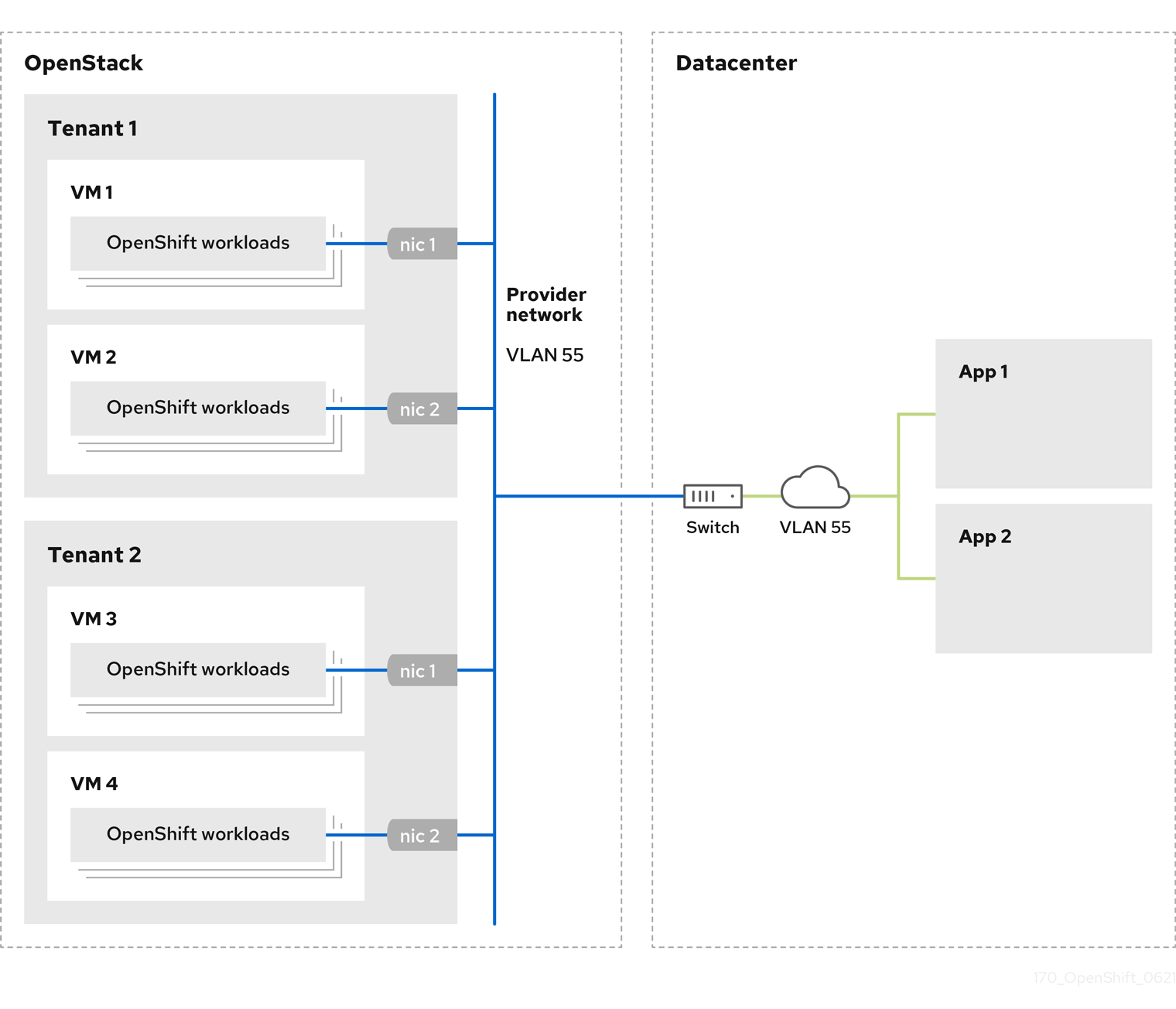
OpenShift Container Platform clusters that are installed on provider networks do not require tenant networks or floating IP addresses. The installer does not create these resources during installation.
Example provider network types include flat (untagged) and VLAN (802.1Q tagged).
A cluster can support as many provider network connections as the network type allows. For example, VLAN networks typically support up to 4096 connections.
You can learn more about provider and tenant networks in the RHOSP documentation.
15.2.11.8.1. RHOSP provider network requirements for cluster installation
Before you install an OpenShift Container Platform cluster, your Red Hat OpenStack Platform (RHOSP) deployment and provider network must meet a number of conditions:
- The RHOSP networking service (Neutron) is enabled and accessible through the RHOSP networking API.
- The RHOSP networking service has the port security and allowed address pairs extensions enabled.
The provider network can be shared with other tenants.
TipUse the
openstack network createcommand with the--shareflag to create a network that can be shared.The RHOSP project that you use to install the cluster must own the provider network, as well as an appropriate subnet.
Tip- To create a network for a project that is named "openshift," enter the following command
openstack network create --project openshift
$ openstack network create --project openshiftCopy to Clipboard Copied! Toggle word wrap Toggle overflow - To create a subnet for a project that is named "openshift," enter the following command
openstack subnet create --project openshift
$ openstack subnet create --project openshiftCopy to Clipboard Copied! Toggle word wrap Toggle overflow To learn more about creating networks on RHOSP, read the provider networks documentation.
If the cluster is owned by the
adminuser, you must run the installer as that user to create ports on the network.ImportantProvider networks must be owned by the RHOSP project that is used to create the cluster. If they are not, the RHOSP Compute service (Nova) cannot request a port from that network.
Verify that the provider network can reach the RHOSP metadata service IP address, which is
169.254.169.254by default.Depending on your RHOSP SDN and networking service configuration, you might need to provide the route when you create the subnet. For example:
openstack subnet create --dhcp --host-route destination=169.254.169.254/32,gateway=192.0.2.2 ...
$ openstack subnet create --dhcp --host-route destination=169.254.169.254/32,gateway=192.0.2.2 ...Copy to Clipboard Copied! Toggle word wrap Toggle overflow - Optional: To secure the network, create role-based access control (RBAC) rules that limit network access to a single project.
15.2.11.8.2. Deploying a cluster that has a primary interface on a provider network
You can deploy an OpenShift Container Platform cluster that has its primary network interface on an Red Hat OpenStack Platform (RHOSP) provider network. .Prerequisites
- Your Red Hat OpenStack Platform (RHOSP) deployment is configured as described by "RHOSP provider network requirements for cluster installation".
Procedure
-
In a text editor, open the
install-config.yamlfile. -
Set the value of the
platform.openstack.apiVIPproperty to the IP address for the API VIP. -
Set the value of the
platform.openstack.ingressVIPproperty to the IP address for the Ingress VIP. -
Set the value of the
platform.openstack.machinesSubnetproperty to the UUID of the provider network subnet. -
Set the value of the
networking.machineNetwork.cidrproperty to the CIDR block of the provider network subnet.
The platform.openstack.apiVIP and platform.openstack.ingressVIP properties must both be unassigned IP addresses from the networking.machineNetwork.cidr block.
Section of an installation configuration file for a cluster that relies on a RHOSP provider network
You cannot set the platform.openstack.externalNetwork or platform.openstack.externalDNS parameters while using a provider network for the primary network interface.
When you deploy the cluster, the installer uses the install-config.yaml file to deploy the cluster on the provider network.
You can add additional networks, including provider networks, to the platform.openstack.additionalNetworkIDs list.
After you deploy your cluster, you can attach pods to additional networks. For more information, see Understanding multiple networks.
15.2.11.9. Sample customized install-config.yaml file for RHOSP
This sample install-config.yaml demonstrates all of the possible Red Hat OpenStack Platform (RHOSP) customization options.
This sample file is provided for reference only. You must obtain your install-config.yaml file by using the installation program.
15.2.12. Setting compute machine affinity
Optionally, you can set the affinity policy for compute machines during installation. The installer does not select an affinity policy for compute machines by default.
You can also create machine sets that use particular RHOSP server groups after installation.
Control plane machines are created with a soft-anti-affinity policy.
You can learn more about RHOSP instance scheduling and placement in the RHOSP documentation.
Prerequisites
-
Create the
install-config.yamlfile and complete any modifications to it.
Procedure
Using the RHOSP command-line interface, create a server group for your compute machines. For example:
openstack \ --os-compute-api-version=2.15 \ server group create \ --policy anti-affinity \ my-openshift-worker-group$ openstack \ --os-compute-api-version=2.15 \ server group create \ --policy anti-affinity \ my-openshift-worker-groupCopy to Clipboard Copied! Toggle word wrap Toggle overflow For more information, see the
server group createcommand documentation.Change to the directory that contains the installation program and create the manifests:
./openshift-install create manifests --dir <installation_directory>
$ ./openshift-install create manifests --dir <installation_directory>Copy to Clipboard Copied! Toggle word wrap Toggle overflow where:
installation_directory-
Specifies the name of the directory that contains the
install-config.yamlfile for your cluster.
-
Open
manifests/99_openshift-cluster-api_worker-machineset-0.yaml, theMachineSetdefinition file. Add the property
serverGroupIDto the definition beneath thespec.template.spec.providerSpec.valueproperty. For example:Copy to Clipboard Copied! Toggle word wrap Toggle overflow - 1
- Add the UUID of your server group here.
-
Optional: Back up the
manifests/99_openshift-cluster-api_worker-machineset-0.yamlfile. The installation program deletes themanifests/directory when creating the cluster.
When you install the cluster, the installer uses the MachineSet definition that you modified to create compute machines within your RHOSP server group.
15.2.13. Generating a key pair for cluster node SSH access
During an OpenShift Container Platform installation, you can provide an SSH public key to the installation program. The key is passed to the Red Hat Enterprise Linux CoreOS (RHCOS) nodes through their Ignition config files and is used to authenticate SSH access to the nodes. The key is added to the ~/.ssh/authorized_keys list for the core user on each node, which enables password-less authentication.
After the key is passed to the nodes, you can use the key pair to SSH in to the RHCOS nodes as the user core. To access the nodes through SSH, the private key identity must be managed by SSH for your local user.
If you want to SSH in to your cluster nodes to perform installation debugging or disaster recovery, you must provide the SSH public key during the installation process. The ./openshift-install gather command also requires the SSH public key to be in place on the cluster nodes.
Do not skip this procedure in production environments, where disaster recovery and debugging is required.
Procedure
If you do not have an existing SSH key pair on your local machine to use for authentication onto your cluster nodes, create one. For example, on a computer that uses a Linux operating system, run the following command:
ssh-keygen -t ed25519 -N '' -f <path>/<file_name>
$ ssh-keygen -t ed25519 -N '' -f <path>/<file_name>1 Copy to Clipboard Copied! Toggle word wrap Toggle overflow - 1
- Specify the path and file name, such as
~/.ssh/id_ed25519, of the new SSH key. If you have an existing key pair, ensure your public key is in the your~/.sshdirectory.
NoteIf you plan to install an OpenShift Container Platform cluster that uses FIPS Validated / Modules in Process cryptographic libraries on the
x86_64architecture, do not create a key that uses theed25519algorithm. Instead, create a key that uses thersaorecdsaalgorithm.View the public SSH key:
cat <path>/<file_name>.pub
$ cat <path>/<file_name>.pubCopy to Clipboard Copied! Toggle word wrap Toggle overflow For example, run the following to view the
~/.ssh/id_ed25519.pubpublic key:cat ~/.ssh/id_ed25519.pub
$ cat ~/.ssh/id_ed25519.pubCopy to Clipboard Copied! Toggle word wrap Toggle overflow Add the SSH private key identity to the SSH agent for your local user, if it has not already been added. SSH agent management of the key is required for password-less SSH authentication onto your cluster nodes, or if you want to use the
./openshift-install gathercommand.NoteOn some distributions, default SSH private key identities such as
~/.ssh/id_rsaand~/.ssh/id_dsaare managed automatically.If the
ssh-agentprocess is not already running for your local user, start it as a background task:eval "$(ssh-agent -s)"
$ eval "$(ssh-agent -s)"Copy to Clipboard Copied! Toggle word wrap Toggle overflow Example output
Agent pid 31874
Agent pid 31874Copy to Clipboard Copied! Toggle word wrap Toggle overflow NoteIf your cluster is in FIPS mode, only use FIPS-compliant algorithms to generate the SSH key. The key must be either RSA or ECDSA.
Add your SSH private key to the
ssh-agent:ssh-add <path>/<file_name>
$ ssh-add <path>/<file_name>1 Copy to Clipboard Copied! Toggle word wrap Toggle overflow - 1
- Specify the path and file name for your SSH private key, such as
~/.ssh/id_ed25519
Example output
Identity added: /home/<you>/<path>/<file_name> (<computer_name>)
Identity added: /home/<you>/<path>/<file_name> (<computer_name>)Copy to Clipboard Copied! Toggle word wrap Toggle overflow
Next steps
- When you install OpenShift Container Platform, provide the SSH public key to the installation program.
15.2.14. Enabling access to the environment
At deployment, all OpenShift Container Platform machines are created in a Red Hat OpenStack Platform (RHOSP)-tenant network. Therefore, they are not accessible directly in most RHOSP deployments.
You can configure OpenShift Container Platform API and application access by using floating IP addresses (FIPs) during installation. You can also complete an installation without configuring FIPs, but the installer will not configure a way to reach the API or applications externally.
15.2.14.1. Enabling access with floating IP addresses
Create floating IP (FIP) addresses for external access to the OpenShift Container Platform API and cluster applications.
Procedure
Using the Red Hat OpenStack Platform (RHOSP) CLI, create the API FIP:
openstack floating ip create --description "API <cluster_name>.<base_domain>" <external_network>
$ openstack floating ip create --description "API <cluster_name>.<base_domain>" <external_network>Copy to Clipboard Copied! Toggle word wrap Toggle overflow Using the Red Hat OpenStack Platform (RHOSP) CLI, create the apps, or Ingress, FIP:
openstack floating ip create --description "Ingress <cluster_name>.<base_domain>" <external_network>
$ openstack floating ip create --description "Ingress <cluster_name>.<base_domain>" <external_network>Copy to Clipboard Copied! Toggle word wrap Toggle overflow Add records that follow these patterns to your DNS server for the API and Ingress FIPs:
api.<cluster_name>.<base_domain>. IN A <API_FIP> *.apps.<cluster_name>.<base_domain>. IN A <apps_FIP>
api.<cluster_name>.<base_domain>. IN A <API_FIP> *.apps.<cluster_name>.<base_domain>. IN A <apps_FIP>Copy to Clipboard Copied! Toggle word wrap Toggle overflow NoteIf you do not control the DNS server, you can access the cluster by adding the cluster domain names such as the following to your
/etc/hostsfile:-
<api_floating_ip> api.<cluster_name>.<base_domain> -
<application_floating_ip> grafana-openshift-monitoring.apps.<cluster_name>.<base_domain> -
<application_floating_ip> prometheus-k8s-openshift-monitoring.apps.<cluster_name>.<base_domain> -
<application_floating_ip> oauth-openshift.apps.<cluster_name>.<base_domain> -
<application_floating_ip> console-openshift-console.apps.<cluster_name>.<base_domain> -
application_floating_ip integrated-oauth-server-openshift-authentication.apps.<cluster_name>.<base_domain>
The cluster domain names in the
/etc/hostsfile grant access to the web console and the monitoring interface of your cluster locally. You can also use thekubectloroc. You can access the user applications by using the additional entries pointing to the <application_floating_ip>. This action makes the API and applications accessible to only you, which is not suitable for production deployment, but does allow installation for development and testing.-
Add the FIPs to the
install-config.yamlfile as the values of the following parameters:-
platform.openstack.ingressFloatingIP -
platform.openstack.apiFloatingIP
-
If you use these values, you must also enter an external network as the value of the platform.openstack.externalNetwork parameter in the install-config.yaml file.
You can make OpenShift Container Platform resources available outside of the cluster by assigning a floating IP address and updating your firewall configuration.
15.2.14.2. Completing installation without floating IP addresses
You can install OpenShift Container Platform on Red Hat OpenStack Platform (RHOSP) without providing floating IP addresses.
In the install-config.yaml file, do not define the following parameters:
-
platform.openstack.ingressFloatingIP -
platform.openstack.apiFloatingIP
If you cannot provide an external network, you can also leave platform.openstack.externalNetwork blank. If you do not provide a value for platform.openstack.externalNetwork, a router is not created for you, and, without additional action, the installer will fail to retrieve an image from Glance. You must configure external connectivity on your own.
If you run the installer from a system that cannot reach the cluster API due to a lack of floating IP addresses or name resolution, installation fails. To prevent installation failure in these cases, you can use a proxy network or run the installer from a system that is on the same network as your machines.
You can enable name resolution by creating DNS records for the API and Ingress ports. For example:
api.<cluster_name>.<base_domain>. IN A <api_port_IP> *.apps.<cluster_name>.<base_domain>. IN A <ingress_port_IP>
api.<cluster_name>.<base_domain>. IN A <api_port_IP>
*.apps.<cluster_name>.<base_domain>. IN A <ingress_port_IP>
If you do not control the DNS server, you can add the record to your /etc/hosts file. This action makes the API accessible to only you, which is not suitable for production deployment but does allow installation for development and testing.
15.2.15. Deploying the cluster
You can install OpenShift Container Platform on a compatible cloud platform.
You can run the create cluster command of the installation program only once, during initial installation.
Prerequisites
- Obtain the OpenShift Container Platform installation program and the pull secret for your cluster.
Procedure
Change to the directory that contains the installation program and initialize the cluster deployment:
./openshift-install create cluster --dir <installation_directory> \ --log-level=info$ ./openshift-install create cluster --dir <installation_directory> \1 --log-level=info2 Copy to Clipboard Copied! Toggle word wrap Toggle overflow NoteIf the cloud provider account that you configured on your host does not have sufficient permissions to deploy the cluster, the installation process stops, and the missing permissions are displayed.
When the cluster deployment completes, directions for accessing your cluster, including a link to its web console and credentials for the
kubeadminuser, display in your terminal.Example output
Copy to Clipboard Copied! Toggle word wrap Toggle overflow NoteThe cluster access and credential information also outputs to
<installation_directory>/.openshift_install.logwhen an installation succeeds.Important-
The Ignition config files that the installation program generates contain certificates that expire after 24 hours, which are then renewed at that time. If the cluster is shut down before renewing the certificates and the cluster is later restarted after the 24 hours have elapsed, the cluster automatically recovers the expired certificates. The exception is that you must manually approve the pending
node-bootstrappercertificate signing requests (CSRs) to recover kubelet certificates. See the documentation for Recovering from expired control plane certificates for more information. - It is recommended that you use Ignition config files within 12 hours after they are generated because the 24-hour certificate rotates from 16 to 22 hours after the cluster is installed. By using the Ignition config files within 12 hours, you can avoid installation failure if the certificate update runs during installation.
ImportantYou must not delete the installation program or the files that the installation program creates. Both are required to delete the cluster.
-
The Ignition config files that the installation program generates contain certificates that expire after 24 hours, which are then renewed at that time. If the cluster is shut down before renewing the certificates and the cluster is later restarted after the 24 hours have elapsed, the cluster automatically recovers the expired certificates. The exception is that you must manually approve the pending
15.2.16. Verifying cluster status
You can verify your OpenShift Container Platform cluster’s status during or after installation.
Procedure
In the cluster environment, export the administrator’s kubeconfig file:
export KUBECONFIG=<installation_directory>/auth/kubeconfig
$ export KUBECONFIG=<installation_directory>/auth/kubeconfig1 Copy to Clipboard Copied! Toggle word wrap Toggle overflow - 1
- For
<installation_directory>, specify the path to the directory that you stored the installation files in.
The
kubeconfigfile contains information about the cluster that is used by the CLI to connect a client to the correct cluster and API server.View the control plane and compute machines created after a deployment:
oc get nodes
$ oc get nodesCopy to Clipboard Copied! Toggle word wrap Toggle overflow View your cluster’s version:
oc get clusterversion
$ oc get clusterversionCopy to Clipboard Copied! Toggle word wrap Toggle overflow View your Operators' status:
oc get clusteroperator
$ oc get clusteroperatorCopy to Clipboard Copied! Toggle word wrap Toggle overflow View all running pods in the cluster:
oc get pods -A
$ oc get pods -ACopy to Clipboard Copied! Toggle word wrap Toggle overflow
15.2.17. Logging in to the cluster by using the CLI
You can log in to your cluster as a default system user by exporting the cluster kubeconfig file. The kubeconfig file contains information about the cluster that is used by the CLI to connect a client to the correct cluster and API server. The file is specific to a cluster and is created during OpenShift Container Platform installation.
Prerequisites
- You deployed an OpenShift Container Platform cluster.
-
You installed the
ocCLI.
Procedure
Export the
kubeadmincredentials:export KUBECONFIG=<installation_directory>/auth/kubeconfig
$ export KUBECONFIG=<installation_directory>/auth/kubeconfig1 Copy to Clipboard Copied! Toggle word wrap Toggle overflow - 1
- For
<installation_directory>, specify the path to the directory that you stored the installation files in.
Verify you can run
occommands successfully using the exported configuration:oc whoami
$ oc whoamiCopy to Clipboard Copied! Toggle word wrap Toggle overflow Example output
system:admin
system:adminCopy to Clipboard Copied! Toggle word wrap Toggle overflow
15.2.18. Telemetry access for OpenShift Container Platform
In OpenShift Container Platform 4.9, the Telemetry service, which runs by default to provide metrics about cluster health and the success of updates, requires internet access. If your cluster is connected to the internet, Telemetry runs automatically, and your cluster is registered to OpenShift Cluster Manager.
After you confirm that your OpenShift Cluster Manager inventory is correct, either maintained automatically by Telemetry or manually by using OpenShift Cluster Manager, use subscription watch to track your OpenShift Container Platform subscriptions at the account or multi-cluster level.
15.2.19. Next steps
- Customize your cluster.
- If necessary, you can opt out of remote health reporting.
- If you need to enable external access to node ports, configure ingress cluster traffic by using a node port.
- If you did not configure RHOSP to accept application traffic over floating IP addresses, configure RHOSP access with floating IP addresses.
15.3. Installing a cluster on OpenStack with Kuryr
In OpenShift Container Platform version 4.9, you can install a customized cluster on Red Hat OpenStack Platform (RHOSP) that uses Kuryr SDN. To customize the installation, modify parameters in the install-config.yaml before you install the cluster.
15.3.1. Prerequisites
- You reviewed details about the OpenShift Container Platform installation and update processes.
- You read the documentation on selecting a cluster installation method and preparing it for users.
- You verified that OpenShift Container Platform 4.9 is compatible with your RHOSP version by using the Supported platforms for OpenShift clusters section. You can also compare platform support across different versions by viewing the OpenShift Container Platform on RHOSP support matrix.
- You have a storage service installed in RHOSP, such as block storage (Cinder) or object storage (Swift). Object storage is the recommended storage technology for OpenShift Container Platform registry cluster deployment. For more information, see Optimizing storage.
15.3.2. About Kuryr SDN
Kuryr is a container network interface (CNI) plugin solution that uses the Neutron and Octavia Red Hat OpenStack Platform (RHOSP) services to provide networking for pods and Services.
Kuryr and OpenShift Container Platform integration is primarily designed for OpenShift Container Platform clusters running on RHOSP VMs. Kuryr improves the network performance by plugging OpenShift Container Platform pods into RHOSP SDN. In addition, it provides interconnectivity between pods and RHOSP virtual instances.
Kuryr components are installed as pods in OpenShift Container Platform using the openshift-kuryr namespace:
-
kuryr-controller- a single service instance installed on amasternode. This is modeled in OpenShift Container Platform as aDeploymentobject. -
kuryr-cni- a container installing and configuring Kuryr as a CNI driver on each OpenShift Container Platform node. This is modeled in OpenShift Container Platform as aDaemonSetobject.
The Kuryr controller watches the OpenShift Container Platform API server for pod, service, and namespace create, update, and delete events. It maps the OpenShift Container Platform API calls to corresponding objects in Neutron and Octavia. This means that every network solution that implements the Neutron trunk port functionality can be used to back OpenShift Container Platform via Kuryr. This includes open source solutions such as Open vSwitch (OVS) and Open Virtual Network (OVN) as well as Neutron-compatible commercial SDNs.
Kuryr is recommended for OpenShift Container Platform deployments on encapsulated RHOSP tenant networks to avoid double encapsulation, such as running an encapsulated OpenShift Container Platform SDN over an RHOSP network.
If you use provider networks or tenant VLANs, you do not need to use Kuryr to avoid double encapsulation. The performance benefit is negligible. Depending on your configuration, though, using Kuryr to avoid having two overlays might still be beneficial.
Kuryr is not recommended in deployments where all of the following criteria are true:
- The RHOSP version is less than 16.
- The deployment uses UDP services, or a large number of TCP services on few hypervisors.
or
-
The
ovn-octaviaOctavia driver is disabled. - The deployment uses a large number of TCP services on few hypervisors.
15.3.3. Resource guidelines for installing OpenShift Container Platform on RHOSP with Kuryr
When using Kuryr SDN, the pods, services, namespaces, and network policies are using resources from the RHOSP quota; this increases the minimum requirements. Kuryr also has some additional requirements on top of what a default install requires.
Use the following quota to satisfy a default cluster’s minimum requirements:
| Resource | Value |
|---|---|
| Floating IP addresses | 3 - plus the expected number of Services of LoadBalancer type |
| Ports | 1500 - 1 needed per Pod |
| Routers | 1 |
| Subnets | 250 - 1 needed per Namespace/Project |
| Networks | 250 - 1 needed per Namespace/Project |
| RAM | 112 GB |
| vCPUs | 28 |
| Volume storage | 275 GB |
| Instances | 7 |
| Security groups | 250 - 1 needed per Service and per NetworkPolicy |
| Security group rules | 1000 |
| Load balancers | 100 - 1 needed per Service |
| Load balancer listeners | 500 - 1 needed per Service-exposed port |
| Load balancer pools | 500 - 1 needed per Service-exposed port |
A cluster might function with fewer than recommended resources, but its performance is not guaranteed.
If RHOSP object storage (Swift) is available and operated by a user account with the swiftoperator role, it is used as the default backend for the OpenShift Container Platform image registry. In this case, the volume storage requirement is 175 GB. Swift space requirements vary depending on the size of the image registry.
If you are using Red Hat OpenStack Platform (RHOSP) version 16 with the Amphora driver rather than the OVN Octavia driver, security groups are associated with service accounts instead of user projects.
Take the following notes into consideration when setting resources:
- The number of ports that are required is larger than the number of pods. Kuryr uses ports pools to have pre-created ports ready to be used by pods and speed up the pods' booting time.
-
Each network policy is mapped into an RHOSP security group, and depending on the
NetworkPolicyspec, one or more rules are added to the security group. Each service is mapped to an RHOSP load balancer. Consider this requirement when estimating the number of security groups required for the quota.
If you are using RHOSP version 15 or earlier, or the
ovn-octavia driver, each load balancer has a security group with the user project.The quota does not account for load balancer resources (such as VM resources), but you must consider these resources when you decide the RHOSP deployment’s size. The default installation will have more than 50 load balancers; the clusters must be able to accommodate them.
If you are using RHOSP version 16 with the OVN Octavia driver enabled, only one load balancer VM is generated; services are load balanced through OVN flows.
An OpenShift Container Platform deployment comprises control plane machines, compute machines, and a bootstrap machine.
To enable Kuryr SDN, your environment must meet the following requirements:
- Run RHOSP 13+.
- Have Overcloud with Octavia.
- Use Neutron Trunk ports extension.
-
Use
openvswitchfirewall driver if ML2/OVS Neutron driver is used instead ofovs-hybrid.
15.3.3.1. Increasing quota
When using Kuryr SDN, you must increase quotas to satisfy the Red Hat OpenStack Platform (RHOSP) resources used by pods, services, namespaces, and network policies.
Procedure
Increase the quotas for a project by running the following command:
sudo openstack quota set --secgroups 250 --secgroup-rules 1000 --ports 1500 --subnets 250 --networks 250 <project>
$ sudo openstack quota set --secgroups 250 --secgroup-rules 1000 --ports 1500 --subnets 250 --networks 250 <project>Copy to Clipboard Copied! Toggle word wrap Toggle overflow
15.3.3.2. Configuring Neutron
Kuryr CNI leverages the Neutron Trunks extension to plug containers into the Red Hat OpenStack Platform (RHOSP) SDN, so you must use the trunks extension for Kuryr to properly work.
In addition, if you leverage the default ML2/OVS Neutron driver, the firewall must be set to openvswitch instead of ovs_hybrid so that security groups are enforced on trunk subports and Kuryr can properly handle network policies.
15.3.3.3. Configuring Octavia
Kuryr SDN uses Red Hat OpenStack Platform (RHOSP)'s Octavia LBaaS to implement OpenShift Container Platform services. Thus, you must install and configure Octavia components in RHOSP to use Kuryr SDN.
To enable Octavia, you must include the Octavia service during the installation of the RHOSP Overcloud, or upgrade the Octavia service if the Overcloud already exists. The following steps for enabling Octavia apply to both a clean install of the Overcloud or an Overcloud update.
The following steps only capture the key pieces required during the deployment of RHOSP when dealing with Octavia. It is also important to note that registry methods vary.
This example uses the local registry method.
Procedure
If you are using the local registry, create a template to upload the images to the registry. For example:
Copy to Clipboard Copied! Toggle word wrap Toggle overflow Verify that the
local_registry_images.yamlfile contains the Octavia images. For example:Copy to Clipboard Copied! Toggle word wrap Toggle overflow NoteThe Octavia container versions vary depending upon the specific RHOSP release installed.
Pull the container images from
registry.redhat.ioto the Undercloud node:(undercloud) $ sudo openstack overcloud container image upload \ --config-file /home/stack/local_registry_images.yaml \ --verbose
(undercloud) $ sudo openstack overcloud container image upload \ --config-file /home/stack/local_registry_images.yaml \ --verboseCopy to Clipboard Copied! Toggle word wrap Toggle overflow This may take some time depending on the speed of your network and Undercloud disk.
Since an Octavia load balancer is used to access the OpenShift Container Platform API, you must increase their listeners' default timeouts for the connections. The default timeout is 50 seconds. Increase the timeout to 20 minutes by passing the following file to the Overcloud deploy command:
(undercloud) $ cat octavia_timeouts.yaml parameter_defaults: OctaviaTimeoutClientData: 1200000 OctaviaTimeoutMemberData: 1200000
(undercloud) $ cat octavia_timeouts.yaml parameter_defaults: OctaviaTimeoutClientData: 1200000 OctaviaTimeoutMemberData: 1200000Copy to Clipboard Copied! Toggle word wrap Toggle overflow NoteThis is not needed for RHOSP 13.0.13+.
Install or update your Overcloud environment with Octavia:
openstack overcloud deploy --templates \ -e /usr/share/openstack-tripleo-heat-templates/environments/services-docker/octavia.yaml \ -e octavia_timeouts.yaml
$ openstack overcloud deploy --templates \ -e /usr/share/openstack-tripleo-heat-templates/environments/services-docker/octavia.yaml \ -e octavia_timeouts.yamlCopy to Clipboard Copied! Toggle word wrap Toggle overflow NoteThis command only includes the files associated with Octavia; it varies based on your specific installation of RHOSP. See the RHOSP documentation for further information. For more information on customizing your Octavia installation, see installation of Octavia using Director.
NoteWhen leveraging Kuryr SDN, the Overcloud installation requires the Neutron
trunkextension. This is available by default on director deployments. Use theopenvswitchfirewall instead of the defaultovs-hybridwhen the Neutron backend is ML2/OVS. There is no need for modifications if the backend is ML2/OVN.In RHOSP versions earlier than 13.0.13, add the project ID to the
octavia.confconfiguration file after you create the project.To enforce network policies across services, like when traffic goes through the Octavia load balancer, you must ensure Octavia creates the Amphora VM security groups on the user project.
This change ensures that required load balancer security groups belong to that project, and that they can be updated to enforce services isolation.
NoteThis task is unnecessary in RHOSP version 13.0.13 or later.
Octavia implements a new ACL API that restricts access to the load balancers VIP.
Get the project ID
openstack project show <project>
$ openstack project show <project>Copy to Clipboard Copied! Toggle word wrap Toggle overflow Example output
Copy to Clipboard Copied! Toggle word wrap Toggle overflow Add the project ID to
octavia.conffor the controllers.Source the
stackrcfile:source stackrc # Undercloud credentials
$ source stackrc # Undercloud credentialsCopy to Clipboard Copied! Toggle word wrap Toggle overflow List the Overcloud controllers:
openstack server list
$ openstack server listCopy to Clipboard Copied! Toggle word wrap Toggle overflow Example output
Copy to Clipboard Copied! Toggle word wrap Toggle overflow SSH into the controller(s).
ssh heat-admin@192.168.24.8
$ ssh heat-admin@192.168.24.8Copy to Clipboard Copied! Toggle word wrap Toggle overflow Edit the
octavia.conffile to add the project into the list of projects where Amphora security groups are on the user’s account.List of project IDs that are allowed to have Load balancer security groups belonging to them.
# List of project IDs that are allowed to have Load balancer security groups # belonging to them. amp_secgroup_allowed_projects = PROJECT_IDCopy to Clipboard Copied! Toggle word wrap Toggle overflow
Restart the Octavia worker so the new configuration loads.
controller-0$ sudo docker restart octavia_worker
controller-0$ sudo docker restart octavia_workerCopy to Clipboard Copied! Toggle word wrap Toggle overflow
Depending on your RHOSP environment, Octavia might not support UDP listeners. If you use Kuryr SDN on RHOSP version 13.0.13 or earlier, UDP services are not supported. RHOSP version 16 or later support UDP.
15.3.3.3.1. The Octavia OVN Driver
Octavia supports multiple provider drivers through the Octavia API.
To see all available Octavia provider drivers, on a command line, enter:
openstack loadbalancer provider list
$ openstack loadbalancer provider listExample output
Beginning with RHOSP version 16, the Octavia OVN provider driver (ovn) is supported on OpenShift Container Platform on RHOSP deployments.
ovn is an integration driver for the load balancing that Octavia and OVN provide. It supports basic load balancing capabilities, and is based on OpenFlow rules. The driver is automatically enabled in Octavia by Director on deployments that use OVN Neutron ML2.
The Amphora provider driver is the default driver. If ovn is enabled, however, Kuryr uses it.
If Kuryr uses ovn instead of Amphora, it offers the following benefits:
- Decreased resource requirements. Kuryr does not require a load balancer VM for each service.
- Reduced network latency.
- Increased service creation speed by using OpenFlow rules instead of a VM for each service.
- Distributed load balancing actions across all nodes instead of centralized on Amphora VMs.
You can configure your cluster to use the Octavia OVN driver after your RHOSP cloud is upgraded from version 13 to version 16.
15.3.3.4. Known limitations of installing with Kuryr
Using OpenShift Container Platform with Kuryr SDN has several known limitations.
RHOSP general limitations
Using OpenShift Container Platform with Kuryr SDN has several limitations that apply to all versions and environments:
-
Serviceobjects with theNodePorttype are not supported. -
Clusters that use the OVN Octavia provider driver support
Serviceobjects for which the.spec.selectorproperty is unspecified only if the.subsets.addressesproperty of theEndpointsobject includes the subnet of the nodes or pods. -
If the subnet on which machines are created is not connected to a router, or if the subnet is connected, but the router has no external gateway set, Kuryr cannot create floating IPs for
Serviceobjects with typeLoadBalancer. -
Configuring the
sessionAffinity=ClientIPproperty onServiceobjects does not have an effect. Kuryr does not support this setting.
RHOSP version limitations
Using OpenShift Container Platform with Kuryr SDN has several limitations that depend on the RHOSP version.
RHOSP versions before 16 use the default Octavia load balancer driver (Amphora). This driver requires that one Amphora load balancer VM is deployed per OpenShift Container Platform service. Creating too many services can cause you to run out of resources.
Deployments of later versions of RHOSP that have the OVN Octavia driver disabled also use the Amphora driver. They are subject to the same resource concerns as earlier versions of RHOSP.
- Octavia RHOSP versions before 13.0.13 do not support UDP listeners. Therefore, OpenShift Container Platform UDP services are not supported.
- Octavia RHOSP versions before 13.0.13 cannot listen to multiple protocols on the same port. Services that expose the same port to different protocols, like TCP and UDP, are not supported.
- Kuryr SDN does not support automatic unidling by a service.
RHOSP environment limitations
There are limitations when using Kuryr SDN that depend on your deployment environment.
Because of Octavia’s lack of support for the UDP protocol and multiple listeners, if the RHOSP version is earlier than 13.0.13, Kuryr forces pods to use TCP for DNS resolution.
In Go versions 1.12 and earlier, applications that are compiled with CGO support disabled use UDP only. In this case, the native Go resolver does not recognize the use-vc option in resolv.conf, which controls whether TCP is forced for DNS resolution. As a result, UDP is still used for DNS resolution, which fails.
To ensure that TCP forcing is allowed, compile applications either with the environment variable CGO_ENABLED set to 1, i.e. CGO_ENABLED=1, or ensure that the variable is absent.
In Go versions 1.13 and later, TCP is used automatically if DNS resolution using UDP fails.
musl-based containers, including Alpine-based containers, do not support the use-vc option.
RHOSP upgrade limitations
As a result of the RHOSP upgrade process, the Octavia API might be changed, and upgrades to the Amphora images that are used for load balancers might be required.
You can address API changes on an individual basis.
If the Amphora image is upgraded, the RHOSP operator can handle existing load balancer VMs in two ways:
- Upgrade each VM by triggering a load balancer failover.
- Leave responsibility for upgrading the VMs to users.
If the operator takes the first option, there might be short downtimes during failovers.
If the operator takes the second option, the existing load balancers will not support upgraded Octavia API features, like UDP listeners. In this case, users must recreate their Services to use these features.
If OpenShift Container Platform detects a new Octavia version that supports UDP load balancing, it recreates the DNS service automatically. The service recreation ensures that the service default supports UDP load balancing.
The recreation causes the DNS service approximately one minute of downtime.
15.3.3.5. Control plane machines
By default, the OpenShift Container Platform installation process creates three control plane machines.
Each machine requires:
- An instance from the RHOSP quota
- A port from the RHOSP quota
- A flavor with at least 16 GB memory and 4 vCPUs
- At least 100 GB storage space from the RHOSP quota
15.3.3.6. Compute machines
By default, the OpenShift Container Platform installation process creates three compute machines.
Each machine requires:
- An instance from the RHOSP quota
- A port from the RHOSP quota
- A flavor with at least 8 GB memory and 2 vCPUs
- At least 100 GB storage space from the RHOSP quota
Compute machines host the applications that you run on OpenShift Container Platform; aim to run as many as you can.
15.3.3.7. Bootstrap machine
During installation, a bootstrap machine is temporarily provisioned to stand up the control plane. After the production control plane is ready, the bootstrap machine is deprovisioned.
The bootstrap machine requires:
- An instance from the RHOSP quota
- A port from the RHOSP quota
- A flavor with at least 16 GB memory and 4 vCPUs
- At least 100 GB storage space from the RHOSP quota
15.3.4. Internet access for OpenShift Container Platform
In OpenShift Container Platform 4.9, you require access to the internet to install your cluster.
You must have internet access to:
- Access OpenShift Cluster Manager to download the installation program and perform subscription management. If the cluster has internet access and you do not disable Telemetry, that service automatically entitles your cluster.
- Access Quay.io to obtain the packages that are required to install your cluster.
- Obtain the packages that are required to perform cluster updates.
If your cluster cannot have direct internet access, you can perform a restricted network installation on some types of infrastructure that you provision. During that process, you download the required content and use it to populate a mirror registry with the installation packages. With some installation types, the environment that you install your cluster in will not require internet access. Before you update the cluster, you update the content of the mirror registry.
15.3.5. Enabling Swift on RHOSP
Swift is operated by a user account with the swiftoperator role. Add the role to an account before you run the installation program.
If the Red Hat OpenStack Platform (RHOSP) object storage service, commonly known as Swift, is available, OpenShift Container Platform uses it as the image registry storage. If it is unavailable, the installation program relies on the RHOSP block storage service, commonly known as Cinder.
If Swift is present and you want to use it, you must enable access to it. If it is not present, or if you do not want to use it, skip this section.
Prerequisites
- You have a RHOSP administrator account on the target environment.
- The Swift service is installed.
-
On Ceph RGW, the
account in urloption is enabled.
Procedure
To enable Swift on RHOSP:
As an administrator in the RHOSP CLI, add the
swiftoperatorrole to the account that will access Swift:openstack role add --user <user> --project <project> swiftoperator
$ openstack role add --user <user> --project <project> swiftoperatorCopy to Clipboard Copied! Toggle word wrap Toggle overflow
Your RHOSP deployment can now use Swift for the image registry.
15.3.6. Verifying external network access
The OpenShift Container Platform installation process requires external network access. You must provide an external network value to it, or deployment fails. Before you begin the process, verify that a network with the external router type exists in Red Hat OpenStack Platform (RHOSP).
Prerequisites
Procedure
Using the RHOSP CLI, verify the name and ID of the 'External' network:
openstack network list --long -c ID -c Name -c "Router Type"
$ openstack network list --long -c ID -c Name -c "Router Type"Copy to Clipboard Copied! Toggle word wrap Toggle overflow Example output
+--------------------------------------+----------------+-------------+ | ID | Name | Router Type | +--------------------------------------+----------------+-------------+ | 148a8023-62a7-4672-b018-003462f8d7dc | public_network | External | +--------------------------------------+----------------+-------------+
+--------------------------------------+----------------+-------------+ | ID | Name | Router Type | +--------------------------------------+----------------+-------------+ | 148a8023-62a7-4672-b018-003462f8d7dc | public_network | External | +--------------------------------------+----------------+-------------+Copy to Clipboard Copied! Toggle word wrap Toggle overflow
A network with an external router type appears in the network list. If at least one does not, see Creating a default floating IP network and Creating a default provider network.
If the external network’s CIDR range overlaps one of the default network ranges, you must change the matching network ranges in the install-config.yaml file before you start the installation process.
The default network ranges are:
| Network | Range |
|---|---|
|
| 10.0.0.0/16 |
|
| 172.30.0.0/16 |
|
| 10.128.0.0/14 |
If the installation program finds multiple networks with the same name, it sets one of them at random. To avoid this behavior, create unique names for resources in RHOSP.
If the Neutron trunk service plugin is enabled, a trunk port is created by default. For more information, see Neutron trunk port.
15.3.7. Defining parameters for the installation program
The OpenShift Container Platform installation program relies on a file that is called clouds.yaml. The file describes Red Hat OpenStack Platform (RHOSP) configuration parameters, including the project name, log in information, and authorization service URLs.
Procedure
Create the
clouds.yamlfile:If your RHOSP distribution includes the Horizon web UI, generate a
clouds.yamlfile in it.ImportantRemember to add a password to the
authfield. You can also keep secrets in a separate file fromclouds.yaml.If your RHOSP distribution does not include the Horizon web UI, or you do not want to use Horizon, create the file yourself. For detailed information about
clouds.yaml, see Config files in the RHOSP documentation.Copy to Clipboard Copied! Toggle word wrap Toggle overflow
If your RHOSP installation uses self-signed certificate authority (CA) certificates for endpoint authentication:
- Copy the certificate authority file to your machine.
Add the
cacertskey to theclouds.yamlfile. The value must be an absolute, non-root-accessible path to the CA certificate:clouds: shiftstack: ... cacert: "/etc/pki/ca-trust/source/anchors/ca.crt.pem"clouds: shiftstack: ... cacert: "/etc/pki/ca-trust/source/anchors/ca.crt.pem"Copy to Clipboard Copied! Toggle word wrap Toggle overflow TipAfter you run the installer with a custom CA certificate, you can update the certificate by editing the value of the
ca-cert.pemkey in thecloud-provider-configkeymap. On a command line, run:oc edit configmap -n openshift-config cloud-provider-config
$ oc edit configmap -n openshift-config cloud-provider-configCopy to Clipboard Copied! Toggle word wrap Toggle overflow
Place the
clouds.yamlfile in one of the following locations:-
The value of the
OS_CLIENT_CONFIG_FILEenvironment variable - The current directory
-
A Unix-specific user configuration directory, for example
~/.config/openstack/clouds.yaml A Unix-specific site configuration directory, for example
/etc/openstack/clouds.yamlThe installation program searches for
clouds.yamlin that order.
-
The value of the
15.3.8. Setting cloud provider options
Optionally, you can edit the cloud provider configuration for your cluster. The cloud provider configuration controls how OpenShift Container Platform interacts with Red Hat OpenStack Platform (RHOSP).
For a complete list of cloud provider configuration parameters, see the "OpenStack cloud configuration reference guide" page in the "Installing on OpenStack" documentation.
Procedure
If you have not already generated manifest files for your cluster, generate them by running the following command:
openshift-install --dir <destination_directory> create manifests
$ openshift-install --dir <destination_directory> create manifestsCopy to Clipboard Copied! Toggle word wrap Toggle overflow In a text editor, open the cloud-provider configuration manifest file. For example:
vi openshift/manifests/cloud-provider-config.yaml
$ vi openshift/manifests/cloud-provider-config.yamlCopy to Clipboard Copied! Toggle word wrap Toggle overflow Modify the options based on the cloud configuration specification.
Configuring Octavia for load balancing is a common case for clusters that do not use Kuryr. For example:
Copy to Clipboard Copied! Toggle word wrap Toggle overflow - 1
- This property enables Octavia integration.
- 2
- This property sets the Octavia provider that your load balancer uses. It accepts
"ovn"or"amphora"as values. If you choose to use OVN, you must also setlb-methodtoSOURCE_IP_PORT. - 3
- This property is required if you want to use multiple external networks with your cluster. The cloud provider creates floating IP addresses on the network that is specified here.
ImportantPrior to saving your changes, verify that the file is structured correctly. Clusters might fail if properties are not placed in the appropriate section.
ImportantFor installations that use Kuryr, Kuryr handles relevant services. There is no need to configure Octavia load balancing in the cloud provider.
Save the changes to the file and proceed with installation.
TipYou can update your cloud provider configuration after you run the installer. On a command line, run:
oc edit configmap -n openshift-config cloud-provider-config
$ oc edit configmap -n openshift-config cloud-provider-configCopy to Clipboard Copied! Toggle word wrap Toggle overflow After you save your changes, your cluster will take some time to reconfigure itself. The process is complete if none of your nodes have a
SchedulingDisabledstatus.
15.3.9. Obtaining the installation program
Before you install OpenShift Container Platform, download the installation file on a local computer.
Prerequisites
- You have a computer that runs Linux or macOS, with 500 MB of local disk space
Procedure
- Access the Infrastructure Provider page on the OpenShift Cluster Manager site. If you have a Red Hat account, log in with your credentials. If you do not, create an account.
- Select your infrastructure provider.
Navigate to the page for your installation type, download the installation program for your operating system, and place the file in the directory where you will store the installation configuration files.
ImportantThe installation program creates several files on the computer that you use to install your cluster. You must keep the installation program and the files that the installation program creates after you finish installing the cluster. Both files are required to delete the cluster.
ImportantDeleting the files created by the installation program does not remove your cluster, even if the cluster failed during installation. To remove your cluster, complete the OpenShift Container Platform uninstallation procedures for your specific cloud provider.
Extract the installation program. For example, on a computer that uses a Linux operating system, run the following command:
tar -xvf openshift-install-linux.tar.gz
$ tar -xvf openshift-install-linux.tar.gzCopy to Clipboard Copied! Toggle word wrap Toggle overflow - Download your installation pull secret from the Red Hat OpenShift Cluster Manager. This pull secret allows you to authenticate with the services that are provided by the included authorities, including Quay.io, which serves the container images for OpenShift Container Platform components.
15.3.10. Creating the installation configuration file
You can customize the OpenShift Container Platform cluster you install on Red Hat OpenStack Platform (RHOSP).
Prerequisites
- Obtain the OpenShift Container Platform installation program and the pull secret for your cluster.
- Obtain service principal permissions at the subscription level.
Procedure
Create the
install-config.yamlfile.Change to the directory that contains the installation program and run the following command:
./openshift-install create install-config --dir <installation_directory>
$ ./openshift-install create install-config --dir <installation_directory>1 Copy to Clipboard Copied! Toggle word wrap Toggle overflow - 1
- For
<installation_directory>, specify the directory name to store the files that the installation program creates.
ImportantSpecify an empty directory. Some installation assets, like bootstrap X.509 certificates have short expiration intervals, so you must not reuse an installation directory. If you want to reuse individual files from another cluster installation, you can copy them into your directory. However, the file names for the installation assets might change between releases. Use caution when copying installation files from an earlier OpenShift Container Platform version.
At the prompts, provide the configuration details for your cloud:
Optional: Select an SSH key to use to access your cluster machines.
NoteFor production OpenShift Container Platform clusters on which you want to perform installation debugging or disaster recovery, specify an SSH key that your
ssh-agentprocess uses.- Select openstack as the platform to target.
- Specify the Red Hat OpenStack Platform (RHOSP) external network name to use for installing the cluster.
- Specify the floating IP address to use for external access to the OpenShift API.
- Specify a RHOSP flavor with at least 16 GB RAM to use for control plane nodes and 8 GB RAM for compute nodes.
- Select the base domain to deploy the cluster to. All DNS records will be sub-domains of this base and will also include the cluster name.
- Enter a name for your cluster. The name must be 14 or fewer characters long.
- Paste the pull secret from the Red Hat OpenShift Cluster Manager.
-
Modify the
install-config.yamlfile. You can find more information about the available parameters in the "Installation configuration parameters" section. Back up the
install-config.yamlfile so that you can use it to install multiple clusters.ImportantThe
install-config.yamlfile is consumed during the installation process. If you want to reuse the file, you must back it up now.
15.3.10.1. Configuring the cluster-wide proxy during installation
Production environments can deny direct access to the internet and instead have an HTTP or HTTPS proxy available. You can configure a new OpenShift Container Platform cluster to use a proxy by configuring the proxy settings in the install-config.yaml file.
Kuryr installations default to HTTP proxies.
Prerequisites
For Kuryr installations on restricted networks that use the
Proxyobject, the proxy must be able to reply to the router that the cluster uses. To add a static route for the proxy configuration, from a command line as the root user, enter:ip route add <cluster_network_cidr> via <installer_subnet_gateway>
$ ip route add <cluster_network_cidr> via <installer_subnet_gateway>Copy to Clipboard Copied! Toggle word wrap Toggle overflow -
The restricted subnet must have a gateway that is defined and available to be linked to the
Routerresource that Kuryr creates. -
You have an existing
install-config.yamlfile. You reviewed the sites that your cluster requires access to and determined whether any of them need to bypass the proxy. By default, all cluster egress traffic is proxied, including calls to hosting cloud provider APIs. You added sites to the
Proxyobject’sspec.noProxyfield to bypass the proxy if necessary.NoteThe
Proxyobjectstatus.noProxyfield is populated with the values of thenetworking.machineNetwork[].cidr,networking.clusterNetwork[].cidr, andnetworking.serviceNetwork[]fields from your installation configuration.For installations on Amazon Web Services (AWS), Google Cloud Platform (GCP), Microsoft Azure, and Red Hat OpenStack Platform (RHOSP), the
Proxyobjectstatus.noProxyfield is also populated with the instance metadata endpoint (169.254.169.254).
Procedure
Edit your
install-config.yamlfile and add the proxy settings. For example:Copy to Clipboard Copied! Toggle word wrap Toggle overflow - 1
- A proxy URL to use for creating HTTP connections outside the cluster. The URL scheme must be
http. - 2
- A proxy URL to use for creating HTTPS connections outside the cluster.
- 3
- A comma-separated list of destination domain names, IP addresses, or other network CIDRs to exclude from proxying. Preface a domain with
.to match subdomains only. For example,.y.commatchesx.y.com, but noty.com. Use*to bypass the proxy for all destinations. - 4
- If provided, the installation program generates a config map that is named
user-ca-bundlein theopenshift-confignamespace to hold the additional CA certificates. If you provideadditionalTrustBundleand at least one proxy setting, theProxyobject is configured to reference theuser-ca-bundleconfig map in thetrustedCAfield. The Cluster Network Operator then creates atrusted-ca-bundleconfig map that merges the contents specified for thetrustedCAparameter with the RHCOS trust bundle. TheadditionalTrustBundlefield is required unless the proxy’s identity certificate is signed by an authority from the RHCOS trust bundle.
NoteThe installation program does not support the proxy
readinessEndpointsfield.- Save the file and reference it when installing OpenShift Container Platform.
The installation program creates a cluster-wide proxy that is named cluster that uses the proxy settings in the provided install-config.yaml file. If no proxy settings are provided, a cluster Proxy object is still created, but it will have a nil spec.
Only the Proxy object named cluster is supported, and no additional proxies can be created.
15.3.11. Installation configuration parameters
Before you deploy an OpenShift Container Platform cluster, you provide parameter values to describe your account on the cloud platform that hosts your cluster and optionally customize your cluster’s platform. When you create the install-config.yaml installation configuration file, you provide values for the required parameters through the command line. If you customize your cluster, you can modify the install-config.yaml file to provide more details about the platform.
After installation, you cannot modify these parameters in the install-config.yaml file.
The openshift-install command does not validate field names for parameters. If an incorrect name is specified, the related file or object is not created, and no error is reported. Ensure that the field names for any parameters that are specified are correct.
15.3.11.1. Required configuration parameters
Required installation configuration parameters are described in the following table:
| Parameter | Description | Values |
|---|---|---|
|
|
The API version for the | String |
|
|
The base domain of your cloud provider. The base domain is used to create routes to your OpenShift Container Platform cluster components. The full DNS name for your cluster is a combination of the |
A fully-qualified domain or subdomain name, such as |
|
|
Kubernetes resource | Object |
|
|
The name of the cluster. DNS records for the cluster are all subdomains of |
String of lowercase letters, hyphens ( |
|
|
The configuration for the specific platform upon which to perform the installation: | Object |
|
| Get a pull secret from the Red Hat OpenShift Cluster Manager to authenticate downloading container images for OpenShift Container Platform components from services such as Quay.io. |
|
15.3.11.2. Network configuration parameters
You can customize your installation configuration based on the requirements of your existing network infrastructure. For example, you can expand the IP address block for the cluster network or provide different IP address blocks than the defaults.
Only IPv4 addresses are supported.
| Parameter | Description | Values |
|---|---|---|
|
| The configuration for the cluster network. | Object Note
You cannot modify parameters specified by the |
|
| The cluster network provider Container Network Interface (CNI) plugin to install. |
Either |
|
| The IP address blocks for pods.
The default value is If you specify multiple IP address blocks, the blocks must not overlap. | An array of objects. For example: networking:
clusterNetwork:
- cidr: 10.128.0.0/14
hostPrefix: 23
|
|
|
Required if you use An IPv4 network. |
An IP address block in Classless Inter-Domain Routing (CIDR) notation. The prefix length for an IPv4 block is between |
|
|
The subnet prefix length to assign to each individual node. For example, if | A subnet prefix.
The default value is |
|
|
The IP address block for services. The default value is The OpenShift SDN and OVN-Kubernetes network providers support only a single IP address block for the service network. | An array with an IP address block in CIDR format. For example: networking: serviceNetwork: - 172.30.0.0/16 |
|
| The IP address blocks for machines. If you specify multiple IP address blocks, the blocks must not overlap. | An array of objects. For example: networking: machineNetwork: - cidr: 10.0.0.0/16 |
|
|
Required if you use | An IP network block in CIDR notation.
For example, Note
Set the |
15.3.11.3. Optional configuration parameters
Optional installation configuration parameters are described in the following table:
| Parameter | Description | Values |
|---|---|---|
|
| A PEM-encoded X.509 certificate bundle that is added to the nodes' trusted certificate store. This trust bundle may also be used when a proxy has been configured. | String |
|
| The configuration for the machines that comprise the compute nodes. |
Array of |
|
|
Determines the instruction set architecture of the machines in the pool. Currently, heteregeneous clusters are not supported, so all pools must specify the same architecture. Valid values are | String |
|
|
Whether to enable or disable simultaneous multithreading, or Important If you disable simultaneous multithreading, ensure that your capacity planning accounts for the dramatically decreased machine performance. |
|
|
|
Required if you use |
|
|
|
Required if you use |
|
|
| The number of compute machines, which are also known as worker machines, to provision. |
A positive integer greater than or equal to |
|
| The configuration for the machines that comprise the control plane. |
Array of |
|
|
Determines the instruction set architecture of the machines in the pool. Currently, heterogeneous clusters are not supported, so all pools must specify the same architecture. Valid values are | String |
|
|
Whether to enable or disable simultaneous multithreading, or Important If you disable simultaneous multithreading, ensure that your capacity planning accounts for the dramatically decreased machine performance. |
|
|
|
Required if you use |
|
|
|
Required if you use |
|
|
| The number of control plane machines to provision. |
The only supported value is |
|
| The Cloud Credential Operator (CCO) mode. If no mode is specified, the CCO dynamically tries to determine the capabilities of the provided credentials, with a preference for mint mode on the platforms where multiple modes are supported. Note Not all CCO modes are supported for all cloud providers. For more information on CCO modes, see the Cloud Credential Operator entry in the Cluster Operators reference content. Note
If your AWS account has service control policies (SCP) enabled, you must configure the |
|
|
|
Enable or disable FIPS mode. The default is Important
The use of FIPS Validated / Modules in Process cryptographic libraries is only supported on OpenShift Container Platform deployments on the Note If you are using Azure File storage, you cannot enable FIPS mode. |
|
|
| Sources and repositories for the release-image content. |
Array of objects. Includes a |
|
|
Required if you use | String |
|
| Specify one or more repositories that may also contain the same images. | Array of strings |
|
| How to publish or expose the user-facing endpoints of your cluster, such as the Kubernetes API, OpenShift routes. |
Setting this field to |
|
| The SSH key or keys to authenticate access your cluster machines. Note
For production OpenShift Container Platform clusters on which you want to perform installation debugging or disaster recovery, specify an SSH key that your | One or more keys. For example: sshKey: <key1> <key2> <key3> |
15.3.11.4. Additional Red Hat OpenStack Platform (RHOSP) configuration parameters
Additional RHOSP configuration parameters are described in the following table:
| Parameter | Description | Values |
|---|---|---|
|
| For compute machines, the size in gigabytes of the root volume. If you do not set this value, machines use ephemeral storage. |
Integer, for example |
|
| For compute machines, the root volume’s type. |
String, for example |
|
| For control plane machines, the size in gigabytes of the root volume. If you do not set this value, machines use ephemeral storage. |
Integer, for example |
|
| For control plane machines, the root volume’s type. |
String, for example |
|
|
The name of the RHOSP cloud to use from the list of clouds in the |
String, for example |
|
| The RHOSP external network name to be used for installation. |
String, for example |
|
| The RHOSP flavor to use for control plane and compute machines.
This property is deprecated. To use a flavor as the default for all machine pools, add it as the value of the |
String, for example |
15.3.11.5. Optional RHOSP configuration parameters
Optional RHOSP configuration parameters are described in the following table:
| Parameter | Description | Values |
|---|---|---|
|
| Additional networks that are associated with compute machines. Allowed address pairs are not created for additional networks. |
A list of one or more UUIDs as strings. For example, |
|
| Additional security groups that are associated with compute machines. |
A list of one or more UUIDs as strings. For example, |
|
| RHOSP Compute (Nova) availability zones (AZs) to install machines on. If this parameter is not set, the installer relies on the default settings for Nova that the RHOSP administrator configured. On clusters that use Kuryr, RHOSP Octavia does not support availability zones. Load balancers and, if you are using the Amphora provider driver, OpenShift Container Platform services that rely on Amphora VMs, are not created according to the value of this property. |
A list of strings. For example, |
|
| For compute machines, the availability zone to install root volumes on. If you do not set a value for this parameter, the installer selects the default availability zone. |
A list of strings, for example |
|
| Additional networks that are associated with control plane machines. Allowed address pairs are not created for additional networks. |
A list of one or more UUIDs as strings. For example, |
|
| Additional security groups that are associated with control plane machines. |
A list of one or more UUIDs as strings. For example, |
|
| RHOSP Compute (Nova) availability zones (AZs) to install machines on. If this parameter is not set, the installer relies on the default settings for Nova that the RHOSP administrator configured. On clusters that use Kuryr, RHOSP Octavia does not support availability zones. Load balancers and, if you are using the Amphora provider driver, OpenShift Container Platform services that rely on Amphora VMs, are not created according to the value of this property. |
A list of strings. For example, |
|
| For control plane machines, the availability zone to install root volumes on. If you do not set this value, the installer selects the default availability zone. |
A list of strings, for example |
|
| The location from which the installer downloads the RHCOS image. You must set this parameter to perform an installation in a restricted network. | An HTTP or HTTPS URL, optionally with an SHA-256 checksum.
For example, |
|
|
Properties to add to the installer-uploaded ClusterOSImage in Glance. This property is ignored if
You can use this property to exceed the default persistent volume (PV) limit for RHOSP of 26 PVs per node. To exceed the limit, set the
You can also use this property to enable the QEMU guest agent by including the |
A list of key-value string pairs. For example, |
|
| The default machine pool platform configuration. |
|
|
|
An existing floating IP address to associate with the Ingress port. To use this property, you must also define the |
An IP address, for example |
|
|
An existing floating IP address to associate with the API load balancer. To use this property, you must also define the |
An IP address, for example |
|
| IP addresses for external DNS servers that cluster instances use for DNS resolution. |
A list of IP addresses as strings. For example, |
|
| The UUID of a RHOSP subnet that the cluster’s nodes use. Nodes and virtual IP (VIP) ports are created on this subnet.
The first item in If you deploy to a custom subnet, you cannot specify an external DNS server to the OpenShift Container Platform installer. Instead, add DNS to the subnet in RHOSP. |
A UUID as a string. For example, |
15.3.11.6. Custom subnets in RHOSP deployments
Optionally, you can deploy a cluster on a Red Hat OpenStack Platform (RHOSP) subnet of your choice. The subnet’s GUID is passed as the value of platform.openstack.machinesSubnet in the install-config.yaml file.
This subnet is used as the cluster’s primary subnet. By default, nodes and ports are created on it. You can create nodes and ports on a different RHOSP subnet by setting the value of the platform.openstack.machinesSubnet property to the subnet’s UUID.
Before you run the OpenShift Container Platform installer with a custom subnet, verify that your configuration meets the following requirements:
-
The subnet that is used by
platform.openstack.machinesSubnethas DHCP enabled. -
The CIDR of
platform.openstack.machinesSubnetmatches the CIDR ofnetworking.machineNetwork. - The installation program user has permission to create ports on this network, including ports with fixed IP addresses.
Clusters that use custom subnets have the following limitations:
-
If you plan to install a cluster that uses floating IP addresses, the
platform.openstack.machinesSubnetsubnet must be attached to a router that is connected to theexternalNetworknetwork. -
If the
platform.openstack.machinesSubnetvalue is set in theinstall-config.yamlfile, the installation program does not create a private network or subnet for your RHOSP machines. -
You cannot use the
platform.openstack.externalDNSproperty at the same time as a custom subnet. To add DNS to a cluster that uses a custom subnet, configure DNS on the RHOSP network.
By default, the API VIP takes x.x.x.5 and the Ingress VIP takes x.x.x.7 from your network’s CIDR block. To override these default values, set values for platform.openstack.apiVIP and platform.openstack.ingressVIP that are outside of the DHCP allocation pool.
15.3.11.7. Sample customized install-config.yaml file for RHOSP with Kuryr
To deploy with Kuryr SDN instead of the default OpenShift SDN, you must modify the install-config.yaml file to include Kuryr as the desired networking.networkType and proceed with the default OpenShift Container Platform SDN installation steps. This sample install-config.yaml demonstrates all of the possible Red Hat OpenStack Platform (RHOSP) customization options.
This sample file is provided for reference only. You must obtain your install-config.yaml file by using the installation program.
- 1
- The Amphora Octavia driver creates two ports per load balancer. As a result, the service subnet that the installer creates is twice the size of the CIDR that is specified as the value of the
serviceNetworkproperty. The larger range is required to prevent IP address conflicts. - 2 3
- Both
trunkSupportandoctaviaSupportare automatically discovered by the installer, so there is no need to set them. But if your environment does not meet both requirements, Kuryr SDN will not properly work. Trunks are needed to connect the pods to the RHOSP network and Octavia is required to create the OpenShift Container Platform services.
15.3.11.8. Cluster deployment on RHOSP provider networks
You can deploy your OpenShift Container Platform clusters on Red Hat OpenStack Platform (RHOSP) with a primary network interface on a provider network. Provider networks are commonly used to give projects direct access to a public network that can be used to reach the internet. You can also share provider networks among projects as part of the network creation process.
RHOSP provider networks map directly to an existing physical network in the data center. A RHOSP administrator must create them.
In the following example, OpenShift Container Platform workloads are connected to a data center by using a provider network:
OpenShift Container Platform clusters that are installed on provider networks do not require tenant networks or floating IP addresses. The installer does not create these resources during installation.
Example provider network types include flat (untagged) and VLAN (802.1Q tagged).
A cluster can support as many provider network connections as the network type allows. For example, VLAN networks typically support up to 4096 connections.
You can learn more about provider and tenant networks in the RHOSP documentation.
15.3.11.8.1. RHOSP provider network requirements for cluster installation
Before you install an OpenShift Container Platform cluster, your Red Hat OpenStack Platform (RHOSP) deployment and provider network must meet a number of conditions:
- The RHOSP networking service (Neutron) is enabled and accessible through the RHOSP networking API.
- The RHOSP networking service has the port security and allowed address pairs extensions enabled.
The provider network can be shared with other tenants.
TipUse the
openstack network createcommand with the--shareflag to create a network that can be shared.The RHOSP project that you use to install the cluster must own the provider network, as well as an appropriate subnet.
Tip- To create a network for a project that is named "openshift," enter the following command
openstack network create --project openshift
$ openstack network create --project openshiftCopy to Clipboard Copied! Toggle word wrap Toggle overflow - To create a subnet for a project that is named "openshift," enter the following command
openstack subnet create --project openshift
$ openstack subnet create --project openshiftCopy to Clipboard Copied! Toggle word wrap Toggle overflow To learn more about creating networks on RHOSP, read the provider networks documentation.
If the cluster is owned by the
adminuser, you must run the installer as that user to create ports on the network.ImportantProvider networks must be owned by the RHOSP project that is used to create the cluster. If they are not, the RHOSP Compute service (Nova) cannot request a port from that network.
Verify that the provider network can reach the RHOSP metadata service IP address, which is
169.254.169.254by default.Depending on your RHOSP SDN and networking service configuration, you might need to provide the route when you create the subnet. For example:
openstack subnet create --dhcp --host-route destination=169.254.169.254/32,gateway=192.0.2.2 ...
$ openstack subnet create --dhcp --host-route destination=169.254.169.254/32,gateway=192.0.2.2 ...Copy to Clipboard Copied! Toggle word wrap Toggle overflow - Optional: To secure the network, create role-based access control (RBAC) rules that limit network access to a single project.
15.3.11.8.2. Deploying a cluster that has a primary interface on a provider network
You can deploy an OpenShift Container Platform cluster that has its primary network interface on an Red Hat OpenStack Platform (RHOSP) provider network. .Prerequisites
- Your Red Hat OpenStack Platform (RHOSP) deployment is configured as described by "RHOSP provider network requirements for cluster installation".
Procedure
-
In a text editor, open the
install-config.yamlfile. -
Set the value of the
platform.openstack.apiVIPproperty to the IP address for the API VIP. -
Set the value of the
platform.openstack.ingressVIPproperty to the IP address for the Ingress VIP. -
Set the value of the
platform.openstack.machinesSubnetproperty to the UUID of the provider network subnet. -
Set the value of the
networking.machineNetwork.cidrproperty to the CIDR block of the provider network subnet.
The platform.openstack.apiVIP and platform.openstack.ingressVIP properties must both be unassigned IP addresses from the networking.machineNetwork.cidr block.
Section of an installation configuration file for a cluster that relies on a RHOSP provider network
You cannot set the platform.openstack.externalNetwork or platform.openstack.externalDNS parameters while using a provider network for the primary network interface.
When you deploy the cluster, the installer uses the install-config.yaml file to deploy the cluster on the provider network.
You can add additional networks, including provider networks, to the platform.openstack.additionalNetworkIDs list.
After you deploy your cluster, you can attach pods to additional networks. For more information, see Understanding multiple networks.
15.3.11.9. Kuryr ports pools
A Kuryr ports pool maintains a number of ports on standby for pod creation.
Keeping ports on standby minimizes pod creation time. Without ports pools, Kuryr must explicitly request port creation or deletion whenever a pod is created or deleted.
The Neutron ports that Kuryr uses are created in subnets that are tied to namespaces. These pod ports are also added as subports to the primary port of OpenShift Container Platform cluster nodes.
Because Kuryr keeps each namespace in a separate subnet, a separate ports pool is maintained for each namespace-worker pair.
Prior to installing a cluster, you can set the following parameters in the cluster-network-03-config.yml manifest file to configure ports pool behavior:
-
The
enablePortPoolsPrepopulationparameter controls pool prepopulation, which forces Kuryr to add ports to the pool when it is created, such as when a new host is added, or a new namespace is created. The default value isfalse. -
The
poolMinPortsparameter is the minimum number of free ports that are kept in the pool. The default value is1. The
poolMaxPortsparameter is the maximum number of free ports that are kept in the pool. A value of0disables that upper bound. This is the default setting.If your OpenStack port quota is low, or you have a limited number of IP addresses on the pod network, consider setting this option to ensure that unneeded ports are deleted.
-
The
poolBatchPortsparameter defines the maximum number of Neutron ports that can be created at once. The default value is3.
15.3.11.10. Adjusting Kuryr ports pools during installation
During installation, you can configure how Kuryr manages Red Hat OpenStack Platform (RHOSP) Neutron ports to control the speed and efficiency of pod creation.
Prerequisites
-
Create and modify the
install-config.yamlfile.
Procedure
From a command line, create the manifest files:
./openshift-install create manifests --dir <installation_directory>
$ ./openshift-install create manifests --dir <installation_directory>1 Copy to Clipboard Copied! Toggle word wrap Toggle overflow - 1
- For
<installation_directory>, specify the name of the directory that contains theinstall-config.yamlfile for your cluster.
Create a file that is named
cluster-network-03-config.ymlin the<installation_directory>/manifests/directory:touch <installation_directory>/manifests/cluster-network-03-config.yml
$ touch <installation_directory>/manifests/cluster-network-03-config.yml1 Copy to Clipboard Copied! Toggle word wrap Toggle overflow - 1
- For
<installation_directory>, specify the directory name that contains themanifests/directory for your cluster.
After creating the file, several network configuration files are in the
manifests/directory, as shown:ls <installation_directory>/manifests/cluster-network-*
$ ls <installation_directory>/manifests/cluster-network-*Copy to Clipboard Copied! Toggle word wrap Toggle overflow Example output
cluster-network-01-crd.yml cluster-network-02-config.yml cluster-network-03-config.yml
cluster-network-01-crd.yml cluster-network-02-config.yml cluster-network-03-config.ymlCopy to Clipboard Copied! Toggle word wrap Toggle overflow Open the
cluster-network-03-config.ymlfile in an editor, and enter a custom resource (CR) that describes the Cluster Network Operator configuration that you want:oc edit networks.operator.openshift.io cluster
$ oc edit networks.operator.openshift.io clusterCopy to Clipboard Copied! Toggle word wrap Toggle overflow Edit the settings to meet your requirements. The following file is provided as an example:
Copy to Clipboard Copied! Toggle word wrap Toggle overflow - 1
- Set the value of
enablePortPoolsPrepopulationtotrueto make Kuryr create new Neutron ports after a namespace is created or a new node is added to the cluster. This setting raises the Neutron ports quota but can reduce the time that is required to spawn pods. The default value isfalse. - 2
- Kuryr creates new ports for a pool if the number of free ports in that pool is lower than the value of
poolMinPorts. The default value is1. - 3
poolBatchPortscontrols the number of new ports that are created if the number of free ports is lower than the value ofpoolMinPorts. The default value is3.- 4
- If the number of free ports in a pool is higher than the value of
poolMaxPorts, Kuryr deletes them until the number matches that value. Setting this value to0disables this upper bound, preventing pools from shrinking. The default value is0. - 5
- The
openStackServiceNetworkparameter defines the CIDR range of the network from which IP addresses are allocated to RHOSP Octavia’s LoadBalancers.
If this parameter is used with the Amphora driver, Octavia takes two IP addresses from this network for each load balancer: one for OpenShift and the other for VRRP connections. Because these IP addresses are managed by OpenShift Container Platform and Neutron respectively, they must come from different pools. Therefore, the value of
openStackServiceNetworkmust be at least twice the size of the value ofserviceNetwork, and the value ofserviceNetworkmust overlap entirely with the range that is defined byopenStackServiceNetwork.The CNO verifies that VRRP IP addresses that are taken from the range that is defined by this parameter do not overlap with the range that is defined by the
serviceNetworkparameter.If this parameter is not set, the CNO uses an expanded value of
serviceNetworkthat is determined by decrementing the prefix size by 1.-
Save the
cluster-network-03-config.ymlfile, and exit the text editor. -
Optional: Back up the
manifests/cluster-network-03-config.ymlfile. The installation program deletes themanifests/directory while creating the cluster.
15.3.12. Setting compute machine affinity
Optionally, you can set the affinity policy for compute machines during installation. The installer does not select an affinity policy for compute machines by default.
You can also create machine sets that use particular RHOSP server groups after installation.
Control plane machines are created with a soft-anti-affinity policy.
You can learn more about RHOSP instance scheduling and placement in the RHOSP documentation.
Prerequisites
-
Create the
install-config.yamlfile and complete any modifications to it.
Procedure
Using the RHOSP command-line interface, create a server group for your compute machines. For example:
openstack \ --os-compute-api-version=2.15 \ server group create \ --policy anti-affinity \ my-openshift-worker-group$ openstack \ --os-compute-api-version=2.15 \ server group create \ --policy anti-affinity \ my-openshift-worker-groupCopy to Clipboard Copied! Toggle word wrap Toggle overflow For more information, see the
server group createcommand documentation.Change to the directory that contains the installation program and create the manifests:
./openshift-install create manifests --dir <installation_directory>
$ ./openshift-install create manifests --dir <installation_directory>Copy to Clipboard Copied! Toggle word wrap Toggle overflow where:
installation_directory-
Specifies the name of the directory that contains the
install-config.yamlfile for your cluster.
-
Open
manifests/99_openshift-cluster-api_worker-machineset-0.yaml, theMachineSetdefinition file. Add the property
serverGroupIDto the definition beneath thespec.template.spec.providerSpec.valueproperty. For example:Copy to Clipboard Copied! Toggle word wrap Toggle overflow - 1
- Add the UUID of your server group here.
-
Optional: Back up the
manifests/99_openshift-cluster-api_worker-machineset-0.yamlfile. The installation program deletes themanifests/directory when creating the cluster.
When you install the cluster, the installer uses the MachineSet definition that you modified to create compute machines within your RHOSP server group.
15.3.13. Generating a key pair for cluster node SSH access
During an OpenShift Container Platform installation, you can provide an SSH public key to the installation program. The key is passed to the Red Hat Enterprise Linux CoreOS (RHCOS) nodes through their Ignition config files and is used to authenticate SSH access to the nodes. The key is added to the ~/.ssh/authorized_keys list for the core user on each node, which enables password-less authentication.
After the key is passed to the nodes, you can use the key pair to SSH in to the RHCOS nodes as the user core. To access the nodes through SSH, the private key identity must be managed by SSH for your local user.
If you want to SSH in to your cluster nodes to perform installation debugging or disaster recovery, you must provide the SSH public key during the installation process. The ./openshift-install gather command also requires the SSH public key to be in place on the cluster nodes.
Do not skip this procedure in production environments, where disaster recovery and debugging is required.
Procedure
If you do not have an existing SSH key pair on your local machine to use for authentication onto your cluster nodes, create one. For example, on a computer that uses a Linux operating system, run the following command:
ssh-keygen -t ed25519 -N '' -f <path>/<file_name>
$ ssh-keygen -t ed25519 -N '' -f <path>/<file_name>1 Copy to Clipboard Copied! Toggle word wrap Toggle overflow - 1
- Specify the path and file name, such as
~/.ssh/id_ed25519, of the new SSH key. If you have an existing key pair, ensure your public key is in the your~/.sshdirectory.
NoteIf you plan to install an OpenShift Container Platform cluster that uses FIPS Validated / Modules in Process cryptographic libraries on the
x86_64architecture, do not create a key that uses theed25519algorithm. Instead, create a key that uses thersaorecdsaalgorithm.View the public SSH key:
cat <path>/<file_name>.pub
$ cat <path>/<file_name>.pubCopy to Clipboard Copied! Toggle word wrap Toggle overflow For example, run the following to view the
~/.ssh/id_ed25519.pubpublic key:cat ~/.ssh/id_ed25519.pub
$ cat ~/.ssh/id_ed25519.pubCopy to Clipboard Copied! Toggle word wrap Toggle overflow Add the SSH private key identity to the SSH agent for your local user, if it has not already been added. SSH agent management of the key is required for password-less SSH authentication onto your cluster nodes, or if you want to use the
./openshift-install gathercommand.NoteOn some distributions, default SSH private key identities such as
~/.ssh/id_rsaand~/.ssh/id_dsaare managed automatically.If the
ssh-agentprocess is not already running for your local user, start it as a background task:eval "$(ssh-agent -s)"
$ eval "$(ssh-agent -s)"Copy to Clipboard Copied! Toggle word wrap Toggle overflow Example output
Agent pid 31874
Agent pid 31874Copy to Clipboard Copied! Toggle word wrap Toggle overflow NoteIf your cluster is in FIPS mode, only use FIPS-compliant algorithms to generate the SSH key. The key must be either RSA or ECDSA.
Add your SSH private key to the
ssh-agent:ssh-add <path>/<file_name>
$ ssh-add <path>/<file_name>1 Copy to Clipboard Copied! Toggle word wrap Toggle overflow - 1
- Specify the path and file name for your SSH private key, such as
~/.ssh/id_ed25519
Example output
Identity added: /home/<you>/<path>/<file_name> (<computer_name>)
Identity added: /home/<you>/<path>/<file_name> (<computer_name>)Copy to Clipboard Copied! Toggle word wrap Toggle overflow
Next steps
- When you install OpenShift Container Platform, provide the SSH public key to the installation program.
15.3.14. Enabling access to the environment
At deployment, all OpenShift Container Platform machines are created in a Red Hat OpenStack Platform (RHOSP)-tenant network. Therefore, they are not accessible directly in most RHOSP deployments.
You can configure OpenShift Container Platform API and application access by using floating IP addresses (FIPs) during installation. You can also complete an installation without configuring FIPs, but the installer will not configure a way to reach the API or applications externally.
15.3.14.1. Enabling access with floating IP addresses
Create floating IP (FIP) addresses for external access to the OpenShift Container Platform API and cluster applications.
Procedure
Using the Red Hat OpenStack Platform (RHOSP) CLI, create the API FIP:
openstack floating ip create --description "API <cluster_name>.<base_domain>" <external_network>
$ openstack floating ip create --description "API <cluster_name>.<base_domain>" <external_network>Copy to Clipboard Copied! Toggle word wrap Toggle overflow Using the Red Hat OpenStack Platform (RHOSP) CLI, create the apps, or Ingress, FIP:
openstack floating ip create --description "Ingress <cluster_name>.<base_domain>" <external_network>
$ openstack floating ip create --description "Ingress <cluster_name>.<base_domain>" <external_network>Copy to Clipboard Copied! Toggle word wrap Toggle overflow Add records that follow these patterns to your DNS server for the API and Ingress FIPs:
api.<cluster_name>.<base_domain>. IN A <API_FIP> *.apps.<cluster_name>.<base_domain>. IN A <apps_FIP>
api.<cluster_name>.<base_domain>. IN A <API_FIP> *.apps.<cluster_name>.<base_domain>. IN A <apps_FIP>Copy to Clipboard Copied! Toggle word wrap Toggle overflow NoteIf you do not control the DNS server, you can access the cluster by adding the cluster domain names such as the following to your
/etc/hostsfile:-
<api_floating_ip> api.<cluster_name>.<base_domain> -
<application_floating_ip> grafana-openshift-monitoring.apps.<cluster_name>.<base_domain> -
<application_floating_ip> prometheus-k8s-openshift-monitoring.apps.<cluster_name>.<base_domain> -
<application_floating_ip> oauth-openshift.apps.<cluster_name>.<base_domain> -
<application_floating_ip> console-openshift-console.apps.<cluster_name>.<base_domain> -
application_floating_ip integrated-oauth-server-openshift-authentication.apps.<cluster_name>.<base_domain>
The cluster domain names in the
/etc/hostsfile grant access to the web console and the monitoring interface of your cluster locally. You can also use thekubectloroc. You can access the user applications by using the additional entries pointing to the <application_floating_ip>. This action makes the API and applications accessible to only you, which is not suitable for production deployment, but does allow installation for development and testing.-
Add the FIPs to the
install-config.yamlfile as the values of the following parameters:-
platform.openstack.ingressFloatingIP -
platform.openstack.apiFloatingIP
-
If you use these values, you must also enter an external network as the value of the platform.openstack.externalNetwork parameter in the install-config.yaml file.
You can make OpenShift Container Platform resources available outside of the cluster by assigning a floating IP address and updating your firewall configuration.
15.3.14.2. Completing installation without floating IP addresses
You can install OpenShift Container Platform on Red Hat OpenStack Platform (RHOSP) without providing floating IP addresses.
In the install-config.yaml file, do not define the following parameters:
-
platform.openstack.ingressFloatingIP -
platform.openstack.apiFloatingIP
If you cannot provide an external network, you can also leave platform.openstack.externalNetwork blank. If you do not provide a value for platform.openstack.externalNetwork, a router is not created for you, and, without additional action, the installer will fail to retrieve an image from Glance. You must configure external connectivity on your own.
If you run the installer from a system that cannot reach the cluster API due to a lack of floating IP addresses or name resolution, installation fails. To prevent installation failure in these cases, you can use a proxy network or run the installer from a system that is on the same network as your machines.
You can enable name resolution by creating DNS records for the API and Ingress ports. For example:
api.<cluster_name>.<base_domain>. IN A <api_port_IP> *.apps.<cluster_name>.<base_domain>. IN A <ingress_port_IP>
api.<cluster_name>.<base_domain>. IN A <api_port_IP>
*.apps.<cluster_name>.<base_domain>. IN A <ingress_port_IP>
If you do not control the DNS server, you can add the record to your /etc/hosts file. This action makes the API accessible to only you, which is not suitable for production deployment but does allow installation for development and testing.
15.3.15. Deploying the cluster
You can install OpenShift Container Platform on a compatible cloud platform.
You can run the create cluster command of the installation program only once, during initial installation.
Prerequisites
- Obtain the OpenShift Container Platform installation program and the pull secret for your cluster.
Procedure
Change to the directory that contains the installation program and initialize the cluster deployment:
./openshift-install create cluster --dir <installation_directory> \ --log-level=info$ ./openshift-install create cluster --dir <installation_directory> \1 --log-level=info2 Copy to Clipboard Copied! Toggle word wrap Toggle overflow NoteIf the cloud provider account that you configured on your host does not have sufficient permissions to deploy the cluster, the installation process stops, and the missing permissions are displayed.
When the cluster deployment completes, directions for accessing your cluster, including a link to its web console and credentials for the
kubeadminuser, display in your terminal.Example output
Copy to Clipboard Copied! Toggle word wrap Toggle overflow NoteThe cluster access and credential information also outputs to
<installation_directory>/.openshift_install.logwhen an installation succeeds.Important-
The Ignition config files that the installation program generates contain certificates that expire after 24 hours, which are then renewed at that time. If the cluster is shut down before renewing the certificates and the cluster is later restarted after the 24 hours have elapsed, the cluster automatically recovers the expired certificates. The exception is that you must manually approve the pending
node-bootstrappercertificate signing requests (CSRs) to recover kubelet certificates. See the documentation for Recovering from expired control plane certificates for more information. - It is recommended that you use Ignition config files within 12 hours after they are generated because the 24-hour certificate rotates from 16 to 22 hours after the cluster is installed. By using the Ignition config files within 12 hours, you can avoid installation failure if the certificate update runs during installation.
ImportantYou must not delete the installation program or the files that the installation program creates. Both are required to delete the cluster.
-
The Ignition config files that the installation program generates contain certificates that expire after 24 hours, which are then renewed at that time. If the cluster is shut down before renewing the certificates and the cluster is later restarted after the 24 hours have elapsed, the cluster automatically recovers the expired certificates. The exception is that you must manually approve the pending
15.3.16. Verifying cluster status
You can verify your OpenShift Container Platform cluster’s status during or after installation.
Procedure
In the cluster environment, export the administrator’s kubeconfig file:
export KUBECONFIG=<installation_directory>/auth/kubeconfig
$ export KUBECONFIG=<installation_directory>/auth/kubeconfig1 Copy to Clipboard Copied! Toggle word wrap Toggle overflow - 1
- For
<installation_directory>, specify the path to the directory that you stored the installation files in.
The
kubeconfigfile contains information about the cluster that is used by the CLI to connect a client to the correct cluster and API server.View the control plane and compute machines created after a deployment:
oc get nodes
$ oc get nodesCopy to Clipboard Copied! Toggle word wrap Toggle overflow View your cluster’s version:
oc get clusterversion
$ oc get clusterversionCopy to Clipboard Copied! Toggle word wrap Toggle overflow View your Operators' status:
oc get clusteroperator
$ oc get clusteroperatorCopy to Clipboard Copied! Toggle word wrap Toggle overflow View all running pods in the cluster:
oc get pods -A
$ oc get pods -ACopy to Clipboard Copied! Toggle word wrap Toggle overflow
15.3.17. Logging in to the cluster by using the CLI
You can log in to your cluster as a default system user by exporting the cluster kubeconfig file. The kubeconfig file contains information about the cluster that is used by the CLI to connect a client to the correct cluster and API server. The file is specific to a cluster and is created during OpenShift Container Platform installation.
Prerequisites
- You deployed an OpenShift Container Platform cluster.
-
You installed the
ocCLI.
Procedure
Export the
kubeadmincredentials:export KUBECONFIG=<installation_directory>/auth/kubeconfig
$ export KUBECONFIG=<installation_directory>/auth/kubeconfig1 Copy to Clipboard Copied! Toggle word wrap Toggle overflow - 1
- For
<installation_directory>, specify the path to the directory that you stored the installation files in.
Verify you can run
occommands successfully using the exported configuration:oc whoami
$ oc whoamiCopy to Clipboard Copied! Toggle word wrap Toggle overflow Example output
system:admin
system:adminCopy to Clipboard Copied! Toggle word wrap Toggle overflow
15.3.18. Telemetry access for OpenShift Container Platform
In OpenShift Container Platform 4.9, the Telemetry service, which runs by default to provide metrics about cluster health and the success of updates, requires internet access. If your cluster is connected to the internet, Telemetry runs automatically, and your cluster is registered to OpenShift Cluster Manager.
After you confirm that your OpenShift Cluster Manager inventory is correct, either maintained automatically by Telemetry or manually by using OpenShift Cluster Manager, use subscription watch to track your OpenShift Container Platform subscriptions at the account or multi-cluster level.
15.3.19. Next steps
- Customize your cluster.
- If necessary, you can opt out of remote health reporting.
- If you need to enable external access to node ports, configure ingress cluster traffic by using a node port.
- If you did not configure RHOSP to accept application traffic over floating IP addresses, configure RHOSP access with floating IP addresses.
15.4. Installing a cluster on OpenStack that supports SR-IOV-connected compute machines
In OpenShift Container Platform version 4.9, you can install a cluster on Red Hat OpenStack Platform (RHOSP) that can use compute machines with single-root I/O virtualization (SR-IOV) technology.
15.4.1. Prerequisites
Review details about the OpenShift Container Platform installation and update processes.
- Verify that OpenShift Container Platform 4.9 is compatible with your RHOSP version by using the "Supported platforms for OpenShift clusters" section. You can also compare platform support across different versions by viewing the OpenShift Container Platform on RHOSP support matrix.
- Verify that your network configuration does not rely on a provider network. Provider networks are not supported.
- Have a storage service installed in RHOSP, like block storage (Cinder) or object storage (Swift). Object storage is the recommended storage technology for OpenShift Container Platform registry cluster deployment. For more information, see Optimizing storage.
- Have metadata service enabled in RHOSP
15.4.2. Resource guidelines for installing OpenShift Container Platform on RHOSP
To support an OpenShift Container Platform installation, your Red Hat OpenStack Platform (RHOSP) quota must meet the following requirements:
| Resource | Value |
|---|---|
| Floating IP addresses | 3 |
| Ports | 15 |
| Routers | 1 |
| Subnets | 1 |
| RAM | 88 GB |
| vCPUs | 22 |
| Volume storage | 275 GB |
| Instances | 7 |
| Security groups | 3 |
| Security group rules | 60 |
A cluster might function with fewer than recommended resources, but its performance is not guaranteed.
If RHOSP object storage (Swift) is available and operated by a user account with the swiftoperator role, it is used as the default backend for the OpenShift Container Platform image registry. In this case, the volume storage requirement is 175 GB. Swift space requirements vary depending on the size of the image registry.
By default, your security group and security group rule quotas might be low. If you encounter problems, run openstack quota set --secgroups 3 --secgroup-rules 60 <project> as an administrator to increase them.
An OpenShift Container Platform deployment comprises control plane machines, compute machines, and a bootstrap machine.
15.4.2.1. Control plane machines
By default, the OpenShift Container Platform installation process creates three control plane machines.
Each machine requires:
- An instance from the RHOSP quota
- A port from the RHOSP quota
- A flavor with at least 16 GB memory and 4 vCPUs
- At least 100 GB storage space from the RHOSP quota
15.4.2.2. Compute machines
By default, the OpenShift Container Platform installation process creates three compute machines.
Each machine requires:
- An instance from the RHOSP quota
- A port from the RHOSP quota
- A flavor with at least 8 GB memory and 2 vCPUs
- At least 100 GB storage space from the RHOSP quota
Compute machines host the applications that you run on OpenShift Container Platform; aim to run as many as you can.
Additionally, for clusters that use single-root input/output virtualization (SR-IOV), RHOSP compute nodes require a flavor that supports huge pages.
SR-IOV deployments often employ performance optimizations, such as dedicated or isolated CPUs. For maximum performance, configure your underlying RHOSP deployment to use these optimizations, and then run OpenShift Container Platform compute machines on the optimized infrastructure.
15.4.2.3. Bootstrap machine
During installation, a bootstrap machine is temporarily provisioned to stand up the control plane. After the production control plane is ready, the bootstrap machine is deprovisioned.
The bootstrap machine requires:
- An instance from the RHOSP quota
- A port from the RHOSP quota
- A flavor with at least 16 GB memory and 4 vCPUs
- At least 100 GB storage space from the RHOSP quota
15.4.3. Internet access for OpenShift Container Platform
In OpenShift Container Platform 4.9, you require access to the internet to install your cluster.
You must have internet access to:
- Access OpenShift Cluster Manager to download the installation program and perform subscription management. If the cluster has internet access and you do not disable Telemetry, that service automatically entitles your cluster.
- Access Quay.io to obtain the packages that are required to install your cluster.
- Obtain the packages that are required to perform cluster updates.
If your cluster cannot have direct internet access, you can perform a restricted network installation on some types of infrastructure that you provision. During that process, you download the required content and use it to populate a mirror registry with the installation packages. With some installation types, the environment that you install your cluster in will not require internet access. Before you update the cluster, you update the content of the mirror registry.
15.4.4. Enabling Swift on RHOSP
Swift is operated by a user account with the swiftoperator role. Add the role to an account before you run the installation program.
If the Red Hat OpenStack Platform (RHOSP) object storage service, commonly known as Swift, is available, OpenShift Container Platform uses it as the image registry storage. If it is unavailable, the installation program relies on the RHOSP block storage service, commonly known as Cinder.
If Swift is present and you want to use it, you must enable access to it. If it is not present, or if you do not want to use it, skip this section.
Prerequisites
- You have a RHOSP administrator account on the target environment.
- The Swift service is installed.
-
On Ceph RGW, the
account in urloption is enabled.
Procedure
To enable Swift on RHOSP:
As an administrator in the RHOSP CLI, add the
swiftoperatorrole to the account that will access Swift:openstack role add --user <user> --project <project> swiftoperator
$ openstack role add --user <user> --project <project> swiftoperatorCopy to Clipboard Copied! Toggle word wrap Toggle overflow
Your RHOSP deployment can now use Swift for the image registry.
15.4.5. Verifying external network access
The OpenShift Container Platform installation process requires external network access. You must provide an external network value to it, or deployment fails. Before you begin the process, verify that a network with the external router type exists in Red Hat OpenStack Platform (RHOSP).
Prerequisites
Procedure
Using the RHOSP CLI, verify the name and ID of the 'External' network:
openstack network list --long -c ID -c Name -c "Router Type"
$ openstack network list --long -c ID -c Name -c "Router Type"Copy to Clipboard Copied! Toggle word wrap Toggle overflow Example output
+--------------------------------------+----------------+-------------+ | ID | Name | Router Type | +--------------------------------------+----------------+-------------+ | 148a8023-62a7-4672-b018-003462f8d7dc | public_network | External | +--------------------------------------+----------------+-------------+
+--------------------------------------+----------------+-------------+ | ID | Name | Router Type | +--------------------------------------+----------------+-------------+ | 148a8023-62a7-4672-b018-003462f8d7dc | public_network | External | +--------------------------------------+----------------+-------------+Copy to Clipboard Copied! Toggle word wrap Toggle overflow
A network with an external router type appears in the network list. If at least one does not, see Creating a default floating IP network and Creating a default provider network.
If the Neutron trunk service plugin is enabled, a trunk port is created by default. For more information, see Neutron trunk port.
15.4.6. Defining parameters for the installation program
The OpenShift Container Platform installation program relies on a file that is called clouds.yaml. The file describes Red Hat OpenStack Platform (RHOSP) configuration parameters, including the project name, log in information, and authorization service URLs.
Procedure
Create the
clouds.yamlfile:If your RHOSP distribution includes the Horizon web UI, generate a
clouds.yamlfile in it.ImportantRemember to add a password to the
authfield. You can also keep secrets in a separate file fromclouds.yaml.If your RHOSP distribution does not include the Horizon web UI, or you do not want to use Horizon, create the file yourself. For detailed information about
clouds.yaml, see Config files in the RHOSP documentation.Copy to Clipboard Copied! Toggle word wrap Toggle overflow
If your RHOSP installation uses self-signed certificate authority (CA) certificates for endpoint authentication:
- Copy the certificate authority file to your machine.
Add the
cacertskey to theclouds.yamlfile. The value must be an absolute, non-root-accessible path to the CA certificate:clouds: shiftstack: ... cacert: "/etc/pki/ca-trust/source/anchors/ca.crt.pem"clouds: shiftstack: ... cacert: "/etc/pki/ca-trust/source/anchors/ca.crt.pem"Copy to Clipboard Copied! Toggle word wrap Toggle overflow TipAfter you run the installer with a custom CA certificate, you can update the certificate by editing the value of the
ca-cert.pemkey in thecloud-provider-configkeymap. On a command line, run:oc edit configmap -n openshift-config cloud-provider-config
$ oc edit configmap -n openshift-config cloud-provider-configCopy to Clipboard Copied! Toggle word wrap Toggle overflow
Place the
clouds.yamlfile in one of the following locations:-
The value of the
OS_CLIENT_CONFIG_FILEenvironment variable - The current directory
-
A Unix-specific user configuration directory, for example
~/.config/openstack/clouds.yaml A Unix-specific site configuration directory, for example
/etc/openstack/clouds.yamlThe installation program searches for
clouds.yamlin that order.
-
The value of the
15.4.7. Obtaining the installation program
Before you install OpenShift Container Platform, download the installation file on a local computer.
Prerequisites
- You have a computer that runs Linux or macOS, with 500 MB of local disk space
Procedure
- Access the Infrastructure Provider page on the OpenShift Cluster Manager site. If you have a Red Hat account, log in with your credentials. If you do not, create an account.
- Select your infrastructure provider.
Navigate to the page for your installation type, download the installation program for your operating system, and place the file in the directory where you will store the installation configuration files.
ImportantThe installation program creates several files on the computer that you use to install your cluster. You must keep the installation program and the files that the installation program creates after you finish installing the cluster. Both files are required to delete the cluster.
ImportantDeleting the files created by the installation program does not remove your cluster, even if the cluster failed during installation. To remove your cluster, complete the OpenShift Container Platform uninstallation procedures for your specific cloud provider.
Extract the installation program. For example, on a computer that uses a Linux operating system, run the following command:
tar -xvf openshift-install-linux.tar.gz
$ tar -xvf openshift-install-linux.tar.gzCopy to Clipboard Copied! Toggle word wrap Toggle overflow - Download your installation pull secret from the Red Hat OpenShift Cluster Manager. This pull secret allows you to authenticate with the services that are provided by the included authorities, including Quay.io, which serves the container images for OpenShift Container Platform components.
15.4.8. Creating the installation configuration file
You can customize the OpenShift Container Platform cluster you install on
Prerequisites
- Obtain the OpenShift Container Platform installation program and the pull secret for your cluster.
- Obtain service principal permissions at the subscription level.
Procedure
Create the
install-config.yamlfile.Change to the directory that contains the installation program and run the following command:
./openshift-install create install-config --dir <installation_directory>
$ ./openshift-install create install-config --dir <installation_directory>1 Copy to Clipboard Copied! Toggle word wrap Toggle overflow - 1
- For
<installation_directory>, specify the directory name to store the files that the installation program creates.
ImportantSpecify an empty directory. Some installation assets, like bootstrap X.509 certificates have short expiration intervals, so you must not reuse an installation directory. If you want to reuse individual files from another cluster installation, you can copy them into your directory. However, the file names for the installation assets might change between releases. Use caution when copying installation files from an earlier OpenShift Container Platform version.
At the prompts, provide the configuration details for your cloud:
Optional: Select an SSH key to use to access your cluster machines.
NoteFor production OpenShift Container Platform clusters on which you want to perform installation debugging or disaster recovery, specify an SSH key that your
ssh-agentprocess uses.- Enter a descriptive name for your cluster.
- Paste the pull secret from the Red Hat OpenShift Cluster Manager.
-
Modify the
install-config.yamlfile. You can find more information about the available parameters in the "Installation configuration parameters" section. Back up the
install-config.yamlfile so that you can use it to install multiple clusters.ImportantThe
install-config.yamlfile is consumed during the installation process. If you want to reuse the file, you must back it up now.
15.4.8.1. Configuring the cluster-wide proxy during installation
Production environments can deny direct access to the internet and instead have an HTTP or HTTPS proxy available. You can configure a new OpenShift Container Platform cluster to use a proxy by configuring the proxy settings in the install-config.yaml file.
Prerequisites
-
You have an existing
install-config.yamlfile. You reviewed the sites that your cluster requires access to and determined whether any of them need to bypass the proxy. By default, all cluster egress traffic is proxied, including calls to hosting cloud provider APIs. You added sites to the
Proxyobject’sspec.noProxyfield to bypass the proxy if necessary.NoteThe
Proxyobjectstatus.noProxyfield is populated with the values of thenetworking.machineNetwork[].cidr,networking.clusterNetwork[].cidr, andnetworking.serviceNetwork[]fields from your installation configuration.For installations on Amazon Web Services (AWS), Google Cloud Platform (GCP), Microsoft Azure, and Red Hat OpenStack Platform (RHOSP), the
Proxyobjectstatus.noProxyfield is also populated with the instance metadata endpoint (169.254.169.254).
Procedure
Edit your
install-config.yamlfile and add the proxy settings. For example:Copy to Clipboard Copied! Toggle word wrap Toggle overflow - 1
- A proxy URL to use for creating HTTP connections outside the cluster. The URL scheme must be
http. - 2
- A proxy URL to use for creating HTTPS connections outside the cluster.
- 3
- A comma-separated list of destination domain names, IP addresses, or other network CIDRs to exclude from proxying. Preface a domain with
.to match subdomains only. For example,.y.commatchesx.y.com, but noty.com. Use*to bypass the proxy for all destinations. - 4
- If provided, the installation program generates a config map that is named
user-ca-bundlein theopenshift-confignamespace to hold the additional CA certificates. If you provideadditionalTrustBundleand at least one proxy setting, theProxyobject is configured to reference theuser-ca-bundleconfig map in thetrustedCAfield. The Cluster Network Operator then creates atrusted-ca-bundleconfig map that merges the contents specified for thetrustedCAparameter with the RHCOS trust bundle. TheadditionalTrustBundlefield is required unless the proxy’s identity certificate is signed by an authority from the RHCOS trust bundle.
NoteThe installation program does not support the proxy
readinessEndpointsfield.- Save the file and reference it when installing OpenShift Container Platform.
The installation program creates a cluster-wide proxy that is named cluster that uses the proxy settings in the provided install-config.yaml file. If no proxy settings are provided, a cluster Proxy object is still created, but it will have a nil spec.
Only the Proxy object named cluster is supported, and no additional proxies can be created.
15.4.9. Installation configuration parameters
Before you deploy an OpenShift Container Platform cluster, you provide parameter values to describe your account on the cloud platform that hosts your cluster and optionally customize your cluster’s platform. When you create the install-config.yaml installation configuration file, you provide values for the required parameters through the command line. If you customize your cluster, you can modify the install-config.yaml file to provide more details about the platform.
After installation, you cannot modify these parameters in the install-config.yaml file.
The openshift-install command does not validate field names for parameters. If an incorrect name is specified, the related file or object is not created, and no error is reported. Ensure that the field names for any parameters that are specified are correct.
15.4.9.1. Required configuration parameters
Required installation configuration parameters are described in the following table:
| Parameter | Description | Values |
|---|---|---|
|
|
The API version for the | String |
|
|
The base domain of your cloud provider. The base domain is used to create routes to your OpenShift Container Platform cluster components. The full DNS name for your cluster is a combination of the |
A fully-qualified domain or subdomain name, such as |
|
|
Kubernetes resource | Object |
|
|
The name of the cluster. DNS records for the cluster are all subdomains of |
String of lowercase letters, hyphens ( |
|
|
The configuration for the specific platform upon which to perform the installation: | Object |
|
| Get a pull secret from the Red Hat OpenShift Cluster Manager to authenticate downloading container images for OpenShift Container Platform components from services such as Quay.io. |
|
15.4.9.2. Network configuration parameters
You can customize your installation configuration based on the requirements of your existing network infrastructure. For example, you can expand the IP address block for the cluster network or provide different IP address blocks than the defaults.
Only IPv4 addresses are supported.
| Parameter | Description | Values |
|---|---|---|
|
| The configuration for the cluster network. | Object Note
You cannot modify parameters specified by the |
|
| The cluster network provider Container Network Interface (CNI) plugin to install. |
Either |
|
| The IP address blocks for pods.
The default value is If you specify multiple IP address blocks, the blocks must not overlap. | An array of objects. For example: networking:
clusterNetwork:
- cidr: 10.128.0.0/14
hostPrefix: 23
|
|
|
Required if you use An IPv4 network. |
An IP address block in Classless Inter-Domain Routing (CIDR) notation. The prefix length for an IPv4 block is between |
|
|
The subnet prefix length to assign to each individual node. For example, if | A subnet prefix.
The default value is |
|
|
The IP address block for services. The default value is The OpenShift SDN and OVN-Kubernetes network providers support only a single IP address block for the service network. | An array with an IP address block in CIDR format. For example: networking: serviceNetwork: - 172.30.0.0/16 |
|
| The IP address blocks for machines. If you specify multiple IP address blocks, the blocks must not overlap. | An array of objects. For example: networking: machineNetwork: - cidr: 10.0.0.0/16 |
|
|
Required if you use | An IP network block in CIDR notation.
For example, Note
Set the |
15.4.9.3. Optional configuration parameters
Optional installation configuration parameters are described in the following table:
| Parameter | Description | Values |
|---|---|---|
|
| A PEM-encoded X.509 certificate bundle that is added to the nodes' trusted certificate store. This trust bundle may also be used when a proxy has been configured. | String |
|
| The configuration for the machines that comprise the compute nodes. |
Array of |
|
|
Determines the instruction set architecture of the machines in the pool. Currently, heteregeneous clusters are not supported, so all pools must specify the same architecture. Valid values are | String |
|
|
Whether to enable or disable simultaneous multithreading, or Important If you disable simultaneous multithreading, ensure that your capacity planning accounts for the dramatically decreased machine performance. |
|
|
|
Required if you use |
|
|
|
Required if you use |
|
|
| The number of compute machines, which are also known as worker machines, to provision. |
A positive integer greater than or equal to |
|
| The configuration for the machines that comprise the control plane. |
Array of |
|
|
Determines the instruction set architecture of the machines in the pool. Currently, heterogeneous clusters are not supported, so all pools must specify the same architecture. Valid values are | String |
|
|
Whether to enable or disable simultaneous multithreading, or Important If you disable simultaneous multithreading, ensure that your capacity planning accounts for the dramatically decreased machine performance. |
|
|
|
Required if you use |
|
|
|
Required if you use |
|
|
| The number of control plane machines to provision. |
The only supported value is |
|
| The Cloud Credential Operator (CCO) mode. If no mode is specified, the CCO dynamically tries to determine the capabilities of the provided credentials, with a preference for mint mode on the platforms where multiple modes are supported. Note Not all CCO modes are supported for all cloud providers. For more information on CCO modes, see the Cloud Credential Operator entry in the Cluster Operators reference content. Note
If your AWS account has service control policies (SCP) enabled, you must configure the |
|
|
|
Enable or disable FIPS mode. The default is Important
The use of FIPS Validated / Modules in Process cryptographic libraries is only supported on OpenShift Container Platform deployments on the Note If you are using Azure File storage, you cannot enable FIPS mode. |
|
|
| Sources and repositories for the release-image content. |
Array of objects. Includes a |
|
|
Required if you use | String |
|
| Specify one or more repositories that may also contain the same images. | Array of strings |
|
| How to publish or expose the user-facing endpoints of your cluster, such as the Kubernetes API, OpenShift routes. |
Setting this field to |
|
| The SSH key or keys to authenticate access your cluster machines. Note
For production OpenShift Container Platform clusters on which you want to perform installation debugging or disaster recovery, specify an SSH key that your | One or more keys. For example: sshKey: <key1> <key2> <key3> |
15.4.9.4. Custom subnets in RHOSP deployments
Optionally, you can deploy a cluster on a Red Hat OpenStack Platform (RHOSP) subnet of your choice. The subnet’s GUID is passed as the value of platform.openstack.machinesSubnet in the install-config.yaml file.
This subnet is used as the cluster’s primary subnet. By default, nodes and ports are created on it. You can create nodes and ports on a different RHOSP subnet by setting the value of the platform.openstack.machinesSubnet property to the subnet’s UUID.
Before you run the OpenShift Container Platform installer with a custom subnet, verify that your configuration meets the following requirements:
-
The subnet that is used by
platform.openstack.machinesSubnethas DHCP enabled. -
The CIDR of
platform.openstack.machinesSubnetmatches the CIDR ofnetworking.machineNetwork. - The installation program user has permission to create ports on this network, including ports with fixed IP addresses.
Clusters that use custom subnets have the following limitations:
-
If you plan to install a cluster that uses floating IP addresses, the
platform.openstack.machinesSubnetsubnet must be attached to a router that is connected to theexternalNetworknetwork. -
If the
platform.openstack.machinesSubnetvalue is set in theinstall-config.yamlfile, the installation program does not create a private network or subnet for your RHOSP machines. -
You cannot use the
platform.openstack.externalDNSproperty at the same time as a custom subnet. To add DNS to a cluster that uses a custom subnet, configure DNS on the RHOSP network.
By default, the API VIP takes x.x.x.5 and the Ingress VIP takes x.x.x.7 from your network’s CIDR block. To override these default values, set values for platform.openstack.apiVIP and platform.openstack.ingressVIP that are outside of the DHCP allocation pool.
15.4.9.5. Deploying a cluster with bare metal machines
If you want your cluster to use bare metal machines, modify the inventory.yaml file. Your cluster can have both control plane and compute machines running on bare metal, or just compute machines.
Bare-metal compute machines are not supported on clusters that use Kuryr.
Be sure that your install-config.yaml file reflects whether the RHOSP network that you use for bare metal workers supports floating IP addresses or not.
Prerequisites
- The RHOSP Bare Metal service (Ironic) is enabled and accessible via the RHOSP Compute API.
- Bare metal is available as a RHOSP flavor.
- The RHOSP network supports both VM and bare metal server attachment.
- Your network configuration does not rely on a provider network. Provider networks are not supported.
- If you want to deploy the machines on a pre-existing network, a RHOSP subnet is provisioned.
- If you want to deploy the machines on an installer-provisioned network, the RHOSP Bare Metal service (Ironic) is able to listen for and interact with Preboot eXecution Environment (PXE) boot machines that run on tenant networks.
-
You created an
inventory.yamlfile as part of the OpenShift Container Platform installation process.
Procedure
In the
inventory.yamlfile, edit the flavors for machines:-
If you want to use bare-metal control plane machines, change the value of
os_flavor_masterto a bare metal flavor. Change the value of
os_flavor_workerto a bare metal flavor.An example bare metal
inventory.yamlfileCopy to Clipboard Copied! Toggle word wrap Toggle overflow
-
If you want to use bare-metal control plane machines, change the value of
Use the updated inventory.yaml file to complete the installation process. Machines that are created during deployment use the flavor that you added to the file.
The installer may time out while waiting for bare metal machines to boot.
If the installer times out, restart and then complete the deployment by using the wait-for command of the installer. For example:
./openshift-install wait-for install-complete --log-level debug
./openshift-install wait-for install-complete --log-level debug15.4.9.6. Sample customized install-config.yaml file for RHOSP
This sample install-config.yaml demonstrates all of the possible Red Hat OpenStack Platform (RHOSP) customization options.
This sample file is provided for reference only. You must obtain your install-config.yaml file by using the installation program.
15.4.10. Generating a key pair for cluster node SSH access
During an OpenShift Container Platform installation, you can provide an SSH public key to the installation program. The key is passed to the Red Hat Enterprise Linux CoreOS (RHCOS) nodes through their Ignition config files and is used to authenticate SSH access to the nodes. The key is added to the ~/.ssh/authorized_keys list for the core user on each node, which enables password-less authentication.
After the key is passed to the nodes, you can use the key pair to SSH in to the RHCOS nodes as the user core. To access the nodes through SSH, the private key identity must be managed by SSH for your local user.
If you want to SSH in to your cluster nodes to perform installation debugging or disaster recovery, you must provide the SSH public key during the installation process. The ./openshift-install gather command also requires the SSH public key to be in place on the cluster nodes.
Do not skip this procedure in production environments, where disaster recovery and debugging is required.
You must use a local key, not one that you configured with platform-specific approaches such as AWS key pairs.
Procedure
If you do not have an existing SSH key pair on your local machine to use for authentication onto your cluster nodes, create one. For example, on a computer that uses a Linux operating system, run the following command:
ssh-keygen -t ed25519 -N '' -f <path>/<file_name>
$ ssh-keygen -t ed25519 -N '' -f <path>/<file_name>1 Copy to Clipboard Copied! Toggle word wrap Toggle overflow - 1
- Specify the path and file name, such as
~/.ssh/id_ed25519, of the new SSH key. If you have an existing key pair, ensure your public key is in the your~/.sshdirectory.
NoteIf you plan to install an OpenShift Container Platform cluster that uses FIPS Validated / Modules in Process cryptographic libraries on the
x86_64architecture, do not create a key that uses theed25519algorithm. Instead, create a key that uses thersaorecdsaalgorithm.View the public SSH key:
cat <path>/<file_name>.pub
$ cat <path>/<file_name>.pubCopy to Clipboard Copied! Toggle word wrap Toggle overflow For example, run the following to view the
~/.ssh/id_ed25519.pubpublic key:cat ~/.ssh/id_ed25519.pub
$ cat ~/.ssh/id_ed25519.pubCopy to Clipboard Copied! Toggle word wrap Toggle overflow Add the SSH private key identity to the SSH agent for your local user, if it has not already been added. SSH agent management of the key is required for password-less SSH authentication onto your cluster nodes, or if you want to use the
./openshift-install gathercommand.NoteOn some distributions, default SSH private key identities such as
~/.ssh/id_rsaand~/.ssh/id_dsaare managed automatically.If the
ssh-agentprocess is not already running for your local user, start it as a background task:eval "$(ssh-agent -s)"
$ eval "$(ssh-agent -s)"Copy to Clipboard Copied! Toggle word wrap Toggle overflow Example output
Agent pid 31874
Agent pid 31874Copy to Clipboard Copied! Toggle word wrap Toggle overflow NoteIf your cluster is in FIPS mode, only use FIPS-compliant algorithms to generate the SSH key. The key must be either RSA or ECDSA.
Add your SSH private key to the
ssh-agent:ssh-add <path>/<file_name>
$ ssh-add <path>/<file_name>1 Copy to Clipboard Copied! Toggle word wrap Toggle overflow - 1
- Specify the path and file name for your SSH private key, such as
~/.ssh/id_ed25519
Example output
Identity added: /home/<you>/<path>/<file_name> (<computer_name>)
Identity added: /home/<you>/<path>/<file_name> (<computer_name>)Copy to Clipboard Copied! Toggle word wrap Toggle overflow
Next steps
- When you install OpenShift Container Platform, provide the SSH public key to the installation program.
15.4.11. Enabling access to the environment
At deployment, all OpenShift Container Platform machines are created in a Red Hat OpenStack Platform (RHOSP)-tenant network. Therefore, they are not accessible directly in most RHOSP deployments.
You can configure OpenShift Container Platform API and application access by using floating IP addresses (FIPs) during installation. You can also complete an installation without configuring FIPs, but the installer will not configure a way to reach the API or applications externally.
15.4.11.1. Enabling access with floating IP addresses
Create floating IP (FIP) addresses for external access to the OpenShift Container Platform API and cluster applications.
Procedure
Using the Red Hat OpenStack Platform (RHOSP) CLI, create the API FIP:
openstack floating ip create --description "API <cluster_name>.<base_domain>" <external_network>
$ openstack floating ip create --description "API <cluster_name>.<base_domain>" <external_network>Copy to Clipboard Copied! Toggle word wrap Toggle overflow Using the Red Hat OpenStack Platform (RHOSP) CLI, create the apps, or Ingress, FIP:
openstack floating ip create --description "Ingress <cluster_name>.<base_domain>" <external_network>
$ openstack floating ip create --description "Ingress <cluster_name>.<base_domain>" <external_network>Copy to Clipboard Copied! Toggle word wrap Toggle overflow Add records that follow these patterns to your DNS server for the API and Ingress FIPs:
api.<cluster_name>.<base_domain>. IN A <API_FIP> *.apps.<cluster_name>.<base_domain>. IN A <apps_FIP>
api.<cluster_name>.<base_domain>. IN A <API_FIP> *.apps.<cluster_name>.<base_domain>. IN A <apps_FIP>Copy to Clipboard Copied! Toggle word wrap Toggle overflow NoteIf you do not control the DNS server, you can access the cluster by adding the cluster domain names such as the following to your
/etc/hostsfile:-
<api_floating_ip> api.<cluster_name>.<base_domain> -
<application_floating_ip> grafana-openshift-monitoring.apps.<cluster_name>.<base_domain> -
<application_floating_ip> prometheus-k8s-openshift-monitoring.apps.<cluster_name>.<base_domain> -
<application_floating_ip> oauth-openshift.apps.<cluster_name>.<base_domain> -
<application_floating_ip> console-openshift-console.apps.<cluster_name>.<base_domain> -
application_floating_ip integrated-oauth-server-openshift-authentication.apps.<cluster_name>.<base_domain>
The cluster domain names in the
/etc/hostsfile grant access to the web console and the monitoring interface of your cluster locally. You can also use thekubectloroc. You can access the user applications by using the additional entries pointing to the <application_floating_ip>. This action makes the API and applications accessible to only you, which is not suitable for production deployment, but does allow installation for development and testing.-
Add the FIPs to the
install-config.yamlfile as the values of the following parameters:-
platform.openstack.ingressFloatingIP -
platform.openstack.apiFloatingIP
-
If you use these values, you must also enter an external network as the value of the platform.openstack.externalNetwork parameter in the install-config.yaml file.
You can make OpenShift Container Platform resources available outside of the cluster by assigning a floating IP address and updating your firewall configuration.
15.4.11.2. Completing installation without floating IP addresses
You can install OpenShift Container Platform on Red Hat OpenStack Platform (RHOSP) without providing floating IP addresses.
In the file, do not define the following
If you run the installer from a system that cannot reach the cluster API due to a lack of floating IP addresses or name resolution, installation fails. To prevent installation failure in these cases, you can use a proxy network or run the installer from a system that is on the same network as your machines.
You can enable name resolution by creating DNS records for the API and Ingress ports. For example:
api.<cluster_name>.<base_domain>. IN A <api_port_IP> *.apps.<cluster_name>.<base_domain>. IN A <ingress_port_IP>
api.<cluster_name>.<base_domain>. IN A <api_port_IP>
*.apps.<cluster_name>.<base_domain>. IN A <ingress_port_IP>
If you do not control the DNS server, you can add the record to your /etc/hosts file. This action makes the API accessible to only you, which is not suitable for production deployment but does allow installation for development and testing.
15.4.12. Creating SR-IOV networks for compute machines
If your Red Hat OpenStack Platform (RHOSP) deployment supports single root I/O virtualization (SR-IOV), you can provision SR-IOV networks that compute machines run on.
The following instructions entail creating an external flat network and an external, VLAN-based network that can be attached to a compute machine. Depending on your RHOSP deployment, other network types might be required.
Prerequisites
Your cluster supports SR-IOV.
NoteIf you are unsure about what your cluster supports, review the OpenShift Container Platform SR-IOV hardware networks documentation.
-
You created radio and uplink provider networks as part of your RHOSP deployment. The names
radioanduplinkare used in all example commands to represent these networks.
Procedure
On a command line, create a radio RHOSP network:
openstack network create radio --provider-physical-network radio --provider-network-type flat --external
$ openstack network create radio --provider-physical-network radio --provider-network-type flat --externalCopy to Clipboard Copied! Toggle word wrap Toggle overflow Create an uplink RHOSP network:
openstack network create uplink --provider-physical-network uplink --provider-network-type vlan --external
$ openstack network create uplink --provider-physical-network uplink --provider-network-type vlan --externalCopy to Clipboard Copied! Toggle word wrap Toggle overflow Create a subnet for the radio network:
openstack subnet create --network radio --subnet-range <radio_network_subnet_range> radio
$ openstack subnet create --network radio --subnet-range <radio_network_subnet_range> radioCopy to Clipboard Copied! Toggle word wrap Toggle overflow Create a subnet for the uplink network:
openstack subnet create --network uplink --subnet-range <uplink_network_subnet_range> uplink
$ openstack subnet create --network uplink --subnet-range <uplink_network_subnet_range> uplinkCopy to Clipboard Copied! Toggle word wrap Toggle overflow
15.4.13. Deploying the cluster
You can install OpenShift Container Platform on a compatible cloud platform.
You can run the create cluster command of the installation program only once, during initial installation.
Prerequisites
- Obtain the OpenShift Container Platform installation program and the pull secret for your cluster.
Procedure
Change to the directory that contains the installation program and initialize the cluster deployment:
./openshift-install create cluster --dir <installation_directory> \ --log-level=info$ ./openshift-install create cluster --dir <installation_directory> \1 --log-level=info2 Copy to Clipboard Copied! Toggle word wrap Toggle overflow NoteIf the cloud provider account that you configured on your host does not have sufficient permissions to deploy the cluster, the installation process stops, and the missing permissions are displayed.
When the cluster deployment completes, directions for accessing your cluster, including a link to its web console and credentials for the
kubeadminuser, display in your terminal.Example output
Copy to Clipboard Copied! Toggle word wrap Toggle overflow NoteThe cluster access and credential information also outputs to
<installation_directory>/.openshift_install.logwhen an installation succeeds.Important-
The Ignition config files that the installation program generates contain certificates that expire after 24 hours, which are then renewed at that time. If the cluster is shut down before renewing the certificates and the cluster is later restarted after the 24 hours have elapsed, the cluster automatically recovers the expired certificates. The exception is that you must manually approve the pending
node-bootstrappercertificate signing requests (CSRs) to recover kubelet certificates. See the documentation for Recovering from expired control plane certificates for more information. - It is recommended that you use Ignition config files within 12 hours after they are generated because the 24-hour certificate rotates from 16 to 22 hours after the cluster is installed. By using the Ignition config files within 12 hours, you can avoid installation failure if the certificate update runs during installation.
ImportantYou must not delete the installation program or the files that the installation program creates. Both are required to delete the cluster.
-
The Ignition config files that the installation program generates contain certificates that expire after 24 hours, which are then renewed at that time. If the cluster is shut down before renewing the certificates and the cluster is later restarted after the 24 hours have elapsed, the cluster automatically recovers the expired certificates. The exception is that you must manually approve the pending
15.4.14. Verifying cluster status
You can verify your OpenShift Container Platform cluster’s status during or after installation.
Procedure
In the cluster environment, export the administrator’s kubeconfig file:
export KUBECONFIG=<installation_directory>/auth/kubeconfig
$ export KUBECONFIG=<installation_directory>/auth/kubeconfig1 Copy to Clipboard Copied! Toggle word wrap Toggle overflow - 1
- For
<installation_directory>, specify the path to the directory that you stored the installation files in.
The
kubeconfigfile contains information about the cluster that is used by the CLI to connect a client to the correct cluster and API server.View the control plane and compute machines created after a deployment:
oc get nodes
$ oc get nodesCopy to Clipboard Copied! Toggle word wrap Toggle overflow View your cluster’s version:
oc get clusterversion
$ oc get clusterversionCopy to Clipboard Copied! Toggle word wrap Toggle overflow View your Operators' status:
oc get clusteroperator
$ oc get clusteroperatorCopy to Clipboard Copied! Toggle word wrap Toggle overflow View all running pods in the cluster:
oc get pods -A
$ oc get pods -ACopy to Clipboard Copied! Toggle word wrap Toggle overflow
15.4.15. Logging in to the cluster by using the CLI
You can log in to your cluster as a default system user by exporting the cluster kubeconfig file. The kubeconfig file contains information about the cluster that is used by the CLI to connect a client to the correct cluster and API server. The file is specific to a cluster and is created during OpenShift Container Platform installation.
Prerequisites
- You deployed an OpenShift Container Platform cluster.
-
You installed the
ocCLI.
Procedure
Export the
kubeadmincredentials:export KUBECONFIG=<installation_directory>/auth/kubeconfig
$ export KUBECONFIG=<installation_directory>/auth/kubeconfig1 Copy to Clipboard Copied! Toggle word wrap Toggle overflow - 1
- For
<installation_directory>, specify the path to the directory that you stored the installation files in.
Verify you can run
occommands successfully using the exported configuration:oc whoami
$ oc whoamiCopy to Clipboard Copied! Toggle word wrap Toggle overflow Example output
system:admin
system:adminCopy to Clipboard Copied! Toggle word wrap Toggle overflow
The cluster is operational. Before you can add SR-IOV compute machines though, you must perform additional tasks.
15.4.16. Preparing a cluster that runs on RHOSP for SR-IOV
Before you use single root I/O virtualization (SR-IOV) on a cluster that runs on Red Hat OpenStack Platform (RHOSP), make the RHOSP metadata service mountable as a drive and enable the No-IOMMU Operator for the virtual function I/O (VFIO) driver.
15.4.16.1. Enabling the RHOSP metadata service as a mountable drive
You can apply a machine config to your machine pool that makes the Red Hat OpenStack Platform (RHOSP) metadata service available as a mountable drive.
The following machine config enables the display of RHOSP network UUIDs from within the SR-IOV Network Operator. This configuration simplifies the association of SR-IOV resources to cluster SR-IOV resources.
Procedure
Create a machine config file from the following template:
A mountable metadata service machine config file
Copy to Clipboard Copied! Toggle word wrap Toggle overflow - 1
- You can substitute a name of your choice.
From a command line, apply the machine config:
oc apply -f <machine_config_file_name>.yaml
$ oc apply -f <machine_config_file_name>.yamlCopy to Clipboard Copied! Toggle word wrap Toggle overflow
15.4.16.2. Enabling the No-IOMMU feature for the RHOSP VFIO driver
You can apply a machine config to your machine pool that enables the No-IOMMU feature for the Red Hat OpenStack Platform (RHOSP) virtual function I/O (VFIO) driver. The RHOSP vfio-pci driver requires this feature.
Procedure
Create a machine config file from the following template:
A No-IOMMU VFIO machine config file
Copy to Clipboard Copied! Toggle word wrap Toggle overflow - 1
- You can substitute a name of your choice.
From a command line, apply the machine config:
oc apply -f <machine_config_file_name>.yaml
$ oc apply -f <machine_config_file_name>.yamlCopy to Clipboard Copied! Toggle word wrap Toggle overflow
The cluster is installed and prepared for SR-IOV configuration. Complete the post-installation SR-IOV tasks that are listed in the "Next steps" section.
15.4.17. Telemetry access for OpenShift Container Platform
In OpenShift Container Platform 4.9, the Telemetry service, which runs by default to provide metrics about cluster health and the success of updates, requires internet access. If your cluster is connected to the internet, Telemetry runs automatically, and your cluster is registered to OpenShift Cluster Manager.
After you confirm that your OpenShift Cluster Manager inventory is correct, either maintained automatically by Telemetry or manually by using OpenShift Cluster Manager, use subscription watch to track your OpenShift Container Platform subscriptions at the account or multi-cluster level.
15.4.18. Next steps
To complete SR-IOV configuration for your cluster:
- Customize your cluster.
- If necessary, you can opt out of remote health reporting.
- If you need to enable external access to node ports, configure ingress cluster traffic by using a node port.
- If you did not configure RHOSP to accept application traffic over floating IP addresses, configure RHOSP access with floating IP addresses.
15.5. Installing a cluster on OpenStack on your own infrastructure
In OpenShift Container Platform version 4.9, you can install a cluster on Red Hat OpenStack Platform (RHOSP) that runs on user-provisioned infrastructure.
Using your own infrastructure allows you to integrate your cluster with existing infrastructure and modifications. The process requires more labor on your part than installer-provisioned installations, because you must create all RHOSP resources, like Nova servers, Neutron ports, and security groups. However, Red Hat provides Ansible playbooks to help you in the deployment process.
15.5.1. Prerequisites
- You reviewed details about the OpenShift Container Platform installation and update processes.
- You read the documentation on selecting a cluster installation method and preparing it for users.
- You verified that OpenShift Container Platform 4.9 is compatible with your RHOSP version by using the Supported platforms for OpenShift clusters section. You can also compare platform support across different versions by viewing the OpenShift Container Platform on RHOSP support matrix.
- You have an RHOSP account where you want to install OpenShift Container Platform.
On the machine from which you run the installation program, you have:
- A single directory in which you can keep the files you create during the installation process
- Python 3
15.5.2. Internet access for OpenShift Container Platform
In OpenShift Container Platform 4.9, you require access to the internet to install your cluster.
You must have internet access to:
- Access OpenShift Cluster Manager to download the installation program and perform subscription management. If the cluster has internet access and you do not disable Telemetry, that service automatically entitles your cluster.
- Access Quay.io to obtain the packages that are required to install your cluster.
- Obtain the packages that are required to perform cluster updates.
If your cluster cannot have direct internet access, you can perform a restricted network installation on some types of infrastructure that you provision. During that process, you download the required content and use it to populate a mirror registry with the installation packages. With some installation types, the environment that you install your cluster in will not require internet access. Before you update the cluster, you update the content of the mirror registry.
15.5.3. Resource guidelines for installing OpenShift Container Platform on RHOSP
To support an OpenShift Container Platform installation, your Red Hat OpenStack Platform (RHOSP) quota must meet the following requirements:
| Resource | Value |
|---|---|
| Floating IP addresses | 3 |
| Ports | 15 |
| Routers | 1 |
| Subnets | 1 |
| RAM | 88 GB |
| vCPUs | 22 |
| Volume storage | 275 GB |
| Instances | 7 |
| Security groups | 3 |
| Security group rules | 60 |
A cluster might function with fewer than recommended resources, but its performance is not guaranteed.
If RHOSP object storage (Swift) is available and operated by a user account with the swiftoperator role, it is used as the default backend for the OpenShift Container Platform image registry. In this case, the volume storage requirement is 175 GB. Swift space requirements vary depending on the size of the image registry.
By default, your security group and security group rule quotas might be low. If you encounter problems, run openstack quota set --secgroups 3 --secgroup-rules 60 <project> as an administrator to increase them.
An OpenShift Container Platform deployment comprises control plane machines, compute machines, and a bootstrap machine.
15.5.3.1. Control plane machines
By default, the OpenShift Container Platform installation process creates three control plane machines.
Each machine requires:
- An instance from the RHOSP quota
- A port from the RHOSP quota
- A flavor with at least 16 GB memory and 4 vCPUs
- At least 100 GB storage space from the RHOSP quota
15.5.3.2. Compute machines
By default, the OpenShift Container Platform installation process creates three compute machines.
Each machine requires:
- An instance from the RHOSP quota
- A port from the RHOSP quota
- A flavor with at least 8 GB memory and 2 vCPUs
- At least 100 GB storage space from the RHOSP quota
Compute machines host the applications that you run on OpenShift Container Platform; aim to run as many as you can.
15.5.3.3. Bootstrap machine
During installation, a bootstrap machine is temporarily provisioned to stand up the control plane. After the production control plane is ready, the bootstrap machine is deprovisioned.
The bootstrap machine requires:
- An instance from the RHOSP quota
- A port from the RHOSP quota
- A flavor with at least 16 GB memory and 4 vCPUs
- At least 100 GB storage space from the RHOSP quota
15.5.4. Downloading playbook dependencies
The Ansible playbooks that simplify the installation process on user-provisioned infrastructure require several Python modules. On the machine where you will run the installer, add the modules' repositories and then download them.
These instructions assume that you are using Red Hat Enterprise Linux (RHEL) 8.
Prerequisites
- Python 3 is installed on your machine.
Procedure
On a command line, add the repositories:
Register with Red Hat Subscription Manager:
sudo subscription-manager register # If not done already
$ sudo subscription-manager register # If not done alreadyCopy to Clipboard Copied! Toggle word wrap Toggle overflow Pull the latest subscription data:
sudo subscription-manager attach --pool=$YOUR_POOLID # If not done already
$ sudo subscription-manager attach --pool=$YOUR_POOLID # If not done alreadyCopy to Clipboard Copied! Toggle word wrap Toggle overflow Disable the current repositories:
sudo subscription-manager repos --disable=* # If not done already
$ sudo subscription-manager repos --disable=* # If not done alreadyCopy to Clipboard Copied! Toggle word wrap Toggle overflow Add the required repositories:
sudo subscription-manager repos \ --enable=rhel-8-for-x86_64-baseos-rpms \ --enable=openstack-16-tools-for-rhel-8-x86_64-rpms \ --enable=ansible-2.9-for-rhel-8-x86_64-rpms \ --enable=rhel-8-for-x86_64-appstream-rpms
$ sudo subscription-manager repos \ --enable=rhel-8-for-x86_64-baseos-rpms \ --enable=openstack-16-tools-for-rhel-8-x86_64-rpms \ --enable=ansible-2.9-for-rhel-8-x86_64-rpms \ --enable=rhel-8-for-x86_64-appstream-rpmsCopy to Clipboard Copied! Toggle word wrap Toggle overflow
Install the modules:
sudo yum install python3-openstackclient ansible python3-openstacksdk python3-netaddr
$ sudo yum install python3-openstackclient ansible python3-openstacksdk python3-netaddrCopy to Clipboard Copied! Toggle word wrap Toggle overflow Ensure that the
pythoncommand points topython3:sudo alternatives --set python /usr/bin/python3
$ sudo alternatives --set python /usr/bin/python3Copy to Clipboard Copied! Toggle word wrap Toggle overflow
15.5.5. Downloading the installation playbooks
Download Ansible playbooks that you can use to install OpenShift Container Platform on your own Red Hat OpenStack Platform (RHOSP) infrastructure.
Prerequisites
- The curl command-line tool is available on your machine.
Procedure
To download the playbooks to your working directory, run the following script from a command line:
Copy to Clipboard Copied! Toggle word wrap Toggle overflow
The playbooks are downloaded to your machine.
During the installation process, you can modify the playbooks to configure your deployment.
Retain all playbooks for the life of your cluster. You must have the playbooks to remove your OpenShift Container Platform cluster from RHOSP.
You must match any edits you make in the bootstrap.yaml, compute-nodes.yaml, control-plane.yaml, network.yaml, and security-groups.yaml files to the corresponding playbooks that are prefixed with down-. For example, edits to the bootstrap.yaml file must be reflected in the down-bootstrap.yaml file, too. If you do not edit both files, the supported cluster removal process will fail.
15.5.6. Obtaining the installation program
Before you install OpenShift Container Platform, download the installation file on a local computer.
Prerequisites
- You have a computer that runs Linux or macOS, with 500 MB of local disk space
Procedure
- Access the Infrastructure Provider page on the OpenShift Cluster Manager site. If you have a Red Hat account, log in with your credentials. If you do not, create an account.
- Select your infrastructure provider.
Navigate to the page for your installation type, download the installation program for your operating system, and place the file in the directory where you will store the installation configuration files.
ImportantThe installation program creates several files on the computer that you use to install your cluster. You must keep the installation program and the files that the installation program creates after you finish installing the cluster. Both files are required to delete the cluster.
ImportantDeleting the files created by the installation program does not remove your cluster, even if the cluster failed during installation. To remove your cluster, complete the OpenShift Container Platform uninstallation procedures for your specific cloud provider.
Extract the installation program. For example, on a computer that uses a Linux operating system, run the following command:
tar -xvf openshift-install-linux.tar.gz
$ tar -xvf openshift-install-linux.tar.gzCopy to Clipboard Copied! Toggle word wrap Toggle overflow - Download your installation pull secret from the Red Hat OpenShift Cluster Manager. This pull secret allows you to authenticate with the services that are provided by the included authorities, including Quay.io, which serves the container images for OpenShift Container Platform components.
15.5.7. Generating a key pair for cluster node SSH access
During an OpenShift Container Platform installation, you can provide an SSH public key to the installation program. The key is passed to the Red Hat Enterprise Linux CoreOS (RHCOS) nodes through their Ignition config files and is used to authenticate SSH access to the nodes. The key is added to the ~/.ssh/authorized_keys list for the core user on each node, which enables password-less authentication.
After the key is passed to the nodes, you can use the key pair to SSH in to the RHCOS nodes as the user core. To access the nodes through SSH, the private key identity must be managed by SSH for your local user.
If you want to SSH in to your cluster nodes to perform installation debugging or disaster recovery, you must provide the SSH public key during the installation process. The ./openshift-install gather command also requires the SSH public key to be in place on the cluster nodes.
Do not skip this procedure in production environments, where disaster recovery and debugging is required.
You must use a local key, not one that you configured with platform-specific approaches such as AWS key pairs.
Procedure
If you do not have an existing SSH key pair on your local machine to use for authentication onto your cluster nodes, create one. For example, on a computer that uses a Linux operating system, run the following command:
ssh-keygen -t ed25519 -N '' -f <path>/<file_name>
$ ssh-keygen -t ed25519 -N '' -f <path>/<file_name>1 Copy to Clipboard Copied! Toggle word wrap Toggle overflow - 1
- Specify the path and file name, such as
~/.ssh/id_ed25519, of the new SSH key. If you have an existing key pair, ensure your public key is in the your~/.sshdirectory.
NoteIf you plan to install an OpenShift Container Platform cluster that uses FIPS Validated / Modules in Process cryptographic libraries on the
x86_64architecture, do not create a key that uses theed25519algorithm. Instead, create a key that uses thersaorecdsaalgorithm.View the public SSH key:
cat <path>/<file_name>.pub
$ cat <path>/<file_name>.pubCopy to Clipboard Copied! Toggle word wrap Toggle overflow For example, run the following to view the
~/.ssh/id_ed25519.pubpublic key:cat ~/.ssh/id_ed25519.pub
$ cat ~/.ssh/id_ed25519.pubCopy to Clipboard Copied! Toggle word wrap Toggle overflow Add the SSH private key identity to the SSH agent for your local user, if it has not already been added. SSH agent management of the key is required for password-less SSH authentication onto your cluster nodes, or if you want to use the
./openshift-install gathercommand.NoteOn some distributions, default SSH private key identities such as
~/.ssh/id_rsaand~/.ssh/id_dsaare managed automatically.If the
ssh-agentprocess is not already running for your local user, start it as a background task:eval "$(ssh-agent -s)"
$ eval "$(ssh-agent -s)"Copy to Clipboard Copied! Toggle word wrap Toggle overflow Example output
Agent pid 31874
Agent pid 31874Copy to Clipboard Copied! Toggle word wrap Toggle overflow NoteIf your cluster is in FIPS mode, only use FIPS-compliant algorithms to generate the SSH key. The key must be either RSA or ECDSA.
Add your SSH private key to the
ssh-agent:ssh-add <path>/<file_name>
$ ssh-add <path>/<file_name>1 Copy to Clipboard Copied! Toggle word wrap Toggle overflow - 1
- Specify the path and file name for your SSH private key, such as
~/.ssh/id_ed25519
Example output
Identity added: /home/<you>/<path>/<file_name> (<computer_name>)
Identity added: /home/<you>/<path>/<file_name> (<computer_name>)Copy to Clipboard Copied! Toggle word wrap Toggle overflow
Next steps
- When you install OpenShift Container Platform, provide the SSH public key to the installation program.
15.5.8. Creating the Red Hat Enterprise Linux CoreOS (RHCOS) image
The OpenShift Container Platform installation program requires that a Red Hat Enterprise Linux CoreOS (RHCOS) image be present in the Red Hat OpenStack Platform (RHOSP) cluster. Retrieve the latest RHCOS image, then upload it using the RHOSP CLI.
Prerequisites
- The RHOSP CLI is installed.
Procedure
- Log in to the Red Hat Customer Portal’s Product Downloads page.
Under Version, select the most recent release of OpenShift Container Platform 4.9 for Red Hat Enterprise Linux (RHEL) 8.
ImportantThe RHCOS images might not change with every release of OpenShift Container Platform. You must download images with the highest version that is less than or equal to the OpenShift Container Platform version that you install. Use the image versions that match your OpenShift Container Platform version if they are available.
- Download the Red Hat Enterprise Linux CoreOS (RHCOS) - OpenStack Image (QCOW).
Decompress the image.
NoteYou must decompress the RHOSP image before the cluster can use it. The name of the downloaded file might not contain a compression extension, like
.gzor.tgz. To find out if or how the file is compressed, in a command line, enter:file <name_of_downloaded_file>
$ file <name_of_downloaded_file>Copy to Clipboard Copied! Toggle word wrap Toggle overflow From the image that you downloaded, create an image that is named
rhcosin your cluster by using the RHOSP CLI:openstack image create --container-format=bare --disk-format=qcow2 --file rhcos-${RHCOS_VERSION}-openstack.qcow2 rhcos$ openstack image create --container-format=bare --disk-format=qcow2 --file rhcos-${RHCOS_VERSION}-openstack.qcow2 rhcosCopy to Clipboard Copied! Toggle word wrap Toggle overflow ImportantDepending on your RHOSP environment, you might be able to upload the image in either
.rawor.qcow2formats. If you use Ceph, you must use the.rawformat.WarningIf the installation program finds multiple images with the same name, it chooses one of them at random. To avoid this behavior, create unique names for resources in RHOSP.
After you upload the image to RHOSP, it is usable in the installation process.
15.5.9. Verifying external network access
The OpenShift Container Platform installation process requires external network access. You must provide an external network value to it, or deployment fails. Before you begin the process, verify that a network with the external router type exists in Red Hat OpenStack Platform (RHOSP).
Prerequisites
Procedure
Using the RHOSP CLI, verify the name and ID of the 'External' network:
openstack network list --long -c ID -c Name -c "Router Type"
$ openstack network list --long -c ID -c Name -c "Router Type"Copy to Clipboard Copied! Toggle word wrap Toggle overflow Example output
+--------------------------------------+----------------+-------------+ | ID | Name | Router Type | +--------------------------------------+----------------+-------------+ | 148a8023-62a7-4672-b018-003462f8d7dc | public_network | External | +--------------------------------------+----------------+-------------+
+--------------------------------------+----------------+-------------+ | ID | Name | Router Type | +--------------------------------------+----------------+-------------+ | 148a8023-62a7-4672-b018-003462f8d7dc | public_network | External | +--------------------------------------+----------------+-------------+Copy to Clipboard Copied! Toggle word wrap Toggle overflow
A network with an external router type appears in the network list. If at least one does not, see Creating a default floating IP network and Creating a default provider network.
If the Neutron trunk service plugin is enabled, a trunk port is created by default. For more information, see Neutron trunk port.
15.5.10. Enabling access to the environment
At deployment, all OpenShift Container Platform machines are created in a Red Hat OpenStack Platform (RHOSP)-tenant network. Therefore, they are not accessible directly in most RHOSP deployments.
You can configure OpenShift Container Platform API and application access by using floating IP addresses (FIPs) during installation. You can also complete an installation without configuring FIPs, but the installer will not configure a way to reach the API or applications externally.
15.5.10.1. Enabling access with floating IP addresses
Create floating IP (FIP) addresses for external access to the OpenShift Container Platform API, cluster applications, and the bootstrap process.
Procedure
Using the Red Hat OpenStack Platform (RHOSP) CLI, create the API FIP:
openstack floating ip create --description "API <cluster_name>.<base_domain>" <external_network>
$ openstack floating ip create --description "API <cluster_name>.<base_domain>" <external_network>Copy to Clipboard Copied! Toggle word wrap Toggle overflow Using the Red Hat OpenStack Platform (RHOSP) CLI, create the apps, or Ingress, FIP:
openstack floating ip create --description "Ingress <cluster_name>.<base_domain>" <external_network>
$ openstack floating ip create --description "Ingress <cluster_name>.<base_domain>" <external_network>Copy to Clipboard Copied! Toggle word wrap Toggle overflow By using the Red Hat OpenStack Platform (RHOSP) CLI, create the bootstrap FIP:
openstack floating ip create --description "bootstrap machine" <external_network>
$ openstack floating ip create --description "bootstrap machine" <external_network>Copy to Clipboard Copied! Toggle word wrap Toggle overflow Add records that follow these patterns to your DNS server for the API and Ingress FIPs:
api.<cluster_name>.<base_domain>. IN A <API_FIP> *.apps.<cluster_name>.<base_domain>. IN A <apps_FIP>
api.<cluster_name>.<base_domain>. IN A <API_FIP> *.apps.<cluster_name>.<base_domain>. IN A <apps_FIP>Copy to Clipboard Copied! Toggle word wrap Toggle overflow NoteIf you do not control the DNS server, you can access the cluster by adding the cluster domain names such as the following to your
/etc/hostsfile:-
<api_floating_ip> api.<cluster_name>.<base_domain> -
<application_floating_ip> grafana-openshift-monitoring.apps.<cluster_name>.<base_domain> -
<application_floating_ip> prometheus-k8s-openshift-monitoring.apps.<cluster_name>.<base_domain> -
<application_floating_ip> oauth-openshift.apps.<cluster_name>.<base_domain> -
<application_floating_ip> console-openshift-console.apps.<cluster_name>.<base_domain> -
application_floating_ip integrated-oauth-server-openshift-authentication.apps.<cluster_name>.<base_domain>
The cluster domain names in the
/etc/hostsfile grant access to the web console and the monitoring interface of your cluster locally. You can also use thekubectloroc. You can access the user applications by using the additional entries pointing to the <application_floating_ip>. This action makes the API and applications accessible to only you, which is not suitable for production deployment, but does allow installation for development and testing.-
Add the FIPs to the
inventory.yamlfile as the values of the following variables:-
os_api_fip -
os_bootstrap_fip -
os_ingress_fip
-
If you use these values, you must also enter an external network as the value of the os_external_network variable in the inventory.yaml file.
You can make OpenShift Container Platform resources available outside of the cluster by assigning a floating IP address and updating your firewall configuration.
15.5.10.2. Completing installation without floating IP addresses
You can install OpenShift Container Platform on Red Hat OpenStack Platform (RHOSP) without providing floating IP addresses.
In the inventory.yaml file, do not define the following variables:
-
os_api_fip -
os_bootstrap_fip -
os_ingress_fip
If you cannot provide an external network, you can also leave os_external_network blank. If you do not provide a value for os_external_network, a router is not created for you, and, without additional action, the installer will fail to retrieve an image from Glance. Later in the installation process, when you create network resources, you must configure external connectivity on your own.
If you run the installer with the wait-for command from a system that cannot reach the cluster API due to a lack of floating IP addresses or name resolution, installation fails. To prevent installation failure in these cases, you can use a proxy network or run the installer from a system that is on the same network as your machines.
You can enable name resolution by creating DNS records for the API and Ingress ports. For example:
api.<cluster_name>.<base_domain>. IN A <api_port_IP> *.apps.<cluster_name>.<base_domain>. IN A <ingress_port_IP>
api.<cluster_name>.<base_domain>. IN A <api_port_IP>
*.apps.<cluster_name>.<base_domain>. IN A <ingress_port_IP>
If you do not control the DNS server, you can add the record to your /etc/hosts file. This action makes the API accessible to only you, which is not suitable for production deployment but does allow installation for development and testing.
15.5.11. Defining parameters for the installation program
The OpenShift Container Platform installation program relies on a file that is called clouds.yaml. The file describes Red Hat OpenStack Platform (RHOSP) configuration parameters, including the project name, log in information, and authorization service URLs.
Procedure
Create the
clouds.yamlfile:If your RHOSP distribution includes the Horizon web UI, generate a
clouds.yamlfile in it.ImportantRemember to add a password to the
authfield. You can also keep secrets in a separate file fromclouds.yaml.If your RHOSP distribution does not include the Horizon web UI, or you do not want to use Horizon, create the file yourself. For detailed information about
clouds.yaml, see Config files in the RHOSP documentation.Copy to Clipboard Copied! Toggle word wrap Toggle overflow
If your RHOSP installation uses self-signed certificate authority (CA) certificates for endpoint authentication:
- Copy the certificate authority file to your machine.
Add the
cacertskey to theclouds.yamlfile. The value must be an absolute, non-root-accessible path to the CA certificate:clouds: shiftstack: ... cacert: "/etc/pki/ca-trust/source/anchors/ca.crt.pem"clouds: shiftstack: ... cacert: "/etc/pki/ca-trust/source/anchors/ca.crt.pem"Copy to Clipboard Copied! Toggle word wrap Toggle overflow TipAfter you run the installer with a custom CA certificate, you can update the certificate by editing the value of the
ca-cert.pemkey in thecloud-provider-configkeymap. On a command line, run:oc edit configmap -n openshift-config cloud-provider-config
$ oc edit configmap -n openshift-config cloud-provider-configCopy to Clipboard Copied! Toggle word wrap Toggle overflow
Place the
clouds.yamlfile in one of the following locations:-
The value of the
OS_CLIENT_CONFIG_FILEenvironment variable - The current directory
-
A Unix-specific user configuration directory, for example
~/.config/openstack/clouds.yaml A Unix-specific site configuration directory, for example
/etc/openstack/clouds.yamlThe installation program searches for
clouds.yamlin that order.
-
The value of the
15.5.12. Creating the installation configuration file
You can customize the OpenShift Container Platform cluster you install on Red Hat OpenStack Platform (RHOSP).
Prerequisites
- Obtain the OpenShift Container Platform installation program and the pull secret for your cluster.
- Obtain service principal permissions at the subscription level.
Procedure
Create the
install-config.yamlfile.Change to the directory that contains the installation program and run the following command:
./openshift-install create install-config --dir <installation_directory>
$ ./openshift-install create install-config --dir <installation_directory>1 Copy to Clipboard Copied! Toggle word wrap Toggle overflow - 1
- For
<installation_directory>, specify the directory name to store the files that the installation program creates.
ImportantSpecify an empty directory. Some installation assets, like bootstrap X.509 certificates have short expiration intervals, so you must not reuse an installation directory. If you want to reuse individual files from another cluster installation, you can copy them into your directory. However, the file names for the installation assets might change between releases. Use caution when copying installation files from an earlier OpenShift Container Platform version.
At the prompts, provide the configuration details for your cloud:
Optional: Select an SSH key to use to access your cluster machines.
NoteFor production OpenShift Container Platform clusters on which you want to perform installation debugging or disaster recovery, specify an SSH key that your
ssh-agentprocess uses.- Select openstack as the platform to target.
- Specify the Red Hat OpenStack Platform (RHOSP) external network name to use for installing the cluster.
- Specify the floating IP address to use for external access to the OpenShift API.
- Specify a RHOSP flavor with at least 16 GB RAM to use for control plane nodes and 8 GB RAM for compute nodes.
- Select the base domain to deploy the cluster to. All DNS records will be sub-domains of this base and will also include the cluster name.
- Enter a name for your cluster. The name must be 14 or fewer characters long.
- Paste the pull secret from the Red Hat OpenShift Cluster Manager.
-
Modify the
install-config.yamlfile. You can find more information about the available parameters in the "Installation configuration parameters" section. Back up the
install-config.yamlfile so that you can use it to install multiple clusters.ImportantThe
install-config.yamlfile is consumed during the installation process. If you want to reuse the file, you must back it up now.
You now have the file install-config.yaml in the directory that you specified.
15.5.13. Installation configuration parameters
Before you deploy an OpenShift Container Platform cluster, you provide parameter values to describe your account on the cloud platform that hosts your cluster and optionally customize your cluster’s platform. When you create the install-config.yaml installation configuration file, you provide values for the required parameters through the command line. If you customize your cluster, you can modify the install-config.yaml file to provide more details about the platform.
After installation, you cannot modify these parameters in the install-config.yaml file.
The openshift-install command does not validate field names for parameters. If an incorrect name is specified, the related file or object is not created, and no error is reported. Ensure that the field names for any parameters that are specified are correct.
15.5.13.1. Required configuration parameters
Required installation configuration parameters are described in the following table:
| Parameter | Description | Values |
|---|---|---|
|
|
The API version for the | String |
|
|
The base domain of your cloud provider. The base domain is used to create routes to your OpenShift Container Platform cluster components. The full DNS name for your cluster is a combination of the |
A fully-qualified domain or subdomain name, such as |
|
|
Kubernetes resource | Object |
|
|
The name of the cluster. DNS records for the cluster are all subdomains of |
String of lowercase letters, hyphens ( |
|
|
The configuration for the specific platform upon which to perform the installation: | Object |
|
| Get a pull secret from the Red Hat OpenShift Cluster Manager to authenticate downloading container images for OpenShift Container Platform components from services such as Quay.io. |
|
15.5.13.2. Network configuration parameters
You can customize your installation configuration based on the requirements of your existing network infrastructure. For example, you can expand the IP address block for the cluster network or provide different IP address blocks than the defaults.
Only IPv4 addresses are supported.
| Parameter | Description | Values |
|---|---|---|
|
| The configuration for the cluster network. | Object Note
You cannot modify parameters specified by the |
|
| The cluster network provider Container Network Interface (CNI) plugin to install. |
Either |
|
| The IP address blocks for pods.
The default value is If you specify multiple IP address blocks, the blocks must not overlap. | An array of objects. For example: networking:
clusterNetwork:
- cidr: 10.128.0.0/14
hostPrefix: 23
|
|
|
Required if you use An IPv4 network. |
An IP address block in Classless Inter-Domain Routing (CIDR) notation. The prefix length for an IPv4 block is between |
|
|
The subnet prefix length to assign to each individual node. For example, if | A subnet prefix.
The default value is |
|
|
The IP address block for services. The default value is The OpenShift SDN and OVN-Kubernetes network providers support only a single IP address block for the service network. | An array with an IP address block in CIDR format. For example: networking: serviceNetwork: - 172.30.0.0/16 |
|
| The IP address blocks for machines. If you specify multiple IP address blocks, the blocks must not overlap. | An array of objects. For example: networking: machineNetwork: - cidr: 10.0.0.0/16 |
|
|
Required if you use | An IP network block in CIDR notation.
For example, Note
Set the |
15.5.13.3. Optional configuration parameters
Optional installation configuration parameters are described in the following table:
| Parameter | Description | Values |
|---|---|---|
|
| A PEM-encoded X.509 certificate bundle that is added to the nodes' trusted certificate store. This trust bundle may also be used when a proxy has been configured. | String |
|
| The configuration for the machines that comprise the compute nodes. |
Array of |
|
|
Determines the instruction set architecture of the machines in the pool. Currently, heteregeneous clusters are not supported, so all pools must specify the same architecture. Valid values are | String |
|
|
Whether to enable or disable simultaneous multithreading, or Important If you disable simultaneous multithreading, ensure that your capacity planning accounts for the dramatically decreased machine performance. |
|
|
|
Required if you use |
|
|
|
Required if you use |
|
|
| The number of compute machines, which are also known as worker machines, to provision. |
A positive integer greater than or equal to |
|
| The configuration for the machines that comprise the control plane. |
Array of |
|
|
Determines the instruction set architecture of the machines in the pool. Currently, heterogeneous clusters are not supported, so all pools must specify the same architecture. Valid values are | String |
|
|
Whether to enable or disable simultaneous multithreading, or Important If you disable simultaneous multithreading, ensure that your capacity planning accounts for the dramatically decreased machine performance. |
|
|
|
Required if you use |
|
|
|
Required if you use |
|
|
| The number of control plane machines to provision. |
The only supported value is |
|
| The Cloud Credential Operator (CCO) mode. If no mode is specified, the CCO dynamically tries to determine the capabilities of the provided credentials, with a preference for mint mode on the platforms where multiple modes are supported. Note Not all CCO modes are supported for all cloud providers. For more information on CCO modes, see the Cloud Credential Operator entry in the Cluster Operators reference content. Note
If your AWS account has service control policies (SCP) enabled, you must configure the |
|
|
|
Enable or disable FIPS mode. The default is Important
The use of FIPS Validated / Modules in Process cryptographic libraries is only supported on OpenShift Container Platform deployments on the Note If you are using Azure File storage, you cannot enable FIPS mode. |
|
|
| Sources and repositories for the release-image content. |
Array of objects. Includes a |
|
|
Required if you use | String |
|
| Specify one or more repositories that may also contain the same images. | Array of strings |
|
| How to publish or expose the user-facing endpoints of your cluster, such as the Kubernetes API, OpenShift routes. |
Setting this field to |
|
| The SSH key or keys to authenticate access your cluster machines. Note
For production OpenShift Container Platform clusters on which you want to perform installation debugging or disaster recovery, specify an SSH key that your | One or more keys. For example: sshKey: <key1> <key2> <key3> |
15.5.13.4. Additional Red Hat OpenStack Platform (RHOSP) configuration parameters
Additional RHOSP configuration parameters are described in the following table:
| Parameter | Description | Values |
|---|---|---|
|
| For compute machines, the size in gigabytes of the root volume. If you do not set this value, machines use ephemeral storage. |
Integer, for example |
|
| For compute machines, the root volume’s type. |
String, for example |
|
| For control plane machines, the size in gigabytes of the root volume. If you do not set this value, machines use ephemeral storage. |
Integer, for example |
|
| For control plane machines, the root volume’s type. |
String, for example |
|
|
The name of the RHOSP cloud to use from the list of clouds in the |
String, for example |
|
| The RHOSP external network name to be used for installation. |
String, for example |
|
| The RHOSP flavor to use for control plane and compute machines.
This property is deprecated. To use a flavor as the default for all machine pools, add it as the value of the |
String, for example |
15.5.13.5. Optional RHOSP configuration parameters
Optional RHOSP configuration parameters are described in the following table:
| Parameter | Description | Values |
|---|---|---|
|
| Additional networks that are associated with compute machines. Allowed address pairs are not created for additional networks. |
A list of one or more UUIDs as strings. For example, |
|
| Additional security groups that are associated with compute machines. |
A list of one or more UUIDs as strings. For example, |
|
| RHOSP Compute (Nova) availability zones (AZs) to install machines on. If this parameter is not set, the installer relies on the default settings for Nova that the RHOSP administrator configured. On clusters that use Kuryr, RHOSP Octavia does not support availability zones. Load balancers and, if you are using the Amphora provider driver, OpenShift Container Platform services that rely on Amphora VMs, are not created according to the value of this property. |
A list of strings. For example, |
|
| For compute machines, the availability zone to install root volumes on. If you do not set a value for this parameter, the installer selects the default availability zone. |
A list of strings, for example |
|
| Additional networks that are associated with control plane machines. Allowed address pairs are not created for additional networks. |
A list of one or more UUIDs as strings. For example, |
|
| Additional security groups that are associated with control plane machines. |
A list of one or more UUIDs as strings. For example, |
|
| RHOSP Compute (Nova) availability zones (AZs) to install machines on. If this parameter is not set, the installer relies on the default settings for Nova that the RHOSP administrator configured. On clusters that use Kuryr, RHOSP Octavia does not support availability zones. Load balancers and, if you are using the Amphora provider driver, OpenShift Container Platform services that rely on Amphora VMs, are not created according to the value of this property. |
A list of strings. For example, |
|
| For control plane machines, the availability zone to install root volumes on. If you do not set this value, the installer selects the default availability zone. |
A list of strings, for example |
|
| The location from which the installer downloads the RHCOS image. You must set this parameter to perform an installation in a restricted network. | An HTTP or HTTPS URL, optionally with an SHA-256 checksum.
For example, |
|
|
Properties to add to the installer-uploaded ClusterOSImage in Glance. This property is ignored if
You can use this property to exceed the default persistent volume (PV) limit for RHOSP of 26 PVs per node. To exceed the limit, set the
You can also use this property to enable the QEMU guest agent by including the |
A list of key-value string pairs. For example, |
|
| The default machine pool platform configuration. |
|
|
|
An existing floating IP address to associate with the Ingress port. To use this property, you must also define the |
An IP address, for example |
|
|
An existing floating IP address to associate with the API load balancer. To use this property, you must also define the |
An IP address, for example |
|
| IP addresses for external DNS servers that cluster instances use for DNS resolution. |
A list of IP addresses as strings. For example, |
|
| The UUID of a RHOSP subnet that the cluster’s nodes use. Nodes and virtual IP (VIP) ports are created on this subnet.
The first item in If you deploy to a custom subnet, you cannot specify an external DNS server to the OpenShift Container Platform installer. Instead, add DNS to the subnet in RHOSP. |
A UUID as a string. For example, |
15.5.13.6. Custom subnets in RHOSP deployments
Optionally, you can deploy a cluster on a Red Hat OpenStack Platform (RHOSP) subnet of your choice. The subnet’s GUID is passed as the value of platform.openstack.machinesSubnet in the install-config.yaml file.
This subnet is used as the cluster’s primary subnet. By default, nodes and ports are created on it. You can create nodes and ports on a different RHOSP subnet by setting the value of the platform.openstack.machinesSubnet property to the subnet’s UUID.
Before you run the OpenShift Container Platform installer with a custom subnet, verify that your configuration meets the following requirements:
-
The subnet that is used by
platform.openstack.machinesSubnethas DHCP enabled. -
The CIDR of
platform.openstack.machinesSubnetmatches the CIDR ofnetworking.machineNetwork. - The installation program user has permission to create ports on this network, including ports with fixed IP addresses.
Clusters that use custom subnets have the following limitations:
-
If you plan to install a cluster that uses floating IP addresses, the
platform.openstack.machinesSubnetsubnet must be attached to a router that is connected to theexternalNetworknetwork. -
If the
platform.openstack.machinesSubnetvalue is set in theinstall-config.yamlfile, the installation program does not create a private network or subnet for your RHOSP machines. -
You cannot use the
platform.openstack.externalDNSproperty at the same time as a custom subnet. To add DNS to a cluster that uses a custom subnet, configure DNS on the RHOSP network.
By default, the API VIP takes x.x.x.5 and the Ingress VIP takes x.x.x.7 from your network’s CIDR block. To override these default values, set values for platform.openstack.apiVIP and platform.openstack.ingressVIP that are outside of the DHCP allocation pool.
15.5.13.7. Sample customized install-config.yaml file for RHOSP
This sample install-config.yaml demonstrates all of the possible Red Hat OpenStack Platform (RHOSP) customization options.
This sample file is provided for reference only. You must obtain your install-config.yaml file by using the installation program.
15.5.13.8. Setting a custom subnet for machines
The IP range that the installation program uses by default might not match the Neutron subnet that you create when you install OpenShift Container Platform. If necessary, update the CIDR value for new machines by editing the installation configuration file.
Prerequisites
-
You have the
install-config.yamlfile that was generated by the OpenShift Container Platform installation program.
Procedure
-
On a command line, browse to the directory that contains
install-config.yaml. From that directory, either run a script to edit the
install-config.yamlfile or update the file manually:To set the value by using a script, run:
Copy to Clipboard Copied! Toggle word wrap Toggle overflow - 1
- Insert a value that matches your intended Neutron subnet, e.g.
192.0.2.0/24.
-
To set the value manually, open the file and set the value of
networking.machineCIDRto something that matches your intended Neutron subnet.
15.5.13.9. Emptying compute machine pools
To proceed with an installation that uses your own infrastructure, set the number of compute machines in the installation configuration file to zero. Later, you create these machines manually.
Prerequisites
-
You have the
install-config.yamlfile that was generated by the OpenShift Container Platform installation program.
Procedure
-
On a command line, browse to the directory that contains
install-config.yaml. From that directory, either run a script to edit the
install-config.yamlfile or update the file manually:To set the value by using a script, run:
Copy to Clipboard Copied! Toggle word wrap Toggle overflow -
To set the value manually, open the file and set the value of
compute.<first entry>.replicasto0.
15.5.13.10. Cluster deployment on RHOSP provider networks
You can deploy your OpenShift Container Platform clusters on Red Hat OpenStack Platform (RHOSP) with a primary network interface on a provider network. Provider networks are commonly used to give projects direct access to a public network that can be used to reach the internet. You can also share provider networks among projects as part of the network creation process.
RHOSP provider networks map directly to an existing physical network in the data center. A RHOSP administrator must create them.
In the following example, OpenShift Container Platform workloads are connected to a data center by using a provider network:
OpenShift Container Platform clusters that are installed on provider networks do not require tenant networks or floating IP addresses. The installer does not create these resources during installation.
Example provider network types include flat (untagged) and VLAN (802.1Q tagged).
A cluster can support as many provider network connections as the network type allows. For example, VLAN networks typically support up to 4096 connections.
You can learn more about provider and tenant networks in the RHOSP documentation.
15.5.13.10.1. RHOSP provider network requirements for cluster installation
Before you install an OpenShift Container Platform cluster, your Red Hat OpenStack Platform (RHOSP) deployment and provider network must meet a number of conditions:
- The RHOSP networking service (Neutron) is enabled and accessible through the RHOSP networking API.
- The RHOSP networking service has the port security and allowed address pairs extensions enabled.
The provider network can be shared with other tenants.
TipUse the
openstack network createcommand with the--shareflag to create a network that can be shared.The RHOSP project that you use to install the cluster must own the provider network, as well as an appropriate subnet.
Tip- To create a network for a project that is named "openshift," enter the following command
openstack network create --project openshift
$ openstack network create --project openshiftCopy to Clipboard Copied! Toggle word wrap Toggle overflow - To create a subnet for a project that is named "openshift," enter the following command
openstack subnet create --project openshift
$ openstack subnet create --project openshiftCopy to Clipboard Copied! Toggle word wrap Toggle overflow To learn more about creating networks on RHOSP, read the provider networks documentation.
If the cluster is owned by the
adminuser, you must run the installer as that user to create ports on the network.ImportantProvider networks must be owned by the RHOSP project that is used to create the cluster. If they are not, the RHOSP Compute service (Nova) cannot request a port from that network.
Verify that the provider network can reach the RHOSP metadata service IP address, which is
169.254.169.254by default.Depending on your RHOSP SDN and networking service configuration, you might need to provide the route when you create the subnet. For example:
openstack subnet create --dhcp --host-route destination=169.254.169.254/32,gateway=192.0.2.2 ...
$ openstack subnet create --dhcp --host-route destination=169.254.169.254/32,gateway=192.0.2.2 ...Copy to Clipboard Copied! Toggle word wrap Toggle overflow - Optional: To secure the network, create role-based access control (RBAC) rules that limit network access to a single project.
15.5.13.10.2. Deploying a cluster that has a primary interface on a provider network
You can deploy an OpenShift Container Platform cluster that has its primary network interface on an Red Hat OpenStack Platform (RHOSP) provider network. .Prerequisites
- Your Red Hat OpenStack Platform (RHOSP) deployment is configured as described by "RHOSP provider network requirements for cluster installation".
Procedure
-
In a text editor, open the
install-config.yamlfile. -
Set the value of the
platform.openstack.apiVIPproperty to the IP address for the API VIP. -
Set the value of the
platform.openstack.ingressVIPproperty to the IP address for the Ingress VIP. -
Set the value of the
platform.openstack.machinesSubnetproperty to the UUID of the provider network subnet. -
Set the value of the
networking.machineNetwork.cidrproperty to the CIDR block of the provider network subnet.
The platform.openstack.apiVIP and platform.openstack.ingressVIP properties must both be unassigned IP addresses from the networking.machineNetwork.cidr block.
Section of an installation configuration file for a cluster that relies on a RHOSP provider network
You cannot set the platform.openstack.externalNetwork or platform.openstack.externalDNS parameters while using a provider network for the primary network interface.
When you deploy the cluster, the installer uses the install-config.yaml file to deploy the cluster on the provider network.
You can add additional networks, including provider networks, to the platform.openstack.additionalNetworkIDs list.
After you deploy your cluster, you can attach pods to additional networks. For more information, see Understanding multiple networks.
15.5.14. Creating the Kubernetes manifest and Ignition config files
Because you must modify some cluster definition files and manually start the cluster machines, you must generate the Kubernetes manifest and Ignition config files that the cluster needs to configure the machines.
The installation configuration file transforms into the Kubernetes manifests. The manifests wrap into the Ignition configuration files, which are later used to configure the cluster machines.
-
The Ignition config files that the OpenShift Container Platform installation program generates contain certificates that expire after 24 hours, which are then renewed at that time. If the cluster is shut down before renewing the certificates and the cluster is later restarted after the 24 hours have elapsed, the cluster automatically recovers the expired certificates. The exception is that you must manually approve the pending
node-bootstrappercertificate signing requests (CSRs) to recover kubelet certificates. See the documentation for Recovering from expired control plane certificates for more information. - It is recommended that you use Ignition config files within 12 hours after they are generated because the 24-hour certificate rotates from 16 to 22 hours after the cluster is installed. By using the Ignition config files within 12 hours, you can avoid installation failure if the certificate update runs during installation.
Prerequisites
- You obtained the OpenShift Container Platform installation program.
-
You created the
install-config.yamlinstallation configuration file.
Procedure
Change to the directory that contains the OpenShift Container Platform installation program and generate the Kubernetes manifests for the cluster:
./openshift-install create manifests --dir <installation_directory>
$ ./openshift-install create manifests --dir <installation_directory>1 Copy to Clipboard Copied! Toggle word wrap Toggle overflow - 1
- For
<installation_directory>, specify the installation directory that contains theinstall-config.yamlfile you created.
Remove the Kubernetes manifest files that define the control plane machines and compute machine sets:
rm -f openshift/99_openshift-cluster-api_master-machines-*.yaml openshift/99_openshift-cluster-api_worker-machineset-*.yaml
$ rm -f openshift/99_openshift-cluster-api_master-machines-*.yaml openshift/99_openshift-cluster-api_worker-machineset-*.yamlCopy to Clipboard Copied! Toggle word wrap Toggle overflow Because you create and manage these resources yourself, you do not have to initialize them.
- You can preserve the machine set files to create compute machines by using the machine API, but you must update references to them to match your environment.
Check that the
mastersSchedulableparameter in the<installation_directory>/manifests/cluster-scheduler-02-config.ymlKubernetes manifest file is set tofalse. This setting prevents pods from being scheduled on the control plane machines:-
Open the
<installation_directory>/manifests/cluster-scheduler-02-config.ymlfile. -
Locate the
mastersSchedulableparameter and ensure that it is set tofalse. - Save and exit the file.
-
Open the
To create the Ignition configuration files, run the following command from the directory that contains the installation program:
./openshift-install create ignition-configs --dir <installation_directory>
$ ./openshift-install create ignition-configs --dir <installation_directory>1 Copy to Clipboard Copied! Toggle word wrap Toggle overflow - 1
- For
<installation_directory>, specify the same installation directory.
Ignition config files are created for the bootstrap, control plane, and compute nodes in the installation directory. The
kubeadmin-passwordandkubeconfigfiles are created in the./<installation_directory>/authdirectory:Copy to Clipboard Copied! Toggle word wrap Toggle overflow Export the metadata file’s
infraIDkey as an environment variable:export INFRA_ID=$(jq -r .infraID metadata.json)
$ export INFRA_ID=$(jq -r .infraID metadata.json)Copy to Clipboard Copied! Toggle word wrap Toggle overflow
Extract the infraID key from metadata.json and use it as a prefix for all of the RHOSP resources that you create. By doing so, you avoid name conflicts when making multiple deployments in the same project.
15.5.15. Preparing the bootstrap Ignition files
The OpenShift Container Platform installation process relies on bootstrap machines that are created from a bootstrap Ignition configuration file.
Edit the file and upload it. Then, create a secondary bootstrap Ignition configuration file that Red Hat OpenStack Platform (RHOSP) uses to download the primary file.
Prerequisites
-
You have the bootstrap Ignition file that the installer program generates,
bootstrap.ign. The infrastructure ID from the installer’s metadata file is set as an environment variable (
$INFRA_ID).- If the variable is not set, see Creating the Kubernetes manifest and Ignition config files.
You have an HTTP(S)-accessible way to store the bootstrap Ignition file.
- The documented procedure uses the RHOSP image service (Glance), but you can also use the RHOSP storage service (Swift), Amazon S3, an internal HTTP server, or an ad hoc Nova server.
Procedure
Run the following Python script. The script modifies the bootstrap Ignition file to set the hostname and, if available, CA certificate file when it runs:
Copy to Clipboard Copied! Toggle word wrap Toggle overflow Using the RHOSP CLI, create an image that uses the bootstrap Ignition file:
openstack image create --disk-format=raw --container-format=bare --file bootstrap.ign <image_name>
$ openstack image create --disk-format=raw --container-format=bare --file bootstrap.ign <image_name>Copy to Clipboard Copied! Toggle word wrap Toggle overflow Get the image’s details:
openstack image show <image_name>
$ openstack image show <image_name>Copy to Clipboard Copied! Toggle word wrap Toggle overflow Make a note of the
filevalue; it follows the patternv2/images/<image_ID>/file.NoteVerify that the image you created is active.
Retrieve the image service’s public address:
openstack catalog show image
$ openstack catalog show imageCopy to Clipboard Copied! Toggle word wrap Toggle overflow -
Combine the public address with the image
filevalue and save the result as the storage location. The location follows the pattern<image_service_public_URL>/v2/images/<image_ID>/file. Generate an auth token and save the token ID:
openstack token issue -c id -f value
$ openstack token issue -c id -f valueCopy to Clipboard Copied! Toggle word wrap Toggle overflow Insert the following content into a file called
$INFRA_ID-bootstrap-ignition.jsonand edit the placeholders to match your own values:Copy to Clipboard Copied! Toggle word wrap Toggle overflow - 1
- Replace the value of
ignition.config.merge.sourcewith the bootstrap Ignition file storage URL. - 2
- Set
nameinhttpHeadersto"X-Auth-Token". - 3
- Set
valueinhttpHeadersto your token’s ID. - 4
- If the bootstrap Ignition file server uses a self-signed certificate, include the base64-encoded certificate.
- Save the secondary Ignition config file.
The bootstrap Ignition data will be passed to RHOSP during installation.
The bootstrap Ignition file contains sensitive information, like clouds.yaml credentials. Ensure that you store it in a secure place, and delete it after you complete the installation process.
15.5.16. Creating control plane Ignition config files on RHOSP
Installing OpenShift Container Platform on Red Hat OpenStack Platform (RHOSP) on your own infrastructure requires control plane Ignition config files. You must create multiple config files.
As with the bootstrap Ignition configuration, you must explicitly define a hostname for each control plane machine.
Prerequisites
The infrastructure ID from the installation program’s metadata file is set as an environment variable (
$INFRA_ID).- If the variable is not set, see "Creating the Kubernetes manifest and Ignition config files".
Procedure
On a command line, run the following Python script:
Copy to Clipboard Copied! Toggle word wrap Toggle overflow You now have three control plane Ignition files:
<INFRA_ID>-master-0-ignition.json,<INFRA_ID>-master-1-ignition.json, and<INFRA_ID>-master-2-ignition.json.
15.5.17. Creating network resources on RHOSP
Create the network resources that an OpenShift Container Platform on Red Hat OpenStack Platform (RHOSP) installation on your own infrastructure requires. To save time, run supplied Ansible playbooks that generate security groups, networks, subnets, routers, and ports.
Prerequisites
- Python 3 is installed on your machine.
- You downloaded the modules in "Downloading playbook dependencies".
- You downloaded the playbooks in "Downloading the installation playbooks".
Procedure
Optional: Add an external network value to the
inventory.yamlplaybook:Example external network value in the
inventory.yamlAnsible playbookCopy to Clipboard Copied! Toggle word wrap Toggle overflow ImportantIf you did not provide a value for
os_external_networkin theinventory.yamlfile, you must ensure that VMs can access Glance and an external connection yourself.Optional: Add external network and floating IP (FIP) address values to the
inventory.yamlplaybook:Example FIP values in the
inventory.yamlAnsible playbookCopy to Clipboard Copied! Toggle word wrap Toggle overflow ImportantIf you do not define values for
os_api_fipandos_ingress_fip, you must perform post-installation network configuration.If you do not define a value for
os_bootstrap_fip, the installer cannot download debugging information from failed installations.See "Enabling access to the environment" for more information.
On a command line, create security groups by running the
security-groups.yamlplaybook:ansible-playbook -i inventory.yaml security-groups.yaml
$ ansible-playbook -i inventory.yaml security-groups.yamlCopy to Clipboard Copied! Toggle word wrap Toggle overflow On a command line, create a network, subnet, and router by running the
network.yamlplaybook:ansible-playbook -i inventory.yaml network.yaml
$ ansible-playbook -i inventory.yaml network.yamlCopy to Clipboard Copied! Toggle word wrap Toggle overflow Optional: If you want to control the default resolvers that Nova servers use, run the RHOSP CLI command:
openstack subnet set --dns-nameserver <server_1> --dns-nameserver <server_2> "$INFRA_ID-nodes"
$ openstack subnet set --dns-nameserver <server_1> --dns-nameserver <server_2> "$INFRA_ID-nodes"Copy to Clipboard Copied! Toggle word wrap Toggle overflow
Optionally, you can use the inventory.yaml file that you created to customize your installation. For example, you can deploy a cluster that uses bare metal machines.
15.5.17.1. Deploying a cluster with bare metal machines
If you want your cluster to use bare metal machines, modify the inventory.yaml file. Your cluster can have both control plane and compute machines running on bare metal, or just compute machines.
Bare-metal compute machines are not supported on clusters that use Kuryr.
Be sure that your install-config.yaml file reflects whether the RHOSP network that you use for bare metal workers supports floating IP addresses or not.
Prerequisites
- The RHOSP Bare Metal service (Ironic) is enabled and accessible via the RHOSP Compute API.
- Bare metal is available as a RHOSP flavor.
- The RHOSP network supports both VM and bare metal server attachment.
- Your network configuration does not rely on a provider network. Provider networks are not supported.
- If you want to deploy the machines on a pre-existing network, a RHOSP subnet is provisioned.
- If you want to deploy the machines on an installer-provisioned network, the RHOSP Bare Metal service (Ironic) is able to listen for and interact with Preboot eXecution Environment (PXE) boot machines that run on tenant networks.
-
You created an
inventory.yamlfile as part of the OpenShift Container Platform installation process.
Procedure
In the
inventory.yamlfile, edit the flavors for machines:-
If you want to use bare-metal control plane machines, change the value of
os_flavor_masterto a bare metal flavor. Change the value of
os_flavor_workerto a bare metal flavor.An example bare metal
inventory.yamlfileCopy to Clipboard Copied! Toggle word wrap Toggle overflow
-
If you want to use bare-metal control plane machines, change the value of
Use the updated inventory.yaml file to complete the installation process. Machines that are created during deployment use the flavor that you added to the file.
The installer may time out while waiting for bare metal machines to boot.
If the installer times out, restart and then complete the deployment by using the wait-for command of the installer. For example:
./openshift-install wait-for install-complete --log-level debug
./openshift-install wait-for install-complete --log-level debug15.5.18. Creating the bootstrap machine on RHOSP
Create a bootstrap machine and give it the network access it needs to run on Red Hat OpenStack Platform (RHOSP). Red Hat provides an Ansible playbook that you run to simplify this process.
Prerequisites
- You downloaded the modules in "Downloading playbook dependencies".
- You downloaded the playbooks in "Downloading the installation playbooks".
-
The
inventory.yaml,common.yaml, andbootstrap.yamlAnsible playbooks are in a common directory. -
The
metadata.jsonfile that the installation program created is in the same directory as the Ansible playbooks.
Procedure
- On a command line, change the working directory to the location of the playbooks.
On a command line, run the
bootstrap.yamlplaybook:ansible-playbook -i inventory.yaml bootstrap.yaml
$ ansible-playbook -i inventory.yaml bootstrap.yamlCopy to Clipboard Copied! Toggle word wrap Toggle overflow After the bootstrap server is active, view the logs to verify that the Ignition files were received:
openstack console log show "$INFRA_ID-bootstrap"
$ openstack console log show "$INFRA_ID-bootstrap"Copy to Clipboard Copied! Toggle word wrap Toggle overflow
15.5.19. Creating the control plane machines on RHOSP
Create three control plane machines by using the Ignition config files that you generated. Red Hat provides an Ansible playbook that you run to simplify this process.
Prerequisites
- You downloaded the modules in "Downloading playbook dependencies".
- You downloaded the playbooks in "Downloading the installation playbooks".
-
The infrastructure ID from the installation program’s metadata file is set as an environment variable (
$INFRA_ID). -
The
inventory.yaml,common.yaml, andcontrol-plane.yamlAnsible playbooks are in a common directory. - You have the three Ignition files that were created in "Creating control plane Ignition config files".
Procedure
- On a command line, change the working directory to the location of the playbooks.
- If the control plane Ignition config files aren’t already in your working directory, copy them into it.
On a command line, run the
control-plane.yamlplaybook:ansible-playbook -i inventory.yaml control-plane.yaml
$ ansible-playbook -i inventory.yaml control-plane.yamlCopy to Clipboard Copied! Toggle word wrap Toggle overflow Run the following command to monitor the bootstrapping process:
openshift-install wait-for bootstrap-complete
$ openshift-install wait-for bootstrap-completeCopy to Clipboard Copied! Toggle word wrap Toggle overflow You will see messages that confirm that the control plane machines are running and have joined the cluster:
INFO API v1.22.1 up INFO Waiting up to 30m0s for bootstrapping to complete... ... INFO It is now safe to remove the bootstrap resources
INFO API v1.22.1 up INFO Waiting up to 30m0s for bootstrapping to complete... ... INFO It is now safe to remove the bootstrap resourcesCopy to Clipboard Copied! Toggle word wrap Toggle overflow
15.5.20. Logging in to the cluster by using the CLI
You can log in to your cluster as a default system user by exporting the cluster kubeconfig file. The kubeconfig file contains information about the cluster that is used by the CLI to connect a client to the correct cluster and API server. The file is specific to a cluster and is created during OpenShift Container Platform installation.
Prerequisites
- You deployed an OpenShift Container Platform cluster.
-
You installed the
ocCLI.
Procedure
Export the
kubeadmincredentials:export KUBECONFIG=<installation_directory>/auth/kubeconfig
$ export KUBECONFIG=<installation_directory>/auth/kubeconfig1 Copy to Clipboard Copied! Toggle word wrap Toggle overflow - 1
- For
<installation_directory>, specify the path to the directory that you stored the installation files in.
Verify you can run
occommands successfully using the exported configuration:oc whoami
$ oc whoamiCopy to Clipboard Copied! Toggle word wrap Toggle overflow Example output
system:admin
system:adminCopy to Clipboard Copied! Toggle word wrap Toggle overflow
15.5.21. Deleting bootstrap resources from RHOSP
Delete the bootstrap resources that you no longer need.
Prerequisites
- You downloaded the modules in "Downloading playbook dependencies".
- You downloaded the playbooks in "Downloading the installation playbooks".
-
The
inventory.yaml,common.yaml, anddown-bootstrap.yamlAnsible playbooks are in a common directory. The control plane machines are running.
- If you do not know the status of the machines, see "Verifying cluster status".
Procedure
- On a command line, change the working directory to the location of the playbooks.
On a command line, run the
down-bootstrap.yamlplaybook:ansible-playbook -i inventory.yaml down-bootstrap.yaml
$ ansible-playbook -i inventory.yaml down-bootstrap.yamlCopy to Clipboard Copied! Toggle word wrap Toggle overflow
The bootstrap port, server, and floating IP address are deleted.
If you did not disable the bootstrap Ignition file URL earlier, do so now.
15.5.22. Creating compute machines on RHOSP
After standing up the control plane, create compute machines. Red Hat provides an Ansible playbook that you run to simplify this process.
Prerequisites
- You downloaded the modules in "Downloading playbook dependencies".
- You downloaded the playbooks in "Downloading the installation playbooks".
-
The
inventory.yaml,common.yaml, andcompute-nodes.yamlAnsible playbooks are in a common directory. -
The
metadata.jsonfile that the installation program created is in the same directory as the Ansible playbooks. - The control plane is active.
Procedure
- On a command line, change the working directory to the location of the playbooks.
On a command line, run the playbook:
ansible-playbook -i inventory.yaml compute-nodes.yaml
$ ansible-playbook -i inventory.yaml compute-nodes.yamlCopy to Clipboard Copied! Toggle word wrap Toggle overflow
Next steps
- Approve the certificate signing requests for the machines.
15.5.23. Approving the certificate signing requests for your machines
When you add machines to a cluster, two pending certificate signing requests (CSRs) are generated for each machine that you added. You must confirm that these CSRs are approved or, if necessary, approve them yourself. The client requests must be approved first, followed by the server requests.
Prerequisites
- You added machines to your cluster.
Procedure
Confirm that the cluster recognizes the machines:
oc get nodes
$ oc get nodesCopy to Clipboard Copied! Toggle word wrap Toggle overflow Example output
NAME STATUS ROLES AGE VERSION master-0 Ready master 63m v1.22.1 master-1 Ready master 63m v1.22.1 master-2 Ready master 64m v1.22.1
NAME STATUS ROLES AGE VERSION master-0 Ready master 63m v1.22.1 master-1 Ready master 63m v1.22.1 master-2 Ready master 64m v1.22.1Copy to Clipboard Copied! Toggle word wrap Toggle overflow The output lists all of the machines that you created.
NoteThe preceding output might not include the compute nodes, also known as worker nodes, until some CSRs are approved.
Review the pending CSRs and ensure that you see the client requests with the
PendingorApprovedstatus for each machine that you added to the cluster:oc get csr
$ oc get csrCopy to Clipboard Copied! Toggle word wrap Toggle overflow Example output
NAME AGE REQUESTOR CONDITION csr-8b2br 15m system:serviceaccount:openshift-machine-config-operator:node-bootstrapper Pending csr-8vnps 15m system:serviceaccount:openshift-machine-config-operator:node-bootstrapper Pending ...
NAME AGE REQUESTOR CONDITION csr-8b2br 15m system:serviceaccount:openshift-machine-config-operator:node-bootstrapper Pending csr-8vnps 15m system:serviceaccount:openshift-machine-config-operator:node-bootstrapper Pending ...Copy to Clipboard Copied! Toggle word wrap Toggle overflow In this example, two machines are joining the cluster. You might see more approved CSRs in the list.
If the CSRs were not approved, after all of the pending CSRs for the machines you added are in
Pendingstatus, approve the CSRs for your cluster machines:NoteBecause the CSRs rotate automatically, approve your CSRs within an hour of adding the machines to the cluster. If you do not approve them within an hour, the certificates will rotate, and more than two certificates will be present for each node. You must approve all of these certificates. After the client CSR is approved, the Kubelet creates a secondary CSR for the serving certificate, which requires manual approval. Then, subsequent serving certificate renewal requests are automatically approved by the
machine-approverif the Kubelet requests a new certificate with identical parameters.NoteFor clusters running on platforms that are not machine API enabled, such as bare metal and other user-provisioned infrastructure, you must implement a method of automatically approving the kubelet serving certificate requests (CSRs). If a request is not approved, then the
oc exec,oc rsh, andoc logscommands cannot succeed, because a serving certificate is required when the API server connects to the kubelet. Any operation that contacts the Kubelet endpoint requires this certificate approval to be in place. The method must watch for new CSRs, confirm that the CSR was submitted by thenode-bootstrapperservice account in thesystem:nodeorsystem:admingroups, and confirm the identity of the node.To approve them individually, run the following command for each valid CSR:
oc adm certificate approve <csr_name>
$ oc adm certificate approve <csr_name>1 Copy to Clipboard Copied! Toggle word wrap Toggle overflow - 1
<csr_name>is the name of a CSR from the list of current CSRs.
To approve all pending CSRs, run the following command:
oc get csr -o go-template='{{range .items}}{{if not .status}}{{.metadata.name}}{{"\n"}}{{end}}{{end}}' | xargs --no-run-if-empty oc adm certificate approve$ oc get csr -o go-template='{{range .items}}{{if not .status}}{{.metadata.name}}{{"\n"}}{{end}}{{end}}' | xargs --no-run-if-empty oc adm certificate approveCopy to Clipboard Copied! Toggle word wrap Toggle overflow NoteSome Operators might not become available until some CSRs are approved.
Now that your client requests are approved, you must review the server requests for each machine that you added to the cluster:
oc get csr
$ oc get csrCopy to Clipboard Copied! Toggle word wrap Toggle overflow Example output
NAME AGE REQUESTOR CONDITION csr-bfd72 5m26s system:node:ip-10-0-50-126.us-east-2.compute.internal Pending csr-c57lv 5m26s system:node:ip-10-0-95-157.us-east-2.compute.internal Pending ...
NAME AGE REQUESTOR CONDITION csr-bfd72 5m26s system:node:ip-10-0-50-126.us-east-2.compute.internal Pending csr-c57lv 5m26s system:node:ip-10-0-95-157.us-east-2.compute.internal Pending ...Copy to Clipboard Copied! Toggle word wrap Toggle overflow If the remaining CSRs are not approved, and are in the
Pendingstatus, approve the CSRs for your cluster machines:To approve them individually, run the following command for each valid CSR:
oc adm certificate approve <csr_name>
$ oc adm certificate approve <csr_name>1 Copy to Clipboard Copied! Toggle word wrap Toggle overflow - 1
<csr_name>is the name of a CSR from the list of current CSRs.
To approve all pending CSRs, run the following command:
oc get csr -o go-template='{{range .items}}{{if not .status}}{{.metadata.name}}{{"\n"}}{{end}}{{end}}' | xargs oc adm certificate approve$ oc get csr -o go-template='{{range .items}}{{if not .status}}{{.metadata.name}}{{"\n"}}{{end}}{{end}}' | xargs oc adm certificate approveCopy to Clipboard Copied! Toggle word wrap Toggle overflow
After all client and server CSRs have been approved, the machines have the
Readystatus. Verify this by running the following command:oc get nodes
$ oc get nodesCopy to Clipboard Copied! Toggle word wrap Toggle overflow Example output
Copy to Clipboard Copied! Toggle word wrap Toggle overflow NoteIt can take a few minutes after approval of the server CSRs for the machines to transition to the
Readystatus.
Additional information
- For more information on CSRs, see Certificate Signing Requests.
15.5.24. Verifying a successful installation
Verify that the OpenShift Container Platform installation is complete.
Prerequisites
-
You have the installation program (
openshift-install)
Procedure
On a command line, enter:
openshift-install --log-level debug wait-for install-complete
$ openshift-install --log-level debug wait-for install-completeCopy to Clipboard Copied! Toggle word wrap Toggle overflow
The program outputs the console URL, as well as the administrator’s login information.
15.5.25. Telemetry access for OpenShift Container Platform
In OpenShift Container Platform 4.9, the Telemetry service, which runs by default to provide metrics about cluster health and the success of updates, requires internet access. If your cluster is connected to the internet, Telemetry runs automatically, and your cluster is registered to OpenShift Cluster Manager.
After you confirm that your OpenShift Cluster Manager inventory is correct, either maintained automatically by Telemetry or manually by using OpenShift Cluster Manager, use subscription watch to track your OpenShift Container Platform subscriptions at the account or multi-cluster level.
15.5.26. Next steps
- Customize your cluster.
- If necessary, you can opt out of remote health reporting.
- If you need to enable external access to node ports, configure ingress cluster traffic by using a node port.
- If you did not configure RHOSP to accept application traffic over floating IP addresses, configure RHOSP access with floating IP addresses.
15.6. Installing a cluster on OpenStack with Kuryr on your own infrastructure
In OpenShift Container Platform version 4.9, you can install a cluster on Red Hat OpenStack Platform (RHOSP) that runs on user-provisioned infrastructure.
Using your own infrastructure allows you to integrate your cluster with existing infrastructure and modifications. The process requires more labor on your part than installer-provisioned installations, because you must create all RHOSP resources, like Nova servers, Neutron ports, and security groups. However, Red Hat provides Ansible playbooks to help you in the deployment process.
15.6.1. Prerequisites
- You reviewed details about the OpenShift Container Platform installation and update processes.
- You read the documentation on selecting a cluster installation method and preparing it for users.
- You verified that OpenShift Container Platform 4.9 is compatible with your RHOSP version by using the Supported platforms for OpenShift clusters section. You can also compare platform support across different versions by viewing the OpenShift Container Platform on RHOSP support matrix.
- You have an RHOSP account where you want to install OpenShift Container Platform.
On the machine from which you run the installation program, you have:
- A single directory in which you can keep the files you create during the installation process
- Python 3
15.6.2. About Kuryr SDN
Kuryr is a container network interface (CNI) plugin solution that uses the Neutron and Octavia Red Hat OpenStack Platform (RHOSP) services to provide networking for pods and Services.
Kuryr and OpenShift Container Platform integration is primarily designed for OpenShift Container Platform clusters running on RHOSP VMs. Kuryr improves the network performance by plugging OpenShift Container Platform pods into RHOSP SDN. In addition, it provides interconnectivity between pods and RHOSP virtual instances.
Kuryr components are installed as pods in OpenShift Container Platform using the openshift-kuryr namespace:
-
kuryr-controller- a single service instance installed on amasternode. This is modeled in OpenShift Container Platform as aDeploymentobject. -
kuryr-cni- a container installing and configuring Kuryr as a CNI driver on each OpenShift Container Platform node. This is modeled in OpenShift Container Platform as aDaemonSetobject.
The Kuryr controller watches the OpenShift Container Platform API server for pod, service, and namespace create, update, and delete events. It maps the OpenShift Container Platform API calls to corresponding objects in Neutron and Octavia. This means that every network solution that implements the Neutron trunk port functionality can be used to back OpenShift Container Platform via Kuryr. This includes open source solutions such as Open vSwitch (OVS) and Open Virtual Network (OVN) as well as Neutron-compatible commercial SDNs.
Kuryr is recommended for OpenShift Container Platform deployments on encapsulated RHOSP tenant networks to avoid double encapsulation, such as running an encapsulated OpenShift Container Platform SDN over an RHOSP network.
If you use provider networks or tenant VLANs, you do not need to use Kuryr to avoid double encapsulation. The performance benefit is negligible. Depending on your configuration, though, using Kuryr to avoid having two overlays might still be beneficial.
Kuryr is not recommended in deployments where all of the following criteria are true:
- The RHOSP version is less than 16.
- The deployment uses UDP services, or a large number of TCP services on few hypervisors.
or
-
The
ovn-octaviaOctavia driver is disabled. - The deployment uses a large number of TCP services on few hypervisors.
15.6.3. Resource guidelines for installing OpenShift Container Platform on RHOSP with Kuryr
When using Kuryr SDN, the pods, services, namespaces, and network policies are using resources from the RHOSP quota; this increases the minimum requirements. Kuryr also has some additional requirements on top of what a default install requires.
Use the following quota to satisfy a default cluster’s minimum requirements:
| Resource | Value |
|---|---|
| Floating IP addresses | 3 - plus the expected number of Services of LoadBalancer type |
| Ports | 1500 - 1 needed per Pod |
| Routers | 1 |
| Subnets | 250 - 1 needed per Namespace/Project |
| Networks | 250 - 1 needed per Namespace/Project |
| RAM | 112 GB |
| vCPUs | 28 |
| Volume storage | 275 GB |
| Instances | 7 |
| Security groups | 250 - 1 needed per Service and per NetworkPolicy |
| Security group rules | 1000 |
| Load balancers | 100 - 1 needed per Service |
| Load balancer listeners | 500 - 1 needed per Service-exposed port |
| Load balancer pools | 500 - 1 needed per Service-exposed port |
A cluster might function with fewer than recommended resources, but its performance is not guaranteed.
If RHOSP object storage (Swift) is available and operated by a user account with the swiftoperator role, it is used as the default backend for the OpenShift Container Platform image registry. In this case, the volume storage requirement is 175 GB. Swift space requirements vary depending on the size of the image registry.
If you are using Red Hat OpenStack Platform (RHOSP) version 16 with the Amphora driver rather than the OVN Octavia driver, security groups are associated with service accounts instead of user projects.
Take the following notes into consideration when setting resources:
- The number of ports that are required is larger than the number of pods. Kuryr uses ports pools to have pre-created ports ready to be used by pods and speed up the pods' booting time.
-
Each network policy is mapped into an RHOSP security group, and depending on the
NetworkPolicyspec, one or more rules are added to the security group. Each service is mapped to an RHOSP load balancer. Consider this requirement when estimating the number of security groups required for the quota.
If you are using RHOSP version 15 or earlier, or the
ovn-octavia driver, each load balancer has a security group with the user project.The quota does not account for load balancer resources (such as VM resources), but you must consider these resources when you decide the RHOSP deployment’s size. The default installation will have more than 50 load balancers; the clusters must be able to accommodate them.
If you are using RHOSP version 16 with the OVN Octavia driver enabled, only one load balancer VM is generated; services are load balanced through OVN flows.
An OpenShift Container Platform deployment comprises control plane machines, compute machines, and a bootstrap machine.
To enable Kuryr SDN, your environment must meet the following requirements:
- Run RHOSP 13+.
- Have Overcloud with Octavia.
- Use Neutron Trunk ports extension.
-
Use
openvswitchfirewall driver if ML2/OVS Neutron driver is used instead ofovs-hybrid.
15.6.3.1. Increasing quota
When using Kuryr SDN, you must increase quotas to satisfy the Red Hat OpenStack Platform (RHOSP) resources used by pods, services, namespaces, and network policies.
Procedure
Increase the quotas for a project by running the following command:
sudo openstack quota set --secgroups 250 --secgroup-rules 1000 --ports 1500 --subnets 250 --networks 250 <project>
$ sudo openstack quota set --secgroups 250 --secgroup-rules 1000 --ports 1500 --subnets 250 --networks 250 <project>Copy to Clipboard Copied! Toggle word wrap Toggle overflow
15.6.3.2. Configuring Neutron
Kuryr CNI leverages the Neutron Trunks extension to plug containers into the Red Hat OpenStack Platform (RHOSP) SDN, so you must use the trunks extension for Kuryr to properly work.
In addition, if you leverage the default ML2/OVS Neutron driver, the firewall must be set to openvswitch instead of ovs_hybrid so that security groups are enforced on trunk subports and Kuryr can properly handle network policies.
15.6.3.3. Configuring Octavia
Kuryr SDN uses Red Hat OpenStack Platform (RHOSP)'s Octavia LBaaS to implement OpenShift Container Platform services. Thus, you must install and configure Octavia components in RHOSP to use Kuryr SDN.
To enable Octavia, you must include the Octavia service during the installation of the RHOSP Overcloud, or upgrade the Octavia service if the Overcloud already exists. The following steps for enabling Octavia apply to both a clean install of the Overcloud or an Overcloud update.
The following steps only capture the key pieces required during the deployment of RHOSP when dealing with Octavia. It is also important to note that registry methods vary.
This example uses the local registry method.
Procedure
If you are using the local registry, create a template to upload the images to the registry. For example:
Copy to Clipboard Copied! Toggle word wrap Toggle overflow Verify that the
local_registry_images.yamlfile contains the Octavia images. For example:Copy to Clipboard Copied! Toggle word wrap Toggle overflow NoteThe Octavia container versions vary depending upon the specific RHOSP release installed.
Pull the container images from
registry.redhat.ioto the Undercloud node:(undercloud) $ sudo openstack overcloud container image upload \ --config-file /home/stack/local_registry_images.yaml \ --verbose
(undercloud) $ sudo openstack overcloud container image upload \ --config-file /home/stack/local_registry_images.yaml \ --verboseCopy to Clipboard Copied! Toggle word wrap Toggle overflow This may take some time depending on the speed of your network and Undercloud disk.
Since an Octavia load balancer is used to access the OpenShift Container Platform API, you must increase their listeners' default timeouts for the connections. The default timeout is 50 seconds. Increase the timeout to 20 minutes by passing the following file to the Overcloud deploy command:
(undercloud) $ cat octavia_timeouts.yaml parameter_defaults: OctaviaTimeoutClientData: 1200000 OctaviaTimeoutMemberData: 1200000
(undercloud) $ cat octavia_timeouts.yaml parameter_defaults: OctaviaTimeoutClientData: 1200000 OctaviaTimeoutMemberData: 1200000Copy to Clipboard Copied! Toggle word wrap Toggle overflow NoteThis is not needed for RHOSP 13.0.13+.
Install or update your Overcloud environment with Octavia:
openstack overcloud deploy --templates \ -e /usr/share/openstack-tripleo-heat-templates/environments/services-docker/octavia.yaml \ -e octavia_timeouts.yaml
$ openstack overcloud deploy --templates \ -e /usr/share/openstack-tripleo-heat-templates/environments/services-docker/octavia.yaml \ -e octavia_timeouts.yamlCopy to Clipboard Copied! Toggle word wrap Toggle overflow NoteThis command only includes the files associated with Octavia; it varies based on your specific installation of RHOSP. See the RHOSP documentation for further information. For more information on customizing your Octavia installation, see installation of Octavia using Director.
NoteWhen leveraging Kuryr SDN, the Overcloud installation requires the Neutron
trunkextension. This is available by default on director deployments. Use theopenvswitchfirewall instead of the defaultovs-hybridwhen the Neutron backend is ML2/OVS. There is no need for modifications if the backend is ML2/OVN.In RHOSP versions earlier than 13.0.13, add the project ID to the
octavia.confconfiguration file after you create the project.To enforce network policies across services, like when traffic goes through the Octavia load balancer, you must ensure Octavia creates the Amphora VM security groups on the user project.
This change ensures that required load balancer security groups belong to that project, and that they can be updated to enforce services isolation.
NoteThis task is unnecessary in RHOSP version 13.0.13 or later.
Octavia implements a new ACL API that restricts access to the load balancers VIP.
Get the project ID
openstack project show <project>
$ openstack project show <project>Copy to Clipboard Copied! Toggle word wrap Toggle overflow Example output
Copy to Clipboard Copied! Toggle word wrap Toggle overflow Add the project ID to
octavia.conffor the controllers.Source the
stackrcfile:source stackrc # Undercloud credentials
$ source stackrc # Undercloud credentialsCopy to Clipboard Copied! Toggle word wrap Toggle overflow List the Overcloud controllers:
openstack server list
$ openstack server listCopy to Clipboard Copied! Toggle word wrap Toggle overflow Example output
Copy to Clipboard Copied! Toggle word wrap Toggle overflow SSH into the controller(s).
ssh heat-admin@192.168.24.8
$ ssh heat-admin@192.168.24.8Copy to Clipboard Copied! Toggle word wrap Toggle overflow Edit the
octavia.conffile to add the project into the list of projects where Amphora security groups are on the user’s account.List of project IDs that are allowed to have Load balancer security groups belonging to them.
# List of project IDs that are allowed to have Load balancer security groups # belonging to them. amp_secgroup_allowed_projects = PROJECT_IDCopy to Clipboard Copied! Toggle word wrap Toggle overflow
Restart the Octavia worker so the new configuration loads.
controller-0$ sudo docker restart octavia_worker
controller-0$ sudo docker restart octavia_workerCopy to Clipboard Copied! Toggle word wrap Toggle overflow
Depending on your RHOSP environment, Octavia might not support UDP listeners. If you use Kuryr SDN on RHOSP version 13.0.13 or earlier, UDP services are not supported. RHOSP version 16 or later support UDP.
15.6.3.3.1. The Octavia OVN Driver
Octavia supports multiple provider drivers through the Octavia API.
To see all available Octavia provider drivers, on a command line, enter:
openstack loadbalancer provider list
$ openstack loadbalancer provider listExample output
Beginning with RHOSP version 16, the Octavia OVN provider driver (ovn) is supported on OpenShift Container Platform on RHOSP deployments.
ovn is an integration driver for the load balancing that Octavia and OVN provide. It supports basic load balancing capabilities, and is based on OpenFlow rules. The driver is automatically enabled in Octavia by Director on deployments that use OVN Neutron ML2.
The Amphora provider driver is the default driver. If ovn is enabled, however, Kuryr uses it.
If Kuryr uses ovn instead of Amphora, it offers the following benefits:
- Decreased resource requirements. Kuryr does not require a load balancer VM for each service.
- Reduced network latency.
- Increased service creation speed by using OpenFlow rules instead of a VM for each service.
- Distributed load balancing actions across all nodes instead of centralized on Amphora VMs.
15.6.3.4. Known limitations of installing with Kuryr
Using OpenShift Container Platform with Kuryr SDN has several known limitations.
RHOSP general limitations
Using OpenShift Container Platform with Kuryr SDN has several limitations that apply to all versions and environments:
-
Serviceobjects with theNodePorttype are not supported. -
Clusters that use the OVN Octavia provider driver support
Serviceobjects for which the.spec.selectorproperty is unspecified only if the.subsets.addressesproperty of theEndpointsobject includes the subnet of the nodes or pods. -
If the subnet on which machines are created is not connected to a router, or if the subnet is connected, but the router has no external gateway set, Kuryr cannot create floating IPs for
Serviceobjects with typeLoadBalancer. -
Configuring the
sessionAffinity=ClientIPproperty onServiceobjects does not have an effect. Kuryr does not support this setting.
RHOSP version limitations
Using OpenShift Container Platform with Kuryr SDN has several limitations that depend on the RHOSP version.
RHOSP versions before 16 use the default Octavia load balancer driver (Amphora). This driver requires that one Amphora load balancer VM is deployed per OpenShift Container Platform service. Creating too many services can cause you to run out of resources.
Deployments of later versions of RHOSP that have the OVN Octavia driver disabled also use the Amphora driver. They are subject to the same resource concerns as earlier versions of RHOSP.
- Octavia RHOSP versions before 13.0.13 do not support UDP listeners. Therefore, OpenShift Container Platform UDP services are not supported.
- Octavia RHOSP versions before 13.0.13 cannot listen to multiple protocols on the same port. Services that expose the same port to different protocols, like TCP and UDP, are not supported.
- Kuryr SDN does not support automatic unidling by a service.
RHOSP environment limitations
There are limitations when using Kuryr SDN that depend on your deployment environment.
Because of Octavia’s lack of support for the UDP protocol and multiple listeners, if the RHOSP version is earlier than 13.0.13, Kuryr forces pods to use TCP for DNS resolution.
In Go versions 1.12 and earlier, applications that are compiled with CGO support disabled use UDP only. In this case, the native Go resolver does not recognize the use-vc option in resolv.conf, which controls whether TCP is forced for DNS resolution. As a result, UDP is still used for DNS resolution, which fails.
To ensure that TCP forcing is allowed, compile applications either with the environment variable CGO_ENABLED set to 1, i.e. CGO_ENABLED=1, or ensure that the variable is absent.
In Go versions 1.13 and later, TCP is used automatically if DNS resolution using UDP fails.
musl-based containers, including Alpine-based containers, do not support the use-vc option.
RHOSP upgrade limitations
As a result of the RHOSP upgrade process, the Octavia API might be changed, and upgrades to the Amphora images that are used for load balancers might be required.
You can address API changes on an individual basis.
If the Amphora image is upgraded, the RHOSP operator can handle existing load balancer VMs in two ways:
- Upgrade each VM by triggering a load balancer failover.
- Leave responsibility for upgrading the VMs to users.
If the operator takes the first option, there might be short downtimes during failovers.
If the operator takes the second option, the existing load balancers will not support upgraded Octavia API features, like UDP listeners. In this case, users must recreate their Services to use these features.
If OpenShift Container Platform detects a new Octavia version that supports UDP load balancing, it recreates the DNS service automatically. The service recreation ensures that the service default supports UDP load balancing.
The recreation causes the DNS service approximately one minute of downtime.
15.6.3.5. Control plane machines
By default, the OpenShift Container Platform installation process creates three control plane machines.
Each machine requires:
- An instance from the RHOSP quota
- A port from the RHOSP quota
- A flavor with at least 16 GB memory and 4 vCPUs
- At least 100 GB storage space from the RHOSP quota
15.6.3.6. Compute machines
By default, the OpenShift Container Platform installation process creates three compute machines.
Each machine requires:
- An instance from the RHOSP quota
- A port from the RHOSP quota
- A flavor with at least 8 GB memory and 2 vCPUs
- At least 100 GB storage space from the RHOSP quota
Compute machines host the applications that you run on OpenShift Container Platform; aim to run as many as you can.
15.6.3.7. Bootstrap machine
During installation, a bootstrap machine is temporarily provisioned to stand up the control plane. After the production control plane is ready, the bootstrap machine is deprovisioned.
The bootstrap machine requires:
- An instance from the RHOSP quota
- A port from the RHOSP quota
- A flavor with at least 16 GB memory and 4 vCPUs
- At least 100 GB storage space from the RHOSP quota
15.6.4. Internet access for OpenShift Container Platform
In OpenShift Container Platform 4.9, you require access to the internet to install your cluster.
You must have internet access to:
- Access OpenShift Cluster Manager to download the installation program and perform subscription management. If the cluster has internet access and you do not disable Telemetry, that service automatically entitles your cluster.
- Access Quay.io to obtain the packages that are required to install your cluster.
- Obtain the packages that are required to perform cluster updates.
If your cluster cannot have direct internet access, you can perform a restricted network installation on some types of infrastructure that you provision. During that process, you download the required content and use it to populate a mirror registry with the installation packages. With some installation types, the environment that you install your cluster in will not require internet access. Before you update the cluster, you update the content of the mirror registry.
15.6.5. Downloading playbook dependencies
The Ansible playbooks that simplify the installation process on user-provisioned infrastructure require several Python modules. On the machine where you will run the installer, add the modules' repositories and then download them.
These instructions assume that you are using Red Hat Enterprise Linux (RHEL) 8.
Prerequisites
- Python 3 is installed on your machine.
Procedure
On a command line, add the repositories:
Register with Red Hat Subscription Manager:
sudo subscription-manager register # If not done already
$ sudo subscription-manager register # If not done alreadyCopy to Clipboard Copied! Toggle word wrap Toggle overflow Pull the latest subscription data:
sudo subscription-manager attach --pool=$YOUR_POOLID # If not done already
$ sudo subscription-manager attach --pool=$YOUR_POOLID # If not done alreadyCopy to Clipboard Copied! Toggle word wrap Toggle overflow Disable the current repositories:
sudo subscription-manager repos --disable=* # If not done already
$ sudo subscription-manager repos --disable=* # If not done alreadyCopy to Clipboard Copied! Toggle word wrap Toggle overflow Add the required repositories:
sudo subscription-manager repos \ --enable=rhel-8-for-x86_64-baseos-rpms \ --enable=openstack-16-tools-for-rhel-8-x86_64-rpms \ --enable=ansible-2.9-for-rhel-8-x86_64-rpms \ --enable=rhel-8-for-x86_64-appstream-rpms
$ sudo subscription-manager repos \ --enable=rhel-8-for-x86_64-baseos-rpms \ --enable=openstack-16-tools-for-rhel-8-x86_64-rpms \ --enable=ansible-2.9-for-rhel-8-x86_64-rpms \ --enable=rhel-8-for-x86_64-appstream-rpmsCopy to Clipboard Copied! Toggle word wrap Toggle overflow
Install the modules:
sudo yum install python3-openstackclient ansible python3-openstacksdk python3-netaddr
$ sudo yum install python3-openstackclient ansible python3-openstacksdk python3-netaddrCopy to Clipboard Copied! Toggle word wrap Toggle overflow Ensure that the
pythoncommand points topython3:sudo alternatives --set python /usr/bin/python3
$ sudo alternatives --set python /usr/bin/python3Copy to Clipboard Copied! Toggle word wrap Toggle overflow
15.6.6. Downloading the installation playbooks
Download Ansible playbooks that you can use to install OpenShift Container Platform on your own Red Hat OpenStack Platform (RHOSP) infrastructure.
Prerequisites
- The curl command-line tool is available on your machine.
Procedure
To download the playbooks to your working directory, run the following script from a command line:
Copy to Clipboard Copied! Toggle word wrap Toggle overflow
The playbooks are downloaded to your machine.
During the installation process, you can modify the playbooks to configure your deployment.
Retain all playbooks for the life of your cluster. You must have the playbooks to remove your OpenShift Container Platform cluster from RHOSP.
You must match any edits you make in the bootstrap.yaml, compute-nodes.yaml, control-plane.yaml, network.yaml, and security-groups.yaml files to the corresponding playbooks that are prefixed with down-. For example, edits to the bootstrap.yaml file must be reflected in the down-bootstrap.yaml file, too. If you do not edit both files, the supported cluster removal process will fail.
15.6.7. Obtaining the installation program
Before you install OpenShift Container Platform, download the installation file on a local computer.
Prerequisites
- You have a computer that runs Linux or macOS, with 500 MB of local disk space
Procedure
- Access the Infrastructure Provider page on the OpenShift Cluster Manager site. If you have a Red Hat account, log in with your credentials. If you do not, create an account.
- Select your infrastructure provider.
Navigate to the page for your installation type, download the installation program for your operating system, and place the file in the directory where you will store the installation configuration files.
ImportantThe installation program creates several files on the computer that you use to install your cluster. You must keep the installation program and the files that the installation program creates after you finish installing the cluster. Both files are required to delete the cluster.
ImportantDeleting the files created by the installation program does not remove your cluster, even if the cluster failed during installation. To remove your cluster, complete the OpenShift Container Platform uninstallation procedures for your specific cloud provider.
Extract the installation program. For example, on a computer that uses a Linux operating system, run the following command:
tar -xvf openshift-install-linux.tar.gz
$ tar -xvf openshift-install-linux.tar.gzCopy to Clipboard Copied! Toggle word wrap Toggle overflow - Download your installation pull secret from the Red Hat OpenShift Cluster Manager. This pull secret allows you to authenticate with the services that are provided by the included authorities, including Quay.io, which serves the container images for OpenShift Container Platform components.
15.6.8. Generating a key pair for cluster node SSH access
During an OpenShift Container Platform installation, you can provide an SSH public key to the installation program. The key is passed to the Red Hat Enterprise Linux CoreOS (RHCOS) nodes through their Ignition config files and is used to authenticate SSH access to the nodes. The key is added to the ~/.ssh/authorized_keys list for the core user on each node, which enables password-less authentication.
After the key is passed to the nodes, you can use the key pair to SSH in to the RHCOS nodes as the user core. To access the nodes through SSH, the private key identity must be managed by SSH for your local user.
If you want to SSH in to your cluster nodes to perform installation debugging or disaster recovery, you must provide the SSH public key during the installation process. The ./openshift-install gather command also requires the SSH public key to be in place on the cluster nodes.
Do not skip this procedure in production environments, where disaster recovery and debugging is required.
Procedure
If you do not have an existing SSH key pair on your local machine to use for authentication onto your cluster nodes, create one. For example, on a computer that uses a Linux operating system, run the following command:
ssh-keygen -t ed25519 -N '' -f <path>/<file_name>
$ ssh-keygen -t ed25519 -N '' -f <path>/<file_name>1 Copy to Clipboard Copied! Toggle word wrap Toggle overflow - 1
- Specify the path and file name, such as
~/.ssh/id_ed25519, of the new SSH key. If you have an existing key pair, ensure your public key is in the your~/.sshdirectory.
NoteIf you plan to install an OpenShift Container Platform cluster that uses FIPS Validated / Modules in Process cryptographic libraries on the
x86_64architecture, do not create a key that uses theed25519algorithm. Instead, create a key that uses thersaorecdsaalgorithm.View the public SSH key:
cat <path>/<file_name>.pub
$ cat <path>/<file_name>.pubCopy to Clipboard Copied! Toggle word wrap Toggle overflow For example, run the following to view the
~/.ssh/id_ed25519.pubpublic key:cat ~/.ssh/id_ed25519.pub
$ cat ~/.ssh/id_ed25519.pubCopy to Clipboard Copied! Toggle word wrap Toggle overflow Add the SSH private key identity to the SSH agent for your local user, if it has not already been added. SSH agent management of the key is required for password-less SSH authentication onto your cluster nodes, or if you want to use the
./openshift-install gathercommand.NoteOn some distributions, default SSH private key identities such as
~/.ssh/id_rsaand~/.ssh/id_dsaare managed automatically.If the
ssh-agentprocess is not already running for your local user, start it as a background task:eval "$(ssh-agent -s)"
$ eval "$(ssh-agent -s)"Copy to Clipboard Copied! Toggle word wrap Toggle overflow Example output
Agent pid 31874
Agent pid 31874Copy to Clipboard Copied! Toggle word wrap Toggle overflow NoteIf your cluster is in FIPS mode, only use FIPS-compliant algorithms to generate the SSH key. The key must be either RSA or ECDSA.
Add your SSH private key to the
ssh-agent:ssh-add <path>/<file_name>
$ ssh-add <path>/<file_name>1 Copy to Clipboard Copied! Toggle word wrap Toggle overflow - 1
- Specify the path and file name for your SSH private key, such as
~/.ssh/id_ed25519
Example output
Identity added: /home/<you>/<path>/<file_name> (<computer_name>)
Identity added: /home/<you>/<path>/<file_name> (<computer_name>)Copy to Clipboard Copied! Toggle word wrap Toggle overflow
Next steps
- When you install OpenShift Container Platform, provide the SSH public key to the installation program.
15.6.9. Creating the Red Hat Enterprise Linux CoreOS (RHCOS) image
The OpenShift Container Platform installation program requires that a Red Hat Enterprise Linux CoreOS (RHCOS) image be present in the Red Hat OpenStack Platform (RHOSP) cluster. Retrieve the latest RHCOS image, then upload it using the RHOSP CLI.
Prerequisites
- The RHOSP CLI is installed.
Procedure
- Log in to the Red Hat Customer Portal’s Product Downloads page.
Under Version, select the most recent release of OpenShift Container Platform 4.9 for Red Hat Enterprise Linux (RHEL) 8.
ImportantThe RHCOS images might not change with every release of OpenShift Container Platform. You must download images with the highest version that is less than or equal to the OpenShift Container Platform version that you install. Use the image versions that match your OpenShift Container Platform version if they are available.
- Download the Red Hat Enterprise Linux CoreOS (RHCOS) - OpenStack Image (QCOW).
Decompress the image.
NoteYou must decompress the RHOSP image before the cluster can use it. The name of the downloaded file might not contain a compression extension, like
.gzor.tgz. To find out if or how the file is compressed, in a command line, enter:file <name_of_downloaded_file>
$ file <name_of_downloaded_file>Copy to Clipboard Copied! Toggle word wrap Toggle overflow From the image that you downloaded, create an image that is named
rhcosin your cluster by using the RHOSP CLI:openstack image create --container-format=bare --disk-format=qcow2 --file rhcos-${RHCOS_VERSION}-openstack.qcow2 rhcos$ openstack image create --container-format=bare --disk-format=qcow2 --file rhcos-${RHCOS_VERSION}-openstack.qcow2 rhcosCopy to Clipboard Copied! Toggle word wrap Toggle overflow ImportantDepending on your RHOSP environment, you might be able to upload the image in either
.rawor.qcow2formats. If you use Ceph, you must use the.rawformat.WarningIf the installation program finds multiple images with the same name, it chooses one of them at random. To avoid this behavior, create unique names for resources in RHOSP.
After you upload the image to RHOSP, it is usable in the installation process.
15.6.10. Verifying external network access
The OpenShift Container Platform installation process requires external network access. You must provide an external network value to it, or deployment fails. Before you begin the process, verify that a network with the external router type exists in Red Hat OpenStack Platform (RHOSP).
Prerequisites
Procedure
Using the RHOSP CLI, verify the name and ID of the 'External' network:
openstack network list --long -c ID -c Name -c "Router Type"
$ openstack network list --long -c ID -c Name -c "Router Type"Copy to Clipboard Copied! Toggle word wrap Toggle overflow Example output
+--------------------------------------+----------------+-------------+ | ID | Name | Router Type | +--------------------------------------+----------------+-------------+ | 148a8023-62a7-4672-b018-003462f8d7dc | public_network | External | +--------------------------------------+----------------+-------------+
+--------------------------------------+----------------+-------------+ | ID | Name | Router Type | +--------------------------------------+----------------+-------------+ | 148a8023-62a7-4672-b018-003462f8d7dc | public_network | External | +--------------------------------------+----------------+-------------+Copy to Clipboard Copied! Toggle word wrap Toggle overflow
A network with an external router type appears in the network list. If at least one does not, see Creating a default floating IP network and Creating a default provider network.
If the Neutron trunk service plugin is enabled, a trunk port is created by default. For more information, see Neutron trunk port.
15.6.11. Enabling access to the environment
At deployment, all OpenShift Container Platform machines are created in a Red Hat OpenStack Platform (RHOSP)-tenant network. Therefore, they are not accessible directly in most RHOSP deployments.
You can configure OpenShift Container Platform API and application access by using floating IP addresses (FIPs) during installation. You can also complete an installation without configuring FIPs, but the installer will not configure a way to reach the API or applications externally.
15.6.11.1. Enabling access with floating IP addresses
Create floating IP (FIP) addresses for external access to the OpenShift Container Platform API, cluster applications, and the bootstrap process.
Procedure
Using the Red Hat OpenStack Platform (RHOSP) CLI, create the API FIP:
openstack floating ip create --description "API <cluster_name>.<base_domain>" <external_network>
$ openstack floating ip create --description "API <cluster_name>.<base_domain>" <external_network>Copy to Clipboard Copied! Toggle word wrap Toggle overflow Using the Red Hat OpenStack Platform (RHOSP) CLI, create the apps, or Ingress, FIP:
openstack floating ip create --description "Ingress <cluster_name>.<base_domain>" <external_network>
$ openstack floating ip create --description "Ingress <cluster_name>.<base_domain>" <external_network>Copy to Clipboard Copied! Toggle word wrap Toggle overflow By using the Red Hat OpenStack Platform (RHOSP) CLI, create the bootstrap FIP:
openstack floating ip create --description "bootstrap machine" <external_network>
$ openstack floating ip create --description "bootstrap machine" <external_network>Copy to Clipboard Copied! Toggle word wrap Toggle overflow Add records that follow these patterns to your DNS server for the API and Ingress FIPs:
api.<cluster_name>.<base_domain>. IN A <API_FIP> *.apps.<cluster_name>.<base_domain>. IN A <apps_FIP>
api.<cluster_name>.<base_domain>. IN A <API_FIP> *.apps.<cluster_name>.<base_domain>. IN A <apps_FIP>Copy to Clipboard Copied! Toggle word wrap Toggle overflow NoteIf you do not control the DNS server, you can access the cluster by adding the cluster domain names such as the following to your
/etc/hostsfile:-
<api_floating_ip> api.<cluster_name>.<base_domain> -
<application_floating_ip> grafana-openshift-monitoring.apps.<cluster_name>.<base_domain> -
<application_floating_ip> prometheus-k8s-openshift-monitoring.apps.<cluster_name>.<base_domain> -
<application_floating_ip> oauth-openshift.apps.<cluster_name>.<base_domain> -
<application_floating_ip> console-openshift-console.apps.<cluster_name>.<base_domain> -
application_floating_ip integrated-oauth-server-openshift-authentication.apps.<cluster_name>.<base_domain>
The cluster domain names in the
/etc/hostsfile grant access to the web console and the monitoring interface of your cluster locally. You can also use thekubectloroc. You can access the user applications by using the additional entries pointing to the <application_floating_ip>. This action makes the API and applications accessible to only you, which is not suitable for production deployment, but does allow installation for development and testing.-
Add the FIPs to the
inventory.yamlfile as the values of the following variables:-
os_api_fip -
os_bootstrap_fip -
os_ingress_fip
-
If you use these values, you must also enter an external network as the value of the os_external_network variable in the inventory.yaml file.
You can make OpenShift Container Platform resources available outside of the cluster by assigning a floating IP address and updating your firewall configuration.
15.6.11.2. Completing installation without floating IP addresses
You can install OpenShift Container Platform on Red Hat OpenStack Platform (RHOSP) without providing floating IP addresses.
In the inventory.yaml file, do not define the following variables:
-
os_api_fip -
os_bootstrap_fip -
os_ingress_fip
If you cannot provide an external network, you can also leave os_external_network blank. If you do not provide a value for os_external_network, a router is not created for you, and, without additional action, the installer will fail to retrieve an image from Glance. Later in the installation process, when you create network resources, you must configure external connectivity on your own.
If you run the installer with the wait-for command from a system that cannot reach the cluster API due to a lack of floating IP addresses or name resolution, installation fails. To prevent installation failure in these cases, you can use a proxy network or run the installer from a system that is on the same network as your machines.
You can enable name resolution by creating DNS records for the API and Ingress ports. For example:
api.<cluster_name>.<base_domain>. IN A <api_port_IP> *.apps.<cluster_name>.<base_domain>. IN A <ingress_port_IP>
api.<cluster_name>.<base_domain>. IN A <api_port_IP>
*.apps.<cluster_name>.<base_domain>. IN A <ingress_port_IP>
If you do not control the DNS server, you can add the record to your /etc/hosts file. This action makes the API accessible to only you, which is not suitable for production deployment but does allow installation for development and testing.
15.6.12. Defining parameters for the installation program
The OpenShift Container Platform installation program relies on a file that is called clouds.yaml. The file describes Red Hat OpenStack Platform (RHOSP) configuration parameters, including the project name, log in information, and authorization service URLs.
Procedure
Create the
clouds.yamlfile:If your RHOSP distribution includes the Horizon web UI, generate a
clouds.yamlfile in it.ImportantRemember to add a password to the
authfield. You can also keep secrets in a separate file fromclouds.yaml.If your RHOSP distribution does not include the Horizon web UI, or you do not want to use Horizon, create the file yourself. For detailed information about
clouds.yaml, see Config files in the RHOSP documentation.Copy to Clipboard Copied! Toggle word wrap Toggle overflow
If your RHOSP installation uses self-signed certificate authority (CA) certificates for endpoint authentication:
- Copy the certificate authority file to your machine.
Add the
cacertskey to theclouds.yamlfile. The value must be an absolute, non-root-accessible path to the CA certificate:clouds: shiftstack: ... cacert: "/etc/pki/ca-trust/source/anchors/ca.crt.pem"clouds: shiftstack: ... cacert: "/etc/pki/ca-trust/source/anchors/ca.crt.pem"Copy to Clipboard Copied! Toggle word wrap Toggle overflow TipAfter you run the installer with a custom CA certificate, you can update the certificate by editing the value of the
ca-cert.pemkey in thecloud-provider-configkeymap. On a command line, run:oc edit configmap -n openshift-config cloud-provider-config
$ oc edit configmap -n openshift-config cloud-provider-configCopy to Clipboard Copied! Toggle word wrap Toggle overflow
Place the
clouds.yamlfile in one of the following locations:-
The value of the
OS_CLIENT_CONFIG_FILEenvironment variable - The current directory
-
A Unix-specific user configuration directory, for example
~/.config/openstack/clouds.yaml A Unix-specific site configuration directory, for example
/etc/openstack/clouds.yamlThe installation program searches for
clouds.yamlin that order.
-
The value of the
15.6.13. Creating the installation configuration file
You can customize the OpenShift Container Platform cluster you install on Red Hat OpenStack Platform (RHOSP).
Prerequisites
- Obtain the OpenShift Container Platform installation program and the pull secret for your cluster.
- Obtain service principal permissions at the subscription level.
Procedure
Create the
install-config.yamlfile.Change to the directory that contains the installation program and run the following command:
./openshift-install create install-config --dir <installation_directory>
$ ./openshift-install create install-config --dir <installation_directory>1 Copy to Clipboard Copied! Toggle word wrap Toggle overflow - 1
- For
<installation_directory>, specify the directory name to store the files that the installation program creates.
ImportantSpecify an empty directory. Some installation assets, like bootstrap X.509 certificates have short expiration intervals, so you must not reuse an installation directory. If you want to reuse individual files from another cluster installation, you can copy them into your directory. However, the file names for the installation assets might change between releases. Use caution when copying installation files from an earlier OpenShift Container Platform version.
At the prompts, provide the configuration details for your cloud:
Optional: Select an SSH key to use to access your cluster machines.
NoteFor production OpenShift Container Platform clusters on which you want to perform installation debugging or disaster recovery, specify an SSH key that your
ssh-agentprocess uses.- Select openstack as the platform to target.
- Specify the Red Hat OpenStack Platform (RHOSP) external network name to use for installing the cluster.
- Specify the floating IP address to use for external access to the OpenShift API.
- Specify a RHOSP flavor with at least 16 GB RAM to use for control plane nodes and 8 GB RAM for compute nodes.
- Select the base domain to deploy the cluster to. All DNS records will be sub-domains of this base and will also include the cluster name.
- Enter a name for your cluster. The name must be 14 or fewer characters long.
- Paste the pull secret from the Red Hat OpenShift Cluster Manager.
-
Modify the
install-config.yamlfile. You can find more information about the available parameters in the "Installation configuration parameters" section. Back up the
install-config.yamlfile so that you can use it to install multiple clusters.ImportantThe
install-config.yamlfile is consumed during the installation process. If you want to reuse the file, you must back it up now.
You now have the file install-config.yaml in the directory that you specified.
15.6.14. Installation configuration parameters
Before you deploy an OpenShift Container Platform cluster, you provide parameter values to describe your account on the cloud platform that hosts your cluster and optionally customize your cluster’s platform. When you create the install-config.yaml installation configuration file, you provide values for the required parameters through the command line. If you customize your cluster, you can modify the install-config.yaml file to provide more details about the platform.
After installation, you cannot modify these parameters in the install-config.yaml file.
The openshift-install command does not validate field names for parameters. If an incorrect name is specified, the related file or object is not created, and no error is reported. Ensure that the field names for any parameters that are specified are correct.
15.6.14.1. Required configuration parameters
Required installation configuration parameters are described in the following table:
| Parameter | Description | Values |
|---|---|---|
|
|
The API version for the | String |
|
|
The base domain of your cloud provider. The base domain is used to create routes to your OpenShift Container Platform cluster components. The full DNS name for your cluster is a combination of the |
A fully-qualified domain or subdomain name, such as |
|
|
Kubernetes resource | Object |
|
|
The name of the cluster. DNS records for the cluster are all subdomains of |
String of lowercase letters, hyphens ( |
|
|
The configuration for the specific platform upon which to perform the installation: | Object |
|
| Get a pull secret from the Red Hat OpenShift Cluster Manager to authenticate downloading container images for OpenShift Container Platform components from services such as Quay.io. |
|
15.6.14.2. Network configuration parameters
You can customize your installation configuration based on the requirements of your existing network infrastructure. For example, you can expand the IP address block for the cluster network or provide different IP address blocks than the defaults.
Only IPv4 addresses are supported.
| Parameter | Description | Values |
|---|---|---|
|
| The configuration for the cluster network. | Object Note
You cannot modify parameters specified by the |
|
| The cluster network provider Container Network Interface (CNI) plugin to install. |
Either |
|
| The IP address blocks for pods.
The default value is If you specify multiple IP address blocks, the blocks must not overlap. | An array of objects. For example: networking:
clusterNetwork:
- cidr: 10.128.0.0/14
hostPrefix: 23
|
|
|
Required if you use An IPv4 network. |
An IP address block in Classless Inter-Domain Routing (CIDR) notation. The prefix length for an IPv4 block is between |
|
|
The subnet prefix length to assign to each individual node. For example, if | A subnet prefix.
The default value is |
|
|
The IP address block for services. The default value is The OpenShift SDN and OVN-Kubernetes network providers support only a single IP address block for the service network. | An array with an IP address block in CIDR format. For example: networking: serviceNetwork: - 172.30.0.0/16 |
|
| The IP address blocks for machines. If you specify multiple IP address blocks, the blocks must not overlap. | An array of objects. For example: networking: machineNetwork: - cidr: 10.0.0.0/16 |
|
|
Required if you use | An IP network block in CIDR notation.
For example, Note
Set the |
15.6.14.3. Optional configuration parameters
Optional installation configuration parameters are described in the following table:
| Parameter | Description | Values |
|---|---|---|
|
| A PEM-encoded X.509 certificate bundle that is added to the nodes' trusted certificate store. This trust bundle may also be used when a proxy has been configured. | String |
|
| The configuration for the machines that comprise the compute nodes. |
Array of |
|
|
Determines the instruction set architecture of the machines in the pool. Currently, heteregeneous clusters are not supported, so all pools must specify the same architecture. Valid values are | String |
|
|
Whether to enable or disable simultaneous multithreading, or Important If you disable simultaneous multithreading, ensure that your capacity planning accounts for the dramatically decreased machine performance. |
|
|
|
Required if you use |
|
|
|
Required if you use |
|
|
| The number of compute machines, which are also known as worker machines, to provision. |
A positive integer greater than or equal to |
|
| The configuration for the machines that comprise the control plane. |
Array of |
|
|
Determines the instruction set architecture of the machines in the pool. Currently, heterogeneous clusters are not supported, so all pools must specify the same architecture. Valid values are | String |
|
|
Whether to enable or disable simultaneous multithreading, or Important If you disable simultaneous multithreading, ensure that your capacity planning accounts for the dramatically decreased machine performance. |
|
|
|
Required if you use |
|
|
|
Required if you use |
|
|
| The number of control plane machines to provision. |
The only supported value is |
|
| The Cloud Credential Operator (CCO) mode. If no mode is specified, the CCO dynamically tries to determine the capabilities of the provided credentials, with a preference for mint mode on the platforms where multiple modes are supported. Note Not all CCO modes are supported for all cloud providers. For more information on CCO modes, see the Cloud Credential Operator entry in the Cluster Operators reference content. Note
If your AWS account has service control policies (SCP) enabled, you must configure the |
|
|
|
Enable or disable FIPS mode. The default is Important
The use of FIPS Validated / Modules in Process cryptographic libraries is only supported on OpenShift Container Platform deployments on the Note If you are using Azure File storage, you cannot enable FIPS mode. |
|
|
| Sources and repositories for the release-image content. |
Array of objects. Includes a |
|
|
Required if you use | String |
|
| Specify one or more repositories that may also contain the same images. | Array of strings |
|
| How to publish or expose the user-facing endpoints of your cluster, such as the Kubernetes API, OpenShift routes. |
Setting this field to |
|
| The SSH key or keys to authenticate access your cluster machines. Note
For production OpenShift Container Platform clusters on which you want to perform installation debugging or disaster recovery, specify an SSH key that your | One or more keys. For example: sshKey: <key1> <key2> <key3> |
15.6.14.4. Additional Red Hat OpenStack Platform (RHOSP) configuration parameters
Additional RHOSP configuration parameters are described in the following table:
| Parameter | Description | Values |
|---|---|---|
|
| For compute machines, the size in gigabytes of the root volume. If you do not set this value, machines use ephemeral storage. |
Integer, for example |
|
| For compute machines, the root volume’s type. |
String, for example |
|
| For control plane machines, the size in gigabytes of the root volume. If you do not set this value, machines use ephemeral storage. |
Integer, for example |
|
| For control plane machines, the root volume’s type. |
String, for example |
|
|
The name of the RHOSP cloud to use from the list of clouds in the |
String, for example |
|
| The RHOSP external network name to be used for installation. |
String, for example |
|
| The RHOSP flavor to use for control plane and compute machines.
This property is deprecated. To use a flavor as the default for all machine pools, add it as the value of the |
String, for example |
15.6.14.5. Optional RHOSP configuration parameters
Optional RHOSP configuration parameters are described in the following table:
| Parameter | Description | Values |
|---|---|---|
|
| Additional networks that are associated with compute machines. Allowed address pairs are not created for additional networks. |
A list of one or more UUIDs as strings. For example, |
|
| Additional security groups that are associated with compute machines. |
A list of one or more UUIDs as strings. For example, |
|
| RHOSP Compute (Nova) availability zones (AZs) to install machines on. If this parameter is not set, the installer relies on the default settings for Nova that the RHOSP administrator configured. On clusters that use Kuryr, RHOSP Octavia does not support availability zones. Load balancers and, if you are using the Amphora provider driver, OpenShift Container Platform services that rely on Amphora VMs, are not created according to the value of this property. |
A list of strings. For example, |
|
| For compute machines, the availability zone to install root volumes on. If you do not set a value for this parameter, the installer selects the default availability zone. |
A list of strings, for example |
|
| Additional networks that are associated with control plane machines. Allowed address pairs are not created for additional networks. |
A list of one or more UUIDs as strings. For example, |
|
| Additional security groups that are associated with control plane machines. |
A list of one or more UUIDs as strings. For example, |
|
| RHOSP Compute (Nova) availability zones (AZs) to install machines on. If this parameter is not set, the installer relies on the default settings for Nova that the RHOSP administrator configured. On clusters that use Kuryr, RHOSP Octavia does not support availability zones. Load balancers and, if you are using the Amphora provider driver, OpenShift Container Platform services that rely on Amphora VMs, are not created according to the value of this property. |
A list of strings. For example, |
|
| For control plane machines, the availability zone to install root volumes on. If you do not set this value, the installer selects the default availability zone. |
A list of strings, for example |
|
| The location from which the installer downloads the RHCOS image. You must set this parameter to perform an installation in a restricted network. | An HTTP or HTTPS URL, optionally with an SHA-256 checksum.
For example, |
|
|
Properties to add to the installer-uploaded ClusterOSImage in Glance. This property is ignored if
You can use this property to exceed the default persistent volume (PV) limit for RHOSP of 26 PVs per node. To exceed the limit, set the
You can also use this property to enable the QEMU guest agent by including the |
A list of key-value string pairs. For example, |
|
| The default machine pool platform configuration. |
|
|
|
An existing floating IP address to associate with the Ingress port. To use this property, you must also define the |
An IP address, for example |
|
|
An existing floating IP address to associate with the API load balancer. To use this property, you must also define the |
An IP address, for example |
|
| IP addresses for external DNS servers that cluster instances use for DNS resolution. |
A list of IP addresses as strings. For example, |
|
| The UUID of a RHOSP subnet that the cluster’s nodes use. Nodes and virtual IP (VIP) ports are created on this subnet.
The first item in If you deploy to a custom subnet, you cannot specify an external DNS server to the OpenShift Container Platform installer. Instead, add DNS to the subnet in RHOSP. |
A UUID as a string. For example, |
15.6.14.6. Custom subnets in RHOSP deployments
Optionally, you can deploy a cluster on a Red Hat OpenStack Platform (RHOSP) subnet of your choice. The subnet’s GUID is passed as the value of platform.openstack.machinesSubnet in the install-config.yaml file.
This subnet is used as the cluster’s primary subnet. By default, nodes and ports are created on it. You can create nodes and ports on a different RHOSP subnet by setting the value of the platform.openstack.machinesSubnet property to the subnet’s UUID.
Before you run the OpenShift Container Platform installer with a custom subnet, verify that your configuration meets the following requirements:
-
The subnet that is used by
platform.openstack.machinesSubnethas DHCP enabled. -
The CIDR of
platform.openstack.machinesSubnetmatches the CIDR ofnetworking.machineNetwork. - The installation program user has permission to create ports on this network, including ports with fixed IP addresses.
Clusters that use custom subnets have the following limitations:
-
If you plan to install a cluster that uses floating IP addresses, the
platform.openstack.machinesSubnetsubnet must be attached to a router that is connected to theexternalNetworknetwork. -
If the
platform.openstack.machinesSubnetvalue is set in theinstall-config.yamlfile, the installation program does not create a private network or subnet for your RHOSP machines. -
You cannot use the
platform.openstack.externalDNSproperty at the same time as a custom subnet. To add DNS to a cluster that uses a custom subnet, configure DNS on the RHOSP network.
By default, the API VIP takes x.x.x.5 and the Ingress VIP takes x.x.x.7 from your network’s CIDR block. To override these default values, set values for platform.openstack.apiVIP and platform.openstack.ingressVIP that are outside of the DHCP allocation pool.
15.6.14.7. Sample customized install-config.yaml file for RHOSP with Kuryr
To deploy with Kuryr SDN instead of the default OpenShift SDN, you must modify the install-config.yaml file to include Kuryr as the desired networking.networkType and proceed with the default OpenShift Container Platform SDN installation steps. This sample install-config.yaml demonstrates all of the possible Red Hat OpenStack Platform (RHOSP) customization options.
This sample file is provided for reference only. You must obtain your install-config.yaml file by using the installation program.
- 1
- The Amphora Octavia driver creates two ports per load balancer. As a result, the service subnet that the installer creates is twice the size of the CIDR that is specified as the value of the
serviceNetworkproperty. The larger range is required to prevent IP address conflicts. - 2 3
- Both
trunkSupportandoctaviaSupportare automatically discovered by the installer, so there is no need to set them. But if your environment does not meet both requirements, Kuryr SDN will not properly work. Trunks are needed to connect the pods to the RHOSP network and Octavia is required to create the OpenShift Container Platform services.
15.6.14.8. Cluster deployment on RHOSP provider networks
You can deploy your OpenShift Container Platform clusters on Red Hat OpenStack Platform (RHOSP) with a primary network interface on a provider network. Provider networks are commonly used to give projects direct access to a public network that can be used to reach the internet. You can also share provider networks among projects as part of the network creation process.
RHOSP provider networks map directly to an existing physical network in the data center. A RHOSP administrator must create them.
In the following example, OpenShift Container Platform workloads are connected to a data center by using a provider network:
OpenShift Container Platform clusters that are installed on provider networks do not require tenant networks or floating IP addresses. The installer does not create these resources during installation.
Example provider network types include flat (untagged) and VLAN (802.1Q tagged).
A cluster can support as many provider network connections as the network type allows. For example, VLAN networks typically support up to 4096 connections.
You can learn more about provider and tenant networks in the RHOSP documentation.
15.6.14.8.1. RHOSP provider network requirements for cluster installation
Before you install an OpenShift Container Platform cluster, your Red Hat OpenStack Platform (RHOSP) deployment and provider network must meet a number of conditions:
- The RHOSP networking service (Neutron) is enabled and accessible through the RHOSP networking API.
- The RHOSP networking service has the port security and allowed address pairs extensions enabled.
The provider network can be shared with other tenants.
TipUse the
openstack network createcommand with the--shareflag to create a network that can be shared.The RHOSP project that you use to install the cluster must own the provider network, as well as an appropriate subnet.
Tip- To create a network for a project that is named "openshift," enter the following command
openstack network create --project openshift
$ openstack network create --project openshiftCopy to Clipboard Copied! Toggle word wrap Toggle overflow - To create a subnet for a project that is named "openshift," enter the following command
openstack subnet create --project openshift
$ openstack subnet create --project openshiftCopy to Clipboard Copied! Toggle word wrap Toggle overflow To learn more about creating networks on RHOSP, read the provider networks documentation.
If the cluster is owned by the
adminuser, you must run the installer as that user to create ports on the network.ImportantProvider networks must be owned by the RHOSP project that is used to create the cluster. If they are not, the RHOSP Compute service (Nova) cannot request a port from that network.
Verify that the provider network can reach the RHOSP metadata service IP address, which is
169.254.169.254by default.Depending on your RHOSP SDN and networking service configuration, you might need to provide the route when you create the subnet. For example:
openstack subnet create --dhcp --host-route destination=169.254.169.254/32,gateway=192.0.2.2 ...
$ openstack subnet create --dhcp --host-route destination=169.254.169.254/32,gateway=192.0.2.2 ...Copy to Clipboard Copied! Toggle word wrap Toggle overflow - Optional: To secure the network, create role-based access control (RBAC) rules that limit network access to a single project.
15.6.14.8.2. Deploying a cluster that has a primary interface on a provider network
You can deploy an OpenShift Container Platform cluster that has its primary network interface on an Red Hat OpenStack Platform (RHOSP) provider network. .Prerequisites
- Your Red Hat OpenStack Platform (RHOSP) deployment is configured as described by "RHOSP provider network requirements for cluster installation".
Procedure
-
In a text editor, open the
install-config.yamlfile. -
Set the value of the
platform.openstack.apiVIPproperty to the IP address for the API VIP. -
Set the value of the
platform.openstack.ingressVIPproperty to the IP address for the Ingress VIP. -
Set the value of the
platform.openstack.machinesSubnetproperty to the UUID of the provider network subnet. -
Set the value of the
networking.machineNetwork.cidrproperty to the CIDR block of the provider network subnet.
The platform.openstack.apiVIP and platform.openstack.ingressVIP properties must both be unassigned IP addresses from the networking.machineNetwork.cidr block.
Section of an installation configuration file for a cluster that relies on a RHOSP provider network
You cannot set the platform.openstack.externalNetwork or platform.openstack.externalDNS parameters while using a provider network for the primary network interface.
When you deploy the cluster, the installer uses the install-config.yaml file to deploy the cluster on the provider network.
You can add additional networks, including provider networks, to the platform.openstack.additionalNetworkIDs list.
After you deploy your cluster, you can attach pods to additional networks. For more information, see Understanding multiple networks.
15.6.14.9. Kuryr ports pools
A Kuryr ports pool maintains a number of ports on standby for pod creation.
Keeping ports on standby minimizes pod creation time. Without ports pools, Kuryr must explicitly request port creation or deletion whenever a pod is created or deleted.
The Neutron ports that Kuryr uses are created in subnets that are tied to namespaces. These pod ports are also added as subports to the primary port of OpenShift Container Platform cluster nodes.
Because Kuryr keeps each namespace in a separate subnet, a separate ports pool is maintained for each namespace-worker pair.
Prior to installing a cluster, you can set the following parameters in the cluster-network-03-config.yml manifest file to configure ports pool behavior:
-
The
enablePortPoolsPrepopulationparameter controls pool prepopulation, which forces Kuryr to add ports to the pool when it is created, such as when a new host is added, or a new namespace is created. The default value isfalse. -
The
poolMinPortsparameter is the minimum number of free ports that are kept in the pool. The default value is1. The
poolMaxPortsparameter is the maximum number of free ports that are kept in the pool. A value of0disables that upper bound. This is the default setting.If your OpenStack port quota is low, or you have a limited number of IP addresses on the pod network, consider setting this option to ensure that unneeded ports are deleted.
-
The
poolBatchPortsparameter defines the maximum number of Neutron ports that can be created at once. The default value is3.
15.6.14.10. Adjusting Kuryr ports pools during installation
During installation, you can configure how Kuryr manages Red Hat OpenStack Platform (RHOSP) Neutron ports to control the speed and efficiency of pod creation.
Prerequisites
-
Create and modify the
install-config.yamlfile.
Procedure
From a command line, create the manifest files:
./openshift-install create manifests --dir <installation_directory>
$ ./openshift-install create manifests --dir <installation_directory>1 Copy to Clipboard Copied! Toggle word wrap Toggle overflow - 1
- For
<installation_directory>, specify the name of the directory that contains theinstall-config.yamlfile for your cluster.
Create a file that is named
cluster-network-03-config.ymlin the<installation_directory>/manifests/directory:touch <installation_directory>/manifests/cluster-network-03-config.yml
$ touch <installation_directory>/manifests/cluster-network-03-config.yml1 Copy to Clipboard Copied! Toggle word wrap Toggle overflow - 1
- For
<installation_directory>, specify the directory name that contains themanifests/directory for your cluster.
After creating the file, several network configuration files are in the
manifests/directory, as shown:ls <installation_directory>/manifests/cluster-network-*
$ ls <installation_directory>/manifests/cluster-network-*Copy to Clipboard Copied! Toggle word wrap Toggle overflow Example output
cluster-network-01-crd.yml cluster-network-02-config.yml cluster-network-03-config.yml
cluster-network-01-crd.yml cluster-network-02-config.yml cluster-network-03-config.ymlCopy to Clipboard Copied! Toggle word wrap Toggle overflow Open the
cluster-network-03-config.ymlfile in an editor, and enter a custom resource (CR) that describes the Cluster Network Operator configuration that you want:oc edit networks.operator.openshift.io cluster
$ oc edit networks.operator.openshift.io clusterCopy to Clipboard Copied! Toggle word wrap Toggle overflow Edit the settings to meet your requirements. The following file is provided as an example:
Copy to Clipboard Copied! Toggle word wrap Toggle overflow - 1
- Set the value of
enablePortPoolsPrepopulationtotrueto make Kuryr create new Neutron ports after a namespace is created or a new node is added to the cluster. This setting raises the Neutron ports quota but can reduce the time that is required to spawn pods. The default value isfalse. - 2
- Kuryr creates new ports for a pool if the number of free ports in that pool is lower than the value of
poolMinPorts. The default value is1. - 3
poolBatchPortscontrols the number of new ports that are created if the number of free ports is lower than the value ofpoolMinPorts. The default value is3.- 4
- If the number of free ports in a pool is higher than the value of
poolMaxPorts, Kuryr deletes them until the number matches that value. Setting this value to0disables this upper bound, preventing pools from shrinking. The default value is0. - 5
- The
openStackServiceNetworkparameter defines the CIDR range of the network from which IP addresses are allocated to RHOSP Octavia’s LoadBalancers.
If this parameter is used with the Amphora driver, Octavia takes two IP addresses from this network for each load balancer: one for OpenShift and the other for VRRP connections. Because these IP addresses are managed by OpenShift Container Platform and Neutron respectively, they must come from different pools. Therefore, the value of
openStackServiceNetworkmust be at least twice the size of the value ofserviceNetwork, and the value ofserviceNetworkmust overlap entirely with the range that is defined byopenStackServiceNetwork.The CNO verifies that VRRP IP addresses that are taken from the range that is defined by this parameter do not overlap with the range that is defined by the
serviceNetworkparameter.If this parameter is not set, the CNO uses an expanded value of
serviceNetworkthat is determined by decrementing the prefix size by 1.-
Save the
cluster-network-03-config.ymlfile, and exit the text editor. -
Optional: Back up the
manifests/cluster-network-03-config.ymlfile. The installation program deletes themanifests/directory while creating the cluster.
15.6.14.11. Setting a custom subnet for machines
The IP range that the installation program uses by default might not match the Neutron subnet that you create when you install OpenShift Container Platform. If necessary, update the CIDR value for new machines by editing the installation configuration file.
Prerequisites
-
You have the
install-config.yamlfile that was generated by the OpenShift Container Platform installation program.
Procedure
-
On a command line, browse to the directory that contains
install-config.yaml. From that directory, either run a script to edit the
install-config.yamlfile or update the file manually:To set the value by using a script, run:
Copy to Clipboard Copied! Toggle word wrap Toggle overflow - 1
- Insert a value that matches your intended Neutron subnet, e.g.
192.0.2.0/24.
-
To set the value manually, open the file and set the value of
networking.machineCIDRto something that matches your intended Neutron subnet.
15.6.14.12. Emptying compute machine pools
To proceed with an installation that uses your own infrastructure, set the number of compute machines in the installation configuration file to zero. Later, you create these machines manually.
Prerequisites
-
You have the
install-config.yamlfile that was generated by the OpenShift Container Platform installation program.
Procedure
-
On a command line, browse to the directory that contains
install-config.yaml. From that directory, either run a script to edit the
install-config.yamlfile or update the file manually:To set the value by using a script, run:
Copy to Clipboard Copied! Toggle word wrap Toggle overflow -
To set the value manually, open the file and set the value of
compute.<first entry>.replicasto0.
15.6.14.13. Modifying the network type
By default, the installation program selects the OpenShiftSDN network type. To use Kuryr instead, change the value in the installation configuration file that the program generated.
Prerequisites
-
You have the file
install-config.yamlthat was generated by the OpenShift Container Platform installation program
Procedure
-
In a command prompt, browse to the directory that contains
install-config.yaml. From that directory, either run a script to edit the
install-config.yamlfile or update the file manually:To set the value by using a script, run:
Copy to Clipboard Copied! Toggle word wrap Toggle overflow -
To set the value manually, open the file and set
networking.networkTypeto"Kuryr".
15.6.15. Creating the Kubernetes manifest and Ignition config files
Because you must modify some cluster definition files and manually start the cluster machines, you must generate the Kubernetes manifest and Ignition config files that the cluster needs to configure the machines.
The installation configuration file transforms into the Kubernetes manifests. The manifests wrap into the Ignition configuration files, which are later used to configure the cluster machines.
-
The Ignition config files that the OpenShift Container Platform installation program generates contain certificates that expire after 24 hours, which are then renewed at that time. If the cluster is shut down before renewing the certificates and the cluster is later restarted after the 24 hours have elapsed, the cluster automatically recovers the expired certificates. The exception is that you must manually approve the pending
node-bootstrappercertificate signing requests (CSRs) to recover kubelet certificates. See the documentation for Recovering from expired control plane certificates for more information. - It is recommended that you use Ignition config files within 12 hours after they are generated because the 24-hour certificate rotates from 16 to 22 hours after the cluster is installed. By using the Ignition config files within 12 hours, you can avoid installation failure if the certificate update runs during installation.
Prerequisites
- You obtained the OpenShift Container Platform installation program.
-
You created the
install-config.yamlinstallation configuration file.
Procedure
Change to the directory that contains the OpenShift Container Platform installation program and generate the Kubernetes manifests for the cluster:
./openshift-install create manifests --dir <installation_directory>
$ ./openshift-install create manifests --dir <installation_directory>1 Copy to Clipboard Copied! Toggle word wrap Toggle overflow - 1
- For
<installation_directory>, specify the installation directory that contains theinstall-config.yamlfile you created.
Remove the Kubernetes manifest files that define the control plane machines and compute machine sets:
rm -f openshift/99_openshift-cluster-api_master-machines-*.yaml openshift/99_openshift-cluster-api_worker-machineset-*.yaml
$ rm -f openshift/99_openshift-cluster-api_master-machines-*.yaml openshift/99_openshift-cluster-api_worker-machineset-*.yamlCopy to Clipboard Copied! Toggle word wrap Toggle overflow Because you create and manage these resources yourself, you do not have to initialize them.
- You can preserve the machine set files to create compute machines by using the machine API, but you must update references to them to match your environment.
Check that the
mastersSchedulableparameter in the<installation_directory>/manifests/cluster-scheduler-02-config.ymlKubernetes manifest file is set tofalse. This setting prevents pods from being scheduled on the control plane machines:-
Open the
<installation_directory>/manifests/cluster-scheduler-02-config.ymlfile. -
Locate the
mastersSchedulableparameter and ensure that it is set tofalse. - Save and exit the file.
-
Open the
To create the Ignition configuration files, run the following command from the directory that contains the installation program:
./openshift-install create ignition-configs --dir <installation_directory>
$ ./openshift-install create ignition-configs --dir <installation_directory>1 Copy to Clipboard Copied! Toggle word wrap Toggle overflow - 1
- For
<installation_directory>, specify the same installation directory.
Ignition config files are created for the bootstrap, control plane, and compute nodes in the installation directory. The
kubeadmin-passwordandkubeconfigfiles are created in the./<installation_directory>/authdirectory:Copy to Clipboard Copied! Toggle word wrap Toggle overflow Export the metadata file’s
infraIDkey as an environment variable:export INFRA_ID=$(jq -r .infraID metadata.json)
$ export INFRA_ID=$(jq -r .infraID metadata.json)Copy to Clipboard Copied! Toggle word wrap Toggle overflow
Extract the infraID key from metadata.json and use it as a prefix for all of the RHOSP resources that you create. By doing so, you avoid name conflicts when making multiple deployments in the same project.
15.6.16. Preparing the bootstrap Ignition files
The OpenShift Container Platform installation process relies on bootstrap machines that are created from a bootstrap Ignition configuration file.
Edit the file and upload it. Then, create a secondary bootstrap Ignition configuration file that Red Hat OpenStack Platform (RHOSP) uses to download the primary file.
Prerequisites
-
You have the bootstrap Ignition file that the installer program generates,
bootstrap.ign. The infrastructure ID from the installer’s metadata file is set as an environment variable (
$INFRA_ID).- If the variable is not set, see Creating the Kubernetes manifest and Ignition config files.
You have an HTTP(S)-accessible way to store the bootstrap Ignition file.
- The documented procedure uses the RHOSP image service (Glance), but you can also use the RHOSP storage service (Swift), Amazon S3, an internal HTTP server, or an ad hoc Nova server.
Procedure
Run the following Python script. The script modifies the bootstrap Ignition file to set the hostname and, if available, CA certificate file when it runs:
Copy to Clipboard Copied! Toggle word wrap Toggle overflow Using the RHOSP CLI, create an image that uses the bootstrap Ignition file:
openstack image create --disk-format=raw --container-format=bare --file bootstrap.ign <image_name>
$ openstack image create --disk-format=raw --container-format=bare --file bootstrap.ign <image_name>Copy to Clipboard Copied! Toggle word wrap Toggle overflow Get the image’s details:
openstack image show <image_name>
$ openstack image show <image_name>Copy to Clipboard Copied! Toggle word wrap Toggle overflow Make a note of the
filevalue; it follows the patternv2/images/<image_ID>/file.NoteVerify that the image you created is active.
Retrieve the image service’s public address:
openstack catalog show image
$ openstack catalog show imageCopy to Clipboard Copied! Toggle word wrap Toggle overflow -
Combine the public address with the image
filevalue and save the result as the storage location. The location follows the pattern<image_service_public_URL>/v2/images/<image_ID>/file. Generate an auth token and save the token ID:
openstack token issue -c id -f value
$ openstack token issue -c id -f valueCopy to Clipboard Copied! Toggle word wrap Toggle overflow Insert the following content into a file called
$INFRA_ID-bootstrap-ignition.jsonand edit the placeholders to match your own values:Copy to Clipboard Copied! Toggle word wrap Toggle overflow - 1
- Replace the value of
ignition.config.merge.sourcewith the bootstrap Ignition file storage URL. - 2
- Set
nameinhttpHeadersto"X-Auth-Token". - 3
- Set
valueinhttpHeadersto your token’s ID. - 4
- If the bootstrap Ignition file server uses a self-signed certificate, include the base64-encoded certificate.
- Save the secondary Ignition config file.
The bootstrap Ignition data will be passed to RHOSP during installation.
The bootstrap Ignition file contains sensitive information, like clouds.yaml credentials. Ensure that you store it in a secure place, and delete it after you complete the installation process.
15.6.17. Creating control plane Ignition config files on RHOSP
Installing OpenShift Container Platform on Red Hat OpenStack Platform (RHOSP) on your own infrastructure requires control plane Ignition config files. You must create multiple config files.
As with the bootstrap Ignition configuration, you must explicitly define a hostname for each control plane machine.
Prerequisites
The infrastructure ID from the installation program’s metadata file is set as an environment variable (
$INFRA_ID).- If the variable is not set, see "Creating the Kubernetes manifest and Ignition config files".
Procedure
On a command line, run the following Python script:
Copy to Clipboard Copied! Toggle word wrap Toggle overflow You now have three control plane Ignition files:
<INFRA_ID>-master-0-ignition.json,<INFRA_ID>-master-1-ignition.json, and<INFRA_ID>-master-2-ignition.json.
15.6.18. Creating network resources on RHOSP
Create the network resources that an OpenShift Container Platform on Red Hat OpenStack Platform (RHOSP) installation on your own infrastructure requires. To save time, run supplied Ansible playbooks that generate security groups, networks, subnets, routers, and ports.
Prerequisites
- Python 3 is installed on your machine.
- You downloaded the modules in "Downloading playbook dependencies".
- You downloaded the playbooks in "Downloading the installation playbooks".
Procedure
Optional: Add an external network value to the
inventory.yamlplaybook:Example external network value in the
inventory.yamlAnsible playbookCopy to Clipboard Copied! Toggle word wrap Toggle overflow ImportantIf you did not provide a value for
os_external_networkin theinventory.yamlfile, you must ensure that VMs can access Glance and an external connection yourself.Optional: Add external network and floating IP (FIP) address values to the
inventory.yamlplaybook:Example FIP values in the
inventory.yamlAnsible playbookCopy to Clipboard Copied! Toggle word wrap Toggle overflow ImportantIf you do not define values for
os_api_fipandos_ingress_fip, you must perform post-installation network configuration.If you do not define a value for
os_bootstrap_fip, the installer cannot download debugging information from failed installations.See "Enabling access to the environment" for more information.
On a command line, create security groups by running the
security-groups.yamlplaybook:ansible-playbook -i inventory.yaml security-groups.yaml
$ ansible-playbook -i inventory.yaml security-groups.yamlCopy to Clipboard Copied! Toggle word wrap Toggle overflow On a command line, create a network, subnet, and router by running the
network.yamlplaybook:ansible-playbook -i inventory.yaml network.yaml
$ ansible-playbook -i inventory.yaml network.yamlCopy to Clipboard Copied! Toggle word wrap Toggle overflow Optional: If you want to control the default resolvers that Nova servers use, run the RHOSP CLI command:
openstack subnet set --dns-nameserver <server_1> --dns-nameserver <server_2> "$INFRA_ID-nodes"
$ openstack subnet set --dns-nameserver <server_1> --dns-nameserver <server_2> "$INFRA_ID-nodes"Copy to Clipboard Copied! Toggle word wrap Toggle overflow
15.6.19. Creating the bootstrap machine on RHOSP
Create a bootstrap machine and give it the network access it needs to run on Red Hat OpenStack Platform (RHOSP). Red Hat provides an Ansible playbook that you run to simplify this process.
Prerequisites
- You downloaded the modules in "Downloading playbook dependencies".
- You downloaded the playbooks in "Downloading the installation playbooks".
-
The
inventory.yaml,common.yaml, andbootstrap.yamlAnsible playbooks are in a common directory. -
The
metadata.jsonfile that the installation program created is in the same directory as the Ansible playbooks.
Procedure
- On a command line, change the working directory to the location of the playbooks.
On a command line, run the
bootstrap.yamlplaybook:ansible-playbook -i inventory.yaml bootstrap.yaml
$ ansible-playbook -i inventory.yaml bootstrap.yamlCopy to Clipboard Copied! Toggle word wrap Toggle overflow After the bootstrap server is active, view the logs to verify that the Ignition files were received:
openstack console log show "$INFRA_ID-bootstrap"
$ openstack console log show "$INFRA_ID-bootstrap"Copy to Clipboard Copied! Toggle word wrap Toggle overflow
15.6.20. Creating the control plane machines on RHOSP
Create three control plane machines by using the Ignition config files that you generated. Red Hat provides an Ansible playbook that you run to simplify this process.
Prerequisites
- You downloaded the modules in "Downloading playbook dependencies".
- You downloaded the playbooks in "Downloading the installation playbooks".
-
The infrastructure ID from the installation program’s metadata file is set as an environment variable (
$INFRA_ID). -
The
inventory.yaml,common.yaml, andcontrol-plane.yamlAnsible playbooks are in a common directory. - You have the three Ignition files that were created in "Creating control plane Ignition config files".
Procedure
- On a command line, change the working directory to the location of the playbooks.
- If the control plane Ignition config files aren’t already in your working directory, copy them into it.
On a command line, run the
control-plane.yamlplaybook:ansible-playbook -i inventory.yaml control-plane.yaml
$ ansible-playbook -i inventory.yaml control-plane.yamlCopy to Clipboard Copied! Toggle word wrap Toggle overflow Run the following command to monitor the bootstrapping process:
openshift-install wait-for bootstrap-complete
$ openshift-install wait-for bootstrap-completeCopy to Clipboard Copied! Toggle word wrap Toggle overflow You will see messages that confirm that the control plane machines are running and have joined the cluster:
INFO API v1.22.1 up INFO Waiting up to 30m0s for bootstrapping to complete... ... INFO It is now safe to remove the bootstrap resources
INFO API v1.22.1 up INFO Waiting up to 30m0s for bootstrapping to complete... ... INFO It is now safe to remove the bootstrap resourcesCopy to Clipboard Copied! Toggle word wrap Toggle overflow
15.6.21. Logging in to the cluster by using the CLI
You can log in to your cluster as a default system user by exporting the cluster kubeconfig file. The kubeconfig file contains information about the cluster that is used by the CLI to connect a client to the correct cluster and API server. The file is specific to a cluster and is created during OpenShift Container Platform installation.
Prerequisites
- You deployed an OpenShift Container Platform cluster.
-
You installed the
ocCLI.
Procedure
Export the
kubeadmincredentials:export KUBECONFIG=<installation_directory>/auth/kubeconfig
$ export KUBECONFIG=<installation_directory>/auth/kubeconfig1 Copy to Clipboard Copied! Toggle word wrap Toggle overflow - 1
- For
<installation_directory>, specify the path to the directory that you stored the installation files in.
Verify you can run
occommands successfully using the exported configuration:oc whoami
$ oc whoamiCopy to Clipboard Copied! Toggle word wrap Toggle overflow Example output
system:admin
system:adminCopy to Clipboard Copied! Toggle word wrap Toggle overflow
15.6.22. Deleting bootstrap resources from RHOSP
Delete the bootstrap resources that you no longer need.
Prerequisites
- You downloaded the modules in "Downloading playbook dependencies".
- You downloaded the playbooks in "Downloading the installation playbooks".
-
The
inventory.yaml,common.yaml, anddown-bootstrap.yamlAnsible playbooks are in a common directory. The control plane machines are running.
- If you do not know the status of the machines, see "Verifying cluster status".
Procedure
- On a command line, change the working directory to the location of the playbooks.
On a command line, run the
down-bootstrap.yamlplaybook:ansible-playbook -i inventory.yaml down-bootstrap.yaml
$ ansible-playbook -i inventory.yaml down-bootstrap.yamlCopy to Clipboard Copied! Toggle word wrap Toggle overflow
The bootstrap port, server, and floating IP address are deleted.
If you did not disable the bootstrap Ignition file URL earlier, do so now.
15.6.23. Creating compute machines on RHOSP
After standing up the control plane, create compute machines. Red Hat provides an Ansible playbook that you run to simplify this process.
Prerequisites
- You downloaded the modules in "Downloading playbook dependencies".
- You downloaded the playbooks in "Downloading the installation playbooks".
-
The
inventory.yaml,common.yaml, andcompute-nodes.yamlAnsible playbooks are in a common directory. -
The
metadata.jsonfile that the installation program created is in the same directory as the Ansible playbooks. - The control plane is active.
Procedure
- On a command line, change the working directory to the location of the playbooks.
On a command line, run the playbook:
ansible-playbook -i inventory.yaml compute-nodes.yaml
$ ansible-playbook -i inventory.yaml compute-nodes.yamlCopy to Clipboard Copied! Toggle word wrap Toggle overflow
Next steps
- Approve the certificate signing requests for the machines.
15.6.24. Approving the certificate signing requests for your machines
When you add machines to a cluster, two pending certificate signing requests (CSRs) are generated for each machine that you added. You must confirm that these CSRs are approved or, if necessary, approve them yourself. The client requests must be approved first, followed by the server requests.
Prerequisites
- You added machines to your cluster.
Procedure
Confirm that the cluster recognizes the machines:
oc get nodes
$ oc get nodesCopy to Clipboard Copied! Toggle word wrap Toggle overflow Example output
NAME STATUS ROLES AGE VERSION master-0 Ready master 63m v1.22.1 master-1 Ready master 63m v1.22.1 master-2 Ready master 64m v1.22.1
NAME STATUS ROLES AGE VERSION master-0 Ready master 63m v1.22.1 master-1 Ready master 63m v1.22.1 master-2 Ready master 64m v1.22.1Copy to Clipboard Copied! Toggle word wrap Toggle overflow The output lists all of the machines that you created.
NoteThe preceding output might not include the compute nodes, also known as worker nodes, until some CSRs are approved.
Review the pending CSRs and ensure that you see the client requests with the
PendingorApprovedstatus for each machine that you added to the cluster:oc get csr
$ oc get csrCopy to Clipboard Copied! Toggle word wrap Toggle overflow Example output
NAME AGE REQUESTOR CONDITION csr-8b2br 15m system:serviceaccount:openshift-machine-config-operator:node-bootstrapper Pending csr-8vnps 15m system:serviceaccount:openshift-machine-config-operator:node-bootstrapper Pending ...
NAME AGE REQUESTOR CONDITION csr-8b2br 15m system:serviceaccount:openshift-machine-config-operator:node-bootstrapper Pending csr-8vnps 15m system:serviceaccount:openshift-machine-config-operator:node-bootstrapper Pending ...Copy to Clipboard Copied! Toggle word wrap Toggle overflow In this example, two machines are joining the cluster. You might see more approved CSRs in the list.
If the CSRs were not approved, after all of the pending CSRs for the machines you added are in
Pendingstatus, approve the CSRs for your cluster machines:NoteBecause the CSRs rotate automatically, approve your CSRs within an hour of adding the machines to the cluster. If you do not approve them within an hour, the certificates will rotate, and more than two certificates will be present for each node. You must approve all of these certificates. After the client CSR is approved, the Kubelet creates a secondary CSR for the serving certificate, which requires manual approval. Then, subsequent serving certificate renewal requests are automatically approved by the
machine-approverif the Kubelet requests a new certificate with identical parameters.NoteFor clusters running on platforms that are not machine API enabled, such as bare metal and other user-provisioned infrastructure, you must implement a method of automatically approving the kubelet serving certificate requests (CSRs). If a request is not approved, then the
oc exec,oc rsh, andoc logscommands cannot succeed, because a serving certificate is required when the API server connects to the kubelet. Any operation that contacts the Kubelet endpoint requires this certificate approval to be in place. The method must watch for new CSRs, confirm that the CSR was submitted by thenode-bootstrapperservice account in thesystem:nodeorsystem:admingroups, and confirm the identity of the node.To approve them individually, run the following command for each valid CSR:
oc adm certificate approve <csr_name>
$ oc adm certificate approve <csr_name>1 Copy to Clipboard Copied! Toggle word wrap Toggle overflow - 1
<csr_name>is the name of a CSR from the list of current CSRs.
To approve all pending CSRs, run the following command:
oc get csr -o go-template='{{range .items}}{{if not .status}}{{.metadata.name}}{{"\n"}}{{end}}{{end}}' | xargs --no-run-if-empty oc adm certificate approve$ oc get csr -o go-template='{{range .items}}{{if not .status}}{{.metadata.name}}{{"\n"}}{{end}}{{end}}' | xargs --no-run-if-empty oc adm certificate approveCopy to Clipboard Copied! Toggle word wrap Toggle overflow NoteSome Operators might not become available until some CSRs are approved.
Now that your client requests are approved, you must review the server requests for each machine that you added to the cluster:
oc get csr
$ oc get csrCopy to Clipboard Copied! Toggle word wrap Toggle overflow Example output
NAME AGE REQUESTOR CONDITION csr-bfd72 5m26s system:node:ip-10-0-50-126.us-east-2.compute.internal Pending csr-c57lv 5m26s system:node:ip-10-0-95-157.us-east-2.compute.internal Pending ...
NAME AGE REQUESTOR CONDITION csr-bfd72 5m26s system:node:ip-10-0-50-126.us-east-2.compute.internal Pending csr-c57lv 5m26s system:node:ip-10-0-95-157.us-east-2.compute.internal Pending ...Copy to Clipboard Copied! Toggle word wrap Toggle overflow If the remaining CSRs are not approved, and are in the
Pendingstatus, approve the CSRs for your cluster machines:To approve them individually, run the following command for each valid CSR:
oc adm certificate approve <csr_name>
$ oc adm certificate approve <csr_name>1 Copy to Clipboard Copied! Toggle word wrap Toggle overflow - 1
<csr_name>is the name of a CSR from the list of current CSRs.
To approve all pending CSRs, run the following command:
oc get csr -o go-template='{{range .items}}{{if not .status}}{{.metadata.name}}{{"\n"}}{{end}}{{end}}' | xargs oc adm certificate approve$ oc get csr -o go-template='{{range .items}}{{if not .status}}{{.metadata.name}}{{"\n"}}{{end}}{{end}}' | xargs oc adm certificate approveCopy to Clipboard Copied! Toggle word wrap Toggle overflow
After all client and server CSRs have been approved, the machines have the
Readystatus. Verify this by running the following command:oc get nodes
$ oc get nodesCopy to Clipboard Copied! Toggle word wrap Toggle overflow Example output
Copy to Clipboard Copied! Toggle word wrap Toggle overflow NoteIt can take a few minutes after approval of the server CSRs for the machines to transition to the
Readystatus.
Additional information
- For more information on CSRs, see Certificate Signing Requests.
15.6.25. Verifying a successful installation
Verify that the OpenShift Container Platform installation is complete.
Prerequisites
-
You have the installation program (
openshift-install)
Procedure
On a command line, enter:
openshift-install --log-level debug wait-for install-complete
$ openshift-install --log-level debug wait-for install-completeCopy to Clipboard Copied! Toggle word wrap Toggle overflow
The program outputs the console URL, as well as the administrator’s login information.
15.6.26. Telemetry access for OpenShift Container Platform
In OpenShift Container Platform 4.9, the Telemetry service, which runs by default to provide metrics about cluster health and the success of updates, requires internet access. If your cluster is connected to the internet, Telemetry runs automatically, and your cluster is registered to OpenShift Cluster Manager.
After you confirm that your OpenShift Cluster Manager inventory is correct, either maintained automatically by Telemetry or manually by using OpenShift Cluster Manager, use subscription watch to track your OpenShift Container Platform subscriptions at the account or multi-cluster level.
15.6.27. Next steps
- Customize your cluster.
- If necessary, you can opt out of remote health reporting.
- If you need to enable external access to node ports, configure ingress cluster traffic by using a node port.
- If you did not configure RHOSP to accept application traffic over floating IP addresses, configure RHOSP access with floating IP addresses.
15.7. Installing a cluster on OpenStack on your own SR-IOV infrastructure
In OpenShift Container Platform 4.9, you can install a cluster on Red Hat OpenStack Platform (RHOSP) that runs on user-provisioned infrastructure and uses single-root input/output virtualization (SR-IOV) networks to run compute machines.
Using your own infrastructure allows you to integrate your cluster with existing infrastructure and modifications. The process requires more labor on your part than installer-provisioned installations, because you must create all RHOSP resources, such as Nova servers, Neutron ports, and security groups. However, Red Hat provides Ansible playbooks to help you in the deployment process.
15.7.1. Prerequisites
- You reviewed details about the OpenShift Container Platform installation and update processes.
- You read the documentation on selecting a cluster installation method and preparing it for users.
- You verified that OpenShift Container Platform 4.9 is compatible with your RHOSP version by using the Supported platforms for OpenShift clusters section. You can also compare platform support across different versions by viewing the OpenShift Container Platform on RHOSP support matrix.
- Your network configuration does not rely on a provider network. Provider networks are not supported.
- You have an RHOSP account where you want to install OpenShift Container Platform.
On the machine where you run the installation program, you have:
- A single directory in which you can keep the files you create during the installation process
- Python 3
15.7.2. Internet access for OpenShift Container Platform
In OpenShift Container Platform 4.9, you require access to the internet to install your cluster.
You must have internet access to:
- Access OpenShift Cluster Manager to download the installation program and perform subscription management. If the cluster has internet access and you do not disable Telemetry, that service automatically entitles your cluster.
- Access Quay.io to obtain the packages that are required to install your cluster.
- Obtain the packages that are required to perform cluster updates.
If your cluster cannot have direct internet access, you can perform a restricted network installation on some types of infrastructure that you provision. During that process, you download the required content and use it to populate a mirror registry with the installation packages. With some installation types, the environment that you install your cluster in will not require internet access. Before you update the cluster, you update the content of the mirror registry.
15.7.3. Resource guidelines for installing OpenShift Container Platform on RHOSP
To support an OpenShift Container Platform installation, your Red Hat OpenStack Platform (RHOSP) quota must meet the following requirements:
| Resource | Value |
|---|---|
| Floating IP addresses | 3 |
| Ports | 15 |
| Routers | 1 |
| Subnets | 1 |
| RAM | 88 GB |
| vCPUs | 22 |
| Volume storage | 275 GB |
| Instances | 7 |
| Security groups | 3 |
| Security group rules | 60 |
A cluster might function with fewer than recommended resources, but its performance is not guaranteed.
If RHOSP object storage (Swift) is available and operated by a user account with the swiftoperator role, it is used as the default backend for the OpenShift Container Platform image registry. In this case, the volume storage requirement is 175 GB. Swift space requirements vary depending on the size of the image registry.
By default, your security group and security group rule quotas might be low. If you encounter problems, run openstack quota set --secgroups 3 --secgroup-rules 60 <project> as an administrator to increase them.
An OpenShift Container Platform deployment comprises control plane machines, compute machines, and a bootstrap machine.
15.7.3.1. Control plane machines
By default, the OpenShift Container Platform installation process creates three control plane machines.
Each machine requires:
- An instance from the RHOSP quota
- A port from the RHOSP quota
- A flavor with at least 16 GB memory and 4 vCPUs
- At least 100 GB storage space from the RHOSP quota
15.7.3.2. Compute machines
By default, the OpenShift Container Platform installation process creates three compute machines.
Each machine requires:
- An instance from the RHOSP quota
- A port from the RHOSP quota
- A flavor with at least 8 GB memory and 2 vCPUs
- At least 100 GB storage space from the RHOSP quota
Compute machines host the applications that you run on OpenShift Container Platform; aim to run as many as you can.
Additionally, for clusters that use single-root input/output virtualization (SR-IOV), RHOSP compute nodes require a flavor that supports huge pages.
SR-IOV deployments often employ performance optimizations, such as dedicated or isolated CPUs. For maximum performance, configure your underlying RHOSP deployment to use these optimizations, and then run OpenShift Container Platform compute machines on the optimized infrastructure.
15.7.3.3. Bootstrap machine
During installation, a bootstrap machine is temporarily provisioned to stand up the control plane. After the production control plane is ready, the bootstrap machine is deprovisioned.
The bootstrap machine requires:
- An instance from the RHOSP quota
- A port from the RHOSP quota
- A flavor with at least 16 GB memory and 4 vCPUs
- At least 100 GB storage space from the RHOSP quota
15.7.4. Downloading playbook dependencies
The Ansible playbooks that simplify the installation process on user-provisioned infrastructure require several Python modules. On the machine where you will run the installer, add the modules' repositories and then download them.
These instructions assume that you are using Red Hat Enterprise Linux (RHEL) 8.
Prerequisites
- Python 3 is installed on your machine.
Procedure
On a command line, add the repositories:
Register with Red Hat Subscription Manager:
sudo subscription-manager register # If not done already
$ sudo subscription-manager register # If not done alreadyCopy to Clipboard Copied! Toggle word wrap Toggle overflow Pull the latest subscription data:
sudo subscription-manager attach --pool=$YOUR_POOLID # If not done already
$ sudo subscription-manager attach --pool=$YOUR_POOLID # If not done alreadyCopy to Clipboard Copied! Toggle word wrap Toggle overflow Disable the current repositories:
sudo subscription-manager repos --disable=* # If not done already
$ sudo subscription-manager repos --disable=* # If not done alreadyCopy to Clipboard Copied! Toggle word wrap Toggle overflow Add the required repositories:
sudo subscription-manager repos \ --enable=rhel-8-for-x86_64-baseos-rpms \ --enable=openstack-16-tools-for-rhel-8-x86_64-rpms \ --enable=ansible-2.9-for-rhel-8-x86_64-rpms \ --enable=rhel-8-for-x86_64-appstream-rpms
$ sudo subscription-manager repos \ --enable=rhel-8-for-x86_64-baseos-rpms \ --enable=openstack-16-tools-for-rhel-8-x86_64-rpms \ --enable=ansible-2.9-for-rhel-8-x86_64-rpms \ --enable=rhel-8-for-x86_64-appstream-rpmsCopy to Clipboard Copied! Toggle word wrap Toggle overflow
Install the modules:
sudo yum install python3-openstackclient ansible python3-openstacksdk python3-netaddr
$ sudo yum install python3-openstackclient ansible python3-openstacksdk python3-netaddrCopy to Clipboard Copied! Toggle word wrap Toggle overflow Ensure that the
pythoncommand points topython3:sudo alternatives --set python /usr/bin/python3
$ sudo alternatives --set python /usr/bin/python3Copy to Clipboard Copied! Toggle word wrap Toggle overflow
15.7.5. Downloading the installation playbooks
Download Ansible playbooks that you can use to install OpenShift Container Platform on your own Red Hat OpenStack Platform (RHOSP) infrastructure.
Prerequisites
- The curl command-line tool is available on your machine.
Procedure
To download the playbooks to your working directory, run the following script from a command line:
Copy to Clipboard Copied! Toggle word wrap Toggle overflow
The playbooks are downloaded to your machine.
During the installation process, you can modify the playbooks to configure your deployment.
Retain all playbooks for the life of your cluster. You must have the playbooks to remove your OpenShift Container Platform cluster from RHOSP.
You must match any edits you make in the bootstrap.yaml, compute-nodes.yaml, control-plane.yaml, network.yaml, and security-groups.yaml files to the corresponding playbooks that are prefixed with down-. For example, edits to the bootstrap.yaml file must be reflected in the down-bootstrap.yaml file, too. If you do not edit both files, the supported cluster removal process will fail.
15.7.6. Obtaining the installation program
Before you install OpenShift Container Platform, download the installation file on a local computer.
Prerequisites
- You have a computer that runs Linux or macOS, with 500 MB of local disk space
Procedure
- Access the Infrastructure Provider page on the OpenShift Cluster Manager site. If you have a Red Hat account, log in with your credentials. If you do not, create an account.
- Select your infrastructure provider.
Navigate to the page for your installation type, download the installation program for your operating system, and place the file in the directory where you will store the installation configuration files.
ImportantThe installation program creates several files on the computer that you use to install your cluster. You must keep the installation program and the files that the installation program creates after you finish installing the cluster. Both files are required to delete the cluster.
ImportantDeleting the files created by the installation program does not remove your cluster, even if the cluster failed during installation. To remove your cluster, complete the OpenShift Container Platform uninstallation procedures for your specific cloud provider.
Extract the installation program. For example, on a computer that uses a Linux operating system, run the following command:
tar -xvf openshift-install-linux.tar.gz
$ tar -xvf openshift-install-linux.tar.gzCopy to Clipboard Copied! Toggle word wrap Toggle overflow - Download your installation pull secret from the Red Hat OpenShift Cluster Manager. This pull secret allows you to authenticate with the services that are provided by the included authorities, including Quay.io, which serves the container images for OpenShift Container Platform components.
15.7.7. Generating a key pair for cluster node SSH access
During an OpenShift Container Platform installation, you can provide an SSH public key to the installation program. The key is passed to the Red Hat Enterprise Linux CoreOS (RHCOS) nodes through their Ignition config files and is used to authenticate SSH access to the nodes. The key is added to the ~/.ssh/authorized_keys list for the core user on each node, which enables password-less authentication.
After the key is passed to the nodes, you can use the key pair to SSH in to the RHCOS nodes as the user core. To access the nodes through SSH, the private key identity must be managed by SSH for your local user.
If you want to SSH in to your cluster nodes to perform installation debugging or disaster recovery, you must provide the SSH public key during the installation process. The ./openshift-install gather command also requires the SSH public key to be in place on the cluster nodes.
Do not skip this procedure in production environments, where disaster recovery and debugging is required.
You must use a local key, not one that you configured with platform-specific approaches such as AWS key pairs.
Procedure
If you do not have an existing SSH key pair on your local machine to use for authentication onto your cluster nodes, create one. For example, on a computer that uses a Linux operating system, run the following command:
ssh-keygen -t ed25519 -N '' -f <path>/<file_name>
$ ssh-keygen -t ed25519 -N '' -f <path>/<file_name>1 Copy to Clipboard Copied! Toggle word wrap Toggle overflow - 1
- Specify the path and file name, such as
~/.ssh/id_ed25519, of the new SSH key. If you have an existing key pair, ensure your public key is in the your~/.sshdirectory.
NoteIf you plan to install an OpenShift Container Platform cluster that uses FIPS Validated / Modules in Process cryptographic libraries on the
x86_64architecture, do not create a key that uses theed25519algorithm. Instead, create a key that uses thersaorecdsaalgorithm.View the public SSH key:
cat <path>/<file_name>.pub
$ cat <path>/<file_name>.pubCopy to Clipboard Copied! Toggle word wrap Toggle overflow For example, run the following to view the
~/.ssh/id_ed25519.pubpublic key:cat ~/.ssh/id_ed25519.pub
$ cat ~/.ssh/id_ed25519.pubCopy to Clipboard Copied! Toggle word wrap Toggle overflow Add the SSH private key identity to the SSH agent for your local user, if it has not already been added. SSH agent management of the key is required for password-less SSH authentication onto your cluster nodes, or if you want to use the
./openshift-install gathercommand.NoteOn some distributions, default SSH private key identities such as
~/.ssh/id_rsaand~/.ssh/id_dsaare managed automatically.If the
ssh-agentprocess is not already running for your local user, start it as a background task:eval "$(ssh-agent -s)"
$ eval "$(ssh-agent -s)"Copy to Clipboard Copied! Toggle word wrap Toggle overflow Example output
Agent pid 31874
Agent pid 31874Copy to Clipboard Copied! Toggle word wrap Toggle overflow NoteIf your cluster is in FIPS mode, only use FIPS-compliant algorithms to generate the SSH key. The key must be either RSA or ECDSA.
Add your SSH private key to the
ssh-agent:ssh-add <path>/<file_name>
$ ssh-add <path>/<file_name>1 Copy to Clipboard Copied! Toggle word wrap Toggle overflow - 1
- Specify the path and file name for your SSH private key, such as
~/.ssh/id_ed25519
Example output
Identity added: /home/<you>/<path>/<file_name> (<computer_name>)
Identity added: /home/<you>/<path>/<file_name> (<computer_name>)Copy to Clipboard Copied! Toggle word wrap Toggle overflow
Next steps
- When you install OpenShift Container Platform, provide the SSH public key to the installation program.
15.7.8. Creating the Red Hat Enterprise Linux CoreOS (RHCOS) image
The OpenShift Container Platform installation program requires that a Red Hat Enterprise Linux CoreOS (RHCOS) image be present in the Red Hat OpenStack Platform (RHOSP) cluster. Retrieve the latest RHCOS image, then upload it using the RHOSP CLI.
Prerequisites
- The RHOSP CLI is installed.
Procedure
- Log in to the Red Hat Customer Portal’s Product Downloads page.
Under Version, select the most recent release of OpenShift Container Platform 4.9 for Red Hat Enterprise Linux (RHEL) 8.
ImportantThe RHCOS images might not change with every release of OpenShift Container Platform. You must download images with the highest version that is less than or equal to the OpenShift Container Platform version that you install. Use the image versions that match your OpenShift Container Platform version if they are available.
- Download the Red Hat Enterprise Linux CoreOS (RHCOS) - OpenStack Image (QCOW).
Decompress the image.
NoteYou must decompress the RHOSP image before the cluster can use it. The name of the downloaded file might not contain a compression extension, like
.gzor.tgz. To find out if or how the file is compressed, in a command line, enter:file <name_of_downloaded_file>
$ file <name_of_downloaded_file>Copy to Clipboard Copied! Toggle word wrap Toggle overflow From the image that you downloaded, create an image that is named
rhcosin your cluster by using the RHOSP CLI:openstack image create --container-format=bare --disk-format=qcow2 --file rhcos-${RHCOS_VERSION}-openstack.qcow2 rhcos$ openstack image create --container-format=bare --disk-format=qcow2 --file rhcos-${RHCOS_VERSION}-openstack.qcow2 rhcosCopy to Clipboard Copied! Toggle word wrap Toggle overflow ImportantDepending on your RHOSP environment, you might be able to upload the image in either
.rawor.qcow2formats. If you use Ceph, you must use the.rawformat.WarningIf the installation program finds multiple images with the same name, it chooses one of them at random. To avoid this behavior, create unique names for resources in RHOSP.
After you upload the image to RHOSP, it is usable in the installation process.
15.7.9. Verifying external network access
The OpenShift Container Platform installation process requires external network access. You must provide an external network value to it, or deployment fails. Before you begin the process, verify that a network with the external router type exists in Red Hat OpenStack Platform (RHOSP).
Prerequisites
Procedure
Using the RHOSP CLI, verify the name and ID of the 'External' network:
openstack network list --long -c ID -c Name -c "Router Type"
$ openstack network list --long -c ID -c Name -c "Router Type"Copy to Clipboard Copied! Toggle word wrap Toggle overflow Example output
+--------------------------------------+----------------+-------------+ | ID | Name | Router Type | +--------------------------------------+----------------+-------------+ | 148a8023-62a7-4672-b018-003462f8d7dc | public_network | External | +--------------------------------------+----------------+-------------+
+--------------------------------------+----------------+-------------+ | ID | Name | Router Type | +--------------------------------------+----------------+-------------+ | 148a8023-62a7-4672-b018-003462f8d7dc | public_network | External | +--------------------------------------+----------------+-------------+Copy to Clipboard Copied! Toggle word wrap Toggle overflow
A network with an external router type appears in the network list. If at least one does not, see Creating a default floating IP network and Creating a default provider network.
If the Neutron trunk service plugin is enabled, a trunk port is created by default. For more information, see Neutron trunk port.
15.7.10. Enabling access to the environment
At deployment, all OpenShift Container Platform machines are created in a Red Hat OpenStack Platform (RHOSP)-tenant network. Therefore, they are not accessible directly in most RHOSP deployments.
You can configure OpenShift Container Platform API and application access by using floating IP addresses (FIPs) during installation. You can also complete an installation without configuring FIPs, but the installer will not configure a way to reach the API or applications externally.
15.7.10.1. Enabling access with floating IP addresses
Create floating IP (FIP) addresses for external access to the OpenShift Container Platform API, cluster applications, and the bootstrap process.
Procedure
Using the Red Hat OpenStack Platform (RHOSP) CLI, create the API FIP:
openstack floating ip create --description "API <cluster_name>.<base_domain>" <external_network>
$ openstack floating ip create --description "API <cluster_name>.<base_domain>" <external_network>Copy to Clipboard Copied! Toggle word wrap Toggle overflow Using the Red Hat OpenStack Platform (RHOSP) CLI, create the apps, or Ingress, FIP:
openstack floating ip create --description "Ingress <cluster_name>.<base_domain>" <external_network>
$ openstack floating ip create --description "Ingress <cluster_name>.<base_domain>" <external_network>Copy to Clipboard Copied! Toggle word wrap Toggle overflow By using the Red Hat OpenStack Platform (RHOSP) CLI, create the bootstrap FIP:
openstack floating ip create --description "bootstrap machine" <external_network>
$ openstack floating ip create --description "bootstrap machine" <external_network>Copy to Clipboard Copied! Toggle word wrap Toggle overflow Add records that follow these patterns to your DNS server for the API and Ingress FIPs:
api.<cluster_name>.<base_domain>. IN A <API_FIP> *.apps.<cluster_name>.<base_domain>. IN A <apps_FIP>
api.<cluster_name>.<base_domain>. IN A <API_FIP> *.apps.<cluster_name>.<base_domain>. IN A <apps_FIP>Copy to Clipboard Copied! Toggle word wrap Toggle overflow NoteIf you do not control the DNS server, you can access the cluster by adding the cluster domain names such as the following to your
/etc/hostsfile:-
<api_floating_ip> api.<cluster_name>.<base_domain> -
<application_floating_ip> grafana-openshift-monitoring.apps.<cluster_name>.<base_domain> -
<application_floating_ip> prometheus-k8s-openshift-monitoring.apps.<cluster_name>.<base_domain> -
<application_floating_ip> oauth-openshift.apps.<cluster_name>.<base_domain> -
<application_floating_ip> console-openshift-console.apps.<cluster_name>.<base_domain> -
application_floating_ip integrated-oauth-server-openshift-authentication.apps.<cluster_name>.<base_domain>
The cluster domain names in the
/etc/hostsfile grant access to the web console and the monitoring interface of your cluster locally. You can also use thekubectloroc. You can access the user applications by using the additional entries pointing to the <application_floating_ip>. This action makes the API and applications accessible to only you, which is not suitable for production deployment, but does allow installation for development and testing.-
Add the FIPs to the
inventory.yamlfile as the values of the following variables:-
os_api_fip -
os_bootstrap_fip -
os_ingress_fip
-
If you use these values, you must also enter an external network as the value of the os_external_network variable in the inventory.yaml file.
You can make OpenShift Container Platform resources available outside of the cluster by assigning a floating IP address and updating your firewall configuration.
15.7.10.2. Completing installation without floating IP addresses
You can install OpenShift Container Platform on Red Hat OpenStack Platform (RHOSP) without providing floating IP addresses.
In the inventory.yaml file, do not define the following variables:
-
os_api_fip -
os_bootstrap_fip -
os_ingress_fip
If you cannot provide an external network, you can also leave os_external_network blank. If you do not provide a value for os_external_network, a router is not created for you, and, without additional action, the installer will fail to retrieve an image from Glance. Later in the installation process, when you create network resources, you must configure external connectivity on your own.
If you run the installer with the wait-for command from a system that cannot reach the cluster API due to a lack of floating IP addresses or name resolution, installation fails. To prevent installation failure in these cases, you can use a proxy network or run the installer from a system that is on the same network as your machines.
You can enable name resolution by creating DNS records for the API and Ingress ports. For example:
api.<cluster_name>.<base_domain>. IN A <api_port_IP> *.apps.<cluster_name>.<base_domain>. IN A <ingress_port_IP>
api.<cluster_name>.<base_domain>. IN A <api_port_IP>
*.apps.<cluster_name>.<base_domain>. IN A <ingress_port_IP>
If you do not control the DNS server, you can add the record to your /etc/hosts file. This action makes the API accessible to only you, which is not suitable for production deployment but does allow installation for development and testing.
15.7.11. Defining parameters for the installation program
The OpenShift Container Platform installation program relies on a file that is called clouds.yaml. The file describes Red Hat OpenStack Platform (RHOSP) configuration parameters, including the project name, log in information, and authorization service URLs.
Procedure
Create the
clouds.yamlfile:If your RHOSP distribution includes the Horizon web UI, generate a
clouds.yamlfile in it.ImportantRemember to add a password to the
authfield. You can also keep secrets in a separate file fromclouds.yaml.If your RHOSP distribution does not include the Horizon web UI, or you do not want to use Horizon, create the file yourself. For detailed information about
clouds.yaml, see Config files in the RHOSP documentation.Copy to Clipboard Copied! Toggle word wrap Toggle overflow
If your RHOSP installation uses self-signed certificate authority (CA) certificates for endpoint authentication:
- Copy the certificate authority file to your machine.
Add the
cacertskey to theclouds.yamlfile. The value must be an absolute, non-root-accessible path to the CA certificate:clouds: shiftstack: ... cacert: "/etc/pki/ca-trust/source/anchors/ca.crt.pem"clouds: shiftstack: ... cacert: "/etc/pki/ca-trust/source/anchors/ca.crt.pem"Copy to Clipboard Copied! Toggle word wrap Toggle overflow TipAfter you run the installer with a custom CA certificate, you can update the certificate by editing the value of the
ca-cert.pemkey in thecloud-provider-configkeymap. On a command line, run:oc edit configmap -n openshift-config cloud-provider-config
$ oc edit configmap -n openshift-config cloud-provider-configCopy to Clipboard Copied! Toggle word wrap Toggle overflow
Place the
clouds.yamlfile in one of the following locations:-
The value of the
OS_CLIENT_CONFIG_FILEenvironment variable - The current directory
-
A Unix-specific user configuration directory, for example
~/.config/openstack/clouds.yaml A Unix-specific site configuration directory, for example
/etc/openstack/clouds.yamlThe installation program searches for
clouds.yamlin that order.
-
The value of the
15.7.12. Creating the installation configuration file
You can customize the OpenShift Container Platform cluster you install on Red Hat OpenStack Platform (RHOSP).
Prerequisites
- Obtain the OpenShift Container Platform installation program and the pull secret for your cluster.
- Obtain service principal permissions at the subscription level.
Procedure
Create the
install-config.yamlfile.Change to the directory that contains the installation program and run the following command:
./openshift-install create install-config --dir <installation_directory>
$ ./openshift-install create install-config --dir <installation_directory>1 Copy to Clipboard Copied! Toggle word wrap Toggle overflow - 1
- For
<installation_directory>, specify the directory name to store the files that the installation program creates.
ImportantSpecify an empty directory. Some installation assets, like bootstrap X.509 certificates have short expiration intervals, so you must not reuse an installation directory. If you want to reuse individual files from another cluster installation, you can copy them into your directory. However, the file names for the installation assets might change between releases. Use caution when copying installation files from an earlier OpenShift Container Platform version.
At the prompts, provide the configuration details for your cloud:
Optional: Select an SSH key to use to access your cluster machines.
NoteFor production OpenShift Container Platform clusters on which you want to perform installation debugging or disaster recovery, specify an SSH key that your
ssh-agentprocess uses.- Select openstack as the platform to target.
- Specify the Red Hat OpenStack Platform (RHOSP) external network name to use for installing the cluster.
- Specify the floating IP address to use for external access to the OpenShift API.
- Specify a RHOSP flavor with at least 16 GB RAM to use for control plane nodes and 8 GB RAM for compute nodes.
- Select the base domain to deploy the cluster to. All DNS records will be sub-domains of this base and will also include the cluster name.
- Enter a name for your cluster. The name must be 14 or fewer characters long.
- Paste the pull secret from the Red Hat OpenShift Cluster Manager.
-
Modify the
install-config.yamlfile. You can find more information about the available parameters in the "Installation configuration parameters" section. Back up the
install-config.yamlfile so that you can use it to install multiple clusters.ImportantThe
install-config.yamlfile is consumed during the installation process. If you want to reuse the file, you must back it up now.
You now have the file install-config.yaml in the directory that you specified.
15.7.13. Installation configuration parameters
Before you deploy an OpenShift Container Platform cluster, you provide parameter values to describe your account on the cloud platform that hosts your cluster and optionally customize your cluster’s platform. When you create the install-config.yaml installation configuration file, you provide values for the required parameters through the command line. If you customize your cluster, you can modify the install-config.yaml file to provide more details about the platform.
After installation, you cannot modify these parameters in the install-config.yaml file.
The openshift-install command does not validate field names for parameters. If an incorrect name is specified, the related file or object is not created, and no error is reported. Ensure that the field names for any parameters that are specified are correct.
15.7.13.1. Required configuration parameters
Required installation configuration parameters are described in the following table:
| Parameter | Description | Values |
|---|---|---|
|
|
The API version for the | String |
|
|
The base domain of your cloud provider. The base domain is used to create routes to your OpenShift Container Platform cluster components. The full DNS name for your cluster is a combination of the |
A fully-qualified domain or subdomain name, such as |
|
|
Kubernetes resource | Object |
|
|
The name of the cluster. DNS records for the cluster are all subdomains of |
String of lowercase letters, hyphens ( |
|
|
The configuration for the specific platform upon which to perform the installation: | Object |
|
| Get a pull secret from the Red Hat OpenShift Cluster Manager to authenticate downloading container images for OpenShift Container Platform components from services such as Quay.io. |
|
15.7.13.2. Network configuration parameters
You can customize your installation configuration based on the requirements of your existing network infrastructure. For example, you can expand the IP address block for the cluster network or provide different IP address blocks than the defaults.
Only IPv4 addresses are supported.
| Parameter | Description | Values |
|---|---|---|
|
| The configuration for the cluster network. | Object Note
You cannot modify parameters specified by the |
|
| The cluster network provider Container Network Interface (CNI) plugin to install. |
Either |
|
| The IP address blocks for pods.
The default value is If you specify multiple IP address blocks, the blocks must not overlap. | An array of objects. For example: networking:
clusterNetwork:
- cidr: 10.128.0.0/14
hostPrefix: 23
|
|
|
Required if you use An IPv4 network. |
An IP address block in Classless Inter-Domain Routing (CIDR) notation. The prefix length for an IPv4 block is between |
|
|
The subnet prefix length to assign to each individual node. For example, if | A subnet prefix.
The default value is |
|
|
The IP address block for services. The default value is The OpenShift SDN and OVN-Kubernetes network providers support only a single IP address block for the service network. | An array with an IP address block in CIDR format. For example: networking: serviceNetwork: - 172.30.0.0/16 |
|
| The IP address blocks for machines. If you specify multiple IP address blocks, the blocks must not overlap. | An array of objects. For example: networking: machineNetwork: - cidr: 10.0.0.0/16 |
|
|
Required if you use | An IP network block in CIDR notation.
For example, Note
Set the |
15.7.13.3. Optional configuration parameters
Optional installation configuration parameters are described in the following table:
| Parameter | Description | Values |
|---|---|---|
|
| A PEM-encoded X.509 certificate bundle that is added to the nodes' trusted certificate store. This trust bundle may also be used when a proxy has been configured. | String |
|
| The configuration for the machines that comprise the compute nodes. |
Array of |
|
|
Determines the instruction set architecture of the machines in the pool. Currently, heteregeneous clusters are not supported, so all pools must specify the same architecture. Valid values are | String |
|
|
Whether to enable or disable simultaneous multithreading, or Important If you disable simultaneous multithreading, ensure that your capacity planning accounts for the dramatically decreased machine performance. |
|
|
|
Required if you use |
|
|
|
Required if you use |
|
|
| The number of compute machines, which are also known as worker machines, to provision. |
A positive integer greater than or equal to |
|
| The configuration for the machines that comprise the control plane. |
Array of |
|
|
Determines the instruction set architecture of the machines in the pool. Currently, heterogeneous clusters are not supported, so all pools must specify the same architecture. Valid values are | String |
|
|
Whether to enable or disable simultaneous multithreading, or Important If you disable simultaneous multithreading, ensure that your capacity planning accounts for the dramatically decreased machine performance. |
|
|
|
Required if you use |
|
|
|
Required if you use |
|
|
| The number of control plane machines to provision. |
The only supported value is |
|
| The Cloud Credential Operator (CCO) mode. If no mode is specified, the CCO dynamically tries to determine the capabilities of the provided credentials, with a preference for mint mode on the platforms where multiple modes are supported. Note Not all CCO modes are supported for all cloud providers. For more information on CCO modes, see the Cloud Credential Operator entry in the Cluster Operators reference content. Note
If your AWS account has service control policies (SCP) enabled, you must configure the |
|
|
|
Enable or disable FIPS mode. The default is Important
The use of FIPS Validated / Modules in Process cryptographic libraries is only supported on OpenShift Container Platform deployments on the Note If you are using Azure File storage, you cannot enable FIPS mode. |
|
|
| Sources and repositories for the release-image content. |
Array of objects. Includes a |
|
|
Required if you use | String |
|
| Specify one or more repositories that may also contain the same images. | Array of strings |
|
| How to publish or expose the user-facing endpoints of your cluster, such as the Kubernetes API, OpenShift routes. |
Setting this field to |
|
| The SSH key or keys to authenticate access your cluster machines. Note
For production OpenShift Container Platform clusters on which you want to perform installation debugging or disaster recovery, specify an SSH key that your | One or more keys. For example: sshKey: <key1> <key2> <key3> |
15.7.13.4. Additional Red Hat OpenStack Platform (RHOSP) configuration parameters
Additional RHOSP configuration parameters are described in the following table:
| Parameter | Description | Values |
|---|---|---|
|
| For compute machines, the size in gigabytes of the root volume. If you do not set this value, machines use ephemeral storage. |
Integer, for example |
|
| For compute machines, the root volume’s type. |
String, for example |
|
| For control plane machines, the size in gigabytes of the root volume. If you do not set this value, machines use ephemeral storage. |
Integer, for example |
|
| For control plane machines, the root volume’s type. |
String, for example |
|
|
The name of the RHOSP cloud to use from the list of clouds in the |
String, for example |
|
| The RHOSP external network name to be used for installation. |
String, for example |
|
| The RHOSP flavor to use for control plane and compute machines.
This property is deprecated. To use a flavor as the default for all machine pools, add it as the value of the |
String, for example |
15.7.13.5. Optional RHOSP configuration parameters
Optional RHOSP configuration parameters are described in the following table:
| Parameter | Description | Values |
|---|---|---|
|
| Additional networks that are associated with compute machines. Allowed address pairs are not created for additional networks. |
A list of one or more UUIDs as strings. For example, |
|
| Additional security groups that are associated with compute machines. |
A list of one or more UUIDs as strings. For example, |
|
| RHOSP Compute (Nova) availability zones (AZs) to install machines on. If this parameter is not set, the installer relies on the default settings for Nova that the RHOSP administrator configured. On clusters that use Kuryr, RHOSP Octavia does not support availability zones. Load balancers and, if you are using the Amphora provider driver, OpenShift Container Platform services that rely on Amphora VMs, are not created according to the value of this property. |
A list of strings. For example, |
|
| For compute machines, the availability zone to install root volumes on. If you do not set a value for this parameter, the installer selects the default availability zone. |
A list of strings, for example |
|
| Additional networks that are associated with control plane machines. Allowed address pairs are not created for additional networks. |
A list of one or more UUIDs as strings. For example, |
|
| Additional security groups that are associated with control plane machines. |
A list of one or more UUIDs as strings. For example, |
|
| RHOSP Compute (Nova) availability zones (AZs) to install machines on. If this parameter is not set, the installer relies on the default settings for Nova that the RHOSP administrator configured. On clusters that use Kuryr, RHOSP Octavia does not support availability zones. Load balancers and, if you are using the Amphora provider driver, OpenShift Container Platform services that rely on Amphora VMs, are not created according to the value of this property. |
A list of strings. For example, |
|
| For control plane machines, the availability zone to install root volumes on. If you do not set this value, the installer selects the default availability zone. |
A list of strings, for example |
|
| The location from which the installer downloads the RHCOS image. You must set this parameter to perform an installation in a restricted network. | An HTTP or HTTPS URL, optionally with an SHA-256 checksum.
For example, |
|
|
Properties to add to the installer-uploaded ClusterOSImage in Glance. This property is ignored if
You can use this property to exceed the default persistent volume (PV) limit for RHOSP of 26 PVs per node. To exceed the limit, set the
You can also use this property to enable the QEMU guest agent by including the |
A list of key-value string pairs. For example, |
|
| The default machine pool platform configuration. |
|
|
|
An existing floating IP address to associate with the Ingress port. To use this property, you must also define the |
An IP address, for example |
|
|
An existing floating IP address to associate with the API load balancer. To use this property, you must also define the |
An IP address, for example |
|
| IP addresses for external DNS servers that cluster instances use for DNS resolution. |
A list of IP addresses as strings. For example, |
|
| The UUID of a RHOSP subnet that the cluster’s nodes use. Nodes and virtual IP (VIP) ports are created on this subnet.
The first item in If you deploy to a custom subnet, you cannot specify an external DNS server to the OpenShift Container Platform installer. Instead, add DNS to the subnet in RHOSP. |
A UUID as a string. For example, |
15.7.13.6. Sample customized install-config.yaml file for RHOSP
This sample install-config.yaml demonstrates all of the possible Red Hat OpenStack Platform (RHOSP) customization options.
This sample file is provided for reference only. You must obtain your install-config.yaml file by using the installation program.
15.7.13.7. Custom subnets in RHOSP deployments
Optionally, you can deploy a cluster on a Red Hat OpenStack Platform (RHOSP) subnet of your choice. The subnet’s GUID is passed as the value of platform.openstack.machinesSubnet in the install-config.yaml file.
This subnet is used as the cluster’s primary subnet. By default, nodes and ports are created on it. You can create nodes and ports on a different RHOSP subnet by setting the value of the platform.openstack.machinesSubnet property to the subnet’s UUID.
Before you run the OpenShift Container Platform installer with a custom subnet, verify that your configuration meets the following requirements:
-
The subnet that is used by
platform.openstack.machinesSubnethas DHCP enabled. -
The CIDR of
platform.openstack.machinesSubnetmatches the CIDR ofnetworking.machineNetwork. - The installation program user has permission to create ports on this network, including ports with fixed IP addresses.
Clusters that use custom subnets have the following limitations:
-
If you plan to install a cluster that uses floating IP addresses, the
platform.openstack.machinesSubnetsubnet must be attached to a router that is connected to theexternalNetworknetwork. -
If the
platform.openstack.machinesSubnetvalue is set in theinstall-config.yamlfile, the installation program does not create a private network or subnet for your RHOSP machines. -
You cannot use the
platform.openstack.externalDNSproperty at the same time as a custom subnet. To add DNS to a cluster that uses a custom subnet, configure DNS on the RHOSP network.
By default, the API VIP takes x.x.x.5 and the Ingress VIP takes x.x.x.7 from your network’s CIDR block. To override these default values, set values for platform.openstack.apiVIP and platform.openstack.ingressVIP that are outside of the DHCP allocation pool.
15.7.13.8. Setting a custom subnet for machines
The IP range that the installation program uses by default might not match the Neutron subnet that you create when you install OpenShift Container Platform. If necessary, update the CIDR value for new machines by editing the installation configuration file.
Prerequisites
-
You have the
install-config.yamlfile that was generated by the OpenShift Container Platform installation program.
Procedure
-
On a command line, browse to the directory that contains
install-config.yaml. From that directory, either run a script to edit the
install-config.yamlfile or update the file manually:To set the value by using a script, run:
Copy to Clipboard Copied! Toggle word wrap Toggle overflow - 1
- Insert a value that matches your intended Neutron subnet, e.g.
192.0.2.0/24.
-
To set the value manually, open the file and set the value of
networking.machineCIDRto something that matches your intended Neutron subnet.
15.7.13.9. Emptying compute machine pools
To proceed with an installation that uses your own infrastructure, set the number of compute machines in the installation configuration file to zero. Later, you create these machines manually.
Prerequisites
-
You have the
install-config.yamlfile that was generated by the OpenShift Container Platform installation program.
Procedure
-
On a command line, browse to the directory that contains
install-config.yaml. From that directory, either run a script to edit the
install-config.yamlfile or update the file manually:To set the value by using a script, run:
Copy to Clipboard Copied! Toggle word wrap Toggle overflow -
To set the value manually, open the file and set the value of
compute.<first entry>.replicasto0.
15.7.14. Creating the Kubernetes manifest and Ignition config files
Because you must modify some cluster definition files and manually start the cluster machines, you must generate the Kubernetes manifest and Ignition config files that the cluster needs to configure the machines.
The installation configuration file transforms into the Kubernetes manifests. The manifests wrap into the Ignition configuration files, which are later used to configure the cluster machines.
-
The Ignition config files that the OpenShift Container Platform installation program generates contain certificates that expire after 24 hours, which are then renewed at that time. If the cluster is shut down before renewing the certificates and the cluster is later restarted after the 24 hours have elapsed, the cluster automatically recovers the expired certificates. The exception is that you must manually approve the pending
node-bootstrappercertificate signing requests (CSRs) to recover kubelet certificates. See the documentation for Recovering from expired control plane certificates for more information. - It is recommended that you use Ignition config files within 12 hours after they are generated because the 24-hour certificate rotates from 16 to 22 hours after the cluster is installed. By using the Ignition config files within 12 hours, you can avoid installation failure if the certificate update runs during installation.
Prerequisites
- You obtained the OpenShift Container Platform installation program.
-
You created the
install-config.yamlinstallation configuration file.
Procedure
Change to the directory that contains the OpenShift Container Platform installation program and generate the Kubernetes manifests for the cluster:
./openshift-install create manifests --dir <installation_directory>
$ ./openshift-install create manifests --dir <installation_directory>1 Copy to Clipboard Copied! Toggle word wrap Toggle overflow - 1
- For
<installation_directory>, specify the installation directory that contains theinstall-config.yamlfile you created.
Remove the Kubernetes manifest files that define the control plane machines and compute machine sets:
rm -f openshift/99_openshift-cluster-api_master-machines-*.yaml openshift/99_openshift-cluster-api_worker-machineset-*.yaml
$ rm -f openshift/99_openshift-cluster-api_master-machines-*.yaml openshift/99_openshift-cluster-api_worker-machineset-*.yamlCopy to Clipboard Copied! Toggle word wrap Toggle overflow Because you create and manage these resources yourself, you do not have to initialize them.
- You can preserve the machine set files to create compute machines by using the machine API, but you must update references to them to match your environment.
Check that the
mastersSchedulableparameter in the<installation_directory>/manifests/cluster-scheduler-02-config.ymlKubernetes manifest file is set tofalse. This setting prevents pods from being scheduled on the control plane machines:-
Open the
<installation_directory>/manifests/cluster-scheduler-02-config.ymlfile. -
Locate the
mastersSchedulableparameter and ensure that it is set tofalse. - Save and exit the file.
-
Open the
To create the Ignition configuration files, run the following command from the directory that contains the installation program:
./openshift-install create ignition-configs --dir <installation_directory>
$ ./openshift-install create ignition-configs --dir <installation_directory>1 Copy to Clipboard Copied! Toggle word wrap Toggle overflow - 1
- For
<installation_directory>, specify the same installation directory.
Ignition config files are created for the bootstrap, control plane, and compute nodes in the installation directory. The
kubeadmin-passwordandkubeconfigfiles are created in the./<installation_directory>/authdirectory:Copy to Clipboard Copied! Toggle word wrap Toggle overflow Export the metadata file’s
infraIDkey as an environment variable:export INFRA_ID=$(jq -r .infraID metadata.json)
$ export INFRA_ID=$(jq -r .infraID metadata.json)Copy to Clipboard Copied! Toggle word wrap Toggle overflow
Extract the infraID key from metadata.json and use it as a prefix for all of the RHOSP resources that you create. By doing so, you avoid name conflicts when making multiple deployments in the same project.
15.7.15. Preparing the bootstrap Ignition files
The OpenShift Container Platform installation process relies on bootstrap machines that are created from a bootstrap Ignition configuration file.
Edit the file and upload it. Then, create a secondary bootstrap Ignition configuration file that Red Hat OpenStack Platform (RHOSP) uses to download the primary file.
Prerequisites
-
You have the bootstrap Ignition file that the installer program generates,
bootstrap.ign. The infrastructure ID from the installer’s metadata file is set as an environment variable (
$INFRA_ID).- If the variable is not set, see Creating the Kubernetes manifest and Ignition config files.
You have an HTTP(S)-accessible way to store the bootstrap Ignition file.
- The documented procedure uses the RHOSP image service (Glance), but you can also use the RHOSP storage service (Swift), Amazon S3, an internal HTTP server, or an ad hoc Nova server.
Procedure
Run the following Python script. The script modifies the bootstrap Ignition file to set the hostname and, if available, CA certificate file when it runs:
Copy to Clipboard Copied! Toggle word wrap Toggle overflow Using the RHOSP CLI, create an image that uses the bootstrap Ignition file:
openstack image create --disk-format=raw --container-format=bare --file bootstrap.ign <image_name>
$ openstack image create --disk-format=raw --container-format=bare --file bootstrap.ign <image_name>Copy to Clipboard Copied! Toggle word wrap Toggle overflow Get the image’s details:
openstack image show <image_name>
$ openstack image show <image_name>Copy to Clipboard Copied! Toggle word wrap Toggle overflow Make a note of the
filevalue; it follows the patternv2/images/<image_ID>/file.NoteVerify that the image you created is active.
Retrieve the image service’s public address:
openstack catalog show image
$ openstack catalog show imageCopy to Clipboard Copied! Toggle word wrap Toggle overflow -
Combine the public address with the image
filevalue and save the result as the storage location. The location follows the pattern<image_service_public_URL>/v2/images/<image_ID>/file. Generate an auth token and save the token ID:
openstack token issue -c id -f value
$ openstack token issue -c id -f valueCopy to Clipboard Copied! Toggle word wrap Toggle overflow Insert the following content into a file called
$INFRA_ID-bootstrap-ignition.jsonand edit the placeholders to match your own values:Copy to Clipboard Copied! Toggle word wrap Toggle overflow - 1
- Replace the value of
ignition.config.merge.sourcewith the bootstrap Ignition file storage URL. - 2
- Set
nameinhttpHeadersto"X-Auth-Token". - 3
- Set
valueinhttpHeadersto your token’s ID. - 4
- If the bootstrap Ignition file server uses a self-signed certificate, include the base64-encoded certificate.
- Save the secondary Ignition config file.
The bootstrap Ignition data will be passed to RHOSP during installation.
The bootstrap Ignition file contains sensitive information, like clouds.yaml credentials. Ensure that you store it in a secure place, and delete it after you complete the installation process.
15.7.16. Creating control plane Ignition config files on RHOSP
Installing OpenShift Container Platform on Red Hat OpenStack Platform (RHOSP) on your own infrastructure requires control plane Ignition config files. You must create multiple config files.
As with the bootstrap Ignition configuration, you must explicitly define a hostname for each control plane machine.
Prerequisites
The infrastructure ID from the installation program’s metadata file is set as an environment variable (
$INFRA_ID).- If the variable is not set, see "Creating the Kubernetes manifest and Ignition config files".
Procedure
On a command line, run the following Python script:
Copy to Clipboard Copied! Toggle word wrap Toggle overflow You now have three control plane Ignition files:
<INFRA_ID>-master-0-ignition.json,<INFRA_ID>-master-1-ignition.json, and<INFRA_ID>-master-2-ignition.json.
15.7.17. Creating network resources on RHOSP
Create the network resources that an OpenShift Container Platform on Red Hat OpenStack Platform (RHOSP) installation on your own infrastructure requires. To save time, run supplied Ansible playbooks that generate security groups, networks, subnets, routers, and ports.
Prerequisites
- Python 3 is installed on your machine.
- You downloaded the modules in "Downloading playbook dependencies".
- You downloaded the playbooks in "Downloading the installation playbooks".
Procedure
Optional: Add an external network value to the
inventory.yamlplaybook:Example external network value in the
inventory.yamlAnsible playbookCopy to Clipboard Copied! Toggle word wrap Toggle overflow ImportantIf you did not provide a value for
os_external_networkin theinventory.yamlfile, you must ensure that VMs can access Glance and an external connection yourself.Optional: Add external network and floating IP (FIP) address values to the
inventory.yamlplaybook:Example FIP values in the
inventory.yamlAnsible playbookCopy to Clipboard Copied! Toggle word wrap Toggle overflow ImportantIf you do not define values for
os_api_fipandos_ingress_fip, you must perform post-installation network configuration.If you do not define a value for
os_bootstrap_fip, the installer cannot download debugging information from failed installations.See "Enabling access to the environment" for more information.
On a command line, create security groups by running the
security-groups.yamlplaybook:ansible-playbook -i inventory.yaml security-groups.yaml
$ ansible-playbook -i inventory.yaml security-groups.yamlCopy to Clipboard Copied! Toggle word wrap Toggle overflow On a command line, create a network, subnet, and router by running the
network.yamlplaybook:ansible-playbook -i inventory.yaml network.yaml
$ ansible-playbook -i inventory.yaml network.yamlCopy to Clipboard Copied! Toggle word wrap Toggle overflow Optional: If you want to control the default resolvers that Nova servers use, run the RHOSP CLI command:
openstack subnet set --dns-nameserver <server_1> --dns-nameserver <server_2> "$INFRA_ID-nodes"
$ openstack subnet set --dns-nameserver <server_1> --dns-nameserver <server_2> "$INFRA_ID-nodes"Copy to Clipboard Copied! Toggle word wrap Toggle overflow
Optionally, you can use the inventory.yaml file that you created to customize your installation. For example, you can deploy a cluster that uses bare metal machines.
15.7.17.1. Deploying a cluster with bare metal machines
If you want your cluster to use bare metal machines, modify the inventory.yaml file. Your cluster can have both control plane and compute machines running on bare metal, or just compute machines.
Bare-metal compute machines are not supported on clusters that use Kuryr.
Be sure that your install-config.yaml file reflects whether the RHOSP network that you use for bare metal workers supports floating IP addresses or not.
Prerequisites
- The RHOSP Bare Metal service (Ironic) is enabled and accessible via the RHOSP Compute API.
- Bare metal is available as a RHOSP flavor.
- The RHOSP network supports both VM and bare metal server attachment.
- Your network configuration does not rely on a provider network. Provider networks are not supported.
- If you want to deploy the machines on a pre-existing network, a RHOSP subnet is provisioned.
- If you want to deploy the machines on an installer-provisioned network, the RHOSP Bare Metal service (Ironic) is able to listen for and interact with Preboot eXecution Environment (PXE) boot machines that run on tenant networks.
-
You created an
inventory.yamlfile as part of the OpenShift Container Platform installation process.
Procedure
In the
inventory.yamlfile, edit the flavors for machines:-
If you want to use bare-metal control plane machines, change the value of
os_flavor_masterto a bare metal flavor. Change the value of
os_flavor_workerto a bare metal flavor.An example bare metal
inventory.yamlfileCopy to Clipboard Copied! Toggle word wrap Toggle overflow
-
If you want to use bare-metal control plane machines, change the value of
Use the updated inventory.yaml file to complete the installation process. Machines that are created during deployment use the flavor that you added to the file.
The installer may time out while waiting for bare metal machines to boot.
If the installer times out, restart and then complete the deployment by using the wait-for command of the installer. For example:
./openshift-install wait-for install-complete --log-level debug
./openshift-install wait-for install-complete --log-level debug15.7.18. Creating the bootstrap machine on RHOSP
Create a bootstrap machine and give it the network access it needs to run on Red Hat OpenStack Platform (RHOSP). Red Hat provides an Ansible playbook that you run to simplify this process.
Prerequisites
- You downloaded the modules in "Downloading playbook dependencies".
- You downloaded the playbooks in "Downloading the installation playbooks".
-
The
inventory.yaml,common.yaml, andbootstrap.yamlAnsible playbooks are in a common directory. -
The
metadata.jsonfile that the installation program created is in the same directory as the Ansible playbooks.
Procedure
- On a command line, change the working directory to the location of the playbooks.
On a command line, run the
bootstrap.yamlplaybook:ansible-playbook -i inventory.yaml bootstrap.yaml
$ ansible-playbook -i inventory.yaml bootstrap.yamlCopy to Clipboard Copied! Toggle word wrap Toggle overflow After the bootstrap server is active, view the logs to verify that the Ignition files were received:
openstack console log show "$INFRA_ID-bootstrap"
$ openstack console log show "$INFRA_ID-bootstrap"Copy to Clipboard Copied! Toggle word wrap Toggle overflow
15.7.19. Creating the control plane machines on RHOSP
Create three control plane machines by using the Ignition config files that you generated. Red Hat provides an Ansible playbook that you run to simplify this process.
Prerequisites
- You downloaded the modules in "Downloading playbook dependencies".
- You downloaded the playbooks in "Downloading the installation playbooks".
-
The infrastructure ID from the installation program’s metadata file is set as an environment variable (
$INFRA_ID). -
The
inventory.yaml,common.yaml, andcontrol-plane.yamlAnsible playbooks are in a common directory. - You have the three Ignition files that were created in "Creating control plane Ignition config files".
Procedure
- On a command line, change the working directory to the location of the playbooks.
- If the control plane Ignition config files aren’t already in your working directory, copy them into it.
On a command line, run the
control-plane.yamlplaybook:ansible-playbook -i inventory.yaml control-plane.yaml
$ ansible-playbook -i inventory.yaml control-plane.yamlCopy to Clipboard Copied! Toggle word wrap Toggle overflow Run the following command to monitor the bootstrapping process:
openshift-install wait-for bootstrap-complete
$ openshift-install wait-for bootstrap-completeCopy to Clipboard Copied! Toggle word wrap Toggle overflow You will see messages that confirm that the control plane machines are running and have joined the cluster:
INFO API v1.22.1 up INFO Waiting up to 30m0s for bootstrapping to complete... ... INFO It is now safe to remove the bootstrap resources
INFO API v1.22.1 up INFO Waiting up to 30m0s for bootstrapping to complete... ... INFO It is now safe to remove the bootstrap resourcesCopy to Clipboard Copied! Toggle word wrap Toggle overflow
15.7.20. Logging in to the cluster by using the CLI
You can log in to your cluster as a default system user by exporting the cluster kubeconfig file. The kubeconfig file contains information about the cluster that is used by the CLI to connect a client to the correct cluster and API server. The file is specific to a cluster and is created during OpenShift Container Platform installation.
Prerequisites
- You deployed an OpenShift Container Platform cluster.
-
You installed the
ocCLI.
Procedure
Export the
kubeadmincredentials:export KUBECONFIG=<installation_directory>/auth/kubeconfig
$ export KUBECONFIG=<installation_directory>/auth/kubeconfig1 Copy to Clipboard Copied! Toggle word wrap Toggle overflow - 1
- For
<installation_directory>, specify the path to the directory that you stored the installation files in.
Verify you can run
occommands successfully using the exported configuration:oc whoami
$ oc whoamiCopy to Clipboard Copied! Toggle word wrap Toggle overflow Example output
system:admin
system:adminCopy to Clipboard Copied! Toggle word wrap Toggle overflow
15.7.21. Deleting bootstrap resources from RHOSP
Delete the bootstrap resources that you no longer need.
Prerequisites
- You downloaded the modules in "Downloading playbook dependencies".
- You downloaded the playbooks in "Downloading the installation playbooks".
-
The
inventory.yaml,common.yaml, anddown-bootstrap.yamlAnsible playbooks are in a common directory. The control plane machines are running.
- If you do not know the status of the machines, see "Verifying cluster status".
Procedure
- On a command line, change the working directory to the location of the playbooks.
On a command line, run the
down-bootstrap.yamlplaybook:ansible-playbook -i inventory.yaml down-bootstrap.yaml
$ ansible-playbook -i inventory.yaml down-bootstrap.yamlCopy to Clipboard Copied! Toggle word wrap Toggle overflow
The bootstrap port, server, and floating IP address are deleted.
If you did not disable the bootstrap Ignition file URL earlier, do so now.
15.7.22. Creating SR-IOV networks for compute machines
If your Red Hat OpenStack Platform (RHOSP) deployment supports single root I/O virtualization (SR-IOV), you can provision SR-IOV networks that compute machines run on.
The following instructions entail creating an external flat network and an external, VLAN-based network that can be attached to a compute machine. Depending on your RHOSP deployment, other network types might be required.
Prerequisites
Your cluster supports SR-IOV.
NoteIf you are unsure about what your cluster supports, review the OpenShift Container Platform SR-IOV hardware networks documentation.
-
You created radio and uplink provider networks as part of your RHOSP deployment. The names
radioanduplinkare used in all example commands to represent these networks.
Procedure
On a command line, create a radio RHOSP network:
openstack network create radio --provider-physical-network radio --provider-network-type flat --external
$ openstack network create radio --provider-physical-network radio --provider-network-type flat --externalCopy to Clipboard Copied! Toggle word wrap Toggle overflow Create an uplink RHOSP network:
openstack network create uplink --provider-physical-network uplink --provider-network-type vlan --external
$ openstack network create uplink --provider-physical-network uplink --provider-network-type vlan --externalCopy to Clipboard Copied! Toggle word wrap Toggle overflow Create a subnet for the radio network:
openstack subnet create --network radio --subnet-range <radio_network_subnet_range> radio
$ openstack subnet create --network radio --subnet-range <radio_network_subnet_range> radioCopy to Clipboard Copied! Toggle word wrap Toggle overflow Create a subnet for the uplink network:
openstack subnet create --network uplink --subnet-range <uplink_network_subnet_range> uplink
$ openstack subnet create --network uplink --subnet-range <uplink_network_subnet_range> uplinkCopy to Clipboard Copied! Toggle word wrap Toggle overflow
15.7.23. Creating compute machines that run on SR-IOV networks
After standing up the control plane, create compute machines that run on the SR-IOV networks that you created in "Creating SR-IOV networks for compute machines".
Prerequisites
- You downloaded the modules in "Downloading playbook dependencies".
- You downloaded the playbooks in "Downloading the installation playbooks".
-
The
metadata.yamlfile that the installation program created is in the same directory as the Ansible playbooks. - The control plane is active.
-
You created
radioanduplinkSR-IOV networks as described in "Creating SR-IOV networks for compute machines".
Procedure
-
On a command line, change the working directory to the location of the
inventory.yamlandcommon.yamlfiles. Add the
radioanduplinknetworks to the end of theinventory.yamlfile by using theadditionalNetworksparameter:Copy to Clipboard Copied! Toggle word wrap Toggle overflow Replace the content of the
compute-nodes.yamlfile with the following text:Example 15.1.
compute-nodes.yamlCopy to Clipboard Copied! Toggle word wrap Toggle overflow Insert the following content into a local file that is called
additional-ports.yaml:Example 15.2.
additional-ports.yamlCopy to Clipboard Copied! Toggle word wrap Toggle overflow On a command line, run the
compute-nodes.yamlplaybook:ansible-playbook -i inventory.yaml compute-nodes.yaml
$ ansible-playbook -i inventory.yaml compute-nodes.yamlCopy to Clipboard Copied! Toggle word wrap Toggle overflow
15.7.24. Approving the certificate signing requests for your machines
When you add machines to a cluster, two pending certificate signing requests (CSRs) are generated for each machine that you added. You must confirm that these CSRs are approved or, if necessary, approve them yourself. The client requests must be approved first, followed by the server requests.
Prerequisites
- You added machines to your cluster.
Procedure
Confirm that the cluster recognizes the machines:
oc get nodes
$ oc get nodesCopy to Clipboard Copied! Toggle word wrap Toggle overflow Example output
NAME STATUS ROLES AGE VERSION master-0 Ready master 63m v1.22.1 master-1 Ready master 63m v1.22.1 master-2 Ready master 64m v1.22.1
NAME STATUS ROLES AGE VERSION master-0 Ready master 63m v1.22.1 master-1 Ready master 63m v1.22.1 master-2 Ready master 64m v1.22.1Copy to Clipboard Copied! Toggle word wrap Toggle overflow The output lists all of the machines that you created.
NoteThe preceding output might not include the compute nodes, also known as worker nodes, until some CSRs are approved.
Review the pending CSRs and ensure that you see the client requests with the
PendingorApprovedstatus for each machine that you added to the cluster:oc get csr
$ oc get csrCopy to Clipboard Copied! Toggle word wrap Toggle overflow Example output
NAME AGE REQUESTOR CONDITION csr-8b2br 15m system:serviceaccount:openshift-machine-config-operator:node-bootstrapper Pending csr-8vnps 15m system:serviceaccount:openshift-machine-config-operator:node-bootstrapper Pending ...
NAME AGE REQUESTOR CONDITION csr-8b2br 15m system:serviceaccount:openshift-machine-config-operator:node-bootstrapper Pending csr-8vnps 15m system:serviceaccount:openshift-machine-config-operator:node-bootstrapper Pending ...Copy to Clipboard Copied! Toggle word wrap Toggle overflow In this example, two machines are joining the cluster. You might see more approved CSRs in the list.
If the CSRs were not approved, after all of the pending CSRs for the machines you added are in
Pendingstatus, approve the CSRs for your cluster machines:NoteBecause the CSRs rotate automatically, approve your CSRs within an hour of adding the machines to the cluster. If you do not approve them within an hour, the certificates will rotate, and more than two certificates will be present for each node. You must approve all of these certificates. After the client CSR is approved, the Kubelet creates a secondary CSR for the serving certificate, which requires manual approval. Then, subsequent serving certificate renewal requests are automatically approved by the
machine-approverif the Kubelet requests a new certificate with identical parameters.NoteFor clusters running on platforms that are not machine API enabled, such as bare metal and other user-provisioned infrastructure, you must implement a method of automatically approving the kubelet serving certificate requests (CSRs). If a request is not approved, then the
oc exec,oc rsh, andoc logscommands cannot succeed, because a serving certificate is required when the API server connects to the kubelet. Any operation that contacts the Kubelet endpoint requires this certificate approval to be in place. The method must watch for new CSRs, confirm that the CSR was submitted by thenode-bootstrapperservice account in thesystem:nodeorsystem:admingroups, and confirm the identity of the node.To approve them individually, run the following command for each valid CSR:
oc adm certificate approve <csr_name>
$ oc adm certificate approve <csr_name>1 Copy to Clipboard Copied! Toggle word wrap Toggle overflow - 1
<csr_name>is the name of a CSR from the list of current CSRs.
To approve all pending CSRs, run the following command:
oc get csr -o go-template='{{range .items}}{{if not .status}}{{.metadata.name}}{{"\n"}}{{end}}{{end}}' | xargs --no-run-if-empty oc adm certificate approve$ oc get csr -o go-template='{{range .items}}{{if not .status}}{{.metadata.name}}{{"\n"}}{{end}}{{end}}' | xargs --no-run-if-empty oc adm certificate approveCopy to Clipboard Copied! Toggle word wrap Toggle overflow NoteSome Operators might not become available until some CSRs are approved.
Now that your client requests are approved, you must review the server requests for each machine that you added to the cluster:
oc get csr
$ oc get csrCopy to Clipboard Copied! Toggle word wrap Toggle overflow Example output
NAME AGE REQUESTOR CONDITION csr-bfd72 5m26s system:node:ip-10-0-50-126.us-east-2.compute.internal Pending csr-c57lv 5m26s system:node:ip-10-0-95-157.us-east-2.compute.internal Pending ...
NAME AGE REQUESTOR CONDITION csr-bfd72 5m26s system:node:ip-10-0-50-126.us-east-2.compute.internal Pending csr-c57lv 5m26s system:node:ip-10-0-95-157.us-east-2.compute.internal Pending ...Copy to Clipboard Copied! Toggle word wrap Toggle overflow If the remaining CSRs are not approved, and are in the
Pendingstatus, approve the CSRs for your cluster machines:To approve them individually, run the following command for each valid CSR:
oc adm certificate approve <csr_name>
$ oc adm certificate approve <csr_name>1 Copy to Clipboard Copied! Toggle word wrap Toggle overflow - 1
<csr_name>is the name of a CSR from the list of current CSRs.
To approve all pending CSRs, run the following command:
oc get csr -o go-template='{{range .items}}{{if not .status}}{{.metadata.name}}{{"\n"}}{{end}}{{end}}' | xargs oc adm certificate approve$ oc get csr -o go-template='{{range .items}}{{if not .status}}{{.metadata.name}}{{"\n"}}{{end}}{{end}}' | xargs oc adm certificate approveCopy to Clipboard Copied! Toggle word wrap Toggle overflow
After all client and server CSRs have been approved, the machines have the
Readystatus. Verify this by running the following command:oc get nodes
$ oc get nodesCopy to Clipboard Copied! Toggle word wrap Toggle overflow Example output
Copy to Clipboard Copied! Toggle word wrap Toggle overflow NoteIt can take a few minutes after approval of the server CSRs for the machines to transition to the
Readystatus.
Additional information
- For more information on CSRs, see Certificate Signing Requests.
15.7.25. Verifying a successful installation
Verify that the OpenShift Container Platform installation is complete.
Prerequisites
-
You have the installation program (
openshift-install)
Procedure
On a command line, enter:
openshift-install --log-level debug wait-for install-complete
$ openshift-install --log-level debug wait-for install-completeCopy to Clipboard Copied! Toggle word wrap Toggle overflow
The program outputs the console URL, as well as the administrator’s login information.
The cluster is operational. Before you can configure it for SR-IOV networks though, you must perform additional tasks.
15.7.26. Preparing a cluster that runs on RHOSP for SR-IOV
Before you use single root I/O virtualization (SR-IOV) on a cluster that runs on Red Hat OpenStack Platform (RHOSP), make the RHOSP metadata service mountable as a drive and enable the No-IOMMU Operator for the virtual function I/O (VFIO) driver.
15.7.26.1. Enabling the RHOSP metadata service as a mountable drive
You can apply a machine config to your machine pool that makes the Red Hat OpenStack Platform (RHOSP) metadata service available as a mountable drive.
The following machine config enables the display of RHOSP network UUIDs from within the SR-IOV Network Operator. This configuration simplifies the association of SR-IOV resources to cluster SR-IOV resources.
Procedure
Create a machine config file from the following template:
A mountable metadata service machine config file
Copy to Clipboard Copied! Toggle word wrap Toggle overflow - 1
- You can substitute a name of your choice.
From a command line, apply the machine config:
oc apply -f <machine_config_file_name>.yaml
$ oc apply -f <machine_config_file_name>.yamlCopy to Clipboard Copied! Toggle word wrap Toggle overflow
15.7.26.2. Enabling the No-IOMMU feature for the RHOSP VFIO driver
You can apply a machine config to your machine pool that enables the No-IOMMU feature for the Red Hat OpenStack Platform (RHOSP) virtual function I/O (VFIO) driver. The RHOSP vfio-pci driver requires this feature.
Procedure
Create a machine config file from the following template:
A No-IOMMU VFIO machine config file
Copy to Clipboard Copied! Toggle word wrap Toggle overflow - 1
- You can substitute a name of your choice.
From a command line, apply the machine config:
oc apply -f <machine_config_file_name>.yaml
$ oc apply -f <machine_config_file_name>.yamlCopy to Clipboard Copied! Toggle word wrap Toggle overflow
After you apply the machine config to the machine pool, you can watch the machine config pool status to see when the machines are available.
The cluster is installed and prepared for SR-IOV configuration. You must now perform the SR-IOV configuration tasks in "Next steps".
15.7.27. Telemetry access for OpenShift Container Platform
In OpenShift Container Platform 4.9, the Telemetry service, which runs by default to provide metrics about cluster health and the success of updates, requires internet access. If your cluster is connected to the internet, Telemetry runs automatically, and your cluster is registered to OpenShift Cluster Manager.
After you confirm that your OpenShift Cluster Manager inventory is correct, either maintained automatically by Telemetry or manually by using OpenShift Cluster Manager, use subscription watch to track your OpenShift Container Platform subscriptions at the account or multi-cluster level.
15.7.29. Next steps
To complete SR-IOV configuration for your cluster:
- Customize your cluster.
- If necessary, you can opt out of remote health reporting.
- If you need to enable external access to node ports, configure ingress cluster traffic by using a node port.
- If you did not configure RHOSP to accept application traffic over floating IP addresses, configure RHOSP access with floating IP addresses.
15.8. Installing a cluster on OpenStack in a restricted network
In OpenShift Container Platform 4.9, you can install a cluster on Red Hat OpenStack Platform (RHOSP) in a restricted network by creating an internal mirror of the installation release content.
15.8.1. Prerequisites
- You reviewed details about the OpenShift Container Platform installation and update processes.
- You read the documentation on selecting a cluster installation method and preparing it for users.
- You verified that OpenShift Container Platform 4.9 is compatible with your RHOSP version by using the Supported platforms for OpenShift clusters section. You can also compare platform support across different versions by viewing the OpenShift Container Platform on RHOSP support matrix.
You created a registry on your mirror host and obtained the
imageContentSourcesdata for your version of OpenShift Container Platform.ImportantBecause the installation media is on the mirror host, you can use that computer to complete all installation steps.
- You have the metadata service enabled in RHOSP.
15.8.2. About installations in restricted networks
In OpenShift Container Platform 4.9, you can perform an installation that does not require an active connection to the internet to obtain software components. Restricted network installations can be completed using installer-provisioned infrastructure or user-provisioned infrastructure, depending on the cloud platform to which you are installing the cluster.
If you choose to perform a restricted network installation on a cloud platform, you still require access to its cloud APIs. Some cloud functions, like Amazon Web Service’s Route 53 DNS and IAM services, require internet access. Depending on your network, you might require less internet access for an installation on bare metal hardware or on VMware vSphere.
To complete a restricted network installation, you must create a registry that mirrors the contents of the OpenShift Container Platform registry and contains the installation media. You can create this registry on a mirror host, which can access both the internet and your closed network, or by using other methods that meet your restrictions.
15.8.2.1. Additional limits
Clusters in restricted networks have the following additional limitations and restrictions:
-
The
ClusterVersionstatus includes anUnable to retrieve available updateserror. - By default, you cannot use the contents of the Developer Catalog because you cannot access the required image stream tags.
15.8.3. Resource guidelines for installing OpenShift Container Platform on RHOSP
To support an OpenShift Container Platform installation, your Red Hat OpenStack Platform (RHOSP) quota must meet the following requirements:
| Resource | Value |
|---|---|
| Floating IP addresses | 3 |
| Ports | 15 |
| Routers | 1 |
| Subnets | 1 |
| RAM | 88 GB |
| vCPUs | 22 |
| Volume storage | 275 GB |
| Instances | 7 |
| Security groups | 3 |
| Security group rules | 60 |
A cluster might function with fewer than recommended resources, but its performance is not guaranteed.
If RHOSP object storage (Swift) is available and operated by a user account with the swiftoperator role, it is used as the default backend for the OpenShift Container Platform image registry. In this case, the volume storage requirement is 175 GB. Swift space requirements vary depending on the size of the image registry.
By default, your security group and security group rule quotas might be low. If you encounter problems, run openstack quota set --secgroups 3 --secgroup-rules 60 <project> as an administrator to increase them.
An OpenShift Container Platform deployment comprises control plane machines, compute machines, and a bootstrap machine.
15.8.3.1. Control plane machines
By default, the OpenShift Container Platform installation process creates three control plane machines.
Each machine requires:
- An instance from the RHOSP quota
- A port from the RHOSP quota
- A flavor with at least 16 GB memory and 4 vCPUs
- At least 100 GB storage space from the RHOSP quota
15.8.3.2. Compute machines
By default, the OpenShift Container Platform installation process creates three compute machines.
Each machine requires:
- An instance from the RHOSP quota
- A port from the RHOSP quota
- A flavor with at least 8 GB memory and 2 vCPUs
- At least 100 GB storage space from the RHOSP quota
Compute machines host the applications that you run on OpenShift Container Platform; aim to run as many as you can.
15.8.3.3. Bootstrap machine
During installation, a bootstrap machine is temporarily provisioned to stand up the control plane. After the production control plane is ready, the bootstrap machine is deprovisioned.
The bootstrap machine requires:
- An instance from the RHOSP quota
- A port from the RHOSP quota
- A flavor with at least 16 GB memory and 4 vCPUs
- At least 100 GB storage space from the RHOSP quota
15.8.4. Internet access for OpenShift Container Platform
In OpenShift Container Platform 4.9, you require access to the internet to obtain the images that are necessary to install your cluster.
You must have internet access to:
- Access OpenShift Cluster Manager to download the installation program and perform subscription management. If the cluster has internet access and you do not disable Telemetry, that service automatically entitles your cluster.
- Access Quay.io to obtain the packages that are required to install your cluster.
- Obtain the packages that are required to perform cluster updates.
If your cluster cannot have direct internet access, you can perform a restricted network installation on some types of infrastructure that you provision. During that process, you download the required content and use it to populate a mirror registry with the installation packages. With some installation types, the environment that you install your cluster in will not require internet access. Before you update the cluster, you update the content of the mirror registry.
15.8.5. Enabling Swift on RHOSP
Swift is operated by a user account with the swiftoperator role. Add the role to an account before you run the installation program.
If the Red Hat OpenStack Platform (RHOSP) object storage service, commonly known as Swift, is available, OpenShift Container Platform uses it as the image registry storage. If it is unavailable, the installation program relies on the RHOSP block storage service, commonly known as Cinder.
If Swift is present and you want to use it, you must enable access to it. If it is not present, or if you do not want to use it, skip this section.
Prerequisites
- You have a RHOSP administrator account on the target environment.
- The Swift service is installed.
-
On Ceph RGW, the
account in urloption is enabled.
Procedure
To enable Swift on RHOSP:
As an administrator in the RHOSP CLI, add the
swiftoperatorrole to the account that will access Swift:openstack role add --user <user> --project <project> swiftoperator
$ openstack role add --user <user> --project <project> swiftoperatorCopy to Clipboard Copied! Toggle word wrap Toggle overflow
Your RHOSP deployment can now use Swift for the image registry.
15.8.6. Defining parameters for the installation program
The OpenShift Container Platform installation program relies on a file that is called clouds.yaml. The file describes Red Hat OpenStack Platform (RHOSP) configuration parameters, including the project name, log in information, and authorization service URLs.
Procedure
Create the
clouds.yamlfile:If your RHOSP distribution includes the Horizon web UI, generate a
clouds.yamlfile in it.ImportantRemember to add a password to the
authfield. You can also keep secrets in a separate file fromclouds.yaml.If your RHOSP distribution does not include the Horizon web UI, or you do not want to use Horizon, create the file yourself. For detailed information about
clouds.yaml, see Config files in the RHOSP documentation.Copy to Clipboard Copied! Toggle word wrap Toggle overflow
If your RHOSP installation uses self-signed certificate authority (CA) certificates for endpoint authentication:
- Copy the certificate authority file to your machine.
Add the
cacertskey to theclouds.yamlfile. The value must be an absolute, non-root-accessible path to the CA certificate:clouds: shiftstack: ... cacert: "/etc/pki/ca-trust/source/anchors/ca.crt.pem"clouds: shiftstack: ... cacert: "/etc/pki/ca-trust/source/anchors/ca.crt.pem"Copy to Clipboard Copied! Toggle word wrap Toggle overflow TipAfter you run the installer with a custom CA certificate, you can update the certificate by editing the value of the
ca-cert.pemkey in thecloud-provider-configkeymap. On a command line, run:oc edit configmap -n openshift-config cloud-provider-config
$ oc edit configmap -n openshift-config cloud-provider-configCopy to Clipboard Copied! Toggle word wrap Toggle overflow
Place the
clouds.yamlfile in one of the following locations:-
The value of the
OS_CLIENT_CONFIG_FILEenvironment variable - The current directory
-
A Unix-specific user configuration directory, for example
~/.config/openstack/clouds.yaml A Unix-specific site configuration directory, for example
/etc/openstack/clouds.yamlThe installation program searches for
clouds.yamlin that order.
-
The value of the
15.8.7. Setting cloud provider options
Optionally, you can edit the cloud provider configuration for your cluster. The cloud provider configuration controls how OpenShift Container Platform interacts with Red Hat OpenStack Platform (RHOSP).
For a complete list of cloud provider configuration parameters, see the "OpenStack cloud configuration reference guide" page in the "Installing on OpenStack" documentation.
Procedure
If you have not already generated manifest files for your cluster, generate them by running the following command:
openshift-install --dir <destination_directory> create manifests
$ openshift-install --dir <destination_directory> create manifestsCopy to Clipboard Copied! Toggle word wrap Toggle overflow In a text editor, open the cloud-provider configuration manifest file. For example:
vi openshift/manifests/cloud-provider-config.yaml
$ vi openshift/manifests/cloud-provider-config.yamlCopy to Clipboard Copied! Toggle word wrap Toggle overflow Modify the options based on the cloud configuration specification.
Configuring Octavia for load balancing is a common case for clusters that do not use Kuryr. For example:
Copy to Clipboard Copied! Toggle word wrap Toggle overflow - 1
- This property enables Octavia integration.
- 2
- This property sets the Octavia provider that your load balancer uses. It accepts
"ovn"or"amphora"as values. If you choose to use OVN, you must also setlb-methodtoSOURCE_IP_PORT. - 3
- This property is required if you want to use multiple external networks with your cluster. The cloud provider creates floating IP addresses on the network that is specified here.
ImportantPrior to saving your changes, verify that the file is structured correctly. Clusters might fail if properties are not placed in the appropriate section.
ImportantFor installations that use Kuryr, Kuryr handles relevant services. There is no need to configure Octavia load balancing in the cloud provider.
Save the changes to the file and proceed with installation.
TipYou can update your cloud provider configuration after you run the installer. On a command line, run:
oc edit configmap -n openshift-config cloud-provider-config
$ oc edit configmap -n openshift-config cloud-provider-configCopy to Clipboard Copied! Toggle word wrap Toggle overflow After you save your changes, your cluster will take some time to reconfigure itself. The process is complete if none of your nodes have a
SchedulingDisabledstatus.
15.8.8. Creating the RHCOS image for restricted network installations
Download the Red Hat Enterprise Linux CoreOS (RHCOS) image to install OpenShift Container Platform on a restricted network Red Hat OpenStack Platform (RHOSP) environment.
Prerequisites
- Obtain the OpenShift Container Platform installation program. For a restricted network installation, the program is on your mirror registry host.
Procedure
- Log in to the Red Hat Customer Portal’s Product Downloads page.
Under Version, select the most recent release of OpenShift Container Platform 4.9 for RHEL 8.
ImportantThe RHCOS images might not change with every release of OpenShift Container Platform. You must download images with the highest version that is less than or equal to the OpenShift Container Platform version that you install. Use the image versions that match your OpenShift Container Platform version if they are available.
- Download the Red Hat Enterprise Linux CoreOS (RHCOS) - OpenStack Image (QCOW) image.
Decompress the image.
NoteYou must decompress the image before the cluster can use it. The name of the downloaded file might not contain a compression extension, like
.gzor.tgz. To find out if or how the file is compressed, in a command line, enter:file <name_of_downloaded_file>
$ file <name_of_downloaded_file>Copy to Clipboard Copied! Toggle word wrap Toggle overflow Upload the image that you decompressed to a location that is accessible from the bastion server, like Glance. For example:
openstack image create --file rhcos-44.81.202003110027-0-openstack.x86_64.qcow2 --disk-format qcow2 rhcos-${RHCOS_VERSION}$ openstack image create --file rhcos-44.81.202003110027-0-openstack.x86_64.qcow2 --disk-format qcow2 rhcos-${RHCOS_VERSION}Copy to Clipboard Copied! Toggle word wrap Toggle overflow ImportantDepending on your RHOSP environment, you might be able to upload the image in either
.rawor.qcow2formats. If you use Ceph, you must use the.rawformat.WarningIf the installation program finds multiple images with the same name, it chooses one of them at random. To avoid this behavior, create unique names for resources in RHOSP.
The image is now available for a restricted installation. Note the image name or location for use in OpenShift Container Platform deployment.
15.8.9. Creating the installation configuration file
You can customize the OpenShift Container Platform cluster you install on Red Hat OpenStack Platform (RHOSP).
Prerequisites
- Obtain the OpenShift Container Platform installation program and the pull secret for your cluster. For a restricted network installation, these files are on your mirror host.
-
Have the
imageContentSourcesvalues that were generated during mirror registry creation. - Obtain the contents of the certificate for your mirror registry.
- Retrieve a Red Hat Enterprise Linux CoreOS (RHCOS) image and upload it to an accessible location.
- Obtain service principal permissions at the subscription level.
Procedure
Create the
install-config.yamlfile.Change to the directory that contains the installation program and run the following command:
./openshift-install create install-config --dir <installation_directory>
$ ./openshift-install create install-config --dir <installation_directory>1 Copy to Clipboard Copied! Toggle word wrap Toggle overflow - 1
- For
<installation_directory>, specify the directory name to store the files that the installation program creates.
ImportantSpecify an empty directory. Some installation assets, like bootstrap X.509 certificates have short expiration intervals, so you must not reuse an installation directory. If you want to reuse individual files from another cluster installation, you can copy them into your directory. However, the file names for the installation assets might change between releases. Use caution when copying installation files from an earlier OpenShift Container Platform version.
At the prompts, provide the configuration details for your cloud:
Optional: Select an SSH key to use to access your cluster machines.
NoteFor production OpenShift Container Platform clusters on which you want to perform installation debugging or disaster recovery, specify an SSH key that your
ssh-agentprocess uses.- Select openstack as the platform to target.
- Specify the Red Hat OpenStack Platform (RHOSP) external network name to use for installing the cluster.
- Specify the floating IP address to use for external access to the OpenShift API.
- Specify a RHOSP flavor with at least 16 GB RAM to use for control plane nodes and 8 GB RAM for compute nodes.
- Select the base domain to deploy the cluster to. All DNS records will be sub-domains of this base and will also include the cluster name.
- Enter a name for your cluster. The name must be 14 or fewer characters long.
- Paste the pull secret from the Red Hat OpenShift Cluster Manager.
In the
install-config.yamlfile, set the value ofplatform.openstack.clusterOSImageto the image location or name. For example:platform: openstack: clusterOSImage: http://mirror.example.com/images/rhcos-43.81.201912131630.0-openstack.x86_64.qcow2.gz?sha256=ffebbd68e8a1f2a245ca19522c16c86f67f9ac8e4e0c1f0a812b068b16f7265dplatform: openstack: clusterOSImage: http://mirror.example.com/images/rhcos-43.81.201912131630.0-openstack.x86_64.qcow2.gz?sha256=ffebbd68e8a1f2a245ca19522c16c86f67f9ac8e4e0c1f0a812b068b16f7265dCopy to Clipboard Copied! Toggle word wrap Toggle overflow Edit the
install-config.yamlfile to provide the additional information that is required for an installation in a restricted network.Update the
pullSecretvalue to contain the authentication information for your registry:pullSecret: '{"auths":{"<mirror_host_name>:5000": {"auth": "<credentials>","email": "you@example.com"}}}'pullSecret: '{"auths":{"<mirror_host_name>:5000": {"auth": "<credentials>","email": "you@example.com"}}}'Copy to Clipboard Copied! Toggle word wrap Toggle overflow For
<mirror_host_name>, specify the registry domain name that you specified in the certificate for your mirror registry, and for<credentials>, specify the base64-encoded user name and password for your mirror registry.Add the
additionalTrustBundleparameter and value.additionalTrustBundle: | -----BEGIN CERTIFICATE----- ZZZZZZZZZZZZZZZZZZZZZZZZZZZZZZZZZZZZZZZZZZZZZZZZZZZZZZZZZZZZZZZZ -----END CERTIFICATE-----
additionalTrustBundle: | -----BEGIN CERTIFICATE----- ZZZZZZZZZZZZZZZZZZZZZZZZZZZZZZZZZZZZZZZZZZZZZZZZZZZZZZZZZZZZZZZZ -----END CERTIFICATE-----Copy to Clipboard Copied! Toggle word wrap Toggle overflow The value must be the contents of the certificate file that you used for your mirror registry, which can be an existing, trusted certificate authority or the self-signed certificate that you generated for the mirror registry.
Add the image content resources, which look like this excerpt:
Copy to Clipboard Copied! Toggle word wrap Toggle overflow To complete these values, use the
imageContentSourcesthat you recorded during mirror registry creation.
-
Make any other modifications to the
install-config.yamlfile that you require. You can find more information about the available parameters in the Installation configuration parameters section. Back up the
install-config.yamlfile so that you can use it to install multiple clusters.ImportantThe
install-config.yamlfile is consumed during the installation process. If you want to reuse the file, you must back it up now.
15.8.9.1. Configuring the cluster-wide proxy during installation
Production environments can deny direct access to the internet and instead have an HTTP or HTTPS proxy available. You can configure a new OpenShift Container Platform cluster to use a proxy by configuring the proxy settings in the install-config.yaml file.
Kuryr installations default to HTTP proxies.
Prerequisites
For Kuryr installations on restricted networks that use the
Proxyobject, the proxy must be able to reply to the router that the cluster uses. To add a static route for the proxy configuration, from a command line as the root user, enter:ip route add <cluster_network_cidr> via <installer_subnet_gateway>
$ ip route add <cluster_network_cidr> via <installer_subnet_gateway>Copy to Clipboard Copied! Toggle word wrap Toggle overflow -
The restricted subnet must have a gateway that is defined and available to be linked to the
Routerresource that Kuryr creates. -
You have an existing
install-config.yamlfile. You reviewed the sites that your cluster requires access to and determined whether any of them need to bypass the proxy. By default, all cluster egress traffic is proxied, including calls to hosting cloud provider APIs. You added sites to the
Proxyobject’sspec.noProxyfield to bypass the proxy if necessary.NoteThe
Proxyobjectstatus.noProxyfield is populated with the values of thenetworking.machineNetwork[].cidr,networking.clusterNetwork[].cidr, andnetworking.serviceNetwork[]fields from your installation configuration.For installations on Amazon Web Services (AWS), Google Cloud Platform (GCP), Microsoft Azure, and Red Hat OpenStack Platform (RHOSP), the
Proxyobjectstatus.noProxyfield is also populated with the instance metadata endpoint (169.254.169.254).
Procedure
Edit your
install-config.yamlfile and add the proxy settings. For example:Copy to Clipboard Copied! Toggle word wrap Toggle overflow - 1
- A proxy URL to use for creating HTTP connections outside the cluster. The URL scheme must be
http. - 2
- A proxy URL to use for creating HTTPS connections outside the cluster.
- 3
- A comma-separated list of destination domain names, IP addresses, or other network CIDRs to exclude from proxying. Preface a domain with
.to match subdomains only. For example,.y.commatchesx.y.com, but noty.com. Use*to bypass the proxy for all destinations. - 4
- If provided, the installation program generates a config map that is named
user-ca-bundlein theopenshift-confignamespace to hold the additional CA certificates. If you provideadditionalTrustBundleand at least one proxy setting, theProxyobject is configured to reference theuser-ca-bundleconfig map in thetrustedCAfield. The Cluster Network Operator then creates atrusted-ca-bundleconfig map that merges the contents specified for thetrustedCAparameter with the RHCOS trust bundle. TheadditionalTrustBundlefield is required unless the proxy’s identity certificate is signed by an authority from the RHCOS trust bundle.
NoteThe installation program does not support the proxy
readinessEndpointsfield.- Save the file and reference it when installing OpenShift Container Platform.
The installation program creates a cluster-wide proxy that is named cluster that uses the proxy settings in the provided install-config.yaml file. If no proxy settings are provided, a cluster Proxy object is still created, but it will have a nil spec.
Only the Proxy object named cluster is supported, and no additional proxies can be created.
15.8.9.2. Installation configuration parameters
Before you deploy an OpenShift Container Platform cluster, you provide parameter values to describe your account on the cloud platform that hosts your cluster and optionally customize your cluster’s platform. When you create the install-config.yaml installation configuration file, you provide values for the required parameters through the command line. If you customize your cluster, you can modify the install-config.yaml file to provide more details about the platform.
After installation, you cannot modify these parameters in the install-config.yaml file.
The openshift-install command does not validate field names for parameters. If an incorrect name is specified, the related file or object is not created, and no error is reported. Ensure that the field names for any parameters that are specified are correct.
15.8.9.2.1. Required configuration parameters
Required installation configuration parameters are described in the following table:
| Parameter | Description | Values |
|---|---|---|
|
|
The API version for the | String |
|
|
The base domain of your cloud provider. The base domain is used to create routes to your OpenShift Container Platform cluster components. The full DNS name for your cluster is a combination of the |
A fully-qualified domain or subdomain name, such as |
|
|
Kubernetes resource | Object |
|
|
The name of the cluster. DNS records for the cluster are all subdomains of |
String of lowercase letters, hyphens ( |
|
|
The configuration for the specific platform upon which to perform the installation: | Object |
|
| Get a pull secret from the Red Hat OpenShift Cluster Manager to authenticate downloading container images for OpenShift Container Platform components from services such as Quay.io. |
|
15.8.9.2.2. Network configuration parameters
You can customize your installation configuration based on the requirements of your existing network infrastructure. For example, you can expand the IP address block for the cluster network or provide different IP address blocks than the defaults.
Only IPv4 addresses are supported.
| Parameter | Description | Values |
|---|---|---|
|
| The configuration for the cluster network. | Object Note
You cannot modify parameters specified by the |
|
| The cluster network provider Container Network Interface (CNI) plugin to install. |
Either |
|
| The IP address blocks for pods.
The default value is If you specify multiple IP address blocks, the blocks must not overlap. | An array of objects. For example: networking:
clusterNetwork:
- cidr: 10.128.0.0/14
hostPrefix: 23
|
|
|
Required if you use An IPv4 network. |
An IP address block in Classless Inter-Domain Routing (CIDR) notation. The prefix length for an IPv4 block is between |
|
|
The subnet prefix length to assign to each individual node. For example, if | A subnet prefix.
The default value is |
|
|
The IP address block for services. The default value is The OpenShift SDN and OVN-Kubernetes network providers support only a single IP address block for the service network. | An array with an IP address block in CIDR format. For example: networking: serviceNetwork: - 172.30.0.0/16 |
|
| The IP address blocks for machines. If you specify multiple IP address blocks, the blocks must not overlap. | An array of objects. For example: networking: machineNetwork: - cidr: 10.0.0.0/16 |
|
|
Required if you use | An IP network block in CIDR notation.
For example, Note
Set the |
15.8.9.2.3. Optional configuration parameters
Optional installation configuration parameters are described in the following table:
| Parameter | Description | Values |
|---|---|---|
|
| A PEM-encoded X.509 certificate bundle that is added to the nodes' trusted certificate store. This trust bundle may also be used when a proxy has been configured. | String |
|
| The configuration for the machines that comprise the compute nodes. |
Array of |
|
|
Determines the instruction set architecture of the machines in the pool. Currently, heteregeneous clusters are not supported, so all pools must specify the same architecture. Valid values are | String |
|
|
Whether to enable or disable simultaneous multithreading, or Important If you disable simultaneous multithreading, ensure that your capacity planning accounts for the dramatically decreased machine performance. |
|
|
|
Required if you use |
|
|
|
Required if you use |
|
|
| The number of compute machines, which are also known as worker machines, to provision. |
A positive integer greater than or equal to |
|
| The configuration for the machines that comprise the control plane. |
Array of |
|
|
Determines the instruction set architecture of the machines in the pool. Currently, heterogeneous clusters are not supported, so all pools must specify the same architecture. Valid values are | String |
|
|
Whether to enable or disable simultaneous multithreading, or Important If you disable simultaneous multithreading, ensure that your capacity planning accounts for the dramatically decreased machine performance. |
|
|
|
Required if you use |
|
|
|
Required if you use |
|
|
| The number of control plane machines to provision. |
The only supported value is |
|
| The Cloud Credential Operator (CCO) mode. If no mode is specified, the CCO dynamically tries to determine the capabilities of the provided credentials, with a preference for mint mode on the platforms where multiple modes are supported. Note Not all CCO modes are supported for all cloud providers. For more information on CCO modes, see the Cloud Credential Operator entry in the Cluster Operators reference content. Note
If your AWS account has service control policies (SCP) enabled, you must configure the |
|
|
|
Enable or disable FIPS mode. The default is Important
The use of FIPS Validated / Modules in Process cryptographic libraries is only supported on OpenShift Container Platform deployments on the Note If you are using Azure File storage, you cannot enable FIPS mode. |
|
|
| Sources and repositories for the release-image content. |
Array of objects. Includes a |
|
|
Required if you use | String |
|
| Specify one or more repositories that may also contain the same images. | Array of strings |
|
| How to publish or expose the user-facing endpoints of your cluster, such as the Kubernetes API, OpenShift routes. |
Setting this field to |
|
| The SSH key or keys to authenticate access your cluster machines. Note
For production OpenShift Container Platform clusters on which you want to perform installation debugging or disaster recovery, specify an SSH key that your | One or more keys. For example: sshKey: <key1> <key2> <key3> |
15.8.9.2.4. Additional Red Hat OpenStack Platform (RHOSP) configuration parameters
Additional RHOSP configuration parameters are described in the following table:
| Parameter | Description | Values |
|---|---|---|
|
| For compute machines, the size in gigabytes of the root volume. If you do not set this value, machines use ephemeral storage. |
Integer, for example |
|
| For compute machines, the root volume’s type. |
String, for example |
|
| For control plane machines, the size in gigabytes of the root volume. If you do not set this value, machines use ephemeral storage. |
Integer, for example |
|
| For control plane machines, the root volume’s type. |
String, for example |
|
|
The name of the RHOSP cloud to use from the list of clouds in the |
String, for example |
|
| The RHOSP external network name to be used for installation. |
String, for example |
|
| The RHOSP flavor to use for control plane and compute machines.
This property is deprecated. To use a flavor as the default for all machine pools, add it as the value of the |
String, for example |
15.8.9.2.5. Optional RHOSP configuration parameters
Optional RHOSP configuration parameters are described in the following table:
| Parameter | Description | Values |
|---|---|---|
|
| Additional networks that are associated with compute machines. Allowed address pairs are not created for additional networks. |
A list of one or more UUIDs as strings. For example, |
|
| Additional security groups that are associated with compute machines. |
A list of one or more UUIDs as strings. For example, |
|
| RHOSP Compute (Nova) availability zones (AZs) to install machines on. If this parameter is not set, the installer relies on the default settings for Nova that the RHOSP administrator configured. On clusters that use Kuryr, RHOSP Octavia does not support availability zones. Load balancers and, if you are using the Amphora provider driver, OpenShift Container Platform services that rely on Amphora VMs, are not created according to the value of this property. |
A list of strings. For example, |
|
| For compute machines, the availability zone to install root volumes on. If you do not set a value for this parameter, the installer selects the default availability zone. |
A list of strings, for example |
|
| Additional networks that are associated with control plane machines. Allowed address pairs are not created for additional networks. |
A list of one or more UUIDs as strings. For example, |
|
| Additional security groups that are associated with control plane machines. |
A list of one or more UUIDs as strings. For example, |
|
| RHOSP Compute (Nova) availability zones (AZs) to install machines on. If this parameter is not set, the installer relies on the default settings for Nova that the RHOSP administrator configured. On clusters that use Kuryr, RHOSP Octavia does not support availability zones. Load balancers and, if you are using the Amphora provider driver, OpenShift Container Platform services that rely on Amphora VMs, are not created according to the value of this property. |
A list of strings. For example, |
|
| For control plane machines, the availability zone to install root volumes on. If you do not set this value, the installer selects the default availability zone. |
A list of strings, for example |
|
| The location from which the installer downloads the RHCOS image. You must set this parameter to perform an installation in a restricted network. | An HTTP or HTTPS URL, optionally with an SHA-256 checksum.
For example, |
|
|
Properties to add to the installer-uploaded ClusterOSImage in Glance. This property is ignored if
You can use this property to exceed the default persistent volume (PV) limit for RHOSP of 26 PVs per node. To exceed the limit, set the
You can also use this property to enable the QEMU guest agent by including the |
A list of key-value string pairs. For example, |
|
| The default machine pool platform configuration. |
|
|
|
An existing floating IP address to associate with the Ingress port. To use this property, you must also define the |
An IP address, for example |
|
|
An existing floating IP address to associate with the API load balancer. To use this property, you must also define the |
An IP address, for example |
|
| IP addresses for external DNS servers that cluster instances use for DNS resolution. |
A list of IP addresses as strings. For example, |
|
| The UUID of a RHOSP subnet that the cluster’s nodes use. Nodes and virtual IP (VIP) ports are created on this subnet.
The first item in If you deploy to a custom subnet, you cannot specify an external DNS server to the OpenShift Container Platform installer. Instead, add DNS to the subnet in RHOSP. |
A UUID as a string. For example, |
15.8.9.3. Sample customized install-config.yaml file for restricted OpenStack installations
This sample install-config.yaml demonstrates all of the possible Red Hat OpenStack Platform (RHOSP) customization options.
This sample file is provided for reference only. You must obtain your install-config.yaml file by using the installation program.
15.8.10. Setting compute machine affinity
Optionally, you can set the affinity policy for compute machines during installation. The installer does not select an affinity policy for compute machines by default.
You can also create machine sets that use particular RHOSP server groups after installation.
Control plane machines are created with a soft-anti-affinity policy.
You can learn more about RHOSP instance scheduling and placement in the RHOSP documentation.
Prerequisites
-
Create the
install-config.yamlfile and complete any modifications to it.
Procedure
Using the RHOSP command-line interface, create a server group for your compute machines. For example:
openstack \ --os-compute-api-version=2.15 \ server group create \ --policy anti-affinity \ my-openshift-worker-group$ openstack \ --os-compute-api-version=2.15 \ server group create \ --policy anti-affinity \ my-openshift-worker-groupCopy to Clipboard Copied! Toggle word wrap Toggle overflow For more information, see the
server group createcommand documentation.Change to the directory that contains the installation program and create the manifests:
./openshift-install create manifests --dir <installation_directory>
$ ./openshift-install create manifests --dir <installation_directory>Copy to Clipboard Copied! Toggle word wrap Toggle overflow where:
installation_directory-
Specifies the name of the directory that contains the
install-config.yamlfile for your cluster.
-
Open
manifests/99_openshift-cluster-api_worker-machineset-0.yaml, theMachineSetdefinition file. Add the property
serverGroupIDto the definition beneath thespec.template.spec.providerSpec.valueproperty. For example:Copy to Clipboard Copied! Toggle word wrap Toggle overflow - 1
- Add the UUID of your server group here.
-
Optional: Back up the
manifests/99_openshift-cluster-api_worker-machineset-0.yamlfile. The installation program deletes themanifests/directory when creating the cluster.
When you install the cluster, the installer uses the MachineSet definition that you modified to create compute machines within your RHOSP server group.
15.8.11. Generating a key pair for cluster node SSH access
During an OpenShift Container Platform installation, you can provide an SSH public key to the installation program. The key is passed to the Red Hat Enterprise Linux CoreOS (RHCOS) nodes through their Ignition config files and is used to authenticate SSH access to the nodes. The key is added to the ~/.ssh/authorized_keys list for the core user on each node, which enables password-less authentication.
After the key is passed to the nodes, you can use the key pair to SSH in to the RHCOS nodes as the user core. To access the nodes through SSH, the private key identity must be managed by SSH for your local user.
If you want to SSH in to your cluster nodes to perform installation debugging or disaster recovery, you must provide the SSH public key during the installation process. The ./openshift-install gather command also requires the SSH public key to be in place on the cluster nodes.
Do not skip this procedure in production environments, where disaster recovery and debugging is required.
You must use a local key, not one that you configured with platform-specific approaches such as AWS key pairs.
Procedure
If you do not have an existing SSH key pair on your local machine to use for authentication onto your cluster nodes, create one. For example, on a computer that uses a Linux operating system, run the following command:
ssh-keygen -t ed25519 -N '' -f <path>/<file_name>
$ ssh-keygen -t ed25519 -N '' -f <path>/<file_name>1 Copy to Clipboard Copied! Toggle word wrap Toggle overflow - 1
- Specify the path and file name, such as
~/.ssh/id_ed25519, of the new SSH key. If you have an existing key pair, ensure your public key is in the your~/.sshdirectory.
NoteIf you plan to install an OpenShift Container Platform cluster that uses FIPS Validated / Modules in Process cryptographic libraries on the
x86_64architecture, do not create a key that uses theed25519algorithm. Instead, create a key that uses thersaorecdsaalgorithm.View the public SSH key:
cat <path>/<file_name>.pub
$ cat <path>/<file_name>.pubCopy to Clipboard Copied! Toggle word wrap Toggle overflow For example, run the following to view the
~/.ssh/id_ed25519.pubpublic key:cat ~/.ssh/id_ed25519.pub
$ cat ~/.ssh/id_ed25519.pubCopy to Clipboard Copied! Toggle word wrap Toggle overflow Add the SSH private key identity to the SSH agent for your local user, if it has not already been added. SSH agent management of the key is required for password-less SSH authentication onto your cluster nodes, or if you want to use the
./openshift-install gathercommand.NoteOn some distributions, default SSH private key identities such as
~/.ssh/id_rsaand~/.ssh/id_dsaare managed automatically.If the
ssh-agentprocess is not already running for your local user, start it as a background task:eval "$(ssh-agent -s)"
$ eval "$(ssh-agent -s)"Copy to Clipboard Copied! Toggle word wrap Toggle overflow Example output
Agent pid 31874
Agent pid 31874Copy to Clipboard Copied! Toggle word wrap Toggle overflow NoteIf your cluster is in FIPS mode, only use FIPS-compliant algorithms to generate the SSH key. The key must be either RSA or ECDSA.
Add your SSH private key to the
ssh-agent:ssh-add <path>/<file_name>
$ ssh-add <path>/<file_name>1 Copy to Clipboard Copied! Toggle word wrap Toggle overflow - 1
- Specify the path and file name for your SSH private key, such as
~/.ssh/id_ed25519
Example output
Identity added: /home/<you>/<path>/<file_name> (<computer_name>)
Identity added: /home/<you>/<path>/<file_name> (<computer_name>)Copy to Clipboard Copied! Toggle word wrap Toggle overflow
Next steps
- When you install OpenShift Container Platform, provide the SSH public key to the installation program.
15.8.12. Enabling access to the environment
At deployment, all OpenShift Container Platform machines are created in a Red Hat OpenStack Platform (RHOSP)-tenant network. Therefore, they are not accessible directly in most RHOSP deployments.
You can configure OpenShift Container Platform API and application access by using floating IP addresses (FIPs) during installation. You can also complete an installation without configuring FIPs, but the installer will not configure a way to reach the API or applications externally.
15.8.12.1. Enabling access with floating IP addresses
Create floating IP (FIP) addresses for external access to the OpenShift Container Platform API and cluster applications.
Procedure
Using the Red Hat OpenStack Platform (RHOSP) CLI, create the API FIP:
openstack floating ip create --description "API <cluster_name>.<base_domain>" <external_network>
$ openstack floating ip create --description "API <cluster_name>.<base_domain>" <external_network>Copy to Clipboard Copied! Toggle word wrap Toggle overflow Using the Red Hat OpenStack Platform (RHOSP) CLI, create the apps, or Ingress, FIP:
openstack floating ip create --description "Ingress <cluster_name>.<base_domain>" <external_network>
$ openstack floating ip create --description "Ingress <cluster_name>.<base_domain>" <external_network>Copy to Clipboard Copied! Toggle word wrap Toggle overflow Add records that follow these patterns to your DNS server for the API and Ingress FIPs:
api.<cluster_name>.<base_domain>. IN A <API_FIP> *.apps.<cluster_name>.<base_domain>. IN A <apps_FIP>
api.<cluster_name>.<base_domain>. IN A <API_FIP> *.apps.<cluster_name>.<base_domain>. IN A <apps_FIP>Copy to Clipboard Copied! Toggle word wrap Toggle overflow NoteIf you do not control the DNS server, you can access the cluster by adding the cluster domain names such as the following to your
/etc/hostsfile:-
<api_floating_ip> api.<cluster_name>.<base_domain> -
<application_floating_ip> grafana-openshift-monitoring.apps.<cluster_name>.<base_domain> -
<application_floating_ip> prometheus-k8s-openshift-monitoring.apps.<cluster_name>.<base_domain> -
<application_floating_ip> oauth-openshift.apps.<cluster_name>.<base_domain> -
<application_floating_ip> console-openshift-console.apps.<cluster_name>.<base_domain> -
application_floating_ip integrated-oauth-server-openshift-authentication.apps.<cluster_name>.<base_domain>
The cluster domain names in the
/etc/hostsfile grant access to the web console and the monitoring interface of your cluster locally. You can also use thekubectloroc. You can access the user applications by using the additional entries pointing to the <application_floating_ip>. This action makes the API and applications accessible to only you, which is not suitable for production deployment, but does allow installation for development and testing.-
Add the FIPs to the
install-config.yamlfile as the values of the following parameters:-
platform.openstack.ingressFloatingIP -
platform.openstack.apiFloatingIP
-
If you use these values, you must also enter an external network as the value of the platform.openstack.externalNetwork parameter in the install-config.yaml file.
You can make OpenShift Container Platform resources available outside of the cluster by assigning a floating IP address and updating your firewall configuration.
15.8.12.2. Completing installation without floating IP addresses
You can install OpenShift Container Platform on Red Hat OpenStack Platform (RHOSP) without providing floating IP addresses.
In the install-config.yaml file, do not define the following parameters:
-
platform.openstack.ingressFloatingIP -
platform.openstack.apiFloatingIP
If you cannot provide an external network, you can also leave platform.openstack.externalNetwork blank. If you do not provide a value for platform.openstack.externalNetwork, a router is not created for you, and, without additional action, the installer will fail to retrieve an image from Glance. You must configure external connectivity on your own.
If you run the installer from a system that cannot reach the cluster API due to a lack of floating IP addresses or name resolution, installation fails. To prevent installation failure in these cases, you can use a proxy network or run the installer from a system that is on the same network as your machines.
You can enable name resolution by creating DNS records for the API and Ingress ports. For example:
api.<cluster_name>.<base_domain>. IN A <api_port_IP> *.apps.<cluster_name>.<base_domain>. IN A <ingress_port_IP>
api.<cluster_name>.<base_domain>. IN A <api_port_IP>
*.apps.<cluster_name>.<base_domain>. IN A <ingress_port_IP>
If you do not control the DNS server, you can add the record to your /etc/hosts file. This action makes the API accessible to only you, which is not suitable for production deployment but does allow installation for development and testing.
15.8.13. Deploying the cluster
You can install OpenShift Container Platform on a compatible cloud platform.
You can run the create cluster command of the installation program only once, during initial installation.
Prerequisites
- Obtain the OpenShift Container Platform installation program and the pull secret for your cluster.
Procedure
Change to the directory that contains the installation program and initialize the cluster deployment:
./openshift-install create cluster --dir <installation_directory> \ --log-level=info$ ./openshift-install create cluster --dir <installation_directory> \1 --log-level=info2 Copy to Clipboard Copied! Toggle word wrap Toggle overflow NoteIf the cloud provider account that you configured on your host does not have sufficient permissions to deploy the cluster, the installation process stops, and the missing permissions are displayed.
When the cluster deployment completes, directions for accessing your cluster, including a link to its web console and credentials for the
kubeadminuser, display in your terminal.Example output
Copy to Clipboard Copied! Toggle word wrap Toggle overflow NoteThe cluster access and credential information also outputs to
<installation_directory>/.openshift_install.logwhen an installation succeeds.Important-
The Ignition config files that the installation program generates contain certificates that expire after 24 hours, which are then renewed at that time. If the cluster is shut down before renewing the certificates and the cluster is later restarted after the 24 hours have elapsed, the cluster automatically recovers the expired certificates. The exception is that you must manually approve the pending
node-bootstrappercertificate signing requests (CSRs) to recover kubelet certificates. See the documentation for Recovering from expired control plane certificates for more information. - It is recommended that you use Ignition config files within 12 hours after they are generated because the 24-hour certificate rotates from 16 to 22 hours after the cluster is installed. By using the Ignition config files within 12 hours, you can avoid installation failure if the certificate update runs during installation.
ImportantYou must not delete the installation program or the files that the installation program creates. Both are required to delete the cluster.
-
The Ignition config files that the installation program generates contain certificates that expire after 24 hours, which are then renewed at that time. If the cluster is shut down before renewing the certificates and the cluster is later restarted after the 24 hours have elapsed, the cluster automatically recovers the expired certificates. The exception is that you must manually approve the pending
15.8.14. Verifying cluster status
You can verify your OpenShift Container Platform cluster’s status during or after installation.
Procedure
In the cluster environment, export the administrator’s kubeconfig file:
export KUBECONFIG=<installation_directory>/auth/kubeconfig
$ export KUBECONFIG=<installation_directory>/auth/kubeconfig1 Copy to Clipboard Copied! Toggle word wrap Toggle overflow - 1
- For
<installation_directory>, specify the path to the directory that you stored the installation files in.
The
kubeconfigfile contains information about the cluster that is used by the CLI to connect a client to the correct cluster and API server.View the control plane and compute machines created after a deployment:
oc get nodes
$ oc get nodesCopy to Clipboard Copied! Toggle word wrap Toggle overflow View your cluster’s version:
oc get clusterversion
$ oc get clusterversionCopy to Clipboard Copied! Toggle word wrap Toggle overflow View your Operators' status:
oc get clusteroperator
$ oc get clusteroperatorCopy to Clipboard Copied! Toggle word wrap Toggle overflow View all running pods in the cluster:
oc get pods -A
$ oc get pods -ACopy to Clipboard Copied! Toggle word wrap Toggle overflow
15.8.15. Logging in to the cluster by using the CLI
You can log in to your cluster as a default system user by exporting the cluster kubeconfig file. The kubeconfig file contains information about the cluster that is used by the CLI to connect a client to the correct cluster and API server. The file is specific to a cluster and is created during OpenShift Container Platform installation.
Prerequisites
- You deployed an OpenShift Container Platform cluster.
-
You installed the
ocCLI.
Procedure
Export the
kubeadmincredentials:export KUBECONFIG=<installation_directory>/auth/kubeconfig
$ export KUBECONFIG=<installation_directory>/auth/kubeconfig1 Copy to Clipboard Copied! Toggle word wrap Toggle overflow - 1
- For
<installation_directory>, specify the path to the directory that you stored the installation files in.
Verify you can run
occommands successfully using the exported configuration:oc whoami
$ oc whoamiCopy to Clipboard Copied! Toggle word wrap Toggle overflow Example output
system:admin
system:adminCopy to Clipboard Copied! Toggle word wrap Toggle overflow
15.8.16. Disabling the default OperatorHub sources
Operator catalogs that source content provided by Red Hat and community projects are configured for OperatorHub by default during an OpenShift Container Platform installation. In a restricted network environment, you must disable the default catalogs as a cluster administrator.
Procedure
Disable the sources for the default catalogs by adding
disableAllDefaultSources: trueto theOperatorHubobject:oc patch OperatorHub cluster --type json \ -p '[{"op": "add", "path": "/spec/disableAllDefaultSources", "value": true}]'$ oc patch OperatorHub cluster --type json \ -p '[{"op": "add", "path": "/spec/disableAllDefaultSources", "value": true}]'Copy to Clipboard Copied! Toggle word wrap Toggle overflow
Alternatively, you can use the web console to manage catalog sources. From the Administration → Cluster Settings → Configuration → OperatorHub page, click the Sources tab, where you can create, delete, disable, and enable individual sources.
15.8.17. Telemetry access for OpenShift Container Platform
In OpenShift Container Platform 4.9, the Telemetry service, which runs by default to provide metrics about cluster health and the success of updates, requires internet access. If your cluster is connected to the internet, Telemetry runs automatically, and your cluster is registered to OpenShift Cluster Manager.
After you confirm that your OpenShift Cluster Manager inventory is correct, either maintained automatically by Telemetry or manually by using OpenShift Cluster Manager, use subscription watch to track your OpenShift Container Platform subscriptions at the account or multi-cluster level.
15.8.18. Next steps
- Customize your cluster.
- If the mirror registry that you used to install your cluster has a trusted CA, add it to the cluster by configuring additional trust stores.
- If necessary, you can opt out of remote health reporting.
-
Configure image streams for the Cluster Samples Operator and the
must-gathertool. - Learn how to use Operator Lifecycle Manager (OLM) on restricted networks.
- If you did not configure RHOSP to accept application traffic over floating IP addresses, configure RHOSP access with floating IP addresses.
15.9. OpenStack cloud configuration reference guide
A cloud provider configuration controls how OpenShift Container Platform interacts with Red Hat OpenStack Platform (RHOSP). Use the following parameters in a cloud-provider configuration manifest file to configure your cluster.
15.9.1. OpenStack cloud provider options
The cloud provider configuration, typically stored as a file named cloud.conf, controls how OpenShift Container Platform interacts with Red Hat OpenStack Platform (RHOSP).
You can create a valid cloud.conf file by specifying the following options in it.
15.9.1.1. Global options
The following options are used for RHOSP CCM authentication with the RHOSP Identity service, also known as Keystone. They are similiar to the global options that you can set by using the openstack CLI.
| Option | Description |
|---|---|
|
|
The RHOSP Identity service URL. For example, |
|
| Optional. The CA certificate bundle file for communication with the RHOSP Identity service. If you use the HTTPS protocol with The Identity service URL, this option is required. |
|
| The Identity service user domain ID. Leave this option unset if you are using Identity service application credentials. |
|
| The Identity service user domain name.
This option is not required if you set |
|
| The Identity service project ID. Leave this option unset if you are using Identity service application credentials.
In version 3 of the Identity API, which changed the identifier |
|
| The Identity service project name. |
|
| The Identity service user name. Leave this option unset if you are using Identity service application credentials. |
|
| The Identity service user password. Leave this option unset if you are using Identity service application credentials. |
|
| The Identity service region name. |
|
|
The Identity service trust ID. A trust represents the authorization of a user, or trustor, to delegate roles to another user, or trustee. Optionally, a trust authorizes the trustee to impersonate the trustor. You can find available trusts by querying the |
15.9.1.2. Load balancer options
The cloud provider supports several load balancer options for deployments that use Octavia.
| Option | Description |
|---|---|
|
|
Whether or not to use Octavia for the |
|
|
Optional. The external network used to create floating IP addresses for load balancer virtual IP addresses (VIPs). If there are multiple external networks in the cloud, this option must be set or the user must specify |
|
|
The load balancing algorithm used to create the load balancer pool. For the Amphora provider the value can be
For the OVN provider, only the
For the Amphora provider, if using the |
|
|
Optional. Used to specify the provider of the load balancer, for example, |
|
|
Optional. The load balancer API version. Only |
|
| The ID of the Networking service subnet on which load balancer VIPs are created. |
|
|
Whether or not to create a health monitor for the service load balancer. A health monitor is required for services that declare
This option is unsupported if you use RHOSP earlier than version 17 with the |
|
|
The interval in seconds by which probes are sent to members of the load balancer. The default value is |
|
|
The number of successful checks that are required to change the operating status of a load balancer member to |
|
|
The time in seconds that a monitor waits to connect to the back end before it times out. The default value is |
15.9.1.3. Metadata options
| Option | Description |
|---|---|
|
|
This configuration key affects the way that the provider retrieves metadata that relates to the instances in which it runs. The default value of
|
15.10. Uninstalling a cluster on OpenStack
You can remove a cluster that you deployed to Red Hat OpenStack Platform (RHOSP).
15.10.1. Removing a cluster that uses installer-provisioned infrastructure
You can remove a cluster that uses installer-provisioned infrastructure from your cloud.
After uninstallation, check your cloud provider for any resources not removed properly, especially with User Provisioned Infrastructure (UPI) clusters. There might be resources that the installer did not create or that the installer is unable to access.
Prerequisites
- Have a copy of the installation program that you used to deploy the cluster.
- Have the files that the installation program generated when you created your cluster.
Procedure
From the directory that contains the installation program on the computer that you used to install the cluster, run the following command:
./openshift-install destroy cluster \ --dir <installation_directory> --log-level info
$ ./openshift-install destroy cluster \ --dir <installation_directory> --log-level info1 2 Copy to Clipboard Copied! Toggle word wrap Toggle overflow NoteYou must specify the directory that contains the cluster definition files for your cluster. The installation program requires the
metadata.jsonfile in this directory to delete the cluster.-
Optional: Delete the
<installation_directory>directory and the OpenShift Container Platform installation program.
15.11. Uninstalling a cluster on RHOSP from your own infrastructure
You can remove a cluster that you deployed to Red Hat OpenStack Platform (RHOSP) on user-provisioned infrastructure.
15.11.1. Downloading playbook dependencies
The Ansible playbooks that simplify the removal process on user-provisioned infrastructure require several Python modules. On the machine where you will run the process, add the modules' repositories and then download them.
These instructions assume that you are using Red Hat Enterprise Linux (RHEL) 8.
Prerequisites
- Python 3 is installed on your machine.
Procedure
On a command line, add the repositories:
Register with Red Hat Subscription Manager:
sudo subscription-manager register # If not done already
$ sudo subscription-manager register # If not done alreadyCopy to Clipboard Copied! Toggle word wrap Toggle overflow Pull the latest subscription data:
sudo subscription-manager attach --pool=$YOUR_POOLID # If not done already
$ sudo subscription-manager attach --pool=$YOUR_POOLID # If not done alreadyCopy to Clipboard Copied! Toggle word wrap Toggle overflow Disable the current repositories:
sudo subscription-manager repos --disable=* # If not done already
$ sudo subscription-manager repos --disable=* # If not done alreadyCopy to Clipboard Copied! Toggle word wrap Toggle overflow Add the required repositories:
sudo subscription-manager repos \ --enable=rhel-8-for-x86_64-baseos-rpms \ --enable=openstack-16-tools-for-rhel-8-x86_64-rpms \ --enable=ansible-2.9-for-rhel-8-x86_64-rpms \ --enable=rhel-8-for-x86_64-appstream-rpms
$ sudo subscription-manager repos \ --enable=rhel-8-for-x86_64-baseos-rpms \ --enable=openstack-16-tools-for-rhel-8-x86_64-rpms \ --enable=ansible-2.9-for-rhel-8-x86_64-rpms \ --enable=rhel-8-for-x86_64-appstream-rpmsCopy to Clipboard Copied! Toggle word wrap Toggle overflow
Install the modules:
sudo yum install python3-openstackclient ansible python3-openstacksdk
$ sudo yum install python3-openstackclient ansible python3-openstacksdkCopy to Clipboard Copied! Toggle word wrap Toggle overflow Ensure that the
pythoncommand points topython3:sudo alternatives --set python /usr/bin/python3
$ sudo alternatives --set python /usr/bin/python3Copy to Clipboard Copied! Toggle word wrap Toggle overflow
15.11.2. Removing a cluster from RHOSP that uses your own infrastructure
You can remove an OpenShift Container Platform cluster on Red Hat OpenStack Platform (RHOSP) that uses your own infrastructure. To complete the removal process quickly, run several Ansible playbooks.
Prerequisites
- Python 3 is installed on your machine.
- You downloaded the modules in "Downloading playbook dependencies."
- You have the playbooks that you used to install the cluster.
-
You modified the playbooks that are prefixed with
down-to reflect any changes that you made to their corresponding installation playbooks. For example, changes to thebootstrap.yamlfile are reflected in thedown-bootstrap.yamlfile. - All of the playbooks are in a common directory.
Procedure
On a command line, run the playbooks that you downloaded:
Copy to Clipboard Copied! Toggle word wrap Toggle overflow - Remove any DNS record changes you made for the OpenShift Container Platform installation.
OpenShift Container Platform is removed from your infrastructure.
Chapter 16. Installing on RHV
16.1. Preparing to install on Red Hat Virtualization (RHV)
16.1.1. Prerequisites
- You reviewed details about the OpenShift Container Platform installation and update processes.
- You have a supported combination of versions in the Support Matrix for OpenShift Container Platform on Red Hat Virtualization (RHV).
- You read the documentation on selecting a cluster installation method and preparing it for users.
16.1.2. Choosing a method to install OpenShift Container Platform on RHV
You can install OpenShift Container Platform on installer-provisioned or user-provisioned infrastructure. The default installation type uses installer-provisioned infrastructure, where the installation program provisions the underlying infrastructure for the cluster. You can also install OpenShift Container Platform on infrastructure that you provision. If you do not use infrastructure that the installation program provisions, you must manage and maintain the cluster resources yourself.
See Installation process for more information about installer-provisioned and user-provisioned installation processes.
16.1.2.1. Installing a cluster on installer-provisioned infrastructure
You can install a cluster on Red Hat Virtualization (RHV) virtual machines that are provisioned by the OpenShift Container Platform installation program, by using one of the following methods:
- Installing a cluster quickly on RHV: You can quickly install OpenShift Container Platform on RHV virtual machines that the OpenShift Container Platform installation program provisions.
- Installing a cluster on RHV with customizations: You can install a customized OpenShift Container Platform cluster on installer-provisioned guests on RHV. The installation program allows for some customization to be applied at the installation stage. Many other customization options are available post-installation.
16.1.2.2. Installing a cluster on user-provisioned infrastructure
You can install a cluster on RHV virtual machines that you provision, by using one of the following methods:
- Installing a cluster on RHV with user-provisioned infrastructure: You can install OpenShift Container Platform on RHV virtual machines that you provision. You can use the provided Ansible playbooks to assist with the installation.
- Installing a cluster on RHV in a restricted network: You can install OpenShift Container Platform on RHV in a restricted or disconnected network by creating an internal mirror of the installation release content. You can use this method to install a user-provisioned cluster that does not require an active internet connection to obtain the software components. You can also use this installation method to ensure that your clusters only use container images that satisfy your organizational controls on external content.
16.2. Installing a cluster quickly on RHV
You can quickly install a default, non-customized, OpenShift Container Platform cluster on a Red Hat Virtualization (RHV) cluster, similar to the one shown in the following diagram.

The installation program uses installer-provisioned infrastructure to automate creating and deploying the cluster.
To install a default cluster, you prepare the environment, run the installation program and answer its prompts. Then, the installation program creates the OpenShift Container Platform cluster.
For an alternative to installing a default cluster, see Installing a cluster with customizations.
This installation program is available for Linux and macOS only.
16.2.1. Prerequisites
- You reviewed details about the OpenShift Container Platform installation and update processes.
- You have a supported combination of versions in the Support Matrix for OpenShift Container Platform on Red Hat Virtualization (RHV).
- You read the documentation on selecting a cluster installation method and preparing it for users.
- If you use a firewall, you configured it to allow the sites that your cluster requires access to.
16.2.2. Internet access for OpenShift Container Platform
In OpenShift Container Platform 4.9, you require access to the internet to install your cluster.
You must have internet access to:
- Access OpenShift Cluster Manager to download the installation program and perform subscription management. If the cluster has internet access and you do not disable Telemetry, that service automatically entitles your cluster.
- Access Quay.io to obtain the packages that are required to install your cluster.
- Obtain the packages that are required to perform cluster updates.
If your cluster cannot have direct internet access, you can perform a restricted network installation on some types of infrastructure that you provision. During that process, you download the required content and use it to populate a mirror registry with the installation packages. With some installation types, the environment that you install your cluster in will not require internet access. Before you update the cluster, you update the content of the mirror registry.
16.2.3. Requirements for the RHV environment
To install and run an OpenShift Container Platform version 4.9 cluster, the RHV environment must meet the following requirements.
Not meeting these requirements can cause the installation or process to fail. Additionally, not meeting these requirements can cause the OpenShift Container Platform cluster to fail days or weeks after installation.
The following requirements for CPU, memory, and storage resources are based on default values multiplied by the default number of virtual machines the installation program creates. These resources must be available in addition to what the RHV environment uses for non-OpenShift Container Platform operations.
By default, the installation program creates seven virtual machines during the installation process. First, it creates a bootstrap virtual machine to provide temporary services and a control plane while it creates the rest of the OpenShift Container Platform cluster. When the installation program finishes creating the cluster, deleting the bootstrap machine frees up its resources.
If you increase the number of virtual machines in the RHV environment, you must increase the resources accordingly.
Requirements
- The RHV version is 4.4.
- The RHV environment has one data center whose state is Up.
- The RHV data center contains an RHV cluster.
The RHV cluster has the following resources exclusively for the OpenShift Container Platform cluster:
- Minimum 28 vCPUs: four for each of the seven virtual machines created during installation.
112 GiB RAM or more, including:
- 16 GiB or more for the bootstrap machine, which provides the temporary control plane.
- 16 GiB or more for each of the three control plane machines which provide the control plane.
- 16 GiB or more for each of the three compute machines, which run the application workloads.
- The RHV storage domain must meet these etcd backend performance requirements.
- For affinity group support: Three or more hosts in the RHV cluster. If necessary, you can disable affinity groups. For details, see Example: Removing all affinity groups for a non-production lab setup in Installing a cluster on RHV with customizations
- In production environments, each virtual machine must have 120 GiB or more. Therefore, the storage domain must provide 840 GiB or more for the default OpenShift Container Platform cluster. In resource-constrained or non-production environments, each virtual machine must have 32 GiB or more, so the storage domain must have 230 GiB or more for the default OpenShift Container Platform cluster.
- To download images from the Red Hat Ecosystem Catalog during installation and update procedures, the RHV cluster must have access to an internet connection. The Telemetry service also needs an internet connection to simplify the subscription and entitlement process.
- The RHV cluster must have a virtual network with access to the REST API on the RHV Manager. Ensure that DHCP is enabled on this network, because the VMs that the installer creates obtain their IP address by using DHCP.
A user account and group with the following least privileges for installing and managing an OpenShift Container Platform cluster on the target RHV cluster:
-
DiskOperator -
DiskCreator -
UserTemplateBasedVm -
TemplateOwner -
TemplateCreator -
ClusterAdminon the target cluster
-
Apply the principle of least privilege: Avoid using an administrator account with SuperUser privileges on RHV during the installation process. The installation program saves the credentials you provide to a temporary ovirt-config.yaml file that might be compromised.
16.2.4. Verifying the requirements for the RHV environment
Verify that the RHV environment meets the requirements to install and run an OpenShift Container Platform cluster. Not meeting these requirements can cause failures.
These requirements are based on the default resources the installation program uses to create control plane and compute machines. These resources include vCPUs, memory, and storage. If you change these resources or increase the number of OpenShift Container Platform machines, adjust these requirements accordingly.
Procedure
Check that the RHV version supports installation of OpenShift Container Platform version 4.9.
- In the RHV Administration Portal, click the ? help icon in the upper-right corner and select About.
- In the window that opens, make a note of the RHV Software Version.
- Confirm that the RHV version is 4.4. For more information about supported version combinations, see Support Matrix for OpenShift Container Platform on RHV.
Inspect the data center, cluster, and storage.
- In the RHV Administration Portal, click Compute → Data Centers.
- Confirm that the data center where you plan to install OpenShift Container Platform is accessible.
- Click the name of that data center.
- In the data center details, on the Storage tab, confirm the storage domain where you plan to install OpenShift Container Platform is Active.
- Record the Domain Name for use later on.
- Confirm Free Space has at least 230 GiB.
- Confirm that the storage domain meets these etcd backend performance requirements, which you can measure by using the fio performance benchmarking tool.
- In the data center details, click the Clusters tab.
- Find the RHV cluster where you plan to install OpenShift Container Platform. Record the cluster name for use later on.
Inspect the RHV host resources.
- In the RHV Administration Portal, click Compute > Clusters.
- Click the cluster where you plan to install OpenShift Container Platform.
- In the cluster details, click the Hosts tab.
- Inspect the hosts and confirm they have a combined total of at least 28 Logical CPU Cores available exclusively for the OpenShift Container Platform cluster.
- Record the number of available Logical CPU Cores for use later on.
- Confirm that these CPU cores are distributed so that each of the seven virtual machines created during installation can have four cores.
Confirm that, all together, the hosts have 112 GiB of Max free Memory for scheduling new virtual machines distributed to meet the requirements for each of the following OpenShift Container Platform machines:
- 16 GiB required for the bootstrap machine
- 16 GiB required for each of the three control plane machines
- 16 GiB for each of the three compute machines
- Record the amount of Max free Memory for scheduling new virtual machines for use later on.
Verify that the virtual network for installing OpenShift Container Platform has access to the RHV Manager’s REST API. From a virtual machine on this network, use curl to reach the RHV Manager’s REST API:
curl -k -u <username>@<profile>:<password> \ https://<engine-fqdn>/ovirt-engine/api
$ curl -k -u <username>@<profile>:<password> \1 https://<engine-fqdn>/ovirt-engine/api2 Copy to Clipboard Copied! Toggle word wrap Toggle overflow - 1
- For
<username>, specify the user name of an RHV account with privileges to create and manage an OpenShift Container Platform cluster on RHV. For<profile>, specify the login profile, which you can get by going to the RHV Administration Portal login page and reviewing the Profile dropdown list. For<password>, specify the password for that user name. - 2
- For
<engine-fqdn>, specify the fully qualified domain name of the RHV environment.
For example:
curl -k -u ocpadmin@internal:pw123 \ https://rhv-env.virtlab.example.com/ovirt-engine/api
$ curl -k -u ocpadmin@internal:pw123 \ https://rhv-env.virtlab.example.com/ovirt-engine/apiCopy to Clipboard Copied! Toggle word wrap Toggle overflow
16.2.5. Preparing the network environment on RHV
Configure two static IP addresses for the OpenShift Container Platform cluster and create DNS entries using these addresses.
Procedure
Reserve two static IP addresses
- On the network where you plan to install OpenShift Container Platform, identify two static IP addresses that are outside the DHCP lease pool.
Connect to a host on this network and verify that each of the IP addresses is not in use. For example, use Address Resolution Protocol (ARP) to check that none of the IP addresses have entries:
arp 10.35.1.19
$ arp 10.35.1.19Copy to Clipboard Copied! Toggle word wrap Toggle overflow Example output
10.35.1.19 (10.35.1.19) -- no entry
10.35.1.19 (10.35.1.19) -- no entryCopy to Clipboard Copied! Toggle word wrap Toggle overflow - Reserve two static IP addresses following the standard practices for your network environment.
- Record these IP addresses for future reference.
Create DNS entries for the OpenShift Container Platform REST API and apps domain names using this format:
api.<cluster-name>.<base-domain> <ip-address> *.apps.<cluster-name>.<base-domain> <ip-address>
api.<cluster-name>.<base-domain> <ip-address>1 *.apps.<cluster-name>.<base-domain> <ip-address>2 Copy to Clipboard Copied! Toggle word wrap Toggle overflow For example:
api.my-cluster.virtlab.example.com 10.35.1.19 *.apps.my-cluster.virtlab.example.com 10.35.1.20
api.my-cluster.virtlab.example.com 10.35.1.19 *.apps.my-cluster.virtlab.example.com 10.35.1.20Copy to Clipboard Copied! Toggle word wrap Toggle overflow
16.2.6. Installing OpenShift Container Platform on RHV in insecure mode
By default, the installer creates a CA certificate, prompts you for confirmation, and stores the certificate to use during installation. You do not need to create or install one manually.
Although it is not recommended, you can override this functionality and install OpenShift Container Platform without verifying a certificate by installing OpenShift Container Platform on RHV in insecure mode.
Installing in insecure mode is not recommended, because it enables a potential attacker to perform a Man-in-the-Middle attack and capture sensitive credentials on the network.
Procedure
-
Create a file named
~/.ovirt/ovirt-config.yaml. Add the following content to
ovirt-config.yaml:Copy to Clipboard Copied! Toggle word wrap Toggle overflow - Run the installer.
16.2.7. Generating a key pair for cluster node SSH access
During an OpenShift Container Platform installation, you can provide an SSH public key to the installation program. The key is passed to the Red Hat Enterprise Linux CoreOS (RHCOS) nodes through their Ignition config files and is used to authenticate SSH access to the nodes. The key is added to the ~/.ssh/authorized_keys list for the core user on each node, which enables password-less authentication.
After the key is passed to the nodes, you can use the key pair to SSH in to the RHCOS nodes as the user core. To access the nodes through SSH, the private key identity must be managed by SSH for your local user.
If you want to SSH in to your cluster nodes to perform installation debugging or disaster recovery, you must provide the SSH public key during the installation process. The ./openshift-install gather command also requires the SSH public key to be in place on the cluster nodes.
Do not skip this procedure in production environments, where disaster recovery and debugging is required.
Procedure
If you do not have an existing SSH key pair on your local machine to use for authentication onto your cluster nodes, create one. For example, on a computer that uses a Linux operating system, run the following command:
ssh-keygen -t ed25519 -N '' -f <path>/<file_name>
$ ssh-keygen -t ed25519 -N '' -f <path>/<file_name>1 Copy to Clipboard Copied! Toggle word wrap Toggle overflow - 1
- Specify the path and file name, such as
~/.ssh/id_ed25519, of the new SSH key. If you have an existing key pair, ensure your public key is in the your~/.sshdirectory.
NoteIf you plan to install an OpenShift Container Platform cluster that uses FIPS Validated / Modules in Process cryptographic libraries on the
x86_64architecture, do not create a key that uses theed25519algorithm. Instead, create a key that uses thersaorecdsaalgorithm.View the public SSH key:
cat <path>/<file_name>.pub
$ cat <path>/<file_name>.pubCopy to Clipboard Copied! Toggle word wrap Toggle overflow For example, run the following to view the
~/.ssh/id_ed25519.pubpublic key:cat ~/.ssh/id_ed25519.pub
$ cat ~/.ssh/id_ed25519.pubCopy to Clipboard Copied! Toggle word wrap Toggle overflow Add the SSH private key identity to the SSH agent for your local user, if it has not already been added. SSH agent management of the key is required for password-less SSH authentication onto your cluster nodes, or if you want to use the
./openshift-install gathercommand.NoteOn some distributions, default SSH private key identities such as
~/.ssh/id_rsaand~/.ssh/id_dsaare managed automatically.If the
ssh-agentprocess is not already running for your local user, start it as a background task:eval "$(ssh-agent -s)"
$ eval "$(ssh-agent -s)"Copy to Clipboard Copied! Toggle word wrap Toggle overflow Example output
Agent pid 31874
Agent pid 31874Copy to Clipboard Copied! Toggle word wrap Toggle overflow NoteIf your cluster is in FIPS mode, only use FIPS-compliant algorithms to generate the SSH key. The key must be either RSA or ECDSA.
Add your SSH private key to the
ssh-agent:ssh-add <path>/<file_name>
$ ssh-add <path>/<file_name>1 Copy to Clipboard Copied! Toggle word wrap Toggle overflow - 1
- Specify the path and file name for your SSH private key, such as
~/.ssh/id_ed25519
Example output
Identity added: /home/<you>/<path>/<file_name> (<computer_name>)
Identity added: /home/<you>/<path>/<file_name> (<computer_name>)Copy to Clipboard Copied! Toggle word wrap Toggle overflow
Next steps
- When you install OpenShift Container Platform, provide the SSH public key to the installation program.
16.2.8. Obtaining the installation program
Before you install OpenShift Container Platform, download the installation file on a local computer.
Prerequisites
- You have a computer that runs Linux or macOS, with 500 MB of local disk space
Procedure
- Access the Infrastructure Provider page on the OpenShift Cluster Manager site. If you have a Red Hat account, log in with your credentials. If you do not, create an account.
- Select your infrastructure provider.
Navigate to the page for your installation type, download the installation program for your operating system, and place the file in the directory where you will store the installation configuration files.
ImportantThe installation program creates several files on the computer that you use to install your cluster. You must keep the installation program and the files that the installation program creates after you finish installing the cluster. Both files are required to delete the cluster.
ImportantDeleting the files created by the installation program does not remove your cluster, even if the cluster failed during installation. To remove your cluster, complete the OpenShift Container Platform uninstallation procedures for your specific cloud provider.
Extract the installation program. For example, on a computer that uses a Linux operating system, run the following command:
tar -xvf openshift-install-linux.tar.gz
$ tar -xvf openshift-install-linux.tar.gzCopy to Clipboard Copied! Toggle word wrap Toggle overflow - Download your installation pull secret from the Red Hat OpenShift Cluster Manager. This pull secret allows you to authenticate with the services that are provided by the included authorities, including Quay.io, which serves the container images for OpenShift Container Platform components.
16.2.9. Deploying the cluster
You can install OpenShift Container Platform on a compatible cloud platform.
You can run the create cluster command of the installation program only once, during initial installation.
Prerequisites
-
Open the
ovirt-imageioport to the Manager from the machine running the installer. By default, the port is54322. - Obtain the OpenShift Container Platform installation program and the pull secret for your cluster.
Procedure
Change to the directory that contains the installation program and initialize the cluster deployment:
./openshift-install create cluster --dir <installation_directory> \ --log-level=info$ ./openshift-install create cluster --dir <installation_directory> \1 --log-level=info2 Copy to Clipboard Copied! Toggle word wrap Toggle overflow ImportantSpecify an empty directory. Some installation assets, like bootstrap X.509 certificates have short expiration intervals, so you must not reuse an installation directory. If you want to reuse individual files from another cluster installation, you can copy them into your directory. However, the file names for the installation assets might change between releases. Use caution when copying installation files from an earlier OpenShift Container Platform version.
Respond to the installation program prompts.
Optional: For
SSH Public Key, select a password-less public key, such as~/.ssh/id_rsa.pub. This key authenticates connections with the new OpenShift Container Platform cluster.NoteFor production OpenShift Container Platform clusters on which you want to perform installation debugging or disaster recovery, select an SSH key that your
ssh-agentprocess uses.-
For
Platform, selectovirt. For
Engine FQDN[:PORT], enter the fully qualified domain name (FQDN) of the RHV environment.For example:
rhv-env.virtlab.example.com:443
rhv-env.virtlab.example.com:443Copy to Clipboard Copied! Toggle word wrap Toggle overflow -
The installer automatically generates a CA certificate. For
Would you like to use the above certificate to connect to the Manager?, answeryorN. If you answerN, you must install OpenShift Container Platform in insecure mode. For
Engine username, enter the user name and profile of the RHV administrator using this format:<username>@<profile>
<username>@<profile>1 Copy to Clipboard Copied! Toggle word wrap Toggle overflow - 1
- For
<username>, specify the user name of an RHV administrator. For<profile>, specify the login profile, which you can get by going to the RHV Administration Portal login page and reviewing the Profile dropdown list. For example:admin@internal.
-
For
Engine password, enter the RHV admin password. -
For
Cluster, select the RHV cluster for installing OpenShift Container Platform. -
For
Storage domain, select the storage domain for installing OpenShift Container Platform. -
For
Network, select a virtual network that has access to the RHV Manager REST API. -
For
Internal API Virtual IP, enter the static IP address you set aside for the cluster’s REST API. -
For
Ingress virtual IP, enter the static IP address you reserved for the wildcard apps domain. -
For
Base Domain, enter the base domain of the OpenShift Container Platform cluster. If this cluster is exposed to the outside world, this must be a valid domain recognized by DNS infrastructure. For example, enter:virtlab.example.com -
For
Cluster Name, enter the name of the cluster. For example,my-cluster. Use cluster name from the externally registered/resolvable DNS entries you created for the OpenShift Container Platform REST API and apps domain names. The installation program also gives this name to the cluster in the RHV environment. -
For
Pull Secret, copy the pull secret from thepull-secret.txtfile you downloaded earlier and paste it here. You can also get a copy of the same pull secret from the Red Hat OpenShift Cluster Manager.
NoteIf the cloud provider account that you configured on your host does not have sufficient permissions to deploy the cluster, the installation process stops, and the missing permissions are displayed.
When the cluster deployment completes, directions for accessing your cluster, including a link to its web console and credentials for the
kubeadminuser, display in your terminal.Example output
Copy to Clipboard Copied! Toggle word wrap Toggle overflow NoteThe cluster access and credential information also outputs to
<installation_directory>/.openshift_install.logwhen an installation succeeds.Important-
The Ignition config files that the installation program generates contain certificates that expire after 24 hours, which are then renewed at that time. If the cluster is shut down before renewing the certificates and the cluster is later restarted after the 24 hours have elapsed, the cluster automatically recovers the expired certificates. The exception is that you must manually approve the pending
node-bootstrappercertificate signing requests (CSRs) to recover kubelet certificates. See the documentation for Recovering from expired control plane certificates for more information. - It is recommended that you use Ignition config files within 12 hours after they are generated because the 24-hour certificate rotates from 16 to 22 hours after the cluster is installed. By using the Ignition config files within 12 hours, you can avoid installation failure if the certificate update runs during installation.
ImportantYou must not delete the installation program or the files that the installation program creates. Both are required to delete the cluster.
You have completed the steps required to install the cluster. The remaining steps show you how to verify the cluster and troubleshoot the installation.
16.2.10. Installing the OpenShift CLI by downloading the binary
You can install the OpenShift CLI (oc) to interact with OpenShift Container Platform from a command-line interface. You can install oc on Linux, Windows, or macOS.
If you installed an earlier version of oc, you cannot use it to complete all of the commands in OpenShift Container Platform 4.9. Download and install the new version of oc.
Installing the OpenShift CLI on Linux
You can install the OpenShift CLI (oc) binary on Linux by using the following procedure.
Procedure
- Navigate to the OpenShift Container Platform downloads page on the Red Hat Customer Portal.
- Select the appropriate version in the Version drop-down menu.
- Click Download Now next to the OpenShift v4.9 Linux Client entry and save the file.
Unpack the archive:
tar xvf <file>
$ tar xvf <file>Copy to Clipboard Copied! Toggle word wrap Toggle overflow Place the
ocbinary in a directory that is on yourPATH.To check your
PATH, execute the following command:echo $PATH
$ echo $PATHCopy to Clipboard Copied! Toggle word wrap Toggle overflow
After you install the OpenShift CLI, it is available using the oc command:
oc <command>
$ oc <command>Installing the OpenShift CLI on Windows
You can install the OpenShift CLI (oc) binary on Windows by using the following procedure.
Procedure
- Navigate to the OpenShift Container Platform downloads page on the Red Hat Customer Portal.
- Select the appropriate version in the Version drop-down menu.
- Click Download Now next to the OpenShift v4.9 Windows Client entry and save the file.
- Unzip the archive with a ZIP program.
Move the
ocbinary to a directory that is on yourPATH.To check your
PATH, open the command prompt and execute the following command:path
C:\> pathCopy to Clipboard Copied! Toggle word wrap Toggle overflow
After you install the OpenShift CLI, it is available using the oc command:
oc <command>
C:\> oc <command>Installing the OpenShift CLI on macOS
You can install the OpenShift CLI (oc) binary on macOS by using the following procedure.
Procedure
- Navigate to the OpenShift Container Platform downloads page on the Red Hat Customer Portal.
- Select the appropriate version in the Version drop-down menu.
- Click Download Now next to the OpenShift v4.9 MacOSX Client entry and save the file.
- Unpack and unzip the archive.
Move the
ocbinary to a directory on your PATH.To check your
PATH, open a terminal and execute the following command:echo $PATH
$ echo $PATHCopy to Clipboard Copied! Toggle word wrap Toggle overflow
After you install the OpenShift CLI, it is available using the oc command:
oc <command>
$ oc <command>To learn more, see Getting started with the OpenShift CLI.
16.2.11. Logging in to the cluster by using the CLI
You can log in to your cluster as a default system user by exporting the cluster kubeconfig file. The kubeconfig file contains information about the cluster that is used by the CLI to connect a client to the correct cluster and API server. The file is specific to a cluster and is created during OpenShift Container Platform installation.
Prerequisites
- You deployed an OpenShift Container Platform cluster.
-
You installed the
ocCLI.
Procedure
Export the
kubeadmincredentials:export KUBECONFIG=<installation_directory>/auth/kubeconfig
$ export KUBECONFIG=<installation_directory>/auth/kubeconfig1 Copy to Clipboard Copied! Toggle word wrap Toggle overflow - 1
- For
<installation_directory>, specify the path to the directory that you stored the installation files in.
Verify you can run
occommands successfully using the exported configuration:oc whoami
$ oc whoamiCopy to Clipboard Copied! Toggle word wrap Toggle overflow Example output
system:admin
system:adminCopy to Clipboard Copied! Toggle word wrap Toggle overflow
16.2.12. Verifying cluster status
You can verify your OpenShift Container Platform cluster’s status during or after installation.
Procedure
In the cluster environment, export the administrator’s kubeconfig file:
export KUBECONFIG=<installation_directory>/auth/kubeconfig
$ export KUBECONFIG=<installation_directory>/auth/kubeconfig1 Copy to Clipboard Copied! Toggle word wrap Toggle overflow - 1
- For
<installation_directory>, specify the path to the directory that you stored the installation files in.
The
kubeconfigfile contains information about the cluster that is used by the CLI to connect a client to the correct cluster and API server.View the control plane and compute machines created after a deployment:
oc get nodes
$ oc get nodesCopy to Clipboard Copied! Toggle word wrap Toggle overflow View your cluster’s version:
oc get clusterversion
$ oc get clusterversionCopy to Clipboard Copied! Toggle word wrap Toggle overflow View your Operators' status:
oc get clusteroperator
$ oc get clusteroperatorCopy to Clipboard Copied! Toggle word wrap Toggle overflow View all running pods in the cluster:
oc get pods -A
$ oc get pods -ACopy to Clipboard Copied! Toggle word wrap Toggle overflow
Troubleshooting
If the installation fails, the installation program times out and displays an error message. To learn more, see Troubleshooting installation issues.
16.2.13. Accessing the OpenShift Container Platform web console on RHV
After the OpenShift Container Platform cluster initializes, you can log in to the OpenShift Container Platform web console.
Procedure
- Optional: In the Red Hat Virtualization (RHV) Administration Portal, open Compute → Cluster.
- Verify that the installation program creates the virtual machines.
- Return to the command line where the installation program is running. When the installation program finishes, it displays the user name and temporary password for logging into the OpenShift Container Platform web console.
In a browser, open the URL of the OpenShift Container Platform web console. The URL uses this format:
console-openshift-console.apps.<clustername>.<basedomain>
console-openshift-console.apps.<clustername>.<basedomain>1 Copy to Clipboard Copied! Toggle word wrap Toggle overflow - 1
- For
<clustername>.<basedomain>, specify the cluster name and base domain.
For example:
console-openshift-console.apps.my-cluster.virtlab.example.com
console-openshift-console.apps.my-cluster.virtlab.example.comCopy to Clipboard Copied! Toggle word wrap Toggle overflow
16.2.14. Telemetry access for OpenShift Container Platform
In OpenShift Container Platform 4.9, the Telemetry service, which runs by default to provide metrics about cluster health and the success of updates, requires internet access. If your cluster is connected to the internet, Telemetry runs automatically, and your cluster is registered to OpenShift Cluster Manager.
After you confirm that your OpenShift Cluster Manager inventory is correct, either maintained automatically by Telemetry or manually by using OpenShift Cluster Manager, use subscription watch to track your OpenShift Container Platform subscriptions at the account or multi-cluster level.
16.2.15. Troubleshooting common issues with installing on Red Hat Virtualization (RHV)
Here are some common issues you might encounter, along with proposed causes and solutions.
16.2.15.1. CPU load increases and nodes go into a Not Ready state
-
Symptom: CPU load increases significantly and nodes start going into a
Not Readystate. - Cause: The storage domain latency might be too high, especially for control plane nodes.
Solution:
Make the nodes ready again by restarting the kubelet service:
systemctl restart kubelet
$ systemctl restart kubeletCopy to Clipboard Copied! Toggle word wrap Toggle overflow Inspect the OpenShift Container Platform metrics service, which automatically gathers and reports on some valuable data such as the etcd disk sync duration. If the cluster is operational, use this data to help determine whether storage latency or throughput is the root issue. If so, consider using a storage resource that has lower latency and higher throughput.
To get raw metrics, enter the following command as kubeadmin or user with cluster-admin privileges:
oc get --insecure-skip-tls-verify --server=https://localhost:<port> --raw=/metrics
$ oc get --insecure-skip-tls-verify --server=https://localhost:<port> --raw=/metricsCopy to Clipboard Copied! Toggle word wrap Toggle overflow To learn more, see Exploring Application Endpoints for the purposes of Debugging with OpenShift 4.x
16.2.15.2. Trouble connecting the OpenShift Container Platform cluster API
Symptom: The installation program completes but the OpenShift Container Platform cluster API is not available. The bootstrap virtual machine remains up after the bootstrap process is complete. When you enter the following command, the response will time out.
oc login -u kubeadmin -p *** <apiurl>
$ oc login -u kubeadmin -p *** <apiurl>Copy to Clipboard Copied! Toggle word wrap Toggle overflow - Cause: The bootstrap VM was not deleted by the installation program and has not released the cluster’s API IP address.
Solution: Use the
wait-forsubcommand to be notified when the bootstrap process is complete:./openshift-install wait-for bootstrap-complete
$ ./openshift-install wait-for bootstrap-completeCopy to Clipboard Copied! Toggle word wrap Toggle overflow When the bootstrap process is complete, delete the bootstrap virtual machine:
./openshift-install destroy bootstrap
$ ./openshift-install destroy bootstrapCopy to Clipboard Copied! Toggle word wrap Toggle overflow
16.2.16. Post-installation tasks
After the OpenShift Container Platform cluster initializes, you can perform the following tasks.
- Optional: After deployment, add or replace SSH keys using the Machine Config Operator (MCO) in OpenShift Container Platform.
-
Optional: Remove the
kubeadminuser. Instead, use the authentication provider to create a user with cluster-admin privileges.
16.3. Installing a cluster on RHV with customizations
You can customize and install an OpenShift Container Platform cluster on Red Hat Virtualization (RHV), similar to the one shown in the following diagram.
The installation program uses installer-provisioned infrastructure to automate creating and deploying the cluster.
To install a customized cluster, you prepare the environment and perform the following steps:
-
Create an installation configuration file, the
install-config.yamlfile, by running the installation program and answering its prompts. -
Inspect and modify parameters in the
install-config.yamlfile. -
Make a working copy of the
install-config.yamlfile. -
Run the installation program with a copy of the
install-config.yamlfile.
Then, the installation program creates the OpenShift Container Platform cluster.
For an alternative to installing a customized cluster, see Installing a default cluster.
This installation program is available for Linux and macOS only.
16.3.1. Prerequisites
- You reviewed details about the OpenShift Container Platform installation and update processes.
- You have a supported combination of versions in the Support Matrix for OpenShift Container Platform on Red Hat Virtualization (RHV).
- You read the documentation on selecting a cluster installation method and preparing it for users.
- If you use a firewall, you configured it to allow the sites that your cluster requires access to.
16.3.2. Internet access for OpenShift Container Platform
In OpenShift Container Platform 4.9, you require access to the internet to install your cluster.
You must have internet access to:
- Access OpenShift Cluster Manager to download the installation program and perform subscription management. If the cluster has internet access and you do not disable Telemetry, that service automatically entitles your cluster.
- Access Quay.io to obtain the packages that are required to install your cluster.
- Obtain the packages that are required to perform cluster updates.
If your cluster cannot have direct internet access, you can perform a restricted network installation on some types of infrastructure that you provision. During that process, you download the required content and use it to populate a mirror registry with the installation packages. With some installation types, the environment that you install your cluster in will not require internet access. Before you update the cluster, you update the content of the mirror registry.
16.3.3. Requirements for the RHV environment
To install and run an OpenShift Container Platform version 4.9 cluster, the RHV environment must meet the following requirements.
Not meeting these requirements can cause the installation or process to fail. Additionally, not meeting these requirements can cause the OpenShift Container Platform cluster to fail days or weeks after installation.
The following requirements for CPU, memory, and storage resources are based on default values multiplied by the default number of virtual machines the installation program creates. These resources must be available in addition to what the RHV environment uses for non-OpenShift Container Platform operations.
By default, the installation program creates seven virtual machines during the installation process. First, it creates a bootstrap virtual machine to provide temporary services and a control plane while it creates the rest of the OpenShift Container Platform cluster. When the installation program finishes creating the cluster, deleting the bootstrap machine frees up its resources.
If you increase the number of virtual machines in the RHV environment, you must increase the resources accordingly.
Requirements
- The RHV version is 4.4.
- The RHV environment has one data center whose state is Up.
- The RHV data center contains an RHV cluster.
The RHV cluster has the following resources exclusively for the OpenShift Container Platform cluster:
- Minimum 28 vCPUs: four for each of the seven virtual machines created during installation.
112 GiB RAM or more, including:
- 16 GiB or more for the bootstrap machine, which provides the temporary control plane.
- 16 GiB or more for each of the three control plane machines which provide the control plane.
- 16 GiB or more for each of the three compute machines, which run the application workloads.
- The RHV storage domain must meet these etcd backend performance requirements.
For affinity group support:
One physical machine per worker or control plane. Workers and control planes can be on the same physical machine. For example, if you have three workers and three control planes, you need three physical machines. If you have four workers and three control planes, you need four physical machines.
- For hard anti-affinity (default): A minimum of three physical machines. For more than three worker nodes, one physical machine per worker or control plane. Workers and control planes can be on the same physical machine.
- For custom affinity groups: Ensure that the resources are appropriate for the affinity group rules that you define.
- In production environments, each virtual machine must have 120 GiB or more. Therefore, the storage domain must provide 840 GiB or more for the default OpenShift Container Platform cluster. In resource-constrained or non-production environments, each virtual machine must have 32 GiB or more, so the storage domain must have 230 GiB or more for the default OpenShift Container Platform cluster.
- To download images from the Red Hat Ecosystem Catalog during installation and update procedures, the RHV cluster must have access to an internet connection. The Telemetry service also needs an internet connection to simplify the subscription and entitlement process.
- The RHV cluster must have a virtual network with access to the REST API on the RHV Manager. Ensure that DHCP is enabled on this network, because the VMs that the installer creates obtain their IP address by using DHCP.
A user account and group with the following least privileges for installing and managing an OpenShift Container Platform cluster on the target RHV cluster:
-
DiskOperator -
DiskCreator -
UserTemplateBasedVm -
TemplateOwner -
TemplateCreator -
ClusterAdminon the target cluster
-
Apply the principle of least privilege: Avoid using an administrator account with SuperUser privileges on RHV during the installation process. The installation program saves the credentials you provide to a temporary ovirt-config.yaml file that might be compromised.
16.3.4. Verifying the requirements for the RHV environment
Verify that the RHV environment meets the requirements to install and run an OpenShift Container Platform cluster. Not meeting these requirements can cause failures.
These requirements are based on the default resources the installation program uses to create control plane and compute machines. These resources include vCPUs, memory, and storage. If you change these resources or increase the number of OpenShift Container Platform machines, adjust these requirements accordingly.
Procedure
Check that the RHV version supports installation of OpenShift Container Platform version 4.9.
- In the RHV Administration Portal, click the ? help icon in the upper-right corner and select About.
- In the window that opens, make a note of the RHV Software Version.
- Confirm that the RHV version is 4.4. For more information about supported version combinations, see Support Matrix for OpenShift Container Platform on RHV.
Inspect the data center, cluster, and storage.
- In the RHV Administration Portal, click Compute → Data Centers.
- Confirm that the data center where you plan to install OpenShift Container Platform is accessible.
- Click the name of that data center.
- In the data center details, on the Storage tab, confirm the storage domain where you plan to install OpenShift Container Platform is Active.
- Record the Domain Name for use later on.
- Confirm Free Space has at least 230 GiB.
- Confirm that the storage domain meets these etcd backend performance requirements, which you can measure by using the fio performance benchmarking tool.
- In the data center details, click the Clusters tab.
- Find the RHV cluster where you plan to install OpenShift Container Platform. Record the cluster name for use later on.
Inspect the RHV host resources.
- In the RHV Administration Portal, click Compute > Clusters.
- Click the cluster where you plan to install OpenShift Container Platform.
- In the cluster details, click the Hosts tab.
- Inspect the hosts and confirm they have a combined total of at least 28 Logical CPU Cores available exclusively for the OpenShift Container Platform cluster.
- Record the number of available Logical CPU Cores for use later on.
- Confirm that these CPU cores are distributed so that each of the seven virtual machines created during installation can have four cores.
Confirm that, all together, the hosts have 112 GiB of Max free Memory for scheduling new virtual machines distributed to meet the requirements for each of the following OpenShift Container Platform machines:
- 16 GiB required for the bootstrap machine
- 16 GiB required for each of the three control plane machines
- 16 GiB for each of the three compute machines
- Record the amount of Max free Memory for scheduling new virtual machines for use later on.
Verify that the virtual network for installing OpenShift Container Platform has access to the RHV Manager’s REST API. From a virtual machine on this network, use curl to reach the RHV Manager’s REST API:
curl -k -u <username>@<profile>:<password> \ https://<engine-fqdn>/ovirt-engine/api
$ curl -k -u <username>@<profile>:<password> \1 https://<engine-fqdn>/ovirt-engine/api2 Copy to Clipboard Copied! Toggle word wrap Toggle overflow - 1
- For
<username>, specify the user name of an RHV account with privileges to create and manage an OpenShift Container Platform cluster on RHV. For<profile>, specify the login profile, which you can get by going to the RHV Administration Portal login page and reviewing the Profile dropdown list. For<password>, specify the password for that user name. - 2
- For
<engine-fqdn>, specify the fully qualified domain name of the RHV environment.
For example:
curl -k -u ocpadmin@internal:pw123 \ https://rhv-env.virtlab.example.com/ovirt-engine/api
$ curl -k -u ocpadmin@internal:pw123 \ https://rhv-env.virtlab.example.com/ovirt-engine/apiCopy to Clipboard Copied! Toggle word wrap Toggle overflow
16.3.5. Preparing the network environment on RHV
Configure two static IP addresses for the OpenShift Container Platform cluster and create DNS entries using these addresses.
Procedure
Reserve two static IP addresses
- On the network where you plan to install OpenShift Container Platform, identify two static IP addresses that are outside the DHCP lease pool.
Connect to a host on this network and verify that each of the IP addresses is not in use. For example, use Address Resolution Protocol (ARP) to check that none of the IP addresses have entries:
arp 10.35.1.19
$ arp 10.35.1.19Copy to Clipboard Copied! Toggle word wrap Toggle overflow Example output
10.35.1.19 (10.35.1.19) -- no entry
10.35.1.19 (10.35.1.19) -- no entryCopy to Clipboard Copied! Toggle word wrap Toggle overflow - Reserve two static IP addresses following the standard practices for your network environment.
- Record these IP addresses for future reference.
Create DNS entries for the OpenShift Container Platform REST API and apps domain names using this format:
api.<cluster-name>.<base-domain> <ip-address> *.apps.<cluster-name>.<base-domain> <ip-address>
api.<cluster-name>.<base-domain> <ip-address>1 *.apps.<cluster-name>.<base-domain> <ip-address>2 Copy to Clipboard Copied! Toggle word wrap Toggle overflow For example:
api.my-cluster.virtlab.example.com 10.35.1.19 *.apps.my-cluster.virtlab.example.com 10.35.1.20
api.my-cluster.virtlab.example.com 10.35.1.19 *.apps.my-cluster.virtlab.example.com 10.35.1.20Copy to Clipboard Copied! Toggle word wrap Toggle overflow
16.3.6. Installing OpenShift Container Platform on RHV in insecure mode
By default, the installer creates a CA certificate, prompts you for confirmation, and stores the certificate to use during installation. You do not need to create or install one manually.
Although it is not recommended, you can override this functionality and install OpenShift Container Platform without verifying a certificate by installing OpenShift Container Platform on RHV in insecure mode.
Installing in insecure mode is not recommended, because it enables a potential attacker to perform a Man-in-the-Middle attack and capture sensitive credentials on the network.
Procedure
-
Create a file named
~/.ovirt/ovirt-config.yaml. Add the following content to
ovirt-config.yaml:Copy to Clipboard Copied! Toggle word wrap Toggle overflow - Run the installer.
16.3.7. Generating a key pair for cluster node SSH access
During an OpenShift Container Platform installation, you can provide an SSH public key to the installation program. The key is passed to the Red Hat Enterprise Linux CoreOS (RHCOS) nodes through their Ignition config files and is used to authenticate SSH access to the nodes. The key is added to the ~/.ssh/authorized_keys list for the core user on each node, which enables password-less authentication.
After the key is passed to the nodes, you can use the key pair to SSH in to the RHCOS nodes as the user core. To access the nodes through SSH, the private key identity must be managed by SSH for your local user.
If you want to SSH in to your cluster nodes to perform installation debugging or disaster recovery, you must provide the SSH public key during the installation process. The ./openshift-install gather command also requires the SSH public key to be in place on the cluster nodes.
Do not skip this procedure in production environments, where disaster recovery and debugging is required.
Procedure
If you do not have an existing SSH key pair on your local machine to use for authentication onto your cluster nodes, create one. For example, on a computer that uses a Linux operating system, run the following command:
ssh-keygen -t ed25519 -N '' -f <path>/<file_name>
$ ssh-keygen -t ed25519 -N '' -f <path>/<file_name>1 Copy to Clipboard Copied! Toggle word wrap Toggle overflow - 1
- Specify the path and file name, such as
~/.ssh/id_ed25519, of the new SSH key. If you have an existing key pair, ensure your public key is in the your~/.sshdirectory.
NoteIf you plan to install an OpenShift Container Platform cluster that uses FIPS Validated / Modules in Process cryptographic libraries on the
x86_64architecture, do not create a key that uses theed25519algorithm. Instead, create a key that uses thersaorecdsaalgorithm.View the public SSH key:
cat <path>/<file_name>.pub
$ cat <path>/<file_name>.pubCopy to Clipboard Copied! Toggle word wrap Toggle overflow For example, run the following to view the
~/.ssh/id_ed25519.pubpublic key:cat ~/.ssh/id_ed25519.pub
$ cat ~/.ssh/id_ed25519.pubCopy to Clipboard Copied! Toggle word wrap Toggle overflow Add the SSH private key identity to the SSH agent for your local user, if it has not already been added. SSH agent management of the key is required for password-less SSH authentication onto your cluster nodes, or if you want to use the
./openshift-install gathercommand.NoteOn some distributions, default SSH private key identities such as
~/.ssh/id_rsaand~/.ssh/id_dsaare managed automatically.If the
ssh-agentprocess is not already running for your local user, start it as a background task:eval "$(ssh-agent -s)"
$ eval "$(ssh-agent -s)"Copy to Clipboard Copied! Toggle word wrap Toggle overflow Example output
Agent pid 31874
Agent pid 31874Copy to Clipboard Copied! Toggle word wrap Toggle overflow NoteIf your cluster is in FIPS mode, only use FIPS-compliant algorithms to generate the SSH key. The key must be either RSA or ECDSA.
Add your SSH private key to the
ssh-agent:ssh-add <path>/<file_name>
$ ssh-add <path>/<file_name>1 Copy to Clipboard Copied! Toggle word wrap Toggle overflow - 1
- Specify the path and file name for your SSH private key, such as
~/.ssh/id_ed25519
Example output
Identity added: /home/<you>/<path>/<file_name> (<computer_name>)
Identity added: /home/<you>/<path>/<file_name> (<computer_name>)Copy to Clipboard Copied! Toggle word wrap Toggle overflow
Next steps
- When you install OpenShift Container Platform, provide the SSH public key to the installation program.
16.3.8. Obtaining the installation program
Before you install OpenShift Container Platform, download the installation file on a local computer.
Prerequisites
- You have a computer that runs Linux or macOS, with 500 MB of local disk space
Procedure
- Access the Infrastructure Provider page on the OpenShift Cluster Manager site. If you have a Red Hat account, log in with your credentials. If you do not, create an account.
- Select your infrastructure provider.
Navigate to the page for your installation type, download the installation program for your operating system, and place the file in the directory where you will store the installation configuration files.
ImportantThe installation program creates several files on the computer that you use to install your cluster. You must keep the installation program and the files that the installation program creates after you finish installing the cluster. Both files are required to delete the cluster.
ImportantDeleting the files created by the installation program does not remove your cluster, even if the cluster failed during installation. To remove your cluster, complete the OpenShift Container Platform uninstallation procedures for your specific cloud provider.
Extract the installation program. For example, on a computer that uses a Linux operating system, run the following command:
tar -xvf openshift-install-linux.tar.gz
$ tar -xvf openshift-install-linux.tar.gzCopy to Clipboard Copied! Toggle word wrap Toggle overflow - Download your installation pull secret from the Red Hat OpenShift Cluster Manager. This pull secret allows you to authenticate with the services that are provided by the included authorities, including Quay.io, which serves the container images for OpenShift Container Platform components.
16.3.9. Creating the installation configuration file
You can customize the OpenShift Container Platform cluster you install on Red Hat Virtualization (RHV).
Prerequisites
- Obtain the OpenShift Container Platform installation program and the pull secret for your cluster.
- Obtain service principal permissions at the subscription level.
Procedure
Create the
install-config.yamlfile.Change to the directory that contains the installation program and run the following command:
./openshift-install create install-config --dir <installation_directory>
$ ./openshift-install create install-config --dir <installation_directory>1 Copy to Clipboard Copied! Toggle word wrap Toggle overflow - 1
- For
<installation_directory>, specify the directory name to store the files that the installation program creates.
ImportantSpecify an empty directory. Some installation assets, like bootstrap X.509 certificates have short expiration intervals, so you must not reuse an installation directory. If you want to reuse individual files from another cluster installation, you can copy them into your directory. However, the file names for the installation assets might change between releases. Use caution when copying installation files from an earlier OpenShift Container Platform version.
Respond to the installation program prompts.
For
SSH Public Key, select a password-less public key, such as~/.ssh/id_rsa.pub. This key authenticates connections with the new OpenShift Container Platform cluster.NoteFor production OpenShift Container Platform clusters on which you want to perform installation debugging or disaster recovery, select an SSH key that your
ssh-agentprocess uses.-
For
Platform, selectovirt. For
Enter oVirt’s API endpoint URL, enter the URL of the RHV API using this format:https://<engine-fqdn>/ovirt-engine/api
https://<engine-fqdn>/ovirt-engine/api1 Copy to Clipboard Copied! Toggle word wrap Toggle overflow - 1
- For
<engine-fqdn>, specify the fully qualified domain name of the RHV environment.
For example:
curl -k -u ocpadmin@internal:pw123 \ https://rhv-env.virtlab.example.com/ovirt-engine/api
$ curl -k -u ocpadmin@internal:pw123 \ https://rhv-env.virtlab.example.com/ovirt-engine/apiCopy to Clipboard Copied! Toggle word wrap Toggle overflow -
For
Is the oVirt CA trusted locally?, enterYes, because you have already set up a CA certificate. Otherwise, enterNo. -
For
oVirt’s CA bundle, if you enteredYesfor the preceding question, copy the certificate content from/etc/pki/ca-trust/source/anchors/ca.pemand paste it here. Then, pressEntertwice. Otherwise, if you enteredNofor the preceding question, this question does not appear. For
oVirt engine username, enter the user name and profile of the RHV administrator using this format:<username>@<profile>
<username>@<profile>1 Copy to Clipboard Copied! Toggle word wrap Toggle overflow - 1
- For
<username>, specify the user name of an RHV administrator. For<profile>, specify the login profile, which you can get by going to the RHV Administration Portal login page and reviewing the Profile dropdown list. Together, the user name and profile should look similar to this example:
ocpadmin@internal
ocpadmin@internalCopy to Clipboard Copied! Toggle word wrap Toggle overflow -
For
oVirt engine password, enter the RHV admin password. -
For
oVirt cluster, select the cluster for installing OpenShift Container Platform. -
For
oVirt storage domain, select the storage domain for installing OpenShift Container Platform. -
For
oVirt network, select a virtual network that has access to the RHV Manager REST API. -
For
Internal API Virtual IP, enter the static IP address you set aside for the cluster’s REST API. -
For
Ingress virtual IP, enter the static IP address you reserved for the wildcard apps domain. -
For
Base Domain, enter the base domain of the OpenShift Container Platform cluster. If this cluster is exposed to the outside world, this must be a valid domain recognized by DNS infrastructure. For example, enter:virtlab.example.com -
For
Cluster Name, enter the name of the cluster. For example,my-cluster. Use cluster name from the externally registered/resolvable DNS entries you created for the OpenShift Container Platform REST API and apps domain names. The installation program also gives this name to the cluster in the RHV environment. -
For
Pull Secret, copy the pull secret from thepull-secret.txtfile you downloaded earlier and paste it here. You can also get a copy of the same pull secret from the Red Hat OpenShift Cluster Manager.
Modify the
install-config.yamlfile. You can find more information about the available parameters in the "Installation configuration parameters" section.NoteIf you have any intermediate CA certificates on the Manager, verify that the certificates appear in the
ovirt-config.yamlfile and theinstall-config.yamlfile. If they do not appear, add them as follows:In the
~/.ovirt/ovirt-config.yamlfile:Copy to Clipboard Copied! Toggle word wrap Toggle overflow In the
install-config.yamlfile:Copy to Clipboard Copied! Toggle word wrap Toggle overflow
Back up the
install-config.yamlfile so that you can use it to install multiple clusters.ImportantThe
install-config.yamlfile is consumed during the installation process. If you want to reuse the file, you must back it up now.
16.3.9.1. Example install-config.yaml files for Red Hat Virtualization (RHV)
You can customize the OpenShift Container Platform cluster the installation program creates by changing the parameters and parameter values in the install-config.yaml file.
The following examples are specific to installing OpenShift Container Platform on RHV.
install-config.yaml is located in <installation_directory>, which you specified when you ran the following command.
./openshift-install create install-config --dir <installation_directory>
$ ./openshift-install create install-config --dir <installation_directory>-
These example files are provided for reference only. You must obtain your
install-config.yamlfile by using the installation program. -
Changing the
install-config.yamlfile can increase the resources your cluster requires. Verify that your RHV environment has those additional resources. Otherwise, the installation or cluster will fail.
Example default install-config.yaml file
Example minimal install-config.yaml file
Example Custom machine pools in an install-config.yaml file
Example non-enforcing affinity group
It is recommended to add a non-enforcing affinity group to distribute the control plane and workers, if possible, to use as much of the cluster as possible.
Example removing all affinity groups for a non-production lab setup
For non-production lab setups, you must remove all affinity groups to concentrate the OpenShift Container Platform cluster on the few hosts you have.
16.3.9.2. Installation configuration parameters
Before you deploy an OpenShift Container Platform cluster, you provide parameter values to describe your account on the cloud platform that hosts your cluster and optionally customize your cluster’s platform. When you create the install-config.yaml installation configuration file, you provide values for the required parameters through the command line. If you customize your cluster, you can modify the install-config.yaml file to provide more details about the platform.
After installation, you cannot modify these parameters in the install-config.yaml file.
The openshift-install command does not validate field names for parameters. If an incorrect name is specified, the related file or object is not created, and no error is reported. Ensure that the field names for any parameters that are specified are correct.
16.3.9.2.1. Required configuration parameters
Required installation configuration parameters are described in the following table:
| Parameter | Description | Values |
|---|---|---|
|
|
The API version for the | String |
|
|
The base domain of your cloud provider. The base domain is used to create routes to your OpenShift Container Platform cluster components. The full DNS name for your cluster is a combination of the |
A fully-qualified domain or subdomain name, such as |
|
|
Kubernetes resource | Object |
|
|
The name of the cluster. DNS records for the cluster are all subdomains of |
String of lowercase letters, hyphens ( |
|
|
The configuration for the specific platform upon which to perform the installation: | Object |
|
| Get a pull secret from the Red Hat OpenShift Cluster Manager to authenticate downloading container images for OpenShift Container Platform components from services such as Quay.io. |
|
16.3.9.2.2. Network configuration parameters
You can customize your installation configuration based on the requirements of your existing network infrastructure. For example, you can expand the IP address block for the cluster network or provide different IP address blocks than the defaults.
Only IPv4 addresses are supported.
| Parameter | Description | Values |
|---|---|---|
|
| The configuration for the cluster network. | Object Note
You cannot modify parameters specified by the |
|
| The cluster network provider Container Network Interface (CNI) plugin to install. |
Either |
|
| The IP address blocks for pods.
The default value is If you specify multiple IP address blocks, the blocks must not overlap. | An array of objects. For example: networking:
clusterNetwork:
- cidr: 10.128.0.0/14
hostPrefix: 23
|
|
|
Required if you use An IPv4 network. |
An IP address block in Classless Inter-Domain Routing (CIDR) notation. The prefix length for an IPv4 block is between |
|
|
The subnet prefix length to assign to each individual node. For example, if | A subnet prefix.
The default value is |
|
|
The IP address block for services. The default value is The OpenShift SDN and OVN-Kubernetes network providers support only a single IP address block for the service network. | An array with an IP address block in CIDR format. For example: networking: serviceNetwork: - 172.30.0.0/16 |
|
| The IP address blocks for machines. If you specify multiple IP address blocks, the blocks must not overlap. | An array of objects. For example: networking: machineNetwork: - cidr: 10.0.0.0/16 |
|
|
Required if you use | An IP network block in CIDR notation.
For example, Note
Set the |
16.3.9.2.3. Optional configuration parameters
Optional installation configuration parameters are described in the following table:
| Parameter | Description | Values |
|---|---|---|
|
| A PEM-encoded X.509 certificate bundle that is added to the nodes' trusted certificate store. This trust bundle may also be used when a proxy has been configured. | String |
|
| The configuration for the machines that comprise the compute nodes. |
Array of |
|
|
Determines the instruction set architecture of the machines in the pool. Currently, heteregeneous clusters are not supported, so all pools must specify the same architecture. Valid values are | String |
|
|
Whether to enable or disable simultaneous multithreading, or Important If you disable simultaneous multithreading, ensure that your capacity planning accounts for the dramatically decreased machine performance. |
|
|
|
Required if you use |
|
|
|
Required if you use |
|
|
| The number of compute machines, which are also known as worker machines, to provision. |
A positive integer greater than or equal to |
|
| The configuration for the machines that comprise the control plane. |
Array of |
|
|
Determines the instruction set architecture of the machines in the pool. Currently, heterogeneous clusters are not supported, so all pools must specify the same architecture. Valid values are | String |
|
|
Whether to enable or disable simultaneous multithreading, or Important If you disable simultaneous multithreading, ensure that your capacity planning accounts for the dramatically decreased machine performance. |
|
|
|
Required if you use |
|
|
|
Required if you use |
|
|
| The number of control plane machines to provision. |
The only supported value is |
|
| The Cloud Credential Operator (CCO) mode. If no mode is specified, the CCO dynamically tries to determine the capabilities of the provided credentials, with a preference for mint mode on the platforms where multiple modes are supported. Note Not all CCO modes are supported for all cloud providers. For more information on CCO modes, see the Cloud Credential Operator entry in the Cluster Operators reference content. Note
If your AWS account has service control policies (SCP) enabled, you must configure the |
|
|
|
Enable or disable FIPS mode. The default is Important
The use of FIPS Validated / Modules in Process cryptographic libraries is only supported on OpenShift Container Platform deployments on the Note If you are using Azure File storage, you cannot enable FIPS mode. |
|
|
| Sources and repositories for the release-image content. |
Array of objects. Includes a |
|
|
Required if you use | String |
|
| Specify one or more repositories that may also contain the same images. | Array of strings |
|
| How to publish or expose the user-facing endpoints of your cluster, such as the Kubernetes API, OpenShift routes. |
Setting this field to |
|
| The SSH key or keys to authenticate access your cluster machines. Note
For production OpenShift Container Platform clusters on which you want to perform installation debugging or disaster recovery, specify an SSH key that your | One or more keys. For example: sshKey: <key1> <key2> <key3> |
16.3.9.2.4. Additional Red Hat Virtualization (RHV) configuration parameters
Additional RHV configuration parameters are described in the following table:
| Parameter | Description | Values |
|---|---|---|
|
| Required. The Cluster where the VMs will be created. |
String. For example: |
|
| Required. The Storage Domain ID where the VM disks will be created. |
String. For example: |
|
| Required. The network name where the VM nics will be created. |
String. For example: |
|
| Required. The vNIC profile ID of the VM network interfaces. This can be inferred if the cluster network has a single profile. |
String. For example: |
|
| Required. An IP address on the machine network that will be assigned to the API virtual IP (VIP). You can access the OpenShift API at this endpoint. |
String. Example: |
|
| Required. An IP address on the machine network that will be assigned to the Ingress virtual IP (VIP). |
String. Example: |
|
| Optional. A list of affinity groups to create during the installation process. | List of objects. |
|
|
Required if you include |
String. Example: |
|
|
Required if you include |
String. Example: |
|
|
Required if you include |
String. Example: |
|
|
Required if you include |
Integer. Example: |
16.3.9.2.5. Additional RHV parameters for machine pools
Additional RHV configuration parameters for machine pools are described in the following table:
| Parameter | Description | Values |
|---|---|---|
|
| Optional. Defines the CPU of the VM. | Object |
|
|
Required if you use | Integer |
|
|
Required if you use | Integer |
|
| Optional. Memory of the VM in MiB. | Integer |
|
|
Optional. An instance type UUID, such as Warning
The | String of UUID |
|
| Optional. Defines the first and bootable disk of the VM. | String |
|
|
Required if you use | Number |
|
|
Optional. The VM workload type, such as Note
| String |
|
| Optional. A list of affinity group names that should be applied to the virtual machines. The affinity groups must exist in RHV, or be created during installation as described in Additional RHV parameters for clusters in this topic. This entry can be empty.
This example defines two affinity groups, named This example defines no affinity groups: <machine-pool>:
platform:
ovirt:
affinityGroupNames: []
| String |
|
|
Optional. AutoPinningPolicy defines the policy to automatically set the CPU and NUMA settings, including pinning to the host for the instance. When the field is omitted, the default is | String |
|
|
Optional. Hugepages is the size in KiB for defining hugepages in a VM. Supported values: | Integer |
You can replace <machine-pool> with controlPlane or compute.
16.3.10. Deploying the cluster
You can install OpenShift Container Platform on a compatible cloud platform.
You can run the create cluster command of the installation program only once, during initial installation.
Prerequisites
-
Open the
ovirt-imageioport to the Manager from the machine running the installer. By default, the port is54322. - Obtain the OpenShift Container Platform installation program and the pull secret for your cluster.
Procedure
Change to the directory that contains the installation program and initialize the cluster deployment:
./openshift-install create cluster --dir <installation_directory> \ --log-level=info$ ./openshift-install create cluster --dir <installation_directory> \1 --log-level=info2 Copy to Clipboard Copied! Toggle word wrap Toggle overflow NoteIf the cloud provider account that you configured on your host does not have sufficient permissions to deploy the cluster, the installation process stops, and the missing permissions are displayed.
When the cluster deployment completes, directions for accessing your cluster, including a link to its web console and credentials for the
kubeadminuser, display in your terminal.Example output
Copy to Clipboard Copied! Toggle word wrap Toggle overflow NoteThe cluster access and credential information also outputs to
<installation_directory>/.openshift_install.logwhen an installation succeeds.Important-
The Ignition config files that the installation program generates contain certificates that expire after 24 hours, which are then renewed at that time. If the cluster is shut down before renewing the certificates and the cluster is later restarted after the 24 hours have elapsed, the cluster automatically recovers the expired certificates. The exception is that you must manually approve the pending
node-bootstrappercertificate signing requests (CSRs) to recover kubelet certificates. See the documentation for Recovering from expired control plane certificates for more information. - It is recommended that you use Ignition config files within 12 hours after they are generated because the 24-hour certificate rotates from 16 to 22 hours after the cluster is installed. By using the Ignition config files within 12 hours, you can avoid installation failure if the certificate update runs during installation.
ImportantYou must not delete the installation program or the files that the installation program creates. Both are required to delete the cluster.
-
The Ignition config files that the installation program generates contain certificates that expire after 24 hours, which are then renewed at that time. If the cluster is shut down before renewing the certificates and the cluster is later restarted after the 24 hours have elapsed, the cluster automatically recovers the expired certificates. The exception is that you must manually approve the pending
You have completed the steps required to install the cluster. The remaining steps show you how to verify the cluster and troubleshoot the installation.
16.3.11. Installing the OpenShift CLI by downloading the binary
You can install the OpenShift CLI (oc) to interact with OpenShift Container Platform from a command-line interface. You can install oc on Linux, Windows, or macOS.
If you installed an earlier version of oc, you cannot use it to complete all of the commands in OpenShift Container Platform 4.9. Download and install the new version of oc.
Installing the OpenShift CLI on Linux
You can install the OpenShift CLI (oc) binary on Linux by using the following procedure.
Procedure
- Navigate to the OpenShift Container Platform downloads page on the Red Hat Customer Portal.
- Select the appropriate version in the Version drop-down menu.
- Click Download Now next to the OpenShift v4.9 Linux Client entry and save the file.
Unpack the archive:
tar xvf <file>
$ tar xvf <file>Copy to Clipboard Copied! Toggle word wrap Toggle overflow Place the
ocbinary in a directory that is on yourPATH.To check your
PATH, execute the following command:echo $PATH
$ echo $PATHCopy to Clipboard Copied! Toggle word wrap Toggle overflow
After you install the OpenShift CLI, it is available using the oc command:
oc <command>
$ oc <command>Installing the OpenShift CLI on Windows
You can install the OpenShift CLI (oc) binary on Windows by using the following procedure.
Procedure
- Navigate to the OpenShift Container Platform downloads page on the Red Hat Customer Portal.
- Select the appropriate version in the Version drop-down menu.
- Click Download Now next to the OpenShift v4.9 Windows Client entry and save the file.
- Unzip the archive with a ZIP program.
Move the
ocbinary to a directory that is on yourPATH.To check your
PATH, open the command prompt and execute the following command:path
C:\> pathCopy to Clipboard Copied! Toggle word wrap Toggle overflow
After you install the OpenShift CLI, it is available using the oc command:
oc <command>
C:\> oc <command>Installing the OpenShift CLI on macOS
You can install the OpenShift CLI (oc) binary on macOS by using the following procedure.
Procedure
- Navigate to the OpenShift Container Platform downloads page on the Red Hat Customer Portal.
- Select the appropriate version in the Version drop-down menu.
- Click Download Now next to the OpenShift v4.9 MacOSX Client entry and save the file.
- Unpack and unzip the archive.
Move the
ocbinary to a directory on your PATH.To check your
PATH, open a terminal and execute the following command:echo $PATH
$ echo $PATHCopy to Clipboard Copied! Toggle word wrap Toggle overflow
After you install the OpenShift CLI, it is available using the oc command:
oc <command>
$ oc <command>16.3.12. Logging in to the cluster by using the CLI
You can log in to your cluster as a default system user by exporting the cluster kubeconfig file. The kubeconfig file contains information about the cluster that is used by the CLI to connect a client to the correct cluster and API server. The file is specific to a cluster and is created during OpenShift Container Platform installation.
Prerequisites
- You deployed an OpenShift Container Platform cluster.
-
You installed the
ocCLI.
Procedure
Export the
kubeadmincredentials:export KUBECONFIG=<installation_directory>/auth/kubeconfig
$ export KUBECONFIG=<installation_directory>/auth/kubeconfig1 Copy to Clipboard Copied! Toggle word wrap Toggle overflow - 1
- For
<installation_directory>, specify the path to the directory that you stored the installation files in.
Verify you can run
occommands successfully using the exported configuration:oc whoami
$ oc whoamiCopy to Clipboard Copied! Toggle word wrap Toggle overflow Example output
system:admin
system:adminCopy to Clipboard Copied! Toggle word wrap Toggle overflow
To learn more, see Getting started with the OpenShift CLI.
16.3.13. Verifying cluster status
You can verify your OpenShift Container Platform cluster’s status during or after installation.
Procedure
In the cluster environment, export the administrator’s kubeconfig file:
export KUBECONFIG=<installation_directory>/auth/kubeconfig
$ export KUBECONFIG=<installation_directory>/auth/kubeconfig1 Copy to Clipboard Copied! Toggle word wrap Toggle overflow - 1
- For
<installation_directory>, specify the path to the directory that you stored the installation files in.
The
kubeconfigfile contains information about the cluster that is used by the CLI to connect a client to the correct cluster and API server.View the control plane and compute machines created after a deployment:
oc get nodes
$ oc get nodesCopy to Clipboard Copied! Toggle word wrap Toggle overflow View your cluster’s version:
oc get clusterversion
$ oc get clusterversionCopy to Clipboard Copied! Toggle word wrap Toggle overflow View your Operators' status:
oc get clusteroperator
$ oc get clusteroperatorCopy to Clipboard Copied! Toggle word wrap Toggle overflow View all running pods in the cluster:
oc get pods -A
$ oc get pods -ACopy to Clipboard Copied! Toggle word wrap Toggle overflow
Troubleshooting
If the installation fails, the installation program times out and displays an error message. To learn more, see Troubleshooting installation issues.
16.3.14. Accessing the OpenShift Container Platform web console on RHV
After the OpenShift Container Platform cluster initializes, you can log in to the OpenShift Container Platform web console.
Procedure
- Optional: In the Red Hat Virtualization (RHV) Administration Portal, open Compute → Cluster.
- Verify that the installation program creates the virtual machines.
- Return to the command line where the installation program is running. When the installation program finishes, it displays the user name and temporary password for logging into the OpenShift Container Platform web console.
In a browser, open the URL of the OpenShift Container Platform web console. The URL uses this format:
console-openshift-console.apps.<clustername>.<basedomain>
console-openshift-console.apps.<clustername>.<basedomain>1 Copy to Clipboard Copied! Toggle word wrap Toggle overflow - 1
- For
<clustername>.<basedomain>, specify the cluster name and base domain.
For example:
console-openshift-console.apps.my-cluster.virtlab.example.com
console-openshift-console.apps.my-cluster.virtlab.example.comCopy to Clipboard Copied! Toggle word wrap Toggle overflow
16.3.15. Telemetry access for OpenShift Container Platform
In OpenShift Container Platform 4.9, the Telemetry service, which runs by default to provide metrics about cluster health and the success of updates, requires internet access. If your cluster is connected to the internet, Telemetry runs automatically, and your cluster is registered to OpenShift Cluster Manager.
After you confirm that your OpenShift Cluster Manager inventory is correct, either maintained automatically by Telemetry or manually by using OpenShift Cluster Manager, use subscription watch to track your OpenShift Container Platform subscriptions at the account or multi-cluster level.
16.3.16. Troubleshooting common issues with installing on Red Hat Virtualization (RHV)
Here are some common issues you might encounter, along with proposed causes and solutions.
16.3.16.1. CPU load increases and nodes go into a Not Ready state
-
Symptom: CPU load increases significantly and nodes start going into a
Not Readystate. - Cause: The storage domain latency might be too high, especially for control plane nodes.
Solution:
Make the nodes ready again by restarting the kubelet service:
systemctl restart kubelet
$ systemctl restart kubeletCopy to Clipboard Copied! Toggle word wrap Toggle overflow Inspect the OpenShift Container Platform metrics service, which automatically gathers and reports on some valuable data such as the etcd disk sync duration. If the cluster is operational, use this data to help determine whether storage latency or throughput is the root issue. If so, consider using a storage resource that has lower latency and higher throughput.
To get raw metrics, enter the following command as kubeadmin or user with cluster-admin privileges:
oc get --insecure-skip-tls-verify --server=https://localhost:<port> --raw=/metrics
$ oc get --insecure-skip-tls-verify --server=https://localhost:<port> --raw=/metricsCopy to Clipboard Copied! Toggle word wrap Toggle overflow To learn more, see Exploring Application Endpoints for the purposes of Debugging with OpenShift 4.x
16.3.16.2. Trouble connecting the OpenShift Container Platform cluster API
Symptom: The installation program completes but the OpenShift Container Platform cluster API is not available. The bootstrap virtual machine remains up after the bootstrap process is complete. When you enter the following command, the response will time out.
oc login -u kubeadmin -p *** <apiurl>
$ oc login -u kubeadmin -p *** <apiurl>Copy to Clipboard Copied! Toggle word wrap Toggle overflow - Cause: The bootstrap VM was not deleted by the installation program and has not released the cluster’s API IP address.
Solution: Use the
wait-forsubcommand to be notified when the bootstrap process is complete:./openshift-install wait-for bootstrap-complete
$ ./openshift-install wait-for bootstrap-completeCopy to Clipboard Copied! Toggle word wrap Toggle overflow When the bootstrap process is complete, delete the bootstrap virtual machine:
./openshift-install destroy bootstrap
$ ./openshift-install destroy bootstrapCopy to Clipboard Copied! Toggle word wrap Toggle overflow
16.3.17. Post-installation tasks
After the OpenShift Container Platform cluster initializes, you can perform the following tasks.
- Optional: After deployment, add or replace SSH keys using the Machine Config Operator (MCO) in OpenShift Container Platform.
-
Optional: Remove the
kubeadminuser. Instead, use the authentication provider to create a user with cluster-admin privileges.
16.3.18. Next steps
- Customize your cluster.
- If necessary, you can opt out of remote health reporting.
16.4. Installing a cluster on RHV with user-provisioned infrastructure
In OpenShift Container Platform version 4.9, you can install a customized OpenShift Container Platform cluster on Red Hat Virtualization (RHV) and other infrastructure that you provide. The OpenShift Container Platform documentation uses the term user-provisioned infrastructure to refer to this infrastructure type.
The following diagram shows an example of a potential OpenShift Container Platform cluster running on a RHV cluster.
The RHV hosts run virtual machines that contain both control plane and compute pods. One of the hosts also runs a Manager virtual machine and a bootstrap virtual machine that contains a temporary control plane pod.]
16.4.1. Prerequisites
The following items are required to install an OpenShift Container Platform cluster on a RHV environment.
- You reviewed details about the OpenShift Container Platform installation and update processes.
- You read the documentation on selecting a cluster installation method and preparing it for users.
- You have a supported combination of versions in the Support Matrix for OpenShift Container Platform on Red Hat Virtualization (RHV).
16.4.2. Internet access for OpenShift Container Platform
In OpenShift Container Platform 4.9, you require access to the internet to install your cluster.
You must have internet access to:
- Access OpenShift Cluster Manager to download the installation program and perform subscription management. If the cluster has internet access and you do not disable Telemetry, that service automatically entitles your cluster.
- Access Quay.io to obtain the packages that are required to install your cluster.
- Obtain the packages that are required to perform cluster updates.
If your cluster cannot have direct internet access, you can perform a restricted network installation on some types of infrastructure that you provision. During that process, you download the required content and use it to populate a mirror registry with the installation packages. With some installation types, the environment that you install your cluster in will not require internet access. Before you update the cluster, you update the content of the mirror registry.
16.4.3. Requirements for the RHV environment
To install and run an OpenShift Container Platform version 4.9 cluster, the RHV environment must meet the following requirements.
Not meeting these requirements can cause the installation or process to fail. Additionally, not meeting these requirements can cause the OpenShift Container Platform cluster to fail days or weeks after installation.
The following requirements for CPU, memory, and storage resources are based on default values multiplied by the default number of virtual machines the installation program creates. These resources must be available in addition to what the RHV environment uses for non-OpenShift Container Platform operations.
By default, the installation program creates seven virtual machines during the installation process. First, it creates a bootstrap virtual machine to provide temporary services and a control plane while it creates the rest of the OpenShift Container Platform cluster. When the installation program finishes creating the cluster, deleting the bootstrap machine frees up its resources.
If you increase the number of virtual machines in the RHV environment, you must increase the resources accordingly.
Requirements
- The RHV version is 4.4.
- The RHV environment has one data center whose state is Up.
- The RHV data center contains an RHV cluster.
The RHV cluster has the following resources exclusively for the OpenShift Container Platform cluster:
- Minimum 28 vCPUs: four for each of the seven virtual machines created during installation.
112 GiB RAM or more, including:
- 16 GiB or more for the bootstrap machine, which provides the temporary control plane.
- 16 GiB or more for each of the three control plane machines which provide the control plane.
- 16 GiB or more for each of the three compute machines, which run the application workloads.
- The RHV storage domain must meet these etcd backend performance requirements.
- In production environments, each virtual machine must have 120 GiB or more. Therefore, the storage domain must provide 840 GiB or more for the default OpenShift Container Platform cluster. In resource-constrained or non-production environments, each virtual machine must have 32 GiB or more, so the storage domain must have 230 GiB or more for the default OpenShift Container Platform cluster.
- To download images from the Red Hat Ecosystem Catalog during installation and update procedures, the RHV cluster must have access to an internet connection. The Telemetry service also needs an internet connection to simplify the subscription and entitlement process.
- The RHV cluster must have a virtual network with access to the REST API on the RHV Manager. Ensure that DHCP is enabled on this network, because the VMs that the installer creates obtain their IP address by using DHCP.
A user account and group with the following least privileges for installing and managing an OpenShift Container Platform cluster on the target RHV cluster:
-
DiskOperator -
DiskCreator -
UserTemplateBasedVm -
TemplateOwner -
TemplateCreator -
ClusterAdminon the target cluster
-
Apply the principle of least privilege: Avoid using an administrator account with SuperUser privileges on RHV during the installation process. The installation program saves the credentials you provide to a temporary ovirt-config.yaml file that might be compromised.
16.4.4. Verifying the requirements for the RHV environment
Verify that the RHV environment meets the requirements to install and run an OpenShift Container Platform cluster. Not meeting these requirements can cause failures.
These requirements are based on the default resources the installation program uses to create control plane and compute machines. These resources include vCPUs, memory, and storage. If you change these resources or increase the number of OpenShift Container Platform machines, adjust these requirements accordingly.
Procedure
Check that the RHV version supports installation of OpenShift Container Platform version 4.9.
- In the RHV Administration Portal, click the ? help icon in the upper-right corner and select About.
- In the window that opens, make a note of the RHV Software Version.
- Confirm that the RHV version is 4.4. For more information about supported version combinations, see Support Matrix for OpenShift Container Platform on RHV.
Inspect the data center, cluster, and storage.
- In the RHV Administration Portal, click Compute → Data Centers.
- Confirm that the data center where you plan to install OpenShift Container Platform is accessible.
- Click the name of that data center.
- In the data center details, on the Storage tab, confirm the storage domain where you plan to install OpenShift Container Platform is Active.
- Record the Domain Name for use later on.
- Confirm Free Space has at least 230 GiB.
- Confirm that the storage domain meets these etcd backend performance requirements, which you can measure by using the fio performance benchmarking tool.
- In the data center details, click the Clusters tab.
- Find the RHV cluster where you plan to install OpenShift Container Platform. Record the cluster name for use later on.
Inspect the RHV host resources.
- In the RHV Administration Portal, click Compute > Clusters.
- Click the cluster where you plan to install OpenShift Container Platform.
- In the cluster details, click the Hosts tab.
- Inspect the hosts and confirm they have a combined total of at least 28 Logical CPU Cores available exclusively for the OpenShift Container Platform cluster.
- Record the number of available Logical CPU Cores for use later on.
- Confirm that these CPU cores are distributed so that each of the seven virtual machines created during installation can have four cores.
Confirm that, all together, the hosts have 112 GiB of Max free Memory for scheduling new virtual machines distributed to meet the requirements for each of the following OpenShift Container Platform machines:
- 16 GiB required for the bootstrap machine
- 16 GiB required for each of the three control plane machines
- 16 GiB for each of the three compute machines
- Record the amount of Max free Memory for scheduling new virtual machines for use later on.
Verify that the virtual network for installing OpenShift Container Platform has access to the RHV Manager’s REST API. From a virtual machine on this network, use curl to reach the RHV Manager’s REST API:
curl -k -u <username>@<profile>:<password> \ https://<engine-fqdn>/ovirt-engine/api
$ curl -k -u <username>@<profile>:<password> \1 https://<engine-fqdn>/ovirt-engine/api2 Copy to Clipboard Copied! Toggle word wrap Toggle overflow - 1
- For
<username>, specify the user name of an RHV account with privileges to create and manage an OpenShift Container Platform cluster on RHV. For<profile>, specify the login profile, which you can get by going to the RHV Administration Portal login page and reviewing the Profile dropdown list. For<password>, specify the password for that user name. - 2
- For
<engine-fqdn>, specify the fully qualified domain name of the RHV environment.
For example:
curl -k -u ocpadmin@internal:pw123 \ https://rhv-env.virtlab.example.com/ovirt-engine/api
$ curl -k -u ocpadmin@internal:pw123 \ https://rhv-env.virtlab.example.com/ovirt-engine/apiCopy to Clipboard Copied! Toggle word wrap Toggle overflow
16.4.5. Networking requirements for user-provisioned infrastructure
All the Red Hat Enterprise Linux CoreOS (RHCOS) machines require networking to be configured in initramfs during boot to fetch their Ignition config files.
During the initial boot, the machines require an IP address configuration that is set either through a DHCP server or statically by providing the required boot options. After a network connection is established, the machines download their Ignition config files from an HTTP or HTTPS server. The Ignition config files are then used to set the exact state of each machine. The Machine Config Operator completes more changes to the machines, such as the application of new certificates or keys, after installation.
It is recommended to use a DHCP server for long-term management of the cluster machines. Ensure that the DHCP server is configured to provide persistent IP addresses, DNS server information, and hostnames to the cluster machines.
If a DHCP service is not available for your user-provisioned infrastructure, you can instead provide the IP networking configuration and the address of the DNS server to the nodes at RHCOS install time. These can be passed as boot arguments if you are installing from an ISO image. See the Installing RHCOS and starting the OpenShift Container Platform bootstrap process section for more information about static IP provisioning and advanced networking options.
The Kubernetes API server must be able to resolve the node names of the cluster machines. If the API servers and worker nodes are in different zones, you can configure a default DNS search zone to allow the API server to resolve the node names. Another supported approach is to always refer to hosts by their fully-qualified domain names in both the node objects and all DNS requests.
Firewall
Configure your firewall so your cluster has access to required sites.
See also:
Load balancers
Configure one or preferably two layer-4 load balancers:
-
Provide load balancing for ports
6443and22623on the control plane and bootstrap machines. Port6443provides access to the Kubernetes API server and must be reachable both internally and externally. Port22623must be accessible to nodes within the cluster. -
Provide load balancing for port
443and80for machines that run the Ingress router, which are usually compute nodes in the default configuration. Both ports must be accessible from within and outside the cluster.
DNS
Configure infrastructure-provided DNS to allow the correct resolution of the main components and services. If you use only one load balancer, these DNS records can point to the same IP address.
-
Create DNS records for
api.<cluster_name>.<base_domain>(internal and external resolution) andapi-int.<cluster_name>.<base_domain>(internal resolution) that point to the load balancer for the control plane machines. -
Create a DNS record for
*.apps.<cluster_name>.<base_domain>that points to the load balancer for the Ingress router. For example, ports443and80of the compute machines.
16.4.5.1. Setting the cluster node hostnames through DHCP
On Red Hat Enterprise Linux CoreOS (RHCOS) machines, the hostname is set through NetworkManager. By default, the machines obtain their hostname through DHCP. If the hostname is not provided by DHCP, set statically through kernel arguments, or another method, it is obtained through a reverse DNS lookup. Reverse DNS lookup occurs after the network has been initialized on a node and can take time to resolve. Other system services can start prior to this and detect the hostname as localhost or similar. You can avoid this by using DHCP to provide the hostname for each cluster node.
Additionally, setting the hostnames through DHCP can bypass any manual DNS record name configuration errors in environments that have a DNS split-horizon implementation.
16.4.5.2. Network connectivity requirements
You must configure the network connectivity between machines to allow OpenShift Container Platform cluster components to communicate. Each machine must be able to resolve the hostnames of all other machines in the cluster.
This section provides details about the ports that are required.
In connected OpenShift Container Platform environments, all nodes are required to have internet access to pull images for platform containers and provide telemetry data to Red Hat.
| Protocol | Port | Description |
|---|---|---|
| ICMP | N/A | Network reachability tests |
| TCP |
| Metrics |
|
|
Host level services, including the node exporter on ports | |
|
| The default ports that Kubernetes reserves | |
|
| openshift-sdn | |
| UDP |
| VXLAN and Geneve |
|
| VXLAN and Geneve | |
|
|
Host level services, including the node exporter on ports | |
|
| IPsec IKE packets | |
|
| IPsec NAT-T packets | |
| TCP/UDP |
| Kubernetes node port |
| ESP | N/A | IPsec Encapsulating Security Payload (ESP) |
| Protocol | Port | Description |
|---|---|---|
| TCP |
| Kubernetes API |
| Protocol | Port | Description |
|---|---|---|
| TCP |
| etcd server and peer ports |
NTP configuration for user-provisioned infrastructure
OpenShift Container Platform clusters are configured to use a public Network Time Protocol (NTP) server by default. If you want to use a local enterprise NTP server, or if your cluster is being deployed in a disconnected network, you can configure the cluster to use a specific time server. For more information, see the documentation for Configuring chrony time service.
If a DHCP server provides NTP server information, the chrony time service on the Red Hat Enterprise Linux CoreOS (RHCOS) machines read the information and can sync the clock with the NTP servers.
16.4.6. Setting up the installation machine
To run the binary openshift-install installation program and Ansible scripts, set up the RHV Manager or an Red Hat Enterprise Linux (RHEL) computer with network access to the RHV environment and the REST API on the Manager.
Procedure
Update or install Python3 and Ansible. For example:
dnf update python3 ansible
# dnf update python3 ansibleCopy to Clipboard Copied! Toggle word wrap Toggle overflow -
Install the
python3-ovirt-engine-sdk4package to get the Python Software Development Kit. Install the
ovirt.image-templateAnsible role. On the RHV Manager and other Red Hat Enterprise Linux (RHEL) machines, this role is distributed as theovirt-ansible-image-templatepackage. For example, enter:dnf install ovirt-ansible-image-template
# dnf install ovirt-ansible-image-templateCopy to Clipboard Copied! Toggle word wrap Toggle overflow Install the
ovirt.vm-infraAnsible role. On the RHV Manager and other RHEL machines, this role is distributed as theovirt-ansible-vm-infrapackage.dnf install ovirt-ansible-vm-infra
# dnf install ovirt-ansible-vm-infraCopy to Clipboard Copied! Toggle word wrap Toggle overflow Create an environment variable and assign an absolute or relative path to it. For example, enter:
export ASSETS_DIR=./wrk
$ export ASSETS_DIR=./wrkCopy to Clipboard Copied! Toggle word wrap Toggle overflow NoteThe installation program uses this variable to create a directory where it saves important installation-related files. Later, the installation process reuses this variable to locate those asset files. Avoid deleting this assets directory; it is required for uninstalling the cluster.
16.4.7. Installing OpenShift Container Platform on RHV in insecure mode
By default, the installer creates a CA certificate, prompts you for confirmation, and stores the certificate to use during installation. You do not need to create or install one manually.
Although it is not recommended, you can override this functionality and install OpenShift Container Platform without verifying a certificate by installing OpenShift Container Platform on RHV in insecure mode.
Installing in insecure mode is not recommended, because it enables a potential attacker to perform a Man-in-the-Middle attack and capture sensitive credentials on the network.
Procedure
-
Create a file named
~/.ovirt/ovirt-config.yaml. Add the following content to
ovirt-config.yaml:Copy to Clipboard Copied! Toggle word wrap Toggle overflow - Run the installer.
16.4.8. Generating a key pair for cluster node SSH access
During an OpenShift Container Platform installation, you can provide an SSH public key to the installation program. The key is passed to the Red Hat Enterprise Linux CoreOS (RHCOS) nodes through their Ignition config files and is used to authenticate SSH access to the nodes. The key is added to the ~/.ssh/authorized_keys list for the core user on each node, which enables password-less authentication.
After the key is passed to the nodes, you can use the key pair to SSH in to the RHCOS nodes as the user core. To access the nodes through SSH, the private key identity must be managed by SSH for your local user.
If you want to SSH in to your cluster nodes to perform installation debugging or disaster recovery, you must provide the SSH public key during the installation process. The ./openshift-install gather command also requires the SSH public key to be in place on the cluster nodes.
Do not skip this procedure in production environments, where disaster recovery and debugging is required.
You must use a local key, not one that you configured with platform-specific approaches such as AWS key pairs.
Procedure
If you do not have an existing SSH key pair on your local machine to use for authentication onto your cluster nodes, create one. For example, on a computer that uses a Linux operating system, run the following command:
ssh-keygen -t ed25519 -N '' -f <path>/<file_name>
$ ssh-keygen -t ed25519 -N '' -f <path>/<file_name>1 Copy to Clipboard Copied! Toggle word wrap Toggle overflow - 1
- Specify the path and file name, such as
~/.ssh/id_ed25519, of the new SSH key. If you have an existing key pair, ensure your public key is in the your~/.sshdirectory.
NoteIf you plan to install an OpenShift Container Platform cluster that uses FIPS Validated / Modules in Process cryptographic libraries on the
x86_64architecture, do not create a key that uses theed25519algorithm. Instead, create a key that uses thersaorecdsaalgorithm.View the public SSH key:
cat <path>/<file_name>.pub
$ cat <path>/<file_name>.pubCopy to Clipboard Copied! Toggle word wrap Toggle overflow For example, run the following to view the
~/.ssh/id_ed25519.pubpublic key:cat ~/.ssh/id_ed25519.pub
$ cat ~/.ssh/id_ed25519.pubCopy to Clipboard Copied! Toggle word wrap Toggle overflow Add the SSH private key identity to the SSH agent for your local user, if it has not already been added. SSH agent management of the key is required for password-less SSH authentication onto your cluster nodes, or if you want to use the
./openshift-install gathercommand.NoteOn some distributions, default SSH private key identities such as
~/.ssh/id_rsaand~/.ssh/id_dsaare managed automatically.If the
ssh-agentprocess is not already running for your local user, start it as a background task:eval "$(ssh-agent -s)"
$ eval "$(ssh-agent -s)"Copy to Clipboard Copied! Toggle word wrap Toggle overflow Example output
Agent pid 31874
Agent pid 31874Copy to Clipboard Copied! Toggle word wrap Toggle overflow NoteIf your cluster is in FIPS mode, only use FIPS-compliant algorithms to generate the SSH key. The key must be either RSA or ECDSA.
Add your SSH private key to the
ssh-agent:ssh-add <path>/<file_name>
$ ssh-add <path>/<file_name>1 Copy to Clipboard Copied! Toggle word wrap Toggle overflow - 1
- Specify the path and file name for your SSH private key, such as
~/.ssh/id_ed25519
Example output
Identity added: /home/<you>/<path>/<file_name> (<computer_name>)
Identity added: /home/<you>/<path>/<file_name> (<computer_name>)Copy to Clipboard Copied! Toggle word wrap Toggle overflow
Next steps
- When you install OpenShift Container Platform, provide the SSH public key to the installation program.
16.4.9. Obtaining the installation program
Before you install OpenShift Container Platform, download the installation file on a local computer.
Prerequisites
- You have a computer that runs Linux or macOS, with 500 MB of local disk space
Procedure
- Access the Infrastructure Provider page on the OpenShift Cluster Manager site. If you have a Red Hat account, log in with your credentials. If you do not, create an account.
- Select your infrastructure provider.
Navigate to the page for your installation type, download the installation program for your operating system, and place the file in the directory where you will store the installation configuration files.
ImportantThe installation program creates several files on the computer that you use to install your cluster. You must keep the installation program and the files that the installation program creates after you finish installing the cluster. Both files are required to delete the cluster.
ImportantDeleting the files created by the installation program does not remove your cluster, even if the cluster failed during installation. To remove your cluster, complete the OpenShift Container Platform uninstallation procedures for your specific cloud provider.
Extract the installation program. For example, on a computer that uses a Linux operating system, run the following command:
tar -xvf openshift-install-linux.tar.gz
$ tar -xvf openshift-install-linux.tar.gzCopy to Clipboard Copied! Toggle word wrap Toggle overflow - Download your installation pull secret from the Red Hat OpenShift Cluster Manager. This pull secret allows you to authenticate with the services that are provided by the included authorities, including Quay.io, which serves the container images for OpenShift Container Platform components.
16.4.10. Downloading the Ansible playbooks
Download the Ansible playbooks for installing OpenShift Container Platform version 4.9 on RHV.
Procedure
On your installation machine, run the following commands:
mkdir playbooks
$ mkdir playbooksCopy to Clipboard Copied! Toggle word wrap Toggle overflow cd playbooks
$ cd playbooksCopy to Clipboard Copied! Toggle word wrap Toggle overflow curl -s -L -X GET https://api.github.com/repos/openshift/installer/contents/upi/ovirt?ref=release-4.9 |
$ curl -s -L -X GET https://api.github.com/repos/openshift/installer/contents/upi/ovirt?ref=release-4.9 | grep 'download_url.*\.yml' | awk '{ print $2 }' | sed -r 's/("|",)//g' | xargs -n 1 curl -OCopy to Clipboard Copied! Toggle word wrap Toggle overflow
Next steps
-
After you download these Ansible playbooks, you must also create the environment variable for the assets directory and customize the
inventory.ymlfile before you create an installation configuration file by running the installation program.
16.4.11. The inventory.yml file
You use the inventory.yml file to define and create elements of the OpenShift Container Platform cluster you are installing. This includes elements such as the Red Hat Enterprise Linux CoreOS (RHCOS) image, virtual machine templates, bootstrap machine, control plane nodes, and worker nodes. You also use inventory.yml to destroy the cluster.
The following inventory.yml example shows you the parameters and their default values. The quantities and numbers in these default values meet the requirements for running a production OpenShift Container Platform cluster in a RHV environment.
Example inventory.yml file
Enter values for parameters whose descriptions begin with "Enter." Otherwise, you can use the default value or replace it with a new value.
General section
-
ovirt_cluster: Enter the name of an existing RHV cluster in which to install the OpenShift Container Platform cluster. -
ocp.assets_dir: The path of a directory theopenshift-installinstallation program creates to store the files that it generates. -
ocp.ovirt_config_path: The path of theovirt-config.yamlfile the installation program generates, for example,./wrk/install-config.yaml. This file contains the credentials required to interact with the REST API of the Manager.
Red Hat Enterprise Linux CoreOS (RHCOS) section
-
image_url: Enter the URL of the RHCOS image you specified for download. -
local_cmp_image_path: The path of a local download directory for the compressed RHCOS image. -
local_image_path: The path of a local directory for the extracted RHCOS image.
Profiles section
This section consists of two profiles:
-
control_plane: The profile of the bootstrap and control plane nodes. -
compute: The profile of workers nodes in the compute plane.
These profiles have the following parameters. The default values of the parameters meet the minimum requirements for running a production cluster. You can increase or customize these values to meet your workload requirements.
-
cluster: The value gets the cluster name fromovirt_clusterin the General Section. -
memory: The amount of memory, in GB, for the virtual machine. -
sockets: The number of sockets for the virtual machine. -
cores: The number of cores for the virtual machine. -
template: The name of the virtual machine template. If plan to install multiple clusters, and these clusters use templates that contain different specifications, prepend the template name with the ID of the cluster. -
operating_system: The type of guest operating system in the virtual machine. With oVirt/RHV version 4.4, this value must berhcos_x64so the value ofIgnition scriptcan be passed to the VM. type: Enterserveras the type of the virtual machine.ImportantYou must change the value of the
typeparameter fromhigh_performancetoserver.-
disks: The disk specifications. Thecontrol_planeandcomputenodes can have different storage domains. -
size: The minimum disk size. -
name: Enter the name of a disk connected to the target cluster in RHV. -
interface: Enter the interface type of the disk you specified. -
storage_domain: Enter the storage domain of the disk you specified. -
nics: Enter thenameandnetworkthe virtual machines use. You can also specify the virtual network interface profile. By default, NICs obtain their MAC addresses from the oVirt/RHV MAC pool.
Virtual machines section
This final section, vms, defines the virtual machines you plan to create and deploy in the cluster. By default, it provides the minimum number of control plane and worker nodes for a production environment.
vms contains three required elements:
-
name: The name of the virtual machine. In this case,metadata.infraIDprepends the virtual machine name with the infrastructure ID from themetadata.ymlfile. -
ocp_type: The role of the virtual machine in the OpenShift Container Platform cluster. Possible values arebootstrap,master,worker. profile: The name of the profile from which each virtual machine inherits specifications. Possible values in this example arecontrol_planeorcompute.You can override the value a virtual machine inherits from its profile. To do this, you add the name of the profile attribute to the virtual machine in
inventory.ymland assign it an overriding value. To see an example of this, examine thename: "{{ metadata.infraID }}-bootstrap"virtual machine in the precedinginventory.ymlexample: It has atypeattribute whose value,server, overrides the value of thetypeattribute this virtual machine would otherwise inherit from thecontrol_planeprofile.
Metadata variables
For virtual machines, metadata.infraID prepends the name of the virtual machine with the infrastructure ID from the metadata.json file you create when you build the Ignition files.
The playbooks use the following code to read infraID from the specific file located in the ocp.assets_dir.
16.4.12. Specifying the RHCOS image settings
Update the Red Hat Enterprise Linux CoreOS (RHCOS) image settings of the inventory.yml file. Later, when you run this file one of the playbooks, it downloads a compressed Red Hat Enterprise Linux CoreOS (RHCOS) image from the image_url URL to the local_cmp_image_path directory. The playbook then uncompresses the image to the local_image_path directory and uses it to create oVirt/RHV templates.
Procedure
- Locate the RHCOS image download page for the version of OpenShift Container Platform you are installing, such as Index of /pub/openshift-v4/dependencies/rhcos/latest/latest.
-
From that download page, copy the URL of an OpenStack
qcow2image, such ashttps://mirror.openshift.com/pub/openshift-v4/dependencies/rhcos/4.9/latest/rhcos-openstack.x86_64.qcow2.gz. Edit the
inventory.ymlplaybook you downloaded earlier. In it, paste the URL as the value forimage_url. For example:rhcos: "https://mirror.openshift.com/pub/openshift-v4/dependencies/rhcos/4.9/latest/rhcos-openstack.x86_64.qcow2.gz"
rhcos: "https://mirror.openshift.com/pub/openshift-v4/dependencies/rhcos/4.9/latest/rhcos-openstack.x86_64.qcow2.gz"Copy to Clipboard Copied! Toggle word wrap Toggle overflow
16.4.13. Creating the install config file
You create an installation configuration file by running the installation program, openshift-install, and responding to its prompts with information you specified or gathered earlier.
When you finish responding to the prompts, the installation program creates an initial version of the install-config.yaml file in the assets directory you specified earlier, for example, ./wrk/install-config.yaml
The installation program also creates a file, $HOME/.ovirt/ovirt-config.yaml, that contains all the connection parameters that are required to reach the Manager and use its REST API.
NOTE: The installation process does not use values you supply for some parameters, such as Internal API virtual IP and Ingress virtual IP, because you have already configured them in your infrastructure DNS.
It also uses the values you supply for parameters in inventory.yml, like the ones for oVirt cluster, oVirt storage, and oVirt network. And uses a script to remove or replace these same values from install-config.yaml with the previously mentioned virtual IPs.
Procedure
Run the installation program:
openshift-install create install-config --dir $ASSETS_DIR
$ openshift-install create install-config --dir $ASSETS_DIRCopy to Clipboard Copied! Toggle word wrap Toggle overflow Respond to the installation program’s prompts with information about your system.
Example output
Copy to Clipboard Copied! Toggle word wrap Toggle overflow
For Internal API virtual IP and Ingress virtual IP, supply the IP addresses you specified when you configured the DNS service.
Together, the values you enter for the oVirt cluster and Base Domain prompts form the FQDN portion of URLs for the REST API and any applications you create, such as https://api.ocp4.example.org:6443/ and https://console-openshift-console.apps.ocp4.example.org.
You can get the pull secret from the Red Hat OpenShift Cluster Manager.
16.4.14. Customizing install-config.yaml
Here, you use three Python scripts to override some of the installation program’s default behaviors:
- By default, the installation program uses the machine API to create nodes. To override this default behavior, you set the number of compute nodes to zero replicas. Later, you use Ansible playbooks to create the compute nodes.
- By default, the installation program sets the IP range of the machine network for nodes. To override this default behavior, you set the IP range to match your infrastructure.
-
By default, the installation program sets the platform to
ovirt. However, installing a cluster on user-provisioned infrastructure is more similar to installing a cluster on bare metal. Therefore, you delete the ovirt platform section frominstall-config.yamland change the platform tonone. Instead, you useinventory.ymlto specify all of the required settings.
These snippets work with Python 3 and Python 2.
Procedure
Set the number of compute nodes to zero replicas:
python3 -c 'import os, yaml
$ python3 -c 'import os, yaml path = "%s/install-config.yaml" % os.environ["ASSETS_DIR"] conf = yaml.safe_load(open(path)) conf["compute"][0]["replicas"] = 0 open(path, "w").write(yaml.dump(conf, default_flow_style=False))'Copy to Clipboard Copied! Toggle word wrap Toggle overflow Set the IP range of the machine network. For example, to set the range to
172.16.0.0/16, enter:python3 -c 'import os, yaml
$ python3 -c 'import os, yaml path = "%s/install-config.yaml" % os.environ["ASSETS_DIR"] conf = yaml.safe_load(open(path)) conf["networking"]["machineNetwork"][0]["cidr"] = "172.16.0.0/16" open(path, "w").write(yaml.dump(conf, default_flow_style=False))'Copy to Clipboard Copied! Toggle word wrap Toggle overflow Remove the
ovirtsection and change the platform tonone:Copy to Clipboard Copied! Toggle word wrap Toggle overflow WarningRed Hat Virtualization does not currently support installation with user-provisioned infrastructure on the oVirt platform. Therefore, you must set the platform to
none, allowing OpenShift Container Platform to identify each node as a bare-metal node and the cluster as a bare-metal cluster. This is the same as installing a cluster on any platform, and has the following limitations:- There will be no cluster provider so you must manually add each machine and there will be no node scaling capabilities.
- The oVirt CSI driver will not be installed and there will be no CSI capabilities.
16.4.15. Generate manifest files
Use the installation program to generate a set of manifest files in the assets directory.
The command to generate the manifest files displays a warning message before it consumes the install-config.yaml file.
If you plan to reuse the install-config.yaml file, create a backup copy of it before you back it up before you generate the manifest files.
Procedure
Optional: Create a backup copy of the
install-config.yamlfile:cp install-config.yaml install-config.yaml.backup
$ cp install-config.yaml install-config.yaml.backupCopy to Clipboard Copied! Toggle word wrap Toggle overflow Generate a set of manifests in your assets directory:
openshift-install create manifests --dir $ASSETS_DIR
$ openshift-install create manifests --dir $ASSETS_DIRCopy to Clipboard Copied! Toggle word wrap Toggle overflow This command displays the following messages.
Example output
INFO Consuming Install Config from target directory WARNING Making control-plane schedulable by setting MastersSchedulable to true for Scheduler cluster settings
INFO Consuming Install Config from target directory WARNING Making control-plane schedulable by setting MastersSchedulable to true for Scheduler cluster settingsCopy to Clipboard Copied! Toggle word wrap Toggle overflow The command generates the following manifest files:
Example output
Copy to Clipboard Copied! Toggle word wrap Toggle overflow
Next steps
- Make control plane nodes non-schedulable.
16.4.16. Making control-plane nodes non-schedulable
Because you are manually creating and deploying the control plane machines, you must configure a manifest file to make the control plane nodes non-schedulable.
Procedure
To make the control plane nodes non-schedulable, enter:
python3 -c 'import os, yaml
$ python3 -c 'import os, yaml path = "%s/manifests/cluster-scheduler-02-config.yml" % os.environ["ASSETS_DIR"] data = yaml.safe_load(open(path)) data["spec"]["mastersSchedulable"] = False open(path, "w").write(yaml.dump(data, default_flow_style=False))'Copy to Clipboard Copied! Toggle word wrap Toggle overflow
16.4.17. Building the Ignition files
To build the Ignition files from the manifest files you just generated and modified, you run the installation program. This action creates a Red Hat Enterprise Linux CoreOS (RHCOS) machine, initramfs, which fetches the Ignition files and performs the configurations needed to create a node.
In addition to the Ignition files, the installation program generates the following:
-
An
authdirectory that contains the admin credentials for connecting to the cluster with theocandkubectlutilities. -
A
metadata.jsonfile that contains information such as the OpenShift Container Platform cluster name, cluster ID, and infrastructure ID for the current installation.
The Ansible playbooks for this installation process use the value of infraID as a prefix for the virtual machines they create. This prevents naming conflicts when there are multiple installations in the same oVirt/RHV cluster.
Certificates in Ignition configuration files expire after 24 hours. Complete the cluster installation and keep the cluster running in a non-degraded state for 24 hours so that the first certificate rotation can finish.
Procedure
To build the Ignition files, enter:
openshift-install create ignition-configs --dir $ASSETS_DIR
$ openshift-install create ignition-configs --dir $ASSETS_DIRCopy to Clipboard Copied! Toggle word wrap Toggle overflow Example output
Copy to Clipboard Copied! Toggle word wrap Toggle overflow
16.4.18. Creating templates and virtual machines
After confirming the variables in the inventory.yml, you run the first Ansible provisioning playbook, create-templates-and-vms.yml.
This playbook uses the connection parameters for the RHV Manager from $HOME/.ovirt/ovirt-config.yaml and reads metadata.json in the assets directory.
If a local Red Hat Enterprise Linux CoreOS (RHCOS) image is not already present, the playbook downloads one from the URL you specified for image_url in inventory.yml. It extracts the image and uploads it to RHV to create templates.
The playbook creates a template based on the control_plane and compute profiles in the inventory.yml file. If these profiles have different names, it creates two templates.
When the playbook finishes, the virtual machines it creates are stopped. You can get information from them to help configure other infrastructure elements. For example, you can get the virtual machines' MAC addresses to configure DHCP to assign permanent IP addresses to the virtual machines.
Procedure
-
In
inventory.yml, under thecontrol_planeandcomputevariables, change both instances oftype: high_performancetotype: server. Optional: If you plan to perform multiple installations to the same cluster, create different templates for each OpenShift Container Platform installation. In the
inventory.ymlfile, prepend the value oftemplatewithinfraID. For example:Copy to Clipboard Copied! Toggle word wrap Toggle overflow Create the templates and virtual machines:
ansible-playbook -i inventory.yml create-templates-and-vms.yml
$ ansible-playbook -i inventory.yml create-templates-and-vms.ymlCopy to Clipboard Copied! Toggle word wrap Toggle overflow
16.4.19. Creating the bootstrap machine
You create a bootstrap machine by running the bootstrap.yml playbook. This playbook starts the bootstrap virtual machine, and passes it the bootstrap.ign Ignition file from the assets directory. The bootstrap node configures itself so it can serve Ignition files to the control plane nodes.
To monitor the bootstrap process, you use the console in the RHV Administration Portal or connect to the virtual machine by using SSH.
Procedure
Create the bootstrap machine:
ansible-playbook -i inventory.yml bootstrap.yml
$ ansible-playbook -i inventory.yml bootstrap.ymlCopy to Clipboard Copied! Toggle word wrap Toggle overflow Connect to the bootstrap machine using a console in the Administration Portal or SSH. Replace
<bootstrap_ip>with the bootstrap node IP address. To use SSH, enter:ssh core@<boostrap.ip>
$ ssh core@<boostrap.ip>Copy to Clipboard Copied! Toggle word wrap Toggle overflow Collect
bootkube.servicejournald unit logs for the release image service from the bootstrap node:journalctl -b -f -u release-image.service -u bootkube.service
[core@ocp4-lk6b4-bootstrap ~]$ journalctl -b -f -u release-image.service -u bootkube.serviceCopy to Clipboard Copied! Toggle word wrap Toggle overflow NoteThe
bootkube.servicelog on the bootstrap node outputs etcdconnection refusederrors, indicating that the bootstrap server is unable to connect to etcd on control plane nodes. After etcd has started on each control plane node and the nodes have joined the cluster, the errors should stop.
16.4.20. Creating the control plane nodes
You create the control plane nodes by running the masters.yml playbook. This playbook passes the master.ign Ignition file to each of the virtual machines. The Ignition file contains a directive for the control plane node to get the Ignition from a URL such as https://api-int.ocp4.example.org:22623/config/master. The port number in this URL is managed by the load balancer, and is accessible only inside the cluster.
Procedure
Create the control plane nodes:
ansible-playbook -i inventory.yml masters.yml
$ ansible-playbook -i inventory.yml masters.ymlCopy to Clipboard Copied! Toggle word wrap Toggle overflow While the playbook creates your control plane, monitor the bootstrapping process:
openshift-install wait-for bootstrap-complete --dir $ASSETS_DIR
$ openshift-install wait-for bootstrap-complete --dir $ASSETS_DIRCopy to Clipboard Copied! Toggle word wrap Toggle overflow Example output
INFO API v1.22.1 up INFO Waiting up to 40m0s for bootstrapping to complete...
INFO API v1.22.1 up INFO Waiting up to 40m0s for bootstrapping to complete...Copy to Clipboard Copied! Toggle word wrap Toggle overflow When all the pods on the control plane nodes and etcd are up and running, the installation program displays the following output.
Example output
INFO It is now safe to remove the bootstrap resources
INFO It is now safe to remove the bootstrap resourcesCopy to Clipboard Copied! Toggle word wrap Toggle overflow
16.4.21. Verifying cluster status
You can verify your OpenShift Container Platform cluster’s status during or after installation.
Procedure
In the cluster environment, export the administrator’s kubeconfig file:
export KUBECONFIG=$ASSETS_DIR/auth/kubeconfig
$ export KUBECONFIG=$ASSETS_DIR/auth/kubeconfigCopy to Clipboard Copied! Toggle word wrap Toggle overflow The
kubeconfigfile contains information about the cluster that is used by the CLI to connect a client to the correct cluster and API server.View the control plane and compute machines created after a deployment:
oc get nodes
$ oc get nodesCopy to Clipboard Copied! Toggle word wrap Toggle overflow View your cluster’s version:
oc get clusterversion
$ oc get clusterversionCopy to Clipboard Copied! Toggle word wrap Toggle overflow View your Operators' status:
oc get clusteroperator
$ oc get clusteroperatorCopy to Clipboard Copied! Toggle word wrap Toggle overflow View all running pods in the cluster:
oc get pods -A
$ oc get pods -ACopy to Clipboard Copied! Toggle word wrap Toggle overflow
16.4.22. Removing the bootstrap machine
After the wait-for command shows that the bootstrap process is complete, you must remove the bootstrap virtual machine to free up compute, memory, and storage resources. Also, remove settings for the bootstrap machine from the load balancer directives.
Procedure
To remove the bootstrap machine from the cluster, enter:
ansible-playbook -i inventory.yml retire-bootstrap.yml
$ ansible-playbook -i inventory.yml retire-bootstrap.ymlCopy to Clipboard Copied! Toggle word wrap Toggle overflow - Remove settings for the bootstrap machine from the load balancer directives.
16.4.23. Creating the worker nodes and completing the installation
Creating worker nodes is similar to creating control plane nodes. However, worker nodes workers do not automatically join the cluster. To add them to the cluster, you review and approve the workers' pending CSRs (Certificate Signing Requests).
After approving the first requests, you continue approving CSR until all of the worker nodes are approved. When you complete this process, the worker nodes become Ready and can have pods scheduled to run on them.
Finally, monitor the command line to see when the installation process completes.
Procedure
Create the worker nodes:
ansible-playbook -i inventory.yml workers.yml
$ ansible-playbook -i inventory.yml workers.ymlCopy to Clipboard Copied! Toggle word wrap Toggle overflow To list all of the CSRs, enter:
oc get csr -A
$ oc get csr -ACopy to Clipboard Copied! Toggle word wrap Toggle overflow Eventually, this command displays one CSR per node. For example:
Example output
Copy to Clipboard Copied! Toggle word wrap Toggle overflow To filter the list and see only pending CSRs, enter:
watch "oc get csr -A | grep pending -i"
$ watch "oc get csr -A | grep pending -i"Copy to Clipboard Copied! Toggle word wrap Toggle overflow This command refreshes the output every two seconds and displays only pending CSRs. For example:
Example output
Every 2.0s: oc get csr -A | grep pending -i csr-m724n 10m kubernetes.io/kube-apiserver-client-kubelet system:serviceaccount:openshift-machine-config-operator:node-bootstrapper Pending csr-wcbrf 11m kubernetes.io/kube-apiserver-client-kubelet system:serviceaccount:openshift-machine-config-operator:node-bootstrapper Pending
Every 2.0s: oc get csr -A | grep pending -i csr-m724n 10m kubernetes.io/kube-apiserver-client-kubelet system:serviceaccount:openshift-machine-config-operator:node-bootstrapper Pending csr-wcbrf 11m kubernetes.io/kube-apiserver-client-kubelet system:serviceaccount:openshift-machine-config-operator:node-bootstrapper PendingCopy to Clipboard Copied! Toggle word wrap Toggle overflow Inspect each pending request. For example:
Example output
oc describe csr csr-m724n
$ oc describe csr csr-m724nCopy to Clipboard Copied! Toggle word wrap Toggle overflow Example output
Copy to Clipboard Copied! Toggle word wrap Toggle overflow If the CSR information is correct, approve the request:
oc adm certificate approve csr-m724n
$ oc adm certificate approve csr-m724nCopy to Clipboard Copied! Toggle word wrap Toggle overflow Wait for the installation process to finish:
openshift-install wait-for install-complete --dir $ASSETS_DIR --log-level debug
$ openshift-install wait-for install-complete --dir $ASSETS_DIR --log-level debugCopy to Clipboard Copied! Toggle word wrap Toggle overflow When the installation completes, the command line displays the URL of the OpenShift Container Platform web console and the administrator user name and password.
16.4.24. Telemetry access for OpenShift Container Platform
In OpenShift Container Platform 4.9, the Telemetry service, which runs by default to provide metrics about cluster health and the success of updates, requires internet access. If your cluster is connected to the internet, Telemetry runs automatically, and your cluster is registered to OpenShift Cluster Manager.
After you confirm that your OpenShift Cluster Manager inventory is correct, either maintained automatically by Telemetry or manually by using OpenShift Cluster Manager, use subscription watch to track your OpenShift Container Platform subscriptions at the account or multi-cluster level.
16.5. Installing a cluster on RHV in a restricted network
In OpenShift Container Platform version 4.9, you can install a customized OpenShift Container Platform cluster on Red Hat Virtualization (RHV) in a restricted network by creating an internal mirror of the installation release content.
16.5.1. Prerequisites
The following items are required to install an OpenShift Container Platform cluster on a RHV environment.
- You reviewed details about the OpenShift Container Platform installation and update processes.
- You read the documentation on selecting a cluster installation method and preparing it for users.
- You have a supported combination of versions in the Support Matrix for OpenShift Container Platform on RHV.
You created a registry on your mirror host and obtained the
imageContentSourcesdata for your version of OpenShift Container Platform.ImportantBecause the installation media is on the mirror host, you can use that computer to complete all installation steps.
- You provisioned persistent storage for your cluster. To deploy a private image registry, your storage must provide ReadWriteMany access modes.
If you use a firewall and plan to use the Telemetry service, you configured the firewall to allow the sites that your cluster requires access to.
NoteBe sure to also review this site list if you are configuring a proxy.
16.5.2. About installations in restricted networks
In OpenShift Container Platform 4.9, you can perform an installation that does not require an active connection to the internet to obtain software components. Restricted network installations can be completed using installer-provisioned infrastructure or user-provisioned infrastructure, depending on the cloud platform to which you are installing the cluster.
If you choose to perform a restricted network installation on a cloud platform, you still require access to its cloud APIs. Some cloud functions, like Amazon Web Service’s Route 53 DNS and IAM services, require internet access. Depending on your network, you might require less internet access for an installation on bare metal hardware or on VMware vSphere.
To complete a restricted network installation, you must create a registry that mirrors the contents of the OpenShift Container Platform registry and contains the installation media. You can create this registry on a mirror host, which can access both the internet and your closed network, or by using other methods that meet your restrictions.
16.5.2.1. Additional limits
Clusters in restricted networks have the following additional limitations and restrictions:
-
The
ClusterVersionstatus includes anUnable to retrieve available updateserror. - By default, you cannot use the contents of the Developer Catalog because you cannot access the required image stream tags.
16.5.3. Internet access for OpenShift Container Platform
In OpenShift Container Platform 4.9, you require access to the internet to obtain the images that are necessary to install your cluster.
You must have internet access to:
- Access OpenShift Cluster Manager to download the installation program and perform subscription management. If the cluster has internet access and you do not disable Telemetry, that service automatically entitles your cluster.
- Access Quay.io to obtain the packages that are required to install your cluster.
- Obtain the packages that are required to perform cluster updates.
If your cluster cannot have direct internet access, you can perform a restricted network installation on some types of infrastructure that you provision. During that process, you download the required content and use it to populate a mirror registry with the installation packages. With some installation types, the environment that you install your cluster in will not require internet access. Before you update the cluster, you update the content of the mirror registry.
16.5.4. Requirements for the RHV environment
To install and run an OpenShift Container Platform version 4.9 cluster, the RHV environment must meet the following requirements.
Not meeting these requirements can cause the installation or process to fail. Additionally, not meeting these requirements can cause the OpenShift Container Platform cluster to fail days or weeks after installation.
The following requirements for CPU, memory, and storage resources are based on default values multiplied by the default number of virtual machines the installation program creates. These resources must be available in addition to what the RHV environment uses for non-OpenShift Container Platform operations.
By default, the installation program creates seven virtual machines during the installation process. First, it creates a bootstrap virtual machine to provide temporary services and a control plane while it creates the rest of the OpenShift Container Platform cluster. When the installation program finishes creating the cluster, deleting the bootstrap machine frees up its resources.
If you increase the number of virtual machines in the RHV environment, you must increase the resources accordingly.
Requirements
- The RHV version is 4.4.
- The RHV environment has one data center whose state is Up.
- The RHV data center contains an RHV cluster.
The RHV cluster has the following resources exclusively for the OpenShift Container Platform cluster:
- Minimum 28 vCPUs: four for each of the seven virtual machines created during installation.
112 GiB RAM or more, including:
- 16 GiB or more for the bootstrap machine, which provides the temporary control plane.
- 16 GiB or more for each of the three control plane machines which provide the control plane.
- 16 GiB or more for each of the three compute machines, which run the application workloads.
- The RHV storage domain must meet these etcd backend performance requirements.
- In production environments, each virtual machine must have 120 GiB or more. Therefore, the storage domain must provide 840 GiB or more for the default OpenShift Container Platform cluster. In resource-constrained or non-production environments, each virtual machine must have 32 GiB or more, so the storage domain must have 230 GiB or more for the default OpenShift Container Platform cluster.
- To download images from the Red Hat Ecosystem Catalog during installation and update procedures, the RHV cluster must have access to an internet connection. The Telemetry service also needs an internet connection to simplify the subscription and entitlement process.
- The RHV cluster must have a virtual network with access to the REST API on the RHV Manager. Ensure that DHCP is enabled on this network, because the VMs that the installer creates obtain their IP address by using DHCP.
A user account and group with the following least privileges for installing and managing an OpenShift Container Platform cluster on the target RHV cluster:
-
DiskOperator -
DiskCreator -
UserTemplateBasedVm -
TemplateOwner -
TemplateCreator -
ClusterAdminon the target cluster
-
Apply the principle of least privilege: Avoid using an administrator account with SuperUser privileges on RHV during the installation process. The installation program saves the credentials you provide to a temporary ovirt-config.yaml file that might be compromised.
16.5.5. Verifying the requirements for the RHV environment
Verify that the RHV environment meets the requirements to install and run an OpenShift Container Platform cluster. Not meeting these requirements can cause failures.
These requirements are based on the default resources the installation program uses to create control plane and compute machines. These resources include vCPUs, memory, and storage. If you change these resources or increase the number of OpenShift Container Platform machines, adjust these requirements accordingly.
Procedure
Check that the RHV version supports installation of OpenShift Container Platform version 4.9.
- In the RHV Administration Portal, click the ? help icon in the upper-right corner and select About.
- In the window that opens, make a note of the RHV Software Version.
- Confirm that the RHV version is 4.4. For more information about supported version combinations, see Support Matrix for OpenShift Container Platform on RHV.
Inspect the data center, cluster, and storage.
- In the RHV Administration Portal, click Compute → Data Centers.
- Confirm that the data center where you plan to install OpenShift Container Platform is accessible.
- Click the name of that data center.
- In the data center details, on the Storage tab, confirm the storage domain where you plan to install OpenShift Container Platform is Active.
- Record the Domain Name for use later on.
- Confirm Free Space has at least 230 GiB.
- Confirm that the storage domain meets these etcd backend performance requirements, which you can measure by using the fio performance benchmarking tool.
- In the data center details, click the Clusters tab.
- Find the RHV cluster where you plan to install OpenShift Container Platform. Record the cluster name for use later on.
Inspect the RHV host resources.
- In the RHV Administration Portal, click Compute > Clusters.
- Click the cluster where you plan to install OpenShift Container Platform.
- In the cluster details, click the Hosts tab.
- Inspect the hosts and confirm they have a combined total of at least 28 Logical CPU Cores available exclusively for the OpenShift Container Platform cluster.
- Record the number of available Logical CPU Cores for use later on.
- Confirm that these CPU cores are distributed so that each of the seven virtual machines created during installation can have four cores.
Confirm that, all together, the hosts have 112 GiB of Max free Memory for scheduling new virtual machines distributed to meet the requirements for each of the following OpenShift Container Platform machines:
- 16 GiB required for the bootstrap machine
- 16 GiB required for each of the three control plane machines
- 16 GiB for each of the three compute machines
- Record the amount of Max free Memory for scheduling new virtual machines for use later on.
Verify that the virtual network for installing OpenShift Container Platform has access to the RHV Manager’s REST API. From a virtual machine on this network, use curl to reach the RHV Manager’s REST API:
curl -k -u <username>@<profile>:<password> \ https://<engine-fqdn>/ovirt-engine/api
$ curl -k -u <username>@<profile>:<password> \1 https://<engine-fqdn>/ovirt-engine/api2 Copy to Clipboard Copied! Toggle word wrap Toggle overflow - 1
- For
<username>, specify the user name of an RHV account with privileges to create and manage an OpenShift Container Platform cluster on RHV. For<profile>, specify the login profile, which you can get by going to the RHV Administration Portal login page and reviewing the Profile dropdown list. For<password>, specify the password for that user name. - 2
- For
<engine-fqdn>, specify the fully qualified domain name of the RHV environment.
For example:
curl -k -u ocpadmin@internal:pw123 \ https://rhv-env.virtlab.example.com/ovirt-engine/api
$ curl -k -u ocpadmin@internal:pw123 \ https://rhv-env.virtlab.example.com/ovirt-engine/apiCopy to Clipboard Copied! Toggle word wrap Toggle overflow
16.5.6. Networking requirements for user-provisioned infrastructure
All the Red Hat Enterprise Linux CoreOS (RHCOS) machines require networking to be configured in initramfs during boot to fetch their Ignition config files.
During the initial boot, the machines require an IP address configuration that is set either through a DHCP server or statically by providing the required boot options. After a network connection is established, the machines download their Ignition config files from an HTTP or HTTPS server. The Ignition config files are then used to set the exact state of each machine. The Machine Config Operator completes more changes to the machines, such as the application of new certificates or keys, after installation.
It is recommended to use a DHCP server for long-term management of the cluster machines. Ensure that the DHCP server is configured to provide persistent IP addresses, DNS server information, and hostnames to the cluster machines.
If a DHCP service is not available for your user-provisioned infrastructure, you can instead provide the IP networking configuration and the address of the DNS server to the nodes at RHCOS install time. These can be passed as boot arguments if you are installing from an ISO image. See the Installing RHCOS and starting the OpenShift Container Platform bootstrap process section for more information about static IP provisioning and advanced networking options.
The Kubernetes API server must be able to resolve the node names of the cluster machines. If the API servers and worker nodes are in different zones, you can configure a default DNS search zone to allow the API server to resolve the node names. Another supported approach is to always refer to hosts by their fully-qualified domain names in both the node objects and all DNS requests.
Firewall
Configure your firewall so your cluster has access to required sites.
See also:
DNS
Configure infrastructure-provided DNS to allow the correct resolution of the main components and services. If you use only one load balancer, these DNS records can point to the same IP address.
-
Create DNS records for
api.<cluster_name>.<base_domain>(internal and external resolution) andapi-int.<cluster_name>.<base_domain>(internal resolution) that point to the load balancer for the control plane machines. -
Create a DNS record for
*.apps.<cluster_name>.<base_domain>that points to the load balancer for the Ingress router. For example, ports443and80of the compute machines.
16.5.6.1. Setting the cluster node hostnames through DHCP
On Red Hat Enterprise Linux CoreOS (RHCOS) machines, the hostname is set through NetworkManager. By default, the machines obtain their hostname through DHCP. If the hostname is not provided by DHCP, set statically through kernel arguments, or another method, it is obtained through a reverse DNS lookup. Reverse DNS lookup occurs after the network has been initialized on a node and can take time to resolve. Other system services can start prior to this and detect the hostname as localhost or similar. You can avoid this by using DHCP to provide the hostname for each cluster node.
Additionally, setting the hostnames through DHCP can bypass any manual DNS record name configuration errors in environments that have a DNS split-horizon implementation.
16.5.6.2. Network connectivity requirements
You must configure the network connectivity between machines to allow OpenShift Container Platform cluster components to communicate. Each machine must be able to resolve the hostnames of all other machines in the cluster.
This section provides details about the ports that are required.
In connected OpenShift Container Platform environments, all nodes are required to have internet access to pull images for platform containers and provide telemetry data to Red Hat.
| Protocol | Port | Description |
|---|---|---|
| ICMP | N/A | Network reachability tests |
| TCP |
| Metrics |
|
|
Host level services, including the node exporter on ports | |
|
| The default ports that Kubernetes reserves | |
|
| openshift-sdn | |
| UDP |
| VXLAN and Geneve |
|
| VXLAN and Geneve | |
|
|
Host level services, including the node exporter on ports | |
|
| IPsec IKE packets | |
|
| IPsec NAT-T packets | |
| TCP/UDP |
| Kubernetes node port |
| ESP | N/A | IPsec Encapsulating Security Payload (ESP) |
| Protocol | Port | Description |
|---|---|---|
| TCP |
| Kubernetes API |
| Protocol | Port | Description |
|---|---|---|
| TCP |
| etcd server and peer ports |
NTP configuration for user-provisioned infrastructure
OpenShift Container Platform clusters are configured to use a public Network Time Protocol (NTP) server by default. If you want to use a local enterprise NTP server, or if your cluster is being deployed in a disconnected network, you can configure the cluster to use a specific time server. For more information, see the documentation for Configuring chrony time service.
If a DHCP server provides NTP server information, the chrony time service on the Red Hat Enterprise Linux CoreOS (RHCOS) machines read the information and can sync the clock with the NTP servers.
16.5.7. User-provisioned DNS requirements
In OpenShift Container Platform deployments, DNS name resolution is required for the following components:
- The Kubernetes API
- The OpenShift Container Platform application wildcard
- The bootstrap, control plane, and compute machines
Reverse DNS resolution is also required for the Kubernetes API, the bootstrap machine, the control plane machines, and the compute machines.
DNS A/AAAA or CNAME records are used for name resolution and PTR records are used for reverse name resolution. The reverse records are important because Red Hat Enterprise Linux CoreOS (RHCOS) uses the reverse records to set the hostnames for all the nodes, unless the hostnames are provided by DHCP. Additionally, the reverse records are used to generate the certificate signing requests (CSR) that OpenShift Container Platform needs to operate.
It is recommended to use a DHCP server to provide the hostnames to each cluster node. See the DHCP recommendations for user-provisioned infrastructure section for more information.
The following DNS records are required for a user-provisioned OpenShift Container Platform cluster and they must be in place before installation. In each record, <cluster_name> is the cluster name and <base_domain> is the base domain that you specify in the install-config.yaml file. A complete DNS record takes the form: <component>.<cluster_name>.<base_domain>..
| Component | Record | Description |
|---|---|---|
| Kubernetes API |
| A DNS A/AAAA or CNAME record, and a DNS PTR record, to identify the API load balancer. These records must be resolvable by both clients external to the cluster and from all the nodes within the cluster. |
|
| A DNS A/AAAA or CNAME record, and a DNS PTR record, to internally identify the API load balancer. These records must be resolvable from all the nodes within the cluster. Important The API server must be able to resolve the worker nodes by the hostnames that are recorded in Kubernetes. If the API server cannot resolve the node names, then proxied API calls can fail, and you cannot retrieve logs from pods. | |
| Routes |
| A wildcard DNS A/AAAA or CNAME record that refers to the application ingress load balancer. The application ingress load balancer targets the machines that run the Ingress Controller pods. The Ingress Controller pods run on the compute machines by default. These records must be resolvable by both clients external to the cluster and from all the nodes within the cluster.
For example, |
| Bootstrap machine |
| A DNS A/AAAA or CNAME record, and a DNS PTR record, to identify the bootstrap machine. These records must be resolvable by the nodes within the cluster. |
| Control plane machines |
| DNS A/AAAA or CNAME records and DNS PTR records to identify each machine for the control plane nodes. These records must be resolvable by the nodes within the cluster. |
| Compute machines |
| DNS A/AAAA or CNAME records and DNS PTR records to identify each machine for the worker nodes. These records must be resolvable by the nodes within the cluster. |
In OpenShift Container Platform 4.4 and later, you do not need to specify etcd host and SRV records in your DNS configuration.
You can use the dig command to verify name and reverse name resolution. See the section on Validating DNS resolution for user-provisioned infrastructure for detailed validation steps.
16.5.7.1. Example DNS configuration for user-provisioned clusters
This section provides A and PTR record configuration samples that meet the DNS requirements for deploying OpenShift Container Platform on user-provisioned infrastructure. The samples are not meant to provide advice for choosing one DNS solution over another.
In the examples, the cluster name is ocp4 and the base domain is example.com.
Example DNS A record configuration for a user-provisioned cluster
The following example is a BIND zone file that shows sample A records for name resolution in a user-provisioned cluster.
Example 16.1. Sample DNS zone database
- 1
- Provides name resolution for the Kubernetes API. The record refers to the IP address of the API load balancer.
- 2
- Provides name resolution for the Kubernetes API. The record refers to the IP address of the API load balancer and is used for internal cluster communications.
- 3
- Provides name resolution for the wildcard routes. The record refers to the IP address of the application ingress load balancer. The application ingress load balancer targets the machines that run the Ingress Controller pods. The Ingress Controller pods run on the compute machines by default.Note
In the example, the same load balancer is used for the Kubernetes API and application ingress traffic. In production scenarios, you can deploy the API and application ingress load balancers separately so that you can scale the load balancer infrastructure for each in isolation.
- 4
- Provides name resolution for the bootstrap machine.
- 5 6 7
- Provides name resolution for the control plane machines.
- 8 9
- Provides name resolution for the compute machines.
Example DNS PTR record configuration for a user-provisioned cluster
The following example BIND zone file shows sample PTR records for reverse name resolution in a user-provisioned cluster.
Example 16.2. Sample DNS zone database for reverse records
- 1
- Provides reverse DNS resolution for the Kubernetes API. The PTR record refers to the record name of the API load balancer.
- 2
- Provides reverse DNS resolution for the Kubernetes API. The PTR record refers to the record name of the API load balancer and is used for internal cluster communications.
- 3
- Provides reverse DNS resolution for the bootstrap machine.
- 4 5 6
- Provides reverse DNS resolution for the control plane machines.
- 7 8
- Provides reverse DNS resolution for the compute machines.
A PTR record is not required for the OpenShift Container Platform application wildcard.
16.5.7.2. Load balancing requirements for user-provisioned infrastructure
Before you install OpenShift Container Platform, you must provision the API and application ingress load balancing infrastructure. In production scenarios, you can deploy the API and application ingress load balancers separately so that you can scale the load balancer infrastructure for each in isolation.
If you want to deploy the API and application ingress load balancers with a Red Hat Enterprise Linux (RHEL) instance, you must purchase the RHEL subscription separately.
The load balancing infrastructure must meet the following requirements:
API load balancer: Provides a common endpoint for users, both human and machine, to interact with and configure the platform. Configure the following conditions:
- Layer 4 load balancing only. This can be referred to as Raw TCP, SSL Passthrough, or SSL Bridge mode. If you use SSL Bridge mode, you must enable Server Name Indication (SNI) for the API routes.
- A stateless load balancing algorithm. The options vary based on the load balancer implementation.
NoteSession persistence is not required for the API load balancer to function properly.
Configure the following ports on both the front and back of the load balancers:
Expand Table 16.13. API load balancer Port Back-end machines (pool members) Internal External Description 6443Bootstrap and control plane. You remove the bootstrap machine from the load balancer after the bootstrap machine initializes the cluster control plane. You must configure the
/readyzendpoint for the API server health check probe.X
X
Kubernetes API server
22623Bootstrap and control plane. You remove the bootstrap machine from the load balancer after the bootstrap machine initializes the cluster control plane.
X
Machine config server
NoteThe load balancer must be configured to take a maximum of 30 seconds from the time the API server turns off the
/readyzendpoint to the removal of the API server instance from the pool. Within the time frame after/readyzreturns an error or becomes healthy, the endpoint must have been removed or added. Probing every 5 or 10 seconds, with two successful requests to become healthy and three to become unhealthy, are well-tested values.Application ingress load balancer: Provides an ingress point for application traffic flowing in from outside the cluster. Configure the following conditions:
- Layer 4 load balancing only. This can be referred to as Raw TCP, SSL Passthrough, or SSL Bridge mode. If you use SSL Bridge mode, you must enable Server Name Indication (SNI) for the ingress routes.
- A connection-based or session-based persistence is recommended, based on the options available and types of applications that will be hosted on the platform.
TipIf the true IP address of the client can be seen by the application ingress load balancer, enabling source IP-based session persistence can improve performance for applications that use end-to-end TLS encryption.
Configure the following ports on both the front and back of the load balancers:
Expand Table 16.14. Application ingress load balancer Port Back-end machines (pool members) Internal External Description 443The machines that run the Ingress Controller pods, compute, or worker, by default.
X
X
HTTPS traffic
80The machines that run the Ingress Controller pods, compute, or worker, by default.
X
X
HTTP traffic
1936The worker nodes that run the Ingress Controller pods, by default. You must configure the
/healthz/readyendpoint for the ingress health check probe.X
X
HTTP traffic
If you are deploying a three-node cluster with zero compute nodes, the Ingress Controller pods run on the control plane nodes. In three-node cluster deployments, you must configure your application ingress load balancer to route HTTP and HTTPS traffic to the control plane nodes.
A working configuration for the Ingress router is required for an OpenShift Container Platform cluster. You must configure the Ingress router after the control plane initializes.
16.5.7.2.1. Example load balancer configuration for user-provisioned clusters
This section provides an example API and application ingress load balancer configuration that meets the load balancing requirements for user-provisioned clusters. The sample is an /etc/haproxy/haproxy.cfg configuration for an HAProxy load balancer. The example is not meant to provide advice for choosing one load balancing solution over another.
In the example, the same load balancer is used for the Kubernetes API and application ingress traffic. In production scenarios you can deploy the API and application ingress load balancers separately so that you can scale the load balancer infrastructure for each in isolation.
Example 16.3. Sample API and application ingress load balancer configuration
- 1
- In the example, the cluster name is
ocp4. - 2
- Port
6443handles the Kubernetes API traffic and points to the control plane machines. - 3 5
- The bootstrap entries must be in place before the OpenShift Container Platform cluster installation and they must be removed after the bootstrap process is complete.
- 4
- Port
22623handles the machine config server traffic and points to the control plane machines. - 6
- Port
443handles the HTTPS traffic and points to the machines that run the Ingress Controller pods. The Ingress Controller pods run on the compute machines by default. - 7
- Port
80handles the HTTP traffic and points to the machines that run the Ingress Controller pods. The Ingress Controller pods run on the compute machines by default.NoteIf you are deploying a three-node cluster with zero compute nodes, the Ingress Controller pods run on the control plane nodes. In three-node cluster deployments, you must configure your application ingress load balancer to route HTTP and HTTPS traffic to the control plane nodes.
If you are using HAProxy as a load balancer, you can check that the haproxy process is listening on ports 6443, 22623, 443, and 80 by running netstat -nltupe on the HAProxy node.
If you are using HAProxy as a load balancer and SELinux is set to enforcing, you must ensure that the HAProxy service can bind to the configured TCP port by running setsebool -P haproxy_connect_any=1.
16.5.8. Setting up the installation machine
To run the binary openshift-install installation program and Ansible scripts, set up the RHV Manager or an Red Hat Enterprise Linux (RHEL) computer with network access to the RHV environment and the REST API on the Manager.
Procedure
Update or install Python3 and Ansible. For example:
dnf update python3 ansible
# dnf update python3 ansibleCopy to Clipboard Copied! Toggle word wrap Toggle overflow -
Install the
python3-ovirt-engine-sdk4package to get the Python Software Development Kit. Install the
ovirt.image-templateAnsible role. On the RHV Manager and other Red Hat Enterprise Linux (RHEL) machines, this role is distributed as theovirt-ansible-image-templatepackage. For example, enter:dnf install ovirt-ansible-image-template
# dnf install ovirt-ansible-image-templateCopy to Clipboard Copied! Toggle word wrap Toggle overflow Install the
ovirt.vm-infraAnsible role. On the RHV Manager and other RHEL machines, this role is distributed as theovirt-ansible-vm-infrapackage.dnf install ovirt-ansible-vm-infra
# dnf install ovirt-ansible-vm-infraCopy to Clipboard Copied! Toggle word wrap Toggle overflow Create an environment variable and assign an absolute or relative path to it. For example, enter:
export ASSETS_DIR=./wrk
$ export ASSETS_DIR=./wrkCopy to Clipboard Copied! Toggle word wrap Toggle overflow NoteThe installation program uses this variable to create a directory where it saves important installation-related files. Later, the installation process reuses this variable to locate those asset files. Avoid deleting this assets directory; it is required for uninstalling the cluster.
16.5.9. Setting up the CA certificate for RHV
Download the CA certificate from the Red Hat Virtualization (RHV) Manager and set it up on the installation machine.
You can download the certificate from a webpage on the RHV Manager or by using a curl command.
Later, you provide the certificate to the installation program.
Procedure
Use either of these two methods to download the CA certificate:
-
Go to the Manager’s webpage,
https://<engine-fqdn>/ovirt-engine/. Then, under Downloads, click the CA Certificate link. Run the following command:
curl -k 'https://<engine-fqdn>/ovirt-engine/services/pki-resource?resource=ca-certificate&format=X509-PEM-CA' -o /tmp/ca.pem
$ curl -k 'https://<engine-fqdn>/ovirt-engine/services/pki-resource?resource=ca-certificate&format=X509-PEM-CA' -o /tmp/ca.pem1 Copy to Clipboard Copied! Toggle word wrap Toggle overflow - 1
- For
<engine-fqdn>, specify the fully qualified domain name of the RHV Manager, such asrhv-env.virtlab.example.com.
-
Go to the Manager’s webpage,
Configure the CA file to grant rootless user access to the Manager. Set the CA file permissions to have an octal value of
0644(symbolic value:-rw-r—r--):sudo chmod 0644 /tmp/ca.pem
$ sudo chmod 0644 /tmp/ca.pemCopy to Clipboard Copied! Toggle word wrap Toggle overflow For Linux, copy the CA certificate to the directory for server certificates. Use
-pto preserve the permissions:sudo cp -p /tmp/ca.pem /etc/pki/ca-trust/source/anchors/ca.pem
$ sudo cp -p /tmp/ca.pem /etc/pki/ca-trust/source/anchors/ca.pemCopy to Clipboard Copied! Toggle word wrap Toggle overflow Add the certificate to the certificate manager for your operating system:
- For macOS, double-click the certificate file and use the Keychain Access utility to add the file to the System keychain.
For Linux, update the CA trust:
sudo update-ca-trust
$ sudo update-ca-trustCopy to Clipboard Copied! Toggle word wrap Toggle overflow NoteIf you use your own certificate authority, make sure the system trusts it.
16.5.10. Generating a key pair for cluster node SSH access
During an OpenShift Container Platform installation, you can provide an SSH public key to the installation program. The key is passed to the Red Hat Enterprise Linux CoreOS (RHCOS) nodes through their Ignition config files and is used to authenticate SSH access to the nodes. The key is added to the ~/.ssh/authorized_keys list for the core user on each node, which enables password-less authentication.
After the key is passed to the nodes, you can use the key pair to SSH in to the RHCOS nodes as the user core. To access the nodes through SSH, the private key identity must be managed by SSH for your local user.
If you want to SSH in to your cluster nodes to perform installation debugging or disaster recovery, you must provide the SSH public key during the installation process. The ./openshift-install gather command also requires the SSH public key to be in place on the cluster nodes.
Do not skip this procedure in production environments, where disaster recovery and debugging is required.
You must use a local key, not one that you configured with platform-specific approaches such as AWS key pairs.
Procedure
If you do not have an existing SSH key pair on your local machine to use for authentication onto your cluster nodes, create one. For example, on a computer that uses a Linux operating system, run the following command:
ssh-keygen -t ed25519 -N '' -f <path>/<file_name>
$ ssh-keygen -t ed25519 -N '' -f <path>/<file_name>1 Copy to Clipboard Copied! Toggle word wrap Toggle overflow - 1
- Specify the path and file name, such as
~/.ssh/id_ed25519, of the new SSH key. If you have an existing key pair, ensure your public key is in the your~/.sshdirectory.
NoteIf you plan to install an OpenShift Container Platform cluster that uses FIPS Validated / Modules in Process cryptographic libraries on the
x86_64architecture, do not create a key that uses theed25519algorithm. Instead, create a key that uses thersaorecdsaalgorithm.View the public SSH key:
cat <path>/<file_name>.pub
$ cat <path>/<file_name>.pubCopy to Clipboard Copied! Toggle word wrap Toggle overflow For example, run the following to view the
~/.ssh/id_ed25519.pubpublic key:cat ~/.ssh/id_ed25519.pub
$ cat ~/.ssh/id_ed25519.pubCopy to Clipboard Copied! Toggle word wrap Toggle overflow Add the SSH private key identity to the SSH agent for your local user, if it has not already been added. SSH agent management of the key is required for password-less SSH authentication onto your cluster nodes, or if you want to use the
./openshift-install gathercommand.NoteOn some distributions, default SSH private key identities such as
~/.ssh/id_rsaand~/.ssh/id_dsaare managed automatically.If the
ssh-agentprocess is not already running for your local user, start it as a background task:eval "$(ssh-agent -s)"
$ eval "$(ssh-agent -s)"Copy to Clipboard Copied! Toggle word wrap Toggle overflow Example output
Agent pid 31874
Agent pid 31874Copy to Clipboard Copied! Toggle word wrap Toggle overflow NoteIf your cluster is in FIPS mode, only use FIPS-compliant algorithms to generate the SSH key. The key must be either RSA or ECDSA.
Add your SSH private key to the
ssh-agent:ssh-add <path>/<file_name>
$ ssh-add <path>/<file_name>1 Copy to Clipboard Copied! Toggle word wrap Toggle overflow - 1
- Specify the path and file name for your SSH private key, such as
~/.ssh/id_ed25519
Example output
Identity added: /home/<you>/<path>/<file_name> (<computer_name>)
Identity added: /home/<you>/<path>/<file_name> (<computer_name>)Copy to Clipboard Copied! Toggle word wrap Toggle overflow
Next steps
- When you install OpenShift Container Platform, provide the SSH public key to the installation program.
16.5.11. Downloading the Ansible playbooks
Download the Ansible playbooks for installing OpenShift Container Platform version 4.9 on RHV.
Procedure
On your installation machine, run the following commands:
mkdir playbooks
$ mkdir playbooksCopy to Clipboard Copied! Toggle word wrap Toggle overflow cd playbooks
$ cd playbooksCopy to Clipboard Copied! Toggle word wrap Toggle overflow curl -s -L -X GET https://api.github.com/repos/openshift/installer/contents/upi/ovirt?ref=release-4.9 |
$ curl -s -L -X GET https://api.github.com/repos/openshift/installer/contents/upi/ovirt?ref=release-4.9 | grep 'download_url.*\.yml' | awk '{ print $2 }' | sed -r 's/("|",)//g' | xargs -n 1 curl -OCopy to Clipboard Copied! Toggle word wrap Toggle overflow
Next steps
-
After you download these Ansible playbooks, you must also create the environment variable for the assets directory and customize the
inventory.ymlfile before you create an installation configuration file by running the installation program.
16.5.12. The inventory.yml file
You use the inventory.yml file to define and create elements of the OpenShift Container Platform cluster you are installing. This includes elements such as the Red Hat Enterprise Linux CoreOS (RHCOS) image, virtual machine templates, bootstrap machine, control plane nodes, and worker nodes. You also use inventory.yml to destroy the cluster.
The following inventory.yml example shows you the parameters and their default values. The quantities and numbers in these default values meet the requirements for running a production OpenShift Container Platform cluster in a RHV environment.
Example inventory.yml file
Enter values for parameters whose descriptions begin with "Enter." Otherwise, you can use the default value or replace it with a new value.
General section
-
ovirt_cluster: Enter the name of an existing RHV cluster in which to install the OpenShift Container Platform cluster. -
ocp.assets_dir: The path of a directory theopenshift-installinstallation program creates to store the files that it generates. -
ocp.ovirt_config_path: The path of theovirt-config.yamlfile the installation program generates, for example,./wrk/install-config.yaml. This file contains the credentials required to interact with the REST API of the Manager.
Red Hat Enterprise Linux CoreOS (RHCOS) section
-
image_url: Enter the URL of the RHCOS image you specified for download. -
local_cmp_image_path: The path of a local download directory for the compressed RHCOS image. -
local_image_path: The path of a local directory for the extracted RHCOS image.
Profiles section
This section consists of two profiles:
-
control_plane: The profile of the bootstrap and control plane nodes. -
compute: The profile of workers nodes in the compute plane.
These profiles have the following parameters. The default values of the parameters meet the minimum requirements for running a production cluster. You can increase or customize these values to meet your workload requirements.
-
cluster: The value gets the cluster name fromovirt_clusterin the General Section. -
memory: The amount of memory, in GB, for the virtual machine. -
sockets: The number of sockets for the virtual machine. -
cores: The number of cores for the virtual machine. -
template: The name of the virtual machine template. If plan to install multiple clusters, and these clusters use templates that contain different specifications, prepend the template name with the ID of the cluster. -
operating_system: The type of guest operating system in the virtual machine. With oVirt/RHV version 4.4, this value must berhcos_x64so the value ofIgnition scriptcan be passed to the VM. type: Enterserveras the type of the virtual machine.ImportantYou must change the value of the
typeparameter fromhigh_performancetoserver.-
disks: The disk specifications. Thecontrol_planeandcomputenodes can have different storage domains. -
size: The minimum disk size. -
name: Enter the name of a disk connected to the target cluster in RHV. -
interface: Enter the interface type of the disk you specified. -
storage_domain: Enter the storage domain of the disk you specified. -
nics: Enter thenameandnetworkthe virtual machines use. You can also specify the virtual network interface profile. By default, NICs obtain their MAC addresses from the oVirt/RHV MAC pool.
Virtual machines section
This final section, vms, defines the virtual machines you plan to create and deploy in the cluster. By default, it provides the minimum number of control plane and worker nodes for a production environment.
vms contains three required elements:
-
name: The name of the virtual machine. In this case,metadata.infraIDprepends the virtual machine name with the infrastructure ID from themetadata.ymlfile. -
ocp_type: The role of the virtual machine in the OpenShift Container Platform cluster. Possible values arebootstrap,master,worker. profile: The name of the profile from which each virtual machine inherits specifications. Possible values in this example arecontrol_planeorcompute.You can override the value a virtual machine inherits from its profile. To do this, you add the name of the profile attribute to the virtual machine in
inventory.ymland assign it an overriding value. To see an example of this, examine thename: "{{ metadata.infraID }}-bootstrap"virtual machine in the precedinginventory.ymlexample: It has atypeattribute whose value,server, overrides the value of thetypeattribute this virtual machine would otherwise inherit from thecontrol_planeprofile.
Metadata variables
For virtual machines, metadata.infraID prepends the name of the virtual machine with the infrastructure ID from the metadata.json file you create when you build the Ignition files.
The playbooks use the following code to read infraID from the specific file located in the ocp.assets_dir.
16.5.13. Specifying the RHCOS image settings
Update the Red Hat Enterprise Linux CoreOS (RHCOS) image settings of the inventory.yml file. Later, when you run this file one of the playbooks, it downloads a compressed Red Hat Enterprise Linux CoreOS (RHCOS) image from the image_url URL to the local_cmp_image_path directory. The playbook then uncompresses the image to the local_image_path directory and uses it to create oVirt/RHV templates.
Procedure
- Locate the RHCOS image download page for the version of OpenShift Container Platform you are installing, such as Index of /pub/openshift-v4/dependencies/rhcos/latest/latest.
-
From that download page, copy the URL of an OpenStack
qcow2image, such ashttps://mirror.openshift.com/pub/openshift-v4/dependencies/rhcos/4.9/latest/rhcos-openstack.x86_64.qcow2.gz. Edit the
inventory.ymlplaybook you downloaded earlier. In it, paste the URL as the value forimage_url. For example:rhcos: "https://mirror.openshift.com/pub/openshift-v4/dependencies/rhcos/4.9/latest/rhcos-openstack.x86_64.qcow2.gz"
rhcos: "https://mirror.openshift.com/pub/openshift-v4/dependencies/rhcos/4.9/latest/rhcos-openstack.x86_64.qcow2.gz"Copy to Clipboard Copied! Toggle word wrap Toggle overflow
16.5.14. Creating the install config file
You create an installation configuration file by running the installation program, openshift-install, and responding to its prompts with information you specified or gathered earlier.
When you finish responding to the prompts, the installation program creates an initial version of the install-config.yaml file in the assets directory you specified earlier, for example, ./wrk/install-config.yaml
The installation program also creates a file, $HOME/.ovirt/ovirt-config.yaml, that contains all the connection parameters that are required to reach the Manager and use its REST API.
NOTE: The installation process does not use values you supply for some parameters, such as Internal API virtual IP and Ingress virtual IP, because you have already configured them in your infrastructure DNS.
It also uses the values you supply for parameters in inventory.yml, like the ones for oVirt cluster, oVirt storage, and oVirt network. And uses a script to remove or replace these same values from install-config.yaml with the previously mentioned virtual IPs.
Procedure
Run the installation program:
openshift-install create install-config --dir $ASSETS_DIR
$ openshift-install create install-config --dir $ASSETS_DIRCopy to Clipboard Copied! Toggle word wrap Toggle overflow Respond to the installation program’s prompts with information about your system.
Example output
Copy to Clipboard Copied! Toggle word wrap Toggle overflow
For Internal API virtual IP and Ingress virtual IP, supply the IP addresses you specified when you configured the DNS service.
Together, the values you enter for the oVirt cluster and Base Domain prompts form the FQDN portion of URLs for the REST API and any applications you create, such as https://api.ocp4.example.org:6443/ and https://console-openshift-console.apps.ocp4.example.org.
You can get the pull secret from the Red Hat OpenShift Cluster Manager.
16.5.15. Sample install-config.yaml file for RHV
You can customize the install-config.yaml file to specify more details about your OpenShift Container Platform cluster’s platform or modify the values of the required parameters.
- 1
- The base domain of the cluster. All DNS records must be sub-domains of this base and include the cluster name.
- 2 5
- The
controlPlanesection is a single mapping, but thecomputesection is a sequence of mappings. To meet the requirements of the different data structures, the first line of thecomputesection must begin with a hyphen,-, and the first line of thecontrolPlanesection must not. Only one control plane pool is used. - 3 6
- Specifies whether to enable or disable simultaneous multithreading (SMT), or hyperthreading. By default, SMT is enabled to increase the performance of the cores in your machines. You can disable it by setting the parameter value to
Disabled. If you disable SMT, you must disable it in all cluster machines; this includes both control plane and compute machines.NoteSimultaneous multithreading (SMT) is enabled by default. If SMT is not enabled in your BIOS settings, the
hyperthreadingparameter has no effect.ImportantIf you disable
hyperthreading, whether in the BIOS or in theinstall-config.yamlfile, ensure that your capacity planning accounts for the dramatically decreased machine performance. - 4
- You must set this value to
0when you install OpenShift Container Platform on user-provisioned infrastructure. In installer-provisioned installations, the parameter controls the number of compute machines that the cluster creates and manages for you. In user-provisioned installations, you must manually deploy the compute machines before you finish installing the cluster.NoteIf you are installing a three-node cluster, do not deploy any compute machines when you install the Red Hat Enterprise Linux CoreOS (RHCOS) machines.
- 7
- The number of control plane machines that you add to the cluster. Because the cluster uses these values as the number of etcd endpoints in the cluster, the value must match the number of control plane machines that you deploy.
- 8
- The cluster name that you specified in your DNS records.
- 9
- A block of IP addresses from which pod IP addresses are allocated. This block must not overlap with existing physical networks. These IP addresses are used for the pod network. If you need to access the pods from an external network, you must configure load balancers and routers to manage the traffic.Note
Class E CIDR range is reserved for a future use. To use the Class E CIDR range, you must ensure your networking environment accepts the IP addresses within the Class E CIDR range.
- 10
- The subnet prefix length to assign to each individual node. For example, if
hostPrefixis set to23, then each node is assigned a/23subnet out of the givencidr, which allows for 510 (2^(32 - 23) - 2) pod IP addresses. If you are required to provide access to nodes from an external network, configure load balancers and routers to manage the traffic. - 11
- The IP address pool to use for service IP addresses. You can enter only one IP address pool. This block must not overlap with existing physical networks. If you need to access the services from an external network, configure load balancers and routers to manage the traffic.
- 12
- You must set the platform to
none. You cannot provide additional platform configuration variables for RHV infrastructure.ImportantClusters that are installed with the platform type
noneare unable to use some features, such as managing compute machines with the Machine API. This limitation applies even if the compute machines that are attached to the cluster are installed on a platform that would normally support the feature. This parameter cannot be changed after installation. - 13
- Whether to enable or disable FIPS mode. By default, FIPS mode is not enabled. If FIPS mode is enabled, the Red Hat Enterprise Linux CoreOS (RHCOS) machines that OpenShift Container Platform runs on bypass the default Kubernetes cryptography suite and use the cryptography modules that are provided with RHCOS instead.Important
The use of FIPS Validated / Modules in Process cryptographic libraries is only supported on OpenShift Container Platform deployments on the
x86_64architecture. - 14
- The pull secret from the Red Hat OpenShift Cluster Manager. This pull secret allows you to authenticate with the services that are provided by the included authorities, including Quay.io, which serves the container images for OpenShift Container Platform components.
- 15
- The SSH public key for the
coreuser in Red Hat Enterprise Linux CoreOS (RHCOS).NoteFor production OpenShift Container Platform clusters on which you want to perform installation debugging or disaster recovery, specify an SSH key that your
ssh-agentprocess uses.
16.5.15.1. Configuring the cluster-wide proxy during installation
Production environments can deny direct access to the internet and instead have an HTTP or HTTPS proxy available. You can configure a new OpenShift Container Platform cluster to use a proxy by configuring the proxy settings in the install-config.yaml file.
Prerequisites
-
You have an existing
install-config.yamlfile. You reviewed the sites that your cluster requires access to and determined whether any of them need to bypass the proxy. By default, all cluster egress traffic is proxied, including calls to hosting cloud provider APIs. You added sites to the
Proxyobject’sspec.noProxyfield to bypass the proxy if necessary.NoteThe
Proxyobjectstatus.noProxyfield is populated with the values of thenetworking.machineNetwork[].cidr,networking.clusterNetwork[].cidr, andnetworking.serviceNetwork[]fields from your installation configuration.For installations on Amazon Web Services (AWS), Google Cloud Platform (GCP), Microsoft Azure, and Red Hat OpenStack Platform (RHOSP), the
Proxyobjectstatus.noProxyfield is also populated with the instance metadata endpoint (169.254.169.254).
Procedure
Edit your
install-config.yamlfile and add the proxy settings. For example:Copy to Clipboard Copied! Toggle word wrap Toggle overflow - 1
- A proxy URL to use for creating HTTP connections outside the cluster. The URL scheme must be
http. - 2
- A proxy URL to use for creating HTTPS connections outside the cluster.
- 3
- A comma-separated list of destination domain names, IP addresses, or other network CIDRs to exclude from proxying. Preface a domain with
.to match subdomains only. For example,.y.commatchesx.y.com, but noty.com. Use*to bypass the proxy for all destinations. - 4
- If provided, the installation program generates a config map that is named
user-ca-bundlein theopenshift-confignamespace to hold the additional CA certificates. If you provideadditionalTrustBundleand at least one proxy setting, theProxyobject is configured to reference theuser-ca-bundleconfig map in thetrustedCAfield. The Cluster Network Operator then creates atrusted-ca-bundleconfig map that merges the contents specified for thetrustedCAparameter with the RHCOS trust bundle. TheadditionalTrustBundlefield is required unless the proxy’s identity certificate is signed by an authority from the RHCOS trust bundle.
NoteThe installation program does not support the proxy
readinessEndpointsfield.- Save the file and reference it when installing OpenShift Container Platform.
The installation program creates a cluster-wide proxy that is named cluster that uses the proxy settings in the provided install-config.yaml file. If no proxy settings are provided, a cluster Proxy object is still created, but it will have a nil spec.
Only the Proxy object named cluster is supported, and no additional proxies can be created.
16.5.16. Customizing install-config.yaml
Here, you use three Python scripts to override some of the installation program’s default behaviors:
- By default, the installation program uses the machine API to create nodes. To override this default behavior, you set the number of compute nodes to zero replicas. Later, you use Ansible playbooks to create the compute nodes.
- By default, the installation program sets the IP range of the machine network for nodes. To override this default behavior, you set the IP range to match your infrastructure.
-
By default, the installation program sets the platform to
ovirt. However, installing a cluster on user-provisioned infrastructure is more similar to installing a cluster on bare metal. Therefore, you delete the ovirt platform section frominstall-config.yamland change the platform tonone. Instead, you useinventory.ymlto specify all of the required settings.
These snippets work with Python 3 and Python 2.
Procedure
Set the number of compute nodes to zero replicas:
python3 -c 'import os, yaml
$ python3 -c 'import os, yaml path = "%s/install-config.yaml" % os.environ["ASSETS_DIR"] conf = yaml.safe_load(open(path)) conf["compute"][0]["replicas"] = 0 open(path, "w").write(yaml.dump(conf, default_flow_style=False))'Copy to Clipboard Copied! Toggle word wrap Toggle overflow Set the IP range of the machine network. For example, to set the range to
172.16.0.0/16, enter:python3 -c 'import os, yaml
$ python3 -c 'import os, yaml path = "%s/install-config.yaml" % os.environ["ASSETS_DIR"] conf = yaml.safe_load(open(path)) conf["networking"]["machineNetwork"][0]["cidr"] = "172.16.0.0/16" open(path, "w").write(yaml.dump(conf, default_flow_style=False))'Copy to Clipboard Copied! Toggle word wrap Toggle overflow Remove the
ovirtsection and change the platform tonone:Copy to Clipboard Copied! Toggle word wrap Toggle overflow WarningRed Hat Virtualization does not currently support installation with user-provisioned infrastructure on the oVirt platform. Therefore, you must set the platform to
none, allowing OpenShift Container Platform to identify each node as a bare-metal node and the cluster as a bare-metal cluster. This is the same as installing a cluster on any platform, and has the following limitations:- There will be no cluster provider so you must manually add each machine and there will be no node scaling capabilities.
- The oVirt CSI driver will not be installed and there will be no CSI capabilities.
16.5.17. Generate manifest files
Use the installation program to generate a set of manifest files in the assets directory.
The command to generate the manifest files displays a warning message before it consumes the install-config.yaml file.
If you plan to reuse the install-config.yaml file, create a backup copy of it before you back it up before you generate the manifest files.
Procedure
Optional: Create a backup copy of the
install-config.yamlfile:cp install-config.yaml install-config.yaml.backup
$ cp install-config.yaml install-config.yaml.backupCopy to Clipboard Copied! Toggle word wrap Toggle overflow Generate a set of manifests in your assets directory:
openshift-install create manifests --dir $ASSETS_DIR
$ openshift-install create manifests --dir $ASSETS_DIRCopy to Clipboard Copied! Toggle word wrap Toggle overflow This command displays the following messages.
Example output
INFO Consuming Install Config from target directory WARNING Making control-plane schedulable by setting MastersSchedulable to true for Scheduler cluster settings
INFO Consuming Install Config from target directory WARNING Making control-plane schedulable by setting MastersSchedulable to true for Scheduler cluster settingsCopy to Clipboard Copied! Toggle word wrap Toggle overflow The command generates the following manifest files:
Example output
Copy to Clipboard Copied! Toggle word wrap Toggle overflow
Next steps
- Make control plane nodes non-schedulable.
16.5.18. Making control-plane nodes non-schedulable
Because you are manually creating and deploying the control plane machines, you must configure a manifest file to make the control plane nodes non-schedulable.
Procedure
To make the control plane nodes non-schedulable, enter:
python3 -c 'import os, yaml
$ python3 -c 'import os, yaml path = "%s/manifests/cluster-scheduler-02-config.yml" % os.environ["ASSETS_DIR"] data = yaml.safe_load(open(path)) data["spec"]["mastersSchedulable"] = False open(path, "w").write(yaml.dump(data, default_flow_style=False))'Copy to Clipboard Copied! Toggle word wrap Toggle overflow
16.5.19. Building the Ignition files
To build the Ignition files from the manifest files you just generated and modified, you run the installation program. This action creates a Red Hat Enterprise Linux CoreOS (RHCOS) machine, initramfs, which fetches the Ignition files and performs the configurations needed to create a node.
In addition to the Ignition files, the installation program generates the following:
-
An
authdirectory that contains the admin credentials for connecting to the cluster with theocandkubectlutilities. -
A
metadata.jsonfile that contains information such as the OpenShift Container Platform cluster name, cluster ID, and infrastructure ID for the current installation.
The Ansible playbooks for this installation process use the value of infraID as a prefix for the virtual machines they create. This prevents naming conflicts when there are multiple installations in the same oVirt/RHV cluster.
Certificates in Ignition configuration files expire after 24 hours. Complete the cluster installation and keep the cluster running in a non-degraded state for 24 hours so that the first certificate rotation can finish.
Procedure
To build the Ignition files, enter:
openshift-install create ignition-configs --dir $ASSETS_DIR
$ openshift-install create ignition-configs --dir $ASSETS_DIRCopy to Clipboard Copied! Toggle word wrap Toggle overflow Example output
Copy to Clipboard Copied! Toggle word wrap Toggle overflow
16.5.20. Creating templates and virtual machines
After confirming the variables in the inventory.yml, you run the first Ansible provisioning playbook, create-templates-and-vms.yml.
This playbook uses the connection parameters for the RHV Manager from $HOME/.ovirt/ovirt-config.yaml and reads metadata.json in the assets directory.
If a local Red Hat Enterprise Linux CoreOS (RHCOS) image is not already present, the playbook downloads one from the URL you specified for image_url in inventory.yml. It extracts the image and uploads it to RHV to create templates.
The playbook creates a template based on the control_plane and compute profiles in the inventory.yml file. If these profiles have different names, it creates two templates.
When the playbook finishes, the virtual machines it creates are stopped. You can get information from them to help configure other infrastructure elements. For example, you can get the virtual machines' MAC addresses to configure DHCP to assign permanent IP addresses to the virtual machines.
Procedure
-
In
inventory.yml, under thecontrol_planeandcomputevariables, change both instances oftype: high_performancetotype: server. Optional: If you plan to perform multiple installations to the same cluster, create different templates for each OpenShift Container Platform installation. In the
inventory.ymlfile, prepend the value oftemplatewithinfraID. For example:Copy to Clipboard Copied! Toggle word wrap Toggle overflow Create the templates and virtual machines:
ansible-playbook -i inventory.yml create-templates-and-vms.yml
$ ansible-playbook -i inventory.yml create-templates-and-vms.ymlCopy to Clipboard Copied! Toggle word wrap Toggle overflow
16.5.21. Creating the bootstrap machine
You create a bootstrap machine by running the bootstrap.yml playbook. This playbook starts the bootstrap virtual machine, and passes it the bootstrap.ign Ignition file from the assets directory. The bootstrap node configures itself so it can serve Ignition files to the control plane nodes.
To monitor the bootstrap process, you use the console in the RHV Administration Portal or connect to the virtual machine by using SSH.
Procedure
Create the bootstrap machine:
ansible-playbook -i inventory.yml bootstrap.yml
$ ansible-playbook -i inventory.yml bootstrap.ymlCopy to Clipboard Copied! Toggle word wrap Toggle overflow Connect to the bootstrap machine using a console in the Administration Portal or SSH. Replace
<bootstrap_ip>with the bootstrap node IP address. To use SSH, enter:ssh core@<boostrap.ip>
$ ssh core@<boostrap.ip>Copy to Clipboard Copied! Toggle word wrap Toggle overflow Collect
bootkube.servicejournald unit logs for the release image service from the bootstrap node:journalctl -b -f -u release-image.service -u bootkube.service
[core@ocp4-lk6b4-bootstrap ~]$ journalctl -b -f -u release-image.service -u bootkube.serviceCopy to Clipboard Copied! Toggle word wrap Toggle overflow NoteThe
bootkube.servicelog on the bootstrap node outputs etcdconnection refusederrors, indicating that the bootstrap server is unable to connect to etcd on control plane nodes. After etcd has started on each control plane node and the nodes have joined the cluster, the errors should stop.
16.5.22. Creating the control plane nodes
You create the control plane nodes by running the masters.yml playbook. This playbook passes the master.ign Ignition file to each of the virtual machines. The Ignition file contains a directive for the control plane node to get the Ignition from a URL such as https://api-int.ocp4.example.org:22623/config/master. The port number in this URL is managed by the load balancer, and is accessible only inside the cluster.
Procedure
Create the control plane nodes:
ansible-playbook -i inventory.yml masters.yml
$ ansible-playbook -i inventory.yml masters.ymlCopy to Clipboard Copied! Toggle word wrap Toggle overflow While the playbook creates your control plane, monitor the bootstrapping process:
openshift-install wait-for bootstrap-complete --dir $ASSETS_DIR
$ openshift-install wait-for bootstrap-complete --dir $ASSETS_DIRCopy to Clipboard Copied! Toggle word wrap Toggle overflow Example output
INFO API v1.22.1 up INFO Waiting up to 40m0s for bootstrapping to complete...
INFO API v1.22.1 up INFO Waiting up to 40m0s for bootstrapping to complete...Copy to Clipboard Copied! Toggle word wrap Toggle overflow When all the pods on the control plane nodes and etcd are up and running, the installation program displays the following output.
Example output
INFO It is now safe to remove the bootstrap resources
INFO It is now safe to remove the bootstrap resourcesCopy to Clipboard Copied! Toggle word wrap Toggle overflow
16.5.23. Verifying cluster status
You can verify your OpenShift Container Platform cluster’s status during or after installation.
Procedure
In the cluster environment, export the administrator’s kubeconfig file:
export KUBECONFIG=$ASSETS_DIR/auth/kubeconfig
$ export KUBECONFIG=$ASSETS_DIR/auth/kubeconfigCopy to Clipboard Copied! Toggle word wrap Toggle overflow The
kubeconfigfile contains information about the cluster that is used by the CLI to connect a client to the correct cluster and API server.View the control plane and compute machines created after a deployment:
oc get nodes
$ oc get nodesCopy to Clipboard Copied! Toggle word wrap Toggle overflow View your cluster’s version:
oc get clusterversion
$ oc get clusterversionCopy to Clipboard Copied! Toggle word wrap Toggle overflow View your Operators' status:
oc get clusteroperator
$ oc get clusteroperatorCopy to Clipboard Copied! Toggle word wrap Toggle overflow View all running pods in the cluster:
oc get pods -A
$ oc get pods -ACopy to Clipboard Copied! Toggle word wrap Toggle overflow
16.5.24. Removing the bootstrap machine
After the wait-for command shows that the bootstrap process is complete, you must remove the bootstrap virtual machine to free up compute, memory, and storage resources. Also, remove settings for the bootstrap machine from the load balancer directives.
Procedure
To remove the bootstrap machine from the cluster, enter:
ansible-playbook -i inventory.yml retire-bootstrap.yml
$ ansible-playbook -i inventory.yml retire-bootstrap.ymlCopy to Clipboard Copied! Toggle word wrap Toggle overflow - Remove settings for the bootstrap machine from the load balancer directives.
16.5.25. Creating the worker nodes and completing the installation
Creating worker nodes is similar to creating control plane nodes. However, worker nodes workers do not automatically join the cluster. To add them to the cluster, you review and approve the workers' pending CSRs (Certificate Signing Requests).
After approving the first requests, you continue approving CSR until all of the worker nodes are approved. When you complete this process, the worker nodes become Ready and can have pods scheduled to run on them.
Finally, monitor the command line to see when the installation process completes.
Procedure
Create the worker nodes:
ansible-playbook -i inventory.yml workers.yml
$ ansible-playbook -i inventory.yml workers.ymlCopy to Clipboard Copied! Toggle word wrap Toggle overflow To list all of the CSRs, enter:
oc get csr -A
$ oc get csr -ACopy to Clipboard Copied! Toggle word wrap Toggle overflow Eventually, this command displays one CSR per node. For example:
Example output
Copy to Clipboard Copied! Toggle word wrap Toggle overflow To filter the list and see only pending CSRs, enter:
watch "oc get csr -A | grep pending -i"
$ watch "oc get csr -A | grep pending -i"Copy to Clipboard Copied! Toggle word wrap Toggle overflow This command refreshes the output every two seconds and displays only pending CSRs. For example:
Example output
Every 2.0s: oc get csr -A | grep pending -i csr-m724n 10m kubernetes.io/kube-apiserver-client-kubelet system:serviceaccount:openshift-machine-config-operator:node-bootstrapper Pending csr-wcbrf 11m kubernetes.io/kube-apiserver-client-kubelet system:serviceaccount:openshift-machine-config-operator:node-bootstrapper Pending
Every 2.0s: oc get csr -A | grep pending -i csr-m724n 10m kubernetes.io/kube-apiserver-client-kubelet system:serviceaccount:openshift-machine-config-operator:node-bootstrapper Pending csr-wcbrf 11m kubernetes.io/kube-apiserver-client-kubelet system:serviceaccount:openshift-machine-config-operator:node-bootstrapper PendingCopy to Clipboard Copied! Toggle word wrap Toggle overflow Inspect each pending request. For example:
Example output
oc describe csr csr-m724n
$ oc describe csr csr-m724nCopy to Clipboard Copied! Toggle word wrap Toggle overflow Example output
Copy to Clipboard Copied! Toggle word wrap Toggle overflow If the CSR information is correct, approve the request:
oc adm certificate approve csr-m724n
$ oc adm certificate approve csr-m724nCopy to Clipboard Copied! Toggle word wrap Toggle overflow Wait for the installation process to finish:
openshift-install wait-for install-complete --dir $ASSETS_DIR --log-level debug
$ openshift-install wait-for install-complete --dir $ASSETS_DIR --log-level debugCopy to Clipboard Copied! Toggle word wrap Toggle overflow When the installation completes, the command line displays the URL of the OpenShift Container Platform web console and the administrator user name and password.
16.5.26. Telemetry access for OpenShift Container Platform
In OpenShift Container Platform 4.9, the Telemetry service, which runs by default to provide metrics about cluster health and the success of updates, requires internet access. If your cluster is connected to the internet, Telemetry runs automatically, and your cluster is registered to OpenShift Cluster Manager.
After you confirm that your OpenShift Cluster Manager inventory is correct, either maintained automatically by Telemetry or manually by using OpenShift Cluster Manager, use subscription watch to track your OpenShift Container Platform subscriptions at the account or multi-cluster level.
16.5.27. Disabling the default OperatorHub sources
Operator catalogs that source content provided by Red Hat and community projects are configured for OperatorHub by default during an OpenShift Container Platform installation. In a restricted network environment, you must disable the default catalogs as a cluster administrator.
Procedure
Disable the sources for the default catalogs by adding
disableAllDefaultSources: trueto theOperatorHubobject:oc patch OperatorHub cluster --type json \ -p '[{"op": "add", "path": "/spec/disableAllDefaultSources", "value": true}]'$ oc patch OperatorHub cluster --type json \ -p '[{"op": "add", "path": "/spec/disableAllDefaultSources", "value": true}]'Copy to Clipboard Copied! Toggle word wrap Toggle overflow
Alternatively, you can use the web console to manage catalog sources. From the Administration → Cluster Settings → Configuration → OperatorHub page, click the Sources tab, where you can create, delete, disable, and enable individual sources.
16.6. Uninstalling a cluster on RHV
You can remove an OpenShift Container Platform cluster from Red Hat Virtualization (RHV).
16.6.1. Removing a cluster that uses installer-provisioned infrastructure
You can remove a cluster that uses installer-provisioned infrastructure from your cloud.
After uninstallation, check your cloud provider for any resources not removed properly, especially with User Provisioned Infrastructure (UPI) clusters. There might be resources that the installer did not create or that the installer is unable to access.
Prerequisites
- Have a copy of the installation program that you used to deploy the cluster.
- Have the files that the installation program generated when you created your cluster.
Procedure
From the directory that contains the installation program on the computer that you used to install the cluster, run the following command:
./openshift-install destroy cluster \ --dir <installation_directory> --log-level info
$ ./openshift-install destroy cluster \ --dir <installation_directory> --log-level info1 2 Copy to Clipboard Copied! Toggle word wrap Toggle overflow NoteYou must specify the directory that contains the cluster definition files for your cluster. The installation program requires the
metadata.jsonfile in this directory to delete the cluster.-
Optional: Delete the
<installation_directory>directory and the OpenShift Container Platform installation program.
16.6.2. Removing a cluster that uses user-provisioned infrastructure
When you are finished using the cluster, you can remove a cluster that uses user-provisioned infrastructure from your cloud.
Prerequisites
-
Have the original playbook files, assets directory and files, and
$ASSETS_DIRenvironment variable that you used to you install the cluster. Typically, you can achieve this by using the same computer you used when you installed the cluster.
Procedure
To remove the cluster, enter:
ansible-playbook -i inventory.yml \ retire-bootstrap.yml \ retire-masters.yml \ retire-workers.yml$ ansible-playbook -i inventory.yml \ retire-bootstrap.yml \ retire-masters.yml \ retire-workers.ymlCopy to Clipboard Copied! Toggle word wrap Toggle overflow - Remove any configurations you added to DNS, load balancers, and any other infrastructure for this cluster.
Chapter 17. Installing on vSphere
17.1. Preparing to install on vSphere
17.1.1. Prerequisites
- You reviewed details about the OpenShift Container Platform installation and update processes.
- You read the documentation on selecting a cluster installation method and preparing it for users.
- If you use a firewall and plan to use Telemetry, you configured the firewall to allow the sites required by your cluster.
- You reviewed your VMware platform licenses. Red Hat does not place any restrictions on your VMware licenses, but some VMware infrastructure components require licensing.
17.1.2. Choosing a method to install OpenShift Container Platform on vSphere
You can install OpenShift Container Platform on vSphere by using installer-provisioned or user-provisioned infrastructure. The default installation type uses installer-provisioned infrastructure, where the installation program provisions the underlying infrastructure for the cluster. You can also install OpenShift Container Platform on infrastructure that you provide. If you do not use infrastructure that the installation program provisions, you must manage and maintain the cluster resources yourself.
See the Installation process for more information about installer-provisioned and user-provisioned installation processes.
The steps for performing a user-provisioned infrastructure installation are provided as an example only. Installing a cluster with infrastructure you provide requires knowledge of the vSphere platform and the installation process of OpenShift Container Platform. Use the user-provisioned infrastructure installation instructions as a guide; you are free to create the required resources through other methods.
17.1.2.1. Installer-provisioned infrastructure installation of OpenShift Container Platform on vSphere
Installer-provisioned infrastructure allows the installation program to pre-configure and automate the provisioning of resources required by OpenShift Container Platform.
- Installing a cluster on vSphere: You can install OpenShift Container Platform on vSphere by using installer-provisioned infrastructure installation with no customization.
- Installing a cluster on vSphere with customizations: You can install OpenShift Container Platform on vSphere by using installer-provisioned infrastructure installation with the default customization options.
- Installing a cluster on vSphere with network customizations: You can install OpenShift Container Platform on installer-provisioned vSphere infrastructure, with network customizations. You can customize your OpenShift Container Platform network configuration during installation, so that your cluster can coexist with your existing IP address allocations and adhere to your network requirements.
- Installing a cluster on vSphere in a restricted network: You can install a cluster on VMware vSphere infrastructure in a restricted network by creating an internal mirror of the installation release content. You can use this method to deploy OpenShift Container Platform on an internal network that is not visible to the internet.
17.1.2.2. User-provisioned infrastructure installation of OpenShift Container Platform on vSphere
User-provisioned infrastructure requires the user to provision all resources required by OpenShift Container Platform.
- Installing a cluster on vSphere with user-provisioned infrastructure: You can install OpenShift Container Platform on VMware vSphere infrastructure that you provision.
- Installing a cluster on vSphere with network customizations with user-provisioned infrastructure: You can install OpenShift Container Platform on VMware vSphere infrastructure that you provision with customized network configuration options.
- Installing a cluster on vSphere in a restricted network with user-provisioned infrastructure: OpenShift Container Platform can be installed on VMware vSphere infrastructure that you provision in a restricted network.
17.1.3. VMware vSphere infrastructure requirements
You must install the OpenShift Container Platform cluster on a VMware vSphere version 6 or 7 instance that meets the requirements for the components that you use.
| Virtual environment product | Required version |
|---|---|
| VM hardware version | 13 or later |
| vSphere ESXi hosts | 6.5 or later |
| vCenter host | 6.5 or later |
Installing a cluster on VMware vSphere version 6.7U2 or earlier and virtual hardware version 13 is now deprecated. These versions are still fully supported, but support will be removed in a future version of OpenShift Container Platform. Hardware version 15 is now the default for vSphere virtual machines in OpenShift Container Platform. To update the hardware version for your vSphere nodes, see the "Updating hardware on nodes running in vSphere" article.
| Component | Minimum supported versions | Description |
|---|---|---|
| Hypervisor | vSphere 6.5 and later with HW version 13 | This version is the minimum version that Red Hat Enterprise Linux CoreOS (RHCOS) supports. See the Red Hat Enterprise Linux 8 supported hypervisors list. |
| Storage with in-tree drivers | vSphere 6.5 and later | This plugin creates vSphere storage by using the in-tree storage drivers for vSphere included in OpenShift Container Platform. |
| Optional: Networking (NSX-T) | vSphere 6.5U3 or vSphere 6.7U2 and later | vSphere 6.5U3 or vSphere 6.7U2+ are required for OpenShift Container Platform. For more information about the compatibility of NSX and OpenShift Container Platform, see the Release Notes section of VMware’s NSX container plugin documentation. |
If you use a vSphere version 6.5 instance, consider upgrading to 6.7U3 or 7.0 before you install OpenShift Container Platform.
You must ensure that the time on your ESXi hosts is synchronized before you install OpenShift Container Platform. See Edit Time Configuration for a Host in the VMware documentation.
17.1.4. Uninstalling an installer-provisioned infrastructure installation of OpenShift Container Platform on vSphere
- Uninstalling a cluster on vSphere that uses installer-provisioned infrastructure: You can remove a cluster that you deployed on VMware vSphere infrastructure that used installer-provisioned infrastructure.
17.2. Installing a cluster on vSphere
In OpenShift Container Platform version 4.9, you can install a cluster on your VMware vSphere instance by using installer-provisioned infrastructure.
OpenShift Container Platform supports deploying a cluster to a single VMware vCenter only. Deploying a cluster with machines/machine sets on multiple vCenters is not supported.
17.2.1. Prerequisites
- You reviewed details about the OpenShift Container Platform installation and update processes.
- You read the documentation on selecting a cluster installation method and preparing it for users.
-
You provisioned persistent storage for your cluster. To deploy a private image registry, your storage must provide
ReadWriteManyaccess modes. - The OpenShift Container Platform installer requires access to port 443 on the vCenter and ESXi hosts. You verified that port 443 is accessible.
- If you use a firewall, you confirmed with the administrator that port 443 is accessible. Control plane nodes must be able to reach vCenter and ESXi hosts on port 443 for the installation to succeed.
If you use a firewall, you configured it to allow the sites that your cluster requires access to.
NoteBe sure to also review this site list if you are configuring a proxy.
17.2.2. Internet access for OpenShift Container Platform
In OpenShift Container Platform 4.9, you require access to the internet to install your cluster.
You must have internet access to:
- Access OpenShift Cluster Manager to download the installation program and perform subscription management. If the cluster has internet access and you do not disable Telemetry, that service automatically entitles your cluster.
- Access Quay.io to obtain the packages that are required to install your cluster.
- Obtain the packages that are required to perform cluster updates.
If your cluster cannot have direct internet access, you can perform a restricted network installation on some types of infrastructure that you provision. During that process, you download the required content and use it to populate a mirror registry with the installation packages. With some installation types, the environment that you install your cluster in will not require internet access. Before you update the cluster, you update the content of the mirror registry.
17.2.3. VMware vSphere infrastructure requirements
You must install the OpenShift Container Platform cluster on a VMware vSphere version 6 or 7 instance that meets the requirements for the components that you use.
| Virtual environment product | Required version |
|---|---|
| VM hardware version | 13 or later |
| vSphere ESXi hosts | 6.5 or later |
| vCenter host | 6.5 or later |
Installing a cluster on VMware vSphere version 6.7U2 or earlier and virtual hardware version 13 is now deprecated. These versions are still fully supported, but support will be removed in a future version of OpenShift Container Platform. Hardware version 15 is now the default for vSphere virtual machines in OpenShift Container Platform. To update the hardware version for your vSphere nodes, see the "Updating hardware on nodes running in vSphere" article.
| Component | Minimum supported versions | Description |
|---|---|---|
| Hypervisor | vSphere 6.5 and later with HW version 13 | This version is the minimum version that Red Hat Enterprise Linux CoreOS (RHCOS) supports. See the Red Hat Enterprise Linux 8 supported hypervisors list. |
| Storage with in-tree drivers | vSphere 6.5 and later | This plugin creates vSphere storage by using the in-tree storage drivers for vSphere included in OpenShift Container Platform. |
| Optional: Networking (NSX-T) | vSphere 6.5U3 or vSphere 6.7U2 and later | vSphere 6.5U3 or vSphere 6.7U2+ are required for OpenShift Container Platform. For more information about the compatibility of NSX and OpenShift Container Platform, see the Release Notes section of VMware’s NSX container plugin documentation. |
If you use a vSphere version 6.5 instance, consider upgrading to 6.7U3 or 7.0 before you install OpenShift Container Platform.
You must ensure that the time on your ESXi hosts is synchronized before you install OpenShift Container Platform. See Edit Time Configuration for a Host in the VMware documentation.
17.2.4. Network connectivity requirements
You must configure the network connectivity between machines to allow OpenShift Container Platform cluster components to communicate.
Review the following details about the required network ports.
| Protocol | Port | Description |
|---|---|---|
| ICMP | N/A | Network reachability tests |
| TCP |
| Metrics |
|
|
Host level services, including the node exporter on ports | |
|
| The default ports that Kubernetes reserves | |
|
| openshift-sdn | |
| UDP |
| virtual extensible LAN (VXLAN) |
|
| Geneve | |
|
|
Host level services, including the node exporter on ports | |
|
| IPsec IKE packets | |
|
| IPsec NAT-T packets | |
| TCP/UDP |
| Kubernetes node port |
| ESP | N/A | IPsec Encapsulating Security Payload (ESP) |
| Protocol | Port | Description |
|---|---|---|
| TCP |
| Kubernetes API |
| Protocol | Port | Description |
|---|---|---|
| TCP |
| etcd server and peer ports |
17.2.5. vCenter requirements
Before you install an OpenShift Container Platform cluster on your vCenter that uses infrastructure that the installer provisions, you must prepare your environment.
Required vCenter account privileges
To install an OpenShift Container Platform cluster in a vCenter, the installation program requires access to an account with privileges to read and create the required resources. Using an account that has global administrative privileges is the simplest way to access all of the necessary permissions.
If you cannot use an account with global administrative privileges, you must create roles to grant the privileges necessary for OpenShift Container Platform cluster installation. While most of the privileges are always required, some are required only if you plan for the installation program to provision a folder to contain the OpenShift Container Platform cluster on your vCenter instance, which is the default behavior. You must create or amend vSphere roles for the specified objects to grant the required privileges.
An additional role is required if the installation program is to create a vSphere virtual machine folder.
Example 17.1. Roles and privileges required for installation in vSphere API
| vSphere object for role | When required | Required privileges in vSphere API |
|---|---|---|
| vSphere vCenter | Always |
|
| vSphere vCenter Cluster | Always |
|
| vSphere Datastore | Always |
|
| vSphere Port Group | Always |
|
| Virtual Machine Folder | Always |
|
| vSphere vCenter Datacenter | If the installation program creates the virtual machine folder |
|
Example 17.2. Roles and privileges required for installation in vCenter graphical user interface (GUI)
| vSphere object for role | When required | Required privileges in vCenter GUI |
|---|---|---|
| vSphere vCenter | Always |
|
| vSphere vCenter Cluster | If VMs will be created in the cluster root |
|
| vSphere vCenter Resource Pool | If an existing resource pool is provided |
|
| vSphere Datastore | Always |
|
| vSphere Port Group | Always |
|
| Virtual Machine Folder | Always |
|
| vSphere vCenter Datacenter | If the installation program creates the virtual machine folder |
|
Additionally, the user requires some ReadOnly permissions, and some of the roles require permission to propogate the permissions to child objects. These settings vary depending on whether or not you install the cluster into an existing folder.
Example 17.3. Required permissions and propagation settings
| vSphere object | Folder type | Propagate to children | Permissions required |
|---|---|---|---|
| vSphere vCenter | Always | False | Listed required privileges |
| vSphere vCenter Datacenter | Existing folder | False |
|
| Installation program creates the folder | True | Listed required privileges | |
| vSphere vCenter Cluster | Always | True | Listed required privileges |
| vSphere vCenter Datastore | Always | False | Listed required privileges |
| vSphere Switch | Always | False |
|
| vSphere Port Group | Always | False | Listed required privileges |
| vSphere vCenter Virtual Machine Folder | Existing folder | True | Listed required privileges |
For more information about creating an account with only the required privileges, see vSphere Permissions and User Management Tasks in the vSphere documentation.
Using OpenShift Container Platform with vMotion
If you intend on using vMotion in your vSphere environment, consider the following before installing a OpenShift Container Platform cluster.
OpenShift Container Platform generally supports compute-only vMotion. Using Storage vMotion can cause issues and is not supported.
To help ensure the uptime of your compute and control plane nodes, it is recommended that you follow the VMware best practices for vMotion. It is also recommended to use VMware anti-affinity rules to improve the availability of OpenShift Container Platform during maintenance or hardware issues.
For more information about vMotion and anti-affinity rules, see the VMware vSphere documentation for vMotion networking requirements and VM anti-affinity rules.
- If you are using vSphere volumes in your pods, migrating a VM across datastores either manually or through Storage vMotion causes, invalid references within OpenShift Container Platform persistent volume (PV) objects. These references prevent affected pods from starting up and can result in data loss.
- Similarly, OpenShift Container Platform does not support selective migration of VMDKs across datastores, using datastore clusters for VM provisioning or for dynamic or static provisioning of PVs, or using a datastore that is part of a datastore cluster for dynamic or static provisioning of PVs.
Cluster resources
When you deploy an OpenShift Container Platform cluster that uses installer-provisioned infrastructure, the installation program must be able to create several resources in your vCenter instance.
A standard OpenShift Container Platform installation creates the following vCenter resources:
- 1 Folder
- 1 Tag category
- 1 Tag
Virtual machines:
- 1 template
- 1 temporary bootstrap node
- 3 control plane nodes
- 3 compute machines
Although these resources use 856 GB of storage, the bootstrap node is destroyed during the cluster installation process. A minimum of 800 GB of storage is required to use a standard cluster.
If you deploy more compute machines, the OpenShift Container Platform cluster will use more storage.
Cluster limits
Available resources vary between clusters. The number of possible clusters within a vCenter is limited primarily by available storage space and any limitations on the number of required resources. Be sure to consider both limitations to the vCenter resources that the cluster creates and the resources that you require to deploy a cluster, such as IP addresses and networks.
Networking requirements
You must use DHCP for the network and ensure that the DHCP server is configured to provide persistent IP addresses to the cluster machines. You must configure the default gateway to use the DHCP server. All nodes must be in the same VLAN. You cannot scale the cluster using a second VLAN as a Day 2 operation. Additionally, you must create the following networking resources before you install the OpenShift Container Platform cluster:
It is recommended that each OpenShift Container Platform node in the cluster must have access to a Network Time Protocol (NTP) server that is discoverable via DHCP. Installation is possible without an NTP server. However, asynchronous server clocks will cause errors, which NTP server prevents.
Required IP Addresses
An installer-provisioned vSphere installation requires two static IP addresses:
- The API address is used to access the cluster API.
- The Ingress address is used for cluster ingress traffic.
You must provide these IP addresses to the installation program when you install the OpenShift Container Platform cluster.
DNS records
You must create DNS records for two static IP addresses in the appropriate DNS server for the vCenter instance that hosts your OpenShift Container Platform cluster. In each record, <cluster_name> is the cluster name and <base_domain> is the cluster base domain that you specify when you install the cluster. A complete DNS record takes the form: <component>.<cluster_name>.<base_domain>..
| Component | Record | Description |
|---|---|---|
| API VIP |
| This DNS A/AAAA or CNAME record must point to the load balancer for the control plane machines. This record must be resolvable by both clients external to the cluster and from all the nodes within the cluster. |
| Ingress VIP |
| A wildcard DNS A/AAAA or CNAME record that points to the load balancer that targets the machines that run the Ingress router pods, which are the worker nodes by default. This record must be resolvable by both clients external to the cluster and from all the nodes within the cluster. |
17.2.6. Generating a key pair for cluster node SSH access
During an OpenShift Container Platform installation, you can provide an SSH public key to the installation program. The key is passed to the Red Hat Enterprise Linux CoreOS (RHCOS) nodes through their Ignition config files and is used to authenticate SSH access to the nodes. The key is added to the ~/.ssh/authorized_keys list for the core user on each node, which enables password-less authentication.
After the key is passed to the nodes, you can use the key pair to SSH in to the RHCOS nodes as the user core. To access the nodes through SSH, the private key identity must be managed by SSH for your local user.
If you want to SSH in to your cluster nodes to perform installation debugging or disaster recovery, you must provide the SSH public key during the installation process. The ./openshift-install gather command also requires the SSH public key to be in place on the cluster nodes.
Do not skip this procedure in production environments, where disaster recovery and debugging is required.
You must use a local key, not one that you configured with platform-specific approaches such as AWS key pairs.
Procedure
If you do not have an existing SSH key pair on your local machine to use for authentication onto your cluster nodes, create one. For example, on a computer that uses a Linux operating system, run the following command:
ssh-keygen -t ed25519 -N '' -f <path>/<file_name>
$ ssh-keygen -t ed25519 -N '' -f <path>/<file_name>1 Copy to Clipboard Copied! Toggle word wrap Toggle overflow - 1
- Specify the path and file name, such as
~/.ssh/id_ed25519, of the new SSH key. If you have an existing key pair, ensure your public key is in the your~/.sshdirectory.
NoteIf you plan to install an OpenShift Container Platform cluster that uses FIPS Validated / Modules in Process cryptographic libraries on the
x86_64architecture, do not create a key that uses theed25519algorithm. Instead, create a key that uses thersaorecdsaalgorithm.View the public SSH key:
cat <path>/<file_name>.pub
$ cat <path>/<file_name>.pubCopy to Clipboard Copied! Toggle word wrap Toggle overflow For example, run the following to view the
~/.ssh/id_ed25519.pubpublic key:cat ~/.ssh/id_ed25519.pub
$ cat ~/.ssh/id_ed25519.pubCopy to Clipboard Copied! Toggle word wrap Toggle overflow Add the SSH private key identity to the SSH agent for your local user, if it has not already been added. SSH agent management of the key is required for password-less SSH authentication onto your cluster nodes, or if you want to use the
./openshift-install gathercommand.NoteOn some distributions, default SSH private key identities such as
~/.ssh/id_rsaand~/.ssh/id_dsaare managed automatically.If the
ssh-agentprocess is not already running for your local user, start it as a background task:eval "$(ssh-agent -s)"
$ eval "$(ssh-agent -s)"Copy to Clipboard Copied! Toggle word wrap Toggle overflow Example output
Agent pid 31874
Agent pid 31874Copy to Clipboard Copied! Toggle word wrap Toggle overflow NoteIf your cluster is in FIPS mode, only use FIPS-compliant algorithms to generate the SSH key. The key must be either RSA or ECDSA.
Add your SSH private key to the
ssh-agent:ssh-add <path>/<file_name>
$ ssh-add <path>/<file_name>1 Copy to Clipboard Copied! Toggle word wrap Toggle overflow - 1
- Specify the path and file name for your SSH private key, such as
~/.ssh/id_ed25519
Example output
Identity added: /home/<you>/<path>/<file_name> (<computer_name>)
Identity added: /home/<you>/<path>/<file_name> (<computer_name>)Copy to Clipboard Copied! Toggle word wrap Toggle overflow
Next steps
- When you install OpenShift Container Platform, provide the SSH public key to the installation program.
17.2.7. Obtaining the installation program
Before you install OpenShift Container Platform, download the installation file on a local computer.
Prerequisites
- You have a computer that runs Linux or macOS, with 500 MB of local disk space
Procedure
- Access the Infrastructure Provider page on the OpenShift Cluster Manager site. If you have a Red Hat account, log in with your credentials. If you do not, create an account.
- Select your infrastructure provider.
Navigate to the page for your installation type, download the installation program for your operating system, and place the file in the directory where you will store the installation configuration files.
ImportantThe installation program creates several files on the computer that you use to install your cluster. You must keep the installation program and the files that the installation program creates after you finish installing the cluster. Both files are required to delete the cluster.
ImportantDeleting the files created by the installation program does not remove your cluster, even if the cluster failed during installation. To remove your cluster, complete the OpenShift Container Platform uninstallation procedures for your specific cloud provider.
Extract the installation program. For example, on a computer that uses a Linux operating system, run the following command:
tar -xvf openshift-install-linux.tar.gz
$ tar -xvf openshift-install-linux.tar.gzCopy to Clipboard Copied! Toggle word wrap Toggle overflow - Download your installation pull secret from the Red Hat OpenShift Cluster Manager. This pull secret allows you to authenticate with the services that are provided by the included authorities, including Quay.io, which serves the container images for OpenShift Container Platform components.
17.2.8. Adding vCenter root CA certificates to your system trust
Because the installation program requires access to your vCenter’s API, you must add your vCenter’s trusted root CA certificates to your system trust before you install an OpenShift Container Platform cluster.
Procedure
-
From the vCenter home page, download the vCenter’s root CA certificates. Click Download trusted root CA certificates in the vSphere Web Services SDK section. The
<vCenter>/certs/download.zipfile downloads. Extract the compressed file that contains the vCenter root CA certificates. The contents of the compressed file resemble the following file structure:
Copy to Clipboard Copied! Toggle word wrap Toggle overflow Add the files for your operating system to the system trust. For example, on a Fedora operating system, run the following command:
cp certs/lin/* /etc/pki/ca-trust/source/anchors
# cp certs/lin/* /etc/pki/ca-trust/source/anchorsCopy to Clipboard Copied! Toggle word wrap Toggle overflow Update your system trust. For example, on a Fedora operating system, run the following command:
update-ca-trust extract
# update-ca-trust extractCopy to Clipboard Copied! Toggle word wrap Toggle overflow
17.2.9. Deploying the cluster
You can install OpenShift Container Platform on a compatible cloud platform.
You can run the create cluster command of the installation program only once, during initial installation.
Prerequisites
- Obtain the OpenShift Container Platform installation program and the pull secret for your cluster.
Procedure
Change to the directory that contains the installation program and initialize the cluster deployment:
./openshift-install create cluster --dir <installation_directory> \ --log-level=info$ ./openshift-install create cluster --dir <installation_directory> \1 --log-level=info2 Copy to Clipboard Copied! Toggle word wrap Toggle overflow ImportantSpecify an empty directory. Some installation assets, like bootstrap X.509 certificates have short expiration intervals, so you must not reuse an installation directory. If you want to reuse individual files from another cluster installation, you can copy them into your directory. However, the file names for the installation assets might change between releases. Use caution when copying installation files from an earlier OpenShift Container Platform version.
Provide values at the prompts:
Optional: Select an SSH key to use to access your cluster machines.
NoteFor production OpenShift Container Platform clusters on which you want to perform installation debugging or disaster recovery, specify an SSH key that your
ssh-agentprocess uses.- Select vsphere as the platform to target.
- Specify the name of your vCenter instance.
Specify the user name and password for the vCenter account that has the required permissions to create the cluster.
The installation program connects to your vCenter instance.
- Select the datacenter in your vCenter instance to connect to.
Select the default vCenter datastore to use.
NoteDatastore and cluster names cannot exceed 60 characters; therefore, ensure the combined string length does not exceed the 60 character limit.
- Select the vCenter cluster to install the OpenShift Container Platform cluster in. The installation program uses the root resource pool of the vSphere cluster as the default resource pool.
- Select the network in the vCenter instance that contains the virtual IP addresses and DNS records that you configured.
- Enter the virtual IP address that you configured for control plane API access.
- Enter the virtual IP address that you configured for cluster ingress.
- Enter the base domain. This base domain must be the same one that you used in the DNS records that you configured.
Enter a descriptive name for your cluster. The cluster name must be the same one that you used in the DNS records that you configured.
NoteDatastore and cluster names cannot exceed 60 characters; therefore, ensure the combined string length does not exceed the 60 character limit.
- Paste the pull secret from the Red Hat OpenShift Cluster Manager.
+ When the cluster deployment completes, directions for accessing your cluster, including a link to its web console and credentials for the
kubeadminuser, display in your terminal.+ .Example output
+
The cluster access and credential information also outputs to <installation_directory>/.openshift_install.log when an installation succeeds.
+
-
The Ignition config files that the installation program generates contain certificates that expire after 24 hours, which are then renewed at that time. If the cluster is shut down before renewing the certificates and the cluster is later restarted after the 24 hours have elapsed, the cluster automatically recovers the expired certificates. The exception is that you must manually approve the pending
node-bootstrappercertificate signing requests (CSRs) to recover kubelet certificates. See the documentation for Recovering from expired control plane certificates for more information. - It is recommended that you use Ignition config files within 12 hours after they are generated because the 24-hour certificate rotates from 16 to 22 hours after the cluster is installed. By using the Ignition config files within 12 hours, you can avoid installation failure if the certificate update runs during installation.
+
You must not delete the installation program or the files that the installation program creates. Both are required to delete the cluster.
17.2.10. Installing the OpenShift CLI by downloading the binary
You can install the OpenShift CLI (oc) to interact with OpenShift Container Platform from a command-line interface. You can install oc on Linux, Windows, or macOS.
If you installed an earlier version of oc, you cannot use it to complete all of the commands in OpenShift Container Platform 4.9. Download and install the new version of oc.
Installing the OpenShift CLI on Linux
You can install the OpenShift CLI (oc) binary on Linux by using the following procedure.
Procedure
- Navigate to the OpenShift Container Platform downloads page on the Red Hat Customer Portal.
- Select the appropriate version in the Version drop-down menu.
- Click Download Now next to the OpenShift v4.9 Linux Client entry and save the file.
Unpack the archive:
tar xvf <file>
$ tar xvf <file>Copy to Clipboard Copied! Toggle word wrap Toggle overflow Place the
ocbinary in a directory that is on yourPATH.To check your
PATH, execute the following command:echo $PATH
$ echo $PATHCopy to Clipboard Copied! Toggle word wrap Toggle overflow
After you install the OpenShift CLI, it is available using the oc command:
oc <command>
$ oc <command>Installing the OpenShift CLI on Windows
You can install the OpenShift CLI (oc) binary on Windows by using the following procedure.
Procedure
- Navigate to the OpenShift Container Platform downloads page on the Red Hat Customer Portal.
- Select the appropriate version in the Version drop-down menu.
- Click Download Now next to the OpenShift v4.9 Windows Client entry and save the file.
- Unzip the archive with a ZIP program.
Move the
ocbinary to a directory that is on yourPATH.To check your
PATH, open the command prompt and execute the following command:path
C:\> pathCopy to Clipboard Copied! Toggle word wrap Toggle overflow
After you install the OpenShift CLI, it is available using the oc command:
oc <command>
C:\> oc <command>Installing the OpenShift CLI on macOS
You can install the OpenShift CLI (oc) binary on macOS by using the following procedure.
Procedure
- Navigate to the OpenShift Container Platform downloads page on the Red Hat Customer Portal.
- Select the appropriate version in the Version drop-down menu.
- Click Download Now next to the OpenShift v4.9 MacOSX Client entry and save the file.
- Unpack and unzip the archive.
Move the
ocbinary to a directory on your PATH.To check your
PATH, open a terminal and execute the following command:echo $PATH
$ echo $PATHCopy to Clipboard Copied! Toggle word wrap Toggle overflow
After you install the OpenShift CLI, it is available using the oc command:
oc <command>
$ oc <command>17.2.11. Logging in to the cluster by using the CLI
You can log in to your cluster as a default system user by exporting the cluster kubeconfig file. The kubeconfig file contains information about the cluster that is used by the CLI to connect a client to the correct cluster and API server. The file is specific to a cluster and is created during OpenShift Container Platform installation.
Prerequisites
- You deployed an OpenShift Container Platform cluster.
-
You installed the
ocCLI.
Procedure
Export the
kubeadmincredentials:export KUBECONFIG=<installation_directory>/auth/kubeconfig
$ export KUBECONFIG=<installation_directory>/auth/kubeconfig1 Copy to Clipboard Copied! Toggle word wrap Toggle overflow - 1
- For
<installation_directory>, specify the path to the directory that you stored the installation files in.
Verify you can run
occommands successfully using the exported configuration:oc whoami
$ oc whoamiCopy to Clipboard Copied! Toggle word wrap Toggle overflow Example output
system:admin
system:adminCopy to Clipboard Copied! Toggle word wrap Toggle overflow
17.2.12. Creating registry storage
After you install the cluster, you must create storage for the registry Operator.
17.2.12.1. Image registry removed during installation
On platforms that do not provide shareable object storage, the OpenShift Image Registry Operator bootstraps itself as Removed. This allows openshift-installer to complete installations on these platform types.
After installation, you must edit the Image Registry Operator configuration to switch the managementState from Removed to Managed.
The Prometheus console provides an ImageRegistryRemoved alert, for example:
"Image Registry has been removed. ImageStreamTags, BuildConfigs and DeploymentConfigs which reference ImageStreamTags may not work as expected. Please configure storage and update the config to Managed state by editing configs.imageregistry.operator.openshift.io."
17.2.12.2. Image registry storage configuration
The Image Registry Operator is not initially available for platforms that do not provide default storage. After installation, you must configure your registry to use storage so that the Registry Operator is made available.
Instructions are shown for configuring a persistent volume, which is required for production clusters. Where applicable, instructions are shown for configuring an empty directory as the storage location, which is available for only non-production clusters.
Additional instructions are provided for allowing the image registry to use block storage types by using the Recreate rollout strategy during upgrades.
17.2.12.2.1. Configuring registry storage for VMware vSphere
As a cluster administrator, following installation you must configure your registry to use storage.
Prerequisites
- Cluster administrator permissions.
- A cluster on VMware vSphere.
Persistent storage provisioned for your cluster, such as Red Hat OpenShift Container Storage.
ImportantOpenShift Container Platform supports
ReadWriteOnceaccess for image registry storage when you have only one replica.ReadWriteOnceaccess also requires that the registry uses theRecreaterollout strategy. To deploy an image registry that supports high availability with two or more replicas,ReadWriteManyaccess is required.- Must have "100Gi" capacity.
Testing shows issues with using the NFS server on RHEL as storage backend for core services. This includes the OpenShift Container Registry and Quay, Prometheus for monitoring storage, and Elasticsearch for logging storage. Therefore, using RHEL NFS to back PVs used by core services is not recommended.
Other NFS implementations on the marketplace might not have these issues. Contact the individual NFS implementation vendor for more information on any testing that was possibly completed against these OpenShift Container Platform core components.
Procedure
To configure your registry to use storage, change the
spec.storage.pvcin theconfigs.imageregistry/clusterresource.NoteWhen using shared storage, review your security settings to prevent outside access.
Verify that you do not have a registry pod:
oc get pod -n openshift-image-registry -l docker-registry=default
$ oc get pod -n openshift-image-registry -l docker-registry=defaultCopy to Clipboard Copied! Toggle word wrap Toggle overflow Example output
No resourses found in openshift-image-registry namespace
No resourses found in openshift-image-registry namespaceCopy to Clipboard Copied! Toggle word wrap Toggle overflow NoteIf you do have a registry pod in your output, you do not need to continue with this procedure.
Check the registry configuration:
oc edit configs.imageregistry.operator.openshift.io
$ oc edit configs.imageregistry.operator.openshift.ioCopy to Clipboard Copied! Toggle word wrap Toggle overflow Example output
storage: pvc: claim:storage: pvc: claim:1 Copy to Clipboard Copied! Toggle word wrap Toggle overflow - 1
- Leave the
claimfield blank to allow the automatic creation of animage-registry-storagepersistent volume claim (PVC). The PVC is generated based on the default storage class. However, be aware that the default storage class might provide ReadWriteOnce (RWO) volumes, such as a RADOS Block Device (RBD), which can cause issues when replicating to more than one replica.
Check the
clusteroperatorstatus:oc get clusteroperator image-registry
$ oc get clusteroperator image-registryCopy to Clipboard Copied! Toggle word wrap Toggle overflow Example output
NAME VERSION AVAILABLE PROGRESSING DEGRADED SINCE MESSAGE image-registry 4.7 True False False 6h50m
NAME VERSION AVAILABLE PROGRESSING DEGRADED SINCE MESSAGE image-registry 4.7 True False False 6h50mCopy to Clipboard Copied! Toggle word wrap Toggle overflow
17.2.12.2.2. Configuring block registry storage for VMware vSphere
To allow the image registry to use block storage types such as vSphere Virtual Machine Disk (VMDK) during upgrades as a cluster administrator, you can use the Recreate rollout strategy.
Block storage volumes are supported but not recommended for use with image registry on production clusters. An installation where the registry is configured on block storage is not highly available because the registry cannot have more than one replica.
Procedure
To set the image registry storage as a block storage type, patch the registry so that it uses the
Recreaterollout strategy and runs with only1replica:oc patch config.imageregistry.operator.openshift.io/cluster --type=merge -p '{"spec":{"rolloutStrategy":"Recreate","replicas":1}}'$ oc patch config.imageregistry.operator.openshift.io/cluster --type=merge -p '{"spec":{"rolloutStrategy":"Recreate","replicas":1}}'Copy to Clipboard Copied! Toggle word wrap Toggle overflow Provision the PV for the block storage device, and create a PVC for that volume. The requested block volume uses the ReadWriteOnce (RWO) access mode.
Create a
pvc.yamlfile with the following contents to define a VMware vSpherePersistentVolumeClaimobject:Copy to Clipboard Copied! Toggle word wrap Toggle overflow - 1
- A unique name that represents the
PersistentVolumeClaimobject. - 2
- The namespace for the
PersistentVolumeClaimobject, which isopenshift-image-registry. - 3
- The access mode of the persistent volume claim. With
ReadWriteOnce, the volume can be mounted with read and write permissions by a single node. - 4
- The size of the persistent volume claim.
Create the
PersistentVolumeClaimobject from the file:oc create -f pvc.yaml -n openshift-image-registry
$ oc create -f pvc.yaml -n openshift-image-registryCopy to Clipboard Copied! Toggle word wrap Toggle overflow
Edit the registry configuration so that it references the correct PVC:
oc edit config.imageregistry.operator.openshift.io -o yaml
$ oc edit config.imageregistry.operator.openshift.io -o yamlCopy to Clipboard Copied! Toggle word wrap Toggle overflow Example output
storage: pvc: claim:storage: pvc: claim:1 Copy to Clipboard Copied! Toggle word wrap Toggle overflow - 1
- Creating a custom PVC allows you to leave the
claimfield blank for the default automatic creation of animage-registry-storagePVC.
For instructions about configuring registry storage so that it references the correct PVC, see Configuring the registry for vSphere.
17.2.13. Backing up VMware vSphere volumes
OpenShift Container Platform provisions new volumes as independent persistent disks to freely attach and detach the volume on any node in the cluster. As a consequence, it is not possible to back up volumes that use snapshots, or to restore volumes from snapshots. See Snapshot Limitations for more information.
Procedure
To create a backup of persistent volumes:
- Stop the application that is using the persistent volume.
- Clone the persistent volume.
- Restart the application.
- Create a backup of the cloned volume.
- Delete the cloned volume.
17.2.14. Steal clock accounting
By default, the installation program provisions the cluster’s virtual machines without enabling the steal clock accounting parameter (stealclock.enabled). Enabling steal clock accounting can help with troubleshooting cluster issues. After the cluster is deployed, use the vSphere Client to enable this parameter on each of the virtual machines.
For more information, see this Red Hat knowledge base article.
17.2.15. Telemetry access for OpenShift Container Platform
In OpenShift Container Platform 4.9, the Telemetry service, which runs by default to provide metrics about cluster health and the success of updates, requires internet access. If your cluster is connected to the internet, Telemetry runs automatically, and your cluster is registered to OpenShift Cluster Manager.
After you confirm that your OpenShift Cluster Manager inventory is correct, either maintained automatically by Telemetry or manually by using OpenShift Cluster Manager, use subscription watch to track your OpenShift Container Platform subscriptions at the account or multi-cluster level.
17.2.16. Next steps
- Customize your cluster.
- If necessary, you can opt out of remote health reporting.
- Set up your registry and configure registry storage.
- Optional: View the events from the vSphere Problem Detector Operator to determine if the cluster has permission or storage configuration issues.
17.3. Installing a cluster on vSphere with customizations
In OpenShift Container Platform version 4.9, you can install a cluster on your VMware vSphere instance by using installer-provisioned infrastructure. To customize the installation, you modify parameters in the install-config.yaml file before you install the cluster.
OpenShift Container Platform supports deploying a cluster to a single VMware vCenter only. Deploying a cluster with machines/machine sets on multiple vCenters is not supported.
17.3.1. Prerequisites
- You reviewed details about the OpenShift Container Platform installation and update processes.
- You read the documentation on selecting a cluster installation method and preparing it for users.
-
You provisioned persistent storage for your cluster. To deploy a private image registry, your storage must provide
ReadWriteManyaccess modes. - The OpenShift Container Platform installer requires access to port 443 on the vCenter and ESXi hosts. You verified that port 443 is accessible.
- If you use a firewall, you confirmed with the administrator that port 443 is accessible. Control plane nodes must be able to reach vCenter and ESXi hosts on port 443 for the installation to succeed.
If you use a firewall, you configured it to allow the sites that your cluster requires access to.
NoteBe sure to also review this site list if you are configuring a proxy.
17.3.2. Internet access for OpenShift Container Platform
In OpenShift Container Platform 4.9, you require access to the internet to install your cluster.
You must have internet access to:
- Access OpenShift Cluster Manager to download the installation program and perform subscription management. If the cluster has internet access and you do not disable Telemetry, that service automatically entitles your cluster.
- Access Quay.io to obtain the packages that are required to install your cluster.
- Obtain the packages that are required to perform cluster updates.
If your cluster cannot have direct internet access, you can perform a restricted network installation on some types of infrastructure that you provision. During that process, you download the required content and use it to populate a mirror registry with the installation packages. With some installation types, the environment that you install your cluster in will not require internet access. Before you update the cluster, you update the content of the mirror registry.
17.3.3. VMware vSphere infrastructure requirements
You must install the OpenShift Container Platform cluster on a VMware vSphere version 6 or 7 instance that meets the requirements for the components that you use.
| Virtual environment product | Required version |
|---|---|
| VM hardware version | 13 or later |
| vSphere ESXi hosts | 6.5 or later |
| vCenter host | 6.5 or later |
Installing a cluster on VMware vSphere version 6.7U2 or earlier and virtual hardware version 13 is now deprecated. These versions are still fully supported, but support will be removed in a future version of OpenShift Container Platform. Hardware version 15 is now the default for vSphere virtual machines in OpenShift Container Platform. To update the hardware version for your vSphere nodes, see the "Updating hardware on nodes running in vSphere" article.
| Component | Minimum supported versions | Description |
|---|---|---|
| Hypervisor | vSphere 6.5 and later with HW version 13 | This version is the minimum version that Red Hat Enterprise Linux CoreOS (RHCOS) supports. See the Red Hat Enterprise Linux 8 supported hypervisors list. |
| Storage with in-tree drivers | vSphere 6.5 and later | This plugin creates vSphere storage by using the in-tree storage drivers for vSphere included in OpenShift Container Platform. |
| Optional: Networking (NSX-T) | vSphere 6.5U3 or vSphere 6.7U2 and later | vSphere 6.5U3 or vSphere 6.7U2+ are required for OpenShift Container Platform. For more information about the compatibility of NSX and OpenShift Container Platform, see the Release Notes section of VMware’s NSX container plugin documentation. |
If you use a vSphere version 6.5 instance, consider upgrading to 6.7U3 or 7.0 before you install OpenShift Container Platform.
You must ensure that the time on your ESXi hosts is synchronized before you install OpenShift Container Platform. See Edit Time Configuration for a Host in the VMware documentation.
17.3.4. Network connectivity requirements
You must configure the network connectivity between machines to allow OpenShift Container Platform cluster components to communicate.
Review the following details about the required network ports.
| Protocol | Port | Description |
|---|---|---|
| ICMP | N/A | Network reachability tests |
| TCP |
| Metrics |
|
|
Host level services, including the node exporter on ports | |
|
| The default ports that Kubernetes reserves | |
|
| openshift-sdn | |
| UDP |
| virtual extensible LAN (VXLAN) |
|
| Geneve | |
|
|
Host level services, including the node exporter on ports | |
|
| IPsec IKE packets | |
|
| IPsec NAT-T packets | |
| TCP/UDP |
| Kubernetes node port |
| ESP | N/A | IPsec Encapsulating Security Payload (ESP) |
| Protocol | Port | Description |
|---|---|---|
| TCP |
| Kubernetes API |
| Protocol | Port | Description |
|---|---|---|
| TCP |
| etcd server and peer ports |
17.3.5. vCenter requirements
Before you install an OpenShift Container Platform cluster on your vCenter that uses infrastructure that the installer provisions, you must prepare your environment.
Required vCenter account privileges
To install an OpenShift Container Platform cluster in a vCenter, the installation program requires access to an account with privileges to read and create the required resources. Using an account that has global administrative privileges is the simplest way to access all of the necessary permissions.
If you cannot use an account with global administrative privileges, you must create roles to grant the privileges necessary for OpenShift Container Platform cluster installation. While most of the privileges are always required, some are required only if you plan for the installation program to provision a folder to contain the OpenShift Container Platform cluster on your vCenter instance, which is the default behavior. You must create or amend vSphere roles for the specified objects to grant the required privileges.
An additional role is required if the installation program is to create a vSphere virtual machine folder.
Example 17.4. Roles and privileges required for installation in vSphere API
| vSphere object for role | When required | Required privileges in vSphere API |
|---|---|---|
| vSphere vCenter | Always |
|
| vSphere vCenter Cluster | Always |
|
| vSphere Datastore | Always |
|
| vSphere Port Group | Always |
|
| Virtual Machine Folder | Always |
|
| vSphere vCenter Datacenter | If the installation program creates the virtual machine folder |
|
Example 17.5. Roles and privileges required for installation in vCenter graphical user interface (GUI)
| vSphere object for role | When required | Required privileges in vCenter GUI |
|---|---|---|
| vSphere vCenter | Always |
|
| vSphere vCenter Cluster | If VMs will be created in the cluster root |
|
| vSphere vCenter Resource Pool | If an existing resource pool is provided |
|
| vSphere Datastore | Always |
|
| vSphere Port Group | Always |
|
| Virtual Machine Folder | Always |
|
| vSphere vCenter Datacenter | If the installation program creates the virtual machine folder |
|
Additionally, the user requires some ReadOnly permissions, and some of the roles require permission to propogate the permissions to child objects. These settings vary depending on whether or not you install the cluster into an existing folder.
Example 17.6. Required permissions and propagation settings
| vSphere object | Folder type | Propagate to children | Permissions required |
|---|---|---|---|
| vSphere vCenter | Always | False | Listed required privileges |
| vSphere vCenter Datacenter | Existing folder | False |
|
| Installation program creates the folder | True | Listed required privileges | |
| vSphere vCenter Cluster | Always | True | Listed required privileges |
| vSphere vCenter Datastore | Always | False | Listed required privileges |
| vSphere Switch | Always | False |
|
| vSphere Port Group | Always | False | Listed required privileges |
| vSphere vCenter Virtual Machine Folder | Existing folder | True | Listed required privileges |
For more information about creating an account with only the required privileges, see vSphere Permissions and User Management Tasks in the vSphere documentation.
Using OpenShift Container Platform with vMotion
If you intend on using vMotion in your vSphere environment, consider the following before installing a OpenShift Container Platform cluster.
OpenShift Container Platform generally supports compute-only vMotion. Using Storage vMotion can cause issues and is not supported.
To help ensure the uptime of your compute and control plane nodes, it is recommended that you follow the VMware best practices for vMotion. It is also recommended to use VMware anti-affinity rules to improve the availability of OpenShift Container Platform during maintenance or hardware issues.
For more information about vMotion and anti-affinity rules, see the VMware vSphere documentation for vMotion networking requirements and VM anti-affinity rules.
- If you are using vSphere volumes in your pods, migrating a VM across datastores either manually or through Storage vMotion causes, invalid references within OpenShift Container Platform persistent volume (PV) objects. These references prevent affected pods from starting up and can result in data loss.
- Similarly, OpenShift Container Platform does not support selective migration of VMDKs across datastores, using datastore clusters for VM provisioning or for dynamic or static provisioning of PVs, or using a datastore that is part of a datastore cluster for dynamic or static provisioning of PVs.
Cluster resources
When you deploy an OpenShift Container Platform cluster that uses installer-provisioned infrastructure, the installation program must be able to create several resources in your vCenter instance.
A standard OpenShift Container Platform installation creates the following vCenter resources:
- 1 Folder
- 1 Tag category
- 1 Tag
Virtual machines:
- 1 template
- 1 temporary bootstrap node
- 3 control plane nodes
- 3 compute machines
Although these resources use 856 GB of storage, the bootstrap node is destroyed during the cluster installation process. A minimum of 800 GB of storage is required to use a standard cluster.
If you deploy more compute machines, the OpenShift Container Platform cluster will use more storage.
Cluster limits
Available resources vary between clusters. The number of possible clusters within a vCenter is limited primarily by available storage space and any limitations on the number of required resources. Be sure to consider both limitations to the vCenter resources that the cluster creates and the resources that you require to deploy a cluster, such as IP addresses and networks.
Networking requirements
You must use DHCP for the network and ensure that the DHCP server is configured to provide persistent IP addresses to the cluster machines. You must configure the default gateway to use the DHCP server. All nodes must be in the same VLAN. You cannot scale the cluster using a second VLAN as a Day 2 operation. Additionally, you must create the following networking resources before you install the OpenShift Container Platform cluster:
It is recommended that each OpenShift Container Platform node in the cluster must have access to a Network Time Protocol (NTP) server that is discoverable via DHCP. Installation is possible without an NTP server. However, asynchronous server clocks will cause errors, which NTP server prevents.
Required IP Addresses
An installer-provisioned vSphere installation requires two static IP addresses:
- The API address is used to access the cluster API.
- The Ingress address is used for cluster ingress traffic.
You must provide these IP addresses to the installation program when you install the OpenShift Container Platform cluster.
DNS records
You must create DNS records for two static IP addresses in the appropriate DNS server for the vCenter instance that hosts your OpenShift Container Platform cluster. In each record, <cluster_name> is the cluster name and <base_domain> is the cluster base domain that you specify when you install the cluster. A complete DNS record takes the form: <component>.<cluster_name>.<base_domain>..
| Component | Record | Description |
|---|---|---|
| API VIP |
| This DNS A/AAAA or CNAME record must point to the load balancer for the control plane machines. This record must be resolvable by both clients external to the cluster and from all the nodes within the cluster. |
| Ingress VIP |
| A wildcard DNS A/AAAA or CNAME record that points to the load balancer that targets the machines that run the Ingress router pods, which are the worker nodes by default. This record must be resolvable by both clients external to the cluster and from all the nodes within the cluster. |
17.3.6. Generating a key pair for cluster node SSH access
During an OpenShift Container Platform installation, you can provide an SSH public key to the installation program. The key is passed to the Red Hat Enterprise Linux CoreOS (RHCOS) nodes through their Ignition config files and is used to authenticate SSH access to the nodes. The key is added to the ~/.ssh/authorized_keys list for the core user on each node, which enables password-less authentication.
After the key is passed to the nodes, you can use the key pair to SSH in to the RHCOS nodes as the user core. To access the nodes through SSH, the private key identity must be managed by SSH for your local user.
If you want to SSH in to your cluster nodes to perform installation debugging or disaster recovery, you must provide the SSH public key during the installation process. The ./openshift-install gather command also requires the SSH public key to be in place on the cluster nodes.
Do not skip this procedure in production environments, where disaster recovery and debugging is required.
You must use a local key, not one that you configured with platform-specific approaches such as AWS key pairs.
Procedure
If you do not have an existing SSH key pair on your local machine to use for authentication onto your cluster nodes, create one. For example, on a computer that uses a Linux operating system, run the following command:
ssh-keygen -t ed25519 -N '' -f <path>/<file_name>
$ ssh-keygen -t ed25519 -N '' -f <path>/<file_name>1 Copy to Clipboard Copied! Toggle word wrap Toggle overflow - 1
- Specify the path and file name, such as
~/.ssh/id_ed25519, of the new SSH key. If you have an existing key pair, ensure your public key is in the your~/.sshdirectory.
NoteIf you plan to install an OpenShift Container Platform cluster that uses FIPS Validated / Modules in Process cryptographic libraries on the
x86_64architecture, do not create a key that uses theed25519algorithm. Instead, create a key that uses thersaorecdsaalgorithm.View the public SSH key:
cat <path>/<file_name>.pub
$ cat <path>/<file_name>.pubCopy to Clipboard Copied! Toggle word wrap Toggle overflow For example, run the following to view the
~/.ssh/id_ed25519.pubpublic key:cat ~/.ssh/id_ed25519.pub
$ cat ~/.ssh/id_ed25519.pubCopy to Clipboard Copied! Toggle word wrap Toggle overflow Add the SSH private key identity to the SSH agent for your local user, if it has not already been added. SSH agent management of the key is required for password-less SSH authentication onto your cluster nodes, or if you want to use the
./openshift-install gathercommand.NoteOn some distributions, default SSH private key identities such as
~/.ssh/id_rsaand~/.ssh/id_dsaare managed automatically.If the
ssh-agentprocess is not already running for your local user, start it as a background task:eval "$(ssh-agent -s)"
$ eval "$(ssh-agent -s)"Copy to Clipboard Copied! Toggle word wrap Toggle overflow Example output
Agent pid 31874
Agent pid 31874Copy to Clipboard Copied! Toggle word wrap Toggle overflow NoteIf your cluster is in FIPS mode, only use FIPS-compliant algorithms to generate the SSH key. The key must be either RSA or ECDSA.
Add your SSH private key to the
ssh-agent:ssh-add <path>/<file_name>
$ ssh-add <path>/<file_name>1 Copy to Clipboard Copied! Toggle word wrap Toggle overflow - 1
- Specify the path and file name for your SSH private key, such as
~/.ssh/id_ed25519
Example output
Identity added: /home/<you>/<path>/<file_name> (<computer_name>)
Identity added: /home/<you>/<path>/<file_name> (<computer_name>)Copy to Clipboard Copied! Toggle word wrap Toggle overflow
Next steps
- When you install OpenShift Container Platform, provide the SSH public key to the installation program.
17.3.7. Obtaining the installation program
Before you install OpenShift Container Platform, download the installation file on a local computer.
Prerequisites
- You have a computer that runs Linux or macOS, with 500 MB of local disk space
Procedure
- Access the Infrastructure Provider page on the OpenShift Cluster Manager site. If you have a Red Hat account, log in with your credentials. If you do not, create an account.
- Select your infrastructure provider.
Navigate to the page for your installation type, download the installation program for your operating system, and place the file in the directory where you will store the installation configuration files.
ImportantThe installation program creates several files on the computer that you use to install your cluster. You must keep the installation program and the files that the installation program creates after you finish installing the cluster. Both files are required to delete the cluster.
ImportantDeleting the files created by the installation program does not remove your cluster, even if the cluster failed during installation. To remove your cluster, complete the OpenShift Container Platform uninstallation procedures for your specific cloud provider.
Extract the installation program. For example, on a computer that uses a Linux operating system, run the following command:
tar -xvf openshift-install-linux.tar.gz
$ tar -xvf openshift-install-linux.tar.gzCopy to Clipboard Copied! Toggle word wrap Toggle overflow - Download your installation pull secret from the Red Hat OpenShift Cluster Manager. This pull secret allows you to authenticate with the services that are provided by the included authorities, including Quay.io, which serves the container images for OpenShift Container Platform components.
17.3.8. Adding vCenter root CA certificates to your system trust
Because the installation program requires access to your vCenter’s API, you must add your vCenter’s trusted root CA certificates to your system trust before you install an OpenShift Container Platform cluster.
Procedure
-
From the vCenter home page, download the vCenter’s root CA certificates. Click Download trusted root CA certificates in the vSphere Web Services SDK section. The
<vCenter>/certs/download.zipfile downloads. Extract the compressed file that contains the vCenter root CA certificates. The contents of the compressed file resemble the following file structure:
Copy to Clipboard Copied! Toggle word wrap Toggle overflow Add the files for your operating system to the system trust. For example, on a Fedora operating system, run the following command:
cp certs/lin/* /etc/pki/ca-trust/source/anchors
# cp certs/lin/* /etc/pki/ca-trust/source/anchorsCopy to Clipboard Copied! Toggle word wrap Toggle overflow Update your system trust. For example, on a Fedora operating system, run the following command:
update-ca-trust extract
# update-ca-trust extractCopy to Clipboard Copied! Toggle word wrap Toggle overflow
17.3.9. Creating the installation configuration file
You can customize the OpenShift Container Platform cluster you install on VMware vSphere.
Prerequisites
- Obtain the OpenShift Container Platform installation program and the pull secret for your cluster.
- Obtain service principal permissions at the subscription level.
Procedure
Create the
install-config.yamlfile.Change to the directory that contains the installation program and run the following command:
./openshift-install create install-config --dir <installation_directory>
$ ./openshift-install create install-config --dir <installation_directory>1 Copy to Clipboard Copied! Toggle word wrap Toggle overflow - 1
- For
<installation_directory>, specify the directory name to store the files that the installation program creates.
ImportantSpecify an empty directory. Some installation assets, like bootstrap X.509 certificates have short expiration intervals, so you must not reuse an installation directory. If you want to reuse individual files from another cluster installation, you can copy them into your directory. However, the file names for the installation assets might change between releases. Use caution when copying installation files from an earlier OpenShift Container Platform version.
At the prompts, provide the configuration details for your cloud:
Optional: Select an SSH key to use to access your cluster machines.
NoteFor production OpenShift Container Platform clusters on which you want to perform installation debugging or disaster recovery, specify an SSH key that your
ssh-agentprocess uses.- Select vsphere as the platform to target.
- Specify the name of your vCenter instance.
Specify the user name and password for the vCenter account that has the required permissions to create the cluster.
The installation program connects to your vCenter instance.
- Select the datacenter in your vCenter instance to connect to.
- Select the default vCenter datastore to use.
- Select the vCenter cluster to install the OpenShift Container Platform cluster in. The installation program uses the root resource pool of the vSphere cluster as the default resource pool.
- Select the network in the vCenter instance that contains the virtual IP addresses and DNS records that you configured.
- Enter the virtual IP address that you configured for control plane API access.
- Enter the virtual IP address that you configured for cluster ingress.
- Enter the base domain. This base domain must be the same one that you used in the DNS records that you configured.
- Enter a descriptive name for your cluster. The cluster name must be the same one that you used in the DNS records that you configured.
- Paste the pull secret from the Red Hat OpenShift Cluster Manager.
-
Modify the
install-config.yamlfile. You can find more information about the available parameters in the "Installation configuration parameters" section. Back up the
install-config.yamlfile so that you can use it to install multiple clusters.ImportantThe
install-config.yamlfile is consumed during the installation process. If you want to reuse the file, you must back it up now.
17.3.9.1. Installation configuration parameters
Before you deploy an OpenShift Container Platform cluster, you provide parameter values to describe your account on the cloud platform that hosts your cluster and optionally customize your cluster’s platform. When you create the install-config.yaml installation configuration file, you provide values for the required parameters through the command line. If you customize your cluster, you can modify the install-config.yaml file to provide more details about the platform.
After installation, you cannot modify these parameters in the install-config.yaml file.
The openshift-install command does not validate field names for parameters. If an incorrect name is specified, the related file or object is not created, and no error is reported. Ensure that the field names for any parameters that are specified are correct.
17.3.9.1.1. Required configuration parameters
Required installation configuration parameters are described in the following table:
| Parameter | Description | Values |
|---|---|---|
|
|
The API version for the | String |
|
|
The base domain of your cloud provider. The base domain is used to create routes to your OpenShift Container Platform cluster components. The full DNS name for your cluster is a combination of the |
A fully-qualified domain or subdomain name, such as |
|
|
Kubernetes resource | Object |
|
|
The name of the cluster. DNS records for the cluster are all subdomains of |
String of lowercase letters and hyphens ( |
|
|
The configuration for the specific platform upon which to perform the installation: | Object |
|
| Get a pull secret from the Red Hat OpenShift Cluster Manager to authenticate downloading container images for OpenShift Container Platform components from services such as Quay.io. |
|
17.3.9.1.2. Network configuration parameters
You can customize your installation configuration based on the requirements of your existing network infrastructure. For example, you can expand the IP address block for the cluster network or provide different IP address blocks than the defaults.
Only IPv4 addresses are supported.
| Parameter | Description | Values |
|---|---|---|
|
| The configuration for the cluster network. | Object Note
You cannot modify parameters specified by the |
|
| The cluster network provider Container Network Interface (CNI) plugin to install. |
Either |
|
| The IP address blocks for pods.
The default value is If you specify multiple IP address blocks, the blocks must not overlap. | An array of objects. For example: networking:
clusterNetwork:
- cidr: 10.128.0.0/14
hostPrefix: 23
|
|
|
Required if you use An IPv4 network. |
An IP address block in Classless Inter-Domain Routing (CIDR) notation. The prefix length for an IPv4 block is between |
|
|
The subnet prefix length to assign to each individual node. For example, if | A subnet prefix.
The default value is |
|
|
The IP address block for services. The default value is The OpenShift SDN and OVN-Kubernetes network providers support only a single IP address block for the service network. | An array with an IP address block in CIDR format. For example: networking: serviceNetwork: - 172.30.0.0/16 |
|
| The IP address blocks for machines. If you specify multiple IP address blocks, the blocks must not overlap. | An array of objects. For example: networking: machineNetwork: - cidr: 10.0.0.0/16 |
|
|
Required if you use | An IP network block in CIDR notation.
For example, Note
Set the |
17.3.9.1.3. Optional configuration parameters
Optional installation configuration parameters are described in the following table:
| Parameter | Description | Values |
|---|---|---|
|
| A PEM-encoded X.509 certificate bundle that is added to the nodes' trusted certificate store. This trust bundle may also be used when a proxy has been configured. | String |
|
| The configuration for the machines that comprise the compute nodes. |
Array of |
|
|
Determines the instruction set architecture of the machines in the pool. Currently, heteregeneous clusters are not supported, so all pools must specify the same architecture. Valid values are | String |
|
|
Whether to enable or disable simultaneous multithreading, or Important If you disable simultaneous multithreading, ensure that your capacity planning accounts for the dramatically decreased machine performance. |
|
|
|
Required if you use |
|
|
|
Required if you use |
|
|
| The number of compute machines, which are also known as worker machines, to provision. |
A positive integer greater than or equal to |
|
| The configuration for the machines that comprise the control plane. |
Array of |
|
|
Determines the instruction set architecture of the machines in the pool. Currently, heterogeneous clusters are not supported, so all pools must specify the same architecture. Valid values are | String |
|
|
Whether to enable or disable simultaneous multithreading, or Important If you disable simultaneous multithreading, ensure that your capacity planning accounts for the dramatically decreased machine performance. |
|
|
|
Required if you use |
|
|
|
Required if you use |
|
|
| The number of control plane machines to provision. |
The only supported value is |
|
| The Cloud Credential Operator (CCO) mode. If no mode is specified, the CCO dynamically tries to determine the capabilities of the provided credentials, with a preference for mint mode on the platforms where multiple modes are supported. Note Not all CCO modes are supported for all cloud providers. For more information on CCO modes, see the Cloud Credential Operator entry in the Cluster Operators reference content. Note
If your AWS account has service control policies (SCP) enabled, you must configure the |
|
|
|
Enable or disable FIPS mode. The default is Important
The use of FIPS Validated / Modules in Process cryptographic libraries is only supported on OpenShift Container Platform deployments on the Note If you are using Azure File storage, you cannot enable FIPS mode. |
|
|
| Sources and repositories for the release-image content. |
Array of objects. Includes a |
|
|
Required if you use | String |
|
| Specify one or more repositories that may also contain the same images. | Array of strings |
|
| How to publish or expose the user-facing endpoints of your cluster, such as the Kubernetes API, OpenShift routes. |
Setting this field to |
|
| The SSH key or keys to authenticate access your cluster machines. Note
For production OpenShift Container Platform clusters on which you want to perform installation debugging or disaster recovery, specify an SSH key that your | One or more keys. For example: sshKey: <key1> <key2> <key3> |
17.3.9.1.4. Additional VMware vSphere configuration parameters
Additional VMware vSphere configuration parameters are described in the following table:
| Parameter | Description | Values |
|---|---|---|
|
| The fully-qualified hostname or IP address of the vCenter server. | String |
|
| The user name to use to connect to the vCenter instance with. This user must have at least the roles and privileges that are required for static or dynamic persistent volume provisioning in vSphere. | String |
|
| The password for the vCenter user name. | String |
|
| The name of the datacenter to use in the vCenter instance. | String |
|
| The name of the default datastore to use for provisioning volumes. | String |
|
| Optional. The absolute path of an existing folder where the installation program creates the virtual machines. If you do not provide this value, the installation program creates a folder that is named with the infrastructure ID in the datacenter virtual machine folder. |
String, for example, |
|
| The network in the vCenter instance that contains the virtual IP addresses and DNS records that you configured. | String |
|
| The vCenter cluster to install the OpenShift Container Platform cluster in. | String |
|
| The virtual IP (VIP) address that you configured for control plane API access. |
An IP address, for example |
|
| The virtual IP (VIP) address that you configured for cluster ingress. |
An IP address, for example |
17.3.9.1.5. Optional VMware vSphere machine pool configuration parameters
Optional VMware vSphere machine pool configuration parameters are described in the following table:
| Parameter | Description | Values |
|---|---|---|
|
| The location from which the installer downloads the RHCOS image. You must set this parameter to perform an installation in a restricted network. |
An HTTP or HTTPS URL, optionally with a SHA-256 checksum. For example, |
|
| The size of the disk in gigabytes. | Integer |
|
|
The total number of virtual processor cores to assign a virtual machine. The value of | Integer |
|
|
The number of cores per socket in a virtual machine. The number of virtual sockets on the virtual machine is | Integer |
|
| The size of a virtual machine’s memory in megabytes. | Integer |
17.3.9.2. Sample install-config.yaml file for an installer-provisioned VMware vSphere cluster
You can customize the install-config.yaml file to specify more details about your OpenShift Container Platform cluster’s platform or modify the values of the required parameters.
- 1
- The base domain of the cluster. All DNS records must be sub-domains of this base and include the cluster name.
- 2 5
- The
controlPlanesection is a single mapping, but thecomputesection is a sequence of mappings. To meet the requirements of the different data structures, the first line of thecomputesection must begin with a hyphen,-, and the first line of thecontrolPlanesection must not. Only one control plane pool is used. - 3 6
- Whether to enable or disable simultaneous multithreading, or
hyperthreading. By default, simultaneous multithreading is enabled to increase the performance of your machines' cores. You can disable it by setting the parameter value toDisabled. If you disable simultaneous multithreading in some cluster machines, you must disable it in all cluster machines.ImportantIf you disable simultaneous multithreading, ensure that your capacity planning accounts for the dramatically decreased machine performance. Your machines must use at least 8 CPUs and 32 GB of RAM if you disable simultaneous multithreading.
- 4 7
- Optional: Provide additional configuration for the machine pool parameters for the compute and control plane machines.
- 8
- The cluster name that you specified in your DNS records.
- 9
- The vSphere cluster to install the OpenShift Container Platform cluster in. The installation program uses the root resource pool of the vSphere cluster as the default resource pool.
17.3.9.3. Configuring the cluster-wide proxy during installation
Production environments can deny direct access to the internet and instead have an HTTP or HTTPS proxy available. You can configure a new OpenShift Container Platform cluster to use a proxy by configuring the proxy settings in the install-config.yaml file.
Prerequisites
-
You have an existing
install-config.yamlfile. You reviewed the sites that your cluster requires access to and determined whether any of them need to bypass the proxy. By default, all cluster egress traffic is proxied, including calls to hosting cloud provider APIs. You added sites to the
Proxyobject’sspec.noProxyfield to bypass the proxy if necessary.NoteThe
Proxyobjectstatus.noProxyfield is populated with the values of thenetworking.machineNetwork[].cidr,networking.clusterNetwork[].cidr, andnetworking.serviceNetwork[]fields from your installation configuration.For installations on Amazon Web Services (AWS), Google Cloud Platform (GCP), Microsoft Azure, and Red Hat OpenStack Platform (RHOSP), the
Proxyobjectstatus.noProxyfield is also populated with the instance metadata endpoint (169.254.169.254).
Procedure
Edit your
install-config.yamlfile and add the proxy settings. For example:Copy to Clipboard Copied! Toggle word wrap Toggle overflow - 1
- A proxy URL to use for creating HTTP connections outside the cluster. The URL scheme must be
http. - 2
- A proxy URL to use for creating HTTPS connections outside the cluster.
- 3
- A comma-separated list of destination domain names, IP addresses, or other network CIDRs to exclude from proxying. Preface a domain with
.to match subdomains only. For example,.y.commatchesx.y.com, but noty.com. Use*to bypass the proxy for all destinations. You must include vCenter’s IP address and the IP range that you use for its machines. - 4
- If provided, the installation program generates a config map that is named
user-ca-bundlein theopenshift-confignamespace to hold the additional CA certificates. If you provideadditionalTrustBundleand at least one proxy setting, theProxyobject is configured to reference theuser-ca-bundleconfig map in thetrustedCAfield. The Cluster Network Operator then creates atrusted-ca-bundleconfig map that merges the contents specified for thetrustedCAparameter with the RHCOS trust bundle. TheadditionalTrustBundlefield is required unless the proxy’s identity certificate is signed by an authority from the RHCOS trust bundle.
NoteThe installation program does not support the proxy
readinessEndpointsfield.- Save the file and reference it when installing OpenShift Container Platform.
The installation program creates a cluster-wide proxy that is named cluster that uses the proxy settings in the provided install-config.yaml file. If no proxy settings are provided, a cluster Proxy object is still created, but it will have a nil spec.
Only the Proxy object named cluster is supported, and no additional proxies can be created.
17.3.10. Deploying the cluster
You can install OpenShift Container Platform on a compatible cloud platform.
You can run the create cluster command of the installation program only once, during initial installation.
Prerequisites
- Obtain the OpenShift Container Platform installation program and the pull secret for your cluster.
Procedure
Change to the directory that contains the installation program and initialize the cluster deployment:
./openshift-install create cluster --dir <installation_directory> \ --log-level=info$ ./openshift-install create cluster --dir <installation_directory> \1 --log-level=info2 Copy to Clipboard Copied! Toggle word wrap Toggle overflow - 1
- For
<installation_directory>, specify the location of your customized./install-config.yamlfile. - 2
- To view different installation details, specify
warn,debug, orerrorinstead ofinfo.When the cluster deployment completes, directions for accessing your cluster, including a link to its web console and credentials for the
kubeadminuser, display in your terminal.
+
The cluster access and credential information also outputs to <installation_directory>/.openshift_install.log when an installation succeeds.
+
-
The Ignition config files that the installation program generates contain certificates that expire after 24 hours, which are then renewed at that time. If the cluster is shut down before renewing the certificates and the cluster is later restarted after the 24 hours have elapsed, the cluster automatically recovers the expired certificates. The exception is that you must manually approve the pending
node-bootstrappercertificate signing requests (CSRs) to recover kubelet certificates. See the documentation for Recovering from expired control plane certificates for more information. - It is recommended that you use Ignition config files within 12 hours after they are generated because the 24-hour certificate rotates from 16 to 22 hours after the cluster is installed. By using the Ignition config files within 12 hours, you can avoid installation failure if the certificate update runs during installation.
+
You must not delete the installation program or the files that the installation program creates. Both are required to delete the cluster.
17.3.11. Installing the OpenShift CLI by downloading the binary
You can install the OpenShift CLI (oc) to interact with OpenShift Container Platform from a command-line interface. You can install oc on Linux, Windows, or macOS.
If you installed an earlier version of oc, you cannot use it to complete all of the commands in OpenShift Container Platform 4.9. Download and install the new version of oc.
Installing the OpenShift CLI on Linux
You can install the OpenShift CLI (oc) binary on Linux by using the following procedure.
Procedure
- Navigate to the OpenShift Container Platform downloads page on the Red Hat Customer Portal.
- Select the appropriate version in the Version drop-down menu.
- Click Download Now next to the OpenShift v4.9 Linux Client entry and save the file.
Unpack the archive:
tar xvf <file>
$ tar xvf <file>Copy to Clipboard Copied! Toggle word wrap Toggle overflow Place the
ocbinary in a directory that is on yourPATH.To check your
PATH, execute the following command:echo $PATH
$ echo $PATHCopy to Clipboard Copied! Toggle word wrap Toggle overflow
After you install the OpenShift CLI, it is available using the oc command:
oc <command>
$ oc <command>Installing the OpenShift CLI on Windows
You can install the OpenShift CLI (oc) binary on Windows by using the following procedure.
Procedure
- Navigate to the OpenShift Container Platform downloads page on the Red Hat Customer Portal.
- Select the appropriate version in the Version drop-down menu.
- Click Download Now next to the OpenShift v4.9 Windows Client entry and save the file.
- Unzip the archive with a ZIP program.
Move the
ocbinary to a directory that is on yourPATH.To check your
PATH, open the command prompt and execute the following command:path
C:\> pathCopy to Clipboard Copied! Toggle word wrap Toggle overflow
After you install the OpenShift CLI, it is available using the oc command:
oc <command>
C:\> oc <command>Installing the OpenShift CLI on macOS
You can install the OpenShift CLI (oc) binary on macOS by using the following procedure.
Procedure
- Navigate to the OpenShift Container Platform downloads page on the Red Hat Customer Portal.
- Select the appropriate version in the Version drop-down menu.
- Click Download Now next to the OpenShift v4.9 MacOSX Client entry and save the file.
- Unpack and unzip the archive.
Move the
ocbinary to a directory on your PATH.To check your
PATH, open a terminal and execute the following command:echo $PATH
$ echo $PATHCopy to Clipboard Copied! Toggle word wrap Toggle overflow
After you install the OpenShift CLI, it is available using the oc command:
oc <command>
$ oc <command>17.3.12. Logging in to the cluster by using the CLI
You can log in to your cluster as a default system user by exporting the cluster kubeconfig file. The kubeconfig file contains information about the cluster that is used by the CLI to connect a client to the correct cluster and API server. The file is specific to a cluster and is created during OpenShift Container Platform installation.
Prerequisites
- You deployed an OpenShift Container Platform cluster.
-
You installed the
ocCLI.
Procedure
Export the
kubeadmincredentials:export KUBECONFIG=<installation_directory>/auth/kubeconfig
$ export KUBECONFIG=<installation_directory>/auth/kubeconfig1 Copy to Clipboard Copied! Toggle word wrap Toggle overflow - 1
- For
<installation_directory>, specify the path to the directory that you stored the installation files in.
Verify you can run
occommands successfully using the exported configuration:oc whoami
$ oc whoamiCopy to Clipboard Copied! Toggle word wrap Toggle overflow Example output
system:admin
system:adminCopy to Clipboard Copied! Toggle word wrap Toggle overflow
17.3.13. Creating registry storage
After you install the cluster, you must create storage for the registry Operator.
17.3.13.1. Image registry removed during installation
On platforms that do not provide shareable object storage, the OpenShift Image Registry Operator bootstraps itself as Removed. This allows openshift-installer to complete installations on these platform types.
After installation, you must edit the Image Registry Operator configuration to switch the managementState from Removed to Managed.
The Prometheus console provides an ImageRegistryRemoved alert, for example:
"Image Registry has been removed. ImageStreamTags, BuildConfigs and DeploymentConfigs which reference ImageStreamTags may not work as expected. Please configure storage and update the config to Managed state by editing configs.imageregistry.operator.openshift.io."
17.3.13.2. Image registry storage configuration
The Image Registry Operator is not initially available for platforms that do not provide default storage. After installation, you must configure your registry to use storage so that the Registry Operator is made available.
Instructions are shown for configuring a persistent volume, which is required for production clusters. Where applicable, instructions are shown for configuring an empty directory as the storage location, which is available for only non-production clusters.
Additional instructions are provided for allowing the image registry to use block storage types by using the Recreate rollout strategy during upgrades.
17.3.13.2.1. Configuring registry storage for VMware vSphere
As a cluster administrator, following installation you must configure your registry to use storage.
Prerequisites
- Cluster administrator permissions.
- A cluster on VMware vSphere.
Persistent storage provisioned for your cluster, such as Red Hat OpenShift Container Storage.
ImportantOpenShift Container Platform supports
ReadWriteOnceaccess for image registry storage when you have only one replica.ReadWriteOnceaccess also requires that the registry uses theRecreaterollout strategy. To deploy an image registry that supports high availability with two or more replicas,ReadWriteManyaccess is required.- Must have "100Gi" capacity.
Testing shows issues with using the NFS server on RHEL as storage backend for core services. This includes the OpenShift Container Registry and Quay, Prometheus for monitoring storage, and Elasticsearch for logging storage. Therefore, using RHEL NFS to back PVs used by core services is not recommended.
Other NFS implementations on the marketplace might not have these issues. Contact the individual NFS implementation vendor for more information on any testing that was possibly completed against these OpenShift Container Platform core components.
Procedure
To configure your registry to use storage, change the
spec.storage.pvcin theconfigs.imageregistry/clusterresource.NoteWhen using shared storage, review your security settings to prevent outside access.
Verify that you do not have a registry pod:
oc get pod -n openshift-image-registry -l docker-registry=default
$ oc get pod -n openshift-image-registry -l docker-registry=defaultCopy to Clipboard Copied! Toggle word wrap Toggle overflow Example output
No resourses found in openshift-image-registry namespace
No resourses found in openshift-image-registry namespaceCopy to Clipboard Copied! Toggle word wrap Toggle overflow NoteIf you do have a registry pod in your output, you do not need to continue with this procedure.
Check the registry configuration:
oc edit configs.imageregistry.operator.openshift.io
$ oc edit configs.imageregistry.operator.openshift.ioCopy to Clipboard Copied! Toggle word wrap Toggle overflow Example output
storage: pvc: claim:storage: pvc: claim:1 Copy to Clipboard Copied! Toggle word wrap Toggle overflow - 1
- Leave the
claimfield blank to allow the automatic creation of animage-registry-storagepersistent volume claim (PVC). The PVC is generated based on the default storage class. However, be aware that the default storage class might provide ReadWriteOnce (RWO) volumes, such as a RADOS Block Device (RBD), which can cause issues when replicating to more than one replica.
Check the
clusteroperatorstatus:oc get clusteroperator image-registry
$ oc get clusteroperator image-registryCopy to Clipboard Copied! Toggle word wrap Toggle overflow Example output
NAME VERSION AVAILABLE PROGRESSING DEGRADED SINCE MESSAGE image-registry 4.7 True False False 6h50m
NAME VERSION AVAILABLE PROGRESSING DEGRADED SINCE MESSAGE image-registry 4.7 True False False 6h50mCopy to Clipboard Copied! Toggle word wrap Toggle overflow
17.3.13.2.2. Configuring block registry storage for VMware vSphere
To allow the image registry to use block storage types such as vSphere Virtual Machine Disk (VMDK) during upgrades as a cluster administrator, you can use the Recreate rollout strategy.
Block storage volumes are supported but not recommended for use with image registry on production clusters. An installation where the registry is configured on block storage is not highly available because the registry cannot have more than one replica.
Procedure
To set the image registry storage as a block storage type, patch the registry so that it uses the
Recreaterollout strategy and runs with only1replica:oc patch config.imageregistry.operator.openshift.io/cluster --type=merge -p '{"spec":{"rolloutStrategy":"Recreate","replicas":1}}'$ oc patch config.imageregistry.operator.openshift.io/cluster --type=merge -p '{"spec":{"rolloutStrategy":"Recreate","replicas":1}}'Copy to Clipboard Copied! Toggle word wrap Toggle overflow Provision the PV for the block storage device, and create a PVC for that volume. The requested block volume uses the ReadWriteOnce (RWO) access mode.
Create a
pvc.yamlfile with the following contents to define a VMware vSpherePersistentVolumeClaimobject:Copy to Clipboard Copied! Toggle word wrap Toggle overflow - 1
- A unique name that represents the
PersistentVolumeClaimobject. - 2
- The namespace for the
PersistentVolumeClaimobject, which isopenshift-image-registry. - 3
- The access mode of the persistent volume claim. With
ReadWriteOnce, the volume can be mounted with read and write permissions by a single node. - 4
- The size of the persistent volume claim.
Create the
PersistentVolumeClaimobject from the file:oc create -f pvc.yaml -n openshift-image-registry
$ oc create -f pvc.yaml -n openshift-image-registryCopy to Clipboard Copied! Toggle word wrap Toggle overflow
Edit the registry configuration so that it references the correct PVC:
oc edit config.imageregistry.operator.openshift.io -o yaml
$ oc edit config.imageregistry.operator.openshift.io -o yamlCopy to Clipboard Copied! Toggle word wrap Toggle overflow Example output
storage: pvc: claim:storage: pvc: claim:1 Copy to Clipboard Copied! Toggle word wrap Toggle overflow - 1
- Creating a custom PVC allows you to leave the
claimfield blank for the default automatic creation of animage-registry-storagePVC.
For instructions about configuring registry storage so that it references the correct PVC, see Configuring the registry for vSphere.
17.3.14. Backing up VMware vSphere volumes
OpenShift Container Platform provisions new volumes as independent persistent disks to freely attach and detach the volume on any node in the cluster. As a consequence, it is not possible to back up volumes that use snapshots, or to restore volumes from snapshots. See Snapshot Limitations for more information.
Procedure
To create a backup of persistent volumes:
- Stop the application that is using the persistent volume.
- Clone the persistent volume.
- Restart the application.
- Create a backup of the cloned volume.
- Delete the cloned volume.
17.3.15. Steal clock accounting
By default, the installation program provisions the cluster’s virtual machines without enabling the steal clock accounting parameter (stealclock.enabled). Enabling steal clock accounting can help with troubleshooting cluster issues. After the cluster is deployed, use the vSphere Client to enable this parameter on each of the virtual machines.
For more information, see this Red Hat knowledge base article.
17.3.16. Telemetry access for OpenShift Container Platform
In OpenShift Container Platform 4.9, the Telemetry service, which runs by default to provide metrics about cluster health and the success of updates, requires internet access. If your cluster is connected to the internet, Telemetry runs automatically, and your cluster is registered to OpenShift Cluster Manager.
After you confirm that your OpenShift Cluster Manager inventory is correct, either maintained automatically by Telemetry or manually by using OpenShift Cluster Manager, use subscription watch to track your OpenShift Container Platform subscriptions at the account or multi-cluster level.
17.3.17. Next steps
- Customize your cluster.
- If necessary, you can opt out of remote health reporting.
- Set up your registry and configure registry storage.
- Optional: View the events from the vSphere Problem Detector Operator to determine if the cluster has permission or storage configuration issues.
17.4. Installing a cluster on vSphere with network customizations
In OpenShift Container Platform version 4.9, you can install a cluster on your VMware vSphere instance by using installer-provisioned infrastructure with customized network configuration options. By customizing your network configuration, your cluster can coexist with existing IP address allocations in your environment and integrate with existing MTU and VXLAN configurations. To customize the installation, you modify parameters in the install-config.yaml file before you install the cluster.
You must set most of the network configuration parameters during installation, and you can modify only kubeProxy configuration parameters in a running cluster.
OpenShift Container Platform supports deploying a cluster to a single VMware vCenter only. Deploying a cluster with machines/machine sets on multiple vCenters is not supported.
17.4.1. Prerequisites
- You reviewed details about the OpenShift Container Platform installation and update processes.
- You read the documentation on selecting a cluster installation method and preparing it for users.
-
You provisioned persistent storage for your cluster. To deploy a private image registry, your storage must provide
ReadWriteManyaccess modes. - The OpenShift Container Platform installer requires access to port 443 on the vCenter and ESXi hosts. You verified that port 443 is accessible.
- If you use a firewall, confirm with the administrator that port 443 is accessible. Control plane nodes must be able to reach vCenter and ESXi hosts on port 443 for the installation to succeed.
If you use a firewall, you configured it to allow the sites that your cluster requires access to.
NoteBe sure to also review this site list if you are configuring a proxy.
17.4.2. Internet access for OpenShift Container Platform
In OpenShift Container Platform 4.9, you require access to the internet to install your cluster.
You must have internet access to:
- Access OpenShift Cluster Manager to download the installation program and perform subscription management. If the cluster has internet access and you do not disable Telemetry, that service automatically entitles your cluster.
- Access Quay.io to obtain the packages that are required to install your cluster.
- Obtain the packages that are required to perform cluster updates.
If your cluster cannot have direct internet access, you can perform a restricted network installation on some types of infrastructure that you provision. During that process, you download the required content and use it to populate a mirror registry with the installation packages. With some installation types, the environment that you install your cluster in will not require internet access. Before you update the cluster, you update the content of the mirror registry.
17.4.3. VMware vSphere infrastructure requirements
You must install the OpenShift Container Platform cluster on a VMware vSphere version 6 or 7 instance that meets the requirements for the components that you use.
| Virtual environment product | Required version |
|---|---|
| VM hardware version | 13 or later |
| vSphere ESXi hosts | 6.5 or later |
| vCenter host | 6.5 or later |
Installing a cluster on VMware vSphere version 6.7U2 or earlier and virtual hardware version 13 is now deprecated. These versions are still fully supported, but support will be removed in a future version of OpenShift Container Platform. Hardware version 15 is now the default for vSphere virtual machines in OpenShift Container Platform. To update the hardware version for your vSphere nodes, see the "Updating hardware on nodes running in vSphere" article.
| Component | Minimum supported versions | Description |
|---|---|---|
| Hypervisor | vSphere 6.5 and later with HW version 13 | This version is the minimum version that Red Hat Enterprise Linux CoreOS (RHCOS) supports. See the Red Hat Enterprise Linux 8 supported hypervisors list. |
| Storage with in-tree drivers | vSphere 6.5 and later | This plugin creates vSphere storage by using the in-tree storage drivers for vSphere included in OpenShift Container Platform. |
| Optional: Networking (NSX-T) | vSphere 6.5U3 or vSphere 6.7U2 and later | vSphere 6.5U3 or vSphere 6.7U2+ are required for OpenShift Container Platform. For more information about the compatibility of NSX and OpenShift Container Platform, see the Release Notes section of VMware’s NSX container plugin documentation. |
If you use a vSphere version 6.5 instance, consider upgrading to 6.7U3 or 7.0 before you install OpenShift Container Platform.
You must ensure that the time on your ESXi hosts is synchronized before you install OpenShift Container Platform. See Edit Time Configuration for a Host in the VMware documentation.
17.4.4. Network connectivity requirements
You must configure the network connectivity between machines to allow OpenShift Container Platform cluster components to communicate.
Review the following details about the required network ports.
| Protocol | Port | Description |
|---|---|---|
| ICMP | N/A | Network reachability tests |
| TCP |
| Metrics |
|
|
Host level services, including the node exporter on ports | |
|
| The default ports that Kubernetes reserves | |
|
| openshift-sdn | |
| UDP |
| virtual extensible LAN (VXLAN) |
|
| Geneve | |
|
|
Host level services, including the node exporter on ports | |
|
| IPsec IKE packets | |
|
| IPsec NAT-T packets | |
| TCP/UDP |
| Kubernetes node port |
| ESP | N/A | IPsec Encapsulating Security Payload (ESP) |
| Protocol | Port | Description |
|---|---|---|
| TCP |
| Kubernetes API |
| Protocol | Port | Description |
|---|---|---|
| TCP |
| etcd server and peer ports |
17.4.5. vCenter requirements
Before you install an OpenShift Container Platform cluster on your vCenter that uses infrastructure that the installer provisions, you must prepare your environment.
Required vCenter account privileges
To install an OpenShift Container Platform cluster in a vCenter, the installation program requires access to an account with privileges to read and create the required resources. Using an account that has global administrative privileges is the simplest way to access all of the necessary permissions.
If you cannot use an account with global administrative privileges, you must create roles to grant the privileges necessary for OpenShift Container Platform cluster installation. While most of the privileges are always required, some are required only if you plan for the installation program to provision a folder to contain the OpenShift Container Platform cluster on your vCenter instance, which is the default behavior. You must create or amend vSphere roles for the specified objects to grant the required privileges.
An additional role is required if the installation program is to create a vSphere virtual machine folder.
Example 17.7. Roles and privileges required for installation in vSphere API
| vSphere object for role | When required | Required privileges in vSphere API |
|---|---|---|
| vSphere vCenter | Always |
|
| vSphere vCenter Cluster | Always |
|
| vSphere Datastore | Always |
|
| vSphere Port Group | Always |
|
| Virtual Machine Folder | Always |
|
| vSphere vCenter Datacenter | If the installation program creates the virtual machine folder |
|
Example 17.8. Roles and privileges required for installation in vCenter graphical user interface (GUI)
| vSphere object for role | When required | Required privileges in vCenter GUI |
|---|---|---|
| vSphere vCenter | Always |
|
| vSphere vCenter Cluster | If VMs will be created in the cluster root |
|
| vSphere vCenter Resource Pool | If an existing resource pool is provided |
|
| vSphere Datastore | Always |
|
| vSphere Port Group | Always |
|
| Virtual Machine Folder | Always |
|
| vSphere vCenter Datacenter | If the installation program creates the virtual machine folder |
|
Additionally, the user requires some ReadOnly permissions, and some of the roles require permission to propogate the permissions to child objects. These settings vary depending on whether or not you install the cluster into an existing folder.
Example 17.9. Required permissions and propagation settings
| vSphere object | Folder type | Propagate to children | Permissions required |
|---|---|---|---|
| vSphere vCenter | Always | False | Listed required privileges |
| vSphere vCenter Datacenter | Existing folder | False |
|
| Installation program creates the folder | True | Listed required privileges | |
| vSphere vCenter Cluster | Always | True | Listed required privileges |
| vSphere vCenter Datastore | Always | False | Listed required privileges |
| vSphere Switch | Always | False |
|
| vSphere Port Group | Always | False | Listed required privileges |
| vSphere vCenter Virtual Machine Folder | Existing folder | True | Listed required privileges |
For more information about creating an account with only the required privileges, see vSphere Permissions and User Management Tasks in the vSphere documentation.
Using OpenShift Container Platform with vMotion
If you intend on using vMotion in your vSphere environment, consider the following before installing a OpenShift Container Platform cluster.
OpenShift Container Platform generally supports compute-only vMotion. Using Storage vMotion can cause issues and is not supported.
To help ensure the uptime of your compute and control plane nodes, it is recommended that you follow the VMware best practices for vMotion. It is also recommended to use VMware anti-affinity rules to improve the availability of OpenShift Container Platform during maintenance or hardware issues.
For more information about vMotion and anti-affinity rules, see the VMware vSphere documentation for vMotion networking requirements and VM anti-affinity rules.
- If you are using vSphere volumes in your pods, migrating a VM across datastores either manually or through Storage vMotion causes, invalid references within OpenShift Container Platform persistent volume (PV) objects. These references prevent affected pods from starting up and can result in data loss.
- Similarly, OpenShift Container Platform does not support selective migration of VMDKs across datastores, using datastore clusters for VM provisioning or for dynamic or static provisioning of PVs, or using a datastore that is part of a datastore cluster for dynamic or static provisioning of PVs.
Cluster resources
When you deploy an OpenShift Container Platform cluster that uses installer-provisioned infrastructure, the installation program must be able to create several resources in your vCenter instance.
A standard OpenShift Container Platform installation creates the following vCenter resources:
- 1 Folder
- 1 Tag category
- 1 Tag
Virtual machines:
- 1 template
- 1 temporary bootstrap node
- 3 control plane nodes
- 3 compute machines
Although these resources use 856 GB of storage, the bootstrap node is destroyed during the cluster installation process. A minimum of 800 GB of storage is required to use a standard cluster.
If you deploy more compute machines, the OpenShift Container Platform cluster will use more storage.
Cluster limits
Available resources vary between clusters. The number of possible clusters within a vCenter is limited primarily by available storage space and any limitations on the number of required resources. Be sure to consider both limitations to the vCenter resources that the cluster creates and the resources that you require to deploy a cluster, such as IP addresses and networks.
Networking requirements
You must use DHCP for the network and ensure that the DHCP server is configured to provide persistent IP addresses to the cluster machines. You must configure the default gateway to use the DHCP server. All nodes must be in the same VLAN. You cannot scale the cluster using a second VLAN as a Day 2 operation. Additionally, you must create the following networking resources before you install the OpenShift Container Platform cluster:
It is recommended that each OpenShift Container Platform node in the cluster must have access to a Network Time Protocol (NTP) server that is discoverable via DHCP. Installation is possible without an NTP server. However, asynchronous server clocks will cause errors, which NTP server prevents.
Required IP Addresses
An installer-provisioned vSphere installation requires two static IP addresses:
- The API address is used to access the cluster API.
- The Ingress address is used for cluster ingress traffic.
You must provide these IP addresses to the installation program when you install the OpenShift Container Platform cluster.
DNS records
You must create DNS records for two static IP addresses in the appropriate DNS server for the vCenter instance that hosts your OpenShift Container Platform cluster. In each record, <cluster_name> is the cluster name and <base_domain> is the cluster base domain that you specify when you install the cluster. A complete DNS record takes the form: <component>.<cluster_name>.<base_domain>..
| Component | Record | Description |
|---|---|---|
| API VIP |
| This DNS A/AAAA or CNAME record must point to the load balancer for the control plane machines. This record must be resolvable by both clients external to the cluster and from all the nodes within the cluster. |
| Ingress VIP |
| A wildcard DNS A/AAAA or CNAME record that points to the load balancer that targets the machines that run the Ingress router pods, which are the worker nodes by default. This record must be resolvable by both clients external to the cluster and from all the nodes within the cluster. |
17.4.6. Generating a key pair for cluster node SSH access
During an OpenShift Container Platform installation, you can provide an SSH public key to the installation program. The key is passed to the Red Hat Enterprise Linux CoreOS (RHCOS) nodes through their Ignition config files and is used to authenticate SSH access to the nodes. The key is added to the ~/.ssh/authorized_keys list for the core user on each node, which enables password-less authentication.
After the key is passed to the nodes, you can use the key pair to SSH in to the RHCOS nodes as the user core. To access the nodes through SSH, the private key identity must be managed by SSH for your local user.
If you want to SSH in to your cluster nodes to perform installation debugging or disaster recovery, you must provide the SSH public key during the installation process. The ./openshift-install gather command also requires the SSH public key to be in place on the cluster nodes.
Do not skip this procedure in production environments, where disaster recovery and debugging is required.
You must use a local key, not one that you configured with platform-specific approaches such as AWS key pairs.
Procedure
If you do not have an existing SSH key pair on your local machine to use for authentication onto your cluster nodes, create one. For example, on a computer that uses a Linux operating system, run the following command:
ssh-keygen -t ed25519 -N '' -f <path>/<file_name>
$ ssh-keygen -t ed25519 -N '' -f <path>/<file_name>1 Copy to Clipboard Copied! Toggle word wrap Toggle overflow - 1
- Specify the path and file name, such as
~/.ssh/id_ed25519, of the new SSH key. If you have an existing key pair, ensure your public key is in the your~/.sshdirectory.
NoteIf you plan to install an OpenShift Container Platform cluster that uses FIPS Validated / Modules in Process cryptographic libraries on the
x86_64architecture, do not create a key that uses theed25519algorithm. Instead, create a key that uses thersaorecdsaalgorithm.View the public SSH key:
cat <path>/<file_name>.pub
$ cat <path>/<file_name>.pubCopy to Clipboard Copied! Toggle word wrap Toggle overflow For example, run the following to view the
~/.ssh/id_ed25519.pubpublic key:cat ~/.ssh/id_ed25519.pub
$ cat ~/.ssh/id_ed25519.pubCopy to Clipboard Copied! Toggle word wrap Toggle overflow Add the SSH private key identity to the SSH agent for your local user, if it has not already been added. SSH agent management of the key is required for password-less SSH authentication onto your cluster nodes, or if you want to use the
./openshift-install gathercommand.NoteOn some distributions, default SSH private key identities such as
~/.ssh/id_rsaand~/.ssh/id_dsaare managed automatically.If the
ssh-agentprocess is not already running for your local user, start it as a background task:eval "$(ssh-agent -s)"
$ eval "$(ssh-agent -s)"Copy to Clipboard Copied! Toggle word wrap Toggle overflow Example output
Agent pid 31874
Agent pid 31874Copy to Clipboard Copied! Toggle word wrap Toggle overflow NoteIf your cluster is in FIPS mode, only use FIPS-compliant algorithms to generate the SSH key. The key must be either RSA or ECDSA.
Add your SSH private key to the
ssh-agent:ssh-add <path>/<file_name>
$ ssh-add <path>/<file_name>1 Copy to Clipboard Copied! Toggle word wrap Toggle overflow - 1
- Specify the path and file name for your SSH private key, such as
~/.ssh/id_ed25519
Example output
Identity added: /home/<you>/<path>/<file_name> (<computer_name>)
Identity added: /home/<you>/<path>/<file_name> (<computer_name>)Copy to Clipboard Copied! Toggle word wrap Toggle overflow
Next steps
- When you install OpenShift Container Platform, provide the SSH public key to the installation program.
17.4.7. Obtaining the installation program
Before you install OpenShift Container Platform, download the installation file on a local computer.
Prerequisites
- You have a computer that runs Linux or macOS, with 500 MB of local disk space
Procedure
- Access the Infrastructure Provider page on the OpenShift Cluster Manager site. If you have a Red Hat account, log in with your credentials. If you do not, create an account.
- Select your infrastructure provider.
Navigate to the page for your installation type, download the installation program for your operating system, and place the file in the directory where you will store the installation configuration files.
ImportantThe installation program creates several files on the computer that you use to install your cluster. You must keep the installation program and the files that the installation program creates after you finish installing the cluster. Both files are required to delete the cluster.
ImportantDeleting the files created by the installation program does not remove your cluster, even if the cluster failed during installation. To remove your cluster, complete the OpenShift Container Platform uninstallation procedures for your specific cloud provider.
Extract the installation program. For example, on a computer that uses a Linux operating system, run the following command:
tar -xvf openshift-install-linux.tar.gz
$ tar -xvf openshift-install-linux.tar.gzCopy to Clipboard Copied! Toggle word wrap Toggle overflow - Download your installation pull secret from the Red Hat OpenShift Cluster Manager. This pull secret allows you to authenticate with the services that are provided by the included authorities, including Quay.io, which serves the container images for OpenShift Container Platform components.
17.4.8. Adding vCenter root CA certificates to your system trust
Because the installation program requires access to your vCenter’s API, you must add your vCenter’s trusted root CA certificates to your system trust before you install an OpenShift Container Platform cluster.
Procedure
-
From the vCenter home page, download the vCenter’s root CA certificates. Click Download trusted root CA certificates in the vSphere Web Services SDK section. The
<vCenter>/certs/download.zipfile downloads. Extract the compressed file that contains the vCenter root CA certificates. The contents of the compressed file resemble the following file structure:
Copy to Clipboard Copied! Toggle word wrap Toggle overflow Add the files for your operating system to the system trust. For example, on a Fedora operating system, run the following command:
cp certs/lin/* /etc/pki/ca-trust/source/anchors
# cp certs/lin/* /etc/pki/ca-trust/source/anchorsCopy to Clipboard Copied! Toggle word wrap Toggle overflow Update your system trust. For example, on a Fedora operating system, run the following command:
update-ca-trust extract
# update-ca-trust extractCopy to Clipboard Copied! Toggle word wrap Toggle overflow
17.4.9. Creating the installation configuration file
You can customize the OpenShift Container Platform cluster you install on VMware vSphere.
Prerequisites
- Obtain the OpenShift Container Platform installation program and the pull secret for your cluster.
- Obtain service principal permissions at the subscription level.
Procedure
Create the
install-config.yamlfile.Change to the directory that contains the installation program and run the following command:
./openshift-install create install-config --dir <installation_directory>
$ ./openshift-install create install-config --dir <installation_directory>1 Copy to Clipboard Copied! Toggle word wrap Toggle overflow - 1
- For
<installation_directory>, specify the directory name to store the files that the installation program creates.
ImportantSpecify an empty directory. Some installation assets, like bootstrap X.509 certificates have short expiration intervals, so you must not reuse an installation directory. If you want to reuse individual files from another cluster installation, you can copy them into your directory. However, the file names for the installation assets might change between releases. Use caution when copying installation files from an earlier OpenShift Container Platform version.
At the prompts, provide the configuration details for your cloud:
Optional: Select an SSH key to use to access your cluster machines.
NoteFor production OpenShift Container Platform clusters on which you want to perform installation debugging or disaster recovery, specify an SSH key that your
ssh-agentprocess uses.- Select vsphere as the platform to target.
- Specify the name of your vCenter instance.
Specify the user name and password for the vCenter account that has the required permissions to create the cluster.
The installation program connects to your vCenter instance.
- Select the datacenter in your vCenter instance to connect to.
- Select the default vCenter datastore to use.
- Select the vCenter cluster to install the OpenShift Container Platform cluster in. The installation program uses the root resource pool of the vSphere cluster as the default resource pool.
- Select the network in the vCenter instance that contains the virtual IP addresses and DNS records that you configured.
- Enter the virtual IP address that you configured for control plane API access.
- Enter the virtual IP address that you configured for cluster ingress.
- Enter the base domain. This base domain must be the same one that you used in the DNS records that you configured.
- Enter a descriptive name for your cluster. The cluster name must be the same one that you used in the DNS records that you configured.
- Paste the pull secret from the Red Hat OpenShift Cluster Manager.
-
Modify the
install-config.yamlfile. You can find more information about the available parameters in the "Installation configuration parameters" section. Back up the
install-config.yamlfile so that you can use it to install multiple clusters.ImportantThe
install-config.yamlfile is consumed during the installation process. If you want to reuse the file, you must back it up now.
17.4.9.1. Installation configuration parameters
Before you deploy an OpenShift Container Platform cluster, you provide parameter values to describe your account on the cloud platform that hosts your cluster and optionally customize your cluster’s platform. When you create the install-config.yaml installation configuration file, you provide values for the required parameters through the command line. If you customize your cluster, you can modify the install-config.yaml file to provide more details about the platform.
After installation, you cannot modify these parameters in the install-config.yaml file.
The openshift-install command does not validate field names for parameters. If an incorrect name is specified, the related file or object is not created, and no error is reported. Ensure that the field names for any parameters that are specified are correct.
17.4.9.1.1. Required configuration parameters
Required installation configuration parameters are described in the following table:
| Parameter | Description | Values |
|---|---|---|
|
|
The API version for the | String |
|
|
The base domain of your cloud provider. The base domain is used to create routes to your OpenShift Container Platform cluster components. The full DNS name for your cluster is a combination of the |
A fully-qualified domain or subdomain name, such as |
|
|
Kubernetes resource | Object |
|
|
The name of the cluster. DNS records for the cluster are all subdomains of |
String of lowercase letters and hyphens ( |
|
|
The configuration for the specific platform upon which to perform the installation: | Object |
|
| Get a pull secret from the Red Hat OpenShift Cluster Manager to authenticate downloading container images for OpenShift Container Platform components from services such as Quay.io. |
|
17.4.9.1.2. Network configuration parameters
You can customize your installation configuration based on the requirements of your existing network infrastructure. For example, you can expand the IP address block for the cluster network or provide different IP address blocks than the defaults.
Only IPv4 addresses are supported.
| Parameter | Description | Values |
|---|---|---|
|
| The configuration for the cluster network. | Object Note
You cannot modify parameters specified by the |
|
| The cluster network provider Container Network Interface (CNI) plugin to install. |
Either |
|
| The IP address blocks for pods.
The default value is If you specify multiple IP address blocks, the blocks must not overlap. | An array of objects. For example: networking:
clusterNetwork:
- cidr: 10.128.0.0/14
hostPrefix: 23
|
|
|
Required if you use An IPv4 network. |
An IP address block in Classless Inter-Domain Routing (CIDR) notation. The prefix length for an IPv4 block is between |
|
|
The subnet prefix length to assign to each individual node. For example, if | A subnet prefix.
The default value is |
|
|
The IP address block for services. The default value is The OpenShift SDN and OVN-Kubernetes network providers support only a single IP address block for the service network. | An array with an IP address block in CIDR format. For example: networking: serviceNetwork: - 172.30.0.0/16 |
|
| The IP address blocks for machines. If you specify multiple IP address blocks, the blocks must not overlap. | An array of objects. For example: networking: machineNetwork: - cidr: 10.0.0.0/16 |
|
|
Required if you use | An IP network block in CIDR notation.
For example, Note
Set the |
17.4.9.1.3. Optional configuration parameters
Optional installation configuration parameters are described in the following table:
| Parameter | Description | Values |
|---|---|---|
|
| A PEM-encoded X.509 certificate bundle that is added to the nodes' trusted certificate store. This trust bundle may also be used when a proxy has been configured. | String |
|
| The configuration for the machines that comprise the compute nodes. |
Array of |
|
|
Determines the instruction set architecture of the machines in the pool. Currently, heteregeneous clusters are not supported, so all pools must specify the same architecture. Valid values are | String |
|
|
Whether to enable or disable simultaneous multithreading, or Important If you disable simultaneous multithreading, ensure that your capacity planning accounts for the dramatically decreased machine performance. |
|
|
|
Required if you use |
|
|
|
Required if you use |
|
|
| The number of compute machines, which are also known as worker machines, to provision. |
A positive integer greater than or equal to |
|
| The configuration for the machines that comprise the control plane. |
Array of |
|
|
Determines the instruction set architecture of the machines in the pool. Currently, heterogeneous clusters are not supported, so all pools must specify the same architecture. Valid values are | String |
|
|
Whether to enable or disable simultaneous multithreading, or Important If you disable simultaneous multithreading, ensure that your capacity planning accounts for the dramatically decreased machine performance. |
|
|
|
Required if you use |
|
|
|
Required if you use |
|
|
| The number of control plane machines to provision. |
The only supported value is |
|
| The Cloud Credential Operator (CCO) mode. If no mode is specified, the CCO dynamically tries to determine the capabilities of the provided credentials, with a preference for mint mode on the platforms where multiple modes are supported. Note Not all CCO modes are supported for all cloud providers. For more information on CCO modes, see the Cloud Credential Operator entry in the Cluster Operators reference content. Note
If your AWS account has service control policies (SCP) enabled, you must configure the |
|
|
|
Enable or disable FIPS mode. The default is Important
The use of FIPS Validated / Modules in Process cryptographic libraries is only supported on OpenShift Container Platform deployments on the Note If you are using Azure File storage, you cannot enable FIPS mode. |
|
|
| Sources and repositories for the release-image content. |
Array of objects. Includes a |
|
|
Required if you use | String |
|
| Specify one or more repositories that may also contain the same images. | Array of strings |
|
| How to publish or expose the user-facing endpoints of your cluster, such as the Kubernetes API, OpenShift routes. |
Setting this field to |
|
| The SSH key or keys to authenticate access your cluster machines. Note
For production OpenShift Container Platform clusters on which you want to perform installation debugging or disaster recovery, specify an SSH key that your | One or more keys. For example: sshKey: <key1> <key2> <key3> |
17.4.9.1.4. Additional VMware vSphere configuration parameters
Additional VMware vSphere configuration parameters are described in the following table:
| Parameter | Description | Values |
|---|---|---|
|
| The fully-qualified hostname or IP address of the vCenter server. | String |
|
| The user name to use to connect to the vCenter instance with. This user must have at least the roles and privileges that are required for static or dynamic persistent volume provisioning in vSphere. | String |
|
| The password for the vCenter user name. | String |
|
| The name of the datacenter to use in the vCenter instance. | String |
|
| The name of the default datastore to use for provisioning volumes. | String |
|
| Optional. The absolute path of an existing folder where the installation program creates the virtual machines. If you do not provide this value, the installation program creates a folder that is named with the infrastructure ID in the datacenter virtual machine folder. |
String, for example, |
|
| The network in the vCenter instance that contains the virtual IP addresses and DNS records that you configured. | String |
|
| The vCenter cluster to install the OpenShift Container Platform cluster in. | String |
|
| The virtual IP (VIP) address that you configured for control plane API access. |
An IP address, for example |
|
| The virtual IP (VIP) address that you configured for cluster ingress. |
An IP address, for example |
17.4.9.1.5. Optional VMware vSphere machine pool configuration parameters
Optional VMware vSphere machine pool configuration parameters are described in the following table:
| Parameter | Description | Values |
|---|---|---|
|
| The location from which the installer downloads the RHCOS image. You must set this parameter to perform an installation in a restricted network. |
An HTTP or HTTPS URL, optionally with a SHA-256 checksum. For example, |
|
| The size of the disk in gigabytes. | Integer |
|
|
The total number of virtual processor cores to assign a virtual machine. The value of | Integer |
|
|
The number of cores per socket in a virtual machine. The number of virtual sockets on the virtual machine is | Integer |
|
| The size of a virtual machine’s memory in megabytes. | Integer |
17.4.9.2. Sample install-config.yaml file for an installer-provisioned VMware vSphere cluster
You can customize the install-config.yaml file to specify more details about your OpenShift Container Platform cluster’s platform or modify the values of the required parameters.
- 1
- The base domain of the cluster. All DNS records must be sub-domains of this base and include the cluster name.
- 2 5
- The
controlPlanesection is a single mapping, but thecomputesection is a sequence of mappings. To meet the requirements of the different data structures, the first line of thecomputesection must begin with a hyphen,-, and the first line of thecontrolPlanesection must not. Only one control plane pool is used. - 3 6
- Whether to enable or disable simultaneous multithreading, or
hyperthreading. By default, simultaneous multithreading is enabled to increase the performance of your machines' cores. You can disable it by setting the parameter value toDisabled. If you disable simultaneous multithreading in some cluster machines, you must disable it in all cluster machines.ImportantIf you disable simultaneous multithreading, ensure that your capacity planning accounts for the dramatically decreased machine performance. Your machines must use at least 8 CPUs and 32 GB of RAM if you disable simultaneous multithreading.
- 4 7
- Optional: Provide additional configuration for the machine pool parameters for the compute and control plane machines.
- 8
- The cluster name that you specified in your DNS records.
- 9
- The vSphere cluster to install the OpenShift Container Platform cluster in. The installation program uses the root resource pool of the vSphere cluster as the default resource pool.
17.4.9.3. Configuring the cluster-wide proxy during installation
Production environments can deny direct access to the internet and instead have an HTTP or HTTPS proxy available. You can configure a new OpenShift Container Platform cluster to use a proxy by configuring the proxy settings in the install-config.yaml file.
Prerequisites
-
You have an existing
install-config.yamlfile. You reviewed the sites that your cluster requires access to and determined whether any of them need to bypass the proxy. By default, all cluster egress traffic is proxied, including calls to hosting cloud provider APIs. You added sites to the
Proxyobject’sspec.noProxyfield to bypass the proxy if necessary.NoteThe
Proxyobjectstatus.noProxyfield is populated with the values of thenetworking.machineNetwork[].cidr,networking.clusterNetwork[].cidr, andnetworking.serviceNetwork[]fields from your installation configuration.For installations on Amazon Web Services (AWS), Google Cloud Platform (GCP), Microsoft Azure, and Red Hat OpenStack Platform (RHOSP), the
Proxyobjectstatus.noProxyfield is also populated with the instance metadata endpoint (169.254.169.254).
Procedure
Edit your
install-config.yamlfile and add the proxy settings. For example:Copy to Clipboard Copied! Toggle word wrap Toggle overflow - 1
- A proxy URL to use for creating HTTP connections outside the cluster. The URL scheme must be
http. - 2
- A proxy URL to use for creating HTTPS connections outside the cluster.
- 3
- A comma-separated list of destination domain names, IP addresses, or other network CIDRs to exclude from proxying. Preface a domain with
.to match subdomains only. For example,.y.commatchesx.y.com, but noty.com. Use*to bypass the proxy for all destinations. You must include vCenter’s IP address and the IP range that you use for its machines. - 4
- If provided, the installation program generates a config map that is named
user-ca-bundlein theopenshift-confignamespace to hold the additional CA certificates. If you provideadditionalTrustBundleand at least one proxy setting, theProxyobject is configured to reference theuser-ca-bundleconfig map in thetrustedCAfield. The Cluster Network Operator then creates atrusted-ca-bundleconfig map that merges the contents specified for thetrustedCAparameter with the RHCOS trust bundle. TheadditionalTrustBundlefield is required unless the proxy’s identity certificate is signed by an authority from the RHCOS trust bundle.
NoteThe installation program does not support the proxy
readinessEndpointsfield.- Save the file and reference it when installing OpenShift Container Platform.
The installation program creates a cluster-wide proxy that is named cluster that uses the proxy settings in the provided install-config.yaml file. If no proxy settings are provided, a cluster Proxy object is still created, but it will have a nil spec.
Only the Proxy object named cluster is supported, and no additional proxies can be created.
17.4.10. Network configuration phases
There are two phases prior to OpenShift Container Platform installation where you can customize the network configuration.
- Phase 1
You can customize the following network-related fields in the
install-config.yamlfile before you create the manifest files:-
networking.networkType -
networking.clusterNetwork -
networking.serviceNetwork networking.machineNetworkFor more information on these fields, refer to Installation configuration parameters.
NoteSet the
networking.machineNetworkto match the CIDR that the preferred NIC resides in.
-
- Phase 2
-
After creating the manifest files by running
openshift-install create manifests, you can define a customized Cluster Network Operator manifest with only the fields you want to modify. You can use the manifest to specify advanced network configuration.
You cannot override the values specified in phase 1 in the install-config.yaml file during phase 2. However, you can further customize the cluster network provider during phase 2.
17.4.11. Specifying advanced network configuration
You can use advanced network configuration for your cluster network provider to integrate your cluster into your existing network environment. You can specify advanced network configuration only before you install the cluster.
Customizing your network configuration by modifying the OpenShift Container Platform manifest files created by the installation program is not supported. Applying a manifest file that you create, as in the following procedure, is supported.
Prerequisites
-
You have created the
install-config.yamlfile and completed any modifications to it.
Procedure
Change to the directory that contains the installation program and create the manifests:
./openshift-install create manifests --dir <installation_directory>
$ ./openshift-install create manifests --dir <installation_directory>1 Copy to Clipboard Copied! Toggle word wrap Toggle overflow - 1
<installation_directory>specifies the name of the directory that contains theinstall-config.yamlfile for your cluster.
Create a stub manifest file for the advanced network configuration that is named
cluster-network-03-config.ymlin the<installation_directory>/manifests/directory:apiVersion: operator.openshift.io/v1 kind: Network metadata: name: cluster spec:
apiVersion: operator.openshift.io/v1 kind: Network metadata: name: cluster spec:Copy to Clipboard Copied! Toggle word wrap Toggle overflow Specify the advanced network configuration for your cluster in the
cluster-network-03-config.ymlfile, such as in the following examples:Specify a different VXLAN port for the OpenShift SDN network provider
Copy to Clipboard Copied! Toggle word wrap Toggle overflow Enable IPsec for the OVN-Kubernetes network provider
Copy to Clipboard Copied! Toggle word wrap Toggle overflow -
Optional: Back up the
manifests/cluster-network-03-config.ymlfile. The installation program consumes themanifests/directory when you create the Ignition config files.
17.4.12. Cluster Network Operator configuration
The configuration for the cluster network is specified as part of the Cluster Network Operator (CNO) configuration and stored in a custom resource (CR) object that is named cluster. The CR specifies the fields for the Network API in the operator.openshift.io API group.
The CNO configuration inherits the following fields during cluster installation from the Network API in the Network.config.openshift.io API group and these fields cannot be changed:
clusterNetwork- IP address pools from which pod IP addresses are allocated.
serviceNetwork- IP address pool for services.
defaultNetwork.type- Cluster network provider, such as OpenShift SDN or OVN-Kubernetes.
You can specify the cluster network provider configuration for your cluster by setting the fields for the defaultNetwork object in the CNO object named cluster.
17.4.12.1. Cluster Network Operator configuration object
The fields for the Cluster Network Operator (CNO) are described in the following table:
| Field | Type | Description |
|---|---|---|
|
|
|
The name of the CNO object. This name is always |
|
|
| A list specifying the blocks of IP addresses from which pod IP addresses are allocated and the subnet prefix length assigned to each individual node in the cluster. For example:
You can customize this field only in the |
|
|
| A block of IP addresses for services. The OpenShift SDN and OVN-Kubernetes Container Network Interface (CNI) network providers support only a single IP address block for the service network. For example: spec: serviceNetwork: - 172.30.0.0/14
You can customize this field only in the |
|
|
| Configures the Container Network Interface (CNI) cluster network provider for the cluster network. |
|
|
| The fields for this object specify the kube-proxy configuration. If you are using the OVN-Kubernetes cluster network provider, the kube-proxy configuration has no effect. |
defaultNetwork object configuration
The values for the defaultNetwork object are defined in the following table:
| Field | Type | Description |
|---|---|---|
|
|
|
Either Note OpenShift Container Platform uses the OpenShift SDN Container Network Interface (CNI) cluster network provider by default. |
|
|
| This object is only valid for the OpenShift SDN cluster network provider. |
|
|
| This object is only valid for the OVN-Kubernetes cluster network provider. |
Configuration for the OpenShift SDN CNI cluster network provider
The following table describes the configuration fields for the OpenShift SDN Container Network Interface (CNI) cluster network provider.
| Field | Type | Description |
|---|---|---|
|
|
|
Configures the network isolation mode for OpenShift SDN. The default value is
The values |
|
|
| The maximum transmission unit (MTU) for the VXLAN overlay network. This is detected automatically based on the MTU of the primary network interface. You do not normally need to override the detected MTU. If the auto-detected value is not what you expect it to be, confirm that the MTU on the primary network interface on your nodes is correct. You cannot use this option to change the MTU value of the primary network interface on the nodes.
If your cluster requires different MTU values for different nodes, you must set this value to This value cannot be changed after cluster installation. |
|
|
|
The port to use for all VXLAN packets. The default value is If you are running in a virtualized environment with existing nodes that are part of another VXLAN network, then you might be required to change this. For example, when running an OpenShift SDN overlay on top of VMware NSX-T, you must select an alternate port for the VXLAN, because both SDNs use the same default VXLAN port number.
On Amazon Web Services (AWS), you can select an alternate port for the VXLAN between port |
Example OpenShift SDN configuration
Configuration for the OVN-Kubernetes CNI cluster network provider
The following table describes the configuration fields for the OVN-Kubernetes CNI cluster network provider.
| Field | Type | Description |
|---|---|---|
|
|
| The maximum transmission unit (MTU) for the Geneve (Generic Network Virtualization Encapsulation) overlay network. This is detected automatically based on the MTU of the primary network interface. You do not normally need to override the detected MTU. If the auto-detected value is not what you expect it to be, confirm that the MTU on the primary network interface on your nodes is correct. You cannot use this option to change the MTU value of the primary network interface on the nodes.
If your cluster requires different MTU values for different nodes, you must set this value to This value cannot be changed after cluster installation. |
|
|
|
The port to use for all Geneve packets. The default value is |
|
|
| Specify an empty object to enable IPsec encryption. This value cannot be changed after cluster installation. |
|
|
| Specify a configuration object for customizing network policy audit logging. If unset, the defaults audit log settings are used. |
| Field | Type | Description |
|---|---|---|
|
| integer |
The maximum number of messages to generate every second per node. The default value is |
|
| integer |
The maximum size for the audit log in bytes. The default value is |
|
| string | One of the following additional audit log targets:
|
|
| string |
The syslog facility, such as |
Example OVN-Kubernetes configuration
kubeProxyConfig object configuration
The values for the kubeProxyConfig object are defined in the following table:
| Field | Type | Description |
|---|---|---|
|
|
|
The refresh period for Note
Because of performance improvements introduced in OpenShift Container Platform 4.3 and greater, adjusting the |
|
|
|
The minimum duration before refreshing kubeProxyConfig:
proxyArguments:
iptables-min-sync-period:
- 0s
|
17.4.13. Deploying the cluster
You can install OpenShift Container Platform on a compatible cloud platform.
You can run the create cluster command of the installation program only once, during initial installation.
Prerequisites
- Obtain the OpenShift Container Platform installation program and the pull secret for your cluster.
Procedure
Change to the directory that contains the installation program and initialize the cluster deployment:
./openshift-install create cluster --dir <installation_directory> \ --log-level=info$ ./openshift-install create cluster --dir <installation_directory> \1 --log-level=info2 Copy to Clipboard Copied! Toggle word wrap Toggle overflow - 1
- For
<installation_directory>, specify the location of your customized./install-config.yamlfile. - 2
- To view different installation details, specify
warn,debug, orerrorinstead ofinfo.When the cluster deployment completes, directions for accessing your cluster, including a link to its web console and credentials for the
kubeadminuser, display in your terminal.
+
The cluster access and credential information also outputs to <installation_directory>/.openshift_install.log when an installation succeeds.
+
-
The Ignition config files that the installation program generates contain certificates that expire after 24 hours, which are then renewed at that time. If the cluster is shut down before renewing the certificates and the cluster is later restarted after the 24 hours have elapsed, the cluster automatically recovers the expired certificates. The exception is that you must manually approve the pending
node-bootstrappercertificate signing requests (CSRs) to recover kubelet certificates. See the documentation for Recovering from expired control plane certificates for more information. - It is recommended that you use Ignition config files within 12 hours after they are generated because the 24-hour certificate rotates from 16 to 22 hours after the cluster is installed. By using the Ignition config files within 12 hours, you can avoid installation failure if the certificate update runs during installation.
+
You must not delete the installation program or the files that the installation program creates. Both are required to delete the cluster.
17.4.14. Installing the OpenShift CLI by downloading the binary
You can install the OpenShift CLI (oc) to interact with OpenShift Container Platform from a command-line interface. You can install oc on Linux, Windows, or macOS.
If you installed an earlier version of oc, you cannot use it to complete all of the commands in OpenShift Container Platform 4.9. Download and install the new version of oc.
Installing the OpenShift CLI on Linux
You can install the OpenShift CLI (oc) binary on Linux by using the following procedure.
Procedure
- Navigate to the OpenShift Container Platform downloads page on the Red Hat Customer Portal.
- Select the appropriate version in the Version drop-down menu.
- Click Download Now next to the OpenShift v4.9 Linux Client entry and save the file.
Unpack the archive:
tar xvf <file>
$ tar xvf <file>Copy to Clipboard Copied! Toggle word wrap Toggle overflow Place the
ocbinary in a directory that is on yourPATH.To check your
PATH, execute the following command:echo $PATH
$ echo $PATHCopy to Clipboard Copied! Toggle word wrap Toggle overflow
After you install the OpenShift CLI, it is available using the oc command:
oc <command>
$ oc <command>Installing the OpenShift CLI on Windows
You can install the OpenShift CLI (oc) binary on Windows by using the following procedure.
Procedure
- Navigate to the OpenShift Container Platform downloads page on the Red Hat Customer Portal.
- Select the appropriate version in the Version drop-down menu.
- Click Download Now next to the OpenShift v4.9 Windows Client entry and save the file.
- Unzip the archive with a ZIP program.
Move the
ocbinary to a directory that is on yourPATH.To check your
PATH, open the command prompt and execute the following command:path
C:\> pathCopy to Clipboard Copied! Toggle word wrap Toggle overflow
After you install the OpenShift CLI, it is available using the oc command:
oc <command>
C:\> oc <command>Installing the OpenShift CLI on macOS
You can install the OpenShift CLI (oc) binary on macOS by using the following procedure.
Procedure
- Navigate to the OpenShift Container Platform downloads page on the Red Hat Customer Portal.
- Select the appropriate version in the Version drop-down menu.
- Click Download Now next to the OpenShift v4.9 MacOSX Client entry and save the file.
- Unpack and unzip the archive.
Move the
ocbinary to a directory on your PATH.To check your
PATH, open a terminal and execute the following command:echo $PATH
$ echo $PATHCopy to Clipboard Copied! Toggle word wrap Toggle overflow
After you install the OpenShift CLI, it is available using the oc command:
oc <command>
$ oc <command>17.4.15. Logging in to the cluster by using the CLI
You can log in to your cluster as a default system user by exporting the cluster kubeconfig file. The kubeconfig file contains information about the cluster that is used by the CLI to connect a client to the correct cluster and API server. The file is specific to a cluster and is created during OpenShift Container Platform installation.
Prerequisites
- You deployed an OpenShift Container Platform cluster.
-
You installed the
ocCLI.
Procedure
Export the
kubeadmincredentials:export KUBECONFIG=<installation_directory>/auth/kubeconfig
$ export KUBECONFIG=<installation_directory>/auth/kubeconfig1 Copy to Clipboard Copied! Toggle word wrap Toggle overflow - 1
- For
<installation_directory>, specify the path to the directory that you stored the installation files in.
Verify you can run
occommands successfully using the exported configuration:oc whoami
$ oc whoamiCopy to Clipboard Copied! Toggle word wrap Toggle overflow Example output
system:admin
system:adminCopy to Clipboard Copied! Toggle word wrap Toggle overflow
17.4.16. Creating registry storage
After you install the cluster, you must create storage for the registry Operator.
17.4.16.1. Image registry removed during installation
On platforms that do not provide shareable object storage, the OpenShift Image Registry Operator bootstraps itself as Removed. This allows openshift-installer to complete installations on these platform types.
After installation, you must edit the Image Registry Operator configuration to switch the managementState from Removed to Managed.
The Prometheus console provides an ImageRegistryRemoved alert, for example:
"Image Registry has been removed. ImageStreamTags, BuildConfigs and DeploymentConfigs which reference ImageStreamTags may not work as expected. Please configure storage and update the config to Managed state by editing configs.imageregistry.operator.openshift.io."
17.4.16.2. Image registry storage configuration
The Image Registry Operator is not initially available for platforms that do not provide default storage. After installation, you must configure your registry to use storage so that the Registry Operator is made available.
Instructions are shown for configuring a persistent volume, which is required for production clusters. Where applicable, instructions are shown for configuring an empty directory as the storage location, which is available for only non-production clusters.
Additional instructions are provided for allowing the image registry to use block storage types by using the Recreate rollout strategy during upgrades.
17.4.16.2.1. Configuring registry storage for VMware vSphere
As a cluster administrator, following installation you must configure your registry to use storage.
Prerequisites
- Cluster administrator permissions.
- A cluster on VMware vSphere.
Persistent storage provisioned for your cluster, such as Red Hat OpenShift Container Storage.
ImportantOpenShift Container Platform supports
ReadWriteOnceaccess for image registry storage when you have only one replica.ReadWriteOnceaccess also requires that the registry uses theRecreaterollout strategy. To deploy an image registry that supports high availability with two or more replicas,ReadWriteManyaccess is required.- Must have "100Gi" capacity.
Testing shows issues with using the NFS server on RHEL as storage backend for core services. This includes the OpenShift Container Registry and Quay, Prometheus for monitoring storage, and Elasticsearch for logging storage. Therefore, using RHEL NFS to back PVs used by core services is not recommended.
Other NFS implementations on the marketplace might not have these issues. Contact the individual NFS implementation vendor for more information on any testing that was possibly completed against these OpenShift Container Platform core components.
Procedure
To configure your registry to use storage, change the
spec.storage.pvcin theconfigs.imageregistry/clusterresource.NoteWhen using shared storage, review your security settings to prevent outside access.
Verify that you do not have a registry pod:
oc get pod -n openshift-image-registry -l docker-registry=default
$ oc get pod -n openshift-image-registry -l docker-registry=defaultCopy to Clipboard Copied! Toggle word wrap Toggle overflow Example output
No resourses found in openshift-image-registry namespace
No resourses found in openshift-image-registry namespaceCopy to Clipboard Copied! Toggle word wrap Toggle overflow NoteIf you do have a registry pod in your output, you do not need to continue with this procedure.
Check the registry configuration:
oc edit configs.imageregistry.operator.openshift.io
$ oc edit configs.imageregistry.operator.openshift.ioCopy to Clipboard Copied! Toggle word wrap Toggle overflow Example output
storage: pvc: claim:storage: pvc: claim:1 Copy to Clipboard Copied! Toggle word wrap Toggle overflow - 1
- Leave the
claimfield blank to allow the automatic creation of animage-registry-storagepersistent volume claim (PVC). The PVC is generated based on the default storage class. However, be aware that the default storage class might provide ReadWriteOnce (RWO) volumes, such as a RADOS Block Device (RBD), which can cause issues when replicating to more than one replica.
Check the
clusteroperatorstatus:oc get clusteroperator image-registry
$ oc get clusteroperator image-registryCopy to Clipboard Copied! Toggle word wrap Toggle overflow Example output
NAME VERSION AVAILABLE PROGRESSING DEGRADED SINCE MESSAGE image-registry 4.7 True False False 6h50m
NAME VERSION AVAILABLE PROGRESSING DEGRADED SINCE MESSAGE image-registry 4.7 True False False 6h50mCopy to Clipboard Copied! Toggle word wrap Toggle overflow
17.4.16.2.2. Configuring block registry storage for VMware vSphere
To allow the image registry to use block storage types such as vSphere Virtual Machine Disk (VMDK) during upgrades as a cluster administrator, you can use the Recreate rollout strategy.
Block storage volumes are supported but not recommended for use with image registry on production clusters. An installation where the registry is configured on block storage is not highly available because the registry cannot have more than one replica.
Procedure
To set the image registry storage as a block storage type, patch the registry so that it uses the
Recreaterollout strategy and runs with only1replica:oc patch config.imageregistry.operator.openshift.io/cluster --type=merge -p '{"spec":{"rolloutStrategy":"Recreate","replicas":1}}'$ oc patch config.imageregistry.operator.openshift.io/cluster --type=merge -p '{"spec":{"rolloutStrategy":"Recreate","replicas":1}}'Copy to Clipboard Copied! Toggle word wrap Toggle overflow Provision the PV for the block storage device, and create a PVC for that volume. The requested block volume uses the ReadWriteOnce (RWO) access mode.
Create a
pvc.yamlfile with the following contents to define a VMware vSpherePersistentVolumeClaimobject:Copy to Clipboard Copied! Toggle word wrap Toggle overflow - 1
- A unique name that represents the
PersistentVolumeClaimobject. - 2
- The namespace for the
PersistentVolumeClaimobject, which isopenshift-image-registry. - 3
- The access mode of the persistent volume claim. With
ReadWriteOnce, the volume can be mounted with read and write permissions by a single node. - 4
- The size of the persistent volume claim.
Create the
PersistentVolumeClaimobject from the file:oc create -f pvc.yaml -n openshift-image-registry
$ oc create -f pvc.yaml -n openshift-image-registryCopy to Clipboard Copied! Toggle word wrap Toggle overflow
Edit the registry configuration so that it references the correct PVC:
oc edit config.imageregistry.operator.openshift.io -o yaml
$ oc edit config.imageregistry.operator.openshift.io -o yamlCopy to Clipboard Copied! Toggle word wrap Toggle overflow Example output
storage: pvc: claim:storage: pvc: claim:1 Copy to Clipboard Copied! Toggle word wrap Toggle overflow - 1
- Creating a custom PVC allows you to leave the
claimfield blank for the default automatic creation of animage-registry-storagePVC.
For instructions about configuring registry storage so that it references the correct PVC, see Configuring the registry for vSphere.
17.4.17. Backing up VMware vSphere volumes
OpenShift Container Platform provisions new volumes as independent persistent disks to freely attach and detach the volume on any node in the cluster. As a consequence, it is not possible to back up volumes that use snapshots, or to restore volumes from snapshots. See Snapshot Limitations for more information.
Procedure
To create a backup of persistent volumes:
- Stop the application that is using the persistent volume.
- Clone the persistent volume.
- Restart the application.
- Create a backup of the cloned volume.
- Delete the cloned volume.
17.4.18. Steal clock accounting
By default, the installation program provisions the cluster’s virtual machines without enabling the steal clock accounting parameter (stealclock.enabled). Enabling steal clock accounting can help with troubleshooting cluster issues. After the cluster is deployed, use the vSphere Client to enable this parameter on each of the virtual machines.
For more information, see this Red Hat knowledge base article.
17.4.19. Telemetry access for OpenShift Container Platform
In OpenShift Container Platform 4.9, the Telemetry service, which runs by default to provide metrics about cluster health and the success of updates, requires internet access. If your cluster is connected to the internet, Telemetry runs automatically, and your cluster is registered to OpenShift Cluster Manager.
After you confirm that your OpenShift Cluster Manager inventory is correct, either maintained automatically by Telemetry or manually by using OpenShift Cluster Manager, use subscription watch to track your OpenShift Container Platform subscriptions at the account or multi-cluster level.
17.4.20. Next steps
- Customize your cluster.
- If necessary, you can opt out of remote health reporting.
- Set up your registry and configure registry storage.
- Optional: View the events from the vSphere Problem Detector Operator to determine if the cluster has permission or storage configuration issues.
17.5. Installing a cluster on vSphere with user-provisioned infrastructure
In OpenShift Container Platform version 4.9, you can install a cluster on VMware vSphere infrastructure that you provision.
OpenShift Container Platform supports deploying a cluster to a single VMware vCenter only. Deploying a cluster with machines/machine sets on multiple vCenters is not supported.
The steps for performing a user-provisioned infrastructure installation are provided as an example only. Installing a cluster with infrastructure you provide requires knowledge of the vSphere platform and the installation process of OpenShift Container Platform. Use the user-provisioned infrastructure installation instructions as a guide; you are free to create the required resources through other methods.
17.5.1. Prerequisites
- You reviewed details about the OpenShift Container Platform installation and update processes.
- You read the documentation on selecting a cluster installation method and preparing it for users.
-
You provisioned persistent storage for your cluster. To deploy a private image registry, your storage must provide
ReadWriteManyaccess modes. - Completing the installation requires that you upload the Red Hat Enterprise Linux CoreOS (RHCOS) OVA on vSphere hosts. The machine from which you complete this process requires access to port 443 on the vCenter and ESXi hosts. You verified that port 443 is accessible.
- If you use a firewall, you confirmed with the administrator that port 443 is accessible. Control plane nodes must be able to reach vCenter and ESXi hosts on port 443 for the installation to succeed.
If you use a firewall, you configured it to allow the sites that your cluster requires access to.
NoteBe sure to also review this site list if you are configuring a proxy.
17.5.2. Internet access for OpenShift Container Platform
In OpenShift Container Platform 4.9, you require access to the internet to install your cluster.
You must have internet access to:
- Access OpenShift Cluster Manager to download the installation program and perform subscription management. If the cluster has internet access and you do not disable Telemetry, that service automatically entitles your cluster.
- Access Quay.io to obtain the packages that are required to install your cluster.
- Obtain the packages that are required to perform cluster updates.
If your cluster cannot have direct internet access, you can perform a restricted network installation on some types of infrastructure that you provision. During that process, you download the required content and use it to populate a mirror registry with the installation packages. With some installation types, the environment that you install your cluster in will not require internet access. Before you update the cluster, you update the content of the mirror registry.
17.5.3. VMware vSphere infrastructure requirements
You must install the OpenShift Container Platform cluster on a VMware vSphere version 6 or 7 instance that meets the requirements for the components that you use.
| Virtual environment product | Required version |
|---|---|
| VM hardware version | 13 or later |
| vSphere ESXi hosts | 6.5 or later |
| vCenter host | 6.5 or later |
Installing a cluster on VMware vSphere version 6.7U2 or earlier and virtual hardware version 13 is now deprecated. These versions are still fully supported, but support will be removed in a future version of OpenShift Container Platform. Hardware version 15 is now the default for vSphere virtual machines in OpenShift Container Platform. To update the hardware version for your vSphere nodes, see the "Updating hardware on nodes running in vSphere" article.
| Component | Minimum supported versions | Description |
|---|---|---|
| Hypervisor | vSphere 6.5 and later with HW version 13 | This version is the minimum version that Red Hat Enterprise Linux CoreOS (RHCOS) supports. See the Red Hat Enterprise Linux 8 supported hypervisors list. |
| Storage with in-tree drivers | vSphere 6.5 and later | This plugin creates vSphere storage by using the in-tree storage drivers for vSphere included in OpenShift Container Platform. |
| Optional: Networking (NSX-T) | vSphere 6.5U3 or vSphere 6.7U2 and later | vSphere 6.5U3 or vSphere 6.7U2+ are required for OpenShift Container Platform. For more information about the compatibility of NSX and OpenShift Container Platform, see the Release Notes section of VMware’s NSX container plugin documentation. |
If you use a vSphere version 6.5 instance, consider upgrading to 6.7U3 or 7.0 before you install OpenShift Container Platform.
You must ensure that the time on your ESXi hosts is synchronized before you install OpenShift Container Platform. See Edit Time Configuration for a Host in the VMware documentation.
17.5.4. Requirements for a cluster with user-provisioned infrastructure
For a cluster that contains user-provisioned infrastructure, you must deploy all of the required machines.
This section describes the requirements for deploying OpenShift Container Platform on user-provisioned infrastructure.
17.5.4.1. Required machines for cluster installation
The smallest OpenShift Container Platform clusters require the following hosts:
| Hosts | Description |
|---|---|
| One temporary bootstrap machine | The cluster requires the bootstrap machine to deploy the OpenShift Container Platform cluster on the three control plane machines. You can remove the bootstrap machine after you install the cluster. |
| Three control plane machines | The control plane machines run the Kubernetes and OpenShift Container Platform services that form the control plane. |
| At least two compute machines, which are also known as worker machines. | The workloads requested by OpenShift Container Platform users run on the compute machines. |
To maintain high availability of your cluster, use separate physical hosts for these cluster machines.
The bootstrap and control plane machines must use Red Hat Enterprise Linux CoreOS (RHCOS) as the operating system. However, the compute machines can choose between Red Hat Enterprise Linux CoreOS (RHCOS), Red Hat Enterprise Linux (RHEL) 7.9, or RHEL 8.4.
Note that RHCOS is based on Red Hat Enterprise Linux (RHEL) 8 and inherits all of its hardware certifications and requirements. See Red Hat Enterprise Linux technology capabilities and limits.
All virtual machines must reside in the same datastore and in the same folder as the installer.
17.5.4.2. Minimum resource requirements for cluster installation
Each cluster machine must meet the following minimum requirements:
| Machine | Operating System | vCPU [1] | Virtual RAM | Storage | IOPS [2] |
|---|---|---|---|---|---|
| Bootstrap | RHCOS | 4 | 16 GB | 100 GB | 300 |
| Control plane | RHCOS | 4 | 16 GB | 100 GB | 300 |
| Compute | RHCOS, RHEL 7.9, or RHEL 8.4 [3] | 2 | 8 GB | 100 GB | 300 |
- One vCPU is equivalent to one physical core when simultaneous multithreading (SMT), or hyperthreading, is not enabled. When enabled, use the following formula to calculate the corresponding ratio: (threads per core × cores) × sockets = vCPUs.
- OpenShift Container Platform and Kubernetes are sensitive to disk performance, and faster storage is recommended, particularly for etcd on the control plane nodes which require a 10 ms p99 fsync duration. Note that on many cloud platforms, storage size and IOPS scale together, so you might need to over-allocate storage volume to obtain sufficient performance.
- As with all user-provisioned installations, if you choose to use RHEL compute machines in your cluster, you take responsibility for all operating system life cycle management and maintenance, including performing system updates, applying patches, and completing all other required tasks. Use of RHEL 7 compute machines is deprecated and planned for removal in a future release of OpenShift Container Platform 4.
17.5.4.3. Certificate signing requests management
Because your cluster has limited access to automatic machine management when you use infrastructure that you provision, you must provide a mechanism for approving cluster certificate signing requests (CSRs) after installation. The kube-controller-manager only approves the kubelet client CSRs. The machine-approver cannot guarantee the validity of a serving certificate that is requested by using kubelet credentials because it cannot confirm that the correct machine issued the request. You must determine and implement a method of verifying the validity of the kubelet serving certificate requests and approving them.
17.5.4.4. Networking requirements for user-provisioned infrastructure
All the Red Hat Enterprise Linux CoreOS (RHCOS) machines require networking to be configured in initramfs during boot to fetch their Ignition config files.
During the initial boot, the machines require an IP address configuration that is set either through a DHCP server or statically by providing the required boot options. After a network connection is established, the machines download their Ignition config files from an HTTP or HTTPS server. The Ignition config files are then used to set the exact state of each machine. The Machine Config Operator completes more changes to the machines, such as the application of new certificates or keys, after installation.
It is recommended to use a DHCP server for long-term management of the cluster machines. Ensure that the DHCP server is configured to provide persistent IP addresses, DNS server information, and hostnames to the cluster machines.
If a DHCP service is not available for your user-provisioned infrastructure, you can instead provide the IP networking configuration and the address of the DNS server to the nodes at RHCOS install time. These can be passed as boot arguments if you are installing from an ISO image. See the Installing RHCOS and starting the OpenShift Container Platform bootstrap process section for more information about static IP provisioning and advanced networking options.
The Kubernetes API server must be able to resolve the node names of the cluster machines. If the API servers and worker nodes are in different zones, you can configure a default DNS search zone to allow the API server to resolve the node names. Another supported approach is to always refer to hosts by their fully-qualified domain names in both the node objects and all DNS requests.
17.5.4.4.1. Setting the cluster node hostnames through DHCP
On Red Hat Enterprise Linux CoreOS (RHCOS) machines, the hostname is set through NetworkManager. By default, the machines obtain their hostname through DHCP. If the hostname is not provided by DHCP, set statically through kernel arguments, or another method, it is obtained through a reverse DNS lookup. Reverse DNS lookup occurs after the network has been initialized on a node and can take time to resolve. Other system services can start prior to this and detect the hostname as localhost or similar. You can avoid this by using DHCP to provide the hostname for each cluster node.
Additionally, setting the hostnames through DHCP can bypass any manual DNS record name configuration errors in environments that have a DNS split-horizon implementation.
17.5.4.4.2. Network connectivity requirements
You must configure the network connectivity between machines to allow OpenShift Container Platform cluster components to communicate. Each machine must be able to resolve the hostnames of all other machines in the cluster.
This section provides details about the ports that are required.
In connected OpenShift Container Platform environments, all nodes are required to have internet access to pull images for platform containers and provide telemetry data to Red Hat.
| Protocol | Port | Description |
|---|---|---|
| ICMP | N/A | Network reachability tests |
| TCP |
| Metrics |
|
|
Host level services, including the node exporter on ports | |
|
| The default ports that Kubernetes reserves | |
|
| openshift-sdn | |
| UDP |
| VXLAN and Geneve |
|
| VXLAN and Geneve | |
|
|
Host level services, including the node exporter on ports | |
|
| IPsec IKE packets | |
|
| IPsec NAT-T packets | |
| TCP/UDP |
| Kubernetes node port |
| ESP | N/A | IPsec Encapsulating Security Payload (ESP) |
| Protocol | Port | Description |
|---|---|---|
| TCP |
| Kubernetes API |
| Protocol | Port | Description |
|---|---|---|
| TCP |
| etcd server and peer ports |
Ethernet adaptor hardware address requirements
When provisioning VMs for the cluster, the ethernet interfaces configured for each VM must use a MAC address from the VMware Organizationally Unique Identifier (OUI) allocation ranges:
-
00:05:69:00:00:00to00:05:69:FF:FF:FF -
00:0c:29:00:00:00to00:0c:29:FF:FF:FF -
00:1c:14:00:00:00to00:1c:14:FF:FF:FF -
00:50:56:00:00:00to00:50:56:FF:FF:FF
If a MAC address outside the VMware OUI is used, the cluster installation will not succeed.
NTP configuration for user-provisioned infrastructure
OpenShift Container Platform clusters are configured to use a public Network Time Protocol (NTP) server by default. If you want to use a local enterprise NTP server, or if your cluster is being deployed in a disconnected network, you can configure the cluster to use a specific time server. For more information, see the documentation for Configuring chrony time service.
If a DHCP server provides NTP server information, the chrony time service on the Red Hat Enterprise Linux CoreOS (RHCOS) machines read the information and can sync the clock with the NTP servers.
17.5.4.5. User-provisioned DNS requirements
In OpenShift Container Platform deployments, DNS name resolution is required for the following components:
- The Kubernetes API
- The OpenShift Container Platform application wildcard
- The bootstrap, control plane, and compute machines
Reverse DNS resolution is also required for the Kubernetes API, the bootstrap machine, the control plane machines, and the compute machines.
DNS A/AAAA or CNAME records are used for name resolution and PTR records are used for reverse name resolution. The reverse records are important because Red Hat Enterprise Linux CoreOS (RHCOS) uses the reverse records to set the hostnames for all the nodes, unless the hostnames are provided by DHCP. Additionally, the reverse records are used to generate the certificate signing requests (CSR) that OpenShift Container Platform needs to operate.
It is recommended to use a DHCP server to provide the hostnames to each cluster node. See the DHCP recommendations for user-provisioned infrastructure section for more information.
The following DNS records are required for a user-provisioned OpenShift Container Platform cluster and they must be in place before installation. In each record, <cluster_name> is the cluster name and <base_domain> is the base domain that you specify in the install-config.yaml file. A complete DNS record takes the form: <component>.<cluster_name>.<base_domain>..
| Component | Record | Description |
|---|---|---|
| Kubernetes API |
| A DNS A/AAAA or CNAME record, and a DNS PTR record, to identify the API load balancer. These records must be resolvable by both clients external to the cluster and from all the nodes within the cluster. |
|
| A DNS A/AAAA or CNAME record, and a DNS PTR record, to internally identify the API load balancer. These records must be resolvable from all the nodes within the cluster. Important The API server must be able to resolve the worker nodes by the hostnames that are recorded in Kubernetes. If the API server cannot resolve the node names, then proxied API calls can fail, and you cannot retrieve logs from pods. | |
| Routes |
| A wildcard DNS A/AAAA or CNAME record that refers to the application ingress load balancer. The application ingress load balancer targets the machines that run the Ingress Controller pods. The Ingress Controller pods run on the compute machines by default. These records must be resolvable by both clients external to the cluster and from all the nodes within the cluster.
For example, |
| Bootstrap machine |
| A DNS A/AAAA or CNAME record, and a DNS PTR record, to identify the bootstrap machine. These records must be resolvable by the nodes within the cluster. |
| Control plane machines |
| DNS A/AAAA or CNAME records and DNS PTR records to identify each machine for the control plane nodes. These records must be resolvable by the nodes within the cluster. |
| Compute machines |
| DNS A/AAAA or CNAME records and DNS PTR records to identify each machine for the worker nodes. These records must be resolvable by the nodes within the cluster. |
In OpenShift Container Platform 4.4 and later, you do not need to specify etcd host and SRV records in your DNS configuration.
You can use the dig command to verify name and reverse name resolution. See the section on Validating DNS resolution for user-provisioned infrastructure for detailed validation steps.
17.5.4.5.1. Example DNS configuration for user-provisioned clusters
This section provides A and PTR record configuration samples that meet the DNS requirements for deploying OpenShift Container Platform on user-provisioned infrastructure. The samples are not meant to provide advice for choosing one DNS solution over another.
In the examples, the cluster name is ocp4 and the base domain is example.com.
Example DNS A record configuration for a user-provisioned cluster
The following example is a BIND zone file that shows sample A records for name resolution in a user-provisioned cluster.
Example 17.10. Sample DNS zone database
- 1
- Provides name resolution for the Kubernetes API. The record refers to the IP address of the API load balancer.
- 2
- Provides name resolution for the Kubernetes API. The record refers to the IP address of the API load balancer and is used for internal cluster communications.
- 3
- Provides name resolution for the wildcard routes. The record refers to the IP address of the application ingress load balancer. The application ingress load balancer targets the machines that run the Ingress Controller pods. The Ingress Controller pods run on the compute machines by default.Note
In the example, the same load balancer is used for the Kubernetes API and application ingress traffic. In production scenarios, you can deploy the API and application ingress load balancers separately so that you can scale the load balancer infrastructure for each in isolation.
- 4
- Provides name resolution for the bootstrap machine.
- 5 6 7
- Provides name resolution for the control plane machines.
- 8 9
- Provides name resolution for the compute machines.
Example DNS PTR record configuration for a user-provisioned cluster
The following example BIND zone file shows sample PTR records for reverse name resolution in a user-provisioned cluster.
Example 17.11. Sample DNS zone database for reverse records
- 1
- Provides reverse DNS resolution for the Kubernetes API. The PTR record refers to the record name of the API load balancer.
- 2
- Provides reverse DNS resolution for the Kubernetes API. The PTR record refers to the record name of the API load balancer and is used for internal cluster communications.
- 3
- Provides reverse DNS resolution for the bootstrap machine.
- 4 5 6
- Provides reverse DNS resolution for the control plane machines.
- 7 8
- Provides reverse DNS resolution for the compute machines.
A PTR record is not required for the OpenShift Container Platform application wildcard.
17.5.4.6. Load balancing requirements for user-provisioned infrastructure
Before you install OpenShift Container Platform, you must provision the API and application ingress load balancing infrastructure. In production scenarios, you can deploy the API and application ingress load balancers separately so that you can scale the load balancer infrastructure for each in isolation.
If you want to deploy the API and application ingress load balancers with a Red Hat Enterprise Linux (RHEL) instance, you must purchase the RHEL subscription separately.
The load balancing infrastructure must meet the following requirements:
API load balancer: Provides a common endpoint for users, both human and machine, to interact with and configure the platform. Configure the following conditions:
- Layer 4 load balancing only. This can be referred to as Raw TCP, SSL Passthrough, or SSL Bridge mode. If you use SSL Bridge mode, you must enable Server Name Indication (SNI) for the API routes.
- A stateless load balancing algorithm. The options vary based on the load balancer implementation.
NoteSession persistence is not required for the API load balancer to function properly.
Configure the following ports on both the front and back of the load balancers:
Expand Table 17.45. API load balancer Port Back-end machines (pool members) Internal External Description 6443Bootstrap and control plane. You remove the bootstrap machine from the load balancer after the bootstrap machine initializes the cluster control plane. You must configure the
/readyzendpoint for the API server health check probe.X
X
Kubernetes API server
22623Bootstrap and control plane. You remove the bootstrap machine from the load balancer after the bootstrap machine initializes the cluster control plane.
X
Machine config server
NoteThe load balancer must be configured to take a maximum of 30 seconds from the time the API server turns off the
/readyzendpoint to the removal of the API server instance from the pool. Within the time frame after/readyzreturns an error or becomes healthy, the endpoint must have been removed or added. Probing every 5 or 10 seconds, with two successful requests to become healthy and three to become unhealthy, are well-tested values.Application ingress load balancer: Provides an ingress point for application traffic flowing in from outside the cluster. Configure the following conditions:
- Layer 4 load balancing only. This can be referred to as Raw TCP, SSL Passthrough, or SSL Bridge mode. If you use SSL Bridge mode, you must enable Server Name Indication (SNI) for the ingress routes.
- A connection-based or session-based persistence is recommended, based on the options available and types of applications that will be hosted on the platform.
TipIf the true IP address of the client can be seen by the application ingress load balancer, enabling source IP-based session persistence can improve performance for applications that use end-to-end TLS encryption.
Configure the following ports on both the front and back of the load balancers:
Expand Table 17.46. Application ingress load balancer Port Back-end machines (pool members) Internal External Description 443The machines that run the Ingress Controller pods, compute, or worker, by default.
X
X
HTTPS traffic
80The machines that run the Ingress Controller pods, compute, or worker, by default.
X
X
HTTP traffic
1936The worker nodes that run the Ingress Controller pods, by default. You must configure the
/healthz/readyendpoint for the ingress health check probe.X
X
HTTP traffic
If you are deploying a three-node cluster with zero compute nodes, the Ingress Controller pods run on the control plane nodes. In three-node cluster deployments, you must configure your application ingress load balancer to route HTTP and HTTPS traffic to the control plane nodes.
A working configuration for the Ingress router is required for an OpenShift Container Platform cluster. You must configure the Ingress router after the control plane initializes.
17.5.4.6.1. Example load balancer configuration for user-provisioned clusters
This section provides an example API and application ingress load balancer configuration that meets the load balancing requirements for user-provisioned clusters. The sample is an /etc/haproxy/haproxy.cfg configuration for an HAProxy load balancer. The example is not meant to provide advice for choosing one load balancing solution over another.
In the example, the same load balancer is used for the Kubernetes API and application ingress traffic. In production scenarios you can deploy the API and application ingress load balancers separately so that you can scale the load balancer infrastructure for each in isolation.
Example 17.12. Sample API and application ingress load balancer configuration
- 1
- In the example, the cluster name is
ocp4. - 2
- Port
6443handles the Kubernetes API traffic and points to the control plane machines. - 3 5
- The bootstrap entries must be in place before the OpenShift Container Platform cluster installation and they must be removed after the bootstrap process is complete.
- 4
- Port
22623handles the machine config server traffic and points to the control plane machines. - 6
- Port
443handles the HTTPS traffic and points to the machines that run the Ingress Controller pods. The Ingress Controller pods run on the compute machines by default. - 7
- Port
80handles the HTTP traffic and points to the machines that run the Ingress Controller pods. The Ingress Controller pods run on the compute machines by default.NoteIf you are deploying a three-node cluster with zero compute nodes, the Ingress Controller pods run on the control plane nodes. In three-node cluster deployments, you must configure your application ingress load balancer to route HTTP and HTTPS traffic to the control plane nodes.
If you are using HAProxy as a load balancer, you can check that the haproxy process is listening on ports 6443, 22623, 443, and 80 by running netstat -nltupe on the HAProxy node.
If you are using HAProxy as a load balancer and SELinux is set to enforcing, you must ensure that the HAProxy service can bind to the configured TCP port by running setsebool -P haproxy_connect_any=1.
17.5.5. Preparing the user-provisioned infrastructure
Before you install OpenShift Container Platform on user-provisioned infrastructure, you must prepare the underlying infrastructure.
This section provides details about the high-level steps required to set up your cluster infrastructure in preparation for an OpenShift Container Platform installation. This includes configuring IP networking and network connectivity for your cluster nodes, enabling the required ports through your firewall, and setting up the required DNS and load balancing infrastructure.
After preparation, your cluster infrastructure must meet the requirements outlined in the Requirements for a cluster with user-provisioned infrastructure section.
Prerequisites
- You have reviewed the OpenShift Container Platform 4.x Tested Integrations page.
- You have reviewed the infrastructure requirements detailed in the Requirements for a cluster with user-provisioned infrastructure section.
Procedure
If you are using DHCP to provide the IP networking configuration to your cluster nodes, configure your DHCP service.
- Add persistent IP addresses for the nodes to your DHCP server configuration. In your configuration, match the MAC address of the relevant network interface to the intended IP address for each node.
When you use DHCP to configure IP addressing for the cluster machines, the machines also obtain the DNS server information through DHCP. Define the persistent DNS server address that is used by the cluster nodes through your DHCP server configuration.
NoteIf you are not using a DHCP service, you must provide the IP networking configuration and the address of the DNS server to the nodes at RHCOS install time. These can be passed as boot arguments if you are installing from an ISO image. See the Installing RHCOS and starting the OpenShift Container Platform bootstrap process section for more information about static IP provisioning and advanced networking options.
Define the hostnames of your cluster nodes in your DHCP server configuration. See the Setting the cluster node hostnames through DHCP section for details about hostname considerations.
NoteIf you are not using a DHCP service, the cluster nodes obtain their hostname through a reverse DNS lookup.
- Ensure that your network infrastructure provides the required network connectivity between the cluster components. See the Networking requirements for user-provisioned infrastructure section for details about the requirements.
- Configure your firewall to enable the ports required for the OpenShift Container Platform cluster components to communicate. See Networking requirements for user-provisioned infrastructure section for details about the ports that are required.
Setup the required DNS infrastructure for your cluster.
- Configure DNS name resolution for the Kubernetes API, the application wildcard, the bootstrap machine, the control plane machines, and the compute machines.
Configure reverse DNS resolution for the Kubernetes API, the bootstrap machine, the control plane machines, and the compute machines.
See the User-provisioned DNS requirements section for more information about the OpenShift Container Platform DNS requirements.
Validate your DNS configuration.
- From your installation node, run DNS lookups against the record names of the Kubernetes API, the wildcard routes, and the cluster nodes. Validate that the IP addresses in the responses correspond to the correct components.
From your installation node, run reverse DNS lookups against the IP addresses of the load balancer and the cluster nodes. Validate that the record names in the responses correspond to the correct components.
See the Validating DNS resolution for user-provisioned infrastructure section for detailed DNS validation steps.
- Provision the required API and application ingress load balancing infrastructure. See the Load balancing requirements for user-provisioned infrastructure section for more information about the requirements.
Some load balancing solutions require the DNS name resolution for the cluster nodes to be in place before the load balancing is initialized.
17.5.6. Validating DNS resolution for user-provisioned infrastructure
You can validate your DNS configuration before installing OpenShift Container Platform on user-provisioned infrastructure.
The validation steps detailed in this section must succeed before you install your cluster.
Prerequisites
- You have configured the required DNS records for your user-provisioned infrastructure.
Procedure
From your installation node, run DNS lookups against the record names of the Kubernetes API, the wildcard routes, and the cluster nodes. Validate that the IP addresses contained in the responses correspond to the correct components.
Perform a lookup against the Kubernetes API record name. Check that the result points to the IP address of the API load balancer:
dig +noall +answer @<nameserver_ip> api.<cluster_name>.<base_domain>
$ dig +noall +answer @<nameserver_ip> api.<cluster_name>.<base_domain>1 Copy to Clipboard Copied! Toggle word wrap Toggle overflow - 1
- Replace
<nameserver_ip>with the IP address of the nameserver,<cluster_name>with your cluster name, and<base_domain>with your base domain name.
Example output
api.ocp4.example.com. 0 IN A 192.168.1.5
api.ocp4.example.com. 0 IN A 192.168.1.5Copy to Clipboard Copied! Toggle word wrap Toggle overflow Perform a lookup against the Kubernetes internal API record name. Check that the result points to the IP address of the API load balancer:
dig +noall +answer @<nameserver_ip> api-int.<cluster_name>.<base_domain>
$ dig +noall +answer @<nameserver_ip> api-int.<cluster_name>.<base_domain>Copy to Clipboard Copied! Toggle word wrap Toggle overflow Example output
api-int.ocp4.example.com. 0 IN A 192.168.1.5
api-int.ocp4.example.com. 0 IN A 192.168.1.5Copy to Clipboard Copied! Toggle word wrap Toggle overflow Test an example
*.apps.<cluster_name>.<base_domain>DNS wildcard lookup. All of the application wildcard lookups must resolve to the IP address of the application ingress load balancer:dig +noall +answer @<nameserver_ip> random.apps.<cluster_name>.<base_domain>
$ dig +noall +answer @<nameserver_ip> random.apps.<cluster_name>.<base_domain>Copy to Clipboard Copied! Toggle word wrap Toggle overflow Example output
random.apps.ocp4.example.com. 0 IN A 192.168.1.5
random.apps.ocp4.example.com. 0 IN A 192.168.1.5Copy to Clipboard Copied! Toggle word wrap Toggle overflow NoteIn the example outputs, the same load balancer is used for the Kubernetes API and application ingress traffic. In production scenarios, you can deploy the API and application ingress load balancers separately so that you can scale the load balancer infrastructure for each in isolation.
You can replace
randomwith another wildcard value. For example, you can query the route to the OpenShift Container Platform console:dig +noall +answer @<nameserver_ip> console-openshift-console.apps.<cluster_name>.<base_domain>
$ dig +noall +answer @<nameserver_ip> console-openshift-console.apps.<cluster_name>.<base_domain>Copy to Clipboard Copied! Toggle word wrap Toggle overflow Example output
console-openshift-console.apps.ocp4.example.com. 0 IN A 192.168.1.5
console-openshift-console.apps.ocp4.example.com. 0 IN A 192.168.1.5Copy to Clipboard Copied! Toggle word wrap Toggle overflow Run a lookup against the bootstrap DNS record name. Check that the result points to the IP address of the bootstrap node:
dig +noall +answer @<nameserver_ip> bootstrap.<cluster_name>.<base_domain>
$ dig +noall +answer @<nameserver_ip> bootstrap.<cluster_name>.<base_domain>Copy to Clipboard Copied! Toggle word wrap Toggle overflow Example output
bootstrap.ocp4.example.com. 0 IN A 192.168.1.96
bootstrap.ocp4.example.com. 0 IN A 192.168.1.96Copy to Clipboard Copied! Toggle word wrap Toggle overflow - Use this method to perform lookups against the DNS record names for the control plane and compute nodes. Check that the results correspond to the IP addresses of each node.
From your installation node, run reverse DNS lookups against the IP addresses of the load balancer and the cluster nodes. Validate that the record names contained in the responses correspond to the correct components.
Perform a reverse lookup against the IP address of the API load balancer. Check that the response includes the record names for the Kubernetes API and the Kubernetes internal API:
dig +noall +answer @<nameserver_ip> -x 192.168.1.5
$ dig +noall +answer @<nameserver_ip> -x 192.168.1.5Copy to Clipboard Copied! Toggle word wrap Toggle overflow Example output
5.1.168.192.in-addr.arpa. 0 IN PTR api-int.ocp4.example.com. 5.1.168.192.in-addr.arpa. 0 IN PTR api.ocp4.example.com.
5.1.168.192.in-addr.arpa. 0 IN PTR api-int.ocp4.example.com.1 5.1.168.192.in-addr.arpa. 0 IN PTR api.ocp4.example.com.2 Copy to Clipboard Copied! Toggle word wrap Toggle overflow NoteA PTR record is not required for the OpenShift Container Platform application wildcard. No validation step is needed for reverse DNS resolution against the IP address of the application ingress load balancer.
Perform a reverse lookup against the IP address of the bootstrap node. Check that the result points to the DNS record name of the bootstrap node:
dig +noall +answer @<nameserver_ip> -x 192.168.1.96
$ dig +noall +answer @<nameserver_ip> -x 192.168.1.96Copy to Clipboard Copied! Toggle word wrap Toggle overflow Example output
96.1.168.192.in-addr.arpa. 0 IN PTR bootstrap.ocp4.example.com.
96.1.168.192.in-addr.arpa. 0 IN PTR bootstrap.ocp4.example.com.Copy to Clipboard Copied! Toggle word wrap Toggle overflow - Use this method to perform reverse lookups against the IP addresses for the control plane and compute nodes. Check that the results correspond to the DNS record names of each node.
17.5.7. Generating a key pair for cluster node SSH access
During an OpenShift Container Platform installation, you can provide an SSH public key to the installation program. The key is passed to the Red Hat Enterprise Linux CoreOS (RHCOS) nodes through their Ignition config files and is used to authenticate SSH access to the nodes. The key is added to the ~/.ssh/authorized_keys list for the core user on each node, which enables password-less authentication.
After the key is passed to the nodes, you can use the key pair to SSH in to the RHCOS nodes as the user core. To access the nodes through SSH, the private key identity must be managed by SSH for your local user.
If you want to SSH in to your cluster nodes to perform installation debugging or disaster recovery, you must provide the SSH public key during the installation process. The ./openshift-install gather command also requires the SSH public key to be in place on the cluster nodes.
Do not skip this procedure in production environments, where disaster recovery and debugging is required.
You must use a local key, not one that you configured with platform-specific approaches such as AWS key pairs.
Procedure
If you do not have an existing SSH key pair on your local machine to use for authentication onto your cluster nodes, create one. For example, on a computer that uses a Linux operating system, run the following command:
ssh-keygen -t ed25519 -N '' -f <path>/<file_name>
$ ssh-keygen -t ed25519 -N '' -f <path>/<file_name>1 Copy to Clipboard Copied! Toggle word wrap Toggle overflow - 1
- Specify the path and file name, such as
~/.ssh/id_ed25519, of the new SSH key. If you have an existing key pair, ensure your public key is in the your~/.sshdirectory.
NoteIf you plan to install an OpenShift Container Platform cluster that uses FIPS Validated / Modules in Process cryptographic libraries on the
x86_64architecture, do not create a key that uses theed25519algorithm. Instead, create a key that uses thersaorecdsaalgorithm.View the public SSH key:
cat <path>/<file_name>.pub
$ cat <path>/<file_name>.pubCopy to Clipboard Copied! Toggle word wrap Toggle overflow For example, run the following to view the
~/.ssh/id_ed25519.pubpublic key:cat ~/.ssh/id_ed25519.pub
$ cat ~/.ssh/id_ed25519.pubCopy to Clipboard Copied! Toggle word wrap Toggle overflow Add the SSH private key identity to the SSH agent for your local user, if it has not already been added. SSH agent management of the key is required for password-less SSH authentication onto your cluster nodes, or if you want to use the
./openshift-install gathercommand.NoteOn some distributions, default SSH private key identities such as
~/.ssh/id_rsaand~/.ssh/id_dsaare managed automatically.If the
ssh-agentprocess is not already running for your local user, start it as a background task:eval "$(ssh-agent -s)"
$ eval "$(ssh-agent -s)"Copy to Clipboard Copied! Toggle word wrap Toggle overflow Example output
Agent pid 31874
Agent pid 31874Copy to Clipboard Copied! Toggle word wrap Toggle overflow NoteIf your cluster is in FIPS mode, only use FIPS-compliant algorithms to generate the SSH key. The key must be either RSA or ECDSA.
Add your SSH private key to the
ssh-agent:ssh-add <path>/<file_name>
$ ssh-add <path>/<file_name>1 Copy to Clipboard Copied! Toggle word wrap Toggle overflow - 1
- Specify the path and file name for your SSH private key, such as
~/.ssh/id_ed25519
Example output
Identity added: /home/<you>/<path>/<file_name> (<computer_name>)
Identity added: /home/<you>/<path>/<file_name> (<computer_name>)Copy to Clipboard Copied! Toggle word wrap Toggle overflow
Next steps
- When you install OpenShift Container Platform, provide the SSH public key to the installation program. If you install a cluster on infrastructure that you provision, you must provide the key to the installation program.
17.5.8. Obtaining the installation program
Before you install OpenShift Container Platform, download the installation file on a local computer.
Prerequisites
- You have a computer that runs Linux or macOS, with 500 MB of local disk space
Procedure
- Access the Infrastructure Provider page on the OpenShift Cluster Manager site. If you have a Red Hat account, log in with your credentials. If you do not, create an account.
- Select your infrastructure provider.
Navigate to the page for your installation type, download the installation program for your operating system, and place the file in the directory where you will store the installation configuration files.
ImportantThe installation program creates several files on the computer that you use to install your cluster. You must keep the installation program and the files that the installation program creates after you finish installing the cluster. Both files are required to delete the cluster.
ImportantDeleting the files created by the installation program does not remove your cluster, even if the cluster failed during installation. To remove your cluster, complete the OpenShift Container Platform uninstallation procedures for your specific cloud provider.
Extract the installation program. For example, on a computer that uses a Linux operating system, run the following command:
tar -xvf openshift-install-linux.tar.gz
$ tar -xvf openshift-install-linux.tar.gzCopy to Clipboard Copied! Toggle word wrap Toggle overflow - Download your installation pull secret from the Red Hat OpenShift Cluster Manager. This pull secret allows you to authenticate with the services that are provided by the included authorities, including Quay.io, which serves the container images for OpenShift Container Platform components.
17.5.9. Manually creating the installation configuration file
For user-provisioned installations of OpenShift Container Platform, you manually generate your installation configuration file.
Prerequisites
- You have an SSH public key on your local machine to provide to the installation program. The key will be used for SSH authentication onto your cluster nodes for debugging and disaster recovery.
- You have obtained the OpenShift Container Platform installation program and the pull secret for your cluster.
Procedure
Create an installation directory to store your required installation assets in:
mkdir <installation_directory>
$ mkdir <installation_directory>Copy to Clipboard Copied! Toggle word wrap Toggle overflow ImportantYou must create a directory. Some installation assets, like bootstrap X.509 certificates have short expiration intervals, so you must not reuse an installation directory. If you want to reuse individual files from another cluster installation, you can copy them into your directory. However, the file names for the installation assets might change between releases. Use caution when copying installation files from an earlier OpenShift Container Platform version.
Customize the sample
install-config.yamlfile template that is provided and save it in the<installation_directory>.NoteYou must name this configuration file
install-config.yaml.NoteFor some platform types, you can alternatively run
./openshift-install create install-config --dir <installation_directory>to generate aninstall-config.yamlfile. You can provide details about your cluster configuration at the prompts.Back up the
install-config.yamlfile so that you can use it to install multiple clusters.ImportantThe
install-config.yamlfile is consumed during the next step of the installation process. You must back it up now.
17.5.9.1. Sample install-config.yaml file for VMware vSphere
You can customize the install-config.yaml file to specify more details about your OpenShift Container Platform cluster’s platform or modify the values of the required parameters.
- 1
- The base domain of the cluster. All DNS records must be sub-domains of this base and include the cluster name.
- 2 5
- The
controlPlanesection is a single mapping, but the compute section is a sequence of mappings. To meet the requirements of the different data structures, the first line of thecomputesection must begin with a hyphen,-, and the first line of thecontrolPlanesection must not. Although both sections currently define a single machine pool, it is possible that future versions of OpenShift Container Platform will support defining multiple compute pools during installation. Only one control plane pool is used. - 3 6
- Whether to enable or disable simultaneous multithreading, or
hyperthreading. By default, simultaneous multithreading is enabled to increase the performance of your machines' cores. You can disable it by setting the parameter value toDisabled. If you disable simultaneous multithreading in some cluster machines, you must disable it in all cluster machines.ImportantIf you disable simultaneous multithreading, ensure that your capacity planning accounts for the dramatically decreased machine performance. Your machines must use at least 8 CPUs and 32 GB of RAM if you disable simultaneous multithreading.
- 4
- You must set the value of the
replicasparameter to0. This parameter controls the number of workers that the cluster creates and manages for you, which are functions that the cluster does not perform when you use user-provisioned infrastructure. You must manually deploy worker machines for the cluster to use before you finish installing OpenShift Container Platform. - 7
- The number of control plane machines that you add to the cluster. Because the cluster uses this values as the number of etcd endpoints in the cluster, the value must match the number of control plane machines that you deploy.
- 8
- The cluster name that you specified in your DNS records.
- 9
- The fully-qualified hostname or IP address of the vCenter server.
- 10
- The name of the user for accessing the server. This user must have at least the roles and privileges that are required for static or dynamic persistent volume provisioning in vSphere.
- 11
- The password associated with the vSphere user.
- 12
- The vSphere datacenter.
- 13
- The default vSphere datastore to use.
- 14
- Optional: For installer-provisioned infrastructure, the absolute path of an existing folder where the installation program creates the virtual machines, for example,
/<datacenter_name>/vm/<folder_name>/<subfolder_name>. If you do not provide this value, the installation program creates a top-level folder in the datacenter virtual machine folder that is named with the infrastructure ID. If you are providing the infrastructure for the cluster, omit this parameter. - 15
- Whether to enable or disable FIPS mode. By default, FIPS mode is not enabled. If FIPS mode is enabled, the Red Hat Enterprise Linux CoreOS (RHCOS) machines that OpenShift Container Platform runs on bypass the default Kubernetes cryptography suite and use the cryptography modules that are provided with RHCOS instead.Important
The use of FIPS Validated / Modules in Process cryptographic libraries is only supported on OpenShift Container Platform deployments on the
x86_64architecture. - 16
- The pull secret that you obtained from OpenShift Cluster Manager. This pull secret allows you to authenticate with the services that are provided by the included authorities, including Quay.io, which serves the container images for OpenShift Container Platform components.
- 17
- The public portion of the default SSH key for the
coreuser in Red Hat Enterprise Linux CoreOS (RHCOS).
17.5.9.2. Configuring the cluster-wide proxy during installation
Production environments can deny direct access to the internet and instead have an HTTP or HTTPS proxy available. You can configure a new OpenShift Container Platform cluster to use a proxy by configuring the proxy settings in the install-config.yaml file.
Prerequisites
-
You have an existing
install-config.yamlfile. You reviewed the sites that your cluster requires access to and determined whether any of them need to bypass the proxy. By default, all cluster egress traffic is proxied, including calls to hosting cloud provider APIs. You added sites to the
Proxyobject’sspec.noProxyfield to bypass the proxy if necessary.NoteThe
Proxyobjectstatus.noProxyfield is populated with the values of thenetworking.machineNetwork[].cidr,networking.clusterNetwork[].cidr, andnetworking.serviceNetwork[]fields from your installation configuration.For installations on Amazon Web Services (AWS), Google Cloud Platform (GCP), Microsoft Azure, and Red Hat OpenStack Platform (RHOSP), the
Proxyobjectstatus.noProxyfield is also populated with the instance metadata endpoint (169.254.169.254).
Procedure
Edit your
install-config.yamlfile and add the proxy settings. For example:Copy to Clipboard Copied! Toggle word wrap Toggle overflow - 1
- A proxy URL to use for creating HTTP connections outside the cluster. The URL scheme must be
http. - 2
- A proxy URL to use for creating HTTPS connections outside the cluster.
- 3
- A comma-separated list of destination domain names, IP addresses, or other network CIDRs to exclude from proxying. Preface a domain with
.to match subdomains only. For example,.y.commatchesx.y.com, but noty.com. Use*to bypass the proxy for all destinations. You must include vCenter’s IP address and the IP range that you use for its machines. - 4
- If provided, the installation program generates a config map that is named
user-ca-bundlein theopenshift-confignamespace to hold the additional CA certificates. If you provideadditionalTrustBundleand at least one proxy setting, theProxyobject is configured to reference theuser-ca-bundleconfig map in thetrustedCAfield. The Cluster Network Operator then creates atrusted-ca-bundleconfig map that merges the contents specified for thetrustedCAparameter with the RHCOS trust bundle. TheadditionalTrustBundlefield is required unless the proxy’s identity certificate is signed by an authority from the RHCOS trust bundle.
NoteThe installation program does not support the proxy
readinessEndpointsfield.- Save the file and reference it when installing OpenShift Container Platform.
The installation program creates a cluster-wide proxy that is named cluster that uses the proxy settings in the provided install-config.yaml file. If no proxy settings are provided, a cluster Proxy object is still created, but it will have a nil spec.
Only the Proxy object named cluster is supported, and no additional proxies can be created.
17.5.10. Creating the Kubernetes manifest and Ignition config files
Because you must modify some cluster definition files and manually start the cluster machines, you must generate the Kubernetes manifest and Ignition config files that the cluster needs to configure the machines.
The installation configuration file transforms into the Kubernetes manifests. The manifests wrap into the Ignition configuration files, which are later used to configure the cluster machines.
-
The Ignition config files that the OpenShift Container Platform installation program generates contain certificates that expire after 24 hours, which are then renewed at that time. If the cluster is shut down before renewing the certificates and the cluster is later restarted after the 24 hours have elapsed, the cluster automatically recovers the expired certificates. The exception is that you must manually approve the pending
node-bootstrappercertificate signing requests (CSRs) to recover kubelet certificates. See the documentation for Recovering from expired control plane certificates for more information. - It is recommended that you use Ignition config files within 12 hours after they are generated because the 24-hour certificate rotates from 16 to 22 hours after the cluster is installed. By using the Ignition config files within 12 hours, you can avoid installation failure if the certificate update runs during installation.
Prerequisites
- You obtained the OpenShift Container Platform installation program.
-
You created the
install-config.yamlinstallation configuration file.
Procedure
Change to the directory that contains the OpenShift Container Platform installation program and generate the Kubernetes manifests for the cluster:
./openshift-install create manifests --dir <installation_directory>
$ ./openshift-install create manifests --dir <installation_directory>1 Copy to Clipboard Copied! Toggle word wrap Toggle overflow - 1
- For
<installation_directory>, specify the installation directory that contains theinstall-config.yamlfile you created.
Remove the Kubernetes manifest files that define the control plane machines and compute machine sets:
rm -f openshift/99_openshift-cluster-api_master-machines-*.yaml openshift/99_openshift-cluster-api_worker-machineset-*.yaml
$ rm -f openshift/99_openshift-cluster-api_master-machines-*.yaml openshift/99_openshift-cluster-api_worker-machineset-*.yamlCopy to Clipboard Copied! Toggle word wrap Toggle overflow Because you create and manage these resources yourself, you do not have to initialize them.
- You can preserve the machine set files to create compute machines by using the machine API, but you must update references to them to match your environment.
Check that the
mastersSchedulableparameter in the<installation_directory>/manifests/cluster-scheduler-02-config.ymlKubernetes manifest file is set tofalse. This setting prevents pods from being scheduled on the control plane machines:-
Open the
<installation_directory>/manifests/cluster-scheduler-02-config.ymlfile. -
Locate the
mastersSchedulableparameter and ensure that it is set tofalse. - Save and exit the file.
-
Open the
To create the Ignition configuration files, run the following command from the directory that contains the installation program:
./openshift-install create ignition-configs --dir <installation_directory>
$ ./openshift-install create ignition-configs --dir <installation_directory>1 Copy to Clipboard Copied! Toggle word wrap Toggle overflow - 1
- For
<installation_directory>, specify the same installation directory.
Ignition config files are created for the bootstrap, control plane, and compute nodes in the installation directory. The
kubeadmin-passwordandkubeconfigfiles are created in the./<installation_directory>/authdirectory:Copy to Clipboard Copied! Toggle word wrap Toggle overflow
17.5.11. Extracting the infrastructure name
The Ignition config files contain a unique cluster identifier that you can use to uniquely identify your cluster in VMware vSphere. If you plan to use the cluster identifier as the name of your virtual machine folder, you must extract it.
Prerequisites
- You obtained the OpenShift Container Platform installation program and the pull secret for your cluster.
- You generated the Ignition config files for your cluster.
-
You installed the
jqpackage.
Procedure
To extract and view the infrastructure name from the Ignition config file metadata, run the following command:
jq -r .infraID <installation_directory>/metadata.json
$ jq -r .infraID <installation_directory>/metadata.json1 Copy to Clipboard Copied! Toggle word wrap Toggle overflow - 1
- For
<installation_directory>, specify the path to the directory that you stored the installation files in.
Example output
openshift-vw9j6
openshift-vw9j61 Copy to Clipboard Copied! Toggle word wrap Toggle overflow - 1
- The output of this command is your cluster name and a random string.
17.5.12. Installing RHCOS and starting the OpenShift Container Platform bootstrap process
To install OpenShift Container Platform on user-provisioned infrastructure on VMware vSphere, you must install Red Hat Enterprise Linux CoreOS (RHCOS) on vSphere hosts. When you install RHCOS, you must provide the Ignition config file that was generated by the OpenShift Container Platform installation program for the type of machine you are installing. If you have configured suitable networking, DNS, and load balancing infrastructure, the OpenShift Container Platform bootstrap process begins automatically after the RHCOS machines have rebooted.
Prerequisites
- You have obtained the Ignition config files for your cluster.
- You have access to an HTTP server that you can access from your computer and that the machines that you create can access.
- You have created a vSphere cluster.
Procedure
-
Upload the bootstrap Ignition config file, which is named
<installation_directory>/bootstrap.ign, that the installation program created to your HTTP server. Note the URL of this file. Save the following secondary Ignition config file for your bootstrap node to your computer as
<installation_directory>/merge-bootstrap.ign:Copy to Clipboard Copied! Toggle word wrap Toggle overflow - 1
- Specify the URL of the bootstrap Ignition config file that you hosted.
When you create the virtual machine (VM) for the bootstrap machine, you use this Ignition config file.
Locate the following Ignition config files that the installation program created:
-
<installation_directory>/master.ign -
<installation_directory>/worker.ign -
<installation_directory>/merge-bootstrap.ign
-
Convert the Ignition config files to Base64 encoding. Later in this procedure, you must add these files to the extra configuration parameter
guestinfo.ignition.config.datain your VM.For example, if you use a Linux operating system, you can use the
base64command to encode the files.base64 -w0 <installation_directory>/master.ign > <installation_directory>/master.64
$ base64 -w0 <installation_directory>/master.ign > <installation_directory>/master.64Copy to Clipboard Copied! Toggle word wrap Toggle overflow base64 -w0 <installation_directory>/worker.ign > <installation_directory>/worker.64
$ base64 -w0 <installation_directory>/worker.ign > <installation_directory>/worker.64Copy to Clipboard Copied! Toggle word wrap Toggle overflow base64 -w0 <installation_directory>/merge-bootstrap.ign > <installation_directory>/merge-bootstrap.64
$ base64 -w0 <installation_directory>/merge-bootstrap.ign > <installation_directory>/merge-bootstrap.64Copy to Clipboard Copied! Toggle word wrap Toggle overflow ImportantIf you plan to add more compute machines to your cluster after you finish installation, do not delete these files.
Obtain the RHCOS OVA image. Images are available from the RHCOS image mirror page.
ImportantThe RHCOS images might not change with every release of OpenShift Container Platform. You must download an image with the highest version that is less than or equal to the OpenShift Container Platform version that you install. Use the image version that matches your OpenShift Container Platform version if it is available.
The filename contains the OpenShift Container Platform version number in the format
rhcos-vmware.<architecture>.ova.In the vSphere Client, create a folder in your datacenter to store your VMs.
- Click the VMs and Templates view.
- Right-click the name of your datacenter.
- Click New Folder → New VM and Template Folder.
-
In the window that is displayed, enter the folder name. If you did not specify an existing folder in the
install-config.yamlfile, then create a folder with the same name as the infrastructure ID. You use this folder name so vCenter dynamically provisions storage in the appropriate location for its Workspace configuration.
In the vSphere Client, create a template for the OVA image and then clone the template as needed.
NoteIn the following steps, you create a template and then clone the template for all of your cluster machines. You then provide the location for the Ignition config file for that cloned machine type when you provision the VMs.
- From the Hosts and Clusters tab, right-click your cluster name and select Deploy OVF Template.
- On the Select an OVF tab, specify the name of the RHCOS OVA file that you downloaded.
-
On the Select a name and folder tab, set a Virtual machine name for your template, such as
Template-RHCOS. Click the name of your vSphere cluster and select the folder you created in the previous step. - On the Select a compute resource tab, click the name of your vSphere cluster.
On the Select storage tab, configure the storage options for your VM.
- Select Thin Provision or Thick Provision, based on your storage preferences.
-
Select the datastore that you specified in your
install-config.yamlfile.
- On the Select network tab, specify the network that you configured for the cluster, if available.
When creating the OVF template, do not specify values on the Customize template tab or configure the template any further.
ImportantDo not start the original VM template. The VM template must remain off and must be cloned for new RHCOS machines. Starting the VM template configures the VM template as a VM on the platform, which prevents it from being used as a template that machine sets can apply configurations to.
Optional: Update the configured virtual hardware version in the VM template, if necessary. Follow Upgrading a virtual machine to the latest hardware version in the VMware documentation for more information.
ImportantIt is recommended that you update the hardware version of the VM template to version 15 before creating VMs from it, if necessary. Using hardware version 13 for your cluster nodes running on vSphere is now deprecated. If your imported template defaults to hardware version 13, you must ensure that your ESXi host is on 6.7U3 or later before upgrading the VM template to hardware version 15. If your vSphere version is less than 6.7U3, you can skip this upgrade step; however, a future version of OpenShift Container Platform is scheduled to remove support for hardware version 13 and vSphere versions less than 6.7U3.
After the template deploys, deploy a VM for a machine in the cluster.
- Right-click the template name and click Clone → Clone to Virtual Machine.
-
On the Select a name and folder tab, specify a name for the VM. You might include the machine type in the name, such as
control-plane-0orcompute-1. - On the Select a name and folder tab, select the name of the folder that you created for the cluster.
- On the Select a compute resource tab, select the name of a host in your datacenter.
- Optional: On the Select storage tab, customize the storage options.
- On the Select clone options, select Customize this virtual machine’s hardware.
On the Customize hardware tab, click VM Options → Advanced.
Optional: Override default DHCP networking in vSphere. To enable static IP networking:
Set your static IP configuration:
export IPCFG="ip=<ip>::<gateway>:<netmask>:<hostname>:<iface>:none nameserver=srv1 [nameserver=srv2 [nameserver=srv3 [...]]]"
$ export IPCFG="ip=<ip>::<gateway>:<netmask>:<hostname>:<iface>:none nameserver=srv1 [nameserver=srv2 [nameserver=srv3 [...]]]"Copy to Clipboard Copied! Toggle word wrap Toggle overflow Example command
export IPCFG="ip=192.168.100.101::192.168.100.254:255.255.255.0:::none nameserver=8.8.8.8"
$ export IPCFG="ip=192.168.100.101::192.168.100.254:255.255.255.0:::none nameserver=8.8.8.8"Copy to Clipboard Copied! Toggle word wrap Toggle overflow Set the
guestinfo.afterburn.initrd.network-kargsproperty before booting a VM from an OVA in vSphere:govc vm.change -vm "<vm_name>" -e "guestinfo.afterburn.initrd.network-kargs=${IPCFG}"$ govc vm.change -vm "<vm_name>" -e "guestinfo.afterburn.initrd.network-kargs=${IPCFG}"Copy to Clipboard Copied! Toggle word wrap Toggle overflow
Optional: In the event of cluster performance issues, from the Latency Sensitivity list, select High. Ensure that your VM’s CPU and memory reservation have the following values:
- Memory reservation value must be equal to its configured memory size.
- CPU reservation value must be at least the number of low latency virtual CPUs multiplied by the measured physical CPU speed.
-
Click Edit Configuration, and on the Configuration Parameters window, search the list of available parameters for steal clock accounting (
stealclock.enable). If it is available, set its value toTRUE. Enabling steal clock accounting can help with troubleshooting cluster issues. Click Add Configuration Params. Define the following parameter names and values:
-
guestinfo.ignition.config.data: Locate the base-64 encoded files that you created previously in this procedure, and paste the contents of the base64-encoded Ignition config file for this machine type. -
guestinfo.ignition.config.data.encoding: Specifybase64. -
disk.EnableUUID: SpecifyTRUE. -
stealclock.enable: If this parameter was not defined, add it and specifyTRUE.
-
- In the Virtual Hardware panel of the Customize hardware tab, modify the specified values as required. Ensure that the amount of RAM, CPU, and disk storage meets the minimum requirements for the machine type.
- Complete the configuration and power on the VM.
Create the rest of the machines for your cluster by following the preceding steps for each machine.
ImportantYou must create the bootstrap and control plane machines at this time. Because some pods are deployed on compute machines by default, also create at least two compute machines before you install the cluster.
17.5.13. Adding more compute machines to a cluster in vSphere
You can add more compute machines to a user-provisioned OpenShift Container Platform cluster on VMware vSphere.
Prerequisites
- Obtain the base64-encoded Ignition file for your compute machines.
- You have access to the vSphere template that you created for your cluster.
Procedure
After the template deploys, deploy a VM for a machine in the cluster.
- Right-click the template’s name and click Clone → Clone to Virtual Machine.
-
On the Select a name and folder tab, specify a name for the VM. You might include the machine type in the name, such as
compute-1. - On the Select a name and folder tab, select the name of the folder that you created for the cluster.
- On the Select a compute resource tab, select the name of a host in your datacenter.
- Optional: On the Select storage tab, customize the storage options.
- On the Select clone options, select Customize this virtual machine’s hardware.
On the Customize hardware tab, click VM Options → Advanced.
- From the Latency Sensitivity list, select High.
Click Edit Configuration, and on the Configuration Parameters window, click Add Configuration Params. Define the following parameter names and values:
-
guestinfo.ignition.config.data: Paste the contents of the base64-encoded compute Ignition config file for this machine type. -
guestinfo.ignition.config.data.encoding: Specifybase64. -
disk.EnableUUID: SpecifyTRUE.
-
- In the Virtual Hardware panel of the Customize hardware tab, modify the specified values as required. Ensure that the amount of RAM, CPU, and disk storage meets the minimum requirements for the machine type. Also, make sure to select the correct network under Add network adapter if there are multiple networks available.
- Complete the configuration and power on the VM.
- Continue to create more compute machines for your cluster.
17.5.14. Disk partitioning
In most cases, data partitions are originally created by installing RHCOS, rather than by installing another operating system. In such cases, the OpenShift Container Platform installer should be allowed to configure your disk partitions.
However, there are two cases where you might want to intervene to override the default partitioning when installing an OpenShift Container Platform node:
Create separate partitions: For greenfield installations on an empty disk, you might want to add separate storage to a partition. This is officially supported for making
/varor a subdirectory of/var, such as/var/lib/etcd, a separate partition, but not both.ImportantFor disk sizes larger than 100GB, and especially disk sizes larger than 1TB, create a separate
/varpartition. See "Creating a separate/varpartition" and this Red Hat Knowledgebase article for more information.ImportantKubernetes supports only two file system partitions. If you add more than one partition to the original configuration, Kubernetes cannot monitor all of them.
-
Retain existing partitions: For a brownfield installation where you are reinstalling OpenShift Container Platform on an existing node and want to retain data partitions installed from your previous operating system, there are both boot arguments and options to
coreos-installerthat allow you to retain existing data partitions.
Creating a separate /var partition
In general, disk partitioning for OpenShift Container Platform should be left to the installer. However, there are cases where you might want to create separate partitions in a part of the filesystem that you expect to grow.
OpenShift Container Platform supports the addition of a single partition to attach storage to either the /var partition or a subdirectory of /var. For example:
-
/var/lib/containers: Holds container-related content that can grow as more images and containers are added to a system. -
/var/lib/etcd: Holds data that you might want to keep separate for purposes such as performance optimization of etcd storage. /var: Holds data that you might want to keep separate for purposes such as auditing.ImportantFor disk sizes larger than 100GB, and especially larger than 1TB, create a separate
/varpartition.
Storing the contents of a /var directory separately makes it easier to grow storage for those areas as needed and reinstall OpenShift Container Platform at a later date and keep that data intact. With this method, you will not have to pull all your containers again, nor will you have to copy massive log files when you update systems.
Because /var must be in place before a fresh installation of Red Hat Enterprise Linux CoreOS (RHCOS), the following procedure sets up the separate /var partition by creating a machine config manifest that is inserted during the openshift-install preparation phases of an OpenShift Container Platform installation.
Procedure
Create a directory to hold the OpenShift Container Platform installation files:
mkdir $HOME/clusterconfig
$ mkdir $HOME/clusterconfigCopy to Clipboard Copied! Toggle word wrap Toggle overflow Run
openshift-installto create a set of files in themanifestandopenshiftsubdirectories. Answer the system questions as you are prompted:Copy to Clipboard Copied! Toggle word wrap Toggle overflow Create a Butane config that configures the additional partition. For example, name the file
$HOME/clusterconfig/98-var-partition.bu, change the disk device name to the name of the storage device on theworkersystems, and set the storage size as appropriate. This example places the/vardirectory on a separate partition:Copy to Clipboard Copied! Toggle word wrap Toggle overflow - 1
- The storage device name of the disk that you want to partition.
- 2
- When adding a data partition to the boot disk, a minimum value of 25000 mebibytes is recommended. The root file system is automatically resized to fill all available space up to the specified offset. If no value is specified, or if the specified value is smaller than the recommended minimum, the resulting root file system will be too small, and future reinstalls of RHCOS might overwrite the beginning of the data partition.
- 3
- The size of the data partition in mebibytes.
- 4
- The
prjquotamount option must be enabled for filesystems used for container storage.
NoteWhen creating a separate
/varpartition, you cannot use different instance types for worker nodes, if the different instance types do not have the same device name.Create a manifest from the Butane config and save it to the
clusterconfig/openshiftdirectory. For example, run the following command:butane $HOME/clusterconfig/98-var-partition.bu -o $HOME/clusterconfig/openshift/98-var-partition.yaml
$ butane $HOME/clusterconfig/98-var-partition.bu -o $HOME/clusterconfig/openshift/98-var-partition.yamlCopy to Clipboard Copied! Toggle word wrap Toggle overflow Run
openshift-installagain to create Ignition configs from a set of files in themanifestandopenshiftsubdirectories:openshift-install create ignition-configs --dir $HOME/clusterconfig ls $HOME/clusterconfig/
$ openshift-install create ignition-configs --dir $HOME/clusterconfig $ ls $HOME/clusterconfig/ auth bootstrap.ign master.ign metadata.json worker.ignCopy to Clipboard Copied! Toggle word wrap Toggle overflow
Now you can use the Ignition config files as input to the vSphere installation procedures to install Red Hat Enterprise Linux CoreOS (RHCOS) systems.
17.5.15. Updating the bootloader using bootupd
To update the bootloader by using bootupd, you must either install bootupd on RHCOS machines manually or provide a machine config with the enabled systemd unit. Unlike grubby or other bootloader tools, bootupd does not manage kernel space configuration such as passing kernel arguments.
After you have installed bootupd, you can manage it remotely from the OpenShift Container Platform cluster.
It is recommended that you use bootupd only on bare metal or virtualized hypervisor installations, such as for protection against the BootHole vulnerability.
Manual install method
You can manually install bootupd by using the bootctl command-line tool.
Inspect the system status:
bootupctl status
# bootupctl statusCopy to Clipboard Copied! Toggle word wrap Toggle overflow Example output
Component EFI Installed: grub2-efi-x64-1:2.04-31.fc33.x86_64,shim-x64-15-8.x86_64 Update: At latest version
Component EFI Installed: grub2-efi-x64-1:2.04-31.fc33.x86_64,shim-x64-15-8.x86_64 Update: At latest versionCopy to Clipboard Copied! Toggle word wrap Toggle overflow
RHCOS images created without
bootupdinstalled on them require an explicit adoption phase.If the system status is
Adoptable, perform the adoption:bootupctl adopt-and-update
# bootupctl adopt-and-updateCopy to Clipboard Copied! Toggle word wrap Toggle overflow Example output
Updated: grub2-efi-x64-1:2.04-31.fc33.x86_64,shim-x64-15-8.x86_64
Updated: grub2-efi-x64-1:2.04-31.fc33.x86_64,shim-x64-15-8.x86_64Copy to Clipboard Copied! Toggle word wrap Toggle overflow If an update is available, apply the update so that the changes take effect on the next reboot:
bootupctl update
# bootupctl updateCopy to Clipboard Copied! Toggle word wrap Toggle overflow Example output
Updated: grub2-efi-x64-1:2.04-31.fc33.x86_64,shim-x64-15-8.x86_64
Updated: grub2-efi-x64-1:2.04-31.fc33.x86_64,shim-x64-15-8.x86_64Copy to Clipboard Copied! Toggle word wrap Toggle overflow
Machine config method
Another way to enable bootupd is by providing a machine config.
Provide a machine config file with the enabled
systemdunit, as shown in the following example:Example output
Copy to Clipboard Copied! Toggle word wrap Toggle overflow
17.5.16. Installing the OpenShift CLI by downloading the binary
You can install the OpenShift CLI (oc) to interact with OpenShift Container Platform from a command-line interface. You can install oc on Linux, Windows, or macOS.
If you installed an earlier version of oc, you cannot use it to complete all of the commands in OpenShift Container Platform 4.9. Download and install the new version of oc.
Installing the OpenShift CLI on Linux
You can install the OpenShift CLI (oc) binary on Linux by using the following procedure.
Procedure
- Navigate to the OpenShift Container Platform downloads page on the Red Hat Customer Portal.
- Select the appropriate version in the Version drop-down menu.
- Click Download Now next to the OpenShift v4.9 Linux Client entry and save the file.
Unpack the archive:
tar xvf <file>
$ tar xvf <file>Copy to Clipboard Copied! Toggle word wrap Toggle overflow Place the
ocbinary in a directory that is on yourPATH.To check your
PATH, execute the following command:echo $PATH
$ echo $PATHCopy to Clipboard Copied! Toggle word wrap Toggle overflow
After you install the OpenShift CLI, it is available using the oc command:
oc <command>
$ oc <command>Installing the OpenShift CLI on Windows
You can install the OpenShift CLI (oc) binary on Windows by using the following procedure.
Procedure
- Navigate to the OpenShift Container Platform downloads page on the Red Hat Customer Portal.
- Select the appropriate version in the Version drop-down menu.
- Click Download Now next to the OpenShift v4.9 Windows Client entry and save the file.
- Unzip the archive with a ZIP program.
Move the
ocbinary to a directory that is on yourPATH.To check your
PATH, open the command prompt and execute the following command:path
C:\> pathCopy to Clipboard Copied! Toggle word wrap Toggle overflow
After you install the OpenShift CLI, it is available using the oc command:
oc <command>
C:\> oc <command>Installing the OpenShift CLI on macOS
You can install the OpenShift CLI (oc) binary on macOS by using the following procedure.
Procedure
- Navigate to the OpenShift Container Platform downloads page on the Red Hat Customer Portal.
- Select the appropriate version in the Version drop-down menu.
- Click Download Now next to the OpenShift v4.9 MacOSX Client entry and save the file.
- Unpack and unzip the archive.
Move the
ocbinary to a directory on your PATH.To check your
PATH, open a terminal and execute the following command:echo $PATH
$ echo $PATHCopy to Clipboard Copied! Toggle word wrap Toggle overflow
After you install the OpenShift CLI, it is available using the oc command:
oc <command>
$ oc <command>17.5.17. Waiting for the bootstrap process to complete
The OpenShift Container Platform bootstrap process begins after the cluster nodes first boot into the persistent RHCOS environment that has been installed to disk. The configuration information provided through the Ignition config files is used to initialize the bootstrap process and install OpenShift Container Platform on the machines. You must wait for the bootstrap process to complete.
Prerequisites
- You have created the Ignition config files for your cluster.
- You have configured suitable network, DNS and load balancing infrastructure.
- You have obtained the installation program and generated the Ignition config files for your cluster.
- You installed RHCOS on your cluster machines and provided the Ignition config files that the OpenShift Container Platform installation program generated.
- Your machines have direct internet access or have an HTTP or HTTPS proxy available.
Procedure
Monitor the bootstrap process:
./openshift-install --dir <installation_directory> wait-for bootstrap-complete \ --log-level=info$ ./openshift-install --dir <installation_directory> wait-for bootstrap-complete \1 --log-level=info2 Copy to Clipboard Copied! Toggle word wrap Toggle overflow Example output
INFO Waiting up to 30m0s for the Kubernetes API at https://api.test.example.com:6443... INFO API v1.22.1 up INFO Waiting up to 30m0s for bootstrapping to complete... INFO It is now safe to remove the bootstrap resources
INFO Waiting up to 30m0s for the Kubernetes API at https://api.test.example.com:6443... INFO API v1.22.1 up INFO Waiting up to 30m0s for bootstrapping to complete... INFO It is now safe to remove the bootstrap resourcesCopy to Clipboard Copied! Toggle word wrap Toggle overflow The command succeeds when the Kubernetes API server signals that it has been bootstrapped on the control plane machines.
After bootstrap process is complete, remove the bootstrap machine from the load balancer.
ImportantYou must remove the bootstrap machine from the load balancer at this point. You can also remove or reformat the bootstrap machine itself.
17.5.18. Logging in to the cluster by using the CLI
You can log in to your cluster as a default system user by exporting the cluster kubeconfig file. The kubeconfig file contains information about the cluster that is used by the CLI to connect a client to the correct cluster and API server. The file is specific to a cluster and is created during OpenShift Container Platform installation.
Prerequisites
- You deployed an OpenShift Container Platform cluster.
-
You installed the
ocCLI.
Procedure
Export the
kubeadmincredentials:export KUBECONFIG=<installation_directory>/auth/kubeconfig
$ export KUBECONFIG=<installation_directory>/auth/kubeconfig1 Copy to Clipboard Copied! Toggle word wrap Toggle overflow - 1
- For
<installation_directory>, specify the path to the directory that you stored the installation files in.
Verify you can run
occommands successfully using the exported configuration:oc whoami
$ oc whoamiCopy to Clipboard Copied! Toggle word wrap Toggle overflow Example output
system:admin
system:adminCopy to Clipboard Copied! Toggle word wrap Toggle overflow
17.5.19. Approving the certificate signing requests for your machines
When you add machines to a cluster, two pending certificate signing requests (CSRs) are generated for each machine that you added. You must confirm that these CSRs are approved or, if necessary, approve them yourself. The client requests must be approved first, followed by the server requests.
Prerequisites
- You added machines to your cluster.
Procedure
Confirm that the cluster recognizes the machines:
oc get nodes
$ oc get nodesCopy to Clipboard Copied! Toggle word wrap Toggle overflow Example output
NAME STATUS ROLES AGE VERSION master-0 Ready master 63m v1.22.1 master-1 Ready master 63m v1.22.1 master-2 Ready master 64m v1.22.1
NAME STATUS ROLES AGE VERSION master-0 Ready master 63m v1.22.1 master-1 Ready master 63m v1.22.1 master-2 Ready master 64m v1.22.1Copy to Clipboard Copied! Toggle word wrap Toggle overflow The output lists all of the machines that you created.
NoteThe preceding output might not include the compute nodes, also known as worker nodes, until some CSRs are approved.
Review the pending CSRs and ensure that you see the client requests with the
PendingorApprovedstatus for each machine that you added to the cluster:oc get csr
$ oc get csrCopy to Clipboard Copied! Toggle word wrap Toggle overflow Example output
NAME AGE REQUESTOR CONDITION csr-8b2br 15m system:serviceaccount:openshift-machine-config-operator:node-bootstrapper Pending csr-8vnps 15m system:serviceaccount:openshift-machine-config-operator:node-bootstrapper Pending ...
NAME AGE REQUESTOR CONDITION csr-8b2br 15m system:serviceaccount:openshift-machine-config-operator:node-bootstrapper Pending csr-8vnps 15m system:serviceaccount:openshift-machine-config-operator:node-bootstrapper Pending ...Copy to Clipboard Copied! Toggle word wrap Toggle overflow In this example, two machines are joining the cluster. You might see more approved CSRs in the list.
If the CSRs were not approved, after all of the pending CSRs for the machines you added are in
Pendingstatus, approve the CSRs for your cluster machines:NoteBecause the CSRs rotate automatically, approve your CSRs within an hour of adding the machines to the cluster. If you do not approve them within an hour, the certificates will rotate, and more than two certificates will be present for each node. You must approve all of these certificates. After the client CSR is approved, the Kubelet creates a secondary CSR for the serving certificate, which requires manual approval. Then, subsequent serving certificate renewal requests are automatically approved by the
machine-approverif the Kubelet requests a new certificate with identical parameters.NoteFor clusters running on platforms that are not machine API enabled, such as bare metal and other user-provisioned infrastructure, you must implement a method of automatically approving the kubelet serving certificate requests (CSRs). If a request is not approved, then the
oc exec,oc rsh, andoc logscommands cannot succeed, because a serving certificate is required when the API server connects to the kubelet. Any operation that contacts the Kubelet endpoint requires this certificate approval to be in place. The method must watch for new CSRs, confirm that the CSR was submitted by thenode-bootstrapperservice account in thesystem:nodeorsystem:admingroups, and confirm the identity of the node.To approve them individually, run the following command for each valid CSR:
oc adm certificate approve <csr_name>
$ oc adm certificate approve <csr_name>1 Copy to Clipboard Copied! Toggle word wrap Toggle overflow - 1
<csr_name>is the name of a CSR from the list of current CSRs.
To approve all pending CSRs, run the following command:
oc get csr -o go-template='{{range .items}}{{if not .status}}{{.metadata.name}}{{"\n"}}{{end}}{{end}}' | xargs --no-run-if-empty oc adm certificate approve$ oc get csr -o go-template='{{range .items}}{{if not .status}}{{.metadata.name}}{{"\n"}}{{end}}{{end}}' | xargs --no-run-if-empty oc adm certificate approveCopy to Clipboard Copied! Toggle word wrap Toggle overflow NoteSome Operators might not become available until some CSRs are approved.
Now that your client requests are approved, you must review the server requests for each machine that you added to the cluster:
oc get csr
$ oc get csrCopy to Clipboard Copied! Toggle word wrap Toggle overflow Example output
NAME AGE REQUESTOR CONDITION csr-bfd72 5m26s system:node:ip-10-0-50-126.us-east-2.compute.internal Pending csr-c57lv 5m26s system:node:ip-10-0-95-157.us-east-2.compute.internal Pending ...
NAME AGE REQUESTOR CONDITION csr-bfd72 5m26s system:node:ip-10-0-50-126.us-east-2.compute.internal Pending csr-c57lv 5m26s system:node:ip-10-0-95-157.us-east-2.compute.internal Pending ...Copy to Clipboard Copied! Toggle word wrap Toggle overflow If the remaining CSRs are not approved, and are in the
Pendingstatus, approve the CSRs for your cluster machines:To approve them individually, run the following command for each valid CSR:
oc adm certificate approve <csr_name>
$ oc adm certificate approve <csr_name>1 Copy to Clipboard Copied! Toggle word wrap Toggle overflow - 1
<csr_name>is the name of a CSR from the list of current CSRs.
To approve all pending CSRs, run the following command:
oc get csr -o go-template='{{range .items}}{{if not .status}}{{.metadata.name}}{{"\n"}}{{end}}{{end}}' | xargs oc adm certificate approve$ oc get csr -o go-template='{{range .items}}{{if not .status}}{{.metadata.name}}{{"\n"}}{{end}}{{end}}' | xargs oc adm certificate approveCopy to Clipboard Copied! Toggle word wrap Toggle overflow
After all client and server CSRs have been approved, the machines have the
Readystatus. Verify this by running the following command:oc get nodes
$ oc get nodesCopy to Clipboard Copied! Toggle word wrap Toggle overflow Example output
Copy to Clipboard Copied! Toggle word wrap Toggle overflow NoteIt can take a few minutes after approval of the server CSRs for the machines to transition to the
Readystatus.
Additional information
- For more information on CSRs, see Certificate Signing Requests.
17.5.20. Initial Operator configuration
After the control plane initializes, you must immediately configure some Operators so that they all become available.
Prerequisites
- Your control plane has initialized.
Procedure
Watch the cluster components come online:
watch -n5 oc get clusteroperators
$ watch -n5 oc get clusteroperatorsCopy to Clipboard Copied! Toggle word wrap Toggle overflow Example output
Copy to Clipboard Copied! Toggle word wrap Toggle overflow - Configure the Operators that are not available.
17.5.20.1. Image registry removed during installation
On platforms that do not provide shareable object storage, the OpenShift Image Registry Operator bootstraps itself as Removed. This allows openshift-installer to complete installations on these platform types.
After installation, you must edit the Image Registry Operator configuration to switch the managementState from Removed to Managed.
The Prometheus console provides an ImageRegistryRemoved alert, for example:
"Image Registry has been removed. ImageStreamTags, BuildConfigs and DeploymentConfigs which reference ImageStreamTags may not work as expected. Please configure storage and update the config to Managed state by editing configs.imageregistry.operator.openshift.io."
17.5.20.2. Image registry storage configuration
The Image Registry Operator is not initially available for platforms that do not provide default storage. After installation, you must configure your registry to use storage so that the Registry Operator is made available.
Instructions are shown for configuring a persistent volume, which is required for production clusters. Where applicable, instructions are shown for configuring an empty directory as the storage location, which is available for only non-production clusters.
Additional instructions are provided for allowing the image registry to use block storage types by using the Recreate rollout strategy during upgrades.
17.5.20.2.1. Configuring registry storage for VMware vSphere
As a cluster administrator, following installation you must configure your registry to use storage.
Prerequisites
- Cluster administrator permissions.
- A cluster on VMware vSphere.
Persistent storage provisioned for your cluster, such as Red Hat OpenShift Container Storage.
ImportantOpenShift Container Platform supports
ReadWriteOnceaccess for image registry storage when you have only one replica.ReadWriteOnceaccess also requires that the registry uses theRecreaterollout strategy. To deploy an image registry that supports high availability with two or more replicas,ReadWriteManyaccess is required.- Must have "100Gi" capacity.
Testing shows issues with using the NFS server on RHEL as storage backend for core services. This includes the OpenShift Container Registry and Quay, Prometheus for monitoring storage, and Elasticsearch for logging storage. Therefore, using RHEL NFS to back PVs used by core services is not recommended.
Other NFS implementations on the marketplace might not have these issues. Contact the individual NFS implementation vendor for more information on any testing that was possibly completed against these OpenShift Container Platform core components.
Procedure
To configure your registry to use storage, change the
spec.storage.pvcin theconfigs.imageregistry/clusterresource.NoteWhen using shared storage, review your security settings to prevent outside access.
Verify that you do not have a registry pod:
oc get pod -n openshift-image-registry -l docker-registry=default
$ oc get pod -n openshift-image-registry -l docker-registry=defaultCopy to Clipboard Copied! Toggle word wrap Toggle overflow Example output
No resourses found in openshift-image-registry namespace
No resourses found in openshift-image-registry namespaceCopy to Clipboard Copied! Toggle word wrap Toggle overflow NoteIf you do have a registry pod in your output, you do not need to continue with this procedure.
Check the registry configuration:
oc edit configs.imageregistry.operator.openshift.io
$ oc edit configs.imageregistry.operator.openshift.ioCopy to Clipboard Copied! Toggle word wrap Toggle overflow Example output
storage: pvc: claim:storage: pvc: claim:1 Copy to Clipboard Copied! Toggle word wrap Toggle overflow - 1
- Leave the
claimfield blank to allow the automatic creation of animage-registry-storagepersistent volume claim (PVC). The PVC is generated based on the default storage class. However, be aware that the default storage class might provide ReadWriteOnce (RWO) volumes, such as a RADOS Block Device (RBD), which can cause issues when replicating to more than one replica.
Check the
clusteroperatorstatus:oc get clusteroperator image-registry
$ oc get clusteroperator image-registryCopy to Clipboard Copied! Toggle word wrap Toggle overflow Example output
NAME VERSION AVAILABLE PROGRESSING DEGRADED SINCE MESSAGE image-registry 4.7 True False False 6h50m
NAME VERSION AVAILABLE PROGRESSING DEGRADED SINCE MESSAGE image-registry 4.7 True False False 6h50mCopy to Clipboard Copied! Toggle word wrap Toggle overflow
17.5.20.2.2. Configuring storage for the image registry in non-production clusters
You must configure storage for the Image Registry Operator. For non-production clusters, you can set the image registry to an empty directory. If you do so, all images are lost if you restart the registry.
Procedure
To set the image registry storage to an empty directory:
oc patch configs.imageregistry.operator.openshift.io cluster --type merge --patch '{"spec":{"storage":{"emptyDir":{}}}}'$ oc patch configs.imageregistry.operator.openshift.io cluster --type merge --patch '{"spec":{"storage":{"emptyDir":{}}}}'Copy to Clipboard Copied! Toggle word wrap Toggle overflow WarningConfigure this option for only non-production clusters.
If you run this command before the Image Registry Operator initializes its components, the
oc patchcommand fails with the following error:Error from server (NotFound): configs.imageregistry.operator.openshift.io "cluster" not found
Error from server (NotFound): configs.imageregistry.operator.openshift.io "cluster" not foundCopy to Clipboard Copied! Toggle word wrap Toggle overflow Wait a few minutes and run the command again.
17.5.20.2.3. Configuring block registry storage for VMware vSphere
To allow the image registry to use block storage types such as vSphere Virtual Machine Disk (VMDK) during upgrades as a cluster administrator, you can use the Recreate rollout strategy.
Block storage volumes are supported but not recommended for use with image registry on production clusters. An installation where the registry is configured on block storage is not highly available because the registry cannot have more than one replica.
Procedure
To set the image registry storage as a block storage type, patch the registry so that it uses the
Recreaterollout strategy and runs with only1replica:oc patch config.imageregistry.operator.openshift.io/cluster --type=merge -p '{"spec":{"rolloutStrategy":"Recreate","replicas":1}}'$ oc patch config.imageregistry.operator.openshift.io/cluster --type=merge -p '{"spec":{"rolloutStrategy":"Recreate","replicas":1}}'Copy to Clipboard Copied! Toggle word wrap Toggle overflow Provision the PV for the block storage device, and create a PVC for that volume. The requested block volume uses the ReadWriteOnce (RWO) access mode.
Create a
pvc.yamlfile with the following contents to define a VMware vSpherePersistentVolumeClaimobject:Copy to Clipboard Copied! Toggle word wrap Toggle overflow - 1
- A unique name that represents the
PersistentVolumeClaimobject. - 2
- The namespace for the
PersistentVolumeClaimobject, which isopenshift-image-registry. - 3
- The access mode of the persistent volume claim. With
ReadWriteOnce, the volume can be mounted with read and write permissions by a single node. - 4
- The size of the persistent volume claim.
Create the
PersistentVolumeClaimobject from the file:oc create -f pvc.yaml -n openshift-image-registry
$ oc create -f pvc.yaml -n openshift-image-registryCopy to Clipboard Copied! Toggle word wrap Toggle overflow
Edit the registry configuration so that it references the correct PVC:
oc edit config.imageregistry.operator.openshift.io -o yaml
$ oc edit config.imageregistry.operator.openshift.io -o yamlCopy to Clipboard Copied! Toggle word wrap Toggle overflow Example output
storage: pvc: claim:storage: pvc: claim:1 Copy to Clipboard Copied! Toggle word wrap Toggle overflow - 1
- Creating a custom PVC allows you to leave the
claimfield blank for the default automatic creation of animage-registry-storagePVC.
For instructions about configuring registry storage so that it references the correct PVC, see Configuring the registry for vSphere.
17.5.21. Completing installation on user-provisioned infrastructure
After you complete the Operator configuration, you can finish installing the cluster on infrastructure that you provide.
Prerequisites
- Your control plane has initialized.
- You have completed the initial Operator configuration.
Procedure
Confirm that all the cluster components are online with the following command:
watch -n5 oc get clusteroperators
$ watch -n5 oc get clusteroperatorsCopy to Clipboard Copied! Toggle word wrap Toggle overflow Example output
Copy to Clipboard Copied! Toggle word wrap Toggle overflow Alternatively, the following command notifies you when all of the clusters are available. It also retrieves and displays credentials:
./openshift-install --dir <installation_directory> wait-for install-complete
$ ./openshift-install --dir <installation_directory> wait-for install-complete1 Copy to Clipboard Copied! Toggle word wrap Toggle overflow - 1
- For
<installation_directory>, specify the path to the directory that you stored the installation files in.
Example output
INFO Waiting up to 30m0s for the cluster to initialize...
INFO Waiting up to 30m0s for the cluster to initialize...Copy to Clipboard Copied! Toggle word wrap Toggle overflow The command succeeds when the Cluster Version Operator finishes deploying the OpenShift Container Platform cluster from Kubernetes API server.
Important-
The Ignition config files that the installation program generates contain certificates that expire after 24 hours, which are then renewed at that time. If the cluster is shut down before renewing the certificates and the cluster is later restarted after the 24 hours have elapsed, the cluster automatically recovers the expired certificates. The exception is that you must manually approve the pending
node-bootstrappercertificate signing requests (CSRs) to recover kubelet certificates. See the documentation for Recovering from expired control plane certificates for more information. - It is recommended that you use Ignition config files within 12 hours after they are generated because the 24-hour certificate rotates from 16 to 22 hours after the cluster is installed. By using the Ignition config files within 12 hours, you can avoid installation failure if the certificate update runs during installation.
Confirm that the Kubernetes API server is communicating with the pods.
To view a list of all pods, use the following command:
oc get pods --all-namespaces
$ oc get pods --all-namespacesCopy to Clipboard Copied! Toggle word wrap Toggle overflow Example output
Copy to Clipboard Copied! Toggle word wrap Toggle overflow View the logs for a pod that is listed in the output of the previous command by using the following command:
oc logs <pod_name> -n <namespace>
$ oc logs <pod_name> -n <namespace>1 Copy to Clipboard Copied! Toggle word wrap Toggle overflow - 1
- Specify the pod name and namespace, as shown in the output of the previous command.
If the pod logs display, the Kubernetes API server can communicate with the cluster machines.
For an installation with Fibre Channel Protocol (FCP), additional steps are required to enable multipathing. Do not enable multipathing during installation.
See "Enabling multipathing with kernel arguments on RHCOS" in the Post-installation machine configuration tasks documentation for more information.
You can add extra compute machines after the cluster installation is completed by following Adding compute machines to vSphere.
17.5.22. Backing up VMware vSphere volumes
OpenShift Container Platform provisions new volumes as independent persistent disks to freely attach and detach the volume on any node in the cluster. As a consequence, it is not possible to back up volumes that use snapshots, or to restore volumes from snapshots. See Snapshot Limitations for more information.
Procedure
To create a backup of persistent volumes:
- Stop the application that is using the persistent volume.
- Clone the persistent volume.
- Restart the application.
- Create a backup of the cloned volume.
- Delete the cloned volume.
17.5.23. Telemetry access for OpenShift Container Platform
In OpenShift Container Platform 4.9, the Telemetry service, which runs by default to provide metrics about cluster health and the success of updates, requires internet access. If your cluster is connected to the internet, Telemetry runs automatically, and your cluster is registered to OpenShift Cluster Manager.
After you confirm that your OpenShift Cluster Manager inventory is correct, either maintained automatically by Telemetry or manually by using OpenShift Cluster Manager, use subscription watch to track your OpenShift Container Platform subscriptions at the account or multi-cluster level.
17.5.24. Next steps
- Customize your cluster.
- If necessary, you can opt out of remote health reporting.
- Set up your registry and configure registry storage.
- Optional: View the events from the vSphere Problem Detector Operator to determine if the cluster has permission or storage configuration issues.
17.6. Installing a cluster on vSphere with network customizations
In OpenShift Container Platform version 4.9, you can install a cluster on VMware vSphere infrastructure that you provision with customized network configuration options. By customizing your network configuration, your cluster can coexist with existing IP address allocations in your environment and integrate with existing MTU and VXLAN configurations.
You must set most of the network configuration parameters during installation, and you can modify only kubeProxy configuration parameters in a running cluster.
OpenShift Container Platform supports deploying a cluster to a single VMware vCenter only. Deploying a cluster with machines/machine sets on multiple vCenters is not supported.
The steps for performing a user-provisioned infrastructure installation are provided as an example only. Installing a cluster with infrastructure you provide requires knowledge of the vSphere platform and the installation process of OpenShift Container Platform. Use the user-provisioned infrastructure installation instructions as a guide; you are free to create the required resources through other methods.
17.6.1. Prerequisites
- You reviewed details about the OpenShift Container Platform installation and update processes.
- You read the documentation on selecting a cluster installation method and preparing it for users.
- Completing the installation requires that you upload the Red Hat Enterprise Linux CoreOS (RHCOS) OVA on vSphere hosts. The machine from which you complete this process requires access to port 443 on the vCenter and ESXi hosts. Verify that port 443 is accessible.
- If you use a firewall, you confirmed with the administrator that port 443 is accessible. Control plane nodes must be able to reach vCenter and ESXi hosts on port 443 for the installation to succeed.
- If you use a firewall, you configured it to allow the sites that your cluster requires access to.
17.6.2. Internet access for OpenShift Container Platform
In OpenShift Container Platform 4.9, you require access to the internet to install your cluster.
You must have internet access to:
- Access OpenShift Cluster Manager to download the installation program and perform subscription management. If the cluster has internet access and you do not disable Telemetry, that service automatically entitles your cluster.
- Access Quay.io to obtain the packages that are required to install your cluster.
- Obtain the packages that are required to perform cluster updates.
If your cluster cannot have direct internet access, you can perform a restricted network installation on some types of infrastructure that you provision. During that process, you download the required content and use it to populate a mirror registry with the installation packages. With some installation types, the environment that you install your cluster in will not require internet access. Before you update the cluster, you update the content of the mirror registry.
17.6.3. VMware vSphere infrastructure requirements
You must install the OpenShift Container Platform cluster on a VMware vSphere version 6 or 7 instance that meets the requirements for the components that you use.
| Virtual environment product | Required version |
|---|---|
| VM hardware version | 13 or later |
| vSphere ESXi hosts | 6.5 or later |
| vCenter host | 6.5 or later |
Installing a cluster on VMware vSphere version 6.7U2 or earlier and virtual hardware version 13 is now deprecated. These versions are still fully supported, but support will be removed in a future version of OpenShift Container Platform. Hardware version 15 is now the default for vSphere virtual machines in OpenShift Container Platform. To update the hardware version for your vSphere nodes, see the "Updating hardware on nodes running in vSphere" article.
| Component | Minimum supported versions | Description |
|---|---|---|
| Hypervisor | vSphere 6.5 and later with HW version 13 | This version is the minimum version that Red Hat Enterprise Linux CoreOS (RHCOS) supports. See the Red Hat Enterprise Linux 8 supported hypervisors list. |
| Storage with in-tree drivers | vSphere 6.5 and later | This plugin creates vSphere storage by using the in-tree storage drivers for vSphere included in OpenShift Container Platform. |
| Optional: Networking (NSX-T) | vSphere 6.5U3 or vSphere 6.7U2 and later | vSphere 6.5U3 or vSphere 6.7U2+ are required for OpenShift Container Platform. For more information about the compatibility of NSX and OpenShift Container Platform, see the Release Notes section of VMware’s NSX container plugin documentation. |
If you use a vSphere version 6.5 instance, consider upgrading to 6.7U3 or 7.0 before you install OpenShift Container Platform.
You must ensure that the time on your ESXi hosts is synchronized before you install OpenShift Container Platform. See Edit Time Configuration for a Host in the VMware documentation.
17.6.4. Requirements for a cluster with user-provisioned infrastructure
For a cluster that contains user-provisioned infrastructure, you must deploy all of the required machines.
This section describes the requirements for deploying OpenShift Container Platform on user-provisioned infrastructure.
17.6.4.1. Required machines for cluster installation
The smallest OpenShift Container Platform clusters require the following hosts:
| Hosts | Description |
|---|---|
| One temporary bootstrap machine | The cluster requires the bootstrap machine to deploy the OpenShift Container Platform cluster on the three control plane machines. You can remove the bootstrap machine after you install the cluster. |
| Three control plane machines | The control plane machines run the Kubernetes and OpenShift Container Platform services that form the control plane. |
| At least two compute machines, which are also known as worker machines. | The workloads requested by OpenShift Container Platform users run on the compute machines. |
To maintain high availability of your cluster, use separate physical hosts for these cluster machines.
The bootstrap and control plane machines must use Red Hat Enterprise Linux CoreOS (RHCOS) as the operating system. However, the compute machines can choose between Red Hat Enterprise Linux CoreOS (RHCOS), Red Hat Enterprise Linux (RHEL) 7.9, or RHEL 8.4.
Note that RHCOS is based on Red Hat Enterprise Linux (RHEL) 8 and inherits all of its hardware certifications and requirements. See Red Hat Enterprise Linux technology capabilities and limits.
All virtual machines must reside in the same datastore and in the same folder as the installer.
17.6.4.2. Minimum resource requirements for cluster installation
Each cluster machine must meet the following minimum requirements:
| Machine | Operating System | vCPU [1] | Virtual RAM | Storage | IOPS [2] |
|---|---|---|---|---|---|
| Bootstrap | RHCOS | 4 | 16 GB | 100 GB | 300 |
| Control plane | RHCOS | 4 | 16 GB | 100 GB | 300 |
| Compute | RHCOS, RHEL 7.9, or RHEL 8.4 [3] | 2 | 8 GB | 100 GB | 300 |
- One vCPU is equivalent to one physical core when simultaneous multithreading (SMT), or hyperthreading, is not enabled. When enabled, use the following formula to calculate the corresponding ratio: (threads per core × cores) × sockets = vCPUs.
- OpenShift Container Platform and Kubernetes are sensitive to disk performance, and faster storage is recommended, particularly for etcd on the control plane nodes which require a 10 ms p99 fsync duration. Note that on many cloud platforms, storage size and IOPS scale together, so you might need to over-allocate storage volume to obtain sufficient performance.
- As with all user-provisioned installations, if you choose to use RHEL compute machines in your cluster, you take responsibility for all operating system life cycle management and maintenance, including performing system updates, applying patches, and completing all other required tasks. Use of RHEL 7 compute machines is deprecated and planned for removal in a future release of OpenShift Container Platform 4.
17.6.4.3. Certificate signing requests management
Because your cluster has limited access to automatic machine management when you use infrastructure that you provision, you must provide a mechanism for approving cluster certificate signing requests (CSRs) after installation. The kube-controller-manager only approves the kubelet client CSRs. The machine-approver cannot guarantee the validity of a serving certificate that is requested by using kubelet credentials because it cannot confirm that the correct machine issued the request. You must determine and implement a method of verifying the validity of the kubelet serving certificate requests and approving them.
17.6.4.4. Networking requirements for user-provisioned infrastructure
All the Red Hat Enterprise Linux CoreOS (RHCOS) machines require networking to be configured in initramfs during boot to fetch their Ignition config files.
During the initial boot, the machines require an IP address configuration that is set either through a DHCP server or statically by providing the required boot options. After a network connection is established, the machines download their Ignition config files from an HTTP or HTTPS server. The Ignition config files are then used to set the exact state of each machine. The Machine Config Operator completes more changes to the machines, such as the application of new certificates or keys, after installation.
It is recommended to use a DHCP server for long-term management of the cluster machines. Ensure that the DHCP server is configured to provide persistent IP addresses, DNS server information, and hostnames to the cluster machines.
If a DHCP service is not available for your user-provisioned infrastructure, you can instead provide the IP networking configuration and the address of the DNS server to the nodes at RHCOS install time. These can be passed as boot arguments if you are installing from an ISO image. See the Installing RHCOS and starting the OpenShift Container Platform bootstrap process section for more information about static IP provisioning and advanced networking options.
The Kubernetes API server must be able to resolve the node names of the cluster machines. If the API servers and worker nodes are in different zones, you can configure a default DNS search zone to allow the API server to resolve the node names. Another supported approach is to always refer to hosts by their fully-qualified domain names in both the node objects and all DNS requests.
17.6.4.4.1. Setting the cluster node hostnames through DHCP
On Red Hat Enterprise Linux CoreOS (RHCOS) machines, the hostname is set through NetworkManager. By default, the machines obtain their hostname through DHCP. If the hostname is not provided by DHCP, set statically through kernel arguments, or another method, it is obtained through a reverse DNS lookup. Reverse DNS lookup occurs after the network has been initialized on a node and can take time to resolve. Other system services can start prior to this and detect the hostname as localhost or similar. You can avoid this by using DHCP to provide the hostname for each cluster node.
Additionally, setting the hostnames through DHCP can bypass any manual DNS record name configuration errors in environments that have a DNS split-horizon implementation.
17.6.4.4.2. Network connectivity requirements
You must configure the network connectivity between machines to allow OpenShift Container Platform cluster components to communicate. Each machine must be able to resolve the hostnames of all other machines in the cluster.
This section provides details about the ports that are required.
In connected OpenShift Container Platform environments, all nodes are required to have internet access to pull images for platform containers and provide telemetry data to Red Hat.
| Protocol | Port | Description |
|---|---|---|
| ICMP | N/A | Network reachability tests |
| TCP |
| Metrics |
|
|
Host level services, including the node exporter on ports | |
|
| The default ports that Kubernetes reserves | |
|
| openshift-sdn | |
| UDP |
| VXLAN and Geneve |
|
| VXLAN and Geneve | |
|
|
Host level services, including the node exporter on ports | |
|
| IPsec IKE packets | |
|
| IPsec NAT-T packets | |
| TCP/UDP |
| Kubernetes node port |
| ESP | N/A | IPsec Encapsulating Security Payload (ESP) |
| Protocol | Port | Description |
|---|---|---|
| TCP |
| Kubernetes API |
| Protocol | Port | Description |
|---|---|---|
| TCP |
| etcd server and peer ports |
Ethernet adaptor hardware address requirements
When provisioning VMs for the cluster, the ethernet interfaces configured for each VM must use a MAC address from the VMware Organizationally Unique Identifier (OUI) allocation ranges:
-
00:05:69:00:00:00to00:05:69:FF:FF:FF -
00:0c:29:00:00:00to00:0c:29:FF:FF:FF -
00:1c:14:00:00:00to00:1c:14:FF:FF:FF -
00:50:56:00:00:00to00:50:56:FF:FF:FF
If a MAC address outside the VMware OUI is used, the cluster installation will not succeed.
NTP configuration for user-provisioned infrastructure
OpenShift Container Platform clusters are configured to use a public Network Time Protocol (NTP) server by default. If you want to use a local enterprise NTP server, or if your cluster is being deployed in a disconnected network, you can configure the cluster to use a specific time server. For more information, see the documentation for Configuring chrony time service.
If a DHCP server provides NTP server information, the chrony time service on the Red Hat Enterprise Linux CoreOS (RHCOS) machines read the information and can sync the clock with the NTP servers.
17.6.4.5. User-provisioned DNS requirements
In OpenShift Container Platform deployments, DNS name resolution is required for the following components:
- The Kubernetes API
- The OpenShift Container Platform application wildcard
- The bootstrap, control plane, and compute machines
Reverse DNS resolution is also required for the Kubernetes API, the bootstrap machine, the control plane machines, and the compute machines.
DNS A/AAAA or CNAME records are used for name resolution and PTR records are used for reverse name resolution. The reverse records are important because Red Hat Enterprise Linux CoreOS (RHCOS) uses the reverse records to set the hostnames for all the nodes, unless the hostnames are provided by DHCP. Additionally, the reverse records are used to generate the certificate signing requests (CSR) that OpenShift Container Platform needs to operate.
It is recommended to use a DHCP server to provide the hostnames to each cluster node. See the DHCP recommendations for user-provisioned infrastructure section for more information.
The following DNS records are required for a user-provisioned OpenShift Container Platform cluster and they must be in place before installation. In each record, <cluster_name> is the cluster name and <base_domain> is the base domain that you specify in the install-config.yaml file. A complete DNS record takes the form: <component>.<cluster_name>.<base_domain>..
| Component | Record | Description |
|---|---|---|
| Kubernetes API |
| A DNS A/AAAA or CNAME record, and a DNS PTR record, to identify the API load balancer. These records must be resolvable by both clients external to the cluster and from all the nodes within the cluster. |
|
| A DNS A/AAAA or CNAME record, and a DNS PTR record, to internally identify the API load balancer. These records must be resolvable from all the nodes within the cluster. Important The API server must be able to resolve the worker nodes by the hostnames that are recorded in Kubernetes. If the API server cannot resolve the node names, then proxied API calls can fail, and you cannot retrieve logs from pods. | |
| Routes |
| A wildcard DNS A/AAAA or CNAME record that refers to the application ingress load balancer. The application ingress load balancer targets the machines that run the Ingress Controller pods. The Ingress Controller pods run on the compute machines by default. These records must be resolvable by both clients external to the cluster and from all the nodes within the cluster.
For example, |
| Bootstrap machine |
| A DNS A/AAAA or CNAME record, and a DNS PTR record, to identify the bootstrap machine. These records must be resolvable by the nodes within the cluster. |
| Control plane machines |
| DNS A/AAAA or CNAME records and DNS PTR records to identify each machine for the control plane nodes. These records must be resolvable by the nodes within the cluster. |
| Compute machines |
| DNS A/AAAA or CNAME records and DNS PTR records to identify each machine for the worker nodes. These records must be resolvable by the nodes within the cluster. |
In OpenShift Container Platform 4.4 and later, you do not need to specify etcd host and SRV records in your DNS configuration.
You can use the dig command to verify name and reverse name resolution. See the section on Validating DNS resolution for user-provisioned infrastructure for detailed validation steps.
17.6.4.5.1. Example DNS configuration for user-provisioned clusters
This section provides A and PTR record configuration samples that meet the DNS requirements for deploying OpenShift Container Platform on user-provisioned infrastructure. The samples are not meant to provide advice for choosing one DNS solution over another.
In the examples, the cluster name is ocp4 and the base domain is example.com.
Example DNS A record configuration for a user-provisioned cluster
The following example is a BIND zone file that shows sample A records for name resolution in a user-provisioned cluster.
Example 17.13. Sample DNS zone database
- 1
- Provides name resolution for the Kubernetes API. The record refers to the IP address of the API load balancer.
- 2
- Provides name resolution for the Kubernetes API. The record refers to the IP address of the API load balancer and is used for internal cluster communications.
- 3
- Provides name resolution for the wildcard routes. The record refers to the IP address of the application ingress load balancer. The application ingress load balancer targets the machines that run the Ingress Controller pods. The Ingress Controller pods run on the compute machines by default.Note
In the example, the same load balancer is used for the Kubernetes API and application ingress traffic. In production scenarios, you can deploy the API and application ingress load balancers separately so that you can scale the load balancer infrastructure for each in isolation.
- 4
- Provides name resolution for the bootstrap machine.
- 5 6 7
- Provides name resolution for the control plane machines.
- 8 9
- Provides name resolution for the compute machines.
Example DNS PTR record configuration for a user-provisioned cluster
The following example BIND zone file shows sample PTR records for reverse name resolution in a user-provisioned cluster.
Example 17.14. Sample DNS zone database for reverse records
- 1
- Provides reverse DNS resolution for the Kubernetes API. The PTR record refers to the record name of the API load balancer.
- 2
- Provides reverse DNS resolution for the Kubernetes API. The PTR record refers to the record name of the API load balancer and is used for internal cluster communications.
- 3
- Provides reverse DNS resolution for the bootstrap machine.
- 4 5 6
- Provides reverse DNS resolution for the control plane machines.
- 7 8
- Provides reverse DNS resolution for the compute machines.
A PTR record is not required for the OpenShift Container Platform application wildcard.
17.6.4.6. Load balancing requirements for user-provisioned infrastructure
Before you install OpenShift Container Platform, you must provision the API and application ingress load balancing infrastructure. In production scenarios, you can deploy the API and application ingress load balancers separately so that you can scale the load balancer infrastructure for each in isolation.
If you want to deploy the API and application ingress load balancers with a Red Hat Enterprise Linux (RHEL) instance, you must purchase the RHEL subscription separately.
The load balancing infrastructure must meet the following requirements:
API load balancer: Provides a common endpoint for users, both human and machine, to interact with and configure the platform. Configure the following conditions:
- Layer 4 load balancing only. This can be referred to as Raw TCP, SSL Passthrough, or SSL Bridge mode. If you use SSL Bridge mode, you must enable Server Name Indication (SNI) for the API routes.
- A stateless load balancing algorithm. The options vary based on the load balancer implementation.
NoteSession persistence is not required for the API load balancer to function properly.
Configure the following ports on both the front and back of the load balancers:
Expand Table 17.55. API load balancer Port Back-end machines (pool members) Internal External Description 6443Bootstrap and control plane. You remove the bootstrap machine from the load balancer after the bootstrap machine initializes the cluster control plane. You must configure the
/readyzendpoint for the API server health check probe.X
X
Kubernetes API server
22623Bootstrap and control plane. You remove the bootstrap machine from the load balancer after the bootstrap machine initializes the cluster control plane.
X
Machine config server
NoteThe load balancer must be configured to take a maximum of 30 seconds from the time the API server turns off the
/readyzendpoint to the removal of the API server instance from the pool. Within the time frame after/readyzreturns an error or becomes healthy, the endpoint must have been removed or added. Probing every 5 or 10 seconds, with two successful requests to become healthy and three to become unhealthy, are well-tested values.Application ingress load balancer: Provides an ingress point for application traffic flowing in from outside the cluster. Configure the following conditions:
- Layer 4 load balancing only. This can be referred to as Raw TCP, SSL Passthrough, or SSL Bridge mode. If you use SSL Bridge mode, you must enable Server Name Indication (SNI) for the ingress routes.
- A connection-based or session-based persistence is recommended, based on the options available and types of applications that will be hosted on the platform.
TipIf the true IP address of the client can be seen by the application ingress load balancer, enabling source IP-based session persistence can improve performance for applications that use end-to-end TLS encryption.
Configure the following ports on both the front and back of the load balancers:
Expand Table 17.56. Application ingress load balancer Port Back-end machines (pool members) Internal External Description 443The machines that run the Ingress Controller pods, compute, or worker, by default.
X
X
HTTPS traffic
80The machines that run the Ingress Controller pods, compute, or worker, by default.
X
X
HTTP traffic
1936The worker nodes that run the Ingress Controller pods, by default. You must configure the
/healthz/readyendpoint for the ingress health check probe.X
X
HTTP traffic
If you are deploying a three-node cluster with zero compute nodes, the Ingress Controller pods run on the control plane nodes. In three-node cluster deployments, you must configure your application ingress load balancer to route HTTP and HTTPS traffic to the control plane nodes.
A working configuration for the Ingress router is required for an OpenShift Container Platform cluster. You must configure the Ingress router after the control plane initializes.
17.6.4.6.1. Example load balancer configuration for user-provisioned clusters
This section provides an example API and application ingress load balancer configuration that meets the load balancing requirements for user-provisioned clusters. The sample is an /etc/haproxy/haproxy.cfg configuration for an HAProxy load balancer. The example is not meant to provide advice for choosing one load balancing solution over another.
In the example, the same load balancer is used for the Kubernetes API and application ingress traffic. In production scenarios you can deploy the API and application ingress load balancers separately so that you can scale the load balancer infrastructure for each in isolation.
Example 17.15. Sample API and application ingress load balancer configuration
- 1
- In the example, the cluster name is
ocp4. - 2
- Port
6443handles the Kubernetes API traffic and points to the control plane machines. - 3 5
- The bootstrap entries must be in place before the OpenShift Container Platform cluster installation and they must be removed after the bootstrap process is complete.
- 4
- Port
22623handles the machine config server traffic and points to the control plane machines. - 6
- Port
443handles the HTTPS traffic and points to the machines that run the Ingress Controller pods. The Ingress Controller pods run on the compute machines by default. - 7
- Port
80handles the HTTP traffic and points to the machines that run the Ingress Controller pods. The Ingress Controller pods run on the compute machines by default.NoteIf you are deploying a three-node cluster with zero compute nodes, the Ingress Controller pods run on the control plane nodes. In three-node cluster deployments, you must configure your application ingress load balancer to route HTTP and HTTPS traffic to the control plane nodes.
If you are using HAProxy as a load balancer, you can check that the haproxy process is listening on ports 6443, 22623, 443, and 80 by running netstat -nltupe on the HAProxy node.
If you are using HAProxy as a load balancer and SELinux is set to enforcing, you must ensure that the HAProxy service can bind to the configured TCP port by running setsebool -P haproxy_connect_any=1.
17.6.5. Preparing the user-provisioned infrastructure
Before you install OpenShift Container Platform on user-provisioned infrastructure, you must prepare the underlying infrastructure.
This section provides details about the high-level steps required to set up your cluster infrastructure in preparation for an OpenShift Container Platform installation. This includes configuring IP networking and network connectivity for your cluster nodes, enabling the required ports through your firewall, and setting up the required DNS and load balancing infrastructure.
After preparation, your cluster infrastructure must meet the requirements outlined in the Requirements for a cluster with user-provisioned infrastructure section.
Prerequisites
- You have reviewed the OpenShift Container Platform 4.x Tested Integrations page.
- You have reviewed the infrastructure requirements detailed in the Requirements for a cluster with user-provisioned infrastructure section.
Procedure
If you are using DHCP to provide the IP networking configuration to your cluster nodes, configure your DHCP service.
- Add persistent IP addresses for the nodes to your DHCP server configuration. In your configuration, match the MAC address of the relevant network interface to the intended IP address for each node.
When you use DHCP to configure IP addressing for the cluster machines, the machines also obtain the DNS server information through DHCP. Define the persistent DNS server address that is used by the cluster nodes through your DHCP server configuration.
NoteIf you are not using a DHCP service, you must provide the IP networking configuration and the address of the DNS server to the nodes at RHCOS install time. These can be passed as boot arguments if you are installing from an ISO image. See the Installing RHCOS and starting the OpenShift Container Platform bootstrap process section for more information about static IP provisioning and advanced networking options.
Define the hostnames of your cluster nodes in your DHCP server configuration. See the Setting the cluster node hostnames through DHCP section for details about hostname considerations.
NoteIf you are not using a DHCP service, the cluster nodes obtain their hostname through a reverse DNS lookup.
- Ensure that your network infrastructure provides the required network connectivity between the cluster components. See the Networking requirements for user-provisioned infrastructure section for details about the requirements.
- Configure your firewall to enable the ports required for the OpenShift Container Platform cluster components to communicate. See Networking requirements for user-provisioned infrastructure section for details about the ports that are required.
Setup the required DNS infrastructure for your cluster.
- Configure DNS name resolution for the Kubernetes API, the application wildcard, the bootstrap machine, the control plane machines, and the compute machines.
Configure reverse DNS resolution for the Kubernetes API, the bootstrap machine, the control plane machines, and the compute machines.
See the User-provisioned DNS requirements section for more information about the OpenShift Container Platform DNS requirements.
Validate your DNS configuration.
- From your installation node, run DNS lookups against the record names of the Kubernetes API, the wildcard routes, and the cluster nodes. Validate that the IP addresses in the responses correspond to the correct components.
From your installation node, run reverse DNS lookups against the IP addresses of the load balancer and the cluster nodes. Validate that the record names in the responses correspond to the correct components.
See the Validating DNS resolution for user-provisioned infrastructure section for detailed DNS validation steps.
- Provision the required API and application ingress load balancing infrastructure. See the Load balancing requirements for user-provisioned infrastructure section for more information about the requirements.
Some load balancing solutions require the DNS name resolution for the cluster nodes to be in place before the load balancing is initialized.
17.6.6. Validating DNS resolution for user-provisioned infrastructure
You can validate your DNS configuration before installing OpenShift Container Platform on user-provisioned infrastructure.
The validation steps detailed in this section must succeed before you install your cluster.
Prerequisites
- You have configured the required DNS records for your user-provisioned infrastructure.
Procedure
From your installation node, run DNS lookups against the record names of the Kubernetes API, the wildcard routes, and the cluster nodes. Validate that the IP addresses contained in the responses correspond to the correct components.
Perform a lookup against the Kubernetes API record name. Check that the result points to the IP address of the API load balancer:
dig +noall +answer @<nameserver_ip> api.<cluster_name>.<base_domain>
$ dig +noall +answer @<nameserver_ip> api.<cluster_name>.<base_domain>1 Copy to Clipboard Copied! Toggle word wrap Toggle overflow - 1
- Replace
<nameserver_ip>with the IP address of the nameserver,<cluster_name>with your cluster name, and<base_domain>with your base domain name.
Example output
api.ocp4.example.com. 0 IN A 192.168.1.5
api.ocp4.example.com. 0 IN A 192.168.1.5Copy to Clipboard Copied! Toggle word wrap Toggle overflow Perform a lookup against the Kubernetes internal API record name. Check that the result points to the IP address of the API load balancer:
dig +noall +answer @<nameserver_ip> api-int.<cluster_name>.<base_domain>
$ dig +noall +answer @<nameserver_ip> api-int.<cluster_name>.<base_domain>Copy to Clipboard Copied! Toggle word wrap Toggle overflow Example output
api-int.ocp4.example.com. 0 IN A 192.168.1.5
api-int.ocp4.example.com. 0 IN A 192.168.1.5Copy to Clipboard Copied! Toggle word wrap Toggle overflow Test an example
*.apps.<cluster_name>.<base_domain>DNS wildcard lookup. All of the application wildcard lookups must resolve to the IP address of the application ingress load balancer:dig +noall +answer @<nameserver_ip> random.apps.<cluster_name>.<base_domain>
$ dig +noall +answer @<nameserver_ip> random.apps.<cluster_name>.<base_domain>Copy to Clipboard Copied! Toggle word wrap Toggle overflow Example output
random.apps.ocp4.example.com. 0 IN A 192.168.1.5
random.apps.ocp4.example.com. 0 IN A 192.168.1.5Copy to Clipboard Copied! Toggle word wrap Toggle overflow NoteIn the example outputs, the same load balancer is used for the Kubernetes API and application ingress traffic. In production scenarios, you can deploy the API and application ingress load balancers separately so that you can scale the load balancer infrastructure for each in isolation.
You can replace
randomwith another wildcard value. For example, you can query the route to the OpenShift Container Platform console:dig +noall +answer @<nameserver_ip> console-openshift-console.apps.<cluster_name>.<base_domain>
$ dig +noall +answer @<nameserver_ip> console-openshift-console.apps.<cluster_name>.<base_domain>Copy to Clipboard Copied! Toggle word wrap Toggle overflow Example output
console-openshift-console.apps.ocp4.example.com. 0 IN A 192.168.1.5
console-openshift-console.apps.ocp4.example.com. 0 IN A 192.168.1.5Copy to Clipboard Copied! Toggle word wrap Toggle overflow Run a lookup against the bootstrap DNS record name. Check that the result points to the IP address of the bootstrap node:
dig +noall +answer @<nameserver_ip> bootstrap.<cluster_name>.<base_domain>
$ dig +noall +answer @<nameserver_ip> bootstrap.<cluster_name>.<base_domain>Copy to Clipboard Copied! Toggle word wrap Toggle overflow Example output
bootstrap.ocp4.example.com. 0 IN A 192.168.1.96
bootstrap.ocp4.example.com. 0 IN A 192.168.1.96Copy to Clipboard Copied! Toggle word wrap Toggle overflow - Use this method to perform lookups against the DNS record names for the control plane and compute nodes. Check that the results correspond to the IP addresses of each node.
From your installation node, run reverse DNS lookups against the IP addresses of the load balancer and the cluster nodes. Validate that the record names contained in the responses correspond to the correct components.
Perform a reverse lookup against the IP address of the API load balancer. Check that the response includes the record names for the Kubernetes API and the Kubernetes internal API:
dig +noall +answer @<nameserver_ip> -x 192.168.1.5
$ dig +noall +answer @<nameserver_ip> -x 192.168.1.5Copy to Clipboard Copied! Toggle word wrap Toggle overflow Example output
5.1.168.192.in-addr.arpa. 0 IN PTR api-int.ocp4.example.com. 5.1.168.192.in-addr.arpa. 0 IN PTR api.ocp4.example.com.
5.1.168.192.in-addr.arpa. 0 IN PTR api-int.ocp4.example.com.1 5.1.168.192.in-addr.arpa. 0 IN PTR api.ocp4.example.com.2 Copy to Clipboard Copied! Toggle word wrap Toggle overflow NoteA PTR record is not required for the OpenShift Container Platform application wildcard. No validation step is needed for reverse DNS resolution against the IP address of the application ingress load balancer.
Perform a reverse lookup against the IP address of the bootstrap node. Check that the result points to the DNS record name of the bootstrap node:
dig +noall +answer @<nameserver_ip> -x 192.168.1.96
$ dig +noall +answer @<nameserver_ip> -x 192.168.1.96Copy to Clipboard Copied! Toggle word wrap Toggle overflow Example output
96.1.168.192.in-addr.arpa. 0 IN PTR bootstrap.ocp4.example.com.
96.1.168.192.in-addr.arpa. 0 IN PTR bootstrap.ocp4.example.com.Copy to Clipboard Copied! Toggle word wrap Toggle overflow - Use this method to perform reverse lookups against the IP addresses for the control plane and compute nodes. Check that the results correspond to the DNS record names of each node.
17.6.7. Generating a key pair for cluster node SSH access
During an OpenShift Container Platform installation, you can provide an SSH public key to the installation program. The key is passed to the Red Hat Enterprise Linux CoreOS (RHCOS) nodes through their Ignition config files and is used to authenticate SSH access to the nodes. The key is added to the ~/.ssh/authorized_keys list for the core user on each node, which enables password-less authentication.
After the key is passed to the nodes, you can use the key pair to SSH in to the RHCOS nodes as the user core. To access the nodes through SSH, the private key identity must be managed by SSH for your local user.
If you want to SSH in to your cluster nodes to perform installation debugging or disaster recovery, you must provide the SSH public key during the installation process. The ./openshift-install gather command also requires the SSH public key to be in place on the cluster nodes.
Do not skip this procedure in production environments, where disaster recovery and debugging is required.
You must use a local key, not one that you configured with platform-specific approaches such as AWS key pairs.
Procedure
If you do not have an existing SSH key pair on your local machine to use for authentication onto your cluster nodes, create one. For example, on a computer that uses a Linux operating system, run the following command:
ssh-keygen -t ed25519 -N '' -f <path>/<file_name>
$ ssh-keygen -t ed25519 -N '' -f <path>/<file_name>1 Copy to Clipboard Copied! Toggle word wrap Toggle overflow - 1
- Specify the path and file name, such as
~/.ssh/id_ed25519, of the new SSH key. If you have an existing key pair, ensure your public key is in the your~/.sshdirectory.
NoteIf you plan to install an OpenShift Container Platform cluster that uses FIPS Validated / Modules in Process cryptographic libraries on the
x86_64architecture, do not create a key that uses theed25519algorithm. Instead, create a key that uses thersaorecdsaalgorithm.View the public SSH key:
cat <path>/<file_name>.pub
$ cat <path>/<file_name>.pubCopy to Clipboard Copied! Toggle word wrap Toggle overflow For example, run the following to view the
~/.ssh/id_ed25519.pubpublic key:cat ~/.ssh/id_ed25519.pub
$ cat ~/.ssh/id_ed25519.pubCopy to Clipboard Copied! Toggle word wrap Toggle overflow Add the SSH private key identity to the SSH agent for your local user, if it has not already been added. SSH agent management of the key is required for password-less SSH authentication onto your cluster nodes, or if you want to use the
./openshift-install gathercommand.NoteOn some distributions, default SSH private key identities such as
~/.ssh/id_rsaand~/.ssh/id_dsaare managed automatically.If the
ssh-agentprocess is not already running for your local user, start it as a background task:eval "$(ssh-agent -s)"
$ eval "$(ssh-agent -s)"Copy to Clipboard Copied! Toggle word wrap Toggle overflow Example output
Agent pid 31874
Agent pid 31874Copy to Clipboard Copied! Toggle word wrap Toggle overflow NoteIf your cluster is in FIPS mode, only use FIPS-compliant algorithms to generate the SSH key. The key must be either RSA or ECDSA.
Add your SSH private key to the
ssh-agent:ssh-add <path>/<file_name>
$ ssh-add <path>/<file_name>1 Copy to Clipboard Copied! Toggle word wrap Toggle overflow - 1
- Specify the path and file name for your SSH private key, such as
~/.ssh/id_ed25519
Example output
Identity added: /home/<you>/<path>/<file_name> (<computer_name>)
Identity added: /home/<you>/<path>/<file_name> (<computer_name>)Copy to Clipboard Copied! Toggle word wrap Toggle overflow
Next steps
- When you install OpenShift Container Platform, provide the SSH public key to the installation program.
17.6.8. Obtaining the installation program
Before you install OpenShift Container Platform, download the installation file on a local computer.
Prerequisites
- You have a computer that runs Linux or macOS, with 500 MB of local disk space
Procedure
- Access the Infrastructure Provider page on the OpenShift Cluster Manager site. If you have a Red Hat account, log in with your credentials. If you do not, create an account.
- Select your infrastructure provider.
Navigate to the page for your installation type, download the installation program for your operating system, and place the file in the directory where you will store the installation configuration files.
ImportantThe installation program creates several files on the computer that you use to install your cluster. You must keep the installation program and the files that the installation program creates after you finish installing the cluster. Both files are required to delete the cluster.
ImportantDeleting the files created by the installation program does not remove your cluster, even if the cluster failed during installation. To remove your cluster, complete the OpenShift Container Platform uninstallation procedures for your specific cloud provider.
Extract the installation program. For example, on a computer that uses a Linux operating system, run the following command:
tar -xvf openshift-install-linux.tar.gz
$ tar -xvf openshift-install-linux.tar.gzCopy to Clipboard Copied! Toggle word wrap Toggle overflow - Download your installation pull secret from the Red Hat OpenShift Cluster Manager. This pull secret allows you to authenticate with the services that are provided by the included authorities, including Quay.io, which serves the container images for OpenShift Container Platform components.
17.6.9. Manually creating the installation configuration file
For user-provisioned installations of OpenShift Container Platform, you manually generate your installation configuration file.
Prerequisites
- You have an SSH public key on your local machine to provide to the installation program. The key will be used for SSH authentication onto your cluster nodes for debugging and disaster recovery.
- You have obtained the OpenShift Container Platform installation program and the pull secret for your cluster.
Procedure
Create an installation directory to store your required installation assets in:
mkdir <installation_directory>
$ mkdir <installation_directory>Copy to Clipboard Copied! Toggle word wrap Toggle overflow ImportantYou must create a directory. Some installation assets, like bootstrap X.509 certificates have short expiration intervals, so you must not reuse an installation directory. If you want to reuse individual files from another cluster installation, you can copy them into your directory. However, the file names for the installation assets might change between releases. Use caution when copying installation files from an earlier OpenShift Container Platform version.
Customize the sample
install-config.yamlfile template that is provided and save it in the<installation_directory>.NoteYou must name this configuration file
install-config.yaml.NoteFor some platform types, you can alternatively run
./openshift-install create install-config --dir <installation_directory>to generate aninstall-config.yamlfile. You can provide details about your cluster configuration at the prompts.Back up the
install-config.yamlfile so that you can use it to install multiple clusters.ImportantThe
install-config.yamlfile is consumed during the next step of the installation process. You must back it up now.
17.6.9.1. Sample install-config.yaml file for VMware vSphere
You can customize the install-config.yaml file to specify more details about your OpenShift Container Platform cluster’s platform or modify the values of the required parameters.
- 1
- The base domain of the cluster. All DNS records must be sub-domains of this base and include the cluster name.
- 2 5
- The
controlPlanesection is a single mapping, but the compute section is a sequence of mappings. To meet the requirements of the different data structures, the first line of thecomputesection must begin with a hyphen,-, and the first line of thecontrolPlanesection must not. Although both sections currently define a single machine pool, it is possible that future versions of OpenShift Container Platform will support defining multiple compute pools during installation. Only one control plane pool is used. - 3 6
- Whether to enable or disable simultaneous multithreading, or
hyperthreading. By default, simultaneous multithreading is enabled to increase the performance of your machines' cores. You can disable it by setting the parameter value toDisabled. If you disable simultaneous multithreading in some cluster machines, you must disable it in all cluster machines.ImportantIf you disable simultaneous multithreading, ensure that your capacity planning accounts for the dramatically decreased machine performance. Your machines must use at least 8 CPUs and 32 GB of RAM if you disable simultaneous multithreading.
- 4
- You must set the value of the
replicasparameter to0. This parameter controls the number of workers that the cluster creates and manages for you, which are functions that the cluster does not perform when you use user-provisioned infrastructure. You must manually deploy worker machines for the cluster to use before you finish installing OpenShift Container Platform. - 7
- The number of control plane machines that you add to the cluster. Because the cluster uses this values as the number of etcd endpoints in the cluster, the value must match the number of control plane machines that you deploy.
- 8
- The cluster name that you specified in your DNS records.
- 9
- The fully-qualified hostname or IP address of the vCenter server.
- 10
- The name of the user for accessing the server. This user must have at least the roles and privileges that are required for static or dynamic persistent volume provisioning in vSphere.
- 11
- The password associated with the vSphere user.
- 12
- The vSphere datacenter.
- 13
- The default vSphere datastore to use.
- 14
- Optional: For installer-provisioned infrastructure, the absolute path of an existing folder where the installation program creates the virtual machines, for example,
/<datacenter_name>/vm/<folder_name>/<subfolder_name>. If you do not provide this value, the installation program creates a top-level folder in the datacenter virtual machine folder that is named with the infrastructure ID. If you are providing the infrastructure for the cluster, omit this parameter. - 15
- Whether to enable or disable FIPS mode. By default, FIPS mode is not enabled. If FIPS mode is enabled, the Red Hat Enterprise Linux CoreOS (RHCOS) machines that OpenShift Container Platform runs on bypass the default Kubernetes cryptography suite and use the cryptography modules that are provided with RHCOS instead.Important
The use of FIPS Validated / Modules in Process cryptographic libraries is only supported on OpenShift Container Platform deployments on the
x86_64architecture. - 16
- The pull secret that you obtained from OpenShift Cluster Manager. This pull secret allows you to authenticate with the services that are provided by the included authorities, including Quay.io, which serves the container images for OpenShift Container Platform components.
- 17
- The public portion of the default SSH key for the
coreuser in Red Hat Enterprise Linux CoreOS (RHCOS).
17.6.9.2. Configuring the cluster-wide proxy during installation
Production environments can deny direct access to the internet and instead have an HTTP or HTTPS proxy available. You can configure a new OpenShift Container Platform cluster to use a proxy by configuring the proxy settings in the install-config.yaml file.
Prerequisites
-
You have an existing
install-config.yamlfile. You reviewed the sites that your cluster requires access to and determined whether any of them need to bypass the proxy. By default, all cluster egress traffic is proxied, including calls to hosting cloud provider APIs. You added sites to the
Proxyobject’sspec.noProxyfield to bypass the proxy if necessary.NoteThe
Proxyobjectstatus.noProxyfield is populated with the values of thenetworking.machineNetwork[].cidr,networking.clusterNetwork[].cidr, andnetworking.serviceNetwork[]fields from your installation configuration.For installations on Amazon Web Services (AWS), Google Cloud Platform (GCP), Microsoft Azure, and Red Hat OpenStack Platform (RHOSP), the
Proxyobjectstatus.noProxyfield is also populated with the instance metadata endpoint (169.254.169.254).
Procedure
Edit your
install-config.yamlfile and add the proxy settings. For example:Copy to Clipboard Copied! Toggle word wrap Toggle overflow - 1
- A proxy URL to use for creating HTTP connections outside the cluster. The URL scheme must be
http. - 2
- A proxy URL to use for creating HTTPS connections outside the cluster.
- 3
- A comma-separated list of destination domain names, IP addresses, or other network CIDRs to exclude from proxying. Preface a domain with
.to match subdomains only. For example,.y.commatchesx.y.com, but noty.com. Use*to bypass the proxy for all destinations. You must include vCenter’s IP address and the IP range that you use for its machines. - 4
- If provided, the installation program generates a config map that is named
user-ca-bundlein theopenshift-confignamespace to hold the additional CA certificates. If you provideadditionalTrustBundleand at least one proxy setting, theProxyobject is configured to reference theuser-ca-bundleconfig map in thetrustedCAfield. The Cluster Network Operator then creates atrusted-ca-bundleconfig map that merges the contents specified for thetrustedCAparameter with the RHCOS trust bundle. TheadditionalTrustBundlefield is required unless the proxy’s identity certificate is signed by an authority from the RHCOS trust bundle.
NoteThe installation program does not support the proxy
readinessEndpointsfield.- Save the file and reference it when installing OpenShift Container Platform.
The installation program creates a cluster-wide proxy that is named cluster that uses the proxy settings in the provided install-config.yaml file. If no proxy settings are provided, a cluster Proxy object is still created, but it will have a nil spec.
Only the Proxy object named cluster is supported, and no additional proxies can be created.
17.6.10. Network configuration phases
There are two phases prior to OpenShift Container Platform installation where you can customize the network configuration.
- Phase 1
You can customize the following network-related fields in the
install-config.yamlfile before you create the manifest files:-
networking.networkType -
networking.clusterNetwork -
networking.serviceNetwork networking.machineNetworkFor more information on these fields, refer to Installation configuration parameters.
NoteSet the
networking.machineNetworkto match the CIDR that the preferred NIC resides in.
-
- Phase 2
-
After creating the manifest files by running
openshift-install create manifests, you can define a customized Cluster Network Operator manifest with only the fields you want to modify. You can use the manifest to specify advanced network configuration.
You cannot override the values specified in phase 1 in the install-config.yaml file during phase 2. However, you can further customize the cluster network provider during phase 2.
17.6.11. Specifying advanced network configuration
You can use advanced network configuration for your cluster network provider to integrate your cluster into your existing network environment. You can specify advanced network configuration only before you install the cluster.
Customizing your network configuration by modifying the OpenShift Container Platform manifest files created by the installation program is not supported. Applying a manifest file that you create, as in the following procedure, is supported.
Prerequisites
-
You have created the
install-config.yamlfile and completed any modifications to it.
Procedure
Change to the directory that contains the installation program and create the manifests:
./openshift-install create manifests --dir <installation_directory>
$ ./openshift-install create manifests --dir <installation_directory>1 Copy to Clipboard Copied! Toggle word wrap Toggle overflow - 1
<installation_directory>specifies the name of the directory that contains theinstall-config.yamlfile for your cluster.
Create a stub manifest file for the advanced network configuration that is named
cluster-network-03-config.ymlin the<installation_directory>/manifests/directory:apiVersion: operator.openshift.io/v1 kind: Network metadata: name: cluster spec:
apiVersion: operator.openshift.io/v1 kind: Network metadata: name: cluster spec:Copy to Clipboard Copied! Toggle word wrap Toggle overflow Specify the advanced network configuration for your cluster in the
cluster-network-03-config.ymlfile, such as in the following examples:Specify a different VXLAN port for the OpenShift SDN network provider
Copy to Clipboard Copied! Toggle word wrap Toggle overflow Enable IPsec for the OVN-Kubernetes network provider
Copy to Clipboard Copied! Toggle word wrap Toggle overflow -
Optional: Back up the
manifests/cluster-network-03-config.ymlfile. The installation program consumes themanifests/directory when you create the Ignition config files. Remove the Kubernetes manifest files that define the control plane machines and compute machineSets:
rm -f openshift/99_openshift-cluster-api_master-machines-*.yaml openshift/99_openshift-cluster-api_worker-machineset-*.yaml
$ rm -f openshift/99_openshift-cluster-api_master-machines-*.yaml openshift/99_openshift-cluster-api_worker-machineset-*.yamlCopy to Clipboard Copied! Toggle word wrap Toggle overflow Because you create and manage these resources yourself, you do not have to initialize them.
- You can preserve the MachineSet files to create compute machines by using the machine API, but you must update references to them to match your environment.
17.6.12. Cluster Network Operator configuration
The configuration for the cluster network is specified as part of the Cluster Network Operator (CNO) configuration and stored in a custom resource (CR) object that is named cluster. The CR specifies the fields for the Network API in the operator.openshift.io API group.
The CNO configuration inherits the following fields during cluster installation from the Network API in the Network.config.openshift.io API group and these fields cannot be changed:
clusterNetwork- IP address pools from which pod IP addresses are allocated.
serviceNetwork- IP address pool for services.
defaultNetwork.type- Cluster network provider, such as OpenShift SDN or OVN-Kubernetes.
You can specify the cluster network provider configuration for your cluster by setting the fields for the defaultNetwork object in the CNO object named cluster.
17.6.12.1. Cluster Network Operator configuration object
The fields for the Cluster Network Operator (CNO) are described in the following table:
| Field | Type | Description |
|---|---|---|
|
|
|
The name of the CNO object. This name is always |
|
|
| A list specifying the blocks of IP addresses from which pod IP addresses are allocated and the subnet prefix length assigned to each individual node in the cluster. For example:
You can customize this field only in the |
|
|
| A block of IP addresses for services. The OpenShift SDN and OVN-Kubernetes Container Network Interface (CNI) network providers support only a single IP address block for the service network. For example: spec: serviceNetwork: - 172.30.0.0/14
You can customize this field only in the |
|
|
| Configures the Container Network Interface (CNI) cluster network provider for the cluster network. |
|
|
| The fields for this object specify the kube-proxy configuration. If you are using the OVN-Kubernetes cluster network provider, the kube-proxy configuration has no effect. |
defaultNetwork object configuration
The values for the defaultNetwork object are defined in the following table:
| Field | Type | Description |
|---|---|---|
|
|
|
Either Note OpenShift Container Platform uses the OpenShift SDN Container Network Interface (CNI) cluster network provider by default. |
|
|
| This object is only valid for the OpenShift SDN cluster network provider. |
|
|
| This object is only valid for the OVN-Kubernetes cluster network provider. |
Configuration for the OpenShift SDN CNI cluster network provider
The following table describes the configuration fields for the OpenShift SDN Container Network Interface (CNI) cluster network provider.
| Field | Type | Description |
|---|---|---|
|
|
|
Configures the network isolation mode for OpenShift SDN. The default value is
The values |
|
|
| The maximum transmission unit (MTU) for the VXLAN overlay network. This is detected automatically based on the MTU of the primary network interface. You do not normally need to override the detected MTU. If the auto-detected value is not what you expect it to be, confirm that the MTU on the primary network interface on your nodes is correct. You cannot use this option to change the MTU value of the primary network interface on the nodes.
If your cluster requires different MTU values for different nodes, you must set this value to This value cannot be changed after cluster installation. |
|
|
|
The port to use for all VXLAN packets. The default value is If you are running in a virtualized environment with existing nodes that are part of another VXLAN network, then you might be required to change this. For example, when running an OpenShift SDN overlay on top of VMware NSX-T, you must select an alternate port for the VXLAN, because both SDNs use the same default VXLAN port number.
On Amazon Web Services (AWS), you can select an alternate port for the VXLAN between port |
Example OpenShift SDN configuration
Configuration for the OVN-Kubernetes CNI cluster network provider
The following table describes the configuration fields for the OVN-Kubernetes CNI cluster network provider.
| Field | Type | Description |
|---|---|---|
|
|
| The maximum transmission unit (MTU) for the Geneve (Generic Network Virtualization Encapsulation) overlay network. This is detected automatically based on the MTU of the primary network interface. You do not normally need to override the detected MTU. If the auto-detected value is not what you expect it to be, confirm that the MTU on the primary network interface on your nodes is correct. You cannot use this option to change the MTU value of the primary network interface on the nodes.
If your cluster requires different MTU values for different nodes, you must set this value to This value cannot be changed after cluster installation. |
|
|
|
The port to use for all Geneve packets. The default value is |
|
|
| Specify an empty object to enable IPsec encryption. This value cannot be changed after cluster installation. |
|
|
| Specify a configuration object for customizing network policy audit logging. If unset, the defaults audit log settings are used. |
| Field | Type | Description |
|---|---|---|
|
| integer |
The maximum number of messages to generate every second per node. The default value is |
|
| integer |
The maximum size for the audit log in bytes. The default value is |
|
| string | One of the following additional audit log targets:
|
|
| string |
The syslog facility, such as |
Example OVN-Kubernetes configuration
kubeProxyConfig object configuration
The values for the kubeProxyConfig object are defined in the following table:
| Field | Type | Description |
|---|---|---|
|
|
|
The refresh period for Note
Because of performance improvements introduced in OpenShift Container Platform 4.3 and greater, adjusting the |
|
|
|
The minimum duration before refreshing kubeProxyConfig:
proxyArguments:
iptables-min-sync-period:
- 0s
|
17.6.13. Creating the Ignition config files
Because you must manually start the cluster machines, you must generate the Ignition config files that the cluster needs to make its machines.
-
The Ignition config files that the installation program generates contain certificates that expire after 24 hours, which are then renewed at that time. If the cluster is shut down before renewing the certificates and the cluster is later restarted after the 24 hours have elapsed, the cluster automatically recovers the expired certificates. The exception is that you must manually approve the pending
node-bootstrappercertificate signing requests (CSRs) to recover kubelet certificates. See the documentation for Recovering from expired control plane certificates for more information. - It is recommended that you use Ignition config files within 12 hours after they are generated because the 24-hour certificate rotates from 16 to 22 hours after the cluster is installed. By using the Ignition config files within 12 hours, you can avoid installation failure if the certificate update runs during installation.
Prerequisites
- Obtain the OpenShift Container Platform installation program and the pull secret for your cluster.
Procedure
Obtain the Ignition config files:
./openshift-install create ignition-configs --dir <installation_directory>
$ ./openshift-install create ignition-configs --dir <installation_directory>1 Copy to Clipboard Copied! Toggle word wrap Toggle overflow - 1
- For
<installation_directory>, specify the directory name to store the files that the installation program creates.
ImportantIf you created an
install-config.yamlfile, specify the directory that contains it. Otherwise, specify an empty directory. Some installation assets, like bootstrap X.509 certificates have short expiration intervals, so you must not reuse an installation directory. If you want to reuse individual files from another cluster installation, you can copy them into your directory. However, the file names for the installation assets might change between releases. Use caution when copying installation files from an earlier OpenShift Container Platform version.The following files are generated in the directory:
Copy to Clipboard Copied! Toggle word wrap Toggle overflow
17.6.14. Extracting the infrastructure name
The Ignition config files contain a unique cluster identifier that you can use to uniquely identify your cluster in VMware vSphere. If you plan to use the cluster identifier as the name of your virtual machine folder, you must extract it.
Prerequisites
- You obtained the OpenShift Container Platform installation program and the pull secret for your cluster.
- You generated the Ignition config files for your cluster.
-
You installed the
jqpackage.
Procedure
To extract and view the infrastructure name from the Ignition config file metadata, run the following command:
jq -r .infraID <installation_directory>/metadata.json
$ jq -r .infraID <installation_directory>/metadata.json1 Copy to Clipboard Copied! Toggle word wrap Toggle overflow - 1
- For
<installation_directory>, specify the path to the directory that you stored the installation files in.
Example output
openshift-vw9j6
openshift-vw9j61 Copy to Clipboard Copied! Toggle word wrap Toggle overflow - 1
- The output of this command is your cluster name and a random string.
17.6.15. Installing RHCOS and starting the OpenShift Container Platform bootstrap process
To install OpenShift Container Platform on user-provisioned infrastructure on VMware vSphere, you must install Red Hat Enterprise Linux CoreOS (RHCOS) on vSphere hosts. When you install RHCOS, you must provide the Ignition config file that was generated by the OpenShift Container Platform installation program for the type of machine you are installing. If you have configured suitable networking, DNS, and load balancing infrastructure, the OpenShift Container Platform bootstrap process begins automatically after the RHCOS machines have rebooted.
Prerequisites
- You have obtained the Ignition config files for your cluster.
- You have access to an HTTP server that you can access from your computer and that the machines that you create can access.
- You have created a vSphere cluster.
Procedure
-
Upload the bootstrap Ignition config file, which is named
<installation_directory>/bootstrap.ign, that the installation program created to your HTTP server. Note the URL of this file. Save the following secondary Ignition config file for your bootstrap node to your computer as
<installation_directory>/merge-bootstrap.ign:Copy to Clipboard Copied! Toggle word wrap Toggle overflow - 1
- Specify the URL of the bootstrap Ignition config file that you hosted.
When you create the virtual machine (VM) for the bootstrap machine, you use this Ignition config file.
Locate the following Ignition config files that the installation program created:
-
<installation_directory>/master.ign -
<installation_directory>/worker.ign -
<installation_directory>/merge-bootstrap.ign
-
Convert the Ignition config files to Base64 encoding. Later in this procedure, you must add these files to the extra configuration parameter
guestinfo.ignition.config.datain your VM.For example, if you use a Linux operating system, you can use the
base64command to encode the files.base64 -w0 <installation_directory>/master.ign > <installation_directory>/master.64
$ base64 -w0 <installation_directory>/master.ign > <installation_directory>/master.64Copy to Clipboard Copied! Toggle word wrap Toggle overflow base64 -w0 <installation_directory>/worker.ign > <installation_directory>/worker.64
$ base64 -w0 <installation_directory>/worker.ign > <installation_directory>/worker.64Copy to Clipboard Copied! Toggle word wrap Toggle overflow base64 -w0 <installation_directory>/merge-bootstrap.ign > <installation_directory>/merge-bootstrap.64
$ base64 -w0 <installation_directory>/merge-bootstrap.ign > <installation_directory>/merge-bootstrap.64Copy to Clipboard Copied! Toggle word wrap Toggle overflow ImportantIf you plan to add more compute machines to your cluster after you finish installation, do not delete these files.
Obtain the RHCOS OVA image. Images are available from the RHCOS image mirror page.
ImportantThe RHCOS images might not change with every release of OpenShift Container Platform. You must download an image with the highest version that is less than or equal to the OpenShift Container Platform version that you install. Use the image version that matches your OpenShift Container Platform version if it is available.
The filename contains the OpenShift Container Platform version number in the format
rhcos-vmware.<architecture>.ova.In the vSphere Client, create a folder in your datacenter to store your VMs.
- Click the VMs and Templates view.
- Right-click the name of your datacenter.
- Click New Folder → New VM and Template Folder.
-
In the window that is displayed, enter the folder name. If you did not specify an existing folder in the
install-config.yamlfile, then create a folder with the same name as the infrastructure ID. You use this folder name so vCenter dynamically provisions storage in the appropriate location for its Workspace configuration.
In the vSphere Client, create a template for the OVA image and then clone the template as needed.
NoteIn the following steps, you create a template and then clone the template for all of your cluster machines. You then provide the location for the Ignition config file for that cloned machine type when you provision the VMs.
- From the Hosts and Clusters tab, right-click your cluster name and select Deploy OVF Template.
- On the Select an OVF tab, specify the name of the RHCOS OVA file that you downloaded.
-
On the Select a name and folder tab, set a Virtual machine name for your template, such as
Template-RHCOS. Click the name of your vSphere cluster and select the folder you created in the previous step. - On the Select a compute resource tab, click the name of your vSphere cluster.
On the Select storage tab, configure the storage options for your VM.
- Select Thin Provision or Thick Provision, based on your storage preferences.
-
Select the datastore that you specified in your
install-config.yamlfile.
- On the Select network tab, specify the network that you configured for the cluster, if available.
When creating the OVF template, do not specify values on the Customize template tab or configure the template any further.
ImportantDo not start the original VM template. The VM template must remain off and must be cloned for new RHCOS machines. Starting the VM template configures the VM template as a VM on the platform, which prevents it from being used as a template that machine sets can apply configurations to.
Optional: Update the configured virtual hardware version in the VM template, if necessary. Follow Upgrading a virtual machine to the latest hardware version in the VMware documentation for more information.
ImportantIt is recommended that you update the hardware version of the VM template to version 15 before creating VMs from it, if necessary. Using hardware version 13 for your cluster nodes running on vSphere is now deprecated. If your imported template defaults to hardware version 13, you must ensure that your ESXi host is on 6.7U3 or later before upgrading the VM template to hardware version 15. If your vSphere version is less than 6.7U3, you can skip this upgrade step; however, a future version of OpenShift Container Platform is scheduled to remove support for hardware version 13 and vSphere versions less than 6.7U3.
After the template deploys, deploy a VM for a machine in the cluster.
- Right-click the template name and click Clone → Clone to Virtual Machine.
-
On the Select a name and folder tab, specify a name for the VM. You might include the machine type in the name, such as
control-plane-0orcompute-1. - On the Select a name and folder tab, select the name of the folder that you created for the cluster.
- On the Select a compute resource tab, select the name of a host in your datacenter.
- Optional: On the Select storage tab, customize the storage options.
- On the Select clone options, select Customize this virtual machine’s hardware.
On the Customize hardware tab, click VM Options → Advanced.
Optional: Override default DHCP networking in vSphere. To enable static IP networking:
Set your static IP configuration:
export IPCFG="ip=<ip>::<gateway>:<netmask>:<hostname>:<iface>:none nameserver=srv1 [nameserver=srv2 [nameserver=srv3 [...]]]"
$ export IPCFG="ip=<ip>::<gateway>:<netmask>:<hostname>:<iface>:none nameserver=srv1 [nameserver=srv2 [nameserver=srv3 [...]]]"Copy to Clipboard Copied! Toggle word wrap Toggle overflow Example command
export IPCFG="ip=192.168.100.101::192.168.100.254:255.255.255.0:::none nameserver=8.8.8.8"
$ export IPCFG="ip=192.168.100.101::192.168.100.254:255.255.255.0:::none nameserver=8.8.8.8"Copy to Clipboard Copied! Toggle word wrap Toggle overflow Set the
guestinfo.afterburn.initrd.network-kargsproperty before booting a VM from an OVA in vSphere:govc vm.change -vm "<vm_name>" -e "guestinfo.afterburn.initrd.network-kargs=${IPCFG}"$ govc vm.change -vm "<vm_name>" -e "guestinfo.afterburn.initrd.network-kargs=${IPCFG}"Copy to Clipboard Copied! Toggle word wrap Toggle overflow
Optional: In the event of cluster performance issues, from the Latency Sensitivity list, select High. Ensure that your VM’s CPU and memory reservation have the following values:
- Memory reservation value must be equal to its configured memory size.
- CPU reservation value must be at least the number of low latency virtual CPUs multiplied by the measured physical CPU speed.
-
Click Edit Configuration, and on the Configuration Parameters window, search the list of available parameters for steal clock accounting (
stealclock.enable). If it is available, set its value toTRUE. Enabling steal clock accounting can help with troubleshooting cluster issues. Click Add Configuration Params. Define the following parameter names and values:
-
guestinfo.ignition.config.data: Locate the base-64 encoded files that you created previously in this procedure, and paste the contents of the base64-encoded Ignition config file for this machine type. -
guestinfo.ignition.config.data.encoding: Specifybase64. -
disk.EnableUUID: SpecifyTRUE. -
stealclock.enable: If this parameter was not defined, add it and specifyTRUE.
-
- In the Virtual Hardware panel of the Customize hardware tab, modify the specified values as required. Ensure that the amount of RAM, CPU, and disk storage meets the minimum requirements for the machine type.
- Complete the configuration and power on the VM.
Create the rest of the machines for your cluster by following the preceding steps for each machine.
ImportantYou must create the bootstrap and control plane machines at this time. Because some pods are deployed on compute machines by default, also create at least two compute machines before you install the cluster.
17.6.16. Adding more compute machines to a cluster in vSphere
You can add more compute machines to a user-provisioned OpenShift Container Platform cluster on VMware vSphere.
Prerequisites
- Obtain the base64-encoded Ignition file for your compute machines.
- You have access to the vSphere template that you created for your cluster.
Procedure
After the template deploys, deploy a VM for a machine in the cluster.
- Right-click the template’s name and click Clone → Clone to Virtual Machine.
-
On the Select a name and folder tab, specify a name for the VM. You might include the machine type in the name, such as
compute-1. - On the Select a name and folder tab, select the name of the folder that you created for the cluster.
- On the Select a compute resource tab, select the name of a host in your datacenter.
- Optional: On the Select storage tab, customize the storage options.
- On the Select clone options, select Customize this virtual machine’s hardware.
On the Customize hardware tab, click VM Options → Advanced.
- From the Latency Sensitivity list, select High.
Click Edit Configuration, and on the Configuration Parameters window, click Add Configuration Params. Define the following parameter names and values:
-
guestinfo.ignition.config.data: Paste the contents of the base64-encoded compute Ignition config file for this machine type. -
guestinfo.ignition.config.data.encoding: Specifybase64. -
disk.EnableUUID: SpecifyTRUE.
-
- In the Virtual Hardware panel of the Customize hardware tab, modify the specified values as required. Ensure that the amount of RAM, CPU, and disk storage meets the minimum requirements for the machine type. Also, make sure to select the correct network under Add network adapter if there are multiple networks available.
- Complete the configuration and power on the VM.
- Continue to create more compute machines for your cluster.
17.6.17. Disk partitioning
In most cases, data partitions are originally created by installing RHCOS, rather than by installing another operating system. In such cases, the OpenShift Container Platform installer should be allowed to configure your disk partitions.
However, there are two cases where you might want to intervene to override the default partitioning when installing an OpenShift Container Platform node:
Create separate partitions: For greenfield installations on an empty disk, you might want to add separate storage to a partition. This is officially supported for making
/varor a subdirectory of/var, such as/var/lib/etcd, a separate partition, but not both.ImportantFor disk sizes larger than 100GB, and especially disk sizes larger than 1TB, create a separate
/varpartition. See "Creating a separate/varpartition" and this Red Hat Knowledgebase article for more information.ImportantKubernetes supports only two file system partitions. If you add more than one partition to the original configuration, Kubernetes cannot monitor all of them.
-
Retain existing partitions: For a brownfield installation where you are reinstalling OpenShift Container Platform on an existing node and want to retain data partitions installed from your previous operating system, there are both boot arguments and options to
coreos-installerthat allow you to retain existing data partitions.
Creating a separate /var partition
In general, disk partitioning for OpenShift Container Platform should be left to the installer. However, there are cases where you might want to create separate partitions in a part of the filesystem that you expect to grow.
OpenShift Container Platform supports the addition of a single partition to attach storage to either the /var partition or a subdirectory of /var. For example:
-
/var/lib/containers: Holds container-related content that can grow as more images and containers are added to a system. -
/var/lib/etcd: Holds data that you might want to keep separate for purposes such as performance optimization of etcd storage. /var: Holds data that you might want to keep separate for purposes such as auditing.ImportantFor disk sizes larger than 100GB, and especially larger than 1TB, create a separate
/varpartition.
Storing the contents of a /var directory separately makes it easier to grow storage for those areas as needed and reinstall OpenShift Container Platform at a later date and keep that data intact. With this method, you will not have to pull all your containers again, nor will you have to copy massive log files when you update systems.
Because /var must be in place before a fresh installation of Red Hat Enterprise Linux CoreOS (RHCOS), the following procedure sets up the separate /var partition by creating a machine config manifest that is inserted during the openshift-install preparation phases of an OpenShift Container Platform installation.
Procedure
Create a directory to hold the OpenShift Container Platform installation files:
mkdir $HOME/clusterconfig
$ mkdir $HOME/clusterconfigCopy to Clipboard Copied! Toggle word wrap Toggle overflow Run
openshift-installto create a set of files in themanifestandopenshiftsubdirectories. Answer the system questions as you are prompted:Copy to Clipboard Copied! Toggle word wrap Toggle overflow Create a Butane config that configures the additional partition. For example, name the file
$HOME/clusterconfig/98-var-partition.bu, change the disk device name to the name of the storage device on theworkersystems, and set the storage size as appropriate. This example places the/vardirectory on a separate partition:Copy to Clipboard Copied! Toggle word wrap Toggle overflow - 1
- The storage device name of the disk that you want to partition.
- 2
- When adding a data partition to the boot disk, a minimum value of 25000 mebibytes is recommended. The root file system is automatically resized to fill all available space up to the specified offset. If no value is specified, or if the specified value is smaller than the recommended minimum, the resulting root file system will be too small, and future reinstalls of RHCOS might overwrite the beginning of the data partition.
- 3
- The size of the data partition in mebibytes.
- 4
- The
prjquotamount option must be enabled for filesystems used for container storage.
NoteWhen creating a separate
/varpartition, you cannot use different instance types for worker nodes, if the different instance types do not have the same device name.Create a manifest from the Butane config and save it to the
clusterconfig/openshiftdirectory. For example, run the following command:butane $HOME/clusterconfig/98-var-partition.bu -o $HOME/clusterconfig/openshift/98-var-partition.yaml
$ butane $HOME/clusterconfig/98-var-partition.bu -o $HOME/clusterconfig/openshift/98-var-partition.yamlCopy to Clipboard Copied! Toggle word wrap Toggle overflow Run
openshift-installagain to create Ignition configs from a set of files in themanifestandopenshiftsubdirectories:openshift-install create ignition-configs --dir $HOME/clusterconfig ls $HOME/clusterconfig/
$ openshift-install create ignition-configs --dir $HOME/clusterconfig $ ls $HOME/clusterconfig/ auth bootstrap.ign master.ign metadata.json worker.ignCopy to Clipboard Copied! Toggle word wrap Toggle overflow
Now you can use the Ignition config files as input to the vSphere installation procedures to install Red Hat Enterprise Linux CoreOS (RHCOS) systems.
17.6.18. Updating the bootloader using bootupd
To update the bootloader by using bootupd, you must either install bootupd on RHCOS machines manually or provide a machine config with the enabled systemd unit. Unlike grubby or other bootloader tools, bootupd does not manage kernel space configuration such as passing kernel arguments.
After you have installed bootupd, you can manage it remotely from the OpenShift Container Platform cluster.
It is recommended that you use bootupd only on bare metal or virtualized hypervisor installations, such as for protection against the BootHole vulnerability.
Manual install method
You can manually install bootupd by using the bootctl command-line tool.
Inspect the system status:
bootupctl status
# bootupctl statusCopy to Clipboard Copied! Toggle word wrap Toggle overflow Example output
Component EFI Installed: grub2-efi-x64-1:2.04-31.fc33.x86_64,shim-x64-15-8.x86_64 Update: At latest version
Component EFI Installed: grub2-efi-x64-1:2.04-31.fc33.x86_64,shim-x64-15-8.x86_64 Update: At latest versionCopy to Clipboard Copied! Toggle word wrap Toggle overflow
RHCOS images created without
bootupdinstalled on them require an explicit adoption phase.If the system status is
Adoptable, perform the adoption:bootupctl adopt-and-update
# bootupctl adopt-and-updateCopy to Clipboard Copied! Toggle word wrap Toggle overflow Example output
Updated: grub2-efi-x64-1:2.04-31.fc33.x86_64,shim-x64-15-8.x86_64
Updated: grub2-efi-x64-1:2.04-31.fc33.x86_64,shim-x64-15-8.x86_64Copy to Clipboard Copied! Toggle word wrap Toggle overflow If an update is available, apply the update so that the changes take effect on the next reboot:
bootupctl update
# bootupctl updateCopy to Clipboard Copied! Toggle word wrap Toggle overflow Example output
Updated: grub2-efi-x64-1:2.04-31.fc33.x86_64,shim-x64-15-8.x86_64
Updated: grub2-efi-x64-1:2.04-31.fc33.x86_64,shim-x64-15-8.x86_64Copy to Clipboard Copied! Toggle word wrap Toggle overflow
Machine config method
Another way to enable bootupd is by providing a machine config.
Provide a machine config file with the enabled
systemdunit, as shown in the following example:Example output
Copy to Clipboard Copied! Toggle word wrap Toggle overflow
17.6.19. Waiting for the bootstrap process to complete
The OpenShift Container Platform bootstrap process begins after the cluster nodes first boot into the persistent RHCOS environment that has been installed to disk. The configuration information provided through the Ignition config files is used to initialize the bootstrap process and install OpenShift Container Platform on the machines. You must wait for the bootstrap process to complete.
Prerequisites
- You have created the Ignition config files for your cluster.
- You have configured suitable network, DNS and load balancing infrastructure.
- You have obtained the installation program and generated the Ignition config files for your cluster.
- You installed RHCOS on your cluster machines and provided the Ignition config files that the OpenShift Container Platform installation program generated.
- Your machines have direct internet access or have an HTTP or HTTPS proxy available.
Procedure
Monitor the bootstrap process:
./openshift-install --dir <installation_directory> wait-for bootstrap-complete \ --log-level=info$ ./openshift-install --dir <installation_directory> wait-for bootstrap-complete \1 --log-level=info2 Copy to Clipboard Copied! Toggle word wrap Toggle overflow Example output
INFO Waiting up to 30m0s for the Kubernetes API at https://api.test.example.com:6443... INFO API v1.22.1 up INFO Waiting up to 30m0s for bootstrapping to complete... INFO It is now safe to remove the bootstrap resources
INFO Waiting up to 30m0s for the Kubernetes API at https://api.test.example.com:6443... INFO API v1.22.1 up INFO Waiting up to 30m0s for bootstrapping to complete... INFO It is now safe to remove the bootstrap resourcesCopy to Clipboard Copied! Toggle word wrap Toggle overflow The command succeeds when the Kubernetes API server signals that it has been bootstrapped on the control plane machines.
After bootstrap process is complete, remove the bootstrap machine from the load balancer.
ImportantYou must remove the bootstrap machine from the load balancer at this point. You can also remove or reformat the bootstrap machine itself.
17.6.20. Logging in to the cluster by using the CLI
You can log in to your cluster as a default system user by exporting the cluster kubeconfig file. The kubeconfig file contains information about the cluster that is used by the CLI to connect a client to the correct cluster and API server. The file is specific to a cluster and is created during OpenShift Container Platform installation.
Prerequisites
- You deployed an OpenShift Container Platform cluster.
-
You installed the
ocCLI.
Procedure
Export the
kubeadmincredentials:export KUBECONFIG=<installation_directory>/auth/kubeconfig
$ export KUBECONFIG=<installation_directory>/auth/kubeconfig1 Copy to Clipboard Copied! Toggle word wrap Toggle overflow - 1
- For
<installation_directory>, specify the path to the directory that you stored the installation files in.
Verify you can run
occommands successfully using the exported configuration:oc whoami
$ oc whoamiCopy to Clipboard Copied! Toggle word wrap Toggle overflow Example output
system:admin
system:adminCopy to Clipboard Copied! Toggle word wrap Toggle overflow
17.6.21. Approving the certificate signing requests for your machines
When you add machines to a cluster, two pending certificate signing requests (CSRs) are generated for each machine that you added. You must confirm that these CSRs are approved or, if necessary, approve them yourself. The client requests must be approved first, followed by the server requests.
Prerequisites
- You added machines to your cluster.
Procedure
Confirm that the cluster recognizes the machines:
oc get nodes
$ oc get nodesCopy to Clipboard Copied! Toggle word wrap Toggle overflow Example output
NAME STATUS ROLES AGE VERSION master-0 Ready master 63m v1.22.1 master-1 Ready master 63m v1.22.1 master-2 Ready master 64m v1.22.1
NAME STATUS ROLES AGE VERSION master-0 Ready master 63m v1.22.1 master-1 Ready master 63m v1.22.1 master-2 Ready master 64m v1.22.1Copy to Clipboard Copied! Toggle word wrap Toggle overflow The output lists all of the machines that you created.
NoteThe preceding output might not include the compute nodes, also known as worker nodes, until some CSRs are approved.
Review the pending CSRs and ensure that you see the client requests with the
PendingorApprovedstatus for each machine that you added to the cluster:oc get csr
$ oc get csrCopy to Clipboard Copied! Toggle word wrap Toggle overflow Example output
NAME AGE REQUESTOR CONDITION csr-8b2br 15m system:serviceaccount:openshift-machine-config-operator:node-bootstrapper Pending csr-8vnps 15m system:serviceaccount:openshift-machine-config-operator:node-bootstrapper Pending ...
NAME AGE REQUESTOR CONDITION csr-8b2br 15m system:serviceaccount:openshift-machine-config-operator:node-bootstrapper Pending csr-8vnps 15m system:serviceaccount:openshift-machine-config-operator:node-bootstrapper Pending ...Copy to Clipboard Copied! Toggle word wrap Toggle overflow In this example, two machines are joining the cluster. You might see more approved CSRs in the list.
If the CSRs were not approved, after all of the pending CSRs for the machines you added are in
Pendingstatus, approve the CSRs for your cluster machines:NoteBecause the CSRs rotate automatically, approve your CSRs within an hour of adding the machines to the cluster. If you do not approve them within an hour, the certificates will rotate, and more than two certificates will be present for each node. You must approve all of these certificates. After the client CSR is approved, the Kubelet creates a secondary CSR for the serving certificate, which requires manual approval. Then, subsequent serving certificate renewal requests are automatically approved by the
machine-approverif the Kubelet requests a new certificate with identical parameters.NoteFor clusters running on platforms that are not machine API enabled, such as bare metal and other user-provisioned infrastructure, you must implement a method of automatically approving the kubelet serving certificate requests (CSRs). If a request is not approved, then the
oc exec,oc rsh, andoc logscommands cannot succeed, because a serving certificate is required when the API server connects to the kubelet. Any operation that contacts the Kubelet endpoint requires this certificate approval to be in place. The method must watch for new CSRs, confirm that the CSR was submitted by thenode-bootstrapperservice account in thesystem:nodeorsystem:admingroups, and confirm the identity of the node.To approve them individually, run the following command for each valid CSR:
oc adm certificate approve <csr_name>
$ oc adm certificate approve <csr_name>1 Copy to Clipboard Copied! Toggle word wrap Toggle overflow - 1
<csr_name>is the name of a CSR from the list of current CSRs.
To approve all pending CSRs, run the following command:
oc get csr -o go-template='{{range .items}}{{if not .status}}{{.metadata.name}}{{"\n"}}{{end}}{{end}}' | xargs --no-run-if-empty oc adm certificate approve$ oc get csr -o go-template='{{range .items}}{{if not .status}}{{.metadata.name}}{{"\n"}}{{end}}{{end}}' | xargs --no-run-if-empty oc adm certificate approveCopy to Clipboard Copied! Toggle word wrap Toggle overflow NoteSome Operators might not become available until some CSRs are approved.
Now that your client requests are approved, you must review the server requests for each machine that you added to the cluster:
oc get csr
$ oc get csrCopy to Clipboard Copied! Toggle word wrap Toggle overflow Example output
NAME AGE REQUESTOR CONDITION csr-bfd72 5m26s system:node:ip-10-0-50-126.us-east-2.compute.internal Pending csr-c57lv 5m26s system:node:ip-10-0-95-157.us-east-2.compute.internal Pending ...
NAME AGE REQUESTOR CONDITION csr-bfd72 5m26s system:node:ip-10-0-50-126.us-east-2.compute.internal Pending csr-c57lv 5m26s system:node:ip-10-0-95-157.us-east-2.compute.internal Pending ...Copy to Clipboard Copied! Toggle word wrap Toggle overflow If the remaining CSRs are not approved, and are in the
Pendingstatus, approve the CSRs for your cluster machines:To approve them individually, run the following command for each valid CSR:
oc adm certificate approve <csr_name>
$ oc adm certificate approve <csr_name>1 Copy to Clipboard Copied! Toggle word wrap Toggle overflow - 1
<csr_name>is the name of a CSR from the list of current CSRs.
To approve all pending CSRs, run the following command:
oc get csr -o go-template='{{range .items}}{{if not .status}}{{.metadata.name}}{{"\n"}}{{end}}{{end}}' | xargs oc adm certificate approve$ oc get csr -o go-template='{{range .items}}{{if not .status}}{{.metadata.name}}{{"\n"}}{{end}}{{end}}' | xargs oc adm certificate approveCopy to Clipboard Copied! Toggle word wrap Toggle overflow
After all client and server CSRs have been approved, the machines have the
Readystatus. Verify this by running the following command:oc get nodes
$ oc get nodesCopy to Clipboard Copied! Toggle word wrap Toggle overflow Example output
Copy to Clipboard Copied! Toggle word wrap Toggle overflow NoteIt can take a few minutes after approval of the server CSRs for the machines to transition to the
Readystatus.
Additional information
- For more information on CSRs, see Certificate Signing Requests.
17.6.21.1. Initial Operator configuration
After the control plane initializes, you must immediately configure some Operators so that they all become available.
Prerequisites
- Your control plane has initialized.
Procedure
Watch the cluster components come online:
watch -n5 oc get clusteroperators
$ watch -n5 oc get clusteroperatorsCopy to Clipboard Copied! Toggle word wrap Toggle overflow Example output
Copy to Clipboard Copied! Toggle word wrap Toggle overflow - Configure the Operators that are not available.
17.6.21.2. Image registry removed during installation
On platforms that do not provide shareable object storage, the OpenShift Image Registry Operator bootstraps itself as Removed. This allows openshift-installer to complete installations on these platform types.
After installation, you must edit the Image Registry Operator configuration to switch the managementState from Removed to Managed.
The Prometheus console provides an ImageRegistryRemoved alert, for example:
"Image Registry has been removed. ImageStreamTags, BuildConfigs and DeploymentConfigs which reference ImageStreamTags may not work as expected. Please configure storage and update the config to Managed state by editing configs.imageregistry.operator.openshift.io."
17.6.21.3. Image registry storage configuration
The Image Registry Operator is not initially available for platforms that do not provide default storage. After installation, you must configure your registry to use storage so that the Registry Operator is made available.
Instructions are shown for configuring a persistent volume, which is required for production clusters. Where applicable, instructions are shown for configuring an empty directory as the storage location, which is available for only non-production clusters.
Additional instructions are provided for allowing the image registry to use block storage types by using the Recreate rollout strategy during upgrades.
17.6.21.3.1. Configuring block registry storage for VMware vSphere
To allow the image registry to use block storage types such as vSphere Virtual Machine Disk (VMDK) during upgrades as a cluster administrator, you can use the Recreate rollout strategy.
Block storage volumes are supported but not recommended for use with image registry on production clusters. An installation where the registry is configured on block storage is not highly available because the registry cannot have more than one replica.
Procedure
To set the image registry storage as a block storage type, patch the registry so that it uses the
Recreaterollout strategy and runs with only1replica:oc patch config.imageregistry.operator.openshift.io/cluster --type=merge -p '{"spec":{"rolloutStrategy":"Recreate","replicas":1}}'$ oc patch config.imageregistry.operator.openshift.io/cluster --type=merge -p '{"spec":{"rolloutStrategy":"Recreate","replicas":1}}'Copy to Clipboard Copied! Toggle word wrap Toggle overflow Provision the PV for the block storage device, and create a PVC for that volume. The requested block volume uses the ReadWriteOnce (RWO) access mode.
Create a
pvc.yamlfile with the following contents to define a VMware vSpherePersistentVolumeClaimobject:Copy to Clipboard Copied! Toggle word wrap Toggle overflow - 1
- A unique name that represents the
PersistentVolumeClaimobject. - 2
- The namespace for the
PersistentVolumeClaimobject, which isopenshift-image-registry. - 3
- The access mode of the persistent volume claim. With
ReadWriteOnce, the volume can be mounted with read and write permissions by a single node. - 4
- The size of the persistent volume claim.
Create the
PersistentVolumeClaimobject from the file:oc create -f pvc.yaml -n openshift-image-registry
$ oc create -f pvc.yaml -n openshift-image-registryCopy to Clipboard Copied! Toggle word wrap Toggle overflow
Edit the registry configuration so that it references the correct PVC:
oc edit config.imageregistry.operator.openshift.io -o yaml
$ oc edit config.imageregistry.operator.openshift.io -o yamlCopy to Clipboard Copied! Toggle word wrap Toggle overflow Example output
storage: pvc: claim:storage: pvc: claim:1 Copy to Clipboard Copied! Toggle word wrap Toggle overflow - 1
- Creating a custom PVC allows you to leave the
claimfield blank for the default automatic creation of animage-registry-storagePVC.
For instructions about configuring registry storage so that it references the correct PVC, see Configuring the registry for vSphere.
17.6.22. Completing installation on user-provisioned infrastructure
After you complete the Operator configuration, you can finish installing the cluster on infrastructure that you provide.
Prerequisites
- Your control plane has initialized.
- You have completed the initial Operator configuration.
Procedure
Confirm that all the cluster components are online with the following command:
watch -n5 oc get clusteroperators
$ watch -n5 oc get clusteroperatorsCopy to Clipboard Copied! Toggle word wrap Toggle overflow Example output
Copy to Clipboard Copied! Toggle word wrap Toggle overflow Alternatively, the following command notifies you when all of the clusters are available. It also retrieves and displays credentials:
./openshift-install --dir <installation_directory> wait-for install-complete
$ ./openshift-install --dir <installation_directory> wait-for install-complete1 Copy to Clipboard Copied! Toggle word wrap Toggle overflow - 1
- For
<installation_directory>, specify the path to the directory that you stored the installation files in.
Example output
INFO Waiting up to 30m0s for the cluster to initialize...
INFO Waiting up to 30m0s for the cluster to initialize...Copy to Clipboard Copied! Toggle word wrap Toggle overflow The command succeeds when the Cluster Version Operator finishes deploying the OpenShift Container Platform cluster from Kubernetes API server.
Important-
The Ignition config files that the installation program generates contain certificates that expire after 24 hours, which are then renewed at that time. If the cluster is shut down before renewing the certificates and the cluster is later restarted after the 24 hours have elapsed, the cluster automatically recovers the expired certificates. The exception is that you must manually approve the pending
node-bootstrappercertificate signing requests (CSRs) to recover kubelet certificates. See the documentation for Recovering from expired control plane certificates for more information. - It is recommended that you use Ignition config files within 12 hours after they are generated because the 24-hour certificate rotates from 16 to 22 hours after the cluster is installed. By using the Ignition config files within 12 hours, you can avoid installation failure if the certificate update runs during installation.
Confirm that the Kubernetes API server is communicating with the pods.
To view a list of all pods, use the following command:
oc get pods --all-namespaces
$ oc get pods --all-namespacesCopy to Clipboard Copied! Toggle word wrap Toggle overflow Example output
Copy to Clipboard Copied! Toggle word wrap Toggle overflow View the logs for a pod that is listed in the output of the previous command by using the following command:
oc logs <pod_name> -n <namespace>
$ oc logs <pod_name> -n <namespace>1 Copy to Clipboard Copied! Toggle word wrap Toggle overflow - 1
- Specify the pod name and namespace, as shown in the output of the previous command.
If the pod logs display, the Kubernetes API server can communicate with the cluster machines.
For an installation with Fibre Channel Protocol (FCP), additional steps are required to enable multipathing. Do not enable multipathing during installation.
See "Enabling multipathing with kernel arguments on RHCOS" in the Post-installation machine configuration tasks documentation for more information.
You can add extra compute machines after the cluster installation is completed by following Adding compute machines to vSphere.
17.6.23. Backing up VMware vSphere volumes
OpenShift Container Platform provisions new volumes as independent persistent disks to freely attach and detach the volume on any node in the cluster. As a consequence, it is not possible to back up volumes that use snapshots, or to restore volumes from snapshots. See Snapshot Limitations for more information.
Procedure
To create a backup of persistent volumes:
- Stop the application that is using the persistent volume.
- Clone the persistent volume.
- Restart the application.
- Create a backup of the cloned volume.
- Delete the cloned volume.
17.6.24. Telemetry access for OpenShift Container Platform
In OpenShift Container Platform 4.9, the Telemetry service, which runs by default to provide metrics about cluster health and the success of updates, requires internet access. If your cluster is connected to the internet, Telemetry runs automatically, and your cluster is registered to OpenShift Cluster Manager.
After you confirm that your OpenShift Cluster Manager inventory is correct, either maintained automatically by Telemetry or manually by using OpenShift Cluster Manager, use subscription watch to track your OpenShift Container Platform subscriptions at the account or multi-cluster level.
17.6.25. Next steps
- Customize your cluster.
- If necessary, you can opt out of remote health reporting.
- Set up your registry and configure registry storage.
- Optional: View the events from the vSphere Problem Detector Operator to determine if the cluster has permission or storage configuration issues.
17.7. Installing a cluster on vSphere in a restricted network
In OpenShift Container Platform 4.9, you can install a cluster on VMware vSphere infrastructure in a restricted network by creating an internal mirror of the installation release content.
OpenShift Container Platform supports deploying a cluster to a single VMware vCenter only. Deploying a cluster with machines/machine sets on multiple vCenters is not supported.
17.7.1. Prerequisites
- You reviewed details about the OpenShift Container Platform installation and update processes.
- You read the documentation on selecting a cluster installation method and preparing it for users.
You created a registry on your mirror host and obtained the
imageContentSourcesdata for your version of OpenShift Container Platform.ImportantBecause the installation media is on the mirror host, you can use that computer to complete all installation steps.
- You provisioned persistent storage for your cluster. To deploy a private image registry, your storage must provide the ReadWriteMany access mode.
- The OpenShift Container Platform installer requires access to port 443 on the vCenter and ESXi hosts. You verified that port 443 is accessible.
- If you use a firewall, you confirmed with the administrator that port 443 is accessible. Control plane nodes must be able to reach vCenter and ESXi hosts on port 443 for the installation to succeed.
If you use a firewall and plan to use the Telemetry service, you configured the firewall to allow the sites that your cluster requires access to.
NoteIf you are configuring a proxy, be sure to also review this site list.
17.7.2. About installations in restricted networks
In OpenShift Container Platform 4.9, you can perform an installation that does not require an active connection to the internet to obtain software components. Restricted network installations can be completed using installer-provisioned infrastructure or user-provisioned infrastructure, depending on the cloud platform to which you are installing the cluster.
If you choose to perform a restricted network installation on a cloud platform, you still require access to its cloud APIs. Some cloud functions, like Amazon Web Service’s Route 53 DNS and IAM services, require internet access. Depending on your network, you might require less internet access for an installation on bare metal hardware or on VMware vSphere.
To complete a restricted network installation, you must create a registry that mirrors the contents of the OpenShift Container Platform registry and contains the installation media. You can create this registry on a mirror host, which can access both the internet and your closed network, or by using other methods that meet your restrictions.
17.7.2.1. Additional limits
Clusters in restricted networks have the following additional limitations and restrictions:
-
The
ClusterVersionstatus includes anUnable to retrieve available updateserror. - By default, you cannot use the contents of the Developer Catalog because you cannot access the required image stream tags.
17.7.3. Internet access for OpenShift Container Platform
In OpenShift Container Platform 4.9, you require access to the internet to obtain the images that are necessary to install your cluster.
You must have internet access to:
- Access OpenShift Cluster Manager to download the installation program and perform subscription management. If the cluster has internet access and you do not disable Telemetry, that service automatically entitles your cluster.
- Access Quay.io to obtain the packages that are required to install your cluster.
- Obtain the packages that are required to perform cluster updates.
If your cluster cannot have direct internet access, you can perform a restricted network installation on some types of infrastructure that you provision. During that process, you download the required content and use it to populate a mirror registry with the installation packages. With some installation types, the environment that you install your cluster in will not require internet access. Before you update the cluster, you update the content of the mirror registry.
17.7.4. VMware vSphere infrastructure requirements
You must install the OpenShift Container Platform cluster on a VMware vSphere version 6 or 7 instance that meets the requirements for the components that you use.
| Virtual environment product | Required version |
|---|---|
| VM hardware version | 13 or later |
| vSphere ESXi hosts | 6.5 or later |
| vCenter host | 6.5 or later |
Installing a cluster on VMware vSphere version 6.7U2 or earlier and virtual hardware version 13 is now deprecated. These versions are still fully supported, but support will be removed in a future version of OpenShift Container Platform. Hardware version 15 is now the default for vSphere virtual machines in OpenShift Container Platform. To update the hardware version for your vSphere nodes, see the "Updating hardware on nodes running in vSphere" article.
| Component | Minimum supported versions | Description |
|---|---|---|
| Hypervisor | vSphere 6.5 and later with HW version 13 | This version is the minimum version that Red Hat Enterprise Linux CoreOS (RHCOS) supports. See the Red Hat Enterprise Linux 8 supported hypervisors list. |
| Storage with in-tree drivers | vSphere 6.5 and later | This plugin creates vSphere storage by using the in-tree storage drivers for vSphere included in OpenShift Container Platform. |
| Optional: Networking (NSX-T) | vSphere 6.5U3 or vSphere 6.7U2 and later | vSphere 6.5U3 or vSphere 6.7U2+ are required for OpenShift Container Platform. For more information about the compatibility of NSX and OpenShift Container Platform, see the Release Notes section of VMware’s NSX container plugin documentation. |
If you use a vSphere version 6.5 instance, consider upgrading to 6.7U3 or 7.0 before you install OpenShift Container Platform.
You must ensure that the time on your ESXi hosts is synchronized before you install OpenShift Container Platform. See Edit Time Configuration for a Host in the VMware documentation.
17.7.5. Network connectivity requirements
You must configure the network connectivity between machines to allow OpenShift Container Platform cluster components to communicate.
Review the following details about the required network ports.
| Protocol | Port | Description |
|---|---|---|
| ICMP | N/A | Network reachability tests |
| TCP |
| Metrics |
|
|
Host level services, including the node exporter on ports | |
|
| The default ports that Kubernetes reserves | |
|
| openshift-sdn | |
| UDP |
| virtual extensible LAN (VXLAN) |
|
| Geneve | |
|
|
Host level services, including the node exporter on ports | |
|
| IPsec IKE packets | |
|
| IPsec NAT-T packets | |
| TCP/UDP |
| Kubernetes node port |
| ESP | N/A | IPsec Encapsulating Security Payload (ESP) |
| Protocol | Port | Description |
|---|---|---|
| TCP |
| Kubernetes API |
| Protocol | Port | Description |
|---|---|---|
| TCP |
| etcd server and peer ports |
17.7.6. vCenter requirements
Before you install an OpenShift Container Platform cluster on your vCenter that uses infrastructure that the installer provisions, you must prepare your environment.
Required vCenter account privileges
To install an OpenShift Container Platform cluster in a vCenter, the installation program requires access to an account with privileges to read and create the required resources. Using an account that has global administrative privileges is the simplest way to access all of the necessary permissions.
If you cannot use an account with global administrative privileges, you must create roles to grant the privileges necessary for OpenShift Container Platform cluster installation. While most of the privileges are always required, some are required only if you plan for the installation program to provision a folder to contain the OpenShift Container Platform cluster on your vCenter instance, which is the default behavior. You must create or amend vSphere roles for the specified objects to grant the required privileges.
An additional role is required if the installation program is to create a vSphere virtual machine folder.
Example 17.16. Roles and privileges required for installation in vSphere API
| vSphere object for role | When required | Required privileges in vSphere API |
|---|---|---|
| vSphere vCenter | Always |
|
| vSphere vCenter Cluster | Always |
|
| vSphere Datastore | Always |
|
| vSphere Port Group | Always |
|
| Virtual Machine Folder | Always |
|
| vSphere vCenter Datacenter | If the installation program creates the virtual machine folder |
|
Example 17.17. Roles and privileges required for installation in vCenter graphical user interface (GUI)
| vSphere object for role | When required | Required privileges in vCenter GUI |
|---|---|---|
| vSphere vCenter | Always |
|
| vSphere vCenter Cluster | If VMs will be created in the cluster root |
|
| vSphere vCenter Resource Pool | If an existing resource pool is provided |
|
| vSphere Datastore | Always |
|
| vSphere Port Group | Always |
|
| Virtual Machine Folder | Always |
|
| vSphere vCenter Datacenter | If the installation program creates the virtual machine folder |
|
Additionally, the user requires some ReadOnly permissions, and some of the roles require permission to propogate the permissions to child objects. These settings vary depending on whether or not you install the cluster into an existing folder.
Example 17.18. Required permissions and propagation settings
| vSphere object | Folder type | Propagate to children | Permissions required |
|---|---|---|---|
| vSphere vCenter | Always | False | Listed required privileges |
| vSphere vCenter Datacenter | Existing folder | False |
|
| Installation program creates the folder | True | Listed required privileges | |
| vSphere vCenter Cluster | Always | True | Listed required privileges |
| vSphere vCenter Datastore | Always | False | Listed required privileges |
| vSphere Switch | Always | False |
|
| vSphere Port Group | Always | False | Listed required privileges |
| vSphere vCenter Virtual Machine Folder | Existing folder | True | Listed required privileges |
For more information about creating an account with only the required privileges, see vSphere Permissions and User Management Tasks in the vSphere documentation.
Using OpenShift Container Platform with vMotion
If you intend on using vMotion in your vSphere environment, consider the following before installing a OpenShift Container Platform cluster.
OpenShift Container Platform generally supports compute-only vMotion. Using Storage vMotion can cause issues and is not supported.
To help ensure the uptime of your compute and control plane nodes, it is recommended that you follow the VMware best practices for vMotion. It is also recommended to use VMware anti-affinity rules to improve the availability of OpenShift Container Platform during maintenance or hardware issues.
For more information about vMotion and anti-affinity rules, see the VMware vSphere documentation for vMotion networking requirements and VM anti-affinity rules.
- If you are using vSphere volumes in your pods, migrating a VM across datastores either manually or through Storage vMotion causes, invalid references within OpenShift Container Platform persistent volume (PV) objects. These references prevent affected pods from starting up and can result in data loss.
- Similarly, OpenShift Container Platform does not support selective migration of VMDKs across datastores, using datastore clusters for VM provisioning or for dynamic or static provisioning of PVs, or using a datastore that is part of a datastore cluster for dynamic or static provisioning of PVs.
Cluster resources
When you deploy an OpenShift Container Platform cluster that uses installer-provisioned infrastructure, the installation program must be able to create several resources in your vCenter instance.
A standard OpenShift Container Platform installation creates the following vCenter resources:
- 1 Folder
- 1 Tag category
- 1 Tag
Virtual machines:
- 1 template
- 1 temporary bootstrap node
- 3 control plane nodes
- 3 compute machines
Although these resources use 856 GB of storage, the bootstrap node is destroyed during the cluster installation process. A minimum of 800 GB of storage is required to use a standard cluster.
If you deploy more compute machines, the OpenShift Container Platform cluster will use more storage.
Cluster limits
Available resources vary between clusters. The number of possible clusters within a vCenter is limited primarily by available storage space and any limitations on the number of required resources. Be sure to consider both limitations to the vCenter resources that the cluster creates and the resources that you require to deploy a cluster, such as IP addresses and networks.
Networking requirements
You must use DHCP for the network and ensure that the DHCP server is configured to provide persistent IP addresses to the cluster machines. You must configure the default gateway to use the DHCP server. All nodes must be in the same VLAN. You cannot scale the cluster using a second VLAN as a Day 2 operation. The VM in your restricted network must have access to vCenter so that it can provision and manage nodes, persistent volume claims (PVCs), and other resources. Additionally, you must create the following networking resources before you install the OpenShift Container Platform cluster:
It is recommended that each OpenShift Container Platform node in the cluster must have access to a Network Time Protocol (NTP) server that is discoverable via DHCP. Installation is possible without an NTP server. However, asynchronous server clocks will cause errors, which NTP server prevents.
Required IP Addresses
An installer-provisioned vSphere installation requires two static IP addresses:
- The API address is used to access the cluster API.
- The Ingress address is used for cluster ingress traffic.
You must provide these IP addresses to the installation program when you install the OpenShift Container Platform cluster.
DNS records
You must create DNS records for two static IP addresses in the appropriate DNS server for the vCenter instance that hosts your OpenShift Container Platform cluster. In each record, <cluster_name> is the cluster name and <base_domain> is the cluster base domain that you specify when you install the cluster. A complete DNS record takes the form: <component>.<cluster_name>.<base_domain>..
| Component | Record | Description |
|---|---|---|
| API VIP |
| This DNS A/AAAA or CNAME record must point to the load balancer for the control plane machines. This record must be resolvable by both clients external to the cluster and from all the nodes within the cluster. |
| Ingress VIP |
| A wildcard DNS A/AAAA or CNAME record that points to the load balancer that targets the machines that run the Ingress router pods, which are the worker nodes by default. This record must be resolvable by both clients external to the cluster and from all the nodes within the cluster. |
17.7.7. Generating a key pair for cluster node SSH access
During an OpenShift Container Platform installation, you can provide an SSH public key to the installation program. The key is passed to the Red Hat Enterprise Linux CoreOS (RHCOS) nodes through their Ignition config files and is used to authenticate SSH access to the nodes. The key is added to the ~/.ssh/authorized_keys list for the core user on each node, which enables password-less authentication.
After the key is passed to the nodes, you can use the key pair to SSH in to the RHCOS nodes as the user core. To access the nodes through SSH, the private key identity must be managed by SSH for your local user.
If you want to SSH in to your cluster nodes to perform installation debugging or disaster recovery, you must provide the SSH public key during the installation process. The ./openshift-install gather command also requires the SSH public key to be in place on the cluster nodes.
Do not skip this procedure in production environments, where disaster recovery and debugging is required.
You must use a local key, not one that you configured with platform-specific approaches such as AWS key pairs.
Procedure
If you do not have an existing SSH key pair on your local machine to use for authentication onto your cluster nodes, create one. For example, on a computer that uses a Linux operating system, run the following command:
ssh-keygen -t ed25519 -N '' -f <path>/<file_name>
$ ssh-keygen -t ed25519 -N '' -f <path>/<file_name>1 Copy to Clipboard Copied! Toggle word wrap Toggle overflow - 1
- Specify the path and file name, such as
~/.ssh/id_ed25519, of the new SSH key. If you have an existing key pair, ensure your public key is in the your~/.sshdirectory.
NoteIf you plan to install an OpenShift Container Platform cluster that uses FIPS Validated / Modules in Process cryptographic libraries on the
x86_64architecture, do not create a key that uses theed25519algorithm. Instead, create a key that uses thersaorecdsaalgorithm.View the public SSH key:
cat <path>/<file_name>.pub
$ cat <path>/<file_name>.pubCopy to Clipboard Copied! Toggle word wrap Toggle overflow For example, run the following to view the
~/.ssh/id_ed25519.pubpublic key:cat ~/.ssh/id_ed25519.pub
$ cat ~/.ssh/id_ed25519.pubCopy to Clipboard Copied! Toggle word wrap Toggle overflow Add the SSH private key identity to the SSH agent for your local user, if it has not already been added. SSH agent management of the key is required for password-less SSH authentication onto your cluster nodes, or if you want to use the
./openshift-install gathercommand.NoteOn some distributions, default SSH private key identities such as
~/.ssh/id_rsaand~/.ssh/id_dsaare managed automatically.If the
ssh-agentprocess is not already running for your local user, start it as a background task:eval "$(ssh-agent -s)"
$ eval "$(ssh-agent -s)"Copy to Clipboard Copied! Toggle word wrap Toggle overflow Example output
Agent pid 31874
Agent pid 31874Copy to Clipboard Copied! Toggle word wrap Toggle overflow NoteIf your cluster is in FIPS mode, only use FIPS-compliant algorithms to generate the SSH key. The key must be either RSA or ECDSA.
Add your SSH private key to the
ssh-agent:ssh-add <path>/<file_name>
$ ssh-add <path>/<file_name>1 Copy to Clipboard Copied! Toggle word wrap Toggle overflow - 1
- Specify the path and file name for your SSH private key, such as
~/.ssh/id_ed25519
Example output
Identity added: /home/<you>/<path>/<file_name> (<computer_name>)
Identity added: /home/<you>/<path>/<file_name> (<computer_name>)Copy to Clipboard Copied! Toggle word wrap Toggle overflow
Next steps
- When you install OpenShift Container Platform, provide the SSH public key to the installation program.
17.7.8. Adding vCenter root CA certificates to your system trust
Because the installation program requires access to your vCenter’s API, you must add your vCenter’s trusted root CA certificates to your system trust before you install an OpenShift Container Platform cluster.
Procedure
-
From the vCenter home page, download the vCenter’s root CA certificates. Click Download trusted root CA certificates in the vSphere Web Services SDK section. The
<vCenter>/certs/download.zipfile downloads. Extract the compressed file that contains the vCenter root CA certificates. The contents of the compressed file resemble the following file structure:
Copy to Clipboard Copied! Toggle word wrap Toggle overflow Add the files for your operating system to the system trust. For example, on a Fedora operating system, run the following command:
cp certs/lin/* /etc/pki/ca-trust/source/anchors
# cp certs/lin/* /etc/pki/ca-trust/source/anchorsCopy to Clipboard Copied! Toggle word wrap Toggle overflow Update your system trust. For example, on a Fedora operating system, run the following command:
update-ca-trust extract
# update-ca-trust extractCopy to Clipboard Copied! Toggle word wrap Toggle overflow
17.7.9. Creating the RHCOS image for restricted network installations
Download the Red Hat Enterprise Linux CoreOS (RHCOS) image to install OpenShift Container Platform on a restricted network VMware vSphere environment.
Prerequisites
- Obtain the OpenShift Container Platform installation program. For a restricted network installation, the program is on your mirror registry host.
Procedure
- Log in to the Red Hat Customer Portal’s Product Downloads page.
Under Version, select the most recent release of OpenShift Container Platform 4.9 for RHEL 8.
ImportantThe RHCOS images might not change with every release of OpenShift Container Platform. You must download images with the highest version that is less than or equal to the OpenShift Container Platform version that you install. Use the image versions that match your OpenShift Container Platform version if they are available.
- Download the Red Hat Enterprise Linux CoreOS (RHCOS) - vSphere image.
- Upload the image you downloaded to a location that is accessible from the bastion server.
The image is now available for a restricted installation. Note the image name or location for use in OpenShift Container Platform deployment.
17.7.10. Creating the installation configuration file
You can customize the OpenShift Container Platform cluster you install on VMware vSphere.
Prerequisites
- Obtain the OpenShift Container Platform installation program and the pull secret for your cluster. For a restricted network installation, these files are on your mirror host.
-
Have the
imageContentSourcesvalues that were generated during mirror registry creation. - Obtain the contents of the certificate for your mirror registry.
- Retrieve a Red Hat Enterprise Linux CoreOS (RHCOS) image and upload it to an accessible location.
- Obtain service principal permissions at the subscription level.
Procedure
Create the
install-config.yamlfile.Change to the directory that contains the installation program and run the following command:
./openshift-install create install-config --dir <installation_directory>
$ ./openshift-install create install-config --dir <installation_directory>1 Copy to Clipboard Copied! Toggle word wrap Toggle overflow - 1
- For
<installation_directory>, specify the directory name to store the files that the installation program creates.
ImportantSpecify an empty directory. Some installation assets, like bootstrap X.509 certificates have short expiration intervals, so you must not reuse an installation directory. If you want to reuse individual files from another cluster installation, you can copy them into your directory. However, the file names for the installation assets might change between releases. Use caution when copying installation files from an earlier OpenShift Container Platform version.
At the prompts, provide the configuration details for your cloud:
Optional: Select an SSH key to use to access your cluster machines.
NoteFor production OpenShift Container Platform clusters on which you want to perform installation debugging or disaster recovery, specify an SSH key that your
ssh-agentprocess uses.- Select vsphere as the platform to target.
- Specify the name of your vCenter instance.
Specify the user name and password for the vCenter account that has the required permissions to create the cluster.
The installation program connects to your vCenter instance.
- Select the datacenter in your vCenter instance to connect to.
- Select the default vCenter datastore to use.
- Select the vCenter cluster to install the OpenShift Container Platform cluster in. The installation program uses the root resource pool of the vSphere cluster as the default resource pool.
- Select the network in the vCenter instance that contains the virtual IP addresses and DNS records that you configured.
- Enter the virtual IP address that you configured for control plane API access.
- Enter the virtual IP address that you configured for cluster ingress.
- Enter the base domain. This base domain must be the same one that you used in the DNS records that you configured.
- Enter a descriptive name for your cluster. The cluster name must be the same one that you used in the DNS records that you configured.
- Paste the pull secret from the Red Hat OpenShift Cluster Manager.
In the
install-config.yamlfile, set the value ofplatform.vsphere.clusterOSImageto the image location or name. For example:platform: vsphere: clusterOSImage: http://mirror.example.com/images/rhcos-43.81.201912131630.0-vmware.x86_64.ova?sha256=ffebbd68e8a1f2a245ca19522c16c86f67f9ac8e4e0c1f0a812b068b16f7265dplatform: vsphere: clusterOSImage: http://mirror.example.com/images/rhcos-43.81.201912131630.0-vmware.x86_64.ova?sha256=ffebbd68e8a1f2a245ca19522c16c86f67f9ac8e4e0c1f0a812b068b16f7265dCopy to Clipboard Copied! Toggle word wrap Toggle overflow Edit the
install-config.yamlfile to provide the additional information that is required for an installation in a restricted network.Update the
pullSecretvalue to contain the authentication information for your registry:pullSecret: '{"auths":{"<mirror_host_name>:5000": {"auth": "<credentials>","email": "you@example.com"}}}'pullSecret: '{"auths":{"<mirror_host_name>:5000": {"auth": "<credentials>","email": "you@example.com"}}}'Copy to Clipboard Copied! Toggle word wrap Toggle overflow For
<mirror_host_name>, specify the registry domain name that you specified in the certificate for your mirror registry, and for<credentials>, specify the base64-encoded user name and password for your mirror registry.Add the
additionalTrustBundleparameter and value.additionalTrustBundle: | -----BEGIN CERTIFICATE----- ZZZZZZZZZZZZZZZZZZZZZZZZZZZZZZZZZZZZZZZZZZZZZZZZZZZZZZZZZZZZZZZZ -----END CERTIFICATE-----
additionalTrustBundle: | -----BEGIN CERTIFICATE----- ZZZZZZZZZZZZZZZZZZZZZZZZZZZZZZZZZZZZZZZZZZZZZZZZZZZZZZZZZZZZZZZZ -----END CERTIFICATE-----Copy to Clipboard Copied! Toggle word wrap Toggle overflow The value must be the contents of the certificate file that you used for your mirror registry, which can be an existing, trusted certificate authority or the self-signed certificate that you generated for the mirror registry.
Add the image content resources, which look like this excerpt:
Copy to Clipboard Copied! Toggle word wrap Toggle overflow To complete these values, use the
imageContentSourcesthat you recorded during mirror registry creation.
-
Make any other modifications to the
install-config.yamlfile that you require. You can find more information about the available parameters in the Installation configuration parameters section. Back up the
install-config.yamlfile so that you can use it to install multiple clusters.ImportantThe
install-config.yamlfile is consumed during the installation process. If you want to reuse the file, you must back it up now.
17.7.10.1. Installation configuration parameters
Before you deploy an OpenShift Container Platform cluster, you provide parameter values to describe your account on the cloud platform that hosts your cluster and optionally customize your cluster’s platform. When you create the install-config.yaml installation configuration file, you provide values for the required parameters through the command line. If you customize your cluster, you can modify the install-config.yaml file to provide more details about the platform.
After installation, you cannot modify these parameters in the install-config.yaml file.
The openshift-install command does not validate field names for parameters. If an incorrect name is specified, the related file or object is not created, and no error is reported. Ensure that the field names for any parameters that are specified are correct.
17.7.10.1.1. Required configuration parameters
Required installation configuration parameters are described in the following table:
| Parameter | Description | Values |
|---|---|---|
|
|
The API version for the | String |
|
|
The base domain of your cloud provider. The base domain is used to create routes to your OpenShift Container Platform cluster components. The full DNS name for your cluster is a combination of the |
A fully-qualified domain or subdomain name, such as |
|
|
Kubernetes resource | Object |
|
|
The name of the cluster. DNS records for the cluster are all subdomains of |
String of lowercase letters and hyphens ( |
|
|
The configuration for the specific platform upon which to perform the installation: | Object |
|
| Get a pull secret from the Red Hat OpenShift Cluster Manager to authenticate downloading container images for OpenShift Container Platform components from services such as Quay.io. |
|
17.7.10.1.2. Network configuration parameters
You can customize your installation configuration based on the requirements of your existing network infrastructure. For example, you can expand the IP address block for the cluster network or provide different IP address blocks than the defaults.
Only IPv4 addresses are supported.
| Parameter | Description | Values |
|---|---|---|
|
| The configuration for the cluster network. | Object Note
You cannot modify parameters specified by the |
|
| The cluster network provider Container Network Interface (CNI) plugin to install. |
Either |
|
| The IP address blocks for pods.
The default value is If you specify multiple IP address blocks, the blocks must not overlap. | An array of objects. For example: networking:
clusterNetwork:
- cidr: 10.128.0.0/14
hostPrefix: 23
|
|
|
Required if you use An IPv4 network. |
An IP address block in Classless Inter-Domain Routing (CIDR) notation. The prefix length for an IPv4 block is between |
|
|
The subnet prefix length to assign to each individual node. For example, if | A subnet prefix.
The default value is |
|
|
The IP address block for services. The default value is The OpenShift SDN and OVN-Kubernetes network providers support only a single IP address block for the service network. | An array with an IP address block in CIDR format. For example: networking: serviceNetwork: - 172.30.0.0/16 |
|
| The IP address blocks for machines. If you specify multiple IP address blocks, the blocks must not overlap. | An array of objects. For example: networking: machineNetwork: - cidr: 10.0.0.0/16 |
|
|
Required if you use | An IP network block in CIDR notation.
For example, Note
Set the |
17.7.10.1.3. Optional configuration parameters
Optional installation configuration parameters are described in the following table:
| Parameter | Description | Values |
|---|---|---|
|
| A PEM-encoded X.509 certificate bundle that is added to the nodes' trusted certificate store. This trust bundle may also be used when a proxy has been configured. | String |
|
| The configuration for the machines that comprise the compute nodes. |
Array of |
|
|
Determines the instruction set architecture of the machines in the pool. Currently, heteregeneous clusters are not supported, so all pools must specify the same architecture. Valid values are | String |
|
|
Whether to enable or disable simultaneous multithreading, or Important If you disable simultaneous multithreading, ensure that your capacity planning accounts for the dramatically decreased machine performance. |
|
|
|
Required if you use |
|
|
|
Required if you use |
|
|
| The number of compute machines, which are also known as worker machines, to provision. |
A positive integer greater than or equal to |
|
| The configuration for the machines that comprise the control plane. |
Array of |
|
|
Determines the instruction set architecture of the machines in the pool. Currently, heterogeneous clusters are not supported, so all pools must specify the same architecture. Valid values are | String |
|
|
Whether to enable or disable simultaneous multithreading, or Important If you disable simultaneous multithreading, ensure that your capacity planning accounts for the dramatically decreased machine performance. |
|
|
|
Required if you use |
|
|
|
Required if you use |
|
|
| The number of control plane machines to provision. |
The only supported value is |
|
| The Cloud Credential Operator (CCO) mode. If no mode is specified, the CCO dynamically tries to determine the capabilities of the provided credentials, with a preference for mint mode on the platforms where multiple modes are supported. Note Not all CCO modes are supported for all cloud providers. For more information on CCO modes, see the Cloud Credential Operator entry in the Cluster Operators reference content. Note
If your AWS account has service control policies (SCP) enabled, you must configure the |
|
|
|
Enable or disable FIPS mode. The default is Important
The use of FIPS Validated / Modules in Process cryptographic libraries is only supported on OpenShift Container Platform deployments on the Note If you are using Azure File storage, you cannot enable FIPS mode. |
|
|
| Sources and repositories for the release-image content. |
Array of objects. Includes a |
|
|
Required if you use | String |
|
| Specify one or more repositories that may also contain the same images. | Array of strings |
|
| How to publish or expose the user-facing endpoints of your cluster, such as the Kubernetes API, OpenShift routes. |
Setting this field to |
|
| The SSH key or keys to authenticate access your cluster machines. Note
For production OpenShift Container Platform clusters on which you want to perform installation debugging or disaster recovery, specify an SSH key that your | One or more keys. For example: sshKey: <key1> <key2> <key3> |
17.7.10.1.4. Additional VMware vSphere configuration parameters
Additional VMware vSphere configuration parameters are described in the following table:
| Parameter | Description | Values |
|---|---|---|
|
| The fully-qualified hostname or IP address of the vCenter server. | String |
|
| The user name to use to connect to the vCenter instance with. This user must have at least the roles and privileges that are required for static or dynamic persistent volume provisioning in vSphere. | String |
|
| The password for the vCenter user name. | String |
|
| The name of the datacenter to use in the vCenter instance. | String |
|
| The name of the default datastore to use for provisioning volumes. | String |
|
| Optional. The absolute path of an existing folder where the installation program creates the virtual machines. If you do not provide this value, the installation program creates a folder that is named with the infrastructure ID in the datacenter virtual machine folder. |
String, for example, |
|
| The network in the vCenter instance that contains the virtual IP addresses and DNS records that you configured. | String |
|
| The vCenter cluster to install the OpenShift Container Platform cluster in. | String |
|
| The virtual IP (VIP) address that you configured for control plane API access. |
An IP address, for example |
|
| The virtual IP (VIP) address that you configured for cluster ingress. |
An IP address, for example |
17.7.10.1.5. Optional VMware vSphere machine pool configuration parameters
Optional VMware vSphere machine pool configuration parameters are described in the following table:
| Parameter | Description | Values |
|---|---|---|
|
| The location from which the installer downloads the RHCOS image. You must set this parameter to perform an installation in a restricted network. |
An HTTP or HTTPS URL, optionally with a SHA-256 checksum. For example, |
|
| The size of the disk in gigabytes. | Integer |
|
|
The total number of virtual processor cores to assign a virtual machine. The value of | Integer |
|
|
The number of cores per socket in a virtual machine. The number of virtual sockets on the virtual machine is | Integer |
|
| The size of a virtual machine’s memory in megabytes. | Integer |
17.7.10.2. Sample install-config.yaml file for an installer-provisioned VMware vSphere cluster
You can customize the install-config.yaml file to specify more details about your OpenShift Container Platform cluster’s platform or modify the values of the required parameters.
- 1
- The base domain of the cluster. All DNS records must be sub-domains of this base and include the cluster name.
- 2 5
- The
controlPlanesection is a single mapping, but thecomputesection is a sequence of mappings. To meet the requirements of the different data structures, the first line of thecomputesection must begin with a hyphen,-, and the first line of thecontrolPlanesection must not. Only one control plane pool is used. - 3 6
- Whether to enable or disable simultaneous multithreading, or
hyperthreading. By default, simultaneous multithreading is enabled to increase the performance of your machines' cores. You can disable it by setting the parameter value toDisabled. If you disable simultaneous multithreading in some cluster machines, you must disable it in all cluster machines.ImportantIf you disable simultaneous multithreading, ensure that your capacity planning accounts for the dramatically decreased machine performance. Your machines must use at least 8 CPUs and 32 GB of RAM if you disable simultaneous multithreading.
- 4 7
- Optional: Provide additional configuration for the machine pool parameters for the compute and control plane machines.
- 8
- The cluster name that you specified in your DNS records.
- 9
- The vSphere cluster to install the OpenShift Container Platform cluster in. The installation program uses the root resource pool of the vSphere cluster as the default resource pool.
- 10
- The location of the Red Hat Enterprise Linux CoreOS (RHCOS) image that is accessible from the bastion server.
- 11
- For
<local_registry>, specify the registry domain name, and optionally the port, that your mirror registry uses to serve content. For exampleregistry.example.comorregistry.example.com:5000. For<credentials>, specify the base64-encoded user name and password for your mirror registry. - 12
- Provide the contents of the certificate file that you used for your mirror registry.
- 13
- Provide the
imageContentSourcessection from the output of the command to mirror the repository.
17.7.10.3. Configuring the cluster-wide proxy during installation
Production environments can deny direct access to the internet and instead have an HTTP or HTTPS proxy available. You can configure a new OpenShift Container Platform cluster to use a proxy by configuring the proxy settings in the install-config.yaml file.
Prerequisites
-
You have an existing
install-config.yamlfile. You reviewed the sites that your cluster requires access to and determined whether any of them need to bypass the proxy. By default, all cluster egress traffic is proxied, including calls to hosting cloud provider APIs. You added sites to the
Proxyobject’sspec.noProxyfield to bypass the proxy if necessary.NoteThe
Proxyobjectstatus.noProxyfield is populated with the values of thenetworking.machineNetwork[].cidr,networking.clusterNetwork[].cidr, andnetworking.serviceNetwork[]fields from your installation configuration.For installations on Amazon Web Services (AWS), Google Cloud Platform (GCP), Microsoft Azure, and Red Hat OpenStack Platform (RHOSP), the
Proxyobjectstatus.noProxyfield is also populated with the instance metadata endpoint (169.254.169.254).
Procedure
Edit your
install-config.yamlfile and add the proxy settings. For example:Copy to Clipboard Copied! Toggle word wrap Toggle overflow - 1
- A proxy URL to use for creating HTTP connections outside the cluster. The URL scheme must be
http. - 2
- A proxy URL to use for creating HTTPS connections outside the cluster.
- 3
- A comma-separated list of destination domain names, IP addresses, or other network CIDRs to exclude from proxying. Preface a domain with
.to match subdomains only. For example,.y.commatchesx.y.com, but noty.com. Use*to bypass the proxy for all destinations. You must include vCenter’s IP address and the IP range that you use for its machines. - 4
- If provided, the installation program generates a config map that is named
user-ca-bundlein theopenshift-confignamespace to hold the additional CA certificates. If you provideadditionalTrustBundleand at least one proxy setting, theProxyobject is configured to reference theuser-ca-bundleconfig map in thetrustedCAfield. The Cluster Network Operator then creates atrusted-ca-bundleconfig map that merges the contents specified for thetrustedCAparameter with the RHCOS trust bundle. TheadditionalTrustBundlefield is required unless the proxy’s identity certificate is signed by an authority from the RHCOS trust bundle.
NoteThe installation program does not support the proxy
readinessEndpointsfield.- Save the file and reference it when installing OpenShift Container Platform.
The installation program creates a cluster-wide proxy that is named cluster that uses the proxy settings in the provided install-config.yaml file. If no proxy settings are provided, a cluster Proxy object is still created, but it will have a nil spec.
Only the Proxy object named cluster is supported, and no additional proxies can be created.
17.7.11. Deploying the cluster
You can install OpenShift Container Platform on a compatible cloud platform.
You can run the create cluster command of the installation program only once, during initial installation.
Prerequisites
- Obtain the OpenShift Container Platform installation program and the pull secret for your cluster.
Procedure
Change to the directory that contains the installation program and initialize the cluster deployment:
./openshift-install create cluster --dir <installation_directory> \ --log-level=info$ ./openshift-install create cluster --dir <installation_directory> \1 --log-level=info2 Copy to Clipboard Copied! Toggle word wrap Toggle overflow - 1
- For
<installation_directory>, specify the location of your customized./install-config.yamlfile. - 2
- To view different installation details, specify
warn,debug, orerrorinstead ofinfo.When the cluster deployment completes, directions for accessing your cluster, including a link to its web console and credentials for the
kubeadminuser, display in your terminal.
+
The cluster access and credential information also outputs to <installation_directory>/.openshift_install.log when an installation succeeds.
+
-
The Ignition config files that the installation program generates contain certificates that expire after 24 hours, which are then renewed at that time. If the cluster is shut down before renewing the certificates and the cluster is later restarted after the 24 hours have elapsed, the cluster automatically recovers the expired certificates. The exception is that you must manually approve the pending
node-bootstrappercertificate signing requests (CSRs) to recover kubelet certificates. See the documentation for Recovering from expired control plane certificates for more information. - It is recommended that you use Ignition config files within 12 hours after they are generated because the 24-hour certificate rotates from 16 to 22 hours after the cluster is installed. By using the Ignition config files within 12 hours, you can avoid installation failure if the certificate update runs during installation.
+
You must not delete the installation program or the files that the installation program creates. Both are required to delete the cluster.
17.7.12. Installing the OpenShift CLI by downloading the binary
You can install the OpenShift CLI (oc) to interact with OpenShift Container Platform from a command-line interface. You can install oc on Linux, Windows, or macOS.
If you installed an earlier version of oc, you cannot use it to complete all of the commands in OpenShift Container Platform 4.9. Download and install the new version of oc.
Installing the OpenShift CLI on Linux
You can install the OpenShift CLI (oc) binary on Linux by using the following procedure.
Procedure
- Navigate to the OpenShift Container Platform downloads page on the Red Hat Customer Portal.
- Select the appropriate version in the Version drop-down menu.
- Click Download Now next to the OpenShift v4.9 Linux Client entry and save the file.
Unpack the archive:
tar xvf <file>
$ tar xvf <file>Copy to Clipboard Copied! Toggle word wrap Toggle overflow Place the
ocbinary in a directory that is on yourPATH.To check your
PATH, execute the following command:echo $PATH
$ echo $PATHCopy to Clipboard Copied! Toggle word wrap Toggle overflow
After you install the OpenShift CLI, it is available using the oc command:
oc <command>
$ oc <command>Installing the OpenShift CLI on Windows
You can install the OpenShift CLI (oc) binary on Windows by using the following procedure.
Procedure
- Navigate to the OpenShift Container Platform downloads page on the Red Hat Customer Portal.
- Select the appropriate version in the Version drop-down menu.
- Click Download Now next to the OpenShift v4.9 Windows Client entry and save the file.
- Unzip the archive with a ZIP program.
Move the
ocbinary to a directory that is on yourPATH.To check your
PATH, open the command prompt and execute the following command:path
C:\> pathCopy to Clipboard Copied! Toggle word wrap Toggle overflow
After you install the OpenShift CLI, it is available using the oc command:
oc <command>
C:\> oc <command>Installing the OpenShift CLI on macOS
You can install the OpenShift CLI (oc) binary on macOS by using the following procedure.
Procedure
- Navigate to the OpenShift Container Platform downloads page on the Red Hat Customer Portal.
- Select the appropriate version in the Version drop-down menu.
- Click Download Now next to the OpenShift v4.9 MacOSX Client entry and save the file.
- Unpack and unzip the archive.
Move the
ocbinary to a directory on your PATH.To check your
PATH, open a terminal and execute the following command:echo $PATH
$ echo $PATHCopy to Clipboard Copied! Toggle word wrap Toggle overflow
After you install the OpenShift CLI, it is available using the oc command:
oc <command>
$ oc <command>17.7.13. Logging in to the cluster by using the CLI
You can log in to your cluster as a default system user by exporting the cluster kubeconfig file. The kubeconfig file contains information about the cluster that is used by the CLI to connect a client to the correct cluster and API server. The file is specific to a cluster and is created during OpenShift Container Platform installation.
Prerequisites
- You deployed an OpenShift Container Platform cluster.
-
You installed the
ocCLI.
Procedure
Export the
kubeadmincredentials:export KUBECONFIG=<installation_directory>/auth/kubeconfig
$ export KUBECONFIG=<installation_directory>/auth/kubeconfig1 Copy to Clipboard Copied! Toggle word wrap Toggle overflow - 1
- For
<installation_directory>, specify the path to the directory that you stored the installation files in.
Verify you can run
occommands successfully using the exported configuration:oc whoami
$ oc whoamiCopy to Clipboard Copied! Toggle word wrap Toggle overflow Example output
system:admin
system:adminCopy to Clipboard Copied! Toggle word wrap Toggle overflow
17.7.14. Disabling the default OperatorHub sources
Operator catalogs that source content provided by Red Hat and community projects are configured for OperatorHub by default during an OpenShift Container Platform installation. In a restricted network environment, you must disable the default catalogs as a cluster administrator.
Procedure
Disable the sources for the default catalogs by adding
disableAllDefaultSources: trueto theOperatorHubobject:oc patch OperatorHub cluster --type json \ -p '[{"op": "add", "path": "/spec/disableAllDefaultSources", "value": true}]'$ oc patch OperatorHub cluster --type json \ -p '[{"op": "add", "path": "/spec/disableAllDefaultSources", "value": true}]'Copy to Clipboard Copied! Toggle word wrap Toggle overflow
Alternatively, you can use the web console to manage catalog sources. From the Administration → Cluster Settings → Configuration → OperatorHub page, click the Sources tab, where you can create, delete, disable, and enable individual sources.
17.7.15. Creating registry storage
After you install the cluster, you must create storage for the Registry Operator.
17.7.15.1. Image registry removed during installation
On platforms that do not provide shareable object storage, the OpenShift Image Registry Operator bootstraps itself as Removed. This allows openshift-installer to complete installations on these platform types.
After installation, you must edit the Image Registry Operator configuration to switch the managementState from Removed to Managed.
The Prometheus console provides an ImageRegistryRemoved alert, for example:
"Image Registry has been removed. ImageStreamTags, BuildConfigs and DeploymentConfigs which reference ImageStreamTags may not work as expected. Please configure storage and update the config to Managed state by editing configs.imageregistry.operator.openshift.io."
17.7.15.2. Image registry storage configuration
The Image Registry Operator is not initially available for platforms that do not provide default storage. After installation, you must configure your registry to use storage so that the Registry Operator is made available.
Instructions are shown for configuring a persistent volume, which is required for production clusters. Where applicable, instructions are shown for configuring an empty directory as the storage location, which is available for only non-production clusters.
Additional instructions are provided for allowing the image registry to use block storage types by using the Recreate rollout strategy during upgrades.
17.7.15.2.1. Configuring registry storage for VMware vSphere
As a cluster administrator, following installation you must configure your registry to use storage.
Prerequisites
- Cluster administrator permissions.
- A cluster on VMware vSphere.
Persistent storage provisioned for your cluster, such as Red Hat OpenShift Container Storage.
ImportantOpenShift Container Platform supports
ReadWriteOnceaccess for image registry storage when you have only one replica.ReadWriteOnceaccess also requires that the registry uses theRecreaterollout strategy. To deploy an image registry that supports high availability with two or more replicas,ReadWriteManyaccess is required.- Must have "100Gi" capacity.
Testing shows issues with using the NFS server on RHEL as storage backend for core services. This includes the OpenShift Container Registry and Quay, Prometheus for monitoring storage, and Elasticsearch for logging storage. Therefore, using RHEL NFS to back PVs used by core services is not recommended.
Other NFS implementations on the marketplace might not have these issues. Contact the individual NFS implementation vendor for more information on any testing that was possibly completed against these OpenShift Container Platform core components.
Procedure
To configure your registry to use storage, change the
spec.storage.pvcin theconfigs.imageregistry/clusterresource.NoteWhen using shared storage, review your security settings to prevent outside access.
Verify that you do not have a registry pod:
oc get pod -n openshift-image-registry -l docker-registry=default
$ oc get pod -n openshift-image-registry -l docker-registry=defaultCopy to Clipboard Copied! Toggle word wrap Toggle overflow Example output
No resourses found in openshift-image-registry namespace
No resourses found in openshift-image-registry namespaceCopy to Clipboard Copied! Toggle word wrap Toggle overflow NoteIf you do have a registry pod in your output, you do not need to continue with this procedure.
Check the registry configuration:
oc edit configs.imageregistry.operator.openshift.io
$ oc edit configs.imageregistry.operator.openshift.ioCopy to Clipboard Copied! Toggle word wrap Toggle overflow Example output
storage: pvc: claim:storage: pvc: claim:1 Copy to Clipboard Copied! Toggle word wrap Toggle overflow - 1
- Leave the
claimfield blank to allow the automatic creation of animage-registry-storagepersistent volume claim (PVC). The PVC is generated based on the default storage class. However, be aware that the default storage class might provide ReadWriteOnce (RWO) volumes, such as a RADOS Block Device (RBD), which can cause issues when replicating to more than one replica.
Check the
clusteroperatorstatus:oc get clusteroperator image-registry
$ oc get clusteroperator image-registryCopy to Clipboard Copied! Toggle word wrap Toggle overflow Example output
NAME VERSION AVAILABLE PROGRESSING DEGRADED SINCE MESSAGE image-registry 4.7 True False False 6h50m
NAME VERSION AVAILABLE PROGRESSING DEGRADED SINCE MESSAGE image-registry 4.7 True False False 6h50mCopy to Clipboard Copied! Toggle word wrap Toggle overflow
17.7.16. Steal clock accounting
By default, the installation program provisions the cluster’s virtual machines without enabling the steal clock accounting parameter (stealclock.enabled). Enabling steal clock accounting can help with troubleshooting cluster issues. After the cluster is deployed, use the vSphere Client to enable this parameter on each of the virtual machines.
For more information, see this Red Hat knowledge base article.
17.7.17. Telemetry access for OpenShift Container Platform
In OpenShift Container Platform 4.9, the Telemetry service, which runs by default to provide metrics about cluster health and the success of updates, requires internet access. If your cluster is connected to the internet, Telemetry runs automatically, and your cluster is registered to OpenShift Cluster Manager.
After you confirm that your OpenShift Cluster Manager inventory is correct, either maintained automatically by Telemetry or manually by using OpenShift Cluster Manager, use subscription watch to track your OpenShift Container Platform subscriptions at the account or multi-cluster level.
17.7.18. Next steps
- Customize your cluster.
- If necessary, you can opt out of remote health reporting.
- Set up your registry and configure registry storage.
17.8. Installing a cluster on vSphere in a restricted network with user-provisioned infrastructure
In OpenShift Container Platform version 4.9, you can install a cluster on VMware vSphere infrastructure that you provision in a restricted network.
OpenShift Container Platform supports deploying a cluster to a single VMware vCenter only. Deploying a cluster with machines/machine sets on multiple vCenters is not supported.
The steps for performing a user-provisioned infrastructure installation are provided as an example only. Installing a cluster with infrastructure you provide requires knowledge of the vSphere platform and the installation process of OpenShift Container Platform. Use the user-provisioned infrastructure installation instructions as a guide; you are free to create the required resources through other methods.
17.8.1. Prerequisites
- You reviewed details about the OpenShift Container Platform installation and update processes.
- You read the documentation on selecting a cluster installation method and preparing it for users.
You created a registry on your mirror host and obtained the
imageContentSourcesdata for your version of OpenShift Container Platform.ImportantBecause the installation media is on the mirror host, you can use that computer to complete all installation steps.
-
You provisioned persistent storage for your cluster. To deploy a private image registry, your storage must provide
ReadWriteManyaccess modes. - Completing the installation requires that you upload the Red Hat Enterprise Linux CoreOS (RHCOS) OVA on vSphere hosts. The machine from which you complete this process requires access to port 443 on the vCenter and ESXi hosts. You verified that port 443 is accessible.
- If you use a firewall, you confirmed with the administrator that port 443 is accessible. Control plane nodes must be able to reach vCenter and ESXi hosts on port 443 for the installation to succeed.
If you use a firewall and plan to use the Telemetry service, you configured the firewall to allow the sites that your cluster requires access to.
NoteBe sure to also review this site list if you are configuring a proxy.
17.8.2. About installations in restricted networks
In OpenShift Container Platform 4.9, you can perform an installation that does not require an active connection to the internet to obtain software components. Restricted network installations can be completed using installer-provisioned infrastructure or user-provisioned infrastructure, depending on the cloud platform to which you are installing the cluster.
If you choose to perform a restricted network installation on a cloud platform, you still require access to its cloud APIs. Some cloud functions, like Amazon Web Service’s Route 53 DNS and IAM services, require internet access. Depending on your network, you might require less internet access for an installation on bare metal hardware or on VMware vSphere.
To complete a restricted network installation, you must create a registry that mirrors the contents of the OpenShift Container Platform registry and contains the installation media. You can create this registry on a mirror host, which can access both the internet and your closed network, or by using other methods that meet your restrictions.
Because of the complexity of the configuration for user-provisioned installations, consider completing a standard user-provisioned infrastructure installation before you attempt a restricted network installation using user-provisioned infrastructure. Completing this test installation might make it easier to isolate and troubleshoot any issues that might arise during your installation in a restricted network.
17.8.2.1. Additional limits
Clusters in restricted networks have the following additional limitations and restrictions:
-
The
ClusterVersionstatus includes anUnable to retrieve available updateserror. - By default, you cannot use the contents of the Developer Catalog because you cannot access the required image stream tags.
17.8.3. Internet access for OpenShift Container Platform
In OpenShift Container Platform 4.9, you require access to the internet to obtain the images that are necessary to install your cluster.
You must have internet access to:
- Access OpenShift Cluster Manager to download the installation program and perform subscription management. If the cluster has internet access and you do not disable Telemetry, that service automatically entitles your cluster.
- Access Quay.io to obtain the packages that are required to install your cluster.
- Obtain the packages that are required to perform cluster updates.
If your cluster cannot have direct internet access, you can perform a restricted network installation on some types of infrastructure that you provision. During that process, you download the required content and use it to populate a mirror registry with the installation packages. With some installation types, the environment that you install your cluster in will not require internet access. Before you update the cluster, you update the content of the mirror registry.
17.8.4. VMware vSphere infrastructure requirements
You must install the OpenShift Container Platform cluster on a VMware vSphere version 6 or 7 instance that meets the requirements for the components that you use.
| Virtual environment product | Required version |
|---|---|
| VM hardware version | 13 or later |
| vSphere ESXi hosts | 6.5 or later |
| vCenter host | 6.5 or later |
Installing a cluster on VMware vSphere version 6.7U2 or earlier and virtual hardware version 13 is now deprecated. These versions are still fully supported, but support will be removed in a future version of OpenShift Container Platform. Hardware version 15 is now the default for vSphere virtual machines in OpenShift Container Platform. To update the hardware version for your vSphere nodes, see the "Updating hardware on nodes running in vSphere" article.
| Component | Minimum supported versions | Description |
|---|---|---|
| Hypervisor | vSphere 6.5 and later with HW version 13 | This version is the minimum version that Red Hat Enterprise Linux CoreOS (RHCOS) supports. See the Red Hat Enterprise Linux 8 supported hypervisors list. |
| Storage with in-tree drivers | vSphere 6.5 and later | This plugin creates vSphere storage by using the in-tree storage drivers for vSphere included in OpenShift Container Platform. |
| Optional: Networking (NSX-T) | vSphere 6.5U3 or vSphere 6.7U2 and later | vSphere 6.5U3 or vSphere 6.7U2+ are required for OpenShift Container Platform. For more information about the compatibility of NSX and OpenShift Container Platform, see the Release Notes section of VMware’s NSX container plugin documentation. |
If you use a vSphere version 6.5 instance, consider upgrading to 6.7U3 or 7.0 before you install OpenShift Container Platform.
You must ensure that the time on your ESXi hosts is synchronized before you install OpenShift Container Platform. See Edit Time Configuration for a Host in the VMware documentation.
17.8.5. Requirements for a cluster with user-provisioned infrastructure
For a cluster that contains user-provisioned infrastructure, you must deploy all of the required machines.
This section describes the requirements for deploying OpenShift Container Platform on user-provisioned infrastructure.
17.8.5.1. Required machines for cluster installation
The smallest OpenShift Container Platform clusters require the following hosts:
| Hosts | Description |
|---|---|
| One temporary bootstrap machine | The cluster requires the bootstrap machine to deploy the OpenShift Container Platform cluster on the three control plane machines. You can remove the bootstrap machine after you install the cluster. |
| Three control plane machines | The control plane machines run the Kubernetes and OpenShift Container Platform services that form the control plane. |
| At least two compute machines, which are also known as worker machines. | The workloads requested by OpenShift Container Platform users run on the compute machines. |
To maintain high availability of your cluster, use separate physical hosts for these cluster machines.
The bootstrap and control plane machines must use Red Hat Enterprise Linux CoreOS (RHCOS) as the operating system. However, the compute machines can choose between Red Hat Enterprise Linux CoreOS (RHCOS), Red Hat Enterprise Linux (RHEL) 7.9, or RHEL 8.4.
Note that RHCOS is based on Red Hat Enterprise Linux (RHEL) 8 and inherits all of its hardware certifications and requirements. See Red Hat Enterprise Linux technology capabilities and limits.
All virtual machines must reside in the same datastore and in the same folder as the installer.
17.8.5.2. Minimum resource requirements for cluster installation
Each cluster machine must meet the following minimum requirements:
| Machine | Operating System | vCPU [1] | Virtual RAM | Storage | IOPS [2] |
|---|---|---|---|---|---|
| Bootstrap | RHCOS | 4 | 16 GB | 100 GB | 300 |
| Control plane | RHCOS | 4 | 16 GB | 100 GB | 300 |
| Compute | RHCOS, RHEL 7.9, or RHEL 8.4 [3] | 2 | 8 GB | 100 GB | 300 |
- One vCPU is equivalent to one physical core when simultaneous multithreading (SMT), or hyperthreading, is not enabled. When enabled, use the following formula to calculate the corresponding ratio: (threads per core × cores) × sockets = vCPUs.
- OpenShift Container Platform and Kubernetes are sensitive to disk performance, and faster storage is recommended, particularly for etcd on the control plane nodes which require a 10 ms p99 fsync duration. Note that on many cloud platforms, storage size and IOPS scale together, so you might need to over-allocate storage volume to obtain sufficient performance.
- As with all user-provisioned installations, if you choose to use RHEL compute machines in your cluster, you take responsibility for all operating system life cycle management and maintenance, including performing system updates, applying patches, and completing all other required tasks. Use of RHEL 7 compute machines is deprecated and planned for removal in a future release of OpenShift Container Platform 4.
17.8.5.3. Certificate signing requests management
Because your cluster has limited access to automatic machine management when you use infrastructure that you provision, you must provide a mechanism for approving cluster certificate signing requests (CSRs) after installation. The kube-controller-manager only approves the kubelet client CSRs. The machine-approver cannot guarantee the validity of a serving certificate that is requested by using kubelet credentials because it cannot confirm that the correct machine issued the request. You must determine and implement a method of verifying the validity of the kubelet serving certificate requests and approving them.
17.8.5.4. Networking requirements for user-provisioned infrastructure
All the Red Hat Enterprise Linux CoreOS (RHCOS) machines require networking to be configured in initramfs during boot to fetch their Ignition config files.
During the initial boot, the machines require an IP address configuration that is set either through a DHCP server or statically by providing the required boot options. After a network connection is established, the machines download their Ignition config files from an HTTP or HTTPS server. The Ignition config files are then used to set the exact state of each machine. The Machine Config Operator completes more changes to the machines, such as the application of new certificates or keys, after installation.
It is recommended to use a DHCP server for long-term management of the cluster machines. Ensure that the DHCP server is configured to provide persistent IP addresses, DNS server information, and hostnames to the cluster machines.
If a DHCP service is not available for your user-provisioned infrastructure, you can instead provide the IP networking configuration and the address of the DNS server to the nodes at RHCOS install time. These can be passed as boot arguments if you are installing from an ISO image. See the Installing RHCOS and starting the OpenShift Container Platform bootstrap process section for more information about static IP provisioning and advanced networking options.
The Kubernetes API server must be able to resolve the node names of the cluster machines. If the API servers and worker nodes are in different zones, you can configure a default DNS search zone to allow the API server to resolve the node names. Another supported approach is to always refer to hosts by their fully-qualified domain names in both the node objects and all DNS requests.
17.8.5.4.1. Setting the cluster node hostnames through DHCP
On Red Hat Enterprise Linux CoreOS (RHCOS) machines, the hostname is set through NetworkManager. By default, the machines obtain their hostname through DHCP. If the hostname is not provided by DHCP, set statically through kernel arguments, or another method, it is obtained through a reverse DNS lookup. Reverse DNS lookup occurs after the network has been initialized on a node and can take time to resolve. Other system services can start prior to this and detect the hostname as localhost or similar. You can avoid this by using DHCP to provide the hostname for each cluster node.
Additionally, setting the hostnames through DHCP can bypass any manual DNS record name configuration errors in environments that have a DNS split-horizon implementation.
17.8.5.4.2. Network connectivity requirements
You must configure the network connectivity between machines to allow OpenShift Container Platform cluster components to communicate. Each machine must be able to resolve the hostnames of all other machines in the cluster.
This section provides details about the ports that are required.
In connected OpenShift Container Platform environments, all nodes are required to have internet access to pull images for platform containers and provide telemetry data to Red Hat.
| Protocol | Port | Description |
|---|---|---|
| ICMP | N/A | Network reachability tests |
| TCP |
| Metrics |
|
|
Host level services, including the node exporter on ports | |
|
| The default ports that Kubernetes reserves | |
|
| openshift-sdn | |
| UDP |
| VXLAN and Geneve |
|
| VXLAN and Geneve | |
|
|
Host level services, including the node exporter on ports | |
|
| IPsec IKE packets | |
|
| IPsec NAT-T packets | |
| TCP/UDP |
| Kubernetes node port |
| ESP | N/A | IPsec Encapsulating Security Payload (ESP) |
| Protocol | Port | Description |
|---|---|---|
| TCP |
| Kubernetes API |
| Protocol | Port | Description |
|---|---|---|
| TCP |
| etcd server and peer ports |
Ethernet adaptor hardware address requirements
When provisioning VMs for the cluster, the ethernet interfaces configured for each VM must use a MAC address from the VMware Organizationally Unique Identifier (OUI) allocation ranges:
-
00:05:69:00:00:00to00:05:69:FF:FF:FF -
00:0c:29:00:00:00to00:0c:29:FF:FF:FF -
00:1c:14:00:00:00to00:1c:14:FF:FF:FF -
00:50:56:00:00:00to00:50:56:FF:FF:FF
If a MAC address outside the VMware OUI is used, the cluster installation will not succeed.
NTP configuration for user-provisioned infrastructure
OpenShift Container Platform clusters are configured to use a public Network Time Protocol (NTP) server by default. If you want to use a local enterprise NTP server, or if your cluster is being deployed in a disconnected network, you can configure the cluster to use a specific time server. For more information, see the documentation for Configuring chrony time service.
If a DHCP server provides NTP server information, the chrony time service on the Red Hat Enterprise Linux CoreOS (RHCOS) machines read the information and can sync the clock with the NTP servers.
17.8.5.5. User-provisioned DNS requirements
In OpenShift Container Platform deployments, DNS name resolution is required for the following components:
- The Kubernetes API
- The OpenShift Container Platform application wildcard
- The bootstrap, control plane, and compute machines
Reverse DNS resolution is also required for the Kubernetes API, the bootstrap machine, the control plane machines, and the compute machines.
DNS A/AAAA or CNAME records are used for name resolution and PTR records are used for reverse name resolution. The reverse records are important because Red Hat Enterprise Linux CoreOS (RHCOS) uses the reverse records to set the hostnames for all the nodes, unless the hostnames are provided by DHCP. Additionally, the reverse records are used to generate the certificate signing requests (CSR) that OpenShift Container Platform needs to operate.
It is recommended to use a DHCP server to provide the hostnames to each cluster node. See the DHCP recommendations for user-provisioned infrastructure section for more information.
The following DNS records are required for a user-provisioned OpenShift Container Platform cluster and they must be in place before installation. In each record, <cluster_name> is the cluster name and <base_domain> is the base domain that you specify in the install-config.yaml file. A complete DNS record takes the form: <component>.<cluster_name>.<base_domain>..
| Component | Record | Description |
|---|---|---|
| Kubernetes API |
| A DNS A/AAAA or CNAME record, and a DNS PTR record, to identify the API load balancer. These records must be resolvable by both clients external to the cluster and from all the nodes within the cluster. |
|
| A DNS A/AAAA or CNAME record, and a DNS PTR record, to internally identify the API load balancer. These records must be resolvable from all the nodes within the cluster. Important The API server must be able to resolve the worker nodes by the hostnames that are recorded in Kubernetes. If the API server cannot resolve the node names, then proxied API calls can fail, and you cannot retrieve logs from pods. | |
| Routes |
| A wildcard DNS A/AAAA or CNAME record that refers to the application ingress load balancer. The application ingress load balancer targets the machines that run the Ingress Controller pods. The Ingress Controller pods run on the compute machines by default. These records must be resolvable by both clients external to the cluster and from all the nodes within the cluster.
For example, |
| Bootstrap machine |
| A DNS A/AAAA or CNAME record, and a DNS PTR record, to identify the bootstrap machine. These records must be resolvable by the nodes within the cluster. |
| Control plane machines |
| DNS A/AAAA or CNAME records and DNS PTR records to identify each machine for the control plane nodes. These records must be resolvable by the nodes within the cluster. |
| Compute machines |
| DNS A/AAAA or CNAME records and DNS PTR records to identify each machine for the worker nodes. These records must be resolvable by the nodes within the cluster. |
In OpenShift Container Platform 4.4 and later, you do not need to specify etcd host and SRV records in your DNS configuration.
You can use the dig command to verify name and reverse name resolution. See the section on Validating DNS resolution for user-provisioned infrastructure for detailed validation steps.
17.8.5.5.1. Example DNS configuration for user-provisioned clusters
This section provides A and PTR record configuration samples that meet the DNS requirements for deploying OpenShift Container Platform on user-provisioned infrastructure. The samples are not meant to provide advice for choosing one DNS solution over another.
In the examples, the cluster name is ocp4 and the base domain is example.com.
Example DNS A record configuration for a user-provisioned cluster
The following example is a BIND zone file that shows sample A records for name resolution in a user-provisioned cluster.
Example 17.19. Sample DNS zone database
- 1
- Provides name resolution for the Kubernetes API. The record refers to the IP address of the API load balancer.
- 2
- Provides name resolution for the Kubernetes API. The record refers to the IP address of the API load balancer and is used for internal cluster communications.
- 3
- Provides name resolution for the wildcard routes. The record refers to the IP address of the application ingress load balancer. The application ingress load balancer targets the machines that run the Ingress Controller pods. The Ingress Controller pods run on the compute machines by default.Note
In the example, the same load balancer is used for the Kubernetes API and application ingress traffic. In production scenarios, you can deploy the API and application ingress load balancers separately so that you can scale the load balancer infrastructure for each in isolation.
- 4
- Provides name resolution for the bootstrap machine.
- 5 6 7
- Provides name resolution for the control plane machines.
- 8 9
- Provides name resolution for the compute machines.
Example DNS PTR record configuration for a user-provisioned cluster
The following example BIND zone file shows sample PTR records for reverse name resolution in a user-provisioned cluster.
Example 17.20. Sample DNS zone database for reverse records
- 1
- Provides reverse DNS resolution for the Kubernetes API. The PTR record refers to the record name of the API load balancer.
- 2
- Provides reverse DNS resolution for the Kubernetes API. The PTR record refers to the record name of the API load balancer and is used for internal cluster communications.
- 3
- Provides reverse DNS resolution for the bootstrap machine.
- 4 5 6
- Provides reverse DNS resolution for the control plane machines.
- 7 8
- Provides reverse DNS resolution for the compute machines.
A PTR record is not required for the OpenShift Container Platform application wildcard.
17.8.5.6. Load balancing requirements for user-provisioned infrastructure
Before you install OpenShift Container Platform, you must provision the API and application ingress load balancing infrastructure. In production scenarios, you can deploy the API and application ingress load balancers separately so that you can scale the load balancer infrastructure for each in isolation.
If you want to deploy the API and application ingress load balancers with a Red Hat Enterprise Linux (RHEL) instance, you must purchase the RHEL subscription separately.
The load balancing infrastructure must meet the following requirements:
API load balancer: Provides a common endpoint for users, both human and machine, to interact with and configure the platform. Configure the following conditions:
- Layer 4 load balancing only. This can be referred to as Raw TCP, SSL Passthrough, or SSL Bridge mode. If you use SSL Bridge mode, you must enable Server Name Indication (SNI) for the API routes.
- A stateless load balancing algorithm. The options vary based on the load balancer implementation.
NoteSession persistence is not required for the API load balancer to function properly.
Configure the following ports on both the front and back of the load balancers:
Expand Table 17.82. API load balancer Port Back-end machines (pool members) Internal External Description 6443Bootstrap and control plane. You remove the bootstrap machine from the load balancer after the bootstrap machine initializes the cluster control plane. You must configure the
/readyzendpoint for the API server health check probe.X
X
Kubernetes API server
22623Bootstrap and control plane. You remove the bootstrap machine from the load balancer after the bootstrap machine initializes the cluster control plane.
X
Machine config server
NoteThe load balancer must be configured to take a maximum of 30 seconds from the time the API server turns off the
/readyzendpoint to the removal of the API server instance from the pool. Within the time frame after/readyzreturns an error or becomes healthy, the endpoint must have been removed or added. Probing every 5 or 10 seconds, with two successful requests to become healthy and three to become unhealthy, are well-tested values.Application ingress load balancer: Provides an ingress point for application traffic flowing in from outside the cluster. Configure the following conditions:
- Layer 4 load balancing only. This can be referred to as Raw TCP, SSL Passthrough, or SSL Bridge mode. If you use SSL Bridge mode, you must enable Server Name Indication (SNI) for the ingress routes.
- A connection-based or session-based persistence is recommended, based on the options available and types of applications that will be hosted on the platform.
TipIf the true IP address of the client can be seen by the application ingress load balancer, enabling source IP-based session persistence can improve performance for applications that use end-to-end TLS encryption.
Configure the following ports on both the front and back of the load balancers:
Expand Table 17.83. Application ingress load balancer Port Back-end machines (pool members) Internal External Description 443The machines that run the Ingress Controller pods, compute, or worker, by default.
X
X
HTTPS traffic
80The machines that run the Ingress Controller pods, compute, or worker, by default.
X
X
HTTP traffic
1936The worker nodes that run the Ingress Controller pods, by default. You must configure the
/healthz/readyendpoint for the ingress health check probe.X
X
HTTP traffic
If you are deploying a three-node cluster with zero compute nodes, the Ingress Controller pods run on the control plane nodes. In three-node cluster deployments, you must configure your application ingress load balancer to route HTTP and HTTPS traffic to the control plane nodes.
A working configuration for the Ingress router is required for an OpenShift Container Platform cluster. You must configure the Ingress router after the control plane initializes.
17.8.5.6.1. Example load balancer configuration for user-provisioned clusters
This section provides an example API and application ingress load balancer configuration that meets the load balancing requirements for user-provisioned clusters. The sample is an /etc/haproxy/haproxy.cfg configuration for an HAProxy load balancer. The example is not meant to provide advice for choosing one load balancing solution over another.
In the example, the same load balancer is used for the Kubernetes API and application ingress traffic. In production scenarios you can deploy the API and application ingress load balancers separately so that you can scale the load balancer infrastructure for each in isolation.
Example 17.21. Sample API and application ingress load balancer configuration
- 1
- In the example, the cluster name is
ocp4. - 2
- Port
6443handles the Kubernetes API traffic and points to the control plane machines. - 3 5
- The bootstrap entries must be in place before the OpenShift Container Platform cluster installation and they must be removed after the bootstrap process is complete.
- 4
- Port
22623handles the machine config server traffic and points to the control plane machines. - 6
- Port
443handles the HTTPS traffic and points to the machines that run the Ingress Controller pods. The Ingress Controller pods run on the compute machines by default. - 7
- Port
80handles the HTTP traffic and points to the machines that run the Ingress Controller pods. The Ingress Controller pods run on the compute machines by default.NoteIf you are deploying a three-node cluster with zero compute nodes, the Ingress Controller pods run on the control plane nodes. In three-node cluster deployments, you must configure your application ingress load balancer to route HTTP and HTTPS traffic to the control plane nodes.
If you are using HAProxy as a load balancer, you can check that the haproxy process is listening on ports 6443, 22623, 443, and 80 by running netstat -nltupe on the HAProxy node.
If you are using HAProxy as a load balancer and SELinux is set to enforcing, you must ensure that the HAProxy service can bind to the configured TCP port by running setsebool -P haproxy_connect_any=1.
17.8.6. Preparing the user-provisioned infrastructure
Before you install OpenShift Container Platform on user-provisioned infrastructure, you must prepare the underlying infrastructure.
This section provides details about the high-level steps required to set up your cluster infrastructure in preparation for an OpenShift Container Platform installation. This includes configuring IP networking and network connectivity for your cluster nodes, enabling the required ports through your firewall, and setting up the required DNS and load balancing infrastructure.
After preparation, your cluster infrastructure must meet the requirements outlined in the Requirements for a cluster with user-provisioned infrastructure section.
Prerequisites
- You have reviewed the OpenShift Container Platform 4.x Tested Integrations page.
- You have reviewed the infrastructure requirements detailed in the Requirements for a cluster with user-provisioned infrastructure section.
Procedure
If you are using DHCP to provide the IP networking configuration to your cluster nodes, configure your DHCP service.
- Add persistent IP addresses for the nodes to your DHCP server configuration. In your configuration, match the MAC address of the relevant network interface to the intended IP address for each node.
When you use DHCP to configure IP addressing for the cluster machines, the machines also obtain the DNS server information through DHCP. Define the persistent DNS server address that is used by the cluster nodes through your DHCP server configuration.
NoteIf you are not using a DHCP service, you must provide the IP networking configuration and the address of the DNS server to the nodes at RHCOS install time. These can be passed as boot arguments if you are installing from an ISO image. See the Installing RHCOS and starting the OpenShift Container Platform bootstrap process section for more information about static IP provisioning and advanced networking options.
Define the hostnames of your cluster nodes in your DHCP server configuration. See the Setting the cluster node hostnames through DHCP section for details about hostname considerations.
NoteIf you are not using a DHCP service, the cluster nodes obtain their hostname through a reverse DNS lookup.
- Ensure that your network infrastructure provides the required network connectivity between the cluster components. See the Networking requirements for user-provisioned infrastructure section for details about the requirements.
- Configure your firewall to enable the ports required for the OpenShift Container Platform cluster components to communicate. See Networking requirements for user-provisioned infrastructure section for details about the ports that are required.
Setup the required DNS infrastructure for your cluster.
- Configure DNS name resolution for the Kubernetes API, the application wildcard, the bootstrap machine, the control plane machines, and the compute machines.
Configure reverse DNS resolution for the Kubernetes API, the bootstrap machine, the control plane machines, and the compute machines.
See the User-provisioned DNS requirements section for more information about the OpenShift Container Platform DNS requirements.
Validate your DNS configuration.
- From your installation node, run DNS lookups against the record names of the Kubernetes API, the wildcard routes, and the cluster nodes. Validate that the IP addresses in the responses correspond to the correct components.
From your installation node, run reverse DNS lookups against the IP addresses of the load balancer and the cluster nodes. Validate that the record names in the responses correspond to the correct components.
See the Validating DNS resolution for user-provisioned infrastructure section for detailed DNS validation steps.
- Provision the required API and application ingress load balancing infrastructure. See the Load balancing requirements for user-provisioned infrastructure section for more information about the requirements.
Some load balancing solutions require the DNS name resolution for the cluster nodes to be in place before the load balancing is initialized.
17.8.7. Validating DNS resolution for user-provisioned infrastructure
You can validate your DNS configuration before installing OpenShift Container Platform on user-provisioned infrastructure.
The validation steps detailed in this section must succeed before you install your cluster.
Prerequisites
- You have configured the required DNS records for your user-provisioned infrastructure.
Procedure
From your installation node, run DNS lookups against the record names of the Kubernetes API, the wildcard routes, and the cluster nodes. Validate that the IP addresses contained in the responses correspond to the correct components.
Perform a lookup against the Kubernetes API record name. Check that the result points to the IP address of the API load balancer:
dig +noall +answer @<nameserver_ip> api.<cluster_name>.<base_domain>
$ dig +noall +answer @<nameserver_ip> api.<cluster_name>.<base_domain>1 Copy to Clipboard Copied! Toggle word wrap Toggle overflow - 1
- Replace
<nameserver_ip>with the IP address of the nameserver,<cluster_name>with your cluster name, and<base_domain>with your base domain name.
Example output
api.ocp4.example.com. 0 IN A 192.168.1.5
api.ocp4.example.com. 0 IN A 192.168.1.5Copy to Clipboard Copied! Toggle word wrap Toggle overflow Perform a lookup against the Kubernetes internal API record name. Check that the result points to the IP address of the API load balancer:
dig +noall +answer @<nameserver_ip> api-int.<cluster_name>.<base_domain>
$ dig +noall +answer @<nameserver_ip> api-int.<cluster_name>.<base_domain>Copy to Clipboard Copied! Toggle word wrap Toggle overflow Example output
api-int.ocp4.example.com. 0 IN A 192.168.1.5
api-int.ocp4.example.com. 0 IN A 192.168.1.5Copy to Clipboard Copied! Toggle word wrap Toggle overflow Test an example
*.apps.<cluster_name>.<base_domain>DNS wildcard lookup. All of the application wildcard lookups must resolve to the IP address of the application ingress load balancer:dig +noall +answer @<nameserver_ip> random.apps.<cluster_name>.<base_domain>
$ dig +noall +answer @<nameserver_ip> random.apps.<cluster_name>.<base_domain>Copy to Clipboard Copied! Toggle word wrap Toggle overflow Example output
random.apps.ocp4.example.com. 0 IN A 192.168.1.5
random.apps.ocp4.example.com. 0 IN A 192.168.1.5Copy to Clipboard Copied! Toggle word wrap Toggle overflow NoteIn the example outputs, the same load balancer is used for the Kubernetes API and application ingress traffic. In production scenarios, you can deploy the API and application ingress load balancers separately so that you can scale the load balancer infrastructure for each in isolation.
You can replace
randomwith another wildcard value. For example, you can query the route to the OpenShift Container Platform console:dig +noall +answer @<nameserver_ip> console-openshift-console.apps.<cluster_name>.<base_domain>
$ dig +noall +answer @<nameserver_ip> console-openshift-console.apps.<cluster_name>.<base_domain>Copy to Clipboard Copied! Toggle word wrap Toggle overflow Example output
console-openshift-console.apps.ocp4.example.com. 0 IN A 192.168.1.5
console-openshift-console.apps.ocp4.example.com. 0 IN A 192.168.1.5Copy to Clipboard Copied! Toggle word wrap Toggle overflow Run a lookup against the bootstrap DNS record name. Check that the result points to the IP address of the bootstrap node:
dig +noall +answer @<nameserver_ip> bootstrap.<cluster_name>.<base_domain>
$ dig +noall +answer @<nameserver_ip> bootstrap.<cluster_name>.<base_domain>Copy to Clipboard Copied! Toggle word wrap Toggle overflow Example output
bootstrap.ocp4.example.com. 0 IN A 192.168.1.96
bootstrap.ocp4.example.com. 0 IN A 192.168.1.96Copy to Clipboard Copied! Toggle word wrap Toggle overflow - Use this method to perform lookups against the DNS record names for the control plane and compute nodes. Check that the results correspond to the IP addresses of each node.
From your installation node, run reverse DNS lookups against the IP addresses of the load balancer and the cluster nodes. Validate that the record names contained in the responses correspond to the correct components.
Perform a reverse lookup against the IP address of the API load balancer. Check that the response includes the record names for the Kubernetes API and the Kubernetes internal API:
dig +noall +answer @<nameserver_ip> -x 192.168.1.5
$ dig +noall +answer @<nameserver_ip> -x 192.168.1.5Copy to Clipboard Copied! Toggle word wrap Toggle overflow Example output
5.1.168.192.in-addr.arpa. 0 IN PTR api-int.ocp4.example.com. 5.1.168.192.in-addr.arpa. 0 IN PTR api.ocp4.example.com.
5.1.168.192.in-addr.arpa. 0 IN PTR api-int.ocp4.example.com.1 5.1.168.192.in-addr.arpa. 0 IN PTR api.ocp4.example.com.2 Copy to Clipboard Copied! Toggle word wrap Toggle overflow NoteA PTR record is not required for the OpenShift Container Platform application wildcard. No validation step is needed for reverse DNS resolution against the IP address of the application ingress load balancer.
Perform a reverse lookup against the IP address of the bootstrap node. Check that the result points to the DNS record name of the bootstrap node:
dig +noall +answer @<nameserver_ip> -x 192.168.1.96
$ dig +noall +answer @<nameserver_ip> -x 192.168.1.96Copy to Clipboard Copied! Toggle word wrap Toggle overflow Example output
96.1.168.192.in-addr.arpa. 0 IN PTR bootstrap.ocp4.example.com.
96.1.168.192.in-addr.arpa. 0 IN PTR bootstrap.ocp4.example.com.Copy to Clipboard Copied! Toggle word wrap Toggle overflow - Use this method to perform reverse lookups against the IP addresses for the control plane and compute nodes. Check that the results correspond to the DNS record names of each node.
17.8.8. Generating a key pair for cluster node SSH access
During an OpenShift Container Platform installation, you can provide an SSH public key to the installation program. The key is passed to the Red Hat Enterprise Linux CoreOS (RHCOS) nodes through their Ignition config files and is used to authenticate SSH access to the nodes. The key is added to the ~/.ssh/authorized_keys list for the core user on each node, which enables password-less authentication.
After the key is passed to the nodes, you can use the key pair to SSH in to the RHCOS nodes as the user core. To access the nodes through SSH, the private key identity must be managed by SSH for your local user.
If you want to SSH in to your cluster nodes to perform installation debugging or disaster recovery, you must provide the SSH public key during the installation process. The ./openshift-install gather command also requires the SSH public key to be in place on the cluster nodes.
Do not skip this procedure in production environments, where disaster recovery and debugging is required.
You must use a local key, not one that you configured with platform-specific approaches such as AWS key pairs.
Procedure
If you do not have an existing SSH key pair on your local machine to use for authentication onto your cluster nodes, create one. For example, on a computer that uses a Linux operating system, run the following command:
ssh-keygen -t ed25519 -N '' -f <path>/<file_name>
$ ssh-keygen -t ed25519 -N '' -f <path>/<file_name>1 Copy to Clipboard Copied! Toggle word wrap Toggle overflow - 1
- Specify the path and file name, such as
~/.ssh/id_ed25519, of the new SSH key. If you have an existing key pair, ensure your public key is in the your~/.sshdirectory.
NoteIf you plan to install an OpenShift Container Platform cluster that uses FIPS Validated / Modules in Process cryptographic libraries on the
x86_64architecture, do not create a key that uses theed25519algorithm. Instead, create a key that uses thersaorecdsaalgorithm.View the public SSH key:
cat <path>/<file_name>.pub
$ cat <path>/<file_name>.pubCopy to Clipboard Copied! Toggle word wrap Toggle overflow For example, run the following to view the
~/.ssh/id_ed25519.pubpublic key:cat ~/.ssh/id_ed25519.pub
$ cat ~/.ssh/id_ed25519.pubCopy to Clipboard Copied! Toggle word wrap Toggle overflow Add the SSH private key identity to the SSH agent for your local user, if it has not already been added. SSH agent management of the key is required for password-less SSH authentication onto your cluster nodes, or if you want to use the
./openshift-install gathercommand.NoteOn some distributions, default SSH private key identities such as
~/.ssh/id_rsaand~/.ssh/id_dsaare managed automatically.If the
ssh-agentprocess is not already running for your local user, start it as a background task:eval "$(ssh-agent -s)"
$ eval "$(ssh-agent -s)"Copy to Clipboard Copied! Toggle word wrap Toggle overflow Example output
Agent pid 31874
Agent pid 31874Copy to Clipboard Copied! Toggle word wrap Toggle overflow NoteIf your cluster is in FIPS mode, only use FIPS-compliant algorithms to generate the SSH key. The key must be either RSA or ECDSA.
Add your SSH private key to the
ssh-agent:ssh-add <path>/<file_name>
$ ssh-add <path>/<file_name>1 Copy to Clipboard Copied! Toggle word wrap Toggle overflow - 1
- Specify the path and file name for your SSH private key, such as
~/.ssh/id_ed25519
Example output
Identity added: /home/<you>/<path>/<file_name> (<computer_name>)
Identity added: /home/<you>/<path>/<file_name> (<computer_name>)Copy to Clipboard Copied! Toggle word wrap Toggle overflow
Next steps
- When you install OpenShift Container Platform, provide the SSH public key to the installation program. If you install a cluster on infrastructure that you provision, you must provide the key to the installation program.
17.8.9. Manually creating the installation configuration file
For user-provisioned installations of OpenShift Container Platform, you manually generate your installation configuration file.
Prerequisites
- You have an SSH public key on your local machine to provide to the installation program. The key will be used for SSH authentication onto your cluster nodes for debugging and disaster recovery.
- You have obtained the OpenShift Container Platform installation program and the pull secret for your cluster.
-
Obtain the
imageContentSourcessection from the output of the command to mirror the repository. - Obtain the contents of the certificate for your mirror registry.
Procedure
Create an installation directory to store your required installation assets in:
mkdir <installation_directory>
$ mkdir <installation_directory>Copy to Clipboard Copied! Toggle word wrap Toggle overflow ImportantYou must create a directory. Some installation assets, like bootstrap X.509 certificates have short expiration intervals, so you must not reuse an installation directory. If you want to reuse individual files from another cluster installation, you can copy them into your directory. However, the file names for the installation assets might change between releases. Use caution when copying installation files from an earlier OpenShift Container Platform version.
Customize the sample
install-config.yamlfile template that is provided and save it in the<installation_directory>.NoteYou must name this configuration file
install-config.yaml.-
Unless you use a registry that RHCOS trusts by default, such as
docker.io, you must provide the contents of the certificate for your mirror repository in theadditionalTrustBundlesection. In most cases, you must provide the certificate for your mirror. You must include the
imageContentSourcessection from the output of the command to mirror the repository.NoteFor some platform types, you can alternatively run
./openshift-install create install-config --dir <installation_directory>to generate aninstall-config.yamlfile. You can provide details about your cluster configuration at the prompts.
-
Unless you use a registry that RHCOS trusts by default, such as
Back up the
install-config.yamlfile so that you can use it to install multiple clusters.ImportantThe
install-config.yamlfile is consumed during the next step of the installation process. You must back it up now.
17.8.9.1. Sample install-config.yaml file for VMware vSphere
You can customize the install-config.yaml file to specify more details about your OpenShift Container Platform cluster’s platform or modify the values of the required parameters.
- 1
- The base domain of the cluster. All DNS records must be sub-domains of this base and include the cluster name.
- 2 5
- The
controlPlanesection is a single mapping, but the compute section is a sequence of mappings. To meet the requirements of the different data structures, the first line of thecomputesection must begin with a hyphen,-, and the first line of thecontrolPlanesection must not. Although both sections currently define a single machine pool, it is possible that future versions of OpenShift Container Platform will support defining multiple compute pools during installation. Only one control plane pool is used. - 3 6
- Whether to enable or disable simultaneous multithreading, or
hyperthreading. By default, simultaneous multithreading is enabled to increase the performance of your machines' cores. You can disable it by setting the parameter value toDisabled. If you disable simultaneous multithreading in some cluster machines, you must disable it in all cluster machines.ImportantIf you disable simultaneous multithreading, ensure that your capacity planning accounts for the dramatically decreased machine performance. Your machines must use at least 8 CPUs and 32 GB of RAM if you disable simultaneous multithreading.
- 4
- You must set the value of the
replicasparameter to0. This parameter controls the number of workers that the cluster creates and manages for you, which are functions that the cluster does not perform when you use user-provisioned infrastructure. You must manually deploy worker machines for the cluster to use before you finish installing OpenShift Container Platform. - 7
- The number of control plane machines that you add to the cluster. Because the cluster uses this values as the number of etcd endpoints in the cluster, the value must match the number of control plane machines that you deploy.
- 8
- The cluster name that you specified in your DNS records.
- 9
- The fully-qualified hostname or IP address of the vCenter server.
- 10
- The name of the user for accessing the server. This user must have at least the roles and privileges that are required for static or dynamic persistent volume provisioning in vSphere.
- 11
- The password associated with the vSphere user.
- 12
- The vSphere datacenter.
- 13
- The default vSphere datastore to use.
- 14
- Optional: For installer-provisioned infrastructure, the absolute path of an existing folder where the installation program creates the virtual machines, for example,
/<datacenter_name>/vm/<folder_name>/<subfolder_name>. If you do not provide this value, the installation program creates a top-level folder in the datacenter virtual machine folder that is named with the infrastructure ID. If you are providing the infrastructure for the cluster, omit this parameter. - 15
- Whether to enable or disable FIPS mode. By default, FIPS mode is not enabled. If FIPS mode is enabled, the Red Hat Enterprise Linux CoreOS (RHCOS) machines that OpenShift Container Platform runs on bypass the default Kubernetes cryptography suite and use the cryptography modules that are provided with RHCOS instead.Important
The use of FIPS Validated / Modules in Process cryptographic libraries is only supported on OpenShift Container Platform deployments on the
x86_64architecture. - 16
- For
<local_registry>, specify the registry domain name, and optionally the port, that your mirror registry uses to serve content. For exampleregistry.example.comorregistry.example.com:5000. For<credentials>, specify the base64-encoded user name and password for your mirror registry. - 17
- The public portion of the default SSH key for the
coreuser in Red Hat Enterprise Linux CoreOS (RHCOS).NoteFor production OpenShift Container Platform clusters on which you want to perform installation debugging or disaster recovery, specify an SSH key that your
ssh-agentprocess uses. - 18
- Provide the contents of the certificate file that you used for your mirror registry.
- 19
- Provide the
imageContentSourcessection from the output of the command to mirror the repository.
17.8.9.2. Configuring the cluster-wide proxy during installation
Production environments can deny direct access to the internet and instead have an HTTP or HTTPS proxy available. You can configure a new OpenShift Container Platform cluster to use a proxy by configuring the proxy settings in the install-config.yaml file.
Prerequisites
-
You have an existing
install-config.yamlfile. You reviewed the sites that your cluster requires access to and determined whether any of them need to bypass the proxy. By default, all cluster egress traffic is proxied, including calls to hosting cloud provider APIs. You added sites to the
Proxyobject’sspec.noProxyfield to bypass the proxy if necessary.NoteThe
Proxyobjectstatus.noProxyfield is populated with the values of thenetworking.machineNetwork[].cidr,networking.clusterNetwork[].cidr, andnetworking.serviceNetwork[]fields from your installation configuration.For installations on Amazon Web Services (AWS), Google Cloud Platform (GCP), Microsoft Azure, and Red Hat OpenStack Platform (RHOSP), the
Proxyobjectstatus.noProxyfield is also populated with the instance metadata endpoint (169.254.169.254).
Procedure
Edit your
install-config.yamlfile and add the proxy settings. For example:Copy to Clipboard Copied! Toggle word wrap Toggle overflow - 1
- A proxy URL to use for creating HTTP connections outside the cluster. The URL scheme must be
http. - 2
- A proxy URL to use for creating HTTPS connections outside the cluster.
- 3
- A comma-separated list of destination domain names, IP addresses, or other network CIDRs to exclude from proxying. Preface a domain with
.to match subdomains only. For example,.y.commatchesx.y.com, but noty.com. Use*to bypass the proxy for all destinations. You must include vCenter’s IP address and the IP range that you use for its machines. - 4
- If provided, the installation program generates a config map that is named
user-ca-bundlein theopenshift-confignamespace to hold the additional CA certificates. If you provideadditionalTrustBundleand at least one proxy setting, theProxyobject is configured to reference theuser-ca-bundleconfig map in thetrustedCAfield. The Cluster Network Operator then creates atrusted-ca-bundleconfig map that merges the contents specified for thetrustedCAparameter with the RHCOS trust bundle. TheadditionalTrustBundlefield is required unless the proxy’s identity certificate is signed by an authority from the RHCOS trust bundle.
NoteThe installation program does not support the proxy
readinessEndpointsfield.- Save the file and reference it when installing OpenShift Container Platform.
The installation program creates a cluster-wide proxy that is named cluster that uses the proxy settings in the provided install-config.yaml file. If no proxy settings are provided, a cluster Proxy object is still created, but it will have a nil spec.
Only the Proxy object named cluster is supported, and no additional proxies can be created.
17.8.10. Creating the Kubernetes manifest and Ignition config files
Because you must modify some cluster definition files and manually start the cluster machines, you must generate the Kubernetes manifest and Ignition config files that the cluster needs to configure the machines.
The installation configuration file transforms into the Kubernetes manifests. The manifests wrap into the Ignition configuration files, which are later used to configure the cluster machines.
-
The Ignition config files that the OpenShift Container Platform installation program generates contain certificates that expire after 24 hours, which are then renewed at that time. If the cluster is shut down before renewing the certificates and the cluster is later restarted after the 24 hours have elapsed, the cluster automatically recovers the expired certificates. The exception is that you must manually approve the pending
node-bootstrappercertificate signing requests (CSRs) to recover kubelet certificates. See the documentation for Recovering from expired control plane certificates for more information. - It is recommended that you use Ignition config files within 12 hours after they are generated because the 24-hour certificate rotates from 16 to 22 hours after the cluster is installed. By using the Ignition config files within 12 hours, you can avoid installation failure if the certificate update runs during installation.
Prerequisites
- You obtained the OpenShift Container Platform installation program. For a restricted network installation, these files are on your mirror host.
-
You created the
install-config.yamlinstallation configuration file.
Procedure
Change to the directory that contains the OpenShift Container Platform installation program and generate the Kubernetes manifests for the cluster:
./openshift-install create manifests --dir <installation_directory>
$ ./openshift-install create manifests --dir <installation_directory>1 Copy to Clipboard Copied! Toggle word wrap Toggle overflow - 1
- For
<installation_directory>, specify the installation directory that contains theinstall-config.yamlfile you created.
Remove the Kubernetes manifest files that define the control plane machines and compute machine sets:
rm -f openshift/99_openshift-cluster-api_master-machines-*.yaml openshift/99_openshift-cluster-api_worker-machineset-*.yaml
$ rm -f openshift/99_openshift-cluster-api_master-machines-*.yaml openshift/99_openshift-cluster-api_worker-machineset-*.yamlCopy to Clipboard Copied! Toggle word wrap Toggle overflow Because you create and manage these resources yourself, you do not have to initialize them.
- You can preserve the machine set files to create compute machines by using the machine API, but you must update references to them to match your environment.
Check that the
mastersSchedulableparameter in the<installation_directory>/manifests/cluster-scheduler-02-config.ymlKubernetes manifest file is set tofalse. This setting prevents pods from being scheduled on the control plane machines:-
Open the
<installation_directory>/manifests/cluster-scheduler-02-config.ymlfile. -
Locate the
mastersSchedulableparameter and ensure that it is set tofalse. - Save and exit the file.
-
Open the
To create the Ignition configuration files, run the following command from the directory that contains the installation program:
./openshift-install create ignition-configs --dir <installation_directory>
$ ./openshift-install create ignition-configs --dir <installation_directory>1 Copy to Clipboard Copied! Toggle word wrap Toggle overflow - 1
- For
<installation_directory>, specify the same installation directory.
Ignition config files are created for the bootstrap, control plane, and compute nodes in the installation directory. The
kubeadmin-passwordandkubeconfigfiles are created in the./<installation_directory>/authdirectory:Copy to Clipboard Copied! Toggle word wrap Toggle overflow
17.8.11. Configuring chrony time service
You must set the time server and related settings used by the chrony time service (chronyd) by modifying the contents of the chrony.conf file and passing those contents to your nodes as a machine config.
Procedure
Create a Butane config including the contents of the
chrony.conffile. For example, to configure chrony on worker nodes, create a99-worker-chrony.bufile.NoteSee "Creating machine configs with Butane" for information about Butane.
Copy to Clipboard Copied! Toggle word wrap Toggle overflow - 1 2
- On control plane nodes, substitute
masterforworkerin both of these locations. - 3
- Specify an octal value mode for the
modefield in the machine config file. After creating the file and applying the changes, themodeis converted to a decimal value. You can check the YAML file with the commandoc get mc <mc-name> -o yaml. - 4
- Specify any valid, reachable time source, such as the one provided by your DHCP server.
Use Butane to generate a
MachineConfigobject file,99-worker-chrony.yaml, containing the configuration to be delivered to the nodes:butane 99-worker-chrony.bu -o 99-worker-chrony.yaml
$ butane 99-worker-chrony.bu -o 99-worker-chrony.yamlCopy to Clipboard Copied! Toggle word wrap Toggle overflow Apply the configurations in one of two ways:
-
If the cluster is not running yet, after you generate manifest files, add the
MachineConfigobject file to the<installation_directory>/openshiftdirectory, and then continue to create the cluster. If the cluster is already running, apply the file:
oc apply -f ./99-worker-chrony.yaml
$ oc apply -f ./99-worker-chrony.yamlCopy to Clipboard Copied! Toggle word wrap Toggle overflow
-
If the cluster is not running yet, after you generate manifest files, add the
17.8.12. Extracting the infrastructure name
The Ignition config files contain a unique cluster identifier that you can use to uniquely identify your cluster in VMware vSphere. If you plan to use the cluster identifier as the name of your virtual machine folder, you must extract it.
Prerequisites
- You obtained the OpenShift Container Platform installation program and the pull secret for your cluster.
- You generated the Ignition config files for your cluster.
-
You installed the
jqpackage.
Procedure
To extract and view the infrastructure name from the Ignition config file metadata, run the following command:
jq -r .infraID <installation_directory>/metadata.json
$ jq -r .infraID <installation_directory>/metadata.json1 Copy to Clipboard Copied! Toggle word wrap Toggle overflow - 1
- For
<installation_directory>, specify the path to the directory that you stored the installation files in.
Example output
openshift-vw9j6
openshift-vw9j61 Copy to Clipboard Copied! Toggle word wrap Toggle overflow - 1
- The output of this command is your cluster name and a random string.
17.8.13. Installing RHCOS and starting the OpenShift Container Platform bootstrap process
To install OpenShift Container Platform on user-provisioned infrastructure on VMware vSphere, you must install Red Hat Enterprise Linux CoreOS (RHCOS) on vSphere hosts. When you install RHCOS, you must provide the Ignition config file that was generated by the OpenShift Container Platform installation program for the type of machine you are installing. If you have configured suitable networking, DNS, and load balancing infrastructure, the OpenShift Container Platform bootstrap process begins automatically after the RHCOS machines have rebooted.
Prerequisites
- You have obtained the Ignition config files for your cluster.
- You have access to an HTTP server that you can access from your computer and that the machines that you create can access.
- You have created a vSphere cluster.
Procedure
-
Upload the bootstrap Ignition config file, which is named
<installation_directory>/bootstrap.ign, that the installation program created to your HTTP server. Note the URL of this file. Save the following secondary Ignition config file for your bootstrap node to your computer as
<installation_directory>/merge-bootstrap.ign:Copy to Clipboard Copied! Toggle word wrap Toggle overflow - 1
- Specify the URL of the bootstrap Ignition config file that you hosted.
When you create the virtual machine (VM) for the bootstrap machine, you use this Ignition config file.
Locate the following Ignition config files that the installation program created:
-
<installation_directory>/master.ign -
<installation_directory>/worker.ign -
<installation_directory>/merge-bootstrap.ign
-
Convert the Ignition config files to Base64 encoding. Later in this procedure, you must add these files to the extra configuration parameter
guestinfo.ignition.config.datain your VM.For example, if you use a Linux operating system, you can use the
base64command to encode the files.base64 -w0 <installation_directory>/master.ign > <installation_directory>/master.64
$ base64 -w0 <installation_directory>/master.ign > <installation_directory>/master.64Copy to Clipboard Copied! Toggle word wrap Toggle overflow base64 -w0 <installation_directory>/worker.ign > <installation_directory>/worker.64
$ base64 -w0 <installation_directory>/worker.ign > <installation_directory>/worker.64Copy to Clipboard Copied! Toggle word wrap Toggle overflow base64 -w0 <installation_directory>/merge-bootstrap.ign > <installation_directory>/merge-bootstrap.64
$ base64 -w0 <installation_directory>/merge-bootstrap.ign > <installation_directory>/merge-bootstrap.64Copy to Clipboard Copied! Toggle word wrap Toggle overflow ImportantIf you plan to add more compute machines to your cluster after you finish installation, do not delete these files.
Obtain the RHCOS OVA image. Images are available from the RHCOS image mirror page.
ImportantThe RHCOS images might not change with every release of OpenShift Container Platform. You must download an image with the highest version that is less than or equal to the OpenShift Container Platform version that you install. Use the image version that matches your OpenShift Container Platform version if it is available.
The filename contains the OpenShift Container Platform version number in the format
rhcos-vmware.<architecture>.ova.In the vSphere Client, create a folder in your datacenter to store your VMs.
- Click the VMs and Templates view.
- Right-click the name of your datacenter.
- Click New Folder → New VM and Template Folder.
-
In the window that is displayed, enter the folder name. If you did not specify an existing folder in the
install-config.yamlfile, then create a folder with the same name as the infrastructure ID. You use this folder name so vCenter dynamically provisions storage in the appropriate location for its Workspace configuration.
In the vSphere Client, create a template for the OVA image and then clone the template as needed.
NoteIn the following steps, you create a template and then clone the template for all of your cluster machines. You then provide the location for the Ignition config file for that cloned machine type when you provision the VMs.
- From the Hosts and Clusters tab, right-click your cluster name and select Deploy OVF Template.
- On the Select an OVF tab, specify the name of the RHCOS OVA file that you downloaded.
-
On the Select a name and folder tab, set a Virtual machine name for your template, such as
Template-RHCOS. Click the name of your vSphere cluster and select the folder you created in the previous step. - On the Select a compute resource tab, click the name of your vSphere cluster.
On the Select storage tab, configure the storage options for your VM.
- Select Thin Provision or Thick Provision, based on your storage preferences.
-
Select the datastore that you specified in your
install-config.yamlfile.
- On the Select network tab, specify the network that you configured for the cluster, if available.
When creating the OVF template, do not specify values on the Customize template tab or configure the template any further.
ImportantDo not start the original VM template. The VM template must remain off and must be cloned for new RHCOS machines. Starting the VM template configures the VM template as a VM on the platform, which prevents it from being used as a template that machine sets can apply configurations to.
Optional: Update the configured virtual hardware version in the VM template, if necessary. Follow Upgrading a virtual machine to the latest hardware version in the VMware documentation for more information.
ImportantIt is recommended that you update the hardware version of the VM template to version 15 before creating VMs from it, if necessary. Using hardware version 13 for your cluster nodes running on vSphere is now deprecated. If your imported template defaults to hardware version 13, you must ensure that your ESXi host is on 6.7U3 or later before upgrading the VM template to hardware version 15. If your vSphere version is less than 6.7U3, you can skip this upgrade step; however, a future version of OpenShift Container Platform is scheduled to remove support for hardware version 13 and vSphere versions less than 6.7U3.
After the template deploys, deploy a VM for a machine in the cluster.
- Right-click the template name and click Clone → Clone to Virtual Machine.
-
On the Select a name and folder tab, specify a name for the VM. You might include the machine type in the name, such as
control-plane-0orcompute-1. - On the Select a name and folder tab, select the name of the folder that you created for the cluster.
- On the Select a compute resource tab, select the name of a host in your datacenter.
- Optional: On the Select storage tab, customize the storage options.
- On the Select clone options, select Customize this virtual machine’s hardware.
On the Customize hardware tab, click VM Options → Advanced.
Optional: Override default DHCP networking in vSphere. To enable static IP networking:
Set your static IP configuration:
export IPCFG="ip=<ip>::<gateway>:<netmask>:<hostname>:<iface>:none nameserver=srv1 [nameserver=srv2 [nameserver=srv3 [...]]]"
$ export IPCFG="ip=<ip>::<gateway>:<netmask>:<hostname>:<iface>:none nameserver=srv1 [nameserver=srv2 [nameserver=srv3 [...]]]"Copy to Clipboard Copied! Toggle word wrap Toggle overflow Example command
export IPCFG="ip=192.168.100.101::192.168.100.254:255.255.255.0:::none nameserver=8.8.8.8"
$ export IPCFG="ip=192.168.100.101::192.168.100.254:255.255.255.0:::none nameserver=8.8.8.8"Copy to Clipboard Copied! Toggle word wrap Toggle overflow Set the
guestinfo.afterburn.initrd.network-kargsproperty before booting a VM from an OVA in vSphere:govc vm.change -vm "<vm_name>" -e "guestinfo.afterburn.initrd.network-kargs=${IPCFG}"$ govc vm.change -vm "<vm_name>" -e "guestinfo.afterburn.initrd.network-kargs=${IPCFG}"Copy to Clipboard Copied! Toggle word wrap Toggle overflow
Optional: In the event of cluster performance issues, from the Latency Sensitivity list, select High. Ensure that your VM’s CPU and memory reservation have the following values:
- Memory reservation value must be equal to its configured memory size.
- CPU reservation value must be at least the number of low latency virtual CPUs multiplied by the measured physical CPU speed.
-
Click Edit Configuration, and on the Configuration Parameters window, search the list of available parameters for steal clock accounting (
stealclock.enable). If it is available, set its value toTRUE. Enabling steal clock accounting can help with troubleshooting cluster issues. Click Add Configuration Params. Define the following parameter names and values:
-
guestinfo.ignition.config.data: Locate the base-64 encoded files that you created previously in this procedure, and paste the contents of the base64-encoded Ignition config file for this machine type. -
guestinfo.ignition.config.data.encoding: Specifybase64. -
disk.EnableUUID: SpecifyTRUE. -
stealclock.enable: If this parameter was not defined, add it and specifyTRUE.
-
- In the Virtual Hardware panel of the Customize hardware tab, modify the specified values as required. Ensure that the amount of RAM, CPU, and disk storage meets the minimum requirements for the machine type.
- Complete the configuration and power on the VM.
Create the rest of the machines for your cluster by following the preceding steps for each machine.
ImportantYou must create the bootstrap and control plane machines at this time. Because some pods are deployed on compute machines by default, also create at least two compute machines before you install the cluster.
17.8.14. Adding more compute machines to a cluster in vSphere
You can add more compute machines to a user-provisioned OpenShift Container Platform cluster on VMware vSphere.
Prerequisites
- Obtain the base64-encoded Ignition file for your compute machines.
- You have access to the vSphere template that you created for your cluster.
Procedure
After the template deploys, deploy a VM for a machine in the cluster.
- Right-click the template’s name and click Clone → Clone to Virtual Machine.
-
On the Select a name and folder tab, specify a name for the VM. You might include the machine type in the name, such as
compute-1. - On the Select a name and folder tab, select the name of the folder that you created for the cluster.
- On the Select a compute resource tab, select the name of a host in your datacenter.
- Optional: On the Select storage tab, customize the storage options.
- On the Select clone options, select Customize this virtual machine’s hardware.
On the Customize hardware tab, click VM Options → Advanced.
- From the Latency Sensitivity list, select High.
Click Edit Configuration, and on the Configuration Parameters window, click Add Configuration Params. Define the following parameter names and values:
-
guestinfo.ignition.config.data: Paste the contents of the base64-encoded compute Ignition config file for this machine type. -
guestinfo.ignition.config.data.encoding: Specifybase64. -
disk.EnableUUID: SpecifyTRUE.
-
- In the Virtual Hardware panel of the Customize hardware tab, modify the specified values as required. Ensure that the amount of RAM, CPU, and disk storage meets the minimum requirements for the machine type. Also, make sure to select the correct network under Add network adapter if there are multiple networks available.
- Complete the configuration and power on the VM.
- Continue to create more compute machines for your cluster.
17.8.15. Disk partitioning
In most cases, data partitions are originally created by installing RHCOS, rather than by installing another operating system. In such cases, the OpenShift Container Platform installer should be allowed to configure your disk partitions.
However, there are two cases where you might want to intervene to override the default partitioning when installing an OpenShift Container Platform node:
Create separate partitions: For greenfield installations on an empty disk, you might want to add separate storage to a partition. This is officially supported for making
/varor a subdirectory of/var, such as/var/lib/etcd, a separate partition, but not both.ImportantFor disk sizes larger than 100GB, and especially disk sizes larger than 1TB, create a separate
/varpartition. See "Creating a separate/varpartition" and this Red Hat Knowledgebase article for more information.ImportantKubernetes supports only two file system partitions. If you add more than one partition to the original configuration, Kubernetes cannot monitor all of them.
-
Retain existing partitions: For a brownfield installation where you are reinstalling OpenShift Container Platform on an existing node and want to retain data partitions installed from your previous operating system, there are both boot arguments and options to
coreos-installerthat allow you to retain existing data partitions.
Creating a separate /var partition
In general, disk partitioning for OpenShift Container Platform should be left to the installer. However, there are cases where you might want to create separate partitions in a part of the filesystem that you expect to grow.
OpenShift Container Platform supports the addition of a single partition to attach storage to either the /var partition or a subdirectory of /var. For example:
-
/var/lib/containers: Holds container-related content that can grow as more images and containers are added to a system. -
/var/lib/etcd: Holds data that you might want to keep separate for purposes such as performance optimization of etcd storage. /var: Holds data that you might want to keep separate for purposes such as auditing.ImportantFor disk sizes larger than 100GB, and especially larger than 1TB, create a separate
/varpartition.
Storing the contents of a /var directory separately makes it easier to grow storage for those areas as needed and reinstall OpenShift Container Platform at a later date and keep that data intact. With this method, you will not have to pull all your containers again, nor will you have to copy massive log files when you update systems.
Because /var must be in place before a fresh installation of Red Hat Enterprise Linux CoreOS (RHCOS), the following procedure sets up the separate /var partition by creating a machine config manifest that is inserted during the openshift-install preparation phases of an OpenShift Container Platform installation.
Procedure
Create a directory to hold the OpenShift Container Platform installation files:
mkdir $HOME/clusterconfig
$ mkdir $HOME/clusterconfigCopy to Clipboard Copied! Toggle word wrap Toggle overflow Run
openshift-installto create a set of files in themanifestandopenshiftsubdirectories. Answer the system questions as you are prompted:Copy to Clipboard Copied! Toggle word wrap Toggle overflow Create a Butane config that configures the additional partition. For example, name the file
$HOME/clusterconfig/98-var-partition.bu, change the disk device name to the name of the storage device on theworkersystems, and set the storage size as appropriate. This example places the/vardirectory on a separate partition:Copy to Clipboard Copied! Toggle word wrap Toggle overflow - 1
- The storage device name of the disk that you want to partition.
- 2
- When adding a data partition to the boot disk, a minimum value of 25000 mebibytes is recommended. The root file system is automatically resized to fill all available space up to the specified offset. If no value is specified, or if the specified value is smaller than the recommended minimum, the resulting root file system will be too small, and future reinstalls of RHCOS might overwrite the beginning of the data partition.
- 3
- The size of the data partition in mebibytes.
- 4
- The
prjquotamount option must be enabled for filesystems used for container storage.
NoteWhen creating a separate
/varpartition, you cannot use different instance types for worker nodes, if the different instance types do not have the same device name.Create a manifest from the Butane config and save it to the
clusterconfig/openshiftdirectory. For example, run the following command:butane $HOME/clusterconfig/98-var-partition.bu -o $HOME/clusterconfig/openshift/98-var-partition.yaml
$ butane $HOME/clusterconfig/98-var-partition.bu -o $HOME/clusterconfig/openshift/98-var-partition.yamlCopy to Clipboard Copied! Toggle word wrap Toggle overflow Run
openshift-installagain to create Ignition configs from a set of files in themanifestandopenshiftsubdirectories:openshift-install create ignition-configs --dir $HOME/clusterconfig ls $HOME/clusterconfig/
$ openshift-install create ignition-configs --dir $HOME/clusterconfig $ ls $HOME/clusterconfig/ auth bootstrap.ign master.ign metadata.json worker.ignCopy to Clipboard Copied! Toggle word wrap Toggle overflow
Now you can use the Ignition config files as input to the vSphere installation procedures to install Red Hat Enterprise Linux CoreOS (RHCOS) systems.
17.8.16. Updating the bootloader using bootupd
To update the bootloader by using bootupd, you must either install bootupd on RHCOS machines manually or provide a machine config with the enabled systemd unit. Unlike grubby or other bootloader tools, bootupd does not manage kernel space configuration such as passing kernel arguments.
After you have installed bootupd, you can manage it remotely from the OpenShift Container Platform cluster.
It is recommended that you use bootupd only on bare metal or virtualized hypervisor installations, such as for protection against the BootHole vulnerability.
Manual install method
You can manually install bootupd by using the bootctl command-line tool.
Inspect the system status:
bootupctl status
# bootupctl statusCopy to Clipboard Copied! Toggle word wrap Toggle overflow Example output
Component EFI Installed: grub2-efi-x64-1:2.04-31.fc33.x86_64,shim-x64-15-8.x86_64 Update: At latest version
Component EFI Installed: grub2-efi-x64-1:2.04-31.fc33.x86_64,shim-x64-15-8.x86_64 Update: At latest versionCopy to Clipboard Copied! Toggle word wrap Toggle overflow
RHCOS images created without
bootupdinstalled on them require an explicit adoption phase.If the system status is
Adoptable, perform the adoption:bootupctl adopt-and-update
# bootupctl adopt-and-updateCopy to Clipboard Copied! Toggle word wrap Toggle overflow Example output
Updated: grub2-efi-x64-1:2.04-31.fc33.x86_64,shim-x64-15-8.x86_64
Updated: grub2-efi-x64-1:2.04-31.fc33.x86_64,shim-x64-15-8.x86_64Copy to Clipboard Copied! Toggle word wrap Toggle overflow If an update is available, apply the update so that the changes take effect on the next reboot:
bootupctl update
# bootupctl updateCopy to Clipboard Copied! Toggle word wrap Toggle overflow Example output
Updated: grub2-efi-x64-1:2.04-31.fc33.x86_64,shim-x64-15-8.x86_64
Updated: grub2-efi-x64-1:2.04-31.fc33.x86_64,shim-x64-15-8.x86_64Copy to Clipboard Copied! Toggle word wrap Toggle overflow
Machine config method
Another way to enable bootupd is by providing a machine config.
Provide a machine config file with the enabled
systemdunit, as shown in the following example:Example output
Copy to Clipboard Copied! Toggle word wrap Toggle overflow
17.8.17. Waiting for the bootstrap process to complete
The OpenShift Container Platform bootstrap process begins after the cluster nodes first boot into the persistent RHCOS environment that has been installed to disk. The configuration information provided through the Ignition config files is used to initialize the bootstrap process and install OpenShift Container Platform on the machines. You must wait for the bootstrap process to complete.
Prerequisites
- You have created the Ignition config files for your cluster.
- You have configured suitable network, DNS and load balancing infrastructure.
- You have obtained the installation program and generated the Ignition config files for your cluster.
- You installed RHCOS on your cluster machines and provided the Ignition config files that the OpenShift Container Platform installation program generated.
Procedure
Monitor the bootstrap process:
./openshift-install --dir <installation_directory> wait-for bootstrap-complete \ --log-level=info$ ./openshift-install --dir <installation_directory> wait-for bootstrap-complete \1 --log-level=info2 Copy to Clipboard Copied! Toggle word wrap Toggle overflow Example output
INFO Waiting up to 30m0s for the Kubernetes API at https://api.test.example.com:6443... INFO API v1.22.1 up INFO Waiting up to 30m0s for bootstrapping to complete... INFO It is now safe to remove the bootstrap resources
INFO Waiting up to 30m0s for the Kubernetes API at https://api.test.example.com:6443... INFO API v1.22.1 up INFO Waiting up to 30m0s for bootstrapping to complete... INFO It is now safe to remove the bootstrap resourcesCopy to Clipboard Copied! Toggle word wrap Toggle overflow The command succeeds when the Kubernetes API server signals that it has been bootstrapped on the control plane machines.
After bootstrap process is complete, remove the bootstrap machine from the load balancer.
ImportantYou must remove the bootstrap machine from the load balancer at this point. You can also remove or reformat the bootstrap machine itself.
17.8.18. Logging in to the cluster by using the CLI
You can log in to your cluster as a default system user by exporting the cluster kubeconfig file. The kubeconfig file contains information about the cluster that is used by the CLI to connect a client to the correct cluster and API server. The file is specific to a cluster and is created during OpenShift Container Platform installation.
Prerequisites
- You deployed an OpenShift Container Platform cluster.
-
You installed the
ocCLI.
Procedure
Export the
kubeadmincredentials:export KUBECONFIG=<installation_directory>/auth/kubeconfig
$ export KUBECONFIG=<installation_directory>/auth/kubeconfig1 Copy to Clipboard Copied! Toggle word wrap Toggle overflow - 1
- For
<installation_directory>, specify the path to the directory that you stored the installation files in.
Verify you can run
occommands successfully using the exported configuration:oc whoami
$ oc whoamiCopy to Clipboard Copied! Toggle word wrap Toggle overflow Example output
system:admin
system:adminCopy to Clipboard Copied! Toggle word wrap Toggle overflow
17.8.19. Approving the certificate signing requests for your machines
When you add machines to a cluster, two pending certificate signing requests (CSRs) are generated for each machine that you added. You must confirm that these CSRs are approved or, if necessary, approve them yourself. The client requests must be approved first, followed by the server requests.
Prerequisites
- You added machines to your cluster.
Procedure
Confirm that the cluster recognizes the machines:
oc get nodes
$ oc get nodesCopy to Clipboard Copied! Toggle word wrap Toggle overflow Example output
NAME STATUS ROLES AGE VERSION master-0 Ready master 63m v1.22.1 master-1 Ready master 63m v1.22.1 master-2 Ready master 64m v1.22.1
NAME STATUS ROLES AGE VERSION master-0 Ready master 63m v1.22.1 master-1 Ready master 63m v1.22.1 master-2 Ready master 64m v1.22.1Copy to Clipboard Copied! Toggle word wrap Toggle overflow The output lists all of the machines that you created.
NoteThe preceding output might not include the compute nodes, also known as worker nodes, until some CSRs are approved.
Review the pending CSRs and ensure that you see the client requests with the
PendingorApprovedstatus for each machine that you added to the cluster:oc get csr
$ oc get csrCopy to Clipboard Copied! Toggle word wrap Toggle overflow Example output
NAME AGE REQUESTOR CONDITION csr-8b2br 15m system:serviceaccount:openshift-machine-config-operator:node-bootstrapper Pending csr-8vnps 15m system:serviceaccount:openshift-machine-config-operator:node-bootstrapper Pending ...
NAME AGE REQUESTOR CONDITION csr-8b2br 15m system:serviceaccount:openshift-machine-config-operator:node-bootstrapper Pending csr-8vnps 15m system:serviceaccount:openshift-machine-config-operator:node-bootstrapper Pending ...Copy to Clipboard Copied! Toggle word wrap Toggle overflow In this example, two machines are joining the cluster. You might see more approved CSRs in the list.
If the CSRs were not approved, after all of the pending CSRs for the machines you added are in
Pendingstatus, approve the CSRs for your cluster machines:NoteBecause the CSRs rotate automatically, approve your CSRs within an hour of adding the machines to the cluster. If you do not approve them within an hour, the certificates will rotate, and more than two certificates will be present for each node. You must approve all of these certificates. After the client CSR is approved, the Kubelet creates a secondary CSR for the serving certificate, which requires manual approval. Then, subsequent serving certificate renewal requests are automatically approved by the
machine-approverif the Kubelet requests a new certificate with identical parameters.NoteFor clusters running on platforms that are not machine API enabled, such as bare metal and other user-provisioned infrastructure, you must implement a method of automatically approving the kubelet serving certificate requests (CSRs). If a request is not approved, then the
oc exec,oc rsh, andoc logscommands cannot succeed, because a serving certificate is required when the API server connects to the kubelet. Any operation that contacts the Kubelet endpoint requires this certificate approval to be in place. The method must watch for new CSRs, confirm that the CSR was submitted by thenode-bootstrapperservice account in thesystem:nodeorsystem:admingroups, and confirm the identity of the node.To approve them individually, run the following command for each valid CSR:
oc adm certificate approve <csr_name>
$ oc adm certificate approve <csr_name>1 Copy to Clipboard Copied! Toggle word wrap Toggle overflow - 1
<csr_name>is the name of a CSR from the list of current CSRs.
To approve all pending CSRs, run the following command:
oc get csr -o go-template='{{range .items}}{{if not .status}}{{.metadata.name}}{{"\n"}}{{end}}{{end}}' | xargs --no-run-if-empty oc adm certificate approve$ oc get csr -o go-template='{{range .items}}{{if not .status}}{{.metadata.name}}{{"\n"}}{{end}}{{end}}' | xargs --no-run-if-empty oc adm certificate approveCopy to Clipboard Copied! Toggle word wrap Toggle overflow NoteSome Operators might not become available until some CSRs are approved.
Now that your client requests are approved, you must review the server requests for each machine that you added to the cluster:
oc get csr
$ oc get csrCopy to Clipboard Copied! Toggle word wrap Toggle overflow Example output
NAME AGE REQUESTOR CONDITION csr-bfd72 5m26s system:node:ip-10-0-50-126.us-east-2.compute.internal Pending csr-c57lv 5m26s system:node:ip-10-0-95-157.us-east-2.compute.internal Pending ...
NAME AGE REQUESTOR CONDITION csr-bfd72 5m26s system:node:ip-10-0-50-126.us-east-2.compute.internal Pending csr-c57lv 5m26s system:node:ip-10-0-95-157.us-east-2.compute.internal Pending ...Copy to Clipboard Copied! Toggle word wrap Toggle overflow If the remaining CSRs are not approved, and are in the
Pendingstatus, approve the CSRs for your cluster machines:To approve them individually, run the following command for each valid CSR:
oc adm certificate approve <csr_name>
$ oc adm certificate approve <csr_name>1 Copy to Clipboard Copied! Toggle word wrap Toggle overflow - 1
<csr_name>is the name of a CSR from the list of current CSRs.
To approve all pending CSRs, run the following command:
oc get csr -o go-template='{{range .items}}{{if not .status}}{{.metadata.name}}{{"\n"}}{{end}}{{end}}' | xargs oc adm certificate approve$ oc get csr -o go-template='{{range .items}}{{if not .status}}{{.metadata.name}}{{"\n"}}{{end}}{{end}}' | xargs oc adm certificate approveCopy to Clipboard Copied! Toggle word wrap Toggle overflow
After all client and server CSRs have been approved, the machines have the
Readystatus. Verify this by running the following command:oc get nodes
$ oc get nodesCopy to Clipboard Copied! Toggle word wrap Toggle overflow Example output
Copy to Clipboard Copied! Toggle word wrap Toggle overflow NoteIt can take a few minutes after approval of the server CSRs for the machines to transition to the
Readystatus.
Additional information
- For more information on CSRs, see Certificate Signing Requests.
17.8.20. Initial Operator configuration
After the control plane initializes, you must immediately configure some Operators so that they all become available.
Prerequisites
- Your control plane has initialized.
Procedure
Watch the cluster components come online:
watch -n5 oc get clusteroperators
$ watch -n5 oc get clusteroperatorsCopy to Clipboard Copied! Toggle word wrap Toggle overflow Example output
Copy to Clipboard Copied! Toggle word wrap Toggle overflow - Configure the Operators that are not available.
17.8.20.1. Disabling the default OperatorHub sources
Operator catalogs that source content provided by Red Hat and community projects are configured for OperatorHub by default during an OpenShift Container Platform installation. In a restricted network environment, you must disable the default catalogs as a cluster administrator.
Procedure
Disable the sources for the default catalogs by adding
disableAllDefaultSources: trueto theOperatorHubobject:oc patch OperatorHub cluster --type json \ -p '[{"op": "add", "path": "/spec/disableAllDefaultSources", "value": true}]'$ oc patch OperatorHub cluster --type json \ -p '[{"op": "add", "path": "/spec/disableAllDefaultSources", "value": true}]'Copy to Clipboard Copied! Toggle word wrap Toggle overflow
Alternatively, you can use the web console to manage catalog sources. From the Administration → Cluster Settings → Configuration → OperatorHub page, click the Sources tab, where you can create, delete, disable, and enable individual sources.
17.8.20.2. Image registry storage configuration
The Image Registry Operator is not initially available for platforms that do not provide default storage. After installation, you must configure your registry to use storage so that the Registry Operator is made available.
Instructions are shown for configuring a persistent volume, which is required for production clusters. Where applicable, instructions are shown for configuring an empty directory as the storage location, which is available for only non-production clusters.
Additional instructions are provided for allowing the image registry to use block storage types by using the Recreate rollout strategy during upgrades.
17.8.20.2.1. Configuring registry storage for VMware vSphere
As a cluster administrator, following installation you must configure your registry to use storage.
Prerequisites
- Cluster administrator permissions.
- A cluster on VMware vSphere.
Persistent storage provisioned for your cluster, such as Red Hat OpenShift Container Storage.
ImportantOpenShift Container Platform supports
ReadWriteOnceaccess for image registry storage when you have only one replica.ReadWriteOnceaccess also requires that the registry uses theRecreaterollout strategy. To deploy an image registry that supports high availability with two or more replicas,ReadWriteManyaccess is required.- Must have "100Gi" capacity.
Testing shows issues with using the NFS server on RHEL as storage backend for core services. This includes the OpenShift Container Registry and Quay, Prometheus for monitoring storage, and Elasticsearch for logging storage. Therefore, using RHEL NFS to back PVs used by core services is not recommended.
Other NFS implementations on the marketplace might not have these issues. Contact the individual NFS implementation vendor for more information on any testing that was possibly completed against these OpenShift Container Platform core components.
Procedure
To configure your registry to use storage, change the
spec.storage.pvcin theconfigs.imageregistry/clusterresource.NoteWhen using shared storage, review your security settings to prevent outside access.
Verify that you do not have a registry pod:
oc get pod -n openshift-image-registry -l docker-registry=default
$ oc get pod -n openshift-image-registry -l docker-registry=defaultCopy to Clipboard Copied! Toggle word wrap Toggle overflow Example output
No resourses found in openshift-image-registry namespace
No resourses found in openshift-image-registry namespaceCopy to Clipboard Copied! Toggle word wrap Toggle overflow NoteIf you do have a registry pod in your output, you do not need to continue with this procedure.
Check the registry configuration:
oc edit configs.imageregistry.operator.openshift.io
$ oc edit configs.imageregistry.operator.openshift.ioCopy to Clipboard Copied! Toggle word wrap Toggle overflow Example output
storage: pvc: claim:storage: pvc: claim:1 Copy to Clipboard Copied! Toggle word wrap Toggle overflow - 1
- Leave the
claimfield blank to allow the automatic creation of animage-registry-storagepersistent volume claim (PVC). The PVC is generated based on the default storage class. However, be aware that the default storage class might provide ReadWriteOnce (RWO) volumes, such as a RADOS Block Device (RBD), which can cause issues when replicating to more than one replica.
Check the
clusteroperatorstatus:oc get clusteroperator image-registry
$ oc get clusteroperator image-registryCopy to Clipboard Copied! Toggle word wrap Toggle overflow Example output
NAME VERSION AVAILABLE PROGRESSING DEGRADED SINCE MESSAGE image-registry 4.7 True False False 6h50m
NAME VERSION AVAILABLE PROGRESSING DEGRADED SINCE MESSAGE image-registry 4.7 True False False 6h50mCopy to Clipboard Copied! Toggle word wrap Toggle overflow
17.8.20.2.2. Configuring storage for the image registry in non-production clusters
You must configure storage for the Image Registry Operator. For non-production clusters, you can set the image registry to an empty directory. If you do so, all images are lost if you restart the registry.
Procedure
To set the image registry storage to an empty directory:
oc patch configs.imageregistry.operator.openshift.io cluster --type merge --patch '{"spec":{"storage":{"emptyDir":{}}}}'$ oc patch configs.imageregistry.operator.openshift.io cluster --type merge --patch '{"spec":{"storage":{"emptyDir":{}}}}'Copy to Clipboard Copied! Toggle word wrap Toggle overflow WarningConfigure this option for only non-production clusters.
If you run this command before the Image Registry Operator initializes its components, the
oc patchcommand fails with the following error:Error from server (NotFound): configs.imageregistry.operator.openshift.io "cluster" not found
Error from server (NotFound): configs.imageregistry.operator.openshift.io "cluster" not foundCopy to Clipboard Copied! Toggle word wrap Toggle overflow Wait a few minutes and run the command again.
17.8.20.2.3. Configuring block registry storage for VMware vSphere
To allow the image registry to use block storage types such as vSphere Virtual Machine Disk (VMDK) during upgrades as a cluster administrator, you can use the Recreate rollout strategy.
Block storage volumes are supported but not recommended for use with image registry on production clusters. An installation where the registry is configured on block storage is not highly available because the registry cannot have more than one replica.
Procedure
To set the image registry storage as a block storage type, patch the registry so that it uses the
Recreaterollout strategy and runs with only1replica:oc patch config.imageregistry.operator.openshift.io/cluster --type=merge -p '{"spec":{"rolloutStrategy":"Recreate","replicas":1}}'$ oc patch config.imageregistry.operator.openshift.io/cluster --type=merge -p '{"spec":{"rolloutStrategy":"Recreate","replicas":1}}'Copy to Clipboard Copied! Toggle word wrap Toggle overflow Provision the PV for the block storage device, and create a PVC for that volume. The requested block volume uses the ReadWriteOnce (RWO) access mode.
Create a
pvc.yamlfile with the following contents to define a VMware vSpherePersistentVolumeClaimobject:Copy to Clipboard Copied! Toggle word wrap Toggle overflow - 1
- A unique name that represents the
PersistentVolumeClaimobject. - 2
- The namespace for the
PersistentVolumeClaimobject, which isopenshift-image-registry. - 3
- The access mode of the persistent volume claim. With
ReadWriteOnce, the volume can be mounted with read and write permissions by a single node. - 4
- The size of the persistent volume claim.
Create the
PersistentVolumeClaimobject from the file:oc create -f pvc.yaml -n openshift-image-registry
$ oc create -f pvc.yaml -n openshift-image-registryCopy to Clipboard Copied! Toggle word wrap Toggle overflow
Edit the registry configuration so that it references the correct PVC:
oc edit config.imageregistry.operator.openshift.io -o yaml
$ oc edit config.imageregistry.operator.openshift.io -o yamlCopy to Clipboard Copied! Toggle word wrap Toggle overflow Example output
storage: pvc: claim:storage: pvc: claim:1 Copy to Clipboard Copied! Toggle word wrap Toggle overflow - 1
- Creating a custom PVC allows you to leave the
claimfield blank for the default automatic creation of animage-registry-storagePVC.
For instructions about configuring registry storage so that it references the correct PVC, see Configuring the registry for vSphere.
17.8.21. Completing installation on user-provisioned infrastructure
After you complete the Operator configuration, you can finish installing the cluster on infrastructure that you provide.
Prerequisites
- Your control plane has initialized.
- You have completed the initial Operator configuration.
Procedure
Confirm that all the cluster components are online with the following command:
watch -n5 oc get clusteroperators
$ watch -n5 oc get clusteroperatorsCopy to Clipboard Copied! Toggle word wrap Toggle overflow Example output
Copy to Clipboard Copied! Toggle word wrap Toggle overflow Alternatively, the following command notifies you when all of the clusters are available. It also retrieves and displays credentials:
./openshift-install --dir <installation_directory> wait-for install-complete
$ ./openshift-install --dir <installation_directory> wait-for install-complete1 Copy to Clipboard Copied! Toggle word wrap Toggle overflow - 1
- For
<installation_directory>, specify the path to the directory that you stored the installation files in.
Example output
INFO Waiting up to 30m0s for the cluster to initialize...
INFO Waiting up to 30m0s for the cluster to initialize...Copy to Clipboard Copied! Toggle word wrap Toggle overflow The command succeeds when the Cluster Version Operator finishes deploying the OpenShift Container Platform cluster from Kubernetes API server.
Important-
The Ignition config files that the installation program generates contain certificates that expire after 24 hours, which are then renewed at that time. If the cluster is shut down before renewing the certificates and the cluster is later restarted after the 24 hours have elapsed, the cluster automatically recovers the expired certificates. The exception is that you must manually approve the pending
node-bootstrappercertificate signing requests (CSRs) to recover kubelet certificates. See the documentation for Recovering from expired control plane certificates for more information. - It is recommended that you use Ignition config files within 12 hours after they are generated because the 24-hour certificate rotates from 16 to 22 hours after the cluster is installed. By using the Ignition config files within 12 hours, you can avoid installation failure if the certificate update runs during installation.
Confirm that the Kubernetes API server is communicating with the pods.
To view a list of all pods, use the following command:
oc get pods --all-namespaces
$ oc get pods --all-namespacesCopy to Clipboard Copied! Toggle word wrap Toggle overflow Example output
Copy to Clipboard Copied! Toggle word wrap Toggle overflow View the logs for a pod that is listed in the output of the previous command by using the following command:
oc logs <pod_name> -n <namespace>
$ oc logs <pod_name> -n <namespace>1 Copy to Clipboard Copied! Toggle word wrap Toggle overflow - 1
- Specify the pod name and namespace, as shown in the output of the previous command.
If the pod logs display, the Kubernetes API server can communicate with the cluster machines.
For an installation with Fibre Channel Protocol (FCP), additional steps are required to enable multipathing. Do not enable multipathing during installation.
See "Enabling multipathing with kernel arguments on RHCOS" in the Post-installation machine configuration tasks documentation for more information.
- Register your cluster on the Cluster registration page.
You can add extra compute machines after the cluster installation is completed by following Adding compute machines to vSphere.
17.8.22. Backing up VMware vSphere volumes
OpenShift Container Platform provisions new volumes as independent persistent disks to freely attach and detach the volume on any node in the cluster. As a consequence, it is not possible to back up volumes that use snapshots, or to restore volumes from snapshots. See Snapshot Limitations for more information.
Procedure
To create a backup of persistent volumes:
- Stop the application that is using the persistent volume.
- Clone the persistent volume.
- Restart the application.
- Create a backup of the cloned volume.
- Delete the cloned volume.
17.8.23. Telemetry access for OpenShift Container Platform
In OpenShift Container Platform 4.9, the Telemetry service, which runs by default to provide metrics about cluster health and the success of updates, requires internet access. If your cluster is connected to the internet, Telemetry runs automatically, and your cluster is registered to OpenShift Cluster Manager.
After you confirm that your OpenShift Cluster Manager inventory is correct, either maintained automatically by Telemetry or manually by using OpenShift Cluster Manager, use subscription watch to track your OpenShift Container Platform subscriptions at the account or multi-cluster level.
17.8.24. Next steps
- Customize your cluster.
- If the mirror registry that you used to install your cluster has a trusted CA, add it to the cluster by configuring additional trust stores.
- If necessary, you can opt out of remote health reporting.
- Optional: View the events from the vSphere Problem Detector Operator to determine if the cluster has permission or storage configuration issues.
17.9. Uninstalling a cluster on vSphere that uses installer-provisioned infrastructure
You can remove a cluster that you deployed in your VMware vSphere instance by using installer-provisioned infrastructure.
When you run the openshift-install destroy cluster command to uninstall OpenShift Container Platform, vSphere volumes are not automatically deleted. The cluster administrator must manually find the vSphere volumes and delete them.
17.9.1. Removing a cluster that uses installer-provisioned infrastructure
You can remove a cluster that uses installer-provisioned infrastructure from your cloud.
After uninstallation, check your cloud provider for any resources not removed properly, especially with User Provisioned Infrastructure (UPI) clusters. There might be resources that the installer did not create or that the installer is unable to access.
Prerequisites
- Have a copy of the installation program that you used to deploy the cluster.
- Have the files that the installation program generated when you created your cluster.
Procedure
From the directory that contains the installation program on the computer that you used to install the cluster, run the following command:
./openshift-install destroy cluster \ --dir <installation_directory> --log-level info
$ ./openshift-install destroy cluster \ --dir <installation_directory> --log-level info1 2 Copy to Clipboard Copied! Toggle word wrap Toggle overflow NoteYou must specify the directory that contains the cluster definition files for your cluster. The installation program requires the
metadata.jsonfile in this directory to delete the cluster.-
Optional: Delete the
<installation_directory>directory and the OpenShift Container Platform installation program.
17.10. Using the vSphere Problem Detector Operator
17.10.1. About the vSphere Problem Detector Operator
The vSphere Problem Detector Operator checks clusters that are deployed on vSphere for common installation and misconfiguration issues that are related to storage.
The Operator runs in the openshift-cluster-storage-operator namespace and is started by the Cluster Storage Operator when the Cluster Storage Operator detects that the cluster is deployed on vSphere. The vSphere Problem Detector Operator communicates with the vSphere vCenter Server to determine the virtual machines in the cluster, the default datastore, and other information about the vSphere vCenter Server configuration. The Operator uses the credentials from the Cloud Credential Operator to connect to vSphere.
The Operator runs the checks according to the following schedule:
- The checks run every 8 hours.
- If any check fails, the Operator runs the checks again in intervals of 1 minute, 2 minutes, 4, 8, and so on. The Operator doubles the interval up to a maximum interval of 8 hours.
- When all checks pass, the schedule returns to an 8 hour interval.
The Operator increases the frequency of the checks after a failure so that the Operator can report success quickly after the failure condition is remedied. You can run the Operator manually for immediate troubleshooting information.
17.10.2. Running the vSphere Problem Detector Operator checks
You can override the schedule for running the vSphere Problem Detector Operator checks and run the checks immediately.
The vSphere Problem Detector Operator automatically runs the checks every 8 hours. However, when the Operator starts, it runs the checks immediately. The Operator is started by the Cluster Storage Operator when the Cluster Storage Operator starts and determines that the cluster is running on vSphere. To run the checks immediately, you can scale the vSphere Problem Detector Operator to 0 and back to 1 so that it restarts the vSphere Problem Detector Operator.
Prerequisites
-
Access to the cluster as a user with the
cluster-adminrole.
Procedure
Scale the Operator to
0:oc scale deployment/vsphere-problem-detector-operator --replicas=0 \ -n openshift-cluster-storage-operator$ oc scale deployment/vsphere-problem-detector-operator --replicas=0 \ -n openshift-cluster-storage-operatorCopy to Clipboard Copied! Toggle word wrap Toggle overflow If the deployment does not scale to zero immediately, you can run the following command to wait for the pods to exit:
oc wait pods -l name=vsphere-problem-detector-operator \ --for=delete --timeout=5m -n openshift-cluster-storage-operator$ oc wait pods -l name=vsphere-problem-detector-operator \ --for=delete --timeout=5m -n openshift-cluster-storage-operatorCopy to Clipboard Copied! Toggle word wrap Toggle overflow Scale the Operator back to
1:oc scale deployment/vsphere-problem-detector-operator --replicas=1 \ -n openshift-cluster-storage-operator$ oc scale deployment/vsphere-problem-detector-operator --replicas=1 \ -n openshift-cluster-storage-operatorCopy to Clipboard Copied! Toggle word wrap Toggle overflow Delete the old leader lock to speed up the new leader election for the Cluster Storage Operator:
oc delete -n openshift-cluster-storage-operator \ cm vsphere-problem-detector-lock$ oc delete -n openshift-cluster-storage-operator \ cm vsphere-problem-detector-lockCopy to Clipboard Copied! Toggle word wrap Toggle overflow
Verification
- View the events or logs that are generated by the vSphere Problem Detector Operator. Confirm that the events or logs have recent timestamps.
17.10.3. Viewing the events from the vSphere Problem Detector Operator
After the vSphere Problem Detector Operator runs and performs the configuration checks, it creates events that can be viewed from the command line or from the OpenShift Container Platform web console.
Procedure
To view the events by using the command line, run the following command:
oc get event -n openshift-cluster-storage-operator \ --sort-by={.metadata.creationTimestamp}$ oc get event -n openshift-cluster-storage-operator \ --sort-by={.metadata.creationTimestamp}Copy to Clipboard Copied! Toggle word wrap Toggle overflow Example output
16m Normal Started pod/vsphere-problem-detector-operator-xxxxx Started container vsphere-problem-detector 16m Normal Created pod/vsphere-problem-detector-operator-xxxxx Created container vsphere-problem-detector 16m Normal LeaderElection configmap/vsphere-problem-detector-lock vsphere-problem-detector-operator-xxxxx became leader
16m Normal Started pod/vsphere-problem-detector-operator-xxxxx Started container vsphere-problem-detector 16m Normal Created pod/vsphere-problem-detector-operator-xxxxx Created container vsphere-problem-detector 16m Normal LeaderElection configmap/vsphere-problem-detector-lock vsphere-problem-detector-operator-xxxxx became leaderCopy to Clipboard Copied! Toggle word wrap Toggle overflow -
To view the events by using the OpenShift Container Platform web console, navigate to Home → Events and select
openshift-cluster-storage-operatorfrom the Project menu.
17.10.4. Viewing the logs from the vSphere Problem Detector Operator
After the vSphere Problem Detector Operator runs and performs the configuration checks, it creates log records that can be viewed from the command line or from the OpenShift Container Platform web console.
Procedure
To view the logs by using the command line, run the following command:
oc logs deployment/vsphere-problem-detector-operator \ -n openshift-cluster-storage-operator$ oc logs deployment/vsphere-problem-detector-operator \ -n openshift-cluster-storage-operatorCopy to Clipboard Copied! Toggle word wrap Toggle overflow Example output
Copy to Clipboard Copied! Toggle word wrap Toggle overflow To view the Operator logs with the OpenShift Container Platform web console, perform the following steps:
- Navigate to Workloads → Pods.
-
Select
openshift-cluster-storage-operatorfrom the Projects menu. -
Click the link for the
vsphere-problem-detector-operatorpod. - Click the Logs tab on the Pod details page to view the logs.
17.10.5. Configuration checks run by the vSphere Problem Detector Operator
The following tables identify the configuration checks that the vSphere Problem Detector Operator runs. Some checks verify the configuration of the cluster. Other checks verify the configuration of each node in the cluster.
| Name | Description |
|---|---|
|
| Verifies that the default datastore name in the vSphere configuration is short enough for use with dynamic provisioning. If this check fails, you can expect the following:
If this check fails, reconfigure vSphere with a shorter name for the default datastore. |
|
|
Verifies the permission to list volumes in the default datastore. This permission is required to create volumes. The Operator verifies the permission by listing the If this check fails, review the required permissions for the vCenter account that was specified during the OpenShift Container Platform installation. |
|
| Verifies the following:
|
|
| Verifies the permission to list recent tasks and datastores. |
|
| Collects the cluster version and UUID from vSphere vCenter. |
| Name | Description |
|---|---|
|
|
Verifies that all the vSphere virtual machines are configured with If this check fails, see the How to check 'disk.EnableUUID' parameter from VM in vSphere Red Hat Knowledgebase solution. |
|
|
Verifies that all nodes are configured with the oc get nodes -o custom-columns=NAME:.metadata.name,PROVIDER_ID:.spec.providerID,UUID:.status.nodeInfo.systemUUID If this check fails, refer to the vSphere product documentation for information about setting the provider ID for each node in the cluster. |
|
| Reports the version of the ESXi hosts that run nodes. |
|
| Reports the virtual machine hardware version for a node. |
17.10.6. About the storage class configuration check
The names for persistent volumes that use vSphere storage are related to the datastore name and cluster ID.
When a persistent volume is created, systemd creates a mount unit for the persistent volume. The systemd process has a 255 character limit for the length of the fully qualified path to the VDMK file that is used for the persistent volume.
The fully qualified path is based on the naming conventions for systemd and vSphere. The naming conventions use the following pattern:
/var/lib/kubelet/plugins/kubernetes.io/vsphere-volume/mounts/[<datastore>] 00000000-0000-0000-0000-000000000000/<cluster_id>-dynamic-pvc-00000000-0000-0000-0000-000000000000.vmdk
/var/lib/kubelet/plugins/kubernetes.io/vsphere-volume/mounts/[<datastore>] 00000000-0000-0000-0000-000000000000/<cluster_id>-dynamic-pvc-00000000-0000-0000-0000-000000000000.vmdk- The naming conventions require 205 characters of the 255 character limit.
- The datastore name and the cluster ID are determined from the deployment.
-
The datastore name and cluster ID are substituted into the preceding pattern. Then the path is processed with the
systemd-escapecommand to escape special characters. For example, a hyphen character uses four characters after it is escaped. The escaped value is\x2d. -
After processing with
systemd-escapeto ensure thatsystemdcan access the fully qualified path to the VDMK file, the length of the path must be less than 255 characters.
17.10.7. Metrics for the vSphere Problem Detector Operator
The vSphere Problem Detector Operator exposes the following metrics for use by the OpenShift Container Platform monitoring stack.
| Name | Description |
|---|---|
|
| Cumulative number of cluster-level checks that the vSphere Problem Detector Operator performed. This count includes both successes and failures. |
|
|
Number of failed cluster-level checks that the vSphere Problem Detector Operator performed. For example, a value of |
|
| Number of ESXi hosts with a specific version. Be aware that if a host runs more than one node, the host is counted only once. |
|
| Cumulative number of node-level checks that the vSphere Problem Detector Operator performed. This count includes both successes and failures. |
|
|
Number of failed node-level checks that the vSphere Problem Detector Operator performed. For example, a value of |
|
| Number of vSphere nodes with a specific hardware version. |
|
| Information about the vSphere vCenter Server. |
Chapter 18. Installing on VMC
18.1. Preparing to install on VMC
18.1.1. Prerequisites
- You reviewed details about the OpenShift Container Platform installation and update processes.
- You read the documentation on selecting a cluster installation method and preparing it for users.
- If you use a firewall and plan to use Telemetry, you configured the firewall to allow the sites required by your cluster.
18.1.2. Choosing a method to install OpenShift Container Platform on VMC
You can install OpenShift Container Platform on VMC by using installer-provisioned or user-provisioned infrastructure. The default installation type uses installer-provisioned infrastructure, where the installation program provisions the underlying infrastructure for the cluster. You can also install OpenShift Container Platform on infrastructure that you provide. If you do not use infrastructure that the installation program provisions, you must manage and maintain the cluster resources yourself.
See the Installation process for more information about installer-provisioned and user-provisioned installation processes.
The steps for performing a user-provisioned infrastructure installation are provided as an example only. Installing a cluster with infrastructure you provide requires knowledge of the VMC platform and the installation process of OpenShift Container Platform. Use the user-provisioned infrastructure installation instructions as a guide; you are free to create the required resources through other methods.
18.1.2.1. Installer-provisioned infrastructure installation of OpenShift Container Platform on VMC
Installer-provisioned infrastructure allows the installation program to pre-configure and automate the provisioning of resources required by OpenShift Container Platform.
- Installing a cluster on VMC: You can install OpenShift Container Platform on VMC by using installer-provisioned infrastructure installation with no customization.
- Installing a cluster on VMC with customizations: You can install OpenShift Container Platform on VMC by using installer-provisioned infrastructure installation with the default customization options.
- Installing a cluster on VMC with network customizations: You can install OpenShift Container Platform on installer-provisioned VMC infrastructure, with network customizations. You can customize your OpenShift Container Platform network configuration during installation, so that your cluster can coexist with your existing IP address allocations and adhere to your network requirements.
- Installing a cluster on VMC in a restricted network: You can install a cluster on VMC infrastructure in a restricted network by creating an internal mirror of the installation release content. You can use this method to deploy OpenShift Container Platform on an internal network that is not visible to the internet.
18.1.2.2. User-provisioned infrastructure installation of OpenShift Container Platform on VMC
User-provisioned infrastructure requires the user to provision all resources required by OpenShift Container Platform.
- Installing a cluster on VMC with user-provisioned infrastructure: You can install OpenShift Container Platform on VMC infrastructure that you provision.
- Installing a cluster on VMC with user-provisioned infrastructure and network customizations: You can install OpenShift Container Platform on VMC infrastructure that you provision with customized network configuration options.
- Installing a cluster on VMC in a restricted network with user-provisioned infrastructure: OpenShift Container Platform can be installed on VMC infrastructure that you provision in a restricted network.
18.1.3. VMware vSphere infrastructure requirements
You must install the OpenShift Container Platform cluster on a VMware vSphere version 6 or 7 instance that meets the requirements for the components that you use.
| Virtual environment product | Required version |
|---|---|
| VM hardware version | 13 or later |
| vSphere ESXi hosts | 6.5 or later |
| vCenter host | 6.5 or later |
Installing a cluster on VMware vSphere version 6.7U2 or earlier and virtual hardware version 13 is now deprecated. These versions are still fully supported, but support will be removed in a future version of OpenShift Container Platform. Hardware version 15 is now the default for vSphere virtual machines in OpenShift Container Platform. To update the hardware version for your vSphere nodes, see the "Updating hardware on nodes running in vSphere" article.
| Component | Minimum supported versions | Description |
|---|---|---|
| Hypervisor | vSphere 6.5 and later with HW version 13 | This version is the minimum version that Red Hat Enterprise Linux CoreOS (RHCOS) supports. See the Red Hat Enterprise Linux 8 supported hypervisors list. |
| Storage with in-tree drivers | vSphere 6.5 and later | This plugin creates vSphere storage by using the in-tree storage drivers for vSphere included in OpenShift Container Platform. |
If you use a vSphere version 6.5 instance, consider upgrading to 6.7U3 or 7.0 before you install OpenShift Container Platform.
You must ensure that the time on your ESXi hosts is synchronized before you install OpenShift Container Platform. See Edit Time Configuration for a Host in the VMware documentation.
18.1.4. Uninstalling an installer-provisioned infrastructure installation of OpenShift Container Platform on VMC
- Uninstalling a cluster on VMC that uses installer-provisioned infrastructure: You can remove a cluster that you deployed on VMC infrastructure that used installer-provisioned infrastructure.
18.2. Installing a cluster on VMC
In OpenShift Container Platform version 4.9, you can install a cluster on VMware vSphere by deploying it to VMware Cloud (VMC) on AWS.
Once you have configured your VMC environment for OpenShift Container Platform deployment, you use the OpenShift Container Platform installation program from the bastion management host, co-located in the VMC environment. The installation program and control plane automates the process of deploying and managing the resources needed for the OpenShift Container Platform cluster.
OpenShift Container Platform supports deploying a cluster to a single VMware vCenter only. Deploying a cluster with machines/machine sets on multiple vCenters is not supported.
18.2.1. Setting up VMC for vSphere
You can install OpenShift Container Platform on VMware Cloud (VMC) on AWS hosted vSphere clusters to enable applications to be deployed and managed both on-premise and off-premise, across the hybrid cloud.
You must configure several options in your VMC environment prior to installing OpenShift Container Platform on VMware vSphere. Ensure your VMC environment has the following prerequisites:
- Create a non-exclusive, DHCP-enabled, NSX-T network segment and subnet. Other virtual machines (VMs) can be hosted on the subnet, but at least eight IP addresses must be available for the OpenShift Container Platform deployment.
Allocate two IP addresses, outside the DHCP range, and configure them with reverse DNS records.
-
A DNS record for
api.<cluster_name>.<base_domain>pointing to the allocated IP address. -
A DNS record for
*.apps.<cluster_name>.<base_domain>pointing to the allocated IP address.
-
A DNS record for
Configure the following firewall rules:
- An ANY:ANY firewall rule between the OpenShift Container Platform compute network and the internet. This is used by nodes and applications to download container images.
- An ANY:ANY firewall rule between the installation host and the software-defined data center (SDDC) management network on port 443. This allows you to upload the Red Hat Enterprise Linux CoreOS (RHCOS) OVA during deployment.
- An HTTPS firewall rule between the OpenShift Container Platform compute network and vCenter. This connection allows OpenShift Container Platform to communicate with vCenter for provisioning and managing nodes, persistent volume claims (PVCs), and other resources.
You must have the following information to deploy OpenShift Container Platform:
-
The OpenShift Container Platform cluster name, such as
vmc-prod-1. -
The base DNS name, such as
companyname.com. -
If not using the default, the pod network CIDR and services network CIDR must be identified, which are set by default to
10.128.0.0/14and172.30.0.0/16, respectively. These CIDRs are used for pod-to-pod and pod-to-service communication and are not accessible externally; however, they must not overlap with existing subnets in your organization. The following vCenter information:
- vCenter hostname, username, and password
-
Datacenter name, such as
SDDC-Datacenter -
Cluster name, such as
Cluster-1 - Network name
Datastore name, such as
WorkloadDatastoreNoteIt is recommended to move your vSphere cluster to the VMC
Compute-ResourcePoolresource pool after your cluster installation is finished.
-
The OpenShift Container Platform cluster name, such as
A Linux-based host deployed to VMC as a bastion.
- The bastion host can be Red Hat Enterprise Linux (RHEL) or any another Linux-based host; it must have internet connectivity and the ability to upload an OVA to the ESXi hosts.
Download and install the OpenShift CLI tools to the bastion host.
-
The
openshift-installinstallation program -
The OpenShift CLI (
oc) tool
-
The
You cannot use the VMware NSX Container Plugin for Kubernetes (NCP), and NSX is not used as the OpenShift SDN. The version of NSX currently available with VMC is incompatible with the version of NCP certified with OpenShift Container Platform.
However, the NSX DHCP service is used for virtual machine IP management with the full-stack automated OpenShift Container Platform deployment and with nodes provisioned, either manually or automatically, by the Machine API integration with vSphere. Additionally, NSX firewall rules are created to enable access with the OpenShift Container Platform cluster and between the bastion host and the VMC vSphere hosts.
18.2.1.1. VMC Sizer tool
VMware Cloud on AWS is built on top of AWS bare metal infrastructure; this is the same bare metal infrastructure which runs AWS native services. When a VMware cloud on AWS software-defined data center (SDDC) is deployed, you consume these physical server nodes and run the VMware ESXi hypervisor in a single tenant fashion. This means the physical infrastructure is not accessible to anyone else using VMC. It is important to consider how many physical hosts you will need to host your virtual infrastructure.
To determine this, VMware provides the VMC on AWS Sizer. With this tool, you can define the resources you intend to host on VMC:
- Types of workloads
- Total number of virtual machines
Specification information such as:
- Storage requirements
- vCPUs
- vRAM
- Overcommit ratios
With these details, the sizer tool can generate a report, based on VMware best practices, and recommend your cluster configuration and the number of hosts you will need.
18.2.2. vSphere prerequisites
- You reviewed details about the OpenShift Container Platform installation and update processes.
- You read the documentation on selecting a cluster installation method and preparing it for users.
- You provisioned block registry storage. For more information on persistent storage, see Understanding persistent storage.
If you use a firewall, you configured it to allow the sites that your cluster requires access to.
NoteBe sure to also review this site list if you are configuring a proxy.
18.2.3. Internet access for OpenShift Container Platform
In OpenShift Container Platform 4.9, you require access to the internet to install your cluster.
You must have internet access to:
- Access OpenShift Cluster Manager to download the installation program and perform subscription management. If the cluster has internet access and you do not disable Telemetry, that service automatically entitles your cluster.
- Access Quay.io to obtain the packages that are required to install your cluster.
- Obtain the packages that are required to perform cluster updates.
If your cluster cannot have direct internet access, you can perform a restricted network installation on some types of infrastructure that you provision. During that process, you download the required content and use it to populate a mirror registry with the installation packages. With some installation types, the environment that you install your cluster in will not require internet access. Before you update the cluster, you update the content of the mirror registry.
18.2.4. VMware vSphere infrastructure requirements
You must install the OpenShift Container Platform cluster on a VMware vSphere version 6 or 7 instance that meets the requirements for the components that you use.
| Virtual environment product | Required version |
|---|---|
| VM hardware version | 13 or later |
| vSphere ESXi hosts | 6.5 or later |
| vCenter host | 6.5 or later |
Installing a cluster on VMware vSphere version 6.7U2 or earlier and virtual hardware version 13 is now deprecated. These versions are still fully supported, but support will be removed in a future version of OpenShift Container Platform. Hardware version 15 is now the default for vSphere virtual machines in OpenShift Container Platform. To update the hardware version for your vSphere nodes, see the "Updating hardware on nodes running in vSphere" article.
| Component | Minimum supported versions | Description |
|---|---|---|
| Hypervisor | vSphere 6.5 and later with HW version 13 | This version is the minimum version that Red Hat Enterprise Linux CoreOS (RHCOS) supports. See the Red Hat Enterprise Linux 8 supported hypervisors list. |
| Storage with in-tree drivers | vSphere 6.5 and later | This plugin creates vSphere storage by using the in-tree storage drivers for vSphere included in OpenShift Container Platform. |
If you use a vSphere version 6.5 instance, consider upgrading to 6.7U3 or 7.0 before you install OpenShift Container Platform.
You must ensure that the time on your ESXi hosts is synchronized before you install OpenShift Container Platform. See Edit Time Configuration for a Host in the VMware documentation.
18.2.5. Network connectivity requirements
You must configure the network connectivity between machines to allow OpenShift Container Platform cluster components to communicate.
Review the following details about the required network ports.
| Protocol | Port | Description |
|---|---|---|
| ICMP | N/A | Network reachability tests |
| TCP |
| Metrics |
|
|
Host level services, including the node exporter on ports | |
|
| The default ports that Kubernetes reserves | |
|
| openshift-sdn | |
| UDP |
| virtual extensible LAN (VXLAN) |
|
| Geneve | |
|
|
Host level services, including the node exporter on ports | |
|
| IPsec IKE packets | |
|
| IPsec NAT-T packets | |
| TCP/UDP |
| Kubernetes node port |
| ESP | N/A | IPsec Encapsulating Security Payload (ESP) |
| Protocol | Port | Description |
|---|---|---|
| TCP |
| Kubernetes API |
| Protocol | Port | Description |
|---|---|---|
| TCP |
| etcd server and peer ports |
18.2.6. vCenter requirements
Before you install an OpenShift Container Platform cluster on your vCenter that uses infrastructure that the installer provisions, you must prepare your environment.
Required vCenter account privileges
To install an OpenShift Container Platform cluster in a vCenter, the installation program requires access to an account with privileges to read and create the required resources. Using an account that has global administrative privileges is the simplest way to access all of the necessary permissions.
If you cannot use an account with global administrative privileges, you must create roles to grant the privileges necessary for OpenShift Container Platform cluster installation. While most of the privileges are always required, some are required only if you plan for the installation program to provision a folder to contain the OpenShift Container Platform cluster on your vCenter instance, which is the default behavior. You must create or amend vSphere roles for the specified objects to grant the required privileges.
An additional role is required if the installation program is to create a vSphere virtual machine folder.
Example 18.1. Roles and privileges required for installation in vSphere API
| vSphere object for role | When required | Required privileges in vSphere API |
|---|---|---|
| vSphere vCenter | Always |
|
| vSphere vCenter Cluster | Always |
|
| vSphere Datastore | Always |
|
| vSphere Port Group | Always |
|
| Virtual Machine Folder | Always |
|
| vSphere vCenter Datacenter | If the installation program creates the virtual machine folder |
|
Example 18.2. Roles and privileges required for installation in vCenter graphical user interface (GUI)
| vSphere object for role | When required | Required privileges in vCenter GUI |
|---|---|---|
| vSphere vCenter | Always |
|
| vSphere vCenter Cluster | If VMs will be created in the cluster root |
|
| vSphere vCenter Resource Pool | If an existing resource pool is provided |
|
| vSphere Datastore | Always |
|
| vSphere Port Group | Always |
|
| Virtual Machine Folder | Always |
|
| vSphere vCenter Datacenter | If the installation program creates the virtual machine folder |
|
Additionally, the user requires some ReadOnly permissions, and some of the roles require permission to propogate the permissions to child objects. These settings vary depending on whether or not you install the cluster into an existing folder.
Example 18.3. Required permissions and propagation settings
| vSphere object | Folder type | Propagate to children | Permissions required |
|---|---|---|---|
| vSphere vCenter | Always | False | Listed required privileges |
| vSphere vCenter Datacenter | Existing folder | False |
|
| Installation program creates the folder | True | Listed required privileges | |
| vSphere vCenter Cluster | Always | True | Listed required privileges |
| vSphere vCenter Datastore | Always | False | Listed required privileges |
| vSphere Switch | Always | False |
|
| vSphere Port Group | Always | False | Listed required privileges |
| vSphere vCenter Virtual Machine Folder | Existing folder | True | Listed required privileges |
For more information about creating an account with only the required privileges, see vSphere Permissions and User Management Tasks in the vSphere documentation.
Using OpenShift Container Platform with vMotion
If you intend on using vMotion in your vSphere environment, consider the following before installing a OpenShift Container Platform cluster.
OpenShift Container Platform generally supports compute-only vMotion. Using Storage vMotion can cause issues and is not supported.
To help ensure the uptime of your compute and control plane nodes, it is recommended that you follow the VMware best practices for vMotion. It is also recommended to use VMware anti-affinity rules to improve the availability of OpenShift Container Platform during maintenance or hardware issues.
For more information about vMotion and anti-affinity rules, see the VMware vSphere documentation for vMotion networking requirements and VM anti-affinity rules.
- If you are using vSphere volumes in your pods, migrating a VM across datastores either manually or through Storage vMotion causes, invalid references within OpenShift Container Platform persistent volume (PV) objects. These references prevent affected pods from starting up and can result in data loss.
- Similarly, OpenShift Container Platform does not support selective migration of VMDKs across datastores, using datastore clusters for VM provisioning or for dynamic or static provisioning of PVs, or using a datastore that is part of a datastore cluster for dynamic or static provisioning of PVs.
Cluster resources
When you deploy an OpenShift Container Platform cluster that uses installer-provisioned infrastructure, the installation program must be able to create several resources in your vCenter instance.
A standard OpenShift Container Platform installation creates the following vCenter resources:
- 1 Folder
- 1 Tag category
- 1 Tag
Virtual machines:
- 1 template
- 1 temporary bootstrap node
- 3 control plane nodes
- 3 compute machines
Although these resources use 856 GB of storage, the bootstrap node is destroyed during the cluster installation process. A minimum of 800 GB of storage is required to use a standard cluster.
If you deploy more compute machines, the OpenShift Container Platform cluster will use more storage.
Cluster limits
Available resources vary between clusters. The number of possible clusters within a vCenter is limited primarily by available storage space and any limitations on the number of required resources. Be sure to consider both limitations to the vCenter resources that the cluster creates and the resources that you require to deploy a cluster, such as IP addresses and networks.
Networking requirements
You must use DHCP for the network and ensure that the DHCP server is configured to provide persistent IP addresses to the cluster machines. You must configure the default gateway to use the DHCP server. All nodes must be in the same VLAN. You cannot scale the cluster using a second VLAN as a Day 2 operation. Additionally, you must create the following networking resources before you install the OpenShift Container Platform cluster:
It is recommended that each OpenShift Container Platform node in the cluster must have access to a Network Time Protocol (NTP) server that is discoverable via DHCP. Installation is possible without an NTP server. However, asynchronous server clocks will cause errors, which NTP server prevents.
Required IP Addresses
An installer-provisioned vSphere installation requires two static IP addresses:
- The API address is used to access the cluster API.
- The Ingress address is used for cluster ingress traffic.
You must provide these IP addresses to the installation program when you install the OpenShift Container Platform cluster.
DNS records
You must create DNS records for two static IP addresses in the appropriate DNS server for the vCenter instance that hosts your OpenShift Container Platform cluster. In each record, <cluster_name> is the cluster name and <base_domain> is the cluster base domain that you specify when you install the cluster. A complete DNS record takes the form: <component>.<cluster_name>.<base_domain>..
| Component | Record | Description |
|---|---|---|
| API VIP |
| This DNS A/AAAA or CNAME record must point to the load balancer for the control plane machines. This record must be resolvable by both clients external to the cluster and from all the nodes within the cluster. |
| Ingress VIP |
| A wildcard DNS A/AAAA or CNAME record that points to the load balancer that targets the machines that run the Ingress router pods, which are the worker nodes by default. This record must be resolvable by both clients external to the cluster and from all the nodes within the cluster. |
18.2.7. Generating a key pair for cluster node SSH access
During an OpenShift Container Platform installation, you can provide an SSH public key to the installation program. The key is passed to the Red Hat Enterprise Linux CoreOS (RHCOS) nodes through their Ignition config files and is used to authenticate SSH access to the nodes. The key is added to the ~/.ssh/authorized_keys list for the core user on each node, which enables password-less authentication.
After the key is passed to the nodes, you can use the key pair to SSH in to the RHCOS nodes as the user core. To access the nodes through SSH, the private key identity must be managed by SSH for your local user.
If you want to SSH in to your cluster nodes to perform installation debugging or disaster recovery, you must provide the SSH public key during the installation process. The ./openshift-install gather command also requires the SSH public key to be in place on the cluster nodes.
Do not skip this procedure in production environments, where disaster recovery and debugging is required.
You must use a local key, not one that you configured with platform-specific approaches such as AWS key pairs.
Procedure
If you do not have an existing SSH key pair on your local machine to use for authentication onto your cluster nodes, create one. For example, on a computer that uses a Linux operating system, run the following command:
ssh-keygen -t ed25519 -N '' -f <path>/<file_name>
$ ssh-keygen -t ed25519 -N '' -f <path>/<file_name>1 Copy to Clipboard Copied! Toggle word wrap Toggle overflow - 1
- Specify the path and file name, such as
~/.ssh/id_ed25519, of the new SSH key. If you have an existing key pair, ensure your public key is in the your~/.sshdirectory.
NoteIf you plan to install an OpenShift Container Platform cluster that uses FIPS Validated / Modules in Process cryptographic libraries on the
x86_64architecture, do not create a key that uses theed25519algorithm. Instead, create a key that uses thersaorecdsaalgorithm.View the public SSH key:
cat <path>/<file_name>.pub
$ cat <path>/<file_name>.pubCopy to Clipboard Copied! Toggle word wrap Toggle overflow For example, run the following to view the
~/.ssh/id_ed25519.pubpublic key:cat ~/.ssh/id_ed25519.pub
$ cat ~/.ssh/id_ed25519.pubCopy to Clipboard Copied! Toggle word wrap Toggle overflow Add the SSH private key identity to the SSH agent for your local user, if it has not already been added. SSH agent management of the key is required for password-less SSH authentication onto your cluster nodes, or if you want to use the
./openshift-install gathercommand.NoteOn some distributions, default SSH private key identities such as
~/.ssh/id_rsaand~/.ssh/id_dsaare managed automatically.If the
ssh-agentprocess is not already running for your local user, start it as a background task:eval "$(ssh-agent -s)"
$ eval "$(ssh-agent -s)"Copy to Clipboard Copied! Toggle word wrap Toggle overflow Example output
Agent pid 31874
Agent pid 31874Copy to Clipboard Copied! Toggle word wrap Toggle overflow NoteIf your cluster is in FIPS mode, only use FIPS-compliant algorithms to generate the SSH key. The key must be either RSA or ECDSA.
Add your SSH private key to the
ssh-agent:ssh-add <path>/<file_name>
$ ssh-add <path>/<file_name>1 Copy to Clipboard Copied! Toggle word wrap Toggle overflow - 1
- Specify the path and file name for your SSH private key, such as
~/.ssh/id_ed25519
Example output
Identity added: /home/<you>/<path>/<file_name> (<computer_name>)
Identity added: /home/<you>/<path>/<file_name> (<computer_name>)Copy to Clipboard Copied! Toggle word wrap Toggle overflow
Next steps
- When you install OpenShift Container Platform, provide the SSH public key to the installation program.
18.2.8. Obtaining the installation program
Before you install OpenShift Container Platform, download the installation file on a local computer.
Prerequisites
- You have a computer that runs Linux or macOS, with 500 MB of local disk space
Procedure
- Access the Infrastructure Provider page on the OpenShift Cluster Manager site. If you have a Red Hat account, log in with your credentials. If you do not, create an account.
- Select your infrastructure provider.
Navigate to the page for your installation type, download the installation program for your operating system, and place the file in the directory where you will store the installation configuration files.
ImportantThe installation program creates several files on the computer that you use to install your cluster. You must keep the installation program and the files that the installation program creates after you finish installing the cluster. Both files are required to delete the cluster.
ImportantDeleting the files created by the installation program does not remove your cluster, even if the cluster failed during installation. To remove your cluster, complete the OpenShift Container Platform uninstallation procedures for your specific cloud provider.
Extract the installation program. For example, on a computer that uses a Linux operating system, run the following command:
tar -xvf openshift-install-linux.tar.gz
$ tar -xvf openshift-install-linux.tar.gzCopy to Clipboard Copied! Toggle word wrap Toggle overflow - Download your installation pull secret from the Red Hat OpenShift Cluster Manager. This pull secret allows you to authenticate with the services that are provided by the included authorities, including Quay.io, which serves the container images for OpenShift Container Platform components.
18.2.9. Adding vCenter root CA certificates to your system trust
Because the installation program requires access to your vCenter’s API, you must add your vCenter’s trusted root CA certificates to your system trust before you install an OpenShift Container Platform cluster.
Procedure
-
From the vCenter home page, download the vCenter’s root CA certificates. Click Download trusted root CA certificates in the vSphere Web Services SDK section. The
<vCenter>/certs/download.zipfile downloads. Extract the compressed file that contains the vCenter root CA certificates. The contents of the compressed file resemble the following file structure:
Copy to Clipboard Copied! Toggle word wrap Toggle overflow Add the files for your operating system to the system trust. For example, on a Fedora operating system, run the following command:
cp certs/lin/* /etc/pki/ca-trust/source/anchors
# cp certs/lin/* /etc/pki/ca-trust/source/anchorsCopy to Clipboard Copied! Toggle word wrap Toggle overflow Update your system trust. For example, on a Fedora operating system, run the following command:
update-ca-trust extract
# update-ca-trust extractCopy to Clipboard Copied! Toggle word wrap Toggle overflow
18.2.10. Deploying the cluster
You can install OpenShift Container Platform on a compatible cloud platform.
You can run the create cluster command of the installation program only once, during initial installation.
Prerequisites
- Configure an account with the cloud platform that hosts your cluster.
- Obtain the OpenShift Container Platform installation program and the pull secret for your cluster.
Procedure
Change to the directory that contains the installation program and initialize the cluster deployment:
./openshift-install create cluster --dir <installation_directory> \ --log-level=info$ ./openshift-install create cluster --dir <installation_directory> \1 --log-level=info2 Copy to Clipboard Copied! Toggle word wrap Toggle overflow ImportantSpecify an empty directory. Some installation assets, like bootstrap X.509 certificates have short expiration intervals, so you must not reuse an installation directory. If you want to reuse individual files from another cluster installation, you can copy them into your directory. However, the file names for the installation assets might change between releases. Use caution when copying installation files from an earlier OpenShift Container Platform version.
Provide values at the prompts:
Optional: Select an SSH key to use to access your cluster machines.
NoteFor production OpenShift Container Platform clusters on which you want to perform installation debugging or disaster recovery, specify an SSH key that your
ssh-agentprocess uses.- Select vsphere as the platform to target.
- Specify the name of your vCenter instance.
Specify the user name and password for the vCenter account that has the required permissions to create the cluster.
The installation program connects to your vCenter instance.
- Select the datacenter in your vCenter instance to connect to.
Select the default vCenter datastore to use.
NoteDatastore and cluster names cannot exceed 60 characters; therefore, ensure the combined string length does not exceed the 60 character limit.
- Select the vCenter cluster to install the OpenShift Container Platform cluster in. The installation program uses the root resource pool of the vSphere cluster as the default resource pool.
- Select the network in the vCenter instance that contains the virtual IP addresses and DNS records that you configured.
- Enter the virtual IP address that you configured for control plane API access.
- Enter the virtual IP address that you configured for cluster ingress.
- Enter the base domain. This base domain must be the same one that you used in the DNS records that you configured.
Enter a descriptive name for your cluster. The cluster name must be the same one that you used in the DNS records that you configured.
NoteDatastore and cluster names cannot exceed 60 characters; therefore, ensure the combined string length does not exceed the 60 character limit.
- Paste the pull secret from the Red Hat OpenShift Cluster Manager.
ImportantUse the
openshift-installcommand from the bastion hosted in the VMC environment.NoteIf the cloud provider account that you configured on your host does not have sufficient permissions to deploy the cluster, the installation process stops, and the missing permissions are displayed.
When the cluster deployment completes, directions for accessing your cluster, including a link to its web console and credentials for the
kubeadminuser, display in your terminal.Example output
Copy to Clipboard Copied! Toggle word wrap Toggle overflow NoteThe cluster access and credential information also outputs to
<installation_directory>/.openshift_install.logwhen an installation succeeds.Important-
The Ignition config files that the installation program generates contain certificates that expire after 24 hours, which are then renewed at that time. If the cluster is shut down before renewing the certificates and the cluster is later restarted after the 24 hours have elapsed, the cluster automatically recovers the expired certificates. The exception is that you must manually approve the pending
node-bootstrappercertificate signing requests (CSRs) to recover kubelet certificates. See the documentation for Recovering from expired control plane certificates for more information. - It is recommended that you use Ignition config files within 12 hours after they are generated because the 24-hour certificate rotates from 16 to 22 hours after the cluster is installed. By using the Ignition config files within 12 hours, you can avoid installation failure if the certificate update runs during installation.
ImportantYou must not delete the installation program or the files that the installation program creates. Both are required to delete the cluster.
18.2.11. Installing the OpenShift CLI by downloading the binary
You can install the OpenShift CLI (oc) to interact with OpenShift Container Platform from a command-line interface. You can install oc on Linux, Windows, or macOS.
If you installed an earlier version of oc, you cannot use it to complete all of the commands in OpenShift Container Platform 4.9. Download and install the new version of oc.
Installing the OpenShift CLI on Linux
You can install the OpenShift CLI (oc) binary on Linux by using the following procedure.
Procedure
- Navigate to the OpenShift Container Platform downloads page on the Red Hat Customer Portal.
- Select the appropriate version in the Version drop-down menu.
- Click Download Now next to the OpenShift v4.9 Linux Client entry and save the file.
Unpack the archive:
tar xvf <file>
$ tar xvf <file>Copy to Clipboard Copied! Toggle word wrap Toggle overflow Place the
ocbinary in a directory that is on yourPATH.To check your
PATH, execute the following command:echo $PATH
$ echo $PATHCopy to Clipboard Copied! Toggle word wrap Toggle overflow
After you install the OpenShift CLI, it is available using the oc command:
oc <command>
$ oc <command>Installing the OpenShift CLI on Windows
You can install the OpenShift CLI (oc) binary on Windows by using the following procedure.
Procedure
- Navigate to the OpenShift Container Platform downloads page on the Red Hat Customer Portal.
- Select the appropriate version in the Version drop-down menu.
- Click Download Now next to the OpenShift v4.9 Windows Client entry and save the file.
- Unzip the archive with a ZIP program.
Move the
ocbinary to a directory that is on yourPATH.To check your
PATH, open the command prompt and execute the following command:path
C:\> pathCopy to Clipboard Copied! Toggle word wrap Toggle overflow
After you install the OpenShift CLI, it is available using the oc command:
oc <command>
C:\> oc <command>Installing the OpenShift CLI on macOS
You can install the OpenShift CLI (oc) binary on macOS by using the following procedure.
Procedure
- Navigate to the OpenShift Container Platform downloads page on the Red Hat Customer Portal.
- Select the appropriate version in the Version drop-down menu.
- Click Download Now next to the OpenShift v4.9 MacOSX Client entry and save the file.
- Unpack and unzip the archive.
Move the
ocbinary to a directory on your PATH.To check your
PATH, open a terminal and execute the following command:echo $PATH
$ echo $PATHCopy to Clipboard Copied! Toggle word wrap Toggle overflow
After you install the OpenShift CLI, it is available using the oc command:
oc <command>
$ oc <command>18.2.12. Logging in to the cluster by using the CLI
You can log in to your cluster as a default system user by exporting the cluster kubeconfig file. The kubeconfig file contains information about the cluster that is used by the CLI to connect a client to the correct cluster and API server. The file is specific to a cluster and is created during OpenShift Container Platform installation.
Prerequisites
- You deployed an OpenShift Container Platform cluster.
-
You installed the
ocCLI.
Procedure
Export the
kubeadmincredentials:export KUBECONFIG=<installation_directory>/auth/kubeconfig
$ export KUBECONFIG=<installation_directory>/auth/kubeconfig1 Copy to Clipboard Copied! Toggle word wrap Toggle overflow - 1
- For
<installation_directory>, specify the path to the directory that you stored the installation files in.
Verify you can run
occommands successfully using the exported configuration:oc whoami
$ oc whoamiCopy to Clipboard Copied! Toggle word wrap Toggle overflow Example output
system:admin
system:adminCopy to Clipboard Copied! Toggle word wrap Toggle overflow
18.2.13. Creating registry storage
After you install the cluster, you must create storage for the registry Operator.
18.2.13.1. Image registry removed during installation
On platforms that do not provide shareable object storage, the OpenShift Image Registry Operator bootstraps itself as Removed. This allows openshift-installer to complete installations on these platform types.
After installation, you must edit the Image Registry Operator configuration to switch the managementState from Removed to Managed.
The Prometheus console provides an ImageRegistryRemoved alert, for example:
"Image Registry has been removed. ImageStreamTags, BuildConfigs and DeploymentConfigs which reference ImageStreamTags may not work as expected. Please configure storage and update the config to Managed state by editing configs.imageregistry.operator.openshift.io."
18.2.13.2. Image registry storage configuration
The Image Registry Operator is not initially available for platforms that do not provide default storage. After installation, you must configure your registry to use storage so that the Registry Operator is made available.
Instructions are shown for configuring a persistent volume, which is required for production clusters. Where applicable, instructions are shown for configuring an empty directory as the storage location, which is available for only non-production clusters.
Additional instructions are provided for allowing the image registry to use block storage types by using the Recreate rollout strategy during upgrades.
18.2.13.2.1. Configuring registry storage for VMware vSphere
As a cluster administrator, following installation you must configure your registry to use storage.
Prerequisites
- Cluster administrator permissions.
- A cluster on VMware vSphere.
Persistent storage provisioned for your cluster, such as Red Hat OpenShift Container Storage.
ImportantOpenShift Container Platform supports
ReadWriteOnceaccess for image registry storage when you have only one replica.ReadWriteOnceaccess also requires that the registry uses theRecreaterollout strategy. To deploy an image registry that supports high availability with two or more replicas,ReadWriteManyaccess is required.- Must have "100Gi" capacity.
Testing shows issues with using the NFS server on RHEL as storage backend for core services. This includes the OpenShift Container Registry and Quay, Prometheus for monitoring storage, and Elasticsearch for logging storage. Therefore, using RHEL NFS to back PVs used by core services is not recommended.
Other NFS implementations on the marketplace might not have these issues. Contact the individual NFS implementation vendor for more information on any testing that was possibly completed against these OpenShift Container Platform core components.
Procedure
To configure your registry to use storage, change the
spec.storage.pvcin theconfigs.imageregistry/clusterresource.NoteWhen using shared storage, review your security settings to prevent outside access.
Verify that you do not have a registry pod:
oc get pod -n openshift-image-registry -l docker-registry=default
$ oc get pod -n openshift-image-registry -l docker-registry=defaultCopy to Clipboard Copied! Toggle word wrap Toggle overflow Example output
No resourses found in openshift-image-registry namespace
No resourses found in openshift-image-registry namespaceCopy to Clipboard Copied! Toggle word wrap Toggle overflow NoteIf you do have a registry pod in your output, you do not need to continue with this procedure.
Check the registry configuration:
oc edit configs.imageregistry.operator.openshift.io
$ oc edit configs.imageregistry.operator.openshift.ioCopy to Clipboard Copied! Toggle word wrap Toggle overflow Example output
storage: pvc: claim:storage: pvc: claim:1 Copy to Clipboard Copied! Toggle word wrap Toggle overflow - 1
- Leave the
claimfield blank to allow the automatic creation of animage-registry-storagepersistent volume claim (PVC). The PVC is generated based on the default storage class. However, be aware that the default storage class might provide ReadWriteOnce (RWO) volumes, such as a RADOS Block Device (RBD), which can cause issues when replicating to more than one replica.
Check the
clusteroperatorstatus:oc get clusteroperator image-registry
$ oc get clusteroperator image-registryCopy to Clipboard Copied! Toggle word wrap Toggle overflow Example output
NAME VERSION AVAILABLE PROGRESSING DEGRADED SINCE MESSAGE image-registry 4.7 True False False 6h50m
NAME VERSION AVAILABLE PROGRESSING DEGRADED SINCE MESSAGE image-registry 4.7 True False False 6h50mCopy to Clipboard Copied! Toggle word wrap Toggle overflow
18.2.13.2.2. Configuring block registry storage for VMware vSphere
To allow the image registry to use block storage types such as vSphere Virtual Machine Disk (VMDK) during upgrades as a cluster administrator, you can use the Recreate rollout strategy.
Block storage volumes are supported but not recommended for use with image registry on production clusters. An installation where the registry is configured on block storage is not highly available because the registry cannot have more than one replica.
Procedure
To set the image registry storage as a block storage type, patch the registry so that it uses the
Recreaterollout strategy and runs with only1replica:oc patch config.imageregistry.operator.openshift.io/cluster --type=merge -p '{"spec":{"rolloutStrategy":"Recreate","replicas":1}}'$ oc patch config.imageregistry.operator.openshift.io/cluster --type=merge -p '{"spec":{"rolloutStrategy":"Recreate","replicas":1}}'Copy to Clipboard Copied! Toggle word wrap Toggle overflow Provision the PV for the block storage device, and create a PVC for that volume. The requested block volume uses the ReadWriteOnce (RWO) access mode.
Create a
pvc.yamlfile with the following contents to define a VMware vSpherePersistentVolumeClaimobject:Copy to Clipboard Copied! Toggle word wrap Toggle overflow - 1
- A unique name that represents the
PersistentVolumeClaimobject. - 2
- The namespace for the
PersistentVolumeClaimobject, which isopenshift-image-registry. - 3
- The access mode of the persistent volume claim. With
ReadWriteOnce, the volume can be mounted with read and write permissions by a single node. - 4
- The size of the persistent volume claim.
Create the
PersistentVolumeClaimobject from the file:oc create -f pvc.yaml -n openshift-image-registry
$ oc create -f pvc.yaml -n openshift-image-registryCopy to Clipboard Copied! Toggle word wrap Toggle overflow
Edit the registry configuration so that it references the correct PVC:
oc edit config.imageregistry.operator.openshift.io -o yaml
$ oc edit config.imageregistry.operator.openshift.io -o yamlCopy to Clipboard Copied! Toggle word wrap Toggle overflow Example output
storage: pvc: claim:storage: pvc: claim:1 Copy to Clipboard Copied! Toggle word wrap Toggle overflow - 1
- Creating a custom PVC allows you to leave the
claimfield blank for the default automatic creation of animage-registry-storagePVC.
For instructions about configuring registry storage so that it references the correct PVC, see Configuring the registry for vSphere.
18.2.14. Backing up VMware vSphere volumes
OpenShift Container Platform provisions new volumes as independent persistent disks to freely attach and detach the volume on any node in the cluster. As a consequence, it is not possible to back up volumes that use snapshots, or to restore volumes from snapshots. See Snapshot Limitations for more information.
Procedure
To create a backup of persistent volumes:
- Stop the application that is using the persistent volume.
- Clone the persistent volume.
- Restart the application.
- Create a backup of the cloned volume.
- Delete the cloned volume.
18.2.15. Steal clock accounting
By default, the installation program provisions the cluster’s virtual machines without enabling the steal clock accounting parameter (stealclock.enabled). Enabling steal clock accounting can help with troubleshooting cluster issues. After the cluster is deployed, use the vSphere Client to enable this parameter on each of the virtual machines.
For more information, see this Red Hat knowledge base article.
18.2.16. Telemetry access for OpenShift Container Platform
In OpenShift Container Platform 4.9, the Telemetry service, which runs by default to provide metrics about cluster health and the success of updates, requires internet access. If your cluster is connected to the internet, Telemetry runs automatically, and your cluster is registered to OpenShift Cluster Manager.
After you confirm that your OpenShift Cluster Manager inventory is correct, either maintained automatically by Telemetry or manually by using OpenShift Cluster Manager, use subscription watch to track your OpenShift Container Platform subscriptions at the account or multi-cluster level.
18.2.17. Next steps
- Customize your cluster.
- If necessary, you can opt out of remote health reporting.
- Set up your registry and configure registry storage.
- Optional: View the events from the vSphere Problem Detector Operator to determine if the cluster has permission or storage configuration issues.
18.3. Installing a cluster on VMC with customizations
In OpenShift Container Platform version 4.9, you can install a cluster on your VMware vSphere instance using installer-provisioned infrastructure by deploying it to VMware Cloud (VMC) on AWS.
Once you configure your VMC environment for OpenShift Container Platform deployment, you use the OpenShift Container Platform installation program from the bastion management host, co-located in the VMC environment. The installation program and control plane automates the process of deploying and managing the resources needed for the OpenShift Container Platform cluster.
To customize the OpenShift Container Platform installation, you modify parameters in the install-config.yaml file before you install the cluster.
OpenShift Container Platform supports deploying a cluster to a single VMware vCenter only. Deploying a cluster with machines/machine sets on multiple vCenters is not supported.
18.3.1. Setting up VMC for vSphere
You can install OpenShift Container Platform on VMware Cloud (VMC) on AWS hosted vSphere clusters to enable applications to be deployed and managed both on-premise and off-premise, across the hybrid cloud.
You must configure several options in your VMC environment prior to installing OpenShift Container Platform on VMware vSphere. Ensure your VMC environment has the following prerequisites:
- Create a non-exclusive, DHCP-enabled, NSX-T network segment and subnet. Other virtual machines (VMs) can be hosted on the subnet, but at least eight IP addresses must be available for the OpenShift Container Platform deployment.
Allocate two IP addresses, outside the DHCP range, and configure them with reverse DNS records.
-
A DNS record for
api.<cluster_name>.<base_domain>pointing to the allocated IP address. -
A DNS record for
*.apps.<cluster_name>.<base_domain>pointing to the allocated IP address.
-
A DNS record for
Configure the following firewall rules:
- An ANY:ANY firewall rule between the OpenShift Container Platform compute network and the internet. This is used by nodes and applications to download container images.
- An ANY:ANY firewall rule between the installation host and the software-defined data center (SDDC) management network on port 443. This allows you to upload the Red Hat Enterprise Linux CoreOS (RHCOS) OVA during deployment.
- An HTTPS firewall rule between the OpenShift Container Platform compute network and vCenter. This connection allows OpenShift Container Platform to communicate with vCenter for provisioning and managing nodes, persistent volume claims (PVCs), and other resources.
You must have the following information to deploy OpenShift Container Platform:
-
The OpenShift Container Platform cluster name, such as
vmc-prod-1. -
The base DNS name, such as
companyname.com. -
If not using the default, the pod network CIDR and services network CIDR must be identified, which are set by default to
10.128.0.0/14and172.30.0.0/16, respectively. These CIDRs are used for pod-to-pod and pod-to-service communication and are not accessible externally; however, they must not overlap with existing subnets in your organization. The following vCenter information:
- vCenter hostname, username, and password
-
Datacenter name, such as
SDDC-Datacenter -
Cluster name, such as
Cluster-1 - Network name
Datastore name, such as
WorkloadDatastoreNoteIt is recommended to move your vSphere cluster to the VMC
Compute-ResourcePoolresource pool after your cluster installation is finished.
-
The OpenShift Container Platform cluster name, such as
A Linux-based host deployed to VMC as a bastion.
- The bastion host can be Red Hat Enterprise Linux (RHEL) or any another Linux-based host; it must have internet connectivity and the ability to upload an OVA to the ESXi hosts.
Download and install the OpenShift CLI tools to the bastion host.
-
The
openshift-installinstallation program -
The OpenShift CLI (
oc) tool
-
The
You cannot use the VMware NSX Container Plugin for Kubernetes (NCP), and NSX is not used as the OpenShift SDN. The version of NSX currently available with VMC is incompatible with the version of NCP certified with OpenShift Container Platform.
However, the NSX DHCP service is used for virtual machine IP management with the full-stack automated OpenShift Container Platform deployment and with nodes provisioned, either manually or automatically, by the Machine API integration with vSphere. Additionally, NSX firewall rules are created to enable access with the OpenShift Container Platform cluster and between the bastion host and the VMC vSphere hosts.
18.3.1.1. VMC Sizer tool
VMware Cloud on AWS is built on top of AWS bare metal infrastructure; this is the same bare metal infrastructure which runs AWS native services. When a VMware cloud on AWS software-defined data center (SDDC) is deployed, you consume these physical server nodes and run the VMware ESXi hypervisor in a single tenant fashion. This means the physical infrastructure is not accessible to anyone else using VMC. It is important to consider how many physical hosts you will need to host your virtual infrastructure.
To determine this, VMware provides the VMC on AWS Sizer. With this tool, you can define the resources you intend to host on VMC:
- Types of workloads
- Total number of virtual machines
Specification information such as:
- Storage requirements
- vCPUs
- vRAM
- Overcommit ratios
With these details, the sizer tool can generate a report, based on VMware best practices, and recommend your cluster configuration and the number of hosts you will need.
18.3.2. vSphere prerequisites
- You reviewed details about the OpenShift Container Platform installation and update processes.
- You read the documentation on selecting a cluster installation method and preparing it for users.
- You provisioned block registry storage. For more information on persistent storage, see Understanding persistent storage.
If you use a firewall, you configured it to allow the sites that your cluster requires access to.
NoteBe sure to also review this site list if you are configuring a proxy.
18.3.3. Internet access for OpenShift Container Platform
In OpenShift Container Platform 4.9, you require access to the internet to install your cluster.
You must have internet access to:
- Access OpenShift Cluster Manager to download the installation program and perform subscription management. If the cluster has internet access and you do not disable Telemetry, that service automatically entitles your cluster.
- Access Quay.io to obtain the packages that are required to install your cluster.
- Obtain the packages that are required to perform cluster updates.
If your cluster cannot have direct internet access, you can perform a restricted network installation on some types of infrastructure that you provision. During that process, you download the required content and use it to populate a mirror registry with the installation packages. With some installation types, the environment that you install your cluster in will not require internet access. Before you update the cluster, you update the content of the mirror registry.
18.3.4. VMware vSphere infrastructure requirements
You must install the OpenShift Container Platform cluster on a VMware vSphere version 6 or 7 instance that meets the requirements for the components that you use.
| Virtual environment product | Required version |
|---|---|
| VM hardware version | 13 or later |
| vSphere ESXi hosts | 6.5 or later |
| vCenter host | 6.5 or later |
Installing a cluster on VMware vSphere version 6.7U2 or earlier and virtual hardware version 13 is now deprecated. These versions are still fully supported, but support will be removed in a future version of OpenShift Container Platform. Hardware version 15 is now the default for vSphere virtual machines in OpenShift Container Platform. To update the hardware version for your vSphere nodes, see the "Updating hardware on nodes running in vSphere" article.
| Component | Minimum supported versions | Description |
|---|---|---|
| Hypervisor | vSphere 6.5 and later with HW version 13 | This version is the minimum version that Red Hat Enterprise Linux CoreOS (RHCOS) supports. See the Red Hat Enterprise Linux 8 supported hypervisors list. |
| Storage with in-tree drivers | vSphere 6.5 and later | This plugin creates vSphere storage by using the in-tree storage drivers for vSphere included in OpenShift Container Platform. |
If you use a vSphere version 6.5 instance, consider upgrading to 6.7U3 or 7.0 before you install OpenShift Container Platform.
You must ensure that the time on your ESXi hosts is synchronized before you install OpenShift Container Platform. See Edit Time Configuration for a Host in the VMware documentation.
18.3.5. Network connectivity requirements
You must configure the network connectivity between machines to allow OpenShift Container Platform cluster components to communicate.
Review the following details about the required network ports.
| Protocol | Port | Description |
|---|---|---|
| ICMP | N/A | Network reachability tests |
| TCP |
| Metrics |
|
|
Host level services, including the node exporter on ports | |
|
| The default ports that Kubernetes reserves | |
|
| openshift-sdn | |
| UDP |
| virtual extensible LAN (VXLAN) |
|
| Geneve | |
|
|
Host level services, including the node exporter on ports | |
|
| IPsec IKE packets | |
|
| IPsec NAT-T packets | |
| TCP/UDP |
| Kubernetes node port |
| ESP | N/A | IPsec Encapsulating Security Payload (ESP) |
| Protocol | Port | Description |
|---|---|---|
| TCP |
| Kubernetes API |
| Protocol | Port | Description |
|---|---|---|
| TCP |
| etcd server and peer ports |
18.3.6. vCenter requirements
Before you install an OpenShift Container Platform cluster on your vCenter that uses infrastructure that the installer provisions, you must prepare your environment.
Required vCenter account privileges
To install an OpenShift Container Platform cluster in a vCenter, the installation program requires access to an account with privileges to read and create the required resources. Using an account that has global administrative privileges is the simplest way to access all of the necessary permissions.
If you cannot use an account with global administrative privileges, you must create roles to grant the privileges necessary for OpenShift Container Platform cluster installation. While most of the privileges are always required, some are required only if you plan for the installation program to provision a folder to contain the OpenShift Container Platform cluster on your vCenter instance, which is the default behavior. You must create or amend vSphere roles for the specified objects to grant the required privileges.
An additional role is required if the installation program is to create a vSphere virtual machine folder.
Example 18.4. Roles and privileges required for installation in vSphere API
| vSphere object for role | When required | Required privileges in vSphere API |
|---|---|---|
| vSphere vCenter | Always |
|
| vSphere vCenter Cluster | Always |
|
| vSphere Datastore | Always |
|
| vSphere Port Group | Always |
|
| Virtual Machine Folder | Always |
|
| vSphere vCenter Datacenter | If the installation program creates the virtual machine folder |
|
Example 18.5. Roles and privileges required for installation in vCenter graphical user interface (GUI)
| vSphere object for role | When required | Required privileges in vCenter GUI |
|---|---|---|
| vSphere vCenter | Always |
|
| vSphere vCenter Cluster | If VMs will be created in the cluster root |
|
| vSphere vCenter Resource Pool | If an existing resource pool is provided |
|
| vSphere Datastore | Always |
|
| vSphere Port Group | Always |
|
| Virtual Machine Folder | Always |
|
| vSphere vCenter Datacenter | If the installation program creates the virtual machine folder |
|
Additionally, the user requires some ReadOnly permissions, and some of the roles require permission to propogate the permissions to child objects. These settings vary depending on whether or not you install the cluster into an existing folder.
Example 18.6. Required permissions and propagation settings
| vSphere object | Folder type | Propagate to children | Permissions required |
|---|---|---|---|
| vSphere vCenter | Always | False | Listed required privileges |
| vSphere vCenter Datacenter | Existing folder | False |
|
| Installation program creates the folder | True | Listed required privileges | |
| vSphere vCenter Cluster | Always | True | Listed required privileges |
| vSphere vCenter Datastore | Always | False | Listed required privileges |
| vSphere Switch | Always | False |
|
| vSphere Port Group | Always | False | Listed required privileges |
| vSphere vCenter Virtual Machine Folder | Existing folder | True | Listed required privileges |
For more information about creating an account with only the required privileges, see vSphere Permissions and User Management Tasks in the vSphere documentation.
Using OpenShift Container Platform with vMotion
If you intend on using vMotion in your vSphere environment, consider the following before installing a OpenShift Container Platform cluster.
OpenShift Container Platform generally supports compute-only vMotion. Using Storage vMotion can cause issues and is not supported.
To help ensure the uptime of your compute and control plane nodes, it is recommended that you follow the VMware best practices for vMotion. It is also recommended to use VMware anti-affinity rules to improve the availability of OpenShift Container Platform during maintenance or hardware issues.
For more information about vMotion and anti-affinity rules, see the VMware vSphere documentation for vMotion networking requirements and VM anti-affinity rules.
- If you are using vSphere volumes in your pods, migrating a VM across datastores either manually or through Storage vMotion causes, invalid references within OpenShift Container Platform persistent volume (PV) objects. These references prevent affected pods from starting up and can result in data loss.
- Similarly, OpenShift Container Platform does not support selective migration of VMDKs across datastores, using datastore clusters for VM provisioning or for dynamic or static provisioning of PVs, or using a datastore that is part of a datastore cluster for dynamic or static provisioning of PVs.
Cluster resources
When you deploy an OpenShift Container Platform cluster that uses installer-provisioned infrastructure, the installation program must be able to create several resources in your vCenter instance.
A standard OpenShift Container Platform installation creates the following vCenter resources:
- 1 Folder
- 1 Tag category
- 1 Tag
Virtual machines:
- 1 template
- 1 temporary bootstrap node
- 3 control plane nodes
- 3 compute machines
Although these resources use 856 GB of storage, the bootstrap node is destroyed during the cluster installation process. A minimum of 800 GB of storage is required to use a standard cluster.
If you deploy more compute machines, the OpenShift Container Platform cluster will use more storage.
Cluster limits
Available resources vary between clusters. The number of possible clusters within a vCenter is limited primarily by available storage space and any limitations on the number of required resources. Be sure to consider both limitations to the vCenter resources that the cluster creates and the resources that you require to deploy a cluster, such as IP addresses and networks.
Networking requirements
You must use DHCP for the network and ensure that the DHCP server is configured to provide persistent IP addresses to the cluster machines. You must configure the default gateway to use the DHCP server. All nodes must be in the same VLAN. You cannot scale the cluster using a second VLAN as a Day 2 operation. Additionally, you must create the following networking resources before you install the OpenShift Container Platform cluster:
It is recommended that each OpenShift Container Platform node in the cluster must have access to a Network Time Protocol (NTP) server that is discoverable via DHCP. Installation is possible without an NTP server. However, asynchronous server clocks will cause errors, which NTP server prevents.
Required IP Addresses
An installer-provisioned vSphere installation requires two static IP addresses:
- The API address is used to access the cluster API.
- The Ingress address is used for cluster ingress traffic.
You must provide these IP addresses to the installation program when you install the OpenShift Container Platform cluster.
DNS records
You must create DNS records for two static IP addresses in the appropriate DNS server for the vCenter instance that hosts your OpenShift Container Platform cluster. In each record, <cluster_name> is the cluster name and <base_domain> is the cluster base domain that you specify when you install the cluster. A complete DNS record takes the form: <component>.<cluster_name>.<base_domain>..
| Component | Record | Description |
|---|---|---|
| API VIP |
| This DNS A/AAAA or CNAME record must point to the load balancer for the control plane machines. This record must be resolvable by both clients external to the cluster and from all the nodes within the cluster. |
| Ingress VIP |
| A wildcard DNS A/AAAA or CNAME record that points to the load balancer that targets the machines that run the Ingress router pods, which are the worker nodes by default. This record must be resolvable by both clients external to the cluster and from all the nodes within the cluster. |
18.3.7. Generating a key pair for cluster node SSH access
During an OpenShift Container Platform installation, you can provide an SSH public key to the installation program. The key is passed to the Red Hat Enterprise Linux CoreOS (RHCOS) nodes through their Ignition config files and is used to authenticate SSH access to the nodes. The key is added to the ~/.ssh/authorized_keys list for the core user on each node, which enables password-less authentication.
After the key is passed to the nodes, you can use the key pair to SSH in to the RHCOS nodes as the user core. To access the nodes through SSH, the private key identity must be managed by SSH for your local user.
If you want to SSH in to your cluster nodes to perform installation debugging or disaster recovery, you must provide the SSH public key during the installation process. The ./openshift-install gather command also requires the SSH public key to be in place on the cluster nodes.
Do not skip this procedure in production environments, where disaster recovery and debugging is required.
You must use a local key, not one that you configured with platform-specific approaches such as AWS key pairs.
Procedure
If you do not have an existing SSH key pair on your local machine to use for authentication onto your cluster nodes, create one. For example, on a computer that uses a Linux operating system, run the following command:
ssh-keygen -t ed25519 -N '' -f <path>/<file_name>
$ ssh-keygen -t ed25519 -N '' -f <path>/<file_name>1 Copy to Clipboard Copied! Toggle word wrap Toggle overflow - 1
- Specify the path and file name, such as
~/.ssh/id_ed25519, of the new SSH key. If you have an existing key pair, ensure your public key is in the your~/.sshdirectory.
NoteIf you plan to install an OpenShift Container Platform cluster that uses FIPS Validated / Modules in Process cryptographic libraries on the
x86_64architecture, do not create a key that uses theed25519algorithm. Instead, create a key that uses thersaorecdsaalgorithm.View the public SSH key:
cat <path>/<file_name>.pub
$ cat <path>/<file_name>.pubCopy to Clipboard Copied! Toggle word wrap Toggle overflow For example, run the following to view the
~/.ssh/id_ed25519.pubpublic key:cat ~/.ssh/id_ed25519.pub
$ cat ~/.ssh/id_ed25519.pubCopy to Clipboard Copied! Toggle word wrap Toggle overflow Add the SSH private key identity to the SSH agent for your local user, if it has not already been added. SSH agent management of the key is required for password-less SSH authentication onto your cluster nodes, or if you want to use the
./openshift-install gathercommand.NoteOn some distributions, default SSH private key identities such as
~/.ssh/id_rsaand~/.ssh/id_dsaare managed automatically.If the
ssh-agentprocess is not already running for your local user, start it as a background task:eval "$(ssh-agent -s)"
$ eval "$(ssh-agent -s)"Copy to Clipboard Copied! Toggle word wrap Toggle overflow Example output
Agent pid 31874
Agent pid 31874Copy to Clipboard Copied! Toggle word wrap Toggle overflow NoteIf your cluster is in FIPS mode, only use FIPS-compliant algorithms to generate the SSH key. The key must be either RSA or ECDSA.
Add your SSH private key to the
ssh-agent:ssh-add <path>/<file_name>
$ ssh-add <path>/<file_name>1 Copy to Clipboard Copied! Toggle word wrap Toggle overflow - 1
- Specify the path and file name for your SSH private key, such as
~/.ssh/id_ed25519
Example output
Identity added: /home/<you>/<path>/<file_name> (<computer_name>)
Identity added: /home/<you>/<path>/<file_name> (<computer_name>)Copy to Clipboard Copied! Toggle word wrap Toggle overflow
Next steps
- When you install OpenShift Container Platform, provide the SSH public key to the installation program.
18.3.8. Obtaining the installation program
Before you install OpenShift Container Platform, download the installation file on a local computer.
Prerequisites
- You have a computer that runs Linux or macOS, with 500 MB of local disk space
Procedure
- Access the Infrastructure Provider page on the OpenShift Cluster Manager site. If you have a Red Hat account, log in with your credentials. If you do not, create an account.
- Select your infrastructure provider.
Navigate to the page for your installation type, download the installation program for your operating system, and place the file in the directory where you will store the installation configuration files.
ImportantThe installation program creates several files on the computer that you use to install your cluster. You must keep the installation program and the files that the installation program creates after you finish installing the cluster. Both files are required to delete the cluster.
ImportantDeleting the files created by the installation program does not remove your cluster, even if the cluster failed during installation. To remove your cluster, complete the OpenShift Container Platform uninstallation procedures for your specific cloud provider.
Extract the installation program. For example, on a computer that uses a Linux operating system, run the following command:
tar -xvf openshift-install-linux.tar.gz
$ tar -xvf openshift-install-linux.tar.gzCopy to Clipboard Copied! Toggle word wrap Toggle overflow - Download your installation pull secret from the Red Hat OpenShift Cluster Manager. This pull secret allows you to authenticate with the services that are provided by the included authorities, including Quay.io, which serves the container images for OpenShift Container Platform components.
18.3.9. Adding vCenter root CA certificates to your system trust
Because the installation program requires access to your vCenter’s API, you must add your vCenter’s trusted root CA certificates to your system trust before you install an OpenShift Container Platform cluster.
Procedure
-
From the vCenter home page, download the vCenter’s root CA certificates. Click Download trusted root CA certificates in the vSphere Web Services SDK section. The
<vCenter>/certs/download.zipfile downloads. Extract the compressed file that contains the vCenter root CA certificates. The contents of the compressed file resemble the following file structure:
Copy to Clipboard Copied! Toggle word wrap Toggle overflow Add the files for your operating system to the system trust. For example, on a Fedora operating system, run the following command:
cp certs/lin/* /etc/pki/ca-trust/source/anchors
# cp certs/lin/* /etc/pki/ca-trust/source/anchorsCopy to Clipboard Copied! Toggle word wrap Toggle overflow Update your system trust. For example, on a Fedora operating system, run the following command:
update-ca-trust extract
# update-ca-trust extractCopy to Clipboard Copied! Toggle word wrap Toggle overflow
18.3.10. Creating the installation configuration file
You can customize the OpenShift Container Platform cluster you install on VMware vSphere.
Prerequisites
- Obtain the OpenShift Container Platform installation program and the pull secret for your cluster.
- Obtain service principal permissions at the subscription level.
Procedure
Create the
install-config.yamlfile.Change to the directory that contains the installation program and run the following command:
./openshift-install create install-config --dir <installation_directory>
$ ./openshift-install create install-config --dir <installation_directory>1 Copy to Clipboard Copied! Toggle word wrap Toggle overflow - 1
- For
<installation_directory>, specify the directory name to store the files that the installation program creates.
ImportantSpecify an empty directory. Some installation assets, like bootstrap X.509 certificates have short expiration intervals, so you must not reuse an installation directory. If you want to reuse individual files from another cluster installation, you can copy them into your directory. However, the file names for the installation assets might change between releases. Use caution when copying installation files from an earlier OpenShift Container Platform version.
At the prompts, provide the configuration details for your cloud:
Optional: Select an SSH key to use to access your cluster machines.
NoteFor production OpenShift Container Platform clusters on which you want to perform installation debugging or disaster recovery, specify an SSH key that your
ssh-agentprocess uses.- Select vsphere as the platform to target.
- Specify the name of your vCenter instance.
Specify the user name and password for the vCenter account that has the required permissions to create the cluster.
The installation program connects to your vCenter instance.
- Select the datacenter in your vCenter instance to connect to.
- Select the default vCenter datastore to use.
- Select the vCenter cluster to install the OpenShift Container Platform cluster in. The installation program uses the root resource pool of the vSphere cluster as the default resource pool.
- Select the network in the vCenter instance that contains the virtual IP addresses and DNS records that you configured.
- Enter the virtual IP address that you configured for control plane API access.
- Enter the virtual IP address that you configured for cluster ingress.
- Enter the base domain. This base domain must be the same one that you used in the DNS records that you configured.
- Enter a descriptive name for your cluster. The cluster name must be the same one that you used in the DNS records that you configured.
- Paste the pull secret from the Red Hat OpenShift Cluster Manager.
-
Modify the
install-config.yamlfile. You can find more information about the available parameters in the "Installation configuration parameters" section. Back up the
install-config.yamlfile so that you can use it to install multiple clusters.ImportantThe
install-config.yamlfile is consumed during the installation process. If you want to reuse the file, you must back it up now.
18.3.10.1. Installation configuration parameters
Before you deploy an OpenShift Container Platform cluster, you provide parameter values to describe your account on the cloud platform that hosts your cluster and optionally customize your cluster’s platform. When you create the install-config.yaml installation configuration file, you provide values for the required parameters through the command line. If you customize your cluster, you can modify the install-config.yaml file to provide more details about the platform.
After installation, you cannot modify these parameters in the install-config.yaml file.
The openshift-install command does not validate field names for parameters. If an incorrect name is specified, the related file or object is not created, and no error is reported. Ensure that the field names for any parameters that are specified are correct.
18.3.10.1.1. Required configuration parameters
Required installation configuration parameters are described in the following table:
| Parameter | Description | Values |
|---|---|---|
|
|
The API version for the | String |
|
|
The base domain of your cloud provider. The base domain is used to create routes to your OpenShift Container Platform cluster components. The full DNS name for your cluster is a combination of the |
A fully-qualified domain or subdomain name, such as |
|
|
Kubernetes resource | Object |
|
|
The name of the cluster. DNS records for the cluster are all subdomains of |
String of lowercase letters and hyphens ( |
|
|
The configuration for the specific platform upon which to perform the installation: | Object |
|
| Get a pull secret from the Red Hat OpenShift Cluster Manager to authenticate downloading container images for OpenShift Container Platform components from services such as Quay.io. |
|
18.3.10.1.2. Network configuration parameters
You can customize your installation configuration based on the requirements of your existing network infrastructure. For example, you can expand the IP address block for the cluster network or provide different IP address blocks than the defaults.
Only IPv4 addresses are supported.
| Parameter | Description | Values |
|---|---|---|
|
| The configuration for the cluster network. | Object Note
You cannot modify parameters specified by the |
|
| The cluster network provider Container Network Interface (CNI) plugin to install. |
Either |
|
| The IP address blocks for pods.
The default value is If you specify multiple IP address blocks, the blocks must not overlap. | An array of objects. For example: networking:
clusterNetwork:
- cidr: 10.128.0.0/14
hostPrefix: 23
|
|
|
Required if you use An IPv4 network. |
An IP address block in Classless Inter-Domain Routing (CIDR) notation. The prefix length for an IPv4 block is between |
|
|
The subnet prefix length to assign to each individual node. For example, if | A subnet prefix.
The default value is |
|
|
The IP address block for services. The default value is The OpenShift SDN and OVN-Kubernetes network providers support only a single IP address block for the service network. | An array with an IP address block in CIDR format. For example: networking: serviceNetwork: - 172.30.0.0/16 |
|
| The IP address blocks for machines. If you specify multiple IP address blocks, the blocks must not overlap. | An array of objects. For example: networking: machineNetwork: - cidr: 10.0.0.0/16 |
|
|
Required if you use | An IP network block in CIDR notation.
For example, Note
Set the |
18.3.10.1.3. Optional configuration parameters
Optional installation configuration parameters are described in the following table:
| Parameter | Description | Values |
|---|---|---|
|
| A PEM-encoded X.509 certificate bundle that is added to the nodes' trusted certificate store. This trust bundle may also be used when a proxy has been configured. | String |
|
| The configuration for the machines that comprise the compute nodes. |
Array of |
|
|
Determines the instruction set architecture of the machines in the pool. Currently, heteregeneous clusters are not supported, so all pools must specify the same architecture. Valid values are | String |
|
|
Whether to enable or disable simultaneous multithreading, or Important If you disable simultaneous multithreading, ensure that your capacity planning accounts for the dramatically decreased machine performance. |
|
|
|
Required if you use |
|
|
|
Required if you use |
|
|
| The number of compute machines, which are also known as worker machines, to provision. |
A positive integer greater than or equal to |
|
| The configuration for the machines that comprise the control plane. |
Array of |
|
|
Determines the instruction set architecture of the machines in the pool. Currently, heterogeneous clusters are not supported, so all pools must specify the same architecture. Valid values are | String |
|
|
Whether to enable or disable simultaneous multithreading, or Important If you disable simultaneous multithreading, ensure that your capacity planning accounts for the dramatically decreased machine performance. |
|
|
|
Required if you use |
|
|
|
Required if you use |
|
|
| The number of control plane machines to provision. |
The only supported value is |
|
| The Cloud Credential Operator (CCO) mode. If no mode is specified, the CCO dynamically tries to determine the capabilities of the provided credentials, with a preference for mint mode on the platforms where multiple modes are supported. Note Not all CCO modes are supported for all cloud providers. For more information on CCO modes, see the Cloud Credential Operator entry in the Cluster Operators reference content. Note
If your AWS account has service control policies (SCP) enabled, you must configure the |
|
|
|
Enable or disable FIPS mode. The default is Important
The use of FIPS Validated / Modules in Process cryptographic libraries is only supported on OpenShift Container Platform deployments on the Note If you are using Azure File storage, you cannot enable FIPS mode. |
|
|
| Sources and repositories for the release-image content. |
Array of objects. Includes a |
|
|
Required if you use | String |
|
| Specify one or more repositories that may also contain the same images. | Array of strings |
|
| How to publish or expose the user-facing endpoints of your cluster, such as the Kubernetes API, OpenShift routes. |
Setting this field to |
|
| The SSH key or keys to authenticate access your cluster machines. Note
For production OpenShift Container Platform clusters on which you want to perform installation debugging or disaster recovery, specify an SSH key that your | One or more keys. For example: sshKey: <key1> <key2> <key3> |
18.3.10.1.4. Additional VMware vSphere configuration parameters
Additional VMware vSphere configuration parameters are described in the following table:
| Parameter | Description | Values |
|---|---|---|
|
| The fully-qualified hostname or IP address of the vCenter server. | String |
|
| The user name to use to connect to the vCenter instance with. This user must have at least the roles and privileges that are required for static or dynamic persistent volume provisioning in vSphere. | String |
|
| The password for the vCenter user name. | String |
|
| The name of the datacenter to use in the vCenter instance. | String |
|
| The name of the default datastore to use for provisioning volumes. | String |
|
| Optional. The absolute path of an existing folder where the installation program creates the virtual machines. If you do not provide this value, the installation program creates a folder that is named with the infrastructure ID in the datacenter virtual machine folder. |
String, for example, |
|
| The network in the vCenter instance that contains the virtual IP addresses and DNS records that you configured. | String |
|
| The vCenter cluster to install the OpenShift Container Platform cluster in. | String |
|
| The virtual IP (VIP) address that you configured for control plane API access. |
An IP address, for example |
|
| The virtual IP (VIP) address that you configured for cluster ingress. |
An IP address, for example |
18.3.10.1.5. Optional VMware vSphere machine pool configuration parameters
Optional VMware vSphere machine pool configuration parameters are described in the following table:
| Parameter | Description | Values |
|---|---|---|
|
| The location from which the installer downloads the RHCOS image. You must set this parameter to perform an installation in a restricted network. |
An HTTP or HTTPS URL, optionally with a SHA-256 checksum. For example, |
|
| The size of the disk in gigabytes. | Integer |
|
|
The total number of virtual processor cores to assign a virtual machine. The value of | Integer |
|
|
The number of cores per socket in a virtual machine. The number of virtual sockets on the virtual machine is | Integer |
|
| The size of a virtual machine’s memory in megabytes. | Integer |
18.3.10.2. Sample install-config.yaml file for an installer-provisioned VMware vSphere cluster
You can customize the install-config.yaml file to specify more details about your OpenShift Container Platform cluster’s platform or modify the values of the required parameters.
- 1
- The base domain of the cluster. All DNS records must be sub-domains of this base and include the cluster name.
- 2 5
- The
controlPlanesection is a single mapping, but thecomputesection is a sequence of mappings. To meet the requirements of the different data structures, the first line of thecomputesection must begin with a hyphen,-, and the first line of thecontrolPlanesection must not. Only one control plane pool is used. - 3 6
- Whether to enable or disable simultaneous multithreading, or
hyperthreading. By default, simultaneous multithreading is enabled to increase the performance of your machines' cores. You can disable it by setting the parameter value toDisabled. If you disable simultaneous multithreading in some cluster machines, you must disable it in all cluster machines.ImportantIf you disable simultaneous multithreading, ensure that your capacity planning accounts for the dramatically decreased machine performance. Your machines must use at least 8 CPUs and 32 GB of RAM if you disable simultaneous multithreading.
- 4 7
- Optional: Provide additional configuration for the machine pool parameters for the compute and control plane machines.
- 8
- The cluster name that you specified in your DNS records.
- 9
- The vSphere cluster to install the OpenShift Container Platform cluster in. The installation program uses the root resource pool of the vSphere cluster as the default resource pool.
18.3.10.3. Configuring the cluster-wide proxy during installation
Production environments can deny direct access to the internet and instead have an HTTP or HTTPS proxy available. You can configure a new OpenShift Container Platform cluster to use a proxy by configuring the proxy settings in the install-config.yaml file.
Prerequisites
-
You have an existing
install-config.yamlfile. You reviewed the sites that your cluster requires access to and determined whether any of them need to bypass the proxy. By default, all cluster egress traffic is proxied, including calls to hosting cloud provider APIs. You added sites to the
Proxyobject’sspec.noProxyfield to bypass the proxy if necessary.NoteThe
Proxyobjectstatus.noProxyfield is populated with the values of thenetworking.machineNetwork[].cidr,networking.clusterNetwork[].cidr, andnetworking.serviceNetwork[]fields from your installation configuration.For installations on Amazon Web Services (AWS), Google Cloud Platform (GCP), Microsoft Azure, and Red Hat OpenStack Platform (RHOSP), the
Proxyobjectstatus.noProxyfield is also populated with the instance metadata endpoint (169.254.169.254).
Procedure
Edit your
install-config.yamlfile and add the proxy settings. For example:Copy to Clipboard Copied! Toggle word wrap Toggle overflow - 1
- A proxy URL to use for creating HTTP connections outside the cluster. The URL scheme must be
http. - 2
- A proxy URL to use for creating HTTPS connections outside the cluster.
- 3
- A comma-separated list of destination domain names, IP addresses, or other network CIDRs to exclude from proxying. Preface a domain with
.to match subdomains only. For example,.y.commatchesx.y.com, but noty.com. Use*to bypass the proxy for all destinations. You must include vCenter’s IP address and the IP range that you use for its machines. - 4
- If provided, the installation program generates a config map that is named
user-ca-bundlein theopenshift-confignamespace to hold the additional CA certificates. If you provideadditionalTrustBundleand at least one proxy setting, theProxyobject is configured to reference theuser-ca-bundleconfig map in thetrustedCAfield. The Cluster Network Operator then creates atrusted-ca-bundleconfig map that merges the contents specified for thetrustedCAparameter with the RHCOS trust bundle. TheadditionalTrustBundlefield is required unless the proxy’s identity certificate is signed by an authority from the RHCOS trust bundle.
NoteThe installation program does not support the proxy
readinessEndpointsfield.- Save the file and reference it when installing OpenShift Container Platform.
The installation program creates a cluster-wide proxy that is named cluster that uses the proxy settings in the provided install-config.yaml file. If no proxy settings are provided, a cluster Proxy object is still created, but it will have a nil spec.
Only the Proxy object named cluster is supported, and no additional proxies can be created.
18.3.11. Deploying the cluster
You can install OpenShift Container Platform on a compatible cloud platform.
You can run the create cluster command of the installation program only once, during initial installation.
Prerequisites
- Configure an account with the cloud platform that hosts your cluster.
- Obtain the OpenShift Container Platform installation program and the pull secret for your cluster.
Procedure
Change to the directory that contains the installation program and initialize the cluster deployment:
./openshift-install create cluster --dir <installation_directory> \ --log-level=info$ ./openshift-install create cluster --dir <installation_directory> \1 --log-level=info2 Copy to Clipboard Copied! Toggle word wrap Toggle overflow ImportantUse the
openshift-installcommand from the bastion hosted in the VMC environment.NoteIf the cloud provider account that you configured on your host does not have sufficient permissions to deploy the cluster, the installation process stops, and the missing permissions are displayed.
When the cluster deployment completes, directions for accessing your cluster, including a link to its web console and credentials for the
kubeadminuser, display in your terminal.Example output
Copy to Clipboard Copied! Toggle word wrap Toggle overflow NoteThe cluster access and credential information also outputs to
<installation_directory>/.openshift_install.logwhen an installation succeeds.Important-
The Ignition config files that the installation program generates contain certificates that expire after 24 hours, which are then renewed at that time. If the cluster is shut down before renewing the certificates and the cluster is later restarted after the 24 hours have elapsed, the cluster automatically recovers the expired certificates. The exception is that you must manually approve the pending
node-bootstrappercertificate signing requests (CSRs) to recover kubelet certificates. See the documentation for Recovering from expired control plane certificates for more information. - It is recommended that you use Ignition config files within 12 hours after they are generated because the 24-hour certificate rotates from 16 to 22 hours after the cluster is installed. By using the Ignition config files within 12 hours, you can avoid installation failure if the certificate update runs during installation.
ImportantYou must not delete the installation program or the files that the installation program creates. Both are required to delete the cluster.
-
The Ignition config files that the installation program generates contain certificates that expire after 24 hours, which are then renewed at that time. If the cluster is shut down before renewing the certificates and the cluster is later restarted after the 24 hours have elapsed, the cluster automatically recovers the expired certificates. The exception is that you must manually approve the pending
18.3.12. Installing the OpenShift CLI by downloading the binary
You can install the OpenShift CLI (oc) to interact with OpenShift Container Platform from a command-line interface. You can install oc on Linux, Windows, or macOS.
If you installed an earlier version of oc, you cannot use it to complete all of the commands in OpenShift Container Platform 4.9. Download and install the new version of oc.
Installing the OpenShift CLI on Linux
You can install the OpenShift CLI (oc) binary on Linux by using the following procedure.
Procedure
- Navigate to the OpenShift Container Platform downloads page on the Red Hat Customer Portal.
- Select the appropriate version in the Version drop-down menu.
- Click Download Now next to the OpenShift v4.9 Linux Client entry and save the file.
Unpack the archive:
tar xvf <file>
$ tar xvf <file>Copy to Clipboard Copied! Toggle word wrap Toggle overflow Place the
ocbinary in a directory that is on yourPATH.To check your
PATH, execute the following command:echo $PATH
$ echo $PATHCopy to Clipboard Copied! Toggle word wrap Toggle overflow
After you install the OpenShift CLI, it is available using the oc command:
oc <command>
$ oc <command>Installing the OpenShift CLI on Windows
You can install the OpenShift CLI (oc) binary on Windows by using the following procedure.
Procedure
- Navigate to the OpenShift Container Platform downloads page on the Red Hat Customer Portal.
- Select the appropriate version in the Version drop-down menu.
- Click Download Now next to the OpenShift v4.9 Windows Client entry and save the file.
- Unzip the archive with a ZIP program.
Move the
ocbinary to a directory that is on yourPATH.To check your
PATH, open the command prompt and execute the following command:path
C:\> pathCopy to Clipboard Copied! Toggle word wrap Toggle overflow
After you install the OpenShift CLI, it is available using the oc command:
oc <command>
C:\> oc <command>Installing the OpenShift CLI on macOS
You can install the OpenShift CLI (oc) binary on macOS by using the following procedure.
Procedure
- Navigate to the OpenShift Container Platform downloads page on the Red Hat Customer Portal.
- Select the appropriate version in the Version drop-down menu.
- Click Download Now next to the OpenShift v4.9 MacOSX Client entry and save the file.
- Unpack and unzip the archive.
Move the
ocbinary to a directory on your PATH.To check your
PATH, open a terminal and execute the following command:echo $PATH
$ echo $PATHCopy to Clipboard Copied! Toggle word wrap Toggle overflow
After you install the OpenShift CLI, it is available using the oc command:
oc <command>
$ oc <command>18.3.13. Logging in to the cluster by using the CLI
You can log in to your cluster as a default system user by exporting the cluster kubeconfig file. The kubeconfig file contains information about the cluster that is used by the CLI to connect a client to the correct cluster and API server. The file is specific to a cluster and is created during OpenShift Container Platform installation.
Prerequisites
- You deployed an OpenShift Container Platform cluster.
-
You installed the
ocCLI.
Procedure
Export the
kubeadmincredentials:export KUBECONFIG=<installation_directory>/auth/kubeconfig
$ export KUBECONFIG=<installation_directory>/auth/kubeconfig1 Copy to Clipboard Copied! Toggle word wrap Toggle overflow - 1
- For
<installation_directory>, specify the path to the directory that you stored the installation files in.
Verify you can run
occommands successfully using the exported configuration:oc whoami
$ oc whoamiCopy to Clipboard Copied! Toggle word wrap Toggle overflow Example output
system:admin
system:adminCopy to Clipboard Copied! Toggle word wrap Toggle overflow
18.3.14. Creating registry storage
After you install the cluster, you must create storage for the Registry Operator.
18.3.14.1. Image registry removed during installation
On platforms that do not provide shareable object storage, the OpenShift Image Registry Operator bootstraps itself as Removed. This allows openshift-installer to complete installations on these platform types.
After installation, you must edit the Image Registry Operator configuration to switch the managementState from Removed to Managed.
The Prometheus console provides an ImageRegistryRemoved alert, for example:
"Image Registry has been removed. ImageStreamTags, BuildConfigs and DeploymentConfigs which reference ImageStreamTags may not work as expected. Please configure storage and update the config to Managed state by editing configs.imageregistry.operator.openshift.io."
18.3.14.2. Image registry storage configuration
The Image Registry Operator is not initially available for platforms that do not provide default storage. After installation, you must configure your registry to use storage so that the Registry Operator is made available.
Instructions are shown for configuring a persistent volume, which is required for production clusters. Where applicable, instructions are shown for configuring an empty directory as the storage location, which is available for only non-production clusters.
Additional instructions are provided for allowing the image registry to use block storage types by using the Recreate rollout strategy during upgrades.
18.3.14.2.1. Configuring registry storage for VMware vSphere
As a cluster administrator, following installation you must configure your registry to use storage.
Prerequisites
- Cluster administrator permissions.
- A cluster on VMware vSphere.
Persistent storage provisioned for your cluster, such as Red Hat OpenShift Container Storage.
ImportantOpenShift Container Platform supports
ReadWriteOnceaccess for image registry storage when you have only one replica.ReadWriteOnceaccess also requires that the registry uses theRecreaterollout strategy. To deploy an image registry that supports high availability with two or more replicas,ReadWriteManyaccess is required.- Must have "100Gi" capacity.
Testing shows issues with using the NFS server on RHEL as storage backend for core services. This includes the OpenShift Container Registry and Quay, Prometheus for monitoring storage, and Elasticsearch for logging storage. Therefore, using RHEL NFS to back PVs used by core services is not recommended.
Other NFS implementations on the marketplace might not have these issues. Contact the individual NFS implementation vendor for more information on any testing that was possibly completed against these OpenShift Container Platform core components.
Procedure
To configure your registry to use storage, change the
spec.storage.pvcin theconfigs.imageregistry/clusterresource.NoteWhen using shared storage, review your security settings to prevent outside access.
Verify that you do not have a registry pod:
oc get pod -n openshift-image-registry -l docker-registry=default
$ oc get pod -n openshift-image-registry -l docker-registry=defaultCopy to Clipboard Copied! Toggle word wrap Toggle overflow Example output
No resourses found in openshift-image-registry namespace
No resourses found in openshift-image-registry namespaceCopy to Clipboard Copied! Toggle word wrap Toggle overflow NoteIf you do have a registry pod in your output, you do not need to continue with this procedure.
Check the registry configuration:
oc edit configs.imageregistry.operator.openshift.io
$ oc edit configs.imageregistry.operator.openshift.ioCopy to Clipboard Copied! Toggle word wrap Toggle overflow Example output
storage: pvc: claim:storage: pvc: claim:1 Copy to Clipboard Copied! Toggle word wrap Toggle overflow - 1
- Leave the
claimfield blank to allow the automatic creation of animage-registry-storagepersistent volume claim (PVC). The PVC is generated based on the default storage class. However, be aware that the default storage class might provide ReadWriteOnce (RWO) volumes, such as a RADOS Block Device (RBD), which can cause issues when replicating to more than one replica.
Check the
clusteroperatorstatus:oc get clusteroperator image-registry
$ oc get clusteroperator image-registryCopy to Clipboard Copied! Toggle word wrap Toggle overflow Example output
NAME VERSION AVAILABLE PROGRESSING DEGRADED SINCE MESSAGE image-registry 4.7 True False False 6h50m
NAME VERSION AVAILABLE PROGRESSING DEGRADED SINCE MESSAGE image-registry 4.7 True False False 6h50mCopy to Clipboard Copied! Toggle word wrap Toggle overflow
18.3.14.2.2. Configuring block registry storage for VMware vSphere
To allow the image registry to use block storage types such as vSphere Virtual Machine Disk (VMDK) during upgrades as a cluster administrator, you can use the Recreate rollout strategy.
Block storage volumes are supported but not recommended for use with image registry on production clusters. An installation where the registry is configured on block storage is not highly available because the registry cannot have more than one replica.
Procedure
To set the image registry storage as a block storage type, patch the registry so that it uses the
Recreaterollout strategy and runs with only1replica:oc patch config.imageregistry.operator.openshift.io/cluster --type=merge -p '{"spec":{"rolloutStrategy":"Recreate","replicas":1}}'$ oc patch config.imageregistry.operator.openshift.io/cluster --type=merge -p '{"spec":{"rolloutStrategy":"Recreate","replicas":1}}'Copy to Clipboard Copied! Toggle word wrap Toggle overflow Provision the PV for the block storage device, and create a PVC for that volume. The requested block volume uses the ReadWriteOnce (RWO) access mode.
Create a
pvc.yamlfile with the following contents to define a VMware vSpherePersistentVolumeClaimobject:Copy to Clipboard Copied! Toggle word wrap Toggle overflow - 1
- A unique name that represents the
PersistentVolumeClaimobject. - 2
- The namespace for the
PersistentVolumeClaimobject, which isopenshift-image-registry. - 3
- The access mode of the persistent volume claim. With
ReadWriteOnce, the volume can be mounted with read and write permissions by a single node. - 4
- The size of the persistent volume claim.
Create the
PersistentVolumeClaimobject from the file:oc create -f pvc.yaml -n openshift-image-registry
$ oc create -f pvc.yaml -n openshift-image-registryCopy to Clipboard Copied! Toggle word wrap Toggle overflow
Edit the registry configuration so that it references the correct PVC:
oc edit config.imageregistry.operator.openshift.io -o yaml
$ oc edit config.imageregistry.operator.openshift.io -o yamlCopy to Clipboard Copied! Toggle word wrap Toggle overflow Example output
storage: pvc: claim:storage: pvc: claim:1 Copy to Clipboard Copied! Toggle word wrap Toggle overflow - 1
- Creating a custom PVC allows you to leave the
claimfield blank for the default automatic creation of animage-registry-storagePVC.
For instructions about configuring registry storage so that it references the correct PVC, see Configuring the registry for vSphere.
18.3.15. Backing up VMware vSphere volumes
OpenShift Container Platform provisions new volumes as independent persistent disks to freely attach and detach the volume on any node in the cluster. As a consequence, it is not possible to back up volumes that use snapshots, or to restore volumes from snapshots. See Snapshot Limitations for more information.
Procedure
To create a backup of persistent volumes:
- Stop the application that is using the persistent volume.
- Clone the persistent volume.
- Restart the application.
- Create a backup of the cloned volume.
- Delete the cloned volume.
18.3.16. Steal clock accounting
By default, the installation program provisions the cluster’s virtual machines without enabling the steal clock accounting parameter (stealclock.enabled). Enabling steal clock accounting can help with troubleshooting cluster issues. After the cluster is deployed, use the vSphere Client to enable this parameter on each of the virtual machines.
For more information, see this Red Hat knowledge base article.
18.3.17. Telemetry access for OpenShift Container Platform
In OpenShift Container Platform 4.9, the Telemetry service, which runs by default to provide metrics about cluster health and the success of updates, requires internet access. If your cluster is connected to the internet, Telemetry runs automatically, and your cluster is registered to OpenShift Cluster Manager.
After you confirm that your OpenShift Cluster Manager inventory is correct, either maintained automatically by Telemetry or manually by using OpenShift Cluster Manager, use subscription watch to track your OpenShift Container Platform subscriptions at the account or multi-cluster level.
18.3.18. Next steps
- Customize your cluster.
- If necessary, you can opt out of remote health reporting.
- Set up your registry and configure registry storage.
- Optional: View the events from the vSphere Problem Detector Operator to determine if the cluster has permission or storage configuration issues.
18.4. Installing a cluster on VMC with network customizations
In OpenShift Container Platform version 4.9, you can install a cluster on your VMware vSphere instance using installer-provisioned infrastructure with customized network configuration options by deploying it to VMware Cloud (VMC) on AWS.
Once you configure your VMC environment for OpenShift Container Platform deployment, you use the OpenShift Container Platform installation program from the bastion management host, co-located in the VMC environment. The installation program and control plane automates the process of deploying and managing the resources needed for the OpenShift Container Platform cluster.
By customizing your OpenShift Container Platform network configuration, your cluster can coexist with existing IP address allocations in your environment and integrate with existing VXLAN configurations. To customize the installation, you modify parameters in the install-config.yaml file before you install the cluster. You must set most of the network configuration parameters during installation, and you can modify only kubeProxy configuration parameters in a running cluster.
OpenShift Container Platform supports deploying a cluster to a single VMware vCenter only. Deploying a cluster with machines/machine sets on multiple vCenters is not supported.
18.4.1. Setting up VMC for vSphere
You can install OpenShift Container Platform on VMware Cloud (VMC) on AWS hosted vSphere clusters to enable applications to be deployed and managed both on-premise and off-premise, across the hybrid cloud.
You must configure several options in your VMC environment prior to installing OpenShift Container Platform on VMware vSphere. Ensure your VMC environment has the following prerequisites:
- Create a non-exclusive, DHCP-enabled, NSX-T network segment and subnet. Other virtual machines (VMs) can be hosted on the subnet, but at least eight IP addresses must be available for the OpenShift Container Platform deployment.
Allocate two IP addresses, outside the DHCP range, and configure them with reverse DNS records.
-
A DNS record for
api.<cluster_name>.<base_domain>pointing to the allocated IP address. -
A DNS record for
*.apps.<cluster_name>.<base_domain>pointing to the allocated IP address.
-
A DNS record for
Configure the following firewall rules:
- An ANY:ANY firewall rule between the OpenShift Container Platform compute network and the internet. This is used by nodes and applications to download container images.
- An ANY:ANY firewall rule between the installation host and the software-defined data center (SDDC) management network on port 443. This allows you to upload the Red Hat Enterprise Linux CoreOS (RHCOS) OVA during deployment.
- An HTTPS firewall rule between the OpenShift Container Platform compute network and vCenter. This connection allows OpenShift Container Platform to communicate with vCenter for provisioning and managing nodes, persistent volume claims (PVCs), and other resources.
You must have the following information to deploy OpenShift Container Platform:
-
The OpenShift Container Platform cluster name, such as
vmc-prod-1. -
The base DNS name, such as
companyname.com. -
If not using the default, the pod network CIDR and services network CIDR must be identified, which are set by default to
10.128.0.0/14and172.30.0.0/16, respectively. These CIDRs are used for pod-to-pod and pod-to-service communication and are not accessible externally; however, they must not overlap with existing subnets in your organization. The following vCenter information:
- vCenter hostname, username, and password
-
Datacenter name, such as
SDDC-Datacenter -
Cluster name, such as
Cluster-1 - Network name
Datastore name, such as
WorkloadDatastoreNoteIt is recommended to move your vSphere cluster to the VMC
Compute-ResourcePoolresource pool after your cluster installation is finished.
-
The OpenShift Container Platform cluster name, such as
A Linux-based host deployed to VMC as a bastion.
- The bastion host can be Red Hat Enterprise Linux (RHEL) or any another Linux-based host; it must have internet connectivity and the ability to upload an OVA to the ESXi hosts.
Download and install the OpenShift CLI tools to the bastion host.
-
The
openshift-installinstallation program -
The OpenShift CLI (
oc) tool
-
The
You cannot use the VMware NSX Container Plugin for Kubernetes (NCP), and NSX is not used as the OpenShift SDN. The version of NSX currently available with VMC is incompatible with the version of NCP certified with OpenShift Container Platform.
However, the NSX DHCP service is used for virtual machine IP management with the full-stack automated OpenShift Container Platform deployment and with nodes provisioned, either manually or automatically, by the Machine API integration with vSphere. Additionally, NSX firewall rules are created to enable access with the OpenShift Container Platform cluster and between the bastion host and the VMC vSphere hosts.
18.4.1.1. VMC Sizer tool
VMware Cloud on AWS is built on top of AWS bare metal infrastructure; this is the same bare metal infrastructure which runs AWS native services. When a VMware cloud on AWS software-defined data center (SDDC) is deployed, you consume these physical server nodes and run the VMware ESXi hypervisor in a single tenant fashion. This means the physical infrastructure is not accessible to anyone else using VMC. It is important to consider how many physical hosts you will need to host your virtual infrastructure.
To determine this, VMware provides the VMC on AWS Sizer. With this tool, you can define the resources you intend to host on VMC:
- Types of workloads
- Total number of virtual machines
Specification information such as:
- Storage requirements
- vCPUs
- vRAM
- Overcommit ratios
With these details, the sizer tool can generate a report, based on VMware best practices, and recommend your cluster configuration and the number of hosts you will need.
18.4.2. vSphere prerequisites
- You reviewed details about the OpenShift Container Platform installation and update processes.
- You read the documentation on selecting a cluster installation method and preparing it for users.
- You provisioned block registry storage. For more information on persistent storage, see Understanding persistent storage.
If you use a firewall, you configured it to allow the sites that your cluster requires access to.
NoteBe sure to also review this site list if you are configuring a proxy.
18.4.3. Internet access for OpenShift Container Platform
In OpenShift Container Platform 4.9, you require access to the internet to install your cluster.
You must have internet access to:
- Access OpenShift Cluster Manager to download the installation program and perform subscription management. If the cluster has internet access and you do not disable Telemetry, that service automatically entitles your cluster.
- Access Quay.io to obtain the packages that are required to install your cluster.
- Obtain the packages that are required to perform cluster updates.
If your cluster cannot have direct internet access, you can perform a restricted network installation on some types of infrastructure that you provision. During that process, you download the required content and use it to populate a mirror registry with the installation packages. With some installation types, the environment that you install your cluster in will not require internet access. Before you update the cluster, you update the content of the mirror registry.
18.4.4. VMware vSphere infrastructure requirements
You must install the OpenShift Container Platform cluster on a VMware vSphere version 6 or 7 instance that meets the requirements for the components that you use.
| Virtual environment product | Required version |
|---|---|
| VM hardware version | 13 or later |
| vSphere ESXi hosts | 6.5 or later |
| vCenter host | 6.5 or later |
Installing a cluster on VMware vSphere version 6.7U2 or earlier and virtual hardware version 13 is now deprecated. These versions are still fully supported, but support will be removed in a future version of OpenShift Container Platform. Hardware version 15 is now the default for vSphere virtual machines in OpenShift Container Platform. To update the hardware version for your vSphere nodes, see the "Updating hardware on nodes running in vSphere" article.
| Component | Minimum supported versions | Description |
|---|---|---|
| Hypervisor | vSphere 6.5 and later with HW version 13 | This version is the minimum version that Red Hat Enterprise Linux CoreOS (RHCOS) supports. See the Red Hat Enterprise Linux 8 supported hypervisors list. |
| Storage with in-tree drivers | vSphere 6.5 and later | This plugin creates vSphere storage by using the in-tree storage drivers for vSphere included in OpenShift Container Platform. |
If you use a vSphere version 6.5 instance, consider upgrading to 6.7U3 or 7.0 before you install OpenShift Container Platform.
You must ensure that the time on your ESXi hosts is synchronized before you install OpenShift Container Platform. See Edit Time Configuration for a Host in the VMware documentation.
18.4.5. Network connectivity requirements
You must configure the network connectivity between machines to allow OpenShift Container Platform cluster components to communicate.
Review the following details about the required network ports.
| Protocol | Port | Description |
|---|---|---|
| ICMP | N/A | Network reachability tests |
| TCP |
| Metrics |
|
|
Host level services, including the node exporter on ports | |
|
| The default ports that Kubernetes reserves | |
|
| openshift-sdn | |
| UDP |
| virtual extensible LAN (VXLAN) |
|
| Geneve | |
|
|
Host level services, including the node exporter on ports | |
|
| IPsec IKE packets | |
|
| IPsec NAT-T packets | |
| TCP/UDP |
| Kubernetes node port |
| ESP | N/A | IPsec Encapsulating Security Payload (ESP) |
| Protocol | Port | Description |
|---|---|---|
| TCP |
| Kubernetes API |
| Protocol | Port | Description |
|---|---|---|
| TCP |
| etcd server and peer ports |
18.4.6. vCenter requirements
Before you install an OpenShift Container Platform cluster on your vCenter that uses infrastructure that the installer provisions, you must prepare your environment.
Required vCenter account privileges
To install an OpenShift Container Platform cluster in a vCenter, the installation program requires access to an account with privileges to read and create the required resources. Using an account that has global administrative privileges is the simplest way to access all of the necessary permissions.
If you cannot use an account with global administrative privileges, you must create roles to grant the privileges necessary for OpenShift Container Platform cluster installation. While most of the privileges are always required, some are required only if you plan for the installation program to provision a folder to contain the OpenShift Container Platform cluster on your vCenter instance, which is the default behavior. You must create or amend vSphere roles for the specified objects to grant the required privileges.
An additional role is required if the installation program is to create a vSphere virtual machine folder.
Example 18.7. Roles and privileges required for installation in vSphere API
| vSphere object for role | When required | Required privileges in vSphere API |
|---|---|---|
| vSphere vCenter | Always |
|
| vSphere vCenter Cluster | Always |
|
| vSphere Datastore | Always |
|
| vSphere Port Group | Always |
|
| Virtual Machine Folder | Always |
|
| vSphere vCenter Datacenter | If the installation program creates the virtual machine folder |
|
Example 18.8. Roles and privileges required for installation in vCenter graphical user interface (GUI)
| vSphere object for role | When required | Required privileges in vCenter GUI |
|---|---|---|
| vSphere vCenter | Always |
|
| vSphere vCenter Cluster | If VMs will be created in the cluster root |
|
| vSphere vCenter Resource Pool | If an existing resource pool is provided |
|
| vSphere Datastore | Always |
|
| vSphere Port Group | Always |
|
| Virtual Machine Folder | Always |
|
| vSphere vCenter Datacenter | If the installation program creates the virtual machine folder |
|
Additionally, the user requires some ReadOnly permissions, and some of the roles require permission to propogate the permissions to child objects. These settings vary depending on whether or not you install the cluster into an existing folder.
Example 18.9. Required permissions and propagation settings
| vSphere object | Folder type | Propagate to children | Permissions required |
|---|---|---|---|
| vSphere vCenter | Always | False | Listed required privileges |
| vSphere vCenter Datacenter | Existing folder | False |
|
| Installation program creates the folder | True | Listed required privileges | |
| vSphere vCenter Cluster | Always | True | Listed required privileges |
| vSphere vCenter Datastore | Always | False | Listed required privileges |
| vSphere Switch | Always | False |
|
| vSphere Port Group | Always | False | Listed required privileges |
| vSphere vCenter Virtual Machine Folder | Existing folder | True | Listed required privileges |
For more information about creating an account with only the required privileges, see vSphere Permissions and User Management Tasks in the vSphere documentation.
Using OpenShift Container Platform with vMotion
If you intend on using vMotion in your vSphere environment, consider the following before installing a OpenShift Container Platform cluster.
OpenShift Container Platform generally supports compute-only vMotion. Using Storage vMotion can cause issues and is not supported.
To help ensure the uptime of your compute and control plane nodes, it is recommended that you follow the VMware best practices for vMotion. It is also recommended to use VMware anti-affinity rules to improve the availability of OpenShift Container Platform during maintenance or hardware issues.
For more information about vMotion and anti-affinity rules, see the VMware vSphere documentation for vMotion networking requirements and VM anti-affinity rules.
- If you are using vSphere volumes in your pods, migrating a VM across datastores either manually or through Storage vMotion causes, invalid references within OpenShift Container Platform persistent volume (PV) objects. These references prevent affected pods from starting up and can result in data loss.
- Similarly, OpenShift Container Platform does not support selective migration of VMDKs across datastores, using datastore clusters for VM provisioning or for dynamic or static provisioning of PVs, or using a datastore that is part of a datastore cluster for dynamic or static provisioning of PVs.
Cluster resources
When you deploy an OpenShift Container Platform cluster that uses installer-provisioned infrastructure, the installation program must be able to create several resources in your vCenter instance.
A standard OpenShift Container Platform installation creates the following vCenter resources:
- 1 Folder
- 1 Tag category
- 1 Tag
Virtual machines:
- 1 template
- 1 temporary bootstrap node
- 3 control plane nodes
- 3 compute machines
Although these resources use 856 GB of storage, the bootstrap node is destroyed during the cluster installation process. A minimum of 800 GB of storage is required to use a standard cluster.
If you deploy more compute machines, the OpenShift Container Platform cluster will use more storage.
Cluster limits
Available resources vary between clusters. The number of possible clusters within a vCenter is limited primarily by available storage space and any limitations on the number of required resources. Be sure to consider both limitations to the vCenter resources that the cluster creates and the resources that you require to deploy a cluster, such as IP addresses and networks.
Networking requirements
You must use DHCP for the network and ensure that the DHCP server is configured to provide persistent IP addresses to the cluster machines. You must configure the default gateway to use the DHCP server. All nodes must be in the same VLAN. You cannot scale the cluster using a second VLAN as a Day 2 operation. Additionally, you must create the following networking resources before you install the OpenShift Container Platform cluster:
It is recommended that each OpenShift Container Platform node in the cluster must have access to a Network Time Protocol (NTP) server that is discoverable via DHCP. Installation is possible without an NTP server. However, asynchronous server clocks will cause errors, which NTP server prevents.
Required IP Addresses
An installer-provisioned vSphere installation requires two static IP addresses:
- The API address is used to access the cluster API.
- The Ingress address is used for cluster ingress traffic.
You must provide these IP addresses to the installation program when you install the OpenShift Container Platform cluster.
DNS records
You must create DNS records for two static IP addresses in the appropriate DNS server for the vCenter instance that hosts your OpenShift Container Platform cluster. In each record, <cluster_name> is the cluster name and <base_domain> is the cluster base domain that you specify when you install the cluster. A complete DNS record takes the form: <component>.<cluster_name>.<base_domain>..
| Component | Record | Description |
|---|---|---|
| API VIP |
| This DNS A/AAAA or CNAME record must point to the load balancer for the control plane machines. This record must be resolvable by both clients external to the cluster and from all the nodes within the cluster. |
| Ingress VIP |
| A wildcard DNS A/AAAA or CNAME record that points to the load balancer that targets the machines that run the Ingress router pods, which are the worker nodes by default. This record must be resolvable by both clients external to the cluster and from all the nodes within the cluster. |
18.4.7. Generating a key pair for cluster node SSH access
During an OpenShift Container Platform installation, you can provide an SSH public key to the installation program. The key is passed to the Red Hat Enterprise Linux CoreOS (RHCOS) nodes through their Ignition config files and is used to authenticate SSH access to the nodes. The key is added to the ~/.ssh/authorized_keys list for the core user on each node, which enables password-less authentication.
After the key is passed to the nodes, you can use the key pair to SSH in to the RHCOS nodes as the user core. To access the nodes through SSH, the private key identity must be managed by SSH for your local user.
If you want to SSH in to your cluster nodes to perform installation debugging or disaster recovery, you must provide the SSH public key during the installation process. The ./openshift-install gather command also requires the SSH public key to be in place on the cluster nodes.
Do not skip this procedure in production environments, where disaster recovery and debugging is required.
You must use a local key, not one that you configured with platform-specific approaches such as AWS key pairs.
Procedure
If you do not have an existing SSH key pair on your local machine to use for authentication onto your cluster nodes, create one. For example, on a computer that uses a Linux operating system, run the following command:
ssh-keygen -t ed25519 -N '' -f <path>/<file_name>
$ ssh-keygen -t ed25519 -N '' -f <path>/<file_name>1 Copy to Clipboard Copied! Toggle word wrap Toggle overflow - 1
- Specify the path and file name, such as
~/.ssh/id_ed25519, of the new SSH key. If you have an existing key pair, ensure your public key is in the your~/.sshdirectory.
NoteIf you plan to install an OpenShift Container Platform cluster that uses FIPS Validated / Modules in Process cryptographic libraries on the
x86_64architecture, do not create a key that uses theed25519algorithm. Instead, create a key that uses thersaorecdsaalgorithm.View the public SSH key:
cat <path>/<file_name>.pub
$ cat <path>/<file_name>.pubCopy to Clipboard Copied! Toggle word wrap Toggle overflow For example, run the following to view the
~/.ssh/id_ed25519.pubpublic key:cat ~/.ssh/id_ed25519.pub
$ cat ~/.ssh/id_ed25519.pubCopy to Clipboard Copied! Toggle word wrap Toggle overflow Add the SSH private key identity to the SSH agent for your local user, if it has not already been added. SSH agent management of the key is required for password-less SSH authentication onto your cluster nodes, or if you want to use the
./openshift-install gathercommand.NoteOn some distributions, default SSH private key identities such as
~/.ssh/id_rsaand~/.ssh/id_dsaare managed automatically.If the
ssh-agentprocess is not already running for your local user, start it as a background task:eval "$(ssh-agent -s)"
$ eval "$(ssh-agent -s)"Copy to Clipboard Copied! Toggle word wrap Toggle overflow Example output
Agent pid 31874
Agent pid 31874Copy to Clipboard Copied! Toggle word wrap Toggle overflow NoteIf your cluster is in FIPS mode, only use FIPS-compliant algorithms to generate the SSH key. The key must be either RSA or ECDSA.
Add your SSH private key to the
ssh-agent:ssh-add <path>/<file_name>
$ ssh-add <path>/<file_name>1 Copy to Clipboard Copied! Toggle word wrap Toggle overflow - 1
- Specify the path and file name for your SSH private key, such as
~/.ssh/id_ed25519
Example output
Identity added: /home/<you>/<path>/<file_name> (<computer_name>)
Identity added: /home/<you>/<path>/<file_name> (<computer_name>)Copy to Clipboard Copied! Toggle word wrap Toggle overflow
Next steps
- When you install OpenShift Container Platform, provide the SSH public key to the installation program.
18.4.8. Obtaining the installation program
Before you install OpenShift Container Platform, download the installation file on a local computer.
Prerequisites
- You have a computer that runs Linux or macOS, with 500 MB of local disk space
Procedure
- Access the Infrastructure Provider page on the OpenShift Cluster Manager site. If you have a Red Hat account, log in with your credentials. If you do not, create an account.
- Select your infrastructure provider.
Navigate to the page for your installation type, download the installation program for your operating system, and place the file in the directory where you will store the installation configuration files.
ImportantThe installation program creates several files on the computer that you use to install your cluster. You must keep the installation program and the files that the installation program creates after you finish installing the cluster. Both files are required to delete the cluster.
ImportantDeleting the files created by the installation program does not remove your cluster, even if the cluster failed during installation. To remove your cluster, complete the OpenShift Container Platform uninstallation procedures for your specific cloud provider.
Extract the installation program. For example, on a computer that uses a Linux operating system, run the following command:
tar -xvf openshift-install-linux.tar.gz
$ tar -xvf openshift-install-linux.tar.gzCopy to Clipboard Copied! Toggle word wrap Toggle overflow - Download your installation pull secret from the Red Hat OpenShift Cluster Manager. This pull secret allows you to authenticate with the services that are provided by the included authorities, including Quay.io, which serves the container images for OpenShift Container Platform components.
18.4.9. Adding vCenter root CA certificates to your system trust
Because the installation program requires access to your vCenter’s API, you must add your vCenter’s trusted root CA certificates to your system trust before you install an OpenShift Container Platform cluster.
Procedure
-
From the vCenter home page, download the vCenter’s root CA certificates. Click Download trusted root CA certificates in the vSphere Web Services SDK section. The
<vCenter>/certs/download.zipfile downloads. Extract the compressed file that contains the vCenter root CA certificates. The contents of the compressed file resemble the following file structure:
Copy to Clipboard Copied! Toggle word wrap Toggle overflow Add the files for your operating system to the system trust. For example, on a Fedora operating system, run the following command:
cp certs/lin/* /etc/pki/ca-trust/source/anchors
# cp certs/lin/* /etc/pki/ca-trust/source/anchorsCopy to Clipboard Copied! Toggle word wrap Toggle overflow Update your system trust. For example, on a Fedora operating system, run the following command:
update-ca-trust extract
# update-ca-trust extractCopy to Clipboard Copied! Toggle word wrap Toggle overflow
18.4.10. Creating the installation configuration file
You can customize the OpenShift Container Platform cluster you install on VMware vSphere.
Prerequisites
- Obtain the OpenShift Container Platform installation program and the pull secret for your cluster.
- Obtain service principal permissions at the subscription level.
Procedure
Create the
install-config.yamlfile.Change to the directory that contains the installation program and run the following command:
./openshift-install create install-config --dir <installation_directory>
$ ./openshift-install create install-config --dir <installation_directory>1 Copy to Clipboard Copied! Toggle word wrap Toggle overflow - 1
- For
<installation_directory>, specify the directory name to store the files that the installation program creates.
ImportantSpecify an empty directory. Some installation assets, like bootstrap X.509 certificates have short expiration intervals, so you must not reuse an installation directory. If you want to reuse individual files from another cluster installation, you can copy them into your directory. However, the file names for the installation assets might change between releases. Use caution when copying installation files from an earlier OpenShift Container Platform version.
At the prompts, provide the configuration details for your cloud:
Optional: Select an SSH key to use to access your cluster machines.
NoteFor production OpenShift Container Platform clusters on which you want to perform installation debugging or disaster recovery, specify an SSH key that your
ssh-agentprocess uses.- Select vsphere as the platform to target.
- Specify the name of your vCenter instance.
Specify the user name and password for the vCenter account that has the required permissions to create the cluster.
The installation program connects to your vCenter instance.
- Select the datacenter in your vCenter instance to connect to.
- Select the default vCenter datastore to use.
- Select the vCenter cluster to install the OpenShift Container Platform cluster in. The installation program uses the root resource pool of the vSphere cluster as the default resource pool.
- Select the network in the vCenter instance that contains the virtual IP addresses and DNS records that you configured.
- Enter the virtual IP address that you configured for control plane API access.
- Enter the virtual IP address that you configured for cluster ingress.
- Enter the base domain. This base domain must be the same one that you used in the DNS records that you configured.
- Enter a descriptive name for your cluster. The cluster name must be the same one that you used in the DNS records that you configured.
- Paste the pull secret from the Red Hat OpenShift Cluster Manager.
-
Modify the
install-config.yamlfile. You can find more information about the available parameters in the "Installation configuration parameters" section. Back up the
install-config.yamlfile so that you can use it to install multiple clusters.ImportantThe
install-config.yamlfile is consumed during the installation process. If you want to reuse the file, you must back it up now.
18.4.10.1. Installation configuration parameters
Before you deploy an OpenShift Container Platform cluster, you provide parameter values to describe your account on the cloud platform that hosts your cluster and optionally customize your cluster’s platform. When you create the install-config.yaml installation configuration file, you provide values for the required parameters through the command line. If you customize your cluster, you can modify the install-config.yaml file to provide more details about the platform.
After installation, you cannot modify these parameters in the install-config.yaml file.
The openshift-install command does not validate field names for parameters. If an incorrect name is specified, the related file or object is not created, and no error is reported. Ensure that the field names for any parameters that are specified are correct.
18.4.10.1.1. Required configuration parameters
Required installation configuration parameters are described in the following table:
| Parameter | Description | Values |
|---|---|---|
|
|
The API version for the | String |
|
|
The base domain of your cloud provider. The base domain is used to create routes to your OpenShift Container Platform cluster components. The full DNS name for your cluster is a combination of the |
A fully-qualified domain or subdomain name, such as |
|
|
Kubernetes resource | Object |
|
|
The name of the cluster. DNS records for the cluster are all subdomains of |
String of lowercase letters and hyphens ( |
|
|
The configuration for the specific platform upon which to perform the installation: | Object |
|
| Get a pull secret from the Red Hat OpenShift Cluster Manager to authenticate downloading container images for OpenShift Container Platform components from services such as Quay.io. |
|
18.4.10.1.2. Network configuration parameters
You can customize your installation configuration based on the requirements of your existing network infrastructure. For example, you can expand the IP address block for the cluster network or provide different IP address blocks than the defaults.
Only IPv4 addresses are supported.
| Parameter | Description | Values |
|---|---|---|
|
| The configuration for the cluster network. | Object Note
You cannot modify parameters specified by the |
|
| The cluster network provider Container Network Interface (CNI) plugin to install. |
Either |
|
| The IP address blocks for pods.
The default value is If you specify multiple IP address blocks, the blocks must not overlap. | An array of objects. For example: networking:
clusterNetwork:
- cidr: 10.128.0.0/14
hostPrefix: 23
|
|
|
Required if you use An IPv4 network. |
An IP address block in Classless Inter-Domain Routing (CIDR) notation. The prefix length for an IPv4 block is between |
|
|
The subnet prefix length to assign to each individual node. For example, if | A subnet prefix.
The default value is |
|
|
The IP address block for services. The default value is The OpenShift SDN and OVN-Kubernetes network providers support only a single IP address block for the service network. | An array with an IP address block in CIDR format. For example: networking: serviceNetwork: - 172.30.0.0/16 |
|
| The IP address blocks for machines. If you specify multiple IP address blocks, the blocks must not overlap. | An array of objects. For example: networking: machineNetwork: - cidr: 10.0.0.0/16 |
|
|
Required if you use | An IP network block in CIDR notation.
For example, Note
Set the |
18.4.10.1.3. Optional configuration parameters
Optional installation configuration parameters are described in the following table:
| Parameter | Description | Values |
|---|---|---|
|
| A PEM-encoded X.509 certificate bundle that is added to the nodes' trusted certificate store. This trust bundle may also be used when a proxy has been configured. | String |
|
| The configuration for the machines that comprise the compute nodes. |
Array of |
|
|
Determines the instruction set architecture of the machines in the pool. Currently, heteregeneous clusters are not supported, so all pools must specify the same architecture. Valid values are | String |
|
|
Whether to enable or disable simultaneous multithreading, or Important If you disable simultaneous multithreading, ensure that your capacity planning accounts for the dramatically decreased machine performance. |
|
|
|
Required if you use |
|
|
|
Required if you use |
|
|
| The number of compute machines, which are also known as worker machines, to provision. |
A positive integer greater than or equal to |
|
| The configuration for the machines that comprise the control plane. |
Array of |
|
|
Determines the instruction set architecture of the machines in the pool. Currently, heterogeneous clusters are not supported, so all pools must specify the same architecture. Valid values are | String |
|
|
Whether to enable or disable simultaneous multithreading, or Important If you disable simultaneous multithreading, ensure that your capacity planning accounts for the dramatically decreased machine performance. |
|
|
|
Required if you use |
|
|
|
Required if you use |
|
|
| The number of control plane machines to provision. |
The only supported value is |
|
| The Cloud Credential Operator (CCO) mode. If no mode is specified, the CCO dynamically tries to determine the capabilities of the provided credentials, with a preference for mint mode on the platforms where multiple modes are supported. Note Not all CCO modes are supported for all cloud providers. For more information on CCO modes, see the Cloud Credential Operator entry in the Cluster Operators reference content. Note
If your AWS account has service control policies (SCP) enabled, you must configure the |
|
|
|
Enable or disable FIPS mode. The default is Important
The use of FIPS Validated / Modules in Process cryptographic libraries is only supported on OpenShift Container Platform deployments on the Note If you are using Azure File storage, you cannot enable FIPS mode. |
|
|
| Sources and repositories for the release-image content. |
Array of objects. Includes a |
|
|
Required if you use | String |
|
| Specify one or more repositories that may also contain the same images. | Array of strings |
|
| How to publish or expose the user-facing endpoints of your cluster, such as the Kubernetes API, OpenShift routes. |
Setting this field to |
|
| The SSH key or keys to authenticate access your cluster machines. Note
For production OpenShift Container Platform clusters on which you want to perform installation debugging or disaster recovery, specify an SSH key that your | One or more keys. For example: sshKey: <key1> <key2> <key3> |
18.4.10.1.4. Additional VMware vSphere configuration parameters
Additional VMware vSphere configuration parameters are described in the following table:
| Parameter | Description | Values |
|---|---|---|
|
| The fully-qualified hostname or IP address of the vCenter server. | String |
|
| The user name to use to connect to the vCenter instance with. This user must have at least the roles and privileges that are required for static or dynamic persistent volume provisioning in vSphere. | String |
|
| The password for the vCenter user name. | String |
|
| The name of the datacenter to use in the vCenter instance. | String |
|
| The name of the default datastore to use for provisioning volumes. | String |
|
| Optional. The absolute path of an existing folder where the installation program creates the virtual machines. If you do not provide this value, the installation program creates a folder that is named with the infrastructure ID in the datacenter virtual machine folder. |
String, for example, |
|
| The network in the vCenter instance that contains the virtual IP addresses and DNS records that you configured. | String |
|
| The vCenter cluster to install the OpenShift Container Platform cluster in. | String |
|
| The virtual IP (VIP) address that you configured for control plane API access. |
An IP address, for example |
|
| The virtual IP (VIP) address that you configured for cluster ingress. |
An IP address, for example |
18.4.10.1.5. Optional VMware vSphere machine pool configuration parameters
Optional VMware vSphere machine pool configuration parameters are described in the following table:
| Parameter | Description | Values |
|---|---|---|
|
| The location from which the installer downloads the RHCOS image. You must set this parameter to perform an installation in a restricted network. |
An HTTP or HTTPS URL, optionally with a SHA-256 checksum. For example, |
|
| The size of the disk in gigabytes. | Integer |
|
|
The total number of virtual processor cores to assign a virtual machine. The value of | Integer |
|
|
The number of cores per socket in a virtual machine. The number of virtual sockets on the virtual machine is | Integer |
|
| The size of a virtual machine’s memory in megabytes. | Integer |
18.4.10.2. Sample install-config.yaml file for an installer-provisioned VMware vSphere cluster
You can customize the install-config.yaml file to specify more details about your OpenShift Container Platform cluster’s platform or modify the values of the required parameters.
- 1
- The base domain of the cluster. All DNS records must be sub-domains of this base and include the cluster name.
- 2 5
- The
controlPlanesection is a single mapping, but thecomputesection is a sequence of mappings. To meet the requirements of the different data structures, the first line of thecomputesection must begin with a hyphen,-, and the first line of thecontrolPlanesection must not. Only one control plane pool is used. - 3 6
- Whether to enable or disable simultaneous multithreading, or
hyperthreading. By default, simultaneous multithreading is enabled to increase the performance of your machines' cores. You can disable it by setting the parameter value toDisabled. If you disable simultaneous multithreading in some cluster machines, you must disable it in all cluster machines.ImportantIf you disable simultaneous multithreading, ensure that your capacity planning accounts for the dramatically decreased machine performance. Your machines must use at least 8 CPUs and 32 GB of RAM if you disable simultaneous multithreading.
- 4 7
- Optional: Provide additional configuration for the machine pool parameters for the compute and control plane machines.
- 8
- The cluster name that you specified in your DNS records.
- 9
- The vSphere cluster to install the OpenShift Container Platform cluster in. The installation program uses the root resource pool of the vSphere cluster as the default resource pool.
18.4.10.3. Configuring the cluster-wide proxy during installation
Production environments can deny direct access to the internet and instead have an HTTP or HTTPS proxy available. You can configure a new OpenShift Container Platform cluster to use a proxy by configuring the proxy settings in the install-config.yaml file.
Prerequisites
-
You have an existing
install-config.yamlfile. You reviewed the sites that your cluster requires access to and determined whether any of them need to bypass the proxy. By default, all cluster egress traffic is proxied, including calls to hosting cloud provider APIs. You added sites to the
Proxyobject’sspec.noProxyfield to bypass the proxy if necessary.NoteThe
Proxyobjectstatus.noProxyfield is populated with the values of thenetworking.machineNetwork[].cidr,networking.clusterNetwork[].cidr, andnetworking.serviceNetwork[]fields from your installation configuration.For installations on Amazon Web Services (AWS), Google Cloud Platform (GCP), Microsoft Azure, and Red Hat OpenStack Platform (RHOSP), the
Proxyobjectstatus.noProxyfield is also populated with the instance metadata endpoint (169.254.169.254).
Procedure
Edit your
install-config.yamlfile and add the proxy settings. For example:Copy to Clipboard Copied! Toggle word wrap Toggle overflow - 1
- A proxy URL to use for creating HTTP connections outside the cluster. The URL scheme must be
http. - 2
- A proxy URL to use for creating HTTPS connections outside the cluster.
- 3
- A comma-separated list of destination domain names, IP addresses, or other network CIDRs to exclude from proxying. Preface a domain with
.to match subdomains only. For example,.y.commatchesx.y.com, but noty.com. Use*to bypass the proxy for all destinations. You must include vCenter’s IP address and the IP range that you use for its machines. - 4
- If provided, the installation program generates a config map that is named
user-ca-bundlein theopenshift-confignamespace to hold the additional CA certificates. If you provideadditionalTrustBundleand at least one proxy setting, theProxyobject is configured to reference theuser-ca-bundleconfig map in thetrustedCAfield. The Cluster Network Operator then creates atrusted-ca-bundleconfig map that merges the contents specified for thetrustedCAparameter with the RHCOS trust bundle. TheadditionalTrustBundlefield is required unless the proxy’s identity certificate is signed by an authority from the RHCOS trust bundle.
NoteThe installation program does not support the proxy
readinessEndpointsfield.- Save the file and reference it when installing OpenShift Container Platform.
The installation program creates a cluster-wide proxy that is named cluster that uses the proxy settings in the provided install-config.yaml file. If no proxy settings are provided, a cluster Proxy object is still created, but it will have a nil spec.
Only the Proxy object named cluster is supported, and no additional proxies can be created.
18.4.11. Network configuration phases
There are two phases prior to OpenShift Container Platform installation where you can customize the network configuration.
- Phase 1
You can customize the following network-related fields in the
install-config.yamlfile before you create the manifest files:-
networking.networkType -
networking.clusterNetwork -
networking.serviceNetwork networking.machineNetworkFor more information on these fields, refer to Installation configuration parameters.
NoteSet the
networking.machineNetworkto match the CIDR that the preferred NIC resides in.
-
- Phase 2
-
After creating the manifest files by running
openshift-install create manifests, you can define a customized Cluster Network Operator manifest with only the fields you want to modify. You can use the manifest to specify advanced network configuration.
You cannot override the values specified in phase 1 in the install-config.yaml file during phase 2. However, you can further customize the cluster network provider during phase 2.
18.4.12. Specifying advanced network configuration
You can use advanced network configuration for your cluster network provider to integrate your cluster into your existing network environment. You can specify advanced network configuration only before you install the cluster.
Customizing your network configuration by modifying the OpenShift Container Platform manifest files created by the installation program is not supported. Applying a manifest file that you create, as in the following procedure, is supported.
Prerequisites
-
You have created the
install-config.yamlfile and completed any modifications to it.
Procedure
Change to the directory that contains the installation program and create the manifests:
./openshift-install create manifests --dir <installation_directory>
$ ./openshift-install create manifests --dir <installation_directory>1 Copy to Clipboard Copied! Toggle word wrap Toggle overflow - 1
<installation_directory>specifies the name of the directory that contains theinstall-config.yamlfile for your cluster.
Create a stub manifest file for the advanced network configuration that is named
cluster-network-03-config.ymlin the<installation_directory>/manifests/directory:apiVersion: operator.openshift.io/v1 kind: Network metadata: name: cluster spec:
apiVersion: operator.openshift.io/v1 kind: Network metadata: name: cluster spec:Copy to Clipboard Copied! Toggle word wrap Toggle overflow Specify the advanced network configuration for your cluster in the
cluster-network-03-config.ymlfile, such as in the following examples:Specify a different VXLAN port for the OpenShift SDN network provider
Copy to Clipboard Copied! Toggle word wrap Toggle overflow Enable IPsec for the OVN-Kubernetes network provider
Copy to Clipboard Copied! Toggle word wrap Toggle overflow -
Optional: Back up the
manifests/cluster-network-03-config.ymlfile. The installation program consumes themanifests/directory when you create the Ignition config files.
18.4.13. Cluster Network Operator configuration
The configuration for the cluster network is specified as part of the Cluster Network Operator (CNO) configuration and stored in a custom resource (CR) object that is named cluster. The CR specifies the fields for the Network API in the operator.openshift.io API group.
The CNO configuration inherits the following fields during cluster installation from the Network API in the Network.config.openshift.io API group and these fields cannot be changed:
clusterNetwork- IP address pools from which pod IP addresses are allocated.
serviceNetwork- IP address pool for services.
defaultNetwork.type- Cluster network provider, such as OpenShift SDN or OVN-Kubernetes.
You can specify the cluster network provider configuration for your cluster by setting the fields for the defaultNetwork object in the CNO object named cluster.
18.4.13.1. Cluster Network Operator configuration object
The fields for the Cluster Network Operator (CNO) are described in the following table:
| Field | Type | Description |
|---|---|---|
|
|
|
The name of the CNO object. This name is always |
|
|
| A list specifying the blocks of IP addresses from which pod IP addresses are allocated and the subnet prefix length assigned to each individual node in the cluster. For example:
You can customize this field only in the |
|
|
| A block of IP addresses for services. The OpenShift SDN and OVN-Kubernetes Container Network Interface (CNI) network providers support only a single IP address block for the service network. For example: spec: serviceNetwork: - 172.30.0.0/14
You can customize this field only in the |
|
|
| Configures the Container Network Interface (CNI) cluster network provider for the cluster network. |
|
|
| The fields for this object specify the kube-proxy configuration. If you are using the OVN-Kubernetes cluster network provider, the kube-proxy configuration has no effect. |
defaultNetwork object configuration
The values for the defaultNetwork object are defined in the following table:
| Field | Type | Description |
|---|---|---|
|
|
|
Either Note OpenShift Container Platform uses the OpenShift SDN Container Network Interface (CNI) cluster network provider by default. |
|
|
| This object is only valid for the OpenShift SDN cluster network provider. |
|
|
| This object is only valid for the OVN-Kubernetes cluster network provider. |
Configuration for the OpenShift SDN CNI cluster network provider
The following table describes the configuration fields for the OpenShift SDN Container Network Interface (CNI) cluster network provider.
| Field | Type | Description |
|---|---|---|
|
|
|
Configures the network isolation mode for OpenShift SDN. The default value is
The values |
|
|
| The maximum transmission unit (MTU) for the VXLAN overlay network. This is detected automatically based on the MTU of the primary network interface. You do not normally need to override the detected MTU. If the auto-detected value is not what you expect it to be, confirm that the MTU on the primary network interface on your nodes is correct. You cannot use this option to change the MTU value of the primary network interface on the nodes.
If your cluster requires different MTU values for different nodes, you must set this value to This value cannot be changed after cluster installation. |
|
|
|
The port to use for all VXLAN packets. The default value is If you are running in a virtualized environment with existing nodes that are part of another VXLAN network, then you might be required to change this. For example, when running an OpenShift SDN overlay on top of VMware NSX-T, you must select an alternate port for the VXLAN, because both SDNs use the same default VXLAN port number.
On Amazon Web Services (AWS), you can select an alternate port for the VXLAN between port |
Example OpenShift SDN configuration
Configuration for the OVN-Kubernetes CNI cluster network provider
The following table describes the configuration fields for the OVN-Kubernetes CNI cluster network provider.
| Field | Type | Description |
|---|---|---|
|
|
| The maximum transmission unit (MTU) for the Geneve (Generic Network Virtualization Encapsulation) overlay network. This is detected automatically based on the MTU of the primary network interface. You do not normally need to override the detected MTU. If the auto-detected value is not what you expect it to be, confirm that the MTU on the primary network interface on your nodes is correct. You cannot use this option to change the MTU value of the primary network interface on the nodes.
If your cluster requires different MTU values for different nodes, you must set this value to This value cannot be changed after cluster installation. |
|
|
|
The port to use for all Geneve packets. The default value is |
|
|
| Specify an empty object to enable IPsec encryption. This value cannot be changed after cluster installation. |
|
|
| Specify a configuration object for customizing network policy audit logging. If unset, the defaults audit log settings are used. |
| Field | Type | Description |
|---|---|---|
|
| integer |
The maximum number of messages to generate every second per node. The default value is |
|
| integer |
The maximum size for the audit log in bytes. The default value is |
|
| string | One of the following additional audit log targets:
|
|
| string |
The syslog facility, such as |
Example OVN-Kubernetes configuration
kubeProxyConfig object configuration
The values for the kubeProxyConfig object are defined in the following table:
| Field | Type | Description |
|---|---|---|
|
|
|
The refresh period for Note
Because of performance improvements introduced in OpenShift Container Platform 4.3 and greater, adjusting the |
|
|
|
The minimum duration before refreshing kubeProxyConfig:
proxyArguments:
iptables-min-sync-period:
- 0s
|
18.4.14. Deploying the cluster
You can install OpenShift Container Platform on a compatible cloud platform.
You can run the create cluster command of the installation program only once, during initial installation.
Prerequisites
- Configure an account with the cloud platform that hosts your cluster.
- Obtain the OpenShift Container Platform installation program and the pull secret for your cluster.
Procedure
Change to the directory that contains the installation program and initialize the cluster deployment:
./openshift-install create cluster --dir <installation_directory> \ --log-level=info$ ./openshift-install create cluster --dir <installation_directory> \1 --log-level=info2 Copy to Clipboard Copied! Toggle word wrap Toggle overflow ImportantUse the
openshift-installcommand from the bastion hosted in the VMC environment.NoteIf the cloud provider account that you configured on your host does not have sufficient permissions to deploy the cluster, the installation process stops, and the missing permissions are displayed.
When the cluster deployment completes, directions for accessing your cluster, including a link to its web console and credentials for the
kubeadminuser, display in your terminal.Example output
Copy to Clipboard Copied! Toggle word wrap Toggle overflow NoteThe cluster access and credential information also outputs to
<installation_directory>/.openshift_install.logwhen an installation succeeds.Important-
The Ignition config files that the installation program generates contain certificates that expire after 24 hours, which are then renewed at that time. If the cluster is shut down before renewing the certificates and the cluster is later restarted after the 24 hours have elapsed, the cluster automatically recovers the expired certificates. The exception is that you must manually approve the pending
node-bootstrappercertificate signing requests (CSRs) to recover kubelet certificates. See the documentation for Recovering from expired control plane certificates for more information. - It is recommended that you use Ignition config files within 12 hours after they are generated because the 24-hour certificate rotates from 16 to 22 hours after the cluster is installed. By using the Ignition config files within 12 hours, you can avoid installation failure if the certificate update runs during installation.
ImportantYou must not delete the installation program or the files that the installation program creates. Both are required to delete the cluster.
-
The Ignition config files that the installation program generates contain certificates that expire after 24 hours, which are then renewed at that time. If the cluster is shut down before renewing the certificates and the cluster is later restarted after the 24 hours have elapsed, the cluster automatically recovers the expired certificates. The exception is that you must manually approve the pending
18.4.15. Installing the OpenShift CLI by downloading the binary
You can install the OpenShift CLI (oc) to interact with OpenShift Container Platform from a command-line interface. You can install oc on Linux, Windows, or macOS.
If you installed an earlier version of oc, you cannot use it to complete all of the commands in OpenShift Container Platform 4.9. Download and install the new version of oc.
Installing the OpenShift CLI on Linux
You can install the OpenShift CLI (oc) binary on Linux by using the following procedure.
Procedure
- Navigate to the OpenShift Container Platform downloads page on the Red Hat Customer Portal.
- Select the appropriate version in the Version drop-down menu.
- Click Download Now next to the OpenShift v4.9 Linux Client entry and save the file.
Unpack the archive:
tar xvf <file>
$ tar xvf <file>Copy to Clipboard Copied! Toggle word wrap Toggle overflow Place the
ocbinary in a directory that is on yourPATH.To check your
PATH, execute the following command:echo $PATH
$ echo $PATHCopy to Clipboard Copied! Toggle word wrap Toggle overflow
After you install the OpenShift CLI, it is available using the oc command:
oc <command>
$ oc <command>Installing the OpenShift CLI on Windows
You can install the OpenShift CLI (oc) binary on Windows by using the following procedure.
Procedure
- Navigate to the OpenShift Container Platform downloads page on the Red Hat Customer Portal.
- Select the appropriate version in the Version drop-down menu.
- Click Download Now next to the OpenShift v4.9 Windows Client entry and save the file.
- Unzip the archive with a ZIP program.
Move the
ocbinary to a directory that is on yourPATH.To check your
PATH, open the command prompt and execute the following command:path
C:\> pathCopy to Clipboard Copied! Toggle word wrap Toggle overflow
After you install the OpenShift CLI, it is available using the oc command:
oc <command>
C:\> oc <command>Installing the OpenShift CLI on macOS
You can install the OpenShift CLI (oc) binary on macOS by using the following procedure.
Procedure
- Navigate to the OpenShift Container Platform downloads page on the Red Hat Customer Portal.
- Select the appropriate version in the Version drop-down menu.
- Click Download Now next to the OpenShift v4.9 MacOSX Client entry and save the file.
- Unpack and unzip the archive.
Move the
ocbinary to a directory on your PATH.To check your
PATH, open a terminal and execute the following command:echo $PATH
$ echo $PATHCopy to Clipboard Copied! Toggle word wrap Toggle overflow
After you install the OpenShift CLI, it is available using the oc command:
oc <command>
$ oc <command>18.4.16. Logging in to the cluster by using the CLI
You can log in to your cluster as a default system user by exporting the cluster kubeconfig file. The kubeconfig file contains information about the cluster that is used by the CLI to connect a client to the correct cluster and API server. The file is specific to a cluster and is created during OpenShift Container Platform installation.
Prerequisites
- You deployed an OpenShift Container Platform cluster.
-
You installed the
ocCLI.
Procedure
Export the
kubeadmincredentials:export KUBECONFIG=<installation_directory>/auth/kubeconfig
$ export KUBECONFIG=<installation_directory>/auth/kubeconfig1 Copy to Clipboard Copied! Toggle word wrap Toggle overflow - 1
- For
<installation_directory>, specify the path to the directory that you stored the installation files in.
Verify you can run
occommands successfully using the exported configuration:oc whoami
$ oc whoamiCopy to Clipboard Copied! Toggle word wrap Toggle overflow Example output
system:admin
system:adminCopy to Clipboard Copied! Toggle word wrap Toggle overflow
18.4.17. Creating registry storage
After you install the cluster, you must create storage for the registry Operator.
18.4.17.1. Image registry removed during installation
On platforms that do not provide shareable object storage, the OpenShift Image Registry Operator bootstraps itself as Removed. This allows openshift-installer to complete installations on these platform types.
After installation, you must edit the Image Registry Operator configuration to switch the managementState from Removed to Managed.
The Prometheus console provides an ImageRegistryRemoved alert, for example:
"Image Registry has been removed. ImageStreamTags, BuildConfigs and DeploymentConfigs which reference ImageStreamTags may not work as expected. Please configure storage and update the config to Managed state by editing configs.imageregistry.operator.openshift.io."
18.4.17.2. Image registry storage configuration
The Image Registry Operator is not initially available for platforms that do not provide default storage. After installation, you must configure your registry to use storage so that the Registry Operator is made available.
Instructions are shown for configuring a persistent volume, which is required for production clusters. Where applicable, instructions are shown for configuring an empty directory as the storage location, which is available for only non-production clusters.
Additional instructions are provided for allowing the image registry to use block storage types by using the Recreate rollout strategy during upgrades.
18.4.17.2.1. Configuring registry storage for VMware vSphere
As a cluster administrator, following installation you must configure your registry to use storage.
Prerequisites
- Cluster administrator permissions.
- A cluster on VMware vSphere.
Persistent storage provisioned for your cluster, such as Red Hat OpenShift Container Storage.
ImportantOpenShift Container Platform supports
ReadWriteOnceaccess for image registry storage when you have only one replica.ReadWriteOnceaccess also requires that the registry uses theRecreaterollout strategy. To deploy an image registry that supports high availability with two or more replicas,ReadWriteManyaccess is required.- Must have "100Gi" capacity.
Testing shows issues with using the NFS server on RHEL as storage backend for core services. This includes the OpenShift Container Registry and Quay, Prometheus for monitoring storage, and Elasticsearch for logging storage. Therefore, using RHEL NFS to back PVs used by core services is not recommended.
Other NFS implementations on the marketplace might not have these issues. Contact the individual NFS implementation vendor for more information on any testing that was possibly completed against these OpenShift Container Platform core components.
Procedure
To configure your registry to use storage, change the
spec.storage.pvcin theconfigs.imageregistry/clusterresource.NoteWhen using shared storage, review your security settings to prevent outside access.
Verify that you do not have a registry pod:
oc get pod -n openshift-image-registry -l docker-registry=default
$ oc get pod -n openshift-image-registry -l docker-registry=defaultCopy to Clipboard Copied! Toggle word wrap Toggle overflow Example output
No resourses found in openshift-image-registry namespace
No resourses found in openshift-image-registry namespaceCopy to Clipboard Copied! Toggle word wrap Toggle overflow NoteIf you do have a registry pod in your output, you do not need to continue with this procedure.
Check the registry configuration:
oc edit configs.imageregistry.operator.openshift.io
$ oc edit configs.imageregistry.operator.openshift.ioCopy to Clipboard Copied! Toggle word wrap Toggle overflow Example output
storage: pvc: claim:storage: pvc: claim:1 Copy to Clipboard Copied! Toggle word wrap Toggle overflow - 1
- Leave the
claimfield blank to allow the automatic creation of animage-registry-storagepersistent volume claim (PVC). The PVC is generated based on the default storage class. However, be aware that the default storage class might provide ReadWriteOnce (RWO) volumes, such as a RADOS Block Device (RBD), which can cause issues when replicating to more than one replica.
Check the
clusteroperatorstatus:oc get clusteroperator image-registry
$ oc get clusteroperator image-registryCopy to Clipboard Copied! Toggle word wrap Toggle overflow Example output
NAME VERSION AVAILABLE PROGRESSING DEGRADED SINCE MESSAGE image-registry 4.7 True False False 6h50m
NAME VERSION AVAILABLE PROGRESSING DEGRADED SINCE MESSAGE image-registry 4.7 True False False 6h50mCopy to Clipboard Copied! Toggle word wrap Toggle overflow
18.4.17.2.2. Configuring block registry storage for VMware vSphere
To allow the image registry to use block storage types such as vSphere Virtual Machine Disk (VMDK) during upgrades as a cluster administrator, you can use the Recreate rollout strategy.
Block storage volumes are supported but not recommended for use with image registry on production clusters. An installation where the registry is configured on block storage is not highly available because the registry cannot have more than one replica.
Procedure
To set the image registry storage as a block storage type, patch the registry so that it uses the
Recreaterollout strategy and runs with only1replica:oc patch config.imageregistry.operator.openshift.io/cluster --type=merge -p '{"spec":{"rolloutStrategy":"Recreate","replicas":1}}'$ oc patch config.imageregistry.operator.openshift.io/cluster --type=merge -p '{"spec":{"rolloutStrategy":"Recreate","replicas":1}}'Copy to Clipboard Copied! Toggle word wrap Toggle overflow Provision the PV for the block storage device, and create a PVC for that volume. The requested block volume uses the ReadWriteOnce (RWO) access mode.
Create a
pvc.yamlfile with the following contents to define a VMware vSpherePersistentVolumeClaimobject:Copy to Clipboard Copied! Toggle word wrap Toggle overflow - 1
- A unique name that represents the
PersistentVolumeClaimobject. - 2
- The namespace for the
PersistentVolumeClaimobject, which isopenshift-image-registry. - 3
- The access mode of the persistent volume claim. With
ReadWriteOnce, the volume can be mounted with read and write permissions by a single node. - 4
- The size of the persistent volume claim.
Create the
PersistentVolumeClaimobject from the file:oc create -f pvc.yaml -n openshift-image-registry
$ oc create -f pvc.yaml -n openshift-image-registryCopy to Clipboard Copied! Toggle word wrap Toggle overflow
Edit the registry configuration so that it references the correct PVC:
oc edit config.imageregistry.operator.openshift.io -o yaml
$ oc edit config.imageregistry.operator.openshift.io -o yamlCopy to Clipboard Copied! Toggle word wrap Toggle overflow Example output
storage: pvc: claim:storage: pvc: claim:1 Copy to Clipboard Copied! Toggle word wrap Toggle overflow - 1
- Creating a custom PVC allows you to leave the
claimfield blank for the default automatic creation of animage-registry-storagePVC.
For instructions about configuring registry storage so that it references the correct PVC, see Configuring the registry for vSphere.
18.4.18. Backing up VMware vSphere volumes
OpenShift Container Platform provisions new volumes as independent persistent disks to freely attach and detach the volume on any node in the cluster. As a consequence, it is not possible to back up volumes that use snapshots, or to restore volumes from snapshots. See Snapshot Limitations for more information.
Procedure
To create a backup of persistent volumes:
- Stop the application that is using the persistent volume.
- Clone the persistent volume.
- Restart the application.
- Create a backup of the cloned volume.
- Delete the cloned volume.
18.4.19. Steal clock accounting
By default, the installation program provisions the cluster’s virtual machines without enabling the steal clock accounting parameter (stealclock.enabled). Enabling steal clock accounting can help with troubleshooting cluster issues. After the cluster is deployed, use the vSphere Client to enable this parameter on each of the virtual machines.
For more information, see this Red Hat knowledge base article.
18.4.20. Telemetry access for OpenShift Container Platform
In OpenShift Container Platform 4.9, the Telemetry service, which runs by default to provide metrics about cluster health and the success of updates, requires internet access. If your cluster is connected to the internet, Telemetry runs automatically, and your cluster is registered to OpenShift Cluster Manager.
After you confirm that your OpenShift Cluster Manager inventory is correct, either maintained automatically by Telemetry or manually by using OpenShift Cluster Manager, use subscription watch to track your OpenShift Container Platform subscriptions at the account or multi-cluster level.
18.4.21. Next steps
- Customize your cluster.
- If necessary, you can opt out of remote health reporting.
- Set up your registry and configure registry storage.
- Optional: View the events from the vSphere Problem Detector Operator to determine if the cluster has permission or storage configuration issues.
18.5. Installing a cluster on VMC in a restricted network
In OpenShift Container Platform version 4.9, you can install a cluster on VMware vSphere infrastructure in a restricted network by deploying it to VMware Cloud (VMC) on AWS.
Once you configure your VMC environment for OpenShift Container Platform deployment, you use the OpenShift Container Platform installation program from the bastion management host, co-located in the VMC environment. The installation program and control plane automates the process of deploying and managing the resources needed for the OpenShift Container Platform cluster.
OpenShift Container Platform supports deploying a cluster to a single VMware vCenter only. Deploying a cluster with machines/machine sets on multiple vCenters is not supported.
18.5.1. Setting up VMC for vSphere
You can install OpenShift Container Platform on VMware Cloud (VMC) on AWS hosted vSphere clusters to enable applications to be deployed and managed both on-premise and off-premise, across the hybrid cloud.
You must configure several options in your VMC environment prior to installing OpenShift Container Platform on VMware vSphere. Ensure your VMC environment has the following prerequisites:
- Create a non-exclusive, DHCP-enabled, NSX-T network segment and subnet. Other virtual machines (VMs) can be hosted on the subnet, but at least eight IP addresses must be available for the OpenShift Container Platform deployment.
Allocate two IP addresses, outside the DHCP range, and configure them with reverse DNS records.
-
A DNS record for
api.<cluster_name>.<base_domain>pointing to the allocated IP address. -
A DNS record for
*.apps.<cluster_name>.<base_domain>pointing to the allocated IP address.
-
A DNS record for
Configure the following firewall rules:
- An ANY:ANY firewall rule between the installation host and the software-defined data center (SDDC) management network on port 443. This allows you to upload the Red Hat Enterprise Linux CoreOS (RHCOS) OVA during deployment.
- An HTTPS firewall rule between the OpenShift Container Platform compute network and vCenter. This connection allows OpenShift Container Platform to communicate with vCenter for provisioning and managing nodes, persistent volume claims (PVCs), and other resources.
You must have the following information to deploy OpenShift Container Platform:
-
The OpenShift Container Platform cluster name, such as
vmc-prod-1. -
The base DNS name, such as
companyname.com. -
If not using the default, the pod network CIDR and services network CIDR must be identified, which are set by default to
10.128.0.0/14and172.30.0.0/16, respectively. These CIDRs are used for pod-to-pod and pod-to-service communication and are not accessible externally; however, they must not overlap with existing subnets in your organization. The following vCenter information:
- vCenter hostname, username, and password
-
Datacenter name, such as
SDDC-Datacenter -
Cluster name, such as
Cluster-1 - Network name
Datastore name, such as
WorkloadDatastoreNoteIt is recommended to move your vSphere cluster to the VMC
Compute-ResourcePoolresource pool after your cluster installation is finished.
-
The OpenShift Container Platform cluster name, such as
A Linux-based host deployed to VMC as a bastion.
- The bastion host can be Red Hat Enterprise Linux (RHEL) or any another Linux-based host; it must have internet connectivity and the ability to upload an OVA to the ESXi hosts.
Download and install the OpenShift CLI tools to the bastion host.
-
The
openshift-installinstallation program -
The OpenShift CLI (
oc) tool
-
The
You cannot use the VMware NSX Container Plugin for Kubernetes (NCP), and NSX is not used as the OpenShift SDN. The version of NSX currently available with VMC is incompatible with the version of NCP certified with OpenShift Container Platform.
However, the NSX DHCP service is used for virtual machine IP management with the full-stack automated OpenShift Container Platform deployment and with nodes provisioned, either manually or automatically, by the Machine API integration with vSphere. Additionally, NSX firewall rules are created to enable access with the OpenShift Container Platform cluster and between the bastion host and the VMC vSphere hosts.
18.5.1.1. VMC Sizer tool
VMware Cloud on AWS is built on top of AWS bare metal infrastructure; this is the same bare metal infrastructure which runs AWS native services. When a VMware cloud on AWS software-defined data center (SDDC) is deployed, you consume these physical server nodes and run the VMware ESXi hypervisor in a single tenant fashion. This means the physical infrastructure is not accessible to anyone else using VMC. It is important to consider how many physical hosts you will need to host your virtual infrastructure.
To determine this, VMware provides the VMC on AWS Sizer. With this tool, you can define the resources you intend to host on VMC:
- Types of workloads
- Total number of virtual machines
Specification information such as:
- Storage requirements
- vCPUs
- vRAM
- Overcommit ratios
With these details, the sizer tool can generate a report, based on VMware best practices, and recommend your cluster configuration and the number of hosts you will need.
18.5.2. vSphere prerequisites
- You reviewed details about the OpenShift Container Platform installation and update processes.
- You read the documentation on selecting a cluster installation method and preparing it for users.
You created a registry on your mirror host and obtained the
imageContentSourcesdata for your version of OpenShift Container Platform.ImportantBecause the installation media is on the mirror host, you can use that computer to complete all installation steps.
- You provisioned block registry storage. For more information on persistent storage, see Understanding persistent storage.
If you use a firewall and plan to use the Telemetry service, you configured the firewall to allow the sites that your cluster requires access to.
NoteIf you are configuring a proxy, be sure to also review this site list.
18.5.3. About installations in restricted networks
In OpenShift Container Platform 4.9, you can perform an installation that does not require an active connection to the internet to obtain software components. Restricted network installations can be completed using installer-provisioned infrastructure or user-provisioned infrastructure, depending on the cloud platform to which you are installing the cluster.
If you choose to perform a restricted network installation on a cloud platform, you still require access to its cloud APIs. Some cloud functions, like Amazon Web Service’s Route 53 DNS and IAM services, require internet access. Depending on your network, you might require less internet access for an installation on bare metal hardware or on VMware vSphere.
To complete a restricted network installation, you must create a registry that mirrors the contents of the OpenShift Container Platform registry and contains the installation media. You can create this registry on a mirror host, which can access both the internet and your closed network, or by using other methods that meet your restrictions.
18.5.3.1. Additional limits
Clusters in restricted networks have the following additional limitations and restrictions:
-
The
ClusterVersionstatus includes anUnable to retrieve available updateserror. - By default, you cannot use the contents of the Developer Catalog because you cannot access the required image stream tags.
18.5.4. Internet access for OpenShift Container Platform
In OpenShift Container Platform 4.9, you require access to the internet to obtain the images that are necessary to install your cluster.
You must have internet access to:
- Access OpenShift Cluster Manager to download the installation program and perform subscription management. If the cluster has internet access and you do not disable Telemetry, that service automatically entitles your cluster.
- Access Quay.io to obtain the packages that are required to install your cluster.
- Obtain the packages that are required to perform cluster updates.
If your cluster cannot have direct internet access, you can perform a restricted network installation on some types of infrastructure that you provision. During that process, you download the required content and use it to populate a mirror registry with the installation packages. With some installation types, the environment that you install your cluster in will not require internet access. Before you update the cluster, you update the content of the mirror registry.
18.5.5. VMware vSphere infrastructure requirements
You must install the OpenShift Container Platform cluster on a VMware vSphere version 6 or 7 instance that meets the requirements for the components that you use.
| Virtual environment product | Required version |
|---|---|
| VM hardware version | 13 or later |
| vSphere ESXi hosts | 6.5 or later |
| vCenter host | 6.5 or later |
Installing a cluster on VMware vSphere version 6.7U2 or earlier and virtual hardware version 13 is now deprecated. These versions are still fully supported, but support will be removed in a future version of OpenShift Container Platform. Hardware version 15 is now the default for vSphere virtual machines in OpenShift Container Platform. To update the hardware version for your vSphere nodes, see the "Updating hardware on nodes running in vSphere" article.
| Component | Minimum supported versions | Description |
|---|---|---|
| Hypervisor | vSphere 6.5 and later with HW version 13 | This version is the minimum version that Red Hat Enterprise Linux CoreOS (RHCOS) supports. See the Red Hat Enterprise Linux 8 supported hypervisors list. |
| Storage with in-tree drivers | vSphere 6.5 and later | This plugin creates vSphere storage by using the in-tree storage drivers for vSphere included in OpenShift Container Platform. |
If you use a vSphere version 6.5 instance, consider upgrading to 6.7U3 or 7.0 before you install OpenShift Container Platform.
You must ensure that the time on your ESXi hosts is synchronized before you install OpenShift Container Platform. See Edit Time Configuration for a Host in the VMware documentation.
18.5.6. Network connectivity requirements
You must configure the network connectivity between machines to allow OpenShift Container Platform cluster components to communicate.
Review the following details about the required network ports.
| Protocol | Port | Description |
|---|---|---|
| ICMP | N/A | Network reachability tests |
| TCP |
| Metrics |
|
|
Host level services, including the node exporter on ports | |
|
| The default ports that Kubernetes reserves | |
|
| openshift-sdn | |
| UDP |
| virtual extensible LAN (VXLAN) |
|
| Geneve | |
|
|
Host level services, including the node exporter on ports | |
|
| IPsec IKE packets | |
|
| IPsec NAT-T packets | |
| TCP/UDP |
| Kubernetes node port |
| ESP | N/A | IPsec Encapsulating Security Payload (ESP) |
| Protocol | Port | Description |
|---|---|---|
| TCP |
| Kubernetes API |
| Protocol | Port | Description |
|---|---|---|
| TCP |
| etcd server and peer ports |
18.5.7. vCenter requirements
Before you install an OpenShift Container Platform cluster on your vCenter that uses infrastructure that the installer provisions, you must prepare your environment.
Required vCenter account privileges
To install an OpenShift Container Platform cluster in a vCenter, the installation program requires access to an account with privileges to read and create the required resources. Using an account that has global administrative privileges is the simplest way to access all of the necessary permissions.
If you cannot use an account with global administrative privileges, you must create roles to grant the privileges necessary for OpenShift Container Platform cluster installation. While most of the privileges are always required, some are required only if you plan for the installation program to provision a folder to contain the OpenShift Container Platform cluster on your vCenter instance, which is the default behavior. You must create or amend vSphere roles for the specified objects to grant the required privileges.
An additional role is required if the installation program is to create a vSphere virtual machine folder.
Example 18.10. Roles and privileges required for installation in vSphere API
| vSphere object for role | When required | Required privileges in vSphere API |
|---|---|---|
| vSphere vCenter | Always |
|
| vSphere vCenter Cluster | Always |
|
| vSphere Datastore | Always |
|
| vSphere Port Group | Always |
|
| Virtual Machine Folder | Always |
|
| vSphere vCenter Datacenter | If the installation program creates the virtual machine folder |
|
Example 18.11. Roles and privileges required for installation in vCenter graphical user interface (GUI)
| vSphere object for role | When required | Required privileges in vCenter GUI |
|---|---|---|
| vSphere vCenter | Always |
|
| vSphere vCenter Cluster | If VMs will be created in the cluster root |
|
| vSphere vCenter Resource Pool | If an existing resource pool is provided |
|
| vSphere Datastore | Always |
|
| vSphere Port Group | Always |
|
| Virtual Machine Folder | Always |
|
| vSphere vCenter Datacenter | If the installation program creates the virtual machine folder |
|
Additionally, the user requires some ReadOnly permissions, and some of the roles require permission to propogate the permissions to child objects. These settings vary depending on whether or not you install the cluster into an existing folder.
Example 18.12. Required permissions and propagation settings
| vSphere object | Folder type | Propagate to children | Permissions required |
|---|---|---|---|
| vSphere vCenter | Always | False | Listed required privileges |
| vSphere vCenter Datacenter | Existing folder | False |
|
| Installation program creates the folder | True | Listed required privileges | |
| vSphere vCenter Cluster | Always | True | Listed required privileges |
| vSphere vCenter Datastore | Always | False | Listed required privileges |
| vSphere Switch | Always | False |
|
| vSphere Port Group | Always | False | Listed required privileges |
| vSphere vCenter Virtual Machine Folder | Existing folder | True | Listed required privileges |
For more information about creating an account with only the required privileges, see vSphere Permissions and User Management Tasks in the vSphere documentation.
Using OpenShift Container Platform with vMotion
If you intend on using vMotion in your vSphere environment, consider the following before installing a OpenShift Container Platform cluster.
OpenShift Container Platform generally supports compute-only vMotion. Using Storage vMotion can cause issues and is not supported.
To help ensure the uptime of your compute and control plane nodes, it is recommended that you follow the VMware best practices for vMotion. It is also recommended to use VMware anti-affinity rules to improve the availability of OpenShift Container Platform during maintenance or hardware issues.
For more information about vMotion and anti-affinity rules, see the VMware vSphere documentation for vMotion networking requirements and VM anti-affinity rules.
- If you are using vSphere volumes in your pods, migrating a VM across datastores either manually or through Storage vMotion causes, invalid references within OpenShift Container Platform persistent volume (PV) objects. These references prevent affected pods from starting up and can result in data loss.
- Similarly, OpenShift Container Platform does not support selective migration of VMDKs across datastores, using datastore clusters for VM provisioning or for dynamic or static provisioning of PVs, or using a datastore that is part of a datastore cluster for dynamic or static provisioning of PVs.
Cluster resources
When you deploy an OpenShift Container Platform cluster that uses installer-provisioned infrastructure, the installation program must be able to create several resources in your vCenter instance.
A standard OpenShift Container Platform installation creates the following vCenter resources:
- 1 Folder
- 1 Tag category
- 1 Tag
Virtual machines:
- 1 template
- 1 temporary bootstrap node
- 3 control plane nodes
- 3 compute machines
Although these resources use 856 GB of storage, the bootstrap node is destroyed during the cluster installation process. A minimum of 800 GB of storage is required to use a standard cluster.
If you deploy more compute machines, the OpenShift Container Platform cluster will use more storage.
Cluster limits
Available resources vary between clusters. The number of possible clusters within a vCenter is limited primarily by available storage space and any limitations on the number of required resources. Be sure to consider both limitations to the vCenter resources that the cluster creates and the resources that you require to deploy a cluster, such as IP addresses and networks.
Networking requirements
You must use DHCP for the network and ensure that the DHCP server is configured to provide persistent IP addresses to the cluster machines. You must configure the default gateway to use the DHCP server. All nodes must be in the same VLAN. You cannot scale the cluster using a second VLAN as a Day 2 operation. The VM in your restricted network must have access to vCenter so that it can provision and manage nodes, persistent volume claims (PVCs), and other resources. Additionally, you must create the following networking resources before you install the OpenShift Container Platform cluster:
It is recommended that each OpenShift Container Platform node in the cluster must have access to a Network Time Protocol (NTP) server that is discoverable via DHCP. Installation is possible without an NTP server. However, asynchronous server clocks will cause errors, which NTP server prevents.
Required IP Addresses
An installer-provisioned vSphere installation requires two static IP addresses:
- The API address is used to access the cluster API.
- The Ingress address is used for cluster ingress traffic.
You must provide these IP addresses to the installation program when you install the OpenShift Container Platform cluster.
DNS records
You must create DNS records for two static IP addresses in the appropriate DNS server for the vCenter instance that hosts your OpenShift Container Platform cluster. In each record, <cluster_name> is the cluster name and <base_domain> is the cluster base domain that you specify when you install the cluster. A complete DNS record takes the form: <component>.<cluster_name>.<base_domain>..
| Component | Record | Description |
|---|---|---|
| API VIP |
| This DNS A/AAAA or CNAME record must point to the load balancer for the control plane machines. This record must be resolvable by both clients external to the cluster and from all the nodes within the cluster. |
| Ingress VIP |
| A wildcard DNS A/AAAA or CNAME record that points to the load balancer that targets the machines that run the Ingress router pods, which are the worker nodes by default. This record must be resolvable by both clients external to the cluster and from all the nodes within the cluster. |
18.5.8. Generating a key pair for cluster node SSH access
During an OpenShift Container Platform installation, you can provide an SSH public key to the installation program. The key is passed to the Red Hat Enterprise Linux CoreOS (RHCOS) nodes through their Ignition config files and is used to authenticate SSH access to the nodes. The key is added to the ~/.ssh/authorized_keys list for the core user on each node, which enables password-less authentication.
After the key is passed to the nodes, you can use the key pair to SSH in to the RHCOS nodes as the user core. To access the nodes through SSH, the private key identity must be managed by SSH for your local user.
If you want to SSH in to your cluster nodes to perform installation debugging or disaster recovery, you must provide the SSH public key during the installation process. The ./openshift-install gather command also requires the SSH public key to be in place on the cluster nodes.
Do not skip this procedure in production environments, where disaster recovery and debugging is required.
You must use a local key, not one that you configured with platform-specific approaches such as AWS key pairs.
Procedure
If you do not have an existing SSH key pair on your local machine to use for authentication onto your cluster nodes, create one. For example, on a computer that uses a Linux operating system, run the following command:
ssh-keygen -t ed25519 -N '' -f <path>/<file_name>
$ ssh-keygen -t ed25519 -N '' -f <path>/<file_name>1 Copy to Clipboard Copied! Toggle word wrap Toggle overflow - 1
- Specify the path and file name, such as
~/.ssh/id_ed25519, of the new SSH key. If you have an existing key pair, ensure your public key is in the your~/.sshdirectory.
NoteIf you plan to install an OpenShift Container Platform cluster that uses FIPS Validated / Modules in Process cryptographic libraries on the
x86_64architecture, do not create a key that uses theed25519algorithm. Instead, create a key that uses thersaorecdsaalgorithm.View the public SSH key:
cat <path>/<file_name>.pub
$ cat <path>/<file_name>.pubCopy to Clipboard Copied! Toggle word wrap Toggle overflow For example, run the following to view the
~/.ssh/id_ed25519.pubpublic key:cat ~/.ssh/id_ed25519.pub
$ cat ~/.ssh/id_ed25519.pubCopy to Clipboard Copied! Toggle word wrap Toggle overflow Add the SSH private key identity to the SSH agent for your local user, if it has not already been added. SSH agent management of the key is required for password-less SSH authentication onto your cluster nodes, or if you want to use the
./openshift-install gathercommand.NoteOn some distributions, default SSH private key identities such as
~/.ssh/id_rsaand~/.ssh/id_dsaare managed automatically.If the
ssh-agentprocess is not already running for your local user, start it as a background task:eval "$(ssh-agent -s)"
$ eval "$(ssh-agent -s)"Copy to Clipboard Copied! Toggle word wrap Toggle overflow Example output
Agent pid 31874
Agent pid 31874Copy to Clipboard Copied! Toggle word wrap Toggle overflow NoteIf your cluster is in FIPS mode, only use FIPS-compliant algorithms to generate the SSH key. The key must be either RSA or ECDSA.
Add your SSH private key to the
ssh-agent:ssh-add <path>/<file_name>
$ ssh-add <path>/<file_name>1 Copy to Clipboard Copied! Toggle word wrap Toggle overflow - 1
- Specify the path and file name for your SSH private key, such as
~/.ssh/id_ed25519
Example output
Identity added: /home/<you>/<path>/<file_name> (<computer_name>)
Identity added: /home/<you>/<path>/<file_name> (<computer_name>)Copy to Clipboard Copied! Toggle word wrap Toggle overflow
Next steps
- When you install OpenShift Container Platform, provide the SSH public key to the installation program.
18.5.9. Adding vCenter root CA certificates to your system trust
Because the installation program requires access to your vCenter’s API, you must add your vCenter’s trusted root CA certificates to your system trust before you install an OpenShift Container Platform cluster.
Procedure
-
From the vCenter home page, download the vCenter’s root CA certificates. Click Download trusted root CA certificates in the vSphere Web Services SDK section. The
<vCenter>/certs/download.zipfile downloads. Extract the compressed file that contains the vCenter root CA certificates. The contents of the compressed file resemble the following file structure:
Copy to Clipboard Copied! Toggle word wrap Toggle overflow Add the files for your operating system to the system trust. For example, on a Fedora operating system, run the following command:
cp certs/lin/* /etc/pki/ca-trust/source/anchors
# cp certs/lin/* /etc/pki/ca-trust/source/anchorsCopy to Clipboard Copied! Toggle word wrap Toggle overflow Update your system trust. For example, on a Fedora operating system, run the following command:
update-ca-trust extract
# update-ca-trust extractCopy to Clipboard Copied! Toggle word wrap Toggle overflow
18.5.10. Creating the RHCOS image for restricted network installations
Download the Red Hat Enterprise Linux CoreOS (RHCOS) image to install OpenShift Container Platform on a restricted network VMware vSphere environment.
Prerequisites
- Obtain the OpenShift Container Platform installation program. For a restricted network installation, the program is on your mirror registry host.
Procedure
- Log in to the Red Hat Customer Portal’s Product Downloads page.
Under Version, select the most recent release of OpenShift Container Platform 4.9 for RHEL 8.
ImportantThe RHCOS images might not change with every release of OpenShift Container Platform. You must download images with the highest version that is less than or equal to the OpenShift Container Platform version that you install. Use the image versions that match your OpenShift Container Platform version if they are available.
- Download the Red Hat Enterprise Linux CoreOS (RHCOS) - vSphere image.
- Upload the image you downloaded to a location that is accessible from the bastion server.
The image is now available for a restricted installation. Note the image name or location for use in OpenShift Container Platform deployment.
18.5.11. Creating the installation configuration file
You can customize the OpenShift Container Platform cluster you install on VMware vSphere.
Prerequisites
- Obtain the OpenShift Container Platform installation program and the pull secret for your cluster. For a restricted network installation, these files are on your mirror host.
-
Have the
imageContentSourcesvalues that were generated during mirror registry creation. - Obtain the contents of the certificate for your mirror registry.
- Retrieve a Red Hat Enterprise Linux CoreOS (RHCOS) image and upload it to an accessible location.
- Obtain service principal permissions at the subscription level.
Procedure
Create the
install-config.yamlfile.Change to the directory that contains the installation program and run the following command:
./openshift-install create install-config --dir <installation_directory>
$ ./openshift-install create install-config --dir <installation_directory>1 Copy to Clipboard Copied! Toggle word wrap Toggle overflow - 1
- For
<installation_directory>, specify the directory name to store the files that the installation program creates.
ImportantSpecify an empty directory. Some installation assets, like bootstrap X.509 certificates have short expiration intervals, so you must not reuse an installation directory. If you want to reuse individual files from another cluster installation, you can copy them into your directory. However, the file names for the installation assets might change between releases. Use caution when copying installation files from an earlier OpenShift Container Platform version.
At the prompts, provide the configuration details for your cloud:
Optional: Select an SSH key to use to access your cluster machines.
NoteFor production OpenShift Container Platform clusters on which you want to perform installation debugging or disaster recovery, specify an SSH key that your
ssh-agentprocess uses.- Select vsphere as the platform to target.
- Specify the name of your vCenter instance.
Specify the user name and password for the vCenter account that has the required permissions to create the cluster.
The installation program connects to your vCenter instance.
- Select the datacenter in your vCenter instance to connect to.
- Select the default vCenter datastore to use.
- Select the vCenter cluster to install the OpenShift Container Platform cluster in. The installation program uses the root resource pool of the vSphere cluster as the default resource pool.
- Select the network in the vCenter instance that contains the virtual IP addresses and DNS records that you configured.
- Enter the virtual IP address that you configured for control plane API access.
- Enter the virtual IP address that you configured for cluster ingress.
- Enter the base domain. This base domain must be the same one that you used in the DNS records that you configured.
- Enter a descriptive name for your cluster. The cluster name must be the same one that you used in the DNS records that you configured.
- Paste the pull secret from the Red Hat OpenShift Cluster Manager.
In the
install-config.yamlfile, set the value ofplatform.vsphere.clusterOSImageto the image location or name. For example:platform: vsphere: clusterOSImage: http://mirror.example.com/images/rhcos-43.81.201912131630.0-vmware.x86_64.ova?sha256=ffebbd68e8a1f2a245ca19522c16c86f67f9ac8e4e0c1f0a812b068b16f7265dplatform: vsphere: clusterOSImage: http://mirror.example.com/images/rhcos-43.81.201912131630.0-vmware.x86_64.ova?sha256=ffebbd68e8a1f2a245ca19522c16c86f67f9ac8e4e0c1f0a812b068b16f7265dCopy to Clipboard Copied! Toggle word wrap Toggle overflow Edit the
install-config.yamlfile to provide the additional information that is required for an installation in a restricted network.Update the
pullSecretvalue to contain the authentication information for your registry:pullSecret: '{"auths":{"<mirror_host_name>:5000": {"auth": "<credentials>","email": "you@example.com"}}}'pullSecret: '{"auths":{"<mirror_host_name>:5000": {"auth": "<credentials>","email": "you@example.com"}}}'Copy to Clipboard Copied! Toggle word wrap Toggle overflow For
<mirror_host_name>, specify the registry domain name that you specified in the certificate for your mirror registry, and for<credentials>, specify the base64-encoded user name and password for your mirror registry.Add the
additionalTrustBundleparameter and value.additionalTrustBundle: | -----BEGIN CERTIFICATE----- ZZZZZZZZZZZZZZZZZZZZZZZZZZZZZZZZZZZZZZZZZZZZZZZZZZZZZZZZZZZZZZZZ -----END CERTIFICATE-----
additionalTrustBundle: | -----BEGIN CERTIFICATE----- ZZZZZZZZZZZZZZZZZZZZZZZZZZZZZZZZZZZZZZZZZZZZZZZZZZZZZZZZZZZZZZZZ -----END CERTIFICATE-----Copy to Clipboard Copied! Toggle word wrap Toggle overflow The value must be the contents of the certificate file that you used for your mirror registry, which can be an existing, trusted certificate authority or the self-signed certificate that you generated for the mirror registry.
Add the image content resources, which look like this excerpt:
Copy to Clipboard Copied! Toggle word wrap Toggle overflow To complete these values, use the
imageContentSourcesthat you recorded during mirror registry creation.
-
Make any other modifications to the
install-config.yamlfile that you require. You can find more information about the available parameters in the Installation configuration parameters section. Back up the
install-config.yamlfile so that you can use it to install multiple clusters.ImportantThe
install-config.yamlfile is consumed during the installation process. If you want to reuse the file, you must back it up now.
18.5.11.1. Installation configuration parameters
Before you deploy an OpenShift Container Platform cluster, you provide parameter values to describe your account on the cloud platform that hosts your cluster and optionally customize your cluster’s platform. When you create the install-config.yaml installation configuration file, you provide values for the required parameters through the command line. If you customize your cluster, you can modify the install-config.yaml file to provide more details about the platform.
After installation, you cannot modify these parameters in the install-config.yaml file.
The openshift-install command does not validate field names for parameters. If an incorrect name is specified, the related file or object is not created, and no error is reported. Ensure that the field names for any parameters that are specified are correct.
18.5.11.1.1. Required configuration parameters
Required installation configuration parameters are described in the following table:
| Parameter | Description | Values |
|---|---|---|
|
|
The API version for the | String |
|
|
The base domain of your cloud provider. The base domain is used to create routes to your OpenShift Container Platform cluster components. The full DNS name for your cluster is a combination of the |
A fully-qualified domain or subdomain name, such as |
|
|
Kubernetes resource | Object |
|
|
The name of the cluster. DNS records for the cluster are all subdomains of |
String of lowercase letters and hyphens ( |
|
|
The configuration for the specific platform upon which to perform the installation: | Object |
|
| Get a pull secret from the Red Hat OpenShift Cluster Manager to authenticate downloading container images for OpenShift Container Platform components from services such as Quay.io. |
|
18.5.11.1.2. Network configuration parameters
You can customize your installation configuration based on the requirements of your existing network infrastructure. For example, you can expand the IP address block for the cluster network or provide different IP address blocks than the defaults.
Only IPv4 addresses are supported.
| Parameter | Description | Values |
|---|---|---|
|
| The configuration for the cluster network. | Object Note
You cannot modify parameters specified by the |
|
| The cluster network provider Container Network Interface (CNI) plugin to install. |
Either |
|
| The IP address blocks for pods.
The default value is If you specify multiple IP address blocks, the blocks must not overlap. | An array of objects. For example: networking:
clusterNetwork:
- cidr: 10.128.0.0/14
hostPrefix: 23
|
|
|
Required if you use An IPv4 network. |
An IP address block in Classless Inter-Domain Routing (CIDR) notation. The prefix length for an IPv4 block is between |
|
|
The subnet prefix length to assign to each individual node. For example, if | A subnet prefix.
The default value is |
|
|
The IP address block for services. The default value is The OpenShift SDN and OVN-Kubernetes network providers support only a single IP address block for the service network. | An array with an IP address block in CIDR format. For example: networking: serviceNetwork: - 172.30.0.0/16 |
|
| The IP address blocks for machines. If you specify multiple IP address blocks, the blocks must not overlap. | An array of objects. For example: networking: machineNetwork: - cidr: 10.0.0.0/16 |
|
|
Required if you use | An IP network block in CIDR notation.
For example, Note
Set the |
18.5.11.1.3. Optional configuration parameters
Optional installation configuration parameters are described in the following table:
| Parameter | Description | Values |
|---|---|---|
|
| A PEM-encoded X.509 certificate bundle that is added to the nodes' trusted certificate store. This trust bundle may also be used when a proxy has been configured. | String |
|
| The configuration for the machines that comprise the compute nodes. |
Array of |
|
|
Determines the instruction set architecture of the machines in the pool. Currently, heteregeneous clusters are not supported, so all pools must specify the same architecture. Valid values are | String |
|
|
Whether to enable or disable simultaneous multithreading, or Important If you disable simultaneous multithreading, ensure that your capacity planning accounts for the dramatically decreased machine performance. |
|
|
|
Required if you use |
|
|
|
Required if you use |
|
|
| The number of compute machines, which are also known as worker machines, to provision. |
A positive integer greater than or equal to |
|
| The configuration for the machines that comprise the control plane. |
Array of |
|
|
Determines the instruction set architecture of the machines in the pool. Currently, heterogeneous clusters are not supported, so all pools must specify the same architecture. Valid values are | String |
|
|
Whether to enable or disable simultaneous multithreading, or Important If you disable simultaneous multithreading, ensure that your capacity planning accounts for the dramatically decreased machine performance. |
|
|
|
Required if you use |
|
|
|
Required if you use |
|
|
| The number of control plane machines to provision. |
The only supported value is |
|
| The Cloud Credential Operator (CCO) mode. If no mode is specified, the CCO dynamically tries to determine the capabilities of the provided credentials, with a preference for mint mode on the platforms where multiple modes are supported. Note Not all CCO modes are supported for all cloud providers. For more information on CCO modes, see the Cloud Credential Operator entry in the Cluster Operators reference content. Note
If your AWS account has service control policies (SCP) enabled, you must configure the |
|
|
|
Enable or disable FIPS mode. The default is Important
The use of FIPS Validated / Modules in Process cryptographic libraries is only supported on OpenShift Container Platform deployments on the Note If you are using Azure File storage, you cannot enable FIPS mode. |
|
|
| Sources and repositories for the release-image content. |
Array of objects. Includes a |
|
|
Required if you use | String |
|
| Specify one or more repositories that may also contain the same images. | Array of strings |
|
| How to publish or expose the user-facing endpoints of your cluster, such as the Kubernetes API, OpenShift routes. |
Setting this field to |
|
| The SSH key or keys to authenticate access your cluster machines. Note
For production OpenShift Container Platform clusters on which you want to perform installation debugging or disaster recovery, specify an SSH key that your | One or more keys. For example: sshKey: <key1> <key2> <key3> |
18.5.11.1.4. Additional VMware vSphere configuration parameters
Additional VMware vSphere configuration parameters are described in the following table:
| Parameter | Description | Values |
|---|---|---|
|
| The fully-qualified hostname or IP address of the vCenter server. | String |
|
| The user name to use to connect to the vCenter instance with. This user must have at least the roles and privileges that are required for static or dynamic persistent volume provisioning in vSphere. | String |
|
| The password for the vCenter user name. | String |
|
| The name of the datacenter to use in the vCenter instance. | String |
|
| The name of the default datastore to use for provisioning volumes. | String |
|
| Optional. The absolute path of an existing folder where the installation program creates the virtual machines. If you do not provide this value, the installation program creates a folder that is named with the infrastructure ID in the datacenter virtual machine folder. |
String, for example, |
|
| The network in the vCenter instance that contains the virtual IP addresses and DNS records that you configured. | String |
|
| The vCenter cluster to install the OpenShift Container Platform cluster in. | String |
|
| The virtual IP (VIP) address that you configured for control plane API access. |
An IP address, for example |
|
| The virtual IP (VIP) address that you configured for cluster ingress. |
An IP address, for example |
18.5.11.1.5. Optional VMware vSphere machine pool configuration parameters
Optional VMware vSphere machine pool configuration parameters are described in the following table:
| Parameter | Description | Values |
|---|---|---|
|
| The location from which the installer downloads the RHCOS image. You must set this parameter to perform an installation in a restricted network. |
An HTTP or HTTPS URL, optionally with a SHA-256 checksum. For example, |
|
| The size of the disk in gigabytes. | Integer |
|
|
The total number of virtual processor cores to assign a virtual machine. The value of | Integer |
|
|
The number of cores per socket in a virtual machine. The number of virtual sockets on the virtual machine is | Integer |
|
| The size of a virtual machine’s memory in megabytes. | Integer |
18.5.11.2. Sample install-config.yaml file for an installer-provisioned VMware vSphere cluster
You can customize the install-config.yaml file to specify more details about your OpenShift Container Platform cluster’s platform or modify the values of the required parameters.
- 1
- The base domain of the cluster. All DNS records must be sub-domains of this base and include the cluster name.
- 2 5
- The
controlPlanesection is a single mapping, but thecomputesection is a sequence of mappings. To meet the requirements of the different data structures, the first line of thecomputesection must begin with a hyphen,-, and the first line of thecontrolPlanesection must not. Only one control plane pool is used. - 3 6
- Whether to enable or disable simultaneous multithreading, or
hyperthreading. By default, simultaneous multithreading is enabled to increase the performance of your machines' cores. You can disable it by setting the parameter value toDisabled. If you disable simultaneous multithreading in some cluster machines, you must disable it in all cluster machines.ImportantIf you disable simultaneous multithreading, ensure that your capacity planning accounts for the dramatically decreased machine performance. Your machines must use at least 8 CPUs and 32 GB of RAM if you disable simultaneous multithreading.
- 4 7
- Optional: Provide additional configuration for the machine pool parameters for the compute and control plane machines.
- 8
- The cluster name that you specified in your DNS records.
- 9
- The vSphere cluster to install the OpenShift Container Platform cluster in. The installation program uses the root resource pool of the vSphere cluster as the default resource pool.
- 10
- The location of the Red Hat Enterprise Linux CoreOS (RHCOS) image that is accessible from the bastion server.
- 11
- For
<local_registry>, specify the registry domain name, and optionally the port, that your mirror registry uses to serve content. For exampleregistry.example.comorregistry.example.com:5000. For<credentials>, specify the base64-encoded user name and password for your mirror registry. - 12
- Provide the contents of the certificate file that you used for your mirror registry.
- 13
- Provide the
imageContentSourcessection from the output of the command to mirror the repository.
18.5.11.3. Configuring the cluster-wide proxy during installation
Production environments can deny direct access to the internet and instead have an HTTP or HTTPS proxy available. You can configure a new OpenShift Container Platform cluster to use a proxy by configuring the proxy settings in the install-config.yaml file.
Prerequisites
-
You have an existing
install-config.yamlfile. You reviewed the sites that your cluster requires access to and determined whether any of them need to bypass the proxy. By default, all cluster egress traffic is proxied, including calls to hosting cloud provider APIs. You added sites to the
Proxyobject’sspec.noProxyfield to bypass the proxy if necessary.NoteThe
Proxyobjectstatus.noProxyfield is populated with the values of thenetworking.machineNetwork[].cidr,networking.clusterNetwork[].cidr, andnetworking.serviceNetwork[]fields from your installation configuration.For installations on Amazon Web Services (AWS), Google Cloud Platform (GCP), Microsoft Azure, and Red Hat OpenStack Platform (RHOSP), the
Proxyobjectstatus.noProxyfield is also populated with the instance metadata endpoint (169.254.169.254).
Procedure
Edit your
install-config.yamlfile and add the proxy settings. For example:Copy to Clipboard Copied! Toggle word wrap Toggle overflow - 1
- A proxy URL to use for creating HTTP connections outside the cluster. The URL scheme must be
http. - 2
- A proxy URL to use for creating HTTPS connections outside the cluster.
- 3
- A comma-separated list of destination domain names, IP addresses, or other network CIDRs to exclude from proxying. Preface a domain with
.to match subdomains only. For example,.y.commatchesx.y.com, but noty.com. Use*to bypass the proxy for all destinations. You must include vCenter’s IP address and the IP range that you use for its machines. - 4
- If provided, the installation program generates a config map that is named
user-ca-bundlein theopenshift-confignamespace to hold the additional CA certificates. If you provideadditionalTrustBundleand at least one proxy setting, theProxyobject is configured to reference theuser-ca-bundleconfig map in thetrustedCAfield. The Cluster Network Operator then creates atrusted-ca-bundleconfig map that merges the contents specified for thetrustedCAparameter with the RHCOS trust bundle. TheadditionalTrustBundlefield is required unless the proxy’s identity certificate is signed by an authority from the RHCOS trust bundle.
NoteThe installation program does not support the proxy
readinessEndpointsfield.- Save the file and reference it when installing OpenShift Container Platform.
The installation program creates a cluster-wide proxy that is named cluster that uses the proxy settings in the provided install-config.yaml file. If no proxy settings are provided, a cluster Proxy object is still created, but it will have a nil spec.
Only the Proxy object named cluster is supported, and no additional proxies can be created.
18.5.12. Deploying the cluster
You can install OpenShift Container Platform on a compatible cloud platform.
You can run the create cluster command of the installation program only once, during initial installation.
Prerequisites
- Configure an account with the cloud platform that hosts your cluster.
- Obtain the OpenShift Container Platform installation program and the pull secret for your cluster.
Procedure
Change to the directory that contains the installation program and initialize the cluster deployment:
./openshift-install create cluster --dir <installation_directory> \ --log-level=info$ ./openshift-install create cluster --dir <installation_directory> \1 --log-level=info2 Copy to Clipboard Copied! Toggle word wrap Toggle overflow ImportantUse the
openshift-installcommand from the bastion hosted in the VMC environment.NoteIf the cloud provider account that you configured on your host does not have sufficient permissions to deploy the cluster, the installation process stops, and the missing permissions are displayed.
When the cluster deployment completes, directions for accessing your cluster, including a link to its web console and credentials for the
kubeadminuser, display in your terminal.Example output
Copy to Clipboard Copied! Toggle word wrap Toggle overflow NoteThe cluster access and credential information also outputs to
<installation_directory>/.openshift_install.logwhen an installation succeeds.Important-
The Ignition config files that the installation program generates contain certificates that expire after 24 hours, which are then renewed at that time. If the cluster is shut down before renewing the certificates and the cluster is later restarted after the 24 hours have elapsed, the cluster automatically recovers the expired certificates. The exception is that you must manually approve the pending
node-bootstrappercertificate signing requests (CSRs) to recover kubelet certificates. See the documentation for Recovering from expired control plane certificates for more information. - It is recommended that you use Ignition config files within 12 hours after they are generated because the 24-hour certificate rotates from 16 to 22 hours after the cluster is installed. By using the Ignition config files within 12 hours, you can avoid installation failure if the certificate update runs during installation.
ImportantYou must not delete the installation program or the files that the installation program creates. Both are required to delete the cluster.
-
The Ignition config files that the installation program generates contain certificates that expire after 24 hours, which are then renewed at that time. If the cluster is shut down before renewing the certificates and the cluster is later restarted after the 24 hours have elapsed, the cluster automatically recovers the expired certificates. The exception is that you must manually approve the pending
18.5.13. Installing the OpenShift CLI by downloading the binary
You can install the OpenShift CLI (oc) to interact with OpenShift Container Platform from a command-line interface. You can install oc on Linux, Windows, or macOS.
If you installed an earlier version of oc, you cannot use it to complete all of the commands in OpenShift Container Platform 4.9. Download and install the new version of oc.
Installing the OpenShift CLI on Linux
You can install the OpenShift CLI (oc) binary on Linux by using the following procedure.
Procedure
- Navigate to the OpenShift Container Platform downloads page on the Red Hat Customer Portal.
- Select the appropriate version in the Version drop-down menu.
- Click Download Now next to the OpenShift v4.9 Linux Client entry and save the file.
Unpack the archive:
tar xvf <file>
$ tar xvf <file>Copy to Clipboard Copied! Toggle word wrap Toggle overflow Place the
ocbinary in a directory that is on yourPATH.To check your
PATH, execute the following command:echo $PATH
$ echo $PATHCopy to Clipboard Copied! Toggle word wrap Toggle overflow
After you install the OpenShift CLI, it is available using the oc command:
oc <command>
$ oc <command>Installing the OpenShift CLI on Windows
You can install the OpenShift CLI (oc) binary on Windows by using the following procedure.
Procedure
- Navigate to the OpenShift Container Platform downloads page on the Red Hat Customer Portal.
- Select the appropriate version in the Version drop-down menu.
- Click Download Now next to the OpenShift v4.9 Windows Client entry and save the file.
- Unzip the archive with a ZIP program.
Move the
ocbinary to a directory that is on yourPATH.To check your
PATH, open the command prompt and execute the following command:path
C:\> pathCopy to Clipboard Copied! Toggle word wrap Toggle overflow
After you install the OpenShift CLI, it is available using the oc command:
oc <command>
C:\> oc <command>Installing the OpenShift CLI on macOS
You can install the OpenShift CLI (oc) binary on macOS by using the following procedure.
Procedure
- Navigate to the OpenShift Container Platform downloads page on the Red Hat Customer Portal.
- Select the appropriate version in the Version drop-down menu.
- Click Download Now next to the OpenShift v4.9 MacOSX Client entry and save the file.
- Unpack and unzip the archive.
Move the
ocbinary to a directory on your PATH.To check your
PATH, open a terminal and execute the following command:echo $PATH
$ echo $PATHCopy to Clipboard Copied! Toggle word wrap Toggle overflow
After you install the OpenShift CLI, it is available using the oc command:
oc <command>
$ oc <command>18.5.14. Logging in to the cluster by using the CLI
You can log in to your cluster as a default system user by exporting the cluster kubeconfig file. The kubeconfig file contains information about the cluster that is used by the CLI to connect a client to the correct cluster and API server. The file is specific to a cluster and is created during OpenShift Container Platform installation.
Prerequisites
- You deployed an OpenShift Container Platform cluster.
-
You installed the
ocCLI.
Procedure
Export the
kubeadmincredentials:export KUBECONFIG=<installation_directory>/auth/kubeconfig
$ export KUBECONFIG=<installation_directory>/auth/kubeconfig1 Copy to Clipboard Copied! Toggle word wrap Toggle overflow - 1
- For
<installation_directory>, specify the path to the directory that you stored the installation files in.
Verify you can run
occommands successfully using the exported configuration:oc whoami
$ oc whoamiCopy to Clipboard Copied! Toggle word wrap Toggle overflow Example output
system:admin
system:adminCopy to Clipboard Copied! Toggle word wrap Toggle overflow
18.5.15. Disabling the default OperatorHub sources
Operator catalogs that source content provided by Red Hat and community projects are configured for OperatorHub by default during an OpenShift Container Platform installation. In a restricted network environment, you must disable the default catalogs as a cluster administrator.
Procedure
Disable the sources for the default catalogs by adding
disableAllDefaultSources: trueto theOperatorHubobject:oc patch OperatorHub cluster --type json \ -p '[{"op": "add", "path": "/spec/disableAllDefaultSources", "value": true}]'$ oc patch OperatorHub cluster --type json \ -p '[{"op": "add", "path": "/spec/disableAllDefaultSources", "value": true}]'Copy to Clipboard Copied! Toggle word wrap Toggle overflow
Alternatively, you can use the web console to manage catalog sources. From the Administration → Cluster Settings → Configuration → OperatorHub page, click the Sources tab, where you can create, delete, disable, and enable individual sources.
18.5.16. Creating registry storage
After you install the cluster, you must create storage for the Registry Operator.
18.5.16.1. Image registry removed during installation
On platforms that do not provide shareable object storage, the OpenShift Image Registry Operator bootstraps itself as Removed. This allows openshift-installer to complete installations on these platform types.
After installation, you must edit the Image Registry Operator configuration to switch the managementState from Removed to Managed.
The Prometheus console provides an ImageRegistryRemoved alert, for example:
"Image Registry has been removed. ImageStreamTags, BuildConfigs and DeploymentConfigs which reference ImageStreamTags may not work as expected. Please configure storage and update the config to Managed state by editing configs.imageregistry.operator.openshift.io."
18.5.16.2. Image registry storage configuration
The Image Registry Operator is not initially available for platforms that do not provide default storage. After installation, you must configure your registry to use storage so that the Registry Operator is made available.
Instructions are shown for configuring a persistent volume, which is required for production clusters. Where applicable, instructions are shown for configuring an empty directory as the storage location, which is available for only non-production clusters.
Additional instructions are provided for allowing the image registry to use block storage types by using the Recreate rollout strategy during upgrades.
18.5.16.2.1. Configuring registry storage for VMware vSphere
As a cluster administrator, following installation you must configure your registry to use storage.
Prerequisites
- Cluster administrator permissions.
- A cluster on VMware vSphere.
Persistent storage provisioned for your cluster, such as Red Hat OpenShift Container Storage.
ImportantOpenShift Container Platform supports
ReadWriteOnceaccess for image registry storage when you have only one replica.ReadWriteOnceaccess also requires that the registry uses theRecreaterollout strategy. To deploy an image registry that supports high availability with two or more replicas,ReadWriteManyaccess is required.- Must have "100Gi" capacity.
Testing shows issues with using the NFS server on RHEL as storage backend for core services. This includes the OpenShift Container Registry and Quay, Prometheus for monitoring storage, and Elasticsearch for logging storage. Therefore, using RHEL NFS to back PVs used by core services is not recommended.
Other NFS implementations on the marketplace might not have these issues. Contact the individual NFS implementation vendor for more information on any testing that was possibly completed against these OpenShift Container Platform core components.
Procedure
To configure your registry to use storage, change the
spec.storage.pvcin theconfigs.imageregistry/clusterresource.NoteWhen using shared storage, review your security settings to prevent outside access.
Verify that you do not have a registry pod:
oc get pod -n openshift-image-registry -l docker-registry=default
$ oc get pod -n openshift-image-registry -l docker-registry=defaultCopy to Clipboard Copied! Toggle word wrap Toggle overflow Example output
No resourses found in openshift-image-registry namespace
No resourses found in openshift-image-registry namespaceCopy to Clipboard Copied! Toggle word wrap Toggle overflow NoteIf you do have a registry pod in your output, you do not need to continue with this procedure.
Check the registry configuration:
oc edit configs.imageregistry.operator.openshift.io
$ oc edit configs.imageregistry.operator.openshift.ioCopy to Clipboard Copied! Toggle word wrap Toggle overflow Example output
storage: pvc: claim:storage: pvc: claim:1 Copy to Clipboard Copied! Toggle word wrap Toggle overflow - 1
- Leave the
claimfield blank to allow the automatic creation of animage-registry-storagepersistent volume claim (PVC). The PVC is generated based on the default storage class. However, be aware that the default storage class might provide ReadWriteOnce (RWO) volumes, such as a RADOS Block Device (RBD), which can cause issues when replicating to more than one replica.
Check the
clusteroperatorstatus:oc get clusteroperator image-registry
$ oc get clusteroperator image-registryCopy to Clipboard Copied! Toggle word wrap Toggle overflow Example output
NAME VERSION AVAILABLE PROGRESSING DEGRADED SINCE MESSAGE image-registry 4.7 True False False 6h50m
NAME VERSION AVAILABLE PROGRESSING DEGRADED SINCE MESSAGE image-registry 4.7 True False False 6h50mCopy to Clipboard Copied! Toggle word wrap Toggle overflow
18.5.17. Steal clock accounting
By default, the installation program provisions the cluster’s virtual machines without enabling the steal clock accounting parameter (stealclock.enabled). Enabling steal clock accounting can help with troubleshooting cluster issues. After the cluster is deployed, use the vSphere Client to enable this parameter on each of the virtual machines.
For more information, see this Red Hat knowledge base article.
18.5.18. Telemetry access for OpenShift Container Platform
In OpenShift Container Platform 4.9, the Telemetry service, which runs by default to provide metrics about cluster health and the success of updates, requires internet access. If your cluster is connected to the internet, Telemetry runs automatically, and your cluster is registered to OpenShift Cluster Manager.
After you confirm that your OpenShift Cluster Manager inventory is correct, either maintained automatically by Telemetry or manually by using OpenShift Cluster Manager, use subscription watch to track your OpenShift Container Platform subscriptions at the account or multi-cluster level.
18.5.19. Next steps
- Customize your cluster.
-
Configure image streams for the Cluster Samples Operator and the
must-gathertool. - Learn how to use Operator Lifecycle Manager (OLM) on restricted networks.
- If necessary, you can opt out of remote health reporting.
- Set up your registry and configure registry storage.
18.6. Installing a cluster on VMC with user-provisioned infrastructure
In OpenShift Container Platform version 4.9, you can install a cluster on VMware vSphere infrastructure that you provision by deploying it to VMware Cloud (VMC) on AWS.
Once you configure your VMC environment for OpenShift Container Platform deployment, you use the OpenShift Container Platform installation program from the bastion management host, co-located in the VMC environment. The installation program and control plane automates the process of deploying and managing the resources needed for the OpenShift Container Platform cluster.
OpenShift Container Platform supports deploying a cluster to a single VMware vCenter only. Deploying a cluster with machines/machine sets on multiple vCenters is not supported.
18.6.1. Setting up VMC for vSphere
You can install OpenShift Container Platform on VMware Cloud (VMC) on AWS hosted vSphere clusters to enable applications to be deployed and managed both on-premise and off-premise, across the hybrid cloud.
You must configure several options in your VMC environment prior to installing OpenShift Container Platform on VMware vSphere. Ensure your VMC environment has the following prerequisites:
- Create a non-exclusive, DHCP-enabled, NSX-T network segment and subnet. Other virtual machines (VMs) can be hosted on the subnet, but at least eight IP addresses must be available for the OpenShift Container Platform deployment.
Configure the following firewall rules:
- An ANY:ANY firewall rule between the OpenShift Container Platform compute network and the internet. This is used by nodes and applications to download container images.
- An ANY:ANY firewall rule between the installation host and the software-defined data center (SDDC) management network on port 443. This allows you to upload the Red Hat Enterprise Linux CoreOS (RHCOS) OVA during deployment.
- An HTTPS firewall rule between the OpenShift Container Platform compute network and vCenter. This connection allows OpenShift Container Platform to communicate with vCenter for provisioning and managing nodes, persistent volume claims (PVCs), and other resources.
You must have the following information to deploy OpenShift Container Platform:
-
The OpenShift Container Platform cluster name, such as
vmc-prod-1. -
The base DNS name, such as
companyname.com. -
If not using the default, the pod network CIDR and services network CIDR must be identified, which are set by default to
10.128.0.0/14and172.30.0.0/16, respectively. These CIDRs are used for pod-to-pod and pod-to-service communication and are not accessible externally; however, they must not overlap with existing subnets in your organization. The following vCenter information:
- vCenter hostname, username, and password
-
Datacenter name, such as
SDDC-Datacenter -
Cluster name, such as
Cluster-1 - Network name
Datastore name, such as
WorkloadDatastoreNoteIt is recommended to move your vSphere cluster to the VMC
Compute-ResourcePoolresource pool after your cluster installation is finished.
-
The OpenShift Container Platform cluster name, such as
A Linux-based host deployed to VMC as a bastion.
- The bastion host can be Red Hat Enterprise Linux (RHEL) or any another Linux-based host; it must have internet connectivity and the ability to upload an OVA to the ESXi hosts.
Download and install the OpenShift CLI tools to the bastion host.
-
The
openshift-installinstallation program -
The OpenShift CLI (
oc) tool
-
The
You cannot use the VMware NSX Container Plugin for Kubernetes (NCP), and NSX is not used as the OpenShift SDN. The version of NSX currently available with VMC is incompatible with the version of NCP certified with OpenShift Container Platform.
However, the NSX DHCP service is used for virtual machine IP management with the full-stack automated OpenShift Container Platform deployment and with nodes provisioned, either manually or automatically, by the Machine API integration with vSphere. Additionally, NSX firewall rules are created to enable access with the OpenShift Container Platform cluster and between the bastion host and the VMC vSphere hosts.
18.6.1.1. VMC Sizer tool
VMware Cloud on AWS is built on top of AWS bare metal infrastructure; this is the same bare metal infrastructure which runs AWS native services. When a VMware cloud on AWS software-defined data center (SDDC) is deployed, you consume these physical server nodes and run the VMware ESXi hypervisor in a single tenant fashion. This means the physical infrastructure is not accessible to anyone else using VMC. It is important to consider how many physical hosts you will need to host your virtual infrastructure.
To determine this, VMware provides the VMC on AWS Sizer. With this tool, you can define the resources you intend to host on VMC:
- Types of workloads
- Total number of virtual machines
Specification information such as:
- Storage requirements
- vCPUs
- vRAM
- Overcommit ratios
With these details, the sizer tool can generate a report, based on VMware best practices, and recommend your cluster configuration and the number of hosts you will need.
18.6.2. vSphere prerequisites
- You reviewed details about the OpenShift Container Platform installation and update processes.
- You read the documentation on selecting a cluster installation method and preparing it for users.
- You provisioned block registry storage. For more information on persistent storage, see Understanding persistent storage.
If you use a firewall, you configured it to allow the sites that your cluster requires access to.
NoteBe sure to also review this site list if you are configuring a proxy.
18.6.3. Internet access for OpenShift Container Platform
In OpenShift Container Platform 4.9, you require access to the internet to install your cluster.
You must have internet access to:
- Access OpenShift Cluster Manager to download the installation program and perform subscription management. If the cluster has internet access and you do not disable Telemetry, that service automatically entitles your cluster.
- Access Quay.io to obtain the packages that are required to install your cluster.
- Obtain the packages that are required to perform cluster updates.
If your cluster cannot have direct internet access, you can perform a restricted network installation on some types of infrastructure that you provision. During that process, you download the required content and use it to populate a mirror registry with the installation packages. With some installation types, the environment that you install your cluster in will not require internet access. Before you update the cluster, you update the content of the mirror registry.
18.6.4. VMware vSphere infrastructure requirements
You must install the OpenShift Container Platform cluster on a VMware vSphere version 6 or 7 instance that meets the requirements for the components that you use.
| Virtual environment product | Required version |
|---|---|
| VM hardware version | 13 or later |
| vSphere ESXi hosts | 6.5 or later |
| vCenter host | 6.5 or later |
Installing a cluster on VMware vSphere version 6.7U2 or earlier and virtual hardware version 13 is now deprecated. These versions are still fully supported, but support will be removed in a future version of OpenShift Container Platform. Hardware version 15 is now the default for vSphere virtual machines in OpenShift Container Platform. To update the hardware version for your vSphere nodes, see the "Updating hardware on nodes running in vSphere" article.
| Component | Minimum supported versions | Description |
|---|---|---|
| Hypervisor | vSphere 6.5 and later with HW version 13 | This version is the minimum version that Red Hat Enterprise Linux CoreOS (RHCOS) supports. See the Red Hat Enterprise Linux 8 supported hypervisors list. |
| Storage with in-tree drivers | vSphere 6.5 and later | This plugin creates vSphere storage by using the in-tree storage drivers for vSphere included in OpenShift Container Platform. |
If you use a vSphere version 6.5 instance, consider upgrading to 6.7U3 or 7.0 before you install OpenShift Container Platform.
You must ensure that the time on your ESXi hosts is synchronized before you install OpenShift Container Platform. See Edit Time Configuration for a Host in the VMware documentation.
18.6.5. Requirements for a cluster with user-provisioned infrastructure
For a cluster that contains user-provisioned infrastructure, you must deploy all of the required machines.
This section describes the requirements for deploying OpenShift Container Platform on user-provisioned infrastructure.
18.6.5.1. Required machines for cluster installation
The smallest OpenShift Container Platform clusters require the following hosts:
| Hosts | Description |
|---|---|
| One temporary bootstrap machine | The cluster requires the bootstrap machine to deploy the OpenShift Container Platform cluster on the three control plane machines. You can remove the bootstrap machine after you install the cluster. |
| Three control plane machines | The control plane machines run the Kubernetes and OpenShift Container Platform services that form the control plane. |
| At least two compute machines, which are also known as worker machines. | The workloads requested by OpenShift Container Platform users run on the compute machines. |
To maintain high availability of your cluster, use separate physical hosts for these cluster machines.
The bootstrap and control plane machines must use Red Hat Enterprise Linux CoreOS (RHCOS) as the operating system. However, the compute machines can choose between Red Hat Enterprise Linux CoreOS (RHCOS), Red Hat Enterprise Linux (RHEL) 7.9, or RHEL 8.4.
Note that RHCOS is based on Red Hat Enterprise Linux (RHEL) 8 and inherits all of its hardware certifications and requirements. See Red Hat Enterprise Linux technology capabilities and limits.
18.6.5.2. Minimum resource requirements for cluster installation
Each cluster machine must meet the following minimum requirements:
| Machine | Operating System | vCPU [1] | Virtual RAM | Storage | IOPS [2] |
|---|---|---|---|---|---|
| Bootstrap | RHCOS | 4 | 16 GB | 100 GB | 300 |
| Control plane | RHCOS | 4 | 16 GB | 100 GB | 300 |
| Compute | RHCOS, RHEL 7.9, or RHEL 8.4 [3] | 2 | 8 GB | 100 GB | 300 |
- One vCPU is equivalent to one physical core when simultaneous multithreading (SMT), or hyperthreading, is not enabled. When enabled, use the following formula to calculate the corresponding ratio: (threads per core × cores) × sockets = vCPUs.
- OpenShift Container Platform and Kubernetes are sensitive to disk performance, and faster storage is recommended, particularly for etcd on the control plane nodes which require a 10 ms p99 fsync duration. Note that on many cloud platforms, storage size and IOPS scale together, so you might need to over-allocate storage volume to obtain sufficient performance.
- As with all user-provisioned installations, if you choose to use RHEL compute machines in your cluster, you take responsibility for all operating system life cycle management and maintenance, including performing system updates, applying patches, and completing all other required tasks. Use of RHEL 7 compute machines is deprecated and planned for removal in a future release of OpenShift Container Platform 4.
18.6.5.3. Certificate signing requests management
Because your cluster has limited access to automatic machine management when you use infrastructure that you provision, you must provide a mechanism for approving cluster certificate signing requests (CSRs) after installation. The kube-controller-manager only approves the kubelet client CSRs. The machine-approver cannot guarantee the validity of a serving certificate that is requested by using kubelet credentials because it cannot confirm that the correct machine issued the request. You must determine and implement a method of verifying the validity of the kubelet serving certificate requests and approving them.
18.6.5.4. Networking requirements for user-provisioned infrastructure
All the Red Hat Enterprise Linux CoreOS (RHCOS) machines require networking to be configured in initramfs during boot to fetch their Ignition config files.
During the initial boot, the machines require an IP address configuration that is set either through a DHCP server or statically by providing the required boot options. After a network connection is established, the machines download their Ignition config files from an HTTP or HTTPS server. The Ignition config files are then used to set the exact state of each machine. The Machine Config Operator completes more changes to the machines, such as the application of new certificates or keys, after installation.
It is recommended to use a DHCP server for long-term management of the cluster machines. Ensure that the DHCP server is configured to provide persistent IP addresses, DNS server information, and hostnames to the cluster machines.
If a DHCP service is not available for your user-provisioned infrastructure, you can instead provide the IP networking configuration and the address of the DNS server to the nodes at RHCOS install time. These can be passed as boot arguments if you are installing from an ISO image. See the Installing RHCOS and starting the OpenShift Container Platform bootstrap process section for more information about static IP provisioning and advanced networking options.
The Kubernetes API server must be able to resolve the node names of the cluster machines. If the API servers and worker nodes are in different zones, you can configure a default DNS search zone to allow the API server to resolve the node names. Another supported approach is to always refer to hosts by their fully-qualified domain names in both the node objects and all DNS requests.
18.6.5.4.1. Setting the cluster node hostnames through DHCP
On Red Hat Enterprise Linux CoreOS (RHCOS) machines, the hostname is set through NetworkManager. By default, the machines obtain their hostname through DHCP. If the hostname is not provided by DHCP, set statically through kernel arguments, or another method, it is obtained through a reverse DNS lookup. Reverse DNS lookup occurs after the network has been initialized on a node and can take time to resolve. Other system services can start prior to this and detect the hostname as localhost or similar. You can avoid this by using DHCP to provide the hostname for each cluster node.
Additionally, setting the hostnames through DHCP can bypass any manual DNS record name configuration errors in environments that have a DNS split-horizon implementation.
18.6.5.4.2. Network connectivity requirements
You must configure the network connectivity between machines to allow OpenShift Container Platform cluster components to communicate. Each machine must be able to resolve the hostnames of all other machines in the cluster.
This section provides details about the ports that are required.
In connected OpenShift Container Platform environments, all nodes are required to have internet access to pull images for platform containers and provide telemetry data to Red Hat.
| Protocol | Port | Description |
|---|---|---|
| ICMP | N/A | Network reachability tests |
| TCP |
| Metrics |
|
|
Host level services, including the node exporter on ports | |
|
| The default ports that Kubernetes reserves | |
|
| openshift-sdn | |
| UDP |
| VXLAN and Geneve |
|
| VXLAN and Geneve | |
|
|
Host level services, including the node exporter on ports | |
|
| IPsec IKE packets | |
|
| IPsec NAT-T packets | |
| TCP/UDP |
| Kubernetes node port |
| ESP | N/A | IPsec Encapsulating Security Payload (ESP) |
| Protocol | Port | Description |
|---|---|---|
| TCP |
| Kubernetes API |
| Protocol | Port | Description |
|---|---|---|
| TCP |
| etcd server and peer ports |
NTP configuration for user-provisioned infrastructure
OpenShift Container Platform clusters are configured to use a public Network Time Protocol (NTP) server by default. If you want to use a local enterprise NTP server, or if your cluster is being deployed in a disconnected network, you can configure the cluster to use a specific time server. For more information, see the documentation for Configuring chrony time service.
If a DHCP server provides NTP server information, the chrony time service on the Red Hat Enterprise Linux CoreOS (RHCOS) machines read the information and can sync the clock with the NTP servers.
18.6.5.5. User-provisioned DNS requirements
In OpenShift Container Platform deployments, DNS name resolution is required for the following components:
- The Kubernetes API
- The OpenShift Container Platform application wildcard
- The bootstrap, control plane, and compute machines
Reverse DNS resolution is also required for the Kubernetes API, the bootstrap machine, the control plane machines, and the compute machines.
DNS A/AAAA or CNAME records are used for name resolution and PTR records are used for reverse name resolution. The reverse records are important because Red Hat Enterprise Linux CoreOS (RHCOS) uses the reverse records to set the hostnames for all the nodes, unless the hostnames are provided by DHCP. Additionally, the reverse records are used to generate the certificate signing requests (CSR) that OpenShift Container Platform needs to operate.
It is recommended to use a DHCP server to provide the hostnames to each cluster node. See the DHCP recommendations for user-provisioned infrastructure section for more information.
The following DNS records are required for a user-provisioned OpenShift Container Platform cluster and they must be in place before installation. In each record, <cluster_name> is the cluster name and <base_domain> is the base domain that you specify in the install-config.yaml file. A complete DNS record takes the form: <component>.<cluster_name>.<base_domain>..
| Component | Record | Description |
|---|---|---|
| Kubernetes API |
| A DNS A/AAAA or CNAME record, and a DNS PTR record, to identify the API load balancer. These records must be resolvable by both clients external to the cluster and from all the nodes within the cluster. |
|
| A DNS A/AAAA or CNAME record, and a DNS PTR record, to internally identify the API load balancer. These records must be resolvable from all the nodes within the cluster. Important The API server must be able to resolve the worker nodes by the hostnames that are recorded in Kubernetes. If the API server cannot resolve the node names, then proxied API calls can fail, and you cannot retrieve logs from pods. | |
| Routes |
| A wildcard DNS A/AAAA or CNAME record that refers to the application ingress load balancer. The application ingress load balancer targets the machines that run the Ingress Controller pods. The Ingress Controller pods run on the compute machines by default. These records must be resolvable by both clients external to the cluster and from all the nodes within the cluster.
For example, |
| Bootstrap machine |
| A DNS A/AAAA or CNAME record, and a DNS PTR record, to identify the bootstrap machine. These records must be resolvable by the nodes within the cluster. |
| Control plane machines |
| DNS A/AAAA or CNAME records and DNS PTR records to identify each machine for the control plane nodes. These records must be resolvable by the nodes within the cluster. |
| Compute machines |
| DNS A/AAAA or CNAME records and DNS PTR records to identify each machine for the worker nodes. These records must be resolvable by the nodes within the cluster. |
In OpenShift Container Platform 4.4 and later, you do not need to specify etcd host and SRV records in your DNS configuration.
You can use the dig command to verify name and reverse name resolution. See the section on Validating DNS resolution for user-provisioned infrastructure for detailed validation steps.
18.6.5.5.1. Example DNS configuration for user-provisioned clusters
This section provides A and PTR record configuration samples that meet the DNS requirements for deploying OpenShift Container Platform on user-provisioned infrastructure. The samples are not meant to provide advice for choosing one DNS solution over another.
In the examples, the cluster name is ocp4 and the base domain is example.com.
Example DNS A record configuration for a user-provisioned cluster
The following example is a BIND zone file that shows sample A records for name resolution in a user-provisioned cluster.
Example 18.13. Sample DNS zone database
- 1
- Provides name resolution for the Kubernetes API. The record refers to the IP address of the API load balancer.
- 2
- Provides name resolution for the Kubernetes API. The record refers to the IP address of the API load balancer and is used for internal cluster communications.
- 3
- Provides name resolution for the wildcard routes. The record refers to the IP address of the application ingress load balancer. The application ingress load balancer targets the machines that run the Ingress Controller pods. The Ingress Controller pods run on the compute machines by default.Note
In the example, the same load balancer is used for the Kubernetes API and application ingress traffic. In production scenarios, you can deploy the API and application ingress load balancers separately so that you can scale the load balancer infrastructure for each in isolation.
- 4
- Provides name resolution for the bootstrap machine.
- 5 6 7
- Provides name resolution for the control plane machines.
- 8 9
- Provides name resolution for the compute machines.
Example DNS PTR record configuration for a user-provisioned cluster
The following example BIND zone file shows sample PTR records for reverse name resolution in a user-provisioned cluster.
Example 18.14. Sample DNS zone database for reverse records
- 1
- Provides reverse DNS resolution for the Kubernetes API. The PTR record refers to the record name of the API load balancer.
- 2
- Provides reverse DNS resolution for the Kubernetes API. The PTR record refers to the record name of the API load balancer and is used for internal cluster communications.
- 3
- Provides reverse DNS resolution for the bootstrap machine.
- 4 5 6
- Provides reverse DNS resolution for the control plane machines.
- 7 8
- Provides reverse DNS resolution for the compute machines.
A PTR record is not required for the OpenShift Container Platform application wildcard.
18.6.5.6. Load balancing requirements for user-provisioned infrastructure
Before you install OpenShift Container Platform, you must provision the API and application ingress load balancing infrastructure. In production scenarios, you can deploy the API and application ingress load balancers separately so that you can scale the load balancer infrastructure for each in isolation.
If you want to deploy the API and application ingress load balancers with a Red Hat Enterprise Linux (RHEL) instance, you must purchase the RHEL subscription separately.
The load balancing infrastructure must meet the following requirements:
API load balancer: Provides a common endpoint for users, both human and machine, to interact with and configure the platform. Configure the following conditions:
- Layer 4 load balancing only. This can be referred to as Raw TCP, SSL Passthrough, or SSL Bridge mode. If you use SSL Bridge mode, you must enable Server Name Indication (SNI) for the API routes.
- A stateless load balancing algorithm. The options vary based on the load balancer implementation.
NoteSession persistence is not required for the API load balancer to function properly.
Configure the following ports on both the front and back of the load balancers:
Expand Table 18.56. API load balancer Port Back-end machines (pool members) Internal External Description 6443Bootstrap and control plane. You remove the bootstrap machine from the load balancer after the bootstrap machine initializes the cluster control plane. You must configure the
/readyzendpoint for the API server health check probe.X
X
Kubernetes API server
22623Bootstrap and control plane. You remove the bootstrap machine from the load balancer after the bootstrap machine initializes the cluster control plane.
X
Machine config server
NoteThe load balancer must be configured to take a maximum of 30 seconds from the time the API server turns off the
/readyzendpoint to the removal of the API server instance from the pool. Within the time frame after/readyzreturns an error or becomes healthy, the endpoint must have been removed or added. Probing every 5 or 10 seconds, with two successful requests to become healthy and three to become unhealthy, are well-tested values.Application ingress load balancer: Provides an ingress point for application traffic flowing in from outside the cluster. Configure the following conditions:
- Layer 4 load balancing only. This can be referred to as Raw TCP, SSL Passthrough, or SSL Bridge mode. If you use SSL Bridge mode, you must enable Server Name Indication (SNI) for the ingress routes.
- A connection-based or session-based persistence is recommended, based on the options available and types of applications that will be hosted on the platform.
TipIf the true IP address of the client can be seen by the application ingress load balancer, enabling source IP-based session persistence can improve performance for applications that use end-to-end TLS encryption.
Configure the following ports on both the front and back of the load balancers:
Expand Table 18.57. Application ingress load balancer Port Back-end machines (pool members) Internal External Description 443The machines that run the Ingress Controller pods, compute, or worker, by default.
X
X
HTTPS traffic
80The machines that run the Ingress Controller pods, compute, or worker, by default.
X
X
HTTP traffic
1936The worker nodes that run the Ingress Controller pods, by default. You must configure the
/healthz/readyendpoint for the ingress health check probe.X
X
HTTP traffic
If you are deploying a three-node cluster with zero compute nodes, the Ingress Controller pods run on the control plane nodes. In three-node cluster deployments, you must configure your application ingress load balancer to route HTTP and HTTPS traffic to the control plane nodes.
A working configuration for the Ingress router is required for an OpenShift Container Platform cluster. You must configure the Ingress router after the control plane initializes.
18.6.5.6.1. Example load balancer configuration for user-provisioned clusters
This section provides an example API and application ingress load balancer configuration that meets the load balancing requirements for user-provisioned clusters. The sample is an /etc/haproxy/haproxy.cfg configuration for an HAProxy load balancer. The example is not meant to provide advice for choosing one load balancing solution over another.
In the example, the same load balancer is used for the Kubernetes API and application ingress traffic. In production scenarios you can deploy the API and application ingress load balancers separately so that you can scale the load balancer infrastructure for each in isolation.
Example 18.15. Sample API and application ingress load balancer configuration
- 1
- In the example, the cluster name is
ocp4. - 2
- Port
6443handles the Kubernetes API traffic and points to the control plane machines. - 3 5
- The bootstrap entries must be in place before the OpenShift Container Platform cluster installation and they must be removed after the bootstrap process is complete.
- 4
- Port
22623handles the machine config server traffic and points to the control plane machines. - 6
- Port
443handles the HTTPS traffic and points to the machines that run the Ingress Controller pods. The Ingress Controller pods run on the compute machines by default. - 7
- Port
80handles the HTTP traffic and points to the machines that run the Ingress Controller pods. The Ingress Controller pods run on the compute machines by default.NoteIf you are deploying a three-node cluster with zero compute nodes, the Ingress Controller pods run on the control plane nodes. In three-node cluster deployments, you must configure your application ingress load balancer to route HTTP and HTTPS traffic to the control plane nodes.
If you are using HAProxy as a load balancer, you can check that the haproxy process is listening on ports 6443, 22623, 443, and 80 by running netstat -nltupe on the HAProxy node.
If you are using HAProxy as a load balancer and SELinux is set to enforcing, you must ensure that the HAProxy service can bind to the configured TCP port by running setsebool -P haproxy_connect_any=1.
18.6.6. Preparing the user-provisioned infrastructure
Before you install OpenShift Container Platform on user-provisioned infrastructure, you must prepare the underlying infrastructure.
This section provides details about the high-level steps required to set up your cluster infrastructure in preparation for an OpenShift Container Platform installation. This includes configuring IP networking and network connectivity for your cluster nodes, enabling the required ports through your firewall, and setting up the required DNS and load balancing infrastructure.
After preparation, your cluster infrastructure must meet the requirements outlined in the Requirements for a cluster with user-provisioned infrastructure section.
Prerequisites
- You have reviewed the OpenShift Container Platform 4.x Tested Integrations page.
- You have reviewed the infrastructure requirements detailed in the Requirements for a cluster with user-provisioned infrastructure section.
Procedure
If you are using DHCP to provide the IP networking configuration to your cluster nodes, configure your DHCP service.
- Add persistent IP addresses for the nodes to your DHCP server configuration. In your configuration, match the MAC address of the relevant network interface to the intended IP address for each node.
When you use DHCP to configure IP addressing for the cluster machines, the machines also obtain the DNS server information through DHCP. Define the persistent DNS server address that is used by the cluster nodes through your DHCP server configuration.
NoteIf you are not using a DHCP service, you must provide the IP networking configuration and the address of the DNS server to the nodes at RHCOS install time. These can be passed as boot arguments if you are installing from an ISO image. See the Installing RHCOS and starting the OpenShift Container Platform bootstrap process section for more information about static IP provisioning and advanced networking options.
Define the hostnames of your cluster nodes in your DHCP server configuration. See the Setting the cluster node hostnames through DHCP section for details about hostname considerations.
NoteIf you are not using a DHCP service, the cluster nodes obtain their hostname through a reverse DNS lookup.
- Ensure that your network infrastructure provides the required network connectivity between the cluster components. See the Networking requirements for user-provisioned infrastructure section for details about the requirements.
- Configure your firewall to enable the ports required for the OpenShift Container Platform cluster components to communicate. See Networking requirements for user-provisioned infrastructure section for details about the ports that are required.
Setup the required DNS infrastructure for your cluster.
- Configure DNS name resolution for the Kubernetes API, the application wildcard, the bootstrap machine, the control plane machines, and the compute machines.
Configure reverse DNS resolution for the Kubernetes API, the bootstrap machine, the control plane machines, and the compute machines.
See the User-provisioned DNS requirements section for more information about the OpenShift Container Platform DNS requirements.
Validate your DNS configuration.
- From your installation node, run DNS lookups against the record names of the Kubernetes API, the wildcard routes, and the cluster nodes. Validate that the IP addresses in the responses correspond to the correct components.
From your installation node, run reverse DNS lookups against the IP addresses of the load balancer and the cluster nodes. Validate that the record names in the responses correspond to the correct components.
See the Validating DNS resolution for user-provisioned infrastructure section for detailed DNS validation steps.
- Provision the required API and application ingress load balancing infrastructure. See the Load balancing requirements for user-provisioned infrastructure section for more information about the requirements.
Some load balancing solutions require the DNS name resolution for the cluster nodes to be in place before the load balancing is initialized.
18.6.7. Validating DNS resolution for user-provisioned infrastructure
You can validate your DNS configuration before installing OpenShift Container Platform on user-provisioned infrastructure.
The validation steps detailed in this section must succeed before you install your cluster.
Prerequisites
- You have configured the required DNS records for your user-provisioned infrastructure.
Procedure
From your installation node, run DNS lookups against the record names of the Kubernetes API, the wildcard routes, and the cluster nodes. Validate that the IP addresses contained in the responses correspond to the correct components.
Perform a lookup against the Kubernetes API record name. Check that the result points to the IP address of the API load balancer:
dig +noall +answer @<nameserver_ip> api.<cluster_name>.<base_domain>
$ dig +noall +answer @<nameserver_ip> api.<cluster_name>.<base_domain>1 Copy to Clipboard Copied! Toggle word wrap Toggle overflow - 1
- Replace
<nameserver_ip>with the IP address of the nameserver,<cluster_name>with your cluster name, and<base_domain>with your base domain name.
Example output
api.ocp4.example.com. 0 IN A 192.168.1.5
api.ocp4.example.com. 0 IN A 192.168.1.5Copy to Clipboard Copied! Toggle word wrap Toggle overflow Perform a lookup against the Kubernetes internal API record name. Check that the result points to the IP address of the API load balancer:
dig +noall +answer @<nameserver_ip> api-int.<cluster_name>.<base_domain>
$ dig +noall +answer @<nameserver_ip> api-int.<cluster_name>.<base_domain>Copy to Clipboard Copied! Toggle word wrap Toggle overflow Example output
api-int.ocp4.example.com. 0 IN A 192.168.1.5
api-int.ocp4.example.com. 0 IN A 192.168.1.5Copy to Clipboard Copied! Toggle word wrap Toggle overflow Test an example
*.apps.<cluster_name>.<base_domain>DNS wildcard lookup. All of the application wildcard lookups must resolve to the IP address of the application ingress load balancer:dig +noall +answer @<nameserver_ip> random.apps.<cluster_name>.<base_domain>
$ dig +noall +answer @<nameserver_ip> random.apps.<cluster_name>.<base_domain>Copy to Clipboard Copied! Toggle word wrap Toggle overflow Example output
random.apps.ocp4.example.com. 0 IN A 192.168.1.5
random.apps.ocp4.example.com. 0 IN A 192.168.1.5Copy to Clipboard Copied! Toggle word wrap Toggle overflow NoteIn the example outputs, the same load balancer is used for the Kubernetes API and application ingress traffic. In production scenarios, you can deploy the API and application ingress load balancers separately so that you can scale the load balancer infrastructure for each in isolation.
You can replace
randomwith another wildcard value. For example, you can query the route to the OpenShift Container Platform console:dig +noall +answer @<nameserver_ip> console-openshift-console.apps.<cluster_name>.<base_domain>
$ dig +noall +answer @<nameserver_ip> console-openshift-console.apps.<cluster_name>.<base_domain>Copy to Clipboard Copied! Toggle word wrap Toggle overflow Example output
console-openshift-console.apps.ocp4.example.com. 0 IN A 192.168.1.5
console-openshift-console.apps.ocp4.example.com. 0 IN A 192.168.1.5Copy to Clipboard Copied! Toggle word wrap Toggle overflow Run a lookup against the bootstrap DNS record name. Check that the result points to the IP address of the bootstrap node:
dig +noall +answer @<nameserver_ip> bootstrap.<cluster_name>.<base_domain>
$ dig +noall +answer @<nameserver_ip> bootstrap.<cluster_name>.<base_domain>Copy to Clipboard Copied! Toggle word wrap Toggle overflow Example output
bootstrap.ocp4.example.com. 0 IN A 192.168.1.96
bootstrap.ocp4.example.com. 0 IN A 192.168.1.96Copy to Clipboard Copied! Toggle word wrap Toggle overflow - Use this method to perform lookups against the DNS record names for the control plane and compute nodes. Check that the results correspond to the IP addresses of each node.
From your installation node, run reverse DNS lookups against the IP addresses of the load balancer and the cluster nodes. Validate that the record names contained in the responses correspond to the correct components.
Perform a reverse lookup against the IP address of the API load balancer. Check that the response includes the record names for the Kubernetes API and the Kubernetes internal API:
dig +noall +answer @<nameserver_ip> -x 192.168.1.5
$ dig +noall +answer @<nameserver_ip> -x 192.168.1.5Copy to Clipboard Copied! Toggle word wrap Toggle overflow Example output
5.1.168.192.in-addr.arpa. 0 IN PTR api-int.ocp4.example.com. 5.1.168.192.in-addr.arpa. 0 IN PTR api.ocp4.example.com.
5.1.168.192.in-addr.arpa. 0 IN PTR api-int.ocp4.example.com.1 5.1.168.192.in-addr.arpa. 0 IN PTR api.ocp4.example.com.2 Copy to Clipboard Copied! Toggle word wrap Toggle overflow NoteA PTR record is not required for the OpenShift Container Platform application wildcard. No validation step is needed for reverse DNS resolution against the IP address of the application ingress load balancer.
Perform a reverse lookup against the IP address of the bootstrap node. Check that the result points to the DNS record name of the bootstrap node:
dig +noall +answer @<nameserver_ip> -x 192.168.1.96
$ dig +noall +answer @<nameserver_ip> -x 192.168.1.96Copy to Clipboard Copied! Toggle word wrap Toggle overflow Example output
96.1.168.192.in-addr.arpa. 0 IN PTR bootstrap.ocp4.example.com.
96.1.168.192.in-addr.arpa. 0 IN PTR bootstrap.ocp4.example.com.Copy to Clipboard Copied! Toggle word wrap Toggle overflow - Use this method to perform reverse lookups against the IP addresses for the control plane and compute nodes. Check that the results correspond to the DNS record names of each node.
18.6.8. Generating a key pair for cluster node SSH access
During an OpenShift Container Platform installation, you can provide an SSH public key to the installation program. The key is passed to the Red Hat Enterprise Linux CoreOS (RHCOS) nodes through their Ignition config files and is used to authenticate SSH access to the nodes. The key is added to the ~/.ssh/authorized_keys list for the core user on each node, which enables password-less authentication.
After the key is passed to the nodes, you can use the key pair to SSH in to the RHCOS nodes as the user core. To access the nodes through SSH, the private key identity must be managed by SSH for your local user.
If you want to SSH in to your cluster nodes to perform installation debugging or disaster recovery, you must provide the SSH public key during the installation process. The ./openshift-install gather command also requires the SSH public key to be in place on the cluster nodes.
Do not skip this procedure in production environments, where disaster recovery and debugging is required.
You must use a local key, not one that you configured with platform-specific approaches such as AWS key pairs.
Procedure
If you do not have an existing SSH key pair on your local machine to use for authentication onto your cluster nodes, create one. For example, on a computer that uses a Linux operating system, run the following command:
ssh-keygen -t ed25519 -N '' -f <path>/<file_name>
$ ssh-keygen -t ed25519 -N '' -f <path>/<file_name>1 Copy to Clipboard Copied! Toggle word wrap Toggle overflow - 1
- Specify the path and file name, such as
~/.ssh/id_ed25519, of the new SSH key. If you have an existing key pair, ensure your public key is in the your~/.sshdirectory.
NoteIf you plan to install an OpenShift Container Platform cluster that uses FIPS Validated / Modules in Process cryptographic libraries on the
x86_64architecture, do not create a key that uses theed25519algorithm. Instead, create a key that uses thersaorecdsaalgorithm.View the public SSH key:
cat <path>/<file_name>.pub
$ cat <path>/<file_name>.pubCopy to Clipboard Copied! Toggle word wrap Toggle overflow For example, run the following to view the
~/.ssh/id_ed25519.pubpublic key:cat ~/.ssh/id_ed25519.pub
$ cat ~/.ssh/id_ed25519.pubCopy to Clipboard Copied! Toggle word wrap Toggle overflow Add the SSH private key identity to the SSH agent for your local user, if it has not already been added. SSH agent management of the key is required for password-less SSH authentication onto your cluster nodes, or if you want to use the
./openshift-install gathercommand.NoteOn some distributions, default SSH private key identities such as
~/.ssh/id_rsaand~/.ssh/id_dsaare managed automatically.If the
ssh-agentprocess is not already running for your local user, start it as a background task:eval "$(ssh-agent -s)"
$ eval "$(ssh-agent -s)"Copy to Clipboard Copied! Toggle word wrap Toggle overflow Example output
Agent pid 31874
Agent pid 31874Copy to Clipboard Copied! Toggle word wrap Toggle overflow NoteIf your cluster is in FIPS mode, only use FIPS-compliant algorithms to generate the SSH key. The key must be either RSA or ECDSA.
Add your SSH private key to the
ssh-agent:ssh-add <path>/<file_name>
$ ssh-add <path>/<file_name>1 Copy to Clipboard Copied! Toggle word wrap Toggle overflow - 1
- Specify the path and file name for your SSH private key, such as
~/.ssh/id_ed25519
Example output
Identity added: /home/<you>/<path>/<file_name> (<computer_name>)
Identity added: /home/<you>/<path>/<file_name> (<computer_name>)Copy to Clipboard Copied! Toggle word wrap Toggle overflow
Next steps
- When you install OpenShift Container Platform, provide the SSH public key to the installation program. If you install a cluster on infrastructure that you provision, you must provide the key to the installation program.
18.6.9. Obtaining the installation program
Before you install OpenShift Container Platform, download the installation file on a local computer.
Prerequisites
- You have a computer that runs Linux or macOS, with 500 MB of local disk space
Procedure
- Access the Infrastructure Provider page on the OpenShift Cluster Manager site. If you have a Red Hat account, log in with your credentials. If you do not, create an account.
- Select your infrastructure provider.
Navigate to the page for your installation type, download the installation program for your operating system, and place the file in the directory where you will store the installation configuration files.
ImportantThe installation program creates several files on the computer that you use to install your cluster. You must keep the installation program and the files that the installation program creates after you finish installing the cluster. Both files are required to delete the cluster.
ImportantDeleting the files created by the installation program does not remove your cluster, even if the cluster failed during installation. To remove your cluster, complete the OpenShift Container Platform uninstallation procedures for your specific cloud provider.
Extract the installation program. For example, on a computer that uses a Linux operating system, run the following command:
tar -xvf openshift-install-linux.tar.gz
$ tar -xvf openshift-install-linux.tar.gzCopy to Clipboard Copied! Toggle word wrap Toggle overflow - Download your installation pull secret from the Red Hat OpenShift Cluster Manager. This pull secret allows you to authenticate with the services that are provided by the included authorities, including Quay.io, which serves the container images for OpenShift Container Platform components.
18.6.10. Manually creating the installation configuration file
For user-provisioned installations of OpenShift Container Platform, you manually generate your installation configuration file.
Prerequisites
- You have an SSH public key on your local machine to provide to the installation program. The key will be used for SSH authentication onto your cluster nodes for debugging and disaster recovery.
- You have obtained the OpenShift Container Platform installation program and the pull secret for your cluster.
Procedure
Create an installation directory to store your required installation assets in:
mkdir <installation_directory>
$ mkdir <installation_directory>Copy to Clipboard Copied! Toggle word wrap Toggle overflow ImportantYou must create a directory. Some installation assets, like bootstrap X.509 certificates have short expiration intervals, so you must not reuse an installation directory. If you want to reuse individual files from another cluster installation, you can copy them into your directory. However, the file names for the installation assets might change between releases. Use caution when copying installation files from an earlier OpenShift Container Platform version.
Customize the sample
install-config.yamlfile template that is provided and save it in the<installation_directory>.NoteYou must name this configuration file
install-config.yaml.NoteFor some platform types, you can alternatively run
./openshift-install create install-config --dir <installation_directory>to generate aninstall-config.yamlfile. You can provide details about your cluster configuration at the prompts.Back up the
install-config.yamlfile so that you can use it to install multiple clusters.ImportantThe
install-config.yamlfile is consumed during the next step of the installation process. You must back it up now.
18.6.10.1. Sample install-config.yaml file for VMware vSphere
You can customize the install-config.yaml file to specify more details about your OpenShift Container Platform cluster’s platform or modify the values of the required parameters.
- 1
- The base domain of the cluster. All DNS records must be sub-domains of this base and include the cluster name.
- 2 5
- The
controlPlanesection is a single mapping, but the compute section is a sequence of mappings. To meet the requirements of the different data structures, the first line of thecomputesection must begin with a hyphen,-, and the first line of thecontrolPlanesection must not. Although both sections currently define a single machine pool, it is possible that future versions of OpenShift Container Platform will support defining multiple compute pools during installation. Only one control plane pool is used. - 3 6
- Whether to enable or disable simultaneous multithreading, or
hyperthreading. By default, simultaneous multithreading is enabled to increase the performance of your machines' cores. You can disable it by setting the parameter value toDisabled. If you disable simultaneous multithreading in some cluster machines, you must disable it in all cluster machines.ImportantIf you disable simultaneous multithreading, ensure that your capacity planning accounts for the dramatically decreased machine performance. Your machines must use at least 8 CPUs and 32 GB of RAM if you disable simultaneous multithreading.
- 4
- You must set the value of the
replicasparameter to0. This parameter controls the number of workers that the cluster creates and manages for you, which are functions that the cluster does not perform when you use user-provisioned infrastructure. You must manually deploy worker machines for the cluster to use before you finish installing OpenShift Container Platform. - 7
- The number of control plane machines that you add to the cluster. Because the cluster uses this values as the number of etcd endpoints in the cluster, the value must match the number of control plane machines that you deploy.
- 8
- The cluster name that you specified in your DNS records.
- 9
- The fully-qualified hostname or IP address of the vCenter server.
- 10
- The name of the user for accessing the server. This user must have at least the roles and privileges that are required for static or dynamic persistent volume provisioning in vSphere.
- 11
- The password associated with the vSphere user.
- 12
- The vSphere datacenter.
- 13
- The default vSphere datastore to use.
- 14
- Optional: For installer-provisioned infrastructure, the absolute path of an existing folder where the installation program creates the virtual machines, for example,
/<datacenter_name>/vm/<folder_name>/<subfolder_name>. If you do not provide this value, the installation program creates a top-level folder in the datacenter virtual machine folder that is named with the infrastructure ID. If you are providing the infrastructure for the cluster, omit this parameter. - 15
- Whether to enable or disable FIPS mode. By default, FIPS mode is not enabled. If FIPS mode is enabled, the Red Hat Enterprise Linux CoreOS (RHCOS) machines that OpenShift Container Platform runs on bypass the default Kubernetes cryptography suite and use the cryptography modules that are provided with RHCOS instead.Important
The use of FIPS Validated / Modules in Process cryptographic libraries is only supported on OpenShift Container Platform deployments on the
x86_64architecture. - 16
- The pull secret that you obtained from OpenShift Cluster Manager. This pull secret allows you to authenticate with the services that are provided by the included authorities, including Quay.io, which serves the container images for OpenShift Container Platform components.
- 17
- The public portion of the default SSH key for the
coreuser in Red Hat Enterprise Linux CoreOS (RHCOS).
18.6.10.2. Configuring the cluster-wide proxy during installation
Production environments can deny direct access to the internet and instead have an HTTP or HTTPS proxy available. You can configure a new OpenShift Container Platform cluster to use a proxy by configuring the proxy settings in the install-config.yaml file.
Prerequisites
-
You have an existing
install-config.yamlfile. You reviewed the sites that your cluster requires access to and determined whether any of them need to bypass the proxy. By default, all cluster egress traffic is proxied, including calls to hosting cloud provider APIs. You added sites to the
Proxyobject’sspec.noProxyfield to bypass the proxy if necessary.NoteThe
Proxyobjectstatus.noProxyfield is populated with the values of thenetworking.machineNetwork[].cidr,networking.clusterNetwork[].cidr, andnetworking.serviceNetwork[]fields from your installation configuration.For installations on Amazon Web Services (AWS), Google Cloud Platform (GCP), Microsoft Azure, and Red Hat OpenStack Platform (RHOSP), the
Proxyobjectstatus.noProxyfield is also populated with the instance metadata endpoint (169.254.169.254).
Procedure
Edit your
install-config.yamlfile and add the proxy settings. For example:Copy to Clipboard Copied! Toggle word wrap Toggle overflow - 1
- A proxy URL to use for creating HTTP connections outside the cluster. The URL scheme must be
http. - 2
- A proxy URL to use for creating HTTPS connections outside the cluster.
- 3
- A comma-separated list of destination domain names, IP addresses, or other network CIDRs to exclude from proxying. Preface a domain with
.to match subdomains only. For example,.y.commatchesx.y.com, but noty.com. Use*to bypass the proxy for all destinations. You must include vCenter’s IP address and the IP range that you use for its machines. - 4
- If provided, the installation program generates a config map that is named
user-ca-bundlein theopenshift-confignamespace to hold the additional CA certificates. If you provideadditionalTrustBundleand at least one proxy setting, theProxyobject is configured to reference theuser-ca-bundleconfig map in thetrustedCAfield. The Cluster Network Operator then creates atrusted-ca-bundleconfig map that merges the contents specified for thetrustedCAparameter with the RHCOS trust bundle. TheadditionalTrustBundlefield is required unless the proxy’s identity certificate is signed by an authority from the RHCOS trust bundle.
NoteThe installation program does not support the proxy
readinessEndpointsfield.- Save the file and reference it when installing OpenShift Container Platform.
The installation program creates a cluster-wide proxy that is named cluster that uses the proxy settings in the provided install-config.yaml file. If no proxy settings are provided, a cluster Proxy object is still created, but it will have a nil spec.
Only the Proxy object named cluster is supported, and no additional proxies can be created.
18.6.11. Creating the Kubernetes manifest and Ignition config files
Because you must modify some cluster definition files and manually start the cluster machines, you must generate the Kubernetes manifest and Ignition config files that the cluster needs to configure the machines.
The installation configuration file transforms into the Kubernetes manifests. The manifests wrap into the Ignition configuration files, which are later used to configure the cluster machines.
-
The Ignition config files that the OpenShift Container Platform installation program generates contain certificates that expire after 24 hours, which are then renewed at that time. If the cluster is shut down before renewing the certificates and the cluster is later restarted after the 24 hours have elapsed, the cluster automatically recovers the expired certificates. The exception is that you must manually approve the pending
node-bootstrappercertificate signing requests (CSRs) to recover kubelet certificates. See the documentation for Recovering from expired control plane certificates for more information. - It is recommended that you use Ignition config files within 12 hours after they are generated because the 24-hour certificate rotates from 16 to 22 hours after the cluster is installed. By using the Ignition config files within 12 hours, you can avoid installation failure if the certificate update runs during installation.
Prerequisites
- You obtained the OpenShift Container Platform installation program.
-
You created the
install-config.yamlinstallation configuration file.
Procedure
Change to the directory that contains the OpenShift Container Platform installation program and generate the Kubernetes manifests for the cluster:
./openshift-install create manifests --dir <installation_directory>
$ ./openshift-install create manifests --dir <installation_directory>1 Copy to Clipboard Copied! Toggle word wrap Toggle overflow - 1
- For
<installation_directory>, specify the installation directory that contains theinstall-config.yamlfile you created.
Remove the Kubernetes manifest files that define the control plane machines and compute machine sets:
rm -f openshift/99_openshift-cluster-api_master-machines-*.yaml openshift/99_openshift-cluster-api_worker-machineset-*.yaml
$ rm -f openshift/99_openshift-cluster-api_master-machines-*.yaml openshift/99_openshift-cluster-api_worker-machineset-*.yamlCopy to Clipboard Copied! Toggle word wrap Toggle overflow Because you create and manage these resources yourself, you do not have to initialize them.
- You can preserve the machine set files to create compute machines by using the machine API, but you must update references to them to match your environment.
Check that the
mastersSchedulableparameter in the<installation_directory>/manifests/cluster-scheduler-02-config.ymlKubernetes manifest file is set tofalse. This setting prevents pods from being scheduled on the control plane machines:-
Open the
<installation_directory>/manifests/cluster-scheduler-02-config.ymlfile. -
Locate the
mastersSchedulableparameter and ensure that it is set tofalse. - Save and exit the file.
-
Open the
To create the Ignition configuration files, run the following command from the directory that contains the installation program:
./openshift-install create ignition-configs --dir <installation_directory>
$ ./openshift-install create ignition-configs --dir <installation_directory>1 Copy to Clipboard Copied! Toggle word wrap Toggle overflow - 1
- For
<installation_directory>, specify the same installation directory.
Ignition config files are created for the bootstrap, control plane, and compute nodes in the installation directory. The
kubeadmin-passwordandkubeconfigfiles are created in the./<installation_directory>/authdirectory:Copy to Clipboard Copied! Toggle word wrap Toggle overflow
18.6.12. Extracting the infrastructure name
The Ignition config files contain a unique cluster identifier that you can use to uniquely identify your cluster in VMware Cloud on AWS. If you plan to use the cluster identifier as the name of your virtual machine folder, you must extract it.
Prerequisites
- You obtained the OpenShift Container Platform installation program and the pull secret for your cluster.
- You generated the Ignition config files for your cluster.
-
You installed the
jqpackage.
Procedure
To extract and view the infrastructure name from the Ignition config file metadata, run the following command:
jq -r .infraID <installation_directory>/metadata.json
$ jq -r .infraID <installation_directory>/metadata.json1 Copy to Clipboard Copied! Toggle word wrap Toggle overflow - 1
- For
<installation_directory>, specify the path to the directory that you stored the installation files in.
Example output
openshift-vw9j6
openshift-vw9j61 Copy to Clipboard Copied! Toggle word wrap Toggle overflow - 1
- The output of this command is your cluster name and a random string.
18.6.13. Installing RHCOS and starting the OpenShift Container Platform bootstrap process
To install OpenShift Container Platform on user-provisioned infrastructure on VMware vSphere, you must install Red Hat Enterprise Linux CoreOS (RHCOS) on vSphere hosts. When you install RHCOS, you must provide the Ignition config file that was generated by the OpenShift Container Platform installation program for the type of machine you are installing. If you have configured suitable networking, DNS, and load balancing infrastructure, the OpenShift Container Platform bootstrap process begins automatically after the RHCOS machines have rebooted.
Prerequisites
- You have obtained the Ignition config files for your cluster.
- You have access to an HTTP server that you can access from your computer and that the machines that you create can access.
- You have created a vSphere cluster.
Procedure
-
Upload the bootstrap Ignition config file, which is named
<installation_directory>/bootstrap.ign, that the installation program created to your HTTP server. Note the URL of this file. Save the following secondary Ignition config file for your bootstrap node to your computer as
<installation_directory>/merge-bootstrap.ign:Copy to Clipboard Copied! Toggle word wrap Toggle overflow - 1
- Specify the URL of the bootstrap Ignition config file that you hosted.
When you create the virtual machine (VM) for the bootstrap machine, you use this Ignition config file.
Locate the following Ignition config files that the installation program created:
-
<installation_directory>/master.ign -
<installation_directory>/worker.ign -
<installation_directory>/merge-bootstrap.ign
-
Convert the Ignition config files to Base64 encoding. Later in this procedure, you must add these files to the extra configuration parameter
guestinfo.ignition.config.datain your VM.For example, if you use a Linux operating system, you can use the
base64command to encode the files.base64 -w0 <installation_directory>/master.ign > <installation_directory>/master.64
$ base64 -w0 <installation_directory>/master.ign > <installation_directory>/master.64Copy to Clipboard Copied! Toggle word wrap Toggle overflow base64 -w0 <installation_directory>/worker.ign > <installation_directory>/worker.64
$ base64 -w0 <installation_directory>/worker.ign > <installation_directory>/worker.64Copy to Clipboard Copied! Toggle word wrap Toggle overflow base64 -w0 <installation_directory>/merge-bootstrap.ign > <installation_directory>/merge-bootstrap.64
$ base64 -w0 <installation_directory>/merge-bootstrap.ign > <installation_directory>/merge-bootstrap.64Copy to Clipboard Copied! Toggle word wrap Toggle overflow ImportantIf you plan to add more compute machines to your cluster after you finish installation, do not delete these files.
Obtain the RHCOS OVA image. Images are available from the RHCOS image mirror page.
ImportantThe RHCOS images might not change with every release of OpenShift Container Platform. You must download an image with the highest version that is less than or equal to the OpenShift Container Platform version that you install. Use the image version that matches your OpenShift Container Platform version if it is available.
The filename contains the OpenShift Container Platform version number in the format
rhcos-vmware.<architecture>.ova.In the vSphere Client, create a folder in your datacenter to store your VMs.
- Click the VMs and Templates view.
- Right-click the name of your datacenter.
- Click New Folder → New VM and Template Folder.
-
In the window that is displayed, enter the folder name. If you did not specify an existing folder in the
install-config.yamlfile, then create a folder with the same name as the infrastructure ID. You use this folder name so vCenter dynamically provisions storage in the appropriate location for its Workspace configuration.
In the vSphere Client, create a template for the OVA image and then clone the template as needed.
NoteIn the following steps, you create a template and then clone the template for all of your cluster machines. You then provide the location for the Ignition config file for that cloned machine type when you provision the VMs.
- From the Hosts and Clusters tab, right-click your cluster name and select Deploy OVF Template.
- On the Select an OVF tab, specify the name of the RHCOS OVA file that you downloaded.
-
On the Select a name and folder tab, set a Virtual machine name for your template, such as
Template-RHCOS. Click the name of your vSphere cluster and select the folder you created in the previous step. - On the Select a compute resource tab, click the name of your vSphere cluster.
On the Select storage tab, configure the storage options for your VM.
- Select Thin Provision or Thick Provision, based on your storage preferences.
-
Select the datastore that you specified in your
install-config.yamlfile.
- On the Select network tab, specify the network that you configured for the cluster, if available.
When creating the OVF template, do not specify values on the Customize template tab or configure the template any further.
ImportantDo not start the original VM template. The VM template must remain off and must be cloned for new RHCOS machines. Starting the VM template configures the VM template as a VM on the platform, which prevents it from being used as a template that machine sets can apply configurations to.
Optional: Update the configured virtual hardware version in the VM template, if necessary. Follow Upgrading a virtual machine to the latest hardware version in the VMware documentation for more information.
ImportantIt is recommended that you update the hardware version of the VM template to version 15 before creating VMs from it, if necessary. Using hardware version 13 for your cluster nodes running on vSphere is now deprecated. If your imported template defaults to hardware version 13, you must ensure that your ESXi host is on 6.7U3 or later before upgrading the VM template to hardware version 15. If your vSphere version is less than 6.7U3, you can skip this upgrade step; however, a future version of OpenShift Container Platform is scheduled to remove support for hardware version 13 and vSphere versions less than 6.7U3.
After the template deploys, deploy a VM for a machine in the cluster.
- Right-click the template name and click Clone → Clone to Virtual Machine.
-
On the Select a name and folder tab, specify a name for the VM. You might include the machine type in the name, such as
control-plane-0orcompute-1. - On the Select a name and folder tab, select the name of the folder that you created for the cluster.
- On the Select a compute resource tab, select the name of a host in your datacenter.
- Optional: On the Select storage tab, customize the storage options.
- On the Select clone options, select Customize this virtual machine’s hardware.
On the Customize hardware tab, click VM Options → Advanced.
Optional: Override default DHCP networking in vSphere. To enable static IP networking:
Set your static IP configuration:
export IPCFG="ip=<ip>::<gateway>:<netmask>:<hostname>:<iface>:none nameserver=srv1 [nameserver=srv2 [nameserver=srv3 [...]]]"
$ export IPCFG="ip=<ip>::<gateway>:<netmask>:<hostname>:<iface>:none nameserver=srv1 [nameserver=srv2 [nameserver=srv3 [...]]]"Copy to Clipboard Copied! Toggle word wrap Toggle overflow Example command
export IPCFG="ip=192.168.100.101::192.168.100.254:255.255.255.0:::none nameserver=8.8.8.8"
$ export IPCFG="ip=192.168.100.101::192.168.100.254:255.255.255.0:::none nameserver=8.8.8.8"Copy to Clipboard Copied! Toggle word wrap Toggle overflow Set the
guestinfo.afterburn.initrd.network-kargsproperty before booting a VM from an OVA in vSphere:govc vm.change -vm "<vm_name>" -e "guestinfo.afterburn.initrd.network-kargs=${IPCFG}"$ govc vm.change -vm "<vm_name>" -e "guestinfo.afterburn.initrd.network-kargs=${IPCFG}"Copy to Clipboard Copied! Toggle word wrap Toggle overflow
Optional: In the event of cluster performance issues, from the Latency Sensitivity list, select High. Ensure that your VM’s CPU and memory reservation have the following values:
- Memory reservation value must be equal to its configured memory size.
- CPU reservation value must be at least the number of low latency virtual CPUs multiplied by the measured physical CPU speed.
-
Click Edit Configuration, and on the Configuration Parameters window, search the list of available parameters for steal clock accounting (
stealclock.enable). If it is available, set its value toTRUE. Enabling steal clock accounting can help with troubleshooting cluster issues. Click Add Configuration Params. Define the following parameter names and values:
-
guestinfo.ignition.config.data: Locate the base-64 encoded files that you created previously in this procedure, and paste the contents of the base64-encoded Ignition config file for this machine type. -
guestinfo.ignition.config.data.encoding: Specifybase64. -
disk.EnableUUID: SpecifyTRUE. -
stealclock.enable: If this parameter was not defined, add it and specifyTRUE.
-
- In the Virtual Hardware panel of the Customize hardware tab, modify the specified values as required. Ensure that the amount of RAM, CPU, and disk storage meets the minimum requirements for the machine type.
- Complete the configuration and power on the VM.
Create the rest of the machines for your cluster by following the preceding steps for each machine.
ImportantYou must create the bootstrap and control plane machines at this time. Because some pods are deployed on compute machines by default, also create at least two compute machines before you install the cluster.
18.6.14. Adding more compute machines to a cluster in vSphere
You can add more compute machines to a user-provisioned OpenShift Container Platform cluster on VMware vSphere.
Prerequisites
- Obtain the base64-encoded Ignition file for your compute machines.
- You have access to the vSphere template that you created for your cluster.
Procedure
After the template deploys, deploy a VM for a machine in the cluster.
- Right-click the template’s name and click Clone → Clone to Virtual Machine.
-
On the Select a name and folder tab, specify a name for the VM. You might include the machine type in the name, such as
compute-1. - On the Select a name and folder tab, select the name of the folder that you created for the cluster.
- On the Select a compute resource tab, select the name of a host in your datacenter.
- Optional: On the Select storage tab, customize the storage options.
- On the Select clone options, select Customize this virtual machine’s hardware.
On the Customize hardware tab, click VM Options → Advanced.
- From the Latency Sensitivity list, select High.
Click Edit Configuration, and on the Configuration Parameters window, click Add Configuration Params. Define the following parameter names and values:
-
guestinfo.ignition.config.data: Paste the contents of the base64-encoded compute Ignition config file for this machine type. -
guestinfo.ignition.config.data.encoding: Specifybase64. -
disk.EnableUUID: SpecifyTRUE.
-
- In the Virtual Hardware panel of the Customize hardware tab, modify the specified values as required. Ensure that the amount of RAM, CPU, and disk storage meets the minimum requirements for the machine type. Also, make sure to select the correct network under Add network adapter if there are multiple networks available.
- Complete the configuration and power on the VM.
- Continue to create more compute machines for your cluster.
18.6.15. Disk partitioning
In most cases, data partitions are originally created by installing RHCOS, rather than by installing another operating system. In such cases, the OpenShift Container Platform installer should be allowed to configure your disk partitions.
However, there are two cases where you might want to intervene to override the default partitioning when installing an OpenShift Container Platform node:
Create separate partitions: For greenfield installations on an empty disk, you might want to add separate storage to a partition. This is officially supported for making
/varor a subdirectory of/var, such as/var/lib/etcd, a separate partition, but not both.ImportantFor disk sizes larger than 100GB, and especially disk sizes larger than 1TB, create a separate
/varpartition. See "Creating a separate/varpartition" and this Red Hat Knowledgebase article for more information.ImportantKubernetes supports only two file system partitions. If you add more than one partition to the original configuration, Kubernetes cannot monitor all of them.
-
Retain existing partitions: For a brownfield installation where you are reinstalling OpenShift Container Platform on an existing node and want to retain data partitions installed from your previous operating system, there are both boot arguments and options to
coreos-installerthat allow you to retain existing data partitions.
Creating a separate /var partition
In general, disk partitioning for OpenShift Container Platform should be left to the installer. However, there are cases where you might want to create separate partitions in a part of the filesystem that you expect to grow.
OpenShift Container Platform supports the addition of a single partition to attach storage to either the /var partition or a subdirectory of /var. For example:
-
/var/lib/containers: Holds container-related content that can grow as more images and containers are added to a system. -
/var/lib/etcd: Holds data that you might want to keep separate for purposes such as performance optimization of etcd storage. /var: Holds data that you might want to keep separate for purposes such as auditing.ImportantFor disk sizes larger than 100GB, and especially larger than 1TB, create a separate
/varpartition.
Storing the contents of a /var directory separately makes it easier to grow storage for those areas as needed and reinstall OpenShift Container Platform at a later date and keep that data intact. With this method, you will not have to pull all your containers again, nor will you have to copy massive log files when you update systems.
Because /var must be in place before a fresh installation of Red Hat Enterprise Linux CoreOS (RHCOS), the following procedure sets up the separate /var partition by creating a machine config manifest that is inserted during the openshift-install preparation phases of an OpenShift Container Platform installation.
Procedure
Create a directory to hold the OpenShift Container Platform installation files:
mkdir $HOME/clusterconfig
$ mkdir $HOME/clusterconfigCopy to Clipboard Copied! Toggle word wrap Toggle overflow Run
openshift-installto create a set of files in themanifestandopenshiftsubdirectories. Answer the system questions as you are prompted:Copy to Clipboard Copied! Toggle word wrap Toggle overflow Create a Butane config that configures the additional partition. For example, name the file
$HOME/clusterconfig/98-var-partition.bu, change the disk device name to the name of the storage device on theworkersystems, and set the storage size as appropriate. This example places the/vardirectory on a separate partition:Copy to Clipboard Copied! Toggle word wrap Toggle overflow - 1
- The storage device name of the disk that you want to partition.
- 2
- When adding a data partition to the boot disk, a minimum value of 25000 mebibytes is recommended. The root file system is automatically resized to fill all available space up to the specified offset. If no value is specified, or if the specified value is smaller than the recommended minimum, the resulting root file system will be too small, and future reinstalls of RHCOS might overwrite the beginning of the data partition.
- 3
- The size of the data partition in mebibytes.
- 4
- The
prjquotamount option must be enabled for filesystems used for container storage.
NoteWhen creating a separate
/varpartition, you cannot use different instance types for worker nodes, if the different instance types do not have the same device name.Create a manifest from the Butane config and save it to the
clusterconfig/openshiftdirectory. For example, run the following command:butane $HOME/clusterconfig/98-var-partition.bu -o $HOME/clusterconfig/openshift/98-var-partition.yaml
$ butane $HOME/clusterconfig/98-var-partition.bu -o $HOME/clusterconfig/openshift/98-var-partition.yamlCopy to Clipboard Copied! Toggle word wrap Toggle overflow Run
openshift-installagain to create Ignition configs from a set of files in themanifestandopenshiftsubdirectories:openshift-install create ignition-configs --dir $HOME/clusterconfig ls $HOME/clusterconfig/
$ openshift-install create ignition-configs --dir $HOME/clusterconfig $ ls $HOME/clusterconfig/ auth bootstrap.ign master.ign metadata.json worker.ignCopy to Clipboard Copied! Toggle word wrap Toggle overflow
Now you can use the Ignition config files as input to the vSphere installation procedures to install Red Hat Enterprise Linux CoreOS (RHCOS) systems.
18.6.16. Updating the bootloader using bootupd
To update the bootloader by using bootupd, you must either install bootupd on RHCOS machines manually or provide a machine config with the enabled systemd unit. Unlike grubby or other bootloader tools, bootupd does not manage kernel space configuration such as passing kernel arguments.
After you have installed bootupd, you can manage it remotely from the OpenShift Container Platform cluster.
It is recommended that you use bootupd only on bare metal or virtualized hypervisor installations, such as for protection against the BootHole vulnerability.
Manual install method
You can manually install bootupd by using the bootctl command-line tool.
Inspect the system status:
bootupctl status
# bootupctl statusCopy to Clipboard Copied! Toggle word wrap Toggle overflow Example output
Component EFI Installed: grub2-efi-x64-1:2.04-31.fc33.x86_64,shim-x64-15-8.x86_64 Update: At latest version
Component EFI Installed: grub2-efi-x64-1:2.04-31.fc33.x86_64,shim-x64-15-8.x86_64 Update: At latest versionCopy to Clipboard Copied! Toggle word wrap Toggle overflow
RHCOS images created without
bootupdinstalled on them require an explicit adoption phase.If the system status is
Adoptable, perform the adoption:bootupctl adopt-and-update
# bootupctl adopt-and-updateCopy to Clipboard Copied! Toggle word wrap Toggle overflow Example output
Updated: grub2-efi-x64-1:2.04-31.fc33.x86_64,shim-x64-15-8.x86_64
Updated: grub2-efi-x64-1:2.04-31.fc33.x86_64,shim-x64-15-8.x86_64Copy to Clipboard Copied! Toggle word wrap Toggle overflow If an update is available, apply the update so that the changes take effect on the next reboot:
bootupctl update
# bootupctl updateCopy to Clipboard Copied! Toggle word wrap Toggle overflow Example output
Updated: grub2-efi-x64-1:2.04-31.fc33.x86_64,shim-x64-15-8.x86_64
Updated: grub2-efi-x64-1:2.04-31.fc33.x86_64,shim-x64-15-8.x86_64Copy to Clipboard Copied! Toggle word wrap Toggle overflow
Machine config method
Another way to enable bootupd is by providing a machine config.
Provide a machine config file with the enabled
systemdunit, as shown in the following example:Example output
Copy to Clipboard Copied! Toggle word wrap Toggle overflow
18.6.17. Installing the OpenShift CLI by downloading the binary
You can install the OpenShift CLI (oc) to interact with OpenShift Container Platform from a command-line interface. You can install oc on Linux, Windows, or macOS.
If you installed an earlier version of oc, you cannot use it to complete all of the commands in OpenShift Container Platform 4.9. Download and install the new version of oc.
Installing the OpenShift CLI on Linux
You can install the OpenShift CLI (oc) binary on Linux by using the following procedure.
Procedure
- Navigate to the OpenShift Container Platform downloads page on the Red Hat Customer Portal.
- Select the appropriate version in the Version drop-down menu.
- Click Download Now next to the OpenShift v4.9 Linux Client entry and save the file.
Unpack the archive:
tar xvf <file>
$ tar xvf <file>Copy to Clipboard Copied! Toggle word wrap Toggle overflow Place the
ocbinary in a directory that is on yourPATH.To check your
PATH, execute the following command:echo $PATH
$ echo $PATHCopy to Clipboard Copied! Toggle word wrap Toggle overflow
After you install the OpenShift CLI, it is available using the oc command:
oc <command>
$ oc <command>Installing the OpenShift CLI on Windows
You can install the OpenShift CLI (oc) binary on Windows by using the following procedure.
Procedure
- Navigate to the OpenShift Container Platform downloads page on the Red Hat Customer Portal.
- Select the appropriate version in the Version drop-down menu.
- Click Download Now next to the OpenShift v4.9 Windows Client entry and save the file.
- Unzip the archive with a ZIP program.
Move the
ocbinary to a directory that is on yourPATH.To check your
PATH, open the command prompt and execute the following command:path
C:\> pathCopy to Clipboard Copied! Toggle word wrap Toggle overflow
After you install the OpenShift CLI, it is available using the oc command:
oc <command>
C:\> oc <command>Installing the OpenShift CLI on macOS
You can install the OpenShift CLI (oc) binary on macOS by using the following procedure.
Procedure
- Navigate to the OpenShift Container Platform downloads page on the Red Hat Customer Portal.
- Select the appropriate version in the Version drop-down menu.
- Click Download Now next to the OpenShift v4.9 MacOSX Client entry and save the file.
- Unpack and unzip the archive.
Move the
ocbinary to a directory on your PATH.To check your
PATH, open a terminal and execute the following command:echo $PATH
$ echo $PATHCopy to Clipboard Copied! Toggle word wrap Toggle overflow
After you install the OpenShift CLI, it is available using the oc command:
oc <command>
$ oc <command>18.6.18. Waiting for the bootstrap process to complete
The OpenShift Container Platform bootstrap process begins after the cluster nodes first boot into the persistent RHCOS environment that has been installed to disk. The configuration information provided through the Ignition config files is used to initialize the bootstrap process and install OpenShift Container Platform on the machines. You must wait for the bootstrap process to complete.
Prerequisites
- You have created the Ignition config files for your cluster.
- You have configured suitable network, DNS and load balancing infrastructure.
- You have obtained the installation program and generated the Ignition config files for your cluster.
- You installed RHCOS on your cluster machines and provided the Ignition config files that the OpenShift Container Platform installation program generated.
- Your machines have direct internet access or have an HTTP or HTTPS proxy available.
Procedure
Monitor the bootstrap process:
./openshift-install --dir <installation_directory> wait-for bootstrap-complete \ --log-level=info$ ./openshift-install --dir <installation_directory> wait-for bootstrap-complete \1 --log-level=info2 Copy to Clipboard Copied! Toggle word wrap Toggle overflow Example output
INFO Waiting up to 30m0s for the Kubernetes API at https://api.test.example.com:6443... INFO API v1.22.1 up INFO Waiting up to 30m0s for bootstrapping to complete... INFO It is now safe to remove the bootstrap resources
INFO Waiting up to 30m0s for the Kubernetes API at https://api.test.example.com:6443... INFO API v1.22.1 up INFO Waiting up to 30m0s for bootstrapping to complete... INFO It is now safe to remove the bootstrap resourcesCopy to Clipboard Copied! Toggle word wrap Toggle overflow The command succeeds when the Kubernetes API server signals that it has been bootstrapped on the control plane machines.
After bootstrap process is complete, remove the bootstrap machine from the load balancer.
ImportantYou must remove the bootstrap machine from the load balancer at this point. You can also remove or reformat the bootstrap machine itself.
18.6.19. Logging in to the cluster by using the CLI
You can log in to your cluster as a default system user by exporting the cluster kubeconfig file. The kubeconfig file contains information about the cluster that is used by the CLI to connect a client to the correct cluster and API server. The file is specific to a cluster and is created during OpenShift Container Platform installation.
Prerequisites
- You deployed an OpenShift Container Platform cluster.
-
You installed the
ocCLI.
Procedure
Export the
kubeadmincredentials:export KUBECONFIG=<installation_directory>/auth/kubeconfig
$ export KUBECONFIG=<installation_directory>/auth/kubeconfig1 Copy to Clipboard Copied! Toggle word wrap Toggle overflow - 1
- For
<installation_directory>, specify the path to the directory that you stored the installation files in.
Verify you can run
occommands successfully using the exported configuration:oc whoami
$ oc whoamiCopy to Clipboard Copied! Toggle word wrap Toggle overflow Example output
system:admin
system:adminCopy to Clipboard Copied! Toggle word wrap Toggle overflow
18.6.20. Approving the certificate signing requests for your machines
When you add machines to a cluster, two pending certificate signing requests (CSRs) are generated for each machine that you added. You must confirm that these CSRs are approved or, if necessary, approve them yourself. The client requests must be approved first, followed by the server requests.
Prerequisites
- You added machines to your cluster.
Procedure
Confirm that the cluster recognizes the machines:
oc get nodes
$ oc get nodesCopy to Clipboard Copied! Toggle word wrap Toggle overflow Example output
NAME STATUS ROLES AGE VERSION master-0 Ready master 63m v1.22.1 master-1 Ready master 63m v1.22.1 master-2 Ready master 64m v1.22.1
NAME STATUS ROLES AGE VERSION master-0 Ready master 63m v1.22.1 master-1 Ready master 63m v1.22.1 master-2 Ready master 64m v1.22.1Copy to Clipboard Copied! Toggle word wrap Toggle overflow The output lists all of the machines that you created.
NoteThe preceding output might not include the compute nodes, also known as worker nodes, until some CSRs are approved.
Review the pending CSRs and ensure that you see the client requests with the
PendingorApprovedstatus for each machine that you added to the cluster:oc get csr
$ oc get csrCopy to Clipboard Copied! Toggle word wrap Toggle overflow Example output
NAME AGE REQUESTOR CONDITION csr-8b2br 15m system:serviceaccount:openshift-machine-config-operator:node-bootstrapper Pending csr-8vnps 15m system:serviceaccount:openshift-machine-config-operator:node-bootstrapper Pending ...
NAME AGE REQUESTOR CONDITION csr-8b2br 15m system:serviceaccount:openshift-machine-config-operator:node-bootstrapper Pending csr-8vnps 15m system:serviceaccount:openshift-machine-config-operator:node-bootstrapper Pending ...Copy to Clipboard Copied! Toggle word wrap Toggle overflow In this example, two machines are joining the cluster. You might see more approved CSRs in the list.
If the CSRs were not approved, after all of the pending CSRs for the machines you added are in
Pendingstatus, approve the CSRs for your cluster machines:NoteBecause the CSRs rotate automatically, approve your CSRs within an hour of adding the machines to the cluster. If you do not approve them within an hour, the certificates will rotate, and more than two certificates will be present for each node. You must approve all of these certificates. After the client CSR is approved, the Kubelet creates a secondary CSR for the serving certificate, which requires manual approval. Then, subsequent serving certificate renewal requests are automatically approved by the
machine-approverif the Kubelet requests a new certificate with identical parameters.NoteFor clusters running on platforms that are not machine API enabled, such as bare metal and other user-provisioned infrastructure, you must implement a method of automatically approving the kubelet serving certificate requests (CSRs). If a request is not approved, then the
oc exec,oc rsh, andoc logscommands cannot succeed, because a serving certificate is required when the API server connects to the kubelet. Any operation that contacts the Kubelet endpoint requires this certificate approval to be in place. The method must watch for new CSRs, confirm that the CSR was submitted by thenode-bootstrapperservice account in thesystem:nodeorsystem:admingroups, and confirm the identity of the node.To approve them individually, run the following command for each valid CSR:
oc adm certificate approve <csr_name>
$ oc adm certificate approve <csr_name>1 Copy to Clipboard Copied! Toggle word wrap Toggle overflow - 1
<csr_name>is the name of a CSR from the list of current CSRs.
To approve all pending CSRs, run the following command:
oc get csr -o go-template='{{range .items}}{{if not .status}}{{.metadata.name}}{{"\n"}}{{end}}{{end}}' | xargs --no-run-if-empty oc adm certificate approve$ oc get csr -o go-template='{{range .items}}{{if not .status}}{{.metadata.name}}{{"\n"}}{{end}}{{end}}' | xargs --no-run-if-empty oc adm certificate approveCopy to Clipboard Copied! Toggle word wrap Toggle overflow NoteSome Operators might not become available until some CSRs are approved.
Now that your client requests are approved, you must review the server requests for each machine that you added to the cluster:
oc get csr
$ oc get csrCopy to Clipboard Copied! Toggle word wrap Toggle overflow Example output
NAME AGE REQUESTOR CONDITION csr-bfd72 5m26s system:node:ip-10-0-50-126.us-east-2.compute.internal Pending csr-c57lv 5m26s system:node:ip-10-0-95-157.us-east-2.compute.internal Pending ...
NAME AGE REQUESTOR CONDITION csr-bfd72 5m26s system:node:ip-10-0-50-126.us-east-2.compute.internal Pending csr-c57lv 5m26s system:node:ip-10-0-95-157.us-east-2.compute.internal Pending ...Copy to Clipboard Copied! Toggle word wrap Toggle overflow If the remaining CSRs are not approved, and are in the
Pendingstatus, approve the CSRs for your cluster machines:To approve them individually, run the following command for each valid CSR:
oc adm certificate approve <csr_name>
$ oc adm certificate approve <csr_name>1 Copy to Clipboard Copied! Toggle word wrap Toggle overflow - 1
<csr_name>is the name of a CSR from the list of current CSRs.
To approve all pending CSRs, run the following command:
oc get csr -o go-template='{{range .items}}{{if not .status}}{{.metadata.name}}{{"\n"}}{{end}}{{end}}' | xargs oc adm certificate approve$ oc get csr -o go-template='{{range .items}}{{if not .status}}{{.metadata.name}}{{"\n"}}{{end}}{{end}}' | xargs oc adm certificate approveCopy to Clipboard Copied! Toggle word wrap Toggle overflow
After all client and server CSRs have been approved, the machines have the
Readystatus. Verify this by running the following command:oc get nodes
$ oc get nodesCopy to Clipboard Copied! Toggle word wrap Toggle overflow Example output
Copy to Clipboard Copied! Toggle word wrap Toggle overflow NoteIt can take a few minutes after approval of the server CSRs for the machines to transition to the
Readystatus.
Additional information
- For more information on CSRs, see Certificate Signing Requests.
18.6.21. Initial Operator configuration
After the control plane initializes, you must immediately configure some Operators so that they all become available.
Prerequisites
- Your control plane has initialized.
Procedure
Watch the cluster components come online:
watch -n5 oc get clusteroperators
$ watch -n5 oc get clusteroperatorsCopy to Clipboard Copied! Toggle word wrap Toggle overflow Example output
Copy to Clipboard Copied! Toggle word wrap Toggle overflow - Configure the Operators that are not available.
18.6.21.1. Image registry removed during installation
On platforms that do not provide shareable object storage, the OpenShift Image Registry Operator bootstraps itself as Removed. This allows openshift-installer to complete installations on these platform types.
After installation, you must edit the Image Registry Operator configuration to switch the managementState from Removed to Managed.
The Prometheus console provides an ImageRegistryRemoved alert, for example:
"Image Registry has been removed. ImageStreamTags, BuildConfigs and DeploymentConfigs which reference ImageStreamTags may not work as expected. Please configure storage and update the config to Managed state by editing configs.imageregistry.operator.openshift.io."
18.6.21.2. Image registry storage configuration
The Image Registry Operator is not initially available for platforms that do not provide default storage. After installation, you must configure your registry to use storage so that the Registry Operator is made available.
Instructions are shown for configuring a persistent volume, which is required for production clusters. Where applicable, instructions are shown for configuring an empty directory as the storage location, which is available for only non-production clusters.
Additional instructions are provided for allowing the image registry to use block storage types by using the Recreate rollout strategy during upgrades.
18.6.21.2.1. Configuring registry storage for VMware vSphere
As a cluster administrator, following installation you must configure your registry to use storage.
Prerequisites
- Cluster administrator permissions.
- A cluster on VMware vSphere.
Persistent storage provisioned for your cluster, such as Red Hat OpenShift Container Storage.
ImportantOpenShift Container Platform supports
ReadWriteOnceaccess for image registry storage when you have only one replica.ReadWriteOnceaccess also requires that the registry uses theRecreaterollout strategy. To deploy an image registry that supports high availability with two or more replicas,ReadWriteManyaccess is required.- Must have "100Gi" capacity.
Testing shows issues with using the NFS server on RHEL as storage backend for core services. This includes the OpenShift Container Registry and Quay, Prometheus for monitoring storage, and Elasticsearch for logging storage. Therefore, using RHEL NFS to back PVs used by core services is not recommended.
Other NFS implementations on the marketplace might not have these issues. Contact the individual NFS implementation vendor for more information on any testing that was possibly completed against these OpenShift Container Platform core components.
Procedure
To configure your registry to use storage, change the
spec.storage.pvcin theconfigs.imageregistry/clusterresource.NoteWhen using shared storage, review your security settings to prevent outside access.
Verify that you do not have a registry pod:
oc get pod -n openshift-image-registry -l docker-registry=default
$ oc get pod -n openshift-image-registry -l docker-registry=defaultCopy to Clipboard Copied! Toggle word wrap Toggle overflow Example output
No resourses found in openshift-image-registry namespace
No resourses found in openshift-image-registry namespaceCopy to Clipboard Copied! Toggle word wrap Toggle overflow NoteIf you do have a registry pod in your output, you do not need to continue with this procedure.
Check the registry configuration:
oc edit configs.imageregistry.operator.openshift.io
$ oc edit configs.imageregistry.operator.openshift.ioCopy to Clipboard Copied! Toggle word wrap Toggle overflow Example output
storage: pvc: claim:storage: pvc: claim:1 Copy to Clipboard Copied! Toggle word wrap Toggle overflow - 1
- Leave the
claimfield blank to allow the automatic creation of animage-registry-storagepersistent volume claim (PVC). The PVC is generated based on the default storage class. However, be aware that the default storage class might provide ReadWriteOnce (RWO) volumes, such as a RADOS Block Device (RBD), which can cause issues when replicating to more than one replica.
Check the
clusteroperatorstatus:oc get clusteroperator image-registry
$ oc get clusteroperator image-registryCopy to Clipboard Copied! Toggle word wrap Toggle overflow Example output
NAME VERSION AVAILABLE PROGRESSING DEGRADED SINCE MESSAGE image-registry 4.7 True False False 6h50m
NAME VERSION AVAILABLE PROGRESSING DEGRADED SINCE MESSAGE image-registry 4.7 True False False 6h50mCopy to Clipboard Copied! Toggle word wrap Toggle overflow
18.6.21.2.2. Configuring storage for the image registry in non-production clusters
You must configure storage for the Image Registry Operator. For non-production clusters, you can set the image registry to an empty directory. If you do so, all images are lost if you restart the registry.
Procedure
To set the image registry storage to an empty directory:
oc patch configs.imageregistry.operator.openshift.io cluster --type merge --patch '{"spec":{"storage":{"emptyDir":{}}}}'$ oc patch configs.imageregistry.operator.openshift.io cluster --type merge --patch '{"spec":{"storage":{"emptyDir":{}}}}'Copy to Clipboard Copied! Toggle word wrap Toggle overflow WarningConfigure this option for only non-production clusters.
If you run this command before the Image Registry Operator initializes its components, the
oc patchcommand fails with the following error:Error from server (NotFound): configs.imageregistry.operator.openshift.io "cluster" not found
Error from server (NotFound): configs.imageregistry.operator.openshift.io "cluster" not foundCopy to Clipboard Copied! Toggle word wrap Toggle overflow Wait a few minutes and run the command again.
18.6.21.2.3. Configuring block registry storage for VMware vSphere
To allow the image registry to use block storage types such as vSphere Virtual Machine Disk (VMDK) during upgrades as a cluster administrator, you can use the Recreate rollout strategy.
Block storage volumes are supported but not recommended for use with image registry on production clusters. An installation where the registry is configured on block storage is not highly available because the registry cannot have more than one replica.
Procedure
To set the image registry storage as a block storage type, patch the registry so that it uses the
Recreaterollout strategy and runs with only1replica:oc patch config.imageregistry.operator.openshift.io/cluster --type=merge -p '{"spec":{"rolloutStrategy":"Recreate","replicas":1}}'$ oc patch config.imageregistry.operator.openshift.io/cluster --type=merge -p '{"spec":{"rolloutStrategy":"Recreate","replicas":1}}'Copy to Clipboard Copied! Toggle word wrap Toggle overflow Provision the PV for the block storage device, and create a PVC for that volume. The requested block volume uses the ReadWriteOnce (RWO) access mode.
Create a
pvc.yamlfile with the following contents to define a VMware vSpherePersistentVolumeClaimobject:Copy to Clipboard Copied! Toggle word wrap Toggle overflow - 1
- A unique name that represents the
PersistentVolumeClaimobject. - 2
- The namespace for the
PersistentVolumeClaimobject, which isopenshift-image-registry. - 3
- The access mode of the persistent volume claim. With
ReadWriteOnce, the volume can be mounted with read and write permissions by a single node. - 4
- The size of the persistent volume claim.
Create the
PersistentVolumeClaimobject from the file:oc create -f pvc.yaml -n openshift-image-registry
$ oc create -f pvc.yaml -n openshift-image-registryCopy to Clipboard Copied! Toggle word wrap Toggle overflow
Edit the registry configuration so that it references the correct PVC:
oc edit config.imageregistry.operator.openshift.io -o yaml
$ oc edit config.imageregistry.operator.openshift.io -o yamlCopy to Clipboard Copied! Toggle word wrap Toggle overflow Example output
storage: pvc: claim:storage: pvc: claim:1 Copy to Clipboard Copied! Toggle word wrap Toggle overflow - 1
- Creating a custom PVC allows you to leave the
claimfield blank for the default automatic creation of animage-registry-storagePVC.
For instructions about configuring registry storage so that it references the correct PVC, see Configuring the registry for vSphere.
18.6.22. Completing installation on user-provisioned infrastructure
After you complete the Operator configuration, you can finish installing the cluster on infrastructure that you provide.
Prerequisites
- Your control plane has initialized.
- You have completed the initial Operator configuration.
Procedure
Confirm that all the cluster components are online with the following command:
watch -n5 oc get clusteroperators
$ watch -n5 oc get clusteroperatorsCopy to Clipboard Copied! Toggle word wrap Toggle overflow Example output
Copy to Clipboard Copied! Toggle word wrap Toggle overflow Alternatively, the following command notifies you when all of the clusters are available. It also retrieves and displays credentials:
./openshift-install --dir <installation_directory> wait-for install-complete
$ ./openshift-install --dir <installation_directory> wait-for install-complete1 Copy to Clipboard Copied! Toggle word wrap Toggle overflow - 1
- For
<installation_directory>, specify the path to the directory that you stored the installation files in.
Example output
INFO Waiting up to 30m0s for the cluster to initialize...
INFO Waiting up to 30m0s for the cluster to initialize...Copy to Clipboard Copied! Toggle word wrap Toggle overflow The command succeeds when the Cluster Version Operator finishes deploying the OpenShift Container Platform cluster from Kubernetes API server.
Important-
The Ignition config files that the installation program generates contain certificates that expire after 24 hours, which are then renewed at that time. If the cluster is shut down before renewing the certificates and the cluster is later restarted after the 24 hours have elapsed, the cluster automatically recovers the expired certificates. The exception is that you must manually approve the pending
node-bootstrappercertificate signing requests (CSRs) to recover kubelet certificates. See the documentation for Recovering from expired control plane certificates for more information. - It is recommended that you use Ignition config files within 12 hours after they are generated because the 24-hour certificate rotates from 16 to 22 hours after the cluster is installed. By using the Ignition config files within 12 hours, you can avoid installation failure if the certificate update runs during installation.
Confirm that the Kubernetes API server is communicating with the pods.
To view a list of all pods, use the following command:
oc get pods --all-namespaces
$ oc get pods --all-namespacesCopy to Clipboard Copied! Toggle word wrap Toggle overflow Example output
Copy to Clipboard Copied! Toggle word wrap Toggle overflow View the logs for a pod that is listed in the output of the previous command by using the following command:
oc logs <pod_name> -n <namespace>
$ oc logs <pod_name> -n <namespace>1 Copy to Clipboard Copied! Toggle word wrap Toggle overflow - 1
- Specify the pod name and namespace, as shown in the output of the previous command.
If the pod logs display, the Kubernetes API server can communicate with the cluster machines.
For an installation with Fibre Channel Protocol (FCP), additional steps are required to enable multipathing. Do not enable multipathing during installation.
See "Enabling multipathing with kernel arguments on RHCOS" in the Post-installation machine configuration tasks documentation for more information.
You can add extra compute machines after the cluster installation is completed by following Adding compute machines to vSphere.
18.6.23. Backing up VMware vSphere volumes
OpenShift Container Platform provisions new volumes as independent persistent disks to freely attach and detach the volume on any node in the cluster. As a consequence, it is not possible to back up volumes that use snapshots, or to restore volumes from snapshots. See Snapshot Limitations for more information.
Procedure
To create a backup of persistent volumes:
- Stop the application that is using the persistent volume.
- Clone the persistent volume.
- Restart the application.
- Create a backup of the cloned volume.
- Delete the cloned volume.
18.6.24. Telemetry access for OpenShift Container Platform
In OpenShift Container Platform 4.9, the Telemetry service, which runs by default to provide metrics about cluster health and the success of updates, requires internet access. If your cluster is connected to the internet, Telemetry runs automatically, and your cluster is registered to OpenShift Cluster Manager.
After you confirm that your OpenShift Cluster Manager inventory is correct, either maintained automatically by Telemetry or manually by using OpenShift Cluster Manager, use subscription watch to track your OpenShift Container Platform subscriptions at the account or multi-cluster level.
18.6.25. Next steps
- Customize your cluster.
- If necessary, you can opt out of remote health reporting.
- Set up your registry and configure registry storage.
- Optional: View the events from the vSphere Problem Detector Operator to determine if the cluster has permission or storage configuration issues.
18.7. Installing a cluster on VMC with user-provisioned infrastructure and network customizations
In OpenShift Container Platform version 4.9, you can install a cluster on your VMware vSphere instance using infrastructure you provision with customized network configuration options by deploying it to VMware Cloud (VMC) on AWS.
Once you configure your VMC environment for OpenShift Container Platform deployment, you use the OpenShift Container Platform installation program from the bastion management host, co-located in the VMC environment. The installation program and control plane automates the process of deploying and managing the resources needed for the OpenShift Container Platform cluster.
By customizing your network configuration, your cluster can coexist with existing IP address allocations in your environment and integrate with existing VXLAN configurations. You must set most of the network configuration parameters during installation, and you can modify only kubeProxy configuration parameters in a running cluster.
OpenShift Container Platform supports deploying a cluster to a single VMware vCenter only. Deploying a cluster with machines/machine sets on multiple vCenters is not supported.
18.7.1. Setting up VMC for vSphere
You can install OpenShift Container Platform on VMware Cloud (VMC) on AWS hosted vSphere clusters to enable applications to be deployed and managed both on-premise and off-premise, across the hybrid cloud.
You must configure several options in your VMC environment prior to installing OpenShift Container Platform on VMware vSphere. Ensure your VMC environment has the following prerequisites:
- Create a non-exclusive, DHCP-enabled, NSX-T network segment and subnet. Other virtual machines (VMs) can be hosted on the subnet, but at least eight IP addresses must be available for the OpenShift Container Platform deployment.
Configure the following firewall rules:
- An ANY:ANY firewall rule between the OpenShift Container Platform compute network and the internet. This is used by nodes and applications to download container images.
- An ANY:ANY firewall rule between the installation host and the software-defined data center (SDDC) management network on port 443. This allows you to upload the Red Hat Enterprise Linux CoreOS (RHCOS) OVA during deployment.
- An HTTPS firewall rule between the OpenShift Container Platform compute network and vCenter. This connection allows OpenShift Container Platform to communicate with vCenter for provisioning and managing nodes, persistent volume claims (PVCs), and other resources.
You must have the following information to deploy OpenShift Container Platform:
-
The OpenShift Container Platform cluster name, such as
vmc-prod-1. -
The base DNS name, such as
companyname.com. -
If not using the default, the pod network CIDR and services network CIDR must be identified, which are set by default to
10.128.0.0/14and172.30.0.0/16, respectively. These CIDRs are used for pod-to-pod and pod-to-service communication and are not accessible externally; however, they must not overlap with existing subnets in your organization. The following vCenter information:
- vCenter hostname, username, and password
-
Datacenter name, such as
SDDC-Datacenter -
Cluster name, such as
Cluster-1 - Network name
Datastore name, such as
WorkloadDatastoreNoteIt is recommended to move your vSphere cluster to the VMC
Compute-ResourcePoolresource pool after your cluster installation is finished.
-
The OpenShift Container Platform cluster name, such as
A Linux-based host deployed to VMC as a bastion.
- The bastion host can be Red Hat Enterprise Linux (RHEL) or any another Linux-based host; it must have internet connectivity and the ability to upload an OVA to the ESXi hosts.
Download and install the OpenShift CLI tools to the bastion host.
-
The
openshift-installinstallation program -
The OpenShift CLI (
oc) tool
-
The
You cannot use the VMware NSX Container Plugin for Kubernetes (NCP), and NSX is not used as the OpenShift SDN. The version of NSX currently available with VMC is incompatible with the version of NCP certified with OpenShift Container Platform.
However, the NSX DHCP service is used for virtual machine IP management with the full-stack automated OpenShift Container Platform deployment and with nodes provisioned, either manually or automatically, by the Machine API integration with vSphere. Additionally, NSX firewall rules are created to enable access with the OpenShift Container Platform cluster and between the bastion host and the VMC vSphere hosts.
18.7.1.1. VMC Sizer tool
VMware Cloud on AWS is built on top of AWS bare metal infrastructure; this is the same bare metal infrastructure which runs AWS native services. When a VMware cloud on AWS software-defined data center (SDDC) is deployed, you consume these physical server nodes and run the VMware ESXi hypervisor in a single tenant fashion. This means the physical infrastructure is not accessible to anyone else using VMC. It is important to consider how many physical hosts you will need to host your virtual infrastructure.
To determine this, VMware provides the VMC on AWS Sizer. With this tool, you can define the resources you intend to host on VMC:
- Types of workloads
- Total number of virtual machines
Specification information such as:
- Storage requirements
- vCPUs
- vRAM
- Overcommit ratios
With these details, the sizer tool can generate a report, based on VMware best practices, and recommend your cluster configuration and the number of hosts you will need.
18.7.2. vSphere prerequisites
- You reviewed details about the OpenShift Container Platform installation and update processes.
- You read the documentation on selecting a cluster installation method and preparing it for users.
- You provisioned block registry storage. For more information on persistent storage, see Understanding persistent storage.
- If you use a firewall, you configured it to allow the sites that your cluster requires access to.
18.7.3. Internet access for OpenShift Container Platform
In OpenShift Container Platform 4.9, you require access to the internet to install your cluster.
You must have internet access to:
- Access OpenShift Cluster Manager to download the installation program and perform subscription management. If the cluster has internet access and you do not disable Telemetry, that service automatically entitles your cluster.
- Access Quay.io to obtain the packages that are required to install your cluster.
- Obtain the packages that are required to perform cluster updates.
If your cluster cannot have direct internet access, you can perform a restricted network installation on some types of infrastructure that you provision. During that process, you download the required content and use it to populate a mirror registry with the installation packages. With some installation types, the environment that you install your cluster in will not require internet access. Before you update the cluster, you update the content of the mirror registry.
18.7.4. VMware vSphere infrastructure requirements
You must install the OpenShift Container Platform cluster on a VMware vSphere version 6 or 7 instance that meets the requirements for the components that you use.
| Virtual environment product | Required version |
|---|---|
| VM hardware version | 13 or later |
| vSphere ESXi hosts | 6.5 or later |
| vCenter host | 6.5 or later |
Installing a cluster on VMware vSphere version 6.7U2 or earlier and virtual hardware version 13 is now deprecated. These versions are still fully supported, but support will be removed in a future version of OpenShift Container Platform. Hardware version 15 is now the default for vSphere virtual machines in OpenShift Container Platform. To update the hardware version for your vSphere nodes, see the "Updating hardware on nodes running in vSphere" article.
| Component | Minimum supported versions | Description |
|---|---|---|
| Hypervisor | vSphere 6.5 and later with HW version 13 | This version is the minimum version that Red Hat Enterprise Linux CoreOS (RHCOS) supports. See the Red Hat Enterprise Linux 8 supported hypervisors list. |
| Storage with in-tree drivers | vSphere 6.5 and later | This plugin creates vSphere storage by using the in-tree storage drivers for vSphere included in OpenShift Container Platform. |
If you use a vSphere version 6.5 instance, consider upgrading to 6.7U3 or 7.0 before you install OpenShift Container Platform.
You must ensure that the time on your ESXi hosts is synchronized before you install OpenShift Container Platform. See Edit Time Configuration for a Host in the VMware documentation.
18.7.5. Requirements for a cluster with user-provisioned infrastructure
For a cluster that contains user-provisioned infrastructure, you must deploy all of the required machines.
This section describes the requirements for deploying OpenShift Container Platform on user-provisioned infrastructure.
18.7.5.1. Required machines for cluster installation
The smallest OpenShift Container Platform clusters require the following hosts:
| Hosts | Description |
|---|---|
| One temporary bootstrap machine | The cluster requires the bootstrap machine to deploy the OpenShift Container Platform cluster on the three control plane machines. You can remove the bootstrap machine after you install the cluster. |
| Three control plane machines | The control plane machines run the Kubernetes and OpenShift Container Platform services that form the control plane. |
| At least two compute machines, which are also known as worker machines. | The workloads requested by OpenShift Container Platform users run on the compute machines. |
To maintain high availability of your cluster, use separate physical hosts for these cluster machines.
The bootstrap and control plane machines must use Red Hat Enterprise Linux CoreOS (RHCOS) as the operating system. However, the compute machines can choose between Red Hat Enterprise Linux CoreOS (RHCOS), Red Hat Enterprise Linux (RHEL) 7.9, or RHEL 8.4.
Note that RHCOS is based on Red Hat Enterprise Linux (RHEL) 8 and inherits all of its hardware certifications and requirements. See Red Hat Enterprise Linux technology capabilities and limits.
18.7.5.2. Minimum resource requirements for cluster installation
Each cluster machine must meet the following minimum requirements:
| Machine | Operating System | vCPU [1] | Virtual RAM | Storage | IOPS [2] |
|---|---|---|---|---|---|
| Bootstrap | RHCOS | 4 | 16 GB | 100 GB | 300 |
| Control plane | RHCOS | 4 | 16 GB | 100 GB | 300 |
| Compute | RHCOS, RHEL 7.9, or RHEL 8.4 [3] | 2 | 8 GB | 100 GB | 300 |
- One vCPU is equivalent to one physical core when simultaneous multithreading (SMT), or hyperthreading, is not enabled. When enabled, use the following formula to calculate the corresponding ratio: (threads per core × cores) × sockets = vCPUs.
- OpenShift Container Platform and Kubernetes are sensitive to disk performance, and faster storage is recommended, particularly for etcd on the control plane nodes which require a 10 ms p99 fsync duration. Note that on many cloud platforms, storage size and IOPS scale together, so you might need to over-allocate storage volume to obtain sufficient performance.
- As with all user-provisioned installations, if you choose to use RHEL compute machines in your cluster, you take responsibility for all operating system life cycle management and maintenance, including performing system updates, applying patches, and completing all other required tasks. Use of RHEL 7 compute machines is deprecated and planned for removal in a future release of OpenShift Container Platform 4.
18.7.5.3. Certificate signing requests management
Because your cluster has limited access to automatic machine management when you use infrastructure that you provision, you must provide a mechanism for approving cluster certificate signing requests (CSRs) after installation. The kube-controller-manager only approves the kubelet client CSRs. The machine-approver cannot guarantee the validity of a serving certificate that is requested by using kubelet credentials because it cannot confirm that the correct machine issued the request. You must determine and implement a method of verifying the validity of the kubelet serving certificate requests and approving them.
18.7.5.4. Networking requirements for user-provisioned infrastructure
All the Red Hat Enterprise Linux CoreOS (RHCOS) machines require networking to be configured in initramfs during boot to fetch their Ignition config files.
During the initial boot, the machines require an IP address configuration that is set either through a DHCP server or statically by providing the required boot options. After a network connection is established, the machines download their Ignition config files from an HTTP or HTTPS server. The Ignition config files are then used to set the exact state of each machine. The Machine Config Operator completes more changes to the machines, such as the application of new certificates or keys, after installation.
It is recommended to use a DHCP server for long-term management of the cluster machines. Ensure that the DHCP server is configured to provide persistent IP addresses, DNS server information, and hostnames to the cluster machines.
If a DHCP service is not available for your user-provisioned infrastructure, you can instead provide the IP networking configuration and the address of the DNS server to the nodes at RHCOS install time. These can be passed as boot arguments if you are installing from an ISO image. See the Installing RHCOS and starting the OpenShift Container Platform bootstrap process section for more information about static IP provisioning and advanced networking options.
The Kubernetes API server must be able to resolve the node names of the cluster machines. If the API servers and worker nodes are in different zones, you can configure a default DNS search zone to allow the API server to resolve the node names. Another supported approach is to always refer to hosts by their fully-qualified domain names in both the node objects and all DNS requests.
18.7.5.4.1. Setting the cluster node hostnames through DHCP
On Red Hat Enterprise Linux CoreOS (RHCOS) machines, the hostname is set through NetworkManager. By default, the machines obtain their hostname through DHCP. If the hostname is not provided by DHCP, set statically through kernel arguments, or another method, it is obtained through a reverse DNS lookup. Reverse DNS lookup occurs after the network has been initialized on a node and can take time to resolve. Other system services can start prior to this and detect the hostname as localhost or similar. You can avoid this by using DHCP to provide the hostname for each cluster node.
Additionally, setting the hostnames through DHCP can bypass any manual DNS record name configuration errors in environments that have a DNS split-horizon implementation.
18.7.5.4.2. Network connectivity requirements
You must configure the network connectivity between machines to allow OpenShift Container Platform cluster components to communicate. Each machine must be able to resolve the hostnames of all other machines in the cluster.
This section provides details about the ports that are required.
In connected OpenShift Container Platform environments, all nodes are required to have internet access to pull images for platform containers and provide telemetry data to Red Hat.
| Protocol | Port | Description |
|---|---|---|
| ICMP | N/A | Network reachability tests |
| TCP |
| Metrics |
|
|
Host level services, including the node exporter on ports | |
|
| The default ports that Kubernetes reserves | |
|
| openshift-sdn | |
| UDP |
| VXLAN and Geneve |
|
| VXLAN and Geneve | |
|
|
Host level services, including the node exporter on ports | |
|
| IPsec IKE packets | |
|
| IPsec NAT-T packets | |
| TCP/UDP |
| Kubernetes node port |
| ESP | N/A | IPsec Encapsulating Security Payload (ESP) |
| Protocol | Port | Description |
|---|---|---|
| TCP |
| Kubernetes API |
| Protocol | Port | Description |
|---|---|---|
| TCP |
| etcd server and peer ports |
NTP configuration for user-provisioned infrastructure
OpenShift Container Platform clusters are configured to use a public Network Time Protocol (NTP) server by default. If you want to use a local enterprise NTP server, or if your cluster is being deployed in a disconnected network, you can configure the cluster to use a specific time server. For more information, see the documentation for Configuring chrony time service.
If a DHCP server provides NTP server information, the chrony time service on the Red Hat Enterprise Linux CoreOS (RHCOS) machines read the information and can sync the clock with the NTP servers.
18.7.5.5. User-provisioned DNS requirements
In OpenShift Container Platform deployments, DNS name resolution is required for the following components:
- The Kubernetes API
- The OpenShift Container Platform application wildcard
- The bootstrap, control plane, and compute machines
Reverse DNS resolution is also required for the Kubernetes API, the bootstrap machine, the control plane machines, and the compute machines.
DNS A/AAAA or CNAME records are used for name resolution and PTR records are used for reverse name resolution. The reverse records are important because Red Hat Enterprise Linux CoreOS (RHCOS) uses the reverse records to set the hostnames for all the nodes, unless the hostnames are provided by DHCP. Additionally, the reverse records are used to generate the certificate signing requests (CSR) that OpenShift Container Platform needs to operate.
It is recommended to use a DHCP server to provide the hostnames to each cluster node. See the DHCP recommendations for user-provisioned infrastructure section for more information.
The following DNS records are required for a user-provisioned OpenShift Container Platform cluster and they must be in place before installation. In each record, <cluster_name> is the cluster name and <base_domain> is the base domain that you specify in the install-config.yaml file. A complete DNS record takes the form: <component>.<cluster_name>.<base_domain>..
| Component | Record | Description |
|---|---|---|
| Kubernetes API |
| A DNS A/AAAA or CNAME record, and a DNS PTR record, to identify the API load balancer. These records must be resolvable by both clients external to the cluster and from all the nodes within the cluster. |
|
| A DNS A/AAAA or CNAME record, and a DNS PTR record, to internally identify the API load balancer. These records must be resolvable from all the nodes within the cluster. Important The API server must be able to resolve the worker nodes by the hostnames that are recorded in Kubernetes. If the API server cannot resolve the node names, then proxied API calls can fail, and you cannot retrieve logs from pods. | |
| Routes |
| A wildcard DNS A/AAAA or CNAME record that refers to the application ingress load balancer. The application ingress load balancer targets the machines that run the Ingress Controller pods. The Ingress Controller pods run on the compute machines by default. These records must be resolvable by both clients external to the cluster and from all the nodes within the cluster.
For example, |
| Bootstrap machine |
| A DNS A/AAAA or CNAME record, and a DNS PTR record, to identify the bootstrap machine. These records must be resolvable by the nodes within the cluster. |
| Control plane machines |
| DNS A/AAAA or CNAME records and DNS PTR records to identify each machine for the control plane nodes. These records must be resolvable by the nodes within the cluster. |
| Compute machines |
| DNS A/AAAA or CNAME records and DNS PTR records to identify each machine for the worker nodes. These records must be resolvable by the nodes within the cluster. |
In OpenShift Container Platform 4.4 and later, you do not need to specify etcd host and SRV records in your DNS configuration.
You can use the dig command to verify name and reverse name resolution. See the section on Validating DNS resolution for user-provisioned infrastructure for detailed validation steps.
18.7.5.5.1. Example DNS configuration for user-provisioned clusters
This section provides A and PTR record configuration samples that meet the DNS requirements for deploying OpenShift Container Platform on user-provisioned infrastructure. The samples are not meant to provide advice for choosing one DNS solution over another.
In the examples, the cluster name is ocp4 and the base domain is example.com.
Example DNS A record configuration for a user-provisioned cluster
The following example is a BIND zone file that shows sample A records for name resolution in a user-provisioned cluster.
Example 18.16. Sample DNS zone database
- 1
- Provides name resolution for the Kubernetes API. The record refers to the IP address of the API load balancer.
- 2
- Provides name resolution for the Kubernetes API. The record refers to the IP address of the API load balancer and is used for internal cluster communications.
- 3
- Provides name resolution for the wildcard routes. The record refers to the IP address of the application ingress load balancer. The application ingress load balancer targets the machines that run the Ingress Controller pods. The Ingress Controller pods run on the compute machines by default.Note
In the example, the same load balancer is used for the Kubernetes API and application ingress traffic. In production scenarios, you can deploy the API and application ingress load balancers separately so that you can scale the load balancer infrastructure for each in isolation.
- 4
- Provides name resolution for the bootstrap machine.
- 5 6 7
- Provides name resolution for the control plane machines.
- 8 9
- Provides name resolution for the compute machines.
Example DNS PTR record configuration for a user-provisioned cluster
The following example BIND zone file shows sample PTR records for reverse name resolution in a user-provisioned cluster.
Example 18.17. Sample DNS zone database for reverse records
- 1
- Provides reverse DNS resolution for the Kubernetes API. The PTR record refers to the record name of the API load balancer.
- 2
- Provides reverse DNS resolution for the Kubernetes API. The PTR record refers to the record name of the API load balancer and is used for internal cluster communications.
- 3
- Provides reverse DNS resolution for the bootstrap machine.
- 4 5 6
- Provides reverse DNS resolution for the control plane machines.
- 7 8
- Provides reverse DNS resolution for the compute machines.
A PTR record is not required for the OpenShift Container Platform application wildcard.
18.7.5.6. Load balancing requirements for user-provisioned infrastructure
Before you install OpenShift Container Platform, you must provision the API and application ingress load balancing infrastructure. In production scenarios, you can deploy the API and application ingress load balancers separately so that you can scale the load balancer infrastructure for each in isolation.
If you want to deploy the API and application ingress load balancers with a Red Hat Enterprise Linux (RHEL) instance, you must purchase the RHEL subscription separately.
The load balancing infrastructure must meet the following requirements:
API load balancer: Provides a common endpoint for users, both human and machine, to interact with and configure the platform. Configure the following conditions:
- Layer 4 load balancing only. This can be referred to as Raw TCP, SSL Passthrough, or SSL Bridge mode. If you use SSL Bridge mode, you must enable Server Name Indication (SNI) for the API routes.
- A stateless load balancing algorithm. The options vary based on the load balancer implementation.
NoteSession persistence is not required for the API load balancer to function properly.
Configure the following ports on both the front and back of the load balancers:
Expand Table 18.66. API load balancer Port Back-end machines (pool members) Internal External Description 6443Bootstrap and control plane. You remove the bootstrap machine from the load balancer after the bootstrap machine initializes the cluster control plane. You must configure the
/readyzendpoint for the API server health check probe.X
X
Kubernetes API server
22623Bootstrap and control plane. You remove the bootstrap machine from the load balancer after the bootstrap machine initializes the cluster control plane.
X
Machine config server
NoteThe load balancer must be configured to take a maximum of 30 seconds from the time the API server turns off the
/readyzendpoint to the removal of the API server instance from the pool. Within the time frame after/readyzreturns an error or becomes healthy, the endpoint must have been removed or added. Probing every 5 or 10 seconds, with two successful requests to become healthy and three to become unhealthy, are well-tested values.Application ingress load balancer: Provides an ingress point for application traffic flowing in from outside the cluster. Configure the following conditions:
- Layer 4 load balancing only. This can be referred to as Raw TCP, SSL Passthrough, or SSL Bridge mode. If you use SSL Bridge mode, you must enable Server Name Indication (SNI) for the ingress routes.
- A connection-based or session-based persistence is recommended, based on the options available and types of applications that will be hosted on the platform.
TipIf the true IP address of the client can be seen by the application ingress load balancer, enabling source IP-based session persistence can improve performance for applications that use end-to-end TLS encryption.
Configure the following ports on both the front and back of the load balancers:
Expand Table 18.67. Application ingress load balancer Port Back-end machines (pool members) Internal External Description 443The machines that run the Ingress Controller pods, compute, or worker, by default.
X
X
HTTPS traffic
80The machines that run the Ingress Controller pods, compute, or worker, by default.
X
X
HTTP traffic
1936The worker nodes that run the Ingress Controller pods, by default. You must configure the
/healthz/readyendpoint for the ingress health check probe.X
X
HTTP traffic
If you are deploying a three-node cluster with zero compute nodes, the Ingress Controller pods run on the control plane nodes. In three-node cluster deployments, you must configure your application ingress load balancer to route HTTP and HTTPS traffic to the control plane nodes.
A working configuration for the Ingress router is required for an OpenShift Container Platform cluster. You must configure the Ingress router after the control plane initializes.
18.7.5.6.1. Example load balancer configuration for user-provisioned clusters
This section provides an example API and application ingress load balancer configuration that meets the load balancing requirements for user-provisioned clusters. The sample is an /etc/haproxy/haproxy.cfg configuration for an HAProxy load balancer. The example is not meant to provide advice for choosing one load balancing solution over another.
In the example, the same load balancer is used for the Kubernetes API and application ingress traffic. In production scenarios you can deploy the API and application ingress load balancers separately so that you can scale the load balancer infrastructure for each in isolation.
Example 18.18. Sample API and application ingress load balancer configuration
- 1
- In the example, the cluster name is
ocp4. - 2
- Port
6443handles the Kubernetes API traffic and points to the control plane machines. - 3 5
- The bootstrap entries must be in place before the OpenShift Container Platform cluster installation and they must be removed after the bootstrap process is complete.
- 4
- Port
22623handles the machine config server traffic and points to the control plane machines. - 6
- Port
443handles the HTTPS traffic and points to the machines that run the Ingress Controller pods. The Ingress Controller pods run on the compute machines by default. - 7
- Port
80handles the HTTP traffic and points to the machines that run the Ingress Controller pods. The Ingress Controller pods run on the compute machines by default.NoteIf you are deploying a three-node cluster with zero compute nodes, the Ingress Controller pods run on the control plane nodes. In three-node cluster deployments, you must configure your application ingress load balancer to route HTTP and HTTPS traffic to the control plane nodes.
If you are using HAProxy as a load balancer, you can check that the haproxy process is listening on ports 6443, 22623, 443, and 80 by running netstat -nltupe on the HAProxy node.
If you are using HAProxy as a load balancer and SELinux is set to enforcing, you must ensure that the HAProxy service can bind to the configured TCP port by running setsebool -P haproxy_connect_any=1.
18.7.6. Preparing the user-provisioned infrastructure
Before you install OpenShift Container Platform on user-provisioned infrastructure, you must prepare the underlying infrastructure.
This section provides details about the high-level steps required to set up your cluster infrastructure in preparation for an OpenShift Container Platform installation. This includes configuring IP networking and network connectivity for your cluster nodes, enabling the required ports through your firewall, and setting up the required DNS and load balancing infrastructure.
After preparation, your cluster infrastructure must meet the requirements outlined in the Requirements for a cluster with user-provisioned infrastructure section.
Prerequisites
- You have reviewed the OpenShift Container Platform 4.x Tested Integrations page.
- You have reviewed the infrastructure requirements detailed in the Requirements for a cluster with user-provisioned infrastructure section.
Procedure
If you are using DHCP to provide the IP networking configuration to your cluster nodes, configure your DHCP service.
- Add persistent IP addresses for the nodes to your DHCP server configuration. In your configuration, match the MAC address of the relevant network interface to the intended IP address for each node.
When you use DHCP to configure IP addressing for the cluster machines, the machines also obtain the DNS server information through DHCP. Define the persistent DNS server address that is used by the cluster nodes through your DHCP server configuration.
NoteIf you are not using a DHCP service, you must provide the IP networking configuration and the address of the DNS server to the nodes at RHCOS install time. These can be passed as boot arguments if you are installing from an ISO image. See the Installing RHCOS and starting the OpenShift Container Platform bootstrap process section for more information about static IP provisioning and advanced networking options.
Define the hostnames of your cluster nodes in your DHCP server configuration. See the Setting the cluster node hostnames through DHCP section for details about hostname considerations.
NoteIf you are not using a DHCP service, the cluster nodes obtain their hostname through a reverse DNS lookup.
- Ensure that your network infrastructure provides the required network connectivity between the cluster components. See the Networking requirements for user-provisioned infrastructure section for details about the requirements.
- Configure your firewall to enable the ports required for the OpenShift Container Platform cluster components to communicate. See Networking requirements for user-provisioned infrastructure section for details about the ports that are required.
Setup the required DNS infrastructure for your cluster.
- Configure DNS name resolution for the Kubernetes API, the application wildcard, the bootstrap machine, the control plane machines, and the compute machines.
Configure reverse DNS resolution for the Kubernetes API, the bootstrap machine, the control plane machines, and the compute machines.
See the User-provisioned DNS requirements section for more information about the OpenShift Container Platform DNS requirements.
Validate your DNS configuration.
- From your installation node, run DNS lookups against the record names of the Kubernetes API, the wildcard routes, and the cluster nodes. Validate that the IP addresses in the responses correspond to the correct components.
From your installation node, run reverse DNS lookups against the IP addresses of the load balancer and the cluster nodes. Validate that the record names in the responses correspond to the correct components.
See the Validating DNS resolution for user-provisioned infrastructure section for detailed DNS validation steps.
- Provision the required API and application ingress load balancing infrastructure. See the Load balancing requirements for user-provisioned infrastructure section for more information about the requirements.
Some load balancing solutions require the DNS name resolution for the cluster nodes to be in place before the load balancing is initialized.
18.7.7. Validating DNS resolution for user-provisioned infrastructure
You can validate your DNS configuration before installing OpenShift Container Platform on user-provisioned infrastructure.
The validation steps detailed in this section must succeed before you install your cluster.
Prerequisites
- You have configured the required DNS records for your user-provisioned infrastructure.
Procedure
From your installation node, run DNS lookups against the record names of the Kubernetes API, the wildcard routes, and the cluster nodes. Validate that the IP addresses contained in the responses correspond to the correct components.
Perform a lookup against the Kubernetes API record name. Check that the result points to the IP address of the API load balancer:
dig +noall +answer @<nameserver_ip> api.<cluster_name>.<base_domain>
$ dig +noall +answer @<nameserver_ip> api.<cluster_name>.<base_domain>1 Copy to Clipboard Copied! Toggle word wrap Toggle overflow - 1
- Replace
<nameserver_ip>with the IP address of the nameserver,<cluster_name>with your cluster name, and<base_domain>with your base domain name.
Example output
api.ocp4.example.com. 0 IN A 192.168.1.5
api.ocp4.example.com. 0 IN A 192.168.1.5Copy to Clipboard Copied! Toggle word wrap Toggle overflow Perform a lookup against the Kubernetes internal API record name. Check that the result points to the IP address of the API load balancer:
dig +noall +answer @<nameserver_ip> api-int.<cluster_name>.<base_domain>
$ dig +noall +answer @<nameserver_ip> api-int.<cluster_name>.<base_domain>Copy to Clipboard Copied! Toggle word wrap Toggle overflow Example output
api-int.ocp4.example.com. 0 IN A 192.168.1.5
api-int.ocp4.example.com. 0 IN A 192.168.1.5Copy to Clipboard Copied! Toggle word wrap Toggle overflow Test an example
*.apps.<cluster_name>.<base_domain>DNS wildcard lookup. All of the application wildcard lookups must resolve to the IP address of the application ingress load balancer:dig +noall +answer @<nameserver_ip> random.apps.<cluster_name>.<base_domain>
$ dig +noall +answer @<nameserver_ip> random.apps.<cluster_name>.<base_domain>Copy to Clipboard Copied! Toggle word wrap Toggle overflow Example output
random.apps.ocp4.example.com. 0 IN A 192.168.1.5
random.apps.ocp4.example.com. 0 IN A 192.168.1.5Copy to Clipboard Copied! Toggle word wrap Toggle overflow NoteIn the example outputs, the same load balancer is used for the Kubernetes API and application ingress traffic. In production scenarios, you can deploy the API and application ingress load balancers separately so that you can scale the load balancer infrastructure for each in isolation.
You can replace
randomwith another wildcard value. For example, you can query the route to the OpenShift Container Platform console:dig +noall +answer @<nameserver_ip> console-openshift-console.apps.<cluster_name>.<base_domain>
$ dig +noall +answer @<nameserver_ip> console-openshift-console.apps.<cluster_name>.<base_domain>Copy to Clipboard Copied! Toggle word wrap Toggle overflow Example output
console-openshift-console.apps.ocp4.example.com. 0 IN A 192.168.1.5
console-openshift-console.apps.ocp4.example.com. 0 IN A 192.168.1.5Copy to Clipboard Copied! Toggle word wrap Toggle overflow Run a lookup against the bootstrap DNS record name. Check that the result points to the IP address of the bootstrap node:
dig +noall +answer @<nameserver_ip> bootstrap.<cluster_name>.<base_domain>
$ dig +noall +answer @<nameserver_ip> bootstrap.<cluster_name>.<base_domain>Copy to Clipboard Copied! Toggle word wrap Toggle overflow Example output
bootstrap.ocp4.example.com. 0 IN A 192.168.1.96
bootstrap.ocp4.example.com. 0 IN A 192.168.1.96Copy to Clipboard Copied! Toggle word wrap Toggle overflow - Use this method to perform lookups against the DNS record names for the control plane and compute nodes. Check that the results correspond to the IP addresses of each node.
From your installation node, run reverse DNS lookups against the IP addresses of the load balancer and the cluster nodes. Validate that the record names contained in the responses correspond to the correct components.
Perform a reverse lookup against the IP address of the API load balancer. Check that the response includes the record names for the Kubernetes API and the Kubernetes internal API:
dig +noall +answer @<nameserver_ip> -x 192.168.1.5
$ dig +noall +answer @<nameserver_ip> -x 192.168.1.5Copy to Clipboard Copied! Toggle word wrap Toggle overflow Example output
5.1.168.192.in-addr.arpa. 0 IN PTR api-int.ocp4.example.com. 5.1.168.192.in-addr.arpa. 0 IN PTR api.ocp4.example.com.
5.1.168.192.in-addr.arpa. 0 IN PTR api-int.ocp4.example.com.1 5.1.168.192.in-addr.arpa. 0 IN PTR api.ocp4.example.com.2 Copy to Clipboard Copied! Toggle word wrap Toggle overflow NoteA PTR record is not required for the OpenShift Container Platform application wildcard. No validation step is needed for reverse DNS resolution against the IP address of the application ingress load balancer.
Perform a reverse lookup against the IP address of the bootstrap node. Check that the result points to the DNS record name of the bootstrap node:
dig +noall +answer @<nameserver_ip> -x 192.168.1.96
$ dig +noall +answer @<nameserver_ip> -x 192.168.1.96Copy to Clipboard Copied! Toggle word wrap Toggle overflow Example output
96.1.168.192.in-addr.arpa. 0 IN PTR bootstrap.ocp4.example.com.
96.1.168.192.in-addr.arpa. 0 IN PTR bootstrap.ocp4.example.com.Copy to Clipboard Copied! Toggle word wrap Toggle overflow - Use this method to perform reverse lookups against the IP addresses for the control plane and compute nodes. Check that the results correspond to the DNS record names of each node.
18.7.8. Generating a key pair for cluster node SSH access
During an OpenShift Container Platform installation, you can provide an SSH public key to the installation program. The key is passed to the Red Hat Enterprise Linux CoreOS (RHCOS) nodes through their Ignition config files and is used to authenticate SSH access to the nodes. The key is added to the ~/.ssh/authorized_keys list for the core user on each node, which enables password-less authentication.
After the key is passed to the nodes, you can use the key pair to SSH in to the RHCOS nodes as the user core. To access the nodes through SSH, the private key identity must be managed by SSH for your local user.
If you want to SSH in to your cluster nodes to perform installation debugging or disaster recovery, you must provide the SSH public key during the installation process. The ./openshift-install gather command also requires the SSH public key to be in place on the cluster nodes.
Do not skip this procedure in production environments, where disaster recovery and debugging is required.
You must use a local key, not one that you configured with platform-specific approaches such as AWS key pairs.
Procedure
If you do not have an existing SSH key pair on your local machine to use for authentication onto your cluster nodes, create one. For example, on a computer that uses a Linux operating system, run the following command:
ssh-keygen -t ed25519 -N '' -f <path>/<file_name>
$ ssh-keygen -t ed25519 -N '' -f <path>/<file_name>1 Copy to Clipboard Copied! Toggle word wrap Toggle overflow - 1
- Specify the path and file name, such as
~/.ssh/id_ed25519, of the new SSH key. If you have an existing key pair, ensure your public key is in the your~/.sshdirectory.
NoteIf you plan to install an OpenShift Container Platform cluster that uses FIPS Validated / Modules in Process cryptographic libraries on the
x86_64architecture, do not create a key that uses theed25519algorithm. Instead, create a key that uses thersaorecdsaalgorithm.View the public SSH key:
cat <path>/<file_name>.pub
$ cat <path>/<file_name>.pubCopy to Clipboard Copied! Toggle word wrap Toggle overflow For example, run the following to view the
~/.ssh/id_ed25519.pubpublic key:cat ~/.ssh/id_ed25519.pub
$ cat ~/.ssh/id_ed25519.pubCopy to Clipboard Copied! Toggle word wrap Toggle overflow Add the SSH private key identity to the SSH agent for your local user, if it has not already been added. SSH agent management of the key is required for password-less SSH authentication onto your cluster nodes, or if you want to use the
./openshift-install gathercommand.NoteOn some distributions, default SSH private key identities such as
~/.ssh/id_rsaand~/.ssh/id_dsaare managed automatically.If the
ssh-agentprocess is not already running for your local user, start it as a background task:eval "$(ssh-agent -s)"
$ eval "$(ssh-agent -s)"Copy to Clipboard Copied! Toggle word wrap Toggle overflow Example output
Agent pid 31874
Agent pid 31874Copy to Clipboard Copied! Toggle word wrap Toggle overflow NoteIf your cluster is in FIPS mode, only use FIPS-compliant algorithms to generate the SSH key. The key must be either RSA or ECDSA.
Add your SSH private key to the
ssh-agent:ssh-add <path>/<file_name>
$ ssh-add <path>/<file_name>1 Copy to Clipboard Copied! Toggle word wrap Toggle overflow - 1
- Specify the path and file name for your SSH private key, such as
~/.ssh/id_ed25519
Example output
Identity added: /home/<you>/<path>/<file_name> (<computer_name>)
Identity added: /home/<you>/<path>/<file_name> (<computer_name>)Copy to Clipboard Copied! Toggle word wrap Toggle overflow
Next steps
- When you install OpenShift Container Platform, provide the SSH public key to the installation program.
18.7.9. Obtaining the installation program
Before you install OpenShift Container Platform, download the installation file on a local computer.
Prerequisites
- You have a computer that runs Linux or macOS, with 500 MB of local disk space
Procedure
- Access the Infrastructure Provider page on the OpenShift Cluster Manager site. If you have a Red Hat account, log in with your credentials. If you do not, create an account.
- Select your infrastructure provider.
Navigate to the page for your installation type, download the installation program for your operating system, and place the file in the directory where you will store the installation configuration files.
ImportantThe installation program creates several files on the computer that you use to install your cluster. You must keep the installation program and the files that the installation program creates after you finish installing the cluster. Both files are required to delete the cluster.
ImportantDeleting the files created by the installation program does not remove your cluster, even if the cluster failed during installation. To remove your cluster, complete the OpenShift Container Platform uninstallation procedures for your specific cloud provider.
Extract the installation program. For example, on a computer that uses a Linux operating system, run the following command:
tar -xvf openshift-install-linux.tar.gz
$ tar -xvf openshift-install-linux.tar.gzCopy to Clipboard Copied! Toggle word wrap Toggle overflow - Download your installation pull secret from the Red Hat OpenShift Cluster Manager. This pull secret allows you to authenticate with the services that are provided by the included authorities, including Quay.io, which serves the container images for OpenShift Container Platform components.
18.7.10. Manually creating the installation configuration file
For user-provisioned installations of OpenShift Container Platform, you manually generate your installation configuration file.
Prerequisites
- You have an SSH public key on your local machine to provide to the installation program. The key will be used for SSH authentication onto your cluster nodes for debugging and disaster recovery.
- You have obtained the OpenShift Container Platform installation program and the pull secret for your cluster.
Procedure
Create an installation directory to store your required installation assets in:
mkdir <installation_directory>
$ mkdir <installation_directory>Copy to Clipboard Copied! Toggle word wrap Toggle overflow ImportantYou must create a directory. Some installation assets, like bootstrap X.509 certificates have short expiration intervals, so you must not reuse an installation directory. If you want to reuse individual files from another cluster installation, you can copy them into your directory. However, the file names for the installation assets might change between releases. Use caution when copying installation files from an earlier OpenShift Container Platform version.
Customize the sample
install-config.yamlfile template that is provided and save it in the<installation_directory>.NoteYou must name this configuration file
install-config.yaml.NoteFor some platform types, you can alternatively run
./openshift-install create install-config --dir <installation_directory>to generate aninstall-config.yamlfile. You can provide details about your cluster configuration at the prompts.Back up the
install-config.yamlfile so that you can use it to install multiple clusters.ImportantThe
install-config.yamlfile is consumed during the next step of the installation process. You must back it up now.
18.7.10.1. Sample install-config.yaml file for VMware vSphere
You can customize the install-config.yaml file to specify more details about your OpenShift Container Platform cluster’s platform or modify the values of the required parameters.
- 1
- The base domain of the cluster. All DNS records must be sub-domains of this base and include the cluster name.
- 2 5
- The
controlPlanesection is a single mapping, but the compute section is a sequence of mappings. To meet the requirements of the different data structures, the first line of thecomputesection must begin with a hyphen,-, and the first line of thecontrolPlanesection must not. Although both sections currently define a single machine pool, it is possible that future versions of OpenShift Container Platform will support defining multiple compute pools during installation. Only one control plane pool is used. - 3 6
- Whether to enable or disable simultaneous multithreading, or
hyperthreading. By default, simultaneous multithreading is enabled to increase the performance of your machines' cores. You can disable it by setting the parameter value toDisabled. If you disable simultaneous multithreading in some cluster machines, you must disable it in all cluster machines.ImportantIf you disable simultaneous multithreading, ensure that your capacity planning accounts for the dramatically decreased machine performance. Your machines must use at least 8 CPUs and 32 GB of RAM if you disable simultaneous multithreading.
- 4
- You must set the value of the
replicasparameter to0. This parameter controls the number of workers that the cluster creates and manages for you, which are functions that the cluster does not perform when you use user-provisioned infrastructure. You must manually deploy worker machines for the cluster to use before you finish installing OpenShift Container Platform. - 7
- The number of control plane machines that you add to the cluster. Because the cluster uses this values as the number of etcd endpoints in the cluster, the value must match the number of control plane machines that you deploy.
- 8
- The cluster name that you specified in your DNS records.
- 9
- The fully-qualified hostname or IP address of the vCenter server.
- 10
- The name of the user for accessing the server. This user must have at least the roles and privileges that are required for static or dynamic persistent volume provisioning in vSphere.
- 11
- The password associated with the vSphere user.
- 12
- The vSphere datacenter.
- 13
- The default vSphere datastore to use.
- 14
- Optional: For installer-provisioned infrastructure, the absolute path of an existing folder where the installation program creates the virtual machines, for example,
/<datacenter_name>/vm/<folder_name>/<subfolder_name>. If you do not provide this value, the installation program creates a top-level folder in the datacenter virtual machine folder that is named with the infrastructure ID. If you are providing the infrastructure for the cluster, omit this parameter. - 15
- Whether to enable or disable FIPS mode. By default, FIPS mode is not enabled. If FIPS mode is enabled, the Red Hat Enterprise Linux CoreOS (RHCOS) machines that OpenShift Container Platform runs on bypass the default Kubernetes cryptography suite and use the cryptography modules that are provided with RHCOS instead.Important
The use of FIPS Validated / Modules in Process cryptographic libraries is only supported on OpenShift Container Platform deployments on the
x86_64architecture. - 16
- The pull secret that you obtained from OpenShift Cluster Manager. This pull secret allows you to authenticate with the services that are provided by the included authorities, including Quay.io, which serves the container images for OpenShift Container Platform components.
- 17
- The public portion of the default SSH key for the
coreuser in Red Hat Enterprise Linux CoreOS (RHCOS).
18.7.10.2. Configuring the cluster-wide proxy during installation
Production environments can deny direct access to the internet and instead have an HTTP or HTTPS proxy available. You can configure a new OpenShift Container Platform cluster to use a proxy by configuring the proxy settings in the install-config.yaml file.
Prerequisites
-
You have an existing
install-config.yamlfile. You reviewed the sites that your cluster requires access to and determined whether any of them need to bypass the proxy. By default, all cluster egress traffic is proxied, including calls to hosting cloud provider APIs. You added sites to the
Proxyobject’sspec.noProxyfield to bypass the proxy if necessary.NoteThe
Proxyobjectstatus.noProxyfield is populated with the values of thenetworking.machineNetwork[].cidr,networking.clusterNetwork[].cidr, andnetworking.serviceNetwork[]fields from your installation configuration.For installations on Amazon Web Services (AWS), Google Cloud Platform (GCP), Microsoft Azure, and Red Hat OpenStack Platform (RHOSP), the
Proxyobjectstatus.noProxyfield is also populated with the instance metadata endpoint (169.254.169.254).
Procedure
Edit your
install-config.yamlfile and add the proxy settings. For example:Copy to Clipboard Copied! Toggle word wrap Toggle overflow - 1
- A proxy URL to use for creating HTTP connections outside the cluster. The URL scheme must be
http. - 2
- A proxy URL to use for creating HTTPS connections outside the cluster.
- 3
- A comma-separated list of destination domain names, IP addresses, or other network CIDRs to exclude from proxying. Preface a domain with
.to match subdomains only. For example,.y.commatchesx.y.com, but noty.com. Use*to bypass the proxy for all destinations. You must include vCenter’s IP address and the IP range that you use for its machines. - 4
- If provided, the installation program generates a config map that is named
user-ca-bundlein theopenshift-confignamespace to hold the additional CA certificates. If you provideadditionalTrustBundleand at least one proxy setting, theProxyobject is configured to reference theuser-ca-bundleconfig map in thetrustedCAfield. The Cluster Network Operator then creates atrusted-ca-bundleconfig map that merges the contents specified for thetrustedCAparameter with the RHCOS trust bundle. TheadditionalTrustBundlefield is required unless the proxy’s identity certificate is signed by an authority from the RHCOS trust bundle.
NoteThe installation program does not support the proxy
readinessEndpointsfield.- Save the file and reference it when installing OpenShift Container Platform.
The installation program creates a cluster-wide proxy that is named cluster that uses the proxy settings in the provided install-config.yaml file. If no proxy settings are provided, a cluster Proxy object is still created, but it will have a nil spec.
Only the Proxy object named cluster is supported, and no additional proxies can be created.
18.7.11. Specifying advanced network configuration
You can use advanced network configuration for your cluster network provider to integrate your cluster into your existing network environment. You can specify advanced network configuration only before you install the cluster.
Customizing your network configuration by modifying the OpenShift Container Platform manifest files created by the installation program is not supported. Applying a manifest file that you create, as in the following procedure, is supported.
Prerequisites
-
You have created the
install-config.yamlfile and completed any modifications to it.
Procedure
Change to the directory that contains the installation program and create the manifests:
./openshift-install create manifests --dir <installation_directory>
$ ./openshift-install create manifests --dir <installation_directory>1 Copy to Clipboard Copied! Toggle word wrap Toggle overflow - 1
<installation_directory>specifies the name of the directory that contains theinstall-config.yamlfile for your cluster.
Create a stub manifest file for the advanced network configuration that is named
cluster-network-03-config.ymlin the<installation_directory>/manifests/directory:apiVersion: operator.openshift.io/v1 kind: Network metadata: name: cluster spec:
apiVersion: operator.openshift.io/v1 kind: Network metadata: name: cluster spec:Copy to Clipboard Copied! Toggle word wrap Toggle overflow Specify the advanced network configuration for your cluster in the
cluster-network-03-config.ymlfile, such as in the following examples:Specify a different VXLAN port for the OpenShift SDN network provider
Copy to Clipboard Copied! Toggle word wrap Toggle overflow Enable IPsec for the OVN-Kubernetes network provider
Copy to Clipboard Copied! Toggle word wrap Toggle overflow -
Optional: Back up the
manifests/cluster-network-03-config.ymlfile. The installation program consumes themanifests/directory when you create the Ignition config files. Remove the Kubernetes manifest files that define the control plane machines and compute machineSets:
rm -f openshift/99_openshift-cluster-api_master-machines-*.yaml openshift/99_openshift-cluster-api_worker-machineset-*.yaml
$ rm -f openshift/99_openshift-cluster-api_master-machines-*.yaml openshift/99_openshift-cluster-api_worker-machineset-*.yamlCopy to Clipboard Copied! Toggle word wrap Toggle overflow Because you create and manage these resources yourself, you do not have to initialize them.
- You can preserve the MachineSet files to create compute machines by using the machine API, but you must update references to them to match your environment.
18.7.12. Cluster Network Operator configuration
The configuration for the cluster network is specified as part of the Cluster Network Operator (CNO) configuration and stored in a custom resource (CR) object that is named cluster. The CR specifies the fields for the Network API in the operator.openshift.io API group.
The CNO configuration inherits the following fields during cluster installation from the Network API in the Network.config.openshift.io API group and these fields cannot be changed:
clusterNetwork- IP address pools from which pod IP addresses are allocated.
serviceNetwork- IP address pool for services.
defaultNetwork.type- Cluster network provider, such as OpenShift SDN or OVN-Kubernetes.
You can specify the cluster network provider configuration for your cluster by setting the fields for the defaultNetwork object in the CNO object named cluster.
18.7.12.1. Cluster Network Operator configuration object
The fields for the Cluster Network Operator (CNO) are described in the following table:
| Field | Type | Description |
|---|---|---|
|
|
|
The name of the CNO object. This name is always |
|
|
| A list specifying the blocks of IP addresses from which pod IP addresses are allocated and the subnet prefix length assigned to each individual node in the cluster. For example:
You can customize this field only in the |
|
|
| A block of IP addresses for services. The OpenShift SDN and OVN-Kubernetes Container Network Interface (CNI) network providers support only a single IP address block for the service network. For example: spec: serviceNetwork: - 172.30.0.0/14
You can customize this field only in the |
|
|
| Configures the Container Network Interface (CNI) cluster network provider for the cluster network. |
|
|
| The fields for this object specify the kube-proxy configuration. If you are using the OVN-Kubernetes cluster network provider, the kube-proxy configuration has no effect. |
defaultNetwork object configuration
The values for the defaultNetwork object are defined in the following table:
| Field | Type | Description |
|---|---|---|
|
|
|
Either Note OpenShift Container Platform uses the OpenShift SDN Container Network Interface (CNI) cluster network provider by default. |
|
|
| This object is only valid for the OpenShift SDN cluster network provider. |
|
|
| This object is only valid for the OVN-Kubernetes cluster network provider. |
Configuration for the OpenShift SDN CNI cluster network provider
The following table describes the configuration fields for the OpenShift SDN Container Network Interface (CNI) cluster network provider.
| Field | Type | Description |
|---|---|---|
|
|
|
Configures the network isolation mode for OpenShift SDN. The default value is
The values |
|
|
| The maximum transmission unit (MTU) for the VXLAN overlay network. This is detected automatically based on the MTU of the primary network interface. You do not normally need to override the detected MTU. If the auto-detected value is not what you expect it to be, confirm that the MTU on the primary network interface on your nodes is correct. You cannot use this option to change the MTU value of the primary network interface on the nodes.
If your cluster requires different MTU values for different nodes, you must set this value to This value cannot be changed after cluster installation. |
|
|
|
The port to use for all VXLAN packets. The default value is If you are running in a virtualized environment with existing nodes that are part of another VXLAN network, then you might be required to change this. For example, when running an OpenShift SDN overlay on top of VMware NSX-T, you must select an alternate port for the VXLAN, because both SDNs use the same default VXLAN port number.
On Amazon Web Services (AWS), you can select an alternate port for the VXLAN between port |
Example OpenShift SDN configuration
Configuration for the OVN-Kubernetes CNI cluster network provider
The following table describes the configuration fields for the OVN-Kubernetes CNI cluster network provider.
| Field | Type | Description |
|---|---|---|
|
|
| The maximum transmission unit (MTU) for the Geneve (Generic Network Virtualization Encapsulation) overlay network. This is detected automatically based on the MTU of the primary network interface. You do not normally need to override the detected MTU. If the auto-detected value is not what you expect it to be, confirm that the MTU on the primary network interface on your nodes is correct. You cannot use this option to change the MTU value of the primary network interface on the nodes.
If your cluster requires different MTU values for different nodes, you must set this value to This value cannot be changed after cluster installation. |
|
|
|
The port to use for all Geneve packets. The default value is |
|
|
| Specify an empty object to enable IPsec encryption. This value cannot be changed after cluster installation. |
|
|
| Specify a configuration object for customizing network policy audit logging. If unset, the defaults audit log settings are used. |
| Field | Type | Description |
|---|---|---|
|
| integer |
The maximum number of messages to generate every second per node. The default value is |
|
| integer |
The maximum size for the audit log in bytes. The default value is |
|
| string | One of the following additional audit log targets:
|
|
| string |
The syslog facility, such as |
Example OVN-Kubernetes configuration
kubeProxyConfig object configuration
The values for the kubeProxyConfig object are defined in the following table:
| Field | Type | Description |
|---|---|---|
|
|
|
The refresh period for Note
Because of performance improvements introduced in OpenShift Container Platform 4.3 and greater, adjusting the |
|
|
|
The minimum duration before refreshing kubeProxyConfig:
proxyArguments:
iptables-min-sync-period:
- 0s
|
18.7.13. Creating the Ignition config files
Because you must manually start the cluster machines, you must generate the Ignition config files that the cluster needs to make its machines.
-
The Ignition config files that the installation program generates contain certificates that expire after 24 hours, which are then renewed at that time. If the cluster is shut down before renewing the certificates and the cluster is later restarted after the 24 hours have elapsed, the cluster automatically recovers the expired certificates. The exception is that you must manually approve the pending
node-bootstrappercertificate signing requests (CSRs) to recover kubelet certificates. See the documentation for Recovering from expired control plane certificates for more information. - It is recommended that you use Ignition config files within 12 hours after they are generated because the 24-hour certificate rotates from 16 to 22 hours after the cluster is installed. By using the Ignition config files within 12 hours, you can avoid installation failure if the certificate update runs during installation.
Prerequisites
- Obtain the OpenShift Container Platform installation program and the pull secret for your cluster. For a restricted network installation, these files are on your mirror host.
Procedure
Obtain the Ignition config files:
./openshift-install create ignition-configs --dir <installation_directory>
$ ./openshift-install create ignition-configs --dir <installation_directory>1 Copy to Clipboard Copied! Toggle word wrap Toggle overflow - 1
- For
<installation_directory>, specify the directory name to store the files that the installation program creates.
ImportantIf you created an
install-config.yamlfile, specify the directory that contains it. Otherwise, specify an empty directory. Some installation assets, like bootstrap X.509 certificates have short expiration intervals, so you must not reuse an installation directory. If you want to reuse individual files from another cluster installation, you can copy them into your directory. However, the file names for the installation assets might change between releases. Use caution when copying installation files from an earlier OpenShift Container Platform version.The following files are generated in the directory:
Copy to Clipboard Copied! Toggle word wrap Toggle overflow
18.7.14. Extracting the infrastructure name
The Ignition config files contain a unique cluster identifier that you can use to uniquely identify your cluster in VMware Cloud on AWS. If you plan to use the cluster identifier as the name of your virtual machine folder, you must extract it.
Prerequisites
- You obtained the OpenShift Container Platform installation program and the pull secret for your cluster.
- You generated the Ignition config files for your cluster.
-
You installed the
jqpackage.
Procedure
To extract and view the infrastructure name from the Ignition config file metadata, run the following command:
jq -r .infraID <installation_directory>/metadata.json
$ jq -r .infraID <installation_directory>/metadata.json1 Copy to Clipboard Copied! Toggle word wrap Toggle overflow - 1
- For
<installation_directory>, specify the path to the directory that you stored the installation files in.
Example output
openshift-vw9j6
openshift-vw9j61 Copy to Clipboard Copied! Toggle word wrap Toggle overflow - 1
- The output of this command is your cluster name and a random string.
18.7.15. Installing RHCOS and starting the OpenShift Container Platform bootstrap process
To install OpenShift Container Platform on user-provisioned infrastructure on VMware vSphere, you must install Red Hat Enterprise Linux CoreOS (RHCOS) on vSphere hosts. When you install RHCOS, you must provide the Ignition config file that was generated by the OpenShift Container Platform installation program for the type of machine you are installing. If you have configured suitable networking, DNS, and load balancing infrastructure, the OpenShift Container Platform bootstrap process begins automatically after the RHCOS machines have rebooted.
Prerequisites
- You have obtained the Ignition config files for your cluster.
- You have access to an HTTP server that you can access from your computer and that the machines that you create can access.
- You have created a vSphere cluster.
Procedure
-
Upload the bootstrap Ignition config file, which is named
<installation_directory>/bootstrap.ign, that the installation program created to your HTTP server. Note the URL of this file. Save the following secondary Ignition config file for your bootstrap node to your computer as
<installation_directory>/merge-bootstrap.ign:Copy to Clipboard Copied! Toggle word wrap Toggle overflow - 1
- Specify the URL of the bootstrap Ignition config file that you hosted.
When you create the virtual machine (VM) for the bootstrap machine, you use this Ignition config file.
Locate the following Ignition config files that the installation program created:
-
<installation_directory>/master.ign -
<installation_directory>/worker.ign -
<installation_directory>/merge-bootstrap.ign
-
Convert the Ignition config files to Base64 encoding. Later in this procedure, you must add these files to the extra configuration parameter
guestinfo.ignition.config.datain your VM.For example, if you use a Linux operating system, you can use the
base64command to encode the files.base64 -w0 <installation_directory>/master.ign > <installation_directory>/master.64
$ base64 -w0 <installation_directory>/master.ign > <installation_directory>/master.64Copy to Clipboard Copied! Toggle word wrap Toggle overflow base64 -w0 <installation_directory>/worker.ign > <installation_directory>/worker.64
$ base64 -w0 <installation_directory>/worker.ign > <installation_directory>/worker.64Copy to Clipboard Copied! Toggle word wrap Toggle overflow base64 -w0 <installation_directory>/merge-bootstrap.ign > <installation_directory>/merge-bootstrap.64
$ base64 -w0 <installation_directory>/merge-bootstrap.ign > <installation_directory>/merge-bootstrap.64Copy to Clipboard Copied! Toggle word wrap Toggle overflow ImportantIf you plan to add more compute machines to your cluster after you finish installation, do not delete these files.
Obtain the RHCOS OVA image. Images are available from the RHCOS image mirror page.
ImportantThe RHCOS images might not change with every release of OpenShift Container Platform. You must download an image with the highest version that is less than or equal to the OpenShift Container Platform version that you install. Use the image version that matches your OpenShift Container Platform version if it is available.
The filename contains the OpenShift Container Platform version number in the format
rhcos-vmware.<architecture>.ova.In the vSphere Client, create a folder in your datacenter to store your VMs.
- Click the VMs and Templates view.
- Right-click the name of your datacenter.
- Click New Folder → New VM and Template Folder.
-
In the window that is displayed, enter the folder name. If you did not specify an existing folder in the
install-config.yamlfile, then create a folder with the same name as the infrastructure ID. You use this folder name so vCenter dynamically provisions storage in the appropriate location for its Workspace configuration.
In the vSphere Client, create a template for the OVA image and then clone the template as needed.
NoteIn the following steps, you create a template and then clone the template for all of your cluster machines. You then provide the location for the Ignition config file for that cloned machine type when you provision the VMs.
- From the Hosts and Clusters tab, right-click your cluster name and select Deploy OVF Template.
- On the Select an OVF tab, specify the name of the RHCOS OVA file that you downloaded.
-
On the Select a name and folder tab, set a Virtual machine name for your template, such as
Template-RHCOS. Click the name of your vSphere cluster and select the folder you created in the previous step. - On the Select a compute resource tab, click the name of your vSphere cluster.
On the Select storage tab, configure the storage options for your VM.
- Select Thin Provision or Thick Provision, based on your storage preferences.
-
Select the datastore that you specified in your
install-config.yamlfile.
- On the Select network tab, specify the network that you configured for the cluster, if available.
When creating the OVF template, do not specify values on the Customize template tab or configure the template any further.
ImportantDo not start the original VM template. The VM template must remain off and must be cloned for new RHCOS machines. Starting the VM template configures the VM template as a VM on the platform, which prevents it from being used as a template that machine sets can apply configurations to.
Optional: Update the configured virtual hardware version in the VM template, if necessary. Follow Upgrading a virtual machine to the latest hardware version in the VMware documentation for more information.
ImportantIt is recommended that you update the hardware version of the VM template to version 15 before creating VMs from it, if necessary. Using hardware version 13 for your cluster nodes running on vSphere is now deprecated. If your imported template defaults to hardware version 13, you must ensure that your ESXi host is on 6.7U3 or later before upgrading the VM template to hardware version 15. If your vSphere version is less than 6.7U3, you can skip this upgrade step; however, a future version of OpenShift Container Platform is scheduled to remove support for hardware version 13 and vSphere versions less than 6.7U3.
After the template deploys, deploy a VM for a machine in the cluster.
- Right-click the template name and click Clone → Clone to Virtual Machine.
-
On the Select a name and folder tab, specify a name for the VM. You might include the machine type in the name, such as
control-plane-0orcompute-1. - On the Select a name and folder tab, select the name of the folder that you created for the cluster.
- On the Select a compute resource tab, select the name of a host in your datacenter.
- Optional: On the Select storage tab, customize the storage options.
- On the Select clone options, select Customize this virtual machine’s hardware.
On the Customize hardware tab, click VM Options → Advanced.
Optional: Override default DHCP networking in vSphere. To enable static IP networking:
Set your static IP configuration:
export IPCFG="ip=<ip>::<gateway>:<netmask>:<hostname>:<iface>:none nameserver=srv1 [nameserver=srv2 [nameserver=srv3 [...]]]"
$ export IPCFG="ip=<ip>::<gateway>:<netmask>:<hostname>:<iface>:none nameserver=srv1 [nameserver=srv2 [nameserver=srv3 [...]]]"Copy to Clipboard Copied! Toggle word wrap Toggle overflow Example command
export IPCFG="ip=192.168.100.101::192.168.100.254:255.255.255.0:::none nameserver=8.8.8.8"
$ export IPCFG="ip=192.168.100.101::192.168.100.254:255.255.255.0:::none nameserver=8.8.8.8"Copy to Clipboard Copied! Toggle word wrap Toggle overflow Set the
guestinfo.afterburn.initrd.network-kargsproperty before booting a VM from an OVA in vSphere:govc vm.change -vm "<vm_name>" -e "guestinfo.afterburn.initrd.network-kargs=${IPCFG}"$ govc vm.change -vm "<vm_name>" -e "guestinfo.afterburn.initrd.network-kargs=${IPCFG}"Copy to Clipboard Copied! Toggle word wrap Toggle overflow
Optional: In the event of cluster performance issues, from the Latency Sensitivity list, select High. Ensure that your VM’s CPU and memory reservation have the following values:
- Memory reservation value must be equal to its configured memory size.
- CPU reservation value must be at least the number of low latency virtual CPUs multiplied by the measured physical CPU speed.
-
Click Edit Configuration, and on the Configuration Parameters window, search the list of available parameters for steal clock accounting (
stealclock.enable). If it is available, set its value toTRUE. Enabling steal clock accounting can help with troubleshooting cluster issues. Click Add Configuration Params. Define the following parameter names and values:
-
guestinfo.ignition.config.data: Locate the base-64 encoded files that you created previously in this procedure, and paste the contents of the base64-encoded Ignition config file for this machine type. -
guestinfo.ignition.config.data.encoding: Specifybase64. -
disk.EnableUUID: SpecifyTRUE. -
stealclock.enable: If this parameter was not defined, add it and specifyTRUE.
-
- In the Virtual Hardware panel of the Customize hardware tab, modify the specified values as required. Ensure that the amount of RAM, CPU, and disk storage meets the minimum requirements for the machine type.
- Complete the configuration and power on the VM.
Create the rest of the machines for your cluster by following the preceding steps for each machine.
ImportantYou must create the bootstrap and control plane machines at this time. Because some pods are deployed on compute machines by default, also create at least two compute machines before you install the cluster.
18.7.16. Adding more compute machines to a cluster in vSphere
You can add more compute machines to a user-provisioned OpenShift Container Platform cluster on VMware vSphere.
Prerequisites
- Obtain the base64-encoded Ignition file for your compute machines.
- You have access to the vSphere template that you created for your cluster.
Procedure
After the template deploys, deploy a VM for a machine in the cluster.
- Right-click the template’s name and click Clone → Clone to Virtual Machine.
-
On the Select a name and folder tab, specify a name for the VM. You might include the machine type in the name, such as
compute-1. - On the Select a name and folder tab, select the name of the folder that you created for the cluster.
- On the Select a compute resource tab, select the name of a host in your datacenter.
- Optional: On the Select storage tab, customize the storage options.
- On the Select clone options, select Customize this virtual machine’s hardware.
On the Customize hardware tab, click VM Options → Advanced.
- From the Latency Sensitivity list, select High.
Click Edit Configuration, and on the Configuration Parameters window, click Add Configuration Params. Define the following parameter names and values:
-
guestinfo.ignition.config.data: Paste the contents of the base64-encoded compute Ignition config file for this machine type. -
guestinfo.ignition.config.data.encoding: Specifybase64. -
disk.EnableUUID: SpecifyTRUE.
-
- In the Virtual Hardware panel of the Customize hardware tab, modify the specified values as required. Ensure that the amount of RAM, CPU, and disk storage meets the minimum requirements for the machine type. Also, make sure to select the correct network under Add network adapter if there are multiple networks available.
- Complete the configuration and power on the VM.
- Continue to create more compute machines for your cluster.
18.7.17. Disk partitioning
In most cases, data partitions are originally created by installing RHCOS, rather than by installing another operating system. In such cases, the OpenShift Container Platform installer should be allowed to configure your disk partitions.
However, there are two cases where you might want to intervene to override the default partitioning when installing an OpenShift Container Platform node:
Create separate partitions: For greenfield installations on an empty disk, you might want to add separate storage to a partition. This is officially supported for making
/varor a subdirectory of/var, such as/var/lib/etcd, a separate partition, but not both.ImportantFor disk sizes larger than 100GB, and especially disk sizes larger than 1TB, create a separate
/varpartition. See "Creating a separate/varpartition" and this Red Hat Knowledgebase article for more information.ImportantKubernetes supports only two file system partitions. If you add more than one partition to the original configuration, Kubernetes cannot monitor all of them.
-
Retain existing partitions: For a brownfield installation where you are reinstalling OpenShift Container Platform on an existing node and want to retain data partitions installed from your previous operating system, there are both boot arguments and options to
coreos-installerthat allow you to retain existing data partitions.
Creating a separate /var partition
In general, disk partitioning for OpenShift Container Platform should be left to the installer. However, there are cases where you might want to create separate partitions in a part of the filesystem that you expect to grow.
OpenShift Container Platform supports the addition of a single partition to attach storage to either the /var partition or a subdirectory of /var. For example:
-
/var/lib/containers: Holds container-related content that can grow as more images and containers are added to a system. -
/var/lib/etcd: Holds data that you might want to keep separate for purposes such as performance optimization of etcd storage. /var: Holds data that you might want to keep separate for purposes such as auditing.ImportantFor disk sizes larger than 100GB, and especially larger than 1TB, create a separate
/varpartition.
Storing the contents of a /var directory separately makes it easier to grow storage for those areas as needed and reinstall OpenShift Container Platform at a later date and keep that data intact. With this method, you will not have to pull all your containers again, nor will you have to copy massive log files when you update systems.
Because /var must be in place before a fresh installation of Red Hat Enterprise Linux CoreOS (RHCOS), the following procedure sets up the separate /var partition by creating a machine config manifest that is inserted during the openshift-install preparation phases of an OpenShift Container Platform installation.
Procedure
Create a directory to hold the OpenShift Container Platform installation files:
mkdir $HOME/clusterconfig
$ mkdir $HOME/clusterconfigCopy to Clipboard Copied! Toggle word wrap Toggle overflow Run
openshift-installto create a set of files in themanifestandopenshiftsubdirectories. Answer the system questions as you are prompted:Copy to Clipboard Copied! Toggle word wrap Toggle overflow Create a Butane config that configures the additional partition. For example, name the file
$HOME/clusterconfig/98-var-partition.bu, change the disk device name to the name of the storage device on theworkersystems, and set the storage size as appropriate. This example places the/vardirectory on a separate partition:Copy to Clipboard Copied! Toggle word wrap Toggle overflow - 1
- The storage device name of the disk that you want to partition.
- 2
- When adding a data partition to the boot disk, a minimum value of 25000 mebibytes is recommended. The root file system is automatically resized to fill all available space up to the specified offset. If no value is specified, or if the specified value is smaller than the recommended minimum, the resulting root file system will be too small, and future reinstalls of RHCOS might overwrite the beginning of the data partition.
- 3
- The size of the data partition in mebibytes.
- 4
- The
prjquotamount option must be enabled for filesystems used for container storage.
NoteWhen creating a separate
/varpartition, you cannot use different instance types for worker nodes, if the different instance types do not have the same device name.Create a manifest from the Butane config and save it to the
clusterconfig/openshiftdirectory. For example, run the following command:butane $HOME/clusterconfig/98-var-partition.bu -o $HOME/clusterconfig/openshift/98-var-partition.yaml
$ butane $HOME/clusterconfig/98-var-partition.bu -o $HOME/clusterconfig/openshift/98-var-partition.yamlCopy to Clipboard Copied! Toggle word wrap Toggle overflow Run
openshift-installagain to create Ignition configs from a set of files in themanifestandopenshiftsubdirectories:openshift-install create ignition-configs --dir $HOME/clusterconfig ls $HOME/clusterconfig/
$ openshift-install create ignition-configs --dir $HOME/clusterconfig $ ls $HOME/clusterconfig/ auth bootstrap.ign master.ign metadata.json worker.ignCopy to Clipboard Copied! Toggle word wrap Toggle overflow
Now you can use the Ignition config files as input to the vSphere installation procedures to install Red Hat Enterprise Linux CoreOS (RHCOS) systems.
18.7.18. Updating the bootloader using bootupd
To update the bootloader by using bootupd, you must either install bootupd on RHCOS machines manually or provide a machine config with the enabled systemd unit. Unlike grubby or other bootloader tools, bootupd does not manage kernel space configuration such as passing kernel arguments.
After you have installed bootupd, you can manage it remotely from the OpenShift Container Platform cluster.
It is recommended that you use bootupd only on bare metal or virtualized hypervisor installations, such as for protection against the BootHole vulnerability.
Manual install method
You can manually install bootupd by using the bootctl command-line tool.
Inspect the system status:
bootupctl status
# bootupctl statusCopy to Clipboard Copied! Toggle word wrap Toggle overflow Example output
Component EFI Installed: grub2-efi-x64-1:2.04-31.fc33.x86_64,shim-x64-15-8.x86_64 Update: At latest version
Component EFI Installed: grub2-efi-x64-1:2.04-31.fc33.x86_64,shim-x64-15-8.x86_64 Update: At latest versionCopy to Clipboard Copied! Toggle word wrap Toggle overflow
RHCOS images created without
bootupdinstalled on them require an explicit adoption phase.If the system status is
Adoptable, perform the adoption:bootupctl adopt-and-update
# bootupctl adopt-and-updateCopy to Clipboard Copied! Toggle word wrap Toggle overflow Example output
Updated: grub2-efi-x64-1:2.04-31.fc33.x86_64,shim-x64-15-8.x86_64
Updated: grub2-efi-x64-1:2.04-31.fc33.x86_64,shim-x64-15-8.x86_64Copy to Clipboard Copied! Toggle word wrap Toggle overflow If an update is available, apply the update so that the changes take effect on the next reboot:
bootupctl update
# bootupctl updateCopy to Clipboard Copied! Toggle word wrap Toggle overflow Example output
Updated: grub2-efi-x64-1:2.04-31.fc33.x86_64,shim-x64-15-8.x86_64
Updated: grub2-efi-x64-1:2.04-31.fc33.x86_64,shim-x64-15-8.x86_64Copy to Clipboard Copied! Toggle word wrap Toggle overflow
Machine config method
Another way to enable bootupd is by providing a machine config.
Provide a machine config file with the enabled
systemdunit, as shown in the following example:Example output
Copy to Clipboard Copied! Toggle word wrap Toggle overflow
18.7.19. Waiting for the bootstrap process to complete
The OpenShift Container Platform bootstrap process begins after the cluster nodes first boot into the persistent RHCOS environment that has been installed to disk. The configuration information provided through the Ignition config files is used to initialize the bootstrap process and install OpenShift Container Platform on the machines. You must wait for the bootstrap process to complete.
Prerequisites
- You have created the Ignition config files for your cluster.
- You have configured suitable network, DNS and load balancing infrastructure.
- You have obtained the installation program and generated the Ignition config files for your cluster.
- You installed RHCOS on your cluster machines and provided the Ignition config files that the OpenShift Container Platform installation program generated.
- Your machines have direct internet access or have an HTTP or HTTPS proxy available.
Procedure
Monitor the bootstrap process:
./openshift-install --dir <installation_directory> wait-for bootstrap-complete \ --log-level=info$ ./openshift-install --dir <installation_directory> wait-for bootstrap-complete \1 --log-level=info2 Copy to Clipboard Copied! Toggle word wrap Toggle overflow Example output
INFO Waiting up to 30m0s for the Kubernetes API at https://api.test.example.com:6443... INFO API v1.22.1 up INFO Waiting up to 30m0s for bootstrapping to complete... INFO It is now safe to remove the bootstrap resources
INFO Waiting up to 30m0s for the Kubernetes API at https://api.test.example.com:6443... INFO API v1.22.1 up INFO Waiting up to 30m0s for bootstrapping to complete... INFO It is now safe to remove the bootstrap resourcesCopy to Clipboard Copied! Toggle word wrap Toggle overflow The command succeeds when the Kubernetes API server signals that it has been bootstrapped on the control plane machines.
After bootstrap process is complete, remove the bootstrap machine from the load balancer.
ImportantYou must remove the bootstrap machine from the load balancer at this point. You can also remove or reformat the bootstrap machine itself.
18.7.20. Logging in to the cluster by using the CLI
You can log in to your cluster as a default system user by exporting the cluster kubeconfig file. The kubeconfig file contains information about the cluster that is used by the CLI to connect a client to the correct cluster and API server. The file is specific to a cluster and is created during OpenShift Container Platform installation.
Prerequisites
- You deployed an OpenShift Container Platform cluster.
-
You installed the
ocCLI.
Procedure
Export the
kubeadmincredentials:export KUBECONFIG=<installation_directory>/auth/kubeconfig
$ export KUBECONFIG=<installation_directory>/auth/kubeconfig1 Copy to Clipboard Copied! Toggle word wrap Toggle overflow - 1
- For
<installation_directory>, specify the path to the directory that you stored the installation files in.
Verify you can run
occommands successfully using the exported configuration:oc whoami
$ oc whoamiCopy to Clipboard Copied! Toggle word wrap Toggle overflow Example output
system:admin
system:adminCopy to Clipboard Copied! Toggle word wrap Toggle overflow
18.7.21. Approving the certificate signing requests for your machines
When you add machines to a cluster, two pending certificate signing requests (CSRs) are generated for each machine that you added. You must confirm that these CSRs are approved or, if necessary, approve them yourself. The client requests must be approved first, followed by the server requests.
Prerequisites
- You added machines to your cluster.
Procedure
Confirm that the cluster recognizes the machines:
oc get nodes
$ oc get nodesCopy to Clipboard Copied! Toggle word wrap Toggle overflow Example output
NAME STATUS ROLES AGE VERSION master-0 Ready master 63m v1.22.1 master-1 Ready master 63m v1.22.1 master-2 Ready master 64m v1.22.1
NAME STATUS ROLES AGE VERSION master-0 Ready master 63m v1.22.1 master-1 Ready master 63m v1.22.1 master-2 Ready master 64m v1.22.1Copy to Clipboard Copied! Toggle word wrap Toggle overflow The output lists all of the machines that you created.
NoteThe preceding output might not include the compute nodes, also known as worker nodes, until some CSRs are approved.
Review the pending CSRs and ensure that you see the client requests with the
PendingorApprovedstatus for each machine that you added to the cluster:oc get csr
$ oc get csrCopy to Clipboard Copied! Toggle word wrap Toggle overflow Example output
NAME AGE REQUESTOR CONDITION csr-8b2br 15m system:serviceaccount:openshift-machine-config-operator:node-bootstrapper Pending csr-8vnps 15m system:serviceaccount:openshift-machine-config-operator:node-bootstrapper Pending ...
NAME AGE REQUESTOR CONDITION csr-8b2br 15m system:serviceaccount:openshift-machine-config-operator:node-bootstrapper Pending csr-8vnps 15m system:serviceaccount:openshift-machine-config-operator:node-bootstrapper Pending ...Copy to Clipboard Copied! Toggle word wrap Toggle overflow In this example, two machines are joining the cluster. You might see more approved CSRs in the list.
If the CSRs were not approved, after all of the pending CSRs for the machines you added are in
Pendingstatus, approve the CSRs for your cluster machines:NoteBecause the CSRs rotate automatically, approve your CSRs within an hour of adding the machines to the cluster. If you do not approve them within an hour, the certificates will rotate, and more than two certificates will be present for each node. You must approve all of these certificates. After the client CSR is approved, the Kubelet creates a secondary CSR for the serving certificate, which requires manual approval. Then, subsequent serving certificate renewal requests are automatically approved by the
machine-approverif the Kubelet requests a new certificate with identical parameters.NoteFor clusters running on platforms that are not machine API enabled, such as bare metal and other user-provisioned infrastructure, you must implement a method of automatically approving the kubelet serving certificate requests (CSRs). If a request is not approved, then the
oc exec,oc rsh, andoc logscommands cannot succeed, because a serving certificate is required when the API server connects to the kubelet. Any operation that contacts the Kubelet endpoint requires this certificate approval to be in place. The method must watch for new CSRs, confirm that the CSR was submitted by thenode-bootstrapperservice account in thesystem:nodeorsystem:admingroups, and confirm the identity of the node.To approve them individually, run the following command for each valid CSR:
oc adm certificate approve <csr_name>
$ oc adm certificate approve <csr_name>1 Copy to Clipboard Copied! Toggle word wrap Toggle overflow - 1
<csr_name>is the name of a CSR from the list of current CSRs.
To approve all pending CSRs, run the following command:
oc get csr -o go-template='{{range .items}}{{if not .status}}{{.metadata.name}}{{"\n"}}{{end}}{{end}}' | xargs --no-run-if-empty oc adm certificate approve$ oc get csr -o go-template='{{range .items}}{{if not .status}}{{.metadata.name}}{{"\n"}}{{end}}{{end}}' | xargs --no-run-if-empty oc adm certificate approveCopy to Clipboard Copied! Toggle word wrap Toggle overflow NoteSome Operators might not become available until some CSRs are approved.
Now that your client requests are approved, you must review the server requests for each machine that you added to the cluster:
oc get csr
$ oc get csrCopy to Clipboard Copied! Toggle word wrap Toggle overflow Example output
NAME AGE REQUESTOR CONDITION csr-bfd72 5m26s system:node:ip-10-0-50-126.us-east-2.compute.internal Pending csr-c57lv 5m26s system:node:ip-10-0-95-157.us-east-2.compute.internal Pending ...
NAME AGE REQUESTOR CONDITION csr-bfd72 5m26s system:node:ip-10-0-50-126.us-east-2.compute.internal Pending csr-c57lv 5m26s system:node:ip-10-0-95-157.us-east-2.compute.internal Pending ...Copy to Clipboard Copied! Toggle word wrap Toggle overflow If the remaining CSRs are not approved, and are in the
Pendingstatus, approve the CSRs for your cluster machines:To approve them individually, run the following command for each valid CSR:
oc adm certificate approve <csr_name>
$ oc adm certificate approve <csr_name>1 Copy to Clipboard Copied! Toggle word wrap Toggle overflow - 1
<csr_name>is the name of a CSR from the list of current CSRs.
To approve all pending CSRs, run the following command:
oc get csr -o go-template='{{range .items}}{{if not .status}}{{.metadata.name}}{{"\n"}}{{end}}{{end}}' | xargs oc adm certificate approve$ oc get csr -o go-template='{{range .items}}{{if not .status}}{{.metadata.name}}{{"\n"}}{{end}}{{end}}' | xargs oc adm certificate approveCopy to Clipboard Copied! Toggle word wrap Toggle overflow
After all client and server CSRs have been approved, the machines have the
Readystatus. Verify this by running the following command:oc get nodes
$ oc get nodesCopy to Clipboard Copied! Toggle word wrap Toggle overflow Example output
Copy to Clipboard Copied! Toggle word wrap Toggle overflow NoteIt can take a few minutes after approval of the server CSRs for the machines to transition to the
Readystatus.
Additional information
- For more information on CSRs, see Certificate Signing Requests.
18.7.22. Initial Operator configuration
After the control plane initializes, you must immediately configure some Operators so that they all become available.
Prerequisites
- Your control plane has initialized.
Procedure
Watch the cluster components come online:
watch -n5 oc get clusteroperators
$ watch -n5 oc get clusteroperatorsCopy to Clipboard Copied! Toggle word wrap Toggle overflow Example output
Copy to Clipboard Copied! Toggle word wrap Toggle overflow - Configure the Operators that are not available.
18.7.22.1. Image registry removed during installation
On platforms that do not provide shareable object storage, the OpenShift Image Registry Operator bootstraps itself as Removed. This allows openshift-installer to complete installations on these platform types.
After installation, you must edit the Image Registry Operator configuration to switch the managementState from Removed to Managed.
The Prometheus console provides an ImageRegistryRemoved alert, for example:
"Image Registry has been removed. ImageStreamTags, BuildConfigs and DeploymentConfigs which reference ImageStreamTags may not work as expected. Please configure storage and update the config to Managed state by editing configs.imageregistry.operator.openshift.io."
18.7.22.2. Image registry storage configuration
The Image Registry Operator is not initially available for platforms that do not provide default storage. After installation, you must configure your registry to use storage so that the Registry Operator is made available.
Instructions are shown for configuring a persistent volume, which is required for production clusters. Where applicable, instructions are shown for configuring an empty directory as the storage location, which is available for only non-production clusters.
Additional instructions are provided for allowing the image registry to use block storage types by using the Recreate rollout strategy during upgrades.
18.7.22.2.1. Configuring block registry storage for VMware vSphere
To allow the image registry to use block storage types such as vSphere Virtual Machine Disk (VMDK) during upgrades as a cluster administrator, you can use the Recreate rollout strategy.
Block storage volumes are supported but not recommended for use with image registry on production clusters. An installation where the registry is configured on block storage is not highly available because the registry cannot have more than one replica.
Procedure
To set the image registry storage as a block storage type, patch the registry so that it uses the
Recreaterollout strategy and runs with only1replica:oc patch config.imageregistry.operator.openshift.io/cluster --type=merge -p '{"spec":{"rolloutStrategy":"Recreate","replicas":1}}'$ oc patch config.imageregistry.operator.openshift.io/cluster --type=merge -p '{"spec":{"rolloutStrategy":"Recreate","replicas":1}}'Copy to Clipboard Copied! Toggle word wrap Toggle overflow Provision the PV for the block storage device, and create a PVC for that volume. The requested block volume uses the ReadWriteOnce (RWO) access mode.
Create a
pvc.yamlfile with the following contents to define a VMware vSpherePersistentVolumeClaimobject:Copy to Clipboard Copied! Toggle word wrap Toggle overflow - 1
- A unique name that represents the
PersistentVolumeClaimobject. - 2
- The namespace for the
PersistentVolumeClaimobject, which isopenshift-image-registry. - 3
- The access mode of the persistent volume claim. With
ReadWriteOnce, the volume can be mounted with read and write permissions by a single node. - 4
- The size of the persistent volume claim.
Create the
PersistentVolumeClaimobject from the file:oc create -f pvc.yaml -n openshift-image-registry
$ oc create -f pvc.yaml -n openshift-image-registryCopy to Clipboard Copied! Toggle word wrap Toggle overflow
Edit the registry configuration so that it references the correct PVC:
oc edit config.imageregistry.operator.openshift.io -o yaml
$ oc edit config.imageregistry.operator.openshift.io -o yamlCopy to Clipboard Copied! Toggle word wrap Toggle overflow Example output
storage: pvc: claim:storage: pvc: claim:1 Copy to Clipboard Copied! Toggle word wrap Toggle overflow - 1
- Creating a custom PVC allows you to leave the
claimfield blank for the default automatic creation of animage-registry-storagePVC.
For instructions about configuring registry storage so that it references the correct PVC, see Configuring the registry for vSphere.
18.7.23. Completing installation on user-provisioned infrastructure
After you complete the Operator configuration, you can finish installing the cluster on infrastructure that you provide.
Prerequisites
- Your control plane has initialized.
- You have completed the initial Operator configuration.
Procedure
Confirm that all the cluster components are online with the following command:
watch -n5 oc get clusteroperators
$ watch -n5 oc get clusteroperatorsCopy to Clipboard Copied! Toggle word wrap Toggle overflow Example output
Copy to Clipboard Copied! Toggle word wrap Toggle overflow Alternatively, the following command notifies you when all of the clusters are available. It also retrieves and displays credentials:
./openshift-install --dir <installation_directory> wait-for install-complete
$ ./openshift-install --dir <installation_directory> wait-for install-complete1 Copy to Clipboard Copied! Toggle word wrap Toggle overflow - 1
- For
<installation_directory>, specify the path to the directory that you stored the installation files in.
Example output
INFO Waiting up to 30m0s for the cluster to initialize...
INFO Waiting up to 30m0s for the cluster to initialize...Copy to Clipboard Copied! Toggle word wrap Toggle overflow The command succeeds when the Cluster Version Operator finishes deploying the OpenShift Container Platform cluster from Kubernetes API server.
Important-
The Ignition config files that the installation program generates contain certificates that expire after 24 hours, which are then renewed at that time. If the cluster is shut down before renewing the certificates and the cluster is later restarted after the 24 hours have elapsed, the cluster automatically recovers the expired certificates. The exception is that you must manually approve the pending
node-bootstrappercertificate signing requests (CSRs) to recover kubelet certificates. See the documentation for Recovering from expired control plane certificates for more information. - It is recommended that you use Ignition config files within 12 hours after they are generated because the 24-hour certificate rotates from 16 to 22 hours after the cluster is installed. By using the Ignition config files within 12 hours, you can avoid installation failure if the certificate update runs during installation.
Confirm that the Kubernetes API server is communicating with the pods.
To view a list of all pods, use the following command:
oc get pods --all-namespaces
$ oc get pods --all-namespacesCopy to Clipboard Copied! Toggle word wrap Toggle overflow Example output
Copy to Clipboard Copied! Toggle word wrap Toggle overflow View the logs for a pod that is listed in the output of the previous command by using the following command:
oc logs <pod_name> -n <namespace>
$ oc logs <pod_name> -n <namespace>1 Copy to Clipboard Copied! Toggle word wrap Toggle overflow - 1
- Specify the pod name and namespace, as shown in the output of the previous command.
If the pod logs display, the Kubernetes API server can communicate with the cluster machines.
For an installation with Fibre Channel Protocol (FCP), additional steps are required to enable multipathing. Do not enable multipathing during installation.
See "Enabling multipathing with kernel arguments on RHCOS" in the Post-installation machine configuration tasks documentation for more information.
You can add extra compute machines after the cluster installation is completed by following Adding compute machines to vSphere.
18.7.24. Backing up VMware vSphere volumes
OpenShift Container Platform provisions new volumes as independent persistent disks to freely attach and detach the volume on any node in the cluster. As a consequence, it is not possible to back up volumes that use snapshots, or to restore volumes from snapshots. See Snapshot Limitations for more information.
Procedure
To create a backup of persistent volumes:
- Stop the application that is using the persistent volume.
- Clone the persistent volume.
- Restart the application.
- Create a backup of the cloned volume.
- Delete the cloned volume.
18.7.25. Telemetry access for OpenShift Container Platform
In OpenShift Container Platform 4.9, the Telemetry service, which runs by default to provide metrics about cluster health and the success of updates, requires internet access. If your cluster is connected to the internet, Telemetry runs automatically, and your cluster is registered to OpenShift Cluster Manager.
After you confirm that your OpenShift Cluster Manager inventory is correct, either maintained automatically by Telemetry or manually by using OpenShift Cluster Manager, use subscription watch to track your OpenShift Container Platform subscriptions at the account or multi-cluster level.
18.7.26. Next steps
- Customize your cluster.
- If necessary, you can opt out of remote health reporting.
- Set up your registry and configure registry storage.
- Optional: View the events from the vSphere Problem Detector Operator to determine if the cluster has permission or storage configuration issues.
18.8. Installing a cluster on VMC in a restricted network with user-provisioned infrastructure
In OpenShift Container Platform version 4.9, you can install a cluster on VMware vSphere infrastructure that you provision in a restricted network by deploying it to VMware Cloud (VMC) on AWS.
Once you configure your VMC environment for OpenShift Container Platform deployment, you use the OpenShift Container Platform installation program from the bastion management host, co-located in the VMC environment. The installation program and control plane automates the process of deploying and managing the resources needed for the OpenShift Container Platform cluster.
OpenShift Container Platform supports deploying a cluster to a single VMware vCenter only. Deploying a cluster with machines/machine sets on multiple vCenters is not supported.
18.8.1. Setting up VMC for vSphere
You can install OpenShift Container Platform on VMware Cloud (VMC) on AWS hosted vSphere clusters to enable applications to be deployed and managed both on-premise and off-premise, across the hybrid cloud.
You must configure several options in your VMC environment prior to installing OpenShift Container Platform on VMware vSphere. Ensure your VMC environment has the following prerequisites:
- Create a non-exclusive, DHCP-enabled, NSX-T network segment and subnet. Other virtual machines (VMs) can be hosted on the subnet, but at least eight IP addresses must be available for the OpenShift Container Platform deployment.
Configure the following firewall rules:
- An ANY:ANY firewall rule between the installation host and the software-defined data center (SDDC) management network on port 443. This allows you to upload the Red Hat Enterprise Linux CoreOS (RHCOS) OVA during deployment.
- An HTTPS firewall rule between the OpenShift Container Platform compute network and vCenter. This connection allows OpenShift Container Platform to communicate with vCenter for provisioning and managing nodes, persistent volume claims (PVCs), and other resources.
You must have the following information to deploy OpenShift Container Platform:
-
The OpenShift Container Platform cluster name, such as
vmc-prod-1. -
The base DNS name, such as
companyname.com. -
If not using the default, the pod network CIDR and services network CIDR must be identified, which are set by default to
10.128.0.0/14and172.30.0.0/16, respectively. These CIDRs are used for pod-to-pod and pod-to-service communication and are not accessible externally; however, they must not overlap with existing subnets in your organization. The following vCenter information:
- vCenter hostname, username, and password
-
Datacenter name, such as
SDDC-Datacenter -
Cluster name, such as
Cluster-1 - Network name
Datastore name, such as
WorkloadDatastoreNoteIt is recommended to move your vSphere cluster to the VMC
Compute-ResourcePoolresource pool after your cluster installation is finished.
-
The OpenShift Container Platform cluster name, such as
A Linux-based host deployed to VMC as a bastion.
- The bastion host can be Red Hat Enterprise Linux (RHEL) or any another Linux-based host; it must have internet connectivity and the ability to upload an OVA to the ESXi hosts.
Download and install the OpenShift CLI tools to the bastion host.
-
The
openshift-installinstallation program -
The OpenShift CLI (
oc) tool
-
The
You cannot use the VMware NSX Container Plugin for Kubernetes (NCP), and NSX is not used as the OpenShift SDN. The version of NSX currently available with VMC is incompatible with the version of NCP certified with OpenShift Container Platform.
However, the NSX DHCP service is used for virtual machine IP management with the full-stack automated OpenShift Container Platform deployment and with nodes provisioned, either manually or automatically, by the Machine API integration with vSphere. Additionally, NSX firewall rules are created to enable access with the OpenShift Container Platform cluster and between the bastion host and the VMC vSphere hosts.
18.8.1.1. VMC Sizer tool
VMware Cloud on AWS is built on top of AWS bare metal infrastructure; this is the same bare metal infrastructure which runs AWS native services. When a VMware cloud on AWS software-defined data center (SDDC) is deployed, you consume these physical server nodes and run the VMware ESXi hypervisor in a single tenant fashion. This means the physical infrastructure is not accessible to anyone else using VMC. It is important to consider how many physical hosts you will need to host your virtual infrastructure.
To determine this, VMware provides the VMC on AWS Sizer. With this tool, you can define the resources you intend to host on VMC:
- Types of workloads
- Total number of virtual machines
Specification information such as:
- Storage requirements
- vCPUs
- vRAM
- Overcommit ratios
With these details, the sizer tool can generate a report, based on VMware best practices, and recommend your cluster configuration and the number of hosts you will need.
18.8.2. vSphere prerequisites
- You reviewed details about the OpenShift Container Platform installation and update processes.
- You read the documentation on selecting a cluster installation method and preparing it for users.
You created a registry on your mirror host and obtain the
imageContentSourcesdata for your version of OpenShift Container Platform.ImportantBecause the installation media is on the mirror host, you can use that computer to complete all installation steps.
- You provisioned block registry storage. For more information on persistent storage, see Understanding persistent storage.
If you use a firewall and plan to use the Telemetry service, you configured the firewall to allow the sites that your cluster requires access to.
NoteBe sure to also review this site list if you are configuring a proxy.
18.8.3. About installations in restricted networks
In OpenShift Container Platform 4.9, you can perform an installation that does not require an active connection to the internet to obtain software components. Restricted network installations can be completed using installer-provisioned infrastructure or user-provisioned infrastructure, depending on the cloud platform to which you are installing the cluster.
If you choose to perform a restricted network installation on a cloud platform, you still require access to its cloud APIs. Some cloud functions, like Amazon Web Service’s Route 53 DNS and IAM services, require internet access. Depending on your network, you might require less internet access for an installation on bare metal hardware or on VMware vSphere.
To complete a restricted network installation, you must create a registry that mirrors the contents of the OpenShift Container Platform registry and contains the installation media. You can create this registry on a mirror host, which can access both the internet and your closed network, or by using other methods that meet your restrictions.
Because of the complexity of the configuration for user-provisioned installations, consider completing a standard user-provisioned infrastructure installation before you attempt a restricted network installation using user-provisioned infrastructure. Completing this test installation might make it easier to isolate and troubleshoot any issues that might arise during your installation in a restricted network.
18.8.3.1. Additional limits
Clusters in restricted networks have the following additional limitations and restrictions:
-
The
ClusterVersionstatus includes anUnable to retrieve available updateserror. - By default, you cannot use the contents of the Developer Catalog because you cannot access the required image stream tags.
18.8.4. Internet access for OpenShift Container Platform
In OpenShift Container Platform 4.9, you require access to the internet to obtain the images that are necessary to install your cluster.
You must have internet access to:
- Access OpenShift Cluster Manager to download the installation program and perform subscription management. If the cluster has internet access and you do not disable Telemetry, that service automatically entitles your cluster.
- Access Quay.io to obtain the packages that are required to install your cluster.
- Obtain the packages that are required to perform cluster updates.
If your cluster cannot have direct internet access, you can perform a restricted network installation on some types of infrastructure that you provision. During that process, you download the required content and use it to populate a mirror registry with the installation packages. With some installation types, the environment that you install your cluster in will not require internet access. Before you update the cluster, you update the content of the mirror registry.
18.8.5. VMware vSphere infrastructure requirements
You must install the OpenShift Container Platform cluster on a VMware vSphere version 6 or 7 instance that meets the requirements for the components that you use.
| Virtual environment product | Required version |
|---|---|
| VM hardware version | 13 or later |
| vSphere ESXi hosts | 6.5 or later |
| vCenter host | 6.5 or later |
Installing a cluster on VMware vSphere version 6.7U2 or earlier and virtual hardware version 13 is now deprecated. These versions are still fully supported, but support will be removed in a future version of OpenShift Container Platform. Hardware version 15 is now the default for vSphere virtual machines in OpenShift Container Platform. To update the hardware version for your vSphere nodes, see the "Updating hardware on nodes running in vSphere" article.
| Component | Minimum supported versions | Description |
|---|---|---|
| Hypervisor | vSphere 6.5 and later with HW version 13 | This version is the minimum version that Red Hat Enterprise Linux CoreOS (RHCOS) supports. See the Red Hat Enterprise Linux 8 supported hypervisors list. |
| Storage with in-tree drivers | vSphere 6.5 and later | This plugin creates vSphere storage by using the in-tree storage drivers for vSphere included in OpenShift Container Platform. |
If you use a vSphere version 6.5 instance, consider upgrading to 6.7U3 or 7.0 before you install OpenShift Container Platform.
You must ensure that the time on your ESXi hosts is synchronized before you install OpenShift Container Platform. See Edit Time Configuration for a Host in the VMware documentation.
18.8.6. Requirements for a cluster with user-provisioned infrastructure
For a cluster that contains user-provisioned infrastructure, you must deploy all of the required machines.
This section describes the requirements for deploying OpenShift Container Platform on user-provisioned infrastructure.
18.8.6.1. Required machines for cluster installation
The smallest OpenShift Container Platform clusters require the following hosts:
| Hosts | Description |
|---|---|
| One temporary bootstrap machine | The cluster requires the bootstrap machine to deploy the OpenShift Container Platform cluster on the three control plane machines. You can remove the bootstrap machine after you install the cluster. |
| Three control plane machines | The control plane machines run the Kubernetes and OpenShift Container Platform services that form the control plane. |
| At least two compute machines, which are also known as worker machines. | The workloads requested by OpenShift Container Platform users run on the compute machines. |
To maintain high availability of your cluster, use separate physical hosts for these cluster machines.
The bootstrap and control plane machines must use Red Hat Enterprise Linux CoreOS (RHCOS) as the operating system. However, the compute machines can choose between Red Hat Enterprise Linux CoreOS (RHCOS), Red Hat Enterprise Linux (RHEL) 7.9, or RHEL 8.4.
Note that RHCOS is based on Red Hat Enterprise Linux (RHEL) 8 and inherits all of its hardware certifications and requirements. See Red Hat Enterprise Linux technology capabilities and limits.
18.8.6.2. Minimum resource requirements for cluster installation
Each cluster machine must meet the following minimum requirements:
| Machine | Operating System | vCPU [1] | Virtual RAM | Storage | IOPS [2] |
|---|---|---|---|---|---|
| Bootstrap | RHCOS | 4 | 16 GB | 100 GB | 300 |
| Control plane | RHCOS | 4 | 16 GB | 100 GB | 300 |
| Compute | RHCOS, RHEL 7.9, or RHEL 8.4 [3] | 2 | 8 GB | 100 GB | 300 |
- One vCPU is equivalent to one physical core when simultaneous multithreading (SMT), or hyperthreading, is not enabled. When enabled, use the following formula to calculate the corresponding ratio: (threads per core × cores) × sockets = vCPUs.
- OpenShift Container Platform and Kubernetes are sensitive to disk performance, and faster storage is recommended, particularly for etcd on the control plane nodes which require a 10 ms p99 fsync duration. Note that on many cloud platforms, storage size and IOPS scale together, so you might need to over-allocate storage volume to obtain sufficient performance.
- As with all user-provisioned installations, if you choose to use RHEL compute machines in your cluster, you take responsibility for all operating system life cycle management and maintenance, including performing system updates, applying patches, and completing all other required tasks. Use of RHEL 7 compute machines is deprecated and planned for removal in a future release of OpenShift Container Platform 4.
18.8.6.3. Certificate signing requests management
Because your cluster has limited access to automatic machine management when you use infrastructure that you provision, you must provide a mechanism for approving cluster certificate signing requests (CSRs) after installation. The kube-controller-manager only approves the kubelet client CSRs. The machine-approver cannot guarantee the validity of a serving certificate that is requested by using kubelet credentials because it cannot confirm that the correct machine issued the request. You must determine and implement a method of verifying the validity of the kubelet serving certificate requests and approving them.
18.8.6.4. Networking requirements for user-provisioned infrastructure
All the Red Hat Enterprise Linux CoreOS (RHCOS) machines require networking to be configured in initramfs during boot to fetch their Ignition config files.
During the initial boot, the machines require an IP address configuration that is set either through a DHCP server or statically by providing the required boot options. After a network connection is established, the machines download their Ignition config files from an HTTP or HTTPS server. The Ignition config files are then used to set the exact state of each machine. The Machine Config Operator completes more changes to the machines, such as the application of new certificates or keys, after installation.
It is recommended to use a DHCP server for long-term management of the cluster machines. Ensure that the DHCP server is configured to provide persistent IP addresses, DNS server information, and hostnames to the cluster machines.
If a DHCP service is not available for your user-provisioned infrastructure, you can instead provide the IP networking configuration and the address of the DNS server to the nodes at RHCOS install time. These can be passed as boot arguments if you are installing from an ISO image. See the Installing RHCOS and starting the OpenShift Container Platform bootstrap process section for more information about static IP provisioning and advanced networking options.
The Kubernetes API server must be able to resolve the node names of the cluster machines. If the API servers and worker nodes are in different zones, you can configure a default DNS search zone to allow the API server to resolve the node names. Another supported approach is to always refer to hosts by their fully-qualified domain names in both the node objects and all DNS requests.
18.8.6.4.1. Setting the cluster node hostnames through DHCP
On Red Hat Enterprise Linux CoreOS (RHCOS) machines, the hostname is set through NetworkManager. By default, the machines obtain their hostname through DHCP. If the hostname is not provided by DHCP, set statically through kernel arguments, or another method, it is obtained through a reverse DNS lookup. Reverse DNS lookup occurs after the network has been initialized on a node and can take time to resolve. Other system services can start prior to this and detect the hostname as localhost or similar. You can avoid this by using DHCP to provide the hostname for each cluster node.
Additionally, setting the hostnames through DHCP can bypass any manual DNS record name configuration errors in environments that have a DNS split-horizon implementation.
18.8.6.4.2. Network connectivity requirements
You must configure the network connectivity between machines to allow OpenShift Container Platform cluster components to communicate. Each machine must be able to resolve the hostnames of all other machines in the cluster.
This section provides details about the ports that are required.
In connected OpenShift Container Platform environments, all nodes are required to have internet access to pull images for platform containers and provide telemetry data to Red Hat.
| Protocol | Port | Description |
|---|---|---|
| ICMP | N/A | Network reachability tests |
| TCP |
| Metrics |
|
|
Host level services, including the node exporter on ports | |
|
| The default ports that Kubernetes reserves | |
|
| openshift-sdn | |
| UDP |
| VXLAN and Geneve |
|
| VXLAN and Geneve | |
|
|
Host level services, including the node exporter on ports | |
|
| IPsec IKE packets | |
|
| IPsec NAT-T packets | |
| TCP/UDP |
| Kubernetes node port |
| ESP | N/A | IPsec Encapsulating Security Payload (ESP) |
| Protocol | Port | Description |
|---|---|---|
| TCP |
| Kubernetes API |
| Protocol | Port | Description |
|---|---|---|
| TCP |
| etcd server and peer ports |
NTP configuration for user-provisioned infrastructure
OpenShift Container Platform clusters are configured to use a public Network Time Protocol (NTP) server by default. If you want to use a local enterprise NTP server, or if your cluster is being deployed in a disconnected network, you can configure the cluster to use a specific time server. For more information, see the documentation for Configuring chrony time service.
If a DHCP server provides NTP server information, the chrony time service on the Red Hat Enterprise Linux CoreOS (RHCOS) machines read the information and can sync the clock with the NTP servers.
18.8.6.5. User-provisioned DNS requirements
In OpenShift Container Platform deployments, DNS name resolution is required for the following components:
- The Kubernetes API
- The OpenShift Container Platform application wildcard
- The bootstrap, control plane, and compute machines
Reverse DNS resolution is also required for the Kubernetes API, the bootstrap machine, the control plane machines, and the compute machines.
DNS A/AAAA or CNAME records are used for name resolution and PTR records are used for reverse name resolution. The reverse records are important because Red Hat Enterprise Linux CoreOS (RHCOS) uses the reverse records to set the hostnames for all the nodes, unless the hostnames are provided by DHCP. Additionally, the reverse records are used to generate the certificate signing requests (CSR) that OpenShift Container Platform needs to operate.
It is recommended to use a DHCP server to provide the hostnames to each cluster node. See the DHCP recommendations for user-provisioned infrastructure section for more information.
The following DNS records are required for a user-provisioned OpenShift Container Platform cluster and they must be in place before installation. In each record, <cluster_name> is the cluster name and <base_domain> is the base domain that you specify in the install-config.yaml file. A complete DNS record takes the form: <component>.<cluster_name>.<base_domain>..
| Component | Record | Description |
|---|---|---|
| Kubernetes API |
| A DNS A/AAAA or CNAME record, and a DNS PTR record, to identify the API load balancer. These records must be resolvable by both clients external to the cluster and from all the nodes within the cluster. |
|
| A DNS A/AAAA or CNAME record, and a DNS PTR record, to internally identify the API load balancer. These records must be resolvable from all the nodes within the cluster. Important The API server must be able to resolve the worker nodes by the hostnames that are recorded in Kubernetes. If the API server cannot resolve the node names, then proxied API calls can fail, and you cannot retrieve logs from pods. | |
| Routes |
| A wildcard DNS A/AAAA or CNAME record that refers to the application ingress load balancer. The application ingress load balancer targets the machines that run the Ingress Controller pods. The Ingress Controller pods run on the compute machines by default. These records must be resolvable by both clients external to the cluster and from all the nodes within the cluster.
For example, |
| Bootstrap machine |
| A DNS A/AAAA or CNAME record, and a DNS PTR record, to identify the bootstrap machine. These records must be resolvable by the nodes within the cluster. |
| Control plane machines |
| DNS A/AAAA or CNAME records and DNS PTR records to identify each machine for the control plane nodes. These records must be resolvable by the nodes within the cluster. |
| Compute machines |
| DNS A/AAAA or CNAME records and DNS PTR records to identify each machine for the worker nodes. These records must be resolvable by the nodes within the cluster. |
In OpenShift Container Platform 4.4 and later, you do not need to specify etcd host and SRV records in your DNS configuration.
You can use the dig command to verify name and reverse name resolution. See the section on Validating DNS resolution for user-provisioned infrastructure for detailed validation steps.
18.8.6.5.1. Example DNS configuration for user-provisioned clusters
This section provides A and PTR record configuration samples that meet the DNS requirements for deploying OpenShift Container Platform on user-provisioned infrastructure. The samples are not meant to provide advice for choosing one DNS solution over another.
In the examples, the cluster name is ocp4 and the base domain is example.com.
Example DNS A record configuration for a user-provisioned cluster
The following example is a BIND zone file that shows sample A records for name resolution in a user-provisioned cluster.
Example 18.19. Sample DNS zone database
- 1
- Provides name resolution for the Kubernetes API. The record refers to the IP address of the API load balancer.
- 2
- Provides name resolution for the Kubernetes API. The record refers to the IP address of the API load balancer and is used for internal cluster communications.
- 3
- Provides name resolution for the wildcard routes. The record refers to the IP address of the application ingress load balancer. The application ingress load balancer targets the machines that run the Ingress Controller pods. The Ingress Controller pods run on the compute machines by default.Note
In the example, the same load balancer is used for the Kubernetes API and application ingress traffic. In production scenarios, you can deploy the API and application ingress load balancers separately so that you can scale the load balancer infrastructure for each in isolation.
- 4
- Provides name resolution for the bootstrap machine.
- 5 6 7
- Provides name resolution for the control plane machines.
- 8 9
- Provides name resolution for the compute machines.
Example DNS PTR record configuration for a user-provisioned cluster
The following example BIND zone file shows sample PTR records for reverse name resolution in a user-provisioned cluster.
Example 18.20. Sample DNS zone database for reverse records
- 1
- Provides reverse DNS resolution for the Kubernetes API. The PTR record refers to the record name of the API load balancer.
- 2
- Provides reverse DNS resolution for the Kubernetes API. The PTR record refers to the record name of the API load balancer and is used for internal cluster communications.
- 3
- Provides reverse DNS resolution for the bootstrap machine.
- 4 5 6
- Provides reverse DNS resolution for the control plane machines.
- 7 8
- Provides reverse DNS resolution for the compute machines.
A PTR record is not required for the OpenShift Container Platform application wildcard.
18.8.6.6. Load balancing requirements for user-provisioned infrastructure
Before you install OpenShift Container Platform, you must provision the API and application ingress load balancing infrastructure. In production scenarios, you can deploy the API and application ingress load balancers separately so that you can scale the load balancer infrastructure for each in isolation.
If you want to deploy the API and application ingress load balancers with a Red Hat Enterprise Linux (RHEL) instance, you must purchase the RHEL subscription separately.
The load balancing infrastructure must meet the following requirements:
API load balancer: Provides a common endpoint for users, both human and machine, to interact with and configure the platform. Configure the following conditions:
- Layer 4 load balancing only. This can be referred to as Raw TCP, SSL Passthrough, or SSL Bridge mode. If you use SSL Bridge mode, you must enable Server Name Indication (SNI) for the API routes.
- A stateless load balancing algorithm. The options vary based on the load balancer implementation.
NoteSession persistence is not required for the API load balancer to function properly.
Configure the following ports on both the front and back of the load balancers:
Expand Table 18.82. API load balancer Port Back-end machines (pool members) Internal External Description 6443Bootstrap and control plane. You remove the bootstrap machine from the load balancer after the bootstrap machine initializes the cluster control plane. You must configure the
/readyzendpoint for the API server health check probe.X
X
Kubernetes API server
22623Bootstrap and control plane. You remove the bootstrap machine from the load balancer after the bootstrap machine initializes the cluster control plane.
X
Machine config server
NoteThe load balancer must be configured to take a maximum of 30 seconds from the time the API server turns off the
/readyzendpoint to the removal of the API server instance from the pool. Within the time frame after/readyzreturns an error or becomes healthy, the endpoint must have been removed or added. Probing every 5 or 10 seconds, with two successful requests to become healthy and three to become unhealthy, are well-tested values.Application ingress load balancer: Provides an ingress point for application traffic flowing in from outside the cluster. Configure the following conditions:
- Layer 4 load balancing only. This can be referred to as Raw TCP, SSL Passthrough, or SSL Bridge mode. If you use SSL Bridge mode, you must enable Server Name Indication (SNI) for the ingress routes.
- A connection-based or session-based persistence is recommended, based on the options available and types of applications that will be hosted on the platform.
TipIf the true IP address of the client can be seen by the application ingress load balancer, enabling source IP-based session persistence can improve performance for applications that use end-to-end TLS encryption.
Configure the following ports on both the front and back of the load balancers:
Expand Table 18.83. Application ingress load balancer Port Back-end machines (pool members) Internal External Description 443The machines that run the Ingress Controller pods, compute, or worker, by default.
X
X
HTTPS traffic
80The machines that run the Ingress Controller pods, compute, or worker, by default.
X
X
HTTP traffic
1936The worker nodes that run the Ingress Controller pods, by default. You must configure the
/healthz/readyendpoint for the ingress health check probe.X
X
HTTP traffic
If you are deploying a three-node cluster with zero compute nodes, the Ingress Controller pods run on the control plane nodes. In three-node cluster deployments, you must configure your application ingress load balancer to route HTTP and HTTPS traffic to the control plane nodes.
A working configuration for the Ingress router is required for an OpenShift Container Platform cluster. You must configure the Ingress router after the control plane initializes.
18.8.6.6.1. Example load balancer configuration for user-provisioned clusters
This section provides an example API and application ingress load balancer configuration that meets the load balancing requirements for user-provisioned clusters. The sample is an /etc/haproxy/haproxy.cfg configuration for an HAProxy load balancer. The example is not meant to provide advice for choosing one load balancing solution over another.
In the example, the same load balancer is used for the Kubernetes API and application ingress traffic. In production scenarios you can deploy the API and application ingress load balancers separately so that you can scale the load balancer infrastructure for each in isolation.
Example 18.21. Sample API and application ingress load balancer configuration
- 1
- In the example, the cluster name is
ocp4. - 2
- Port
6443handles the Kubernetes API traffic and points to the control plane machines. - 3 5
- The bootstrap entries must be in place before the OpenShift Container Platform cluster installation and they must be removed after the bootstrap process is complete.
- 4
- Port
22623handles the machine config server traffic and points to the control plane machines. - 6
- Port
443handles the HTTPS traffic and points to the machines that run the Ingress Controller pods. The Ingress Controller pods run on the compute machines by default. - 7
- Port
80handles the HTTP traffic and points to the machines that run the Ingress Controller pods. The Ingress Controller pods run on the compute machines by default.NoteIf you are deploying a three-node cluster with zero compute nodes, the Ingress Controller pods run on the control plane nodes. In three-node cluster deployments, you must configure your application ingress load balancer to route HTTP and HTTPS traffic to the control plane nodes.
If you are using HAProxy as a load balancer, you can check that the haproxy process is listening on ports 6443, 22623, 443, and 80 by running netstat -nltupe on the HAProxy node.
If you are using HAProxy as a load balancer and SELinux is set to enforcing, you must ensure that the HAProxy service can bind to the configured TCP port by running setsebool -P haproxy_connect_any=1.
18.8.7. Preparing the user-provisioned infrastructure
Before you install OpenShift Container Platform on user-provisioned infrastructure, you must prepare the underlying infrastructure.
This section provides details about the high-level steps required to set up your cluster infrastructure in preparation for an OpenShift Container Platform installation. This includes configuring IP networking and network connectivity for your cluster nodes, enabling the required ports through your firewall, and setting up the required DNS and load balancing infrastructure.
After preparation, your cluster infrastructure must meet the requirements outlined in the Requirements for a cluster with user-provisioned infrastructure section.
Prerequisites
- You have reviewed the OpenShift Container Platform 4.x Tested Integrations page.
- You have reviewed the infrastructure requirements detailed in the Requirements for a cluster with user-provisioned infrastructure section.
Procedure
If you are using DHCP to provide the IP networking configuration to your cluster nodes, configure your DHCP service.
- Add persistent IP addresses for the nodes to your DHCP server configuration. In your configuration, match the MAC address of the relevant network interface to the intended IP address for each node.
When you use DHCP to configure IP addressing for the cluster machines, the machines also obtain the DNS server information through DHCP. Define the persistent DNS server address that is used by the cluster nodes through your DHCP server configuration.
NoteIf you are not using a DHCP service, you must provide the IP networking configuration and the address of the DNS server to the nodes at RHCOS install time. These can be passed as boot arguments if you are installing from an ISO image. See the Installing RHCOS and starting the OpenShift Container Platform bootstrap process section for more information about static IP provisioning and advanced networking options.
Define the hostnames of your cluster nodes in your DHCP server configuration. See the Setting the cluster node hostnames through DHCP section for details about hostname considerations.
NoteIf you are not using a DHCP service, the cluster nodes obtain their hostname through a reverse DNS lookup.
- Ensure that your network infrastructure provides the required network connectivity between the cluster components. See the Networking requirements for user-provisioned infrastructure section for details about the requirements.
- Configure your firewall to enable the ports required for the OpenShift Container Platform cluster components to communicate. See Networking requirements for user-provisioned infrastructure section for details about the ports that are required.
Setup the required DNS infrastructure for your cluster.
- Configure DNS name resolution for the Kubernetes API, the application wildcard, the bootstrap machine, the control plane machines, and the compute machines.
Configure reverse DNS resolution for the Kubernetes API, the bootstrap machine, the control plane machines, and the compute machines.
See the User-provisioned DNS requirements section for more information about the OpenShift Container Platform DNS requirements.
Validate your DNS configuration.
- From your installation node, run DNS lookups against the record names of the Kubernetes API, the wildcard routes, and the cluster nodes. Validate that the IP addresses in the responses correspond to the correct components.
From your installation node, run reverse DNS lookups against the IP addresses of the load balancer and the cluster nodes. Validate that the record names in the responses correspond to the correct components.
See the Validating DNS resolution for user-provisioned infrastructure section for detailed DNS validation steps.
- Provision the required API and application ingress load balancing infrastructure. See the Load balancing requirements for user-provisioned infrastructure section for more information about the requirements.
Some load balancing solutions require the DNS name resolution for the cluster nodes to be in place before the load balancing is initialized.
18.8.8. Validating DNS resolution for user-provisioned infrastructure
You can validate your DNS configuration before installing OpenShift Container Platform on user-provisioned infrastructure.
The validation steps detailed in this section must succeed before you install your cluster.
Prerequisites
- You have configured the required DNS records for your user-provisioned infrastructure.
Procedure
From your installation node, run DNS lookups against the record names of the Kubernetes API, the wildcard routes, and the cluster nodes. Validate that the IP addresses contained in the responses correspond to the correct components.
Perform a lookup against the Kubernetes API record name. Check that the result points to the IP address of the API load balancer:
dig +noall +answer @<nameserver_ip> api.<cluster_name>.<base_domain>
$ dig +noall +answer @<nameserver_ip> api.<cluster_name>.<base_domain>1 Copy to Clipboard Copied! Toggle word wrap Toggle overflow - 1
- Replace
<nameserver_ip>with the IP address of the nameserver,<cluster_name>with your cluster name, and<base_domain>with your base domain name.
Example output
api.ocp4.example.com. 0 IN A 192.168.1.5
api.ocp4.example.com. 0 IN A 192.168.1.5Copy to Clipboard Copied! Toggle word wrap Toggle overflow Perform a lookup against the Kubernetes internal API record name. Check that the result points to the IP address of the API load balancer:
dig +noall +answer @<nameserver_ip> api-int.<cluster_name>.<base_domain>
$ dig +noall +answer @<nameserver_ip> api-int.<cluster_name>.<base_domain>Copy to Clipboard Copied! Toggle word wrap Toggle overflow Example output
api-int.ocp4.example.com. 0 IN A 192.168.1.5
api-int.ocp4.example.com. 0 IN A 192.168.1.5Copy to Clipboard Copied! Toggle word wrap Toggle overflow Test an example
*.apps.<cluster_name>.<base_domain>DNS wildcard lookup. All of the application wildcard lookups must resolve to the IP address of the application ingress load balancer:dig +noall +answer @<nameserver_ip> random.apps.<cluster_name>.<base_domain>
$ dig +noall +answer @<nameserver_ip> random.apps.<cluster_name>.<base_domain>Copy to Clipboard Copied! Toggle word wrap Toggle overflow Example output
random.apps.ocp4.example.com. 0 IN A 192.168.1.5
random.apps.ocp4.example.com. 0 IN A 192.168.1.5Copy to Clipboard Copied! Toggle word wrap Toggle overflow NoteIn the example outputs, the same load balancer is used for the Kubernetes API and application ingress traffic. In production scenarios, you can deploy the API and application ingress load balancers separately so that you can scale the load balancer infrastructure for each in isolation.
You can replace
randomwith another wildcard value. For example, you can query the route to the OpenShift Container Platform console:dig +noall +answer @<nameserver_ip> console-openshift-console.apps.<cluster_name>.<base_domain>
$ dig +noall +answer @<nameserver_ip> console-openshift-console.apps.<cluster_name>.<base_domain>Copy to Clipboard Copied! Toggle word wrap Toggle overflow Example output
console-openshift-console.apps.ocp4.example.com. 0 IN A 192.168.1.5
console-openshift-console.apps.ocp4.example.com. 0 IN A 192.168.1.5Copy to Clipboard Copied! Toggle word wrap Toggle overflow Run a lookup against the bootstrap DNS record name. Check that the result points to the IP address of the bootstrap node:
dig +noall +answer @<nameserver_ip> bootstrap.<cluster_name>.<base_domain>
$ dig +noall +answer @<nameserver_ip> bootstrap.<cluster_name>.<base_domain>Copy to Clipboard Copied! Toggle word wrap Toggle overflow Example output
bootstrap.ocp4.example.com. 0 IN A 192.168.1.96
bootstrap.ocp4.example.com. 0 IN A 192.168.1.96Copy to Clipboard Copied! Toggle word wrap Toggle overflow - Use this method to perform lookups against the DNS record names for the control plane and compute nodes. Check that the results correspond to the IP addresses of each node.
From your installation node, run reverse DNS lookups against the IP addresses of the load balancer and the cluster nodes. Validate that the record names contained in the responses correspond to the correct components.
Perform a reverse lookup against the IP address of the API load balancer. Check that the response includes the record names for the Kubernetes API and the Kubernetes internal API:
dig +noall +answer @<nameserver_ip> -x 192.168.1.5
$ dig +noall +answer @<nameserver_ip> -x 192.168.1.5Copy to Clipboard Copied! Toggle word wrap Toggle overflow Example output
5.1.168.192.in-addr.arpa. 0 IN PTR api-int.ocp4.example.com. 5.1.168.192.in-addr.arpa. 0 IN PTR api.ocp4.example.com.
5.1.168.192.in-addr.arpa. 0 IN PTR api-int.ocp4.example.com.1 5.1.168.192.in-addr.arpa. 0 IN PTR api.ocp4.example.com.2 Copy to Clipboard Copied! Toggle word wrap Toggle overflow NoteA PTR record is not required for the OpenShift Container Platform application wildcard. No validation step is needed for reverse DNS resolution against the IP address of the application ingress load balancer.
Perform a reverse lookup against the IP address of the bootstrap node. Check that the result points to the DNS record name of the bootstrap node:
dig +noall +answer @<nameserver_ip> -x 192.168.1.96
$ dig +noall +answer @<nameserver_ip> -x 192.168.1.96Copy to Clipboard Copied! Toggle word wrap Toggle overflow Example output
96.1.168.192.in-addr.arpa. 0 IN PTR bootstrap.ocp4.example.com.
96.1.168.192.in-addr.arpa. 0 IN PTR bootstrap.ocp4.example.com.Copy to Clipboard Copied! Toggle word wrap Toggle overflow - Use this method to perform reverse lookups against the IP addresses for the control plane and compute nodes. Check that the results correspond to the DNS record names of each node.
18.8.9. Generating a key pair for cluster node SSH access
During an OpenShift Container Platform installation, you can provide an SSH public key to the installation program. The key is passed to the Red Hat Enterprise Linux CoreOS (RHCOS) nodes through their Ignition config files and is used to authenticate SSH access to the nodes. The key is added to the ~/.ssh/authorized_keys list for the core user on each node, which enables password-less authentication.
After the key is passed to the nodes, you can use the key pair to SSH in to the RHCOS nodes as the user core. To access the nodes through SSH, the private key identity must be managed by SSH for your local user.
If you want to SSH in to your cluster nodes to perform installation debugging or disaster recovery, you must provide the SSH public key during the installation process. The ./openshift-install gather command also requires the SSH public key to be in place on the cluster nodes.
Do not skip this procedure in production environments, where disaster recovery and debugging is required.
You must use a local key, not one that you configured with platform-specific approaches such as AWS key pairs.
Procedure
If you do not have an existing SSH key pair on your local machine to use for authentication onto your cluster nodes, create one. For example, on a computer that uses a Linux operating system, run the following command:
ssh-keygen -t ed25519 -N '' -f <path>/<file_name>
$ ssh-keygen -t ed25519 -N '' -f <path>/<file_name>1 Copy to Clipboard Copied! Toggle word wrap Toggle overflow - 1
- Specify the path and file name, such as
~/.ssh/id_ed25519, of the new SSH key. If you have an existing key pair, ensure your public key is in the your~/.sshdirectory.
NoteIf you plan to install an OpenShift Container Platform cluster that uses FIPS Validated / Modules in Process cryptographic libraries on the
x86_64architecture, do not create a key that uses theed25519algorithm. Instead, create a key that uses thersaorecdsaalgorithm.View the public SSH key:
cat <path>/<file_name>.pub
$ cat <path>/<file_name>.pubCopy to Clipboard Copied! Toggle word wrap Toggle overflow For example, run the following to view the
~/.ssh/id_ed25519.pubpublic key:cat ~/.ssh/id_ed25519.pub
$ cat ~/.ssh/id_ed25519.pubCopy to Clipboard Copied! Toggle word wrap Toggle overflow Add the SSH private key identity to the SSH agent for your local user, if it has not already been added. SSH agent management of the key is required for password-less SSH authentication onto your cluster nodes, or if you want to use the
./openshift-install gathercommand.NoteOn some distributions, default SSH private key identities such as
~/.ssh/id_rsaand~/.ssh/id_dsaare managed automatically.If the
ssh-agentprocess is not already running for your local user, start it as a background task:eval "$(ssh-agent -s)"
$ eval "$(ssh-agent -s)"Copy to Clipboard Copied! Toggle word wrap Toggle overflow Example output
Agent pid 31874
Agent pid 31874Copy to Clipboard Copied! Toggle word wrap Toggle overflow NoteIf your cluster is in FIPS mode, only use FIPS-compliant algorithms to generate the SSH key. The key must be either RSA or ECDSA.
Add your SSH private key to the
ssh-agent:ssh-add <path>/<file_name>
$ ssh-add <path>/<file_name>1 Copy to Clipboard Copied! Toggle word wrap Toggle overflow - 1
- Specify the path and file name for your SSH private key, such as
~/.ssh/id_ed25519
Example output
Identity added: /home/<you>/<path>/<file_name> (<computer_name>)
Identity added: /home/<you>/<path>/<file_name> (<computer_name>)Copy to Clipboard Copied! Toggle word wrap Toggle overflow
Next steps
- When you install OpenShift Container Platform, provide the SSH public key to the installation program. If you install a cluster on infrastructure that you provision, you must provide the key to the installation program.
18.8.10. Manually creating the installation configuration file
For user-provisioned installations of OpenShift Container Platform, you manually generate your installation configuration file.
Prerequisites
- You have an SSH public key on your local machine to provide to the installation program. The key will be used for SSH authentication onto your cluster nodes for debugging and disaster recovery.
- You have obtained the OpenShift Container Platform installation program and the pull secret for your cluster.
-
Obtain the
imageContentSourcessection from the output of the command to mirror the repository. - Obtain the contents of the certificate for your mirror registry.
Procedure
Create an installation directory to store your required installation assets in:
mkdir <installation_directory>
$ mkdir <installation_directory>Copy to Clipboard Copied! Toggle word wrap Toggle overflow ImportantYou must create a directory. Some installation assets, like bootstrap X.509 certificates have short expiration intervals, so you must not reuse an installation directory. If you want to reuse individual files from another cluster installation, you can copy them into your directory. However, the file names for the installation assets might change between releases. Use caution when copying installation files from an earlier OpenShift Container Platform version.
Customize the sample
install-config.yamlfile template that is provided and save it in the<installation_directory>.NoteYou must name this configuration file
install-config.yaml.-
Unless you use a registry that RHCOS trusts by default, such as
docker.io, you must provide the contents of the certificate for your mirror repository in theadditionalTrustBundlesection. In most cases, you must provide the certificate for your mirror. You must include the
imageContentSourcessection from the output of the command to mirror the repository.NoteFor some platform types, you can alternatively run
./openshift-install create install-config --dir <installation_directory>to generate aninstall-config.yamlfile. You can provide details about your cluster configuration at the prompts.
-
Unless you use a registry that RHCOS trusts by default, such as
Back up the
install-config.yamlfile so that you can use it to install multiple clusters.ImportantThe
install-config.yamlfile is consumed during the next step of the installation process. You must back it up now.
18.8.10.1. Sample install-config.yaml file for VMware vSphere
You can customize the install-config.yaml file to specify more details about your OpenShift Container Platform cluster’s platform or modify the values of the required parameters.
- 1
- The base domain of the cluster. All DNS records must be sub-domains of this base and include the cluster name.
- 2 5
- The
controlPlanesection is a single mapping, but the compute section is a sequence of mappings. To meet the requirements of the different data structures, the first line of thecomputesection must begin with a hyphen,-, and the first line of thecontrolPlanesection must not. Although both sections currently define a single machine pool, it is possible that future versions of OpenShift Container Platform will support defining multiple compute pools during installation. Only one control plane pool is used. - 3 6
- Whether to enable or disable simultaneous multithreading, or
hyperthreading. By default, simultaneous multithreading is enabled to increase the performance of your machines' cores. You can disable it by setting the parameter value toDisabled. If you disable simultaneous multithreading in some cluster machines, you must disable it in all cluster machines.ImportantIf you disable simultaneous multithreading, ensure that your capacity planning accounts for the dramatically decreased machine performance. Your machines must use at least 8 CPUs and 32 GB of RAM if you disable simultaneous multithreading.
- 4
- You must set the value of the
replicasparameter to0. This parameter controls the number of workers that the cluster creates and manages for you, which are functions that the cluster does not perform when you use user-provisioned infrastructure. You must manually deploy worker machines for the cluster to use before you finish installing OpenShift Container Platform. - 7
- The number of control plane machines that you add to the cluster. Because the cluster uses this values as the number of etcd endpoints in the cluster, the value must match the number of control plane machines that you deploy.
- 8
- The cluster name that you specified in your DNS records.
- 9
- The fully-qualified hostname or IP address of the vCenter server.
- 10
- The name of the user for accessing the server. This user must have at least the roles and privileges that are required for static or dynamic persistent volume provisioning in vSphere.
- 11
- The password associated with the vSphere user.
- 12
- The vSphere datacenter.
- 13
- The default vSphere datastore to use.
- 14
- Optional: For installer-provisioned infrastructure, the absolute path of an existing folder where the installation program creates the virtual machines, for example,
/<datacenter_name>/vm/<folder_name>/<subfolder_name>. If you do not provide this value, the installation program creates a top-level folder in the datacenter virtual machine folder that is named with the infrastructure ID. If you are providing the infrastructure for the cluster, omit this parameter. - 15
- Whether to enable or disable FIPS mode. By default, FIPS mode is not enabled. If FIPS mode is enabled, the Red Hat Enterprise Linux CoreOS (RHCOS) machines that OpenShift Container Platform runs on bypass the default Kubernetes cryptography suite and use the cryptography modules that are provided with RHCOS instead.Important
The use of FIPS Validated / Modules in Process cryptographic libraries is only supported on OpenShift Container Platform deployments on the
x86_64architecture. - 16
- For
<local_registry>, specify the registry domain name, and optionally the port, that your mirror registry uses to serve content. For exampleregistry.example.comorregistry.example.com:5000. For<credentials>, specify the base64-encoded user name and password for your mirror registry. - 17
- The public portion of the default SSH key for the
coreuser in Red Hat Enterprise Linux CoreOS (RHCOS).NoteFor production OpenShift Container Platform clusters on which you want to perform installation debugging or disaster recovery, specify an SSH key that your
ssh-agentprocess uses. - 18
- Provide the contents of the certificate file that you used for your mirror registry.
- 19
- Provide the
imageContentSourcessection from the output of the command to mirror the repository.
18.8.10.2. Configuring the cluster-wide proxy during installation
Production environments can deny direct access to the internet and instead have an HTTP or HTTPS proxy available. You can configure a new OpenShift Container Platform cluster to use a proxy by configuring the proxy settings in the install-config.yaml file.
Prerequisites
-
You have an existing
install-config.yamlfile. You reviewed the sites that your cluster requires access to and determined whether any of them need to bypass the proxy. By default, all cluster egress traffic is proxied, including calls to hosting cloud provider APIs. You added sites to the
Proxyobject’sspec.noProxyfield to bypass the proxy if necessary.NoteThe
Proxyobjectstatus.noProxyfield is populated with the values of thenetworking.machineNetwork[].cidr,networking.clusterNetwork[].cidr, andnetworking.serviceNetwork[]fields from your installation configuration.For installations on Amazon Web Services (AWS), Google Cloud Platform (GCP), Microsoft Azure, and Red Hat OpenStack Platform (RHOSP), the
Proxyobjectstatus.noProxyfield is also populated with the instance metadata endpoint (169.254.169.254).
Procedure
Edit your
install-config.yamlfile and add the proxy settings. For example:Copy to Clipboard Copied! Toggle word wrap Toggle overflow - 1
- A proxy URL to use for creating HTTP connections outside the cluster. The URL scheme must be
http. - 2
- A proxy URL to use for creating HTTPS connections outside the cluster.
- 3
- A comma-separated list of destination domain names, IP addresses, or other network CIDRs to exclude from proxying. Preface a domain with
.to match subdomains only. For example,.y.commatchesx.y.com, but noty.com. Use*to bypass the proxy for all destinations. You must include vCenter’s IP address and the IP range that you use for its machines. - 4
- If provided, the installation program generates a config map that is named
user-ca-bundlein theopenshift-confignamespace to hold the additional CA certificates. If you provideadditionalTrustBundleand at least one proxy setting, theProxyobject is configured to reference theuser-ca-bundleconfig map in thetrustedCAfield. The Cluster Network Operator then creates atrusted-ca-bundleconfig map that merges the contents specified for thetrustedCAparameter with the RHCOS trust bundle. TheadditionalTrustBundlefield is required unless the proxy’s identity certificate is signed by an authority from the RHCOS trust bundle.
NoteThe installation program does not support the proxy
readinessEndpointsfield.- Save the file and reference it when installing OpenShift Container Platform.
The installation program creates a cluster-wide proxy that is named cluster that uses the proxy settings in the provided install-config.yaml file. If no proxy settings are provided, a cluster Proxy object is still created, but it will have a nil spec.
Only the Proxy object named cluster is supported, and no additional proxies can be created.
18.8.11. Creating the Kubernetes manifest and Ignition config files
Because you must modify some cluster definition files and manually start the cluster machines, you must generate the Kubernetes manifest and Ignition config files that the cluster needs to configure the machines.
The installation configuration file transforms into the Kubernetes manifests. The manifests wrap into the Ignition configuration files, which are later used to configure the cluster machines.
-
The Ignition config files that the OpenShift Container Platform installation program generates contain certificates that expire after 24 hours, which are then renewed at that time. If the cluster is shut down before renewing the certificates and the cluster is later restarted after the 24 hours have elapsed, the cluster automatically recovers the expired certificates. The exception is that you must manually approve the pending
node-bootstrappercertificate signing requests (CSRs) to recover kubelet certificates. See the documentation for Recovering from expired control plane certificates for more information. - It is recommended that you use Ignition config files within 12 hours after they are generated because the 24-hour certificate rotates from 16 to 22 hours after the cluster is installed. By using the Ignition config files within 12 hours, you can avoid installation failure if the certificate update runs during installation.
Prerequisites
- You obtained the OpenShift Container Platform installation program. For a restricted network installation, these files are on your mirror host.
-
You created the
install-config.yamlinstallation configuration file.
Procedure
Change to the directory that contains the OpenShift Container Platform installation program and generate the Kubernetes manifests for the cluster:
./openshift-install create manifests --dir <installation_directory>
$ ./openshift-install create manifests --dir <installation_directory>1 Copy to Clipboard Copied! Toggle word wrap Toggle overflow - 1
- For
<installation_directory>, specify the installation directory that contains theinstall-config.yamlfile you created.
Remove the Kubernetes manifest files that define the control plane machines and compute machine sets:
rm -f openshift/99_openshift-cluster-api_master-machines-*.yaml openshift/99_openshift-cluster-api_worker-machineset-*.yaml
$ rm -f openshift/99_openshift-cluster-api_master-machines-*.yaml openshift/99_openshift-cluster-api_worker-machineset-*.yamlCopy to Clipboard Copied! Toggle word wrap Toggle overflow Because you create and manage these resources yourself, you do not have to initialize them.
- You can preserve the machine set files to create compute machines by using the machine API, but you must update references to them to match your environment.
Check that the
mastersSchedulableparameter in the<installation_directory>/manifests/cluster-scheduler-02-config.ymlKubernetes manifest file is set tofalse. This setting prevents pods from being scheduled on the control plane machines:-
Open the
<installation_directory>/manifests/cluster-scheduler-02-config.ymlfile. -
Locate the
mastersSchedulableparameter and ensure that it is set tofalse. - Save and exit the file.
-
Open the
To create the Ignition configuration files, run the following command from the directory that contains the installation program:
./openshift-install create ignition-configs --dir <installation_directory>
$ ./openshift-install create ignition-configs --dir <installation_directory>1 Copy to Clipboard Copied! Toggle word wrap Toggle overflow - 1
- For
<installation_directory>, specify the same installation directory.
Ignition config files are created for the bootstrap, control plane, and compute nodes in the installation directory. The
kubeadmin-passwordandkubeconfigfiles are created in the./<installation_directory>/authdirectory:Copy to Clipboard Copied! Toggle word wrap Toggle overflow
18.8.12. Extracting the infrastructure name
The Ignition config files contain a unique cluster identifier that you can use to uniquely identify your cluster in VMware Cloud on AWS. If you plan to use the cluster identifier as the name of your virtual machine folder, you must extract it.
Prerequisites
- You obtained the OpenShift Container Platform installation program and the pull secret for your cluster.
- You generated the Ignition config files for your cluster.
-
You installed the
jqpackage.
Procedure
To extract and view the infrastructure name from the Ignition config file metadata, run the following command:
jq -r .infraID <installation_directory>/metadata.json
$ jq -r .infraID <installation_directory>/metadata.json1 Copy to Clipboard Copied! Toggle word wrap Toggle overflow - 1
- For
<installation_directory>, specify the path to the directory that you stored the installation files in.
Example output
openshift-vw9j6
openshift-vw9j61 Copy to Clipboard Copied! Toggle word wrap Toggle overflow - 1
- The output of this command is your cluster name and a random string.
18.8.13. Installing RHCOS and starting the OpenShift Container Platform bootstrap process
To install OpenShift Container Platform on user-provisioned infrastructure on VMware vSphere, you must install Red Hat Enterprise Linux CoreOS (RHCOS) on vSphere hosts. When you install RHCOS, you must provide the Ignition config file that was generated by the OpenShift Container Platform installation program for the type of machine you are installing. If you have configured suitable networking, DNS, and load balancing infrastructure, the OpenShift Container Platform bootstrap process begins automatically after the RHCOS machines have rebooted.
Prerequisites
- You have obtained the Ignition config files for your cluster.
- You have access to an HTTP server that you can access from your computer and that the machines that you create can access.
- You have created a vSphere cluster.
Procedure
-
Upload the bootstrap Ignition config file, which is named
<installation_directory>/bootstrap.ign, that the installation program created to your HTTP server. Note the URL of this file. Save the following secondary Ignition config file for your bootstrap node to your computer as
<installation_directory>/merge-bootstrap.ign:Copy to Clipboard Copied! Toggle word wrap Toggle overflow - 1
- Specify the URL of the bootstrap Ignition config file that you hosted.
When you create the virtual machine (VM) for the bootstrap machine, you use this Ignition config file.
Locate the following Ignition config files that the installation program created:
-
<installation_directory>/master.ign -
<installation_directory>/worker.ign -
<installation_directory>/merge-bootstrap.ign
-
Convert the Ignition config files to Base64 encoding. Later in this procedure, you must add these files to the extra configuration parameter
guestinfo.ignition.config.datain your VM.For example, if you use a Linux operating system, you can use the
base64command to encode the files.base64 -w0 <installation_directory>/master.ign > <installation_directory>/master.64
$ base64 -w0 <installation_directory>/master.ign > <installation_directory>/master.64Copy to Clipboard Copied! Toggle word wrap Toggle overflow base64 -w0 <installation_directory>/worker.ign > <installation_directory>/worker.64
$ base64 -w0 <installation_directory>/worker.ign > <installation_directory>/worker.64Copy to Clipboard Copied! Toggle word wrap Toggle overflow base64 -w0 <installation_directory>/merge-bootstrap.ign > <installation_directory>/merge-bootstrap.64
$ base64 -w0 <installation_directory>/merge-bootstrap.ign > <installation_directory>/merge-bootstrap.64Copy to Clipboard Copied! Toggle word wrap Toggle overflow ImportantIf you plan to add more compute machines to your cluster after you finish installation, do not delete these files.
Obtain the RHCOS OVA image. Images are available from the RHCOS image mirror page.
ImportantThe RHCOS images might not change with every release of OpenShift Container Platform. You must download an image with the highest version that is less than or equal to the OpenShift Container Platform version that you install. Use the image version that matches your OpenShift Container Platform version if it is available.
The filename contains the OpenShift Container Platform version number in the format
rhcos-vmware.<architecture>.ova.In the vSphere Client, create a folder in your datacenter to store your VMs.
- Click the VMs and Templates view.
- Right-click the name of your datacenter.
- Click New Folder → New VM and Template Folder.
-
In the window that is displayed, enter the folder name. If you did not specify an existing folder in the
install-config.yamlfile, then create a folder with the same name as the infrastructure ID. You use this folder name so vCenter dynamically provisions storage in the appropriate location for its Workspace configuration.
In the vSphere Client, create a template for the OVA image and then clone the template as needed.
NoteIn the following steps, you create a template and then clone the template for all of your cluster machines. You then provide the location for the Ignition config file for that cloned machine type when you provision the VMs.
- From the Hosts and Clusters tab, right-click your cluster name and select Deploy OVF Template.
- On the Select an OVF tab, specify the name of the RHCOS OVA file that you downloaded.
-
On the Select a name and folder tab, set a Virtual machine name for your template, such as
Template-RHCOS. Click the name of your vSphere cluster and select the folder you created in the previous step. - On the Select a compute resource tab, click the name of your vSphere cluster.
On the Select storage tab, configure the storage options for your VM.
- Select Thin Provision or Thick Provision, based on your storage preferences.
-
Select the datastore that you specified in your
install-config.yamlfile.
- On the Select network tab, specify the network that you configured for the cluster, if available.
When creating the OVF template, do not specify values on the Customize template tab or configure the template any further.
ImportantDo not start the original VM template. The VM template must remain off and must be cloned for new RHCOS machines. Starting the VM template configures the VM template as a VM on the platform, which prevents it from being used as a template that machine sets can apply configurations to.
Optional: Update the configured virtual hardware version in the VM template, if necessary. Follow Upgrading a virtual machine to the latest hardware version in the VMware documentation for more information.
ImportantIt is recommended that you update the hardware version of the VM template to version 15 before creating VMs from it, if necessary. Using hardware version 13 for your cluster nodes running on vSphere is now deprecated. If your imported template defaults to hardware version 13, you must ensure that your ESXi host is on 6.7U3 or later before upgrading the VM template to hardware version 15. If your vSphere version is less than 6.7U3, you can skip this upgrade step; however, a future version of OpenShift Container Platform is scheduled to remove support for hardware version 13 and vSphere versions less than 6.7U3.
After the template deploys, deploy a VM for a machine in the cluster.
- Right-click the template name and click Clone → Clone to Virtual Machine.
-
On the Select a name and folder tab, specify a name for the VM. You might include the machine type in the name, such as
control-plane-0orcompute-1. - On the Select a name and folder tab, select the name of the folder that you created for the cluster.
- On the Select a compute resource tab, select the name of a host in your datacenter.
- Optional: On the Select storage tab, customize the storage options.
- On the Select clone options, select Customize this virtual machine’s hardware.
On the Customize hardware tab, click VM Options → Advanced.
Optional: Override default DHCP networking in vSphere. To enable static IP networking:
Set your static IP configuration:
export IPCFG="ip=<ip>::<gateway>:<netmask>:<hostname>:<iface>:none nameserver=srv1 [nameserver=srv2 [nameserver=srv3 [...]]]"
$ export IPCFG="ip=<ip>::<gateway>:<netmask>:<hostname>:<iface>:none nameserver=srv1 [nameserver=srv2 [nameserver=srv3 [...]]]"Copy to Clipboard Copied! Toggle word wrap Toggle overflow Example command
export IPCFG="ip=192.168.100.101::192.168.100.254:255.255.255.0:::none nameserver=8.8.8.8"
$ export IPCFG="ip=192.168.100.101::192.168.100.254:255.255.255.0:::none nameserver=8.8.8.8"Copy to Clipboard Copied! Toggle word wrap Toggle overflow Set the
guestinfo.afterburn.initrd.network-kargsproperty before booting a VM from an OVA in vSphere:govc vm.change -vm "<vm_name>" -e "guestinfo.afterburn.initrd.network-kargs=${IPCFG}"$ govc vm.change -vm "<vm_name>" -e "guestinfo.afterburn.initrd.network-kargs=${IPCFG}"Copy to Clipboard Copied! Toggle word wrap Toggle overflow
Optional: In the event of cluster performance issues, from the Latency Sensitivity list, select High. Ensure that your VM’s CPU and memory reservation have the following values:
- Memory reservation value must be equal to its configured memory size.
- CPU reservation value must be at least the number of low latency virtual CPUs multiplied by the measured physical CPU speed.
-
Click Edit Configuration, and on the Configuration Parameters window, search the list of available parameters for steal clock accounting (
stealclock.enable). If it is available, set its value toTRUE. Enabling steal clock accounting can help with troubleshooting cluster issues. Click Add Configuration Params. Define the following parameter names and values:
-
guestinfo.ignition.config.data: Locate the base-64 encoded files that you created previously in this procedure, and paste the contents of the base64-encoded Ignition config file for this machine type. -
guestinfo.ignition.config.data.encoding: Specifybase64. -
disk.EnableUUID: SpecifyTRUE. -
stealclock.enable: If this parameter was not defined, add it and specifyTRUE.
-
- In the Virtual Hardware panel of the Customize hardware tab, modify the specified values as required. Ensure that the amount of RAM, CPU, and disk storage meets the minimum requirements for the machine type.
- Complete the configuration and power on the VM.
Create the rest of the machines for your cluster by following the preceding steps for each machine.
ImportantYou must create the bootstrap and control plane machines at this time. Because some pods are deployed on compute machines by default, also create at least two compute machines before you install the cluster.
18.8.14. Adding more compute machines to a cluster in vSphere
You can add more compute machines to a user-provisioned OpenShift Container Platform cluster on VMware vSphere.
Prerequisites
- Obtain the base64-encoded Ignition file for your compute machines.
- You have access to the vSphere template that you created for your cluster.
Procedure
After the template deploys, deploy a VM for a machine in the cluster.
- Right-click the template’s name and click Clone → Clone to Virtual Machine.
-
On the Select a name and folder tab, specify a name for the VM. You might include the machine type in the name, such as
compute-1. - On the Select a name and folder tab, select the name of the folder that you created for the cluster.
- On the Select a compute resource tab, select the name of a host in your datacenter.
- Optional: On the Select storage tab, customize the storage options.
- On the Select clone options, select Customize this virtual machine’s hardware.
On the Customize hardware tab, click VM Options → Advanced.
- From the Latency Sensitivity list, select High.
Click Edit Configuration, and on the Configuration Parameters window, click Add Configuration Params. Define the following parameter names and values:
-
guestinfo.ignition.config.data: Paste the contents of the base64-encoded compute Ignition config file for this machine type. -
guestinfo.ignition.config.data.encoding: Specifybase64. -
disk.EnableUUID: SpecifyTRUE.
-
- In the Virtual Hardware panel of the Customize hardware tab, modify the specified values as required. Ensure that the amount of RAM, CPU, and disk storage meets the minimum requirements for the machine type. Also, make sure to select the correct network under Add network adapter if there are multiple networks available.
- Complete the configuration and power on the VM.
- Continue to create more compute machines for your cluster.
18.8.15. Disk partitioning
In most cases, data partitions are originally created by installing RHCOS, rather than by installing another operating system. In such cases, the OpenShift Container Platform installer should be allowed to configure your disk partitions.
However, there are two cases where you might want to intervene to override the default partitioning when installing an OpenShift Container Platform node:
Create separate partitions: For greenfield installations on an empty disk, you might want to add separate storage to a partition. This is officially supported for making
/varor a subdirectory of/var, such as/var/lib/etcd, a separate partition, but not both.ImportantFor disk sizes larger than 100GB, and especially disk sizes larger than 1TB, create a separate
/varpartition. See "Creating a separate/varpartition" and this Red Hat Knowledgebase article for more information.ImportantKubernetes supports only two file system partitions. If you add more than one partition to the original configuration, Kubernetes cannot monitor all of them.
-
Retain existing partitions: For a brownfield installation where you are reinstalling OpenShift Container Platform on an existing node and want to retain data partitions installed from your previous operating system, there are both boot arguments and options to
coreos-installerthat allow you to retain existing data partitions.
Creating a separate /var partition
In general, disk partitioning for OpenShift Container Platform should be left to the installer. However, there are cases where you might want to create separate partitions in a part of the filesystem that you expect to grow.
OpenShift Container Platform supports the addition of a single partition to attach storage to either the /var partition or a subdirectory of /var. For example:
-
/var/lib/containers: Holds container-related content that can grow as more images and containers are added to a system. -
/var/lib/etcd: Holds data that you might want to keep separate for purposes such as performance optimization of etcd storage. /var: Holds data that you might want to keep separate for purposes such as auditing.ImportantFor disk sizes larger than 100GB, and especially larger than 1TB, create a separate
/varpartition.
Storing the contents of a /var directory separately makes it easier to grow storage for those areas as needed and reinstall OpenShift Container Platform at a later date and keep that data intact. With this method, you will not have to pull all your containers again, nor will you have to copy massive log files when you update systems.
Because /var must be in place before a fresh installation of Red Hat Enterprise Linux CoreOS (RHCOS), the following procedure sets up the separate /var partition by creating a machine config manifest that is inserted during the openshift-install preparation phases of an OpenShift Container Platform installation.
Procedure
Create a directory to hold the OpenShift Container Platform installation files:
mkdir $HOME/clusterconfig
$ mkdir $HOME/clusterconfigCopy to Clipboard Copied! Toggle word wrap Toggle overflow Run
openshift-installto create a set of files in themanifestandopenshiftsubdirectories. Answer the system questions as you are prompted:Copy to Clipboard Copied! Toggle word wrap Toggle overflow Create a Butane config that configures the additional partition. For example, name the file
$HOME/clusterconfig/98-var-partition.bu, change the disk device name to the name of the storage device on theworkersystems, and set the storage size as appropriate. This example places the/vardirectory on a separate partition:Copy to Clipboard Copied! Toggle word wrap Toggle overflow - 1
- The storage device name of the disk that you want to partition.
- 2
- When adding a data partition to the boot disk, a minimum value of 25000 mebibytes is recommended. The root file system is automatically resized to fill all available space up to the specified offset. If no value is specified, or if the specified value is smaller than the recommended minimum, the resulting root file system will be too small, and future reinstalls of RHCOS might overwrite the beginning of the data partition.
- 3
- The size of the data partition in mebibytes.
- 4
- The
prjquotamount option must be enabled for filesystems used for container storage.
NoteWhen creating a separate
/varpartition, you cannot use different instance types for worker nodes, if the different instance types do not have the same device name.Create a manifest from the Butane config and save it to the
clusterconfig/openshiftdirectory. For example, run the following command:butane $HOME/clusterconfig/98-var-partition.bu -o $HOME/clusterconfig/openshift/98-var-partition.yaml
$ butane $HOME/clusterconfig/98-var-partition.bu -o $HOME/clusterconfig/openshift/98-var-partition.yamlCopy to Clipboard Copied! Toggle word wrap Toggle overflow Run
openshift-installagain to create Ignition configs from a set of files in themanifestandopenshiftsubdirectories:openshift-install create ignition-configs --dir $HOME/clusterconfig ls $HOME/clusterconfig/
$ openshift-install create ignition-configs --dir $HOME/clusterconfig $ ls $HOME/clusterconfig/ auth bootstrap.ign master.ign metadata.json worker.ignCopy to Clipboard Copied! Toggle word wrap Toggle overflow
Now you can use the Ignition config files as input to the vSphere installation procedures to install Red Hat Enterprise Linux CoreOS (RHCOS) systems.
18.8.16. Updating the bootloader using bootupd
To update the bootloader by using bootupd, you must either install bootupd on RHCOS machines manually or provide a machine config with the enabled systemd unit. Unlike grubby or other bootloader tools, bootupd does not manage kernel space configuration such as passing kernel arguments.
After you have installed bootupd, you can manage it remotely from the OpenShift Container Platform cluster.
It is recommended that you use bootupd only on bare metal or virtualized hypervisor installations, such as for protection against the BootHole vulnerability.
Manual install method
You can manually install bootupd by using the bootctl command-line tool.
Inspect the system status:
bootupctl status
# bootupctl statusCopy to Clipboard Copied! Toggle word wrap Toggle overflow Example output
Component EFI Installed: grub2-efi-x64-1:2.04-31.fc33.x86_64,shim-x64-15-8.x86_64 Update: At latest version
Component EFI Installed: grub2-efi-x64-1:2.04-31.fc33.x86_64,shim-x64-15-8.x86_64 Update: At latest versionCopy to Clipboard Copied! Toggle word wrap Toggle overflow
RHCOS images created without
bootupdinstalled on them require an explicit adoption phase.If the system status is
Adoptable, perform the adoption:bootupctl adopt-and-update
# bootupctl adopt-and-updateCopy to Clipboard Copied! Toggle word wrap Toggle overflow Example output
Updated: grub2-efi-x64-1:2.04-31.fc33.x86_64,shim-x64-15-8.x86_64
Updated: grub2-efi-x64-1:2.04-31.fc33.x86_64,shim-x64-15-8.x86_64Copy to Clipboard Copied! Toggle word wrap Toggle overflow If an update is available, apply the update so that the changes take effect on the next reboot:
bootupctl update
# bootupctl updateCopy to Clipboard Copied! Toggle word wrap Toggle overflow Example output
Updated: grub2-efi-x64-1:2.04-31.fc33.x86_64,shim-x64-15-8.x86_64
Updated: grub2-efi-x64-1:2.04-31.fc33.x86_64,shim-x64-15-8.x86_64Copy to Clipboard Copied! Toggle word wrap Toggle overflow
Machine config method
Another way to enable bootupd is by providing a machine config.
Provide a machine config file with the enabled
systemdunit, as shown in the following example:Example output
Copy to Clipboard Copied! Toggle word wrap Toggle overflow
18.8.17. Waiting for the bootstrap process to complete
The OpenShift Container Platform bootstrap process begins after the cluster nodes first boot into the persistent RHCOS environment that has been installed to disk. The configuration information provided through the Ignition config files is used to initialize the bootstrap process and install OpenShift Container Platform on the machines. You must wait for the bootstrap process to complete.
Prerequisites
- You have created the Ignition config files for your cluster.
- You have configured suitable network, DNS and load balancing infrastructure.
- You have obtained the installation program and generated the Ignition config files for your cluster.
- You installed RHCOS on your cluster machines and provided the Ignition config files that the OpenShift Container Platform installation program generated.
Procedure
Monitor the bootstrap process:
./openshift-install --dir <installation_directory> wait-for bootstrap-complete \ --log-level=info$ ./openshift-install --dir <installation_directory> wait-for bootstrap-complete \1 --log-level=info2 Copy to Clipboard Copied! Toggle word wrap Toggle overflow Example output
INFO Waiting up to 30m0s for the Kubernetes API at https://api.test.example.com:6443... INFO API v1.22.1 up INFO Waiting up to 30m0s for bootstrapping to complete... INFO It is now safe to remove the bootstrap resources
INFO Waiting up to 30m0s for the Kubernetes API at https://api.test.example.com:6443... INFO API v1.22.1 up INFO Waiting up to 30m0s for bootstrapping to complete... INFO It is now safe to remove the bootstrap resourcesCopy to Clipboard Copied! Toggle word wrap Toggle overflow The command succeeds when the Kubernetes API server signals that it has been bootstrapped on the control plane machines.
After bootstrap process is complete, remove the bootstrap machine from the load balancer.
ImportantYou must remove the bootstrap machine from the load balancer at this point. You can also remove or reformat the bootstrap machine itself.
18.8.18. Logging in to the cluster by using the CLI
You can log in to your cluster as a default system user by exporting the cluster kubeconfig file. The kubeconfig file contains information about the cluster that is used by the CLI to connect a client to the correct cluster and API server. The file is specific to a cluster and is created during OpenShift Container Platform installation.
Prerequisites
- You deployed an OpenShift Container Platform cluster.
-
You installed the
ocCLI.
Procedure
Export the
kubeadmincredentials:export KUBECONFIG=<installation_directory>/auth/kubeconfig
$ export KUBECONFIG=<installation_directory>/auth/kubeconfig1 Copy to Clipboard Copied! Toggle word wrap Toggle overflow - 1
- For
<installation_directory>, specify the path to the directory that you stored the installation files in.
Verify you can run
occommands successfully using the exported configuration:oc whoami
$ oc whoamiCopy to Clipboard Copied! Toggle word wrap Toggle overflow Example output
system:admin
system:adminCopy to Clipboard Copied! Toggle word wrap Toggle overflow
18.8.19. Approving the certificate signing requests for your machines
When you add machines to a cluster, two pending certificate signing requests (CSRs) are generated for each machine that you added. You must confirm that these CSRs are approved or, if necessary, approve them yourself. The client requests must be approved first, followed by the server requests.
Prerequisites
- You added machines to your cluster.
Procedure
Confirm that the cluster recognizes the machines:
oc get nodes
$ oc get nodesCopy to Clipboard Copied! Toggle word wrap Toggle overflow Example output
NAME STATUS ROLES AGE VERSION master-0 Ready master 63m v1.22.1 master-1 Ready master 63m v1.22.1 master-2 Ready master 64m v1.22.1
NAME STATUS ROLES AGE VERSION master-0 Ready master 63m v1.22.1 master-1 Ready master 63m v1.22.1 master-2 Ready master 64m v1.22.1Copy to Clipboard Copied! Toggle word wrap Toggle overflow The output lists all of the machines that you created.
NoteThe preceding output might not include the compute nodes, also known as worker nodes, until some CSRs are approved.
Review the pending CSRs and ensure that you see the client requests with the
PendingorApprovedstatus for each machine that you added to the cluster:oc get csr
$ oc get csrCopy to Clipboard Copied! Toggle word wrap Toggle overflow Example output
NAME AGE REQUESTOR CONDITION csr-8b2br 15m system:serviceaccount:openshift-machine-config-operator:node-bootstrapper Pending csr-8vnps 15m system:serviceaccount:openshift-machine-config-operator:node-bootstrapper Pending ...
NAME AGE REQUESTOR CONDITION csr-8b2br 15m system:serviceaccount:openshift-machine-config-operator:node-bootstrapper Pending csr-8vnps 15m system:serviceaccount:openshift-machine-config-operator:node-bootstrapper Pending ...Copy to Clipboard Copied! Toggle word wrap Toggle overflow In this example, two machines are joining the cluster. You might see more approved CSRs in the list.
If the CSRs were not approved, after all of the pending CSRs for the machines you added are in
Pendingstatus, approve the CSRs for your cluster machines:NoteBecause the CSRs rotate automatically, approve your CSRs within an hour of adding the machines to the cluster. If you do not approve them within an hour, the certificates will rotate, and more than two certificates will be present for each node. You must approve all of these certificates. After the client CSR is approved, the Kubelet creates a secondary CSR for the serving certificate, which requires manual approval. Then, subsequent serving certificate renewal requests are automatically approved by the
machine-approverif the Kubelet requests a new certificate with identical parameters.NoteFor clusters running on platforms that are not machine API enabled, such as bare metal and other user-provisioned infrastructure, you must implement a method of automatically approving the kubelet serving certificate requests (CSRs). If a request is not approved, then the
oc exec,oc rsh, andoc logscommands cannot succeed, because a serving certificate is required when the API server connects to the kubelet. Any operation that contacts the Kubelet endpoint requires this certificate approval to be in place. The method must watch for new CSRs, confirm that the CSR was submitted by thenode-bootstrapperservice account in thesystem:nodeorsystem:admingroups, and confirm the identity of the node.To approve them individually, run the following command for each valid CSR:
oc adm certificate approve <csr_name>
$ oc adm certificate approve <csr_name>1 Copy to Clipboard Copied! Toggle word wrap Toggle overflow - 1
<csr_name>is the name of a CSR from the list of current CSRs.
To approve all pending CSRs, run the following command:
oc get csr -o go-template='{{range .items}}{{if not .status}}{{.metadata.name}}{{"\n"}}{{end}}{{end}}' | xargs --no-run-if-empty oc adm certificate approve$ oc get csr -o go-template='{{range .items}}{{if not .status}}{{.metadata.name}}{{"\n"}}{{end}}{{end}}' | xargs --no-run-if-empty oc adm certificate approveCopy to Clipboard Copied! Toggle word wrap Toggle overflow NoteSome Operators might not become available until some CSRs are approved.
Now that your client requests are approved, you must review the server requests for each machine that you added to the cluster:
oc get csr
$ oc get csrCopy to Clipboard Copied! Toggle word wrap Toggle overflow Example output
NAME AGE REQUESTOR CONDITION csr-bfd72 5m26s system:node:ip-10-0-50-126.us-east-2.compute.internal Pending csr-c57lv 5m26s system:node:ip-10-0-95-157.us-east-2.compute.internal Pending ...
NAME AGE REQUESTOR CONDITION csr-bfd72 5m26s system:node:ip-10-0-50-126.us-east-2.compute.internal Pending csr-c57lv 5m26s system:node:ip-10-0-95-157.us-east-2.compute.internal Pending ...Copy to Clipboard Copied! Toggle word wrap Toggle overflow If the remaining CSRs are not approved, and are in the
Pendingstatus, approve the CSRs for your cluster machines:To approve them individually, run the following command for each valid CSR:
oc adm certificate approve <csr_name>
$ oc adm certificate approve <csr_name>1 Copy to Clipboard Copied! Toggle word wrap Toggle overflow - 1
<csr_name>is the name of a CSR from the list of current CSRs.
To approve all pending CSRs, run the following command:
oc get csr -o go-template='{{range .items}}{{if not .status}}{{.metadata.name}}{{"\n"}}{{end}}{{end}}' | xargs oc adm certificate approve$ oc get csr -o go-template='{{range .items}}{{if not .status}}{{.metadata.name}}{{"\n"}}{{end}}{{end}}' | xargs oc adm certificate approveCopy to Clipboard Copied! Toggle word wrap Toggle overflow
After all client and server CSRs have been approved, the machines have the
Readystatus. Verify this by running the following command:oc get nodes
$ oc get nodesCopy to Clipboard Copied! Toggle word wrap Toggle overflow Example output
Copy to Clipboard Copied! Toggle word wrap Toggle overflow NoteIt can take a few minutes after approval of the server CSRs for the machines to transition to the
Readystatus.
Additional information
- For more information on CSRs, see Certificate Signing Requests.
18.8.20. Initial Operator configuration
After the control plane initializes, you must immediately configure some Operators so that they all become available.
Prerequisites
- Your control plane has initialized.
Procedure
Watch the cluster components come online:
watch -n5 oc get clusteroperators
$ watch -n5 oc get clusteroperatorsCopy to Clipboard Copied! Toggle word wrap Toggle overflow Example output
Copy to Clipboard Copied! Toggle word wrap Toggle overflow - Configure the Operators that are not available.
18.8.20.1. Disabling the default OperatorHub sources
Operator catalogs that source content provided by Red Hat and community projects are configured for OperatorHub by default during an OpenShift Container Platform installation. In a restricted network environment, you must disable the default catalogs as a cluster administrator.
Procedure
Disable the sources for the default catalogs by adding
disableAllDefaultSources: trueto theOperatorHubobject:oc patch OperatorHub cluster --type json \ -p '[{"op": "add", "path": "/spec/disableAllDefaultSources", "value": true}]'$ oc patch OperatorHub cluster --type json \ -p '[{"op": "add", "path": "/spec/disableAllDefaultSources", "value": true}]'Copy to Clipboard Copied! Toggle word wrap Toggle overflow
Alternatively, you can use the web console to manage catalog sources. From the Administration → Cluster Settings → Configuration → OperatorHub page, click the Sources tab, where you can create, delete, disable, and enable individual sources.
18.8.20.2. Image registry storage configuration
The Image Registry Operator is not initially available for platforms that do not provide default storage. After installation, you must configure your registry to use storage so that the Registry Operator is made available.
Instructions are shown for configuring a persistent volume, which is required for production clusters. Where applicable, instructions are shown for configuring an empty directory as the storage location, which is available for only non-production clusters.
Additional instructions are provided for allowing the image registry to use block storage types by using the Recreate rollout strategy during upgrades.
18.8.20.2.1. Configuring registry storage for VMware vSphere
As a cluster administrator, following installation you must configure your registry to use storage.
Prerequisites
- Cluster administrator permissions.
- A cluster on VMware vSphere.
Persistent storage provisioned for your cluster, such as Red Hat OpenShift Container Storage.
ImportantOpenShift Container Platform supports
ReadWriteOnceaccess for image registry storage when you have only one replica.ReadWriteOnceaccess also requires that the registry uses theRecreaterollout strategy. To deploy an image registry that supports high availability with two or more replicas,ReadWriteManyaccess is required.- Must have "100Gi" capacity.
Testing shows issues with using the NFS server on RHEL as storage backend for core services. This includes the OpenShift Container Registry and Quay, Prometheus for monitoring storage, and Elasticsearch for logging storage. Therefore, using RHEL NFS to back PVs used by core services is not recommended.
Other NFS implementations on the marketplace might not have these issues. Contact the individual NFS implementation vendor for more information on any testing that was possibly completed against these OpenShift Container Platform core components.
Procedure
To configure your registry to use storage, change the
spec.storage.pvcin theconfigs.imageregistry/clusterresource.NoteWhen using shared storage, review your security settings to prevent outside access.
Verify that you do not have a registry pod:
oc get pod -n openshift-image-registry -l docker-registry=default
$ oc get pod -n openshift-image-registry -l docker-registry=defaultCopy to Clipboard Copied! Toggle word wrap Toggle overflow Example output
No resourses found in openshift-image-registry namespace
No resourses found in openshift-image-registry namespaceCopy to Clipboard Copied! Toggle word wrap Toggle overflow NoteIf you do have a registry pod in your output, you do not need to continue with this procedure.
Check the registry configuration:
oc edit configs.imageregistry.operator.openshift.io
$ oc edit configs.imageregistry.operator.openshift.ioCopy to Clipboard Copied! Toggle word wrap Toggle overflow Example output
storage: pvc: claim:storage: pvc: claim:1 Copy to Clipboard Copied! Toggle word wrap Toggle overflow - 1
- Leave the
claimfield blank to allow the automatic creation of animage-registry-storagepersistent volume claim (PVC). The PVC is generated based on the default storage class. However, be aware that the default storage class might provide ReadWriteOnce (RWO) volumes, such as a RADOS Block Device (RBD), which can cause issues when replicating to more than one replica.
Check the
clusteroperatorstatus:oc get clusteroperator image-registry
$ oc get clusteroperator image-registryCopy to Clipboard Copied! Toggle word wrap Toggle overflow Example output
NAME VERSION AVAILABLE PROGRESSING DEGRADED SINCE MESSAGE image-registry 4.7 True False False 6h50m
NAME VERSION AVAILABLE PROGRESSING DEGRADED SINCE MESSAGE image-registry 4.7 True False False 6h50mCopy to Clipboard Copied! Toggle word wrap Toggle overflow
18.8.20.2.2. Configuring storage for the image registry in non-production clusters
You must configure storage for the Image Registry Operator. For non-production clusters, you can set the image registry to an empty directory. If you do so, all images are lost if you restart the registry.
Procedure
To set the image registry storage to an empty directory:
oc patch configs.imageregistry.operator.openshift.io cluster --type merge --patch '{"spec":{"storage":{"emptyDir":{}}}}'$ oc patch configs.imageregistry.operator.openshift.io cluster --type merge --patch '{"spec":{"storage":{"emptyDir":{}}}}'Copy to Clipboard Copied! Toggle word wrap Toggle overflow WarningConfigure this option for only non-production clusters.
If you run this command before the Image Registry Operator initializes its components, the
oc patchcommand fails with the following error:Error from server (NotFound): configs.imageregistry.operator.openshift.io "cluster" not found
Error from server (NotFound): configs.imageregistry.operator.openshift.io "cluster" not foundCopy to Clipboard Copied! Toggle word wrap Toggle overflow Wait a few minutes and run the command again.
18.8.20.2.3. Configuring block registry storage for VMware vSphere
To allow the image registry to use block storage types such as vSphere Virtual Machine Disk (VMDK) during upgrades as a cluster administrator, you can use the Recreate rollout strategy.
Block storage volumes are supported but not recommended for use with image registry on production clusters. An installation where the registry is configured on block storage is not highly available because the registry cannot have more than one replica.
Procedure
To set the image registry storage as a block storage type, patch the registry so that it uses the
Recreaterollout strategy and runs with only1replica:oc patch config.imageregistry.operator.openshift.io/cluster --type=merge -p '{"spec":{"rolloutStrategy":"Recreate","replicas":1}}'$ oc patch config.imageregistry.operator.openshift.io/cluster --type=merge -p '{"spec":{"rolloutStrategy":"Recreate","replicas":1}}'Copy to Clipboard Copied! Toggle word wrap Toggle overflow Provision the PV for the block storage device, and create a PVC for that volume. The requested block volume uses the ReadWriteOnce (RWO) access mode.
Create a
pvc.yamlfile with the following contents to define a VMware vSpherePersistentVolumeClaimobject:Copy to Clipboard Copied! Toggle word wrap Toggle overflow - 1
- A unique name that represents the
PersistentVolumeClaimobject. - 2
- The namespace for the
PersistentVolumeClaimobject, which isopenshift-image-registry. - 3
- The access mode of the persistent volume claim. With
ReadWriteOnce, the volume can be mounted with read and write permissions by a single node. - 4
- The size of the persistent volume claim.
Create the
PersistentVolumeClaimobject from the file:oc create -f pvc.yaml -n openshift-image-registry
$ oc create -f pvc.yaml -n openshift-image-registryCopy to Clipboard Copied! Toggle word wrap Toggle overflow
Edit the registry configuration so that it references the correct PVC:
oc edit config.imageregistry.operator.openshift.io -o yaml
$ oc edit config.imageregistry.operator.openshift.io -o yamlCopy to Clipboard Copied! Toggle word wrap Toggle overflow Example output
storage: pvc: claim:storage: pvc: claim:1 Copy to Clipboard Copied! Toggle word wrap Toggle overflow - 1
- Creating a custom PVC allows you to leave the
claimfield blank for the default automatic creation of animage-registry-storagePVC.
For instructions about configuring registry storage so that it references the correct PVC, see Configuring registry storage for VMware vSphere.
18.8.21. Completing installation on user-provisioned infrastructure
After you complete the Operator configuration, you can finish installing the cluster on infrastructure that you provide.
Prerequisites
- Your control plane has initialized.
- You have completed the initial Operator configuration.
Procedure
Confirm that all the cluster components are online with the following command:
watch -n5 oc get clusteroperators
$ watch -n5 oc get clusteroperatorsCopy to Clipboard Copied! Toggle word wrap Toggle overflow Example output
Copy to Clipboard Copied! Toggle word wrap Toggle overflow Alternatively, the following command notifies you when all of the clusters are available. It also retrieves and displays credentials:
./openshift-install --dir <installation_directory> wait-for install-complete
$ ./openshift-install --dir <installation_directory> wait-for install-complete1 Copy to Clipboard Copied! Toggle word wrap Toggle overflow - 1
- For
<installation_directory>, specify the path to the directory that you stored the installation files in.
Example output
INFO Waiting up to 30m0s for the cluster to initialize...
INFO Waiting up to 30m0s for the cluster to initialize...Copy to Clipboard Copied! Toggle word wrap Toggle overflow The command succeeds when the Cluster Version Operator finishes deploying the OpenShift Container Platform cluster from Kubernetes API server.
Important-
The Ignition config files that the installation program generates contain certificates that expire after 24 hours, which are then renewed at that time. If the cluster is shut down before renewing the certificates and the cluster is later restarted after the 24 hours have elapsed, the cluster automatically recovers the expired certificates. The exception is that you must manually approve the pending
node-bootstrappercertificate signing requests (CSRs) to recover kubelet certificates. See the documentation for Recovering from expired control plane certificates for more information. - It is recommended that you use Ignition config files within 12 hours after they are generated because the 24-hour certificate rotates from 16 to 22 hours after the cluster is installed. By using the Ignition config files within 12 hours, you can avoid installation failure if the certificate update runs during installation.
Confirm that the Kubernetes API server is communicating with the pods.
To view a list of all pods, use the following command:
oc get pods --all-namespaces
$ oc get pods --all-namespacesCopy to Clipboard Copied! Toggle word wrap Toggle overflow Example output
Copy to Clipboard Copied! Toggle word wrap Toggle overflow View the logs for a pod that is listed in the output of the previous command by using the following command:
oc logs <pod_name> -n <namespace>
$ oc logs <pod_name> -n <namespace>1 Copy to Clipboard Copied! Toggle word wrap Toggle overflow - 1
- Specify the pod name and namespace, as shown in the output of the previous command.
If the pod logs display, the Kubernetes API server can communicate with the cluster machines.
For an installation with Fibre Channel Protocol (FCP), additional steps are required to enable multipathing. Do not enable multipathing during installation.
See "Enabling multipathing with kernel arguments on RHCOS" in the Post-installation machine configuration tasks documentation for more information.
- Register your cluster on the Cluster registration page.
You can add extra compute machines after the cluster installation is completed by following Adding compute machines to vSphere.
18.8.22. Backing up VMware vSphere volumes
OpenShift Container Platform provisions new volumes as independent persistent disks to freely attach and detach the volume on any node in the cluster. As a consequence, it is not possible to back up volumes that use snapshots, or to restore volumes from snapshots. See Snapshot Limitations for more information.
Procedure
To create a backup of persistent volumes:
- Stop the application that is using the persistent volume.
- Clone the persistent volume.
- Restart the application.
- Create a backup of the cloned volume.
- Delete the cloned volume.
18.8.23. Telemetry access for OpenShift Container Platform
In OpenShift Container Platform 4.9, the Telemetry service, which runs by default to provide metrics about cluster health and the success of updates, requires internet access. If your cluster is connected to the internet, Telemetry runs automatically, and your cluster is registered to OpenShift Cluster Manager.
After you confirm that your OpenShift Cluster Manager inventory is correct, either maintained automatically by Telemetry or manually by using OpenShift Cluster Manager, use subscription watch to track your OpenShift Container Platform subscriptions at the account or multi-cluster level.
18.8.24. Next steps
- Customize your cluster.
-
Configure image streams for the Cluster Samples Operator and the
must-gathertool. - Learn how to use Operator Lifecycle Manager (OLM) on restricted networks.
- If the mirror registry that you used to install your cluster has a trusted CA, add it to the cluster by configuring additional trust stores.
- If necessary, you can opt out of remote health reporting.
- Optional: View the events from the vSphere Problem Detector Operator to determine if the cluster has permission or storage configuration issues.
18.9. Uninstalling a cluster on VMC
You can remove a cluster installed on VMware vSphere infrastructure that you deployed to VMware Cloud (VMC) on AWS by using installer-provisioned infrastructure.
18.9.1. Removing a cluster that uses installer-provisioned infrastructure
You can remove a cluster that uses installer-provisioned infrastructure from your cloud.
After uninstallation, check your cloud provider for any resources not removed properly, especially with User Provisioned Infrastructure (UPI) clusters. There might be resources that the installer did not create or that the installer is unable to access.
Prerequisites
- Have a copy of the installation program that you used to deploy the cluster.
- Have the files that the installation program generated when you created your cluster.
Procedure
From the directory that contains the installation program on the computer that you used to install the cluster, run the following command:
./openshift-install destroy cluster \ --dir <installation_directory> --log-level info
$ ./openshift-install destroy cluster \ --dir <installation_directory> --log-level info1 2 Copy to Clipboard Copied! Toggle word wrap Toggle overflow NoteYou must specify the directory that contains the cluster definition files for your cluster. The installation program requires the
metadata.jsonfile in this directory to delete the cluster.-
Optional: Delete the
<installation_directory>directory and the OpenShift Container Platform installation program.
Chapter 19. Installing on any platform
19.1. Installing a cluster on any platform
In OpenShift Container Platform version 4.9, you can install a cluster on any infrastructure that you provision, including virtualization and cloud environments.
Review the information in the guidelines for deploying OpenShift Container Platform on non-tested platforms before you attempt to install an OpenShift Container Platform cluster in virtualized or cloud environments.
19.1.1. Prerequisites
- You reviewed details about the OpenShift Container Platform installation and update processes.
- You read the documentation on selecting a cluster installation method and preparing it for users.
If you use a firewall, you configured it to allow the sites that your cluster requires access to.
NoteBe sure to also review this site list if you are configuring a proxy.
19.1.2. Internet access for OpenShift Container Platform
In OpenShift Container Platform 4.9, you require access to the internet to install your cluster.
You must have internet access to:
- Access OpenShift Cluster Manager to download the installation program and perform subscription management. If the cluster has internet access and you do not disable Telemetry, that service automatically entitles your cluster.
- Access Quay.io to obtain the packages that are required to install your cluster.
- Obtain the packages that are required to perform cluster updates.
If your cluster cannot have direct internet access, you can perform a restricted network installation on some types of infrastructure that you provision. During that process, you download the required content and use it to populate a mirror registry with the installation packages. With some installation types, the environment that you install your cluster in will not require internet access. Before you update the cluster, you update the content of the mirror registry.
19.1.3. Requirements for a cluster with user-provisioned infrastructure
For a cluster that contains user-provisioned infrastructure, you must deploy all of the required machines.
This section describes the requirements for deploying OpenShift Container Platform on user-provisioned infrastructure.
19.1.3.1. Required machines for cluster installation
The smallest OpenShift Container Platform clusters require the following hosts:
| Hosts | Description |
|---|---|
| One temporary bootstrap machine | The cluster requires the bootstrap machine to deploy the OpenShift Container Platform cluster on the three control plane machines. You can remove the bootstrap machine after you install the cluster. |
| Three control plane machines | The control plane machines run the Kubernetes and OpenShift Container Platform services that form the control plane. |
| At least two compute machines, which are also known as worker machines. | The workloads requested by OpenShift Container Platform users run on the compute machines. |
To maintain high availability of your cluster, use separate physical hosts for these cluster machines.
The bootstrap and control plane machines must use Red Hat Enterprise Linux CoreOS (RHCOS) as the operating system. However, the compute machines can choose between Red Hat Enterprise Linux CoreOS (RHCOS), Red Hat Enterprise Linux (RHEL) 7.9, or RHEL 8.4.
Note that RHCOS is based on Red Hat Enterprise Linux (RHEL) 8 and inherits all of its hardware certifications and requirements. See Red Hat Enterprise Linux technology capabilities and limits.
19.1.3.2. Minimum resource requirements for cluster installation
Each cluster machine must meet the following minimum requirements:
| Machine | Operating System | vCPU [1] | Virtual RAM | Storage | IOPS [2] |
|---|---|---|---|---|---|
| Bootstrap | RHCOS | 4 | 16 GB | 100 GB | 300 |
| Control plane | RHCOS | 4 | 16 GB | 100 GB | 300 |
| Compute | RHCOS, RHEL 7.9, or RHEL 8.4 [3] | 2 | 8 GB | 100 GB | 300 |
- One vCPU is equivalent to one physical core when simultaneous multithreading (SMT), or hyperthreading, is not enabled. When enabled, use the following formula to calculate the corresponding ratio: (threads per core × cores) × sockets = vCPUs.
- OpenShift Container Platform and Kubernetes are sensitive to disk performance, and faster storage is recommended, particularly for etcd on the control plane nodes which require a 10 ms p99 fsync duration. Note that on many cloud platforms, storage size and IOPS scale together, so you might need to over-allocate storage volume to obtain sufficient performance.
- As with all user-provisioned installations, if you choose to use RHEL compute machines in your cluster, you take responsibility for all operating system life cycle management and maintenance, including performing system updates, applying patches, and completing all other required tasks. Use of RHEL 7 compute machines is deprecated and planned for removal in a future release of OpenShift Container Platform 4.
19.1.3.3. Certificate signing requests management
Because your cluster has limited access to automatic machine management when you use infrastructure that you provision, you must provide a mechanism for approving cluster certificate signing requests (CSRs) after installation. The kube-controller-manager only approves the kubelet client CSRs. The machine-approver cannot guarantee the validity of a serving certificate that is requested by using kubelet credentials because it cannot confirm that the correct machine issued the request. You must determine and implement a method of verifying the validity of the kubelet serving certificate requests and approving them.
19.1.3.4. Networking requirements for user-provisioned infrastructure
All the Red Hat Enterprise Linux CoreOS (RHCOS) machines require networking to be configured in initramfs during boot to fetch their Ignition config files.
During the initial boot, the machines require an IP address configuration that is set either through a DHCP server or statically by providing the required boot options. After a network connection is established, the machines download their Ignition config files from an HTTP or HTTPS server. The Ignition config files are then used to set the exact state of each machine. The Machine Config Operator completes more changes to the machines, such as the application of new certificates or keys, after installation.
It is recommended to use a DHCP server for long-term management of the cluster machines. Ensure that the DHCP server is configured to provide persistent IP addresses, DNS server information, and hostnames to the cluster machines.
If a DHCP service is not available for your user-provisioned infrastructure, you can instead provide the IP networking configuration and the address of the DNS server to the nodes at RHCOS install time. These can be passed as boot arguments if you are installing from an ISO image. See the Installing RHCOS and starting the OpenShift Container Platform bootstrap process section for more information about static IP provisioning and advanced networking options.
The Kubernetes API server must be able to resolve the node names of the cluster machines. If the API servers and worker nodes are in different zones, you can configure a default DNS search zone to allow the API server to resolve the node names. Another supported approach is to always refer to hosts by their fully-qualified domain names in both the node objects and all DNS requests.
19.1.3.4.1. Setting the cluster node hostnames through DHCP
On Red Hat Enterprise Linux CoreOS (RHCOS) machines, the hostname is set through NetworkManager. By default, the machines obtain their hostname through DHCP. If the hostname is not provided by DHCP, set statically through kernel arguments, or another method, it is obtained through a reverse DNS lookup. Reverse DNS lookup occurs after the network has been initialized on a node and can take time to resolve. Other system services can start prior to this and detect the hostname as localhost or similar. You can avoid this by using DHCP to provide the hostname for each cluster node.
Additionally, setting the hostnames through DHCP can bypass any manual DNS record name configuration errors in environments that have a DNS split-horizon implementation.
19.1.3.4.2. Network connectivity requirements
You must configure the network connectivity between machines to allow OpenShift Container Platform cluster components to communicate. Each machine must be able to resolve the hostnames of all other machines in the cluster.
This section provides details about the ports that are required.
In connected OpenShift Container Platform environments, all nodes are required to have internet access to pull images for platform containers and provide telemetry data to Red Hat.
| Protocol | Port | Description |
|---|---|---|
| ICMP | N/A | Network reachability tests |
| TCP |
| Metrics |
|
|
Host level services, including the node exporter on ports | |
|
| The default ports that Kubernetes reserves | |
|
| openshift-sdn | |
| UDP |
| VXLAN and Geneve |
|
| VXLAN and Geneve | |
|
|
Host level services, including the node exporter on ports | |
|
| IPsec IKE packets | |
|
| IPsec NAT-T packets | |
| TCP/UDP |
| Kubernetes node port |
| ESP | N/A | IPsec Encapsulating Security Payload (ESP) |
| Protocol | Port | Description |
|---|---|---|
| TCP |
| Kubernetes API |
| Protocol | Port | Description |
|---|---|---|
| TCP |
| etcd server and peer ports |
NTP configuration for user-provisioned infrastructure
OpenShift Container Platform clusters are configured to use a public Network Time Protocol (NTP) server by default. If you want to use a local enterprise NTP server, or if your cluster is being deployed in a disconnected network, you can configure the cluster to use a specific time server. For more information, see the documentation for Configuring chrony time service.
If a DHCP server provides NTP server information, the chrony time service on the Red Hat Enterprise Linux CoreOS (RHCOS) machines read the information and can sync the clock with the NTP servers.
19.1.3.5. User-provisioned DNS requirements
In OpenShift Container Platform deployments, DNS name resolution is required for the following components:
- The Kubernetes API
- The OpenShift Container Platform application wildcard
- The bootstrap, control plane, and compute machines
Reverse DNS resolution is also required for the Kubernetes API, the bootstrap machine, the control plane machines, and the compute machines.
DNS A/AAAA or CNAME records are used for name resolution and PTR records are used for reverse name resolution. The reverse records are important because Red Hat Enterprise Linux CoreOS (RHCOS) uses the reverse records to set the hostnames for all the nodes, unless the hostnames are provided by DHCP. Additionally, the reverse records are used to generate the certificate signing requests (CSR) that OpenShift Container Platform needs to operate.
It is recommended to use a DHCP server to provide the hostnames to each cluster node. See the DHCP recommendations for user-provisioned infrastructure section for more information.
The following DNS records are required for a user-provisioned OpenShift Container Platform cluster and they must be in place before installation. In each record, <cluster_name> is the cluster name and <base_domain> is the base domain that you specify in the install-config.yaml file. A complete DNS record takes the form: <component>.<cluster_name>.<base_domain>..
| Component | Record | Description |
|---|---|---|
| Kubernetes API |
| A DNS A/AAAA or CNAME record, and a DNS PTR record, to identify the API load balancer. These records must be resolvable by both clients external to the cluster and from all the nodes within the cluster. |
|
| A DNS A/AAAA or CNAME record, and a DNS PTR record, to internally identify the API load balancer. These records must be resolvable from all the nodes within the cluster. Important The API server must be able to resolve the worker nodes by the hostnames that are recorded in Kubernetes. If the API server cannot resolve the node names, then proxied API calls can fail, and you cannot retrieve logs from pods. | |
| Routes |
| A wildcard DNS A/AAAA or CNAME record that refers to the application ingress load balancer. The application ingress load balancer targets the machines that run the Ingress Controller pods. The Ingress Controller pods run on the compute machines by default. These records must be resolvable by both clients external to the cluster and from all the nodes within the cluster.
For example, |
| Bootstrap machine |
| A DNS A/AAAA or CNAME record, and a DNS PTR record, to identify the bootstrap machine. These records must be resolvable by the nodes within the cluster. |
| Control plane machines |
| DNS A/AAAA or CNAME records and DNS PTR records to identify each machine for the control plane nodes. These records must be resolvable by the nodes within the cluster. |
| Compute machines |
| DNS A/AAAA or CNAME records and DNS PTR records to identify each machine for the worker nodes. These records must be resolvable by the nodes within the cluster. |
In OpenShift Container Platform 4.4 and later, you do not need to specify etcd host and SRV records in your DNS configuration.
You can use the dig command to verify name and reverse name resolution. See the section on Validating DNS resolution for user-provisioned infrastructure for detailed validation steps.
19.1.3.5.1. Example DNS configuration for user-provisioned clusters
This section provides A and PTR record configuration samples that meet the DNS requirements for deploying OpenShift Container Platform on user-provisioned infrastructure. The samples are not meant to provide advice for choosing one DNS solution over another.
In the examples, the cluster name is ocp4 and the base domain is example.com.
Example DNS A record configuration for a user-provisioned cluster
The following example is a BIND zone file that shows sample A records for name resolution in a user-provisioned cluster.
Example 19.1. Sample DNS zone database
- 1
- Provides name resolution for the Kubernetes API. The record refers to the IP address of the API load balancer.
- 2
- Provides name resolution for the Kubernetes API. The record refers to the IP address of the API load balancer and is used for internal cluster communications.
- 3
- Provides name resolution for the wildcard routes. The record refers to the IP address of the application ingress load balancer. The application ingress load balancer targets the machines that run the Ingress Controller pods. The Ingress Controller pods run on the compute machines by default.Note
In the example, the same load balancer is used for the Kubernetes API and application ingress traffic. In production scenarios, you can deploy the API and application ingress load balancers separately so that you can scale the load balancer infrastructure for each in isolation.
- 4
- Provides name resolution for the bootstrap machine.
- 5 6 7
- Provides name resolution for the control plane machines.
- 8 9
- Provides name resolution for the compute machines.
Example DNS PTR record configuration for a user-provisioned cluster
The following example BIND zone file shows sample PTR records for reverse name resolution in a user-provisioned cluster.
Example 19.2. Sample DNS zone database for reverse records
- 1
- Provides reverse DNS resolution for the Kubernetes API. The PTR record refers to the record name of the API load balancer.
- 2
- Provides reverse DNS resolution for the Kubernetes API. The PTR record refers to the record name of the API load balancer and is used for internal cluster communications.
- 3
- Provides reverse DNS resolution for the bootstrap machine.
- 4 5 6
- Provides reverse DNS resolution for the control plane machines.
- 7 8
- Provides reverse DNS resolution for the compute machines.
A PTR record is not required for the OpenShift Container Platform application wildcard.
19.1.3.6. Load balancing requirements for user-provisioned infrastructure
Before you install OpenShift Container Platform, you must provision the API and application ingress load balancing infrastructure. In production scenarios, you can deploy the API and application ingress load balancers separately so that you can scale the load balancer infrastructure for each in isolation.
If you want to deploy the API and application ingress load balancers with a Red Hat Enterprise Linux (RHEL) instance, you must purchase the RHEL subscription separately.
The load balancing infrastructure must meet the following requirements:
API load balancer: Provides a common endpoint for users, both human and machine, to interact with and configure the platform. Configure the following conditions:
- Layer 4 load balancing only. This can be referred to as Raw TCP, SSL Passthrough, or SSL Bridge mode. If you use SSL Bridge mode, you must enable Server Name Indication (SNI) for the API routes.
- A stateless load balancing algorithm. The options vary based on the load balancer implementation.
NoteSession persistence is not required for the API load balancer to function properly.
Configure the following ports on both the front and back of the load balancers:
Expand Table 19.7. API load balancer Port Back-end machines (pool members) Internal External Description 6443Bootstrap and control plane. You remove the bootstrap machine from the load balancer after the bootstrap machine initializes the cluster control plane. You must configure the
/readyzendpoint for the API server health check probe.X
X
Kubernetes API server
22623Bootstrap and control plane. You remove the bootstrap machine from the load balancer after the bootstrap machine initializes the cluster control plane.
X
Machine config server
NoteThe load balancer must be configured to take a maximum of 30 seconds from the time the API server turns off the
/readyzendpoint to the removal of the API server instance from the pool. Within the time frame after/readyzreturns an error or becomes healthy, the endpoint must have been removed or added. Probing every 5 or 10 seconds, with two successful requests to become healthy and three to become unhealthy, are well-tested values.Application ingress load balancer: Provides an ingress point for application traffic flowing in from outside the cluster. Configure the following conditions:
- Layer 4 load balancing only. This can be referred to as Raw TCP, SSL Passthrough, or SSL Bridge mode. If you use SSL Bridge mode, you must enable Server Name Indication (SNI) for the ingress routes.
- A connection-based or session-based persistence is recommended, based on the options available and types of applications that will be hosted on the platform.
TipIf the true IP address of the client can be seen by the application ingress load balancer, enabling source IP-based session persistence can improve performance for applications that use end-to-end TLS encryption.
Configure the following ports on both the front and back of the load balancers:
Expand Table 19.8. Application ingress load balancer Port Back-end machines (pool members) Internal External Description 443The machines that run the Ingress Controller pods, compute, or worker, by default.
X
X
HTTPS traffic
80The machines that run the Ingress Controller pods, compute, or worker, by default.
X
X
HTTP traffic
1936The worker nodes that run the Ingress Controller pods, by default. You must configure the
/healthz/readyendpoint for the ingress health check probe.X
X
HTTP traffic
If you are deploying a three-node cluster with zero compute nodes, the Ingress Controller pods run on the control plane nodes. In three-node cluster deployments, you must configure your application ingress load balancer to route HTTP and HTTPS traffic to the control plane nodes.
A working configuration for the Ingress router is required for an OpenShift Container Platform cluster. You must configure the Ingress router after the control plane initializes.
19.1.3.6.1. Example load balancer configuration for user-provisioned clusters
This section provides an example API and application ingress load balancer configuration that meets the load balancing requirements for user-provisioned clusters. The sample is an /etc/haproxy/haproxy.cfg configuration for an HAProxy load balancer. The example is not meant to provide advice for choosing one load balancing solution over another.
In the example, the same load balancer is used for the Kubernetes API and application ingress traffic. In production scenarios you can deploy the API and application ingress load balancers separately so that you can scale the load balancer infrastructure for each in isolation.
Example 19.3. Sample API and application ingress load balancer configuration
- 1
- In the example, the cluster name is
ocp4. - 2
- Port
6443handles the Kubernetes API traffic and points to the control plane machines. - 3 5
- The bootstrap entries must be in place before the OpenShift Container Platform cluster installation and they must be removed after the bootstrap process is complete.
- 4
- Port
22623handles the machine config server traffic and points to the control plane machines. - 6
- Port
443handles the HTTPS traffic and points to the machines that run the Ingress Controller pods. The Ingress Controller pods run on the compute machines by default. - 7
- Port
80handles the HTTP traffic and points to the machines that run the Ingress Controller pods. The Ingress Controller pods run on the compute machines by default.NoteIf you are deploying a three-node cluster with zero compute nodes, the Ingress Controller pods run on the control plane nodes. In three-node cluster deployments, you must configure your application ingress load balancer to route HTTP and HTTPS traffic to the control plane nodes.
If you are using HAProxy as a load balancer, you can check that the haproxy process is listening on ports 6443, 22623, 443, and 80 by running netstat -nltupe on the HAProxy node.
If you are using HAProxy as a load balancer and SELinux is set to enforcing, you must ensure that the HAProxy service can bind to the configured TCP port by running setsebool -P haproxy_connect_any=1.
19.1.4. Preparing the user-provisioned infrastructure
Before you install OpenShift Container Platform on user-provisioned infrastructure, you must prepare the underlying infrastructure.
This section provides details about the high-level steps required to set up your cluster infrastructure in preparation for an OpenShift Container Platform installation. This includes configuring IP networking and network connectivity for your cluster nodes, enabling the required ports through your firewall, and setting up the required DNS and load balancing infrastructure.
After preparation, your cluster infrastructure must meet the requirements outlined in the Requirements for a cluster with user-provisioned infrastructure section.
Prerequisites
- You have reviewed the OpenShift Container Platform 4.x Tested Integrations page.
- You have reviewed the infrastructure requirements detailed in the Requirements for a cluster with user-provisioned infrastructure section.
Procedure
If you are using DHCP to provide the IP networking configuration to your cluster nodes, configure your DHCP service.
- Add persistent IP addresses for the nodes to your DHCP server configuration. In your configuration, match the MAC address of the relevant network interface to the intended IP address for each node.
When you use DHCP to configure IP addressing for the cluster machines, the machines also obtain the DNS server information through DHCP. Define the persistent DNS server address that is used by the cluster nodes through your DHCP server configuration.
NoteIf you are not using a DHCP service, you must provide the IP networking configuration and the address of the DNS server to the nodes at RHCOS install time. These can be passed as boot arguments if you are installing from an ISO image. See the Installing RHCOS and starting the OpenShift Container Platform bootstrap process section for more information about static IP provisioning and advanced networking options.
Define the hostnames of your cluster nodes in your DHCP server configuration. See the Setting the cluster node hostnames through DHCP section for details about hostname considerations.
NoteIf you are not using a DHCP service, the cluster nodes obtain their hostname through a reverse DNS lookup.
- Ensure that your network infrastructure provides the required network connectivity between the cluster components. See the Networking requirements for user-provisioned infrastructure section for details about the requirements.
- Configure your firewall to enable the ports required for the OpenShift Container Platform cluster components to communicate. See Networking requirements for user-provisioned infrastructure section for details about the ports that are required.
Setup the required DNS infrastructure for your cluster.
- Configure DNS name resolution for the Kubernetes API, the application wildcard, the bootstrap machine, the control plane machines, and the compute machines.
Configure reverse DNS resolution for the Kubernetes API, the bootstrap machine, the control plane machines, and the compute machines.
See the User-provisioned DNS requirements section for more information about the OpenShift Container Platform DNS requirements.
Validate your DNS configuration.
- From your installation node, run DNS lookups against the record names of the Kubernetes API, the wildcard routes, and the cluster nodes. Validate that the IP addresses in the responses correspond to the correct components.
From your installation node, run reverse DNS lookups against the IP addresses of the load balancer and the cluster nodes. Validate that the record names in the responses correspond to the correct components.
See the Validating DNS resolution for user-provisioned infrastructure section for detailed DNS validation steps.
- Provision the required API and application ingress load balancing infrastructure. See the Load balancing requirements for user-provisioned infrastructure section for more information about the requirements.
Some load balancing solutions require the DNS name resolution for the cluster nodes to be in place before the load balancing is initialized.
19.1.5. Validating DNS resolution for user-provisioned infrastructure
You can validate your DNS configuration before installing OpenShift Container Platform on user-provisioned infrastructure.
The validation steps detailed in this section must succeed before you install your cluster.
Prerequisites
- You have configured the required DNS records for your user-provisioned infrastructure.
Procedure
From your installation node, run DNS lookups against the record names of the Kubernetes API, the wildcard routes, and the cluster nodes. Validate that the IP addresses contained in the responses correspond to the correct components.
Perform a lookup against the Kubernetes API record name. Check that the result points to the IP address of the API load balancer:
dig +noall +answer @<nameserver_ip> api.<cluster_name>.<base_domain>
$ dig +noall +answer @<nameserver_ip> api.<cluster_name>.<base_domain>1 Copy to Clipboard Copied! Toggle word wrap Toggle overflow - 1
- Replace
<nameserver_ip>with the IP address of the nameserver,<cluster_name>with your cluster name, and<base_domain>with your base domain name.
Example output
api.ocp4.example.com. 0 IN A 192.168.1.5
api.ocp4.example.com. 0 IN A 192.168.1.5Copy to Clipboard Copied! Toggle word wrap Toggle overflow Perform a lookup against the Kubernetes internal API record name. Check that the result points to the IP address of the API load balancer:
dig +noall +answer @<nameserver_ip> api-int.<cluster_name>.<base_domain>
$ dig +noall +answer @<nameserver_ip> api-int.<cluster_name>.<base_domain>Copy to Clipboard Copied! Toggle word wrap Toggle overflow Example output
api-int.ocp4.example.com. 0 IN A 192.168.1.5
api-int.ocp4.example.com. 0 IN A 192.168.1.5Copy to Clipboard Copied! Toggle word wrap Toggle overflow Test an example
*.apps.<cluster_name>.<base_domain>DNS wildcard lookup. All of the application wildcard lookups must resolve to the IP address of the application ingress load balancer:dig +noall +answer @<nameserver_ip> random.apps.<cluster_name>.<base_domain>
$ dig +noall +answer @<nameserver_ip> random.apps.<cluster_name>.<base_domain>Copy to Clipboard Copied! Toggle word wrap Toggle overflow Example output
random.apps.ocp4.example.com. 0 IN A 192.168.1.5
random.apps.ocp4.example.com. 0 IN A 192.168.1.5Copy to Clipboard Copied! Toggle word wrap Toggle overflow NoteIn the example outputs, the same load balancer is used for the Kubernetes API and application ingress traffic. In production scenarios, you can deploy the API and application ingress load balancers separately so that you can scale the load balancer infrastructure for each in isolation.
You can replace
randomwith another wildcard value. For example, you can query the route to the OpenShift Container Platform console:dig +noall +answer @<nameserver_ip> console-openshift-console.apps.<cluster_name>.<base_domain>
$ dig +noall +answer @<nameserver_ip> console-openshift-console.apps.<cluster_name>.<base_domain>Copy to Clipboard Copied! Toggle word wrap Toggle overflow Example output
console-openshift-console.apps.ocp4.example.com. 0 IN A 192.168.1.5
console-openshift-console.apps.ocp4.example.com. 0 IN A 192.168.1.5Copy to Clipboard Copied! Toggle word wrap Toggle overflow Run a lookup against the bootstrap DNS record name. Check that the result points to the IP address of the bootstrap node:
dig +noall +answer @<nameserver_ip> bootstrap.<cluster_name>.<base_domain>
$ dig +noall +answer @<nameserver_ip> bootstrap.<cluster_name>.<base_domain>Copy to Clipboard Copied! Toggle word wrap Toggle overflow Example output
bootstrap.ocp4.example.com. 0 IN A 192.168.1.96
bootstrap.ocp4.example.com. 0 IN A 192.168.1.96Copy to Clipboard Copied! Toggle word wrap Toggle overflow - Use this method to perform lookups against the DNS record names for the control plane and compute nodes. Check that the results correspond to the IP addresses of each node.
From your installation node, run reverse DNS lookups against the IP addresses of the load balancer and the cluster nodes. Validate that the record names contained in the responses correspond to the correct components.
Perform a reverse lookup against the IP address of the API load balancer. Check that the response includes the record names for the Kubernetes API and the Kubernetes internal API:
dig +noall +answer @<nameserver_ip> -x 192.168.1.5
$ dig +noall +answer @<nameserver_ip> -x 192.168.1.5Copy to Clipboard Copied! Toggle word wrap Toggle overflow Example output
5.1.168.192.in-addr.arpa. 0 IN PTR api-int.ocp4.example.com. 5.1.168.192.in-addr.arpa. 0 IN PTR api.ocp4.example.com.
5.1.168.192.in-addr.arpa. 0 IN PTR api-int.ocp4.example.com.1 5.1.168.192.in-addr.arpa. 0 IN PTR api.ocp4.example.com.2 Copy to Clipboard Copied! Toggle word wrap Toggle overflow NoteA PTR record is not required for the OpenShift Container Platform application wildcard. No validation step is needed for reverse DNS resolution against the IP address of the application ingress load balancer.
Perform a reverse lookup against the IP address of the bootstrap node. Check that the result points to the DNS record name of the bootstrap node:
dig +noall +answer @<nameserver_ip> -x 192.168.1.96
$ dig +noall +answer @<nameserver_ip> -x 192.168.1.96Copy to Clipboard Copied! Toggle word wrap Toggle overflow Example output
96.1.168.192.in-addr.arpa. 0 IN PTR bootstrap.ocp4.example.com.
96.1.168.192.in-addr.arpa. 0 IN PTR bootstrap.ocp4.example.com.Copy to Clipboard Copied! Toggle word wrap Toggle overflow - Use this method to perform reverse lookups against the IP addresses for the control plane and compute nodes. Check that the results correspond to the DNS record names of each node.
19.1.6. Generating a key pair for cluster node SSH access
During an OpenShift Container Platform installation, you can provide an SSH public key to the installation program. The key is passed to the Red Hat Enterprise Linux CoreOS (RHCOS) nodes through their Ignition config files and is used to authenticate SSH access to the nodes. The key is added to the ~/.ssh/authorized_keys list for the core user on each node, which enables password-less authentication.
After the key is passed to the nodes, you can use the key pair to SSH in to the RHCOS nodes as the user core. To access the nodes through SSH, the private key identity must be managed by SSH for your local user.
If you want to SSH in to your cluster nodes to perform installation debugging or disaster recovery, you must provide the SSH public key during the installation process. The ./openshift-install gather command also requires the SSH public key to be in place on the cluster nodes.
Do not skip this procedure in production environments, where disaster recovery and debugging is required.
You must use a local key, not one that you configured with platform-specific approaches such as AWS key pairs.
Procedure
If you do not have an existing SSH key pair on your local machine to use for authentication onto your cluster nodes, create one. For example, on a computer that uses a Linux operating system, run the following command:
ssh-keygen -t ed25519 -N '' -f <path>/<file_name>
$ ssh-keygen -t ed25519 -N '' -f <path>/<file_name>1 Copy to Clipboard Copied! Toggle word wrap Toggle overflow - 1
- Specify the path and file name, such as
~/.ssh/id_ed25519, of the new SSH key. If you have an existing key pair, ensure your public key is in the your~/.sshdirectory.
NoteIf you plan to install an OpenShift Container Platform cluster that uses FIPS Validated / Modules in Process cryptographic libraries on the
x86_64architecture, do not create a key that uses theed25519algorithm. Instead, create a key that uses thersaorecdsaalgorithm.View the public SSH key:
cat <path>/<file_name>.pub
$ cat <path>/<file_name>.pubCopy to Clipboard Copied! Toggle word wrap Toggle overflow For example, run the following to view the
~/.ssh/id_ed25519.pubpublic key:cat ~/.ssh/id_ed25519.pub
$ cat ~/.ssh/id_ed25519.pubCopy to Clipboard Copied! Toggle word wrap Toggle overflow Add the SSH private key identity to the SSH agent for your local user, if it has not already been added. SSH agent management of the key is required for password-less SSH authentication onto your cluster nodes, or if you want to use the
./openshift-install gathercommand.NoteOn some distributions, default SSH private key identities such as
~/.ssh/id_rsaand~/.ssh/id_dsaare managed automatically.If the
ssh-agentprocess is not already running for your local user, start it as a background task:eval "$(ssh-agent -s)"
$ eval "$(ssh-agent -s)"Copy to Clipboard Copied! Toggle word wrap Toggle overflow Example output
Agent pid 31874
Agent pid 31874Copy to Clipboard Copied! Toggle word wrap Toggle overflow NoteIf your cluster is in FIPS mode, only use FIPS-compliant algorithms to generate the SSH key. The key must be either RSA or ECDSA.
Add your SSH private key to the
ssh-agent:ssh-add <path>/<file_name>
$ ssh-add <path>/<file_name>1 Copy to Clipboard Copied! Toggle word wrap Toggle overflow - 1
- Specify the path and file name for your SSH private key, such as
~/.ssh/id_ed25519
Example output
Identity added: /home/<you>/<path>/<file_name> (<computer_name>)
Identity added: /home/<you>/<path>/<file_name> (<computer_name>)Copy to Clipboard Copied! Toggle word wrap Toggle overflow
Next steps
- When you install OpenShift Container Platform, provide the SSH public key to the installation program. If you install a cluster on infrastructure that you provision, you must provide the key to the installation program.
19.1.7. Obtaining the installation program
Before you install OpenShift Container Platform, download the installation file on a local computer.
Prerequisites
- You have a computer that runs Linux or macOS, with 500 MB of local disk space
Procedure
- Access the Infrastructure Provider page on the OpenShift Cluster Manager site. If you have a Red Hat account, log in with your credentials. If you do not, create an account.
- Select your infrastructure provider.
Navigate to the page for your installation type, download the installation program for your operating system, and place the file in the directory where you will store the installation configuration files.
ImportantThe installation program creates several files on the computer that you use to install your cluster. You must keep the installation program and the files that the installation program creates after you finish installing the cluster. Both files are required to delete the cluster.
ImportantDeleting the files created by the installation program does not remove your cluster, even if the cluster failed during installation. To remove your cluster, complete the OpenShift Container Platform uninstallation procedures for your specific cloud provider.
Extract the installation program. For example, on a computer that uses a Linux operating system, run the following command:
tar -xvf openshift-install-linux.tar.gz
$ tar -xvf openshift-install-linux.tar.gzCopy to Clipboard Copied! Toggle word wrap Toggle overflow - Download your installation pull secret from the Red Hat OpenShift Cluster Manager. This pull secret allows you to authenticate with the services that are provided by the included authorities, including Quay.io, which serves the container images for OpenShift Container Platform components.
19.1.8. Installing the OpenShift CLI by downloading the binary
You can install the OpenShift CLI (oc) to interact with OpenShift Container Platform from a command-line interface. You can install oc on Linux, Windows, or macOS.
If you installed an earlier version of oc, you cannot use it to complete all of the commands in OpenShift Container Platform 4.9. Download and install the new version of oc.
Installing the OpenShift CLI on Linux
You can install the OpenShift CLI (oc) binary on Linux by using the following procedure.
Procedure
- Navigate to the OpenShift Container Platform downloads page on the Red Hat Customer Portal.
- Select the appropriate version in the Version drop-down menu.
- Click Download Now next to the OpenShift v4.9 Linux Client entry and save the file.
Unpack the archive:
tar xvf <file>
$ tar xvf <file>Copy to Clipboard Copied! Toggle word wrap Toggle overflow Place the
ocbinary in a directory that is on yourPATH.To check your
PATH, execute the following command:echo $PATH
$ echo $PATHCopy to Clipboard Copied! Toggle word wrap Toggle overflow
After you install the OpenShift CLI, it is available using the oc command:
oc <command>
$ oc <command>Installing the OpenShift CLI on Windows
You can install the OpenShift CLI (oc) binary on Windows by using the following procedure.
Procedure
- Navigate to the OpenShift Container Platform downloads page on the Red Hat Customer Portal.
- Select the appropriate version in the Version drop-down menu.
- Click Download Now next to the OpenShift v4.9 Windows Client entry and save the file.
- Unzip the archive with a ZIP program.
Move the
ocbinary to a directory that is on yourPATH.To check your
PATH, open the command prompt and execute the following command:path
C:\> pathCopy to Clipboard Copied! Toggle word wrap Toggle overflow
After you install the OpenShift CLI, it is available using the oc command:
oc <command>
C:\> oc <command>Installing the OpenShift CLI on macOS
You can install the OpenShift CLI (oc) binary on macOS by using the following procedure.
Procedure
- Navigate to the OpenShift Container Platform downloads page on the Red Hat Customer Portal.
- Select the appropriate version in the Version drop-down menu.
- Click Download Now next to the OpenShift v4.9 MacOSX Client entry and save the file.
- Unpack and unzip the archive.
Move the
ocbinary to a directory on your PATH.To check your
PATH, open a terminal and execute the following command:echo $PATH
$ echo $PATHCopy to Clipboard Copied! Toggle word wrap Toggle overflow
After you install the OpenShift CLI, it is available using the oc command:
oc <command>
$ oc <command>19.1.9. Manually creating the installation configuration file
For user-provisioned installations of OpenShift Container Platform, you manually generate your installation configuration file.
Prerequisites
- You have an SSH public key on your local machine to provide to the installation program. The key will be used for SSH authentication onto your cluster nodes for debugging and disaster recovery.
- You have obtained the OpenShift Container Platform installation program and the pull secret for your cluster.
Procedure
Create an installation directory to store your required installation assets in:
mkdir <installation_directory>
$ mkdir <installation_directory>Copy to Clipboard Copied! Toggle word wrap Toggle overflow ImportantYou must create a directory. Some installation assets, like bootstrap X.509 certificates have short expiration intervals, so you must not reuse an installation directory. If you want to reuse individual files from another cluster installation, you can copy them into your directory. However, the file names for the installation assets might change between releases. Use caution when copying installation files from an earlier OpenShift Container Platform version.
Customize the sample
install-config.yamlfile template that is provided and save it in the<installation_directory>.NoteYou must name this configuration file
install-config.yaml.NoteFor some platform types, you can alternatively run
./openshift-install create install-config --dir <installation_directory>to generate aninstall-config.yamlfile. You can provide details about your cluster configuration at the prompts.Back up the
install-config.yamlfile so that you can use it to install multiple clusters.ImportantThe
install-config.yamlfile is consumed during the next step of the installation process. You must back it up now.
19.1.9.1. Sample install-config.yaml file for other platforms
You can customize the install-config.yaml file to specify more details about your OpenShift Container Platform cluster’s platform or modify the values of the required parameters.
- 1
- The base domain of the cluster. All DNS records must be sub-domains of this base and include the cluster name.
- 2 5
- The
controlPlanesection is a single mapping, but thecomputesection is a sequence of mappings. To meet the requirements of the different data structures, the first line of thecomputesection must begin with a hyphen,-, and the first line of thecontrolPlanesection must not. Only one control plane pool is used. - 3 6
- Specifies whether to enable or disable simultaneous multithreading (SMT), or hyperthreading. By default, SMT is enabled to increase the performance of the cores in your machines. You can disable it by setting the parameter value to
Disabled. If you disable SMT, you must disable it in all cluster machines; this includes both control plane and compute machines.NoteSimultaneous multithreading (SMT) is enabled by default. If SMT is not enabled in your BIOS settings, the
hyperthreadingparameter has no effect.ImportantIf you disable
hyperthreading, whether in the BIOS or in theinstall-config.yamlfile, ensure that your capacity planning accounts for the dramatically decreased machine performance. - 4
- You must set this value to
0when you install OpenShift Container Platform on user-provisioned infrastructure. In installer-provisioned installations, the parameter controls the number of compute machines that the cluster creates and manages for you. In user-provisioned installations, you must manually deploy the compute machines before you finish installing the cluster.NoteIf you are installing a three-node cluster, do not deploy any compute machines when you install the Red Hat Enterprise Linux CoreOS (RHCOS) machines.
- 7
- The number of control plane machines that you add to the cluster. Because the cluster uses these values as the number of etcd endpoints in the cluster, the value must match the number of control plane machines that you deploy.
- 8
- The cluster name that you specified in your DNS records.
- 9
- A block of IP addresses from which pod IP addresses are allocated. This block must not overlap with existing physical networks. These IP addresses are used for the pod network. If you need to access the pods from an external network, you must configure load balancers and routers to manage the traffic.Note
Class E CIDR range is reserved for a future use. To use the Class E CIDR range, you must ensure your networking environment accepts the IP addresses within the Class E CIDR range.
- 10
- The subnet prefix length to assign to each individual node. For example, if
hostPrefixis set to23, then each node is assigned a/23subnet out of the givencidr, which allows for 510 (2^(32 - 23) - 2) pod IP addresses. If you are required to provide access to nodes from an external network, configure load balancers and routers to manage the traffic. - 11
- The IP address pool to use for service IP addresses. You can enter only one IP address pool. This block must not overlap with existing physical networks. If you need to access the services from an external network, configure load balancers and routers to manage the traffic.
- 12
- You must set the platform to
none. You cannot provide additional platform configuration variables for your platform.ImportantClusters that are installed with the platform type
noneare unable to use some features, such as managing compute machines with the Machine API. This limitation applies even if the compute machines that are attached to the cluster are installed on a platform that would normally support the feature. This parameter cannot be changed after installation. - 13
- Whether to enable or disable FIPS mode. By default, FIPS mode is not enabled. If FIPS mode is enabled, the Red Hat Enterprise Linux CoreOS (RHCOS) machines that OpenShift Container Platform runs on bypass the default Kubernetes cryptography suite and use the cryptography modules that are provided with RHCOS instead.Important
The use of FIPS Validated / Modules in Process cryptographic libraries is only supported on OpenShift Container Platform deployments on the
x86_64architecture. - 14
- The pull secret from the Red Hat OpenShift Cluster Manager. This pull secret allows you to authenticate with the services that are provided by the included authorities, including Quay.io, which serves the container images for OpenShift Container Platform components.
- 15
- The SSH public key for the
coreuser in Red Hat Enterprise Linux CoreOS (RHCOS).NoteFor production OpenShift Container Platform clusters on which you want to perform installation debugging or disaster recovery, specify an SSH key that your
ssh-agentprocess uses.
19.1.9.2. Configuring the cluster-wide proxy during installation
Production environments can deny direct access to the internet and instead have an HTTP or HTTPS proxy available. You can configure a new OpenShift Container Platform cluster to use a proxy by configuring the proxy settings in the install-config.yaml file.
Prerequisites
-
You have an existing
install-config.yamlfile. You reviewed the sites that your cluster requires access to and determined whether any of them need to bypass the proxy. By default, all cluster egress traffic is proxied, including calls to hosting cloud provider APIs. You added sites to the
Proxyobject’sspec.noProxyfield to bypass the proxy if necessary.NoteThe
Proxyobjectstatus.noProxyfield is populated with the values of thenetworking.machineNetwork[].cidr,networking.clusterNetwork[].cidr, andnetworking.serviceNetwork[]fields from your installation configuration.For installations on Amazon Web Services (AWS), Google Cloud Platform (GCP), Microsoft Azure, and Red Hat OpenStack Platform (RHOSP), the
Proxyobjectstatus.noProxyfield is also populated with the instance metadata endpoint (169.254.169.254).
Procedure
Edit your
install-config.yamlfile and add the proxy settings. For example:Copy to Clipboard Copied! Toggle word wrap Toggle overflow - 1
- A proxy URL to use for creating HTTP connections outside the cluster. The URL scheme must be
http. - 2
- A proxy URL to use for creating HTTPS connections outside the cluster.
- 3
- A comma-separated list of destination domain names, IP addresses, or other network CIDRs to exclude from proxying. Preface a domain with
.to match subdomains only. For example,.y.commatchesx.y.com, but noty.com. Use*to bypass the proxy for all destinations. - 4
- If provided, the installation program generates a config map that is named
user-ca-bundlein theopenshift-confignamespace to hold the additional CA certificates. If you provideadditionalTrustBundleand at least one proxy setting, theProxyobject is configured to reference theuser-ca-bundleconfig map in thetrustedCAfield. The Cluster Network Operator then creates atrusted-ca-bundleconfig map that merges the contents specified for thetrustedCAparameter with the RHCOS trust bundle. TheadditionalTrustBundlefield is required unless the proxy’s identity certificate is signed by an authority from the RHCOS trust bundle.
NoteThe installation program does not support the proxy
readinessEndpointsfield.- Save the file and reference it when installing OpenShift Container Platform.
The installation program creates a cluster-wide proxy that is named cluster that uses the proxy settings in the provided install-config.yaml file. If no proxy settings are provided, a cluster Proxy object is still created, but it will have a nil spec.
Only the Proxy object named cluster is supported, and no additional proxies can be created.
19.1.9.3. Configuring a three-node cluster
You can optionally deploy zero compute machines in a bare metal cluster that consists of three control plane machines only. This provides smaller, more resource efficient clusters for cluster administrators and developers to use for testing, development, and production.
In three-node OpenShift Container Platform environments, the three control plane machines are schedulable, which means that your application workloads are scheduled to run on them.
Prerequisites
-
You have an existing
install-config.yamlfile.
Procedure
Ensure that the number of compute replicas is set to
0in yourinstall-config.yamlfile, as shown in the followingcomputestanza:compute: - name: worker platform: {} replicas: 0compute: - name: worker platform: {} replicas: 0Copy to Clipboard Copied! Toggle word wrap Toggle overflow NoteYou must set the value of the
replicasparameter for the compute machines to0when you install OpenShift Container Platform on user-provisioned infrastructure, regardless of the number of compute machines you are deploying. In installer-provisioned installations, the parameter controls the number of compute machines that the cluster creates and manages for you. This does not apply to user-provisioned installations, where the compute machines are deployed manually.
For three-node cluster installations, follow these next steps:
- If you are deploying a three-node cluster with zero compute nodes, the Ingress Controller pods run on the control plane nodes. In three-node cluster deployments, you must configure your application ingress load balancer to route HTTP and HTTPS traffic to the control plane nodes. See the Load balancing requirements for user-provisioned infrastructure section for more information.
-
When you create the Kubernetes manifest files in the following procedure, ensure that the
mastersSchedulableparameter in the<installation_directory>/manifests/cluster-scheduler-02-config.ymlfile is set totrue. This enables your application workloads to run on the control plane nodes. - Do not deploy any compute nodes when you create the Red Hat Enterprise Linux CoreOS (RHCOS) machines.
19.1.10. Creating the Kubernetes manifest and Ignition config files
Because you must modify some cluster definition files and manually start the cluster machines, you must generate the Kubernetes manifest and Ignition config files that the cluster needs to configure the machines.
The installation configuration file transforms into the Kubernetes manifests. The manifests wrap into the Ignition configuration files, which are later used to configure the cluster machines.
-
The Ignition config files that the OpenShift Container Platform installation program generates contain certificates that expire after 24 hours, which are then renewed at that time. If the cluster is shut down before renewing the certificates and the cluster is later restarted after the 24 hours have elapsed, the cluster automatically recovers the expired certificates. The exception is that you must manually approve the pending
node-bootstrappercertificate signing requests (CSRs) to recover kubelet certificates. See the documentation for Recovering from expired control plane certificates for more information. - It is recommended that you use Ignition config files within 12 hours after they are generated because the 24-hour certificate rotates from 16 to 22 hours after the cluster is installed. By using the Ignition config files within 12 hours, you can avoid installation failure if the certificate update runs during installation.
Prerequisites
- You obtained the OpenShift Container Platform installation program.
-
You created the
install-config.yamlinstallation configuration file.
Procedure
Change to the directory that contains the OpenShift Container Platform installation program and generate the Kubernetes manifests for the cluster:
./openshift-install create manifests --dir <installation_directory>
$ ./openshift-install create manifests --dir <installation_directory>1 Copy to Clipboard Copied! Toggle word wrap Toggle overflow - 1
- For
<installation_directory>, specify the installation directory that contains theinstall-config.yamlfile you created.
WarningIf you are installing a three-node cluster, skip the following step to allow the control plane nodes to be schedulable.
ImportantWhen you configure control plane nodes from the default unschedulable to schedulable, additional subscriptions are required. This is because control plane nodes then become worker nodes.
Check that the
mastersSchedulableparameter in the<installation_directory>/manifests/cluster-scheduler-02-config.ymlKubernetes manifest file is set tofalse. This setting prevents pods from being scheduled on the control plane machines:-
Open the
<installation_directory>/manifests/cluster-scheduler-02-config.ymlfile. -
Locate the
mastersSchedulableparameter and ensure that it is set tofalse. - Save and exit the file.
-
Open the
To create the Ignition configuration files, run the following command from the directory that contains the installation program:
./openshift-install create ignition-configs --dir <installation_directory>
$ ./openshift-install create ignition-configs --dir <installation_directory>1 Copy to Clipboard Copied! Toggle word wrap Toggle overflow - 1
- For
<installation_directory>, specify the same installation directory.
Ignition config files are created for the bootstrap, control plane, and compute nodes in the installation directory. The
kubeadmin-passwordandkubeconfigfiles are created in the./<installation_directory>/authdirectory:Copy to Clipboard Copied! Toggle word wrap Toggle overflow
19.1.11. Installing RHCOS and starting the OpenShift Container Platform bootstrap process
To install OpenShift Container Platform on bare metal infrastructure that you provision, you must install Red Hat Enterprise Linux CoreOS (RHCOS) on the machines. When you install RHCOS, you must provide the Ignition config file that was generated by the OpenShift Container Platform installation program for the type of machine you are installing. If you have configured suitable networking, DNS, and load balancing infrastructure, the OpenShift Container Platform bootstrap process begins automatically after the RHCOS machines have rebooted.
To install RHCOS on the machines, follow either the steps to use an ISO image or network PXE booting.
The compute node deployment steps included in this installation document are RHCOS-specific. If you choose instead to deploy RHEL-based compute nodes, you take responsibility for all operating system life cycle management and maintenance, including performing system updates, applying patches, and completing all other required tasks. Use of RHEL 7 compute machines is deprecated and planned for removal in a future release of OpenShift Container Platform 4.
You can configure RHCOS during ISO and PXE installations by using the following methods:
-
Kernel arguments: You can use kernel arguments to provide installation-specific information. For example, you can specify the locations of the RHCOS installation files that you uploaded to your HTTP server and the location of the Ignition config file for the type of node you are installing. For a PXE installation, you can use the
APPENDparameter to pass the arguments to the kernel of the live installer. For an ISO installation, you can interrupt the live installation boot process to add the kernel arguments. In both installation cases, you can use specialcoreos.inst.*arguments to direct the live installer, as well as standard installation boot arguments for turning standard kernel services on or off. -
Ignition configs: OpenShift Container Platform Ignition config files (
*.ign) are specific to the type of node you are installing. You pass the location of a bootstrap, control plane, or compute node Ignition config file during the RHCOS installation so that it takes effect on first boot. In special cases, you can create a separate, limited Ignition config to pass to the live system. That Ignition config could do a certain set of tasks, such as reporting success to a provisioning system after completing installation. This special Ignition config is consumed by thecoreos-installerto be applied on first boot of the installed system. Do not provide the standard control plane and compute node Ignition configs to the live ISO directly. -
coreos-installer: You can boot the live ISO installer to a shell prompt, which allows you to prepare the permanent system in a variety of ways before first boot. In particular, you can run thecoreos-installercommand to identify various artifacts to include, work with disk partitions, and set up networking. In some cases, you can configure features on the live system and copy them to the installed system.
Whether to use an ISO or PXE install depends on your situation. A PXE install requires an available DHCP service and more preparation, but can make the installation process more automated. An ISO install is a more manual process and can be inconvenient if you are setting up more than a few machines.
As of OpenShift Container Platform 4.6, the RHCOS ISO and other installation artifacts provide support for installation on disks with 4K sectors.
19.1.11.1. Installing RHCOS by using an ISO image
You can use an ISO image to install RHCOS on the machines.
Prerequisites
- You have created the Ignition config files for your cluster.
- You have configured suitable network, DNS and load balancing infrastructure.
- You have an HTTP server that can be accessed from your computer, and from the machines that you create.
- You have reviewed the Advanced RHCOS installation configuration section for different ways to configure features, such as networking and disk partitioning.
Procedure
Obtain the SHA512 digest for each of your Ignition config files. For example, you can use the following on a system running Linux to get the SHA512 digest for your
bootstrap.ignIgnition config file:sha512sum <installation_directory>/bootstrap.ign
$ sha512sum <installation_directory>/bootstrap.ignCopy to Clipboard Copied! Toggle word wrap Toggle overflow The digests are provided to the
coreos-installerin a later step to validate the authenticity of the Ignition config files on the cluster nodes.Upload the bootstrap, control plane, and compute node Ignition config files that the installation program created to your HTTP server. Note the URLs of these files.
ImportantYou can add or change configuration settings in your Ignition configs before saving them to your HTTP server. If you plan to add more compute machines to your cluster after you finish installation, do not delete these files.
From the installation host, validate that the Ignition config files are available on the URLs. The following example gets the Ignition config file for the bootstrap node:
curl -k http://<HTTP_server>/bootstrap.ign
$ curl -k http://<HTTP_server>/bootstrap.ign1 Copy to Clipboard Copied! Toggle word wrap Toggle overflow Example output
% Total % Received % Xferd Average Speed Time Time Time Current Dload Upload Total Spent Left Speed 0 0 0 0 0 0 0 0 --:--:-- --:--:-- --:--:-- 0{"ignition":{"version":"3.2.0"},"passwd":{"users":[{"name":"core","sshAuthorizedKeys":["ssh-rsa...% Total % Received % Xferd Average Speed Time Time Time Current Dload Upload Total Spent Left Speed 0 0 0 0 0 0 0 0 --:--:-- --:--:-- --:--:-- 0{"ignition":{"version":"3.2.0"},"passwd":{"users":[{"name":"core","sshAuthorizedKeys":["ssh-rsa...Copy to Clipboard Copied! Toggle word wrap Toggle overflow Replace
bootstrap.ignwithmaster.ignorworker.ignin the command to validate that the Ignition config files for the control plane and compute nodes are also available.Although it is possible to obtain the RHCOS images that are required for your preferred method of installing operating system instances from the RHCOS image mirror page, the recommended way to obtain the correct version of your RHCOS images are from the output of
openshift-installcommand:openshift-install coreos print-stream-json | grep '\.iso[^.]'
$ openshift-install coreos print-stream-json | grep '\.iso[^.]'Copy to Clipboard Copied! Toggle word wrap Toggle overflow Example output
"location": "<url>/art/storage/releases/rhcos-4.9-aarch64/<release>/aarch64/rhcos-<release>-live.aarch64.iso", "location": "<url>/art/storage/releases/rhcos-4.9-ppc64le/<release>/ppc64le/rhcos-<release>-live.ppc64le.iso", "location": "<url>/art/storage/releases/rhcos-4.9-s390x/<release>/s390x/rhcos-<release>-live.s390x.iso", "location": "<url>/art/storage/releases/rhcos-4.9/<release>/x86_64/rhcos-<release>-live.x86_64.iso",
"location": "<url>/art/storage/releases/rhcos-4.9-aarch64/<release>/aarch64/rhcos-<release>-live.aarch64.iso", "location": "<url>/art/storage/releases/rhcos-4.9-ppc64le/<release>/ppc64le/rhcos-<release>-live.ppc64le.iso", "location": "<url>/art/storage/releases/rhcos-4.9-s390x/<release>/s390x/rhcos-<release>-live.s390x.iso", "location": "<url>/art/storage/releases/rhcos-4.9/<release>/x86_64/rhcos-<release>-live.x86_64.iso",Copy to Clipboard Copied! Toggle word wrap Toggle overflow ImportantThe RHCOS images might not change with every release of OpenShift Container Platform. You must download images with the highest version that is less than or equal to the OpenShift Container Platform version that you install. Use the image versions that match your OpenShift Container Platform version if they are available. Use only ISO images for this procedure. RHCOS qcow2 images are not supported for this installation type.
ISO file names resemble the following example:
rhcos-<version>-live.<architecture>.isoUse the ISO to start the RHCOS installation. Use one of the following installation options:
- Burn the ISO image to a disk and boot it directly.
- Use ISO redirection by using a lights-out management (LOM) interface.
Boot the RHCOS ISO image without specifying any options or interrupting the live boot sequence. Wait for the installer to boot into a shell prompt in the RHCOS live environment.
NoteIt is possible to interrupt the RHCOS installation boot process to add kernel arguments. However, for this ISO procedure you should use the
coreos-installercommand as outlined in the following steps, instead of adding kernel arguments.Run the
coreos-installercommand and specify the options that meet your installation requirements. At a minimum, you must specify the URL that points to the Ignition config file for the node type, and the device that you are installing to:sudo coreos-installer install --ignition-url=http://<HTTP_server>/<node_type>.ign <device> --ignition-hash=sha512-<digest>
$ sudo coreos-installer install --ignition-url=http://<HTTP_server>/<node_type>.ign <device> --ignition-hash=sha512-<digest>1 2 Copy to Clipboard Copied! Toggle word wrap Toggle overflow - 1 1
- You must run the
coreos-installercommand by usingsudo, because thecoreuser does not have the required root privileges to perform the installation. - 2
- The
--ignition-hashoption is required when the Ignition config file is obtained through an HTTP URL to validate the authenticity of the Ignition config file on the cluster node.<digest>is the Ignition config file SHA512 digest obtained in a preceding step.
NoteIf you want to provide your Ignition config files through an HTTPS server that uses TLS, you can add the internal certificate authority (CA) to the system trust store before running
coreos-installer.The following example initializes a bootstrap node installation to the
/dev/sdadevice. The Ignition config file for the bootstrap node is obtained from an HTTP web server with the IP address 192.168.1.2:sudo coreos-installer install --ignition-url=http://192.168.1.2:80/installation_directory/bootstrap.ign /dev/sda --ignition-hash=sha512-a5a2d43879223273c9b60af66b44202a1d1248fc01cf156c46d4a79f552b6bad47bc8cc78ddf0116e80c59d2ea9e32ba53bc807afbca581aa059311def2c3e3b
$ sudo coreos-installer install --ignition-url=http://192.168.1.2:80/installation_directory/bootstrap.ign /dev/sda --ignition-hash=sha512-a5a2d43879223273c9b60af66b44202a1d1248fc01cf156c46d4a79f552b6bad47bc8cc78ddf0116e80c59d2ea9e32ba53bc807afbca581aa059311def2c3e3bCopy to Clipboard Copied! Toggle word wrap Toggle overflow Monitor the progress of the RHCOS installation on the console of the machine.
ImportantBe sure that the installation is successful on each node before commencing with the OpenShift Container Platform installation. Observing the installation process can also help to determine the cause of RHCOS installation issues that might arise.
- After RHCOS installs, you must reboot the system. During the system reboot, it applies the Ignition config file that you specified.
Continue to create the other machines for your cluster.
ImportantYou must create the bootstrap and control plane machines at this time. If the control plane machines are not made schedulable, also create at least two compute machines before you install OpenShift Container Platform.
If the required network, DNS, and load balancer infrastructure are in place, the OpenShift Container Platform bootstrap process begins automatically after the RHCOS nodes have rebooted.
NoteRHCOS nodes do not include a default password for the
coreuser. You can access the nodes by runningssh core@<node>.<cluster_name>.<base_domain>as a user with access to the SSH private key that is paired to the public key that you specified in yourinstall_config.yamlfile. OpenShift Container Platform 4 cluster nodes running RHCOS are immutable and rely on Operators to apply cluster changes. Accessing cluster nodes by using SSH is not recommended. However, when investigating installation issues, if the OpenShift Container Platform API is not available, or the kubelet is not properly functioning on a target node, SSH access might be required for debugging or disaster recovery.
19.1.11.2. Installing RHCOS by using PXE or iPXE booting
You can use PXE or iPXE booting to install RHCOS on the machines.
Prerequisites
- You have created the Ignition config files for your cluster.
- You have configured suitable network, DNS and load balancing infrastructure.
- You have configured suitable PXE or iPXE infrastructure.
- You have an HTTP server that can be accessed from your computer, and from the machines that you create.
- You have reviewed the Advanced RHCOS installation configuration section for different ways to configure features, such as networking and disk partitioning.
Procedure
Upload the bootstrap, control plane, and compute node Ignition config files that the installation program created to your HTTP server. Note the URLs of these files.
ImportantYou can add or change configuration settings in your Ignition configs before saving them to your HTTP server. If you plan to add more compute machines to your cluster after you finish installation, do not delete these files.
From the installation host, validate that the Ignition config files are available on the URLs. The following example gets the Ignition config file for the bootstrap node:
curl -k http://<HTTP_server>/bootstrap.ign
$ curl -k http://<HTTP_server>/bootstrap.ign1 Copy to Clipboard Copied! Toggle word wrap Toggle overflow Example output
% Total % Received % Xferd Average Speed Time Time Time Current Dload Upload Total Spent Left Speed 0 0 0 0 0 0 0 0 --:--:-- --:--:-- --:--:-- 0{"ignition":{"version":"3.2.0"},"passwd":{"users":[{"name":"core","sshAuthorizedKeys":["ssh-rsa...% Total % Received % Xferd Average Speed Time Time Time Current Dload Upload Total Spent Left Speed 0 0 0 0 0 0 0 0 --:--:-- --:--:-- --:--:-- 0{"ignition":{"version":"3.2.0"},"passwd":{"users":[{"name":"core","sshAuthorizedKeys":["ssh-rsa...Copy to Clipboard Copied! Toggle word wrap Toggle overflow Replace
bootstrap.ignwithmaster.ignorworker.ignin the command to validate that the Ignition config files for the control plane and compute nodes are also available.Although it is possible to obtain the RHCOS
kernel,initramfsandrootfsfiles that are required for your preferred method of installing operating system instances from the RHCOS image mirror page, the recommended way to obtain the correct version of your RHCOS files are from the output ofopenshift-installcommand:openshift-install coreos print-stream-json | grep -Eo '"https.*(kernel-|initramfs.|rootfs.)\w+(\.img)?"'
$ openshift-install coreos print-stream-json | grep -Eo '"https.*(kernel-|initramfs.|rootfs.)\w+(\.img)?"'Copy to Clipboard Copied! Toggle word wrap Toggle overflow Example output
Copy to Clipboard Copied! Toggle word wrap Toggle overflow ImportantThe RHCOS artifacts might not change with every release of OpenShift Container Platform. You must download images with the highest version that is less than or equal to the OpenShift Container Platform version that you install. Only use the appropriate
kernel,initramfs, androotfsartifacts described below for this procedure. RHCOS QCOW2 images are not supported for this installation type.The file names contain the OpenShift Container Platform version number. They resemble the following examples:
-
kernel:rhcos-<version>-live-kernel-<architecture> -
initramfs:rhcos-<version>-live-initramfs.<architecture>.img -
rootfs:rhcos-<version>-live-rootfs.<architecture>.img
-
Upload the
rootfs,kernel, andinitramfsfiles to your HTTP server.ImportantIf you plan to add more compute machines to your cluster after you finish installation, do not delete these files.
- Configure the network boot infrastructure so that the machines boot from their local disks after RHCOS is installed on them.
Configure PXE or iPXE installation for the RHCOS images and begin the installation.
Modify one of the following example menu entries for your environment and verify that the image and Ignition files are properly accessible:
For PXE:
Copy to Clipboard Copied! Toggle word wrap Toggle overflow - 1 1
- Specify the location of the live
kernelfile that you uploaded to your HTTP server. The URL must be HTTP, TFTP, or FTP; HTTPS and NFS are not supported. - 2
- If you use multiple NICs, specify a single interface in the
ipoption. For example, to use DHCP on a NIC that is namedeno1, setip=eno1:dhcp. - 3
- Specify the locations of the RHCOS files that you uploaded to your HTTP server. The
initrdparameter value is the location of theinitramfsfile, thecoreos.live.rootfs_urlparameter value is the location of therootfsfile, and thecoreos.inst.ignition_urlparameter value is the location of the bootstrap Ignition config file. You can also add more kernel arguments to theAPPENDline to configure networking or other boot options.
NoteThis configuration does not enable serial console access on machines with a graphical console. To configure a different console, add one or more
console=arguments to theAPPENDline. For example, addconsole=tty0 console=ttyS0to set the first PC serial port as the primary console and the graphical console as a secondary console. For more information, see How does one set up a serial terminal and/or console in Red Hat Enterprise Linux?.For iPXE:
kernel http://<HTTP_server>/rhcos-<version>-live-kernel-<architecture> initrd=main coreos.live.rootfs_url=http://<HTTP_server>/rhcos-<version>-live-rootfs.<architecture>.img coreos.inst.install_dev=/dev/sda coreos.inst.ignition_url=http://<HTTP_server>/bootstrap.ign initrd --name main http://<HTTP_server>/rhcos-<version>-live-initramfs.<architecture>.img boot
kernel http://<HTTP_server>/rhcos-<version>-live-kernel-<architecture> initrd=main coreos.live.rootfs_url=http://<HTTP_server>/rhcos-<version>-live-rootfs.<architecture>.img coreos.inst.install_dev=/dev/sda coreos.inst.ignition_url=http://<HTTP_server>/bootstrap.ign1 2 initrd --name main http://<HTTP_server>/rhcos-<version>-live-initramfs.<architecture>.img3 bootCopy to Clipboard Copied! Toggle word wrap Toggle overflow - 1
- Specify the locations of the RHCOS files that you uploaded to your HTTP server. The
kernelparameter value is the location of thekernelfile, theinitrd=mainargument is needed for booting on UEFI systems, thecoreos.live.rootfs_urlparameter value is the location of therootfsfile, and thecoreos.inst.ignition_urlparameter value is the location of the bootstrap Ignition config file. - 2
- If you use multiple NICs, specify a single interface in the
ipoption. For example, to use DHCP on a NIC that is namedeno1, setip=eno1:dhcp. - 3
- Specify the location of the
initramfsfile that you uploaded to your HTTP server.
NoteThis configuration does not enable serial console access on machines with a graphical console. To configure a different console, add one or more
console=arguments to thekernelline. For example, addconsole=tty0 console=ttyS0to set the first PC serial port as the primary console and the graphical console as a secondary console. For more information, see How does one set up a serial terminal and/or console in Red Hat Enterprise Linux?.
Monitor the progress of the RHCOS installation on the console of the machine.
ImportantBe sure that the installation is successful on each node before commencing with the OpenShift Container Platform installation. Observing the installation process can also help to determine the cause of RHCOS installation issues that might arise.
- After RHCOS installs, the system reboots. During reboot, the system applies the Ignition config file that you specified.
Continue to create the machines for your cluster.
ImportantYou must create the bootstrap and control plane machines at this time. If the control plane machines are not made schedulable, also create at least two compute machines before you install the cluster.
If the required network, DNS, and load balancer infrastructure are in place, the OpenShift Container Platform bootstrap process begins automatically after the RHCOS nodes have rebooted.
NoteRHCOS nodes do not include a default password for the
coreuser. You can access the nodes by runningssh core@<node>.<cluster_name>.<base_domain>as a user with access to the SSH private key that is paired to the public key that you specified in yourinstall_config.yamlfile. OpenShift Container Platform 4 cluster nodes running RHCOS are immutable and rely on Operators to apply cluster changes. Accessing cluster nodes by using SSH is not recommended. However, when investigating installation issues, if the OpenShift Container Platform API is not available, or the kubelet is not properly functioning on a target node, SSH access might be required for debugging or disaster recovery.
19.1.11.3. Advanced RHCOS installation configuration
A key benefit for manually provisioning the Red Hat Enterprise Linux CoreOS (RHCOS) nodes for OpenShift Container Platform is to be able to do configuration that is not available through default OpenShift Container Platform installation methods. This section describes some of the configurations that you can do using techniques that include:
- Passing kernel arguments to the live installer
-
Running
coreos-installermanually from the live system - Embedding Ignition configs in an ISO
The advanced configuration topics for manual Red Hat Enterprise Linux CoreOS (RHCOS) installations detailed in this section relate to disk partitioning, networking, and using Ignition configs in different ways.
19.1.11.3.1. Using advanced networking options for PXE and ISO installations
Networking for OpenShift Container Platform nodes uses DHCP by default to gather all necessary configuration settings. To set up static IP addresses or configure special settings, such as bonding, you can do one of the following:
- Pass special kernel parameters when you boot the live installer.
- Use a machine config to copy networking files to the installed system.
- Configure networking from a live installer shell prompt, then copy those settings to the installed system so that they take effect when the installed system first boots.
To configure a PXE or iPXE installation, use one of the following options:
- See the "Advanced RHCOS installation reference" tables.
- Use a machine config to copy networking files to the installed system.
To configure an ISO installation, use the following procedure.
Procedure
- Boot the ISO installer.
-
From the live system shell prompt, configure networking for the live system using available RHEL tools, such as
nmcliornmtui. Run the
coreos-installercommand to install the system, adding the--copy-networkoption to copy networking configuration. For example:sudo coreos-installer install --copy-network \ --ignition-url=http://host/worker.ign /dev/sda$ sudo coreos-installer install --copy-network \ --ignition-url=http://host/worker.ign /dev/sdaCopy to Clipboard Copied! Toggle word wrap Toggle overflow ImportantThe
--copy-networkoption only copies networking configuration found under/etc/NetworkManager/system-connections. In particular, it does not copy the system hostname.- Reboot into the installed system.
19.1.11.3.2. Disk partitioning
The disk partitions are created on OpenShift Container Platform cluster nodes during the Red Hat Enterprise Linux CoreOS (RHCOS) installation. Each RHCOS node of a particular architecture uses the same partition layout, unless the default partitioning configuration is overridden. During the RHCOS installation, the size of the root file system is increased to use the remaining available space on the target device.
There are two cases where you might want to override the default partitioning when installing RHCOS on an OpenShift Container Platform cluster node:
Creating separate partitions: For greenfield installations on an empty disk, you might want to add separate storage to a partition. This is officially supported for mounting
/varor a subdirectory of/var, such as/var/lib/etcd, on a separate partition, but not both.ImportantFor disk sizes larger than 100GB, and especially disk sizes larger than 1TB, create a separate
/varpartition. See "Creating a separate/varpartition" and this Red Hat Knowledgebase article for more information.ImportantKubernetes supports only two file system partitions. If you add more than one partition to the original configuration, Kubernetes cannot monitor all of them.
-
Retaining existing partitions: For a brownfield installation where you are reinstalling OpenShift Container Platform on an existing node and want to retain data partitions installed from your previous operating system, there are both boot arguments and options to
coreos-installerthat allow you to retain existing data partitions.
The use of custom partitions could result in those partitions not being monitored by OpenShift Container Platform or alerted on. If you are overriding the default partitioning, see Understanding OpenShift File System Monitoring (eviction conditions) for more information about how OpenShift Container Platform monitors your host file systems.
19.1.11.3.2.1. Creating a separate /var partition
In general, you should use the default disk partitioning that is created during the RHCOS installation. However, there are cases where you might want to create a separate partition for a directory that you expect to grow.
OpenShift Container Platform supports the addition of a single partition to attach storage to either the /var directory or a subdirectory of /var. For example:
-
/var/lib/containers: Holds container-related content that can grow as more images and containers are added to a system. -
/var/lib/etcd: Holds data that you might want to keep separate for purposes such as performance optimization of etcd storage. /var: Holds data that you might want to keep separate for purposes such as auditing.ImportantFor disk sizes larger than 100GB, and especially larger than 1TB, create a separate
/varpartition.
Storing the contents of a /var directory separately makes it easier to grow storage for those areas as needed and reinstall OpenShift Container Platform at a later date and keep that data intact. With this method, you will not have to pull all your containers again, nor will you have to copy massive log files when you update systems.
The use of a separate partition for the /var directory or a subdirectory of /var also prevents data growth in the partitioned directory from filling up the root file system.
The following procedure sets up a separate /var partition by adding a machine config manifest that is wrapped into the Ignition config file for a node type during the preparation phase of an installation.
Procedure
On your installation host, change to the directory that contains the OpenShift Container Platform installation program and generate the Kubernetes manifests for the cluster:
openshift-install create manifests --dir <installation_directory>
$ openshift-install create manifests --dir <installation_directory>Copy to Clipboard Copied! Toggle word wrap Toggle overflow Create a Butane config that configures the additional partition. For example, name the file
$HOME/clusterconfig/98-var-partition.bu, change the disk device name to the name of the storage device on theworkersystems, and set the storage size as appropriate. This example places the/vardirectory on a separate partition:Copy to Clipboard Copied! Toggle word wrap Toggle overflow - 1
- The storage device name of the disk that you want to partition.
- 2
- When adding a data partition to the boot disk, a minimum offset value of 25000 mebibytes is recommended. The root file system is automatically resized to fill all available space up to the specified offset. If no offset value is specified, or if the specified value is smaller than the recommended minimum, the resulting root file system will be too small, and future reinstalls of RHCOS might overwrite the beginning of the data partition.
- 3
- The size of the data partition in mebibytes.
- 4
- The
prjquotamount option must be enabled for filesystems used for container storage.
NoteWhen creating a separate
/varpartition, you cannot use different instance types for compute nodes, if the different instance types do not have the same device name.Create a manifest from the Butane config and save it to the
clusterconfig/openshiftdirectory. For example, run the following command:butane $HOME/clusterconfig/98-var-partition.bu -o $HOME/clusterconfig/openshift/98-var-partition.yaml
$ butane $HOME/clusterconfig/98-var-partition.bu -o $HOME/clusterconfig/openshift/98-var-partition.yamlCopy to Clipboard Copied! Toggle word wrap Toggle overflow Create the Ignition config files:
openshift-install create ignition-configs --dir <installation_directory>
$ openshift-install create ignition-configs --dir <installation_directory>1 Copy to Clipboard Copied! Toggle word wrap Toggle overflow - 1
- For
<installation_directory>, specify the same installation directory.
Ignition config files are created for the bootstrap, control plane, and compute nodes in the installation directory:
Copy to Clipboard Copied! Toggle word wrap Toggle overflow The files in the
<installation_directory>/manifestand<installation_directory>/openshiftdirectories are wrapped into the Ignition config files, including the file that contains the98-var-partitioncustomMachineConfigobject.
Next steps
- You can apply the custom disk partitioning by referencing the Ignition config files during the RHCOS installations.
19.1.11.3.2.2. Retaining existing partitions
For an ISO installation, you can add options to the coreos-installer command that cause the installer to maintain one or more existing partitions. For a PXE installation, you can add coreos.inst.* options to the APPEND parameter to preserve partitions.
Saved partitions might be data partitions from an existing OpenShift Container Platform system. You can identify the disk partitions you want to keep either by partition label or by number.
If you save existing partitions, and those partitions do not leave enough space for RHCOS, the installation will fail without damaging the saved partitions.
Retaining existing partitions during an ISO installation
This example preserves any partition in which the partition label begins with data (data*):
coreos-installer install --ignition-url http://10.0.2.2:8080/user.ign \
--save-partlabel 'data*' /dev/sda
# coreos-installer install --ignition-url http://10.0.2.2:8080/user.ign \
--save-partlabel 'data*' /dev/sda
The following example illustrates running the coreos-installer in a way that preserves the sixth (6) partition on the disk:
coreos-installer install --ignition-url http://10.0.2.2:8080/user.ign \
--save-partindex 6 /dev/sda
# coreos-installer install --ignition-url http://10.0.2.2:8080/user.ign \
--save-partindex 6 /dev/sdaThis example preserves partitions 5 and higher:
coreos-installer install --ignition-url http://10.0.2.2:8080/user.ign
# coreos-installer install --ignition-url http://10.0.2.2:8080/user.ign
--save-partindex 5- /dev/sda
In the previous examples where partition saving is used, coreos-installer recreates the partition immediately.
Retaining existing partitions during a PXE installation
This APPEND option preserves any partition in which the partition label begins with 'data' ('data*'):
coreos.inst.save_partlabel=data*
coreos.inst.save_partlabel=data*
This APPEND option preserves partitions 5 and higher:
coreos.inst.save_partindex=5-
coreos.inst.save_partindex=5-
This APPEND option preserves partition 6:
coreos.inst.save_partindex=6
coreos.inst.save_partindex=619.1.11.3.3. Identifying Ignition configs
When doing an RHCOS manual installation, there are two types of Ignition configs that you can provide, with different reasons for providing each one:
Permanent install Ignition config: Every manual RHCOS installation needs to pass one of the Ignition config files generated by
openshift-installer, such asbootstrap.ign,master.ignandworker.ign, to carry out the installation.ImportantIt is not recommended to modify these Ignition config files directly. You can update the manifest files that are wrapped into the Ignition config files, as outlined in examples in the preceding sections.
For PXE installations, you pass the Ignition configs on the
APPENDline using thecoreos.inst.ignition_url=option. For ISO installations, after the ISO boots to the shell prompt, you identify the Ignition config on thecoreos-installercommand line with the--ignition-url=option. In both cases, only HTTP and HTTPS protocols are supported.Live install Ignition config: This type must be created manually and should be avoided if possible, as it is not supported by Red Hat. With this method, the Ignition config passes to the live install medium, runs immediately upon booting, and performs setup tasks before and/or after the RHCOS system installs to disk. This method should only be used for performing tasks that must be done once and not applied again later, such as with advanced partitioning that cannot be done using a machine config.
For PXE or ISO boots, you can create the Ignition config and
APPENDtheignition.config.url=option to identify the location of the Ignition config. You also need to appendignition.firstboot ignition.platform.id=metalor theignition.config.urloption will be ignored.
19.1.11.3.3.1. Embedding a live install Ignition config in the RHCOS ISO
You can embed a live install Ignition config directly in an RHCOS ISO image. When the ISO image is booted, the embedded config will be applied automatically.
Procedure
-
Download the
coreos-installerbinary from the following image mirror page: https://mirror.openshift.com/pub/openshift-v4/clients/coreos-installer/latest/. Retrieve the RHCOS ISO image and the Ignition config file, and copy them into an accessible directory, such as
/mnt:cp rhcos-<version>-live.x86_64.iso bootstrap.ign /mnt/ chmod 644 /mnt/rhcos-<version>-live.x86_64.iso
# cp rhcos-<version>-live.x86_64.iso bootstrap.ign /mnt/ # chmod 644 /mnt/rhcos-<version>-live.x86_64.isoCopy to Clipboard Copied! Toggle word wrap Toggle overflow Run the following command to embed the Ignition config into the ISO:
./coreos-installer iso ignition embed -i /mnt/bootstrap.ign \ /mnt/rhcos-<version>-live.x86_64.iso# ./coreos-installer iso ignition embed -i /mnt/bootstrap.ign \ /mnt/rhcos-<version>-live.x86_64.isoCopy to Clipboard Copied! Toggle word wrap Toggle overflow You can now use that ISO to install RHCOS using the specified live install Ignition config.
ImportantUsing
coreos-installer iso ignition embedto embed a file generated byopenshift-installer, such asbootstrap.ign,master.ignandworker.ign, is unsupported and not recommended.To show the contents of the embedded Ignition config and direct it into a file, run:
./coreos-installer iso ignition show /mnt/rhcos-<version>-live.x86_64.iso > mybootstrap.ign
# ./coreos-installer iso ignition show /mnt/rhcos-<version>-live.x86_64.iso > mybootstrap.ignCopy to Clipboard Copied! Toggle word wrap Toggle overflow diff -s bootstrap.ign mybootstrap.ign
# diff -s bootstrap.ign mybootstrap.ignCopy to Clipboard Copied! Toggle word wrap Toggle overflow Example output
Files bootstrap.ign and mybootstrap.ign are identical
Files bootstrap.ign and mybootstrap.ign are identicalCopy to Clipboard Copied! Toggle word wrap Toggle overflow To remove the Ignition config and return the ISO to its pristine state so you can reuse it, run:
./coreos-installer iso ignition remove /mnt/rhcos-<version>-live.x86_64.iso
# ./coreos-installer iso ignition remove /mnt/rhcos-<version>-live.x86_64.isoCopy to Clipboard Copied! Toggle word wrap Toggle overflow You can now embed another Ignition config into the ISO or use the ISO in its pristine state.
19.1.11.3.4. Advanced RHCOS installation reference
This section illustrates the networking configuration and other advanced options that allow you to modify the Red Hat Enterprise Linux CoreOS (RHCOS) manual installation process. The following tables describe the kernel arguments and command-line options you can use with the RHCOS live installer and the coreos-installer command.
19.1.11.3.4.1. Networking and bonding options for ISO installations
If you install RHCOS from an ISO image, you can add kernel arguments manually when you boot the image to configure networking for a node. If no networking arguments are specified, DHCP is activated in the initramfs when RHCOS detects that networking is required to fetch the Ignition config file.
When adding networking arguments manually, you must also add the rd.neednet=1 kernel argument to bring the network up in the initramfs.
The following table provides examples for configuring networking and bonding on your RHCOS nodes for ISO installations. The examples describe how to use the ip=, nameserver=, and bond= kernel arguments.
Ordering is important when adding the kernel arguments: ip=, nameserver=, and then bond=.
The networking options are passed to the dracut tool during system boot. For more information about the networking options supported by dracut, see the dracut.cmdline manual page.
The following information provides examples for configuring networking on your RHCOS nodes for ISO installations. The examples describe how to use the ip= and nameserver= kernel arguments.
Ordering is important when adding the kernel arguments: ip= and nameserver=.
The networking options are passed to the dracut tool during system boot. For more information about the networking options supported by dracut, see the dracut.cmdline manual page.
The following examples are the networking options for ISO installation.
To configure an IP address, either use DHCP (ip=dhcp) or set an individual static IP address (ip=<host_ip>). If setting a static IP, you must then identify the DNS server IP address (nameserver=<dns_ip>) on each node. The following example sets:
-
The node’s IP address to
10.10.10.2 -
The gateway address to
10.10.10.254 -
The netmask to
255.255.255.0 -
The hostname to
core0.example.com -
The DNS server address to
4.4.4.41 -
The auto-configuration value to
none. No auto-configuration is required when IP networking is configured statically.
ip=10.10.10.2::10.10.10.254:255.255.255.0:core0.example.com:enp1s0:none nameserver=4.4.4.41
ip=10.10.10.2::10.10.10.254:255.255.255.0:core0.example.com:enp1s0:none
nameserver=4.4.4.41When you use DHCP to configure IP addressing for the RHCOS machines, the machines also obtain the DNS server information through DHCP. For DHCP-based deployments, you can define the DNS server address that is used by the RHCOS nodes through your DHCP server configuration.
You can configure an IP address without assigning a static hostname. If a static hostname is not set by the user, it will be picked up and automatically set by a reverse DNS lookup. To configure an IP address without a static hostname refer to the following example:
-
The node’s IP address to
10.10.10.2 -
The gateway address to
10.10.10.254 -
The netmask to
255.255.255.0 -
The DNS server address to
4.4.4.41 -
The auto-configuration value to
none. No auto-configuration is required when IP networking is configured statically.
ip=10.10.10.2::10.10.10.254:255.255.255.0::enp1s0:none nameserver=4.4.4.41
ip=10.10.10.2::10.10.10.254:255.255.255.0::enp1s0:none
nameserver=4.4.4.41
You can specify multiple network interfaces by setting multiple ip= entries.
ip=10.10.10.2::10.10.10.254:255.255.255.0:core0.example.com:enp1s0:none ip=10.10.10.3::10.10.10.254:255.255.255.0:core0.example.com:enp2s0:none
ip=10.10.10.2::10.10.10.254:255.255.255.0:core0.example.com:enp1s0:none
ip=10.10.10.3::10.10.10.254:255.255.255.0:core0.example.com:enp2s0:none
Optional: You can configure routes to additional networks by setting an rd.route= value.
When you configure one or multiple networks, one default gateway is required. If the additional network gateway is different from the primary network gateway, the default gateway must be the primary network gateway.
Run the following command to configure the default gateway:
ip=::10.10.10.254::::
ip=::10.10.10.254::::Copy to Clipboard Copied! Toggle word wrap Toggle overflow Enter the following command to configure the route for the additional network:
rd.route=20.20.20.0/24:20.20.20.254:enp2s0
rd.route=20.20.20.0/24:20.20.20.254:enp2s0Copy to Clipboard Copied! Toggle word wrap Toggle overflow
You can disable DHCP on a single interface, such as when there are two or more network interfaces and only one interface is being used. In the example, the enp1s0 interface has a static networking configuration and DHCP is disabled for enp2s0, which is not used:
ip=10.10.10.2::10.10.10.254:255.255.255.0:core0.example.com:enp1s0:none ip=::::core0.example.com:enp2s0:none
ip=10.10.10.2::10.10.10.254:255.255.255.0:core0.example.com:enp1s0:none
ip=::::core0.example.com:enp2s0:noneYou can combine DHCP and static IP configurations on systems with multiple network interfaces, for example:
ip=enp1s0:dhcp ip=10.10.10.2::10.10.10.254:255.255.255.0:core0.example.com:enp2s0:none
ip=enp1s0:dhcp
ip=10.10.10.2::10.10.10.254:255.255.255.0:core0.example.com:enp2s0:none
Optional: You can configure VLANs on individual interfaces by using the vlan= parameter.
To configure a VLAN on a network interface and use a static IP address, run the following command:
ip=10.10.10.2::10.10.10.254:255.255.255.0:core0.example.com:enp2s0.100:none vlan=enp2s0.100:enp2s0
ip=10.10.10.2::10.10.10.254:255.255.255.0:core0.example.com:enp2s0.100:none vlan=enp2s0.100:enp2s0Copy to Clipboard Copied! Toggle word wrap Toggle overflow To configure a VLAN on a network interface and to use DHCP, run the following command:
ip=enp2s0.100:dhcp vlan=enp2s0.100:enp2s0
ip=enp2s0.100:dhcp vlan=enp2s0.100:enp2s0Copy to Clipboard Copied! Toggle word wrap Toggle overflow
You can provide multiple DNS servers by adding a nameserver= entry for each server, for example:
nameserver=1.1.1.1 nameserver=8.8.8.8
nameserver=1.1.1.1
nameserver=8.8.8.8
Optional: You can bond multiple network interfaces to a single interface by using the bond= option. Refer to the following examples:
The syntax for configuring a bonded interface is:
bond=name[:network_interfaces][:options]name is the bonding device name (
bond0), network_interfaces represents a comma-separated list of physical (ethernet) interfaces (em1,em2), and options is a comma-separated list of bonding options. Entermodinfo bondingto see available options.-
When you create a bonded interface using
bond=, you must specify how the IP address is assigned and other information for the bonded interface. To configure the bonded interface to use DHCP, set the bond’s IP address to
dhcp. For example:bond=bond0:em1,em2:mode=active-backup ip=bond0:dhcp
bond=bond0:em1,em2:mode=active-backup ip=bond0:dhcpCopy to Clipboard Copied! Toggle word wrap Toggle overflow To configure the bonded interface to use a static IP address, enter the specific IP address you want and related information. For example:
bond=bond0:em1,em2:mode=active-backup ip=10.10.10.2::10.10.10.254:255.255.255.0:core0.example.com:bond0:none
bond=bond0:em1,em2:mode=active-backup ip=10.10.10.2::10.10.10.254:255.255.255.0:core0.example.com:bond0:noneCopy to Clipboard Copied! Toggle word wrap Toggle overflow
Optional: You can configure VLANs on bonded interfaces by using the vlan= parameter and to use DHCP, for example:
ip=bond0.100:dhcp bond=bond0:em1,em2:mode=active-backup vlan=bond0.100:bond0
ip=bond0.100:dhcp
bond=bond0:em1,em2:mode=active-backup
vlan=bond0.100:bond0Use the following example to configure the bonded interface with a VLAN and to use a static IP address:
ip=10.10.10.2::10.10.10.254:255.255.255.0:core0.example.com:bond0.100:none bond=bond0:em1,em2:mode=active-backup vlan=bond0.100:bond0
ip=10.10.10.2::10.10.10.254:255.255.255.0:core0.example.com:bond0.100:none
bond=bond0:em1,em2:mode=active-backup
vlan=bond0.100:bond0
Optional: You can use a network teaming as an alternative to bonding by using the team= parameter:
The syntax for configuring a team interface is:
team=name[:network_interfaces]name is the team device name (
team0) and network_interfaces represents a comma-separated list of physical (ethernet) interfaces (em1, em2).
Teaming is planned to be deprecated when RHCOS switches to an upcoming version of RHEL. For more information, see this Red Hat Knowledgebase Article.
Use the following example to configure a network team:
team=team0:em1,em2 ip=team0:dhcp
team=team0:em1,em2
ip=team0:dhcp19.1.11.3.4.2. coreos-installer options for ISO installations
You can install RHCOS by running coreos-installer install <options> <device> at the command prompt, after booting into the RHCOS live environment from an ISO image.
The following table shows the subcommands, options, and arguments you can pass to the coreos-installer command.
| coreos-installer install subcommand | |
| Subcommand | Description |
|
| Embed an Ignition config in an ISO image. |
| coreos-installer install subcommand options | |
| Option | Description |
|
| Specify the image URL manually. |
|
| Specify a local image file manually. Used for debugging. |
|
| Embed an Ignition config from a file. |
|
| Embed an Ignition config from a URL. |
|
|
Digest |
|
| Override the Ignition platform ID for the installed system. |
|
| Append a default kernel argument to the installed system. |
|
| Delete a default kernel argument from the installed system. |
|
| Copy the network configuration from the install environment. Important
The |
|
|
For use with |
|
| Save partitions with this label glob. |
|
| Save partitions with this number or range. |
|
| Skip signature verification. |
|
| Allow Ignition URL without HTTPS or hash. |
|
|
Target CPU architecture. Default is |
|
| Do not clear partition table on error. |
|
| Print help information. |
| coreos-install install subcommand argument | |
| Argument | Description |
|
| The destination device. |
| coreos-installer ISO Ignition subcommands | |
| Subcommand | Description |
|
| Embed an Ignition config in an ISO image. |
|
| Show the embedded Ignition config from an ISO image. |
|
| Remove the embedded Ignition config from an ISO image. |
| coreos-installer ISO Ignition subcommand options | |
| Option | Description |
|
| Overwrite an existing Ignition config. |
|
|
The Ignition config to be used. Default is |
|
| Write the ISO to a new output file. |
|
| Print help information. |
| coreos-installer PXE Ignition subcommands | |
| Subcommand | Description |
| Note that not all of these options are accepted by all subcommands. | |
|
| Wrap an Ignition config in an image. |
|
| Show the wrapped Ignition config in an image. |
| coreos-installer PXE Ignition subcommand options | |
| Option | Description |
| Note that not all of these options are accepted by all subcommands. | |
|
|
The Ignition config to be used. Default is |
|
| Write the ISO to a new output file. |
|
| Print help information. |
19.1.11.3.4.3. coreos.inst boot options for ISO or PXE installations
You can automatically invoke coreos-installer options at boot time by passing coreos.inst boot arguments to the RHCOS live installer. These are provided in addition to the standard boot arguments.
-
For ISO installations, the
coreos.instoptions can be added by interrupting the automatic boot at the bootloader menu. You can interrupt the automatic boot by pressingTABwhile the RHEL CoreOS (Live) menu option is highlighted. -
For PXE or iPXE installations, the
coreos.instoptions must be added to theAPPENDline before the RHCOS live installer is booted.
The following table shows the RHCOS live installer coreos.inst boot options for ISO and PXE installations.
| Argument | Description |
|---|---|
|
|
Required. The block device on the system to install to. It is recommended to use the full path, such as |
|
| Optional: The URL of the Ignition config to embed into the installed system. If no URL is specified, no Ignition config is embedded. Only HTTP and HTTPS protocols are supported. |
|
| Optional: Comma-separated labels of partitions to preserve during the install. Glob-style wildcards are permitted. The specified partitions do not need to exist. |
|
|
Optional: Comma-separated indexes of partitions to preserve during the install. Ranges |
|
|
Optional: Permits the OS image that is specified by |
|
| Optional: Download and install the specified RHCOS image.
|
|
| Optional: The system will not reboot after installing. After the install finishes, you will receive a prompt that allows you to inspect what is happening during installation. This argument should not be used in production environments and is intended for debugging purposes only. |
|
|
Optional: The Ignition platform ID of the platform the RHCOS image is being installed on. Default is |
|
|
Optional: The URL of the Ignition config for the live boot. For example, this can be used to customize how |
19.1.11.4. Updating the bootloader using bootupd
To update the bootloader by using bootupd, you must either install bootupd on RHCOS machines manually or provide a machine config with the enabled systemd unit. Unlike grubby or other bootloader tools, bootupd does not manage kernel space configuration such as passing kernel arguments.
After you have installed bootupd, you can manage it remotely from the OpenShift Container Platform cluster.
It is recommended that you use bootupd only on bare metal or virtualized hypervisor installations, such as for protection against the BootHole vulnerability.
Manual install method
You can manually install bootupd by using the bootctl command-line tool.
Inspect the system status:
bootupctl status
# bootupctl statusCopy to Clipboard Copied! Toggle word wrap Toggle overflow Example output
Component EFI Installed: grub2-efi-x64-1:2.04-31.fc33.x86_64,shim-x64-15-8.x86_64 Update: At latest version
Component EFI Installed: grub2-efi-x64-1:2.04-31.fc33.x86_64,shim-x64-15-8.x86_64 Update: At latest versionCopy to Clipboard Copied! Toggle word wrap Toggle overflow
RHCOS images created without
bootupdinstalled on them require an explicit adoption phase.If the system status is
Adoptable, perform the adoption:bootupctl adopt-and-update
# bootupctl adopt-and-updateCopy to Clipboard Copied! Toggle word wrap Toggle overflow Example output
Updated: grub2-efi-x64-1:2.04-31.fc33.x86_64,shim-x64-15-8.x86_64
Updated: grub2-efi-x64-1:2.04-31.fc33.x86_64,shim-x64-15-8.x86_64Copy to Clipboard Copied! Toggle word wrap Toggle overflow If an update is available, apply the update so that the changes take effect on the next reboot:
bootupctl update
# bootupctl updateCopy to Clipboard Copied! Toggle word wrap Toggle overflow Example output
Updated: grub2-efi-x64-1:2.04-31.fc33.x86_64,shim-x64-15-8.x86_64
Updated: grub2-efi-x64-1:2.04-31.fc33.x86_64,shim-x64-15-8.x86_64Copy to Clipboard Copied! Toggle word wrap Toggle overflow
Machine config method
Another way to enable bootupd is by providing a machine config.
Provide a machine config file with the enabled
systemdunit, as shown in the following example:Example output
Copy to Clipboard Copied! Toggle word wrap Toggle overflow
19.1.12. Waiting for the bootstrap process to complete
The OpenShift Container Platform bootstrap process begins after the cluster nodes first boot into the persistent RHCOS environment that has been installed to disk. The configuration information provided through the Ignition config files is used to initialize the bootstrap process and install OpenShift Container Platform on the machines. You must wait for the bootstrap process to complete.
Prerequisites
- You have created the Ignition config files for your cluster.
- You have configured suitable network, DNS and load balancing infrastructure.
- You have obtained the installation program and generated the Ignition config files for your cluster.
- You installed RHCOS on your cluster machines and provided the Ignition config files that the OpenShift Container Platform installation program generated.
- Your machines have direct internet access or have an HTTP or HTTPS proxy available.
Procedure
Monitor the bootstrap process:
./openshift-install --dir <installation_directory> wait-for bootstrap-complete \ --log-level=info$ ./openshift-install --dir <installation_directory> wait-for bootstrap-complete \1 --log-level=info2 Copy to Clipboard Copied! Toggle word wrap Toggle overflow Example output
INFO Waiting up to 30m0s for the Kubernetes API at https://api.test.example.com:6443... INFO API v1.22.1 up INFO Waiting up to 30m0s for bootstrapping to complete... INFO It is now safe to remove the bootstrap resources
INFO Waiting up to 30m0s for the Kubernetes API at https://api.test.example.com:6443... INFO API v1.22.1 up INFO Waiting up to 30m0s for bootstrapping to complete... INFO It is now safe to remove the bootstrap resourcesCopy to Clipboard Copied! Toggle word wrap Toggle overflow The command succeeds when the Kubernetes API server signals that it has been bootstrapped on the control plane machines.
After bootstrap process is complete, remove the bootstrap machine from the load balancer.
ImportantYou must remove the bootstrap machine from the load balancer at this point. You can also remove or reformat the bootstrap machine itself.
19.1.13. Logging in to the cluster by using the CLI
You can log in to your cluster as a default system user by exporting the cluster kubeconfig file. The kubeconfig file contains information about the cluster that is used by the CLI to connect a client to the correct cluster and API server. The file is specific to a cluster and is created during OpenShift Container Platform installation.
Prerequisites
- You deployed an OpenShift Container Platform cluster.
-
You installed the
ocCLI.
Procedure
Export the
kubeadmincredentials:export KUBECONFIG=<installation_directory>/auth/kubeconfig
$ export KUBECONFIG=<installation_directory>/auth/kubeconfig1 Copy to Clipboard Copied! Toggle word wrap Toggle overflow - 1
- For
<installation_directory>, specify the path to the directory that you stored the installation files in.
Verify you can run
occommands successfully using the exported configuration:oc whoami
$ oc whoamiCopy to Clipboard Copied! Toggle word wrap Toggle overflow Example output
system:admin
system:adminCopy to Clipboard Copied! Toggle word wrap Toggle overflow
19.1.14. Approving the certificate signing requests for your machines
When you add machines to a cluster, two pending certificate signing requests (CSRs) are generated for each machine that you added. You must confirm that these CSRs are approved or, if necessary, approve them yourself. The client requests must be approved first, followed by the server requests.
Prerequisites
- You added machines to your cluster.
Procedure
Confirm that the cluster recognizes the machines:
oc get nodes
$ oc get nodesCopy to Clipboard Copied! Toggle word wrap Toggle overflow Example output
NAME STATUS ROLES AGE VERSION master-0 Ready master 63m v1.22.1 master-1 Ready master 63m v1.22.1 master-2 Ready master 64m v1.22.1
NAME STATUS ROLES AGE VERSION master-0 Ready master 63m v1.22.1 master-1 Ready master 63m v1.22.1 master-2 Ready master 64m v1.22.1Copy to Clipboard Copied! Toggle word wrap Toggle overflow The output lists all of the machines that you created.
NoteThe preceding output might not include the compute nodes, also known as worker nodes, until some CSRs are approved.
Review the pending CSRs and ensure that you see the client requests with the
PendingorApprovedstatus for each machine that you added to the cluster:oc get csr
$ oc get csrCopy to Clipboard Copied! Toggle word wrap Toggle overflow Example output
NAME AGE REQUESTOR CONDITION csr-8b2br 15m system:serviceaccount:openshift-machine-config-operator:node-bootstrapper Pending csr-8vnps 15m system:serviceaccount:openshift-machine-config-operator:node-bootstrapper Pending ...
NAME AGE REQUESTOR CONDITION csr-8b2br 15m system:serviceaccount:openshift-machine-config-operator:node-bootstrapper Pending csr-8vnps 15m system:serviceaccount:openshift-machine-config-operator:node-bootstrapper Pending ...Copy to Clipboard Copied! Toggle word wrap Toggle overflow In this example, two machines are joining the cluster. You might see more approved CSRs in the list.
If the CSRs were not approved, after all of the pending CSRs for the machines you added are in
Pendingstatus, approve the CSRs for your cluster machines:NoteBecause the CSRs rotate automatically, approve your CSRs within an hour of adding the machines to the cluster. If you do not approve them within an hour, the certificates will rotate, and more than two certificates will be present for each node. You must approve all of these certificates. After the client CSR is approved, the Kubelet creates a secondary CSR for the serving certificate, which requires manual approval. Then, subsequent serving certificate renewal requests are automatically approved by the
machine-approverif the Kubelet requests a new certificate with identical parameters.NoteFor clusters running on platforms that are not machine API enabled, such as bare metal and other user-provisioned infrastructure, you must implement a method of automatically approving the kubelet serving certificate requests (CSRs). If a request is not approved, then the
oc exec,oc rsh, andoc logscommands cannot succeed, because a serving certificate is required when the API server connects to the kubelet. Any operation that contacts the Kubelet endpoint requires this certificate approval to be in place. The method must watch for new CSRs, confirm that the CSR was submitted by thenode-bootstrapperservice account in thesystem:nodeorsystem:admingroups, and confirm the identity of the node.To approve them individually, run the following command for each valid CSR:
oc adm certificate approve <csr_name>
$ oc adm certificate approve <csr_name>1 Copy to Clipboard Copied! Toggle word wrap Toggle overflow - 1
<csr_name>is the name of a CSR from the list of current CSRs.
To approve all pending CSRs, run the following command:
oc get csr -o go-template='{{range .items}}{{if not .status}}{{.metadata.name}}{{"\n"}}{{end}}{{end}}' | xargs --no-run-if-empty oc adm certificate approve$ oc get csr -o go-template='{{range .items}}{{if not .status}}{{.metadata.name}}{{"\n"}}{{end}}{{end}}' | xargs --no-run-if-empty oc adm certificate approveCopy to Clipboard Copied! Toggle word wrap Toggle overflow NoteSome Operators might not become available until some CSRs are approved.
Now that your client requests are approved, you must review the server requests for each machine that you added to the cluster:
oc get csr
$ oc get csrCopy to Clipboard Copied! Toggle word wrap Toggle overflow Example output
NAME AGE REQUESTOR CONDITION csr-bfd72 5m26s system:node:ip-10-0-50-126.us-east-2.compute.internal Pending csr-c57lv 5m26s system:node:ip-10-0-95-157.us-east-2.compute.internal Pending ...
NAME AGE REQUESTOR CONDITION csr-bfd72 5m26s system:node:ip-10-0-50-126.us-east-2.compute.internal Pending csr-c57lv 5m26s system:node:ip-10-0-95-157.us-east-2.compute.internal Pending ...Copy to Clipboard Copied! Toggle word wrap Toggle overflow If the remaining CSRs are not approved, and are in the
Pendingstatus, approve the CSRs for your cluster machines:To approve them individually, run the following command for each valid CSR:
oc adm certificate approve <csr_name>
$ oc adm certificate approve <csr_name>1 Copy to Clipboard Copied! Toggle word wrap Toggle overflow - 1
<csr_name>is the name of a CSR from the list of current CSRs.
To approve all pending CSRs, run the following command:
oc get csr -o go-template='{{range .items}}{{if not .status}}{{.metadata.name}}{{"\n"}}{{end}}{{end}}' | xargs oc adm certificate approve$ oc get csr -o go-template='{{range .items}}{{if not .status}}{{.metadata.name}}{{"\n"}}{{end}}{{end}}' | xargs oc adm certificate approveCopy to Clipboard Copied! Toggle word wrap Toggle overflow
After all client and server CSRs have been approved, the machines have the
Readystatus. Verify this by running the following command:oc get nodes
$ oc get nodesCopy to Clipboard Copied! Toggle word wrap Toggle overflow Example output
Copy to Clipboard Copied! Toggle word wrap Toggle overflow NoteIt can take a few minutes after approval of the server CSRs for the machines to transition to the
Readystatus.
Additional information
- For more information on CSRs, see Certificate Signing Requests.
19.1.15. Initial Operator configuration
After the control plane initializes, you must immediately configure some Operators so that they all become available.
Prerequisites
- Your control plane has initialized.
Procedure
Watch the cluster components come online:
watch -n5 oc get clusteroperators
$ watch -n5 oc get clusteroperatorsCopy to Clipboard Copied! Toggle word wrap Toggle overflow Example output
Copy to Clipboard Copied! Toggle word wrap Toggle overflow - Configure the Operators that are not available.
19.1.15.1. Disabling the default OperatorHub sources
Operator catalogs that source content provided by Red Hat and community projects are configured for OperatorHub by default during an OpenShift Container Platform installation. In a restricted network environment, you must disable the default catalogs as a cluster administrator.
Procedure
Disable the sources for the default catalogs by adding
disableAllDefaultSources: trueto theOperatorHubobject:oc patch OperatorHub cluster --type json \ -p '[{"op": "add", "path": "/spec/disableAllDefaultSources", "value": true}]'$ oc patch OperatorHub cluster --type json \ -p '[{"op": "add", "path": "/spec/disableAllDefaultSources", "value": true}]'Copy to Clipboard Copied! Toggle word wrap Toggle overflow
Alternatively, you can use the web console to manage catalog sources. From the Administration → Cluster Settings → Configuration → OperatorHub page, click the Sources tab, where you can create, delete, disable, and enable individual sources.
19.1.15.2. Image registry removed during installation
On platforms that do not provide shareable object storage, the OpenShift Image Registry Operator bootstraps itself as Removed. This allows openshift-installer to complete installations on these platform types.
After installation, you must edit the Image Registry Operator configuration to switch the managementState from Removed to Managed.
The Prometheus console provides an ImageRegistryRemoved alert, for example:
"Image Registry has been removed. ImageStreamTags, BuildConfigs and DeploymentConfigs which reference ImageStreamTags may not work as expected. Please configure storage and update the config to Managed state by editing configs.imageregistry.operator.openshift.io."
19.1.15.3. Image registry storage configuration
The Image Registry Operator is not initially available for platforms that do not provide default storage. After installation, you must configure your registry to use storage so that the Registry Operator is made available.
Instructions are shown for configuring a persistent volume, which is required for production clusters. Where applicable, instructions are shown for configuring an empty directory as the storage location, which is available for only non-production clusters.
Additional instructions are provided for allowing the image registry to use block storage types by using the Recreate rollout strategy during upgrades.
19.1.15.3.1. Configuring registry storage for bare metal and other manual installations
As a cluster administrator, following installation you must configure your registry to use storage.
Prerequisites
-
You have access to the cluster as a user with the
cluster-adminrole. - You have a cluster that uses manually-provisioned Red Hat Enterprise Linux CoreOS (RHCOS) nodes, such as bare metal.
You have provisioned persistent storage for your cluster, such as Red Hat OpenShift Container Storage.
ImportantOpenShift Container Platform supports
ReadWriteOnceaccess for image registry storage when you have only one replica.ReadWriteOnceaccess also requires that the registry uses theRecreaterollout strategy. To deploy an image registry that supports high availability with two or more replicas,ReadWriteManyaccess is required.- Must have 100Gi capacity.
Procedure
To configure your registry to use storage, change the
spec.storage.pvcin theconfigs.imageregistry/clusterresource.NoteWhen using shared storage, review your security settings to prevent outside access.
Verify that you do not have a registry pod:
oc get pod -n openshift-image-registry -l docker-registry=default
$ oc get pod -n openshift-image-registry -l docker-registry=defaultCopy to Clipboard Copied! Toggle word wrap Toggle overflow Example output
No resourses found in openshift-image-registry namespace
No resourses found in openshift-image-registry namespaceCopy to Clipboard Copied! Toggle word wrap Toggle overflow NoteIf you do have a registry pod in your output, you do not need to continue with this procedure.
Check the registry configuration:
oc edit configs.imageregistry.operator.openshift.io
$ oc edit configs.imageregistry.operator.openshift.ioCopy to Clipboard Copied! Toggle word wrap Toggle overflow Example output
storage: pvc: claim:storage: pvc: claim:Copy to Clipboard Copied! Toggle word wrap Toggle overflow Leave the
claimfield blank to allow the automatic creation of animage-registry-storagePVC.Check the
clusteroperatorstatus:oc get clusteroperator image-registry
$ oc get clusteroperator image-registryCopy to Clipboard Copied! Toggle word wrap Toggle overflow Example output
NAME VERSION AVAILABLE PROGRESSING DEGRADED SINCE MESSAGE image-registry 4.9 True False False 6h50m
NAME VERSION AVAILABLE PROGRESSING DEGRADED SINCE MESSAGE image-registry 4.9 True False False 6h50mCopy to Clipboard Copied! Toggle word wrap Toggle overflow Ensure that your registry is set to managed to enable building and pushing of images.
Run:
oc edit configs.imageregistry/cluster
$ oc edit configs.imageregistry/clusterCopy to Clipboard Copied! Toggle word wrap Toggle overflow Then, change the line
managementState: Removed
managementState: RemovedCopy to Clipboard Copied! Toggle word wrap Toggle overflow to
managementState: Managed
managementState: ManagedCopy to Clipboard Copied! Toggle word wrap Toggle overflow
19.1.15.3.2. Configuring storage for the image registry in non-production clusters
You must configure storage for the Image Registry Operator. For non-production clusters, you can set the image registry to an empty directory. If you do so, all images are lost if you restart the registry.
Procedure
To set the image registry storage to an empty directory:
oc patch configs.imageregistry.operator.openshift.io cluster --type merge --patch '{"spec":{"storage":{"emptyDir":{}}}}'$ oc patch configs.imageregistry.operator.openshift.io cluster --type merge --patch '{"spec":{"storage":{"emptyDir":{}}}}'Copy to Clipboard Copied! Toggle word wrap Toggle overflow WarningConfigure this option for only non-production clusters.
If you run this command before the Image Registry Operator initializes its components, the
oc patchcommand fails with the following error:Error from server (NotFound): configs.imageregistry.operator.openshift.io "cluster" not found
Error from server (NotFound): configs.imageregistry.operator.openshift.io "cluster" not foundCopy to Clipboard Copied! Toggle word wrap Toggle overflow Wait a few minutes and run the command again.
19.1.15.3.3. Configuring block registry storage
To allow the image registry to use block storage types during upgrades as a cluster administrator, you can use the Recreate rollout strategy.
Block storage volumes are supported but not recommended for use with the image registry on production clusters. An installation where the registry is configured on block storage is not highly available because the registry cannot have more than one replica.
Procedure
To set the image registry storage as a block storage type, patch the registry so that it uses the
Recreaterollout strategy and runs with only one (1) replica:oc patch config.imageregistry.operator.openshift.io/cluster --type=merge -p '{"spec":{"rolloutStrategy":"Recreate","replicas":1}}'$ oc patch config.imageregistry.operator.openshift.io/cluster --type=merge -p '{"spec":{"rolloutStrategy":"Recreate","replicas":1}}'Copy to Clipboard Copied! Toggle word wrap Toggle overflow - Provision the PV for the block storage device, and create a PVC for that volume. The requested block volume uses the ReadWriteOnce (RWO) access mode.
- Edit the registry configuration so that it references the correct PVC.
19.1.16. Completing installation on user-provisioned infrastructure
After you complete the Operator configuration, you can finish installing the cluster on infrastructure that you provide.
Prerequisites
- Your control plane has initialized.
- You have completed the initial Operator configuration.
Procedure
Confirm that all the cluster components are online with the following command:
watch -n5 oc get clusteroperators
$ watch -n5 oc get clusteroperatorsCopy to Clipboard Copied! Toggle word wrap Toggle overflow Example output
Copy to Clipboard Copied! Toggle word wrap Toggle overflow Alternatively, the following command notifies you when all of the clusters are available. It also retrieves and displays credentials:
./openshift-install --dir <installation_directory> wait-for install-complete
$ ./openshift-install --dir <installation_directory> wait-for install-complete1 Copy to Clipboard Copied! Toggle word wrap Toggle overflow - 1
- For
<installation_directory>, specify the path to the directory that you stored the installation files in.
Example output
INFO Waiting up to 30m0s for the cluster to initialize...
INFO Waiting up to 30m0s for the cluster to initialize...Copy to Clipboard Copied! Toggle word wrap Toggle overflow The command succeeds when the Cluster Version Operator finishes deploying the OpenShift Container Platform cluster from Kubernetes API server.
Important-
The Ignition config files that the installation program generates contain certificates that expire after 24 hours, which are then renewed at that time. If the cluster is shut down before renewing the certificates and the cluster is later restarted after the 24 hours have elapsed, the cluster automatically recovers the expired certificates. The exception is that you must manually approve the pending
node-bootstrappercertificate signing requests (CSRs) to recover kubelet certificates. See the documentation for Recovering from expired control plane certificates for more information. - It is recommended that you use Ignition config files within 12 hours after they are generated because the 24-hour certificate rotates from 16 to 22 hours after the cluster is installed. By using the Ignition config files within 12 hours, you can avoid installation failure if the certificate update runs during installation.
Confirm that the Kubernetes API server is communicating with the pods.
To view a list of all pods, use the following command:
oc get pods --all-namespaces
$ oc get pods --all-namespacesCopy to Clipboard Copied! Toggle word wrap Toggle overflow Example output
Copy to Clipboard Copied! Toggle word wrap Toggle overflow View the logs for a pod that is listed in the output of the previous command by using the following command:
oc logs <pod_name> -n <namespace>
$ oc logs <pod_name> -n <namespace>1 Copy to Clipboard Copied! Toggle word wrap Toggle overflow - 1
- Specify the pod name and namespace, as shown in the output of the previous command.
If the pod logs display, the Kubernetes API server can communicate with the cluster machines.
For an installation with Fibre Channel Protocol (FCP), additional steps are required to enable multipathing. Do not enable multipathing during installation.
See "Enabling multipathing with kernel arguments on RHCOS" in the Post-installation machine configuration tasks documentation for more information.
19.1.17. Telemetry access for OpenShift Container Platform
In OpenShift Container Platform 4.9, the Telemetry service, which runs by default to provide metrics about cluster health and the success of updates, requires internet access. If your cluster is connected to the internet, Telemetry runs automatically, and your cluster is registered to OpenShift Cluster Manager.
After you confirm that your OpenShift Cluster Manager inventory is correct, either maintained automatically by Telemetry or manually by using OpenShift Cluster Manager, use subscription watch to track your OpenShift Container Platform subscriptions at the account or multi-cluster level.
19.1.18. Next steps
- Customize your cluster.
- If necessary, you can opt out of remote health reporting.
- Set up your registry and configure registry storage.
Chapter 20. Installation configuration
20.1. Customizing nodes
Although directly making changes to OpenShift Container Platform nodes is discouraged, there are times when it is necessary to implement a required low-level security, redundancy, networking, or performance feature. Direct changes to OpenShift Container Platform nodes can be done by:
-
Creating machine configs that are included in manifest files to start up a cluster during
openshift-install. - Creating machine configs that are passed to running OpenShift Container Platform nodes via the Machine Config Operator.
-
Creating an Ignition config that is passed to
coreos-installerwhen installing bare-metal nodes.
The following sections describe features that you might want to configure on your nodes in this way.
20.1.1. Creating machine configs with Butane
Machine configs are used to configure control plane and worker machines by instructing machines how to create users and file systems, set up the network, install systemd units, and more.
Because modifying machine configs can be difficult, you can use Butane configs to create machine configs for you, thereby making node configuration much easier.
20.1.1.1. About Butane
Butane is a command-line utility that OpenShift Container Platform uses to provide convenient, short-hand syntax for writing machine configs, as well as for performing additional validation of machine configs. The format of the Butane config file that Butane accepts is defined in the OpenShift Butane config spec.
20.1.1.2. Installing Butane
You can install the Butane tool (butane) to create OpenShift Container Platform machine configs from a command-line interface. You can install butane on Linux, Windows, or macOS by downloading the corresponding binary file.
Butane releases are backwards-compatible with older releases and with the Fedora CoreOS Config Transpiler (FCCT).
Procedure
- Navigate to the Butane image download page at https://mirror.openshift.com/pub/openshift-v4/clients/butane/.
Get the
butanebinary:For the newest version of Butane, save the latest
butaneimage to your current directory:curl https://mirror.openshift.com/pub/openshift-v4/clients/butane/latest/butane --output butane
$ curl https://mirror.openshift.com/pub/openshift-v4/clients/butane/latest/butane --output butaneCopy to Clipboard Copied! Toggle word wrap Toggle overflow Optional: For a specific type of architecture you are installing Butane on, such as aarch64 or ppc64le, indicate the appropriate URL. For example:
curl https://mirror.openshift.com/pub/openshift-v4/clients/butane/latest/butane-aarch64 --output butane
$ curl https://mirror.openshift.com/pub/openshift-v4/clients/butane/latest/butane-aarch64 --output butaneCopy to Clipboard Copied! Toggle word wrap Toggle overflow
Make the downloaded binary file executable:
chmod +x butane
$ chmod +x butaneCopy to Clipboard Copied! Toggle word wrap Toggle overflow Move the
butanebinary file to a directory on yourPATH.To check your
PATH, open a terminal and execute the following command:echo $PATH
$ echo $PATHCopy to Clipboard Copied! Toggle word wrap Toggle overflow
Verification steps
You can now use the Butane tool by running the
butanecommand:butane <butane_file>
$ butane <butane_file>Copy to Clipboard Copied! Toggle word wrap Toggle overflow
20.1.1.3. Creating a MachineConfig object by using Butane
You can use Butane to produce a MachineConfig object so that you can configure worker or control plane nodes at installation time or via the Machine Config Operator.
Prerequisites
-
You have installed the
butaneutility.
Procedure
Create a Butane config file. The following example creates a file named
99-worker-custom.buthat configures the system console to show kernel debug messages and specifies custom settings for the chrony time service:Copy to Clipboard Copied! Toggle word wrap Toggle overflow NoteThe
99-worker-custom.bufile is set to create a machine config for worker nodes. To deploy on control plane nodes, change the role fromworkertomaster. To do both, you could repeat the whole procedure using different file names for the two types of deployments.Create a
MachineConfigobject by giving Butane the file that you created in the previous step:butane 99-worker-custom.bu -o ./99-worker-custom.yaml
$ butane 99-worker-custom.bu -o ./99-worker-custom.yamlCopy to Clipboard Copied! Toggle word wrap Toggle overflow A
MachineConfigobject YAML file is created for you to finish configuring your machines.-
Save the Butane config in case you need to update the
MachineConfigobject in the future. If the cluster is not running yet, generate manifest files and add the
MachineConfigobject YAML file to theopenshiftdirectory. If the cluster is already running, apply the file as follows:oc create -f 99-worker-custom.yaml
$ oc create -f 99-worker-custom.yamlCopy to Clipboard Copied! Toggle word wrap Toggle overflow
20.1.2. Adding day-1 kernel arguments
Although it is often preferable to modify kernel arguments as a day-2 activity, you might want to add kernel arguments to all master or worker nodes during initial cluster installation. Here are some reasons you might want to add kernel arguments during cluster installation so they take effect before the systems first boot up:
- You want to disable a feature, such as SELinux, so it has no impact on the systems when they first come up.
Disabling SELinux on RHCOS is not supported.
- You need to do some low-level network configuration before the systems start.
To add kernel arguments to master or worker nodes, you can create a MachineConfig object and inject that object into the set of manifest files used by Ignition during cluster setup.
For a listing of arguments you can pass to a RHEL 8 kernel at boot time, see Kernel.org kernel parameters. It is best to only add kernel arguments with this procedure if they are needed to complete the initial OpenShift Container Platform installation.
Procedure
Change to the directory that contains the installation program and generate the Kubernetes manifests for the cluster:
./openshift-install create manifests --dir <installation_directory>
$ ./openshift-install create manifests --dir <installation_directory>Copy to Clipboard Copied! Toggle word wrap Toggle overflow - Decide if you want to add kernel arguments to worker or control plane nodes.
In the
openshiftdirectory, create a file (for example,99-openshift-machineconfig-master-kargs.yaml) to define aMachineConfigobject to add the kernel settings. This example adds aloglevel=7kernel argument to control plane nodes:Copy to Clipboard Copied! Toggle word wrap Toggle overflow You can change
mastertoworkerto add kernel arguments to worker nodes instead. Create a separate YAML file to add to both master and worker nodes.
You can now continue on to create the cluster.
20.1.3. Adding kernel modules to nodes
For most common hardware, the Linux kernel includes the device driver modules needed to use that hardware when the computer starts up. For some hardware, however, modules are not available in Linux. Therefore, you must find a way to provide those modules to each host computer. This procedure describes how to do that for nodes in an OpenShift Container Platform cluster.
When a kernel module is first deployed by following these instructions, the module is made available for the current kernel. If a new kernel is installed, the kmods-via-containers software will rebuild and deploy the module so a compatible version of that module is available with the new kernel.
The way that this feature is able to keep the module up to date on each node is by:
- Adding a systemd service to each node that starts at boot time to detect if a new kernel has been installed and
- If a new kernel is detected, the service rebuilds the module and installs it to the kernel
For information on the software needed for this procedure, see the kmods-via-containers github site.
A few important issues to keep in mind:
- This procedure is Technology Preview.
-
Software tools and examples are not yet available in official RPM form and can only be obtained for now from unofficial
github.comsites noted in the procedure. - Third-party kernel modules you might add through these procedures are not supported by Red Hat.
-
In this procedure, the software needed to build your kernel modules is deployed in a RHEL 8 container. Keep in mind that modules are rebuilt automatically on each node when that node gets a new kernel. For that reason, each node needs access to a
yumrepository that contains the kernel and related packages needed to rebuild the module. That content is best provided with a valid RHEL subscription.
20.1.3.1. Building and testing the kernel module container
Before deploying kernel modules to your OpenShift Container Platform cluster, you can test the process on a separate RHEL system. Gather the kernel module’s source code, the KVC framework, and the kmod-via-containers software. Then build and test the module. To do that on a RHEL 8 system, do the following:
Procedure
Register a RHEL 8 system:
subscription-manager register
# subscription-manager registerCopy to Clipboard Copied! Toggle word wrap Toggle overflow Attach a subscription to the RHEL 8 system:
subscription-manager attach --auto
# subscription-manager attach --autoCopy to Clipboard Copied! Toggle word wrap Toggle overflow Install software that is required to build the software and container:
yum install podman make git -y
# yum install podman make git -yCopy to Clipboard Copied! Toggle word wrap Toggle overflow Clone the
kmod-via-containersrepository:Create a folder for the repository:
mkdir kmods; cd kmods
$ mkdir kmods; cd kmodsCopy to Clipboard Copied! Toggle word wrap Toggle overflow Clone the repository:
git clone https://github.com/kmods-via-containers/kmods-via-containers
$ git clone https://github.com/kmods-via-containers/kmods-via-containersCopy to Clipboard Copied! Toggle word wrap Toggle overflow
Install a KVC framework instance on your RHEL 8 build host to test the module. This adds a
kmods-via-containersystemd service and loads it:Change to the
kmod-via-containersdirectory:cd kmods-via-containers/
$ cd kmods-via-containers/Copy to Clipboard Copied! Toggle word wrap Toggle overflow Install the KVC framework instance:
sudo make install
$ sudo make installCopy to Clipboard Copied! Toggle word wrap Toggle overflow Reload the systemd manager configuration:
sudo systemctl daemon-reload
$ sudo systemctl daemon-reloadCopy to Clipboard Copied! Toggle word wrap Toggle overflow
Get the kernel module source code. The source code might be used to build a third-party module that you do not have control over, but is supplied by others. You will need content similar to the content shown in the
kvc-simple-kmodexample that can be cloned to your system as follows:cd .. ; git clone https://github.com/kmods-via-containers/kvc-simple-kmod
$ cd .. ; git clone https://github.com/kmods-via-containers/kvc-simple-kmodCopy to Clipboard Copied! Toggle word wrap Toggle overflow Edit the configuration file,
simple-kmod.conffile, in this example, and change the name of the Dockerfile toDockerfile.rhel:Change to the
kvc-simple-kmoddirectory:cd kvc-simple-kmod
$ cd kvc-simple-kmodCopy to Clipboard Copied! Toggle word wrap Toggle overflow Rename the Dockerfile:
cat simple-kmod.conf
$ cat simple-kmod.confCopy to Clipboard Copied! Toggle word wrap Toggle overflow Example Dockerfile
KMOD_CONTAINER_BUILD_CONTEXT="https://github.com/kmods-via-containers/kvc-simple-kmod.git" KMOD_CONTAINER_BUILD_FILE=Dockerfile.rhel KMOD_SOFTWARE_VERSION=dd1a7d4 KMOD_NAMES="simple-kmod simple-procfs-kmod"
KMOD_CONTAINER_BUILD_CONTEXT="https://github.com/kmods-via-containers/kvc-simple-kmod.git" KMOD_CONTAINER_BUILD_FILE=Dockerfile.rhel KMOD_SOFTWARE_VERSION=dd1a7d4 KMOD_NAMES="simple-kmod simple-procfs-kmod"Copy to Clipboard Copied! Toggle word wrap Toggle overflow
Create an instance of
kmods-via-containers@.servicefor your kernel module,simple-kmodin this example:sudo make install
$ sudo make installCopy to Clipboard Copied! Toggle word wrap Toggle overflow Enable the
kmods-via-containers@.serviceinstance:sudo kmods-via-containers build simple-kmod $(uname -r)
$ sudo kmods-via-containers build simple-kmod $(uname -r)Copy to Clipboard Copied! Toggle word wrap Toggle overflow Enable and start the systemd service:
sudo systemctl enable kmods-via-containers@simple-kmod.service --now
$ sudo systemctl enable kmods-via-containers@simple-kmod.service --nowCopy to Clipboard Copied! Toggle word wrap Toggle overflow Review the service status:
sudo systemctl status kmods-via-containers@simple-kmod.service
$ sudo systemctl status kmods-via-containers@simple-kmod.serviceCopy to Clipboard Copied! Toggle word wrap Toggle overflow Example output
● kmods-via-containers@simple-kmod.service - Kmods Via Containers - simple-kmod Loaded: loaded (/etc/systemd/system/kmods-via-containers@.service; enabled; vendor preset: disabled) Active: active (exited) since Sun 2020-01-12 23:49:49 EST; 5s ago...● kmods-via-containers@simple-kmod.service - Kmods Via Containers - simple-kmod Loaded: loaded (/etc/systemd/system/kmods-via-containers@.service; enabled; vendor preset: disabled) Active: active (exited) since Sun 2020-01-12 23:49:49 EST; 5s ago...Copy to Clipboard Copied! Toggle word wrap Toggle overflow
To confirm that the kernel modules are loaded, use the
lsmodcommand to list the modules:lsmod | grep simple_
$ lsmod | grep simple_Copy to Clipboard Copied! Toggle word wrap Toggle overflow Example output
simple_procfs_kmod 16384 0 simple_kmod 16384 0
simple_procfs_kmod 16384 0 simple_kmod 16384 0Copy to Clipboard Copied! Toggle word wrap Toggle overflow Optional. Use other methods to check that the
simple-kmodexample is working:Look for a "Hello world" message in the kernel ring buffer with
dmesg:dmesg | grep 'Hello world'
$ dmesg | grep 'Hello world'Copy to Clipboard Copied! Toggle word wrap Toggle overflow Example output
[ 6420.761332] Hello world from simple_kmod.
[ 6420.761332] Hello world from simple_kmod.Copy to Clipboard Copied! Toggle word wrap Toggle overflow Check the value of
simple-procfs-kmodin/proc:sudo cat /proc/simple-procfs-kmod
$ sudo cat /proc/simple-procfs-kmodCopy to Clipboard Copied! Toggle word wrap Toggle overflow Example output
simple-procfs-kmod number = 0
simple-procfs-kmod number = 0Copy to Clipboard Copied! Toggle word wrap Toggle overflow Run the
spkutcommand to get more information from the module:sudo spkut 44
$ sudo spkut 44Copy to Clipboard Copied! Toggle word wrap Toggle overflow Example output
Copy to Clipboard Copied! Toggle word wrap Toggle overflow
Going forward, when the system boots this service will check if a new kernel is running. If there is a new kernel, the service builds a new version of the kernel module and then loads it. If the module is already built, it will just load it.
20.1.3.2. Provisioning a kernel module to OpenShift Container Platform
Depending on whether or not you must have the kernel module in place when OpenShift Container Platform cluster first boots, you can set up the kernel modules to be deployed in one of two ways:
-
Provision kernel modules at cluster install time (day-1): You can create the content as a
MachineConfigobject and provide it toopenshift-installby including it with a set of manifest files. - Provision kernel modules via Machine Config Operator (day-2): If you can wait until the cluster is up and running to add your kernel module, you can deploy the kernel module software via the Machine Config Operator (MCO).
In either case, each node needs to be able to get the kernel packages and related software packages at the time that a new kernel is detected. There are a few ways you can set up each node to be able to obtain that content.
- Provide RHEL entitlements to each node.
-
Get RHEL entitlements from an existing RHEL host, from the
/etc/pki/entitlementdirectory and copy them to the same location as the other files you provide when you build your Ignition config. -
Inside the Dockerfile, add pointers to a
yumrepository containing the kernel and other packages. This must include new kernel packages as they are needed to match newly installed kernels.
20.1.3.2.1. Provision kernel modules via a MachineConfig object
By packaging kernel module software with a MachineConfig object, you can deliver that software to worker or control plane nodes at installation time or via the Machine Config Operator.
Procedure
Register a RHEL 8 system:
subscription-manager register
# subscription-manager registerCopy to Clipboard Copied! Toggle word wrap Toggle overflow Attach a subscription to the RHEL 8 system:
subscription-manager attach --auto
# subscription-manager attach --autoCopy to Clipboard Copied! Toggle word wrap Toggle overflow Install software needed to build the software:
yum install podman make git -y
# yum install podman make git -yCopy to Clipboard Copied! Toggle word wrap Toggle overflow Create a directory to host the kernel module and tooling:
mkdir kmods; cd kmods
$ mkdir kmods; cd kmodsCopy to Clipboard Copied! Toggle word wrap Toggle overflow Get the
kmods-via-containerssoftware:Clone the
kmods-via-containersrepository:git clone https://github.com/kmods-via-containers/kmods-via-containers
$ git clone https://github.com/kmods-via-containers/kmods-via-containersCopy to Clipboard Copied! Toggle word wrap Toggle overflow Clone the
kvc-simple-kmodrepository:git clone https://github.com/kmods-via-containers/kvc-simple-kmod
$ git clone https://github.com/kmods-via-containers/kvc-simple-kmodCopy to Clipboard Copied! Toggle word wrap Toggle overflow
-
Get your module software. In this example,
kvc-simple-kmodis used. Create a fakeroot directory and populate it with files that you want to deliver via Ignition, using the repositories cloned earlier:
Create the directory:
FAKEROOT=$(mktemp -d)
$ FAKEROOT=$(mktemp -d)Copy to Clipboard Copied! Toggle word wrap Toggle overflow Change to the
kmod-via-containersdirectory:cd kmods-via-containers
$ cd kmods-via-containersCopy to Clipboard Copied! Toggle word wrap Toggle overflow Install the KVC framework instance:
make install DESTDIR=${FAKEROOT}/usr/local CONFDIR=${FAKEROOT}/etc/$ make install DESTDIR=${FAKEROOT}/usr/local CONFDIR=${FAKEROOT}/etc/Copy to Clipboard Copied! Toggle word wrap Toggle overflow Change to the
kvc-simple-kmoddirectory:cd ../kvc-simple-kmod
$ cd ../kvc-simple-kmodCopy to Clipboard Copied! Toggle word wrap Toggle overflow Create the instance:
make install DESTDIR=${FAKEROOT}/usr/local CONFDIR=${FAKEROOT}/etc/$ make install DESTDIR=${FAKEROOT}/usr/local CONFDIR=${FAKEROOT}/etc/Copy to Clipboard Copied! Toggle word wrap Toggle overflow
Clone the fakeroot directory, replacing any symbolic links with copies of their targets, by running the following command:
cd .. && rm -rf kmod-tree && cp -Lpr ${FAKEROOT} kmod-tree$ cd .. && rm -rf kmod-tree && cp -Lpr ${FAKEROOT} kmod-treeCopy to Clipboard Copied! Toggle word wrap Toggle overflow Create a Butane config file,
99-simple-kmod.bu, that embeds the kernel module tree and enables the systemd service.NoteSee "Creating machine configs with Butane" for information about Butane.
Copy to Clipboard Copied! Toggle word wrap Toggle overflow - 1
- To deploy on control plane nodes, change
workertomaster. To deploy on both control plane and worker nodes, perform the remainder of these instructions once for each node type.
Use Butane to generate a machine config YAML file,
99-simple-kmod.yaml, containing the files and configuration to be delivered:butane 99-simple-kmod.bu --files-dir . -o 99-simple-kmod.yaml
$ butane 99-simple-kmod.bu --files-dir . -o 99-simple-kmod.yamlCopy to Clipboard Copied! Toggle word wrap Toggle overflow If the cluster is not up yet, generate manifest files and add this file to the
openshiftdirectory. If the cluster is already running, apply the file as follows:oc create -f 99-simple-kmod.yaml
$ oc create -f 99-simple-kmod.yamlCopy to Clipboard Copied! Toggle word wrap Toggle overflow Your nodes will start the
kmods-via-containers@simple-kmod.serviceservice and the kernel modules will be loaded.To confirm that the kernel modules are loaded, you can log in to a node (using
oc debug node/<openshift-node>, thenchroot /host). To list the modules, use thelsmodcommand:lsmod | grep simple_
$ lsmod | grep simple_Copy to Clipboard Copied! Toggle word wrap Toggle overflow Example output
simple_procfs_kmod 16384 0 simple_kmod 16384 0
simple_procfs_kmod 16384 0 simple_kmod 16384 0Copy to Clipboard Copied! Toggle word wrap Toggle overflow
20.1.4. Encrypting and mirroring disks during installation
During an OpenShift Container Platform installation, you can enable boot disk encryption and mirroring on the cluster nodes.
20.1.4.1. About disk encryption
You can enable encryption for the boot disks on the control plane and compute nodes at installation time. OpenShift Container Platform supports the Trusted Platform Module (TPM) v2 and Tang encryption modes.
- TPM v2: This is the preferred mode. TPM v2 stores passphrases in a secure cryptoprocessor contained within a server. You can use this mode to prevent the boot disk data on a cluster node from being decrypted if the disk is removed from the server.
- Tang: Tang and Clevis are server and client components that enable network-bound disk encryption (NBDE). You can bind the boot disk data on your cluster nodes to one or more Tang servers. This prevents the data from being decrypted unless the nodes are on a secure network where the Tang servers can be accessed. Clevis is an automated decryption framework that is used to implement the decryption on the client side.
The use of the Tang encryption mode to encrypt your disks is only supported for bare metal and vSphere installations on user-provisioned infrastructure.
On previous versions of Red Hat Enterprise Linux CoreOS (RHCOS), disk encryption was configured by specifying /etc/clevis.json in the Ignition config. That file is not supported in clusters created with OpenShift Container Platform 4.7 or above, and disk encryption should be configured by using the following procedure.
When the TPM v2 or Tang encryption modes are enabled, the RHCOS boot disks are encrypted using the LUKS2 format.
This feature:
- Is available for installer-provisioned infrastructure and user-provisioned infrastructure deployments
- Is supported on Red Hat Enterprise Linux CoreOS (RHCOS) systems only
- Sets up disk encryption during the manifest installation phase so all data written to disk, from first boot forward, is encrypted
- Requires no user intervention for providing passphrases
- Uses AES-256-XTS encryption, or AES-256-CBC if FIPS mode is enabled
20.1.4.1.1. Configuring an encryption threshold
In OpenShift Container Platform, you can specify a requirement for more than one Tang server. You can also configure the TPM v2 and Tang encryption modes simultaneously, so that the boot disk data can be decrypted only if the TPM secure cryptoprocessor is present and the Tang servers can be accessed over a secure network.
You can use the threshold attribute in your Butane configuration to define the minimum number of TPM v2 and Tang encryption conditions that must be met for decryption to occur. The threshold is met when the stated value is reached through any combination of the declared conditions. For example, the threshold value of 2 in the following configuration can be reached by accessing the two Tang servers, or by accessing the TPM secure cryptoprocessor and one of the Tang servers:
Example Butane configuration for disk encryption
The default threshold value is 1. If you include multiple encryption conditions in your configuration but do not specify a threshold, decryption can occur if any of the conditions are met.
If you require both TPM v2 and Tang for decryption, the value of the threshold attribute must equal the total number of stated Tang servers plus one. If the threshold value is lower, it is possible for the threshold to be reached by using one of the encryption modes only. For example, if tpm2 is set to true and you specify two Tang servers, a threshold of 2 can be met by accessing the two Tang servers even if the TPM secure cryptoprocessor is not available.
20.1.4.2. About disk mirroring
During OpenShift Container Platform installation on control plane and worker nodes, you can enable mirroring of the boot and other disks to two or more redundant storage devices. A node continues to function after storage device failure as long as one device remains available.
Mirroring does not support replacement of a failed disk. To restore the mirror to a pristine, non-degraded state, reprovision the node.
For user-provisioned infrastructure deployments, mirroring is available only on RHCOS systems. Support for mirroring is available on x86_64 nodes booted with BIOS or UEFI and on ppc64le nodes.
20.1.4.3. Configuring disk encryption and mirroring
You can enable and configure encryption and mirroring during an OpenShift Container Platform installation.
Prerequisites
- You have downloaded the OpenShift Container Platform installation program on your installation node.
You installed Butane on your installation node.
NoteButane is a command-line utility that OpenShift Container Platform uses to provide convenient, short-hand syntax for writing machine configs, as well as for performing additional validation of machine configs. For more information, see the Creating machine configs with Butane section.
- You have access to a Red Hat Enterprise Linux (RHEL) 8 machine that can be used to generate a thumbprint of the Tang exchange key.
Procedure
- If you want to use TPM v2 to encrypt your cluster, check to see if TPM v2 encryption needs to be enabled in the BIOS on each node. This is required on most Dell systems. Check the manual for your computer.
If you want to use Tang to encrypt your cluster, follow these preparatory steps:
- Set up a Tang server or access an existing one. See Network-bound disk encryption for instructions.
Install the
clevispackage on a RHEL 8 machine, if it is not already installed:sudo yum install clevis
$ sudo yum install clevisCopy to Clipboard Copied! Toggle word wrap Toggle overflow On the RHEL 8 machine, run the following command to generate a thumbprint of the exchange key. Replace
http://tang.example.com:7500with the URL of your Tang server:clevis-encrypt-tang '{"url":"http://tang.example.com:7500"}' < /dev/null > /dev/null$ clevis-encrypt-tang '{"url":"http://tang.example.com:7500"}' < /dev/null > /dev/null1 Copy to Clipboard Copied! Toggle word wrap Toggle overflow - 1
- In this example,
tangd.socketis listening on port7500on the Tang server.
NoteThe
clevis-encrypt-tangcommand is used in this step only to generate a thumbprint of the exchange key. No data is being passed to the command for encryption at this point, so/dev/nullis provided as an input instead of plain text. The encrypted output is also sent to/dev/null, because it is not required for this procedure.Example output
The advertisement contains the following signing keys: PLjNyRdGw03zlRoGjQYMahSZGu9
The advertisement contains the following signing keys: PLjNyRdGw03zlRoGjQYMahSZGu91 Copy to Clipboard Copied! Toggle word wrap Toggle overflow - 1
- The thumbprint of the exchange key.
When the
Do you wish to trust these keys? [ynYN]prompt displays, typeY.NoteRHEL 8 provides Clevis version 15, which uses the SHA-1 hash algorithm to generate thumbprints. Some other distributions provide Clevis version 17 or later, which use the SHA-256 hash algorithm for thumbprints. You must use a Clevis version that uses SHA-1 to create the thumbprint, to prevent Clevis binding issues when you install Red Hat Enterprise Linux CoreOS (RHCOS) on your OpenShift Container Platform cluster nodes.
If the nodes are configured with static IP addressing, use the
coreos-installer--append-kargoption when installing RHCOS nodes to set the IP address of the installed system. Append theip=and other arguments needed for your network.ImportantSome methods for configuring static IPs do not affect the initramfs after the first boot and will not work with Tang encryption. These include the
coreos-installer--copy-networkoption, as well as addingip=arguments to the kernel command line of the live ISO or PXE image during installation. Incorrect static IP configuration causes the second boot of the node to fail.
On your installation node, change to the directory that contains the installation program and generate the Kubernetes manifests for the cluster:
./openshift-install create manifests --dir <installation_directory>
$ ./openshift-install create manifests --dir <installation_directory>1 Copy to Clipboard Copied! Toggle word wrap Toggle overflow - 1
- Replace
<installation_directory>with the path to the directory that you want to store the installation files in.
Create a Butane config that configures disk encryption, mirroring, or both. For example, to configure storage for compute nodes, create a
$HOME/clusterconfig/worker-storage.bufile.Butane config example for a boot device
Copy to Clipboard Copied! Toggle word wrap Toggle overflow - 1 2
- For control plane configurations, replace
workerwithmasterin both of these locations. - 3
- On ppc64le nodes, set this field to
ppc64le. On all other nodes, this field can be omitted. - 4
- Include this section if you want to encrypt the root file system. For more details, see the About disk encryption section.
- 5
- Include this field if you want to use a Trusted Platform Module (TPM) to encrypt the root file system.
- 6
- Include this section if you want to use one or more Tang servers.
- 7
- Specify the URL of a Tang server. In this example,
tangd.socketis listening on port7500on the Tang server. - 8
- Specify the exchange key thumbprint, which was generated in a preceding step.
- 9
- Specify the minimum number of TPM v2 and Tang encryption conditions that must be met for decryption to occur. The default value is
1. For more information on this topic, see the Configuring an encryption threshold section. - 10
- Include this section if you want to mirror the boot disk. For more details, see About disk mirroring.
- 11
- List all disk devices that should be included in the boot disk mirror, including the disk that RHCOS will be installed onto.
- 12
- Include this directive to enable FIPS mode on your cluster.
ImportantIf you are configuring nodes to use both disk encryption and mirroring, both features must be configured in the same Butane config. In addition, if you are configuring disk encryption on a node with FIPS mode enabled, you must include the
fipsdirective in the same Butane config, even if FIPS mode is also enabled in a separate manifest.Create a control plane or compute node manifest from the corresponding Butane config and save it to the
<installation_directory>/openshiftdirectory. For example, to create a manifest for the compute nodes, run the following command:butane $HOME/clusterconfig/worker-storage.bu -o <installation_directory>/openshift/99-worker-storage.yaml
$ butane $HOME/clusterconfig/worker-storage.bu -o <installation_directory>/openshift/99-worker-storage.yamlCopy to Clipboard Copied! Toggle word wrap Toggle overflow Repeat this step for each node type that requires disk encryption or mirroring.
- Save the Butane configs in case you need to update the manifests in the future.
Continue with the remainder of the OpenShift Container Platform installation.
TipYou can monitor the console log on the RHCOS nodes during installation for error messages relating to disk encryption or mirroring.
ImportantIf you configure additional data partitions, they will not be encrypted unless encryption is explicitly requested.
Verification
After installing OpenShift Container Platform, you can verify if boot disk encryption or mirroring is enabled on the cluster nodes.
From the installation host, access a cluster node by using a debug pod:
Start a debug pod for the node. The following example starts a debug pod for the
compute-1node:oc debug node/compute-1
$ oc debug node/compute-1Copy to Clipboard Copied! Toggle word wrap Toggle overflow Set
/hostas the root directory within the debug shell. The debug pod mounts the root file system of the node in/hostwithin the pod. By changing the root directory to/host, you can run binaries contained in the executable paths on the node:chroot /host
# chroot /hostCopy to Clipboard Copied! Toggle word wrap Toggle overflow NoteOpenShift Container Platform cluster nodes running Red Hat Enterprise Linux CoreOS (RHCOS) are immutable and rely on Operators to apply cluster changes. Accessing cluster nodes using SSH is not recommended. However, if the OpenShift Container Platform API is not available, or
kubeletis not properly functioning on the target node,ocoperations will be impacted. In such situations, it is possible to access nodes usingssh core@<node>.<cluster_name>.<base_domain>instead.
If you configured boot disk encryption, verify if it is enabled:
From the debug shell, review the status of the root mapping on the node:
cryptsetup status root
# cryptsetup status rootCopy to Clipboard Copied! Toggle word wrap Toggle overflow Example output
Copy to Clipboard Copied! Toggle word wrap Toggle overflow - 1
- The encryption format. When the TPM v2 or Tang encryption modes are enabled, the RHCOS boot disks are encrypted using the LUKS2 format.
- 2
- The encryption algorithm used to encrypt the LUKS2 volume. The
aes-cbc-essiv:sha256cipher is used if FIPS mode is enabled. - 3
- The device that contains the encrypted LUKS2 volume. If mirroring is enabled, the value will represent a software mirror device, for example
/dev/md126.
List the Clevis plugins that are bound to the encrypted device:
clevis luks list -d /dev/sda4
# clevis luks list -d /dev/sda41 Copy to Clipboard Copied! Toggle word wrap Toggle overflow - 1
- Specify the device that is listed in the
devicefield in the output of the preceding step.
Example output
1: sss '{"t":1,"pins":{"tang":[{"url":"http://tang.example.com:7500"}]}}'1: sss '{"t":1,"pins":{"tang":[{"url":"http://tang.example.com:7500"}]}}'1 Copy to Clipboard Copied! Toggle word wrap Toggle overflow - 1
- In the example output, the Tang plugin is used by the Shamir’s Secret Sharing (SSS) Clevis plugin for the
/dev/sda4device.
If you configured mirroring, verify if it is enabled:
From the debug shell, list the software RAID devices on the node:
cat /proc/mdstat
# cat /proc/mdstatCopy to Clipboard Copied! Toggle word wrap Toggle overflow Example output
Copy to Clipboard Copied! Toggle word wrap Toggle overflow Review the details of each of the software RAID devices listed in the output of the preceding command. The following example lists the details of the
/dev/md126device:mdadm --detail /dev/md126
# mdadm --detail /dev/md126Copy to Clipboard Copied! Toggle word wrap Toggle overflow Example output
Copy to Clipboard Copied! Toggle word wrap Toggle overflow - 1
- Specifies the RAID level of the device.
raid1indicates RAID 1 disk mirroring. - 2
- Specifies the state of the RAID device.
- 3 4
- States the number of underlying disk devices that are active and working.
- 5
- States the number of underlying disk devices that are in a failed state.
- 6
- The name of the software RAID device.
- 7 8
- Provides information about the underlying disk devices that are used by the software RAID device.
List the file systems that are mounted on the software RAID devices:
mount | grep /dev/md
# mount | grep /dev/mdCopy to Clipboard Copied! Toggle word wrap Toggle overflow Example output
Copy to Clipboard Copied! Toggle word wrap Toggle overflow In the example output, the
/bootfile system is mounted on the/dev/md126software RAID device and the root file system is mounted on/dev/md127.
- Repeat the verification steps for each OpenShift Container Platform node type.
20.1.4.4. Configuring a RAID-enabled data volume
You can enable software RAID partitioning to provide an external data volume. OpenShift Container Platform supports RAID 0, RAID 1, RAID 4, RAID 5, RAID 6, and RAID 10 for data protection and fault tolerance. See "About disk mirroring" for more details.
Prerequisites
- You have downloaded the OpenShift Container Platform installation program on your installation node.
You have installed Butane on your installation node.
NoteButane is a command-line utility that OpenShift Container Platform uses to provide convenient, short-hand syntax for writing machine configs, as well as for performing additional validation of machine configs. For more information, see the Creating machine configs with Butane section.
Procedure
Create a Butane config that configures a data volume by using software RAID.
To configure a data volume with RAID 1 on the same disks that are used for a mirrored boot disk, create a
$HOME/clusterconfig/raid1-storage.bufile, for example:RAID 1 on mirrored boot disk
Copy to Clipboard Copied! Toggle word wrap Toggle overflow - 1 2
- When adding a data partition to the boot disk, a minimum value of 25000 mebibytes is recommended. If no value is specified, or if the specified value is smaller than the recommended minimum, the resulting root file system will be too small, and future reinstalls of RHCOS might overwrite the beginning of the data partition.
To configure a data volume with RAID 1 on secondary disks, create a
$HOME/clusterconfig/raid1-alt-storage.bufile, for example:RAID 1 on secondary disks
Copy to Clipboard Copied! Toggle word wrap Toggle overflow
Create a RAID manifest from the Butane config you created in the previous step and save it to the
<installation_directory>/openshiftdirectory. For example, to create a manifest for the compute nodes, run the following command:butane $HOME/clusterconfig/<butane_config>.bu -o <installation_directory>/openshift/<manifest_name>.yaml
$ butane $HOME/clusterconfig/<butane_config>.bu -o <installation_directory>/openshift/<manifest_name>.yaml1 Copy to Clipboard Copied! Toggle word wrap Toggle overflow - 1
- Replace
<butane_config>and<manifest_name>with the file names from the previous step. For example,raid1-alt-storage.buandraid1-alt-storage.yamlfor secondary disks.
- Save the Butane config in case you need to update the manifest in the future.
- Continue with the remainder of the OpenShift Container Platform installation.
20.1.5. Configuring chrony time service
You can set the time server and related settings used by the chrony time service (chronyd) by modifying the contents of the chrony.conf file and passing those contents to your nodes as a machine config.
Procedure
Create a Butane config including the contents of the
chrony.conffile. For example, to configure chrony on worker nodes, create a99-worker-chrony.bufile.NoteSee "Creating machine configs with Butane" for information about Butane.
Copy to Clipboard Copied! Toggle word wrap Toggle overflow - 1 2
- On control plane nodes, substitute
masterforworkerin both of these locations. - 3
- Specify an octal value mode for the
modefield in the machine config file. After creating the file and applying the changes, themodeis converted to a decimal value. You can check the YAML file with the commandoc get mc <mc-name> -o yaml. - 4
- Specify any valid, reachable time source, such as the one provided by your DHCP server. Alternately, you can specify any of the following NTP servers:
1.rhel.pool.ntp.org,2.rhel.pool.ntp.org, or3.rhel.pool.ntp.org.
Use Butane to generate a
MachineConfigobject file,99-worker-chrony.yaml, containing the configuration to be delivered to the nodes:butane 99-worker-chrony.bu -o 99-worker-chrony.yaml
$ butane 99-worker-chrony.bu -o 99-worker-chrony.yamlCopy to Clipboard Copied! Toggle word wrap Toggle overflow Apply the configurations in one of two ways:
-
If the cluster is not running yet, after you generate manifest files, add the
MachineConfigobject file to the<installation_directory>/openshiftdirectory, and then continue to create the cluster. If the cluster is already running, apply the file:
oc apply -f ./99-worker-chrony.yaml
$ oc apply -f ./99-worker-chrony.yamlCopy to Clipboard Copied! Toggle word wrap Toggle overflow
-
If the cluster is not running yet, after you generate manifest files, add the
20.2. Configuring your firewall
If you use a firewall, you must configure it so that OpenShift Container Platform can access the sites that it requires to function. You must always grant access to some sites, and you grant access to more if you use Red Hat Insights, the Telemetry service, a cloud to host your cluster, and certain build strategies.
20.2.1. Configuring your firewall for OpenShift Container Platform
Before you install OpenShift Container Platform, you must configure your firewall to grant access to the sites that OpenShift Container Platform requires.
There are no special configuration considerations for services running on only controller nodes compared to worker nodes.
If your environment has a dedicated load balancer in front of your OpenShift Container Platform cluster, review the allowlists between your firewall and load balancer to prevent unwanted network restrictions to your cluster.
Procedure
Allowlist the following registry URLs:
Expand URL Port Function registry.redhat.io443, 80
Provides core container images
access.redhat.com443, 80
Provides core container images
quay.io443, 80
Provides core container images
cdn.quay.io443, 80
Provides core container images
cdn01.quay.io443, 80
Provides core container images
cdn02.quay.io443, 80
Provides core container images
cdn03.quay.io443, 80
Provides core container images
sso.redhat.com443, 80
The
https://console.redhat.com/openshiftsite uses authentication fromsso.redhat.comYou can use the wildcard
*.quay.ioinstead ofcdn0[1-3].quay.ioin your allowlist. When you add a site, such asquay.io, to your allowlist, do not add a wildcard entry, such as*.quay.io, to your denylist. In most cases, image registries use a content delivery network (CDN) to serve images. If a firewall blocks access, image downloads are denied when the initial download request redirects to a hostname such ascdn01.quay.io.- Allowlist any site that provides resources for a language or framework that your builds require.
If you do not disable Telemetry, you must grant access to the following URLs to access Red Hat Insights:
Expand URL Port Function cert-api.access.redhat.com443, 80
Required for Telemetry
api.access.redhat.com443, 80
Required for Telemetry
infogw.api.openshift.com443, 80
Required for Telemetry
console.redhat.com/api/ingress,cloud.redhat.com/api/ingress443, 80
Required for Telemetry and for
insights-operatorIf you use Amazon Web Services (AWS), Microsoft Azure, or Google Cloud Platform (GCP) to host your cluster, you must grant access to the URLs that provide the cloud provider API and DNS for that cloud:
Expand Cloud URL Port Function AWS
*.amazonaws.comAlternatively, if you choose to not use a wildcard for AWS APIs, you must allowlist the following URLs:
443, 80
Required to access AWS services and resources. Review the AWS Service Endpoints in the AWS documentation to determine the exact endpoints to allow for the regions that you use.
ec2.amazonaws.com443
Used to install and manage clusters in an AWS environment.
events.amazonaws.com443
Used to install and manage clusters in an AWS environment.
iam.amazonaws.com443
Used to install and manage clusters in an AWS environment.
route53.amazonaws.com443
Used to install and manage clusters in an AWS environment.
s3.amazonaws.com443
Used to install and manage clusters in an AWS environment.
s3.<aws_region>.amazonaws.com443
Used to install and manage clusters in an AWS environment.
s3.dualstack.<aws_region>.amazonaws.com443
Used to install and manage clusters in an AWS environment.
sts.amazonaws.com443
Used to install and manage clusters in an AWS environment.
sts.<aws_region>.amazonaws.com443
Used to install and manage clusters in an AWS environment.
tagging.us-east-1.amazonaws.com443
Used to install and manage clusters in an AWS environment. This endpoint is always
us-east-1, regardless of the region the cluster is deployed in.ec2.<aws_region>.amazonaws.com443
Used to install and manage clusters in an AWS environment.
elasticloadbalancing.<aws_region>.amazonaws.com443
Used to install and manage clusters in an AWS environment.
servicequotas.<aws_region>.amazonaws.com443, 80
Required. Used to confirm quotas for deploying the service.
tagging.<aws_region>.amazonaws.com443, 80
Allows the assignment of metadata about AWS resources in the form of tags.
GCP
*.googleapis.com443, 80
Required to access GCP services and resources. Review Cloud Endpoints in the GCP documentation to determine the endpoints to allow for your APIs.
accounts.google.com443, 80
Required to access your GCP account.
Azure
management.azure.com443, 80
Required to access Azure services and resources. Review the Azure REST API reference in the Azure documentation to determine the endpoints to allow for your APIs.
*.blob.core.windows.net443, 80
Required to download Ignition files.
login.microsoftonline.com443, 80
Required to access Azure services and resources. Review the Azure REST API reference in the Azure documentation to determine the endpoints to allow for your APIs.
Allowlist the following URLs:
Expand URL Port Function mirror.openshift.com443, 80
Required to access mirrored installation content and images. This site is also a source of release image signatures, although the Cluster Version Operator needs only a single functioning source.
storage.googleapis.com/openshift-release443, 80
A source of release image signatures, although the Cluster Version Operator needs only a single functioning source.
*.apps.<cluster_name>.<base_domain>443, 80
Required to access the default cluster routes unless you set an ingress wildcard during installation.
quayio-production-s3.s3.amazonaws.com443, 80
Required to access Quay image content in AWS.
api.openshift.com443, 80
Required both for your cluster token and to check if updates are available for the cluster.
rhcos-redirector.apps.art.xq1c.p1.openshiftapps.com,rhcos.mirror.openshift.com443, 80
Required to download Red Hat Enterprise Linux CoreOS (RHCOS) images.
console.redhat.com/openshift443, 80
Required for your cluster token.
registry.access.redhat.com443, 80
Required for
odoCLI.sso.redhat.com443, 80
The
https://console.redhat.com/openshiftsite uses authentication fromsso.redhat.comOperators require route access to perform health checks. Specifically, the authentication and web console Operators connect to two routes to verify that the routes work. If you are the cluster administrator and do not want to allow
*.apps.<cluster_name>.<base_domain>, then allow these routes:-
oauth-openshift.apps.<cluster_name>.<base_domain> -
console-openshift-console.apps.<cluster_name>.<base_domain>, or the hostname that is specified in thespec.route.hostnamefield of theconsoles.operator/clusterobject if the field is not empty.
-
Allowlist the following URLs for optional third-party content:
Expand URL Port Function registry.connect.redhat.com443, 80
Required for all third-party images and certified operators.
rhc4tp-prod-z8cxf-image-registry-us-east-1-evenkyleffocxqvofrk.s3.dualstack.us-east-1.amazonaws.com443, 80
Provides access to container images hosted on
registry.connect.redhat.comoso-rhc4tp-docker-registry.s3-us-west-2.amazonaws.com443, 80
Required for Sonatype Nexus, F5 Big IP operators.
If you use a default Red Hat Network Time Protocol (NTP) server allow the following URLs:
-
1.rhel.pool.ntp.org -
2.rhel.pool.ntp.org -
3.rhel.pool.ntp.org
-
If you do not use a default Red Hat NTP server, verify the NTP server for your platform and allow it in your firewall.
Chapter 21. Validating an installation
You can check the status of an OpenShift Container Platform cluster after an installation by following the procedures in this document.
21.1. Reviewing the installation log
You can review a summary of an installation in the OpenShift Container Platform installation log. If an installation succeeds, the information required to access the cluster is included in the log.
Prerequisites
- You have access to the installation host.
Procedure
Review the
.openshift_install.loglog file in the installation directory on your installation host:cat <install_dir>/.openshift_install.log
$ cat <install_dir>/.openshift_install.logCopy to Clipboard Copied! Toggle word wrap Toggle overflow Example output
Cluster credentials are included at the end of the log if the installation is successful, as outlined in the following example:
Copy to Clipboard Copied! Toggle word wrap Toggle overflow
21.2. Viewing the image pull source
For clusters with unrestricted network connectivity, you can view the source of your pulled images by using a command on a node, such as crictl images.
However, for disconnected installations, to view the source of pulled images, you must review the CRI-O logs to locate the Trying to access log entry, as shown in the following procedure. Other methods to view the image pull source, such as the crictl images command, show the non-mirrored image name, even though the image is pulled from the mirrored location.
Prerequisites
-
You have access to the cluster as a user with the
cluster-adminrole.
Procedure
Review the CRI-O logs for a master or worker node:
oc adm node-logs <node_name> -u crio
$ oc adm node-logs <node_name> -u crioCopy to Clipboard Copied! Toggle word wrap Toggle overflow Example output
The
Trying to accesslog entry indicates where the image is being pulled from.... Mar 17 02:52:50 ip-10-0-138-140.ec2.internal crio[1366]: time="2021-08-05 10:33:21.594930907Z" level=info msg="Pulling image: quay.io/openshift-release-dev/ocp-release:4.9.0-ppc64le" id=abcd713b-d0e1-4844-ac1c-474c5b60c07c name=/runtime.v1alpha2.ImageService/PullImage Mar 17 02:52:50 ip-10-0-138-140.ec2.internal crio[1484]: time="2021-03-17 02:52:50.194341109Z" level=info msg="Trying to access \"li0317gcp1.mirror-registry.qe.gcp.devcluster.openshift.com:5000/ocp/release@sha256:1926eae7cacb9c00f142ec98b00628970e974284b6ddaf9a6a086cb9af7a6c31\"" Mar 17 02:52:50 ip-10-0-138-140.ec2.internal crio[1484]: time="2021-03-17 02:52:50.226788351Z" level=info msg="Trying to access \"li0317gcp1.mirror-registry.qe.gcp.devcluster.openshift.com:5000/ocp/release@sha256:1926eae7cacb9c00f142ec98b00628970e974284b6ddaf9a6a086cb9af7a6c31\"" ...
... Mar 17 02:52:50 ip-10-0-138-140.ec2.internal crio[1366]: time="2021-08-05 10:33:21.594930907Z" level=info msg="Pulling image: quay.io/openshift-release-dev/ocp-release:4.9.0-ppc64le" id=abcd713b-d0e1-4844-ac1c-474c5b60c07c name=/runtime.v1alpha2.ImageService/PullImage Mar 17 02:52:50 ip-10-0-138-140.ec2.internal crio[1484]: time="2021-03-17 02:52:50.194341109Z" level=info msg="Trying to access \"li0317gcp1.mirror-registry.qe.gcp.devcluster.openshift.com:5000/ocp/release@sha256:1926eae7cacb9c00f142ec98b00628970e974284b6ddaf9a6a086cb9af7a6c31\"" Mar 17 02:52:50 ip-10-0-138-140.ec2.internal crio[1484]: time="2021-03-17 02:52:50.226788351Z" level=info msg="Trying to access \"li0317gcp1.mirror-registry.qe.gcp.devcluster.openshift.com:5000/ocp/release@sha256:1926eae7cacb9c00f142ec98b00628970e974284b6ddaf9a6a086cb9af7a6c31\"" ...Copy to Clipboard Copied! Toggle word wrap Toggle overflow The log might show the image pull source twice, as shown in the preceding example.
If your
ImageContentSourcePolicyobject lists multiple mirrors, OpenShift Container Platform attempts to pull the images in the order listed in the configuration, for example:Trying to access \"li0317gcp1.mirror-registry.qe.gcp.devcluster.openshift.com:5000/ocp/release@sha256:1926eae7cacb9c00f142ec98b00628970e974284b6ddaf9a6a086cb9af7a6c31\" Trying to access \"li0317gcp2.mirror-registry.qe.gcp.devcluster.openshift.com:5000/ocp/release@sha256:1926eae7cacb9c00f142ec98b00628970e974284b6ddaf9a6a086cb9af7a6c31\"
Trying to access \"li0317gcp1.mirror-registry.qe.gcp.devcluster.openshift.com:5000/ocp/release@sha256:1926eae7cacb9c00f142ec98b00628970e974284b6ddaf9a6a086cb9af7a6c31\" Trying to access \"li0317gcp2.mirror-registry.qe.gcp.devcluster.openshift.com:5000/ocp/release@sha256:1926eae7cacb9c00f142ec98b00628970e974284b6ddaf9a6a086cb9af7a6c31\"Copy to Clipboard Copied! Toggle word wrap Toggle overflow
21.3. Getting cluster version, status, and update details
You can view the cluster version and status by running the oc get clusterversion command. If the status shows that the installation is still progressing, you can review the status of the Operators for more information.
You can also list the current update channel and review the available cluster updates.
Prerequisites
-
You have access to the cluster as a user with the
cluster-adminrole. -
You have installed the OpenShift CLI (
oc).
Procedure
Obtain the cluster version and overall status:
oc get clusterversion
$ oc get clusterversionCopy to Clipboard Copied! Toggle word wrap Toggle overflow Example output
NAME VERSION AVAILABLE PROGRESSING SINCE STATUS version 4.6.4 True False 6m25s Cluster version is 4.6.4
NAME VERSION AVAILABLE PROGRESSING SINCE STATUS version 4.6.4 True False 6m25s Cluster version is 4.6.4Copy to Clipboard Copied! Toggle word wrap Toggle overflow The example output indicates that the cluster has been installed successfully.
If the cluster status indicates that the installation is still progressing, you can obtain more detailed progress information by checking the status of the Operators:
oc get clusteroperators.config.openshift.io
$ oc get clusteroperators.config.openshift.ioCopy to Clipboard Copied! Toggle word wrap Toggle overflow View a detailed summary of cluster specifications, update availability, and update history:
oc describe clusterversion
$ oc describe clusterversionCopy to Clipboard Copied! Toggle word wrap Toggle overflow List the current update channel:
oc get clusterversion -o jsonpath='{.items[0].spec}{"\n"}'$ oc get clusterversion -o jsonpath='{.items[0].spec}{"\n"}'Copy to Clipboard Copied! Toggle word wrap Toggle overflow Example output
{"channel":"stable-4.6","clusterID":"245539c1-72a3-41aa-9cec-72ed8cf25c5c"}{"channel":"stable-4.6","clusterID":"245539c1-72a3-41aa-9cec-72ed8cf25c5c"}Copy to Clipboard Copied! Toggle word wrap Toggle overflow Review the available cluster updates:
oc adm upgrade
$ oc adm upgradeCopy to Clipboard Copied! Toggle word wrap Toggle overflow Example output
Copy to Clipboard Copied! Toggle word wrap Toggle overflow
21.4. Querying the status of the cluster nodes by using the CLI
You can verify the status of the cluster nodes after an installation.
Prerequisites
-
You have access to the cluster as a user with the
cluster-adminrole. -
You have installed the OpenShift CLI (
oc).
Procedure
List the status of the cluster nodes. Verify that the output lists all of the expected control plane and compute nodes and that each node has a
Readystatus:oc get nodes
$ oc get nodesCopy to Clipboard Copied! Toggle word wrap Toggle overflow Example output
Copy to Clipboard Copied! Toggle word wrap Toggle overflow Review CPU and memory resource availability for each cluster node:
oc adm top nodes
$ oc adm top nodesCopy to Clipboard Copied! Toggle word wrap Toggle overflow Example output
Copy to Clipboard Copied! Toggle word wrap Toggle overflow
21.5. Reviewing the cluster status from the OpenShift Container Platform web console
You can review the following information in the Overview page in the OpenShift Container Platform web console:
- The general status of your cluster
- The status of the control plane, cluster Operators, and storage
- CPU, memory, file system, network transfer, and pod availability
- The API address of the cluster, the cluster ID, and the name of the provider
- Cluster version information
- Cluster update status, including details of the current update channel and available updates
- A cluster inventory detailing node, pod, storage class, and persistent volume claim (PVC) information
- A list of ongoing cluster activities and recent events
Prerequisites
-
You have access to the cluster as a user with the
cluster-adminrole.
Procedure
- In the Administrator perspective, navigate to Home → Overview.
21.6. Reviewing the cluster status from Red Hat OpenShift Cluster Manager
From the OpenShift Container Platform web console, you can review detailed information about the status of your cluster on OpenShift Cluster Manager.
Prerequisites
-
You have access to the cluster as a user with the
cluster-adminrole.
Procedure
- In the Administrator perspective, navigate to Home → Overview → Details → Cluster ID → OpenShift Cluster Manager to open your cluster’s Overview tab in the OpenShift Cluster Manager web console.
From the Overview tab on OpenShift Cluster Manager, review the following information about your cluster:
- vCPU and memory availability and resource usage
- The cluster ID, status, type, region, and the provider name
- Node counts by node type
- Cluster version details, the creation date of the cluster, and the name of the cluster owner
- The life cycle support status of the cluster
Subscription information, including the service level agreement (SLA) status, the subscription unit type, the production status of the cluster, the subscription obligation, and the service level
TipTo view the history for your cluster, click the Cluster history tab.
Navigate to the Monitoring page to review the following information:
- A list of any issues that have been detected
- A list of alerts that are firing
- The cluster Operator status and version
- The cluster’s resource usage
Optional: You can view information about your cluster that Red Hat Insights collects by navigating to the Overview menu. From this menu you can view the following information:
- Potential issues that your cluster might be exposed to, categorized by risk level
- Health-check status by category
21.7. Checking cluster resource availability and utilization
OpenShift Container Platform provides a comprehensive set of monitoring dashboards that help you understand the state of cluster components.
In the Administrator perspective, you can access dashboards for core OpenShift Container Platform components, including:
- etcd
- Kubernetes compute resources
- Kubernetes network resources
- Prometheus
- Dashboards relating to cluster and node performance
Figure 21.1. Example compute resources dashboard
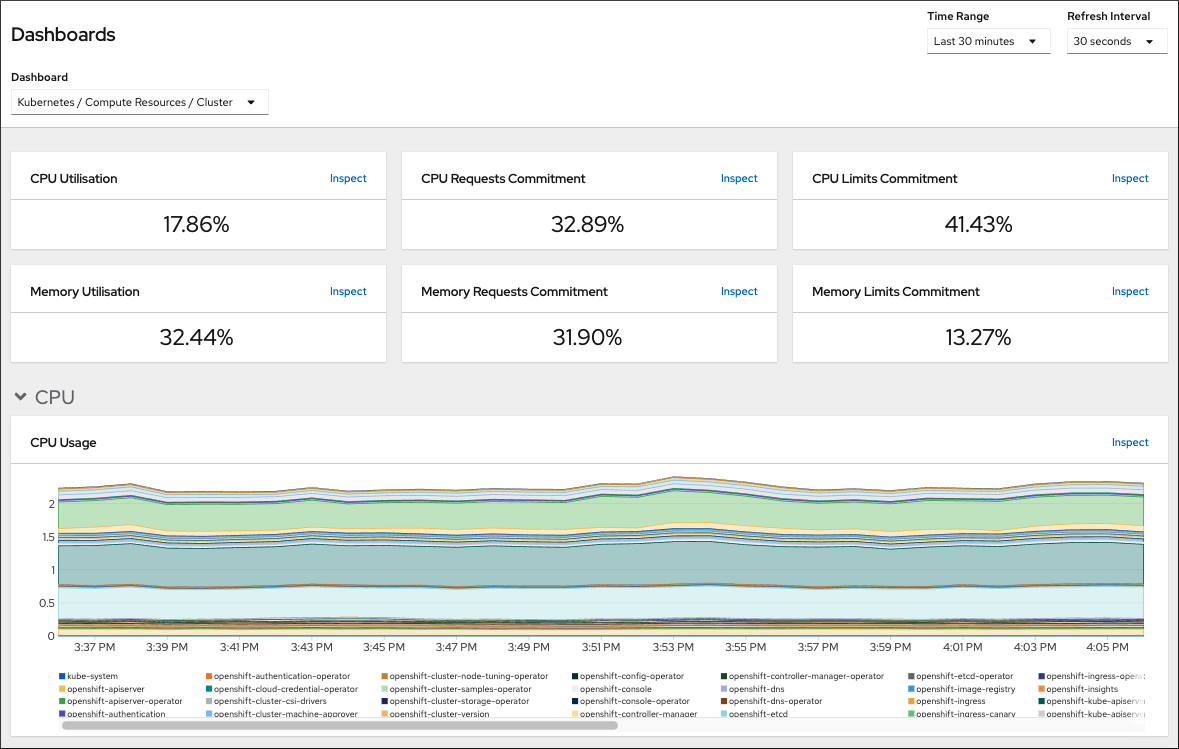
Prerequisites
-
You have access to the cluster as a user with the
cluster-adminrole.
Procedure
- In the Administrator perspective in the OpenShift Container Platform web console, navigate to Observe → Dashboards.
- Choose a dashboard in the Dashboard list. Some dashboards, such as the etcd dashboard, produce additional sub-menus when selected.
Optional: Select a time range for the graphs in the Time Range list.
- Select a pre-defined time period.
Set a custom time range by selecting Custom time range in the Time Range list.
- Input or select the From and To dates and times.
- Click Save to save the custom time range.
- Optional: Select a Refresh Interval.
- Hover over each of the graphs within a dashboard to display detailed information about specific items.
21.8. Listing alerts that are firing
Alerts provide notifications when a set of defined conditions are true in an OpenShift Container Platform cluster. You can review the alerts that are firing in your cluster by using the Alerting UI in the OpenShift Container Platform web console.
Prerequisites
-
You have access to the cluster as a user with the
cluster-adminrole.
Procedure
- In the Administrator perspective, navigate to the Observe → Alerting → Alerts page.
- Review the alerts that are firing, including their Severity, State, and Source.
- Select an alert to view more detailed information in the Alert Details page.
21.9. Next steps
- See Troubleshooting installations if you experience issues when installing your cluster.
- After installing OpenShift Container Platform, you can further expand and customize your cluster.
Chapter 22. Troubleshooting installation issues
To assist in troubleshooting a failed OpenShift Container Platform installation, you can gather logs from the bootstrap and control plane machines. You can also get debug information from the installation program. If you are unable to resolve the issue using the logs and debug information, see Determining where installation issues occur for component-specific troubleshooting.
If your OpenShift Container Platform installation fails and the debug output or logs contain network timeouts or other connectivity errors, review the guidelines for configuring your firewall. Gathering logs from your firewall and load balancer can help you diagnose network-related errors.
22.1. Prerequisites
- You attempted to install an OpenShift Container Platform cluster and the installation failed.
22.2. Gathering logs from a failed installation
If you gave an SSH key to your installation program, you can gather data about your failed installation.
You use a different command to gather logs about an unsuccessful installation than to gather logs from a running cluster. If you must gather logs from a running cluster, use the oc adm must-gather command.
Prerequisites
- Your OpenShift Container Platform installation failed before the bootstrap process finished. The bootstrap node is running and accessible through SSH.
-
The
ssh-agentprocess is active on your computer, and you provided the same SSH key to both thessh-agentprocess and the installation program. - If you tried to install a cluster on infrastructure that you provisioned, you must have the fully qualified domain names of the bootstrap and control plane nodes.
Procedure
Generate the commands that are required to obtain the installation logs from the bootstrap and control plane machines:
If you used installer-provisioned infrastructure, change to the directory that contains the installation program and run the following command:
./openshift-install gather bootstrap --dir <installation_directory>
$ ./openshift-install gather bootstrap --dir <installation_directory>1 Copy to Clipboard Copied! Toggle word wrap Toggle overflow - 1
installation_directoryis the directory you specified when you ran./openshift-install create cluster. This directory contains the OpenShift Container Platform definition files that the installation program creates.
For installer-provisioned infrastructure, the installation program stores information about the cluster, so you do not specify the hostnames or IP addresses.
If you used infrastructure that you provisioned yourself, change to the directory that contains the installation program and run the following command:
./openshift-install gather bootstrap --dir <installation_directory> \ --bootstrap <bootstrap_address> \ --master <master_1_address> \ --master <master_2_address> \ --master <master_3_address>"$ ./openshift-install gather bootstrap --dir <installation_directory> \1 --bootstrap <bootstrap_address> \2 --master <master_1_address> \3 --master <master_2_address> \4 --master <master_3_address>"5 Copy to Clipboard Copied! Toggle word wrap Toggle overflow - 1
- For
installation_directory, specify the same directory you specified when you ran./openshift-install create cluster. This directory contains the OpenShift Container Platform definition files that the installation program creates. - 2
<bootstrap_address>is the fully qualified domain name or IP address of the cluster’s bootstrap machine.- 3 4 5
- For each control plane, or master, machine in your cluster, replace
<master_*_address>with its fully qualified domain name or IP address.
NoteA default cluster contains three control plane machines. List all of your control plane machines as shown, no matter how many your cluster uses.
Example output
INFO Pulling debug logs from the bootstrap machine INFO Bootstrap gather logs captured here "<installation_directory>/log-bundle-<timestamp>.tar.gz"
INFO Pulling debug logs from the bootstrap machine INFO Bootstrap gather logs captured here "<installation_directory>/log-bundle-<timestamp>.tar.gz"Copy to Clipboard Copied! Toggle word wrap Toggle overflow If you open a Red Hat support case about your installation failure, include the compressed logs in the case.
22.3. Manually gathering logs with SSH access to your host(s)
Manually gather logs in situations where must-gather or automated collection methods do not work.
By default, SSH access to the OpenShift Container Platform nodes is disabled on the Red Hat OpenStack Platform (RHOSP) based installations.
Prerequisites
- You must have SSH access to your host(s).
Procedure
Collect the
bootkube.serviceservice logs from the bootstrap host using thejournalctlcommand by running:journalctl -b -f -u bootkube.service
$ journalctl -b -f -u bootkube.serviceCopy to Clipboard Copied! Toggle word wrap Toggle overflow Collect the bootstrap host’s container logs using the podman logs. This is shown as a loop to get all of the container logs from the host:
for pod in $(sudo podman ps -a -q); do sudo podman logs $pod; done
$ for pod in $(sudo podman ps -a -q); do sudo podman logs $pod; doneCopy to Clipboard Copied! Toggle word wrap Toggle overflow Alternatively, collect the host’s container logs using the
tailcommand by running:tail -f /var/lib/containers/storage/overlay-containers/*/userdata/ctr.log
# tail -f /var/lib/containers/storage/overlay-containers/*/userdata/ctr.logCopy to Clipboard Copied! Toggle word wrap Toggle overflow Collect the
kubelet.serviceandcrio.serviceservice logs from the master and worker hosts using thejournalctlcommand by running:journalctl -b -f -u kubelet.service -u crio.service
$ journalctl -b -f -u kubelet.service -u crio.serviceCopy to Clipboard Copied! Toggle word wrap Toggle overflow Collect the master and worker host container logs using the
tailcommand by running:sudo tail -f /var/log/containers/*
$ sudo tail -f /var/log/containers/*Copy to Clipboard Copied! Toggle word wrap Toggle overflow
22.4. Manually gathering logs without SSH access to your host(s)
Manually gather logs in situations where must-gather or automated collection methods do not work.
If you do not have SSH access to your node, you can access the systems journal to investigate what is happening on your host.
Prerequisites
- Your OpenShift Container Platform installation must be complete.
- Your API service is still functional.
- You have system administrator privileges.
Procedure
Access
journaldunit logs under/var/logby running:oc adm node-logs --role=master -u kubelet
$ oc adm node-logs --role=master -u kubeletCopy to Clipboard Copied! Toggle word wrap Toggle overflow Access host file paths under
/var/logby running:oc adm node-logs --role=master --path=openshift-apiserver
$ oc adm node-logs --role=master --path=openshift-apiserverCopy to Clipboard Copied! Toggle word wrap Toggle overflow
22.5. Getting debug information from the installation program
You can use any of the following actions to get debug information from the installation program.
Look at debug messages from a past installation in the hidden
.openshift_install.logfile. For example, enter:cat ~/<installation_directory>/.openshift_install.log
$ cat ~/<installation_directory>/.openshift_install.log1 Copy to Clipboard Copied! Toggle word wrap Toggle overflow - 1
- For
installation_directory, specify the same directory you specified when you ran./openshift-install create cluster.
Change to the directory that contains the installation program and re-run it with
--log-level=debug:./openshift-install create cluster --dir <installation_directory> --log-level debug
$ ./openshift-install create cluster --dir <installation_directory> --log-level debug1 Copy to Clipboard Copied! Toggle word wrap Toggle overflow - 1
- For
installation_directory, specify the same directory you specified when you ran./openshift-install create cluster.
22.6. Reinstalling the OpenShift Container Platform cluster
If you are unable to debug and resolve issues in the failed OpenShift Container Platform installation, consider installing a new OpenShift Container Platform cluster. Before starting the installation process again, you must complete thorough cleanup. For a user-provisioned infrastructure (UPI) installation, you must manually destroy the cluster and delete all associated resources. The following procedure is for an installer-provisioned infrastructure (IPI) installation.
Procedure
Destroy the cluster and remove all the resources associated with the cluster, including the hidden installer state files in the installation directory:
./openshift-install destroy cluster --dir <installation_directory>
$ ./openshift-install destroy cluster --dir <installation_directory>1 Copy to Clipboard Copied! Toggle word wrap Toggle overflow - 1
installation_directoryis the directory you specified when you ran./openshift-install create cluster. This directory contains the OpenShift Container Platform definition files that the installation program creates.
Before reinstalling the cluster, delete the installation directory:
rm -rf <installation_directory>
$ rm -rf <installation_directory>Copy to Clipboard Copied! Toggle word wrap Toggle overflow - Follow the procedure for installing a new OpenShift Container Platform cluster.
Chapter 23. Support for FIPS cryptography
You can install an OpenShift Container Platform cluster that uses FIPS Validated / Modules in Process cryptographic libraries on the x86_64 architecture.
For the Red Hat Enterprise Linux CoreOS (RHCOS) machines in your cluster, this change is applied when the machines are deployed based on the status of an option in the install-config.yaml file, which governs the cluster options that a user can change during cluster deployment. With Red Hat Enterprise Linux (RHEL) machines, you must enable FIPS mode when you install the operating system on the machines that you plan to use as worker machines. These configuration methods ensure that your cluster meet the requirements of a FIPS compliance audit: only FIPS Validated / Modules in Process cryptography packages are enabled before the initial system boot.
Because FIPS must be enabled before the operating system that your cluster uses boots for the first time, you cannot enable FIPS after you deploy a cluster.
23.1. FIPS validation in OpenShift Container Platform
OpenShift Container Platform uses certain FIPS Validated / Modules in Process modules within RHEL and RHCOS for the operating system components that it uses. See RHEL8 core crypto components. For example, when users SSH into OpenShift Container Platform clusters and containers, those connections are properly encrypted.
OpenShift Container Platform components are written in Go and built with Red Hat’s golang compiler. When you enable FIPS mode for your cluster, all OpenShift Container Platform components that require cryptographic signing call RHEL and RHCOS cryptographic libraries.
| Attributes | Limitations |
|---|---|
| FIPS support in RHEL 7, RHEL 8, and RHCOS operating systems. | The FIPS implementation does not offer a single function that both computes hash functions and validates the keys that are based on that hash. This limitation will continue to be evaluated and improved in future OpenShift Container Platform releases. |
| FIPS support in CRI-O runtimes. | |
| FIPS support in OpenShift Container Platform services. | |
| FIPS Validated / Modules in Process cryptographic module and algorithms that are obtained from RHEL 7, RHEL 8, and RHCOS binaries and images. | |
| Use of FIPS compatible golang compiler. | TLS FIPS support is not complete but is planned for future OpenShift Container Platform releases. |
| FIPS support across multiple architectures. |
FIPS is currently only supported on OpenShift Container Platform deployments using the |
23.2. FIPS support in components that the cluster uses
Although the OpenShift Container Platform cluster itself uses FIPS Validated / Modules in Process modules, ensure that the systems that support your OpenShift Container Platform cluster use FIPS Validated / Modules in Process modules for cryptography.
23.2.1. etcd
To ensure that the secrets that are stored in etcd use FIPS Validated / Modules in Process encryption, boot the node in FIPS mode. After you install the cluster in FIPS mode, you can encrypt the etcd data by using the FIPS-approved aes cbc cryptographic algorithm.
23.2.2. Storage
For local storage, use RHEL-provided disk encryption or Container Native Storage that uses RHEL-provided disk encryption. By storing all data in volumes that use RHEL-provided disk encryption and enabling FIPS mode for your cluster, both data at rest and data in motion, or network data, are protected by FIPS Validated / Modules in Process encryption. You can configure your cluster to encrypt the root filesystem of each node, as described in Customizing nodes.
23.2.3. Runtimes
To ensure that containers know that they are running on a host that is using FIPS Validated / Modules in Process cryptography modules, use CRI-O to manage your runtimes. CRI-O supports FIPS mode, in that it configures the containers to know that they are running in FIPS mode.
23.3. Installing a cluster in FIPS mode
To install a cluster in FIPS mode, follow the instructions to install a customized cluster on your preferred infrastructure. Ensure that you set fips: true in the install-config.yaml file before you deploy your cluster.
If you are using Azure File storage, you cannot enable FIPS mode.
To apply AES CBC encryption to your etcd data store, follow the Encrypting etcd data process after you install your cluster.
If you add RHEL nodes to your cluster, ensure that you enable FIPS mode on the machines before their initial boot. See Adding RHEL compute machines to an OpenShift Container Platform cluster and Enabling FIPS Mode in the RHEL 7 documentation or Enabling FIPS Mode in the RHEL 8 documentation
Legal Notice
Copyright © 2025 Red Hat
OpenShift documentation is licensed under the Apache License 2.0 (https://www.apache.org/licenses/LICENSE-2.0).
Modified versions must remove all Red Hat trademarks.
Portions adapted from https://github.com/kubernetes-incubator/service-catalog/ with modifications by Red Hat.
Red Hat, Red Hat Enterprise Linux, the Red Hat logo, the Shadowman logo, JBoss, OpenShift, Fedora, the Infinity logo, and RHCE are trademarks of Red Hat, Inc., registered in the United States and other countries.
Linux® is the registered trademark of Linus Torvalds in the United States and other countries.
Java® is a registered trademark of Oracle and/or its affiliates.
XFS® is a trademark of Silicon Graphics International Corp. or its subsidiaries in the United States and/or other countries.
MySQL® is a registered trademark of MySQL AB in the United States, the European Union and other countries.
Node.js® is an official trademark of Joyent. Red Hat Software Collections is not formally related to or endorsed by the official Joyent Node.js open source or commercial project.
The OpenStack® Word Mark and OpenStack logo are either registered trademarks/service marks or trademarks/service marks of the OpenStack Foundation, in the United States and other countries and are used with the OpenStack Foundation’s permission. We are not affiliated with, endorsed or sponsored by the OpenStack Foundation, or the OpenStack community.
All other trademarks are the property of their respective owners.

'%20d='M201.5%20305.5c-13.8%200-24.9-11.1-24.9-24.6%200-13.8%2011.1-24.9%2024.9-24.9%2013.6%200%2024.6%2011.1%2024.6%2024.9%200%2013.6-11.1%2024.6-24.6%2024.6zM504%20256c0%20137-111%20248-248%20248S8%20393%208%20256%20119%208%20256%208s248%20111%20248%20248zm-132.3-41.2c-9.4%200-17.7%203.9-23.8%2010-22.4-15.5-52.6-25.5-86.1-26.6l17.4-78.3%2055.4%2012.5c0%2013.6%2011.1%2024.6%2024.6%2024.6%2013.8%200%2024.9-11.3%2024.9-24.9s-11.1-24.9-24.9-24.9c-9.7%200-18%205.8-22.1%2013.8l-61.2-13.6c-3-.8-6.1%201.4-6.9%204.4l-19.1%2086.4c-33.2%201.4-63.1%2011.3-85.5%2026.8-6.1-6.4-14.7-10.2-24.1-10.2-34.9%200-46.3%2046.9-14.4%2062.8-1.1%205-1.7%2010.2-1.7%2015.5%200%2052.6%2059.2%2095.2%20132%2095.2%2073.1%200%20132.3-42.6%20132.3-95.2%200-5.3-.6-10.8-1.9-15.8%2031.3-16%2019.8-62.5-14.9-62.5zM302.8%20331c-18.2%2018.2-76.1%2017.9-93.6%200-2.2-2.2-6.1-2.2-8.3%200-2.5%202.5-2.5%206.4%200%208.6%2022.8%2022.8%2087.3%2022.8%20110.2%200%202.5-2.2%202.5-6.1%200-8.6-2.2-2.2-6.1-2.2-8.3%200zm7.7-75c-13.6%200-24.6%2011.1-24.6%2024.9%200%2013.6%2011.1%2024.6%2024.6%2024.6%2013.8%200%2024.9-11.1%2024.9-24.6%200-13.8-11-24.9-24.9-24.9z'/%3e%3c/svg%3e)