 Red Hat Summit
Chapter 6. Geo-replication
Currently, the geo-replication feature is not supported on IBM Power.
Geo-replication allows multiple, geographically distributed Red Hat Quay deployments to work as a single registry from the perspective of a client or user. It significantly improves push and pull performance in a globally-distributed Red Hat Quay setup. Image data is asynchronously replicated in the background with transparent failover and redirect for clients.
Deployments of Red Hat Quay with geo-replication is supported on standalone and Operator deployments.
Additional resources
- For more information about the geo-replication feature’s architecture, see the architecture guide, which includes technical diagrams and a high-level overview.
6.1. Geo-replication features
- When geo-replication is configured, container image pushes will be written to the preferred storage engine for that Red Hat Quay instance. This is typically the nearest storage backend within the region.
- After the initial push, image data will be replicated in the background to other storage engines.
- The list of replication locations is configurable and those can be different storage backends.
- An image pull will always use the closest available storage engine, to maximize pull performance.
- If replication has not been completed yet, the pull will use the source storage backend instead.
6.2. Geo-replication requirements and constraints
- In geo-replicated setups, Red Hat Quay requires that all regions are able to read and write to all other region’s object storage. Object storage must be geographically accessible by all other regions.
- In case of an object storage system failure of one geo-replicating site, that site’s Red Hat Quay deployment must be shut down so that clients are redirected to the remaining site with intact storage systems by a global load balancer. Otherwise, clients will experience pull and push failures.
- Red Hat Quay has no internal awareness of the health or availability of the connected object storage system. Users must configure a global load balancer (LB) to monitor the health of your distributed system and to route traffic to different sites based on their storage status.
-
To check the status of your geo-replication deployment, you must use the
/health/endtoendcheckpoint, which is used for global health monitoring. You must configure the redirect manually using the/health/endtoendendpoint. The/health/instanceend point only checks local instance health. - If the object storage system of one site becomes unavailable, there will be no automatic redirect to the remaining storage system, or systems, of the remaining site, or sites.
- Geo-replication is asynchronous. The permanent loss of a site incurs the loss of the data that has been saved in that sites' object storage system but has not yet been replicated to the remaining sites at the time of failure.
A single database, and therefore all metadata and Red Hat Quay configuration, is shared across all regions.
Geo-replication does not replicate the database. In the event of an outage, Red Hat Quay with geo-replication enabled will not failover to another database.
- A single Redis cache is shared across the entire Red Hat Quay setup and needs to be accessible by all Red Hat Quay pods.
-
The exact same configuration should be used across all regions, with exception of the storage backend, which can be configured explicitly using the
QUAY_DISTRIBUTED_STORAGE_PREFERENCEenvironment variable. - Geo-replication requires object storage in each region. It does not work with local storage.
- Each region must be able to access every storage engine in each region, which requires a network path.
- Alternatively, the storage proxy option can be used.
- The entire storage backend, for example, all blobs, is replicated. Repository mirroring, by contrast, can be limited to a repository, or an image.
- All Red Hat Quay instances must share the same entrypoint, typically through a load balancer.
- All Red Hat Quay instances must have the same set of superusers, as they are defined inside the common configuration file.
In geo-replication environments, your Clair configuration can be set to
unmanaged. An unmanaged Clair database allows the Red Hat Quay Operator to work in a geo-replicated environment where multiple instances of the Operator must communicate with the same database. For more information, see Advanced Clair configuration.If you keep your Clair configuration
managed, you must retrieve the configuration file for the deployed Clair instance that is deployed by the Operator. For more information, see Retrieving and decoding the Clair configuration secret for Clair deployments on OpenShift Container Platform.- Geo-Replication requires SSL/TLS certificates and keys. For more information, see * Geo-Replication requires SSL/TLS certificates and keys. For more information, see Proof of concept deployment using SSL/TLS certificates. .
If the above requirements cannot be met, you should instead use two or more distinct Red Hat Quay deployments and take advantage of repository mirroring functions.
6.2.1. Setting up geo-replication on OpenShift Container Platform
Use the following procedure to set up geo-replication on OpenShift Container Platform.
Procedure
- Deploy a postgres instance for Red Hat Quay.
Login to the database by entering the following command:
psql -U <username> -h <hostname> -p <port> -d <database_name>Create a database for Red Hat Quay named
quay. For example:CREATE DATABASE quay;Enable pg_trm extension inside the database
\c quay;
CREATE EXTENSION IF NOT EXISTS pg_trgm;
Deploy a Redis instance:
Note- Deploying a Redis instance might be unnecessary if your cloud provider has its own service.
- Deploying a Redis instance is required if you are leveraging Builders.
- Deploy a VM for Redis
- Verify that it is accessible from the clusters where Red Hat Quay is running
- Port 6379/TCP must be open
Run Redis inside the instance
sudo dnf install -y podman
podman run -d --name redis -p 6379:6379 redis
- Create two object storage backends, one for each cluster. Ideally, one object storage bucket will be close to the first, or primary, cluster, and the other will run closer to the second, or secondary, cluster.
- Deploy the clusters with the same config bundle, using environment variable overrides to select the appropriate storage backend for an individual cluster.
- Configure a load balancer to provide a single entry point to the clusters.
6.2.1.1. Configuring geo-replication for the Red Hat Quay on OpenShift Container Platform
Use the following procedure to configure geo-replication for the Red Hat Quay on OpenShift Container Platform.
Procedure
Create a
config.yamlfile that is shared between clusters. Thisconfig.yamlfile contains the details for the common PostgreSQL, Redis and storage backends:Geo-replication
config.yamlfileSERVER_HOSTNAME: <georep.quayteam.org or any other name>1 DB_CONNECTION_ARGS: autorollback: true threadlocals: true DB_URI: postgresql://postgres:password@10.19.0.1:5432/quay BUILDLOGS_REDIS: host: 10.19.0.2 port: 6379 USER_EVENTS_REDIS: host: 10.19.0.2 port: 6379 DATABASE_SECRET_KEY: 0ce4f796-c295-415b-bf9d-b315114704b8 DISTRIBUTED_STORAGE_CONFIG: usstorage: - GoogleCloudStorage - access_key: GOOGQGPGVMASAAMQABCDEFG bucket_name: georep-test-bucket-0 secret_key: AYWfEaxX/u84XRA2vUX5C987654321 storage_path: /quaygcp eustorage: - GoogleCloudStorage - access_key: GOOGQGPGVMASAAMQWERTYUIOP bucket_name: georep-test-bucket-1 secret_key: AYWfEaxX/u84XRA2vUX5Cuj12345678 storage_path: /quaygcp DISTRIBUTED_STORAGE_DEFAULT_LOCATIONS: - usstorage - eustorage DISTRIBUTED_STORAGE_PREFERENCE: - usstorage - eustorage FEATURE_STORAGE_REPLICATION: true- 1
- A proper
SERVER_HOSTNAMEmust be used for the route and must match the hostname of the global load balancer. <<<<<<< HEAD - To retrieve the configuration file for a Clair instance deployed using the OpenShift Container Platform Operator, see Retrieving the Clair config.
>>>>>>> 97f5827d (Updates a few broken links)
Create the
configBundleSecretby entering the following command:$ oc create secret generic --from-file config.yaml=./config.yaml georep-config-bundleIn each of the clusters, set the
configBundleSecretand use theQUAY_DISTRIBUTED_STORAGE_PREFERENCEenvironmental variable override to configure the appropriate storage for that cluster. For example:NoteThe
config.yamlfile between both deployments must match. If making a change to one cluster, it must also be changed in the other.US cluster
QuayRegistryexampleapiVersion: quay.redhat.com/v1 kind: QuayRegistry metadata: name: example-registry namespace: quay-enterprise spec: configBundleSecret: georep-config-bundle components: - kind: objectstorage managed: false - kind: route managed: true - kind: tls managed: false - kind: postgres managed: false - kind: clairpostgres managed: false - kind: redis managed: false - kind: quay managed: true overrides: env: - name: QUAY_DISTRIBUTED_STORAGE_PREFERENCE value: usstorage - kind: mirror managed: true overrides: env: - name: QUAY_DISTRIBUTED_STORAGE_PREFERENCE value: usstorageNote<<<<<<< HEAD Because SSL/TLS is unmanaged, and the route is managed, you must supply the certificates directly in the config bundle. For more information, see Configuring TLS and routes.
Because SSL/TLS is unmanaged, and the route is managed, you must supply the certificates directly in the config bundle. For more information, see Configuring SSL/TLS and Routes. >>>>>>> 97f5827d (Updates a few broken links)
+
European cluster
apiVersion: quay.redhat.com/v1
kind: QuayRegistry
metadata:
  name: example-registry
  namespace: quay-enterprise
spec:
  configBundleSecret: georep-config-bundle
  components:
    - kind: objectstorage
      managed: false
    - kind: route
      managed: true
    - kind: tls
      managed: false
    - kind: postgres
      managed: false
    - kind: clairpostgres
      managed: false
    - kind: redis
      managed: false
    - kind: quay
      managed: true
      overrides:
        env:
        - name: QUAY_DISTRIBUTED_STORAGE_PREFERENCE
          value: eustorage
    - kind: mirror
      managed: true
      overrides:
        env:
        - name: QUAY_DISTRIBUTED_STORAGE_PREFERENCE
          value: eustorage
+
Because SSL/TLS is unmanaged, and the route is managed, you must supply the certificates directly in the config bundle. For more information, see Configuring SSL/TLS and Routes.
= Mixed storage for geo-replication
Red Hat Quay geo-replication supports the use of different and multiple replication targets, for example, using AWS S3 storage on public cloud and using Ceph storage on premise. This complicates the key requirement of granting access to all storage backends from all Red Hat Quay pods and cluster nodes. As a result, it is recommended that you use the following:
- A VPN to prevent visibility of the internal storage, or
- A token pair that only allows access to the specified bucket used by Red Hat Quay
This results in the public cloud instance of Red Hat Quay having access to on-premise storage, but the network will be encrypted, protected, and will use ACLs, thereby meeting security requirements.
If you cannot implement these security measures, it might be preferable to deploy two distinct Red Hat Quay registries and to use repository mirroring as an alternative to geo-replication.
= Upgrading a geo-replication deployment of Red Hat Quay on OpenShift Container Platform
Use the following procedure to upgrade your geo-replicated Red Hat Quay on OpenShift Container Platform deployment.
-
When upgrading geo-replicated Red Hat Quay on OpenShift Container Platform deployment to the next y-stream release (for example, Red Hat Quay 3.7
Red Hat Quay 3.8), you must stop operations before upgrading. - There is intermittent downtime down upgrading from one y-stream release to the next.
- It is highly recommended to back up your Red Hat Quay on OpenShift Container Platform deployment before upgrading.
This procedure assumes that you are running the Red Hat Quay registry on three or more systems. For this procedure, we will assume three systems named System A, System B, and System C. System A will serve as the primary system in which the Red Hat Quay Operator is deployed.
On System B and System C, scale down your Red Hat Quay registry. This is done by disabling auto scaling and overriding the replica county for Red Hat Quay, mirror workers, and Clair if it is managed. Use the following
quayregistry.yamlfile as a reference:apiVersion: quay.redhat.com/v1 kind: QuayRegistry metadata: name: registry namespace: ns spec: components: … - kind: horizontalpodautoscaler managed: false1 - kind: quay managed: true overrides:2 replicas: 0 - kind: clair managed: true overrides: replicas: 0 - kind: mirror managed: true overrides: replicas: 0 …
You must keep the Red Hat Quay registry running on System A. Do not update the quayregistry.yaml file on System A.
Wait for the
registry-quay-app,registry-quay-mirror, andregistry-clair-apppods to disappear. Enter the following command to check their status:oc get pods -n <quay-namespace>Example output
quay-operator.v3.7.1-6f9d859bd-p5ftc 1/1 Running 0 12m quayregistry-clair-postgres-7487f5bd86-xnxpr 1/1 Running 1 (12m ago) 12m quayregistry-quay-app-upgrade-xq2v6 0/1 Completed 0 12m quayregistry-quay-redis-84f888776f-hhgms 1/1 Running 0 12m- On System A, initiate a Red Hat Quay upgrade to the latest y-stream version. This is a manual process. For more information about upgrading installed Operators, see Upgrading installed Operators. For more information about Red Hat Quay upgrade paths, see Upgrading the Red Hat Quay Operator.
-
After the new Red Hat Quay registry is installed, the necessary upgrades on the cluster are automatically completed. Afterwards, new Red Hat Quay pods are started with the latest y-stream version. Additionally, new
Quaypods are scheduled and started. Confirm that the update has properly worked by navigating to the Red Hat Quay UI:
-
In the OpenShift console, navigate to Operators
Installed Operators, and click the Registry Endpoint link.
-
In the OpenShift console, navigate to Operators
Do not execute the following step until the Red Hat Quay UI is available. Do not upgrade the Red Hat Quay registry on System B and on System C until the UI is available on System A.
- Confirm that the update has properly worked on System A, initiate the Red Hat Quay upgrade on System B and on System C. The Operator upgrade results in an upgraded Red Hat Quay installation, and the pods are restarted.
Because the database schema is correct for the new y-stream installation, the new pods on System B and on System C should quickly start.
After updating, revert the changes made in step 1 of this procedure by removing
overridesfor the components. For example:apiVersion: quay.redhat.com/v1 kind: QuayRegistry metadata: name: registry namespace: ns spec: components: … - kind: horizontalpodautoscaler managed: true1 - kind: quay managed: true - kind: clair managed: true - kind: mirror managed: true …- 1
- If the
horizontalpodautoscalerresource was set totruebefore the upgrade procedure, or if you want Red Hat Quay to scale in case of a resource shortage, set it totrue.
= Removing a geo-replicated site from your Red Hat Quay on OpenShift Container Platform deployment
By using the following procedure, Red Hat Quay administrators can remove sites in a geo-replicated setup.
Prerequisites
- You are logged into OpenShift Container Platform.
-
You have configured Red Hat Quay geo-replication with at least two sites, for example,
usstorageandeustorage. - Each site has its own Organization, Repository, and image tags.
Procedure
Sync the blobs between all of your defined sites by running the following command:
$ python -m util.backfillreplication
Prior to removing storage engines from your Red Hat Quay config.yaml file, you must ensure that all blobs are synced between all defined sites.
When running this command, replication jobs are created which are picked up by the replication worker. If there are blobs that need replicated, the script returns UUIDs of blobs that will be replicated. If you run this command multiple times, and the output from the return script is empty, it does not mean that the replication process is done; it means that there are no more blobs to be queued for replication. Customers should use appropriate judgement before proceeding, as the allotted time replication takes depends on the number of blobs detected.
Alternatively, you could use a third party cloud tool, such as Microsoft Azure, to check the synchronization status.
This step must be completed before proceeding.
-
In your Red Hat Quay
config.yamlfile for siteusstorage, remove theDISTRIBUTED_STORAGE_CONFIGentry for theeustoragesite. Enter the following command to identify your
Quayapplication pods:$ oc get pod -n <quay_namespace>Example output
quay390usstorage-quay-app-5779ddc886-2drh2
quay390eustorage-quay-app-66969cd859-n2ssm
Enter the following command to open an interactive shell session in the
usstoragepod:$ oc rsh quay390usstorage-quay-app-5779ddc886-2drh2-
Enter the following command to permanently remove the
eustoragesite:
The following action cannot be undone. Use with caution.
+
sh-4.4$ python -m util.removelocation eustorage+ .Example output
+
WARNING: This is a destructive operation. Are you sure you want to remove eustorage from your storage locations? [y/n] y
Deleted placement 30
Deleted placement 31
Deleted placement 32
Deleted placement 33
Deleted location eustorage
= Backing up and restoring Red Hat Quay managed by the Red Hat Quay Operator
Use the content within this section to back up and restore Red Hat Quay when managed by the Red Hat Quay Operator on OpenShift Container Platform
= Optional: Enabling read-only mode for Red Hat Quay on OpenShift Container Platform
Enabling read-only mode for your Red Hat Quay on OpenShift Container Platform deployment allows you to manage the registry’s operations. Administrators can enable read-only mode to restrict write access to the registry, which helps ensure data integrity, mitigate risks during maintenance windows, and provide a safeguard against unintended modifications to registry data. It also helps to ensure that your Red Hat Quay registry remains online and available to serve images to users.
When backing up and restoring, you are required to scale down your Red Hat Quay on OpenShift Container Platform deployment. This results in service unavailability during the backup period which, in some cases, might be unacceptable. Enabling read-only mode ensures service availability during the backup and restore procedure for Red Hat Quay on OpenShift Container Platform deployments.
Prerequisites
If you are using Red Hat Enterprise Linux (RHEL) 7.x:
- You have enabled the Red Hat Software Collections List (RHSCL).
- You have installed Python 3.6.
-
You have downloaded the
virtualenvpackage. -
You have installed the
gitCLI.
If you are using Red Hat Enterprise Linux (RHEL) 8:
- You have installed Python 3 on your machine.
-
You have downloaded the
python3-virtualenvpackage. -
You have installed the
gitCLI.
-
You have cloned the
https://github.com/quay/quay.gitrepository. -
You have installed the
ocCLI. -
You have access to the cluster with
cluster-adminprivileges.
== Creating service keys for Red Hat Quay on OpenShift Container Platform
Red Hat Quay uses service keys to communicate with various components. These keys are used to sign completed requests, such as requesting to scan images, login, storage access, and so on.
Procedure
Enter the following command to obtain a list of Red Hat Quay pods:
$ oc get pods -n <namespace>Example output
example-registry-clair-app-7dc7ff5844-4skw5           0/1     Error                    0             70d
example-registry-clair-app-7dc7ff5844-nvn4f           1/1     Running                  0             31d
example-registry-clair-app-7dc7ff5844-x4smw           0/1     ContainerStatusUnknown   6 (70d ago)   70d
example-registry-clair-app-7dc7ff5844-xjnvt           1/1     Running                  0             60d
example-registry-clair-postgres-547d75759-75c49       1/1     Running                  0             70d
example-registry-quay-app-76c8f55467-52wjz            1/1     Running                  0             70d
example-registry-quay-app-76c8f55467-hwz4c            1/1     Running                  0             70d
example-registry-quay-app-upgrade-57ghs               0/1     Completed                1             70d
example-registry-quay-database-7c55899f89-hmnm6       1/1     Running                  0             70d
example-registry-quay-mirror-6cccbd76d-btsnb          1/1     Running                  0             70d
example-registry-quay-mirror-6cccbd76d-x8g42          1/1     Running                  0             70d
example-registry-quay-redis-85cbdf96bf-4vk5m          1/1     Running                  0             70d
Open a remote shell session to the
Quaycontainer by entering the following command:$ oc rsh example-registry-quay-app-76c8f55467-52wjzEnter the following command to create the necessary service keys:
sh-4.4$ python3 tools/generatekeypair.py quay-readonlyExample output
Writing public key to quay-readonly.jwk
Writing key ID to quay-readonly.kid
Writing private key to quay-readonly.pem
== Adding keys to the PostgreSQL database
Use the following procedure to add your service keys to the PostgreSQL database.
Prerequistes
- You have created the service keys.
Procedure
Enter the following command to enter your Red Hat Quay database environment:
$ oc rsh example-registry-quay-app-76c8f55467-52wjz psql -U <database_username> -d <database_name>Display the approval types and associated notes of the
servicekeyapprovalby entering the following command:quay=# select * from servicekeyapproval;Example output
 id | approver_id |          approval_type           |       approved_date        | notes
----+-------------+----------------------------------+----------------------------+-------
  1 |             | ServiceKeyApprovalType.AUTOMATIC | 2024-05-07 03:47:48.181347 |
  2 |             | ServiceKeyApprovalType.AUTOMATIC | 2024-05-07 03:47:55.808087 |
  3 |             | ServiceKeyApprovalType.AUTOMATIC | 2024-05-07 03:49:04.27095  |
  4 |             | ServiceKeyApprovalType.AUTOMATIC | 2024-05-07 03:49:05.46235  |
  5 |           1 | ServiceKeyApprovalType.SUPERUSER | 2024-05-07 04:05:10.296796 |
...
Add the service key to your Red Hat Quay database by entering the following query:
quay=# INSERT INTO servicekey
  (name, service, metadata, kid, jwk, created_date, expiration_date)
  VALUES ('quay-readonly',
           'quay',
           '{}',
           '{<contents_of_.kid_file>}',
           '{<contents_of_.jwk_file>}',
           '{<created_date_of_read-only>}',
           '{<expiration_date_of_read-only>}');
Example output
INSERT 0 1Next, add the key approval with the following query:
quay=# INSERT INTO servicekeyapproval ('approval_type', 'approved_date', 'notes')
  VALUES ("ServiceKeyApprovalType.SUPERUSER", "CURRENT_DATE",
           {include_notes_here_on_why_this_is_being_added});
Example output
INSERT 0 1Set the
approval_idfield on the created service key row to theidfield from the created service key approval. You can use the followingSELECTstatements to get the necessary IDs:UPDATE servicekey SET approval_id = (SELECT id FROM servicekeyapproval WHERE approval_type = 'ServiceKeyApprovalType.SUPERUSER') WHERE name = 'quay-readonly';UPDATE 1
== Configuring read-only mode Red Hat Quay on OpenShift Container Platform
After the service keys have been created and added to your PostgreSQL database, you must restart the Quay container on your OpenShift Container Platform deployment.
Deploying Red Hat Quay on OpenShift Container Platform in read-only mode requires you to modify the secrets stored inside of your OpenShift Container Platform cluster. It is highly recommended that you create a backup of the secret prior to making changes to it.
Prerequisites
- You have created the service keys and added them to your PostgreSQL database.
Procedure
Enter the following command to read the secret name of your Red Hat Quay on OpenShift Container Platform deployment:
$ oc get deployment -o yaml <quay_main_app_deployment_name>Use the
base64command to encode thequay-readonly.kidandquay-readonly.pemfiles:$ base64 -w0 quay-readonly.kidExample output
ZjUyNDFm...$ base64 -w0 quay-readonly.pemExample output
LS0tLS1CRUdJTiBSU0E...Obtain the current configuration bundle and secret by entering the following command:
$ oc get secret quay-config-secret-name -o json | jq '.data."config.yaml"' | cut -d '"' -f2 | base64 -d -w0 > config.yamlEdit the
config.yamlfile and add the following information:# ... REGISTRY_STATE: readonly INSTANCE_SERVICE_KEY_KID_LOCATION: 'conf/stack/quay-readonly.kid' INSTANCE_SERVICE_KEY_LOCATION: 'conf/stack/quay-readonly.pem' # ...Save the file and
base64encode it by running the following command:$ base64 -w0 quay-config.yamlScale down the Red Hat Quay Operator pods to
0. This ensures that the Operator does not reconcile the secret after editing it.$ oc scale --replicas=0 deployment quay-operator -n openshift-operatorsEdit the secret to include the new content:
$ oc edit secret quay-config-secret-name -n quay-namespace# ... data: "quay-readonly.kid": "ZjUyNDFm..." "quay-readonly.pem": "LS0tLS1CRUdJTiBSU0E..." "config.yaml": "QUNUSU9OX0xPR19..." # ...With your Red Hat Quay on OpenShift Container Platform deployment on read-only mode, you can safely manage your registry’s operations and perform such actions as backup and restore.
=== Scaling up the Red Hat Quay on OpenShift Container Platform from a read-only deployment
When you no longer want Red Hat Quay on OpenShift Container Platform to be in read-only mode, you can scale the deployment back up and remove the content added from the secret.
Procedure
Edit the
config.yamlfile and remove the following information:# ... REGISTRY_STATE: readonly INSTANCE_SERVICE_KEY_KID_LOCATION: 'conf/stack/quay-readonly.kid' INSTANCE_SERVICE_KEY_LOCATION: 'conf/stack/quay-readonly.pem' # ...Scale the Red Hat Quay Operator back up by entering the following command:
oc scale --replicas=1 deployment quay-operator -n openshift-operators
= Backing up Red Hat Quay
Database backups should be performed regularly using either the supplied tools on the PostgreSQL image or your own backup infrastructure. The Red Hat Quay Operator does not ensure that the PostgreSQL database is backed up.
This procedure covers backing up your Red Hat Quay PostgreSQL database. It does not cover backing up the Clair PostgreSQL database. Strictly speaking, backing up the Clair PostgreSQL database is not needed because it can be recreated. If you opt to recreate it from scratch, you will wait for the information to be repopulated after all images inside of your Red Hat Quay deployment are scanned. During this downtime, security reports are unavailable.
If you are considering backing up the Clair PostgreSQL database, you must consider that its size is dependent upon the number of images stored inside of Red Hat Quay. As a result, the database can be extremely large.
This procedure describes how to create a backup of Red Hat Quay on OpenShift Container Platform using the Operator.
Prerequisites
-
A healthy Red Hat Quay deployment on OpenShift Container Platform using the Red Hat Quay Operator. The status condition
Availableis set totrue. -
The components
quay,postgresandobjectstorageare set tomanaged: true -
If the component
clairis set tomanaged: truethe componentclairpostgresis also set tomanaged: true(starting with Red Hat Quay v3.7 or later)
If your deployment contains partially unmanaged database or storage components and you are using external services for PostgreSQL or S3-compatible object storage to run your Red Hat Quay deployment, you must refer to the service provider or vendor documentation to create a backup of the data. You can refer to the tools described in this guide as a starting point on how to backup your external PostgreSQL database or object storage.
== Red Hat Quay configuration backup
Use the following procedure to back up your Red Hat Quay configuration.
Procedure
To back the
QuayRegistrycustom resource by exporting it, enter the following command:$ oc get quayregistry <quay_registry_name> -n <quay_namespace> -o yaml > quay-registry.yamlEdit the resulting
quayregistry.yamland remove the status section and the following metadata fields:metadata.creationTimestamp metadata.finalizers metadata.generation metadata.resourceVersion metadata.uid- Backup the managed keys secret by entering the following command:
If you are running a version older than Red Hat Quay 3.7.0, this step can be skipped. Some secrets are automatically generated while deploying Red Hat Quay for the first time. These are stored in a secret called <quay_registry_name>-quay-registry-managed-secret-keys in the namespace of the QuayRegistry resource.
+
$ oc get secret -n <quay_namespace> <quay_registry_name>-quay-registry-managed-secret-keys -o yaml > managed_secret_keys.yamlEdit the resulting
managed_secret_keys.yamlfile and remove the entrymetadata.ownerReferences. Yourmanaged_secret_keys.yamlfile should look similar to the following:apiVersion: v1 kind: Secret type: Opaque metadata: name: <quay_registry_name>-quay-registry-managed-secret-keys namespace: <quay_namespace> data: CONFIG_EDITOR_PW: <redacted> DATABASE_SECRET_KEY: <redacted> DB_ROOT_PW: <redacted> DB_URI: <redacted> SECRET_KEY: <redacted> SECURITY_SCANNER_V4_PSK: <redacted>All information under the
dataproperty should remain the same.Redirect the current
Quayconfiguration file by entering the following command:$ oc get secret -n <quay-namespace> $(oc get quayregistry <quay_registry_name> -n <quay_namespace> -o jsonpath='{.spec.configBundleSecret}') -o yaml > config-bundle.yamlBackup the
/conf/stack/config.yamlfile mounted inside of theQuaypods:$ oc exec -it quay_pod_name -- cat /conf/stack/config.yaml > quay_config.yamlObtain the
Quaydatabase name:$ oc -n <quay_namespace> rsh $(oc get pod -l app=quay -o NAME -n <quay_namespace> |head -n 1) cat /conf/stack/config.yaml|awk -F"/" '/^DB_URI/ {print $4}'Example output
quayregistry-quay-database
== Scaling down your Red Hat Quay deployment
Use the following procedure to scale down your Red Hat Quay deployment.
This step is needed to create a consistent backup of the state of your Red Hat Quay deployment. Do not omit this step, including in setups where PostgreSQL databases and/or S3-compatible object storage are provided by external services (unmanaged by the Red Hat Quay Operator).
Procedure
Depending on the version of your Red Hat Quay deployment, scale down your deployment using one of the following options.
For Operator version 3.7 and newer: Scale down the Red Hat Quay deployment by disabling auto scaling and overriding the replica count for Red Hat Quay, mirror workers, and Clair (if managed). Your
QuayRegistryresource should look similar to the following:apiVersion: quay.redhat.com/v1 kind: QuayRegistry metadata: name: registry namespace: ns spec: components: … - kind: horizontalpodautoscaler managed: false1 - kind: quay managed: true overrides:2 replicas: 0 - kind: clair managed: true overrides: replicas: 0 - kind: mirror managed: true overrides: replicas: 0 …For Operator version 3.6 and earlier: Scale down the Red Hat Quay deployment by scaling down the Red Hat Quay registry first and then the managed Red Hat Quay resources:
$ oc scale --replicas=0 deployment $(oc get deployment -n <quay-operator-namespace>|awk '/^quay-operator/ {print $1}') -n <quay-operator-namespace>$ oc scale --replicas=0 deployment $(oc get deployment -n <quay-namespace>|awk '/quay-app/ {print $1}') -n <quay-namespace>$ oc scale --replicas=0 deployment $(oc get deployment -n <quay-namespace>|awk '/quay-mirror/ {print $1}') -n <quay-namespace>$ oc scale --replicas=0 deployment $(oc get deployment -n <quay-namespace>|awk '/clair-app/ {print $1}') -n <quay-namespace>
Wait for the
registry-quay-app,registry-quay-mirrorandregistry-clair-apppods (depending on which components you set to be managed by the Red Hat Quay Operator) to disappear. You can check their status by running the following command:$ oc get pods -n <quay_namespace>Example output:
$ oc get podExample output
quay-operator.v3.7.1-6f9d859bd-p5ftc               1/1     Running     0             12m
quayregistry-clair-postgres-7487f5bd86-xnxpr       1/1     Running     1 (12m ago)   12m
quayregistry-quay-app-upgrade-xq2v6                0/1     Completed   0             12m
quayregistry-quay-database-859d5445ff-cqthr        1/1     Running     0             12m
quayregistry-quay-redis-84f888776f-hhgms           1/1     Running     0             12m
== Backing up the Red Hat Quay managed database
Use the following procedure to back up the Red Hat Quay managed database.
If your Red Hat Quay deployment is configured with external, or unmanged, PostgreSQL database(s), refer to your vendor’s documentation on how to create a consistent backup of these databases.
Procedure
Identify the Quay PostgreSQL pod name:
$ oc get pod -l quay-component=postgres -n <quay_namespace> -o jsonpath='{.items[0].metadata.name}'Example output:
quayregistry-quay-database-59f54bb7-58xs7Download a backup database:
$ oc -n <quay_namespace> exec quayregistry-quay-database-59f54bb7-58xs7 -- /usr/bin/pg_dump -C quayregistry-quay-database > backup.sql
=== Backing up the Red Hat Quay managed object storage
Use the following procedure to back up the Red Hat Quay managed object storage. The instructions in this section apply to the following configurations:
- Standalone, multi-cloud object gateway configurations
- OpenShift Data Foundations storage requires that the Red Hat Quay Operator provisioned an S3 object storage bucket from, through the ObjectStorageBucketClaim API
If your Red Hat Quay deployment is configured with external (unmanged) object storage, refer to your vendor’s documentation on how to create a copy of the content of Quay’s storage bucket.
Procedure
Decode and export the
AWS_ACCESS_KEY_IDby entering the following command:$ export AWS_ACCESS_KEY_ID=$(oc get secret -l app=noobaa -n <quay-namespace> -o jsonpath='{.items[0].data.AWS_ACCESS_KEY_ID}' |base64 -d)Decode and export the
AWS_SECRET_ACCESS_KEY_IDby entering the following command:$ export AWS_SECRET_ACCESS_KEY=$(oc get secret -l app=noobaa -n <quay-namespace> -o jsonpath='{.items[0].data.AWS_SECRET_ACCESS_KEY}' |base64 -d)Create a new directory:
$ mkdir blobs
You can also use rclone or sc3md instead of the AWS command line utility.
Copy all blobs to the directory by entering the following command:
$ aws s3 sync --no-verify-ssl --endpoint https://$(oc get route s3 -n openshift-storage -o jsonpath='{.spec.host}') s3://$(oc get cm -l app=noobaa -n <quay-namespace> -o jsonpath='{.items[0].data.BUCKET_NAME}') ./blobs
== Scale the Red Hat Quay deployment back up
Depending on the version of your Red Hat Quay deployment, scale up your deployment using one of the following options.
For Operator version 3.7 and newer: Scale up the Red Hat Quay deployment by re-enabling auto scaling, if desired, and removing the replica overrides for Quay, mirror workers and Clair as applicable. Your
QuayRegistryresource should look similar to the following:apiVersion: quay.redhat.com/v1 kind: QuayRegistry metadata: name: registry namespace: ns spec: components: … - kind: horizontalpodautoscaler managed: true1 - kind: quay2 managed: true - kind: clair managed: true - kind: mirror managed: true …For Operator version 3.6 and earlier: Scale up the Red Hat Quay deployment by scaling up the Red Hat Quay registry:
$ oc scale --replicas=1 deployment $(oc get deployment -n <quay_operator_namespace> | awk '/^quay-operator/ {print $1}') -n <quay_operator_namespace>
Check the status of the Red Hat Quay deployment by entering the following command:
$ oc wait quayregistry registry --for=condition=Available=true -n <quay_namespace>Example output:
apiVersion: quay.redhat.com/v1
kind: QuayRegistry
metadata:
  ...
  name: registry
  namespace: <quay-namespace>
  ...
spec:
  ...
status:
  - lastTransitionTime: '2022-06-20T05:31:17Z'
    lastUpdateTime: '2022-06-20T17:31:13Z'
    message: All components reporting as healthy
    reason: HealthChecksPassing
    status: 'True'
    type: Available
= Restoring Red Hat Quay
Use the following procedures to restore Red Hat Quay when the Red Hat Quay Operator manages the database. It should be performed after a backup of your Red Hat Quay registry has been performed. See Backing up Red Hat Quay for more information.
Prerequisites
- Red Hat Quay is deployed on OpenShift Container Platform using the Red Hat Quay Operator.
- A backup of the Red Hat Quay configuration managed by the Red Hat Quay Operator has been created following the instructions in the Backing up Red Hat Quay section
- Your Red Hat Quay database has been backed up.
- The object storage bucket used by Red Hat Quay has been backed up.
-
The components
quay,postgresandobjectstorageare set tomanaged: true -
If the component
clairis set tomanaged: true, the componentclairpostgresis also set tomanaged: true(starting with Red Hat Quay v3.7 or later) - There is no running Red Hat Quay deployment managed by the Red Hat Quay Operator in the target namespace on your OpenShift Container Platform cluster
If your deployment contains partially unmanaged database or storage components and you are using external services for PostgreSQL or S3-compatible object storage to run your Red Hat Quay deployment, you must refer to the service provider or vendor documentation to restore their data from a backup prior to restore Red Hat Quay
== Restoring Red Hat Quay and its configuration from a backup
Use the following procedure to restore Red Hat Quay and its configuration files from a backup.
These instructions assume you have followed the process in the Backing up Red Hat Quay guide and create the backup files with the same names.
Procedure
Restore the backed up Red Hat Quay configuration by entering the following command:
$ oc create -f ./config-bundle.yaml
If you receive the error Error from server (AlreadyExists): error when creating "./config-bundle.yaml": secrets "config-bundle-secret" already exists, you must delete your existing resource with $ oc delete Secret config-bundle-secret -n <quay-namespace> and recreate it with $ oc create -f ./config-bundle.yaml.
Restore the generated keys from the backup by entering the following command:
$ oc create -f ./managed-secret-keys.yamlRestore the
QuayRegistrycustom resource:$ oc create -f ./quay-registry.yamlCheck the status of the Red Hat Quay deployment and wait for it to be available:
$ oc wait quayregistry registry --for=condition=Available=true -n <quay-namespace>
== Scaling down your Red Hat Quay deployment
Use the following procedure to scale down your Red Hat Quay deployment.
Procedure
Depending on the version of your Red Hat Quay deployment, scale down your deployment using one of the following options.
For Operator version 3.7 and newer: Scale down the Red Hat Quay deployment by disabling auto scaling and overriding the replica count for Quay, mirror workers and Clair (if managed). Your
QuayRegistryresource should look similar to the following:apiVersion: quay.redhat.com/v1 kind: QuayRegistry metadata: name: registry namespace: ns spec: components: … - kind: horizontalpodautoscaler managed: false1 - kind: quay managed: true overrides:2 replicas: 0 - kind: clair managed: true overrides: replicas: 0 - kind: mirror managed: true overrides: replicas: 0 …For Operator version 3.6 and earlier: Scale down the Red Hat Quay deployment by scaling down the Red Hat Quay registry first and then the managed Red Hat Quay resources:
$ oc scale --replicas=0 deployment $(oc get deployment -n <quay-operator-namespace>|awk '/^quay-operator/ {print $1}') -n <quay-operator-namespace>$ oc scale --replicas=0 deployment $(oc get deployment -n <quay-namespace>|awk '/quay-app/ {print $1}') -n <quay-namespace>$ oc scale --replicas=0 deployment $(oc get deployment -n <quay-namespace>|awk '/quay-mirror/ {print $1}') -n <quay-namespace>$ oc scale --replicas=0 deployment $(oc get deployment -n <quay-namespace>|awk '/clair-app/ {print $1}') -n <quay-namespace>
Wait for the
registry-quay-app,registry-quay-mirrorandregistry-clair-apppods (depending on which components you set to be managed by Red Hat Quay Operator) to disappear. You can check their status by running the following command:$ oc get pods -n <quay-namespace>Example output:
registry-quay-config-editor-77847fc4f5-nsbbv   1/1     Running            0          9m1s
registry-quay-database-66969cd859-n2ssm        1/1     Running            0          6d1h
registry-quay-redis-7cc5f6c977-956g8           1/1     Running            0          5d21h
== Restoring your Red Hat Quay database
Use the following procedure to restore your Red Hat Quay database.
Procedure
Identify your
Quaydatabase pod by entering the following command:$ oc get pod -l quay-component=postgres -n <quay-namespace> -o jsonpath='{.items[0].metadata.name}'Example output:
quayregistry-quay-database-59f54bb7-58xs7Upload the backup by copying it from the local environment and into the pod:
$ oc cp ./backup.sql -n <quay-namespace> registry-quay-database-66969cd859-n2ssm:/tmp/backup.sqlOpen a remote terminal to the database by entering the following command:
$ oc rsh -n <quay-namespace> registry-quay-database-66969cd859-n2ssmEnter psql by running the following command:
bash-4.4$ psqlYou can list the database by running the following command:
postgres=# \lExample output
                                                  List of databases
           Name            |           Owner            | Encoding |  Collate   |   Ctype    |   Access privileges
----------------------------+----------------------------+----------+------------+------------+-----------------------
postgres                   | postgres                   | UTF8     | en_US.utf8 | en_US.utf8 |
quayregistry-quay-database | quayregistry-quay-database | UTF8     | en_US.utf8 | en_US.utf8 |
Drop the database by entering the following command:
postgres=# DROP DATABASE "quayregistry-quay-database";Example output
DROP DATABASEExit the postgres CLI to re-enter bash-4.4:
\qRedirect your PostgreSQL database to your backup database:
sh-4.4$ psql < /tmp/backup.sqlExit bash by entering the following command:
sh-4.4$ exit
== Restore your Red Hat Quay object storage data
Use the following procedure to restore your Red Hat Quay object storage data.
Procedure
Export the
AWS_ACCESS_KEY_IDby entering the following command:$ export AWS_ACCESS_KEY_ID=$(oc get secret -l app=noobaa -n <quay-namespace> -o jsonpath='{.items[0].data.AWS_ACCESS_KEY_ID}' |base64 -d)Export the
AWS_SECRET_ACCESS_KEYby entering the following command:$ export AWS_SECRET_ACCESS_KEY=$(oc get secret -l app=noobaa -n <quay-namespace> -o jsonpath='{.items[0].data.AWS_SECRET_ACCESS_KEY}' |base64 -d)Upload all blobs to the bucket by running the following command:
$ aws s3 sync --no-verify-ssl --endpoint https://$(oc get route s3 -n openshift-storage -o jsonpath='{.spec.host}') ./blobs s3://$(oc get cm -l app=noobaa -n <quay-namespace> -o jsonpath='{.items[0].data.BUCKET_NAME}')
You can also use rclone or sc3md instead of the AWS command line utility.
== Scaling up your Red Hat Quay deployment
Depending on the version of your Red Hat Quay deployment, scale up your deployment using one of the following options.
For Operator version 3.7 and newer: Scale up the Red Hat Quay deployment by re-enabling auto scaling, if desired, and removing the replica overrides for Quay, mirror workers and Clair as applicable. Your
QuayRegistryresource should look similar to the following:apiVersion: quay.redhat.com/v1 kind: QuayRegistry metadata: name: registry namespace: ns spec: components: … - kind: horizontalpodautoscaler managed: true1 - kind: quay2 managed: true - kind: clair managed: true - kind: mirror managed: true …For Operator version 3.6 and earlier: Scale up the Red Hat Quay deployment by scaling up the Red Hat Quay registry again:
$ oc scale --replicas=1 deployment $(oc get deployment -n <quay-operator-namespace> | awk '/^quay-operator/ {print $1}') -n <quay-operator-namespace>
Check the status of the Red Hat Quay deployment:
$ oc wait quayregistry registry --for=condition=Available=true -n <quay-namespace>Example output:
apiVersion: quay.redhat.com/v1
kind: QuayRegistry
metadata:
  ...
  name: registry
  namespace: <quay-namespace>
  ...
spec:
  ...
status:
  - lastTransitionTime: '2022-06-20T05:31:17Z'
    lastUpdateTime: '2022-06-20T17:31:13Z'
    message: All components reporting as healthy
    reason: HealthChecksPassing
    status: 'True'
    type: Available
= Volume size overrides
You can specify the desired size of storage resources provisioned for managed components. The default size for Clair and the PostgreSQL databases is 50Gi. You can now choose a large enough capacity upfront, either for performance reasons or in the case where your storage backend does not have resize capability.
In the following example, the volume size for the Clair and the Quay PostgreSQL databases has been set to 70Gi:
apiVersion: quay.redhat.com/v1
kind: QuayRegistry
metadata:
  name: quay-example
  namespace: quay-enterprise
spec:
  configBundleSecret: config-bundle-secret
  components:
    - kind: objectstorage
      managed: false
    - kind: route
      managed: true
    - kind: tls
      managed: false
    - kind: clair
      managed: true
      overrides:
        volumeSize: 70Gi
    - kind: postgres
      managed: true
      overrides:
        volumeSize: 70Gi
    - kind: clairpostgres
      managed: true
The volume size of the clairpostgres component cannot be overridden. To override the clairpostgres component, you must override the clair component. This is a known issue and will be fixed in a future version of Red Hat Quay. (PROJQUAY-4301)
= Scanning pod images with the Container Security Operator
The Container Security Operator (CSO) is an addon for the Clair security scanner available on OpenShift Container Platform and other Kubernetes platforms. With the CSO, users can scan container images associated with active pods for known vulnerabilities.
The CSO does not work without Red Hat Quay and Clair.
The Container Security Operator (CSO) includes the following features:
- Watches containers associated with pods on either specified or all namespaces.
- Queries the container registry where the containers came from for vulnerability information, provided that an image’s registry supports image scanning, such a a Red Hat Quay registry with Clair scanning.
-
Exposes vulnerabilities through the
ImageManifestVulnobject in the Kubernetes API.
To see instructions on installing the CSO on Kubernetes, select the Install button from the Container Security OperatorHub.io page.
== Downloading and running the Container Security Operator in OpenShift Container Platform
Use the following procedure to download the Container Security Operator (CSO).
In the following procedure, the CSO is installed in the marketplace-operators namespace. This allows the CSO to be used in all namespaces of your OpenShift Container Platform cluster.
Procedure
-
On the OpenShift Container Platform console page, select Operators
OperatorHub and search for Container Security Operator. - Select the Container Security Operator, then select Install to go to the Create Operator Subscription page.
- Check the settings (all namespaces and automatic approval strategy, by default), and select Subscribe. The Container Security appears after a few moments on the Installed Operators screen.
Optional: you can add custom certificates to the CSO. In this example, create a certificate named
quay.crtin the current directory. Then, run the following command to add the certificate to the CSO:$ oc create secret generic container-security-operator-extra-certs --from-file=quay.crt -n openshift-operators
You must restart the Operator pod for the new certificates to take effect.
Navigate to Home
Overview. A link to Image Vulnerabilities appears under the status section, with a listing of the number of vulnerabilities found so far. Select the link to see a security breakdown, as shown in the following image: 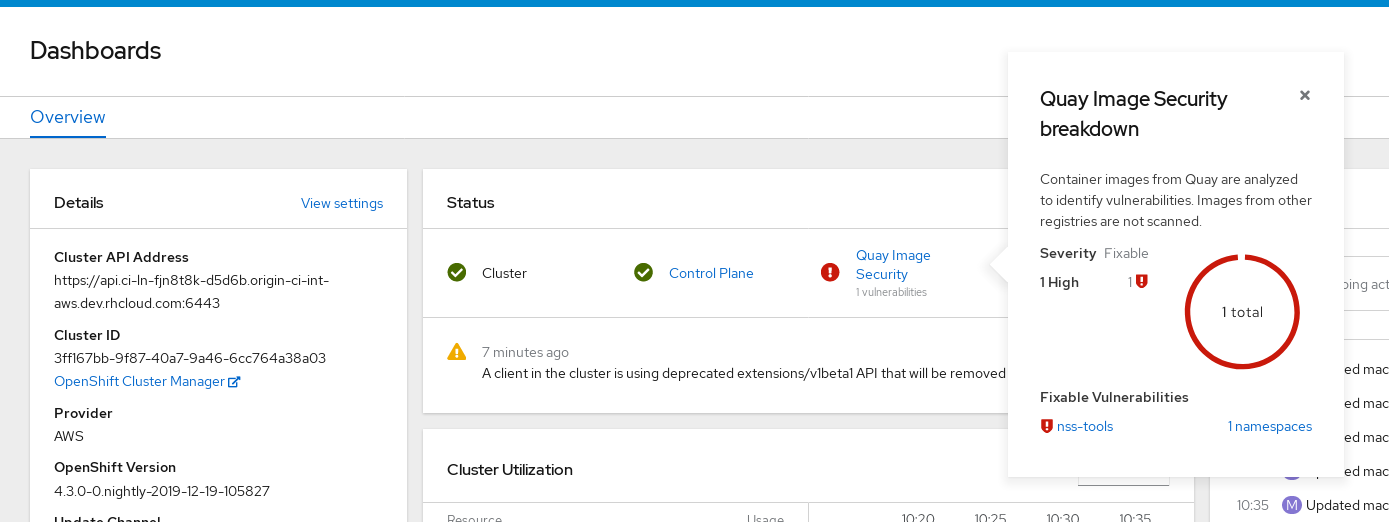
The Container Security Operator currently provides broken links for Red Hat Security advisories. For example, the following link might be provided: https://access.redhat.com/errata/RHSA-2023:1842%20https://access.redhat.com/security/cve/CVE-2023-23916. The %20 in the URL represents a space character, however it currently results in the combination of the two URLs into one incomplete URL, for example, https://access.redhat.com/errata/RHSA-2023:1842 and https://access.redhat.com/security/cve/CVE-2023-23916. As a temporary workaround, you can copy each URL into your browser to navigate to the proper page. This is a known issue and will be fixed in a future version of Red Hat Quay.
You can do one of two things at this point to follow up on any detected vulnerabilities:
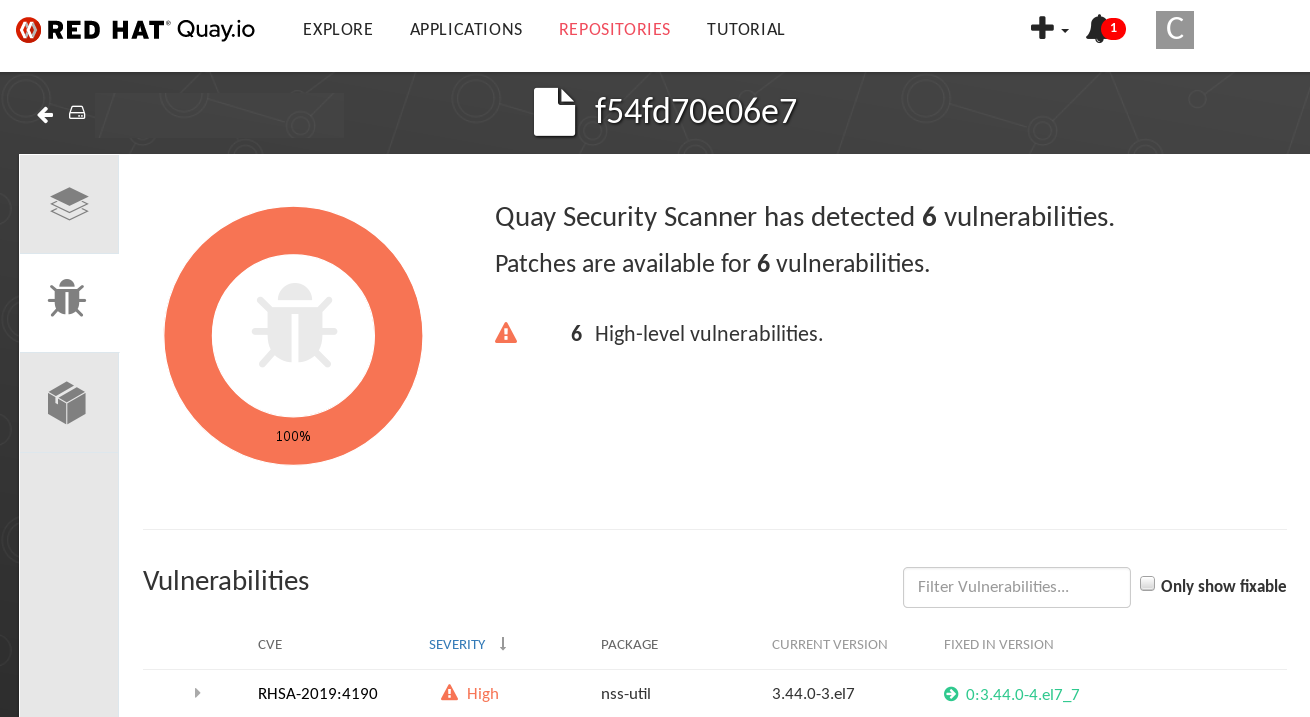
Select the link to the vulnerability. You are taken to the container registry, Red Hat Quay or other registry where the container came from, where you can see information about the vulnerability. The following figure shows an example of detected vulnerabilities from a Quay.io registry:
Select the namespaces link to go to the Image Manifest Vulnerabilities page, where you can see the name of the selected image and all namespaces where that image is running. The following figure indicates that a particular vulnerable image is running in two namespaces:

After executing this procedure, you are made aware of what images are vulnerable, what you must do to fix those vulnerabilities, and every namespace that the image was run in. Knowing this, you can perform the following actions:
- Alert users who are running the image that they need to correct the vulnerability.
- Stop the images from running by deleting the deployment or the object that started the pod that the image is in.
If you delete the pod, it might take a few minutes for the vulnerability to reset on the dashboard.
== Querying image vulnerabilities from the CLI
Use the following procedure to query image vulnerabilities from the command line interface (CLI).
Procedure
Enter the following command to query for detected vulnerabilities:
$ oc get vuln --all-namespacesExample output
NAMESPACE     NAME              AGE
default       sha256.ca90...    6m56s
skynet        sha256.ca90...    9m37s
Optional. To display details for a particular vulnerability, identify a specific vulnerability and its namespace, and use the
oc describecommand. The following example shows an active container whose image includes an RPM package with a vulnerability:$ oc describe vuln --namespace <namespace> sha256.ac50e3752...Example output
Name:         sha256.ac50e3752...
Namespace:    quay-enterprise
...
Spec:
  Features:
    Name:            nss-util
    Namespace Name:  centos:7
    Version:         3.44.0-3.el7
    Versionformat:   rpm
    Vulnerabilities:
      Description: Network Security Services (NSS) is a set of libraries...
== Uninstalling the Container Security Operator
To uninstall the Container Security Operator from your OpenShift Container Platform deployment, you must uninstall the Operator and delete the imagemanifestvulns.secscan.quay.redhat.com custom resource definition (CRD). Without removing the CRD, image vulnerabilities are still reported on the OpenShift Container Platform Overview page.
Procedure
-
On the OpenShift Container Platform web console, click Operators
Installed Operators. - Click the menu kebab of the Container Security Operator.
- Click Uninstall Operator. Confirm your decision by clicking Uninstall in the popup window.
Remove the
imagemanifestvulns.secscan.quay.redhat.comcustom resource definition by entering the following command:$ oc delete customresourcedefinition imagemanifestvulns.secscan.quay.redhat.comExample output
customresourcedefinition.apiextensions.k8s.io "imagemanifestvulns.secscan.quay.redhat.com" deleted
= Configuring AWS STS for Red Hat Quay
Support for Amazon Web Services (AWS) Security Token Service (STS) is available for standalone Red Hat Quay deployments and Red Hat Quay on OpenShift Container Platform. AWS STS is a web service for requesting temporary, limited-privilege credentials for AWS Identity and Access Management (IAM) users and for users that you authenticate, or federated users. This feature is useful for clusters using Amazon S3 as an object storage, allowing Red Hat Quay to use STS protocols to authenticate with Amazon S3, which can enhance the overall security of the cluster and help to ensure that access to sensitive data is properly authenticated and authorized.
Configuring AWS STS is a multi-step process that requires creating an AWS IAM user, creating an S3 role, and configuring your Red Hat Quay config.yaml file to include the proper resources.
Use the following procedures to configure AWS STS for Red Hat Quay.
== Creating an IAM user
Use the following procedure to create an IAM user.
Procedure
- Log in to the Amazon Web Services (AWS) console and navigate to the Identity and Access Management (IAM) console.
- In the navigation pane, under Access management click Users.
Click Create User and enter the following information:
-
Enter a valid username, for example,
quay-user. - For Permissions options, click Add user to group.
-
Enter a valid username, for example,
- On the review and create page, click Create user. You are redirected to the Users page.
- Click the username, for example, quay-user.
-
Copy the ARN of the user, for example,
arn:aws:iam::123492922789:user/quay-user. - On the same page, click the Security credentials tab.
- Navigate to Access keys.
- Click Create access key.
- On the Access key best practices & alternatives page, click Command Line Interface (CLI), then, check the confirmation box. Then click Next.
- Optional. On the Set description tag - optional page, enter a description.
- Click Create access key.
- Copy and store the access key and the secret access key.
This is the only time that the secret access key can be viewed or downloaded. You cannot recover it later. However, you can create a new access key any time.
- Click Done.
== Creating an S3 role
Use the following procedure to create an S3 role for AWS STS.
Prerequisites
- You have created an IAM user and stored the access key and the secret access key.
Procedure
- If you are not already, navigate to the IAM dashboard by clicking Dashboard.
- In the navigation pane, click Roles under Access management.
Click Create role.
Click Custom Trust Policy, which shows an editable JSON policy. By default, it shows the following information:
{
	"Version": "2012-10-17",
	"Statement": [
		{
			"Sid": "Statement1",
			"Effect": "Allow",
			"Principal": {},
			"Action": "sts:AssumeRole"
		}
	]
}
Under the
Principalconfiguration field, add your AWS ARN information. For example:{ "Version": "2012-10-17", "Statement": [ { "Sid": "Statement1", "Effect": "Allow", "Principal": { "AWS": "arn:aws:iam::123492922789:user/quay-user" }, "Action": "sts:AssumeRole" } ] }- Click Next.
-
On the Add permissions page, type
AmazonS3FullAccessin the search box. Check the box to add that policy to the S3 role, then click Next. On the Name, review, and create page, enter the following information:
-
Enter a role name, for example,
example-role. - Optional. Add a description.
-
Enter a role name, for example,
- Click the Create role button. You are navigated to the Roles page. Under Role name, the newly created S3 should be available.
= Configuring Red Hat Quay on OpenShift Container Platform to use AWS STS
Use the following procedure to edit your Red Hat Quay on OpenShift Container Platform config.yaml file to use AWS STS.
You can also edit and re-deploy your Red Hat Quay on OpenShift Container Platform config.yaml file directly instead of using the OpenShift Container Platform UI.
Prerequisites
- You have configured a Role ARN.
- You have generated a User Access Key.
- You have generated a User Secret Key.
Procedure
-
On the Home page of your OpenShift Container Platform deployment, click Operators
Installed Operators. - Click Red Hat Quay.
- Click Quay Registry and then the name of your Red Hat Quay registry.
- Under Config Bundle Secret, click the name of your registry configuration bundle, for example, quay-registry-config-bundle-qet56.
- On the configuration bundle page, click Actions to reveal a drop-down menu. Then click Edit Secret.
Update your the
DISTRIBUTED_STORAGE_CONFIGfields of yourconfig.yamlfile with the following information:# ... DISTRIBUTED_STORAGE_CONFIG: default: - STSS3Storage - sts_role_arn: <role_arn>1 s3_bucket: <s3_bucket_name>2 storage_path: <storage_path>3 s3_region: <region>4 sts_user_access_key: <s3_user_access_key>5 sts_user_secret_key: <s3_user_secret_key>6 # ...- 1
- The unique Amazon Resource Name (ARN) required when configuring AWS STS
- 2
- The name of your s3 bucket.
- 3
- The storage path for data. Usually
/datastorage. - 4
- Optional. The Amazon Web Services region. Defaults to
us-east-1. - 5
- The generated AWS S3 user access key required when configuring AWS STS.
- 6
- The generated AWS S3 user secret key required when configuring AWS STS.
- Click Save.
Verification
Tag a sample image, for example,
busybox, that will be pushed to the repository. For example:$ podman tag docker.io/library/busybox <quay-server.example.com>/<organization_name>/busybox:testPush the sample image by running the following command:
$ podman push <quay-server.example.com>/<organization_name>/busybox:test-
Verify that the push was successful by navigating to the Organization that you pushed the image to in your Red Hat Quay registry
Tags. - Navigate to the Amazon Web Services (AWS) console and locate your s3 bucket.
- Click the name of your s3 bucket.
- On the Objects page, click datastorage/.
On the datastorage/ page, the following resources should seen:
- sha256/
uploads/
These resources indicate that the push was successful, and that AWS STS is properly configured.
= Integrating Red Hat Quay into OpenShift Container Platform with the Quay Bridge Operator
The Quay Bridge Operator duplicates the features of the integrated OpenShift Container Platform registry into the new Red Hat Quay registry. Using the Quay Bridge Operator, you can replace the integrated container registry in OpenShift Container Platform with a Red Hat Quay registry.
The features enabled with the Quay Bridge Operator include:
- Synchronizing OpenShift Container Platform namespaces as Red Hat Quay organizations.
- Creating robot accounts for each default namespace service account.
-
Creating secrets for each created robot account, and associating each robot secret to a service account as
MountableandImage Pull Secret. - Synchronizing OpenShift Container Platform image streams as Red Hat Quay repositories.
- Automatically rewriting new builds making use of image streams to output to Red Hat Quay.
- Automatically importing an image stream tag after a build completes.
By using the following procedures, you can enable bi-directional communication between your Red Hat Quay and OpenShift Container Platform clusters.
= Setting up Red Hat Quay for the Quay Bridge Operator
In this procedure, you will create a dedicated Red Hat Quay organization, and from a new application created within that organization you will generate an OAuth token to be used with the Quay Bridge Operator in OpenShift Container Platform.
Procedure
- Log in to Red Hat Quay through the web UI.
- Select the organization for which the external application will be configured.
- On the navigation pane, select Applications.
-
Select Create New Application and enter a name for the new application, for example,
openshift. -
On the OAuth Applications page, select your application, for example,
openshift. - On the navigation pane, select Generate Token.
Select the following fields:
- Administer Organization
- Administer Repositories
- Create Repositories
- View all visible repositories
- Read/Write to any accessible repositories
- Administer User
- Read User Information
- Review the assigned permissions.
- Select Authorize Application and then confirm confirm the authorization by selecting Authorize Application.
- Save the generated access token.
Red Hat Quay does not offer token management. You cannot list tokens, delete tokens, or modify tokens. The generated access token is only shown once and cannot be re-obtained after closing the page.
= Installing the Quay Bridge Operator on OpenShift Container Platform
In this procedure, you will install the Quay Bridge Operator on OpenShift Container Platform.
Prerequiites
- You have set up Red Hat Quay and obtained an Access Token.
- An OpenShift Container Platform 4.6 or greater environment for which you have cluster administrator permissions.
Procedure
-
Open the Administrator perspective of the web console and navigate to Operators
OperatorHub on the navigation pane. -
Search for
Quay Bridge Operator, click the Quay Bridge Operator title, and then click Install. - Select the version to install, for example, stable-3.7, and then click Install.
-
Click View Operator when the installation finishes to go to the Quay Bridge Operator’s Details page. Alternatively, you can click Installed Operators
Red Hat Quay Bridge Operator to go to the Details page.
= Creating an OpenShift Container Platform secret for the OAuth token
In this procedure, you will add the previously obtained access token to communicate with your Red Hat Quay deployment. The access token will be stored within OpenShift Container Platform as a secret.
Prerequisites
- You have set up Red Hat Quay and obtained an access token.
- You have deployed the Quay Bridge Operator on OpenShift Container Platform.
- An OpenShift Container Platform 4.6 or greater environment for which you have cluster administrator permissions.
- You have installed the OpenShift CLI (oc).
Procedure
Create a secret that contains the access token in the
openshift-operatorsnamespace:$ oc create secret -n openshift-operators generic <secret-name> --from-literal=token=<access_token>
= Creating the QuayIntegration custom resource
In this procedure, you will create a QuayIntegration custom resource, which can be completed from either the web console or from the command line.
Prerequisites
- You have set up Red Hat Quay and obtained an access token.
- You have deployed the Quay Bridge Operator on OpenShift Container Platform.
- An OpenShift Container Platform 4.6 or greater environment for which you have cluster administrator permissions.
- Optional: You have installed the OpenShift CLI (oc).
== Optional: Creating the QuayIntegration custom resource using the CLI
Follow this procedure to create the QuayIntegration custom resource using the command line.
Procedure
Create a
quay-integration.yaml:$ touch quay-integration.yamlUse the following configuration for a minimal deployment of the
QuayIntegrationcustom resource:apiVersion: quay.redhat.com/v1 kind: QuayIntegration metadata: name: example-quayintegration spec: clusterID: openshift1 credentialsSecret: namespace: openshift-operators name: quay-integration2 quayHostname: https://<QUAY_URL>3 insecureRegistry: false4 - 1
- The clusterID value should be unique across the entire ecosystem. This value is required and defaults to
openshift. - 2
- The
credentialsSecretproperty refers to the namespace and name of the secret containing the token that was previously created. - 3
- Replace the
QUAY_URLwith the hostname of your Red Hat Quay instance. - 4
- If Red Hat Quay is using self signed certificates, set the property to
insecureRegistry: true.
For a list of all configuration fields, see "QuayIntegration configuration fields".
Create the
QuayIntegrationcustom resource:$ oc create -f quay-integration.yaml
== Optional: Creating the QuayIntegration custom resource using the web console
Follow this procedure to create the QuayIntegration custom resource using the web console.
Procedure
-
Open the Administrator perspective of the web console and navigate to Operators
Installed Operators. - Click Red Hat Quay Bridge Operator.
- On the Details page of the Quay Bridge Operator, click Create Instance on the Quay Integration API card.
On the Create QuayIntegration page, enter the following required information in either Form view or YAML view:
-
Name: The name that will refer to the
QuayIntegrationcustom resource object. -
Cluster ID: The ID associated with this cluster. This value should be unique across the entire ecosystem. Defaults to
openshiftif left unspecified. - Credentials secret: Refers to the namespace and name of the secret containing the token that was previously created.
- Quay hostname: The hostname of the Quay registry.
-
Name: The name that will refer to the
For a list of all configuration fields, see "QuayIntegration configuration fields".
After the QuayIntegration custom resource is created, your OpenShift Container Platform cluster will be linked to your Red Hat Quay instance. Organizations within your Red Hat Quay registry should be created for the related namespace for the OpenShift Container Platform environment.
= Using Quay Bridge Operator
Use the following procedure to use the Quay Bridge Operator.
Prerequisites
- You have installed the Red Hat Quay Operator.
- You have logged into OpenShift Container Platform as a cluster administrator.
- You have logged into your Red Hat Quay registry.
- You have installed the Quay Bridge Operator.
-
You have configured the
QuayIntegrationcustom resource.
Procedure
Enter the following command to create a new OpenShift Container Platform project called
e2e-demo:$ oc new-project e2e-demo-
After you have created a new project, a new Organization is created in Red Hat Quay. Navigate to the Red Hat Quay registry and confirm that you have created a new Organization named
openshift_e2e-demo.
The openshift value of the Organization might different if the clusterID in your QuayIntegration resource used a different value.
- On the Red Hat Quay UI, click the name of the new Organization, for example, openshift_e2e-demo.
Click Robot Accounts in the navigation pane. As part of new project, the following Robot Accounts should have been created:
- openshift_e2e-demo+deployer
- openshift_e2e-demo+default
- openshift_e2e-demo+builder
Enter the following command to confirm three secrets containing Docker configuration associated with the applicable Robot Accounts were created:
$ oc get secrets builder-quay-openshift deployer-quay-openshift default-quay-openshiftExample output
stevsmit@stevsmit ocp-quay $ oc get secrets builder-quay-openshift deployer-quay-openshift default-quay-openshift
NAME                      TYPE                             DATA   AGE
builder-quay-openshift    kubernetes.io/dockerconfigjson   1      77m
deployer-quay-openshift   kubernetes.io/dockerconfigjson   1      77m
default-quay-openshift    kubernetes.io/dockerconfigjson   1      77m
Enter the following command to display detailed information about
builderServiceAccount (SA), including its secrets, token expiration, and associated roles and role bindings. This ensures that the project is integrated via the Quay Bridge Operator.$ oc describe sa builder default deployerExample output
...
Name:                builder
Namespace:           e2e-demo
Labels:              <none>
Annotations:         <none>
Image pull secrets:  builder-dockercfg-12345
                     builder-quay-openshift
Mountable secrets:   builder-dockercfg-12345
                     builder-quay-openshift
Tokens:              builder-token-12345
Events:              <none>
...
Enter the following command to create and deploy a new application called
httpd-template:$ oc new-app --template=httpd-exampleExample output
--> Deploying template "e2e-demo/httpd-example" to project e2e-demo
...
--> Creating resources ...
    service "httpd-example" created
    route.route.openshift.io "httpd-example" created
    imagestream.image.openshift.io "httpd-example" created
    buildconfig.build.openshift.io "httpd-example" created
    deploymentconfig.apps.openshift.io "httpd-example" created
--> Success
    Access your application via route 'httpd-example-e2e-demo.apps.quay-ocp.gcp.quaydev.org'
    Build scheduled, use 'oc logs -f buildconfig/httpd-example' to track its progress.
    Run 'oc status' to view your app.
After running this command,
BuildConfig,ImageStream,Service,Route, andDeploymentConfigresources are created. When theImageStreamresource is created, an associated repository is created in Red Hat Quay. For example:
The
ImageChangeTriggerfor theBuildConfigtriggers a new Build when the Apache HTTPD image, located in theopenshiftnamespace, is resolved. As the new Build is created, theMutatingWebhookConfigurationautomatically rewriters the output to point at Red Hat Quay. You can confirm that the build is complete by querying the output field of the build by running the following command:$ oc get build httpd-example-1 --template='{{ .spec.output.to.name }}'Example output
example-registry-quay-quay-enterprise.apps.quay-ocp.gcp.quaydev.org/openshift_e2e-demo/httpd-example:latest-
On the Red Hat Quay UI, navigate to the
openshift_e2e-demoOrganization and select the httpd-example repository. -
Click Tags in the navigation pane and confirm that the
latesttag has been successfully pushed. Enter the following command to ensure that the latest tag has been resolved:
$ oc describe is httpd-exampleExample output
Name:			httpd-example
Namespace:		e2e-demo
Created:		55 minutes ago
Labels:			app=httpd-example
			template=httpd-example
Description:		Keeps track of changes in the application image
Annotations:		openshift.io/generated-by=OpenShiftNewApp
			openshift.io/image.dockerRepositoryCheck=2023-10-02T17:56:45Z
Image Repository:	image-registry.openshift-image-registry.svc:5000/e2e-demo/httpd-example
Image Lookup:		local=false
Unique Images:		0
Tags:			1

latest
  tagged from example-registry-quay-quay-enterprise.apps.quay-ocp.gcp.quaydev.org/openshift_e2e-demo/httpd-example:latest
After the
ImageStreamis resolved, a new deployment should have been triggered. Enter the following command to generate a URL output:$ oc get route httpd-example --template='{{ .spec.host }}'Example output
httpd-example-e2e-demo.apps.quay-ocp.gcp.quaydev.org- Navigate to the URL. If a sample webpage appears, the deployment was successful.
Enter the following command to delete the resources and clean up your Red Hat Quay repository:
$ oc delete project e2e-demo
The command waits until the project resources have been removed. This can be bypassed by adding the --wait=false to the above command
-
After the command completes, navigate to your Red Hat Quay repository and confirm that the
openshift_e2e-demoOrganization is no longer available.
Additional resources
- Best practices dictate that all communication between a client and an image registry be facilitated through secure means. Communication should leverage HTTPS/TLS with a certificate trust between the parties. While Red Hat Quay can be configured to serve an insecure configuration, proper certificates should be utilized on the server and configured on the client. Follow the OpenShift Container Platform documentation for adding and managing certificates at the container runtime level.
= Deploying IPv6 on Red Hat Quay on OpenShift Container Platform
Currently, deploying IPv6 on the Red Hat Quay on OpenShift Container Platform is not supported on IBM Power and IBM Z.
Your Red Hat Quay on OpenShift Container Platform deployment can now be served in locations that only support IPv6, such as Telco and Edge environments.
For a list of known limitations, see IPv6 limitations
== Enabling the IPv6 protocol family
Use the following procedure to enable IPv6 support on your Red Hat Quay deployment.
Prerequisites
- You have updated Red Hat Quay to at least version 3.8.
- Your host and container software platform (Docker, Podman) must be configured to support IPv6.
Procedure
In your deployment’s
config.yamlfile, add theFEATURE_LISTEN_IP_VERSIONparameter and set it toIPv6, for example:# ... FEATURE_GOOGLE_LOGIN: false FEATURE_INVITE_ONLY_USER_CREATION: false FEATURE_LISTEN_IP_VERSION: IPv6 FEATURE_MAILING: false FEATURE_NONSUPERUSER_TEAM_SYNCING_SETUP: false # ...- Start, or restart, your Red Hat Quay deployment.
Check that your deployment is listening to IPv6 by entering the following command:
$ curl <quay_endpoint>/health/instance
{"data":{"services":{"auth":true,"database":true,"disk_space":true,"registry_gunicorn":true,"service_key":true,"web_gunicorn":true}},"status_code":200}
After enabling IPv6 in your deployment’s config.yaml, all Red Hat Quay features can be used as normal, so long as your environment is configured to use IPv6 and is not hindered by the IPv6 and dual-stack limitations.
If your environment is configured to IPv4, but the FEATURE_LISTEN_IP_VERSION configuration field is set to IPv6, Red Hat Quay will fail to deploy.
== IPv6 limitations
Currently, attempting to configure your Red Hat Quay deployment with the common Microsoft Azure Blob Storage configuration will not work on IPv6 single stack environments. Because the endpoint of Microsoft Azure Blob Storage does not support IPv6, there is no workaround in place for this issue.
For more information, see PROJQUAY-4433.
Currently, attempting to configure your Red Hat Quay deployment with Amazon S3 CloudFront will not work on IPv6 single stack environments. Because the endpoint of Amazon S3 CloudFront does not support IPv6, there is no workaround in place for this issue.
For more information, see PROJQUAY-4470.
= Adding custom SSL/TLS certificates when Red Hat Quay is deployed on Kubernetes
When deployed on Kubernetes, Red Hat Quay mounts in a secret as a volume to store config assets. Currently, this breaks the upload certificate function of the superuser panel.
As a temporary workaround, base64 encoded certificates can be added to the secret after Red Hat Quay has been deployed.
Use the following procedure to add custom SSL/TLS certificates when Red Hat Quay is deployed on Kubernetes.
Prerequisites
- Red Hat Quay has been deployed.
-
You have a custom
ca.crtfile.
Procedure
Base64 encode the contents of an SSL/TLS certificate by entering the following command:
$ cat ca.crt | base64 -w 0Example output
...c1psWGpqeGlPQmNEWkJPMjJ5d0pDemVnR2QNCnRsbW9JdEF4YnFSdVd3PT0KLS0tLS1FTkQgQ0VSVElGSUNBVEUtLS0tLQo=Enter the following
kubectlcommand to edit thequay-enterprise-config-secretfile:$ kubectl --namespace quay-enterprise edit secret/quay-enterprise-config-secretAdd an entry for the certificate and paste the full
base64encoded stringer under the entry. For example:custom-cert.crt: c1psWGpqeGlPQmNEWkJPMjJ5d0pDemVnR2QNCnRsbW9JdEF4YnFSdVd3PT0KLS0tLS1FTkQgQ0VSVElGSUNBVEUtLS0tLQo=Use the
kubectl deletecommand to remove all Red Hat Quay pods. For example:$ kubectl delete pod quay-operator.v3.7.1-6f9d859bd-p5ftc quayregistry-clair-postgres-7487f5bd86-xnxpr quayregistry-quay-app-upgrade-xq2v6 quayregistry-quay-database-859d5445ff-cqthr quayregistry-quay-redis-84f888776f-hhgmsAfterwards, the Red Hat Quay deployment automatically schedules replace pods with the new certificate data.
= Upgrading the Red Hat Quay Operator Overview
The Red Hat Quay Operator follows a synchronized versioning scheme, which means that each version of the Operator is tied to the version of Red Hat Quay and the components that it manages. There is no field on the QuayRegistry custom resource which sets the version of Red Hat Quay to deploy; the Operator can only deploy a single version of all components. This scheme was chosen to ensure that all components work well together and to reduce the complexity of the Operator needing to know how to manage the lifecycles of many different versions of Red Hat Quay on Kubernetes.
== Operator Lifecycle Manager
The Red Hat Quay Operator should be installed and upgraded using the Operator Lifecycle Manager (OLM). When creating a Subscription with the default approvalStrategy: Automatic, OLM will automatically upgrade the Red Hat Quay Operator whenever a new version becomes available.
When the Red Hat Quay Operator is installed by Operator Lifecycle Manager, it might be configured to support automatic or manual upgrades. This option is shown on the OperatorHub page for the Red Hat Quay Operator during installation. It can also be found in the Red Hat Quay Operator Subscription object by the approvalStrategy field. Choosing Automatic means that your Red Hat Quay Operator will automatically be upgraded whenever a new Operator version is released. If this is not desirable, then the Manual approval strategy should be selected.
== Upgrading the Red Hat Quay Operator
The standard approach for upgrading installed Operators on OpenShift Container Platform is documented at Upgrading installed Operators.
In general, Red Hat Quay supports upgrades from a prior (N-1) minor version only. For example, upgrading directly from Red Hat Quay 3.0.5 to the latest version of 3.5 is not supported. Instead, users would have to upgrade as follows:
-
3.0.5
3.1.3 -
3.1.3
3.2.2 -
3.2.2
3.3.4 -
3.3.4
3.4.z -
3.4.z
3.5.z
This is required to ensure that any necessary database migrations are done correctly and in the right order during the upgrade.
In some cases, Red Hat Quay supports direct, single-step upgrades from prior (N-2, N-3) minor versions. This simplifies the upgrade procedure for customers on older releases. The following upgrade paths are supported for Red Hat Quay 3.12:
-
3.10.z
3.12.z -
3.11.z
3.12.z
For users on standalone deployments of Red Hat Quay wanting to upgrade to 3.12, see the Standalone upgrade guide.
=== Upgrading Red Hat Quay to version 3.12
To update Red Hat Quay from one minor version to the next, for example, 3.11
Procedure
-
In the OpenShift Container Platform Web Console, navigate to Operators
Installed Operators. - Click on the Red Hat Quay Operator.
- Navigate to the Subscription tab.
- Under Subscription details click Update channel.
-
Select stable-3.12
Save. - Check the progress of the new installation under Upgrade status. Wait until the upgrade status changes to 1 installed before proceeding.
-
In your OpenShift Container Platform cluster, navigate to Workloads
Pods. Existing pods should be terminated, or in the process of being terminated. -
Wait for the following pods, which are responsible for upgrading the database and alembic migration of existing data, to spin up:
clair-postgres-upgrade,quay-postgres-upgrade, andquay-app-upgrade. -
After the
clair-postgres-upgrade,quay-postgres-upgrade, andquay-app-upgradepods are marked as Completed, the remaining pods for your Red Hat Quay deployment spin up. This takes approximately ten minutes. -
Verify that the
quay-databaseandclair-postgrespods now use thepostgresql-13image. -
After the
quay-apppod is marked as Running, you can reach your Red Hat Quay registry.
=== Upgrading to the next minor release version
For z stream upgrades, for example, 3.11.1 z stream upgrade depends on the approvalStrategy as outlined above. If the approval strategy is set to Automatic, the Red Hat Quay Operator upgrades automatically to the newest z stream. This results in automatic, rolling Red Hat Quay updates to newer z streams with little to no downtime. Otherwise, the update must be manually approved before installation can begin.
If your Red Hat Quay deployment is upgrading from one y-stream to the next, for example, from 3.8.10 stable-3.8 to stable-3.9. Changing the upgrade channel in the middle of a y-stream upgrade will disallow Red Hat Quay from upgrading to 3.9. This is a known issue and will be fixed in a future version of Red Hat Quay.
When updating Red Hat Quay 3.8
- This upgrade is irreversible. It is highly recommended that you upgrade to PostgreSQL 13. PostgreSQL 10 had its final release on November 10, 2022 and is no longer supported. For more information, see the PostgreSQL Versioning Policy.
-
By default, Red Hat Quay is configured to remove old persistent volume claims (PVCs) from PostgreSQL 10. To disable this setting and backup old PVCs, you must set
POSTGRES_UPGRADE_RETAIN_BACKUPtoTruein yourquay-operatorSubscriptionobject.
Prerequisites
- You have installed Red Hat Quay 3.8 on OpenShift Container Platform.
100 GB of free, additional storage.
During the upgrade process, additional persistent volume claims (PVCs) are provisioned to store the migrated data. This helps prevent a destructive operation on user data. The upgrade process rolls out PVCs for 50 GB for both the Red Hat Quay database upgrade, and the Clair database upgrade.
Procedure
Optional. Back up your old PVCs from PostgreSQL 10 by setting
POSTGRES_UPGRADE_RETAIN_BACKUPtoTrueyourquay-operatorSubscriptionobject. For example:apiVersion: operators.coreos.com/v1alpha1 kind: Subscription metadata: name: quay-operator namespace: quay-enterprise spec: channel: stable-3.8 name: quay-operator source: redhat-operators sourceNamespace: openshift-marketplace config: env: - name: POSTGRES_UPGRADE_RETAIN_BACKUP value: "true"-
In the OpenShift Container Platform Web Console, navigate to Operators
Installed Operators. - Click on the Red Hat Quay Operator.
- Navigate to the Subscription tab.
- Under Subscription details click Update channel.
- Select stable-3.9 and save the changes.
- Check the progress of the new installation under Upgrade status. Wait until the upgrade status changes to 1 installed before proceeding.
-
In your OpenShift Container Platform cluster, navigate to Workloads
Pods. Existing pods should be terminated, or in the process of being terminated. -
Wait for the following pods, which are responsible for upgrading the database and alembic migration of existing data, to spin up:
clair-postgres-upgrade,quay-postgres-upgrade, andquay-app-upgrade. -
After the
clair-postgres-upgrade,quay-postgres-upgrade, andquay-app-upgradepods are marked as Completed, the remaining pods for your Red Hat Quay deployment spin up. This takes approximately ten minutes. -
Verify that the
quay-databaseandclair-postgrespods now use thepostgresql-13image. -
After the
quay-apppod is marked as Running, you can reach your Red Hat Quay registry.
=== Upgrading directly from 3.3.z or 3.4.z to 3.6
The following section provides important information when upgrading from Red Hat Quay 3.3.z or 3.4.z to 3.6.
==== Upgrading with edge routing enabled
- Previously, when running a 3.3.z version of Red Hat Quay with edge routing enabled, users were unable to upgrade to 3.4.z versions of Red Hat Quay. This has been resolved with the release of Red Hat Quay 3.6.
When upgrading from 3.3.z to 3.6, if
tls.terminationis set tononein your Red Hat Quay 3.3.z deployment, it will change to HTTPS with TLS edge termination and use the default cluster wildcard certificate. For example:apiVersion: redhatcop.redhat.io/v1alpha1 kind: QuayEcosystem metadata: name: quay33 spec: quay: imagePullSecretName: redhat-pull-secret enableRepoMirroring: true image: quay.io/quay/quay:v3.3.4-2 ... externalAccess: hostname: quayv33.apps.devcluster.openshift.com tls: termination: none database: ...
==== Upgrading with custom SSL/TLS certificate/key pairs without Subject Alternative Names
There is an issue for customers using their own SSL/TLS certificate/key pairs without Subject Alternative Names (SANs) when upgrading from Red Hat Quay 3.3.4 to Red Hat Quay 3.6 directly. During the upgrade to Red Hat Quay 3.6, the deployment is blocked, with the error message from the Red Hat Quay Operator pod logs indicating that the Red Hat Quay SSL/TLS certificate must have SANs.
If possible, you should regenerate your SSL/TLS certificates with the correct hostname in the SANs. A possible workaround involves defining an environment variable in the quay-app, quay-upgrade and quay-config-editor pods after upgrade to enable CommonName matching:
GODEBUG=x509ignoreCN=0
The GODEBUG=x509ignoreCN=0 flag enables the legacy behavior of treating the CommonName field on X.509 certificates as a hostname when no SANs are present. However, this workaround is not recommended, as it will not persist across a redeployment.
==== Configuring Clair v4 when upgrading from 3.3.z or 3.4.z to 3.6 using the Red Hat Quay Operator
To set up Clair v4 on a new Red Hat Quay deployment on OpenShift Container Platform, it is highly recommended to use the Red Hat Quay Operator. By default, the Red Hat Quay Operator will install or upgrade a Clair deployment along with your Red Hat Quay deployment and configure Clair automatically.
For instructions about setting up Clair v4 in a disconnected OpenShift Container Platform cluster, see Setting Up Clair on a Red Hat Quay OpenShift deployment.
=== Swift configuration when upgrading from 3.3.z to 3.6
When upgrading from Red Hat Quay 3.3.z to 3.6.z, some users might receive the following error: Switch auth v3 requires tenant_id (string) in os_options. As a workaround, you can manually update your DISTRIBUTED_STORAGE_CONFIG to add the os_options and tenant_id parameters:
  DISTRIBUTED_STORAGE_CONFIG:
    brscale:
    - SwiftStorage
    - auth_url: http://****/v3
      auth_version: "3"
      os_options:
        tenant_id: ****
        project_name: ocp-base
        user_domain_name: Default
      storage_path: /datastorage/registry
      swift_container: ocp-svc-quay-ha
      swift_password: *****
      swift_user: *****
If your QuayEcosystem was managing the PostgreSQL database, the upgrade process will migrate your data to a new PostgreSQL database managed by the upgraded Operator. Your old database will not be changed or removed but Red Hat Quay will no longer use it once the migration is complete. If there are issues during the data migration, the upgrade process will exit and it is recommended that you continue with your database as an unmanaged component.
=== Supported QuayEcosystem Configurations for Upgrades
The Red Hat Quay Operator reports errors in its logs and in status.conditions if migrating a QuayEcosystem component fails or is unsupported. All unmanaged components should migrate successfully because no Kubernetes resources need to be adopted and all the necessary values are already provided in Red Hat Quay’s config.yaml file.
Database
Ephemeral database not supported (volumeSize field must be set).
Redis
Nothing special needed.
External Access
Only passthrough Route access is supported for automatic migration. Manual migration required for other methods.
-
LoadBalancerwithout custom hostname: After theQuayEcosystemis marked with label"quay-operator/migration-complete": "true", delete themetadata.ownerReferencesfield from existingServicebefore deleting theQuayEcosystemto prevent Kubernetes from garbage collecting theServiceand removing the load balancer. A newServicewill be created withmetadata.nameformat<QuayEcosystem-name>-quay-app. Edit thespec.selectorof the existingServiceto match thespec.selectorof the newServiceso traffic to the old load balancer endpoint will now be directed to the new pods. You are now responsible for the oldService; the Quay Operator will not manage it. -
LoadBalancer/NodePort/Ingresswith custom hostname: A newServiceof typeLoadBalancerwill be created withmetadata.nameformat<QuayEcosystem-name>-quay-app. Change your DNS settings to point to thestatus.loadBalancerendpoint provided by the newService.
Clair
Nothing special needed.
Object Storage
QuayEcosystem did not have a managed object storage component, so object storage will always be marked as unmanaged. Local storage is not supported.
Repository Mirroring
Nothing special needed.
Additional resources
- For more details on the Red Hat Quay Operator, see the upstream quay-operator project.

'%20d='M201.5%20305.5c-13.8%200-24.9-11.1-24.9-24.6%200-13.8%2011.1-24.9%2024.9-24.9%2013.6%200%2024.6%2011.1%2024.6%2024.9%200%2013.6-11.1%2024.6-24.6%2024.6zM504%20256c0%20137-111%20248-248%20248S8%20393%208%20256%20119%208%20256%208s248%20111%20248%20248zm-132.3-41.2c-9.4%200-17.7%203.9-23.8%2010-22.4-15.5-52.6-25.5-86.1-26.6l17.4-78.3%2055.4%2012.5c0%2013.6%2011.1%2024.6%2024.6%2024.6%2013.8%200%2024.9-11.3%2024.9-24.9s-11.1-24.9-24.9-24.9c-9.7%200-18%205.8-22.1%2013.8l-61.2-13.6c-3-.8-6.1%201.4-6.9%204.4l-19.1%2086.4c-33.2%201.4-63.1%2011.3-85.5%2026.8-6.1-6.4-14.7-10.2-24.1-10.2-34.9%200-46.3%2046.9-14.4%2062.8-1.1%205-1.7%2010.2-1.7%2015.5%200%2052.6%2059.2%2095.2%20132%2095.2%2073.1%200%20132.3-42.6%20132.3-95.2%200-5.3-.6-10.8-1.9-15.8%2031.3-16%2019.8-62.5-14.9-62.5zM302.8%20331c-18.2%2018.2-76.1%2017.9-93.6%200-2.2-2.2-6.1-2.2-8.3%200-2.5%202.5-2.5%206.4%200%208.6%2022.8%2022.8%2087.3%2022.8%20110.2%200%202.5-2.2%202.5-6.1%200-8.6-2.2-2.2-6.1-2.2-8.3%200zm7.7-75c-13.6%200-24.6%2011.1-24.6%2024.9%200%2013.6%2011.1%2024.6%2024.6%2024.6%2013.8%200%2024.9-11.1%2024.9-24.6%200-13.8-11-24.9-24.9-24.9z'/%3e%3c/svg%3e)