 Red Hat Summit
Este contenido no está disponible en el idioma seleccionado.
Virtualization
OpenShift Virtualization installation, usage, and release notes
Abstract
Chapter 1. About OpenShift Virtualization
Learn about OpenShift Virtualization’s capabilities and support scope.
1.1. What you can do with OpenShift Virtualization
OpenShift Virtualization is an add-on to OpenShift Container Platform that allows you to run and manage virtual machine workloads alongside container workloads.
OpenShift Virtualization adds new objects into your OpenShift Container Platform cluster by using Kubernetes custom resources to enable virtualization tasks. These tasks include:
- Creating and managing Linux and Windows virtual machines
- Connecting to virtual machines through a variety of consoles and CLI tools
- Importing and cloning existing virtual machines
- Managing network interface controllers and storage disks attached to virtual machines
- Live migrating virtual machines between nodes
An enhanced web console provides a graphical portal to manage these virtualized resources alongside the OpenShift Container Platform cluster containers and infrastructure.
OpenShift Virtualization is designed and tested to work well with Red Hat OpenShift Data Foundation features.
When you deploy OpenShift Virtualization with OpenShift Data Foundation, you must create a dedicated storage class for Windows virtual machine disks. See Optimizing ODF PersistentVolumes for Windows VMs for details.
You can use OpenShift Virtualization with the OVN-Kubernetes, OpenShift SDN, or one of the other certified network plugins listed in Certified OpenShift CNI Plug-ins.
1.1.1. OpenShift Virtualization supported cluster version
The latest stable release of OpenShift Virtualization 4.12 is 4.12.23.
OpenShift Virtualization 4.12 is supported for use on OpenShift Container Platform 4.12 clusters. To use the latest z-stream release of OpenShift Virtualization, you must first upgrade to the latest version of OpenShift Container Platform.
1.2. Single-node OpenShift differences
You can install OpenShift Virtualization on a single-node cluster.
When provisioning a single-node OpenShift cluster with the assisted installer, preconfigured persistent storage is deployed automatically.
- In OpenShift Virtualization 4.10 and 4.11, the HostPath Provisioner (HPP) is automatically installed.
- In OpenShift Virtualization 4.12, the OpenShift Data Foundation Logical Volume Manager Operator is the provided out-of-the-box storage solution. You can also manually deploy using the HPP.
Single-node OpenShift does not support high availability. Be aware of the following differences in functionality from a multiple-node cluster:
- Pod disruption budgets are not supported.
- Live migration is not supported.
- Due to differences in storage behavior, some virtual machine templates are incompatible with single-node OpenShift. To ensure compatibility, templates or virtual machines that use data volumes or storage profiles must not have the eviction strategy set.
Chapter 2. Supported limits
You can refer to tested object maximums when planning your OpenShift Container Platform environment for OpenShift Virtualization. However, approaching the maximum values can reduce performance and increase latency. Ensure that you plan for your specific use case and consider all factors that can impact cluster scaling.
For more information about cluster configuration and options that impact performance, see the OpenShift Virtualization - Tuning & Scaling Guide in the Red Hat Knowledgebase.
2.1. Tested maximums for OpenShift Virtualization
The following limits apply to a large-scale OpenShift Virtualization 4.x environment. They are based on a single cluster of the largest possible size. When you plan an environment, remember that multiple smaller clusters might be the best option for your use case.
2.1.1. Virtual machine maximums
The following maximums apply to virtual machines (VMs) running on OpenShift Virtualization. These values are subject to the limits specified in Virtualization limits for Red Hat Enterprise Linux with KVM.
| Objective (per VM) | Tested limit | Theoretical limit |
|---|---|---|
| Virtual CPUs | 216 vCPUs | 255 vCPUs |
| Memory | 6 TB | 16 TB |
| Single disk size | 20 TB | 100 TB |
| Hot-pluggable disks | 255 disks | N/A |
Each VM must have at least 512 MB of memory.
2.1.2. Host maximums
The following maximums apply to the OpenShift Container Platform hosts used for OpenShift Virtualization.
| Objective (per host) | Tested limit | Theoretical limit |
|---|---|---|
| Logical CPU cores or threads | Same as Red Hat Enterprise Linux (RHEL) | N/A |
| RAM | Same as RHEL | N/A |
| Simultaneous live migrations | Defaults to 2 outbound migrations per node, and 5 concurrent migrations per cluster | Depends on NIC bandwidth |
| Live migration bandwidth | No default limit | Depends on NIC bandwidth |
2.1.3. Cluster maximums
The following maximums apply to objects defined in OpenShift Virtualization.
| Objective (per cluster) | Tested limit | Theoretical limit |
|---|---|---|
| Number of attached PVs per node | N/A | CSI storage provider dependent |
| Maximum PV size | N/A | CSI storage provider dependent |
| Hosts | 500 hosts (100 or fewer recommended) [1] | Same as OpenShift Container Platform |
| Defined VMs | 10,000 VMs [2] | Same as OpenShift Container Platform |
If you use more than 100 nodes, consider using Red Hat Advanced Cluster Management (RHACM) to manage multiple clusters instead of scaling out a single control plane. Larger clusters add complexity, require longer updates, and depending on node size and total object density, they can increase control plane stress.
Using multiple clusters can be beneficial in areas like per-cluster isolation and high availability.
The maximum number of VMs per node depends on the host hardware and resource capacity. It is also limited by the following parameters:
-
Settings that limit the number of pods that can be scheduled to a node. For example:
maxPods. -
The default number of KVM devices. For example:
devices.kubevirt.io/kvm: 1k.
-
Settings that limit the number of pods that can be scheduled to a node. For example:
Chapter 3. OpenShift Virtualization architecture
Learn about OpenShift Virtualization architecture.
3.1. How OpenShift Virtualization architecture works
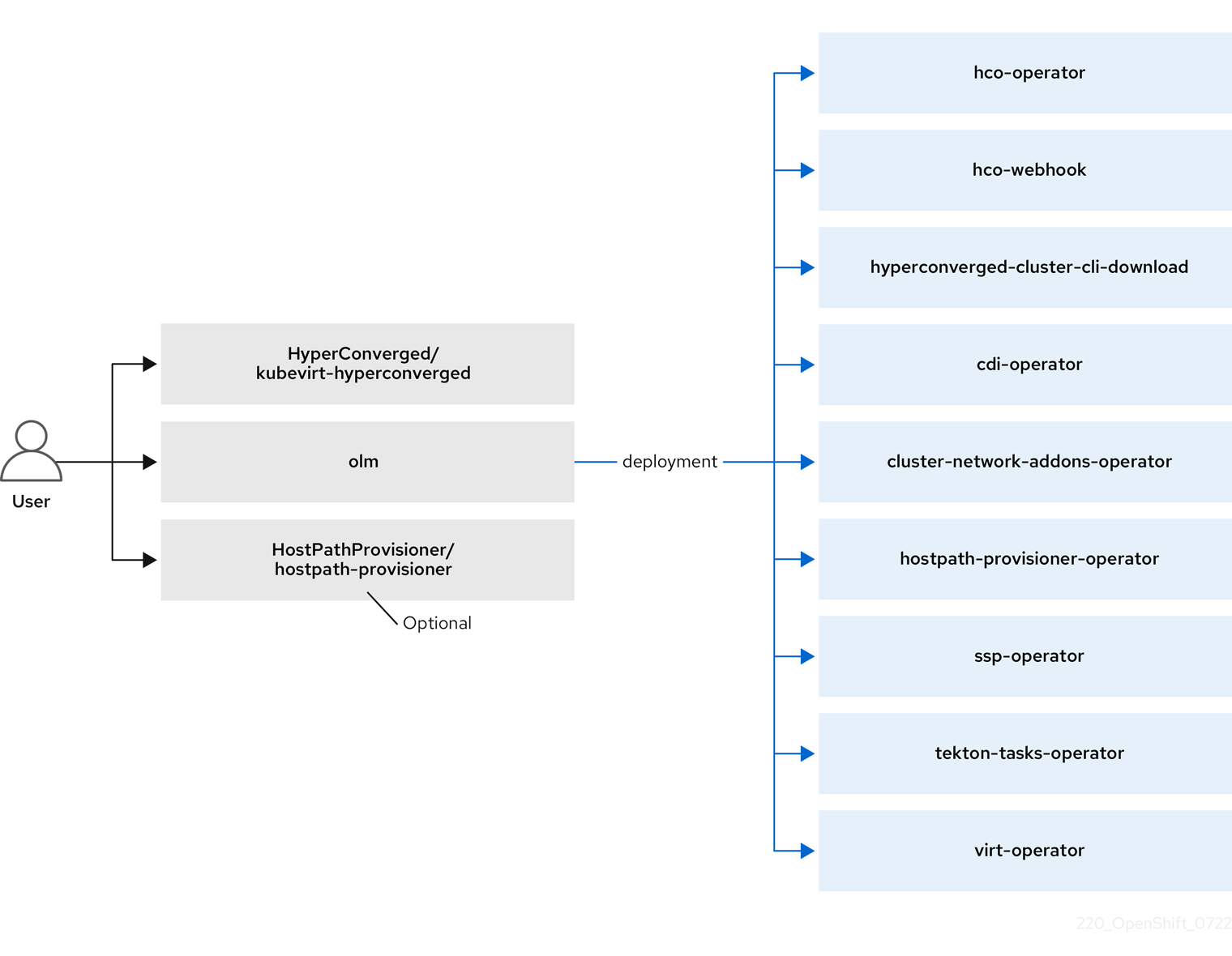
After you install OpenShift Virtualization, the Operator Lifecycle Manager (OLM) deploys operator pods for each component of OpenShift Virtualization:
-
Compute:
virt-operator -
Storage:
cdi-operator -
Network:
cluster-network-addons-operator -
Scaling:
ssp-operator -
Templating:
tekton-tasks-operator
OLM also deploys the hyperconverged-cluster-operator pod, which is responsible for the deployment, configuration, and life cycle of other components, and several helper pods: hco-webhook, and hyperconverged-cluster-cli-download.
After all operator pods are successfully deployed, you should create the HyperConverged custom resource (CR). The configurations set in the HyperConverged CR serve as the single source of truth and the entrypoint for OpenShift Virtualization, and guide the behavior of the CRs.
The HyperConverged CR creates corresponding CRs for the operators of all other components within its reconciliation loop. Each operator then creates resources such as daemon sets, config maps, and additional components for the OpenShift Virtualization control plane. For example, when the hco-operator creates the KubeVirt CR, the virt-operator reconciles it and create additional resources such as virt-controller, virt-handler, and virt-api.
The OLM deploys the hostpath-provisioner-operator, but it is not functional until you create a hostpath provisioner (HPP) CR.
3.2. About the hco-operator
The hco-operator (HCO) provides a single entry point for deploying and managing OpenShift Virtualization and several helper operators with opinionated defaults. It also creates custom resources (CRs) for those operators.
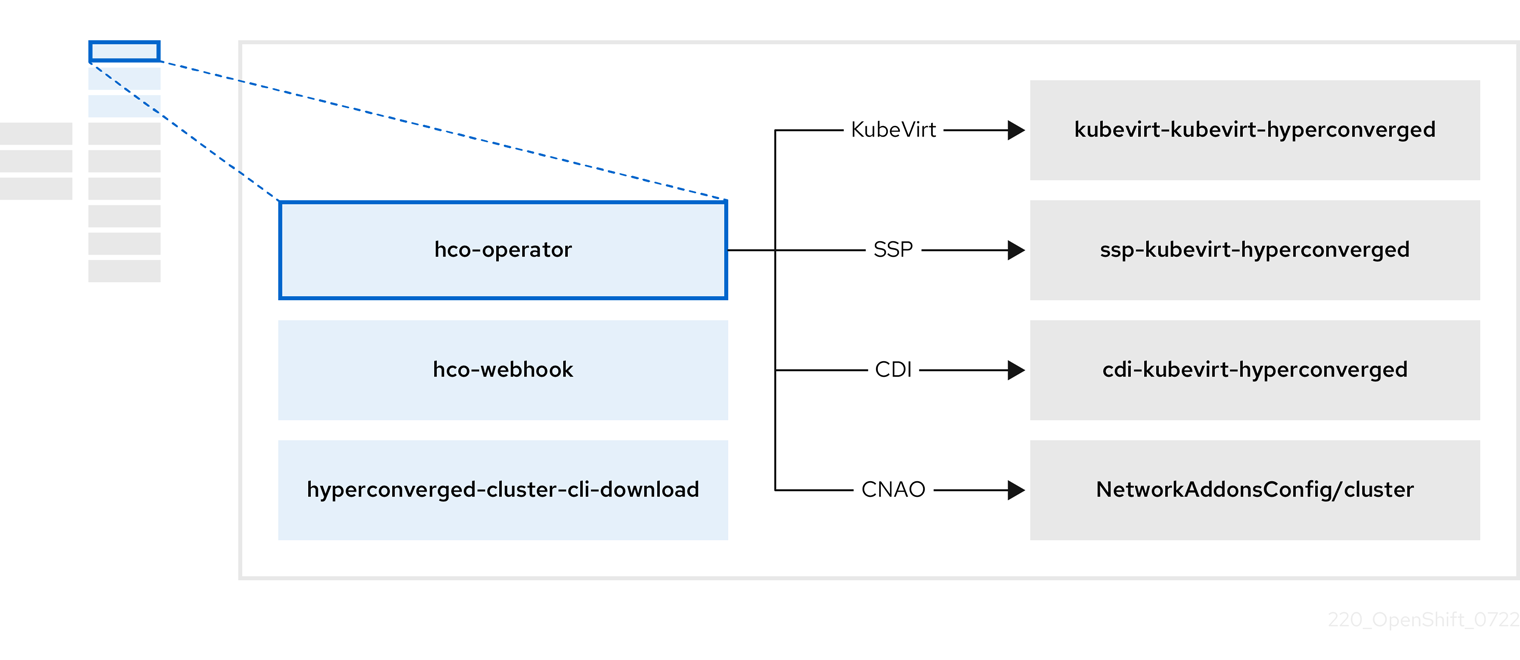
| Component | Description |
|---|---|
|
|
Validates the |
|
|
Provides the |
|
| Contains all operators, CRs, and objects needed by OpenShift Virtualization. |
|
| An SSP CR. This is automatically created by the HCO. |
|
| A CDI CR. This is automatically created by the HCO. |
|
|
A CR that instructs and is managed by the |
3.3. About the cdi-operator
The cdi-operator manages the Containerized Data Importer (CDI), and its related resources, which imports a virtual machine (VM) image into a persistent volume claim (PVC) by using a data volume.
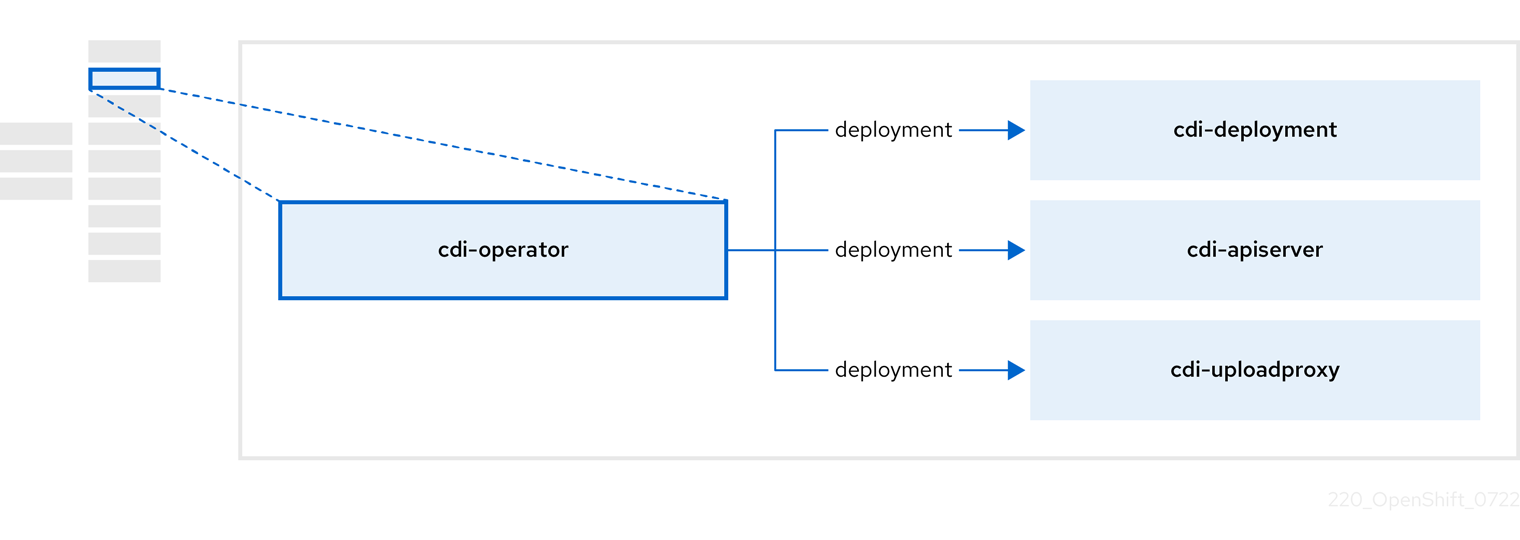
| Component | Description |
|---|---|
|
| Manages the authorization to upload VM disks into PVCs by issuing secure upload tokens. |
|
| Directs external disk upload traffic to the appropriate upload server pod so that it can be written to the correct PVC. Requires a valid upload token. |
|
| Helper pod that imports a virtual machine image into a PVC when creating a data volume. |
3.4. About the cluster-network-addons-operator
The cluster-network-addons-operator deploys networking components on a cluster and manages the related resources for extended network functionality.
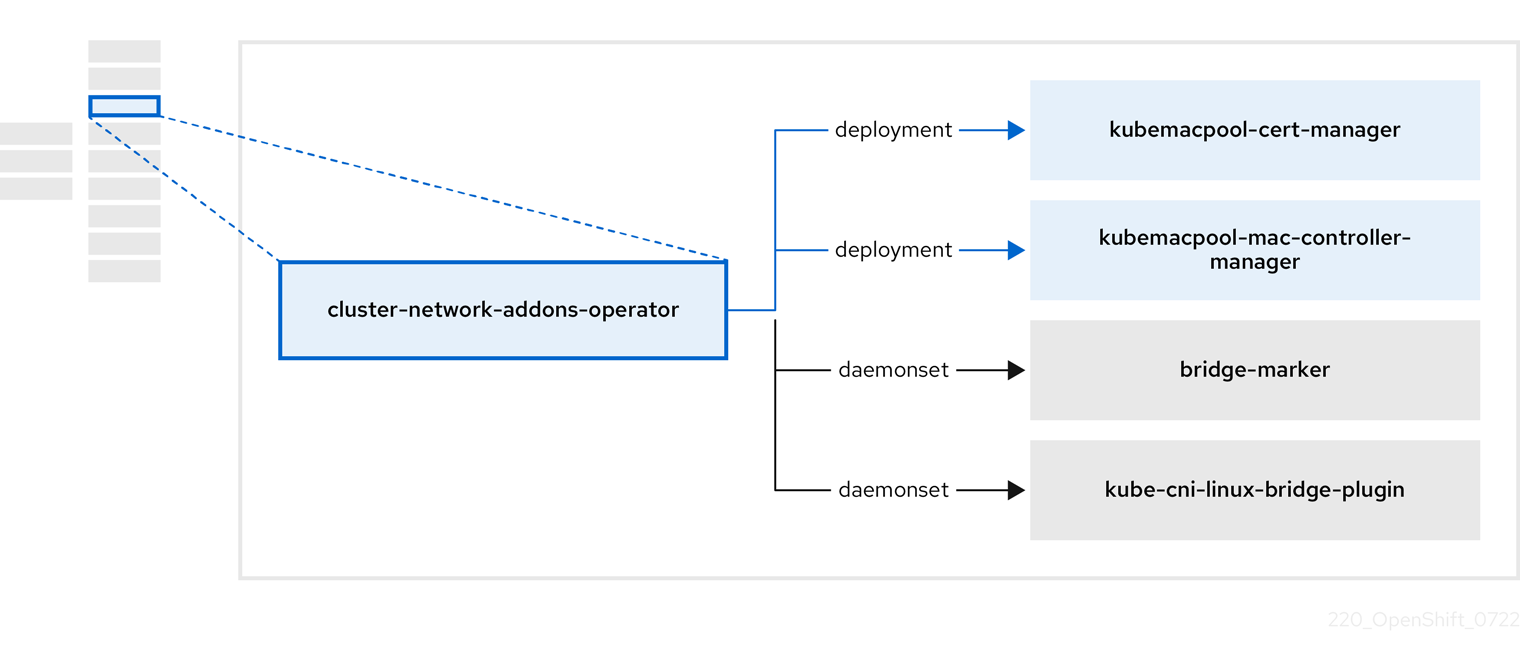
| Component | Description |
|---|---|
|
| Manages TLS certificates of Kubemacpool’s webhooks. |
|
| Provides a MAC address pooling service for virtual machine (VM) network interface cards (NICs). |
|
| Marks network bridges available on nodes as node resources. |
|
| Installs CNI plugins on cluster nodes, enabling the attachment of VMs to Linux bridges through network attachment definitions. |
3.5. About the hostpath-provisioner-operator
The hostpath-provisioner-operator deploys and manages the multi-node hostpath provisioner (HPP) and related resources.
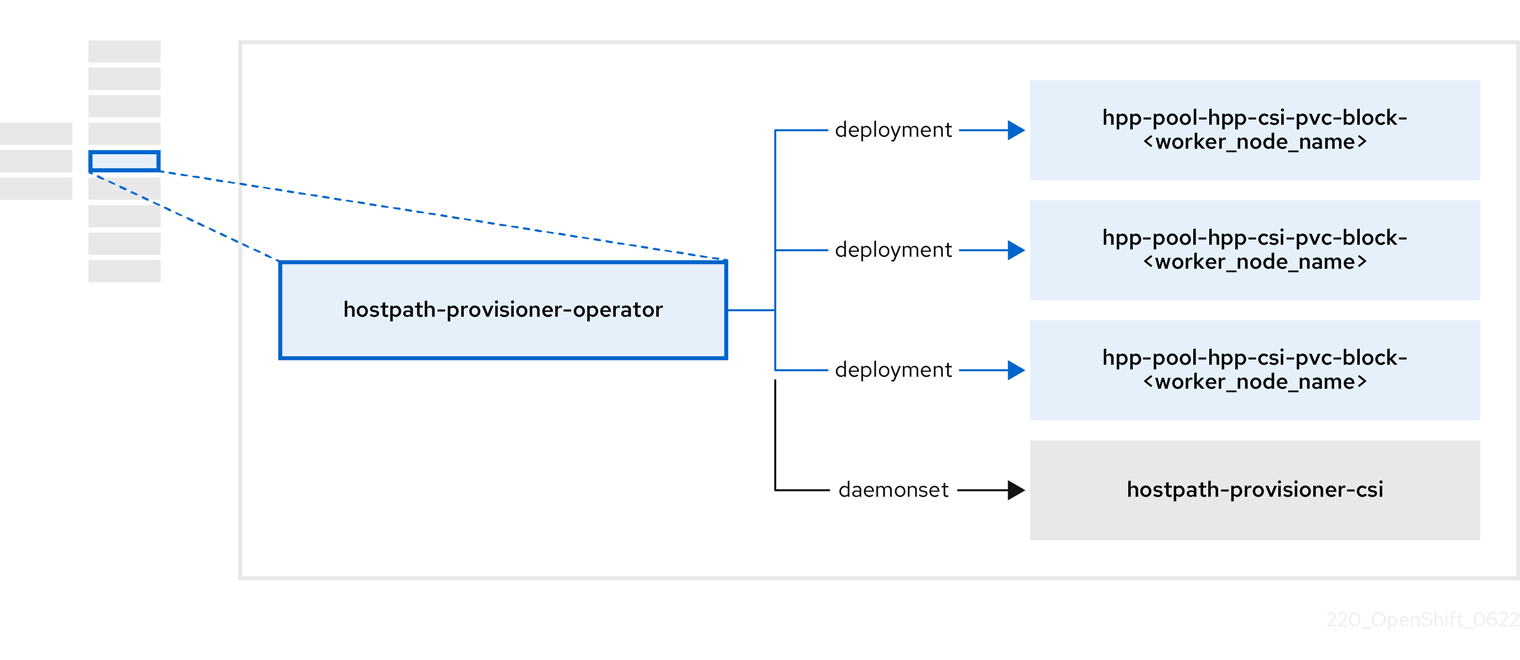
| Component | Description |
|---|---|
|
| Provides a worker for each node where the hostpath provisioner (HPP) is designated to run. The pods mount the specified backing storage on the node. |
|
| Implements the Container Storage Interface (CSI) driver interface of the HPP. |
|
| Implements the legacy driver interface of the HPP. |
3.6. About the ssp-operator
The ssp-operator deploys the common templates, the related default boot sources, and the template validator.
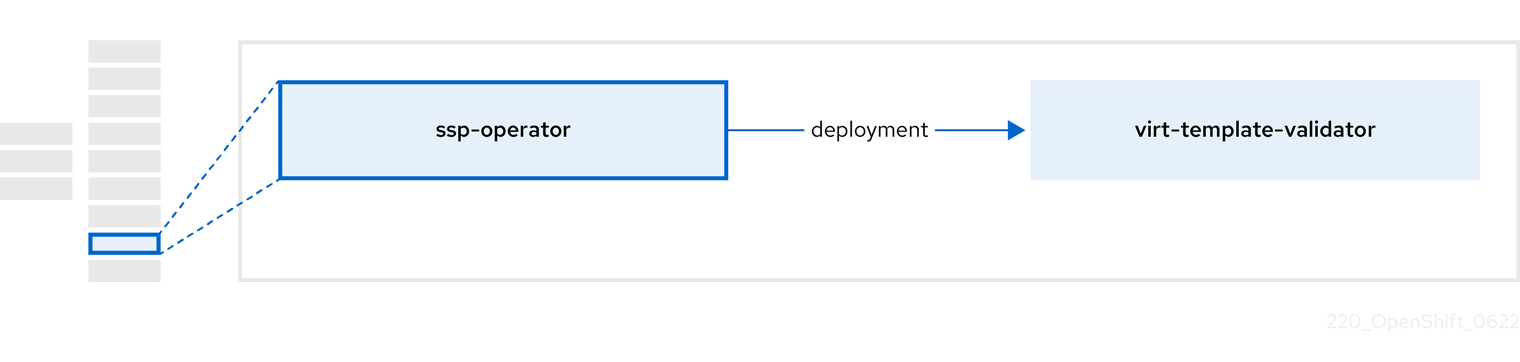
| Component | Description |
|---|---|
|
|
Checks |
3.7. About the tekton-tasks-operator
The tekton-tasks-operator deploys example pipelines showing the usage of OpenShift Pipelines for VMs. It also deploys additional OpenShift Pipeline tasks that allow users to create VMs from templates, copy and modify templates, and create data volumes.
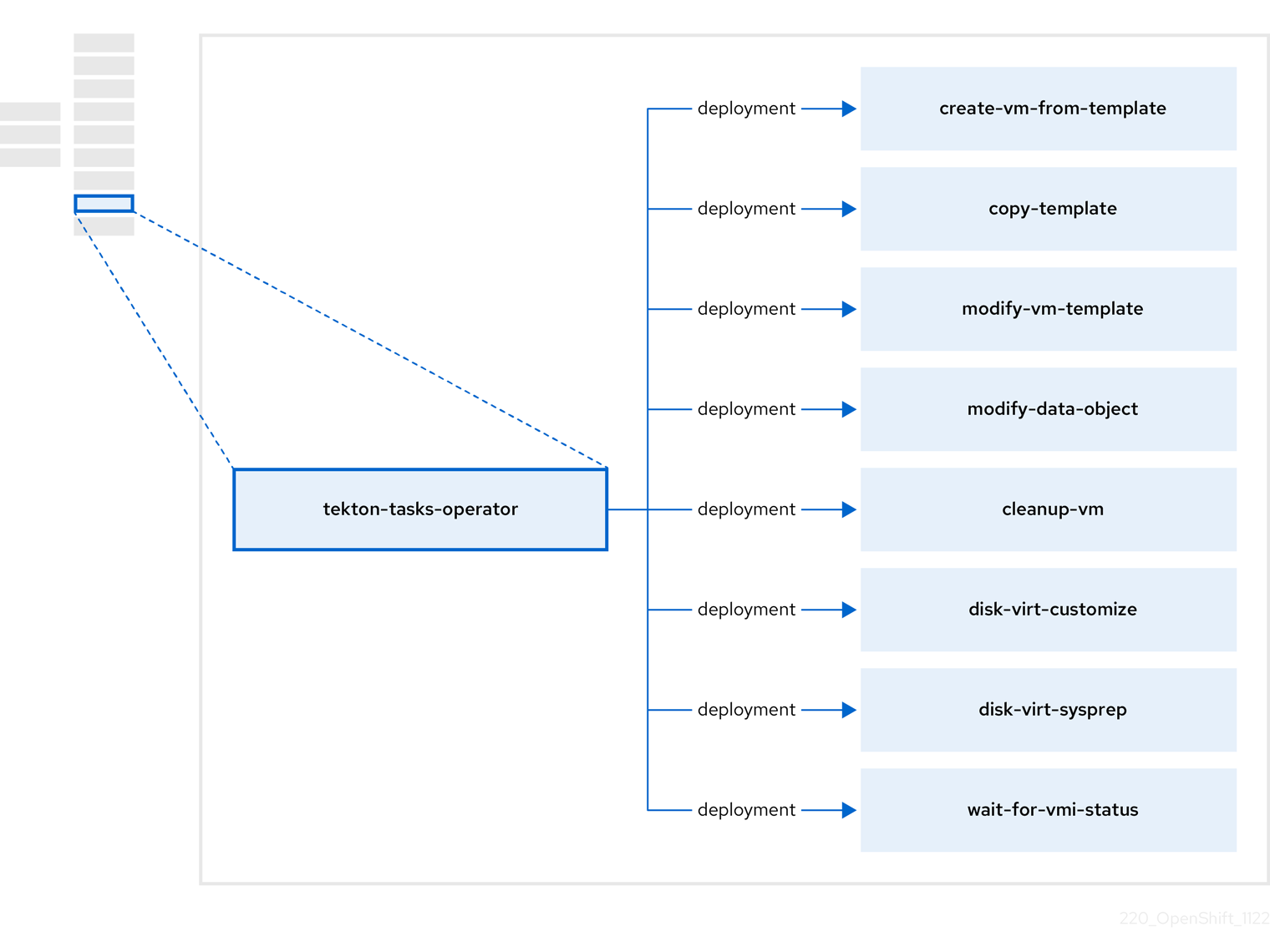
| Component | Description |
|---|---|
|
| Creates a VM from a template. |
|
| Copies a VM template. |
|
| Creates or removes a VM template. |
|
| Creates or removes data volumes or data sources. |
|
| Runs a script or a command on a VM, then stops or deletes the VM afterward. |
|
|
Runs a |
|
|
Runs a |
|
| Waits for a specific VMI status, then fails or succeeds according to that status. |
3.8. About the virt-operator
The virt-operator deploys, upgrades, and manages OpenShift Virtualization without disrupting current virtual machine (VM) workloads.
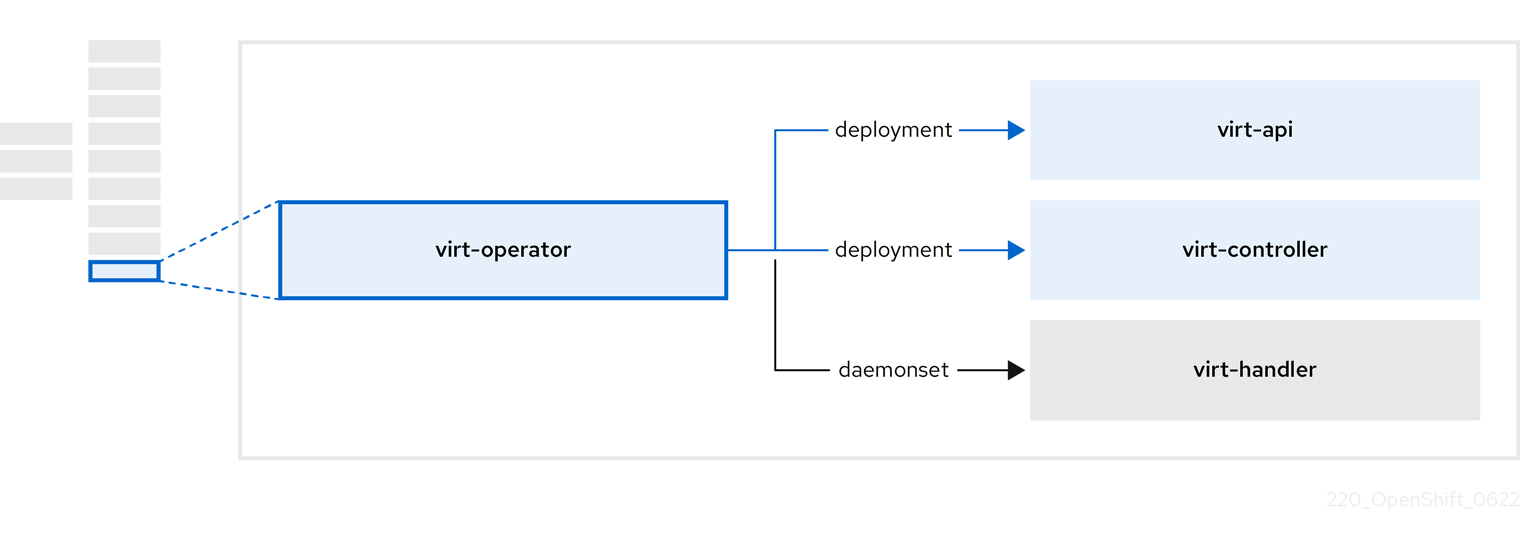
| Component | Description |
|---|---|
|
| HTTP API server that serves as the entry point for all virtualization-related flows. |
|
|
Observes the creation of a new VM instance object and creates a corresponding pod. When the pod is scheduled on a node, |
|
|
Monitors any changes to a VM and instructs |
|
|
Contains the VM that was created by the user as implemented by |
Chapter 4. Getting started with OpenShift Virtualization
You can explore the features and functionalities of OpenShift Virtualization by installing and configuring a basic environment.
Cluster configuration procedures require cluster-admin privileges.
4.1. Planning and installing OpenShift Virtualization
Plan and install OpenShift Virtualization on an OpenShift Container Platform cluster:
Planning and installation resources
4.2. Creating and managing virtual machines
Create virtual machines (VMs) by using the web console:
Connect to the VMs:
- Connect to the serial console or VNC console of a VM by using the web console.
- Connect to a VM by using SSH.
- Connect to a Windows VM by using RDP.
Manage the VMs:
4.3. Next steps
Connect the VMs to secondary networks:
- Connect a VM to a Linux bridge network.
Connect a VM to an SR-IOV network.
NoteVMs are connected to the pod network by default. You must configure a secondary network, such as Linux bridge or SR-IOV, and then add the network to the VM configuration.
- Monitor resources, details, status, and top consumers by using the web console.
- View high-level information about VM workloads by using the web console.
- View OpenShift Virtualization logs by using the CLI.
-
Automate Windows VM deployments with
sysprep. - Live migrate VMs.
- Back up and restore VMs.
Chapter 5. Web console overview
The Virtualization section of the OpenShift Container Platform web console contains the following pages for managing and monitoring your OpenShift Virtualization environment.
| Page | Description |
|---|---|
| Manage and monitor the OpenShift Virtualization environment. | |
| Create VirtualMachines from a catalog of templates. | |
| Configure and monitor VirtualMachines. | |
| Create and manage templates. | |
| Create and manage DataSources for VirtualMachine boot sources. | |
| Create and manage MigrationPolicies for workloads. |
| Icon | Description |
|---|---|
|
| Edit icon |
|
| Link icon |


5.1. Overview page
The Overview page displays resources, metrics, migration progress, and cluster-level settings.
Example 5.1. Overview page
| Element | Description |
|---|---|
|
Download virtctl |
Download the |
| Resources, usage, alerts, and status. | |
| Top consumers of CPU, memory, and storage resources. | |
| Status of live migrations. | |
| Cluster-wide settings, including live migration limits and user permissions. |
5.1.1. Overview tab
The Overview tab displays resources, usage, alerts, and status.
Example 5.2. Overview tab
| Element | Description |
|---|---|
| "Getting started resources" card |
|
| "VirtualMachines" tile | Number of VirtualMachines, with a chart showing the last 7 days' trend. |
| "vCPU usage" tile | vCPU usage, with a chart showing the last 7 days' trend. |
| "Memory" tile | Memory usage, with a chart showing the last 7 days' trend. |
| "Storage" tile | Storage usage, with a chart showing the last 7 days' trend. |
| "Alerts" tile | OpenShift Virtualization alerts, grouped by severity. |
| "VirtualMachine statuses" tile | Number of VirtualMachines, grouped by status. |
| "VirtualMachines per template" chart | Number of VirtualMachines created from templates, grouped by template name. |
5.1.2. Top consumers tab
The Top consumers tab displays the top consumers of CPU, memory, and storage.
Example 5.3. Top consumers tab
| Element | Description |
|---|---|
|
View virtualization dashboard | Link to Observe → Dashboards, which displays the top consumers for OpenShift Virtualization. |
| Time period list | Select a time period to filter the results. |
| Top consumers list | Select the number of top consumers to filter the results. |
| "CPU" chart | VirtualMachines with the highest CPU usage. |
| "Memory" chart | VirtualMachines with the highest memory usage. |
| "Memory swap traffic" chart | VirtualMachines with the highest memory swap traffic. |
| "vCPU wait" chart | VirtualMachines with the highest vCPU wait periods. |
| "Storage throughput" chart | VirtualMachines with the highest storage throughput usage. |
| "Storage IOPS" chart | VirtualMachines with the highest storage input/output operations per second usage. |
5.1.3. Migrations tab
The Migrations tab displays the status of VirtualMachineInstance migrations.
Example 5.4. Migrations tab
| Element | Description |
|---|---|
| Time period list | Select a time period to filter VirtualMachineInstanceMigrations. |
| VirtualMachineInstanceMigrations table | List of VirtualMachineInstance migrations. |
5.1.4. Settings tab
The Settings tab displays cluster-wide settings on the following tabs:
| Tab | Description |
|---|---|
| OpenShift Virtualization version and update status. | |
| Live migration limits and network settings. | |
| Project for Red Hat templates. | |
| Cluster-wide user permissions. |
5.1.4.1. General tab
The General tab displays the OpenShift Virtualization version and update status.
Example 5.5. General tab
| Label | Description |
|---|---|
| Service name | OpenShift Virtualization |
| Provider | Red Hat |
| Installed version | 4.12.23 |
| Update status |
Example: |
| Channel | Channel selected for updates. |
5.1.4.2. Live migration tab
You can configure live migration on the Live migration tab.
Example 5.6. Live migration tab
| Element | Description |
|---|---|
| Max. migrations per cluster field | Select the maximum number of live migrations per cluster. |
| Max. migrations per node field | Select the maximum number of live migrations per node. |
| Live migration network list | Select a dedicated secondary network for live migration. |
5.1.4.3. Templates project tab
You can select a project for templates on the Templates project tab.
Example 5.7. Templates project tab
| Element | Description |
|---|---|
| Project list |
Select a project in which to store Red Hat templates. The default template project is If you want to define multiple template projects, you must clone the templates on the Templates page for each project. |
5.1.4.4. User permissions tab
The User permissions tab displays cluster-wide user permissions for tasks.
Example 5.8. User permissions tab
| Element | Description |
|---|---|
| User Permissions table | List of tasks, such as Share templates, and permissions. |
5.2. Catalog page
You can create a VirtualMachine by selecting a template on the Catalog page.
Example 5.9. Catalog page
| Element | Description |
|---|---|
| Templates project list | Select the project in which your templates are located.
By default, Red Hat templates are stored in the |
| All items|Default templates | Click Default templates to display only default templates. |
| Boot source available checkbox | Select the checkbox to display templates with an available boot source. |
| Operating system checkboxes | Select checkboxes to display templates with selected operating systems. |
| Workload checkboxes | Select checkboxes to display templates with selected workloads. |
| Search field | Search templates by keyword. |
| Template tiles | Click a template tile to view template details and to create a VirtualMachine. |
5.3. VirtualMachines page
You can create and manage VirtualMachines on the VirtualMachines page.
Example 5.10. VirtualMachines page
| Element | Description |
|---|---|
| Create → From catalog | Create a VirtualMachine on the Catalog page. |
| Create → With YAML | Create a VirtualMachine by editing a YAML configuration file. |
| Filter field | Filter VirtualMachines by status, template, operating system, or node. |
| Search field | Search for VirtualMachines by name or by label. |
| VirtualMachines table | List of VirtualMachines.
Click the Options menu
Click a VirtualMachine to navigate to the VirtualMachine details page. |
5.3.1. VirtualMachine details page
You can configure a VirtualMachine on the VirtualMachine details page.
Example 5.11. VirtualMachine details page
| Element | Description |
|---|---|
| Actions menu | Click the Actions menu to select Stop, Restart, Pause, Clone, Migrate, Copy SSH command, Edit labels, Edit annotations, or Delete. |
| Resource usage, alerts, disks, and devices. | |
| VirtualMachine configurations. | |
| Memory, CPU, storage, network, and migration metrics. | |
| VirtualMachine YAML configuration file. | |
| Scheduling configurations. | |
| Config map, secret, and service account management. | |
| VirtualMachine event stream. | |
| Console session management. | |
| Network interface management. | |
| Disk management. | |
| Cloud-init and SSH key management. | |
| Snapshot management. |
5.3.1.1. Overview tab
The Overview tab displays resource usage, alerts, and configuration information.
Example 5.12. Overview tab
| Element | Description |
|---|---|
| "Details" tile | General VirtualMachine information. |
| "Utilization" tile | CPU, Memory, Storage, and Network transfer charts. |
| "Hardware devices" tile | GPU and host devices. |
| "Alerts" tile | OpenShift Virtualization alerts, grouped by severity. |
| "Snapshots" tile |
Take snapshot |
| "Network interfaces" tile | Network interfaces table. |
| "Disks" tile | Disks table. |
5.3.1.2. Details tab
You can configure the VirtualMachine on the Details tab.
Example 5.13. Details tab
| Element | Description |
|---|---|
| YAML switch | Set to ON to view your live changes in the YAML configuration file. |
| Name | VirtualMachine name. |
| Namespace | VirtualMachine namespace. |
| Labels | Click the edit icon to edit the labels. |
| Annotations | Click the edit icon to edit the annotations. |
| Description | Click the edit icon to enter a description. |
| Operating system | Operating system name. |
| CPU|Memory | Click the edit icon to edit the CPU|Memory request.
The number of CPUs is calculated by using the following formula: |
| Machine type | VirtualMachine machine type. |
| Boot mode | Click the edit icon to edit the boot mode. |
| Start in pause mode | Click the edit icon to enable this setting. |
| Template | Name of the template used to create the VirtualMachine. |
| Created at | VirtualMachine creation date. |
| Owner | VirtualMachine owner. |
| Status | VirtualMachine status. |
| Pod |
|
| VirtualMachineInstance | VirtualMachineInstance name. |
| Boot order | Click the edit icon to select a boot source. |
| IP address | IP address of the VirtualMachine. |
| Hostname | Hostname of the VirtualMachine. |
| Time zone | Time zone of the VirtualMachine. |
| Node | Node on which the VirtualMachine is running. |
| Workload profile | Click the edit icon to edit the workload profile. |
| SSH using virtctl |
Click the copy icon to copy the |
| SSH over NodePort |
Selecting Create a Service to expose your VirtualMachine for SSH access generates an |
| GPU devices | Click the edit icon to add a GPU device. |
| Host devices | Click the edit icon to add a host device. |
| Services section | View services. |
| Active users section | View active users. |
5.3.1.3. Metrics tab
The Metrics tab displays memory, CPU, storage, network, and migration usage charts.
Example 5.14. Metrics tab
| Element | Description |
|---|---|
| Time range list | Select a time range to filter the results. |
|
Virtualization dashboard | Link to the Workloads tab of the current project. |
| Utilization section | Memory, CPU, and Network interface charts. |
| Storage section | Storage total read/write and Storage iops total read/write charts. |
| Network section | Network in, Network out, and Network bandwidth charts. |
| Migration section | Migration and KV data transfer rate charts. |
5.3.1.4. YAML tab
You can configure the VirtualMachine by editing the YAML file on the YAML tab.
Example 5.15. YAML tab
| Element | Description |
|---|---|
| YAML switch | Set to ON to view your live changes in the YAML configuration file. |
| Save button | Save changes to the YAML file. |
| Reload button | Discard your changes and reload the YAML file. |
| Cancel button | Exit the YAML tab. |
| Download button | Download the YAML file to your local machine. |
5.3.1.5. Scheduling tab
You can configure scheduling on the Scheduling tab.
Example 5.16. Scheduling tab
| Setting | Description |
|---|---|
| YAML switch | Set to ON to view your live changes in the YAML configuration file. |
| Node selector | Click the edit icon to add a label to specify qualifying nodes. |
| Tolerations | Click the edit icon to add a toleration to specify qualifying nodes. |
| Affinity rules | Click the edit icon to add an affinity rule. |
| Descheduler switch | Enable or disable the descheduler. The descheduler evicts a running pod so that the pod can be rescheduled onto a more suitable node. |
| Dedicated resources | Click the edit icon to select Schedule this workload with dedicated resources (guaranteed policy). |
| Eviction strategy | Click the edit icon to select LiveMigrate as the VirtualMachineInstance eviction strategy. |
5.3.1.6. Environment tab
You can manage config maps, secrets, and service accounts on the Environment tab.
Example 5.17. Environment tab
| Element | Description |
|---|---|
| YAML switch | Set to ON to view your live changes in the YAML configuration file. |
|
Add Config Map, Secret or Service Account | Click the link and select a config map, secret, or service account from the resource list. |
5.3.1.7. Events tab
The Events tab displays a list of VirtualMachine events.
5.3.1.8. Console tab
You can open a console session to the VirtualMachine on the Console tab.
Example 5.18. Console tab
| Element | Description |
|---|---|
| Guest login credentials section |
Expand Guest login credentials to view the credentials created with |
| Console list | Select VNC console or Serial console. You can select Desktop viewer to connect to Windows VirtualMachines by using Remote Desktop Protocol (RDP). You must install an RDP client on a machine on the same network. |
| Send key list | Select a key-stroke combination to send to the console. |
| Disconnect button | Disconnect the console connection. You must manually disconnect the console connection if you open a new console session. Otherwise, the first console session continues to run in the background. |
5.3.1.9. Network interfaces tab
You can manage network interfaces on the Network interfaces tab.
Example 5.19. Network interfaces tab
| Setting | Description |
|---|---|
| YAML switch | Set to ON to view your live changes in the YAML configuration file. |
| Add network interface button | Add a network interface to the VirtualMachine. |
| Filter field | Filter by interface type. |
| Search field | Search for a network interface by name or by label. |
| Network interface table | List of network interfaces.
Click the Options menu
|
5.3.1.10. Disks tab
You can manage disks on the Disks tab.
Example 5.20. Disks tab
| Setting | Description |
|---|---|
| YAML switch | Set to ON to view your live changes in the YAML configuration file. |
| Add disk button | Add a disk to the VirtualMachine. |
| Filter field | Filter by disk type. |
| Search field | Search for a disk by name. |
| Disks table | List of VirtualMachine disks.
Click the Options menu
|
| File systems table | List of VirtualMachine file systems. |
5.3.1.11. Scripts tab
You can manage the cloud-init and SSH keys of the VirtualMachine on the Scripts tab.
Example 5.21. Scripts tab
| Element | Description |
|---|---|
| YAML switch | Set to ON to view your live changes in the YAML configuration file. |
| Cloud-init | Click the edit icon to edit the cloud-init settings. |
| Authorized SSH Key | Click the edit icon to create a new secret or to attach an existing secret. |
5.3.1.12. Snapshots tab
You can create snapshots and restore VirtualMachines from snapshots on the Snapshots tab.
Example 5.22. Snapshots tab
| Element | Description |
|---|---|
| Take snapshot button | Create a snapshot. |
| Filter field | Filter snapshots by status. |
| Search field | Search for snapshots by name or by label. |
| Snapshot table | List of snapshots.
Click the Options menu
|
5.4. Templates page
You can create, edit, and clone VirtualMachine templates on the Templates page.
You cannot edit a Red Hat template. You can clone a Red Hat template and edit it to create a custom template.
Example 5.23. Templates page
| Element | Description |
|---|---|
| Create Template button | Create a template by editing a YAML configuration file. |
| Filter field | Filter templates by type, boot source, template provider, or operating system. |
| Search field | Search for templates by name or by label. |
| Templates table | List of templates.
Click the Options menu
|
5.4.1. Template details page
You can view template settings and edit custom templates on the Template details page.
Example 5.24. Template details page
| Element | Description |
|---|---|
| Actions menu | Click the Actions menu to select Edit, Clone, Edit boot source, Edit boot source reference, Edit labels, Edit annotations, or Delete. |
| Template settings and configurations. | |
| YAML configuration file. | |
| Scheduling configurations. | |
| Network interface management. | |
| Disk management. | |
| Cloud-init, SSH key, and Sysprep management. | |
| Parameters. |
5.4.1.1. Details tab
You can configure a custom template on the Details tab.
Example 5.25. Details tab
| Element | Description |
|---|---|
| YAML switch | Set to ON to view your live changes in the YAML configuration file. |
| Name | Template name. |
| Namespace | Template namespace. |
| Labels | Click the edit icon to edit the labels. |
| Annotations | Click the edit icon to edit the annotations. |
| Display name | Click the edit icon to edit the display name. |
| Description | Click the edit icon to enter a description. |
| Operating system | Operating system name. |
| CPU|Memory | Click the edit icon to edit the CPU|Memory request.
The number of CPUs is calculated by using the following formula: |
| Machine type | Template machine type. |
| Boot mode | Click the edit icon to edit the boot mode. |
| Base template | Name of the base template used to create this template. |
| Created at | Template creation date. |
| Owner | Template owner. |
| Boot order | Template boot order. |
| Boot source | Boot source availability. |
| Provider | Template provider. |
| Support | Template support level. |
| GPU devices | Click the edit icon to add a GPU device. |
| Host devices | Click the edit icon to add a host device. |
5.4.1.2. YAML tab
You can configure a custom template by editing the YAML file on the YAML tab.
Example 5.26. YAML tab
| Element | Description |
|---|---|
| YAML switch | Set to ON to view your live changes in the YAML configuration file. |
| Save button | Save changes to the YAML file. |
| Reload button | Discard your changes and reload the YAML file. |
| Cancel button | Exit the YAML tab. |
| Download button | Download the YAML file to your local machine. |
5.4.1.3. Scheduling tab
You can configure scheduling on the Scheduling tab.
Example 5.27. Scheduling tab
| Setting | Description |
|---|---|
| YAML switch | Set to ON to view your live changes in the YAML configuration file. |
| Node selector | Click the edit icon to add a label to specify qualifying nodes. |
| Tolerations | Click the edit icon to add a toleration to specify qualifying nodes. |
| Affinity rules | Click the edit icon to add an affinity rule. |
| Descheduler switch | Enable or disable the descheduler. The descheduler evicts a running pod so that the pod can be rescheduled onto a more suitable node. |
| Dedicated resources | Click the edit icon to select Schedule this workload with dedicated resources (guaranteed policy). |
| Eviction strategy | Click the edit icon to select LiveMigrate as the VirtualMachineInstance eviction strategy. |
5.4.1.4. Network interfaces tab
You can manage network interfaces on the Network interfaces tab.
Example 5.28. Network interfaces tab
| Setting | Description |
|---|---|
| YAML switch | Set to ON to view your live changes in the YAML configuration file. |
| Add network interface button | Add a network interface to the template. |
| Filter field | Filter by interface type. |
| Search field | Search for a network interface by name or by label. |
| Network interface table | List of network interfaces.
Click the Options menu
|
5.4.1.5. Disks tab
You can manage disks on the Disks tab.
Example 5.29. Disks tab
| Setting | Description |
|---|---|
| YAML switch | Set to ON to view your live changes in the YAML configuration file. |
| Add disk button | Add a disk to the template. |
| Filter field | Filter by disk type. |
| Search field | Search for a disk by name. |
| Disks table | List of template disks.
Click the Options menu
|
5.4.1.6. Scripts tab
You can manage the cloud-init settings, SSH keys, and Sysprep answer files on the Scripts tab.
Example 5.30. Scripts tab
| Element | Description |
|---|---|
| YAML switch | Set to ON to view your live changes in the YAML configuration file. |
| Cloud-init | Click the edit icon to edit the cloud-init settings. |
| Authorized SSH Key | Click the edit icon to create a new secret or to attach an existing secret. |
| Sysprep |
Click the edit icon to upload an |
5.4.1.7. Parameters tab
You can edit selected template settings on the Parameters tab.
Example 5.31. Parameters tab
| Element | Description |
|---|---|
| VM name | Select Generated (expression) for a generated value, Value to set a default value, or None from the Default value type list. |
| Data source namespace | Select Generated (expression) for a generated value, Value to set a default value, or None from the Default value type list. |
| Cloud user password | Select Generated (expression) for a generated value, Value to set a default value, or None from the Default value type list. |
5.5. DataSources page
You can create and configure DataSources for VirtualMachine boot sources on the DataSources page.
When you create a DataSource, a DataImportCron resource defines a cron job to poll and import the disk image unless you disable automatic boot source updates.
Example 5.32. DataSources page
| Element | Description |
|---|---|
| Create DataSource → With form | Create a DataSource by entering the registry URL, disk size, number of revisions, and cron expression in a form. |
| Create DataSources → With YAML | Create a DataSource by editing a YAML configuration file. |
| Filter field | Filter DataSources by attributes such as DataImportCron available. |
| Search field | Search for a DataSource by name or by label. |
| DataSources table | List of DataSources.
Click the Options menu
|
Click a DataSource to view the DataSource details page.
5.5.1. DataSource details page
You can configure a DataSource on the DataSource details page.
Example 5.33. DataSource details page
| Element | Description |
|---|---|
| Details tab | Configure a DataSource by editing a form. |
| YAML tab | Configure a DataSource by editing a YAML configuration file. |
| Actions menu | Select Edit labels, Edit annotations, or Delete. |
| Name | DataSource name. |
| Namespace | DataSource namespace. |
| Labels | Click the edit icon to edit the labels. |
| Annotations | Click the edit icon to edit the annotations. |
| Conditions | Displays the status conditions of the DataSource. |
5.6. MigrationPolicies page
You can manage MigrationPolicies for your workloads on the MigrationPolicies page.
Example 5.34. MigrationPolicies page
| Element | Description |
|---|---|
| Create MigrationPolicy → With form | Create a MigrationPolicy by entering configurations and labels in a form. |
| Create MigrationPolicy → With YAML | Create a MigrationPolicy by editing a YAML configuration file. |
| Name | Label search field | Search for a MigrationPolicy by name or by label. |
| MigrationPolicies table | List of MigrationPolicies.
Click the Options menu
|
Click a MigrationPolicy to view the MigrationPolicy details page.
5.6.1. MigrationPolicy details page
You can configure a MigrationPolicy on the MigrationPolicy details page.
Example 5.35. MigrationPolicy details page
| Element | Description |
|---|---|
| Details tab | Configure a MigrationPolicy by editing a form. |
| YAML tab | Configure a MigrationPolicy by editing a YAML configuration file. |
| Actions menu | Select Edit or Delete. |
| Name | MigrationPolicy name. |
| Description | MigrationPolicy description. |
| Configurations | Click the edit icon to update the MigrationPolicy configurations. |
| Bandwidth per migration |
Bandwidth request per migration. For unlimited bandwidth, set the value to |
| Auto converge | Auto converge policy. |
| Post-copy | Post-copy policy. |
| Completion timeout | Completion timeout value in seconds. |
| Project labels | Click Edit to edit the project labels. |
| VirtualMachine labels | Click Edit to edit the VirtualMachine labels. |
Chapter 6. OpenShift Virtualization release notes
6.1. About Red Hat OpenShift Virtualization
Red Hat OpenShift Virtualization enables you to bring traditional virtual machines (VMs) into OpenShift Container Platform where they run alongside containers, and are managed as native Kubernetes objects.
OpenShift Virtualization is represented by the
 icon.
icon.
You can use OpenShift Virtualization with either the OVN-Kubernetes or the OpenShiftSDN default Container Network Interface (CNI) network provider.
Learn more about what you can do with OpenShift Virtualization.
Learn more about OpenShift Virtualization architecture and deployments.
Prepare your cluster for OpenShift Virtualization.
6.1.1. OpenShift Virtualization supported cluster version
The latest stable release of OpenShift Virtualization 4.12 is 4.12.23.
OpenShift Virtualization 4.12 is supported for use on OpenShift Container Platform 4.12 clusters. To use the latest z-stream release of OpenShift Virtualization, you must first upgrade to the latest version of OpenShift Container Platform.
6.1.2. Supported guest operating systems
To view the supported guest operating systems for OpenShift Virtualization, refer to Certified Guest Operating Systems in Red Hat OpenStack Platform, Red Hat Virtualization and OpenShift Virtualization.
6.2. New and changed features
OpenShift Virtualization is certified in Microsoft’s Windows Server Virtualization Validation Program (SVVP) to run Windows Server workloads.
The SVVP Certification applies to:
- Red Hat Enterprise Linux CoreOS workers. In the Microsoft SVVP Catalog, they are named Red Hat OpenShift Container Platform 4.12.
- Intel and AMD CPUs.
-
OpenShift Virtualization no longer uses the
 logo. OpenShift Virtualization is now represented by the
logo for versions 4.9 and later.
logo. OpenShift Virtualization is now represented by the
logo for versions 4.9 and later.
-
You can create a VM memory dump for forensic analysis by using the
virtctl memory-dumpcommand.
-
You can export and download a volume from a virtual machine (VM), a VM snapshot, or a persistent volume claim (PVC) to recreate it on a different cluster or in a different namespace on the same cluster by using the
virtctl vmexportcommand or by creating aVirtualMachineExportcustom resource. You can also export the memory-dump for forensic analysis.
- You can learn about the functions and organization of the OpenShift Virtualization web console by referring to the web console overview documentation.
-
You can use the
virtctl sshcommand to forward SSH traffic to a virtual machine by using your local SSH client or by copying the SSH command from the OpenShift Container Platform web console.
-
Standalone data volumes, and data volumes created when using a
dataVolumeTemplateto prepare a disk for a VM, are no longer stored in the system. The data volumes are now automatically garbage collected and deleted after the PVC is created.
- OpenShift Virtualization now provides live migration metrics that you can access by using the OpenShift Container Platform monitoring dashboard.
-
The OpenShift Virtualization Operator now reads the cluster-wide TLS security profile from the
APIServercustom resource and propagates it to the OpenShift Virtualization components, including virtualization, storage, networking, and infrastructure.
- OpenShift Virtualization has runbooks to help you troubleshoot issues that trigger alerts. The alerts are displayed on the Virtualization → Overview page of the web console. Each runbook defines an alert and provides steps to diagnose and resolve the issue. This feature was previously introduced as a Technology Preview and is now generally available.
6.2.1. Quick starts
-
Quick start tours are available for several OpenShift Virtualization features. To view the tours, click the Help icon ? in the menu bar on the header of the OpenShift Virtualization console and then select Quick Starts. You can filter the available tours by entering the
virtualizationkeyword in the Filter field.
6.2.2. Networking
- You can now specify the namespace where the OpenShift Container Platform cluster checkup is to be run.
- You can now configure a load balancing service by using the MetalLB Operator in layer 2 mode.
6.2.3. Web console
The Virtualization → Overview page has the following usability enhancements:
- A Download virtctl link is available.
- Resource information is customized for administrative and non-administrative users. For example, non-administrative users see only their VMs.
- The Overview tab displays the number of VMs, and vCPU, memory, and storage usage with charts that show the last 7 days' trend.
- The Alerts card on the Overview tab displays the alerts grouped by severity.
- The Top Consumers tab displays the top consumers of CPU, memory, and storage usage over a configurable time period.
- The Migrations tab displays the progress of VM migrations.
- The Settings tab displays cluster-wide settings, including live migration limits, live migration network, and templates project.
- You can create and manage live migration policies in a single location on the Virtualization → MigrationPolicies page.
- The Metrics tab on the VirtualMachine details page displays memory, CPU, storage, network, and migration metrics of a VM, over a configurable period of time.
- When you customize a template to create a VM, you can set the YAML switch to ON on each VM configuration tab to view the live changes in the YAML configuration file alongside the form.
- The Migrations tab on the Virtualization → Overview page displays the progress of virtual machine instance migrations over a configurable time period.
- You can now define a dedicated network for live migration to minimize disruption to tenant workloads. To select a network, navigate to Virtualization → Overview → Settings → Live migration.
6.2.4. Deprecated features
Deprecated features are included in the current release and supported. However, they will be removed in a future release and are not recommended for new deployments.
6.2.5. Removed features
Removed features are not supported in the current release.
- Support for the legacy HPP custom resource, and the associated storage class, has been removed for all new deployments. In OpenShift Virtualization 4.12, the HPP Operator uses the Kubernetes Container Storage Interface (CSI) driver to configure local storage. A legacy HPP custom resource is supported only if it had been installed on a previous version of OpenShift Virtualization.
OpenShift Virtualization 4.11 removed support for nmstate, including the following objects:
-
NodeNetworkState -
NodeNetworkConfigurationPolicy -
NodeNetworkConfigurationEnactment
To preserve and support your existing nmstate configuration, install the Kubernetes NMState Operator before updating to OpenShift Virtualization 4.11. For 4.12 for Extended Update Support (EUS) versions, install the Kubernetes NMState Operator after updating to 4.12. You can install the Operator from the OperatorHub in the OpenShift Container Platform web console, or by using the OpenShift CLI (
oc).-
The Node Maintenance Operator (NMO) is no longer shipped with OpenShift Virtualization. You can install the NMO from the OperatorHub in the OpenShift Container Platform web console, or by using the OpenShift CLI (
oc).You must perform one of the following tasks before updating to OpenShift Virtualization 4.11 from OpenShift Virtualization 4.10.2 and later 4.10 releases. For Extended Update Support (EUS) versions, you must perform the following tasks before updating to OpenShift Virtualization 4.12 from 4.10.2 and later 4.10 releases:
- Move all nodes out of maintenance mode.
-
Install the standalone NMO and replace the
nodemaintenances.nodemaintenance.kubevirt.iocustom resource (CR) with anodemaintenances.nodemaintenance.medik8s.ioCR.
6.3. Technology Preview features
Some features in this release are currently in Technology Preview. These experimental features are not intended for production use. Note the following scope of support on the Red Hat Customer Portal for these features:
Technology Preview Features Support Scope
- You can now run OpenShift Container Platform cluster checkups to measure network latency between VMs.
The Tekton Tasks Operator (TTO) now integrates OpenShift Virtualization with Red Hat OpenShift Pipelines. TTO includes cluster tasks and example pipelines that allow you to:
- Create and manage virtual machines (VMs), persistent volume claims (PVCs), and data volumes.
- Run commands in VMs.
-
Manipulate disk images with
libguestfstools. - Install Windows 10 into a new data volume from a Windows installation image (ISO file).
- Customize a basic Windows 10 installation and then create a new image and template.
- You can now use the guest agent ping probe to determine if the QEMU guest agent is running on a virtual machine.
- You can now use Microsoft Windows 11 as a guest operating system. However, OpenShift Virtualization 4.12 does not support USB disks, which are required for a critical function of BitLocker recovery. To protect recovery keys, use other methods described in the BitLocker recovery guide.
- You can create live migration policies with specific parameters, such as bandwidth usage, maximum number of parallel migrations, and timeout, and apply the policies to groups of virtual machines by using virtual machine and namespace labels.
6.4. Bug fixes
-
You can now configure the
HyperConvergedCR to enable mediated devices before drivers are installed without losing the new device configuration after driver installation. (BZ#2046298) -
The OVN-Kubernetes cluster network provider no longer crashes from peak RAM and CPU usage if you create a large number of
NodePortservices. (OCPBUGS-1940) - Cloning more than 100 VMs at once no longer intermittently fails if you use Red Hat Ceph Storage or Red Hat OpenShift Data Foundation Storage. (BZ#1989527)
6.5. Known issues
- You cannot run OpenShift Virtualization on a single-stack IPv6 cluster. (BZ#2193267)
- In a heterogeneous cluster with different compute nodes, virtual machines that have HyperV Reenlightenment enabled cannot be scheduled on nodes that do not support timestamp-counter scaling (TSC) or have the appropriate TSC frequency. (BZ#2151169)
When you use two pods with different SELinux contexts, VMs with the
ocs-storagecluster-cephfsstorage class fail to migrate and the VM status changes toPaused. This is because both pods try to access the sharedReadWriteManyCephFS volume at the same time. (BZ#2092271)-
As a workaround, use the
ocs-storagecluster-ceph-rbdstorage class to live migrate VMs on a cluster that uses Red Hat Ceph Storage.
-
As a workaround, use the
The
TopoLVMprovisioner name string has changed in OpenShift Virtualization 4.12. As a result, the automatic import of operating system images might fail with the following error message (BZ#2158521):DataVolume.storage spec is missing accessMode and volumeMode, cannot get access mode from StorageProfile.As a workaround:
Update the
claimPropertySetsarray of the storage profile:$ oc patch storageprofile <storage_profile> --type=merge -p '{"spec": {"claimPropertySets": [{"accessModes": ["ReadWriteOnce"], "volumeMode": "Block"}, \ {"accessModes": ["ReadWriteOnce"], "volumeMode": "Filesystem"}]}}'-
Delete the affected data volumes in the
openshift-virtualization-os-imagesnamespace. They are recreated with the access mode and volume mode from the updated storage profile.
When restoring a VM snapshot for storage whose binding mode is
WaitForFirstConsumer, the restored PVCs remain in thePendingstate and the restore operation does not progress.-
As a workaround, start the restored VM, stop it, and then start it again. The VM will be scheduled, the PVCs will be in the
Boundstate, and the restore operation will complete. (BZ#2149654)
-
As a workaround, start the restored VM, stop it, and then start it again. The VM will be scheduled, the PVCs will be in the
-
VMs created from common templates on a Single Node OpenShift (SNO) cluster display a
VMCannotBeEvictedalert because the template’s default eviction strategy isLiveMigrate. You can ignore this alert or remove the alert by updating the VM’s eviction strategy. (BZ#2092412) -
Uninstalling OpenShift Virtualization does not remove the
feature.node.kubevirt.ionode labels created by OpenShift Virtualization. You must remove the labels manually. (CNV-22036) Some persistent volume claim (PVC) annotations created by the Containerized Data Importer (CDI) can cause the virtual machine snapshot restore operation to hang indefinitely. (BZ#2070366)
As a workaround, you can remove the annotations manually:
-
Obtain the VirtualMachineSnapshotContent custom resource (CR) name from the
status.virtualMachineSnapshotContentNamevalue in theVirtualMachineSnapshotCR. -
Edit the
VirtualMachineSnapshotContentCR and remove all lines that containk8s.io/cloneRequest. If you did not specify a value for
spec.dataVolumeTemplatesin theVirtualMachineobject, delete anyDataVolumeandPersistentVolumeClaimobjects in this namespace where both of the following conditions are true:-
The object’s name begins with
restore-. The object is not referenced by virtual machines.
This step is optional if you specified a value for
spec.dataVolumeTemplates.
-
The object’s name begins with
-
Repeat the restore operation with the updated
VirtualMachineSnapshotCR.
-
Obtain the VirtualMachineSnapshotContent custom resource (CR) name from the
-
Windows 11 virtual machines do not boot on clusters running in FIPS mode. Windows 11 requires a TPM (trusted platform module) device by default. However, the
swtpm(software TPM emulator) package is incompatible with FIPS. (BZ#2089301)
If your OpenShift Container Platform cluster uses OVN-Kubernetes as the default Container Network Interface (CNI) provider, you cannot attach a Linux bridge or bonding device to a host’s default interface because of a change in the host network topology of OVN-Kubernetes. (BZ#1885605)
- As a workaround, you can use a secondary network interface connected to your host, or switch to the OpenShift SDN default CNI provider.
In some instances, multiple virtual machines can mount the same PVC in read-write mode, which might result in data corruption. (BZ#1992753)
- As a workaround, avoid using a single PVC in read-write mode with multiple VMs.
The Pod Disruption Budget (PDB) prevents pod disruptions for migratable virtual machine images. If the PDB detects pod disruption, then
openshift-monitoringsends aPodDisruptionBudgetAtLimitalert every 60 minutes for virtual machine images that use theLiveMigrateeviction strategy. (BZ#2026733)- As a workaround, silence alerts.
OpenShift Virtualization links a service account token in use by a pod to that specific pod. OpenShift Virtualization implements a service account volume by creating a disk image that contains a token. If you migrate a VM, then the service account volume becomes invalid. (BZ#2037611)
- As a workaround, use user accounts rather than service accounts because user account tokens are not bound to a specific pod.
If you clone more than 100 VMs using the
csi-clonecloning strategy, then the Ceph CSI might not purge the clones. Manually deleting the clones can also fail. (BZ#2055595)-
As a workaround, you can restart the
ceph-mgrto purge the VM clones.
-
As a workaround, you can restart the
VMs that use Logical volume management (LVM) with block storage devices require additional configuration to avoid conflicts with Red Hat Enterprise Linux CoreOS (RHCOS) hosts.
-
As a workaround, you can create a VM, provision an LVM, and restart the VM. This creates an empty
system.lvmdevicesfile. (OCPBUGS-5223)
-
As a workaround, you can create a VM, provision an LVM, and restart the VM. This creates an empty
Chapter 7. Installing
7.1. Preparing your cluster for OpenShift Virtualization
Review this section before you install OpenShift Virtualization to ensure that your cluster meets the requirements.
You can use any installation method, including user-provisioned, installer-provisioned, or assisted installer, to deploy OpenShift Container Platform. However, the installation method and the cluster topology might affect OpenShift Virtualization functionality, such as snapshots or live migration.
FIPS mode
If you install your cluster in FIPS mode, no additional setup is required for OpenShift Virtualization.
IPv6
You cannot run OpenShift Virtualization on a single-stack IPv6 cluster. (BZ#2193267)
7.1.1. Hardware and operating system requirements
Review the following hardware and operating system requirements for OpenShift Virtualization.
Supported platforms
- On-premise bare metal servers
- Amazon Web Services bare metal instances. See Deploy OpenShift Virtualization on AWS Bare Metal Nodes for details.
- IBM Cloud Bare Metal Servers. See Deploy OpenShift Virtualization on IBM Cloud Bare Metal Nodes for details.
Installing OpenShift Virtualization on AWS bare metal instances or on IBM Cloud Bare Metal Servers is a Technology Preview feature only. Technology Preview features are not supported with Red Hat production service level agreements (SLAs) and might not be functionally complete. Red Hat does not recommend using them in production. These features provide early access to upcoming product features, enabling customers to test functionality and provide feedback during the development process.
For more information about the support scope of Red Hat Technology Preview features, see Technology Preview Features Support Scope.
- Bare metal instances or servers offered by other cloud providers are not supported.
CPU requirements
- Supported by Red Hat Enterprise Linux (RHEL) 8
- Support for Intel 64 or AMD64 CPU extensions
- Intel VT or AMD-V hardware virtualization extensions enabled
- NX (no execute) flag enabled
Storage requirements
- Supported by OpenShift Container Platform
If you deploy OpenShift Virtualization with Red Hat OpenShift Data Foundation, you must create a dedicated storage class for Windows virtual machine disks. See Optimizing ODF PersistentVolumes for Windows VMs for details.
Operating system requirements
Red Hat Enterprise Linux CoreOS (RHCOS) installed on worker nodes
NoteRHEL worker nodes are not supported.
- If your cluster uses worker nodes with different CPUs, live migration failures can occur because different CPUs have different capabilities. To avoid such failures, use CPUs with appropriate capacity for each node and set node affinity on your virtual machines to ensure successful migration. See Configuring a required node affinity rule for more information.
7.1.2. Physical resource overhead requirements
OpenShift Virtualization is an add-on to OpenShift Container Platform and imposes additional overhead that you must account for when planning a cluster. Each cluster machine must accommodate the following overhead requirements in addition to the OpenShift Container Platform requirements. Oversubscribing the physical resources in a cluster can affect performance.
The numbers noted in this documentation are based on Red Hat’s test methodology and setup. These numbers can vary based on your own individual setup and environments.
7.1.2.1. Memory overhead
Calculate the memory overhead values for OpenShift Virtualization by using the equations below.
Cluster memory overhead
Memory overhead per infrastructure node ≈ 150 MiBMemory overhead per worker node ≈ 360 MiBAdditionally, OpenShift Virtualization environment resources require a total of 2179 MiB of RAM that is spread across all infrastructure nodes.
Virtual machine memory overhead
Memory overhead per virtual machine ≈ (0.002 × requested memory) \
+ 218 MiB \
+ 8 MiB × (number of vCPUs) \
+ 16 MiB × (number of graphics devices) \
+ (additional memory overhead)
+ * 218 MiB is required for the processes that run in the virt-launcher pod. * 8 MiB × (number of vCPUs) refers to the number of virtual CPUs requested by the virtual machine. * 16 MiB × (number of graphics devices) refers to the number of virtual graphics cards requested by the virtual machine. * Additional memory overhead: ** If your environment includes a Single Root I/O Virtualization (SR-IOV) network device or a Graphics Processing Unit (GPU), allocate 1 GiB additional memory overhead for each device.
7.1.2.2. CPU overhead
Calculate the cluster processor overhead requirements for OpenShift Virtualization by using the equation below. The CPU overhead per virtual machine depends on your individual setup.
Cluster CPU overhead
CPU overhead for infrastructure nodes ≈ 4 coresOpenShift Virtualization increases the overall utilization of cluster level services such as logging, routing, and monitoring. To account for this workload, ensure that nodes that host infrastructure components have capacity allocated for 4 additional cores (4000 millicores) distributed across those nodes.
CPU overhead for worker nodes ≈ 2 cores + CPU overhead per virtual machineEach worker node that hosts virtual machines must have capacity for 2 additional cores (2000 millicores) for OpenShift Virtualization management workloads in addition to the CPUs required for virtual machine workloads.
Virtual machine CPU overhead
If dedicated CPUs are requested, there is a 1:1 impact on the cluster CPU overhead requirement. Otherwise, there are no specific rules about how many CPUs a virtual machine requires.
7.1.2.3. Storage overhead
Use the guidelines below to estimate storage overhead requirements for your OpenShift Virtualization environment.
Cluster storage overhead
Aggregated storage overhead per node ≈ 10 GiB10 GiB is the estimated on-disk storage impact for each node in the cluster when you install OpenShift Virtualization.
Virtual machine storage overhead
Storage overhead per virtual machine depends on specific requests for resource allocation within the virtual machine. The request could be for ephemeral storage on the node or storage resources hosted elsewhere in the cluster. OpenShift Virtualization does not currently allocate any additional ephemeral storage for the running container itself.
7.1.2.4. Example
As a cluster administrator, if you plan to host 10 virtual machines in the cluster, each with 1 GiB of RAM and 2 vCPUs, the memory impact across the cluster is 11.68 GiB. The estimated on-disk storage impact for each node in the cluster is 10 GiB and the CPU impact for worker nodes that host virtual machine workloads is a minimum of 2 cores.
7.1.3. Object maximums
You must consider the following tested object maximums when planning your cluster:
7.1.4. Restricted network environments
If you install OpenShift Virtualization in a restricted environment with no internet connectivity, you must configure Operator Lifecycle Manager for restricted networks.
If you have limited internet connectivity, you can configure proxy support in Operator Lifecycle Manager to access the Red Hat-provided OperatorHub.
7.1.5. Live migration
Live migration has the following requirements:
-
Shared storage with
ReadWriteMany(RWX) access mode. - Sufficient RAM and network bandwidth.
- If the virtual machine uses a host model CPU, the nodes must support the virtual machine’s host model CPU.
You must ensure that there is enough memory request capacity in the cluster to support node drains that result in live migrations. You can determine the approximate required spare memory by using the following calculation:
Product of (Maximum number of nodes that can drain in parallel) and (Highest total VM memory request allocations across nodes)The default number of migrations that can run in parallel in the cluster is 5.
7.1.6. Snapshots and cloning
See OpenShift Virtualization storage features for snapshot and cloning requirements.
7.1.7. Cluster high-availability options
You can configure one of the following high-availability (HA) options for your cluster:
Automatic high availability for installer-provisioned infrastructure (IPI) is available by deploying machine health checks.
NoteIn OpenShift Container Platform clusters installed using installer-provisioned infrastructure and with MachineHealthCheck properly configured, if a node fails the MachineHealthCheck and becomes unavailable to the cluster, it is recycled. What happens next with VMs that ran on the failed node depends on a series of conditions. See About RunStrategies for virtual machines for more detailed information about the potential outcomes and how RunStrategies affect those outcomes.
-
Automatic high availability for both IPI and non-IPI is available by using the Node Health Check Operator on the OpenShift Container Platform cluster to deploy the
NodeHealthCheckcontroller. The controller identifies unhealthy nodes and uses a remediation provider, such as the Self Node Remediation Operator or Fence Agents Remediation Operator, to remediate the unhealthy nodes. For more information on remediation, fencing, and maintaining nodes, see the Workload Availability for Red Hat OpenShift documentation. High availability for any platform is available by using either a monitoring system or a qualified human to monitor node availability. When a node is lost, shut it down and run
oc delete node <lost_node>.NoteWithout an external monitoring system or a qualified human monitoring node health, virtual machines lose high availability.
7.2. Specifying nodes for OpenShift Virtualization components
Specify the nodes where you want to deploy OpenShift Virtualization Operators, workloads, and controllers by configuring node placement rules.
You can configure node placement for some components after installing OpenShift Virtualization, but there must not be virtual machines present if you want to configure node placement for workloads.
7.2.1. About node placement for virtualization components
You might want to customize where OpenShift Virtualization deploys its components to ensure that:
- Virtual machines only deploy on nodes that are intended for virtualization workloads.
- Operators only deploy on infrastructure nodes.
- Certain nodes are unaffected by OpenShift Virtualization. For example, you have workloads unrelated to virtualization running on your cluster, and you want those workloads to be isolated from OpenShift Virtualization.
7.2.1.1. How to apply node placement rules to virtualization components
You can specify node placement rules for a component by editing the corresponding object directly or by using the web console.
-
For the OpenShift Virtualization Operators that Operator Lifecycle Manager (OLM) deploys, edit the OLM
Subscriptionobject directly. Currently, you cannot configure node placement rules for theSubscriptionobject by using the web console. -
For components that the OpenShift Virtualization Operators deploy, edit the
HyperConvergedobject directly or configure it by using the web console during OpenShift Virtualization installation. For the hostpath provisioner, edit the
HostPathProvisionerobject directly or configure it by using the web console.WarningYou must schedule the hostpath provisioner and the virtualization components on the same nodes. Otherwise, virtualization pods that use the hostpath provisioner cannot run.
Depending on the object, you can use one or more of the following rule types:
nodeSelector- Allows pods to be scheduled on nodes that are labeled with the key-value pair or pairs that you specify in this field. The node must have labels that exactly match all listed pairs.
affinity- Enables you to use more expressive syntax to set rules that match nodes with pods. Affinity also allows for more nuance in how the rules are applied. For example, you can specify that a rule is a preference, rather than a hard requirement, so that pods are still scheduled if the rule is not satisfied.
tolerations- Allows pods to be scheduled on nodes that have matching taints. If a taint is applied to a node, that node only accepts pods that tolerate the taint.
7.2.1.2. Node placement in the OLM Subscription object
To specify the nodes where OLM deploys the OpenShift Virtualization Operators, edit the Subscription object during OpenShift Virtualization installation. You can include node placement rules in the spec.config field, as shown in the following example:
apiVersion: operators.coreos.com/v1alpha1
kind: Subscription
metadata:
name: hco-operatorhub
namespace: openshift-cnv
spec:
source: redhat-operators
sourceNamespace: openshift-marketplace
name: kubevirt-hyperconverged
startingCSV: kubevirt-hyperconverged-operator.v4.12.23
channel: "stable"
config: - 1
- The
configfield supportsnodeSelectorandtolerations, but it does not supportaffinity.
7.2.1.3. Node placement in the HyperConverged object
To specify the nodes where OpenShift Virtualization deploys its components, you can include the nodePlacement object in the HyperConverged Cluster custom resource (CR) file that you create during OpenShift Virtualization installation. You can include nodePlacement under the spec.infra and spec.workloads fields, as shown in the following example:
apiVersion: hco.kubevirt.io/v1beta1
kind: HyperConverged
metadata:
name: kubevirt-hyperconverged
namespace: openshift-cnv
spec:
infra:
nodePlacement:
...
workloads:
nodePlacement:
...- 1
- The
nodePlacementfields supportnodeSelector,affinity, andtolerationsfields.
7.2.1.4. Node placement in the HostPathProvisioner object
You can configure node placement rules in the spec.workload field of the HostPathProvisioner object that you create when you install the hostpath provisioner.
apiVersion: hostpathprovisioner.kubevirt.io/v1beta1
kind: HostPathProvisioner
metadata:
name: hostpath-provisioner
spec:
imagePullPolicy: IfNotPresent
pathConfig:
path: "</path/to/backing/directory>"
useNamingPrefix: false
workload: - 1
- The
workloadfield supportsnodeSelector,affinity, andtolerationsfields.
7.2.2. Example manifests
The following example YAML files use nodePlacement, affinity, and tolerations objects to customize node placement for OpenShift Virtualization components.
7.2.2.1. Operator Lifecycle Manager Subscription object
7.2.2.1.1. Example: Node placement with nodeSelector in the OLM Subscription object
In this example, nodeSelector is configured so that OLM places the OpenShift Virtualization Operators on nodes that are labeled with example.io/example-infra-key = example-infra-value.
apiVersion: operators.coreos.com/v1alpha1
kind: Subscription
metadata:
name: hco-operatorhub
namespace: openshift-cnv
spec:
source: redhat-operators
sourceNamespace: openshift-marketplace
name: kubevirt-hyperconverged
startingCSV: kubevirt-hyperconverged-operator.v4.12.23
channel: "stable"
config:
nodeSelector:
example.io/example-infra-key: example-infra-value7.2.2.1.2. Example: Node placement with tolerations in the OLM Subscription object
In this example, nodes that are reserved for OLM to deploy OpenShift Virtualization Operators are labeled with the key=virtualization:NoSchedule taint. Only pods with the matching tolerations are scheduled to these nodes.
apiVersion: operators.coreos.com/v1alpha1
kind: Subscription
metadata:
name: hco-operatorhub
namespace: openshift-cnv
spec:
source: redhat-operators
sourceNamespace: openshift-marketplace
name: kubevirt-hyperconverged
startingCSV: kubevirt-hyperconverged-operator.v4.12.23
channel: "stable"
config:
tolerations:
- key: "key"
operator: "Equal"
value: "virtualization"
effect: "NoSchedule"7.2.2.2. HyperConverged object
7.2.2.2.1. Example: Node placement with nodeSelector in the HyperConverged Cluster CR
In this example, nodeSelector is configured so that infrastructure resources are placed on nodes that are labeled with example.io/example-infra-key = example-infra-value and workloads are placed on nodes labeled with example.io/example-workloads-key = example-workloads-value.
apiVersion: hco.kubevirt.io/v1beta1
kind: HyperConverged
metadata:
name: kubevirt-hyperconverged
namespace: openshift-cnv
spec:
infra:
nodePlacement:
nodeSelector:
example.io/example-infra-key: example-infra-value
workloads:
nodePlacement:
nodeSelector:
example.io/example-workloads-key: example-workloads-value7.2.2.2.2. Example: Node placement with affinity in the HyperConverged Cluster CR
In this example, affinity is configured so that infrastructure resources are placed on nodes that are labeled with example.io/example-infra-key = example-value and workloads are placed on nodes labeled with example.io/example-workloads-key = example-workloads-value. Nodes that have more than eight CPUs are preferred for workloads, but if they are not available, pods are still scheduled.
apiVersion: hco.kubevirt.io/v1beta1
kind: HyperConverged
metadata:
name: kubevirt-hyperconverged
namespace: openshift-cnv
spec:
infra:
nodePlacement:
affinity:
nodeAffinity:
requiredDuringSchedulingIgnoredDuringExecution:
nodeSelectorTerms:
- matchExpressions:
- key: example.io/example-infra-key
operator: In
values:
- example-infra-value
workloads:
nodePlacement:
affinity:
nodeAffinity:
requiredDuringSchedulingIgnoredDuringExecution:
nodeSelectorTerms:
- matchExpressions:
- key: example.io/example-workloads-key
operator: In
values:
- example-workloads-value
preferredDuringSchedulingIgnoredDuringExecution:
- weight: 1
preference:
matchExpressions:
- key: example.io/num-cpus
operator: Gt
values:
- 87.2.2.2.3. Example: Node placement with tolerations in the HyperConverged Cluster CR
In this example, nodes that are reserved for OpenShift Virtualization components are labeled with the key=virtualization:NoSchedule taint. Only pods with the matching tolerations are scheduled to these nodes.
apiVersion: hco.kubevirt.io/v1beta1
kind: HyperConverged
metadata:
name: kubevirt-hyperconverged
namespace: openshift-cnv
spec:
workloads:
nodePlacement:
tolerations:
- key: "key"
operator: "Equal"
value: "virtualization"
effect: "NoSchedule"7.2.2.3. HostPathProvisioner object
7.2.2.3.1. Example: Node placement with nodeSelector in the HostPathProvisioner object
In this example, nodeSelector is configured so that workloads are placed on nodes labeled with example.io/example-workloads-key = example-workloads-value.
apiVersion: hostpathprovisioner.kubevirt.io/v1beta1
kind: HostPathProvisioner
metadata:
name: hostpath-provisioner
spec:
imagePullPolicy: IfNotPresent
pathConfig:
path: "</path/to/backing/directory>"
useNamingPrefix: false
workload:
nodeSelector:
example.io/example-workloads-key: example-workloads-value7.3. Installing OpenShift Virtualization using the web console
Install OpenShift Virtualization to add virtualization functionality to your OpenShift Container Platform cluster.
You can use the OpenShift Container Platform 4.12 web console to subscribe to and deploy the OpenShift Virtualization Operators.
7.3.1. Installing the OpenShift Virtualization Operator
You can install the OpenShift Virtualization Operator from the OpenShift Container Platform web console.
Prerequisites
- Install OpenShift Container Platform 4.12 on your cluster.
-
Log in to the OpenShift Container Platform web console as a user with
cluster-adminpermissions.
Procedure
- From the Administrator perspective, click Operators → OperatorHub.
- In the Filter by keyword field, type Virtualization.
- Select the {CNVOperatorDisplayName} tile with the Red Hat source label.
- Read the information about the Operator and click Install.
On the Install Operator page:
- Select stable from the list of available Update Channel options. This ensures that you install the version of OpenShift Virtualization that is compatible with your OpenShift Container Platform version.
For Installed Namespace, ensure that the Operator recommended namespace option is selected. This installs the Operator in the mandatory
openshift-cnvnamespace, which is automatically created if it does not exist.WarningAttempting to install the OpenShift Virtualization Operator in a namespace other than
openshift-cnvcauses the installation to fail.For Approval Strategy, it is highly recommended that you select Automatic, which is the default value, so that OpenShift Virtualization automatically updates when a new version is available in the stable update channel.
While it is possible to select the Manual approval strategy, this is inadvisable because of the high risk that it presents to the supportability and functionality of your cluster. Only select Manual if you fully understand these risks and cannot use Automatic.
WarningBecause OpenShift Virtualization is only supported when used with the corresponding OpenShift Container Platform version, missing OpenShift Virtualization updates can cause your cluster to become unsupported.
-
Click Install to make the Operator available to the
openshift-cnvnamespace. - When the Operator installs successfully, click Create HyperConverged.
- Optional: Configure Infra and Workloads node placement options for OpenShift Virtualization components.
- Click Create to launch OpenShift Virtualization.
Verification
- Navigate to the Workloads → Pods page and monitor the OpenShift Virtualization pods until they are all Running. After all the pods display the Running state, you can use OpenShift Virtualization.
7.3.2. Next steps
You might want to additionally configure the following components:
- The hostpath provisioner is a local storage provisioner designed for OpenShift Virtualization. If you want to configure local storage for virtual machines, you must enable the hostpath provisioner first.
7.4. Installing OpenShift Virtualization using the CLI
Install OpenShift Virtualization to add virtualization functionality to your OpenShift Container Platform cluster. You can subscribe to and deploy the OpenShift Virtualization Operators by using the command line to apply manifests to your cluster.
To specify the nodes where you want OpenShift Virtualization to install its components, configure node placement rules.
7.4.1. Prerequisites
- Install OpenShift Container Platform 4.12 on your cluster.
-
Install the OpenShift CLI (
oc). -
Log in as a user with
cluster-adminprivileges.
7.4.2. Subscribing to the OpenShift Virtualization catalog by using the CLI
Before you install OpenShift Virtualization, you must subscribe to the OpenShift Virtualization catalog. Subscribing gives the openshift-cnv namespace access to the OpenShift Virtualization Operators.
To subscribe, configure Namespace, OperatorGroup, and Subscription objects by applying a single manifest to your cluster.
Prerequisites
- Install OpenShift Container Platform 4.12 on your cluster.
-
Install the OpenShift CLI (
oc). -
Log in as a user with
cluster-adminprivileges.
Procedure
Create a YAML file that contains the following manifest:
apiVersion: v1 kind: Namespace metadata: name: openshift-cnv --- apiVersion: operators.coreos.com/v1 kind: OperatorGroup metadata: name: kubevirt-hyperconverged-group namespace: openshift-cnv spec: targetNamespaces: - openshift-cnv --- apiVersion: operators.coreos.com/v1alpha1 kind: Subscription metadata: name: hco-operatorhub namespace: openshift-cnv spec: source: redhat-operators sourceNamespace: openshift-marketplace name: kubevirt-hyperconverged startingCSV: kubevirt-hyperconverged-operator.v4.12.23 channel: "stable"Using the
stablechannel ensures that you install the version of OpenShift Virtualization that is compatible with your OpenShift Container Platform version.Create the required
Namespace,OperatorGroup, andSubscriptionobjects for OpenShift Virtualization by running the following command:$ oc apply -f <filename>.yaml
Verification
You must verify that the subscription creation was successful before you can proceed with installing OpenShift Virtualization.
Check that the
ClusterServiceVersion(CSV) object was created successfully. Run the following command and verify the output:$ oc get csv -n {CNVNamespace}If the CSV was created successfully, the output shows an entry that contains a
NAMEvalue ofkubevirt-hyperconverged-operator-*, aDISPLAYvalue ofOpenShift Virtualization, and aPHASEvalue ofSucceeded, as shown in the following example output:Example output:
NAME DISPLAY VERSION REPLACES PHASE kubevirt-hyperconverged-operator.v4.12.23 OpenShift Virtualization 4.12.23 kubevirt-hyperconverged-operator.v4.11.0 SucceededCheck that the
HyperConvergedcustom resource (CR) has the correct version. Run the following command and verify the output:$ oc get hco -n {CNVNamespace} kubevirt-hyperconverged -o json | jq .status.versionsExample output:
{ "name": "operator", "version": "4.12.23" }Verify the
HyperConvergedCR conditions. Run the following command and check the output:$ oc get hco kubevirt-hyperconverged -n {CNVNamespace} -o json | jq -r '.status.conditions[] | {type,status}'Example output:
{ "type": "ReconcileComplete", "status": "True" } { "type": "Available", "status": "True" } { "type": "Progressing", "status": "False" } { "type": "Degraded", "status": "False" } { "type": "Upgradeable", "status": "True" }
You can configure certificate rotation parameters in the YAML file.
7.4.3. Deploying the OpenShift Virtualization Operator by using the CLI
You can deploy the OpenShift Virtualization Operator by using the oc CLI.
Prerequisites
-
An active subscription to the OpenShift Virtualization catalog in the
openshift-cnvnamespace.
Procedure
Create a YAML file that contains the following manifest:
apiVersion: hco.kubevirt.io/v1beta1 kind: HyperConverged metadata: name: kubevirt-hyperconverged namespace: openshift-cnv spec:Deploy the OpenShift Virtualization Operator by running the following command:
$ oc apply -f <file_name>.yaml
Verification
Ensure that OpenShift Virtualization deployed successfully by watching the
PHASEof the cluster service version (CSV) in theopenshift-cnvnamespace. Run the following command:$ watch oc get csv -n openshift-cnvThe following output displays if deployment was successful:
Example output
NAME DISPLAY VERSION REPLACES PHASE kubevirt-hyperconverged-operator.v4.12.23 OpenShift Virtualization 4.12.23 Succeeded
7.4.4. Next steps
You might want to additionally configure the following components:
- The hostpath provisioner is a local storage provisioner designed for OpenShift Virtualization. If you want to configure local storage for virtual machines, you must enable the hostpath provisioner first.
7.5. Installing the virtctl client
The virtctl client is a command-line utility for managing OpenShift Virtualization resources. It is available for Linux, Windows, and macOS.
7.5.1. Installing the virtctl client on Linux, Windows, and macOS
Download and install the virtctl client for your operating system.
Procedure
- Navigate to Virtualization > Overview in the OpenShift Container Platform web console.
-
Click the Download virtctl link on the upper right corner of the page and download the
virtctlclient for your operating system. Install
virtctl:For Linux:
Decompress the archive file:
$ tar -xvf <virtctl-version-distribution.arch>.tar.gzRun the following command to make the
virtctlbinary executable:$ chmod +x <path/virtctl-file-name>Move the
virtctlbinary to a directory in yourPATHenvironment variable.You can check your path by running the following command:
$ echo $PATHSet the
KUBECONFIGenvironment variable:$ export KUBECONFIG=/home/<user>/clusters/current/auth/kubeconfig
For Windows:
- Decompress the archive file.
-
Navigate the extracted folder hierarchy and double-click the
virtctlexecutable file to install the client. Move the
virtctlbinary to a directory in yourPATHenvironment variable.You can check your path by running the following command:
C:\> path
For macOS:
- Decompress the archive file.
Move the
virtctlbinary to a directory in yourPATHenvironment variable.You can check your path by running the following command:
echo $PATH
7.5.2. Installing the virtctl as an RPM
You can install the virtctl client on Red Hat Enterprise Linux (RHEL) as an RPM after enabling the OpenShift Virtualization repository.
7.5.2.1. Enabling OpenShift Virtualization repositories
Enable the OpenShift Virtualization repository for your version of Red Hat Enterprise Linux (RHEL).
Prerequisites
- Your system is registered to a Red Hat account with an active subscription to the "Red Hat Container Native Virtualization" entitlement.
Procedure
Enable the appropriate OpenShift Virtualization repository for your operating system by using the
subscription-managerCLI tool.To enable the repository for RHEL 8, run:
# subscription-manager repos --enable cnv-4.12-for-rhel-8-x86_64-rpmsTo enable the repository for RHEL 7, run:
# subscription-manager repos --enable rhel-7-server-cnv-4.12-rpms
7.5.2.2. Installing the virtctl client using the yum utility
Install the virtctl client from the kubevirt-virtctl package.
Prerequisites
- You enabled an OpenShift Virtualization repository on your Red Hat Enterprise Linux (RHEL) system.
Procedure
Install the
kubevirt-virtctlpackage:# yum install kubevirt-virtctl
7.6. Uninstalling OpenShift Virtualization
You uninstall OpenShift Virtualization by using the web console or the command-line interface (CLI) to delete the OpenShift Virtualization workloads, the Operator, and its resources.
7.6.1. Uninstalling OpenShift Virtualization by using the web console
You uninstall OpenShift Virtualization by using the web console to perform the following tasks:
You must first delete all virtual machines, and virtual machine instances.
You cannot uninstall OpenShift Virtualization while its workloads remain on the cluster.
7.6.1.1. Deleting the HyperConverged custom resource
To uninstall OpenShift Virtualization, you first delete the HyperConverged custom resource (CR).
Prerequisites
-
You have access to an OpenShift Container Platform cluster using an account with
cluster-adminpermissions.
Procedure
- Navigate to the Operators → Installed Operators page.
- Select the OpenShift Virtualization Operator.
- Click the OpenShift Virtualization Deployment tab.
-
Click the Options menu
 beside
 kubevirt-hyperconvergedand select Delete HyperConverged. - Click Delete in the confirmation window.
7.6.1.2. Deleting Operators from a cluster using the web console
Cluster administrators can delete installed Operators from a selected namespace by using the web console.
Prerequisites
-
You have access to an OpenShift Container Platform cluster web console using an account with
cluster-adminpermissions.
Procedure
- Navigate to the Operators → Installed Operators page.
- Scroll or enter a keyword into the Filter by name field to find the Operator that you want to remove. Then, click on it.
On the right side of the Operator Details page, select Uninstall Operator from the Actions list.
An Uninstall Operator? dialog box is displayed.
Select Uninstall to remove the Operator, Operator deployments, and pods. Following this action, the Operator stops running and no longer receives updates.
NoteThis action does not remove resources managed by the Operator, including custom resource definitions (CRDs) and custom resources (CRs). Dashboards and navigation items enabled by the web console and off-cluster resources that continue to run might need manual clean up. To remove these after uninstalling the Operator, you might need to manually delete the Operator CRDs.
7.6.1.3. Deleting a namespace using the web console
You can delete a namespace by using the OpenShift Container Platform web console.
Prerequisites
-
You have access to an OpenShift Container Platform cluster using an account with
cluster-adminpermissions.
Procedure
- Navigate to Administration → Namespaces.
- Locate the namespace that you want to delete in the list of namespaces.
-
On the far right side of the namespace listing, select Delete Namespace from the Options menu
.
- When the Delete Namespace pane opens, enter the name of the namespace that you want to delete in the field.
- Click Delete.
7.6.1.4. Deleting OpenShift Virtualization custom resource definitions
You can delete the OpenShift Virtualization custom resource definitions (CRDs) by using the web console.
Prerequisites
-
You have access to an OpenShift Container Platform cluster using an account with
cluster-adminpermissions.
Procedure
- Navigate to Administration → CustomResourceDefinitions.
-
Select the Label filter and enter
operators.coreos.com/kubevirt-hyperconverged.openshift-cnvin the Search field to display the OpenShift Virtualization CRDs. -
Click the Options menu
beside each CRD and select Delete CustomResourceDefinition.
7.6.2. Uninstalling OpenShift Virtualization by using the CLI
You can uninstall OpenShift Virtualization by using the OpenShift CLI (oc).
Prerequisites
-
You have access to the OpenShift Container Platform cluster using an account with
cluster-adminpermissions. -
You have installed the OpenShift CLI (
oc). - You have deleted all virtual machines and virtual machine instances. You cannot uninstall OpenShift Virtualization while its workloads remain on the cluster.
Procedure
Delete the
HyperConvergedcustom resource:$ oc delete HyperConverged kubevirt-hyperconverged -n openshift-cnvDelete the OpenShift Virtualization Operator subscription:
$ oc delete subscription hco-operatorhub -n openshift-cnvDelete the OpenShift Virtualization
ClusterServiceVersionresource:$ oc delete csv -n openshift-cnv -l operators.coreos.com/kubevirt-hyperconverged.openshift-cnvDelete the OpenShift Virtualization namespace:
$ oc delete namespace openshift-cnvList the OpenShift Virtualization custom resource definitions (CRDs) by running the
oc delete crdcommand with thedry-runoption:$ oc delete crd --dry-run=client -l operators.coreos.com/kubevirt-hyperconverged.openshift-cnvExample output
customresourcedefinition.apiextensions.k8s.io "cdis.cdi.kubevirt.io" deleted (dry run) customresourcedefinition.apiextensions.k8s.io "hostpathprovisioners.hostpathprovisioner.kubevirt.io" deleted (dry run) customresourcedefinition.apiextensions.k8s.io "hyperconvergeds.hco.kubevirt.io" deleted (dry run) customresourcedefinition.apiextensions.k8s.io "kubevirts.kubevirt.io" deleted (dry run) customresourcedefinition.apiextensions.k8s.io "networkaddonsconfigs.networkaddonsoperator.network.kubevirt.io" deleted (dry run) customresourcedefinition.apiextensions.k8s.io "ssps.ssp.kubevirt.io" deleted (dry run) customresourcedefinition.apiextensions.k8s.io "tektontasks.tektontasks.kubevirt.io" deleted (dry run)Delete the CRDs by running the
oc delete crdcommand without thedry-runoption:$ oc delete crd -l operators.coreos.com/kubevirt-hyperconverged.openshift-cnv
Chapter 8. Updating OpenShift Virtualization
Learn how Operator Lifecycle Manager (OLM) delivers z-stream and minor version updates for OpenShift Virtualization.
The Node Maintenance Operator (NMO) is no longer shipped with OpenShift Virtualization. You can install the NMO from the OperatorHub in the OpenShift Container Platform web console, or by using the OpenShift CLI (
oc). For more information on remediation, fencing, and maintaining nodes, see the Workload Availability for Red Hat OpenShift documentation.You must perform one of the following tasks before updating to OpenShift Virtualization 4.11 from OpenShift Virtualization 4.10.2 and later releases:
- Move all nodes out of maintenance mode.
-
Install the standalone NMO and replace the
nodemaintenances.nodemaintenance.kubevirt.iocustom resource (CR) with anodemaintenances.nodemaintenance.medik8s.ioCR.
8.1. About updating OpenShift Virtualization
- Operator Lifecycle Manager (OLM) manages the lifecycle of the OpenShift Virtualization Operator. The Marketplace Operator, which is deployed during OpenShift Container Platform installation, makes external Operators available to your cluster.
- OLM provides z-stream and minor version updates for OpenShift Virtualization. Minor version updates become available when you update OpenShift Container Platform to the next minor version. You cannot update OpenShift Virtualization to the next minor version without first updating OpenShift Container Platform.
- OpenShift Virtualization subscriptions use a single update channel that is named stable. The stable channel ensures that your OpenShift Virtualization and OpenShift Container Platform versions are compatible.
If your subscription’s approval strategy is set to Automatic, the update process starts as soon as a new version of the Operator is available in the stable channel. It is highly recommended to use the Automatic approval strategy to maintain a supportable environment. Each minor version of OpenShift Virtualization is only supported if you run the corresponding OpenShift Container Platform version. For example, you must run OpenShift Virtualization 4.12 on OpenShift Container Platform 4.12.
- Though it is possible to select the Manual approval strategy, this is not recommended because it risks the supportability and functionality of your cluster. With the Manual approval strategy, you must manually approve every pending update. If OpenShift Container Platform and OpenShift Virtualization updates are out of sync, your cluster becomes unsupported.
- The amount of time an update takes to complete depends on your network connection. Most automatic updates complete within fifteen minutes.
- Updating OpenShift Virtualization does not interrupt network connections.
- Data volumes and their associated persistent volume claims are preserved during update.
If you have virtual machines running that use hostpath provisioner storage, they cannot be live migrated and might block an OpenShift Container Platform cluster update.
As a workaround, you can reconfigure the virtual machines so that they can be powered off automatically during a cluster update. Remove the evictionStrategy: LiveMigrate field and set the runStrategy field to Always.
8.1.1. About workload updates
When you update OpenShift Virtualization, virtual machine workloads, including libvirt, virt-launcher, and qemu, update automatically if they support live migration.
Each virtual machine has a virt-launcher pod that runs the virtual machine instance (VMI). The virt-launcher pod runs an instance of libvirt, which is used to manage the virtual machine (VM) process.
You can configure how workloads are updated by editing the spec.workloadUpdateStrategy stanza of the HyperConverged custom resource (CR). There are two available workload update methods: LiveMigrate and Evict.
Because the Evict method shuts down VMI pods, only the LiveMigrate update strategy is enabled by default.
When LiveMigrate is the only update strategy enabled:
- VMIs that support live migration are migrated during the update process. The VM guest moves into a new pod with the updated components enabled.
VMIs that do not support live migration are not disrupted or updated.
-
If a VMI has the
LiveMigrateeviction strategy but does not support live migration, it is not updated.
-
If a VMI has the
If you enable both LiveMigrate and Evict:
-
VMIs that support live migration use the
LiveMigrateupdate strategy. -
VMIs that do not support live migration use the
Evictupdate strategy. If a VMI is controlled by aVirtualMachineobject that has arunStrategyvalue ofalways, a new VMI is created in a new pod with updated components.
Migration attempts and timeouts
When updating workloads, live migration fails if a pod is in the Pending state for the following periods:
- 5 minutes
-
If the pod is pending because it is
Unschedulable. - 15 minutes
- If the pod is stuck in the pending state for any reason.
When a VMI fails to migrate, the virt-controller tries to migrate it again. It repeats this process until all migratable VMIs are running on new virt-launcher pods. If a VMI is improperly configured, however, these attempts can repeat indefinitely.
Each attempt corresponds to a migration object. Only the five most recent attempts are held in a buffer. This prevents migration objects from accumulating on the system while retaining information for debugging.
8.1.2. About EUS-to-EUS updates
Every even-numbered minor version of OpenShift Container Platform is an Extended Update Support (EUS) version. However, Kubernetes design mandates serial minor version updates, so you cannot directly update from one EUS version to the next. An EUS-to-EUS update starts with updating OpenShift Virtualization to the latest z-stream of the next odd-numbered minor version. Next, update OpenShift Container Platform to the target EUS version. When the OpenShift Container Platform update succeeds, the corresponding update for OpenShift Virtualization becomes available. You can now update OpenShift Virtualization to the target EUS version.
You can directly update OpenShift Virtualization to the latest z-stream release of your current minor version without applying each intermediate z-stream update.
8.1.2.1. Preparing to update
Before beginning an EUS-to-EUS update, you must:
- Pause worker nodes' machine config pools before you start an EUS-to-EUS update so that the workers are not rebooted twice.
- Disable automatic workload updates before you begin the update process. This is to prevent OpenShift Virtualization from migrating or evicting your virtual machines (VMs) until you update to your target EUS version.
By default, OpenShift Virtualization automatically updates workloads, such as the virt-launcher pod, when you update the OpenShift Virtualization Operator. You can configure this behavior in the spec.workloadUpdateStrategy stanza of the HyperConverged custom resource.
Learn more about preparing to perform an EUS-to-EUS update.
8.2. Preventing workload updates during an EUS-to-EUS update
When you update from one Extended Update Support (EUS) version to the next, you must manually disable automatic workload updates to prevent OpenShift Virtualization from migrating or evicting workloads during the update process.
Prerequisites
- You are running an EUS version of OpenShift Container Platform and want to update to the next EUS version. You have not yet updated to the odd-numbered version in between.
- You read "Preparing to perform an EUS-to-EUS update" and learned the caveats and requirements that pertain to your OpenShift Container Platform cluster.
- You paused the worker nodes' machine config pools as directed by the OpenShift Container Platform documentation.
- It is recommended that you use the default Automatic approval strategy. If you use the Manual approval strategy, you must approve all pending updates in the web console. For more details, refer to the "Manually approving a pending Operator update" section.
Procedure
Back up the current
workloadUpdateMethodsconfiguration by running the following command:$ WORKLOAD_UPDATE_METHODS=$(oc get kv kubevirt-kubevirt-hyperconverged -n openshift-cnv -o jsonpath='{.spec.workloadUpdateStrategy.workloadUpdateMethods}')Turn off all workload update methods by running the following command:
$ oc patch hco kubevirt-hyperconverged -n openshift-cnv --type json -p '[{"op":"replace","path":"/spec/workloadUpdateStrategy/workloadUpdateMethods", "value":[]}]'Example output
hyperconverged.hco.kubevirt.io/kubevirt-hyperconverged patchedEnsure that the
HyperConvergedOperator isUpgradeablebefore you continue. Enter the following command and monitor the output:$ oc get hco kubevirt-hyperconverged -n openshift-cnv -o json | jq ".status.conditions"Example 8.1. Example output
[ { "lastTransitionTime": "2022-12-09T16:29:11Z", "message": "Reconcile completed successfully", "observedGeneration": 3, "reason": "ReconcileCompleted", "status": "True", "type": "ReconcileComplete" }, { "lastTransitionTime": "2022-12-09T20:30:10Z", "message": "Reconcile completed successfully", "observedGeneration": 3, "reason": "ReconcileCompleted", "status": "True", "type": "Available" }, { "lastTransitionTime": "2022-12-09T20:30:10Z", "message": "Reconcile completed successfully", "observedGeneration": 3, "reason": "ReconcileCompleted", "status": "False", "type": "Progressing" }, { "lastTransitionTime": "2022-12-09T16:39:11Z", "message": "Reconcile completed successfully", "observedGeneration": 3, "reason": "ReconcileCompleted", "status": "False", "type": "Degraded" }, { "lastTransitionTime": "2022-12-09T20:30:10Z", "message": "Reconcile completed successfully", "observedGeneration": 3, "reason": "ReconcileCompleted", "status": "True", "type": "Upgradeable" } ]The OpenShift Virtualization Operator has the
Upgradeablestatus.Manually update your cluster from the source EUS version to the next minor version of OpenShift Container Platform:
$ oc adm upgradeVerification
Check the current version by running the following command:
$ oc get clusterversionNoteUpdating OpenShift Container Platform to the next version is a prerequisite for updating OpenShift Virtualization. For more details, refer to the "Updating clusters" section of the OpenShift Container Platform documentation.
Update OpenShift Virtualization.
- With the default Automatic approval strategy, OpenShift Virtualization automatically updates to the corresponding version after you update OpenShift Container Platform.
- If you use the Manual approval strategy, approve the pending updates by using the web console.
Monitor the OpenShift Virtualization update by running the following command:
$ oc get csv -n openshift-cnvConfirm that OpenShift Virtualization successfully updated to the latest z-stream release of the non-EUS version by running the following command:
$ oc get hco kubevirt-hyperconverged -n openshift-cnv -o json | jq ".status.versions"Example output
[ { "name": "operator", "version": "4.12.23" } ]Wait until the
HyperConvergedOperator has theUpgradeablestatus before you perform the next update. Enter the following command and monitor the output:$ oc get hco kubevirt-hyperconverged -n openshift-cnv -o json | jq ".status.conditions"- Update OpenShift Container Platform to the target EUS version.
Confirm that the update succeeded by checking the cluster version:
$ oc get clusterversionUpdate OpenShift Virtualization to the target EUS version.
- With the default Automatic approval strategy, OpenShift Virtualization automatically updates to the corresponding version after you update OpenShift Container Platform.
- If you use the Manual approval strategy, approve the pending updates by using the web console.
Monitor the OpenShift Virtualization update by running the following command:
$ oc get csv -n openshift-cnvThe update completes when the
VERSIONfield matches the target EUS version and thePHASEfield readsSucceeded.Restore the workload update methods configuration that you backed up:
$ oc patch hco kubevirt-hyperconverged -n openshift-cnv --type json -p "[{\"op\":\"add\",\"path\":\"/spec/workloadUpdateStrategy/workloadUpdateMethods\", \"value\":$WORKLOAD_UPDATE_METHODS}]"Example output
hyperconverged.hco.kubevirt.io/kubevirt-hyperconverged patchedVerification
Check the status of VM migration by running the following command:
$ oc get vmim -A
Next steps
- You can now unpause the worker nodes' machine config pools.
8.3. Configuring workload update methods
You can configure workload update methods by editing the HyperConverged custom resource (CR).
Prerequisites
To use live migration as an update method, you must first enable live migration in the cluster.
NoteIf a
VirtualMachineInstanceCR containsevictionStrategy: LiveMigrateand the virtual machine instance (VMI) does not support live migration, the VMI will not update.
Procedure
To open the
HyperConvergedCR in your default editor, run the following command:$ oc edit hco -n openshift-cnv kubevirt-hyperconvergedEdit the
workloadUpdateStrategystanza of theHyperConvergedCR. For example:apiVersion: hco.kubevirt.io/v1beta1 kind: HyperConverged metadata: name: kubevirt-hyperconverged spec: workloadUpdateStrategy: workloadUpdateMethods:1 - LiveMigrate2 - Evict3 batchEvictionSize: 104 batchEvictionInterval: "1m0s"5 ...- 1
- The methods that can be used to perform automated workload updates. The available values are
LiveMigrateandEvict. If you enable both options as shown in this example, updates useLiveMigratefor VMIs that support live migration andEvictfor any VMIs that do not support live migration. To disable automatic workload updates, you can either remove theworkloadUpdateStrategystanza or setworkloadUpdateMethods: []to leave the array empty. - 2
- The least disruptive update method. VMIs that support live migration are updated by migrating the virtual machine (VM) guest into a new pod with the updated components enabled. If
LiveMigrateis the only workload update method listed, VMIs that do not support live migration are not disrupted or updated. - 3
- A disruptive method that shuts down VMI pods during upgrade.
Evictis the only update method available if live migration is not enabled in the cluster. If a VMI is controlled by aVirtualMachineobject that hasrunStrategy: alwaysconfigured, a new VMI is created in a new pod with updated components. - 4
- The number of VMIs that can be forced to be updated at a time by using the
Evictmethod. This does not apply to theLiveMigratemethod. - 5
- The interval to wait before evicting the next batch of workloads. This does not apply to the
LiveMigratemethod.
NoteYou can configure live migration limits and timeouts by editing the
spec.liveMigrationConfigstanza of theHyperConvergedCR.- To apply your changes, save and exit the editor.
8.4. Approving pending Operator updates
8.4.1. Manually approving a pending Operator update
If an installed Operator has the approval strategy in its subscription set to Manual, when new updates are released in its current update channel, the update must be manually approved before installation can begin.
Prerequisites
- An Operator previously installed using Operator Lifecycle Manager (OLM).
Procedure
- In the Administrator perspective of the OpenShift Container Platform web console, navigate to Operators → Installed Operators.
- Operators that have a pending update display a status with Upgrade available. Click the name of the Operator you want to update.
- Click the Subscription tab. Any update requiring approval are displayed next to Upgrade Status. For example, it might display 1 requires approval.
- Click 1 requires approval, then click Preview Install Plan.
- Review the resources that are listed as available for update. When satisfied, click Approve.
- Navigate back to the Operators → Installed Operators page to monitor the progress of the update. When complete, the status changes to Succeeded and Up to date.
8.5. Monitoring update status
8.5.1. Monitoring OpenShift Virtualization upgrade status
To monitor the status of a OpenShift Virtualization Operator upgrade, watch the cluster service version (CSV) PHASE. You can also monitor the CSV conditions in the web console or by running the command provided here.
The PHASE and conditions values are approximations that are based on available information.
Prerequisites
-
Log in to the cluster as a user with the
cluster-adminrole. -
Install the OpenShift CLI (
oc).
Procedure
Run the following command:
$ oc get csv -n openshift-cnvReview the output, checking the
PHASEfield. For example:Example output
VERSION REPLACES PHASE 4.9.0 kubevirt-hyperconverged-operator.v4.8.2 Installing 4.9.0 kubevirt-hyperconverged-operator.v4.9.0 ReplacingOptional: Monitor the aggregated status of all OpenShift Virtualization component conditions by running the following command:
$ oc get hco -n openshift-cnv kubevirt-hyperconverged \ -o=jsonpath='{range .status.conditions[*]}{.type}{"\t"}{.status}{"\t"}{.message}{"\n"}{end}'A successful upgrade results in the following output:
Example output
ReconcileComplete True Reconcile completed successfully Available True Reconcile completed successfully Progressing False Reconcile completed successfully Degraded False Reconcile completed successfully Upgradeable True Reconcile completed successfully
8.5.2. Viewing outdated OpenShift Virtualization workloads
You can view a list of outdated workloads by using the CLI.
If there are outdated virtualization pods in your cluster, the OutdatedVirtualMachineInstanceWorkloads alert fires.
Procedure
To view a list of outdated virtual machine instances (VMIs), run the following command:
$ oc get vmi -l kubevirt.io/outdatedLauncherImage --all-namespaces
Configure workload updates to ensure that VMIs update automatically.
Chapter 9. Security policies
Virtual machine (VM) workloads run as unprivileged pods. So that VMs can use OpenShift Virtualization features, some pods are granted custom security policies that are not available to other pod owners:
-
An extended
container_tSELinux policy applies tovirt-launcherpods. -
Security context constraints (SCCs) are defined for the
kubevirt-controllerservice account.
9.1. About workload security
By default, virtual machine (VM) workloads do not run with root privileges in OpenShift Virtualization.
For each VM, a virt-launcher pod runs an instance of libvirt in session mode to manage the VM process. In session mode, the libvirt daemon runs as a non-root user account and only permits connections from clients that are running under the same user identifier (UID). Therefore, VMs run as unprivileged pods, adhering to the security principle of least privilege.
There are no supported OpenShift Virtualization features that require root privileges. If a feature requires root, it might not be supported for use with OpenShift Virtualization.
9.2. Extended SELinux policies for virt-launcher pods
The container_t SELinux policy for virt-launcher pods is extended to enable essential functions of OpenShift Virtualization.
The following policy is required for network multi-queue, which enables network performance to scale as the number of available vCPUs increases:
-
allow process self (tun_socket (relabelfrom relabelto attach_queue))
-
The following policy allows
virt-launcherto read files under the/procdirectory, including/proc/cpuinfoand/proc/uptime:-
allow process proc_type (file (getattr open read))
-
The following policy allows
libvirtdto relay network-related debug messages.allow process self (netlink_audit_socket (nlmsg_relay))NoteWithout this policy, any attempt to relay network debug messages is blocked. This might fill the node’s audit logs with SELinux denials.
The following policies allow
libvirtdto accesshugetblfs, which is required to support huge pages:-
allow process hugetlbfs_t (dir (add_name create write remove_name rmdir setattr)) -
allow process hugetlbfs_t (file (create unlink))
-
The following policies allow
virtiofsto mount filesystems and access NFS:-
allow process nfs_t (dir (mounton)) -
allow process proc_t (dir (mounton)) -
allow process proc_t (filesystem (mount unmount))
-
The following policy is inherited from upstream Kubevirt, where it enables
passtnetworking:-
allow process tmpfs_t (filesystem (mount))
-
OpenShift Virtualization does not support passt at this time.
9.3. Additional OpenShift Container Platform security context constraints and Linux capabilities for the kubevirt-controller service account
Security context constraints (SCCs) control permissions for pods. These permissions include actions that a pod, a collection of containers, can perform and what resources it can access. You can use SCCs to define a set of conditions that a pod must run with to be accepted into the system.
The virt-controller is a cluster controller that creates the virt-launcher pods for virtual machines in the cluster. These pods are granted permissions by the kubevirt-controller service account.
The kubevirt-controller service account is granted additional SCCs and Linux capabilities so that it can create virt-launcher pods with the appropriate permissions. These extended permissions allow virtual machines to use OpenShift Virtualization features that are beyond the scope of typical pods.
The kubevirt-controller service account is granted the following SCCs:
-
scc.AllowHostDirVolumePlugin = true
This allows virtual machines to use the hostpath volume plugin. -
scc.AllowPrivilegedContainer = false
This ensures the virt-launcher pod is not run as a privileged container. scc.AllowedCapabilities = []corev1.Capability{"SYS_NICE", "NET_BIND_SERVICE", "SYS_PTRACE"}
-
SYS_NICEallows setting the CPU affinity. -
NET_BIND_SERVICEallows DHCP and Slirp operations. -
SYS_PTRACEenables certain versions oflibvirtto find the process ID (PID) ofswtpm, a software Trusted Platform Module (TPM) emulator.
-
9.3.1. Viewing the SCC and RBAC definitions for the kubevirt-controller
You can view the SecurityContextConstraints definition for the kubevirt-controller by using the oc tool:
$ oc get scc kubevirt-controller -o yaml
You can view the RBAC definition for the kubevirt-controller clusterrole by using the oc tool:
$ oc get clusterrole kubevirt-controller -o yamlChapter 10. Using the CLI tools
The two primary CLI tools used for managing resources in the cluster are:
-
The OpenShift Virtualization
virtctlclient -
The OpenShift Container Platform
occlient
10.1. Prerequisites
-
You must install the
virtctlclient.
10.2. OpenShift Container Platform client commands
The OpenShift Container Platform oc client is a command-line utility for managing OpenShift Container Platform resources, including the VirtualMachine (vm) and VirtualMachineInstance (vmi) object types.
You can use the -n <namespace> flag to specify a different project.
| Command | Description |
|---|---|
|
|
Log in to the OpenShift Container Platform cluster as |
|
| Display a list of objects for the specified object type in the current project. |
|
| Display details of the specific resource in the current project. |
|
| Create a resource in the current project from a file name or from stdin. |
|
| Edit a resource in the current project. |
|
| Delete a resource in the current project. |
For more comprehensive information on oc client commands, see the OpenShift Container Platform CLI tools documentation.
10.3. Virtctl commands
The virtctl client is a command-line utility for managing OpenShift Virtualization resources.
| Command | Description |
|---|---|
|
|
View the |
|
|
View a list of |
|
| View a list of options for a specific command. |
|
|
View a list of global command options for any |
10.3.1. VM and VMI management commands
You can use virtctl to manage virtual machine (VM) or virtual machine instance (VMI) states and to migrate a VM.
| Command | Description |
|---|---|
|
| Start a VM. |
|
| Start a VM in a paused state. This option enables you to interrupt the boot process from the VNC console. |
|
| Stop a VM. |
|
| Force stop a VM. This option might cause data inconsistency or data loss. |
|
| Pause a VM or VMI. The machine state is kept in memory. |
|
| Unpause a VM or VMI. |
|
| Migrate a VM. |
|
| Restart a VM. |
10.3.2. VM and VMI connection commands
You can use virtctl to connect to the serial console, expose a port, set a proxy connection, specify a port, and open a VNC connection to a VM.
| Command | Description |
|---|---|
|
| Connect to the serial console of a VMI. |
|
| Create a service that forwards a designated port of a VM or VMI and expose the service on the specified port of the node. |
|
| Open a Virtual Network Client (VNC) connection to a VMI. Accessing the graphical console of a VMI through VNC requires a remote viewer on your local machine. |
|
| Display the port number and connect manually to a VMI by using any viewer through the VNC connection. |
|
| Specify a port number to run the proxy on the specified port, if that port is available. If a port number is not specified, the proxy runs on a random port. |
10.3.3. VM volume export commands
You can use virtctl vmexport commands to create, download, or delete a volume exported from a VM, VM snapshot, or persistent volume claim (PVC).
| Command | Description |
|---|---|
|
|
Create a
|
|
|
Delete a |
|
|
Download the volume defined in a
Optional:
|
|
|
Create a |
10.3.4. VM memory dump commands
You can use the virtctl memory-dump command to output a virtual machine (VM) memory dump on a PVC. You can specify an existing PVC or use the --create-claim flag to create a new PVC.
Prerequisites
-
The PVC volume mode must be
FileSystem. The PVC must be large enough to contain the memory dump.
The formula for calculating the PVC size is
(VMMemorySize + 100Mi) * FileSystemOverhead, where100Miis the memory dump overhead.You must enable the hot plug feature gate in the
HyperConvergedcustom resource by running the following command:$ oc patch hco kubevirt-hyperconverged -n openshift-cnv \ --type json -p '[{"op": "add", "path": "/spec/featureGates", \ "value": "HotplugVolumes"}]'
Downloading the memory dump
You must use the virtctl vmexport download command to download the memory dump:
$ virtctl vmexport download <vmexport_name> --vm\|pvc=<object_name> \
--volume=<volume_name> --output=<output_file>| Command | Description |
|---|---|
|
|
Save the memory dump of a VM on a PVC. The memory dump status is displayed in the Optional:
|
|
|
Rerun the This command overwrites the previous memory dump. |
|
| Remove a memory dump. You must remove a memory dump manually if you want to change the target PVC.
This command removes the association between the VM and the PVC, so that the memory dump is not displayed in the |
10.3.5. Image upload commands
You can use the virtctl image-upload commands to upload a VM image to a data volume.
| Command | Description |
|---|---|
|
| Upload a VM image to a data volume that already exists. |
|
| Upload a VM image to a new data volume of a specified requested size. |
10.3.6. Environment information commands
You can use virtctl to view information about versions, file systems, guest operating systems, and logged-in users.
| Command | Description |
|---|---|
|
| View the file systems available on a guest machine. |
|
| View information about the operating systems on a guest machine. |
|
| View the logged-in users on a guest machine. |
10.4. Creating a container using virtctl guestfs
You can use the virtctl guestfs command to deploy an interactive container with libguestfs-tools and a persistent volume claim (PVC) attached to it.
Procedure
To deploy a container with
libguestfs-tools, mount the PVC, and attach a shell to it, run the following command:$ virtctl guestfs -n <namespace> <pvc_name>ImportantThe
<pvc_name>argument is required. If you do not include it, an error message appears.
10.5. Libguestfs tools and virtctl guestfs
Libguestfs tools help you access and modify virtual machine (VM) disk images. You can use libguestfs tools to view and edit files in a guest, clone and build virtual machines, and format and resize disks.
You can also use the virtctl guestfs command and its sub-commands to modify, inspect, and debug VM disks on a PVC. To see a complete list of possible sub-commands, enter virt- on the command line and press the Tab key. For example:
| Command | Description |
|---|---|
|
| Edit a file interactively in your terminal. |
|
| Inject an ssh key into the guest and create a login. |
|
| See how much disk space is used by a VM. |
|
| See the full list of all RPMs installed on a guest by creating an output file containing the full list. |
|
|
Display the output file list of all RPMs created using the |
|
| Seal a virtual machine disk image to be used as a template. |
By default, virtctl guestfs creates a session with everything needed to manage a VM disk. However, the command also supports several flag options if you want to customize the behavior:
| Flag Option | Description |
|---|---|
|
|
Provides help for |
|
| To use a PVC from a specific namespace.
If you do not use the
If you do not include a |
|
|
Lists the
You can configure the container to use a custom image by using the |
|
|
Indicates that
By default,
If a cluster does not have any
If not set, the |
|
|
Shows the pull policy for the
You can also overwrite the image’s pull policy by setting the |
The command also checks if a PVC is in use by another pod, in which case an error message appears. However, once the libguestfs-tools process starts, the setup cannot avoid a new pod using the same PVC. You must verify that there are no active virtctl guestfs pods before starting the VM that accesses the same PVC.
The virtctl guestfs command accepts only a single PVC attached to the interactive pod.
Chapter 11. Virtual machines
11.1. Creating virtual machines
Use one of these procedures to create a virtual machine:
- Quick Start guided tour
- Quick create from the Catalog
- Pasting a pre-configured YAML file with the virtual machine wizard
- Using the CLI
Do not create virtual machines in openshift-* namespaces. Instead, create a new namespace or use an existing namespace without the openshift prefix.
When you create virtual machines from the web console, select a virtual machine template that is configured with a boot source. Virtual machine templates with a boot source are labeled as Available boot source or they display a customized label text. Using templates with an available boot source expedites the process of creating virtual machines.
Templates without a boot source are labeled as Boot source required. You can use these templates if you complete the steps for adding a boot source to the virtual machine.
Due to differences in storage behavior, some virtual machine templates are incompatible with single-node OpenShift. To ensure compatibility, do not set the evictionStrategy field for any templates or virtual machines that use data volumes or storage profiles.
11.1.1. Using a Quick Start to create a virtual machine
The web console provides Quick Starts with instructional guided tours for creating virtual machines. You can access the Quick Starts catalog by selecting the Help menu in the Administrator perspective to view the Quick Starts catalog. When you click on a Quick Start tile and begin the tour, the system guides you through the process.
Tasks in a Quick Start begin with selecting a Red Hat template. Then, you can add a boot source and import the operating system image. Finally, you can save the custom template and use it to create a virtual machine.
Prerequisites
- Access to the website where you can download the URL link for the operating system image.
Procedure
- In the web console, select Quick Starts from the Help menu.
- Click on a tile in the Quick Starts catalog. For example: Creating a Red Hat Linux Enterprise Linux virtual machine.
- Follow the instructions in the guided tour and complete the tasks for importing an operating system image and creating a virtual machine. The Virtualization → VirtualMachines page displays the virtual machine.
11.1.2. Quick creating a virtual machine
You can quickly create a virtual machine (VM) by using a template with an available boot source.
Procedure
- Click Virtualization → Catalog in the side menu.
Click Boot source available to filter templates with boot sources.
NoteBy default, the template list will show only Default Templates. Click All Items when filtering to see all available templates for your chosen filters.
- Click a template to view its details.
Click Quick Create VirtualMachine to create a VM from the template.
The virtual machine Details page is displayed with the provisioning status.
Verification
- Click Events to view a stream of events as the VM is provisioned.
- Click Console to verify that the VM booted successfully.
11.1.3. Creating a virtual machine from a customized template
Some templates require additional parameters, for example, a PVC with a boot source. You can customize select parameters of a template to create a virtual machine (VM).
Procedure
In the web console, select a template:
- Click Virtualization → Catalog in the side menu.
- Optional: Filter the templates by project, keyword, operating system, or workload profile.
- Click the template that you want to customize.
- Click Customize VirtualMachine.
- Specify parameters for your VM, including its Name and Disk source. You can optionally specify a data source to clone.
Verification
- Click Events to view a stream of events as the VM is provisioned.
- Click Console to verify that the VM booted successfully.
Refer to the virtual machine fields section when creating a VM from the web console.
11.1.3.1. Networking fields
| Name | Description |
|---|---|
| Name | Name for the network interface controller. |
| Model | Indicates the model of the network interface controller. Supported values are e1000e and virtio. |
| Network | List of available network attachment definitions. |
| Type | List of available binding methods. Select the binding method suitable for the network interface:
|
| MAC Address | MAC address for the network interface controller. If a MAC address is not specified, one is assigned automatically. |
11.1.3.2. Storage fields
| Name | Selection | Description |
|---|---|---|
| Source | Blank (creates PVC) | Create an empty disk. |
| Import via URL (creates PVC) | Import content via URL (HTTP or HTTPS endpoint). | |
| Use an existing PVC | Use a PVC that is already available in the cluster. | |
| Clone existing PVC (creates PVC) | Select an existing PVC available in the cluster and clone it. | |
| Import via Registry (creates PVC) | Import content via container registry. | |
| Container (ephemeral) | Upload content from a container located in a registry accessible from the cluster. The container disk should be used only for read-only filesystems such as CD-ROMs or temporary virtual machines. | |
| Name |
Name of the disk. The name can contain lowercase letters ( | |
| Size | Size of the disk in GiB. | |
| Type | Type of disk. Example: Disk or CD-ROM | |
| Interface | Type of disk device. Supported interfaces are virtIO, SATA, and SCSI. | |
| Storage Class | The storage class that is used to create the disk. |
Advanced storage settings
The following advanced storage settings are optional and available for Blank, Import via URL, and Clone existing PVC disks. Before OpenShift Virtualization 4.11, if you do not specify these parameters, the system uses the default values from the kubevirt-storage-class-defaults config map. In OpenShift Virtualization 4.11 and later, the system uses the default values from the storage profile.
Use storage profiles to ensure consistent advanced storage settings when provisioning storage for OpenShift Virtualization.
To manually specify Volume Mode and Access Mode, you must clear the Apply optimized StorageProfile settings checkbox, which is selected by default.
| Name | Mode description | Parameter | Parameter description |
|---|---|---|---|
| Volume Mode | Defines whether the persistent volume uses a formatted file system or raw block state. Default is Filesystem. | Filesystem | Stores the virtual disk on a file system-based volume. |
| Block |
Stores the virtual disk directly on the block volume. Only use | ||
| Access Mode | Access mode of the persistent volume. | ReadWriteOnce (RWO) | Volume can be mounted as read-write by a single node. |
| ReadWriteMany (RWX) | Volume can be mounted as read-write by many nodes at one time. Note This is required for some features, such as live migration of virtual machines between nodes. | ||
| ReadOnlyMany (ROX) | Volume can be mounted as read only by many nodes. |
11.1.3.3. Cloud-init fields
| Name | Description |
|---|---|
| Authorized SSH Keys | The user’s public key that is copied to ~/.ssh/authorized_keys on the virtual machine. |
| Custom script | Replaces other options with a field in which you paste a custom cloud-init script. |
To configure storage class defaults, use storage profiles. For more information, see Customizing the storage profile.
11.1.3.4. Pasting in a pre-configured YAML file to create a virtual machine
Create a virtual machine by writing or pasting a YAML configuration file. A valid example virtual machine configuration is provided by default whenever you open the YAML edit screen.
If your YAML configuration is invalid when you click Create, an error message indicates the parameter in which the error occurs. Only one error is shown at a time.
Navigating away from the YAML screen while editing cancels any changes to the configuration you have made.
Procedure
- Click Virtualization → VirtualMachines from the side menu.
- Click Create and select With YAML.
Write or paste your virtual machine configuration in the editable window.
-
Alternatively, use the
examplevirtual machine provided by default in the YAML screen.
-
Alternatively, use the
- Optional: Click Download to download the YAML configuration file in its present state.
- Click Create to create the virtual machine.
The virtual machine is listed on the VirtualMachines page.
11.1.4. Using the CLI to create a virtual machine
You can create a virtual machine from a virtualMachine manifest.
Procedure
Edit the
VirtualMachinemanifest for your VM. For example, the following manifest configures a Red Hat Enterprise Linux (RHEL) VM:Example 11.1. Example manifest for a RHEL VM
apiVersion: kubevirt.io/v1 kind: VirtualMachine metadata: labels: app: <vm_name>1 name: <vm_name> spec: dataVolumeTemplates: - apiVersion: cdi.kubevirt.io/v1beta1 kind: DataVolume metadata: name: <vm_name> spec: sourceRef: kind: DataSource name: rhel9 namespace: openshift-virtualization-os-images storage: resources: requests: storage: 30Gi running: false template: metadata: labels: kubevirt.io/domain: <vm_name> spec: domain: cpu: cores: 1 sockets: 2 threads: 1 devices: disks: - disk: bus: virtio name: rootdisk - disk: bus: virtio name: cloudinitdisk interfaces: - masquerade: {} name: default rng: {} features: smm: enabled: true firmware: bootloader: efi: {} resources: requests: memory: 8Gi evictionStrategy: LiveMigrate networks: - name: default pod: {} volumes: - dataVolume: name: <vm_name> name: rootdisk - cloudInitNoCloud: userData: |- #cloud-config user: cloud-user password: '<password>'2 chpasswd: { expire: False } name: cloudinitdiskCreate a virtual machine by using the manifest file:
$ oc create -f <vm_manifest_file>.yamlOptional: Start the virtual machine:
$ virtctl start <vm_name>
11.1.5. Virtual machine storage volume types
| Storage volume type | Description |
|---|---|
| ephemeral | A local copy-on-write (COW) image that uses a network volume as a read-only backing store. The backing volume must be a PersistentVolumeClaim. The ephemeral image is created when the virtual machine starts and stores all writes locally. The ephemeral image is discarded when the virtual machine is stopped, restarted, or deleted. The backing volume (PVC) is not mutated in any way. |
| persistentVolumeClaim | Attaches an available PV to a virtual machine. Attaching a PV allows for the virtual machine data to persist between sessions. Importing an existing virtual machine disk into a PVC by using CDI and attaching the PVC to a virtual machine instance is the recommended method for importing existing virtual machines into OpenShift Container Platform. There are some requirements for the disk to be used within a PVC. |
| dataVolume |
Data volumes build on the
Specify |
| cloudInitNoCloud | Attaches a disk that contains the referenced cloud-init NoCloud data source, providing user data and metadata to the virtual machine. A cloud-init installation is required inside the virtual machine disk. |
| containerDisk | References an image, such as a virtual machine disk, that is stored in the container image registry. The image is pulled from the registry and attached to the virtual machine as a disk when the virtual machine is launched.
A Note
|
| emptyDisk | Creates an additional sparse QCOW2 disk that is tied to the life-cycle of the virtual machine interface. The data survives guest-initiated reboots in the virtual machine but is discarded when the virtual machine stops or is restarted from the web console. The empty disk is used to store application dependencies and data that otherwise exceeds the limited temporary file system of an ephemeral disk. The disk capacity size must also be provided. |
11.1.6. About RunStrategies for virtual machines
A RunStrategy for virtual machines determines a virtual machine instance’s (VMI) behavior, depending on a series of conditions. The spec.runStrategy setting exists in the virtual machine configuration process as an alternative to the spec.running setting. The spec.runStrategy setting allows greater flexibility for how VMIs are created and managed, in contrast to the spec.running setting with only true or false responses. However, the two settings are mutually exclusive. Only either spec.running or spec.runStrategy can be used. An error occurs if both are used.
There are four defined RunStrategies.
Always-
A VMI is always present when a virtual machine is created. A new VMI is created if the original stops for any reason, which is the same behavior as
spec.running: true. RerunOnFailure- A VMI is re-created if the previous instance fails due to an error. The instance is not re-created if the virtual machine stops successfully, such as when it shuts down.
Manual-
The
start,stop, andrestartvirtctl client commands can be used to control the VMI’s state and existence. Halted-
No VMI is present when a virtual machine is created, which is the same behavior as
spec.running: false.
Different combinations of the start, stop and restart virtctl commands affect which RunStrategy is used.
The following table follows a VM’s transition from different states. The first column shows the VM’s initial RunStrategy. Each additional column shows a virtctl command and the new RunStrategy after that command is run.
| Initial RunStrategy | start | stop | restart |
|---|---|---|---|
| Always | - | Halted | Always |
| RerunOnFailure | - | Halted | RerunOnFailure |
| Manual | Manual | Manual | Manual |
| Halted | Always | - | - |
In OpenShift Virtualization clusters installed using installer-provisioned infrastructure, when a node fails the MachineHealthCheck and becomes unavailable to the cluster, VMs with a RunStrategy of Always or RerunOnFailure are rescheduled on a new node.
apiVersion: kubevirt.io/v1
kind: VirtualMachine
spec:
RunStrategy: Always
template:
...- 1
- The VMI’s current
RunStrategysetting.
11.2. Editing virtual machines
You can update a virtual machine configuration using either the YAML editor in the web console or the OpenShift CLI (oc) on the command line. You can also update a subset of the parameters in the Virtual Machine Details screen.
To configure storage class defaults, use storage profiles. For more information, see Customizing the storage profile.
11.2.1. Editing a virtual machine in the web console
You can edit a virtual machine by using the OpenShift Container Platform web console or the command line interface.
Procedure
- Navigate to Virtualization → VirtualMachines in the web console.
- Select a virtual machine to open the VirtualMachine details page.
- Click any field that has the pencil icon, which indicates that the field is editable. For example, click the current Boot mode setting, such as BIOS or UEFI, to open the Boot mode window and select an option from the list.
- Click Save.
If the virtual machine is running, changes to Boot Order or Flavor will not take effect until you restart the virtual machine.
You can view pending changes by clicking View Pending Changes on the right side of the relevant field. The Pending Changes banner at the top of the page displays a list of all changes that will be applied when the virtual machine restarts.
11.2.2. Editing a virtual machine YAML configuration using the web console
You can edit the YAML configuration of a virtual machine in the web console. Some parameters cannot be modified. If you click Save with an invalid configuration, an error message indicates the parameter that cannot be changed.
Navigating away from the YAML screen while editing cancels any changes to the configuration you have made.
Procedure
- Click Virtualization → VirtualMachines from the side menu.
- Select a virtual machine.
- Click the YAML tab to display the editable configuration.
- Optional: You can click Download to download the YAML file locally in its current state.
- Edit the file and click Save.
A confirmation message shows that the modification has been successful and includes the updated version number for the object.
11.2.3. Editing a virtual machine YAML configuration using the CLI
Use this procedure to edit a virtual machine YAML configuration using the CLI.
Prerequisites
- You configured a virtual machine with a YAML object configuration file.
-
You installed the
ocCLI.
Procedure
Run the following command to update the virtual machine configuration:
$ oc edit <object_type> <object_ID>- Open the object configuration.
- Edit the YAML.
If you edit a running virtual machine, you need to do one of the following:
- Restart the virtual machine.
Run the following command for the new configuration to take effect:
$ oc apply <object_type> <object_ID>
11.2.4. Adding a virtual disk to a virtual machine
Use this procedure to add a virtual disk to a virtual machine.
Procedure
- Click Virtualization → VirtualMachines from the side menu.
- Select a virtual machine to open the VirtualMachine details screen.
- Click the Disks tab and then click Add disk.
In the Add disk window, specify the Source, Name, Size, Type, Interface, and Storage Class.
- Optional: You can enable preallocation if you use a blank disk source and require maximum write performance when creating data volumes. To do so, select the Enable preallocation checkbox.
-
Optional: You can clear Apply optimized StorageProfile settings to change the Volume Mode and Access Mode for the virtual disk. If you do not specify these parameters, the system uses the default values from the
kubevirt-storage-class-defaultsconfig map.
- Click Add.
If the virtual machine is running, the new disk is in the pending restart state and will not be attached until you restart the virtual machine.
The Pending Changes banner at the top of the page displays a list of all changes that will be applied when the virtual machine restarts.
11.2.4.1. Editing CD-ROMs for VirtualMachines
Use the following procedure to edit CD-ROMs for virtual machines.
Procedure
- Click Virtualization → VirtualMachines from the side menu.
- Select a virtual machine to open the VirtualMachine details screen.
- Click the Disks tab.
-
Click the Options menu
for the CD-ROM that you want to edit and select Edit.
- In the Edit CD-ROM window, edit the fields: Source, Persistent Volume Claim, Name, Type, and Interface.
- Click Save.
11.2.4.2. Storage fields
| Name | Selection | Description |
|---|---|---|
| Source | Blank (creates PVC) | Create an empty disk. |
| Import via URL (creates PVC) | Import content via URL (HTTP or HTTPS endpoint). | |
| Use an existing PVC | Use a PVC that is already available in the cluster. | |
| Clone existing PVC (creates PVC) | Select an existing PVC available in the cluster and clone it. | |
| Import via Registry (creates PVC) | Import content via container registry. | |
| Container (ephemeral) | Upload content from a container located in a registry accessible from the cluster. The container disk should be used only for read-only filesystems such as CD-ROMs or temporary virtual machines. | |
| Name |
Name of the disk. The name can contain lowercase letters ( | |
| Size | Size of the disk in GiB. | |
| Type | Type of disk. Example: Disk or CD-ROM | |
| Interface | Type of disk device. Supported interfaces are virtIO, SATA, and SCSI. | |
| Storage Class | The storage class that is used to create the disk. |
Advanced storage settings
The following advanced storage settings are optional and available for Blank, Import via URL, and Clone existing PVC disks. Before OpenShift Virtualization 4.11, if you do not specify these parameters, the system uses the default values from the kubevirt-storage-class-defaults config map. In OpenShift Virtualization 4.11 and later, the system uses the default values from the storage profile.
Use storage profiles to ensure consistent advanced storage settings when provisioning storage for OpenShift Virtualization.
To manually specify Volume Mode and Access Mode, you must clear the Apply optimized StorageProfile settings checkbox, which is selected by default.
| Name | Mode description | Parameter | Parameter description |
|---|---|---|---|
| Volume Mode | Defines whether the persistent volume uses a formatted file system or raw block state. Default is Filesystem. | Filesystem | Stores the virtual disk on a file system-based volume. |
| Block |
Stores the virtual disk directly on the block volume. Only use | ||
| Access Mode | Access mode of the persistent volume. | ReadWriteOnce (RWO) | Volume can be mounted as read-write by a single node. |
| ReadWriteMany (RWX) | Volume can be mounted as read-write by many nodes at one time. Note This is required for some features, such as live migration of virtual machines between nodes. | ||
| ReadOnlyMany (ROX) | Volume can be mounted as read only by many nodes. |
11.2.5. Adding a network interface to a virtual machine
Use this procedure to add a network interface to a virtual machine.
Procedure
- Click Virtualization → VirtualMachines from the side menu.
- Select a virtual machine to open the VirtualMachine details screen.
- Click the Network Interfaces tab.
- Click Add Network Interface.
- In the Add Network Interface window, specify the Name, Model, Network, Type, and MAC Address of the network interface.
- Click Add.
If the virtual machine is running, the new network interface is in the pending restart state and changes will not take effect until you restart the virtual machine.
The Pending Changes banner at the top of the page displays a list of all changes that will be applied when the virtual machine restarts.
11.2.5.1. Networking fields
| Name | Description |
|---|---|
| Name | Name for the network interface controller. |
| Model | Indicates the model of the network interface controller. Supported values are e1000e and virtio. |
| Network | List of available network attachment definitions. |
| Type | List of available binding methods. Select the binding method suitable for the network interface:
|
| MAC Address | MAC address for the network interface controller. If a MAC address is not specified, one is assigned automatically. |
11.3. Editing boot order
You can update the values for a boot order list by using the web console or the CLI.
With Boot Order in the Virtual Machine Overview page, you can:
- Select a disk or network interface controller (NIC) and add it to the boot order list.
- Edit the order of the disks or NICs in the boot order list.
- Remove a disk or NIC from the boot order list, and return it back to the inventory of bootable sources.
11.3.1. Adding items to a boot order list in the web console
Add items to a boot order list by using the web console.
Procedure
- Click Virtualization → VirtualMachines from the side menu.
- Select a virtual machine to open the VirtualMachine details page.
- Click the Details tab.
- Click the pencil icon that is located on the right side of Boot Order. If a YAML configuration does not exist, or if this is the first time that you are creating a boot order list, the following message displays: No resource selected. VM will attempt to boot from disks by order of appearance in YAML file.
- Click Add Source and select a bootable disk or network interface controller (NIC) for the virtual machine.
- Add any additional disks or NICs to the boot order list.
- Click Save.
If the virtual machine is running, changes to Boot Order will not take effect until you restart the virtual machine.
You can view pending changes by clicking View Pending Changes on the right side of the Boot Order field. The Pending Changes banner at the top of the page displays a list of all changes that will be applied when the virtual machine restarts.
11.3.2. Editing a boot order list in the web console
Edit the boot order list in the web console.
Procedure
- Click Virtualization → VirtualMachines from the side menu.
- Select a virtual machine to open the VirtualMachine details page.
- Click the Details tab.
- Click the pencil icon that is located on the right side of Boot Order.
Choose the appropriate method to move the item in the boot order list:
- If you do not use a screen reader, hover over the arrow icon next to the item that you want to move, drag the item up or down, and drop it in a location of your choice.
- If you use a screen reader, press the Up Arrow key or Down Arrow key to move the item in the boot order list. Then, press the Tab key to drop the item in a location of your choice.
- Click Save.
If the virtual machine is running, changes to the boot order list will not take effect until you restart the virtual machine.
You can view pending changes by clicking View Pending Changes on the right side of the Boot Order field. The Pending Changes banner at the top of the page displays a list of all changes that will be applied when the virtual machine restarts.
11.3.3. Editing a boot order list in the YAML configuration file
Edit the boot order list in a YAML configuration file by using the CLI.
Procedure
Open the YAML configuration file for the virtual machine by running the following command:
$ oc edit vm exampleEdit the YAML file and modify the values for the boot order associated with a disk or network interface controller (NIC). For example:
disks: - bootOrder: 11 disk: bus: virtio name: containerdisk - disk: bus: virtio name: cloudinitdisk - cdrom: bus: virtio name: cd-drive-1 interfaces: - boot Order: 22 macAddress: '02:96:c4:00:00' masquerade: {} name: default- Save the YAML file.
- Click reload the content to apply the updated boot order values from the YAML file to the boot order list in the web console.
11.3.4. Removing items from a boot order list in the web console
Remove items from a boot order list by using the web console.
Procedure
- Click Virtualization → VirtualMachines from the side menu.
- Select a virtual machine to open the VirtualMachine details page.
- Click the Details tab.
- Click the pencil icon that is located on the right side of Boot Order.
-
Click the Remove icon
 next to the item. The item is removed from the boot order list and saved in the list of available boot sources. If you remove all items from the boot order list, the following message displays: No resource selected. VM will attempt to boot from disks by order of appearance in YAML file.
If the virtual machine is running, changes to Boot Order will not take effect until you restart the virtual machine.
You can view pending changes by clicking View Pending Changes on the right side of the Boot Order field. The Pending Changes banner at the top of the page displays a list of all changes that will be applied when the virtual machine restarts.
11.4. Deleting virtual machines
You can delete a virtual machine from the web console or by using the oc command-line interface.
11.4.1. Deleting a virtual machine using the web console
Deleting a virtual machine permanently removes it from the cluster.
When you delete a virtual machine, the data volume it uses is automatically deleted.
Procedure
- In the OpenShift Container Platform console, click Virtualization → VirtualMachines from the side menu.
Click the Options menu
of the virtual machine that you want to delete and select Delete.
- Alternatively, click the virtual machine name to open the VirtualMachine details page and click Actions → Delete.
- In the confirmation pop-up window, click Delete to permanently delete the virtual machine.
11.4.2. Deleting a virtual machine by using the CLI
You can delete a virtual machine by using the oc command-line interface (CLI). The oc client enables you to perform actions on multiple virtual machines.
When you delete a virtual machine, the data volume it uses is automatically deleted.
Prerequisites
- Identify the name of the virtual machine that you want to delete.
Procedure
Delete the virtual machine by running the following command:
$ oc delete vm <vm_name>NoteThis command only deletes objects that exist in the current project. Specify the
-n <project_name>option if the object you want to delete is in a different project or namespace.
11.5. Exporting virtual machines
You can export a virtual machine (VM) and its associated disks in order to import a VM into another cluster or to analyze the volume for forensic purposes.
You create a VirtualMachineExport custom resource (CR) by using the command line interface.
Alternatively, you can use the virtctl vmexport command to create a VirtualMachineExport CR and to download exported volumes.
11.5.1. Creating a VirtualMachineExport custom resource
You can create a VirtualMachineExport custom resource (CR) to export the following objects:
- Virtual machine (VM): Exports the persistent volume claims (PVCs) of a specified VM.
-
VM snapshot: Exports PVCs contained in a
VirtualMachineSnapshotCR. -
PVC: Exports a PVC. If the PVC is used by another pod, such as the
virt-launcherpod, the export remains in aPendingstate until the PVC is no longer in use.
The VirtualMachineExport CR creates internal and external links for the exported volumes. Internal links are valid within the cluster. External links can be accessed by using an Ingress or Route.
The export server supports the following file formats:
-
raw: Raw disk image file. -
gzip: Compressed disk image file. -
dir: PVC directory and files. -
tar.gz: Compressed PVC file.
Prerequisites
- The VM must be shut down for a VM export.
Procedure
Create a
VirtualMachineExportmanifest to export a volume from aVirtualMachine,VirtualMachineSnapshot, orPersistentVolumeClaimCR according to the following example and save it asexample-export.yaml:VirtualMachineExportexampleapiVersion: export.kubevirt.io/v1alpha1 kind: VirtualMachineExport metadata: name: example-export spec: source: apiGroup: "kubevirt.io"1 kind: VirtualMachine2 name: example-vm ttlDuration: 1h3 Create the
VirtualMachineExportCR:$ oc create -f example-export.yamlGet the
VirtualMachineExportCR:$ oc get vmexport example-export -o yamlThe internal and external links for the exported volumes are displayed in the
statusstanza:Output example
apiVersion: export.kubevirt.io/v1alpha1 kind: VirtualMachineExport metadata: name: example-export namespace: example spec: source: apiGroup: "" kind: PersistentVolumeClaim name: example-pvc tokenSecretRef: example-token status: conditions: - lastProbeTime: null lastTransitionTime: "2022-06-21T14:10:09Z" reason: podReady status: "True" type: Ready - lastProbeTime: null lastTransitionTime: "2022-06-21T14:09:02Z" reason: pvcBound status: "True" type: PVCReady links: external:1 cert: |- -----BEGIN CERTIFICATE----- ... -----END CERTIFICATE----- volumes: - formats: - format: raw url: https://vmexport-proxy.test.net/api/export.kubevirt.io/v1alpha1/namespaces/example/virtualmachineexports/example-export/volumes/example-disk/disk.img - format: gzip url: https://vmexport-proxy.test.net/api/export.kubevirt.io/v1alpha1/namespaces/example/virtualmachineexports/example-export/volumes/example-disk/disk.img.gz name: example-disk internal:2 cert: |- -----BEGIN CERTIFICATE----- ... -----END CERTIFICATE----- volumes: - formats: - format: raw url: https://virt-export-example-export.example.svc/volumes/example-disk/disk.img - format: gzip url: https://virt-export-example-export.example.svc/volumes/example-disk/disk.img.gz name: example-disk phase: Ready serviceName: virt-export-example-export
11.6. Managing virtual machine instances
If you have standalone virtual machine instances (VMIs) that were created independently outside of the OpenShift Virtualization environment, you can manage them by using the web console or by using oc or virtctl commands from the command-line interface (CLI).
The virtctl command provides more virtualization options than the oc command. For example, you can use virtctl to pause a VM or expose a port.
11.6.1. About virtual machine instances
A virtual machine instance (VMI) is a representation of a running virtual machine (VM). When a VMI is owned by a VM or by another object, you manage it through its owner in the web console or by using the oc command-line interface (CLI).
A standalone VMI is created and started independently with a script, through automation, or by using other methods in the CLI. In your environment, you might have standalone VMIs that were developed and started outside of the OpenShift Virtualization environment. You can continue to manage those standalone VMIs by using the CLI. You can also use the web console for specific tasks associated with standalone VMIs:
- List standalone VMIs and their details.
- Edit labels and annotations for a standalone VMI.
- Delete a standalone VMI.
When you delete a VM, the associated VMI is automatically deleted. You delete a standalone VMI directly because it is not owned by VMs or other objects.
Before you uninstall OpenShift Virtualization, list and view the standalone VMIs by using the CLI or the web console. Then, delete any outstanding VMIs.
11.6.2. Listing all virtual machine instances using the CLI
You can list all virtual machine instances (VMIs) in your cluster, including standalone VMIs and those owned by virtual machines, by using the oc command-line interface (CLI).
Procedure
List all VMIs by running the following command:
$ oc get vmis -A
11.6.3. Listing standalone virtual machine instances using the web console
Using the web console, you can list and view standalone virtual machine instances (VMIs) in your cluster that are not owned by virtual machines (VMs).
VMIs that are owned by VMs or other objects are not displayed in the web console. The web console displays only standalone VMIs. If you want to list all VMIs in your cluster, you must use the CLI.
Procedure
Click Virtualization → VirtualMachines from the side menu.
You can identify a standalone VMI by a dark colored badge next to its name.
11.6.4. Editing a standalone virtual machine instance using the web console
You can edit the annotations and labels of a standalone virtual machine instance (VMI) using the web console. Other fields are not editable.
Procedure
- In the OpenShift Container Platform console, click Virtualization → VirtualMachines from the side menu.
- Select a standalone VMI to open the VirtualMachineInstance details page.
- On the Details tab, click the pencil icon beside Annotations or Labels.
- Make the relevant changes and click Save.
11.6.5. Deleting a standalone virtual machine instance using the CLI
You can delete a standalone virtual machine instance (VMI) by using the oc command-line interface (CLI).
Prerequisites
- Identify the name of the VMI that you want to delete.
Procedure
Delete the VMI by running the following command:
$ oc delete vmi <vmi_name>
11.6.6. Deleting a standalone virtual machine instance using the web console
Delete a standalone virtual machine instance (VMI) from the web console.
Procedure
- In the OpenShift Container Platform web console, click Virtualization → VirtualMachines from the side menu.
- Click Actions → Delete VirtualMachineInstance.
- In the confirmation pop-up window, click Delete to permanently delete the standalone VMI.
11.7. Controlling virtual machine states
You can stop, start, restart, and unpause virtual machines from the web console.
You can use virtctl to manage virtual machine states and perform other actions from the CLI. For example, you can use virtctl to force stop a VM or expose a port.
11.7.1. Starting a virtual machine
You can start a virtual machine from the web console.
Procedure
- Click Virtualization → VirtualMachines from the side menu.
- Find the row that contains the virtual machine that you want to start.
Navigate to the appropriate menu for your use case:
To stay on this page, where you can perform actions on multiple virtual machines:
-
Click the Options menu
located at the far right end of the row.
-
Click the Options menu
To view comprehensive information about the selected virtual machine before you start it:
- Access the VirtualMachine details page by clicking the name of the virtual machine.
- Click Actions.
- Select Restart.
- In the confirmation window, click Start to start the virtual machine.
When you start virtual machine that is provisioned from a URL source for the first time, the virtual machine has a status of Importing while OpenShift Virtualization imports the container from the URL endpoint. Depending on the size of the image, this process might take several minutes.
11.7.2. Restarting a virtual machine
You can restart a running virtual machine from the web console.
To avoid errors, do not restart a virtual machine while it has a status of Importing.
Procedure
- Click Virtualization → VirtualMachines from the side menu.
- Find the row that contains the virtual machine that you want to restart.
Navigate to the appropriate menu for your use case:
To stay on this page, where you can perform actions on multiple virtual machines:
-
Click the Options menu
located at the far right end of the row.
-
Click the Options menu
To view comprehensive information about the selected virtual machine before you restart it:
- Access the VirtualMachine details page by clicking the name of the virtual machine.
- Click Actions → Restart.
- In the confirmation window, click Restart to restart the virtual machine.
11.7.3. Stopping a virtual machine
You can stop a virtual machine from the web console.
Procedure
- Click Virtualization → VirtualMachines from the side menu.
- Find the row that contains the virtual machine that you want to stop.
Navigate to the appropriate menu for your use case:
To stay on this page, where you can perform actions on multiple virtual machines:
-
Click the Options menu
located at the far right end of the row.
-
Click the Options menu
To view comprehensive information about the selected virtual machine before you stop it:
- Access the VirtualMachine details page by clicking the name of the virtual machine.
- Click Actions → Stop.
- In the confirmation window, click Stop to stop the virtual machine.
11.7.4. Unpausing a virtual machine
You can unpause a paused virtual machine from the web console.
Prerequisites
At least one of your virtual machines must have a status of Paused.
NoteYou can pause virtual machines by using the
virtctlclient.
Procedure
- Click Virtualization → VirtualMachines from the side menu.
- Find the row that contains the virtual machine that you want to unpause.
Navigate to the appropriate menu for your use case:
To stay on this page, where you can perform actions on multiple virtual machines:
- In the Status column, click Paused.
To view comprehensive information about the selected virtual machine before you unpause it:
- Access the VirtualMachine details page by clicking the name of the virtual machine.
- Click the pencil icon that is located on the right side of Status.
- In the confirmation window, click Unpause to unpause the virtual machine.
11.8. Accessing virtual machine consoles
OpenShift Virtualization provides different virtual machine consoles that you can use to accomplish different product tasks. You can access these consoles through the OpenShift Container Platform web console and by using CLI commands.
Running concurrent VNC connections to a single virtual machine is not currently supported.
11.8.1. Accessing virtual machine consoles in the OpenShift Container Platform web console
You can connect to virtual machines by using the serial console or the VNC console in the OpenShift Container Platform web console.
You can connect to Windows virtual machines by using the desktop viewer console, which uses RDP (remote desktop protocol), in the OpenShift Container Platform web console.
11.8.1.1. Connecting to the serial console
Connect to the serial console of a running virtual machine from the Console tab on the VirtualMachine details page of the web console.
Procedure
- In the OpenShift Container Platform console, click Virtualization → VirtualMachines from the side menu.
- Select a virtual machine to open the VirtualMachine details page.
- Click the Console tab. The VNC console opens by default.
- Click Disconnect to ensure that only one console session is open at a time. Otherwise, the VNC console session remains active in the background.
- Click the VNC Console drop-down list and select Serial Console.
- Click Disconnect to end the console session.
- Optional: Open the serial console in a separate window by clicking Open Console in New Window.
11.8.1.2. Connecting to the VNC console
Connect to the VNC console of a running virtual machine from the Console tab on the VirtualMachine details page of the web console.
Procedure
- In the OpenShift Container Platform console, click Virtualization → VirtualMachines from the side menu.
- Select a virtual machine to open the VirtualMachine details page.
- Click the Console tab. The VNC console opens by default.
- Optional: Open the VNC console in a separate window by clicking Open Console in New Window.
- Optional: Send key combinations to the virtual machine by clicking Send Key.
- Click outside the console window and then click Disconnect to end the session.
11.8.1.3. Connecting to a Windows virtual machine with RDP
The Desktop viewer console, which utilizes the Remote Desktop Protocol (RDP), provides a better console experience for connecting to Windows virtual machines.
To connect to a Windows virtual machine with RDP, download the console.rdp file for the virtual machine from the Console tab on the VirtualMachine details page of the web console and supply it to your preferred RDP client.
Prerequisites
-
A running Windows virtual machine with the QEMU guest agent installed. The
qemu-guest-agentis included in the VirtIO drivers. - An RDP client installed on a machine on the same network as the Windows virtual machine.
Procedure
- In the OpenShift Container Platform console, click Virtualization → VirtualMachines from the side menu.
- Click a Windows virtual machine to open the VirtualMachine details page.
- Click the Console tab.
- From the list of consoles, select Desktop viewer.
-
Click Launch Remote Desktop to download the
console.rdpfile. -
Reference the
console.rdpfile in your preferred RDP client to connect to the Windows virtual machine.
11.8.1.4. Switching between virtual machine displays
If your Windows virtual machine (VM) has a vGPU attached, you can switch between the default display and the vGPU display by using the web console.
Prerequisites
-
The mediated device is configured in the
HyperConvergedcustom resource and assigned to the VM. - The VM is running.
Procedure
- In the OpenShift Container Platform console, click Virtualization → VirtualMachines
- Select a Windows virtual machine to open the Overview screen.
- Click the Console tab.
- From the list of consoles, select VNC console.
Choose the appropriate key combination from the Send Key list:
-
To access the default VM display, select
Ctl + Alt+ 1. -
To access the vGPU display, select
Ctl + Alt + 2.
-
To access the default VM display, select
11.8.1.5. Copying the SSH command using the web console
Copy the command to connect to a virtual machine (VM) terminal via SSH.
Procedure
- In the OpenShift Container Platform console, click Virtualization → VirtualMachines from the side menu.
-
Click the Options menu
for your virtual machine and select Copy SSH command.
- Paste it in the terminal to access the VM.
11.8.2. Accessing virtual machine consoles by using CLI commands
11.8.2.1. Accessing a virtual machine via SSH by using virtctl
You can use the virtctl ssh command to forward SSH traffic to a virtual machine (VM) by using your local SSH client. If you have previously configured SSH key authentication with the VM, skip to step 2 of the procedure because step 1 is not required.
Heavy SSH traffic on the control plane can slow down the API server. If you regularly need a large number of connections, use a dedicated Kubernetes Service object to access the virtual machine.
Prerequisites
-
You have installed the OpenShift CLI (
oc). -
You have installed the
virtctlclient. - The virtual machine you want to access is running.
- You are in the same project as the VM.
Procedure
Configure SSH key authentication:
Use the
ssh-keygencommand to generate an SSH public key pair:$ ssh-keygen -f <key_file>1 - 1
- Specify the file in which to store the keys.
Create an SSH authentication secret which contains the SSH public key to access the VM:
$ oc create secret generic my-pub-key --from-file=key1=<key_file>.pubAdd a reference to the secret in the
VirtualMachinemanifest. For example:apiVersion: kubevirt.io/v1 kind: VirtualMachine metadata: name: testvm spec: running: true template: spec: accessCredentials: - sshPublicKey: source: secret: secretName: my-pub-key1 propagationMethod: configDrive: {}2 # ...- Restart the VM to apply your changes.
Connect to the VM via SSH:
Run the following command to access the VM via SSH:
$ virtctl ssh -i <key_file> <vm_username>@<vm_name>Optional: To securely transfer files to or from the VM, use the following commands:
Copy a file from your machine to the VM
$ virtctl scp -i <key_file> <filename> <vm_username>@<vm_name>:Copy a file from the VM to your machine
$ virtctl scp -i <key_file> <vm_username@<vm_name>:<filename> .
11.8.2.2. Using OpenSSH and virtctl port-forward
You can use your local OpenSSH client and the virtctl port-forward command to connect to a running virtual machine (VM). You can use this method with Ansible to automate the configuration of VMs.
This method is recommended for low-traffic applications because port-forwarding traffic is sent over the control plane. This method is not recommended for high-traffic applications such as Rsync or Remote Desktop Protocol because it places a heavy burden on the API server.
Prerequisites
-
You have installed the
virtctlclient. - The virtual machine you want to access is running.
-
The environment where you installed the
virtctltool has the cluster permissions required to access the VM. For example, you ranoc loginor you set theKUBECONFIGenvironment variable.
Procedure
Add the following text to the
~/.ssh/configfile on your client machine:Host vm/* ProxyCommand virtctl port-forward --stdio=true %h %pConnect to the VM by running the following command:
$ ssh <user>@vm/<vm_name>.<namespace>
11.8.2.3. Accessing the serial console of a virtual machine instance
The virtctl console command opens a serial console to the specified virtual machine instance.
Prerequisites
-
The
virt-viewerpackage must be installed. - The virtual machine instance you want to access must be running.
Procedure
Connect to the serial console with
virtctl:$ virtctl console <VMI>
11.8.2.4. Accessing the graphical console of a virtual machine instances with VNC
The virtctl client utility can use the remote-viewer function to open a graphical console to a running virtual machine instance. This capability is included in the virt-viewer package.
Prerequisites
-
The
virt-viewerpackage must be installed. - The virtual machine instance you want to access must be running.
If you use virtctl via SSH on a remote machine, you must forward the X session to your machine.
Procedure
Connect to the graphical interface with the
virtctlutility:$ virtctl vnc <VMI>If the command failed, try using the
-vflag to collect troubleshooting information:$ virtctl vnc <VMI> -v 4
11.8.2.5. Connecting to a Windows virtual machine with an RDP console
Create a Kubernetes Service object to connect to a Windows virtual machine (VM) by using your local Remote Desktop Protocol (RDP) client.
Prerequisites
-
A running Windows virtual machine with the QEMU guest agent installed. The
qemu-guest-agentobject is included in the VirtIO drivers. - An RDP client installed on your local machine.
Procedure
Edit the
VirtualMachinemanifest to add the label for service creation:apiVersion: kubevirt.io/v1 kind: VirtualMachine metadata: name: vm-ephemeral namespace: example-namespace spec: running: false template: metadata: labels: special: key1 # ...- 1
- Add the label
special: keyin thespec.template.metadata.labelssection.
NoteLabels on a virtual machine are passed through to the pod. The
special: keylabel must match the label in thespec.selectorattribute of theServicemanifest.-
Save the
VirtualMachinemanifest file to apply your changes. Create a
Servicemanifest to expose the VM:apiVersion: v1 kind: Service metadata: name: rdpservice1 namespace: example-namespace2 spec: ports: - targetPort: 33893 protocol: TCP selector: special: key4 type: NodePort5 # ...- 1
- The name of the
Serviceobject. - 2
- The namespace where the
Serviceobject resides. This must match themetadata.namespacefield of theVirtualMachinemanifest. - 3
- The VM port to be exposed by the service. It must reference an open port if a port list is defined in the VM manifest.
- 4
- The reference to the label that you added in the
spec.template.metadata.labelsstanza of theVirtualMachinemanifest. - 5
- The type of service.
-
Save the
Servicemanifest file. Create the service by running the following command:
$ oc create -f <service_name>.yaml- Start the VM. If the VM is already running, restart it.
Query the
Serviceobject to verify that it is available:$ oc get service -n example-namespaceExample output for
NodePortserviceNAME TYPE CLUSTER-IP EXTERNAL-IP PORT(S) AGE rdpservice NodePort 172.30.232.73 <none> 3389:30000/TCP 5mRun the following command to obtain the IP address for the node:
$ oc get node <node_name> -o wideExample output
NAME STATUS ROLES AGE VERSION INTERNAL-IP EXTERNAL-IP node01 Ready worker 6d22h v1.24.0 192.168.55.101 <none>- Specify the node IP address and the assigned port in your preferred RDP client.
- Enter the user name and password to connect to the Windows virtual machine.
11.9. Automating Windows installation with sysprep
You can use Microsoft DVD images and sysprep to automate the installation, setup, and software provisioning of Windows virtual machines.
11.9.1. Using a Windows DVD to create a VM disk image
Microsoft does not provide disk images for download, but you can create a disk image using a Windows DVD. This disk image can then be used to create virtual machines.
Procedure
- In the OpenShift Virtualization web console, click Storage → PersistentVolumeClaims → Create PersistentVolumeClaim With Data upload form.
- Select the intended project.
- Set the Persistent Volume Claim Name.
- Upload the VM disk image from the Windows DVD. The image is now available as a boot source to create a new Windows VM.
11.9.2. Using a disk image to install Windows
You can use a disk image to install Windows on your virtual machine.
Prerequisites
- You must create a disk image using a Windows DVD.
-
You must create an
autounattend.xmlanswer file. See the Microsoft documentation for details.
Procedure
- In the OpenShift Container Platform console, click Virtualization → Catalog from the side menu.
- Select a Windows template and click Customize VirtualMachine.
- Select Upload (Upload a new file to a PVC) from the Disk source list and browse to the DVD image.
- Click Review and create VirtualMachine.
- Clear Clone available operating system source to this Virtual Machine.
- Clear Start this VirtualMachine after creation.
- On the Sysprep section of the Scripts tab, click Edit.
-
Browse to the
autounattend.xmlanswer file and click Save. - Click Create VirtualMachine.
-
On the YAML tab, replace
running:falsewithrunStrategy: RerunOnFailureand click Save.
The VM will start with the sysprep disk containing the autounattend.xml answer file.
11.9.3. Generalizing a Windows VM using sysprep
Generalizing an image allows that image to remove all system-specific configuration data when the image is deployed on a virtual machine (VM).
Before generalizing the VM, you must ensure the sysprep tool cannot detect an answer file after the unattended Windows installation.
Procedure
- In the OpenShift Container Platform console, click Virtualization → VirtualMachines.
- Select a Windows VM to open the VirtualMachine details page.
- Click the Disks tab.
-
Click the Options menu
for the
sysprepdisk and select Detach. - Click Detach.
-
Rename
C:\Windows\Panther\unattend.xmlto avoid detection by thesyspreptool. Start the
sysprepprogram by running the following command:%WINDIR%\System32\Sysprep\sysprep.exe /generalize /shutdown /oobe /mode:vm-
After the
syspreptool completes, the Windows VM shuts down. The disk image of the VM is now available to use as an installation image for Windows VMs.
You can now specialize the VM.
11.9.4. Specializing a Windows virtual machine
Specializing a virtual machine (VM) configures the computer-specific information from a generalized Windows image onto the VM.
Prerequisites
- You must have a generalized Windows disk image.
-
You must create an
unattend.xmlanswer file. See the Microsoft documentation for details.
Procedure
- In the OpenShift Container Platform console, click Virtualization → Catalog.
- Select a Windows template and click Customize VirtualMachine.
- Select PVC (clone PVC) from the Disk source list.
- Specify the Persistent Volume Claim project and Persistent Volume Claim name of the generalized Windows image.
- Click Review and create VirtualMachine.
- Click the Scripts tab.
-
In the Sysprep section, click Edit, browse to the
unattend.xmlanswer file, and click Save. - Click Create VirtualMachine.
During the initial boot, Windows uses the unattend.xml answer file to specialize the VM. The VM is now ready to use.
11.10. Triggering virtual machine failover by resolving a failed node
If a node fails and machine health checks are not deployed on your cluster, virtual machines (VMs) with RunStrategy: Always configured are not automatically relocated to healthy nodes. To trigger VM failover, you must manually delete the Node object.
If you installed your cluster by using installer-provisioned infrastructure and you properly configured machine health checks:
- Failed nodes are automatically recycled.
-
Virtual machines with
RunStrategyset toAlwaysorRerunOnFailureare automatically scheduled on healthy nodes.
11.10.1. Prerequisites
-
A node where a virtual machine was running has the
NotReadycondition. -
The virtual machine that was running on the failed node has
RunStrategyset toAlways. -
You have installed the OpenShift CLI (
oc).
11.10.2. Deleting nodes from a bare metal cluster
When you delete a node using the CLI, the node object is deleted in Kubernetes, but the pods that exist on the node are not deleted. Any bare pods not backed by a replication controller become inaccessible to OpenShift Container Platform. Pods backed by replication controllers are rescheduled to other available nodes. You must delete local manifest pods.
Procedure
Delete a node from an OpenShift Container Platform cluster running on bare metal by completing the following steps:
Mark the node as unschedulable:
$ oc adm cordon <node_name>Drain all pods on the node:
$ oc adm drain <node_name> --force=trueThis step might fail if the node is offline or unresponsive. Even if the node does not respond, it might still be running a workload that writes to shared storage. To avoid data corruption, power down the physical hardware before you proceed.
Delete the node from the cluster:
$ oc delete node <node_name>Although the node object is now deleted from the cluster, it can still rejoin the cluster after reboot or if the kubelet service is restarted. To permanently delete the node and all its data, you must decommission the node.
- If you powered down the physical hardware, turn it back on so that the node can rejoin the cluster.
11.10.3. Verifying virtual machine failover
After all resources are terminated on the unhealthy node, a new virtual machine instance (VMI) is automatically created on a healthy node for each relocated VM. To confirm that the VMI was created, view all VMIs by using the oc CLI.
11.10.3.1. Listing all virtual machine instances using the CLI
You can list all virtual machine instances (VMIs) in your cluster, including standalone VMIs and those owned by virtual machines, by using the oc command-line interface (CLI).
Procedure
List all VMIs by running the following command:
$ oc get vmis -A
11.11. Installing the QEMU guest agent on virtual machines
The QEMU guest agent is a daemon that runs on the virtual machine and passes information to the host about the virtual machine, users, file systems, and secondary networks.
11.11.1. Installing QEMU guest agent on a Linux virtual machine
The qemu-guest-agent is widely available and available by default in Red Hat virtual machines. Install the agent and start the service.
To check if your virtual machine (VM) has the QEMU guest agent installed and running, verify that AgentConnected is listed in the VM spec.
To create snapshots of an online (Running state) VM with the highest integrity, install the QEMU guest agent.
The QEMU guest agent takes a consistent snapshot by attempting to quiesce the VM’s file system as much as possible, depending on the system workload. This ensures that in-flight I/O is written to the disk before the snapshot is taken. If the guest agent is not present, quiescing is not possible and a best-effort snapshot is taken. The conditions under which the snapshot was taken are reflected in the snapshot indications that are displayed in the web console or CLI.
Procedure
- Access the virtual machine command line through one of the consoles or by SSH.
Install the QEMU guest agent on the virtual machine:
$ yum install -y qemu-guest-agentEnsure the service is persistent and start it:
$ systemctl enable --now qemu-guest-agent
11.11.2. Installing QEMU guest agent on a Windows virtual machine
For Windows virtual machines, the QEMU guest agent is included in the VirtIO drivers. Install the drivers on an existing or a new Windows installation.
To check if your virtual machine (VM) has the QEMU guest agent installed and running, verify that AgentConnected is listed in the VM spec.
To create snapshots of an online (Running state) VM with the highest integrity, install the QEMU guest agent.
The QEMU guest agent takes a consistent snapshot by attempting to quiesce the VM’s file system as much as possible, depending on the system workload. This ensures that in-flight I/O is written to the disk before the snapshot is taken. If the guest agent is not present, quiescing is not possible and a best-effort snapshot is taken. The conditions under which the snapshot was taken are reflected in the snapshot indications that are displayed in the web console or CLI.
11.11.2.1. Installing VirtIO drivers on an existing Windows virtual machine
Install the VirtIO drivers from the attached SATA CD drive to an existing Windows virtual machine.
This procedure uses a generic approach to adding drivers to Windows. The process might differ slightly between versions of Windows. See the installation documentation for your version of Windows for specific installation steps.
Procedure
- Start the virtual machine and connect to a graphical console.
- Log in to a Windows user session.
Open Device Manager and expand Other devices to list any Unknown device.
-
Open the
Device Propertiesto identify the unknown device. Right-click the device and select Properties. - Click the Details tab and select Hardware Ids in the Property list.
- Compare the Value for the Hardware Ids with the supported VirtIO drivers.
-
Open the
- Right-click the device and select Update Driver Software.
- Click Browse my computer for driver software and browse to the attached SATA CD drive, where the VirtIO drivers are located. The drivers are arranged hierarchically according to their driver type, operating system, and CPU architecture.
- Click Next to install the driver.
- Repeat this process for all the necessary VirtIO drivers.
- After the driver installs, click Close to close the window.
- Reboot the virtual machine to complete the driver installation.
11.11.2.2. Installing VirtIO drivers during Windows installation
Install the VirtIO drivers from the attached SATA CD driver during Windows installation.
This procedure uses a generic approach to the Windows installation and the installation method might differ between versions of Windows. See the documentation for the version of Windows that you are installing.
Procedure
- Start the virtual machine and connect to a graphical console.
- Begin the Windows installation process.
- Select the Advanced installation.
-
The storage destination will not be recognized until the driver is loaded. Click
Load driver. - The drivers are attached as a SATA CD drive. Click OK and browse the CD drive for the storage driver to load. The drivers are arranged hierarchically according to their driver type, operating system, and CPU architecture.
- Repeat the previous two steps for all required drivers.
- Complete the Windows installation.
11.12. Viewing the QEMU guest agent information for virtual machines
When the QEMU guest agent runs on the virtual machine, you can use the web console to view information about the virtual machine, users, file systems, and secondary networks.
11.12.1. Prerequisites
- Install the QEMU guest agent on the virtual machine.
11.12.2. About the QEMU guest agent information in the web console
When the QEMU guest agent is installed, the Overview and Details tabs on the VirtualMachine details page displays information about the hostname, operating system, time zone, and logged in users.
The VirtualMachine details page shows information about the guest operating system installed on the virtual machine. The Details tab displays a table with information for logged in users. The Disks tab displays a table with information for file systems.
If the QEMU guest agent is not installed, the Overview and the Details tabs display information about the operating system that was specified when the virtual machine was created.
11.12.3. Viewing the QEMU guest agent information in the web console
You can use the web console to view information for virtual machines that is passed by the QEMU guest agent to the host.
Procedure
- Click Virtualization → VirtualMachines from the side menu.
- Select a virtual machine name to open the VirtualMachine details page.
- Click the Details tab to view active users.
- Click the Disks tab to view information about the file systems.
11.13. Managing config maps, secrets, and service accounts in virtual machines
You can use secrets, config maps, and service accounts to pass configuration data to virtual machines. For example, you can:
- Give a virtual machine access to a service that requires credentials by adding a secret to the virtual machine.
- Store non-confidential configuration data in a config map so that a pod or another object can consume the data.
- Allow a component to access the API server by associating a service account with that component.
OpenShift Virtualization exposes secrets, config maps, and service accounts as virtual machine disks so that you can use them across platforms without additional overhead.
11.13.1. Adding a secret, config map, or service account to a virtual machine
You add a secret, config map, or service account to a virtual machine by using the OpenShift Container Platform web console.
These resources are added to the virtual machine as disks. You then mount the secret, config map, or service account as you would mount any other disk.
If the virtual machine is running, changes will not take effect until you restart the virtual machine. The newly added resources are marked as pending changes for both the Environment and Disks tab in the Pending Changes banner at the top of the page.
Prerequisites
- The secret, config map, or service account that you want to add must exist in the same namespace as the target virtual machine.
Procedure
- Click Virtualization → VirtualMachines from the side menu.
- Select a virtual machine to open the VirtualMachine details page.
- In the Environment tab, click Add Config Map, Secret or Service Account.
- Click Select a resource and select a resource from the list. A six character serial number is automatically generated for the selected resource.
- Optional: Click Reload to revert the environment to its last saved state.
- Click Save.
Verification
- On the VirtualMachine details page, click the Disks tab and verify that the secret, config map, or service account is included in the list of disks.
- Restart the virtual machine by clicking Actions → Restart.
You can now mount the secret, config map, or service account as you would mount any other disk.
11.13.2. Removing a secret, config map, or service account from a virtual machine
Remove a secret, config map, or service account from a virtual machine by using the OpenShift Container Platform web console.
Prerequisites
- You must have at least one secret, config map, or service account that is attached to a virtual machine.
Procedure
- Click Virtualization → VirtualMachines from the side menu.
- Select a virtual machine to open the VirtualMachine details page.
- Click the Environment tab.
-
Find the item that you want to delete in the list, and click Remove
on the right side of the item.
- Click Save.
You can reset the form to the last saved state by clicking Reload.
Verification
- On the VirtualMachine details page, click the Disks tab.
- Check to ensure that the secret, config map, or service account that you removed is no longer included in the list of disks.
11.14. Installing VirtIO driver on an existing Windows virtual machine
11.14.1. About VirtIO drivers
VirtIO drivers are paravirtualized device drivers required for Microsoft Windows virtual machines to run in OpenShift Virtualization. The supported drivers are available in the container-native-virtualization/virtio-win container disk of the Red Hat Ecosystem Catalog.
The container-native-virtualization/virtio-win container disk must be attached to the virtual machine as a SATA CD drive to enable driver installation. You can install VirtIO drivers during Windows installation on the virtual machine or added to an existing Windows installation.
After the drivers are installed, the container-native-virtualization/virtio-win container disk can be removed from the virtual machine.
See also: Installing Virtio drivers on a new Windows virtual machine.
11.14.2. Supported VirtIO drivers for Microsoft Windows virtual machines
| Driver name | Hardware ID | Description |
|---|---|---|
| viostor |
VEN_1AF4&DEV_1001 | The block driver. Sometimes displays as an SCSI Controller in the Other devices group. |
| viorng |
VEN_1AF4&DEV_1005 | The entropy source driver. Sometimes displays as a PCI Device in the Other devices group. |
| NetKVM |
VEN_1AF4&DEV_1000 | The network driver. Sometimes displays as an Ethernet Controller in the Other devices group. Available only if a VirtIO NIC is configured. |
11.14.3. Adding VirtIO drivers container disk to a virtual machine
OpenShift Virtualization distributes VirtIO drivers for Microsoft Windows as a container disk, which is available from the Red Hat Ecosystem Catalog. To install these drivers to a Windows virtual machine, attach the container-native-virtualization/virtio-win container disk to the virtual machine as a SATA CD drive in the virtual machine configuration file.
Prerequisites
-
Download the
container-native-virtualization/virtio-wincontainer disk from the Red Hat Ecosystem Catalog. This is not mandatory, because the container disk will be downloaded from the Red Hat registry if it not already present in the cluster, but it can reduce installation time.
Procedure
Add the
container-native-virtualization/virtio-wincontainer disk as acdromdisk in the Windows virtual machine configuration file. The container disk will be downloaded from the registry if it is not already present in the cluster.spec: domain: devices: disks: - name: virtiocontainerdisk bootOrder: 21 cdrom: bus: sata volumes: - containerDisk: image: container-native-virtualization/virtio-win name: virtiocontainerdisk- 1
- OpenShift Virtualization boots virtual machine disks in the order defined in the
VirtualMachineconfiguration file. You can either define other disks for the virtual machine before thecontainer-native-virtualization/virtio-wincontainer disk or use the optionalbootOrderparameter to ensure the virtual machine boots from the correct disk. If you specify thebootOrderfor a disk, it must be specified for all disks in the configuration.
The disk is available once the virtual machine has started:
-
If you add the container disk to a running virtual machine, use
oc apply -f <vm.yaml>in the CLI or reboot the virtual machine for the changes to take effect. -
If the virtual machine is not running, use
virtctl start <vm>.
-
If you add the container disk to a running virtual machine, use
After the virtual machine has started, the VirtIO drivers can be installed from the attached SATA CD drive.
11.14.4. Installing VirtIO drivers on an existing Windows virtual machine
Install the VirtIO drivers from the attached SATA CD drive to an existing Windows virtual machine.
This procedure uses a generic approach to adding drivers to Windows. The process might differ slightly between versions of Windows. See the installation documentation for your version of Windows for specific installation steps.
Procedure
- Start the virtual machine and connect to a graphical console.
- Log in to a Windows user session.
Open Device Manager and expand Other devices to list any Unknown device.
-
Open the
Device Propertiesto identify the unknown device. Right-click the device and select Properties. - Click the Details tab and select Hardware Ids in the Property list.
- Compare the Value for the Hardware Ids with the supported VirtIO drivers.
-
Open the
- Right-click the device and select Update Driver Software.
- Click Browse my computer for driver software and browse to the attached SATA CD drive, where the VirtIO drivers are located. The drivers are arranged hierarchically according to their driver type, operating system, and CPU architecture.
- Click Next to install the driver.
- Repeat this process for all the necessary VirtIO drivers.
- After the driver installs, click Close to close the window.
- Reboot the virtual machine to complete the driver installation.
11.14.5. Removing the VirtIO container disk from a virtual machine
After installing all required VirtIO drivers to the virtual machine, the container-native-virtualization/virtio-win container disk no longer needs to be attached to the virtual machine. Remove the container-native-virtualization/virtio-win container disk from the virtual machine configuration file.
Procedure
Edit the configuration file and remove the
diskand thevolume.$ oc edit vm <vm-name>spec: domain: devices: disks: - name: virtiocontainerdisk bootOrder: 2 cdrom: bus: sata volumes: - containerDisk: image: container-native-virtualization/virtio-win name: virtiocontainerdisk- Reboot the virtual machine for the changes to take effect.
11.15. Installing VirtIO driver on a new Windows virtual machine
11.15.1. Prerequisites
- Windows installation media accessible by the virtual machine, such as importing an ISO into a data volume and attaching it to the virtual machine.
11.15.2. About VirtIO drivers
VirtIO drivers are paravirtualized device drivers required for Microsoft Windows virtual machines to run in OpenShift Virtualization. The supported drivers are available in the container-native-virtualization/virtio-win container disk of the Red Hat Ecosystem Catalog.
The container-native-virtualization/virtio-win container disk must be attached to the virtual machine as a SATA CD drive to enable driver installation. You can install VirtIO drivers during Windows installation on the virtual machine or added to an existing Windows installation.
After the drivers are installed, the container-native-virtualization/virtio-win container disk can be removed from the virtual machine.
See also: Installing VirtIO driver on an existing Windows virtual machine.
11.15.3. Supported VirtIO drivers for Microsoft Windows virtual machines
| Driver name | Hardware ID | Description |
|---|---|---|
| viostor |
VEN_1AF4&DEV_1001 | The block driver. Sometimes displays as an SCSI Controller in the Other devices group. |
| viorng |
VEN_1AF4&DEV_1005 | The entropy source driver. Sometimes displays as a PCI Device in the Other devices group. |
| NetKVM |
VEN_1AF4&DEV_1000 | The network driver. Sometimes displays as an Ethernet Controller in the Other devices group. Available only if a VirtIO NIC is configured. |
11.15.4. Adding VirtIO drivers container disk to a virtual machine
OpenShift Virtualization distributes VirtIO drivers for Microsoft Windows as a container disk, which is available from the Red Hat Ecosystem Catalog. To install these drivers to a Windows virtual machine, attach the container-native-virtualization/virtio-win container disk to the virtual machine as a SATA CD drive in the virtual machine configuration file.
Prerequisites
-
Download the
container-native-virtualization/virtio-wincontainer disk from the Red Hat Ecosystem Catalog. This is not mandatory, because the container disk will be downloaded from the Red Hat registry if it not already present in the cluster, but it can reduce installation time.
Procedure
Add the
container-native-virtualization/virtio-wincontainer disk as acdromdisk in the Windows virtual machine configuration file. The container disk will be downloaded from the registry if it is not already present in the cluster.spec: domain: devices: disks: - name: virtiocontainerdisk bootOrder: 21 cdrom: bus: sata volumes: - containerDisk: image: container-native-virtualization/virtio-win name: virtiocontainerdisk- 1
- OpenShift Virtualization boots virtual machine disks in the order defined in the
VirtualMachineconfiguration file. You can either define other disks for the virtual machine before thecontainer-native-virtualization/virtio-wincontainer disk or use the optionalbootOrderparameter to ensure the virtual machine boots from the correct disk. If you specify thebootOrderfor a disk, it must be specified for all disks in the configuration.
The disk is available once the virtual machine has started:
-
If you add the container disk to a running virtual machine, use
oc apply -f <vm.yaml>in the CLI or reboot the virtual machine for the changes to take effect. -
If the virtual machine is not running, use
virtctl start <vm>.
-
If you add the container disk to a running virtual machine, use
After the virtual machine has started, the VirtIO drivers can be installed from the attached SATA CD drive.
11.15.5. Installing VirtIO drivers during Windows installation
Install the VirtIO drivers from the attached SATA CD driver during Windows installation.
This procedure uses a generic approach to the Windows installation and the installation method might differ between versions of Windows. See the documentation for the version of Windows that you are installing.
Procedure
- Start the virtual machine and connect to a graphical console.
- Begin the Windows installation process.
- Select the Advanced installation.
-
The storage destination will not be recognized until the driver is loaded. Click
Load driver. - The drivers are attached as a SATA CD drive. Click OK and browse the CD drive for the storage driver to load. The drivers are arranged hierarchically according to their driver type, operating system, and CPU architecture.
- Repeat the previous two steps for all required drivers.
- Complete the Windows installation.
11.15.6. Removing the VirtIO container disk from a virtual machine
After installing all required VirtIO drivers to the virtual machine, the container-native-virtualization/virtio-win container disk no longer needs to be attached to the virtual machine. Remove the container-native-virtualization/virtio-win container disk from the virtual machine configuration file.
Procedure
Edit the configuration file and remove the
diskand thevolume.$ oc edit vm <vm-name>spec: domain: devices: disks: - name: virtiocontainerdisk bootOrder: 2 cdrom: bus: sata volumes: - containerDisk: image: container-native-virtualization/virtio-win name: virtiocontainerdisk- Reboot the virtual machine for the changes to take effect.
11.16. Using virtual Trusted Platform Module devices
Add a virtual Trusted Platform Module (vTPM) device to a new or existing virtual machine by editing the VirtualMachine (VM) or VirtualMachineInstance (VMI) manifest.
11.16.1. About vTPM devices
A virtual Trusted Platform Module (vTPM) device functions like a physical Trusted Platform Module (TPM) hardware chip.
You can use a vTPM device with any operating system, but Windows 11 requires the presence of a TPM chip to install or boot. A vTPM device allows VMs created from a Windows 11 image to function without a physical TPM chip.
If you do not enable vTPM, then the VM does not recognize a TPM device, even if the node has one.
vTPM devices also protect virtual machines by temporarily storing secrets without physical hardware. However, using vTPM for persistent secret storage is not currently supported. vTPM discards stored secrets after a VM shuts down.
11.16.2. Adding a vTPM device to a virtual machine
Adding a virtual Trusted Platform Module (vTPM) device to a virtual machine (VM) allows you to run a VM created from a Windows 11 image without a physical TPM device. A vTPM device also stores secrets for that VM.
Prerequisites
-
You have installed the OpenShift CLI (
oc).
Procedure
Run the following command to update the VM configuration:
$ oc edit vm <vm_name>Edit the VM
specso that it includes thetpm: {}line. For example:apiVersion: kubevirt.io/v1 kind: VirtualMachine metadata: name: example-vm spec: template: spec: domain: devices: tpm: {} # ...-
spec.template.spec.domain.devices.tpmspecifies the vTPM device to add to the VM.
-
- To apply your changes, save and exit the editor.
- Optional: If you edited a running virtual machine, you must restart it for the changes to take effect.
11.17. Managing virtual machines with OpenShift Pipelines
Red Hat OpenShift Pipelines is a Kubernetes-native CI/CD framework that allows developers to design and run each step of the CI/CD pipeline in its own container.
The Tekton Tasks Operator (TTO) integrates OpenShift Virtualization with OpenShift Pipelines. TTO includes cluster tasks and example pipelines that allow you to:
- Create and manage virtual machines (VMs), persistent volume claims (PVCs), and data volumes
- Run commands in VMs
-
Manipulate disk images with
libguestfstools
Managing virtual machines with Red Hat OpenShift Pipelines is a Technology Preview feature only. Technology Preview features are not supported with Red Hat production service level agreements (SLAs) and might not be functionally complete. Red Hat does not recommend using them in production. These features provide early access to upcoming product features, enabling customers to test functionality and provide feedback during the development process.
For more information about the support scope of Red Hat Technology Preview features, see Technology Preview Features Support Scope.
11.17.1. Prerequisites
-
You have access to an OpenShift Container Platform cluster with
cluster-adminpermissions. -
You have installed the OpenShift CLI (
oc). - You have installed OpenShift Pipelines.
11.17.2. Deploying the Tekton Tasks Operator resources
The Tekton Tasks Operator (TTO) cluster tasks and example pipelines are not deployed by default when you install OpenShift Virtualization. To deploy TTO resources, enable the deployTektonTaskResources feature gate in the HyperConverged custom resource (CR).
Procedure
Open the
HyperConvergedCR in your default editor by running the following command:$ oc edit hco -n openshift-cnv kubevirt-hyperconvergedSet the
spec.featureGates.deployTektonTaskResourcesfield totrue.apiVersion: hco.kubevirt.io/v1beta1 kind: HyperConverged metadata: name: kubevirt-hyperconverged namespace: kubevirt-hyperconverged spec: tektonPipelinesNamespace: <user_namespace>1 featureGates: deployTektonTaskResources: true2 #...NoteThe cluster tasks and example pipelines remain available even if you disable the feature gate later.
- Save your changes and exit the editor.
11.17.3. Virtual machine tasks supported by the Tekton Tasks Operator
The following table shows the cluster tasks that are included as part of the Tekton Tasks Operator.
| Task | Description |
|---|---|
|
| Create a virtual machine from a template. |
|
| Copy a virtual machine template. |
|
| Modify a virtual machine template. |
|
| Create or delete data volumes or data sources. |
|
| Run a script or a command in a virtual machine and stop or delete the virtual machine afterward. |
|
|
Use the |
|
|
Use the |
|
| Wait for a specific status of a virtual machine instance and fail or succeed based on the status. |
11.17.4. Example pipelines
The Tekton Tasks Operator includes the following example Pipeline manifests. You can run the example pipelines by using the web console or CLI.
- Windows 10 installer pipeline
- This pipeline installs Windows 10 into a new data volume from a Windows installation image (ISO file). A custom answer file is used to run the installation process.
- Windows 10 customize pipeline
- This pipeline clones the data volume of a basic Windows 10 installation, customizes it by installing Microsoft SQL Server Express, and then creates a new image and template.
11.17.4.1. Running the example pipelines using the web console
You can run the example pipelines from the Pipelines menu in the web console.
Procedure
- Click Pipelines → Pipelines in the side menu.
- Select a pipeline to open the Pipeline details page.
- From the Actions list, select Start. The Start Pipeline dialog is displayed.
- Keep the default values for the parameters and then click Start to run the pipeline. The Details tab tracks the progress of each task and displays the pipeline status.
11.17.4.2. Running the example pipelines using the CLI
Use a PipelineRun resource to run the example pipelines. A PipelineRun object is the running instance of a pipeline. It instantiates a pipeline for execution with specific inputs, outputs, and execution parameters on a cluster. It also creates a TaskRun object for each task in the pipeline.
Procedure
To run the Windows 10 installer pipeline, create the following
PipelineRunmanifest:apiVersion: tekton.dev/v1beta1 kind: PipelineRun metadata: generateName: windows10-installer-run- labels: pipelinerun: windows10-installer-run spec: params: - name: winImageDownloadURL value: <link_to_windows_10_iso> pipelineRef: name: windows10-installer taskRunSpecs: - pipelineTaskName: copy-template taskServiceAccountName: copy-template-task - pipelineTaskName: modify-vm-template taskServiceAccountName: modify-vm-template-task - pipelineTaskName: create-vm-from-template taskServiceAccountName: create-vm-from-template-task - pipelineTaskName: wait-for-vmi-status taskServiceAccountName: wait-for-vmi-status-task - pipelineTaskName: create-base-dv taskServiceAccountName: modify-data-object-task - pipelineTaskName: cleanup-vm taskServiceAccountName: cleanup-vm-task status: {}Where
<link_to_windows_10_iso>is the URL for the Windows 10 64-bit ISO file. The product language must be English (United States).Apply the
PipelineRunmanifest:$ oc apply -f windows10-installer-run.yamlTo run the Windows 10 customize pipeline, create the following
PipelineRunmanifest:apiVersion: tekton.dev/v1beta1 kind: PipelineRun metadata: generateName: windows10-customize-run- labels: pipelinerun: windows10-customize-run spec: params: - name: allowReplaceGoldenTemplate value: true - name: allowReplaceCustomizationTemplate value: true pipelineRef: name: windows10-customize taskRunSpecs: - pipelineTaskName: copy-template-customize taskServiceAccountName: copy-template-task - pipelineTaskName: modify-vm-template-customize taskServiceAccountName: modify-vm-template-task - pipelineTaskName: create-vm-from-template taskServiceAccountName: create-vm-from-template-task - pipelineTaskName: wait-for-vmi-status taskServiceAccountName: wait-for-vmi-status-task - pipelineTaskName: create-base-dv taskServiceAccountName: modify-data-object-task - pipelineTaskName: cleanup-vm taskServiceAccountName: cleanup-vm-task - pipelineTaskName: copy-template-golden taskServiceAccountName: copy-template-task - pipelineTaskName: modify-vm-template-golden taskServiceAccountName: modify-vm-template-task status: {}Apply the
PipelineRunmanifest:$ oc apply -f windows10-customize-run.yaml
11.18. Advanced virtual machine management
11.18.1. Working with resource quotas for virtual machines
Create and manage resource quotas for virtual machines.
11.18.1.1. Setting resource quota limits for virtual machines
Resource quotas that only use requests automatically work with virtual machines (VMs). If your resource quota uses limits, you must manually set resource limits on VMs. Resource limits must be at least 100 MiB larger than resource requests.
Procedure
Set limits for a VM by editing the
VirtualMachinemanifest. For example:apiVersion: kubevirt.io/v1 kind: VirtualMachine metadata: name: with-limits spec: running: false template: spec: domain: # ... resources: requests: memory: 128Mi limits: memory: 256Mi1 - 1
- This configuration is supported because the
limits.memoryvalue is at least100Milarger than therequests.memoryvalue.
-
Save the
VirtualMachinemanifest.
11.18.2. Specifying nodes for virtual machines
You can place virtual machines (VMs) on specific nodes by using node placement rules.
11.18.2.1. About node placement for virtual machines
To ensure that virtual machines (VMs) run on appropriate nodes, you can configure node placement rules. You might want to do this if:
- You have several VMs. To ensure fault tolerance, you want them to run on different nodes.
- You have two chatty VMs. To avoid redundant inter-node routing, you want the VMs to run on the same node.
- Your VMs require specific hardware features that are not present on all available nodes.
- You have a pod that adds capabilities to a node, and you want to place a VM on that node so that it can use those capabilities.
Virtual machine placement relies on any existing node placement rules for workloads. If workloads are excluded from specific nodes on the component level, virtual machines cannot be placed on those nodes.
You can use the following rule types in the spec field of a VirtualMachine manifest:
nodeSelector- Allows virtual machines to be scheduled on nodes that are labeled with the key-value pair or pairs that you specify in this field. The node must have labels that exactly match all listed pairs.
affinityEnables you to use more expressive syntax to set rules that match nodes with virtual machines. For example, you can specify that a rule is a preference, rather than a hard requirement, so that virtual machines are still scheduled if the rule is not satisfied. Pod affinity, pod anti-affinity, and node affinity are supported for virtual machine placement. Pod affinity works for virtual machines because the
VirtualMachineworkload type is based on thePodobject.NoteAffinity rules only apply during scheduling. OpenShift Container Platform does not reschedule running workloads if the constraints are no longer met.
tolerations- Allows virtual machines to be scheduled on nodes that have matching taints. If a taint is applied to a node, that node only accepts virtual machines that tolerate the taint.
11.18.2.2. Node placement examples
The following example YAML file snippets use nodePlacement, affinity, and tolerations fields to customize node placement for virtual machines.
11.18.2.2.1. Example: VM node placement with nodeSelector
In this example, the virtual machine requires a node that has metadata containing both example-key-1 = example-value-1 and example-key-2 = example-value-2 labels.
If there are no nodes that fit this description, the virtual machine is not scheduled.
Example VM manifest
metadata:
name: example-vm-node-selector
apiVersion: kubevirt.io/v1
kind: VirtualMachine
spec:
template:
spec:
nodeSelector:
example-key-1: example-value-1
example-key-2: example-value-2
...11.18.2.2.2. Example: VM node placement with pod affinity and pod anti-affinity
In this example, the VM must be scheduled on a node that has a running pod with the label example-key-1 = example-value-1. If there is no such pod running on any node, the VM is not scheduled.
If possible, the VM is not scheduled on a node that has any pod with the label example-key-2 = example-value-2. However, if all candidate nodes have a pod with this label, the scheduler ignores this constraint.
Example VM manifest
metadata:
name: example-vm-pod-affinity
apiVersion: kubevirt.io/v1
kind: VirtualMachine
spec:
template:
spec:
affinity:
podAffinity:
requiredDuringSchedulingIgnoredDuringExecution:
- labelSelector:
matchExpressions:
- key: example-key-1
operator: In
values:
- example-value-1
topologyKey: kubernetes.io/hostname
podAntiAffinity:
preferredDuringSchedulingIgnoredDuringExecution:
- weight: 100
podAffinityTerm:
labelSelector:
matchExpressions:
- key: example-key-2
operator: In
values:
- example-value-2
topologyKey: kubernetes.io/hostname
# ...- 1
- If you use the
requiredDuringSchedulingIgnoredDuringExecutionrule type, the VM is not scheduled if the constraint is not met. - 2
- If you use the
preferredDuringSchedulingIgnoredDuringExecutionrule type, the VM is still scheduled if the constraint is not met, as long as all required constraints are met.
11.18.2.2.3. Example: VM node placement with node affinity
In this example, the VM must be scheduled on a node that has the label example.io/example-key = example-value-1 or the label example.io/example-key = example-value-2. The constraint is met if only one of the labels is present on the node. If neither label is present, the VM is not scheduled.
If possible, the scheduler avoids nodes that have the label example-node-label-key = example-node-label-value. However, if all candidate nodes have this label, the scheduler ignores this constraint.
Example VM manifest
metadata:
name: example-vm-node-affinity
apiVersion: kubevirt.io/v1
kind: VirtualMachine
spec:
template:
spec:
affinity:
nodeAffinity:
requiredDuringSchedulingIgnoredDuringExecution:
nodeSelectorTerms:
- matchExpressions:
- key: example.io/example-key
operator: In
values:
- example-value-1
- example-value-2
preferredDuringSchedulingIgnoredDuringExecution:
- weight: 1
preference:
matchExpressions:
- key: example-node-label-key
operator: In
values:
- example-node-label-value
# ...- 1
- If you use the
requiredDuringSchedulingIgnoredDuringExecutionrule type, the VM is not scheduled if the constraint is not met. - 2
- If you use the
preferredDuringSchedulingIgnoredDuringExecutionrule type, the VM is still scheduled if the constraint is not met, as long as all required constraints are met.
11.18.2.2.4. Example: VM node placement with tolerations
In this example, nodes that are reserved for virtual machines are already labeled with the key=virtualization:NoSchedule taint. Because this virtual machine has matching tolerations, it can schedule onto the tainted nodes.
A virtual machine that tolerates a taint is not required to schedule onto a node with that taint.
Example VM manifest
metadata:
name: example-vm-tolerations
apiVersion: kubevirt.io/v1
kind: VirtualMachine
spec:
tolerations:
- key: "key"
operator: "Equal"
value: "virtualization"
effect: "NoSchedule"
...11.18.3. Configuring certificate rotation
Configure certificate rotation parameters to replace existing certificates.
11.18.3.1. Configuring certificate rotation
You can do this during OpenShift Virtualization installation in the web console or after installation in the HyperConverged custom resource (CR).
Procedure
Open the
HyperConvergedCR by running the following command:$ oc edit hco -n openshift-cnv kubevirt-hyperconvergedEdit the
spec.certConfigfields as shown in the following example. To avoid overloading the system, ensure that all values are greater than or equal to 10 minutes. Express all values as strings that comply with the golangParseDurationformat.apiVersion: hco.kubevirt.io/v1beta1 kind: HyperConverged metadata: name: kubevirt-hyperconverged namespace: openshift-cnv spec: certConfig: ca: duration: 48h0m0s renewBefore: 24h0m0s1 server: duration: 24h0m0s2 renewBefore: 12h0m0s3 - Apply the YAML file to your cluster.
11.18.3.2. Troubleshooting certificate rotation parameters
Deleting one or more certConfig values causes them to revert to the default values, unless the default values conflict with one of the following conditions:
-
The value of
ca.renewBeforemust be less than or equal to the value ofca.duration. -
The value of
server.durationmust be less than or equal to the value ofca.duration. -
The value of
server.renewBeforemust be less than or equal to the value ofserver.duration.
If the default values conflict with these conditions, you will receive an error.
If you remove the server.duration value in the following example, the default value of 24h0m0s is greater than the value of ca.duration, conflicting with the specified conditions.
Example
certConfig:
ca:
duration: 4h0m0s
renewBefore: 1h0m0s
server:
duration: 4h0m0s
renewBefore: 4h0m0sThis results in the following error message:
error: hyperconvergeds.hco.kubevirt.io "kubevirt-hyperconverged" could not be patched: admission webhook "validate-hco.kubevirt.io" denied the request: spec.certConfig: ca.duration is smaller than server.durationThe error message only mentions the first conflict. Review all certConfig values before you proceed.
11.18.4. Using UEFI mode for virtual machines
You can boot a virtual machine (VM) in Unified Extensible Firmware Interface (UEFI) mode.
11.18.4.1. About UEFI mode for virtual machines
Unified Extensible Firmware Interface (UEFI), like legacy BIOS, initializes hardware components and operating system image files when a computer starts. UEFI supports more modern features and customization options than BIOS, enabling faster boot times.
It stores all the information about initialization and startup in a file with a .efi extension, which is stored on a special partition called EFI System Partition (ESP). The ESP also contains the boot loader programs for the operating system that is installed on the computer.
11.18.4.2. Booting virtual machines in UEFI mode
You can configure a virtual machine to boot in UEFI mode by editing the VirtualMachine manifest.
Prerequisites
-
Install the OpenShift CLI (
oc).
Procedure
Edit or create a
VirtualMachinemanifest file. Use thespec.firmware.bootloaderstanza to configure UEFI mode:Booting in UEFI mode with secure boot active
apiversion: kubevirt.io/v1 kind: VirtualMachine metadata: labels: special: vm-secureboot name: vm-secureboot spec: template: metadata: labels: special: vm-secureboot spec: domain: devices: disks: - disk: bus: virtio name: containerdisk features: acpi: {} smm: enabled: true1 firmware: bootloader: efi: secureBoot: true2 ...- 1
- OpenShift Virtualization requires System Management Mode (
SMM) to be enabled for Secure Boot in UEFI mode to occur. - 2
- OpenShift Virtualization supports a VM with or without Secure Boot when using UEFI mode. If Secure Boot is enabled, then UEFI mode is required. However, UEFI mode can be enabled without using Secure Boot.
Apply the manifest to your cluster by running the following command:
$ oc create -f <file_name>.yaml
11.18.5. Configuring PXE booting for virtual machines
PXE booting, or network booting, is available in OpenShift Virtualization. Network booting allows a computer to boot and load an operating system or other program without requiring a locally attached storage device. For example, you can use it to choose your desired OS image from a PXE server when deploying a new host.
11.18.5.1. Prerequisites
- A Linux bridge must be connected.
- The PXE server must be connected to the same VLAN as the bridge.
11.18.5.2. PXE booting with a specified MAC address
As an administrator, you can boot a client over the network by first creating a NetworkAttachmentDefinition object for your PXE network. Then, reference the network attachment definition in your virtual machine instance configuration file before you start the virtual machine instance. You can also specify a MAC address in the virtual machine instance configuration file, if required by the PXE server.
Prerequisites
- A Linux bridge must be connected.
- The PXE server must be connected to the same VLAN as the bridge.
Procedure
Configure a PXE network on the cluster:
Create the network attachment definition file for PXE network
pxe-net-conf:apiVersion: "k8s.cni.cncf.io/v1" kind: NetworkAttachmentDefinition metadata: name: pxe-net-conf spec: config: '{ "cniVersion": "0.3.1", "name": "pxe-net-conf", "plugins": [ { "type": "cnv-bridge", "bridge": "br1", "vlan": 1 }, { "type": "cnv-tuning" } ] }'-
spec.config.vlanis an optional VLAN tag. No additional VLAN configuration is required on the node network configuration policy. spec.config.typespecifies thecnv-tuningplugin that provides support for custom MAC addresses.NoteThe virtual machine instance is attached to the bridge
br1through an access port with the requested VLAN.
-
Create the network attachment definition by using the file you created in the previous step:
$ oc create -f pxe-net-conf.yamlEdit the virtual machine instance configuration file to include the details of the interface and network.
Specify the network and MAC address, if required by the PXE server. If the MAC address is not specified, a value is assigned automatically.
Ensure that
bootOrderis set to1so that the interface boots first. In this example, the interface is connected to a network called<pxe-net>:interfaces: - masquerade: {} name: default - bridge: {} name: pxe-net macAddress: de:00:00:00:00:de bootOrder: 1NoteBoot order is global for interfaces and disks.
Assign a boot device number to the disk to ensure proper booting after operating system provisioning.
Set the disk
bootOrdervalue to2:devices: disks: - disk: bus: virtio name: containerdisk bootOrder: 2Specify that the network is connected to the previously created network attachment definition. In this scenario,
<pxe-net>is connected to the network attachment definition called<pxe-net-conf>:networks: - name: default pod: {} - name: pxe-net multus: networkName: pxe-net-conf
Create the virtual machine instance:
$ oc create -f vmi-pxe-boot.yaml
Example output
virtualmachineinstance.kubevirt.io "vmi-pxe-boot" createdWait for the virtual machine instance to run:
$ oc get vmi vmi-pxe-boot -o yaml | grep -i phase phase: RunningView the virtual machine instance using VNC:
$ virtctl vnc vmi-pxe-boot- Watch the boot screen to verify that the PXE boot is successful.
Log in to the virtual machine instance:
$ virtctl console vmi-pxe-bootVerify the interfaces and MAC address on the virtual machine and that the interface connected to the bridge has the specified MAC address. In this case, we used
eth1for the PXE boot, without an IP address. The other interface,eth0, got an IP address from OpenShift Container Platform.$ ip addr
Example output
...
3. eth1: <BROADCAST,MULTICAST> mtu 1500 qdisc noop state DOWN group default qlen 1000
link/ether de:00:00:00:00:de brd ff:ff:ff:ff:ff:ff11.18.5.3. OpenShift Virtualization networking glossary
OpenShift Virtualization provides advanced networking functionality by using custom resources and plugins.
The following terms are used throughout OpenShift Virtualization documentation:
- Container Network Interface (CNI)
- a Cloud Native Computing Foundation project, focused on container network connectivity. OpenShift Virtualization uses CNI plugins to build upon the basic Kubernetes networking functionality.
- Multus
- a "meta" CNI plugin that allows multiple CNIs to exist so that a pod or virtual machine can use the interfaces it needs.
- Custom resource definition (CRD)
- a Kubernetes API resource that allows you to define custom resources, or an object defined by using the CRD API resource.
- Network attachment definition (NAD)
- a CRD introduced by the Multus project that allows you to attach pods, virtual machines, and virtual machine instances to one or more networks.
- Node network configuration policy (NNCP)
-
a description of the requested network configuration on nodes. You update the node network configuration, including adding and removing interfaces, by applying a
NodeNetworkConfigurationPolicymanifest to the cluster. - Preboot eXecution Environment (PXE)
- an interface that enables an administrator to boot a client machine from a server over the network. Network booting allows you to remotely load operating systems and other software onto the client.
11.18.6. Using huge pages with virtual machines
You can use huge pages as backing memory for virtual machines in your cluster.
11.18.6.1. Prerequisites
- Nodes must have pre-allocated huge pages configured.
11.18.6.2. What huge pages do
Memory is managed in blocks known as pages. On most systems, a page is 4Ki. 1Mi of memory is equal to 256 pages; 1Gi of memory is 256,000 pages, and so on. CPUs have a built-in memory management unit that manages a list of these pages in hardware. The Translation Lookaside Buffer (TLB) is a small hardware cache of virtual-to-physical page mappings. If the virtual address passed in a hardware instruction can be found in the TLB, the mapping can be determined quickly. If not, a TLB miss occurs, and the system falls back to slower, software-based address translation, resulting in performance issues. Since the size of the TLB is fixed, the only way to reduce the chance of a TLB miss is to increase the page size.
A huge page is a memory page that is larger than 4Ki. On x86_64 architectures, there are two common huge page sizes: 2Mi and 1Gi. Sizes vary on other architectures. To use huge pages, code must be written so that applications are aware of them. Transparent Huge Pages (THP) attempt to automate the management of huge pages without application knowledge, but they have limitations. In particular, they are limited to 2Mi page sizes. THP can lead to performance degradation on nodes with high memory utilization or fragmentation due to defragmenting efforts of THP, which can lock memory pages. For this reason, some applications may be designed to (or recommend) usage of pre-allocated huge pages instead of THP.
In OpenShift Virtualization, virtual machines can be configured to consume pre-allocated huge pages.
11.18.6.3. Configuring huge pages for virtual machines
You can configure virtual machines to use pre-allocated huge pages by including the memory.hugepages.pageSize and resources.requests.memory parameters in your virtual machine configuration.
The memory request must be divisible by the page size. For example, you cannot request 500Mi memory with a page size of 1Gi.
The memory layouts of the host and the guest OS are unrelated. Huge pages requested in the virtual machine manifest apply to QEMU. Huge pages inside the guest can only be configured based on the amount of available memory of the virtual machine instance.
If you edit a running virtual machine, the virtual machine must be rebooted for the changes to take effect.
Prerequisites
- Nodes must have pre-allocated huge pages configured.
Procedure
In your virtual machine configuration, add the
resources.requests.memoryandmemory.hugepages.pageSizeparameters to thespec.domain. The following configuration snippet is for a virtual machine that requests a total of4Gimemory with a page size of1Gi:kind: VirtualMachine ... spec: domain: resources: requests: memory: "4Gi"1 memory: hugepages: pageSize: "1Gi"2 ...Apply the virtual machine configuration:
$ oc apply -f <virtual_machine>.yaml
11.18.7. Enabling dedicated resources for virtual machines
To improve performance, you can dedicate node resources, such as CPU, to a virtual machine.
11.18.7.1. About dedicated resources
When you enable dedicated resources for your virtual machine, your virtual machine’s workload is scheduled on CPUs that will not be used by other processes. By using dedicated resources, you can improve the performance of the virtual machine and the accuracy of latency predictions.
11.18.7.2. Prerequisites
-
The CPU Manager must be configured on the node. Verify that the node has the
cpumanager = truelabel before scheduling virtual machine workloads. - The virtual machine must be powered off.
11.18.7.3. Enabling dedicated resources for a virtual machine
You enable dedicated resources for a virtual machine in the Details tab. Virtual machines that were created from a Red Hat template can be configured with dedicated resources.
Procedure
- In the OpenShift Container Platform console, click Virtualization → VirtualMachines from the side menu.
- Select a virtual machine to open the VirtualMachine details page.
- On the Scheduling tab, click the pencil icon beside Dedicated Resources.
- Select Schedule this workload with dedicated resources (guaranteed policy).
- Click Save.
11.18.8. Scheduling virtual machines
You can schedule a virtual machine (VM) on a node by ensuring that the VM’s CPU model and policy attribute are matched for compatibility with the CPU models and policy attributes supported by the node.
11.18.8.1. Policy attributes
You can schedule a virtual machine (VM) by specifying a policy attribute and a CPU feature that is matched for compatibility when the VM is scheduled on a node. A policy attribute specified for a VM determines how that VM is scheduled on a node.
| Policy attribute | Description |
|---|---|
| force | The VM is forced to be scheduled on a node. This is true even if the host CPU does not support the VM’s CPU. |
| require | Default policy that applies to a VM if the VM is not configured with a specific CPU model and feature specification. If a node is not configured to support CPU node discovery with this default policy attribute or any one of the other policy attributes, VMs are not scheduled on that node. Either the host CPU must support the VM’s CPU or the hypervisor must be able to emulate the supported CPU model. |
| optional | The VM is added to a node if that VM is supported by the host’s physical machine CPU. |
| disable | The VM cannot be scheduled with CPU node discovery. |
| forbid | The VM is not scheduled even if the feature is supported by the host CPU and CPU node discovery is enabled. |
11.18.8.2. Setting a policy attribute and CPU feature
You can set a policy attribute and CPU feature for each virtual machine (VM) to ensure that it is scheduled on a node according to policy and feature. The CPU feature that you set is verified to ensure that it is supported by the host CPU or emulated by the hypervisor.
Procedure
Edit the
domainspec of your VM configuration file. The following example sets the CPU feature and therequirepolicy for a virtual machine (VM):apiVersion: kubevirt.io/v1 kind: VirtualMachine metadata: name: myvm spec: template: spec: domain: cpu: features: - name: apic policy: require-
spec.template.spec.domain.cpu.features.namedefines the name of the CPU feature for the VM. -
spec.template.spec.domain.cpu.features.policydefines the policy attribute for the VM.
-
11.18.8.3. Scheduling virtual machines with the supported CPU model
You can configure a CPU model for a virtual machine (VM) to schedule it on a node where its CPU model is supported.
Procedure
Edit the
domainspec of your virtual machine configuration file. The following example shows a specific CPU model defined for a VM:apiVersion: kubevirt.io/v1 kind: VirtualMachine metadata: name: myvm spec: template: spec: domain: cpu: model: Conroe # ...-
spec.template.spec.domain.cpu.modeldefines the CPU model for the VM.
-
11.18.8.4. Scheduling virtual machines with the host model
When the CPU model for a virtual machine (VM) is set to host-model, the VM inherits the CPU model of the node where it is scheduled.
Procedure
Edit the
domainspec of your VM configuration file. The following example showshost-modelbeing specified for the virtual machine:apiVersion: kubevirt/v1alpha3 kind: VirtualMachine metadata: name: myvm spec: template: spec: domain: cpu: model: host-model-
spec.template.spec.domain.cpu.modeldefines the VM that inherits the CPU model of the node where it is scheduled.
-
11.18.9. Configuring PCI passthrough
The Peripheral Component Interconnect (PCI) passthrough feature enables you to access and manage hardware devices from a virtual machine. When PCI passthrough is configured, the PCI devices function as if they were physically attached to the guest operating system.
Cluster administrators can expose and manage host devices that are permitted to be used in the cluster by using the oc command-line interface (CLI).
11.18.9.1. About preparing a host device for PCI passthrough
To prepare a host device for PCI passthrough by using the CLI, create a MachineConfig object and add kernel arguments to enable the Input-Output Memory Management Unit (IOMMU). Bind the PCI device to the Virtual Function I/O (VFIO) driver and then expose it in the cluster by editing the permittedHostDevices field of the HyperConverged custom resource (CR). The permittedHostDevices list is empty when you first install the OpenShift Virtualization Operator.
To remove a PCI host device from the cluster by using the CLI, delete the PCI device information from the HyperConverged CR.
11.18.9.1.1. Adding kernel arguments to enable the IOMMU driver
To enable the IOMMU (Input-Output Memory Management Unit) driver in the kernel, create the MachineConfig object and add the kernel arguments.
Prerequisites
- Administrative privilege to a working OpenShift Container Platform cluster.
- Intel or AMD CPU hardware.
- Intel Virtualization Technology for Directed I/O extensions or AMD IOMMU in the BIOS (Basic Input/Output System) is enabled.
Procedure
Create a
MachineConfigobject that identifies the kernel argument. The following example shows a kernel argument for an Intel CPU.apiVersion: machineconfiguration.openshift.io/v1 kind: MachineConfig metadata: labels: machineconfiguration.openshift.io/role: worker1 name: 100-worker-iommu2 spec: config: ignition: version: 3.2.0 kernelArguments: - intel_iommu=on3 ...-
metadata.labels.machineconfiguration.openshift.io/rolespecifies that the new kernel argument is applied only to worker nodes. -
metadata.namespecifies the ranking of this kernel argument (100) among the machine configs and its purpose. If you have an AMD CPU, specify the kernel argument asamd_iommu=on. -
spec.kernelArgumentsspecifies the kernel argument asintel_iommufor an Intel CPU.
-
Create the new
MachineConfigobject:$ oc create -f 100-worker-kernel-arg-iommu.yaml
Verification
Verify that the new
MachineConfigobject was added.$ oc get MachineConfig
11.18.9.1.2. Binding PCI devices to the VFIO driver
To bind PCI devices to the VFIO (Virtual Function I/O) driver, obtain the values for vendor-ID and device-ID from each device and create a list with the values. Add this list to the MachineConfig object. The MachineConfig Operator generates the /etc/modprobe.d/vfio.conf on the nodes with the PCI devices, and binds the PCI devices to the VFIO driver.
Prerequisites
- You added kernel arguments to enable IOMMU for the CPU.
Procedure
Run the
lspcicommand to obtain thevendor-IDand thedevice-IDfor the PCI device.$ lspci -nnv | grep -i nvidiaExample output
02:01.0 3D controller [0302]: NVIDIA Corporation GV100GL [Tesla V100 PCIe 32GB] [10de:1eb8] (rev a1)Create a Butane config file,
100-worker-vfiopci.bu, binding the PCI device to the VFIO driver.NoteThe Butane version you specify in the config file should match the OpenShift Container Platform version and always ends in
0. For example,4.12.0. See "Creating machine configs with Butane" for information about Butane.Example
variant: openshift version: 4.12.0 metadata: name: 100-worker-vfiopci labels: machineconfiguration.openshift.io/role: worker storage: files: - path: /etc/modprobe.d/vfio.conf mode: 0644 overwrite: true contents: inline: | options vfio-pci ids=10de:1eb81 - path: /etc/modules-load.d/vfio-pci.conf2 mode: 0644 overwrite: true contents: inline: vfio-pci-
metadata.labels.machineconfiguration.openshift.io/role: workerspecifies that the new kernel argument is applied only to worker nodes. -
storage.files.contents.inline, where the path is/etc/modprobe.d/vfio.conf, specifies the previously determinedvendor-IDvalue (10de) and thedevice-IDvalue (1eb8) to bind a single device to the VFIO driver. You can add a list of multiple devices with their vendor and device information. -
storage.files.path, where thecontents.inlineisvfio-pci, specifies the file that loads thevfio-pcikernel module on the worker nodes.
-
Use Butane to generate a
MachineConfigobject file,100-worker-vfiopci.yaml, containing the configuration to be delivered to the worker nodes:$ butane 100-worker-vfiopci.bu -o 100-worker-vfiopci.yamlApply the
MachineConfigobject to the worker nodes:$ oc apply -f 100-worker-vfiopci.yamlVerify that the
MachineConfigobject was added.$ oc get MachineConfigExample output
NAME GENERATEDBYCONTROLLER IGNITIONVERSION AGE 00-master d3da910bfa9f4b599af4ed7f5ac270d55950a3a1 3.2.0 25h 00-worker d3da910bfa9f4b599af4ed7f5ac270d55950a3a1 3.2.0 25h 01-master-container-runtime d3da910bfa9f4b599af4ed7f5ac270d55950a3a1 3.2.0 25h 01-master-kubelet d3da910bfa9f4b599af4ed7f5ac270d55950a3a1 3.2.0 25h 01-worker-container-runtime d3da910bfa9f4b599af4ed7f5ac270d55950a3a1 3.2.0 25h 01-worker-kubelet d3da910bfa9f4b599af4ed7f5ac270d55950a3a1 3.2.0 25h 100-worker-iommu 3.2.0 30s 100-worker-vfiopci-configuration 3.2.0 30s
Verification
Verify that the VFIO driver is loaded.
$ lspci -nnk -d 10de:The output confirms that the VFIO driver is being used.
Example output
04:00.0 3D controller [0302]: NVIDIA Corporation GP102GL [Tesla P40] [10de:1eb8] (rev a1) Subsystem: NVIDIA Corporation Device [10de:1eb8] Kernel driver in use: vfio-pci Kernel modules: nouveau
11.18.9.1.3. Exposing PCI host devices in the cluster using the CLI
To expose PCI host devices in the cluster, add details about the PCI devices to the spec.permittedHostDevices.pciHostDevices array of the HyperConverged custom resource (CR).
Procedure
Edit the
HyperConvergedCR in your default editor by running the following command:$ oc edit hyperconverged kubevirt-hyperconverged -n openshift-cnvAdd the PCI device information to the
spec.permittedHostDevices.pciHostDevicesarray. For example:Example configuration file
apiVersion: hco.kubevirt.io/v1 kind: HyperConverged metadata: name: kubevirt-hyperconverged namespace: openshift-cnv spec: permittedHostDevices: pciHostDevices: - pciDeviceSelector: "10DE:1DB6" resourceName: "nvidia.com/GV100GL_Tesla_V100" - pciDeviceSelector: "10DE:1EB8" resourceName: "nvidia.com/TU104GL_Tesla_T4" - pciDeviceSelector: "8086:6F54" resourceName: "intel.com/qat" externalResourceProvider: true # ...-
spec.permittedHostDevicesspecifies the host devices that are permitted to be used in the cluster. -
spec.permittedHostDevices.pciHostDevicesspecifies the list of PCI devices available on the node. -
spec.permittedHostDevices.pciHostDevices.pciDeviceSelectorspecifies thevendor-IDand thedevice-IDrequired to identify the PCI device. -
spec.permittedHostDevices.pciHostDevices.resourceNamespecifies the name of a PCI host device. spec.permittedHostDevices.pciHostDevices.externalResourceProvideris an optional setting. Setting this field totrueindicates that the resource is provided by an external device plugin. OpenShift Virtualization allows the usage of this device in the cluster but leaves the allocation and monitoring to an external device plugin.NoteThe above example snippet shows two PCI host devices that are named
nvidia.com/GV100GL_Tesla_V100andnvidia.com/TU104GL_Tesla_T4added to the list of permitted host devices in theHyperConvergedCR. These devices have been tested and verified to work with OpenShift Virtualization.
-
- Save your changes and exit the editor.
Verification
Verify that the PCI host devices were added to the node by running the following command. The example output shows that there is one device each associated with the
nvidia.com/GV100GL_Tesla_V100,nvidia.com/TU104GL_Tesla_T4, andintel.com/qatresource names.$ oc describe node <node_name>Example output
Capacity: cpu: 64 devices.kubevirt.io/kvm: 110 devices.kubevirt.io/tun: 110 devices.kubevirt.io/vhost-net: 110 ephemeral-storage: 915128Mi hugepages-1Gi: 0 hugepages-2Mi: 0 memory: 131395264Ki nvidia.com/GV100GL_Tesla_V100 1 nvidia.com/TU104GL_Tesla_T4 1 intel.com/qat: 1 pods: 250 Allocatable: cpu: 63500m devices.kubevirt.io/kvm: 110 devices.kubevirt.io/tun: 110 devices.kubevirt.io/vhost-net: 110 ephemeral-storage: 863623130526 hugepages-1Gi: 0 hugepages-2Mi: 0 memory: 130244288Ki nvidia.com/GV100GL_Tesla_V100 1 nvidia.com/TU104GL_Tesla_T4 1 intel.com/qat: 1 pods: 250
11.18.9.1.4. Removing PCI host devices from the cluster using the CLI
To remove a PCI host device from the cluster, delete the information for that device from the HyperConverged custom resource (CR).
Procedure
Edit the
HyperConvergedCR in your default editor by running the following command:$ oc edit hyperconverged kubevirt-hyperconverged -n openshift-cnvRemove the PCI device information from the
spec.permittedHostDevices.pciHostDevicesarray by deleting thepciDeviceSelector,resourceNameandexternalResourceProvider(if applicable) fields for the appropriate device. In this example, theintel.com/qatresource has been deleted.Example configuration file
apiVersion: hco.kubevirt.io/v1 kind: HyperConverged metadata: name: kubevirt-hyperconverged namespace: openshift-cnv spec: permittedHostDevices: pciHostDevices: - pciDeviceSelector: "10DE:1DB6" resourceName: "nvidia.com/GV100GL_Tesla_V100" - pciDeviceSelector: "10DE:1EB8" resourceName: "nvidia.com/TU104GL_Tesla_T4" ...- Save your changes and exit the editor.
Verification
Verify that the PCI host device was removed from the node by running the following command. The example output shows that there are zero devices associated with the
intel.com/qatresource name.$ oc describe node <node_name>Example output
Capacity: cpu: 64 devices.kubevirt.io/kvm: 110 devices.kubevirt.io/tun: 110 devices.kubevirt.io/vhost-net: 110 ephemeral-storage: 915128Mi hugepages-1Gi: 0 hugepages-2Mi: 0 memory: 131395264Ki nvidia.com/GV100GL_Tesla_V100 1 nvidia.com/TU104GL_Tesla_T4 1 intel.com/qat: 0 pods: 250 Allocatable: cpu: 63500m devices.kubevirt.io/kvm: 110 devices.kubevirt.io/tun: 110 devices.kubevirt.io/vhost-net: 110 ephemeral-storage: 863623130526 hugepages-1Gi: 0 hugepages-2Mi: 0 memory: 130244288Ki nvidia.com/GV100GL_Tesla_V100 1 nvidia.com/TU104GL_Tesla_T4 1 intel.com/qat: 0 pods: 250
11.18.9.2. Configuring virtual machines for PCI passthrough
After the PCI devices have been added to the cluster, you can assign them to virtual machines. The PCI devices are now available as if they are physically connected to the virtual machines.
11.18.9.2.1. Assigning a PCI device to a virtual machine
When a PCI device is available in a cluster, you can assign it to a virtual machine and enable PCI passthrough.
Procedure
Assign the PCI device to a virtual machine as a host device.
Example
apiVersion: kubevirt.io/v1 kind: VirtualMachine spec: domain: devices: hostDevices: - deviceName: nvidia.com/TU104GL_Tesla_T4 name: hostdevices1-
spec.template.spec.domain.devices.hostDevices.deviceNamespecifies the name of the PCI device that is permitted on the cluster as a host device. The virtual machine can access this host device.
-
Verification
Use the following command to verify that the host device is available from the virtual machine.
$ lspci -nnk | grep NVIDIAExample output
$ 02:01.0 3D controller [0302]: NVIDIA Corporation GV100GL [Tesla V100 PCIe 32GB] [10de:1eb8] (rev a1)
11.18.10. Configuring vGPU passthrough
Your virtual machines can access a virtual GPU (vGPU) hardware. Assigning a vGPU to your virtual machine allows you do the following:
- Access a fraction of the underlying hardware’s GPU to achieve high performance benefits in your virtual machine.
- Streamline resource-intensive I/O operations.
vGPU passthrough can only be assigned to devices that are connected to clusters running in a bare metal environment.
11.18.10.1. Assigning vGPU passthrough devices to a virtual machine
Use the OpenShift Container Platform web console to assign vGPU passthrough devices to your virtual machine.
Prerequisites
- The virtual machine must be stopped.
Procedure
- In the OpenShift Container Platform web console, click Virtualization → VirtualMachines from the side menu.
- Select the virtual machine to which you want to assign the device.
On the Details tab, click GPU devices.
If you add a vGPU device as a host device, you cannot access the device with the VNC console.
- Click Add GPU device, enter the Name and select the device from the Device name list.
- Click Save.
-
Click the YAML tab to verify that the new devices have been added to your cluster configuration in the
hostDevicessection.
You can add hardware devices to virtual machines created from customized templates or a YAML file. You cannot add devices to pre-supplied boot source templates for specific operating systems, such as Windows 10 or RHEL 7.
To display resources that are connected to your cluster, click Compute → Hardware Devices from the side menu.
11.18.11. Configuring mediated devices
OpenShift Virtualization automatically creates mediated devices, such as virtual GPUs (vGPUs), if you provide a list of devices in the HyperConverged custom resource (CR).
Declarative configuration of mediated devices is a Technology Preview feature only. Technology Preview features are not supported with Red Hat production service level agreements (SLAs) and might not be functionally complete. Red Hat does not recommend using them in production. These features provide early access to upcoming product features, enabling customers to test functionality and provide feedback during the development process.
For more information about the support scope of Red Hat Technology Preview features, see Technology Preview Features Support Scope.
11.18.11.1. About using the NVIDIA GPU Operator
The NVIDIA GPU Operator manages NVIDIA GPU resources in an OpenShift Container Platform cluster and automates tasks related to bootstrapping GPU nodes. Since the GPU is a special resource in the cluster, you must install some components before deploying application workloads onto the GPU. These components include the NVIDIA drivers which enables compute unified device architecture (CUDA), Kubernetes device plugin, container runtime and others such as automatic node labelling, monitoring and more.
The NVIDIA GPU Operator is supported only by NVIDIA. For more information about obtaining support from NVIDIA, see Obtaining Support from NVIDIA.
There are two ways to enable GPUs with OpenShift Container Platform OpenShift Virtualization: the OpenShift Container Platform-native way described here and by using the NVIDIA GPU Operator.
The NVIDIA GPU Operator is a Kubernetes Operator that enables OpenShift Container Platform OpenShift Virtualization to expose GPUs to virtualized workloads running on OpenShift Container Platform. It allows users to easily provision and manage GPU-enabled virtual machines, providing them with the ability to run complex artificial intelligence/machine learning (AI/ML) workloads on the same platform as their other workloads. It also provides an easy way to scale the GPU capacity of their infrastructure, allowing for rapid growth of GPU-based workloads.
For more information about using the NVIDIA GPU Operator to provision worker nodes for running GPU-accelerated VMs, see NVIDIA GPU Operator with OpenShift Virtualization.
11.18.11.2. About using virtual GPUs with OpenShift Virtualization
Some graphics processing unit (GPU) cards support the creation of virtual GPUs (vGPUs). OpenShift Virtualization can automatically create vGPUs and other mediated devices if an administrator provides configuration details in the HyperConverged custom resource (CR). This automation is especially useful for large clusters.
Refer to your hardware vendor’s documentation for functionality and support details.
- Mediated device
- A physical device that is divided into one or more virtual devices. A vGPU is a type of mediated device (mdev); the performance of the physical GPU is divided among the virtual devices. You can assign mediated devices to one or more virtual machines (VMs), but the number of guests must be compatible with your GPU. Some GPUs do not support multiple guests.
11.18.11.2.1. Prerequisites
If your hardware vendor provides drivers, you installed them on the nodes where you want to create mediated devices.
- If you use NVIDIA cards, you installed the NVIDIA GRID driver.
11.18.11.2.2. Configuration overview
When configuring mediated devices, an administrator must complete the following tasks:
- Create the mediated devices.
- Expose the mediated devices to the cluster.
The HyperConverged CR includes APIs that accomplish both tasks.
Creating mediated devices
...
spec:
mediatedDevicesConfiguration:
mediatedDevicesTypes:
- <device_type>
nodeMediatedDeviceTypes:
- mediatedDevicesTypes:
- <device_type>
nodeSelector:
<node_selector_key>: <node_selector_value>
...- 1 1
- Required: Configures global settings for the cluster.
- 2 1 2
- Optional: Overrides the global configuration for a specific node or group of nodes. Must be used with the global
mediatedDevicesTypesconfiguration. - 3 2 3
- Required if you use
nodeMediatedDeviceTypes. Overrides the globalmediatedDevicesTypesconfiguration for the specified nodes. - 4
- Required if you use
nodeMediatedDeviceTypes. Must include akey:valuepair.
Exposing mediated devices to the cluster
...
permittedHostDevices:
mediatedDevices:
- mdevNameSelector: GRID T4-2Q
resourceName: nvidia.com/GRID_T4-2Q
...- 1
- Exposes the mediated devices that map to this value on the host.Note
You can see the mediated device types that your device supports by viewing the contents of
/sys/bus/pci/devices/<slot>:<bus>:<domain>.<function>/mdev_supported_types/<type>/name, substituting the correct values for your system.For example, the name file for the
nvidia-231type contains the selector stringGRID T4-2Q. UsingGRID T4-2Qas themdevNameSelectorvalue allows nodes to use thenvidia-231type. - 2
- The
resourceNameshould match that allocated on the node. Find theresourceNameby using the following command:$ oc get $NODE -o json \ | jq '.status.allocatable \ | with_entries(select(.key | startswith("nvidia.com/"))) \ | with_entries(select(.value != "0"))'
11.18.11.2.3. How vGPUs are assigned to nodes
For each physical device, OpenShift Virtualization configures the following values:
- A single mdev type.
-
The maximum number of instances of the selected
mdevtype.
The cluster architecture affects how devices are created and assigned to nodes.
- Large cluster with multiple cards per node
On nodes with multiple cards that can support similar vGPU types, the relevant device types are created in a round-robin manner. For example:
... mediatedDevicesConfiguration: mediatedDevicesTypes: - nvidia-222 - nvidia-228 - nvidia-105 - nvidia-108 ...In this scenario, each node has two cards, both of which support the following vGPU types:
nvidia-105 ... nvidia-108 nvidia-217 nvidia-299 ...On each node, OpenShift Virtualization creates the following vGPUs:
- 16 vGPUs of type nvidia-105 on the first card.
- 2 vGPUs of type nvidia-108 on the second card.
- One node has a single card that supports more than one requested vGPU type
OpenShift Virtualization uses the supported type that comes first on the
mediatedDevicesTypeslist.For example, the card on a node card supports
nvidia-223andnvidia-224. The followingmediatedDevicesTypeslist is configured:... mediatedDevicesConfiguration: mediatedDevicesTypes: - nvidia-22 - nvidia-223 - nvidia-224 ...In this example, OpenShift Virtualization uses the
nvidia-223type.
11.18.11.2.4. About changing and removing mediated devices
The cluster’s mediated device configuration can be updated with OpenShift Virtualization by:
-
Editing the
HyperConvergedCR and change the contents of themediatedDevicesTypesstanza. -
Changing the node labels that match the
nodeMediatedDeviceTypesnode selector. Removing the device information from the
spec.mediatedDevicesConfigurationandspec.permittedHostDevicesstanzas of theHyperConvergedCR.NoteIf you remove the device information from the
spec.permittedHostDevicesstanza without also removing it from thespec.mediatedDevicesConfigurationstanza, you cannot create a new mediated device type on the same node. To properly remove mediated devices, remove the device information from both stanzas.
Depending on the specific changes, these actions cause OpenShift Virtualization to reconfigure mediated devices or remove them from the cluster nodes.
11.18.11.2.5. Preparing hosts for mediated devices
You must enable the Input-Output Memory Management Unit (IOMMU) driver before you can configure mediated devices.
11.18.11.2.5.1. Adding kernel arguments to enable the IOMMU driver
To enable the IOMMU (Input-Output Memory Management Unit) driver in the kernel, create the MachineConfig object and add the kernel arguments.
Prerequisites
- Administrative privilege to a working OpenShift Container Platform cluster.
- Intel or AMD CPU hardware.
- Intel Virtualization Technology for Directed I/O extensions or AMD IOMMU in the BIOS (Basic Input/Output System) is enabled.
Procedure
Create a
MachineConfigobject that identifies the kernel argument. The following example shows a kernel argument for an Intel CPU.apiVersion: machineconfiguration.openshift.io/v1 kind: MachineConfig metadata: labels: machineconfiguration.openshift.io/role: worker1 name: 100-worker-iommu2 spec: config: ignition: version: 3.2.0 kernelArguments: - intel_iommu=on3 ...-
metadata.labels.machineconfiguration.openshift.io/rolespecifies that the new kernel argument is applied only to worker nodes. -
metadata.namespecifies the ranking of this kernel argument (100) among the machine configs and its purpose. If you have an AMD CPU, specify the kernel argument asamd_iommu=on. -
spec.kernelArgumentsspecifies the kernel argument asintel_iommufor an Intel CPU.
-
Create the new
MachineConfigobject:$ oc create -f 100-worker-kernel-arg-iommu.yaml
Verification
Verify that the new
MachineConfigobject was added.$ oc get MachineConfig
11.18.11.2.6. Adding and removing mediated devices
You can add or remove mediated devices.
11.18.11.2.6.1. Creating and exposing mediated devices
You can expose and create mediated devices such as virtual GPUs (vGPUs) by editing the HyperConverged custom resource (CR).
Prerequisites
- You enabled the IOMMU (Input-Output Memory Management Unit) driver.
Procedure
Edit the
HyperConvergedCR in your default editor by running the following command:$ oc edit hyperconverged kubevirt-hyperconverged -n openshift-cnvAdd the mediated device information to the
HyperConvergedCRspec, ensuring that you include themediatedDevicesConfigurationandpermittedHostDevicesstanzas. For example:Example configuration file
apiVersion: hco.kubevirt.io/v1 kind: HyperConverged metadata: name: kubevirt-hyperconverged namespace: openshift-cnv spec: mediatedDevicesConfiguration: <.> mediatedDevicesTypes: <.> - nvidia-231 nodeMediatedDeviceTypes: <.> - mediatedDevicesTypes: <.> - nvidia-233 nodeSelector: kubernetes.io/hostname: node-11.redhat.com permittedHostDevices: <.> mediatedDevices: - mdevNameSelector: GRID T4-2Q resourceName: nvidia.com/GRID_T4-2Q - mdevNameSelector: GRID T4-8Q resourceName: nvidia.com/GRID_T4-8Q ...<.> Creates mediated devices. <.> Required: Global
mediatedDevicesTypesconfiguration. <.> Optional: Overrides the global configuration for specific nodes. <.> Required if you usenodeMediatedDeviceTypes. <.> Exposes mediated devices to the cluster.- Save your changes and exit the editor.
Verification
You can verify that a device was added to a specific node by running the following command:
$ oc describe node <node_name>
11.18.11.2.6.2. Removing mediated devices from the cluster using the CLI
To remove a mediated device from the cluster, delete the information for that device from the HyperConverged custom resource (CR).
Procedure
Edit the
HyperConvergedCR in your default editor by running the following command:$ oc edit hyperconverged kubevirt-hyperconverged -n openshift-cnvRemove the device information from the
spec.mediatedDevicesConfigurationandspec.permittedHostDevicesstanzas of theHyperConvergedCR. Removing both entries ensures that you can later create a new mediated device type on the same node. For example:Example configuration file
apiVersion: hco.kubevirt.io/v1 kind: HyperConverged metadata: name: kubevirt-hyperconverged namespace: openshift-cnv spec: mediatedDevicesConfiguration: mediatedDevicesTypes: - nvidia-231 permittedHostDevices: mediatedDevices: - mdevNameSelector: GRID T4-2Q resourceName: nvidia.com/GRID_T4-2Q-
To remove the
nvidia-231device type, delete it from themediatedDevicesTypesarray. -
To remove the
GRID T4-2Qdevice, delete themdevNameSelectorfield and its correspondingresourceNamefield.
-
To remove the
- Save your changes and exit the editor.
11.18.11.3. Using mediated devices
A vGPU is a type of mediated device; the performance of the physical GPU is divided among the virtual devices. You can assign mediated devices to one or more virtual machines.
11.18.11.3.1. Assigning a mediated device to a virtual machine
Assign mediated devices such as virtual GPUs (vGPUs) to virtual machines (VMs).
Prerequisites
-
The mediated device is configured in the
HyperConvergedcustom resource.
Procedure
Assign the mediated device to a VM by editing the
spec.domain.devices.gpusstanza of theVirtualMachinemanifest.Example virtual machine manifest:
apiVersion: kubevirt.io/v1 kind: VirtualMachine spec: domain: devices: gpus: - deviceName: nvidia.com/TU104GL_Tesla_T4 name: gpu1 - deviceName: nvidia.com/GRID_T4-2Q name: gpu2-
spec.template.spec.domain.devices.gpus.deviceNamespecifies the resource name associated with the mediated device. -
spec.template.spec.domain.devices.gpus.namespecifies a name to identify the device on the VM.
-
Verification
To verify that the device is available from the virtual machine, run the following command, substituting
<device_name>with thedeviceNamevalue from theVirtualMachinemanifest:$ lspci -nnk | grep <device_name>
11.18.12. Configuring a watchdog
Expose a watchdog by configuring the virtual machine (VM) for a watchdog device, installing the watchdog, and starting the watchdog service.
11.18.12.1. Prerequisites
-
The virtual machine must have kernel support for an
i6300esbwatchdog device. Red Hat Enterprise Linux (RHEL) images supporti6300esb.
11.18.12.2. Defining a watchdog device
Define how the watchdog proceeds when the operating system (OS) no longer responds.
Table 11.4. Available actions
|
|
The virtual machine (VM) powers down immediately. If |
|
| The VM reboots in place and the guest OS cannot react. Because the length of time required for the guest OS to reboot can cause liveness probes to timeout, use of this option is discouraged. This timeout can extend the time it takes the VM to reboot if cluster-level protections notice the liveness probe failed and forcibly reschedule it. |
|
| The VM gracefully powers down by stopping all services. |
Procedure
Create a YAML file with the following contents:
apiVersion: kubevirt.io/v1 kind: VirtualMachine metadata: labels: kubevirt.io/vm: vm2-rhel84-watchdog name: <vm-name> spec: running: false template: metadata: labels: kubevirt.io/vm: vm2-rhel84-watchdog spec: domain: devices: watchdog: name: <watchdog> i6300esb: action: "poweroff"1 ...The example above configures the
i6300esbwatchdog device on a RHEL8 VM with the poweroff action and exposes the device as/dev/watchdog.This device can now be used by the watchdog binary.
Apply the YAML file to your cluster by running the following command:
$ oc apply -f <file_name>.yaml
Verification
This procedure is provided for testing watchdog functionality only and must not be run on production machines.
Run the following command to verify that the VM is connected to the watchdog device:
$ lspci | grep watchdog -iRun one of the following commands to confirm the watchdog is active:
Trigger a kernel panic:
# echo c > /proc/sysrq-triggerTerminate the watchdog service:
# pkill -9 watchdog
11.18.12.3. Installing a watchdog device
Install the watchdog package on your virtual machine and start the watchdog service.
Procedure
As a root user, install the
watchdogpackage and dependencies:# yum install watchdogUncomment the following line in the
/etc/watchdog.conffile, and save the changes:#watchdog-device = /dev/watchdogEnable the watchdog service to start on boot:
# systemctl enable --now watchdog.service
11.18.13. Automatic importing and updating of pre-defined boot sources
You can use boot sources that are system-defined and included with OpenShift Virtualization or user-defined, which you create. System-defined boot source imports and updates are controlled by the product feature gate. You can enable, disable, or re-enable updates using the feature gate. User-defined boot sources are not controlled by the product feature gate and must be individually managed to opt in or opt out of automatic imports and updates.
As of version 4.10, OpenShift Virtualization automatically imports and updates boot sources, unless you manually opt out or do not set a default storage class.
If you upgrade to version 4.10, you must manually enable automatic imports and updates for boot sources from version 4.9 or earlier.
11.18.13.1. Enabling automatic boot source updates
If you have boot sources from OpenShift Virtualization 4.9 or earlier, you must manually turn on automatic updates for these boot sources. All boot sources in OpenShift Virtualization 4.10 and later are automatically updated by default.
To enable automatic boot source imports and updates, set the cdi.kubevirt.io/dataImportCron field to true for each boot source you want to update automatically.
Procedure
To turn on automatic updates for a boot source, use the following command to apply the
dataImportCronlabel to the data source:$ oc label --overwrite DataSource rhel8 -n openshift-virtualization-os-images cdi.kubevirt.io/dataImportCron=true1 - 1
- Specifying
trueturns on automatic updates for therhel8boot source.
11.18.13.2. Disabling automatic boot source updates
Disabling automatic boot source imports and updates can be helpful to reduce the number of logs in disconnected environments or to reduce resource usage.
To disable automatic boot source imports and updates, set the spec.featureGates.enableCommonBootImageImport field in the HyperConverged custom resource (CR) to false.
User-defined boot sources are not affected by this setting.
Procedure
Use the following command to disable automatic boot source updates:
$ oc patch hco kubevirt-hyperconverged -n openshift-cnv \ --type json -p '[{"op": "replace", "path": "/spec/featureGates/enableCommonBootImageImport", \ "value": false}]'
11.18.13.3. Re-enabling automatic boot source updates
If you have previously disabled automatic boot source updates, you must manually re-enable the feature. Set the spec.featureGates.enableCommonBootImageImport field in the HyperConverged custom resource (CR) to true.
Procedure
Use the following command to re-enable automatic updates:
$ oc patch hco kubevirt-hyperconverged -n openshift-cnv --type json -p '[{"op": "replace", "path": "/spec/featureGates/enableCommonBootImageImport", "value": true}]'
11.18.13.4. Configuring a storage class for user-defined boot source updates
You can configure a storage class that allows automatic importing and updating for user-defined boot sources.
Procedure
Define a new
storageClassNameby editing theHyperConvergedcustom resource (CR).apiVersion: hco.kubevirt.io/v1beta1 kind: HyperConverged metadata: name: kubevirt-hyperconverged spec: dataImportCronTemplates: - metadata: name: rhel8-image-cron spec: template: spec: storageClassName: <appropriate_class_name> # ...Set the new default storage class by running the following commands:
$ oc patch storageclass <current_default_storage_class> -p '{"metadata": {"annotations":{"storageclass.kubernetes.io/is-default-class":"false"}}}'$ oc patch storageclass <appropriate_storage_class> -p '{"metadata": {"annotations":{"storageclass.kubernetes.io/is-default-class":"true"}}}'
11.18.13.5. Enabling automatic updates for user-defined boot sources
OpenShift Virtualization automatically updates system-defined boot sources by default, but does not automatically update user-defined boot sources. You must manually enable automatic imports and updates on a user-defined boot sources by editing the HyperConverged custom resource (CR).
Procedure
Use the following command to open the
HyperConvergedCR for editing:$ oc edit -n openshift-cnv HyperConvergedEdit the
HyperConvergedCR, adding the appropriate template and boot source in thedataImportCronTemplatessection. For example:Example in CentOS 7
apiVersion: hco.kubevirt.io/v1beta1 kind: HyperConverged metadata: name: kubevirt-hyperconverged spec: dataImportCronTemplates: - metadata: name: centos7-image-cron annotations: cdi.kubevirt.io/storage.bind.immediate.requested: "true" spec: schedule: "0 */12 * * *" template: spec: source: registry: url: docker://quay.io/containerdisks/centos:7-2009 storage: resources: requests: storage: 10Gi managedDataSource: centos7 retentionPolicy: "None"-
spec.dataImportCronTemplates.metadata.annotationsspecifies a required annotation for storage classes withvolumeBindingModeset toWaitForFirstConsumer. -
spec.dataImportCronTemplates.spec.schedulespecifies the schedule for the job, specified in cron format. -
spec.dataImportCronTemplates.spec.template.spec.source.registryspecifies the registry source to use to create a data volume. Use the defaultpodpullMethodand notnodepullMethod, which is based on thenodedocker cache. Thenodedocker cache is useful when a registry image is available viaContainer.Image, but the CDI importer is not authorized to access it. -
spec.dataImportCronTemplates.spec.managedDataSourcespecifies the name of the managed data source. For the custom image to be detected as an available boot source, the name of the image’smanagedDataSourcemust match the name of the template’sDataSource, which is found underspec.dataVolumeTemplates.spec.sourceRef.namein the VM template YAML file. -
spec.dataImportCronTemplates.spec.retentionPolicyspecifies whether to retain data volumes and data sources after the cron job is deleted. UseAllto retain data volumes and data sources. UseNoneto delete data volumes and data sources.
-
- Save the file.
11.18.13.6. Disabling an automatic update for a system-defined or user-defined boot source
You can disable automatic imports and updates for a user-defined boot source and for a system-defined boot source.
Because system-defined boot sources are not listed by default in the spec.dataImportCronTemplates of the HyperConverged custom resource (CR), you must add the boot source and disable auto imports and updates.
Procedure
-
To disable automatic imports and updates for a user-defined boot source, remove the boot source from the
spec.dataImportCronTemplatesfield in the custom resource list. To disable automatic imports and updates for a system-defined boot source:
-
Edit the
HyperConvergedCR and add the boot source tospec.dataImportCronTemplates. Disable automatic imports and updates by setting the
dataimportcrontemplate.kubevirt.io/enableannotation tofalse. For example:apiVersion: hco.kubevirt.io/v1beta1 kind: HyperConverged metadata: name: kubevirt-hyperconverged spec: dataImportCronTemplates: - metadata: annotations: dataimportcrontemplate.kubevirt.io/enable: false name: rhel8-image-cron ...
-
Edit the
11.18.13.7. Verifying the status of a boot source
You can verify whether a boot source is system-defined or user-defined.
The status section of each boot source listed in the status.dataImportChronTemplates field of the HyperConverged CR indicates the type of boot source. For example, commonTemplate: true indicates a system-defined (commonTemplate) boot source and status: {} indicates a user-defined boot source.
Procedure
-
Use the
oc getcommand to list thedataImportChronTemplatesin theHyperConvergedCR. Verify the status of the boot source.
Example output:
apiVersion: hco.kubevirt.io/v1beta1 kind: HyperConverged # ... spec: # ... status: # ... dataImportCronTemplates: - metadata: annotations: cdi.kubevirt.io/storage.bind.immediate.requested: "true" name: centos-7-image-cron spec: garbageCollect: Outdated managedDataSource: centos7 schedule: 55 8/12 * * * template: metadata: {} spec: source: registry: url: docker://quay.io/containerdisks/centos:7-2009 storage: resources: requests: storage: 30Gi status: {} status: commonTemplate: true ... - metadata: annotations: cdi.kubevirt.io/storage.bind.immediate.requested: "true" name: user-defined-dic spec: garbageCollect: Outdated managedDataSource: user-defined-centos-stream8 schedule: 55 8/12 * * * template: metadata: {} spec: source: registry: pullMethod: node url: docker://quay.io/containerdisks/centos-stream:8 storage: resources: requests: storage: 30Gi status: {} status: {} # ...-
status.dataImportCronTemplates.status.commonTemplatespecifies a system-defined boot source. -
status.dataImportCronTemplates.statusspecifies a custom boot source.
-
11.18.14. Enabling descheduler evictions on virtual machines
You can use the descheduler to evict pods so that the pods can be rescheduled onto more appropriate nodes. If the pod is a virtual machine, the pod eviction causes the virtual machine to be live migrated to another node.
Descheduler eviction for virtual machines is a Technology Preview feature only. Technology Preview features are not supported with Red Hat production service level agreements (SLAs) and might not be functionally complete. Red Hat does not recommend using them in production. These features provide early access to upcoming product features, enabling customers to test functionality and provide feedback during the development process.
For more information about the support scope of Red Hat Technology Preview features, see Technology Preview Features Support Scope.
11.18.14.1. Descheduler profiles
Use the Technology Preview DevPreviewLongLifecycle profile to enable the descheduler on a virtual machine. This is the only descheduler profile currently available for OpenShift Virtualization. To ensure proper scheduling, create VMs with CPU and memory requests for the expected load.
DevPreviewLongLifecycleThis profile balances resource usage between nodes and enables the following strategies:
-
RemovePodsHavingTooManyRestarts: removes pods whose containers have been restarted too many times and pods where the sum of restarts over all containers (including Init Containers) is more than 100. Restarting the VM guest operating system does not increase this count. LowNodeUtilization: evicts pods from overutilized nodes when there are any underutilized nodes. The destination node for the evicted pod will be determined by the scheduler.- A node is considered underutilized if its usage is below 20% for all thresholds (CPU, memory, and number of pods).
- A node is considered overutilized if its usage is above 50% for any of the thresholds (CPU, memory, and number of pods).
-
11.18.14.2. Installing the descheduler
The descheduler is not available by default. To enable the descheduler, you must install the Kube Descheduler Operator from OperatorHub and enable one or more descheduler profiles.
By default, the descheduler runs in predictive mode, which means that it only simulates pod evictions. You must change the mode to automatic for the descheduler to perform the pod evictions.
If you have enabled hosted control planes in your cluster, set a custom priority threshold to lower the chance that pods in the hosted control plane namespaces are evicted. Set the priority threshold class name to hypershift-control-plane, because it has the lowest priority value (100000000) of the hosted control plane priority classes.
Prerequisites
- Cluster administrator privileges.
- Access to the OpenShift Container Platform web console.
Procedure
- Log in to the OpenShift Container Platform web console.
Create the required namespace for the Kube Descheduler Operator.
- Navigate to Administration → Namespaces and click Create Namespace.
-
Enter
openshift-kube-descheduler-operatorin the Name field, enteropenshift.io/cluster-monitoring=truein the Labels field to enable descheduler metrics, and click Create.
Install the Kube Descheduler Operator.
- Navigate to Operators → OperatorHub.
- Type Kube Descheduler Operator into the filter box.
- Select the Kube Descheduler Operator and click Install.
- On the Install Operator page, select A specific namespace on the cluster. Select openshift-kube-descheduler-operator from the drop-down menu.
- Adjust the values for the Update Channel and Approval Strategy to the desired values.
- Click Install.
Create a descheduler instance.
- From the Operators → Installed Operators page, click the Kube Descheduler Operator.
- Select the Kube Descheduler tab and click Create KubeDescheduler.
Edit the settings as necessary.
- To evict pods instead of simulating the evictions, change the Mode field to Automatic.
Expand the Profiles section and select
DevPreviewLongLifecycle. TheAffinityAndTaintsprofile is enabled by default.ImportantThe only profile currently available for OpenShift Virtualization is
DevPreviewLongLifecycle.
You can also configure the profiles and settings for the descheduler later using the OpenShift CLI (oc).
11.18.14.3. Enabling descheduler evictions on a virtual machine (VM)
After the descheduler is installed, you can enable descheduler evictions on your VM by adding an annotation to the VirtualMachine custom resource (CR).
Prerequisites
-
Install the descheduler in the OpenShift Container Platform web console or OpenShift CLI (
oc). - Ensure that the VM is not running.
Procedure
Before starting the VM, add the
descheduler.alpha.kubernetes.io/evictannotation to theVirtualMachineCR:apiVersion: kubevirt.io/v1 kind: VirtualMachine spec: template: metadata: annotations: descheduler.alpha.kubernetes.io/evict: "true"If you did not already set the
DevPreviewLongLifecycleprofile in the web console during installation, specify theDevPreviewLongLifecyclein thespec.profilesection of theKubeDeschedulerobject:apiVersion: operator.openshift.io/v1 kind: KubeDescheduler metadata: name: cluster namespace: openshift-kube-descheduler-operator spec: deschedulingIntervalSeconds: 3600 profiles: - DevPreviewLongLifecycle mode: Predictive1 - 1
- By default, the descheduler does not evict pods. To evict pods, set
modetoAutomatic.
The descheduler is now enabled on the VM.
11.19. Importing virtual machines
11.19.1. TLS certificates for data volume imports
11.19.1.1. Adding TLS certificates for authenticating data volume imports
TLS certificates for registry or HTTPS endpoints must be added to a config map to import data from these sources. This config map must be present in the namespace of the destination data volume.
Create the config map by referencing the relative file path for the TLS certificate.
Procedure
Ensure you are in the correct namespace. The config map can only be referenced by data volumes if it is in the same namespace.
$ oc get nsCreate the config map:
$ oc create configmap <configmap-name> --from-file=</path/to/file/ca.pem>
11.19.1.2. Example: Config map created from a TLS certificate
The following example is of a config map created from ca.pem TLS certificate.
apiVersion: v1
kind: ConfigMap
metadata:
name: tls-certs
data:
ca.pem: |
-----BEGIN CERTIFICATE-----
... <base64 encoded cert> ...
-----END CERTIFICATE-----11.19.2. Importing virtual machine images with data volumes
Use the Containerized Data Importer (CDI) to import a virtual machine image into a persistent volume claim (PVC) by using a data volume. You can attach a data volume to a virtual machine for persistent storage.
The virtual machine image can be hosted at an HTTP or HTTPS endpoint, or built into a container disk and stored in a container registry.
When you import a disk image into a PVC, the disk image is expanded to use the full storage capacity that is requested in the PVC. To use this space, the disk partitions and file system(s) in the virtual machine might need to be expanded.
The resizing procedure varies based on the operating system installed on the virtual machine. See the operating system documentation for details.
11.19.2.1. Prerequisites
- If the endpoint requires a TLS certificate, the certificate must be included in a config map in the same namespace as the data volume and referenced in the data volume configuration.
To import a container disk:
- You might need to prepare a container disk from a virtual machine image and store it in your container registry before importing it.
-
If the container registry does not have TLS, you must add the registry to the
insecureRegistriesfield of theHyperConvergedcustom resource before you can import a container disk from it.
- You might need to define a storage class or prepare CDI scratch space for this operation to complete successfully.
11.19.2.2. CDI supported operations matrix
This matrix shows the supported CDI operations for content types against endpoints, and which of these operations requires scratch space.
| Content types | HTTP | HTTPS | HTTP basic auth | Registry | Upload |
|---|---|---|---|---|---|
| KubeVirt (QCOW2) |
✓ QCOW2 |
✓ QCOW2** |
✓ QCOW2 |
✓ QCOW2* |
✓ QCOW2* |
| KubeVirt (RAW) |
✓ RAW |
✓ RAW |
✓ RAW |
✓ RAW* |
✓ RAW* |
✓ Supported operation
□ Unsupported operation
* Requires scratch space
** Requires scratch space if a custom certificate authority is required
CDI now uses the OpenShift Container Platform cluster-wide proxy configuration.
11.19.2.3. About data volumes
DataVolume objects are custom resources that are provided by the Containerized Data Importer (CDI) project. Data volumes orchestrate import, clone, and upload operations that are associated with an underlying persistent volume claim (PVC). You can create a data volume as either a standalone resource or by using the dataVolumeTemplate field in the virtual machine (VM) specification.
-
VM disk PVCs that are prepared by using standalone data volumes maintain an independent lifecycle from the VM. If you use the
dataVolumeTemplatefield in the VM specification to prepare the PVC, the PVC shares the same lifecycle as the VM.
11.19.2.4. Importing a virtual machine image into storage by using a data volume
You can import a virtual machine image into storage by using a data volume.
The virtual machine image can be hosted at an HTTP or HTTPS endpoint or the image can be built into a container disk and stored in a container registry.
You specify the data source for the image in a VirtualMachine configuration file. When the virtual machine is created, the data volume with the virtual machine image is imported into storage.
Prerequisites
To import a virtual machine image you must have the following:
-
A virtual machine disk image in RAW, ISO, or QCOW2 format, optionally compressed by using
xzorgz. - An HTTP or HTTPS endpoint where the image is hosted, along with any authentication credentials needed to access the data source.
-
A virtual machine disk image in RAW, ISO, or QCOW2 format, optionally compressed by using
- To import a container disk, you must have a virtual machine image built into a container disk and stored in a container registry, along with any authentication credentials needed to access the data source.
- If the virtual machine must communicate with servers that use self-signed certificates or certificates not signed by the system CA bundle, you must create a config map in the same namespace as the data volume.
Procedure
If your data source requires authentication, create a
Secretmanifest, specifying the data source credentials, and save it asendpoint-secret.yaml:apiVersion: v1 kind: Secret metadata: name: endpoint-secret1 labels: app: containerized-data-importer type: Opaque data: accessKeyId: ""2 secretKey: ""3 Apply the
Secretmanifest:$ oc apply -f endpoint-secret.yamlEdit the
VirtualMachinemanifest, specifying the data source for the virtual machine image you want to import, and save it asvm-fedora-datavolume.yaml:apiVersion: kubevirt.io/v1 kind: VirtualMachine metadata: creationTimestamp: null labels: kubevirt.io/vm: vm-fedora-datavolume name: vm-fedora-datavolume1 spec: dataVolumeTemplates: - metadata: creationTimestamp: null name: fedora-dv2 spec: storage: resources: requests: storage: 10Gi storageClassName: local source: http:3 url: "https://mirror.arizona.edu/fedora/linux/releases/35/Cloud/x86_64/images/Fedora-Cloud-Base-35-1.2.x86_64.qcow2"4 secretRef: endpoint-secret5 certConfigMap: ""6 status: {} running: true template: metadata: creationTimestamp: null labels: kubevirt.io/vm: vm-fedora-datavolume spec: domain: devices: disks: - disk: bus: virtio name: datavolumedisk1 machine: type: "" resources: requests: memory: 1.5Gi terminationGracePeriodSeconds: 180 volumes: - dataVolume: name: fedora-dv name: datavolumedisk1 status: {}- 1
- Specify the name of the virtual machine.
- 2
- Specify the name of the data volume.
- 3
- Specify
httpfor an HTTP or HTTPS endpoint. Specifyregistryfor a container disk image imported from a registry. - 4
- Specify the URL or registry endpoint of the virtual machine image you want to import. This example references a virtual machine image at an HTTPS endpoint. An example of a container registry endpoint is
url: "docker://kubevirt/fedora-cloud-container-disk-demo:latest". - 5
- Specify the
Secretname if you created aSecretfor the data source. - 6
- Optional: Specify a CA certificate config map.
Create the virtual machine:
$ oc create -f vm-fedora-datavolume.yamlNoteThe
oc createcommand creates the data volume and the virtual machine. The CDI controller creates an underlying PVC with the correct annotation and the import process begins. When the import is complete, the data volume status changes toSucceeded. You can start the virtual machine.Data volume provisioning happens in the background, so there is no need to monitor the process.
Verification
The importer pod downloads the virtual machine image or container disk from the specified URL and stores it on the provisioned PV. View the status of the importer pod by running the following command:
$ oc get podsMonitor the data volume until its status is
Succeededby running the following command:$ oc describe dv fedora-dv1 - 1
- Specify the data volume name that you defined in the
VirtualMachinemanifest.
Verify that provisioning is complete and that the virtual machine has started by accessing its serial console:
$ virtctl console vm-fedora-datavolume
11.19.3. Importing virtual machine images into block storage with data volumes
You can import an existing virtual machine image into your OpenShift Container Platform cluster. OpenShift Virtualization uses data volumes to automate the import of data and the creation of an underlying persistent volume claim (PVC).
When you import a disk image into a PVC, the disk image is expanded to use the full storage capacity that is requested in the PVC. To use this space, the disk partitions and file system(s) in the virtual machine might need to be expanded.
The resizing procedure varies based on the operating system that is installed on the virtual machine. See the operating system documentation for details.
11.19.3.1. Prerequisites
- If you require scratch space according to the CDI supported operations matrix, you must first define a storage class or prepare CDI scratch space for this operation to complete successfully.
11.19.3.2. About data volumes
DataVolume objects are custom resources that are provided by the Containerized Data Importer (CDI) project. Data volumes orchestrate import, clone, and upload operations that are associated with an underlying persistent volume claim (PVC). You can create a data volume as either a standalone resource or by using the dataVolumeTemplate field in the virtual machine (VM) specification.
-
VM disk PVCs that are prepared by using standalone data volumes maintain an independent lifecycle from the VM. If you use the
dataVolumeTemplatefield in the VM specification to prepare the PVC, the PVC shares the same lifecycle as the VM.
11.19.3.3. About block persistent volumes
A block persistent volume (PV) is a PV that is backed by a raw block device. These volumes do not have a file system and can provide performance benefits for virtual machines by reducing overhead.
Raw block volumes are provisioned by specifying volumeMode: Block in the PV and persistent volume claim (PVC) specification.
11.19.3.4. Creating a local block persistent volume
Create a local block persistent volume (PV) on a node by populating a file and mounting it as a loop device. You can then reference this loop device in a PV manifest as a Block volume and use it as a block device for a virtual machine image.
Procedure
-
Log in as
rootto the node on which to create the local PV. This procedure usesnode01for its examples. Create a file and populate it with null characters so that it can be used as a block device. The following example creates a file
loop10with a size of 2Gb (20 100Mb blocks):$ dd if=/dev/zero of=<loop10> bs=100M count=20Mount the
loop10file as a loop device.$ losetup </dev/loop10>d3 <loop10>1 2 Create a
PersistentVolumemanifest that references the mounted loop device.kind: PersistentVolume apiVersion: v1 metadata: name: <local-block-pv10> annotations: spec: local: path: </dev/loop10>1 capacity: storage: <2Gi> volumeMode: Block2 storageClassName: local3 accessModes: - ReadWriteOnce persistentVolumeReclaimPolicy: Delete nodeAffinity: required: nodeSelectorTerms: - matchExpressions: - key: kubernetes.io/hostname operator: In values: - <node01>4 Create the block PV.
# oc create -f <local-block-pv10.yaml>1 - 1
- The file name of the persistent volume created in the previous step.
11.19.3.5. Importing a virtual machine image into block storage by using a data volume
You can import a virtual machine image into block storage by using a data volume. You reference the data volume in a VirtualMachine manifest before you create a virtual machine.
Prerequisites
-
A virtual machine disk image in RAW, ISO, or QCOW2 format, optionally compressed by using
xzorgz. - An HTTP or HTTPS endpoint where the image is hosted, along with any authentication credentials needed to access the data source.
Procedure
If your data source requires authentication, create a
Secretmanifest, specifying the data source credentials, and save it asendpoint-secret.yaml:apiVersion: v1 kind: Secret metadata: name: endpoint-secret1 labels: app: containerized-data-importer type: Opaque data: accessKeyId: ""2 secretKey: ""3 Apply the
Secretmanifest:$ oc apply -f endpoint-secret.yamlCreate a
DataVolumemanifest, specifying the data source for the virtual machine image andBlockforstorage.volumeMode.apiVersion: cdi.kubevirt.io/v1beta1 kind: DataVolume metadata: name: import-pv-datavolume1 spec: storageClassName: local2 source: http: url: "https://mirror.arizona.edu/fedora/linux/releases/35/Cloud/x86_64/images/Fedora-Cloud-Base-35-1.2.x86_64.qcow2"3 secretRef: endpoint-secret4 storage: volumeMode: Block5 resources: requests: storage: 10Gi- 1
- Specify the name of the data volume.
- 2
- Optional: Set the storage class or omit it to accept the cluster default.
- 3
- Specify the HTTP or HTTPS URL of the image to import.
- 4
- Specify the
Secretname if you created aSecretfor the data source. - 5
- The volume mode and access mode are detected automatically for known storage provisioners. Otherwise, specify
Block.
Create the data volume to import the virtual machine image:
$ oc create -f import-pv-datavolume.yaml
You can reference this data volume in a VirtualMachine manifest before you create a virtual machine.
11.19.3.6. CDI supported operations matrix
This matrix shows the supported CDI operations for content types against endpoints, and which of these operations requires scratch space.
| Content types | HTTP | HTTPS | HTTP basic auth | Registry | Upload |
|---|---|---|---|---|---|
| KubeVirt (QCOW2) |
✓ QCOW2 |
✓ QCOW2** |
✓ QCOW2 |
✓ QCOW2* |
✓ QCOW2* |
| KubeVirt (RAW) |
✓ RAW |
✓ RAW |
✓ RAW |
✓ RAW* |
✓ RAW* |
✓ Supported operation
□ Unsupported operation
* Requires scratch space
** Requires scratch space if a custom certificate authority is required
CDI now uses the OpenShift Container Platform cluster-wide proxy configuration.
11.20. Cloning virtual machines
11.20.1. Enabling user permissions to clone data volumes across namespaces
The isolating nature of namespaces means that users cannot by default clone resources between namespaces.
To enable a user to clone a virtual machine to another namespace, a user with the cluster-admin role must create a new cluster role. Bind this cluster role to a user to enable them to clone virtual machines to the destination namespace.
11.20.1.1. Prerequisites
-
Only a user with the
cluster-adminrole can create cluster roles.
11.20.1.2. About data volumes
DataVolume objects are custom resources that are provided by the Containerized Data Importer (CDI) project. Data volumes orchestrate import, clone, and upload operations that are associated with an underlying persistent volume claim (PVC). You can create a data volume as either a standalone resource or by using the dataVolumeTemplate field in the virtual machine (VM) specification.
-
VM disk PVCs that are prepared by using standalone data volumes maintain an independent lifecycle from the VM. If you use the
dataVolumeTemplatefield in the VM specification to prepare the PVC, the PVC shares the same lifecycle as the VM.
11.20.1.3. Creating RBAC resources for cloning data volumes
Create a new cluster role that enables permissions for all actions for the datavolumes resource.
Procedure
Create a
ClusterRolemanifest:apiVersion: rbac.authorization.k8s.io/v1 kind: ClusterRole metadata: name: <datavolume-cloner>1 rules: - apiGroups: ["cdi.kubevirt.io"] resources: ["datavolumes/source"] verbs: ["*"]- 1
- Unique name for the cluster role.
Create the cluster role in the cluster:
$ oc create -f <datavolume-cloner.yaml>1 - 1
- The file name of the
ClusterRolemanifest created in the previous step.
Create a
RoleBindingmanifest that applies to both the source and destination namespaces and references the cluster role created in the previous step.apiVersion: rbac.authorization.k8s.io/v1 kind: RoleBinding metadata: name: <allow-clone-to-user>1 namespace: <Source namespace>2 subjects: - kind: ServiceAccount name: default namespace: <Destination namespace>3 roleRef: kind: ClusterRole name: datavolume-cloner4 apiGroup: rbac.authorization.k8s.ioCreate the role binding in the cluster:
$ oc create -f <datavolume-cloner.yaml>1 - 1
- The file name of the
RoleBindingmanifest created in the previous step.
11.20.2. Cloning a virtual machine disk into a new data volume
You can clone the persistent volume claim (PVC) of a virtual machine disk into a new data volume by referencing the source PVC in your data volume configuration file.
Cloning operations between different volume modes are supported, such as cloning from a persistent volume (PV) with volumeMode: Block to a PV with volumeMode: Filesystem.
However, you can only clone between different volume modes if they are of the contentType: kubevirt.
When you enable preallocation globally, or for a single data volume, the Containerized Data Importer (CDI) preallocates disk space during cloning. Preallocation enhances write performance. For more information, see Using preallocation for data volumes.
11.20.2.1. Prerequisites
- Users need additional permissions to clone the PVC of a virtual machine disk into another namespace.
11.20.2.2. About data volumes
DataVolume objects are custom resources that are provided by the Containerized Data Importer (CDI) project. Data volumes orchestrate import, clone, and upload operations that are associated with an underlying persistent volume claim (PVC). You can create a data volume as either a standalone resource or by using the dataVolumeTemplate field in the virtual machine (VM) specification.
-
VM disk PVCs that are prepared by using standalone data volumes maintain an independent lifecycle from the VM. If you use the
dataVolumeTemplatefield in the VM specification to prepare the PVC, the PVC shares the same lifecycle as the VM.
11.20.2.3. Cloning the persistent volume claim of a virtual machine disk into a new data volume
You can clone a persistent volume claim (PVC) of an existing virtual machine disk into a new data volume. The new data volume can then be used for a new virtual machine.
When a data volume is created independently of a virtual machine, the lifecycle of the data volume is independent of the virtual machine. If the virtual machine is deleted, neither the data volume nor its associated PVC is deleted.
Prerequisites
- Determine the PVC of an existing virtual machine disk to use. You must power down the virtual machine that is associated with the PVC before you can clone it.
-
Install the OpenShift CLI (
oc).
Procedure
- Examine the virtual machine disk you want to clone to identify the name and namespace of the associated PVC.
Create a YAML file for a data volume that specifies the name of the new data volume, the name and namespace of the source PVC, and the size of the new data volume.
For example:
apiVersion: cdi.kubevirt.io/v1beta1 kind: DataVolume metadata: name: <cloner-datavolume>1 spec: source: pvc: namespace: "<source-namespace>"2 name: "<my-favorite-vm-disk>"3 pvc: accessModes: - ReadWriteOnce resources: requests: storage: <2Gi>4 Start cloning the PVC by creating the data volume:
$ oc create -f <cloner-datavolume>.yamlNoteData volumes prevent a virtual machine from starting before the PVC is prepared, so you can create a virtual machine that references the new data volume while the PVC clones.
11.20.2.4. CDI supported operations matrix
This matrix shows the supported CDI operations for content types against endpoints, and which of these operations requires scratch space.
| Content types | HTTP | HTTPS | HTTP basic auth | Registry | Upload |
|---|---|---|---|---|---|
| KubeVirt (QCOW2) |
✓ QCOW2 |
✓ QCOW2** |
✓ QCOW2 |
✓ QCOW2* |
✓ QCOW2* |
| KubeVirt (RAW) |
✓ RAW |
✓ RAW |
✓ RAW |
✓ RAW* |
✓ RAW* |
✓ Supported operation
□ Unsupported operation
* Requires scratch space
** Requires scratch space if a custom certificate authority is required
11.20.3. Cloning a virtual machine by using a data volume template
You can create a new virtual machine by cloning the persistent volume claim (PVC) of an existing VM. By including a dataVolumeTemplate in your virtual machine configuration file, you create a new data volume from the original PVC.
Cloning operations between different volume modes are supported, such as cloning from a persistent volume (PV) with volumeMode: Block to a PV with volumeMode: Filesystem.
However, you can only clone between different volume modes if they are of the contentType: kubevirt.
When you enable preallocation globally, or for a single data volume, the Containerized Data Importer (CDI) preallocates disk space during cloning. Preallocation enhances write performance. For more information, see Using preallocation for data volumes.
11.20.3.1. Prerequisites
- Users need additional permissions to clone the PVC of a virtual machine disk into another namespace.
11.20.3.2. About data volumes
DataVolume objects are custom resources that are provided by the Containerized Data Importer (CDI) project. Data volumes orchestrate import, clone, and upload operations that are associated with an underlying persistent volume claim (PVC). You can create a data volume as either a standalone resource or by using the dataVolumeTemplate field in the virtual machine (VM) specification.
-
VM disk PVCs that are prepared by using standalone data volumes maintain an independent lifecycle from the VM. If you use the
dataVolumeTemplatefield in the VM specification to prepare the PVC, the PVC shares the same lifecycle as the VM.
11.20.3.3. Creating a new virtual machine from a cloned persistent volume claim by using a data volume template
You can create a virtual machine that clones the persistent volume claim (PVC) of an existing virtual machine into a data volume. Reference a dataVolumeTemplate in the virtual machine manifest and the source PVC is cloned to a data volume, which is then automatically used for the creation of the virtual machine.
When a data volume is created as part of the data volume template of a virtual machine, the lifecycle of the data volume is then dependent on the virtual machine. If the virtual machine is deleted, the data volume and associated PVC are also deleted.
Prerequisites
- Determine the PVC of an existing virtual machine disk to use. You must power down the virtual machine that is associated with the PVC before you can clone it.
-
Install the OpenShift CLI (
oc).
Procedure
- Examine the virtual machine you want to clone to identify the name and namespace of the associated PVC.
Create a YAML file for a
VirtualMachineobject. The following virtual machine example clonesmy-favorite-vm-disk, which is located in thesource-namespacenamespace. The2Gidata volume calledfavorite-cloneis created frommy-favorite-vm-disk.For example:
apiVersion: kubevirt.io/v1 kind: VirtualMachine metadata: labels: kubevirt.io/vm: vm-dv-clone name: vm-dv-clone1 spec: running: false template: metadata: labels: kubevirt.io/vm: vm-dv-clone spec: domain: devices: disks: - disk: bus: virtio name: root-disk resources: requests: memory: 64M volumes: - dataVolume: name: favorite-clone name: root-disk dataVolumeTemplates: - metadata: name: favorite-clone spec: storage: accessModes: - ReadWriteOnce resources: requests: storage: 2Gi source: pvc: namespace: "source-namespace" name: "my-favorite-vm-disk"- 1
- The virtual machine to create.
Create the virtual machine with the PVC-cloned data volume:
$ oc create -f <vm-clone-datavolumetemplate>.yaml
11.20.3.4. CDI supported operations matrix
This matrix shows the supported CDI operations for content types against endpoints, and which of these operations requires scratch space.
| Content types | HTTP | HTTPS | HTTP basic auth | Registry | Upload |
|---|---|---|---|---|---|
| KubeVirt (QCOW2) |
✓ QCOW2 |
✓ QCOW2** |
✓ QCOW2 |
✓ QCOW2* |
✓ QCOW2* |
| KubeVirt (RAW) |
✓ RAW |
✓ RAW |
✓ RAW |
✓ RAW* |
✓ RAW* |
✓ Supported operation
□ Unsupported operation
* Requires scratch space
** Requires scratch space if a custom certificate authority is required
11.20.4. Cloning a virtual machine disk into a new block storage data volume
You can clone the persistent volume claim (PVC) of a virtual machine disk into a new block data volume by referencing the source PVC in your data volume configuration file.
Cloning operations between different volume modes are supported, such as cloning from a persistent volume (PV) with volumeMode: Block to a PV with volumeMode: Filesystem.
However, you can only clone between different volume modes if they are of the contentType: kubevirt.
When you enable preallocation globally, or for a single data volume, the Containerized Data Importer (CDI) preallocates disk space during cloning. Preallocation enhances write performance. For more information, see Using preallocation for data volumes.
11.20.4.1. Prerequisites
- Users need additional permissions to clone the PVC of a virtual machine disk into another namespace.
11.20.4.2. About data volumes
DataVolume objects are custom resources that are provided by the Containerized Data Importer (CDI) project. Data volumes orchestrate import, clone, and upload operations that are associated with an underlying persistent volume claim (PVC). You can create a data volume as either a standalone resource or by using the dataVolumeTemplate field in the virtual machine (VM) specification.
-
VM disk PVCs that are prepared by using standalone data volumes maintain an independent lifecycle from the VM. If you use the
dataVolumeTemplatefield in the VM specification to prepare the PVC, the PVC shares the same lifecycle as the VM.
11.20.4.3. About block persistent volumes
A block persistent volume (PV) is a PV that is backed by a raw block device. These volumes do not have a file system and can provide performance benefits for virtual machines by reducing overhead.
Raw block volumes are provisioned by specifying volumeMode: Block in the PV and persistent volume claim (PVC) specification.
11.20.4.4. Creating a local block persistent volume
Create a local block persistent volume (PV) on a node by populating a file and mounting it as a loop device. You can then reference this loop device in a PV manifest as a Block volume and use it as a block device for a virtual machine image.
Procedure
-
Log in as
rootto the node on which to create the local PV. This procedure usesnode01for its examples. Create a file and populate it with null characters so that it can be used as a block device. The following example creates a file
loop10with a size of 2Gb (20 100Mb blocks):$ dd if=/dev/zero of=<loop10> bs=100M count=20Mount the
loop10file as a loop device.$ losetup </dev/loop10>d3 <loop10>1 2 Create a
PersistentVolumemanifest that references the mounted loop device.kind: PersistentVolume apiVersion: v1 metadata: name: <local-block-pv10> annotations: spec: local: path: </dev/loop10>1 capacity: storage: <2Gi> volumeMode: Block2 storageClassName: local3 accessModes: - ReadWriteOnce persistentVolumeReclaimPolicy: Delete nodeAffinity: required: nodeSelectorTerms: - matchExpressions: - key: kubernetes.io/hostname operator: In values: - <node01>4 Create the block PV.
# oc create -f <local-block-pv10.yaml>1 - 1
- The file name of the persistent volume created in the previous step.
11.20.4.5. Cloning the persistent volume claim of a virtual machine disk into a new data volume
You can clone a persistent volume claim (PVC) of an existing virtual machine disk into a new data volume. The new data volume can then be used for a new virtual machine.
When a data volume is created independently of a virtual machine, the lifecycle of the data volume is independent of the virtual machine. If the virtual machine is deleted, neither the data volume nor its associated PVC is deleted.
Prerequisites
- Determine the PVC of an existing virtual machine disk to use. You must power down the virtual machine that is associated with the PVC before you can clone it.
-
Install the OpenShift CLI (
oc). - At least one available block persistent volume (PV) that is the same size as or larger than the source PVC.
Procedure
- Examine the virtual machine disk you want to clone to identify the name and namespace of the associated PVC.
Create a YAML file for a data volume that specifies the name of the new data volume, the name and namespace of the source PVC,
volumeMode: Blockso that an available block PV is used, and the size of the new data volume.For example:
apiVersion: cdi.kubevirt.io/v1beta1 kind: DataVolume metadata: name: <cloner-datavolume>1 spec: source: pvc: namespace: "<source-namespace>"2 name: "<my-favorite-vm-disk>"3 pvc: accessModes: - ReadWriteOnce resources: requests: storage: <2Gi>4 volumeMode: Block5 - 1
- The name of the new data volume.
- 2
- The namespace where the source PVC exists.
- 3
- The name of the source PVC.
- 4
- The size of the new data volume. You must allocate enough space, or the cloning operation fails. The size must be the same as or larger than the source PVC.
- 5
- Specifies that the destination is a block PV
Start cloning the PVC by creating the data volume:
$ oc create -f <cloner-datavolume>.yamlNoteData volumes prevent a virtual machine from starting before the PVC is prepared, so you can create a virtual machine that references the new data volume while the PVC clones.
11.20.4.6. CDI supported operations matrix
This matrix shows the supported CDI operations for content types against endpoints, and which of these operations requires scratch space.
| Content types | HTTP | HTTPS | HTTP basic auth | Registry | Upload |
|---|---|---|---|---|---|
| KubeVirt (QCOW2) |
✓ QCOW2 |
✓ QCOW2** |
✓ QCOW2 |
✓ QCOW2* |
✓ QCOW2* |
| KubeVirt (RAW) |
✓ RAW |
✓ RAW |
✓ RAW |
✓ RAW* |
✓ RAW* |
✓ Supported operation
□ Unsupported operation
* Requires scratch space
** Requires scratch space if a custom certificate authority is required
11.21. Virtual machine networking
11.21.1. Configuring the virtual machine for the default pod network
You can connect a virtual machine to the default internal pod network by configuring its network interface to use the masquerade binding mode
Traffic on the virtual Network Interface Cards (vNICs) that are attached to the default pod network is interrupted during live migration.
11.21.1.1. Configuring masquerade mode from the command line
You can use masquerade mode to hide a virtual machine’s outgoing traffic behind the pod IP address. Masquerade mode uses Network Address Translation (NAT) to connect virtual machines to the pod network backend through a Linux bridge.
Enable masquerade mode and allow traffic to enter the virtual machine by editing your virtual machine configuration file.
Prerequisites
- The virtual machine must be configured to use DHCP to acquire IPv4 addresses. The examples below are configured to use DHCP.
Procedure
Edit the
interfacesspec of your virtual machine configuration file:kind: VirtualMachine spec: domain: devices: interfaces: - name: default masquerade: {}1 ports:2 - port: 80 networks: - name: default pod: {}- 1
- Connect using masquerade mode.
- 2
- Optional: List the ports that you want to expose from the virtual machine, each specified by the
portfield. Theportvalue must be a number between 0 and 65536. When theportsarray is not used, all ports in the valid range are open to incoming traffic. In this example, incoming traffic is allowed on port80.
NotePorts 49152 and 49153 are reserved for use by the libvirt platform and all other incoming traffic to these ports is dropped.
Create the virtual machine:
$ oc create -f <vm-name>.yaml
11.21.1.2. Configuring masquerade mode with dual-stack (IPv4 and IPv6)
You can configure a new virtual machine (VM) to use both IPv6 and IPv4 on the default pod network by using cloud-init.
The Network.pod.vmIPv6NetworkCIDR field in the virtual machine instance configuration determines the static IPv6 address of the VM and the gateway IP address. These are used by the virt-launcher pod to route IPv6 traffic to the virtual machine and are not used externally. The Network.pod.vmIPv6NetworkCIDR field specifies an IPv6 address block in Classless Inter-Domain Routing (CIDR) notation. The default value is fd10:0:2::2/120. You can edit this value based on your network requirements.
When the virtual machine is running, incoming and outgoing traffic for the virtual machine is routed to both the IPv4 address and the unique IPv6 address of the virt-launcher pod. The virt-launcher pod then routes the IPv4 traffic to the DHCP address of the virtual machine, and the IPv6 traffic to the statically set IPv6 address of the virtual machine.
Prerequisites
- The OpenShift Container Platform cluster must use the OVN-Kubernetes Container Network Interface (CNI) network plugin configured for dual-stack.
Procedure
In a new virtual machine configuration, include an interface with
masqueradeand configure the IPv6 address and default gateway by using cloud-init.apiVersion: kubevirt.io/v1 kind: VirtualMachine metadata: name: example-vm-ipv6 ... interfaces: - name: default masquerade: {}1 ports: - port: 802 networks: - name: default pod: {} volumes: - cloudInitNoCloud: networkData: | version: 2 ethernets: eth0: dhcp4: true addresses: [ fd10:0:2::2/120 ]3 gateway6: fd10:0:2::14 - 1
- Connect using masquerade mode.
- 2
- Allows incoming traffic on port 80 to the virtual machine.
- 3
- The static IPv6 address as determined by the
Network.pod.vmIPv6NetworkCIDRfield in the virtual machine instance configuration. The default value isfd10:0:2::2/120. - 4
- The gateway IP address as determined by the
Network.pod.vmIPv6NetworkCIDRfield in the virtual machine instance configuration. The default value isfd10:0:2::1.
Create the virtual machine in the namespace:
$ oc create -f example-vm-ipv6.yaml
Verification
- To verify that IPv6 has been configured, start the virtual machine and view the interface status of the virtual machine instance to ensure it has an IPv6 address:
$ oc get vmi <vmi-name> -o jsonpath="{.status.interfaces[*].ipAddresses}"11.21.2. Creating a service to expose a virtual machine
You can expose a virtual machine within the cluster or outside the cluster by using a Service object.
11.21.2.1. About services
A Kubernetes service is an abstract way to expose an application running on a set of pods as a network service. Services allow your applications to receive traffic. Services can be exposed in different ways by specifying a spec.type in the Service object:
- ClusterIP
-
Exposes the service on an internal IP address within the cluster.
ClusterIPis the default servicetype. - NodePort
-
Exposes the service on the same port of each selected node in the cluster.
NodePortmakes a service accessible from outside the cluster. - LoadBalancer
Creates an external load balancer in the current cloud (if supported) and assigns a fixed, external IP address to the service.
NoteFor on-premise clusters, you can configure a load-balancing service by deploying the MetalLB Operator.
11.21.2.1.1. Dual-stack support
If IPv4 and IPv6 dual-stack networking is enabled for your cluster, you can create a service that uses IPv4, IPv6, or both, by defining the spec.ipFamilyPolicy and the spec.ipFamilies fields in the Service object.
The spec.ipFamilyPolicy field can be set to one of the following values:
- SingleStack
- The control plane assigns a cluster IP address for the service based on the first configured service cluster IP range.
- PreferDualStack
- The control plane assigns both IPv4 and IPv6 cluster IP addresses for the service on clusters that have dual-stack configured.
- RequireDualStack
-
This option fails for clusters that do not have dual-stack networking enabled. For clusters that have dual-stack configured, the behavior is the same as when the value is set to
PreferDualStack. The control plane allocates cluster IP addresses from both IPv4 and IPv6 address ranges.
You can define which IP family to use for single-stack or define the order of IP families for dual-stack by setting the spec.ipFamilies field to one of the following array values:
-
[IPv4] -
[IPv6] -
[IPv4, IPv6] -
[IPv6, IPv4]
11.21.2.2. Exposing a virtual machine as a service
Create a ClusterIP, NodePort, or LoadBalancer service to connect to a running virtual machine (VM) from within or outside the cluster.
Procedure
Edit the
VirtualMachinemanifest to add the label for service creation:apiVersion: kubevirt.io/v1 kind: VirtualMachine metadata: name: vm-ephemeral namespace: example-namespace spec: running: false template: metadata: labels: special: key1 # ...- 1
- Add the label
special: keyin thespec.template.metadata.labelssection.
NoteLabels on a virtual machine are passed through to the pod. The
special: keylabel must match the label in thespec.selectorattribute of theServicemanifest.-
Save the
VirtualMachinemanifest file to apply your changes. Create a
Servicemanifest to expose the VM:apiVersion: v1 kind: Service metadata: name: vmservice1 namespace: example-namespace2 spec: externalTrafficPolicy: Cluster3 ports: - nodePort: 300004 port: 27017 protocol: TCP targetPort: 225 selector: special: key6 type: NodePort7 - 1
- The name of the
Serviceobject. - 2
- The namespace where the
Serviceobject resides. This must match themetadata.namespacefield of theVirtualMachinemanifest. - 3
- Optional: Specifies how the nodes distribute service traffic that is received on external IP addresses. This only applies to
NodePortandLoadBalancerservice types. The default value isClusterwhich routes traffic evenly to all cluster endpoints. - 4
- Optional: When set, the
nodePortvalue must be unique across all services. If not specified, a value in the range above30000is dynamically allocated. - 5
- Optional: The VM port to be exposed by the service. It must reference an open port if a port list is defined in the VM manifest. If
targetPortis not specified, it takes the same value asport. - 6
- The reference to the label that you added in the
spec.template.metadata.labelsstanza of theVirtualMachinemanifest. - 7
- The type of service. Possible values are
ClusterIP,NodePortandLoadBalancer.
-
Save the
Servicemanifest file. Create the service by running the following command:
$ oc create -f <service_name>.yaml- Start the VM. If the VM is already running, restart it.
Verification
Query the
Serviceobject to verify that it is available:$ oc get service -n example-namespaceExample output for
ClusterIPserviceNAME TYPE CLUSTER-IP EXTERNAL-IP PORT(S) AGE vmservice ClusterIP 172.30.3.149 <none> 27017/TCP 2mExample output for
NodePortserviceNAME TYPE CLUSTER-IP EXTERNAL-IP PORT(S) AGE vmservice NodePort 172.30.232.73 <none> 27017:30000/TCP 5mExample output for
LoadBalancerserviceNAME TYPE CLUSTER-IP EXTERNAL-IP PORT(S) AGE vmservice LoadBalancer 172.30.27.5 172.29.10.235,172.29.10.235 27017:31829/TCP 5sChoose the appropriate method to connect to the virtual machine:
For a
ClusterIPservice, connect to the VM from within the cluster by using the service IP address and the service port. For example:$ ssh fedora@172.30.3.149 -p 27017For a
NodePortservice, connect to the VM by specifying the node IP address and the node port outside the cluster network. For example:$ ssh fedora@$NODE_IP -p 30000-
For a
LoadBalancerservice, use thevinagreclient to connect to your virtual machine by using the public IP address and port. External ports are dynamically allocated.
11.21.3. Connecting a virtual machine to a Linux bridge network
By default, OpenShift Virtualization is installed with a single, internal pod network.
You must create a Linux bridge network attachment definition (NAD) in order to connect to additional networks.
To attach a virtual machine to an additional network:
- Create a Linux bridge node network configuration policy.
- Create a Linux bridge network attachment definition.
- Configure the virtual machine, enabling the virtual machine to recognize the network attachment definition.
For more information about scheduling, interface types, and other node networking activities, see the node networking section.
11.21.3.1. Connecting to the network through the network attachment definition
11.21.3.1.1. Creating a Linux bridge node network configuration policy
Use a NodeNetworkConfigurationPolicy manifest YAML file to create the Linux bridge.
Prerequisites
- You have installed the Kubernetes NMState Operator.
Procedure
Create the
NodeNetworkConfigurationPolicymanifest. This example includes sample values that you must replace with your own information.apiVersion: nmstate.io/v1 kind: NodeNetworkConfigurationPolicy metadata: name: br1-eth1-policy spec: desiredState: interfaces: - name: br1 description: Linux bridge with eth1 as a port type: linux-bridge state: up ipv4: enabled: false bridge: options: stp: enabled: false port: - name: eth1-
metadata.namedefines the name of the node network configuration policy. -
spec.desiredState.interfaces.namedefines the name of the new Linux bridge. -
spec.desiredState.interfaces.descriptionis an optional field that can be used to define a human-readable description for the bridge. -
spec.desiredState.interfaces.typedefines the interface type. In this example, the type is a Linux bridge. -
spec.desiredState.interfaces.statedefines the requested state for the interface after creation. -
spec.desiredState.interfaces.ipv4.enableddefines whether the ipv4 protocol is active. Setting this tofalsedisables IPv4 addressing on this bridge. -
spec.desiredState.interfaces.bridge.options.stp.enableddefines whether STP is active. Setting this tofalsedisables STP on this bridge. -
spec.desiredState.interfaces.bridge.port.namedefines the node NIC to which the bridge is attached.
-
11.21.3.2. Creating a Linux bridge network attachment definition
Configuring IP address management (IPAM) in a network attachment definition for virtual machines is not supported.
11.21.3.2.1. Creating a Linux bridge network attachment definition in the web console
Network administrators can create network attachment definitions to provide layer-2 networking to pods and virtual machines.
Procedure
- In the web console, click Networking → Network Attachment Definitions.
Click Create Network Attachment Definition.
NoteThe network attachment definition must be in the same namespace as the pod or virtual machine.
- Enter a unique Name and optional Description.
- Click the Network Type list and select CNV Linux bridge.
- Enter the name of the bridge in the Bridge Name field.
- Optional: If the resource has VLAN IDs configured, enter the ID numbers in the VLAN Tag Number field.
- Optional: Select MAC Spoof Check to enable MAC spoof filtering. This feature provides security against a MAC spoofing attack by allowing only a single MAC address to exit the pod.
Click Create.
NoteA Linux bridge network attachment definition is the most efficient method for connecting a virtual machine to a VLAN.
11.21.3.2.2. Creating a Linux bridge network attachment definition in the CLI
As a network administrator, you can configure a network attachment definition of type cnv-bridge to provide layer-2 networking to pods and virtual machines.
Prerequisites
-
The node must support nftables and the
nftbinary must be deployed to enable MAC spoof check.
Procedure
- Create a network attachment definition in the same namespace as the virtual machine.
Add the virtual machine to the network attachment definition, as in the following example:
apiVersion: "k8s.cni.cncf.io/v1" kind: NetworkAttachmentDefinition metadata: name: <bridge-network>1 annotations: k8s.v1.cni.cncf.io/resourceName: bridge.network.kubevirt.io/<bridge-interface>2 spec: config: '{ "cniVersion": "0.3.1", "name": "<bridge-network>",3 "type": "cnv-bridge",4 "bridge": "<bridge-interface>",5 "macspoofchk": true,6 "vlan": 100,7 "preserveDefaultVlan": false8 }'- 1
- The name for the
NetworkAttachmentDefinitionobject. - 2
- Optional: Annotation key-value pair for node selection, where
bridge-interfacemust match the name of a bridge configured on some nodes. If you add this annotation to your network attachment definition, your virtual machine instances will only run on the nodes that have thebridge-interfacebridge connected. - 3
- The name for the configuration. It is recommended to match the configuration name to the
namevalue of the network attachment definition. - 4
- The actual name of the Container Network Interface (CNI) plugin that provides the network for this network attachment definition. Do not change this field unless you want to use a different CNI.
- 5
- The name of the Linux bridge configured on the node.
- 6
- Optional: Flag to enable MAC spoof check. When set to
true, you cannot change the MAC address of the pod or guest interface. This attribute provides security against a MAC spoofing attack by allowing only a single MAC address to exit the pod. - 7
- Optional: The VLAN tag. No additional VLAN configuration is required on the node network configuration policy.
- 8
- Optional: Indicates whether the VM connects to the bridge through the default VLAN. The default value is
true.
NoteA Linux bridge network attachment definition is the most efficient method for connecting a virtual machine to a VLAN.
Create the network attachment definition:
$ oc create -f <network-attachment-definition.yaml>1 - 1
- Where
<network-attachment-definition.yaml>is the file name of the network attachment definition manifest.
Verification
Verify that the network attachment definition was created by running the following command:
$ oc get network-attachment-definition <bridge-network>
11.21.3.3. Configuring the virtual machine for a Linux bridge network
11.21.3.3.1. Creating a NIC for a virtual machine in the web console
Create and attach additional NICs to a virtual machine from the web console.
Prerequisites
- A network attachment definition must be available.
Procedure
- In the correct project in the OpenShift Container Platform console, click Virtualization → VirtualMachines from the side menu.
- Select a virtual machine to open the VirtualMachine details page.
- Click the Network Interfaces tab to view the NICs already attached to the virtual machine.
- Click Add Network Interface to create a new slot in the list.
- Select a network attachment definition from the Network list for the additional network.
- Fill in the Name, Model, Type, and MAC Address for the new NIC.
- Click Save to save and attach the NIC to the virtual machine.
11.21.3.3.2. Networking fields
| Name | Description |
|---|---|
| Name | Name for the network interface controller. |
| Model | Indicates the model of the network interface controller. Supported values are e1000e and virtio. |
| Network | List of available network attachment definitions. |
| Type | List of available binding methods. Select the binding method suitable for the network interface:
|
| MAC Address | MAC address for the network interface controller. If a MAC address is not specified, one is assigned automatically. |
11.21.3.3.3. Attaching a virtual machine to an additional network in the CLI
Attach a virtual machine to an additional network by adding a bridge interface and specifying a network attachment definition in the virtual machine configuration.
This procedure uses a YAML file to demonstrate editing the configuration and applying the updated file to the cluster. You can alternatively use the oc edit <object> <name> command to edit an existing virtual machine.
Prerequisites
- Shut down the virtual machine before editing the configuration. If you edit a running virtual machine, you must restart the virtual machine for the changes to take effect.
Procedure
- Create or edit a configuration of a virtual machine that you want to connect to the bridge network.
Add the bridge interface to the
spec.template.spec.domain.devices.interfaceslist and the network attachment definition to thespec.template.spec.networkslist. This example adds a bridge interface calledbridge-netthat connects to thea-bridge-networknetwork attachment definition:apiVersion: kubevirt.io/v1 kind: VirtualMachine metadata: name: <example-vm> spec: template: spec: domain: devices: interfaces: - masquerade: {} name: <default> - bridge: {} name: <bridge-net>1 ... networks: - name: <default> pod: {} - name: <bridge-net>2 multus: networkName: <network-namespace>/<a-bridge-network>3 ...- 1
- The name of the bridge interface.
- 2
- The name of the network. This value must match the
namevalue of the correspondingspec.template.spec.domain.devices.interfacesentry. - 3
- The name of the network attachment definition, prefixed by the namespace where it exists. The namespace must be either the
defaultnamespace or the same namespace where the VM is to be created. In this case,multusis used. Multus is a cloud network interface (CNI) plugin that allows multiple CNIs to exist so that a pod or virtual machine can use the interfaces it needs.
Apply the configuration:
$ oc apply -f <example-vm.yaml>- Optional: If you edited a running virtual machine, you must restart it for the changes to take effect.
11.21.4. Connecting a virtual machine to an SR-IOV network
You can connect a virtual machine (VM) to a Single Root I/O Virtualization (SR-IOV) network by performing the following steps:
- Configure an SR-IOV network device.
- Configure an SR-IOV network.
- Connect the VM to the SR-IOV network.
11.21.4.1. Prerequisites
- You must have enabled global SR-IOV and VT-d settings in the firmware for the host.
- You must have installed the SR-IOV Network Operator.
11.21.4.2. Configuring SR-IOV network devices
The SR-IOV Network Operator adds the SriovNetworkNodePolicy.sriovnetwork.openshift.io custom resource definition (CRD) to OpenShift Container Platform. You can configure an SR-IOV network device by creating a SriovNetworkNodePolicy custom resource (CR).
When applying the configuration specified in a SriovNetworkNodePolicy object, the SR-IOV Operator might drain the nodes, and in some cases, reboot nodes.
It might take several minutes for a configuration change to apply.
Prerequisites
-
You installed the OpenShift CLI (
oc). -
You have access to the cluster as a user with the
cluster-adminrole. - You have installed the SR-IOV Network Operator.
- You have enough available nodes in your cluster to handle the evicted workload from drained nodes.
- You have not selected any control plane nodes for SR-IOV network device configuration.
Procedure
Create an
SriovNetworkNodePolicyobject, and then save the YAML in the<name>-sriov-node-network.yamlfile. Replace<name>with the name for this configuration.apiVersion: sriovnetwork.openshift.io/v1 kind: SriovNetworkNodePolicy metadata: name: <name> namespace: openshift-sriov-network-operator spec: resourceName: <sriov_resource_name> nodeSelector: feature.node.kubernetes.io/network-sriov.capable: "true" priority: <priority> mtu: <mtu> numVfs: <num> nicSelector: vendor: "<vendor_code>" deviceID: "<device_id>" pfNames: ["<pf_name>", ...] rootDevices: ["<pci_bus_id>", "..."] deviceType: vfio-pci isRdma: false-
metadata.namespecifies a name for theSriovNetworkNodePolicyobject. -
metadata.namespacespecifies the namespace where the SR-IOV Network Operator is installed. -
spec.resourceNamespecifies the resource name of the SR-IOV device plugin. You can create multipleSriovNetworkNodePolicyobjects for a resource name. -
spec.nodeSelector.feature.node.kubernetes.io/network-sriov.capablespecifies the node selector to select which nodes are configured. Only SR-IOV network devices on selected nodes are configured. The SR-IOV Container Network Interface (CNI) plugin and device plugin are deployed only on selected nodes. -
spec.priorityis an optional field that specifies an integer value between0and99. A smaller number gets higher priority, so a priority of10is higher than a priority of99. The default value is99. -
spec.mtuis an optional field that specifies a value for the maximum transmission unit (MTU) of the virtual function. The maximum MTU value can vary for different NIC models. -
spec.numVfsspecifies the number of the virtual functions (VF) to create for the SR-IOV physical network device. For an Intel network interface controller (NIC), the number of VFs cannot be larger than the total VFs supported by the device. For a Mellanox NIC, the number of VFs cannot be larger than127. spec.nicSelectorselects the Ethernet device for the Operator to configure. You do not need to specify values for all the parameters.NoteIt is recommended to identify the Ethernet adapter with enough precision to minimize the possibility of selecting an Ethernet device unintentionally. If you specify
rootDevices, you must also specify a value forvendor,deviceID, orpfNames.If you specify both
pfNamesandrootDevicesat the same time, ensure that they point to an identical device.-
spec.nicSelector.vendoris an optional field that specifies the vendor hex code of the SR-IOV network device. The only allowed values are either8086or15b3. -
spec.nicSelector.deviceIDis an optional field that specifies the device hex code of SR-IOV network device. The only allowed values are158b,1015,1017. -
spec.nicSelector.pfNamesis an optional field that specifies an array of one or more physical function (PF) names for the Ethernet device. -
spec.nicSelector.rootDevicesis an optional field that specifies an array of one or more PCI bus addresses for the physical function of the Ethernet device. Provide the address in the following format:0000:02:00.1. -
spec.deviceTypespecifies the driver type. Thevfio-pcidriver type is required for virtual functions in OpenShift Virtualization. spec.isRdmais an optional field that specifies whether to enable remote direct memory access (RDMA) mode. For a Mellanox card, setisRdmatofalse. The default value isfalse.NoteIf
isRDMAflag is set totrue, you can continue to use the RDMA enabled VF as a normal network device. A device can be used in either mode.
-
-
Optional: Label the SR-IOV capable cluster nodes with
SriovNetworkNodePolicy.Spec.NodeSelectorif they are not already labeled. For more information about labeling nodes, see "Understanding how to update labels on nodes". Create the
SriovNetworkNodePolicyobject. When running the following command, replace<name>with the name for this configuration:$ oc create -f <name>-sriov-node-network.yamlAfter applying the configuration update, all the pods in
sriov-network-operatornamespace transition to theRunningstatus.To verify that the SR-IOV network device is configured, enter the following command. Replace
<node_name>with the name of a node with the SR-IOV network device that you just configured.$ oc get sriovnetworknodestates -n openshift-sriov-network-operator <node_name> -o jsonpath='{.status.syncStatus}'
11.21.4.3. Configuring SR-IOV additional network
You can configure an additional network that uses SR-IOV hardware by creating an SriovNetwork object.
When you create an SriovNetwork object, the SR-IOV Network Operator automatically creates a NetworkAttachmentDefinition object.
Do not modify or delete an SriovNetwork object if it is attached to pods or virtual machines in a running state.
Prerequisites
-
Install the OpenShift CLI (
oc). -
Log in as a user with
cluster-adminprivileges.
Procedure
Create the following
SriovNetworkobject, and then save the YAML in the<name>-sriov-network.yamlfile. Replace<name>with a name for this additional network.apiVersion: sriovnetwork.openshift.io/v1 kind: SriovNetwork metadata: name: <name> namespace: openshift-sriov-network-operator spec: resourceName: <sriov_resource_name> networkNamespace: <target_namespace> vlan: <vlan> spoofChk: "<spoof_check>" linkState: <link_state> maxTxRate: <max_tx_rate> minTxRate: <min_rx_rate> vlanQoS: <vlan_qos> trust: "<trust_vf>" capabilities: <capabilities>metadata.name-
Specify a name for the
SriovNetworkobject. The SR-IOV Network Operator creates aNetworkAttachmentDefinitionobject with same name. metadata.namespace- Specify the namespace where the SR-IOV Network Operator is installed.
spec.resourceName-
Specify the value of the
.spec.resourceNameparameter in theSriovNetworkNodePolicyobject that defines the SR-IOV hardware for this additional network. spec.networkNamespace-
Specify the target namespace for the
SriovNetworkobject. Only pods or virtual machines in the target namespace can attach to theSriovNetworkobject. spec.vlan-
Optional: Specify a Virtual LAN (VLAN) ID for the additional network. The integer value must be from
0to4095. The default value is0. spec.spoofChkOptional: Specify the spoof check mode of the VF. The allowed values are the strings
"on"and"off".ImportantYou must enclose the value you specify in quotes or the CR is rejected by the SR-IOV Network Operator.
spec.linkState-
Optional: Specify the link state of virtual function (VF). Allowed values are
enable,disableandauto. spec.maxTxRate- Optional: Specify the maximum transmission rate, in Mbps, for the VF.
spec.minTxRateOptional: Specify the minimum transmission rate, in Mbps, for the VF. This value should always be less than or equal to the maximum transmission rate.
NoteIntel NICs do not support the
minTxRateparameter. For more information, see BZ#1772847.spec.vlanQoS-
Optional: Specify the IEEE 802.1p priority level for the VF. The default value is
0. spec.trustOptional: Specify the trust mode of the VF. The allowed values are the strings
"on"and"off".ImportantYou must enclose the value you specify in quotes or the CR is rejected by the SR-IOV Network Operator.
spec.capabilities- Optional: Specify the capabilities to configure for this network.
To create the object, enter the following command. Replace
<name>with a name for this additional network.$ oc create -f <name>-sriov-network.yamlOptional: To confirm that the
NetworkAttachmentDefinitionobject associated with theSriovNetworkobject that you created in the previous step exists, enter the following command. Replace<namespace>with the namespace you specified in theSriovNetworkobject.$ oc get net-attach-def -n <namespace>
11.21.4.4. Connecting a virtual machine to an SR-IOV network
You can connect the virtual machine (VM) to the SR-IOV network by including the network details in the VM configuration.
Procedure
Include the SR-IOV network details in the
spec.domain.devices.interfacesandspec.networksof the VM configuration:kind: VirtualMachine ... spec: domain: devices: interfaces: - name: default masquerade: {} - name: nic1 sriov: {} networks: - name: <default>1 pod: {} - name: nic1 multus: networkName: sriov-network # ...-
spec.template.spec.domain.devices.interfaces.namespecifies a unique name for the SR-IOV interface. -
spec.template.spec.networks.namespecifies the name of the SR-IOV interface. This must be the same as theinterfaces.namethat you defined earlier. -
spec.template.spec.networks.multus.networkNamespecifies the name of the SR-IOV network attachment definition.
-
Apply the virtual machine configuration:
$ oc apply -f <vm_sriov>.yamlwhere:
<vm_sriov>- Specifies the name of the virtual machine YAML file.
11.21.5. Connecting a virtual machine to a service mesh
OpenShift Virtualization is now integrated with OpenShift Service Mesh. You can monitor, visualize, and control traffic between pods that run virtual machine workloads on the default pod network with IPv4.
11.21.5.1. Prerequisites
- You must have installed the Service Mesh Operator and deployed the service mesh control plane.
- You must have added the namespace where the virtual machine is created to the service mesh member roll.
-
You must use the
masqueradebinding method for the default pod network.
11.21.5.2. Configuring a virtual machine for the service mesh
To add a virtual machine (VM) workload to a service mesh, enable automatic sidecar injection in the VM configuration file by setting the sidecar.istio.io/inject annotation to true. Then expose your VM as a service to view your application in the mesh.
Prerequisites
- To avoid port conflicts, do not use ports used by the Istio sidecar proxy. These include ports 15000, 15001, 15006, 15008, 15020, 15021, and 15090.
Procedure
Edit the VM configuration file to add the
sidecar.istio.io/inject: "true"annotation.Example configuration file
apiVersion: kubevirt.io/v1 kind: VirtualMachine metadata: labels: kubevirt.io/vm: vm-istio name: vm-istio spec: runStrategy: Always template: metadata: labels: kubevirt.io/vm: vm-istio app: vm-istio annotations: sidecar.istio.io/inject: "true" spec: domain: devices: interfaces: - name: default masquerade: {} disks: - disk: bus: virtio name: containerdisk - disk: bus: virtio name: cloudinitdisk resources: requests: memory: 1024M networks: - name: default pod: {} terminationGracePeriodSeconds: 180 volumes: - containerDisk: image: registry:5000/kubevirt/fedora-cloud-container-disk-demo:devel name: containerdisk-
spec.template.metadata.labels.appspecifies the key/value pair (label) that must be matched to the service selector attribute. -
spec.template.metadata.annotations.sidecar.istio.io/injectis the annotation to enable automatic sidecar injection. -
spec.template.spec.domain.devices.interfaces.masqueradeis the binding method (masquerade mode) for use with the default pod network.
-
Run the following command to apply the VM configuration:
$ oc apply -f <vm_name>.yamlwhere:
<vm_name>- Specifies the name of the virtual machine YAML file.
Create a
Serviceobject to expose your VM to the service mesh:apiVersion: v1 kind: Service metadata: name: vm-istio spec: selector: app: vm-istio ports: - port: 8080 name: http protocol: TCP-
spec.selector.appspecifies the service selector that determines the set of pods targeted by a service. This attribute corresponds to thespec.metadata.labelsfield in the VM configuration file. In the above example, theServiceobject namedvm-istiotargets TCP port 8080 on any pod with the labelapp=vm-istio.
-
Run the following command to create the service:
$ oc create -f <service_name>.yamlwhere:
<service_name>- Specifies the name of the service YAML file.
11.21.6. Configuring IP addresses for virtual machines
You can configure static and dynamic IP addresses for virtual machines.
11.21.6.1. Configuring an IP address for a new virtual machine using cloud-init
You can use cloud-init to configure the IP address of a secondary NIC when you create a virtual machine (VM). The IP address can be dynamically or statically provisioned.
If the VM is connected to the pod network, the pod network interface is the default route unless you update it.
Prerequisites
- The virtual machine is connected to a secondary network.
- You have a DHCP server available on the secondary network to configure a dynamic IP for the virtual machine.
Procedure
Edit the
spec.template.spec.volumes.cloudInitNoCloud.networkDatastanza of the virtual machine configuration:To configure a dynamic IP address, specify the interface name and enable DHCP:
kind: VirtualMachine spec: # ... template: # ... spec: volumes: - cloudInitNoCloud: networkData: | version: 2 ethernets: eth1:1 dhcp4: true- 1
- Specify the interface name.
To configure a static IP, specify the interface name and the IP address:
kind: VirtualMachine spec: # ... template: # ... spec: volumes: - cloudInitNoCloud: networkData: | version: 2 ethernets: eth1:1 addresses: - 10.10.10.14/242
11.21.7. Viewing the IP address of NICs on a virtual machine
You can view the IP address for a network interface controller (NIC) by using the web console or the oc client. The QEMU guest agent displays additional information about the virtual machine’s secondary networks.
11.21.7.1. Prerequisites
- Install the QEMU guest agent on the virtual machine.
11.21.7.2. Viewing the IP address of a virtual machine interface in the CLI
The network interface configuration is included in the oc describe vmi <vmi_name> command.
You can also view the IP address information by running ip addr on the virtual machine, or by running oc get vmi <vmi_name> -o yaml.
Procedure
Use the
oc describecommand to display the virtual machine interface configuration:$ oc describe vmi <vmi_name>Example output
... Interfaces: Interface Name: eth0 Ip Address: 10.244.0.37/24 Ip Addresses: 10.244.0.37/24 fe80::858:aff:fef4:25/64 Mac: 0a:58:0a:f4:00:25 Name: default Interface Name: v2 Ip Address: 1.1.1.7/24 Ip Addresses: 1.1.1.7/24 fe80::f4d9:70ff:fe13:9089/64 Mac: f6:d9:70:13:90:89 Interface Name: v1 Ip Address: 1.1.1.1/24 Ip Addresses: 1.1.1.1/24 1.1.1.2/24 1.1.1.4/24 2001:de7:0:f101::1/64 2001:db8:0:f101::1/64 fe80::1420:84ff:fe10:17aa/64 Mac: 16:20:84:10:17:aa
11.21.7.3. Viewing the IP address of a virtual machine interface in the web console
The IP information is displayed on the VirtualMachine details page for the virtual machine.
Procedure
- In the OpenShift Container Platform console, click Virtualization → VirtualMachines from the side menu.
- Select a virtual machine name to open the VirtualMachine details page.
The information for each attached NIC is displayed under IP Address on the Details tab.
11.21.8. Using a MAC address pool for virtual machines
The KubeMacPool component provides a MAC address pool service for virtual machine NICs in a namespace.
11.21.8.1. About KubeMacPool
KubeMacPool provides a MAC address pool per namespace and allocates MAC addresses for virtual machine NICs from the pool. This ensures that the NIC is assigned a unique MAC address that does not conflict with the MAC address of another virtual machine.
Virtual machine instances created from that virtual machine retain the assigned MAC address across reboots.
KubeMacPool does not handle virtual machine instances created independently from a virtual machine.
KubeMacPool is enabled by default when you install OpenShift Virtualization. You can disable a MAC address pool for a namespace by adding the mutatevirtualmachines.kubemacpool.io=ignore label to the namespace. Re-enable KubeMacPool for the namespace by removing the label.
11.21.8.2. Disabling a MAC address pool for a namespace in the CLI
Disable a MAC address pool for virtual machines in a namespace by adding the mutatevirtualmachines.kubemacpool.io=ignore label to the namespace.
Procedure
Add the
mutatevirtualmachines.kubemacpool.io=ignorelabel to the namespace. The following example disables KubeMacPool for two namespaces,<namespace1>and<namespace2>:$ oc label namespace <namespace1> <namespace2> mutatevirtualmachines.kubemacpool.io=ignore
11.21.8.3. Re-enabling a MAC address pool for a namespace in the CLI
If you disabled KubeMacPool for a namespace and want to re-enable it, remove the mutatevirtualmachines.kubemacpool.io=ignore label from the namespace.
Earlier versions of OpenShift Virtualization used the label mutatevirtualmachines.kubemacpool.io=allocate to enable KubeMacPool for a namespace. This is still supported but redundant as KubeMacPool is now enabled by default.
Procedure
Remove the KubeMacPool label from the namespace. The following example re-enables KubeMacPool for two namespaces,
<namespace1>and<namespace2>:$ oc label namespace <namespace1> <namespace2> mutatevirtualmachines.kubemacpool.io-
11.22. Virtual machine disks
11.22.1. Storage features
Use the following table to determine feature availability for local and shared persistent storage in OpenShift Virtualization.
11.22.1.1. OpenShift Virtualization storage feature matrix
| Virtual machine live migration | Host-assisted virtual machine disk cloning | Storage-assisted virtual machine disk cloning | Virtual machine snapshots | |
|---|---|---|---|---|
| OpenShift Data Foundation: RBD block-mode volumes | Yes | Yes | Yes | Yes |
| OpenShift Virtualization hostpath provisioner | No | Yes | No | No |
| Other multi-node writable storage | Yes [1] | Yes | Yes [2] | Yes [2] |
| Other single-node writable storage | No | Yes | Yes [2] | Yes [2] |
- PVCs must request a ReadWriteMany access mode.
- Storage provider must support both Kubernetes and CSI snapshot APIs
You cannot live migrate virtual machines that use:
- A storage class with ReadWriteOnce (RWO) access mode
- Passthrough features such as GPUs
Do not set the evictionStrategy field to LiveMigrate for these virtual machines.
11.22.2. Configuring local storage for virtual machines
You can configure local storage for virtual machines by using the hostpath provisioner (HPP).
When you install the OpenShift Virtualization Operator, the Hostpath Provisioner (HPP) Operator is automatically installed. The HPP is a local storage provisioner designed for OpenShift Virtualization that is created by the Hostpath Provisioner Operator. To use the HPP, you must create an HPP custom resource (CR).
11.22.2.1. Creating a hostpath provisioner with a basic storage pool
You configure a hostpath provisioner (HPP) with a basic storage pool by creating an HPP custom resource (CR) with a storagePools stanza. The storage pool specifies the name and path used by the CSI driver.
Prerequisites
-
The directories specified in
spec.storagePools.pathmust have read/write access. - The storage pools must not be in the same partition as the operating system. Otherwise, the operating system partition might become filled to capacity, which will impact performance or cause the node to become unstable or unusable.
Procedure
Create an
hpp_cr.yamlfile with astoragePoolsstanza as in the following example:apiVersion: hostpathprovisioner.kubevirt.io/v1beta1 kind: HostPathProvisioner metadata: name: hostpath-provisioner spec: imagePullPolicy: IfNotPresent storagePools:1 - name: any_name path: "/var/myvolumes"2 workload: nodeSelector: kubernetes.io/os: linux- Save the file and exit.
Create the HPP by running the following command:
$ oc create -f hpp_cr.yaml
11.22.2.1.1. About creating storage classes
When you create a storage class, you set parameters that affect the dynamic provisioning of persistent volumes (PVs) that belong to that storage class. You cannot update a StorageClass object’s parameters after you create it.
In order to use the hostpath provisioner (HPP) you must create an associated storage class for the CSI driver with the storagePools stanza.
Virtual machines use data volumes that are based on local PVs. Local PVs are bound to specific nodes. While the disk image is prepared for consumption by the virtual machine, it is possible that the virtual machine cannot be scheduled to the node where the local storage PV was previously pinned.
To solve this problem, use the Kubernetes pod scheduler to bind the persistent volume claim (PVC) to a PV on the correct node. By using the StorageClass value with volumeBindingMode parameter set to WaitForFirstConsumer, the binding and provisioning of the PV is delayed until a pod is created using the PVC.
11.22.2.1.2. Creating a storage class for the CSI driver with the storagePools stanza
You create a storage class custom resource (CR) for the hostpath provisioner (HPP) CSI driver.
Procedure
Create a
storageclass_csi.yamlfile to define the storage class:apiVersion: storage.k8s.io/v1 kind: StorageClass metadata: name: hostpath-csi provisioner: kubevirt.io.hostpath-provisioner reclaimPolicy: Delete1 volumeBindingMode: WaitForFirstConsumer2 parameters: storagePool: my-storage-pool3 -
reclaimPolicyspecifies whether the underlying storage is deleted or retained when a user deletes a PVC. The two possiblereclaimPolicyvalues areDeleteandRetain. If you do not specify a value, the default value isDelete. -
volumeBindingModespecifies the timing of PV creation. TheWaitForFirstConsumerconfiguration in this example means that PV creation is delayed until a pod is scheduled to a specific node. -
parameters.storagePoolspecifies the name of the storage pool defined in the HPP custom resource (CR).
-
- Save the file and exit.
Create the
StorageClassobject by running the following command:$ oc create -f storageclass_csi.yaml
11.22.2.2. About storage pools created with PVC templates
If you have a single, large persistent volume (PV), you can create a storage pool by defining a PVC template in the hostpath provisioner (HPP) custom resource (CR).
A storage pool created with a PVC template can contain multiple HPP volumes. Splitting a PV into smaller volumes provides greater flexibility for data allocation.
The PVC template is based on the spec stanza of the PersistentVolumeClaim object:
Example PersistentVolumeClaim object
apiVersion: v1
kind: PersistentVolumeClaim
metadata:
name: iso-pvc
spec:
volumeMode: Block
storageClassName: my-storage-class
accessModes:
- ReadWriteOnce
resources:
requests:
storage: 5Gi
The spec.volumeMode value is only required for block volume mode PVs.
You define a storage pool using a pvcTemplate specification in the HPP CR. The Operator creates a PVC from the pvcTemplate specification for each node containing the HPP CSI driver. The PVC created from the PVC template consumes the single large PV, allowing the HPP to create smaller dynamic volumes.
You can combine basic storage pools with storage pools created from PVC templates.
11.22.2.2.1. Creating a storage pool with a PVC template
You can create a storage pool for multiple hostpath provisioner (HPP) volumes by specifying a PVC template in the HPP custom resource (CR).
Prerequisites
-
The directories specified in
spec.storagePools.pathmust have read/write access. - The storage pools must not be in the same partition as the operating system. Otherwise, the operating system partition might become filled to capacity, which will impact performance or cause the node to become unstable or unusable.
Procedure
Create an
hpp_pvc_template_pool.yamlfile for the HPP CR that specifies a persistent volume (PVC) template in thestoragePoolsstanza according to the following example:apiVersion: hostpathprovisioner.kubevirt.io/v1beta1 kind: HostPathProvisioner metadata: name: hostpath-provisioner spec: imagePullPolicy: IfNotPresent storagePools:1 - name: my-storage-pool path: "/var/myvolumes"2 pvcTemplate: volumeMode: Block3 storageClassName: my-storage-class4 accessModes: - ReadWriteOnce resources: requests: storage: 5Gi5 workload: nodeSelector: kubernetes.io/os: linux- 1 1
- The
storagePoolsstanza is an array that can contain both basic and PVC template storage pools. - 2 2
- Specify the storage pool directories under this node path.
- 3 3
- Optional: The
volumeModeparameter can be eitherBlockorFilesystemas long as it matches the provisioned volume format. If no value is specified, the default isFilesystem. If thevolumeModeisBlock, the mounting pod creates an XFS file system on the block volume before mounting it. - 4
- If the
storageClassNameparameter is omitted, the default storage class is used to create PVCs. If you omitstorageClassName, ensure that the HPP storage class is not the default storage class. - 5
- You can specify statically or dynamically provisioned storage. In either case, ensure the requested storage size is appropriate for the volume you want to virtually divide or the PVC cannot be bound to the large PV. If the storage class you are using uses dynamically provisioned storage, pick an allocation size that matches the size of a typical request.
- Save the file and exit.
Create the HPP with a storage pool by running the following command:
$ oc create -f hpp_pvc_template_pool.yaml
11.22.3. Creating data volumes
You can create a data volume by using either the PVC or storage API.
When using OpenShift Virtualization with OpenShift Container Platform Container Storage, specify RBD block mode persistent volume claims (PVCs) when creating virtual machine disks. With virtual machine disks, RBD block mode volumes are more efficient and provide better performance than Ceph FS or RBD filesystem-mode PVCs.
To specify RBD block mode PVCs, use the 'ocs-storagecluster-ceph-rbd' storage class and VolumeMode: Block.
Whenever possible, use the storage API to optimize space allocation and maximize performance.
A storage profile is a custom resource that the CDI manages. It provides recommended storage settings based on the associated storage class. A storage profile is allocated for each storage class.
Storage profiles enable you to create data volumes quickly while reducing coding and minimizing potential errors.
For recognized storage types, the CDI provides values that optimize the creation of PVCs. However, you can configure automatic settings for a storage class if you customize the storage profile.
11.22.3.1. About data volumes
DataVolume objects are custom resources that are provided by the Containerized Data Importer (CDI) project. Data volumes orchestrate import, clone, and upload operations that are associated with an underlying persistent volume claim (PVC). You can create a data volume as either a standalone resource or by using the dataVolumeTemplate field in the virtual machine (VM) specification.
-
VM disk PVCs that are prepared by using standalone data volumes maintain an independent lifecycle from the VM. If you use the
dataVolumeTemplatefield in the VM specification to prepare the PVC, the PVC shares the same lifecycle as the VM.
11.22.3.2. Creating data volumes using the storage API
When you create a data volume using the storage API, the Containerized Data Interface (CDI) optimizes your persistent volume claim (PVC) allocation based on the type of storage supported by your selected storage class. You only have to specify the data volume name, namespace, and the amount of storage that you want to allocate.
For example:
-
When using Ceph RBD,
accessModesis automatically set toReadWriteMany, which enables live migration.volumeModeis set toBlockto maximize performance. -
When you are using
volumeMode: Filesystem, more space will automatically be requested by the CDI, if required to accommodate file system overhead.
In the following YAML, using the storage API requests a data volume with two gigabytes of usable space. The user does not need to know the volumeMode in order to correctly estimate the required persistent volume claim (PVC) size. The CDI chooses the optimal combination of accessModes and volumeMode attributes automatically. These optimal values are based on the type of storage or the defaults that you define in your storage profile. If you want to provide custom values, they override the system-calculated values.
Example DataVolume definition
apiVersion: cdi.kubevirt.io/v1beta1
kind: DataVolume
metadata:
name: <datavolume>
spec:
source:
pvc:
namespace: "<source_namespace>"
name: "<my_vm_disk>"
storage:
resources:
requests:
storage: 2Gi
storageClassName: <storage_class> - 1
- The name of the new data volume.
- 2
- Indicate that the source of the import is an existing persistent volume claim (PVC).
- 3
- The namespace where the source PVC exists.
- 4
- The name of the source PVC.
- 5
- Indicates allocation using the storage API.
- 6
- Specifies the amount of available space that you request for the PVC.
- 7
- Optional: The name of the storage class. If the storage class is not specified, the system default storage class is used.
11.22.3.3. Creating data volumes using the PVC API
When you create a data volume using the PVC API, the Containerized Data Interface (CDI) creates the data volume based on what you specify for the following fields:
-
accessModes(ReadWriteOnce,ReadWriteMany, orReadOnlyMany) -
volumeMode(FilesystemorBlock) -
capacityofstorage(5Gi, for example)
In the following YAML, using the PVC API allocates a data volume with a storage capacity of two gigabytes. You specify an access mode of ReadWriteMany to enable live migration. Because you know the values your system can support, you specify Block storage instead of the default, Filesystem.
Example DataVolume definition
apiVersion: cdi.kubevirt.io/v1beta1
kind: DataVolume
metadata:
name: <datavolume>
spec:
source:
pvc:
namespace: "<source_namespace>"
name: "<my_vm_disk>"
pvc:
accessModes:
- ReadWriteMany
resources:
requests:
storage: 2Gi
volumeMode: Block
storageClassName: <storage_class> - 1
- The name of the new data volume.
- 2
- In the
sourcesection,pvcindicates that the source of the import is an existing persistent volume claim (PVC). - 3
- The namespace where the source PVC exists.
- 4
- The name of the source PVC.
- 5
- Indicates allocation using the PVC API.
- 6
accessModesis required when using the PVC API.- 7
- Specifies the amount of space you are requesting for your data volume.
- 8
- Specifies that the destination is a block PVC.
- 9
- Optionally, specify the storage class. If the storage class is not specified, the system default storage class is used.
When you explicitly allocate a data volume by using the PVC API and you are not using volumeMode: Block, consider file system overhead.
File system overhead is the amount of space required by the file system to maintain its metadata. The amount of space required for file system metadata is file system dependent. Failing to account for file system overhead in your storage capacity request can result in an underlying persistent volume claim (PVC) that is not large enough to accommodate your virtual machine disk.
If you use the storage API, the CDI will factor in file system overhead and request a larger persistent volume claim (PVC) to ensure that your allocation request is successful.
11.22.3.4. Customizing the storage profile
You can specify default parameters by editing the StorageProfile object for the provisioner’s storage class. These default parameters only apply to the persistent volume claim (PVC) if they are not configured in the DataVolume object.
Prerequisites
- Ensure that your planned configuration is supported by the storage class and its provider. Specifying an incompatible configuration in a storage profile causes volume provisioning to fail.
An empty status section in a storage profile indicates that a storage provisioner is not recognized by the Containerized Data Interface (CDI). Customizing a storage profile is necessary if you have a storage provisioner that is not recognized by the CDI. In this case, the administrator sets appropriate values in the storage profile to ensure successful allocations.
If you create a data volume and omit YAML attributes and these attributes are not defined in the storage profile, then the requested storage will not be allocated and the underlying persistent volume claim (PVC) will not be created.
Procedure
Edit the storage profile. In this example, the provisioner is not recognized by CDI:
$ oc edit -n openshift-cnv storageprofile <storage_class>Example storage profile
apiVersion: cdi.kubevirt.io/v1beta1 kind: StorageProfile metadata: name: <unknown_provisioner_class> # ... spec: {} status: provisioner: <unknown_provisioner> storageClass: <unknown_provisioner_class>Provide the needed attribute values in the storage profile:
Example storage profile
apiVersion: cdi.kubevirt.io/v1beta1 kind: StorageProfile metadata: name: <unknown_provisioner_class> # ... spec: claimPropertySets: - accessModes: - ReadWriteOnce1 volumeMode: Filesystem2 status: provisioner: <unknown_provisioner> storageClass: <unknown_provisioner_class>After you save your changes, the selected values appear in the storage profile
statuselement.
11.22.3.4.1. Setting a default cloning strategy using a storage profile
You can use storage profiles to set a default cloning method for a storage class, creating a cloning strategy. Setting cloning strategies can be helpful, for example, if your storage vendor only supports certain cloning methods. It also allows you to select a method that limits resource usage or maximizes performance.
Cloning strategies can be specified by setting the cloneStrategy attribute in a storage profile to one of these values:
-
snapshot- This method is used by default when snapshots are configured. This cloning strategy uses a temporary volume snapshot to clone the volume. The storage provisioner must support CSI snapshots. -
copy- This method uses a source pod and a target pod to copy data from the source volume to the target volume. Host-assisted cloning is the least efficient method of cloning. -
csi-clone- This method uses the CSI clone API to efficiently clone an existing volume without using an interim volume snapshot. Unlikesnapshotorcopy, which are used by default if no storage profile is defined, CSI volume cloning is only used when you specify it in theStorageProfileobject for the provisioner’s storage class.
You can also set clone strategies using the CLI without modifying the default claimPropertySets in your YAML spec section.
Example storage profile
apiVersion: cdi.kubevirt.io/v1beta1
kind: StorageProfile
metadata:
name: <provisioner_class>
# ...
spec:
claimPropertySets:
- accessModes:
- ReadWriteOnce
volumeMode:
Filesystem
cloneStrategy:
csi-clone
status:
provisioner: <provisioner>
storageClass: <provisioner_class>11.22.4. Reserving PVC space for file system overhead
By default, the OpenShift Virtualization reserves space for file system overhead data in persistent volume claims (PVCs) that use the Filesystem volume mode. You can set the percentage to reserve space for this purpose globally and for specific storage classes.
11.22.4.1. How file system overhead affects space for virtual machine disks
When you add a virtual machine disk to a persistent volume claim (PVC) that uses the Filesystem volume mode, you must ensure that there is enough space on the PVC for:
- The virtual machine disk.
- The space reserved for file system overhead, such as metadata
By default, OpenShift Virtualization reserves 5.5% of the PVC space for overhead, reducing the space available for virtual machine disks by that amount.
You can configure a different overhead value by editing the HCO object. You can change the value globally and you can specify values for specific storage classes.
11.22.4.2. Overriding the default file system overhead value
Change the amount of persistent volume claim (PVC) space that the OpenShift Virtualization reserves for file system overhead by editing the spec.filesystemOverhead attribute of the HCO object.
Prerequisites
-
Install the OpenShift CLI (
oc).
Procedure
Open the
HCOobject for editing by running the following command:$ oc edit hco -n openshift-cnv kubevirt-hyperconvergedEdit the
spec.filesystemOverheadfields, populating them with your chosen values:... spec: filesystemOverhead: global: "<new_global_value>" storageClass: <storage_class_name>: "<new_value_for_this_storage_class>"-
spec.filesystemOverhead.globalspecifies the default file system overhead percentage used for any storage classes that do not already have a set value. For example,global: "0.07"reserves 7% of the PVC for file system overhead. -
spec.filesystemOverhead.storageClassspecifies the file system overhead percentage for the specified storage class. For example,mystorageclass: "0.04"changes the default overhead value for PVCs in themystorageclassstorage class to 4%.
-
-
Save and exit the editor to update the
HCOobject.
Verification
View the
CDIConfigstatus and verify your changes by running one of the following commands:To generally verify changes to
CDIConfig:$ oc get cdiconfig -o yamlTo view your specific changes to
CDIConfig:$ oc get cdiconfig -o jsonpath='{.items..status.filesystemOverhead}'
11.22.5. Configuring CDI to work with namespaces that have a compute resource quota
You can use the Containerized Data Importer (CDI) to import, upload, and clone virtual machine disks into namespaces that are subject to CPU and memory resource restrictions.
11.22.5.1. About CPU and memory quotas in a namespace
A resource quota, defined by the ResourceQuota object, imposes restrictions on a namespace that limit the total amount of compute resources that can be consumed by resources within that namespace.
The HyperConverged custom resource (CR) defines the user configuration for the Containerized Data Importer (CDI). The CPU and memory request and limit values are set to a default value of 0. This ensures that pods created by CDI that do not specify compute resource requirements are given the default values and are allowed to run in a namespace that is restricted with a quota.
11.22.5.2. Overriding CPU and memory defaults
Modify the default settings for CPU and memory requests and limits for your use case by adding the spec.resourceRequirements.storageWorkloads stanza to the HyperConverged custom resource (CR).
Prerequisites
-
Install the OpenShift CLI (
oc).
Procedure
Edit the
HyperConvergedCR by running the following command:$ oc edit hco -n openshift-cnv kubevirt-hyperconvergedAdd the
spec.resourceRequirements.storageWorkloadsstanza to the CR, setting the values based on your use case. For example:apiVersion: hco.kubevirt.io/v1beta1 kind: HyperConverged metadata: name: kubevirt-hyperconverged spec: resourceRequirements: storageWorkloads: limits: cpu: "500m" memory: "2Gi" requests: cpu: "250m" memory: "1Gi"-
Save and exit the editor to update the
HyperConvergedCR.
11.22.6. Managing data volume annotations
Data volume (DV) annotations allow you to manage pod behavior. You can add one or more annotations to a data volume, which then propagates to the created importer pods.
11.22.6.1. Example: Data volume annotations
This example shows how you can configure data volume (DV) annotations to control which network the importer pod uses. The v1.multus-cni.io/default-network: bridge-network annotation causes the pod to use the multus network named bridge-network as its default network. If you want the importer pod to use both the default network from the cluster and the secondary multus network, use the k8s.v1.cni.cncf.io/networks: <network_name> annotation.
Multus network annotation example
apiVersion: cdi.kubevirt.io/v1beta1
kind: DataVolume
metadata:
name: dv-ann
annotations:
v1.multus-cni.io/default-network: bridge-network
spec:
source:
http:
url: "example.exampleurl.com"
pvc:
accessModes:
- ReadWriteOnce
resources:
requests:
storage: 1Gi- 1
- Multus network annotation
11.22.7. Using preallocation for data volumes
The Containerized Data Importer can preallocate disk space to improve write performance when creating data volumes.
You can enable preallocation for specific data volumes.
11.22.7.1. About preallocation
The Containerized Data Importer (CDI) can use the QEMU preallocate mode for data volumes to improve write performance. You can use preallocation mode for importing and uploading operations and when creating blank data volumes.
If preallocation is enabled, CDI uses the better preallocation method depending on the underlying file system and device type:
fallocate-
If the file system supports it, CDI uses the operating system’s
fallocatecall to preallocate space by using theposix_fallocatefunction, which allocates blocks and marks them as uninitialized. full-
If
fallocatemode cannot be used,fullmode allocates space for the image by writing data to the underlying storage. Depending on the storage location, all the empty allocated space might be zeroed.
11.22.7.2. Enabling preallocation for a data volume
You can enable preallocation for specific data volumes by including the spec.preallocation field in the data volume manifest. You can enable preallocation mode in either the web console or by using the OpenShift CLI (oc).
Preallocation mode is supported for all CDI source types.
Procedure
Specify the
spec.preallocationfield in the data volume manifest:apiVersion: cdi.kubevirt.io/v1beta1 kind: DataVolume metadata: name: preallocated-datavolume spec: source:1 ... pvc: ... preallocation: true2
11.22.8. Uploading local disk images by using the web console
You can upload a locally stored disk image file by using the web console.
11.22.8.1. Prerequisites
- You must have a virtual machine image file in IMG, ISO, or QCOW2 format.
- If you require scratch space according to the CDI supported operations matrix, you must first define a storage class or prepare CDI scratch space for this operation to complete successfully.
11.22.8.2. CDI supported operations matrix
This matrix shows the supported CDI operations for content types against endpoints, and which of these operations requires scratch space.
| Content types | HTTP | HTTPS | HTTP basic auth | Registry | Upload |
|---|---|---|---|---|---|
| KubeVirt (QCOW2) |
✓ QCOW2 |
✓ QCOW2** |
✓ QCOW2 |
✓ QCOW2* |
✓ QCOW2* |
| KubeVirt (RAW) |
✓ RAW |
✓ RAW |
✓ RAW |
✓ RAW* |
✓ RAW* |
✓ Supported operation
□ Unsupported operation
* Requires scratch space
** Requires scratch space if a custom certificate authority is required
11.22.8.3. Uploading an image file using the web console
Use the web console to upload an image file to a new persistent volume claim (PVC). You can later use this PVC to attach the image to new virtual machines.
Prerequisites
You must have one of the following:
- A raw virtual machine image file in either ISO or IMG format.
- A virtual machine image file in QCOW2 format.
For best results, compress your image file according to the following guidelines before you upload it:
Compress a raw image file by using
xzorgzip.NoteUsing a compressed raw image file results in the most efficient upload.
Compress a QCOW2 image file by using the method that is recommended for your client:
- If you use a Linux client, sparsify the QCOW2 file by using the virt-sparsify tool.
-
If you use a Windows client, compress the QCOW2 file by using
xzorgzip.
Procedure
- From the side menu of the web console, click Storage → Persistent Volume Claims.
- Click the Create Persistent Volume Claim drop-down list to expand it.
- Click With Data Upload Form to open the Upload Data to Persistent Volume Claim page.
- Click Browse to open the file manager and select the image that you want to upload, or drag the file into the Drag a file here or browse to upload field.
Optional: Set this image as the default image for a specific operating system.
- Select the Attach this data to a virtual machine operating system check box.
- Select an operating system from the list.
- The Persistent Volume Claim Name field is automatically filled with a unique name and cannot be edited. Take note of the name assigned to the PVC so that you can identify it later, if necessary.
- Select a storage class from the Storage Class list.
In the Size field, enter the size value for the PVC. Select the corresponding unit of measurement from the drop-down list.
WarningThe PVC size must be larger than the size of the uncompressed virtual disk.
- Select an Access Mode that matches the storage class that you selected.
- Click Upload.
11.22.9. Uploading local disk images by using the virtctl tool
You can upload a locally stored disk image to a new or existing data volume by using the virtctl command-line utility.
11.22.9.1. Prerequisites
-
Install
virtctl. - If you require scratch space according to the CDI supported operations matrix, you must first define a storage class or prepare CDI scratch space for this operation to complete successfully.
11.22.9.2. About data volumes
DataVolume objects are custom resources that are provided by the Containerized Data Importer (CDI) project. Data volumes orchestrate import, clone, and upload operations that are associated with an underlying persistent volume claim (PVC). You can create a data volume as either a standalone resource or by using the dataVolumeTemplate field in the virtual machine (VM) specification.
-
VM disk PVCs that are prepared by using standalone data volumes maintain an independent lifecycle from the VM. If you use the
dataVolumeTemplatefield in the VM specification to prepare the PVC, the PVC shares the same lifecycle as the VM.
11.22.9.3. Creating an upload data volume
You can manually create a data volume with an upload data source to use for uploading local disk images.
Procedure
Create a data volume configuration that specifies
spec: source: upload{}:apiVersion: cdi.kubevirt.io/v1beta1 kind: DataVolume metadata: name: <upload-datavolume>1 spec: source: upload: {} pvc: accessModes: - ReadWriteOnce resources: requests: storage: <2Gi>2 Create the data volume by running the following command:
$ oc create -f <upload-datavolume>.yaml
11.22.9.4. Uploading a local disk image to a data volume
You can use the virtctl CLI utility to upload a local disk image from a client machine to a data volume (DV) in your cluster. You can use a DV that already exists in your cluster or create a new DV during this procedure.
After you upload a local disk image, you can add it to a virtual machine.
Prerequisites
You must have one of the following:
- A raw virtual machine image file in either ISO or IMG format.
- A virtual machine image file in QCOW2 format.
For best results, compress your image file according to the following guidelines before you upload it:
Compress a raw image file by using
xzorgzip.NoteUsing a compressed raw image file results in the most efficient upload.
Compress a QCOW2 image file by using the method that is recommended for your client:
- If you use a Linux client, sparsify the QCOW2 file by using the virt-sparsify tool.
-
If you use a Windows client, compress the QCOW2 file by using
xzorgzip.
-
The
kubevirt-virtctlpackage must be installed on the client machine. - The client machine must be configured to trust the OpenShift Container Platform router’s certificate.
Procedure
Identify the following items:
- The name of the upload data volume that you want to use. If this data volume does not exist, it is created automatically.
- The size of the data volume, if you want it to be created during the upload procedure. The size must be greater than or equal to the size of the disk image.
- The file location of the virtual machine disk image that you want to upload.
Upload the disk image by running the
virtctl image-uploadcommand. Specify the parameters that you identified in the previous step. For example:$ virtctl image-upload dv <datavolume_name> \1 --size=<datavolume_size> \2 --image-path=</path/to/image> \3 Note-
If you do not want to create a new data volume, omit the
--sizeparameter and include the--no-createflag. - When uploading a disk image to a PVC, the PVC size must be larger than the size of the uncompressed virtual disk.
-
To allow insecure server connections when using HTTPS, use the
--insecureparameter. Be aware that when you use the--insecureflag, the authenticity of the upload endpoint is not verified.
-
If you do not want to create a new data volume, omit the
Optional. To verify that a data volume was created, view all data volumes by running the following command:
$ oc get dvs
11.22.9.5. CDI supported operations matrix
This matrix shows the supported CDI operations for content types against endpoints, and which of these operations requires scratch space.
| Content types | HTTP | HTTPS | HTTP basic auth | Registry | Upload |
|---|---|---|---|---|---|
| KubeVirt (QCOW2) |
✓ QCOW2 |
✓ QCOW2** |
✓ QCOW2 |
✓ QCOW2* |
✓ QCOW2* |
| KubeVirt (RAW) |
✓ RAW |
✓ RAW |
✓ RAW |
✓ RAW* |
✓ RAW* |
✓ Supported operation
□ Unsupported operation
* Requires scratch space
** Requires scratch space if a custom certificate authority is required
11.22.10. Uploading a local disk image to a block storage data volume
You can upload a local disk image into a block data volume by using the virtctl command-line utility.
In this workflow, you create a local block device to use as a persistent volume, associate this block volume with an upload data volume, and use virtctl to upload the local disk image into the data volume.
11.22.10.1. Prerequisites
-
Install
virtctl. - If you require scratch space according to the CDI supported operations matrix, you must first define a storage class or prepare CDI scratch space for this operation to complete successfully.
11.22.10.2. About data volumes
DataVolume objects are custom resources that are provided by the Containerized Data Importer (CDI) project. Data volumes orchestrate import, clone, and upload operations that are associated with an underlying persistent volume claim (PVC). You can create a data volume as either a standalone resource or by using the dataVolumeTemplate field in the virtual machine (VM) specification.
-
VM disk PVCs that are prepared by using standalone data volumes maintain an independent lifecycle from the VM. If you use the
dataVolumeTemplatefield in the VM specification to prepare the PVC, the PVC shares the same lifecycle as the VM.
11.22.10.3. About block persistent volumes
A block persistent volume (PV) is a PV that is backed by a raw block device. These volumes do not have a file system and can provide performance benefits for virtual machines by reducing overhead.
Raw block volumes are provisioned by specifying volumeMode: Block in the PV and persistent volume claim (PVC) specification.
11.22.10.4. Creating a local block persistent volume
Create a local block persistent volume (PV) on a node by populating a file and mounting it as a loop device. You can then reference this loop device in a PV manifest as a Block volume and use it as a block device for a virtual machine image.
Procedure
-
Log in as
rootto the node on which to create the local PV. This procedure usesnode01for its examples. Create a file and populate it with null characters so that it can be used as a block device. The following example creates a file
loop10with a size of 2Gb (20 100Mb blocks):$ dd if=/dev/zero of=<loop10> bs=100M count=20Mount the
loop10file as a loop device.$ losetup </dev/loop10>d3 <loop10>1 2 Create a
PersistentVolumemanifest that references the mounted loop device.kind: PersistentVolume apiVersion: v1 metadata: name: <local-block-pv10> annotations: spec: local: path: </dev/loop10>1 capacity: storage: <2Gi> volumeMode: Block2 storageClassName: local3 accessModes: - ReadWriteOnce persistentVolumeReclaimPolicy: Delete nodeAffinity: required: nodeSelectorTerms: - matchExpressions: - key: kubernetes.io/hostname operator: In values: - <node01>4 Create the block PV.
# oc create -f <local-block-pv10.yaml>1 - 1
- The file name of the persistent volume created in the previous step.
11.22.10.5. Creating an upload data volume
You can manually create a data volume with an upload data source to use for uploading local disk images.
Procedure
Create a data volume configuration that specifies
spec: source: upload{}:apiVersion: cdi.kubevirt.io/v1beta1 kind: DataVolume metadata: name: <upload-datavolume>1 spec: source: upload: {} pvc: accessModes: - ReadWriteOnce resources: requests: storage: <2Gi>2 Create the data volume by running the following command:
$ oc create -f <upload-datavolume>.yaml
11.22.10.6. Uploading a local disk image to a data volume
You can use the virtctl CLI utility to upload a local disk image from a client machine to a data volume (DV) in your cluster. You can use a DV that already exists in your cluster or create a new DV during this procedure.
After you upload a local disk image, you can add it to a virtual machine.
Prerequisites
You must have one of the following:
- A raw virtual machine image file in either ISO or IMG format.
- A virtual machine image file in QCOW2 format.
For best results, compress your image file according to the following guidelines before you upload it:
Compress a raw image file by using
xzorgzip.NoteUsing a compressed raw image file results in the most efficient upload.
Compress a QCOW2 image file by using the method that is recommended for your client:
- If you use a Linux client, sparsify the QCOW2 file by using the virt-sparsify tool.
-
If you use a Windows client, compress the QCOW2 file by using
xzorgzip.
-
The
kubevirt-virtctlpackage must be installed on the client machine. - The client machine must be configured to trust the OpenShift Container Platform router’s certificate.
Procedure
Identify the following items:
- The name of the upload data volume that you want to use. If this data volume does not exist, it is created automatically.
- The size of the data volume, if you want it to be created during the upload procedure. The size must be greater than or equal to the size of the disk image.
- The file location of the virtual machine disk image that you want to upload.
Upload the disk image by running the
virtctl image-uploadcommand. Specify the parameters that you identified in the previous step. For example:$ virtctl image-upload dv <datavolume_name> \1 --size=<datavolume_size> \2 --image-path=</path/to/image> \3 Note-
If you do not want to create a new data volume, omit the
--sizeparameter and include the--no-createflag. - When uploading a disk image to a PVC, the PVC size must be larger than the size of the uncompressed virtual disk.
-
To allow insecure server connections when using HTTPS, use the
--insecureparameter. Be aware that when you use the--insecureflag, the authenticity of the upload endpoint is not verified.
-
If you do not want to create a new data volume, omit the
Optional. To verify that a data volume was created, view all data volumes by running the following command:
$ oc get dvs
11.22.10.7. CDI supported operations matrix
This matrix shows the supported CDI operations for content types against endpoints, and which of these operations requires scratch space.
| Content types | HTTP | HTTPS | HTTP basic auth | Registry | Upload |
|---|---|---|---|---|---|
| KubeVirt (QCOW2) |
✓ QCOW2 |
✓ QCOW2** |
✓ QCOW2 |
✓ QCOW2* |
✓ QCOW2* |
| KubeVirt (RAW) |
✓ RAW |
✓ RAW |
✓ RAW |
✓ RAW* |
✓ RAW* |
✓ Supported operation
□ Unsupported operation
* Requires scratch space
** Requires scratch space if a custom certificate authority is required
11.22.11. Managing virtual machine snapshots
You can create and delete virtual machine (VM) snapshots for VMs, whether the VMs are powered off (offline) or on (online). You can only restore to a powered off (offline) VM. OpenShift Virtualization supports VM snapshots on the following:
- Red Hat OpenShift Data Foundation
- Any other cloud storage provider with the Container Storage Interface (CSI) driver that supports the Kubernetes Volume Snapshot API
Online snapshots have a default time deadline of five minutes (5m) that can be changed, if needed.
Online snapshots are supported for virtual machines that have hot-plugged virtual disks. However, hot-plugged disks that are not in the virtual machine specification are not included in the snapshot.
To create snapshots of an online (Running state) VM with the highest integrity, install the QEMU guest agent.
The QEMU guest agent takes a consistent snapshot by attempting to quiesce the VM file system as much as possible, depending on the system workload. This ensures that in-flight I/O is written to the disk before the snapshot is taken. If the guest agent is not present, quiescing is not possible and a best-effort snapshot is taken. The conditions under which the snapshot was taken are reflected in the snapshot indications that are displayed in the web console or CLI.
11.22.11.1. About virtual machine snapshots
A snapshot represents the state and data of a virtual machine (VM) at a specific point in time. You can use a snapshot to restore an existing VM to a previous state (represented by the snapshot) for backup and disaster recovery or to rapidly roll back to a previous development version.
A VM snapshot is created from a VM that is powered off (Stopped state) or powered on (Running state).
When taking a snapshot of a running VM, the controller checks that the QEMU guest agent is installed and running. If so, it freezes the VM file system before taking the snapshot, and thaws the file system after the snapshot is taken.
The snapshot stores a copy of each Container Storage Interface (CSI) volume attached to the VM and a copy of the VM specification and metadata. Snapshots cannot be changed after creation.
With the VM snapshots feature, cluster administrators and application developers can:
- Create a new snapshot
- List all snapshots attached to a specific VM
- Restore a VM from a snapshot
- Delete an existing VM snapshot
11.22.11.1.1. Virtual machine snapshot controller and custom resource definitions (CRDs)
The VM snapshot feature introduces three new API objects defined as CRDs for managing snapshots:
-
VirtualMachineSnapshot: Represents a user request to create a snapshot. It contains information about the current state of the VM. -
VirtualMachineSnapshotContent: Represents a provisioned resource on the cluster (a snapshot). It is created by the VM snapshot controller and contains references to all resources required to restore the VM. -
VirtualMachineRestore: Represents a user request to restore a VM from a snapshot.
The VM snapshot controller binds a VirtualMachineSnapshotContent object with the VirtualMachineSnapshot object for which it was created, with a one-to-one mapping.
11.22.11.2. Installing QEMU guest agent on a Linux virtual machine
The qemu-guest-agent is widely available and available by default in Red Hat virtual machines. Install the agent and start the service.
To check if your virtual machine (VM) has the QEMU guest agent installed and running, verify that AgentConnected is listed in the VM spec.
To create snapshots of an online (Running state) VM with the highest integrity, install the QEMU guest agent.
The QEMU guest agent takes a consistent snapshot by attempting to quiesce the VM’s file system as much as possible, depending on the system workload. This ensures that in-flight I/O is written to the disk before the snapshot is taken. If the guest agent is not present, quiescing is not possible and a best-effort snapshot is taken. The conditions under which the snapshot was taken are reflected in the snapshot indications that are displayed in the web console or CLI.
Procedure
- Access the virtual machine command line through one of the consoles or by SSH.
Install the QEMU guest agent on the virtual machine:
$ yum install -y qemu-guest-agentEnsure the service is persistent and start it:
$ systemctl enable --now qemu-guest-agent
11.22.11.3. Installing QEMU guest agent on a Windows virtual machine
For Windows virtual machines, the QEMU guest agent is included in the VirtIO drivers. Install the drivers on an existing or a new Windows installation.
To check if your virtual machine (VM) has the QEMU guest agent installed and running, verify that AgentConnected is listed in the VM spec.
To create snapshots of an online (Running state) VM with the highest integrity, install the QEMU guest agent.
The QEMU guest agent takes a consistent snapshot by attempting to quiesce the VM’s file system as much as possible, depending on the system workload. This ensures that in-flight I/O is written to the disk before the snapshot is taken. If the guest agent is not present, quiescing is not possible and a best-effort snapshot is taken. The conditions under which the snapshot was taken are reflected in the snapshot indications that are displayed in the web console or CLI.
11.22.11.3.1. Installing VirtIO drivers on an existing Windows virtual machine
Install the VirtIO drivers from the attached SATA CD drive to an existing Windows virtual machine.
This procedure uses a generic approach to adding drivers to Windows. The process might differ slightly between versions of Windows. See the installation documentation for your version of Windows for specific installation steps.
Procedure
- Start the virtual machine and connect to a graphical console.
- Log in to a Windows user session.
Open Device Manager and expand Other devices to list any Unknown device.
-
Open the
Device Propertiesto identify the unknown device. Right-click the device and select Properties. - Click the Details tab and select Hardware Ids in the Property list.
- Compare the Value for the Hardware Ids with the supported VirtIO drivers.
-
Open the
- Right-click the device and select Update Driver Software.
- Click Browse my computer for driver software and browse to the attached SATA CD drive, where the VirtIO drivers are located. The drivers are arranged hierarchically according to their driver type, operating system, and CPU architecture.
- Click Next to install the driver.
- Repeat this process for all the necessary VirtIO drivers.
- After the driver installs, click Close to close the window.
- Reboot the virtual machine to complete the driver installation.
11.22.11.3.2. Installing VirtIO drivers during Windows installation
Install the VirtIO drivers from the attached SATA CD driver during Windows installation.
This procedure uses a generic approach to the Windows installation and the installation method might differ between versions of Windows. See the documentation for the version of Windows that you are installing.
Procedure
- Start the virtual machine and connect to a graphical console.
- Begin the Windows installation process.
- Select the Advanced installation.
-
The storage destination will not be recognized until the driver is loaded. Click
Load driver. - The drivers are attached as a SATA CD drive. Click OK and browse the CD drive for the storage driver to load. The drivers are arranged hierarchically according to their driver type, operating system, and CPU architecture.
- Repeat the previous two steps for all required drivers.
- Complete the Windows installation.
11.22.11.4. Creating a virtual machine snapshot in the web console
You can create a virtual machine (VM) snapshot by using the web console.
To create snapshots of an online (Running state) VM with the highest integrity, install the QEMU guest agent.
The QEMU guest agent takes a consistent snapshot by attempting to quiesce the VM’s file system as much as possible, depending on the system workload. This ensures that in-flight I/O is written to the disk before the snapshot is taken. If the guest agent is not present, quiescing is not possible and a best-effort snapshot is taken. The conditions under which the snapshot was taken are reflected in the snapshot indications that are displayed in the web console or CLI.
The VM snapshot only includes disks that meet the following requirements:
- Must be either a data volume or persistent volume claim
- Belong to a storage class that supports Container Storage Interface (CSI) volume snapshots
Procedure
- Click Virtualization → VirtualMachines from the side menu.
- Select a virtual machine to open the VirtualMachine details page.
- If the virtual machine is running, click Actions → Stop to power it down.
- Click the Snapshots tab and then click Take Snapshot.
- Fill in the Snapshot Name and optional Description fields.
- Expand Disks included in this Snapshot to see the storage volumes to be included in the snapshot.
- If your VM has disks that cannot be included in the snapshot and you still wish to proceed, select the I am aware of this warning and wish to proceed checkbox.
- Click Save.
11.22.11.5. Creating a virtual machine snapshot in the CLI
You can create a virtual machine (VM) snapshot for an offline or online VM by creating a VirtualMachineSnapshot object. Kubevirt will coordinate with the QEMU guest agent to create a snapshot of the online VM.
To create snapshots of an online (Running state) VM with the highest integrity, install the QEMU guest agent.
The QEMU guest agent takes a consistent snapshot by attempting to quiesce the VM’s file system as much as possible, depending on the system workload. This ensures that in-flight I/O is written to the disk before the snapshot is taken. If the guest agent is not present, quiescing is not possible and a best-effort snapshot is taken. The conditions under which the snapshot was taken are reflected in the snapshot indications that are displayed in the web console or CLI.
Prerequisites
- Ensure that the persistent volume claims (PVCs) are in a storage class that supports Container Storage Interface (CSI) volume snapshots.
-
Install the OpenShift CLI (
oc). - Optional: Power down the VM for which you want to create a snapshot.
Procedure
Create a YAML file to define a
VirtualMachineSnapshotobject that specifies the name of the newVirtualMachineSnapshotand the name of the source VM.For example:
apiVersion: snapshot.kubevirt.io/v1alpha1 kind: VirtualMachineSnapshot metadata: name: my-vmsnapshot1 spec: source: apiGroup: kubevirt.io kind: VirtualMachine name: my-vm2 Create the
VirtualMachineSnapshotresource. The snapshot controller creates aVirtualMachineSnapshotContentobject, binds it to theVirtualMachineSnapshotand updates thestatusandreadyToUsefields of theVirtualMachineSnapshotobject.$ oc create -f <my-vmsnapshot>.yamlOptional: If you are taking an online snapshot, you can use the
waitcommand and monitor the status of the snapshot:Enter the following command:
$ oc wait my-vm my-vmsnapshot --for condition=ReadyVerify the status of the snapshot:
-
InProgress- The online snapshot operation is still in progress. -
Succeeded- The online snapshot operation completed successfully. Failed- The online snapshot operaton failed.NoteOnline snapshots have a default time deadline of five minutes (
5m). If the snapshot does not complete successfully in five minutes, the status is set tofailed. Afterwards, the file system will be thawed and the VM unfrozen but the status remainsfaileduntil you delete the failed snapshot image.To change the default time deadline, add the
FailureDeadlineattribute to the VM snapshot spec with the time designated in minutes (m) or in seconds (s) that you want to specify before the snapshot operation times out.To set no deadline, you can specify
0, though this is generally not recommended, as it can result in an unresponsive VM.If you do not specify a unit of time such as
mors, the default is seconds (s).
-
Verification
Verify that the
VirtualMachineSnapshotobject is created and bound withVirtualMachineSnapshotContent. ThereadyToUseflag must be set totrue.$ oc describe vmsnapshot <my-vmsnapshot>Example output
apiVersion: snapshot.kubevirt.io/v1alpha1 kind: VirtualMachineSnapshot metadata: creationTimestamp: "2020-09-30T14:41:51Z" finalizers: - snapshot.kubevirt.io/vmsnapshot-protection generation: 5 name: mysnap namespace: default resourceVersion: "3897" selfLink: /apis/snapshot.kubevirt.io/v1alpha1/namespaces/default/virtualmachinesnapshots/my-vmsnapshot uid: 28eedf08-5d6a-42c1-969c-2eda58e2a78d spec: source: apiGroup: kubevirt.io kind: VirtualMachine name: my-vm status: conditions: - lastProbeTime: null lastTransitionTime: "2020-09-30T14:42:03Z" reason: Operation complete status: "False"1 type: Progressing - lastProbeTime: null lastTransitionTime: "2020-09-30T14:42:03Z" reason: Operation complete status: "True"2 type: Ready creationTime: "2020-09-30T14:42:03Z" readyToUse: true3 sourceUID: 355897f3-73a0-4ec4-83d3-3c2df9486f4f virtualMachineSnapshotContentName: vmsnapshot-content-28eedf08-5d6a-42c1-969c-2eda58e2a78d4 - 1
- The
statusfield of theProgressingcondition specifies if the snapshot is still being created. - 2
- The
statusfield of theReadycondition specifies if the snapshot creation process is complete. - 3
- Specifies if the snapshot is ready to be used.
- 4
- Specifies that the snapshot is bound to a
VirtualMachineSnapshotContentobject created by the snapshot controller.
-
Check the
spec:volumeBackupsproperty of theVirtualMachineSnapshotContentresource to verify that the expected PVCs are included in the snapshot.
11.22.11.6. Verifying online snapshot creation with snapshot indications
Snapshot indications are contextual information about online virtual machine (VM) snapshot operations. Indications are not available for offline virtual machine (VM) snapshot operations. Indications are helpful in describing details about the online snapshot creation.
Prerequisites
- To view indications, you must have attempted to create an online VM snapshot using the CLI or the web console.
Procedure
Display the output from the snapshot indications by doing one of the following:
-
For snapshots created with the CLI, view indicator output in the
VirtualMachineSnapshotobject YAML, in the status field. - For snapshots created using the web console, click VirtualMachineSnapshot > Status in the Snapshot details screen.
-
For snapshots created with the CLI, view indicator output in the
Verify the status of your online VM snapshot:
-
Onlineindicates that the VM was running during online snapshot creation. -
NoGuestAgentindicates that the QEMU guest agent was not running during online snapshot creation. The QEMU guest agent could not be used to freeze and thaw the file system, either because the QEMU guest agent was not installed or running or due to another error.
-
11.22.11.7. Restoring a virtual machine from a snapshot in the web console
You can restore a virtual machine (VM) to a previous configuration represented by a snapshot in the web console.
Procedure
- Click Virtualization → VirtualMachines from the side menu.
- Select a virtual machine to open the VirtualMachine details page.
- If the virtual machine is running, click Actions → Stop to power it down.
- Click the Snapshots tab. The page displays a list of snapshots associated with the virtual machine.
Choose one of the following methods to restore a VM snapshot:
- For the snapshot that you want to use as the source to restore the VM, click Restore.
- Select a snapshot to open the Snapshot Details screen and click Actions → Restore VirtualMachineSnapshot.
- In the confirmation pop-up window, click Restore to restore the VM to its previous configuration represented by the snapshot.
11.22.11.8. Restoring a virtual machine from a snapshot in the CLI
You can restore an existing virtual machine (VM) to a previous configuration by using a VM snapshot. You can only restore from an offline VM snapshot.
Prerequisites
-
Install the OpenShift CLI (
oc). - Power down the VM you want to restore to a previous state.
Procedure
Create a YAML file to define a
VirtualMachineRestoreobject that specifies the name of the VM you want to restore and the name of the snapshot to be used as the source.For example:
apiVersion: snapshot.kubevirt.io/v1alpha1 kind: VirtualMachineRestore metadata: name: my-vmrestore spec: target: apiGroup: kubevirt.io kind: VirtualMachine name: my-vm virtualMachineSnapshotName: my-vmsnapshotwhere:
-
my-vmrestoreis the name of the newVirtualMachineRestoreobject. -
my-vmis the name of the target VM you want to restore. -
my-vmsnapshotis the name of theVirtualMachineSnapshotobject to be used as the source.
-
Create the
VirtualMachineRestoreresource. The snapshot controller updates the status fields of theVirtualMachineRestoreobject and replaces the existing VM configuration with the snapshot content.$ oc create -f <my-vmrestore>.yaml
Verification
Verify that the VM is restored to the previous state represented by the snapshot and that the
status.completeflag is set totrue:$ oc get vmrestore <my-vmrestore>Example output
apiVersion: snapshot.kubevirt.io/v1alpha1 kind: VirtualMachineRestore metadata: creationTimestamp: "2020-09-30T14:46:27Z" generation: 5 name: my-vmrestore namespace: default ownerReferences: - apiVersion: kubevirt.io/v1 blockOwnerDeletion: true controller: true kind: VirtualMachine name: my-vm uid: 355897f3-73a0-4ec4-83d3-3c2df9486f4f resourceVersion: "5512" selfLink: /apis/snapshot.kubevirt.io/v1alpha1/namespaces/default/virtualmachinerestores/my-vmrestore uid: 71c679a8-136e-46b0-b9b5-f57175a6a041 spec: target: apiGroup: kubevirt.io kind: VirtualMachine name: my-vm virtualMachineSnapshotName: my-vmsnapshot status: complete: true conditions: - lastProbeTime: null lastTransitionTime: "2020-09-30T14:46:28Z" reason: Operation complete status: "False" type: Progressing - lastProbeTime: null lastTransitionTime: "2020-09-30T14:46:28Z" reason: Operation complete status: "True" type: Ready deletedDataVolumes: - test-dv1 restoreTime: "2020-09-30T14:46:28Z" restores: - dataVolumeName: restore-71c679a8-136e-46b0-b9b5-f57175a6a041-datavolumedisk1 persistentVolumeClaim: restore-71c679a8-136e-46b0-b9b5-f57175a6a041-datavolumedisk1 volumeName: datavolumedisk1 volumeSnapshotName: vmsnapshot-28eedf08-5d6a-42c1-969c-2eda58e2a78d-volume-datavolumedisk1NoteIf the
Progressingcondition hasstatus: "True", the VM is still being restored.
11.22.11.9. Deleting a virtual machine snapshot in the web console
You can delete an existing virtual machine snapshot by using the web console.
Procedure
- Click Virtualization → VirtualMachines from the side menu.
- Select a virtual machine to open the VirtualMachine details page.
- Click the Snapshots tab. The page displays a list of snapshots associated with the virtual machine.
-
Click the Options menu
of the virtual machine snapshot that you want to delete and select Delete VirtualMachineSnapshot.
- In the confirmation pop-up window, click Delete to delete the snapshot.
11.22.11.10. Deleting a virtual machine snapshot in the CLI
You can delete an existing virtual machine (VM) snapshot by deleting the appropriate VirtualMachineSnapshot object.
Prerequisites
-
Install the OpenShift CLI (
oc).
Procedure
Delete the
VirtualMachineSnapshotobject. The snapshot controller deletes theVirtualMachineSnapshotalong with the associatedVirtualMachineSnapshotContentobject.$ oc delete vmsnapshot <my-vmsnapshot>
Verification
Verify that the snapshot is deleted and no longer attached to this VM:
$ oc get vmsnapshot
11.22.12. Moving a local virtual machine disk to a different node
Virtual machines that use local volume storage can be moved so that they run on a specific node.
You might want to move the virtual machine to a specific node for the following reasons:
- The current node has limitations to the local storage configuration.
- The new node is better optimized for the workload of that virtual machine.
To move a virtual machine that uses local storage, you must clone the underlying volume by using a data volume. After the cloning operation is complete, you can edit the virtual machine configuration so that it uses the new data volume, or add the new data volume to another virtual machine.
When you enable preallocation globally, or for a single data volume, the Containerized Data Importer (CDI) preallocates disk space during cloning. Preallocation enhances write performance. For more information, see Using preallocation for data volumes.
Users without the cluster-admin role require additional user permissions to clone volumes across namespaces.
11.22.12.1. Cloning a local volume to another node
You can move a virtual machine disk so that it runs on a specific node by cloning the underlying persistent volume claim (PVC).
To ensure the virtual machine disk is cloned to the correct node, you must either create a new persistent volume (PV) or identify one on the correct node. Apply a unique label to the PV so that it can be referenced by the data volume.
The destination PV must be the same size or larger than the source PVC. If the destination PV is smaller than the source PVC, the cloning operation fails.
Prerequisites
- The virtual machine must not be running. Power down the virtual machine before cloning the virtual machine disk.
Procedure
Either create a new local PV on the node, or identify a local PV already on the node:
Create a local PV that includes the
nodeAffinity.nodeSelectorTermsparameters. The following manifest creates a10Gilocal PV onnode01.kind: PersistentVolume apiVersion: v1 metadata: name: <destination-pv>1 annotations: spec: accessModes: - ReadWriteOnce capacity: storage: 10Gi2 local: path: /mnt/local-storage/local/disk13 nodeAffinity: required: nodeSelectorTerms: - matchExpressions: - key: kubernetes.io/hostname operator: In values: - node014 persistentVolumeReclaimPolicy: Delete storageClassName: local volumeMode: FilesystemIdentify a PV that already exists on the target node. You can identify the node where a PV is provisioned by viewing the
nodeAffinityfield in its configuration:$ oc get pv <destination-pv> -o yamlThe following snippet shows that the PV is on
node01:Example output
... spec: nodeAffinity: required: nodeSelectorTerms: - matchExpressions: - key: kubernetes.io/hostname1 operator: In values: - node012 ...
Add a unique label to the PV:
$ oc label pv <destination-pv> node=node01Create a data volume manifest that references the following:
- The PVC name and namespace of the virtual machine.
- The label you applied to the PV in the previous step.
The size of the destination PV.
apiVersion: cdi.kubevirt.io/v1beta1 kind: DataVolume metadata: name: <clone-datavolume>1 spec: source: pvc: name: "<source-vm-disk>"2 namespace: "<source-namespace>"3 pvc: accessModes: - ReadWriteOnce selector: matchLabels: node: node014 resources: requests: storage: <10Gi>5 - 1
- The name of the new data volume.
- 2
- The name of the source PVC. If you do not know the PVC name, you can find it in the virtual machine configuration:
spec.volumes.persistentVolumeClaim.claimName. - 3
- The namespace where the source PVC exists.
- 4
- The label that you applied to the PV in the previous step.
- 5
- The size of the destination PV.
Start the cloning operation by applying the data volume manifest to your cluster:
$ oc apply -f <clone-datavolume.yaml>
The data volume clones the PVC of the virtual machine into the PV on the specific node.
11.22.13. Expanding virtual storage by adding blank disk images
You can increase your storage capacity or create new data partitions by adding blank disk images to OpenShift Virtualization.
11.22.13.1. About data volumes
DataVolume objects are custom resources that are provided by the Containerized Data Importer (CDI) project. Data volumes orchestrate import, clone, and upload operations that are associated with an underlying persistent volume claim (PVC). You can create a data volume as either a standalone resource or by using the dataVolumeTemplate field in the virtual machine (VM) specification.
-
VM disk PVCs that are prepared by using standalone data volumes maintain an independent lifecycle from the VM. If you use the
dataVolumeTemplatefield in the VM specification to prepare the PVC, the PVC shares the same lifecycle as the VM.
11.22.13.2. Creating a blank disk image with data volumes
You can create a new blank disk image in a persistent volume claim by customizing and deploying a data volume configuration file.
Prerequisites
- At least one available persistent volume.
-
Install the OpenShift CLI (
oc).
Procedure
Edit the
DataVolumemanifest:apiVersion: cdi.kubevirt.io/v1beta1 kind: DataVolume metadata: name: blank-image-datavolume spec: source: blank: {} pvc: # Optional: Set the storage class or omit to accept the default # storageClassName: "hostpath" accessModes: - ReadWriteOnce resources: requests: storage: 500MiCreate the blank disk image by running the following command:
$ oc create -f <blank-image-datavolume>.yaml
11.22.14. Cloning a data volume using smart-cloning
Smart-cloning is a built-in feature of Red Hat OpenShift Data Foundation. Smart-cloning is faster and more efficient than host-assisted cloning.
You do not need to perform any action to enable smart-cloning, but you need to ensure your storage environment is compatible with smart-cloning to use this feature.
When you create a data volume with a persistent volume claim (PVC) source, you automatically initiate the cloning process. You always receive a clone of the data volume if your environment supports smart-cloning or not. However, you will only receive the performance benefits of smart cloning if your storage provider supports smart-cloning.
11.22.14.1. About data volumes
DataVolume objects are custom resources that are provided by the Containerized Data Importer (CDI) project. Data volumes orchestrate import, clone, and upload operations that are associated with an underlying persistent volume claim (PVC). You can create a data volume as either a standalone resource or by using the dataVolumeTemplate field in the virtual machine (VM) specification.
-
VM disk PVCs that are prepared by using standalone data volumes maintain an independent lifecycle from the VM. If you use the
dataVolumeTemplatefield in the VM specification to prepare the PVC, the PVC shares the same lifecycle as the VM.
11.22.14.2. About smart-cloning
When a data volume is smart-cloned, the following occurs:
- A snapshot of the source persistent volume claim (PVC) is created.
- A PVC is created from the snapshot.
- The snapshot is deleted.
11.22.14.3. Cloning a data volume
Prerequisites
For smart-cloning to occur, the following conditions are required:
- Your storage provider must support snapshots.
- The source and target PVCs must be defined to the same storage class.
- The source and target PVCs share the same volumeMode.
-
The
VolumeSnapshotClassobject must reference the storage class defined to both the source and target PVCs.
Procedure
To initiate cloning of a data volume:
Create a YAML file for a
DataVolumeobject that specifies the name of the new data volume and the name and namespace of the source PVC. In this example, because you specify the storage API, there is no need to specify accessModes or volumeMode. The optimal values will be calculated for you automatically.apiVersion: cdi.kubevirt.io/v1beta1 kind: DataVolume metadata: name: <cloner-datavolume>1 spec: source: pvc: namespace: "<source-namespace>"2 name: "<my-favorite-vm-disk>"3 storage:4 resources: requests: storage: <2Gi>5 Start cloning the PVC by creating the data volume:
$ oc create -f <cloner-datavolume>.yamlNoteData volumes prevent a virtual machine from starting before the PVC is prepared, so you can create a virtual machine that references the new data volume while the PVC clones.
11.22.15. Creating and using boot sources
A boot source contains a bootable operating system (OS) and all of the configuration settings for the OS, such as drivers.
You use a boot source to create virtual machine templates with specific configurations. These templates can be used to create any number of available virtual machines.
Quick Start tours are available in the OpenShift Container Platform web console to assist you in creating a custom boot source, uploading a boot source, and other tasks. Select Quick Starts from the Help menu to view the Quick Start tours.
11.22.15.1. About virtual machines and boot sources
Virtual machines consist of a virtual machine definition and one or more disks that are backed by data volumes. Virtual machine templates enable you to create virtual machines using predefined virtual machine specifications.
Every virtual machine template requires a boot source, which is a fully configured virtual machine disk image including configured drivers. Each virtual machine template contains a virtual machine definition with a pointer to the boot source. Each boot source has a predefined name and namespace. For some operating systems, a boot source is automatically provided. If it is not provided, then an administrator must prepare a custom boot source.
Provided boot sources are updated automatically to the latest version of the operating system. For auto-updated boot sources, persistent volume claims (PVCs) are created with the cluster’s default storage class. If you select a different default storage class after configuration, you must delete the existing data volumes in the cluster namespace that are configured with the previous default storage class.
To use the boot sources feature, install the latest release of OpenShift Virtualization. The namespace openshift-virtualization-os-images enables the feature and is installed with the OpenShift Virtualization Operator. Once the boot source feature is installed, you can create boot sources, attach them to templates, and create virtual machines from the templates.
Define a boot source by using a persistent volume claim (PVC) that is populated by uploading a local file, cloning an existing PVC, importing from a registry, or by URL. Attach a boot source to a virtual machine template by using the web console. After the boot source is attached to a virtual machine template, you create any number of fully configured ready-to-use virtual machines from the template.
11.22.15.2. Importing a RHEL image as a boot source
You can import a Red Hat Enterprise Linux (RHEL) image as a boot source by specifying a URL for the image.
Prerequisites
- You must have access to a web page with the operating system image. For example: Download Red Hat Enterprise Linux web page with images.
Procedure
- In the OpenShift Container Platform console, click Virtualization → Templates from the side menu.
- Identify the RHEL template for which you want to configure a boot source and click Add source.
- In the Add boot source to template window, select URL (creates PVC) from the Boot source type list.
- Click RHEL download page to access the Red Hat Customer Portal. A list of available installers and images is displayed on the Download Red Hat Enterprise Linux page.
- Identify the Red Hat Enterprise Linux KVM guest image that you want to download. Right-click Download Now, and copy the URL for the image.
- In the Add boot source to template window, paste the URL into the Import URL field, and click Save and import.
Verification
- Verify that the template displays a green checkmark in the Boot source column on the Templates page.
You can now use this template to create RHEL virtual machines.
11.22.15.3. Adding a boot source for a virtual machine template
A boot source can be configured for any virtual machine template that you want to use for creating virtual machines or custom templates. When virtual machine templates are configured with a boot source, they are labeled Source available on the Templates page. After you add a boot source to a template, you can create a new virtual machine from the template.
There are four methods for selecting and adding a boot source in the web console:
- Upload local file (creates PVC)
- URL (creates PVC)
- Clone (creates PVC)
- Registry (creates PVC)
Prerequisites
-
To add a boot source, you must be logged in as a user with the
os-images.kubevirt.io:editRBAC role or as an administrator. You do not need special privileges to create a virtual machine from a template with a boot source added. - To upload a local file, the operating system image file must exist on your local machine.
- To import via URL, access to the web server with the operating system image is required. For example: the Red Hat Enterprise Linux web page with images.
- To clone an existing PVC, access to the project with a PVC is required.
- To import via registry, access to the container registry is required.
Procedure
- In the OpenShift Container Platform console, click Virtualization → Templates from the side menu.
- Click the options menu beside a template and select Edit boot source.
- Click Add disk.
- In the Add disk window, select Use this disk as a boot source.
- Enter the disk name and select a Source, for example, Blank (creates PVC) or Use an existing PVC.
- Enter a value for Persistent Volume Claim size to specify the PVC size that is adequate for the uncompressed image and any additional space that is required.
- Select a Type, for example, Disk or CD-ROM.
Optional: Click Storage class and select the storage class that is used to create the disk. Typically, this storage class is the default storage class that is created for use by all PVCs.
NoteProvided boot sources are updated automatically to the latest version of the operating system. For auto-updated boot sources, persistent volume claims (PVCs) are created with the cluster’s default storage class. If you select a different default storage class after configuration, you must delete the existing data volumes in the cluster namespace that are configured with the previous default storage class.
- Optional: Clear Apply optimized StorageProfile settings to edit the access mode or volume mode.
Select the appropriate method to save your boot source:
- Click Save and upload if you uploaded a local file.
- Click Save and import if you imported content from a URL or the registry.
- Click Save and clone if you cloned an existing PVC.
Your custom virtual machine template with a boot source is listed on the Catalog page. You can use this template to create a virtual machine.
11.22.15.4. Creating a virtual machine from a template with an attached boot source
After you add a boot source to a template, you can create a virtual machine from the template.
Procedure
- In the OpenShift Container Platform web console, click Virtualization → Catalog in the side menu.
- Select the updated template and click Quick create VirtualMachine.
The VirtualMachine details is displayed with the status Starting.
11.22.16. Hot plugging virtual disks
You can add or remove virtual disks without stopping your virtual machine (VM) or virtual machine instance (VMI).
11.22.16.1. About hot plugging virtual disks
When you hot plug a virtual disk, you attach a virtual disk to a virtual machine instance while the virtual machine is running.
When you hot unplug a virtual disk, you detach a virtual disk from a virtual machine instance while the virtual machine is running.
Only data volumes and persistent volume claims (PVCs) can be hot plugged and hot unplugged. You cannot hot plug or hot unplug container disks.
After you hot plug a virtual disk, it remains attached until you detach it, even if you restart the virtual machine.
11.22.16.2. About virtio-scsi
In OpenShift Virtualization, each virtual machine (VM) has a virtio-scsi controller so that hot plugged disks can use a scsi bus. The virtio-scsi controller overcomes the limitations of virtio while retaining its performance advantages. It is highly scalable and supports hot plugging over 4 million disks.
Regular virtio is not available for hot plugged disks because it is not scalable: each virtio disk uses one of the limited PCI Express (PCIe) slots in the VM. PCIe slots are also used by other devices and must be reserved in advance, therefore slots might not be available on demand.
11.22.16.3. Hot plugging a virtual disk using the CLI
Hot plug virtual disks that you want to attach to a virtual machine instance (VMI) while a virtual machine is running.
Prerequisites
- You must have a running virtual machine to hot plug a virtual disk.
- You must have at least one data volume or persistent volume claim (PVC) available for hot plugging.
Procedure
Hot plug a virtual disk by running the following command:
$ virtctl addvolume <virtual-machine|virtual-machine-instance> --volume-name=<datavolume|PVC> \ [--persist] [--serial=<label-name>]-
Use the optional
--persistflag to add the hot plugged disk to the virtual machine specification as a permanently mounted virtual disk. Stop, restart, or reboot the virtual machine to permanently mount the virtual disk. After specifying the--persistflag, you can no longer hot plug or hot unplug the virtual disk. The--persistflag applies to virtual machines, not virtual machine instances. -
The optional
--serialflag allows you to add an alphanumeric string label of your choice. This helps you to identify the hot plugged disk in a guest virtual machine. If you do not specify this option, the label defaults to the name of the hot plugged data volume or PVC.
-
Use the optional
11.22.16.4. Hot unplugging a virtual disk using the CLI
Hot unplug virtual disks that you want to detach from a virtual machine instance (VMI) while a virtual machine is running.
Prerequisites
- Your virtual machine must be running.
- You must have at least one data volume or persistent volume claim (PVC) available and hot plugged.
Procedure
Hot unplug a virtual disk by running the following command:
$ virtctl removevolume <virtual-machine|virtual-machine-instance> --volume-name=<datavolume|PVC>
11.22.16.5. Hot plugging a virtual disk using the web console
Hot plug virtual disks that you want to attach to a virtual machine instance (VMI) while a virtual machine is running. When you hot plug a virtual disk, it remains attached to the VMI until you unplug it.
Prerequisites
- You must have a running virtual machine to hot plug a virtual disk.
Procedure
- Click Virtualization → VirtualMachines from the side menu.
- Select the running virtual machine to which you want to hot plug a virtual disk.
- On the VirtualMachine details page, click the Disks tab.
- Click Add disk.
- In the Add disk (hot plugged) window, fill in the information for the virtual disk that you want to hot plug.
- Click Save.
11.22.16.6. Hot unplugging a virtual disk using the web console
Hot unplug virtual disks that you want to detach from a virtual machine instance (VMI) while a virtual machine is running.
Prerequisites
- Your virtual machine must be running with a hot plugged disk attached.
Procedure
- Click Virtualization → VirtualMachines from the side menu.
- Select the running virtual machine with the disk you want to hot unplug to open the VirtualMachine details page.
-
On the Disks tab, click the Options menu
of the virtual disk that you want to hot unplug.
- Click Detach.
11.22.17. Using container disks with virtual machines
You can build a virtual machine image into a container disk and store it in your container registry. You can then import the container disk into persistent storage for a virtual machine or attach it directly to the virtual machine for ephemeral storage.
If you use large container disks, I/O traffic might increase, impacting worker nodes. This can lead to unavailable nodes. You can resolve this by:
11.22.17.1. About container disks
A container disk is a virtual machine image that is stored as a container image in a container image registry. You can use container disks to deliver the same disk images to multiple virtual machines and to create large numbers of virtual machine clones.
A container disk can either be imported into a persistent volume claim (PVC) by using a data volume that is attached to a virtual machine, or attached directly to a virtual machine as an ephemeral containerDisk volume.
11.22.17.1.1. Importing a container disk into a PVC by using a data volume
Use the Containerized Data Importer (CDI) to import the container disk into a PVC by using a data volume. You can then attach the data volume to a virtual machine for persistent storage.
11.22.17.1.2. Attaching a container disk to a virtual machine as a containerDisk volume
A containerDisk volume is ephemeral. It is discarded when the virtual machine is stopped, restarted, or deleted. When a virtual machine with a containerDisk volume starts, the container image is pulled from the registry and hosted on the node that is hosting the virtual machine.
Use containerDisk volumes for read-only file systems such as CD-ROMs or for disposable virtual machines.
Using containerDisk volumes for read-write file systems is not recommended because the data is temporarily written to local storage on the hosting node. This slows live migration of the virtual machine, such as in the case of node maintenance, because the data must be migrated to the destination node. Additionally, all data is lost if the node loses power or otherwise shuts down unexpectedly.
11.22.17.2. Preparing a container disk for virtual machines
You must build a container disk with a virtual machine image and push it to a container registry before it can used with a virtual machine. You can then either import the container disk into a PVC using a data volume and attach it to a virtual machine, or you can attach the container disk directly to a virtual machine as an ephemeral containerDisk volume.
The size of a disk image inside a container disk is limited by the maximum layer size of the registry where the container disk is hosted.
For Red Hat Quay, you can change the maximum layer size by editing the YAML configuration file that is created when Red Hat Quay is first deployed.
Prerequisites
-
Install
podmanif it is not already installed. - The virtual machine image must be either QCOW2 or RAW format.
Procedure
Create a Dockerfile to build the virtual machine image into a container image. The virtual machine image must be owned by QEMU, which has a UID of
107, and placed in the/disk/directory inside the container. Permissions for the/disk/directory must then be set to0440.The following example uses the Red Hat Universal Base Image (UBI) to handle these configuration changes in the first stage, and uses the minimal
scratchimage in the second stage to store the result:$ cat > Dockerfile << EOF FROM registry.access.redhat.com/ubi8/ubi:latest AS builder ADD --chown=107:107 <vm_image>.qcow2 /disk/ // RUN chmod 0440 /disk/* FROM scratch COPY --from=builder /disk/* /disk/ EOFwhere:
<vm_image>-
Specifies the image in either QCOW2 or RAW format. If you use a remote image, replace
<vm_image>.qcow2with the complete URL.
Build and tag the container:
$ podman build -t <registry>/<container_disk_name>:latest .Push the container image to the registry:
$ podman push <registry>/<container_disk_name>:latest
If your container registry does not have TLS you must add it as an insecure registry before you can import container disks into persistent storage.
11.22.17.3. Disabling TLS for a container registry to use as insecure registry
You can disable TLS (transport layer security) for one or more container registries by editing the insecureRegistries field of the HyperConverged custom resource.
Prerequisites
-
Log in to the cluster as a user with the
cluster-adminrole.
Procedure
Edit the
HyperConvergedcustom resource and add a list of insecure registries to thespec.storageImport.insecureRegistriesfield.apiVersion: hco.kubevirt.io/v1beta1 kind: HyperConverged metadata: name: kubevirt-hyperconverged namespace: openshift-cnv spec: storageImport: insecureRegistries:1 - "private-registry-example-1:5000" - "private-registry-example-2:5000"- 1
- Replace the examples in this list with valid registry hostnames.
11.22.17.4. Next steps
- Import the container disk into persistent storage for a virtual machine.
-
Create a virtual machine that uses a
containerDiskvolume for ephemeral storage.
11.22.18. Preparing CDI scratch space
11.22.18.1. About data volumes
DataVolume objects are custom resources that are provided by the Containerized Data Importer (CDI) project. Data volumes orchestrate import, clone, and upload operations that are associated with an underlying persistent volume claim (PVC). You can create a data volume as either a standalone resource or by using the dataVolumeTemplate field in the virtual machine (VM) specification.
-
VM disk PVCs that are prepared by using standalone data volumes maintain an independent lifecycle from the VM. If you use the
dataVolumeTemplatefield in the VM specification to prepare the PVC, the PVC shares the same lifecycle as the VM.
11.22.18.2. About scratch space
The Containerized Data Importer (CDI) requires scratch space (temporary storage) to complete some operations, such as importing and uploading virtual machine images. During this process, CDI provisions a scratch space PVC equal to the size of the PVC backing the destination data volume (DV). The scratch space PVC is deleted after the operation completes or aborts.
You can define the storage class that is used to bind the scratch space PVC in the spec.scratchSpaceStorageClass field of the HyperConverged custom resource.
If the defined storage class does not match a storage class in the cluster, then the default storage class defined for the cluster is used. If there is no default storage class defined in the cluster, the storage class used to provision the original DV or PVC is used.
CDI requires requesting scratch space with a file volume mode, regardless of the PVC backing the origin data volume. If the origin PVC is backed by block volume mode, you must define a storage class capable of provisioning file volume mode PVCs.
Manual provisioning
If there are no storage classes, CDI uses any PVCs in the project that match the size requirements for the image. If there are no PVCs that match these requirements, the CDI import pod remains in a Pending state until an appropriate PVC is made available or until a timeout function kills the pod.
11.22.18.3. CDI operations that require scratch space
| Type | Reason |
|---|---|
| Registry imports | CDI must download the image to a scratch space and extract the layers to find the image file. The image file is then passed to QEMU-IMG for conversion to a raw disk. |
| Upload image | QEMU-IMG does not accept input from STDIN. Instead, the image to upload is saved in scratch space before it can be passed to QEMU-IMG for conversion. |
| HTTP imports of archived images | QEMU-IMG does not know how to handle the archive formats CDI supports. Instead, the image is unarchived and saved into scratch space before it is passed to QEMU-IMG. |
| HTTP imports of authenticated images | QEMU-IMG inadequately handles authentication. Instead, the image is saved to scratch space and authenticated before it is passed to QEMU-IMG. |
| HTTP imports of custom certificates | QEMU-IMG inadequately handles custom certificates of HTTPS endpoints. Instead, CDI downloads the image to scratch space before passing the file to QEMU-IMG. |
11.22.18.4. Defining a storage class
You can define the storage class that the Containerized Data Importer (CDI) uses when allocating scratch space by adding the spec.scratchSpaceStorageClass field to the HyperConverged custom resource (CR).
Prerequisites
-
Install the OpenShift CLI (
oc).
Procedure
Edit the
HyperConvergedCR by running the following command:$ oc edit hco -n openshift-cnv kubevirt-hyperconvergedAdd the
spec.scratchSpaceStorageClassfield to the CR, setting the value to the name of a storage class that exists in the cluster:apiVersion: hco.kubevirt.io/v1beta1 kind: HyperConverged metadata: name: kubevirt-hyperconverged spec: scratchSpaceStorageClass: "<storage_class>"1 - 1
- If you do not specify a storage class, CDI uses the storage class of the persistent volume claim that is being populated.
-
Save and exit your default editor to update the
HyperConvergedCR.
11.22.18.5. CDI supported operations matrix
This matrix shows the supported CDI operations for content types against endpoints, and which of these operations requires scratch space.
| Content types | HTTP | HTTPS | HTTP basic auth | Registry | Upload |
|---|---|---|---|---|---|
| KubeVirt (QCOW2) |
✓ QCOW2 |
✓ QCOW2** |
✓ QCOW2 |
✓ QCOW2* |
✓ QCOW2* |
| KubeVirt (RAW) |
✓ RAW |
✓ RAW |
✓ RAW |
✓ RAW* |
✓ RAW* |
✓ Supported operation
□ Unsupported operation
* Requires scratch space
** Requires scratch space if a custom certificate authority is required
11.22.19. Re-using persistent volumes
To re-use a statically provisioned persistent volume (PV), you must first reclaim the volume. This involves deleting the PV so that the storage configuration can be re-used.
11.22.19.1. About reclaiming statically provisioned persistent volumes
When you reclaim a persistent volume (PV), you unbind the PV from a persistent volume claim (PVC) and delete the PV. Depending on the underlying storage, you might need to manually delete the shared storage.
You can then re-use the PV configuration to create a PV with a different name.
Statically provisioned PVs must have a reclaim policy of Retain to be reclaimed. If they do not, the PV enters a failed state when the PVC is unbound from the PV.
The Recycle reclaim policy is deprecated in OpenShift Container Platform 4.
11.22.19.2. Reclaiming statically provisioned persistent volumes
Reclaim a statically provisioned persistent volume (PV) by unbinding the persistent volume claim (PVC) and deleting the PV. You might also need to manually delete the shared storage.
Reclaiming a statically provisioned PV is dependent on the underlying storage. This procedure provides a general approach that might need to be customized depending on your storage.
Procedure
Ensure that the reclaim policy of the PV is set to
Retain:Check the reclaim policy of the PV:
$ oc get pv <pv_name> -o yaml | grep 'persistentVolumeReclaimPolicy'If the
persistentVolumeReclaimPolicyis not set toRetain, edit the reclaim policy with the following command:$ oc patch pv <pv_name> -p '{"spec":{"persistentVolumeReclaimPolicy":"Retain"}}'
Ensure that no resources are using the PV:
$ oc describe pvc <pvc_name> | grep 'Mounted By:'Remove any resources that use the PVC before continuing.
Delete the PVC to release the PV:
$ oc delete pvc <pvc_name>Optional: Export the PV configuration to a YAML file. If you manually remove the shared storage later in this procedure, you can refer to this configuration. You can also use
specparameters in this file as the basis to create a new PV with the same storage configuration after you reclaim the PV:$ oc get pv <pv_name> -o yaml > <file_name>.yamlDelete the PV:
$ oc delete pv <pv_name>Optional: Depending on the storage type, you might need to remove the contents of the shared storage folder:
$ rm -rf <path_to_share_storage>Optional: Create a PV that uses the same storage configuration as the deleted PV. If you exported the reclaimed PV configuration earlier, you can use the
specparameters of that file as the basis for a new PV manifest:NoteTo avoid possible conflict, it is good practice to give the new PV object a different name than the one that you deleted.
$ oc create -f <new_pv_name>.yaml
11.22.20. Expanding a virtual machine disk
You can enlarge the size of a virtual machine’s (VM) disk to provide a greater storage capacity by resizing the disk’s persistent volume claim (PVC).
However, you cannot reduce the size of a VM disk.
11.22.20.1. Enlarging a virtual machine disk
VM disk enlargement makes extra space available to the virtual machine. However, it is the responsibility of the VM owner to decide how to consume the storage.
If the disk is a Filesystem PVC, the matching file expands to the remaining size while reserving some space for file system overhead.
Procedure
Edit the
PersistentVolumeClaimmanifest of the VM disk that you want to expand:$ oc edit pvc <pvc_name>Change the value of
spec.resource.requests.storageattribute to a larger size.apiVersion: v1 kind: PersistentVolumeClaim metadata: name: vm-disk-expand spec: accessModes: - ReadWriteMany resources: requests: storage: 3Gi1 ...- 1
- The VM disk size that can be increased
Chapter 12. Virtual machine templates
12.1. Creating virtual machine templates
12.1.1. About virtual machine templates
Preconfigured Red Hat virtual machine templates are listed in the Virtualization → Templates page. These templates are available for different versions of Red Hat Enterprise Linux, Fedora, Microsoft Windows 10, and Microsoft Windows Servers. Each Red Hat virtual machine template is preconfigured with the operating system image, default settings for the operating system, flavor (CPU and memory), and workload type (server).
The Templates page displays four types of virtual machine templates:
- Red Hat Supported templates are fully supported by Red Hat.
- User Supported templates are Red Hat Supported templates that were cloned and created by users.
- Red Hat Provided templates have limited support from Red Hat.
- User Provided templates are Red Hat Provided templates that were cloned and created by users.
You can use the filters in the template Catalog to sort the templates by attributes such as boot source availability, operating system, and workload.
You cannot edit or delete a Red Hat Supported or Red Hat Provided template. You can clone the template, save it as a custom virtual machine template, and then edit it.
You can also create a custom virtual machine template by editing a YAML file example.
12.1.2. About virtual machines and boot sources
Virtual machines consist of a virtual machine definition and one or more disks that are backed by data volumes. Virtual machine templates enable you to create virtual machines using predefined virtual machine specifications.
Every virtual machine template requires a boot source, which is a fully configured virtual machine disk image including configured drivers. Each virtual machine template contains a virtual machine definition with a pointer to the boot source. Each boot source has a predefined name and namespace. For some operating systems, a boot source is automatically provided. If it is not provided, then an administrator must prepare a custom boot source.
Provided boot sources are updated automatically to the latest version of the operating system. For auto-updated boot sources, persistent volume claims (PVCs) are created with the cluster’s default storage class. If you select a different default storage class after configuration, you must delete the existing data volumes in the cluster namespace that are configured with the previous default storage class.
To use the boot sources feature, install the latest release of OpenShift Virtualization. The namespace openshift-virtualization-os-images enables the feature and is installed with the OpenShift Virtualization Operator. Once the boot source feature is installed, you can create boot sources, attach them to templates, and create virtual machines from the templates.
Define a boot source by using a persistent volume claim (PVC) that is populated by uploading a local file, cloning an existing PVC, importing from a registry, or by URL. Attach a boot source to a virtual machine template by using the web console. After the boot source is attached to a virtual machine template, you create any number of fully configured ready-to-use virtual machines from the template.
12.1.3. Creating a virtual machine template in the web console
You create a virtual machine template by editing a YAML file example in the OpenShift Container Platform web console.
Procedure
- In the web console, click Virtualization → Templates in the side menu.
-
Optional: Use the Project drop-down menu to change the project associated with the new template. All templates are saved to the
openshiftproject by default. - Click Create Template.
- Specify the template parameters by editing the YAML file.
Click Create.
The template is displayed on the Templates page.
- Optional: Click Download to download and save the YAML file.
12.1.4. Adding a boot source for a virtual machine template
A boot source can be configured for any virtual machine template that you want to use for creating virtual machines or custom templates. When virtual machine templates are configured with a boot source, they are labeled Source available on the Templates page. After you add a boot source to a template, you can create a new virtual machine from the template.
There are four methods for selecting and adding a boot source in the web console:
- Upload local file (creates PVC)
- URL (creates PVC)
- Clone (creates PVC)
- Registry (creates PVC)
Prerequisites
-
To add a boot source, you must be logged in as a user with the
os-images.kubevirt.io:editRBAC role or as an administrator. You do not need special privileges to create a virtual machine from a template with a boot source added. - To upload a local file, the operating system image file must exist on your local machine.
- To import via URL, access to the web server with the operating system image is required. For example: the Red Hat Enterprise Linux web page with images.
- To clone an existing PVC, access to the project with a PVC is required.
- To import via registry, access to the container registry is required.
Procedure
- In the OpenShift Container Platform console, click Virtualization → Templates from the side menu.
- Click the options menu beside a template and select Edit boot source.
- Click Add disk.
- In the Add disk window, select Use this disk as a boot source.
- Enter the disk name and select a Source, for example, Blank (creates PVC) or Use an existing PVC.
- Enter a value for Persistent Volume Claim size to specify the PVC size that is adequate for the uncompressed image and any additional space that is required.
- Select a Type, for example, Disk or CD-ROM.
Optional: Click Storage class and select the storage class that is used to create the disk. Typically, this storage class is the default storage class that is created for use by all PVCs.
NoteProvided boot sources are updated automatically to the latest version of the operating system. For auto-updated boot sources, persistent volume claims (PVCs) are created with the cluster’s default storage class. If you select a different default storage class after configuration, you must delete the existing data volumes in the cluster namespace that are configured with the previous default storage class.
- Optional: Clear Apply optimized StorageProfile settings to edit the access mode or volume mode.
Select the appropriate method to save your boot source:
- Click Save and upload if you uploaded a local file.
- Click Save and import if you imported content from a URL or the registry.
- Click Save and clone if you cloned an existing PVC.
Your custom virtual machine template with a boot source is listed on the Catalog page. You can use this template to create a virtual machine.
12.1.4.1. Virtual machine template fields for adding a boot source
The following table describes the fields for Add boot source to template window. This window displays when you click Add source for a virtual machine template on the Virtualization → Templates page.
| Name | Parameter | Description |
|---|---|---|
| Boot source type | Upload local file (creates PVC) | Upload a file from your local device. Supported file types include gz, xz, tar, and qcow2. |
| URL (creates PVC) | Import content from an image available from an HTTP or HTTPS endpoint. Obtain the download link URL from the web page where the image download is available and enter that URL link in the Import URL field. Example: For a Red Hat Enterprise Linux image, log on to the Red Hat Customer Portal, access the image download page, and copy the download link URL for the KVM guest image. | |
| PVC (creates PVC) | Use a PVC that is already available in the cluster and clone it. | |
| Registry (creates PVC) | Specify the bootable operating system container that is located in a registry and accessible from the cluster. Example: kubevirt/cirros-registry-dis-demo. | |
| Source provider | Optional field. Add descriptive text about the source for the template or the name of the user who created the template. Example: Red Hat. | |
| Advanced Storage settings | StorageClass | The storage class that is used to create the disk. |
| Access mode |
Access mode of the persistent volume. Supported access modes are Single User (RWO), Shared Access (RWX), Read Only (ROX). If Single User (RWO) is selected, the disk can be mounted as read/write by a single node. If Shared Access (RWX) is selected, the disk can be mounted as read-write by many nodes. The Note Shared Access (RWX) is required for some features, such as live migration of virtual machines between nodes. | |
| Volume mode |
Defines whether the persistent volume uses a formatted file system or raw block state. Supported modes are Block and Filesystem. The |
12.2. Editing virtual machine templates
You can edit a virtual machine template in the web console.
You cannot edit a template provided by the Red Hat Virtualization Operator. If you clone the template, you can edit it.
12.2.1. Editing a virtual machine template in the web console
You can edit a virtual machine template by using the OpenShift Container Platform web console or the command line interface.
Editing a virtual machine template does not affect virtual machines already created from that template.
Procedure
- Navigate to Virtualization → Templates in the web console.
-
Click the
Options menu beside a virtual machine template and select the object to edit.
To edit a Red Hat template, click the
Options menu, select Clone to create a custom template, and then edit the custom template.
NoteEdit boot source reference is disabled if the template’s data source is managed by the
DataImportCroncustom resource or if the template does not have a data volume reference.- Click Save.
12.2.1.1. Adding a network interface to a virtual machine template
Use this procedure to add a network interface to a virtual machine template.
Procedure
- Click Virtualization → Templates from the side menu.
- Select a virtual machine template to open the Template details screen.
- Click the Network Interfaces tab.
- Click Add Network Interface.
- In the Add Network Interface window, specify the Name, Model, Network, Type, and MAC Address of the network interface.
- Click Add.
12.2.1.2. Adding a virtual disk to a virtual machine template
Use this procedure to add a virtual disk to a virtual machine template.
Procedure
- Click Virtualization → Templates from the side menu.
- Select a virtual machine template to open the Template details screen.
- Click the Disks tab and then click Add disk.
In the Add disk window, specify the Source, Name, Size, Type, Interface, and Storage Class.
- Optional: You can enable preallocation if you use a blank disk source and require maximum write performance when creating data volumes. To do so, select the Enable preallocation checkbox.
-
Optional: You can clear Apply optimized StorageProfile settings to change the Volume Mode and Access Mode for the virtual disk. If you do not specify these parameters, the system uses the default values from the
kubevirt-storage-class-defaultsconfig map.
- Click Add.
12.2.1.3. Editing CD-ROMs for Templates
Use the following procedure to edit CD-ROMs for virtual machine templates.
Procedure
- Click Virtualization → Templates from the side menu.
- Select a virtual machine template to open the Template details screen.
- Click the Disks tab.
-
Click the Options menu
for the CD-ROM that you want to edit and select Edit.
- In the Edit CD-ROM window, edit the fields: Source, Persistent Volume Claim, Name, Type, and Interface.
- Click Save.
12.3. Enabling dedicated resources for virtual machine templates
Virtual machines can have resources of a node, such as CPU, dedicated to them to improve performance.
12.3.1. About dedicated resources
When you enable dedicated resources for your virtual machine, your virtual machine’s workload is scheduled on CPUs that will not be used by other processes. By using dedicated resources, you can improve the performance of the virtual machine and the accuracy of latency predictions.
12.3.2. Prerequisites
-
The CPU Manager must be configured on the node. Verify that the node has the
cpumanager=truelabel before scheduling virtual machine workloads.
12.3.3. Enabling dedicated resources for a virtual machine template
You enable dedicated resources for a virtual machine template in the Details tab. Virtual machines that were created from a Red Hat template can be configured with dedicated resources.
Procedure
- In the OpenShift Container Platform console, click Virtualization → Templates from the side menu.
- Select a virtual machine template to open the Template details page.
- On the Scheduling tab, click the pencil icon beside Dedicated Resources.
- Select Schedule this workload with dedicated resources (guaranteed policy).
- Click Save.
12.4. Deploying a virtual machine template to a custom namespace
Red Hat provides preconfigured virtual machine templates that are installed in the openshift namespace. The ssp-operator deploys virtual machine templates to the openshift namespace by default. Templates in the openshift namespace are publicly available to all users. These templates are listed on the Virtualization → Templates page for different operating systems.
12.4.1. Creating a custom namespace for templates
You can create a custom namespace that is used to deploy virtual machine templates for use by anyone who has permissions to access those templates. To add templates to a custom namespace, edit the HyperConverged custom resource (CR), add commonTemplatesNamespace to the spec, and specify the custom namespace for the virtual machine templates. After the HyperConverged CR is modified, the ssp-operator populates the templates in the custom namespace.
Prerequisites
-
Install the OpenShift Container Platform CLI
oc. - Log in as a user with cluster-admin privileges.
Procedure
Use the following command to create your custom namespace:
$ oc create namespace <mycustomnamespace>
12.4.2. Adding templates to a custom namespace
The ssp-operator deploys virtual machine templates to the openshift namespace by default. Templates in the openshift namespace are publicly availably to all users. When a custom namespace is created and templates are added to that namespace, you can modify or delete virtual machine templates in the openshift namespace. To add templates to a custom namespace, edit the HyperConverged custom resource (CR) which contains the ssp-operator.
Procedure
View the list of virtual machine templates that are available in the
openshiftnamespace.$ oc get templates -n openshiftEdit the
HyperConvergedCR in your default editor by running the following command:$ oc edit hco -n openshift-cnv kubevirt-hyperconvergedView the list of virtual machine templates that are available in the custom namespace.
$ oc get templates -n customnamespaceAdd the
commonTemplatesNamespaceattribute and specify the custom namespace. Example:apiVersion: hco.kubevirt.io/v1beta1 kind: HyperConverged metadata: name: kubevirt-hyperconverged spec: commonTemplatesNamespace: customnamespace1 - 1
- The custom namespace for deploying templates.
-
Save your changes and exit the editor. The
ssp-operatoradds virtual machine templates that exist in the defaultopenshiftnamespace to the custom namespace.
12.4.2.1. Deleting templates from a custom namespace
To delete virtual machine templates from a custom namespace, remove the commonTemplateNamespace attribute from the HyperConverged custom resource (CR) and delete each template from that custom namespace.
Procedure
Edit the
HyperConvergedCR in your default editor by running the following command:$ oc edit hco -n openshift-cnv kubevirt-hyperconvergedRemove the
commonTemplateNamespaceattribute.apiVersion: hco.kubevirt.io/v1beta1 kind: HyperConverged metadata: name: kubevirt-hyperconverged spec: commonTemplatesNamespace: customnamespace1 - 1
- The
commonTemplatesNamespaceattribute to be deleted.
Delete a specific template from the custom namespace that was removed.
$ oc delete templates -n customnamespace <template_name>
Verification
Verify that the template was deleted from the custom namespace.
$ oc get templates -n customnamespace
12.5. Deleting virtual machine templates
You can delete customized virtual machine templates based on Red Hat templates by using the web console.
You cannot delete Red Hat templates.
12.5.1. Deleting a virtual machine template in the web console
Deleting a virtual machine template permanently removes it from the cluster.
You can delete customized virtual machine templates. You cannot delete Red Hat-supplied templates.
Procedure
- In the OpenShift Container Platform console, click Virtualization → Templates from the side menu.
-
Click the Options menu
of a template and select Delete template.
- Click Delete.
Chapter 13. Live migration
13.1. Virtual machine live migration
13.1.1. About live migration
Live migration is the process of moving a running virtual machine instance (VMI) to another node in the cluster without interrupting the virtual workload or access. If a VMI uses the LiveMigrate eviction strategy, it automatically migrates when the node that the VMI runs on is placed into maintenance mode. You can also manually start live migration by selecting a VMI to migrate.
You can use live migration if the following conditions are met:
-
Shared storage with
ReadWriteMany(RWX) access mode. - Sufficient RAM and network bandwidth.
- If the virtual machine uses a host model CPU, the nodes must support the virtual machine’s host model CPU.
By default, live migration traffic is encrypted using Transport Layer Security (TLS).
13.2. Live migration limits and timeouts
Apply live migration limits and timeouts so that migration processes do not overwhelm the cluster. Configure these settings by editing the HyperConverged custom resource (CR).
13.2.1. Configuring live migration limits and timeouts
Configure live migration limits and timeouts for the cluster by updating the HyperConverged custom resource (CR), which is located in the openshift-cnv namespace.
Procedure
Edit the
HyperConvergedCR and add the necessary live migration parameters.$ oc edit hco -n openshift-cnv kubevirt-hyperconvergedExample configuration file
apiVersion: hco.kubevirt.io/v1beta1 kind: HyperConverged metadata: name: kubevirt-hyperconverged namespace: openshift-cnv spec: liveMigrationConfig:1 bandwidthPerMigration: 64Mi completionTimeoutPerGiB: 800 parallelMigrationsPerCluster: 5 parallelOutboundMigrationsPerNode: 2 progressTimeout: 150- 1
- In this example, the
spec.liveMigrationConfigarray contains the default values for each field.
NoteYou can restore the default value for any
spec.liveMigrationConfigfield by deleting that key/value pair and saving the file. For example, deleteprogressTimeout: <value>to restore the defaultprogressTimeout: 150.
13.2.2. Cluster-wide live migration limits and timeouts
| Parameter | Description | Default |
|---|---|---|
|
| Number of migrations running in parallel in the cluster. | 5 |
|
| Maximum number of outbound migrations per node. | 2 |
|
|
Bandwidth limit of each migration, where the value is the quantity of bytes per second. For example, a value of | 0 [1] |
|
|
The migration is canceled if it has not completed in this time, in seconds per GiB of memory. For example, a virtual machine instance with 6GiB memory times out if it has not completed migration in 4800 seconds. If the | 800 |
|
| The migration is canceled if memory copy fails to make progress in this time, in seconds. | 150 |
-
The default value of
0is unlimited.
13.3. Migrating a virtual machine instance to another node
Manually initiate a live migration of a virtual machine instance to another node using either the web console or the CLI.
If a virtual machine uses a host model CPU, you can perform live migration of that virtual machine only between nodes that support its host CPU model.
13.3.1. Initiating live migration of a virtual machine instance in the web console
Migrate a running virtual machine instance to a different node in the cluster.
The Migrate action is visible to all users but only admin users can initiate a virtual machine migration.
Procedure
- In the OpenShift Container Platform console, click Virtualization → VirtualMachines from the side menu.
You can initiate the migration from this page, which makes it easier to perform actions on multiple virtual machines on the same page, or from the VirtualMachine details page where you can view comprehensive details of the selected virtual machine:
-
Click the Options menu
next to the virtual machine and select Migrate.
- Click the virtual machine name to open the VirtualMachine details page and click Actions → Migrate.
-
Click the Options menu
- Click Migrate to migrate the virtual machine to another node.
13.3.2. Initiating live migration of a virtual machine instance in the CLI
Initiate a live migration of a running virtual machine instance by creating a VirtualMachineInstanceMigration object in the cluster and referencing the name of the virtual machine instance.
Procedure
Create a
VirtualMachineInstanceMigrationconfiguration file for the virtual machine instance to migrate. For example,vmi-migrate.yaml:apiVersion: kubevirt.io/v1 kind: VirtualMachineInstanceMigration metadata: name: migration-job spec: vmiName: vmi-fedoraCreate the object in the cluster by running the following command:
$ oc create -f vmi-migrate.yaml
The VirtualMachineInstanceMigration object triggers a live migration of the virtual machine instance. This object exists in the cluster for as long as the virtual machine instance is running, unless manually deleted.
13.4. Migrating a virtual machine over a dedicated additional network
You can configure a dedicated Multus network for live migration. A dedicated network minimizes the effects of network saturation on tenant workloads during live migration.
13.4.1. Configuring a dedicated secondary network for virtual machine live migration
To configure a dedicated secondary network for live migration, you must first create a bridge network attachment definition for the openshift-cnv namespace by using the CLI. Then, add the name of the NetworkAttachmentDefinition object to the HyperConverged custom resource (CR).
Prerequisites
-
You installed the OpenShift CLI (
oc). -
You logged in to the cluster as a user with the
cluster-adminrole. - The Multus Container Network Interface (CNI) plugin is installed on the cluster.
- Every node on the cluster has at least two Network Interface Cards (NICs), and the NICs to be used for live migration are connected to the same VLAN.
-
The virtual machine (VM) is running with the
LiveMigrateeviction strategy.
Procedure
Create a
NetworkAttachmentDefinitionmanifest.Example configuration file
apiVersion: "k8s.cni.cncf.io/v1" kind: NetworkAttachmentDefinition metadata: name: my-secondary-network namespace: openshift-cnv spec: config: '{ "cniVersion": "0.3.1", "name": "migration-bridge", "type": "macvlan", "master": "eth1", "mode": "bridge", "ipam": { "type": "whereabouts", "range": "10.200.5.0/24" } }'where:
metadata.name-
Specify the name of the
NetworkAttachmentDefinitionobject. metadata.namespace-
Specify the namespace where the
NetworkAttachmentDefinitionobject resides. This must beopenshift-cnv. config.master- Specify the name of the NIC to use for live migration.
config.type- Specify the name of the CNI plugin that provides the network for the NAD.
config.range- Specify an IP address range for the secondary network. This range must not overlap the IP addresses of the main network.
Open the
HyperConvergedCR in your default editor by running the following command:oc edit hyperconverged kubevirt-hyperconverged -n openshift-cnvAdd the name of the
NetworkAttachmentDefinitionobject to thespec.liveMigrationConfigstanza of theHyperConvergedCR. For example:Example configuration file
apiVersion: hco.kubevirt.io/v1beta1 kind: HyperConverged metadata: name: kubevirt-hyperconverged spec: liveMigrationConfig: completionTimeoutPerGiB: 800 network: <network> parallelMigrationsPerCluster: 5 parallelOutboundMigrationsPerNode: 2 progressTimeout: 150 ...-
spec.liveMigrationConfig.networkspecifies the name of the MultusNetworkAttachmentDefinitionobject to be used for live migrations.
-
-
Save your changes and exit the editor. The
virt-handlerpods restart and connect to the secondary network.
Verification
When the node that the virtual machine runs on is placed into maintenance mode, the VM automatically migrates to another node in the cluster. You can verify that the migration occurred over the secondary network and not the default pod network by checking the target IP address in the virtual machine instance (VMI) metadata.
oc get vmi <vmi_name> -o jsonpath='{.status.migrationState.targetNodeAddress}'
13.4.2. Selecting a dedicated network by using the web console
You can select a dedicated network for live migration by using the OpenShift Container Platform web console.
Prerequisites
- You configured a Multus network for live migration.
Procedure
- Go to Virtualization > Overview in the OpenShift Container Platform web console.
- Click the Settings tab and then click Live migration.
- Select the network from the Live migration network list.
13.4.3. Additional resources
13.5. Cancelling the live migration of a virtual machine instance
Cancel the live migration so that the virtual machine instance remains on the original node.
You can cancel a live migration from either the web console or the CLI.
13.5.1. Cancelling live migration of a virtual machine instance in the web console
You can cancel the live migration of a virtual machine instance in the web console.
Procedure
- In the OpenShift Container Platform console, click Virtualization → VirtualMachines from the side menu.
-
Click the Options menu
beside a virtual machine and select Cancel Migration.
13.5.2. Cancelling live migration of a virtual machine instance in the CLI
Cancel the live migration of a virtual machine instance by deleting the VirtualMachineInstanceMigration object associated with the migration.
Procedure
Delete the
VirtualMachineInstanceMigrationobject that triggered the live migration,migration-jobin this example:$ oc delete vmim migration-job
13.6. Configuring virtual machine eviction strategy
The LiveMigrate eviction strategy ensures that a virtual machine instance is not interrupted if the node is placed into maintenance or drained. Virtual machines instances with this eviction strategy will be live migrated to another node.
13.6.1. Configuring custom virtual machines with the LiveMigration eviction strategy
You only need to configure the LiveMigration eviction strategy on custom virtual machines. Common templates have this eviction strategy configured by default.
Procedure
Add the
evictionStrategy: LiveMigrateoption to thespec.template.specsection in the virtual machine configuration file. This example usesoc editto update the relevant snippet of theVirtualMachineconfiguration file:$ oc edit vm <custom-vm> -n <my-namespace>apiVersion: kubevirt.io/v1 kind: VirtualMachine metadata: name: custom-vm spec: template: spec: evictionStrategy: LiveMigrate ...Restart the virtual machine for the update to take effect:
$ virtctl restart <custom-vm> -n <my-namespace>
13.7. Configuring live migration policies
You can define different migration configurations for specified groups of virtual machine instances (VMIs) by using a live migration policy.
Live migration policy is a Technology Preview feature only. Technology Preview features are not supported with Red Hat production service level agreements (SLAs) and might not be functionally complete. Red Hat does not recommend using them in production. These features provide early access to upcoming product features, enabling customers to test functionality and provide feedback during the development process.
For more information about the support scope of Red Hat Technology Preview features, see Technology Preview Features Support Scope.
To configure a live migration policy by using the web console, see the MigrationPolicies page documentation.
13.7.1. Configuring a live migration policy from the command line
Use the MigrationPolicy custom resource definition (CRD) to define migration policies for one or more groups of selected virtual machine instances (VMIs).
You can specify groups of VMIs by using any combination of the following:
-
Virtual machine instance labels such as
size,os,gpu, and other VMI labels. -
Namespace labels such as
priority,bandwidth,hpc-workload, and other namespace labels.
For the policy to apply to a specific group of VMIs, all labels on the group of VMIs must match the labels in the policy.
If multiple live migration policies apply to a VMI, the policy with the highest number of matching labels takes precedence. If multiple policies meet this criteria, the policies are sorted by lexicographic order of the matching labels keys, and the first one in that order takes precedence.
Procedure
Create a
MigrationPolicyCRD for your specified group of VMIs. The following example YAML configures a group with the labelshpc-workloads:true,xyz-workloads-type: "",workload-type: db, andoperating-system: "":apiVersion: migrations.kubevirt.io/v1alpha1 kind: MigrationPolicy metadata: name: my-awesome-policy spec: # Migration Configuration allowAutoConverge: true bandwidthPerMigration: 217Ki completionTimeoutPerGiB: 23 allowPostCopy: false # Matching to VMIs selectors: namespaceSelector:1 hpc-workloads: "True" xyz-workloads-type: "" virtualMachineInstanceSelector:2 workload-type: "db" operating-system: ""
Chapter 14. Node maintenance
14.1. About node maintenance
14.1.1. About node maintenance mode
Nodes can be placed into maintenance mode using the oc adm utility, or using NodeMaintenance custom resources (CRs).
The node-maintenance-operator (NMO) is no longer shipped with OpenShift Virtualization. It is now available to deploy as a standalone Operator from the OperatorHub in the OpenShift Container Platform web console, or by using the OpenShift CLI (oc).
Placing a node into maintenance marks the node as unschedulable and drains all the virtual machines and pods from it. Virtual machine instances that have a LiveMigrate eviction strategy are live migrated to another node without loss of service. This eviction strategy is configured by default in virtual machine created from common templates but must be configured manually for custom virtual machines.
Virtual machine instances without an eviction strategy are shut down. Virtual machines with a RunStrategy of Running or RerunOnFailure are recreated on another node. Virtual machines with a RunStrategy of Manual are not automatically restarted.
Virtual machines must have a persistent volume claim (PVC) with a shared ReadWriteMany (RWX) access mode to be live migrated.
The Node Maintenance Operator watches for new or deleted NodeMaintenance CRs. When a new NodeMaintenance CR is detected, no new workloads are scheduled and the node is cordoned off from the rest of the cluster. All pods that can be evicted are evicted from the node. When a NodeMaintenance CR is deleted, the node that is referenced in the CR is made available for new workloads.
Using a NodeMaintenance CR for node maintenance tasks achieves the same results as the oc adm cordon and oc adm drain commands using standard OpenShift Container Platform custom resource processing.
14.1.2. Maintaining bare metal nodes
When you deploy OpenShift Container Platform on bare metal infrastructure, there are additional considerations that must be taken into account compared to deploying on cloud infrastructure. Unlike in cloud environments where the cluster nodes are considered ephemeral, re-provisioning a bare metal node requires significantly more time and effort for maintenance tasks.
When a bare metal node fails, for example, if a fatal kernel error happens or a NIC card hardware failure occurs, workloads on the failed node need to be restarted elsewhere else on the cluster while the problem node is repaired or replaced. Node maintenance mode allows cluster administrators to gracefully power down nodes, moving workloads to other parts of the cluster and ensuring workloads do not get interrupted. Detailed progress and node status details are provided during maintenance.
14.2. Automatic renewal of TLS certificates
All TLS certificates for OpenShift Virtualization components are renewed and rotated automatically. You are not required to refresh them manually.
14.2.1. TLS certificates automatic renewal schedules
TLS certificates are automatically deleted and replaced according to the following schedule:
- KubeVirt certificates are renewed daily.
- Containerized Data Importer controller (CDI) certificates are renewed every 15 days.
- MAC pool certificates are renewed every year.
Automatic TLS certificate rotation does not disrupt any operations. For example, the following operations continue to function without any disruption:
- Migrations
- Image uploads
- VNC and console connections
14.3. Managing node labeling for obsolete CPU models
You can schedule a virtual machine (VM) on a node as long as the VM CPU model and policy are supported by the node.
14.3.1. About node labeling for obsolete CPU models
The OpenShift Virtualization Operator uses a predefined list of obsolete CPU models to ensure that a node supports only valid CPU models for scheduled VMs.
By default, the following CPU models are eliminated from the list of labels generated for the node:
Example 14.1. Obsolete CPU models
"486"
Conroe
athlon
core2duo
coreduo
kvm32
kvm64
n270
pentium
pentium2
pentium3
pentiumpro
phenom
qemu32
qemu64
This predefined list is not visible in the HyperConverged CR. You cannot remove CPU models from this list, but you can add to the list by editing the spec.obsoleteCPUs.cpuModels field of the HyperConverged CR.
14.3.2. About node labeling for CPU features
Through the process of iteration, the base CPU features in the minimum CPU model are eliminated from the list of labels generated for the node.
For example:
-
An environment might have two supported CPU models:
PenrynandHaswell. If
Penrynis specified as the CPU model forminCPU, each base CPU feature forPenrynis compared to the list of CPU features supported byHaswell.Example 14.2. CPU features supported by
Penrynapic clflush cmov cx16 cx8 de fpu fxsr lahf_lm lm mca mce mmx msr mtrr nx pae pat pge pni pse pse36 sep sse sse2 sse4.1 ssse3 syscall tscExample 14.3. CPU features supported by
Haswellaes apic avx avx2 bmi1 bmi2 clflush cmov cx16 cx8 de erms fma fpu fsgsbase fxsr hle invpcid lahf_lm lm mca mce mmx movbe msr mtrr nx pae pat pcid pclmuldq pge pni popcnt pse pse36 rdtscp rtm sep smep sse sse2 sse4.1 sse4.2 ssse3 syscall tsc tsc-deadline x2apic xsaveIf both
PenrynandHaswellsupport a specific CPU feature, a label is not created for that feature. Labels are generated for CPU features that are supported only byHaswelland not byPenryn.Example 14.4. Node labels created for CPU features after iteration
aes avx avx2 bmi1 bmi2 erms fma fsgsbase hle invpcid movbe pcid pclmuldq popcnt rdtscp rtm sse4.2 tsc-deadline x2apic xsave
14.3.3. Configuring obsolete CPU models
You can configure a list of obsolete CPU models by editing the HyperConverged custom resource (CR).
Procedure
Edit the
HyperConvergedcustom resource, specifying the obsolete CPU models in theobsoleteCPUsarray. For example:apiVersion: hco.kubevirt.io/v1beta1 kind: HyperConverged metadata: name: kubevirt-hyperconverged namespace: openshift-cnv spec: obsoleteCPUs: cpuModels:1 - "<obsolete_cpu_1>" - "<obsolete_cpu_2>" minCPUModel: "<minimum_cpu_model>"2 - 1
- Replace the example values in the
cpuModelsarray with obsolete CPU models. Any value that you specify is added to a predefined list of obsolete CPU models. The predefined list is not visible in the CR. - 2
- Replace this value with the minimum CPU model that you want to use for basic CPU features. If you do not specify a value,
Penrynis used by default.
14.4. Preventing node reconciliation
Use skip-node annotation to prevent the node-labeller from reconciling a node.
14.4.1. Using skip-node annotation
If you want the node-labeller to skip a node, annotate that node by using the oc CLI.
Prerequisites
-
You have installed the OpenShift CLI (
oc).
Procedure
Annotate the node that you want to skip by running the following command:
$ oc annotate node <node_name> node-labeller.kubevirt.io/skip-node=true1 - 1
- Replace
<node_name>with the name of the relevant node to skip.
Reconciliation resumes on the next cycle after the node annotation is removed or set to false.
Chapter 15. Logging, events, and monitoring
15.1. Virtualization Overview page
The Virtualization Overview page provides a comprehensive view of virtualization resources, details, status, and top consumers:
- The Overview tab displays Getting started resources, details, inventory, alerts, and other information about your OpenShift Virtualization environment.
- The Top consumers tab displays high utilization of a specific resource by projects, virtual machines, or nodes.
- The Migrations tab displays the status of live migrations.
- The Settings tab displays cluster-wide settings, including live migration settings and user permissions.
By gaining an insight into the overall health of OpenShift Virtualization, you can determine if intervention is required to resolve specific issues identified by examining the data.
15.1.1. Reviewing top consumers
You can view the top consumers of resources for a selected project, virtual machine, or node on the Top consumers tab of the Virtualization Overview page.
Prerequisites
-
You must have access to the cluster as a user with the
cluster-adminrole. -
To use the vCPU wait metric on the Top consumers tab, you must apply the
schedstats=enablekernel argument to theMachineConfigobject.
Procedure
- In the Administrator perspective in the OpenShift Container Platform web console, navigate to Virtualization → Overview.
- Click the Top consumers tab.
- Optional: You can filter the results by selecting a time period or by selecting the 5 or 10 top consumers.
15.2. Viewing OpenShift Virtualization logs
You can view logs for OpenShift Virtualization components and virtual machines by using the web console or the oc CLI. You can retrieve virtual machine logs from the virt-launcher pod. To control log verbosity, edit the HyperConverged custom resource.
15.2.1. Viewing OpenShift Virtualization logs with the CLI
Configure log verbosity for OpenShift Virtualization components by editing the HyperConverged custom resource (CR). Then, view logs for the component pods by using the oc CLI tool.
Procedure
To set log verbosity for specific components, open the
HyperConvergedCR in your default text editor by running the following command:$ oc edit hyperconverged kubevirt-hyperconverged -n openshift-cnvSet the log level for one or more components by editing the
spec.logVerbosityConfigstanza. For example:apiVersion: hco.kubevirt.io/v1beta1 kind: HyperConverged metadata: name: kubevirt-hyperconverged spec: logVerbosityConfig: kubevirt: virtAPI: 51 virtController: 4 virtHandler: 3 virtLauncher: 2 virtOperator: 6- 1
- The log verbosity value must be an integer in the range
1–9, where a higher number indicates a more detailed log. In this example, thevirtAPIcomponent logs are exposed if their priority level is5or higher.
- Apply your changes by saving and exiting the editor.
View a list of pods in the OpenShift Virtualization namespace by running the following command:
$ oc get pods -n openshift-cnvExample 15.1. Example output
NAME READY STATUS RESTARTS AGE disks-images-provider-7gqbc 1/1 Running 0 32m disks-images-provider-vg4kx 1/1 Running 0 32m virt-api-57fcc4497b-7qfmc 1/1 Running 0 31m virt-api-57fcc4497b-tx9nc 1/1 Running 0 31m virt-controller-76c784655f-7fp6m 1/1 Running 0 30m virt-controller-76c784655f-f4pbd 1/1 Running 0 30m virt-handler-2m86x 1/1 Running 0 30m virt-handler-9qs6z 1/1 Running 0 30m virt-operator-7ccfdbf65f-q5snk 1/1 Running 0 32m virt-operator-7ccfdbf65f-vllz8 1/1 Running 0 32mTo view logs for a component pod, run the following command:
$ oc logs -n openshift-cnv <pod_name>For example:
$ oc logs -n openshift-cnv virt-handler-2m86xNoteIf a pod fails to start, you can use the
--previousoption to view logs from the last attempt.To monitor log output in real time, use the
-foption.Example 15.2. Example output
{"component":"virt-handler","level":"info","msg":"set verbosity to 2","pos":"virt-handler.go:453","timestamp":"2022-04-17T08:58:37.373695Z"} {"component":"virt-handler","level":"info","msg":"set verbosity to 2","pos":"virt-handler.go:453","timestamp":"2022-04-17T08:58:37.373726Z"} {"component":"virt-handler","level":"info","msg":"setting rate limiter to 5 QPS and 10 Burst","pos":"virt-handler.go:462","timestamp":"2022-04-17T08:58:37.373782Z"} {"component":"virt-handler","level":"info","msg":"CPU features of a minimum baseline CPU model: map[apic:true clflush:true cmov:true cx16:true cx8:true de:true fpu:true fxsr:true lahf_lm:true lm:true mca:true mce:true mmx:true msr:true mtrr:true nx:true pae:true pat:true pge:true pni:true pse:true pse36:true sep:true sse:true sse2:true sse4.1:true ssse3:true syscall:true tsc:true]","pos":"cpu_plugin.go:96","timestamp":"2022-04-17T08:58:37.390221Z"} {"component":"virt-handler","level":"warning","msg":"host model mode is expected to contain only one model","pos":"cpu_plugin.go:103","timestamp":"2022-04-17T08:58:37.390263Z"} {"component":"virt-handler","level":"info","msg":"node-labeller is running","pos":"node_labeller.go:94","timestamp":"2022-04-17T08:58:37.391011Z"}
15.2.2. Viewing virtual machine logs in the web console
Get virtual machine logs from the associated virtual machine launcher pod.
Procedure
- In the OpenShift Container Platform console, click Virtualization → VirtualMachines from the side menu.
- Select a virtual machine to open the VirtualMachine details page.
- Click the Details tab.
-
Click the
virt-launcher-<name>pod in the Pod section to open the Pod details page. - Click the Logs tab to view the pod logs.
15.2.3. Common error messages
The following error messages might appear in OpenShift Virtualization logs:
ErrImagePullorImagePullBackOff- Indicates an incorrect deployment configuration or problems with the images that are referenced.
15.3. Viewing events
15.3.1. About virtual machine events
OpenShift Container Platform events are records of important life-cycle information in a namespace and are useful for monitoring and troubleshooting resource scheduling, creation, and deletion issues.
OpenShift Virtualization adds events for virtual machines and virtual machine instances. These can be viewed from either the web console or the CLI.
See also: Viewing system event information in an OpenShift Container Platform cluster.
15.3.2. Viewing the events for a virtual machine in the web console
You can view streaming events for a running virtual machine on the VirtualMachine details page of the web console.
Procedure
- Click Virtualization → VirtualMachines from the side menu.
- Select a virtual machine to open the VirtualMachine details page.
Click the Events tab to view streaming events for the virtual machine.
- The ▮▮ button pauses the events stream.
- The ▶ button resumes a paused events stream.
15.3.3. Viewing namespace events in the CLI
Use the OpenShift Container Platform client to get the events for a namespace.
Procedure
In the namespace, use the
oc getcommand:$ oc get events
15.3.4. Viewing resource events in the CLI
Events are included in the resource description, which you can get using the OpenShift Container Platform client.
Procedure
In the namespace, use the
oc describecommand. The following example shows how to get the events for a virtual machine, a virtual machine instance, and the virt-launcher pod for a virtual machine:$ oc describe vm <vm>$ oc describe vmi <vmi>$ oc describe pod virt-launcher-<name>
15.4. Monitoring live migration
You can monitor the progress of live migration from either the web console or the CLI.
15.4.1. Monitoring live migration by using the web console
You can monitor the progress of all live migrations on the Overview → Migrations tab in the web console.
You can view the migration metrics of a virtual machine on the VirtualMachine details → Metrics tab in the web console.
15.4.2. Monitoring live migration of a virtual machine instance in the CLI
The status of the virtual machine migration is stored in the Status component of the VirtualMachineInstance configuration.
Procedure
Use the
oc describecommand on the migrating virtual machine instance:$ oc describe vmi vmi-fedoraExample output
... Status: Conditions: Last Probe Time: <nil> Last Transition Time: <nil> Status: True Type: LiveMigratable Migration Method: LiveMigration Migration State: Completed: true End Timestamp: 2018-12-24T06:19:42Z Migration UID: d78c8962-0743-11e9-a540-fa163e0c69f1 Source Node: node2.example.com Start Timestamp: 2018-12-24T06:19:35Z Target Node: node1.example.com Target Node Address: 10.9.0.18:43891 Target Node Domain Detected: true
15.4.3. Metrics
You can use Prometheus queries to monitor live migration.
15.4.3.1. Live migration metrics
The following metrics can be queried to show live migration status:
kubevirt_migrate_vmi_data_processed_bytes- The amount of guest operating system (OS) data that has migrated to the new virtual machine (VM). Type: Gauge.
kubevirt_migrate_vmi_data_remaining_bytes- The amount of guest OS data that remains to be migrated. Type: Gauge.
kubevirt_migrate_vmi_dirty_memory_rate_bytes- The rate at which memory is becoming dirty in the guest OS. Dirty memory is data that has been changed but not yet written to disk. Type: Gauge.
kubevirt_migrate_vmi_pending_count- The number of pending migrations. Type: Gauge.
kubevirt_migrate_vmi_scheduling_count- The number of scheduling migrations. Type: Gauge.
kubevirt_migrate_vmi_running_count- The number of running migrations. Type: Gauge.
kubevirt_migrate_vmi_succeeded- The number of successfully completed migrations. Type: Gauge.
kubevirt_migrate_vmi_failed- The number of failed migrations. Type: Gauge.
15.5. Diagnosing data volumes using events and conditions
Use the oc describe command to analyze and help resolve issues with data volumes.
15.5.1. About conditions and events
Diagnose data volume issues by examining the output of the Conditions and Events sections generated by the command:
$ oc describe dv <DataVolume>
There are three Types in the Conditions section that display:
-
Bound -
Running -
Ready
The Events section provides the following additional information:
-
Typeof event -
Reasonfor logging -
Sourceof the event -
Messagecontaining additional diagnostic information.
The output from oc describe does not always contains Events.
An event is generated when either Status, Reason, or Message changes. Both conditions and events react to changes in the state of the data volume.
For example, if you misspell the URL during an import operation, the import generates a 404 message. That message change generates an event with a reason. The output in the Conditions section is updated as well.
15.5.2. Analyzing data volumes using conditions and events
By inspecting the Conditions and Events sections generated by the describe command, you determine the state of the data volume in relation to persistent volume claims (PVCs), and whether or not an operation is actively running or completed. You might also receive messages that offer specific details about the status of the data volume, and how it came to be in its current state.
There are many different combinations of conditions. Each must be evaluated in its unique context.
Examples of various combinations follow.
Bound– A successfully bound PVC displays in this example.Note that the
TypeisBound, so theStatusisTrue. If the PVC is not bound, theStatusisFalse.When the PVC is bound, an event is generated stating that the PVC is bound. In this case, the
ReasonisBoundandStatusisTrue. TheMessageindicates which PVC owns the data volume.Message, in theEventssection, provides further details including how long the PVC has been bound (Age) and by what resource (From), in this casedatavolume-controller:Example output
Status: Conditions: Last Heart Beat Time: 2020-07-15T03:58:24Z Last Transition Time: 2020-07-15T03:58:24Z Message: PVC win10-rootdisk Bound Reason: Bound Status: True Type: Bound Events: Type Reason Age From Message ---- ------ ---- ---- ------- Normal Bound 24s datavolume-controller PVC example-dv BoundRunning– In this case, note thatTypeisRunningandStatusisFalse, indicating that an event has occurred that caused an attempted operation to fail, changing the Status fromTruetoFalse.However, note that
ReasonisCompletedand theMessagefield indicatesImport Complete.In the
Eventssection, theReasonandMessagecontain additional troubleshooting information about the failed operation. In this example, theMessagedisplays an inability to connect due to a404, listed in theEventssection’s firstWarning.From this information, you conclude that an import operation was running, creating contention for other operations that are attempting to access the data volume:
Example output
Status: Conditions: Last Heart Beat Time: 2020-07-15T04:31:39Z Last Transition Time: 2020-07-15T04:31:39Z Message: Import Complete Reason: Completed Status: False Type: Running Events: Type Reason Age From Message ---- ------ ---- ---- ------- Warning Error 12s (x2 over 14s) datavolume-controller Unable to connect to http data source: expected status code 200, got 404. Status: 404 Not FoundReady– IfTypeisReadyandStatusisTrue, then the data volume is ready to be used, as in the following example. If the data volume is not ready to be used, theStatusisFalse:Example output
Status: Conditions: Last Heart Beat Time: 2020-07-15T04:31:39Z Last Transition Time: 2020-07-15T04:31:39Z Status: True Type: Ready
15.6. Viewing information about virtual machine workloads
You can view high-level information about your virtual machines by using the Virtual Machines dashboard in the OpenShift Container Platform web console.
15.6.1. The Virtual Machines dashboard
Access virtual machines (VMs) from the OpenShift Container Platform web console by navigating to the Virtualization → VirtualMachines page and clicking a virtual machine (VM) to view the VirtualMachine details page.
The Overview tab displays the following cards:
Details provides identifying information about the virtual machine, including:
- Name
- Status
- Date of creation
- Operating system
- CPU and memory
- Hostname
- Template
If the VM is running, there is an active VNC preview window and a link to open the VNC web console. The Options menu
on the Details card provides options to stop or pause the VM, and to copy the ssh over nodeportcommand for SSH tunneling.Alerts lists VM alerts with three severity levels:
- Critical
- Warning
- Info
Snapshots provides information about VM snapshots and the ability to take a snapshot. For each snapshot listed, the Snapshots card includes:
- A visual indicator of the status of the snapshot, if it is successfully created, is still in progress, or has failed.
-
An Options menu
with options to restore or delete the snapshot
Network interfaces provides information about the network interfaces of the VM, including:
- Name (Network and Type)
- IP address, with the ability to copy the IP address to the clipboard
Disks lists VM disks details, including:
- Name
- Drive
- Size
Utilization includes charts that display usage data for:
- CPU
- Memory
- Storage
- Network transfer
NoteUse the drop-down list to choose a duration for the utilization data. The available options are 5 minutes, 1 hour, 6 hours, and 24 hours.
Hardware Devices provides information about GPU and host devices, including:
- Resource name
- Hardware device name
15.7. Monitoring virtual machine health
A virtual machine instance (VMI) can become unhealthy due to transient issues such as connectivity loss, deadlocks, or problems with external dependencies. A health check periodically performs diagnostics on a VMI by using any combination of the readiness and liveness probes.
15.7.1. About readiness and liveness probes
Use readiness and liveness probes to detect and handle unhealthy virtual machine instances (VMIs). You can include one or more probes in the specification of the VMI to ensure that traffic does not reach a VMI that is not ready for it and that a new instance is created when a VMI becomes unresponsive.
A readiness probe determines whether a VMI is ready to accept service requests. If the probe fails, the VMI is removed from the list of available endpoints until the VMI is ready.
A liveness probe determines whether a VMI is responsive. If the probe fails, the VMI is deleted and a new instance is created to restore responsiveness.
You can configure readiness and liveness probes by setting the spec.readinessProbe and the spec.livenessProbe fields of the VirtualMachineInstance object. These fields support the following tests:
- HTTP GET
- The probe determines the health of the VMI by using a web hook. The test is successful if the HTTP response code is between 200 and 399. You can use an HTTP GET test with applications that return HTTP status codes when they are completely initialized.
- TCP socket
- The probe attempts to open a socket to the VMI. The VMI is only considered healthy if the probe can establish a connection. You can use a TCP socket test with applications that do not start listening until initialization is complete.
- Guest agent ping
-
The probe uses the
guest-pingcommand to determine if the QEMU guest agent is running on the virtual machine.
15.7.2. Defining an HTTP readiness probe
Define an HTTP readiness probe by setting the spec.readinessProbe.httpGet field of the virtual machine instance (VMI) configuration.
Procedure
Include details of the readiness probe in the VMI configuration file.
Sample readiness probe with an HTTP GET test
# ... spec: readinessProbe: httpGet:1 port: 15002 path: /healthz3 httpHeaders: - name: Custom-Header value: Awesome initialDelaySeconds: 1204 periodSeconds: 205 timeoutSeconds: 106 failureThreshold: 37 successThreshold: 38 # ...- 1
- The HTTP GET request to perform to connect to the VMI.
- 2
- The port of the VMI that the probe queries. In the above example, the probe queries port 1500.
- 3
- The path to access on the HTTP server. In the above example, if the handler for the server’s /healthz path returns a success code, the VMI is considered to be healthy. If the handler returns a failure code, the VMI is removed from the list of available endpoints.
- 4
- The time, in seconds, after the VMI starts before the readiness probe is initiated.
- 5
- The delay, in seconds, between performing probes. The default delay is 10 seconds. This value must be greater than
timeoutSeconds. - 6
- The number of seconds of inactivity after which the probe times out and the VMI is assumed to have failed. The default value is 1. This value must be lower than
periodSeconds. - 7
- The number of times that the probe is allowed to fail. The default is 3. After the specified number of attempts, the pod is marked
Unready. - 8
- The number of times that the probe must report success, after a failure, to be considered successful. The default is 1.
Create the VMI by running the following command:
$ oc create -f <file_name>.yaml
15.7.3. Defining a TCP readiness probe
Define a TCP readiness probe by setting the spec.readinessProbe.tcpSocket field of the virtual machine instance (VMI) configuration.
Procedure
Include details of the TCP readiness probe in the VMI configuration file.
Sample readiness probe with a TCP socket test
... spec: readinessProbe: initialDelaySeconds: 1201 periodSeconds: 202 tcpSocket:3 port: 15004 timeoutSeconds: 105 ...- 1
- The time, in seconds, after the VMI starts before the readiness probe is initiated.
- 2
- The delay, in seconds, between performing probes. The default delay is 10 seconds. This value must be greater than
timeoutSeconds. - 3
- The TCP action to perform.
- 4
- The port of the VMI that the probe queries.
- 5
- The number of seconds of inactivity after which the probe times out and the VMI is assumed to have failed. The default value is 1. This value must be lower than
periodSeconds.
Create the VMI by running the following command:
$ oc create -f <file_name>.yaml
15.7.4. Defining an HTTP liveness probe
Define an HTTP liveness probe by setting the spec.livenessProbe.httpGet field of the virtual machine instance (VMI) configuration. You can define both HTTP and TCP tests for liveness probes in the same way as readiness probes. This procedure configures a sample liveness probe with an HTTP GET test.
Procedure
Include details of the HTTP liveness probe in the VMI configuration file.
Sample liveness probe with an HTTP GET test
# ... spec: livenessProbe: initialDelaySeconds: 1201 periodSeconds: 202 httpGet:3 port: 15004 path: /healthz5 httpHeaders: - name: Custom-Header value: Awesome timeoutSeconds: 106 # ...- 1
- The time, in seconds, after the VMI starts before the liveness probe is initiated.
- 2
- The delay, in seconds, between performing probes. The default delay is 10 seconds. This value must be greater than
timeoutSeconds. - 3
- The HTTP GET request to perform to connect to the VMI.
- 4
- The port of the VMI that the probe queries. In the above example, the probe queries port 1500. The VMI installs and runs a minimal HTTP server on port 1500 via cloud-init.
- 5
- The path to access on the HTTP server. In the above example, if the handler for the server’s
/healthzpath returns a success code, the VMI is considered to be healthy. If the handler returns a failure code, the VMI is deleted and a new instance is created. - 6
- The number of seconds of inactivity after which the probe times out and the VMI is assumed to have failed. The default value is 1. This value must be lower than
periodSeconds.
Create the VMI by running the following command:
$ oc create -f <file_name>.yaml
15.7.5. Defining a guest agent ping probe
Define a guest agent ping probe by setting the spec.readinessProbe.guestAgentPing field of the virtual machine instance (VMI) configuration.
The guest agent ping probe is a Technology Preview feature only. Technology Preview features are not supported with Red Hat production service level agreements (SLAs) and might not be functionally complete. Red Hat does not recommend using them in production. These features provide early access to upcoming product features, enabling customers to test functionality and provide feedback during the development process.
For more information about the support scope of Red Hat Technology Preview features, see Technology Preview Features Support Scope.
Prerequisites
- The QEMU guest agent must be installed and enabled on the virtual machine.
Procedure
Include details of the guest agent ping probe in the VMI configuration file. For example:
Sample guest agent ping probe
# ... spec: readinessProbe: guestAgentPing: {}1 initialDelaySeconds: 1202 periodSeconds: 203 timeoutSeconds: 104 failureThreshold: 35 successThreshold: 36 # ...- 1
- The guest agent ping probe to connect to the VMI.
- 2
- Optional: The time, in seconds, after the VMI starts before the guest agent probe is initiated.
- 3
- Optional: The delay, in seconds, between performing probes. The default delay is 10 seconds. This value must be greater than
timeoutSeconds. - 4
- Optional: The number of seconds of inactivity after which the probe times out and the VMI is assumed to have failed. The default value is 1. This value must be lower than
periodSeconds. - 5
- Optional: The number of times that the probe is allowed to fail. The default is 3. After the specified number of attempts, the pod is marked
Unready. - 6
- Optional: The number of times that the probe must report success, after a failure, to be considered successful. The default is 1.
Create the VMI by running the following command:
$ oc create -f <file_name>.yaml
15.7.6. Template: Virtual machine configuration file for defining health checks
apiVersion: kubevirt.io/v1
kind: VirtualMachine
metadata:
labels:
special: vm-fedora
name: vm-fedora
spec:
template:
metadata:
labels:
special: vm-fedora
spec:
domain:
devices:
disks:
- disk:
bus: virtio
name: containerdisk
- disk:
bus: virtio
name: cloudinitdisk
resources:
requests:
memory: 1024M
readinessProbe:
httpGet:
port: 1500
initialDelaySeconds: 120
periodSeconds: 20
timeoutSeconds: 10
failureThreshold: 3
successThreshold: 3
terminationGracePeriodSeconds: 180
volumes:
- name: containerdisk
containerDisk:
image: kubevirt/fedora-cloud-registry-disk-demo
- cloudInitNoCloud:
userData: |-
#cloud-config
password: fedora
chpasswd: { expire: False }
bootcmd:
- setenforce 0
- dnf install -y nmap-ncat
- systemd-run --unit=httpserver nc -klp 1500 -e '/usr/bin/echo -e HTTP/1.1 200 OK\\n\\nHello World!'
name: cloudinitdisk15.8. Using the OpenShift Container Platform dashboard to get cluster information
Access the OpenShift Container Platform dashboard, which captures high-level information about the cluster, by clicking Home > Dashboards > Overview from the OpenShift Container Platform web console.
The OpenShift Container Platform dashboard provides various cluster information, captured in individual dashboard cards.
15.8.1. About the OpenShift Container Platform dashboards page
Access the OpenShift Container Platform dashboard, which captures high-level information about the cluster, by navigating to Home → Overview from the OpenShift Container Platform web console.
The OpenShift Container Platform dashboard provides various cluster information, captured in individual dashboard cards.
The OpenShift Container Platform dashboard consists of the following cards:
Details provides a brief overview of informational cluster details.
Status include ok, error, warning, in progress, and unknown. Resources can add custom status names.
- Cluster ID
- Provider
- Version
Cluster Inventory details number of resources and associated statuses. It is helpful when intervention is required to resolve problems, including information about:
- Number of nodes
- Number of pods
- Persistent storage volume claims
- Virtual machines (available if OpenShift Virtualization is installed)
- Bare metal hosts in the cluster, listed according to their state (only available in metal3 environment).
Cluster Health summarizes the current health of the cluster as a whole, including relevant alerts and descriptions. If OpenShift Virtualization is installed, the overall health of OpenShift Virtualization is diagnosed as well. If more than one subsystem is present, click See All to view the status of each subsystem.
- Bare metal hosts in the cluster, listed according to their state (only available in metal3 environment)
- Status helps administrators understand how cluster resources are consumed. Click on a resource to jump to a detailed page listing pods and nodes that consume the largest amount of the specified cluster resource (CPU, memory, or storage).
Cluster Utilization shows the capacity of various resources over a specified period of time, to help administrators understand the scale and frequency of high resource consumption, including information about:
- CPU time
- Memory allocation
- Storage consumed
- Network resources consumed
- Pod count
- Activity lists messages related to recent activity in the cluster, such as pod creation or virtual machine migration to another host.
15.9. Reviewing resource usage by virtual machines
Dashboards in the OpenShift Container Platform web console provide visual representations of cluster metrics to help you to quickly understand the state of your cluster. Dashboards belong to the Monitoring overview that provides monitoring for core platform components.
The OpenShift Virtualization dashboard provides data on resource consumption for virtual machines and associated pods. The visualization metrics displayed in the OpenShift Virtualization dashboard are based on Prometheus Query Language (PromQL) queries.
A monitoring role is required to monitor user-defined namespaces in the OpenShift Virtualization dashboard.
You can view resource usage for a specific virtual machine on the VirtualMachine details page → Metrics tab in the web console.
15.9.1. About reviewing top consumers
In the OpenShift Virtualization dashboard, you can select a specific time period and view the top consumers of resources within that time period. Top consumers are virtual machines or virt-launcher pods that are consuming the highest amount of resources.
The following table shows resources monitored in the dashboard and describes the metrics associated with each resource for top consumers.
| Monitored resources | Description |
| Memory swap traffic | Virtual machines consuming the most memory pressure when swapping memory. |
| vCPU wait | Virtual machines experiencing the maximum wait time (in seconds) for their vCPUs. |
| CPU usage by pod |
The |
| Network traffic | Virtual machines that are saturating the network by receiving the most amount of network traffic (in bytes). |
| Storage traffic | Virtual machines with the highest amount (in bytes) of storage-related traffic. |
| Storage IOPS | Virtual machines with the highest amount of I/O operations per second over a time period. |
| Memory usage |
The |
Viewing the maximum resource consumption is limited to the top five consumers.
15.9.2. Reviewing top consumers
In the Administrator perspective, you can view the OpenShift Virtualization dashboard where top consumers of resources are displayed.
Prerequisites
-
You have access to the cluster as a user with the
cluster-adminrole.
Procedure
- In the Administrator perspective in the OpenShift Virtualization web console, navigate to Observe → Dashboards.
- Select the KubeVirt/Infrastructure Resources/Top Consumers dashboard from the Dashboard list.
- Select a predefined time period from the drop-down menu for Period. You can review the data for top consumers in the tables.
- Optional: Click Inspect to view or edit the Prometheus Query Language (PromQL) query associated with the top consumers for a table.
15.10. OpenShift Container Platform cluster monitoring, logging, and Telemetry
OpenShift Container Platform provides various resources for monitoring at the cluster level.
15.10.1. About OpenShift Container Platform monitoring
OpenShift Container Platform includes a preconfigured, preinstalled, and self-updating monitoring stack that provides monitoring for core platform components. OpenShift Container Platform delivers monitoring best practices out of the box. A set of alerts are included by default that immediately notify cluster administrators about issues with a cluster. Default dashboards in the OpenShift Container Platform web console include visual representations of cluster metrics to help you to quickly understand the state of your cluster.
After installing OpenShift Container Platform 4.12, cluster administrators can optionally enable monitoring for user-defined projects. By using this feature, cluster administrators, developers, and other users can specify how services and pods are monitored in their own projects. You can then query metrics, review dashboards, and manage alerting rules and silences for your own projects in the OpenShift Container Platform web console.
Cluster administrators can grant developers and other users permission to monitor their own projects. Privileges are granted by assigning one of the predefined monitoring roles.
15.10.2. Logging architecture
The major components of the logging are:
- Collector
The collector is a daemonset that deploys pods to each OpenShift Container Platform node. It collects log data from each node, transforms the data, and forwards it to configured outputs. You can use the Vector collector or the legacy Fluentd collector.
NoteFluentd is deprecated and is planned to be removed in a future release. Red Hat provides bug fixes and support for this feature during the current release lifecycle, but this feature no longer receives enhancements. As an alternative to Fluentd, you can use Vector instead.
- Log store
The log store stores log data for analysis and is the default output for the log forwarder. You can use the default LokiStack log store, the legacy Elasticsearch log store, or forward logs to additional external log stores.
NoteThe Logging 5.9 release does not contain an updated version of the OpenShift Elasticsearch Operator. If you currently use the OpenShift Elasticsearch Operator released with Logging 5.8, it will continue to work with Logging until the EOL of Logging 5.8. As an alternative to using the OpenShift Elasticsearch Operator to manage the default log storage, you can use the Loki Operator. For more information on the Logging lifecycle dates, see Platform Agnostic Operators.
- Visualization
You can use a UI component to view a visual representation of your log data. The UI provides a graphical interface to search, query, and view stored logs. The OpenShift Container Platform web console UI is provided by enabling the OpenShift Container Platform console plugin.
NoteThe Kibana web console is now deprecated is planned to be removed in a future logging release.
Logging collects container logs and node logs. These are categorized into types:
- Application logs
- Container logs generated by user applications running in the cluster, except infrastructure container applications.
- Infrastructure logs
-
Container logs generated by infrastructure namespaces:
openshift*,kube*, ordefault, as well as journald messages from nodes. - Audit logs
-
Logs generated by auditd, the node audit system, which are stored in the /var/log/audit/audit.log file, and logs from the
auditd,kube-apiserver,openshift-apiserverservices, as well as theovnproject if enabled.
For more information on OpenShift Logging, see the OpenShift Logging documentation.
15.10.3. About Telemetry
Telemetry sends a carefully chosen subset of the cluster monitoring metrics to Red Hat. The Telemeter Client fetches the metrics values every four minutes and thirty seconds and uploads the data to Red Hat. These metrics are described in this document.
This stream of data is used by Red Hat to monitor the clusters in real-time and to react as necessary to problems that impact our customers. It also allows Red Hat to roll out OpenShift Container Platform upgrades to customers to minimize service impact and continuously improve the upgrade experience.
This debugging information is available to Red Hat Support and Engineering teams with the same restrictions as accessing data reported through support cases. All connected cluster information is used by Red Hat to help make OpenShift Container Platform better and more intuitive to use.
15.10.3.1. Information collected by Telemetry
The following information is collected by Telemetry:
15.10.3.1.1. System information
- Version information, including the OpenShift Container Platform cluster version and installed update details that are used to determine update version availability
- Update information, including the number of updates available per cluster, the channel and image repository used for an update, update progress information, and the number of errors that occur in an update
- The unique random identifier that is generated during an installation
- Configuration details that help Red Hat Support to provide beneficial support for customers, including node configuration at the cloud infrastructure level, hostnames, IP addresses, Kubernetes pod names, namespaces, and services
- The OpenShift Container Platform framework components installed in a cluster and their condition and status
- Events for all namespaces listed as "related objects" for a degraded Operator
- Information about degraded software
- Information about the validity of certificates
- The name of the provider platform that OpenShift Container Platform is deployed on and the data center location
15.10.3.1.2. Sizing Information
- Sizing information about clusters, machine types, and machines, including the number of CPU cores and the amount of RAM used for each
- The number of running virtual machine instances in a cluster
- The number of etcd members and the number of objects stored in the etcd cluster
- Number of application builds by build strategy type
15.10.3.1.3. Usage information
- Usage information about components, features, and extensions
- Usage details about Technology Previews and unsupported configurations
Telemetry does not collect identifying information such as usernames or passwords. Red Hat does not intend to collect personal information. If Red Hat discovers that personal information has been inadvertently received, Red Hat will delete such information. To the extent that any telemetry data constitutes personal data, please refer to the Red Hat Privacy Statement for more information about Red Hat’s privacy practices.
15.10.4. CLI troubleshooting and debugging commands
For a list of the oc client troubleshooting and debugging commands, see the OpenShift Container Platform CLI tools documentation.
15.11. Running cluster checkups
OpenShift Virtualization includes predefined checkups that can be used for cluster maintenance and troubleshooting.
The OpenShift Container Platform cluster checkup framework is a Technology Preview feature only. Technology Preview features are not supported with Red Hat production service level agreements (SLAs) and might not be functionally complete. Red Hat does not recommend using them in production. These features provide early access to upcoming product features, enabling customers to test functionality and provide feedback during the development process.
For more information about the support scope of Red Hat Technology Preview features, see Technology Preview Features Support Scope.
15.11.1. About the OpenShift Container Platform cluster checkup framework
A checkup is an automated test workload that allows you to verify if a specific cluster functionality works as expected. The cluster checkup framework uses native Kubernetes resources to configure and execute the checkup.
By using predefined checkups, cluster administrators and developers can improve cluster maintainability, troubleshoot unexpected behavior, minimize errors, and save time. They can also review the results of the checkup and share them with experts for further analysis. Vendors can write and publish checkups for features or services that they provide and verify that their customer environments are configured correctly.
Running a predefined checkup in an existing namespace involves setting up a service account for the checkup, creating the Role and RoleBinding objects for the service account, enabling permissions for the checkup, and creating the input config map and the checkup job. You can run a checkup multiple times.
You must always:
- Verify that the checkup image is from a trustworthy source before applying it.
-
Review the checkup permissions before creating the
RoleandRoleBindingobjects.
15.11.2. Checking network connectivity and latency for virtual machines on a secondary network
You use a predefined checkup to verify network connectivity and measure latency between two virtual machines (VMs) that are attached to a secondary network interface.
To run a checkup for the first time, follow the steps in the procedure.
If you have previously run a checkup, skip to step 5 of the procedure because the steps to install the framework and enable permissions for the checkup are not required.
Prerequisites
-
You installed the OpenShift CLI (
oc). - The cluster has at least two worker nodes.
- The Multus Container Network Interface (CNI) plugin is installed on the cluster.
- You configured a network attachment definition for a namespace.
Procedure
Create a manifest file that contains the
ServiceAccount,Role, andRoleBindingobjects with permissions that the checkup requires for cluster access:Example role manifest file:
--- apiVersion: v1 kind: ServiceAccount metadata: name: vm-latency-checkup-sa --- apiVersion: rbac.authorization.k8s.io/v1 kind: Role metadata: name: kubevirt-vm-latency-checker rules: - apiGroups: ["kubevirt.io"] resources: ["virtualmachineinstances"] verbs: ["get", "create", "delete"] - apiGroups: ["subresources.kubevirt.io"] resources: ["virtualmachineinstances/console"] verbs: ["get"] - apiGroups: ["k8s.cni.cncf.io"] resources: ["network-attachment-definitions"] verbs: ["get"] --- apiVersion: rbac.authorization.k8s.io/v1 kind: RoleBinding metadata: name: kubevirt-vm-latency-checker subjects: - kind: ServiceAccount name: vm-latency-checkup-sa roleRef: kind: Role name: kubevirt-vm-latency-checker apiGroup: rbac.authorization.k8s.io --- apiVersion: rbac.authorization.k8s.io/v1 kind: Role metadata: name: kiagnose-configmap-access rules: - apiGroups: [ "" ] resources: [ "configmaps" ] verbs: ["get", "update"] --- apiVersion: rbac.authorization.k8s.io/v1 kind: RoleBinding metadata: name: kiagnose-configmap-access subjects: - kind: ServiceAccount name: vm-latency-checkup-sa roleRef: kind: Role name: kiagnose-configmap-access apiGroup: rbac.authorization.k8s.ioApply the checkup roles manifest:
$ oc apply -n <target_namespace> -f <latency_roles>.yamlwhere:
<target_namespace>-
Specifies the namespace where the checkup is to be run. This must be an existing namespace where the
NetworkAttachmentDefinitionobject resides.
Create a
ConfigMapmanifest that contains the input parameters for the checkup. The config map provides the input for the framework to run the checkup and also stores the results of the checkup.Example input config map:
apiVersion: v1 kind: ConfigMap metadata: name: kubevirt-vm-latency-checkup-config data: spec.timeout: 5m spec.param.network_attachment_definition_namespace: <target_namespace> spec.param.network_attachment_definition_name: "blue-network" spec.param.max_desired_latency_milliseconds: "10" spec.param.sample_duration_seconds: "5" spec.param.source_node: "worker1" spec.param.target_node: "worker2"where:
spec.param.network_attachment_definition_name-
Specifies the name of the
NetworkAttachmentDefinitionobject. data.spec.param.max_desired_latency_milliseconds- Optional: Specifies the maximum desired latency, in milliseconds, between the virtual machines. If the measured latency exceeds this value, the checkup fails.
spec.param.sample_duration_seconds- Optional: Specifies the duration of the latency check, in seconds.
spec.param.source_node-
Optional: When specified, latency is measured from this node to the target node. If the source node is specified, the
spec.param.targetNodefield cannot be empty. spec.param.target_node- Optional: When specified, latency is measured from the source node to this node.
Apply the config map manifest in the target namespace:
$ oc apply -n <target_namespace> -f <latency_config_map>.yamlCreate a
Jobobject to run the checkup:Example job manifest:
apiVersion: batch/v1 kind: Job metadata: name: kubevirt-vm-latency-checkup spec: backoffLimit: 0 template: spec: serviceAccountName: vm-latency-checkup-sa restartPolicy: Never containers: - name: vm-latency-checkup image: registry.redhat.io/container-native-virtualization/vm-network-latency-checkup:v4.12.0 securityContext: allowPrivilegeEscalation: false capabilities: drop: ["ALL"] runAsNonRoot: true seccompProfile: type: "RuntimeDefault" env: - name: CONFIGMAP_NAMESPACE value: <target_namespace> - name: CONFIGMAP_NAME value: kubevirt-vm-latency-checkup-configApply the
Jobmanifest. The checkup uses the ping utility to verify connectivity and measure latency.$ oc apply -n <target_namespace> -f <latency_job>.yamlWait for the job to complete:
$ oc wait job kubevirt-vm-latency-checkup -n <target_namespace> --for condition=complete --timeout 6mReview the results of the latency checkup by running the following command. If the maximum measured latency is greater than the value of the
spec.param.max_desired_latency_millisecondsattribute, the checkup fails and returns an error.$ oc get configmap kubevirt-vm-latency-checkup-config -n <target_namespace> -o yamlExample output config map (success):
apiVersion: v1 kind: ConfigMap metadata: name: kubevirt-vm-latency-checkup-config namespace: <target_namespace> data: spec.timeout: 5m spec.param.network_attachment_definition_namespace: <target_namespace> spec.param.network_attachment_definition_name: "blue-network" spec.param.max_desired_latency_milliseconds: "10" spec.param.sample_duration_seconds: "5" spec.param.source_node: "worker1" spec.param.target_node: "worker2" status.succeeded: "true" status.failureReason: "" status.completionTimestamp: "2022-01-01T09:00:00Z" status.startTimestamp: "2022-01-01T09:00:07Z" status.result.avgLatencyNanoSec: "177000" status.result.maxLatencyNanoSec: "244000" status.result.measurementDurationSec: "5" status.result.minLatencyNanoSec: "135000" status.result.sourceNode: "worker1" status.result.targetNode: "worker2"where:
data.status.result.maxLatencyNanoSec- Specifies the maximum measured latency in nanoseconds.
Optional: To view the detailed job log in case of checkup failure, use the following command:
$ oc logs job.batch/kubevirt-vm-latency-checkup -n <target_namespace>Delete the job and config map resources that you previously created by running the following commands:
$ oc delete job -n <target_namespace> kubevirt-vm-latency-checkup$ oc delete config-map -n <target_namespace> kubevirt-vm-latency-checkup-configOptional: If you do not plan to run another checkup, delete the checkup role and framework manifest files.
$ oc delete -f <file_name>.yaml
15.12. Prometheus queries for virtual resources
OpenShift Virtualization provides metrics that you can use to monitor the consumption of cluster infrastructure resources, including vCPU, network, storage, and guest memory swapping. You can also use metrics to query live migration status.
Use the OpenShift Container Platform monitoring dashboard to query virtualization metrics.
15.12.1. Prerequisites
-
To use the vCPU metric, the
schedstats=enablekernel argument must be applied to theMachineConfigobject. This kernel argument enables scheduler statistics used for debugging and performance tuning and adds a minor additional load to the scheduler. See the OpenShift Container Platform machine configuration tasks documentation for more information on applying a kernel argument. - For guest memory swapping queries to return data, memory swapping must be enabled on the virtual guests.
15.12.2. About querying metrics
The OpenShift Container Platform monitoring dashboard enables you to run Prometheus Query Language (PromQL) queries to examine metrics visualized on a plot. This functionality provides information about the state of a cluster and any user-defined workloads that you are monitoring.
As a cluster administrator, you can query metrics for all core OpenShift Container Platform and user-defined projects.
As a developer, you must specify a project name when querying metrics. You must have the required privileges to view metrics for the selected project.
15.12.2.1. Querying metrics for all projects as a cluster administrator
As a cluster administrator or as a user with view permissions for all projects, you can access metrics for all default OpenShift Container Platform and user-defined projects in the Metrics UI.
Prerequisites
-
You have access to the cluster as a user with the
cluster-admincluster role or with view permissions for all projects. -
You have installed the OpenShift CLI (
oc).
Procedure
- From the Administrator perspective of the OpenShift Container Platform web console, go to Observe → Metrics.
To add one or more queries, perform any of the following actions:
Expand Option Description Create a custom query.
Add your Prometheus Query Language (PromQL) query to the Expression field.
As you type a PromQL expression, autocomplete suggestions are displayed in a list. These suggestions include functions, metrics, labels, and time tokens. You can use the keyboard arrows to select one of these suggested items and then press Enter to add the item to your expression. You can also move your mouse pointer over a suggested item to view a brief description of that item.
Add multiple queries.
Click Add query.
Duplicate an existing query.
Click the Options menu
next to the query and select Duplicate query.
Delete a query.
Click the Options menu
next to the query and select Delete query.
Disable a query from being run.
Click the Options menu
next to the query and select Disable query.
To run queries that you created, click Run queries. The metrics from the queries are visualized on the plot. If a query is invalid, the UI shows an error message.
NoteQueries that operate on large amounts of data might time out or overload the browser when drawing time series graphs. To avoid this, click Hide graph and calibrate your query by using the metrics table. After finding a feasible query, enable the plot to draw the graphs.
- Optional: The page URL now contains the queries you ran. To use this set of queries again in the future, save this URL.
15.12.2.2. Querying metrics for user-defined projects as a developer
You can access metrics for a user-defined project as a developer or as a user with view permissions for the project.
In the Developer perspective, the Metrics UI includes some predefined CPU, memory, bandwidth, and network packet queries for the selected project. You can also run custom Prometheus Query Language (PromQL) queries for CPU, memory, bandwidth, network packet and application metrics for the project.
Developers can only use the Developer perspective and not the Administrator perspective. As a developer, you can only query metrics for one project at a time in the Observe -→ Metrics page in the web console for your user-defined project.
Prerequisites
- You have access to the cluster as a developer or as a user with view permissions for the project that you are viewing metrics for.
- You have enabled monitoring for user-defined projects.
- You have deployed a service in a user-defined project.
-
You have created a
ServiceMonitorcustom resource definition (CRD) for the service to define how the service is monitored.
Procedure
- Select the Developer perspective in the OpenShift Container Platform web console.
- Select Observe → Metrics.
- Select the project that you want to view metrics for in the Project: list.
- Select a query from the Select query list, or create a custom PromQL query based on the selected query by selecting Show PromQL.
Optional: Select Custom query from the Select query list to enter a new query. As you type, autocomplete suggestions appear in a drop-down list. These suggestions include functions and metrics. Click a suggested item to select it.
NoteIn the Developer perspective, you can only run one query at a time.
15.12.3. Virtualization metrics
The following metric descriptions include example Prometheus Query Language (PromQL) queries. These metrics are not an API and might change between versions.
The following examples use topk queries that specify a time period. If virtual machines are deleted during that time period, they can still appear in the query output.
15.12.3.1. vCPU metrics
The following query can identify virtual machines that are waiting for Input/Output (I/O):
kubevirt_vmi_vcpu_wait_seconds- Returns the wait time (in seconds) for a virtual machine’s vCPU. Type: Counter.
A value above '0' means that the vCPU wants to run, but the host scheduler cannot run it yet. This inability to run indicates that there is an issue with I/O.
To query the vCPU metric, the schedstats=enable kernel argument must first be applied to the MachineConfig object. This kernel argument enables scheduler statistics used for debugging and performance tuning and adds a minor additional load to the scheduler.
Example vCPU wait time query
topk(3, sum by (name, namespace) (rate(kubevirt_vmi_vcpu_wait_seconds[6m]))) > 0 - 1
- This query returns the top 3 VMs waiting for I/O at every given moment over a six-minute time period.
15.12.3.2. Network metrics
The following queries can identify virtual machines that are saturating the network:
kubevirt_vmi_network_receive_bytes_total- Returns the total amount of traffic received (in bytes) on the virtual machine’s network. Type: Counter.
kubevirt_vmi_network_transmit_bytes_total- Returns the total amount of traffic transmitted (in bytes) on the virtual machine’s network. Type: Counter.
Example network traffic query
topk(3, sum by (name, namespace) (rate(kubevirt_vmi_network_receive_bytes_total[6m])) + sum by (name, namespace) (rate(kubevirt_vmi_network_transmit_bytes_total[6m]))) > 0 - 1
- This query returns the top 3 VMs transmitting the most network traffic at every given moment over a six-minute time period.
15.12.3.3. Storage metrics
15.12.3.3.1. Storage-related traffic
The following queries can identify VMs that are writing large amounts of data:
kubevirt_vmi_storage_read_traffic_bytes_total- Returns the total amount (in bytes) of the virtual machine’s storage-related traffic. Type: Counter.
kubevirt_vmi_storage_write_traffic_bytes_total- Returns the total amount of storage writes (in bytes) of the virtual machine’s storage-related traffic. Type: Counter.
Example storage-related traffic query
topk(3, sum by (name, namespace) (rate(kubevirt_vmi_storage_read_traffic_bytes_total[6m])) + sum by (name, namespace) (rate(kubevirt_vmi_storage_write_traffic_bytes_total[6m]))) > 0 - 1
- This query returns the top 3 VMs performing the most storage traffic at every given moment over a six-minute time period.
15.12.3.3.2. Storage snapshot data
kubevirt_vmsnapshot_disks_restored_from_source_total- Returns the total number of virtual machine disks restored from the source virtual machine. Type: Gauge.
kubevirt_vmsnapshot_disks_restored_from_source_bytes- Returns the amount of space in bytes restored from the source virtual machine. Type: Gauge.
Examples of storage snapshot data queries
kubevirt_vmsnapshot_disks_restored_from_source_total{vm_name="simple-vm", vm_namespace="default"} - 1
- This query returns the total number of virtual machine disks restored from the source virtual machine.
kubevirt_vmsnapshot_disks_restored_from_source_bytes{vm_name="simple-vm", vm_namespace="default"} - 1
- This query returns the amount of space in bytes restored from the source virtual machine.
15.12.3.3.3. I/O performance
The following queries can determine the I/O performance of storage devices:
kubevirt_vmi_storage_iops_read_total- Returns the amount of write I/O operations the virtual machine is performing per second. Type: Counter.
kubevirt_vmi_storage_iops_write_total- Returns the amount of read I/O operations the virtual machine is performing per second. Type: Counter.
Example I/O performance query
topk(3, sum by (name, namespace) (rate(kubevirt_vmi_storage_iops_read_total[6m])) + sum by (name, namespace) (rate(kubevirt_vmi_storage_iops_write_total[6m]))) > 0 - 1
- This query returns the top 3 VMs performing the most I/O operations per second at every given moment over a six-minute time period.
15.12.3.4. Guest memory swapping metrics
The following queries can identify which swap-enabled guests are performing the most memory swapping:
kubevirt_vmi_memory_swap_in_traffic_bytes_total- Returns the total amount (in bytes) of memory the virtual guest is swapping in. Type: Gauge.
kubevirt_vmi_memory_swap_out_traffic_bytes_total- Returns the total amount (in bytes) of memory the virtual guest is swapping out. Type: Gauge.
Example memory swapping query
topk(3, sum by (name, namespace) (rate(kubevirt_vmi_memory_swap_in_traffic_bytes_total[6m])) + sum by (name, namespace) (rate(kubevirt_vmi_memory_swap_out_traffic_bytes_total[6m]))) > 0 - 1
- This query returns the top 3 VMs where the guest is performing the most memory swapping at every given moment over a six-minute time period.
Memory swapping indicates that the virtual machine is under memory pressure. Increasing the memory allocation of the virtual machine can mitigate this issue.
15.12.4. Live migration metrics
The following metrics can be queried to show live migration status:
kubevirt_migrate_vmi_data_processed_bytes- The amount of guest operating system (OS) data that has migrated to the new virtual machine (VM). Type: Gauge.
kubevirt_migrate_vmi_data_remaining_bytes- The amount of guest OS data that remains to be migrated. Type: Gauge.
kubevirt_migrate_vmi_dirty_memory_rate_bytes- The rate at which memory is becoming dirty in the guest OS. Dirty memory is data that has been changed but not yet written to disk. Type: Gauge.
kubevirt_migrate_vmi_pending_count- The number of pending migrations. Type: Gauge.
kubevirt_migrate_vmi_scheduling_count- The number of scheduling migrations. Type: Gauge.
kubevirt_migrate_vmi_running_count- The number of running migrations. Type: Gauge.
kubevirt_migrate_vmi_succeeded- The number of successfully completed migrations. Type: Gauge.
kubevirt_migrate_vmi_failed- The number of failed migrations. Type: Gauge.
15.13. Exposing custom metrics for virtual machines
OpenShift Container Platform includes a preconfigured, preinstalled, and self-updating monitoring stack that provides monitoring for core platform components. This monitoring stack is based on the Prometheus monitoring system. Prometheus is a time-series database and a rule evaluation engine for metrics.
In addition to using the OpenShift Container Platform monitoring stack, you can enable monitoring for user-defined projects by using the CLI and query custom metrics that are exposed for virtual machines through the node-exporter service.
15.13.1. Configuring the node exporter service
The node-exporter agent is deployed on every virtual machine in the cluster from which you want to collect metrics. Configure the node-exporter agent as a service to expose internal metrics and processes that are associated with virtual machines.
Prerequisites
-
Install the OpenShift Container Platform CLI
oc. -
Log in to the cluster as a user with
cluster-adminprivileges. -
Create the
cluster-monitoring-configConfigMapobject in theopenshift-monitoringproject. -
Configure the
user-workload-monitoring-configConfigMapobject in theopenshift-user-workload-monitoringproject by settingenableUserWorkloadtotrue.
Procedure
Create the
ServiceYAML file. In the following example, the file is callednode-exporter-service.yaml.kind: Service apiVersion: v1 metadata: name: node-exporter-service1 namespace: dynamation2 labels: servicetype: metrics3 spec: ports: - name: exmet4 protocol: TCP port: 91005 targetPort: 91006 type: ClusterIP selector: monitor: metrics7 - 1
- The node-exporter service that exposes the metrics from the virtual machines.
- 2
- The namespace where the service is created.
- 3
- The label for the service. The
ServiceMonitoruses this label to match this service. - 4
- The name given to the port that exposes metrics on port 9100 for the
ClusterIPservice. - 5
- The target port used by
node-exporter-serviceto listen for requests. - 6
- The TCP port number of the virtual machine that is configured with the
monitorlabel. - 7
- The label used to match the virtual machine’s pods. In this example, any virtual machine’s pod with the label
monitorand a value ofmetricswill be matched.
Create the node-exporter service:
$ oc create -f node-exporter-service.yaml
15.13.2. Configuring a virtual machine with the node exporter service
Download the node-exporter file on to the virtual machine. Then, create a systemd service that runs the node-exporter service when the virtual machine boots.
Prerequisites
-
The pods for the component are running in the
openshift-user-workload-monitoringproject. -
Grant the
monitoring-editrole to users who need to monitor this user-defined project.
Procedure
- Log on to the virtual machine.
Download the
node-exporterfile on to the virtual machine by using the directory path that applies to the version ofnode-exporterfile.$ wget https://github.com/prometheus/node_exporter/releases/download/v1.3.1/node_exporter-1.3.1.linux-amd64.tar.gzExtract the executable and place it in the
/usr/bindirectory.$ sudo tar xvf node_exporter-1.3.1.linux-amd64.tar.gz \ --directory /usr/bin --strip 1 "*/node_exporter"Create a
node_exporter.servicefile in this directory path:/etc/systemd/system. Thissystemdservice file runs the node-exporter service when the virtual machine reboots.[Unit] Description=Prometheus Metrics Exporter After=network.target StartLimitIntervalSec=0 [Service] Type=simple Restart=always RestartSec=1 User=root ExecStart=/usr/bin/node_exporter [Install] WantedBy=multi-user.targetEnable and start the
systemdservice.$ sudo systemctl enable node_exporter.service $ sudo systemctl start node_exporter.service
Verification
Verify that the node-exporter agent is reporting metrics from the virtual machine.
$ curl http://localhost:9100/metricsExample output
go_gc_duration_seconds{quantile="0"} 1.5244e-05 go_gc_duration_seconds{quantile="0.25"} 3.0449e-05 go_gc_duration_seconds{quantile="0.5"} 3.7913e-05
15.13.3. Creating a custom monitoring label for virtual machines
To enable queries to multiple virtual machines from a single service, add a custom label in the virtual machine’s YAML file.
Prerequisites
-
Install the OpenShift Container Platform CLI
oc. -
Log in as a user with
cluster-adminprivileges. - Access to the web console for stop and restart a virtual machine.
Procedure
Edit the
templatespec of your virtual machine configuration file. In this example, the labelmonitorhas the valuemetrics.spec: template: metadata: labels: monitor: metrics-
Stop and restart the virtual machine to create a new pod with the label name given to the
monitorlabel.
15.13.3.1. Querying the node-exporter service for metrics
Metrics are exposed for virtual machines through an HTTP service endpoint under the /metrics canonical name. When you query for metrics, Prometheus directly scrapes the metrics from the metrics endpoint exposed by the virtual machines and presents these metrics for viewing.
Prerequisites
-
You have access to the cluster as a user with
cluster-adminprivileges or themonitoring-editrole. - You have enabled monitoring for the user-defined project by configuring the node-exporter service.
Procedure
Obtain the HTTP service endpoint by specifying the namespace for the service:
$ oc get service -n <namespace> <node-exporter-service>To list all available metrics for the node-exporter service, query the
metricsresource.$ curl http://<172.30.226.162:9100>/metrics | grep -vE "^#|^$"Example output
node_arp_entries{device="eth0"} 1 node_boot_time_seconds 1.643153218e+09 node_context_switches_total 4.4938158e+07 node_cooling_device_cur_state{name="0",type="Processor"} 0 node_cooling_device_max_state{name="0",type="Processor"} 0 node_cpu_guest_seconds_total{cpu="0",mode="nice"} 0 node_cpu_guest_seconds_total{cpu="0",mode="user"} 0 node_cpu_seconds_total{cpu="0",mode="idle"} 1.10586485e+06 node_cpu_seconds_total{cpu="0",mode="iowait"} 37.61 node_cpu_seconds_total{cpu="0",mode="irq"} 233.91 node_cpu_seconds_total{cpu="0",mode="nice"} 551.47 node_cpu_seconds_total{cpu="0",mode="softirq"} 87.3 node_cpu_seconds_total{cpu="0",mode="steal"} 86.12 node_cpu_seconds_total{cpu="0",mode="system"} 464.15 node_cpu_seconds_total{cpu="0",mode="user"} 1075.2 node_disk_discard_time_seconds_total{device="vda"} 0 node_disk_discard_time_seconds_total{device="vdb"} 0 node_disk_discarded_sectors_total{device="vda"} 0 node_disk_discarded_sectors_total{device="vdb"} 0 node_disk_discards_completed_total{device="vda"} 0 node_disk_discards_completed_total{device="vdb"} 0 node_disk_discards_merged_total{device="vda"} 0 node_disk_discards_merged_total{device="vdb"} 0 node_disk_info{device="vda",major="252",minor="0"} 1 node_disk_info{device="vdb",major="252",minor="16"} 1 node_disk_io_now{device="vda"} 0 node_disk_io_now{device="vdb"} 0 node_disk_io_time_seconds_total{device="vda"} 174 node_disk_io_time_seconds_total{device="vdb"} 0.054 node_disk_io_time_weighted_seconds_total{device="vda"} 259.79200000000003 node_disk_io_time_weighted_seconds_total{device="vdb"} 0.039 node_disk_read_bytes_total{device="vda"} 3.71867136e+08 node_disk_read_bytes_total{device="vdb"} 366592 node_disk_read_time_seconds_total{device="vda"} 19.128 node_disk_read_time_seconds_total{device="vdb"} 0.039 node_disk_reads_completed_total{device="vda"} 5619 node_disk_reads_completed_total{device="vdb"} 96 node_disk_reads_merged_total{device="vda"} 5 node_disk_reads_merged_total{device="vdb"} 0 node_disk_write_time_seconds_total{device="vda"} 240.66400000000002 node_disk_write_time_seconds_total{device="vdb"} 0 node_disk_writes_completed_total{device="vda"} 71584 node_disk_writes_completed_total{device="vdb"} 0 node_disk_writes_merged_total{device="vda"} 19761 node_disk_writes_merged_total{device="vdb"} 0 node_disk_written_bytes_total{device="vda"} 2.007924224e+09 node_disk_written_bytes_total{device="vdb"} 0
15.13.4. Creating a ServiceMonitor resource for the node exporter service
You can use a Prometheus client library and scrape metrics from the /metrics endpoint to access and view the metrics exposed by the node-exporter service. Use a ServiceMonitor custom resource definition (CRD) to monitor the node exporter service.
Prerequisites
-
You have access to the cluster as a user with
cluster-adminprivileges or themonitoring-editrole. - You have enabled monitoring for the user-defined project by configuring the node-exporter service.
Procedure
Create a YAML file for the
ServiceMonitorresource configuration. In this example, the service monitor matches any service with the labelmetricsand queries theexmetport every 30 seconds.apiVersion: monitoring.coreos.com/v1 kind: ServiceMonitor metadata: labels: k8s-app: node-exporter-metrics-monitor name: node-exporter-metrics-monitor1 namespace: dynamation2 spec: endpoints: - interval: 30s3 port: exmet4 scheme: http selector: matchLabels: servicetype: metricsCreate the
ServiceMonitorconfiguration for the node-exporter service.$ oc create -f node-exporter-metrics-monitor.yaml
15.13.4.1. Accessing the node exporter service outside the cluster
You can access the node-exporter service outside the cluster and view the exposed metrics.
Prerequisites
-
You have access to the cluster as a user with
cluster-adminprivileges or themonitoring-editrole. - You have enabled monitoring for the user-defined project by configuring the node-exporter service.
Procedure
Expose the node-exporter service.
$ oc expose service -n <namespace> <node_exporter_service_name>Obtain the FQDN (Fully Qualified Domain Name) for the route.
$ oc get route -o=custom-columns=NAME:.metadata.name,DNS:.spec.hostExample output
NAME DNS node-exporter-service node-exporter-service-dynamation.apps.cluster.example.orgUse the
curlcommand to display metrics for the node-exporter service.$ curl -s http://node-exporter-service-dynamation.apps.cluster.example.org/metricsExample output
go_gc_duration_seconds{quantile="0"} 1.5382e-05 go_gc_duration_seconds{quantile="0.25"} 3.1163e-05 go_gc_duration_seconds{quantile="0.5"} 3.8546e-05 go_gc_duration_seconds{quantile="0.75"} 4.9139e-05 go_gc_duration_seconds{quantile="1"} 0.000189423
15.14. OpenShift Virtualization runbooks
Runbooks for the OpenShift Virtualization Operator are maintained in the openshift/runbooks Git repository, and you can view them on GitHub. To diagnose and resolve issues that trigger OpenShift Virtualization alerts, follow the procedures in the runbooks.
OpenShift Virtualization alerts are displayed in the Virtualization → Overview tab in the web console.
15.14.1. CDIDataImportCronOutdated
-
View the runbook for the
CDIDataImportCronOutdatedalert.
15.14.2. CDIDataVolumeUnusualRestartCount
-
View the runbook for the
CDIDataVolumeUnusualRestartCountalert.
15.14.3. CDIDefaultStorageClassDegraded
-
View the runbook for the
CDIDefaultStorageClassDegradedalert.
15.14.4. CDIMultipleDefaultVirtStorageClasses
-
View the runbook for the
CDIMultipleDefaultVirtStorageClassesalert.
15.14.5. CDINoDefaultStorageClass
-
View the runbook for the
CDINoDefaultStorageClassalert.
15.14.6. CDINotReady
-
View the runbook for the
CDINotReadyalert.
15.14.7. CDIOperatorDown
-
View the runbook for the
CDIOperatorDownalert.
15.14.8. CDIStorageProfilesIncomplete
-
View the runbook for the
CDIStorageProfilesIncompletealert.
15.14.9. CnaoDown
-
View the runbook for the
CnaoDownalert.
15.14.10. CnaoNMstateMigration
-
View the runbook for the
CnaoNMstateMigrationalert.
15.14.11. HCOInstallationIncomplete
-
View the runbook for the
HCOInstallationIncompletealert.
15.14.12. HPPNotReady
-
View the runbook for the
HPPNotReadyalert.
15.14.13. HPPOperatorDown
-
View the runbook for the
HPPOperatorDownalert.
15.14.14. HPPSharingPoolPathWithOS
-
View the runbook for the
HPPSharingPoolPathWithOSalert.
15.14.15. KubemacpoolDown
-
View the runbook for the
KubemacpoolDownalert.
15.14.16. KubeMacPoolDuplicateMacsFound
-
The
KubeMacPoolDuplicateMacsFoundalert is deprecated.
15.14.17. KubeVirtComponentExceedsRequestedCPU
-
The
KubeVirtComponentExceedsRequestedCPUalert is deprecated.
15.14.18. KubeVirtComponentExceedsRequestedMemory
-
The
KubeVirtComponentExceedsRequestedMemoryalert is deprecated.
15.14.19. KubeVirtCRModified
-
View the runbook for the
KubeVirtCRModifiedalert.
15.14.20. KubeVirtDeprecatedAPIRequested
-
View the runbook for the
KubeVirtDeprecatedAPIRequestedalert.
15.14.21. KubeVirtNoAvailableNodesToRunVMs
-
View the runbook for the
KubeVirtNoAvailableNodesToRunVMsalert.
15.14.22. KubevirtVmHighMemoryUsage
-
The
KubevirtVmHighMemoryUsagealert is deprecated.
15.14.23. KubeVirtVMIExcessiveMigrations
-
View the runbook for the
KubeVirtVMIExcessiveMigrationsalert.
15.14.24. LowKVMNodesCount
-
View the runbook for the
LowKVMNodesCountalert.
15.14.25. LowReadyVirtControllersCount
-
View the runbook for the
LowReadyVirtControllersCountalert.
15.14.26. LowReadyVirtOperatorsCount
-
View the runbook for the
LowReadyVirtOperatorsCountalert.
15.14.27. LowVirtAPICount
-
View the runbook for the
LowVirtAPICountalert.
15.14.28. LowVirtControllersCount
-
View the runbook for the
LowVirtControllersCountalert.
15.14.29. LowVirtOperatorCount
-
View the runbook for the
LowVirtOperatorCountalert.
15.14.30. NetworkAddonsConfigNotReady
-
View the runbook for the
NetworkAddonsConfigNotReadyalert.
15.14.31. NoLeadingVirtOperator
-
View the runbook for the
NoLeadingVirtOperatoralert.
15.14.32. NoReadyVirtController
-
View the runbook for the
NoReadyVirtControlleralert.
15.14.33. NoReadyVirtOperator
-
View the runbook for the
NoReadyVirtOperatoralert.
15.14.34. OrphanedVirtualMachineInstances
-
View the runbook for the
OrphanedVirtualMachineInstancesalert.
15.14.35. OutdatedVirtualMachineInstanceWorkloads
-
View the runbook for the
OutdatedVirtualMachineInstanceWorkloadsalert.
15.14.36. SingleStackIPv6Unsupported
-
The
SingleStackIPv6Unsupportedalert is deprecated.
15.14.37. SSPCommonTemplatesModificationReverted
-
View the runbook for the
SSPCommonTemplatesModificationRevertedalert.
15.14.38. SSPDown
-
View the runbook for the
SSPDownalert.
15.14.39. SSPFailingToReconcile
-
View the runbook for the
SSPFailingToReconcilealert.
15.14.40. SSPHighRateRejectedVms
-
View the runbook for the
SSPHighRateRejectedVmsalert.
15.14.41. SSPTemplateValidatorDown
-
View the runbook for the
SSPTemplateValidatorDownalert.
15.14.42. UnsupportedHCOModification
-
View the runbook for the
UnsupportedHCOModificationalert.
15.14.43. VirtAPIDown
-
View the runbook for the
VirtAPIDownalert.
15.14.44. VirtApiRESTErrorsBurst
-
View the runbook for the
VirtApiRESTErrorsBurstalert.
15.14.45. VirtApiRESTErrorsHigh
-
The
VirtApiRESTErrorsHighalert is deprecated.
15.14.46. VirtControllerDown
-
View the runbook for the
VirtControllerDownalert.
15.14.47. VirtControllerRESTErrorsBurst
-
View the runbook for the
VirtControllerRESTErrorsBurstalert.
15.14.48. VirtControllerRESTErrorsHigh
-
The
VirtControllerRESTErrorsHighalert is deprecated.
15.14.49. VirtHandlerDaemonSetRolloutFailing
-
View the runbook for the
VirtHandlerDaemonSetRolloutFailingalert.
15.14.50. VirtHandlerRESTErrorsBurst
-
View the runbook for the
VirtHandlerRESTErrorsBurstalert.
15.14.51. VirtHandlerRESTErrorsHigh
-
The
VirtHandlerRESTErrorsHighalert is deprecated.
15.14.52. VirtOperatorDown
-
View the runbook for the
VirtOperatorDownalert.
15.14.53. VirtOperatorRESTErrorsBurst
-
View the runbook for the
VirtOperatorRESTErrorsBurstalert.
15.14.54. VirtOperatorRESTErrorsHigh
-
The
VirtOperatorRESTErrorsHighalert is deprecated.
15.14.55. VirtualMachineCRCErrors
The runbook for the
VirtualMachineCRCErrorsalert is deprecated because the alert was renamed toVMStorageClassWarning.-
View the runbook for the
VMStorageClassWarningalert.
-
View the runbook for the
15.14.56. VMCannotBeEvicted
-
View the runbook for the
VMCannotBeEvictedalert.
15.14.57. VMStorageClassWarning
-
View the runbook for the
VMStorageClassWarningalert.
15.15. Collecting data for Red Hat Support
When you submit a support case to Red Hat Support, it is helpful to provide debugging information for OpenShift Container Platform and OpenShift Virtualization by using the following tools:
- must-gather tool
-
The
must-gathertool collects diagnostic information, including resource definitions and service logs. - Prometheus
- Prometheus is a time-series database and a rule evaluation engine for metrics. Prometheus sends alerts to Alertmanager for processing.
- Alertmanager
- The Alertmanager service handles alerts received from Prometheus. The Alertmanager is also responsible for sending the alerts to external notification systems.
15.15.1. Collecting data about your environment
Collecting data about your environment minimizes the time required to analyze and determine the root cause.
Prerequisites
- Set the retention time for Prometheus metrics data to a minimum of seven days.
- Configure the Alertmanager to capture relevant alerts and to send them to a dedicated mailbox so that they can be viewed and persisted outside the cluster.
- Record the exact number of affected nodes and virtual machines.
Procedure
-
Collect
must-gatherdata for the cluster by using the defaultmust-gatherimage. -
Collect
must-gatherdata for Red Hat OpenShift Data Foundation, if necessary. -
Collect
must-gatherdata for OpenShift Virtualization by using the OpenShift Virtualizationmust-gatherimage. - Collect Prometheus metrics for the cluster.
15.15.2. Collecting data about virtual machines
Collecting data about malfunctioning virtual machines (VMs) minimizes the time required to analyze and determine the root cause.
Prerequisites
Windows VMs:
- Record the Windows patch update details for Red Hat Support.
- Install the latest version of the VirtIO drivers. The VirtIO drivers include the QEMU guest agent.
- If Remote Desktop Protocol (RDP) is enabled, try to connect to the VMs with RDP to determine whether there is a problem with the connection software.
Procedure
-
Collect detailed
must-gatherdata about the malfunctioning VMs. - Collect screenshots of VMs that have crashed before you restart them.
- Record factors that the malfunctioning VMs have in common. For example, the VMs have the same host or network.
15.15.3. Using the must-gather tool for OpenShift Virtualization
You can collect data about OpenShift Virtualization resources by running the must-gather command with the OpenShift Virtualization image.
The default data collection includes information about the following resources:
- OpenShift Virtualization Operator namespaces, including child objects
- OpenShift Virtualization custom resource definitions
- Namespaces that contain virtual machines
- Basic virtual machine definitions
Procedure
Run the following command to collect data about OpenShift Virtualization:
$ oc adm must-gather --image-stream=openshift/must-gather \ --image=registry.redhat.io/container-native-virtualization/cnv-must-gather-rhel8:v4.12.23
15.15.3.1. must-gather tool options
You can specify a combination of scripts and environment variables for the following options:
- Collecting detailed virtual machine (VM) information from a namespace
- Collecting detailed information about specified VMs
- Collecting image, image-stream, and image-stream-tags information
-
Limiting the maximum number of parallel processes used by the
must-gathertool
15.15.3.1.1. Parameters
Environment variables
You can specify environment variables for a compatible script.
NS=<namespace_name>-
Collect virtual machine information, including
virt-launcherpod details, from the namespace that you specify. TheVirtualMachineandVirtualMachineInstanceCR data is collected for all namespaces. VM=<vm_name>-
Collect details about a particular virtual machine. To use this option, you must also specify a namespace by using the
NSenvironment variable. PROS=<number_of_processes>Modify the maximum number of parallel processes that the
must-gathertool uses. The default value is5.ImportantUsing too many parallel processes can cause performance issues. Increasing the maximum number of parallel processes is not recommended.
Scripts
Each script is compatible only with certain environment variable combinations.
/usr/bin/gather-
Use the default
must-gatherscript, which collects cluster data from all namespaces and includes only basic VM information. This script is compatible only with thePROSvariable. /usr/bin/gather --vms_details-
Collect VM log files, VM definitions, control-plane logs, and namespaces that belong to OpenShift Virtualization resources. Specifying namespaces includes their child objects. If you use this parameter without specifying a namespace or VM, the
must-gathertool collects this data for all VMs in the cluster. This script is compatible with all environment variables, but you must specify a namespace if you use theVMvariable. /usr/bin/gather --images-
Collect image, image-stream, and image-stream-tags custom resource information. This script is compatible only with the
PROSvariable.
15.15.3.1.2. Usage and examples
Environment variables are optional. You can run a script by itself or with one or more compatible environment variables.
| Script | Compatible environment variable |
|---|---|
|
|
|
|
|
|
|
|
|
Syntax
$ oc adm must-gather \
--image=registry.redhat.io/container-native-virtualization/cnv-must-gather-rhel8:v4.12.23 \
-- <environment_variable_1> <environment_variable_2> <script_name>Default data collection parallel processes
By default, five processes run in parallel.
$ oc adm must-gather \
--image=registry.redhat.io/container-native-virtualization/cnv-must-gather-rhel8:v4.12.23 \
-- PROS=5 /usr/bin/gather - 1
- You can modify the number of parallel processes by changing the default.
Detailed VM information
The following command collects detailed VM information for the my-vm VM in the mynamespace namespace:
$ oc adm must-gather \
--image=registry.redhat.io/container-native-virtualization/cnv-must-gather-rhel8:v4.12.23 \
-- NS=mynamespace VM=my-vm /usr/bin/gather --vms_details - 1
- The
NSenvironment variable is mandatory if you use theVMenvironment variable.
Image, image-stream, and image-stream-tags information
The following command collects image, image-stream, and image-stream-tags information from the cluster:
$ oc adm must-gather \
--image=registry.redhat.io/container-native-virtualization/cnv-must-gather-rhel8:v4.12.23 \
-- /usr/bin/gather --imagesChapter 16. Backup and restore
16.1. Installing and configuring OADP
As a cluster administrator, you install the OpenShift API for Data Protection (OADP) by installing the OADP Operator. The Operator installs Velero 1.12.
You create a default Secret for your backup storage provider and then you install the Data Protection Application.
16.1.1. Installing the OADP Operator
You install the OpenShift API for Data Protection (OADP) Operator on OpenShift Container Platform 4.12 by using Operator Lifecycle Manager (OLM).
The OADP Operator installs Velero 1.12.
Prerequisites
-
You must be logged in as a user with
cluster-adminprivileges.
Procedure
- In the OpenShift Container Platform web console, click Operators → OperatorHub.
- Use the Filter by keyword field to find the OADP Operator.
- Select the OADP Operator and click Install.
-
Click Install to install the Operator in the
openshift-adpproject. - Click Operators → Installed Operators to verify the installation.
16.1.2. About backup and snapshot locations and their secrets
You specify backup and snapshot locations and their secrets in the DataProtectionApplication custom resource (CR).
Backup locations
You specify AWS S3-compatible object storage as a backup location, such as Multicloud Object Gateway; Ceph RADOS Gateway, also known as Ceph Object Gateway; or MinIO.
Velero backs up OpenShift Container Platform resources, Kubernetes objects, and internal images as an archive file on object storage.
Snapshot locations
If you use your cloud provider’s native snapshot API to back up persistent volumes, you must specify the cloud provider as the snapshot location.
If you use Container Storage Interface (CSI) snapshots, you do not need to specify a snapshot location because you will create a VolumeSnapshotClass CR to register the CSI driver.
If you use Restic, you do not need to specify a snapshot location because Restic backs up the file system on object storage.
Secrets
If the backup and snapshot locations use the same credentials or if you do not require a snapshot location, you create a default Secret.
If the backup and snapshot locations use different credentials, you create two secret objects:
-
Custom
Secretfor the backup location, which you specify in theDataProtectionApplicationCR. -
Default
Secretfor the snapshot location, which is not referenced in theDataProtectionApplicationCR.
The Data Protection Application requires a default Secret. Otherwise, the installation will fail.
If you do not want to specify backup or snapshot locations during the installation, you can create a default Secret with an empty credentials-velero file.
16.1.2.1. Creating a default Secret
You create a default Secret if your backup and snapshot locations use the same credentials or if you do not require a snapshot location.
The DataProtectionApplication custom resource (CR) requires a default Secret. Otherwise, the installation will fail. If the name of the backup location Secret is not specified, the default name is used.
If you do not want to use the backup location credentials during the installation, you can create a Secret with the default name by using an empty credentials-velero file.
Prerequisites
- Your object storage and cloud storage, if any, must use the same credentials.
- You must configure object storage for Velero.
-
You must create a
credentials-velerofile for the object storage in the appropriate format.
Procedure
Create a
Secretwith the default name:$ oc create secret generic cloud-credentials -n openshift-adp --from-file cloud=credentials-velero
The Secret is referenced in the spec.backupLocations.credential block of the DataProtectionApplication CR when you install the Data Protection Application.
16.1.3. Configuring the Data Protection Application
You can configure the Data Protection Application by setting Velero resource allocations or enabling self-signed CA certificates.
16.1.3.1. Setting Velero CPU and memory resource allocations
You set the CPU and memory resource allocations for the Velero pod by editing the DataProtectionApplication custom resource (CR) manifest.
Prerequisites
- You must have the OpenShift API for Data Protection (OADP) Operator installed.
Procedure
Edit the values in the
spec.configuration.velero.podConfig.ResourceAllocationsblock of theDataProtectionApplicationCR manifest, as in the following example:apiVersion: oadp.openshift.io/v1alpha1 kind: DataProtectionApplication metadata: name: <dpa_sample> spec: ... configuration: velero: podConfig: nodeSelector: <node_selector>1 resourceAllocations:2 limits: cpu: "1" memory: 1024Mi requests: cpu: 200m memory: 256Mi
16.1.3.2. Enabling self-signed CA certificates
You must enable a self-signed CA certificate for object storage by editing the DataProtectionApplication custom resource (CR) manifest to prevent a certificate signed by unknown authority error.
Prerequisites
- You must have the OpenShift API for Data Protection (OADP) Operator installed.
Procedure
Edit the
spec.backupLocations.velero.objectStorage.caCertparameter andspec.backupLocations.velero.configparameters of theDataProtectionApplicationCR manifest:apiVersion: oadp.openshift.io/v1alpha1 kind: DataProtectionApplication metadata: name: <dpa_sample> spec: ... backupLocations: - name: default velero: provider: aws default: true objectStorage: bucket: <bucket> prefix: <prefix> caCert: <base64_encoded_cert_string>1 config: insecureSkipTLSVerify: "false"2 ...
16.1.4. Installing the Data Protection Application
You install the Data Protection Application (DPA) by creating an instance of the DataProtectionApplication API.
Prerequisites
- You must install the OADP Operator.
- You must configure object storage as a backup location.
- If you use snapshots to back up PVs, your cloud provider must support either a native snapshot API or Container Storage Interface (CSI) snapshots.
-
If the backup and snapshot locations use the same credentials, you must create a
Secretwith the default name,cloud-credentials. If the backup and snapshot locations use different credentials, you must create two
Secrets:-
Secretwith a custom name for the backup location. You add thisSecretto theDataProtectionApplicationCR. Secretwith the default name,cloud-credentials, for the snapshot location. ThisSecretis not referenced in theDataProtectionApplicationCR.NoteIf you do not want to specify backup or snapshot locations during the installation, you can create a default
Secretwith an emptycredentials-velerofile. If there is no defaultSecret, the installation will fail.NoteVelero creates a secret named
velero-repo-credentialsin the OADP namespace, which contains a default backup repository password. You can update the secret with your own password encoded as base64 before you run your first backup targeted to the backup repository. The value of the key to update isData[repository-password].After you create your DPA, the first time that you run a backup targeted to the backup repository, Velero creates a backup repository whose secret is
velero-repo-credentials, which contains either the default password or the one you replaced it with. If you update the secret password after the first backup, the new password will not match the password invelero-repo-credentials, and therefore, Velero will not be able to connect with the older backups.
-
Procedure
- Click Operators → Installed Operators and select the OADP Operator.
- Under Provided APIs, click Create instance in the DataProtectionApplication box.
Click YAML View and update the parameters of the
DataProtectionApplicationmanifest:apiVersion: oadp.openshift.io/v1alpha1 kind: DataProtectionApplication metadata: name: <dpa_sample> namespace: openshift-adp spec: configuration: velero: defaultPlugins: - kubevirt1 - gcp2 - csi3 - openshift4 resourceTimeout: 10m5 restic: enable: true6 podConfig: nodeSelector: <node_selector>7 backupLocations: - velero: provider: gcp8 default: true credential: key: cloud name: <default_secret>9 objectStorage: bucket: <bucket_name>10 prefix: <prefix>11 - 1
- The
kubevirtplugin is mandatory for OpenShift Virtualization. - 2
- Specify the plugin for the backup provider, for example,
gcp, if it exists. - 3
- The
csiplugin is mandatory for backing up PVs with CSI snapshots. Thecsiplugin uses the Velero CSI beta snapshot APIs. You do not need to configure a snapshot location. - 4
- The
openshiftplugin is mandatory. - 5
- Specify how many minutes to wait for several Velero resources before timeout occurs, such as Velero CRD availability, volumeSnapshot deletion, and backup repository availability. The default is 10m.
- 6
- Set this value to
falseif you want to disable the Restic installation. Restic deploys a daemon set, which means that Restic pods run on each working node. In OADP version 1.2 and later, you can configure Restic for backups by addingspec.defaultVolumesToFsBackup: trueto theBackupCR. In OADP version 1.1, addspec.defaultVolumesToRestic: trueto theBackupCR. - 7
- Specify on which nodes Restic is available. By default, Restic runs on all nodes.
- 8
- Specify the backup provider.
- 9
- Specify the correct default name for the
Secret, for example,cloud-credentials-gcp, if you use a default plugin for the backup provider. If specifying a custom name, then the custom name is used for the backup location. If you do not specify aSecretname, the default name is used. - 10
- Specify a bucket as the backup storage location. If the bucket is not a dedicated bucket for Velero backups, you must specify a prefix.
- 11
- Specify a prefix for Velero backups, for example,
velero, if the bucket is used for multiple purposes.
- Click Create.
Verify the installation by viewing the OADP resources:
$ oc get all -n openshift-adpExample output
NAME READY STATUS RESTARTS AGE pod/oadp-operator-controller-manager-67d9494d47-6l8z8 2/2 Running 0 2m8s pod/restic-9cq4q 1/1 Running 0 94s pod/restic-m4lts 1/1 Running 0 94s pod/restic-pv4kr 1/1 Running 0 95s pod/velero-588db7f655-n842v 1/1 Running 0 95s NAME TYPE CLUSTER-IP EXTERNAL-IP PORT(S) AGE service/oadp-operator-controller-manager-metrics-service ClusterIP 172.30.70.140 <none> 8443/TCP 2m8s NAME DESIRED CURRENT READY UP-TO-DATE AVAILABLE NODE SELECTOR AGE daemonset.apps/restic 3 3 3 3 3 <none> 96s NAME READY UP-TO-DATE AVAILABLE AGE deployment.apps/oadp-operator-controller-manager 1/1 1 1 2m9s deployment.apps/velero 1/1 1 1 96s NAME DESIRED CURRENT READY AGE replicaset.apps/oadp-operator-controller-manager-67d9494d47 1 1 1 2m9s replicaset.apps/velero-588db7f655 1 1 1 96s
16.1.4.1. Enabling CSI in the DataProtectionApplication CR
You enable the Container Storage Interface (CSI) in the DataProtectionApplication custom resource (CR) in order to back up persistent volumes with CSI snapshots.
Prerequisites
- The cloud provider must support CSI snapshots.
Procedure
Edit the
DataProtectionApplicationCR, as in the following example:apiVersion: oadp.openshift.io/v1alpha1 kind: DataProtectionApplication ... spec: configuration: velero: defaultPlugins: - openshift - csi1 - 1
- Add the
csidefault plugin.
16.1.5. Uninstalling OADP
You uninstall the OpenShift API for Data Protection (OADP) by deleting the OADP Operator. See Deleting Operators from a cluster for details.
16.2. Backing up and restoring virtual machines
OADP for OpenShift Virtualization is a Technology Preview feature only. Technology Preview features are not supported with Red Hat production service level agreements (SLAs) and might not be functionally complete. Red Hat does not recommend using them in production. These features provide early access to upcoming product features, enabling customers to test functionality and provide feedback during the development process.
For more information about the support scope of Red Hat Technology Preview features, see Technology Preview Features Support Scope.
You back up and restore virtual machines by using the OpenShift API for Data Protection (OADP).
Prerequisites
-
Access to the cluster as a user with the
cluster-adminrole.
Procedure
- Install the OADP Operator according to the instructions for your storage provider.
-
Install the Data Protection Application with the
kubevirtandopenshiftplugins. -
Back up virtual machines by creating a
Backupcustom resource (CR). -
Restore the
BackupCR by creating aRestoreCR.
16.3. Backing up virtual machines
OADP for OpenShift Virtualization is a Technology Preview feature only. Technology Preview features are not supported with Red Hat production service level agreements (SLAs) and might not be functionally complete. Red Hat does not recommend using them in production. These features provide early access to upcoming product features, enabling customers to test functionality and provide feedback during the development process.
For more information about the support scope of Red Hat Technology Preview features, see Technology Preview Features Support Scope.
You back up virtual machines (VMs) by creating an OpenShift API for Data Protection (OADP) Backup custom resource (CR).
The Backup CR performs the following actions:
- Backs up OpenShift Virtualization resources by creating an archive file on S3-compatible object storage, such as Multicloud Object Gateway, Noobaa, or Minio.
Backs up VM disks by using one of the following options:
- Container Storage Interface (CSI) snapshots on CSI-enabled cloud storage, such as Ceph RBD or Ceph FS.
- Backing up applications with File System Backup: Kopia or Restic on object storage.
OADP provides backup hooks to freeze the VM file system before the backup operation and unfreeze it when the backup is complete.
The kubevirt-controller creates the virt-launcher pods with annotations that enable Velero to run the virt-freezer binary before and after the backup operation.
The freeze and unfreeze APIs are subresources of the VM snapshot API. See About virtual machine snapshots for details.
You can add hooks to the Backup CR to run commands on specific VMs before or after the backup operation.
You schedule a backup by creating a Schedule CR instead of a Backup CR.
16.3.1. Creating a Backup CR
To back up Kubernetes resources, internal images, and persistent volumes (PVs), create a Backup custom resource (CR).
Prerequisites
- You must install the OpenShift API for Data Protection (OADP) Operator.
-
The
DataProtectionApplicationCR must be in aReadystate. Backup location prerequisites:
- You must have S3 object storage configured for Velero.
-
You must have a backup location configured in the
DataProtectionApplicationCR.
Snapshot location prerequisites:
- Your cloud provider must have a native snapshot API or support Container Storage Interface (CSI) snapshots.
-
For CSI snapshots, you must create a
VolumeSnapshotClassCR to register the CSI driver. -
You must have a volume location configured in the
DataProtectionApplicationCR.
Procedure
Retrieve the
backupStorageLocationsCRs by entering the following command:$ oc get backupStorageLocations -n openshift-adpExample output
NAMESPACE NAME PHASE LAST VALIDATED AGE DEFAULT openshift-adp velero-sample-1 Available 11s 31mCreate a
BackupCR, as in the following example:apiVersion: velero.io/v1 kind: Backup metadata: name: <backup> labels: velero.io/storage-location: default namespace: openshift-adp spec: hooks: {} includedNamespaces: - <namespace>1 includedResources: []2 excludedResources: []3 storageLocation: <velero-sample-1>4 ttl: 720h0m0s labelSelector:5 matchLabels: app=<label_1> app=<label_2> app=<label_3> orLabelSelectors:6 - matchLabels: app=<label_1> app=<label_2> app=<label_3>- 1
- Specify an array of namespaces to back up.
- 2
- Optional: Specify an array of resources to include in the backup. Resources might be shortcuts (for example, 'po' for 'pods') or fully-qualified. If unspecified, all resources are included.
- 3
- Optional: Specify an array of resources to exclude from the backup. Resources might be shortcuts (for example, 'po' for 'pods') or fully-qualified.
- 4
- Specify the name of the
backupStorageLocationsCR. - 5
- Map of {key,value} pairs of backup resources that have all of the specified labels.
- 6
- Map of {key,value} pairs of backup resources that have one or more of the specified labels.
Verify that the status of the
BackupCR isCompleted:$ oc get backup -n openshift-adp <backup> -o jsonpath='{.status.phase}'
16.3.1.1. Backing up persistent volumes with CSI snapshots
You back up persistent volumes with Container Storage Interface (CSI) snapshots by editing the VolumeSnapshotClass custom resource (CR) of the cloud storage before you create the Backup CR.
Prerequisites
- The cloud provider must support CSI snapshots.
-
You must enable CSI in the
DataProtectionApplicationCR.
Procedure
Add the
metadata.labels.velero.io/csi-volumesnapshot-class: "true"key-value pair to theVolumeSnapshotClassCR:apiVersion: snapshot.storage.k8s.io/v1 kind: VolumeSnapshotClass metadata: name: <volume_snapshot_class_name> labels: velero.io/csi-volumesnapshot-class: "true" driver: <csi_driver> deletionPolicy: Retain
You can now create a Backup CR.
16.3.1.2. Backing up applications with Restic
You back up Kubernetes resources, internal images, and persistent volumes with Restic by editing the Backup custom resource (CR).
You do not need to specify a snapshot location in the DataProtectionApplication CR.
Restic does not support backing up hostPath volumes. For more information, see additional Restic limitations.
Prerequisites
- You must install the OpenShift API for Data Protection (OADP) Operator.
-
You must not disable the default Restic installation by setting
spec.configuration.restic.enabletofalsein theDataProtectionApplicationCR. -
The
DataProtectionApplicationCR must be in aReadystate.
Procedure
Edit the
BackupCR, as in the following example:apiVersion: velero.io/v1 kind: Backup metadata: name: <backup> labels: velero.io/storage-location: default namespace: openshift-adp spec: defaultVolumesToFsBackup: true1 ...- 1
- In OADP version 1.2 and later, add the
defaultVolumesToFsBackup: truesetting within thespecblock. In OADP version 1.1, adddefaultVolumesToRestic: true.
16.3.1.3. Creating backup hooks
You create backup hooks to run commands in a container in a pod by editing the Backup custom resource (CR).
Pre hooks run before the pod is backed up. Post hooks run after the backup.
Procedure
Add a hook to the
spec.hooksblock of theBackupCR, as in the following example:apiVersion: velero.io/v1 kind: Backup metadata: name: <backup> namespace: openshift-adp spec: hooks: resources: - name: <hook_name> includedNamespaces: - <namespace>1 excludedNamespaces:2 - <namespace> includedResources: [] - pods3 excludedResources: []4 labelSelector:5 matchLabels: app: velero component: server pre:6 - exec: container: <container>7 command: - /bin/uname8 - -a onError: Fail9 timeout: 30s10 post:11 ...- 1
- Optional: You can specify namespaces to which the hook applies. If this value is not specified, the hook applies to all namespaces.
- 2
- Optional: You can specify namespaces to which the hook does not apply.
- 3
- Currently, pods are the only supported resource that hooks can apply to.
- 4
- Optional: You can specify resources to which the hook does not apply.
- 5
- Optional: This hook only applies to objects matching the label. If this value is not specified, the hook applies to all namespaces.
- 6
- Array of hooks to run before the backup.
- 7
- Optional: If the container is not specified, the command runs in the first container in the pod.
- 8
- This is the entrypoint for the init container being added.
- 9
- Allowed values for error handling are
FailandContinue. The default isFail. - 10
- Optional: How long to wait for the commands to run. The default is
30s. - 11
- This block defines an array of hooks to run after the backup, with the same parameters as the pre-backup hooks.
16.3.2. Additional resources
16.4. Restoring virtual machines
You restore an OpenShift API for Data Protection (OADP) Backup custom resource (CR) by creating a Restore CR.
You can add hooks to the Restore CR to run commands in init containers, before the application container starts, or in the application container itself.
16.4.1. Creating a Restore CR
You restore a Backup custom resource (CR) by creating a Restore CR.
Prerequisites
- You must install the OpenShift API for Data Protection (OADP) Operator.
-
The
DataProtectionApplicationCR must be in aReadystate. -
You must have a Velero
BackupCR. - The persistent volume (PV) capacity must match the requested size at backup time. Adjust the requested size if needed.
Procedure
Create a
RestoreCR, as in the following example:apiVersion: velero.io/v1 kind: Restore metadata: name: <restore> namespace: openshift-adp spec: backupName: <backup>1 includedResources: []2 excludedResources: - nodes - events - events.events.k8s.io - backups.velero.io - restores.velero.io - resticrepositories.velero.io restorePVs: true3 - 1
- Name of the
BackupCR. - 2
- Optional: Specify an array of resources to include in the restore process. Resources might be shortcuts (for example,
poforpods) or fully-qualified. If unspecified, all resources are included. - 3
- Optional: The
restorePVsparameter can be set tofalseto turn off restore ofPersistentVolumesfromVolumeSnapshotof Container Storage Interface (CSI) snapshots or from native snapshots whenVolumeSnapshotLocationis configured.
Verify that the status of the
RestoreCR isCompletedby entering the following command:$ oc get restore -n openshift-adp <restore> -o jsonpath='{.status.phase}'Verify that the backup resources have been restored by entering the following command:
$ oc get all -n <namespace>1 - 1
- Namespace that you backed up.
If you use Restic to restore
DeploymentConfigobjects or if you use post-restore hooks, run thedc-restic-post-restore.shcleanup script by entering the following command:$ bash dc-restic-post-restore.sh <restore-name>NoteDuring the restore process, the OADP Velero plug-ins scale down the
DeploymentConfigobjects and restore the pods as standalone pods. This is done to prevent the cluster from deleting the restoredDeploymentConfigpods immediately on restore and to allow Restic and post-restore hooks to complete their actions on the restored pods. The cleanup script shown below removes these disconnected pods and scales anyDeploymentConfigobjects back up to the appropriate number of replicas.Example 16.1.
dc-restic-post-restore.shcleanup script#!/bin/bash set -e # if sha256sum exists, use it to check the integrity of the file if command -v sha256sum >/dev/null 2>&1; then CHECKSUM_CMD="sha256sum" else CHECKSUM_CMD="shasum -a 256" fi label_name () { if [ "${#1}" -le "63" ]; then echo $1 return fi sha=$(echo -n $1|$CHECKSUM_CMD) echo "${1:0:57}${sha:0:6}" } OADP_NAMESPACE=${OADP_NAMESPACE:=openshift-adp} if [[ $# -ne 1 ]]; then echo "usage: ${BASH_SOURCE} restore-name" exit 1 fi echo using OADP Namespace $OADP_NAMESPACE echo restore: $1 label=$(label_name $1) echo label: $label echo Deleting disconnected restore pods oc delete pods -l oadp.openshift.io/disconnected-from-dc=$label for dc in $(oc get dc --all-namespaces -l oadp.openshift.io/replicas-modified=$label -o jsonpath='{range .items[*]}{.metadata.namespace}{","}{.metadata.name}{","}{.metadata.annotations.oadp\.openshift\.io/original-replicas}{","}{.metadata.annotations.oadp\.openshift\.io/original-paused}{"\n"}') do IFS=',' read -ra dc_arr <<< "$dc" if [ ${#dc_arr[0]} -gt 0 ]; then echo Found deployment ${dc_arr[0]}/${dc_arr[1]}, setting replicas: ${dc_arr[2]}, paused: ${dc_arr[3]} cat <<EOF | oc patch dc -n ${dc_arr[0]} ${dc_arr[1]} --patch-file /dev/stdin spec: replicas: ${dc_arr[2]} paused: ${dc_arr[3]} EOF fi done
16.4.1.1. Creating restore hooks
You create restore hooks to run commands in a container in a pod by editing the Restore custom resource (CR).
You can create two types of restore hooks:
An
inithook adds an init container to a pod to perform setup tasks before the application container starts.If you restore a Restic backup, the
restic-waitinit container is added before the restore hook init container.-
An
exechook runs commands or scripts in a container of a restored pod.
Procedure
Add a hook to the
spec.hooksblock of theRestoreCR, as in the following example:apiVersion: velero.io/v1 kind: Restore metadata: name: <restore> namespace: openshift-adp spec: hooks: resources: - name: <hook_name> includedNamespaces: - <namespace>1 excludedNamespaces: - <namespace> includedResources: - pods2 excludedResources: [] labelSelector:3 matchLabels: app: velero component: server postHooks: - init: initContainers: - name: restore-hook-init image: alpine:latest volumeMounts: - mountPath: /restores/pvc1-vm name: pvc1-vm command: - /bin/ash - -c timeout:4 - exec: container: <container>5 command: - /bin/bash6 - -c - "psql < /backup/backup.sql" waitTimeout: 5m7 execTimeout: 1m8 onError: Continue9 - 1
- Optional: Array of namespaces to which the hook applies. If this value is not specified, the hook applies to all namespaces.
- 2
- Currently, pods are the only supported resource that hooks can apply to.
- 3
- Optional: This hook only applies to objects matching the label selector.
- 4
- Optional: Timeout specifies the maximum length of time Velero waits for
initContainersto complete. - 5
- Optional: If the container is not specified, the command runs in the first container in the pod.
- 6
- This is the entrypoint for the init container being added.
- 7
- Optional: How long to wait for a container to become ready. This should be long enough for the container to start and for any preceding hooks in the same container to complete. If not set, the restore process waits indefinitely.
- 8
- Optional: How long to wait for the commands to run. The default is
30s. - 9
- Allowed values for error handling are
FailandContinue:-
Continue: Only command failures are logged. -
Fail: No more restore hooks run in any container in any pod. The status of theRestoreCR will bePartiallyFailed.
-
Legal Notice
Copyright © Red Hat
OpenShift documentation is licensed under the Apache License 2.0 (https://www.apache.org/licenses/LICENSE-2.0).
Modified versions must remove all Red Hat trademarks.
Portions adapted from https://github.com/kubernetes-incubator/service-catalog/ with modifications by Red Hat.
Red Hat, Red Hat Enterprise Linux, the Red Hat logo, the Shadowman logo, JBoss, OpenShift, Fedora, the Infinity logo, and RHCE are trademarks of Red Hat, Inc., registered in the United States and other countries.
Linux® is the registered trademark of Linus Torvalds in the United States and other countries.
Java® is a registered trademark of Oracle and/or its affiliates.
XFS® is a trademark of Silicon Graphics International Corp. or its subsidiaries in the United States and/or other countries.
MySQL® is a registered trademark of MySQL AB in the United States, the European Union and other countries.
Node.js® is an official trademark of the OpenJS Foundation.
The OpenStack® Word Mark and OpenStack logo are either registered trademarks/service marks or trademarks/service marks of the OpenStack Foundation, in the United States and other countries and are used with the OpenStack Foundation’s permission. We are not affiliated with, endorsed or sponsored by the OpenStack Foundation, or the OpenStack community.
All other trademarks are the property of their respective owners.

'%20d='M201.5%20305.5c-13.8%200-24.9-11.1-24.9-24.6%200-13.8%2011.1-24.9%2024.9-24.9%2013.6%200%2024.6%2011.1%2024.6%2024.9%200%2013.6-11.1%2024.6-24.6%2024.6zM504%20256c0%20137-111%20248-248%20248S8%20393%208%20256%20119%208%20256%208s248%20111%20248%20248zm-132.3-41.2c-9.4%200-17.7%203.9-23.8%2010-22.4-15.5-52.6-25.5-86.1-26.6l17.4-78.3%2055.4%2012.5c0%2013.6%2011.1%2024.6%2024.6%2024.6%2013.8%200%2024.9-11.3%2024.9-24.9s-11.1-24.9-24.9-24.9c-9.7%200-18%205.8-22.1%2013.8l-61.2-13.6c-3-.8-6.1%201.4-6.9%204.4l-19.1%2086.4c-33.2%201.4-63.1%2011.3-85.5%2026.8-6.1-6.4-14.7-10.2-24.1-10.2-34.9%200-46.3%2046.9-14.4%2062.8-1.1%205-1.7%2010.2-1.7%2015.5%200%2052.6%2059.2%2095.2%20132%2095.2%2073.1%200%20132.3-42.6%20132.3-95.2%200-5.3-.6-10.8-1.9-15.8%2031.3-16%2019.8-62.5-14.9-62.5zM302.8%20331c-18.2%2018.2-76.1%2017.9-93.6%200-2.2-2.2-6.1-2.2-8.3%200-2.5%202.5-2.5%206.4%200%208.6%2022.8%2022.8%2087.3%2022.8%20110.2%200%202.5-2.2%202.5-6.1%200-8.6-2.2-2.2-6.1-2.2-8.3%200zm7.7-75c-13.6%200-24.6%2011.1-24.6%2024.9%200%2013.6%2011.1%2024.6%2024.6%2024.6%2013.8%200%2024.9-11.1%2024.9-24.6%200-13.8-11-24.9-24.9-24.9z'/%3e%3c/svg%3e)