 Red Hat Summit
Este contenido no está disponible en el idioma seleccionado.
Chapter 4. Managing users on dashboard
As a storage administrator, you can create, edit, and delete users on the dashboard.
4.1. Creating users on dashboard
The dashboard allows you to create users on the dashboard.
Prerequisites
- A running Red Hat Ceph Storage cluster.
- Dashboard is installed.
- Admin level of access to the Dashboard.
The Red Hat Ceph Storage Dashboard does not support any email verification when changing a users password. This behavior is intentional, because the Dashboard supports Single Sign-On (SSO) and this feature can be delegated to the SSO provider.
Procedure
- Log in to the Dashboard.
On the upper right side of the Dashboard, click the gear icon and select User management:

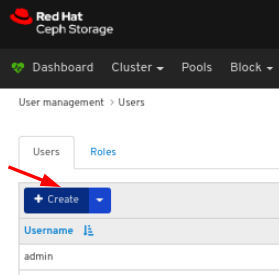
On Users tab, click the Create button:
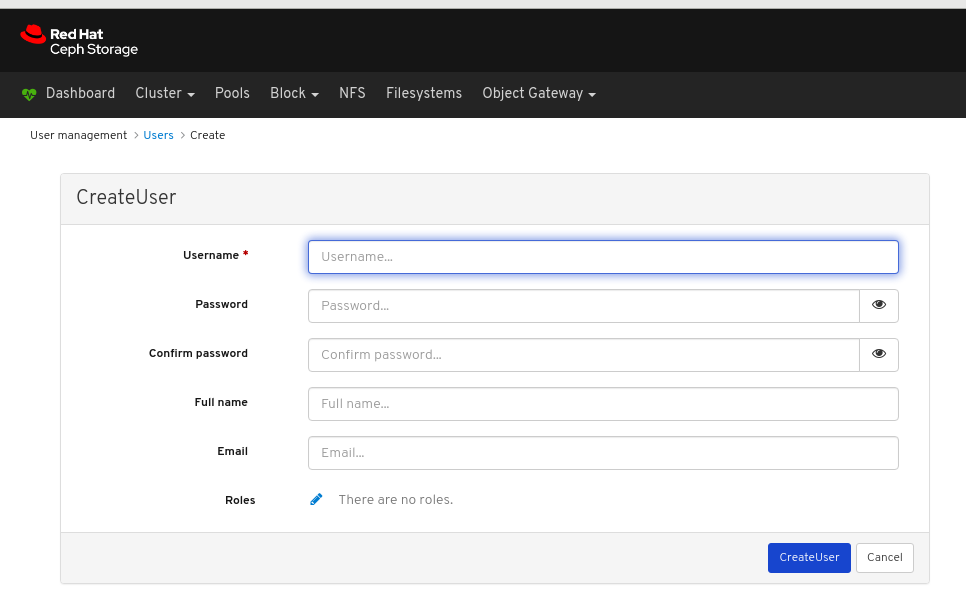
In the CreateUser window, set the Username and other parameters including the roles, and then click the _CreateUser_button:
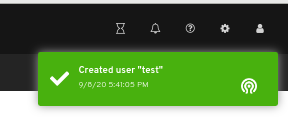
A notification towards the top right corner of the page indicates the user was created successfully.
Additional Resources
- See the Creating roles on dashboard section in the Red Hat Ceph Storage Dashboard Guide for more details.
4.2. Editing users on dashboard
The dashboard allows you to edit users on the dashboard.
Prerequisites
- A running Red Hat Ceph Storage cluster.
- Dashboard is installed.
- Admin level of access to the Dashboard.
- User created on the dashboard.
Procedure
- Log in to the Dashboard.
On the upper right side of the Dashboard, click the gear icon and select User management:
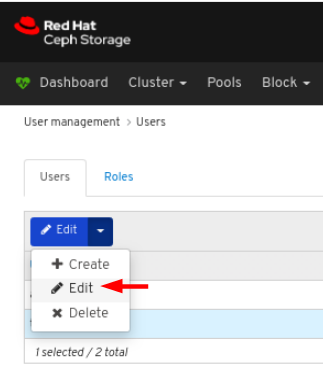
To edit the user, click the row:
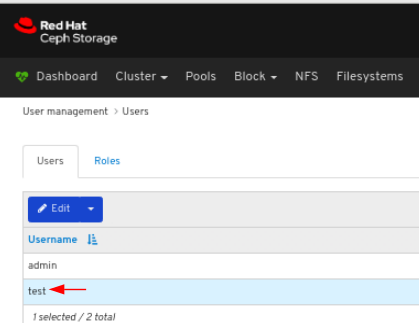
On Users tab, select Edit from the Edit dropdown menu:
In the EditUser window, edit parameters including, and then click the EditUser button:
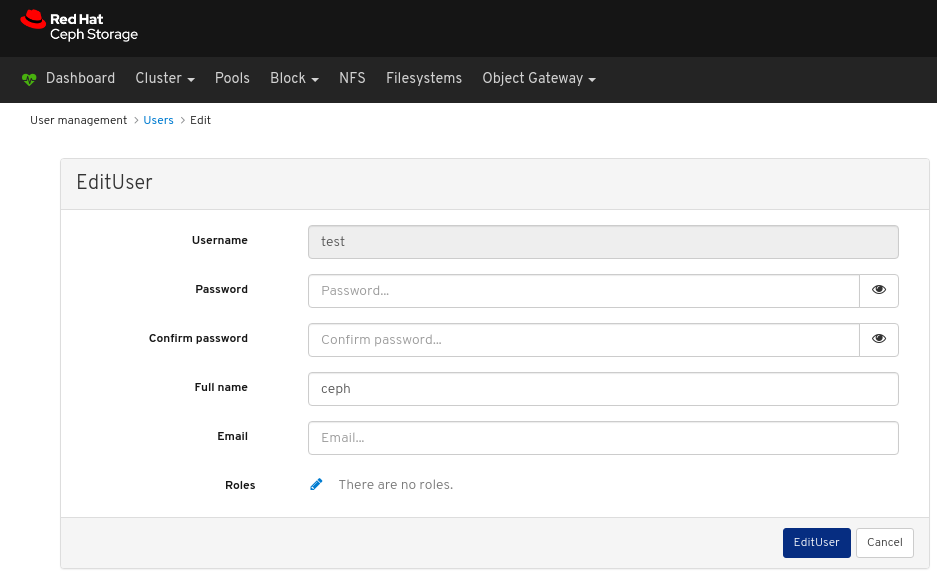
A notification towards the top right corner of the page indicates the user was updated successfully.

Additional Resources
- See the Creating users on the dashboard section in the Red Hat Ceph Storage Dashboard Guide for more details.
4.3. Deleting users on dashboard
The dashboard allows you to delete users on the dashboard.
Prerequisites
- A running Red Hat Ceph Storage cluster.
- Dashboard is installed.
- Admin level of access to the Dashboard.
- User created on the dashboard.
Procedure
- Log in to the Dashboard.
On the upper right side of the Dashboard, click the gear icon and select User management:
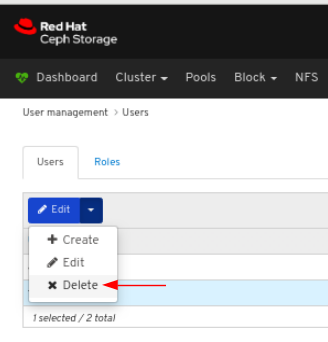
To delete the user, click the row:
On Users tab, select Delete from the Edit dropdown menu:
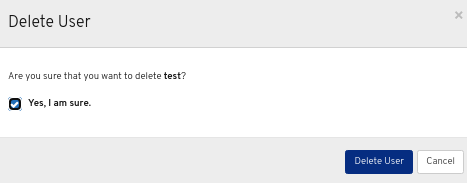
In the Delete User dialog window, Click the Yes, I am sure box and then Click Delete user to save the settings:
Additional Resources
- See the Creating users on the dashboard section in the Red Hat Ceph Storage Dashboard Guide for more details.

'%20d='M201.5%20305.5c-13.8%200-24.9-11.1-24.9-24.6%200-13.8%2011.1-24.9%2024.9-24.9%2013.6%200%2024.6%2011.1%2024.6%2024.9%200%2013.6-11.1%2024.6-24.6%2024.6zM504%20256c0%20137-111%20248-248%20248S8%20393%208%20256%20119%208%20256%208s248%20111%20248%20248zm-132.3-41.2c-9.4%200-17.7%203.9-23.8%2010-22.4-15.5-52.6-25.5-86.1-26.6l17.4-78.3%2055.4%2012.5c0%2013.6%2011.1%2024.6%2024.6%2024.6%2013.8%200%2024.9-11.3%2024.9-24.9s-11.1-24.9-24.9-24.9c-9.7%200-18%205.8-22.1%2013.8l-61.2-13.6c-3-.8-6.1%201.4-6.9%204.4l-19.1%2086.4c-33.2%201.4-63.1%2011.3-85.5%2026.8-6.1-6.4-14.7-10.2-24.1-10.2-34.9%200-46.3%2046.9-14.4%2062.8-1.1%205-1.7%2010.2-1.7%2015.5%200%2052.6%2059.2%2095.2%20132%2095.2%2073.1%200%20132.3-42.6%20132.3-95.2%200-5.3-.6-10.8-1.9-15.8%2031.3-16%2019.8-62.5-14.9-62.5zM302.8%20331c-18.2%2018.2-76.1%2017.9-93.6%200-2.2-2.2-6.1-2.2-8.3%200-2.5%202.5-2.5%206.4%200%208.6%2022.8%2022.8%2087.3%2022.8%20110.2%200%202.5-2.2%202.5-6.1%200-8.6-2.2-2.2-6.1-2.2-8.3%200zm7.7-75c-13.6%200-24.6%2011.1-24.6%2024.9%200%2013.6%2011.1%2024.6%2024.6%2024.6%2013.8%200%2024.9-11.1%2024.9-24.6%200-13.8-11-24.9-24.9-24.9z'/%3e%3c/svg%3e)