 Red Hat Summit
Ce contenu n'est pas disponible dans la langue sélectionnée.
Chapter 3. Logging in to Red Hat Satellite
After Red Hat Satellite has been installed and configured use the web user interface to log in to Satellite for further configuration.
These steps show how to log in to Red Hat Satellite.
- Access the Satellite server using a web browser pointed to the following address:
https://HOSTNAME/To identify your hostname, use thehostnamecommand at the prompt:# hostnameImportant
An untrusted connection warning appears on your web browser when accessing Satellite for the first time. Accept the self-signed certificate and add the Satellite URL as a security exception to override the settings. This procedure might differ depending on the browser being used.Only do this if you are sure that the Satellite URL is a trusted source.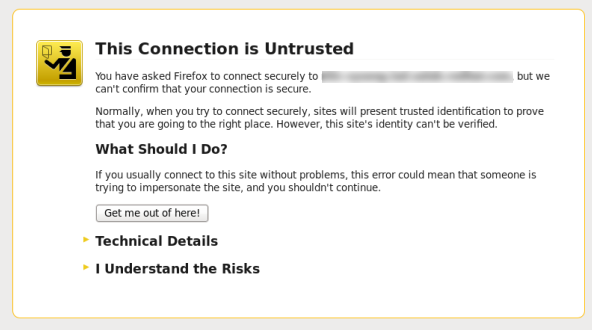
Figure 3.1. Untrusted Connection Warning
- Enter the user name and password created during the configuration process. If a user was not created during the configuration process, the default user name is admin.
Result
When you have successfully logged in, you are taken to the Satellite dashboard. The dashboard contains an overview of the Satellite and the hosts registered.
The main navigation tabs are as follows:
| Navigation Tabs | Description |
|---|---|
| Organization@Location | Clicking this tab changes the organization and location. If no organization or location is selected, the default organization is Any Organization and the default location is Any Location. Use this tab to change to different values. |
| Monitor | Provides summary dashboards and reports. |
| Content | Provides content management tools. This includes Content Views, Activation Keys, and Lifecycle Environments. |
| Hosts | Provides host inventory and provisioning configuration tools. |
| Configure | Provides general configuration tools and data including Host Groups and Puppet data. |
| Infrastructure | Provides tools on configuring how Satellite 6 interacts with the environment. |
| Administer | Provides advanced configuration for settings such as Users and RBAC, as well as general settings. |
| User Name | Provides user administration where users can edit their personal information. |
Note
If you have forgotten the administrative password, log on to the Satellite command-line interface to reset the administration user and password:
# foreman-rake permissions:reset
Reset to user: admin, password: qwJxBptxb7Gfcjj5
This will reset the password of the default user admin to the one printed on the command line. Change this password upon logging in to prevent any security issues from occurring.
3.1. Organizations
Copier lienLien copié sur presse-papiers!
Organizations divide hosts into logical groups based on ownership, purpose, content, security level, or other divisions.
Multiple organizations can be viewed, created, and managed within the web interface. Software and host entitlements can be allocated across many organizations, and access to those organizations controlled.
Each organization must be created and used by a single Red Hat customer account, however each account can manage multiple organizations. Subscription manifests can only be imported into a single organization and Satellite will not upload a certificate that has already been uploaded into a different organization.
By default, Red Hat Satellite will have one organization already created, called
Default Organization, which can be modified to suit your own installation, or deleted.
Important
If a new user is not assigned a default organization their access will be limited. To grant the user systems rights, assign them a default organization and have them log out and log back in again.
3.1.1. Creating an Organization
Copier lienLien copié sur presse-papiers!
These steps show how to create a new organization.
Procedure 3.1. Creating an Organization
- Click the
menu on the top right hand corner. - Click the button.
- Type in the name of the new organization in the Name field.
- Type in the label of the new organization in the Label field.
- Type in a description of the new organization in the Description field.
- Click the button.
- Select the hosts to assign to the new organization.
- Click the button to assign all hosts with no organization to the new organization.
- Click the button to manually select and assign the hosts with no organization.
- Click the button to skip assigning hosts.
Result:
A new organization is created.
3.1.2. Editing an Organization
Copier lienLien copié sur presse-papiers!
Procedure 3.2. Editing an Organization
- Click the
menu on the top right hand corner. - Click the name of the organization to be edited.
- Select the resource to edit from the list on the left.
- Click the name of the desired items to add them to the Selected Items list.
- Click the button.
Result
The organization is updated and saved.
3.1.3. Removing an Organization
Copier lienLien copié sur presse-papiers!
Procedure 3.3. Removing an Organization
- Click the
menu on the top right hand corner. - Select from the drop down menu to the right of the name of the organization you want to remove.
- An alert box appears:
Delete Organization Name? - Click the button.
Result
The organization is removed from Red Hat Satellite.

'%20d='M201.5%20305.5c-13.8%200-24.9-11.1-24.9-24.6%200-13.8%2011.1-24.9%2024.9-24.9%2013.6%200%2024.6%2011.1%2024.6%2024.9%200%2013.6-11.1%2024.6-24.6%2024.6zM504%20256c0%20137-111%20248-248%20248S8%20393%208%20256%20119%208%20256%208s248%20111%20248%20248zm-132.3-41.2c-9.4%200-17.7%203.9-23.8%2010-22.4-15.5-52.6-25.5-86.1-26.6l17.4-78.3%2055.4%2012.5c0%2013.6%2011.1%2024.6%2024.6%2024.6%2013.8%200%2024.9-11.3%2024.9-24.9s-11.1-24.9-24.9-24.9c-9.7%200-18%205.8-22.1%2013.8l-61.2-13.6c-3-.8-6.1%201.4-6.9%204.4l-19.1%2086.4c-33.2%201.4-63.1%2011.3-85.5%2026.8-6.1-6.4-14.7-10.2-24.1-10.2-34.9%200-46.3%2046.9-14.4%2062.8-1.1%205-1.7%2010.2-1.7%2015.5%200%2052.6%2059.2%2095.2%20132%2095.2%2073.1%200%20132.3-42.6%20132.3-95.2%200-5.3-.6-10.8-1.9-15.8%2031.3-16%2019.8-62.5-14.9-62.5zM302.8%20331c-18.2%2018.2-76.1%2017.9-93.6%200-2.2-2.2-6.1-2.2-8.3%200-2.5%202.5-2.5%206.4%200%208.6%2022.8%2022.8%2087.3%2022.8%20110.2%200%202.5-2.2%202.5-6.1%200-8.6-2.2-2.2-6.1-2.2-8.3%200zm7.7-75c-13.6%200-24.6%2011.1-24.6%2024.9%200%2013.6%2011.1%2024.6%2024.6%2024.6%2013.8%200%2024.9-11.1%2024.9-24.6%200-13.8-11-24.9-24.9-24.9z'/%3e%3c/svg%3e)