 Red Hat Summit
Ce contenu n'est pas disponible dans la langue sélectionnée.
4.2. Disconnected Satellite
In high security environments where hosts are required to function in a closed network, disconnected from the internet, the Red Hat Satellite Server can provision systems with the latest security updates, errata, and packages. This is achieved by using two important components: the
katello-disconnected utility and a synchronization host.
The diagram below illustrates how a disconnected Satellite is able to keep its content updated even without an internet connection. An intermediary system with an internet connection is needed to act as a synchronization host. This synchronization host is in a separate network from the Satellite server.
The synchronization host imports content from the Red Hat Content Delivery Network (CDN) through pulp. The content is then exported onto a media, such as DVDs, CDs, or external hard drives and transferred to the disconnected Satellite server. The following sections in this chapter will guide you through the whole process.
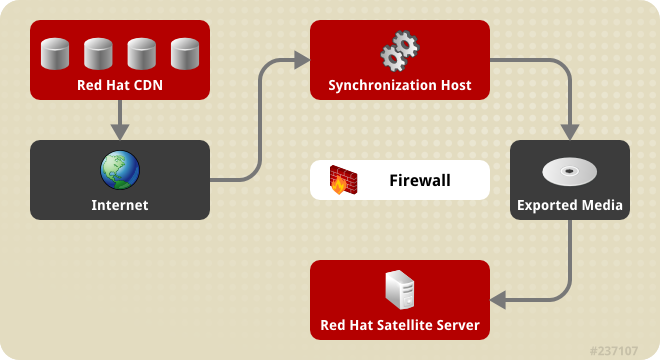
Figure 4.1. Disconnected Satellite
4.2.1. Configuring the Synchronization Host
Copier lienLien copié sur presse-papiers!
Prerequisites
To import content from the Red Hat Content Distribution Network (CDN), the synchronization host requires:
- An Internet connection
- Valid Red Hat Network subscriptions
- A valid manifest (See Section 4.1.1.1, “Setting up a Manifest” for instructions on how to obtain one.)
Procedure 4.11. To Configure a Host to Synchronize and Export Content from the Red Hat CDN:
- Use Red Hat Subscription Manager to register the synchronization host to RHN.
- List all the available subscriptions to find the correct Red Hat Satellite product to allocate to your system:
# subscription-manager list --available --allThis command displays output similar to the following:+-------------------------------------------+ Available Subscriptions +-------------------------------------------+ ProductName: Red Hat Satellite ProductId: SKU123456 PoolId: e1730d1f4eaa448397bfd30c8c7f3d334bd8b Quantity: 10 Multi-Entitlement: No Expires: 08/20/2013 MachineType: physicalNote
The SKU and Pool ID depend on the Red Hat Satellite product type that corresponds to your system version and product type. - Subscribe to the pool using the following command:
# subscription-manager subscribe --pool=Red_Hat_Satellite_Pool_Id # subscription-manager subscribe --pool=Red_Hat_Enterprise_Linux_Pool_Id # subscription-manager subscribe --pool=Red_Hat_Enterprise_Linux_Software_Collections_Pool_Id - Disable all existing repositories:
# subscription-manager repos --disable "*" - Enable the Red Hat Satellite and Red Hat Enterprise Linux and Red Hat Software Collections repositories. Ensure the Red Hat Enterprise Linux repository matches the specific version you are using.
# subscription-manager repos --enable rhel-6-server-rpms \
--enable rhel-server-rhscl-6-rpms \
--enable rhel-6-server-satellite-6.0-rpms
Note
The commands above are based on Red Hat Enterprise Linux 6. If you are using a different version of Red Hat Enterprise Linux, change the repository based on your specific version. - Install katello-utils and associated RPM files:
# yum install python-qpid-qmf python-qpid qpid-cpp-server-store katello-utilskatello-utils includes thekatello-disconnectedutility that is required to set up repositories for import while qpid related packages are necessary for pulp configuration. - Generate a 32-character alphanumeric string for the
oauth_secretentry in the/etc/pulp/server.conffile:$ tr -dc "[:alnum:]" < /dev/urandom | head -c 32 - In the
/etc/pulp/server.conf, uncomment the[oauth]entry and add the randomly-generated value from the previous step as theoauth_secretvalue:[oauth] enabled: true oauth_key: katello oauth_secret: v8SeYqvS5QUfmg0dIrJOBG58lAHDRZnN - Disable authentication in
/etc/qpid/qpidd.conf:# Configuration file for qpidd. Entries are of the form: # name=value # # (Note: no spaces on either side of '='). # Run "qpidd --help" or see "man qpidd" for more details. auth=noAll incoming connections authenticate using the Satellite's default realm. - Configure the connection from
katello-disconnectedto Pulp with the previously generated value as your--oauth-secretoption:# katello-disconnected setup --oauth-key=katello --oauth-secret=v8SeYqvS5QUfmg0dIrJOBG58lAHDRZnNThis places a configuration value in~/.katello-disconnected. - Configure Pulp on the synchronization server:
sudo service qpidd start sudo chkconfig qpidd on sudo service mongod start sleep 10 sudo chkconfig mongod on sudo -u apache pulp-manage-db sudo service httpd restart sudo chkconfig pulp_workers on sudo service pulp_workers start sudo chkconfig pulp_celerybeat on sudo service pulp_celerybeat start sudo chkconfig pulp_resource_manager on sudo service pulp_resource_manager start - Import the manifest to set up the list of available repositories to synchronize based on the selected subscriptions:
# katello-disconnected import -m ./manifest.zip
The synchronization host is now ready to synchronize content from the Red Hat CDN.

'%20d='M201.5%20305.5c-13.8%200-24.9-11.1-24.9-24.6%200-13.8%2011.1-24.9%2024.9-24.9%2013.6%200%2024.6%2011.1%2024.6%2024.9%200%2013.6-11.1%2024.6-24.6%2024.6zM504%20256c0%20137-111%20248-248%20248S8%20393%208%20256%20119%208%20256%208s248%20111%20248%20248zm-132.3-41.2c-9.4%200-17.7%203.9-23.8%2010-22.4-15.5-52.6-25.5-86.1-26.6l17.4-78.3%2055.4%2012.5c0%2013.6%2011.1%2024.6%2024.6%2024.6%2013.8%200%2024.9-11.3%2024.9-24.9s-11.1-24.9-24.9-24.9c-9.7%200-18%205.8-22.1%2013.8l-61.2-13.6c-3-.8-6.1%201.4-6.9%204.4l-19.1%2086.4c-33.2%201.4-63.1%2011.3-85.5%2026.8-6.1-6.4-14.7-10.2-24.1-10.2-34.9%200-46.3%2046.9-14.4%2062.8-1.1%205-1.7%2010.2-1.7%2015.5%200%2052.6%2059.2%2095.2%20132%2095.2%2073.1%200%20132.3-42.6%20132.3-95.2%200-5.3-.6-10.8-1.9-15.8%2031.3-16%2019.8-62.5-14.9-62.5zM302.8%20331c-18.2%2018.2-76.1%2017.9-93.6%200-2.2-2.2-6.1-2.2-8.3%200-2.5%202.5-2.5%206.4%200%208.6%2022.8%2022.8%2087.3%2022.8%20110.2%200%202.5-2.2%202.5-6.1%200-8.6-2.2-2.2-6.1-2.2-8.3%200zm7.7-75c-13.6%200-24.6%2011.1-24.6%2024.9%200%2013.6%2011.1%2024.6%2024.6%2024.6%2013.8%200%2024.9-11.1%2024.9-24.6%200-13.8-11-24.9-24.9-24.9z'/%3e%3c/svg%3e)