 Red Hat Summit
Ce contenu n'est pas disponible dans la langue sélectionnée.
8.3. Add User Entries to the Directory Server
Overview
Copier lienLien copié sur presse-papiers!
The basic prerequisite for using LDAP authentication with the OSGi container is to have an X.500 directory server running and configured with a collection of user entries. For many use cases, you will also want to configure a number of groups to manage user roles.
Goals
Copier lienLien copié sur presse-papiers!
In this portion of the tutorial you will
Adding user entries
Copier lienLien copié sur presse-papiers!
Perform the following steps to add user entries to the directory server:
- Ensure that the LDAP server and browser are running.
- In the LDAP Browser view, drill down to the ou=users node.
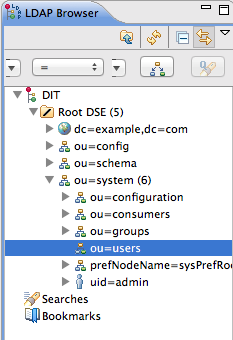
- Select the ou=users node.
- Open the context menu.
- Select
to open the Entry Creation Method pane. 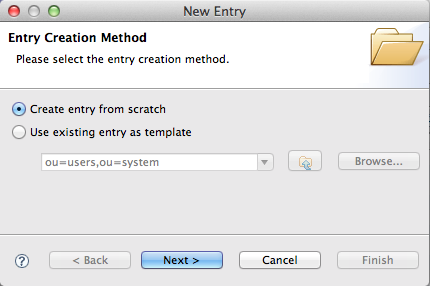
- Check Create entry from scratch.
- Click Next to open the Object Classes pane.
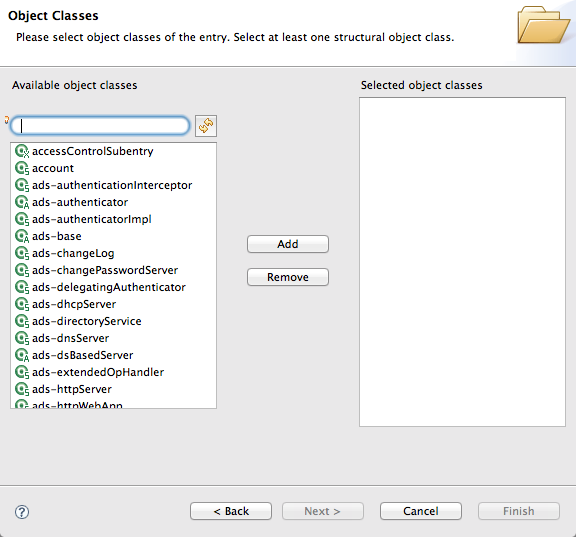
- Select
inetOrgPersonfrom the list of Available object classes. - Click Add to populate the list of Selected object classes.
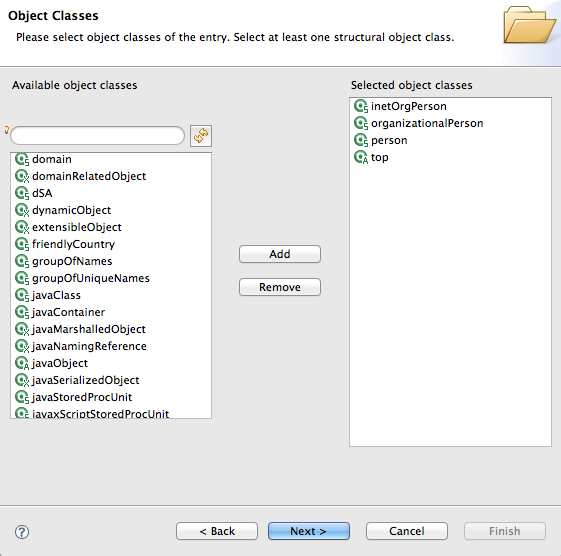
- Click to open the Distinguished Name pane.
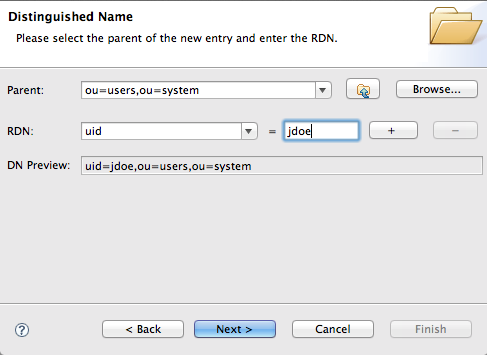
- In the the RDN field, enter
uidin front andjdoeafter the equals sign. - Click to open the Attributes pane.
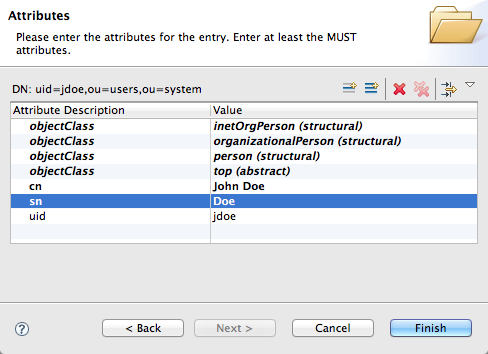
- Fill in the remaining mandatory attributes in the Attributes pane.
- Set the cn (common name) attribute to
John Doe - Set the sn (surname) attribute to
Doe.
- Add a
userPasswordattribute to the user entry.- Open the context menu in the Attributes pane.
- Select to open the New Attribute wizard.
- From the Attribute type drop-down list, select .
- Click .The Password Editor dialog opens.
- In the Enter New Password field, enter the password,
secret. - Click OK.The userPassword attribute appears in the Attributes editor.
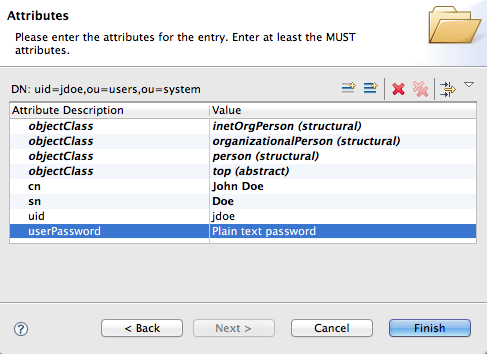
- Click .
Adding groups for the roles
Copier lienLien copié sur presse-papiers!
To add the groups that define the roles:
- Create a new organizational unit to contain the role groups.
- In the LDAP Browser view, select the ou=system node.
- Open the context menu.
- Select
to open the Entry Creation Method pane. - Check Create entry from scratch.
- Click Next to open the Object Classes pane.
- Select
organizationalUnitfrom the list of Available object classes. - Click Add to populate the list of Selected object classes.
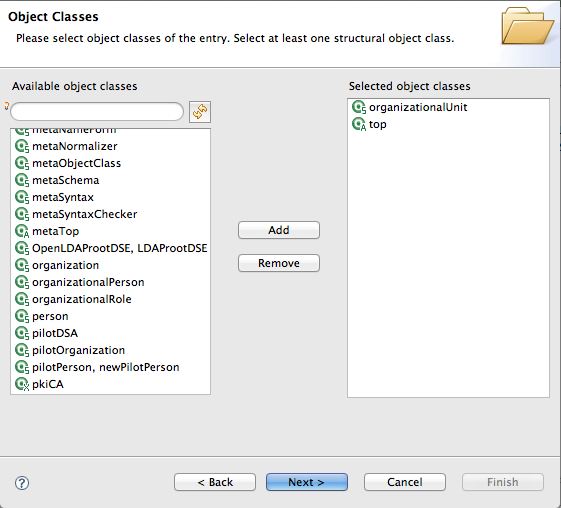
- Click to open the Distinguished Name pane.
- In the the RDN field, enter
ouin front androlesafter the equals sign. - Click to open the Attributes pane.
- Click .
NoteThis step is required because Apache DS allows only administrators access to entries inou=system,ou=groups. - In the LDAP Browser view, drill down to the ou=roles node.
- Select the ou=roles node.
- Open the context menu.
- Select
to open the Entry Creation Method pane. - Check Create entry from scratch.
- Click Next to open the Object Classes pane.
- Select
groupOfNamesfrom the list of Available object classes. - Click Add to populate the list of Selected object classes.
- Click to open the Distinguished Name pane.
- In the the RDN field, enter
cnin front andadminafter the equals sign. - Click to open the Attributes pane.The message
Attribute "member" has an empty value, please insert a valid value.displays, and a DN Editor opens for you to enter a value. - Enter
uid=jdoe. - Click .
- Click .
- In Step 13, use
uid=janedoe. - In Step 13, use
uid=janedoe. - In Step 13, use
uid=crider.

'%20d='M201.5%20305.5c-13.8%200-24.9-11.1-24.9-24.6%200-13.8%2011.1-24.9%2024.9-24.9%2013.6%200%2024.6%2011.1%2024.6%2024.9%200%2013.6-11.1%2024.6-24.6%2024.6zM504%20256c0%20137-111%20248-248%20248S8%20393%208%20256%20119%208%20256%208s248%20111%20248%20248zm-132.3-41.2c-9.4%200-17.7%203.9-23.8%2010-22.4-15.5-52.6-25.5-86.1-26.6l17.4-78.3%2055.4%2012.5c0%2013.6%2011.1%2024.6%2024.6%2024.6%2013.8%200%2024.9-11.3%2024.9-24.9s-11.1-24.9-24.9-24.9c-9.7%200-18%205.8-22.1%2013.8l-61.2-13.6c-3-.8-6.1%201.4-6.9%204.4l-19.1%2086.4c-33.2%201.4-63.1%2011.3-85.5%2026.8-6.1-6.4-14.7-10.2-24.1-10.2-34.9%200-46.3%2046.9-14.4%2062.8-1.1%205-1.7%2010.2-1.7%2015.5%200%2052.6%2059.2%2095.2%20132%2095.2%2073.1%200%20132.3-42.6%20132.3-95.2%200-5.3-.6-10.8-1.9-15.8%2031.3-16%2019.8-62.5-14.9-62.5zM302.8%20331c-18.2%2018.2-76.1%2017.9-93.6%200-2.2-2.2-6.1-2.2-8.3%200-2.5%202.5-2.5%206.4%200%208.6%2022.8%2022.8%2087.3%2022.8%20110.2%200%202.5-2.2%202.5-6.1%200-8.6-2.2-2.2-6.1-2.2-8.3%200zm7.7-75c-13.6%200-24.6%2011.1-24.6%2024.9%200%2013.6%2011.1%2024.6%2024.6%2024.6%2013.8%200%2024.9-11.1%2024.9-24.6%200-13.8-11-24.9-24.9-24.9z'/%3e%3c/svg%3e)