 Red Hat Summit
Ce contenu n'est pas disponible dans la langue sélectionnée.
Chapter 3. Configuring Organizations, Locations and Life Cycle Environments
Red Hat Satellite 6 takes a consolidated approach to Organization and Location management. System administrators define multiple Organizations and multiple Locations in a single Satellite Server. For example, a company might have three Organizations (Finance, Marketing, and Sales) across three countries (United States, United Kingdom, and Japan). In this example, the Satellite Server manages all Organizations across all geographical Locations, creating nine distinct contexts for managing systems. In addition, users can define specific locations and nest them to create a hierarchy. For example, Satellite administrators might divide the United States into specific cities, such as Boston, Phoenix, or San Francisco.
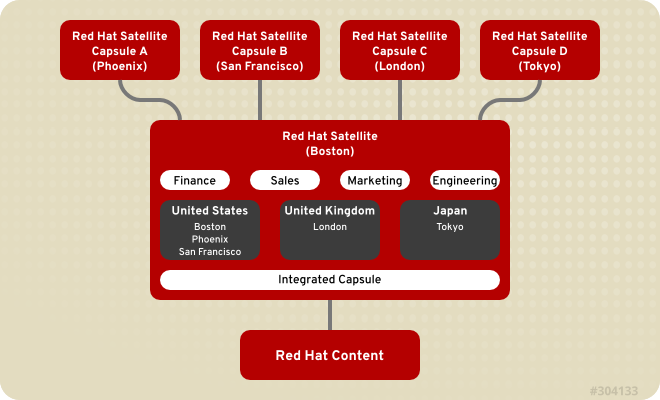
Figure 3.1. Example Topology for Red Hat Satellite 6
The main Satellite Server retains the management function, while the content and configuration is synchronized between the main Satellite Server and a Satellite Capsule Server assigned to certain locations.
3.1. Organizations
Copier lienLien copié sur presse-papiers!
Organizations divide hosts into logical groups based on ownership, purpose, content, security level, or other divisions.
Multiple organizations can be viewed, created, and managed within the web UI. Software and host entitlements can be allocated across many organizations, and access to those organizations controlled.
Each organization must be created and used by a single Red Hat customer account, however each account can manage multiple organizations. Subscription Manifests can only be imported into a single organization and Satellite will not upload a certificate that has already been uploaded into a different organization.
The Red Hat Satellite installation process creates an organization called Default Organization unless another name is specified. The organization name has a corresponding label.
Important
If a new user is not assigned a default organization their access will be limited. To grant systems rights to users, assign them to a default organization and have them log out and log back in again.
3.1.1. Creating an Organization
Copier lienLien copié sur presse-papiers!
These steps show how to create a new organization.
Procedure 3.1. To Create an Organization:
- Navigate to
. - Click .
- In the Name field, insert the name of the new organization.
- In the Label field, insert the label of the new organization.
- In the Description field, insert a description of the new organization.
- Click .
- Select the hosts to assign to the new organization.
- Click to assign all hosts with no organization to the new organization.
- Click to manually select and assign the hosts with no organization.
- Click to skip assigning hosts.
- Specify the configuration details of the organization such as Capsule Servers, subnets or compute resources. You can modify these settings later as described in Section 3.1.4, “Editing an Organization”.
- Click .
3.1.2. Creating an Organization Debug Certificate
Copier lienLien copié sur presse-papiers!
These steps show how to generate and download a debug certificate for an organization. Debug certificates enable you to browse all content from an organization's repositories and are required for exporting provisioning templates.
Procedure 3.2. To Create a New Organization Debug Certificate:
- Navigate to
. - Select an organization for which you want to generate a debug certificate.
- Click . This generates a debug certificate.
- Save the certificate file in a secure location.
Note
Debug Certificates are automatically generated for provisioning template downloads if they do not already exist in the organization for which they are being downloaded.
3.1.3. Using an Organization Debug Certificate
Copier lienLien copié sur presse-papiers!
You can view an organization's repository content using a browser or using the API if you have a debug certificate for that organization. The previous section describes creating and downloading the certificate which is in the X.509 format. To use a browser you must first convert the X.509 certificate to a format your browser supports and then import the certificate. The
curl utility only requires extracting the certificate and key into separate files.
Procedure 3.3. To Use an Organization Debug Certificate in Firefox:
- Create and download an organization certificate as described in Procedure 3.2, “To Create a New Organization Debug Certificate:”.
- Open the X.509 certificate, for example, for the default organization:
$ vi 'Default Organization-key-cert.pem' - Copy the contents of the file from
-----BEGIN RSA PRIVATE KEY-----to-----END RSA PRIVATE KEY-----inclusive, into a file calledkey.pem. - Copy the contents of the file from
-----BEGIN CERTIFICATE-----to-----END CERTIFICATE-----inclusive, into a file calledcert.pem. - Enter a command as follows to create a PKCS12 format certificate and enter a password or phrase when prompted:
$ openssl pkcs12 -keypbe PBE-SHA1-3DES -certpbe PBE-SHA1-3DES -export -in cert.pem -inkey key.pem -out organization_label.pfx -name 'organization_name' Enter Export Password: Verifying - Enter Export Password: - Using the preferences tab, import the resulting
pfxfile into your browser: Navigate to. Select in the view to open the . On the tab, click and select the pfxfile to load. You will be prompted for the password or phrase used when making the certificate. - Enter a URL in the following format into your browser's address bar to begin browsing for repositories:Pulp uses the organization label so the URL must use the organization label too.
http://satellite.example.com/pulp/repos/organization_label
Procedure 3.4. To Use an Organization Debug Certificate with curl:
- Create and download an organization certificate as described in Procedure 3.2, “To Create a New Organization Debug Certificate:”.
- Open the X.509 certificate, for example, for the default organization:
$ vi 'Default Organization-key-cert.pem' - Copy the contents of the file from
-----BEGIN RSA PRIVATE KEY-----to-----END RSA PRIVATE KEY-----inclusive, into a file calledkey.pem. - Copy the contents of the file from
-----BEGIN CERTIFICATE-----to-----END CERTIFICATE-----inclusive, into a file calledcert.pem. - Find a valid URL for a repository. You can use the browsing method described in the previous procedure or use the web UI. For example, using the web UI, navigate to
and select a Product by name. On the tab, select a repository by name and look for the entry. - To use
curlto access a repository, use a command as follows:Ensure the paths to$ curl -k --cert cert.pem --key key.pem http://satellite.example.com/pulp/repos/Default_Organization/Library/content/dist/rhel/server/7/7Server/x86_64/sat-tools/6.2/os/cert.pemandkey.pemare the correct absolute paths otherwise the command will fail silently.
3.1.4. Editing an Organization
Copier lienLien copié sur presse-papiers!
Procedure 3.5. To Edit an Organization:
- Navigate to
. - Click the name of the organization to be edited.
- Select the resource to edit from the list on the left.
- Click the name of the desired items to add them to the Selected Items list.
- Click .
Note
Users with administrator privileges are not listed under the Users tab when editing an organization.
3.1.5. Removing an Organization
Copier lienLien copié sur presse-papiers!
Procedure 3.6. To Remove an Organization:
You can delete an organization if the organization is not associated with any life cycle environments or host groups. If there are any life cycle environments or host groups associated with the organization you are about to delete, deselect them by going to and clicking the relevant tabs. It is not recommended to delete the default organization created during installation because the default organization is a placeholder for any unassociated hosts in the Satellite environment. There must be at least one organization in the environment in any given time.
- Navigate to
. - Select from the drop-down menu to the right of the name of the organization you want to remove.
- An alert box appears:
Delete Organization? - Click to delete the organization.

'%20d='M201.5%20305.5c-13.8%200-24.9-11.1-24.9-24.6%200-13.8%2011.1-24.9%2024.9-24.9%2013.6%200%2024.6%2011.1%2024.6%2024.9%200%2013.6-11.1%2024.6-24.6%2024.6zM504%20256c0%20137-111%20248-248%20248S8%20393%208%20256%20119%208%20256%208s248%20111%20248%20248zm-132.3-41.2c-9.4%200-17.7%203.9-23.8%2010-22.4-15.5-52.6-25.5-86.1-26.6l17.4-78.3%2055.4%2012.5c0%2013.6%2011.1%2024.6%2024.6%2024.6%2013.8%200%2024.9-11.3%2024.9-24.9s-11.1-24.9-24.9-24.9c-9.7%200-18%205.8-22.1%2013.8l-61.2-13.6c-3-.8-6.1%201.4-6.9%204.4l-19.1%2086.4c-33.2%201.4-63.1%2011.3-85.5%2026.8-6.1-6.4-14.7-10.2-24.1-10.2-34.9%200-46.3%2046.9-14.4%2062.8-1.1%205-1.7%2010.2-1.7%2015.5%200%2052.6%2059.2%2095.2%20132%2095.2%2073.1%200%20132.3-42.6%20132.3-95.2%200-5.3-.6-10.8-1.9-15.8%2031.3-16%2019.8-62.5-14.9-62.5zM302.8%20331c-18.2%2018.2-76.1%2017.9-93.6%200-2.2-2.2-6.1-2.2-8.3%200-2.5%202.5-2.5%206.4%200%208.6%2022.8%2022.8%2087.3%2022.8%20110.2%200%202.5-2.2%202.5-6.1%200-8.6-2.2-2.2-6.1-2.2-8.3%200zm7.7-75c-13.6%200-24.6%2011.1-24.6%2024.9%200%2013.6%2011.1%2024.6%2024.6%2024.6%2013.8%200%2024.9-11.1%2024.9-24.6%200-13.8-11-24.9-24.9-24.9z'/%3e%3c/svg%3e)