You can change skins during runtime by defining the following EL-expression in your web.xml.
<context-param>
	<param-name>org.richfaces.SKIN</param-name>
	<param-value>#{skinBean.skin}</param-value>
</context-param>
<context-param>
	<param-name>org.richfaces.SKIN</param-name>
	<param-value>#{skinBean.skin}</param-value>
</context-param>
Copy to Clipboard
Copied!
Toggle word wrap
Toggle overflow
public class SkinBean {

	private String skin;

	public String getSkin() {
		return skin;
	}
	public void setSkin(String skin) {
		this.skin = skin;
	}
}
public class SkinBean {

	private String skin;

	public String getSkin() {
		return skin;
	}
	public void setSkin(String skin) {
		this.skin = skin;
	}
}
Copy to Clipboard
Copied!
Toggle word wrap
Toggle overflow
<managed-bean>
	<managed-bean-name>skinBean</managed-bean-name>
	<managed-bean-class>SkinBean</managed-bean-class>
	<managed-bean-scope>session</managed-bean-scope>
	<managed-property>
		<property-name>skin</property-name>
		<value>classic</value>
  	</managed-property>
</managed-bean>
<managed-bean>
	<managed-bean-name>skinBean</managed-bean-name>
	<managed-bean-class>SkinBean</managed-bean-class>
	<managed-bean-scope>session</managed-bean-scope>
	<managed-property>
		<property-name>skin</property-name>
		<value>classic</value>
  	</managed-property>
</managed-bean>
Copy to Clipboard
Copied!
Toggle word wrap
Toggle overflow
You can also change the properties of the default skin. To do so, edit the properties of the default skin. The following shows you example page code:
<h:form>
     <div style="display: block; float: left">
          <h:selectOneRadio value="#{skinBean.skin}" border="0" layout="pageDirection" title="Changing skin" style="font-size: 8; font-family: comic" onchange="submit()">
               	<f:selectItem itemLabel="plain" itemValue="plain" />
		<f:selectItem itemLabel="emeraldTown" itemValue="emeraldTown" />
		<f:selectItem itemLabel="blueSky" itemValue="blueSky" />
		<f:selectItem itemLabel="wine" itemValue="wine" />
		<f:selectItem itemLabel="japanCherry" itemValue="japanCherry" />
		<f:selectItem itemLabel="ruby" itemValue="ruby" />
		<f:selectItem itemLabel="classic" itemValue="classic" />
		<f:selectItem itemLabel="laguna" itemValue="laguna" />
		<f:selectItem itemLabel="deepMarine" itemValue="deepMarine" />
		<f:selectItem itemLabel="blueSky Modified" itemValue="blueSkyModify" />
          </h:selectOneRadio>
     </div>
     <div style="display: block; float: left">
          <rich:panelBar height="100" width="200">
               <rich:panelBarItem label="Item 1" style="font-family: monospace; font-size: 12;">
	     Changing skin in runtime
	</rich:panelBarItem>

	<rich:panelBarItem label="Item 2" style="font-family: monospace; font-size: 12;">
	     This is a result of the modification "blueSky" skin
	</rich:panelBarItem>
          </rich:panelBar>
     </div>
</h:form>
<h:form>
     <div style="display: block; float: left">
          <h:selectOneRadio value="#{skinBean.skin}" border="0" layout="pageDirection" title="Changing skin" style="font-size: 8; font-family: comic" onchange="submit()">
               	<f:selectItem itemLabel="plain" itemValue="plain" />
		<f:selectItem itemLabel="emeraldTown" itemValue="emeraldTown" />
		<f:selectItem itemLabel="blueSky" itemValue="blueSky" />
		<f:selectItem itemLabel="wine" itemValue="wine" />
		<f:selectItem itemLabel="japanCherry" itemValue="japanCherry" />
		<f:selectItem itemLabel="ruby" itemValue="ruby" />
		<f:selectItem itemLabel="classic" itemValue="classic" />
		<f:selectItem itemLabel="laguna" itemValue="laguna" />
		<f:selectItem itemLabel="deepMarine" itemValue="deepMarine" />
		<f:selectItem itemLabel="blueSky Modified" itemValue="blueSkyModify" />
          </h:selectOneRadio>
     </div>
     <div style="display: block; float: left">
          <rich:panelBar height="100" width="200">
               <rich:panelBarItem label="Item 1" style="font-family: monospace; font-size: 12;">
	     Changing skin in runtime
	</rich:panelBarItem>

	<rich:panelBarItem label="Item 2" style="font-family: monospace; font-size: 12;">
	     This is a result of the modification "blueSky" skin
	</rich:panelBarItem>
          </rich:panelBar>
     </div>
</h:form>
Copy to Clipboard
Copied!
Toggle word wrap
Toggle overflow
 Red Hat Summit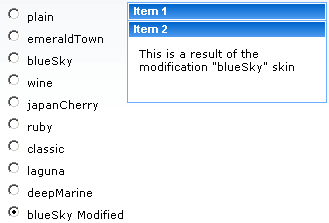

'%20d='M201.5%20305.5c-13.8%200-24.9-11.1-24.9-24.6%200-13.8%2011.1-24.9%2024.9-24.9%2013.6%200%2024.6%2011.1%2024.6%2024.9%200%2013.6-11.1%2024.6-24.6%2024.6zM504%20256c0%20137-111%20248-248%20248S8%20393%208%20256%20119%208%20256%208s248%20111%20248%20248zm-132.3-41.2c-9.4%200-17.7%203.9-23.8%2010-22.4-15.5-52.6-25.5-86.1-26.6l17.4-78.3%2055.4%2012.5c0%2013.6%2011.1%2024.6%2024.6%2024.6%2013.8%200%2024.9-11.3%2024.9-24.9s-11.1-24.9-24.9-24.9c-9.7%200-18%205.8-22.1%2013.8l-61.2-13.6c-3-.8-6.1%201.4-6.9%204.4l-19.1%2086.4c-33.2%201.4-63.1%2011.3-85.5%2026.8-6.1-6.4-14.7-10.2-24.1-10.2-34.9%200-46.3%2046.9-14.4%2062.8-1.1%205-1.7%2010.2-1.7%2015.5%200%2052.6%2059.2%2095.2%20132%2095.2%2073.1%200%20132.3-42.6%20132.3-95.2%200-5.3-.6-10.8-1.9-15.8%2031.3-16%2019.8-62.5-14.9-62.5zM302.8%20331c-18.2%2018.2-76.1%2017.9-93.6%200-2.2-2.2-6.1-2.2-8.3%200-2.5%202.5-2.5%206.4%200%208.6%2022.8%2022.8%2087.3%2022.8%20110.2%200%202.5-2.2%202.5-6.1%200-8.6-2.2-2.2-6.1-2.2-8.3%200zm7.7-75c-13.6%200-24.6%2011.1-24.6%2024.9%200%2013.6%2011.1%2024.6%2024.6%2024.6%2013.8%200%2024.9-11.1%2024.9-24.6%200-13.8-11-24.9-24.9-24.9z'/%3e%3c/svg%3e)