 Red Hat Summit
Questo contenuto non è disponibile nella lingua selezionata.
4.5. State Manager API
JSF has an advanced navigation mechanism that lets you define navigation from view to view. In a web application, navigation occurs when a user changes from one page to another by clicking on a button, a hyperlink, or another command component. There is no switch mechanism between some logical states of the same view. For example, in Login/Register dialog, an existing user signs in with his user name and password, but if a new user attempts to register, an additional field (
Confirm) is displayed, and button labels and methods are changed when the user clicks the To register link:
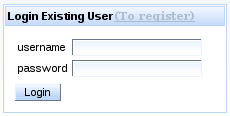
Figure 4.7. Login Dialog
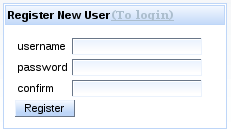
Figure 4.8. Register Dialog
RichFaces State API lets you easily define a set of states for pages, and properties for these states.
The
States class interfaces with a map, where the keySet defines the State name and the entrySet is a State map. The State map defines the properties, method bindings, or constant state variables of a key or object, where these values may change depending on the active State.
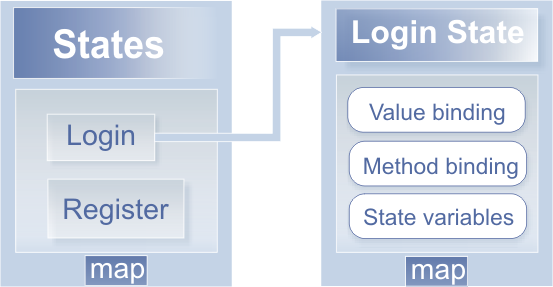
Figure 4.9. RichFaces State API
One of the most convenient features of the RichFaces State API is the ability to navigate between
States. The API implements changes in State through standard JSF navigation. When the action component returns an outcome, the JSF navigation handler (extended through the RichFaces State API) checks whether the outcome is registered as a State change outcome. If true, the corresponding State is activated. If false, standard navigation handling is called.
Implement the RichFaces State API like so:
- Register the State Navigation Handler and the EL Resolver in your
faces-config.xmlfile:Copy to Clipboard Copied! Toggle word wrap Toggle overflow - Register an additional application factory in the
faces-config.xml:... <factory> <application-factory>org.richfaces.ui.application.StateApplicationFactory</application-factory> </factory> ...
... <factory> <application-factory>org.richfaces.ui.application.StateApplicationFactory</application-factory> </factory> ...Copy to Clipboard Copied! Toggle word wrap Toggle overflow - Register two managed beans in the
faces-config.xml:Copy to Clipboard Copied! Toggle word wrap Toggle overflow One bean (config) defines and storesStateas seen in the following example:Copy to Clipboard Copied! Toggle word wrap Toggle overflow The second bean, with theorg.richfaces.ui.model.Statestype (state), contains the managed property states, which is bound to the firstconfigbean. - Next, use state bindings on the page, as in the following example:
Copy to Clipboard Copied! Toggle word wrap Toggle overflow
To see complete example of the Login/Register dialog, see the RichFaces Live Demo.

'%20d='M201.5%20305.5c-13.8%200-24.9-11.1-24.9-24.6%200-13.8%2011.1-24.9%2024.9-24.9%2013.6%200%2024.6%2011.1%2024.6%2024.9%200%2013.6-11.1%2024.6-24.6%2024.6zM504%20256c0%20137-111%20248-248%20248S8%20393%208%20256%20119%208%20256%208s248%20111%20248%20248zm-132.3-41.2c-9.4%200-17.7%203.9-23.8%2010-22.4-15.5-52.6-25.5-86.1-26.6l17.4-78.3%2055.4%2012.5c0%2013.6%2011.1%2024.6%2024.6%2024.6%2013.8%200%2024.9-11.3%2024.9-24.9s-11.1-24.9-24.9-24.9c-9.7%200-18%205.8-22.1%2013.8l-61.2-13.6c-3-.8-6.1%201.4-6.9%204.4l-19.1%2086.4c-33.2%201.4-63.1%2011.3-85.5%2026.8-6.1-6.4-14.7-10.2-24.1-10.2-34.9%200-46.3%2046.9-14.4%2062.8-1.1%205-1.7%2010.2-1.7%2015.5%200%2052.6%2059.2%2095.2%20132%2095.2%2073.1%200%20132.3-42.6%20132.3-95.2%200-5.3-.6-10.8-1.9-15.8%2031.3-16%2019.8-62.5-14.9-62.5zM302.8%20331c-18.2%2018.2-76.1%2017.9-93.6%200-2.2-2.2-6.1-2.2-8.3%200-2.5%202.5-2.5%206.4%200%208.6%2022.8%2022.8%2087.3%2022.8%20110.2%200%202.5-2.2%202.5-6.1%200-8.6-2.2-2.2-6.1-2.2-8.3%200zm7.7-75c-13.6%200-24.6%2011.1-24.6%2024.9%200%2013.6%2011.1%2024.6%2024.6%2024.6%2013.8%200%2024.9-11.1%2024.9-24.6%200-13.8-11-24.9-24.9-24.9z'/%3e%3c/svg%3e)