 Red Hat Summit
5.4. Defining the traffic violations DMN decision logic
To calculate the fine and to decide whether the driver is to be suspended or not, you can define the traffic violations DMN decision logic using a DMN decision table and context boxed expression.
図5.8 Fine expression
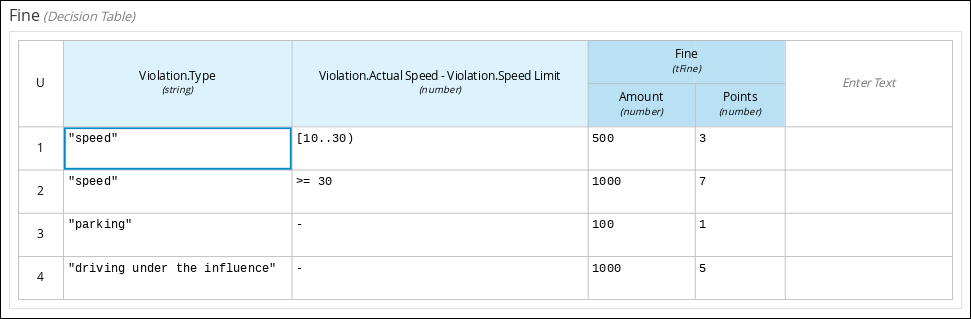
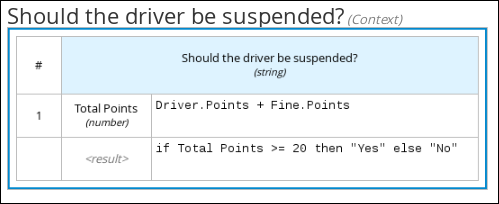
図5.9 Should the driver be suspended expression
Prerequisites
- You have assigned the DMN custom data types to the appropriate decision and input nodes in the traffic violations DRD in Business Central.
Procedure
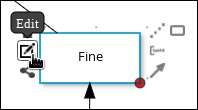
To calculate the fine, in the DMN designer canvas, select the Fine decision node and click the Edit icon to open the DMN boxed expression designer.
図5.10 Decision node edit icon
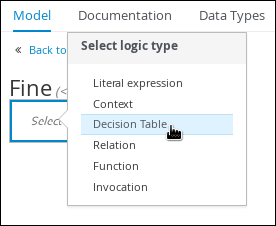
Click Select expression
Decision Table. 図5.11 Select Decisiong Table logic type
- For the Violation.Date, Violation.Code, and Violation.Speed Limit columns, right-click and select Delete for each field.
-
Click the Violation.Actual Speed column header and enter the expression
Violation.Actual Speed - Violation.Speed Limitin the Expression field." Enter the following values in the first row of the decision table:
-
Violation.Type:
"speed" -
Violation.Actual Speed - Violation.Speed Limit:
[10..30) -
Amount:
500 Points:
3Right-click the first row and select
Insert belowto add another row.
-
Violation.Type:
Enter the following values in the second row of the decision table:
-
Violation.Type:
"speed" -
Violation.Actual Speed - Violation.Speed Limit:
>= 30 -
Amount:
1000 Points:
7Right-click the second row and select
Insert belowto add another row.
-
Violation.Type:
Enter the following values in the third row of the decision table:
-
Violation.Type:
"parking" -
Violation.Actual Speed - Violation.Speed Limit:
- -
Amount:
100 Points:
1Right-click the third row and select
Insert belowto add another row.
-
Violation.Type:
Enter the following values in the fourth row of the decision table:
-
Violation.Type:
"driving under the influence" -
Violation.Actual Speed - Violation.Speed Limit:
- -
Amount:
1000 -
Points:
5
-
Violation.Type:
- Click Save.
- To define the driver suspension rule, return to the DMN designer canvas, select the Should the driver be suspended? decision node, and click the Edit icon to open the DMN boxed expression designer.
-
Click Select expression
Context. -
Click ContextEntry-1, enter
Total Pointsas the Name, and selectnumberfrom the Data Type drop-down menu. -
Click the cell next to Total Points, select
Literal expressionfrom the context menu, and enterDriver.Points + Fine.Pointsas the expression. -
In the cell below Driver.Points + Fine.Points, select
Literal Expressionfrom the context menu, and enterif Total Points >= 20 then "Yes" else "No". Click Save.
You have defined how to calculate the fine and the context for deciding when to suspend the driver. You can navigate to the traffic-violation project page and click Build to build the example project and address any errors noted in the Alerts panel.

'%20d='M201.5%20305.5c-13.8%200-24.9-11.1-24.9-24.6%200-13.8%2011.1-24.9%2024.9-24.9%2013.6%200%2024.6%2011.1%2024.6%2024.9%200%2013.6-11.1%2024.6-24.6%2024.6zM504%20256c0%20137-111%20248-248%20248S8%20393%208%20256%20119%208%20256%208s248%20111%20248%20248zm-132.3-41.2c-9.4%200-17.7%203.9-23.8%2010-22.4-15.5-52.6-25.5-86.1-26.6l17.4-78.3%2055.4%2012.5c0%2013.6%2011.1%2024.6%2024.6%2024.6%2013.8%200%2024.9-11.3%2024.9-24.9s-11.1-24.9-24.9-24.9c-9.7%200-18%205.8-22.1%2013.8l-61.2-13.6c-3-.8-6.1%201.4-6.9%204.4l-19.1%2086.4c-33.2%201.4-63.1%2011.3-85.5%2026.8-6.1-6.4-14.7-10.2-24.1-10.2-34.9%200-46.3%2046.9-14.4%2062.8-1.1%205-1.7%2010.2-1.7%2015.5%200%2052.6%2059.2%2095.2%20132%2095.2%2073.1%200%20132.3-42.6%20132.3-95.2%200-5.3-.6-10.8-1.9-15.8%2031.3-16%2019.8-62.5-14.9-62.5zM302.8%20331c-18.2%2018.2-76.1%2017.9-93.6%200-2.2-2.2-6.1-2.2-8.3%200-2.5%202.5-2.5%206.4%200%208.6%2022.8%2022.8%2087.3%2022.8%20110.2%200%202.5-2.2%202.5-6.1%200-8.6-2.2-2.2-6.1-2.2-8.3%200zm7.7-75c-13.6%200-24.6%2011.1-24.6%2024.9%200%2013.6%2011.1%2024.6%2024.6%2024.6%2013.8%200%2024.9-11.1%2024.9-24.6%200-13.8-11-24.9-24.9-24.9z'/%3e%3c/svg%3e)