 Red Hat Summit
이 콘텐츠는 선택한 언어로 제공되지 않습니다.
F.2. File Menu
The File menu provides actions to manage your workspace resources.
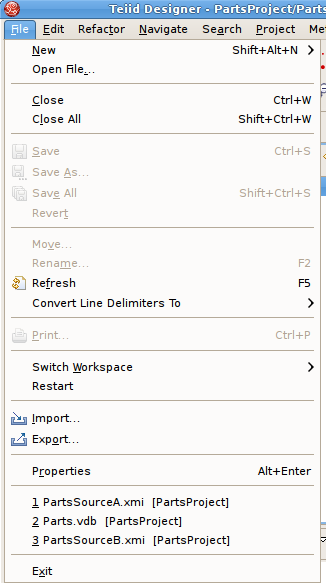
Figure F.2. File Menu
The New > submenu provides specific actions to create various generic workspace resources as well as Teiid Designer models and VDBs.
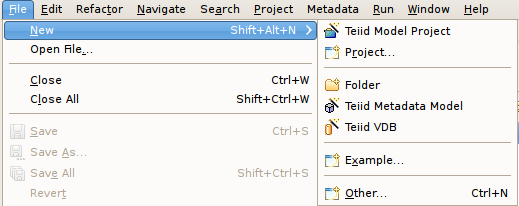
Figure F.3. File Menu
The File menu contains the following actions:
 New > Model Project - Create user a new model project.
 New > Folder - Create new folder within an existing project or folder.
 New > Model - Create a new model of a specified model type and class using the New Model Wizards.
 New > Virtual Database Definition - Create a new VDB, or Virtual Database Definition.
- Open File - Enables you to open a file for editing - including files that do not reside in the Workspace.
- Close (Ctrl+W) - Closes the active editor. You are prompted to save changes before the file closes.
- Close All (Shift+Ctrl+W) - Closes all open editors. You are prompted to save changes before the files close.
 Save (Ctrl+S) - Saves the contents of the active editor.
 Save As - Enables you to save the contents of the active editor under another file name or location.
 Save All (Shift+Ctrl+S) - Saves the contents of all open editors.
- Move - Launches a Refactor > Move resource dialog..
- Rename (F2) - Launches a Refactor > Rename resource dialog if resource selected, else inline rename is preformed.
- Refresh - Refreshes the resource with the contents in the file system.
- Convert Line Delimiters To - Alters the line delimiters for the selected files. Changes are immediate and persist until you change the delimiter again - you do not need to save the file.
 Print (Ctrl+P) - Prints the contents of the active editor. In the Teiid Designer, this action prints the diagram in the selected editor. Allows control over orientation (portrait or landscape), scaling, margins and page order. User can also specify a subset of the pages to print (i.e., 2 through 8).
- Switch Workspace - Opens the Workspace Launcher, from which you can switch to a different workspace. This restarts the Workbench.
- Restart - Exits and restarts the Workbench.
 --> Import - Launches the Import Wizard which provides several ways to construct or import models..
 Export - Launches the Export Wizard which provides options for exporting model data.
- Properties (Alt+Enter) - Opens the Properties dialog for the currently selected resource. These will include path to the resource on the file system, date of last modification and its writable or executable state.
- Most Recent Files List - Contains a list of the most recently accessed files in the Workbench. You can open any of these files from the File menu by selecting the file name.
- Exit - Closes and exits the Workbench.

'%20d='M201.5%20305.5c-13.8%200-24.9-11.1-24.9-24.6%200-13.8%2011.1-24.9%2024.9-24.9%2013.6%200%2024.6%2011.1%2024.6%2024.9%200%2013.6-11.1%2024.6-24.6%2024.6zM504%20256c0%20137-111%20248-248%20248S8%20393%208%20256%20119%208%20256%208s248%20111%20248%20248zm-132.3-41.2c-9.4%200-17.7%203.9-23.8%2010-22.4-15.5-52.6-25.5-86.1-26.6l17.4-78.3%2055.4%2012.5c0%2013.6%2011.1%2024.6%2024.6%2024.6%2013.8%200%2024.9-11.3%2024.9-24.9s-11.1-24.9-24.9-24.9c-9.7%200-18%205.8-22.1%2013.8l-61.2-13.6c-3-.8-6.1%201.4-6.9%204.4l-19.1%2086.4c-33.2%201.4-63.1%2011.3-85.5%2026.8-6.1-6.4-14.7-10.2-24.1-10.2-34.9%200-46.3%2046.9-14.4%2062.8-1.1%205-1.7%2010.2-1.7%2015.5%200%2052.6%2059.2%2095.2%20132%2095.2%2073.1%200%20132.3-42.6%20132.3-95.2%200-5.3-.6-10.8-1.9-15.8%2031.3-16%2019.8-62.5-14.9-62.5zM302.8%20331c-18.2%2018.2-76.1%2017.9-93.6%200-2.2-2.2-6.1-2.2-8.3%200-2.5%202.5-2.5%206.4%200%208.6%2022.8%2022.8%2087.3%2022.8%20110.2%200%202.5-2.2%202.5-6.1%200-8.6-2.2-2.2-6.1-2.2-8.3%200zm7.7-75c-13.6%200-24.6%2011.1-24.6%2024.9%200%2013.6%2011.1%2024.6%2024.6%2024.6%2013.8%200%2024.9-11.1%2024.9-24.6%200-13.8-11-24.9-24.9-24.9z'/%3e%3c/svg%3e)