 Red Hat Summit
이 콘텐츠는 선택한 언어로 제공되지 않습니다.
Chapter 31. Execution error management
When an execution error occurs for a business process, the process stops and reverts to the most recent stable state (the closest safe point) and continues its execution. If an error of any kind is not handled by the process the entire transaction rolls back, leaving the process instance in the previous wait state. Any trace of this is only visible in the logs, and usually displayed to the caller who sent the request to the process engine.
Users with process administrator (process-admin) or administrator (admin) roles are able to access error messages in Business Central. Execution error messaging provides the following primary benefits:
- Better traceability
- Visibility in case of critical processes
- Reporting and analytics based on error situations
- External system error handling and compensation
Configurable error handling is responsible for receiving any technical errors thrown throughout the process engine execution (including task service). The following technical exceptions apply:
-
Anything that extends
java.lang.Throwable - Process level error handling and any other exceptions not previously handled
There are several components that make up the error handling mechanism and allow a pluggable approach to extend its capabilities.
The process engine entry point for error handling is the ExecutionErrorManager. This is integrated with RuntimeManager, which is then responsible for providing it to the underlying KieSession and TaskService.
From an API point of view, ExecutionErrorManager provides access to the following components:
-
ExecutionErrorHandler: The primary mechanism for error handling -
ExecutionErrorStorage: Pluggable storage for execution error information
31.1. Viewing process execution errors in Business Central
You can view process errors in two locations in Business Central:
-
Menu
Manage Process Instances -
Menu
Manage Execution Errors
In the Manage Process Instances page, the Errors column displays the number of errors, if any, for the current process instance.
Prerequisites
- An error has occurred while running a process in Business Central.
Procedure
-
In Business Central, go to Menu
Manage Process Instances and hover over the number shown in the Errors column. Click the number of errors shown in the Errors column to navigate to the Manage Execution Errors page.
The Manage Execution Errors page shows a list of errors for all process instances.
31.2. Managing execution errors
By definition, every process error that is detected and stored is unacknowledged and must be handled by someone or something (in case of automatic error recovery). Errors are filtered on the basis of whether or not they have been acknowledged. Acknowledging an error saves the user information and time stamp for traceability. You can access the Error Management view at any time.
Procedure
-
In Business Central, go to Menu
Manage Execution Errors. - Select an error from the list to open the Details tab. This displays information about the error or errors.
Click the Acknowledge button to acknowledge and clear the error. You can view the error later by selecting Yes on the Acknowledged filter in the Manage Execution Errors page.
If the error was related to a task, a Go to Task button is displayed.
Click the Go to Task button, if applicable, to view the associated job information in the Manage Tasks page.
In the Manage Tasks page, you can restart, reschedule, or retry the corresponding task.
31.3. Error filtering
For execution errors in Menu
Figure 31.1. Filtering Errors - Default View

You can filter execution errors by the following attributes in the Filters panel:
- Type
Filter by errors by type. You can select multiple type filters. Removing the status filter displays all processes, regardless of status.
The following filter states are available:
- DB
- Task
- Process
- Job
- Process Instance Id
Filter by process instance ID.
Input:
Numeric- Job Id
Filter by job ID. The job id is created automatically when the job is created.
Input:
Numeric- Id
Filter by process instance ID.
Input:
Numeric- Acknowledged
- Filter errors that have been or have not been acknowledged.
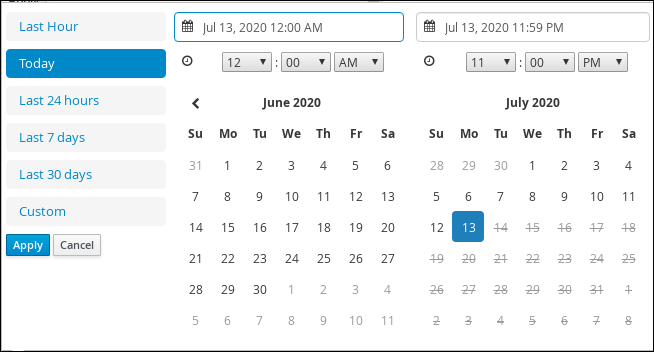
- Error Date
Filtering by the date or time that the error occurred.
This filter has the following quick filter options:
- Last Hour
- Today
- Last 24 Hours
- Last 7 Days
- Last 30 Days
Custom
Selecting Custom date and time filtering opens a calendar tool for selecting a date and time range.
Figure 31.2. Search by Date

'%20d='M201.5%20305.5c-13.8%200-24.9-11.1-24.9-24.6%200-13.8%2011.1-24.9%2024.9-24.9%2013.6%200%2024.6%2011.1%2024.6%2024.9%200%2013.6-11.1%2024.6-24.6%2024.6zM504%20256c0%20137-111%20248-248%20248S8%20393%208%20256%20119%208%20256%208s248%20111%20248%20248zm-132.3-41.2c-9.4%200-17.7%203.9-23.8%2010-22.4-15.5-52.6-25.5-86.1-26.6l17.4-78.3%2055.4%2012.5c0%2013.6%2011.1%2024.6%2024.6%2024.6%2013.8%200%2024.9-11.3%2024.9-24.9s-11.1-24.9-24.9-24.9c-9.7%200-18%205.8-22.1%2013.8l-61.2-13.6c-3-.8-6.1%201.4-6.9%204.4l-19.1%2086.4c-33.2%201.4-63.1%2011.3-85.5%2026.8-6.1-6.4-14.7-10.2-24.1-10.2-34.9%200-46.3%2046.9-14.4%2062.8-1.1%205-1.7%2010.2-1.7%2015.5%200%2052.6%2059.2%2095.2%20132%2095.2%2073.1%200%20132.3-42.6%20132.3-95.2%200-5.3-.6-10.8-1.9-15.8%2031.3-16%2019.8-62.5-14.9-62.5zM302.8%20331c-18.2%2018.2-76.1%2017.9-93.6%200-2.2-2.2-6.1-2.2-8.3%200-2.5%202.5-2.5%206.4%200%208.6%2022.8%2022.8%2087.3%2022.8%20110.2%200%202.5-2.2%202.5-6.1%200-8.6-2.2-2.2-6.1-2.2-8.3%200zm7.7-75c-13.6%200-24.6%2011.1-24.6%2024.9%200%2013.6%2011.1%2024.6%2024.6%2024.6%2013.8%200%2024.9-11.1%2024.9-24.6%200-13.8-11-24.9-24.9-24.9z'/%3e%3c/svg%3e)