 Red Hat Summit
이 콘텐츠는 선택한 언어로 제공되지 않습니다.
Chapter 54. Starting dynamic tasks and processes
You can add dynamic tasks and processes to a case during run time. Dynamic actions are a way to address changing situations, where an unanticipated change during the case requires a new task or process to be incorporated into the case.
Use a case application to add a dynamic task during run time. For demonstration purposes, the Business Central distribution includes a Showcase application where you can start a new dynamic task or process for the IT Orders application.
Prerequisites
- KIE Server is deployed and connected to Business Central.
- The IT Orders project is deployed to KIE Server.
-
The Showcase application
.warfile has been deployed alongside Business Central.
Procedure
With the IT_Orders_New project deployed and running in KIE Server, in a web browser, navigate to the Showcase login page
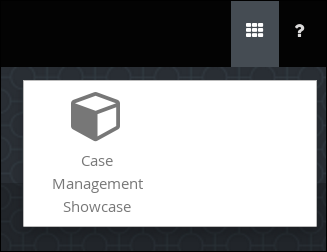
http://localhost:8080/rhpam-case-mgmt-showcase/.Alternatively, if you have configured Business Central to display the Apps launcher button, use it to open a new browser window with the Showcase login page.
- Log in to the Showcase application using your Business Central login credentials.
- Select an active case instance from the list to open it.
Under Overview
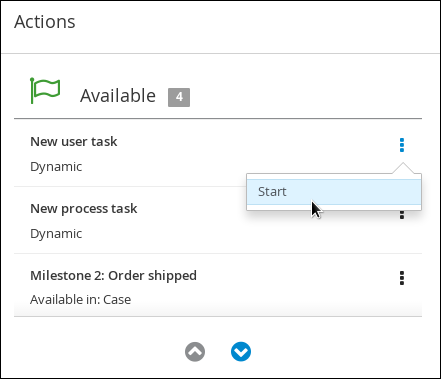
Actions Available, click the  button next to New user task or New process task to add a new task or process task.
Figure 54.1. Showcase dynamic actions
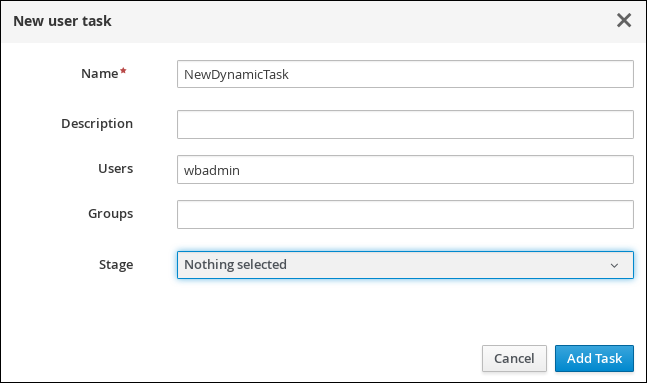
To create a dynamic user task, start a New user task and complete the required information:
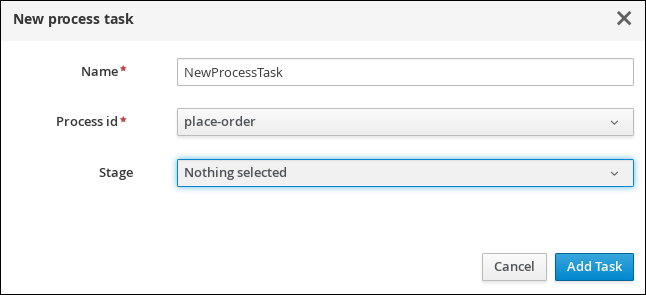
To create a dynamic process task, start a new process task and complete the required information:
To view a dynamic user task in Business Central, click Menu
Track Task Inbox. The user task that was added dynamically using the Showcase application appears in the Task Inbox of users assigned to the task during task creation. 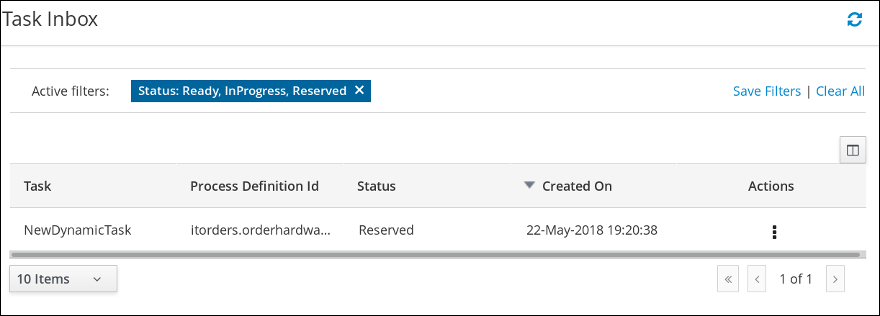
- Click the dynamic task in the Task Inbox to open the task. A number of action tabs are available from this page.
- Using the actions available under the task tabs, you can begin working on the task.
-
In the Showcase application, click the refresh button in the upper-right corner. Case tasks and processes that are in progress appear under Overview
Actions In progress. - When you have completed working on the task, click the Complete button under the Work tab.
-
In the Showcase application, click the refresh button in the upper-right corner. The completed task appears under Overview
Actions Completed.
To view a dynamic process task in Business Central, click Menu
Manage Process Instances. 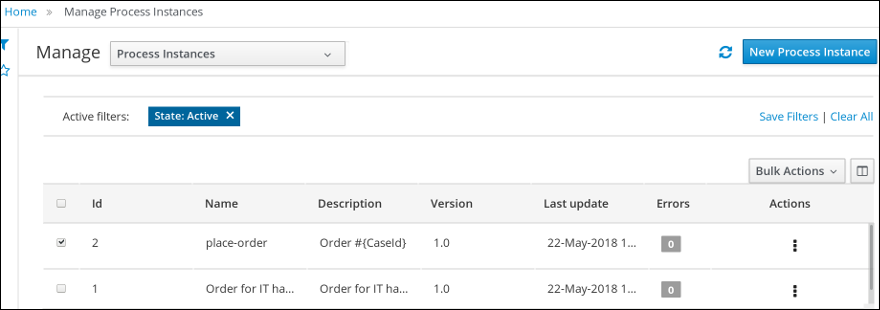
- Click the dynamic process instance in the list of available process instances to view information about the process instance.
-
In the Showcase application, click the refresh button in the upper-right corner. Case tasks and processes that are in progress appear under Overview
Actions In progress.

'%20d='M201.5%20305.5c-13.8%200-24.9-11.1-24.9-24.6%200-13.8%2011.1-24.9%2024.9-24.9%2013.6%200%2024.6%2011.1%2024.6%2024.9%200%2013.6-11.1%2024.6-24.6%2024.6zM504%20256c0%20137-111%20248-248%20248S8%20393%208%20256%20119%208%20256%208s248%20111%20248%20248zm-132.3-41.2c-9.4%200-17.7%203.9-23.8%2010-22.4-15.5-52.6-25.5-86.1-26.6l17.4-78.3%2055.4%2012.5c0%2013.6%2011.1%2024.6%2024.6%2024.6%2013.8%200%2024.9-11.3%2024.9-24.9s-11.1-24.9-24.9-24.9c-9.7%200-18%205.8-22.1%2013.8l-61.2-13.6c-3-.8-6.1%201.4-6.9%204.4l-19.1%2086.4c-33.2%201.4-63.1%2011.3-85.5%2026.8-6.1-6.4-14.7-10.2-24.1-10.2-34.9%200-46.3%2046.9-14.4%2062.8-1.1%205-1.7%2010.2-1.7%2015.5%200%2052.6%2059.2%2095.2%20132%2095.2%2073.1%200%20132.3-42.6%20132.3-95.2%200-5.3-.6-10.8-1.9-15.8%2031.3-16%2019.8-62.5-14.9-62.5zM302.8%20331c-18.2%2018.2-76.1%2017.9-93.6%200-2.2-2.2-6.1-2.2-8.3%200-2.5%202.5-2.5%206.4%200%208.6%2022.8%2022.8%2087.3%2022.8%20110.2%200%202.5-2.2%202.5-6.1%200-8.6-2.2-2.2-6.1-2.2-8.3%200zm7.7-75c-13.6%200-24.6%2011.1-24.6%2024.9%200%2013.6%2011.1%2024.6%2024.6%2024.6%2013.8%200%2024.9-11.1%2024.9-24.6%200-13.8-11-24.9-24.9-24.9z'/%3e%3c/svg%3e)