 Red Hat Summit
Getting started with Red Hat OpenShift Service on AWS (ROSA)
Learn how to get started on Red Hat® OpenShift® Service on AWS, including how to use AWS Security Token Service (STS) to deploy a cluster. Once you’ve finished, proceed to part two and learn how to deploy an application on your new cluster.
You can also watch this interactive demonstration on how to install ROSA, from creating an account to deploying applications.
This learning path is for operations teams or system administrators
Developers may want to check out developers.redhat.com.
Accessing a Red Hat OpenShift Service on AWS cluster using CLI or web console
There are multiple ways to interact with your cluster. You can connect to it via the command-line-interface (CLI) or via the Web Console. We will review both options below.
What will you learn?
-
How to access your cluster via the Web Console
-
How to access your cluster via the CLI
What do you need before starting?
Access the cluster via the console
- Enter the console URL into your web browser. If you need to retrieve it you can run:
rosa describe cluster -c <cluster-name>| grep Console - Click on your identity provider (IdP). In this learning path, we created “rosa-github.”

- Enter your GitHub user credentials (or other credentials if not using GitHub).
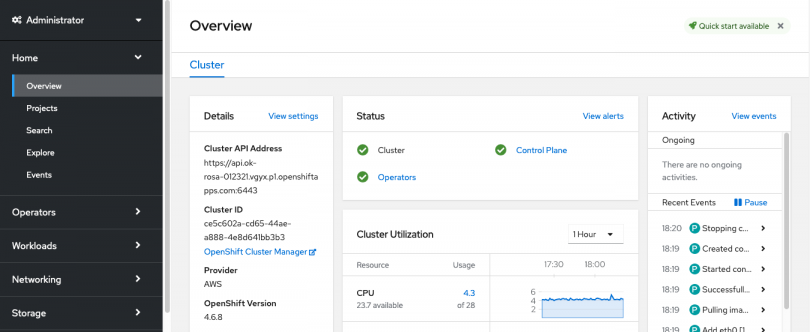
- You should now be logged in. If you've followed this learning path in order, you will be a cluster-admin and should see a web console like the following with the "Administrator" panel visible.
Access the cluster via the CLI
In order to access the cluster via the CLI you must have the oc CLI installed, which was completed in the prerequisites for this learning path.
- Log into the web console as stated above.
- Click on your username in the top right corner
- Click on “Copy Login Command”
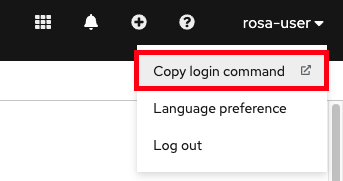
- This will open a new tab with a choice of IdP. Click on the IdP you want to use, in our case, “rosa-github.”
- A new tab will open. Click on “Display token.”
- You will see a page like the following:
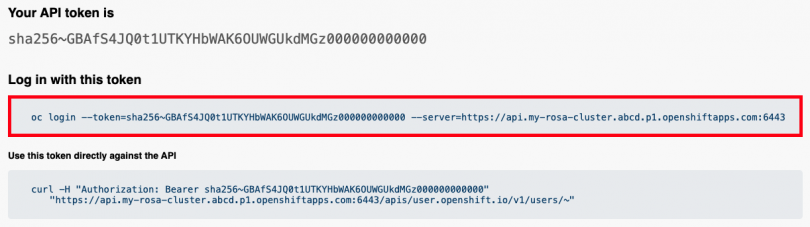
oc logincommand and paste it into your terminal. Press enter.- We can confirm that we are now the user we logged in with by running:
oc whoami
$ oc whoami
rosa-user
- We can now start using our cluster.
You are now ready to manage worker nodes.
Get more support
Access the cluster via the CLI
In order to access the cluster via the CLI you must have the oc CLI installed, which was completed in the prerequisites for this learning path.
- Log into the web console as stated above.
- Click on your username in the top right corner
- Click on “Copy Login Command”
- This will open a new tab with a choice of IdP. Click on the IdP you want to use, in our case, “rosa-github.”
- A new tab will open. Click on “Display token.”
- You will see a page like the following:
oc logincommand and paste it into your terminal. Press enter.- We can confirm that we are now the user we logged in with by running:
oc whoami
$ oc whoami
rosa-user
- We can now start using our cluster.
You are now ready to manage worker nodes.

'%20d='M201.5%20305.5c-13.8%200-24.9-11.1-24.9-24.6%200-13.8%2011.1-24.9%2024.9-24.9%2013.6%200%2024.6%2011.1%2024.6%2024.9%200%2013.6-11.1%2024.6-24.6%2024.6zM504%20256c0%20137-111%20248-248%20248S8%20393%208%20256%20119%208%20256%208s248%20111%20248%20248zm-132.3-41.2c-9.4%200-17.7%203.9-23.8%2010-22.4-15.5-52.6-25.5-86.1-26.6l17.4-78.3%2055.4%2012.5c0%2013.6%2011.1%2024.6%2024.6%2024.6%2013.8%200%2024.9-11.3%2024.9-24.9s-11.1-24.9-24.9-24.9c-9.7%200-18%205.8-22.1%2013.8l-61.2-13.6c-3-.8-6.1%201.4-6.9%204.4l-19.1%2086.4c-33.2%201.4-63.1%2011.3-85.5%2026.8-6.1-6.4-14.7-10.2-24.1-10.2-34.9%200-46.3%2046.9-14.4%2062.8-1.1%205-1.7%2010.2-1.7%2015.5%200%2052.6%2059.2%2095.2%20132%2095.2%2073.1%200%20132.3-42.6%20132.3-95.2%200-5.3-.6-10.8-1.9-15.8%2031.3-16%2019.8-62.5-14.9-62.5zM302.8%20331c-18.2%2018.2-76.1%2017.9-93.6%200-2.2-2.2-6.1-2.2-8.3%200-2.5%202.5-2.5%206.4%200%208.6%2022.8%2022.8%2087.3%2022.8%20110.2%200%202.5-2.2%202.5-6.1%200-8.6-2.2-2.2-6.1-2.2-8.3%200zm7.7-75c-13.6%200-24.6%2011.1-24.6%2024.9%200%2013.6%2011.1%2024.6%2024.6%2024.6%2013.8%200%2024.9-11.1%2024.9-24.6%200-13.8-11-24.9-24.9-24.9z'/%3e%3c/svg%3e)